Exp No: 1 Date:
ANALYSIS OF SIMPLE BEAM USING STAAD.PRO
AIM
To familiarize the user interface and analyse a simple beam using STAAD.Pro
SOFTWARE USED
STAAD.Pro
THEORY
STAAD or (STAAD.Pro) is a STructural Analysis And Design Program developed by
Bentley Systems for the analysis and design of commercial buildings, bridges and highway
structures, industrial structures, chemical plant structures, dams, retaining walls, turbine
foundations, culverts and other embedded structures, etc. It is one of the first software
applications in the world made for the purpose of helping the structural engineers to automate
their work, to eliminate the tedious and lengthy procedures of the manual methods.
STRUCTURE
When a body is subjected to a system of loads and deformation takes place and the resistance
is set up against the deformation, then the body is known as structure. The structure are
means of transferring forces and moments.
ANALYSIS
Calculation of the response of structures to actions. Analysis is performed to calculate
1. Stress distribution
2. Displacement
3. Critical buckling loads
METHODS OF ANALYSIS
1. Force method (Forces are unknown)
a. Clayperon’s theorem of three moments
b. Matrix flexibility method
c. Consistent deformation method
d. Strain energy method.
2. Displacement Method (Displacements are unknowns)
a. Slope deflection method
b. Matrix stiffness method
c. Moment distribution method
d. FEM
e. Kani’s method
TYPES OF STRUCTURES
1. Statically determinate - When the equations of statistics are enough to determine all
the forces acting on the structures, in the structures, then, the structures are known as
statistically determinate structures.
2. Statically indeterminate structures - When the equations of statistical equilibrium
are not sufficient to determine all forces acting on the structure and in the structures,
then the structures are known as Statistically Indeterminate Structures. The equations
of consistent deformations are added to the equations of equilibrium inorder to
analyse the Statistically Indeterminate Structures.
STAAD Pro provides 4 different structure types
Type of
Structure
Details
Space 3D framed structure with loads applied in any plane (The most general).
Plane 2D structure framed in the X-Y plane with loads in the same plane
Floor
2D or 3D structure having no horizontal (global X or Z) movement of the
structure (FX, FZ & MY, are restrained at every joint)
Truss
Any structure consists of truss members only, which can have only axial
member forces and no bending in the members Columns can also be modelled
with the floor in a FLOOR structure as long as the structure has no horizontal
loading. If there is any horizontal load, it must be analysed as a SPACE
structure.
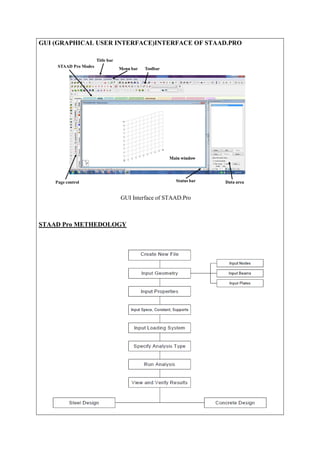
GUI Interface of STAAD.Pro
GUI (GRAPHICAL USER INTERFACE)INTERFACE OF STAAD.PRO
STAAD Pro METHEDOLOGY
WHAT ARE NODES, BEAMS, AND PLATES?
Node
Stiffed joint with 6 reactions. It is located at each end of Beam, and each corner
of Plate. Nodes considered the essence of the Geometry of any structure in
STAAD.Pro. Each Node will hold the following information:
 Node Number.
 Node Coordinate in XYZ space
Beam
Any member in the structure. It can be beam, column, bracing member, or truss
member. Each Beam will hold the following information:
• Beam Number.
 The Node numbers at its ends.
Plate
a thin shell with multi-nodded shape
Starting from 3 nodes, and more. It can be anything of slab, wall, or raft
foundation. Each Plate will hold the following information:
• Plate Number.
• Node Numbers at each corner of it.
PROCEDURE:
1) STARTING THE PROGRAM
1. Start STAAD.Pro by double clicking on the icon
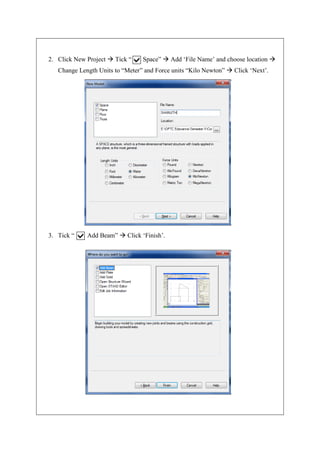
2. Click New Project  Tick “ Space”  Add ‘File Name’ and choose location 
Change Length Units to “Meter” and Force units “Kilo Newton”  Click ‘Next’.
3. Tick “ Add Beam”  Click ‘Finish’.
2) GENERATING THE MODEL GEOMETRY
Select geometry from menu bar and click on ‘Nodes’ or we can add Nodes directly in
the Grid that appears in the main window.
4. Click on to View from +Z. [Can consider it as the Front view]
5. Draw the beam length using Snap Node.
3) SPECIFY MEMBER PROPERTIES
6. From the file menu go to
Commands  Member property  Prismatic  Rectangle
YD = 0.4 m
ZD = 0.3 m
Click, Add  Close
Click, Assign to view  Assign  Close
(Click ‘Yes’ when prompted to continue.)
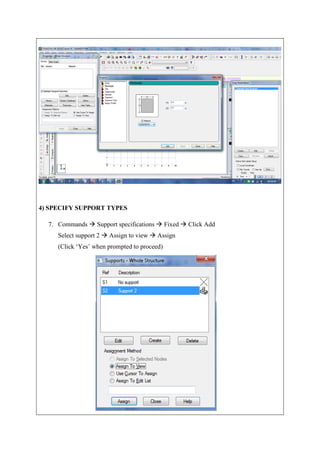
4) SPECIFY SUPPORT TYPES
7. Commands  Support specifications  Fixed  Click Add
Select support 2  Assign to view  Assign
(Click ‘Yes’ when prompted to proceed)
5) SPECIFY MEMBER LOADS
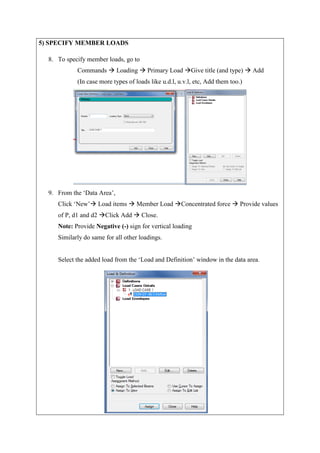
8. To specify member loads, go to
Commands  Loading  Primary Load Give title (and type)  Add
(In case more types of loads like u.d.l, u.v.l, etc, Add them too.)
9. From the ‘Data Area’,
Click ‘New’ Load items  Member Load Concentrated force  Provide values
of P, d1 and d2 Click Add  Close.
Note: Provide Negative (-) sign for vertical loading
Similarly do same for all other loadings.
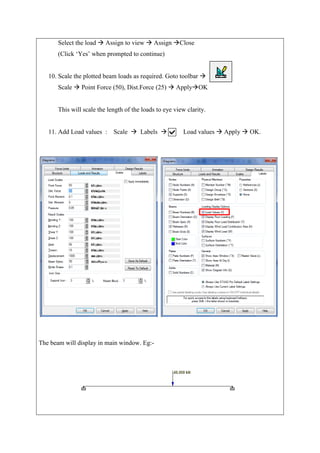
Select the added load from the ‘Load and Definition’ window in the data area.
Select the load  Assign to view  Assign Close
(Click ‘Yes’ when prompted to continue)
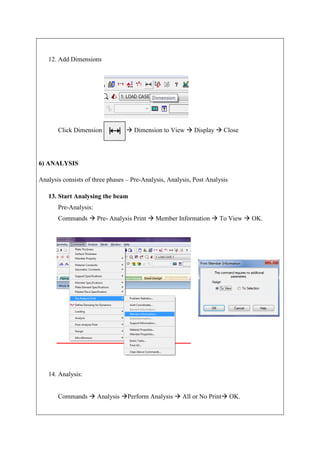
10. Scale the plotted beam loads as required. Goto toolbar 
Scale  Point Force (50), Dist.Force (25)  ApplyOK
This will scale the length of the loads to eye view clarity.
11. Add Load values : Scale  Labels  Load values  Apply  OK.
The beam will display in main window. Eg:-
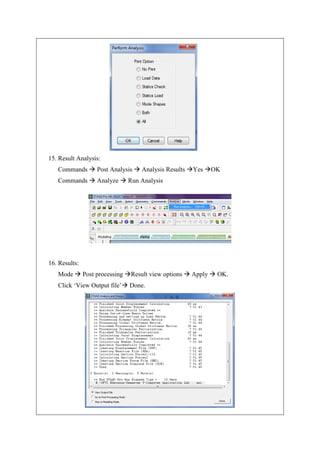
12. Add Dimensions
Click Dimension  Dimension to View  Display  Close
6) ANALYSIS
Analysis consists of three phases – Pre-Analysis, Analysis, Post Analysis
13. Start Analysing the beam
Pre-Analysis:
Commands  Pre- Analysis Print  Member Information  To View  OK.
14. Analysis:
Commands  Analysis Perform Analysis  All or No Print OK.
15. Result Analysis:
Commands  Post Analysis  Analysis Results Yes OK
Commands  Analyze  Run Analysis
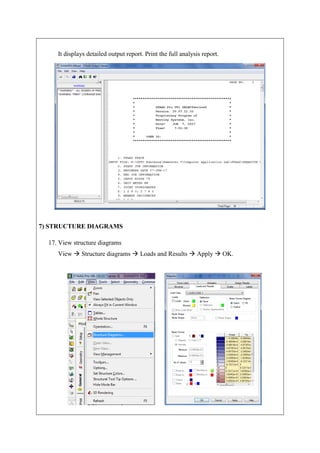
16. Results:
Mode  Post processing Result view options  Apply  OK.
Click ‘View Output file’ Done.
It displays detailed output report. Print the full analysis report.
7) STRUCTURE DIAGRAMS
17. View structure diagrams
View  Structure diagrams  Loads and Results  Apply  OK.
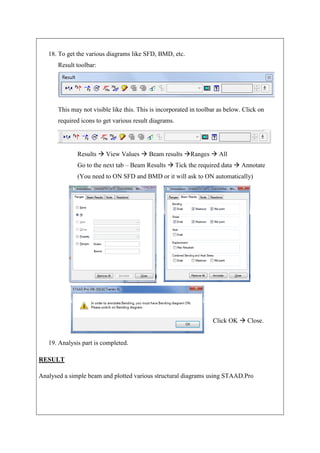
18. To get the various diagrams like SFD, BMD, etc.
Result toolbar:
This may not visible like this. This is incorporated in toolbar as below. Click on
required icons to get various result diagrams.
Results  View Values  Beam results Ranges  All
Go to the next tab – Beam Results  Tick the required data  Annotate
(You need to ON SFD and BMD or it will ask to ON automatically)
Click OK  Close.
19. Analysis part is completed.
RESULT
Analysed a simple beam and plotted various structural diagrams using STAAD.Pro

Analysis of simple beam using STAAD Pro (Exp No 1)

  • 1.
    Exp No: 1Date: ANALYSIS OF SIMPLE BEAM USING STAAD.PRO AIM To familiarize the user interface and analyse a simple beam using STAAD.Pro SOFTWARE USED STAAD.Pro THEORY STAAD or (STAAD.Pro) is a STructural Analysis And Design Program developed by Bentley Systems for the analysis and design of commercial buildings, bridges and highway structures, industrial structures, chemical plant structures, dams, retaining walls, turbine foundations, culverts and other embedded structures, etc. It is one of the first software applications in the world made for the purpose of helping the structural engineers to automate their work, to eliminate the tedious and lengthy procedures of the manual methods. STRUCTURE When a body is subjected to a system of loads and deformation takes place and the resistance is set up against the deformation, then the body is known as structure. The structure are means of transferring forces and moments. ANALYSIS Calculation of the response of structures to actions. Analysis is performed to calculate 1. Stress distribution 2. Displacement 3. Critical buckling loads METHODS OF ANALYSIS 1. Force method (Forces are unknown) a. Clayperon’s theorem of three moments b. Matrix flexibility method
  • 2.
    c. Consistent deformationmethod d. Strain energy method. 2. Displacement Method (Displacements are unknowns) a. Slope deflection method b. Matrix stiffness method c. Moment distribution method d. FEM e. Kani’s method TYPES OF STRUCTURES 1. Statically determinate - When the equations of statistics are enough to determine all the forces acting on the structures, in the structures, then, the structures are known as statistically determinate structures. 2. Statically indeterminate structures - When the equations of statistical equilibrium are not sufficient to determine all forces acting on the structure and in the structures, then the structures are known as Statistically Indeterminate Structures. The equations of consistent deformations are added to the equations of equilibrium inorder to analyse the Statistically Indeterminate Structures. STAAD Pro provides 4 different structure types Type of Structure Details Space 3D framed structure with loads applied in any plane (The most general). Plane 2D structure framed in the X-Y plane with loads in the same plane Floor 2D or 3D structure having no horizontal (global X or Z) movement of the structure (FX, FZ & MY, are restrained at every joint) Truss Any structure consists of truss members only, which can have only axial member forces and no bending in the members Columns can also be modelled with the floor in a FLOOR structure as long as the structure has no horizontal loading. If there is any horizontal load, it must be analysed as a SPACE structure.
  • 3.
    GUI Interface ofSTAAD.Pro GUI (GRAPHICAL USER INTERFACE)INTERFACE OF STAAD.PRO STAAD Pro METHEDOLOGY
  • 4.
    WHAT ARE NODES,BEAMS, AND PLATES? Node Stiffed joint with 6 reactions. It is located at each end of Beam, and each corner of Plate. Nodes considered the essence of the Geometry of any structure in STAAD.Pro. Each Node will hold the following information:  Node Number.  Node Coordinate in XYZ space Beam Any member in the structure. It can be beam, column, bracing member, or truss member. Each Beam will hold the following information: • Beam Number.  The Node numbers at its ends. Plate a thin shell with multi-nodded shape Starting from 3 nodes, and more. It can be anything of slab, wall, or raft foundation. Each Plate will hold the following information: • Plate Number. • Node Numbers at each corner of it. PROCEDURE: 1) STARTING THE PROGRAM 1. Start STAAD.Pro by double clicking on the icon
  • 5.
    2. Click NewProject  Tick “ Space”  Add ‘File Name’ and choose location  Change Length Units to “Meter” and Force units “Kilo Newton”  Click ‘Next’. 3. Tick “ Add Beam”  Click ‘Finish’.
  • 6.
    2) GENERATING THEMODEL GEOMETRY Select geometry from menu bar and click on ‘Nodes’ or we can add Nodes directly in the Grid that appears in the main window. 4. Click on to View from +Z. [Can consider it as the Front view] 5. Draw the beam length using Snap Node. 3) SPECIFY MEMBER PROPERTIES 6. From the file menu go to Commands  Member property  Prismatic  Rectangle YD = 0.4 m ZD = 0.3 m Click, Add  Close Click, Assign to view  Assign  Close (Click ‘Yes’ when prompted to continue.)
  • 7.
    4) SPECIFY SUPPORTTYPES 7. Commands  Support specifications  Fixed  Click Add Select support 2  Assign to view  Assign (Click ‘Yes’ when prompted to proceed)
  • 8.
    5) SPECIFY MEMBERLOADS 8. To specify member loads, go to Commands  Loading  Primary Load Give title (and type)  Add (In case more types of loads like u.d.l, u.v.l, etc, Add them too.) 9. From the ‘Data Area’, Click ‘New’ Load items  Member Load Concentrated force  Provide values of P, d1 and d2 Click Add  Close. Note: Provide Negative (-) sign for vertical loading Similarly do same for all other loadings. Select the added load from the ‘Load and Definition’ window in the data area.
  • 9.
    Select the load Assign to view  Assign Close (Click ‘Yes’ when prompted to continue) 10. Scale the plotted beam loads as required. Goto toolbar  Scale  Point Force (50), Dist.Force (25)  ApplyOK This will scale the length of the loads to eye view clarity. 11. Add Load values : Scale  Labels  Load values  Apply  OK. The beam will display in main window. Eg:-
  • 10.
    12. Add Dimensions ClickDimension  Dimension to View  Display  Close 6) ANALYSIS Analysis consists of three phases – Pre-Analysis, Analysis, Post Analysis 13. Start Analysing the beam Pre-Analysis: Commands  Pre- Analysis Print  Member Information  To View  OK. 14. Analysis: Commands  Analysis Perform Analysis  All or No Print OK.
  • 11.
    15. Result Analysis: Commands Post Analysis  Analysis Results Yes OK Commands  Analyze  Run Analysis 16. Results: Mode  Post processing Result view options  Apply  OK. Click ‘View Output file’ Done.
  • 12.
    It displays detailedoutput report. Print the full analysis report. 7) STRUCTURE DIAGRAMS 17. View structure diagrams View  Structure diagrams  Loads and Results  Apply  OK.
  • 13.
    18. To getthe various diagrams like SFD, BMD, etc. Result toolbar: This may not visible like this. This is incorporated in toolbar as below. Click on required icons to get various result diagrams. Results  View Values  Beam results Ranges  All Go to the next tab – Beam Results  Tick the required data  Annotate (You need to ON SFD and BMD or it will ask to ON automatically) Click OK  Close. 19. Analysis part is completed. RESULT Analysed a simple beam and plotted various structural diagrams using STAAD.Pro