Training Program on
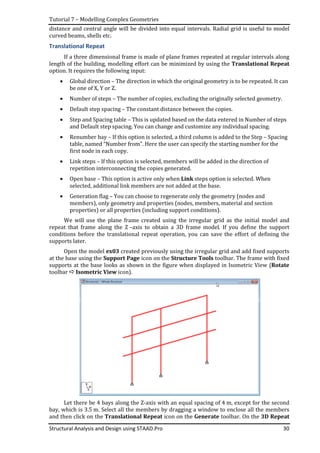
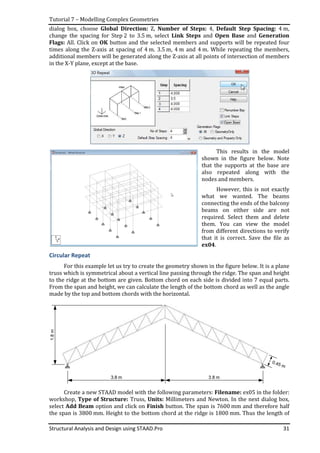
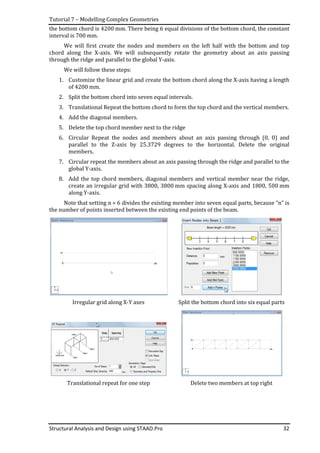
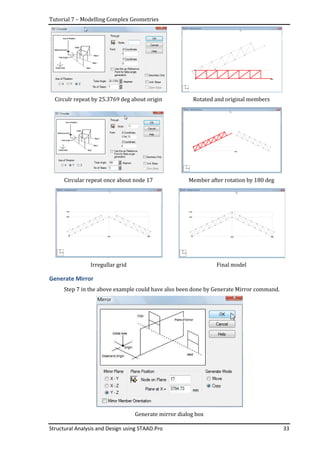
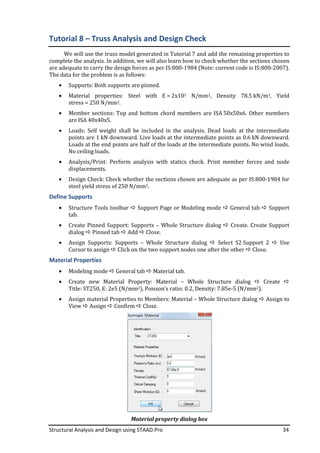
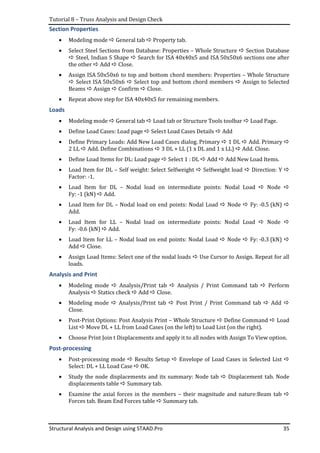
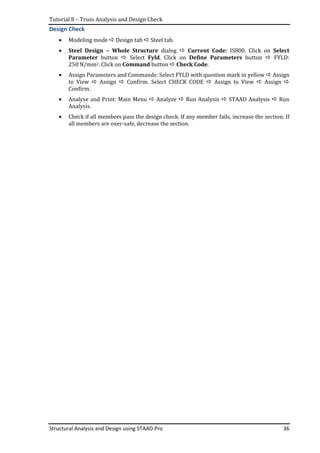
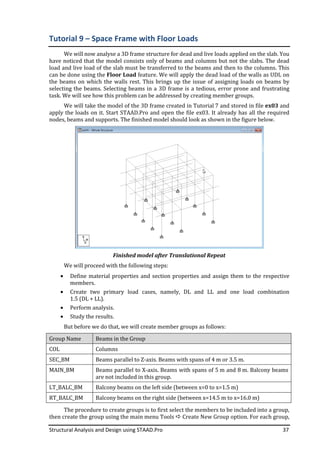
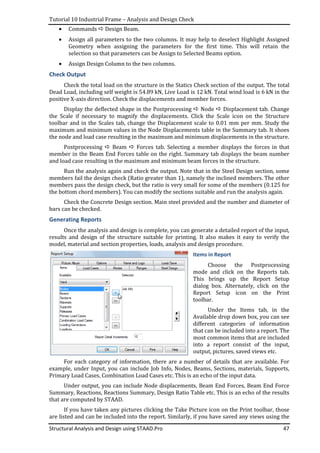
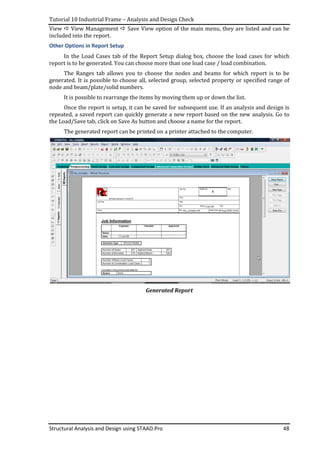
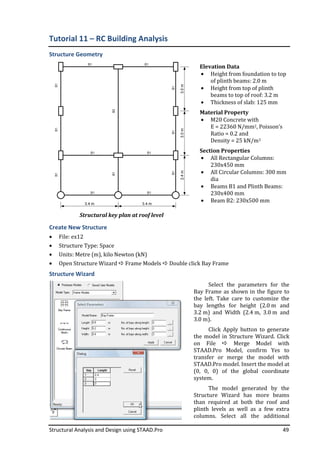
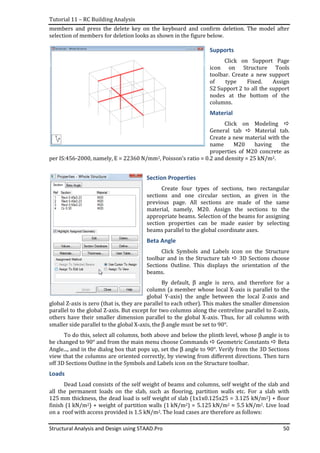
Structural Analysis and Design using
STAAD.Pro
Dr. Satish Annigeri
Professor, Civil Engineering Department
B.V. Bhoomaraddi College of Engineering & Technology, Hubli
Civil Engineering Department
B.V. Bhoomaraddi College of Engineering & Technology, Hubli
August 2009
Structural Analysis and Design using STAAD.Pro i
Preface
Computer aided structural analysis and design has come a long way since its advent in
the early sixties. Personal computers have become dominant and have become powerful
enough to meet almost every requirement of a typical structural design office. Structural
analysis software have become sophisticated and simplify most of the tasks associated with
structural analysis. Steel design is well supported by most structural design software while the
same cannot be said of reinforced concrete design. However, many structural engineering
software offer design of structures in both steel and reinforced concrete as per a variety of
building codes. Nowadays, most CAD software are capable of linear static, linear dynamic and
nonlinear static and nonlinear dynamic analyses.
Amongst the CAD software available, STAAD.Pro has reached a level of recognition that it
is considered the de facto standard. It has a good GUI to simplify model creation, a variety of
elements to handle most problems in civil engineering, a variety of analysis capabilities and
supports design in steel and reinforced concrete as per building codes of most major countries,
including India. It also boasts of sophisticated features such as load generation for seismic
loads, moving loads on bridges, pushover analysis and comprehensive report generation.
The intent of this training program is to introduce STAAD.Pro to a first time user of CAD
software. While one aspect is to learn to use its features, the other is to teach how beat to
model a structure so it represents the real structure it intends to represent.
This training program takes the tutorial approach, where each tutorial focuses on a
single concept and attempts to convey a holistic learning when all tutorials are completed. It is
not the intent of this training program to turn a novice into an expert. It intends to get a
beginner started on a long journey to being an expert. It therefore limits itself to its most basic
capabilities, namely, the linear static analysis.
Enough emphasis is placed on the most common tasks performed during analysis and
design, such as, creating complex models using translational repeat, circular repeat and on
operations such as selecting members and assigning them properties.
This training program on STAAD.Pro should serve as a motivation to pursue further
exploration of its capabilities and use it to its full potential.
August 2009 Dr. Satish Annigeri
Structural Analysis and Design using STAAD.Pro ii
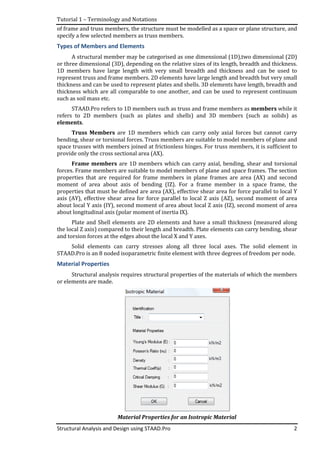
Contents
1. Terminology and Notations........................................................................................................................1
2. Getting to Know the STAAD.Pro GUI.......................................................................................................5
3. Introduction to Modelling........................................................................................................................12
4. Material Properties and Section Properties......................................................................................15
5. Supports, Loads and Load Combinations...........................................................................................19
6. Analysis and Post-processing.................................................................................................................23
7. Modelling Complex Geometries.............................................................................................................27
8. Truss Analysis and Design Check..........................................................................................................34
9. Space Frame with Floor Loads...............................................................................................................37
10. Industrial Frame – Analysis and Design Check ...............................................................................43
11. RC Building Analysis...................................................................................................................................49
12. Double Layer Steel Grid Roof System..................................................................................................52
13. Frame with Member End Release.........................................................................................................55
14. Analysis for Seismic Loads.......................................................................................................................57
Structural Analysis and Design using STAAD.Pro 1
Tutorial 1 – Terminology and Notations
Coordinate Systems
STAAD.Pro uses two types of coordinate systems to define structure geometry, loads,
displacements and member forces.
Global Coordinate System is an arbitrary coordinate system in space which is used to
define the overall geometry and loading pattern of the structure. It is the same irrespective of
which member is considered and a given structure has only one Global coordinate system.
Once chosen, it cannot be changed. Usually the user selects the Global coordinate system to suit
the structure being modelled so that the predominant dimensions of the structure are parallel
to the Global axes.
Local coordinate system is associated with each member of a structure (or element)
and is oriented along the predominant dimensions of the member (or element). For example,
the Local X axis is along the length of a 1D member such as the truss or frame member.
Global coordinate system is used to input loads oriented along global axes and report
results such as displacements at a node, reactions at a support. Local coordinate system is used
to input loads oriented along members (such as loads perpendicular to an inclined member)
and report results such as member end forces.
In STAAD.Pro, the global Y axis is taken to be vertical (parallel to direction of gravity) and
the horizontal plane is represented by the X-Z plane. It is possible to instruct STAAD.Pro to
treat the Z axis to represent the vertical direction with the SET Z UP command.
We will use the default convention of STAAD.Pro and take Y axis to be vertical. An
advantage of this convention is that you will use X and Y axes for plane structures and X, Y and
Z axes for space structures. Taking Z axis vertical will require yhe use of X and Z axes for plane
structures and X, Y and Z axes for space structures.
Units
Units are required to specify lengths, forces and their derived units such as area, stress,
load per unit length, load per unit area, modulus of elasticity etc. STAAD.Pro permits the user
to choose from a selected set of length and force unit pairs. The user can change the units at
any stage of modelling and when the user changes the units, all data input previously are
converted to the current selected units.
We will use either Metre and kilo Newton units or Millimeter and Newton units. The
conversion of these units are 1 kN = 1000 N, 10 N = 1 kg force (actually 9.81 N = 1 kgf).
1 m = 1000 mm.
Types of Structures
Space structure is a three dimensional (3D) framed structure with loads applied in any
plane. It is the most general structure and is able to model any type of structure. Usually Y-axis
is taken to indicate the vertical direction and X-Z represents the horizontal plane.
Plane Structure is a two dimensional (2D) framed structure in the X-Y plane, with all
loads applied in the same plane.
Floor Structure is a 2D or 3D framed structure in the horizontal plane (X-Z plane) with all
horizontal displacements restrained (linear displacements along X and Z axes and rotations
about Y axis are restrained). The floor of a building is a good example for this type of structure.
Loads are applied out of the X-Z plane, usually along the Y axis.
Truss Structure is a 2D or 3D structure consisting only of truss members, and therefore
can carry only axial forces with no ability to carry bending, shear or torsional forces. This is
suitable when all members in the structure are truss members. If a structure has a combination
Tutorial 1 – Terminology and Notations
Structural Analysis and Design using STAAD.Pro
of frame and truss members, the structure must be modelled as
specify a few selected members as truss members.
Types of Members and Elements
A structural member may be categorised as one dimensional (1D),two dimensional (2D)
or three dimensional (3D), depending on the relative sizes of its length, breadth and thickness.
1D members have large length with very small breadth and thickness and can be used to
represent truss and frame members. 2D elements have large length and bre
thickness and can be used to represent plates and shells. 3D elements have length, breadth and
thickness which are all comparable to one another, and can be used to represent continuum
such as soil mass etc.
STAAD.Pro refers to
refers to 2D members (
elements.
Truss Members
bending, shear or torsiona
space trusses with members joined at frictionless hinges.
provide only the cross sectional area (AX).
Frame members
forces. Frame members are suitable to model members of plane and space frames. The section
properties that are required for frame members in plane frames are area (AX)
moment of area about axis of bending (IZ)
properties that must be defined are
axis (AY), effective shear area for force parallel to local Z axis (AZ),
about local Y axis (IY), second moment of area about local Z axis (IZ), second moment of area
about longitudinal axis (polar moment of inertia IX).
Plate and Shell elements are 2D elements and have a small thickness (measured along
the local Z axis) compared to their length and
and torsion forces at the edges about the local X and Y axes.
Solid elements can carry stresses along all three local axes.
STAAD.Pro is an 8 noded isoparametric finite element
Material Properties
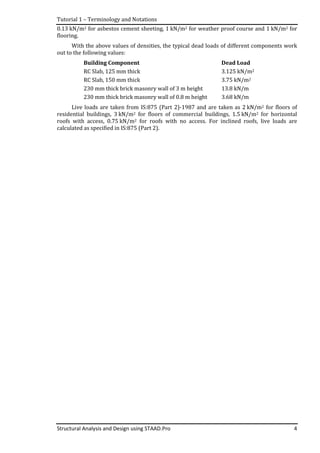
Structural analysis requires structural properties of the materials of which the members
or elements are made.
Terminology and Notations
Structural Analysis and Design using STAAD.Pro
of frame and truss members, the structure must be modelled as a space or p
selected members as truss members.
Types of Members and Elements
A structural member may be categorised as one dimensional (1D),two dimensional (2D)
or three dimensional (3D), depending on the relative sizes of its length, breadth and thickness.
1D members have large length with very small breadth and thickness and can be used to
represent truss and frame members. 2D elements have large length and bre
thickness and can be used to represent plates and shells. 3D elements have length, breadth and
thickness which are all comparable to one another, and can be used to represent continuum
STAAD.Pro refers to 1D members such as truss and frame members
refers to 2D members (such as plates and shells) and 3D members (
are 1D members which can carry only axial forces but cannot carry
bending, shear or torsional forces. Truss members are suitable to model members of
with members joined at frictionless hinges. For truss members, it is sufficient to
provide only the cross sectional area (AX).
Frame members are 1D members which can carry axial, bending, shear and torsional
forces. Frame members are suitable to model members of plane and space frames. The section
properties that are required for frame members in plane frames are area (AX)
moment of area about axis of bending (IZ). For a frame member in a space frame,
properties that must be defined are area (AX), effective shear area for force parallel to local Y
axis (AY), effective shear area for force parallel to local Z axis (AZ),
, second moment of area about local Z axis (IZ), second moment of area
about longitudinal axis (polar moment of inertia IX).
Plate and Shell elements are 2D elements and have a small thickness (measured along
the local Z axis) compared to their length and breadth. Plate elements can carry bending, shear
and torsion forces at the edges about the local X and Y axes.
Solid elements can carry stresses along all three local axes.
STAAD.Pro is an 8 noded isoparametric finite element with three degrees of freedom per node.
Structural analysis requires structural properties of the materials of which the members
Material Properties for an Isotropic Material
2
a space or plane structure, and
A structural member may be categorised as one dimensional (1D),two dimensional (2D)
or three dimensional (3D), depending on the relative sizes of its length, breadth and thickness.
1D members have large length with very small breadth and thickness and can be used to
represent truss and frame members. 2D elements have large length and breadth but very small
thickness and can be used to represent plates and shells. 3D elements have length, breadth and
thickness which are all comparable to one another, and can be used to represent continuum
truss and frame members as members while it
plates and shells) and 3D members (such as solids) as
are 1D members which can carry only axial forces but cannot carry
members are suitable to model members of plane and
For truss members, it is sufficient to
al, bending, shear and torsional
forces. Frame members are suitable to model members of plane and space frames. The section
properties that are required for frame members in plane frames are area (AX) and second
or a frame member in a space frame, the
area (AX), effective shear area for force parallel to local Y
axis (AY), effective shear area for force parallel to local Z axis (AZ), second moment of area
, second moment of area about local Z axis (IZ), second moment of area
Plate and Shell elements are 2D elements and have a small thickness (measured along
breadth. Plate elements can carry bending, shear
Solid elements can carry stresses along all three local axes. The solid element in
with three degrees of freedom per node.
Structural analysis requires structural properties of the materials of which the members
Material Properties for an Isotropic Material
Tutorial 1 – Terminology and Notations
Structural Analysis and Design using STAAD.Pro 3
The commonly required properties are Young’s Modulus (E), Poisson’s Ratio (ߥ), Density,
Thermal coefficient (α), Critical damping and Shear modulus (G). Of these, the important one is
Young’s modulus, which is required for all analyses. Density is required if you want STAAD.Pro
to calculate self weight of members automatically. Shear modulus is required when shear
deformations are important, such as in shear walls, deep beams, plate and solid elements.
Poisson’s Ratio can be used to calculate the Shear modulus from Young’s modulus. Thermal
coefficient is required only in problems in which temperature loads are imposed. Critical
damping coefficient is required only for problems involving dynamic loads.
Further, it is important to be aware of the units being used at any given point of time and
input the material properties in the correct units. Alternatively, you can change the units
before inputting the material property values.
Material Property Steel Concrete M20 M30
1 Young’s Modulus 2 × 10ହ
N/mm2
(2 × 10଼
kN/m2)
5000ඥ݂௖௞
N/mm2
22,360 N/mm2
(2.236x10⁷ kN/m2)
27,386 N/mm2
(2.7386x10⁷ kN/m2)
2 Poisson’s Ratio 0.2 0.3
3 Density 78.5 kN/m3
(78.5x10⁻⁶ N/mm3)
25 kN/m3
(25x10–6 N/mm3)
4 Damping Ratio 2 % 5%
Unit conversion factors are as follows:
To Convert From To By
N/mm2 kN/m2 103
kN/m3 N/mm3 Multiply with 10ି଺
N/m3 N/mm3 10ିଽ
Stiffness Method
Most structural analysis programs are based on the matrix stiffness method, usually in
the form of the Finite Element Method. The matrix stiffness method can be represented in the
form of the stiffness equation, which is as follows:
ሾ‫ܭ‬ሿሼ‫ݔ‬ሽ = ሼܲሽ
where [K] is the stiffness matrix of the structure of size ݊ × ݊, {x} is the vector of unknown
displacements of size ݊ × 1 and {P} is the vector of known external loads corresponding to the
unknown displacements. Here, n is the number of unknown displacements. Of course, this is
only a simplistic representation, but is sufficient for a first introduction.
The stiffness equation is first solverd for the unknown displacements {x} and from the
unknown displacements, the forces in all the members of the structure can be determined. The
stiffness matrix depends on the stiffness contribution of individual members of the structure.
The stiffness matrix and load vector are expressed in global coordinate system and the
resulting displacements obtained are therefore in global coordinate system. To find the
member end forces, which are usually in local coordinate system, the displacements at the
nodes of the member are transformed from global to local coordinate system. From the
displacements at the nodes of a member, expressed in local coordinate system, the member
forces are calculated in local coordinate system.
Typical Load Calculations
In the examples we will analyse in subsequent tutorials, we will use loads whose detailed
calculations are not shown. In this section, we will describe the steps used in arriving at those
loads. The Dead Load calculations are based on densities of materials and are assumed to be
25 kN/m3 for reinforced concrete, 20 kN/m3 for brick masonry, 78.5 kN/m3 for structural steel,
Tutorial 1 – Terminology and Notations
Structural Analysis and Design using STAAD.Pro 4
0.13 kN/m2 for asbestos cement sheeting, 1 kN/m2 for weather proof course and 1 kN/m2 for
flooring.
With the above values of densities, the typical dead loads of different components work
out to the following values:
Building Component Dead Load
RC Slab, 125 mm thick 3.125 kN/m2
RC Slab, 150 mm thick 3.75 kN/m2
230 mm thick brick masonry wall of 3 m height 13.8 kN/m
230 mm thick brick masonry wall of 0.8 m height 3.68 kN/m
Live loads are taken from IS:875 (Part 2)-1987 and are taken as 2 kN/m2 for floors of
residential buildings, 3 kN/m2 for floors of commercial buildings, 1.5 kN/m2 for horizontal
roofs with access, 0.75 kN/m2 for roofs with no access. For inclined roofs, live loads are
calculated as specified in IS:875 (Part 2).
Structural Analysis and Design using STAAD.Pro 5
Tutorial 2 – Getting to Know the STAAD.Pro GUI
Introduction
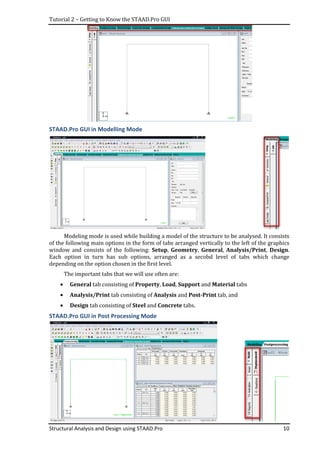
STAAD.Pro provides a user friendly graphical user interface (GUI) to model, analyse, post
process and design a structure. The GUI consists of the main graphics window where the
structure is shown graphically and a collection of interaction tools, namely, main menu at the
top, toolbars at the top (below the menu) and to the sides, Mode bar at the top of the graphics
window (below the horizontal toolbars) and status bar at the bottom. Depending on the task
you are performing at any given time, you will also see forms for structure data arranged
vertically to the right.
Main Menu
The main menu offers the following choices:
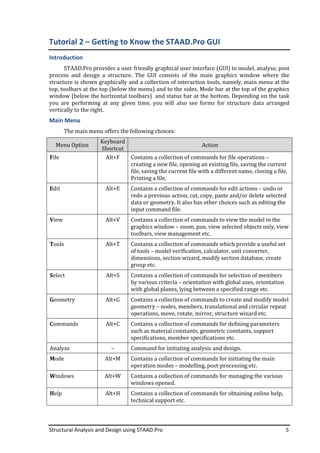
Menu Option
Keyboard
Shortcut
Action
File Alt+F Contains a collection of commands for file operations –
creating a new file, opening an existing file, saving the current
file, saving the current file with a different name, closing a file,
Printing a file,
Edit Alt+E Contains a collection of commands for edit actions – undo or
redo a previous action, cut, copy, paste and/or delete selected
data or geometry. It also has other choices such as editing the
input command file.
View Alt+V Contains a collection of commands to view the model in the
graphics window – zoom, pan, view selected objects only, view
toolbars, view management etc.
Tools Alt+T Contains a collection of commands which provide a useful set
of tools – model verification, calculator, unit converter,
dimensions, section wizard, modify section database, create
group etc.
Select Alt+S Contains a collection of commands for selection of members
by various criteria – orientation with global axes, orientation
with global planes, lying between a specified range etc.
Geometry Alt+G Contains a collection of commands to create and modify model
geometry – nodes, members, translational and circular repeat
operations, move, rotate, mirror, structure wizard etc.
Commands Alt+C Contains a collection of commands for defining parameters
such as material constants, geometric constants, support
specifications, member specifications etc.
Analyze – Command for initiating analysis and design.
Mode Alt+M Contains a collection of commands for initiating the main
operation modes – modelling, post-processing etc.
Windows Alt+W Contains a collection of commands for managing the various
windows opened.
Help Alt+H Contains a collection of commands for obtaining online help,
technical support etc.
Tutorial 2 – Getting to Know the STAAD.Pro GUI
Structural Analysis and Design using STAAD.Pro
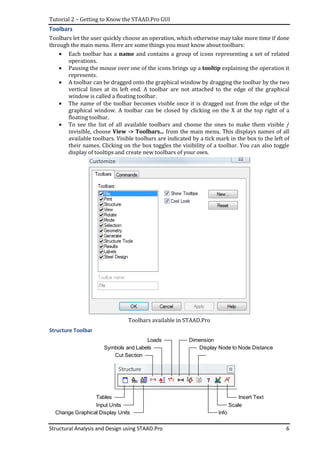
Toolbars
Toolbars let the user quickly choose an operation, whic
through the main menu. Here are some
• Each toolbar has a
operations.
• Pausing the mouse over one of the icons brings
represents.
• A toolbar can be dragged onto the graphical window by dragging the toolbar by the two
vertical lines at its left end. A toolbar are not attached to the edge of the graphical
window is called a floating
• The name of the toolbar becomes visible once it is dragged out from the edge of the
graphical window. A toolbar can be closed by clicking on the X at the top right of a
floating toolbar.
• To see the list of all available toolbars and choose the one
invisible, choose View
available toolbars. Visible toolbars are indicated by a tick mark in the box to the left of
their names. Clicking on the box toggles the visibilit
display of tooltips and create new toolbars of your own.
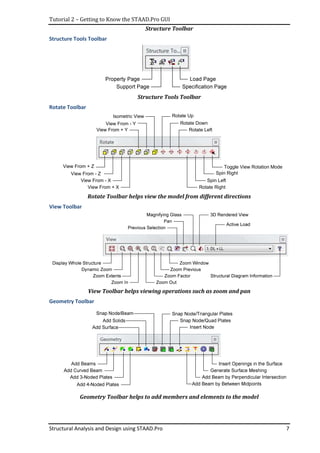
Structure Toolbar
Tables
Input Units
Change Graphical Display Units
Cut Section
Symbols and Labels
Getting to Know the STAAD.Pro GUI
Structural Analysis and Design using STAAD.Pro
Toolbars let the user quickly choose an operation, which otherwise may take more time if done
through the main menu. Here are some things you must know about toolbars:
Each toolbar has a name and contains a group of icons representing a set of related
Pausing the mouse over one of the icons brings up a tooltip explaining the operation it
A toolbar can be dragged onto the graphical window by dragging the toolbar by the two
vertical lines at its left end. A toolbar are not attached to the edge of the graphical
window is called a floating toolbar.
The name of the toolbar becomes visible once it is dragged out from the edge of the
graphical window. A toolbar can be closed by clicking on the X at the top right of a
To see the list of all available toolbars and choose the ones to make them visible /
View -> Toolbars... from the main menu. This displays names of all
available toolbars. Visible toolbars are indicated by a tick mark in the box to the left of
their names. Clicking on the box toggles the visibility of a toolbar. You can also toggle
display of tooltips and create new toolbars of your own.
Toolbars available in STAAD.Pro
Input Units
Change Graphical Display Units
Cut Section
Symbols and Labels
Loads Dimension
Display Node to Node Distance
Info
Scale
6
h otherwise may take more time if done
things you must know about toolbars:
and contains a group of icons representing a set of related
explaining the operation it
A toolbar can be dragged onto the graphical window by dragging the toolbar by the two
vertical lines at its left end. A toolbar are not attached to the edge of the graphical
The name of the toolbar becomes visible once it is dragged out from the edge of the
graphical window. A toolbar can be closed by clicking on the X at the top right of a
s to make them visible /
from the main menu. This displays names of all
available toolbars. Visible toolbars are indicated by a tick mark in the box to the left of
y of a toolbar. You can also toggle
Display Node to Node Distance
Scale
Insert Text
Tutorial 2 – Getting to Know the STAAD.Pro GUI
Structural Analysis and Design using STAAD.Pro 7
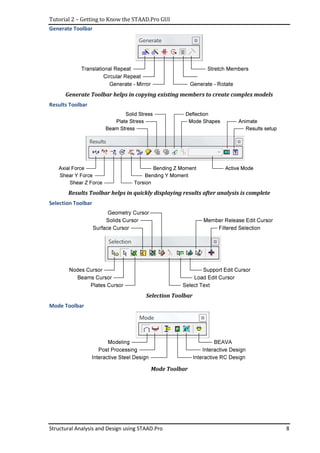
Structure Toolbar
Structure Tools Toolbar
Rotate Toolbar
View From + Z
View From - Z
View From - X
View From + X
View From + Y
View From - Y
Isometric View Rotate Up
Rotate Down
Rotate Left
Rotate Right
Spin Left
Spin Right
Toggle View Rotation Mode
Rotate Toolbar helps view the model from different directions
View Toolbar
View Toolbar helps viewing operations such as zoom and pan
Geometry Toolbar
Geometry Toolbar helps to add members and elements to the model
Tutorial 2 – Getting to Know the STAAD.Pro GUI
Structural Analysis and Design using STAAD.Pro 8
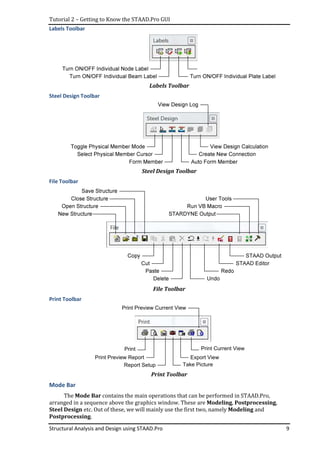
Generate Toolbar
Generate Toolbar helps in copying existing members to create complex models
Results Toolbar
Results Toolbar helps in quickly displaying results after analysis is complete
Selection Toolbar
Selection Toolbar
Mode Toolbar
Mode Toolbar
Tutorial 2 – Getting to Know the STAAD.Pro GUI
Structural Analysis and Design using STAAD.Pro 9
Labels Toolbar
Labels Toolbar
Steel Design Toolbar
File Toolbar
File Toolbar
Print Toolbar
Print
Print Preview Report
Report Setup Take Picture
Export View
Print Current View
Print Preview Current View
Print Toolbar
Mode Bar
The Mode Bar contains the main operations that can be performed in STAAD.Pro,
arranged in a sequence above the graphics window. These are Modeling, Postprocessing,
Steel Design etc. Out of these, we will mainly use the first two, namely Modeling and
Postprocessing.
Tutorial 2 – Getting to Know the STAAD.Pro GUI
Structural Analysis and Design using STAAD.Pro
STAAD.Pro GUI in Modell
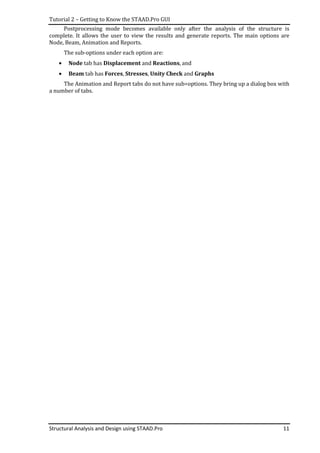
Modeling mode is used while building a model of the structure to be analysed. It consists
of the following main options in the form of tabs arranged vertically to the left of the graphics
window and consists of the following:
Each option in turn has sub options, arranged as a secobd level of tabs which change
depending on the option chosen in the first level.
The important tabs that we will use often are:
• General tab consisting of
• Analysis/Print tab consisting of
• Design tab consisting of
STAAD.Pro GUI in Post Processing Mode
Getting to Know the STAAD.Pro GUI
Structural Analysis and Design using STAAD.Pro
ling Mode
mode is used while building a model of the structure to be analysed. It consists
of the following main options in the form of tabs arranged vertically to the left of the graphics
window and consists of the following: Setup, Geometry, General, Analysis/Pri
Each option in turn has sub options, arranged as a secobd level of tabs which change
depending on the option chosen in the first level.
The important tabs that we will use often are:
tab consisting of Property, Load, Support and Materia
tab consisting of Analysis and Post-Print tab, and
tab consisting of Steel and Concrete tabs.
STAAD.Pro GUI in Post Processing Mode
10
mode is used while building a model of the structure to be analysed. It consists
of the following main options in the form of tabs arranged vertically to the left of the graphics
Analysis/Print, Design.
Each option in turn has sub options, arranged as a secobd level of tabs which change
Material tabs
tab, and
Tutorial 2 – Getting to Know the STAAD.Pro GUI
Structural Analysis and Design using STAAD.Pro 11
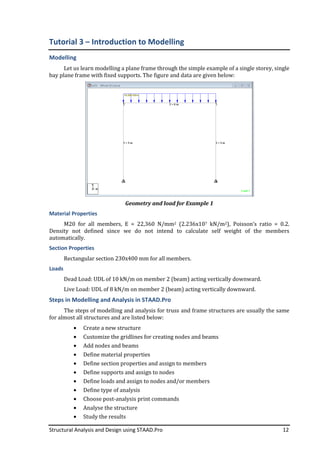
Postprocessing mode becomes available only after the analysis of the structure is
complete. It allows the user to view the results and generate reports. The main options are
Node, Beam, Animation and Reports.
The sub-options under each option are:
• Node tab has Displacement and Reactions, and
• Beam tab has Forces, Stresses, Unity Check and Graphs
The Animation and Report tabs do not have sub=options. They bring up a dialog box with
a number of tabs.
Structural Analysis and Design using STAAD.Pro
Tutorial 3 – Introduction to
Modelling
Let us learn modelling
bay plane frame with fixed supports. The figure and data are given below:
Material Properties
M20 for all members, E = 22,360 N/mm
Density not defined since we do
automatically.
Section Properties
Rectangular section 230x400
Loads
Dead Load: UDL of 10
Live Load: UDL of 8 kN/m on member 2
Steps in Modelling and Analysis in STAAD.Pro
The steps of modelling and analysis for truss and frame structures are usually the same
for almost all structures and are listed below:
• Create a new structure
• Customize the gri
• Add nodes and beams
• Define material properties
• Define section properties and assign to members
• Define supports and assign to nodes
• Define loads and assign to nodes and/or members
• Define type of analysis
• Choose post-
• Analyse the structure
• Study the results
Structural Analysis and Design using STAAD.Pro
Introduction to Modelling
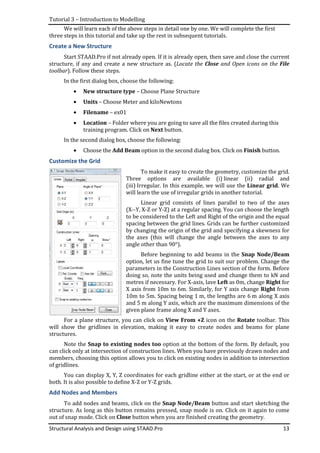
Let us learn modelling a plane frame through the simple example of a single
bay plane frame with fixed supports. The figure and data are given below:
Geometry and load for Example 1
M20 for all members, E = 22,360 N/mm2 (2.236x10⁷ kN/m2), Poisson’s ratio = 0.2.
Density not defined since we do not intend to calculate self weight of the members
Rectangular section 230x400 mm for all members.
UDL of 10 kN/m on member 2 (beam) acting vertically downward
kN/m on member 2 (beam) acting vertically downward.
Steps in Modelling and Analysis in STAAD.Pro
The steps of modelling and analysis for truss and frame structures are usually the same
for almost all structures and are listed below:
Create a new structure
Customize the gridlines for creating nodes and beams
Add nodes and beams
Define material properties
Define section properties and assign to members
Define supports and assign to nodes
Define loads and assign to nodes and/or members
Define type of analysis
-analysis print commands
Analyse the structure
Study the results
12
simple example of a single storey, single
bay plane frame with fixed supports. The figure and data are given below:
), Poisson’s ratio = 0.2.
not intend to calculate self weight of the members
acting vertically downward.
The steps of modelling and analysis for truss and frame structures are usually the same
Tutorial 3 – Introduction to Modelling
Structural Analysis and Design using STAAD.Pro
We will learn each of the above steps in detail one by one.
three steps in this tutorial and take up the rest in subsequent tutorials.
Create a New Structure
Start STAAD.Pro if not already open
structure, if any and create a new
toolbar). Follow these steps
In the first dialog box, choose the following:
• New structure type
• Units – Choose
• Filename – ex01
• Location – Folder where you are going to save all the files created during this
training program. Click on
In the second dialog box, choose the f
• Choose the Add Beam
Customize the Grid
For a plane structure
will show the gridlines in elevation, making it easy
structures.
Note the Snap to existing nodes too
can click only at intersection of construction lines. When you have previously drawn nodes and
members, choosing this option allows you to click on existing nodes in addition to intersection
of gridlines.
You can display X, Y, Z coordinates for each
both. It is also possible to define X
Add Nodes and Members
To add nodes and beams, c
structure. As long as this button
out of snap mode. Click on
Introduction to Modelling
Structural Analysis and Design using STAAD.Pro
We will learn each of the above steps in detail one by one. We will complete the first
three steps in this tutorial and take up the rest in subsequent tutorials.
STAAD.Pro if not already open. If it is already open, then save and close the current
reate a new structure as. (Locate the Close and
these steps.
In the first dialog box, choose the following:
New structure type – Choose Plane Structure
hoose Meter and kiloNewtons
ex01
Folder where you are going to save all the files created during this
training program. Click on Next button.
In the second dialog box, choose the following:
Add Beam option in the second dialog box. Click on
To make it easy to create the geometry,
Three options are available (i) linear (ii) radial and
(iii) Irregular. In this example, we will use the
will learn the use of irregular grids in another tutorial.
Linear grid consists of lines parallel to two of the axes
(X--Y, X-Z or Y-Z) at a regular spacing. You can choose the
to be considered to the Left and Right of the origin
spacing between the grid lines. Grids can be further customized
by changing the origin of the grid and specifying a skewness for
the axes (this will change the angle between the axe
angle other than 90°).
Before beginning to add beams in the
option, let us fine tune the grid to suit our problem. Change the
parameters in the Construction Lines section of the form.
doing so, note the units being used and change them to kN and
metres if necessary. For X-axis, lave Left as 0m, c
X axis from 10m to 6m. Similarly, for Y axis
10m to 5m. Spacing being 1 m, the lengths are 6
and 5 m along Y axis, which are the maximum dimensions of the
given plane frame along X and Y axes.
For a plane structure, you can click on View From +Z icon on the
lines in elevation, making it easy to create nodes and beams
Snap to existing nodes too option at the bottom of the form. By default, you
can click only at intersection of construction lines. When you have previously drawn nodes and
members, choosing this option allows you to click on existing nodes in addition to intersection
display X, Y, Z coordinates for each gridline either at the start, or at the end or
ble to define X-Z or Y-Z grids.
Add Nodes and Members
To add nodes and beams, click on the Snap Node/Beam button and
this button remains pressed, snap mode is on. Click on it again to come
out of snap mode. Click on Close button when you are finished creating the geometry
13
We will complete the first
save and close the current
Open icons on the File
Folder where you are going to save all the files created during this
Click on Finish button.
To make it easy to create the geometry, customize the grid.
linear (ii) radial and
In this example, we will use the Linear grid. We
ular grids in another tutorial.
parallel to two of the axes
Z) at a regular spacing. You can choose the length
Left and Right of the origin and the equal
Grids can be further customized
by changing the origin of the grid and specifying a skewness for
the axes (this will change the angle between the axes to any
Before beginning to add beams in the Snap Node/Beam
option, let us fine tune the grid to suit our problem. Change the
parameters in the Construction Lines section of the form. Before
doing so, note the units being used and change them to kN and
as 0m, change Right for
for Y axis change Right from
m, the lengths are 6 m along X axis
m along Y axis, which are the maximum dimensions of the
icon on the Rotate toolbar. This
to create nodes and beams for plane
at the bottom of the form. By default, you
can click only at intersection of construction lines. When you have previously drawn nodes and
members, choosing this option allows you to click on existing nodes in addition to intersection
line either at the start, or at the end or
and start sketching the
remains pressed, snap mode is on. Click on it again to come
creating the geometry.
Tutorial 3 – Introduction to Modelling
Structural Analysis and Design using STAAD.Pro
You can go back to Snap Node/Beam
the Geometry toolbar. You can
Symbols and Labels icon
Numbers. Since this is a frequently required operation, there are keyboard shortcuts for these
operations – N (Shift N) to toggle display of node numbers and
beam numbers. Note: Ensure that the graphics window is selected
before pressing these keys.
Note the node and beam data
display are connected to each other. Changing the coordinates in the
the display. For example, c
graphical display will change immediately.
Selecting Nodes and Members
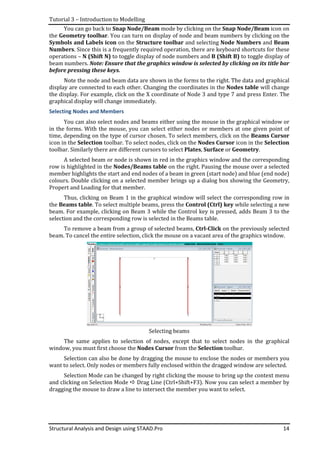
You can also select nodes and beams either
in the forms. With the mouse, you can select either nodes or members at one given point of
time, depending on the type of cursor chosen. To select members, click on the
icon in the Selection toolbar
toolbar. Similarly there are different cursors to select
A selected beam or node is shown in red in the graphics window and the corresponding
row is highlighted in the Nodes/Beams table
member highlights the start and end nodes of a beam in green (start node) and blue (end node)
colours. Double clicking on a selected member brings up a dialog box showing the Geometry,
Propert and Loading for that member.
Thus, clicking on Beam 1 in the graphical window will select the corresponding row in
the Beams table. To select multiple beams, press the
beam. For example, clicking on Beam 3 while the Control key is pressed, adds Beam 3
selection and the corresponding row is selected in the Beams table.
To remove a beam from a group of selected beams,
beam. To cancel the entire selection, click the mouse on a vacant area of the graphics window
The same applies to selection of nodes, except that to select nodes in the graphical
window, you must first choose the
Selection can also be done by dragging the mouse to enclose the nodes or mem
want to select. Only nodes or members fully enclosed within the dragged window are selected.
Selection Mode can be changed by right clicking the mouse to bring up the context menu
and clicking on Selection Mode
dragging the mouse to draw a line to intersect the member you want to select.
Introduction to Modelling
Structural Analysis and Design using STAAD.Pro
Snap Node/Beam mode by clicking on the Snap Node/Beam
You can turn on display of node and beam numbers by clicking on the
icon on the Structure toolbar and selecting Node Numbers
Since this is a frequently required operation, there are keyboard shortcuts for these
to toggle display of node numbers and B (Shift B)
Ensure that the graphics window is selected by clicki
before pressing these keys.
Note the node and beam data are shown in the forms to the right. The data and graphical
display are connected to each other. Changing the coordinates in the Nodes table
the display. For example, click on the X coordinate of Node 3 and type 7 and press Enter. The
graphical display will change immediately.
Selecting Nodes and Members
You can also select nodes and beams either using the mouse in the graphical window or
With the mouse, you can select either nodes or members at one given point of
time, depending on the type of cursor chosen. To select members, click on the
toolbar. To select nodes, click on the Nodes Cursor
. Similarly there are different cursors to select Plates, Surface or
A selected beam or node is shown in red in the graphics window and the corresponding
Nodes/Beams table on the right. Pausing the mouse over a selected
member highlights the start and end nodes of a beam in green (start node) and blue (end node)
colours. Double clicking on a selected member brings up a dialog box showing the Geometry,
Propert and Loading for that member.
licking on Beam 1 in the graphical window will select the corresponding row in
. To select multiple beams, press the Control (Ctrl) key
beam. For example, clicking on Beam 3 while the Control key is pressed, adds Beam 3
selection and the corresponding row is selected in the Beams table.
from a group of selected beams, Ctrl-Click on th
beam. To cancel the entire selection, click the mouse on a vacant area of the graphics window
Selecting beams
The same applies to selection of nodes, except that to select nodes in the graphical
window, you must first choose the Nodes Cursor from the Selection toolbar
Selection can also be done by dragging the mouse to enclose the nodes or mem
want to select. Only nodes or members fully enclosed within the dragged window are selected.
Selection Mode can be changed by right clicking the mouse to bring up the context menu
and clicking on Selection Mode Drag Line (Ctrl+Shift+F3). Now you can select a member by
dragging the mouse to draw a line to intersect the member you want to select.
14
Snap Node/Beam icon on
turn on display of node and beam numbers by clicking on the
Node Numbers and Beam
Since this is a frequently required operation, there are keyboard shortcuts for these
B (Shift B) to toggle display of
by clicking on its title bar
shown in the forms to the right. The data and graphical
Nodes table will change
lick on the X coordinate of Node 3 and type 7 and press Enter. The
in the graphical window or
With the mouse, you can select either nodes or members at one given point of
time, depending on the type of cursor chosen. To select members, click on the Beams Cursor
Nodes Cursor icon in the Selection
or Geometry.
A selected beam or node is shown in red in the graphics window and the corresponding
the mouse over a selected
member highlights the start and end nodes of a beam in green (start node) and blue (end node)
colours. Double clicking on a selected member brings up a dialog box showing the Geometry,
licking on Beam 1 in the graphical window will select the corresponding row in
key while selecting a new
beam. For example, clicking on Beam 3 while the Control key is pressed, adds Beam 3 to the
on the previously selected
beam. To cancel the entire selection, click the mouse on a vacant area of the graphics window.
The same applies to selection of nodes, except that to select nodes in the graphical
oolbar.
Selection can also be done by dragging the mouse to enclose the nodes or members you
want to select. Only nodes or members fully enclosed within the dragged window are selected.
Selection Mode can be changed by right clicking the mouse to bring up the context menu
can select a member by
dragging the mouse to draw a line to intersect the member you want to select.
Structural Analysis and Design using STAAD.Pro
Tutorial 4 –Material Properties
Define and Assign Material Properties
Mode: Modeling General
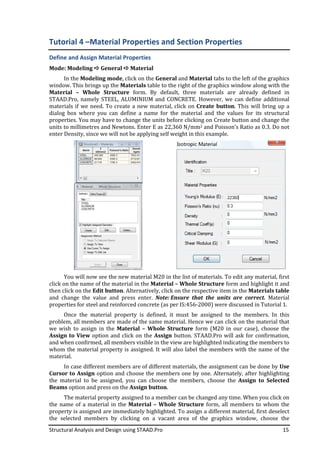
In the Modeling mode
window. This brings up the
Material – Whole Structure
STAAD.Pro, namely STEEL, ALUMINIUM and CONCRETE. However, we can define additional
materials if we need. To create a new material, click on
dialog box where you can define a name for the material and the value
properties. You may have to change the units before clicking on Create button and change the
units to millimetres and Newtons. Enter E as 22,360
enter Density, since we will not be applying self
You will now see the new material M20 in the list of materials. To edit any material, first
click on the name of the material in the
then click on the Edit button
and change the value and press enter.
properties for steel and reinforced concrete (as per IS:456
Once the material property is defined, it must be assigned to the members. In this
problem, all members are made of the same material. Hence we can click on the material that
we wish to assign in the
Assign to View option and click on the
and when confirmed, all members visible in the view are highlighted indicating the members to
whom the material property is assigned. It will also label the me
material.
In case different members are of different materials, the assignment can be done by
Cursor to Assign option and choose the members one by one. Alternately, after highlighting
the material to be assigned, you can cho
Beams option and press on the
The material property assigned to a member can be changed any time. When you click on
the name of a material in the
property is assigned are immediately highlighted. To assign a different material, first deselect
the selected members by clicking on a vacant area of the graphics window, choose the
Structural Analysis and Design using STAAD.Pro
Material Properties and Section Properties
Define and Assign Material Properties
General Material
Modeling mode, click on the General and Material tabs to the left of the graphics
window. This brings up the Materials table to the right of the graphics window along with the
Whole Structure form. By default, three materials are already
STAAD.Pro, namely STEEL, ALUMINIUM and CONCRETE. However, we can define additional
To create a new material, click on Create button
dialog box where you can define a name for the material and the value
You may have to change the units before clicking on Create button and change the
units to millimetres and Newtons. Enter E as 22,360 N/mm2 and Poisson’s Ratio as 0.3. Do not
since we will not be applying self weight in this example.
You will now see the new material M20 in the list of materials. To edit any material, first
the name of the material in the Material – Whole Structure form
Edit button. Alternatively, click on the respective item in the
and change the value and press enter. Note: Ensure that the units are correct.
properties for steel and reinforced concrete (as per IS:456-2000) were discussed in Tutorial
Once the material property is defined, it must be assigned to the members. In this
problem, all members are made of the same material. Hence we can click on the material that
we wish to assign in the Material – Whole Structure form (M20 in our case), choos
option and click on the Assign button. STAAD.Pro will ask for confirmation,
and when confirmed, all members visible in the view are highlighted indicating the members to
whom the material property is assigned. It will also label the members with the name of the
In case different members are of different materials, the assignment can be done by
option and choose the members one by one. Alternately, after highlighting
the material to be assigned, you can choose the members, choose the
option and press on the Assign button.
The material property assigned to a member can be changed any time. When you click on
the name of a material in the Material – Whole Structure form, all members to
property is assigned are immediately highlighted. To assign a different material, first deselect
the selected members by clicking on a vacant area of the graphics window, choose the
15
and Section Properties
tabs to the left of the graphics
table to the right of the graphics window along with the
By default, three materials are already defined in
STAAD.Pro, namely STEEL, ALUMINIUM and CONCRETE. However, we can define additional
Create button. This will bring up a
dialog box where you can define a name for the material and the values for its structural
You may have to change the units before clicking on Create button and change the
and Poisson’s Ratio as 0.3. Do not
You will now see the new material M20 in the list of materials. To edit any material, first
form and highlight it and
Alternatively, click on the respective item in the Materials table
Ensure that the units are correct. Material
2000) were discussed in Tutorial 1.
Once the material property is defined, it must be assigned to the members. In this
problem, all members are made of the same material. Hence we can click on the material that
form (M20 in our case), choose the
button. STAAD.Pro will ask for confirmation,
and when confirmed, all members visible in the view are highlighted indicating the members to
mbers with the name of the
In case different members are of different materials, the assignment can be done by Use
option and choose the members one by one. Alternately, after highlighting
ose the members, choose the Assign to Selected
The material property assigned to a member can be changed any time. When you click on
form, all members to whom the
property is assigned are immediately highlighted. To assign a different material, first deselect
the selected members by clicking on a vacant area of the graphics window, choose the
Tutorial 4 –Material Properties and Section Properties
Structural Analysis and Design using STAAD.Pro 16
members whose material property is to be changed, choose the Assign to Selected Beams
option and press on the Assign button. Immediately, the material property label will be
changed.
Define and Assign Section Properties
Mode: Modeling General Property
Toolbar: Structure Tools Property Page
Create a Section
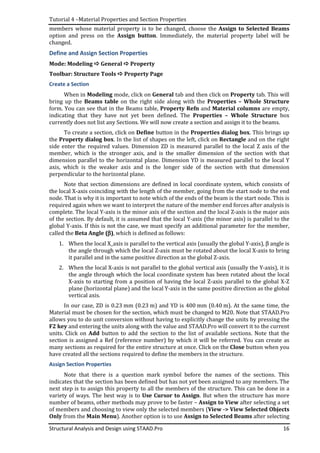
When in Modeling mode, click on General tab and then click on Property tab. This will
bring up the Beams table on the right side along with the Properties – Whole Structure
form. You can see that in the Beams table, Property Refn and Material columns are empty,
indicating that they have not yet been defined. The Properties – Whole Structure box
currently does not list any Sections. We will now create a section and assign it to the beams.
To create a section, click on Define button in the Properties dialog box. This brings up
the Property dialog box. In the list of shapes on the left, click on Rectangle and on the right
side enter the required values. Dimension ZD is measured parallel to the local Z axis of the
member, which is the stronger axis, and is the smaller dimension of the section with that
dimension parallel to the horizontal plane. Dimension YD is measured parallel to the local Y
axis, which is the weaker axis and is the longer side of the section with that dimension
perpendicular to the horizontal plane.
Note that section dimensions are defined in local coordinate system, which consists of
the local X-axis coinciding with the length of the member, going from the start node to the end
node. That is why it is important to note which of the ends of the beam is the start node. This is
required again when we want to interpret the nature of the member end forces after analysis is
complete. The local Y-axis is the minor axis of the section and the local Z-axis is the major axis
of the section. By default, it is assumed that the local Y-axis (the minor axis) is parallel to the
global Y-axis. If this is not the case, we must specify an additional parameter for the member,
called the Beta Angle (ββββ), which is defined as follows:
1. When the local X_axis is parallel to the vertical axis (usually the global Y-axis), β angle is
the angle through which the local Z-axis must be rotated about the local X-axis to bring
it parallel and in the same positive direction as the global Z-axis.
2. When the local X-axis is not parallel to the global vertical axis (usually the Y-axis), it is
the angle through which the local coordinate system has been rotated about the local
X-axis to starting from a position of having the local Z-axis parallel to the global X-Z
plane (horizontal plane) and the local Y-axis in the same positive direction as the global
vertical axis.
In our case, ZD is 0.23 mm (0.23 m) and YD is 400 mm (0.40 m). At the same time, the
Material must be chosen for the section, which must be changed to M20. Note that STAAD.Pro
allows you to do unit conversion without having to explicitly change the units by pressing the
F2 key and entering the units along with the value and STAAD.Pro will convert it to the current
units. Click on Add button to add the section to the list of available sections. Note that the
section is assigned a Ref (reference number) by which it will be referred. You can create as
many sections as required for the entire structure at once. Click on the Close button when you
have created all the sections required to define the members in the structure.
Assign Section Properties
Note that there is a question mark symbol before the names of the sections. This
indicates that the section has been defined but has not yet been assigned to any members. The
next step is to assign this property to all the members of the structure. This can be done in a
variety of ways. The best way is to Use Cursor to Assign. But when the structure has more
number of beams, other methods may prove to be faster – Assign to View after selecting a set
of members and choosing to view only the selected members (View -> View Selected Objects
Only from the Main Menu). Another option is to use Assign to Selected Beams after selecting
Tutorial 4 –Material Properties and Section Properties
Structural Analysis and Design using STAAD.Pro
the beams to which the property is to be assigne
the Beam numbers are known and especially if the numbers are contiguous.
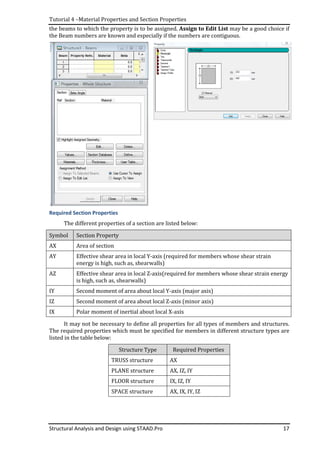
Required Section Properties
The different properties of a section are listed below:
Symbol Section Property
AX Area of section
AY Effective shear area in local Y
energy is high, such as, shearwalls)
AZ Effective shear area in local Z
is high, such as, shearwalls)
IY Second moment of a
IZ Second moment of area about local Z
IX Polar moment of inertial about local X
It may not be necessary to define all properties for all types of members and structures.
The required properties which must be specified
listed in the table below:
TRUSS structure
PLANE structure
FLOOR structure
SPACE
Material Properties and Section Properties
Structural Analysis and Design using STAAD.Pro
the beams to which the property is to be assigned. Assign to Edit List may be a good choice if
the Beam numbers are known and especially if the numbers are contiguous.
Required Section Properties
The different properties of a section are listed below:
Section Property
Effective shear area in local Y-axis (required for members whose shear strain
energy is high, such as, shearwalls)
Effective shear area in local Z-axis(required for members whose shear strain energy
is high, such as, shearwalls)
Second moment of area about local Y-axis (major axis)
Second moment of area about local Z-axis (minor axis)
Polar moment of inertial about local X-axis
necessary to define all properties for all types of members and structures.
which must be specified for members in different structure types are
Structure Type Required Properties
TRUSS structure AX
PLANE structure AX, IZ, IY
FLOOR structure IX, IZ, IY
SPACE structure AX, IX, IY, IZ
17
may be a good choice if
the Beam numbers are known and especially if the numbers are contiguous.
(required for members whose shear strain
(required for members whose shear strain energy
necessary to define all properties for all types of members and structures.
for members in different structure types are
Tutorial 4 –Material Properties and Section Properties
Structural Analysis and Design using STAAD.Pro 18
Available Section Shapes
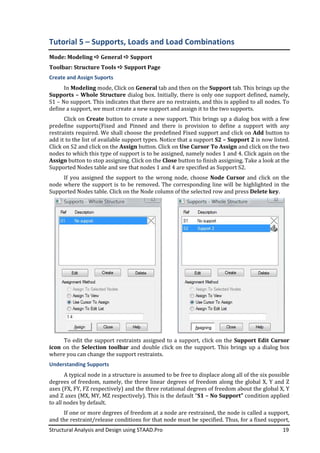
STAAD.Pro provides the following types of sections, whose properties it can calculate:
Shape Requires Section Properties
Circle YD – Diameter of the circle
Rectangle YD – Depth of the section along local Y-axis
ZD – Breadth of section along local Z-axis
Tee YD – Overall dimension along local Y-axis
ZD – Overall dimension along local Z-axis
YB – Dimension of web along local Y-axis
ZB – Dimension of web along local Z-axis
Trapezoidal YD – Overall dimension along local Y-axis
ZD – Dimension of side parallel to local Z-axis towards positive side of local
Y-axis
ZB – Dimension of side parallel to local Z-axis towards negative side of local
Y-axis
General No particular shape. User must calculate all required properties, such as AX,
IY, IZ and input them individually
Section Database
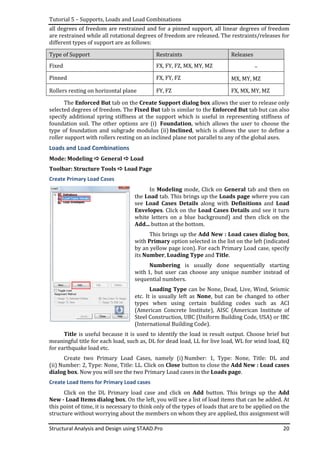
STAAD.Pro has a database of standard steel sections used in many countries. Names and
properties of standard sections are available in the database and only the name of the section
need be selected and STADD.Pro will automatically assign the required section properties. This
is available in the Properties – Whole Structure dialog box by clicking on the Section
Database button.
The sections are arranged in increasing order of their AX values. Clicking on the View
Table button below the Select Beam list box shows the detailed section properties and allows
selection of multiple sections to be included into the list of sections to be used in the structure.
Some Tips
Save the structure as often as possible by pressing Ctrl+S key on the keyboard or from
the main menu File Save.
Find help on any topic by going to main menu Help Contents... or pressing F1 key on
the keyboard. Study the Technical Reference section in the help file.
Use the Rotate Toolbar to view the model from different sides, zooming in and zooming
out. You can see an isometric view to visualize in 3D.
Structural Analysis and Design using STAAD.Pro
Tutorial 5 – Supports
Mode: Modeling General
Toolbar: Structure Tools
Create and Assign Suports
In Modeling mode, Click
Supports – Whole Structure
S1 – No support. This indicates that there are no restraints, and this is applied to all nodes. To
define a support, we must create a new support and assign it to the two supports.
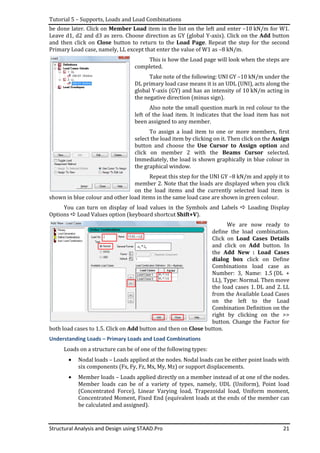
Click on Create button
predefine supports(Fixed and Pinned and there is provision to define a support with any
restraints required. We shall choose the predefined Fixed support and click on
add it to the list of available support types. Notice that a support
Click on S2 and click on the
nodes to which this type of support is to be assigned, nam
Assign button to stop assigning. Click on the
Supported Nodes table and see that nodes 1 and 4 are specified as Support S2.
If you assigned the support to the wrong
node where the support is to be removed. The corresponding line will be highlighted in the
Supported Nodes table. Click on the Node column of the selected row and press
To edit the support restrain
icon on the Selection toolbar
where you can change the support restraints.
Understanding Supports
A typical node in a structure is
degrees of freedom, namely, the three linear degrees of freedom along the global X, Y and Z
axes (FX, FY, FZ respectively) and the three rotational degrees of freedom about the global X, Y
and Z axes (MX, MY, MZ respectively). This is the default “
to all nodes by default.
If one or more degrees of freedom at a node are restrained, the node is called a support,
and the restraint/release conditions for that node mu
Structural Analysis and Design using STAAD.Pro
Supports, Loads and Load Combinations
General Support
Toolbar: Structure Tools Support Page
Click on General tab and then on the Support
Whole Structure dialog box. Initially, there is only one support defined, namely,
No support. This indicates that there are no restraints, and this is applied to all nodes. To
define a support, we must create a new support and assign it to the two supports.
button to create a new support. This brings up a dialog box with a few
predefine supports(Fixed and Pinned and there is provision to define a support with any
restraints required. We shall choose the predefined Fixed support and click on
add it to the list of available support types. Notice that a support S2 – Support 2
Click on S2 and click on the Assign button. Click on Use Cursor To Assign
nodes to which this type of support is to be assigned, namely nodes 1 and 4. Click again on the
to stop assigning. Click on the Close button to finish assigning. Take a look at the
Supported Nodes table and see that nodes 1 and 4 are specified as Support S2.
If you assigned the support to the wrong node, choose Node Cursor
node where the support is to be removed. The corresponding line will be highlighted in the
Supported Nodes table. Click on the Node column of the selected row and press
To edit the support restraints assigned to a support, click on the
toolbar and double click on the support. This brings up a dialog box
where you can change the support restraints.
A typical node in a structure is assumed to be free to displace along all of the six possible
degrees of freedom, namely, the three linear degrees of freedom along the global X, Y and Z
axes (FX, FY, FZ respectively) and the three rotational degrees of freedom about the global X, Y
axes (MX, MY, MZ respectively). This is the default “S1 – No Support”
If one or more degrees of freedom at a node are restrained, the node is called a support,
and the restraint/release conditions for that node must be specified. Thus, for a fixed support,
19
Load Combinations
Support tab. This brings up the
dialog box. Initially, there is only one support defined, namely,
No support. This indicates that there are no restraints, and this is applied to all nodes. To
define a support, we must create a new support and assign it to the two supports.
to create a new support. This brings up a dialog box with a few
predefine supports(Fixed and Pinned and there is provision to define a support with any
restraints required. We shall choose the predefined Fixed support and click on Add button to
Support 2 is now listed.
Use Cursor To Assign and click on the two
ely nodes 1 and 4. Click again on the
to finish assigning. Take a look at the
Supported Nodes table and see that nodes 1 and 4 are specified as Support S2.
Node Cursor and click on the
node where the support is to be removed. The corresponding line will be highlighted in the
Supported Nodes table. Click on the Node column of the selected row and press Delete key.
ts assigned to a support, click on the Support Edit Cursor
and double click on the support. This brings up a dialog box
assumed to be free to displace along all of the six possible
degrees of freedom, namely, the three linear degrees of freedom along the global X, Y and Z
axes (FX, FY, FZ respectively) and the three rotational degrees of freedom about the global X, Y
No Support” condition applied
If one or more degrees of freedom at a node are restrained, the node is called a support,
st be specified. Thus, for a fixed support,
Tutorial 5 – Supports, Loads and Load Combinations
Structural Analysis and Design using STAAD.Pro 20
all degrees of freedom are restrained and for a pinned support, all linear degrees of freedom
are restrained while all rotational degrees of freedom are released. The restraints/releases for
different types of support are as follows:
Type of Support Restraints Releases
Fixed FX, FY, FZ, MX, MY, MZ –
Pinned FX, FY, FZ MX, MY, MZ
Rollers resting on horizontal plane FY, FZ FX, MX, MY, MZ
The Enforced But tab on the Create Support dialog box allows the user to release only
selected degrees of freedom. The Fixed But tab is similar to the Enforced But tab but can also
specify additional spring stiffness at the support which is useful in representing stiffness of
foundation soil. The other options are (i) Foundation, which allows the user to choose the
type of foundation and subgrade modulus (ii) Inclined, which is allows the user to define a
roller support with rollers resting on an inclined plane not parallel to any of the global axes.
Loads and Load Combinations
Mode: Modeling General Load
Toolbar: Structure Tools Load Page
Create Primary Load Cases
In Modeling mode, Click on General tab and then on
the Load tab. This brings up the Loads page where you can
see Load Cases Details along with Definitions and Load
Envelopes. Click on the Load Cases Details and see it turn
white letters on a blue background) and then click on the
Add... button at the bottom.
This brings up the Add New : Load cases dialog box,
with Primary option selected in the list on the left (indicated
by an yellow page icon). For each Primary Load case, specify
its Number, Loading Type and Title.
Numbering is usually done sequentially starting
with 1, but user can choose any unique number instead of
sequential numbers.
Loading Type can be None, Dead, Live, Wind, Seismic
etc. It is usually left as None, but can be changed to other
types when using certain building codes such as ACI
(American Concrete Institute), AISC (American Institute of
Steel Construction, UBC (Uniform Building Code, USA) or IBC
(International Building Code).
Title is useful because it is used to identify the load in result output. Choose brief but
meaningful title for each load, such as, DL for dead load, LL for live load, WL for wind load, EQ
for earthquake load etc.
Create two Primary Load Cases, namely (i) Number: 1, Type: None, Title: DL and
(ii) Number: 2, Type: None, Title: LL. Click on Close button to close the Add New : Load cases
dialog box. Now you will see the two Primary Load cases in the Loads page.
Create Load Items for Primary Load cases
Click on the DL Primary load case and click on Add button. This brings up the Add
New - Load Items dialog box. On the left, you will see a list of load items that can be added. At
this point of time, it is necessary to think only of the types of loads that are to be applied on the
structure without worrying about the members on whom they are applied, this assignment will
Tutorial 5 – Supports, Loads and Load Combinations
Structural Analysis and Design using STAAD.Pro 21
be done later. Click on Member Load item in the list on the left and enter –10 kN/m for W1.
Leave d1, d2 and d3 as zero. Choose direction as GY (global Y-axis). Click on the Add button
and then click on Close button to return to the Load Page. Repeat the step for the second
Primary Load case, namely, LL except that enter the value of W1 as –8 kN/m.
This is how the Load page will look when the steps are
completed.
Take note of the following: UNI GY –10 kN/m under the
DL primary load case means it is an UDL (UNI), acts along the
global Y-axis (GY) and has an intensity of 10 kN/m acting in
the negative direction (minus sign).
Also note the small question mark in red colour to the
left of the load item. It indicates that the load item has not
been assigned to any member.
To assign a load item to one or more members, first
select the load item by clicking on it. Then click on the Assign
button and choose the Use Cursor to Assign option and
click on member 2 with the Beams Cursor selected.
Immediately, the load is shown graphically in blue colour in
the graphical window.
Repeat this step for the UNI GY –8 kN/m and apply it to
member 2. Note that the loads are displayed when you click
on the load items and the currently selected load item is
shown in blue colour and other load items in the same load case are shown in green colour.
You can turn on display of load values in the Symbols and Labels Loading Display
Options Load Values option (keyboard shortcut Shift+V).
We are now ready to
define the load combination.
Click on Load Cases Details
and click on Add button. In
the Add New : Load Cases
dialog box click on Define
Combinations load case as
Number: 3, Name: 1.5 (DL +
LL), Type: Normal. Then move
the load cases 1. DL and 2. LL
from the Available Load Cases
on the left to the Load
Combination Definition on the
right by clicking on the >>
button. Change the Factor for
both load cases to 1.5. Click on Add button and then on Close button.
Understanding Loads – Primary Loads and Load Combinations
Loads on a structure can be of one of the following types:
• Nodal loads – Loads applied at the nodes. Nodal loads can be either point loads with
six components (Fx, Fy, Fz, Mx, My, Mz) or support displacements.
• Member loads – Loads applied directly on a member instead of at one of the nodes.
Member loads can be of a variety of types, namely, UDL (Uniform), Point load
(Concentrated Force), Linear Varying load, Trapezoidal load, Uniform moment,
Concentrated Moment, Fixed End (equivalent loads at the ends of the member can
be calculated and assigned).
Tutorial 5 – Supports, Loads and Load Combinations
Structural Analysis and Design using STAAD.Pro 22
• Floor loads – Loads transferred to beams by floors. STAAD.Pro automatically
distributes the loads to all adjoining beams.
• Temperature loads – Loads due to temperature change.
• Seismic loads, Time history loads, Response Spectra – Loads due to earthquakes.
The loads are organized as independent load cases which STAAD.Pro calls as Primary
Loads. In addition, STAAD.Pro can define Load Combinations as linear combinations of any of
the Primary Loads. The user can define any number of Primary Loads and Load Combinations.
Each Primary load case can consist of any number of Nodal and/or Member loads. Each defined
load in a Primary Load can be assigned to one or more nodes or members.
Load combinations are linear combinations of one or more previously defined Primary
Load cases. For example, to obtain the limit state design forces for limit state design as per
IS:456-2000, use a linear combination of 1.5 times dead load and 1.5 times live load. This is
applicable to elastic analyses as the results due to a linear combination of the loads is simply
the linear combination of the results of the individual Primary load cases.
Structural Analysis and Design using STAAD.Pro 23
Tutorial 6 – Analysis and Post-processing
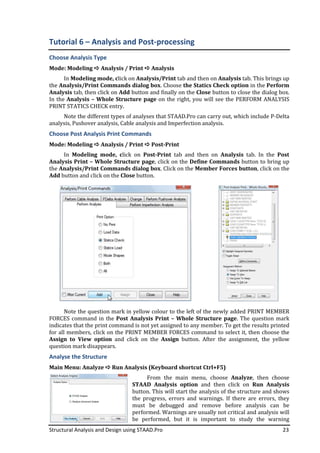
Choose Analysis Type
Mode: Modeling Analysis / Print Analysis
In Modeling mode, click on Analysis/Print tab and then on Analysis tab. This brings up
the Analysis/Print Commands dialog box. Choose the Statics Check option in the Perform
Analysis tab, then click on Add button and finally on the Close button to close the dialog box.
In the Analysis – Whole Structure page on the right, you will see the PERFORM ANALYSIS
PRINT STATICS CHECK entry.
Note the different types of analyses that STAAD.Pro can carry out, which include P-Delta
analysis, Pushover analysis, Cable analysis and Imperfection analysis.
Choose Post Analysis Print Commands
Mode: Modeling Analysis / Print Post-Print
In Modeling mode, click on Post-Print tab and then on Analysis tab. In the Post
Analysis Print – Whole Structure page, click on the Define Commands button to bring up
the Analysis/Print Commands dialog box. Click on the Member Forces button, click on the
Add button and click on the Close button.
Note the question mark in yellow colour to the left of the newly added PRINT MEMBER
FORCES command in the Post Analysis Print – Whole Structure page. The question mark
indicates that the print command is not yet assigned to any member. To get the results printed
for all members, click on the PRINT MEMBER FORCES command to select it, then choose the
Assign to View option and click on the Assign button. After the assignment, the yellow
question mark disappears.
Analyse the Structure
Main Menu: Analyze Run Analysis (Keyboard shortcut Ctrl+F5)
From the main menu, choose Analyze, then choose
STAAD Analysis option and then click on Run Analysis
button. This will start the analysis of the structure and shows
the progress, errors and warnings. If there are errors, they
must be debugged and remove before analysis can be
performed. Warnings are usually not critical and analysis will
be performed, but it is important to study the warning
Tutorial 6 – Analysis and Post-processing
Structural Analysis and Design using STAAD.Pro 24
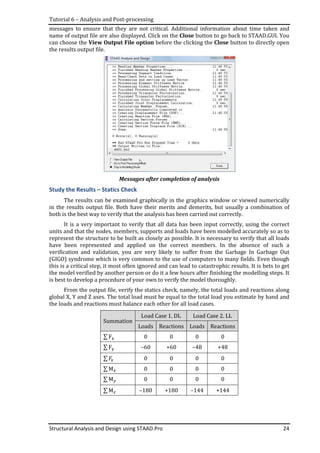
messages to ensure that they are not critical. Additional information about time taken and
name of output file are also displayed. Click on the Close button to go back to STAAD.GUI. You
can choose the View Output File option before the clicking the Close button to directly open
the results output file.
Messages after completion of analysis
Study the Results – Statics Check
The results can be examined graphically in the graphics window or viewed numerically
in the results output file. Both have their merits and demerits, but usually a combination of
both is the best way to verify that the analysis has been carried out correctly.
It is a very important to verify that all data has been input correctly, using the correct
units and that the nodes, members, supports and loads have been modelled accurately so as to
represent the structure to be built as closely as possible. It is necessary to verify that all loads
have been represented and applied on the correct members. In the absence of such a
verification and validation, you are very likely to suffer from the Garbage In Garbage Out
(GIGO) syndrome which is very common to the use of computers to many fields. Even though
this is a critical step, it most often ignored and can lead to catastrophic results. It is bets to get
the model verified by another person or do it a few hours after finishing the modelling steps. It
is best to develop a procedure of your own to verify the model thoroughly.
From the output file, verify the statics check, namely, the total loads and reactions along
global X, Y and Z axes. The total load must be equal to the total load you estimate by hand and
the loads and reactions must balance each other for all load cases.
Summation
Load Case 1. DL Load Case 2. LL
Loads Reactions Loads Reactions
∑ F୶ 0 0 0 0
∑ F୷ –60 +60 –48 +48
∑ ‫ܨ‬୸ 0 0 0 0
∑ M௫ 0 0 0 0
∑ M௬ 0 0 0 0
∑ M௭ –180 +180 –144 +144
Tutorial 6 – Analysis and Post-processing
Structural Analysis and Design using STAAD.Pro 25
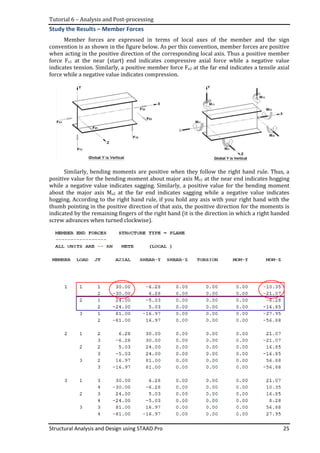
Study the Results – Member Forces
Member forces are expressed in terms of local axes of the member and the sign
convention is as shown in the figure below. As per this convention, member forces are positive
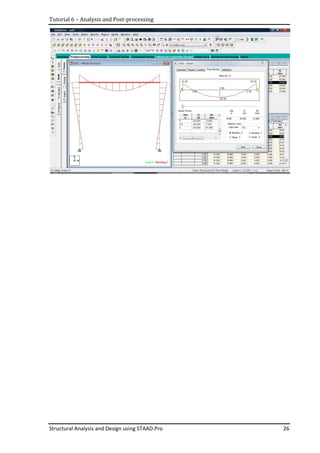
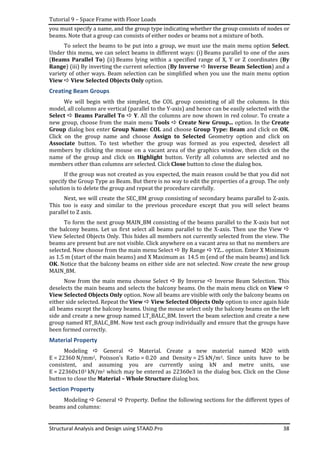
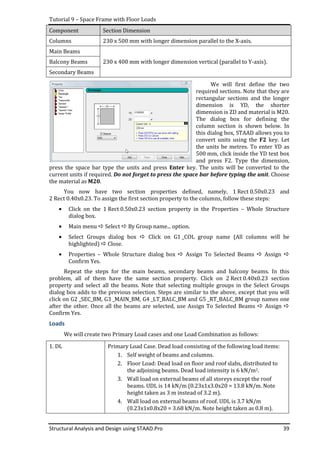
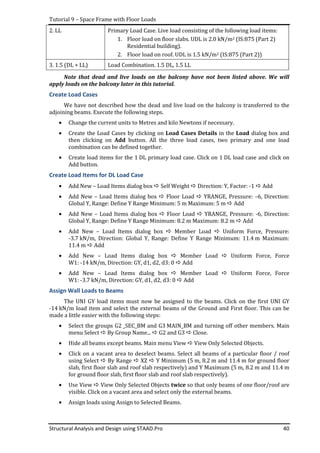
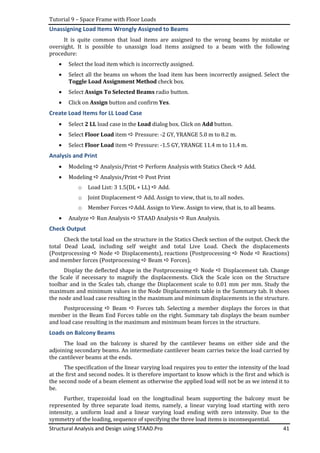
when acting in the positive direction of the corresponding local axis. Thus a positive member
force Fx1 at the near (start) end indicates compressive axial force while a negative value
indicates tension. Similarly, a positive member force Fx2 at the far end indicates a tensile axial
force while a negative value indicates compression.
Similarly, bending moments are positive when they follow the right hand rule. Thus, a
positive value for the bending moment about major axis Mz1 at the near end indicates hogging
while a negative value indicates sagging. Similarly, a positive value for the bending moment
about the major axis Mz2 at the far end indicates sagging while a negative value indicates
hogging. According to the right hand rule, if you hold any axis with your right hand with the
thumb pointing in the positive direction of that axis, the positive direction for the moments is
indicated by the remaining fingers of the right hand (it is the direction in which a right handed
screw advances when turned clockwise).
Tutorial 6 – Analysis and Post-processing
Structural Analysis and Design using STAAD.Pro 26
Structural Analysis and Design using STAAD.Pro 27
Tutorial 7 – Modelling Complex Geometries
Structural Wizard
Maximum time and effort in structural analysis is spent in creating the geometry and
verifying its correctness and accuracy. Hence, speeding up this process and making it error free
can result in tremendous benefits. This goal is achieved through the Structural wizard, which
provides parameterized templates for a variety of commonly used structures. It allows the user
to customize the parameters for even complicated geometries and quickly generates the
geometry so the engineer can continue with the process of applying loads and carrying out the
analysis.
Structure wizard is available at the time
of creating a new structure after completing
the first step where the user defines the
filename, folder, type of structure and units.
Choosing Open Structure Wizard option in
the Where do you want to go? Dialog box
and clicking on Finish button opens the
Structure wizard. Structure wizard can also
save user created models as templates for use
in future, so that if there is a model you use
often, but is not available in the prototype
models provided by STAAD.Pro, you can use
this feature to your advantage.
The prototype models available include
Truss models, Frame models, Surface / Plate
models, Solid models and Composite models.
It also allows importing models saved in DXF
formats by other CAD programs or import existing STAAD models. There is a feature to create
models through VBA Macro (Microsoft Visual Basic for Applications). Under each category, a
number of models are available, making it a versatile tool. Another fact that makes it even
more powerful is that it allows the user to customize the parameters so that it meets your
exact requirements. For example, if the spacing between frames is not constant, you can define
different spacing between different frames.
As an exercise, let us create a 3D frame with 3 storeys (height of ground storey 5 m and
upper storeys 3.2 m each), 2 bays along X-axis (with spacing of 5 m and 8 m) and 4 bays along
Z-axis (with equal spacing of 4 m). Define the following in the Select Parameters dialog box:
• Length: 5.0 m + 8.0 m = 13 m 2 bays Length is taken along the global X-axis
• Height: 5.0 m + 2 x 3.2 m = 11.4 m 3 bays Height is taken along the Y-axis
• Width: 4 x 4 m = 16 m 4 bays Width is taken along Z-axis
Create a new STAAD.Pro model and name the file ex02 in the workshop folder
previously created. To create this model using the Structure Wizard, choose Prototype
Models option, choose Frame Models option on in the drop down box and double click on the
Bay Frame icon in the list of available models in the left pane. Before doing so, note the
orientation of the global coordinate axes shown in the right pane.
Initially, each dimension is divided into the specified number of equal bays. This is
acceptable for the width (4 bays of 4 m each) but the other two dimensions must be
customized. To do this, click on the button with three dots in front of the number of bays along
the required direction. This brings up a dialog box where the equal bay widths are shown. You
can edit these bay widths as required, but ensure that the total length in that direction is
exactly what is specified in the Select Parameters dialog box. Click on OK button to close the
dialog box. Thus along the length, the bay widths must be Bay 1: 5 m, Bay 2: 8 m. Along the
Tutorial 7 – Modelling Complex Geometries
Structural Analysis and Design using STAAD.Pro 28
height, the bay widths must be Bay 1: 5 m, Bay 2: 3.2 m and Bay 3: 3.2 m. Click on Apply button
and the model will be created immediately. Remember that Bay 1 is the one which is nearest
to the origin of the coordinate system.
From the main menu, choose File Merge Model with STAAD.Pro model and confirm
Yes. Before merging the model created by the Structure wizard with the existing model in
STAAD.Pro (if any), you can specify the coordinates of the point at which the origin of the
model must be placed or alternately, you can specify a distance by which the model must be
moved based on the distance between any two nodes that you can choose in the existing
STAAD.Pro model. Usually, it is best to specify the coordinates of the point where the origin of
the created model must be inserted. Let us choose the point (0, 0, 0), which is the origin of the
STAAD.Pro model. Save the model as ex03 in the workshop folder.
Linear Grids
We have already used linear grid in Tutorial 3. The gridlines are parallel to two specified
directions (X-y< X-Z or Y-Z directions) and have a constant distance between the gridlines,
which may be different along the two directions. It is possible to choose the origin of the grid
and the skewness of the gridlines. This can be used when the distances between the nodes is a
multiple of the grid interval. If the distances are such that it is difficult to find the grid interval,
Tutorial 7 – Modelling Complex Geometries
Structural Analysis and Design using STAAD.Pro 29
or when you want to have gridlines only where the nodes and beams are present, it is better to
use irregular grid.
Irregular Grids
Irregular grid is a linear grid with unequal spacing between grid lines. Here, we must
specify the relative distance between the consecutive grid lines along the two directions. Skew
grid lines can be generated using the “Use arbitrary plane” checkbox by specifying the
orientation of the X, Y axes. Normal gridlines can be generated by choosing one of the standard
planes, namely, X-Y, X-Z or Y-Z.
The attractiveness of the
irregular grid is that you can have
gridlines exactly where you want,
without having to have gridlines
at some regular interval. Let us
create a plane frame shown in the
figure in the X-Y plane.
Along X-axis, the bay widths
are -1.5 m, 5 m, 8 m and 1.5 m.
Along the Y-axis, the bay widths
are 5 m, 3,2 m and 3.2 m. This
could be generated using the
linear grid with an equal spacing
of 0.5 m between the gridlines.
This would create 32 grid
intervals. Using the irregular grid,
we will have only the gridlines we
want. See the next figure for the gridlines created by this method. It is now easier to create the
beams using the Snap Node/Beam option. Note the origin is at (0, 0, 0), the balcony on the left
starts at x = 0 m, the first column line is at x = 1.5 m, the second column line is at x = 6.5 m,
third column line is at x = 14.5 m and the balcony overhang at the right is at x = 16.0 m.
Radial Grids
Radial grid consists of radial lines and tangential lines. The start angle and sweep angle
can be specified. The start radius and end radius can be specified. The number of bays in the
radial direction and number of bays (sectors) of the central angle can be specified. The radial
5m3.2m3.2m
5 m 8 m
1.5 m1.5 m
X
Y
Tutorial 7 – Modelling Complex Geometries
Structural Analysis and Design using STAAD.Pro 30
distance and central angle will be divided into equal intervals. Radial grid is useful to model
curved beams, shells etc.
Translational Repeat
If a three dimensional frame is made of plane frames repeated at regular intervals along
length of the building, modelling effort can be minimized by using the Translational Repeat
option. It requires the following input:
• Global direction – The direction in which the original geometry is to be repeated. It can
be one of X, Y or Z.
• Number of steps – The number of copies, excluding the originally selected geometry.
• Default step spacing – The constant distance between the copies.
• Step and Spacing table – This is updated based on the data entered in Number of steps
and Default step spacing. You can change and customize any individual spacing.
• Renumber bay – If this option is selected, a third column is added to the Step – Spacing
table, named “Number from”. Here the user can specify the starting number for the
first node in each copy.
• Link steps – If this option is selected, members will be added in the direction of
repetition interconnecting the copies generated.
• Open base – This option is active only when Link steps option is selected. When
selected, additional link members are not added at the base.
• Generation flag – You can choose to regenerate only the geometry (nodes and
members), only geometry and properties (nodes, members, material and section
properties) or all properties (including support conditions).
We will use the plane frame created using the irregular grid as the initial model and
repeat that frame along the Z –axis to obtain a 3D frame model. If you define the support
conditions before the translational repeat operation, you can save the effort of defining the
supports later.
Open the model ex03 created previously using the irregular grid and add fixed supports
at the base using the Support Page icon on the Structure Tools toolbar. The frame with fixed
supports at the base looks as shown in the figure when displayed in Isometric View (Rotate
toolbar Isometric View icon).
Let there be 4 bays along the Z-axis with an equal spacing of 4 m, except for the second
bay, which is 3.5 m. Select all the members by dragging a window to enclose all the members
and then click on the Translational Repeat icon on the Generate toolbar. On the 3D Repeat
Tutorial 7 – Modelling Complex Geometries
Structural Analysis and Design using STAAD.Pro 31
dialog box, choose Global Direction: Z, Number of Steps: 4, Default Step Spacing: 4 m,
change the spacing for Step 2 to 3.5 m, select Link Steps and Open Base and Generation
Flags: All. Click on OK button and the selected members and supports will be repeated four
times along the Z-axis at spacing of 4 m. 3.5 m, 4 m and 4 m. While repeating the members,
additional members will be generated along the Z-axis at all points of intersection of members
in the X-Y plane, except at the base.
This results in the model
shown in the figure below. Note
that the supports at the base are
also repeated along with the
nodes and members.
However, this is not exactly
what we wanted. The beams
connecting the ends of the balcony
beams on either side are not
required. Select them and delete
them. You can view the model
from different directions to verify
that it is correct. Save the file as
ex04.
Circular Repeat
For this example let us try to create the geometry shown in the figure below. It is a plane
truss which is symmetrical about a vertical line passing through the ridge. The span and height
to the ridge at the bottom are given. Bottom chord on each side is divided into 7 equal parts.
From the span and height, we can calculate the length of the bottom chord as well as the angle
made by the top and bottom chords with the horizontal.
1.8m
Create a new STAAD model with the following parameters: Filename: ex05 in the folder:
workshop, Type of Structure: Truss, Units: Millimeters and Newton. In the next dialog box,
select Add Beam option and click on Finish button. The span is 7600 mm and therefore half
the span is 3800 mm. Height to the bottom chord at the ridge is 1800 mm. Thus the length of
Tutorial 7 – Modelling Complex Geometries
Structural Analysis and Design using STAAD.Pro 32
the bottom chord is 4200 mm. There being 6 equal divisions of the bottom chord, the constant
interval is 700 mm.
We will first create the nodes and members on the left half with the bottom and top
chord along the X-axis. We will subsequently rotate the geometry about an axis passing
through the ridge and parallel to the global Y-axis.
We will follow these steps:
1. Customize the linear grid and create the bottom chord along the X-axis having a length
of 4200 mm.
2. Split the bottom chord into seven equal intervals.
3. Translational Repeat the bottom chord to form the top chord and the vertical members.
4. Add the diagonal members.
5. Delete the top chord member next to the ridge
6. Circular Repeat the nodes and members about an axis passing through (0, 0) and
parallel to the Z-axis by 25.3729 degrees to the horizontal. Delete the original
members.
7. Circular repeat the members about an axis passing through the ridge and parallel to the
global Y-axis.
8. Add the top chord members, diagonal members and vertical member near the ridge,
create an irregular grid with 3800, 3800 mm spacing along X-axis and 1800, 500 mm
along Y-axis.
Note that setting n = 6 divides the existing member into seven equal parts, because “n” is
the number of points inserted between the existing end points of the beam.
Irregular grid along X-Y axes Split the bottom chord into six equal parts
Translational repeat for one step Delete two members at top right
Tutorial 7 – Modelling Complex Geometries
Structural Analysis and Design using STAAD.Pro 33
Circulr repeat by 25.3769 deg about origin Rotated and original members
Circular repeat once about node 17 Member after rotation by 180 deg
Irregullar grid Final model
Generate Mirror
Step 7 in the above example could have also been done by Generate Mirror command.
Generate mirror dialog box
Structural Analysis and Design using STAAD.Pro 34
Tutorial 8 – Truss Analysis and Design Check
We will use the truss model generated in Tutorial 7 and add the remaining properties to
complete the analysis. In addition, we will also learn how to check whether the sections chosen
are adequate to carry the design forces as per IS:800-1984 (Note: current code is IS:800-2007).
The data for the problem is as follows:
• Supports: Both supports are pinned.
• Material properties: Steel with E = 2x10⁵ N/mm2, Density 78.5 kN/m3, Yield
stress = 250 N/mm2.
• Member sections: Top and bottom chord members are ISA 50x50x6. Other members
are ISA 40x40x5.
• Loads: Self weight shall be included in the analysis. Dead loads at the intermediate
points are 1 kN downward. Live loads at the intermediate points as 0.6 kN downward.
Loads at the end points are half of the loads at the intermediate points. No wind loads.
No ceiling loads.
• Analysis/Print: Perform analysis with statics check. Print member forces and node
displacements.
• Design Check: Check whether the sections chosen are adequate as per IS:800-1984 for
steel yield stress of 250 N/mm2.
Define Supports
• Structure Tools toolbar Support Page or Modeling mode General tab Support
tab.
• Create Pinned Support: Supports – Whole Structure dialog Create. Create Support
dialog Pinned tab Add Close.
• Assign Supports: Supports – Whole Structure dialog Select S2 Support 2 Use
Cursor to assign Click on the two support nodes one after the other Close.
Material Properties
• Modeling mode General tab Material tab.
• Create new Material Property: Material – Whole Structure dialog Create
Title: ST250, E: 2e5 (N/mm2), Poisson’s ratio: 0.2, Density: 7.85e-5 (N/mm2).
• Assign material Properties to Members: Material – Whole Structure dialog Assign to
View Assign Confirm Close.
Material property dialog box
Tutorial 8 – Truss Analysis and Design Check
Structural Analysis and Design using STAAD.Pro 35
Section Properties
• Modeling mode General tab Property tab.
• Select Steel Sections from Database: Properties – Whole Structure Section Database
Steel, Indian S Shape Search for ISA 40x40x5 and ISA 50x50x6 sections one after
the other Add Close.
• Assign ISA 50x50x6 to top and bottom chord members: Properties – Whole Structure
Select ISA 50x50x6 Select top and bottom chord members Assign to Selected
Beams Assign Confirm Close.
• Repeat above step for ISA 40x40x5 for remaining members.
Loads
• Modeling mode General tab Load tab or Structure Tools toolbar Load Page.
• Define Load Cases: Load page Select Load Cases Details Add
• Define Primary Loads: Add New Load Cases dialog. Primary 1 DL Add. Primary
2 LL Add. Define Combinations 3 DL + LL (1 x DL and 1 x LL) Add. Close.
• Define Load Items for DL: Load page Select 1 : DL Add Add New Load Items.
• Load Item for DL – Self weight: Select Selfweight Selfweight load Direction: Y
Factor: -1.
• Load Item for DL – Nodal load on intermediate points: Nodal Load Node
Fy: -1 (kN) Add.
• Load Item for DL – Nodal load on end points: Nodal Load Node Fy: -0.5 (kN)
Add.
• Load Item for LL – Nodal load on intermediate points: Nodal Load Node
Fy: -0.6 (kN) Add.
• Load Item for LL – Nodal load on end points: Nodal Load Node Fy: -0.3 (kN)
Add Close.
• Assign Load Items: Select one of the nodal loads Use Cursor to Assign. Repeat for all
loads.
Analysis and Print
• Modeling mode Analysis/Print tab Analysis / Print Command tab Perform
Analysis Statics check Add Close.
• Modeling mode Analysis/Print tab Post Print / Print Command tab Add
Close.
• Post-Print Options: Post Analysis Print – Whole Structure Define Command Load
List Move DL + LL from Load Cases (on the left) to Load List (on the right).
• Choose Print Join t Displacements and apply it to all nodes with Assign To View option.
Post-processing
• Post-processing mode Results Setup Envelope of Load Cases in Selected List
Select: DL + LL Load Case OK.
• Study the node displacements and its summary: Node tab Displacement tab. Node
displacements table Summary tab.
• Examine the axial forces in the members – their magnitude and nature:Beam tab
Forces tab. Beam End Forces table Summary tab.
Tutorial 8 – Truss Analysis and Design Check
Structural Analysis and Design using STAAD.Pro 36
Design Check
• Modeling mode Design tab Steel tab.
• Steel Design – Whole Structure dialog Current Code: IS800. Click on Select
Parameter button Select Fyld. Click on Define Parameters button FYLD:
250 N/mm2. Click on Command button Check Code.
• Assign Parameters and Commands: Select FYLD with question mark in yellow Assign
to View Assign Confirm. Select CHECK CODE Assign to View Assign
Confirm.
• Analyse and Print: Main Menu Analyze Run Analysis STAAD Analysis Run
Analysis.
• Check if all members pass the design check. If any member fails, increase the section. If
all members are over-safe, decrease the section.
Structural Analysis and Design using STAAD.Pro 37
Tutorial 9 – Space Frame with Floor Loads
We will now analyse a 3D frame structure for dead and live loads applied on the slab. You
have noticed that the model consists only of beams and columns but not the slabs. The dead
load and live load of the slab must be transferred to the beams and then to the columns. This
can be done using the Floor Load feature. We will apply the dead load of the walls as UDL on
the beams on which the walls rest. This brings up the issue of assigning loads on beams by
selecting the beams. Selecting beams in a 3D frame is a tedious, error prone and frustrating
task. We will see how this problem can be addressed by creating member groups.
We will take the model of the 3D frame created in Tutorial 7 and stored in file ex03 and
apply the loads on it. Start STAAD.Pro and open the file ex03. It already has all the required
nodes, beams and supports. The finished model should look as shown in the figure below.
Finished model after Translational Repeat
We will proceed with the following steps:
• Define material properties and section properties and assign them to the respective
members.
• Create two primary load cases, namely, DL and LL and one load combination
1.5 (DL + LL).
• Perform analysis.
• Study the results.
But before we do that, we will create member groups as follows:
Group Name Beams in the Group
COL Columns
SEC_BM Beams parallel to Z-axis. Beams with spans of 4 m or 3.5 m.
MAIN_BM Beams parallel to X-axis. Beams with spans of 5 m and 8 m. Balcony beams
are not included in this group.
LT_BALC_BM Balcony beams on the left side (between x=0 to x=1.5 m)
RT_BALC_BM Balcony beams on the right side (between x=14.5 m to x=16.0 m)
The procedure to create groups is to first select the members to be included into a group,
then create the group using the main menu Tools Create New Group option. For each group,
Tutorial 9 – Space Frame with Floor Loads
Structural Analysis and Design using STAAD.Pro 38
you must specify a name, and the group type indicating whether the group consists of nodes or
beams. Note that a group can consists of either nodes or beams not a mixture of both.
To select the beams to be put into a group, we must use the main menu option Select.
Under this menu, we can select beams in different ways: (i) Beams parallel to one of the axes
(Beams Parallel To) (ii) Beams lying within a specified range of X, Y or Z coordinates (By
Range) (iii) By inverting the current selection (By Inverse Inverse Beam Selection) and a
variety of other ways. Beam selection can be simplified when you use the main menu option
View View Selected Objects Only option.
Creating Beam Groups
We will begin with the simplest, the COL group consisting of all the columns. In this
model, all columns are vertical (parallel to the Y-axis) and hence can be easily selected with the
Select Beams Parallel To Y. All the columns are now shown in red colour. To create a
new group, choose from the main menu Tools Create New Group... option. In the Create
Group dialog box enter Group Name: COL and choose Group Type: Beam and click on OK.
Click on the group name and choose Assign to Selected Geometry option and click on
Associate button. To test whether the group was formed as you expected, deselect all
members by clicking the mouse on a vacant area of the graphics window, then click on the
name of the group and click on Highlight button. Verify all columns are selected and no
members other than columns are selected. Click Close button to close the dialog box.
If the group was not created as you expected, the main reason could be that you did not
specify the Group Type as Beam. But there is no way to edit the properties of a group. The only
solution is to delete the group and repeat the procedure carefully.
Next, we will create the SEC_BM group consisting of secondary beams parallel to Z-axis.
This too is easy and similar to the previous procedure except that you will select beams
parallel to Z axis.
To form the next group MAIN_BM consisting of the beams parallel to the X-axis but not
the balcony beams. Let us first select all beams parallel to the X-axis. Then use the View
View Selected Objects Only. This hides all members not currently selected from the view. The
beams are present but are not visible. Click anywhere on a vacant area so that no members are
selected. Now choose from the main menu Select By Range YZ... option. Enter X Minimum
as 1.5 m (start of the main beams) and X Maximum as 14.5 m (end of the main beams) and lick
OK. Notice that the balcony beams on either side are not selected. Now create the new group
MAIN_BM.
Now from the main menu choose Select By Inverse Inverse Beam Selection. This
deselects the main beams and selects the balcony beams. On the main menu click on View
View Selected Objects Only option. Now all beams are visible with only the balcony beams on
either side selected. Repeat the View View Selected Objects Only option to once again hide
all beams except the balcony beams. Using the mouse select only the balcony beams on the left
side and create a new group named LT_BALC_BM. Invert the beam selection and create a new
group named RT_BALC_BM. Now test each group individually and ensure that the groups have
been formed correctly.
Material Property
Modeling General Material. Create a new material named M20 with
E = 22360 N/mm2, Poisson’s Ratio = 0.20 and Density = 25 kN/m3. Since units have to be
consistent, and assuming you are currently using kN and metre units, use
E = 22360x103 kN/m2 which may be entered as 22360e3 in the dialog box. Click on the Close
button to close the Material – Whole Structure dialog box.
Section Property
Modeling General Property. Define the following sections for the different types of
beams and columns:
Tutorial 9 – Space Frame with Floor Loads
Structural Analysis and Design using STAAD.Pro 39
Component Section Dimension
Columns 230 x 500 mm with longer dimension parallel to the X-axis.
Main Beams
Balcony Beams 230 x 400 mm with longer dimension vertical (parallel to Y-axis).
Secondary Beams
We will first define the two
required sections. Note that they are
rectangular sections and the longer
dimension is YD, the shorter
dimension is ZD and material is M20.
The dialog box for defining the
column section is shown below. In
this dialog box, STAAD allows you to
convert units using the F2 key. Let
the units be metres. To enter YD as
500 mm, click inside the YD text box
and press F2. Type the dimension,
press the space bar type the units and press Enter key. The units will be converted to the
current units if required. Do not forget to press the space bar before typing the unit. Choose
the material as M20.
You now have two section properties defined, namely, 1 Rect 0.50x0.23 and
2 Rect 0.40x0.23. To assign the first section property to the columns, follow these steps:
• Click on the 1 Rect 0.50x0.23 section property in the Properties – Whole Structure
dialog box.
• Main menu Select By Group name... option.
• Select Groups dialog box Click on G1 _COL group name (All columns will be
highlighted) Close.
• Properties – Whole Structure dialog box Assign To Selected Beams Assign
Confirm Yes.
Repeat the steps for the main beams, secondary beams and balcony beams. In this
problem, all of them have the same section property. Click on 2 Rect 0.40x0.23 section
property and select all the beams. Note that selecting multiple groups in the Select Groups
dialog box adds to the previous selection. Steps are similar to the above, except that you will
click on G2 _SEC_BM, G3 _MAIN_BM, G4 _LT_BALC_BM and G5 _RT_BALC_BM group names one
after the other. Once all the beams are selected, use Assign To Selected Beams Assign
Confirm Yes.
Loads
We will create two Primary Load cases and one Load Combination as follows:
1. DL Primary Load Case. Dead load consisting of the following load items:
1. Self weight of beams and columns.
2. Floor Load: Dead load on floor and roof slabs, distributed to
the adjoining beams. Dead load intensity is 6 kN/m2.
3. Wall load on external beams of all storeys except the roof
beams. UDL is 14 kN/m (0.23x1x3.0x20 = 13.8 kN/m. Note
height taken as 3 m instead of 3.2 m).
4. Wall load on external beams of roof. UDL is 3.7 kN/m
(0.23x1x0.8x20 = 3.68 kN/m. Note height taken as 0.8 m).
Tutorial 9 – Space Frame with Floor Loads
Structural Analysis and Design using STAAD.Pro 40
2. LL Primary Load Case. Live load consisting of the following load items:
1. Floor load on floor slabs. UDL is 2.0 kN/m2 (IS:875 (Part 2)
Residential building).
2. Floor load on roof. UDL is 1.5 kN/m2 (IS:875 (Part 2))
3. 1.5 (DL + LL) Load Combination. 1.5 DL, 1.5 LL
Note that dead and live loads on the balcony have not been listed above. We will
apply loads on the balcony later in this tutorial.
Create Load Cases
We have not described how the dead and live load on the balcony is transferred to the
adjoining beams. Execute the following steps.
• Change the current units to Metres and kilo Newtons if necessary.
• Create the Load Cases by clicking on Load Cases Details in the Load dialog box and
then clicking on Add button. All the three load cases, two primary and one load
combination can be defined together.
• Create load items for the 1 DL primary load case. Click on 1 DL load case and click on
Add button.
Create Load Items for DL Load Case
• Add New – Load Items dialog box Self Weight Direction: Y, Factor: -1 Add
• Add New – Load Items dialog box Floor Load YRANGE, Pressure: –6, Direction:
Global Y, Range: Define Y Range Minimum: 5 m Maximum: 5 m Add
• Add New – Load Items dialog box Floor Load YRANGE, Pressure: -6, Direction:
Global Y, Range: Define Y Range Minimum: 8.2 m Maximum: 8.2 m Add
• Add New – Load Items dialog box Member Load Uniform Force, Pressure:
-3.7 kN/m, Direction: Global Y, Range: Define Y Range Minimum: 11.4 m Maximum:
11.4 m Add
• Add New – Load Items dialog box Member Load Uniform Force, Force
W1: -14 kN/m, Direction: GY, d1, d2, d3: 0 Add
• Add New – Load Items dialog box Member Load Uniform Force, Force
W1: -3.7 kN/m, Direction: GY, d1, d2, d3: 0 Add
Assign Wall Loads to Beams
The UNI GY load items must now be assigned to the beams. Click on the first UNI GY
-14 kN/m load item and select the external beams of the Ground and First floor. This can be
made a little easier with the following steps:
• Select the groups G2 _SEC_BM and G3 MAIN_BM and turning off other members. Main
menu Select By Group Name... G2 and G3 Close.
• Hide all beams except beams. Main menu View View Only Selected Objects.
• Click on a vacant area to deselect beams. Select all beams of a particular floor / roof
using Select By Range XZ Y Minimum (5 m, 8.2 m and 11.4 m for ground floor
slab, first floor slab and roof slab respectively) and Y Maximum (5 m, 8.2 m and 11.4 m
for ground floor slab, first floor slab and roof slab respectively).
• Use View View Only Selected Objects twice so that only beams of one floor/roof are
visible. Click on a vacant area and select only the external beams.
• Assign loads using Assign to Selected Beams.
Tutorial 9 – Space Frame with Floor Loads
Structural Analysis and Design using STAAD.Pro 41
Unassigning Load Items Wrongly Assigned to Beams
It is quite common that load items are assigned to the wrong beams by mistake or
oversight. It is possible to unassign load items assigned to a beam with the following
procedure:
• Select the load item which is incorrectly assigned.
• Select all the beams on whom the load item has been incorrectly assigned. Select the
Toggle Load Assignment Method check box.
• Select Assign To Selected Beams radio button.
• Click on Assign button and confirm Yes.
Create Load Items for LL Load Case
• Select 2 LL load case in the Load dialog box. Click on Add button.
• Select Floor Load item Pressure: -2 GY, YRANGE 5.0 m to 8.2 m.
• Select Floor Load item Pressure: -1.5 GY, YRANGE 11.4 m to 11.4 m.
Analysis and Print
• Modeling Analysis/Print Perform Analysis with Statics Check Add.
• Modeling Analysis/Print Post Print
o Load List: 3 1.5(DL + LL) Add.
o Joint Displacement Add. Assign to view, that is, to all nodes.
o Member Forces Add. Assign to View. Assign to view, that is, to all beams.
• Analyze Run Analysis STAAD Analysis Run Analysis.
Check Output
Check the total load on the structure in the Statics Check section of the output. Check the
total Dead Load, including self weight and total Live Load. Check the displacements
(Postprocessing Node Displacements), reactions (Postprocessing Node Reactions)
and member forces (Postprocessing Beam Forces).
Display the deflected shape in the Postprocessing Node Displacement tab. Change
the Scale if necessary to magnify the displacements. Click the Scale icon on the Structure
toolbar and in the Scales tab, change the Displacement scale to 0.01 mm per mm. Study the
maximum and minimum values in the Node Displacements table in the Summary tab. It shoes
the node and load case resulting in the maximum and minimum displacements in the structure.
Postprocessing Beam Forces tab. Selecting a member displays the forces in that
member in the Beam End Forces table on the right. Summary tab displays the beam number
and load case resulting in the maximum and minimum beam forces in the structure.
Loads on Balcony Beams
The load on the balcony is shared by the cantilever beams on either side and the
adjoining secondary beams. An intermediate cantilever beam carries twice the load carried by
the cantilever beams at the ends.
The specification of the linear varying load requires you to enter the intensity of the load
at the first and second nodes. It is therefore important to know which is the first and which is
the second node of a beam element as otherwise the applied load will not be as we intend it to
be.
Further, trapezoidal load on the longitudinal beam supporting the balcony must be
represented by three separate load items, namely, a linear varying load starting with zero
intensity, a uniform load and a linear varying load ending with zero intensity. Due to the
symmetry of the loading, sequence of specifying the three load items is inconsequential.
Tutorial 9 – Space Frame with Floor Loads
Structural Analysis and Design using STAAD.Pro 42
Load distribution to balcony beams shown in plan
Load on cantilever balcony beams shown in elevation
assuming local X-axis going from left to right
Longitudinal beam supporting balcony shown in elevation showing trapezoidal load
divided into three load items
Structural Analysis and Design using STAAD.Pro 43
Tutorial 10 Industrial Frame – Analysis and Design Check
The industrial frame shown in the figure below consists of the steel truss and reinforced
concrete columns. The dimensions, material and section properties are shown in the figure.
The supports are fixed. The loads on the structure consist of dead load, live load and wind load
on the column and are indicated in the figure. The distinctive feature of this example as
compared to the previous examples is that it consists of a mix of members – the truss consists
of truss members while the columns are beam members. This example shows how to mix
different type of members in the same structure.
It is intended to analyse and design this frame. We will do a code check for the truss and
change the sections if necessary and determine the reinforcement for the columns.
10 m
Section and Material Properties
Top Chord: ISA 100x75x6 (Steel)
Bottom Chord: ISA 100x75x6 (Steel)
Central Vertical Member: 100x75x6 (Steel)
Other Vertical Members: ISA 50x50x5 (Steel)
Inclined Members: ISA 50x50x5 (Steel)
Columns: Rectangle 300x500 (RC)
DL: 2.5 kN
LL: 2 kN
DL: 2.5 kN
LL: 2 kN
DL: 2.5 kN
LL: 2 kN
DL: 1.25 kN
LL: 1 kN
DL: 1.25 kN
LL: 1 kN
DL: 2.5 kN
LL: 2 kN
DL: 2.5 kN
LL: 2 kN
Model of a typical industrial frame structure
Create New Structure
Create a new structure with the following attributes:
• Filename: ex07
• Folder: Folder where all your files are stored during the entire training program.
• Structure Type: Plane
• Units: Metres, kilo Newton
• Open Structure Wizard
Choose: Truss Models Howe Roof
Length: 10 m, Height: 2.5 m, Width: 0 m,
No. of bays along length: 6, No. of bays
along width: 1 Apply
Tutorial 10 Industrial Frame – Analysis and Design Check
Structural Analysis and Design using STAAD.Pro 44
Structure Wizard File Merge
Model with STAAD.Pro model
Confirm Yes.
Merge model with STAAD.Pro
model at coordinate (0 m, 5 m,
0 m).
Modelling
Let us complete the two columns by going into the
Snap Node/Beam linear grid.
• Click on the View From +Z icon on the View
toolbar.
• Click on Snap Node/Beam icon on the Geometry
toolbar.
• Customize the grid with the following parameters:
Grid Origin: (0, 0, 0), Construction Lines: X – Left 0, Right
1, Spacing 10 m, Y – Left 0, Right 1, Spacing 5m.
• Click on Snap Node/Beam button and draw the
column on the left from (0, 0) to (0, 5) and press Esc button on the keyboard.
• Click on Snap Node/Beam button and draw the column on the right from (10, 0) to
(10, 5) and press Esc button on the keyboard.
Define Supports
• Click on Support Page icon on the Structure Tools toolbar.
• Create a new support type: Click on Create button Fixed tab Add. This creates a
new support type S2 Support 2, which is fixed.
• Click on S2 Support 2 Use Cursor to Assign radio button Assign button Click on
bottom of left column Click on bottom of right column Click Assigning pressed
button Click on Close button.
Materials
We need two materials in this structure, steel for the truss and concrete for the columns.
The properties are as follows:
Material Label E Poisson’s Ratio Density
Steel ST250 2x10⁵ N/mm2 0.2 78.5x10⁻⁶ N/mm3
2x10⁸ kN/m2 78.5 kN/m3
Concrete M20 22360 N/mm2 0.2 25x10-6 N/mm3
2.236x10⁷ kN/m2 25 kN/m3
• Take note of the current units and change the units if needed.
• Modeling tab General Material.
• Create ST250 with above properties OK. Take care about the units.
• Create M20 with above properties OK. Take care about the units.
Tutorial 10 Industrial Frame – Analysis and Design Check
Structural Analysis and Design using STAAD.Pro 45
Sections
We need three different sections made of two different materials for this structure.
Create the required sections.
• Modeling tab General Property.
• Section Database Indian Angle.
• Select ISA 100x75x6 Material: ST250 Add.
• Select ISA 50x50x5 Material: ST250 Add Close.
• Define... Rectangle YD: 0.5 m, ZD: 0.3 m Add Close.
• Click on ISA 100X75X6 and assign to following members Use Cursor to Assign
method Assign click on top chord members, bottom chord members and central
vertical member click on Assigning button.
• Click on ISA 50X50X5 and assign to following members Use Cursor to Assign method
Assign click on vertical members except central vertical member, inclined
members click on Assigning button.
• Click on Rect 0.3X0.5 Use Cursor to Assign Assign click on the two columns
click on Assigning button Close.
Beta Angle of Columns
The column section must have the longer dimension (500 mm) parallel to the X-axis. Let
us verify this by turning on the Section Outline display as follows:
• Symbols and Labels icon on Structure toolbar Structure tab 3D Sections: Sections
Outline radio button OK.
• View From +Y icon on View toolbar.
• You will notice that the shorter side (300 mm) is parallel to the X-axis. This is not what
we want, and to rotate the section we must define the β angle.
• View From +Z icon on View toolbar Select both the columns click the right button
on the mouse Properties... from the context menu Change Beta Angle in
Degrees: 90 OK Close.
• Turn off Sections Outline. Symbols and Labels icon on Structure toolbar Structure
tab 3D Sections: None radio button OK.
Load Cases and Load Combinations
Let us first create the load cases DL, LL and WL and then create the load combinations
DL+LL, DL+LL+WL.
• Load Page icon on the Structure Tools toolbar (or Modeling General Load tab).
• Click on Load Cases Details in the Load page Add Primary.
• Add three load cases 1. DL, 2. LL and 3. WL.
• Click on Define Combinations and add two combinations: 4. DL+LL (1xDL + 1xLL) and
5. DL+LL+WL (1xDL + 1xLL + 1xWL) Close.
For each load case add load items one load case at a tome.
Dead Load
• Click on 1. DL under Load Cases Details in the Load page Add.
• Selfweight Selfweight Load Direction: Y, Factor: –1 Add.
• Nodal Load Fy: –2.5 kN Add.
Tutorial 10 Industrial Frame – Analysis and Design Check
Structural Analysis and Design using STAAD.Pro 46
• Nodal Load Fy: –1.25 kN Add Close.
• Click on load item FY -2.5 kN,m and assign to the intermediate nodes of the top chord.
• Click on load item FY -1.25 kN,m and assign to the two end nodes.
Live Load
• Click on 2. LL under Load Cases Details in the Load page Add.
• Nodal Load Fy: –2 kN Add.
• Nodal Load Fy: –1 kN Add Close.
• Click on load item FY –2 kN,m and assign to the intermediate nodes of the top chord.
• Click on load item FY –1 kN,m and assign to the two end nodes.
Wind Load
• Click on 3. WL under Load Cases Details in the Load page Add.
• Member Load Uniform Force W1: 1.2 kN, d1: 0, d2: 0, d3: 0, Direction: GX Add.
• Click on load item UNI 1.2 kN/m and assign to the left column Close.
Analyse
• Modeling Analysis/Print tab Statics Check Add Close.
• Modeling Analysis/Print Post-Print tab.
• Analsysi – Whole Structure form Define Commands
• Load List tab Move 4. DL+LL and 5. DL+LL+WL from the Load Cases list on the left to
the Load List on the right.
• Joint Displacement tab Add.
• Member Forces tab Add Close.
• Main menu Analyze Run Analysis (or Ctrl+F5).
• Analysis Option: STAAD Analysis Run Analysis.
• Check for errors and warnings and debug the input if necessary.
Steel Design Check and RC Design
• Modeling tab Design Steel tab.
• Steel Design – Whole Structure page on the right IS800.
• Select Parameters Fyld on the Available Parameters side on the right OK.
• Define Parameters Fyld: 250 N/mm2 Add Close.
• Commands Check Code Add Close.
• Click on PARAMETER1 FYLD 250 Usee Cursor to Assign Assign Click on the
truss members Assigning.
• Modeling tab Design Concrete tab.
• Concrete Design – Whole Structure page on the right IS456.
• Select Parameters CLEAR, FC, FYMAIN, FYSEC, MAXMAIN, MAXSEC, MINMAIN,
MINSEC.
• Define Parameters CLEAR: 25 mm, FC: 20 N/mm2, FYMAIN: 415 N/mm2,
FYSEC: 415 N/mm2, MAXMAIN: 20 mm, MAXSEC: 12 mm, MINMAIN: 12 mm,
MINSEC: 6 mm.
Tutorial 10 Industrial Frame – Analysis and Design Check
Structural Analysis and Design using STAAD.Pro 47
• Commands Design Beam.
• Assign all parameters to the two columns. It may help to deselect Highlight Assigned
Geometry when assigning the parameters for the first time. This will retain the
selection so that parameters can be Assign to Selected Beams option.
• Assign Design Column to the two columns.
Check Output
Check the total load on the structure in the Statics Check section of the output. The total
Dead Load, including self weight is 54.89 kN, Live Load is 12 kN. Total wind load is 6 kN in the
positive X-axis direction. Check the displacements and member forces.
Display the deflected shape in the Postprocessing Node Displacement tab. Change
the Scale if necessary to magnify the displacements. Click the Scale icon on the Structure
toolbar and in the Scales tab, change the Displacement scale to 0.01 mm per mm. Study the
maximum and minimum values in the Node Displacements table in the Summary tab. It shoes
the node and load case resulting in the maximum and minimum displacements in the structure.
Postprocessing Beam Forces tab. Selecting a member displays the forces in that
member in the Beam End Forces table on the right. Summary tab displays the beam number
and load case resulting in the maximum and minimum beam forces in the structure.
Run the analysis again and check the output. Note that in the Steel Design section, some
members fail the design check (Ratio greater than 1), namely the inclined members. The other
members pass the design check, but the ratio is very small for some of the members (0.125 for
the bottom chord members). You can modify the sections suitable and run the analysis again.
Check the Concrete Design section. Main steel provided and the number and diameter of
bars can be checked.
Generating Reports
Once the analysis and design is complete, you can generate a detailed report of the input,
results and design of the structure suitable for printing. It also makes it easy to verify the
model, material and section properties, loads, analysis and design procedure.
Items in Report
Choose the Postprocessing
mode and click on the Reports tab.
This brings up the Report Setup
dialog box. Alternately, click on the
Report Setup icon on the Print
toolbar.
Under the Items tab, in the
Available drop down box, you can see
different categories of information
that can be included into a report. The
most common items that are included
into a report consist of the input,
output, pictures, saved views etc.
For each category of information, there are a number of details that are available. For
example, under Input, you can include Job Info, Nodes, Beams, Sections, materials, Supports,
Primary Load Cases, Combination Load Cases etc. This is an echo of the input data.
Under output, you can include Node displacements, Beam End Forces, Beam End Force
Summary, Reactions, Reactions Summary, Design Ratio Table etc. This is an echo of the results
that are computed by STAAD.
If you have taken any pictures clicking the Take Picture icon on the Print toolbar, those
are listed and can be included into the report. Similarly, if you have saved any views using the
Tutorial 10 Industrial Frame – Analysis and Design Check
Structural Analysis and Design using STAAD.Pro 48
View View Management Save View option of the main menu, they are listed and can be
included into the report.
Other Options in Report Setup
In the Load Cases tab of the Report Setup dialog box, choose the load cases for which
report is to be generated. You can choose more than one load case / load combination.
The Ranges tab allows you to choose the nodes and beams for which report is to be
generated. It is possible to choose all, selected group, selected property or specified range of
node and beam/plate/solid numbers.
It is possible to rearrange the items by moving them up or down the list.
Once the report is setup, it can be saved for subsequent use. If an analysis and design is
repeated, a saved report can quickly generate a new report based on the new analysis. Go to
the Load/Save tab, click on Save As button and choose a name for the report.
The generated report can be printed on a printer attached to the computer.
Generated Report
Structural Analysis and Design using STAAD.Pro 49
Tutorial 11 – RC Building Analysis
Structure Geometry
Structural key plan at roof level
Elevation Data
• Height from foundation to top
of plinth beams: 2.0 m
• Height from top of plinth
beams to top of roof: 3.2 m
• Thickness of slab: 125 mm
Material Property
• M20 Concrete with
E = 22360 N/mm2, Poisson’s
Ratio = 0.2 and
Density = 25 kN/m3
Section Properties
• All Rectangular Columns:
230x450 mm
• All Circular Columns: 300 mm
dia
• Beams B1 and Plinth Beams:
230x400 mm
• Beam B2: 230x500 mm
Create New Structure
• File: ex12
• Structure Type: Space
• Units: Metre (m), kilo Newton (kN)
• Open Structure Wizard Frame Models Double click Bay Frame
Structure Wizard
Select the parameters for the
Bay Frame as shown in the figure to
the left. Take care to customize the
bay lengths for height (2.0 m and
3.2 m) and Width (2.4 m, 3.0 m and
3.0 m).
Click Apply button to generate
the model in Structure Wizard. Click
on File Merge Model with
STAAD.Pro Model, confirm Yes to
transfer or merge the model with
STAAD.Pro model. Insert the model at
(0, 0, 0) of the global coordinate
system.
The model generated by the
Structure Wizard has more beams
than required at both the roof and
plinth levels as well as a few extra
columns. Select all the additional
Tutorial 11 – RC Building Analysis
Structural Analysis and Design using STAAD.Pro 50
members and press the delete key on the keyboard and confirm deletion. The model after
selection of members for deletion looks as shown in the figure below.
Supports
Click on Support Page
icon on Structure Tools
toolbar. Create a new support
of type Fixed. Assign
S2 Support 2 to all the support
nodes at the bottom of the
columns.
Material
Click on Modeling
General tab Material tab.
Create a new material with the
name M20 having the
properties of M20 concrete as
per IS:456-2000, namely, E = 22360 N/mm2, Poisson’s ratio = 0.2 and density = 25 kN/m2.
Section Properties
Create four types of sections, two rectangular
sections and one circular section, as given in the
previous page. All sections are made of the same
material, namely, M20. Assign the sections to the
appropriate beams. Selection of the beams for assigning
section properties can be made easier by selecting
beams parallel to the global coordinate axes.
Beta Angle
Click Symbols and Labels icon on the Structure
toolbar and in the Structure tab 3D Sections choose
Sections Outline. This displays the orientation of the
beams.
By default, β angle is zero, and therefore for a
column (a member whose local X-axis is parallel to the
global Y-axis) the angle between the local Z-axis and
global Z-axis is zero (that is, they are parallel to each other). This makes the smaller dimension
parallel to the global Z-axis. But except for two columns along the centreline parallel to Z-axis,
others have their smaller dimension parallel to the global X-axis. Thus, for all columns with
smaller side parallel to the global X-axis, the β angle must be set to 90°.
To do this, select all columns, both above and below the plinth level, whose β angle is to
be changed to 90° and from the main menu choose Commands Geometric Constants Beta
Angle..., and in the dialog box that pops up, set the β angle to 90°. Verify from the 3D Sections
view that the columns are oriented correctly, by viewing from different directions. Then turn
off 3D Sections Outline in the Symbols and Labels icon on the Structure toolbar.
Loads
Dead Load consists of the self weight of beams and columns, self weight of the slab and
all the permanent loads on the slab, such as flooring, partition walls etc. For a slab with
125 mm thickness, the dead load is self weight of slab (1x1x0.125x25 = 3.125 kN/m2) + floor
finish (1 kN/m2) + weight of partition walls (1 kN/m2) = 5.125 kN/m2 ≈ 5.5 kN/m2. Live load
on a roof with access provided is 1.5 kN/m2. The load cases are therefore as follows:
Tutorial 11 – RC Building Analysis
Structural Analysis and Design using STAAD.Pro 51
1: DL
• Self weight in negative Y direction
• Floor Load of -5.5 kN/m2 in global Y direction for
beams in the range Ymin = 5.2 m and Ymax = 5.2 m.
2: LL
• Floor Load of -1.5 kN/m2 in global Y direction for
beams in the range Ymin = 5.2 m and Ymax = 5.2 m.
3: 1.5 (DL + LL)
• Load combination 1.5 x 1: DL + 1.5 x 2: LL
Analysis and Print
Perform analysis and print out member forces.
Generate report of the analysis input and output.
Tutorial 12 – Double Layer Steel Grid Roof System
Structural Analysis and Design using STAAD.Pro 52
Tutorial 12 – Double Layer Steel Grid Roof System
Model Details
The double layer steel grid roof system consists of two rectangular grids of size 1.5 m in
both directions separated by a height of 0.9 m. The bottom grid has 3x3 bays while the top grid
has 2x2 bays offset by a distance of 0.75 m in both directions with respect the bottom grid. The
grids are connected by diagonal members.
The members are made
of light class steel tube of size
26.9 mm outside diameter
(PIP269.0L in STAAD Indian
Pipe section database).
The steel grid is
supported at four corners of
the bottom grid by pin
supports.
Self weight of the grid
system must be included in the
analysis. In addition, the nodes
of the top grid are subjected to
downward point loads due to
combined effect of dead and
live loads. The corner nodes
carry a load of 2.5 kN, the
midside nodes carry a load of
5.0 kN and the central node
carries a load of 10 kN.
Create New Structure
Create a new structure
with the following details:
File: ex10
Structure Type: Truss
Units: Metre, kilo Newton
Add Beam mode
Modeling
Bottom Grid
First create the bottom grid using the linear grid in the XZ
plane with the origin of the grid at (0, 0, 0).
• Customize the linear grid with the following parameters
– Plane: XZ; Grid Origin: (0, 0, 0); Construction Lines X – Left: 0,
Right: 3, Spacing: 1.5 m; Construction Lines Y – Left: 0, Right: 3,
Spacing: 1.5 m.
• Create three members at the left edge of the grid parallel
to the Y-axis using Snap Node/Beam option.
• Select the three members and do Translational Repeat
with the following information – Global Direction: X; No. of
Steps: 3; Default Step Spacing: 1.5 m; select Link Steps option.
Click OK to complete the bottom grid.
1.5 m 1.5 m1.5 m
1.5m1.5m1.5m
Bottom Grid Top Grid
Diagonal Members connecting Bottom and Top Grids
Support Height between top and bottom grids = 0.9 m
Tutorial 12 – Double Layer Steel Grid Roof System
Structural Analysis and Design using STAAD.Pro 53
Translational Repeat of members along edge parallel to X-axis
Next create the top grid using the linear grid with origin at (0.75, 0.9, 0.75). The grid
parameters are shown in the figure below. Then create the two members along the edge
parallel to X-axis using the Snap Node/Beam option.
Top grid parameters
Translational Repeat parameters for top grid
Complete the top grid with the Translational Repeat operation after selecting the two
members created for the top grid and taking two steps with default spacing of 1.5 m with the
Link Steps option turned on. See the figure above for the data used to create the top grid.
Finally create the diagonal members. To do this, select the Snap to Existing Nodes Too
option and create the members using Snap Node/Beam option. Initially create the four
members for one bay and copy using Translational Repeat two steps along X-axis. Take care to
turn off Link Steps option. Select all diagonal members and do a second Translational Repeat
two steps along Z-axis.
Define and Add Supports
From the Load Page, create a new support of type Pinned Support and assign it to the
four corners of the bottom grid.
Tutorial 12 – Double Layer Steel Grid Roof System
Structural Analysis and Design using STAAD.Pro 54
Materials
In the Modeling mode, select General tab and Material tab and Create a new material
definition ST250 with properties of Steel (E = 2x10⁵ N/mm2, Poisson’s ratio = 0.2 and Density
of 78.5 kN/m3).
Section Properties
In the Modeling mode, select General tab and Property tab and define a section by
selecting the Indian Pipe section (PIP269.0L) from the Section Database. Choose ST250 as the
material for the section. Assign this property to all members of the grid.
Section property from Steel Indian Pipe section database
Loads and Load Cases
Define one load case named DL + LL, and add Self Weight Load and three load items. The
three load items are Nodal Loads in GY direction of magnitudes 2.5 kN, 5.0 kN and 10.0 kN.
Assign these load items to the corner nodes, mid-side nodes and central node of the top grid.
Analysis and Print
Choose Perform Analysis from the Modeling Analysis/Print tab. Choose Post-Print
options Member Forces and Reactions.
Run analysis (Ctrl+F5) and check for errors and warnings. If there are errors or
warnings, debug and alter the input data.
Steel Design Check
In Modeling mode, choose Design Steel IS800. Select one parameter, FYLD. Define
FYLD as 250 N/mm2. Choose Command Check Code. Run analysis again and check the output.
Generate Report with stress Ratio and check if the section provided is adequate.
Tutorial 13 Frame with Member End Release
Structural Analysis and Design using STAAD.Pro 55
Tutorial 13 Frame with Member End Release
Till now we have considered examples in which joints where members meet are either
rigid joints (with the angles between the members remaining unchanged after joints rotate due
to applied loads, as in frame structures) or hinges (where angles between the members change
after loads are applied, as in trusses). But there can be situations where while the joint is rigid,
one (or more) member (or members) have a hinge at the joint. This can be due to purposely
reducing the section of the member to force a hinge to form at that location. While this is not a
common feature, it is sometimes required.
In the plane frame shown to the
left, the ground floor beam has a hinge
at the right joint.
Let us take the material to be
M20 concrete and sections of columns
and beams to be 230x450 mm.
Let us quickly model this
structure as usual, initially ignoring
the hinge at the right end of the
ground floor beam.
Let us call the file ex13, model it
as a plane structure and use kN and m
units. Quickly define the nodes and
beams with the Add Beam option.
Customize an irregular grid to
simplify the task (X: 0 6 and Y 0 4 4).
Add fixed supports at the
bottom of the ground storey columns.
Add only one load case named
DL + LL, define perform analysis and
select member forces in Post-Print.
Note the forces in the ground floor beam.
Member Load Joint Axial Shear-Y Shear-Z Torsion Mom-Y Mom-Z
5 1 2 -16.52 90.00 0.00 0.00 0.00 80.04
5 16.52 90.00 0.00 0.00 0.00 80.04
Let us now change the member end release for the ground floor beam. What we must do
is release moment about the local Z-axis of the member. To do this, double click the beam
number 5 and bring up the Beam dialog box. On the Geometry tab, click on the Change
Releases At End button. This brings up the Member Specification dialog box. In the Release
tab, choose Location: End, Release Type: Release, Release: MZ. Then click on Add button.
Close the Member Specification dialog box. In the graphics window, notice a small circle
drawn to indicate the member end release. We chose Location as End because the right end is
the end (second node) of beam 5.
Run analysis again and compare the results. The member end forces this time are as
follows:
Member Load Joint Axial Shear-Y Shear-Z Torsion Mom-Y Mom-Z
5 1 2 19.32 103.97 0.00 0.00 0.00 83.79
5 19.32 76.03 0.00 0.00 0.00 0.00
Notice that the moment at the right end (node 5) of the beam is now zero. This is because
we released MZ at that end. This way, we can release any degree of freedom for either end of
the beam, depending on the way the structure is going to be constructed.
4m4m
6 m
25 kN/m
30 kN/m
Hinge
Tutorial 13 Frame with Member End Release
Structural Analysis and Design using STAAD.Pro 56
If you want to modify the member end releases, select the member, double click on it to
open the Member Specification dialog box, go to the Release tab and change the releases.
Click Change button to make the changes effective.
To assign member end release to more than one member, you can define a member end
release and assign it to one or more members. To define a member end release, choose
Commands Member Specifications Release from the main menu. This brings up the
Specifications – Whole Structure dialog box. Click on the Beam button, choose Location,
Release Type and Release and click on Add button to add the new member end release. You
can now assign this member end release specification to beams by using any one of the
available methods, such as Assign to Selected Beams, Assign to View, Use Cursor to Assign
or Assign to Edit List.
To remove a member end release assigned to a member, use the Toggle Specification
option in the Specifications – Whole Structure dialog box. To quickly remove all assigned
member end releases, choose Commands Member Specifications Clear Above
Commands from the main menu. This displays the Delete Member Specification Commands
dialog box. Click on the Release checkbox and click on Delete button. This deletes all member
end release specifications in the structure.
Model in STAAD.Pro Model with member end release for beam 5
Beam Properties Member Specification
Tutorial 13 Frame with Member End Release
Structural Analysis and Design using STAAD.Pro 57
Delete Member Specification Commands
Other member specifications that may be useful are:
Cable To represent cable members. Their stiffness is dependent on the elastic
stretch and due to change in geometry.
Compression Members that can take only compression force
Tension Members that can take only tension forces
Truss Members that can take either tension or compression forces only
Offset Member with a rigid portion at the, to model portion of the member which
does not undergo deformations, such as intersection portion of
intersecting beams and columns.
Inactive Members that are to be treated as inactive. This is useful when using
multiple analysis in the same run, to deactivate a member in a chosen
analysis.
Structural Analysis and Design using STAAD.Pro 58
Tutorial 14 – Analysis for Seismic Loads
Analysis of structures for earthquake loads requires some understanding of structural
dynamics and the Indian code for earthquake analysis, namely IS:1893 (Part 1)-2002. Hence,
an in-depth discussion of this topic is not attempted here. We will learn the procedure, but
knowing the procedure without an understanding of the underlying concepts may not prove
useful. Therefore this will be more of a demonstration rather than a tutorial.
Model the above structure using the Structure Wizard and add the fixed supports. Define
M20 concrete and the following section properties as 230x500 mm for columns (longer side
parallel to the 10 m span) and 230x450 for all beams. Take care to check the β angle of the
beams. Take slab thickness as 150 mm.
Take dead load of floor as 6 kN/m2 and of roof as 5 kN/m2. Take wall load of 15 kN/m for
beams of the ground floor and 4 kN/m for roof beams. Take live load on floor as 2 kN/m2 and
on roof as 1.5 kN/m2.
For earthquake analysis, assume that the structure is located in Zone III (Z = 0.16). The
frame is to be detailed as per requirements of IS:456-2000 and therefore will be classified as
an Ordinary Moment Resisting Frame (R = 3 for OMRF). Let the structure have an importance
factor of 1. Let the foundation strata be hard soil. Damping ratio for concrete structures is
taken to be 5% of critical damping. In this analysis we will be considering the mass of the infill
walls but not their stiffness. Hence the fundamental natural period of the structure is to be
calculated as ܶ = 0.075ℎ଴.଻ହ
, where h is the height of the building in metres. Thus the natural
period of the building is ܶ = 0.075 × 8.5଴.଻ହ
= 0.37 seconds ቀ
ௌೌ
௚
= 2.5ቁ.
Estimate the seismic weight of the floors by considering full dead load of the floor and
half the storey above and below the floor/roof and 25% of the live load on the floor/roof. Live
load on the roof must not be included in the seismic weight. This is the requirement of
IS:1893 (Part 1)-2002. The seismic weight of the floors in kN are therefore as follows:
Storey Slab Beams Columns Wall Live Load Total
Roof 450.00 165.00 40.00 165.00 0.00 820.00
Ground Floor 450.00 165.00 100.0 650.00 60.00 1425.00
Tutorial 14 – Analysis for Seismic Loads
Structural Analysis and Design using STAAD.Pro 59
ܸ஻ =
௓ூ
ଶோ
ௌೌ
௚
W =
଴.ଵ଺×ଵ.଴
ଶ×ଷ
× 2.5 × 2245 = 74.83 kN
Storey
Seismic Weight
Wi (kN)
Height
h (m)
ܹ௜ℎ௜
ଶ ܳ௜ =
ܹ௜ℎ௜
ଶ
∑ ܹ௝ℎ௝
ଶ Vୠ
2 820 8.5 59,245 46.73
1 1425 5.0 35,625 28.10
2245 94,870 74.83
To define the seismic load case as per IS:1893 (Part 1)-2002, click on Commands
Loading Definitions Sesmic Load... IS:1893... from the main menu.
In this example, we will define only the seismic load and leave out the gravity loads. Note
that, seismic loads must be defined before defining any other load.
• Main menu Commands Loading Definitions Seismic Loading. Alternately
Load Page icon Definitions Seismic Definition. Note that only one type of seismic
definition is possible at a time.
• Generate the parameters with the following data:
• Add load items to the seismic load definition as Joint Weights of 820 kN (meant for
roof) and 1425 kN (meant for ground floor). Assign them to the nodes of the respective
levels.
Tutorial 14 – Analysis for Seismic Loads
Structural Analysis and Design using STAAD.Pro 60
• Under Load Cases Details, define a new primary load case of type Seismic with name
EQ X
• To the primary load case add a load item of type Seismic Loads Factor & Direction.
Define Direction as X and Factor as 1, indicating that the full earthquake load must be
applied along the positive X-axis direction.
Add a Perform Analysis command and print member forces and support reactions in
Post-Print. Run analysis and study the results.

STAAD.Pro_Trg_Course_Material

  • 1.
    Training Program on StructuralAnalysis and Design using STAAD.Pro Dr. Satish Annigeri Professor, Civil Engineering Department B.V. Bhoomaraddi College of Engineering & Technology, Hubli Civil Engineering Department B.V. Bhoomaraddi College of Engineering & Technology, Hubli August 2009
  • 2.
    Structural Analysis andDesign using STAAD.Pro i Preface Computer aided structural analysis and design has come a long way since its advent in the early sixties. Personal computers have become dominant and have become powerful enough to meet almost every requirement of a typical structural design office. Structural analysis software have become sophisticated and simplify most of the tasks associated with structural analysis. Steel design is well supported by most structural design software while the same cannot be said of reinforced concrete design. However, many structural engineering software offer design of structures in both steel and reinforced concrete as per a variety of building codes. Nowadays, most CAD software are capable of linear static, linear dynamic and nonlinear static and nonlinear dynamic analyses. Amongst the CAD software available, STAAD.Pro has reached a level of recognition that it is considered the de facto standard. It has a good GUI to simplify model creation, a variety of elements to handle most problems in civil engineering, a variety of analysis capabilities and supports design in steel and reinforced concrete as per building codes of most major countries, including India. It also boasts of sophisticated features such as load generation for seismic loads, moving loads on bridges, pushover analysis and comprehensive report generation. The intent of this training program is to introduce STAAD.Pro to a first time user of CAD software. While one aspect is to learn to use its features, the other is to teach how beat to model a structure so it represents the real structure it intends to represent. This training program takes the tutorial approach, where each tutorial focuses on a single concept and attempts to convey a holistic learning when all tutorials are completed. It is not the intent of this training program to turn a novice into an expert. It intends to get a beginner started on a long journey to being an expert. It therefore limits itself to its most basic capabilities, namely, the linear static analysis. Enough emphasis is placed on the most common tasks performed during analysis and design, such as, creating complex models using translational repeat, circular repeat and on operations such as selecting members and assigning them properties. This training program on STAAD.Pro should serve as a motivation to pursue further exploration of its capabilities and use it to its full potential. August 2009 Dr. Satish Annigeri
  • 3.
    Structural Analysis andDesign using STAAD.Pro ii Contents 1. Terminology and Notations........................................................................................................................1 2. Getting to Know the STAAD.Pro GUI.......................................................................................................5 3. Introduction to Modelling........................................................................................................................12 4. Material Properties and Section Properties......................................................................................15 5. Supports, Loads and Load Combinations...........................................................................................19 6. Analysis and Post-processing.................................................................................................................23 7. Modelling Complex Geometries.............................................................................................................27 8. Truss Analysis and Design Check..........................................................................................................34 9. Space Frame with Floor Loads...............................................................................................................37 10. Industrial Frame – Analysis and Design Check ...............................................................................43 11. RC Building Analysis...................................................................................................................................49 12. Double Layer Steel Grid Roof System..................................................................................................52 13. Frame with Member End Release.........................................................................................................55 14. Analysis for Seismic Loads.......................................................................................................................57
  • 4.
    Structural Analysis andDesign using STAAD.Pro 1 Tutorial 1 – Terminology and Notations Coordinate Systems STAAD.Pro uses two types of coordinate systems to define structure geometry, loads, displacements and member forces. Global Coordinate System is an arbitrary coordinate system in space which is used to define the overall geometry and loading pattern of the structure. It is the same irrespective of which member is considered and a given structure has only one Global coordinate system. Once chosen, it cannot be changed. Usually the user selects the Global coordinate system to suit the structure being modelled so that the predominant dimensions of the structure are parallel to the Global axes. Local coordinate system is associated with each member of a structure (or element) and is oriented along the predominant dimensions of the member (or element). For example, the Local X axis is along the length of a 1D member such as the truss or frame member. Global coordinate system is used to input loads oriented along global axes and report results such as displacements at a node, reactions at a support. Local coordinate system is used to input loads oriented along members (such as loads perpendicular to an inclined member) and report results such as member end forces. In STAAD.Pro, the global Y axis is taken to be vertical (parallel to direction of gravity) and the horizontal plane is represented by the X-Z plane. It is possible to instruct STAAD.Pro to treat the Z axis to represent the vertical direction with the SET Z UP command. We will use the default convention of STAAD.Pro and take Y axis to be vertical. An advantage of this convention is that you will use X and Y axes for plane structures and X, Y and Z axes for space structures. Taking Z axis vertical will require yhe use of X and Z axes for plane structures and X, Y and Z axes for space structures. Units Units are required to specify lengths, forces and their derived units such as area, stress, load per unit length, load per unit area, modulus of elasticity etc. STAAD.Pro permits the user to choose from a selected set of length and force unit pairs. The user can change the units at any stage of modelling and when the user changes the units, all data input previously are converted to the current selected units. We will use either Metre and kilo Newton units or Millimeter and Newton units. The conversion of these units are 1 kN = 1000 N, 10 N = 1 kg force (actually 9.81 N = 1 kgf). 1 m = 1000 mm. Types of Structures Space structure is a three dimensional (3D) framed structure with loads applied in any plane. It is the most general structure and is able to model any type of structure. Usually Y-axis is taken to indicate the vertical direction and X-Z represents the horizontal plane. Plane Structure is a two dimensional (2D) framed structure in the X-Y plane, with all loads applied in the same plane. Floor Structure is a 2D or 3D framed structure in the horizontal plane (X-Z plane) with all horizontal displacements restrained (linear displacements along X and Z axes and rotations about Y axis are restrained). The floor of a building is a good example for this type of structure. Loads are applied out of the X-Z plane, usually along the Y axis. Truss Structure is a 2D or 3D structure consisting only of truss members, and therefore can carry only axial forces with no ability to carry bending, shear or torsional forces. This is suitable when all members in the structure are truss members. If a structure has a combination
  • 5.
    Tutorial 1 –Terminology and Notations Structural Analysis and Design using STAAD.Pro of frame and truss members, the structure must be modelled as specify a few selected members as truss members. Types of Members and Elements A structural member may be categorised as one dimensional (1D),two dimensional (2D) or three dimensional (3D), depending on the relative sizes of its length, breadth and thickness. 1D members have large length with very small breadth and thickness and can be used to represent truss and frame members. 2D elements have large length and bre thickness and can be used to represent plates and shells. 3D elements have length, breadth and thickness which are all comparable to one another, and can be used to represent continuum such as soil mass etc. STAAD.Pro refers to refers to 2D members ( elements. Truss Members bending, shear or torsiona space trusses with members joined at frictionless hinges. provide only the cross sectional area (AX). Frame members forces. Frame members are suitable to model members of plane and space frames. The section properties that are required for frame members in plane frames are area (AX) moment of area about axis of bending (IZ) properties that must be defined are axis (AY), effective shear area for force parallel to local Z axis (AZ), about local Y axis (IY), second moment of area about local Z axis (IZ), second moment of area about longitudinal axis (polar moment of inertia IX). Plate and Shell elements are 2D elements and have a small thickness (measured along the local Z axis) compared to their length and and torsion forces at the edges about the local X and Y axes. Solid elements can carry stresses along all three local axes. STAAD.Pro is an 8 noded isoparametric finite element Material Properties Structural analysis requires structural properties of the materials of which the members or elements are made. Terminology and Notations Structural Analysis and Design using STAAD.Pro of frame and truss members, the structure must be modelled as a space or p selected members as truss members. Types of Members and Elements A structural member may be categorised as one dimensional (1D),two dimensional (2D) or three dimensional (3D), depending on the relative sizes of its length, breadth and thickness. 1D members have large length with very small breadth and thickness and can be used to represent truss and frame members. 2D elements have large length and bre thickness and can be used to represent plates and shells. 3D elements have length, breadth and thickness which are all comparable to one another, and can be used to represent continuum STAAD.Pro refers to 1D members such as truss and frame members refers to 2D members (such as plates and shells) and 3D members ( are 1D members which can carry only axial forces but cannot carry bending, shear or torsional forces. Truss members are suitable to model members of with members joined at frictionless hinges. For truss members, it is sufficient to provide only the cross sectional area (AX). Frame members are 1D members which can carry axial, bending, shear and torsional forces. Frame members are suitable to model members of plane and space frames. The section properties that are required for frame members in plane frames are area (AX) moment of area about axis of bending (IZ). For a frame member in a space frame, properties that must be defined are area (AX), effective shear area for force parallel to local Y axis (AY), effective shear area for force parallel to local Z axis (AZ), , second moment of area about local Z axis (IZ), second moment of area about longitudinal axis (polar moment of inertia IX). Plate and Shell elements are 2D elements and have a small thickness (measured along the local Z axis) compared to their length and breadth. Plate elements can carry bending, shear and torsion forces at the edges about the local X and Y axes. Solid elements can carry stresses along all three local axes. STAAD.Pro is an 8 noded isoparametric finite element with three degrees of freedom per node. Structural analysis requires structural properties of the materials of which the members Material Properties for an Isotropic Material 2 a space or plane structure, and A structural member may be categorised as one dimensional (1D),two dimensional (2D) or three dimensional (3D), depending on the relative sizes of its length, breadth and thickness. 1D members have large length with very small breadth and thickness and can be used to represent truss and frame members. 2D elements have large length and breadth but very small thickness and can be used to represent plates and shells. 3D elements have length, breadth and thickness which are all comparable to one another, and can be used to represent continuum truss and frame members as members while it plates and shells) and 3D members (such as solids) as are 1D members which can carry only axial forces but cannot carry members are suitable to model members of plane and For truss members, it is sufficient to al, bending, shear and torsional forces. Frame members are suitable to model members of plane and space frames. The section properties that are required for frame members in plane frames are area (AX) and second or a frame member in a space frame, the area (AX), effective shear area for force parallel to local Y axis (AY), effective shear area for force parallel to local Z axis (AZ), second moment of area , second moment of area about local Z axis (IZ), second moment of area Plate and Shell elements are 2D elements and have a small thickness (measured along breadth. Plate elements can carry bending, shear Solid elements can carry stresses along all three local axes. The solid element in with three degrees of freedom per node. Structural analysis requires structural properties of the materials of which the members Material Properties for an Isotropic Material
  • 6.
    Tutorial 1 –Terminology and Notations Structural Analysis and Design using STAAD.Pro 3 The commonly required properties are Young’s Modulus (E), Poisson’s Ratio (ߥ), Density, Thermal coefficient (α), Critical damping and Shear modulus (G). Of these, the important one is Young’s modulus, which is required for all analyses. Density is required if you want STAAD.Pro to calculate self weight of members automatically. Shear modulus is required when shear deformations are important, such as in shear walls, deep beams, plate and solid elements. Poisson’s Ratio can be used to calculate the Shear modulus from Young’s modulus. Thermal coefficient is required only in problems in which temperature loads are imposed. Critical damping coefficient is required only for problems involving dynamic loads. Further, it is important to be aware of the units being used at any given point of time and input the material properties in the correct units. Alternatively, you can change the units before inputting the material property values. Material Property Steel Concrete M20 M30 1 Young’s Modulus 2 × 10ହ N/mm2 (2 × 10଼ kN/m2) 5000ඥ݂௖௞ N/mm2 22,360 N/mm2 (2.236x10⁷ kN/m2) 27,386 N/mm2 (2.7386x10⁷ kN/m2) 2 Poisson’s Ratio 0.2 0.3 3 Density 78.5 kN/m3 (78.5x10⁻⁶ N/mm3) 25 kN/m3 (25x10–6 N/mm3) 4 Damping Ratio 2 % 5% Unit conversion factors are as follows: To Convert From To By N/mm2 kN/m2 103 kN/m3 N/mm3 Multiply with 10ି଺ N/m3 N/mm3 10ିଽ Stiffness Method Most structural analysis programs are based on the matrix stiffness method, usually in the form of the Finite Element Method. The matrix stiffness method can be represented in the form of the stiffness equation, which is as follows: ሾ‫ܭ‬ሿሼ‫ݔ‬ሽ = ሼܲሽ where [K] is the stiffness matrix of the structure of size ݊ × ݊, {x} is the vector of unknown displacements of size ݊ × 1 and {P} is the vector of known external loads corresponding to the unknown displacements. Here, n is the number of unknown displacements. Of course, this is only a simplistic representation, but is sufficient for a first introduction. The stiffness equation is first solverd for the unknown displacements {x} and from the unknown displacements, the forces in all the members of the structure can be determined. The stiffness matrix depends on the stiffness contribution of individual members of the structure. The stiffness matrix and load vector are expressed in global coordinate system and the resulting displacements obtained are therefore in global coordinate system. To find the member end forces, which are usually in local coordinate system, the displacements at the nodes of the member are transformed from global to local coordinate system. From the displacements at the nodes of a member, expressed in local coordinate system, the member forces are calculated in local coordinate system. Typical Load Calculations In the examples we will analyse in subsequent tutorials, we will use loads whose detailed calculations are not shown. In this section, we will describe the steps used in arriving at those loads. The Dead Load calculations are based on densities of materials and are assumed to be 25 kN/m3 for reinforced concrete, 20 kN/m3 for brick masonry, 78.5 kN/m3 for structural steel,
  • 7.
    Tutorial 1 –Terminology and Notations Structural Analysis and Design using STAAD.Pro 4 0.13 kN/m2 for asbestos cement sheeting, 1 kN/m2 for weather proof course and 1 kN/m2 for flooring. With the above values of densities, the typical dead loads of different components work out to the following values: Building Component Dead Load RC Slab, 125 mm thick 3.125 kN/m2 RC Slab, 150 mm thick 3.75 kN/m2 230 mm thick brick masonry wall of 3 m height 13.8 kN/m 230 mm thick brick masonry wall of 0.8 m height 3.68 kN/m Live loads are taken from IS:875 (Part 2)-1987 and are taken as 2 kN/m2 for floors of residential buildings, 3 kN/m2 for floors of commercial buildings, 1.5 kN/m2 for horizontal roofs with access, 0.75 kN/m2 for roofs with no access. For inclined roofs, live loads are calculated as specified in IS:875 (Part 2).
  • 8.
    Structural Analysis andDesign using STAAD.Pro 5 Tutorial 2 – Getting to Know the STAAD.Pro GUI Introduction STAAD.Pro provides a user friendly graphical user interface (GUI) to model, analyse, post process and design a structure. The GUI consists of the main graphics window where the structure is shown graphically and a collection of interaction tools, namely, main menu at the top, toolbars at the top (below the menu) and to the sides, Mode bar at the top of the graphics window (below the horizontal toolbars) and status bar at the bottom. Depending on the task you are performing at any given time, you will also see forms for structure data arranged vertically to the right. Main Menu The main menu offers the following choices: Menu Option Keyboard Shortcut Action File Alt+F Contains a collection of commands for file operations – creating a new file, opening an existing file, saving the current file, saving the current file with a different name, closing a file, Printing a file, Edit Alt+E Contains a collection of commands for edit actions – undo or redo a previous action, cut, copy, paste and/or delete selected data or geometry. It also has other choices such as editing the input command file. View Alt+V Contains a collection of commands to view the model in the graphics window – zoom, pan, view selected objects only, view toolbars, view management etc. Tools Alt+T Contains a collection of commands which provide a useful set of tools – model verification, calculator, unit converter, dimensions, section wizard, modify section database, create group etc. Select Alt+S Contains a collection of commands for selection of members by various criteria – orientation with global axes, orientation with global planes, lying between a specified range etc. Geometry Alt+G Contains a collection of commands to create and modify model geometry – nodes, members, translational and circular repeat operations, move, rotate, mirror, structure wizard etc. Commands Alt+C Contains a collection of commands for defining parameters such as material constants, geometric constants, support specifications, member specifications etc. Analyze – Command for initiating analysis and design. Mode Alt+M Contains a collection of commands for initiating the main operation modes – modelling, post-processing etc. Windows Alt+W Contains a collection of commands for managing the various windows opened. Help Alt+H Contains a collection of commands for obtaining online help, technical support etc.
  • 9.
    Tutorial 2 –Getting to Know the STAAD.Pro GUI Structural Analysis and Design using STAAD.Pro Toolbars Toolbars let the user quickly choose an operation, whic through the main menu. Here are some • Each toolbar has a operations. • Pausing the mouse over one of the icons brings represents. • A toolbar can be dragged onto the graphical window by dragging the toolbar by the two vertical lines at its left end. A toolbar are not attached to the edge of the graphical window is called a floating • The name of the toolbar becomes visible once it is dragged out from the edge of the graphical window. A toolbar can be closed by clicking on the X at the top right of a floating toolbar. • To see the list of all available toolbars and choose the one invisible, choose View available toolbars. Visible toolbars are indicated by a tick mark in the box to the left of their names. Clicking on the box toggles the visibilit display of tooltips and create new toolbars of your own. Structure Toolbar Tables Input Units Change Graphical Display Units Cut Section Symbols and Labels Getting to Know the STAAD.Pro GUI Structural Analysis and Design using STAAD.Pro Toolbars let the user quickly choose an operation, which otherwise may take more time if done through the main menu. Here are some things you must know about toolbars: Each toolbar has a name and contains a group of icons representing a set of related Pausing the mouse over one of the icons brings up a tooltip explaining the operation it A toolbar can be dragged onto the graphical window by dragging the toolbar by the two vertical lines at its left end. A toolbar are not attached to the edge of the graphical window is called a floating toolbar. The name of the toolbar becomes visible once it is dragged out from the edge of the graphical window. A toolbar can be closed by clicking on the X at the top right of a To see the list of all available toolbars and choose the ones to make them visible / View -> Toolbars... from the main menu. This displays names of all available toolbars. Visible toolbars are indicated by a tick mark in the box to the left of their names. Clicking on the box toggles the visibility of a toolbar. You can also toggle display of tooltips and create new toolbars of your own. Toolbars available in STAAD.Pro Input Units Change Graphical Display Units Cut Section Symbols and Labels Loads Dimension Display Node to Node Distance Info Scale 6 h otherwise may take more time if done things you must know about toolbars: and contains a group of icons representing a set of related explaining the operation it A toolbar can be dragged onto the graphical window by dragging the toolbar by the two vertical lines at its left end. A toolbar are not attached to the edge of the graphical The name of the toolbar becomes visible once it is dragged out from the edge of the graphical window. A toolbar can be closed by clicking on the X at the top right of a s to make them visible / from the main menu. This displays names of all available toolbars. Visible toolbars are indicated by a tick mark in the box to the left of y of a toolbar. You can also toggle Display Node to Node Distance Scale Insert Text
  • 10.
    Tutorial 2 –Getting to Know the STAAD.Pro GUI Structural Analysis and Design using STAAD.Pro 7 Structure Toolbar Structure Tools Toolbar Structure Tools Toolbar Rotate Toolbar View From + Z View From - Z View From - X View From + X View From + Y View From - Y Isometric View Rotate Up Rotate Down Rotate Left Rotate Right Spin Left Spin Right Toggle View Rotation Mode Rotate Toolbar helps view the model from different directions View Toolbar View Toolbar helps viewing operations such as zoom and pan Geometry Toolbar Geometry Toolbar helps to add members and elements to the model
  • 11.
    Tutorial 2 –Getting to Know the STAAD.Pro GUI Structural Analysis and Design using STAAD.Pro 8 Generate Toolbar Generate Toolbar helps in copying existing members to create complex models Results Toolbar Results Toolbar helps in quickly displaying results after analysis is complete Selection Toolbar Selection Toolbar Mode Toolbar Mode Toolbar
  • 12.
    Tutorial 2 –Getting to Know the STAAD.Pro GUI Structural Analysis and Design using STAAD.Pro 9 Labels Toolbar Labels Toolbar Steel Design Toolbar Steel Design Toolbar File Toolbar File Toolbar Print Toolbar Print Print Preview Report Report Setup Take Picture Export View Print Current View Print Preview Current View Print Toolbar Mode Bar The Mode Bar contains the main operations that can be performed in STAAD.Pro, arranged in a sequence above the graphics window. These are Modeling, Postprocessing, Steel Design etc. Out of these, we will mainly use the first two, namely Modeling and Postprocessing.
  • 13.
    Tutorial 2 –Getting to Know the STAAD.Pro GUI Structural Analysis and Design using STAAD.Pro STAAD.Pro GUI in Modell Modeling mode is used while building a model of the structure to be analysed. It consists of the following main options in the form of tabs arranged vertically to the left of the graphics window and consists of the following: Each option in turn has sub options, arranged as a secobd level of tabs which change depending on the option chosen in the first level. The important tabs that we will use often are: • General tab consisting of • Analysis/Print tab consisting of • Design tab consisting of STAAD.Pro GUI in Post Processing Mode Getting to Know the STAAD.Pro GUI Structural Analysis and Design using STAAD.Pro ling Mode mode is used while building a model of the structure to be analysed. It consists of the following main options in the form of tabs arranged vertically to the left of the graphics window and consists of the following: Setup, Geometry, General, Analysis/Pri Each option in turn has sub options, arranged as a secobd level of tabs which change depending on the option chosen in the first level. The important tabs that we will use often are: tab consisting of Property, Load, Support and Materia tab consisting of Analysis and Post-Print tab, and tab consisting of Steel and Concrete tabs. STAAD.Pro GUI in Post Processing Mode 10 mode is used while building a model of the structure to be analysed. It consists of the following main options in the form of tabs arranged vertically to the left of the graphics Analysis/Print, Design. Each option in turn has sub options, arranged as a secobd level of tabs which change Material tabs tab, and
  • 14.
    Tutorial 2 –Getting to Know the STAAD.Pro GUI Structural Analysis and Design using STAAD.Pro 11 Postprocessing mode becomes available only after the analysis of the structure is complete. It allows the user to view the results and generate reports. The main options are Node, Beam, Animation and Reports. The sub-options under each option are: • Node tab has Displacement and Reactions, and • Beam tab has Forces, Stresses, Unity Check and Graphs The Animation and Report tabs do not have sub=options. They bring up a dialog box with a number of tabs.
  • 15.
    Structural Analysis andDesign using STAAD.Pro Tutorial 3 – Introduction to Modelling Let us learn modelling bay plane frame with fixed supports. The figure and data are given below: Material Properties M20 for all members, E = 22,360 N/mm Density not defined since we do automatically. Section Properties Rectangular section 230x400 Loads Dead Load: UDL of 10 Live Load: UDL of 8 kN/m on member 2 Steps in Modelling and Analysis in STAAD.Pro The steps of modelling and analysis for truss and frame structures are usually the same for almost all structures and are listed below: • Create a new structure • Customize the gri • Add nodes and beams • Define material properties • Define section properties and assign to members • Define supports and assign to nodes • Define loads and assign to nodes and/or members • Define type of analysis • Choose post- • Analyse the structure • Study the results Structural Analysis and Design using STAAD.Pro Introduction to Modelling Let us learn modelling a plane frame through the simple example of a single bay plane frame with fixed supports. The figure and data are given below: Geometry and load for Example 1 M20 for all members, E = 22,360 N/mm2 (2.236x10⁷ kN/m2), Poisson’s ratio = 0.2. Density not defined since we do not intend to calculate self weight of the members Rectangular section 230x400 mm for all members. UDL of 10 kN/m on member 2 (beam) acting vertically downward kN/m on member 2 (beam) acting vertically downward. Steps in Modelling and Analysis in STAAD.Pro The steps of modelling and analysis for truss and frame structures are usually the same for almost all structures and are listed below: Create a new structure Customize the gridlines for creating nodes and beams Add nodes and beams Define material properties Define section properties and assign to members Define supports and assign to nodes Define loads and assign to nodes and/or members Define type of analysis -analysis print commands Analyse the structure Study the results 12 simple example of a single storey, single bay plane frame with fixed supports. The figure and data are given below: ), Poisson’s ratio = 0.2. not intend to calculate self weight of the members acting vertically downward. acting vertically downward. The steps of modelling and analysis for truss and frame structures are usually the same
  • 16.
    Tutorial 3 –Introduction to Modelling Structural Analysis and Design using STAAD.Pro We will learn each of the above steps in detail one by one. three steps in this tutorial and take up the rest in subsequent tutorials. Create a New Structure Start STAAD.Pro if not already open structure, if any and create a new toolbar). Follow these steps In the first dialog box, choose the following: • New structure type • Units – Choose • Filename – ex01 • Location – Folder where you are going to save all the files created during this training program. Click on In the second dialog box, choose the f • Choose the Add Beam Customize the Grid For a plane structure will show the gridlines in elevation, making it easy structures. Note the Snap to existing nodes too can click only at intersection of construction lines. When you have previously drawn nodes and members, choosing this option allows you to click on existing nodes in addition to intersection of gridlines. You can display X, Y, Z coordinates for each both. It is also possible to define X Add Nodes and Members To add nodes and beams, c structure. As long as this button out of snap mode. Click on Introduction to Modelling Structural Analysis and Design using STAAD.Pro We will learn each of the above steps in detail one by one. We will complete the first three steps in this tutorial and take up the rest in subsequent tutorials. STAAD.Pro if not already open. If it is already open, then save and close the current reate a new structure as. (Locate the Close and these steps. In the first dialog box, choose the following: New structure type – Choose Plane Structure hoose Meter and kiloNewtons ex01 Folder where you are going to save all the files created during this training program. Click on Next button. In the second dialog box, choose the following: Add Beam option in the second dialog box. Click on To make it easy to create the geometry, Three options are available (i) linear (ii) radial and (iii) Irregular. In this example, we will use the will learn the use of irregular grids in another tutorial. Linear grid consists of lines parallel to two of the axes (X--Y, X-Z or Y-Z) at a regular spacing. You can choose the to be considered to the Left and Right of the origin spacing between the grid lines. Grids can be further customized by changing the origin of the grid and specifying a skewness for the axes (this will change the angle between the axe angle other than 90°). Before beginning to add beams in the option, let us fine tune the grid to suit our problem. Change the parameters in the Construction Lines section of the form. doing so, note the units being used and change them to kN and metres if necessary. For X-axis, lave Left as 0m, c X axis from 10m to 6m. Similarly, for Y axis 10m to 5m. Spacing being 1 m, the lengths are 6 and 5 m along Y axis, which are the maximum dimensions of the given plane frame along X and Y axes. For a plane structure, you can click on View From +Z icon on the lines in elevation, making it easy to create nodes and beams Snap to existing nodes too option at the bottom of the form. By default, you can click only at intersection of construction lines. When you have previously drawn nodes and members, choosing this option allows you to click on existing nodes in addition to intersection display X, Y, Z coordinates for each gridline either at the start, or at the end or ble to define X-Z or Y-Z grids. Add Nodes and Members To add nodes and beams, click on the Snap Node/Beam button and this button remains pressed, snap mode is on. Click on it again to come out of snap mode. Click on Close button when you are finished creating the geometry 13 We will complete the first save and close the current Open icons on the File Folder where you are going to save all the files created during this Click on Finish button. To make it easy to create the geometry, customize the grid. linear (ii) radial and In this example, we will use the Linear grid. We ular grids in another tutorial. parallel to two of the axes Z) at a regular spacing. You can choose the length Left and Right of the origin and the equal Grids can be further customized by changing the origin of the grid and specifying a skewness for the axes (this will change the angle between the axes to any Before beginning to add beams in the Snap Node/Beam option, let us fine tune the grid to suit our problem. Change the parameters in the Construction Lines section of the form. Before doing so, note the units being used and change them to kN and as 0m, change Right for for Y axis change Right from m, the lengths are 6 m along X axis m along Y axis, which are the maximum dimensions of the icon on the Rotate toolbar. This to create nodes and beams for plane at the bottom of the form. By default, you can click only at intersection of construction lines. When you have previously drawn nodes and members, choosing this option allows you to click on existing nodes in addition to intersection line either at the start, or at the end or and start sketching the remains pressed, snap mode is on. Click on it again to come creating the geometry.
  • 17.
    Tutorial 3 –Introduction to Modelling Structural Analysis and Design using STAAD.Pro You can go back to Snap Node/Beam the Geometry toolbar. You can Symbols and Labels icon Numbers. Since this is a frequently required operation, there are keyboard shortcuts for these operations – N (Shift N) to toggle display of node numbers and beam numbers. Note: Ensure that the graphics window is selected before pressing these keys. Note the node and beam data display are connected to each other. Changing the coordinates in the the display. For example, c graphical display will change immediately. Selecting Nodes and Members You can also select nodes and beams either in the forms. With the mouse, you can select either nodes or members at one given point of time, depending on the type of cursor chosen. To select members, click on the icon in the Selection toolbar toolbar. Similarly there are different cursors to select A selected beam or node is shown in red in the graphics window and the corresponding row is highlighted in the Nodes/Beams table member highlights the start and end nodes of a beam in green (start node) and blue (end node) colours. Double clicking on a selected member brings up a dialog box showing the Geometry, Propert and Loading for that member. Thus, clicking on Beam 1 in the graphical window will select the corresponding row in the Beams table. To select multiple beams, press the beam. For example, clicking on Beam 3 while the Control key is pressed, adds Beam 3 selection and the corresponding row is selected in the Beams table. To remove a beam from a group of selected beams, beam. To cancel the entire selection, click the mouse on a vacant area of the graphics window The same applies to selection of nodes, except that to select nodes in the graphical window, you must first choose the Selection can also be done by dragging the mouse to enclose the nodes or mem want to select. Only nodes or members fully enclosed within the dragged window are selected. Selection Mode can be changed by right clicking the mouse to bring up the context menu and clicking on Selection Mode dragging the mouse to draw a line to intersect the member you want to select. Introduction to Modelling Structural Analysis and Design using STAAD.Pro Snap Node/Beam mode by clicking on the Snap Node/Beam You can turn on display of node and beam numbers by clicking on the icon on the Structure toolbar and selecting Node Numbers Since this is a frequently required operation, there are keyboard shortcuts for these to toggle display of node numbers and B (Shift B) Ensure that the graphics window is selected by clicki before pressing these keys. Note the node and beam data are shown in the forms to the right. The data and graphical display are connected to each other. Changing the coordinates in the Nodes table the display. For example, click on the X coordinate of Node 3 and type 7 and press Enter. The graphical display will change immediately. Selecting Nodes and Members You can also select nodes and beams either using the mouse in the graphical window or With the mouse, you can select either nodes or members at one given point of time, depending on the type of cursor chosen. To select members, click on the toolbar. To select nodes, click on the Nodes Cursor . Similarly there are different cursors to select Plates, Surface or A selected beam or node is shown in red in the graphics window and the corresponding Nodes/Beams table on the right. Pausing the mouse over a selected member highlights the start and end nodes of a beam in green (start node) and blue (end node) colours. Double clicking on a selected member brings up a dialog box showing the Geometry, Propert and Loading for that member. licking on Beam 1 in the graphical window will select the corresponding row in . To select multiple beams, press the Control (Ctrl) key beam. For example, clicking on Beam 3 while the Control key is pressed, adds Beam 3 selection and the corresponding row is selected in the Beams table. from a group of selected beams, Ctrl-Click on th beam. To cancel the entire selection, click the mouse on a vacant area of the graphics window Selecting beams The same applies to selection of nodes, except that to select nodes in the graphical window, you must first choose the Nodes Cursor from the Selection toolbar Selection can also be done by dragging the mouse to enclose the nodes or mem want to select. Only nodes or members fully enclosed within the dragged window are selected. Selection Mode can be changed by right clicking the mouse to bring up the context menu and clicking on Selection Mode Drag Line (Ctrl+Shift+F3). Now you can select a member by dragging the mouse to draw a line to intersect the member you want to select. 14 Snap Node/Beam icon on turn on display of node and beam numbers by clicking on the Node Numbers and Beam Since this is a frequently required operation, there are keyboard shortcuts for these B (Shift B) to toggle display of by clicking on its title bar shown in the forms to the right. The data and graphical Nodes table will change lick on the X coordinate of Node 3 and type 7 and press Enter. The in the graphical window or With the mouse, you can select either nodes or members at one given point of time, depending on the type of cursor chosen. To select members, click on the Beams Cursor Nodes Cursor icon in the Selection or Geometry. A selected beam or node is shown in red in the graphics window and the corresponding the mouse over a selected member highlights the start and end nodes of a beam in green (start node) and blue (end node) colours. Double clicking on a selected member brings up a dialog box showing the Geometry, licking on Beam 1 in the graphical window will select the corresponding row in key while selecting a new beam. For example, clicking on Beam 3 while the Control key is pressed, adds Beam 3 to the on the previously selected beam. To cancel the entire selection, click the mouse on a vacant area of the graphics window. The same applies to selection of nodes, except that to select nodes in the graphical oolbar. Selection can also be done by dragging the mouse to enclose the nodes or members you want to select. Only nodes or members fully enclosed within the dragged window are selected. Selection Mode can be changed by right clicking the mouse to bring up the context menu can select a member by dragging the mouse to draw a line to intersect the member you want to select.
  • 18.
    Structural Analysis andDesign using STAAD.Pro Tutorial 4 –Material Properties Define and Assign Material Properties Mode: Modeling General In the Modeling mode window. This brings up the Material – Whole Structure STAAD.Pro, namely STEEL, ALUMINIUM and CONCRETE. However, we can define additional materials if we need. To create a new material, click on dialog box where you can define a name for the material and the value properties. You may have to change the units before clicking on Create button and change the units to millimetres and Newtons. Enter E as 22,360 enter Density, since we will not be applying self You will now see the new material M20 in the list of materials. To edit any material, first click on the name of the material in the then click on the Edit button and change the value and press enter. properties for steel and reinforced concrete (as per IS:456 Once the material property is defined, it must be assigned to the members. In this problem, all members are made of the same material. Hence we can click on the material that we wish to assign in the Assign to View option and click on the and when confirmed, all members visible in the view are highlighted indicating the members to whom the material property is assigned. It will also label the me material. In case different members are of different materials, the assignment can be done by Cursor to Assign option and choose the members one by one. Alternately, after highlighting the material to be assigned, you can cho Beams option and press on the The material property assigned to a member can be changed any time. When you click on the name of a material in the property is assigned are immediately highlighted. To assign a different material, first deselect the selected members by clicking on a vacant area of the graphics window, choose the Structural Analysis and Design using STAAD.Pro Material Properties and Section Properties Define and Assign Material Properties General Material Modeling mode, click on the General and Material tabs to the left of the graphics window. This brings up the Materials table to the right of the graphics window along with the Whole Structure form. By default, three materials are already STAAD.Pro, namely STEEL, ALUMINIUM and CONCRETE. However, we can define additional To create a new material, click on Create button dialog box where you can define a name for the material and the value You may have to change the units before clicking on Create button and change the units to millimetres and Newtons. Enter E as 22,360 N/mm2 and Poisson’s Ratio as 0.3. Do not since we will not be applying self weight in this example. You will now see the new material M20 in the list of materials. To edit any material, first the name of the material in the Material – Whole Structure form Edit button. Alternatively, click on the respective item in the and change the value and press enter. Note: Ensure that the units are correct. properties for steel and reinforced concrete (as per IS:456-2000) were discussed in Tutorial Once the material property is defined, it must be assigned to the members. In this problem, all members are made of the same material. Hence we can click on the material that we wish to assign in the Material – Whole Structure form (M20 in our case), choos option and click on the Assign button. STAAD.Pro will ask for confirmation, and when confirmed, all members visible in the view are highlighted indicating the members to whom the material property is assigned. It will also label the members with the name of the In case different members are of different materials, the assignment can be done by option and choose the members one by one. Alternately, after highlighting the material to be assigned, you can choose the members, choose the option and press on the Assign button. The material property assigned to a member can be changed any time. When you click on the name of a material in the Material – Whole Structure form, all members to property is assigned are immediately highlighted. To assign a different material, first deselect the selected members by clicking on a vacant area of the graphics window, choose the 15 and Section Properties tabs to the left of the graphics table to the right of the graphics window along with the By default, three materials are already defined in STAAD.Pro, namely STEEL, ALUMINIUM and CONCRETE. However, we can define additional Create button. This will bring up a dialog box where you can define a name for the material and the values for its structural You may have to change the units before clicking on Create button and change the and Poisson’s Ratio as 0.3. Do not You will now see the new material M20 in the list of materials. To edit any material, first form and highlight it and Alternatively, click on the respective item in the Materials table Ensure that the units are correct. Material 2000) were discussed in Tutorial 1. Once the material property is defined, it must be assigned to the members. In this problem, all members are made of the same material. Hence we can click on the material that form (M20 in our case), choose the button. STAAD.Pro will ask for confirmation, and when confirmed, all members visible in the view are highlighted indicating the members to mbers with the name of the In case different members are of different materials, the assignment can be done by Use option and choose the members one by one. Alternately, after highlighting ose the members, choose the Assign to Selected The material property assigned to a member can be changed any time. When you click on form, all members to whom the property is assigned are immediately highlighted. To assign a different material, first deselect the selected members by clicking on a vacant area of the graphics window, choose the
  • 19.
    Tutorial 4 –MaterialProperties and Section Properties Structural Analysis and Design using STAAD.Pro 16 members whose material property is to be changed, choose the Assign to Selected Beams option and press on the Assign button. Immediately, the material property label will be changed. Define and Assign Section Properties Mode: Modeling General Property Toolbar: Structure Tools Property Page Create a Section When in Modeling mode, click on General tab and then click on Property tab. This will bring up the Beams table on the right side along with the Properties – Whole Structure form. You can see that in the Beams table, Property Refn and Material columns are empty, indicating that they have not yet been defined. The Properties – Whole Structure box currently does not list any Sections. We will now create a section and assign it to the beams. To create a section, click on Define button in the Properties dialog box. This brings up the Property dialog box. In the list of shapes on the left, click on Rectangle and on the right side enter the required values. Dimension ZD is measured parallel to the local Z axis of the member, which is the stronger axis, and is the smaller dimension of the section with that dimension parallel to the horizontal plane. Dimension YD is measured parallel to the local Y axis, which is the weaker axis and is the longer side of the section with that dimension perpendicular to the horizontal plane. Note that section dimensions are defined in local coordinate system, which consists of the local X-axis coinciding with the length of the member, going from the start node to the end node. That is why it is important to note which of the ends of the beam is the start node. This is required again when we want to interpret the nature of the member end forces after analysis is complete. The local Y-axis is the minor axis of the section and the local Z-axis is the major axis of the section. By default, it is assumed that the local Y-axis (the minor axis) is parallel to the global Y-axis. If this is not the case, we must specify an additional parameter for the member, called the Beta Angle (ββββ), which is defined as follows: 1. When the local X_axis is parallel to the vertical axis (usually the global Y-axis), β angle is the angle through which the local Z-axis must be rotated about the local X-axis to bring it parallel and in the same positive direction as the global Z-axis. 2. When the local X-axis is not parallel to the global vertical axis (usually the Y-axis), it is the angle through which the local coordinate system has been rotated about the local X-axis to starting from a position of having the local Z-axis parallel to the global X-Z plane (horizontal plane) and the local Y-axis in the same positive direction as the global vertical axis. In our case, ZD is 0.23 mm (0.23 m) and YD is 400 mm (0.40 m). At the same time, the Material must be chosen for the section, which must be changed to M20. Note that STAAD.Pro allows you to do unit conversion without having to explicitly change the units by pressing the F2 key and entering the units along with the value and STAAD.Pro will convert it to the current units. Click on Add button to add the section to the list of available sections. Note that the section is assigned a Ref (reference number) by which it will be referred. You can create as many sections as required for the entire structure at once. Click on the Close button when you have created all the sections required to define the members in the structure. Assign Section Properties Note that there is a question mark symbol before the names of the sections. This indicates that the section has been defined but has not yet been assigned to any members. The next step is to assign this property to all the members of the structure. This can be done in a variety of ways. The best way is to Use Cursor to Assign. But when the structure has more number of beams, other methods may prove to be faster – Assign to View after selecting a set of members and choosing to view only the selected members (View -> View Selected Objects Only from the Main Menu). Another option is to use Assign to Selected Beams after selecting
  • 20.
    Tutorial 4 –MaterialProperties and Section Properties Structural Analysis and Design using STAAD.Pro the beams to which the property is to be assigne the Beam numbers are known and especially if the numbers are contiguous. Required Section Properties The different properties of a section are listed below: Symbol Section Property AX Area of section AY Effective shear area in local Y energy is high, such as, shearwalls) AZ Effective shear area in local Z is high, such as, shearwalls) IY Second moment of a IZ Second moment of area about local Z IX Polar moment of inertial about local X It may not be necessary to define all properties for all types of members and structures. The required properties which must be specified listed in the table below: TRUSS structure PLANE structure FLOOR structure SPACE Material Properties and Section Properties Structural Analysis and Design using STAAD.Pro the beams to which the property is to be assigned. Assign to Edit List may be a good choice if the Beam numbers are known and especially if the numbers are contiguous. Required Section Properties The different properties of a section are listed below: Section Property Effective shear area in local Y-axis (required for members whose shear strain energy is high, such as, shearwalls) Effective shear area in local Z-axis(required for members whose shear strain energy is high, such as, shearwalls) Second moment of area about local Y-axis (major axis) Second moment of area about local Z-axis (minor axis) Polar moment of inertial about local X-axis necessary to define all properties for all types of members and structures. which must be specified for members in different structure types are Structure Type Required Properties TRUSS structure AX PLANE structure AX, IZ, IY FLOOR structure IX, IZ, IY SPACE structure AX, IX, IY, IZ 17 may be a good choice if the Beam numbers are known and especially if the numbers are contiguous. (required for members whose shear strain (required for members whose shear strain energy necessary to define all properties for all types of members and structures. for members in different structure types are
  • 21.
    Tutorial 4 –MaterialProperties and Section Properties Structural Analysis and Design using STAAD.Pro 18 Available Section Shapes STAAD.Pro provides the following types of sections, whose properties it can calculate: Shape Requires Section Properties Circle YD – Diameter of the circle Rectangle YD – Depth of the section along local Y-axis ZD – Breadth of section along local Z-axis Tee YD – Overall dimension along local Y-axis ZD – Overall dimension along local Z-axis YB – Dimension of web along local Y-axis ZB – Dimension of web along local Z-axis Trapezoidal YD – Overall dimension along local Y-axis ZD – Dimension of side parallel to local Z-axis towards positive side of local Y-axis ZB – Dimension of side parallel to local Z-axis towards negative side of local Y-axis General No particular shape. User must calculate all required properties, such as AX, IY, IZ and input them individually Section Database STAAD.Pro has a database of standard steel sections used in many countries. Names and properties of standard sections are available in the database and only the name of the section need be selected and STADD.Pro will automatically assign the required section properties. This is available in the Properties – Whole Structure dialog box by clicking on the Section Database button. The sections are arranged in increasing order of their AX values. Clicking on the View Table button below the Select Beam list box shows the detailed section properties and allows selection of multiple sections to be included into the list of sections to be used in the structure. Some Tips Save the structure as often as possible by pressing Ctrl+S key on the keyboard or from the main menu File Save. Find help on any topic by going to main menu Help Contents... or pressing F1 key on the keyboard. Study the Technical Reference section in the help file. Use the Rotate Toolbar to view the model from different sides, zooming in and zooming out. You can see an isometric view to visualize in 3D.
  • 22.
    Structural Analysis andDesign using STAAD.Pro Tutorial 5 – Supports Mode: Modeling General Toolbar: Structure Tools Create and Assign Suports In Modeling mode, Click Supports – Whole Structure S1 – No support. This indicates that there are no restraints, and this is applied to all nodes. To define a support, we must create a new support and assign it to the two supports. Click on Create button predefine supports(Fixed and Pinned and there is provision to define a support with any restraints required. We shall choose the predefined Fixed support and click on add it to the list of available support types. Notice that a support Click on S2 and click on the nodes to which this type of support is to be assigned, nam Assign button to stop assigning. Click on the Supported Nodes table and see that nodes 1 and 4 are specified as Support S2. If you assigned the support to the wrong node where the support is to be removed. The corresponding line will be highlighted in the Supported Nodes table. Click on the Node column of the selected row and press To edit the support restrain icon on the Selection toolbar where you can change the support restraints. Understanding Supports A typical node in a structure is degrees of freedom, namely, the three linear degrees of freedom along the global X, Y and Z axes (FX, FY, FZ respectively) and the three rotational degrees of freedom about the global X, Y and Z axes (MX, MY, MZ respectively). This is the default “ to all nodes by default. If one or more degrees of freedom at a node are restrained, the node is called a support, and the restraint/release conditions for that node mu Structural Analysis and Design using STAAD.Pro Supports, Loads and Load Combinations General Support Toolbar: Structure Tools Support Page Click on General tab and then on the Support Whole Structure dialog box. Initially, there is only one support defined, namely, No support. This indicates that there are no restraints, and this is applied to all nodes. To define a support, we must create a new support and assign it to the two supports. button to create a new support. This brings up a dialog box with a few predefine supports(Fixed and Pinned and there is provision to define a support with any restraints required. We shall choose the predefined Fixed support and click on add it to the list of available support types. Notice that a support S2 – Support 2 Click on S2 and click on the Assign button. Click on Use Cursor To Assign nodes to which this type of support is to be assigned, namely nodes 1 and 4. Click again on the to stop assigning. Click on the Close button to finish assigning. Take a look at the Supported Nodes table and see that nodes 1 and 4 are specified as Support S2. If you assigned the support to the wrong node, choose Node Cursor node where the support is to be removed. The corresponding line will be highlighted in the Supported Nodes table. Click on the Node column of the selected row and press To edit the support restraints assigned to a support, click on the toolbar and double click on the support. This brings up a dialog box where you can change the support restraints. A typical node in a structure is assumed to be free to displace along all of the six possible degrees of freedom, namely, the three linear degrees of freedom along the global X, Y and Z axes (FX, FY, FZ respectively) and the three rotational degrees of freedom about the global X, Y axes (MX, MY, MZ respectively). This is the default “S1 – No Support” If one or more degrees of freedom at a node are restrained, the node is called a support, and the restraint/release conditions for that node must be specified. Thus, for a fixed support, 19 Load Combinations Support tab. This brings up the dialog box. Initially, there is only one support defined, namely, No support. This indicates that there are no restraints, and this is applied to all nodes. To define a support, we must create a new support and assign it to the two supports. to create a new support. This brings up a dialog box with a few predefine supports(Fixed and Pinned and there is provision to define a support with any restraints required. We shall choose the predefined Fixed support and click on Add button to Support 2 is now listed. Use Cursor To Assign and click on the two ely nodes 1 and 4. Click again on the to finish assigning. Take a look at the Supported Nodes table and see that nodes 1 and 4 are specified as Support S2. Node Cursor and click on the node where the support is to be removed. The corresponding line will be highlighted in the Supported Nodes table. Click on the Node column of the selected row and press Delete key. ts assigned to a support, click on the Support Edit Cursor and double click on the support. This brings up a dialog box assumed to be free to displace along all of the six possible degrees of freedom, namely, the three linear degrees of freedom along the global X, Y and Z axes (FX, FY, FZ respectively) and the three rotational degrees of freedom about the global X, Y No Support” condition applied If one or more degrees of freedom at a node are restrained, the node is called a support, st be specified. Thus, for a fixed support,
  • 23.
    Tutorial 5 –Supports, Loads and Load Combinations Structural Analysis and Design using STAAD.Pro 20 all degrees of freedom are restrained and for a pinned support, all linear degrees of freedom are restrained while all rotational degrees of freedom are released. The restraints/releases for different types of support are as follows: Type of Support Restraints Releases Fixed FX, FY, FZ, MX, MY, MZ – Pinned FX, FY, FZ MX, MY, MZ Rollers resting on horizontal plane FY, FZ FX, MX, MY, MZ The Enforced But tab on the Create Support dialog box allows the user to release only selected degrees of freedom. The Fixed But tab is similar to the Enforced But tab but can also specify additional spring stiffness at the support which is useful in representing stiffness of foundation soil. The other options are (i) Foundation, which allows the user to choose the type of foundation and subgrade modulus (ii) Inclined, which is allows the user to define a roller support with rollers resting on an inclined plane not parallel to any of the global axes. Loads and Load Combinations Mode: Modeling General Load Toolbar: Structure Tools Load Page Create Primary Load Cases In Modeling mode, Click on General tab and then on the Load tab. This brings up the Loads page where you can see Load Cases Details along with Definitions and Load Envelopes. Click on the Load Cases Details and see it turn white letters on a blue background) and then click on the Add... button at the bottom. This brings up the Add New : Load cases dialog box, with Primary option selected in the list on the left (indicated by an yellow page icon). For each Primary Load case, specify its Number, Loading Type and Title. Numbering is usually done sequentially starting with 1, but user can choose any unique number instead of sequential numbers. Loading Type can be None, Dead, Live, Wind, Seismic etc. It is usually left as None, but can be changed to other types when using certain building codes such as ACI (American Concrete Institute), AISC (American Institute of Steel Construction, UBC (Uniform Building Code, USA) or IBC (International Building Code). Title is useful because it is used to identify the load in result output. Choose brief but meaningful title for each load, such as, DL for dead load, LL for live load, WL for wind load, EQ for earthquake load etc. Create two Primary Load Cases, namely (i) Number: 1, Type: None, Title: DL and (ii) Number: 2, Type: None, Title: LL. Click on Close button to close the Add New : Load cases dialog box. Now you will see the two Primary Load cases in the Loads page. Create Load Items for Primary Load cases Click on the DL Primary load case and click on Add button. This brings up the Add New - Load Items dialog box. On the left, you will see a list of load items that can be added. At this point of time, it is necessary to think only of the types of loads that are to be applied on the structure without worrying about the members on whom they are applied, this assignment will
  • 24.
    Tutorial 5 –Supports, Loads and Load Combinations Structural Analysis and Design using STAAD.Pro 21 be done later. Click on Member Load item in the list on the left and enter –10 kN/m for W1. Leave d1, d2 and d3 as zero. Choose direction as GY (global Y-axis). Click on the Add button and then click on Close button to return to the Load Page. Repeat the step for the second Primary Load case, namely, LL except that enter the value of W1 as –8 kN/m. This is how the Load page will look when the steps are completed. Take note of the following: UNI GY –10 kN/m under the DL primary load case means it is an UDL (UNI), acts along the global Y-axis (GY) and has an intensity of 10 kN/m acting in the negative direction (minus sign). Also note the small question mark in red colour to the left of the load item. It indicates that the load item has not been assigned to any member. To assign a load item to one or more members, first select the load item by clicking on it. Then click on the Assign button and choose the Use Cursor to Assign option and click on member 2 with the Beams Cursor selected. Immediately, the load is shown graphically in blue colour in the graphical window. Repeat this step for the UNI GY –8 kN/m and apply it to member 2. Note that the loads are displayed when you click on the load items and the currently selected load item is shown in blue colour and other load items in the same load case are shown in green colour. You can turn on display of load values in the Symbols and Labels Loading Display Options Load Values option (keyboard shortcut Shift+V). We are now ready to define the load combination. Click on Load Cases Details and click on Add button. In the Add New : Load Cases dialog box click on Define Combinations load case as Number: 3, Name: 1.5 (DL + LL), Type: Normal. Then move the load cases 1. DL and 2. LL from the Available Load Cases on the left to the Load Combination Definition on the right by clicking on the >> button. Change the Factor for both load cases to 1.5. Click on Add button and then on Close button. Understanding Loads – Primary Loads and Load Combinations Loads on a structure can be of one of the following types: • Nodal loads – Loads applied at the nodes. Nodal loads can be either point loads with six components (Fx, Fy, Fz, Mx, My, Mz) or support displacements. • Member loads – Loads applied directly on a member instead of at one of the nodes. Member loads can be of a variety of types, namely, UDL (Uniform), Point load (Concentrated Force), Linear Varying load, Trapezoidal load, Uniform moment, Concentrated Moment, Fixed End (equivalent loads at the ends of the member can be calculated and assigned).
  • 25.
    Tutorial 5 –Supports, Loads and Load Combinations Structural Analysis and Design using STAAD.Pro 22 • Floor loads – Loads transferred to beams by floors. STAAD.Pro automatically distributes the loads to all adjoining beams. • Temperature loads – Loads due to temperature change. • Seismic loads, Time history loads, Response Spectra – Loads due to earthquakes. The loads are organized as independent load cases which STAAD.Pro calls as Primary Loads. In addition, STAAD.Pro can define Load Combinations as linear combinations of any of the Primary Loads. The user can define any number of Primary Loads and Load Combinations. Each Primary load case can consist of any number of Nodal and/or Member loads. Each defined load in a Primary Load can be assigned to one or more nodes or members. Load combinations are linear combinations of one or more previously defined Primary Load cases. For example, to obtain the limit state design forces for limit state design as per IS:456-2000, use a linear combination of 1.5 times dead load and 1.5 times live load. This is applicable to elastic analyses as the results due to a linear combination of the loads is simply the linear combination of the results of the individual Primary load cases.
  • 26.
    Structural Analysis andDesign using STAAD.Pro 23 Tutorial 6 – Analysis and Post-processing Choose Analysis Type Mode: Modeling Analysis / Print Analysis In Modeling mode, click on Analysis/Print tab and then on Analysis tab. This brings up the Analysis/Print Commands dialog box. Choose the Statics Check option in the Perform Analysis tab, then click on Add button and finally on the Close button to close the dialog box. In the Analysis – Whole Structure page on the right, you will see the PERFORM ANALYSIS PRINT STATICS CHECK entry. Note the different types of analyses that STAAD.Pro can carry out, which include P-Delta analysis, Pushover analysis, Cable analysis and Imperfection analysis. Choose Post Analysis Print Commands Mode: Modeling Analysis / Print Post-Print In Modeling mode, click on Post-Print tab and then on Analysis tab. In the Post Analysis Print – Whole Structure page, click on the Define Commands button to bring up the Analysis/Print Commands dialog box. Click on the Member Forces button, click on the Add button and click on the Close button. Note the question mark in yellow colour to the left of the newly added PRINT MEMBER FORCES command in the Post Analysis Print – Whole Structure page. The question mark indicates that the print command is not yet assigned to any member. To get the results printed for all members, click on the PRINT MEMBER FORCES command to select it, then choose the Assign to View option and click on the Assign button. After the assignment, the yellow question mark disappears. Analyse the Structure Main Menu: Analyze Run Analysis (Keyboard shortcut Ctrl+F5) From the main menu, choose Analyze, then choose STAAD Analysis option and then click on Run Analysis button. This will start the analysis of the structure and shows the progress, errors and warnings. If there are errors, they must be debugged and remove before analysis can be performed. Warnings are usually not critical and analysis will be performed, but it is important to study the warning
  • 27.
    Tutorial 6 –Analysis and Post-processing Structural Analysis and Design using STAAD.Pro 24 messages to ensure that they are not critical. Additional information about time taken and name of output file are also displayed. Click on the Close button to go back to STAAD.GUI. You can choose the View Output File option before the clicking the Close button to directly open the results output file. Messages after completion of analysis Study the Results – Statics Check The results can be examined graphically in the graphics window or viewed numerically in the results output file. Both have their merits and demerits, but usually a combination of both is the best way to verify that the analysis has been carried out correctly. It is a very important to verify that all data has been input correctly, using the correct units and that the nodes, members, supports and loads have been modelled accurately so as to represent the structure to be built as closely as possible. It is necessary to verify that all loads have been represented and applied on the correct members. In the absence of such a verification and validation, you are very likely to suffer from the Garbage In Garbage Out (GIGO) syndrome which is very common to the use of computers to many fields. Even though this is a critical step, it most often ignored and can lead to catastrophic results. It is bets to get the model verified by another person or do it a few hours after finishing the modelling steps. It is best to develop a procedure of your own to verify the model thoroughly. From the output file, verify the statics check, namely, the total loads and reactions along global X, Y and Z axes. The total load must be equal to the total load you estimate by hand and the loads and reactions must balance each other for all load cases. Summation Load Case 1. DL Load Case 2. LL Loads Reactions Loads Reactions ∑ F୶ 0 0 0 0 ∑ F୷ –60 +60 –48 +48 ∑ ‫ܨ‬୸ 0 0 0 0 ∑ M௫ 0 0 0 0 ∑ M௬ 0 0 0 0 ∑ M௭ –180 +180 –144 +144
  • 28.
    Tutorial 6 –Analysis and Post-processing Structural Analysis and Design using STAAD.Pro 25 Study the Results – Member Forces Member forces are expressed in terms of local axes of the member and the sign convention is as shown in the figure below. As per this convention, member forces are positive when acting in the positive direction of the corresponding local axis. Thus a positive member force Fx1 at the near (start) end indicates compressive axial force while a negative value indicates tension. Similarly, a positive member force Fx2 at the far end indicates a tensile axial force while a negative value indicates compression. Similarly, bending moments are positive when they follow the right hand rule. Thus, a positive value for the bending moment about major axis Mz1 at the near end indicates hogging while a negative value indicates sagging. Similarly, a positive value for the bending moment about the major axis Mz2 at the far end indicates sagging while a negative value indicates hogging. According to the right hand rule, if you hold any axis with your right hand with the thumb pointing in the positive direction of that axis, the positive direction for the moments is indicated by the remaining fingers of the right hand (it is the direction in which a right handed screw advances when turned clockwise).
  • 29.
    Tutorial 6 –Analysis and Post-processing Structural Analysis and Design using STAAD.Pro 26
  • 30.
    Structural Analysis andDesign using STAAD.Pro 27 Tutorial 7 – Modelling Complex Geometries Structural Wizard Maximum time and effort in structural analysis is spent in creating the geometry and verifying its correctness and accuracy. Hence, speeding up this process and making it error free can result in tremendous benefits. This goal is achieved through the Structural wizard, which provides parameterized templates for a variety of commonly used structures. It allows the user to customize the parameters for even complicated geometries and quickly generates the geometry so the engineer can continue with the process of applying loads and carrying out the analysis. Structure wizard is available at the time of creating a new structure after completing the first step where the user defines the filename, folder, type of structure and units. Choosing Open Structure Wizard option in the Where do you want to go? Dialog box and clicking on Finish button opens the Structure wizard. Structure wizard can also save user created models as templates for use in future, so that if there is a model you use often, but is not available in the prototype models provided by STAAD.Pro, you can use this feature to your advantage. The prototype models available include Truss models, Frame models, Surface / Plate models, Solid models and Composite models. It also allows importing models saved in DXF formats by other CAD programs or import existing STAAD models. There is a feature to create models through VBA Macro (Microsoft Visual Basic for Applications). Under each category, a number of models are available, making it a versatile tool. Another fact that makes it even more powerful is that it allows the user to customize the parameters so that it meets your exact requirements. For example, if the spacing between frames is not constant, you can define different spacing between different frames. As an exercise, let us create a 3D frame with 3 storeys (height of ground storey 5 m and upper storeys 3.2 m each), 2 bays along X-axis (with spacing of 5 m and 8 m) and 4 bays along Z-axis (with equal spacing of 4 m). Define the following in the Select Parameters dialog box: • Length: 5.0 m + 8.0 m = 13 m 2 bays Length is taken along the global X-axis • Height: 5.0 m + 2 x 3.2 m = 11.4 m 3 bays Height is taken along the Y-axis • Width: 4 x 4 m = 16 m 4 bays Width is taken along Z-axis Create a new STAAD.Pro model and name the file ex02 in the workshop folder previously created. To create this model using the Structure Wizard, choose Prototype Models option, choose Frame Models option on in the drop down box and double click on the Bay Frame icon in the list of available models in the left pane. Before doing so, note the orientation of the global coordinate axes shown in the right pane. Initially, each dimension is divided into the specified number of equal bays. This is acceptable for the width (4 bays of 4 m each) but the other two dimensions must be customized. To do this, click on the button with three dots in front of the number of bays along the required direction. This brings up a dialog box where the equal bay widths are shown. You can edit these bay widths as required, but ensure that the total length in that direction is exactly what is specified in the Select Parameters dialog box. Click on OK button to close the dialog box. Thus along the length, the bay widths must be Bay 1: 5 m, Bay 2: 8 m. Along the
  • 31.
    Tutorial 7 –Modelling Complex Geometries Structural Analysis and Design using STAAD.Pro 28 height, the bay widths must be Bay 1: 5 m, Bay 2: 3.2 m and Bay 3: 3.2 m. Click on Apply button and the model will be created immediately. Remember that Bay 1 is the one which is nearest to the origin of the coordinate system. From the main menu, choose File Merge Model with STAAD.Pro model and confirm Yes. Before merging the model created by the Structure wizard with the existing model in STAAD.Pro (if any), you can specify the coordinates of the point at which the origin of the model must be placed or alternately, you can specify a distance by which the model must be moved based on the distance between any two nodes that you can choose in the existing STAAD.Pro model. Usually, it is best to specify the coordinates of the point where the origin of the created model must be inserted. Let us choose the point (0, 0, 0), which is the origin of the STAAD.Pro model. Save the model as ex03 in the workshop folder. Linear Grids We have already used linear grid in Tutorial 3. The gridlines are parallel to two specified directions (X-y< X-Z or Y-Z directions) and have a constant distance between the gridlines, which may be different along the two directions. It is possible to choose the origin of the grid and the skewness of the gridlines. This can be used when the distances between the nodes is a multiple of the grid interval. If the distances are such that it is difficult to find the grid interval,
  • 32.
    Tutorial 7 –Modelling Complex Geometries Structural Analysis and Design using STAAD.Pro 29 or when you want to have gridlines only where the nodes and beams are present, it is better to use irregular grid. Irregular Grids Irregular grid is a linear grid with unequal spacing between grid lines. Here, we must specify the relative distance between the consecutive grid lines along the two directions. Skew grid lines can be generated using the “Use arbitrary plane” checkbox by specifying the orientation of the X, Y axes. Normal gridlines can be generated by choosing one of the standard planes, namely, X-Y, X-Z or Y-Z. The attractiveness of the irregular grid is that you can have gridlines exactly where you want, without having to have gridlines at some regular interval. Let us create a plane frame shown in the figure in the X-Y plane. Along X-axis, the bay widths are -1.5 m, 5 m, 8 m and 1.5 m. Along the Y-axis, the bay widths are 5 m, 3,2 m and 3.2 m. This could be generated using the linear grid with an equal spacing of 0.5 m between the gridlines. This would create 32 grid intervals. Using the irregular grid, we will have only the gridlines we want. See the next figure for the gridlines created by this method. It is now easier to create the beams using the Snap Node/Beam option. Note the origin is at (0, 0, 0), the balcony on the left starts at x = 0 m, the first column line is at x = 1.5 m, the second column line is at x = 6.5 m, third column line is at x = 14.5 m and the balcony overhang at the right is at x = 16.0 m. Radial Grids Radial grid consists of radial lines and tangential lines. The start angle and sweep angle can be specified. The start radius and end radius can be specified. The number of bays in the radial direction and number of bays (sectors) of the central angle can be specified. The radial 5m3.2m3.2m 5 m 8 m 1.5 m1.5 m X Y
  • 33.
    Tutorial 7 –Modelling Complex Geometries Structural Analysis and Design using STAAD.Pro 30 distance and central angle will be divided into equal intervals. Radial grid is useful to model curved beams, shells etc. Translational Repeat If a three dimensional frame is made of plane frames repeated at regular intervals along length of the building, modelling effort can be minimized by using the Translational Repeat option. It requires the following input: • Global direction – The direction in which the original geometry is to be repeated. It can be one of X, Y or Z. • Number of steps – The number of copies, excluding the originally selected geometry. • Default step spacing – The constant distance between the copies. • Step and Spacing table – This is updated based on the data entered in Number of steps and Default step spacing. You can change and customize any individual spacing. • Renumber bay – If this option is selected, a third column is added to the Step – Spacing table, named “Number from”. Here the user can specify the starting number for the first node in each copy. • Link steps – If this option is selected, members will be added in the direction of repetition interconnecting the copies generated. • Open base – This option is active only when Link steps option is selected. When selected, additional link members are not added at the base. • Generation flag – You can choose to regenerate only the geometry (nodes and members), only geometry and properties (nodes, members, material and section properties) or all properties (including support conditions). We will use the plane frame created using the irregular grid as the initial model and repeat that frame along the Z –axis to obtain a 3D frame model. If you define the support conditions before the translational repeat operation, you can save the effort of defining the supports later. Open the model ex03 created previously using the irregular grid and add fixed supports at the base using the Support Page icon on the Structure Tools toolbar. The frame with fixed supports at the base looks as shown in the figure when displayed in Isometric View (Rotate toolbar Isometric View icon). Let there be 4 bays along the Z-axis with an equal spacing of 4 m, except for the second bay, which is 3.5 m. Select all the members by dragging a window to enclose all the members and then click on the Translational Repeat icon on the Generate toolbar. On the 3D Repeat
  • 34.
    Tutorial 7 –Modelling Complex Geometries Structural Analysis and Design using STAAD.Pro 31 dialog box, choose Global Direction: Z, Number of Steps: 4, Default Step Spacing: 4 m, change the spacing for Step 2 to 3.5 m, select Link Steps and Open Base and Generation Flags: All. Click on OK button and the selected members and supports will be repeated four times along the Z-axis at spacing of 4 m. 3.5 m, 4 m and 4 m. While repeating the members, additional members will be generated along the Z-axis at all points of intersection of members in the X-Y plane, except at the base. This results in the model shown in the figure below. Note that the supports at the base are also repeated along with the nodes and members. However, this is not exactly what we wanted. The beams connecting the ends of the balcony beams on either side are not required. Select them and delete them. You can view the model from different directions to verify that it is correct. Save the file as ex04. Circular Repeat For this example let us try to create the geometry shown in the figure below. It is a plane truss which is symmetrical about a vertical line passing through the ridge. The span and height to the ridge at the bottom are given. Bottom chord on each side is divided into 7 equal parts. From the span and height, we can calculate the length of the bottom chord as well as the angle made by the top and bottom chords with the horizontal. 1.8m Create a new STAAD model with the following parameters: Filename: ex05 in the folder: workshop, Type of Structure: Truss, Units: Millimeters and Newton. In the next dialog box, select Add Beam option and click on Finish button. The span is 7600 mm and therefore half the span is 3800 mm. Height to the bottom chord at the ridge is 1800 mm. Thus the length of
  • 35.
    Tutorial 7 –Modelling Complex Geometries Structural Analysis and Design using STAAD.Pro 32 the bottom chord is 4200 mm. There being 6 equal divisions of the bottom chord, the constant interval is 700 mm. We will first create the nodes and members on the left half with the bottom and top chord along the X-axis. We will subsequently rotate the geometry about an axis passing through the ridge and parallel to the global Y-axis. We will follow these steps: 1. Customize the linear grid and create the bottom chord along the X-axis having a length of 4200 mm. 2. Split the bottom chord into seven equal intervals. 3. Translational Repeat the bottom chord to form the top chord and the vertical members. 4. Add the diagonal members. 5. Delete the top chord member next to the ridge 6. Circular Repeat the nodes and members about an axis passing through (0, 0) and parallel to the Z-axis by 25.3729 degrees to the horizontal. Delete the original members. 7. Circular repeat the members about an axis passing through the ridge and parallel to the global Y-axis. 8. Add the top chord members, diagonal members and vertical member near the ridge, create an irregular grid with 3800, 3800 mm spacing along X-axis and 1800, 500 mm along Y-axis. Note that setting n = 6 divides the existing member into seven equal parts, because “n” is the number of points inserted between the existing end points of the beam. Irregular grid along X-Y axes Split the bottom chord into six equal parts Translational repeat for one step Delete two members at top right
  • 36.
    Tutorial 7 –Modelling Complex Geometries Structural Analysis and Design using STAAD.Pro 33 Circulr repeat by 25.3769 deg about origin Rotated and original members Circular repeat once about node 17 Member after rotation by 180 deg Irregullar grid Final model Generate Mirror Step 7 in the above example could have also been done by Generate Mirror command. Generate mirror dialog box
  • 37.
    Structural Analysis andDesign using STAAD.Pro 34 Tutorial 8 – Truss Analysis and Design Check We will use the truss model generated in Tutorial 7 and add the remaining properties to complete the analysis. In addition, we will also learn how to check whether the sections chosen are adequate to carry the design forces as per IS:800-1984 (Note: current code is IS:800-2007). The data for the problem is as follows: • Supports: Both supports are pinned. • Material properties: Steel with E = 2x10⁵ N/mm2, Density 78.5 kN/m3, Yield stress = 250 N/mm2. • Member sections: Top and bottom chord members are ISA 50x50x6. Other members are ISA 40x40x5. • Loads: Self weight shall be included in the analysis. Dead loads at the intermediate points are 1 kN downward. Live loads at the intermediate points as 0.6 kN downward. Loads at the end points are half of the loads at the intermediate points. No wind loads. No ceiling loads. • Analysis/Print: Perform analysis with statics check. Print member forces and node displacements. • Design Check: Check whether the sections chosen are adequate as per IS:800-1984 for steel yield stress of 250 N/mm2. Define Supports • Structure Tools toolbar Support Page or Modeling mode General tab Support tab. • Create Pinned Support: Supports – Whole Structure dialog Create. Create Support dialog Pinned tab Add Close. • Assign Supports: Supports – Whole Structure dialog Select S2 Support 2 Use Cursor to assign Click on the two support nodes one after the other Close. Material Properties • Modeling mode General tab Material tab. • Create new Material Property: Material – Whole Structure dialog Create Title: ST250, E: 2e5 (N/mm2), Poisson’s ratio: 0.2, Density: 7.85e-5 (N/mm2). • Assign material Properties to Members: Material – Whole Structure dialog Assign to View Assign Confirm Close. Material property dialog box
  • 38.
    Tutorial 8 –Truss Analysis and Design Check Structural Analysis and Design using STAAD.Pro 35 Section Properties • Modeling mode General tab Property tab. • Select Steel Sections from Database: Properties – Whole Structure Section Database Steel, Indian S Shape Search for ISA 40x40x5 and ISA 50x50x6 sections one after the other Add Close. • Assign ISA 50x50x6 to top and bottom chord members: Properties – Whole Structure Select ISA 50x50x6 Select top and bottom chord members Assign to Selected Beams Assign Confirm Close. • Repeat above step for ISA 40x40x5 for remaining members. Loads • Modeling mode General tab Load tab or Structure Tools toolbar Load Page. • Define Load Cases: Load page Select Load Cases Details Add • Define Primary Loads: Add New Load Cases dialog. Primary 1 DL Add. Primary 2 LL Add. Define Combinations 3 DL + LL (1 x DL and 1 x LL) Add. Close. • Define Load Items for DL: Load page Select 1 : DL Add Add New Load Items. • Load Item for DL – Self weight: Select Selfweight Selfweight load Direction: Y Factor: -1. • Load Item for DL – Nodal load on intermediate points: Nodal Load Node Fy: -1 (kN) Add. • Load Item for DL – Nodal load on end points: Nodal Load Node Fy: -0.5 (kN) Add. • Load Item for LL – Nodal load on intermediate points: Nodal Load Node Fy: -0.6 (kN) Add. • Load Item for LL – Nodal load on end points: Nodal Load Node Fy: -0.3 (kN) Add Close. • Assign Load Items: Select one of the nodal loads Use Cursor to Assign. Repeat for all loads. Analysis and Print • Modeling mode Analysis/Print tab Analysis / Print Command tab Perform Analysis Statics check Add Close. • Modeling mode Analysis/Print tab Post Print / Print Command tab Add Close. • Post-Print Options: Post Analysis Print – Whole Structure Define Command Load List Move DL + LL from Load Cases (on the left) to Load List (on the right). • Choose Print Join t Displacements and apply it to all nodes with Assign To View option. Post-processing • Post-processing mode Results Setup Envelope of Load Cases in Selected List Select: DL + LL Load Case OK. • Study the node displacements and its summary: Node tab Displacement tab. Node displacements table Summary tab. • Examine the axial forces in the members – their magnitude and nature:Beam tab Forces tab. Beam End Forces table Summary tab.
  • 39.
    Tutorial 8 –Truss Analysis and Design Check Structural Analysis and Design using STAAD.Pro 36 Design Check • Modeling mode Design tab Steel tab. • Steel Design – Whole Structure dialog Current Code: IS800. Click on Select Parameter button Select Fyld. Click on Define Parameters button FYLD: 250 N/mm2. Click on Command button Check Code. • Assign Parameters and Commands: Select FYLD with question mark in yellow Assign to View Assign Confirm. Select CHECK CODE Assign to View Assign Confirm. • Analyse and Print: Main Menu Analyze Run Analysis STAAD Analysis Run Analysis. • Check if all members pass the design check. If any member fails, increase the section. If all members are over-safe, decrease the section.
  • 40.
    Structural Analysis andDesign using STAAD.Pro 37 Tutorial 9 – Space Frame with Floor Loads We will now analyse a 3D frame structure for dead and live loads applied on the slab. You have noticed that the model consists only of beams and columns but not the slabs. The dead load and live load of the slab must be transferred to the beams and then to the columns. This can be done using the Floor Load feature. We will apply the dead load of the walls as UDL on the beams on which the walls rest. This brings up the issue of assigning loads on beams by selecting the beams. Selecting beams in a 3D frame is a tedious, error prone and frustrating task. We will see how this problem can be addressed by creating member groups. We will take the model of the 3D frame created in Tutorial 7 and stored in file ex03 and apply the loads on it. Start STAAD.Pro and open the file ex03. It already has all the required nodes, beams and supports. The finished model should look as shown in the figure below. Finished model after Translational Repeat We will proceed with the following steps: • Define material properties and section properties and assign them to the respective members. • Create two primary load cases, namely, DL and LL and one load combination 1.5 (DL + LL). • Perform analysis. • Study the results. But before we do that, we will create member groups as follows: Group Name Beams in the Group COL Columns SEC_BM Beams parallel to Z-axis. Beams with spans of 4 m or 3.5 m. MAIN_BM Beams parallel to X-axis. Beams with spans of 5 m and 8 m. Balcony beams are not included in this group. LT_BALC_BM Balcony beams on the left side (between x=0 to x=1.5 m) RT_BALC_BM Balcony beams on the right side (between x=14.5 m to x=16.0 m) The procedure to create groups is to first select the members to be included into a group, then create the group using the main menu Tools Create New Group option. For each group,
  • 41.
    Tutorial 9 –Space Frame with Floor Loads Structural Analysis and Design using STAAD.Pro 38 you must specify a name, and the group type indicating whether the group consists of nodes or beams. Note that a group can consists of either nodes or beams not a mixture of both. To select the beams to be put into a group, we must use the main menu option Select. Under this menu, we can select beams in different ways: (i) Beams parallel to one of the axes (Beams Parallel To) (ii) Beams lying within a specified range of X, Y or Z coordinates (By Range) (iii) By inverting the current selection (By Inverse Inverse Beam Selection) and a variety of other ways. Beam selection can be simplified when you use the main menu option View View Selected Objects Only option. Creating Beam Groups We will begin with the simplest, the COL group consisting of all the columns. In this model, all columns are vertical (parallel to the Y-axis) and hence can be easily selected with the Select Beams Parallel To Y. All the columns are now shown in red colour. To create a new group, choose from the main menu Tools Create New Group... option. In the Create Group dialog box enter Group Name: COL and choose Group Type: Beam and click on OK. Click on the group name and choose Assign to Selected Geometry option and click on Associate button. To test whether the group was formed as you expected, deselect all members by clicking the mouse on a vacant area of the graphics window, then click on the name of the group and click on Highlight button. Verify all columns are selected and no members other than columns are selected. Click Close button to close the dialog box. If the group was not created as you expected, the main reason could be that you did not specify the Group Type as Beam. But there is no way to edit the properties of a group. The only solution is to delete the group and repeat the procedure carefully. Next, we will create the SEC_BM group consisting of secondary beams parallel to Z-axis. This too is easy and similar to the previous procedure except that you will select beams parallel to Z axis. To form the next group MAIN_BM consisting of the beams parallel to the X-axis but not the balcony beams. Let us first select all beams parallel to the X-axis. Then use the View View Selected Objects Only. This hides all members not currently selected from the view. The beams are present but are not visible. Click anywhere on a vacant area so that no members are selected. Now choose from the main menu Select By Range YZ... option. Enter X Minimum as 1.5 m (start of the main beams) and X Maximum as 14.5 m (end of the main beams) and lick OK. Notice that the balcony beams on either side are not selected. Now create the new group MAIN_BM. Now from the main menu choose Select By Inverse Inverse Beam Selection. This deselects the main beams and selects the balcony beams. On the main menu click on View View Selected Objects Only option. Now all beams are visible with only the balcony beams on either side selected. Repeat the View View Selected Objects Only option to once again hide all beams except the balcony beams. Using the mouse select only the balcony beams on the left side and create a new group named LT_BALC_BM. Invert the beam selection and create a new group named RT_BALC_BM. Now test each group individually and ensure that the groups have been formed correctly. Material Property Modeling General Material. Create a new material named M20 with E = 22360 N/mm2, Poisson’s Ratio = 0.20 and Density = 25 kN/m3. Since units have to be consistent, and assuming you are currently using kN and metre units, use E = 22360x103 kN/m2 which may be entered as 22360e3 in the dialog box. Click on the Close button to close the Material – Whole Structure dialog box. Section Property Modeling General Property. Define the following sections for the different types of beams and columns:
  • 42.
    Tutorial 9 –Space Frame with Floor Loads Structural Analysis and Design using STAAD.Pro 39 Component Section Dimension Columns 230 x 500 mm with longer dimension parallel to the X-axis. Main Beams Balcony Beams 230 x 400 mm with longer dimension vertical (parallel to Y-axis). Secondary Beams We will first define the two required sections. Note that they are rectangular sections and the longer dimension is YD, the shorter dimension is ZD and material is M20. The dialog box for defining the column section is shown below. In this dialog box, STAAD allows you to convert units using the F2 key. Let the units be metres. To enter YD as 500 mm, click inside the YD text box and press F2. Type the dimension, press the space bar type the units and press Enter key. The units will be converted to the current units if required. Do not forget to press the space bar before typing the unit. Choose the material as M20. You now have two section properties defined, namely, 1 Rect 0.50x0.23 and 2 Rect 0.40x0.23. To assign the first section property to the columns, follow these steps: • Click on the 1 Rect 0.50x0.23 section property in the Properties – Whole Structure dialog box. • Main menu Select By Group name... option. • Select Groups dialog box Click on G1 _COL group name (All columns will be highlighted) Close. • Properties – Whole Structure dialog box Assign To Selected Beams Assign Confirm Yes. Repeat the steps for the main beams, secondary beams and balcony beams. In this problem, all of them have the same section property. Click on 2 Rect 0.40x0.23 section property and select all the beams. Note that selecting multiple groups in the Select Groups dialog box adds to the previous selection. Steps are similar to the above, except that you will click on G2 _SEC_BM, G3 _MAIN_BM, G4 _LT_BALC_BM and G5 _RT_BALC_BM group names one after the other. Once all the beams are selected, use Assign To Selected Beams Assign Confirm Yes. Loads We will create two Primary Load cases and one Load Combination as follows: 1. DL Primary Load Case. Dead load consisting of the following load items: 1. Self weight of beams and columns. 2. Floor Load: Dead load on floor and roof slabs, distributed to the adjoining beams. Dead load intensity is 6 kN/m2. 3. Wall load on external beams of all storeys except the roof beams. UDL is 14 kN/m (0.23x1x3.0x20 = 13.8 kN/m. Note height taken as 3 m instead of 3.2 m). 4. Wall load on external beams of roof. UDL is 3.7 kN/m (0.23x1x0.8x20 = 3.68 kN/m. Note height taken as 0.8 m).
  • 43.
    Tutorial 9 –Space Frame with Floor Loads Structural Analysis and Design using STAAD.Pro 40 2. LL Primary Load Case. Live load consisting of the following load items: 1. Floor load on floor slabs. UDL is 2.0 kN/m2 (IS:875 (Part 2) Residential building). 2. Floor load on roof. UDL is 1.5 kN/m2 (IS:875 (Part 2)) 3. 1.5 (DL + LL) Load Combination. 1.5 DL, 1.5 LL Note that dead and live loads on the balcony have not been listed above. We will apply loads on the balcony later in this tutorial. Create Load Cases We have not described how the dead and live load on the balcony is transferred to the adjoining beams. Execute the following steps. • Change the current units to Metres and kilo Newtons if necessary. • Create the Load Cases by clicking on Load Cases Details in the Load dialog box and then clicking on Add button. All the three load cases, two primary and one load combination can be defined together. • Create load items for the 1 DL primary load case. Click on 1 DL load case and click on Add button. Create Load Items for DL Load Case • Add New – Load Items dialog box Self Weight Direction: Y, Factor: -1 Add • Add New – Load Items dialog box Floor Load YRANGE, Pressure: –6, Direction: Global Y, Range: Define Y Range Minimum: 5 m Maximum: 5 m Add • Add New – Load Items dialog box Floor Load YRANGE, Pressure: -6, Direction: Global Y, Range: Define Y Range Minimum: 8.2 m Maximum: 8.2 m Add • Add New – Load Items dialog box Member Load Uniform Force, Pressure: -3.7 kN/m, Direction: Global Y, Range: Define Y Range Minimum: 11.4 m Maximum: 11.4 m Add • Add New – Load Items dialog box Member Load Uniform Force, Force W1: -14 kN/m, Direction: GY, d1, d2, d3: 0 Add • Add New – Load Items dialog box Member Load Uniform Force, Force W1: -3.7 kN/m, Direction: GY, d1, d2, d3: 0 Add Assign Wall Loads to Beams The UNI GY load items must now be assigned to the beams. Click on the first UNI GY -14 kN/m load item and select the external beams of the Ground and First floor. This can be made a little easier with the following steps: • Select the groups G2 _SEC_BM and G3 MAIN_BM and turning off other members. Main menu Select By Group Name... G2 and G3 Close. • Hide all beams except beams. Main menu View View Only Selected Objects. • Click on a vacant area to deselect beams. Select all beams of a particular floor / roof using Select By Range XZ Y Minimum (5 m, 8.2 m and 11.4 m for ground floor slab, first floor slab and roof slab respectively) and Y Maximum (5 m, 8.2 m and 11.4 m for ground floor slab, first floor slab and roof slab respectively). • Use View View Only Selected Objects twice so that only beams of one floor/roof are visible. Click on a vacant area and select only the external beams. • Assign loads using Assign to Selected Beams.
  • 44.
    Tutorial 9 –Space Frame with Floor Loads Structural Analysis and Design using STAAD.Pro 41 Unassigning Load Items Wrongly Assigned to Beams It is quite common that load items are assigned to the wrong beams by mistake or oversight. It is possible to unassign load items assigned to a beam with the following procedure: • Select the load item which is incorrectly assigned. • Select all the beams on whom the load item has been incorrectly assigned. Select the Toggle Load Assignment Method check box. • Select Assign To Selected Beams radio button. • Click on Assign button and confirm Yes. Create Load Items for LL Load Case • Select 2 LL load case in the Load dialog box. Click on Add button. • Select Floor Load item Pressure: -2 GY, YRANGE 5.0 m to 8.2 m. • Select Floor Load item Pressure: -1.5 GY, YRANGE 11.4 m to 11.4 m. Analysis and Print • Modeling Analysis/Print Perform Analysis with Statics Check Add. • Modeling Analysis/Print Post Print o Load List: 3 1.5(DL + LL) Add. o Joint Displacement Add. Assign to view, that is, to all nodes. o Member Forces Add. Assign to View. Assign to view, that is, to all beams. • Analyze Run Analysis STAAD Analysis Run Analysis. Check Output Check the total load on the structure in the Statics Check section of the output. Check the total Dead Load, including self weight and total Live Load. Check the displacements (Postprocessing Node Displacements), reactions (Postprocessing Node Reactions) and member forces (Postprocessing Beam Forces). Display the deflected shape in the Postprocessing Node Displacement tab. Change the Scale if necessary to magnify the displacements. Click the Scale icon on the Structure toolbar and in the Scales tab, change the Displacement scale to 0.01 mm per mm. Study the maximum and minimum values in the Node Displacements table in the Summary tab. It shoes the node and load case resulting in the maximum and minimum displacements in the structure. Postprocessing Beam Forces tab. Selecting a member displays the forces in that member in the Beam End Forces table on the right. Summary tab displays the beam number and load case resulting in the maximum and minimum beam forces in the structure. Loads on Balcony Beams The load on the balcony is shared by the cantilever beams on either side and the adjoining secondary beams. An intermediate cantilever beam carries twice the load carried by the cantilever beams at the ends. The specification of the linear varying load requires you to enter the intensity of the load at the first and second nodes. It is therefore important to know which is the first and which is the second node of a beam element as otherwise the applied load will not be as we intend it to be. Further, trapezoidal load on the longitudinal beam supporting the balcony must be represented by three separate load items, namely, a linear varying load starting with zero intensity, a uniform load and a linear varying load ending with zero intensity. Due to the symmetry of the loading, sequence of specifying the three load items is inconsequential.
  • 45.
    Tutorial 9 –Space Frame with Floor Loads Structural Analysis and Design using STAAD.Pro 42 Load distribution to balcony beams shown in plan Load on cantilever balcony beams shown in elevation assuming local X-axis going from left to right Longitudinal beam supporting balcony shown in elevation showing trapezoidal load divided into three load items
  • 46.
    Structural Analysis andDesign using STAAD.Pro 43 Tutorial 10 Industrial Frame – Analysis and Design Check The industrial frame shown in the figure below consists of the steel truss and reinforced concrete columns. The dimensions, material and section properties are shown in the figure. The supports are fixed. The loads on the structure consist of dead load, live load and wind load on the column and are indicated in the figure. The distinctive feature of this example as compared to the previous examples is that it consists of a mix of members – the truss consists of truss members while the columns are beam members. This example shows how to mix different type of members in the same structure. It is intended to analyse and design this frame. We will do a code check for the truss and change the sections if necessary and determine the reinforcement for the columns. 10 m Section and Material Properties Top Chord: ISA 100x75x6 (Steel) Bottom Chord: ISA 100x75x6 (Steel) Central Vertical Member: 100x75x6 (Steel) Other Vertical Members: ISA 50x50x5 (Steel) Inclined Members: ISA 50x50x5 (Steel) Columns: Rectangle 300x500 (RC) DL: 2.5 kN LL: 2 kN DL: 2.5 kN LL: 2 kN DL: 2.5 kN LL: 2 kN DL: 1.25 kN LL: 1 kN DL: 1.25 kN LL: 1 kN DL: 2.5 kN LL: 2 kN DL: 2.5 kN LL: 2 kN Model of a typical industrial frame structure Create New Structure Create a new structure with the following attributes: • Filename: ex07 • Folder: Folder where all your files are stored during the entire training program. • Structure Type: Plane • Units: Metres, kilo Newton • Open Structure Wizard Choose: Truss Models Howe Roof Length: 10 m, Height: 2.5 m, Width: 0 m, No. of bays along length: 6, No. of bays along width: 1 Apply
  • 47.
    Tutorial 10 IndustrialFrame – Analysis and Design Check Structural Analysis and Design using STAAD.Pro 44 Structure Wizard File Merge Model with STAAD.Pro model Confirm Yes. Merge model with STAAD.Pro model at coordinate (0 m, 5 m, 0 m). Modelling Let us complete the two columns by going into the Snap Node/Beam linear grid. • Click on the View From +Z icon on the View toolbar. • Click on Snap Node/Beam icon on the Geometry toolbar. • Customize the grid with the following parameters: Grid Origin: (0, 0, 0), Construction Lines: X – Left 0, Right 1, Spacing 10 m, Y – Left 0, Right 1, Spacing 5m. • Click on Snap Node/Beam button and draw the column on the left from (0, 0) to (0, 5) and press Esc button on the keyboard. • Click on Snap Node/Beam button and draw the column on the right from (10, 0) to (10, 5) and press Esc button on the keyboard. Define Supports • Click on Support Page icon on the Structure Tools toolbar. • Create a new support type: Click on Create button Fixed tab Add. This creates a new support type S2 Support 2, which is fixed. • Click on S2 Support 2 Use Cursor to Assign radio button Assign button Click on bottom of left column Click on bottom of right column Click Assigning pressed button Click on Close button. Materials We need two materials in this structure, steel for the truss and concrete for the columns. The properties are as follows: Material Label E Poisson’s Ratio Density Steel ST250 2x10⁵ N/mm2 0.2 78.5x10⁻⁶ N/mm3 2x10⁸ kN/m2 78.5 kN/m3 Concrete M20 22360 N/mm2 0.2 25x10-6 N/mm3 2.236x10⁷ kN/m2 25 kN/m3 • Take note of the current units and change the units if needed. • Modeling tab General Material. • Create ST250 with above properties OK. Take care about the units. • Create M20 with above properties OK. Take care about the units.
  • 48.
    Tutorial 10 IndustrialFrame – Analysis and Design Check Structural Analysis and Design using STAAD.Pro 45 Sections We need three different sections made of two different materials for this structure. Create the required sections. • Modeling tab General Property. • Section Database Indian Angle. • Select ISA 100x75x6 Material: ST250 Add. • Select ISA 50x50x5 Material: ST250 Add Close. • Define... Rectangle YD: 0.5 m, ZD: 0.3 m Add Close. • Click on ISA 100X75X6 and assign to following members Use Cursor to Assign method Assign click on top chord members, bottom chord members and central vertical member click on Assigning button. • Click on ISA 50X50X5 and assign to following members Use Cursor to Assign method Assign click on vertical members except central vertical member, inclined members click on Assigning button. • Click on Rect 0.3X0.5 Use Cursor to Assign Assign click on the two columns click on Assigning button Close. Beta Angle of Columns The column section must have the longer dimension (500 mm) parallel to the X-axis. Let us verify this by turning on the Section Outline display as follows: • Symbols and Labels icon on Structure toolbar Structure tab 3D Sections: Sections Outline radio button OK. • View From +Y icon on View toolbar. • You will notice that the shorter side (300 mm) is parallel to the X-axis. This is not what we want, and to rotate the section we must define the β angle. • View From +Z icon on View toolbar Select both the columns click the right button on the mouse Properties... from the context menu Change Beta Angle in Degrees: 90 OK Close. • Turn off Sections Outline. Symbols and Labels icon on Structure toolbar Structure tab 3D Sections: None radio button OK. Load Cases and Load Combinations Let us first create the load cases DL, LL and WL and then create the load combinations DL+LL, DL+LL+WL. • Load Page icon on the Structure Tools toolbar (or Modeling General Load tab). • Click on Load Cases Details in the Load page Add Primary. • Add three load cases 1. DL, 2. LL and 3. WL. • Click on Define Combinations and add two combinations: 4. DL+LL (1xDL + 1xLL) and 5. DL+LL+WL (1xDL + 1xLL + 1xWL) Close. For each load case add load items one load case at a tome. Dead Load • Click on 1. DL under Load Cases Details in the Load page Add. • Selfweight Selfweight Load Direction: Y, Factor: –1 Add. • Nodal Load Fy: –2.5 kN Add.
  • 49.
    Tutorial 10 IndustrialFrame – Analysis and Design Check Structural Analysis and Design using STAAD.Pro 46 • Nodal Load Fy: –1.25 kN Add Close. • Click on load item FY -2.5 kN,m and assign to the intermediate nodes of the top chord. • Click on load item FY -1.25 kN,m and assign to the two end nodes. Live Load • Click on 2. LL under Load Cases Details in the Load page Add. • Nodal Load Fy: –2 kN Add. • Nodal Load Fy: –1 kN Add Close. • Click on load item FY –2 kN,m and assign to the intermediate nodes of the top chord. • Click on load item FY –1 kN,m and assign to the two end nodes. Wind Load • Click on 3. WL under Load Cases Details in the Load page Add. • Member Load Uniform Force W1: 1.2 kN, d1: 0, d2: 0, d3: 0, Direction: GX Add. • Click on load item UNI 1.2 kN/m and assign to the left column Close. Analyse • Modeling Analysis/Print tab Statics Check Add Close. • Modeling Analysis/Print Post-Print tab. • Analsysi – Whole Structure form Define Commands • Load List tab Move 4. DL+LL and 5. DL+LL+WL from the Load Cases list on the left to the Load List on the right. • Joint Displacement tab Add. • Member Forces tab Add Close. • Main menu Analyze Run Analysis (or Ctrl+F5). • Analysis Option: STAAD Analysis Run Analysis. • Check for errors and warnings and debug the input if necessary. Steel Design Check and RC Design • Modeling tab Design Steel tab. • Steel Design – Whole Structure page on the right IS800. • Select Parameters Fyld on the Available Parameters side on the right OK. • Define Parameters Fyld: 250 N/mm2 Add Close. • Commands Check Code Add Close. • Click on PARAMETER1 FYLD 250 Usee Cursor to Assign Assign Click on the truss members Assigning. • Modeling tab Design Concrete tab. • Concrete Design – Whole Structure page on the right IS456. • Select Parameters CLEAR, FC, FYMAIN, FYSEC, MAXMAIN, MAXSEC, MINMAIN, MINSEC. • Define Parameters CLEAR: 25 mm, FC: 20 N/mm2, FYMAIN: 415 N/mm2, FYSEC: 415 N/mm2, MAXMAIN: 20 mm, MAXSEC: 12 mm, MINMAIN: 12 mm, MINSEC: 6 mm.
  • 50.
    Tutorial 10 IndustrialFrame – Analysis and Design Check Structural Analysis and Design using STAAD.Pro 47 • Commands Design Beam. • Assign all parameters to the two columns. It may help to deselect Highlight Assigned Geometry when assigning the parameters for the first time. This will retain the selection so that parameters can be Assign to Selected Beams option. • Assign Design Column to the two columns. Check Output Check the total load on the structure in the Statics Check section of the output. The total Dead Load, including self weight is 54.89 kN, Live Load is 12 kN. Total wind load is 6 kN in the positive X-axis direction. Check the displacements and member forces. Display the deflected shape in the Postprocessing Node Displacement tab. Change the Scale if necessary to magnify the displacements. Click the Scale icon on the Structure toolbar and in the Scales tab, change the Displacement scale to 0.01 mm per mm. Study the maximum and minimum values in the Node Displacements table in the Summary tab. It shoes the node and load case resulting in the maximum and minimum displacements in the structure. Postprocessing Beam Forces tab. Selecting a member displays the forces in that member in the Beam End Forces table on the right. Summary tab displays the beam number and load case resulting in the maximum and minimum beam forces in the structure. Run the analysis again and check the output. Note that in the Steel Design section, some members fail the design check (Ratio greater than 1), namely the inclined members. The other members pass the design check, but the ratio is very small for some of the members (0.125 for the bottom chord members). You can modify the sections suitable and run the analysis again. Check the Concrete Design section. Main steel provided and the number and diameter of bars can be checked. Generating Reports Once the analysis and design is complete, you can generate a detailed report of the input, results and design of the structure suitable for printing. It also makes it easy to verify the model, material and section properties, loads, analysis and design procedure. Items in Report Choose the Postprocessing mode and click on the Reports tab. This brings up the Report Setup dialog box. Alternately, click on the Report Setup icon on the Print toolbar. Under the Items tab, in the Available drop down box, you can see different categories of information that can be included into a report. The most common items that are included into a report consist of the input, output, pictures, saved views etc. For each category of information, there are a number of details that are available. For example, under Input, you can include Job Info, Nodes, Beams, Sections, materials, Supports, Primary Load Cases, Combination Load Cases etc. This is an echo of the input data. Under output, you can include Node displacements, Beam End Forces, Beam End Force Summary, Reactions, Reactions Summary, Design Ratio Table etc. This is an echo of the results that are computed by STAAD. If you have taken any pictures clicking the Take Picture icon on the Print toolbar, those are listed and can be included into the report. Similarly, if you have saved any views using the
  • 51.
    Tutorial 10 IndustrialFrame – Analysis and Design Check Structural Analysis and Design using STAAD.Pro 48 View View Management Save View option of the main menu, they are listed and can be included into the report. Other Options in Report Setup In the Load Cases tab of the Report Setup dialog box, choose the load cases for which report is to be generated. You can choose more than one load case / load combination. The Ranges tab allows you to choose the nodes and beams for which report is to be generated. It is possible to choose all, selected group, selected property or specified range of node and beam/plate/solid numbers. It is possible to rearrange the items by moving them up or down the list. Once the report is setup, it can be saved for subsequent use. If an analysis and design is repeated, a saved report can quickly generate a new report based on the new analysis. Go to the Load/Save tab, click on Save As button and choose a name for the report. The generated report can be printed on a printer attached to the computer. Generated Report
  • 52.
    Structural Analysis andDesign using STAAD.Pro 49 Tutorial 11 – RC Building Analysis Structure Geometry Structural key plan at roof level Elevation Data • Height from foundation to top of plinth beams: 2.0 m • Height from top of plinth beams to top of roof: 3.2 m • Thickness of slab: 125 mm Material Property • M20 Concrete with E = 22360 N/mm2, Poisson’s Ratio = 0.2 and Density = 25 kN/m3 Section Properties • All Rectangular Columns: 230x450 mm • All Circular Columns: 300 mm dia • Beams B1 and Plinth Beams: 230x400 mm • Beam B2: 230x500 mm Create New Structure • File: ex12 • Structure Type: Space • Units: Metre (m), kilo Newton (kN) • Open Structure Wizard Frame Models Double click Bay Frame Structure Wizard Select the parameters for the Bay Frame as shown in the figure to the left. Take care to customize the bay lengths for height (2.0 m and 3.2 m) and Width (2.4 m, 3.0 m and 3.0 m). Click Apply button to generate the model in Structure Wizard. Click on File Merge Model with STAAD.Pro Model, confirm Yes to transfer or merge the model with STAAD.Pro model. Insert the model at (0, 0, 0) of the global coordinate system. The model generated by the Structure Wizard has more beams than required at both the roof and plinth levels as well as a few extra columns. Select all the additional
  • 53.
    Tutorial 11 –RC Building Analysis Structural Analysis and Design using STAAD.Pro 50 members and press the delete key on the keyboard and confirm deletion. The model after selection of members for deletion looks as shown in the figure below. Supports Click on Support Page icon on Structure Tools toolbar. Create a new support of type Fixed. Assign S2 Support 2 to all the support nodes at the bottom of the columns. Material Click on Modeling General tab Material tab. Create a new material with the name M20 having the properties of M20 concrete as per IS:456-2000, namely, E = 22360 N/mm2, Poisson’s ratio = 0.2 and density = 25 kN/m2. Section Properties Create four types of sections, two rectangular sections and one circular section, as given in the previous page. All sections are made of the same material, namely, M20. Assign the sections to the appropriate beams. Selection of the beams for assigning section properties can be made easier by selecting beams parallel to the global coordinate axes. Beta Angle Click Symbols and Labels icon on the Structure toolbar and in the Structure tab 3D Sections choose Sections Outline. This displays the orientation of the beams. By default, β angle is zero, and therefore for a column (a member whose local X-axis is parallel to the global Y-axis) the angle between the local Z-axis and global Z-axis is zero (that is, they are parallel to each other). This makes the smaller dimension parallel to the global Z-axis. But except for two columns along the centreline parallel to Z-axis, others have their smaller dimension parallel to the global X-axis. Thus, for all columns with smaller side parallel to the global X-axis, the β angle must be set to 90°. To do this, select all columns, both above and below the plinth level, whose β angle is to be changed to 90° and from the main menu choose Commands Geometric Constants Beta Angle..., and in the dialog box that pops up, set the β angle to 90°. Verify from the 3D Sections view that the columns are oriented correctly, by viewing from different directions. Then turn off 3D Sections Outline in the Symbols and Labels icon on the Structure toolbar. Loads Dead Load consists of the self weight of beams and columns, self weight of the slab and all the permanent loads on the slab, such as flooring, partition walls etc. For a slab with 125 mm thickness, the dead load is self weight of slab (1x1x0.125x25 = 3.125 kN/m2) + floor finish (1 kN/m2) + weight of partition walls (1 kN/m2) = 5.125 kN/m2 ≈ 5.5 kN/m2. Live load on a roof with access provided is 1.5 kN/m2. The load cases are therefore as follows:
  • 54.
    Tutorial 11 –RC Building Analysis Structural Analysis and Design using STAAD.Pro 51 1: DL • Self weight in negative Y direction • Floor Load of -5.5 kN/m2 in global Y direction for beams in the range Ymin = 5.2 m and Ymax = 5.2 m. 2: LL • Floor Load of -1.5 kN/m2 in global Y direction for beams in the range Ymin = 5.2 m and Ymax = 5.2 m. 3: 1.5 (DL + LL) • Load combination 1.5 x 1: DL + 1.5 x 2: LL Analysis and Print Perform analysis and print out member forces. Generate report of the analysis input and output.
  • 55.
    Tutorial 12 –Double Layer Steel Grid Roof System Structural Analysis and Design using STAAD.Pro 52 Tutorial 12 – Double Layer Steel Grid Roof System Model Details The double layer steel grid roof system consists of two rectangular grids of size 1.5 m in both directions separated by a height of 0.9 m. The bottom grid has 3x3 bays while the top grid has 2x2 bays offset by a distance of 0.75 m in both directions with respect the bottom grid. The grids are connected by diagonal members. The members are made of light class steel tube of size 26.9 mm outside diameter (PIP269.0L in STAAD Indian Pipe section database). The steel grid is supported at four corners of the bottom grid by pin supports. Self weight of the grid system must be included in the analysis. In addition, the nodes of the top grid are subjected to downward point loads due to combined effect of dead and live loads. The corner nodes carry a load of 2.5 kN, the midside nodes carry a load of 5.0 kN and the central node carries a load of 10 kN. Create New Structure Create a new structure with the following details: File: ex10 Structure Type: Truss Units: Metre, kilo Newton Add Beam mode Modeling Bottom Grid First create the bottom grid using the linear grid in the XZ plane with the origin of the grid at (0, 0, 0). • Customize the linear grid with the following parameters – Plane: XZ; Grid Origin: (0, 0, 0); Construction Lines X – Left: 0, Right: 3, Spacing: 1.5 m; Construction Lines Y – Left: 0, Right: 3, Spacing: 1.5 m. • Create three members at the left edge of the grid parallel to the Y-axis using Snap Node/Beam option. • Select the three members and do Translational Repeat with the following information – Global Direction: X; No. of Steps: 3; Default Step Spacing: 1.5 m; select Link Steps option. Click OK to complete the bottom grid. 1.5 m 1.5 m1.5 m 1.5m1.5m1.5m Bottom Grid Top Grid Diagonal Members connecting Bottom and Top Grids Support Height between top and bottom grids = 0.9 m
  • 56.
    Tutorial 12 –Double Layer Steel Grid Roof System Structural Analysis and Design using STAAD.Pro 53 Translational Repeat of members along edge parallel to X-axis Next create the top grid using the linear grid with origin at (0.75, 0.9, 0.75). The grid parameters are shown in the figure below. Then create the two members along the edge parallel to X-axis using the Snap Node/Beam option. Top grid parameters Translational Repeat parameters for top grid Complete the top grid with the Translational Repeat operation after selecting the two members created for the top grid and taking two steps with default spacing of 1.5 m with the Link Steps option turned on. See the figure above for the data used to create the top grid. Finally create the diagonal members. To do this, select the Snap to Existing Nodes Too option and create the members using Snap Node/Beam option. Initially create the four members for one bay and copy using Translational Repeat two steps along X-axis. Take care to turn off Link Steps option. Select all diagonal members and do a second Translational Repeat two steps along Z-axis. Define and Add Supports From the Load Page, create a new support of type Pinned Support and assign it to the four corners of the bottom grid.
  • 57.
    Tutorial 12 –Double Layer Steel Grid Roof System Structural Analysis and Design using STAAD.Pro 54 Materials In the Modeling mode, select General tab and Material tab and Create a new material definition ST250 with properties of Steel (E = 2x10⁵ N/mm2, Poisson’s ratio = 0.2 and Density of 78.5 kN/m3). Section Properties In the Modeling mode, select General tab and Property tab and define a section by selecting the Indian Pipe section (PIP269.0L) from the Section Database. Choose ST250 as the material for the section. Assign this property to all members of the grid. Section property from Steel Indian Pipe section database Loads and Load Cases Define one load case named DL + LL, and add Self Weight Load and three load items. The three load items are Nodal Loads in GY direction of magnitudes 2.5 kN, 5.0 kN and 10.0 kN. Assign these load items to the corner nodes, mid-side nodes and central node of the top grid. Analysis and Print Choose Perform Analysis from the Modeling Analysis/Print tab. Choose Post-Print options Member Forces and Reactions. Run analysis (Ctrl+F5) and check for errors and warnings. If there are errors or warnings, debug and alter the input data. Steel Design Check In Modeling mode, choose Design Steel IS800. Select one parameter, FYLD. Define FYLD as 250 N/mm2. Choose Command Check Code. Run analysis again and check the output. Generate Report with stress Ratio and check if the section provided is adequate.
  • 58.
    Tutorial 13 Framewith Member End Release Structural Analysis and Design using STAAD.Pro 55 Tutorial 13 Frame with Member End Release Till now we have considered examples in which joints where members meet are either rigid joints (with the angles between the members remaining unchanged after joints rotate due to applied loads, as in frame structures) or hinges (where angles between the members change after loads are applied, as in trusses). But there can be situations where while the joint is rigid, one (or more) member (or members) have a hinge at the joint. This can be due to purposely reducing the section of the member to force a hinge to form at that location. While this is not a common feature, it is sometimes required. In the plane frame shown to the left, the ground floor beam has a hinge at the right joint. Let us take the material to be M20 concrete and sections of columns and beams to be 230x450 mm. Let us quickly model this structure as usual, initially ignoring the hinge at the right end of the ground floor beam. Let us call the file ex13, model it as a plane structure and use kN and m units. Quickly define the nodes and beams with the Add Beam option. Customize an irregular grid to simplify the task (X: 0 6 and Y 0 4 4). Add fixed supports at the bottom of the ground storey columns. Add only one load case named DL + LL, define perform analysis and select member forces in Post-Print. Note the forces in the ground floor beam. Member Load Joint Axial Shear-Y Shear-Z Torsion Mom-Y Mom-Z 5 1 2 -16.52 90.00 0.00 0.00 0.00 80.04 5 16.52 90.00 0.00 0.00 0.00 80.04 Let us now change the member end release for the ground floor beam. What we must do is release moment about the local Z-axis of the member. To do this, double click the beam number 5 and bring up the Beam dialog box. On the Geometry tab, click on the Change Releases At End button. This brings up the Member Specification dialog box. In the Release tab, choose Location: End, Release Type: Release, Release: MZ. Then click on Add button. Close the Member Specification dialog box. In the graphics window, notice a small circle drawn to indicate the member end release. We chose Location as End because the right end is the end (second node) of beam 5. Run analysis again and compare the results. The member end forces this time are as follows: Member Load Joint Axial Shear-Y Shear-Z Torsion Mom-Y Mom-Z 5 1 2 19.32 103.97 0.00 0.00 0.00 83.79 5 19.32 76.03 0.00 0.00 0.00 0.00 Notice that the moment at the right end (node 5) of the beam is now zero. This is because we released MZ at that end. This way, we can release any degree of freedom for either end of the beam, depending on the way the structure is going to be constructed. 4m4m 6 m 25 kN/m 30 kN/m Hinge
  • 59.
    Tutorial 13 Framewith Member End Release Structural Analysis and Design using STAAD.Pro 56 If you want to modify the member end releases, select the member, double click on it to open the Member Specification dialog box, go to the Release tab and change the releases. Click Change button to make the changes effective. To assign member end release to more than one member, you can define a member end release and assign it to one or more members. To define a member end release, choose Commands Member Specifications Release from the main menu. This brings up the Specifications – Whole Structure dialog box. Click on the Beam button, choose Location, Release Type and Release and click on Add button to add the new member end release. You can now assign this member end release specification to beams by using any one of the available methods, such as Assign to Selected Beams, Assign to View, Use Cursor to Assign or Assign to Edit List. To remove a member end release assigned to a member, use the Toggle Specification option in the Specifications – Whole Structure dialog box. To quickly remove all assigned member end releases, choose Commands Member Specifications Clear Above Commands from the main menu. This displays the Delete Member Specification Commands dialog box. Click on the Release checkbox and click on Delete button. This deletes all member end release specifications in the structure. Model in STAAD.Pro Model with member end release for beam 5 Beam Properties Member Specification
  • 60.
    Tutorial 13 Framewith Member End Release Structural Analysis and Design using STAAD.Pro 57 Delete Member Specification Commands Other member specifications that may be useful are: Cable To represent cable members. Their stiffness is dependent on the elastic stretch and due to change in geometry. Compression Members that can take only compression force Tension Members that can take only tension forces Truss Members that can take either tension or compression forces only Offset Member with a rigid portion at the, to model portion of the member which does not undergo deformations, such as intersection portion of intersecting beams and columns. Inactive Members that are to be treated as inactive. This is useful when using multiple analysis in the same run, to deactivate a member in a chosen analysis.
  • 61.
    Structural Analysis andDesign using STAAD.Pro 58 Tutorial 14 – Analysis for Seismic Loads Analysis of structures for earthquake loads requires some understanding of structural dynamics and the Indian code for earthquake analysis, namely IS:1893 (Part 1)-2002. Hence, an in-depth discussion of this topic is not attempted here. We will learn the procedure, but knowing the procedure without an understanding of the underlying concepts may not prove useful. Therefore this will be more of a demonstration rather than a tutorial. Model the above structure using the Structure Wizard and add the fixed supports. Define M20 concrete and the following section properties as 230x500 mm for columns (longer side parallel to the 10 m span) and 230x450 for all beams. Take care to check the β angle of the beams. Take slab thickness as 150 mm. Take dead load of floor as 6 kN/m2 and of roof as 5 kN/m2. Take wall load of 15 kN/m for beams of the ground floor and 4 kN/m for roof beams. Take live load on floor as 2 kN/m2 and on roof as 1.5 kN/m2. For earthquake analysis, assume that the structure is located in Zone III (Z = 0.16). The frame is to be detailed as per requirements of IS:456-2000 and therefore will be classified as an Ordinary Moment Resisting Frame (R = 3 for OMRF). Let the structure have an importance factor of 1. Let the foundation strata be hard soil. Damping ratio for concrete structures is taken to be 5% of critical damping. In this analysis we will be considering the mass of the infill walls but not their stiffness. Hence the fundamental natural period of the structure is to be calculated as ܶ = 0.075ℎ଴.଻ହ , where h is the height of the building in metres. Thus the natural period of the building is ܶ = 0.075 × 8.5଴.଻ହ = 0.37 seconds ቀ ௌೌ ௚ = 2.5ቁ. Estimate the seismic weight of the floors by considering full dead load of the floor and half the storey above and below the floor/roof and 25% of the live load on the floor/roof. Live load on the roof must not be included in the seismic weight. This is the requirement of IS:1893 (Part 1)-2002. The seismic weight of the floors in kN are therefore as follows: Storey Slab Beams Columns Wall Live Load Total Roof 450.00 165.00 40.00 165.00 0.00 820.00 Ground Floor 450.00 165.00 100.0 650.00 60.00 1425.00
  • 62.
    Tutorial 14 –Analysis for Seismic Loads Structural Analysis and Design using STAAD.Pro 59 ܸ஻ = ௓ூ ଶோ ௌೌ ௚ W = ଴.ଵ଺×ଵ.଴ ଶ×ଷ × 2.5 × 2245 = 74.83 kN Storey Seismic Weight Wi (kN) Height h (m) ܹ௜ℎ௜ ଶ ܳ௜ = ܹ௜ℎ௜ ଶ ∑ ܹ௝ℎ௝ ଶ Vୠ 2 820 8.5 59,245 46.73 1 1425 5.0 35,625 28.10 2245 94,870 74.83 To define the seismic load case as per IS:1893 (Part 1)-2002, click on Commands Loading Definitions Sesmic Load... IS:1893... from the main menu. In this example, we will define only the seismic load and leave out the gravity loads. Note that, seismic loads must be defined before defining any other load. • Main menu Commands Loading Definitions Seismic Loading. Alternately Load Page icon Definitions Seismic Definition. Note that only one type of seismic definition is possible at a time. • Generate the parameters with the following data: • Add load items to the seismic load definition as Joint Weights of 820 kN (meant for roof) and 1425 kN (meant for ground floor). Assign them to the nodes of the respective levels.
  • 63.
    Tutorial 14 –Analysis for Seismic Loads Structural Analysis and Design using STAAD.Pro 60 • Under Load Cases Details, define a new primary load case of type Seismic with name EQ X • To the primary load case add a load item of type Seismic Loads Factor & Direction. Define Direction as X and Factor as 1, indicating that the full earthquake load must be applied along the positive X-axis direction. Add a Perform Analysis command and print member forces and support reactions in Post-Print. Run analysis and study the results.