STUDY MATERIAL
ON STAAD Pro
7 6 3 9 4 4 4 3 2 1
9 5 9 7 7 7 1 8 2 1
s a n k a r m e 7 @ g m a i l
R. Udhayasankar ME
Assistant Professor
Sasurie College of Engineering
Tiruppur.
Prepared by Er.R.udhayasankar ME
1
S.NO TITLE P.NO
1
DESIGN OF FRAMED STRACTURE USING STAAD Pro
2
2 DESIGN OF STEEL STRACTURE USING STAAD Pro
17
3 DESIGN OF PLATE SLAB USING STAAD Pro
25
4 DESIGN OF ISOLATED FOUNDATION USING STAAD
Pro
31
5 DESIGN OF PILE CAP FOUNDATION USING STAAD Pro
37
6 DESIGN OF COMBINED FOUNDATION USING STAAD
Pro
43
7
DESIGN OF ETC USING STAAD Pro
49
8 DESIGN OF SHEAR WALL USING STAAD Pro
52
9 DESIGN OF BRIDGE DECK USING STAAD Pro
57
10 DESIGN OF RAM CONNECTION USING STAAD Pro
65
Prepared by Er.R.udhayasankar ME
2
DESIGN OF FRAMED STRACTURE USING STAAD Pro
Step 1
Open the staad pro
New → New file → Space
Create file name = Name
Location = E
Length unit = meter Force unit = kilo newton → Next
Step 2
Where do you want to go?
Add beam → Finish
Step 3
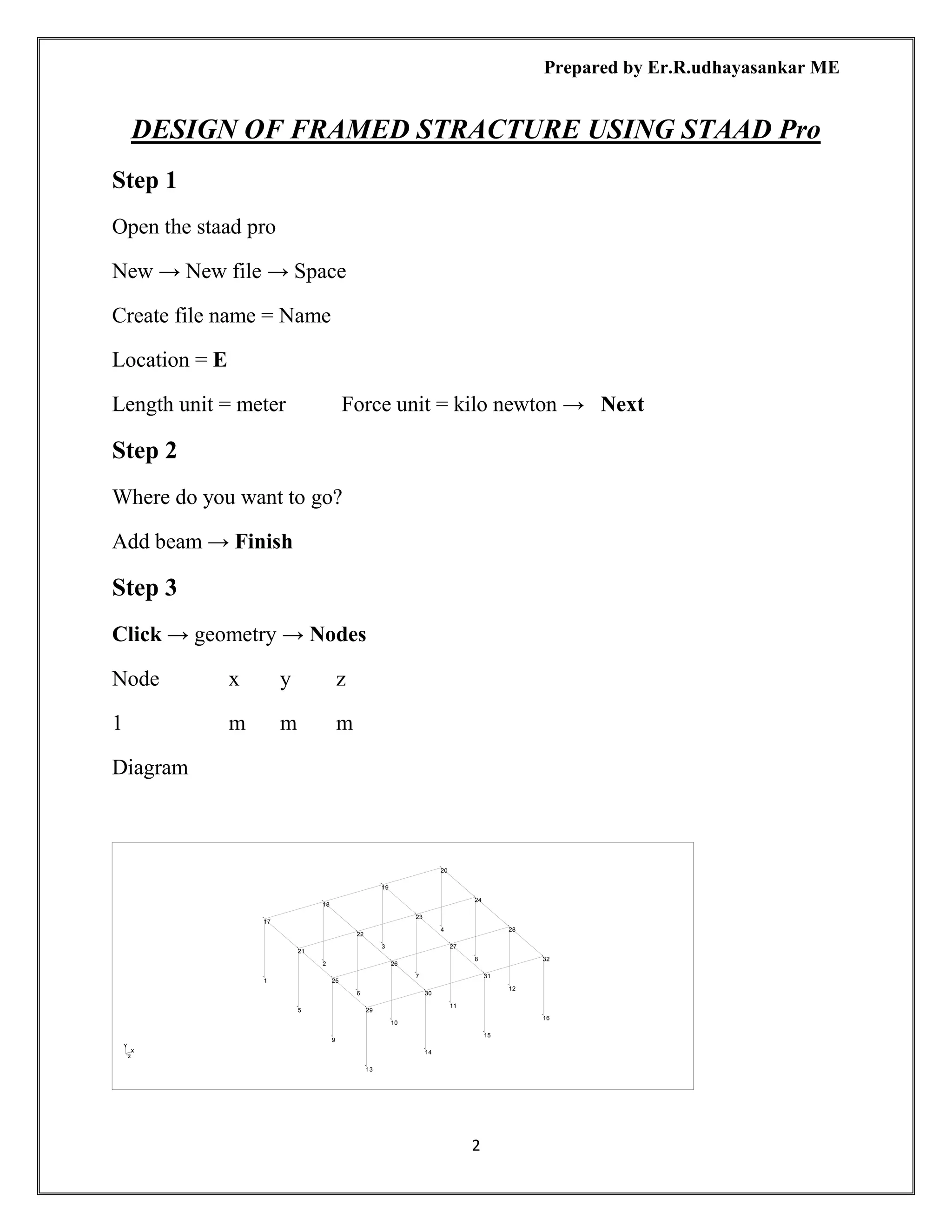
Click → geometry → Nodes
Node x y z
1 m m m
Diagram
4
3
20
8
2
19
7
24
1
18
12
6
23
17
11
28
5
22
16
10
27
21
15
32
9
26
14
31
25
13
30
29
Prepared by Er.R.udhayasankar ME
3
Nodes x y z
1 0 0 0
2 3 0 0
3 6 0 0
4 9 0 0
5 0 0 3
6 3 0 3
7 6 0 3
8 9 0 3
9 0 0 6
10 3 0 6
11 6 0 6
12 9 0 6
13 0 0 9
14 3 0 9
15 6 0 9
16 9 0 9
Then close the node ( x) → You see the node point on the screen → How to find the
node numbers → Click mouse left side → Click labels → Diagrams → Structure
→ Node number & Node point → Apply → ok
Step 4
Select Node Crusher→ Fist selects all Node point
Click → Geometry → Translational repeat → 3D repeat → Global direction → y
→ No of steps 1 → Default step spacing 3m → ok
to see the display of node.
Step 5
To join the node points
Click → Geometry → Add beam → Add beam from point to point
Select the node point and joint all node point like framed structure.
Prepared by Er.R.udhayasankar ME
4
Step 6
➢ Material
➢ Property
➢ Support
➢ Load
➢ Analysis
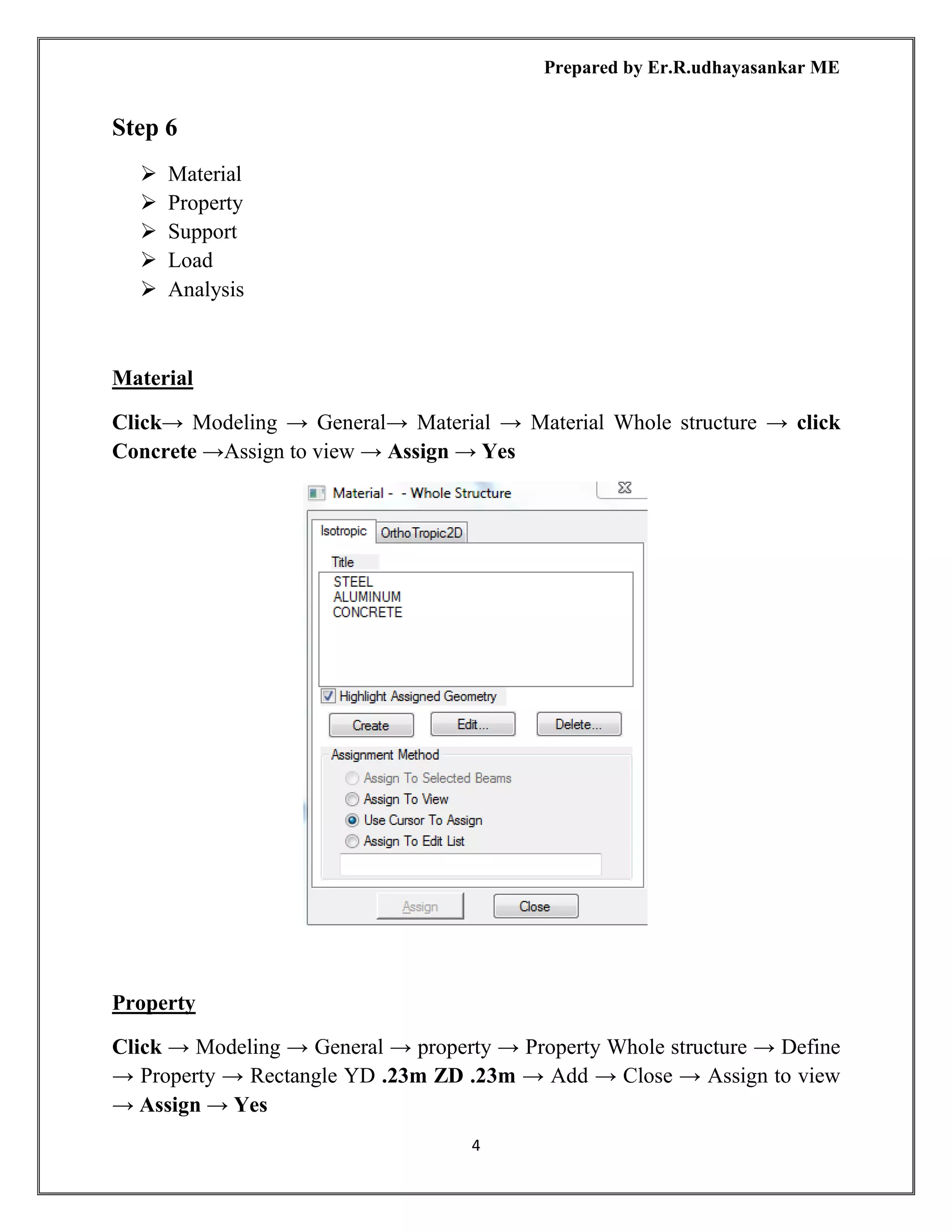
Material
Click→ Modeling → General→ Material → Material Whole structure → click
Concrete →Assign to view → Assign → Yes
Property
Click → Modeling → General → property → Property Whole structure → Define
→ Property → Rectangle YD .23m ZD .23m → Add → Close → Assign to view
→ Assign → Yes
Prepared by Er.R.udhayasankar ME
5
Support
Click → Modeling → General → Support → Support Whole structure → Create →
pinned → Add → Select the support 2 → Select the node point from framed
structure → Assign to selected nodes → Assign → Yes
Prepared by Er.R.udhayasankar ME
6
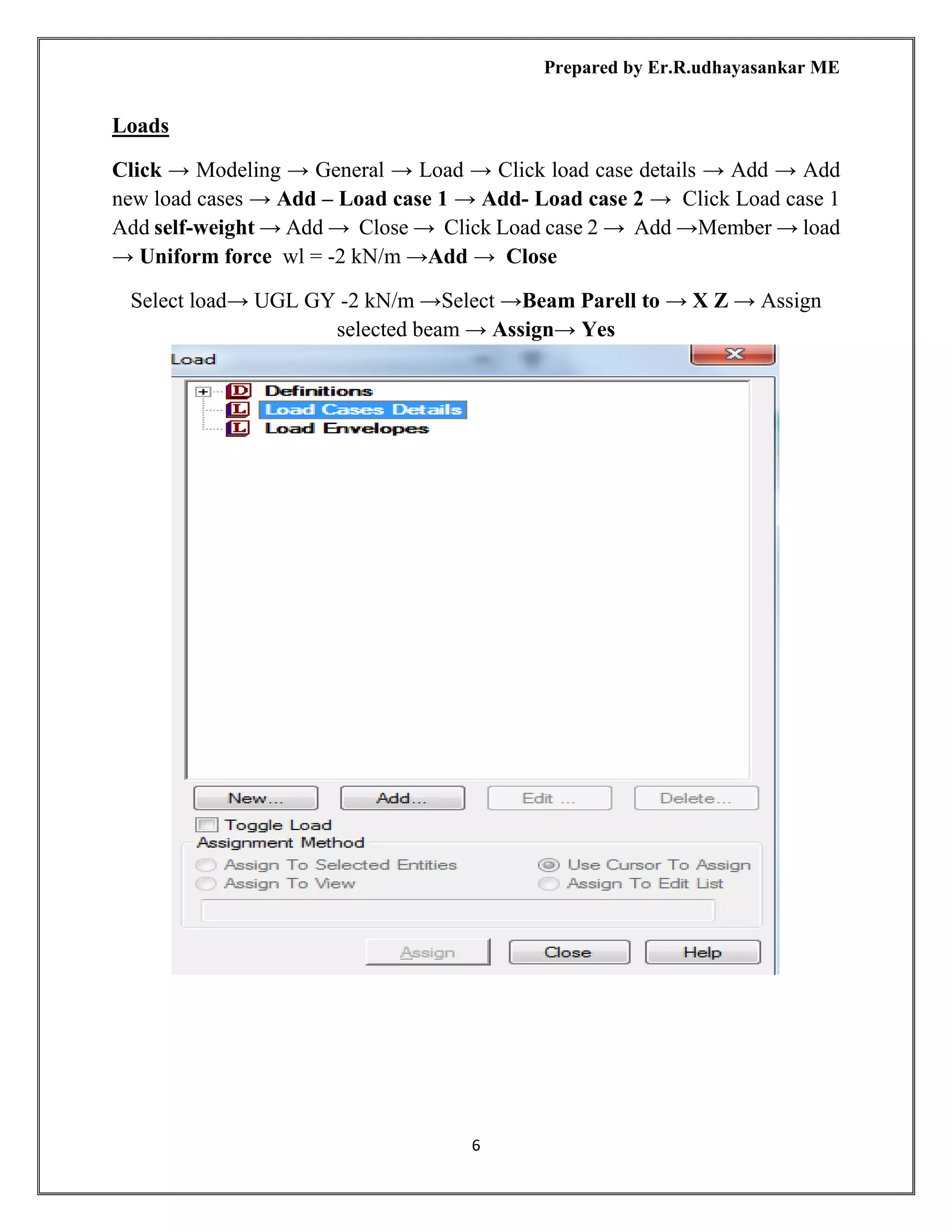
Loads
Click → Modeling → General → Load → Click load case details → Add → Add
new load cases → Add – Load case 1 → Add- Load case 2 → Click Load case 1
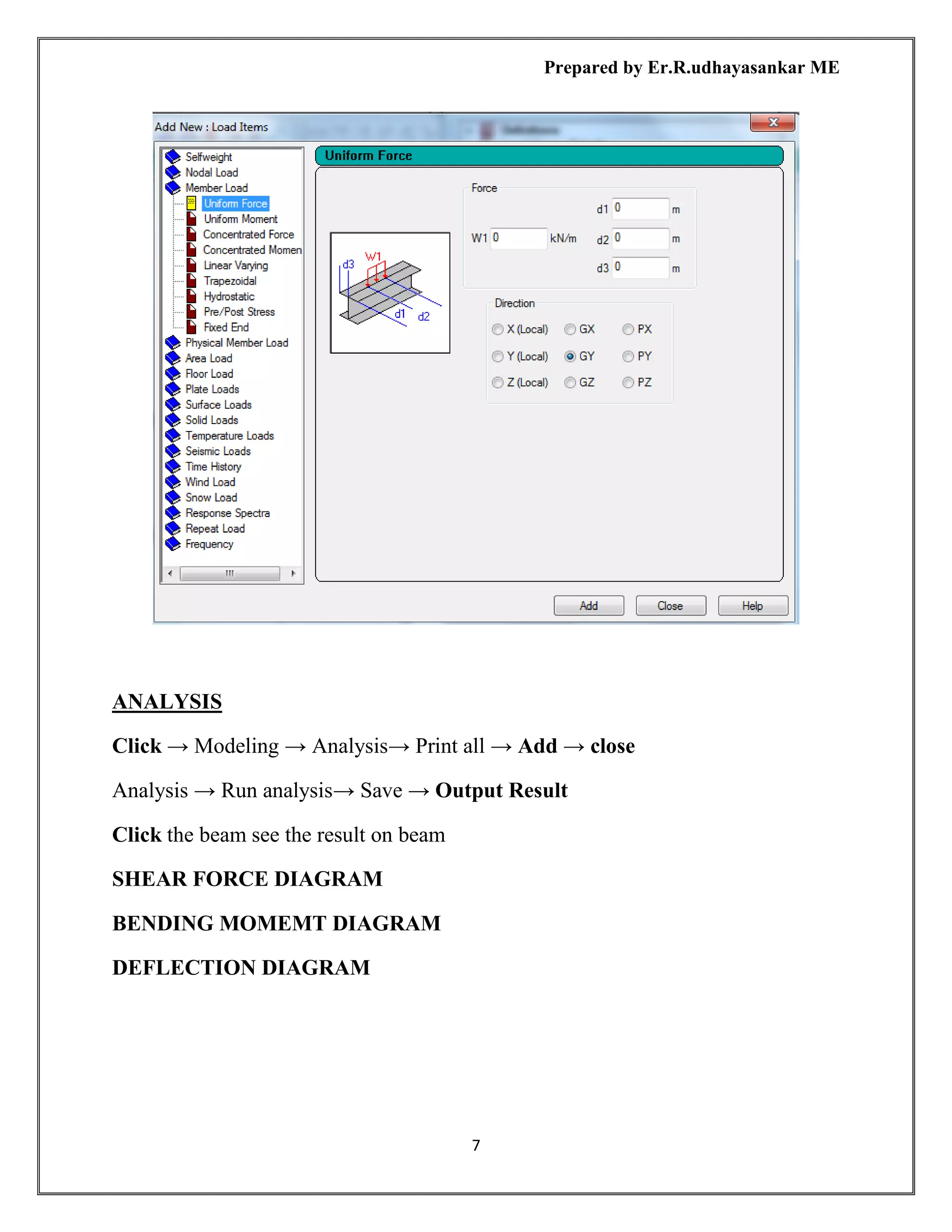
Add self-weight → Add → Close → Click Load case 2 → Add →Member → load
→ Uniform force wl = -2 kN/m →Add → Close
Select load→ UGL GY -2 kN/m →Select →Beam Parell to → X Z → Assign
selected beam → Assign→ Yes
Prepared by Er.R.udhayasankar ME
7
ANALYSIS
Click → Modeling → Analysis→ Print all → Add → close
Analysis → Run analysis→ Save → Output Result
Click the beam see the result on beam
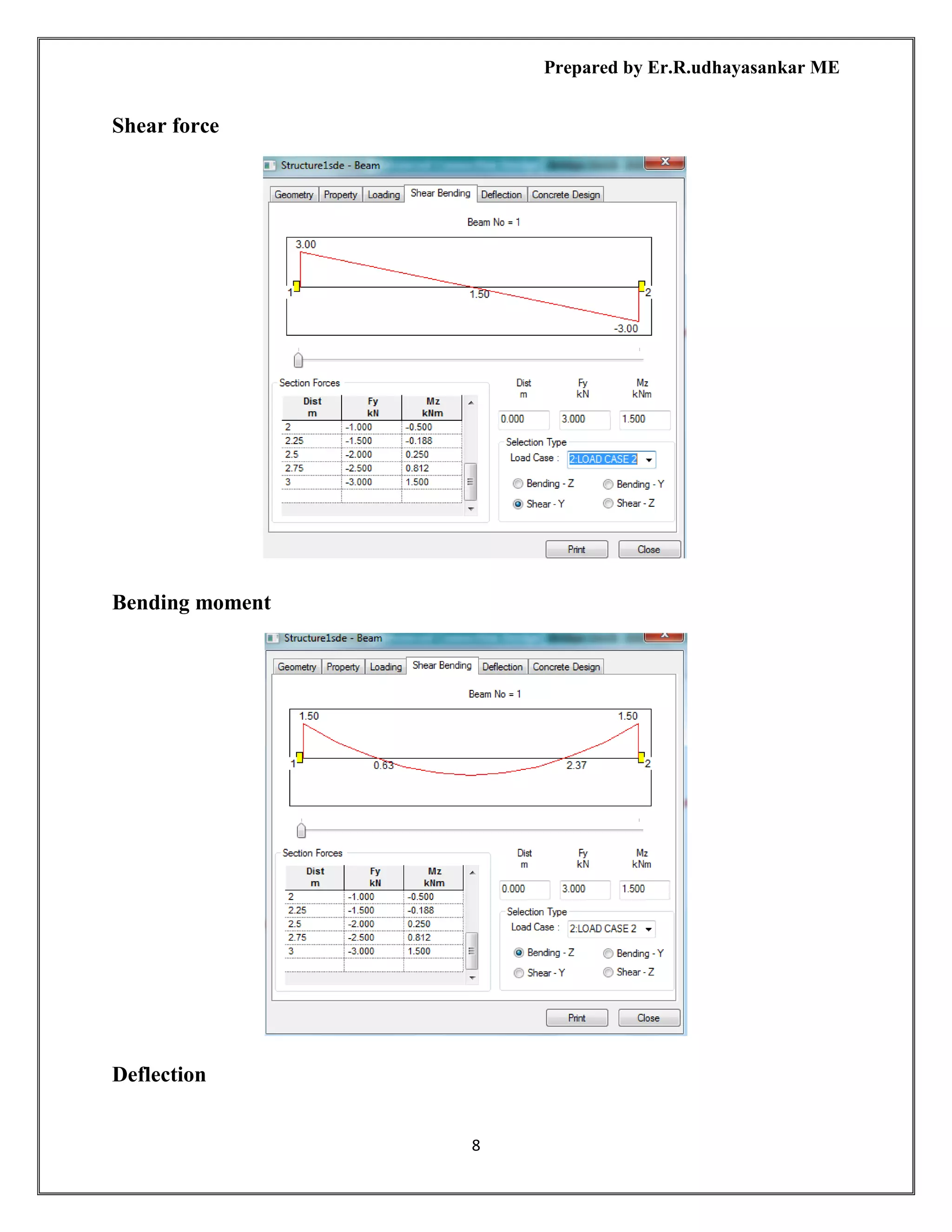
SHEAR FORCE DIAGRAM
BENDING MOMEMT DIAGRAM
DEFLECTION DIAGRAM
Prepared by Er.R.udhayasankar ME
8
Shear force
Bending moment
Deflection
Prepared by Er.R.udhayasankar ME
9
Step 6
Post processing
Click → Post processing → Result setup → Select load case → Ok
New screen will be displayed →Click → Result → Animation →Deflection → Ok
→ F12 to see full screen of deflection
Click→ Result→ Bending moment →Scroll the mouse → to see the whole
structure bending moment diagram → Value to be noted
Click→ Result→ Section displacement → Scroll the mouse → to see the whole
structure section displacement diagram →Value to be noted
Click → Result → Beam stress → Click→ Beam stresses → to click any one beam
→ Open 3d beam stress coutour displayed → Distance to be provided the beam →
Add to stress table → Values to be noted
Beam →Graphs → Beam graphs→ diagram Show
Prepared by Er.R.udhayasankar ME
10
Whole Structure Mz 6kNm:1m 2 LOAD CASE 2
Whole Structure Fy 10kN:1m 2 LOAD CASE 2
Whole Structure Fx 70kN:1m 2 LOAD CASE 2
Prepared by Er.R.udhayasankar ME
11
STEP 7
DESIGN OF CONCRETE ELEMENTS BEAM & COLUMN
BEAM DESIGN
Click →Modeling → Click → Design→ Click → Concrete → Concrete design
whole structure → Current code IS 456 →Click → Selected parameters
➢ fc = compressive strength of concrete
➢ fy = yield strength of concrete
➢ Maximum Main reinforcement
➢ Minimum secondary reinforcement
➢ Track
Ok → Then change the unit kN/m to N/mm2
→ Click → Tools → Set current input
units → Change unite
Click → Define parameter
➢ fc = compressive strength of concrete = 30 N/mm2
→ Add
➢ fy = yield strength of concrete = 415 N/mm2
→Add
➢ Maximum Main reinforcement = 32 mm dia→ Add
➢ Minimum secondary reinforcement = 12 mm dia → Add
➢ Track = 3→ Add
Assign → close
First select beam member’s → Click→ Select beam parallel to → x z
Click → commands → Click → Beam design →Add → Assign → Close →
Analysis → Run analysis → save → Close →View output file → Done →To see
the result concrete design result
Click the beam member on mouse to see the → Beam design
Prepared by Er.R.udhayasankar ME
12
DESIGN OF COLUMN
Click →Modeling → Click → Design→ Click → Concrete → Concrete design
whole structure → Current code IS 456 →Click → Selected parameters
➢ fc = compressive strength of concrete
Prepared by Er.R.udhayasankar ME
13
➢ fy = yield strength of concrete
➢ Maximum Main reinforcement
➢ Minimum secondary reinforcement
➢ Track
Ok → Then change the unit kN/m to N/mm2
→ Click → Tools → Set current input
units → Change unite
Click → Define parameter
➢ fc = compressive strength of concrete = 30 N/mm2
→ Add
➢ fy = yield strength of concrete = 415 N/mm2
→Add
➢ Maximum Main reinforcement = 32 mm dia→ Add
➢ Minimum secondary reinforcement = 12 mm dia → Add
➢ Track = 3→ Add
Assign → close
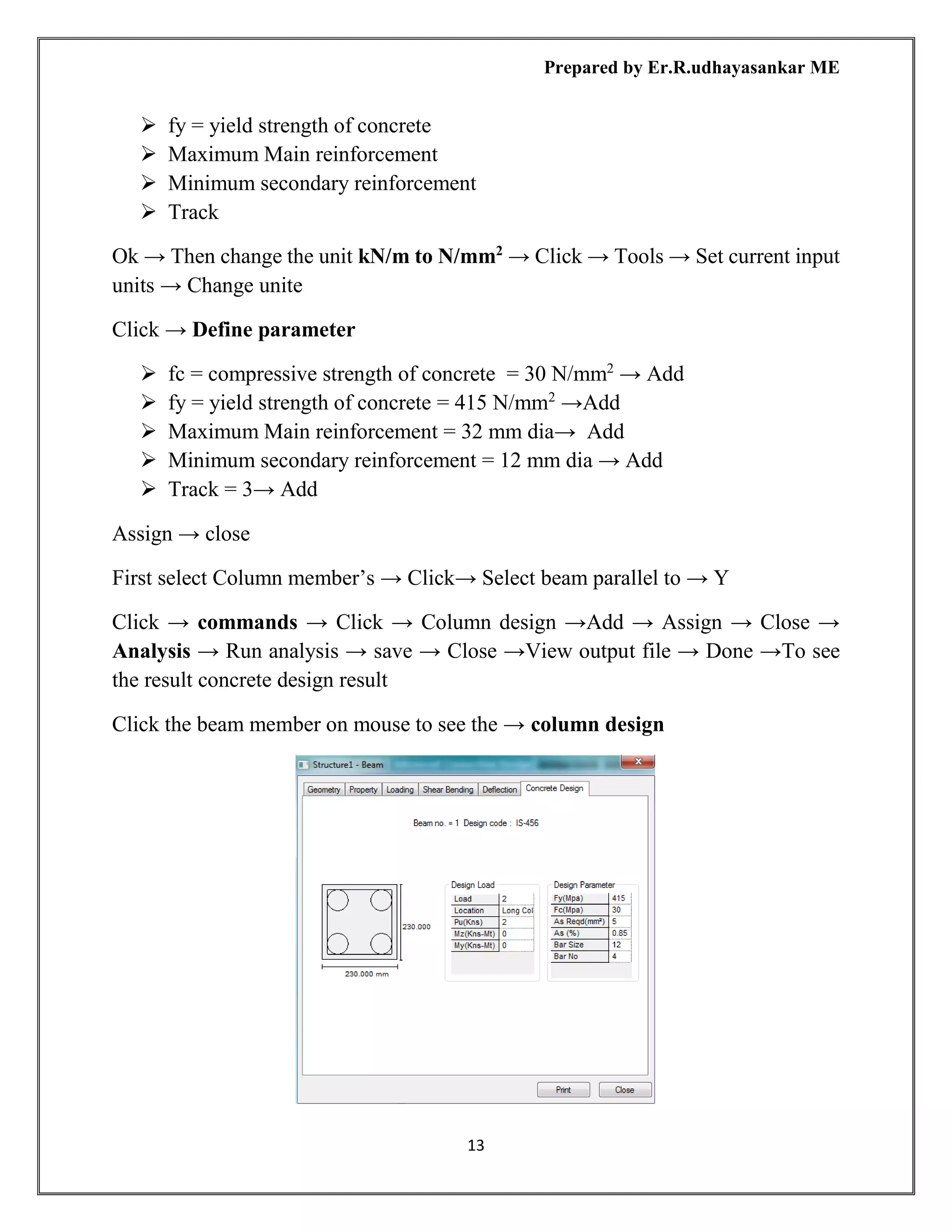
First select Column member’s → Click→ Select beam parallel to → Y
Click → commands → Click → Column design →Add → Assign → Close →
Analysis → Run analysis → save → Close →View output file → Done →To see
the result concrete design result
Click the beam member on mouse to see the → column design
Prepared by Er.R.udhayasankar ME
14
STEP 8
DESIGN OF SHEAR & MAIN LAYOUT FOR CONCRETE
➢ Envelops
➢ Groups & Briefs
➢ Members
➢ Design
Envelops
Click → Envelops → Click → New Envelops → E1: name → Ok → Define
Enevolops → un tick box → Load transfer from left side to right side → Ok
Groups & Briefs
Click → Groups & Briefs → Click → New briefs → B1:name → Design code
IS 456 → Ok → Click → Edit briefs general main rft shear rft to changes values
→ Ok
Click → New design groups → G: design group 1 → Design beiefs you created
name → Ok
Prepared by Er.R.udhayasankar ME
15
Members
Click → Members → Select the beam → Click → Top box members → Click
→ Auto form members → Beam created name M1 → Click → The top bar →
Mode member → Design → To shown the dialogue box → Click the beam on
mouse left → Click → Add → Members to design group → Design group 1 →
Add → Ok
Design
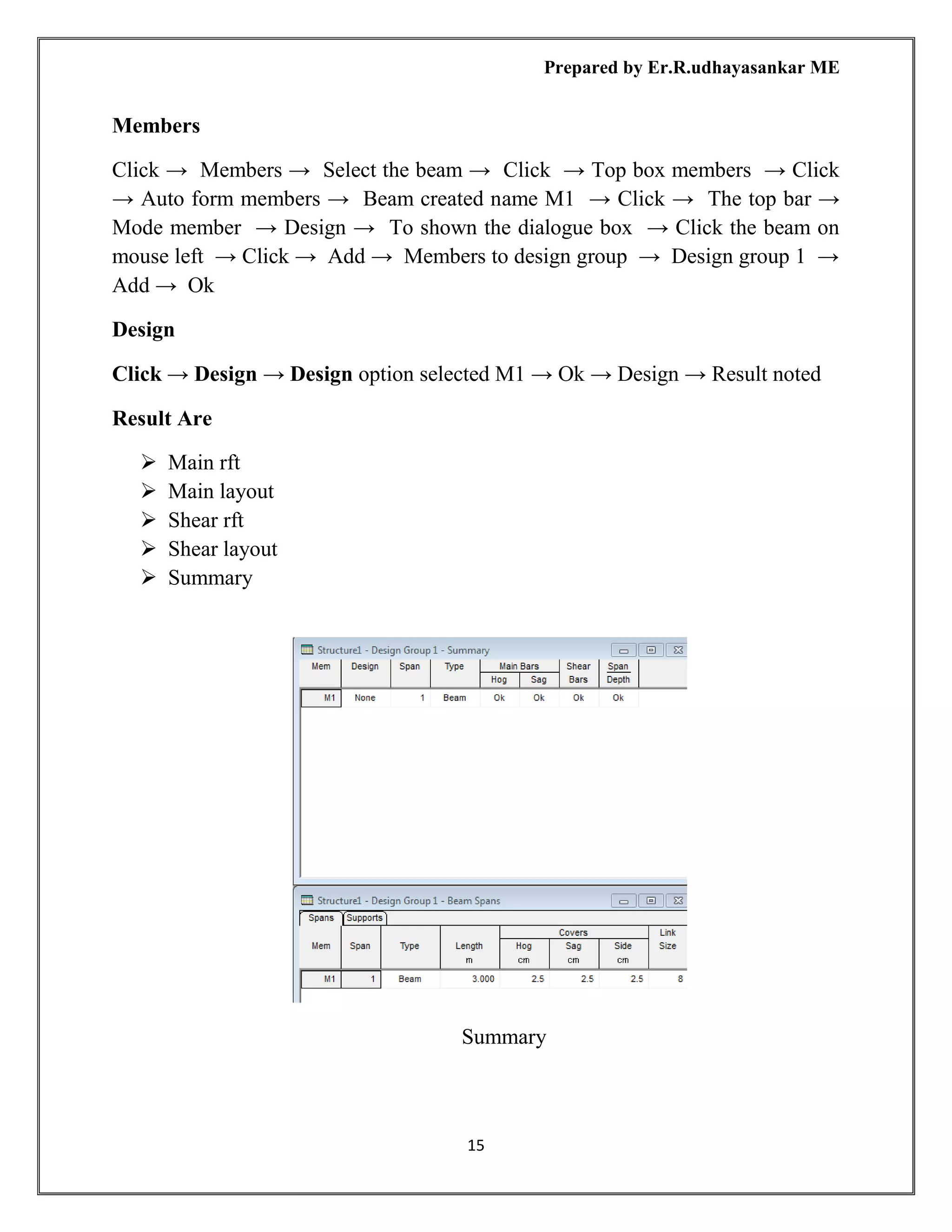
Click → Design → Design option selected M1 → Ok → Design → Result noted
Result Are
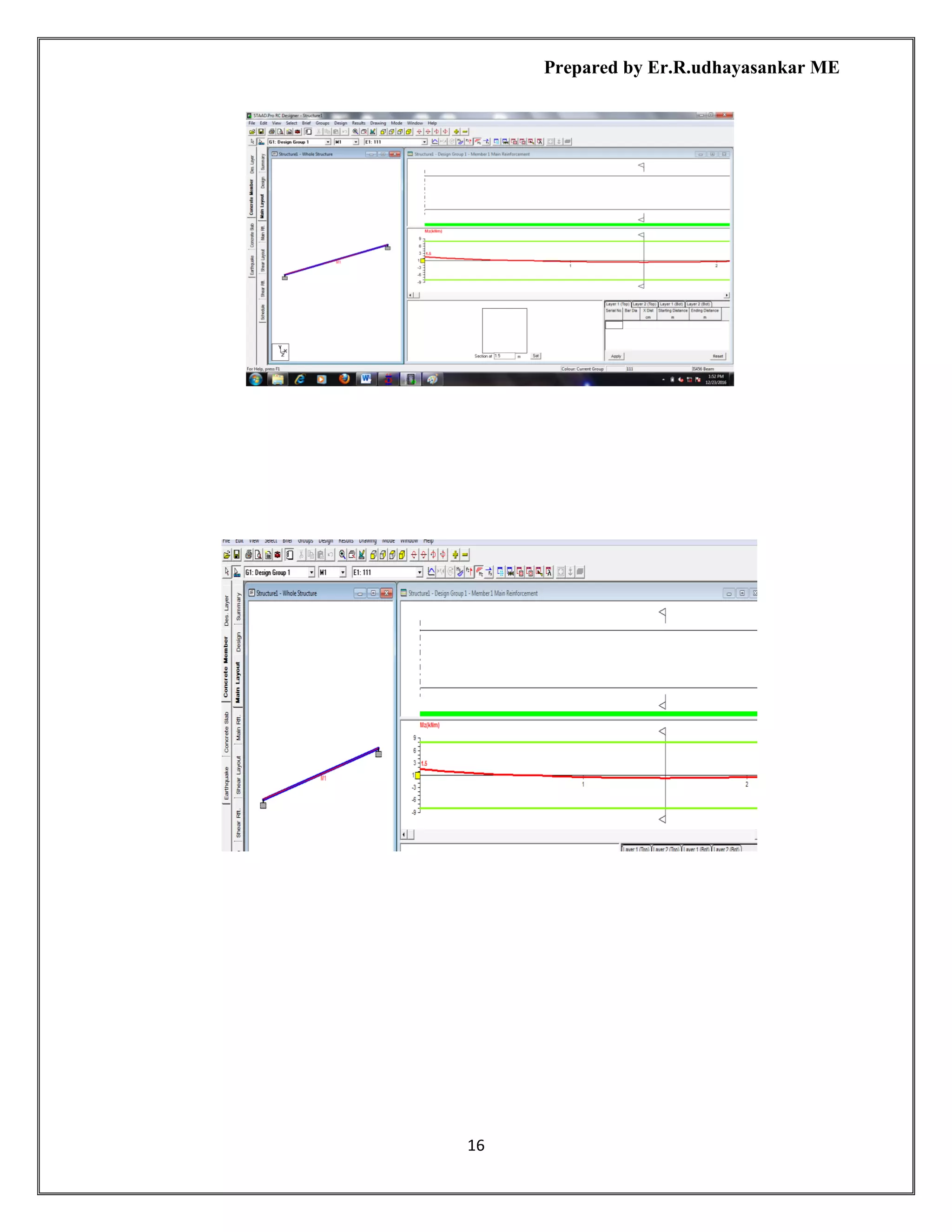
➢ Main rft
➢ Main layout
➢ Shear rft
➢ Shear layout
➢ Summary
Summary
Prepared by Er.R.udhayasankar ME
16
Prepared by Er.R.udhayasankar ME
17
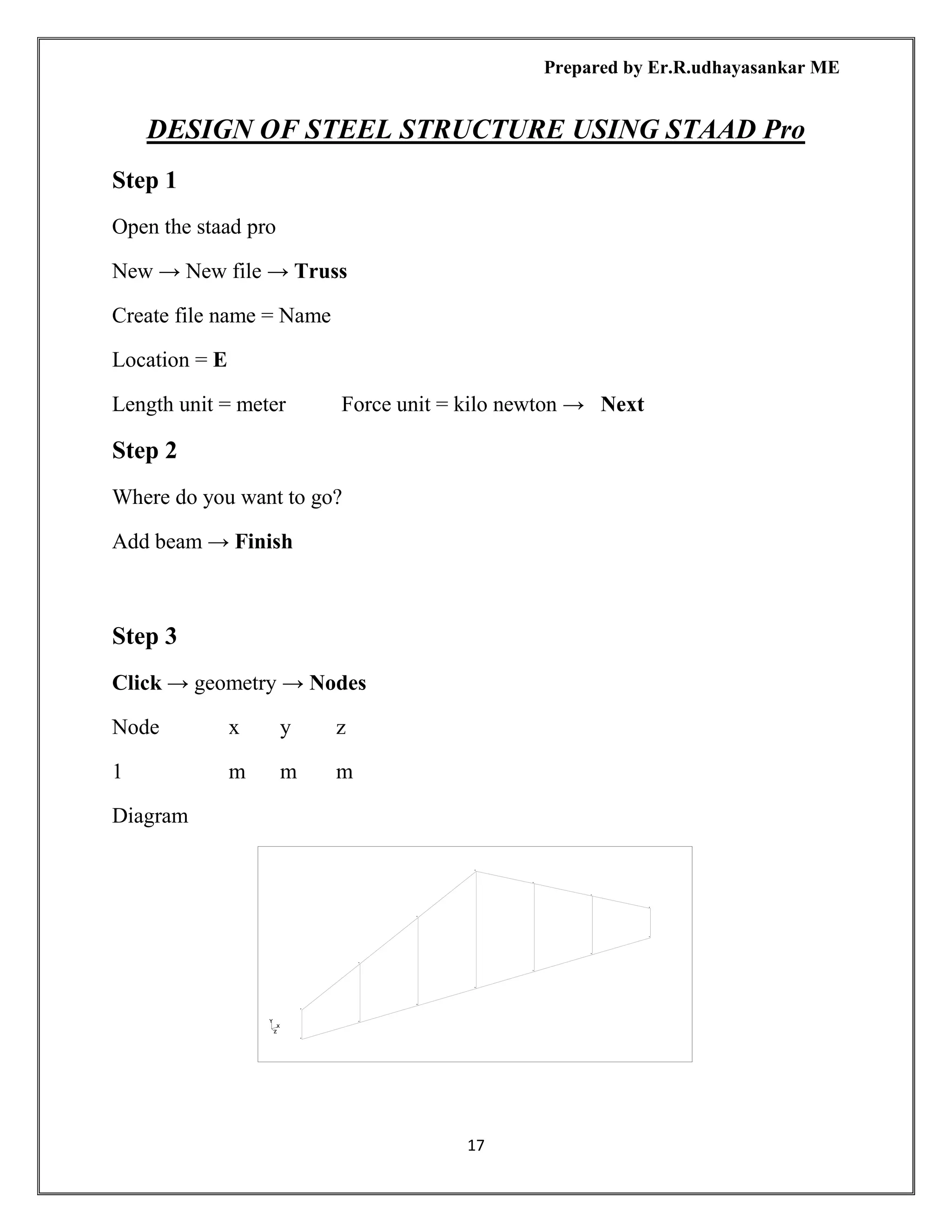
DESIGN OF STEEL STRUCTURE USING STAAD Pro
Step 1
Open the staad pro
New → New file → Truss
Create file name = Name
Location = E
Length unit = meter Force unit = kilo newton → Next
Step 2
Where do you want to go?
Add beam → Finish
Step 3
Click → geometry → Nodes
Node x y z
1 m m m
Diagram
Prepared by Er.R.udhayasankar ME
18
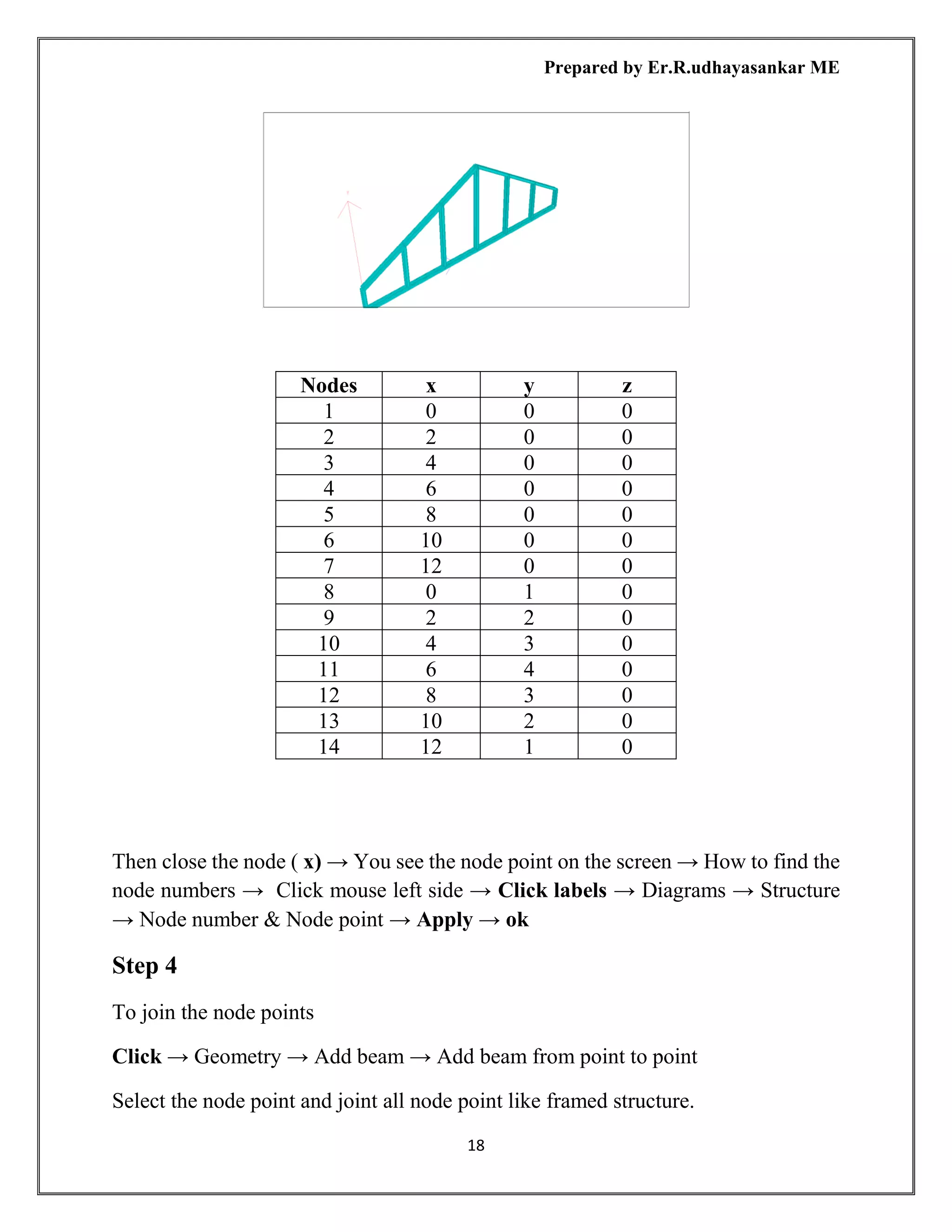
Nodes x y z
1 0 0 0
2 2 0 0
3 4 0 0
4 6 0 0
5 8 0 0
6 10 0 0
7 12 0 0
8 0 1 0
9 2 2 0
10 4 3 0
11 6 4 0
12 8 3 0
13 10 2 0
14 12 1 0
Then close the node ( x) → You see the node point on the screen → How to find the
node numbers → Click mouse left side → Click labels → Diagrams → Structure
→ Node number & Node point → Apply → ok
Step 4
To join the node points
Click → Geometry → Add beam → Add beam from point to point
Select the node point and joint all node point like framed structure.
Prepared by Er.R.udhayasankar ME
19
Step 5
➢ Material
➢ Property
➢ Support
➢ Load
➢ Analysis
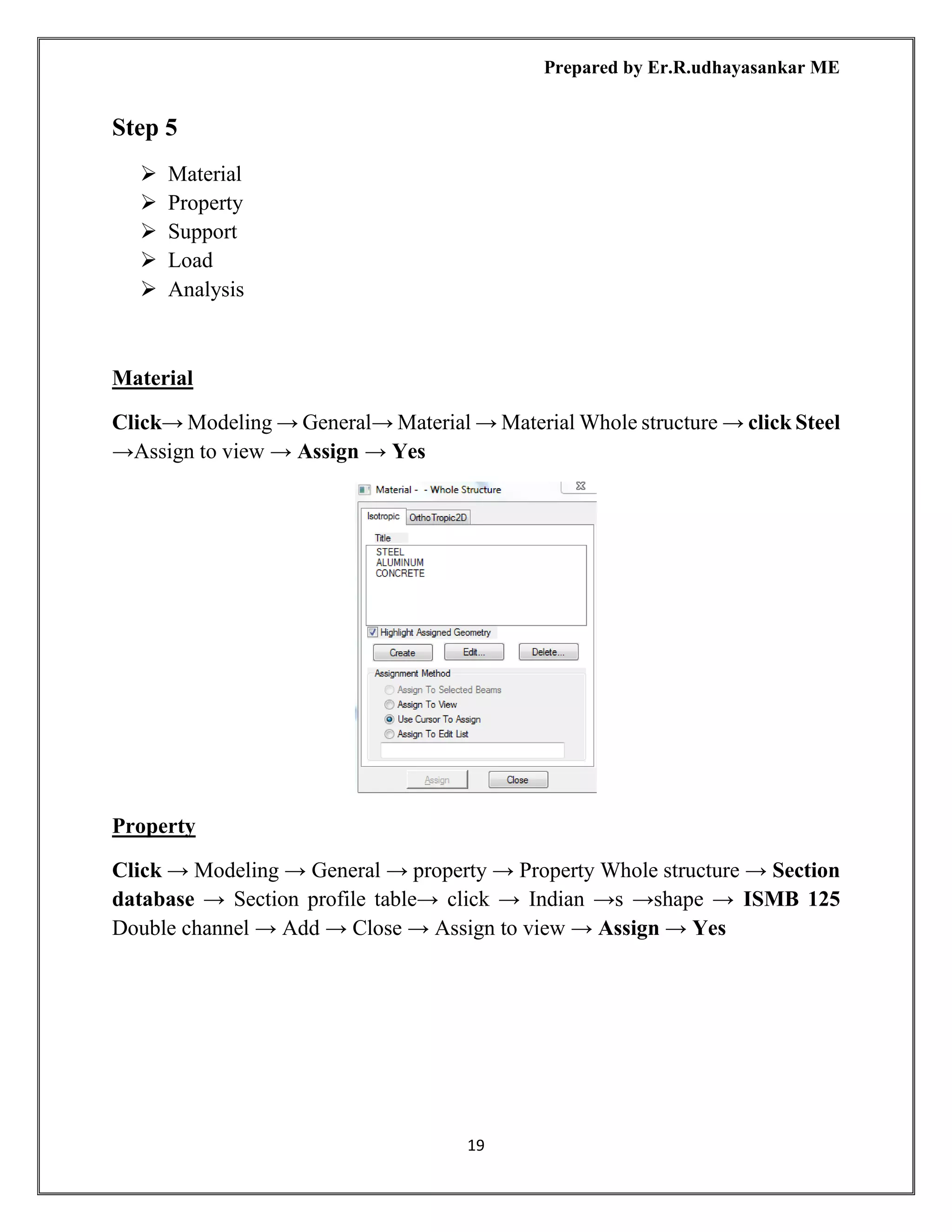
Material
Click→ Modeling → General→ Material → Material Whole structure → click Steel
→Assign to view → Assign → Yes
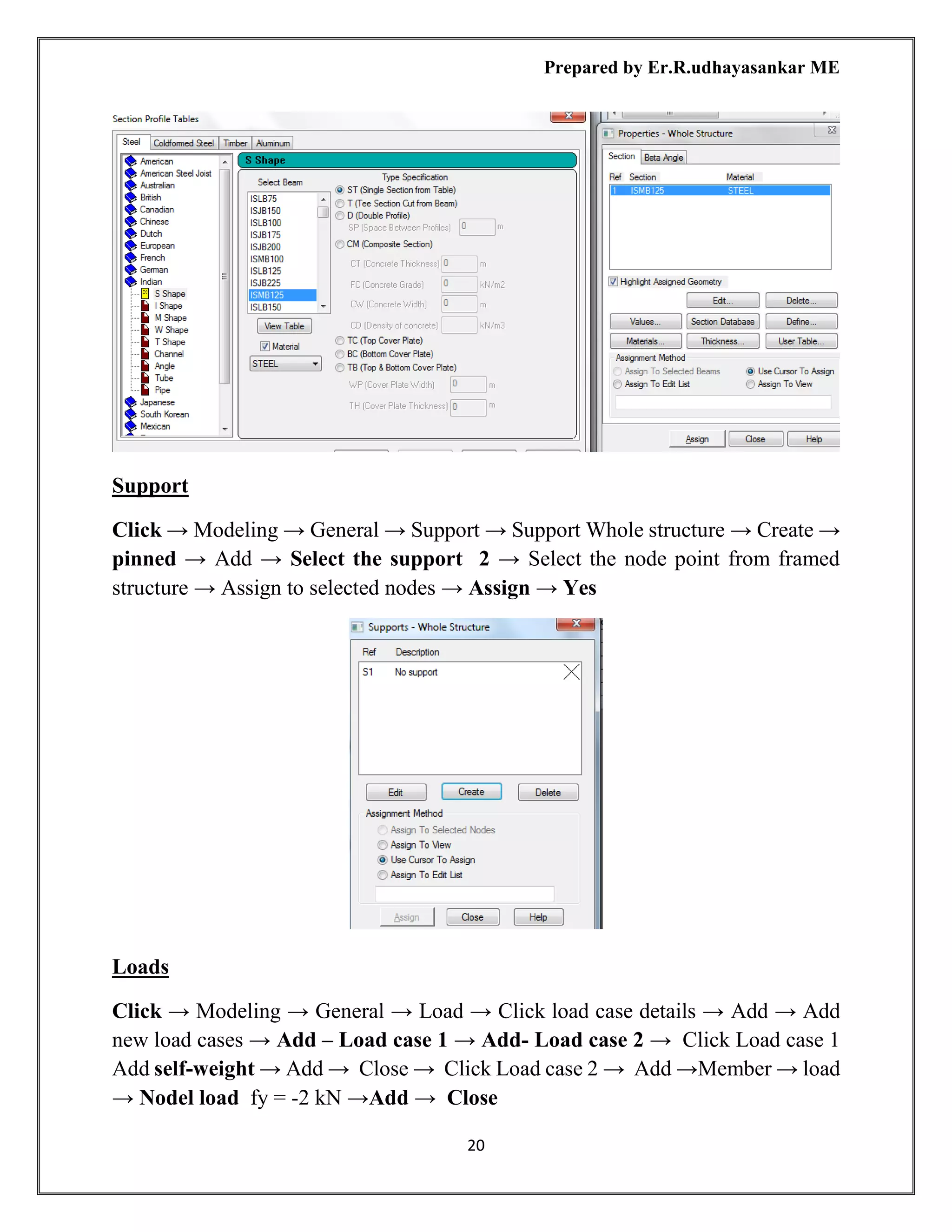
Property
Click → Modeling → General → property → Property Whole structure → Section
database → Section profile table→ click → Indian →s →shape → ISMB 125
Double channel → Add → Close → Assign to view → Assign → Yes
Prepared by Er.R.udhayasankar ME
20
Support
Click → Modeling → General → Support → Support Whole structure → Create →
pinned → Add → Select the support 2 → Select the node point from framed
structure → Assign to selected nodes → Assign → Yes
Loads
Click → Modeling → General → Load → Click load case details → Add → Add
new load cases → Add – Load case 1 → Add- Load case 2 → Click Load case 1
Add self-weight → Add → Close → Click Load case 2 → Add →Member → load
→ Nodel load fy = -2 kN →Add → Close
Prepared by Er.R.udhayasankar ME
21
Select load→ fy -2 kN → Assign selected node → Assign→ Yes
ANALYSIS
Click → Modeling → Analysis→ Print all → Add → close
Analysis → Run analysis→ Save → Output Result
Click the beam see the result on beam
DEFLECTION DIAGRAM
Prepared by Er.R.udhayasankar ME
22
Step 5
POST PROCESSING
Click → Post processing → Result setup → Select load case → Ok
Click→ Reactions → see the results
Click→ Instability joints → see the results
Click →Beam→ Unity check → Stresses → Forces → Graphs
New screen will be displayed → Click → Result → Animation →Deflection → Ok
→ F12 to see full screen of deflection
STEP 6
DESIGN OF STEEL ELEMENTS
Click → Modeling → Click → Design → Click → Steel → Steel design whole
structure → Current code IS 800 → Click → Selected parameters
➢ Fvb = Allowable shear stress in rivet
➢ Fyld = Yield strength of steel
➢ Ly = Length in local y axis for slenderness ratio
➢ Lz = Length in local z axis for slenderness ratio
➢ Track = Track parameter
➢ Weld = Design weld
Click → Define parameter
➢ Fvb = Allowable shear stress in rivet =100 N/mm2
→ Add
➢ Fyld = Yield strength of steel = 250 N/mm2
→ Add
➢ Ly = Length in local y axis for slenderness ratio = 100 mm → Add
➢ Lz = Length in local z axis for slenderness ratio = 100 mm → Add
➢ Track = Track parameter = max detail level → Add
➢ Weld = Design weld = closed weld → Add
Add → Assign → Close
First select beam member’s → Click→ Select steel structure
Prepared by Er.R.udhayasankar ME
23
Click → commands → Click → Check code → Add → Assign → Close →
Analysis → Run analysis → save → Close → View output file → Done → To see
the result Steel design result
Click the steel member on mouse to see the → Steel design
Prepared by Er.R.udhayasankar ME
24
STEP 7
DESIGN OF STEEL ELEMENTS PASS OR FAIL
➢ Envelops
➢ Member design
➢ Groups and briefs
➢ Restrains
➢ Result and report
Steel design → New envelops → Load envelops → Click load → Ok
Click → Member design→ Click top bar → Member → Design physical members
→ Form members
Click → Group and Briefs → Click → New brief design → Code IS 800 → Ok
Click→ New group → Click → Group → Add → M1 → Transfer left side to right
side → Ok
Click → Restrains → Select member M1 → Top bar → Member design →
Performance group design → Check code
Click → Result and Report
Prepared by Er.R.udhayasankar ME
25
DESIG OF PLATE SLAB USING STAAD Pro
Step 1
Open the staad pro
New → New file → Floor
Create file name = Name
Location = E
Length unit = meter Force unit = kilo newton → Next
Step 2
Where do you want to go?
Add plate → Finish
Step 3
Click → geometry → Nodes
Node x y z
1 m m m
Diagram
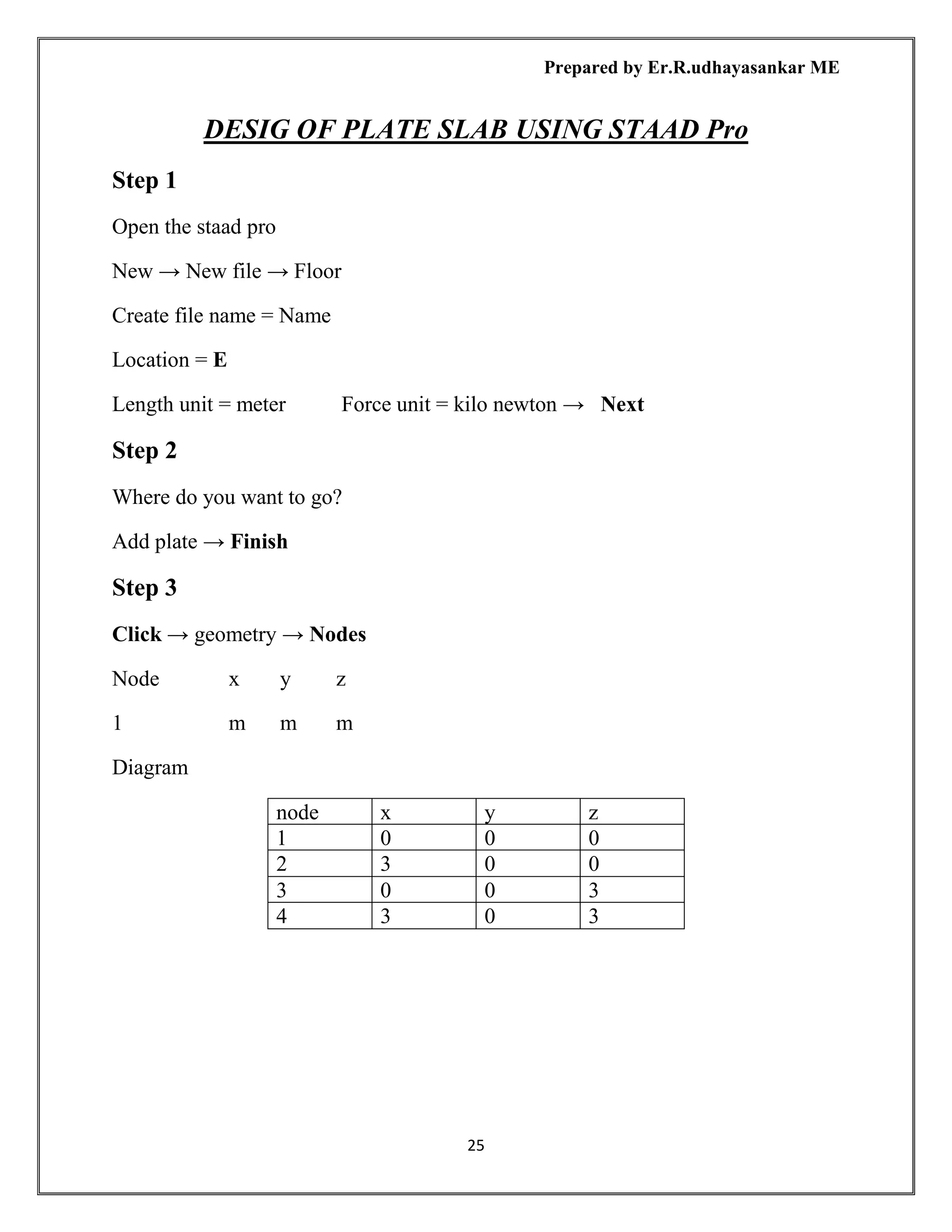
node x y z
1 0 0 0
2 3 0 0
3 0 0 3
4 3 0 3
Prepared by Er.R.udhayasankar ME
26
Click → Geometry → Add plate → Click quad then join the four node point
Step 4
➢ Material
➢ Property
➢ Support
➢ Load
➢ Analysis
Material
Click→ Modeling → General→ Material → Material Whole structure → click
Concrete →Assign to view → Assign → Yes
Prepared by Er.R.udhayasankar ME
27
Property
Click → Modeling → General → property → Property Whole structure →
Thickness → Plate surface thickness → 0.120m → Add → Close → Assign to
selected plate → Assign → Yes → close
Support
Click → Modeling → General → Support → Support Whole structure → Create →
pinned → Add → Select the support 2 → Select the node point from framed
structure → Assign to selected nodes → Assign → Yes
Prepared by Er.R.udhayasankar ME
28
Loads
Click → Modeling → General → Load → Click load case details → Add → Add
new load cases → Add – Load case 1 → Add- Load case 2 → Click Load case 1
Add self-weight → Add → Close → Click Load case 2 → plate load pressure on
full plate -2kN/m2
GY →Add → Close
Select load→ PR -2 kN/m2
→Select →Assign To View → Assign→ Yes
Click → Modeling → Analysis→ Print all → Add → close
Analysis → Run analysis→ Save → Output Result
Click the SLAB see the result on slab
Prepared by Er.R.udhayasankar ME
29
POST PROCESSING
Click → Post processing → Plate → Stress type
Click → Post processing → Counter
Prepared by Er.R.udhayasankar ME
30
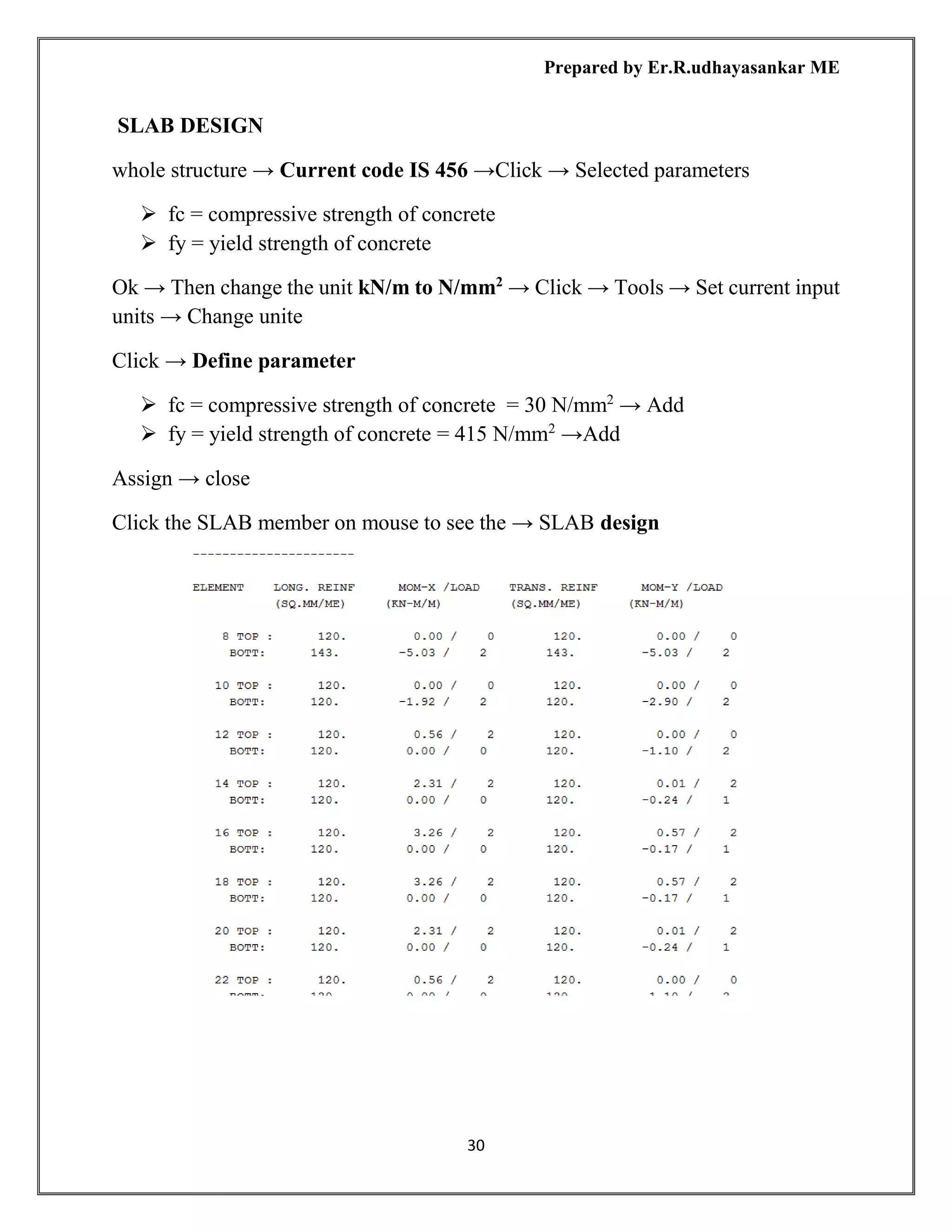
SLAB DESIGN
whole structure → Current code IS 456 →Click → Selected parameters
➢ fc = compressive strength of concrete
➢ fy = yield strength of concrete
Ok → Then change the unit kN/m to N/mm2
→ Click → Tools → Set current input
units → Change unite
Click → Define parameter
➢ fc = compressive strength of concrete = 30 N/mm2
→ Add
➢ fy = yield strength of concrete = 415 N/mm2
→Add
Assign → close
Click the SLAB member on mouse to see the → SLAB design
Prepared by Er.R.udhayasankar ME
31
DESIGN OF FOUNATION USING STAAD Pro
Click → STAAD → Foundation
Open→ Staad foundation → Click → File new
Click→ [j] → New job → Write→ New job name→ Job title→ Isolated → Design
code→ Indian →Default unit→ SI → Ok
➢ Foundation Plan
➢ Load & Factor
➢ Design Parameter
➢ Cover Rebar
➢ Cover soil
➢ Geometry
➢ Design
➢ Design summary
➢ Footing layout
➢ Detailed drawing
➢ Calculation sheet
Foundation plan
Click → tools → set out put units
Click → Foundation Plan → Column position
Click → Foundation Plan→ Column Dimension
Prepared by Er.R.udhayasankar ME
32
Load & Factors
Click → load &factors → click → new load case → create new load case load
name→ primary → ok
Click → Column reaction → Node reaction → fy -2 → Ok
Click → Load → Assign to view → Assign
Design Parameter
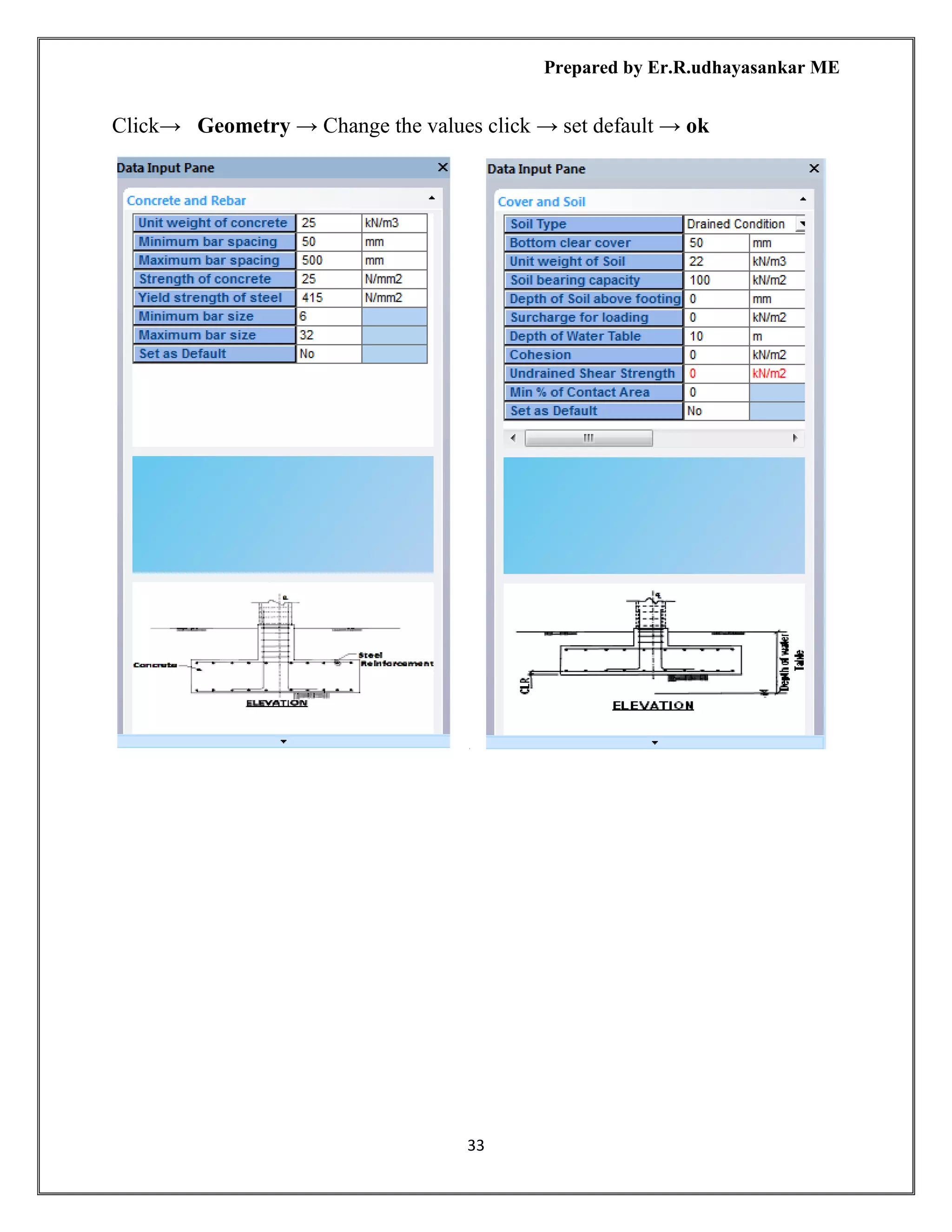
Click→ Design parameter → Click→ Cover rebar → Change the value
click → Set default
Click → Cover and soil → Change the values click → Set defau
Prepared by Er.R.udhayasankar ME
33
Click→ Geometry → Change the values click → set default → ok
Prepared by Er.R.udhayasankar ME
34
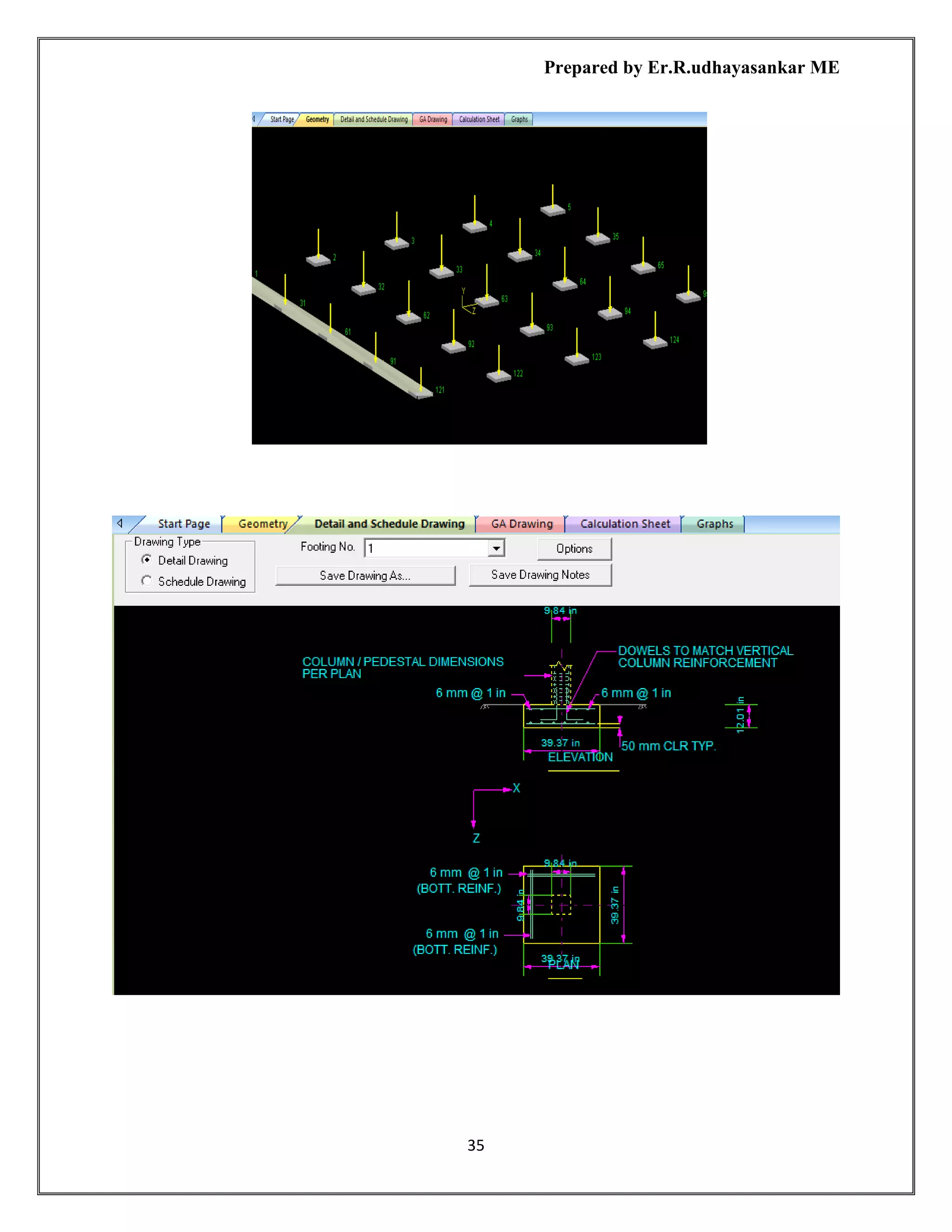
Design
Click → Design → ok
Results Are Taken
➢ Geometry
➢ Detailed schemed drawing
➢ GA drawing
➢ Calculation sheet
Prepared by Er.R.udhayasankar ME
35
Prepared by Er.R.udhayasankar ME
36
Prepared by Er.R.udhayasankar ME
37
DESIGN OF PILE CAP FOUNATION USING STAAD Pro
OPEN STAAD FOUNDATION
CLICK NEW
➢ GENERAL SETUP
➢ GENERAL FOUNDATION MODE
➢ COLUMN POSITION
➢ LOAD AND FACTORS
➢ JOB SET UP
➢ DESIGN PARAMETER
➢ PILE LAYOUT PREDEFINED
➢ DESIGN
Click → New→ General Setup
Click→ Foundation Mode → Click→ Foundation Plan
Click→ Coolum Position → 0,0,0 → Create The Footing
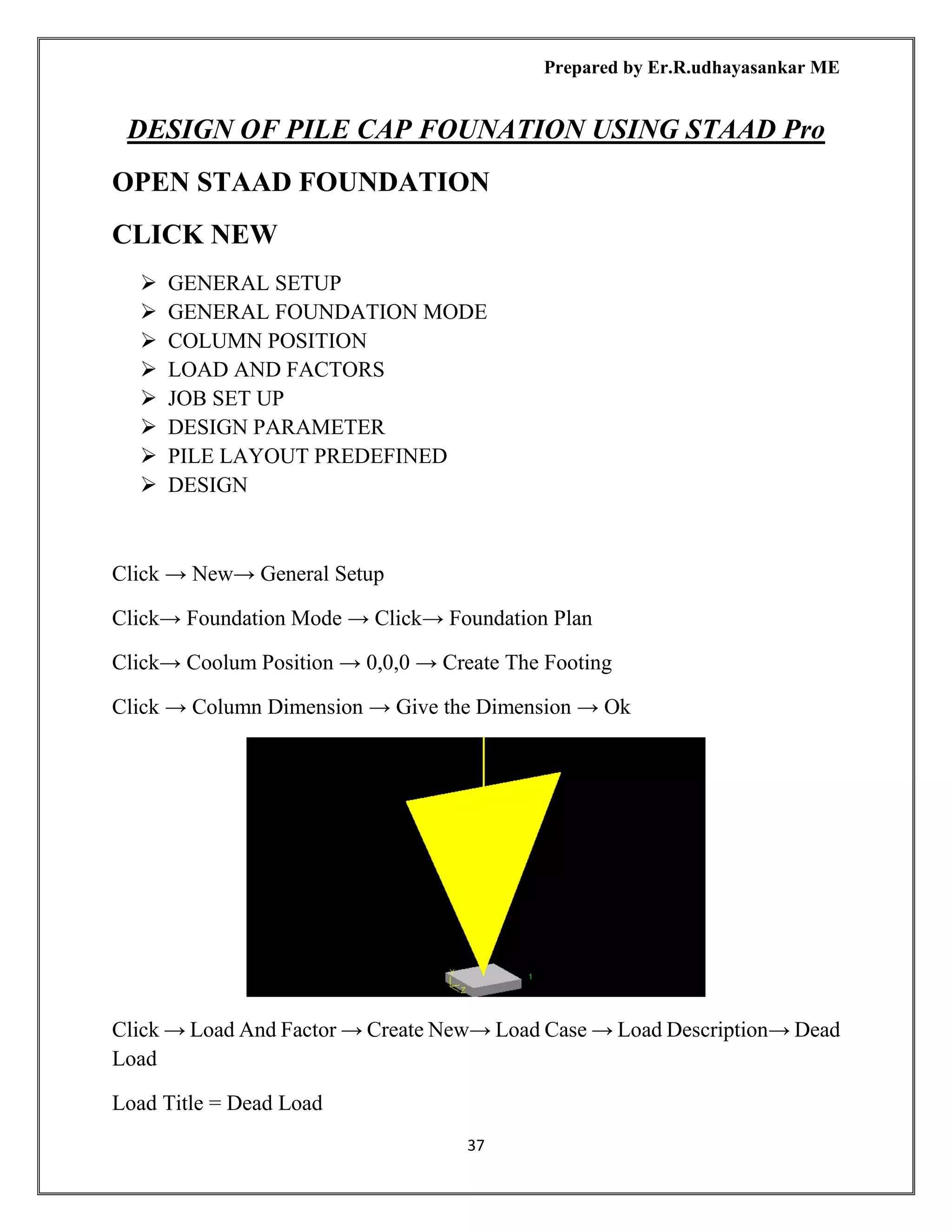
Click → Column Dimension → Give the Dimension → Ok
Click → Load And Factor → Create New→ Load Case → Load Description→ Dead
Load
Load Title = Dead Load
Prepared by Er.R.udhayasankar ME
38
Load Case Type = Service
Loading Type = Dead Add
LIVE Load
Load Title = LIVE Load
Load Case Type = Service
Loading type = live Add
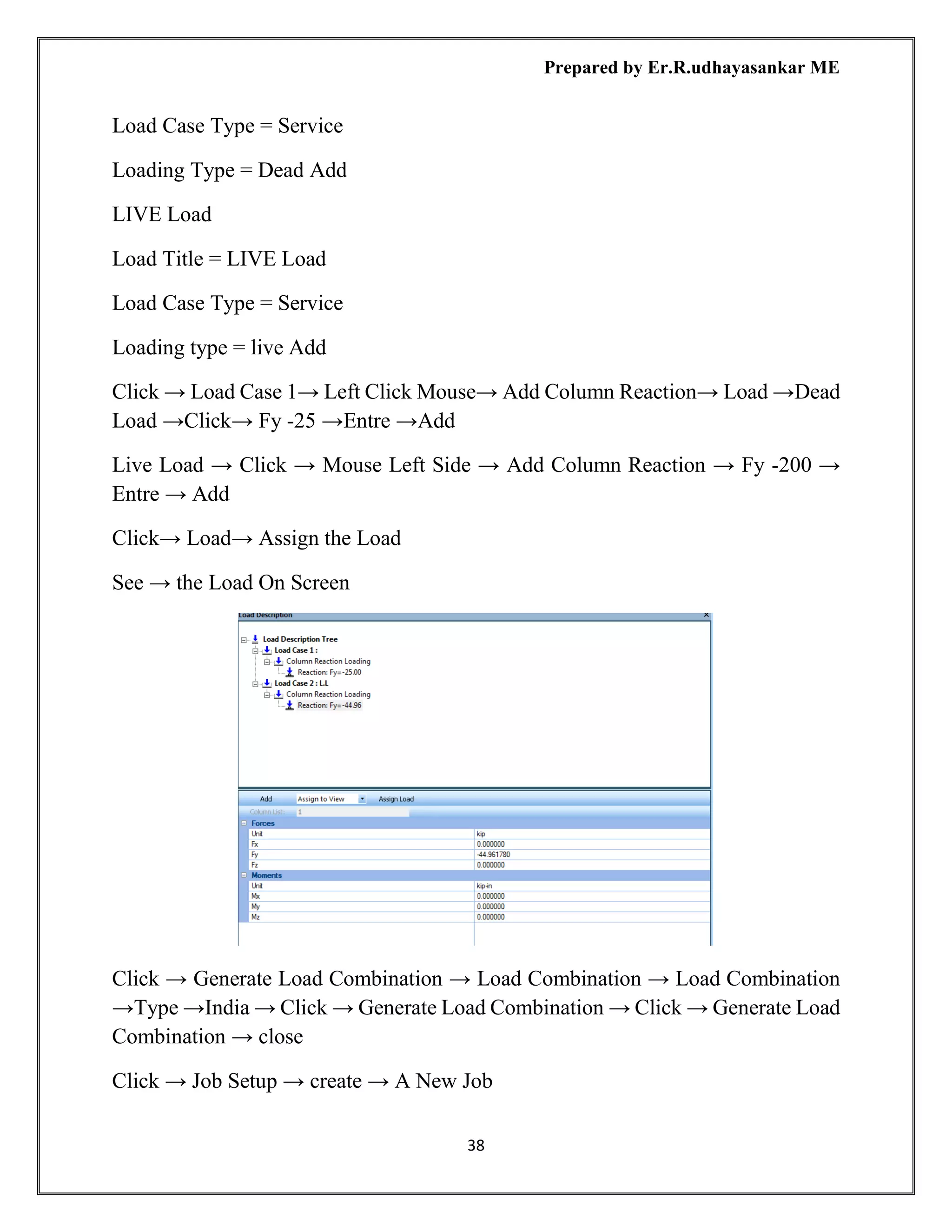
Click → Load Case 1→ Left Click Mouse→ Add Column Reaction→ Load →Dead
Load →Click→ Fy -25 →Entre →Add
Live Load → Click → Mouse Left Side → Add Column Reaction → Fy -200 →
Entre → Add
Click→ Load→ Assign the Load
See → the Load On Screen
Click → Generate Load Combination → Load Combination → Load Combination
→Type →India → Click → Generate Load Combination → Click → Generate Load
Combination → close
Click → Job Setup → create → A New Job
Prepared by Er.R.udhayasankar ME
39
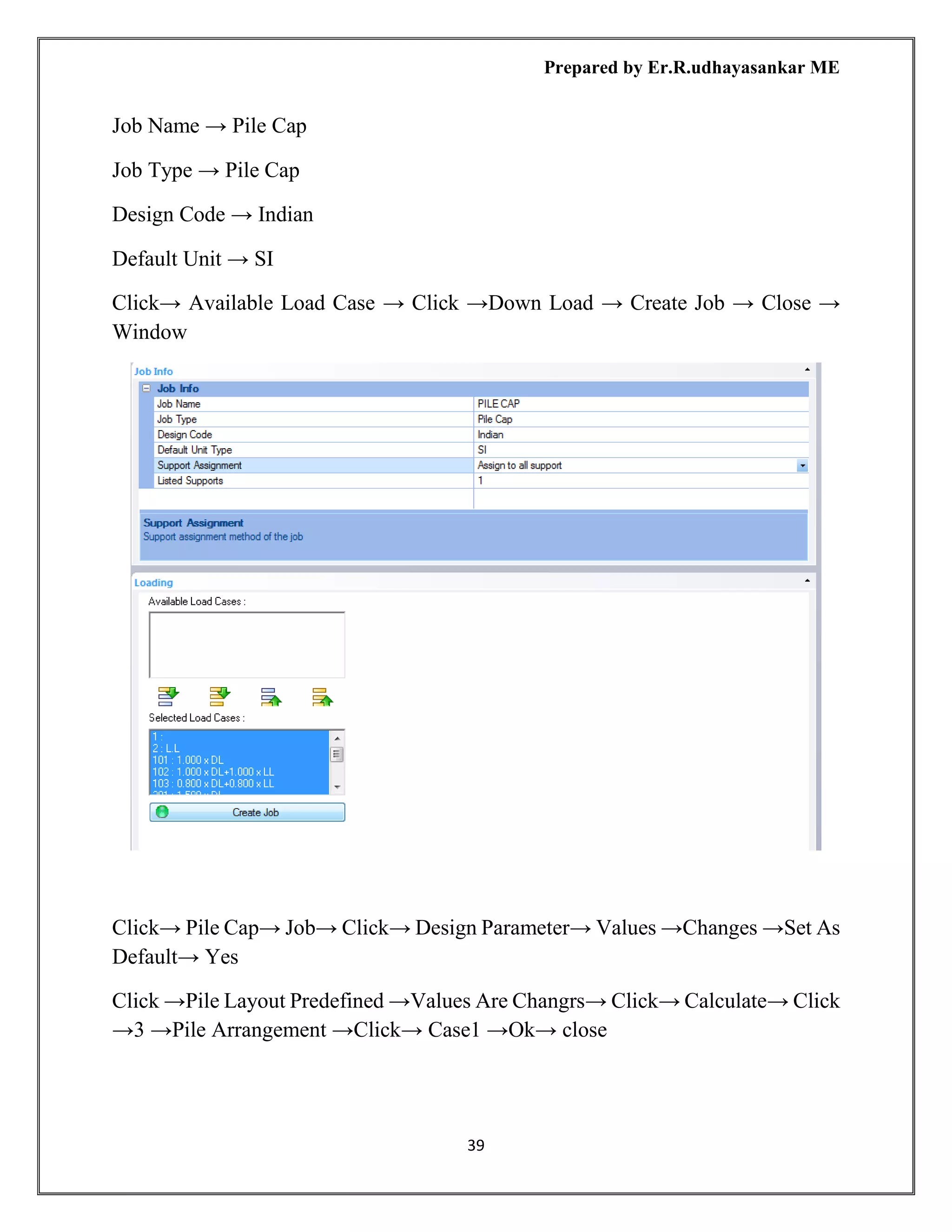
Job Name → Pile Cap
Job Type → Pile Cap
Design Code → Indian
Default Unit → SI
Click→ Available Load Case → Click →Down Load → Create Job → Close →
Window
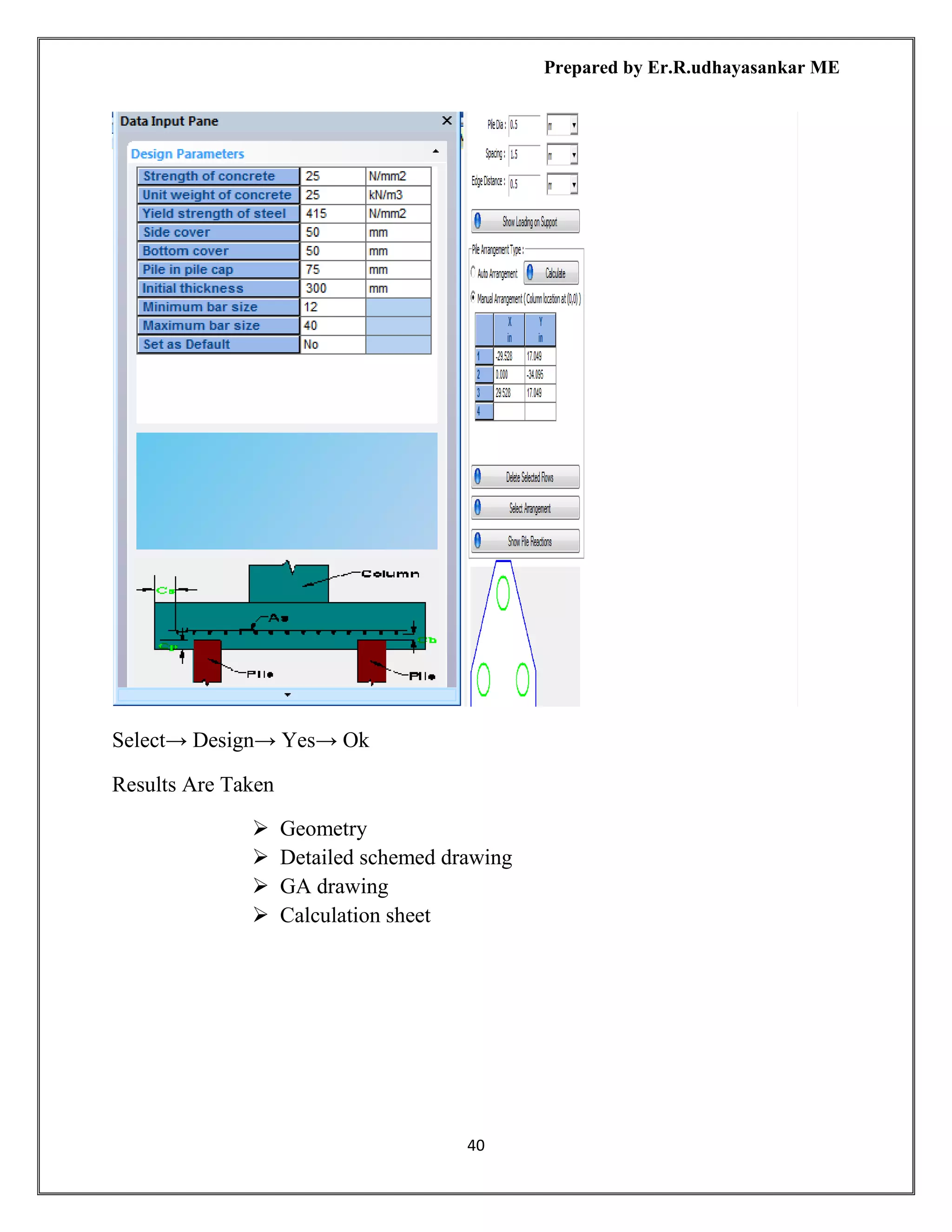
Click→ Pile Cap→ Job→ Click→ Design Parameter→ Values →Changes →Set As
Default→ Yes
Click →Pile Layout Predefined →Values Are Changrs→ Click→ Calculate→ Click
→3 →Pile Arrangement →Click→ Case1 →Ok→ close
Prepared by Er.R.udhayasankar ME
40
Select→ Design→ Yes→ Ok
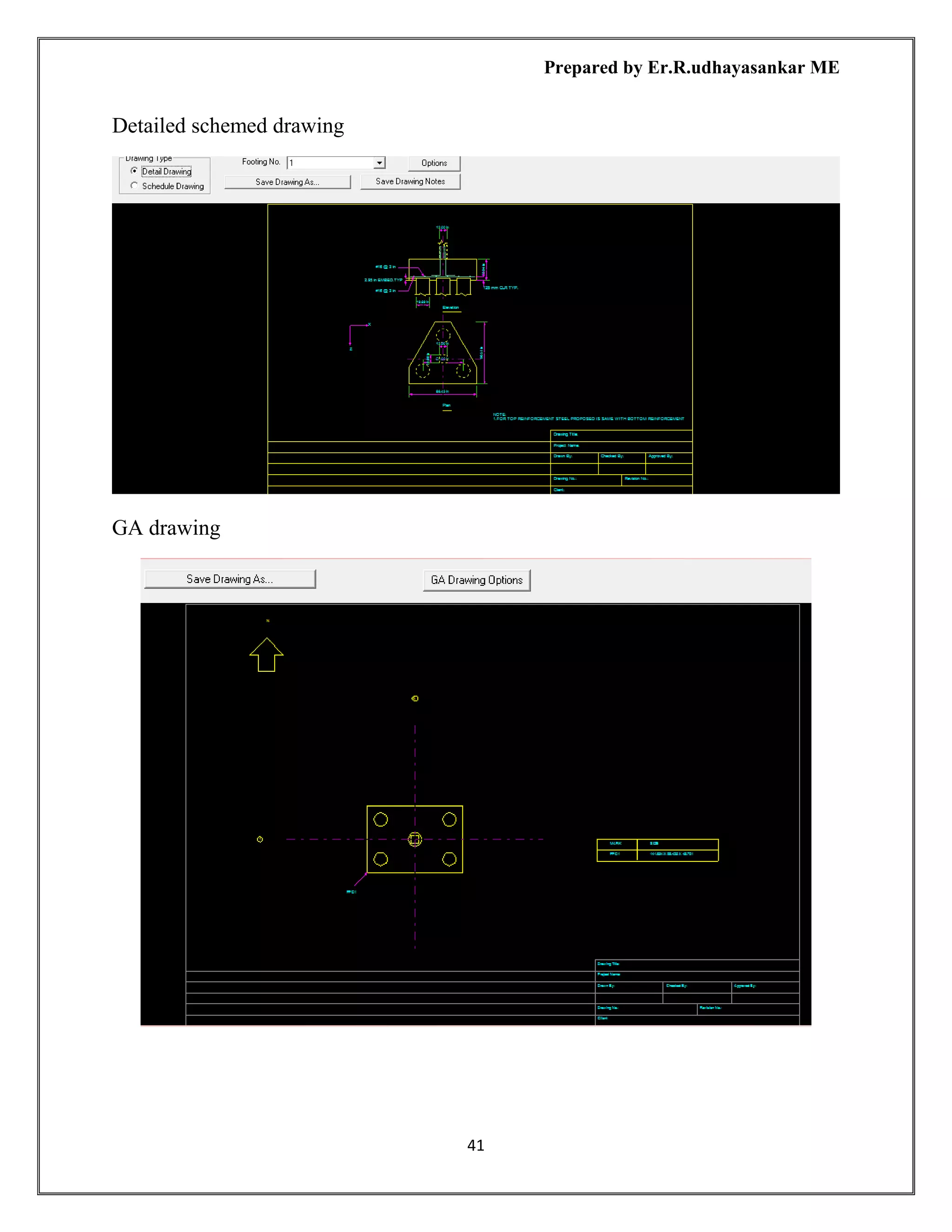
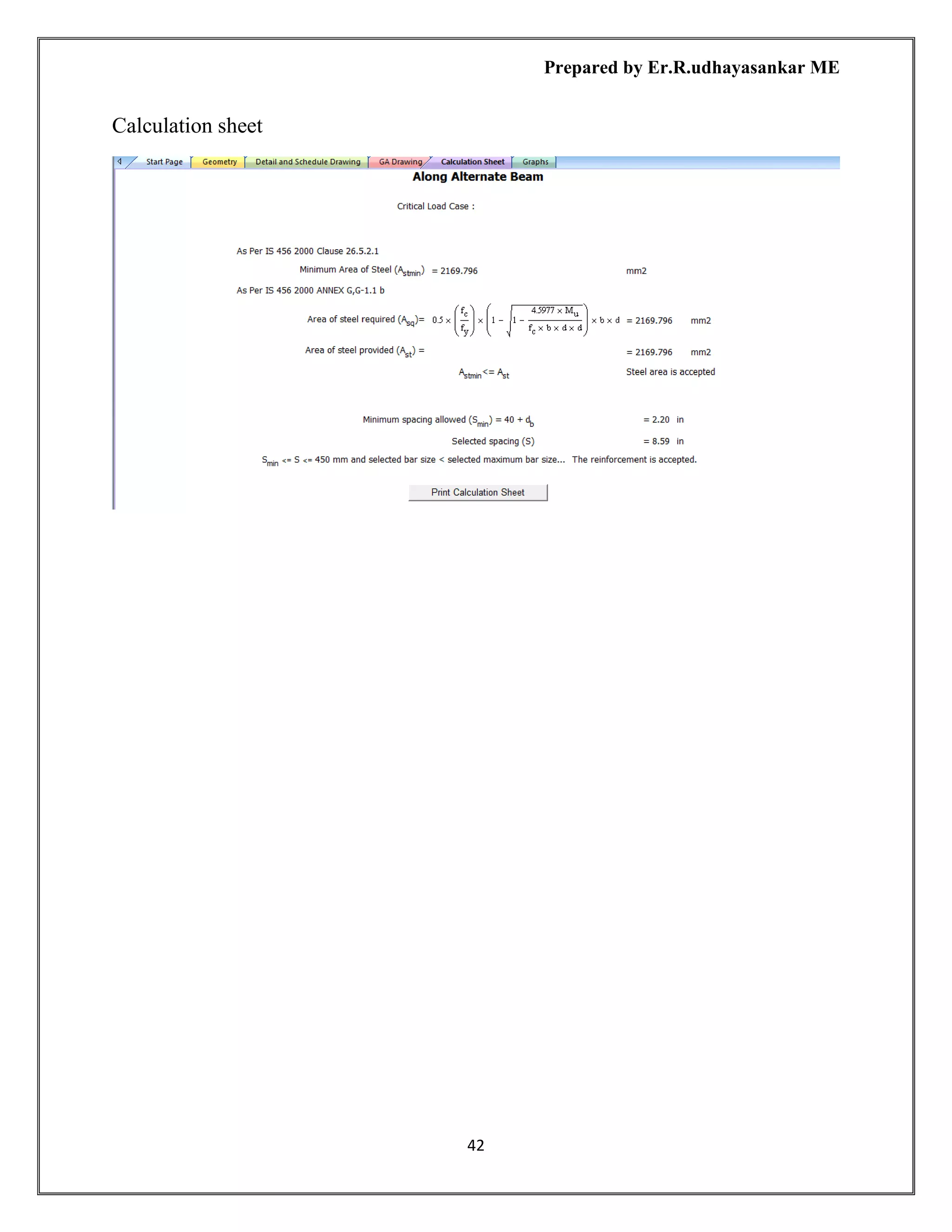
Results Are Taken
➢ Geometry
➢ Detailed schemed drawing
➢ GA drawing
➢ Calculation sheet
Prepared by Er.R.udhayasankar ME
41
Detailed schemed drawing
GA drawing
Prepared by Er.R.udhayasankar ME
42
Calculation sheet
Prepared by Er.R.udhayasankar ME
43
DESIGN OF COMBINED FOUNATION USING STAAD Pro
OPEN STAAD FOUNDATION
CLICK NEW
➢ GENERAL SETUP
➢ GENERAL FOUNDATION MODE
➢ COLUMN POSITION
➢ LOAD AND FACTORS
➢ JOB SET UP
➢ COMBINED FOOTING DESIGN
➢ DESIGN
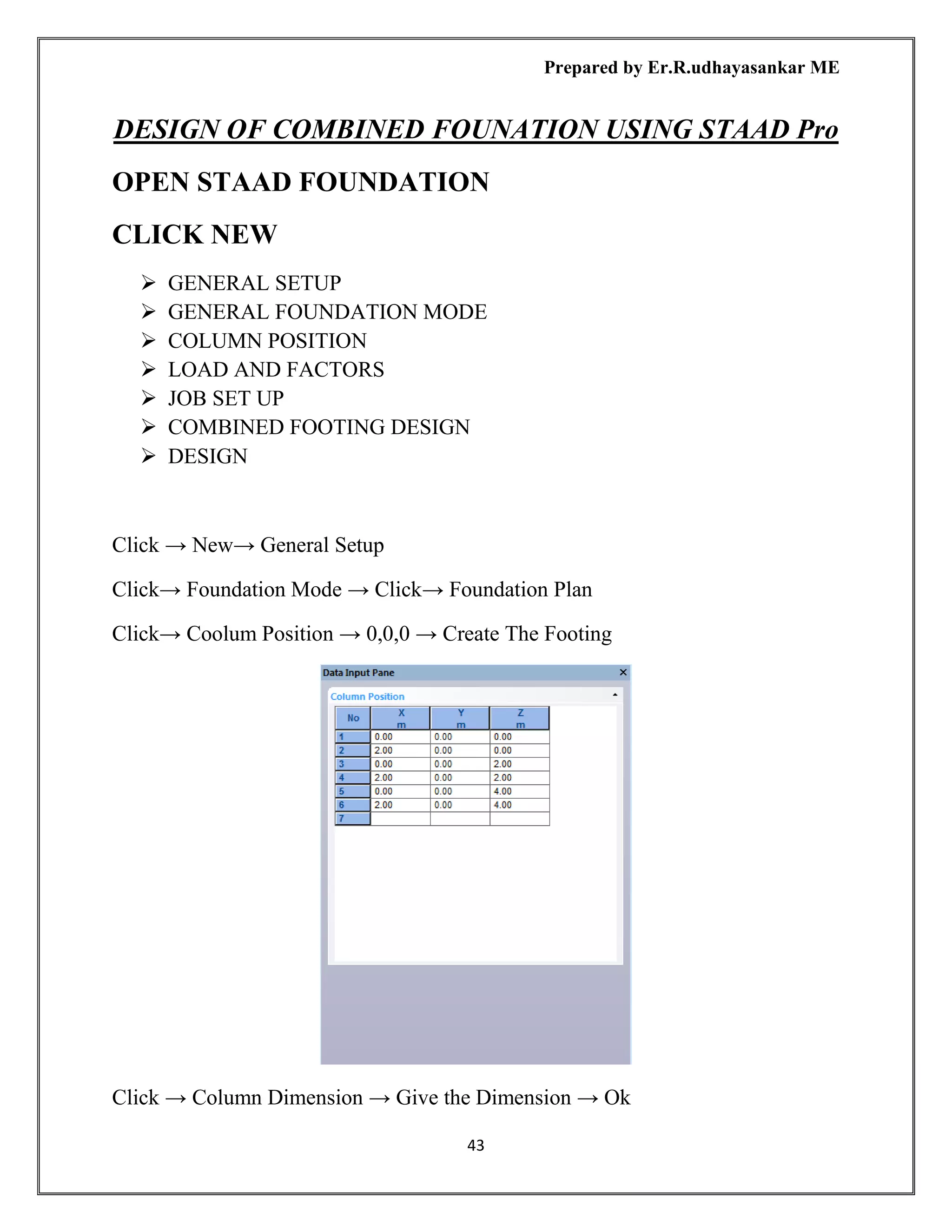
Click → New→ General Setup
Click→ Foundation Mode → Click→ Foundation Plan
Click→ Coolum Position → 0,0,0 → Create The Footing
Click → Column Dimension → Give the Dimension → Ok
Prepared by Er.R.udhayasankar ME
44
Click → Load And Factor → Create New→ Load Case → Load Description→ Dead
Load
Load Title = Dead Load
Load Case Type = Service
Loading Type = Dead Add
LIVE Load
Load Title = LIVE Load
Load Case Type = Service
Loading type = live Add
Click → Load Case 1→ Left Click Mouse→ Add Column Reaction→ Load →Dead
Load →Click→ Fy -60 →Entre →Add
Live Load → Click → Mouse Left Side → Add Column Reaction → Fy -600 →
Entre → Add
Click→ Load→ Assign the Load
See → the Load On Screen
Click → Generate Load Combination → Load Combination → Load Combination
→Type →India → Click → Generate Load Combination → Click → Generate Load
Combination → close
Prepared by Er.R.udhayasankar ME
45
Click → Job Setup → create → A New Job
Job Name → combined footing
Job Type → combined footing
Design Code → Indian
Default Unit → SI
Click→ Available Load Case → Click →Down Load → Create Job → Close →
Window
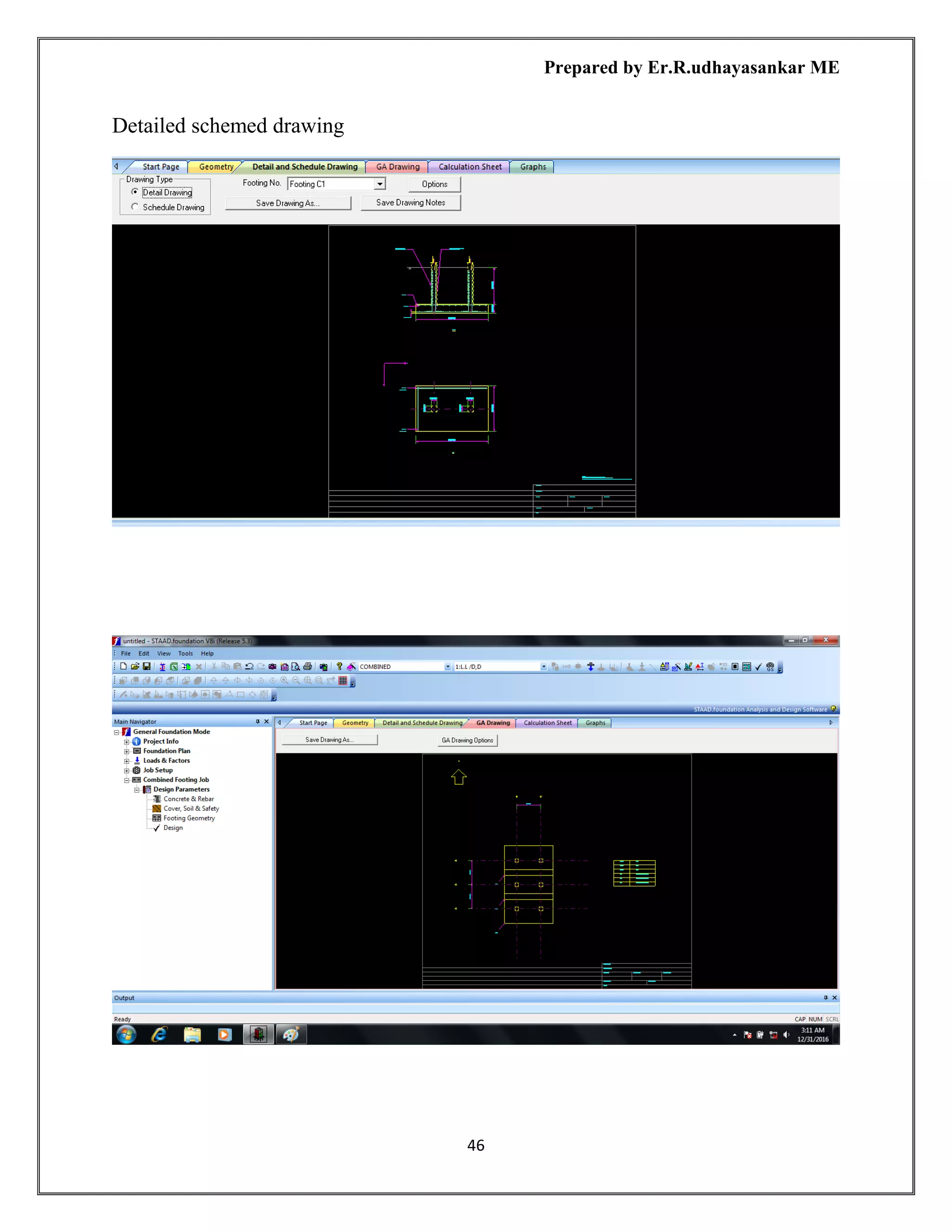
Results Are Taken
➢ Geometry
➢ Detailed schemed drawing
➢ GA drawing
➢ Calculation sheet
Prepared by Er.R.udhayasankar ME
46
Detailed schemed drawing
Prepared by Er.R.udhayasankar ME
47
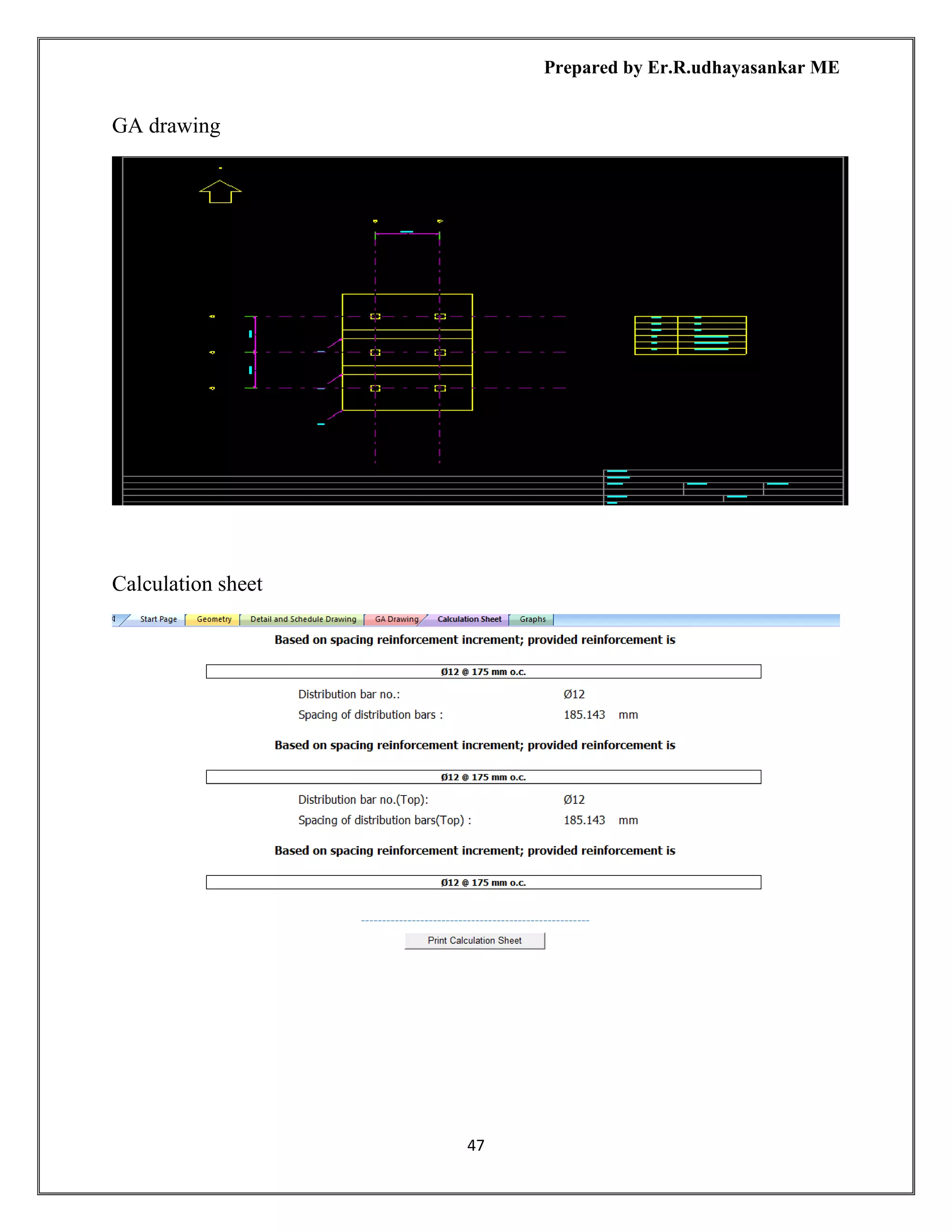
GA drawing
Calculation sheet
Prepared by Er.R.udhayasankar ME
48
GRAPH
Prepared by Er.R.udhayasankar ME
49
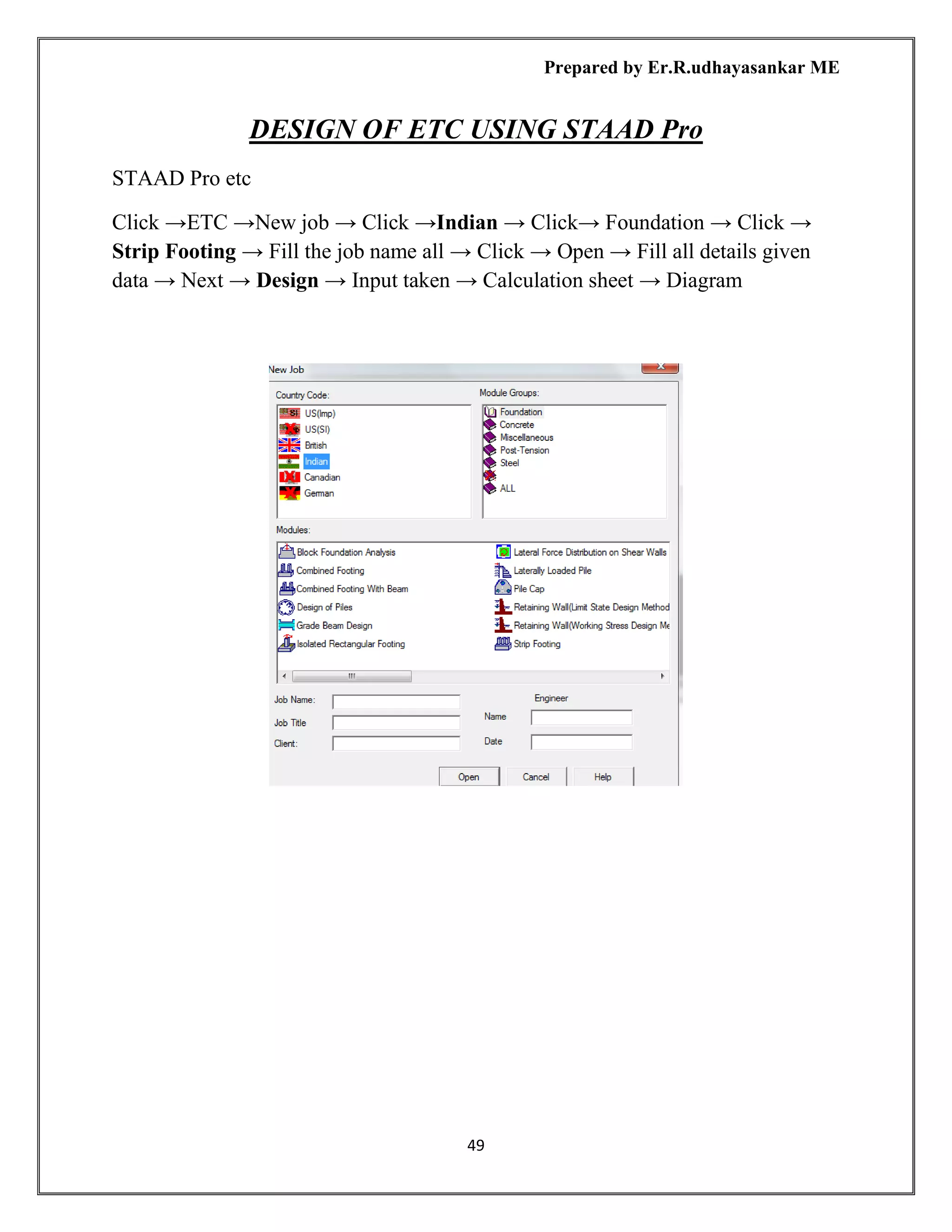
DESIGN OF ETC USING STAAD Pro
STAAD Pro etc
Click →ETC →New job → Click →Indian → Click→ Foundation → Click →
Strip Footing → Fill the job name all → Click → Open → Fill all details given
data → Next → Design → Input taken → Calculation sheet → Diagram
Prepared by Er.R.udhayasankar ME
50
Prepared by Er.R.udhayasankar ME
51
Prepared by Er.R.udhayasankar ME
52
DESIGN OF SHEAR WALL USING
STAAD Pro
Step 1
Open the staad pro
New → New file → Space
Create file name = Name
Location = E
Length unit = meter Force unit = kilo newton → Next
Step 2
Where do you want to go?
Add beam → Finish
Step 3
Click → geometry → Nodes
Node x y z
1 m m m
Diagram
SAME PROCEDUR FOR ABOVE DESIGN WATER TANK
Click → create the surface
Prepared by Er.R.udhayasankar ME
53
Click → Geometry → Add Surface → Click → the Building → Click the Left
Side Mouse → Create the Surface
Material
Click→ Modeling → General→ Material → Material Whole structure → click
Concrete →Assign to view → Assign → Yes
Property
Click → Modeling → General → property → Property Whole structure → Define
→ Property → Rectangle YD .23m ZD .23m → Add → Close → Assign to view
→ Assign → Yes
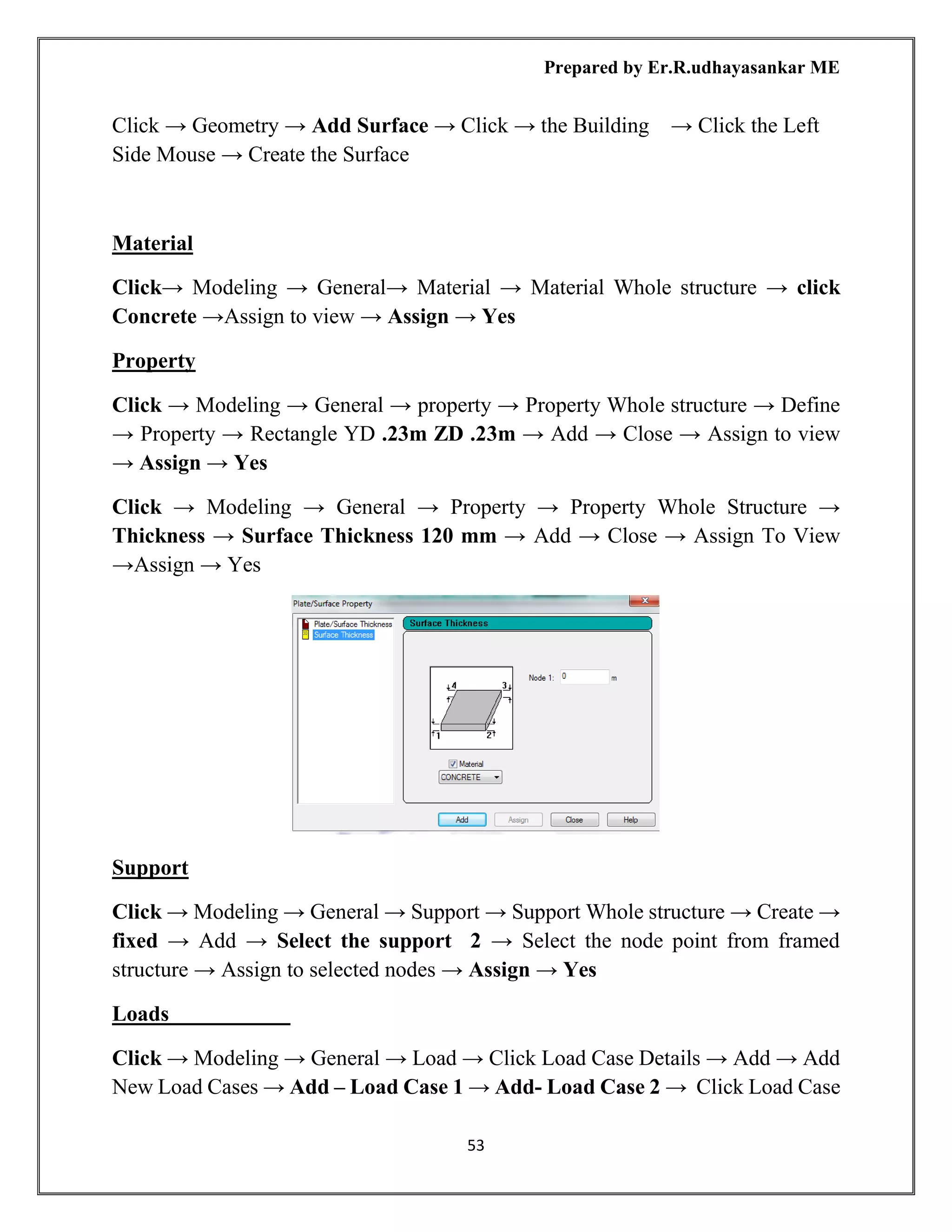
Click → Modeling → General → Property → Property Whole Structure →
Thickness → Surface Thickness 120 mm → Add → Close → Assign To View
→Assign → Yes
Support
Click → Modeling → General → Support → Support Whole structure → Create →
fixed → Add → Select the support 2 → Select the node point from framed
structure → Assign to selected nodes → Assign → Yes
Loads
Click → Modeling → General → Load → Click Load Case Details → Add → Add
New Load Cases → Add – Load Case 1 → Add- Load Case 2 → Click Load Case
Prepared by Er.R.udhayasankar ME
54
1 Add Self-Weight → Add → Close → Click Load Case 2 → Surface Loads →
Surface Of All Pressure -2kn/M2
GY →Add → Close
Select load→ w1 -2 kN/m2
→Select →Assign To View → Assign→ Yes
ANALYSIS
Click → Modeling → Analysis→ Print all → Add → close
Analysis → Run analysis→ Save → Output Result
Click the beam see the result on beam
DESIGN OF SHEAR WALL
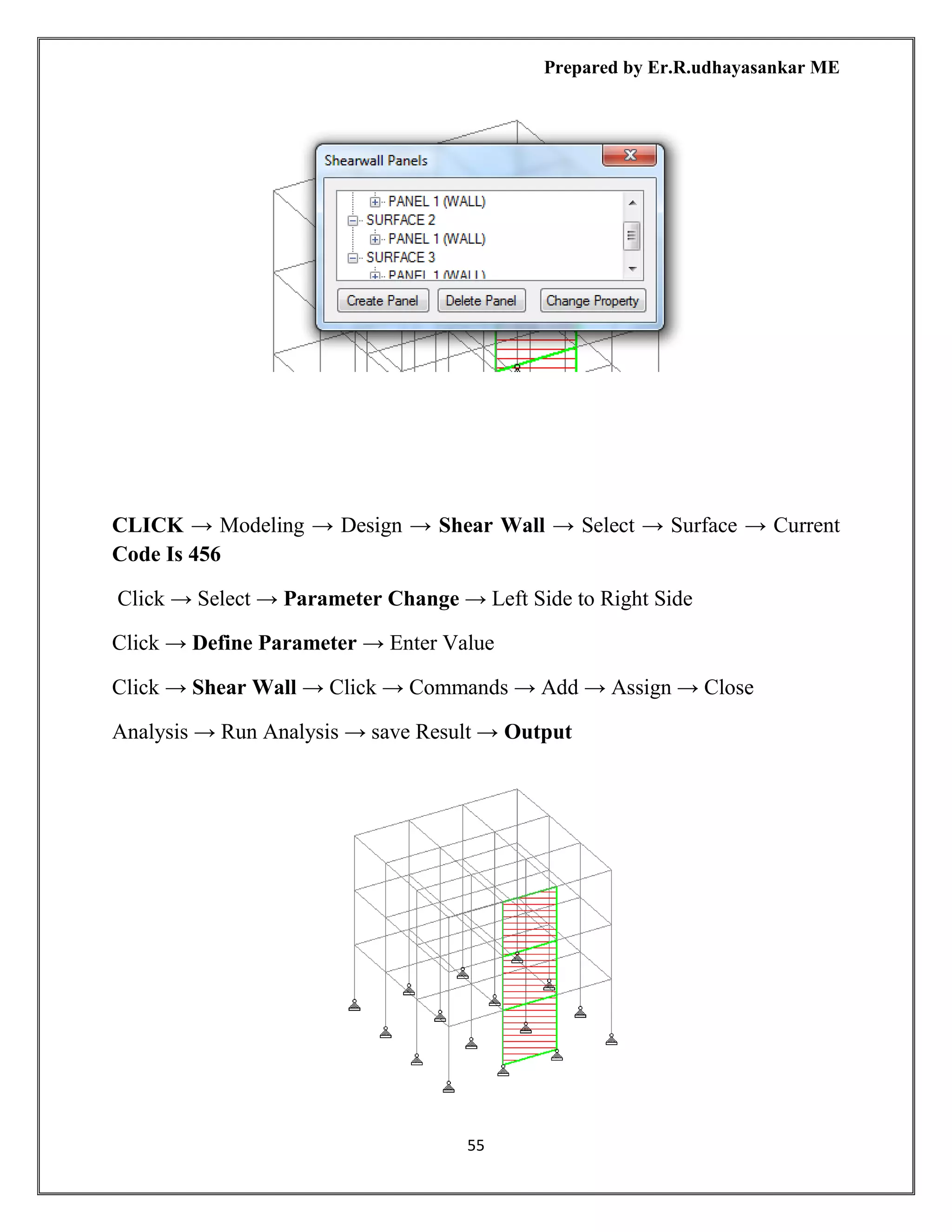
CLICK → Modeling → Design → Shear Wall → Select → Surface → Current
Code Is 456
Click → Select → Parameter Change → Left Side to Right Side
Click → Define Parameter → Enter Value
Click → Shear Wall → Click → Commands → Add → Assign → Close
Analysis → Run Analysis → save Result → Output
Create → the shear wall panel. → Select→ shear wall → draw→ click→ wall
Prepared by Er.R.udhayasankar ME
55
CLICK → Modeling → Design → Shear Wall → Select → Surface → Current
Code Is 456
Click → Select → Parameter Change → Left Side to Right Side
Click → Define Parameter → Enter Value
Click → Shear Wall → Click → Commands → Add → Assign → Close
Analysis → Run Analysis → save Result → Output
Prepared by Er.R.udhayasankar ME
56
Prepared by Er.R.udhayasankar ME
57
DESIGN OF SLAB DECKS USING STAAD Pro
Step 1
Open the staad pro
New → New file → Space
Create file name = Name
Location = E
Length unit = meter Force unit = kilo newton → Next
Step 2
Where do you want to go?
Add beam → Finish
Step 3
Click → geometry → Snap node beam
left right m
x 0 4 4
y 0 10 1
Create The Structure → Draw → Close → Click → Centre Of Beam → Left →
Click → Mouse →Insert Node → Add Mid-Point →Mid-Point → Ok
Prepared by Er.R.udhayasankar ME
58
Select → All Members → Click→ Geometry → Translation Repeat
Global direction z
No of step 3
Default step spacing 25 m
Click → link steps → click → open base → ok → see → whole structure
Create a Plate Click → Generate The Mesh → Select →The Plate → Left → Click
→ Generate Mesh → Quaid →Ok →Div. 16 75 16 75→ Apply
Step 4
Prepared by Er.R.udhayasankar ME
59
➢ Material
➢ Property
➢ Support
➢ Load
➢ Analysis
Material
Click→ Modeling → General→ Material → Material Whole structure → click
Concrete →Assign to view → Assign → Yes
Property
Click → Modeling → General → property → Property Whole structure → Define
→ Property → Circular 1 m → Rectangle YD .5m ZD .5m → plate thickness .3m
→ Add → Close → Assign to view → Assign → Yes
Support
Click → Modeling → General → Support → Support Whole structure → Create →
pinned → Add → Select the support 2 → Select the node point from framed
structure → Assign to selected nodes → Assign → Yes
Click → Modeling → General → Load → Click load case details → Add → Add
new load cases → Add – Load case 1 → Click Load case 1 Add self-weight → Add
→ close
ANALYSIS
Click → Modeling → Analysis→ Print all → Add → close
Analysis → Run analysis→ save → Output Result
Prepared by Er.R.udhayasankar ME
60
Step 5
Post processing
Click → Post processing → Result setup → Select load case → Ok
New screen will be displayed →Click → Result → Animation →Deflection → Ok
→ F12 to see full screen of deflection
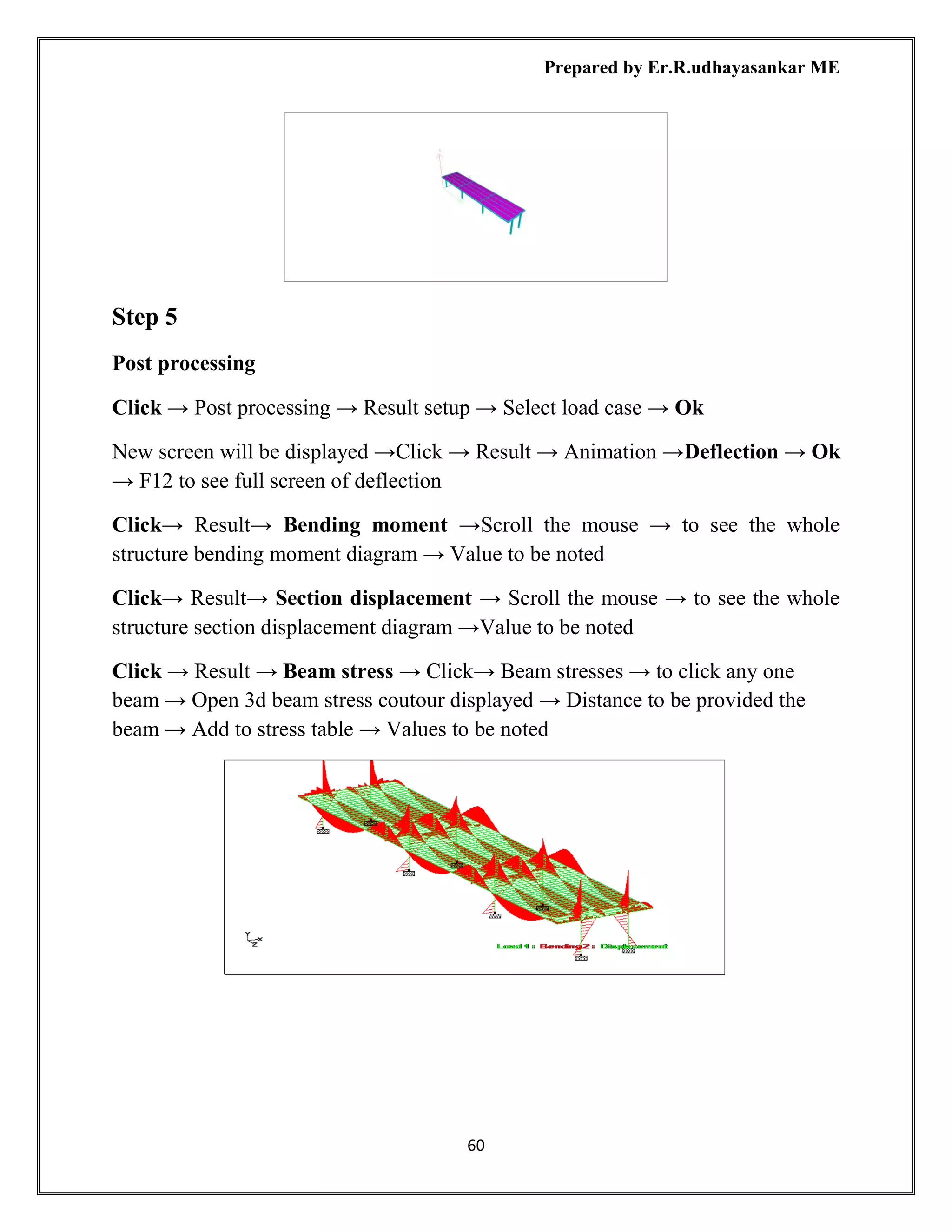
Click→ Result→ Bending moment →Scroll the mouse → to see the whole
structure bending moment diagram → Value to be noted
Click→ Result→ Section displacement → Scroll the mouse → to see the whole
structure section displacement diagram →Value to be noted
Click → Result → Beam stress → Click→ Beam stresses → to click any one
beam → Open 3d beam stress coutour displayed → Distance to be provided the
beam → Add to stress table → Values to be noted
Prepared by Er.R.udhayasankar ME
61
Step 6
Select → Bridge Deck →Select → The Plate → Click →Deck Create → Deck →
Name Bridge → Ok
Click → Deck → Define Roadway →Roadways →Select →New Define →
Roadways → Custom Roadway
Prepared by Er.R.udhayasankar ME
62
1 Select →Add Left →Lane →Origen X 2m → Orientation 90
Length 75 m
Origen Z O m
Width 4 m
→ Apply
2 Select →Add→ Left Lane →Orgine X 2m → Orientation 90
Length 75 m
Origen Z O m
Width 4 M
→Apply
3 Select →Add →Left Lane →Origen X 2m → Orientation 90
Length 75 m
Prepared by Er.R.udhayasankar ME
63
Orgine Z Om
Width 4 M
→ Apply
4 Select →Add Left Lane→ Origen X 2m→ Orientation 90
Length 75m
Orgine Z Om
Width 4 M
→Apply
→Close → Close
Select →Loading→ Click →Surface Influence →Result Noted
Click →Loading →Run Load→ Generator Load →Generator Parameter
→General
➢ General
➢ Decks
➢ IRC Loading
➢ Node Displacement
Prepared by Er.R.udhayasankar ME
64
➢ Apply Ok
➢ See The The Result
➢ Click →The Mouse→ Left Side → Labels →Decks →Results →Click→
Load →Click →Vehicle → Apply→ Ok
Prepared by Er.R.udhayasankar ME
65
DESIGN OF RAM CONNECTION USING STAAD Pro
Step 1
Open the staad pro
New → New file → Space
Create file name = Name
Location = E
Length unit = meter Force unit = kilo newton → Next
Step 2
Where do you want to go?
Add beam → Finish
Step 3
Click → geometry → Nodes
Node x y z
1 m m m
Step 4
➢ Material
➢ Property
➢ Support
➢ Load
➢ Analysis
Prepared by Er.R.udhayasankar ME
66
Material
Click→ Modeling → General→ Material → Material Whole structure → click
Concrete →Assign to view → Assign → Yes
Property
Click → Modeling → General → property → Property Whole structure → Define
→ Property → Rectangle YD .23m ZD .23m → Add → Close → Assign to view
→ Assign → Yes
Click → Modeling → General → Property → Property Whole Structure →
Thickness → Plate Thickness 120 mm → Add → Close → Assign To View →
Assign → Yes
Support
Click → Modeling → General → Support → Support Whole structure → Create →
fixed → Add → Select the support 2 → Select the node point from framed
structure → Assign to selected nodes → Assign → Yes
Loads
Click → Modeling → General → Load → Click load case details → Add → Add
new load cases → Add – Load case 1 → Add- Load case 2 → Click Load case 1
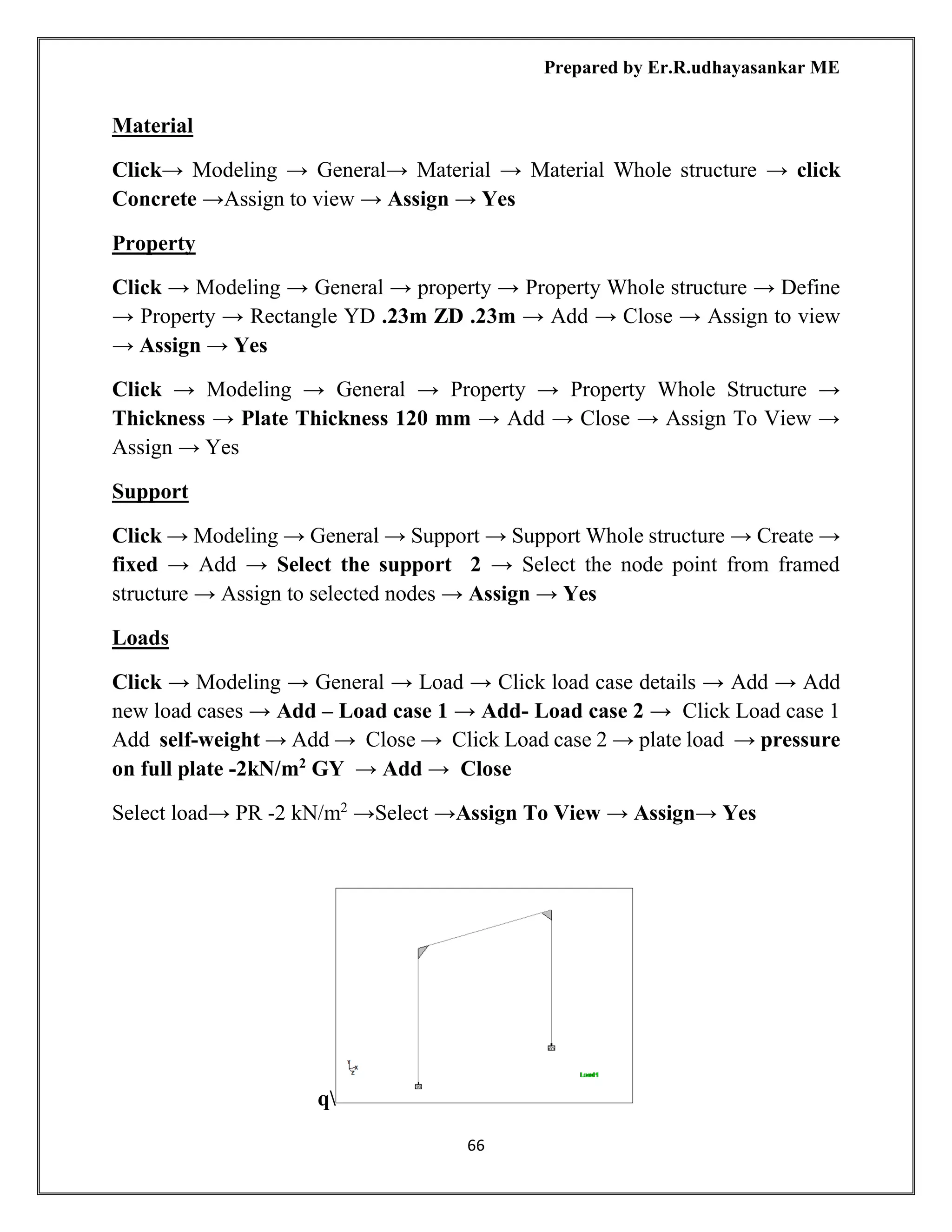
Add self-weight → Add → Close → Click Load case 2 → plate load → pressure
on full plate -2kN/m2
GY → Add → Close
Select load→ PR -2 kN/m2
→Select →Assign To View → Assign→ Yes
q
Prepared by Er.R.udhayasankar ME
67
ANALYSIS
Click → Modeling → Analysis→ Print all → Add → close
Analysis → Run analysis→ Save → Output Result
Step 4
➢ Design load envelops
➢ Ram connection setting
➢ Smart connection
➢ Connection assignment
Click →Design →Load Envelops→ Select→ Load →Ok
Click → Ram Connection →Setting →Design Code → AISC 360-05 (LRFD) →
Ok
Select→ The Structure Beam Column Number
Click →Smart Connection Clip Angle Bcf →Click →Clip Angle Beam Column
Flange →Available→ Left Side To Right Side →Ok
Connection Assignment Has Been Designed →Ok→ Close
Click →Mouse →Select Joint→ Select The Joint
Prepared by Er.R.udhayasankar ME
68
Ram connection
3d view bolts
Prepared by Er.R.udhayasankar ME
69
Click result
Click data
Prepared by Er.R.udhayasankar ME
70
DXF view
Prepared by Er.R.udhayasankar ME
71
DESIGN OF CABLE BRIDGE DECK USING STAAD Pro
Step 1
Open the staad pro
New → New file → Space
Create file name = Name
Location = E
Length unit = meter Force unit = kilo newton → Next
Step 2
Where do you want to go?
Add beam → Finish
Step 3
Click → geometry → SNOP NODE BEAM
Prepared by Er.R.udhayasankar ME
72
MATERIAL
Click→ Modeling → General→ Material → Material →Whole Structure Create
→Select→ Concrete →M60 TITLE→ M60 →Compressive Strength→ 60000→
Ok →Add
Create→ Select →Steel Fe500→ TITLE →Fe 500 →Yied Strength →500000 →
Ok →Add
Prepared by Er.R.udhayasankar ME
73
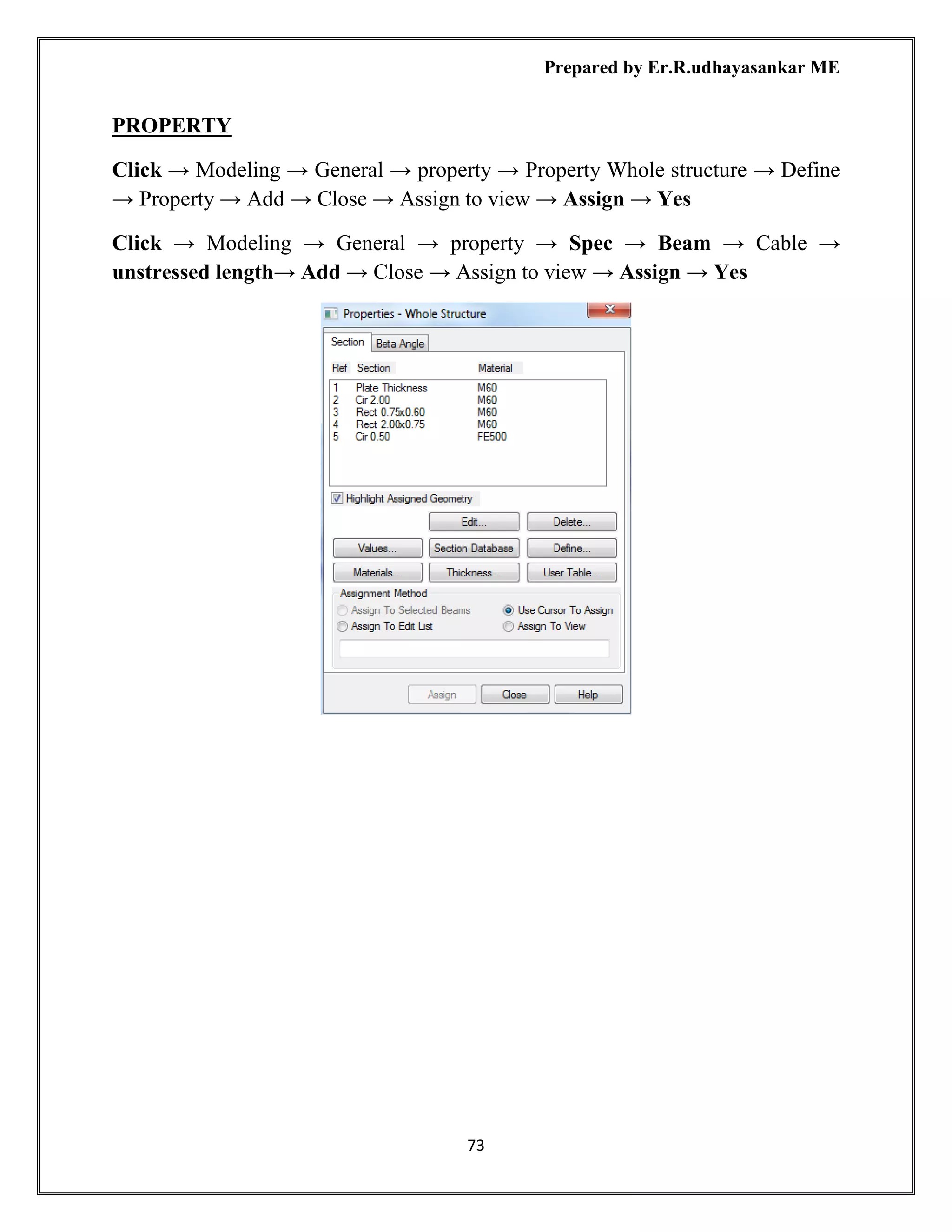
PROPERTY
Click → Modeling → General → property → Property Whole structure → Define
→ Property → Add → Close → Assign to view → Assign → Yes
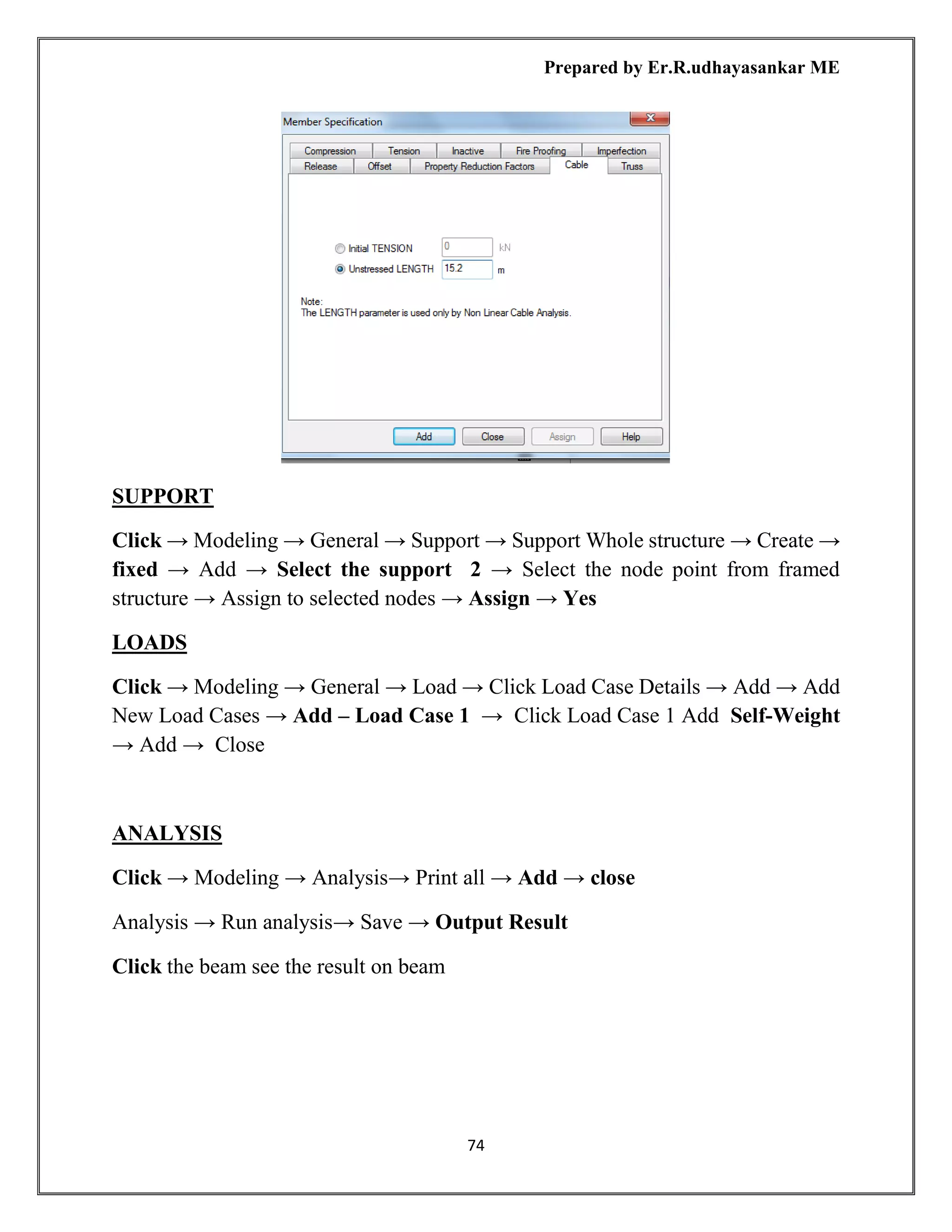
Click → Modeling → General → property → Spec → Beam → Cable →
unstressed length→ Add → Close → Assign to view → Assign → Yes
Prepared by Er.R.udhayasankar ME
74
SUPPORT
Click → Modeling → General → Support → Support Whole structure → Create →
fixed → Add → Select the support 2 → Select the node point from framed
structure → Assign to selected nodes → Assign → Yes
LOADS
Click → Modeling → General → Load → Click Load Case Details → Add → Add
New Load Cases → Add – Load Case 1 → Click Load Case 1 Add Self-Weight
→ Add → Close
ANALYSIS
Click → Modeling → Analysis→ Print all → Add → close
Analysis → Run analysis→ Save → Output Result
Click the beam see the result on beam
Prepared by Er.R.udhayasankar ME
75
Prepared by Er.R.udhayasankar ME
76
OF PRACTICE

Staad pro notes

  • 1.
    STUDY MATERIAL ON STAADPro 7 6 3 9 4 4 4 3 2 1 9 5 9 7 7 7 1 8 2 1 s a n k a r m e 7 @ g m a i l R. Udhayasankar ME Assistant Professor Sasurie College of Engineering Tiruppur.
  • 2.
    Prepared by Er.R.udhayasankarME 1 S.NO TITLE P.NO 1 DESIGN OF FRAMED STRACTURE USING STAAD Pro 2 2 DESIGN OF STEEL STRACTURE USING STAAD Pro 17 3 DESIGN OF PLATE SLAB USING STAAD Pro 25 4 DESIGN OF ISOLATED FOUNDATION USING STAAD Pro 31 5 DESIGN OF PILE CAP FOUNDATION USING STAAD Pro 37 6 DESIGN OF COMBINED FOUNDATION USING STAAD Pro 43 7 DESIGN OF ETC USING STAAD Pro 49 8 DESIGN OF SHEAR WALL USING STAAD Pro 52 9 DESIGN OF BRIDGE DECK USING STAAD Pro 57 10 DESIGN OF RAM CONNECTION USING STAAD Pro 65
  • 3.
    Prepared by Er.R.udhayasankarME 2 DESIGN OF FRAMED STRACTURE USING STAAD Pro Step 1 Open the staad pro New → New file → Space Create file name = Name Location = E Length unit = meter Force unit = kilo newton → Next Step 2 Where do you want to go? Add beam → Finish Step 3 Click → geometry → Nodes Node x y z 1 m m m Diagram 4 3 20 8 2 19 7 24 1 18 12 6 23 17 11 28 5 22 16 10 27 21 15 32 9 26 14 31 25 13 30 29
  • 4.
    Prepared by Er.R.udhayasankarME 3 Nodes x y z 1 0 0 0 2 3 0 0 3 6 0 0 4 9 0 0 5 0 0 3 6 3 0 3 7 6 0 3 8 9 0 3 9 0 0 6 10 3 0 6 11 6 0 6 12 9 0 6 13 0 0 9 14 3 0 9 15 6 0 9 16 9 0 9 Then close the node ( x) → You see the node point on the screen → How to find the node numbers → Click mouse left side → Click labels → Diagrams → Structure → Node number & Node point → Apply → ok Step 4 Select Node Crusher→ Fist selects all Node point Click → Geometry → Translational repeat → 3D repeat → Global direction → y → No of steps 1 → Default step spacing 3m → ok to see the display of node. Step 5 To join the node points Click → Geometry → Add beam → Add beam from point to point Select the node point and joint all node point like framed structure.
  • 5.
    Prepared by Er.R.udhayasankarME 4 Step 6 ➢ Material ➢ Property ➢ Support ➢ Load ➢ Analysis Material Click→ Modeling → General→ Material → Material Whole structure → click Concrete →Assign to view → Assign → Yes Property Click → Modeling → General → property → Property Whole structure → Define → Property → Rectangle YD .23m ZD .23m → Add → Close → Assign to view → Assign → Yes
  • 6.
    Prepared by Er.R.udhayasankarME 5 Support Click → Modeling → General → Support → Support Whole structure → Create → pinned → Add → Select the support 2 → Select the node point from framed structure → Assign to selected nodes → Assign → Yes
  • 7.
    Prepared by Er.R.udhayasankarME 6 Loads Click → Modeling → General → Load → Click load case details → Add → Add new load cases → Add – Load case 1 → Add- Load case 2 → Click Load case 1 Add self-weight → Add → Close → Click Load case 2 → Add →Member → load → Uniform force wl = -2 kN/m →Add → Close Select load→ UGL GY -2 kN/m →Select →Beam Parell to → X Z → Assign selected beam → Assign→ Yes
  • 8.
    Prepared by Er.R.udhayasankarME 7 ANALYSIS Click → Modeling → Analysis→ Print all → Add → close Analysis → Run analysis→ Save → Output Result Click the beam see the result on beam SHEAR FORCE DIAGRAM BENDING MOMEMT DIAGRAM DEFLECTION DIAGRAM
  • 9.
    Prepared by Er.R.udhayasankarME 8 Shear force Bending moment Deflection
  • 10.
    Prepared by Er.R.udhayasankarME 9 Step 6 Post processing Click → Post processing → Result setup → Select load case → Ok New screen will be displayed →Click → Result → Animation →Deflection → Ok → F12 to see full screen of deflection Click→ Result→ Bending moment →Scroll the mouse → to see the whole structure bending moment diagram → Value to be noted Click→ Result→ Section displacement → Scroll the mouse → to see the whole structure section displacement diagram →Value to be noted Click → Result → Beam stress → Click→ Beam stresses → to click any one beam → Open 3d beam stress coutour displayed → Distance to be provided the beam → Add to stress table → Values to be noted Beam →Graphs → Beam graphs→ diagram Show
  • 11.
    Prepared by Er.R.udhayasankarME 10 Whole Structure Mz 6kNm:1m 2 LOAD CASE 2 Whole Structure Fy 10kN:1m 2 LOAD CASE 2 Whole Structure Fx 70kN:1m 2 LOAD CASE 2
  • 12.
    Prepared by Er.R.udhayasankarME 11 STEP 7 DESIGN OF CONCRETE ELEMENTS BEAM & COLUMN BEAM DESIGN Click →Modeling → Click → Design→ Click → Concrete → Concrete design whole structure → Current code IS 456 →Click → Selected parameters ➢ fc = compressive strength of concrete ➢ fy = yield strength of concrete ➢ Maximum Main reinforcement ➢ Minimum secondary reinforcement ➢ Track Ok → Then change the unit kN/m to N/mm2 → Click → Tools → Set current input units → Change unite Click → Define parameter ➢ fc = compressive strength of concrete = 30 N/mm2 → Add ➢ fy = yield strength of concrete = 415 N/mm2 →Add ➢ Maximum Main reinforcement = 32 mm dia→ Add ➢ Minimum secondary reinforcement = 12 mm dia → Add ➢ Track = 3→ Add Assign → close First select beam member’s → Click→ Select beam parallel to → x z Click → commands → Click → Beam design →Add → Assign → Close → Analysis → Run analysis → save → Close →View output file → Done →To see the result concrete design result Click the beam member on mouse to see the → Beam design
  • 13.
    Prepared by Er.R.udhayasankarME 12 DESIGN OF COLUMN Click →Modeling → Click → Design→ Click → Concrete → Concrete design whole structure → Current code IS 456 →Click → Selected parameters ➢ fc = compressive strength of concrete
  • 14.
    Prepared by Er.R.udhayasankarME 13 ➢ fy = yield strength of concrete ➢ Maximum Main reinforcement ➢ Minimum secondary reinforcement ➢ Track Ok → Then change the unit kN/m to N/mm2 → Click → Tools → Set current input units → Change unite Click → Define parameter ➢ fc = compressive strength of concrete = 30 N/mm2 → Add ➢ fy = yield strength of concrete = 415 N/mm2 →Add ➢ Maximum Main reinforcement = 32 mm dia→ Add ➢ Minimum secondary reinforcement = 12 mm dia → Add ➢ Track = 3→ Add Assign → close First select Column member’s → Click→ Select beam parallel to → Y Click → commands → Click → Column design →Add → Assign → Close → Analysis → Run analysis → save → Close →View output file → Done →To see the result concrete design result Click the beam member on mouse to see the → column design
  • 15.
    Prepared by Er.R.udhayasankarME 14 STEP 8 DESIGN OF SHEAR & MAIN LAYOUT FOR CONCRETE ➢ Envelops ➢ Groups & Briefs ➢ Members ➢ Design Envelops Click → Envelops → Click → New Envelops → E1: name → Ok → Define Enevolops → un tick box → Load transfer from left side to right side → Ok Groups & Briefs Click → Groups & Briefs → Click → New briefs → B1:name → Design code IS 456 → Ok → Click → Edit briefs general main rft shear rft to changes values → Ok Click → New design groups → G: design group 1 → Design beiefs you created name → Ok
  • 16.
    Prepared by Er.R.udhayasankarME 15 Members Click → Members → Select the beam → Click → Top box members → Click → Auto form members → Beam created name M1 → Click → The top bar → Mode member → Design → To shown the dialogue box → Click the beam on mouse left → Click → Add → Members to design group → Design group 1 → Add → Ok Design Click → Design → Design option selected M1 → Ok → Design → Result noted Result Are ➢ Main rft ➢ Main layout ➢ Shear rft ➢ Shear layout ➢ Summary Summary
  • 17.
  • 18.
    Prepared by Er.R.udhayasankarME 17 DESIGN OF STEEL STRUCTURE USING STAAD Pro Step 1 Open the staad pro New → New file → Truss Create file name = Name Location = E Length unit = meter Force unit = kilo newton → Next Step 2 Where do you want to go? Add beam → Finish Step 3 Click → geometry → Nodes Node x y z 1 m m m Diagram
  • 19.
    Prepared by Er.R.udhayasankarME 18 Nodes x y z 1 0 0 0 2 2 0 0 3 4 0 0 4 6 0 0 5 8 0 0 6 10 0 0 7 12 0 0 8 0 1 0 9 2 2 0 10 4 3 0 11 6 4 0 12 8 3 0 13 10 2 0 14 12 1 0 Then close the node ( x) → You see the node point on the screen → How to find the node numbers → Click mouse left side → Click labels → Diagrams → Structure → Node number & Node point → Apply → ok Step 4 To join the node points Click → Geometry → Add beam → Add beam from point to point Select the node point and joint all node point like framed structure.
  • 20.
    Prepared by Er.R.udhayasankarME 19 Step 5 ➢ Material ➢ Property ➢ Support ➢ Load ➢ Analysis Material Click→ Modeling → General→ Material → Material Whole structure → click Steel →Assign to view → Assign → Yes Property Click → Modeling → General → property → Property Whole structure → Section database → Section profile table→ click → Indian →s →shape → ISMB 125 Double channel → Add → Close → Assign to view → Assign → Yes
  • 21.
    Prepared by Er.R.udhayasankarME 20 Support Click → Modeling → General → Support → Support Whole structure → Create → pinned → Add → Select the support 2 → Select the node point from framed structure → Assign to selected nodes → Assign → Yes Loads Click → Modeling → General → Load → Click load case details → Add → Add new load cases → Add – Load case 1 → Add- Load case 2 → Click Load case 1 Add self-weight → Add → Close → Click Load case 2 → Add →Member → load → Nodel load fy = -2 kN →Add → Close
  • 22.
    Prepared by Er.R.udhayasankarME 21 Select load→ fy -2 kN → Assign selected node → Assign→ Yes ANALYSIS Click → Modeling → Analysis→ Print all → Add → close Analysis → Run analysis→ Save → Output Result Click the beam see the result on beam DEFLECTION DIAGRAM
  • 23.
    Prepared by Er.R.udhayasankarME 22 Step 5 POST PROCESSING Click → Post processing → Result setup → Select load case → Ok Click→ Reactions → see the results Click→ Instability joints → see the results Click →Beam→ Unity check → Stresses → Forces → Graphs New screen will be displayed → Click → Result → Animation →Deflection → Ok → F12 to see full screen of deflection STEP 6 DESIGN OF STEEL ELEMENTS Click → Modeling → Click → Design → Click → Steel → Steel design whole structure → Current code IS 800 → Click → Selected parameters ➢ Fvb = Allowable shear stress in rivet ➢ Fyld = Yield strength of steel ➢ Ly = Length in local y axis for slenderness ratio ➢ Lz = Length in local z axis for slenderness ratio ➢ Track = Track parameter ➢ Weld = Design weld Click → Define parameter ➢ Fvb = Allowable shear stress in rivet =100 N/mm2 → Add ➢ Fyld = Yield strength of steel = 250 N/mm2 → Add ➢ Ly = Length in local y axis for slenderness ratio = 100 mm → Add ➢ Lz = Length in local z axis for slenderness ratio = 100 mm → Add ➢ Track = Track parameter = max detail level → Add ➢ Weld = Design weld = closed weld → Add Add → Assign → Close First select beam member’s → Click→ Select steel structure
  • 24.
    Prepared by Er.R.udhayasankarME 23 Click → commands → Click → Check code → Add → Assign → Close → Analysis → Run analysis → save → Close → View output file → Done → To see the result Steel design result Click the steel member on mouse to see the → Steel design
  • 25.
    Prepared by Er.R.udhayasankarME 24 STEP 7 DESIGN OF STEEL ELEMENTS PASS OR FAIL ➢ Envelops ➢ Member design ➢ Groups and briefs ➢ Restrains ➢ Result and report Steel design → New envelops → Load envelops → Click load → Ok Click → Member design→ Click top bar → Member → Design physical members → Form members Click → Group and Briefs → Click → New brief design → Code IS 800 → Ok Click→ New group → Click → Group → Add → M1 → Transfer left side to right side → Ok Click → Restrains → Select member M1 → Top bar → Member design → Performance group design → Check code Click → Result and Report
  • 26.
    Prepared by Er.R.udhayasankarME 25 DESIG OF PLATE SLAB USING STAAD Pro Step 1 Open the staad pro New → New file → Floor Create file name = Name Location = E Length unit = meter Force unit = kilo newton → Next Step 2 Where do you want to go? Add plate → Finish Step 3 Click → geometry → Nodes Node x y z 1 m m m Diagram node x y z 1 0 0 0 2 3 0 0 3 0 0 3 4 3 0 3
  • 27.
    Prepared by Er.R.udhayasankarME 26 Click → Geometry → Add plate → Click quad then join the four node point Step 4 ➢ Material ➢ Property ➢ Support ➢ Load ➢ Analysis Material Click→ Modeling → General→ Material → Material Whole structure → click Concrete →Assign to view → Assign → Yes
  • 28.
    Prepared by Er.R.udhayasankarME 27 Property Click → Modeling → General → property → Property Whole structure → Thickness → Plate surface thickness → 0.120m → Add → Close → Assign to selected plate → Assign → Yes → close Support Click → Modeling → General → Support → Support Whole structure → Create → pinned → Add → Select the support 2 → Select the node point from framed structure → Assign to selected nodes → Assign → Yes
  • 29.
    Prepared by Er.R.udhayasankarME 28 Loads Click → Modeling → General → Load → Click load case details → Add → Add new load cases → Add – Load case 1 → Add- Load case 2 → Click Load case 1 Add self-weight → Add → Close → Click Load case 2 → plate load pressure on full plate -2kN/m2 GY →Add → Close Select load→ PR -2 kN/m2 →Select →Assign To View → Assign→ Yes Click → Modeling → Analysis→ Print all → Add → close Analysis → Run analysis→ Save → Output Result Click the SLAB see the result on slab
  • 30.
    Prepared by Er.R.udhayasankarME 29 POST PROCESSING Click → Post processing → Plate → Stress type Click → Post processing → Counter
  • 31.
    Prepared by Er.R.udhayasankarME 30 SLAB DESIGN whole structure → Current code IS 456 →Click → Selected parameters ➢ fc = compressive strength of concrete ➢ fy = yield strength of concrete Ok → Then change the unit kN/m to N/mm2 → Click → Tools → Set current input units → Change unite Click → Define parameter ➢ fc = compressive strength of concrete = 30 N/mm2 → Add ➢ fy = yield strength of concrete = 415 N/mm2 →Add Assign → close Click the SLAB member on mouse to see the → SLAB design
  • 32.
    Prepared by Er.R.udhayasankarME 31 DESIGN OF FOUNATION USING STAAD Pro Click → STAAD → Foundation Open→ Staad foundation → Click → File new Click→ [j] → New job → Write→ New job name→ Job title→ Isolated → Design code→ Indian →Default unit→ SI → Ok ➢ Foundation Plan ➢ Load & Factor ➢ Design Parameter ➢ Cover Rebar ➢ Cover soil ➢ Geometry ➢ Design ➢ Design summary ➢ Footing layout ➢ Detailed drawing ➢ Calculation sheet Foundation plan Click → tools → set out put units Click → Foundation Plan → Column position Click → Foundation Plan→ Column Dimension
  • 33.
    Prepared by Er.R.udhayasankarME 32 Load & Factors Click → load &factors → click → new load case → create new load case load name→ primary → ok Click → Column reaction → Node reaction → fy -2 → Ok Click → Load → Assign to view → Assign Design Parameter Click→ Design parameter → Click→ Cover rebar → Change the value click → Set default Click → Cover and soil → Change the values click → Set defau
  • 34.
    Prepared by Er.R.udhayasankarME 33 Click→ Geometry → Change the values click → set default → ok
  • 35.
    Prepared by Er.R.udhayasankarME 34 Design Click → Design → ok Results Are Taken ➢ Geometry ➢ Detailed schemed drawing ➢ GA drawing ➢ Calculation sheet
  • 36.
  • 37.
  • 38.
    Prepared by Er.R.udhayasankarME 37 DESIGN OF PILE CAP FOUNATION USING STAAD Pro OPEN STAAD FOUNDATION CLICK NEW ➢ GENERAL SETUP ➢ GENERAL FOUNDATION MODE ➢ COLUMN POSITION ➢ LOAD AND FACTORS ➢ JOB SET UP ➢ DESIGN PARAMETER ➢ PILE LAYOUT PREDEFINED ➢ DESIGN Click → New→ General Setup Click→ Foundation Mode → Click→ Foundation Plan Click→ Coolum Position → 0,0,0 → Create The Footing Click → Column Dimension → Give the Dimension → Ok Click → Load And Factor → Create New→ Load Case → Load Description→ Dead Load Load Title = Dead Load
  • 39.
    Prepared by Er.R.udhayasankarME 38 Load Case Type = Service Loading Type = Dead Add LIVE Load Load Title = LIVE Load Load Case Type = Service Loading type = live Add Click → Load Case 1→ Left Click Mouse→ Add Column Reaction→ Load →Dead Load →Click→ Fy -25 →Entre →Add Live Load → Click → Mouse Left Side → Add Column Reaction → Fy -200 → Entre → Add Click→ Load→ Assign the Load See → the Load On Screen Click → Generate Load Combination → Load Combination → Load Combination →Type →India → Click → Generate Load Combination → Click → Generate Load Combination → close Click → Job Setup → create → A New Job
  • 40.
    Prepared by Er.R.udhayasankarME 39 Job Name → Pile Cap Job Type → Pile Cap Design Code → Indian Default Unit → SI Click→ Available Load Case → Click →Down Load → Create Job → Close → Window Click→ Pile Cap→ Job→ Click→ Design Parameter→ Values →Changes →Set As Default→ Yes Click →Pile Layout Predefined →Values Are Changrs→ Click→ Calculate→ Click →3 →Pile Arrangement →Click→ Case1 →Ok→ close
  • 41.
    Prepared by Er.R.udhayasankarME 40 Select→ Design→ Yes→ Ok Results Are Taken ➢ Geometry ➢ Detailed schemed drawing ➢ GA drawing ➢ Calculation sheet
  • 42.
    Prepared by Er.R.udhayasankarME 41 Detailed schemed drawing GA drawing
  • 43.
    Prepared by Er.R.udhayasankarME 42 Calculation sheet
  • 44.
    Prepared by Er.R.udhayasankarME 43 DESIGN OF COMBINED FOUNATION USING STAAD Pro OPEN STAAD FOUNDATION CLICK NEW ➢ GENERAL SETUP ➢ GENERAL FOUNDATION MODE ➢ COLUMN POSITION ➢ LOAD AND FACTORS ➢ JOB SET UP ➢ COMBINED FOOTING DESIGN ➢ DESIGN Click → New→ General Setup Click→ Foundation Mode → Click→ Foundation Plan Click→ Coolum Position → 0,0,0 → Create The Footing Click → Column Dimension → Give the Dimension → Ok
  • 45.
    Prepared by Er.R.udhayasankarME 44 Click → Load And Factor → Create New→ Load Case → Load Description→ Dead Load Load Title = Dead Load Load Case Type = Service Loading Type = Dead Add LIVE Load Load Title = LIVE Load Load Case Type = Service Loading type = live Add Click → Load Case 1→ Left Click Mouse→ Add Column Reaction→ Load →Dead Load →Click→ Fy -60 →Entre →Add Live Load → Click → Mouse Left Side → Add Column Reaction → Fy -600 → Entre → Add Click→ Load→ Assign the Load See → the Load On Screen Click → Generate Load Combination → Load Combination → Load Combination →Type →India → Click → Generate Load Combination → Click → Generate Load Combination → close
  • 46.
    Prepared by Er.R.udhayasankarME 45 Click → Job Setup → create → A New Job Job Name → combined footing Job Type → combined footing Design Code → Indian Default Unit → SI Click→ Available Load Case → Click →Down Load → Create Job → Close → Window Results Are Taken ➢ Geometry ➢ Detailed schemed drawing ➢ GA drawing ➢ Calculation sheet
  • 47.
    Prepared by Er.R.udhayasankarME 46 Detailed schemed drawing
  • 48.
    Prepared by Er.R.udhayasankarME 47 GA drawing Calculation sheet
  • 49.
  • 50.
    Prepared by Er.R.udhayasankarME 49 DESIGN OF ETC USING STAAD Pro STAAD Pro etc Click →ETC →New job → Click →Indian → Click→ Foundation → Click → Strip Footing → Fill the job name all → Click → Open → Fill all details given data → Next → Design → Input taken → Calculation sheet → Diagram
  • 51.
  • 52.
  • 53.
    Prepared by Er.R.udhayasankarME 52 DESIGN OF SHEAR WALL USING STAAD Pro Step 1 Open the staad pro New → New file → Space Create file name = Name Location = E Length unit = meter Force unit = kilo newton → Next Step 2 Where do you want to go? Add beam → Finish Step 3 Click → geometry → Nodes Node x y z 1 m m m Diagram SAME PROCEDUR FOR ABOVE DESIGN WATER TANK Click → create the surface
  • 54.
    Prepared by Er.R.udhayasankarME 53 Click → Geometry → Add Surface → Click → the Building → Click the Left Side Mouse → Create the Surface Material Click→ Modeling → General→ Material → Material Whole structure → click Concrete →Assign to view → Assign → Yes Property Click → Modeling → General → property → Property Whole structure → Define → Property → Rectangle YD .23m ZD .23m → Add → Close → Assign to view → Assign → Yes Click → Modeling → General → Property → Property Whole Structure → Thickness → Surface Thickness 120 mm → Add → Close → Assign To View →Assign → Yes Support Click → Modeling → General → Support → Support Whole structure → Create → fixed → Add → Select the support 2 → Select the node point from framed structure → Assign to selected nodes → Assign → Yes Loads Click → Modeling → General → Load → Click Load Case Details → Add → Add New Load Cases → Add – Load Case 1 → Add- Load Case 2 → Click Load Case
  • 55.
    Prepared by Er.R.udhayasankarME 54 1 Add Self-Weight → Add → Close → Click Load Case 2 → Surface Loads → Surface Of All Pressure -2kn/M2 GY →Add → Close Select load→ w1 -2 kN/m2 →Select →Assign To View → Assign→ Yes ANALYSIS Click → Modeling → Analysis→ Print all → Add → close Analysis → Run analysis→ Save → Output Result Click the beam see the result on beam DESIGN OF SHEAR WALL CLICK → Modeling → Design → Shear Wall → Select → Surface → Current Code Is 456 Click → Select → Parameter Change → Left Side to Right Side Click → Define Parameter → Enter Value Click → Shear Wall → Click → Commands → Add → Assign → Close Analysis → Run Analysis → save Result → Output Create → the shear wall panel. → Select→ shear wall → draw→ click→ wall
  • 56.
    Prepared by Er.R.udhayasankarME 55 CLICK → Modeling → Design → Shear Wall → Select → Surface → Current Code Is 456 Click → Select → Parameter Change → Left Side to Right Side Click → Define Parameter → Enter Value Click → Shear Wall → Click → Commands → Add → Assign → Close Analysis → Run Analysis → save Result → Output
  • 57.
  • 58.
    Prepared by Er.R.udhayasankarME 57 DESIGN OF SLAB DECKS USING STAAD Pro Step 1 Open the staad pro New → New file → Space Create file name = Name Location = E Length unit = meter Force unit = kilo newton → Next Step 2 Where do you want to go? Add beam → Finish Step 3 Click → geometry → Snap node beam left right m x 0 4 4 y 0 10 1 Create The Structure → Draw → Close → Click → Centre Of Beam → Left → Click → Mouse →Insert Node → Add Mid-Point →Mid-Point → Ok
  • 59.
    Prepared by Er.R.udhayasankarME 58 Select → All Members → Click→ Geometry → Translation Repeat Global direction z No of step 3 Default step spacing 25 m Click → link steps → click → open base → ok → see → whole structure Create a Plate Click → Generate The Mesh → Select →The Plate → Left → Click → Generate Mesh → Quaid →Ok →Div. 16 75 16 75→ Apply Step 4
  • 60.
    Prepared by Er.R.udhayasankarME 59 ➢ Material ➢ Property ➢ Support ➢ Load ➢ Analysis Material Click→ Modeling → General→ Material → Material Whole structure → click Concrete →Assign to view → Assign → Yes Property Click → Modeling → General → property → Property Whole structure → Define → Property → Circular 1 m → Rectangle YD .5m ZD .5m → plate thickness .3m → Add → Close → Assign to view → Assign → Yes Support Click → Modeling → General → Support → Support Whole structure → Create → pinned → Add → Select the support 2 → Select the node point from framed structure → Assign to selected nodes → Assign → Yes Click → Modeling → General → Load → Click load case details → Add → Add new load cases → Add – Load case 1 → Click Load case 1 Add self-weight → Add → close ANALYSIS Click → Modeling → Analysis→ Print all → Add → close Analysis → Run analysis→ save → Output Result
  • 61.
    Prepared by Er.R.udhayasankarME 60 Step 5 Post processing Click → Post processing → Result setup → Select load case → Ok New screen will be displayed →Click → Result → Animation →Deflection → Ok → F12 to see full screen of deflection Click→ Result→ Bending moment →Scroll the mouse → to see the whole structure bending moment diagram → Value to be noted Click→ Result→ Section displacement → Scroll the mouse → to see the whole structure section displacement diagram →Value to be noted Click → Result → Beam stress → Click→ Beam stresses → to click any one beam → Open 3d beam stress coutour displayed → Distance to be provided the beam → Add to stress table → Values to be noted
  • 62.
    Prepared by Er.R.udhayasankarME 61 Step 6 Select → Bridge Deck →Select → The Plate → Click →Deck Create → Deck → Name Bridge → Ok Click → Deck → Define Roadway →Roadways →Select →New Define → Roadways → Custom Roadway
  • 63.
    Prepared by Er.R.udhayasankarME 62 1 Select →Add Left →Lane →Origen X 2m → Orientation 90 Length 75 m Origen Z O m Width 4 m → Apply 2 Select →Add→ Left Lane →Orgine X 2m → Orientation 90 Length 75 m Origen Z O m Width 4 M →Apply 3 Select →Add →Left Lane →Origen X 2m → Orientation 90 Length 75 m
  • 64.
    Prepared by Er.R.udhayasankarME 63 Orgine Z Om Width 4 M → Apply 4 Select →Add Left Lane→ Origen X 2m→ Orientation 90 Length 75m Orgine Z Om Width 4 M →Apply →Close → Close Select →Loading→ Click →Surface Influence →Result Noted Click →Loading →Run Load→ Generator Load →Generator Parameter →General ➢ General ➢ Decks ➢ IRC Loading ➢ Node Displacement
  • 65.
    Prepared by Er.R.udhayasankarME 64 ➢ Apply Ok ➢ See The The Result ➢ Click →The Mouse→ Left Side → Labels →Decks →Results →Click→ Load →Click →Vehicle → Apply→ Ok
  • 66.
    Prepared by Er.R.udhayasankarME 65 DESIGN OF RAM CONNECTION USING STAAD Pro Step 1 Open the staad pro New → New file → Space Create file name = Name Location = E Length unit = meter Force unit = kilo newton → Next Step 2 Where do you want to go? Add beam → Finish Step 3 Click → geometry → Nodes Node x y z 1 m m m Step 4 ➢ Material ➢ Property ➢ Support ➢ Load ➢ Analysis
  • 67.
    Prepared by Er.R.udhayasankarME 66 Material Click→ Modeling → General→ Material → Material Whole structure → click Concrete →Assign to view → Assign → Yes Property Click → Modeling → General → property → Property Whole structure → Define → Property → Rectangle YD .23m ZD .23m → Add → Close → Assign to view → Assign → Yes Click → Modeling → General → Property → Property Whole Structure → Thickness → Plate Thickness 120 mm → Add → Close → Assign To View → Assign → Yes Support Click → Modeling → General → Support → Support Whole structure → Create → fixed → Add → Select the support 2 → Select the node point from framed structure → Assign to selected nodes → Assign → Yes Loads Click → Modeling → General → Load → Click load case details → Add → Add new load cases → Add – Load case 1 → Add- Load case 2 → Click Load case 1 Add self-weight → Add → Close → Click Load case 2 → plate load → pressure on full plate -2kN/m2 GY → Add → Close Select load→ PR -2 kN/m2 →Select →Assign To View → Assign→ Yes q
  • 68.
    Prepared by Er.R.udhayasankarME 67 ANALYSIS Click → Modeling → Analysis→ Print all → Add → close Analysis → Run analysis→ Save → Output Result Step 4 ➢ Design load envelops ➢ Ram connection setting ➢ Smart connection ➢ Connection assignment Click →Design →Load Envelops→ Select→ Load →Ok Click → Ram Connection →Setting →Design Code → AISC 360-05 (LRFD) → Ok Select→ The Structure Beam Column Number Click →Smart Connection Clip Angle Bcf →Click →Clip Angle Beam Column Flange →Available→ Left Side To Right Side →Ok Connection Assignment Has Been Designed →Ok→ Close Click →Mouse →Select Joint→ Select The Joint
  • 69.
    Prepared by Er.R.udhayasankarME 68 Ram connection 3d view bolts
  • 70.
    Prepared by Er.R.udhayasankarME 69 Click result Click data
  • 71.
  • 72.
    Prepared by Er.R.udhayasankarME 71 DESIGN OF CABLE BRIDGE DECK USING STAAD Pro Step 1 Open the staad pro New → New file → Space Create file name = Name Location = E Length unit = meter Force unit = kilo newton → Next Step 2 Where do you want to go? Add beam → Finish Step 3 Click → geometry → SNOP NODE BEAM
  • 73.
    Prepared by Er.R.udhayasankarME 72 MATERIAL Click→ Modeling → General→ Material → Material →Whole Structure Create →Select→ Concrete →M60 TITLE→ M60 →Compressive Strength→ 60000→ Ok →Add Create→ Select →Steel Fe500→ TITLE →Fe 500 →Yied Strength →500000 → Ok →Add
  • 74.
    Prepared by Er.R.udhayasankarME 73 PROPERTY Click → Modeling → General → property → Property Whole structure → Define → Property → Add → Close → Assign to view → Assign → Yes Click → Modeling → General → property → Spec → Beam → Cable → unstressed length→ Add → Close → Assign to view → Assign → Yes
  • 75.
    Prepared by Er.R.udhayasankarME 74 SUPPORT Click → Modeling → General → Support → Support Whole structure → Create → fixed → Add → Select the support 2 → Select the node point from framed structure → Assign to selected nodes → Assign → Yes LOADS Click → Modeling → General → Load → Click Load Case Details → Add → Add New Load Cases → Add – Load Case 1 → Click Load Case 1 Add Self-Weight → Add → Close ANALYSIS Click → Modeling → Analysis→ Print all → Add → close Analysis → Run analysis→ Save → Output Result Click the beam see the result on beam
  • 76.
  • 77.