
SharePoint and jQuery Essentials

Mark Rackley – Solutions Architect /
SharePoint Practice Lead / Developer
Email: mrackley@gmail.com
Blog: http://www.sharepointhillbilly.com
Twitter: @mrackley
Workshop Outline
•   jQuery Overview / Common methods
•   Deployment & Development
•   Interacting with SharePoint & the DOM
•   Reading / Writing SharePoint List Data
•   Using Third Party Libraries
•   Putting it all together to build an
    application

2
jQuery Overview

• What / Why jQuery?
  – JavaScript utility library supported by
    Microsoft
  – Don‟t have to crack open Visual Studio or
    deploy solutions (ideal for SharePoint online
    and tightly controlled environments)
  – It‟s the future
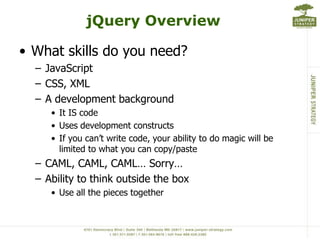
jQuery Overview

• What skills do you need?
  – JavaScript
  – CSS, XML
  – A development background
     • It IS code
     • Uses development constructs
     • If you can‟t write code, your ability to do magic will be
       limited to what you can copy/paste
  – CAML, CAML, CAML… Sorry…
  – Ability to think outside the box
     • Use all the pieces together
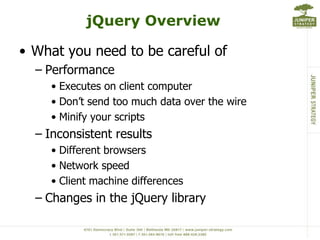
jQuery Overview

• What you need to be careful of
  – Performance
     • Executes on client computer
     • Don‟t send too much data over the wire
     • Minify your scripts
  – Inconsistent results
     • Different browsers
     • Network speed
     • Client machine differences
  – Changes in the jQuery library
jQuery Overview – JavaScript
            Common Methods
JavaScript          Description

Classes / Objects   var myCar = {
                        id: 1,
                        make: “Jeep”,
                        model: “Wrangler”,
                        color: “Silver”
                    }

                    var vehicles = {};

                    vehicles[myCar.ID] = myCar;
For each loops      For (car in vehicles)
                    {
                       var thisCar = vehicles[car];
                    }
.split()            Var numbers = “1,2,3,4,5”;
                    Var myArray = numbers.split(“,”);
                    myArray[0] == “1”
.replace()          var myString = “This string has spaces”;
                    var newString = myString.replace(“ “,””);
                    newString == “Thisstringhasspaces”;
jQuery Overview – Common
                   Methods
Method                             Description

$(document).ready(function($){})   Where code execution begins after page is loaded

$(“#ElementID”)                    Returns element with given id

$(“Type[attrib=„value‟]”)          Gets element of specific type and attribute value
                                   $(“input[Title=„First Name‟]”)
.show(), .hide(), .toggle()        Shows, hides, toggles

.html()                            Gets the raw html for an element with tags

.text()                            Contents of an element with HTML tags stripped out

.each(function() {})               Iterate through all elements that are found.
                                   $(“tr”).each(function() { }) would iterate through every row on
                                   the page.
.closest(selector)                 Get the first element that matches the selector, beginning at the
                                   currently element and progressing UP the DOM
                                   $("input[title=„Field Name']").closest("tr").hide();
.contains()                        Check to see if a DOM element is within another DOM element
.find()                            Get the child elements of current element, filtered by a selector
Chaining:
$("#WebPartWPDnn").find("nobr b:contains('Sum = ')").html().split(" = ")[1].replace(",","");
Deployment & Development

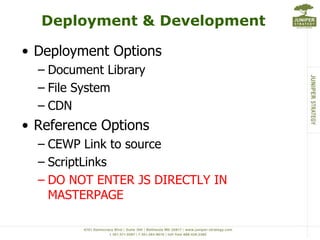
• Deployment Options
  – Document Library
  – File System
  – CDN
• Reference Options
  – CEWP Link to source
  – ScriptLinks
  – DO NOT ENTER JS DIRECTLY IN
    MASTERPAGE
Deployment & Development

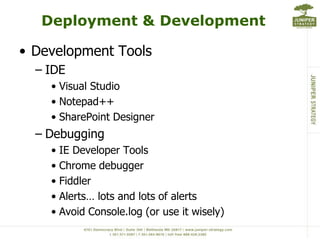
• Development Tools
  – IDE
    • Visual Studio
    • Notepad++
    • SharePoint Designer
  – Debugging
    • IE Developer Tools
    • Chrome debugger
    • Fiddler
    • Alerts… lots and lots of alerts
    • Avoid Console.log (or use it wisely)
Interacting with SharePoint &
             the DOM
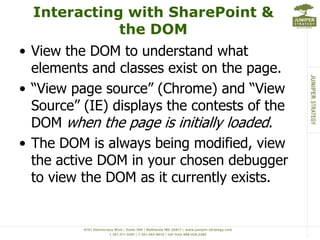
• View the DOM to understand what
  elements and classes exist on the page.
• “View page source” (Chrome) and “View
  Source” (IE) displays the contests of the
  DOM when the page is initially loaded.
• The DOM is always being modified, view
  the active DOM in your chosen debugger
  to view the DOM as it currently exists.
Interacting with SharePoint &
                 the DOM
  Getting/Setting SharePoint Form Fields
  • Text Boxes
      – $(“input[title=‟My Text Field‟]”).val()
  • Selects
      – $(“select[title=‟My Choice‟]”).val(mySelectValue);
  • Checkboxes
      – $("input[title='My Check
        box']").removeAttr('checked');
      – $("input[title='My Check
        box']").attr('checked','checked');
http://sharepointhillbilly.com/archive/2011/08/20/a-dummies-guide-to-sharepoint-and-
jqueryndashgetting-amp-setting-sharepoint.aspx
Reading/Writing SharePoint List
             Data
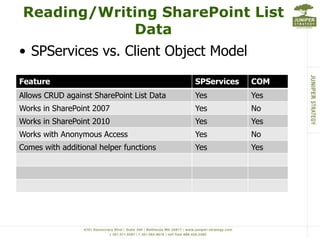
• SPServices vs. Client Object Model

Feature                                    SPServices   COM
Allows CRUD against SharePoint List Data   Yes          Yes
Works in SharePoint 2007                   Yes          No
Works in SharePoint 2010                   Yes          Yes
Works with Anonymous Access                Yes          No
Comes with additional helper functions     Yes          Yes
Using Third Party Libraries

• Tips for selection and integration
  – Look for supported / document libraries
  – Test in target browsers before implementing
  – Duplicate file structure
  – Test “vanilla” in SharePoint first
Using Third Party Libraries

• Some of my favorites
  – Content Slider -
   http://www.awkwardgroup.com/sandbox/awkward-
   showcase-a-jquery-plugin/
  – Formatted Tables - http://www.datatables.net/
  – Modal Window -
   http://www.ericmmartin.com/projects/simplemodal/
  – SPServices - http://spservices.codeplex.com/
  – Calendar - http://arshaw.com/fullcalendar/
Putting it all together

SHAREPOINT TRAINING
APPLICATION

SPTechCon - Share point and jquery essentials

  • 1.
    SharePoint and jQueryEssentials Mark Rackley – Solutions Architect / SharePoint Practice Lead / Developer Email: mrackley@gmail.com Blog: http://www.sharepointhillbilly.com Twitter: @mrackley
  • 2.
    Workshop Outline • jQuery Overview / Common methods • Deployment & Development • Interacting with SharePoint & the DOM • Reading / Writing SharePoint List Data • Using Third Party Libraries • Putting it all together to build an application 2
  • 3.
    jQuery Overview • What/ Why jQuery? – JavaScript utility library supported by Microsoft – Don‟t have to crack open Visual Studio or deploy solutions (ideal for SharePoint online and tightly controlled environments) – It‟s the future
  • 4.
    jQuery Overview • Whatskills do you need? – JavaScript – CSS, XML – A development background • It IS code • Uses development constructs • If you can‟t write code, your ability to do magic will be limited to what you can copy/paste – CAML, CAML, CAML… Sorry… – Ability to think outside the box • Use all the pieces together
  • 5.
    jQuery Overview • Whatyou need to be careful of – Performance • Executes on client computer • Don‟t send too much data over the wire • Minify your scripts – Inconsistent results • Different browsers • Network speed • Client machine differences – Changes in the jQuery library
  • 6.
    jQuery Overview –JavaScript Common Methods JavaScript Description Classes / Objects var myCar = { id: 1, make: “Jeep”, model: “Wrangler”, color: “Silver” } var vehicles = {}; vehicles[myCar.ID] = myCar; For each loops For (car in vehicles) { var thisCar = vehicles[car]; } .split() Var numbers = “1,2,3,4,5”; Var myArray = numbers.split(“,”); myArray[0] == “1” .replace() var myString = “This string has spaces”; var newString = myString.replace(“ “,””); newString == “Thisstringhasspaces”;
  • 7.
    jQuery Overview –Common Methods Method Description $(document).ready(function($){}) Where code execution begins after page is loaded $(“#ElementID”) Returns element with given id $(“Type[attrib=„value‟]”) Gets element of specific type and attribute value $(“input[Title=„First Name‟]”) .show(), .hide(), .toggle() Shows, hides, toggles .html() Gets the raw html for an element with tags .text() Contents of an element with HTML tags stripped out .each(function() {}) Iterate through all elements that are found. $(“tr”).each(function() { }) would iterate through every row on the page. .closest(selector) Get the first element that matches the selector, beginning at the currently element and progressing UP the DOM $("input[title=„Field Name']").closest("tr").hide(); .contains() Check to see if a DOM element is within another DOM element .find() Get the child elements of current element, filtered by a selector Chaining: $("#WebPartWPDnn").find("nobr b:contains('Sum = ')").html().split(" = ")[1].replace(",","");
  • 8.
    Deployment & Development •Deployment Options – Document Library – File System – CDN • Reference Options – CEWP Link to source – ScriptLinks – DO NOT ENTER JS DIRECTLY IN MASTERPAGE
  • 9.
    Deployment & Development •Development Tools – IDE • Visual Studio • Notepad++ • SharePoint Designer – Debugging • IE Developer Tools • Chrome debugger • Fiddler • Alerts… lots and lots of alerts • Avoid Console.log (or use it wisely)
  • 10.
    Interacting with SharePoint& the DOM • View the DOM to understand what elements and classes exist on the page. • “View page source” (Chrome) and “View Source” (IE) displays the contests of the DOM when the page is initially loaded. • The DOM is always being modified, view the active DOM in your chosen debugger to view the DOM as it currently exists.
  • 11.
    Interacting with SharePoint& the DOM Getting/Setting SharePoint Form Fields • Text Boxes – $(“input[title=‟My Text Field‟]”).val() • Selects – $(“select[title=‟My Choice‟]”).val(mySelectValue); • Checkboxes – $("input[title='My Check box']").removeAttr('checked'); – $("input[title='My Check box']").attr('checked','checked'); http://sharepointhillbilly.com/archive/2011/08/20/a-dummies-guide-to-sharepoint-and- jqueryndashgetting-amp-setting-sharepoint.aspx
  • 12.
    Reading/Writing SharePoint List Data • SPServices vs. Client Object Model Feature SPServices COM Allows CRUD against SharePoint List Data Yes Yes Works in SharePoint 2007 Yes No Works in SharePoint 2010 Yes Yes Works with Anonymous Access Yes No Comes with additional helper functions Yes Yes
  • 13.
    Using Third PartyLibraries • Tips for selection and integration – Look for supported / document libraries – Test in target browsers before implementing – Duplicate file structure – Test “vanilla” in SharePoint first
  • 14.
    Using Third PartyLibraries • Some of my favorites – Content Slider - http://www.awkwardgroup.com/sandbox/awkward- showcase-a-jquery-plugin/ – Formatted Tables - http://www.datatables.net/ – Modal Window - http://www.ericmmartin.com/projects/simplemodal/ – SPServices - http://spservices.codeplex.com/ – Calendar - http://arshaw.com/fullcalendar/
  • 15.
    Putting it alltogether SHAREPOINT TRAINING APPLICATION