


SharePoint Saturday New Hampshire 
The SharePoint & jQuery Guide 
Mark.Rackley@capSpire.com 
October, Twenty Fourteen
Was made possible by the generous 
support of the following sponsors… 
And by your participation… Thank you!
Join us for the raffle & SharePint following the 
last session 
Be sure to fill out your eval form & 
turn in at the end of the day for a 
ticket to the BIG raffle!
Mark Rackley / Principal Consultant 
• 20 years software architecture 
and development experience 
• SharePoint Junkie since 2007 
• Event Organizer 
(SharePointalooza.org) 
• Blogger, Writer, Speaker 
• Bacon aficionado @mrackley 
www.SharePointHillbilly.com 
www.MarkRackley.net 
www.SharePointaLooza.org
Agenda 
• What is jQuery? Why SharePoint & jQuery? 
• SharePoint and jQuery Basics 
• Deploying / Maintaining 
• Development Basics 
• Third Party Libraries 
• Examples & Demos 
The SharePoint & jQuery Guide 
http://bit.ly/jQueryAndSP
What is jQuery? 
• JavaScript Utility Library 
• jQuery() or $() 
• Allows interaction and manipulation of the DOM 
after page is rendered 
• Can interact with other systems using Web Services 
• Supported by Microsoft 
• Part of “Client Side” Development
Why SharePoint & jQuery? 
• Fewer upgrade/deployment issues 
• Rapid deployment and modifications 
• Less “customization” 
• Improved visuals 
• Improved usability
Why SharePoint & jQuery? 
• Can replace the need for Visual Studio 
• Can replace the need for basic workflows 
• No points (shhhh… don’t tell the admins) 
• You can get around the ListView Threshold 
(but should you??)
jQuery & SharePoint Basics 
• Scripts execute with same privileges as 
current user 
• Permissions cannot be elevated 
• Interact with SharePoint List data using Client 
Side Object Model (CSOM), REST, or 
SPServices
Why I Hate JavaScript & jQuery (some days) 
• Too many options 
var car = { 
color: “red”, 
make: “Jeep”, 
model: “wrangler” 
} 
var car = {}; 
car.color = “red”; 
car.make = “Jeep”; 
car.model=“wranger”; 
var car = {}; 
car[“color”] = “red”; 
car[“make”] = “Jeep”; 
car[“model”] =“wranger”;
Why I Hate JavaScript & jQuery (some days) 
• Too many options 
• Debugging is painful 
• Performance can suffer 
• Inconsistent results on different browsers 
• Constant changes in the jQuery library 
• It CAN harm your farm!
When Should You Use jQuery? 
• Tightly controlled environments 
• Visuals or Usability are high priorities 
• Tight timeframes 
• Simple page and form modifications 
 Dynamic drop downs 
 Hiding page elements 
 Reading / populating fields 
• Why would you NOT use jQuery?
When Should You Question the Use of jQuery? 
• Need pull a lot of data over the wire to work 
with 
• Iterating over many rows of list data 
• Extended business logic or proprietary 
business logic 
• Privileges need to be elevated 
• Need to support many different browsers
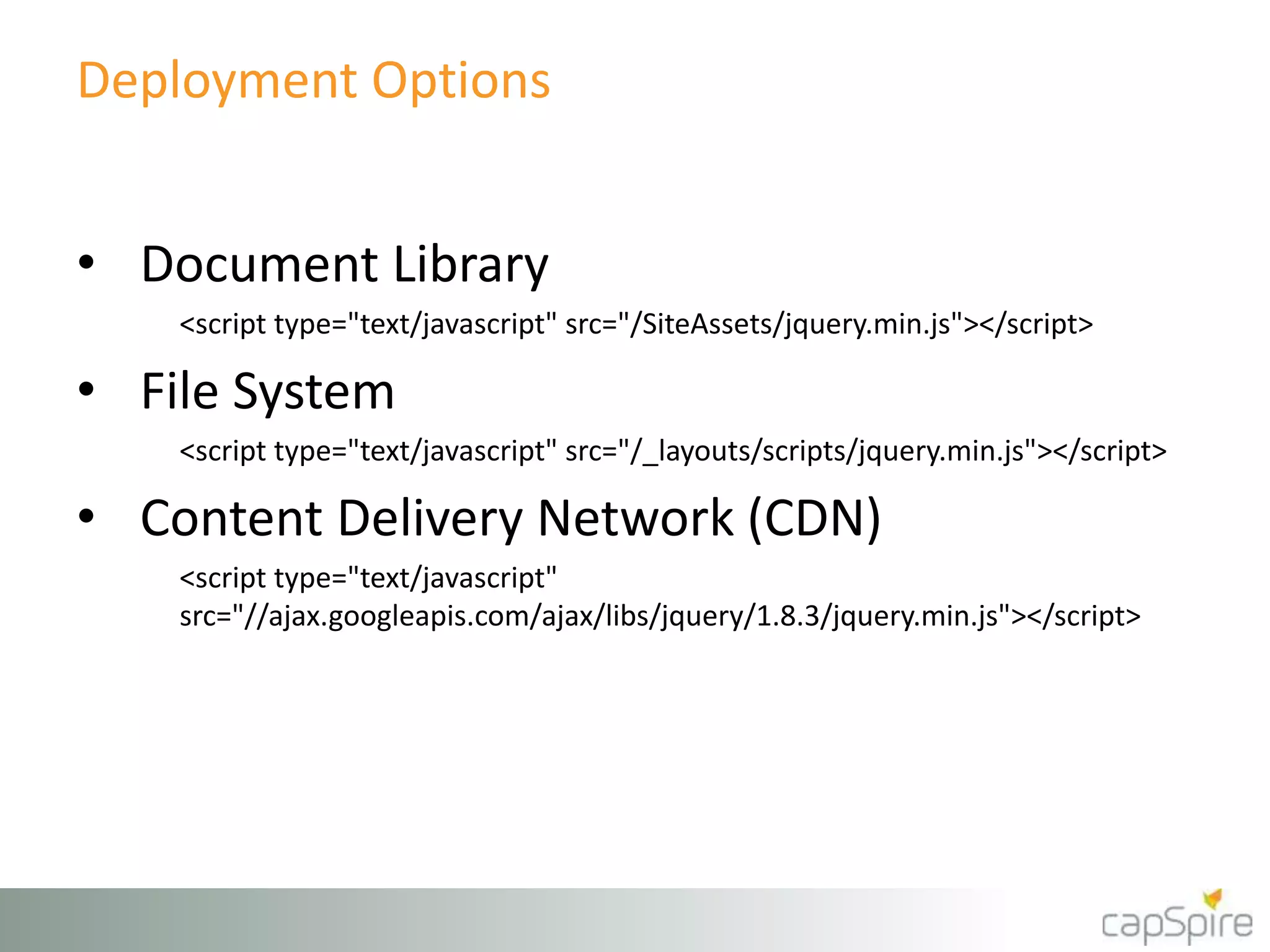
Deployment Options 
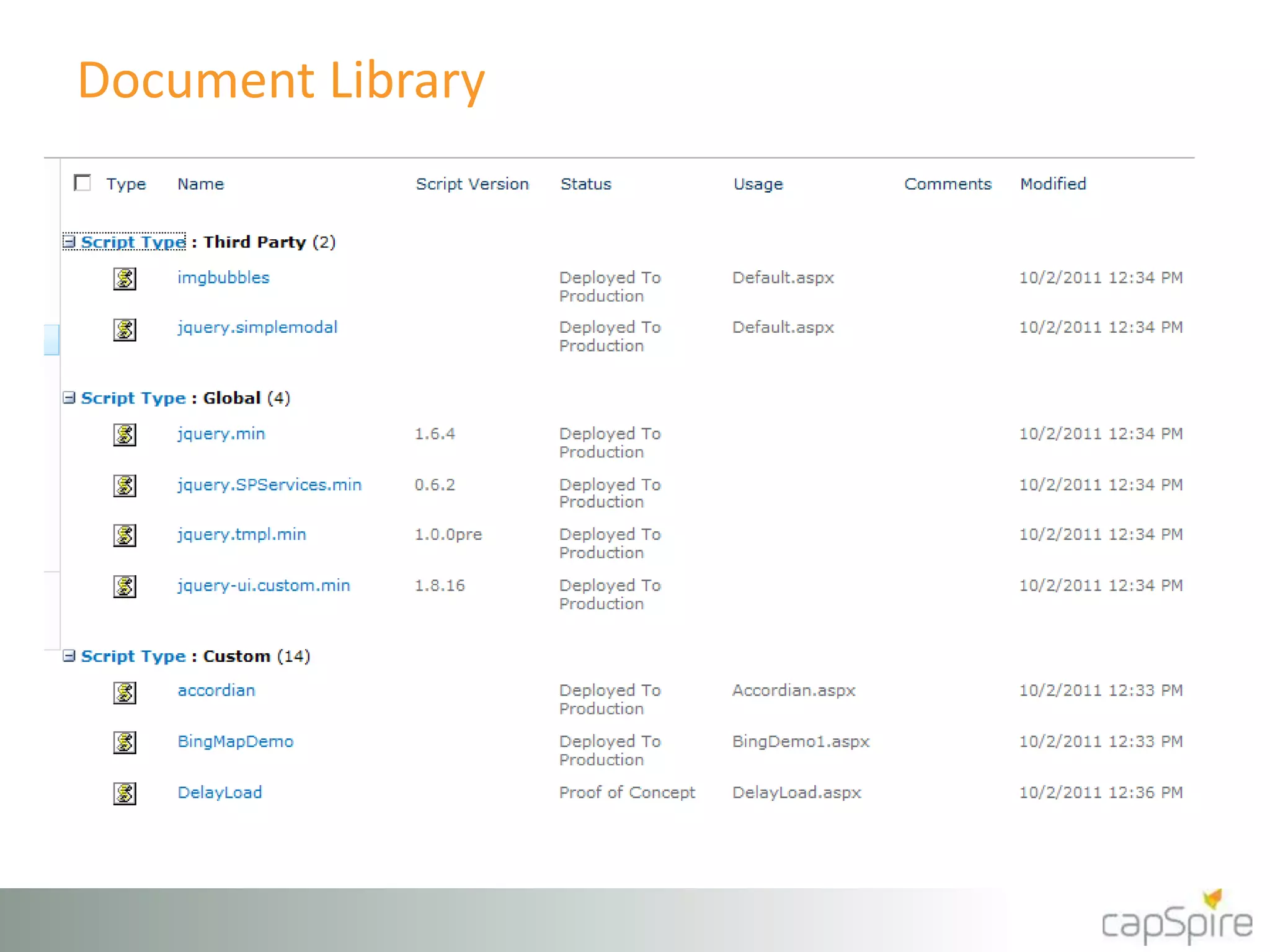
• Document Library 
<script type="text/javascript" src="/SiteAssets/jquery.min.js"></script> 
• File System 
<script type="text/javascript" src="/_layouts/scripts/jquery.min.js"></script> 
• Content Delivery Network (CDN) 
<script type="text/javascript" 
src="//ajax.googleapis.com/ajax/libs/jquery/1.8.3/jquery.min.js"></script>
Document Library
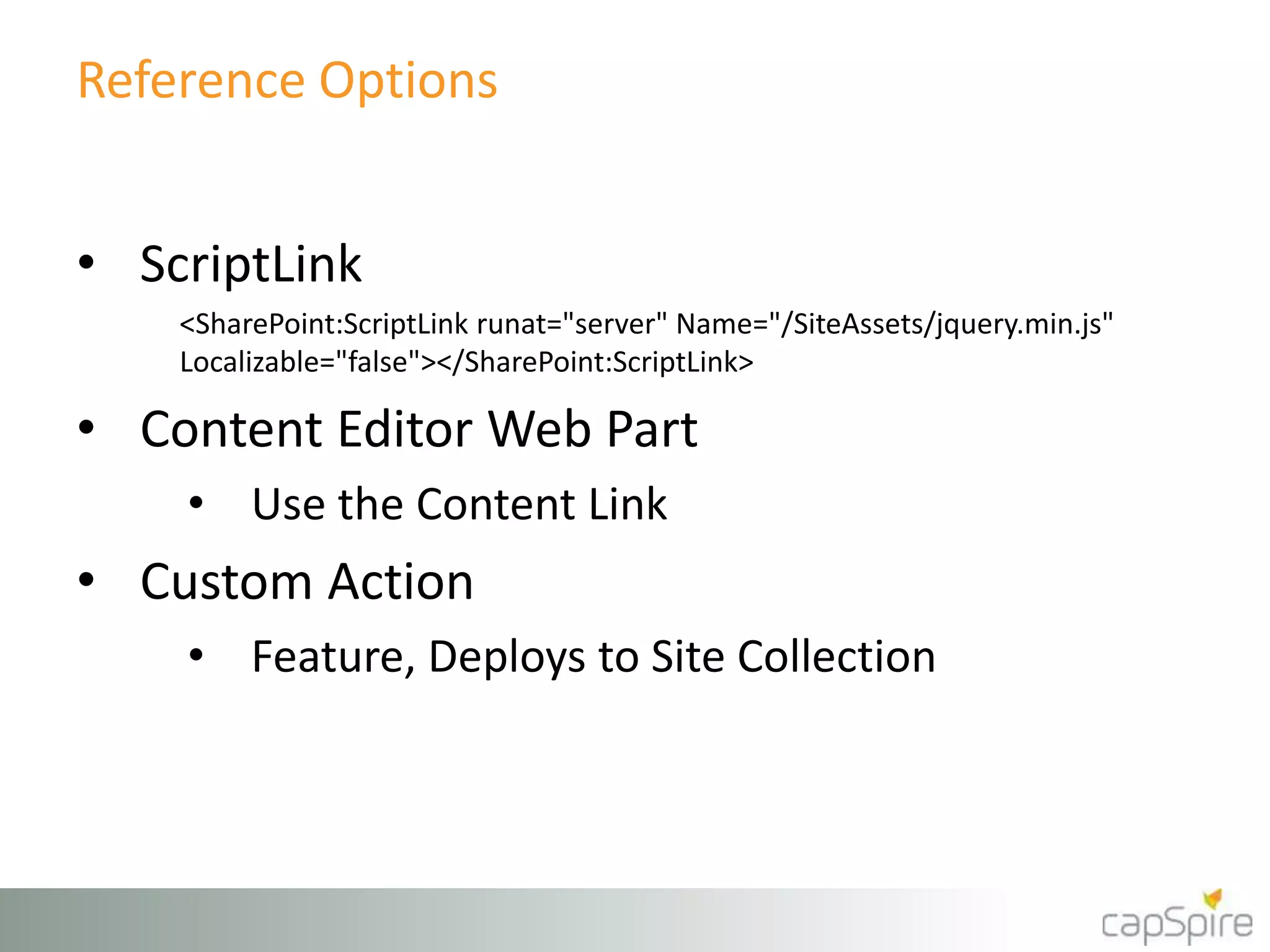
Reference Options 
• ScriptLink 
<SharePoint:ScriptLink runat="server" Name="/SiteAssets/jquery.min.js" 
Localizable="false"></SharePoint:ScriptLink> 
• Content Editor Web Part 
• Use the Content Link 
• Custom Action 
• Feature, Deploys to Site Collection
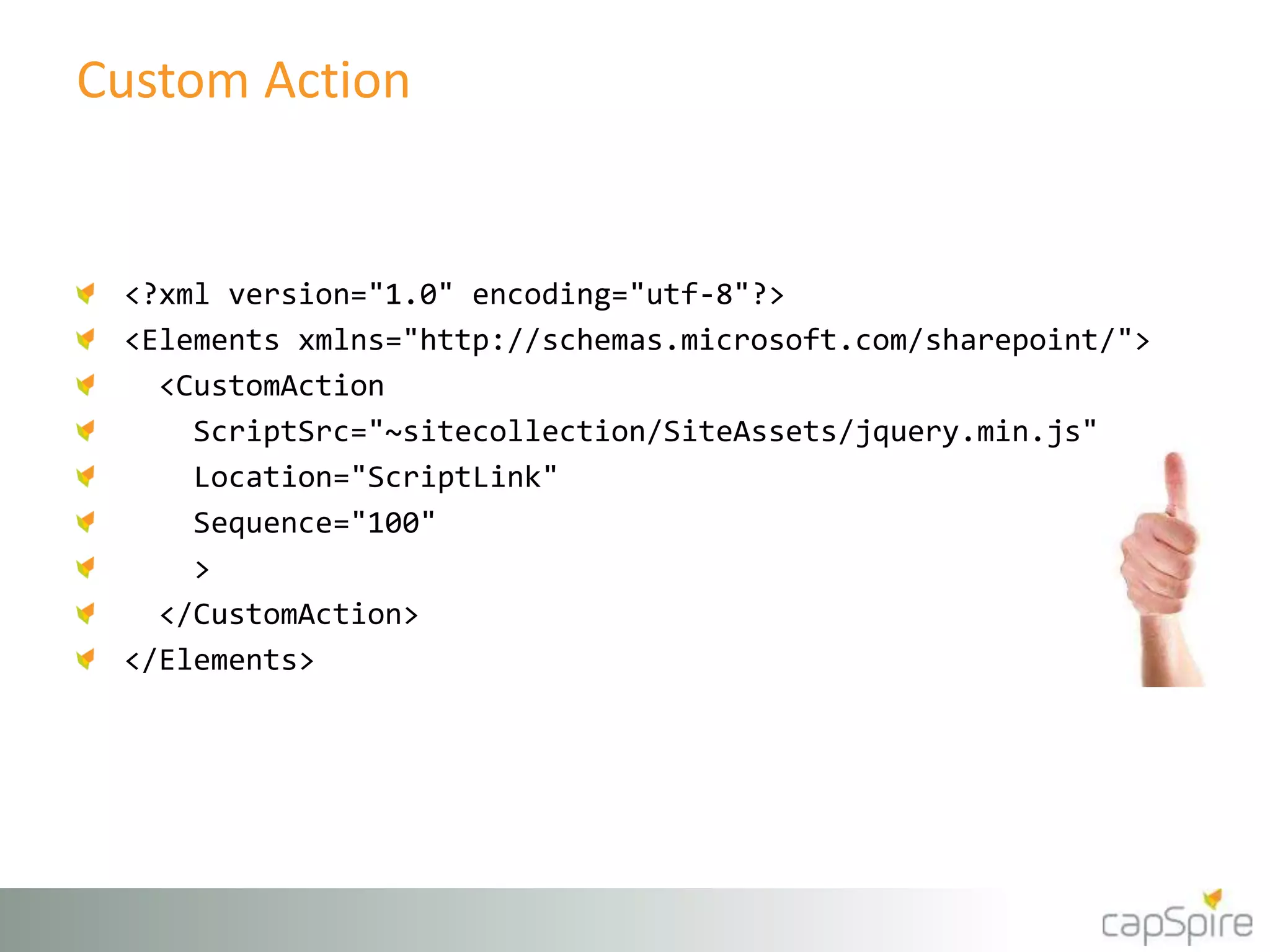
Custom Action 
<?xml version="1.0" encoding="utf-8"?> 
<Elements xmlns="http://schemas.microsoft.com/sharepoint/"> 
<CustomAction 
ScriptSrc="~sitecollection/SiteAssets/jquery.min.js" 
Location="ScriptLink" 
Sequence="100" 
> 
</CustomAction> 
</Elements>
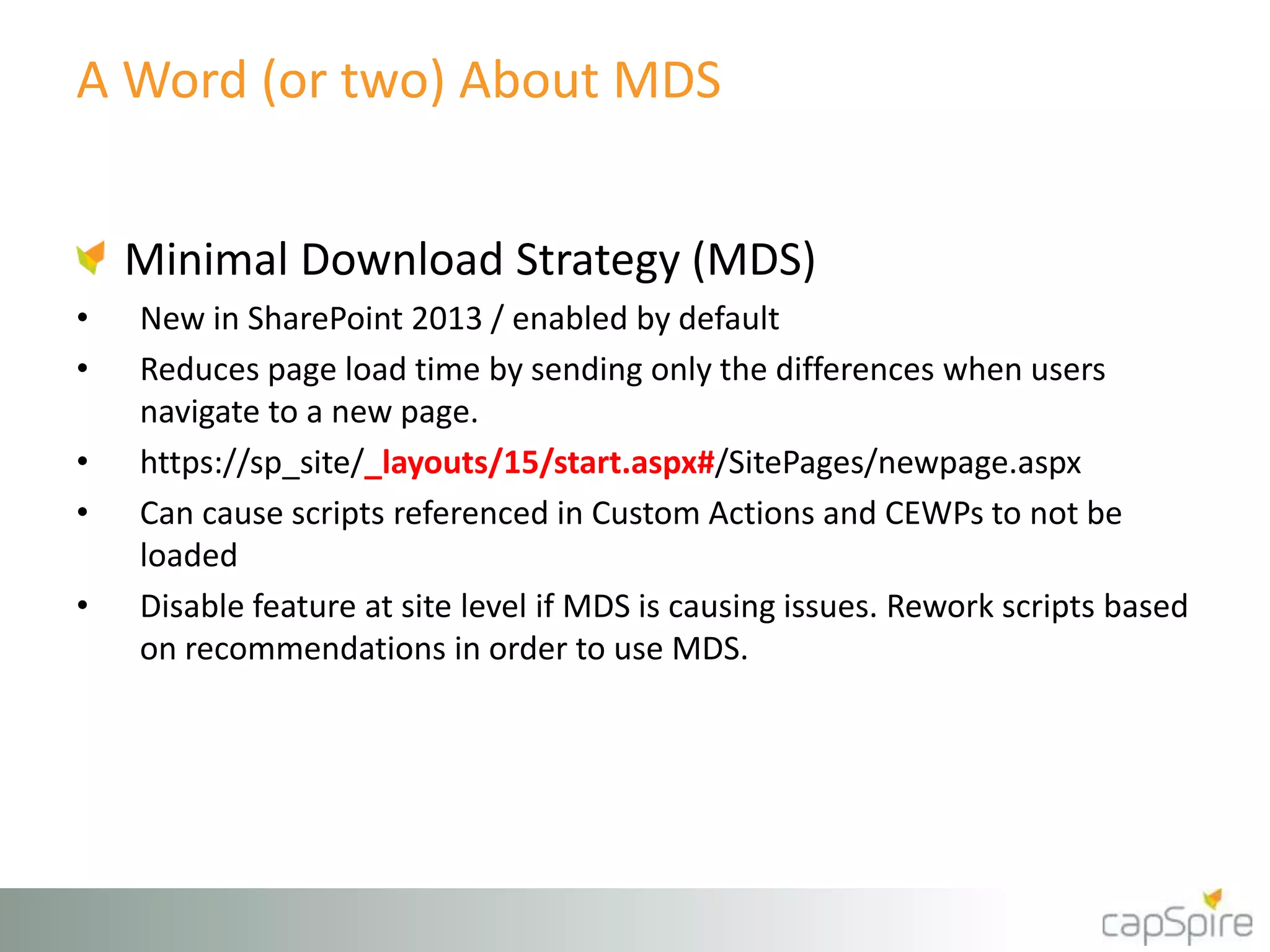
A Word (or two) About MDS 
Minimal Download Strategy (MDS) 
• New in SharePoint 2013 / enabled by default 
• Reduces page load time by sending only the differences when users 
navigate to a new page. 
• https://sp_site/_layouts/15/start.aspx#/SitePages/newpage.aspx 
• Can cause scripts referenced in Custom Actions and CEWPs to not be 
loaded 
• Disable feature at site level if MDS is causing issues. Rework scripts based 
on recommendations in order to use MDS.
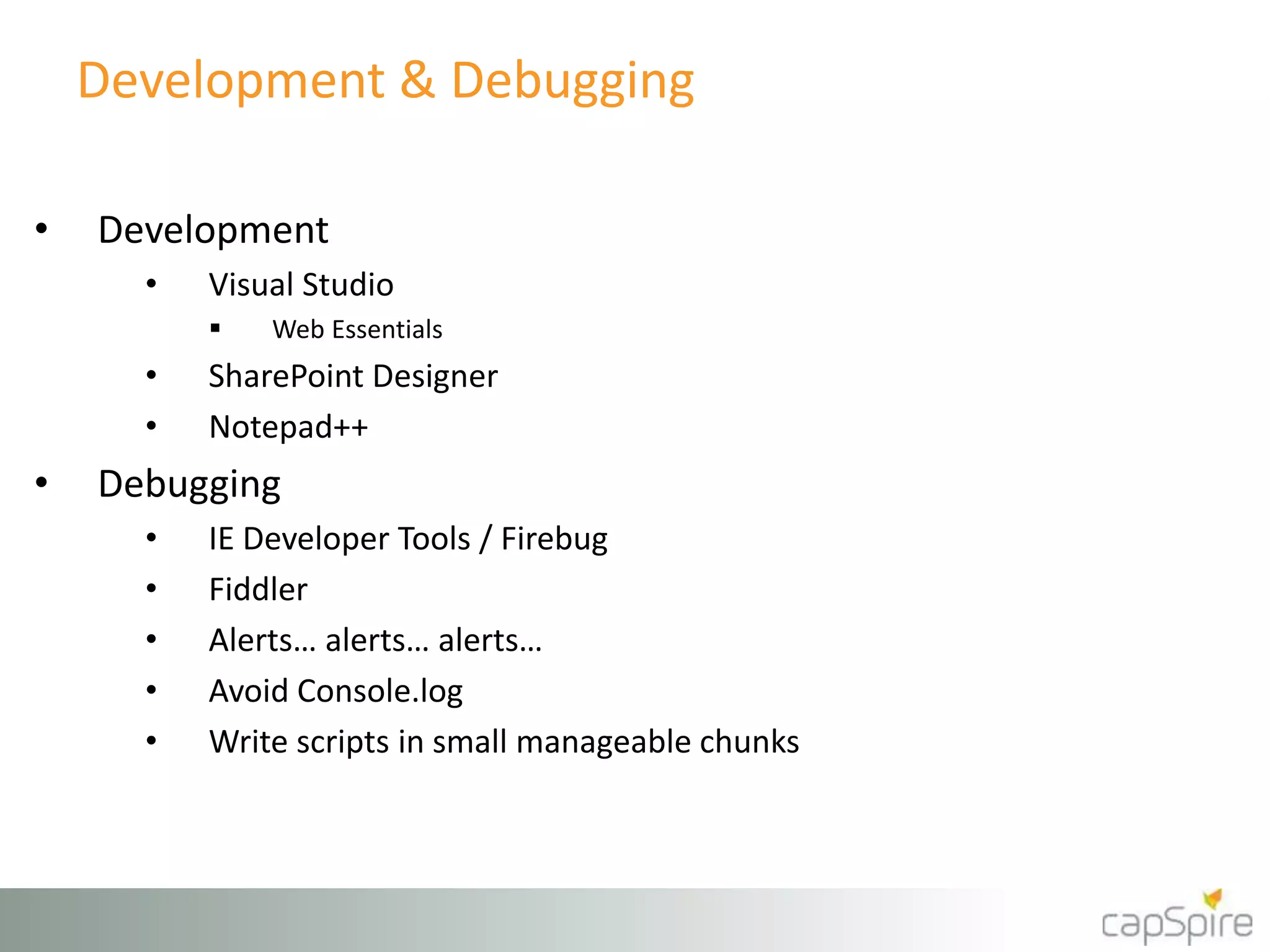
Development & Debugging 
• Development 
• Visual Studio 
 Web Essentials 
• SharePoint Designer 
• Notepad++ 
• Debugging 
• IE Developer Tools / Firebug 
• Fiddler 
• Alerts… alerts… alerts… 
• Avoid Console.log 
• Write scripts in small manageable chunks
jQuery Methods Commonly Used in 
SharePoint
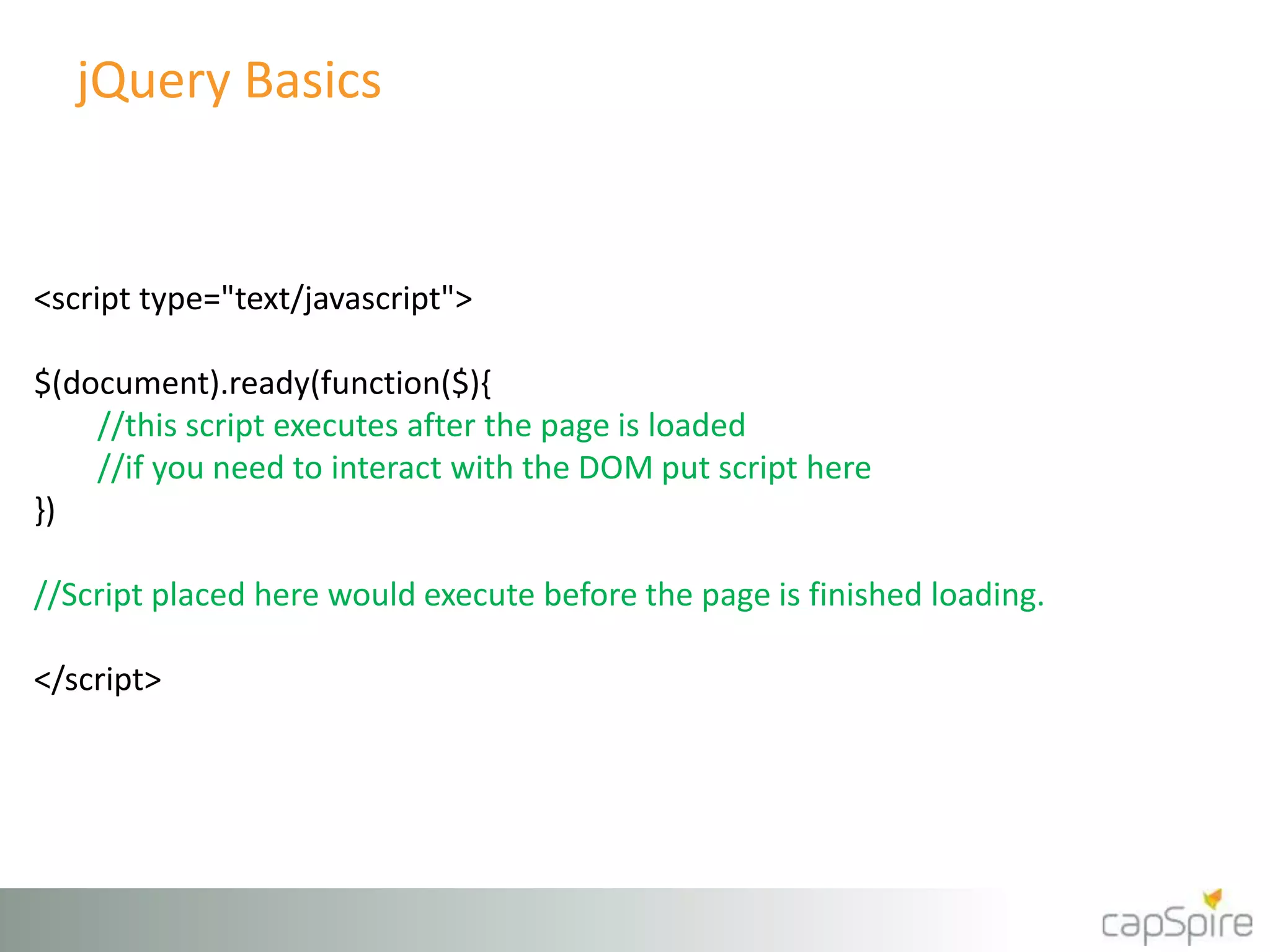
jQuery Basics 
<script type="text/javascript"> 
$(document).ready(function($){ 
//this script executes after the page is loaded 
//if you need to interact with the DOM put script here 
}) 
//Script placed here would execute before the page is finished loading. 
</script>
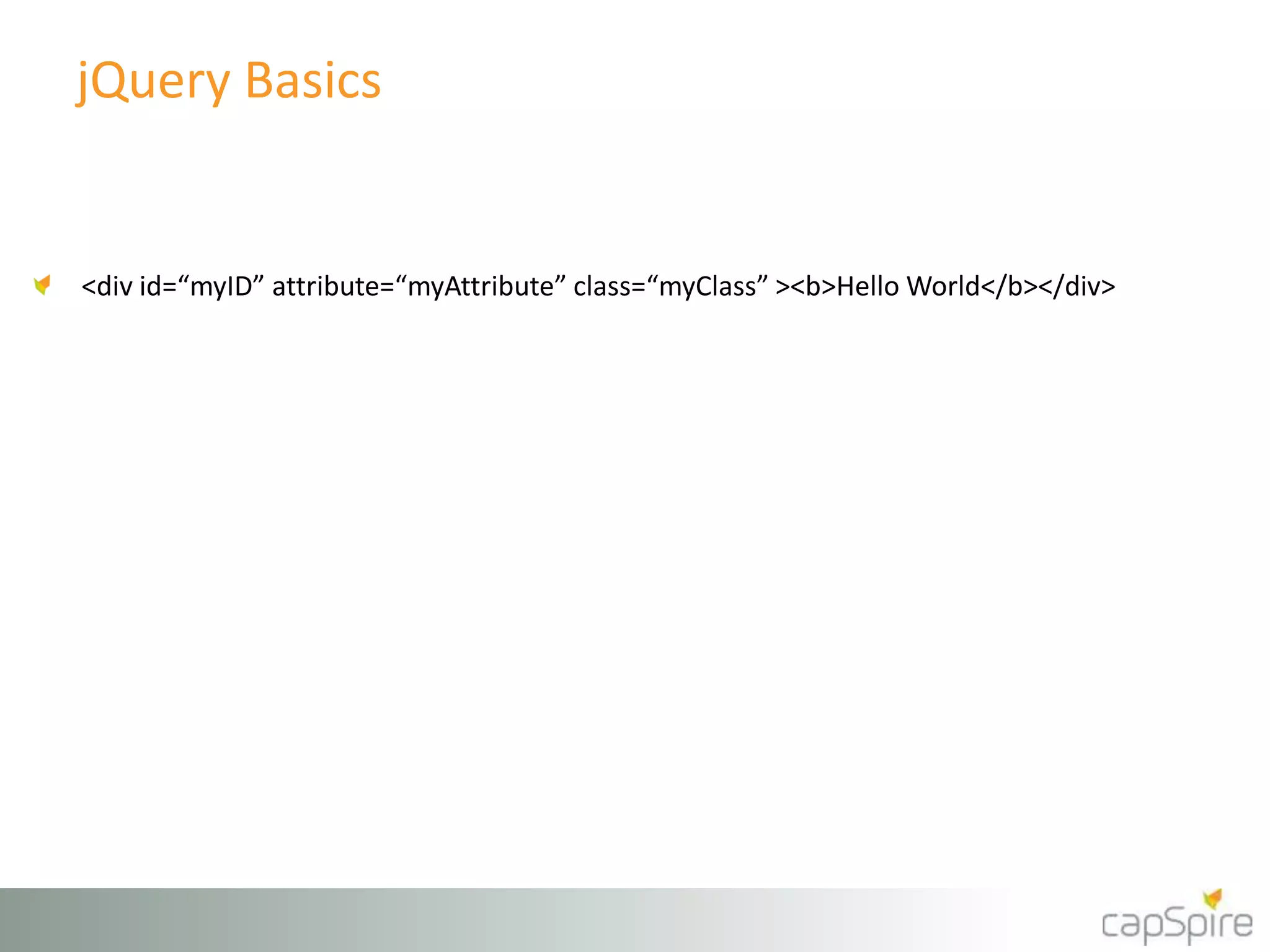
jQuery Basics 
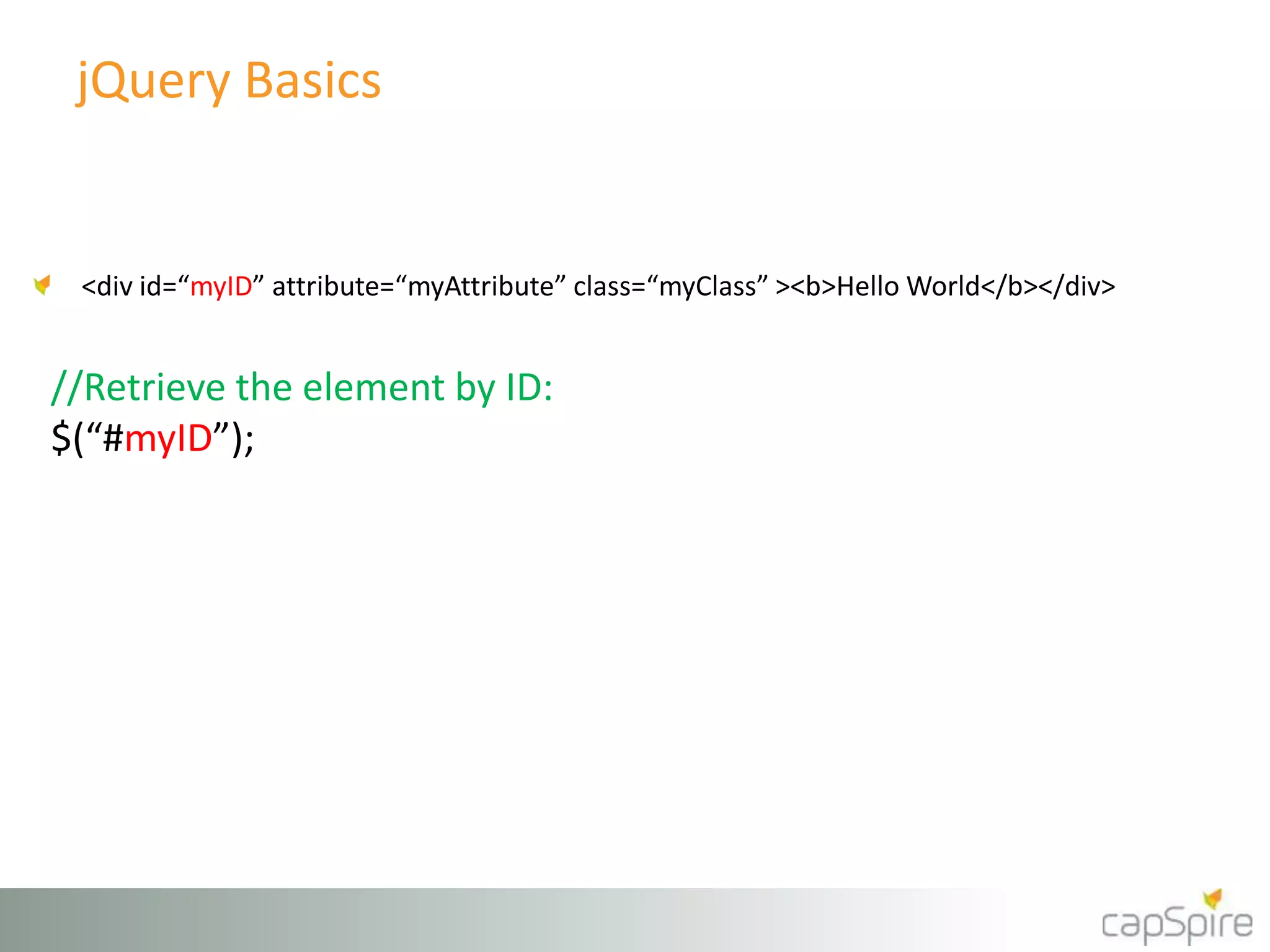
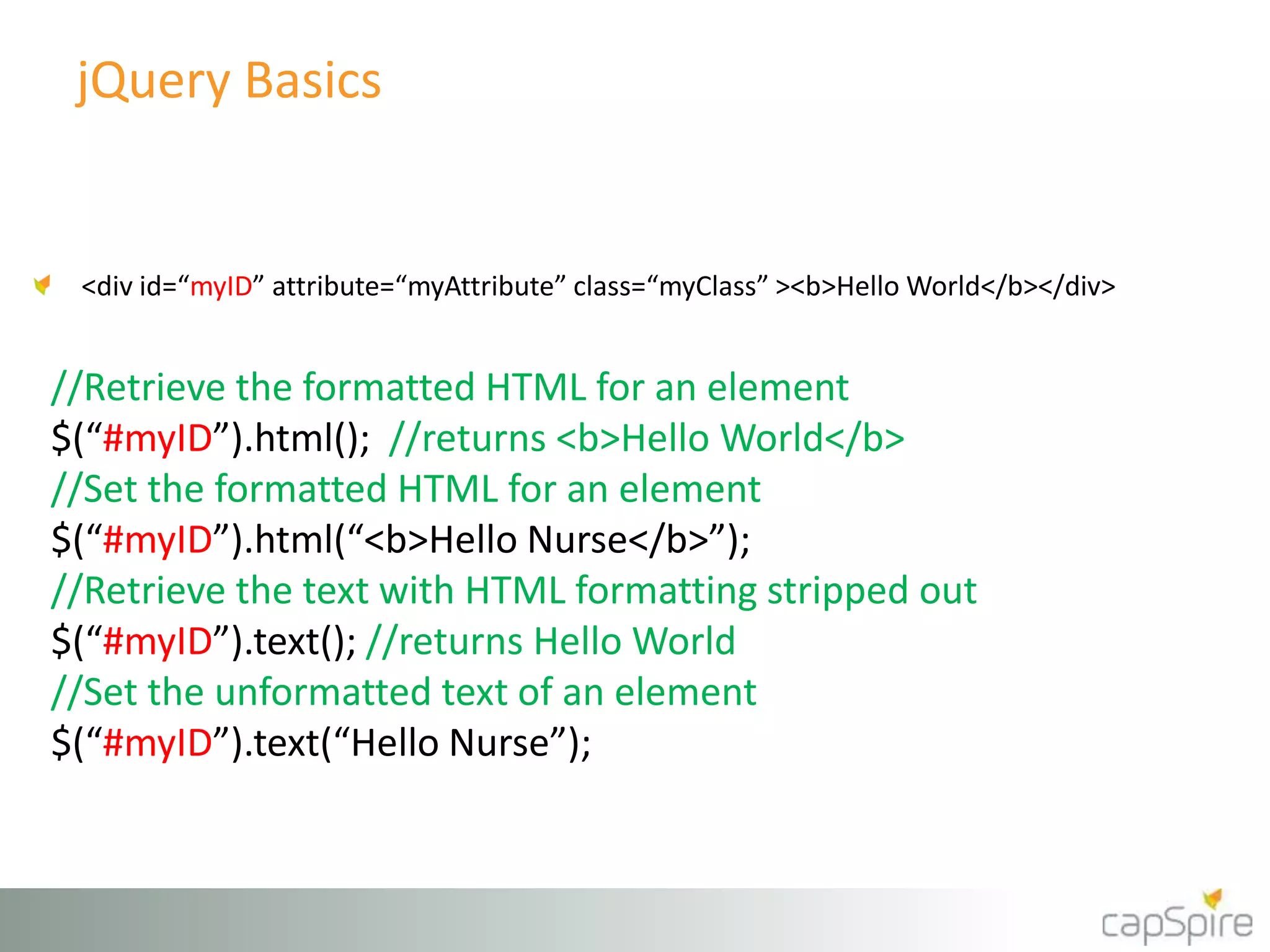
<div id=“myID” attribute=“myAttribute” class=“myClass” ><b>Hello World</b></div>
jQuery Basics 
<div id=“myID” attribute=“myAttribute” class=“myClass” ><b>Hello World</b></div> 
//Retrieve the element by ID: 
$(“#myID”);
jQuery Basics 
<div id=“myID” attribute=“myAttribute” class=“myClass” ><b>Hello World</b></div> 
//Retrieve the element by attribute: 
$(“div[attribute=‘myAttribute’]”);
jQuery Basics 
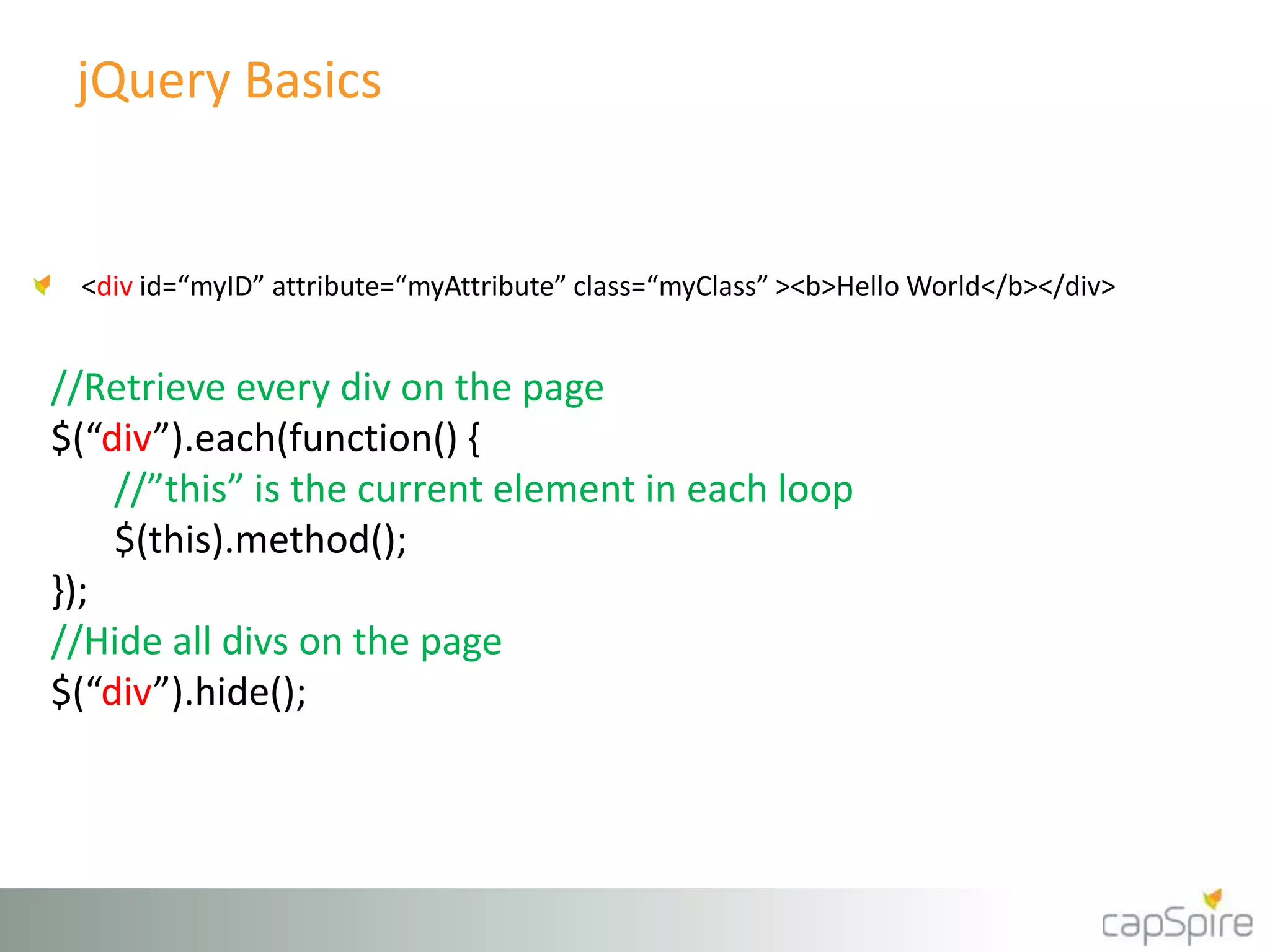
<div id=“myID” attribute=“myAttribute” class=“myClass” ><b>Hello World</b></div> 
//Retrieve every div on the page 
$(“div”).each(function() { 
//”this” is the current element in each loop 
$(this).method(); 
}); 
//Hide all divs on the page 
$(“div”).hide();
jQuery Basics 
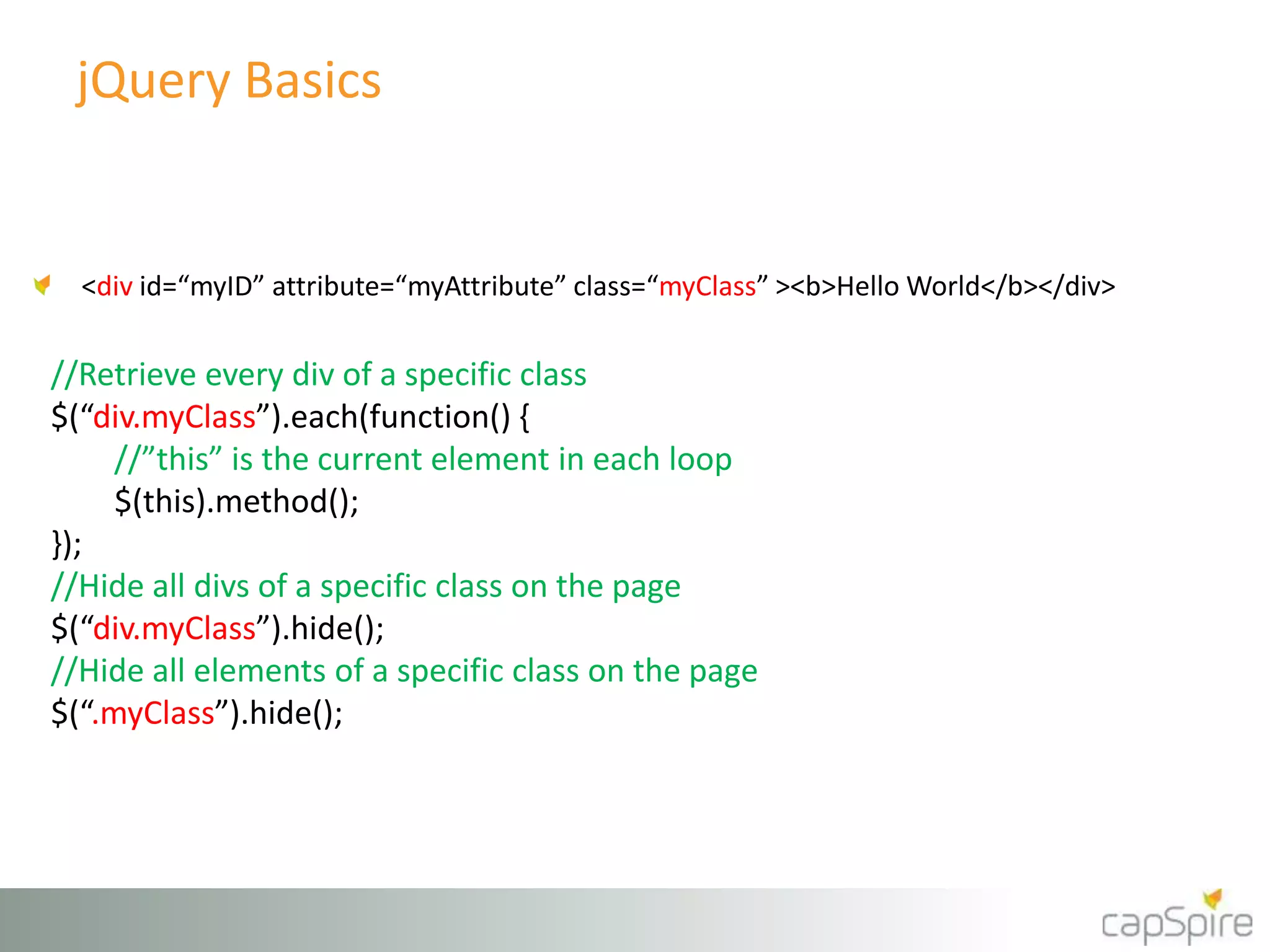
<div id=“myID” attribute=“myAttribute” class=“myClass” ><b>Hello World</b></div> 
//Retrieve every div of a specific class 
$(“div.myClass”).each(function() { 
//”this” is the current element in each loop 
$(this).method(); 
}); 
//Hide all divs of a specific class on the page 
$(“div.myClass”).hide(); 
//Hide all elements of a specific class on the page 
$(“.myClass”).hide();
jQuery Basics 
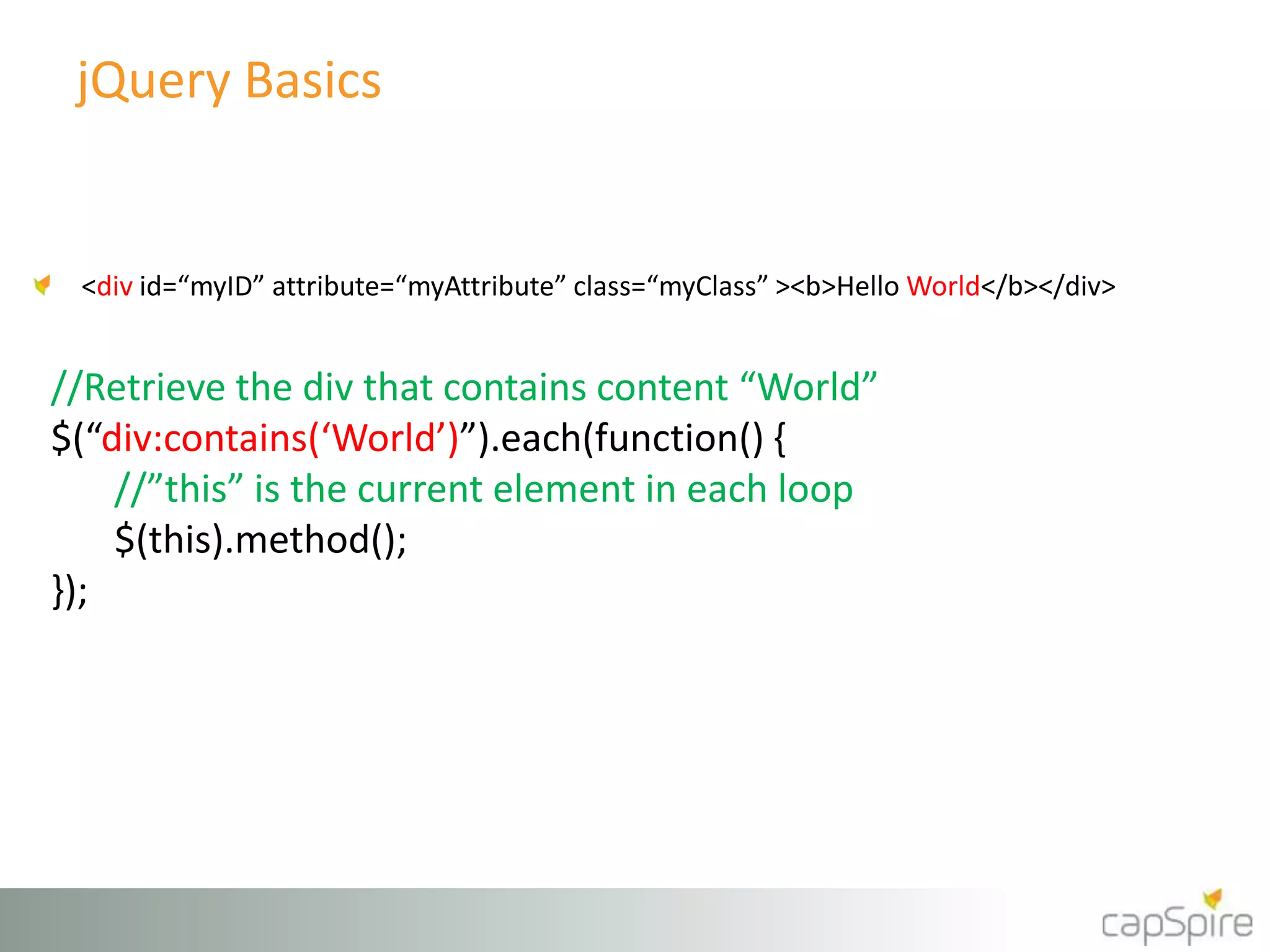
<div id=“myID” attribute=“myAttribute” class=“myClass” ><b>Hello World</b></div> 
//Retrieve the div that contains content “World” 
$(“div:contains(‘World’)”).each(function() { 
//”this” is the current element in each loop 
$(this).method(); 
});
jQuery Basics 
<div id=“myID” attribute=“myAttribute” class=“myClass” ><b>Hello World</b></div> 
//Retrieve the formatted HTML for an element 
$(“#myID”).html(); //returns <b>Hello World</b> 
//Set the formatted HTML for an element 
$(“#myID”).html(“<b>Hello Nurse</b>”); 
//Retrieve the text with HTML formatting stripped out 
$(“#myID”).text(); //returns Hello World 
//Set the unformatted text of an element 
$(“#myID”).text(“Hello Nurse”);
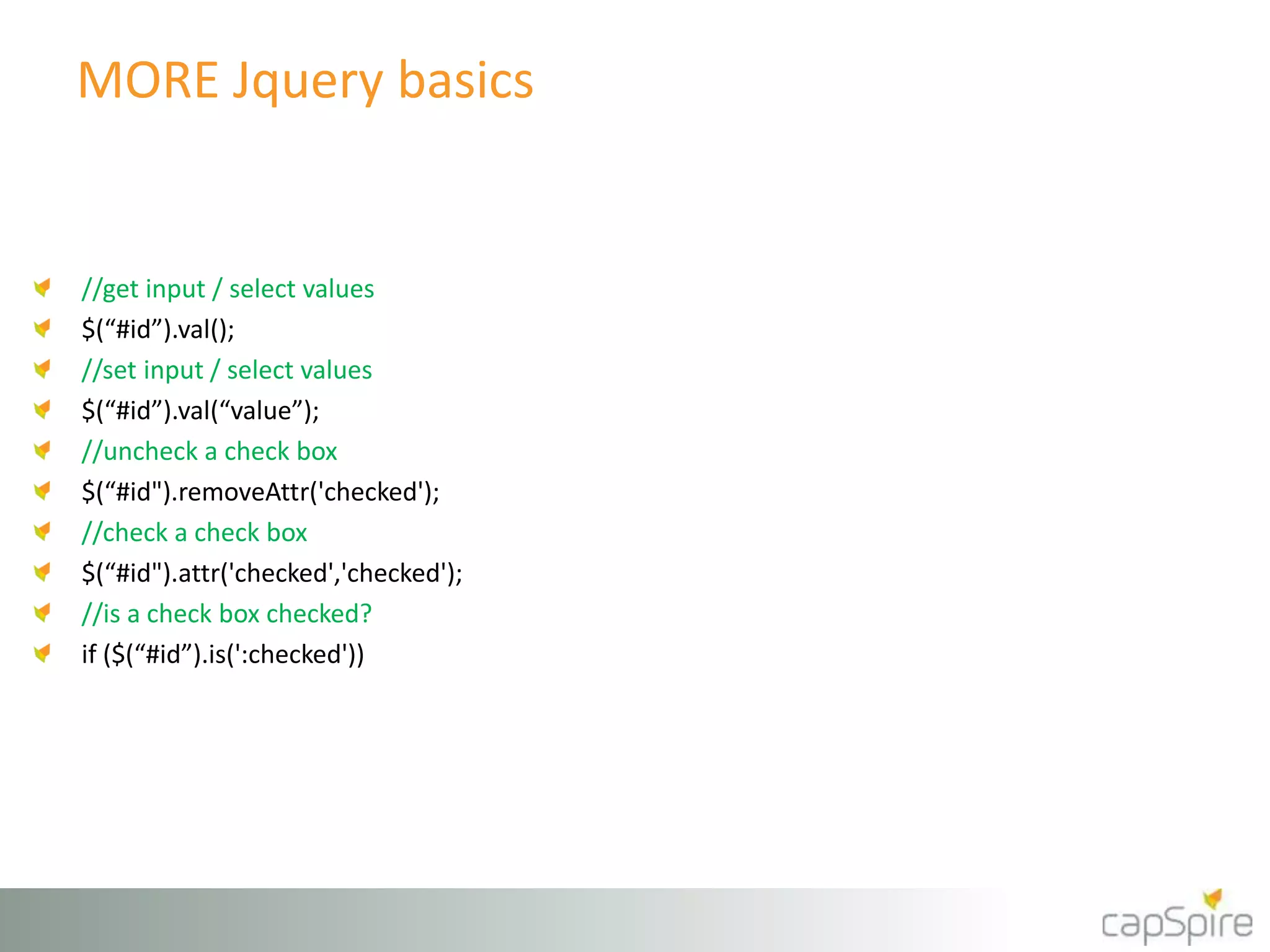
MORE Jquery basics 
//get input / select values 
$(“#id”).val(); 
//set input / select values 
$(“#id”).val(“value”); 
//uncheck a check box 
$(“#id").removeAttr('checked'); 
//check a check box 
$(“#id").attr('checked','checked'); 
//is a check box checked? 
if ($(“#id”).is(':checked'))
MORE Jquery basics 
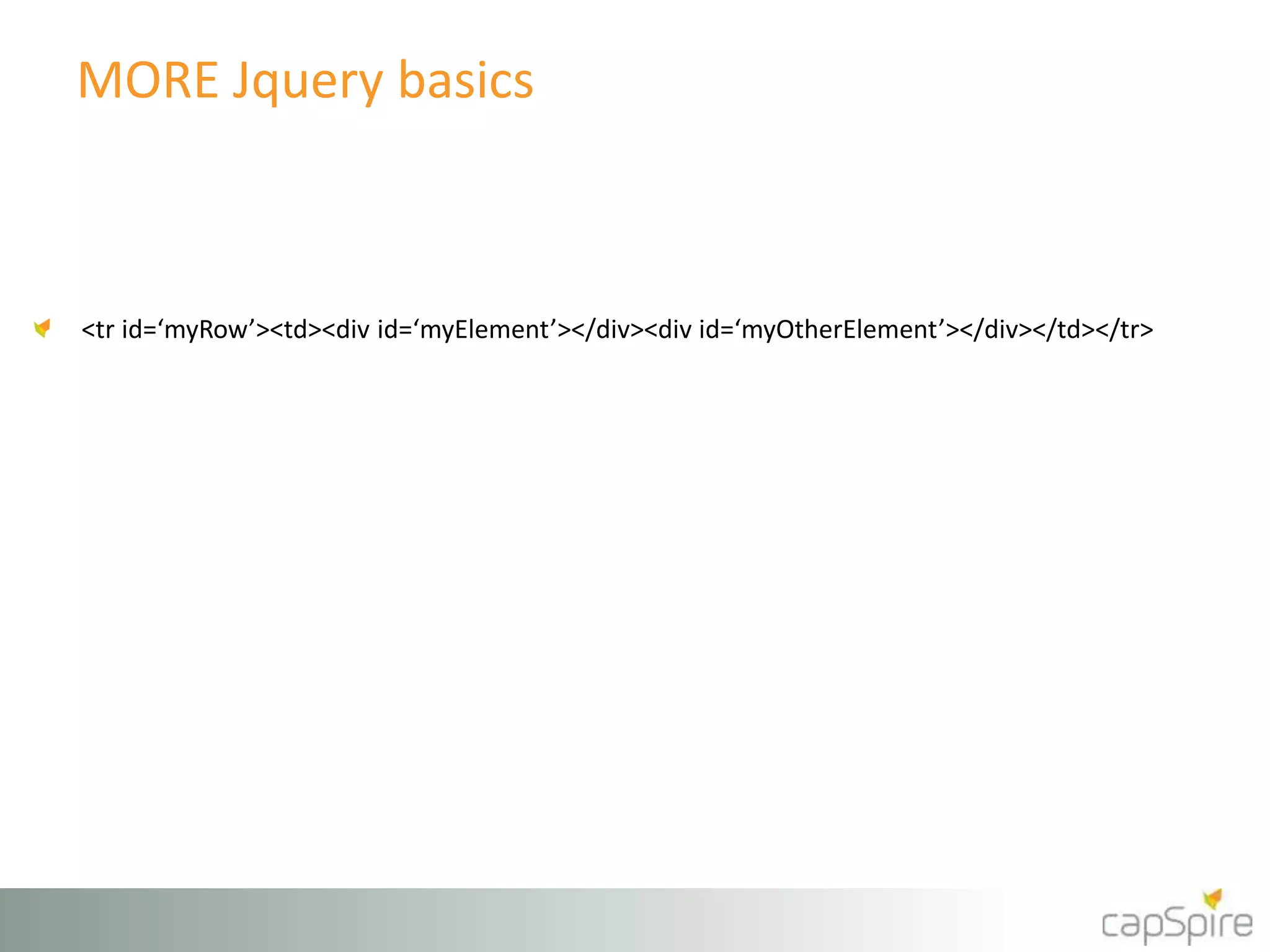
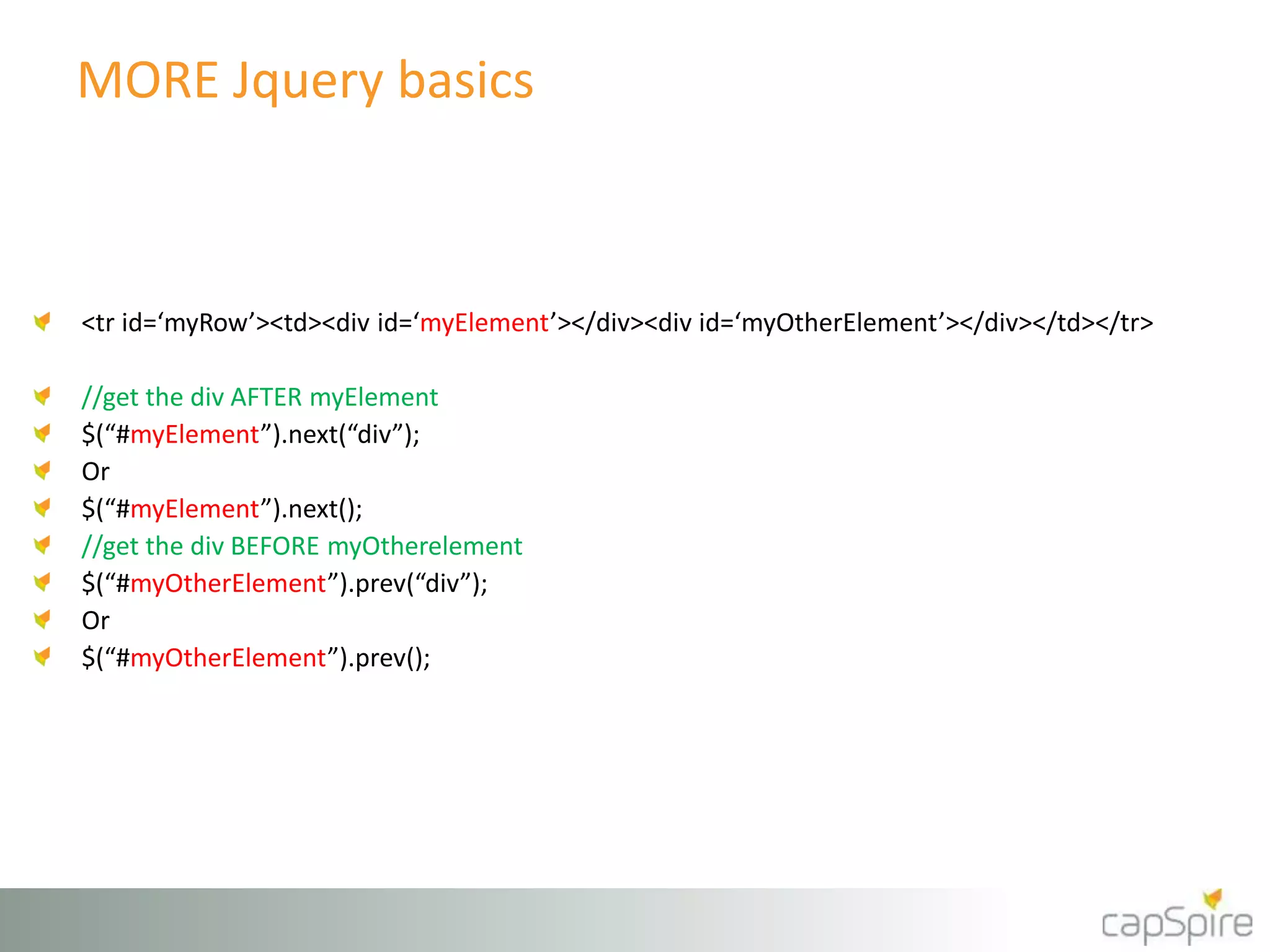
<tr id=‘myRow’><td><div id=‘myElement’></div><div id=‘myOtherElement’></div></td></tr>
MORE Jquery basics 
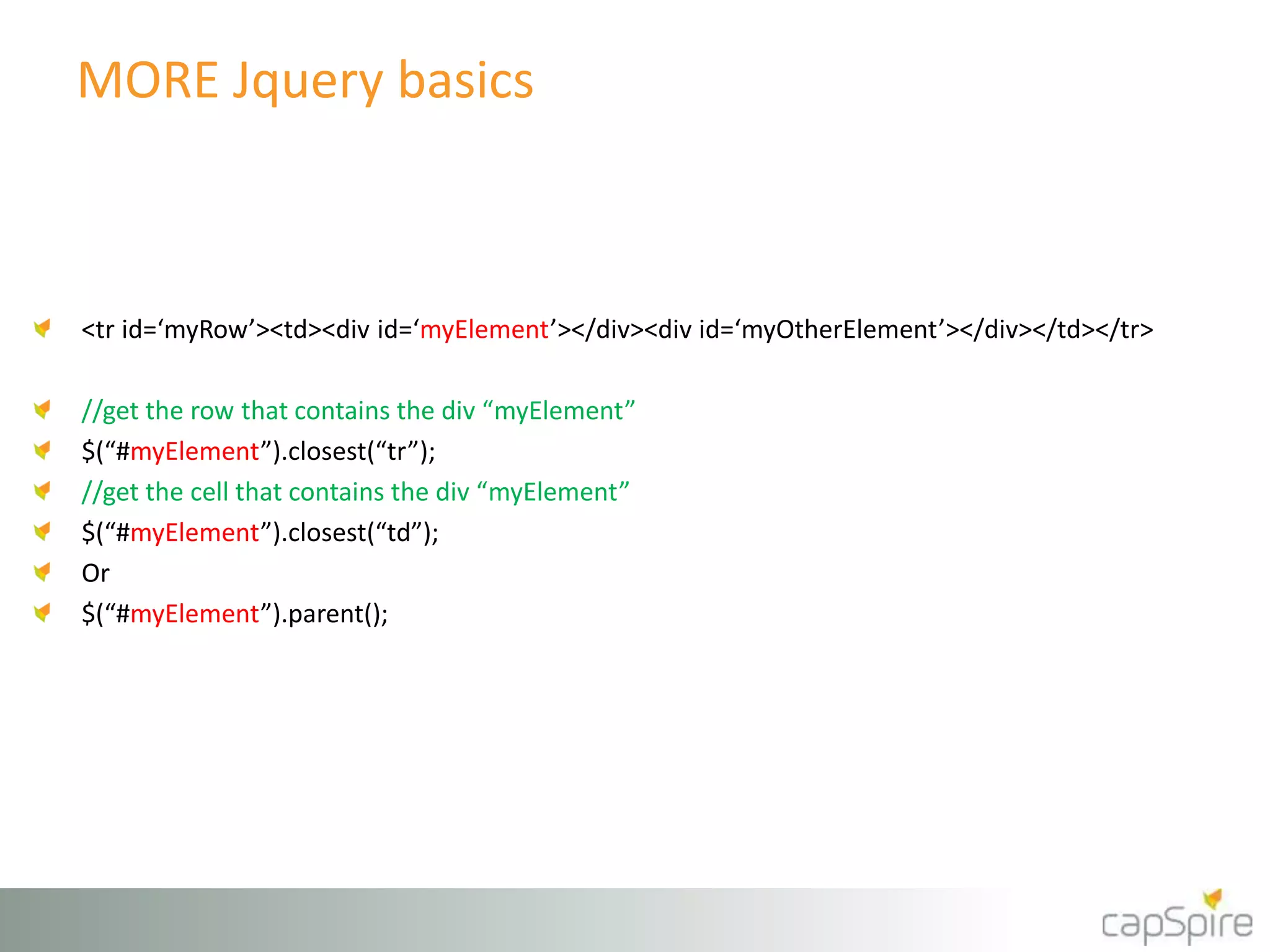
<tr id=‘myRow’><td><div id=‘myElement’></div><div id=‘myOtherElement’></div></td></tr> 
//get the row that contains the div “myElement” 
$(“#myElement”).closest(“tr”); 
//get the cell that contains the div “myElement” 
$(“#myElement”).closest(“td”); 
Or 
$(“#myElement”).parent();
MORE Jquery basics 
<tr id=‘myRow’><td><div id=‘myElement’></div><div id=‘myOtherElement’></div></td></tr> 
//get the div AFTER myElement 
$(“#myElement”).next(“div”); 
Or 
$(“#myElement”).next(); 
//get the div BEFORE myOtherelement 
$(“#myOtherElement”).prev(“div”); 
Or 
$(“#myOtherElement”).prev();
Chaining 
//find the input element that has the “title” attribute equal to “Name” 
//then find it’s parent cell’s previous cell. Then find the “h3” element and replace the HTML 
$("input[title='Name']").closest("td").prev("td").find("h3").html("File Name <font 
color='red'>*</font>"); 
//In English: Find the label for the field “Name” and change it to “File Name” and add a red 
astrisk 
//find the input element that has the “title” attribute equal to “City” 
//then hide the entire row that contains the input 
$(“input[title=‘City’]”).closest(“tr”).hide(); 
//In English: Hide the SharePoint Form Field and label for the field with the Display 
//name “City”
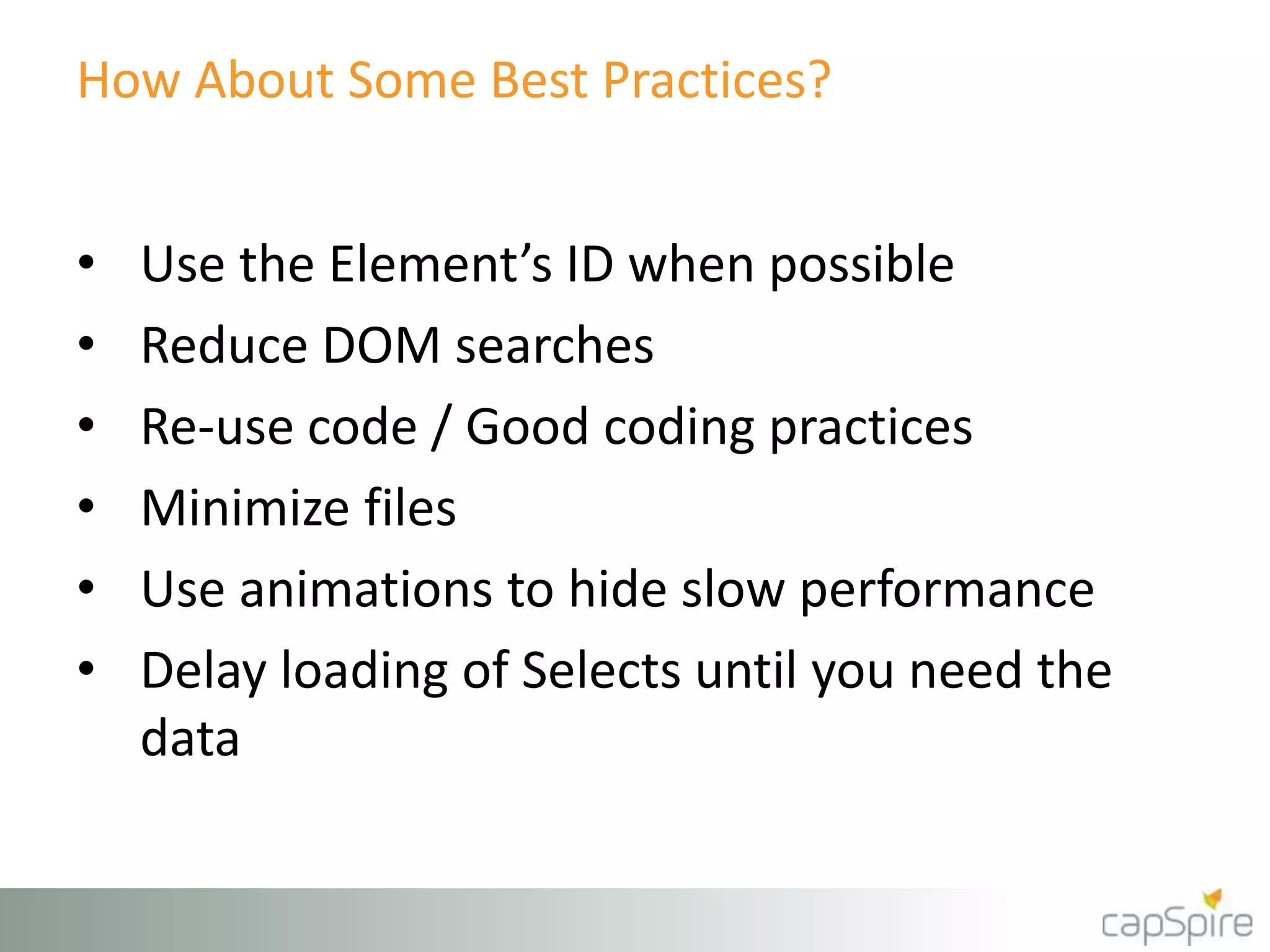
How About Some Best Practices? 
• Use the Element’s ID when possible 
• Reduce DOM searches 
• Re-use code / Good coding practices 
• Minimize files 
• Use animations to hide slow performance 
• Delay loading of Selects until you need the 
data
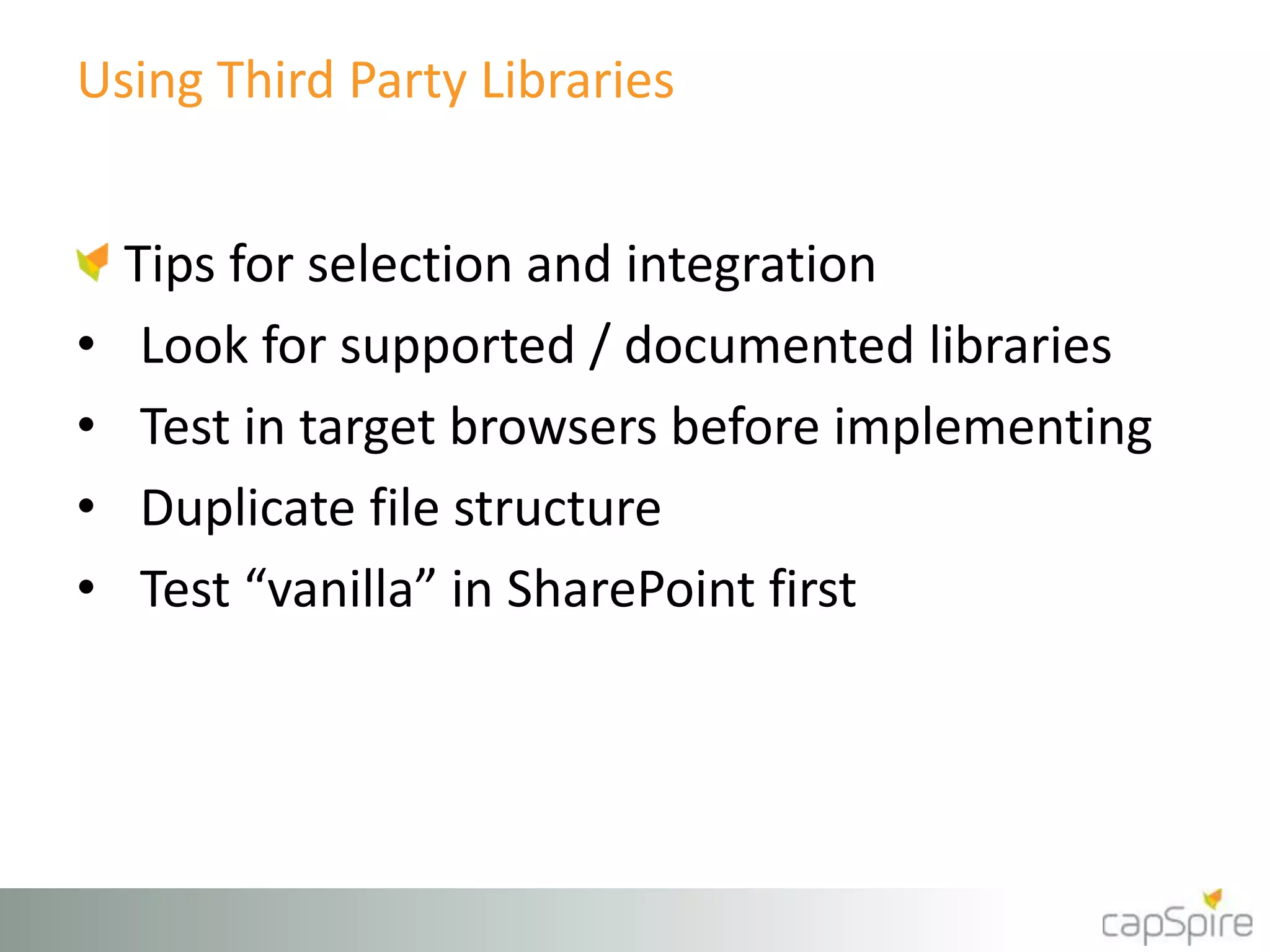
Using Third Party Libraries 
Tips for selection and integration 
• Look for supported / documented libraries 
• Test in target browsers before implementing 
• Duplicate file structure 
• Test “vanilla” in SharePoint first
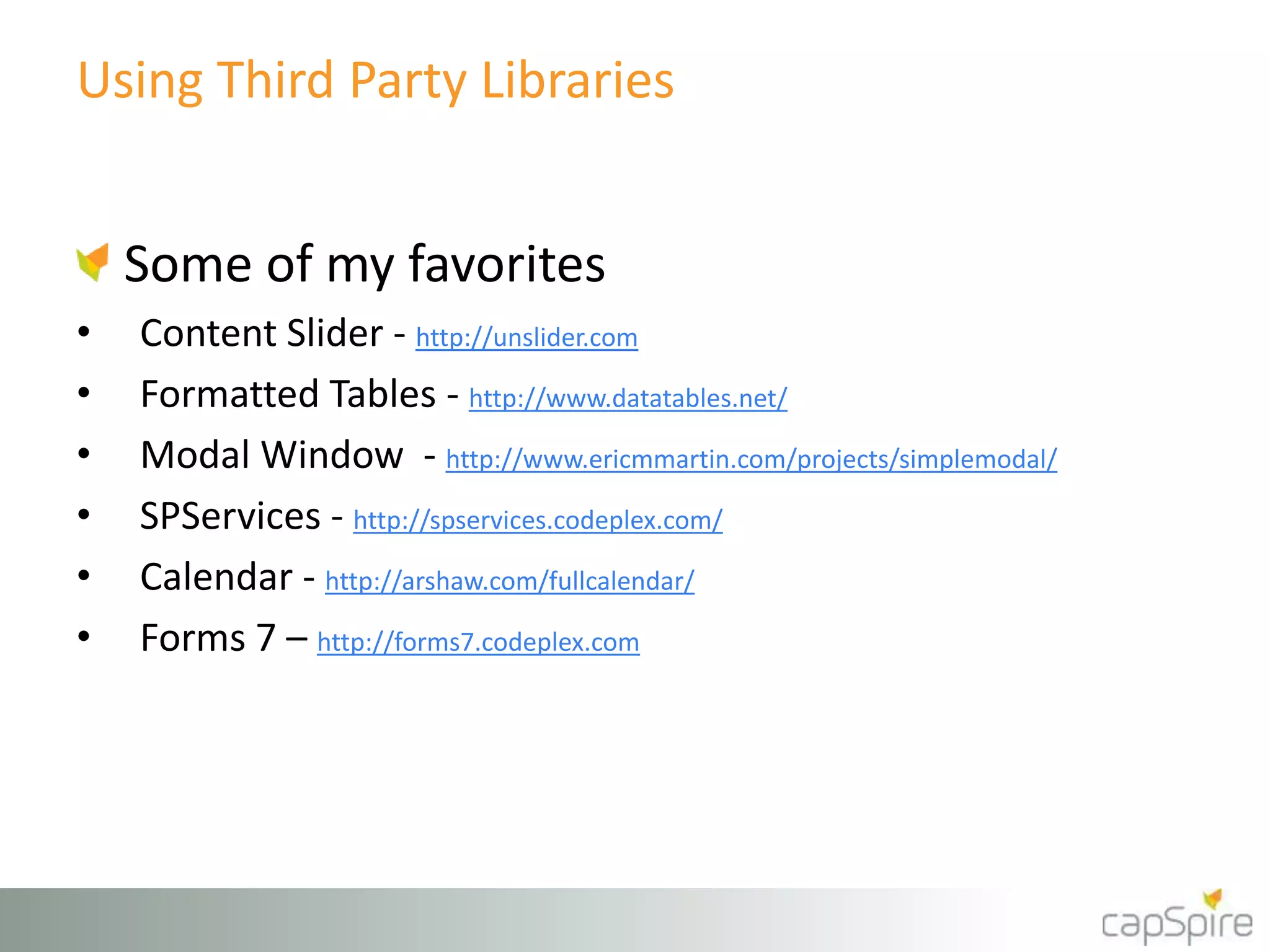
Using Third Party Libraries 
Some of my favorites 
• Content Slider - http://unslider.com 
• Formatted Tables - http://www.datatables.net/ 
• Modal Window - http://www.ericmmartin.com/projects/simplemodal/ 
• SPServices - http://spservices.codeplex.com/ 
• Calendar - http://arshaw.com/fullcalendar/ 
• Forms 7 – http://forms7.codeplex.com
Interacting with SharePoint Forms 
<input 
name="ctl00$m$g_a12c0b73_06fa_4552_a5af_b5d5fce55384$ctl00$ctl05$ctl03$ctl00$ctl00$ctl04$ctl00$ctl00$Tex 
tField" type="text" maxlength="255" 
id="ctl00_m_g_a12c0b73_a12c0b73_06fa_06fa_4552_4552_a5af_a5af_b5d5fce55384_b5d5fce55384_ctl00_ctl00_ctl05_ctl05_ctl03_ctl03_ctl00_ctl00_ctl00_ctl00_ctl04_ctl04_ctl00_ctl00_ctl00_ctl00_TextFie 
TextFi 
ld" title="E-mail Address" class=“ms-long ms-spellcheck-true" /> 
<input 
name="ctl00$m$g_a12c0b73_06fa_4552_a5af_b5d5fce55384$ctl00$ctl05$ctl03$ctl00$ctl00$ctl04$ctl00$ctl00$Tex 
tField" type="text" maxlength="255" 
id="ctl00_m_g_a12c0b73_06fa_4552_a5af_b5d5fce55384_ctl00_ctl05_ctl03_ctl00_ctl00_ctl04_ctl00_ctl00_TextFie 
ld" title="E-mail Address" class=“ms-long ms-spellcheck-true" /> 
eld" title="E-mail Address" class=“ms-long ms-spellcheck-true" />` 
<input 
name="ctl00$m$g_a12c0b73_06fa_4552_a5af_b5d5fce55384$ctl00$ctl05$ctl03$ctl00$ctl00$ctl04$ctl00$ctl00$Tex 
tField" type="text" maxlength="255" 
id="ctl00_m_g_a12c0b73_06fa_4552_a5af_b5d5fce55384_ctl00_ctl05_ctl03_ctl00_ctl00_ctl04_ctl00_ctl00_TextFie 
ld" title="E-mail Address Required Field" class=“ms-long ms-spellcheck-true" /> 
$(“input[title=‘E-mail Address’]”); //returns element 
$(“input[title=‘E-mail Address Required Field’]”); //returns element
September, Twenty Fourteen

SPSNH 2014 - The SharePoint & jQueryGuide

  • 1.
    SharePoint Saturday NewHampshire The SharePoint & jQuery Guide Mark.Rackley@capSpire.com October, Twenty Fourteen
  • 2.
    Was made possibleby the generous support of the following sponsors… And by your participation… Thank you!
  • 3.
    Join us forthe raffle & SharePint following the last session Be sure to fill out your eval form & turn in at the end of the day for a ticket to the BIG raffle!
  • 4.
    Mark Rackley /Principal Consultant • 20 years software architecture and development experience • SharePoint Junkie since 2007 • Event Organizer (SharePointalooza.org) • Blogger, Writer, Speaker • Bacon aficionado @mrackley www.SharePointHillbilly.com www.MarkRackley.net www.SharePointaLooza.org
  • 5.
    Agenda • Whatis jQuery? Why SharePoint & jQuery? • SharePoint and jQuery Basics • Deploying / Maintaining • Development Basics • Third Party Libraries • Examples & Demos The SharePoint & jQuery Guide http://bit.ly/jQueryAndSP
  • 6.
    What is jQuery? • JavaScript Utility Library • jQuery() or $() • Allows interaction and manipulation of the DOM after page is rendered • Can interact with other systems using Web Services • Supported by Microsoft • Part of “Client Side” Development
  • 7.
    Why SharePoint &jQuery? • Fewer upgrade/deployment issues • Rapid deployment and modifications • Less “customization” • Improved visuals • Improved usability
  • 8.
    Why SharePoint &jQuery? • Can replace the need for Visual Studio • Can replace the need for basic workflows • No points (shhhh… don’t tell the admins) • You can get around the ListView Threshold (but should you??)
  • 9.
    jQuery & SharePointBasics • Scripts execute with same privileges as current user • Permissions cannot be elevated • Interact with SharePoint List data using Client Side Object Model (CSOM), REST, or SPServices
  • 10.
    Why I HateJavaScript & jQuery (some days) • Too many options var car = { color: “red”, make: “Jeep”, model: “wrangler” } var car = {}; car.color = “red”; car.make = “Jeep”; car.model=“wranger”; var car = {}; car[“color”] = “red”; car[“make”] = “Jeep”; car[“model”] =“wranger”;
  • 11.
    Why I HateJavaScript & jQuery (some days) • Too many options • Debugging is painful • Performance can suffer • Inconsistent results on different browsers • Constant changes in the jQuery library • It CAN harm your farm!
  • 12.
    When Should YouUse jQuery? • Tightly controlled environments • Visuals or Usability are high priorities • Tight timeframes • Simple page and form modifications  Dynamic drop downs  Hiding page elements  Reading / populating fields • Why would you NOT use jQuery?
  • 13.
    When Should YouQuestion the Use of jQuery? • Need pull a lot of data over the wire to work with • Iterating over many rows of list data • Extended business logic or proprietary business logic • Privileges need to be elevated • Need to support many different browsers
  • 14.
    Deployment Options •Document Library <script type="text/javascript" src="/SiteAssets/jquery.min.js"></script> • File System <script type="text/javascript" src="/_layouts/scripts/jquery.min.js"></script> • Content Delivery Network (CDN) <script type="text/javascript" src="//ajax.googleapis.com/ajax/libs/jquery/1.8.3/jquery.min.js"></script>
  • 15.
  • 16.
    Reference Options •ScriptLink <SharePoint:ScriptLink runat="server" Name="/SiteAssets/jquery.min.js" Localizable="false"></SharePoint:ScriptLink> • Content Editor Web Part • Use the Content Link • Custom Action • Feature, Deploys to Site Collection
  • 17.
    Custom Action <?xmlversion="1.0" encoding="utf-8"?> <Elements xmlns="http://schemas.microsoft.com/sharepoint/"> <CustomAction ScriptSrc="~sitecollection/SiteAssets/jquery.min.js" Location="ScriptLink" Sequence="100" > </CustomAction> </Elements>
  • 18.
    A Word (ortwo) About MDS Minimal Download Strategy (MDS) • New in SharePoint 2013 / enabled by default • Reduces page load time by sending only the differences when users navigate to a new page. • https://sp_site/_layouts/15/start.aspx#/SitePages/newpage.aspx • Can cause scripts referenced in Custom Actions and CEWPs to not be loaded • Disable feature at site level if MDS is causing issues. Rework scripts based on recommendations in order to use MDS.
  • 19.
    Development & Debugging • Development • Visual Studio  Web Essentials • SharePoint Designer • Notepad++ • Debugging • IE Developer Tools / Firebug • Fiddler • Alerts… alerts… alerts… • Avoid Console.log • Write scripts in small manageable chunks
  • 20.
    jQuery Methods CommonlyUsed in SharePoint
  • 21.
    jQuery Basics <scripttype="text/javascript"> $(document).ready(function($){ //this script executes after the page is loaded //if you need to interact with the DOM put script here }) //Script placed here would execute before the page is finished loading. </script>
  • 22.
    jQuery Basics <divid=“myID” attribute=“myAttribute” class=“myClass” ><b>Hello World</b></div>
  • 23.
    jQuery Basics <divid=“myID” attribute=“myAttribute” class=“myClass” ><b>Hello World</b></div> //Retrieve the element by ID: $(“#myID”);
  • 24.
    jQuery Basics <divid=“myID” attribute=“myAttribute” class=“myClass” ><b>Hello World</b></div> //Retrieve the element by attribute: $(“div[attribute=‘myAttribute’]”);
  • 25.
    jQuery Basics <divid=“myID” attribute=“myAttribute” class=“myClass” ><b>Hello World</b></div> //Retrieve every div on the page $(“div”).each(function() { //”this” is the current element in each loop $(this).method(); }); //Hide all divs on the page $(“div”).hide();
  • 26.
    jQuery Basics <divid=“myID” attribute=“myAttribute” class=“myClass” ><b>Hello World</b></div> //Retrieve every div of a specific class $(“div.myClass”).each(function() { //”this” is the current element in each loop $(this).method(); }); //Hide all divs of a specific class on the page $(“div.myClass”).hide(); //Hide all elements of a specific class on the page $(“.myClass”).hide();
  • 27.
    jQuery Basics <divid=“myID” attribute=“myAttribute” class=“myClass” ><b>Hello World</b></div> //Retrieve the div that contains content “World” $(“div:contains(‘World’)”).each(function() { //”this” is the current element in each loop $(this).method(); });
  • 28.
    jQuery Basics <divid=“myID” attribute=“myAttribute” class=“myClass” ><b>Hello World</b></div> //Retrieve the formatted HTML for an element $(“#myID”).html(); //returns <b>Hello World</b> //Set the formatted HTML for an element $(“#myID”).html(“<b>Hello Nurse</b>”); //Retrieve the text with HTML formatting stripped out $(“#myID”).text(); //returns Hello World //Set the unformatted text of an element $(“#myID”).text(“Hello Nurse”);
  • 29.
    MORE Jquery basics //get input / select values $(“#id”).val(); //set input / select values $(“#id”).val(“value”); //uncheck a check box $(“#id").removeAttr('checked'); //check a check box $(“#id").attr('checked','checked'); //is a check box checked? if ($(“#id”).is(':checked'))
  • 30.
    MORE Jquery basics <tr id=‘myRow’><td><div id=‘myElement’></div><div id=‘myOtherElement’></div></td></tr>
  • 31.
    MORE Jquery basics <tr id=‘myRow’><td><div id=‘myElement’></div><div id=‘myOtherElement’></div></td></tr> //get the row that contains the div “myElement” $(“#myElement”).closest(“tr”); //get the cell that contains the div “myElement” $(“#myElement”).closest(“td”); Or $(“#myElement”).parent();
  • 32.
    MORE Jquery basics <tr id=‘myRow’><td><div id=‘myElement’></div><div id=‘myOtherElement’></div></td></tr> //get the div AFTER myElement $(“#myElement”).next(“div”); Or $(“#myElement”).next(); //get the div BEFORE myOtherelement $(“#myOtherElement”).prev(“div”); Or $(“#myOtherElement”).prev();
  • 33.
    Chaining //find theinput element that has the “title” attribute equal to “Name” //then find it’s parent cell’s previous cell. Then find the “h3” element and replace the HTML $("input[title='Name']").closest("td").prev("td").find("h3").html("File Name <font color='red'>*</font>"); //In English: Find the label for the field “Name” and change it to “File Name” and add a red astrisk //find the input element that has the “title” attribute equal to “City” //then hide the entire row that contains the input $(“input[title=‘City’]”).closest(“tr”).hide(); //In English: Hide the SharePoint Form Field and label for the field with the Display //name “City”
  • 34.
    How About SomeBest Practices? • Use the Element’s ID when possible • Reduce DOM searches • Re-use code / Good coding practices • Minimize files • Use animations to hide slow performance • Delay loading of Selects until you need the data
  • 35.
    Using Third PartyLibraries Tips for selection and integration • Look for supported / documented libraries • Test in target browsers before implementing • Duplicate file structure • Test “vanilla” in SharePoint first
  • 36.
    Using Third PartyLibraries Some of my favorites • Content Slider - http://unslider.com • Formatted Tables - http://www.datatables.net/ • Modal Window - http://www.ericmmartin.com/projects/simplemodal/ • SPServices - http://spservices.codeplex.com/ • Calendar - http://arshaw.com/fullcalendar/ • Forms 7 – http://forms7.codeplex.com
  • 37.
    Interacting with SharePointForms <input name="ctl00$m$g_a12c0b73_06fa_4552_a5af_b5d5fce55384$ctl00$ctl05$ctl03$ctl00$ctl00$ctl04$ctl00$ctl00$Tex tField" type="text" maxlength="255" id="ctl00_m_g_a12c0b73_a12c0b73_06fa_06fa_4552_4552_a5af_a5af_b5d5fce55384_b5d5fce55384_ctl00_ctl00_ctl05_ctl05_ctl03_ctl03_ctl00_ctl00_ctl00_ctl00_ctl04_ctl04_ctl00_ctl00_ctl00_ctl00_TextFie TextFi ld" title="E-mail Address" class=“ms-long ms-spellcheck-true" /> <input name="ctl00$m$g_a12c0b73_06fa_4552_a5af_b5d5fce55384$ctl00$ctl05$ctl03$ctl00$ctl00$ctl04$ctl00$ctl00$Tex tField" type="text" maxlength="255" id="ctl00_m_g_a12c0b73_06fa_4552_a5af_b5d5fce55384_ctl00_ctl05_ctl03_ctl00_ctl00_ctl04_ctl00_ctl00_TextFie ld" title="E-mail Address" class=“ms-long ms-spellcheck-true" /> eld" title="E-mail Address" class=“ms-long ms-spellcheck-true" />` <input name="ctl00$m$g_a12c0b73_06fa_4552_a5af_b5d5fce55384$ctl00$ctl05$ctl03$ctl00$ctl00$ctl04$ctl00$ctl00$Tex tField" type="text" maxlength="255" id="ctl00_m_g_a12c0b73_06fa_4552_a5af_b5d5fce55384_ctl00_ctl05_ctl03_ctl00_ctl00_ctl04_ctl00_ctl00_TextFie ld" title="E-mail Address Required Field" class=“ms-long ms-spellcheck-true" /> $(“input[title=‘E-mail Address’]”); //returns element $(“input[title=‘E-mail Address Required Field’]”); //returns element
  • 38.