Leveraging Microsoft’s eDiscovery Platform in Your Organization
SharePoint Saturday Twin Cities – October 24
Donald Donais
Avtex Sr. SharePoint Consultant
ddonais@avtex.com
Blog – Tales from IT Side
http://talesfromitside.wordpress.com
Twitter
@dondonais
Agenda
• What is eDiscovery?
• Options for Microsoft eDiscovery
• eDiscovery Components
• Planning for eDiscovery
• Configuring On-Premises eDiscovery
• Configuring Office 365 eDiscovery
• Working with eDiscovery Case Sites and Search
What is eDiscovery?
Definition of eDiscovery
What Does eDiscovery Mean for Your
Organization?
eDiscovery Defined
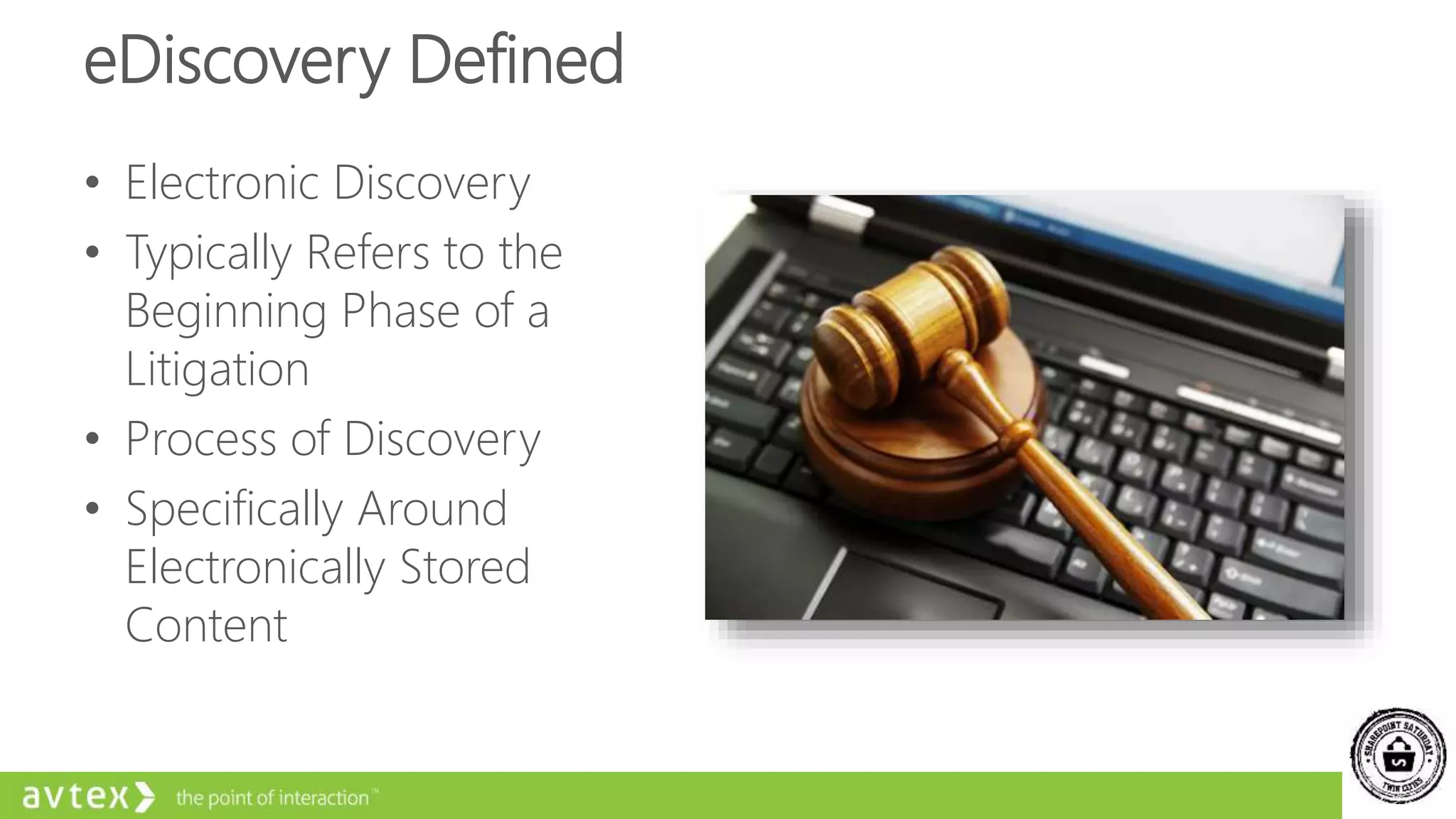
• Electronic Discovery
• Typically Refers to the
Beginning Phase of a
Litigation
• Process of Discovery
• Specifically Around
Electronically Stored
Content
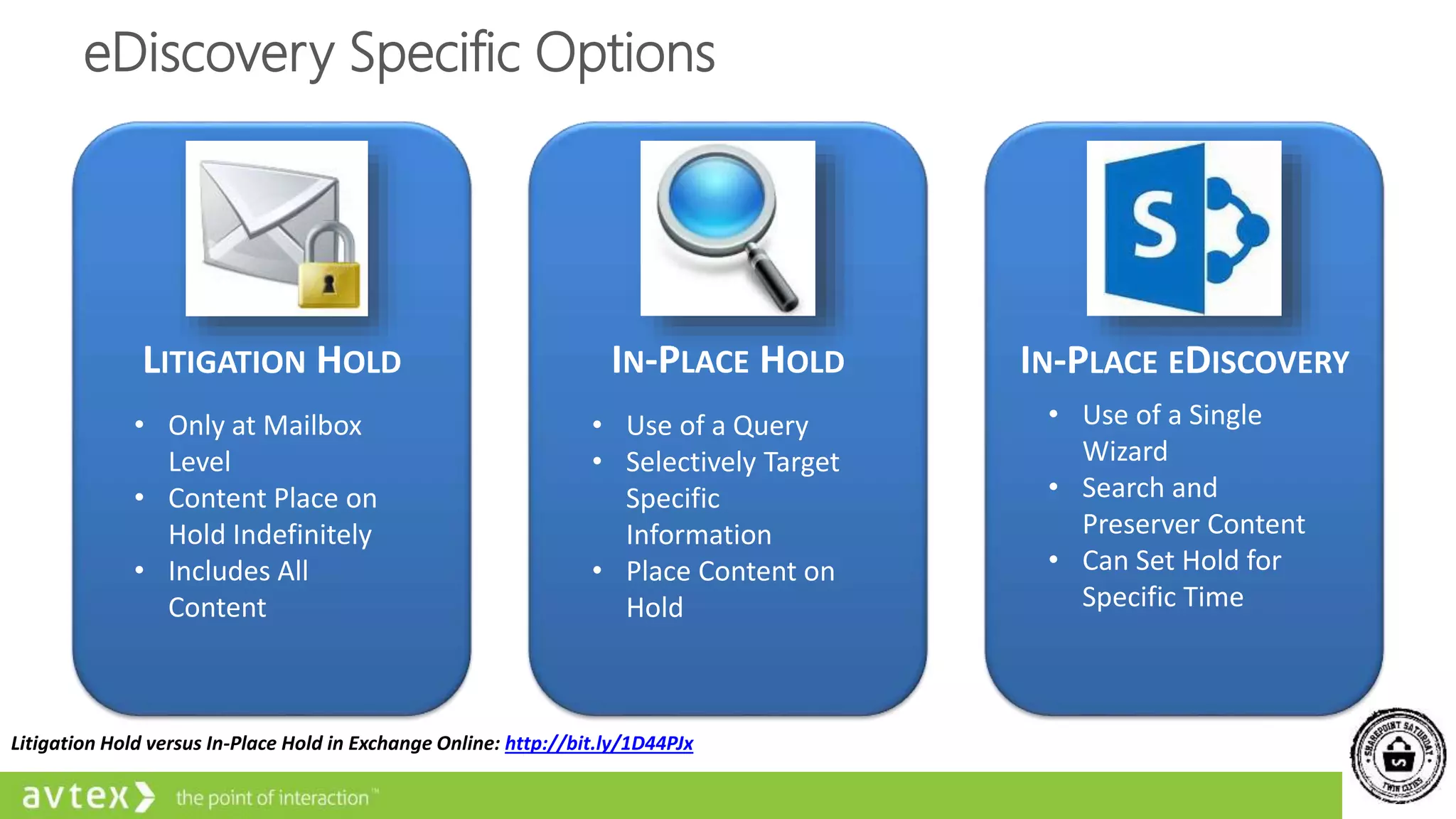
eDiscovery Specific Options
LITIGATION HOLD
• Only at Mailbox
Level
• Content Place on
Hold Indefinitely
• Includes All
Content
IN-PLACE HOLD
• Use of a Query
• Selectively Target
Specific
Information
• Place Content on
Hold
IN-PLACE EDISCOVERY
• Use of a Single
Wizard
• Search and
Preserver Content
• Can Set Hold for
Specific Time
Litigation Hold versus In-Place Hold in Exchange Online: http://bit.ly/1D44PJx
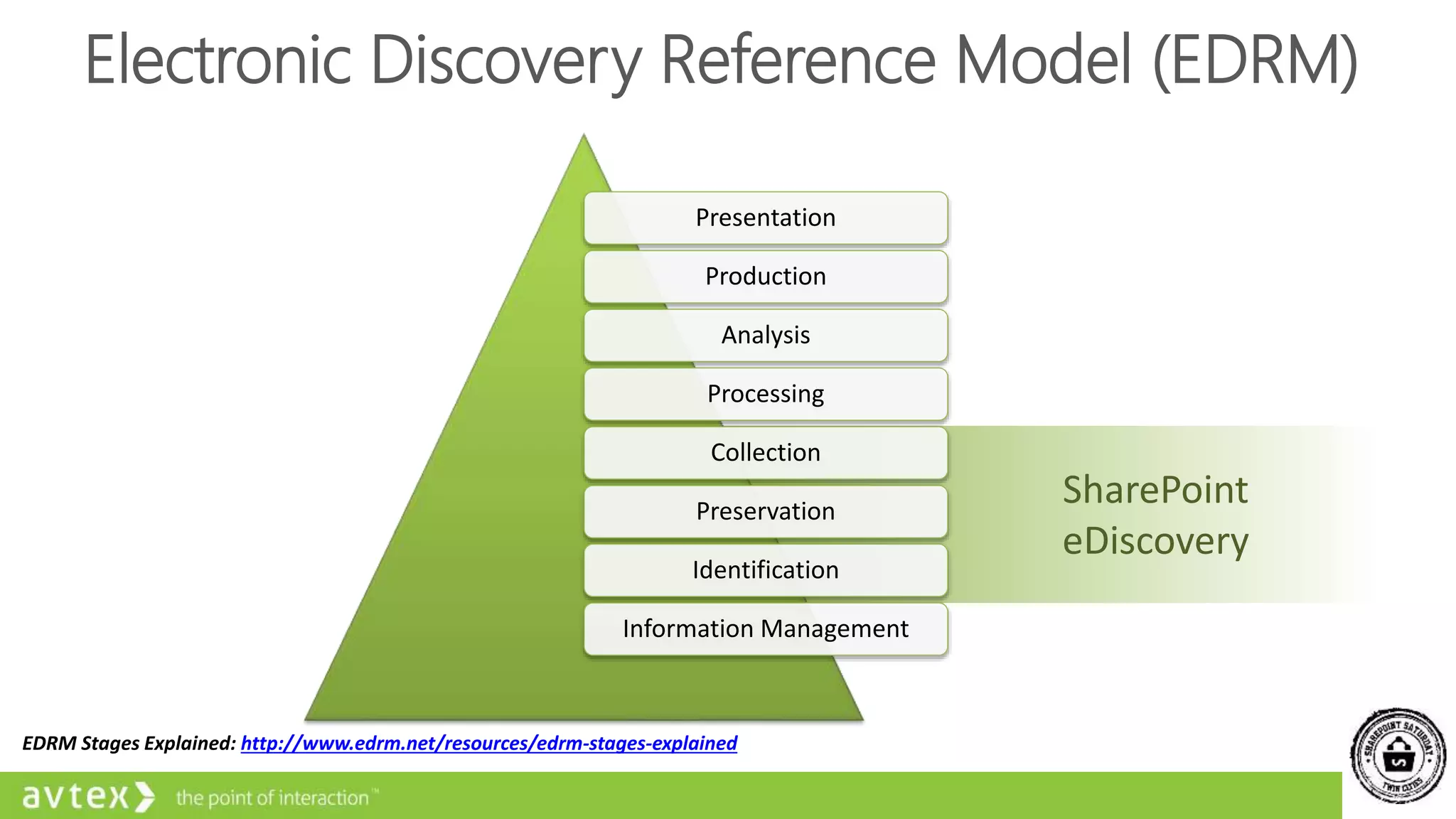
SharePoint
eDiscovery
Electronic Discovery Reference Model (EDRM)
Presentation
Production
Analysis
Processing
Collection
Preservation
Identification
Information Management
EDRM Stages Explained: http://www.edrm.net/resources/edrm-stages-explained
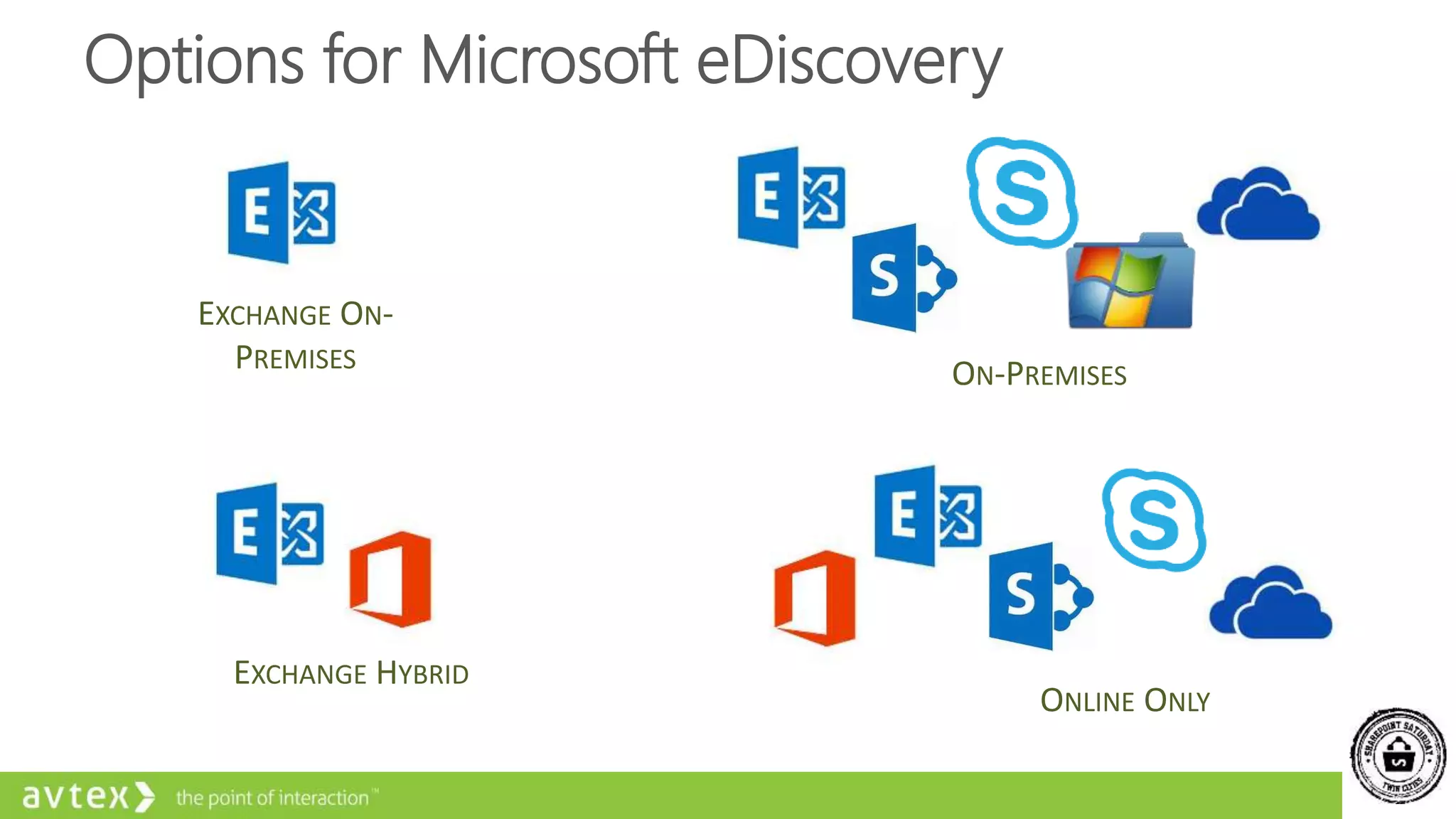
Options for Microsoft eDiscovery
EXCHANGE ON-
PREMISES
ON-PREMISES
EXCHANGE HYBRID
ONLINE ONLY
Types of Discoverable Content
• Exchange Messages, Calendar Items, and Tasks
 Needs to be Indexed by Exchange
• Lync/Skype for Business Conversations Archived in Exchange
 Online Only
• Lync/Skype for Business
 Direct Connection to SharePoint
• SharePoint - Documents, Newsfeed Posts, and List Content
 Does
• OneDrive for Business - Indexed by SharePoint
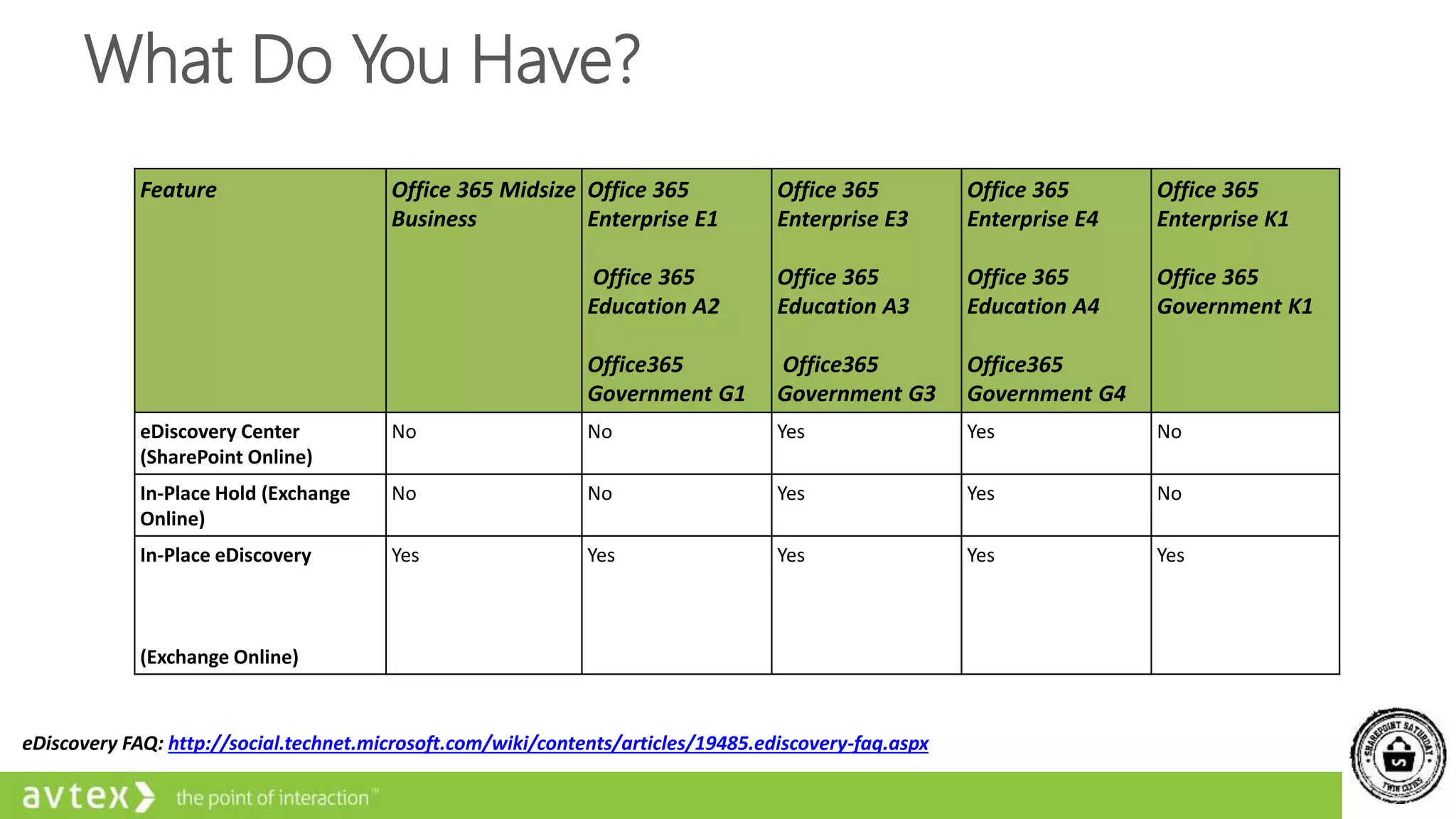
What Do You Have?
Feature Office 365 Midsize
Business
Office 365
Enterprise E1
Office 365
Education A2
Office365
Government G1
Office 365
Enterprise E3
Office 365
Education A3
Office365
Government G3
Office 365
Enterprise E4
Office 365
Education A4
Office365
Government G4
Office 365
Enterprise K1
Office 365
Government K1
eDiscovery Center
(SharePoint Online)
No No Yes Yes No
In-Place Hold (Exchange
Online)
No No Yes Yes No
In-Place eDiscovery
(Exchange Online)
Yes Yes Yes Yes Yes
eDiscovery FAQ: http://social.technet.microsoft.com/wiki/contents/articles/19485.ediscovery-faq.aspx
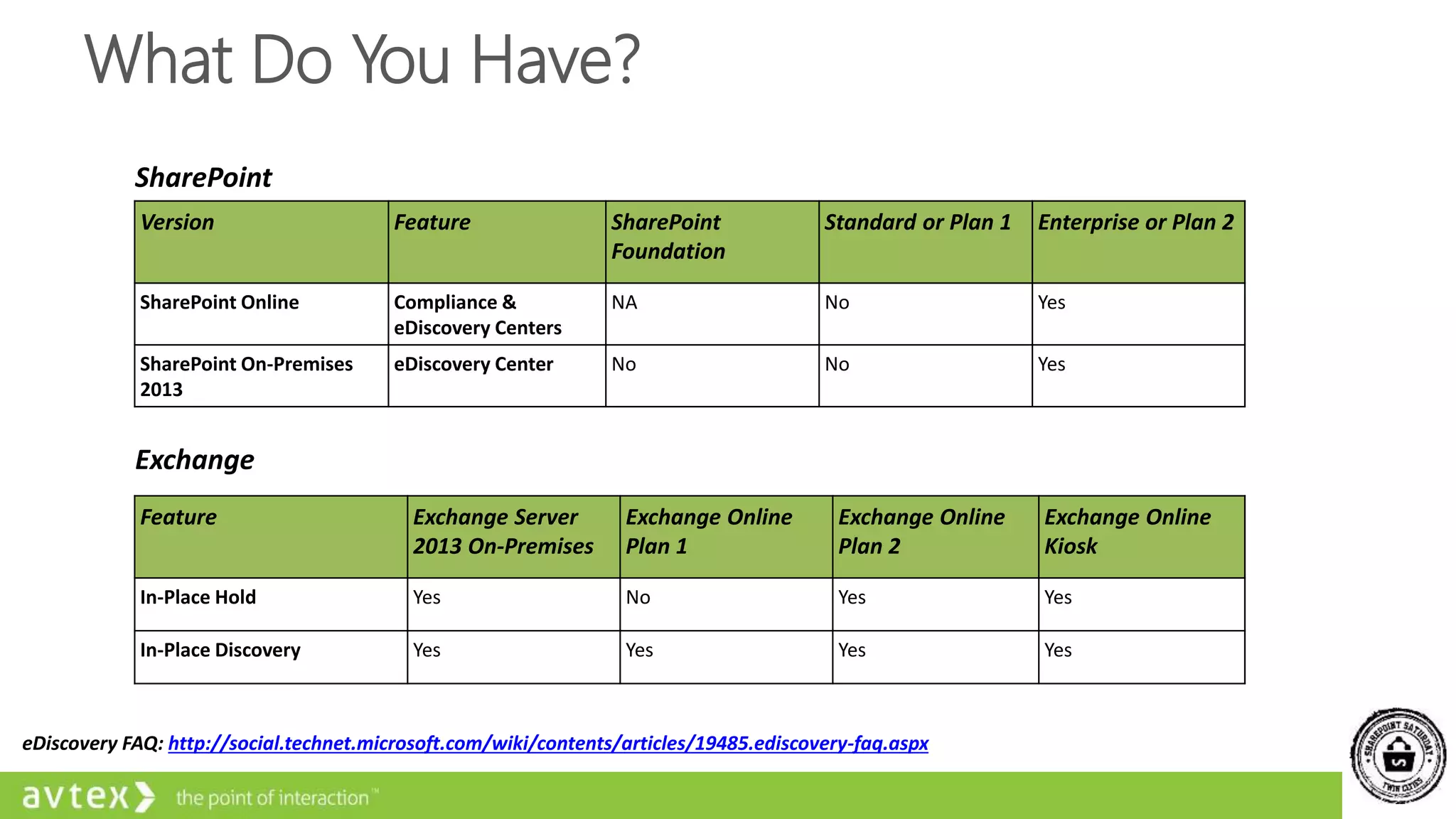
What Do You Have?
Version Feature SharePoint
Foundation
Standard or Plan 1 Enterprise or Plan 2
SharePoint Online Compliance &
eDiscovery Centers
NA No Yes
SharePoint On-Premises
2013
eDiscovery Center No No Yes
Feature Exchange Server
2013 On-Premises
Exchange Online
Plan 1
Exchange Online
Plan 2
Exchange Online
Kiosk
In-Place Hold Yes No Yes Yes
In-Place Discovery Yes Yes Yes Yes
SharePoint
Exchange
eDiscovery FAQ: http://social.technet.microsoft.com/wiki/contents/articles/19485.ediscovery-faq.aspx
eDiscovery Components
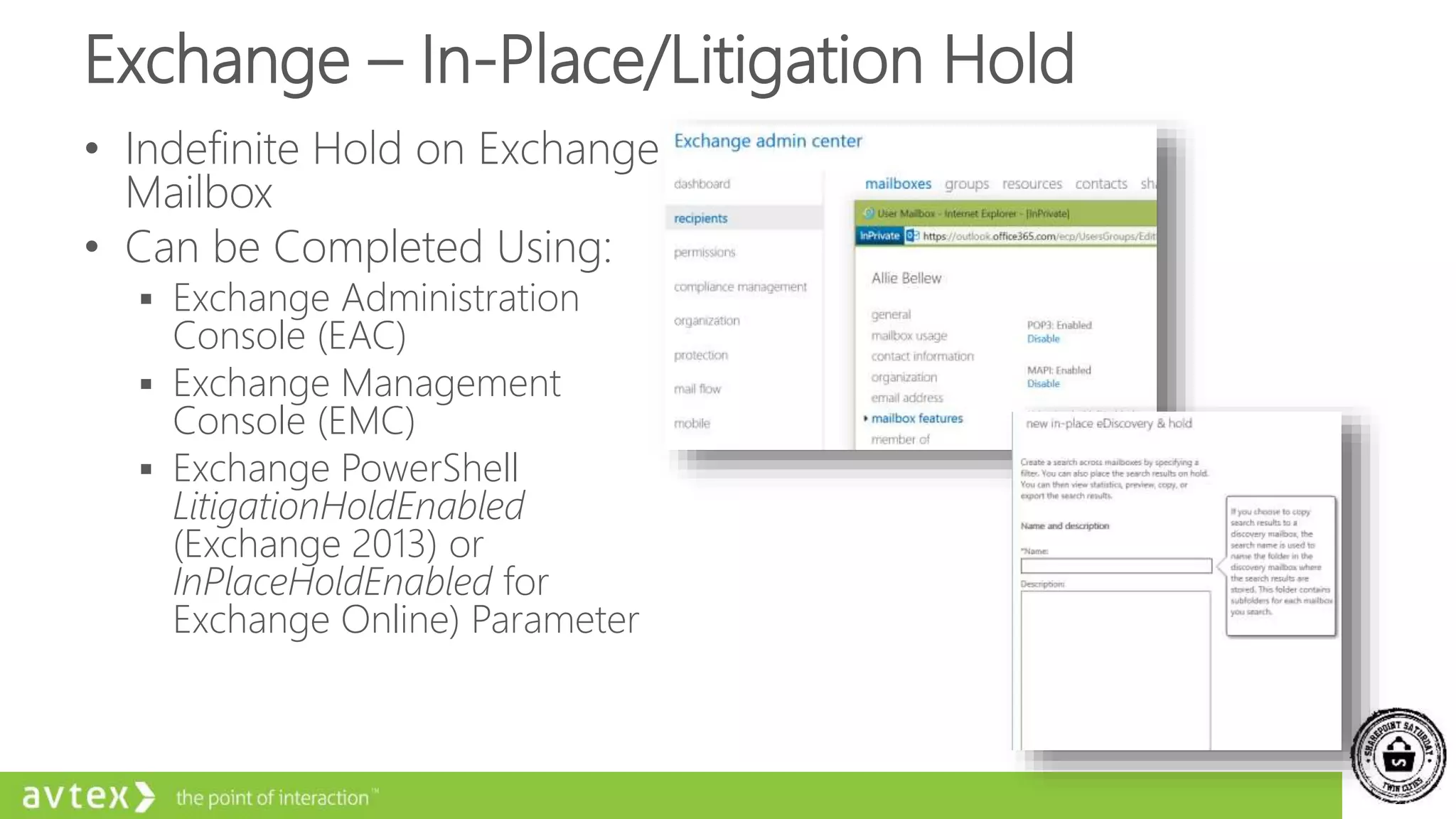
Exchange – In-Place/Litigation Hold
• Indefinite Hold on Exchange
Mailbox
• Can be Completed Using:
 Exchange Administration
Console (EAC)
 Exchange Management
Console (EMC)
 Exchange PowerShell
LitigationHoldEnabled
(Exchange 2013) or
InPlaceHoldEnabled for
Exchange Online) Parameter
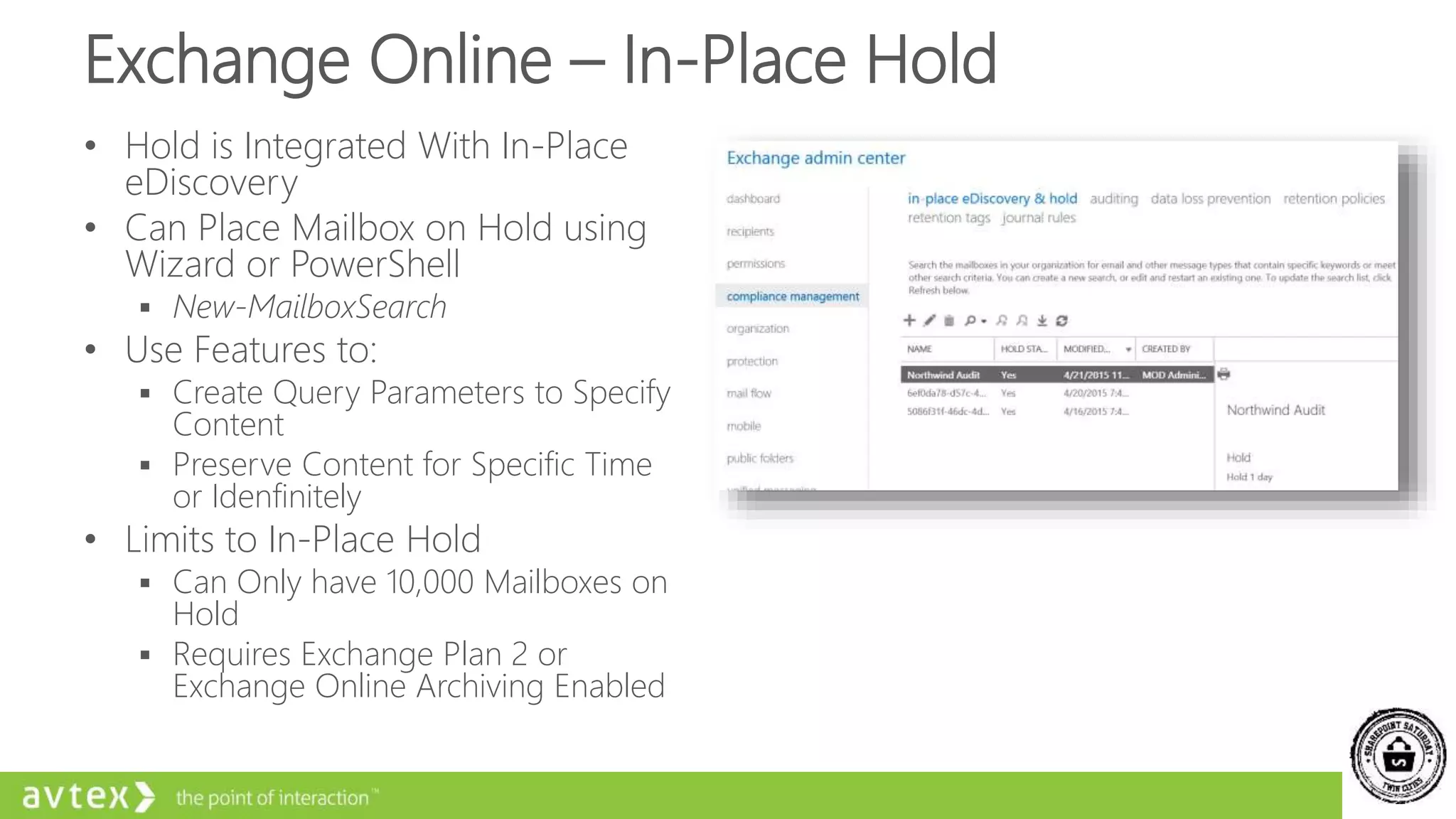
Exchange Online – In-Place Hold
• Hold is Integrated With In-Place
eDiscovery
• Can Place Mailbox on Hold using
Wizard or PowerShell
 New-MailboxSearch
• Use Features to:
 Create Query Parameters to Specify
Content
 Preserve Content for Specific Time
or Idenfinitely
• Limits to In-Place Hold
 Can Only have 10,000 Mailboxes on
Hold
 Requires Exchange Plan 2 or
Exchange Online Archiving Enabled
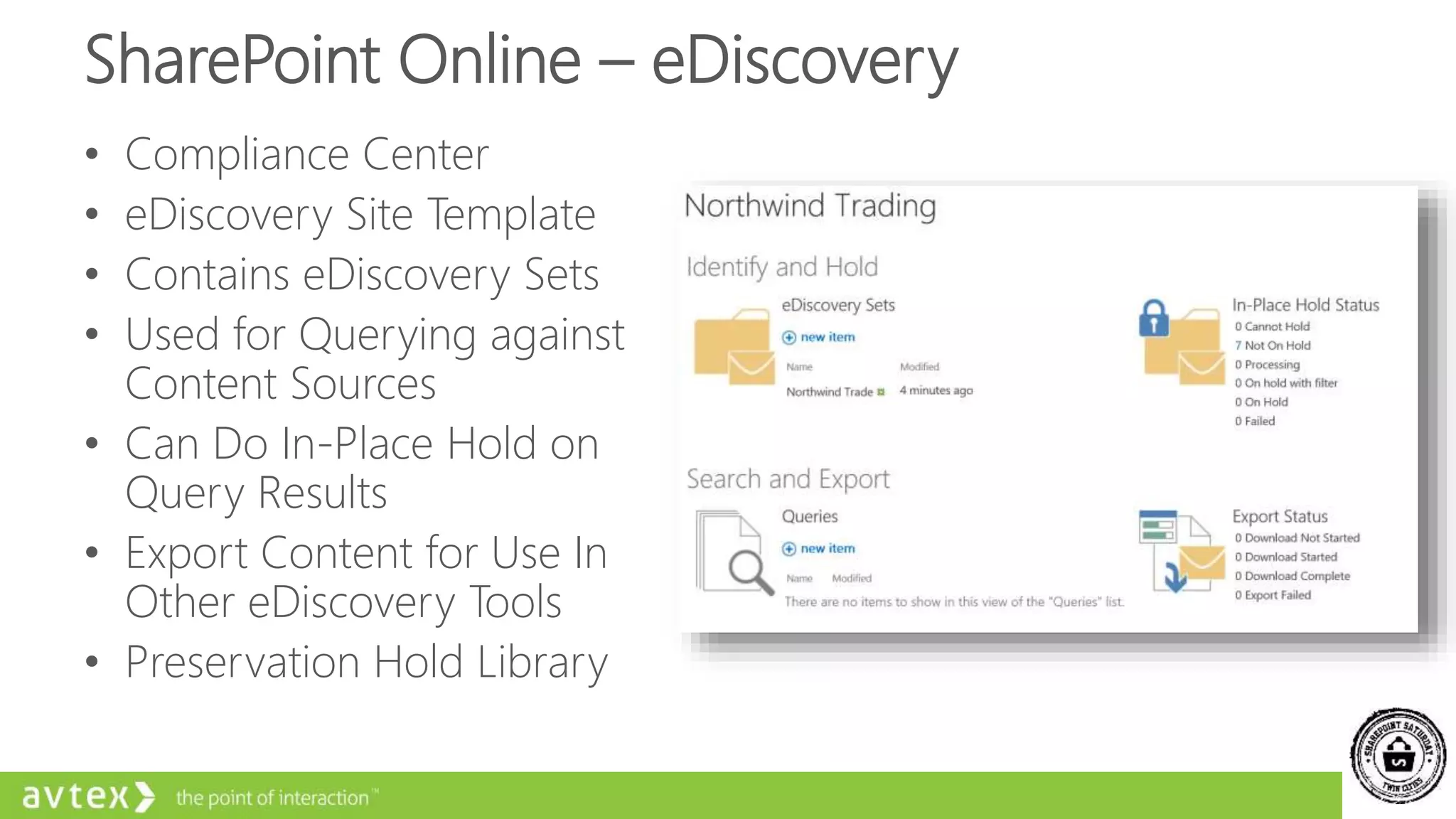
SharePoint Online – eDiscovery
• Compliance Center
• eDiscovery Site Template
• Contains eDiscovery Sets
• Used for Querying against
Content Sources
• Can Do In-Place Hold on
Query Results
• Export Content for Use In
Other eDiscovery Tools
• Preservation Hold Library
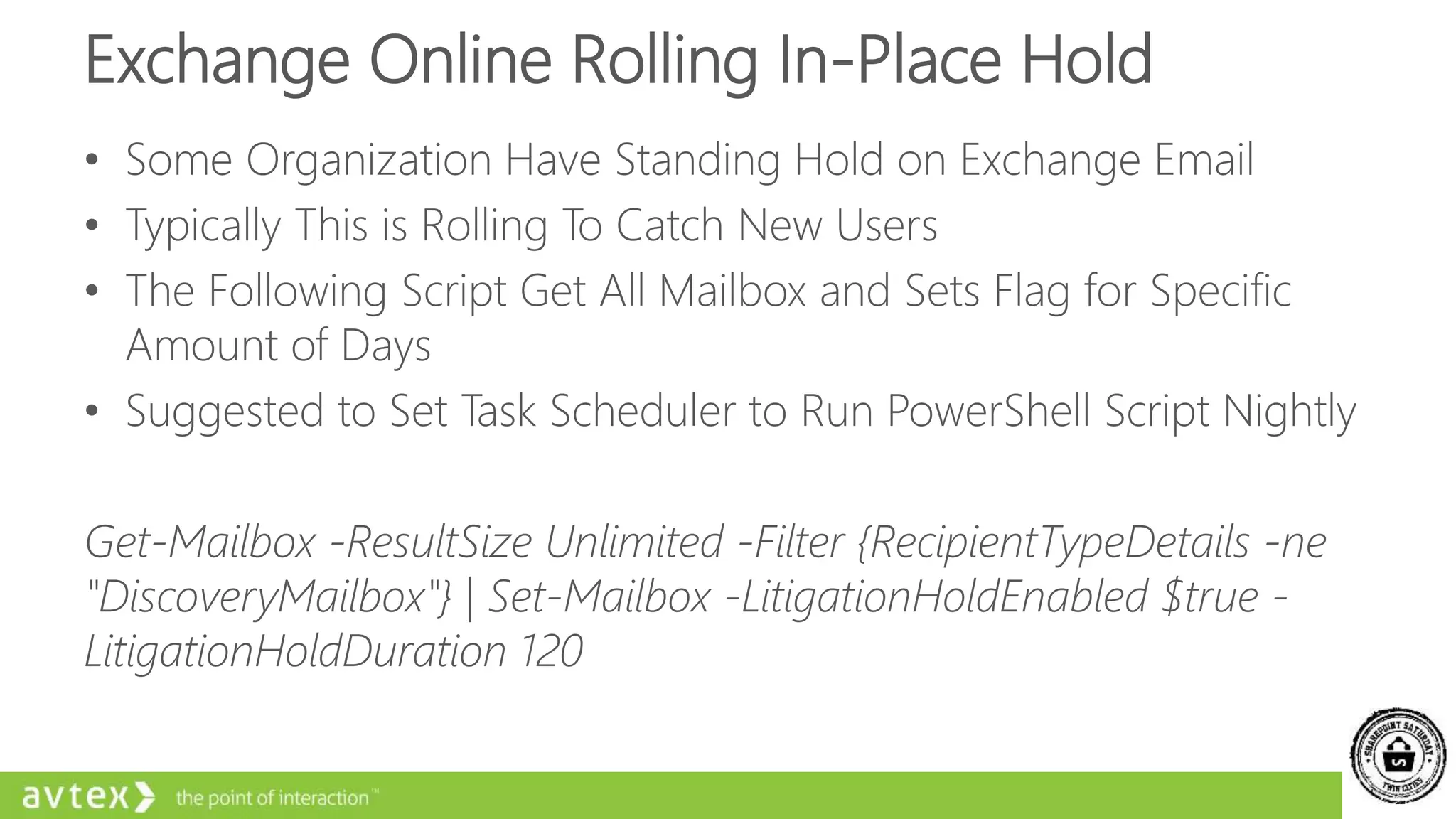
Exchange Online Rolling In-Place Hold
• Some Organization Have Standing Hold on Exchange Email
• Typically This is Rolling To Catch New Users
• The Following Script Get All Mailbox and Sets Flag for Specific
Amount of Days
• Suggested to Set Task Scheduler to Run PowerShell Script Nightly
Get-Mailbox -ResultSize Unlimited -Filter {RecipientTypeDetails -ne
"DiscoveryMailbox"} | Set-Mailbox -LitigationHoldEnabled $true -
LitigationHoldDuration 120
Planning for eDiscovery
eDiscovery Architecture
• Can Only Have 1 eDiscovery Site per Search Service
Application or Tenant
• eDiscovery Site Collection
• What if Multiple Purposes?
 Human Resources – Employee Off Boarding or Legal – Litigations
 Create New Top Level Site for Each Group
• eDiscovery Site is Team Site
 Enable Publishing Features for Navigation
• Case Site Naming Convention
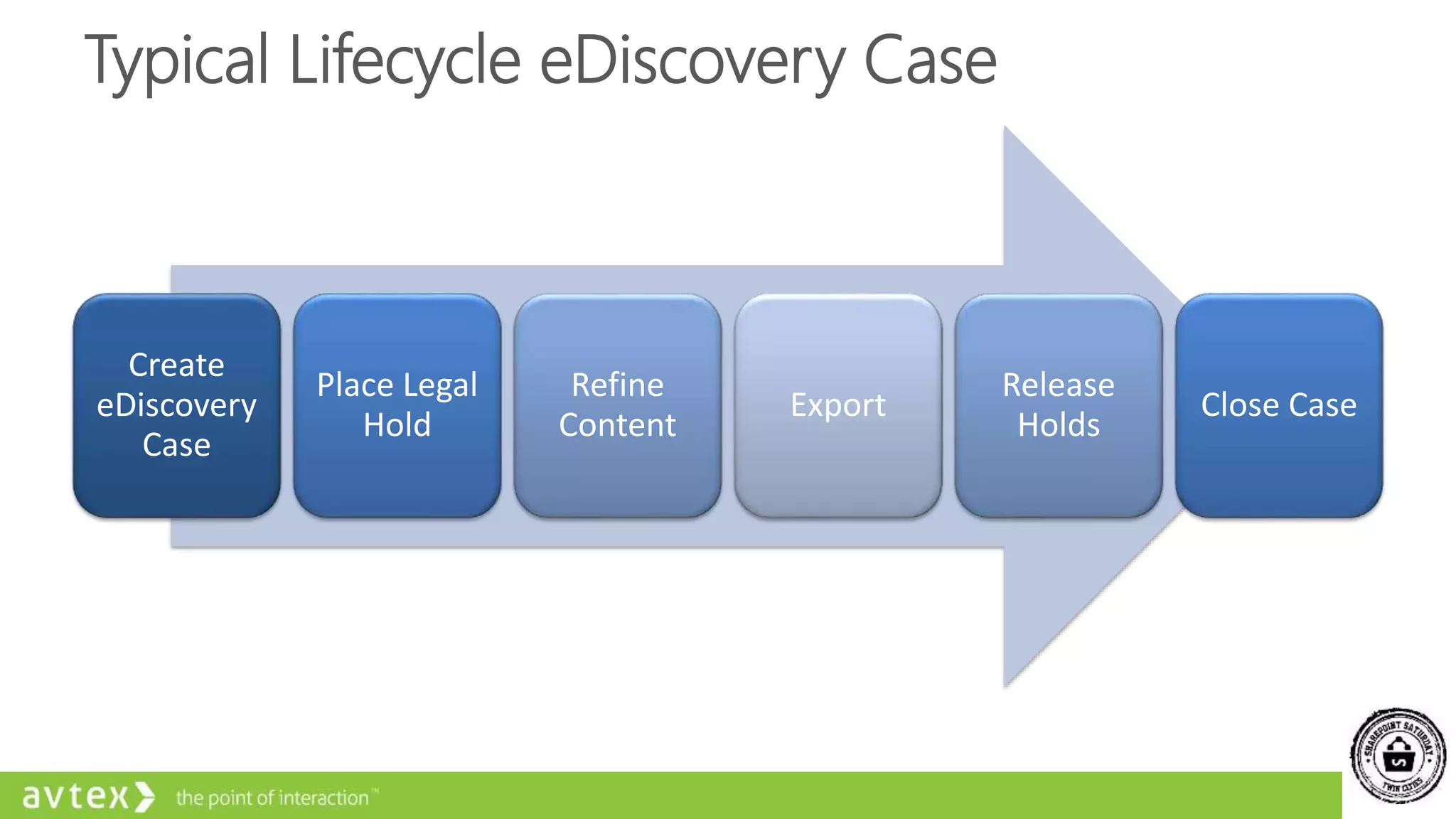
Typical Lifecycle eDiscovery Case
Create
eDiscovery
Case
Place Legal
Hold
Refine
Content
Export
Release
Holds
Close Case
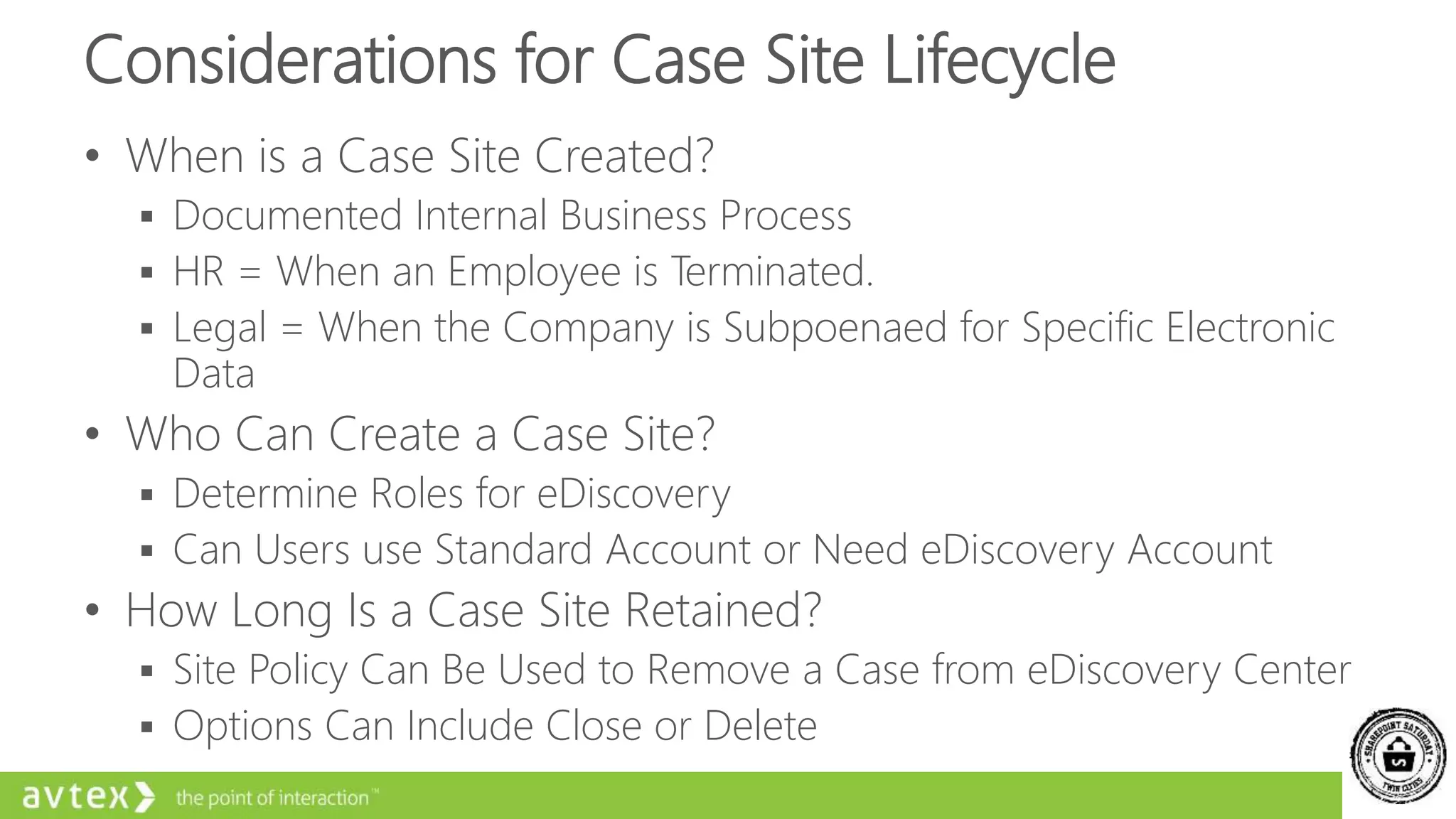
Considerations for Case Site Lifecycle
• When is a Case Site Created?
 Documented Internal Business Process
 HR = When an Employee is Terminated.
 Legal = When the Company is Subpoenaed for Specific Electronic
Data
• Who Can Create a Case Site?
 Determine Roles for eDiscovery
 Can Users use Standard Account or Need eDiscovery Account
• How Long Is a Case Site Retained?
 Site Policy Can Be Used to Remove a Case from eDiscovery Center
 Options Can Include Close or Delete
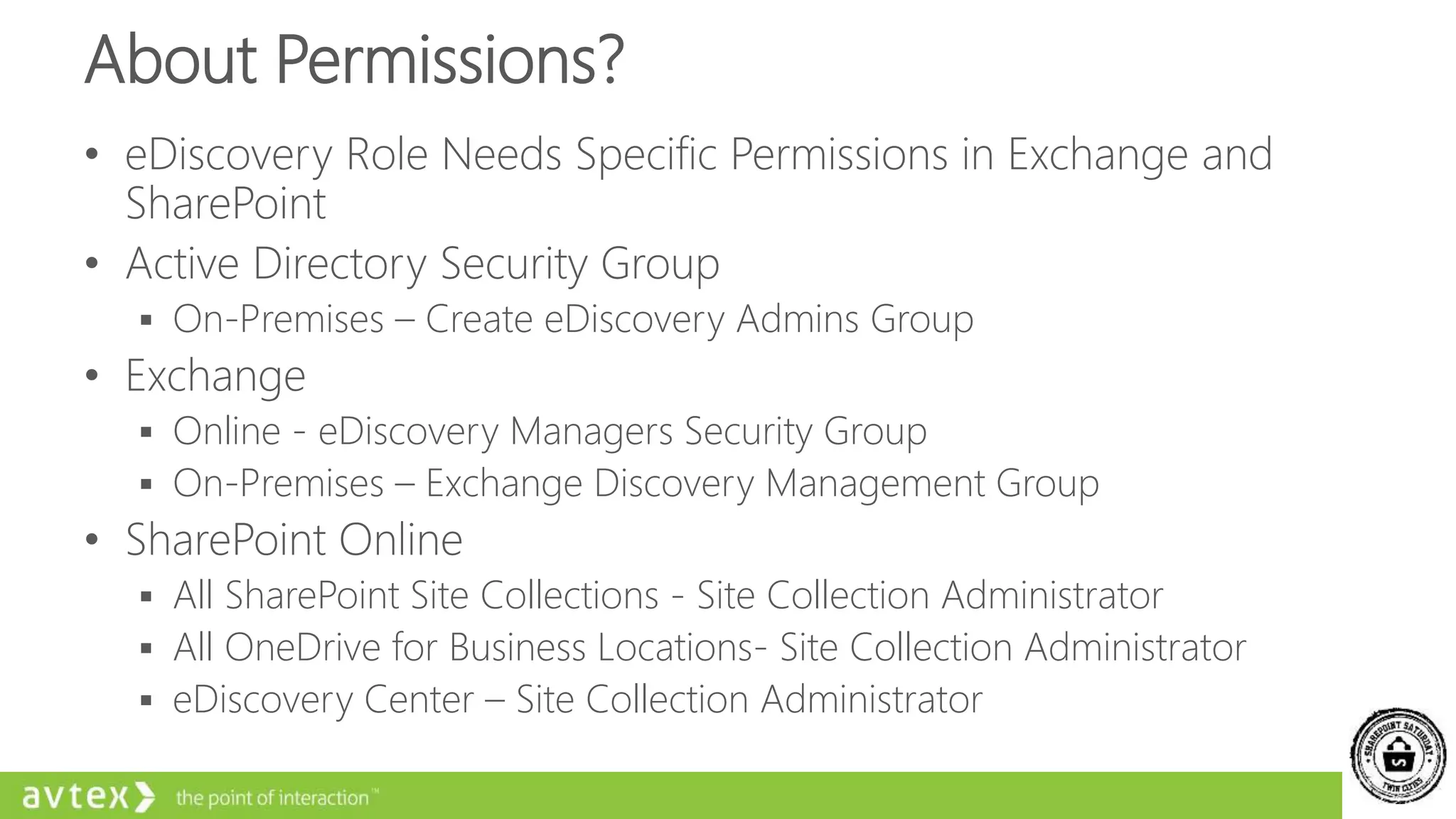
About Permissions?
• eDiscovery Role Needs Specific Permissions in Exchange and
SharePoint
• Active Directory Security Group
 On-Premises – Create eDiscovery Admins Group
• Exchange
 Online - eDiscovery Managers Security Group
 On-Premises – Exchange Discovery Management Group
• SharePoint Online
 All SharePoint Site Collections - Site Collection Administrator
 All OneDrive for Business Locations- Site Collection Administrator
 eDiscovery Center – Site Collection Administrator
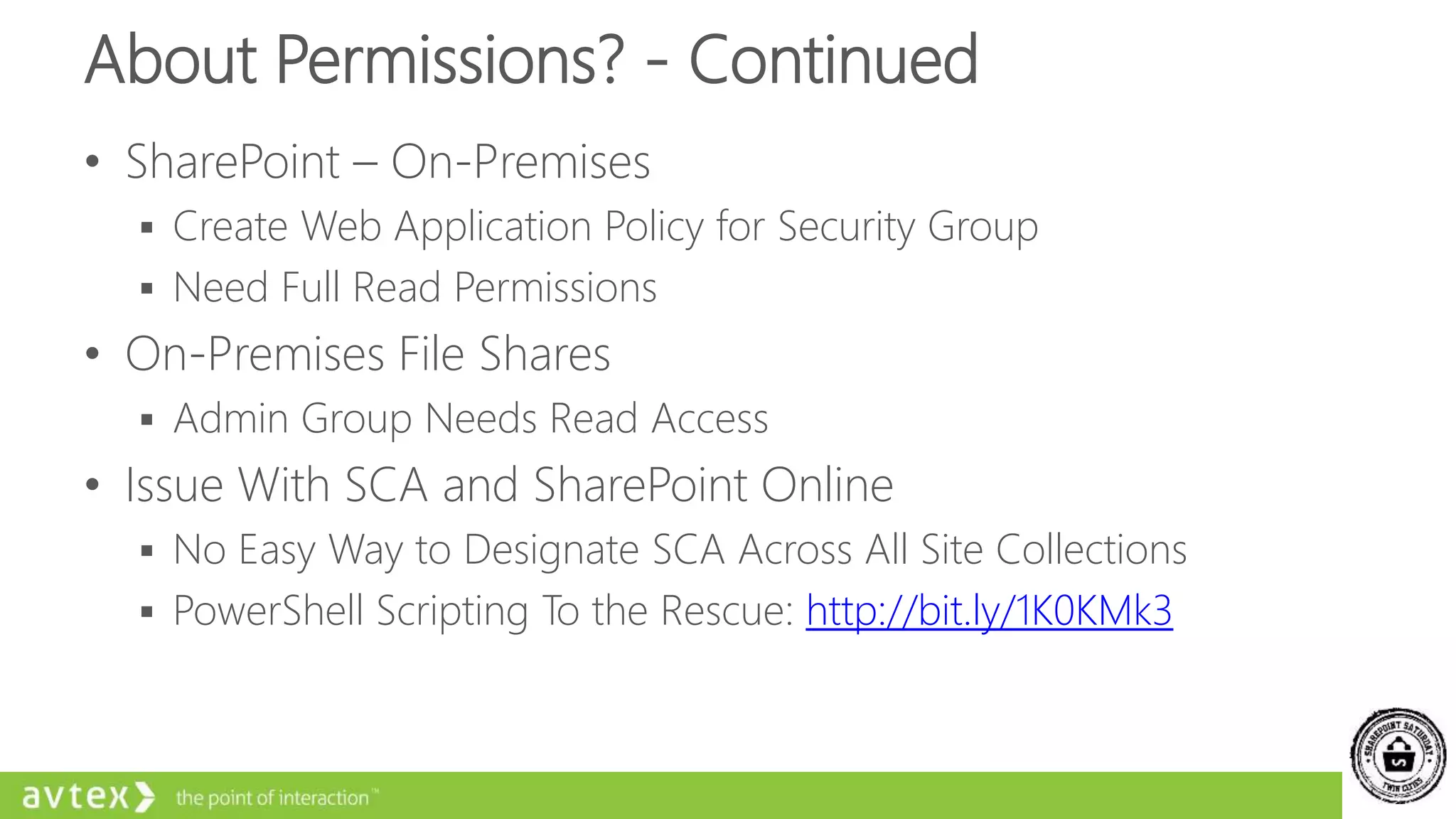
About Permissions? - Continued
• SharePoint – On-Premises
 Create Web Application Policy for Security Group
 Need Full Read Permissions
• On-Premises File Shares
 Admin Group Needs Read Access
• Issue With SCA and SharePoint Online
 No Easy Way to Designate SCA Across All Site Collections
 PowerShell Scripting To the Rescue: http://bit.ly/1K0KMk3
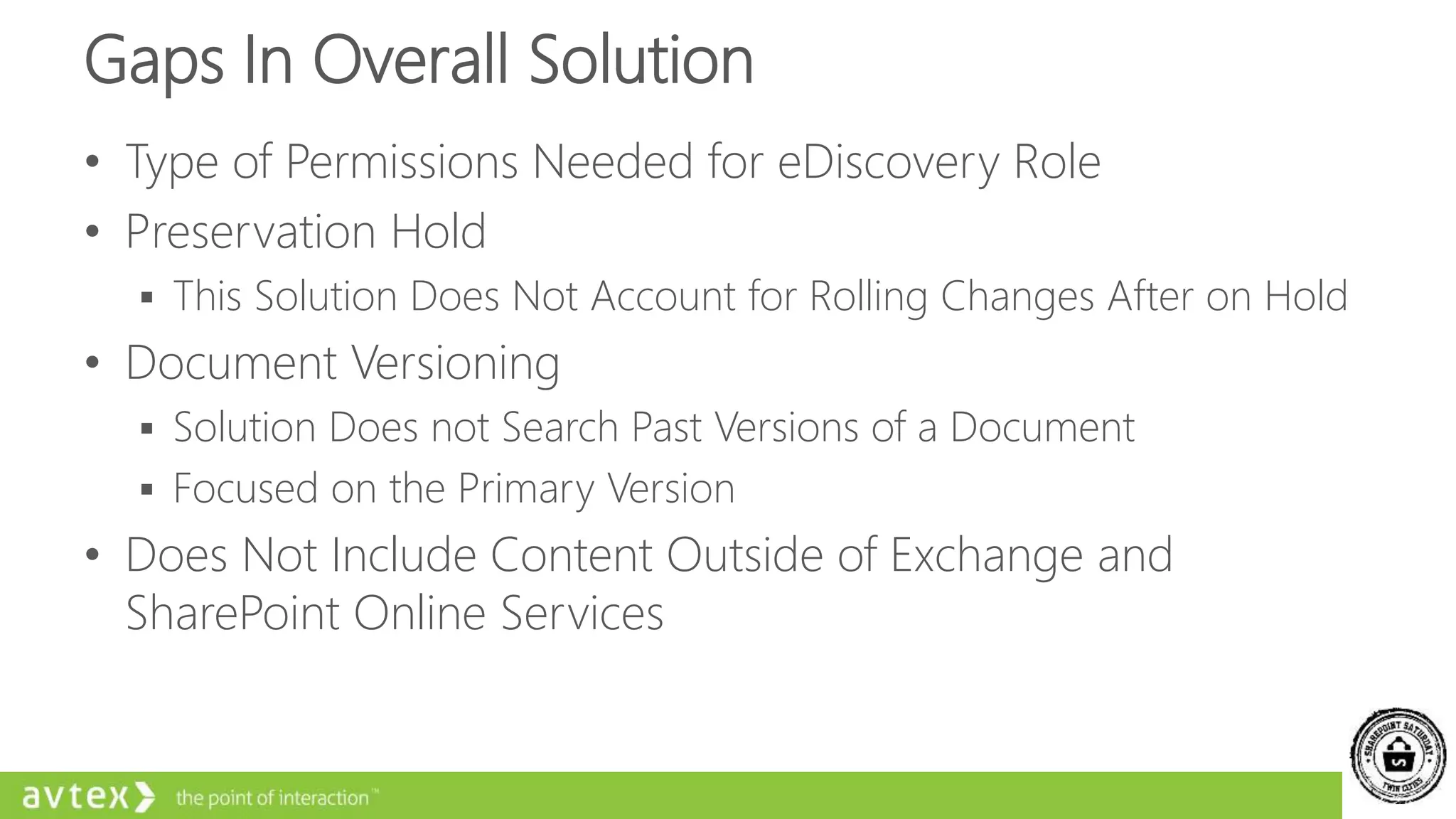
Gaps In Overall Solution
• Type of Permissions Needed for eDiscovery Role
• Preservation Hold
 This Solution Does Not Account for Rolling Changes After on Hold
• Document Versioning
 Solution Does not Search Past Versions of a Document
 Focused on the Primary Version
• Does Not Include Content Outside of Exchange and
SharePoint Online Services
Configuring On-Premises eDiscovery
Configuration of SharePoint, Exchange, and Lync
2013
• Install Exchange Web Server managed API on SharePoint
WFE
• Create a Trust Relationship from SharePoint to Exchange
 SharePoint PowerShell: New-SPTrustedSecurityTokenIssuer
 Exchange Script: Configure-EnterprisePartnerApplication.ps1
 TechNet Article: https://technet.microsoft.com/en-
us/library/jj655399.aspx
Configuration of SharePoint, Exchange, and Lync
2013
• Configure Search to Crawl Content
 Setup SharePoint 2013 to Crawl Exchange 2013 Content
• Setup New Result Sources > Exchange Protocol > Exchange Auto Discover
URL
• Lync 2013 or Skype for Business
 Relies on Archiving Being Deployed to Exchange
 TechNet Article: https://technet.microsoft.com/en-
us/library/jj205147(v=ocs.15).aspx
Create SharePoint eDiscovery Site Collection
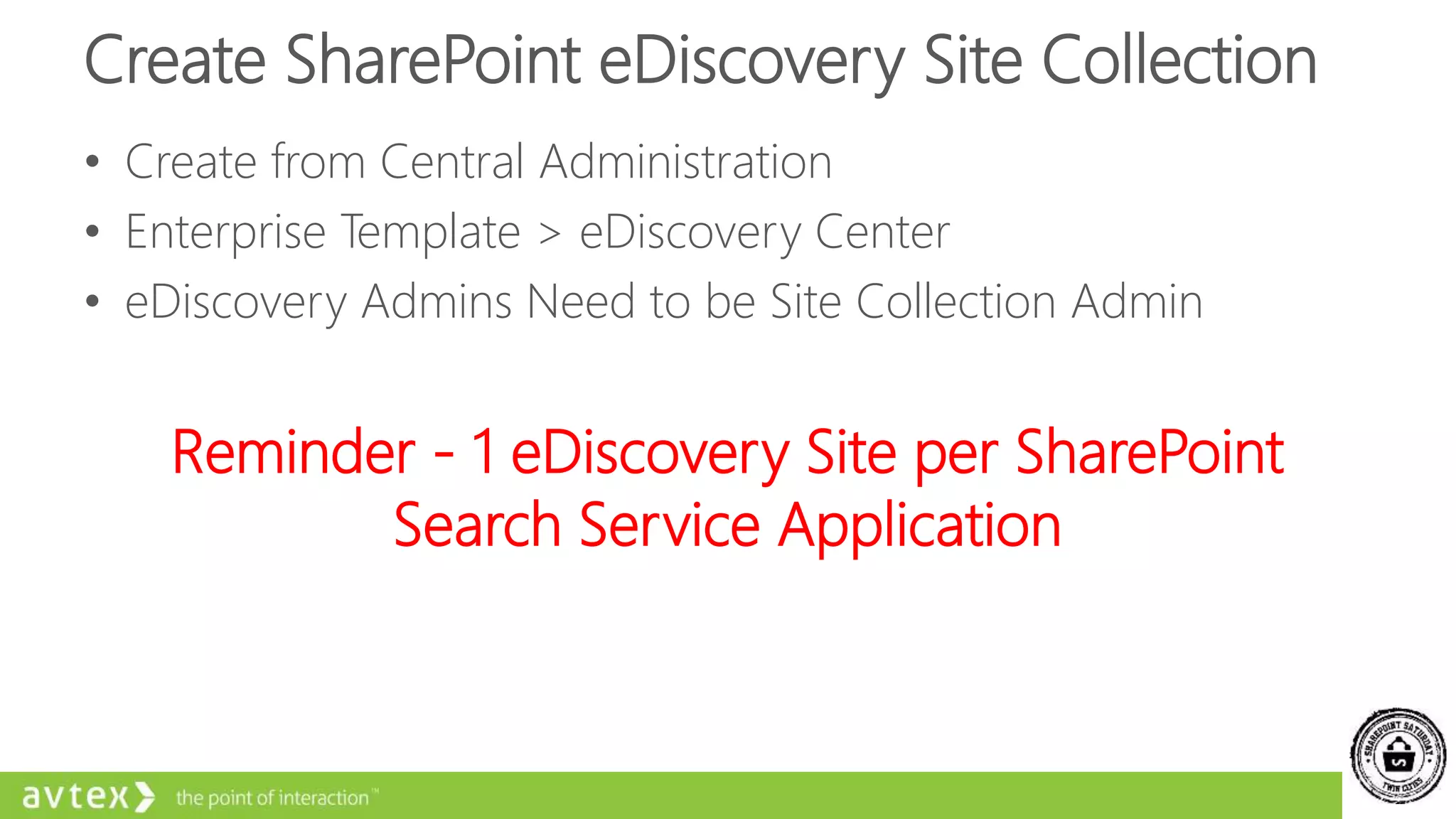
• Create from Central Administration
• Enterprise Template > eDiscovery Center
• eDiscovery Admins Need to be Site Collection Admin
Reminder - 1 eDiscovery Site per SharePoint
Search Service Application
Configuring Office 365 eDiscovery
Let’s Get Started
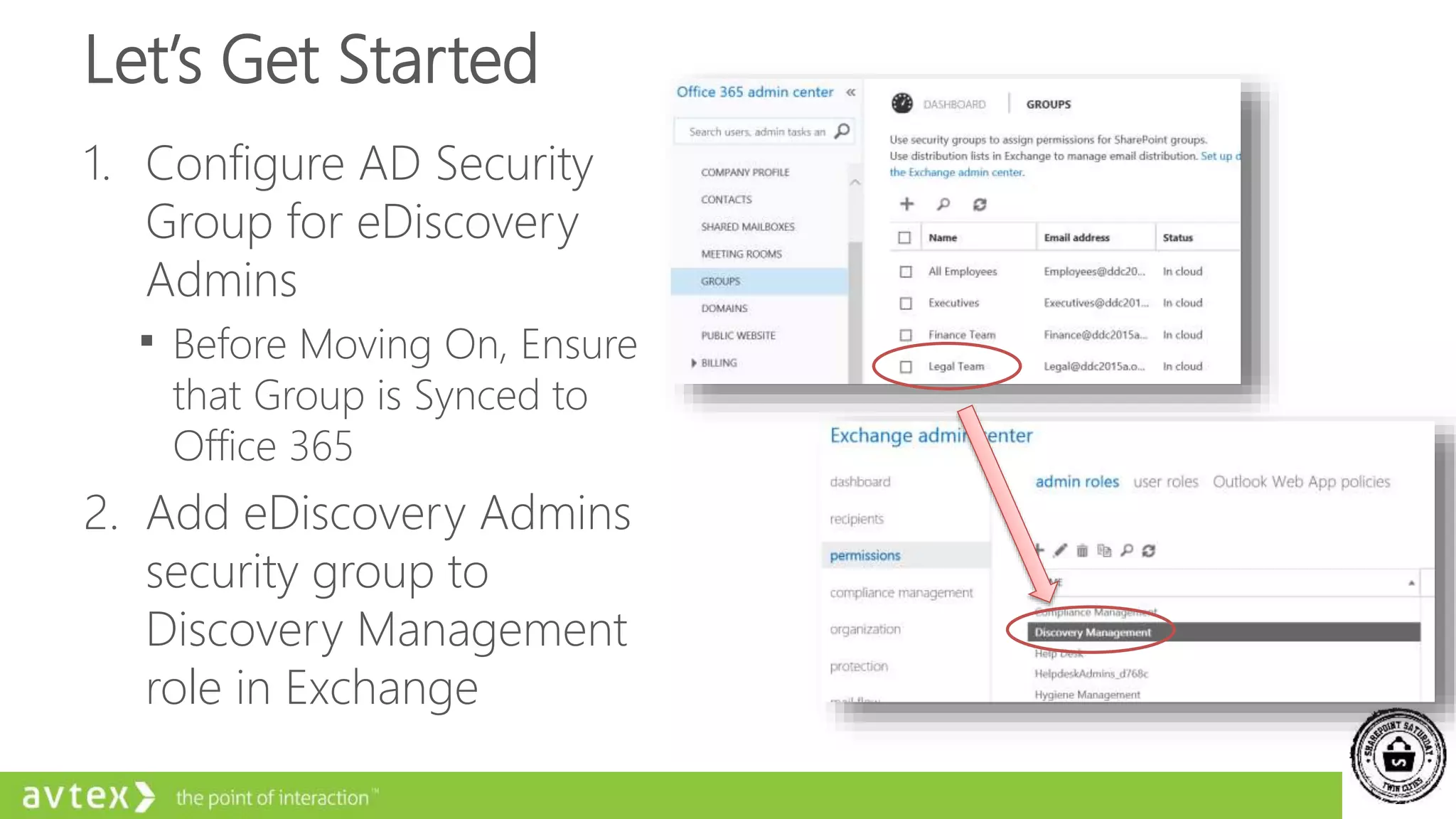
1. Configure AD Security
Group for eDiscovery
Admins
 Before Moving On, Ensure
that Group is Synced to
Office 365
2. Add eDiscovery Admins
security group to
Discovery Management
role in Exchange
Configuration Continued
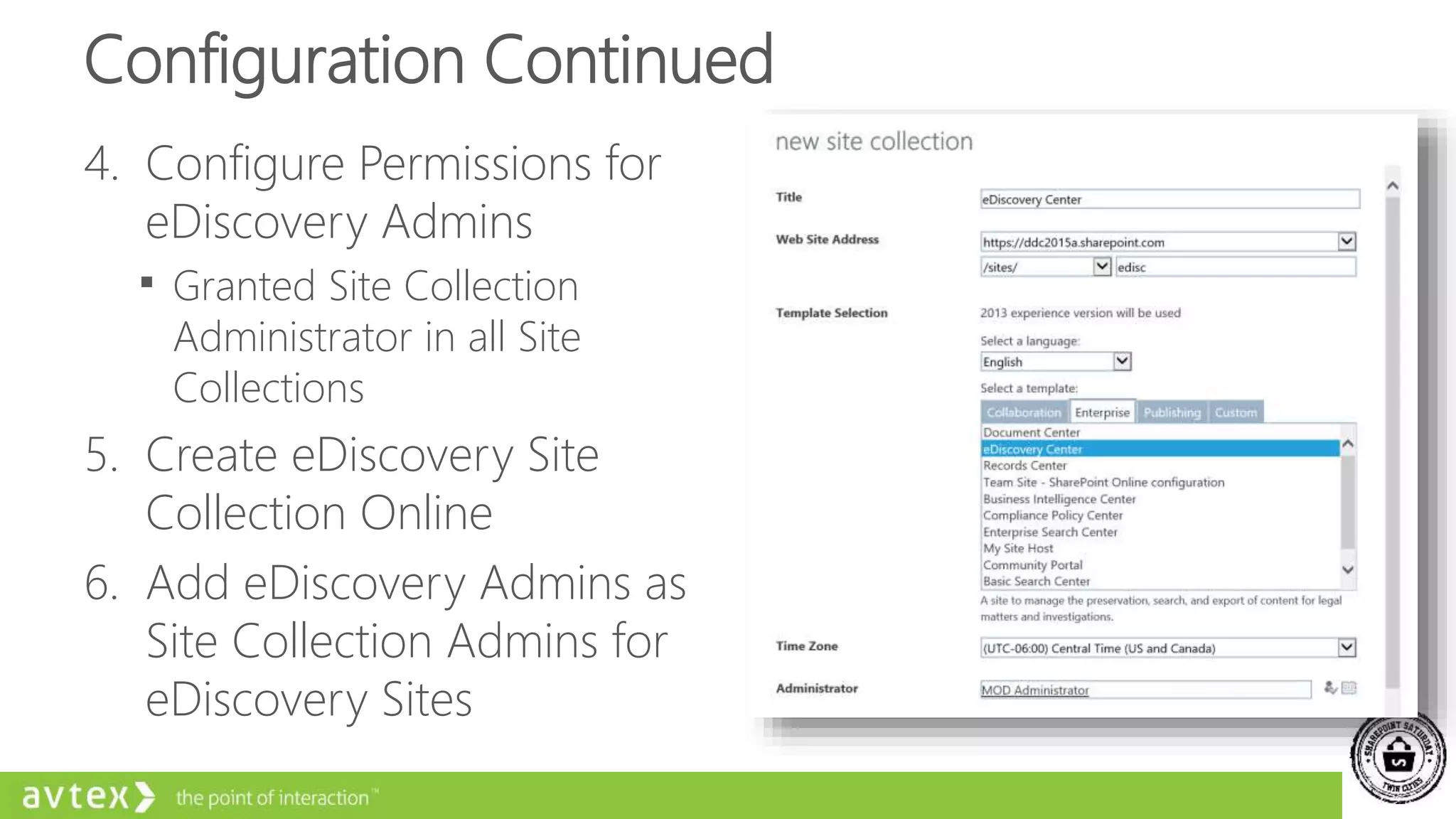
4. Configure Permissions for
eDiscovery Admins
 Granted Site Collection
Administrator in all Site
Collections
5. Create eDiscovery Site
Collection Online
6. Add eDiscovery Admins as
Site Collection Admins for
eDiscovery Sites
• Exchange Discovery Management Group
• SharePoint eDiscovery Center Site Collection
Working with eDiscovery Case Sites and Search
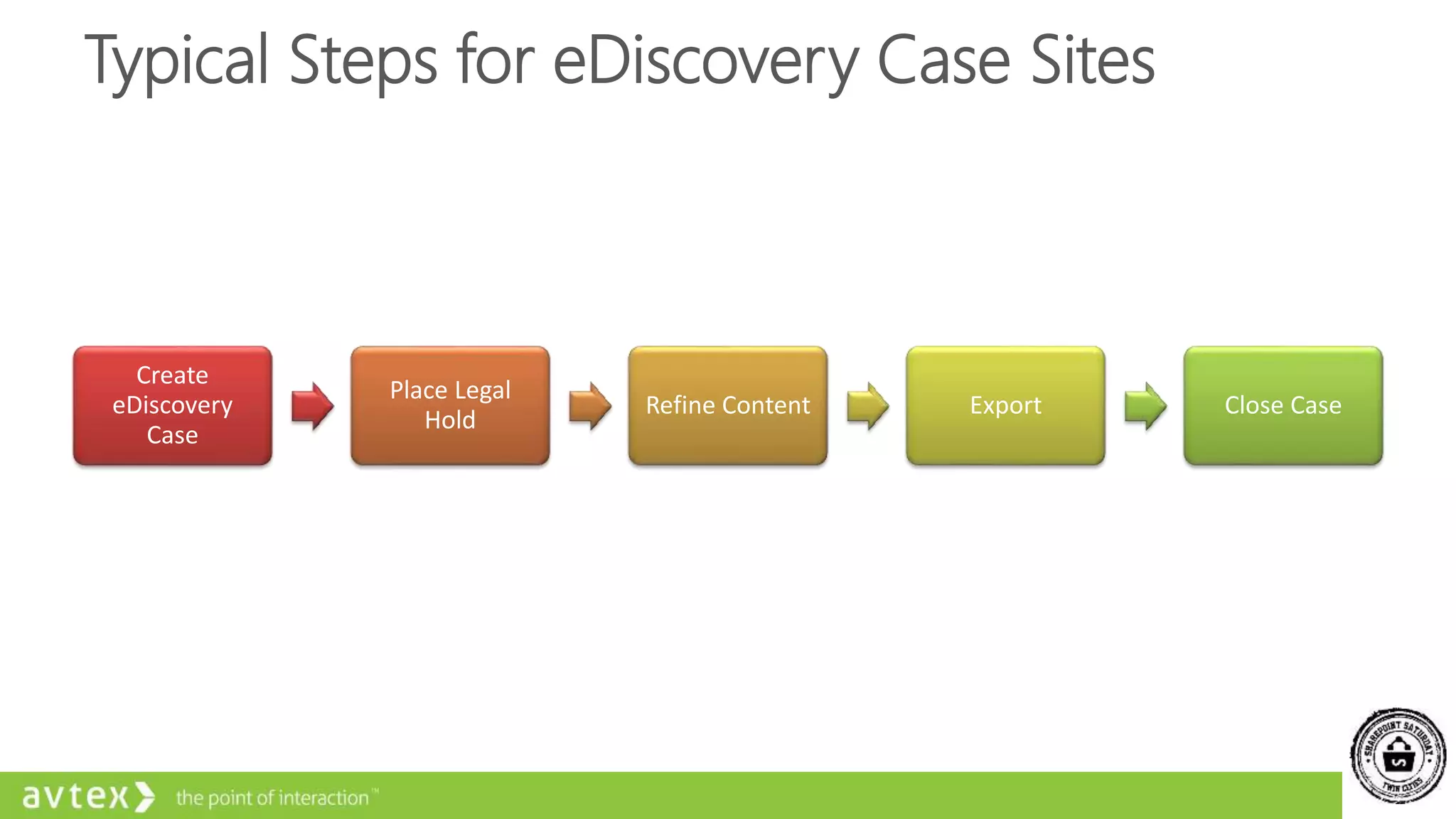
Typical Steps for eDiscovery Case Sites
Create
eDiscovery
Case
Place Legal
Hold
Refine Content Export Close Case
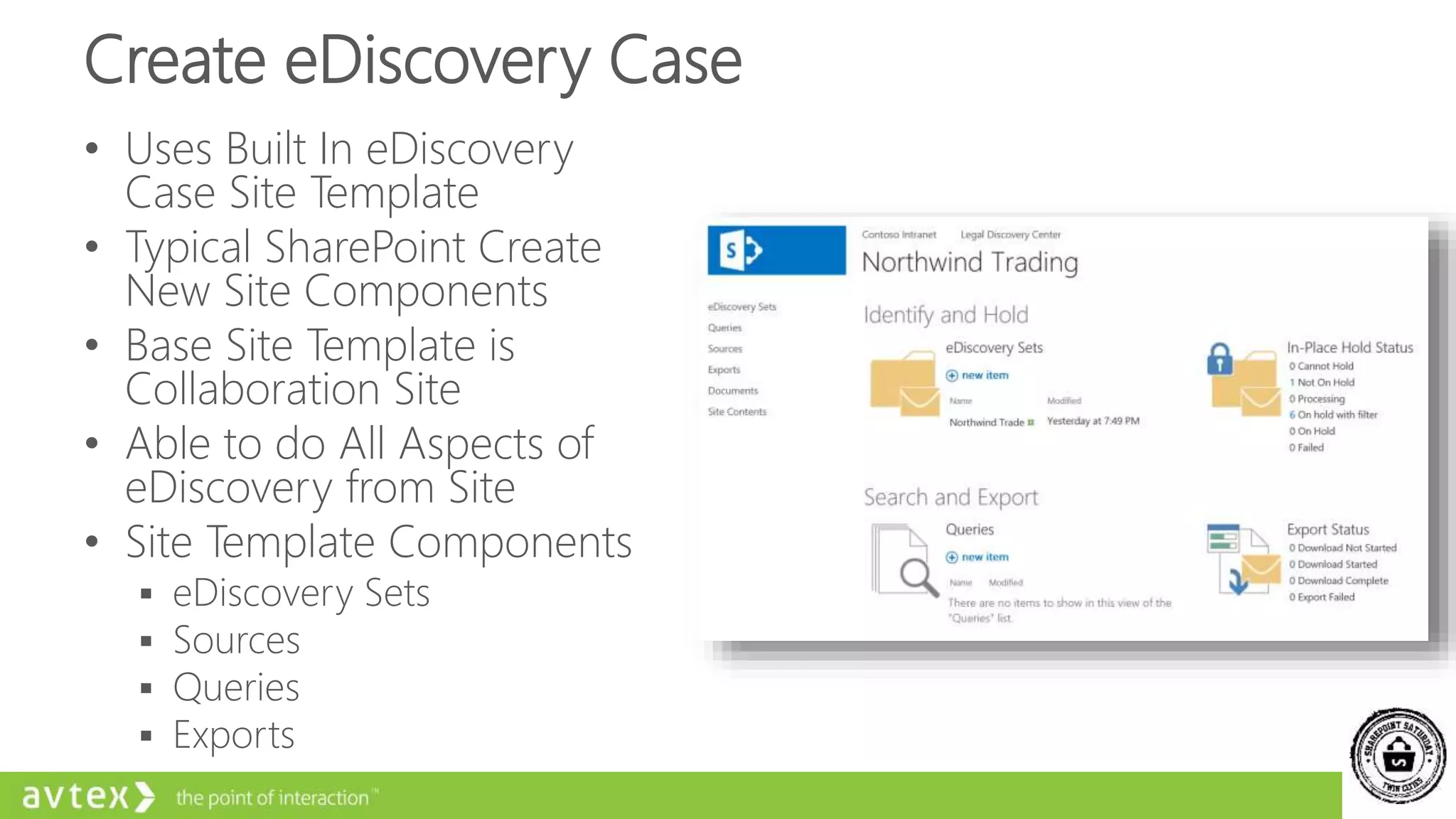
Create eDiscovery Case
• Uses Built In eDiscovery
Case Site Template
• Typical SharePoint Create
New Site Components
• Base Site Template is
Collaboration Site
• Able to do All Aspects of
eDiscovery from Site
• Site Template Components
 eDiscovery Sets
 Sources
 Queries
 Exports
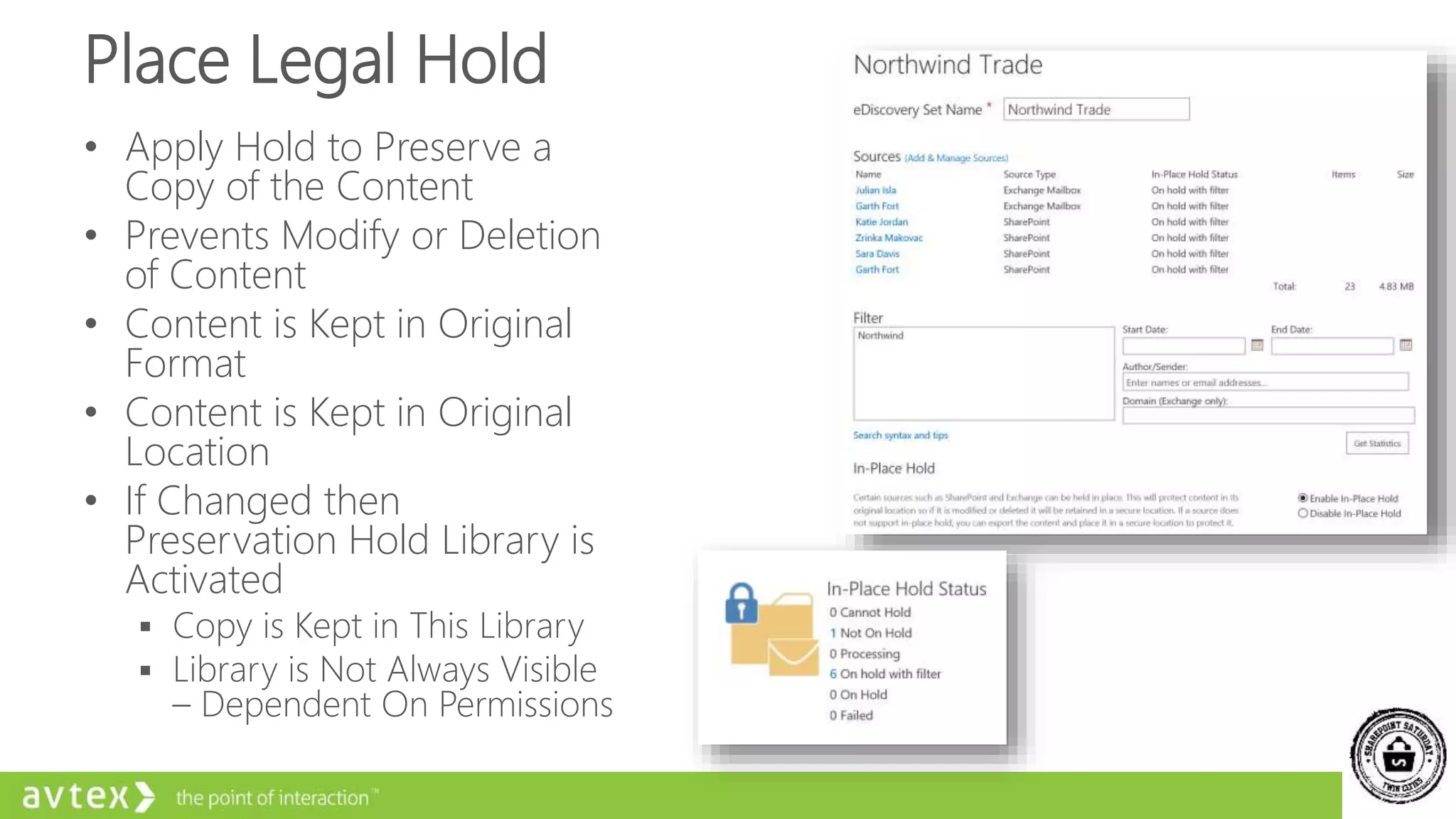
Place Legal Hold
• Apply Hold to Preserve a
Copy of the Content
• Prevents Modify or Deletion
of Content
• Content is Kept in Original
Format
• Content is Kept in Original
Location
• If Changed then
Preservation Hold Library is
Activated
 Copy is Kept in This Library
 Library is Not Always Visible
– Dependent On Permissions
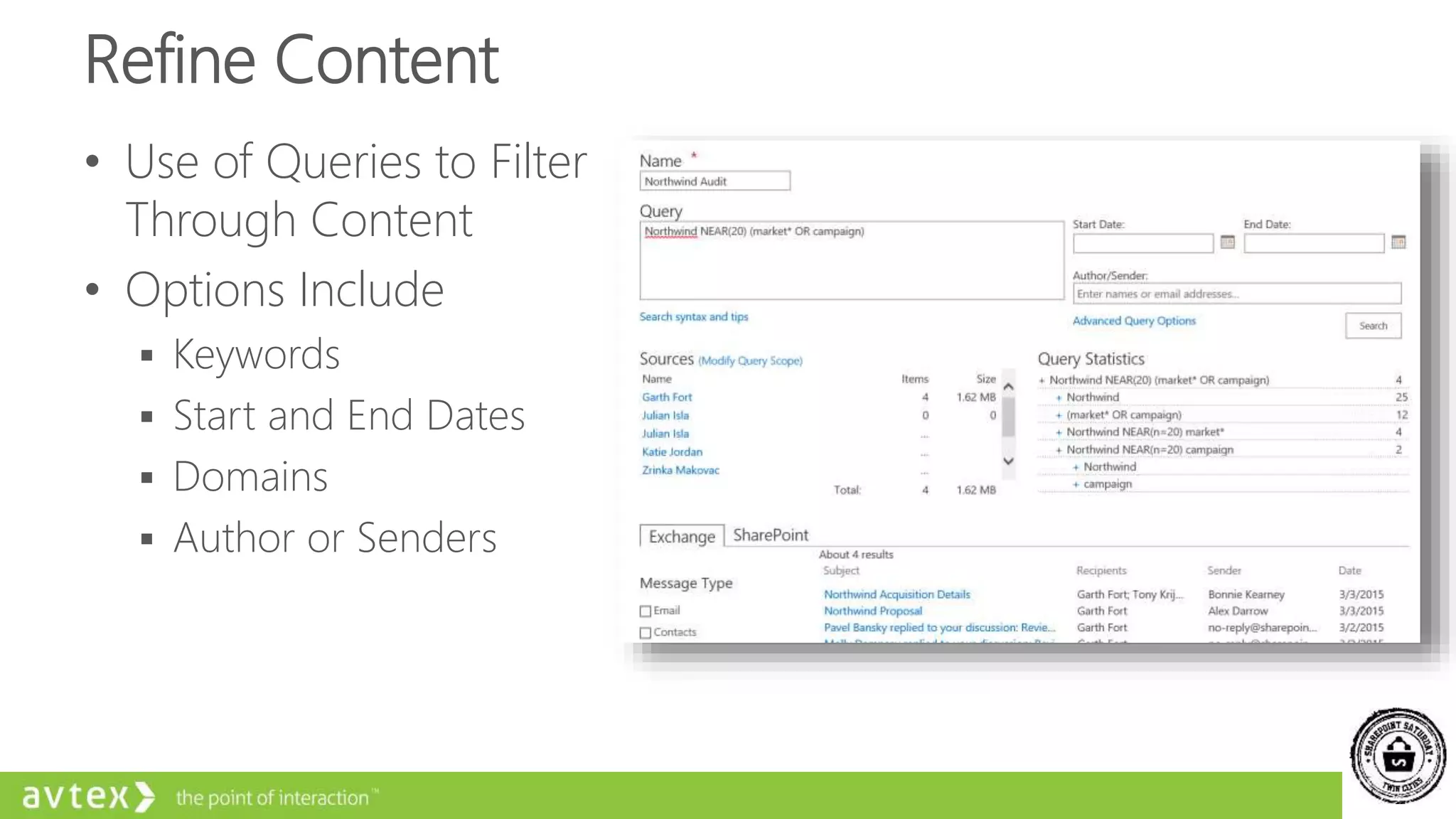
Refine Content
• Use of Queries to Filter
Through Content
• Options Include
 Keywords
 Start and End Dates
 Domains
 Author or Senders
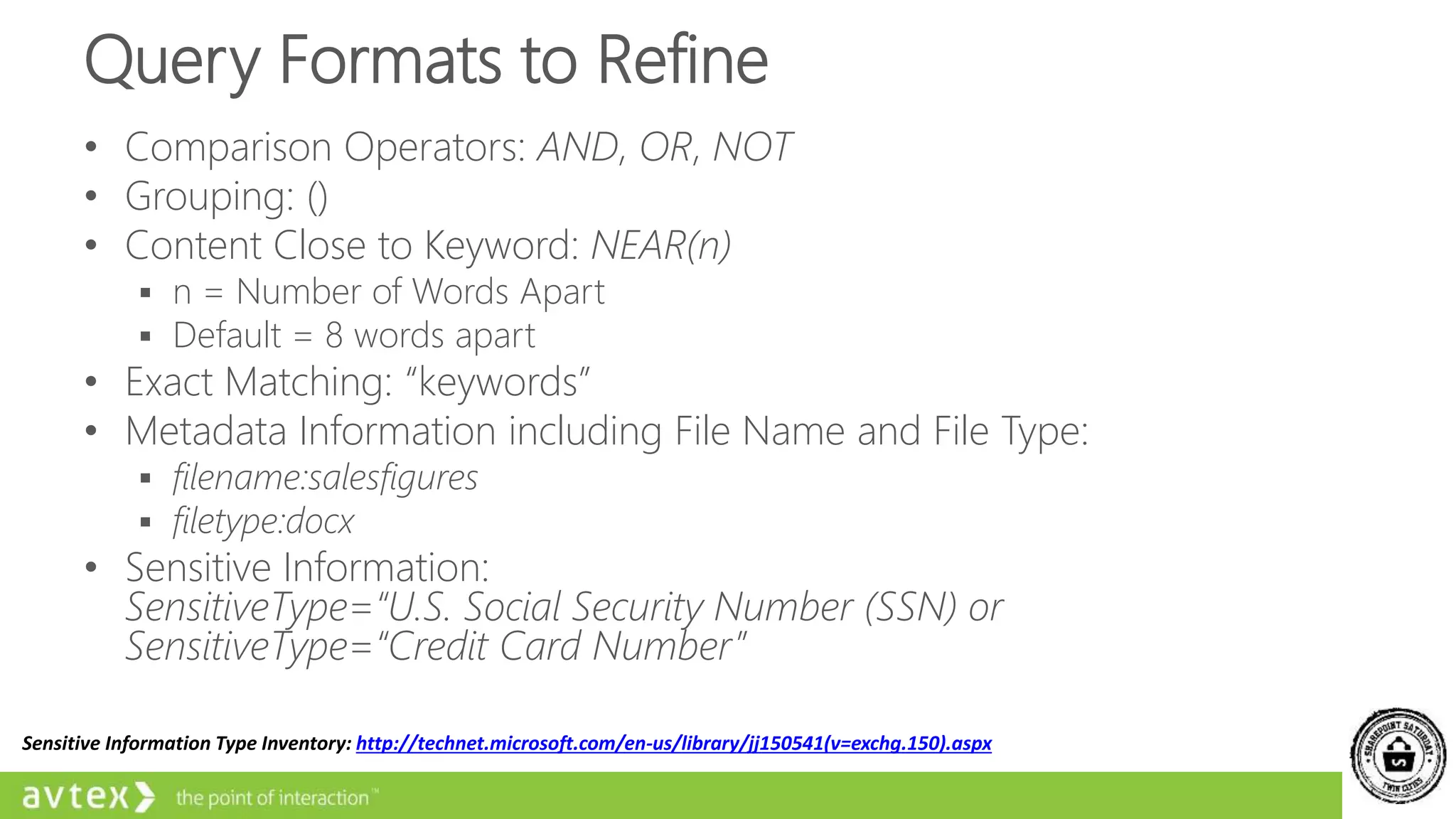
Query Formats to Refine
• Comparison Operators: AND, OR, NOT
• Grouping: ()
• Content Close to Keyword: NEAR(n)
 n = Number of Words Apart
 Default = 8 words apart
• Exact Matching: “keywords”
• Metadata Information including File Name and File Type:
 filename:salesfigures
 filetype:docx
• Sensitive Information:
SensitiveType=“U.S. Social Security Number (SSN) or
SensitiveType=“Credit Card Number”
Sensitive Information Type Inventory: http://technet.microsoft.com/en-us/library/jj150541(v=exchg.150).aspx
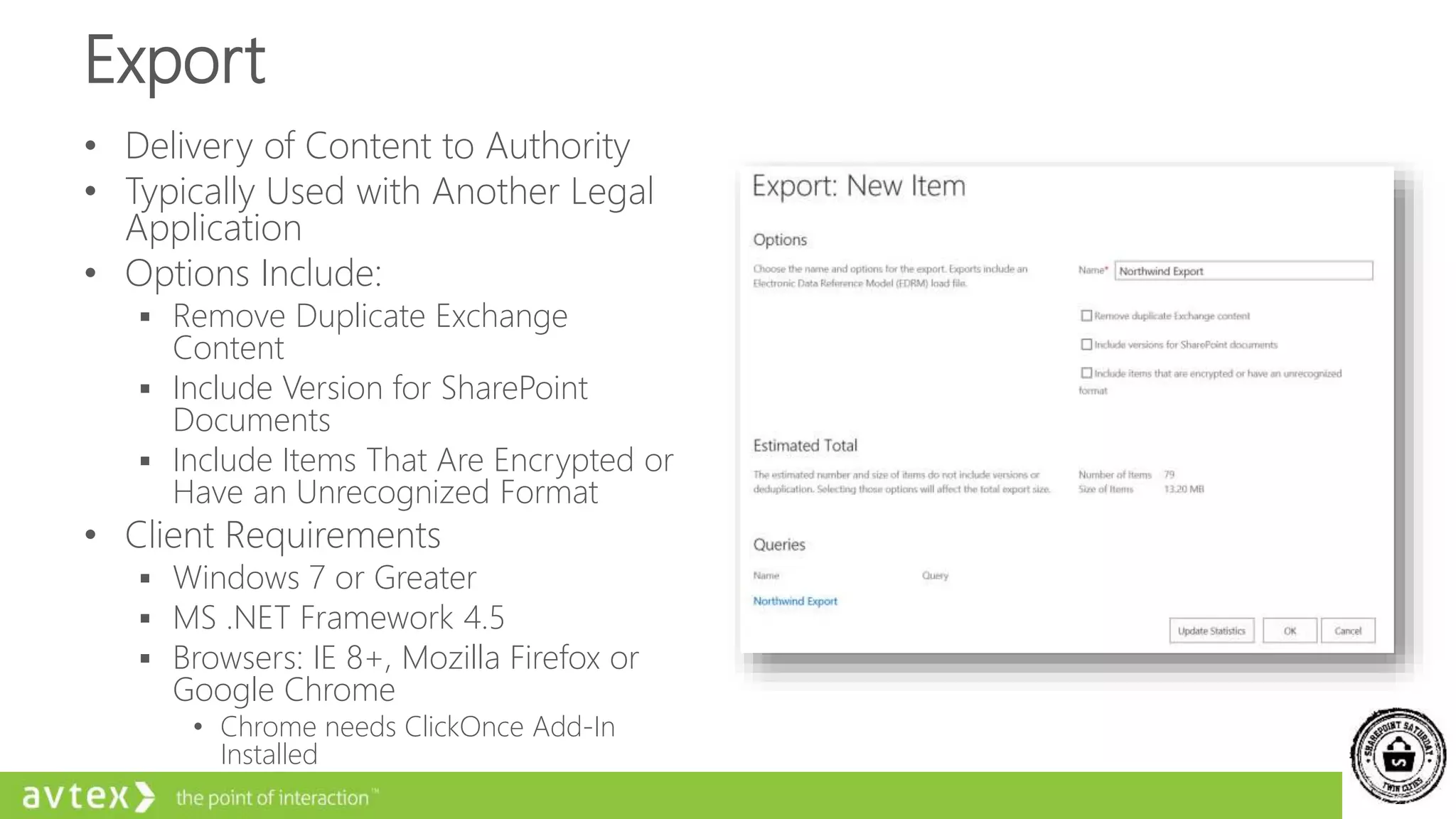
Export
• Delivery of Content to Authority
• Typically Used with Another Legal
Application
• Options Include:
 Remove Duplicate Exchange
Content
 Include Version for SharePoint
Documents
 Include Items That Are Encrypted or
Have an Unrecognized Format
• Client Requirements
 Windows 7 or Greater
 MS .NET Framework 4.5
 Browsers: IE 8+, Mozilla Firefox or
Google Chrome
• Chrome needs ClickOnce Add-In
Installed
Export Continued
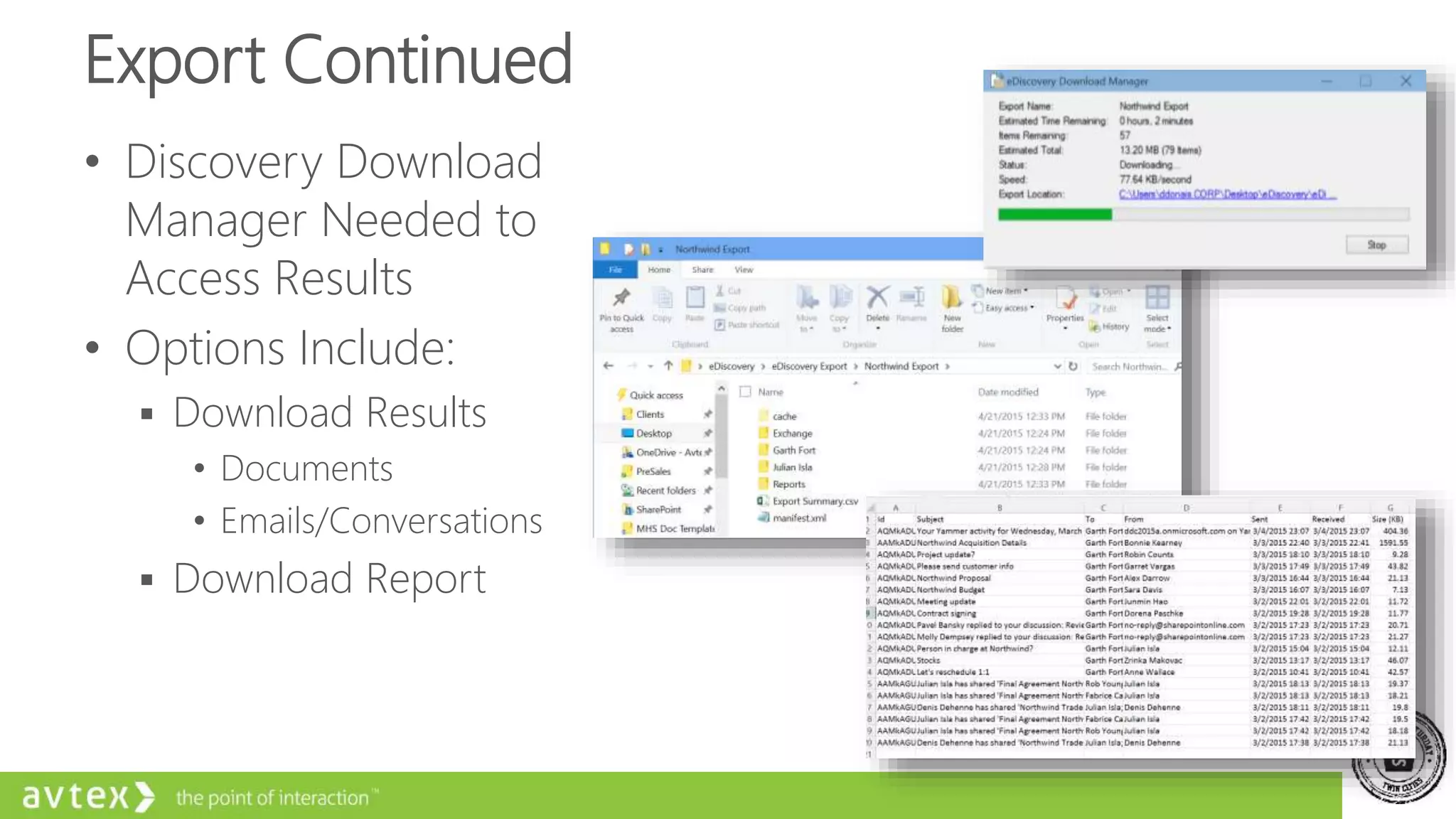
• Discovery Download
Manager Needed to
Access Results
• Options Include:
 Download Results
• Documents
• Emails/Conversations
 Download Report
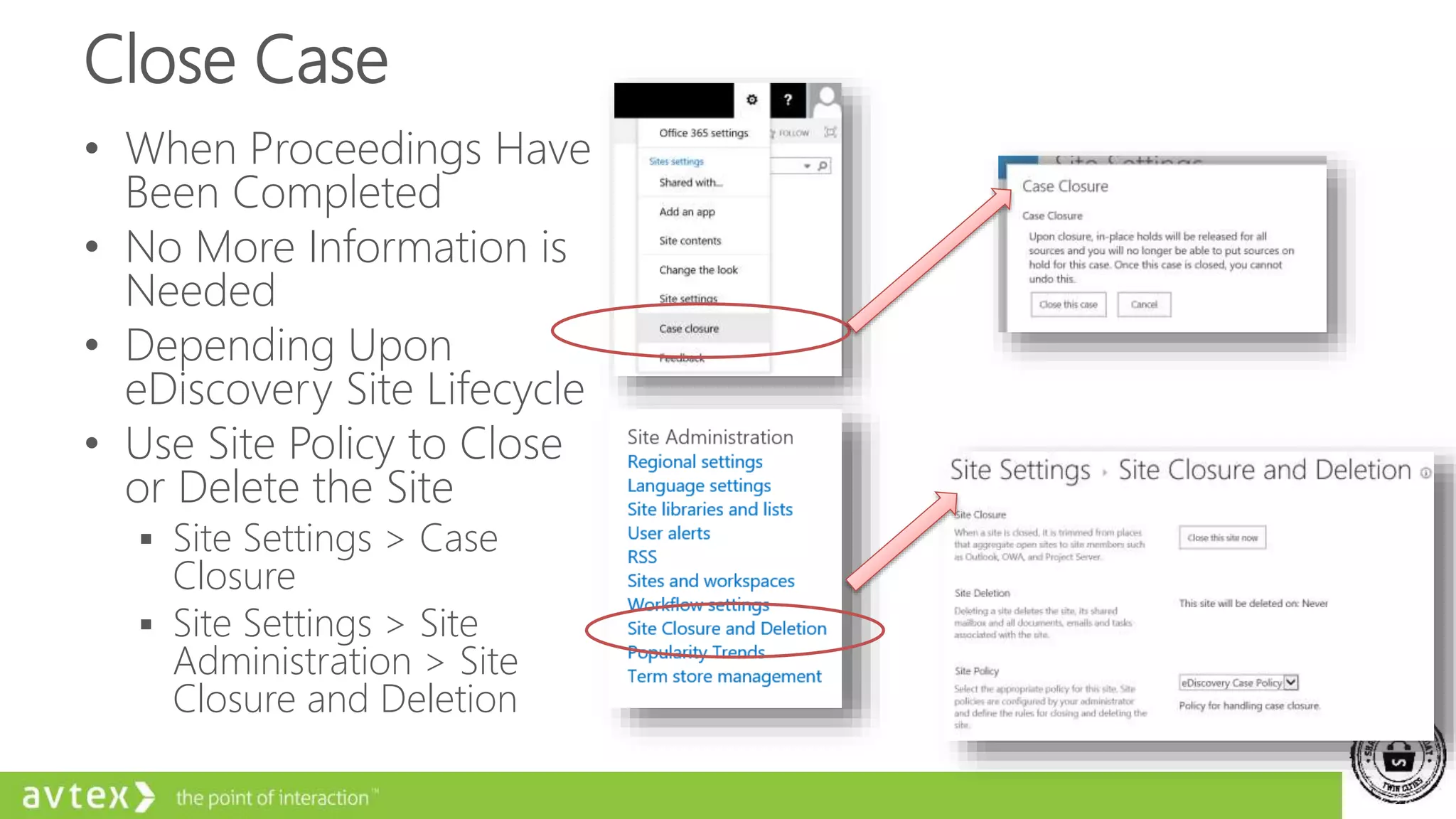
Close Case
• When Proceedings Have
Been Completed
• No More Information is
Needed
• Depending Upon
eDiscovery Site Lifecycle
• Use Site Policy to Close
or Delete the Site
 Site Settings > Case
Closure
 Site Settings > Site
Administration > Site
Closure and Deletion
• Exchange In-Place eDiscovery and Hold
• SharePoint eDiscovery Case Site Walkthrough
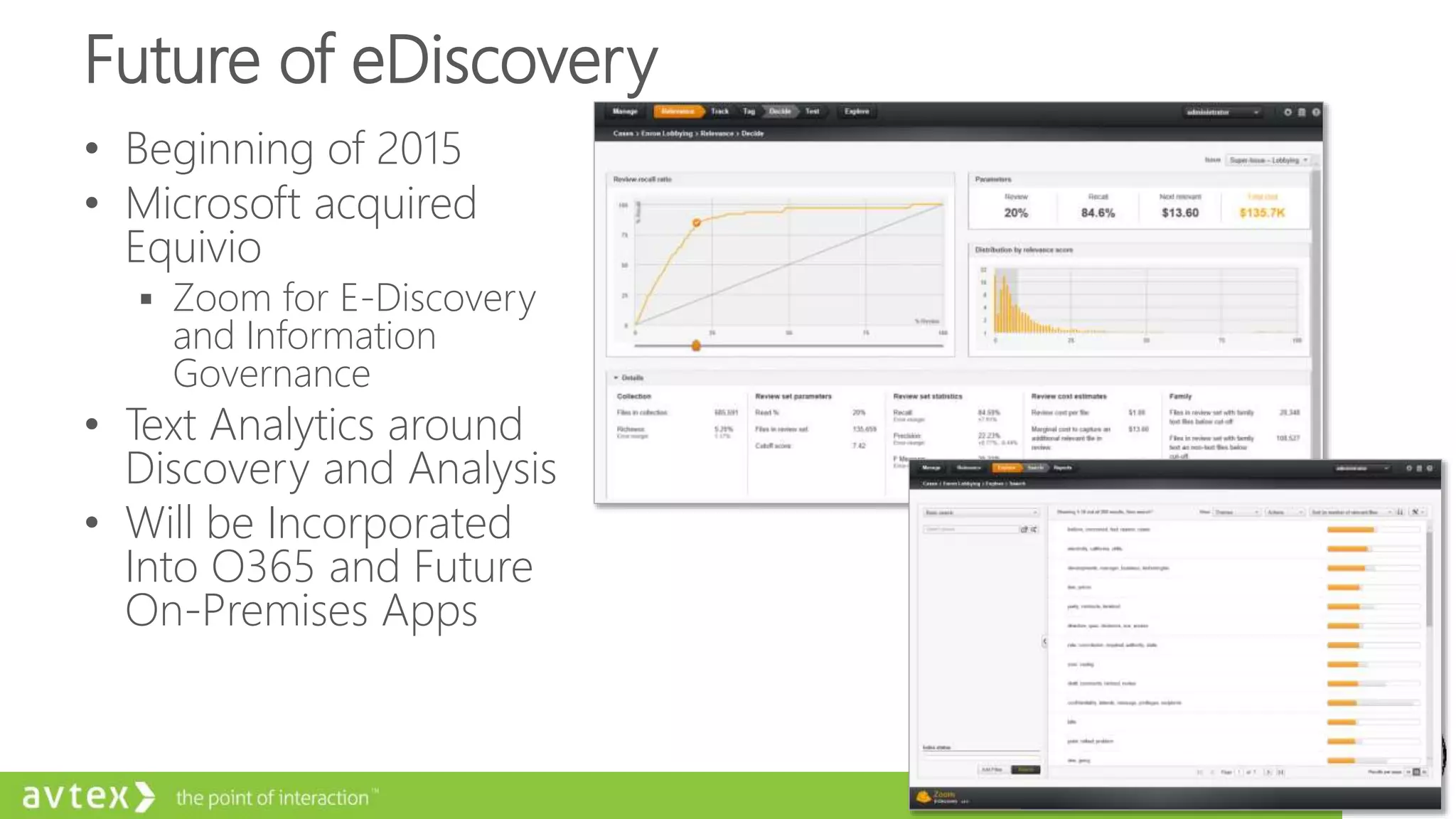
Future of eDiscovery
• Beginning of 2015
• Microsoft acquired
Equivio
 Zoom for E-Discovery
and Information
Governance
• Text Analytics around
Discovery and Analysis
• Will be Incorporated
Into O365 and Future
On-Premises Apps
45
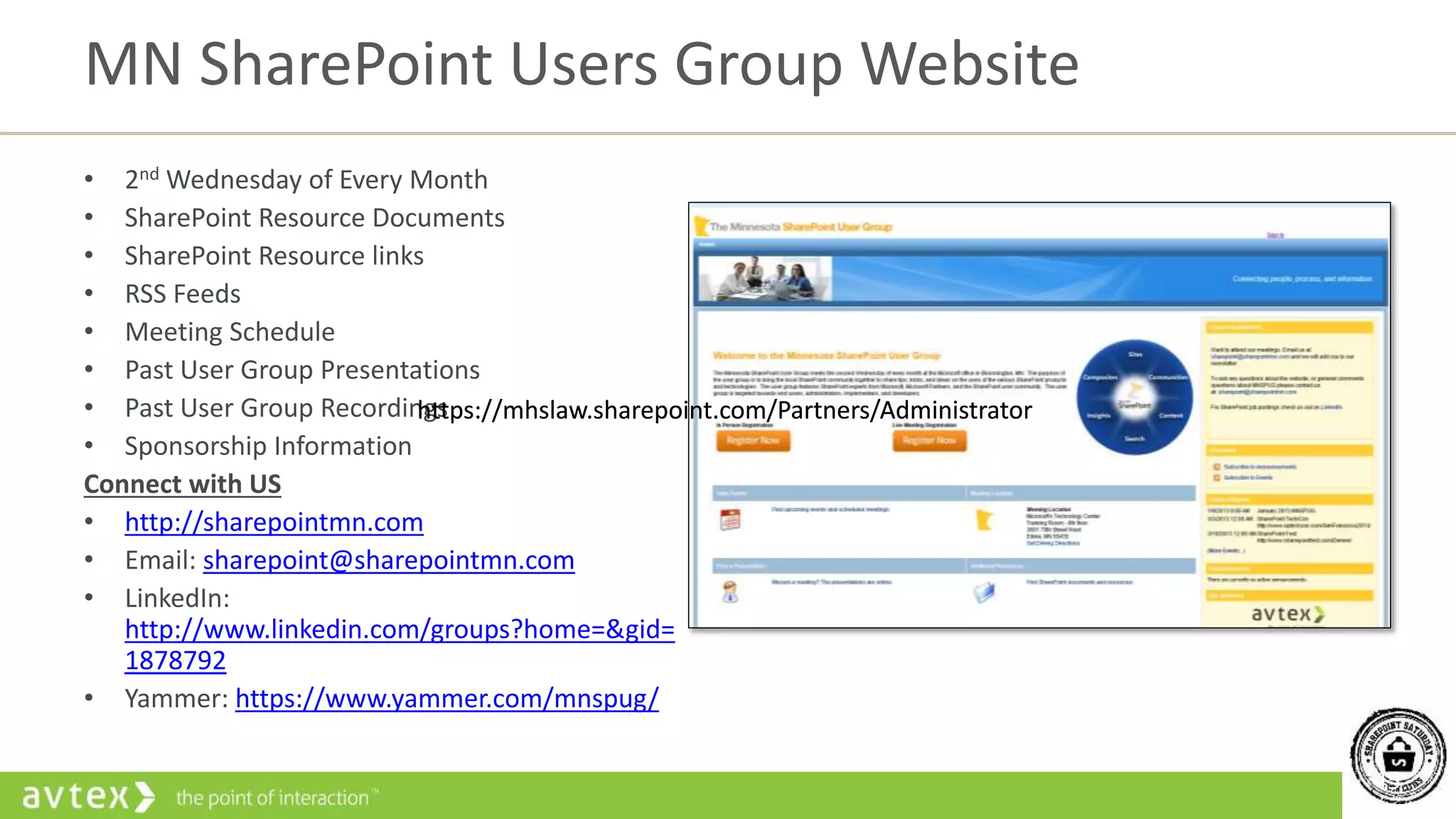
• 2nd Wednesday of Every Month
• SharePoint Resource Documents
• SharePoint Resource links
• RSS Feeds
• Meeting Schedule
• Past User Group Presentations
• Past User Group Recordings
• Sponsorship Information
Connect with US
• http://sharepointmn.com
• Email: sharepoint@sharepointmn.com
• LinkedIn:
http://www.linkedin.com/groups?home=&gid=
1878792
• Yammer: https://www.yammer.com/mnspug/
MN SharePoint Users Group Website
https://mhslaw.sharepoint.com/Partners/Administratorhttps://mhslaw.sharepoint.com/Partners/Administrator
46
• 3rd Tuesday of Every Month
• Yammer is the main mechanism for group
communications
• Meeting Schedule
• Love to learn about SharePoint
• Social/Networking Group
• Share - let others know your successes
Connect with US
• Yammer:
https://www.yammer.com/minnesotawomeninshare
point/
• Twitter: @MNWomenInSP
• LinkedIn:
https://www.linkedin.com/grp/home?gid=6660808
• Email: Send your Name, Company, and Phone
(optional) to marketing@avtex.com to join our
meeting notification email list
MN Women in SharePoint
Q & A
Avtex IT Pro Consultant
ddonais@avtex.com
Blog – Tales from IT Side
http://talesfromitside.wordpress.com
Twitter
@dondonais

Leveraging microsoft’s e discovery platform in your organization

  • 1.
    Leveraging Microsoft’s eDiscoveryPlatform in Your Organization SharePoint Saturday Twin Cities – October 24
  • 2.
    Donald Donais Avtex Sr.SharePoint Consultant ddonais@avtex.com Blog – Tales from IT Side http://talesfromitside.wordpress.com Twitter @dondonais
  • 3.
    Agenda • What iseDiscovery? • Options for Microsoft eDiscovery • eDiscovery Components • Planning for eDiscovery • Configuring On-Premises eDiscovery • Configuring Office 365 eDiscovery • Working with eDiscovery Case Sites and Search
  • 4.
  • 5.
    Definition of eDiscovery WhatDoes eDiscovery Mean for Your Organization?
  • 6.
    eDiscovery Defined • ElectronicDiscovery • Typically Refers to the Beginning Phase of a Litigation • Process of Discovery • Specifically Around Electronically Stored Content
  • 7.
    eDiscovery Specific Options LITIGATIONHOLD • Only at Mailbox Level • Content Place on Hold Indefinitely • Includes All Content IN-PLACE HOLD • Use of a Query • Selectively Target Specific Information • Place Content on Hold IN-PLACE EDISCOVERY • Use of a Single Wizard • Search and Preserver Content • Can Set Hold for Specific Time Litigation Hold versus In-Place Hold in Exchange Online: http://bit.ly/1D44PJx
  • 8.
    SharePoint eDiscovery Electronic Discovery ReferenceModel (EDRM) Presentation Production Analysis Processing Collection Preservation Identification Information Management EDRM Stages Explained: http://www.edrm.net/resources/edrm-stages-explained
  • 9.
  • 10.
    Options for MicrosofteDiscovery EXCHANGE ON- PREMISES ON-PREMISES EXCHANGE HYBRID ONLINE ONLY
  • 11.
    Types of DiscoverableContent • Exchange Messages, Calendar Items, and Tasks  Needs to be Indexed by Exchange • Lync/Skype for Business Conversations Archived in Exchange  Online Only • Lync/Skype for Business  Direct Connection to SharePoint • SharePoint - Documents, Newsfeed Posts, and List Content  Does • OneDrive for Business - Indexed by SharePoint
  • 12.
    What Do YouHave? Feature Office 365 Midsize Business Office 365 Enterprise E1 Office 365 Education A2 Office365 Government G1 Office 365 Enterprise E3 Office 365 Education A3 Office365 Government G3 Office 365 Enterprise E4 Office 365 Education A4 Office365 Government G4 Office 365 Enterprise K1 Office 365 Government K1 eDiscovery Center (SharePoint Online) No No Yes Yes No In-Place Hold (Exchange Online) No No Yes Yes No In-Place eDiscovery (Exchange Online) Yes Yes Yes Yes Yes eDiscovery FAQ: http://social.technet.microsoft.com/wiki/contents/articles/19485.ediscovery-faq.aspx
  • 13.
    What Do YouHave? Version Feature SharePoint Foundation Standard or Plan 1 Enterprise or Plan 2 SharePoint Online Compliance & eDiscovery Centers NA No Yes SharePoint On-Premises 2013 eDiscovery Center No No Yes Feature Exchange Server 2013 On-Premises Exchange Online Plan 1 Exchange Online Plan 2 Exchange Online Kiosk In-Place Hold Yes No Yes Yes In-Place Discovery Yes Yes Yes Yes SharePoint Exchange eDiscovery FAQ: http://social.technet.microsoft.com/wiki/contents/articles/19485.ediscovery-faq.aspx
  • 14.
  • 15.
    Exchange – In-Place/LitigationHold • Indefinite Hold on Exchange Mailbox • Can be Completed Using:  Exchange Administration Console (EAC)  Exchange Management Console (EMC)  Exchange PowerShell LitigationHoldEnabled (Exchange 2013) or InPlaceHoldEnabled for Exchange Online) Parameter
  • 16.
    Exchange Online –In-Place Hold • Hold is Integrated With In-Place eDiscovery • Can Place Mailbox on Hold using Wizard or PowerShell  New-MailboxSearch • Use Features to:  Create Query Parameters to Specify Content  Preserve Content for Specific Time or Idenfinitely • Limits to In-Place Hold  Can Only have 10,000 Mailboxes on Hold  Requires Exchange Plan 2 or Exchange Online Archiving Enabled
  • 17.
    SharePoint Online –eDiscovery • Compliance Center • eDiscovery Site Template • Contains eDiscovery Sets • Used for Querying against Content Sources • Can Do In-Place Hold on Query Results • Export Content for Use In Other eDiscovery Tools • Preservation Hold Library
  • 18.
    Exchange Online RollingIn-Place Hold • Some Organization Have Standing Hold on Exchange Email • Typically This is Rolling To Catch New Users • The Following Script Get All Mailbox and Sets Flag for Specific Amount of Days • Suggested to Set Task Scheduler to Run PowerShell Script Nightly Get-Mailbox -ResultSize Unlimited -Filter {RecipientTypeDetails -ne "DiscoveryMailbox"} | Set-Mailbox -LitigationHoldEnabled $true - LitigationHoldDuration 120
  • 19.
  • 20.
    eDiscovery Architecture • CanOnly Have 1 eDiscovery Site per Search Service Application or Tenant • eDiscovery Site Collection • What if Multiple Purposes?  Human Resources – Employee Off Boarding or Legal – Litigations  Create New Top Level Site for Each Group • eDiscovery Site is Team Site  Enable Publishing Features for Navigation • Case Site Naming Convention
  • 21.
    Typical Lifecycle eDiscoveryCase Create eDiscovery Case Place Legal Hold Refine Content Export Release Holds Close Case
  • 22.
    Considerations for CaseSite Lifecycle • When is a Case Site Created?  Documented Internal Business Process  HR = When an Employee is Terminated.  Legal = When the Company is Subpoenaed for Specific Electronic Data • Who Can Create a Case Site?  Determine Roles for eDiscovery  Can Users use Standard Account or Need eDiscovery Account • How Long Is a Case Site Retained?  Site Policy Can Be Used to Remove a Case from eDiscovery Center  Options Can Include Close or Delete
  • 23.
    About Permissions? • eDiscoveryRole Needs Specific Permissions in Exchange and SharePoint • Active Directory Security Group  On-Premises – Create eDiscovery Admins Group • Exchange  Online - eDiscovery Managers Security Group  On-Premises – Exchange Discovery Management Group • SharePoint Online  All SharePoint Site Collections - Site Collection Administrator  All OneDrive for Business Locations- Site Collection Administrator  eDiscovery Center – Site Collection Administrator
  • 24.
    About Permissions? -Continued • SharePoint – On-Premises  Create Web Application Policy for Security Group  Need Full Read Permissions • On-Premises File Shares  Admin Group Needs Read Access • Issue With SCA and SharePoint Online  No Easy Way to Designate SCA Across All Site Collections  PowerShell Scripting To the Rescue: http://bit.ly/1K0KMk3
  • 25.
    Gaps In OverallSolution • Type of Permissions Needed for eDiscovery Role • Preservation Hold  This Solution Does Not Account for Rolling Changes After on Hold • Document Versioning  Solution Does not Search Past Versions of a Document  Focused on the Primary Version • Does Not Include Content Outside of Exchange and SharePoint Online Services
  • 26.
  • 27.
    Configuration of SharePoint,Exchange, and Lync 2013 • Install Exchange Web Server managed API on SharePoint WFE • Create a Trust Relationship from SharePoint to Exchange  SharePoint PowerShell: New-SPTrustedSecurityTokenIssuer  Exchange Script: Configure-EnterprisePartnerApplication.ps1  TechNet Article: https://technet.microsoft.com/en- us/library/jj655399.aspx
  • 28.
    Configuration of SharePoint,Exchange, and Lync 2013 • Configure Search to Crawl Content  Setup SharePoint 2013 to Crawl Exchange 2013 Content • Setup New Result Sources > Exchange Protocol > Exchange Auto Discover URL • Lync 2013 or Skype for Business  Relies on Archiving Being Deployed to Exchange  TechNet Article: https://technet.microsoft.com/en- us/library/jj205147(v=ocs.15).aspx
  • 29.
    Create SharePoint eDiscoverySite Collection • Create from Central Administration • Enterprise Template > eDiscovery Center • eDiscovery Admins Need to be Site Collection Admin Reminder - 1 eDiscovery Site per SharePoint Search Service Application
  • 30.
  • 31.
    Let’s Get Started 1.Configure AD Security Group for eDiscovery Admins  Before Moving On, Ensure that Group is Synced to Office 365 2. Add eDiscovery Admins security group to Discovery Management role in Exchange
  • 32.
    Configuration Continued 4. ConfigurePermissions for eDiscovery Admins  Granted Site Collection Administrator in all Site Collections 5. Create eDiscovery Site Collection Online 6. Add eDiscovery Admins as Site Collection Admins for eDiscovery Sites
  • 33.
    • Exchange DiscoveryManagement Group • SharePoint eDiscovery Center Site Collection
  • 34.
    Working with eDiscoveryCase Sites and Search
  • 35.
    Typical Steps foreDiscovery Case Sites Create eDiscovery Case Place Legal Hold Refine Content Export Close Case
  • 36.
    Create eDiscovery Case •Uses Built In eDiscovery Case Site Template • Typical SharePoint Create New Site Components • Base Site Template is Collaboration Site • Able to do All Aspects of eDiscovery from Site • Site Template Components  eDiscovery Sets  Sources  Queries  Exports
  • 37.
    Place Legal Hold •Apply Hold to Preserve a Copy of the Content • Prevents Modify or Deletion of Content • Content is Kept in Original Format • Content is Kept in Original Location • If Changed then Preservation Hold Library is Activated  Copy is Kept in This Library  Library is Not Always Visible – Dependent On Permissions
  • 38.
    Refine Content • Useof Queries to Filter Through Content • Options Include  Keywords  Start and End Dates  Domains  Author or Senders
  • 39.
    Query Formats toRefine • Comparison Operators: AND, OR, NOT • Grouping: () • Content Close to Keyword: NEAR(n)  n = Number of Words Apart  Default = 8 words apart • Exact Matching: “keywords” • Metadata Information including File Name and File Type:  filename:salesfigures  filetype:docx • Sensitive Information: SensitiveType=“U.S. Social Security Number (SSN) or SensitiveType=“Credit Card Number” Sensitive Information Type Inventory: http://technet.microsoft.com/en-us/library/jj150541(v=exchg.150).aspx
  • 40.
    Export • Delivery ofContent to Authority • Typically Used with Another Legal Application • Options Include:  Remove Duplicate Exchange Content  Include Version for SharePoint Documents  Include Items That Are Encrypted or Have an Unrecognized Format • Client Requirements  Windows 7 or Greater  MS .NET Framework 4.5  Browsers: IE 8+, Mozilla Firefox or Google Chrome • Chrome needs ClickOnce Add-In Installed
  • 41.
    Export Continued • DiscoveryDownload Manager Needed to Access Results • Options Include:  Download Results • Documents • Emails/Conversations  Download Report
  • 42.
    Close Case • WhenProceedings Have Been Completed • No More Information is Needed • Depending Upon eDiscovery Site Lifecycle • Use Site Policy to Close or Delete the Site  Site Settings > Case Closure  Site Settings > Site Administration > Site Closure and Deletion
  • 43.
    • Exchange In-PlaceeDiscovery and Hold • SharePoint eDiscovery Case Site Walkthrough
  • 44.
    Future of eDiscovery •Beginning of 2015 • Microsoft acquired Equivio  Zoom for E-Discovery and Information Governance • Text Analytics around Discovery and Analysis • Will be Incorporated Into O365 and Future On-Premises Apps
  • 45.
    45 • 2nd Wednesdayof Every Month • SharePoint Resource Documents • SharePoint Resource links • RSS Feeds • Meeting Schedule • Past User Group Presentations • Past User Group Recordings • Sponsorship Information Connect with US • http://sharepointmn.com • Email: sharepoint@sharepointmn.com • LinkedIn: http://www.linkedin.com/groups?home=&gid= 1878792 • Yammer: https://www.yammer.com/mnspug/ MN SharePoint Users Group Website https://mhslaw.sharepoint.com/Partners/Administratorhttps://mhslaw.sharepoint.com/Partners/Administrator
  • 46.
    46 • 3rd Tuesdayof Every Month • Yammer is the main mechanism for group communications • Meeting Schedule • Love to learn about SharePoint • Social/Networking Group • Share - let others know your successes Connect with US • Yammer: https://www.yammer.com/minnesotawomeninshare point/ • Twitter: @MNWomenInSP • LinkedIn: https://www.linkedin.com/grp/home?gid=6660808 • Email: Send your Name, Company, and Phone (optional) to marketing@avtex.com to join our meeting notification email list MN Women in SharePoint
  • 47.
  • 48.
    Avtex IT ProConsultant ddonais@avtex.com Blog – Tales from IT Side http://talesfromitside.wordpress.com Twitter @dondonais

Editor's Notes

  • #9 EDRM Stages Explained: http://www.edrm.net/resources/edrm-stages-explained Information Governance Getting your electronic house in order to mitigate risk & expenses should e-discovery become an issue, from initial creation of ESI (electronically stored information) through its final disposition. Identification Locating potential sources of ESI & determining its scope, breadth & depth. Preservation Ensuring that ESI is protected against inappropriate alteration or destruction. Collection Gathering ESI for further use in the e-discovery process (processing, review, etc.). Processing Reducing the volume of ESI and converting it, if necessary, to forms more suitable for review & analysis. Review Evaluating ESI for relevance & privilege. Analysis Evaluating ESI for content & context, including key patterns, topics, people & discussion. Production Delivering ESI to others in appropriate forms & using appropriate delivery mechanisms. Presentation Displaying ESI before audiences (at depositions, hearings, trials, etc.), especially in native & near-native forms, to elicit further information, validate existing facts or positions, or persuade an audience.