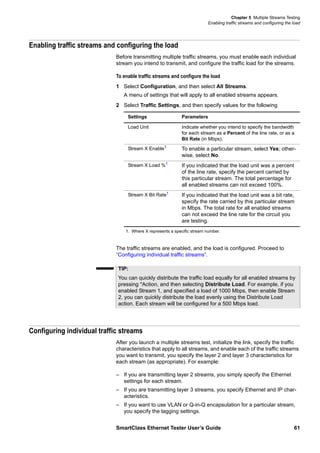
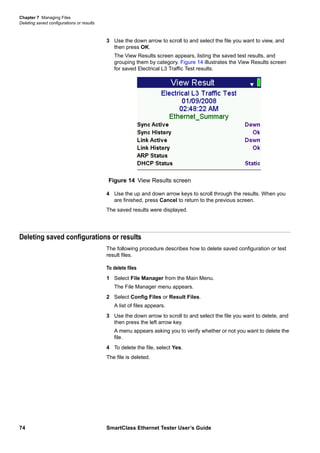
SmartClass
Ethernet Tester
User’s Guide
SmartClass
Ethernet Tester
User’s Guide
ii SmartClass Ethernet Tester User’s Guide
Notice Every effort was made to ensure that the information in this document was
accurate at the time of printing. However, information is subject to change with-
out notice, and JDSU reserves the right to provide an addendum to this docu-
ment with information not available at the time that this document was created.
Copyright © Copyright 2009, JDS Uniphase Corporation. All rights reserved. JDSU,
Enabling Broadband and Optical Innovation, Communications Test and Mea-
surement Solutions, and the JDSU logo are trademarks of
JDS Uniphase Corporation (“JDS Uniphase”). All other trademarks are the
property of their respective owners. No part of this guide may be reproduced
or transmitted electronically or otherwise without written permission of the pub-
lisher.
Trademarks JDS Uniphase, JDSU, and SmartClass are trademarks or registered trade-
marks of JDS Uniphase Corporation in the United States and/or other coun-
tries.
Microsoft and Excel are either trademarks or registered trademarks of
Microsoft Corporation in the United States and/or other countries.
PDF is a trademark of Adobe Systems in the United States and/or other coun-
tries.
Energizer is either a trademark or registered trademark of Eveready Battery
Company, Inc. in the United States and/or other countries.
Specifications, terms, and conditions are subject to change without notice. All
trademarks and registered trademarks are the property of their respective
companies.
Ordering information This guide is a product of JDSU's Technical Information Development Depart-
ment, issued as part of the SmartClass Ethernet Tester. The catalog number
for a printed guide is ML-5053901. The catalog number for a CD containing all
user documentation and utilities is CML-21099708.
Federal Communications
Commission (FCC) Notice
This product was tested and found to comply with the limits for a Class B digital
device, pursuant to Part 15 of the FCC Rules. These limits are designed to pro-
vide reasonable protection against harmful interference when the equipment is
operated in a commercial or residential environment. This product generates,
uses, and can radiate radio frequency energy and, if not installed and used in
accordance with the instruction manual, may cause harmful interference to
radio communications.
The authority to operate this product is conditioned by the requirements that no
modifications be made to the equipment unless the changes or modifications
are expressly approved by JDSU.
Industry Canada Requirements This Class B digital apparatus complies with Canadian ICES-003.
Cet appareil numérique de la classe B est conforme à la norme NMB-003 du
Canada.
EMC Directive Compliance This product was tested and conforms to the EMC Directive, 89/336/EEC as
amended by 92/31/EEC and 93/68/EEC for electromagnetic compatibility.
SmartClass Ethernet Tester User’s Guide iii
Low Voltage Directive Compliance This product was tested and conforms to the Low Voltage Directive, 73/23/EEC
as amended by 93/68/EEC. Conformity with this directive is based upon com-
pliance with the harmonized safety standard, UL61010-1.
WEEE and Battery Directive
Compliance
JDSU has established processes in compliance with the Waste Electrical and
Electronic Equipment (WEEE) Directive, 2002/96/EC, and the Battery Direc-
tive, 2006/66/EC.
This product, and the batteries used to power the product, should not be dis-
posed of as unsorted municipal waste and should be collected separately and
disposed of according to your national regulations. In the European Union, all
equipment and batteries purchased from JDSU after 2005-08-13 can be
returned for disposal at the end of its useful life. JDSU will ensure that all waste
equipment and batteries returned are reused, recycled, or disposed of in an
environmentally friendly manner, and in compliance with all applicable national
and international waste legislation.
It is the responsibility of the equipment owner to return equipment and batteries
to JDSU for appropriate disposal. If the equipment or battery was imported by
a reseller whose name or logo is marked on the equipment or battery, then the
owner should return the equipment or battery directly to the reseller.
Instructions for returning waste equipment and batteries to JDSU can be found
in the Environmental section of JDSU’s web site at www.jdsu.com. If you have
questions concerning disposal of your equipment or batteries, contact JDSU’s
WEEE Program Management team at WEEE.EMEA@jdsu.com.
iv SmartClass Ethernet Tester User’s Guide
SmartClass Ethernet Tester User’s Guide v
Table of Contents
About this Guide ix
Purpose and scope . . . . . . . . . . . . . . . . . . . . . . . . . . . . . . . . . . . . . . . . . . . x
Assumptions . . . . . . . . . . . . . . . . . . . . . . . . . . . . . . . . . . . . . . . . . . . . . . . . x
Safety and compliance information. . . . . . . . . . . . . . . . . . . . . . . . . . . . . . x
Technical assistance . . . . . . . . . . . . . . . . . . . . . . . . . . . . . . . . . . . . . . . . . . x
Conventions. . . . . . . . . . . . . . . . . . . . . . . . . . . . . . . . . . . . . . . . . . . . . . . . . xi
Chapter 1 Getting Started 1
Ship list. . . . . . . . . . . . . . . . . . . . . . . . . . . . . . . . . . . . . . . . . . . . . . . . . . . . . 2
Features and capabilities . . . . . . . . . . . . . . . . . . . . . . . . . . . . . . . . . . . . . . 2
What’s new . . . . . . . . . . . . . . . . . . . . . . . . . . . . . . . . . . . . . . . . . . . . . . . . . . 3
Options and accessories . . . . . . . . . . . . . . . . . . . . . . . . . . . . . . . . . . . . . . 3
Software options . . . . . . . . . . . . . . . . . . . . . . . . . . . . . . . . . . . . . . . . . . . 3
Accessories. . . . . . . . . . . . . . . . . . . . . . . . . . . . . . . . . . . . . . . . . . . . . . . 4
Preparation for use . . . . . . . . . . . . . . . . . . . . . . . . . . . . . . . . . . . . . . . . . . . 5
General preparation . . . . . . . . . . . . . . . . . . . . . . . . . . . . . . . . . . . . . . . . 5
Changing the AC line plug fitting. . . . . . . . . . . . . . . . . . . . . . . . . . . . . . . 5
Exploring the front panel . . . . . . . . . . . . . . . . . . . . . . . . . . . . . . . . . . . . . . 6
Status LEDs. . . . . . . . . . . . . . . . . . . . . . . . . . . . . . . . . . . . . . . . . . . . . . . 6
LCD . . . . . . . . . . . . . . . . . . . . . . . . . . . . . . . . . . . . . . . . . . . . . . . . . . . . . 6
Cancel key . . . . . . . . . . . . . . . . . . . . . . . . . . . . . . . . . . . . . . . . . . . . . . . 6
OK key . . . . . . . . . . . . . . . . . . . . . . . . . . . . . . . . . . . . . . . . . . . . . . . . . . 7
Arrow keys . . . . . . . . . . . . . . . . . . . . . . . . . . . . . . . . . . . . . . . . . . . . . . . 7
Keypad . . . . . . . . . . . . . . . . . . . . . . . . . . . . . . . . . . . . . . . . . . . . . . . . . . 7
Action key . . . . . . . . . . . . . . . . . . . . . . . . . . . . . . . . . . . . . . . . . . . . . 7
Start key . . . . . . . . . . . . . . . . . . . . . . . . . . . . . . . . . . . . . . . . . . . . . . 7
Backlight key . . . . . . . . . . . . . . . . . . . . . . . . . . . . . . . . . . . . . . . . . . . . . . 7
Power key . . . . . . . . . . . . . . . . . . . . . . . . . . . . . . . . . . . . . . . . . . . . . . . . 7
Exploring the connector panel . . . . . . . . . . . . . . . . . . . . . . . . . . . . . . . . . . 8
Exploring the bottom panel . . . . . . . . . . . . . . . . . . . . . . . . . . . . . . . . . . . . 8
Powering ON your tester. . . . . . . . . . . . . . . . . . . . . . . . . . . . . . . . . . . . . . . 9
Powering OFF your tester. . . . . . . . . . . . . . . . . . . . . . . . . . . . . . . . . . . . . . 9
Table of Contents
vi SmartClass Ethernet Tester User’s Guide
Navigating the user interface . . . . . . . . . . . . . . . . . . . . . . . . . . . . . . . . . . . 9
Battery icon . . . . . . . . . . . . . . . . . . . . . . . . . . . . . . . . . . . . . . . . . . . . . . 10
Menu screens . . . . . . . . . . . . . . . . . . . . . . . . . . . . . . . . . . . . . . . . . . . . 11
Data entry screens. . . . . . . . . . . . . . . . . . . . . . . . . . . . . . . . . . . . . . . . . 12
Result screens. . . . . . . . . . . . . . . . . . . . . . . . . . . . . . . . . . . . . . . . . . . . 12
Using the keypad . . . . . . . . . . . . . . . . . . . . . . . . . . . . . . . . . . . . . . . . . . . . 13
Selecting a menu option or a configuration setting . . . . . . . . . . . . . . . . 13
Returning to a previous menu . . . . . . . . . . . . . . . . . . . . . . . . . . . . . . . . 13
Entering numeric values . . . . . . . . . . . . . . . . . . . . . . . . . . . . . . . . . . . . 13
Typing text . . . . . . . . . . . . . . . . . . . . . . . . . . . . . . . . . . . . . . . . . . . . . . . 13
Locking the keypad . . . . . . . . . . . . . . . . . . . . . . . . . . . . . . . . . . . . . . . . 14
Chapter 2 Instrument Settings 15
Setting the language . . . . . . . . . . . . . . . . . . . . . . . . . . . . . . . . . . . . . . . . . 16
Viewing software versions . . . . . . . . . . . . . . . . . . . . . . . . . . . . . . . . . . . . 16
Setting the date and time . . . . . . . . . . . . . . . . . . . . . . . . . . . . . . . . . . . . . 16
Changing the date or time format . . . . . . . . . . . . . . . . . . . . . . . . . . . . . 16
Setting the date or time . . . . . . . . . . . . . . . . . . . . . . . . . . . . . . . . . . . . . 17
Adjusting the contrast . . . . . . . . . . . . . . . . . . . . . . . . . . . . . . . . . . . . . . . . 17
Loading software upgrades . . . . . . . . . . . . . . . . . . . . . . . . . . . . . . . . . . . 17
Enabling options . . . . . . . . . . . . . . . . . . . . . . . . . . . . . . . . . . . . . . . . . . . . 18
Verifying enabled options . . . . . . . . . . . . . . . . . . . . . . . . . . . . . . . . . . . . . 18
Determining the specified battery type . . . . . . . . . . . . . . . . . . . . . . . . . . 18
Restoring factory defaults. . . . . . . . . . . . . . . . . . . . . . . . . . . . . . . . . . . . . 18
Chapter 3 Ethernet Testing 19
About Ethernet testing . . . . . . . . . . . . . . . . . . . . . . . . . . . . . . . . . . . . . . . 20
Cable diagnostics . . . . . . . . . . . . . . . . . . . . . . . . . . . . . . . . . . . . . . . . . . . 20
Running cable diagnostics. . . . . . . . . . . . . . . . . . . . . . . . . . . . . . . . . . . 21
Measuring optical power . . . . . . . . . . . . . . . . . . . . . . . . . . . . . . . . . . . . . . 21
Launching an Ethernet test application. . . . . . . . . . . . . . . . . . . . . . . . . . 22
Initializing the link . . . . . . . . . . . . . . . . . . . . . . . . . . . . . . . . . . . . . . . . . . . 22
Specifying L2 test application settings . . . . . . . . . . . . . . . . . . . . . . . . . . 24
Specifying Ethernet settings . . . . . . . . . . . . . . . . . . . . . . . . . . . . . . . . . 25
Specifying payload settings . . . . . . . . . . . . . . . . . . . . . . . . . . . . . . . . . . 26
Specifying VLAN or Q-in-Q settings. . . . . . . . . . . . . . . . . . . . . . . . . . . . 27
Configuring the traffic load. . . . . . . . . . . . . . . . . . . . . . . . . . . . . . . . . . . 28
Transmitting a constant load . . . . . . . . . . . . . . . . . . . . . . . . . . . . . . 28
Transmitting a bursty load . . . . . . . . . . . . . . . . . . . . . . . . . . . . . . . . 29
Transmitting a ramped load. . . . . . . . . . . . . . . . . . . . . . . . . . . . . . . 30
Transmitting a flooded load. . . . . . . . . . . . . . . . . . . . . . . . . . . . . . . 31
Specifying Ethernet filter settings. . . . . . . . . . . . . . . . . . . . . . . . . . . . . . 32
Transmitting layer 2 traffic . . . . . . . . . . . . . . . . . . . . . . . . . . . . . . . . . . . . 33
BER testing. . . . . . . . . . . . . . . . . . . . . . . . . . . . . . . . . . . . . . . . . . . . . . . . . 34
Measuring service disruption time. . . . . . . . . . . . . . . . . . . . . . . . . . . . . . 34
Inserting errors or pause frames . . . . . . . . . . . . . . . . . . . . . . . . . . . . . . . 35
Transmitting layer 2 patterns . . . . . . . . . . . . . . . . . . . . . . . . . . . . . . . . . . 35
Loopback testing . . . . . . . . . . . . . . . . . . . . . . . . . . . . . . . . . . . . . . . . . . . . 36
Using the L2 Loopback application . . . . . . . . . . . . . . . . . . . . . . . . . . . . 36
Using the automatic loopback feature . . . . . . . . . . . . . . . . . . . . . . . . . . 37
Starting or restarting a test . . . . . . . . . . . . . . . . . . . . . . . . . . . . . . . . . . . . 38
Stopping traffic. . . . . . . . . . . . . . . . . . . . . . . . . . . . . . . . . . . . . . . . . . . . . . 38
Running a timed test . . . . . . . . . . . . . . . . . . . . . . . . . . . . . . . . . . . . . . . . . 38
Table of Contents
SmartClass Ethernet Tester User’s Guide vii
Chapter 4 IP Testing 41
About IP testing . . . . . . . . . . . . . . . . . . . . . . . . . . . . . . . . . . . . . . . . . . . . . 42
Launching an IP test application . . . . . . . . . . . . . . . . . . . . . . . . . . . . . . . 42
Initializing the Ethernet link . . . . . . . . . . . . . . . . . . . . . . . . . . . . . . . . . . . 43
Specifying L3 test application settings . . . . . . . . . . . . . . . . . . . . . . . . . . 43
Specifying Ethernet settings . . . . . . . . . . . . . . . . . . . . . . . . . . . . . . . . . 43
Specifying payload settings. . . . . . . . . . . . . . . . . . . . . . . . . . . . . . . . . . 44
Specifying VLAN, Q-in-Q, or MPLS settings . . . . . . . . . . . . . . . . . . . . . 45
Configuring the traffic load . . . . . . . . . . . . . . . . . . . . . . . . . . . . . . . . . . 46
Specifying IP settings . . . . . . . . . . . . . . . . . . . . . . . . . . . . . . . . . . . . . . 46
Filtering received layer 3 traffic . . . . . . . . . . . . . . . . . . . . . . . . . . . . . . . 47
Transmitting layer 3 IP traffic . . . . . . . . . . . . . . . . . . . . . . . . . . . . . . . . . . 48
Inserting errors or pause frames . . . . . . . . . . . . . . . . . . . . . . . . . . . . . . . 49
Loopback testing. . . . . . . . . . . . . . . . . . . . . . . . . . . . . . . . . . . . . . . . . . . . 49
Understanding MPLS loopbacks. . . . . . . . . . . . . . . . . . . . . . . . . . . . . . 50
Using the L3 Loopback application . . . . . . . . . . . . . . . . . . . . . . . . . . . . 50
Using the automatic loopback feature. . . . . . . . . . . . . . . . . . . . . . . . . . 51
Ping testing . . . . . . . . . . . . . . . . . . . . . . . . . . . . . . . . . . . . . . . . . . . . . . . . 52
Running TraceRoute . . . . . . . . . . . . . . . . . . . . . . . . . . . . . . . . . . . . . . . . . 54
Starting or restarting a test. . . . . . . . . . . . . . . . . . . . . . . . . . . . . . . . . . . . 55
Stopping traffic . . . . . . . . . . . . . . . . . . . . . . . . . . . . . . . . . . . . . . . . . . . . . 55
Chapter 5 Multiple Streams Testing 57
About multiple streams testing . . . . . . . . . . . . . . . . . . . . . . . . . . . . . . . . 58
Launching a multiple streams test application. . . . . . . . . . . . . . . . . . . . 58
Initializing the link for multiple streams . . . . . . . . . . . . . . . . . . . . . . . . . 59
Specifying common stream settings . . . . . . . . . . . . . . . . . . . . . . . . . . . . 60
Enabling traffic streams and configuring the load. . . . . . . . . . . . . . . . . 61
Configuring individual traffic streams. . . . . . . . . . . . . . . . . . . . . . . . . . . 61
Copying a stream’s settings to all streams. . . . . . . . . . . . . . . . . . . . . . . 63
Transmitting multiple streams . . . . . . . . . . . . . . . . . . . . . . . . . . . . . . . . . 63
Loopback testing. . . . . . . . . . . . . . . . . . . . . . . . . . . . . . . . . . . . . . . . . . . . 63
Viewing test results for a stream . . . . . . . . . . . . . . . . . . . . . . . . . . . . . . . 64
Chapter 6 RFC 2544 testing 65
About RFC 2544 testing . . . . . . . . . . . . . . . . . . . . . . . . . . . . . . . . . . . . . . 66
Standard symmetrical RFC 2544 test . . . . . . . . . . . . . . . . . . . . . . . . . 66
New asymmetrical RFC 2544 test . . . . . . . . . . . . . . . . . . . . . . . . . . . . 66
Running an RFC 2544 test . . . . . . . . . . . . . . . . . . . . . . . . . . . . . . . . . . . . 67
Viewing the RFC 2544 log . . . . . . . . . . . . . . . . . . . . . . . . . . . . . . . . . . . . . 70
Chapter 7 Managing Files 71
About configuration and result files . . . . . . . . . . . . . . . . . . . . . . . . . . . . 72
Saving configurations. . . . . . . . . . . . . . . . . . . . . . . . . . . . . . . . . . . . . . . . 72
Viewing saved configurations . . . . . . . . . . . . . . . . . . . . . . . . . . . . . . . . . 72
Restoring saved configurations. . . . . . . . . . . . . . . . . . . . . . . . . . . . . . . . 73
Saving results . . . . . . . . . . . . . . . . . . . . . . . . . . . . . . . . . . . . . . . . . . . . . . 73
Viewing saved results . . . . . . . . . . . . . . . . . . . . . . . . . . . . . . . . . . . . . . . . 73
Deleting saved configurations or results . . . . . . . . . . . . . . . . . . . . . . . . 74
Table of Contents
viii SmartClass Ethernet Tester User’s Guide
Chapter 8 Interpreting Test Results 75
LEDs . . . . . . . . . . . . . . . . . . . . . . . . . . . . . . . . . . . . . . . . . . . . . . . . . . . . . . 76
Viewing test results . . . . . . . . . . . . . . . . . . . . . . . . . . . . . . . . . . . . . . . . . . 76
Freezing test results . . . . . . . . . . . . . . . . . . . . . . . . . . . . . . . . . . . . . . . . . 77
Summary results . . . . . . . . . . . . . . . . . . . . . . . . . . . . . . . . . . . . . . . . . . . . 77
Link Status results . . . . . . . . . . . . . . . . . . . . . . . . . . . . . . . . . . . . . . . . . . . 78
IP Config Status results. . . . . . . . . . . . . . . . . . . . . . . . . . . . . . . . . . . . . . . 80
IP Config Status . . . . . . . . . . . . . . . . . . . . . . . . . . . . . . . . . . . . . . . . . . . . . 81
Link Stats results . . . . . . . . . . . . . . . . . . . . . . . . . . . . . . . . . . . . . . . . . . . . 81
Link Counts results . . . . . . . . . . . . . . . . . . . . . . . . . . . . . . . . . . . . . . . . . . 83
Error Stats results . . . . . . . . . . . . . . . . . . . . . . . . . . . . . . . . . . . . . . . . . . . 85
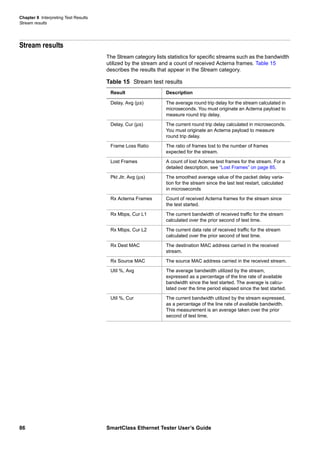
Stream results . . . . . . . . . . . . . . . . . . . . . . . . . . . . . . . . . . . . . . . . . . . . . . 86
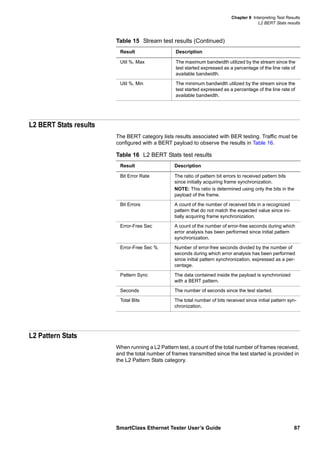
L2 BERT Stats results . . . . . . . . . . . . . . . . . . . . . . . . . . . . . . . . . . . . . . . . 87
L2 Pattern Stats . . . . . . . . . . . . . . . . . . . . . . . . . . . . . . . . . . . . . . . . . . . . . 87
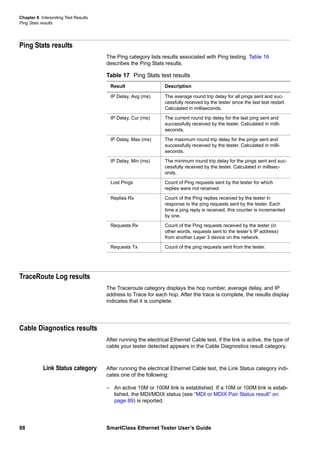
Ping Stats results . . . . . . . . . . . . . . . . . . . . . . . . . . . . . . . . . . . . . . . . . . . . 88
TraceRoute Log results . . . . . . . . . . . . . . . . . . . . . . . . . . . . . . . . . . . . . . . 88
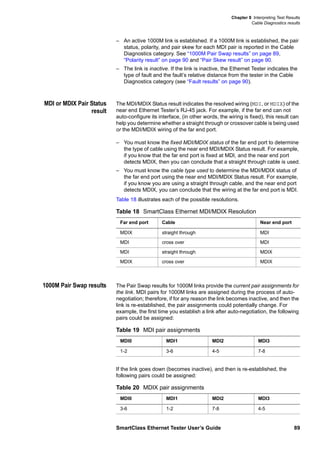
Cable Diagnostics results . . . . . . . . . . . . . . . . . . . . . . . . . . . . . . . . . . . . . 88
Link Status category . . . . . . . . . . . . . . . . . . . . . . . . . . . . . . . . . . . . . . . 88
MDI or MDIX Pair Status result . . . . . . . . . . . . . . . . . . . . . . . . . . . . . . . 89
1000M Pair Swap results. . . . . . . . . . . . . . . . . . . . . . . . . . . . . . . . . . . . 89
Polarity result. . . . . . . . . . . . . . . . . . . . . . . . . . . . . . . . . . . . . . . . . . . . . 90
Pair Skew result. . . . . . . . . . . . . . . . . . . . . . . . . . . . . . . . . . . . . . . . . . . 90
Fault results . . . . . . . . . . . . . . . . . . . . . . . . . . . . . . . . . . . . . . . . . . . . . . 90
Optical Signal results. . . . . . . . . . . . . . . . . . . . . . . . . . . . . . . . . . . . . . . . . 90
Chapter 9 Maintaining the Batteries 91
Prolonging battery life . . . . . . . . . . . . . . . . . . . . . . . . . . . . . . . . . . . . . . . . 92
Recharging the batteries . . . . . . . . . . . . . . . . . . . . . . . . . . . . . . . . . . . . . . 92
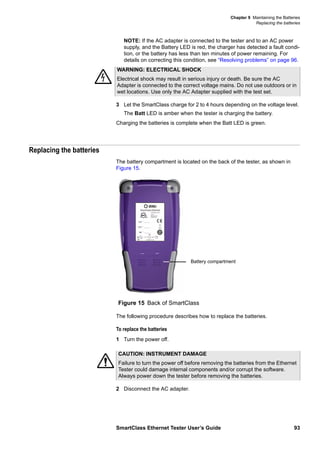
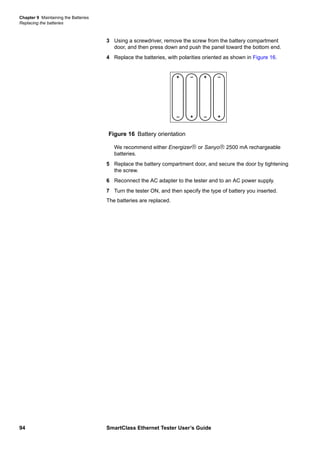
Replacing the batteries . . . . . . . . . . . . . . . . . . . . . . . . . . . . . . . . . . . . . . . 93
Chapter 10 Troubleshooting 95
Getting Technical Assistance . . . . . . . . . . . . . . . . . . . . . . . . . . . . . . . . . . 96
Resolving problems. . . . . . . . . . . . . . . . . . . . . . . . . . . . . . . . . . . . . . . . . . 96
General testing . . . . . . . . . . . . . . . . . . . . . . . . . . . . . . . . . . . . . . . . . . . 96
Ethernet and IP testing . . . . . . . . . . . . . . . . . . . . . . . . . . . . . . . . . . . . . 96
Appendix A Specifications 99
Connector specifications . . . . . . . . . . . . . . . . . . . . . . . . . . . . . . . . . . . . 100
Environmental specifications . . . . . . . . . . . . . . . . . . . . . . . . . . . . . . . . . 100
Power specifications . . . . . . . . . . . . . . . . . . . . . . . . . . . . . . . . . . . . . . . . 100
Warranty information. . . . . . . . . . . . . . . . . . . . . . . . . . . . . . . . . . . . . . . . 101
SmartClass Ethernet Tester User’s Guide ix
About this Guide
This chapter describes how to use this guide. Topics discussed in this chapter
include the following:
– “Purpose and scope” on page x
– “Assumptions” on page x
– “Safety and compliance information” on page x
– “Technical assistance” on page x
– “Conventions” on page xi
About this Guide
Purpose and scope
x SmartClass Ethernet Tester User’s Guide
Purpose and scope
The purpose of this guide is to help you successfully use the features and
capabilities of the SmartClass Ethernet Tester.
This guide includes task-based instructions that describe how to configure,
use, and troubleshoot the general functions of the SmartClass Ethernet Tester.
Additionally, this guide provides a description of JDSU’s warranty.
Assumptions
This guide is intended for novice, intermediate, and experienced users who
want to use the SmartClass Ethernet Tester effectively and efficiently. We are
assuming that you have basic computer experience and are familiar with basic
telecommunication concepts, terminology, and safety.
Safety and compliance information
Safety and compliance information are contained in a separate guide and are
provided in printed format with the product.
Technical assistance
If you need assistance or have questions related to the use of this product, use
the information in Table 1 to contact JDSU’s Technical Assistance Center
(TAC) for customer support.
During off-hours, you can request assistance by doing one of the following:
leave a voice message at the TAC for your region; email the North American
TAC (tac@jdsu.com); submit your question using our online Technical Assis-
tance request form at www.jdsu.com.
Table 1 Technical assistance centers
Region Phone Number
Americas 1-866-ACTERNA
1-866-228-3762
301-353-1550
tac@jdsu.com
Europe, Africa, and
Mid-East
+49 (0) 7121 86 1345
(JDSU Germany)
hotline.europe@jdsu.com
Asia and the Pacific +852 2892 0990
(Hong Kong)
+8610 6833 7477
(Beijing-China)
About this Guide
Conventions
SmartClass Ethernet Tester User’s Guide xi
Conventions
This symbols and safety terms used in this guide are described in the following
tables.
Table 2 Symbol conventions
Table 3 Safety definitions
This symbol represents a general hazard.
This symbol represents a risk of electrical shock.
This symbol represents a risk of explosion
This symbol represents a Note indicating related information or
tip.
This symbol, located on the equipment, battery, or packaging
indicates that the equipment or battery must not be disposed of
in a land-fill site or as municipal waste, and should be disposed
of according to your national regulations.
DANGER Indicates an imminently hazardous situation which, if not
avoided, will result in death or serious injury.
WARNING Indicates a potentially hazardous situation which, if not
avoided, could result in death or serious injury.
CAUTION Indicates a potentially hazardous situation which, if not
avoided, may result in minor or moderate injury.
About this Guide
Conventions
xii SmartClass Ethernet Tester User’s Guide
1
SmartClass Ethernet Tester User’s Guide 1
Chapter 1 Getting Started
This chapter provides a general description of the SmartClass Ethernet Tester.
Topics discussed in this chapter include the following:
– “Ship list” on page 2
– “Features and capabilities” on page 2
– “What’s new” on page 3
– “Options and accessories” on page 3
– “Preparation for use” on page 5
– “Exploring the front panel” on page 6
– “Exploring the connector panel” on page 8
– “Exploring the bottom panel” on page 8
– “Powering ON your tester” on page 9
– “Powering OFF your tester” on page 9
– “Navigating the user interface” on page 9
– “Using the keypad” on page 13
Chapter 1 Getting Started
Ship list
2 SmartClass Ethernet Tester User’s Guide
Ship list
The Ethernet Tester typically ships in anti-static packing material to stabilize
the tester inside the box. The following items ship standard with the Smart-
Class Ethernet Tester:
– SmartClass Ethernet Tester tester.
– Universal Power Adapter — A power adapter designed specifically for the
SmartClass Tester is included. When supplying power to the
SmartClass Tester using an adapter, you must use the adapter supplied
with your tester. Additional AC line plug adapters are also included.
– Carrying Bag
– 4 AA Rechargeable NiMH Batteries
– Shielded Ethernet Cable
– USB Cable
– Documentation CD. The User’s Guide is included as a PDF on the CD.
The Download Manager utility is also provided on this CD. Safety and
compliance information is provided separately, in printed format.
When unpacking the tester, verify that each of the standard items, and any
optional items you ordered, are included in the package.
Features and capabilities
Features and capabilities of the SmartClass Ethernet Tester include the
following:
– Single RJ-45 port for electrical testing
– Single SFP port for optical testing
– Optical power measurement
– Line rate throughput testing
– Loopback testing
– RFC 2544 testing
– Layer 2 and 3 statistics
– Packet jitter measurements
– Ping testing
– Traceroute testing
– DHCP support
– VLAN and Q-in-Q support
– Cable diagnostics
– Reports in PDF format
– Field replaceable batteries
Chapter 1 Getting Started
What’s new
SmartClass Ethernet Tester User’s Guide 3
What’s new
This release of the SmartClass Ethernet tester includes the following new
features:
– Lockable keypad. You can lock your keypad during testing to prevent unin-
tentional key presses that might disrupt or end the test.
– Multiple traffic streams. The tester can now transmit and analyze up to
eight independent streams of layer 2 or layer 3 traffic. When configuring
the traffic, you can optionally assign a unique source MAC or IP addresses
to each individual stream, or you can use the same source address for all
streams.
– Configurable Acterna Test Packets (ATPs). You can now specify a fill byte
pattern for Acterna Test Packets. The pattern is used to populate the
payload.
– MPLS encapsulation.The tester now allows you to transmit layer 3 IP
traffic over a MPLS network by specifying MPLS label settings when you
configure traffic for single stream tests.
– IP Filter results. The source and destination addresses carried in filtered
layer 3 IP traffic now appear as test results when running single stream
layer 3 tests.
– Asymmetrical RFC-2544. An asymmetrical RFC-2544 script is now avail-
able which allows you to run the script in an end-to-end configuration at
different upstream and downstream line rates. The script is initiated by a
master tester on the near end. The master tester then automatically
configures the slave tester on the far end.
– Layer 4 loopbacks. You can loopback received layer 4 traffic when running
Layer 3 Traffic tests. Traffic is not analyzed for layer 4 statistics, the tester
simply swaps the source and destination port numbers carried in the
received traffic before looping it back to the source device.
Options and accessories
Each SmartClass Ethernet Tester provides one RJ-45 and one SFP jack on
the left side of the tester. The standard tester allows you to loopback 10/100/
1000 Base-T/TX Ethernet traffic from an electrical interface.
Software options When you order your tester, you can order the following software options to
expand your testing capability:
– TRAFFIC (TRF). The TRAFFIC software option allows you to generate
and transmit traffic over a 10/100/1000 Base-T/Tx electrical interface. If
you purchase the OPTICAL software option too, your tester can also
generate and transmit traffic over a 1000Base-X optical interface.
– OPTICAL (OPT). The OPTICAL software option allows you to use the SFP
jack on your tester to loopback 1000Base-X optical Ethernet traffic. If you
purchased the TRAFFIC software option too, your tester can also
generate and transmit traffic over a 1000Base-X optical interface.
– MPLS (MPL). The MPLS software option allows you to tag and analyze
MPLS encapsulated traffic. For details, see “Specifying VLAN, Q-in-Q, or
MPLS settings” on page 45.
Chapter 1 Getting Started
Options and accessories
4 SmartClass Ethernet Tester User’s Guide
– STREAMS (STR). The STREAMS software option allows you to transmit
and analyze up to eight individual streams of traffic. For details, see
Chapter 5 “Multiple Streams Testing”.
– ASYMETRICAL RFC (ASY). The ASYMETRICAL RFC software option
allows you to run an RFC test in an end-to-end configuration with different
uplink and downlink speeds. For details, see the “New asymmetrical
RFC 2544 test” on page 66.
You should also purchase a JDSU recommended SFP for optical testing. Each
of the SFPs offered by JDSU as an option is MSA compliant. Please refer to
your SFP manufacturer’s site for detailed specifications.
Accessories Table 4 lists the accessories offered for the Ethernet Tester.
To order accessories for your Ethernet Tester, or for a list of currently
supported SFPs, contact JDSU Customer Care, your JDSU TAC representa-
tive, or your local JDSU sales office. You can also contact JDSU through the
company web site, www.jdsu.com.
Table 4 SmartClass Ethernet Tester accessories
Catalog Number Accessory
AC-SFP-1000SX 1G Ethernet/1G/2G FC (850nm) multimode SFP
AC-SFP-1000LX 1G Ethernet/1G/2G FC (1310nm) singlemode SFP
AC-SFP-1000ZX 1G Ethernet (1550nm) singlemode SFP
AC-SFP-1000BX1 1G Ethernet (1310nm TX, 1490nm RX)
singlemode SFP
AC-SFP-1000BX2 1G Ethernet (1490nm TX, 1310nm RX)
singlemode SFP
AC-SFP-CWDM 1G Ethernet varying wavelengths SFP
CB-019011 Singlemode Duplex SC-LC
CB-019013 Multimode Duplex SC-LC
CB-019052 Singlemode Simplex SC-LC
CB-019054 Multimode Simplex SC-LC
CB-019055 Multimode Simplex LC-LC
CB-019056 Multimode Duplex LC-LC
CB-019057 Singlemode Simplex LC-LC
CB-019058 Singlemode Duplex LC-LC
CB-50747 10’ Ethernet cable
CB-50759 USB cable
3010-12-0101 Carrying Bag
SC1WALLCHARGER Universal AC Power Adapter
BATTAA25AHNIMH4PACK NiMH Rechargeable batteries, 4-pack
C11-015765 Replacement AC Adapter
Chapter 1 Getting Started
Preparation for use
SmartClass Ethernet Tester User’s Guide 5
Preparation for use
This section explains how to start using your Ethernet Tester.
General preparation When you unpack the Ethernet Tester, do the following:
– Inspect the tester for damage.
– If undamaged, save the box and packing materials in case you need to
ship the tester in the future.
Before using the Ethernet Tester for the first time, do the following:
– If you are using alkaline batteries, verify that your tester is OFF, and then
install fresh batteries in the tester.
– If you are using rechargeable batteries, verify that your tester is OFF, and
then install the batteries in the tester. Before testing, make sure the
batteries have been fully charged (see “Recharging the batteries” on
page 92).
– Turn the tester ON (see “Powering ON your tester” on page 9).
– When prompted, specify the type of battery you installed.
– Verify that your tester is operating properly by navigating through a few
menus.
– If the Batt LED is red, replace the batteries (see “Replacing the batteries”
on page 93). If you suspect that the batteries are fine, and the batteries are
fully charged, it’s possible the charger has detected a fault condition. See
“Resolving problems” on page 96 for details.
Changing the AC line plug
fitting
The Ethernet Tester’s AC Adapter/Charger allows different AC line plug
fittings.
To change the AC line plug fitting
1 If an AC line plug fitting is already installed, do the following:
2 Press and hold the button just below the fitting.
3 Slide the fitting out of the slot.
4 Select the appropriate AC line plug adapter.
5 Slide the AC line plug adapter into the slot.
You will hear a click when the fitting is fully inserted.
The AC Adapter is ready for use.
Chapter 1 Getting Started
Exploring the front panel
6 SmartClass Ethernet Tester User’s Guide
Exploring the front panel
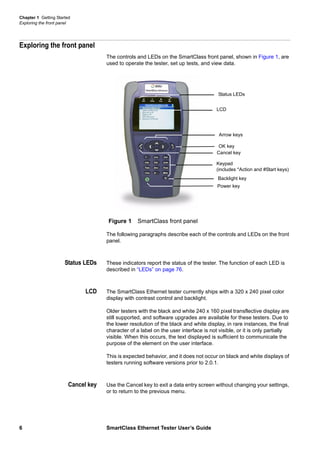
The controls and LEDs on the SmartClass front panel, shown in Figure 1, are
used to operate the tester, set up tests, and view data.
The following paragraphs describe each of the controls and LEDs on the front
panel.
Status LEDs These indicators report the status of the tester. The function of each LED is
described in “LEDs” on page 76.
LCD The SmartClass Ethernet tester currently ships with a 320 x 240 pixel color
display with contrast control and backlight.
Older testers with the black and white 240 x 160 pixel transflective display are
still supported, and software upgrades are available for these testers. Due to
the lower resolution of the black and white display, in rare instances, the final
character of a label on the user interface is not visible, or it is only partially
visible. When this occurs, the text displayed is sufficient to communicate the
purpose of the element on the user interface.
This is expected behavior, and it does not occur on black and white displays of
testers running software versions prior to 2.0.1.
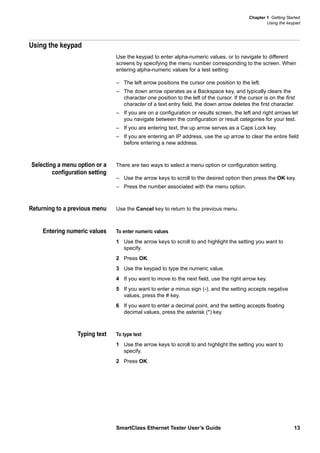
Cancel key Use the Cancel key to exit a data entry screen without changing your settings,
or to return to the previous menu.
Figure 1 SmartClass front panel
LCD
Status LEDs
Arrow keys
Keypad
(includes *Action and #Start keys)
OK key
Cancel key
Backlight key
Power key
Chapter 1 Getting Started
Exploring the front panel
SmartClass Ethernet Tester User’s Guide 7
OK key Use OK to accept a changed setting or to proceed to the next menu.
Arrow keys Use the arrow keys to navigate through menu selections.
Keypad Use the keypad to enter numbers, make menu selections, enter alphabetic
characters, and so on. Throughout the menus, the numbers associated with
each function provide a quick way to perform tests with simple numerical
sequences.
Action key Use the Action key to display a menu listing a variety of actions required during
testing such as starting traffic or looping up a tester.
Start key Use the Start key to:
– Start your test and transmit traffic immediately after you configure your
test. After starting the test, the tester automatically displays test results
associated with your application.
– Stop traffic and freeze the display of test results.
Backlight key Use the backlight key adjust the brightness on a color display, or if you have a
black and white display, to turn the LCD backlight on or off or adjust the
contrast.
– If you have a tester with a color display, pressing the button increases or
decreases the brightness by a step.
– If you have a tester with a black and white display, pressing the button
turns the backlight on or off. You can also adjust the contrast on your LCD
by pressing and holding the backlight key, and then simultaneously
pressing the right arrow (to increase contrast), or the left arrow (to
decrease contrast).
Power key Use the power key to turn power ON (see “Powering ON your tester” on
page 9), put the tester into sleep mode, or turn power OFF (see “Powering
OFF your tester” on page 9).
Chapter 1 Getting Started
Exploring the connector panel
8 SmartClass Ethernet Tester User’s Guide
Exploring the connector panel
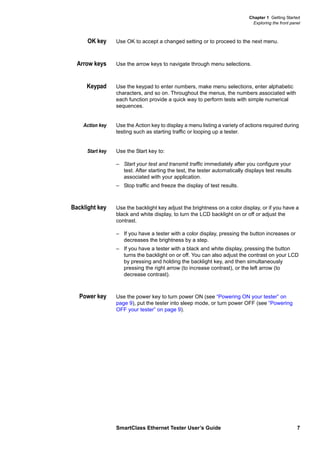
The SmartClass connector panel is used to connect the Ethernet Tester to the
circuit for testing. Figure 2 shows the connector panel.
Use the RJ-45 jack when connecting to 10/100/1000Base-T/TX electrical
circuits. If your tester supports optical testing (see “Software options” on
page 3), use the SFP jack to connect to 1000Base-X optical circuits using a
JDSU-approved SFP. See “Accessories” on page 4 for a list of SFPs offered
by JDSU.
Exploring the bottom panel
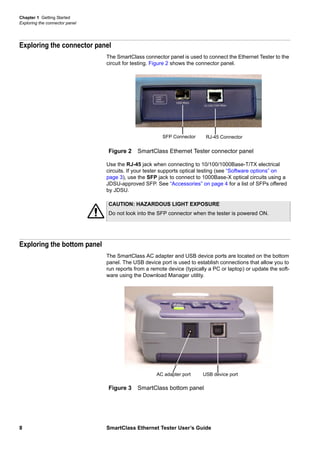
The SmartClass AC adapter and USB device ports are located on the bottom
panel. The USB device port is used to establish connections that allow you to
run reports from a remote device (typically a PC or laptop) or update the soft-
ware using the Download Manager utility.
Figure 2 SmartClass Ethernet Tester connector panel
RJ-45 ConnectorSFP Connector
CAUTION: HAZARDOUS LIGHT EXPOSURE
Do not look into the SFP connector when the tester is powered ON.
Figure 3 SmartClass bottom panel
USB device portAC adapter port
Chapter 1 Getting Started
Powering ON your tester
SmartClass Ethernet Tester User’s Guide 9
Powering ON your tester
The following procedure describes how to power ON the Ethernet Tester.
To power ON your tester
– Press and hold the Power key for 1 second.
The JDSU and SmartClass Ethernet splash screens appear in succession, and
then one of the following occurs:
– If Auto Resume is OFF, the Main Menu appears.
– If Auto Resume is ON, the screen for the application that you were running
before you put the tester into sleep mode or turned the tester OFF
completely appears. For example, if you were running the L2 Traffic Test
application, and you were specifying the required link settings when you
put the tester into sleep mode, the Link Settings configuration menu
appears when you power on the tester.
Powering OFF your tester
The following procedure describes how to power OFF the Ethernet Tester.
To power OFF your tester
1 Press and hold the Power key for 1 second.
The Power Control menu appears.
2 Do one of the following:
– If you want to be able to restart the tester quickly, select Enter Sleep
Mode. The test stops, and then the user interface disappears. If the
backlight is ON, the tester automatically turns it OFF. When you are
ready to resume testing, press the Power key for 1 second to redisplay
the user interface.
NOTE: If your tester is in sleep mode for more than two hours, it will
automatically turn itself OFF.
– To conserve power and completely power OFF your tester, select Shut
Down. A message briefly appears informing you that the tester is shut-
ting down.
Power is OFF.
Navigating the user interface
The user interface of the SmartClass is designed to be intuitive and easy to
use. Using the LCD and keypad, you can set up the tester, configure test
parameters, and view test results. This section describes the user interface,
and explains how to navigate through the menus and screens.
There are 3 types of screens on the user interface:
– Menus
– Data entry screens
– Results screens
Chapter 1 Getting Started
Navigating the user interface
10 SmartClass Ethernet Tester User’s Guide
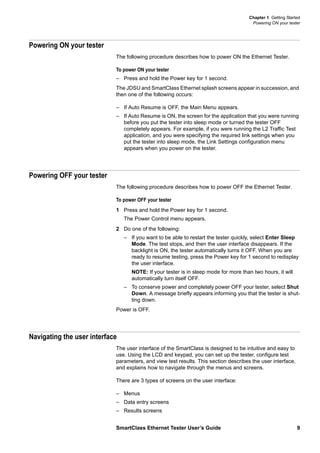
When you power up the SmartClass Ethernet Tester, the Main Menu of the
user interface appears. Figure 4 illustrates the Main Menu for a fully optioned
tester with a color display.
Battery icon A battery icon appears at the top right of each screen to indicate how much of
a charge remains on your battery.
Figure 4 SmartClass Ethernet Tester Main Menu
Table 5 Battery icons
Icon Indicates ...
The battery charge is greater than or equal to 5 volts.
The battery charge is between 4.4 and 5 volts.
The battery charge is less than or equal to 4.4 volts.
Chapter 1 Getting Started
Navigating the user interface
SmartClass Ethernet Tester User’s Guide 11
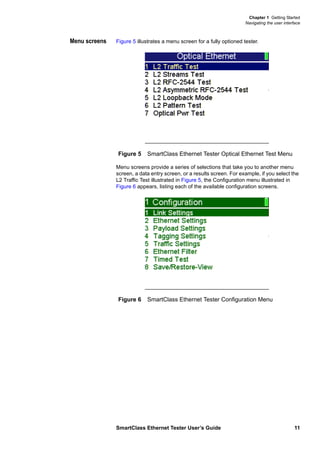
Menu screens Figure 5 illustrates a menu screen for a fully optioned tester.
Menu screens provide a series of selections that take you to another menu
screen, a data entry screen, or a results screen. For example, if you select the
L2 Traffic Test illustrated in Figure 5, the Configuration menu illustrated in
Figure 6 appears, listing each of the available configuration screens.
Figure 5 SmartClass Ethernet Tester Optical Ethernet Test Menu
Figure 6 SmartClass Ethernet Tester Configuration Menu
Chapter 1 Getting Started
Navigating the user interface
12 SmartClass Ethernet Tester User’s Guide
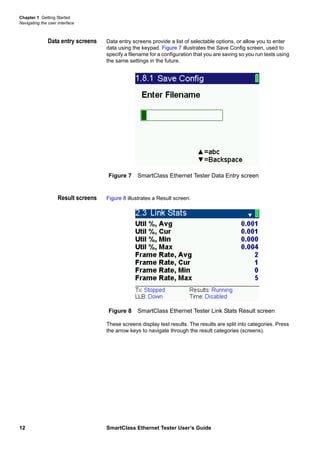
Data entry screens Data entry screens provide a list of selectable options, or allow you to enter
data using the keypad. Figure 7 illustrates the Save Config screen, used to
specify a filename for a configuration that you are saving so you run tests using
the same settings in the future.
Result screens Figure 8 illustrates a Result screen.
These screens display test results. The results are split into categories. Press
the arrow keys to navigate through the result categories (screens).
Figure 7 SmartClass Ethernet Tester Data Entry screen
Figure 8 SmartClass Ethernet Tester Link Stats Result screen
Chapter 1 Getting Started
Using the keypad
SmartClass Ethernet Tester User’s Guide 13
Using the keypad
Use the keypad to enter alpha-numeric values, or to navigate to different
screens by specifying the menu number corresponding to the screen. When
entering alpha-numeric values for a test setting:
– The left arrow positions the cursor one position to the left.
– The down arrow operates as a Backspace key, and typically clears the
character one position to the left of the cursor. If the cursor is on the first
character of a text entry field, the down arrow deletes the first character.
– If you are on a configuration or results screen, the left and right arrows let
you navigate between the configuration or result categories for your test.
– If you are entering text, the up arrow serves as a Caps Lock key.
– If you are entering an IP address, use the up arrow to clear the entire field
before entering a new address.
Selecting a menu option or a
configuration setting
There are two ways to select a menu option or configuration setting.
– Use the arrow keys to scroll to the desired option then press the OK key.
– Press the number associated with the menu option.
Returning to a previous menu Use the Cancel key to return to the previous menu.
Entering numeric values To enter numeric values
1 Use the arrow keys to scroll to and highlight the setting you want to
specify.
2 Press OK.
3 Use the keypad to type the numeric value.
4 If you want to move to the next field, use the right arrow key.
5 If you want to enter a minus sign (-), and the setting accepts negative
values, press the # key.
6 If you want to enter a decimal point, and the setting accepts floating
decimal values, press the asterisk (*) key.
Typing text To type text
1 Use the arrow keys to scroll to and highlight the setting you want to
specify.
2 Press OK.
Chapter 1 Getting Started
Using the keypad
14 SmartClass Ethernet Tester User’s Guide
3 Use the keypad to type the text.
– Repeatedly pressing a key scrolls through the selections for that key.
For example, repeatedly pressing the 2 key will scroll through A, B, C
and 2.
– To toggle between upper and lower case, press the up arrow.
– To delete the previous character, press the down arrow.
– Use the left and right arrow to navigate through typed text.
– To enter a space between characters, press the 0 (zero) key once.
– To scroll through and select a special character such as:
. @ / , ‘ - ? ! _ 1
press the 1 (one) key.
Locking the keypad You can lock your keypad at anytime to prevent unintentional key presses that
might disrupt or end the test.
To lock the keypad
– Press the Backlight key and 8 key simultaneously.
A message appears indicating that the keypad is locked. The following excep-
tions occur:
– You can still use the Backlight key in combination with the left and right
arrow keys to adjust the brightness on a color display. For details, see
“Backlight key” on page 7.
– If you have a black and white display, you can still use the Backlight key
to turn the LCD backlight on or off, or in combination with the left and right
arrow keys to adjust the contrast.
– You can still turn the tester off by pressing the Power key continuously for
7 seconds.
To unlock the keypad
– Press the Backlight key and 8 key simultaneously.
A message appears indicating that the keypad is unlocked.
NOTE
You can not enter a space when specifying a filename.
2
SmartClass Ethernet Tester User’s Guide 15
Chapter 2 Instrument Settings
This chapter describes how to configure the basic settings of the instrument.
Topics discussed in this chapter include the following:
– “Setting the language” on page 16
– “Viewing software versions” on page 16
– “Setting the date and time” on page 16
– “Adjusting the contrast” on page 17
– “Loading software upgrades” on page 17
– “Enabling options” on page 18
– “Verifying enabled options” on page 18
– “Determining the specified battery type” on page 18
– “Restoring factory defaults” on page 18
Chapter 2 Instrument Settings
Setting the language
16 SmartClass Ethernet Tester User’s Guide
Setting the language
The following instructions explain how to specify the language for your
SmartClass Ethernet Tester.
To specify the language for the SmartClass Ethernet tester
1 Power ON your tester by pressing and holding the key for 1 second.
The SmartClass Ethernet splash screen appears briefly, and then the
SmartClass Ethernet main menu appears.
2 Select 5 System Settings. A menu appears listing each of the system
settings.
3 Select 3 Language. A menu appears listing the available languages.
4 Select the language. After a brief moment, the main menu appears, and
options appear in the language you selected.
The language for the SmartClass Ethernet tester is specified.
Viewing software versions
The Version Info screen displays the current version of the software loaded on
your tester. It also displays the factory-assigned SCE ID number.
To view internal software versions
1 Select System Settings from the Main Menu.
2 Select Version Info.
The software version and SCE ID Number appear.
Setting the date and time
The Ethernet Tester has an internal clock that you can set to provide accurate
time stamps for test results. By default, the clock uses a 12-hour format and
presents dates in a MM/DD/YYYY format. You can optionally configure your
tester to use a 24-hour time format or a DD/MM/YYYY date format.
Changing the date or time
format
The following procedure describes how to change the date or time format on
your tester.
To change the date or time format
1 Select System Settings from the Main Menu.
2 Select Set Time/Date Format.
NOTE:
If you select the wrong language by mistake, you can return to the language
selection menu by selecting the last item on the Main Menu, and then 3.
Chapter 2 Instrument Settings
Adjusting the contrast
SmartClass Ethernet Tester User’s Guide 17
3 Do one of the following:
– To change the format used to display the time, select Time Format,
and then select the new format.
– To change the format used to display the date, select Date Format,
and then select the new format.
The format is changed.
Setting the date or time The following procedure describes how to set the date or time.
To set the date or time
1 Select System Settings from the Main Menu.
2 Select Set Time/Date.
3 Do one of the following:
– To set the time, select Set Time, and then enter the time.
– To set the date, select Set Date, and then enter the date.
The date or time is set.
Adjusting the contrast
The following procedure describes how to adjust the contrast.
To adjust the contrast
1 Select System Settings from the Main Menu.
2 Select Control Contrast.
3 Change the contrast level using the right or left arrow key.
4 Press the Cancel key to return to the previous Menu.
The contrast is set. You can also press and hold the Backlight key, and then
press the right and left arrows to adjust contrast of the display.
Loading software upgrades
You can upgrade the software on your tester using the Download Manager
utility. Instructions for loading software upgrades are provided in the Smart-
Class Ethernet Tester Download Manager and Upgrade Instructions, which are
provided as a PDF with the utility.
Chapter 2 Instrument Settings
Enabling options
18 SmartClass Ethernet Tester User’s Guide
Enabling options
The following procedure describes how to enable software options.
To enable software options
1 Select System Settings from the Main Menu, then select Set Options.
2 Use your keypad to enter the JDSU provided option code.
3 Press the OK key.
The option is enabled.
Verifying enabled options
After options are enabled, they are listed on the Set Options screen.
To verify which options are enabled
– Select System Settings from the Main Menu, then select Set Options.
The installed options are listed under Installed:. For a list of available options,
see “Options and accessories” on page 3.
Determining the specified battery type
The following procedure describes how to determine the type of battery you
specified when you installed batteries in your tester (see “Replacing the
batteries” on page 93).
To determine the specified battery type
1 Select System Settings from the Main Menu.
2 Select Battery Type.
A screen briefly appears indicating the type of battery you specified, and then
the System Settings menu appears.
Restoring factory defaults
The following procedure describes how to restore the Ethernet Tester to use
factory default test application and system settings.
To restore factory default settings
1 Select System Settings from the Main Menu.
2 Select Restore Factory Defaults.
3 Select Yes to restore the settings, or No to keep the current settings.
Factory defaults are restored.
3
SmartClass Ethernet Tester User’s Guide 19
Chapter 3 Ethernet Testing
This chapter provides task-based instructions for turning up and trouble-
shooting Ethernet service using the SmartClass Ethernet Tester. Topics
discussed in this chapter include the following:
– “About Ethernet testing” on page 20
– “Cable diagnostics” on page 20
– “Measuring optical power” on page 21
– “Launching an Ethernet test application” on page 22
– “Initializing the link” on page 22
– “Specifying L2 test application settings” on page 24
– “Transmitting layer 2 traffic” on page 33
– “BER testing” on page 34
– “Measuring service disruption time” on page 34
– “Inserting errors or pause frames” on page 35
– “Transmitting layer 2 patterns” on page 35
– “Loopback testing” on page 36
– “Starting or restarting a test” on page 38
– “Stopping traffic” on page 38
– “Running a timed test” on page 38
Chapter 3 Ethernet Testing
About Ethernet testing
20 SmartClass Ethernet Tester User’s Guide
About Ethernet testing
Using the SmartClass Ethernet Tester, you can turn up and troubleshoot
Ethernet service by verifying connectivity, measuring throughput, and verifying
that quality of service statistics conform to those specified in a customer’s
Service Level Agreement.
When testing in an end-to-end or loopback configuration, you can use a
second SmartClass Ethernet Tester at the far end, or you can use another
JDSU compliant Ethernet test set (a test set marketed by JDSU and designed
to transmit an Acterna Test Packet payload). These packets carry a time stamp
used to calculate a variety of test results. The FST-2802 TestPad, the T-BERD/
MTS 8000 Transport Module, the SmartClass Ethernet tester, and the HST
with an Ethernet SIM can all be configured to transmit and analyze ATP
payloads.
Before running Ethernet tests, consider the following:
– If you are preparing to run an electrical Ethernet test, you can optionally
run diagnostics to determine the type of cable used to connect to the
circuit (see “Cable diagnostics” on page 20).
– If you are preparing to run an optical Ethernet test, you can determine
whether a signal is present, the optical receive level (in dBm), and the
type of SFP you are using (see “Measuring optical power” on page 21).
Ethernet testing involves the following key steps:
1 Launching a test application (see “Launching an Ethernet test application”
on page 22).
2 Initializing the Ethernet link (see “Initializing the link” on page 22).
3 Specifying settings for the test application (see “Specifying L2 test applica-
tion settings” on page 24).
4 Starting or restarting the test (see “Starting or restarting a test” on
page 38).
5 Observing the results associated with your test (see “Viewing test results”
on page 76).
Cable diagnostics
Before testing 10/100/1000 electrical Ethernet or IP, you can use the Ethernet
Tester to examine the state of the cables used to transmit traffic on a
10/100/1000 electrical Ethernet circuit. Typically this involves out-of-service
testing to determine the link status, the pair status of each MDI or MDI-X pair,
the pair assignments for 1000M links, the polarity for each MDI pair, and the
pair skew. If the link is inactive, you can also use the tester to determine the
nature of the fault.
For details on the test results associated with cable diagnostics, see “Cable
Diagnostics results” on page 88.
Chapter 3 Ethernet Testing
Measuring optical power
SmartClass Ethernet Tester User’s Guide 21
Running cable diagnostics To run cable diagnostics
1 Power on the Ethernet Tester, and connect it to the link.
2 On the Main Menu, select Electrical Ethernet or Electrical IP.
A menu of test applications for testing 10/100/1000 Mbps electrical
Ethernet appears.
3 Select the Cable Test.
A message briefly appears stating that the tester is launching the test
application, then a test menu appears.
4 Select Results, and then select one of the following:
– Link Status to determine whether or not the link is active, and, if so,
what speed (line rate) is detected for traffic on the link.
– Cable Diagnostics to observe the link results associated with the diag-
nostics, such as the MDI/MDIX Status or Pair Skew.
For details, see “Cable Diagnostics results” on page 88.
Cable diagnostics are complete.
Measuring optical power
Before testing 1000Base-X optical Ethernet or IP, you can use the Ethernet
Tester to determine whether a signal is present, the optical receive level (in
dBm), and the type of SFP you are using.
To measure optical power
1 Power on the Ethernet Tester, and connect it to the link.
2 On the Main Menu, select Optical Ethernet or Optical IP.
A menu of test applications for testing 1000Base-X optical Ethernet
appears.
3 Select the Optical Pwr Test.
A message briefly appears stating that the tester is launching the test
application, then the Optical Signal result category appears, indicating
whether a signal is present, the optical receive level, and the type of SFP
detected by the tester.
Optical power is measured.
Chapter 3 Ethernet Testing
Launching an Ethernet test application
22 SmartClass Ethernet Tester User’s Guide
Launching an Ethernet test application
The following procedure describes how to launch an Ethernet test.
To launch an Ethernet test
1 On the Main Menu, select one of the following:
– Electrical Ethernet. Launches a menu of test applications for testing
10/100/1000 Mbps electrical Ethernet.
– Optical Ethernet. Launches a menu of test applications for testing
1000 Mbps optical Ethernet.
2 Select one of the following test applications:
– L2 Traffic Test
– L2 RFC-2544 Test
– L2 Asymmetric RFC-2544 Test
– L2 Loopback Mode
– L2 Pattern Test (Optical only)
A message briefly appears stating that the tester is launching the test
application, and if you selected an optical test application, turns the laser
ON.
A test menu appears for the application, listing the following options:
– Configuration. Select this option to configure your test.
– Results. Select this option to observe test results associated with your
test.
– Action (*). Select this option to perform key actions required for your
test, such as starting or restarting a test, starting traffic or looping up a
tester. You can also press the *Action button at any time to view a
menu of actions applicable to your test.
– Error. Select this option to insert errors or pause frames as you test.
You are ready to initialize the Ethernet link (see “Initializing the link” on
page 22).
Initializing the link
Initializing an Ethernet link involves specifying the settings required to establish
connectivity with another Ethernet device on a circuit (link), such as auto-nego-
tiation, flow control, and speed and duplex settings (for 10/100 electrical
Ethernet traffic only).
After specifying the link initialization settings, you are ready to connect the
Ethernet Tester (or testers) to an access element on the circuit.
– If you enabled auto-negotiation on the Ethernet Tester, and another
Ethernet device is on the circuit, the tester and the device automatically go
through the auto-negotiation process. After auto-negotiation is complete,
an Ethernet link is established, and idle traffic is transmitted over the
circuit.
– If you disabled auto-negotiation on the Ethernet Tester, it immediately
transmits idle traffic over the circuit.
Chapter 3 Ethernet Testing
Initializing the link
SmartClass Ethernet Tester User’s Guide 23
To initialize an Ethernet link
1 Launch your test application:
– For Ethernet tests, see “Launching an Ethernet test application” on
page 22.
– For IP tests, see “Launching an IP test application” on page 42.
2 Select Configuration, and then select Link Settings.
A menu of link initialization settings appears.
3 Specify values for the following:
Setting Parameters Description/Applicability
Auto Neg – Enabled
– Disabled
Enables the tester to auto-nego-
tiate it’s capabilities with a link
partner. This setting is always
available.
NOTE: Auto-negotiation must
be enabled when testing
1000 Mbps electrical Ethernet.
Auto Neg Duplex – Half
– Full
During auto-negotiation, the
tester advertises it is half or full
duplex capable. Available if
Auto-Neg is enabled.
Auto Neg Rate – 10
– 100
– 1000
When testing electrical Ethernet,
the tester advertises this as the
maximum rate supported during
auto-negotiation. Available if
Auto-Neg is enabled.
Pause Capability – Neither
– Both
– Tx Only
– Rx Only
When testing optical Ethernet,
during auto negotiation, the
tester advertises this as its
capability to support pause
frames. Neither advertises it can
not transmit or detect received
pause frames. Both advertises
the tester can transmit and
detect received pause frames.
Flow Control – On
– Off
Indicates whether you want the
tester to detect or ignore
received pause frames. Avail-
able only if Auto Neg is disabled
and Duplex setting is Full.
Speed – 10
– 100
Indicates the speed supported
(10 Mbps or 100 Mbps). Avail-
able only if Auto Neg is disabled
for a 10/100 electrical test.
Duplex – Half
– Full
Indicates whether half or full
duplex traffic is supported. Avail-
able only if Auto Neg is disabled
for an electrical test.
Chapter 3 Ethernet Testing
Specifying L2 test application settings
24 SmartClass Ethernet Tester User’s Guide
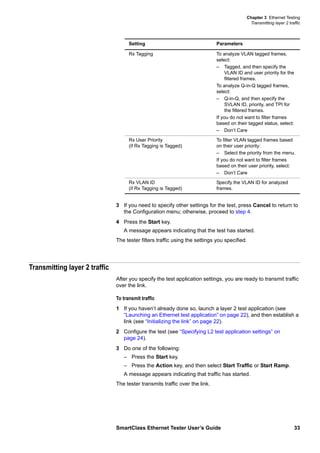
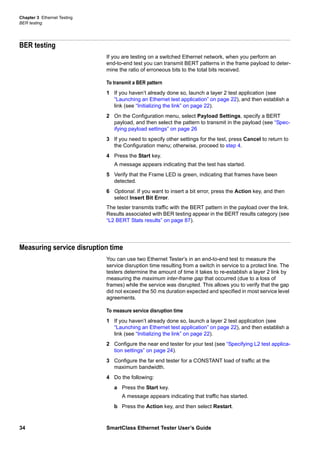
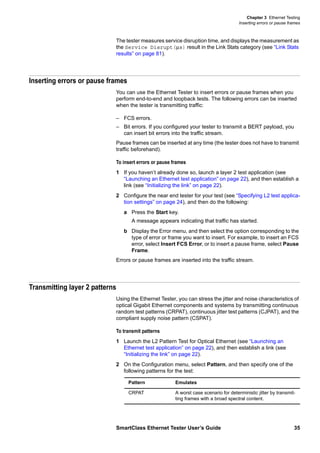
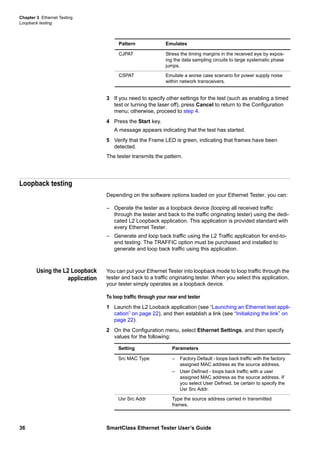
4 If you need to specify other settings for the test, press Cancel to return to
the Configuration menu; otherwise, proceed to step 5.
5 Verify that the Sync LED is green (indicating that the link is active).
6 Observe the Link Status results category for test results associated with
link initialization (see “Link Status results” on page 78).
The link is initialized.
Specifying L2 test application settings
Before transmitting traffic over a link, you can specify settings that characterize
the traffic and indicate the type of traffic load to transmit. You can also specify
settings that filter received traffic for analysis.
RJ-45 Port Setting – MDI
– MDI-X
– Auto Sensing
Indicates whether the RJ-45
port on your tester should oper-
ate as an MDI or an MDI-X
(crossover) port. If you select
Auto Sensing, the tester deter-
mines what type of port is con-
nected at the far end of the link,
and then configures the RJ-45
port on your tester to be com-
patible with the port on the far
end.
For example, if the port on the
far end is a MDI port, your tester
configures its RJ-45 port to
operate as a MDI-X crossover
port.
Available only when configuring
electrical tests.
Laser Enable – On
– Off
When testing optical Ethernet,
the laser is automatically on by
default. You can turn the laser
off using this setting.
Pause Quanta User specified Enter the quanta to be carried
by transmitted pause frames. To
determine the pause duration,
the receiving device performs
the following calculation:
10 Mbps electrical:
– Quanta x 51.2 ms
100 Mbps electrical:
– Quanta x 5.12 ms
1000 Mbps electrical and 1
GigE optical:
– Quanta x 512 ns
Setting Parameters Description/Applicability
Chapter 3 Ethernet Testing
Specifying L2 test application settings
SmartClass Ethernet Tester User’s Guide 25
When you specify L2 settings for one test application, your tester retains the
settings if you run a different test application. For example, if you turn
auto-negotiation OFF and flow control ON for a L2 Traffic Test, auto-negotia-
tion will be OFF, and flow control will be ON by default when you run a L2
Pattern Test.
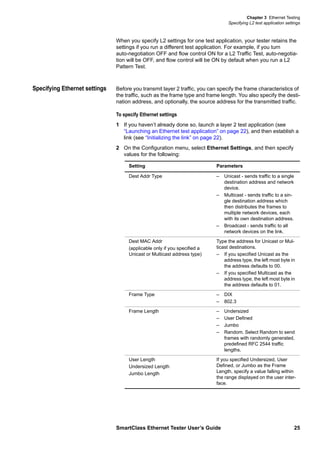
Specifying Ethernet settings Before you transmit layer 2 traffic, you can specify the frame characteristics of
the traffic, such as the frame type and frame length. You also specify the desti-
nation address, and optionally, the source address for the transmitted traffic.
To specify Ethernet settings
1 If you haven’t already done so, launch a layer 2 test application (see
“Launching an Ethernet test application” on page 22), and then establish a
link (see “Initializing the link” on page 22).
2 On the Configuration menu, select Ethernet Settings, and then specify
values for the following:
Setting Parameters
Dest Addr Type – Unicast - sends traffic to a single
destination address and network
device.
– Multicast - sends traffic to a sin-
gle destination address which
then distributes the frames to
multiple network devices, each
with its own destination address.
– Broadcast - sends traffic to all
network devices on the link.
Dest MAC Addr
(applicable only if you specified a
Unicast or Multicast address type)
Type the address for Unicast or Mul-
ticast destinations.
– If you specified Unicast as the
address type, the left most byte in
the address defaults to 00.
– If you specified Multicast as the
address type, the left most byte in
the address defaults to 01.
Frame Type – DIX
– 802.3
Frame Length – Undersized
– User Defined
– Jumbo
– Random. Select Random to send
frames with randomly generated,
predefined RFC 2544 traffic
lengths.
User Length
Undersized Length
Jumbo Length
If you specified Undersized, User
Defined, or Jumbo as the Frame
Length, specify a value falling within
the range displayed on the user inter-
face.
Chapter 3 Ethernet Testing
Specifying L2 test application settings
26 SmartClass Ethernet Tester User’s Guide
3 If you need to specify other settings for the test, press Cancel to return to
the Configuration menu; otherwise, proceed to step 4.
4 Press the Start key.
A message appears indicating that traffic has started.
The tester transmits traffic with the frame characteristics you specified.
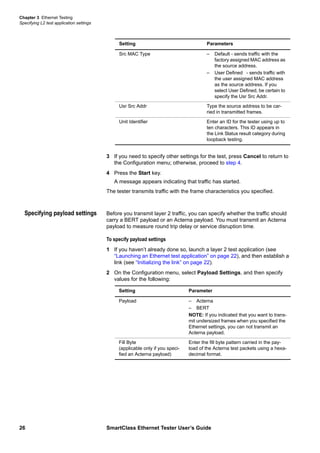
Specifying payload settings Before you transmit layer 2 traffic, you can specify whether the traffic should
carry a BERT payload or an Acterna payload. You must transmit an Acterna
payload to measure round trip delay or service disruption time.
To specify payload settings
1 If you haven’t already done so, launch a layer 2 test application (see
“Launching an Ethernet test application” on page 22), and then establish a
link (see “Initializing the link” on page 22).
2 On the Configuration menu, select Payload Settings, and then specify
values for the following:
Src MAC Type – Default - sends traffic with the
factory assigned MAC address as
the source address.
– User Defined - sends traffic with
the user assigned MAC address
as the source address. If you
select User Defined, be certain to
specify the Usr Src Addr.
Usr Src Addr Type the source address to be car-
ried in transmitted frames.
Unit Identifier Enter an ID for the tester using up to
ten characters. This ID appears in
the Link Status result category during
loopback testing.
Setting Parameters
Setting Parameter
Payload – Acterna
– BERT
NOTE: If you indicated that you want to trans-
mit undersized frames when you specified the
Ethernet settings, you can not transmit an
Acterna payload.
Fill Byte
(applicable only if you speci-
fied an Acterna payload)
Enter the fill byte pattern carried in the pay-
load of the Acterna test packets using a hexa-
decimal format.
Chapter 3 Ethernet Testing
Specifying L2 test application settings
SmartClass Ethernet Tester User’s Guide 27
3 If you need to specify other settings for the test, press Cancel to return to
the Configuration menu; otherwise, proceed to step 4.
4 Press the Start key.
A message appears indicating that traffic has started.
The tester transmits traffic with the payload you specified.
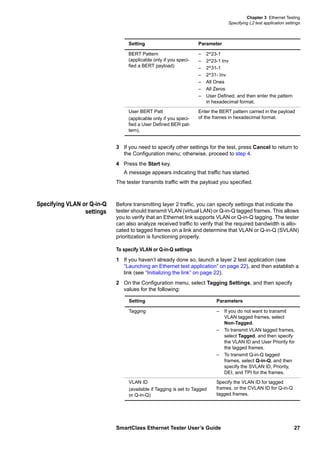
Specifying VLAN or Q-in-Q
settings
Before transmitting layer 2 traffic, you can specify settings that indicate the
tester should transmit VLAN (virtual LAN) or Q-in-Q tagged frames. This allows
you to verify that an Ethernet link supports VLAN or Q-in-Q tagging. The tester
can also analyze received traffic to verify that the required bandwidth is allo-
cated to tagged frames on a link and determine that VLAN or Q-in-Q (SVLAN)
prioritization is functioning properly.
To specify VLAN or Q-in-Q settings
1 If you haven’t already done so, launch a layer 2 test application (see
“Launching an Ethernet test application” on page 22), and then establish a
link (see “Initializing the link” on page 22).
2 On the Configuration menu, select Tagging Settings, and then specify
values for the following:
BERT Pattern
(applicable only if you speci-
fied a BERT payload)
– 2^23-1
– 2^23-1 Inv
– 2^31-1
– 2^31- Inv
– All Ones
– All Zeros
– User Defined, and then enter the pattern
in hexadecimal format.
User BERT Patt
(applicable only if you speci-
fied a User Defined BER pat-
tern).
Enter the BERT pattern carried in the payload
of the frames in hexadecimal format.
Setting Parameter
Setting Parameters
Tagging – If you do not want to transmit
VLAN tagged frames, select
Non-Tagged.
– To transmit VLAN tagged frames,
select Tagged, and then specify
the VLAN ID and User Priority for
the tagged frames.
– To transmit Q-in-Q tagged
frames, select Q-in-Q, and then
specify the SVLAN ID, Priority,
DEI, and TPI for the frames.
VLAN ID
(available if Tagging is set to Tagged
or Q-in-Q)
Specify the VLAN ID for tagged
frames, or the CVLAN ID for Q-in-Q
tagged frames.
Chapter 3 Ethernet Testing
Specifying L2 test application settings
28 SmartClass Ethernet Tester User’s Guide
3 If you need to specify other settings for the test, press Cancel to return to
the Configuration menu; otherwise, proceed to step 4.
4 Press the Start key.
A message appears indicating that the test has started.
The tester transmits traffic with the VLAN or Q-in-Q settings you specified.
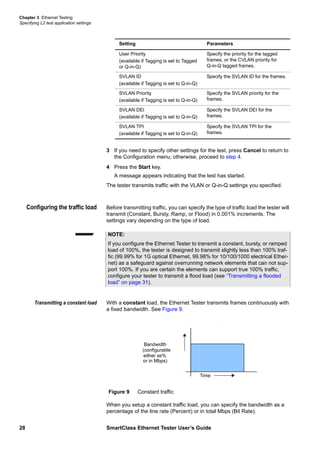
Configuring the traffic load Before transmitting traffic, you can specify the type of traffic load the tester will
transmit (Constant, Bursty, Ramp, or Flood) in 0.001% increments. The
settings vary depending on the type of load.
Transmitting a constant load With a constant load, the Ethernet Tester transmits frames continuously with
a fixed bandwidth. See Figure 9.
When you setup a constant traffic load, you can specify the bandwidth as a
percentage of the line rate (Percent) or in total Mbps (Bit Rate).
User Priority
(available if Tagging is set to Tagged
or Q-in-Q)
Specify the priority for the tagged
frames, or the CVLAN priority for
Q-in-Q tagged frames.
SVLAN ID
(available if Tagging is set to Q-in-Q)
Specify the SVLAN ID for the frames.
SVLAN Priority
(available if Tagging is set to Q-in-Q)
Specify the SVLAN priority for the
frames.
SVLAN DEI
(available if Tagging is set to Q-in-Q)
Specify the SVLAN DEI for the
frames.
SVLAN TPI
(available if Tagging is set to Q-in-Q)
Specify the SVLAN TPI for the
frames.
Setting Parameters
NOTE:
If you configure the Ethernet Tester to transmit a constant, bursty, or ramped
load of 100%, the tester is designed to transmit slightly less than 100% traf-
fic (99.99% for 1G optical Ethernet, 99.98% for 10/100/1000 electrical Ether-
net) as a safeguard against overrunning network elements that can not sup-
port 100%. If you are certain the elements can support true 100% traffic,
configure your tester to transmit a flood load (see “Transmitting a flooded
load” on page 31).
Figure 9 Constant traffic
Bandwidth
(configurable
either as%
or in Mbps)
Time
Chapter 3 Ethernet Testing
Specifying L2 test application settings
SmartClass Ethernet Tester User’s Guide 29
To transmit a constant load of traffic
1 If you haven’t already done so, launch a layer 2 test application (see
“Launching an Ethernet test application” on page 22), and then establish a
link (see “Initializing the link” on page 22).
2 On the Configuration menu, select Traffic Settings, and then specify
values for the following settings:
3 If you need to specify other settings for the test, press Cancel to return to
the Configuration menu; otherwise, proceed to step 4.
4 Press the Start key.
A message appears indicating that traffic has started.
The tester transmits a constant rate of traffic.
Transmitting a bursty load With a bursty load, the tester transmits frames at up to 100% bandwidth for a
specific time interval, followed by no frame transmissions for an interval (gap)
calculated by your tester. See Figure 10.
When you configure bursty traffic, you specify the burst bandwidth (as a
percentage of the duty cycle), and the number of frames per burst. The tester
then automatically calculates the burst gap for you.
To transmit a bursty load of traffic
1 If you haven’t already done so, launch a layer 2 test application (see
“Launching an Ethernet test application” on page 22), and then establish a
link (see “Initializing the link” on page 22).
Setting Parameters
Load Type Constant
Load Unit – Percent
– Bit Rate
Load Percent
(if Load Unit is Percent)
Enter the bandwidth to transmit as a
percentage of the line rate.
Load Bit Rate (Mbps)
(if Load Unit is Bit Rate)
Enter the bandwidth to transmit in
Mbps.
Figure 10 Bursty traffic
Time
Gap between bursts
Bandwidth
100%
Chapter 3 Ethernet Testing
Specifying L2 test application settings
30 SmartClass Ethernet Tester User’s Guide
2 On the Configuration menu, select Traffic Settings, and then specify
values for the following settings:
3 If you need to specify other settings for the test, press Cancel to return to
the Configuration menu; otherwise, proceed to step 4.
4 Press the Start key.
A message appears indicating that traffic has started.
The tester transmits a bursty load of traffic.
Transmitting a ramped load With a ramped load, the Ethernet Tester gradually ramps (increases) the
transmitted traffic load by 1 percent every 1 second until it detects errored,
dropped, or pause frames. This allows you to easily verify the maximum
throughput of a link.
When you verify throughput by transmitting a ramped load, be certain to
configure your tester to transmit an Acterna payload, and loop the far-end
device back to the traffic originating tester (see “Using the automatic loopback
feature” on page 37). Acterna frames carry a number which the tester uses to
determine whether frames were dropped.
Setting Parameters
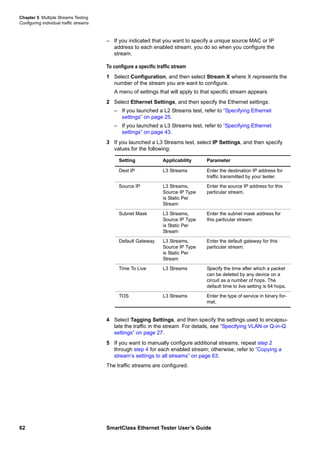
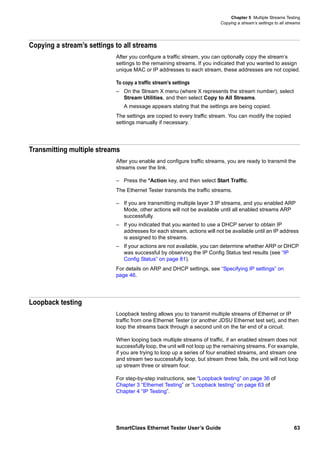
Load Type Burst
Burst Load % Enter the load to transmit during
bursts as a percentage of the line
rate.
Burst Size Select the number of frames to trans-
mit in each burst of traffic, or select
User Defined.
User Burst Size If you selected a User Defined burst
size, enter the number of frames to
transmit in each burst of traffic, rang-
ing from 1 to 16,500,000.
Burst Type Select Fixed to specify a fixed num-
ber of bursts, or select Continuous.
Burst Quantity If you specify a Fixed Burst Type,
enter the number of bursts to trans-
mit, ranging from 1 to 65,535.
Chapter 3 Ethernet Testing
Specifying L2 test application settings
SmartClass Ethernet Tester User’s Guide 31
The load increments to 100%, and then the tester continues to transmit traffic
at 100% for the duration of your test. See Figure 11.
To transmit a ramped load of traffic
1 If you haven’t already done so, launch a layer 2 test application (see
“Launching an Ethernet test application” on page 22), and then establish a
link (see “Initializing the link” on page 22).
2 On the Configuration menu, select Traffic Settings, and then specify
Ramp as the load type.
3 If you need to specify other settings for the test, press Cancel to return to
the Configuration menu; otherwise, proceed to step 4.
4 Press the Start key.
A message appears indicating that traffic has started.
The tester transmits a ramped load of traffic.
Transmitting a flooded load With a flooded load, the module transmits traffic at 100% of the interface rate.
To transmit a flooded load of traffic
1 If you haven’t already done so, launch a layer 2 test application (see
“Launching an Ethernet test application” on page 22), and then establish a
link (see “Initializing the link” on page 22).
2 On the Configuration menu, select Traffic Settings, and then specify
Flood as the load type.
Figure 11 Ramped traffic
Time
Bandwidth
Time Step: 1 Second
Load step: 1%
NOTE:
If you configure your tester to transmit undersized frames, the ramp will not
stop when the frames are dropped because undersized frames are not
looped back to the traffic originating tester.
NOTE:
True 100% traffic transmission may overrun certain network elements if the
elements can not support it. If you are certain the elements can support
100% transmission, configure a flood load of traffic; otherwise, configure a
constant load of traffic at 100% (see “Transmitting a constant load” on
page 28). The RFC 2544 test transmits a constant load of traffic.
Chapter 3 Ethernet Testing
Specifying L2 test application settings
32 SmartClass Ethernet Tester User’s Guide
3 If you need to specify other settings for the test, press Cancel to return to
the Configuration menu; otherwise, proceed to step 4.
4 Press the Start key.
A message appears indicating that traffic has started.
The tester transmits a flooded load of traffic.
Specifying Ethernet filter
settings
Before transmitting layer 2 traffic, you can specify settings that indicate the
expected received payload and determine which frames will pass through the
receive filter and be counted in the test result categories for layer 2 traffic.
For example, if you specified a particular VLAN ID as filter criteria, only
incoming frames for the VLAN you specified will pass the filter and be
analyzed. Local loopback will also only be performed on frames that pass the
filter.
To specify filter settings
1 If you haven’t already done so, launch a layer 2 test application (see
“Launching an Ethernet test application” on page 22), and then establish a
link (see “Initializing the link” on page 22).
2 On the Configuration menu, select Ethernet Filter, and then specify
values for the following settings:
NOTE:
If you want to analyze all received traffic, verify that each of the filter settings
is set to Don’t Care.
Setting Parameters
Rx DA Type To analyze frames for a specific type
of destination address, select:
– Unicast
– Multicast
– Broadcast
If you do not want to filter frames
based on the destination address
type, select:
– Don’t Care
Rx Dest MAC
(if Rx DA Type is Unicast or Multi-
cast)
To analyze frames sent to a specific
Unicast or Multicast address, enter
the destination address.
Rx SA Type To analyze frames sent from a spe-
cific address, select:
– Unicast
If you do not want to filter frames
sent from a specific address, select:
– Don’t Care
Rx Src MAC
(if Rx SA Type is Unicast)
To analyze frames sent from a spe-
cific address, enter the source
address.
Chapter 3 Ethernet Testing
Transmitting layer 2 traffic
SmartClass Ethernet Tester User’s Guide 33
3 If you need to specify other settings for the test, press Cancel to return to
the Configuration menu; otherwise, proceed to step 4.
4 Press the Start key.
A message appears indicating that the test has started.
The tester filters traffic using the settings you specified.
Transmitting layer 2 traffic
After you specify the test application settings, you are ready to transmit traffic
over the link.
To transmit traffic
1 If you haven’t already done so, launch a layer 2 test application (see
“Launching an Ethernet test application” on page 22), and then establish a
link (see “Initializing the link” on page 22).
2 Configure the test (see “Specifying L2 test application settings” on
page 24).
3 Do one of the following:
– Press the Start key.
– Press the Action key, and then select Start Traffic or Start Ramp.
A message appears indicating that traffic has started.
The tester transmits traffic over the link.
Rx Tagging To analyze VLAN tagged frames,
select:
– Tagged, and then specify the
VLAN ID and user priority for the
filtered frames.
To analyze Q-in-Q tagged frames,
select:
– Q-in-Q, and then specify the
SVLAN ID, priority, and TPI for
the filtered frames.
If you do not want to filter frames
based on their tagged status, select:
– Don’t Care
Rx User Priority
(if Rx Tagging is Tagged)
To filter VLAN tagged frames based
on their user priority:
– Select the priority from the menu.
If you do not want to filter frames
based on their user priority, select:
– Don’t Care
Rx VLAN ID
(if Rx Tagging is Tagged)
Specify the VLAN ID for analyzed
frames.
Setting Parameters
Chapter 3 Ethernet Testing
BER testing
34 SmartClass Ethernet Tester User’s Guide
BER testing
If you are testing on a switched Ethernet network, when you perform an
end-to-end test you can transmit BERT patterns in the frame payload to deter-
mine the ratio of erroneous bits to the total bits received.
To transmit a BER pattern
1 If you haven’t already done so, launch a layer 2 test application (see
“Launching an Ethernet test application” on page 22), and then establish a
link (see “Initializing the link” on page 22).
2 On the Configuration menu, select Payload Settings, specify a BERT
payload, and then select the pattern to transmit in the payload (see “Spec-
ifying payload settings” on page 26
3 If you need to specify other settings for the test, press Cancel to return to
the Configuration menu; otherwise, proceed to step 4.
4 Press the Start key.
A message appears indicating that the test has started.
5 Verify that the Frame LED is green, indicating that frames have been
detected.
6 Optional. If you want to insert a bit error, press the Action key, and then
select Insert Bit Error.
The tester transmits traffic with the BERT pattern in the payload over the link.
Results associated with BER testing appear in the BERT results category (see
“L2 BERT Stats results” on page 87).
Measuring service disruption time
You can use two Ethernet Tester’s in an end-to-end test to measure the
service disruption time resulting from a switch in service to a protect line. The
testers determine the amount of time it takes to re-establish a layer 2 link by
measuring the maximum inter-frame gap that occurred (due to a loss of
frames) while the service was disrupted. This allows you to verify that the gap
did not exceed the 50 ms duration expected and specified in most service level
agreements.
To measure service disruption time
1 If you haven’t already done so, launch a layer 2 test application (see
“Launching an Ethernet test application” on page 22), and then establish a
link (see “Initializing the link” on page 22).
2 Configure the near end tester for your test (see “Specifying L2 test applica-
tion settings” on page 24).
3 Configure the far end tester for a CONSTANT load of traffic at the
maximum bandwidth.
4 Do the following:
a Press the Start key.
A message appears indicating that traffic has started.
b Press the Action key, and then select Restart.
Chapter 3 Ethernet Testing
Inserting errors or pause frames
SmartClass Ethernet Tester User’s Guide 35
The tester measures service disruption time, and displays the measurement as
the Service Disrupt(µs) result in the Link Stats category (see “Link Stats
results” on page 81).
Inserting errors or pause frames
You can use the Ethernet Tester to insert errors or pause frames when you
perform end-to-end and loopback tests. The following errors can be inserted
when the tester is transmitting traffic:
– FCS errors.
– Bit errors. If you configured your tester to transmit a BERT payload, you
can insert bit errors into the traffic stream.
Pause frames can be inserted at any time (the tester does not have to transmit
traffic beforehand).
To insert errors or pause frames
1 If you haven’t already done so, launch a layer 2 test application (see
“Launching an Ethernet test application” on page 22), and then establish a
link (see “Initializing the link” on page 22).
2 Configure the near end tester for your test (see “Specifying L2 test applica-
tion settings” on page 24), and then do the following:
a Press the Start key.
A message appears indicating that traffic has started.
b Display the Error menu, and then select the option corresponding to the
type of error or frame you want to insert. For example, to insert an FCS
error, select Insert FCS Error, or to insert a pause frame, select Pause
Frame.
Errors or pause frames are inserted into the traffic stream.
Transmitting layer 2 patterns
Using the Ethernet Tester, you can stress the jitter and noise characteristics of
optical Gigabit Ethernet components and systems by transmitting continuous
random test patterns (CRPAT), continuous jitter test patterns (CJPAT), and the
compliant supply noise pattern (CSPAT).
To transmit patterns
1 Launch the L2 Pattern Test for Optical Ethernet (see “Launching an
Ethernet test application” on page 22), and then establish a link (see
“Initializing the link” on page 22).
2 On the Configuration menu, select Pattern, and then specify one of the
following patterns for the test:
Pattern Emulates
CRPAT A worst case scenario for deterministic jitter by transmit-
ting frames with a broad spectral content.
Chapter 3 Ethernet Testing
Loopback testing
36 SmartClass Ethernet Tester User’s Guide
3 If you need to specify other settings for the test (such as enabling a timed
test or turning the laser off), press Cancel to return to the Configuration
menu; otherwise, proceed to step 4.
4 Press the Start key.
A message appears indicating that the test has started.
5 Verify that the Frame LED is green, indicating that frames have been
detected.
The tester transmits the pattern.
Loopback testing
Depending on the software options loaded on your Ethernet Tester, you can:
– Operate the tester as a loopback device (looping all received traffic
through the tester and back to the traffic originating tester) using the dedi-
cated L2 Loopback application. This application is provided standard with
every Ethernet Tester.
– Generate and loop back traffic using the L2 Traffic application for end-to-
end testing. The TRAFFIC option must be purchased and installed to
generate and loop back traffic using this application.
Using the L2 Loopback
application
You can put your Ethernet Tester into loopback mode to loop traffic through the
tester and back to a traffic originating tester. When you select this application,
your tester simply operates as a loopback device.
To loop traffic through your near end tester
1 Launch the L2 Looback application (see “Launching an Ethernet test appli-
cation” on page 22), and then establish a link (see “Initializing the link” on
page 22).
2 On the Configuration menu, select Ethernet Settings, and then specify
values for the following:
CJPAT Stress the timing margins in the received eye by expos-
ing the data sampling circuits to large systematic phase
jumps.
CSPAT Emulate a worse case scenario for power supply noise
within network transceivers.
Pattern Emulates
Setting Parameters
Src MAC Type – Factory Default - loops back traffic with the factory
assigned MAC address as the source address.
– User Defined - loops back traffic with a user
assigned MAC address as the source address. If
you select User Defined, be certain to specify the
Usr Src Addr.
Usr Src Addr Type the source address carried in transmitted
frames.
Chapter 3 Ethernet Testing
Loopback testing
SmartClass Ethernet Tester User’s Guide 37
3 Optional. You can optionally specify VLAN or Q-in-Q settings for looped
back traffic. See “Specifying VLAN or Q-in-Q settings” on page 27.
4 Optional. You can optionally filter the traffic before looping it back. Only
traffic that passes the filter criteria will be looped back to the traffic origi-
nating tester. See “Specifying Ethernet filter settings” on page 32.
5 Press the Action key, and then select Enable LLB.
A message appears indicating that the LLB action has been executed. To
verify that the local loopback is up, check the LLB Status result in the Link
Status category (see “Viewing test results” on page 76).
6 On the far end tester, specify the near end tester’s source MAC address
as the destination address, and then transmit traffic over the link. When
the near end tester receives the traffic, it will swap the destination address
and the source address of every frame before looping them back to the
transmitting tester.
7 On the near end tester, verify that the Frame LED is green, indicating that
frames have been detected.
Traffic is looped through your tester.
Using the automatic
loopback feature
You can perform an automatic loopback by selecting the Loop Up action on the
traffic generating tester. The destination address for traffic generated by the
near end tester is automatically populated with the source MAC address of the
tester on the far end.
When you configure testers for an automatic loopback test, you can optionally
specify text identifiers for each tester using up to ten characters (for example,
“tester 001” and “tester 002”). The LLB ID appears in the Link Status result
category.
To perform an automatic loopback
1 On the near end tester, do the following:
a Launch a layer 2 test (see “Launching an Ethernet test application” on
page 22).
b Establish a link (see “Initializing the link” on page 22).
c Specify the settings for the traffic you will be looping through the tester
on the far end (see “Specifying L2 test application settings” on
page 24).
2 On the near end tester, press the Action key, and then do the following:
a Select Loop Up to loop up the tester on the far end.
A message appears indicating that the Loop Up action has been
executed.
b Observe the Link Status results to verify that the remote loop status is
UP (see “Viewing test results” on page 76).
c Select Start Traffic to transmit traffic to the far end.
Unit Identifier Enter an ID for the tester using up to ten characters.
Setting Parameters
Chapter 3 Ethernet Testing
Starting or restarting a test
38 SmartClass Ethernet Tester User’s Guide
3 On the far end tester, verify that the Frame LED is green, indicating that
the frames transmitted from the near end tester have been detected.
Traffic is transmitted and looped through the tester on the far end.
To loop down the far end tester
1 On the near end tester, press the Start key to stop traffic.
2 Press the Action key, and then select Loop Down.
The tester on the far end is looped down, and the remote loop status in the Link
Status results changes to DOWN.
Starting or restarting a test
After you initialize an Ethernet link and configure your test, you are ready to
start or restart the test.
To start or restart the test
1 If you haven’t already done so, launch your test application (see
“Launching an Ethernet test application” on page 22), initialize the
Ethernet link (see “Initializing the link” on page 22), and configure the test
(see “Specifying L2 test application settings” on page 24).
2 Press the # Start key.
The tester clears your test results, the test restarts, and the tester trans-
mits the traffic you configured.
The test starts or restarts.
Stopping traffic
To stop traffic
– Press the # Start key.
The tester stops transmitting traffic and freezes the results display.
Running a timed test
You can run timed tests by enabling the test, specifying the duration for the
test, and then starting the test. The test will run for the number of minutes you
specified as the duration, and then it will stop automatically.
NOTE
You can also start or restart a test by pressing the Action key, and then
selecting the corresponding option on the Action menu.
NOTE:
The Start key is used to START and STOP traffic.
Chapter 3 Ethernet Testing
Running a timed test
SmartClass Ethernet Tester User’s Guide 39
To run a timed test
1 If you haven’t already done so, launch your test application (see
“Launching an Ethernet test application” on page 22), initialize the
Ethernet link (see “Initializing the link” on page 22), and configure the test
(see “Specifying L2 test application settings” on page 24).
2 On the Configuration menu, select Timed Test, and then do the following:
a Set the Timed Test Enable setting to ON.
b Specify the Time Duration (sec) in seconds.
3 Press the Start key to run the test.
Chapter 3 Ethernet Testing
Running a timed test
40 SmartClass Ethernet Tester User’s Guide
4
SmartClass Ethernet Tester User’s Guide 41
Chapter 4 IP Testing
This chapter provides task-based instructions for turning up and trouble-
shooting IP service using the SmartClass Ethernet Tester. Topics discussed in
this chapter include the following:
– “About IP testing” on page 42
– “Launching an IP test application” on page 42
– “Initializing the Ethernet link” on page 43
– “Specifying L3 test application settings” on page 43
– “Transmitting layer 3 IP traffic” on page 48
– “Inserting errors or pause frames” on page 49
– “Loopback testing” on page 49
– “Ping testing” on page 52
– “Running TraceRoute” on page 54
– “Starting or restarting a test” on page 55
– “Stopping traffic” on page 55
Chapter 4 IP Testing
About IP testing
42 SmartClass Ethernet Tester User’s Guide
About IP testing
Using the SmartClass Ethernet Tester, you can turn up and troubleshoot IP
services on point-to-point unswitched and switched networks by verifying
connectivity, measuring throughput, and verifying that quality of service statis-
tics conform to those specified in a customer’s Service Level Agreement.
Before running IP tests, consider the following:
– If you are preparing to run an electrical IP test, you can optionally run
cable diagnostics to determine the type of cable used to connect to the
circuit (see “Cable diagnostics” on page 20).
– If you are preparing to run an optical IP test, you can determine
whether a signal is present, the optical receive level (in dBm), and the
type of SFP you are using (see “Measuring optical power” on page 21).
IP testing involves the following key steps:
1 Launching a test application (see “Launching an IP test application” on
page 42).
2 Initializing the Ethernet link (see “Initializing the link” on page 22).
3 Specifying settings for the test application (see “Specifying L3 test applica-
tion settings” on page 43).
4 Starting or restarting the test (see “Starting or restarting a test” on
page 38).
5 Observing the results associated with your test (see “Viewing test results”
on page 76).
Launching an IP test application
The following procedure describes how to launch an IP test.
To launch an IP test
1 On the Main Menu, select one of the following:
– Electrical IP. Launches a menu of test applications for testing
10/100/1000 Mbps electrical IP.
– Optical IP. Launches a menu of test applications for testing 1 GigE
optical IP.
2 Select one of the following test applications:
– L3 Traffic Test
– L3 RFC 2544 Test
– L3 Loopback Mode
– Ping Test
– TraceRoute Test
Chapter 4 IP Testing
Initializing the Ethernet link
SmartClass Ethernet Tester User’s Guide 43
A message briefly appears stating that the tester is launching the test
application, then a test menu appears for the application, listing the
following options:
– Configuration. Select this option to configure your test.
– Results. Select this option to observe test results associated with your
test.
– Action (*). Select this option to perform key actions required for your
test, such as starting or restarting a test, starting traffic or looping up a
tester. You can also press the Action button at any time to view a menu
of actions applicable to your test.
– Error. Select this option to insert errors or pause frames as you test.
The tester launches the test application, and if you selected an optical test
application, turns the laser ON. You are ready to initialize the Ethernet link (see
“Initializing the Ethernet link” on page 43).
Initializing the Ethernet link
Initializing an Ethernet link involves specifying the settings required to establish
connectivity with another Ethernet device on a circuit (link), such as auto-nego-
tiation, flow control, and speed and duplex settings (for 10/100 electrical traffic
only). For details on link initialization, see “Initializing the link” on page 22 of
Chapter 3 “Ethernet Testing”.
Specifying L3 test application settings
Before transmitting traffic over a link, you can specify settings that characterize
the traffic and indicate the type of traffic load to transmit. You can also specify
settings that filter received traffic for analysis.
Specifying Ethernet settings Before you transmit layer 3 IP traffic, you can specify the Ethernet characteris-
tics of the traffic. This involves indicating whether you want to configure trans-
mitted traffic using a frame or packet format, and specifying the frame type and
frame or packet length. You can also optionally specify the source address for
the transmitted traffic.
To specify Ethernet settings
1 If you haven’t already done so, launch a layer 3 test application (see
“Launching an IP test application” on page 42), and then establish a link
(see “Initializing the link” on page 22).
2 On the Configuration menu, select Ethernet Settings, and then specify
values for the following:
Setting Parameters
Frame Type – DIX
– 802.3
Length Type – Frames
– Packets
Chapter 4 IP Testing
Specifying L3 test application settings
44 SmartClass Ethernet Tester User’s Guide
3 If you need to specify other settings for the test, press Cancel to return to
the Configuration menu; otherwise, proceed to step 4.
4 Press the Start key.
A message appears indicating that the test has started.
The tester transmits traffic with the characteristics you specified.
Specifying payload settings Before you transmit layer 3 traffic, you can specify whether the traffic should
carry an Acterna, or Fill Byte payload. You must transmit an Acterna payload
to measure round trip delay, service disruption time, or out of sequence frames.
To specify payload settings
1 If you haven’t already done so, launch a layer 3 test application (see
“Launching an IP test application” on page 42), and then establish a link
(see “Initializing the Ethernet link” on page 43).
2 On the Configuration menu, select Payload Settings, and then specify
values for the following settings:
Frame Length – User Defined
– Jumbo
– Random. Select Random to send frames
with randomly generated, predefined RFC
2544 traffic lengths.
User Length
Jumbo Length
If you specified User Defined or Jumbo as the
Frame Length, specify a value falling within
the range displayed on the user interface.
Src MAC Type – Default - sends traffic with the factory
assigned MAC address as the source
address.
– User Defined - sends traffic with the user
assigned MAC address as the source
address. If you select User Defined, be
certain to specify the Usr Src Addr.
Usr Src Addr Type the source address carried in transmit-
ted frames.
Unit Identifier Enter an ID for the tester using up to ten char-
acters. This ID is used to identify the tester
during loopback testing.
Setting Parameters
Setting Parameter
Payload – Acterna
– Fill Byte
Fill Byte Enter the fill byte pattern carried in the
payload using a hexadecimal format.
Chapter 4 IP Testing
Specifying L3 test application settings
SmartClass Ethernet Tester User’s Guide 45
3 If you need to specify other settings for the test, press Cancel to return to
the Configuration menu; otherwise, proceed to step 4.
4 Press the Start key.
A message appears indicating that the test has started.
The tester transmits traffic with the payload you specified.
Specifying VLAN, Q-in-Q, or
MPLS settings
Before transmitting layer 3 traffic, you can specify settings that indicate the
tester should transmit VLAN (virtual LAN), Q-in-Q, or MPLS tagged traffic. This
allows you to verify that an Ethernet link supports the encapsulated traffic. The
tester can also analyze received traffic to verify that the required bandwidth is
allocated to tagged traffic on a link and determine that VLAN, Q-in-Q (SVLAN),
or MPLS prioritization is functioning properly.
For details on VLAN and Q-in-Q tagging, see “Specifying VLAN or Q-in-Q
settings” on page 27 of Chapter 3 “Ethernet Testing”.
To specify MPLS settings
1 If you haven’t already done so, launch a layer 3 test application (see
“Launching an IP test application” on page 42), and then establish a link
(see “Initializing the link” on page 22).
2 On the Configuration menu, select Tagging Settings, and then specify
values for the following:
3 If you need to specify other settings for the test, press Cancel to return to
the Configuration menu; otherwise, proceed to step 4.
4 Press the Start key.
A message appears indicating that the test has started.
The tester transmits traffic with the MPLS settings you specified.
Setting Parameters
Tagging Select MPLS.
MPLS EtherType Select one of the following:
– Unicast
– Multicast
Num MPLS Labels Indicate whether you want to transmit
traffic tagged with one or two MPLS
labels. The network will use the
label(s) to route the traffic.
NOTE: The MPLS 2 settings only
appear if you indicate that you want
to tag the traffic with two labels.
MPLS 1 ID
MPLS 2 ID
Specify the label ID.
MPLS 1 Priority
MPLS 2 Priority
Specify the label priority.
MPLS 1 TTL
MPLS 2 TTL
Specify the time to live (TTL).
Chapter 4 IP Testing
Specifying L3 test application settings
46 SmartClass Ethernet Tester User’s Guide
Configuring the traffic load Before transmitting layer 3 traffic, you can specify the type of traffic load the
tester will transmit (Constant, Bursty, Ramp, or Flood) in 0.001% increments.
The settings vary depending on the type of load. For details on traffic loads,
see “Configuring the traffic load” on page 28 of Chapter 3 “Ethernet Testing”.
Specifying IP settings Before transmitting layer 3 traffic, you should specify settings that indicate
whether the tester has static or DHCP-assigned source IP, subnet, and
gateway addresses.
To specify IP settings
1 If you haven’t already done so, launch a layer 3 test application (see
“Launching an IP test application” on page 42), and then establish a link
(see “Initializing the Ethernet link” on page 43).
2 On the Configuration menu, select IP Settings, and then specify values for
the following settings:
Setting Parameter
ARP Mode Select one of the following:
– If you want the unit to issue an ARP
request to determine the destination MAC
address of the tester’s link partner, select
Enabled.
– If you want to manually specify the desti-
nation MAC address (see “Specifying
Ethernet settings” on page 25), select Dis-
abled.
NOTE: This setting is not available if you con-
figured the traffic with MPLS tagging.
MPLS ARP Mode Select one of the following:
– If you want the unit to issue an ARP
request to determine the destination MAC
address of the tester’s link partner, select
Enabled. If you enable ARP, you must
specify the source IP address for this hop,
and the destination IP and subnet
addresses for the next hop.
– If you want to manually specify the desti-
nation MAC address (see “Specifying
Ethernet settings” on page 25), select Dis-
abled.
NOTE: This setting is not available if the traf-
fic is not configured using MPLS tagging.
Dest Addr Enter the destination IP address for traffic
transmitted by your tester.
Source Type Select one of the following:
– Static - allows you to manually specify the
IP, subnet, and gateway addresses.
– DHCP - allows a DHCP server to assign
an IP address to the tester. You can not
use DHCP if your traffic is configured
using MPLS tagging.
Source Addr If the source IP type is Static, enter the source
IP address for traffic generated by your tester.
Chapter 4 IP Testing
Specifying L3 test application settings
SmartClass Ethernet Tester User’s Guide 47
3 If you need to specify other settings for the test, press Cancel to return to
the Configuration menu; otherwise, proceed to step 4.
4 Press the Start key.
A message appears indicating that the test has started.
The tester transmits traffic with the settings you specified.
Filtering received layer 3
traffic
If you launched the L3 Traffic test, before transmitting traffic, you can specify
settings that determine which frames or packets will pass through the receive
filter and be counted in the test result categories for layer 3 IP traffic.
To filter received layer 3 IP traffic
1 If you haven’t already done so, launch a layer 3 test application (see
“Launching an IP test application” on page 42), and then establish a link
(see “Initializing the link” on page 22).
2 If you want to filter traffic using layer 2 criteria, on the Configuration menu,
select Ethernet Filter, and then specify the layer 2 settings; otherwise,
proceed to step 3. For details, see “Specifying Ethernet filter settings” on
page 32 of Chapter 3 “Ethernet Testing”.
Subnet Mask If the source IP type is Static, enter the subnet
mask address for traffic generated by your
tester.
Default Gateway If the source IP type is Static, enter the default
gateway address.
This Hop Source IP
(MPLS ARP Mode is
Enabled)
Specify the source IP address for this hop.
Next Hop Dest IP
(MPLS ARP Mode is
Enabled)
Specify the destination IP address for the next
hop.
Next Hop Subnet
(MPLS ARP Mode is
Enabled)
Specify the subnet address for the next hop.
Time To Live Specify the time after which a packet can be
deleted by any device on a circuit as a num-
ber of hops. The default time to live setting is
64 hops.
TOS Enter the type of service in binary format.
Setting Parameter
NOTE:
If you want to analyze all received traffic, verify that the Ethernet Filter and
IP Filter settings are all Don’t Care.
Chapter 4 IP Testing
Transmitting layer 3 IP traffic
48 SmartClass Ethernet Tester User’s Guide
3 If you want to filter traffic using source IP, source subnet, destination IP, or
destination subnet address criteria, on the Configuration menu, select IP
Filter, enable the filter, and then specify values for the following:
4 If you need to specify other settings for the test, press Cancel to return to
the Configuration menu; otherwise, proceed to step 5.
5 Press the Start key.
A message appears indicating that the test has started.
The tester transmits traffic with the settings you specified.
Transmitting layer 3 IP traffic
After you configure the layer 3 IP settings, and, if ARP is enabled, your tester
successfully determines the destination device’s MAC address, you are ready
to transmit traffic over the link.
To transmit traffic
1 If you haven’t already done so, launch a layer 3 test application (see
“Launching an IP test application” on page 42), and then establish a link
(see “Initializing the link” on page 22).
2 Configure the test (see “Specifying L3 test application settings” on
page 43).
Setting Parameter
Src IP Filter Select Yes if you want to filter received traffic
using source IP address criteria; otherwise,
select Don’t Care.
Rx Src IP Addr
(if Src IP Filter is Yes)
Enter the source address for filtered traffic.
Src Subnet Filter Select Yes if you want to filter received traffic
using source subnet address criteria; other-
wise, select Don’t Care.
Rx Prefix Len
(If Src Subnet Filter is Yes)
Enter the prefix length of the source subnet
address for filtered traffic.
Dest IP Filter Select Yes if you want to filter received traffic
using destination IP address criteria; other-
wise, select Don’t Care.
Rx Dest IP Addr
(if Dest IP Filter is Yes)
Enter the destination address for filtered traf-
fic.
Dest Subnet Filter Select Yes if you want to filter received traffic
using destination subnet address criteria; oth-
erwise, select Don’t Care.
Rx Dest Prefix Len Enter the prefix length of the destination sub-
net address for filtered traffic.
TOS Filt Enable Select Yes if you want to filter received traffic
using TOS value criteria; otherwise, select
Don’t Care.
TOS Filter
(if TOS Filt Enable is Yes)
Enter the DSCP value for filtered traffic.
Chapter 4 IP Testing
Inserting errors or pause frames
SmartClass Ethernet Tester User’s Guide 49
3 Do one of the following:
– Press the Start key.
– Press the Action key, and then select Start Traffic or Start Ramp.
A message appears indicating that traffic has started.
The tester transmits traffic over the link.
Inserting errors or pause frames
You can use the Ethernet Tester to insert errors when you perform end-to-end
and loopback tests. The following errors can be inserted when the tester is
transmitting traffic:
– FCS errors
– IP Checksum
– Acterna payload errors. If you configured your tester to transmit an
Acterna payload, you can insert ATP (Acterna payload) errors into the
traffic stream.
Pause frames can be inserted at any time (the tester does not have to transmit
traffic beforehand).
To insert errors or pause frames
1 If you haven’t already done so, launch a layer 3 test application (see
“Launching an IP test application” on page 42), and then establish a link
(see “Initializing the link” on page 22).
2 Configure the near end tester for your test (see “Specifying L3 test applica-
tion settings” on page 43), and then do the following:
a Press the Start key.
A message appears indicating that the test has started.
b Display the Error menu, and then select the option corresponding to the
type of error or frame you want to insert. For example, to insert an FCS
error, select Insert FCS Error, or to insert a pause frame, select Insert
Pause Frame.
Errors or pause frames are inserted into the traffic stream.
Loopback testing
Depending on the software options loaded on your Ethernet Tester, you can:
– Operate the tester as a loopback device (looping all received traffic
through the tester and back to the traffic originating tester) using the dedi-
cated L3 Loopback application. This application is provided standard with
every Ethernet Tester.
– Generate and loop back traffic using the L3 Traffic application for end-to-
end testing. The TRAFFIC option must be purchased and installed to
generate and loop back traffic using this application.
Both testers must reside on the same segment (subnet) of the circuit.
Chapter 4 IP Testing
Loopback testing
50 SmartClass Ethernet Tester User’s Guide
Understanding MPLS
loopbacks
When looping back MPLS encapsulated traffic, labels are handled as follows:
– Before received traffic is passed through to the loopback unit’s transmitter,
the labels for the received traffic are automatically replaced with the labels
specified for traffic transmitted from the loopback unit; therefore:
– If your local unit is configured to transmit traffic with a second MPLS
label, but the loopback unit is configured to transmit traffic with a single
label, the out of sequence and lost frames counts reported by the local
unit may increment if the incoming frame rate is too high.
– If your local unit is configured to transmit traffic with a single MPLS
label, but the loopback unit is configured to transmit traffic with a
second label, the local unit’s receive bandwidth utilization will exceed
its transmitted bandwidth utilization.
– If you are looping back multiple streams of MPLS traffic, you can
specify unique labels for each individual stream, or you can specify the
labels for one stream, and then copy them to the other streams.
Destination addresses are handled as follows:
– If you initiate a loopback from a local unit using the Loop Up button, and
ARP is enabled on both units, you must specify the destination IP address
and subnet mask for the next hop on the circuit.
– If both units are capable of transmitting traffic (in other words, neither unit
is configured to be used as a dedicated loopback unit), and you use the
LLB button on the loopback unit to loop traffic back to the local unit:
– If ARP is enabled on both units you must manually specify the destina-
tion IP addresses for the traffic transmitted from the local unit and for
the traffic looped back by the loopback unit.
– If ARP is disabled on both units, you must also specify the destination
MAC address for traffic transmitted by the local unit.
– If the loopback unit is a configured as a dedicated loopback tester, MPLS
encapsulation must be enabled on the loopback unit, and the labels for the
received traffic will automatically be replaced with the MPLS labels speci-
fied for the loopback unit.
Using the L3 Loopback
application
You can put your Ethernet Tester into loopback mode to loop traffic through the
near end tester and back to a traffic originating tester. When you select this
application, your tester simply operates as a loopback device.
To loop traffic through your near end tester
1 Launch the L3 Loopback Mode test (see “Launching an IP test application”
on page 42), and then establish a link (see “Initializing the link” on
page 22).
2 Optional. You can optionally filter the traffic before looping it back. Only
traffic that passes the filter criteria will be looped back to the traffic origi-
nating tester. See “Filtering received layer 3 traffic” on page 47.
3 Press the Action key, and then select Enable LLB.
A message appears indicating that the LLB action has been executed. To
verify that the local loopback is up, check the LLB Status result in the Link
Status category (see “Viewing test results” on page 76).
Chapter 4 IP Testing
Loopback testing
SmartClass Ethernet Tester User’s Guide 51
4 On the far end tester, at a minimum, specify the near end tester’s source
IP address as the destination IP address, and then transmit traffic over the
link. Use the options on the Configuration menu to specify settings for the
traffic to be looped back. See “Specifying L3 test application settings” on
page 43
On the near end tester, verify that the Frame LED is green, indicating that
frames or packets have been detected. When the near end tester receives
the traffic, it will:
– Swap the destination MAC and IP address and the source MAC and IP
address of every frame or packet.
– If it receives layer 4 traffic, the tester will also swap the source and
destination port numbers.
– Loop the traffic back to the far-end, traffic originating tester.
Traffic is looped through your tester.
Using the automatic
loopback feature
You can perform an automatic loopback by selecting the Loop Up action on the
traffic generating tester. The destination address for traffic generated by the
near end tester is automatically populated with the source MAC and IP address
of the tester on the far end.
When you configure testers for an automatic loopback test, you can optionally
specify text identifiers for each tester using up to ten characters (for example,
“tester 001” and “tester 002”). The LLB ID appears in the Link Status result
category.
To perform an automatic loopback
1 On the near end tester, do the following:
a Launch the L3 Traffic test (see “Launching an IP test application” on
page 42).
b Establish a link (see “Initializing the link” on page 22).
c Specify the settings for the traffic you will be looping through the tester
on the far end (see “Specifying L3 test application settings” on
page 43).
2 On the near end tester, press the Action key, and then do the following:
a Select Loop Up to loop up the tester on the far end.
b Observe the Link Status results to verify that the remote loop status is
UP (see “Viewing test results” on page 76).
c Select Start Traffic to transmit traffic to the far end.
3 On the far end tester, verify that the Frame LED is green, indicating that
the frames or packets transmitted from the near end tester have been
detected.
Traffic is transmitted and looped through the tester on the far end.
Chapter 4 IP Testing
Ping testing
52 SmartClass Ethernet Tester User’s Guide
To loop down the far end tester
– On the near end tester, press the Action key, and then select:
– Stop Traffic
– Loop Down
The tester on the far end is looped down, and the remote loop status in the Link
Status results changes to DOWN.
Ping testing
Using the Ethernet Tester, you can verify connectivity with another Layer 3 or
IP device by sending ping request packets to the device. The device then
responds to the ping request with a ping reply (if the device is responsive).
Ping testing tells you if the destination device is responsive, how long it took
the ping packet to travel to the destination device and back to the Ethernet
Tester, and if ping packets were dropped or lost along the way.
To send ping packets to another Ethernet device
1 Launch the Ping test (see “Launching an IP test application” on page 42),
and then establish a link (see “Initializing the link” on page 22).
2 Optional. Specify the VLAN or Q-in-Q settings for the ping traffic (see
“Specifying VLAN or Q-in-Q settings” on page 27).
3 On the Configuration menu, select Ping Settings, and then do the
following:
a Specify values for the following settings:
Setting Parameter
Dest Addr Enter the destination IP address of the device you are
pinging.
Source Type – Static - allows you to manually specify the IP, subnet,
and gateway addresses.
– DHCP - allows a DHCP server to assign an IP
address to the tester.
Source Addr If the source IP type is Static, enter the source IP
address for traffic generated by your tester.
Subnet Mask If the source IP type is Static, enter the subnet mask
address for traffic generated by your tester.
Default Gateway If the source IP type is Static, enter the default gateway
address.
Tx Size Enter the size of the ping packet(s) transmitted, ranging
from 46 to 1500 bytes.
TOS Enter the type of service in binary format.
Chapter 4 IP Testing
Ping testing
SmartClass Ethernet Tester User’s Guide 53
b Press Cancel to return to the Configuration menu.
4 On the Configuration menu, select Traffic Settings, and then do the
following:
a Specify values for the following settings:
b Press Cancel to return to the Configuration menu.
5 To transmit a ping packet or packets, do one of the following:
– Press the Start button.
– Press the Action key, and then select Start Ping.
The Ethernet Tester transmits the ping packet or packets. Results associated
with Ping testing appear in the Ping Stats results category (see “Ping Stats
results” on page 88).
Frame Type – DIX
– 802.3
Time To Live Specify the time after which a ping request or response
can be deleted by any device on a circuit as a number of
hops. The default time to live setting is 64 hops.
Setting Parameter
Ping Type Specify how you want the tester to transmit pings:
– Single - To send a single ping packet, select
Single.
– Multiple - To send a fixed number of ping
packets, select Multiple, and then type the
number of packets. The minimum number of
packets is 2; the maximum number of packets
is 1024.
– Continuous - To send a continuous stream of
ping packets at 1 second intervals, select
Continuous.
– PING_FAST - To send a continuous stream of
ping packets at up to 100 ms intervals, select
PING_FAST.
The tester will attempt to send pings packets
at a rate of once every 100 ms; assuming a
response is received within 100 ms. If the unit
doesn’t receive a reply within 100 ms, it will
wait up to one additional second for a reply. If
a reply is received, it will then send another
ping packet. Therefore, this setting may result
in very fast ping transmissions, or slower
transmissions, depending on the responsive-
ness of the network.
Tx Count
(if Ping Type is Multiple)
Enter the number of ping packets to transmit.
Setting Parameter
Chapter 4 IP Testing
Running TraceRoute
54 SmartClass Ethernet Tester User’s Guide
Running TraceRoute
You can run the traceroute test to determine where problems in the network
are occurring. Before running traceroute, you specify settings such as the
destination IP address, the maximum number of hops, and the response time.
To run traceroute
1 Launch the TraceRoute test (see “Launching an IP test application” on
page 42), and then establish a link (see “Initializing the link” on page 22).
2 Optional. Specify the VLAN or Q-in-Q settings for the traffic (see “Speci-
fying VLAN or Q-in-Q settings” on page 27).
3 On the Configuration menu, select TR Settings, and then do the following:
a Specify values for the following:
b Press Cancel to store the settings and return to the Configuration
menu.
4 To start tracing the route, do one of the following:
– Press the Start button.
– Press the Action key, and then select Start TraceRoute.
The Ethernet Tester traces the route. Results associated with traceroute
testing appear in the TraceRoute Log results category (see “TraceRoute Log
results” on page 88).
Setting Parameter
Dest Addr Enter the destination IP address of the device you are
tracing the route to.
Source Type – Static - allows you to manually specify the IP, subnet,
and gateway addresses.
– DHCP - allows a DHCP server to assign an IP
address to the tester.
Source Addr If the source IP type is Static, enter the source IP
address for traffic generated by your tester.
Subnet Mask If the source IP type is Static, enter the subnet mask
address for traffic generated by your tester.
Default Gateway If the source IP type is Static, enter the default gateway
address.
Frame Type – DIX
– 802.3
Time To Live Specify the time after which a fragmented packet can be
deleted by any device on a circuit as a number of hops.
The default time to live setting is 64 hops.
Timeout (sec) Specify the time in seconds after which the tester will
abort the trace if it does not receive a response from a
hop.
TOS Enter the type of service in binary format.
Chapter 4 IP Testing
Starting or restarting a test
SmartClass Ethernet Tester User’s Guide 55
Starting or restarting a test
For details on starting or restarting a test, see “Starting or restarting a test” on
page 38 of Chapter 3 “Ethernet Testing”.
Stopping traffic
For details on stopping traffic, see “Stopping traffic” on page 38 of
Chapter 3 “Ethernet Testing”.
Chapter 4 IP Testing
Stopping traffic
56 SmartClass Ethernet Tester User’s Guide
5
SmartClass Ethernet Tester User’s Guide 57
Chapter 5 Multiple Streams Testing
This chapter provides step-by-step instructions for transmitting and analyzing
multiple streams of Ethernet or IP traffic using the Ethernet Tester. Topics
discussed in this chapter include the following:
– “About multiple streams testing” on page 58
– “Launching a multiple streams test application” on page 58
– “Initializing the link for multiple streams” on page 59
– “Specifying common stream settings” on page 60
– “Enabling traffic streams and configuring the load” on page 61
– “Configuring individual traffic streams” on page 61
– “Copying a stream’s settings to all streams” on page 63
– “Transmitting multiple streams” on page 63
– “Loopback testing” on page 63
– “Viewing test results for a stream” on page 64
Chapter 5 Multiple Streams Testing
About multiple streams testing
58 SmartClass Ethernet Tester User’s Guide
About multiple streams testing
Using the Ethernet Tester, you can transmit up to eight streams of
layer 2 Ethernet or layer 3 IP traffic carrying an Acterna Test Packet (ATP)
payload. Before transmitting the streams, you can set up each stream to depict
a particular type of traffic, and then verify that network routing and switching
devices prioritize the traffic properly. You can also verify the bandwidth utilized
and observe a count of transmitted, received, and lost frames or packets for
each respective stream.
To simplify the setup of each stream, you can configure one stream, and then
copy the settings to other enabled streams. Aggregate link statistics, link
counts, and error statistics are provided, and results specific to each enabled
stream are also available. For example, in addition to the bandwidth utilized by
all enabled streams, you can observe the bandwidth utilization for a particular
stream.
Launching a multiple streams test application
When testing multiple streams, you must select a layer 2 or layer 3 streams
test.
To launch a multiple streams test
1 On the Main Menu, select one of the following:
– Electrical Ethernet. Launches a menu of test applications for testing
10/100/1000 Mbps electrical Ethernet.
– Optical Ethernet. Launches a menu of test applications for testing
1000 Mbps optical Ethernet.
– Electrical IP. Launches a menu of test applications for testing
10/100/1000 Mbps electrical IP.
– Optical IP. Launches a menu of test applications for testing 1 GigE
optical IP.
2 Select one of the following test applications:
– L2 Streams Test
– L3 Streams Test
A message briefly appears stating that the tester is launching the test
application, and if you selected an optical test application, turns the laser
ON.
A test menu appears for the application.
The test is launched. You are ready to initialize the Ethernet link (see “Initial-
izing the link” on page 22), and if applicable, the IP link.
Chapter 5 Multiple Streams Testing
Initializing the link for multiple streams
SmartClass Ethernet Tester User’s Guide 59
Initializing the link for multiple streams
After launching a multiple streams application, you must initialize the Ethernet
link, and if applicable, specify setting to initialize the IP link.
To specify link initialization settings
1 Select Configuration, and then select Link Settings.
Specify the settings required to establish the Ethernet link (see “Initializing
the link” on page 22).
2 If you launched the L3 Streams test, on the Configuration menu, select
IP Init, and then specify values for the following:
The link initialization settings are specified. You are ready to specify the
common settings shared by all enabled traffic streams.
Setting Applicability Parameter
ARP Mode L3 Streams Select one of the following:
– If you want the unit to issue an
ARP request to determine the
destination MAC address of the
tester’s link partner, select
Enabled.
– If you want to manually specify
the destination MAC address
(see “Specifying Ethernet set-
tings” on page 25), select Dis-
abled.
Source IP Type L3 Streams Select one of the following:
– Static - allows you to manually
specify the source IP, subnet,
and gateway addresses used for
all enabled streams.
– DHCP - if ARP is enabled, allows
a DHCP server to assign an IP
address to the tester for all
enabled streams. DHCP can not
be selected if ARP is disabled.
– Static Per Stream - allows yo to
manually assign a unique source
IP address to each enabled
stream.
Source IP L3 Streams,
ARP Disabled,
Source IP Type
is Static
Enter the source IP address for all
enabled streams.
Subnet Mask L3 Streams,
ARP Disabled,
Source IP Type
is Static
Enter the subnet mask address for all
enabled streams.
Default Gateway L3 Streams,
ARP Disabled,
Source IP Type
is Static
If the source IP type is Static, enter
the default gateway address for all
enabled streams.
Chapter 5 Multiple Streams Testing
Specifying common stream settings
60 SmartClass Ethernet Tester User’s Guide
Specifying common stream settings
Before transmitting multiple traffic streams, you must specify the traffic charac-
teristics that will apply to all enabled streams.
To specify common stream settings
1 Select Configuration, and then select All Streams.
A menu of settings that will apply to all enabled streams appears.
2 Specify values for the following:
Setting Applicability Parameters
Traffic Settings L2 and L3 Streams See “Enabling traffic streams
and configuring the load” on
page 61.
Src MAC Mode L2 Streams – Single - Select Single if you
want all enabled streams to
use the same source MAC
address.
– Per Stream - Select Per
Stream if you want to assign
a unique source MAC
address to each enabled
stream. For details, see
“Configuring individual traf-
fic streams” on page 61.
Src MAC Type L2 and L3 Streams
with SRC MAC
Mode set to Single
Specify one of the following:
– Default - Select Default to
use the factory default MAC
address.
– User Defined - Select User
Defined if you want to spec-
ify your own source MAC
address for the streams.
User Src Addr L2 and L3 Streams
with SRC MAC
Mode set to Single,
and SRC MAC
Type set to User
Defined
Specify the source MAC
address for the streams.
Unit Identifier L2 and L3 Streams Specify the unit identifier car-
ried in the streams.
Fill Byte L2 and L3 Streams Specify the Fill Byte pattern car-
ried in the ATP payload of the
streams.
Error Insert Stream L2 and L3 Streams Specify the stream number that
you intend to insert errors into.
You can only insert errors into a
single stream at a time.
NOTE: More than one stream
must be enabled on the Traffic
Settings screen to activate this
setting.
Chapter 5 Multiple Streams Testing
Enabling traffic streams and configuring the load
SmartClass Ethernet Tester User’s Guide 61
Enabling traffic streams and configuring the load
Before transmitting multiple traffic streams, you must enable each individual
stream you intend to transmit, and configure the traffic load for the streams.
To enable traffic streams and configure the load
1 Select Configuration, and then select All Streams.
A menu of settings that will apply to all enabled streams appears.
2 Select Traffic Settings, and then specify values for the following
The traffic streams are enabled, and the load is configured. Proceed to
“Configuring individual traffic streams”.
Configuring individual traffic streams
After you launch a multiple streams test, initialize the link, specify the traffic
characteristics that apply to all streams, and enable each of the traffic streams
you want to transmit, you specify the layer 2 and layer 3 characteristics for
each stream (as appropriate). For example:
– If you are transmitting layer 2 streams, you simply specify the Ethernet
settings for each stream.
– If you are transmitting layer 3 streams, you specify Ethernet and IP char-
acteristics.
– If you want to use VLAN or Q-in-Q encapsulation for a particular stream,
you specify the tagging settings.
Settings Parameters
Load Unit Indicate whether you intend to specify the bandwidth
for each stream as a Percent of the line rate, or as a
Bit Rate (in Mbps).
Stream X Enable1
1. Where X represents a specific stream number.
To enable a particular stream, select Yes; other-
wise, select No.
Stream X Load %1
If you indicated that the load unit was a percent
of the line rate, specify the percent carried by
this particular stream. The total percentage for
all enabled streams can not exceed 100%.
Stream X Bit Rate1
If you indicated that the load unit was a bit rate,
specify the rate carried by this particular stream
in Mbps. The total rate for all enabled streams
can not exceed the line rate for the circuit you
are testing.
TIP:
You can quickly distribute the traffic load equally for all enabled streams by
pressing *Action, and then selecting Distribute Load. For example, if you
enabled Stream 1, and specified a load of 1000 Mbps, then enable Stream
2, you can quickly distribute the load evenly using the Distribute Load
action. Each stream will be configured for a 500 Mbps load.
Chapter 5 Multiple Streams Testing
Configuring individual traffic streams
62 SmartClass Ethernet Tester User’s Guide
– If you indicated that you want to specify a unique source MAC or IP
address to each enabled stream, you do so when you configure the
stream.
To configure a specific traffic stream
1 Select Configuration, and then select Stream X where X represents the
number of the stream you are want to configure.
A menu of settings that will apply to that specific stream appears.
2 Select Ethernet Settings, and then specify the Ethernet settings:
– If you launched a L2 Streams test, refer to “Specifying Ethernet
settings” on page 25.
– If you launched a L3 Streams test, refer to “Specifying Ethernet
settings” on page 43.
3 If you launched a L3 Streams test, select IP Settings, and then specify
values for the following:
4 Select Tagging Settings, and then specify the settings used to encapsu-
late the traffic in the stream. For details, see “Specifying VLAN or Q-in-Q
settings” on page 27.
5 If you want to manually configure additional streams, repeat step 2
through step 4 for each enabled stream; otherwise, refer to “Copying a
stream’s settings to all streams” on page 63.
The traffic streams are configured.
Setting Applicability Parameter
Dest IP L3 Streams Enter the destination IP address for
traffic transmitted by your tester.
Source IP L3 Streams,
Source IP Type
is Static Per
Stream
Enter the source IP address for this
particular stream.
Subnet Mask L3 Streams,
Source IP Type
is Static Per
Stream
Enter the subnet mask address for
this particular stream.
Default Gateway L3 Streams,
Source IP Type
is Static Per
Stream
Enter the default gateway for this
particular stream.
Time To Live L3 Streams Specify the time after which a packet
can be deleted by any device on a
circuit as a number of hops. The
default time to live setting is 64 hops.
TOS L3 Streams Enter the type of service in binary for-
mat.
Chapter 5 Multiple Streams Testing
Copying a stream’s settings to all streams
SmartClass Ethernet Tester User’s Guide 63
Copying a stream’s settings to all streams
After you configure a traffic stream, you can optionally copy the stream’s
settings to the remaining streams. If you indicated that you wanted to assign
unique MAC or IP addresses to each stream, these addresses are not copied.
To copy a traffic stream’s settings
– On the Stream X menu (where X represents the stream number), select
Stream Utilities, and then select Copy to All Streams.
A message appears stating that the settings are being copied.
The settings are copied to every traffic stream. You can modify the copied
settings manually if necessary.
Transmitting multiple streams
After you enable and configure traffic streams, you are ready to transmit the
streams over the link.
– Press the *Action key, and then select Start Traffic.
The Ethernet Tester transmits the traffic streams.
– If you are transmitting multiple layer 3 IP streams, and you enabled ARP
Mode, other actions will not be available until all enabled streams ARP
successfully.
– If you indicated that you wanted to use a DHCP server to obtain IP
addresses for each stream, actions will not be available until an IP address
is assigned to the streams.
– If your actions are not available, you can determine whether ARP or DHCP
was successful by observing the IP Config Status test results (see “IP
Config Status” on page 81).
For details on ARP and DHCP settings, see “Specifying IP settings” on
page 46.
Loopback testing
Loopback testing allows you to transmit multiple streams of Ethernet or IP
traffic from one Ethernet Tester (or another JDSU Ethernet test set), and then
loop the streams back through a second unit on the far end of a circuit.
When looping back multiple streams of traffic, if an enabled stream does not
successfully loop, the unit will not loop up the remaining streams. For example,
if you are trying to loop up a series of four enabled streams, and stream one
and stream two successfully loop, but stream three fails, the unit will not loop
up stream three or stream four.
For step-by-step instructions, see “Loopback testing” on page 36 of
Chapter 3 “Ethernet Testing” or “Loopback testing” on page 63 of
Chapter 4 “IP Testing”.
Chapter 5 Multiple Streams Testing
Viewing test results for a stream
64 SmartClass Ethernet Tester User’s Guide
Viewing test results for a stream
After you start a test, the Summary category provides an overview of key test
results. You can view test results for an individual traffic stream by selecting
the Stream X category, where X represents the stream number.
To view test results for a particular stream
1 Select Results, and then select the stream you want to observe results
for.
The test results for the stream appear. For descriptions of the test results asso-
ciated with multiple stream testing, see “Stream results” on page 86.
6
SmartClass Ethernet Tester User’s Guide 65
Chapter 6 RFC 2544 testing
This chapter describes the automated RFC 2544 tests. Topics discussed in
this chapter include the following:
– “About RFC 2544 testing” on page 66
– “Running an RFC 2544 test” on page 67
– “Viewing the RFC 2544 log” on page 70
Chapter 6 RFC 2544 testing
About RFC 2544 testing
66 SmartClass Ethernet Tester User’s Guide
About RFC 2544 testing
Using the Ethernet Tester, you can run RFC 2544 tests which automatically
execute the procedures recommended in RFC 2544 for verifying throughput,
measuring latency, determining the frame loss rate, and testing back to back
frames. The tests then automatically generate a text file of results.
If you are testing on a switched Ethernet network, you must use two JDSU
Ethernet test sets as end stations on the circuit.
Two types of RFC 2544 tests are available: symmetrical and asymmetrical.
Standard symmetrical
RFC 2544 test
The standard RFC 2544 test is useful if the uplink and downlink speeds on the
circuit you are testing are the same. When running this test, the tester on the
near-end loops up a tester on the far end, then transmits traffic which is looped
back to the near end.
New asymmetrical RFC 2544
test
The new RFC 2544 test is useful if the uplink and downlink speeds on the
circuit are different (as illustrated in Figure 13 on page 67). The test can be run
end-to-end; no loopback is required. When you configure the test, you indicate
that you are testing Upstream or Downstream.
Upstream - If you are testing Upstream, the master tester configures a slave
tester to prepare it to receive traffic, sends traffic, then queries the slave for
results concerning the upstream link.
Downstream - If you are testing Downstream, the slave generates traffic (as
configured on the master tester), and then transmits the traffic to the master.
Results for the downstream link are then displayed on the master tester.
Figure 12 Symmetrical RFC Application
Chapter 6 RFC 2544 testing
Running an RFC 2544 test
SmartClass Ethernet Tester User’s Guide 67
Uplink and downlink results can then be observed on the testers.
Running an RFC 2544 test
Running the symmetrical or asymmetrical RFC 2544 test involves specifying
test application settings (on both testers if you are running the asymmetrical
test), starting the test, and then observing the progress of the test in the
RFC 2544 log.
When running the RFC 2544 test, the tester always transmits a constant load
of traffic.
To run an RFC 2544 test
1 On both testers, select one of the following on the Main Menu:
– Electrical Ethernet. Launches a menu of test applications for testing
10/100/1000 Mbps electrical Ethernet.
– Optical Ethernet. Launches a menu of test applications for testing
1 GigE optical Ethernet.
– Electrical IP. Launches a menu of test applications for testing
10/100/1000 Mbps electrical IP.
– Optical IP. Launches a menu of test applications for testing
1 GigE optical IP.
Be certain to select the same electrical or optical setting for both testers.
2 On both testers, select one of the following test applications:
– L2 RFC 2544 Test
– L2 Asymmetrical RFC 2544 Test
– L3 RFC 2544 Test
– L3 Asymmetrical RFC 2544 Test
Be certain to select the same application for both testers.
3 Initialize the link:
– If you are running an L2 or L3 RFC test, initialize the Ethernet link (see
“Initializing the link” on page 22).
– If you are running an L3 RFC test, specify the IP settings (see “Speci-
fying IP settings” on page 46)
Figure 13 Asymmetrical RFC Application
Chapter 6 RFC 2544 testing
Running an RFC 2544 test
68 SmartClass Ethernet Tester User’s Guide
4 Specify the Ethernet and VLAN or Q-in-Q settings (see “Specifying
Ethernet settings” on page 25 and “Specifying VLAN or Q-in-Q settings”
on page 27).
If you are running an asymmetrical test, the frame type and tag settings
must match on the near end and far end testers.
5 If you are running a L3 RFC 2544 test, specify the IP settings (see “Speci-
fying IP settings” on page 46).
6 Do one of the following:
– If you are running an L2 RFC 2544 test, select the Frame Sizes option
on the Configuration menu, and then select the size for the frames
transmitted during testing. If you specify jumbo frames, specify the
frame size in bytes.
– If you are running an L3 RFC 2544 test, select the Packet Sizes or
Frame Sizes option on the Configuration menu, and then select the
size for the packets or frames transmitted during testing. If you specify
jumbo frames, specify the frame size in bytes.
7 On the Configuration menu, select Test Setup, and then select
Test Selection.
A menu of each of the available tests appears. If you want to run a partic-
ular test during this test session, select Yes; otherwise, select No.
8 Press Cancel to return to the Test Setup menu. For each test you selected
in step 7, specify the required settings:
Test/Parameter Settings
Throughput Specify:
– Bandwidth Acc %. Specify the bandwidth accuracy
as a percentage of the line rate.
– BW Loss Tol %. Specify the frame loss tolerance as
a ratio of lost frames to total frames transmitted. If
you specify anything exceeding 0.00%, the test will
not comply with the RFC 2544 standard.
– Trial Duration (sec). Specify the duration of each
trial in seconds.
– Show Pass/Fail. Specify whether the tester should
indicate whether the test passed or failed in the
RFC 2544 log.
– Pass Threshold %. Specify the minimum bandwidth
for the circuit as a percentage of the line rate.
NOTE: If you are transmitting jumbo frames, allow
at least ten seconds after starting the test to reach
the bandwidth specified.
Latency (RTD) Specify:
– Number of Trials. Specify the number of trials for
the test.
– Trial Duration (sec). Specify the duration for each
trial in seconds.
– Show P/F Status. Specify whether the tester should
indicate whether the test passed or failed in the
RFC 2544 log.
– Pass Threshold (ms). Specify the maximum aver-
age delay measurement that the test will find
acceptable in milliseconds.
Chapter 6 RFC 2544 testing
Running an RFC 2544 test
SmartClass Ethernet Tester User’s Guide 69
9 If you would like to include the customer name, technician’s name, and the
location of the test in the RFC 2544 log, on the Configuration menu, select
User Info, then specify the information.
Packet Jitter Specify:
– Number of Trials. Specify the number of trials for
the test.
– Duration (sec). Specify the duration for each trial in
seconds.
– Show Pass/Fail. Specify whether the tester should
indicate whether the test passed or failed in the
RFC 2544 log.
– Max Jitter (ms). Specify the maximum jitter mea-
surement that the test will find acceptable in milli-
seconds.
Frame Loss Specify:
– Bandwidth Gran. Specify the bandwidth granularity
ranging from 1 to 10.
– Duration (sec). Specify the trial duration in seconds.
Back-To-Back Specify:
– Frame Granularity. Specify the frame granularity
ranging from 1 to 1000.
– Number of Trials. Specify the number of times the
tester will transmit back-to-back frames during the
course of the test.
– Trial Duration (sec). Specify the duration for the test
in seconds.
Direction
(Asymmetric RFC
only)
Specify one of the following:
– Upstream, to run the script for the upstream link.
– Downstream, to run the script for the downstream
link.
Source Addr Enter the source IP address for the traffic.
Subnet Mask Enter the subnet mask address for the traffic.
Default Gateway Enter the default gateway for the traffic.
Remote Srv Addr Enter the default server address for the traffic.
Max Bandwidth % Specify the maximum bandwidth the tester will transmit
during the course of running each of the tests you
selected and configured.
NOTE: The RFC 2544 test always transmits a constant
load of traffic.
Test/Parameter Settings
Chapter 6 RFC 2544 testing
Viewing the RFC 2544 log
70 SmartClass Ethernet Tester User’s Guide
10 To start the test, press the #Start key.
– If you are running the symmetrical RFC 2544 Test, the Master tester
loops up the Slave tester at the far end, and then starts the test.
– If you are running the asymmetrical RFC 2544 Test, and you indicated
that you are testing Upstream, the Master tester configures the Slave
tester to prepare it to receive traffic, sends traffic, and then queries the
slave for results.
– If you are running the asymmetrical RFC 2544 Test, and you indicated
that you are testing Downstream, the Master tester configures the
Slave tester to transmit traffic, the slave sends traffic, and results for
the downstream link are available on the master.
– The RFC 2544 log appears automatically (see “Viewing the RFC 2544
log” on page 70).
After the RFC 2544 Test is complete, the tester creates a text file with an
“RFC2544” prefix. For information on downloading text files to Excel, see the
instructions provided with the Download Manager utility.
Viewing the RFC 2544 log
After you start an RFC 2544 test, you can observe the progress and status of
each test in the RFC 2455 log, which appears automatically when you start the
test using the #Start key (unless you already have a result category
displayed).
If you start test by pressing *Action, and then selecting Start RFC-2544, you
can display the log yourself using the following procedure.
To view the RFC 2544 log
– On the RFC-2544 Menu, select Results, and then select RFC2544 Log.
The log appears, indicating the progress of each test as it is executed, and
displaying key results associated with each of the tests as they are completed.
7
SmartClass Ethernet Tester User’s Guide 71
Chapter 7 Managing Files
This chapter provides task-based instructions for managing stored configura-
tions and results on the SmartClass Ethernet Tester. Topics discussed in this
chapter include the following:
– “About configuration and result files” on page 72
– “Saving configurations” on page 72
– “Viewing saved configurations” on page 72
– “Restoring saved configurations” on page 73
– “Saving results” on page 73
– “Viewing saved results” on page 73
– “Deleting saved configurations or results” on page 74
Chapter 7 Managing Files
About configuration and result files
72 SmartClass Ethernet Tester User’s Guide
About configuration and result files
You can define and then save test configurations with the settings that you
expect to use on a frequent basis. After saving a configuration, you can restore
it at any time to run another test using the same settings.
You can also save test results, and then view them later on your tester, or by
downloading the test result file using the Download Manager.
Saving configurations
After you configure a test, you can save the configuration.
To save a test configuration
1 If you haven’t already done so, launch your test application (see
“Launching an Ethernet test application” on page 22 or “Launching an IP
test application” on page 42), initialize the Ethernet link (see “Initializing
the link” on page 22), and then configure the test (see “Specifying L2 test
application settings” on page 24 or “Specifying L3 test application settings”
on page 43).
2 On the Configuration menu, select Save/Restore-View.
The Save/Restore-View menu appears.
3 Select Save Config.
A screen appears prompting you for a filename for the configuration file.
4 Enter a filename, and then press OK.
The configuration file is saved with a suffix that indicates the type of application
the configuration is used for. For example, if you save a configuration that will
be used to run an optical layer 3 streams application, the following suffix is
automatically appended to your filename:
O_L3STR
Viewing saved configurations
The following procedure describes how to view saved configuration files.
To view saved configuration files
1 Select File Manager from the Main Menu.
The File Manager menu appears.
2 Select Config Files.
A list of saved configuration files appears.
3 Use the down arrow to scroll to and select the file you want to view, and
then press OK.
The View Configs screen appears, listing the saved configuration, and
grouping them by settings screen (as they appear on your tester when you
configure a test).
Chapter 7 Managing Files
Restoring saved configurations
SmartClass Ethernet Tester User’s Guide 73
4 Use the up and down arrow keys to scroll through the settings. When you
are finished, press Cancel to return to the previous screen.
The saved configurations were displayed.
Restoring saved configurations
After you save a configuration, you can restore it to use the same settings
again for a new test.
To restore a saved test configuration
1 On the Configuration menu, select Save/Restore.
A menu appears.
2 Select Restore Config.
A menu appears listing all saved configurations.
3 Use the up and down arrows to highlight the configuration you want to
restore, and then press OK.
The configuration file is restored.
Saving results
After running a test, you can save the results, and then view them, print them,
or import them into Excel at a later time.
To save test results
1 After your test is finished, display the Results menu, and then select Save
Results.
A screen appears prompting you for a filename for the results file.
2 Enter a filename, and then press OK.
The result file is saved.
The test results are stored.
For more information on downloading the results to Excel, see the instructions
provided with the Download Manager utility.
Viewing saved results
The following procedure describes how to view saved result files.
To view saved result files
1 Select File Manager from the Main Menu.
The File Manager menu appears.
2 Select Result Files.
A list of saved result files appears.
Chapter 7 Managing Files
Deleting saved configurations or results
74 SmartClass Ethernet Tester User’s Guide
3 Use the down arrow to scroll to and select the file you want to view, and
then press OK.
The View Results screen appears, listing the saved test results, and
grouping them by category. Figure 14 illustrates the View Results screen
for saved Electrical L3 Traffic Test results.
4 Use the up and down arrow keys to scroll through the results. When you
are finished, press Cancel to return to the previous screen.
The saved results were displayed.
Deleting saved configurations or results
The following procedure describes how to delete saved configuration or test
result files.
To delete files
1 Select File Manager from the Main Menu.
The File Manager menu appears.
2 Select Config Files or Result Files.
A list of files appears.
3 Use the down arrow to scroll to and select the file you want to delete, and
then press the left arrow key.
A menu appears asking you to verify whether or not you want to delete the
file.
4 To delete the file, select Yes.
The file is deleted.
Figure 14 View Results screen
8
SmartClass Ethernet Tester User’s Guide 75
Chapter 8 Interpreting Test Results
This chapter describes the test results that are gathered when running a test.
Topics in this chapter include the following:
– “LEDs” on page 76
– “Viewing test results” on page 76
– “Freezing test results” on page 77
– “Summary results” on page 77
– “Link Status results” on page 78
– “IP Config Status” on page 81
– “Link Stats results” on page 81
– “Link Counts results” on page 83
– “Error Stats results” on page 85
– “Stream test results” on page 86
– “L2 BERT Stats results” on page 87
– “L2 Pattern Stats” on page 87
– “Ping Stats results” on page 88
– “TraceRoute Log results” on page 88
– “Cable Diagnostics results” on page 88
– “Optical Signal results” on page 90
Chapter 8 Interpreting Test Results
LEDs
76 SmartClass Ethernet Tester User’s Guide
LEDs
These status LEDs report the status of the tester. The function of each LED is
described in Table 6
Viewing test results
After the a link is established between the SmartClass Ethernet Tester and
another Ethernet device, the tester immediately accumulates and displays
results in the Summary and Link Status result categories. After you start a test
and transmit traffic, additional test results populate the remaining categories.
To view test results
1 If you haven’t already done so, launch a test application (see “Launching
an Ethernet test application” on page 22 or “Launching an IP test applica-
tion” on page 42), and then establish a link (see “Initializing the link” on
page 22).
2 Start the test (see “Starting or restarting a test” on page 38).
3 On the Main menu for the test, select Results.
A menu of result categories applicable to you test appears.
Table 6 Status LEDs
LED Function
Sync Indicates the status of the link.
– Solid green indicates that the link is active.
– If the Sync LED is not illuminated, a link is not established.
Frame Indicates the status of frame or packet detection.
– Green indicates frames or packets are being detected in the
traffic stream.
– If the Frame LED is not illuminated, frames are not detected.
Error Red indicates errors have been detected.
Battery A multi-color LED that indicates the battery status.
– Solid green indicates that an external source is powering
the tester.
– When the LED changes to a solid red, indicates that the
battery is losing its charge, and has enough power to
operate for an additional ten minutes.
If your tester is powered using the AC adapter, on occa-
sion, a solid red LED may indicate that the adapter has
detected a fault condition. For details on correcting a fault
condition, see “Resolving problems” on page 96.
– Solid amber indicates the battery is charging.
– No color indicates that a battery is powering the tester.
Chapter 8 Interpreting Test Results
Freezing test results
SmartClass Ethernet Tester User’s Guide 77
4 Select a result category.
Test results appear for the category you selected. After the test is complete and
all results have accumulated, the status bar at the bottom of the results display
blinks and indicates that the results are complete.
If you want to clear existing result values and then accumulate new values use
the Restart action. You can also save the results, and then view, print, or
export the results at a later time. For details, see Chapter 7 “Managing Files”.
Freezing test results
You can freeze the test results display at any time during the course of your
test.
To freeze test results
1 On the Main menu for the test, select Action (*).
A menu of actions applicable to you test appears.
2 Select Freeze Results.
A message appears indicating the tester is freezing results.
The results display freezes, and the status bar at the bottom of the result
display blinks and indicates that results are frozen. Results continue to accu-
mulate in the background.
To unfreeze the display, use the Unfreeze Results action.
Summary results
The Summary category automatically indicates whether errors were detected
in the traffic stream, or that all results are OK. Key informational results are also
provided.
Table 7 describes each of the results that may appear in the Summary cate-
gory.
Table 7 Summary test results
Result Description
Errors Indicates whether errors are Present in the traffic stream, or if None
have been detected.
Link Active Indicates whether the link is:
– Up. Indicates that the link is currently up.
– Down. Indicates that the link is currently down.
– Lost. Indicates that the link is active, but that it came down at
one point since the test was started (or restarted). You can
determine the status of the link at any time by observing the
Status result.
Chapter 8 Interpreting Test Results
Link Status results
78 SmartClass Ethernet Tester User’s Guide
Link Status results
The Link Status category displays results associated with link initialization and
the auto-negotiation of capabilities between the Ethernet Tester and another
Ethernet device or Ethernet Tester on the link. Results in this category appear
after you connect the tester or testers to the circuit, and then initialize the link.
Table 8 describes the results that appear when initializing a link for 10/100/1G
Ethernet testing.
Status Indicates the status of link initialization:
– In Progress. Indicates the tester is in the process of initializing a
link with another Ethernet device.
– Link Down. Indicates no link has been established.
– Link Up. Indicates a link is established with another Ethernet
device.
Sync Indicates whether the tester has obtained synchronization with
another Ethernet device:
– Up. Indicates the tester has obtained synchronization.
– Down. Indicates the tester has not obtained synchronization.
– Lost. Indicates that synchronization is obtained, but that it was
lost at one point since the test was started (or restarted).
Table 7 Summary test results (Continued)
Result Description
Table 8 Electrical Link Status test results
Result Description
1000Base-T FDX Indicates whether the Ethernet link partner is full duplex
capable at 1000Base-T (YES or NO).
1000Base-T HDX Indicates whether the Ethernet link partner is half duplex
capable at 1000Base-T (YES or NO).
100Base-TX FDX Indicates whether the Ethernet link partner is full duplex
capable at 100Base-TX (YES or NO).
100Base-TX HDX Indicates whether the Ethernet link partner is half duplex
capable at 100Base-TX (YES or NO).
10Base-T FDX Indicates whether the Ethernet link partner is full duplex
capable at 10Base-T (YES or NO).
10Base-T HDX Indicates whether the Ethernet link partner is half duplex
capable at 10Base-T (YES or NO).
Duplex Indicates the negotiated duplex setting for the link (half or
full).
Flow Control Indicates whether flow control is ON or OFF.
Link Adv Status Indicates whether the tester has received a valid auto-
negotiation capability advertisement from the Ethernet
link partner and sent an acknowledgement.
– IN PROGRESS. Indicates the tester is in the process
of negotiating with its link partner.
– DONE. Indicates the tester has completed the negoti-
ation process.
Chapter 8 Interpreting Test Results
Link Status results
SmartClass Ethernet Tester User’s Guide 79
Table 9 describes the results that appear when initializing a link for 1G
Ethernet optical testing.
Link Config ACK Indicates that the link partner has acknowledged the
receipt of a valid auto-negotiation capability advertise-
ment from the tester.
LLB Status Indicates whether local loopback mode is Up or Down.
LLB Unit ID Displays the tester identifier for the local loopback tester.
Master/Slave Res If your tester is configured for 1000 Mbps testing, indi-
cates whether the tester is master or slave in relationship
to its link partner as determined during auto-negotiation.
Remote Fault If supported by the Ethernet link partner, indicates a rea-
son for auto-negotiation failure.
Remote Loop Status Indicates whether the link partner is looped Up or Down.
Remote Unit ID If the link partner has been looped up, displays its tester
identifier.
Speed (Mbps) Indicates the negotiated speed setting for the link (10,
100, or 1000).
Src MAC Addr Displays the source MAC address of the tester.
Stream n Dest MAC
(L2 Streams Test
only)
Displays the configured destination MAC address for a
particular stream, where “n” represents the stream num-
ber.
If your tester is operating as a loopback device, the desti-
nation MAC address specified in the Ethernet Settings for
the tester appears for every stream listed.
This result does not appear when running single stream
Traffic tests, or when running L3 Streams tests.
Table 9 Optical Link Status test results
Result Description
FDX Capable Indicates whether the Ethernet link partner is full duplex
capable (YES or NO).
Flow Control Indicates whether flow control is ON or OFF.
HDX Capable Indicates whether the Ethernet link partner is half duplex
capable (YES or NO).
Link Adv Status Indicates whether the tester has received a valid auto-
negotiation capability advertisement from the Ethernet
link partner and sent an acknowledgement.
– IN PROGRESS. Indicates the tester is in the process
of negotiating with its link partner.
– DONE. Indicates the tester has completed the negoti-
ation process.
Link Config ACK Indicates that the link partner has acknowledged the
receipt of a valid auto-negotiation capability advertise-
ment from the tester.
Table 8 Electrical Link Status test results (Continued)
Result Description
Chapter 8 Interpreting Test Results
IP Config Status results
80 SmartClass Ethernet Tester User’s Guide
IP Config Status results
The IP Config Status category displays results associated with the assignment
of static IP addresses, or the assignment if IP addresses by a DHCP server.
Table 10 describes the results that appear.
Pause Capable Indicates whether the Ethernet link partner is capable of
receiving pause frames (RX), transmitting pause frames
(TX), or both (RX/TX)
Remote Fault If supported by the Ethernet link partner, indicates a rea-
son for auto-negotiation failure.
Remote Loop Status Indicates whether the link partner is looped UP or
DOWN.
Remote Unit ID If the link partner has been looped up, displays its unit
identifier.
Src IP Addr Displays the source IP address of the tester.
Src MAC Addr Displays the source MAC address of the tester.
Stream n Dest MAC
(L2 Streams Test
only)
See “Stream n Dest MAC (L2 Streams Test only)” on
page 79.
Table 9 Optical Link Status test results (Continued)
Result Description
Table 10 IP Config Status test results
Result Description
ARP Status Indicates whether ARP successfully obtained the desti-
nation MAC address.
DHCP Status Indicates whether DHCP successfully assigned the
source IP address carried in traffic transmitted by the
tester.
Source IP Addr Displays the user-specified or DHCP-assigned source IP
address for traffic transmitted by the tester.
IP Gateway Displays the IP Gateway for transmitted traffic.
IP Subnet Mask Displays the IP Subnet Mask for transmitted traffic.
Dest IP Addr Displays the destination IP address for transmitted traffic.
Dest MAC Addr Displays the destination MAC address for transmitted
traffic.
Chapter 8 Interpreting Test Results
IP Config Status
SmartClass Ethernet Tester User’s Guide 81
IP Config Status
The IP Config Status category lists results associated with the assignment of
static IP addresses, or the assignment of IP addresses by a DHCP server.
Results in this category accumulate after you transmit traffic over the link. If
you are running a L3 Streams test, results are provided for each enabled
stream. Table 11 describes the results.
Link Stats results
The Link Stats category lists link statistics such as the average frame or packet
rate, maximum frame or packet rate, and the maximum, minimum, and
average round trip delay measurements. Table 12 describes the results that
appear in the Statistics category.
Table 11 IP Config Status test results
Result Description
ARP Status Indicates whether ARP successfully determined the far end
device’s MAC address.
DHCP Status Indicates whether DHCP successfully assigned a source IP
address to the tester or streams.
Dest IP Addr Displays the Destination IP address for the traffic.
Dest MAC Addr Displays the hardware (MAC) address of either the gate-
way or the destination host as resolved by ARP.
IP Gateway Displays the static Gateway address or the address
assigned by the DHCP server.
IP Subnet Mask Displays the static Subnet mask or the address assigned
by the DHCP server.
Source IP Addr Displays the static IP address or the address assigned by
the DHCP server.
Table 12 Link Stats test results
Result Description
Delay, Avg (µs) The average round trip delay calculated in microsec-
onds. You must originate an Acterna payload to measure
round trip delay.
Delay, Max (µs) The maximum round trip delay calculated in microsec-
onds. You must originate an Acterna payload to measure
round trip delay.
Delay, Min (µs) The minimum round trip delay calculated in microsec-
onds. You must originate an Acterna payload to measure
round trip delay.
Frame Rate, Avg The average rate of received frames, expressed in
frames per second. The average is calculated over the
time period elapsed since the last test restart.
Frame Rate, Cur The current rate of received frames, expressed in frames
per second. This measurement is an average taken over
the prior second of test time.
Chapter 8 Interpreting Test Results
Link Stats results
82 SmartClass Ethernet Tester User’s Guide
Frame Rate, Max The maximum rate of received frames over a one sec-
ond period, expressed in frames per second.
Frame Rate, Min The minimum rate of received frames over a one second
period, expressed in frames per second.
Frame Size, Avg The average size of frames received since frame detec-
tion.
Frame Size, Max The maximum size of frames received since frame
detection.
Frame Size, Min The minimum size of frames received since frame detec-
tion.
MPLS Label Depth,
Max
Displays the maximum number of MPLS labels for all
frames received since starting the test.
MPLS Label Depth,
Min
Displays the minimum number of MPLS labels for all
frames received since starting the test.
MPLS1 ID Displays label 1 of the last received MPLS encapsulated
frame.
MPLS1 Priority Displays the label 1 priority of the last received MPLS
encapsulated frame.
MPLS1 TTL Displays the label 1 TTL of the last received MPLS
encapsulated frame.
MPLS2 ID Displays label 2 of the last received MPLS encapsulated
frame.
MPLS2 Priority Displays the label 2 priority of the last received MPLS
encapsulated frame.
MPLS2 TTL Displays the label 2 TTL of the last received MPLS
encapsulated frame.
Pkt Jtr, Avg (µs) The smoothed average value of the packet delay varia-
tion since starting the test, calculated in microseconds.
Pkt Jtr, Inst (µs) The current Packet Jitter measured over the prior sec-
ond of test time.
Pkt Jtr, Max Avg (µs) The maximum Pkt Jtr, Avg (µs) measured since starting
the test, expressed in microseconds.
Pkt Jtr, Peak (µs) The highest packet delay variation measured since start-
ing the test, calculated in microseconds.
Rx Mbps, Cur L1 The current bandwidth of received traffic calculated over
the prior second of test time.
Rx Mbps, Cur L2 The current data rate of received traffic calculated over
the prior second of test time.
Svc Disrupt (µs) The service disruption time (maximum inter-frame gap)
calculated in microseconds.
SVLAN DEI Displays the SVLAN DEI of the last received Q-in-Q
tagged frame.
SVLAN ID Displays the SVLAN ID of the last received Q-in-Q
tagged frame.
SVLAN Priority Displays the SVLAN priority of the last received Q-in-Q
tagged frame.
Table 12 Link Stats test results (Continued)
Result Description
Chapter 8 Interpreting Test Results
Link Counts results
SmartClass Ethernet Tester User’s Guide 83
Link Counts results
The Link Counts category lists counts such as the number of received frames
or packets, number of transmitted frames or packets, and number of unicast,
multicast, or broadcast frames. The Received Frames and Received Packets
results include errored frames and packets; all other results count valid frames
or packets only. Results in this category accumulate after you transmit or
receive layer 2 Ethernet or layer 3 IP traffic over the link. Table 13 describes
the results that appear in the category.
Tx Mbps, Cur L1 The current bandwidth of transmitted traffic calculated
over the prior second of test time.
Tx Mbps, Cur L2 The current data rate of transmitted traffic calculated
over the prior second of test time.
Util %, Avg The average bandwidth utilized by the received traffic,
expressed as a percentage of the line rate of available
bandwidth since the test started. The average is calcu-
lated over the time period elapsed since the test started.
Util %, Cur The current bandwidth utilized by the received traffic
expressed as a percentage of the line rate of available
bandwidth. This measurement is an average taken over
the prior second of test time.
Util %, Max The maximum bandwidth utilized by the received traffic
since the test started expressed as a percentage of the
line rate of available bandwidth.
Util %, Min The minimum bandwidth utilized by the received traffic
since the test started expressed as a percentage of the
line rate of available bandwidth.
VLAN ID Displays the VLAN ID of the last received VLAN tagged
frames.
Table 12 Link Stats test results (Continued)
Result Description
Table 13 Link Counts test results
Result Description
>1518/1526 A count of received Ethernet frames over 1518 bytes,
including 1519 to 1526 byte VLAN or Q-in-Q frames,
since starting the test.
1024-1518/1526 A count of received Ethernet frames from 1024 to 1518
bytes, including 1519 to 1526 byte VLAN or Q-in-Q
frames, inclusive since starting the test.
128-255 Byte Frames A count of received Ethernet frames with lengths
between 128 and 255 bytes, inclusive since starting the
test.
256-511 Byte Frames A count of received Ethernet frames with lengths
between 256 and 511 bytes, inclusive since starting the
test.
512-1023 Byte Frames A count of received Ethernet frames with lengths
between 512 and 1023 bytes, inclusive since starting
the test.
Chapter 8 Interpreting Test Results
Link Counts results
84 SmartClass Ethernet Tester User’s Guide
64 Byte Frames A count of received Ethernet frames with a length of 64
bytes since starting the test.
65-127 Byte Frames A count of received Ethernet frames with lengths
between 65 and 127 bytes, inclusive since starting the
test.
All Received Frames A count of all frames received since starting the test,
including errored frames.
All Received Packets A count of all packets received since starting the test,
including errored packets.
Broadcast Frames The number of Ethernet broadcast frames received
since starting the test.
Multicast Frames The number of Ethernet multicast frames received
since starting the test.
Pause Frames A count of PAUSE frames received from a remote
Ethernet device since starting the test. PAUSE frames
are utilized for flow control and alert the transmitting
device that it must reduce the outgoing frame rate or
risk a receiver overflow on the far end, resulting in
dropped traffic.
Q-in-Q Frames A count of Q-in-Q tagged frames received since start-
ing the test.
Received Frames A count of all frames received meeting filter criteria
since starting the test, including errored frames.
Received Packets A count of packets received meeting filter criteria since
starting the test, including errored packets.
Rx Acterna Frames A count of Acterna test frames received since starting
the test.
Rx Frame Bytes A count of the total filtered bytes received within an
Ethernet frame from the Destination MAC Address to
the FCS, inclusive.
Rx MPLS Frames A count of MPLS encapsulated frames received since
starting the test.
Span Tree Frames A count of received 802.1d spanning tree frames since
frame detection.
Transmitted Frames A count of frames transmitted since starting the test.
Transmitted Packets A count of packets transmitted since starting the test.
Tx Acterna Frames A count of Acterna test frames transmitted since start-
ing the test.
Tx Frame Bytes A count of the total bytes transmitted within an Ethernet
frame from the Destination MAC Address to the FCS,
inclusive.
Unicast Frames The number of Ethernet unicast frames received since
starting the test.
VLAN Frames A count of VLAN-tagged frames as defined in IEEE
802.1 p/q received since starting the test.
Table 13 Link Counts test results (Continued)
Result Description
Chapter 8 Interpreting Test Results
Error Stats results
SmartClass Ethernet Tester User’s Guide 85
Error Stats results
The Error Stats category lists error statistics such as the number of FCS
errored frames, runts, and out of sequence (Oos) frames. Results in this cate-
gory accumulate after you transmit or receive traffic over the link. Table 14
describes the Error Stats results.
Table 14 Error Stats test results
Result Description
Errored Frames A count of the total number of errored frames received.
FCS Errored Frames A count of Ethernet frames containing Frame Check
Sequence (FCS) errors. When receiving Ethernet jumbo
frames containing FCS errors, the FCS error count does
not increment. Instead, these frames are counted as
Jabbers.
Frame Loss Ratio The ratio of frames lost to the number of frames
expected.
IP Checksum A count of received IP packets with a checksum error in
the header.
IP Packet Length A count of the number of IP packets received with errors
in the length field.
Jabbers A count of received frames that have a byte value greater
than the maximum 1518 frame length (or 1522 bytes for
VLAN tagged frames, or 1526 bytes for Q-in-Q frames)
and an errored FCS.
Lost Frames A count of lost Acterna test frames. For example, if the
tester detects sequence numbers: 1, 2, 3, 6, 7, 8, (frames
4 and 5 were not detected), the lost frame count is incre-
mented by two (frames 4 and 5 are lost). If the tester then
detects sequence numbers 9, 10, 14, 15, 16 (frames 11,
12, and 13 are missing), the lost frame count is incre-
mented by three, resulting in a total count of five lost
frames.
NOTE: If the tester receives errored frames containing
errors in the sequence number field, the Lost Frames
count will be incorrect.
OoS Frames A count of each instance where the tester detects out of
sequence Acterna test frames. For example, if the tester
detects sequence numbers: 1, 2, 3, 6, 7, 8, (frame 6 is
detected immediately following frame 3), the out of
sequence count is incremented by one, resulting in a
count of one instance of out of sequence frames. If the
tester then detects sequence numbers 9, 10, 14, 15, 16
(frame 14 is detected immediately following frame 10),
the out of sequence number is incremented again by
one, resulting in a total count of two instances of out of
sequence frames.
Payload Errors A count of received IP packets with Acterna payload
errors.
Runts A count of frames under the minimum 64 byte frame
length containing Frame Check Sequence (FCS) errors.
Undersized Frames A count of frames under the minimum 64 byte frame
length with no FCS errors.
Chapter 8 Interpreting Test Results
Stream results
86 SmartClass Ethernet Tester User’s Guide
Stream results
The Stream category lists statistics for specific streams such as the bandwidth
utilized by the stream and a count of received Acterna frames. Table 15
describes the results that appear in the Stream category.
Table 15 Stream test results
Result Description
Delay, Avg (µs) The average round trip delay for the stream calculated in
microseconds. You must originate an Acterna payload to
measure round trip delay.
Delay, Cur (µs) The current round trip delay calculated in microseconds.
You must originate an Acterna payload to measure
round trip delay.
Frame Loss Ratio The ratio of frames lost to the number of frames
expected for the stream.
Lost Frames A count of lost Acterna test frames for the stream. For a
detailed description, see “Lost Frames” on page 85.
Pkt Jtr, Avg (µs) The smoothed average value of the packet delay varia-
tion for the stream since the last test restart, calculated
in microseconds
Rx Acterna Frames Count of received Acterna frames for the stream since
the test started.
Rx Mbps, Cur L1 The current bandwidth of received traffic for the stream
calculated over the prior second of test time.
Rx Mbps, Cur L2 The current data rate of received traffic for the stream
calculated over the prior second of test time.
Rx Dest MAC The destination MAC address carried in the received
stream.
Rx Source MAC The source MAC address carried in the received stream.
Util %, Avg The average bandwidth utilized by the stream,
expressed as a percentage of the line rate of available
bandwidth since the test started. The average is calcu-
lated over the time period elapsed since the test started.
Util %, Cur The current bandwidth utilized by the stream expressed,
as a percentage of the line rate of available bandwidth.
This measurement is an average taken over the prior
second of test time.
Chapter 8 Interpreting Test Results
L2 BERT Stats results
SmartClass Ethernet Tester User’s Guide 87
L2 BERT Stats results
The BERT category lists results associated with BER testing. Traffic must be
configured with a BERT payload to observe the results in Table 16.
L2 Pattern Stats
When running a L2 Pattern test, a count of the total number of frames received,
and the total number of frames transmitted since the test started is provided in
the L2 Pattern Stats category.
Util %, Max The maximum bandwidth utilized by the stream since the
test started expressed as a percentage of the line rate of
available bandwidth.
Util %, Min The minimum bandwidth utilized by the stream since the
test started expressed as a percentage of the line rate of
available bandwidth.
Table 15 Stream test results (Continued)
Result Description
Table 16 L2 BERT Stats test results
Result Description
Bit Error Rate The ratio of pattern bit errors to received pattern bits
since initially acquiring frame synchronization.
NOTE: This ratio is determined using only the bits in the
payload of the frame.
Bit Errors A count of the number of received bits in a recognized
pattern that do not match the expected value since ini-
tially acquiring frame synchronization.
Error-Free Sec A count of the number of error-free seconds during which
error analysis has been performed since initial pattern
synchronization.
Error-Free Sec % Number of error-free seconds divided by the number of
seconds during which error analysis has been performed
since initial pattern synchronization, expressed as a per-
centage.
Pattern Sync The data contained inside the payload is synchronized
with a BERT pattern.
Seconds The number of seconds since the test started.
Total Bits The total number of bits received since initial pattern syn-
chronization.
Chapter 8 Interpreting Test Results
Ping Stats results
88 SmartClass Ethernet Tester User’s Guide
Ping Stats results
The Ping category lists results associated with Ping testing. Table 16
describes the Ping Stats results.
TraceRoute Log results
The Traceroute category displays the hop number, average delay, and IP
address to Trace for each hop. After the trace is complete, the results display
indicates that it is complete.
Cable Diagnostics results
After running the electrical Ethernet Cable test, if the link is active, the type of
cable your tester detected appears in the Cable Diagnostics result category.
Link Status category After running the electrical Ethernet Cable test, the Link Status category indi-
cates one of the following:
– An active 10M or 100M link is established. If a 10M or 100M link is estab-
lished, the MDI/MDIX status (see “MDI or MDIX Pair Status result” on
page 89) is reported.
Table 17 Ping Stats test results
Result Description
IP Delay, Avg (ms) The average round trip delay for all pings sent and suc-
cessfully received by the tester since the last test restart.
Calculated in milliseconds.
IP Delay, Cur (ms) The current round trip delay for the last ping sent and
successfully received by the tester. Calculated in milli-
seconds.
IP Delay, Max (ms) The maximum round trip delay for the pings sent and
successfully received by the tester. Calculated in milli-
seconds.
IP Delay, Min (ms) The minimum round trip delay for the pings sent and suc-
cessfully received by the tester. Calculated in millisec-
onds.
Lost Pings Count of Ping requests sent by the tester for which
replies were not received.
Replies Rx Count of the Ping replies received by the tester in
response to the ping requests sent by the tester. Each
time a ping reply is received, this counter is incremented
by one.
Requests Rx Count of the Ping requests received by the tester (in
other words, requests sent to the tester’s IP address)
from another Layer 3 device on the network.
Requests Tx Count of the ping requests sent from the tester.
Chapter 8 Interpreting Test Results
Cable Diagnostics results
SmartClass Ethernet Tester User’s Guide 89
– An active 1000M link is established. If a 1000M link is established, the pair
status, polarity, and pair skew for each MDI pair is reported in the Cable
Diagnostics category. See “1000M Pair Swap results” on page 89,
“Polarity result” on page 90 and “Pair Skew result” on page 90.
– The link is inactive. If the link is inactive, the Ethernet Tester indicates the
type of fault and the fault’s relative distance from the tester in the Cable
Diagnostics category (see “Fault results” on page 90).
MDI or MDIX Pair Status
result
The MDI/MDIX Status result indicates the resolved wiring (MDI, or MDIX) of the
near end Ethernet Tester’s RJ-45 jack. For example, if the far end can not
auto-configure its interface, (in other words, the wiring is fixed), this result can
help you determine whether a straight through or crossover cable is being used
or the MDI/MDIX wiring of the far end port.
– You must know the fixed MDI/MDIX status of the far end port to determine
the type of cable using the near end MDI/MDIX Status result. For example,
if you know that the far end port is fixed at MDI, and the near end port
detects MDIX, then you can conclude that a straight through cable is used.
– You must know the cable type used to determine the MDI/MDIX status of
the far end port using the near end MDI/MDIX Status result. For example,
if you know you are using a straight through cable, and the near end port
detects MDIX, you can conclude that the wiring at the far end port is MDI.
Table 18 illustrates each of the possible resolutions.
1000M Pair Swap results The Pair Swap results for 1000M links provide the current pair assignments for
the link. MDI pairs for 1000M links are assigned during the process of auto-
negotiation; therefore, if for any reason the link becomes inactive, and then the
link is re-established, the pair assignments could potentially change. For
example, the first time you establish a link after auto-negotiation, the following
pairs could be assigned:
If the link goes down (becomes inactive), and then is re-established, the
following pairs could be assigned:
Table 18 SmartClass Ethernet MDI/MDIX Resolution
Far end port Cable Near end port
MDIX straight through MDI
MDI cross over MDI
MDI straight through MDIX
MDIX cross over MDIX
Table 19 MDI pair assignments
MDI0 MDI1 MDI2 MDI3
1-2 3-6 4-5 7-8
Table 20 MDIX pair assignments
MDI0 MDI1 MDI2 MDI3
3-6 1-2 7-8 4-5
Chapter 8 Interpreting Test Results
Optical Signal results
90 SmartClass Ethernet Tester User’s Guide
Polarity result The Polarity result indicates the polarity of each MDI pair on active 1000M
links, indicating how each pair is physically wired to the Ethernet Tester port.
– Normal (+) indicates a normal polarity for the pair.
– Inverted (-) indicates an inverted polarity for the pair.
Pair Skew result The Pair Skew result is a measurement of timing differences between the MDI
pairs on active 1000M links. Timing differences may occur for a variety of
reasons. For example, if different insulating materials are used on the pairs, a
variance in the signal velocity (skew) may occur. If the skew is significant,
transmission of the signal may be impaired to such a degree that the received
signal can not be synchronized.
Pair skew is reported in +/- 8ns increments.
Fault results If a link is inactive, and a fault is detected, the Ethernet Tester indicates the
type of fault detected (Open, Short, or Unknown) and the fault’s relative
distance from the tester within +/- 1 meter.
If you do not connect the cable to a far end device (completing the circuit), you
can also use the Open detection feature to measure the length of a cable.
Fault types are defined as follows:
Open—Indicates there is a cut on the pair (or that the cable is not connected
to a device at the far end of the circuit), and that the tester has detected an
impedance exceeding 333 ohms. The distance from the near end tester to the
end of the cable (or the cut) is also provided.
Short—Indicates a positive and negative line on the same pair are touching,
and that the tester has detected an impedance less than 33 ohms.
Unknown—Indicates the tester has detected impedance outside of the ranges
stated for Open and Short faults, or that the cable is properly terminated into
another Ethernet port. Unknown does not necessarily indicate that a fault was
detected.
Optical Signal results
After running the Optical Pwr test, the Optical Signal category automatically
appears listing results that indicate whether a signal is present, the type of SFP
detected by the tester (or No SFP or an Unsupported SFP), and the received
signal level in dBm.
The Optical Signal category is not applicable when running electrical Ethernet
tests.
NOTE:
If the far end of the cable is connected to a powered down IP phone, and the
phone is an older model, there is a filter that connects between pairs 1-2
and 3-6 in the phone. Depending on the characteristics of the filter, your
tester may report a fault for pairs 1-2 and 3-6.
9
SmartClass Ethernet Tester User’s Guide 91
Chapter 9 Maintaining the Batteries
This chapter describes how to maintain the Ethernet Tester‘s batteries. Topics
discussed in this chapter include the following:
– “Prolonging battery life” on page 92
– “Recharging the batteries” on page 92
– “Replacing the batteries” on page 93
WARNING: EXPLOSION HAZARD
Only charge nickel metal hydride (NiMH) batteries. Do not charge alkaline
batteries. Charging any other type of rechargeable or non-rechargeable
(disposable) batteries may cause them to leak, rupture, or explode, causing
injuries.
Chapter 9 Maintaining the Batteries
Prolonging battery life
92 SmartClass Ethernet Tester User’s Guide
Prolonging battery life
The SmartClass Tester uses four (4) AA batteries. Either alkaline or recharge-
able NiMH batteries can be used.
To prolong the life span of any batteries, follow the guidelines below:
– Do not mix battery types (do not use Alkaline and rechargeable at the
same time).
– Do not mix old batteries and new batteries.
– When not connected to the tester, store the batteries in a cool, dry, and
clean environment. Do not leave the batteries in a car or truck, particularly
during extremely hot or cold weather.
– The first time you use the SmartClass Tester, or after prolonged storage,
use the AC adapter to power the tester and charge NiMH batteries only.
– If the battery capacity is depleted or if the batteries have been stored for a
prolonged period, charge the batteries before use.
– If charging the batteries while they are in the tester, use the JDSU
AC adapter to power the tester.
– The charger will not charge the batteries when it is extremely hot or cold.
– Always carry fully charged spare batteries.
– If the tester will be stored (and unused) for more than 4 weeks, and the AC
adapter is not plugged in to an AC power supply, remove the batteries
from the tester.
– Always dispose of batteries properly.
The following section describes how to recharge and replace the batteries.
Recharging the batteries
When the Battery LED lights red, the batteries should be charged or replaced.
If you have an external battery charger, follow the instructions for that charger.
If charging the batteries in the tester, follow the procedure outlined below.
To charge the batteries
1 Connect one end of the AC adapter to the connector on the bottom of the
Ethernet Tester.
2 Connect the other end of the AC adapter to an AC power supply.
NOTE:
You can test a circuit and recharge the batteries at the same time. If you do
not want to interrupt the current test, you may leave the power on and con-
nect the AC power adapter.
Chapter 9 Maintaining the Batteries
Replacing the batteries
SmartClass Ethernet Tester User’s Guide 93
NOTE: If the AC adapter is connected to the tester and to an AC power
supply, and the Battery LED is red, the charger has detected a fault condi-
tion, or the battery has less than ten minutes of power remaining. For
details on correcting this condition, see “Resolving problems” on page 96.
3 Let the SmartClass charge for 2 to 4 hours depending on the voltage level.
The Batt LED is amber when the tester is charging the battery.
Charging the batteries is complete when the Batt LED is green.
Replacing the batteries
The battery compartment is located on the back of the tester, as shown in
Figure 15.
The following procedure describes how to replace the batteries.
To replace the batteries
1 Turn the power off.
2 Disconnect the AC adapter.
WARNING: ELECTRICAL SHOCK
Electrical shock may result in serious injury or death. Be sure the AC
Adapter is connected to the correct voltage mains. Do not use outdoors or in
wet locations. Use only the AC Adapter supplied with the test set.
Figure 15 Back of SmartClass
Battery compartment
CAUTION: INSTRUMENT DAMAGE
Failure to turn the power off before removing the batteries from the Ethernet
Tester could damage internal components and/or corrupt the software.
Always power down the tester before removing the batteries.
Chapter 9 Maintaining the Batteries
Replacing the batteries
94 SmartClass Ethernet Tester User’s Guide
3 Using a screwdriver, remove the screw from the battery compartment
door, and then press down and push the panel toward the bottom end.
4 Replace the batteries, with polarities oriented as shown in Figure 16.
We recommend either Energizer or Sanyo 2500 mA rechargeable
batteries.
5 Replace the battery compartment door, and secure the door by tightening
the screw.
6 Reconnect the AC adapter to the tester and to an AC power supply.
7 Turn the tester ON, and then specify the type of battery you inserted.
The batteries are replaced.
Figure 16 Battery orientation
+
– +
– +
– +
–
10
SmartClass Ethernet Tester User’s Guide 95
Chapter 10 Troubleshooting
This chapter describes how to identify and correct problems related to the
SmartClass Ethernet Tester. Topics discussed in this chapter include the
following:
– “Getting Technical Assistance” on page 96
– “Resolving problems” on page 96
Chapter 10 Troubleshooting
Getting Technical Assistance
96 SmartClass Ethernet Tester User’s Guide
Getting Technical Assistance
For the latest TAC (Technical Assistance Center) contact information, go to
www.jdsu.com or contact your local sales office for assistance. During off-
hours, you can request assistance by doing one of the following: leave a voice
mail message at the Technical Assistance number, e-mail the North American
Technical Assistance Center, tac@jdsu.com, or submit your question using our
online Technical Assistance Request form at www.jdsu.com.
Resolving problems
If you are having trouble with the Ethernet Tester, the following sections
describe common problems and solutions. You should verify whether your
problem is listed here before contacting technical assistance.
The following section addresses questions that may be asked about
completing tests with the SmartClass. There are two sections included:
– General
– Ethernet tests
General testing The following section addresses questions about testing in general using
SmartClass Testers.
Issue
Batteries are fully charged, and the external power adapter is attached, but the
Batt LED on the tester is red.
Resolution
The charger has detected a fault condition. Turn the tester OFF, and then
disconnect the external power adapter. Verify that the batteries installed in
your tester are NiMH batteries, and that they are installed in the proper orien-
tation (see Figure 16 on page 94). Always use JDSU recommended batteries
in your tester.
Issue
Batteries are not detected by the tester.
Resolution
The battery charge is depleted to such a degree that the tester can no longer
detect or charge them. Replace the batteries (see “Recharging the batteries”
on page 92.
Ethernet and IP testing The following section addresses questions about Ethernet and IP testing.
Issue
Link is not active.
Chapter 10 Troubleshooting
Resolving problems
SmartClass Ethernet Tester User’s Guide 97
Resolution
Verify that the tester on the far end is connected to the circuit.
Verify that the tester and it’s link partner are configured for the same rate of
traffic.
Verify that the tester and it’s link partner both have auto-negotiation turned ON,
and share at least one common capability, or that both have auto-negotiation
turned OFF.
Issue
Hard loopback at the far end is failing.
Resolution
If you are testing on a switched Ethernet network, you must use two testers as
end stations on a circuit.
If you are performing a layer 3 IP loopback test on an Ethernet network that
doesn’t support VLAN or Q-in-Q tagging, and you transmit tagged traffic, the
loopback will fail. Reconfigure the tester to transmit untagged traffic.
NOTE: If you are testing on an unswitched Ethernet network, you can use a
hard loopback at the far end of the circuit.
Chapter 10 Troubleshooting
Resolving problems
98 SmartClass Ethernet Tester User’s Guide
A
SmartClass Ethernet Tester User’s Guide 99
Appendix A Specifications
This appendix contains specifications for the Ethernet Tester. Topics discussed
in this appendix include the following:
– “Connector specifications” on page 100
– “Environmental specifications” on page 100
– “Power specifications” on page 100
– “Warranty information” on page 101
Appendix A Specifications
Connector specifications
100 SmartClass Ethernet Tester User’s Guide
Connector specifications
Table 21 provides the connector specifications.
Environmental specifications
Table 22 provides the environmental specifications without batteries.
Power specifications
Although battery life varies, depending on the type of battery and the type of
test, Table 23 provides specifications for the battery life of the recommended
Energizer or Sanyo 2500 mAh NiMH rechargeable batteries, and the
specifications for the AC adapter.
Table 21 Connector specifications
Connector Specification
SFP 1000Base-X only, Small Form-factor (SFP) Transceiver Multi-
Source Agreement (MSA) compliant. Refer to your SFP manufac-
turer’s site for detailed specifications.
RJ-45 802.3ah-2004 compliant, (MDI/MIDI-X auto-sense)
USB USB 2.0 compliant
DC 12 VDC, 1.25A Maximum
Table 22 Environmental specifications
Parameter Specification
Operating Temperature 0° to +50° C (32° to +120° F)
Storage Temperaturea
a. Without Batteries
-10° to 60° C (-50° to 140° F)
Humidity 10% to 80% RHNC
Table 23 Power specifications
Parameter Specification
Operating time
(at 25° C)
Under typical conditions:
– should provide 3 hours continuous GigE use
– should provide 4 hours continuous 10/100 Mbps use
Charging time
(at 25° C)
Under typical conditions for empty to full charge:
– With tester OFF: Up to 5 hours
– With tester ON: Up to 7 hours
Charging tempera-
ture
15° to +35° C (59° to +95° F)
Power supply input 100 to 240 VAC, 50/60 Hz, autosensing
Power supply output 12 V, 1.25 Amp
Appendix A Specifications
Warranty information
SmartClass Ethernet Tester User’s Guide 101
Warranty information
The warranties described herein shall apply to all commercially available JDSU
(formerly Acterna) products. Any additional or different warranties shall apply
only if agreed to by JDSU in writing. These warranties are not transferable
without the express written consent of JDSU.
Hardware Warranty — JDSU warrants that Hardware Product sold to
customer shall, under normal use and service, be free from defects in
materials and workmanship. Information regarding the specific warranty
period for this product can be obtained by contacting your local JDSU
Customer Service Representative, or at our web site www.jdsu.com. The
warranty period shall begin upon shipment to Customer. Hereafter these
periods of time shall be collectively referred to as the “Initial Warranty
Period.”
JDSU’s obligation and customer’s sole remedy under this Hardware
Warranty is limited to the repair or replacement, at JDSU’s option, of the
defective product. JDSU shall have no obligation to remedy any such
defect if it can be shown: (a) that the Product was altered, repaired, or
reworked by any party other than JDSU without JDSU’s written consent;
(b) that such defects were the result of customer’s improper storage,
mishandling, abuse, or misuse of Product; (c) that such defects were the
result of customer’s use of Product in conjunction with equipment electron-
ically or mechanically incompatible or of an inferior quality; or (d) that the
defect was the result of damage by fire, explosion, power failure, or any
act of nature.
JDSU performed repairs shall be warranted from defective material and
workmanship for a period of ninety (90) days, or until the end of the Initial
Warranty Period, whichever is longer. Risk of loss or damage to Product
returned to JDSU for repair or replacement shall be borne by customer
until delivery to JDSU. Upon delivery of such product, JDSU shall assume
the risk of loss or damage until that time that the product being repaired or
replaced is returned and delivered to customer. Customer shall pay all
transportation costs for equipment or software shipped to JDSU for repair
or replacement. JDSU shall pay all transportation costs associated with
returning repaired or replaced product to customer.
Software Warranty — JDSU warrants that Software Products licensed to
Customer shall, under normal use and service, and for a period of ninety
(90) days from the date of shipment of the Software to Licensee (the
“Warranty Period”), perform in all material respects in accordance with the
published specifications for such Software as established by JDSU.
However, JDSU does not warrant that the Software will operate uninter-
rupted or error free, operate in the combination with other software, meet
Customer’s requirements, or that its use will be uninterrupted.
JDSU’s obligation and Customer’s sole and exclusive remedy under this
Software Warranty is limited to, at JDSU’s option, either (i) correcting the
material errors reported to JDSU in writing by Customer during the
Warranty Period and which JDSU is able to reproduce, (ii) replacing such
defective Software, provided that JDSU received written notice of such
defect within the Warranty Period, or (iii) provided that JDSU received
written notice of such defect within the Warranty Period, terminating the
License and, upon return to JDSU of the Software, Documentation and all
other materials provided by JDSU under the applicable License, providing
Customer with a refund of all charges paid with respect thereto. JDSU
shall have no warranty obligations hereunder if (a) the Software is altered
or modified or is merged with other software by Customer or any third
Appendix A Specifications
Warranty information
102 SmartClass Ethernet Tester User’s Guide
party or (b) all or any part of the Software is installed on any computer
equipment other than the Designated Server or used with any operating
system for which the Software is not designed.
WARRANTY DISCLAIMER — FOR HARDWARE, AND/OR SOFTWARE
FURNISHED BY JDSU, THE FOREGOING WARRANTIES ARE IN LIEU OF
ALL OTHER WARRANTEES AND CONDITIONS, EXPRESS OR IMPLIED.
JDSU SPECIFICALLY DISCLAIMS ALL OTHER WARRANTIES, EITHER
EXPRESS OR IMPLIED, ON ANY HARDWARE, SOFTWARE, DOCUMEN-
TATION OR SERVICES INCLUDING BUT NOT LIMITED TO WARRANTIES
RELATING TO QUALITY, PERFORMANCE, NONINFRINGEMENT,
MERCHANTABILITY OR FITNESS FOR A PARTICULAR PURPOSE, AS
WELL AS THOSE ARISING FROM ANY COURSE OF DEALING, USAGE OR
TRADE PRACTICE. UNDER NO CIRCUMSTANCES WILL JDSU BE LIABLE
FOR ANY INDIRECT OR CONSEQUENTIAL DAMAGES RELATED TO
BREACH OF THIS WARRANTY.
Communications Test and Measurement Regional Sales
North America
Toll Free: 1 800 638 2049
Tel: +1 240 404 2999
Fax:+1 240 404 2195
Latin America
Tel: +55 11 5503 3800
Fax:+55 11 5505 1598
Asia Pacific
Tel: +852 2892 0990
Fax:+852 2892 0770
EMEA
Tel: +49 7121 86 2222
Fax:+49 7121 86 1222
www.jdsu.com
50-50539-01
Revision 004, 1/2009
English

Smart classethernet user_manual_en

  • 1.
  • 3.
  • 4.
    ii SmartClass EthernetTester User’s Guide Notice Every effort was made to ensure that the information in this document was accurate at the time of printing. However, information is subject to change with- out notice, and JDSU reserves the right to provide an addendum to this docu- ment with information not available at the time that this document was created. Copyright © Copyright 2009, JDS Uniphase Corporation. All rights reserved. JDSU, Enabling Broadband and Optical Innovation, Communications Test and Mea- surement Solutions, and the JDSU logo are trademarks of JDS Uniphase Corporation (“JDS Uniphase”). All other trademarks are the property of their respective owners. No part of this guide may be reproduced or transmitted electronically or otherwise without written permission of the pub- lisher. Trademarks JDS Uniphase, JDSU, and SmartClass are trademarks or registered trade- marks of JDS Uniphase Corporation in the United States and/or other coun- tries. Microsoft and Excel are either trademarks or registered trademarks of Microsoft Corporation in the United States and/or other countries. PDF is a trademark of Adobe Systems in the United States and/or other coun- tries. Energizer is either a trademark or registered trademark of Eveready Battery Company, Inc. in the United States and/or other countries. Specifications, terms, and conditions are subject to change without notice. All trademarks and registered trademarks are the property of their respective companies. Ordering information This guide is a product of JDSU's Technical Information Development Depart- ment, issued as part of the SmartClass Ethernet Tester. The catalog number for a printed guide is ML-5053901. The catalog number for a CD containing all user documentation and utilities is CML-21099708. Federal Communications Commission (FCC) Notice This product was tested and found to comply with the limits for a Class B digital device, pursuant to Part 15 of the FCC Rules. These limits are designed to pro- vide reasonable protection against harmful interference when the equipment is operated in a commercial or residential environment. This product generates, uses, and can radiate radio frequency energy and, if not installed and used in accordance with the instruction manual, may cause harmful interference to radio communications. The authority to operate this product is conditioned by the requirements that no modifications be made to the equipment unless the changes or modifications are expressly approved by JDSU. Industry Canada Requirements This Class B digital apparatus complies with Canadian ICES-003. Cet appareil numérique de la classe B est conforme à la norme NMB-003 du Canada. EMC Directive Compliance This product was tested and conforms to the EMC Directive, 89/336/EEC as amended by 92/31/EEC and 93/68/EEC for electromagnetic compatibility.
  • 5.
    SmartClass Ethernet TesterUser’s Guide iii Low Voltage Directive Compliance This product was tested and conforms to the Low Voltage Directive, 73/23/EEC as amended by 93/68/EEC. Conformity with this directive is based upon com- pliance with the harmonized safety standard, UL61010-1. WEEE and Battery Directive Compliance JDSU has established processes in compliance with the Waste Electrical and Electronic Equipment (WEEE) Directive, 2002/96/EC, and the Battery Direc- tive, 2006/66/EC. This product, and the batteries used to power the product, should not be dis- posed of as unsorted municipal waste and should be collected separately and disposed of according to your national regulations. In the European Union, all equipment and batteries purchased from JDSU after 2005-08-13 can be returned for disposal at the end of its useful life. JDSU will ensure that all waste equipment and batteries returned are reused, recycled, or disposed of in an environmentally friendly manner, and in compliance with all applicable national and international waste legislation. It is the responsibility of the equipment owner to return equipment and batteries to JDSU for appropriate disposal. If the equipment or battery was imported by a reseller whose name or logo is marked on the equipment or battery, then the owner should return the equipment or battery directly to the reseller. Instructions for returning waste equipment and batteries to JDSU can be found in the Environmental section of JDSU’s web site at www.jdsu.com. If you have questions concerning disposal of your equipment or batteries, contact JDSU’s WEEE Program Management team at WEEE.EMEA@jdsu.com.
  • 6.
    iv SmartClass EthernetTester User’s Guide
  • 7.
    SmartClass Ethernet TesterUser’s Guide v Table of Contents About this Guide ix Purpose and scope . . . . . . . . . . . . . . . . . . . . . . . . . . . . . . . . . . . . . . . . . . . x Assumptions . . . . . . . . . . . . . . . . . . . . . . . . . . . . . . . . . . . . . . . . . . . . . . . . x Safety and compliance information. . . . . . . . . . . . . . . . . . . . . . . . . . . . . . x Technical assistance . . . . . . . . . . . . . . . . . . . . . . . . . . . . . . . . . . . . . . . . . . x Conventions. . . . . . . . . . . . . . . . . . . . . . . . . . . . . . . . . . . . . . . . . . . . . . . . . xi Chapter 1 Getting Started 1 Ship list. . . . . . . . . . . . . . . . . . . . . . . . . . . . . . . . . . . . . . . . . . . . . . . . . . . . . 2 Features and capabilities . . . . . . . . . . . . . . . . . . . . . . . . . . . . . . . . . . . . . . 2 What’s new . . . . . . . . . . . . . . . . . . . . . . . . . . . . . . . . . . . . . . . . . . . . . . . . . . 3 Options and accessories . . . . . . . . . . . . . . . . . . . . . . . . . . . . . . . . . . . . . . 3 Software options . . . . . . . . . . . . . . . . . . . . . . . . . . . . . . . . . . . . . . . . . . . 3 Accessories. . . . . . . . . . . . . . . . . . . . . . . . . . . . . . . . . . . . . . . . . . . . . . . 4 Preparation for use . . . . . . . . . . . . . . . . . . . . . . . . . . . . . . . . . . . . . . . . . . . 5 General preparation . . . . . . . . . . . . . . . . . . . . . . . . . . . . . . . . . . . . . . . . 5 Changing the AC line plug fitting. . . . . . . . . . . . . . . . . . . . . . . . . . . . . . . 5 Exploring the front panel . . . . . . . . . . . . . . . . . . . . . . . . . . . . . . . . . . . . . . 6 Status LEDs. . . . . . . . . . . . . . . . . . . . . . . . . . . . . . . . . . . . . . . . . . . . . . . 6 LCD . . . . . . . . . . . . . . . . . . . . . . . . . . . . . . . . . . . . . . . . . . . . . . . . . . . . . 6 Cancel key . . . . . . . . . . . . . . . . . . . . . . . . . . . . . . . . . . . . . . . . . . . . . . . 6 OK key . . . . . . . . . . . . . . . . . . . . . . . . . . . . . . . . . . . . . . . . . . . . . . . . . . 7 Arrow keys . . . . . . . . . . . . . . . . . . . . . . . . . . . . . . . . . . . . . . . . . . . . . . . 7 Keypad . . . . . . . . . . . . . . . . . . . . . . . . . . . . . . . . . . . . . . . . . . . . . . . . . . 7 Action key . . . . . . . . . . . . . . . . . . . . . . . . . . . . . . . . . . . . . . . . . . . . . 7 Start key . . . . . . . . . . . . . . . . . . . . . . . . . . . . . . . . . . . . . . . . . . . . . . 7 Backlight key . . . . . . . . . . . . . . . . . . . . . . . . . . . . . . . . . . . . . . . . . . . . . . 7 Power key . . . . . . . . . . . . . . . . . . . . . . . . . . . . . . . . . . . . . . . . . . . . . . . . 7 Exploring the connector panel . . . . . . . . . . . . . . . . . . . . . . . . . . . . . . . . . . 8 Exploring the bottom panel . . . . . . . . . . . . . . . . . . . . . . . . . . . . . . . . . . . . 8 Powering ON your tester. . . . . . . . . . . . . . . . . . . . . . . . . . . . . . . . . . . . . . . 9 Powering OFF your tester. . . . . . . . . . . . . . . . . . . . . . . . . . . . . . . . . . . . . . 9
  • 8.
    Table of Contents viSmartClass Ethernet Tester User’s Guide Navigating the user interface . . . . . . . . . . . . . . . . . . . . . . . . . . . . . . . . . . . 9 Battery icon . . . . . . . . . . . . . . . . . . . . . . . . . . . . . . . . . . . . . . . . . . . . . . 10 Menu screens . . . . . . . . . . . . . . . . . . . . . . . . . . . . . . . . . . . . . . . . . . . . 11 Data entry screens. . . . . . . . . . . . . . . . . . . . . . . . . . . . . . . . . . . . . . . . . 12 Result screens. . . . . . . . . . . . . . . . . . . . . . . . . . . . . . . . . . . . . . . . . . . . 12 Using the keypad . . . . . . . . . . . . . . . . . . . . . . . . . . . . . . . . . . . . . . . . . . . . 13 Selecting a menu option or a configuration setting . . . . . . . . . . . . . . . . 13 Returning to a previous menu . . . . . . . . . . . . . . . . . . . . . . . . . . . . . . . . 13 Entering numeric values . . . . . . . . . . . . . . . . . . . . . . . . . . . . . . . . . . . . 13 Typing text . . . . . . . . . . . . . . . . . . . . . . . . . . . . . . . . . . . . . . . . . . . . . . . 13 Locking the keypad . . . . . . . . . . . . . . . . . . . . . . . . . . . . . . . . . . . . . . . . 14 Chapter 2 Instrument Settings 15 Setting the language . . . . . . . . . . . . . . . . . . . . . . . . . . . . . . . . . . . . . . . . . 16 Viewing software versions . . . . . . . . . . . . . . . . . . . . . . . . . . . . . . . . . . . . 16 Setting the date and time . . . . . . . . . . . . . . . . . . . . . . . . . . . . . . . . . . . . . 16 Changing the date or time format . . . . . . . . . . . . . . . . . . . . . . . . . . . . . 16 Setting the date or time . . . . . . . . . . . . . . . . . . . . . . . . . . . . . . . . . . . . . 17 Adjusting the contrast . . . . . . . . . . . . . . . . . . . . . . . . . . . . . . . . . . . . . . . . 17 Loading software upgrades . . . . . . . . . . . . . . . . . . . . . . . . . . . . . . . . . . . 17 Enabling options . . . . . . . . . . . . . . . . . . . . . . . . . . . . . . . . . . . . . . . . . . . . 18 Verifying enabled options . . . . . . . . . . . . . . . . . . . . . . . . . . . . . . . . . . . . . 18 Determining the specified battery type . . . . . . . . . . . . . . . . . . . . . . . . . . 18 Restoring factory defaults. . . . . . . . . . . . . . . . . . . . . . . . . . . . . . . . . . . . . 18 Chapter 3 Ethernet Testing 19 About Ethernet testing . . . . . . . . . . . . . . . . . . . . . . . . . . . . . . . . . . . . . . . 20 Cable diagnostics . . . . . . . . . . . . . . . . . . . . . . . . . . . . . . . . . . . . . . . . . . . 20 Running cable diagnostics. . . . . . . . . . . . . . . . . . . . . . . . . . . . . . . . . . . 21 Measuring optical power . . . . . . . . . . . . . . . . . . . . . . . . . . . . . . . . . . . . . . 21 Launching an Ethernet test application. . . . . . . . . . . . . . . . . . . . . . . . . . 22 Initializing the link . . . . . . . . . . . . . . . . . . . . . . . . . . . . . . . . . . . . . . . . . . . 22 Specifying L2 test application settings . . . . . . . . . . . . . . . . . . . . . . . . . . 24 Specifying Ethernet settings . . . . . . . . . . . . . . . . . . . . . . . . . . . . . . . . . 25 Specifying payload settings . . . . . . . . . . . . . . . . . . . . . . . . . . . . . . . . . . 26 Specifying VLAN or Q-in-Q settings. . . . . . . . . . . . . . . . . . . . . . . . . . . . 27 Configuring the traffic load. . . . . . . . . . . . . . . . . . . . . . . . . . . . . . . . . . . 28 Transmitting a constant load . . . . . . . . . . . . . . . . . . . . . . . . . . . . . . 28 Transmitting a bursty load . . . . . . . . . . . . . . . . . . . . . . . . . . . . . . . . 29 Transmitting a ramped load. . . . . . . . . . . . . . . . . . . . . . . . . . . . . . . 30 Transmitting a flooded load. . . . . . . . . . . . . . . . . . . . . . . . . . . . . . . 31 Specifying Ethernet filter settings. . . . . . . . . . . . . . . . . . . . . . . . . . . . . . 32 Transmitting layer 2 traffic . . . . . . . . . . . . . . . . . . . . . . . . . . . . . . . . . . . . 33 BER testing. . . . . . . . . . . . . . . . . . . . . . . . . . . . . . . . . . . . . . . . . . . . . . . . . 34 Measuring service disruption time. . . . . . . . . . . . . . . . . . . . . . . . . . . . . . 34 Inserting errors or pause frames . . . . . . . . . . . . . . . . . . . . . . . . . . . . . . . 35 Transmitting layer 2 patterns . . . . . . . . . . . . . . . . . . . . . . . . . . . . . . . . . . 35 Loopback testing . . . . . . . . . . . . . . . . . . . . . . . . . . . . . . . . . . . . . . . . . . . . 36 Using the L2 Loopback application . . . . . . . . . . . . . . . . . . . . . . . . . . . . 36 Using the automatic loopback feature . . . . . . . . . . . . . . . . . . . . . . . . . . 37 Starting or restarting a test . . . . . . . . . . . . . . . . . . . . . . . . . . . . . . . . . . . . 38 Stopping traffic. . . . . . . . . . . . . . . . . . . . . . . . . . . . . . . . . . . . . . . . . . . . . . 38 Running a timed test . . . . . . . . . . . . . . . . . . . . . . . . . . . . . . . . . . . . . . . . . 38
  • 9.
    Table of Contents SmartClassEthernet Tester User’s Guide vii Chapter 4 IP Testing 41 About IP testing . . . . . . . . . . . . . . . . . . . . . . . . . . . . . . . . . . . . . . . . . . . . . 42 Launching an IP test application . . . . . . . . . . . . . . . . . . . . . . . . . . . . . . . 42 Initializing the Ethernet link . . . . . . . . . . . . . . . . . . . . . . . . . . . . . . . . . . . 43 Specifying L3 test application settings . . . . . . . . . . . . . . . . . . . . . . . . . . 43 Specifying Ethernet settings . . . . . . . . . . . . . . . . . . . . . . . . . . . . . . . . . 43 Specifying payload settings. . . . . . . . . . . . . . . . . . . . . . . . . . . . . . . . . . 44 Specifying VLAN, Q-in-Q, or MPLS settings . . . . . . . . . . . . . . . . . . . . . 45 Configuring the traffic load . . . . . . . . . . . . . . . . . . . . . . . . . . . . . . . . . . 46 Specifying IP settings . . . . . . . . . . . . . . . . . . . . . . . . . . . . . . . . . . . . . . 46 Filtering received layer 3 traffic . . . . . . . . . . . . . . . . . . . . . . . . . . . . . . . 47 Transmitting layer 3 IP traffic . . . . . . . . . . . . . . . . . . . . . . . . . . . . . . . . . . 48 Inserting errors or pause frames . . . . . . . . . . . . . . . . . . . . . . . . . . . . . . . 49 Loopback testing. . . . . . . . . . . . . . . . . . . . . . . . . . . . . . . . . . . . . . . . . . . . 49 Understanding MPLS loopbacks. . . . . . . . . . . . . . . . . . . . . . . . . . . . . . 50 Using the L3 Loopback application . . . . . . . . . . . . . . . . . . . . . . . . . . . . 50 Using the automatic loopback feature. . . . . . . . . . . . . . . . . . . . . . . . . . 51 Ping testing . . . . . . . . . . . . . . . . . . . . . . . . . . . . . . . . . . . . . . . . . . . . . . . . 52 Running TraceRoute . . . . . . . . . . . . . . . . . . . . . . . . . . . . . . . . . . . . . . . . . 54 Starting or restarting a test. . . . . . . . . . . . . . . . . . . . . . . . . . . . . . . . . . . . 55 Stopping traffic . . . . . . . . . . . . . . . . . . . . . . . . . . . . . . . . . . . . . . . . . . . . . 55 Chapter 5 Multiple Streams Testing 57 About multiple streams testing . . . . . . . . . . . . . . . . . . . . . . . . . . . . . . . . 58 Launching a multiple streams test application. . . . . . . . . . . . . . . . . . . . 58 Initializing the link for multiple streams . . . . . . . . . . . . . . . . . . . . . . . . . 59 Specifying common stream settings . . . . . . . . . . . . . . . . . . . . . . . . . . . . 60 Enabling traffic streams and configuring the load. . . . . . . . . . . . . . . . . 61 Configuring individual traffic streams. . . . . . . . . . . . . . . . . . . . . . . . . . . 61 Copying a stream’s settings to all streams. . . . . . . . . . . . . . . . . . . . . . . 63 Transmitting multiple streams . . . . . . . . . . . . . . . . . . . . . . . . . . . . . . . . . 63 Loopback testing. . . . . . . . . . . . . . . . . . . . . . . . . . . . . . . . . . . . . . . . . . . . 63 Viewing test results for a stream . . . . . . . . . . . . . . . . . . . . . . . . . . . . . . . 64 Chapter 6 RFC 2544 testing 65 About RFC 2544 testing . . . . . . . . . . . . . . . . . . . . . . . . . . . . . . . . . . . . . . 66 Standard symmetrical RFC 2544 test . . . . . . . . . . . . . . . . . . . . . . . . . 66 New asymmetrical RFC 2544 test . . . . . . . . . . . . . . . . . . . . . . . . . . . . 66 Running an RFC 2544 test . . . . . . . . . . . . . . . . . . . . . . . . . . . . . . . . . . . . 67 Viewing the RFC 2544 log . . . . . . . . . . . . . . . . . . . . . . . . . . . . . . . . . . . . . 70 Chapter 7 Managing Files 71 About configuration and result files . . . . . . . . . . . . . . . . . . . . . . . . . . . . 72 Saving configurations. . . . . . . . . . . . . . . . . . . . . . . . . . . . . . . . . . . . . . . . 72 Viewing saved configurations . . . . . . . . . . . . . . . . . . . . . . . . . . . . . . . . . 72 Restoring saved configurations. . . . . . . . . . . . . . . . . . . . . . . . . . . . . . . . 73 Saving results . . . . . . . . . . . . . . . . . . . . . . . . . . . . . . . . . . . . . . . . . . . . . . 73 Viewing saved results . . . . . . . . . . . . . . . . . . . . . . . . . . . . . . . . . . . . . . . . 73 Deleting saved configurations or results . . . . . . . . . . . . . . . . . . . . . . . . 74
  • 10.
    Table of Contents viiiSmartClass Ethernet Tester User’s Guide Chapter 8 Interpreting Test Results 75 LEDs . . . . . . . . . . . . . . . . . . . . . . . . . . . . . . . . . . . . . . . . . . . . . . . . . . . . . . 76 Viewing test results . . . . . . . . . . . . . . . . . . . . . . . . . . . . . . . . . . . . . . . . . . 76 Freezing test results . . . . . . . . . . . . . . . . . . . . . . . . . . . . . . . . . . . . . . . . . 77 Summary results . . . . . . . . . . . . . . . . . . . . . . . . . . . . . . . . . . . . . . . . . . . . 77 Link Status results . . . . . . . . . . . . . . . . . . . . . . . . . . . . . . . . . . . . . . . . . . . 78 IP Config Status results. . . . . . . . . . . . . . . . . . . . . . . . . . . . . . . . . . . . . . . 80 IP Config Status . . . . . . . . . . . . . . . . . . . . . . . . . . . . . . . . . . . . . . . . . . . . . 81 Link Stats results . . . . . . . . . . . . . . . . . . . . . . . . . . . . . . . . . . . . . . . . . . . . 81 Link Counts results . . . . . . . . . . . . . . . . . . . . . . . . . . . . . . . . . . . . . . . . . . 83 Error Stats results . . . . . . . . . . . . . . . . . . . . . . . . . . . . . . . . . . . . . . . . . . . 85 Stream results . . . . . . . . . . . . . . . . . . . . . . . . . . . . . . . . . . . . . . . . . . . . . . 86 L2 BERT Stats results . . . . . . . . . . . . . . . . . . . . . . . . . . . . . . . . . . . . . . . . 87 L2 Pattern Stats . . . . . . . . . . . . . . . . . . . . . . . . . . . . . . . . . . . . . . . . . . . . . 87 Ping Stats results . . . . . . . . . . . . . . . . . . . . . . . . . . . . . . . . . . . . . . . . . . . . 88 TraceRoute Log results . . . . . . . . . . . . . . . . . . . . . . . . . . . . . . . . . . . . . . . 88 Cable Diagnostics results . . . . . . . . . . . . . . . . . . . . . . . . . . . . . . . . . . . . . 88 Link Status category . . . . . . . . . . . . . . . . . . . . . . . . . . . . . . . . . . . . . . . 88 MDI or MDIX Pair Status result . . . . . . . . . . . . . . . . . . . . . . . . . . . . . . . 89 1000M Pair Swap results. . . . . . . . . . . . . . . . . . . . . . . . . . . . . . . . . . . . 89 Polarity result. . . . . . . . . . . . . . . . . . . . . . . . . . . . . . . . . . . . . . . . . . . . . 90 Pair Skew result. . . . . . . . . . . . . . . . . . . . . . . . . . . . . . . . . . . . . . . . . . . 90 Fault results . . . . . . . . . . . . . . . . . . . . . . . . . . . . . . . . . . . . . . . . . . . . . . 90 Optical Signal results. . . . . . . . . . . . . . . . . . . . . . . . . . . . . . . . . . . . . . . . . 90 Chapter 9 Maintaining the Batteries 91 Prolonging battery life . . . . . . . . . . . . . . . . . . . . . . . . . . . . . . . . . . . . . . . . 92 Recharging the batteries . . . . . . . . . . . . . . . . . . . . . . . . . . . . . . . . . . . . . . 92 Replacing the batteries . . . . . . . . . . . . . . . . . . . . . . . . . . . . . . . . . . . . . . . 93 Chapter 10 Troubleshooting 95 Getting Technical Assistance . . . . . . . . . . . . . . . . . . . . . . . . . . . . . . . . . . 96 Resolving problems. . . . . . . . . . . . . . . . . . . . . . . . . . . . . . . . . . . . . . . . . . 96 General testing . . . . . . . . . . . . . . . . . . . . . . . . . . . . . . . . . . . . . . . . . . . 96 Ethernet and IP testing . . . . . . . . . . . . . . . . . . . . . . . . . . . . . . . . . . . . . 96 Appendix A Specifications 99 Connector specifications . . . . . . . . . . . . . . . . . . . . . . . . . . . . . . . . . . . . 100 Environmental specifications . . . . . . . . . . . . . . . . . . . . . . . . . . . . . . . . . 100 Power specifications . . . . . . . . . . . . . . . . . . . . . . . . . . . . . . . . . . . . . . . . 100 Warranty information. . . . . . . . . . . . . . . . . . . . . . . . . . . . . . . . . . . . . . . . 101
  • 11.
    SmartClass Ethernet TesterUser’s Guide ix About this Guide This chapter describes how to use this guide. Topics discussed in this chapter include the following: – “Purpose and scope” on page x – “Assumptions” on page x – “Safety and compliance information” on page x – “Technical assistance” on page x – “Conventions” on page xi
  • 12.
    About this Guide Purposeand scope x SmartClass Ethernet Tester User’s Guide Purpose and scope The purpose of this guide is to help you successfully use the features and capabilities of the SmartClass Ethernet Tester. This guide includes task-based instructions that describe how to configure, use, and troubleshoot the general functions of the SmartClass Ethernet Tester. Additionally, this guide provides a description of JDSU’s warranty. Assumptions This guide is intended for novice, intermediate, and experienced users who want to use the SmartClass Ethernet Tester effectively and efficiently. We are assuming that you have basic computer experience and are familiar with basic telecommunication concepts, terminology, and safety. Safety and compliance information Safety and compliance information are contained in a separate guide and are provided in printed format with the product. Technical assistance If you need assistance or have questions related to the use of this product, use the information in Table 1 to contact JDSU’s Technical Assistance Center (TAC) for customer support. During off-hours, you can request assistance by doing one of the following: leave a voice message at the TAC for your region; email the North American TAC (tac@jdsu.com); submit your question using our online Technical Assis- tance request form at www.jdsu.com. Table 1 Technical assistance centers Region Phone Number Americas 1-866-ACTERNA 1-866-228-3762 301-353-1550 tac@jdsu.com Europe, Africa, and Mid-East +49 (0) 7121 86 1345 (JDSU Germany) hotline.europe@jdsu.com Asia and the Pacific +852 2892 0990 (Hong Kong) +8610 6833 7477 (Beijing-China)
  • 13.
    About this Guide Conventions SmartClassEthernet Tester User’s Guide xi Conventions This symbols and safety terms used in this guide are described in the following tables. Table 2 Symbol conventions Table 3 Safety definitions This symbol represents a general hazard. This symbol represents a risk of electrical shock. This symbol represents a risk of explosion This symbol represents a Note indicating related information or tip. This symbol, located on the equipment, battery, or packaging indicates that the equipment or battery must not be disposed of in a land-fill site or as municipal waste, and should be disposed of according to your national regulations. DANGER Indicates an imminently hazardous situation which, if not avoided, will result in death or serious injury. WARNING Indicates a potentially hazardous situation which, if not avoided, could result in death or serious injury. CAUTION Indicates a potentially hazardous situation which, if not avoided, may result in minor or moderate injury.
  • 14.
    About this Guide Conventions xiiSmartClass Ethernet Tester User’s Guide
  • 15.
    1 SmartClass Ethernet TesterUser’s Guide 1 Chapter 1 Getting Started This chapter provides a general description of the SmartClass Ethernet Tester. Topics discussed in this chapter include the following: – “Ship list” on page 2 – “Features and capabilities” on page 2 – “What’s new” on page 3 – “Options and accessories” on page 3 – “Preparation for use” on page 5 – “Exploring the front panel” on page 6 – “Exploring the connector panel” on page 8 – “Exploring the bottom panel” on page 8 – “Powering ON your tester” on page 9 – “Powering OFF your tester” on page 9 – “Navigating the user interface” on page 9 – “Using the keypad” on page 13
  • 16.
    Chapter 1 GettingStarted Ship list 2 SmartClass Ethernet Tester User’s Guide Ship list The Ethernet Tester typically ships in anti-static packing material to stabilize the tester inside the box. The following items ship standard with the Smart- Class Ethernet Tester: – SmartClass Ethernet Tester tester. – Universal Power Adapter — A power adapter designed specifically for the SmartClass Tester is included. When supplying power to the SmartClass Tester using an adapter, you must use the adapter supplied with your tester. Additional AC line plug adapters are also included. – Carrying Bag – 4 AA Rechargeable NiMH Batteries – Shielded Ethernet Cable – USB Cable – Documentation CD. The User’s Guide is included as a PDF on the CD. The Download Manager utility is also provided on this CD. Safety and compliance information is provided separately, in printed format. When unpacking the tester, verify that each of the standard items, and any optional items you ordered, are included in the package. Features and capabilities Features and capabilities of the SmartClass Ethernet Tester include the following: – Single RJ-45 port for electrical testing – Single SFP port for optical testing – Optical power measurement – Line rate throughput testing – Loopback testing – RFC 2544 testing – Layer 2 and 3 statistics – Packet jitter measurements – Ping testing – Traceroute testing – DHCP support – VLAN and Q-in-Q support – Cable diagnostics – Reports in PDF format – Field replaceable batteries
  • 17.
    Chapter 1 GettingStarted What’s new SmartClass Ethernet Tester User’s Guide 3 What’s new This release of the SmartClass Ethernet tester includes the following new features: – Lockable keypad. You can lock your keypad during testing to prevent unin- tentional key presses that might disrupt or end the test. – Multiple traffic streams. The tester can now transmit and analyze up to eight independent streams of layer 2 or layer 3 traffic. When configuring the traffic, you can optionally assign a unique source MAC or IP addresses to each individual stream, or you can use the same source address for all streams. – Configurable Acterna Test Packets (ATPs). You can now specify a fill byte pattern for Acterna Test Packets. The pattern is used to populate the payload. – MPLS encapsulation.The tester now allows you to transmit layer 3 IP traffic over a MPLS network by specifying MPLS label settings when you configure traffic for single stream tests. – IP Filter results. The source and destination addresses carried in filtered layer 3 IP traffic now appear as test results when running single stream layer 3 tests. – Asymmetrical RFC-2544. An asymmetrical RFC-2544 script is now avail- able which allows you to run the script in an end-to-end configuration at different upstream and downstream line rates. The script is initiated by a master tester on the near end. The master tester then automatically configures the slave tester on the far end. – Layer 4 loopbacks. You can loopback received layer 4 traffic when running Layer 3 Traffic tests. Traffic is not analyzed for layer 4 statistics, the tester simply swaps the source and destination port numbers carried in the received traffic before looping it back to the source device. Options and accessories Each SmartClass Ethernet Tester provides one RJ-45 and one SFP jack on the left side of the tester. The standard tester allows you to loopback 10/100/ 1000 Base-T/TX Ethernet traffic from an electrical interface. Software options When you order your tester, you can order the following software options to expand your testing capability: – TRAFFIC (TRF). The TRAFFIC software option allows you to generate and transmit traffic over a 10/100/1000 Base-T/Tx electrical interface. If you purchase the OPTICAL software option too, your tester can also generate and transmit traffic over a 1000Base-X optical interface. – OPTICAL (OPT). The OPTICAL software option allows you to use the SFP jack on your tester to loopback 1000Base-X optical Ethernet traffic. If you purchased the TRAFFIC software option too, your tester can also generate and transmit traffic over a 1000Base-X optical interface. – MPLS (MPL). The MPLS software option allows you to tag and analyze MPLS encapsulated traffic. For details, see “Specifying VLAN, Q-in-Q, or MPLS settings” on page 45.
  • 18.
    Chapter 1 GettingStarted Options and accessories 4 SmartClass Ethernet Tester User’s Guide – STREAMS (STR). The STREAMS software option allows you to transmit and analyze up to eight individual streams of traffic. For details, see Chapter 5 “Multiple Streams Testing”. – ASYMETRICAL RFC (ASY). The ASYMETRICAL RFC software option allows you to run an RFC test in an end-to-end configuration with different uplink and downlink speeds. For details, see the “New asymmetrical RFC 2544 test” on page 66. You should also purchase a JDSU recommended SFP for optical testing. Each of the SFPs offered by JDSU as an option is MSA compliant. Please refer to your SFP manufacturer’s site for detailed specifications. Accessories Table 4 lists the accessories offered for the Ethernet Tester. To order accessories for your Ethernet Tester, or for a list of currently supported SFPs, contact JDSU Customer Care, your JDSU TAC representa- tive, or your local JDSU sales office. You can also contact JDSU through the company web site, www.jdsu.com. Table 4 SmartClass Ethernet Tester accessories Catalog Number Accessory AC-SFP-1000SX 1G Ethernet/1G/2G FC (850nm) multimode SFP AC-SFP-1000LX 1G Ethernet/1G/2G FC (1310nm) singlemode SFP AC-SFP-1000ZX 1G Ethernet (1550nm) singlemode SFP AC-SFP-1000BX1 1G Ethernet (1310nm TX, 1490nm RX) singlemode SFP AC-SFP-1000BX2 1G Ethernet (1490nm TX, 1310nm RX) singlemode SFP AC-SFP-CWDM 1G Ethernet varying wavelengths SFP CB-019011 Singlemode Duplex SC-LC CB-019013 Multimode Duplex SC-LC CB-019052 Singlemode Simplex SC-LC CB-019054 Multimode Simplex SC-LC CB-019055 Multimode Simplex LC-LC CB-019056 Multimode Duplex LC-LC CB-019057 Singlemode Simplex LC-LC CB-019058 Singlemode Duplex LC-LC CB-50747 10’ Ethernet cable CB-50759 USB cable 3010-12-0101 Carrying Bag SC1WALLCHARGER Universal AC Power Adapter BATTAA25AHNIMH4PACK NiMH Rechargeable batteries, 4-pack C11-015765 Replacement AC Adapter
  • 19.
    Chapter 1 GettingStarted Preparation for use SmartClass Ethernet Tester User’s Guide 5 Preparation for use This section explains how to start using your Ethernet Tester. General preparation When you unpack the Ethernet Tester, do the following: – Inspect the tester for damage. – If undamaged, save the box and packing materials in case you need to ship the tester in the future. Before using the Ethernet Tester for the first time, do the following: – If you are using alkaline batteries, verify that your tester is OFF, and then install fresh batteries in the tester. – If you are using rechargeable batteries, verify that your tester is OFF, and then install the batteries in the tester. Before testing, make sure the batteries have been fully charged (see “Recharging the batteries” on page 92). – Turn the tester ON (see “Powering ON your tester” on page 9). – When prompted, specify the type of battery you installed. – Verify that your tester is operating properly by navigating through a few menus. – If the Batt LED is red, replace the batteries (see “Replacing the batteries” on page 93). If you suspect that the batteries are fine, and the batteries are fully charged, it’s possible the charger has detected a fault condition. See “Resolving problems” on page 96 for details. Changing the AC line plug fitting The Ethernet Tester’s AC Adapter/Charger allows different AC line plug fittings. To change the AC line plug fitting 1 If an AC line plug fitting is already installed, do the following: 2 Press and hold the button just below the fitting. 3 Slide the fitting out of the slot. 4 Select the appropriate AC line plug adapter. 5 Slide the AC line plug adapter into the slot. You will hear a click when the fitting is fully inserted. The AC Adapter is ready for use.
  • 20.
    Chapter 1 GettingStarted Exploring the front panel 6 SmartClass Ethernet Tester User’s Guide Exploring the front panel The controls and LEDs on the SmartClass front panel, shown in Figure 1, are used to operate the tester, set up tests, and view data. The following paragraphs describe each of the controls and LEDs on the front panel. Status LEDs These indicators report the status of the tester. The function of each LED is described in “LEDs” on page 76. LCD The SmartClass Ethernet tester currently ships with a 320 x 240 pixel color display with contrast control and backlight. Older testers with the black and white 240 x 160 pixel transflective display are still supported, and software upgrades are available for these testers. Due to the lower resolution of the black and white display, in rare instances, the final character of a label on the user interface is not visible, or it is only partially visible. When this occurs, the text displayed is sufficient to communicate the purpose of the element on the user interface. This is expected behavior, and it does not occur on black and white displays of testers running software versions prior to 2.0.1. Cancel key Use the Cancel key to exit a data entry screen without changing your settings, or to return to the previous menu. Figure 1 SmartClass front panel LCD Status LEDs Arrow keys Keypad (includes *Action and #Start keys) OK key Cancel key Backlight key Power key
  • 21.
    Chapter 1 GettingStarted Exploring the front panel SmartClass Ethernet Tester User’s Guide 7 OK key Use OK to accept a changed setting or to proceed to the next menu. Arrow keys Use the arrow keys to navigate through menu selections. Keypad Use the keypad to enter numbers, make menu selections, enter alphabetic characters, and so on. Throughout the menus, the numbers associated with each function provide a quick way to perform tests with simple numerical sequences. Action key Use the Action key to display a menu listing a variety of actions required during testing such as starting traffic or looping up a tester. Start key Use the Start key to: – Start your test and transmit traffic immediately after you configure your test. After starting the test, the tester automatically displays test results associated with your application. – Stop traffic and freeze the display of test results. Backlight key Use the backlight key adjust the brightness on a color display, or if you have a black and white display, to turn the LCD backlight on or off or adjust the contrast. – If you have a tester with a color display, pressing the button increases or decreases the brightness by a step. – If you have a tester with a black and white display, pressing the button turns the backlight on or off. You can also adjust the contrast on your LCD by pressing and holding the backlight key, and then simultaneously pressing the right arrow (to increase contrast), or the left arrow (to decrease contrast). Power key Use the power key to turn power ON (see “Powering ON your tester” on page 9), put the tester into sleep mode, or turn power OFF (see “Powering OFF your tester” on page 9).
  • 22.
    Chapter 1 GettingStarted Exploring the connector panel 8 SmartClass Ethernet Tester User’s Guide Exploring the connector panel The SmartClass connector panel is used to connect the Ethernet Tester to the circuit for testing. Figure 2 shows the connector panel. Use the RJ-45 jack when connecting to 10/100/1000Base-T/TX electrical circuits. If your tester supports optical testing (see “Software options” on page 3), use the SFP jack to connect to 1000Base-X optical circuits using a JDSU-approved SFP. See “Accessories” on page 4 for a list of SFPs offered by JDSU. Exploring the bottom panel The SmartClass AC adapter and USB device ports are located on the bottom panel. The USB device port is used to establish connections that allow you to run reports from a remote device (typically a PC or laptop) or update the soft- ware using the Download Manager utility. Figure 2 SmartClass Ethernet Tester connector panel RJ-45 ConnectorSFP Connector CAUTION: HAZARDOUS LIGHT EXPOSURE Do not look into the SFP connector when the tester is powered ON. Figure 3 SmartClass bottom panel USB device portAC adapter port
  • 23.
    Chapter 1 GettingStarted Powering ON your tester SmartClass Ethernet Tester User’s Guide 9 Powering ON your tester The following procedure describes how to power ON the Ethernet Tester. To power ON your tester – Press and hold the Power key for 1 second. The JDSU and SmartClass Ethernet splash screens appear in succession, and then one of the following occurs: – If Auto Resume is OFF, the Main Menu appears. – If Auto Resume is ON, the screen for the application that you were running before you put the tester into sleep mode or turned the tester OFF completely appears. For example, if you were running the L2 Traffic Test application, and you were specifying the required link settings when you put the tester into sleep mode, the Link Settings configuration menu appears when you power on the tester. Powering OFF your tester The following procedure describes how to power OFF the Ethernet Tester. To power OFF your tester 1 Press and hold the Power key for 1 second. The Power Control menu appears. 2 Do one of the following: – If you want to be able to restart the tester quickly, select Enter Sleep Mode. The test stops, and then the user interface disappears. If the backlight is ON, the tester automatically turns it OFF. When you are ready to resume testing, press the Power key for 1 second to redisplay the user interface. NOTE: If your tester is in sleep mode for more than two hours, it will automatically turn itself OFF. – To conserve power and completely power OFF your tester, select Shut Down. A message briefly appears informing you that the tester is shut- ting down. Power is OFF. Navigating the user interface The user interface of the SmartClass is designed to be intuitive and easy to use. Using the LCD and keypad, you can set up the tester, configure test parameters, and view test results. This section describes the user interface, and explains how to navigate through the menus and screens. There are 3 types of screens on the user interface: – Menus – Data entry screens – Results screens
  • 24.
    Chapter 1 GettingStarted Navigating the user interface 10 SmartClass Ethernet Tester User’s Guide When you power up the SmartClass Ethernet Tester, the Main Menu of the user interface appears. Figure 4 illustrates the Main Menu for a fully optioned tester with a color display. Battery icon A battery icon appears at the top right of each screen to indicate how much of a charge remains on your battery. Figure 4 SmartClass Ethernet Tester Main Menu Table 5 Battery icons Icon Indicates ... The battery charge is greater than or equal to 5 volts. The battery charge is between 4.4 and 5 volts. The battery charge is less than or equal to 4.4 volts.
  • 25.
    Chapter 1 GettingStarted Navigating the user interface SmartClass Ethernet Tester User’s Guide 11 Menu screens Figure 5 illustrates a menu screen for a fully optioned tester. Menu screens provide a series of selections that take you to another menu screen, a data entry screen, or a results screen. For example, if you select the L2 Traffic Test illustrated in Figure 5, the Configuration menu illustrated in Figure 6 appears, listing each of the available configuration screens. Figure 5 SmartClass Ethernet Tester Optical Ethernet Test Menu Figure 6 SmartClass Ethernet Tester Configuration Menu
  • 26.
    Chapter 1 GettingStarted Navigating the user interface 12 SmartClass Ethernet Tester User’s Guide Data entry screens Data entry screens provide a list of selectable options, or allow you to enter data using the keypad. Figure 7 illustrates the Save Config screen, used to specify a filename for a configuration that you are saving so you run tests using the same settings in the future. Result screens Figure 8 illustrates a Result screen. These screens display test results. The results are split into categories. Press the arrow keys to navigate through the result categories (screens). Figure 7 SmartClass Ethernet Tester Data Entry screen Figure 8 SmartClass Ethernet Tester Link Stats Result screen
  • 27.
    Chapter 1 GettingStarted Using the keypad SmartClass Ethernet Tester User’s Guide 13 Using the keypad Use the keypad to enter alpha-numeric values, or to navigate to different screens by specifying the menu number corresponding to the screen. When entering alpha-numeric values for a test setting: – The left arrow positions the cursor one position to the left. – The down arrow operates as a Backspace key, and typically clears the character one position to the left of the cursor. If the cursor is on the first character of a text entry field, the down arrow deletes the first character. – If you are on a configuration or results screen, the left and right arrows let you navigate between the configuration or result categories for your test. – If you are entering text, the up arrow serves as a Caps Lock key. – If you are entering an IP address, use the up arrow to clear the entire field before entering a new address. Selecting a menu option or a configuration setting There are two ways to select a menu option or configuration setting. – Use the arrow keys to scroll to the desired option then press the OK key. – Press the number associated with the menu option. Returning to a previous menu Use the Cancel key to return to the previous menu. Entering numeric values To enter numeric values 1 Use the arrow keys to scroll to and highlight the setting you want to specify. 2 Press OK. 3 Use the keypad to type the numeric value. 4 If you want to move to the next field, use the right arrow key. 5 If you want to enter a minus sign (-), and the setting accepts negative values, press the # key. 6 If you want to enter a decimal point, and the setting accepts floating decimal values, press the asterisk (*) key. Typing text To type text 1 Use the arrow keys to scroll to and highlight the setting you want to specify. 2 Press OK.
  • 28.
    Chapter 1 GettingStarted Using the keypad 14 SmartClass Ethernet Tester User’s Guide 3 Use the keypad to type the text. – Repeatedly pressing a key scrolls through the selections for that key. For example, repeatedly pressing the 2 key will scroll through A, B, C and 2. – To toggle between upper and lower case, press the up arrow. – To delete the previous character, press the down arrow. – Use the left and right arrow to navigate through typed text. – To enter a space between characters, press the 0 (zero) key once. – To scroll through and select a special character such as: . @ / , ‘ - ? ! _ 1 press the 1 (one) key. Locking the keypad You can lock your keypad at anytime to prevent unintentional key presses that might disrupt or end the test. To lock the keypad – Press the Backlight key and 8 key simultaneously. A message appears indicating that the keypad is locked. The following excep- tions occur: – You can still use the Backlight key in combination with the left and right arrow keys to adjust the brightness on a color display. For details, see “Backlight key” on page 7. – If you have a black and white display, you can still use the Backlight key to turn the LCD backlight on or off, or in combination with the left and right arrow keys to adjust the contrast. – You can still turn the tester off by pressing the Power key continuously for 7 seconds. To unlock the keypad – Press the Backlight key and 8 key simultaneously. A message appears indicating that the keypad is unlocked. NOTE You can not enter a space when specifying a filename.
  • 29.
    2 SmartClass Ethernet TesterUser’s Guide 15 Chapter 2 Instrument Settings This chapter describes how to configure the basic settings of the instrument. Topics discussed in this chapter include the following: – “Setting the language” on page 16 – “Viewing software versions” on page 16 – “Setting the date and time” on page 16 – “Adjusting the contrast” on page 17 – “Loading software upgrades” on page 17 – “Enabling options” on page 18 – “Verifying enabled options” on page 18 – “Determining the specified battery type” on page 18 – “Restoring factory defaults” on page 18
  • 30.
    Chapter 2 InstrumentSettings Setting the language 16 SmartClass Ethernet Tester User’s Guide Setting the language The following instructions explain how to specify the language for your SmartClass Ethernet Tester. To specify the language for the SmartClass Ethernet tester 1 Power ON your tester by pressing and holding the key for 1 second. The SmartClass Ethernet splash screen appears briefly, and then the SmartClass Ethernet main menu appears. 2 Select 5 System Settings. A menu appears listing each of the system settings. 3 Select 3 Language. A menu appears listing the available languages. 4 Select the language. After a brief moment, the main menu appears, and options appear in the language you selected. The language for the SmartClass Ethernet tester is specified. Viewing software versions The Version Info screen displays the current version of the software loaded on your tester. It also displays the factory-assigned SCE ID number. To view internal software versions 1 Select System Settings from the Main Menu. 2 Select Version Info. The software version and SCE ID Number appear. Setting the date and time The Ethernet Tester has an internal clock that you can set to provide accurate time stamps for test results. By default, the clock uses a 12-hour format and presents dates in a MM/DD/YYYY format. You can optionally configure your tester to use a 24-hour time format or a DD/MM/YYYY date format. Changing the date or time format The following procedure describes how to change the date or time format on your tester. To change the date or time format 1 Select System Settings from the Main Menu. 2 Select Set Time/Date Format. NOTE: If you select the wrong language by mistake, you can return to the language selection menu by selecting the last item on the Main Menu, and then 3.
  • 31.
    Chapter 2 InstrumentSettings Adjusting the contrast SmartClass Ethernet Tester User’s Guide 17 3 Do one of the following: – To change the format used to display the time, select Time Format, and then select the new format. – To change the format used to display the date, select Date Format, and then select the new format. The format is changed. Setting the date or time The following procedure describes how to set the date or time. To set the date or time 1 Select System Settings from the Main Menu. 2 Select Set Time/Date. 3 Do one of the following: – To set the time, select Set Time, and then enter the time. – To set the date, select Set Date, and then enter the date. The date or time is set. Adjusting the contrast The following procedure describes how to adjust the contrast. To adjust the contrast 1 Select System Settings from the Main Menu. 2 Select Control Contrast. 3 Change the contrast level using the right or left arrow key. 4 Press the Cancel key to return to the previous Menu. The contrast is set. You can also press and hold the Backlight key, and then press the right and left arrows to adjust contrast of the display. Loading software upgrades You can upgrade the software on your tester using the Download Manager utility. Instructions for loading software upgrades are provided in the Smart- Class Ethernet Tester Download Manager and Upgrade Instructions, which are provided as a PDF with the utility.
  • 32.
    Chapter 2 InstrumentSettings Enabling options 18 SmartClass Ethernet Tester User’s Guide Enabling options The following procedure describes how to enable software options. To enable software options 1 Select System Settings from the Main Menu, then select Set Options. 2 Use your keypad to enter the JDSU provided option code. 3 Press the OK key. The option is enabled. Verifying enabled options After options are enabled, they are listed on the Set Options screen. To verify which options are enabled – Select System Settings from the Main Menu, then select Set Options. The installed options are listed under Installed:. For a list of available options, see “Options and accessories” on page 3. Determining the specified battery type The following procedure describes how to determine the type of battery you specified when you installed batteries in your tester (see “Replacing the batteries” on page 93). To determine the specified battery type 1 Select System Settings from the Main Menu. 2 Select Battery Type. A screen briefly appears indicating the type of battery you specified, and then the System Settings menu appears. Restoring factory defaults The following procedure describes how to restore the Ethernet Tester to use factory default test application and system settings. To restore factory default settings 1 Select System Settings from the Main Menu. 2 Select Restore Factory Defaults. 3 Select Yes to restore the settings, or No to keep the current settings. Factory defaults are restored.
  • 33.
    3 SmartClass Ethernet TesterUser’s Guide 19 Chapter 3 Ethernet Testing This chapter provides task-based instructions for turning up and trouble- shooting Ethernet service using the SmartClass Ethernet Tester. Topics discussed in this chapter include the following: – “About Ethernet testing” on page 20 – “Cable diagnostics” on page 20 – “Measuring optical power” on page 21 – “Launching an Ethernet test application” on page 22 – “Initializing the link” on page 22 – “Specifying L2 test application settings” on page 24 – “Transmitting layer 2 traffic” on page 33 – “BER testing” on page 34 – “Measuring service disruption time” on page 34 – “Inserting errors or pause frames” on page 35 – “Transmitting layer 2 patterns” on page 35 – “Loopback testing” on page 36 – “Starting or restarting a test” on page 38 – “Stopping traffic” on page 38 – “Running a timed test” on page 38
  • 34.
    Chapter 3 EthernetTesting About Ethernet testing 20 SmartClass Ethernet Tester User’s Guide About Ethernet testing Using the SmartClass Ethernet Tester, you can turn up and troubleshoot Ethernet service by verifying connectivity, measuring throughput, and verifying that quality of service statistics conform to those specified in a customer’s Service Level Agreement. When testing in an end-to-end or loopback configuration, you can use a second SmartClass Ethernet Tester at the far end, or you can use another JDSU compliant Ethernet test set (a test set marketed by JDSU and designed to transmit an Acterna Test Packet payload). These packets carry a time stamp used to calculate a variety of test results. The FST-2802 TestPad, the T-BERD/ MTS 8000 Transport Module, the SmartClass Ethernet tester, and the HST with an Ethernet SIM can all be configured to transmit and analyze ATP payloads. Before running Ethernet tests, consider the following: – If you are preparing to run an electrical Ethernet test, you can optionally run diagnostics to determine the type of cable used to connect to the circuit (see “Cable diagnostics” on page 20). – If you are preparing to run an optical Ethernet test, you can determine whether a signal is present, the optical receive level (in dBm), and the type of SFP you are using (see “Measuring optical power” on page 21). Ethernet testing involves the following key steps: 1 Launching a test application (see “Launching an Ethernet test application” on page 22). 2 Initializing the Ethernet link (see “Initializing the link” on page 22). 3 Specifying settings for the test application (see “Specifying L2 test applica- tion settings” on page 24). 4 Starting or restarting the test (see “Starting or restarting a test” on page 38). 5 Observing the results associated with your test (see “Viewing test results” on page 76). Cable diagnostics Before testing 10/100/1000 electrical Ethernet or IP, you can use the Ethernet Tester to examine the state of the cables used to transmit traffic on a 10/100/1000 electrical Ethernet circuit. Typically this involves out-of-service testing to determine the link status, the pair status of each MDI or MDI-X pair, the pair assignments for 1000M links, the polarity for each MDI pair, and the pair skew. If the link is inactive, you can also use the tester to determine the nature of the fault. For details on the test results associated with cable diagnostics, see “Cable Diagnostics results” on page 88.
  • 35.
    Chapter 3 EthernetTesting Measuring optical power SmartClass Ethernet Tester User’s Guide 21 Running cable diagnostics To run cable diagnostics 1 Power on the Ethernet Tester, and connect it to the link. 2 On the Main Menu, select Electrical Ethernet or Electrical IP. A menu of test applications for testing 10/100/1000 Mbps electrical Ethernet appears. 3 Select the Cable Test. A message briefly appears stating that the tester is launching the test application, then a test menu appears. 4 Select Results, and then select one of the following: – Link Status to determine whether or not the link is active, and, if so, what speed (line rate) is detected for traffic on the link. – Cable Diagnostics to observe the link results associated with the diag- nostics, such as the MDI/MDIX Status or Pair Skew. For details, see “Cable Diagnostics results” on page 88. Cable diagnostics are complete. Measuring optical power Before testing 1000Base-X optical Ethernet or IP, you can use the Ethernet Tester to determine whether a signal is present, the optical receive level (in dBm), and the type of SFP you are using. To measure optical power 1 Power on the Ethernet Tester, and connect it to the link. 2 On the Main Menu, select Optical Ethernet or Optical IP. A menu of test applications for testing 1000Base-X optical Ethernet appears. 3 Select the Optical Pwr Test. A message briefly appears stating that the tester is launching the test application, then the Optical Signal result category appears, indicating whether a signal is present, the optical receive level, and the type of SFP detected by the tester. Optical power is measured.
  • 36.
    Chapter 3 EthernetTesting Launching an Ethernet test application 22 SmartClass Ethernet Tester User’s Guide Launching an Ethernet test application The following procedure describes how to launch an Ethernet test. To launch an Ethernet test 1 On the Main Menu, select one of the following: – Electrical Ethernet. Launches a menu of test applications for testing 10/100/1000 Mbps electrical Ethernet. – Optical Ethernet. Launches a menu of test applications for testing 1000 Mbps optical Ethernet. 2 Select one of the following test applications: – L2 Traffic Test – L2 RFC-2544 Test – L2 Asymmetric RFC-2544 Test – L2 Loopback Mode – L2 Pattern Test (Optical only) A message briefly appears stating that the tester is launching the test application, and if you selected an optical test application, turns the laser ON. A test menu appears for the application, listing the following options: – Configuration. Select this option to configure your test. – Results. Select this option to observe test results associated with your test. – Action (*). Select this option to perform key actions required for your test, such as starting or restarting a test, starting traffic or looping up a tester. You can also press the *Action button at any time to view a menu of actions applicable to your test. – Error. Select this option to insert errors or pause frames as you test. You are ready to initialize the Ethernet link (see “Initializing the link” on page 22). Initializing the link Initializing an Ethernet link involves specifying the settings required to establish connectivity with another Ethernet device on a circuit (link), such as auto-nego- tiation, flow control, and speed and duplex settings (for 10/100 electrical Ethernet traffic only). After specifying the link initialization settings, you are ready to connect the Ethernet Tester (or testers) to an access element on the circuit. – If you enabled auto-negotiation on the Ethernet Tester, and another Ethernet device is on the circuit, the tester and the device automatically go through the auto-negotiation process. After auto-negotiation is complete, an Ethernet link is established, and idle traffic is transmitted over the circuit. – If you disabled auto-negotiation on the Ethernet Tester, it immediately transmits idle traffic over the circuit.
  • 37.
    Chapter 3 EthernetTesting Initializing the link SmartClass Ethernet Tester User’s Guide 23 To initialize an Ethernet link 1 Launch your test application: – For Ethernet tests, see “Launching an Ethernet test application” on page 22. – For IP tests, see “Launching an IP test application” on page 42. 2 Select Configuration, and then select Link Settings. A menu of link initialization settings appears. 3 Specify values for the following: Setting Parameters Description/Applicability Auto Neg – Enabled – Disabled Enables the tester to auto-nego- tiate it’s capabilities with a link partner. This setting is always available. NOTE: Auto-negotiation must be enabled when testing 1000 Mbps electrical Ethernet. Auto Neg Duplex – Half – Full During auto-negotiation, the tester advertises it is half or full duplex capable. Available if Auto-Neg is enabled. Auto Neg Rate – 10 – 100 – 1000 When testing electrical Ethernet, the tester advertises this as the maximum rate supported during auto-negotiation. Available if Auto-Neg is enabled. Pause Capability – Neither – Both – Tx Only – Rx Only When testing optical Ethernet, during auto negotiation, the tester advertises this as its capability to support pause frames. Neither advertises it can not transmit or detect received pause frames. Both advertises the tester can transmit and detect received pause frames. Flow Control – On – Off Indicates whether you want the tester to detect or ignore received pause frames. Avail- able only if Auto Neg is disabled and Duplex setting is Full. Speed – 10 – 100 Indicates the speed supported (10 Mbps or 100 Mbps). Avail- able only if Auto Neg is disabled for a 10/100 electrical test. Duplex – Half – Full Indicates whether half or full duplex traffic is supported. Avail- able only if Auto Neg is disabled for an electrical test.
  • 38.
    Chapter 3 EthernetTesting Specifying L2 test application settings 24 SmartClass Ethernet Tester User’s Guide 4 If you need to specify other settings for the test, press Cancel to return to the Configuration menu; otherwise, proceed to step 5. 5 Verify that the Sync LED is green (indicating that the link is active). 6 Observe the Link Status results category for test results associated with link initialization (see “Link Status results” on page 78). The link is initialized. Specifying L2 test application settings Before transmitting traffic over a link, you can specify settings that characterize the traffic and indicate the type of traffic load to transmit. You can also specify settings that filter received traffic for analysis. RJ-45 Port Setting – MDI – MDI-X – Auto Sensing Indicates whether the RJ-45 port on your tester should oper- ate as an MDI or an MDI-X (crossover) port. If you select Auto Sensing, the tester deter- mines what type of port is con- nected at the far end of the link, and then configures the RJ-45 port on your tester to be com- patible with the port on the far end. For example, if the port on the far end is a MDI port, your tester configures its RJ-45 port to operate as a MDI-X crossover port. Available only when configuring electrical tests. Laser Enable – On – Off When testing optical Ethernet, the laser is automatically on by default. You can turn the laser off using this setting. Pause Quanta User specified Enter the quanta to be carried by transmitted pause frames. To determine the pause duration, the receiving device performs the following calculation: 10 Mbps electrical: – Quanta x 51.2 ms 100 Mbps electrical: – Quanta x 5.12 ms 1000 Mbps electrical and 1 GigE optical: – Quanta x 512 ns Setting Parameters Description/Applicability
  • 39.
    Chapter 3 EthernetTesting Specifying L2 test application settings SmartClass Ethernet Tester User’s Guide 25 When you specify L2 settings for one test application, your tester retains the settings if you run a different test application. For example, if you turn auto-negotiation OFF and flow control ON for a L2 Traffic Test, auto-negotia- tion will be OFF, and flow control will be ON by default when you run a L2 Pattern Test. Specifying Ethernet settings Before you transmit layer 2 traffic, you can specify the frame characteristics of the traffic, such as the frame type and frame length. You also specify the desti- nation address, and optionally, the source address for the transmitted traffic. To specify Ethernet settings 1 If you haven’t already done so, launch a layer 2 test application (see “Launching an Ethernet test application” on page 22), and then establish a link (see “Initializing the link” on page 22). 2 On the Configuration menu, select Ethernet Settings, and then specify values for the following: Setting Parameters Dest Addr Type – Unicast - sends traffic to a single destination address and network device. – Multicast - sends traffic to a sin- gle destination address which then distributes the frames to multiple network devices, each with its own destination address. – Broadcast - sends traffic to all network devices on the link. Dest MAC Addr (applicable only if you specified a Unicast or Multicast address type) Type the address for Unicast or Mul- ticast destinations. – If you specified Unicast as the address type, the left most byte in the address defaults to 00. – If you specified Multicast as the address type, the left most byte in the address defaults to 01. Frame Type – DIX – 802.3 Frame Length – Undersized – User Defined – Jumbo – Random. Select Random to send frames with randomly generated, predefined RFC 2544 traffic lengths. User Length Undersized Length Jumbo Length If you specified Undersized, User Defined, or Jumbo as the Frame Length, specify a value falling within the range displayed on the user inter- face.
  • 40.
    Chapter 3 EthernetTesting Specifying L2 test application settings 26 SmartClass Ethernet Tester User’s Guide 3 If you need to specify other settings for the test, press Cancel to return to the Configuration menu; otherwise, proceed to step 4. 4 Press the Start key. A message appears indicating that traffic has started. The tester transmits traffic with the frame characteristics you specified. Specifying payload settings Before you transmit layer 2 traffic, you can specify whether the traffic should carry a BERT payload or an Acterna payload. You must transmit an Acterna payload to measure round trip delay or service disruption time. To specify payload settings 1 If you haven’t already done so, launch a layer 2 test application (see “Launching an Ethernet test application” on page 22), and then establish a link (see “Initializing the link” on page 22). 2 On the Configuration menu, select Payload Settings, and then specify values for the following: Src MAC Type – Default - sends traffic with the factory assigned MAC address as the source address. – User Defined - sends traffic with the user assigned MAC address as the source address. If you select User Defined, be certain to specify the Usr Src Addr. Usr Src Addr Type the source address to be car- ried in transmitted frames. Unit Identifier Enter an ID for the tester using up to ten characters. This ID appears in the Link Status result category during loopback testing. Setting Parameters Setting Parameter Payload – Acterna – BERT NOTE: If you indicated that you want to trans- mit undersized frames when you specified the Ethernet settings, you can not transmit an Acterna payload. Fill Byte (applicable only if you speci- fied an Acterna payload) Enter the fill byte pattern carried in the pay- load of the Acterna test packets using a hexa- decimal format.
  • 41.
    Chapter 3 EthernetTesting Specifying L2 test application settings SmartClass Ethernet Tester User’s Guide 27 3 If you need to specify other settings for the test, press Cancel to return to the Configuration menu; otherwise, proceed to step 4. 4 Press the Start key. A message appears indicating that traffic has started. The tester transmits traffic with the payload you specified. Specifying VLAN or Q-in-Q settings Before transmitting layer 2 traffic, you can specify settings that indicate the tester should transmit VLAN (virtual LAN) or Q-in-Q tagged frames. This allows you to verify that an Ethernet link supports VLAN or Q-in-Q tagging. The tester can also analyze received traffic to verify that the required bandwidth is allo- cated to tagged frames on a link and determine that VLAN or Q-in-Q (SVLAN) prioritization is functioning properly. To specify VLAN or Q-in-Q settings 1 If you haven’t already done so, launch a layer 2 test application (see “Launching an Ethernet test application” on page 22), and then establish a link (see “Initializing the link” on page 22). 2 On the Configuration menu, select Tagging Settings, and then specify values for the following: BERT Pattern (applicable only if you speci- fied a BERT payload) – 2^23-1 – 2^23-1 Inv – 2^31-1 – 2^31- Inv – All Ones – All Zeros – User Defined, and then enter the pattern in hexadecimal format. User BERT Patt (applicable only if you speci- fied a User Defined BER pat- tern). Enter the BERT pattern carried in the payload of the frames in hexadecimal format. Setting Parameter Setting Parameters Tagging – If you do not want to transmit VLAN tagged frames, select Non-Tagged. – To transmit VLAN tagged frames, select Tagged, and then specify the VLAN ID and User Priority for the tagged frames. – To transmit Q-in-Q tagged frames, select Q-in-Q, and then specify the SVLAN ID, Priority, DEI, and TPI for the frames. VLAN ID (available if Tagging is set to Tagged or Q-in-Q) Specify the VLAN ID for tagged frames, or the CVLAN ID for Q-in-Q tagged frames.
  • 42.
    Chapter 3 EthernetTesting Specifying L2 test application settings 28 SmartClass Ethernet Tester User’s Guide 3 If you need to specify other settings for the test, press Cancel to return to the Configuration menu; otherwise, proceed to step 4. 4 Press the Start key. A message appears indicating that the test has started. The tester transmits traffic with the VLAN or Q-in-Q settings you specified. Configuring the traffic load Before transmitting traffic, you can specify the type of traffic load the tester will transmit (Constant, Bursty, Ramp, or Flood) in 0.001% increments. The settings vary depending on the type of load. Transmitting a constant load With a constant load, the Ethernet Tester transmits frames continuously with a fixed bandwidth. See Figure 9. When you setup a constant traffic load, you can specify the bandwidth as a percentage of the line rate (Percent) or in total Mbps (Bit Rate). User Priority (available if Tagging is set to Tagged or Q-in-Q) Specify the priority for the tagged frames, or the CVLAN priority for Q-in-Q tagged frames. SVLAN ID (available if Tagging is set to Q-in-Q) Specify the SVLAN ID for the frames. SVLAN Priority (available if Tagging is set to Q-in-Q) Specify the SVLAN priority for the frames. SVLAN DEI (available if Tagging is set to Q-in-Q) Specify the SVLAN DEI for the frames. SVLAN TPI (available if Tagging is set to Q-in-Q) Specify the SVLAN TPI for the frames. Setting Parameters NOTE: If you configure the Ethernet Tester to transmit a constant, bursty, or ramped load of 100%, the tester is designed to transmit slightly less than 100% traf- fic (99.99% for 1G optical Ethernet, 99.98% for 10/100/1000 electrical Ether- net) as a safeguard against overrunning network elements that can not sup- port 100%. If you are certain the elements can support true 100% traffic, configure your tester to transmit a flood load (see “Transmitting a flooded load” on page 31). Figure 9 Constant traffic Bandwidth (configurable either as% or in Mbps) Time
  • 43.
    Chapter 3 EthernetTesting Specifying L2 test application settings SmartClass Ethernet Tester User’s Guide 29 To transmit a constant load of traffic 1 If you haven’t already done so, launch a layer 2 test application (see “Launching an Ethernet test application” on page 22), and then establish a link (see “Initializing the link” on page 22). 2 On the Configuration menu, select Traffic Settings, and then specify values for the following settings: 3 If you need to specify other settings for the test, press Cancel to return to the Configuration menu; otherwise, proceed to step 4. 4 Press the Start key. A message appears indicating that traffic has started. The tester transmits a constant rate of traffic. Transmitting a bursty load With a bursty load, the tester transmits frames at up to 100% bandwidth for a specific time interval, followed by no frame transmissions for an interval (gap) calculated by your tester. See Figure 10. When you configure bursty traffic, you specify the burst bandwidth (as a percentage of the duty cycle), and the number of frames per burst. The tester then automatically calculates the burst gap for you. To transmit a bursty load of traffic 1 If you haven’t already done so, launch a layer 2 test application (see “Launching an Ethernet test application” on page 22), and then establish a link (see “Initializing the link” on page 22). Setting Parameters Load Type Constant Load Unit – Percent – Bit Rate Load Percent (if Load Unit is Percent) Enter the bandwidth to transmit as a percentage of the line rate. Load Bit Rate (Mbps) (if Load Unit is Bit Rate) Enter the bandwidth to transmit in Mbps. Figure 10 Bursty traffic Time Gap between bursts Bandwidth 100%
  • 44.
    Chapter 3 EthernetTesting Specifying L2 test application settings 30 SmartClass Ethernet Tester User’s Guide 2 On the Configuration menu, select Traffic Settings, and then specify values for the following settings: 3 If you need to specify other settings for the test, press Cancel to return to the Configuration menu; otherwise, proceed to step 4. 4 Press the Start key. A message appears indicating that traffic has started. The tester transmits a bursty load of traffic. Transmitting a ramped load With a ramped load, the Ethernet Tester gradually ramps (increases) the transmitted traffic load by 1 percent every 1 second until it detects errored, dropped, or pause frames. This allows you to easily verify the maximum throughput of a link. When you verify throughput by transmitting a ramped load, be certain to configure your tester to transmit an Acterna payload, and loop the far-end device back to the traffic originating tester (see “Using the automatic loopback feature” on page 37). Acterna frames carry a number which the tester uses to determine whether frames were dropped. Setting Parameters Load Type Burst Burst Load % Enter the load to transmit during bursts as a percentage of the line rate. Burst Size Select the number of frames to trans- mit in each burst of traffic, or select User Defined. User Burst Size If you selected a User Defined burst size, enter the number of frames to transmit in each burst of traffic, rang- ing from 1 to 16,500,000. Burst Type Select Fixed to specify a fixed num- ber of bursts, or select Continuous. Burst Quantity If you specify a Fixed Burst Type, enter the number of bursts to trans- mit, ranging from 1 to 65,535.
  • 45.
    Chapter 3 EthernetTesting Specifying L2 test application settings SmartClass Ethernet Tester User’s Guide 31 The load increments to 100%, and then the tester continues to transmit traffic at 100% for the duration of your test. See Figure 11. To transmit a ramped load of traffic 1 If you haven’t already done so, launch a layer 2 test application (see “Launching an Ethernet test application” on page 22), and then establish a link (see “Initializing the link” on page 22). 2 On the Configuration menu, select Traffic Settings, and then specify Ramp as the load type. 3 If you need to specify other settings for the test, press Cancel to return to the Configuration menu; otherwise, proceed to step 4. 4 Press the Start key. A message appears indicating that traffic has started. The tester transmits a ramped load of traffic. Transmitting a flooded load With a flooded load, the module transmits traffic at 100% of the interface rate. To transmit a flooded load of traffic 1 If you haven’t already done so, launch a layer 2 test application (see “Launching an Ethernet test application” on page 22), and then establish a link (see “Initializing the link” on page 22). 2 On the Configuration menu, select Traffic Settings, and then specify Flood as the load type. Figure 11 Ramped traffic Time Bandwidth Time Step: 1 Second Load step: 1% NOTE: If you configure your tester to transmit undersized frames, the ramp will not stop when the frames are dropped because undersized frames are not looped back to the traffic originating tester. NOTE: True 100% traffic transmission may overrun certain network elements if the elements can not support it. If you are certain the elements can support 100% transmission, configure a flood load of traffic; otherwise, configure a constant load of traffic at 100% (see “Transmitting a constant load” on page 28). The RFC 2544 test transmits a constant load of traffic.
  • 46.
    Chapter 3 EthernetTesting Specifying L2 test application settings 32 SmartClass Ethernet Tester User’s Guide 3 If you need to specify other settings for the test, press Cancel to return to the Configuration menu; otherwise, proceed to step 4. 4 Press the Start key. A message appears indicating that traffic has started. The tester transmits a flooded load of traffic. Specifying Ethernet filter settings Before transmitting layer 2 traffic, you can specify settings that indicate the expected received payload and determine which frames will pass through the receive filter and be counted in the test result categories for layer 2 traffic. For example, if you specified a particular VLAN ID as filter criteria, only incoming frames for the VLAN you specified will pass the filter and be analyzed. Local loopback will also only be performed on frames that pass the filter. To specify filter settings 1 If you haven’t already done so, launch a layer 2 test application (see “Launching an Ethernet test application” on page 22), and then establish a link (see “Initializing the link” on page 22). 2 On the Configuration menu, select Ethernet Filter, and then specify values for the following settings: NOTE: If you want to analyze all received traffic, verify that each of the filter settings is set to Don’t Care. Setting Parameters Rx DA Type To analyze frames for a specific type of destination address, select: – Unicast – Multicast – Broadcast If you do not want to filter frames based on the destination address type, select: – Don’t Care Rx Dest MAC (if Rx DA Type is Unicast or Multi- cast) To analyze frames sent to a specific Unicast or Multicast address, enter the destination address. Rx SA Type To analyze frames sent from a spe- cific address, select: – Unicast If you do not want to filter frames sent from a specific address, select: – Don’t Care Rx Src MAC (if Rx SA Type is Unicast) To analyze frames sent from a spe- cific address, enter the source address.
  • 47.
    Chapter 3 EthernetTesting Transmitting layer 2 traffic SmartClass Ethernet Tester User’s Guide 33 3 If you need to specify other settings for the test, press Cancel to return to the Configuration menu; otherwise, proceed to step 4. 4 Press the Start key. A message appears indicating that the test has started. The tester filters traffic using the settings you specified. Transmitting layer 2 traffic After you specify the test application settings, you are ready to transmit traffic over the link. To transmit traffic 1 If you haven’t already done so, launch a layer 2 test application (see “Launching an Ethernet test application” on page 22), and then establish a link (see “Initializing the link” on page 22). 2 Configure the test (see “Specifying L2 test application settings” on page 24). 3 Do one of the following: – Press the Start key. – Press the Action key, and then select Start Traffic or Start Ramp. A message appears indicating that traffic has started. The tester transmits traffic over the link. Rx Tagging To analyze VLAN tagged frames, select: – Tagged, and then specify the VLAN ID and user priority for the filtered frames. To analyze Q-in-Q tagged frames, select: – Q-in-Q, and then specify the SVLAN ID, priority, and TPI for the filtered frames. If you do not want to filter frames based on their tagged status, select: – Don’t Care Rx User Priority (if Rx Tagging is Tagged) To filter VLAN tagged frames based on their user priority: – Select the priority from the menu. If you do not want to filter frames based on their user priority, select: – Don’t Care Rx VLAN ID (if Rx Tagging is Tagged) Specify the VLAN ID for analyzed frames. Setting Parameters
  • 48.
    Chapter 3 EthernetTesting BER testing 34 SmartClass Ethernet Tester User’s Guide BER testing If you are testing on a switched Ethernet network, when you perform an end-to-end test you can transmit BERT patterns in the frame payload to deter- mine the ratio of erroneous bits to the total bits received. To transmit a BER pattern 1 If you haven’t already done so, launch a layer 2 test application (see “Launching an Ethernet test application” on page 22), and then establish a link (see “Initializing the link” on page 22). 2 On the Configuration menu, select Payload Settings, specify a BERT payload, and then select the pattern to transmit in the payload (see “Spec- ifying payload settings” on page 26 3 If you need to specify other settings for the test, press Cancel to return to the Configuration menu; otherwise, proceed to step 4. 4 Press the Start key. A message appears indicating that the test has started. 5 Verify that the Frame LED is green, indicating that frames have been detected. 6 Optional. If you want to insert a bit error, press the Action key, and then select Insert Bit Error. The tester transmits traffic with the BERT pattern in the payload over the link. Results associated with BER testing appear in the BERT results category (see “L2 BERT Stats results” on page 87). Measuring service disruption time You can use two Ethernet Tester’s in an end-to-end test to measure the service disruption time resulting from a switch in service to a protect line. The testers determine the amount of time it takes to re-establish a layer 2 link by measuring the maximum inter-frame gap that occurred (due to a loss of frames) while the service was disrupted. This allows you to verify that the gap did not exceed the 50 ms duration expected and specified in most service level agreements. To measure service disruption time 1 If you haven’t already done so, launch a layer 2 test application (see “Launching an Ethernet test application” on page 22), and then establish a link (see “Initializing the link” on page 22). 2 Configure the near end tester for your test (see “Specifying L2 test applica- tion settings” on page 24). 3 Configure the far end tester for a CONSTANT load of traffic at the maximum bandwidth. 4 Do the following: a Press the Start key. A message appears indicating that traffic has started. b Press the Action key, and then select Restart.
  • 49.
    Chapter 3 EthernetTesting Inserting errors or pause frames SmartClass Ethernet Tester User’s Guide 35 The tester measures service disruption time, and displays the measurement as the Service Disrupt(µs) result in the Link Stats category (see “Link Stats results” on page 81). Inserting errors or pause frames You can use the Ethernet Tester to insert errors or pause frames when you perform end-to-end and loopback tests. The following errors can be inserted when the tester is transmitting traffic: – FCS errors. – Bit errors. If you configured your tester to transmit a BERT payload, you can insert bit errors into the traffic stream. Pause frames can be inserted at any time (the tester does not have to transmit traffic beforehand). To insert errors or pause frames 1 If you haven’t already done so, launch a layer 2 test application (see “Launching an Ethernet test application” on page 22), and then establish a link (see “Initializing the link” on page 22). 2 Configure the near end tester for your test (see “Specifying L2 test applica- tion settings” on page 24), and then do the following: a Press the Start key. A message appears indicating that traffic has started. b Display the Error menu, and then select the option corresponding to the type of error or frame you want to insert. For example, to insert an FCS error, select Insert FCS Error, or to insert a pause frame, select Pause Frame. Errors or pause frames are inserted into the traffic stream. Transmitting layer 2 patterns Using the Ethernet Tester, you can stress the jitter and noise characteristics of optical Gigabit Ethernet components and systems by transmitting continuous random test patterns (CRPAT), continuous jitter test patterns (CJPAT), and the compliant supply noise pattern (CSPAT). To transmit patterns 1 Launch the L2 Pattern Test for Optical Ethernet (see “Launching an Ethernet test application” on page 22), and then establish a link (see “Initializing the link” on page 22). 2 On the Configuration menu, select Pattern, and then specify one of the following patterns for the test: Pattern Emulates CRPAT A worst case scenario for deterministic jitter by transmit- ting frames with a broad spectral content.
  • 50.
    Chapter 3 EthernetTesting Loopback testing 36 SmartClass Ethernet Tester User’s Guide 3 If you need to specify other settings for the test (such as enabling a timed test or turning the laser off), press Cancel to return to the Configuration menu; otherwise, proceed to step 4. 4 Press the Start key. A message appears indicating that the test has started. 5 Verify that the Frame LED is green, indicating that frames have been detected. The tester transmits the pattern. Loopback testing Depending on the software options loaded on your Ethernet Tester, you can: – Operate the tester as a loopback device (looping all received traffic through the tester and back to the traffic originating tester) using the dedi- cated L2 Loopback application. This application is provided standard with every Ethernet Tester. – Generate and loop back traffic using the L2 Traffic application for end-to- end testing. The TRAFFIC option must be purchased and installed to generate and loop back traffic using this application. Using the L2 Loopback application You can put your Ethernet Tester into loopback mode to loop traffic through the tester and back to a traffic originating tester. When you select this application, your tester simply operates as a loopback device. To loop traffic through your near end tester 1 Launch the L2 Looback application (see “Launching an Ethernet test appli- cation” on page 22), and then establish a link (see “Initializing the link” on page 22). 2 On the Configuration menu, select Ethernet Settings, and then specify values for the following: CJPAT Stress the timing margins in the received eye by expos- ing the data sampling circuits to large systematic phase jumps. CSPAT Emulate a worse case scenario for power supply noise within network transceivers. Pattern Emulates Setting Parameters Src MAC Type – Factory Default - loops back traffic with the factory assigned MAC address as the source address. – User Defined - loops back traffic with a user assigned MAC address as the source address. If you select User Defined, be certain to specify the Usr Src Addr. Usr Src Addr Type the source address carried in transmitted frames.
  • 51.
    Chapter 3 EthernetTesting Loopback testing SmartClass Ethernet Tester User’s Guide 37 3 Optional. You can optionally specify VLAN or Q-in-Q settings for looped back traffic. See “Specifying VLAN or Q-in-Q settings” on page 27. 4 Optional. You can optionally filter the traffic before looping it back. Only traffic that passes the filter criteria will be looped back to the traffic origi- nating tester. See “Specifying Ethernet filter settings” on page 32. 5 Press the Action key, and then select Enable LLB. A message appears indicating that the LLB action has been executed. To verify that the local loopback is up, check the LLB Status result in the Link Status category (see “Viewing test results” on page 76). 6 On the far end tester, specify the near end tester’s source MAC address as the destination address, and then transmit traffic over the link. When the near end tester receives the traffic, it will swap the destination address and the source address of every frame before looping them back to the transmitting tester. 7 On the near end tester, verify that the Frame LED is green, indicating that frames have been detected. Traffic is looped through your tester. Using the automatic loopback feature You can perform an automatic loopback by selecting the Loop Up action on the traffic generating tester. The destination address for traffic generated by the near end tester is automatically populated with the source MAC address of the tester on the far end. When you configure testers for an automatic loopback test, you can optionally specify text identifiers for each tester using up to ten characters (for example, “tester 001” and “tester 002”). The LLB ID appears in the Link Status result category. To perform an automatic loopback 1 On the near end tester, do the following: a Launch a layer 2 test (see “Launching an Ethernet test application” on page 22). b Establish a link (see “Initializing the link” on page 22). c Specify the settings for the traffic you will be looping through the tester on the far end (see “Specifying L2 test application settings” on page 24). 2 On the near end tester, press the Action key, and then do the following: a Select Loop Up to loop up the tester on the far end. A message appears indicating that the Loop Up action has been executed. b Observe the Link Status results to verify that the remote loop status is UP (see “Viewing test results” on page 76). c Select Start Traffic to transmit traffic to the far end. Unit Identifier Enter an ID for the tester using up to ten characters. Setting Parameters
  • 52.
    Chapter 3 EthernetTesting Starting or restarting a test 38 SmartClass Ethernet Tester User’s Guide 3 On the far end tester, verify that the Frame LED is green, indicating that the frames transmitted from the near end tester have been detected. Traffic is transmitted and looped through the tester on the far end. To loop down the far end tester 1 On the near end tester, press the Start key to stop traffic. 2 Press the Action key, and then select Loop Down. The tester on the far end is looped down, and the remote loop status in the Link Status results changes to DOWN. Starting or restarting a test After you initialize an Ethernet link and configure your test, you are ready to start or restart the test. To start or restart the test 1 If you haven’t already done so, launch your test application (see “Launching an Ethernet test application” on page 22), initialize the Ethernet link (see “Initializing the link” on page 22), and configure the test (see “Specifying L2 test application settings” on page 24). 2 Press the # Start key. The tester clears your test results, the test restarts, and the tester trans- mits the traffic you configured. The test starts or restarts. Stopping traffic To stop traffic – Press the # Start key. The tester stops transmitting traffic and freezes the results display. Running a timed test You can run timed tests by enabling the test, specifying the duration for the test, and then starting the test. The test will run for the number of minutes you specified as the duration, and then it will stop automatically. NOTE You can also start or restart a test by pressing the Action key, and then selecting the corresponding option on the Action menu. NOTE: The Start key is used to START and STOP traffic.
  • 53.
    Chapter 3 EthernetTesting Running a timed test SmartClass Ethernet Tester User’s Guide 39 To run a timed test 1 If you haven’t already done so, launch your test application (see “Launching an Ethernet test application” on page 22), initialize the Ethernet link (see “Initializing the link” on page 22), and configure the test (see “Specifying L2 test application settings” on page 24). 2 On the Configuration menu, select Timed Test, and then do the following: a Set the Timed Test Enable setting to ON. b Specify the Time Duration (sec) in seconds. 3 Press the Start key to run the test.
  • 54.
    Chapter 3 EthernetTesting Running a timed test 40 SmartClass Ethernet Tester User’s Guide
  • 55.
    4 SmartClass Ethernet TesterUser’s Guide 41 Chapter 4 IP Testing This chapter provides task-based instructions for turning up and trouble- shooting IP service using the SmartClass Ethernet Tester. Topics discussed in this chapter include the following: – “About IP testing” on page 42 – “Launching an IP test application” on page 42 – “Initializing the Ethernet link” on page 43 – “Specifying L3 test application settings” on page 43 – “Transmitting layer 3 IP traffic” on page 48 – “Inserting errors or pause frames” on page 49 – “Loopback testing” on page 49 – “Ping testing” on page 52 – “Running TraceRoute” on page 54 – “Starting or restarting a test” on page 55 – “Stopping traffic” on page 55
  • 56.
    Chapter 4 IPTesting About IP testing 42 SmartClass Ethernet Tester User’s Guide About IP testing Using the SmartClass Ethernet Tester, you can turn up and troubleshoot IP services on point-to-point unswitched and switched networks by verifying connectivity, measuring throughput, and verifying that quality of service statis- tics conform to those specified in a customer’s Service Level Agreement. Before running IP tests, consider the following: – If you are preparing to run an electrical IP test, you can optionally run cable diagnostics to determine the type of cable used to connect to the circuit (see “Cable diagnostics” on page 20). – If you are preparing to run an optical IP test, you can determine whether a signal is present, the optical receive level (in dBm), and the type of SFP you are using (see “Measuring optical power” on page 21). IP testing involves the following key steps: 1 Launching a test application (see “Launching an IP test application” on page 42). 2 Initializing the Ethernet link (see “Initializing the link” on page 22). 3 Specifying settings for the test application (see “Specifying L3 test applica- tion settings” on page 43). 4 Starting or restarting the test (see “Starting or restarting a test” on page 38). 5 Observing the results associated with your test (see “Viewing test results” on page 76). Launching an IP test application The following procedure describes how to launch an IP test. To launch an IP test 1 On the Main Menu, select one of the following: – Electrical IP. Launches a menu of test applications for testing 10/100/1000 Mbps electrical IP. – Optical IP. Launches a menu of test applications for testing 1 GigE optical IP. 2 Select one of the following test applications: – L3 Traffic Test – L3 RFC 2544 Test – L3 Loopback Mode – Ping Test – TraceRoute Test
  • 57.
    Chapter 4 IPTesting Initializing the Ethernet link SmartClass Ethernet Tester User’s Guide 43 A message briefly appears stating that the tester is launching the test application, then a test menu appears for the application, listing the following options: – Configuration. Select this option to configure your test. – Results. Select this option to observe test results associated with your test. – Action (*). Select this option to perform key actions required for your test, such as starting or restarting a test, starting traffic or looping up a tester. You can also press the Action button at any time to view a menu of actions applicable to your test. – Error. Select this option to insert errors or pause frames as you test. The tester launches the test application, and if you selected an optical test application, turns the laser ON. You are ready to initialize the Ethernet link (see “Initializing the Ethernet link” on page 43). Initializing the Ethernet link Initializing an Ethernet link involves specifying the settings required to establish connectivity with another Ethernet device on a circuit (link), such as auto-nego- tiation, flow control, and speed and duplex settings (for 10/100 electrical traffic only). For details on link initialization, see “Initializing the link” on page 22 of Chapter 3 “Ethernet Testing”. Specifying L3 test application settings Before transmitting traffic over a link, you can specify settings that characterize the traffic and indicate the type of traffic load to transmit. You can also specify settings that filter received traffic for analysis. Specifying Ethernet settings Before you transmit layer 3 IP traffic, you can specify the Ethernet characteris- tics of the traffic. This involves indicating whether you want to configure trans- mitted traffic using a frame or packet format, and specifying the frame type and frame or packet length. You can also optionally specify the source address for the transmitted traffic. To specify Ethernet settings 1 If you haven’t already done so, launch a layer 3 test application (see “Launching an IP test application” on page 42), and then establish a link (see “Initializing the link” on page 22). 2 On the Configuration menu, select Ethernet Settings, and then specify values for the following: Setting Parameters Frame Type – DIX – 802.3 Length Type – Frames – Packets
  • 58.
    Chapter 4 IPTesting Specifying L3 test application settings 44 SmartClass Ethernet Tester User’s Guide 3 If you need to specify other settings for the test, press Cancel to return to the Configuration menu; otherwise, proceed to step 4. 4 Press the Start key. A message appears indicating that the test has started. The tester transmits traffic with the characteristics you specified. Specifying payload settings Before you transmit layer 3 traffic, you can specify whether the traffic should carry an Acterna, or Fill Byte payload. You must transmit an Acterna payload to measure round trip delay, service disruption time, or out of sequence frames. To specify payload settings 1 If you haven’t already done so, launch a layer 3 test application (see “Launching an IP test application” on page 42), and then establish a link (see “Initializing the Ethernet link” on page 43). 2 On the Configuration menu, select Payload Settings, and then specify values for the following settings: Frame Length – User Defined – Jumbo – Random. Select Random to send frames with randomly generated, predefined RFC 2544 traffic lengths. User Length Jumbo Length If you specified User Defined or Jumbo as the Frame Length, specify a value falling within the range displayed on the user interface. Src MAC Type – Default - sends traffic with the factory assigned MAC address as the source address. – User Defined - sends traffic with the user assigned MAC address as the source address. If you select User Defined, be certain to specify the Usr Src Addr. Usr Src Addr Type the source address carried in transmit- ted frames. Unit Identifier Enter an ID for the tester using up to ten char- acters. This ID is used to identify the tester during loopback testing. Setting Parameters Setting Parameter Payload – Acterna – Fill Byte Fill Byte Enter the fill byte pattern carried in the payload using a hexadecimal format.
  • 59.
    Chapter 4 IPTesting Specifying L3 test application settings SmartClass Ethernet Tester User’s Guide 45 3 If you need to specify other settings for the test, press Cancel to return to the Configuration menu; otherwise, proceed to step 4. 4 Press the Start key. A message appears indicating that the test has started. The tester transmits traffic with the payload you specified. Specifying VLAN, Q-in-Q, or MPLS settings Before transmitting layer 3 traffic, you can specify settings that indicate the tester should transmit VLAN (virtual LAN), Q-in-Q, or MPLS tagged traffic. This allows you to verify that an Ethernet link supports the encapsulated traffic. The tester can also analyze received traffic to verify that the required bandwidth is allocated to tagged traffic on a link and determine that VLAN, Q-in-Q (SVLAN), or MPLS prioritization is functioning properly. For details on VLAN and Q-in-Q tagging, see “Specifying VLAN or Q-in-Q settings” on page 27 of Chapter 3 “Ethernet Testing”. To specify MPLS settings 1 If you haven’t already done so, launch a layer 3 test application (see “Launching an IP test application” on page 42), and then establish a link (see “Initializing the link” on page 22). 2 On the Configuration menu, select Tagging Settings, and then specify values for the following: 3 If you need to specify other settings for the test, press Cancel to return to the Configuration menu; otherwise, proceed to step 4. 4 Press the Start key. A message appears indicating that the test has started. The tester transmits traffic with the MPLS settings you specified. Setting Parameters Tagging Select MPLS. MPLS EtherType Select one of the following: – Unicast – Multicast Num MPLS Labels Indicate whether you want to transmit traffic tagged with one or two MPLS labels. The network will use the label(s) to route the traffic. NOTE: The MPLS 2 settings only appear if you indicate that you want to tag the traffic with two labels. MPLS 1 ID MPLS 2 ID Specify the label ID. MPLS 1 Priority MPLS 2 Priority Specify the label priority. MPLS 1 TTL MPLS 2 TTL Specify the time to live (TTL).
  • 60.
    Chapter 4 IPTesting Specifying L3 test application settings 46 SmartClass Ethernet Tester User’s Guide Configuring the traffic load Before transmitting layer 3 traffic, you can specify the type of traffic load the tester will transmit (Constant, Bursty, Ramp, or Flood) in 0.001% increments. The settings vary depending on the type of load. For details on traffic loads, see “Configuring the traffic load” on page 28 of Chapter 3 “Ethernet Testing”. Specifying IP settings Before transmitting layer 3 traffic, you should specify settings that indicate whether the tester has static or DHCP-assigned source IP, subnet, and gateway addresses. To specify IP settings 1 If you haven’t already done so, launch a layer 3 test application (see “Launching an IP test application” on page 42), and then establish a link (see “Initializing the Ethernet link” on page 43). 2 On the Configuration menu, select IP Settings, and then specify values for the following settings: Setting Parameter ARP Mode Select one of the following: – If you want the unit to issue an ARP request to determine the destination MAC address of the tester’s link partner, select Enabled. – If you want to manually specify the desti- nation MAC address (see “Specifying Ethernet settings” on page 25), select Dis- abled. NOTE: This setting is not available if you con- figured the traffic with MPLS tagging. MPLS ARP Mode Select one of the following: – If you want the unit to issue an ARP request to determine the destination MAC address of the tester’s link partner, select Enabled. If you enable ARP, you must specify the source IP address for this hop, and the destination IP and subnet addresses for the next hop. – If you want to manually specify the desti- nation MAC address (see “Specifying Ethernet settings” on page 25), select Dis- abled. NOTE: This setting is not available if the traf- fic is not configured using MPLS tagging. Dest Addr Enter the destination IP address for traffic transmitted by your tester. Source Type Select one of the following: – Static - allows you to manually specify the IP, subnet, and gateway addresses. – DHCP - allows a DHCP server to assign an IP address to the tester. You can not use DHCP if your traffic is configured using MPLS tagging. Source Addr If the source IP type is Static, enter the source IP address for traffic generated by your tester.
  • 61.
    Chapter 4 IPTesting Specifying L3 test application settings SmartClass Ethernet Tester User’s Guide 47 3 If you need to specify other settings for the test, press Cancel to return to the Configuration menu; otherwise, proceed to step 4. 4 Press the Start key. A message appears indicating that the test has started. The tester transmits traffic with the settings you specified. Filtering received layer 3 traffic If you launched the L3 Traffic test, before transmitting traffic, you can specify settings that determine which frames or packets will pass through the receive filter and be counted in the test result categories for layer 3 IP traffic. To filter received layer 3 IP traffic 1 If you haven’t already done so, launch a layer 3 test application (see “Launching an IP test application” on page 42), and then establish a link (see “Initializing the link” on page 22). 2 If you want to filter traffic using layer 2 criteria, on the Configuration menu, select Ethernet Filter, and then specify the layer 2 settings; otherwise, proceed to step 3. For details, see “Specifying Ethernet filter settings” on page 32 of Chapter 3 “Ethernet Testing”. Subnet Mask If the source IP type is Static, enter the subnet mask address for traffic generated by your tester. Default Gateway If the source IP type is Static, enter the default gateway address. This Hop Source IP (MPLS ARP Mode is Enabled) Specify the source IP address for this hop. Next Hop Dest IP (MPLS ARP Mode is Enabled) Specify the destination IP address for the next hop. Next Hop Subnet (MPLS ARP Mode is Enabled) Specify the subnet address for the next hop. Time To Live Specify the time after which a packet can be deleted by any device on a circuit as a num- ber of hops. The default time to live setting is 64 hops. TOS Enter the type of service in binary format. Setting Parameter NOTE: If you want to analyze all received traffic, verify that the Ethernet Filter and IP Filter settings are all Don’t Care.
  • 62.
    Chapter 4 IPTesting Transmitting layer 3 IP traffic 48 SmartClass Ethernet Tester User’s Guide 3 If you want to filter traffic using source IP, source subnet, destination IP, or destination subnet address criteria, on the Configuration menu, select IP Filter, enable the filter, and then specify values for the following: 4 If you need to specify other settings for the test, press Cancel to return to the Configuration menu; otherwise, proceed to step 5. 5 Press the Start key. A message appears indicating that the test has started. The tester transmits traffic with the settings you specified. Transmitting layer 3 IP traffic After you configure the layer 3 IP settings, and, if ARP is enabled, your tester successfully determines the destination device’s MAC address, you are ready to transmit traffic over the link. To transmit traffic 1 If you haven’t already done so, launch a layer 3 test application (see “Launching an IP test application” on page 42), and then establish a link (see “Initializing the link” on page 22). 2 Configure the test (see “Specifying L3 test application settings” on page 43). Setting Parameter Src IP Filter Select Yes if you want to filter received traffic using source IP address criteria; otherwise, select Don’t Care. Rx Src IP Addr (if Src IP Filter is Yes) Enter the source address for filtered traffic. Src Subnet Filter Select Yes if you want to filter received traffic using source subnet address criteria; other- wise, select Don’t Care. Rx Prefix Len (If Src Subnet Filter is Yes) Enter the prefix length of the source subnet address for filtered traffic. Dest IP Filter Select Yes if you want to filter received traffic using destination IP address criteria; other- wise, select Don’t Care. Rx Dest IP Addr (if Dest IP Filter is Yes) Enter the destination address for filtered traf- fic. Dest Subnet Filter Select Yes if you want to filter received traffic using destination subnet address criteria; oth- erwise, select Don’t Care. Rx Dest Prefix Len Enter the prefix length of the destination sub- net address for filtered traffic. TOS Filt Enable Select Yes if you want to filter received traffic using TOS value criteria; otherwise, select Don’t Care. TOS Filter (if TOS Filt Enable is Yes) Enter the DSCP value for filtered traffic.
  • 63.
    Chapter 4 IPTesting Inserting errors or pause frames SmartClass Ethernet Tester User’s Guide 49 3 Do one of the following: – Press the Start key. – Press the Action key, and then select Start Traffic or Start Ramp. A message appears indicating that traffic has started. The tester transmits traffic over the link. Inserting errors or pause frames You can use the Ethernet Tester to insert errors when you perform end-to-end and loopback tests. The following errors can be inserted when the tester is transmitting traffic: – FCS errors – IP Checksum – Acterna payload errors. If you configured your tester to transmit an Acterna payload, you can insert ATP (Acterna payload) errors into the traffic stream. Pause frames can be inserted at any time (the tester does not have to transmit traffic beforehand). To insert errors or pause frames 1 If you haven’t already done so, launch a layer 3 test application (see “Launching an IP test application” on page 42), and then establish a link (see “Initializing the link” on page 22). 2 Configure the near end tester for your test (see “Specifying L3 test applica- tion settings” on page 43), and then do the following: a Press the Start key. A message appears indicating that the test has started. b Display the Error menu, and then select the option corresponding to the type of error or frame you want to insert. For example, to insert an FCS error, select Insert FCS Error, or to insert a pause frame, select Insert Pause Frame. Errors or pause frames are inserted into the traffic stream. Loopback testing Depending on the software options loaded on your Ethernet Tester, you can: – Operate the tester as a loopback device (looping all received traffic through the tester and back to the traffic originating tester) using the dedi- cated L3 Loopback application. This application is provided standard with every Ethernet Tester. – Generate and loop back traffic using the L3 Traffic application for end-to- end testing. The TRAFFIC option must be purchased and installed to generate and loop back traffic using this application. Both testers must reside on the same segment (subnet) of the circuit.
  • 64.
    Chapter 4 IPTesting Loopback testing 50 SmartClass Ethernet Tester User’s Guide Understanding MPLS loopbacks When looping back MPLS encapsulated traffic, labels are handled as follows: – Before received traffic is passed through to the loopback unit’s transmitter, the labels for the received traffic are automatically replaced with the labels specified for traffic transmitted from the loopback unit; therefore: – If your local unit is configured to transmit traffic with a second MPLS label, but the loopback unit is configured to transmit traffic with a single label, the out of sequence and lost frames counts reported by the local unit may increment if the incoming frame rate is too high. – If your local unit is configured to transmit traffic with a single MPLS label, but the loopback unit is configured to transmit traffic with a second label, the local unit’s receive bandwidth utilization will exceed its transmitted bandwidth utilization. – If you are looping back multiple streams of MPLS traffic, you can specify unique labels for each individual stream, or you can specify the labels for one stream, and then copy them to the other streams. Destination addresses are handled as follows: – If you initiate a loopback from a local unit using the Loop Up button, and ARP is enabled on both units, you must specify the destination IP address and subnet mask for the next hop on the circuit. – If both units are capable of transmitting traffic (in other words, neither unit is configured to be used as a dedicated loopback unit), and you use the LLB button on the loopback unit to loop traffic back to the local unit: – If ARP is enabled on both units you must manually specify the destina- tion IP addresses for the traffic transmitted from the local unit and for the traffic looped back by the loopback unit. – If ARP is disabled on both units, you must also specify the destination MAC address for traffic transmitted by the local unit. – If the loopback unit is a configured as a dedicated loopback tester, MPLS encapsulation must be enabled on the loopback unit, and the labels for the received traffic will automatically be replaced with the MPLS labels speci- fied for the loopback unit. Using the L3 Loopback application You can put your Ethernet Tester into loopback mode to loop traffic through the near end tester and back to a traffic originating tester. When you select this application, your tester simply operates as a loopback device. To loop traffic through your near end tester 1 Launch the L3 Loopback Mode test (see “Launching an IP test application” on page 42), and then establish a link (see “Initializing the link” on page 22). 2 Optional. You can optionally filter the traffic before looping it back. Only traffic that passes the filter criteria will be looped back to the traffic origi- nating tester. See “Filtering received layer 3 traffic” on page 47. 3 Press the Action key, and then select Enable LLB. A message appears indicating that the LLB action has been executed. To verify that the local loopback is up, check the LLB Status result in the Link Status category (see “Viewing test results” on page 76).
  • 65.
    Chapter 4 IPTesting Loopback testing SmartClass Ethernet Tester User’s Guide 51 4 On the far end tester, at a minimum, specify the near end tester’s source IP address as the destination IP address, and then transmit traffic over the link. Use the options on the Configuration menu to specify settings for the traffic to be looped back. See “Specifying L3 test application settings” on page 43 On the near end tester, verify that the Frame LED is green, indicating that frames or packets have been detected. When the near end tester receives the traffic, it will: – Swap the destination MAC and IP address and the source MAC and IP address of every frame or packet. – If it receives layer 4 traffic, the tester will also swap the source and destination port numbers. – Loop the traffic back to the far-end, traffic originating tester. Traffic is looped through your tester. Using the automatic loopback feature You can perform an automatic loopback by selecting the Loop Up action on the traffic generating tester. The destination address for traffic generated by the near end tester is automatically populated with the source MAC and IP address of the tester on the far end. When you configure testers for an automatic loopback test, you can optionally specify text identifiers for each tester using up to ten characters (for example, “tester 001” and “tester 002”). The LLB ID appears in the Link Status result category. To perform an automatic loopback 1 On the near end tester, do the following: a Launch the L3 Traffic test (see “Launching an IP test application” on page 42). b Establish a link (see “Initializing the link” on page 22). c Specify the settings for the traffic you will be looping through the tester on the far end (see “Specifying L3 test application settings” on page 43). 2 On the near end tester, press the Action key, and then do the following: a Select Loop Up to loop up the tester on the far end. b Observe the Link Status results to verify that the remote loop status is UP (see “Viewing test results” on page 76). c Select Start Traffic to transmit traffic to the far end. 3 On the far end tester, verify that the Frame LED is green, indicating that the frames or packets transmitted from the near end tester have been detected. Traffic is transmitted and looped through the tester on the far end.
  • 66.
    Chapter 4 IPTesting Ping testing 52 SmartClass Ethernet Tester User’s Guide To loop down the far end tester – On the near end tester, press the Action key, and then select: – Stop Traffic – Loop Down The tester on the far end is looped down, and the remote loop status in the Link Status results changes to DOWN. Ping testing Using the Ethernet Tester, you can verify connectivity with another Layer 3 or IP device by sending ping request packets to the device. The device then responds to the ping request with a ping reply (if the device is responsive). Ping testing tells you if the destination device is responsive, how long it took the ping packet to travel to the destination device and back to the Ethernet Tester, and if ping packets were dropped or lost along the way. To send ping packets to another Ethernet device 1 Launch the Ping test (see “Launching an IP test application” on page 42), and then establish a link (see “Initializing the link” on page 22). 2 Optional. Specify the VLAN or Q-in-Q settings for the ping traffic (see “Specifying VLAN or Q-in-Q settings” on page 27). 3 On the Configuration menu, select Ping Settings, and then do the following: a Specify values for the following settings: Setting Parameter Dest Addr Enter the destination IP address of the device you are pinging. Source Type – Static - allows you to manually specify the IP, subnet, and gateway addresses. – DHCP - allows a DHCP server to assign an IP address to the tester. Source Addr If the source IP type is Static, enter the source IP address for traffic generated by your tester. Subnet Mask If the source IP type is Static, enter the subnet mask address for traffic generated by your tester. Default Gateway If the source IP type is Static, enter the default gateway address. Tx Size Enter the size of the ping packet(s) transmitted, ranging from 46 to 1500 bytes. TOS Enter the type of service in binary format.
  • 67.
    Chapter 4 IPTesting Ping testing SmartClass Ethernet Tester User’s Guide 53 b Press Cancel to return to the Configuration menu. 4 On the Configuration menu, select Traffic Settings, and then do the following: a Specify values for the following settings: b Press Cancel to return to the Configuration menu. 5 To transmit a ping packet or packets, do one of the following: – Press the Start button. – Press the Action key, and then select Start Ping. The Ethernet Tester transmits the ping packet or packets. Results associated with Ping testing appear in the Ping Stats results category (see “Ping Stats results” on page 88). Frame Type – DIX – 802.3 Time To Live Specify the time after which a ping request or response can be deleted by any device on a circuit as a number of hops. The default time to live setting is 64 hops. Setting Parameter Ping Type Specify how you want the tester to transmit pings: – Single - To send a single ping packet, select Single. – Multiple - To send a fixed number of ping packets, select Multiple, and then type the number of packets. The minimum number of packets is 2; the maximum number of packets is 1024. – Continuous - To send a continuous stream of ping packets at 1 second intervals, select Continuous. – PING_FAST - To send a continuous stream of ping packets at up to 100 ms intervals, select PING_FAST. The tester will attempt to send pings packets at a rate of once every 100 ms; assuming a response is received within 100 ms. If the unit doesn’t receive a reply within 100 ms, it will wait up to one additional second for a reply. If a reply is received, it will then send another ping packet. Therefore, this setting may result in very fast ping transmissions, or slower transmissions, depending on the responsive- ness of the network. Tx Count (if Ping Type is Multiple) Enter the number of ping packets to transmit. Setting Parameter
  • 68.
    Chapter 4 IPTesting Running TraceRoute 54 SmartClass Ethernet Tester User’s Guide Running TraceRoute You can run the traceroute test to determine where problems in the network are occurring. Before running traceroute, you specify settings such as the destination IP address, the maximum number of hops, and the response time. To run traceroute 1 Launch the TraceRoute test (see “Launching an IP test application” on page 42), and then establish a link (see “Initializing the link” on page 22). 2 Optional. Specify the VLAN or Q-in-Q settings for the traffic (see “Speci- fying VLAN or Q-in-Q settings” on page 27). 3 On the Configuration menu, select TR Settings, and then do the following: a Specify values for the following: b Press Cancel to store the settings and return to the Configuration menu. 4 To start tracing the route, do one of the following: – Press the Start button. – Press the Action key, and then select Start TraceRoute. The Ethernet Tester traces the route. Results associated with traceroute testing appear in the TraceRoute Log results category (see “TraceRoute Log results” on page 88). Setting Parameter Dest Addr Enter the destination IP address of the device you are tracing the route to. Source Type – Static - allows you to manually specify the IP, subnet, and gateway addresses. – DHCP - allows a DHCP server to assign an IP address to the tester. Source Addr If the source IP type is Static, enter the source IP address for traffic generated by your tester. Subnet Mask If the source IP type is Static, enter the subnet mask address for traffic generated by your tester. Default Gateway If the source IP type is Static, enter the default gateway address. Frame Type – DIX – 802.3 Time To Live Specify the time after which a fragmented packet can be deleted by any device on a circuit as a number of hops. The default time to live setting is 64 hops. Timeout (sec) Specify the time in seconds after which the tester will abort the trace if it does not receive a response from a hop. TOS Enter the type of service in binary format.
  • 69.
    Chapter 4 IPTesting Starting or restarting a test SmartClass Ethernet Tester User’s Guide 55 Starting or restarting a test For details on starting or restarting a test, see “Starting or restarting a test” on page 38 of Chapter 3 “Ethernet Testing”. Stopping traffic For details on stopping traffic, see “Stopping traffic” on page 38 of Chapter 3 “Ethernet Testing”.
  • 70.
    Chapter 4 IPTesting Stopping traffic 56 SmartClass Ethernet Tester User’s Guide
  • 71.
    5 SmartClass Ethernet TesterUser’s Guide 57 Chapter 5 Multiple Streams Testing This chapter provides step-by-step instructions for transmitting and analyzing multiple streams of Ethernet or IP traffic using the Ethernet Tester. Topics discussed in this chapter include the following: – “About multiple streams testing” on page 58 – “Launching a multiple streams test application” on page 58 – “Initializing the link for multiple streams” on page 59 – “Specifying common stream settings” on page 60 – “Enabling traffic streams and configuring the load” on page 61 – “Configuring individual traffic streams” on page 61 – “Copying a stream’s settings to all streams” on page 63 – “Transmitting multiple streams” on page 63 – “Loopback testing” on page 63 – “Viewing test results for a stream” on page 64
  • 72.
    Chapter 5 MultipleStreams Testing About multiple streams testing 58 SmartClass Ethernet Tester User’s Guide About multiple streams testing Using the Ethernet Tester, you can transmit up to eight streams of layer 2 Ethernet or layer 3 IP traffic carrying an Acterna Test Packet (ATP) payload. Before transmitting the streams, you can set up each stream to depict a particular type of traffic, and then verify that network routing and switching devices prioritize the traffic properly. You can also verify the bandwidth utilized and observe a count of transmitted, received, and lost frames or packets for each respective stream. To simplify the setup of each stream, you can configure one stream, and then copy the settings to other enabled streams. Aggregate link statistics, link counts, and error statistics are provided, and results specific to each enabled stream are also available. For example, in addition to the bandwidth utilized by all enabled streams, you can observe the bandwidth utilization for a particular stream. Launching a multiple streams test application When testing multiple streams, you must select a layer 2 or layer 3 streams test. To launch a multiple streams test 1 On the Main Menu, select one of the following: – Electrical Ethernet. Launches a menu of test applications for testing 10/100/1000 Mbps electrical Ethernet. – Optical Ethernet. Launches a menu of test applications for testing 1000 Mbps optical Ethernet. – Electrical IP. Launches a menu of test applications for testing 10/100/1000 Mbps electrical IP. – Optical IP. Launches a menu of test applications for testing 1 GigE optical IP. 2 Select one of the following test applications: – L2 Streams Test – L3 Streams Test A message briefly appears stating that the tester is launching the test application, and if you selected an optical test application, turns the laser ON. A test menu appears for the application. The test is launched. You are ready to initialize the Ethernet link (see “Initial- izing the link” on page 22), and if applicable, the IP link.
  • 73.
    Chapter 5 MultipleStreams Testing Initializing the link for multiple streams SmartClass Ethernet Tester User’s Guide 59 Initializing the link for multiple streams After launching a multiple streams application, you must initialize the Ethernet link, and if applicable, specify setting to initialize the IP link. To specify link initialization settings 1 Select Configuration, and then select Link Settings. Specify the settings required to establish the Ethernet link (see “Initializing the link” on page 22). 2 If you launched the L3 Streams test, on the Configuration menu, select IP Init, and then specify values for the following: The link initialization settings are specified. You are ready to specify the common settings shared by all enabled traffic streams. Setting Applicability Parameter ARP Mode L3 Streams Select one of the following: – If you want the unit to issue an ARP request to determine the destination MAC address of the tester’s link partner, select Enabled. – If you want to manually specify the destination MAC address (see “Specifying Ethernet set- tings” on page 25), select Dis- abled. Source IP Type L3 Streams Select one of the following: – Static - allows you to manually specify the source IP, subnet, and gateway addresses used for all enabled streams. – DHCP - if ARP is enabled, allows a DHCP server to assign an IP address to the tester for all enabled streams. DHCP can not be selected if ARP is disabled. – Static Per Stream - allows yo to manually assign a unique source IP address to each enabled stream. Source IP L3 Streams, ARP Disabled, Source IP Type is Static Enter the source IP address for all enabled streams. Subnet Mask L3 Streams, ARP Disabled, Source IP Type is Static Enter the subnet mask address for all enabled streams. Default Gateway L3 Streams, ARP Disabled, Source IP Type is Static If the source IP type is Static, enter the default gateway address for all enabled streams.
  • 74.
    Chapter 5 MultipleStreams Testing Specifying common stream settings 60 SmartClass Ethernet Tester User’s Guide Specifying common stream settings Before transmitting multiple traffic streams, you must specify the traffic charac- teristics that will apply to all enabled streams. To specify common stream settings 1 Select Configuration, and then select All Streams. A menu of settings that will apply to all enabled streams appears. 2 Specify values for the following: Setting Applicability Parameters Traffic Settings L2 and L3 Streams See “Enabling traffic streams and configuring the load” on page 61. Src MAC Mode L2 Streams – Single - Select Single if you want all enabled streams to use the same source MAC address. – Per Stream - Select Per Stream if you want to assign a unique source MAC address to each enabled stream. For details, see “Configuring individual traf- fic streams” on page 61. Src MAC Type L2 and L3 Streams with SRC MAC Mode set to Single Specify one of the following: – Default - Select Default to use the factory default MAC address. – User Defined - Select User Defined if you want to spec- ify your own source MAC address for the streams. User Src Addr L2 and L3 Streams with SRC MAC Mode set to Single, and SRC MAC Type set to User Defined Specify the source MAC address for the streams. Unit Identifier L2 and L3 Streams Specify the unit identifier car- ried in the streams. Fill Byte L2 and L3 Streams Specify the Fill Byte pattern car- ried in the ATP payload of the streams. Error Insert Stream L2 and L3 Streams Specify the stream number that you intend to insert errors into. You can only insert errors into a single stream at a time. NOTE: More than one stream must be enabled on the Traffic Settings screen to activate this setting.
  • 75.
    Chapter 5 MultipleStreams Testing Enabling traffic streams and configuring the load SmartClass Ethernet Tester User’s Guide 61 Enabling traffic streams and configuring the load Before transmitting multiple traffic streams, you must enable each individual stream you intend to transmit, and configure the traffic load for the streams. To enable traffic streams and configure the load 1 Select Configuration, and then select All Streams. A menu of settings that will apply to all enabled streams appears. 2 Select Traffic Settings, and then specify values for the following The traffic streams are enabled, and the load is configured. Proceed to “Configuring individual traffic streams”. Configuring individual traffic streams After you launch a multiple streams test, initialize the link, specify the traffic characteristics that apply to all streams, and enable each of the traffic streams you want to transmit, you specify the layer 2 and layer 3 characteristics for each stream (as appropriate). For example: – If you are transmitting layer 2 streams, you simply specify the Ethernet settings for each stream. – If you are transmitting layer 3 streams, you specify Ethernet and IP char- acteristics. – If you want to use VLAN or Q-in-Q encapsulation for a particular stream, you specify the tagging settings. Settings Parameters Load Unit Indicate whether you intend to specify the bandwidth for each stream as a Percent of the line rate, or as a Bit Rate (in Mbps). Stream X Enable1 1. Where X represents a specific stream number. To enable a particular stream, select Yes; other- wise, select No. Stream X Load %1 If you indicated that the load unit was a percent of the line rate, specify the percent carried by this particular stream. The total percentage for all enabled streams can not exceed 100%. Stream X Bit Rate1 If you indicated that the load unit was a bit rate, specify the rate carried by this particular stream in Mbps. The total rate for all enabled streams can not exceed the line rate for the circuit you are testing. TIP: You can quickly distribute the traffic load equally for all enabled streams by pressing *Action, and then selecting Distribute Load. For example, if you enabled Stream 1, and specified a load of 1000 Mbps, then enable Stream 2, you can quickly distribute the load evenly using the Distribute Load action. Each stream will be configured for a 500 Mbps load.
  • 76.
    Chapter 5 MultipleStreams Testing Configuring individual traffic streams 62 SmartClass Ethernet Tester User’s Guide – If you indicated that you want to specify a unique source MAC or IP address to each enabled stream, you do so when you configure the stream. To configure a specific traffic stream 1 Select Configuration, and then select Stream X where X represents the number of the stream you are want to configure. A menu of settings that will apply to that specific stream appears. 2 Select Ethernet Settings, and then specify the Ethernet settings: – If you launched a L2 Streams test, refer to “Specifying Ethernet settings” on page 25. – If you launched a L3 Streams test, refer to “Specifying Ethernet settings” on page 43. 3 If you launched a L3 Streams test, select IP Settings, and then specify values for the following: 4 Select Tagging Settings, and then specify the settings used to encapsu- late the traffic in the stream. For details, see “Specifying VLAN or Q-in-Q settings” on page 27. 5 If you want to manually configure additional streams, repeat step 2 through step 4 for each enabled stream; otherwise, refer to “Copying a stream’s settings to all streams” on page 63. The traffic streams are configured. Setting Applicability Parameter Dest IP L3 Streams Enter the destination IP address for traffic transmitted by your tester. Source IP L3 Streams, Source IP Type is Static Per Stream Enter the source IP address for this particular stream. Subnet Mask L3 Streams, Source IP Type is Static Per Stream Enter the subnet mask address for this particular stream. Default Gateway L3 Streams, Source IP Type is Static Per Stream Enter the default gateway for this particular stream. Time To Live L3 Streams Specify the time after which a packet can be deleted by any device on a circuit as a number of hops. The default time to live setting is 64 hops. TOS L3 Streams Enter the type of service in binary for- mat.
  • 77.
    Chapter 5 MultipleStreams Testing Copying a stream’s settings to all streams SmartClass Ethernet Tester User’s Guide 63 Copying a stream’s settings to all streams After you configure a traffic stream, you can optionally copy the stream’s settings to the remaining streams. If you indicated that you wanted to assign unique MAC or IP addresses to each stream, these addresses are not copied. To copy a traffic stream’s settings – On the Stream X menu (where X represents the stream number), select Stream Utilities, and then select Copy to All Streams. A message appears stating that the settings are being copied. The settings are copied to every traffic stream. You can modify the copied settings manually if necessary. Transmitting multiple streams After you enable and configure traffic streams, you are ready to transmit the streams over the link. – Press the *Action key, and then select Start Traffic. The Ethernet Tester transmits the traffic streams. – If you are transmitting multiple layer 3 IP streams, and you enabled ARP Mode, other actions will not be available until all enabled streams ARP successfully. – If you indicated that you wanted to use a DHCP server to obtain IP addresses for each stream, actions will not be available until an IP address is assigned to the streams. – If your actions are not available, you can determine whether ARP or DHCP was successful by observing the IP Config Status test results (see “IP Config Status” on page 81). For details on ARP and DHCP settings, see “Specifying IP settings” on page 46. Loopback testing Loopback testing allows you to transmit multiple streams of Ethernet or IP traffic from one Ethernet Tester (or another JDSU Ethernet test set), and then loop the streams back through a second unit on the far end of a circuit. When looping back multiple streams of traffic, if an enabled stream does not successfully loop, the unit will not loop up the remaining streams. For example, if you are trying to loop up a series of four enabled streams, and stream one and stream two successfully loop, but stream three fails, the unit will not loop up stream three or stream four. For step-by-step instructions, see “Loopback testing” on page 36 of Chapter 3 “Ethernet Testing” or “Loopback testing” on page 63 of Chapter 4 “IP Testing”.
  • 78.
    Chapter 5 MultipleStreams Testing Viewing test results for a stream 64 SmartClass Ethernet Tester User’s Guide Viewing test results for a stream After you start a test, the Summary category provides an overview of key test results. You can view test results for an individual traffic stream by selecting the Stream X category, where X represents the stream number. To view test results for a particular stream 1 Select Results, and then select the stream you want to observe results for. The test results for the stream appear. For descriptions of the test results asso- ciated with multiple stream testing, see “Stream results” on page 86.
  • 79.
    6 SmartClass Ethernet TesterUser’s Guide 65 Chapter 6 RFC 2544 testing This chapter describes the automated RFC 2544 tests. Topics discussed in this chapter include the following: – “About RFC 2544 testing” on page 66 – “Running an RFC 2544 test” on page 67 – “Viewing the RFC 2544 log” on page 70
  • 80.
    Chapter 6 RFC2544 testing About RFC 2544 testing 66 SmartClass Ethernet Tester User’s Guide About RFC 2544 testing Using the Ethernet Tester, you can run RFC 2544 tests which automatically execute the procedures recommended in RFC 2544 for verifying throughput, measuring latency, determining the frame loss rate, and testing back to back frames. The tests then automatically generate a text file of results. If you are testing on a switched Ethernet network, you must use two JDSU Ethernet test sets as end stations on the circuit. Two types of RFC 2544 tests are available: symmetrical and asymmetrical. Standard symmetrical RFC 2544 test The standard RFC 2544 test is useful if the uplink and downlink speeds on the circuit you are testing are the same. When running this test, the tester on the near-end loops up a tester on the far end, then transmits traffic which is looped back to the near end. New asymmetrical RFC 2544 test The new RFC 2544 test is useful if the uplink and downlink speeds on the circuit are different (as illustrated in Figure 13 on page 67). The test can be run end-to-end; no loopback is required. When you configure the test, you indicate that you are testing Upstream or Downstream. Upstream - If you are testing Upstream, the master tester configures a slave tester to prepare it to receive traffic, sends traffic, then queries the slave for results concerning the upstream link. Downstream - If you are testing Downstream, the slave generates traffic (as configured on the master tester), and then transmits the traffic to the master. Results for the downstream link are then displayed on the master tester. Figure 12 Symmetrical RFC Application
  • 81.
    Chapter 6 RFC2544 testing Running an RFC 2544 test SmartClass Ethernet Tester User’s Guide 67 Uplink and downlink results can then be observed on the testers. Running an RFC 2544 test Running the symmetrical or asymmetrical RFC 2544 test involves specifying test application settings (on both testers if you are running the asymmetrical test), starting the test, and then observing the progress of the test in the RFC 2544 log. When running the RFC 2544 test, the tester always transmits a constant load of traffic. To run an RFC 2544 test 1 On both testers, select one of the following on the Main Menu: – Electrical Ethernet. Launches a menu of test applications for testing 10/100/1000 Mbps electrical Ethernet. – Optical Ethernet. Launches a menu of test applications for testing 1 GigE optical Ethernet. – Electrical IP. Launches a menu of test applications for testing 10/100/1000 Mbps electrical IP. – Optical IP. Launches a menu of test applications for testing 1 GigE optical IP. Be certain to select the same electrical or optical setting for both testers. 2 On both testers, select one of the following test applications: – L2 RFC 2544 Test – L2 Asymmetrical RFC 2544 Test – L3 RFC 2544 Test – L3 Asymmetrical RFC 2544 Test Be certain to select the same application for both testers. 3 Initialize the link: – If you are running an L2 or L3 RFC test, initialize the Ethernet link (see “Initializing the link” on page 22). – If you are running an L3 RFC test, specify the IP settings (see “Speci- fying IP settings” on page 46) Figure 13 Asymmetrical RFC Application
  • 82.
    Chapter 6 RFC2544 testing Running an RFC 2544 test 68 SmartClass Ethernet Tester User’s Guide 4 Specify the Ethernet and VLAN or Q-in-Q settings (see “Specifying Ethernet settings” on page 25 and “Specifying VLAN or Q-in-Q settings” on page 27). If you are running an asymmetrical test, the frame type and tag settings must match on the near end and far end testers. 5 If you are running a L3 RFC 2544 test, specify the IP settings (see “Speci- fying IP settings” on page 46). 6 Do one of the following: – If you are running an L2 RFC 2544 test, select the Frame Sizes option on the Configuration menu, and then select the size for the frames transmitted during testing. If you specify jumbo frames, specify the frame size in bytes. – If you are running an L3 RFC 2544 test, select the Packet Sizes or Frame Sizes option on the Configuration menu, and then select the size for the packets or frames transmitted during testing. If you specify jumbo frames, specify the frame size in bytes. 7 On the Configuration menu, select Test Setup, and then select Test Selection. A menu of each of the available tests appears. If you want to run a partic- ular test during this test session, select Yes; otherwise, select No. 8 Press Cancel to return to the Test Setup menu. For each test you selected in step 7, specify the required settings: Test/Parameter Settings Throughput Specify: – Bandwidth Acc %. Specify the bandwidth accuracy as a percentage of the line rate. – BW Loss Tol %. Specify the frame loss tolerance as a ratio of lost frames to total frames transmitted. If you specify anything exceeding 0.00%, the test will not comply with the RFC 2544 standard. – Trial Duration (sec). Specify the duration of each trial in seconds. – Show Pass/Fail. Specify whether the tester should indicate whether the test passed or failed in the RFC 2544 log. – Pass Threshold %. Specify the minimum bandwidth for the circuit as a percentage of the line rate. NOTE: If you are transmitting jumbo frames, allow at least ten seconds after starting the test to reach the bandwidth specified. Latency (RTD) Specify: – Number of Trials. Specify the number of trials for the test. – Trial Duration (sec). Specify the duration for each trial in seconds. – Show P/F Status. Specify whether the tester should indicate whether the test passed or failed in the RFC 2544 log. – Pass Threshold (ms). Specify the maximum aver- age delay measurement that the test will find acceptable in milliseconds.
  • 83.
    Chapter 6 RFC2544 testing Running an RFC 2544 test SmartClass Ethernet Tester User’s Guide 69 9 If you would like to include the customer name, technician’s name, and the location of the test in the RFC 2544 log, on the Configuration menu, select User Info, then specify the information. Packet Jitter Specify: – Number of Trials. Specify the number of trials for the test. – Duration (sec). Specify the duration for each trial in seconds. – Show Pass/Fail. Specify whether the tester should indicate whether the test passed or failed in the RFC 2544 log. – Max Jitter (ms). Specify the maximum jitter mea- surement that the test will find acceptable in milli- seconds. Frame Loss Specify: – Bandwidth Gran. Specify the bandwidth granularity ranging from 1 to 10. – Duration (sec). Specify the trial duration in seconds. Back-To-Back Specify: – Frame Granularity. Specify the frame granularity ranging from 1 to 1000. – Number of Trials. Specify the number of times the tester will transmit back-to-back frames during the course of the test. – Trial Duration (sec). Specify the duration for the test in seconds. Direction (Asymmetric RFC only) Specify one of the following: – Upstream, to run the script for the upstream link. – Downstream, to run the script for the downstream link. Source Addr Enter the source IP address for the traffic. Subnet Mask Enter the subnet mask address for the traffic. Default Gateway Enter the default gateway for the traffic. Remote Srv Addr Enter the default server address for the traffic. Max Bandwidth % Specify the maximum bandwidth the tester will transmit during the course of running each of the tests you selected and configured. NOTE: The RFC 2544 test always transmits a constant load of traffic. Test/Parameter Settings
  • 84.
    Chapter 6 RFC2544 testing Viewing the RFC 2544 log 70 SmartClass Ethernet Tester User’s Guide 10 To start the test, press the #Start key. – If you are running the symmetrical RFC 2544 Test, the Master tester loops up the Slave tester at the far end, and then starts the test. – If you are running the asymmetrical RFC 2544 Test, and you indicated that you are testing Upstream, the Master tester configures the Slave tester to prepare it to receive traffic, sends traffic, and then queries the slave for results. – If you are running the asymmetrical RFC 2544 Test, and you indicated that you are testing Downstream, the Master tester configures the Slave tester to transmit traffic, the slave sends traffic, and results for the downstream link are available on the master. – The RFC 2544 log appears automatically (see “Viewing the RFC 2544 log” on page 70). After the RFC 2544 Test is complete, the tester creates a text file with an “RFC2544” prefix. For information on downloading text files to Excel, see the instructions provided with the Download Manager utility. Viewing the RFC 2544 log After you start an RFC 2544 test, you can observe the progress and status of each test in the RFC 2455 log, which appears automatically when you start the test using the #Start key (unless you already have a result category displayed). If you start test by pressing *Action, and then selecting Start RFC-2544, you can display the log yourself using the following procedure. To view the RFC 2544 log – On the RFC-2544 Menu, select Results, and then select RFC2544 Log. The log appears, indicating the progress of each test as it is executed, and displaying key results associated with each of the tests as they are completed.
  • 85.
    7 SmartClass Ethernet TesterUser’s Guide 71 Chapter 7 Managing Files This chapter provides task-based instructions for managing stored configura- tions and results on the SmartClass Ethernet Tester. Topics discussed in this chapter include the following: – “About configuration and result files” on page 72 – “Saving configurations” on page 72 – “Viewing saved configurations” on page 72 – “Restoring saved configurations” on page 73 – “Saving results” on page 73 – “Viewing saved results” on page 73 – “Deleting saved configurations or results” on page 74
  • 86.
    Chapter 7 ManagingFiles About configuration and result files 72 SmartClass Ethernet Tester User’s Guide About configuration and result files You can define and then save test configurations with the settings that you expect to use on a frequent basis. After saving a configuration, you can restore it at any time to run another test using the same settings. You can also save test results, and then view them later on your tester, or by downloading the test result file using the Download Manager. Saving configurations After you configure a test, you can save the configuration. To save a test configuration 1 If you haven’t already done so, launch your test application (see “Launching an Ethernet test application” on page 22 or “Launching an IP test application” on page 42), initialize the Ethernet link (see “Initializing the link” on page 22), and then configure the test (see “Specifying L2 test application settings” on page 24 or “Specifying L3 test application settings” on page 43). 2 On the Configuration menu, select Save/Restore-View. The Save/Restore-View menu appears. 3 Select Save Config. A screen appears prompting you for a filename for the configuration file. 4 Enter a filename, and then press OK. The configuration file is saved with a suffix that indicates the type of application the configuration is used for. For example, if you save a configuration that will be used to run an optical layer 3 streams application, the following suffix is automatically appended to your filename: O_L3STR Viewing saved configurations The following procedure describes how to view saved configuration files. To view saved configuration files 1 Select File Manager from the Main Menu. The File Manager menu appears. 2 Select Config Files. A list of saved configuration files appears. 3 Use the down arrow to scroll to and select the file you want to view, and then press OK. The View Configs screen appears, listing the saved configuration, and grouping them by settings screen (as they appear on your tester when you configure a test).
  • 87.
    Chapter 7 ManagingFiles Restoring saved configurations SmartClass Ethernet Tester User’s Guide 73 4 Use the up and down arrow keys to scroll through the settings. When you are finished, press Cancel to return to the previous screen. The saved configurations were displayed. Restoring saved configurations After you save a configuration, you can restore it to use the same settings again for a new test. To restore a saved test configuration 1 On the Configuration menu, select Save/Restore. A menu appears. 2 Select Restore Config. A menu appears listing all saved configurations. 3 Use the up and down arrows to highlight the configuration you want to restore, and then press OK. The configuration file is restored. Saving results After running a test, you can save the results, and then view them, print them, or import them into Excel at a later time. To save test results 1 After your test is finished, display the Results menu, and then select Save Results. A screen appears prompting you for a filename for the results file. 2 Enter a filename, and then press OK. The result file is saved. The test results are stored. For more information on downloading the results to Excel, see the instructions provided with the Download Manager utility. Viewing saved results The following procedure describes how to view saved result files. To view saved result files 1 Select File Manager from the Main Menu. The File Manager menu appears. 2 Select Result Files. A list of saved result files appears.
  • 88.
    Chapter 7 ManagingFiles Deleting saved configurations or results 74 SmartClass Ethernet Tester User’s Guide 3 Use the down arrow to scroll to and select the file you want to view, and then press OK. The View Results screen appears, listing the saved test results, and grouping them by category. Figure 14 illustrates the View Results screen for saved Electrical L3 Traffic Test results. 4 Use the up and down arrow keys to scroll through the results. When you are finished, press Cancel to return to the previous screen. The saved results were displayed. Deleting saved configurations or results The following procedure describes how to delete saved configuration or test result files. To delete files 1 Select File Manager from the Main Menu. The File Manager menu appears. 2 Select Config Files or Result Files. A list of files appears. 3 Use the down arrow to scroll to and select the file you want to delete, and then press the left arrow key. A menu appears asking you to verify whether or not you want to delete the file. 4 To delete the file, select Yes. The file is deleted. Figure 14 View Results screen
  • 89.
    8 SmartClass Ethernet TesterUser’s Guide 75 Chapter 8 Interpreting Test Results This chapter describes the test results that are gathered when running a test. Topics in this chapter include the following: – “LEDs” on page 76 – “Viewing test results” on page 76 – “Freezing test results” on page 77 – “Summary results” on page 77 – “Link Status results” on page 78 – “IP Config Status” on page 81 – “Link Stats results” on page 81 – “Link Counts results” on page 83 – “Error Stats results” on page 85 – “Stream test results” on page 86 – “L2 BERT Stats results” on page 87 – “L2 Pattern Stats” on page 87 – “Ping Stats results” on page 88 – “TraceRoute Log results” on page 88 – “Cable Diagnostics results” on page 88 – “Optical Signal results” on page 90
  • 90.
    Chapter 8 InterpretingTest Results LEDs 76 SmartClass Ethernet Tester User’s Guide LEDs These status LEDs report the status of the tester. The function of each LED is described in Table 6 Viewing test results After the a link is established between the SmartClass Ethernet Tester and another Ethernet device, the tester immediately accumulates and displays results in the Summary and Link Status result categories. After you start a test and transmit traffic, additional test results populate the remaining categories. To view test results 1 If you haven’t already done so, launch a test application (see “Launching an Ethernet test application” on page 22 or “Launching an IP test applica- tion” on page 42), and then establish a link (see “Initializing the link” on page 22). 2 Start the test (see “Starting or restarting a test” on page 38). 3 On the Main menu for the test, select Results. A menu of result categories applicable to you test appears. Table 6 Status LEDs LED Function Sync Indicates the status of the link. – Solid green indicates that the link is active. – If the Sync LED is not illuminated, a link is not established. Frame Indicates the status of frame or packet detection. – Green indicates frames or packets are being detected in the traffic stream. – If the Frame LED is not illuminated, frames are not detected. Error Red indicates errors have been detected. Battery A multi-color LED that indicates the battery status. – Solid green indicates that an external source is powering the tester. – When the LED changes to a solid red, indicates that the battery is losing its charge, and has enough power to operate for an additional ten minutes. If your tester is powered using the AC adapter, on occa- sion, a solid red LED may indicate that the adapter has detected a fault condition. For details on correcting a fault condition, see “Resolving problems” on page 96. – Solid amber indicates the battery is charging. – No color indicates that a battery is powering the tester.
  • 91.
    Chapter 8 InterpretingTest Results Freezing test results SmartClass Ethernet Tester User’s Guide 77 4 Select a result category. Test results appear for the category you selected. After the test is complete and all results have accumulated, the status bar at the bottom of the results display blinks and indicates that the results are complete. If you want to clear existing result values and then accumulate new values use the Restart action. You can also save the results, and then view, print, or export the results at a later time. For details, see Chapter 7 “Managing Files”. Freezing test results You can freeze the test results display at any time during the course of your test. To freeze test results 1 On the Main menu for the test, select Action (*). A menu of actions applicable to you test appears. 2 Select Freeze Results. A message appears indicating the tester is freezing results. The results display freezes, and the status bar at the bottom of the result display blinks and indicates that results are frozen. Results continue to accu- mulate in the background. To unfreeze the display, use the Unfreeze Results action. Summary results The Summary category automatically indicates whether errors were detected in the traffic stream, or that all results are OK. Key informational results are also provided. Table 7 describes each of the results that may appear in the Summary cate- gory. Table 7 Summary test results Result Description Errors Indicates whether errors are Present in the traffic stream, or if None have been detected. Link Active Indicates whether the link is: – Up. Indicates that the link is currently up. – Down. Indicates that the link is currently down. – Lost. Indicates that the link is active, but that it came down at one point since the test was started (or restarted). You can determine the status of the link at any time by observing the Status result.
  • 92.
    Chapter 8 InterpretingTest Results Link Status results 78 SmartClass Ethernet Tester User’s Guide Link Status results The Link Status category displays results associated with link initialization and the auto-negotiation of capabilities between the Ethernet Tester and another Ethernet device or Ethernet Tester on the link. Results in this category appear after you connect the tester or testers to the circuit, and then initialize the link. Table 8 describes the results that appear when initializing a link for 10/100/1G Ethernet testing. Status Indicates the status of link initialization: – In Progress. Indicates the tester is in the process of initializing a link with another Ethernet device. – Link Down. Indicates no link has been established. – Link Up. Indicates a link is established with another Ethernet device. Sync Indicates whether the tester has obtained synchronization with another Ethernet device: – Up. Indicates the tester has obtained synchronization. – Down. Indicates the tester has not obtained synchronization. – Lost. Indicates that synchronization is obtained, but that it was lost at one point since the test was started (or restarted). Table 7 Summary test results (Continued) Result Description Table 8 Electrical Link Status test results Result Description 1000Base-T FDX Indicates whether the Ethernet link partner is full duplex capable at 1000Base-T (YES or NO). 1000Base-T HDX Indicates whether the Ethernet link partner is half duplex capable at 1000Base-T (YES or NO). 100Base-TX FDX Indicates whether the Ethernet link partner is full duplex capable at 100Base-TX (YES or NO). 100Base-TX HDX Indicates whether the Ethernet link partner is half duplex capable at 100Base-TX (YES or NO). 10Base-T FDX Indicates whether the Ethernet link partner is full duplex capable at 10Base-T (YES or NO). 10Base-T HDX Indicates whether the Ethernet link partner is half duplex capable at 10Base-T (YES or NO). Duplex Indicates the negotiated duplex setting for the link (half or full). Flow Control Indicates whether flow control is ON or OFF. Link Adv Status Indicates whether the tester has received a valid auto- negotiation capability advertisement from the Ethernet link partner and sent an acknowledgement. – IN PROGRESS. Indicates the tester is in the process of negotiating with its link partner. – DONE. Indicates the tester has completed the negoti- ation process.
  • 93.
    Chapter 8 InterpretingTest Results Link Status results SmartClass Ethernet Tester User’s Guide 79 Table 9 describes the results that appear when initializing a link for 1G Ethernet optical testing. Link Config ACK Indicates that the link partner has acknowledged the receipt of a valid auto-negotiation capability advertise- ment from the tester. LLB Status Indicates whether local loopback mode is Up or Down. LLB Unit ID Displays the tester identifier for the local loopback tester. Master/Slave Res If your tester is configured for 1000 Mbps testing, indi- cates whether the tester is master or slave in relationship to its link partner as determined during auto-negotiation. Remote Fault If supported by the Ethernet link partner, indicates a rea- son for auto-negotiation failure. Remote Loop Status Indicates whether the link partner is looped Up or Down. Remote Unit ID If the link partner has been looped up, displays its tester identifier. Speed (Mbps) Indicates the negotiated speed setting for the link (10, 100, or 1000). Src MAC Addr Displays the source MAC address of the tester. Stream n Dest MAC (L2 Streams Test only) Displays the configured destination MAC address for a particular stream, where “n” represents the stream num- ber. If your tester is operating as a loopback device, the desti- nation MAC address specified in the Ethernet Settings for the tester appears for every stream listed. This result does not appear when running single stream Traffic tests, or when running L3 Streams tests. Table 9 Optical Link Status test results Result Description FDX Capable Indicates whether the Ethernet link partner is full duplex capable (YES or NO). Flow Control Indicates whether flow control is ON or OFF. HDX Capable Indicates whether the Ethernet link partner is half duplex capable (YES or NO). Link Adv Status Indicates whether the tester has received a valid auto- negotiation capability advertisement from the Ethernet link partner and sent an acknowledgement. – IN PROGRESS. Indicates the tester is in the process of negotiating with its link partner. – DONE. Indicates the tester has completed the negoti- ation process. Link Config ACK Indicates that the link partner has acknowledged the receipt of a valid auto-negotiation capability advertise- ment from the tester. Table 8 Electrical Link Status test results (Continued) Result Description
  • 94.
    Chapter 8 InterpretingTest Results IP Config Status results 80 SmartClass Ethernet Tester User’s Guide IP Config Status results The IP Config Status category displays results associated with the assignment of static IP addresses, or the assignment if IP addresses by a DHCP server. Table 10 describes the results that appear. Pause Capable Indicates whether the Ethernet link partner is capable of receiving pause frames (RX), transmitting pause frames (TX), or both (RX/TX) Remote Fault If supported by the Ethernet link partner, indicates a rea- son for auto-negotiation failure. Remote Loop Status Indicates whether the link partner is looped UP or DOWN. Remote Unit ID If the link partner has been looped up, displays its unit identifier. Src IP Addr Displays the source IP address of the tester. Src MAC Addr Displays the source MAC address of the tester. Stream n Dest MAC (L2 Streams Test only) See “Stream n Dest MAC (L2 Streams Test only)” on page 79. Table 9 Optical Link Status test results (Continued) Result Description Table 10 IP Config Status test results Result Description ARP Status Indicates whether ARP successfully obtained the desti- nation MAC address. DHCP Status Indicates whether DHCP successfully assigned the source IP address carried in traffic transmitted by the tester. Source IP Addr Displays the user-specified or DHCP-assigned source IP address for traffic transmitted by the tester. IP Gateway Displays the IP Gateway for transmitted traffic. IP Subnet Mask Displays the IP Subnet Mask for transmitted traffic. Dest IP Addr Displays the destination IP address for transmitted traffic. Dest MAC Addr Displays the destination MAC address for transmitted traffic.
  • 95.
    Chapter 8 InterpretingTest Results IP Config Status SmartClass Ethernet Tester User’s Guide 81 IP Config Status The IP Config Status category lists results associated with the assignment of static IP addresses, or the assignment of IP addresses by a DHCP server. Results in this category accumulate after you transmit traffic over the link. If you are running a L3 Streams test, results are provided for each enabled stream. Table 11 describes the results. Link Stats results The Link Stats category lists link statistics such as the average frame or packet rate, maximum frame or packet rate, and the maximum, minimum, and average round trip delay measurements. Table 12 describes the results that appear in the Statistics category. Table 11 IP Config Status test results Result Description ARP Status Indicates whether ARP successfully determined the far end device’s MAC address. DHCP Status Indicates whether DHCP successfully assigned a source IP address to the tester or streams. Dest IP Addr Displays the Destination IP address for the traffic. Dest MAC Addr Displays the hardware (MAC) address of either the gate- way or the destination host as resolved by ARP. IP Gateway Displays the static Gateway address or the address assigned by the DHCP server. IP Subnet Mask Displays the static Subnet mask or the address assigned by the DHCP server. Source IP Addr Displays the static IP address or the address assigned by the DHCP server. Table 12 Link Stats test results Result Description Delay, Avg (µs) The average round trip delay calculated in microsec- onds. You must originate an Acterna payload to measure round trip delay. Delay, Max (µs) The maximum round trip delay calculated in microsec- onds. You must originate an Acterna payload to measure round trip delay. Delay, Min (µs) The minimum round trip delay calculated in microsec- onds. You must originate an Acterna payload to measure round trip delay. Frame Rate, Avg The average rate of received frames, expressed in frames per second. The average is calculated over the time period elapsed since the last test restart. Frame Rate, Cur The current rate of received frames, expressed in frames per second. This measurement is an average taken over the prior second of test time.
  • 96.
    Chapter 8 InterpretingTest Results Link Stats results 82 SmartClass Ethernet Tester User’s Guide Frame Rate, Max The maximum rate of received frames over a one sec- ond period, expressed in frames per second. Frame Rate, Min The minimum rate of received frames over a one second period, expressed in frames per second. Frame Size, Avg The average size of frames received since frame detec- tion. Frame Size, Max The maximum size of frames received since frame detection. Frame Size, Min The minimum size of frames received since frame detec- tion. MPLS Label Depth, Max Displays the maximum number of MPLS labels for all frames received since starting the test. MPLS Label Depth, Min Displays the minimum number of MPLS labels for all frames received since starting the test. MPLS1 ID Displays label 1 of the last received MPLS encapsulated frame. MPLS1 Priority Displays the label 1 priority of the last received MPLS encapsulated frame. MPLS1 TTL Displays the label 1 TTL of the last received MPLS encapsulated frame. MPLS2 ID Displays label 2 of the last received MPLS encapsulated frame. MPLS2 Priority Displays the label 2 priority of the last received MPLS encapsulated frame. MPLS2 TTL Displays the label 2 TTL of the last received MPLS encapsulated frame. Pkt Jtr, Avg (µs) The smoothed average value of the packet delay varia- tion since starting the test, calculated in microseconds. Pkt Jtr, Inst (µs) The current Packet Jitter measured over the prior sec- ond of test time. Pkt Jtr, Max Avg (µs) The maximum Pkt Jtr, Avg (µs) measured since starting the test, expressed in microseconds. Pkt Jtr, Peak (µs) The highest packet delay variation measured since start- ing the test, calculated in microseconds. Rx Mbps, Cur L1 The current bandwidth of received traffic calculated over the prior second of test time. Rx Mbps, Cur L2 The current data rate of received traffic calculated over the prior second of test time. Svc Disrupt (µs) The service disruption time (maximum inter-frame gap) calculated in microseconds. SVLAN DEI Displays the SVLAN DEI of the last received Q-in-Q tagged frame. SVLAN ID Displays the SVLAN ID of the last received Q-in-Q tagged frame. SVLAN Priority Displays the SVLAN priority of the last received Q-in-Q tagged frame. Table 12 Link Stats test results (Continued) Result Description
  • 97.
    Chapter 8 InterpretingTest Results Link Counts results SmartClass Ethernet Tester User’s Guide 83 Link Counts results The Link Counts category lists counts such as the number of received frames or packets, number of transmitted frames or packets, and number of unicast, multicast, or broadcast frames. The Received Frames and Received Packets results include errored frames and packets; all other results count valid frames or packets only. Results in this category accumulate after you transmit or receive layer 2 Ethernet or layer 3 IP traffic over the link. Table 13 describes the results that appear in the category. Tx Mbps, Cur L1 The current bandwidth of transmitted traffic calculated over the prior second of test time. Tx Mbps, Cur L2 The current data rate of transmitted traffic calculated over the prior second of test time. Util %, Avg The average bandwidth utilized by the received traffic, expressed as a percentage of the line rate of available bandwidth since the test started. The average is calcu- lated over the time period elapsed since the test started. Util %, Cur The current bandwidth utilized by the received traffic expressed as a percentage of the line rate of available bandwidth. This measurement is an average taken over the prior second of test time. Util %, Max The maximum bandwidth utilized by the received traffic since the test started expressed as a percentage of the line rate of available bandwidth. Util %, Min The minimum bandwidth utilized by the received traffic since the test started expressed as a percentage of the line rate of available bandwidth. VLAN ID Displays the VLAN ID of the last received VLAN tagged frames. Table 12 Link Stats test results (Continued) Result Description Table 13 Link Counts test results Result Description >1518/1526 A count of received Ethernet frames over 1518 bytes, including 1519 to 1526 byte VLAN or Q-in-Q frames, since starting the test. 1024-1518/1526 A count of received Ethernet frames from 1024 to 1518 bytes, including 1519 to 1526 byte VLAN or Q-in-Q frames, inclusive since starting the test. 128-255 Byte Frames A count of received Ethernet frames with lengths between 128 and 255 bytes, inclusive since starting the test. 256-511 Byte Frames A count of received Ethernet frames with lengths between 256 and 511 bytes, inclusive since starting the test. 512-1023 Byte Frames A count of received Ethernet frames with lengths between 512 and 1023 bytes, inclusive since starting the test.
  • 98.
    Chapter 8 InterpretingTest Results Link Counts results 84 SmartClass Ethernet Tester User’s Guide 64 Byte Frames A count of received Ethernet frames with a length of 64 bytes since starting the test. 65-127 Byte Frames A count of received Ethernet frames with lengths between 65 and 127 bytes, inclusive since starting the test. All Received Frames A count of all frames received since starting the test, including errored frames. All Received Packets A count of all packets received since starting the test, including errored packets. Broadcast Frames The number of Ethernet broadcast frames received since starting the test. Multicast Frames The number of Ethernet multicast frames received since starting the test. Pause Frames A count of PAUSE frames received from a remote Ethernet device since starting the test. PAUSE frames are utilized for flow control and alert the transmitting device that it must reduce the outgoing frame rate or risk a receiver overflow on the far end, resulting in dropped traffic. Q-in-Q Frames A count of Q-in-Q tagged frames received since start- ing the test. Received Frames A count of all frames received meeting filter criteria since starting the test, including errored frames. Received Packets A count of packets received meeting filter criteria since starting the test, including errored packets. Rx Acterna Frames A count of Acterna test frames received since starting the test. Rx Frame Bytes A count of the total filtered bytes received within an Ethernet frame from the Destination MAC Address to the FCS, inclusive. Rx MPLS Frames A count of MPLS encapsulated frames received since starting the test. Span Tree Frames A count of received 802.1d spanning tree frames since frame detection. Transmitted Frames A count of frames transmitted since starting the test. Transmitted Packets A count of packets transmitted since starting the test. Tx Acterna Frames A count of Acterna test frames transmitted since start- ing the test. Tx Frame Bytes A count of the total bytes transmitted within an Ethernet frame from the Destination MAC Address to the FCS, inclusive. Unicast Frames The number of Ethernet unicast frames received since starting the test. VLAN Frames A count of VLAN-tagged frames as defined in IEEE 802.1 p/q received since starting the test. Table 13 Link Counts test results (Continued) Result Description
  • 99.
    Chapter 8 InterpretingTest Results Error Stats results SmartClass Ethernet Tester User’s Guide 85 Error Stats results The Error Stats category lists error statistics such as the number of FCS errored frames, runts, and out of sequence (Oos) frames. Results in this cate- gory accumulate after you transmit or receive traffic over the link. Table 14 describes the Error Stats results. Table 14 Error Stats test results Result Description Errored Frames A count of the total number of errored frames received. FCS Errored Frames A count of Ethernet frames containing Frame Check Sequence (FCS) errors. When receiving Ethernet jumbo frames containing FCS errors, the FCS error count does not increment. Instead, these frames are counted as Jabbers. Frame Loss Ratio The ratio of frames lost to the number of frames expected. IP Checksum A count of received IP packets with a checksum error in the header. IP Packet Length A count of the number of IP packets received with errors in the length field. Jabbers A count of received frames that have a byte value greater than the maximum 1518 frame length (or 1522 bytes for VLAN tagged frames, or 1526 bytes for Q-in-Q frames) and an errored FCS. Lost Frames A count of lost Acterna test frames. For example, if the tester detects sequence numbers: 1, 2, 3, 6, 7, 8, (frames 4 and 5 were not detected), the lost frame count is incre- mented by two (frames 4 and 5 are lost). If the tester then detects sequence numbers 9, 10, 14, 15, 16 (frames 11, 12, and 13 are missing), the lost frame count is incre- mented by three, resulting in a total count of five lost frames. NOTE: If the tester receives errored frames containing errors in the sequence number field, the Lost Frames count will be incorrect. OoS Frames A count of each instance where the tester detects out of sequence Acterna test frames. For example, if the tester detects sequence numbers: 1, 2, 3, 6, 7, 8, (frame 6 is detected immediately following frame 3), the out of sequence count is incremented by one, resulting in a count of one instance of out of sequence frames. If the tester then detects sequence numbers 9, 10, 14, 15, 16 (frame 14 is detected immediately following frame 10), the out of sequence number is incremented again by one, resulting in a total count of two instances of out of sequence frames. Payload Errors A count of received IP packets with Acterna payload errors. Runts A count of frames under the minimum 64 byte frame length containing Frame Check Sequence (FCS) errors. Undersized Frames A count of frames under the minimum 64 byte frame length with no FCS errors.
  • 100.
    Chapter 8 InterpretingTest Results Stream results 86 SmartClass Ethernet Tester User’s Guide Stream results The Stream category lists statistics for specific streams such as the bandwidth utilized by the stream and a count of received Acterna frames. Table 15 describes the results that appear in the Stream category. Table 15 Stream test results Result Description Delay, Avg (µs) The average round trip delay for the stream calculated in microseconds. You must originate an Acterna payload to measure round trip delay. Delay, Cur (µs) The current round trip delay calculated in microseconds. You must originate an Acterna payload to measure round trip delay. Frame Loss Ratio The ratio of frames lost to the number of frames expected for the stream. Lost Frames A count of lost Acterna test frames for the stream. For a detailed description, see “Lost Frames” on page 85. Pkt Jtr, Avg (µs) The smoothed average value of the packet delay varia- tion for the stream since the last test restart, calculated in microseconds Rx Acterna Frames Count of received Acterna frames for the stream since the test started. Rx Mbps, Cur L1 The current bandwidth of received traffic for the stream calculated over the prior second of test time. Rx Mbps, Cur L2 The current data rate of received traffic for the stream calculated over the prior second of test time. Rx Dest MAC The destination MAC address carried in the received stream. Rx Source MAC The source MAC address carried in the received stream. Util %, Avg The average bandwidth utilized by the stream, expressed as a percentage of the line rate of available bandwidth since the test started. The average is calcu- lated over the time period elapsed since the test started. Util %, Cur The current bandwidth utilized by the stream expressed, as a percentage of the line rate of available bandwidth. This measurement is an average taken over the prior second of test time.
  • 101.
    Chapter 8 InterpretingTest Results L2 BERT Stats results SmartClass Ethernet Tester User’s Guide 87 L2 BERT Stats results The BERT category lists results associated with BER testing. Traffic must be configured with a BERT payload to observe the results in Table 16. L2 Pattern Stats When running a L2 Pattern test, a count of the total number of frames received, and the total number of frames transmitted since the test started is provided in the L2 Pattern Stats category. Util %, Max The maximum bandwidth utilized by the stream since the test started expressed as a percentage of the line rate of available bandwidth. Util %, Min The minimum bandwidth utilized by the stream since the test started expressed as a percentage of the line rate of available bandwidth. Table 15 Stream test results (Continued) Result Description Table 16 L2 BERT Stats test results Result Description Bit Error Rate The ratio of pattern bit errors to received pattern bits since initially acquiring frame synchronization. NOTE: This ratio is determined using only the bits in the payload of the frame. Bit Errors A count of the number of received bits in a recognized pattern that do not match the expected value since ini- tially acquiring frame synchronization. Error-Free Sec A count of the number of error-free seconds during which error analysis has been performed since initial pattern synchronization. Error-Free Sec % Number of error-free seconds divided by the number of seconds during which error analysis has been performed since initial pattern synchronization, expressed as a per- centage. Pattern Sync The data contained inside the payload is synchronized with a BERT pattern. Seconds The number of seconds since the test started. Total Bits The total number of bits received since initial pattern syn- chronization.
  • 102.
    Chapter 8 InterpretingTest Results Ping Stats results 88 SmartClass Ethernet Tester User’s Guide Ping Stats results The Ping category lists results associated with Ping testing. Table 16 describes the Ping Stats results. TraceRoute Log results The Traceroute category displays the hop number, average delay, and IP address to Trace for each hop. After the trace is complete, the results display indicates that it is complete. Cable Diagnostics results After running the electrical Ethernet Cable test, if the link is active, the type of cable your tester detected appears in the Cable Diagnostics result category. Link Status category After running the electrical Ethernet Cable test, the Link Status category indi- cates one of the following: – An active 10M or 100M link is established. If a 10M or 100M link is estab- lished, the MDI/MDIX status (see “MDI or MDIX Pair Status result” on page 89) is reported. Table 17 Ping Stats test results Result Description IP Delay, Avg (ms) The average round trip delay for all pings sent and suc- cessfully received by the tester since the last test restart. Calculated in milliseconds. IP Delay, Cur (ms) The current round trip delay for the last ping sent and successfully received by the tester. Calculated in milli- seconds. IP Delay, Max (ms) The maximum round trip delay for the pings sent and successfully received by the tester. Calculated in milli- seconds. IP Delay, Min (ms) The minimum round trip delay for the pings sent and suc- cessfully received by the tester. Calculated in millisec- onds. Lost Pings Count of Ping requests sent by the tester for which replies were not received. Replies Rx Count of the Ping replies received by the tester in response to the ping requests sent by the tester. Each time a ping reply is received, this counter is incremented by one. Requests Rx Count of the Ping requests received by the tester (in other words, requests sent to the tester’s IP address) from another Layer 3 device on the network. Requests Tx Count of the ping requests sent from the tester.
  • 103.
    Chapter 8 InterpretingTest Results Cable Diagnostics results SmartClass Ethernet Tester User’s Guide 89 – An active 1000M link is established. If a 1000M link is established, the pair status, polarity, and pair skew for each MDI pair is reported in the Cable Diagnostics category. See “1000M Pair Swap results” on page 89, “Polarity result” on page 90 and “Pair Skew result” on page 90. – The link is inactive. If the link is inactive, the Ethernet Tester indicates the type of fault and the fault’s relative distance from the tester in the Cable Diagnostics category (see “Fault results” on page 90). MDI or MDIX Pair Status result The MDI/MDIX Status result indicates the resolved wiring (MDI, or MDIX) of the near end Ethernet Tester’s RJ-45 jack. For example, if the far end can not auto-configure its interface, (in other words, the wiring is fixed), this result can help you determine whether a straight through or crossover cable is being used or the MDI/MDIX wiring of the far end port. – You must know the fixed MDI/MDIX status of the far end port to determine the type of cable using the near end MDI/MDIX Status result. For example, if you know that the far end port is fixed at MDI, and the near end port detects MDIX, then you can conclude that a straight through cable is used. – You must know the cable type used to determine the MDI/MDIX status of the far end port using the near end MDI/MDIX Status result. For example, if you know you are using a straight through cable, and the near end port detects MDIX, you can conclude that the wiring at the far end port is MDI. Table 18 illustrates each of the possible resolutions. 1000M Pair Swap results The Pair Swap results for 1000M links provide the current pair assignments for the link. MDI pairs for 1000M links are assigned during the process of auto- negotiation; therefore, if for any reason the link becomes inactive, and then the link is re-established, the pair assignments could potentially change. For example, the first time you establish a link after auto-negotiation, the following pairs could be assigned: If the link goes down (becomes inactive), and then is re-established, the following pairs could be assigned: Table 18 SmartClass Ethernet MDI/MDIX Resolution Far end port Cable Near end port MDIX straight through MDI MDI cross over MDI MDI straight through MDIX MDIX cross over MDIX Table 19 MDI pair assignments MDI0 MDI1 MDI2 MDI3 1-2 3-6 4-5 7-8 Table 20 MDIX pair assignments MDI0 MDI1 MDI2 MDI3 3-6 1-2 7-8 4-5
  • 104.
    Chapter 8 InterpretingTest Results Optical Signal results 90 SmartClass Ethernet Tester User’s Guide Polarity result The Polarity result indicates the polarity of each MDI pair on active 1000M links, indicating how each pair is physically wired to the Ethernet Tester port. – Normal (+) indicates a normal polarity for the pair. – Inverted (-) indicates an inverted polarity for the pair. Pair Skew result The Pair Skew result is a measurement of timing differences between the MDI pairs on active 1000M links. Timing differences may occur for a variety of reasons. For example, if different insulating materials are used on the pairs, a variance in the signal velocity (skew) may occur. If the skew is significant, transmission of the signal may be impaired to such a degree that the received signal can not be synchronized. Pair skew is reported in +/- 8ns increments. Fault results If a link is inactive, and a fault is detected, the Ethernet Tester indicates the type of fault detected (Open, Short, or Unknown) and the fault’s relative distance from the tester within +/- 1 meter. If you do not connect the cable to a far end device (completing the circuit), you can also use the Open detection feature to measure the length of a cable. Fault types are defined as follows: Open—Indicates there is a cut on the pair (or that the cable is not connected to a device at the far end of the circuit), and that the tester has detected an impedance exceeding 333 ohms. The distance from the near end tester to the end of the cable (or the cut) is also provided. Short—Indicates a positive and negative line on the same pair are touching, and that the tester has detected an impedance less than 33 ohms. Unknown—Indicates the tester has detected impedance outside of the ranges stated for Open and Short faults, or that the cable is properly terminated into another Ethernet port. Unknown does not necessarily indicate that a fault was detected. Optical Signal results After running the Optical Pwr test, the Optical Signal category automatically appears listing results that indicate whether a signal is present, the type of SFP detected by the tester (or No SFP or an Unsupported SFP), and the received signal level in dBm. The Optical Signal category is not applicable when running electrical Ethernet tests. NOTE: If the far end of the cable is connected to a powered down IP phone, and the phone is an older model, there is a filter that connects between pairs 1-2 and 3-6 in the phone. Depending on the characteristics of the filter, your tester may report a fault for pairs 1-2 and 3-6.
  • 105.
    9 SmartClass Ethernet TesterUser’s Guide 91 Chapter 9 Maintaining the Batteries This chapter describes how to maintain the Ethernet Tester‘s batteries. Topics discussed in this chapter include the following: – “Prolonging battery life” on page 92 – “Recharging the batteries” on page 92 – “Replacing the batteries” on page 93 WARNING: EXPLOSION HAZARD Only charge nickel metal hydride (NiMH) batteries. Do not charge alkaline batteries. Charging any other type of rechargeable or non-rechargeable (disposable) batteries may cause them to leak, rupture, or explode, causing injuries.
  • 106.
    Chapter 9 Maintainingthe Batteries Prolonging battery life 92 SmartClass Ethernet Tester User’s Guide Prolonging battery life The SmartClass Tester uses four (4) AA batteries. Either alkaline or recharge- able NiMH batteries can be used. To prolong the life span of any batteries, follow the guidelines below: – Do not mix battery types (do not use Alkaline and rechargeable at the same time). – Do not mix old batteries and new batteries. – When not connected to the tester, store the batteries in a cool, dry, and clean environment. Do not leave the batteries in a car or truck, particularly during extremely hot or cold weather. – The first time you use the SmartClass Tester, or after prolonged storage, use the AC adapter to power the tester and charge NiMH batteries only. – If the battery capacity is depleted or if the batteries have been stored for a prolonged period, charge the batteries before use. – If charging the batteries while they are in the tester, use the JDSU AC adapter to power the tester. – The charger will not charge the batteries when it is extremely hot or cold. – Always carry fully charged spare batteries. – If the tester will be stored (and unused) for more than 4 weeks, and the AC adapter is not plugged in to an AC power supply, remove the batteries from the tester. – Always dispose of batteries properly. The following section describes how to recharge and replace the batteries. Recharging the batteries When the Battery LED lights red, the batteries should be charged or replaced. If you have an external battery charger, follow the instructions for that charger. If charging the batteries in the tester, follow the procedure outlined below. To charge the batteries 1 Connect one end of the AC adapter to the connector on the bottom of the Ethernet Tester. 2 Connect the other end of the AC adapter to an AC power supply. NOTE: You can test a circuit and recharge the batteries at the same time. If you do not want to interrupt the current test, you may leave the power on and con- nect the AC power adapter.
  • 107.
    Chapter 9 Maintainingthe Batteries Replacing the batteries SmartClass Ethernet Tester User’s Guide 93 NOTE: If the AC adapter is connected to the tester and to an AC power supply, and the Battery LED is red, the charger has detected a fault condi- tion, or the battery has less than ten minutes of power remaining. For details on correcting this condition, see “Resolving problems” on page 96. 3 Let the SmartClass charge for 2 to 4 hours depending on the voltage level. The Batt LED is amber when the tester is charging the battery. Charging the batteries is complete when the Batt LED is green. Replacing the batteries The battery compartment is located on the back of the tester, as shown in Figure 15. The following procedure describes how to replace the batteries. To replace the batteries 1 Turn the power off. 2 Disconnect the AC adapter. WARNING: ELECTRICAL SHOCK Electrical shock may result in serious injury or death. Be sure the AC Adapter is connected to the correct voltage mains. Do not use outdoors or in wet locations. Use only the AC Adapter supplied with the test set. Figure 15 Back of SmartClass Battery compartment CAUTION: INSTRUMENT DAMAGE Failure to turn the power off before removing the batteries from the Ethernet Tester could damage internal components and/or corrupt the software. Always power down the tester before removing the batteries.
  • 108.
    Chapter 9 Maintainingthe Batteries Replacing the batteries 94 SmartClass Ethernet Tester User’s Guide 3 Using a screwdriver, remove the screw from the battery compartment door, and then press down and push the panel toward the bottom end. 4 Replace the batteries, with polarities oriented as shown in Figure 16. We recommend either Energizer or Sanyo 2500 mA rechargeable batteries. 5 Replace the battery compartment door, and secure the door by tightening the screw. 6 Reconnect the AC adapter to the tester and to an AC power supply. 7 Turn the tester ON, and then specify the type of battery you inserted. The batteries are replaced. Figure 16 Battery orientation + – + – + – + –
  • 109.
    10 SmartClass Ethernet TesterUser’s Guide 95 Chapter 10 Troubleshooting This chapter describes how to identify and correct problems related to the SmartClass Ethernet Tester. Topics discussed in this chapter include the following: – “Getting Technical Assistance” on page 96 – “Resolving problems” on page 96
  • 110.
    Chapter 10 Troubleshooting GettingTechnical Assistance 96 SmartClass Ethernet Tester User’s Guide Getting Technical Assistance For the latest TAC (Technical Assistance Center) contact information, go to www.jdsu.com or contact your local sales office for assistance. During off- hours, you can request assistance by doing one of the following: leave a voice mail message at the Technical Assistance number, e-mail the North American Technical Assistance Center, tac@jdsu.com, or submit your question using our online Technical Assistance Request form at www.jdsu.com. Resolving problems If you are having trouble with the Ethernet Tester, the following sections describe common problems and solutions. You should verify whether your problem is listed here before contacting technical assistance. The following section addresses questions that may be asked about completing tests with the SmartClass. There are two sections included: – General – Ethernet tests General testing The following section addresses questions about testing in general using SmartClass Testers. Issue Batteries are fully charged, and the external power adapter is attached, but the Batt LED on the tester is red. Resolution The charger has detected a fault condition. Turn the tester OFF, and then disconnect the external power adapter. Verify that the batteries installed in your tester are NiMH batteries, and that they are installed in the proper orien- tation (see Figure 16 on page 94). Always use JDSU recommended batteries in your tester. Issue Batteries are not detected by the tester. Resolution The battery charge is depleted to such a degree that the tester can no longer detect or charge them. Replace the batteries (see “Recharging the batteries” on page 92. Ethernet and IP testing The following section addresses questions about Ethernet and IP testing. Issue Link is not active.
  • 111.
    Chapter 10 Troubleshooting Resolvingproblems SmartClass Ethernet Tester User’s Guide 97 Resolution Verify that the tester on the far end is connected to the circuit. Verify that the tester and it’s link partner are configured for the same rate of traffic. Verify that the tester and it’s link partner both have auto-negotiation turned ON, and share at least one common capability, or that both have auto-negotiation turned OFF. Issue Hard loopback at the far end is failing. Resolution If you are testing on a switched Ethernet network, you must use two testers as end stations on a circuit. If you are performing a layer 3 IP loopback test on an Ethernet network that doesn’t support VLAN or Q-in-Q tagging, and you transmit tagged traffic, the loopback will fail. Reconfigure the tester to transmit untagged traffic. NOTE: If you are testing on an unswitched Ethernet network, you can use a hard loopback at the far end of the circuit.
  • 112.
    Chapter 10 Troubleshooting Resolvingproblems 98 SmartClass Ethernet Tester User’s Guide
  • 113.
    A SmartClass Ethernet TesterUser’s Guide 99 Appendix A Specifications This appendix contains specifications for the Ethernet Tester. Topics discussed in this appendix include the following: – “Connector specifications” on page 100 – “Environmental specifications” on page 100 – “Power specifications” on page 100 – “Warranty information” on page 101
  • 114.
    Appendix A Specifications Connectorspecifications 100 SmartClass Ethernet Tester User’s Guide Connector specifications Table 21 provides the connector specifications. Environmental specifications Table 22 provides the environmental specifications without batteries. Power specifications Although battery life varies, depending on the type of battery and the type of test, Table 23 provides specifications for the battery life of the recommended Energizer or Sanyo 2500 mAh NiMH rechargeable batteries, and the specifications for the AC adapter. Table 21 Connector specifications Connector Specification SFP 1000Base-X only, Small Form-factor (SFP) Transceiver Multi- Source Agreement (MSA) compliant. Refer to your SFP manufac- turer’s site for detailed specifications. RJ-45 802.3ah-2004 compliant, (MDI/MIDI-X auto-sense) USB USB 2.0 compliant DC 12 VDC, 1.25A Maximum Table 22 Environmental specifications Parameter Specification Operating Temperature 0° to +50° C (32° to +120° F) Storage Temperaturea a. Without Batteries -10° to 60° C (-50° to 140° F) Humidity 10% to 80% RHNC Table 23 Power specifications Parameter Specification Operating time (at 25° C) Under typical conditions: – should provide 3 hours continuous GigE use – should provide 4 hours continuous 10/100 Mbps use Charging time (at 25° C) Under typical conditions for empty to full charge: – With tester OFF: Up to 5 hours – With tester ON: Up to 7 hours Charging tempera- ture 15° to +35° C (59° to +95° F) Power supply input 100 to 240 VAC, 50/60 Hz, autosensing Power supply output 12 V, 1.25 Amp
  • 115.
    Appendix A Specifications Warrantyinformation SmartClass Ethernet Tester User’s Guide 101 Warranty information The warranties described herein shall apply to all commercially available JDSU (formerly Acterna) products. Any additional or different warranties shall apply only if agreed to by JDSU in writing. These warranties are not transferable without the express written consent of JDSU. Hardware Warranty — JDSU warrants that Hardware Product sold to customer shall, under normal use and service, be free from defects in materials and workmanship. Information regarding the specific warranty period for this product can be obtained by contacting your local JDSU Customer Service Representative, or at our web site www.jdsu.com. The warranty period shall begin upon shipment to Customer. Hereafter these periods of time shall be collectively referred to as the “Initial Warranty Period.” JDSU’s obligation and customer’s sole remedy under this Hardware Warranty is limited to the repair or replacement, at JDSU’s option, of the defective product. JDSU shall have no obligation to remedy any such defect if it can be shown: (a) that the Product was altered, repaired, or reworked by any party other than JDSU without JDSU’s written consent; (b) that such defects were the result of customer’s improper storage, mishandling, abuse, or misuse of Product; (c) that such defects were the result of customer’s use of Product in conjunction with equipment electron- ically or mechanically incompatible or of an inferior quality; or (d) that the defect was the result of damage by fire, explosion, power failure, or any act of nature. JDSU performed repairs shall be warranted from defective material and workmanship for a period of ninety (90) days, or until the end of the Initial Warranty Period, whichever is longer. Risk of loss or damage to Product returned to JDSU for repair or replacement shall be borne by customer until delivery to JDSU. Upon delivery of such product, JDSU shall assume the risk of loss or damage until that time that the product being repaired or replaced is returned and delivered to customer. Customer shall pay all transportation costs for equipment or software shipped to JDSU for repair or replacement. JDSU shall pay all transportation costs associated with returning repaired or replaced product to customer. Software Warranty — JDSU warrants that Software Products licensed to Customer shall, under normal use and service, and for a period of ninety (90) days from the date of shipment of the Software to Licensee (the “Warranty Period”), perform in all material respects in accordance with the published specifications for such Software as established by JDSU. However, JDSU does not warrant that the Software will operate uninter- rupted or error free, operate in the combination with other software, meet Customer’s requirements, or that its use will be uninterrupted. JDSU’s obligation and Customer’s sole and exclusive remedy under this Software Warranty is limited to, at JDSU’s option, either (i) correcting the material errors reported to JDSU in writing by Customer during the Warranty Period and which JDSU is able to reproduce, (ii) replacing such defective Software, provided that JDSU received written notice of such defect within the Warranty Period, or (iii) provided that JDSU received written notice of such defect within the Warranty Period, terminating the License and, upon return to JDSU of the Software, Documentation and all other materials provided by JDSU under the applicable License, providing Customer with a refund of all charges paid with respect thereto. JDSU shall have no warranty obligations hereunder if (a) the Software is altered or modified or is merged with other software by Customer or any third
  • 116.
    Appendix A Specifications Warrantyinformation 102 SmartClass Ethernet Tester User’s Guide party or (b) all or any part of the Software is installed on any computer equipment other than the Designated Server or used with any operating system for which the Software is not designed. WARRANTY DISCLAIMER — FOR HARDWARE, AND/OR SOFTWARE FURNISHED BY JDSU, THE FOREGOING WARRANTIES ARE IN LIEU OF ALL OTHER WARRANTEES AND CONDITIONS, EXPRESS OR IMPLIED. JDSU SPECIFICALLY DISCLAIMS ALL OTHER WARRANTIES, EITHER EXPRESS OR IMPLIED, ON ANY HARDWARE, SOFTWARE, DOCUMEN- TATION OR SERVICES INCLUDING BUT NOT LIMITED TO WARRANTIES RELATING TO QUALITY, PERFORMANCE, NONINFRINGEMENT, MERCHANTABILITY OR FITNESS FOR A PARTICULAR PURPOSE, AS WELL AS THOSE ARISING FROM ANY COURSE OF DEALING, USAGE OR TRADE PRACTICE. UNDER NO CIRCUMSTANCES WILL JDSU BE LIABLE FOR ANY INDIRECT OR CONSEQUENTIAL DAMAGES RELATED TO BREACH OF THIS WARRANTY.
  • 118.
    Communications Test andMeasurement Regional Sales North America Toll Free: 1 800 638 2049 Tel: +1 240 404 2999 Fax:+1 240 404 2195 Latin America Tel: +55 11 5503 3800 Fax:+55 11 5505 1598 Asia Pacific Tel: +852 2892 0990 Fax:+852 2892 0770 EMEA Tel: +49 7121 86 2222 Fax:+49 7121 86 1222 www.jdsu.com 50-50539-01 Revision 004, 1/2009 English