Tao-Yi Lee
Advisor: Dr. Yu-Jiu Wang
Institute of Electronics, RFVLSI Lab
National Chiao -Tung University
pCell to HFSS Macro
Translator Tutorial
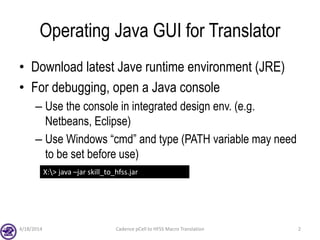
Operating Java GUI for Translator
• Download latest Jave runtime environment (JRE)
• For debugging, open a Java console
– Use the console in integrated design env. (e.g.
Netbeans, Eclipse)
– Use Windows “cmd” and type (PATH variable may need
to be set before use)
4/18/2014 Cadence pCell to HFSS Macro Translation 2
X:> java –jar skill_to_hfss.jar
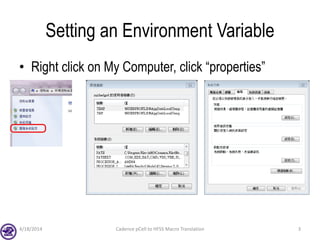
Setting an Environment Variable
• Right click on My Computer, click “properties”
4/18/2014 Cadence pCell to HFSS Macro Translation 3
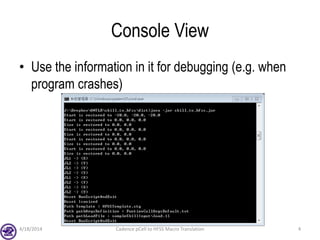
Console View
• Use the information in it for debugging (e.g. when
program crashes)
4/18/2014 Cadence pCell to HFSS Macro Translation 4
Operate Modes
• Translate *.vbs and load manually after some
modifications
• Fully automated HFSS 3D modeling from SKILL
source only
4/18/2014 Cadence pCell to HFSS Macro Translation 5
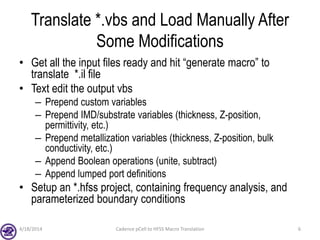
Translate *.vbs and Load Manually After
Some Modifications
• Get all the input files ready and hit “generate macro” to
translate *.il file
• Text edit the output vbs
– Prepend custom variables
– Prepend IMD/substrate variables (thickness, Z-position,
permittivity, etc.)
– Prepend metallization variables (thickness, Z-position, bulk
conductivity, etc.)
– Append Boolean operations (unite, subtract)
– Append lumped port definitions
• Setup an *.hfss project, containing frequency analysis, and
parameterized boundary conditions
4/18/2014 Cadence pCell to HFSS Macro Translation 6
Translate *.vbs and Load Manually After
Some Modifications
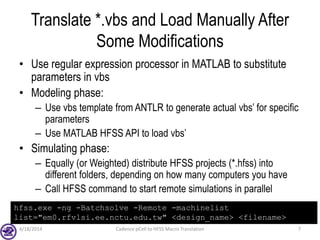
• Use regular expression processor in MATLAB to substitute
parameters in vbs
• Modeling phase:
– Use vbs template from ANTLR to generate actual vbs’ for specific
parameters
– Use MATLAB HFSS API to load vbs’
• Simulating phase:
– Equally (or Weighted) distribute HFSS projects (*.hfss) into
different folders, depending on how many computers you have
– Call HFSS command to start remote simulations in parallel
4/18/2014 Cadence pCell to HFSS Macro Translation 7
hfss.exe -ng -Batchsolve -Remote -machinelist
list="em0.rfvlsi.ee.nctu.edu.tw" <design_name> <filename>
Translate *.vbs and Load Manually After
Some Modifications
4/18/2014 Cadence pCell to HFSS Macro Translation 8
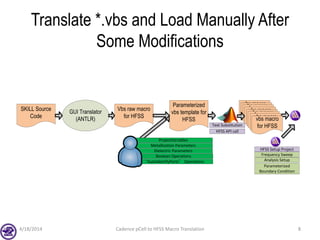
ProjectVariables
Metallization Parameters
Dielectric Parameters
Boolean Operations
“AutoIdentifyPorts” Operations
GUI Translator
(ANTLR)
SKILL Source
Code
Vbs raw macro
for HFSS
Parameterized
vbs template for
HFSS
vbs macro
for HFSS
vbs macro
for HFSS
vbs macro
for HFSS
vbs macro
for HFSS
vbs macro
for HFSS
vbs macro
for HFSS
vbs macro
for HFSS
vbs macro
for HFSSText Substitution
HFSS API call
HFSS Setup Project
Frequency Sweep
Analysis Setup
Parameterized
Boundary Condition
Detailed *.vbs Modifications Procedure
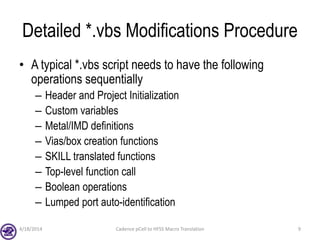
• A typical *.vbs script needs to have the following
operations sequentially
– Header and Project Initialization
– Custom variables
– Metal/IMD definitions
– Vias/box creation functions
– SKILL translated functions
– Top-level function call
– Boolean operations
– Lumped port auto-identification
4/18/2014 Cadence pCell to HFSS Macro Translation 9
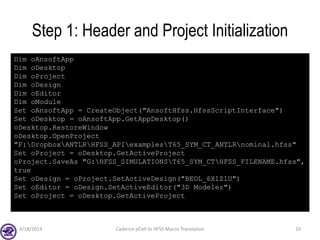
Step 1: Header and Project Initialization
4/18/2014 Cadence pCell to HFSS Macro Translation 10
Dim oAnsoftApp
Dim oDesktop
Dim oProject
Dim oDesign
Dim oEditor
Dim oModule
Set oAnsoftApp = CreateObject("AnsoftHfss.HfssScriptInterface")
Set oDesktop = oAnsoftApp.GetAppDesktop()
oDesktop.RestoreWindow
oDesktop.OpenProject
"F:DropboxANTLRHFSS_APIexamplesT65_SYM_CT_ANTLRnominal.hfss"
Set oProject = oDesktop.GetActiveProject
oProject.SaveAs "G:HFSS_SIMULATIONST65_SYM_CTHFSS_FILENAME.hfss",
true
Set oDesign = oProject.SetActiveDesign("BEOL_6X1Z1U")
Set oEditor = oDesign.SetActiveEditor("3D Modeler")
Set oProject = oDesktop.GetActiveProject
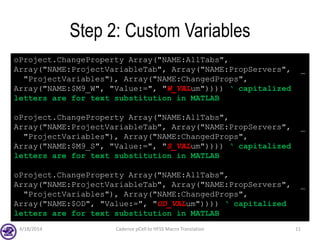
Step 2: Custom Variables
4/18/2014 Cadence pCell to HFSS Macro Translation 11
oProject.ChangeProperty Array("NAME:AllTabs",
Array("NAME:ProjectVariableTab", Array("NAME:PropServers", _
"ProjectVariables"), Array("NAME:ChangedProps",
Array("NAME:$M9_W", "Value:=", "W_VALum")))) ‘ capitalized
letters are for text substitution in MATLAB
oProject.ChangeProperty Array("NAME:AllTabs",
Array("NAME:ProjectVariableTab", Array("NAME:PropServers", _
"ProjectVariables"), Array("NAME:ChangedProps",
Array("NAME:$M9_S", "Value:=", "S_VALum")))) ‘ capitalized
letters are for text substitution in MATLAB
oProject.ChangeProperty Array("NAME:AllTabs",
Array("NAME:ProjectVariableTab", Array("NAME:PropServers", _
"ProjectVariables"), Array("NAME:ChangedProps",
Array("NAME:$OD", "Value:=", "OD_VALum")))) ‘ capitalized
letters are for text substitution in MATLAB
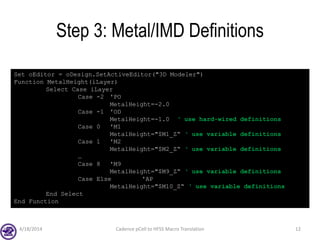
Step 3: Metal/IMD Definitions
4/18/2014 Cadence pCell to HFSS Macro Translation 12
Set oEditor = oDesign.SetActiveEditor("3D Modeler")
Function MetalHeight(iLayer)
Select Case iLayer
Case -2 'PO
MetalHeight=-2.0
Case -1 'OD
MetalHeight=-1.0 ‘ use hard-wired definitions
Case 0 'M1
MetalHeight="$M1_Z“ ‘ use variable definitions
Case 1 'M2
MetalHeight="$M2_Z“ ‘ use variable definitions
…
Case 8 'M9
MetalHeight="$M9_Z“ ‘ use variable definitions
Case Else 'AP
MetalHeight="$M10_Z“ ‘ use variable definitions
End Select
End Function
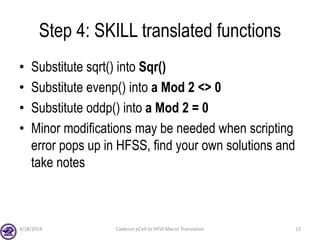
Step 4: SKILL translated functions
• Substitute sqrt() into Sqr()
• Substitute evenp() into a Mod 2 <> 0
• Substitute oddp() into a Mod 2 = 0
• Minor modifications may be needed when scripting
error pops up in HFSS, find your own solutions and
take notes
4/18/2014 Cadence pCell to HFSS Macro Translation 13
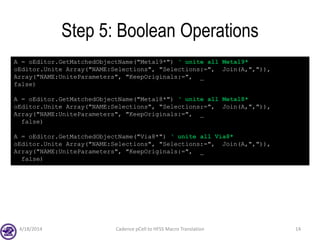
Step 5: Boolean Operations
4/18/2014 Cadence pCell to HFSS Macro Translation 14
A = oEditor.GetMatchedObjectName("Metal9*") ‘ unite all Metal9*
oEditor.Unite Array("NAME:Selections", "Selections:=", Join(A,",")),
Array("NAME:UniteParameters", "KeepOriginals:=", _
false)
A = oEditor.GetMatchedObjectName("Metal8*") ‘ unite all Metal8*
oEditor.Unite Array("NAME:Selections", "Selections:=", Join(A,",")),
Array("NAME:UniteParameters", "KeepOriginals:=", _
false)
A = oEditor.GetMatchedObjectName("Via8*") ‘ unite all Via8*
oEditor.Unite Array("NAME:Selections", "Selections:=", Join(A,",")),
Array("NAME:UniteParameters", "KeepOriginals:=", _
false)
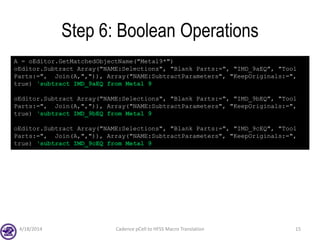
Step 6: Boolean Operations
4/18/2014 Cadence pCell to HFSS Macro Translation 15
A = oEditor.GetMatchedObjectName("Metal9*")
oEditor.Subtract Array("NAME:Selections", "Blank Parts:=", "IMD_9aEQ", "Tool
Parts:=", Join(A,",")), Array("NAME:SubtractParameters", "KeepOriginals:=",
true) ‘subtract IMD_9aEQ from Metal 9
oEditor.Subtract Array("NAME:Selections", "Blank Parts:=", "IMD_9bEQ", "Tool
Parts:=", Join(A,",")), Array("NAME:SubtractParameters", "KeepOriginals:=",
true) ‘subtract IMD_9bEQ from Metal 9
oEditor.Subtract Array("NAME:Selections", "Blank Parts:=", "IMD_9cEQ", "Tool
Parts:=", Join(A,",")), Array("NAME:SubtractParameters", "KeepOriginals:=",
true) ‘subtract IMD_9cEQ from Metal 9
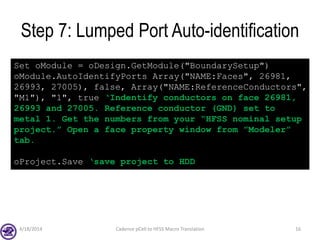
Step 7: Lumped Port Auto-identification
4/18/2014 Cadence pCell to HFSS Macro Translation 16
Set oModule = oDesign.GetModule("BoundarySetup")
oModule.AutoIdentifyPorts Array("NAME:Faces", 26981,
26993, 27005), false, Array("NAME:ReferenceConductors",
"M1"), "1", true ‘Indentify conductors on face 26981,
26993 and 27005. Reference conductor (GND) set to
metal 1. Get the numbers from your “HFSS nominal setup
project.” Open a face property window from ”Modeler”
tab.
oProject.Save ‘save project to HDD

Skill translator usage guide

  • 1.
    Tao-Yi Lee Advisor: Dr.Yu-Jiu Wang Institute of Electronics, RFVLSI Lab National Chiao -Tung University pCell to HFSS Macro Translator Tutorial
  • 2.
    Operating Java GUIfor Translator • Download latest Jave runtime environment (JRE) • For debugging, open a Java console – Use the console in integrated design env. (e.g. Netbeans, Eclipse) – Use Windows “cmd” and type (PATH variable may need to be set before use) 4/18/2014 Cadence pCell to HFSS Macro Translation 2 X:> java –jar skill_to_hfss.jar
  • 3.
    Setting an EnvironmentVariable • Right click on My Computer, click “properties” 4/18/2014 Cadence pCell to HFSS Macro Translation 3
  • 4.
    Console View • Usethe information in it for debugging (e.g. when program crashes) 4/18/2014 Cadence pCell to HFSS Macro Translation 4
  • 5.
    Operate Modes • Translate*.vbs and load manually after some modifications • Fully automated HFSS 3D modeling from SKILL source only 4/18/2014 Cadence pCell to HFSS Macro Translation 5
  • 6.
    Translate *.vbs andLoad Manually After Some Modifications • Get all the input files ready and hit “generate macro” to translate *.il file • Text edit the output vbs – Prepend custom variables – Prepend IMD/substrate variables (thickness, Z-position, permittivity, etc.) – Prepend metallization variables (thickness, Z-position, bulk conductivity, etc.) – Append Boolean operations (unite, subtract) – Append lumped port definitions • Setup an *.hfss project, containing frequency analysis, and parameterized boundary conditions 4/18/2014 Cadence pCell to HFSS Macro Translation 6
  • 7.
    Translate *.vbs andLoad Manually After Some Modifications • Use regular expression processor in MATLAB to substitute parameters in vbs • Modeling phase: – Use vbs template from ANTLR to generate actual vbs’ for specific parameters – Use MATLAB HFSS API to load vbs’ • Simulating phase: – Equally (or Weighted) distribute HFSS projects (*.hfss) into different folders, depending on how many computers you have – Call HFSS command to start remote simulations in parallel 4/18/2014 Cadence pCell to HFSS Macro Translation 7 hfss.exe -ng -Batchsolve -Remote -machinelist list="em0.rfvlsi.ee.nctu.edu.tw" <design_name> <filename>
  • 8.
    Translate *.vbs andLoad Manually After Some Modifications 4/18/2014 Cadence pCell to HFSS Macro Translation 8 ProjectVariables Metallization Parameters Dielectric Parameters Boolean Operations “AutoIdentifyPorts” Operations GUI Translator (ANTLR) SKILL Source Code Vbs raw macro for HFSS Parameterized vbs template for HFSS vbs macro for HFSS vbs macro for HFSS vbs macro for HFSS vbs macro for HFSS vbs macro for HFSS vbs macro for HFSS vbs macro for HFSS vbs macro for HFSSText Substitution HFSS API call HFSS Setup Project Frequency Sweep Analysis Setup Parameterized Boundary Condition
  • 9.
    Detailed *.vbs ModificationsProcedure • A typical *.vbs script needs to have the following operations sequentially – Header and Project Initialization – Custom variables – Metal/IMD definitions – Vias/box creation functions – SKILL translated functions – Top-level function call – Boolean operations – Lumped port auto-identification 4/18/2014 Cadence pCell to HFSS Macro Translation 9
  • 10.
    Step 1: Headerand Project Initialization 4/18/2014 Cadence pCell to HFSS Macro Translation 10 Dim oAnsoftApp Dim oDesktop Dim oProject Dim oDesign Dim oEditor Dim oModule Set oAnsoftApp = CreateObject("AnsoftHfss.HfssScriptInterface") Set oDesktop = oAnsoftApp.GetAppDesktop() oDesktop.RestoreWindow oDesktop.OpenProject "F:DropboxANTLRHFSS_APIexamplesT65_SYM_CT_ANTLRnominal.hfss" Set oProject = oDesktop.GetActiveProject oProject.SaveAs "G:HFSS_SIMULATIONST65_SYM_CTHFSS_FILENAME.hfss", true Set oDesign = oProject.SetActiveDesign("BEOL_6X1Z1U") Set oEditor = oDesign.SetActiveEditor("3D Modeler") Set oProject = oDesktop.GetActiveProject
  • 11.
    Step 2: CustomVariables 4/18/2014 Cadence pCell to HFSS Macro Translation 11 oProject.ChangeProperty Array("NAME:AllTabs", Array("NAME:ProjectVariableTab", Array("NAME:PropServers", _ "ProjectVariables"), Array("NAME:ChangedProps", Array("NAME:$M9_W", "Value:=", "W_VALum")))) ‘ capitalized letters are for text substitution in MATLAB oProject.ChangeProperty Array("NAME:AllTabs", Array("NAME:ProjectVariableTab", Array("NAME:PropServers", _ "ProjectVariables"), Array("NAME:ChangedProps", Array("NAME:$M9_S", "Value:=", "S_VALum")))) ‘ capitalized letters are for text substitution in MATLAB oProject.ChangeProperty Array("NAME:AllTabs", Array("NAME:ProjectVariableTab", Array("NAME:PropServers", _ "ProjectVariables"), Array("NAME:ChangedProps", Array("NAME:$OD", "Value:=", "OD_VALum")))) ‘ capitalized letters are for text substitution in MATLAB
  • 12.
    Step 3: Metal/IMDDefinitions 4/18/2014 Cadence pCell to HFSS Macro Translation 12 Set oEditor = oDesign.SetActiveEditor("3D Modeler") Function MetalHeight(iLayer) Select Case iLayer Case -2 'PO MetalHeight=-2.0 Case -1 'OD MetalHeight=-1.0 ‘ use hard-wired definitions Case 0 'M1 MetalHeight="$M1_Z“ ‘ use variable definitions Case 1 'M2 MetalHeight="$M2_Z“ ‘ use variable definitions … Case 8 'M9 MetalHeight="$M9_Z“ ‘ use variable definitions Case Else 'AP MetalHeight="$M10_Z“ ‘ use variable definitions End Select End Function
  • 13.
    Step 4: SKILLtranslated functions • Substitute sqrt() into Sqr() • Substitute evenp() into a Mod 2 <> 0 • Substitute oddp() into a Mod 2 = 0 • Minor modifications may be needed when scripting error pops up in HFSS, find your own solutions and take notes 4/18/2014 Cadence pCell to HFSS Macro Translation 13
  • 14.
    Step 5: BooleanOperations 4/18/2014 Cadence pCell to HFSS Macro Translation 14 A = oEditor.GetMatchedObjectName("Metal9*") ‘ unite all Metal9* oEditor.Unite Array("NAME:Selections", "Selections:=", Join(A,",")), Array("NAME:UniteParameters", "KeepOriginals:=", _ false) A = oEditor.GetMatchedObjectName("Metal8*") ‘ unite all Metal8* oEditor.Unite Array("NAME:Selections", "Selections:=", Join(A,",")), Array("NAME:UniteParameters", "KeepOriginals:=", _ false) A = oEditor.GetMatchedObjectName("Via8*") ‘ unite all Via8* oEditor.Unite Array("NAME:Selections", "Selections:=", Join(A,",")), Array("NAME:UniteParameters", "KeepOriginals:=", _ false)
  • 15.
    Step 6: BooleanOperations 4/18/2014 Cadence pCell to HFSS Macro Translation 15 A = oEditor.GetMatchedObjectName("Metal9*") oEditor.Subtract Array("NAME:Selections", "Blank Parts:=", "IMD_9aEQ", "Tool Parts:=", Join(A,",")), Array("NAME:SubtractParameters", "KeepOriginals:=", true) ‘subtract IMD_9aEQ from Metal 9 oEditor.Subtract Array("NAME:Selections", "Blank Parts:=", "IMD_9bEQ", "Tool Parts:=", Join(A,",")), Array("NAME:SubtractParameters", "KeepOriginals:=", true) ‘subtract IMD_9bEQ from Metal 9 oEditor.Subtract Array("NAME:Selections", "Blank Parts:=", "IMD_9cEQ", "Tool Parts:=", Join(A,",")), Array("NAME:SubtractParameters", "KeepOriginals:=", true) ‘subtract IMD_9cEQ from Metal 9
  • 16.
    Step 7: LumpedPort Auto-identification 4/18/2014 Cadence pCell to HFSS Macro Translation 16 Set oModule = oDesign.GetModule("BoundarySetup") oModule.AutoIdentifyPorts Array("NAME:Faces", 26981, 26993, 27005), false, Array("NAME:ReferenceConductors", "M1"), "1", true ‘Indentify conductors on face 26981, 26993 and 27005. Reference conductor (GND) set to metal 1. Get the numbers from your “HFSS nominal setup project.” Open a face property window from ”Modeler” tab. oProject.Save ‘save project to HDD