GetDrip is an email
marketing platform or
also called a marketing
automation software.
Gladys Beñan - Your Leading Edge Virtual Professional 2
It is used for capturing
email addresses of
potential customers.
Gladys Beñan - Your Leading Edge Virtual Professional 3
It allows you to set up
campaigns designed to
increase conversion.
Gladys Beñan - Your Leading Edge Virtual Professional 4
It also enables you to
track customer
engagement to your
products or campaigns.
Gladys Beñan - Your Leading Edge Virtual Professional 5
To start reaping the
benefits of using
GetDrip
Gladys Beñan - Your Leading Edge Virtual Professional 6
go to:
https://www.getdrip.com
Gladys Beñan - Your Leading Edge Virtual Professional 7
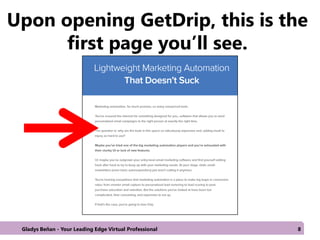
Upon opening GetDrip, this is the
first page you’ll see.
Gladys Beñan - Your Leading Edge Virtual Professional 8
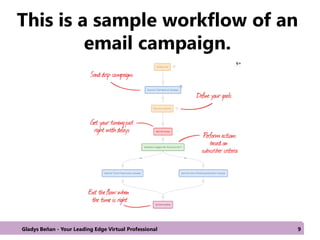
This is a sample workflow of an
email campaign.
Gladys Beñan - Your Leading Edge Virtual Professional 9
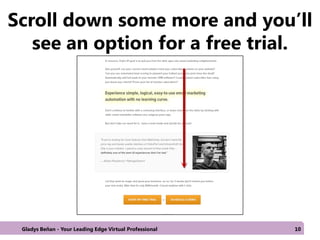
Scroll down some more and you’ll
see an option for a free trial.
Gladys Beñan - Your Leading Edge Virtual Professional 10
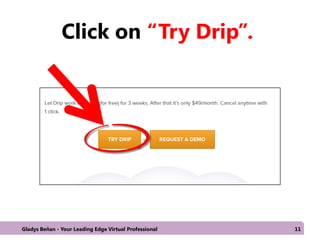
Click on “Try Drip”.
Gladys Beñan - Your Leading Edge Virtual Professional 11
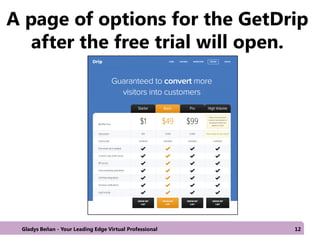
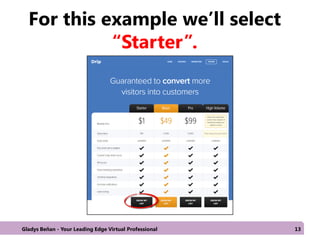
A page of options for the GetDrip
after the free trial will open.
Gladys Beñan - Your Leading Edge Virtual Professional 12
For this example we’ll select
“Starter”.
Gladys Beñan - Your Leading Edge Virtual Professional 13
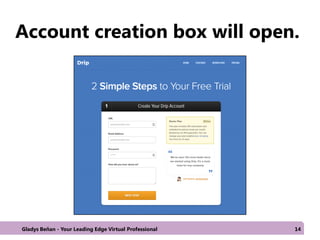
Account creation box will open.
Gladys Beñan - Your Leading Edge Virtual Professional 14
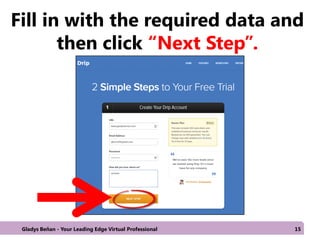
Fill in with the required data and
then click “Next Step”.
Gladys Beñan - Your Leading Edge Virtual Professional 15
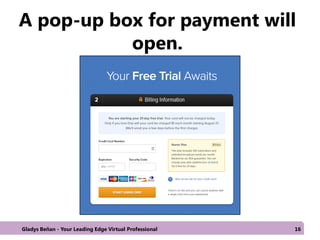
A pop-up box for payment will
open.
Gladys Beñan - Your Leading Edge Virtual Professional 16
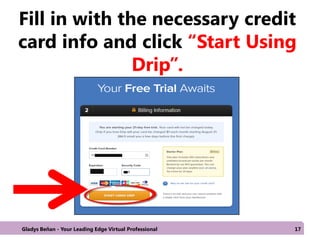
Fill in with the necessary credit
card info and click “Start Using
Drip”.
Gladys Beñan - Your Leading Edge Virtual Professional 17
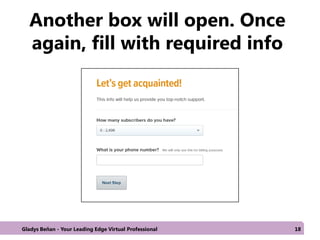
Another box will open. Once
again, fill with required info
Gladys Beñan - Your Leading Edge Virtual Professional 18
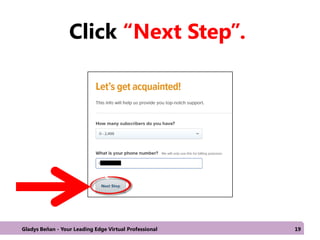
Click “Next Step”.
Gladys Beñan - Your Leading Edge Virtual Professional 19
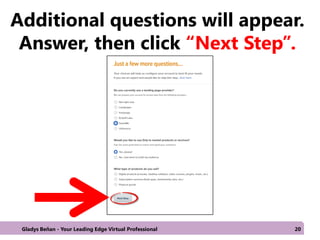
Additional questions will appear.
Answer, then click “Next Step”.
Gladys Beñan - Your Leading Edge Virtual Professional 20
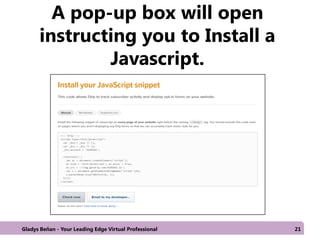
A pop-up box will open
instructing you to Install a
Javascript.
Gladys Beñan - Your Leading Edge Virtual Professional 21
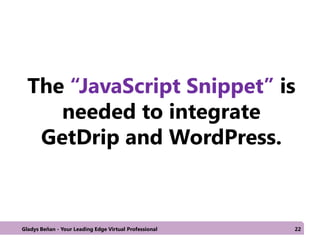
The “JavaScript Snippet” is
needed to integrate
GetDrip and WordPress.
Gladys Beñan - Your Leading Edge Virtual Professional 22
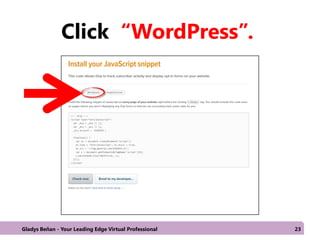
Click “WordPress”.
Gladys Beñan - Your Leading Edge Virtual Professional 23
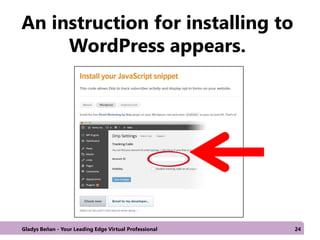
An instruction for installing to
WordPress appears.
Gladys Beñan - Your Leading Edge Virtual Professional 24
Now we need to install
GetDrip plugin to
WordPress.
Gladys Beñan - Your Leading Edge Virtual Professional 25
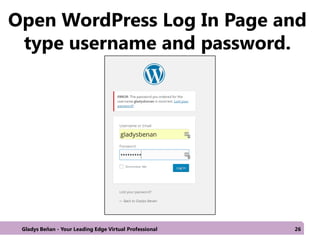
Open WordPress Log In Page and
type username and password.
Gladys Beñan - Your Leading Edge Virtual Professional 26
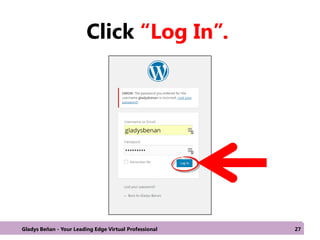
Click “Log In”.
Gladys Beñan - Your Leading Edge Virtual Professional 27
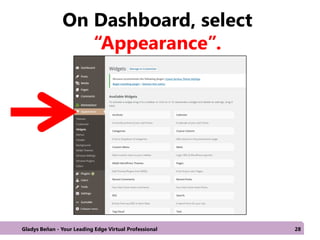
On Dashboard, select
“Appearance”.
Gladys Beñan - Your Leading Edge Virtual Professional 28
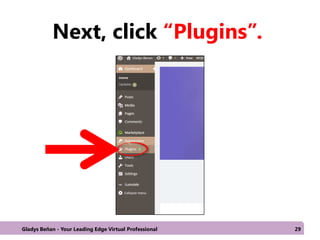
Next, click “Plugins”.
Gladys Beñan - Your Leading Edge Virtual Professional 29
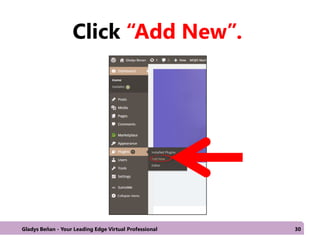
Click “Add New”.
Gladys Beñan - Your Leading Edge Virtual Professional 30
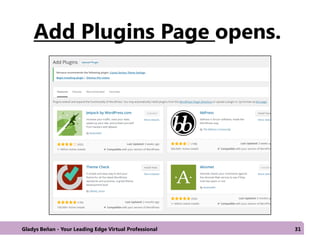
Add Plugins Page opens.
Gladys Beñan - Your Leading Edge Virtual Professional 31
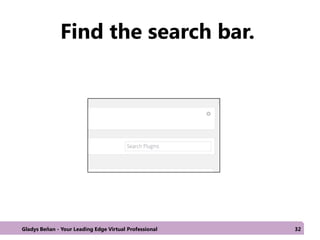
Find the search bar.
Gladys Beñan - Your Leading Edge Virtual Professional 32
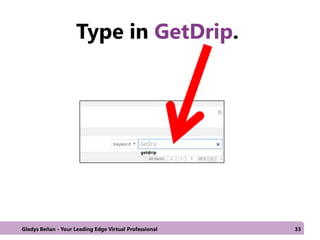
Type in GetDrip.
Gladys Beñan - Your Leading Edge Virtual Professional 33
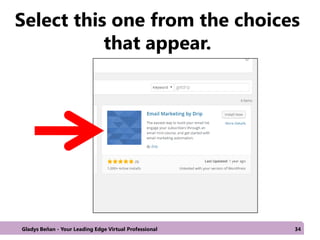
Select this one from the choices
that appear.
Gladys Beñan - Your Leading Edge Virtual Professional 34
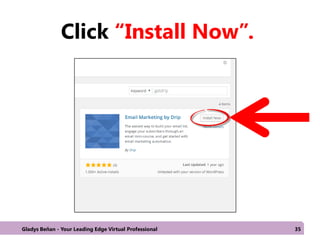
Click “Install Now”.
Gladys Beñan - Your Leading Edge Virtual Professional 35
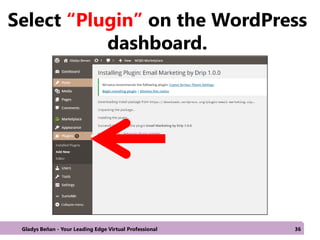
Select “Plugin” on the WordPress
dashboard.
Gladys Beñan - Your Leading Edge Virtual Professional 36
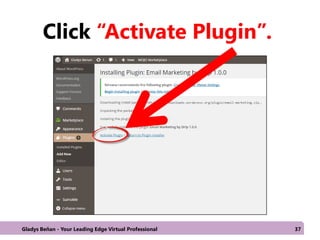
Click “Activate Plugin”.
Gladys Beñan - Your Leading Edge Virtual Professional 37
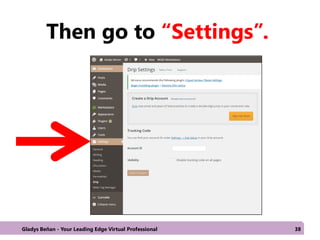
Then go to “Settings”.
Gladys Beñan - Your Leading Edge Virtual Professional 38
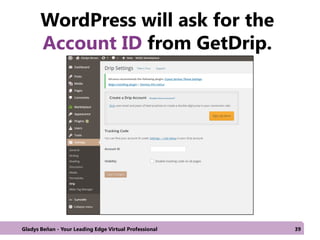
WordPress will ask for the
Account ID from GetDrip.
Gladys Beñan - Your Leading Edge Virtual Professional 39
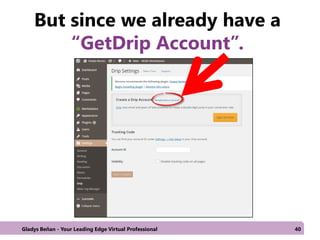
But since we already have a
“GetDrip Account”.
Gladys Beñan - Your Leading Edge Virtual Professional 40
Let’s go back and
complete the previous
instruction to “Install
Javascript Snippet”
Gladys Beñan - Your Leading Edge Virtual Professional 41
After installing and
activating “Email
Marketing by GetDrip”.
Gladys Beñan - Your Leading Edge Virtual Professional 42
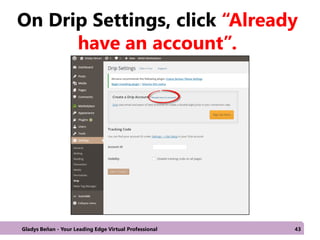
On Drip Settings, click “Already
have an account”.
Gladys Beñan - Your Leading Edge Virtual Professional 43
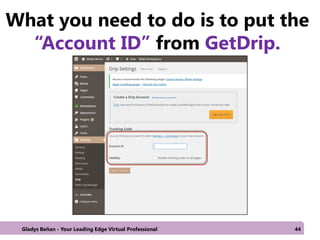
What you need to do is to put the
“Account ID” from GetDrip.
Gladys Beñan - Your Leading Edge Virtual Professional 44
So, go back to your
GetDrip account.
Gladys Beñan - Your Leading Edge Virtual Professional 45
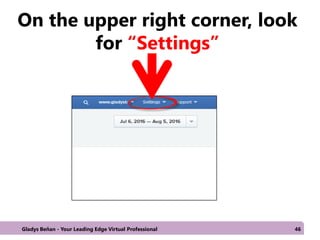
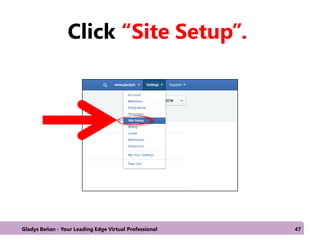
On the upper right corner, look
for “Settings”
Gladys Beñan - Your Leading Edge Virtual Professional 46
Click “Site Setup”.
Gladys Beñan - Your Leading Edge Virtual Professional 47
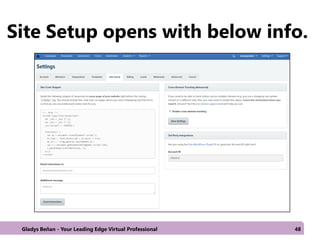
Site Setup opens with below info.
Gladys Beñan - Your Leading Edge Virtual Professional 48
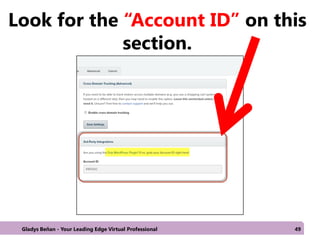
Look for the “Account ID” on this
section.
Gladys Beñan - Your Leading Edge Virtual Professional 49
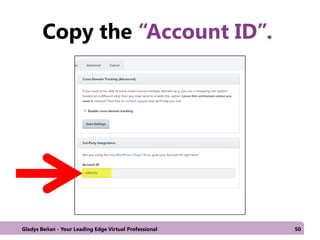
Copy the “Account ID”.
Gladys Beñan - Your Leading Edge Virtual Professional 50
Go back to WordPress.
Gladys Beñan - Your Leading Edge Virtual Professional 51
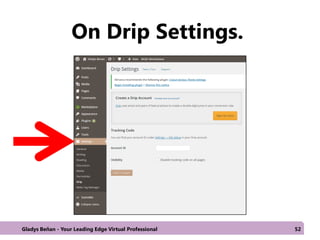
On Drip Settings.
Gladys Beñan - Your Leading Edge Virtual Professional 52
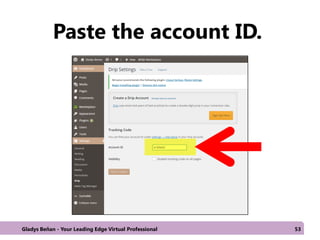
Paste the account ID.
Gladys Beñan - Your Leading Edge Virtual Professional 53
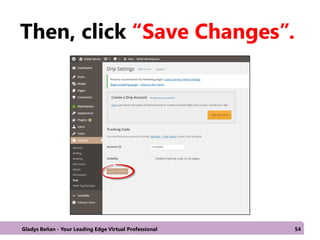
Then, click “Save Changes”.
Gladys Beñan - Your Leading Edge Virtual Professional 54
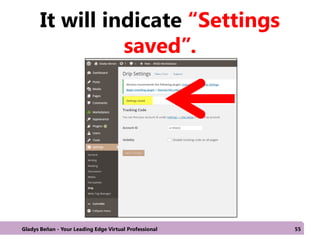
It will indicate “Settings
saved”.
Gladys Beñan - Your Leading Edge Virtual Professional 55
Installing the code will
enable Drip to track
subscriber activity.
Gladys Beñan - Your Leading Edge Virtual Professional 56
We can now start
creating a funnel or
drip campaign.
Gladys Beñan - Your Leading Edge Virtual Professional 57
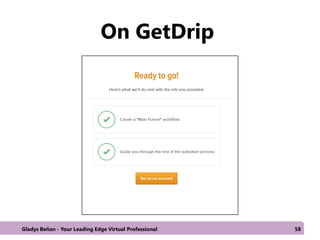
On GetDrip
Gladys Beñan - Your Leading Edge Virtual Professional 58
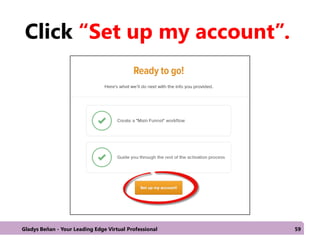
Click “Set up my account”.
Gladys Beñan - Your Leading Edge Virtual Professional 59
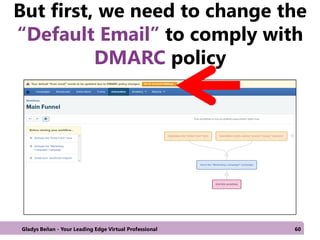
But first, we need to change the
“Default Email” to comply with
DMARC policy
Gladys Beñan - Your Leading Edge Virtual Professional 60
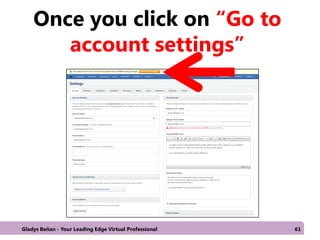
Once you click on “Go to
account settings”
Gladys Beñan - Your Leading Edge Virtual Professional 61
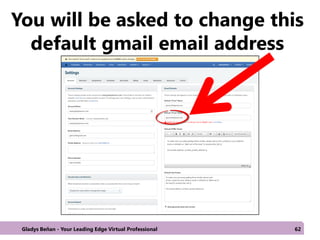
You will be asked to change this
default gmail email address
Gladys Beñan - Your Leading Edge Virtual Professional 62
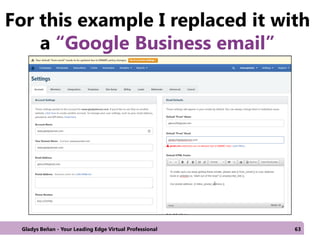
For this example I replaced it with
a “Google Business email”
Gladys Beñan - Your Leading Edge Virtual Professional 63
DMARC policy requires
the use of a business
email.
Gladys Beñan - Your Leading Edge Virtual Professional 64
For this tutorial I used
a Google Business
Email.
Gladys Beñan - Your Leading Edge Virtual Professional 65
Google Business Email
charges for a
subscription but there
is a 30 day free trial
which you may initially
use.
Gladys Beñan - Your Leading Edge Virtual Professional 66
Create Professional or
Business Email in
Google Apps for Work.
Gladys Beñan - Your Leading Edge Virtual Professional 67
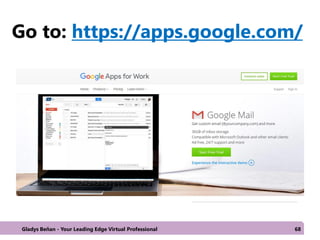
Go to: https://apps.google.com/
Gladys Beñan - Your Leading Edge Virtual Professional 68
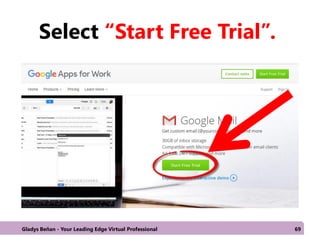
Select “Start Free Trial”.
Gladys Beñan - Your Leading Edge Virtual Professional 69
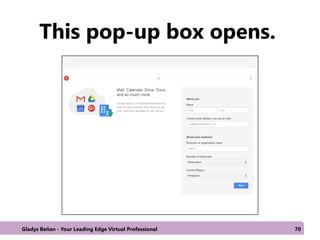
This pop-up box opens.
Gladys Beñan - Your Leading Edge Virtual Professional 70
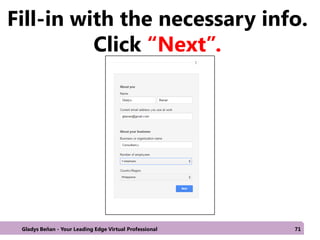
Fill-in with the necessary info.
Click “Next”.
Gladys Beñan - Your Leading Edge Virtual Professional 71
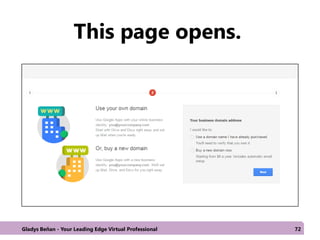
This page opens.
Gladys Beñan - Your Leading Edge Virtual Professional 72
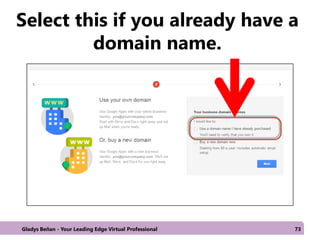
Select this if you already have a
domain name.
Gladys Beñan - Your Leading Edge Virtual Professional 73
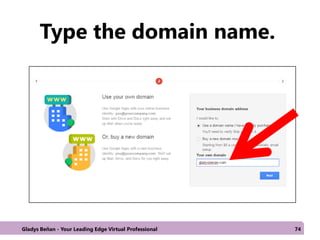
Type the domain name.
Gladys Beñan - Your Leading Edge Virtual Professional 74
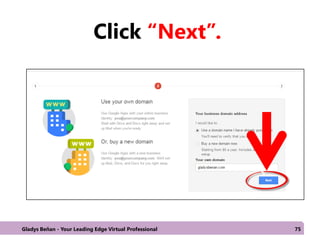
Click “Next”.
Gladys Beñan - Your Leading Edge Virtual Professional 75
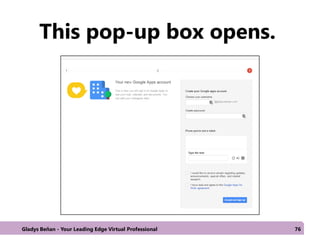
This pop-up box opens.
Gladys Beñan - Your Leading Edge Virtual Professional 76
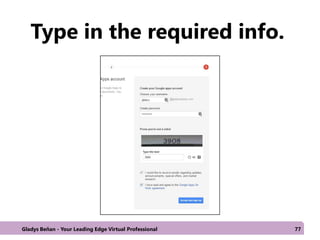
Type in the required info.
Gladys Beñan - Your Leading Edge Virtual Professional 77
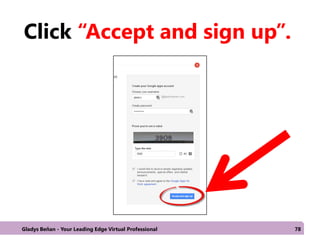
Click “Accept and sign up”.
Gladys Beñan - Your Leading Edge Virtual Professional 78
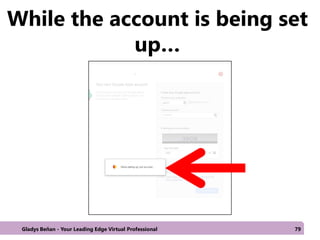
While the account is being set
up…
Gladys Beñan - Your Leading Edge Virtual Professional 79
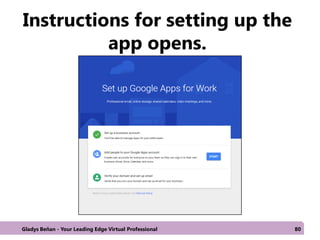
Instructions for setting up the
app opens.
Gladys Beñan - Your Leading Edge Virtual Professional 80
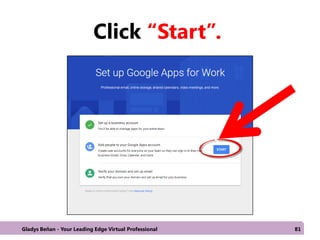
Click “Start”.
Gladys Beñan - Your Leading Edge Virtual Professional 81
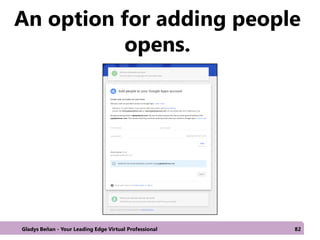
An option for adding people
opens.
Gladys Beñan - Your Leading Edge Virtual Professional 82
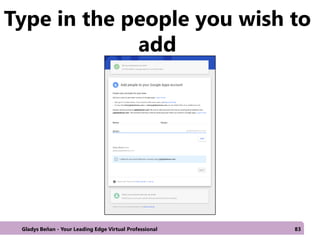
Type in the people you wish to
add
Gladys Beñan - Your Leading Edge Virtual Professional 83
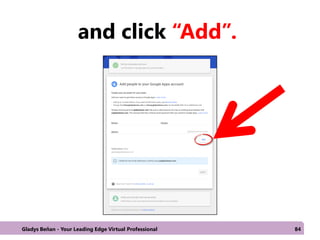
and click “Add”.
Gladys Beñan - Your Leading Edge Virtual Professional 84
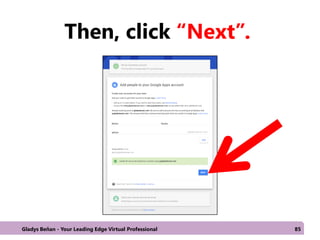
Then, click “Next”.
Gladys Beñan - Your Leading Edge Virtual Professional 85
You now need to verify
your domain and set
up the email.
Gladys Beñan - Your Leading Edge Virtual Professional 86
There are many
options to accomplish
this, but I find the
“html verification”
easier.
Gladys Beñan - Your Leading Edge Virtual Professional 87
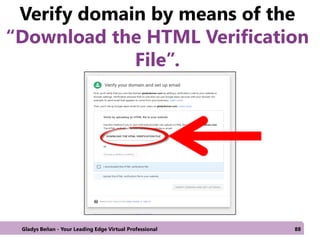
Verify domain by means of the
“Download the HTML Verification
File”.
Gladys Beñan - Your Leading Edge Virtual Professional 88
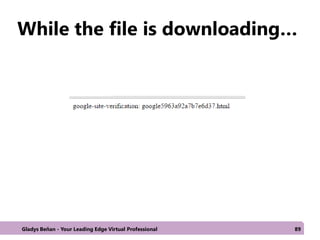
While the file is downloading…
Gladys Beñan - Your Leading Edge Virtual Professional 89
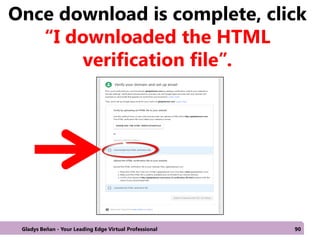
Once download is complete, click
“I downloaded the HTML
verification file”.
Gladys Beñan - Your Leading Edge Virtual Professional 90
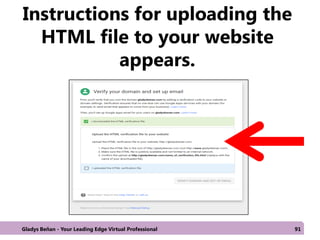
Instructions for uploading the
HTML file to your website
appears.
Gladys Beñan - Your Leading Edge Virtual Professional 91
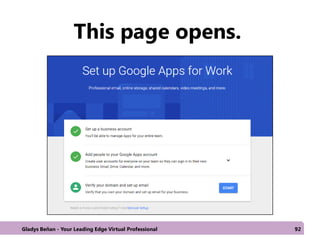
This page opens.
Gladys Beñan - Your Leading Edge Virtual Professional 92
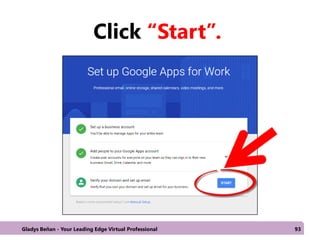
Click “Start”.
Gladys Beñan - Your Leading Edge Virtual Professional 93
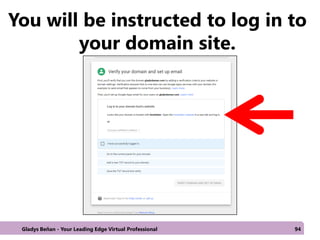
You will be instructed to log in to
your domain site.
Gladys Beñan - Your Leading Edge Virtual Professional 94
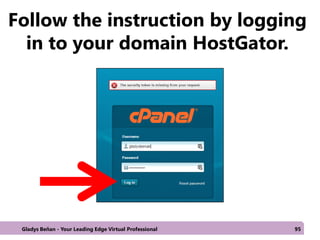
Follow the instruction by logging
in to your domain HostGator.
Gladys Beñan - Your Leading Edge Virtual Professional 95
Go back to the
verification page
Gladys Beñan - Your Leading Edge Virtual Professional 96
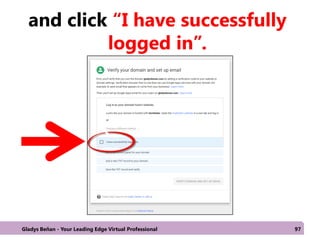
and click “I have successfully
logged in”.
Gladys Beñan - Your Leading Edge Virtual Professional 97
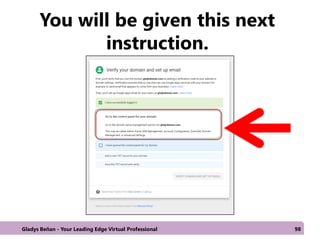
You will be given this next
instruction.
Gladys Beñan - Your Leading Edge Virtual Professional 98
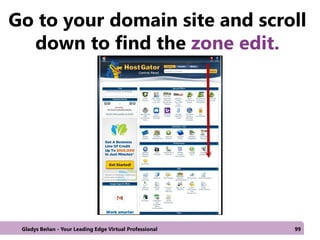
Go to your domain site and scroll
down to find the zone edit.
Gladys Beñan - Your Leading Edge Virtual Professional 99
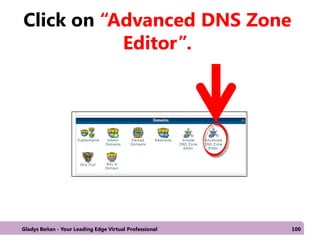
Click on “Advanced DNS Zone
Editor”.
Gladys Beñan - Your Leading Edge Virtual Professional 100
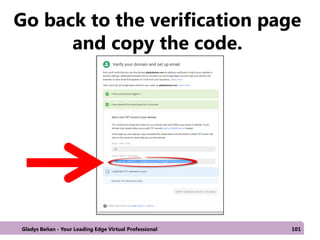
Go back to the verification page
and copy the code.
Gladys Beñan - Your Leading Edge Virtual Professional 101
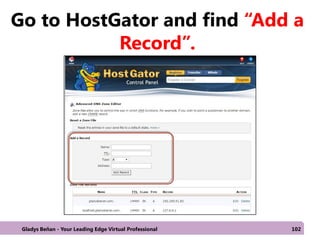
Go to HostGator and find “Add a
Record”.
Gladys Beñan - Your Leading Edge Virtual Professional 102
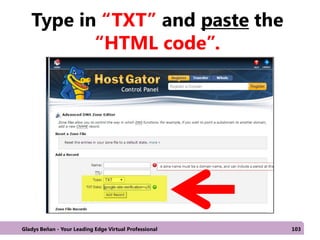
Type in “TXT” and paste the
“HTML code”.
Gladys Beñan - Your Leading Edge Virtual Professional 103
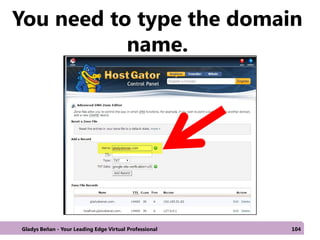
You need to type the domain
name.
Gladys Beñan - Your Leading Edge Virtual Professional 104
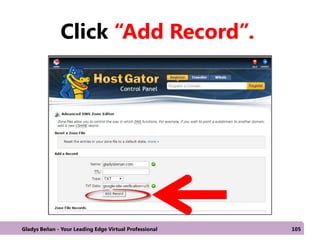
Click “Add Record”.
Gladys Beñan - Your Leading Edge Virtual Professional 105
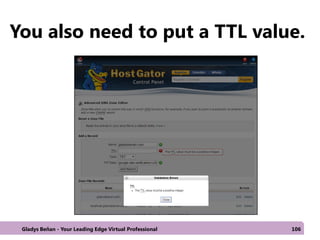
You also need to put a TTL value.
Gladys Beñan - Your Leading Edge Virtual Professional 106
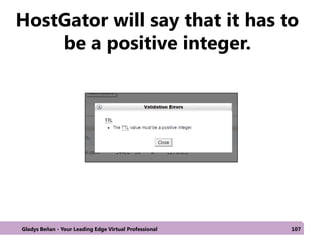
HostGator will say that it has to
be a positive integer.
Gladys Beñan - Your Leading Edge Virtual Professional 107
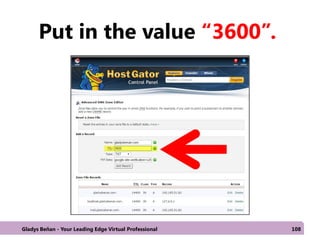
Put in the value “3600”.
Gladys Beñan - Your Leading Edge Virtual Professional 108
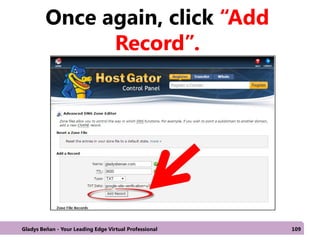
Once again, click “Add
Record”.
Gladys Beñan - Your Leading Edge Virtual Professional 109
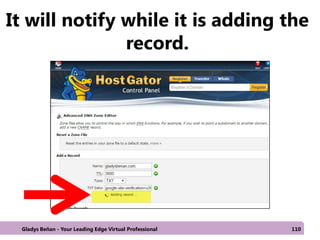
It will notify while it is adding the
record.
Gladys Beñan - Your Leading Edge Virtual Professional 110
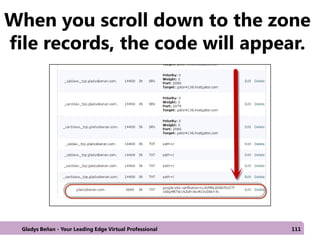
When you scroll down to the zone
file records, the code will appear.
Gladys Beñan - Your Leading Edge Virtual Professional 111
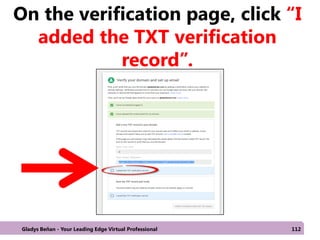
On the verification page, click “I
added the TXT verification
record”.
Gladys Beñan - Your Leading Edge Virtual Professional 112
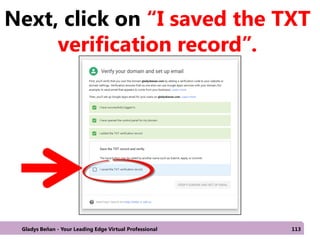
Next, click on “I saved the TXT
verification record”.
Gladys Beñan - Your Leading Edge Virtual Professional 113
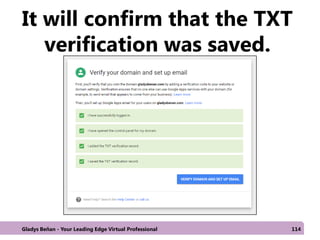
It will confirm that the TXT
verification was saved.
Gladys Beñan - Your Leading Edge Virtual Professional 114
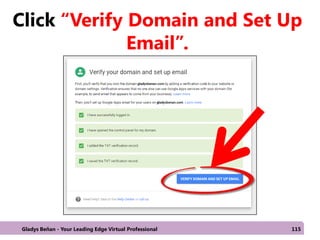
Click “Verify Domain and Set Up
Email”.
Gladys Beñan - Your Leading Edge Virtual Professional 115
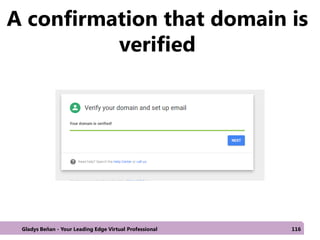
A confirmation that domain is
verified
Gladys Beñan - Your Leading Edge Virtual Professional 116
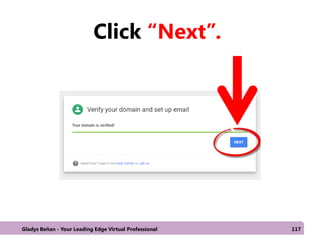
Click “Next”.
Gladys Beñan - Your Leading Edge Virtual Professional 117
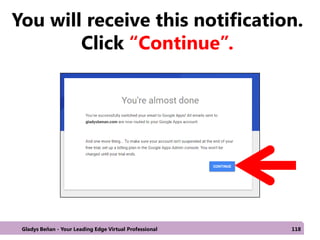
You will receive this notification.
Click “Continue”.
Gladys Beñan - Your Leading Edge Virtual Professional 118
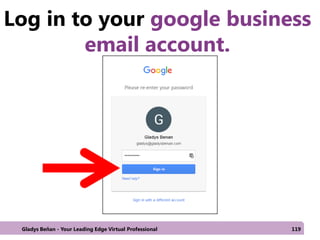
Log in to your google business
email account.
Gladys Beñan - Your Leading Edge Virtual Professional 119
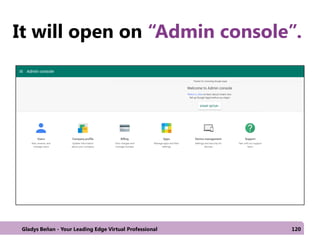
It will open on “Admin console”.
Gladys Beñan - Your Leading Edge Virtual Professional 120
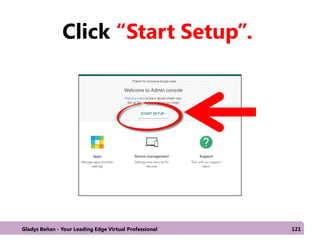
Click “Start Setup”.
Gladys Beñan - Your Leading Edge Virtual Professional 121
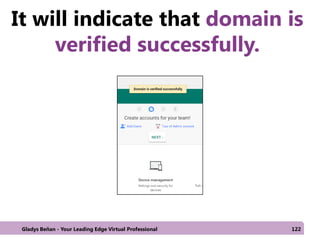
It will indicate that domain is
verified successfully.
Gladys Beñan - Your Leading Edge Virtual Professional 122
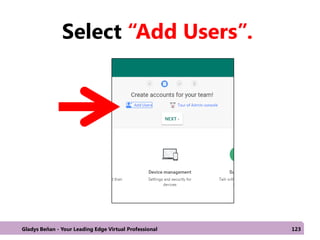
Select “Add Users”.
Gladys Beñan - Your Leading Edge Virtual Professional 123
After verifying the
domain name and
setting up the email.
Gladys Beñan - Your Leading Edge Virtual Professional 124
Go back to Getdrip.
Gladys Beñan - Your Leading Edge Virtual Professional 125
Go to “Settings”.
Gladys Beñan - Your Leading Edge Virtual Professional 126
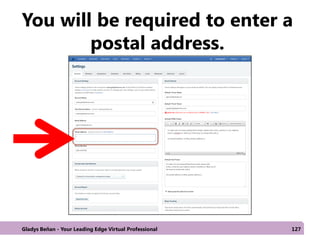
You will be required to enter a
postal address.
Gladys Beñan - Your Leading Edge Virtual Professional 127
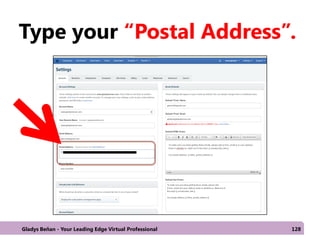
Type your “Postal Address”.
Gladys Beñan - Your Leading Edge Virtual Professional 128
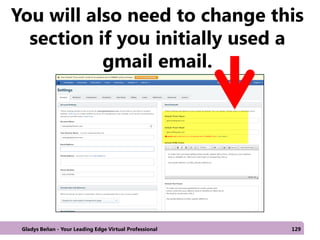
You will also need to change this
section if you initially used a
gmail email.
Gladys Beñan - Your Leading Edge Virtual Professional 129
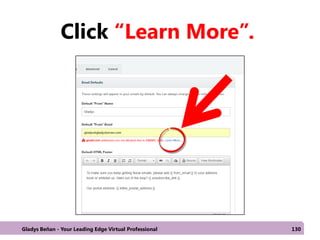
Click “Learn More”.
Gladys Beñan - Your Leading Edge Virtual Professional 130
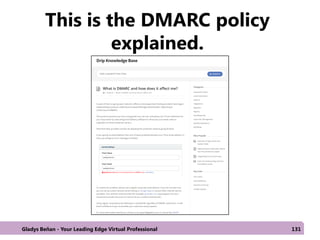
This is the DMARC policy
explained.
Gladys Beñan - Your Leading Edge Virtual Professional 131
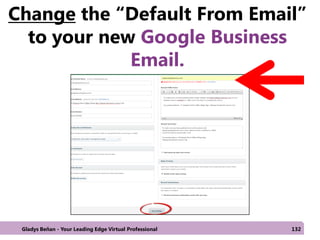
Change the “Default From Email”
to your new Google Business
Email.
Gladys Beñan - Your Leading Edge Virtual Professional 132
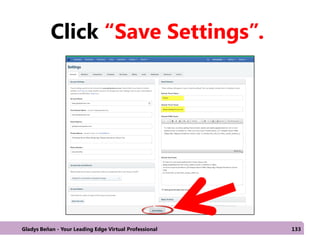
Click “Save Settings”.
Gladys Beñan - Your Leading Edge Virtual Professional 133
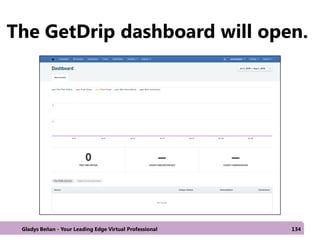
The GetDrip dashboard will open.
Gladys Beñan - Your Leading Edge Virtual Professional 134
You need to connect
API.
Gladys Beñan - Your Leading Edge Virtual Professional 135
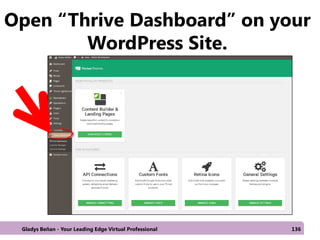
Open “Thrive Dashboard” on your
WordPress Site.
Gladys Beñan - Your Leading Edge Virtual Professional 136
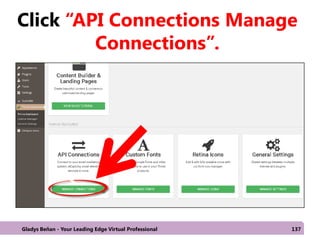
Click “API Connections Manage
Connections”.
Gladys Beñan - Your Leading Edge Virtual Professional 137
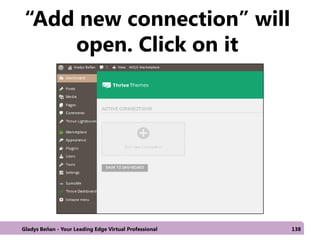
“Add new connection” will
open. Click on it
Gladys Beñan - Your Leading Edge Virtual Professional 138
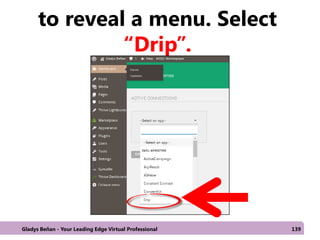
to reveal a menu. Select
“Drip”.
Gladys Beñan - Your Leading Edge Virtual Professional 139
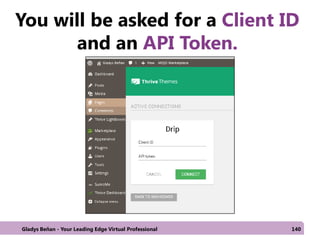
You will be asked for a Client ID
and an API Token.
Gladys Beñan - Your Leading Edge Virtual Professional 140
Go to GetDrip.
Gladys Beñan - Your Leading Edge Virtual Professional 141
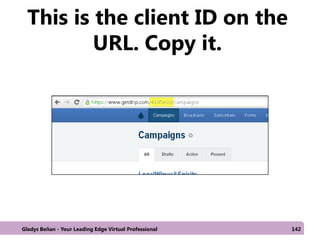
This is the client ID on the
URL. Copy it.
Gladys Beñan - Your Leading Edge Virtual Professional 142
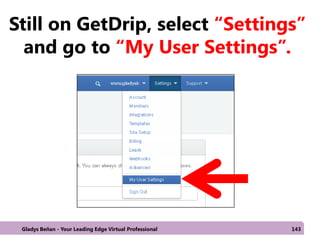
Still on GetDrip, select “Settings”
and go to “My User Settings”.
Gladys Beñan - Your Leading Edge Virtual Professional 143
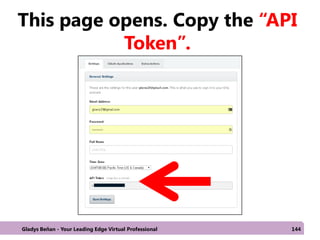
This page opens. Copy the “API
Token”.
Gladys Beñan - Your Leading Edge Virtual Professional 144
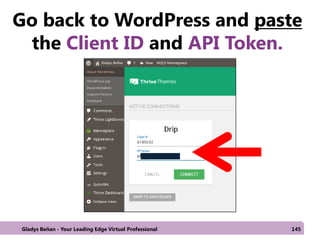
Go back to WordPress and paste
the Client ID and API Token.
Gladys Beñan - Your Leading Edge Virtual Professional 145
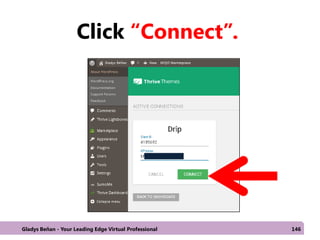
Click “Connect”.
Gladys Beñan - Your Leading Edge Virtual Professional 146
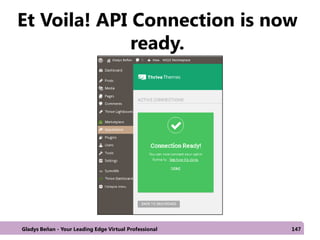
Et Voila! API Connection is now
ready.
Gladys Beñan - Your Leading Edge Virtual Professional 147
You have successfully
integrated Email and
WordPress to Getdrip!
Gladys Beñan - Your Leading Edge Virtual Professional 148
Let’s start using
GetDrip!
Gladys Beñan - Your Leading Edge Virtual Professional 149
Setting up GetDrip to work with Email and WordPress

Setting up GetDrip to work with Email and WordPress

  • 2.
    GetDrip is anemail marketing platform or also called a marketing automation software. Gladys Beñan - Your Leading Edge Virtual Professional 2
  • 3.
    It is usedfor capturing email addresses of potential customers. Gladys Beñan - Your Leading Edge Virtual Professional 3
  • 4.
    It allows youto set up campaigns designed to increase conversion. Gladys Beñan - Your Leading Edge Virtual Professional 4
  • 5.
    It also enablesyou to track customer engagement to your products or campaigns. Gladys Beñan - Your Leading Edge Virtual Professional 5
  • 6.
    To start reapingthe benefits of using GetDrip Gladys Beñan - Your Leading Edge Virtual Professional 6
  • 7.
    go to: https://www.getdrip.com Gladys Beñan- Your Leading Edge Virtual Professional 7
  • 8.
    Upon opening GetDrip,this is the first page you’ll see. Gladys Beñan - Your Leading Edge Virtual Professional 8
  • 9.
    This is asample workflow of an email campaign. Gladys Beñan - Your Leading Edge Virtual Professional 9
  • 10.
    Scroll down somemore and you’ll see an option for a free trial. Gladys Beñan - Your Leading Edge Virtual Professional 10
  • 11.
    Click on “TryDrip”. Gladys Beñan - Your Leading Edge Virtual Professional 11
  • 12.
    A page ofoptions for the GetDrip after the free trial will open. Gladys Beñan - Your Leading Edge Virtual Professional 12
  • 13.
    For this examplewe’ll select “Starter”. Gladys Beñan - Your Leading Edge Virtual Professional 13
  • 14.
    Account creation boxwill open. Gladys Beñan - Your Leading Edge Virtual Professional 14
  • 15.
    Fill in withthe required data and then click “Next Step”. Gladys Beñan - Your Leading Edge Virtual Professional 15
  • 16.
    A pop-up boxfor payment will open. Gladys Beñan - Your Leading Edge Virtual Professional 16
  • 17.
    Fill in withthe necessary credit card info and click “Start Using Drip”. Gladys Beñan - Your Leading Edge Virtual Professional 17
  • 18.
    Another box willopen. Once again, fill with required info Gladys Beñan - Your Leading Edge Virtual Professional 18
  • 19.
    Click “Next Step”. GladysBeñan - Your Leading Edge Virtual Professional 19
  • 20.
    Additional questions willappear. Answer, then click “Next Step”. Gladys Beñan - Your Leading Edge Virtual Professional 20
  • 21.
    A pop-up boxwill open instructing you to Install a Javascript. Gladys Beñan - Your Leading Edge Virtual Professional 21
  • 22.
    The “JavaScript Snippet”is needed to integrate GetDrip and WordPress. Gladys Beñan - Your Leading Edge Virtual Professional 22
  • 23.
    Click “WordPress”. Gladys Beñan- Your Leading Edge Virtual Professional 23
  • 24.
    An instruction forinstalling to WordPress appears. Gladys Beñan - Your Leading Edge Virtual Professional 24
  • 25.
    Now we needto install GetDrip plugin to WordPress. Gladys Beñan - Your Leading Edge Virtual Professional 25
  • 26.
    Open WordPress LogIn Page and type username and password. Gladys Beñan - Your Leading Edge Virtual Professional 26
  • 27.
    Click “Log In”. GladysBeñan - Your Leading Edge Virtual Professional 27
  • 28.
    On Dashboard, select “Appearance”. GladysBeñan - Your Leading Edge Virtual Professional 28
  • 29.
    Next, click “Plugins”. GladysBeñan - Your Leading Edge Virtual Professional 29
  • 30.
    Click “Add New”. GladysBeñan - Your Leading Edge Virtual Professional 30
  • 31.
    Add Plugins Pageopens. Gladys Beñan - Your Leading Edge Virtual Professional 31
  • 32.
    Find the searchbar. Gladys Beñan - Your Leading Edge Virtual Professional 32
  • 33.
    Type in GetDrip. GladysBeñan - Your Leading Edge Virtual Professional 33
  • 34.
    Select this onefrom the choices that appear. Gladys Beñan - Your Leading Edge Virtual Professional 34
  • 35.
    Click “Install Now”. GladysBeñan - Your Leading Edge Virtual Professional 35
  • 36.
    Select “Plugin” onthe WordPress dashboard. Gladys Beñan - Your Leading Edge Virtual Professional 36
  • 37.
    Click “Activate Plugin”. GladysBeñan - Your Leading Edge Virtual Professional 37
  • 38.
    Then go to“Settings”. Gladys Beñan - Your Leading Edge Virtual Professional 38
  • 39.
    WordPress will askfor the Account ID from GetDrip. Gladys Beñan - Your Leading Edge Virtual Professional 39
  • 40.
    But since wealready have a “GetDrip Account”. Gladys Beñan - Your Leading Edge Virtual Professional 40
  • 41.
    Let’s go backand complete the previous instruction to “Install Javascript Snippet” Gladys Beñan - Your Leading Edge Virtual Professional 41
  • 42.
    After installing and activating“Email Marketing by GetDrip”. Gladys Beñan - Your Leading Edge Virtual Professional 42
  • 43.
    On Drip Settings,click “Already have an account”. Gladys Beñan - Your Leading Edge Virtual Professional 43
  • 44.
    What you needto do is to put the “Account ID” from GetDrip. Gladys Beñan - Your Leading Edge Virtual Professional 44
  • 45.
    So, go backto your GetDrip account. Gladys Beñan - Your Leading Edge Virtual Professional 45
  • 46.
    On the upperright corner, look for “Settings” Gladys Beñan - Your Leading Edge Virtual Professional 46
  • 47.
    Click “Site Setup”. GladysBeñan - Your Leading Edge Virtual Professional 47
  • 48.
    Site Setup openswith below info. Gladys Beñan - Your Leading Edge Virtual Professional 48
  • 49.
    Look for the“Account ID” on this section. Gladys Beñan - Your Leading Edge Virtual Professional 49
  • 50.
    Copy the “AccountID”. Gladys Beñan - Your Leading Edge Virtual Professional 50
  • 51.
    Go back toWordPress. Gladys Beñan - Your Leading Edge Virtual Professional 51
  • 52.
    On Drip Settings. GladysBeñan - Your Leading Edge Virtual Professional 52
  • 53.
    Paste the accountID. Gladys Beñan - Your Leading Edge Virtual Professional 53
  • 54.
    Then, click “SaveChanges”. Gladys Beñan - Your Leading Edge Virtual Professional 54
  • 55.
    It will indicate“Settings saved”. Gladys Beñan - Your Leading Edge Virtual Professional 55
  • 56.
    Installing the codewill enable Drip to track subscriber activity. Gladys Beñan - Your Leading Edge Virtual Professional 56
  • 57.
    We can nowstart creating a funnel or drip campaign. Gladys Beñan - Your Leading Edge Virtual Professional 57
  • 58.
    On GetDrip Gladys Beñan- Your Leading Edge Virtual Professional 58
  • 59.
    Click “Set upmy account”. Gladys Beñan - Your Leading Edge Virtual Professional 59
  • 60.
    But first, weneed to change the “Default Email” to comply with DMARC policy Gladys Beñan - Your Leading Edge Virtual Professional 60
  • 61.
    Once you clickon “Go to account settings” Gladys Beñan - Your Leading Edge Virtual Professional 61
  • 62.
    You will beasked to change this default gmail email address Gladys Beñan - Your Leading Edge Virtual Professional 62
  • 63.
    For this exampleI replaced it with a “Google Business email” Gladys Beñan - Your Leading Edge Virtual Professional 63
  • 64.
    DMARC policy requires theuse of a business email. Gladys Beñan - Your Leading Edge Virtual Professional 64
  • 65.
    For this tutorialI used a Google Business Email. Gladys Beñan - Your Leading Edge Virtual Professional 65
  • 66.
    Google Business Email chargesfor a subscription but there is a 30 day free trial which you may initially use. Gladys Beñan - Your Leading Edge Virtual Professional 66
  • 67.
    Create Professional or BusinessEmail in Google Apps for Work. Gladys Beñan - Your Leading Edge Virtual Professional 67
  • 68.
    Go to: https://apps.google.com/ GladysBeñan - Your Leading Edge Virtual Professional 68
  • 69.
    Select “Start FreeTrial”. Gladys Beñan - Your Leading Edge Virtual Professional 69
  • 70.
    This pop-up boxopens. Gladys Beñan - Your Leading Edge Virtual Professional 70
  • 71.
    Fill-in with thenecessary info. Click “Next”. Gladys Beñan - Your Leading Edge Virtual Professional 71
  • 72.
    This page opens. GladysBeñan - Your Leading Edge Virtual Professional 72
  • 73.
    Select this ifyou already have a domain name. Gladys Beñan - Your Leading Edge Virtual Professional 73
  • 74.
    Type the domainname. Gladys Beñan - Your Leading Edge Virtual Professional 74
  • 75.
    Click “Next”. Gladys Beñan- Your Leading Edge Virtual Professional 75
  • 76.
    This pop-up boxopens. Gladys Beñan - Your Leading Edge Virtual Professional 76
  • 77.
    Type in therequired info. Gladys Beñan - Your Leading Edge Virtual Professional 77
  • 78.
    Click “Accept andsign up”. Gladys Beñan - Your Leading Edge Virtual Professional 78
  • 79.
    While the accountis being set up… Gladys Beñan - Your Leading Edge Virtual Professional 79
  • 80.
    Instructions for settingup the app opens. Gladys Beñan - Your Leading Edge Virtual Professional 80
  • 81.
    Click “Start”. Gladys Beñan- Your Leading Edge Virtual Professional 81
  • 82.
    An option foradding people opens. Gladys Beñan - Your Leading Edge Virtual Professional 82
  • 83.
    Type in thepeople you wish to add Gladys Beñan - Your Leading Edge Virtual Professional 83
  • 84.
    and click “Add”. GladysBeñan - Your Leading Edge Virtual Professional 84
  • 85.
    Then, click “Next”. GladysBeñan - Your Leading Edge Virtual Professional 85
  • 86.
    You now needto verify your domain and set up the email. Gladys Beñan - Your Leading Edge Virtual Professional 86
  • 87.
    There are many optionsto accomplish this, but I find the “html verification” easier. Gladys Beñan - Your Leading Edge Virtual Professional 87
  • 88.
    Verify domain bymeans of the “Download the HTML Verification File”. Gladys Beñan - Your Leading Edge Virtual Professional 88
  • 89.
    While the fileis downloading… Gladys Beñan - Your Leading Edge Virtual Professional 89
  • 90.
    Once download iscomplete, click “I downloaded the HTML verification file”. Gladys Beñan - Your Leading Edge Virtual Professional 90
  • 91.
    Instructions for uploadingthe HTML file to your website appears. Gladys Beñan - Your Leading Edge Virtual Professional 91
  • 92.
    This page opens. GladysBeñan - Your Leading Edge Virtual Professional 92
  • 93.
    Click “Start”. Gladys Beñan- Your Leading Edge Virtual Professional 93
  • 94.
    You will beinstructed to log in to your domain site. Gladys Beñan - Your Leading Edge Virtual Professional 94
  • 95.
    Follow the instructionby logging in to your domain HostGator. Gladys Beñan - Your Leading Edge Virtual Professional 95
  • 96.
    Go back tothe verification page Gladys Beñan - Your Leading Edge Virtual Professional 96
  • 97.
    and click “Ihave successfully logged in”. Gladys Beñan - Your Leading Edge Virtual Professional 97
  • 98.
    You will begiven this next instruction. Gladys Beñan - Your Leading Edge Virtual Professional 98
  • 99.
    Go to yourdomain site and scroll down to find the zone edit. Gladys Beñan - Your Leading Edge Virtual Professional 99
  • 100.
    Click on “AdvancedDNS Zone Editor”. Gladys Beñan - Your Leading Edge Virtual Professional 100
  • 101.
    Go back tothe verification page and copy the code. Gladys Beñan - Your Leading Edge Virtual Professional 101
  • 102.
    Go to HostGatorand find “Add a Record”. Gladys Beñan - Your Leading Edge Virtual Professional 102
  • 103.
    Type in “TXT”and paste the “HTML code”. Gladys Beñan - Your Leading Edge Virtual Professional 103
  • 104.
    You need totype the domain name. Gladys Beñan - Your Leading Edge Virtual Professional 104
  • 105.
    Click “Add Record”. GladysBeñan - Your Leading Edge Virtual Professional 105
  • 106.
    You also needto put a TTL value. Gladys Beñan - Your Leading Edge Virtual Professional 106
  • 107.
    HostGator will saythat it has to be a positive integer. Gladys Beñan - Your Leading Edge Virtual Professional 107
  • 108.
    Put in thevalue “3600”. Gladys Beñan - Your Leading Edge Virtual Professional 108
  • 109.
    Once again, click“Add Record”. Gladys Beñan - Your Leading Edge Virtual Professional 109
  • 110.
    It will notifywhile it is adding the record. Gladys Beñan - Your Leading Edge Virtual Professional 110
  • 111.
    When you scrolldown to the zone file records, the code will appear. Gladys Beñan - Your Leading Edge Virtual Professional 111
  • 112.
    On the verificationpage, click “I added the TXT verification record”. Gladys Beñan - Your Leading Edge Virtual Professional 112
  • 113.
    Next, click on“I saved the TXT verification record”. Gladys Beñan - Your Leading Edge Virtual Professional 113
  • 114.
    It will confirmthat the TXT verification was saved. Gladys Beñan - Your Leading Edge Virtual Professional 114
  • 115.
    Click “Verify Domainand Set Up Email”. Gladys Beñan - Your Leading Edge Virtual Professional 115
  • 116.
    A confirmation thatdomain is verified Gladys Beñan - Your Leading Edge Virtual Professional 116
  • 117.
    Click “Next”. Gladys Beñan- Your Leading Edge Virtual Professional 117
  • 118.
    You will receivethis notification. Click “Continue”. Gladys Beñan - Your Leading Edge Virtual Professional 118
  • 119.
    Log in toyour google business email account. Gladys Beñan - Your Leading Edge Virtual Professional 119
  • 120.
    It will openon “Admin console”. Gladys Beñan - Your Leading Edge Virtual Professional 120
  • 121.
    Click “Start Setup”. GladysBeñan - Your Leading Edge Virtual Professional 121
  • 122.
    It will indicatethat domain is verified successfully. Gladys Beñan - Your Leading Edge Virtual Professional 122
  • 123.
    Select “Add Users”. GladysBeñan - Your Leading Edge Virtual Professional 123
  • 124.
    After verifying the domainname and setting up the email. Gladys Beñan - Your Leading Edge Virtual Professional 124
  • 125.
    Go back toGetdrip. Gladys Beñan - Your Leading Edge Virtual Professional 125
  • 126.
    Go to “Settings”. GladysBeñan - Your Leading Edge Virtual Professional 126
  • 127.
    You will berequired to enter a postal address. Gladys Beñan - Your Leading Edge Virtual Professional 127
  • 128.
    Type your “PostalAddress”. Gladys Beñan - Your Leading Edge Virtual Professional 128
  • 129.
    You will alsoneed to change this section if you initially used a gmail email. Gladys Beñan - Your Leading Edge Virtual Professional 129
  • 130.
    Click “Learn More”. GladysBeñan - Your Leading Edge Virtual Professional 130
  • 131.
    This is theDMARC policy explained. Gladys Beñan - Your Leading Edge Virtual Professional 131
  • 132.
    Change the “DefaultFrom Email” to your new Google Business Email. Gladys Beñan - Your Leading Edge Virtual Professional 132
  • 133.
    Click “Save Settings”. GladysBeñan - Your Leading Edge Virtual Professional 133
  • 134.
    The GetDrip dashboardwill open. Gladys Beñan - Your Leading Edge Virtual Professional 134
  • 135.
    You need toconnect API. Gladys Beñan - Your Leading Edge Virtual Professional 135
  • 136.
    Open “Thrive Dashboard”on your WordPress Site. Gladys Beñan - Your Leading Edge Virtual Professional 136
  • 137.
    Click “API ConnectionsManage Connections”. Gladys Beñan - Your Leading Edge Virtual Professional 137
  • 138.
    “Add new connection”will open. Click on it Gladys Beñan - Your Leading Edge Virtual Professional 138
  • 139.
    to reveal amenu. Select “Drip”. Gladys Beñan - Your Leading Edge Virtual Professional 139
  • 140.
    You will beasked for a Client ID and an API Token. Gladys Beñan - Your Leading Edge Virtual Professional 140
  • 141.
    Go to GetDrip. GladysBeñan - Your Leading Edge Virtual Professional 141
  • 142.
    This is theclient ID on the URL. Copy it. Gladys Beñan - Your Leading Edge Virtual Professional 142
  • 143.
    Still on GetDrip,select “Settings” and go to “My User Settings”. Gladys Beñan - Your Leading Edge Virtual Professional 143
  • 144.
    This page opens.Copy the “API Token”. Gladys Beñan - Your Leading Edge Virtual Professional 144
  • 145.
    Go back toWordPress and paste the Client ID and API Token. Gladys Beñan - Your Leading Edge Virtual Professional 145
  • 146.
    Click “Connect”. Gladys Beñan- Your Leading Edge Virtual Professional 146
  • 147.
    Et Voila! APIConnection is now ready. Gladys Beñan - Your Leading Edge Virtual Professional 147
  • 148.
    You have successfully integratedEmail and WordPress to Getdrip! Gladys Beñan - Your Leading Edge Virtual Professional 148
  • 149.
    Let’s start using GetDrip! GladysBeñan - Your Leading Edge Virtual Professional 149