Section 8
                 Library Catalogue and Electronic Journals


Introduction
This section will be looking at using the library catalogue and electronic journals. As
in previous sections it will be taking you through as if you are using the tools while
looking at this manual.


Library Catalogue
The library catalogue is on several p.c.s in the library, and can also be accessed over
the Internet at home, or a computer not in the library – this is demonstrated below. It
has records of all the libraries’ holdings, not just those held at the Arts and Social
Science library. You can look at the journals the libraries hold, and which issues are
available.


Electronic Journals
This is the name given to issues of journals that are published on the Internet. These
can be accessed from computers on the Bristol University site. These are often more
recent issues of the journal (the library subscribes to them so that they don’t have to
hold the paper version). If you find an article you want to read, you can simply print
off a copy of it (this will be explained in greater detail below)


This section is going to provide an overview, and hopefully help you to get the most
out of these resources. But as with most things based on computers, the best thing to
do is practice using the skills you have learned by using reading lists, trying out
searches and familiarising yourself with what is available.


Library Catalogue
If you click on the icon for the Internet on your computer, you should get the Bristol
University home page appear:


                                            1
Figure 1


From here, go to the ‘location bar’, labelled ‘address’ and after www.bris.ac.uk, type
‘/is’:


                                          2
Figure 2


and press enter. This should take you to a page like the above. Click on ‘Library
Services >>’ and you will see the a page like below.


                                          3
Figure 3

And from here the Library services and resources begins to give you options on where
you can start looking for resources.


                                         4
Figure 4


Please note: if you are using one of the computers in the library that are dedicated to
the Library Catalogue, this is the first screen that you will see.


From here you can search for records of items held by the libraries at Bristol. You can
search for specific items that you may have on a reading list, or by using keywords, or
authors that you know have written works on a specific area or topic.


                                             5
Figure 5

On the screen we have a box to search by authors, by keywords in the title, or by
subject keywords. You can type keywords into the boxes marked author and title to
find specific items, or if you know of an author that has written works in your field
then you can type their name in to find all the library holdings of a particular author.


Or, for example, if you are looking for something on ‘delinquency’, then you could
type these words in the box marked ‘subject keywords’, and you would get a set of
general search results under this topic. The other boxes below under ‘Limited Search
by’ allow you to do a finer search for materials where you give more specific details
for what you are trying to find.


                                            6
Figure 6

This shows that you bring up many different resources (not only books) that may be
useful for your essay or presentation, but that may not be on you reading list. As you
can see, this search has brought up different types of resources, such as a government
report, and books that look at different aspects of the topic. You can also see that
these resources are not only held in the Arts and Social Science Library, for example
the Education Library may be one that has many useful books and journals relevant to
your course.


The next step is to see whether the books or reports that you are interested in are
available, or reserved. You can click on the blue hyperlink that gives you the name of
the library in order to do this. The screen that appears if you do this may look
something like this:


                                          7
Figure 7


           8
The title of the document that you are interested in runs along the top, along with
publication information. You can see what kind of loan this resource will come under
if it is ‘standard loan’, and if a copy is available, or if there are any reservations. So
for the item above, you could go along to the library and take it out. In order to do this
the information you need is the ‘location information’, which gives a class mark to
indicate which shelves to look for.


Where it says ‘expand’ in blue, you can click on this for the full information about the
item, such as publisher, when the item is due back, etc. If the item is unavailable, you
can reserve it. You click on the blue hyperlink ‘reserve’ and screen appears asking for
your log-in and user name:


Figure 8


                                            9
You type these in and the next screen reserves the book for you. On the screen where
you began your search, you can see that it is possible to click on ‘Advanced Search’.
If you do this the screen that appears looks like this:


Figure 9


From the drop down menu labelled ‘field to search’ you can pick what field you want
to use as part of the search, according to what information you already have about a
book. For example, if I know that the book is by Ann Oakley, and the publisher is
Martin Robertson, I can enter these details. The catalogue then comes back with a
number of items that match both of the criteria, and then the total number that
matches both. I can then view the three items that match my search criteria.


You can also see that there is a box on the search screen called ‘my eShelf’. If you
click on the boxes beside your search results, and then press ‘add to my eShelf’. It is
possible to save results from your searches that you can then email to yourself to use
at a later date. Or you can save the search to look back at later if you have a lot of


                                            10
searching to do in one session. You do this by clicking ‘basket’ at the top of the
screen, and then selecting ‘Save/Mail’. Remember everything you add onto your
eShelf will be deleted when you logoff. By clicking on ‘my searches’ at the top of the
screen you can find a history of all the searches that you have done in one session.


Browse
The next option along the main menu at the top of the library catalogue screen is
‘Browse’.


Figure 10


You will then be taken to the screen above. You can choose one of the categories and
enter a search term. If you then click ‘search’ a list of categories will appear. You can
then click on the one of these that is closest to what you are searching for, and all of
the records under that category will appear.


                                           11
Journals
By clicking on the journals option at the top of the screen you can search for journals
on your reading lists - but NOT journal articles. This means that you need to know
what article you are looking for, and what Journal it is in for this page to be useful.


Figure 11


If you know the exact title of the journal that you are looking for then you type it into
the top box labelled ‘browse titles of printed journals’. If you do not, but you know
that it is has ‘Social Policy’ somewhere in the title, then use the second box, which is
labelled ‘Title keyword(s) search’. This will bring up a wider range of results and you
can then find the one you are looking for.


When you have selected the journal you need, the screen that appears will look
something like this:


                                             12
Figure 12


This displays the volumes and issues of this journal that are held in the library, and
their location, if they are on loan, or when they are due back. At the top by ‘holdings’
you can see that this example of a journal (see fig. 12) is held in the library, and all
the issues from 1981 onwards can be loaned.


                                          13
My Account
‘My account’ is a useful option. If you click on this option, the login screen will once
again appear. If you type in your details then details of your library account will
appear. You can see what items you have on loan, what reservations you have made,
and what books are overdue. So using this screen helps you to effectively manage
your library account.


Inter-Library loans
Inter – Library loans refer to loans from libraries at other Universities. (n.b. not from
libraries based at Bristol such as the education library). From this screen you can
request these items, but it is worth noting that it costs money to receive an inter
library item


                                           14
Electronic Journals
If you go back to the ‘Journals’ option on the main Library Catalogue, and click on it
to go back to the journals page then you can see that there is a label for ‘ eJournals
catalogue’. If you click on this, as separate web screen will appear (see fig 13).


Figure 13


As you can see, on the initial screen there is help available with frequently asked
questions. As this is an introduction to using the Electronic Journals it does not cover
all the issues, such as what to do if you want to search the journals from a PC not on
the University site. If you want to do this then you need a password, which can
sometimes be your ATHENS password and sometimes your UOB password.
However, there are some instances where the requirements are different: this is where
this page of options comes in and can be helpful. Sometimes you will need a
password, even when you are searching from within the University, and that is where
this page can help.


                                           15
However, if you are on the University site, looking for a journal, then you can go
straight to the left hand panel on the screen ‘eJournals’. If you know the journal that
you are looking for then you can select an initial letter or word from the journal title
you are looking for. For example ‘children’. This will bring up an alphabetical list of
journals, an you can scroll down to the one you want:


Figure 14

You can then click on ‘go to journal’, for example ‘Children and Society’. The screen
that will then appear will be something like this:


                                           16
Figure 15


            17
From here you can click on the Issue number that you require and the next screen
appears:


Figure 16


This is a Contents page. From here you can choose to look at the abstract of the
article, to ascertain that it is relevant, or if you know you want to read it you can click
on ‘Full text’. The next screen will usually invite you to download (display on the
screen) or save the article. You can choose either, but if you want to print it or keep it
to read later, it is best to save it to a floppy disk.


If you go back to the first screen of the ‘ eJournals’ option, you can see that it is also
possible to search by using ‘keywords’, that is if you are not sure of the title, or if you
want to find similar titles. For example, searching on ‘child’ will bring up a set of
similar titles that you may then want to browse (Don’t forget to reference in your
notes and in your work any articles that you read when preparing essays and
seminars).


                                               18
Electronic newspapers
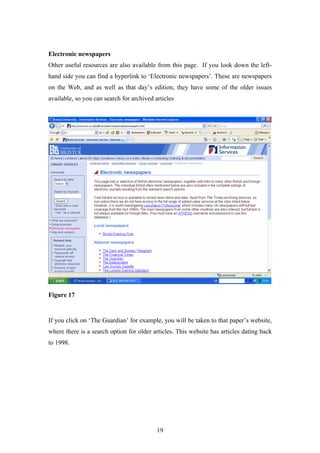
Other useful resources are also available from this page. If you look down the left-
hand side you can find a hyperlink to ‘Electronic newspapers’. These are newspapers
on the Web, and as well as that day’s edition, they have some of the older issues
available, so you can search for archived articles


Figure 17


If you click on ‘The Guardian’ for example, you will be taken to that paper’s website,
where there is a search option for older articles. This website has articles dating back
to 1998.


                                           19
Metalib


Metalib allows you to cross-search materials or resources existing on the web, library
catalogue, and other databases. If you go to the main Library services web page, you
will find the Metalib link. Click on it and you will see this page.


Figure 18


The drop-down boxes allow you to choose to search in various options from a range
of materials available. It is useful when you want to search on a subject you are not
sure about but want to know what is available and also when you want to be
conscious of the quality of the materials or resources. Be wary of resources on the
web, as you will find out in your studies, not everything on the web is usable for
academic work.


As mentioned earlier, the best way to learn fully about the options and resources
available to you to is to practice with you reading lists, doing searches and
familiarising yourself with the catalogue and the journals. See what is available that is


                                           20
relevant to your course. In addition, the Arts and Social Sciences Library runs
introductory sessions about using the Library and its resources for students at the
beginning of your first term at university, these are very useful and important
sessions. The Library will have timetables for when they hold these group-sessions.
You just have to turn up at the selected time-slot. The librarian will give a full
explanation and tour of how the Library works and will answer any questions too.


Anyway, here are some exercises to try:


     Suggested exercises:

        1. Decide on key words from the title of an essay you have to
           write. Use this with the library catalogue

        2. Keep modifying the search according to the results you
           receive, until you get the books etc closest to those you want

        3. Find an article that you are interested in from the Electronic
           Journals. Print it off to read.


                                          21

Library Catalogue and Journals

  • 1.
    Section 8 Library Catalogue and Electronic Journals Introduction This section will be looking at using the library catalogue and electronic journals. As in previous sections it will be taking you through as if you are using the tools while looking at this manual. Library Catalogue The library catalogue is on several p.c.s in the library, and can also be accessed over the Internet at home, or a computer not in the library – this is demonstrated below. It has records of all the libraries’ holdings, not just those held at the Arts and Social Science library. You can look at the journals the libraries hold, and which issues are available. Electronic Journals This is the name given to issues of journals that are published on the Internet. These can be accessed from computers on the Bristol University site. These are often more recent issues of the journal (the library subscribes to them so that they don’t have to hold the paper version). If you find an article you want to read, you can simply print off a copy of it (this will be explained in greater detail below) This section is going to provide an overview, and hopefully help you to get the most out of these resources. But as with most things based on computers, the best thing to do is practice using the skills you have learned by using reading lists, trying out searches and familiarising yourself with what is available. Library Catalogue If you click on the icon for the Internet on your computer, you should get the Bristol University home page appear: 1
  • 2.
    Figure 1 From here,go to the ‘location bar’, labelled ‘address’ and after www.bris.ac.uk, type ‘/is’: 2
  • 3.
    Figure 2 and pressenter. This should take you to a page like the above. Click on ‘Library Services >>’ and you will see the a page like below. 3
  • 4.
    Figure 3 And fromhere the Library services and resources begins to give you options on where you can start looking for resources. 4
  • 5.
    Figure 4 Please note:if you are using one of the computers in the library that are dedicated to the Library Catalogue, this is the first screen that you will see. From here you can search for records of items held by the libraries at Bristol. You can search for specific items that you may have on a reading list, or by using keywords, or authors that you know have written works on a specific area or topic. 5
  • 6.
    Figure 5 On thescreen we have a box to search by authors, by keywords in the title, or by subject keywords. You can type keywords into the boxes marked author and title to find specific items, or if you know of an author that has written works in your field then you can type their name in to find all the library holdings of a particular author. Or, for example, if you are looking for something on ‘delinquency’, then you could type these words in the box marked ‘subject keywords’, and you would get a set of general search results under this topic. The other boxes below under ‘Limited Search by’ allow you to do a finer search for materials where you give more specific details for what you are trying to find. 6
  • 7.
    Figure 6 This showsthat you bring up many different resources (not only books) that may be useful for your essay or presentation, but that may not be on you reading list. As you can see, this search has brought up different types of resources, such as a government report, and books that look at different aspects of the topic. You can also see that these resources are not only held in the Arts and Social Science Library, for example the Education Library may be one that has many useful books and journals relevant to your course. The next step is to see whether the books or reports that you are interested in are available, or reserved. You can click on the blue hyperlink that gives you the name of the library in order to do this. The screen that appears if you do this may look something like this: 7
  • 8.
  • 9.
    The title ofthe document that you are interested in runs along the top, along with publication information. You can see what kind of loan this resource will come under if it is ‘standard loan’, and if a copy is available, or if there are any reservations. So for the item above, you could go along to the library and take it out. In order to do this the information you need is the ‘location information’, which gives a class mark to indicate which shelves to look for. Where it says ‘expand’ in blue, you can click on this for the full information about the item, such as publisher, when the item is due back, etc. If the item is unavailable, you can reserve it. You click on the blue hyperlink ‘reserve’ and screen appears asking for your log-in and user name: Figure 8 9
  • 10.
    You type thesein and the next screen reserves the book for you. On the screen where you began your search, you can see that it is possible to click on ‘Advanced Search’. If you do this the screen that appears looks like this: Figure 9 From the drop down menu labelled ‘field to search’ you can pick what field you want to use as part of the search, according to what information you already have about a book. For example, if I know that the book is by Ann Oakley, and the publisher is Martin Robertson, I can enter these details. The catalogue then comes back with a number of items that match both of the criteria, and then the total number that matches both. I can then view the three items that match my search criteria. You can also see that there is a box on the search screen called ‘my eShelf’. If you click on the boxes beside your search results, and then press ‘add to my eShelf’. It is possible to save results from your searches that you can then email to yourself to use at a later date. Or you can save the search to look back at later if you have a lot of 10
  • 11.
    searching to doin one session. You do this by clicking ‘basket’ at the top of the screen, and then selecting ‘Save/Mail’. Remember everything you add onto your eShelf will be deleted when you logoff. By clicking on ‘my searches’ at the top of the screen you can find a history of all the searches that you have done in one session. Browse The next option along the main menu at the top of the library catalogue screen is ‘Browse’. Figure 10 You will then be taken to the screen above. You can choose one of the categories and enter a search term. If you then click ‘search’ a list of categories will appear. You can then click on the one of these that is closest to what you are searching for, and all of the records under that category will appear. 11
  • 12.
    Journals By clicking onthe journals option at the top of the screen you can search for journals on your reading lists - but NOT journal articles. This means that you need to know what article you are looking for, and what Journal it is in for this page to be useful. Figure 11 If you know the exact title of the journal that you are looking for then you type it into the top box labelled ‘browse titles of printed journals’. If you do not, but you know that it is has ‘Social Policy’ somewhere in the title, then use the second box, which is labelled ‘Title keyword(s) search’. This will bring up a wider range of results and you can then find the one you are looking for. When you have selected the journal you need, the screen that appears will look something like this: 12
  • 13.
    Figure 12 This displaysthe volumes and issues of this journal that are held in the library, and their location, if they are on loan, or when they are due back. At the top by ‘holdings’ you can see that this example of a journal (see fig. 12) is held in the library, and all the issues from 1981 onwards can be loaned. 13
  • 14.
    My Account ‘My account’is a useful option. If you click on this option, the login screen will once again appear. If you type in your details then details of your library account will appear. You can see what items you have on loan, what reservations you have made, and what books are overdue. So using this screen helps you to effectively manage your library account. Inter-Library loans Inter – Library loans refer to loans from libraries at other Universities. (n.b. not from libraries based at Bristol such as the education library). From this screen you can request these items, but it is worth noting that it costs money to receive an inter library item 14
  • 15.
    Electronic Journals If yougo back to the ‘Journals’ option on the main Library Catalogue, and click on it to go back to the journals page then you can see that there is a label for ‘ eJournals catalogue’. If you click on this, as separate web screen will appear (see fig 13). Figure 13 As you can see, on the initial screen there is help available with frequently asked questions. As this is an introduction to using the Electronic Journals it does not cover all the issues, such as what to do if you want to search the journals from a PC not on the University site. If you want to do this then you need a password, which can sometimes be your ATHENS password and sometimes your UOB password. However, there are some instances where the requirements are different: this is where this page of options comes in and can be helpful. Sometimes you will need a password, even when you are searching from within the University, and that is where this page can help. 15
  • 16.
    However, if youare on the University site, looking for a journal, then you can go straight to the left hand panel on the screen ‘eJournals’. If you know the journal that you are looking for then you can select an initial letter or word from the journal title you are looking for. For example ‘children’. This will bring up an alphabetical list of journals, an you can scroll down to the one you want: Figure 14 You can then click on ‘go to journal’, for example ‘Children and Society’. The screen that will then appear will be something like this: 16
  • 17.
  • 18.
    From here youcan click on the Issue number that you require and the next screen appears: Figure 16 This is a Contents page. From here you can choose to look at the abstract of the article, to ascertain that it is relevant, or if you know you want to read it you can click on ‘Full text’. The next screen will usually invite you to download (display on the screen) or save the article. You can choose either, but if you want to print it or keep it to read later, it is best to save it to a floppy disk. If you go back to the first screen of the ‘ eJournals’ option, you can see that it is also possible to search by using ‘keywords’, that is if you are not sure of the title, or if you want to find similar titles. For example, searching on ‘child’ will bring up a set of similar titles that you may then want to browse (Don’t forget to reference in your notes and in your work any articles that you read when preparing essays and seminars). 18
  • 19.
    Electronic newspapers Other usefulresources are also available from this page. If you look down the left- hand side you can find a hyperlink to ‘Electronic newspapers’. These are newspapers on the Web, and as well as that day’s edition, they have some of the older issues available, so you can search for archived articles Figure 17 If you click on ‘The Guardian’ for example, you will be taken to that paper’s website, where there is a search option for older articles. This website has articles dating back to 1998. 19
  • 20.
    Metalib Metalib allows youto cross-search materials or resources existing on the web, library catalogue, and other databases. If you go to the main Library services web page, you will find the Metalib link. Click on it and you will see this page. Figure 18 The drop-down boxes allow you to choose to search in various options from a range of materials available. It is useful when you want to search on a subject you are not sure about but want to know what is available and also when you want to be conscious of the quality of the materials or resources. Be wary of resources on the web, as you will find out in your studies, not everything on the web is usable for academic work. As mentioned earlier, the best way to learn fully about the options and resources available to you to is to practice with you reading lists, doing searches and familiarising yourself with the catalogue and the journals. See what is available that is 20
  • 21.
    relevant to yourcourse. In addition, the Arts and Social Sciences Library runs introductory sessions about using the Library and its resources for students at the beginning of your first term at university, these are very useful and important sessions. The Library will have timetables for when they hold these group-sessions. You just have to turn up at the selected time-slot. The librarian will give a full explanation and tour of how the Library works and will answer any questions too. Anyway, here are some exercises to try: Suggested exercises: 1. Decide on key words from the title of an essay you have to write. Use this with the library catalogue 2. Keep modifying the search according to the results you receive, until you get the books etc closest to those you want 3. Find an article that you are interested in from the Electronic Journals. Print it off to read. 21