TEACHERS
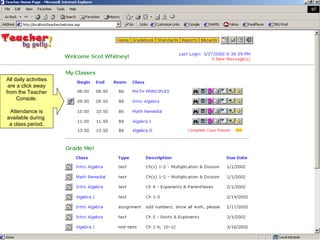
All daily activities are a click away from the Teacher Console. Attendance is available during  a class period.
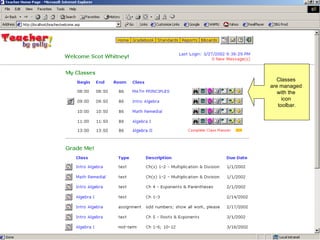
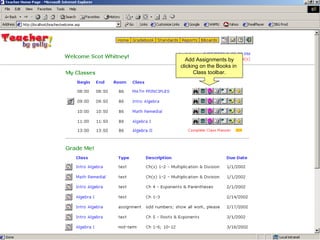
Classes  are managed  with the  icon  toolbar.
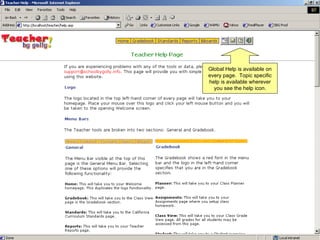
Global Help is available on every page.  Topic specific help is available wherever you see the help icon.
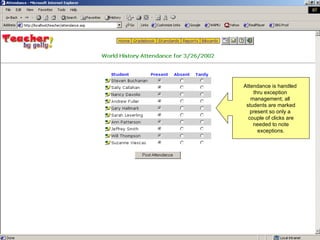
Attendance is handled  thru exception  management; all  students are marked present so only a  couple of clicks are needed to note exceptions.
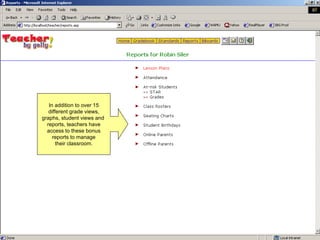
In addition to over 15 different grade views, graphs, student views and  reports, teachers have access to these bonus reports to manage their classroom.
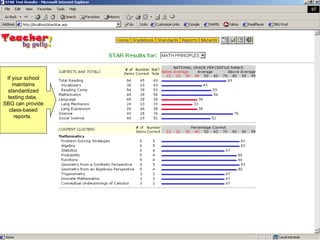
If your school maintains standardized testing data,  SBG can provide class-based reports.
MESSAGING
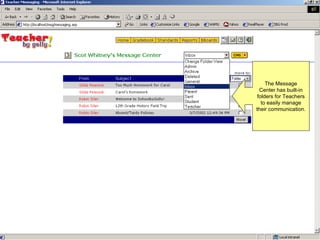
The Message Center has built-in folders for Teachers to easily manage their communication.
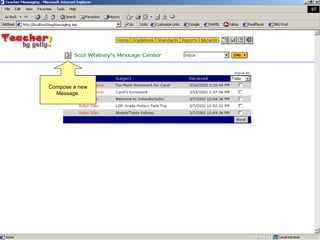
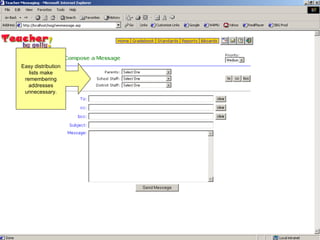
Compose a new Message.
Easy distribution lists make remembering addresses unnecessary.
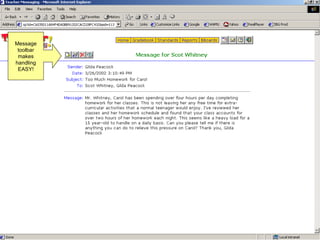
Message toolbar makes handling EASY!
CURRICULUM
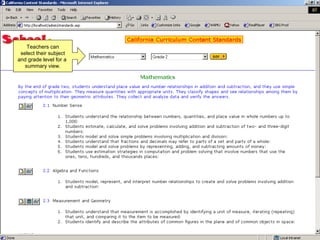
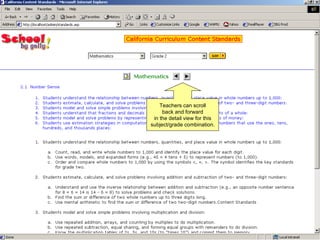
Teachers can select their subject and grade level for a  summary view.
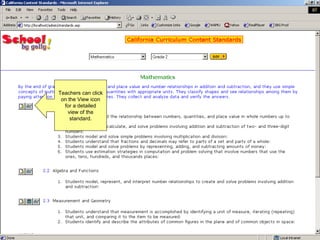
Teachers can click on the View icon for a detailed view of the standard.
Teachers can scroll back and forward in the detail view for this subject/grade combination.
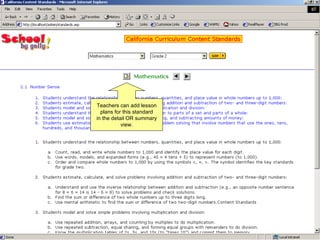
Teachers can add lesson plans for this standard in the detail OR summary view.
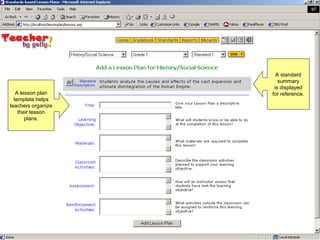
A lesson plan template helps teachers organize their lesson plans. A standard summary is displayed for reference.
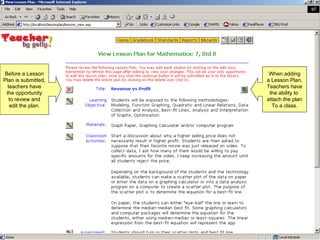
Before a Lesson Plan is submitted, teachers have the opportunity to review and edit the plan. When adding a Lesson Plan, Teachers have the ability to  attach the plan To a class.
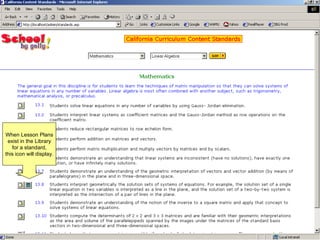
When Lesson Plans exist in the Library for a standard, this icon will display.
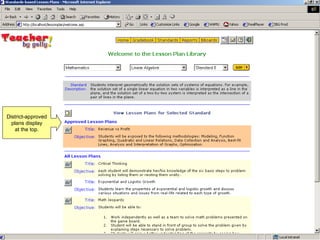
District-approved plans display at the top.
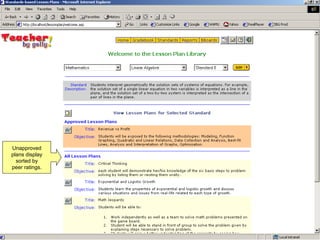
Unapproved plans display sorted by peer ratings.
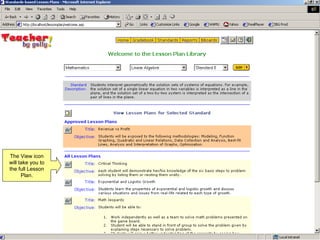
The View icon will take you to the full Lesson Plan.
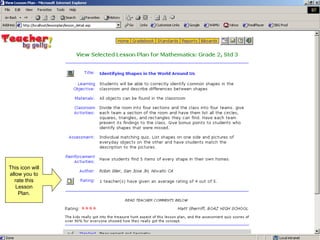
This icon will allow you to rate this Lesson Plan.
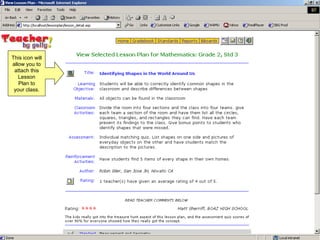
This icon will allow you to attach this Lesson Plan to your class.
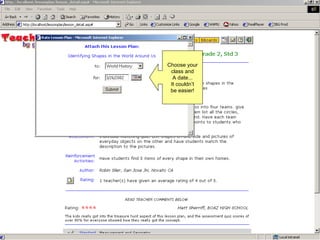
Choose your class and A date... It couldn’t be easier!
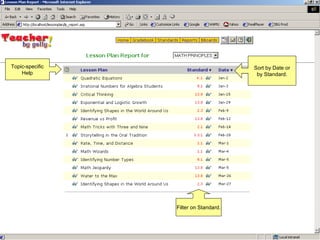
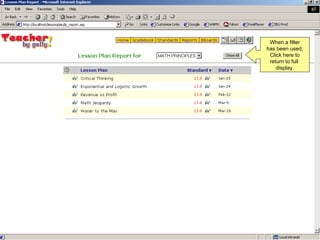
Topic-specific Help Sort by Date or by Standard. Filter on Standard.
When a filter has been used, Click here to return to full  display.
ASSIGNMENTS
Add Assignments by clicking on the Books in  Class toolbar.
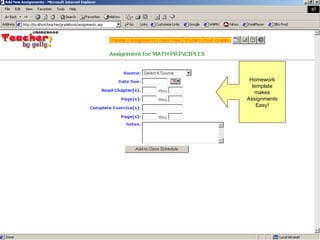
Homework template makes Assignments Easy!
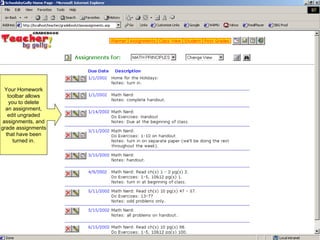
Your Homework toolbar allows you to delete an assignment, edit ungraded assignments, and grade assignments that have been turned in.
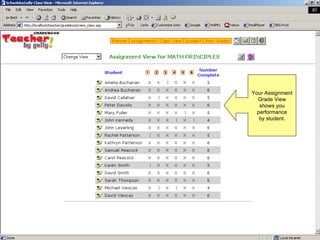
Your Assignment Grade View shows you performance by student.
BULLETIN BOARDS
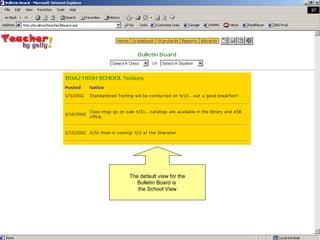
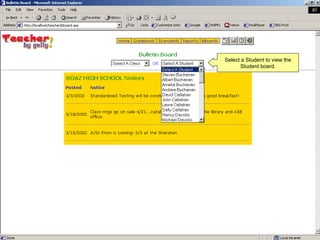
The default view for the Bulletin Board is  the School View
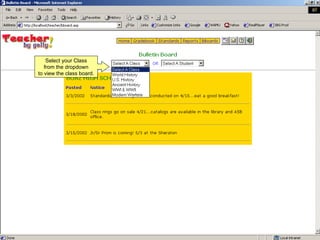
Select your Class from the dropdown to view the class board.
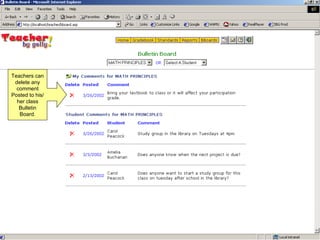
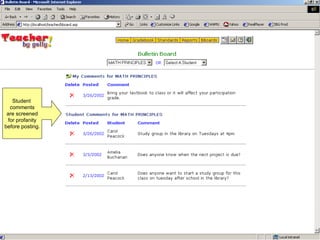
Teachers can delete any comment Posted to his/ her class Bulletin Board.
Student  comments are screened for profanity before posting.
Select a Student to view the Student board.
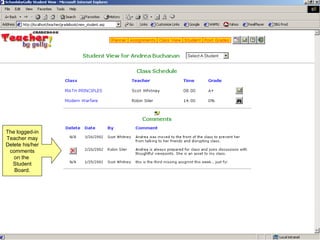
The logged-in Teacher may Delete his/her comments on the  Student Board.
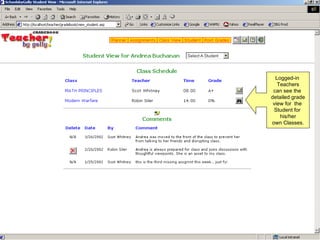
Logged-in  Teachers can see the  detailed grade view for  the  Student for  his/her own Classes.
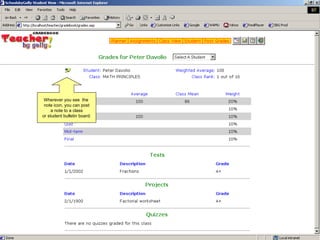
Wherever you see  the  note icon, you can post a note to a class or student bulletin board.
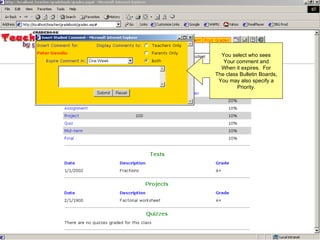
You select who sees Your comment and When it expires.  For The class Bulletin Boards, You may also specify a Priority.
GRADEBOOK
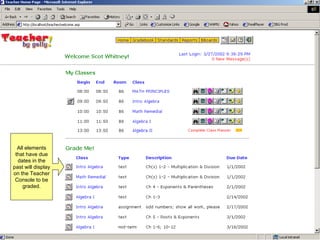
All elements that have due dates in the past will display on the Teacher Console to be graded.
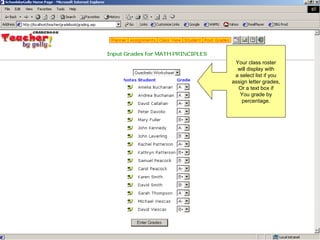
Your class roster will display with a select list if you assign letter grades, Or a text box if You grade by percentage.
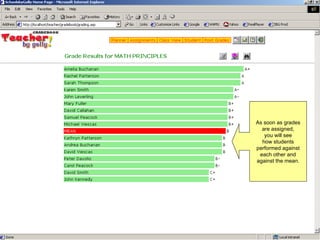
As soon as grades are assigned, you will see how students performed against each other and against the mean.
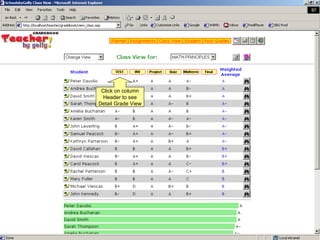
Click on column Header to see Detail Grade View
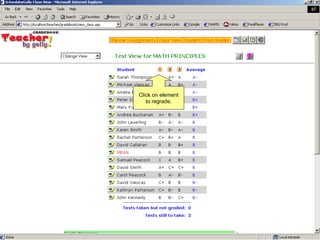
Click on element to regrade.
CLASS PLANNING
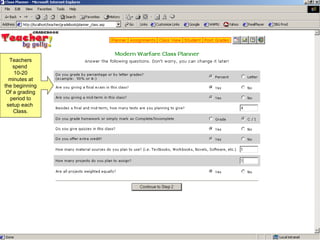
Teachers spend  10-20 minutes at the beginning Of a grading period to setup each  Class.
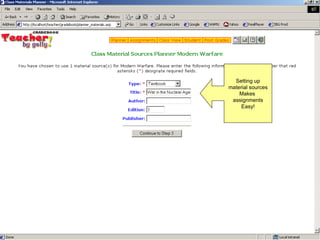
Setting up material sources Makes  assignments Easy!
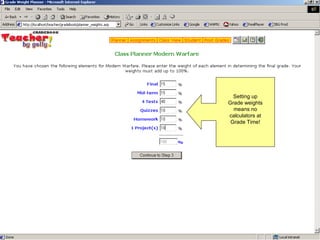
Setting up Grade weights means no calculators at Grade Time!
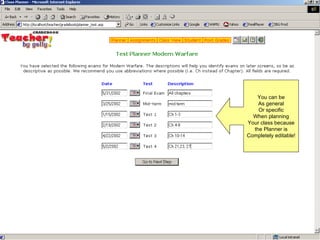
You can be As general Or specific When planning Your class because the Planner is Completely editable!
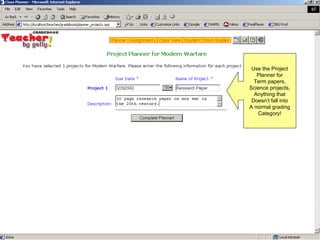
Use the Project Planner for Term papers, Science projects, Anything that Doesn’t fall into A normal grading Category!
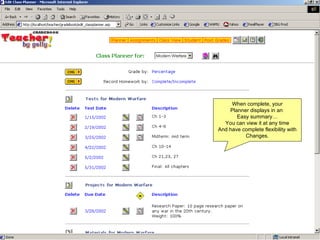
When complete, your Planner displays in an  Easy summary… You can view it at any time And have complete flexibility with Changes.
PARENTS
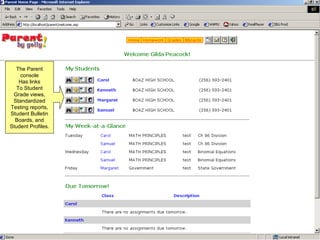
The Parent console Has links To Student Grade views, Standardized Testing reports, Student Bulletin Boards, and Student Profiles.
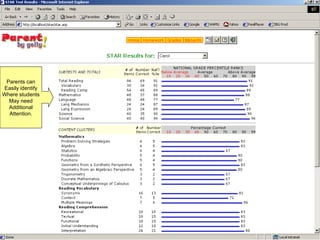
Parents can Easily identify Where students May need Additional Attention.
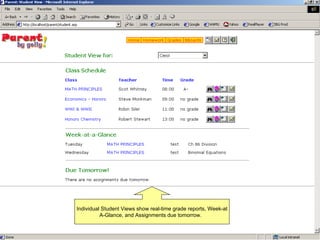
Individual Student Views show real-time grade reports, Week-at A-Glance, and Assignments due tomorrow.
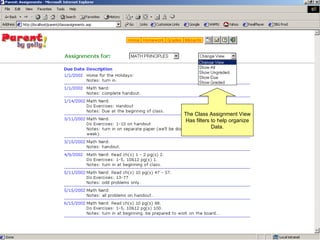
The Class Assignment View Has filters to help organize Data.
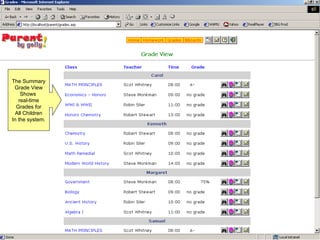
The Summary Grade View Shows  real-time Grades for All Children In the system.
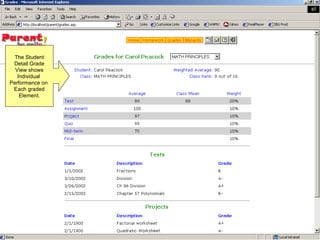
The Student Detail Grade View shows Individual  Performance on  Each graded Element.
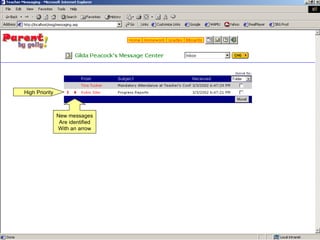
New messages Are identified With an arrow High Priority
ATTENDANCE
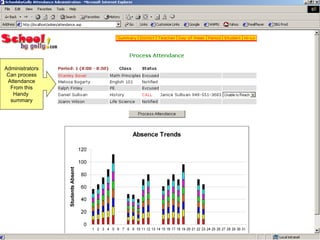
Administrators Can process Attendance From this Handy  summary
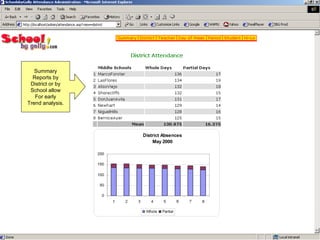
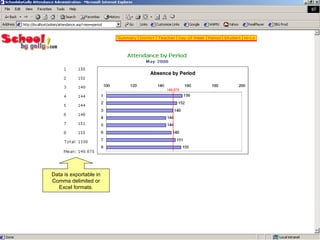
Summary Reports by District or by School allow For early Trend analysis.
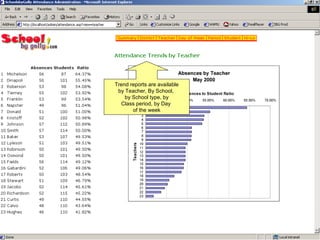
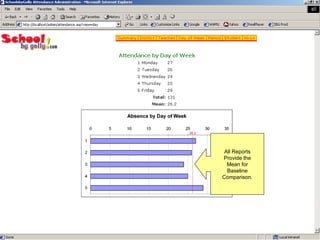
Trend reports are available by Teacher, By School,  by School type, by Class period, by Day  of the week
All Reports Provide the Mean for Baseline Comparison.
Data is exportable in Comma delimited or Excel formats.
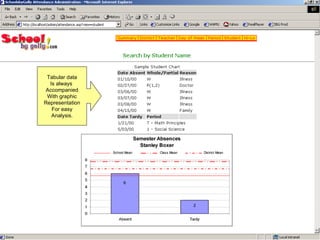
Tabular data Is always  Accompanied With graphic Representation For easy Analysis.

Sbgdemo