GETTING STARTED: USING SAP

SUBJECT: SAP EASY ACCESS
DURATION: 5 MIN.
SAP Easy Access

                                           Table of Contents

1 SAP EASY ACCESS.................................................................................3
2 SAP EASY ACCESS SETTINGS....................................................................4
3 CREATING FAVORITES................................................................................5
    3.1 Inserting an item from standard menu.............................................................5
    3.2 Inserting a Transactioon..................................................................................7
    3.3 Inserting a Web Address or a File...................................................................8
4 MANAGING FAVORITES.............................................................................11
    4.1 Moving Favorites...........................................................................................11
    4.2 Renaming Favorites......................................................................................12
    4.3 Inserting Folders...........................................................................................13
    4.4 Filling folders.................................................................................................14
    4.5 Deleting Favorites.........................................................................................15


2
SAP Easy Access
1 SAP Easy Access

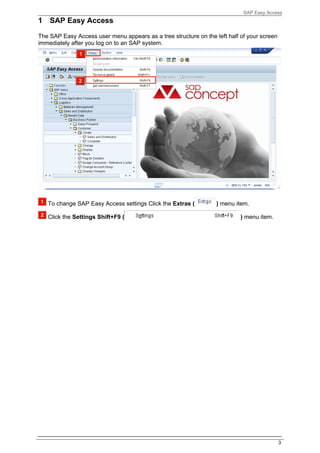
The SAP Easy Access user menu appears as a tree structure on the left half of your screen
immediately after you log on to an SAP system.


   To change SAP Easy Access settings Click the Extras (          ) menu item.

   Click the Settings Shift+F9 (                                           ) menu item.


                                                                                            3
SAP Easy Access
2 SAP Easy Access Settings

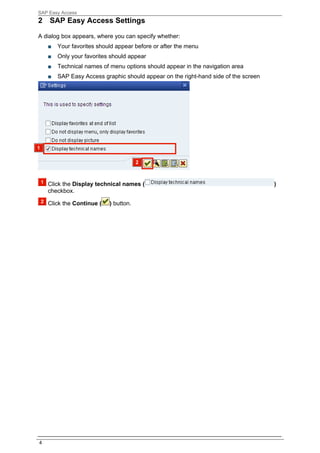
A dialog box appears, where you can specify whether:
    ■   Your favorites should appear before or after the menu
    ■   Only your favorites should appear
    ■   Technical names of menu options should appear in the navigation area
    ■   SAP Easy Access graphic should appear on the right-hand side of the screen


    Click the Display technical names (                                              )
    checkbox.

    Click the Continue (   ) button.


4
SAP Easy Access
3 Creating Favorites

3.1     Inserting an item from standard menu
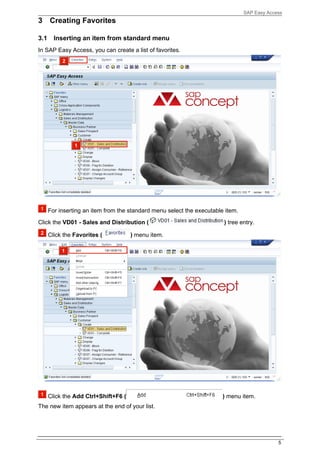
In SAP Easy Access, you can create a list of favorites.


      For inserting an item from the standard menu select the executable item.
Click the VD01 - Sales and Distribution (                               ) tree entry.

      Click the Favorites (           ) menu item.


      Click the Add Ctrl+Shift+F6 (                                     ) menu item.
The new item appears at the end of your list.


                                                                                              5
SAP Easy Access


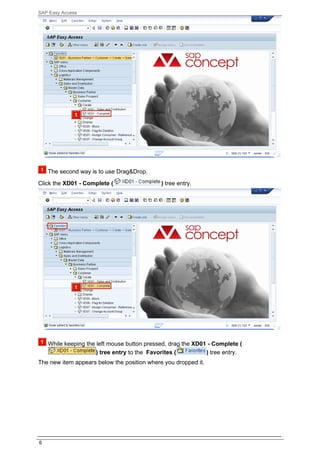
    The second way is to use Drag&Drop.
Click the XD01 - Complete (                  ) tree entry.


    While keeping the left mouse button pressed, drag the XD01 - Complete (
                      ) tree entry to the Favorites (         ) tree entry.
The new item appears below the position where you dropped it.


6
SAP Easy Access
3.2     Inserting a Transactioon


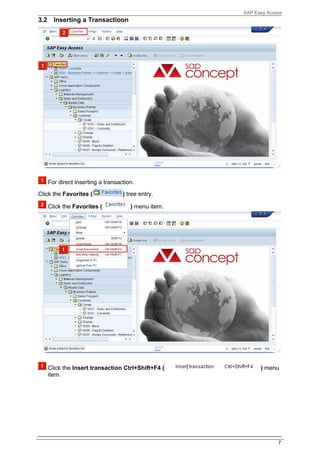
      For direct inserting a transaction.
Click the Favorites (               ) tree entry.

      Click the Favorites (            ) menu item.


      Click the Insert transaction Ctrl+Shift+F4 (          ) menu
      item.


                                                                   7
SAP Easy Access


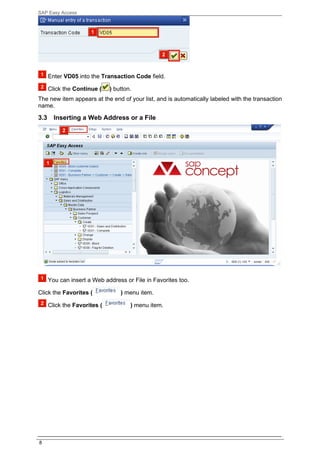
      Enter VD05 into the Transaction Code field.

      Click the Continue (    ) button.
The new item appears at the end of your list, and is automatically labeled with the transaction
name.

3.3     Inserting a Web Address or a File


      You can insert a Web address or File in Favorites too.

Click the Favorites (             ) menu item.

      Click the Favorites (           ) menu item.


8
SAP Easy Access


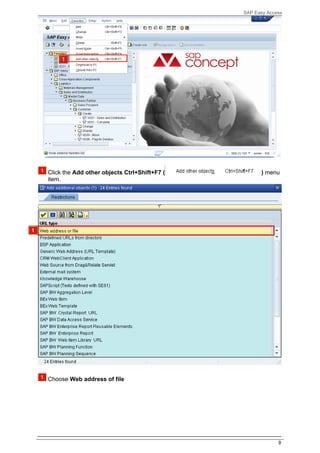
Click the Add other objects Ctrl+Shift+F7 (         ) menu
item.


Choose Web address of file


                                                           9
SAP Easy Access


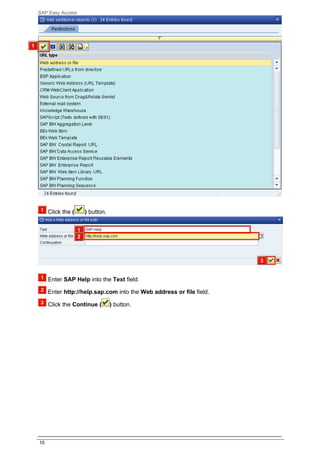
     Click the (   ) button.


     Enter SAP Help into the Text field.

     Enter http://help.sap.com into the Web address or file field.

     Click the Continue (      ) button.


10
SAP Easy Access
4 Managing Favorites

SAP Easy Access allows you to organize your favorites by:
      ■    Moving, renaming, or deleting favorites and folders
      ■    Creating folders in your favorites of list

4.1       Moving Favorites


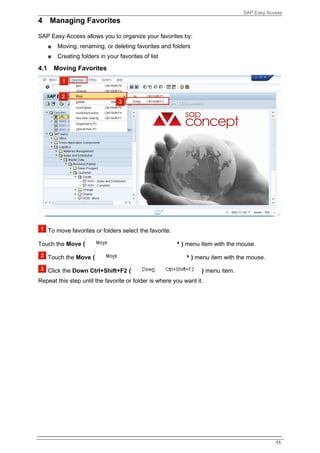
      To move favorites or folders select the favorite.

Touch the Move (                                          ) menu item with the mouse.

      Touch the Move (                                           ) menu item with the mouse.

      Click the Down Ctrl+Shift+F2 (                                ) menu item.
Repeat this step until the favorite or folder is where you want it.


                                                                                                11
SAP Easy Access
4.2     Renaming Favorites


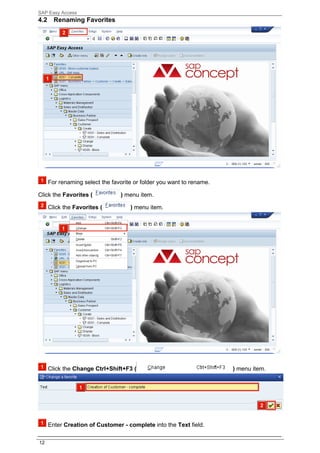
      For renaming select the favorite or folder you want to rename.

Click the Favorites (            ) menu item.

      Click the Favorites (          ) menu item.


      Click the Change Ctrl+Shift+F3 (                                 ) menu item.


      Enter Creation of Customer - complete into the Text field.

12
SAP Easy Access
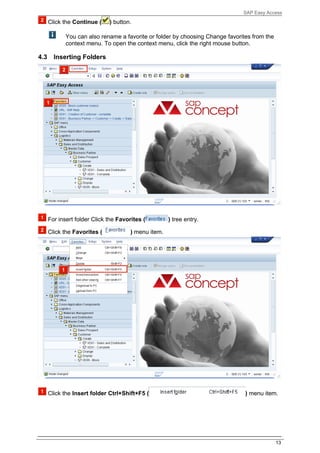
      Click the Continue (    ) button.

             You can also rename a favorite or folder by choosing Change favorites from the
             context menu. To open the context menu, click the right mouse button.

4.3     Inserting Folders


      For insert folder Click the Favorites (         ) tree entry.

      Click the Favorites (            ) menu item.


      Click the Insert folder Ctrl+Shift+F5 (                                   ) menu item.


                                                                                              13
SAP Easy Access


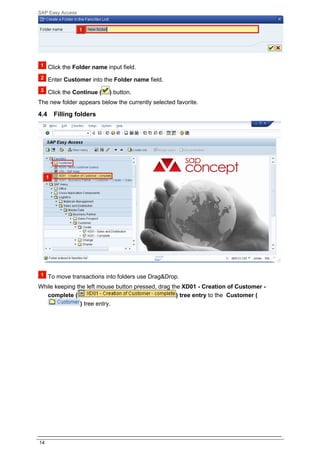
      Click the Folder name input field.

      Enter Customer into the Folder name field.

      Click the Continue (   ) button.
The new folder appears below the currently selected favorite.

4.4     Filling folders


      To move transactions into folders use Drag&Drop.
While keeping the left mouse button pressed, drag the XD01 - Creation of Customer -
   complete (                                       ) tree entry to the Customer (
               ) tree entry.


14
SAP Easy Access


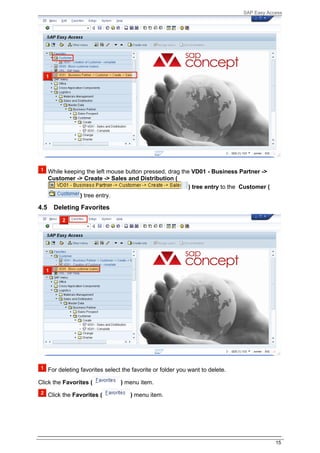
      While keeping the left mouse button pressed, drag the VD01 - Business Partner ->
      Customer -> Create -> Sales and Distribution (
                                                           ) tree entry to the Customer (
                  ) tree entry.

4.5     Deleting Favorites


      For deleting favorites select the favorite or folder you want to delete.

Click the Favorites (              ) menu item.

      Click the Favorites (            ) menu item.


                                                                                             15
SAP Easy Access


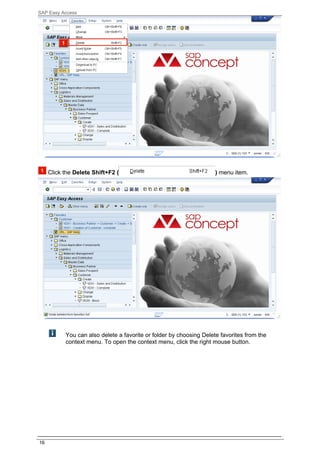
     Click the Delete Shift+F2 (                                     ) menu item.


           You can also delete a favorite or folder by choosing Delete favorites from the
           context menu. To open the context menu, click the right mouse button.


16

sap_easy_access_documentation_e780bdtt_1303814956.doc

  • 1.
    GETTING STARTED: USINGSAP SUBJECT: SAP EASY ACCESS DURATION: 5 MIN.
  • 2.
    SAP Easy Access Table of Contents 1 SAP EASY ACCESS.................................................................................3 2 SAP EASY ACCESS SETTINGS....................................................................4 3 CREATING FAVORITES................................................................................5 3.1 Inserting an item from standard menu.............................................................5 3.2 Inserting a Transactioon..................................................................................7 3.3 Inserting a Web Address or a File...................................................................8 4 MANAGING FAVORITES.............................................................................11 4.1 Moving Favorites...........................................................................................11 4.2 Renaming Favorites......................................................................................12 4.3 Inserting Folders...........................................................................................13 4.4 Filling folders.................................................................................................14 4.5 Deleting Favorites.........................................................................................15 2
  • 3.
    SAP Easy Access 1SAP Easy Access The SAP Easy Access user menu appears as a tree structure on the left half of your screen immediately after you log on to an SAP system. To change SAP Easy Access settings Click the Extras ( ) menu item. Click the Settings Shift+F9 ( ) menu item. 3
  • 4.
    SAP Easy Access 2SAP Easy Access Settings A dialog box appears, where you can specify whether: ■ Your favorites should appear before or after the menu ■ Only your favorites should appear ■ Technical names of menu options should appear in the navigation area ■ SAP Easy Access graphic should appear on the right-hand side of the screen Click the Display technical names ( ) checkbox. Click the Continue ( ) button. 4
  • 5.
    SAP Easy Access 3Creating Favorites 3.1 Inserting an item from standard menu In SAP Easy Access, you can create a list of favorites. For inserting an item from the standard menu select the executable item. Click the VD01 - Sales and Distribution ( ) tree entry. Click the Favorites ( ) menu item. Click the Add Ctrl+Shift+F6 ( ) menu item. The new item appears at the end of your list. 5
  • 6.
    SAP Easy Access The second way is to use Drag&Drop. Click the XD01 - Complete ( ) tree entry. While keeping the left mouse button pressed, drag the XD01 - Complete ( ) tree entry to the Favorites ( ) tree entry. The new item appears below the position where you dropped it. 6
  • 7.
    SAP Easy Access 3.2 Inserting a Transactioon For direct inserting a transaction. Click the Favorites ( ) tree entry. Click the Favorites ( ) menu item. Click the Insert transaction Ctrl+Shift+F4 ( ) menu item. 7
  • 8.
    SAP Easy Access Enter VD05 into the Transaction Code field. Click the Continue ( ) button. The new item appears at the end of your list, and is automatically labeled with the transaction name. 3.3 Inserting a Web Address or a File You can insert a Web address or File in Favorites too. Click the Favorites ( ) menu item. Click the Favorites ( ) menu item. 8
  • 9.
    SAP Easy Access Clickthe Add other objects Ctrl+Shift+F7 ( ) menu item. Choose Web address of file 9
  • 10.
    SAP Easy Access Click the ( ) button. Enter SAP Help into the Text field. Enter http://help.sap.com into the Web address or file field. Click the Continue ( ) button. 10
  • 11.
    SAP Easy Access 4Managing Favorites SAP Easy Access allows you to organize your favorites by: ■ Moving, renaming, or deleting favorites and folders ■ Creating folders in your favorites of list 4.1 Moving Favorites To move favorites or folders select the favorite. Touch the Move ( ) menu item with the mouse. Touch the Move ( ) menu item with the mouse. Click the Down Ctrl+Shift+F2 ( ) menu item. Repeat this step until the favorite or folder is where you want it. 11
  • 12.
    SAP Easy Access 4.2 Renaming Favorites For renaming select the favorite or folder you want to rename. Click the Favorites ( ) menu item. Click the Favorites ( ) menu item. Click the Change Ctrl+Shift+F3 ( ) menu item. Enter Creation of Customer - complete into the Text field. 12
  • 13.
    SAP Easy Access Click the Continue ( ) button. You can also rename a favorite or folder by choosing Change favorites from the context menu. To open the context menu, click the right mouse button. 4.3 Inserting Folders For insert folder Click the Favorites ( ) tree entry. Click the Favorites ( ) menu item. Click the Insert folder Ctrl+Shift+F5 ( ) menu item. 13
  • 14.
    SAP Easy Access Click the Folder name input field. Enter Customer into the Folder name field. Click the Continue ( ) button. The new folder appears below the currently selected favorite. 4.4 Filling folders To move transactions into folders use Drag&Drop. While keeping the left mouse button pressed, drag the XD01 - Creation of Customer - complete ( ) tree entry to the Customer ( ) tree entry. 14
  • 15.
    SAP Easy Access While keeping the left mouse button pressed, drag the VD01 - Business Partner -> Customer -> Create -> Sales and Distribution ( ) tree entry to the Customer ( ) tree entry. 4.5 Deleting Favorites For deleting favorites select the favorite or folder you want to delete. Click the Favorites ( ) menu item. Click the Favorites ( ) menu item. 15
  • 16.
    SAP Easy Access Click the Delete Shift+F2 ( ) menu item. You can also delete a favorite or folder by choosing Delete favorites from the context menu. To open the context menu, click the right mouse button. 16