
SAP Basic eNavigation and Fundamentals:SAP Basic eNavigation and Fundamentals:
Getting Into SAPGetting Into SAP
2Basic Navigation in SAP
BRITEBRITE
What is BRITE?
 Broward Innovative Tool for Education, will
streamline Broward’s business systems
 Provides staff with access and real-time data in the latest
version of the SAP software
 Brings one business system to Broward Schools
 A project of the Enterprise Resource Planning
Department, ERP
3Basic Navigation in SAP
SAP ECCSAP ECC
What is SAP?
SAP – (Systems, Applications and Processes in Data
Processing) is an integrated system that supports all
business and accounting practices of SBBC.
Why are we using SAP?
 One business system
 Reporting of real-time data
 Increased security
4Basic Navigation in SAP
SAP BRITE WebsiteSAP BRITE Website
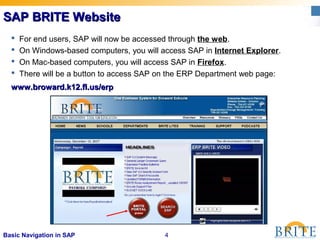
www.broward.k12.fl.us/erpwww.broward.k12.fl.us/erp
 For end users, SAP will now be accessed through the web.
 On Windows-based computers, you will access SAP in Internet Explorer.
 On Mac-based computers, you will access SAP in Firefox.
 There will be a button to access SAP on the ERP Department web page:
5Basic Navigation in SAP
Logging into the BRITE PortalLogging into the BRITE Portal
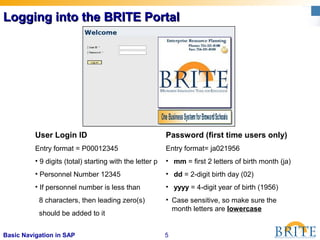
User Login ID
Entry format = P00012345
• 9 digits (total) starting with the letter p
• Personnel Number 12345
• If personnel number is less than
8 characters, then leading zero(s)
should be added to it
Password (first time users only)
Entry format= ja021956
• mm = first 2 letters of birth month (ja)
• dd = 2-digit birth day (02)
• yyyy = 4-digit year of birth (1956)
• Case sensitive, so make sure the
month letters are lowercase
6Basic Navigation in SAP
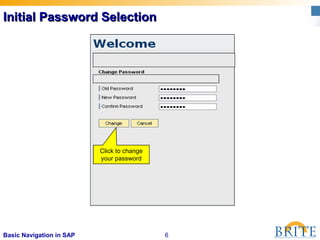
Initial Password SelectionInitial Password Selection
Click to change
your password
7Basic Navigation in SAP
Password Rules for BRITE Portal LogonPassword Rules for BRITE Portal Logon
 Passwords are case sensitive (initial password should be
in lowercase)
 Minimum six characters, maximum eight characters (a
combination of both letters and numbers)
 Do not use a space, question mark, or exclamation point
in your password
 First three characters may not be identical
 Must change your password at least once each 45 days
 May not repeat a password until five unique passwords
have been used
8Basic Navigation in SAP
Portal AssistancePortal Assistance
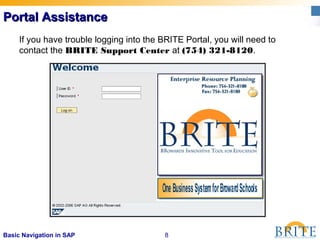
If you have trouble logging into the BRITE Portal, you will need to
contact the BRITE Support Center at (754) 321-8120.
9Basic Navigation in SAP
BRITE Portal ScreenBRITE Portal Screen
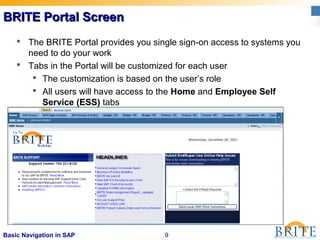
 The BRITE Portal provides you single sign-on access to systems you
need to do your work
 Tabs in the Portal will be customized for each user
 The customization is based on the user’s role
 All users will have access to the Home and Employee Self
Service (ESS) tabs
10Basic Navigation in SAP
SAP Access via the BRITE PortalSAP Access via the BRITE Portal
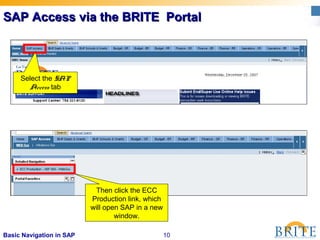
Select the SAP
Access tab
Then click the ECC
Production link, which
will open SAP in a new
window.
11Basic Navigation in SAP
Copyright Pop-up WindowCopyright Pop-up Window
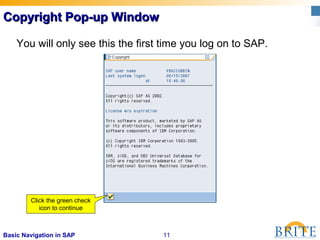
You will only see this the first time you log on to SAP.
Click the green check
icon to continue
SAP Basic eNavigation and Fundamentals:SAP Basic eNavigation and Fundamentals:
Getting Around in SAPGetting Around in SAP
13Basic Navigation in SAP
SAP User MenuSAP User Menu
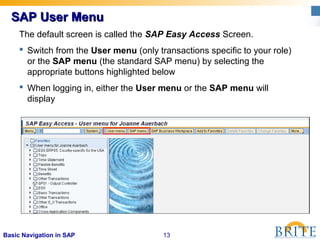
The default screen is called the SAP Easy Access Screen.
 Switch from the User menu (only transactions specific to your role)
or the SAP menu (the standard SAP menu) by selecting the
appropriate buttons highlighted below
 When logging in, either the User menu or the SAP menu will
display
14Basic Navigation in SAP
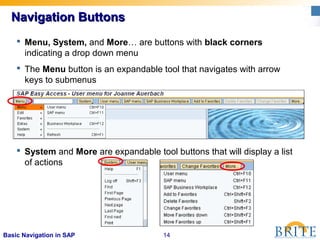
 Menu, System, and More… are buttons with black corners
indicating a drop down menu
 The Menu button is an expandable tool that navigates with arrow
keys to submenus
 System and More are expandable tool buttons that will display a list
of actions
Navigation ButtonsNavigation Buttons
15Basic Navigation in SAP
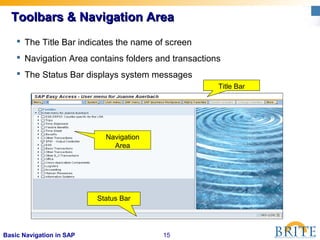
Title Bar
Navigation
Area
Status Bar
 The Title Bar indicates the name of screen
 Navigation Area contains folders and transactions
 The Status Bar displays system messages
Toolbars & Navigation AreaToolbars & Navigation Area
16Basic Navigation in SAP
Moving from the Easy Access Screen toMoving from the Easy Access Screen to
TransactionsTransactions
 What is a transaction?
 Enables user to create, change, and display data or
run reports in SAP
 How do I get to a transaction from the Easy Access
Screen?
17Basic Navigation in SAP
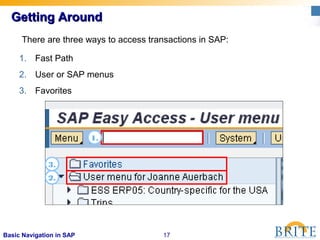
Getting AroundGetting Around
1. Fast Path
2. User or SAP menus
3. Favorites
3.
1.
There are three ways to access transactions in SAP:
2.
18Basic Navigation in SAP
Accessing a Transaction using the FastAccessing a Transaction using the Fast
Path FieldPath Field
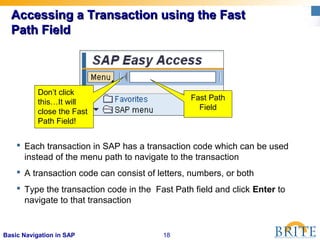
 Each transaction in SAP has a transaction code which can be used
instead of the menu path to navigate to the transaction
 A transaction code can consist of letters, numbers, or both
 Type the transaction code in the Fast Path field and click Enter to
navigate to that transaction
Don’t click
this…It will
close the Fast
Path Field!
Fast Path
Field
19Basic Navigation in SAP
If you Close the Fast Path Field by MistakeIf you Close the Fast Path Field by Mistake
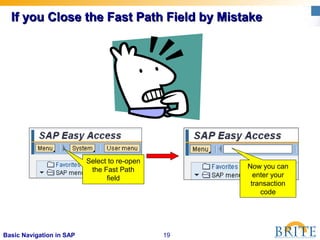
Select to re-open
the Fast Path
field
Now you can
enter your
transaction
code
20Basic Navigation in SAP
Navigating to a Transaction Using the UserNavigating to a Transaction Using the User
MenuMenu
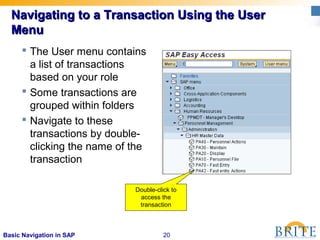
 The User menu contains
a list of transactions
based on your role
 Some transactions are
grouped within folders
 Navigate to these
transactions by double-
clicking the name of the
transaction
Double-click to
access the
transaction
21Basic Navigation in SAP
Is there an Easier Way to Navigate?Is there an Easier Way to Navigate?
 How can I easily get to where I need to be?
Set up Favorites!
22Basic Navigation in SAP
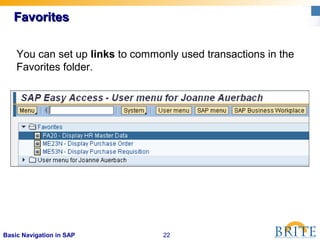
FavoritesFavorites
You can set up links to commonly used transactions in the
Favorites folder.
23Basic Navigation in SAP
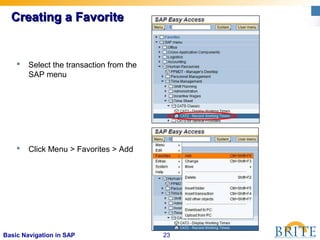
Creating a FavoriteCreating a Favorite
 Select the transaction from the
SAP menu
 Click Menu > Favorites > Add
24Basic Navigation in SAP
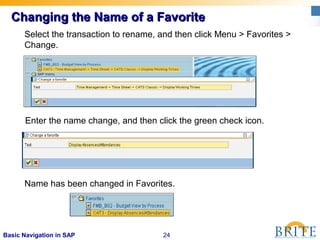
Changing the Name of a FavoriteChanging the Name of a Favorite
Select the transaction to rename, and then click Menu > Favorites >
Change.
Enter the name change, and then click the green check icon.
Name has been changed in Favorites.
SAP Basic eNavigation and Fundamentals:SAP Basic eNavigation and Fundamentals:
Other SAP BasicsOther SAP Basics
26Basic Navigation in SAP
Displaying the Technical Names forDisplaying the Technical Names for
TransactionsTransactions
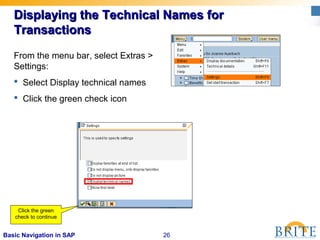
From the menu bar, select Extras >
Settings:
 Select Display technical names
 Click the green check icon
Click the green
check to continue
27Basic Navigation in SAP
Displaying the Technical Names forDisplaying the Technical Names for
Transactions (Part Two)Transactions (Part Two)
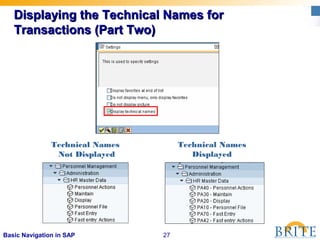
Technical Names
Not Displayed
Technical Names
Displayed
28Basic Navigation in SAP
Sample Transaction ScreenSample Transaction Screen
Tab
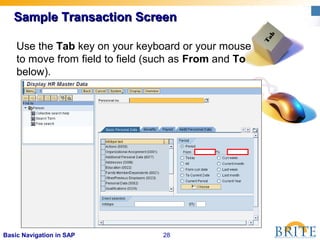
Use the Tab key on your keyboard or your mouse
to move from field to field (such as From and To
below).
29Basic Navigation in SAP
Types of FieldsTypes of Fields
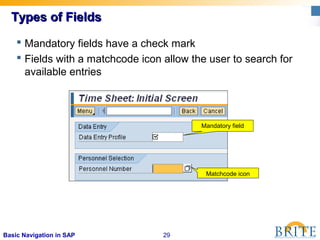
 Mandatory fields have a check mark
 Fields with a matchcode icon allow the user to search for
available entries
Matchcode icon
Mandatory field
30Basic Navigation in SAP
Moving from One Transaction to AnotherMoving from One Transaction to Another
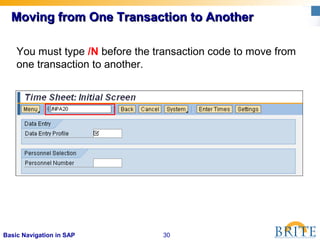
You must type /N before the transaction code to move from
one transaction to another.
31Basic Navigation in SAP
System MessagesSystem Messages
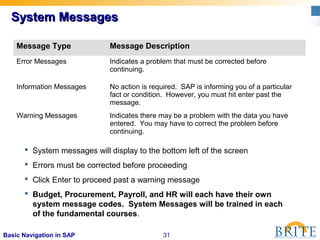
 System messages will display to the bottom left of the screen
 Errors must be corrected before proceeding
 Click Enter to proceed past a warning message
 Budget, Procurement, Payroll, and HR will each have their own
system message codes. System Messages will be trained in each
of the fundamental courses.
Message Type Message Description
Error Messages Indicates a problem that must be corrected before
continuing.
Information Messages No action is required. SAP is informing you of a particular
fact or condition. However, you must hit enter past the
message.
Warning Messages Indicates there may be a problem with the data you have
entered. You may have to correct the problem before
continuing.
32Basic Navigation in SAP
Creating a SessionCreating a Session
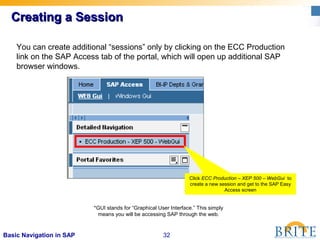
You can create additional “sessions” only by clicking on the ECC Production
link on the SAP Access tab of the portal, which will open up additional SAP
browser windows.
*GUI stands for “Graphical User Interface.” This simply
means you will be accessing SAP through the web.
Click ECC Production – XEP 500 – WebGui to
create a new session and get to the SAP Easy
Access screen
33Basic Navigation in SAP
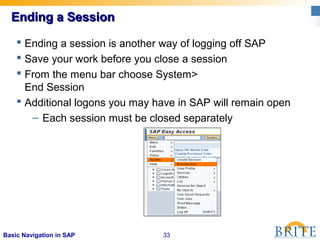
Ending a SessionEnding a Session
 Ending a session is another way of logging off SAP
 Save your work before you close a session
 From the menu bar choose System>
End Session
 Additional logons you may have in SAP will remain open
– Each session must be closed separately
34Basic Navigation in SAP
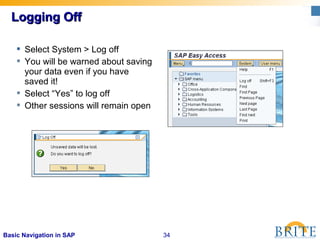
Logging OffLogging Off
 Select System > Log off
 You will be warned about saving
your data even if you have
saved it!
 Select “Yes” to log off
 Other sessions will remain open
35Basic Navigation in SAP
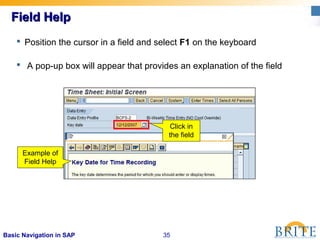
Field HelpField Help
 Position the cursor in a field and select F1 on the keyboard
 A pop-up box will appear that provides an explanation of the field
Example of
Field Help
Click in
the field
Human Resources and Payroll OverviewHuman Resources and Payroll Overview
37Basic Navigation in SAP
Role DescriptionsRole Descriptions
Human Resources Action Processor (HRAP) – replaces
PAF Processor:
 Utilizes the HR Administrative Services (HRAS)
function to create, execute and delimit HR
activities/processes
 Data is populated on Adobe Interactive forms and
once executed updates the backend system (SAP)
Payroll Contact:
 Enters attendance and absences into SAP system
 Researches and communicates payroll issues to
management and/or employees
 Runs reports for audit documentation
38Basic Navigation in SAP
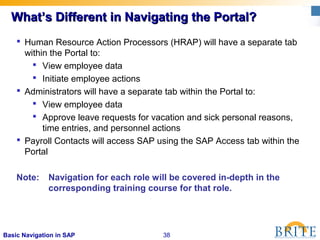
What’s Different in Navigating the Portal?What’s Different in Navigating the Portal?
 Human Resource Action Processors (HRAP) will have a separate tab
within the Portal to:
 View employee data
 Initiate employee actions
 Administrators will have a separate tab within the Portal to:
 View employee data
 Approve leave requests for vacation and sick personal reasons,
time entries, and personnel actions
 Payroll Contacts will access SAP using the SAP Access tab within the
Portal
Note: Navigation for each role will be covered in-depth in the
corresponding training course for that role.
39Basic Navigation in SAP
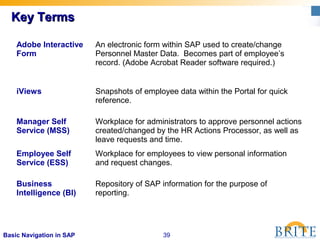
Key TermsKey Terms
Adobe Interactive
Form
An electronic form within SAP used to create/change
Personnel Master Data. Becomes part of employee’s
record. (Adobe Acrobat Reader software required.)
iViews Snapshots of employee data within the Portal for quick
reference.
Manager Self
Service (MSS)
Workplace for administrators to approve personnel actions
created/changed by the HR Actions Processor, as well as
leave requests and time.
Employee Self
Service (ESS)
Workplace for employees to view personal information
and request changes.
Business
Intelligence (BI)
Repository of SAP information for the purpose of
reporting.
40Basic Navigation in SAP
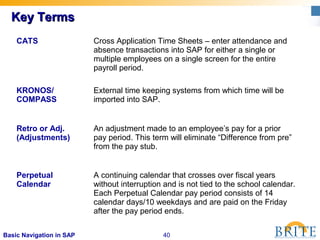
Key TermsKey Terms
CATS Cross Application Time Sheets – enter attendance and
absence transactions into SAP for either a single or
multiple employees on a single screen for the entire
payroll period.
KRONOS/
COMPASS
External time keeping systems from which time will be
imported into SAP.
Retro or Adj.
(Adjustments)
An adjustment made to an employee’s pay for a prior
pay period. This term will eliminate “Difference from pre”
from the pay stub.
Perpetual
Calendar
A continuing calendar that crosses over fiscal years
without interruption and is not tied to the school calendar.
Each Perpetual Calendar pay period consists of 14
calendar days/10 weekdays and are paid on the Friday
after the pay period ends.
41Basic Navigation in SAP
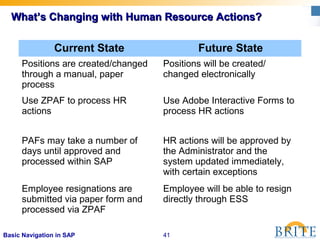
Current State Future State
Positions are created/changed
through a manual, paper
process
Positions will be created/
changed electronically
Use ZPAF to process HR
actions
Use Adobe Interactive Forms to
process HR actions
PAFs may take a number of
days until approved and
processed within SAP
HR actions will be approved by
the Administrator and the
system updated immediately,
with certain exceptions
Employee resignations are
submitted via paper form and
processed via ZPAF
Employee will be able to resign
directly through ESS
What’s Changing with Human Resource Actions?What’s Changing with Human Resource Actions?
42Basic Navigation in SAP
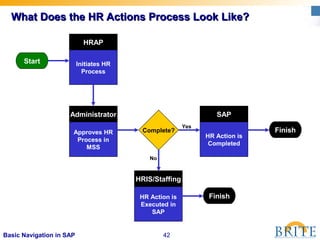
What Does the HR Actions Process Look Like?What Does the HR Actions Process Look Like?
Start
HRAP
Initiates HR
Process
Administrator
Approves HR
Process in
MSS
Complete?
SAP
HR Action is
Completed
Finish
HRIS/Staffing
HR Action is
Executed in
SAP
Finish
Yes
No
43Basic Navigation in SAP
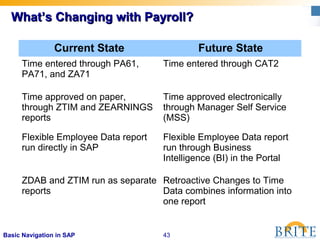
Current State Future State
Time entered through PA61,
PA71, and ZA71
Time entered through CAT2
Time approved on paper,
through ZTIM and ZEARNINGS
reports
Time approved electronically
through Manager Self Service
(MSS)
Flexible Employee Data report
run directly in SAP
Flexible Employee Data report
run through Business
Intelligence (BI) in the Portal
ZDAB and ZTIM run as separate
reports
Retroactive Changes to Time
Data combines information into
one report
What’s Changing with Payroll?What’s Changing with Payroll?
44Basic Navigation in SAP
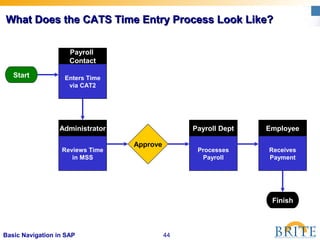
What Does the CATS Time Entry Process Look Like?What Does the CATS Time Entry Process Look Like?
Start
Payroll
Contact
Enters Time
via CAT2
Administrator
Reviews Time
in MSS
Approve
Employee
Receives
Payment
Finish
Payroll Dept
Processes
Payroll
Organizational Management StructureOrganizational Management Structure
46Basic Navigation in SAP
At the end of this lesson, participants will be able to:
– Describe the overall organizational structure within
SBBC
– Recognize the primary objects of the organizational
structure in SAP
– Explain the relationships between objects within
organization management
Lesson ObjectivesLesson Objectives
47Basic Navigation in SAP
 Provides a way to construct and maintain a model of the
district’s organizational structure
 Used to direct the workflows
 Ensure functional integration and organizational alignment
throughout the district
 Display reporting relationships
 Reports
Organizational Management OffersOrganizational Management Offers
48Basic Navigation in SAP
Sample of SBBCs Organizational ChartSample of SBBCs Organizational Chart
49Basic Navigation in SAP
Organizational StructureOrganizational Structure
 All positions belong to an org unit and do not move
from one org unit to another.
 Holders of positions can move from one org unit to
another. People hold only one primary position, but
can hold as many secondary positions as they are
offered and have time to work.
 Jobs hold the general attributes of the position, i.e.,
education qualifications, salary schedule, etc.
50Basic Navigation in SAP
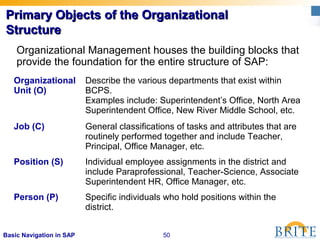
Primary Objects of the OrganizationalPrimary Objects of the Organizational
StructureStructure
Organizational
Unit (O)
Describe the various departments that exist within
BCPS.
Examples include: Superintendent’s Office, North Area
Superintendent Office, New River Middle School, etc.
Job (C) General classifications of tasks and attributes that are
routinely performed together and include Teacher,
Principal, Office Manager, etc.
Position (S) Individual employee assignments in the district and
include Paraprofessional, Teacher-Science, Associate
Superintendent HR, Office Manager, etc.
Person (P) Specific individuals who hold positions within the
district.
Organizational Management houses the building blocks that
provide the foundation for the entire structure of SAP:
51Basic Navigation in SAP
Organizational Units (O)Organizational Units (O)
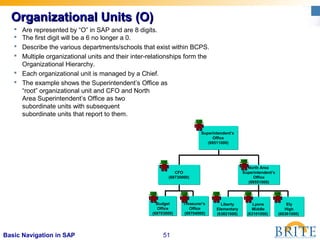
 Are represented by “O” in SAP and are 8 digits.
 The first digit will be a 6 no longer a 0.
 Describe the various departments/schools that exist within BCPS.
 Multiple organizational units and their inter-relationships form the
Organizational Hierarchy.
 Each organizational unit is managed by a Chief.
 The example shows the Superintendent’s Office as
“root” organizational unit and CFO and North
Area Superintendent’s Office as two
subordinate units with subsequent
subordinate units that report to them.
Superintendent’s
Office
(69511000)
Superintendent’s
Office
(69511000)
Lyons
Middle
(63101000)
Lyons
Middle
(63101000)
Ely
High
(60361000)
Ely
High
(60361000)
Liberty
Elementary
(63821000)
Liberty
Elementary
(63821000)
Treasurer‘s
Office
(69704000)
Treasurer‘s
Office
(69704000)
Budget
OfficeOffice
(69703000)(69703000)
Budget
OfficeOffice
(69703000)(69703000)
North Area
Superintendent’s
Office
(69551000)
North Area
Superintendent’s
Office
(69551000)
CFO
(69730000)
CFO
(69730000)
52Basic Navigation in SAP
Jobs (C)Jobs (C)
Job:
Director
Position:
Director, Benefits
Position:
Director, Budget
Position:
Director, Non-Instructional
Staffing
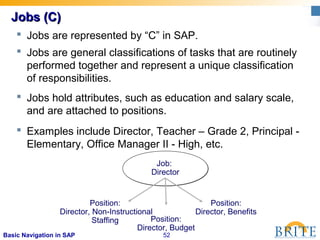
 Jobs are represented by “C” in SAP.
 Jobs are general classifications of tasks that are routinely
performed together and represent a unique classification
of responsibilities.
 Jobs hold attributes, such as education and salary scale,
and are attached to positions.
 Examples include Director, Teacher – Grade 2, Principal -
Elementary, Office Manager II - High, etc.
53Basic Navigation in SAP
Jobs (C)Jobs (C)
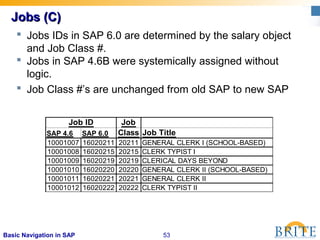
 Jobs IDs in SAP 6.0 are determined by the salary object
and Job Class #.
 Jobs in SAP 4.6B were systemically assigned without
logic.
 Job Class #’s are unchanged from old SAP to new SAP
Job
SAP 4.6 SAP 6.0 Class Job Title
10001007 16020211 20211 GENERAL CLERK I (SCHOOL-BASED)
10001008 16020215 20215 CLERK TYPIST I
10001009 16020219 20219 CLERICAL DAYS BEYOND
10001010 16020220 20220 GENERAL CLERK II (SCHOOL-BASED)
10001011 16020221 20221 GENERAL CLERK II
10001012 16020222 20222 CLERK TYPIST II
Job ID
54Basic Navigation in SAP
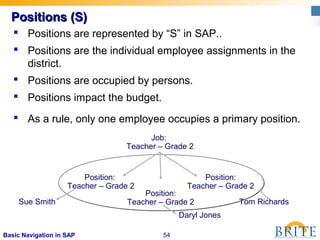
 Positions are represented by “S” in SAP..
 Positions are the individual employee assignments in the
district.
 Positions are occupied by persons.
 Positions impact the budget.
 As a rule, only one employee occupies a primary position.
Positions (S)Positions (S)
Job:
Teacher – Grade 2
Position:
Teacher – Grade 2
Position:
Teacher – Grade 2
Position:
Teacher – Grade 2
Tom RichardsSue Smith
Daryl Jones
55Basic Navigation in SAP
 Many work-related attributes, such as workflow,
approvals and security are attached to the position.
 Once you have a job, you must specify the number of
corresponding positions required in the organization.
 A position inherits a job’s tasks but you can also define
additional tasks related to duties performed specifically by
that position.
 A position references a job directly. If characteristics of a
job are changed, this has an effect on the positions
related to that job.
Positions (S)Positions (S)
56Basic Navigation in SAP
Persons (P)Persons (P)
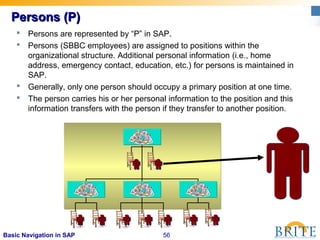
 Persons are represented by “P” in SAP.
 Persons (SBBC employees) are assigned to positions within the
organizational structure. Additional personal information (i.e., home
address, emergency contact, education, etc.) for persons is maintained in
SAP.
 Generally, only one person should occupy a primary position at one time.
 The person carries his or her personal information to the position and this
information transfers with the person if they transfer to another position.
57Basic Navigation in SAP
Organizational
Unit
Organizational
Unit
ChiefsChiefs
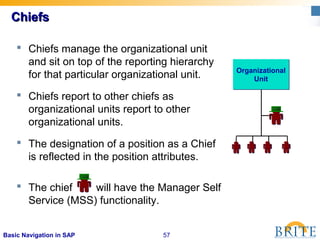
 Chiefs manage the organizational unit
and sit on top of the reporting hierarchy
for that particular organizational unit.
 Chiefs report to other chiefs as
organizational units report to other
organizational units.
 The designation of a position as a Chief
is reflected in the position attributes.
 The chief will have the Manager Self
Service (MSS) functionality.
58Basic Navigation in SAP
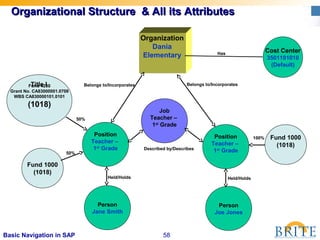
Organizational Structure & All its AttributesOrganizational Structure & All its Attributes
Described by/Describes
Belongs to/Incorporates
Held/Holds
Cost Center
3501101010
(Default)
Has
Fund 1000
(1018)
Fund 4230
Grant No. CA83000001.0708
WBS CA830000101.0101
(1018)
Title I
50%
50%
Person
Jane Smith
Person
Joe Jones
Position
Teacher –
1st
Grade
Position
Teacher –
1st
Grade
Fund 1000
(1018)
Held/Holds
Job
Teacher –
1st
Grade
100%
Belongs to/Incorporates
Organization
Dania
Elementary
59Basic Navigation in SAP
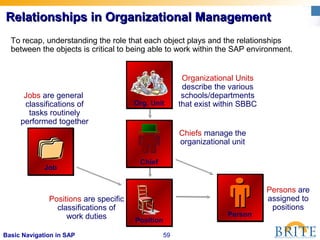
To recap, understanding the role that each object plays and the relationships
between the objects is critical to being able to work within the SAP environment.
Persons are
assigned to
positions
Person
Organizational Units
describe the various
schools/departments
that exist within SBBC
Positions are specific
classifications of
work duties
Jobs are general
classifications of
tasks routinely
performed together
Job
Position
Org. Unit
Chiefs manage the
organizational unit
Chief
Relationships in Organizational ManagementRelationships in Organizational Management
60Basic Navigation in SAP
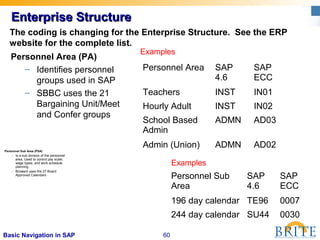
Enterprise StructureEnterprise Structure
Personnel Area (PA)
– Identifies personnel
groups used in SAP
– SBBC uses the 21
Bargaining Unit/Meet
and Confer groups
Personnel Area SAP
4.6
SAP
ECC
Teachers INST IN01
Hourly Adult INST IN02
School Based
Admin
ADMN AD03
Admin (Union) ADMN AD02
Personnel Sub Area (PSA)
– Is a sub division of the personnel
area. Used to control pay scale,
wage types, and work schedule
planning.
– Broward uses the 27 Board
Approved Calendars
Personnel Sub
Area
SAP
4.6
SAP
ECC
196 day calendar TE96 0007
244 day calendar SU44 0030
Examples
Examples
The coding is changing for the Enterprise Structure. See the ERP
website for the complete list.
61Basic Navigation in SAP
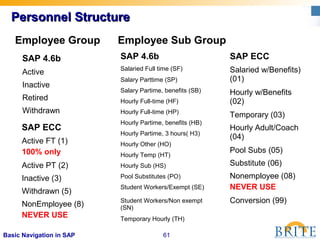
Personnel StructurePersonnel Structure
Employee Group
SAP 4.6b
Active
Inactive
Retired
Withdrawn
SAP ECC
Active FT (1)
100% only
Active PT (2)
Inactive (3)
Withdrawn (5)
NonEmployee (8)
NEVER USE
Employee Sub Group
SAP ECC
Salaried w/Benefits)
(01)
Hourly w/Benefits
(02)
Temporary (03)
Hourly Adult/Coach
(04)
Pool Subs (05)
Substitute (06)
Nonemployee (08)
NEVER USE
Conversion (99)
SAP 4.6b
Salaried Full time (SF)
Salary Parttime (SP)
Salary Partime, benefits (SB)
Hourly Full-time (HF)
Hourly Full-time (HP)
Hourly Partime, benefits (HB)
Hourly Partime, 3 hours( H3)
Hourly Other (HO)
Hourly Temp (HT)
Hourly Sub (HS)
Pool Substitutes (PO)
Student Workers/Exempt (SE)
Student Workers/Non exempt
(SN)
Temporary Hourly (TH)
62Basic Navigation in SAP
The organizational hierarchy created in
SAP provides the foundation for a variety
of key activities including automated
workflow, approvals, and security access.
SummarySummary
63Basic Navigation in SAP
Course SummaryCourse Summary
You should now be able to:
 Log on/off the BRITE Portal
 Navigate the SAP Easy Access screen
 Identify transactions in SAP
 Access transactions using:
 Transaction codes
 User menu
 Favorites folders
 Navigate transaction screens
 Enter data in fields using
 Free entry (manual typing)
 Matchcodes (look up)
 Recognize system messages
 Access Help for field definitions
 Describe Human Resource and Payroll changes
 Understand the Organization and Enterprise Structures
Follow-Up & Support OptionsFollow-Up & Support Options
65Basic Navigation in SAP
 BRITE Support Center 754-321-8120
 BRITE Website:
web/erp -or-
http://www.broward.k12.fl.us/erp/
 e-Learning
 Context Sensitive Help
 Online Training Library
 BRITE CAB Conference
 BRITE LITES (By Role)
User Support OptionsUser Support Options
 ESS Appraisal
 Blackboard
Follow-UpFollow-Up

End users basic_navigation_for_hr-payroll-events_06-05-08

  • 1.
    SAP Basic eNavigationand Fundamentals:SAP Basic eNavigation and Fundamentals: Getting Into SAPGetting Into SAP
  • 2.
    2Basic Navigation inSAP BRITEBRITE What is BRITE?  Broward Innovative Tool for Education, will streamline Broward’s business systems  Provides staff with access and real-time data in the latest version of the SAP software  Brings one business system to Broward Schools  A project of the Enterprise Resource Planning Department, ERP
  • 3.
    3Basic Navigation inSAP SAP ECCSAP ECC What is SAP? SAP – (Systems, Applications and Processes in Data Processing) is an integrated system that supports all business and accounting practices of SBBC. Why are we using SAP?  One business system  Reporting of real-time data  Increased security
  • 4.
    4Basic Navigation inSAP SAP BRITE WebsiteSAP BRITE Website www.broward.k12.fl.us/erpwww.broward.k12.fl.us/erp  For end users, SAP will now be accessed through the web.  On Windows-based computers, you will access SAP in Internet Explorer.  On Mac-based computers, you will access SAP in Firefox.  There will be a button to access SAP on the ERP Department web page:
  • 5.
    5Basic Navigation inSAP Logging into the BRITE PortalLogging into the BRITE Portal User Login ID Entry format = P00012345 • 9 digits (total) starting with the letter p • Personnel Number 12345 • If personnel number is less than 8 characters, then leading zero(s) should be added to it Password (first time users only) Entry format= ja021956 • mm = first 2 letters of birth month (ja) • dd = 2-digit birth day (02) • yyyy = 4-digit year of birth (1956) • Case sensitive, so make sure the month letters are lowercase
  • 6.
    6Basic Navigation inSAP Initial Password SelectionInitial Password Selection Click to change your password
  • 7.
    7Basic Navigation inSAP Password Rules for BRITE Portal LogonPassword Rules for BRITE Portal Logon  Passwords are case sensitive (initial password should be in lowercase)  Minimum six characters, maximum eight characters (a combination of both letters and numbers)  Do not use a space, question mark, or exclamation point in your password  First three characters may not be identical  Must change your password at least once each 45 days  May not repeat a password until five unique passwords have been used
  • 8.
    8Basic Navigation inSAP Portal AssistancePortal Assistance If you have trouble logging into the BRITE Portal, you will need to contact the BRITE Support Center at (754) 321-8120.
  • 9.
    9Basic Navigation inSAP BRITE Portal ScreenBRITE Portal Screen  The BRITE Portal provides you single sign-on access to systems you need to do your work  Tabs in the Portal will be customized for each user  The customization is based on the user’s role  All users will have access to the Home and Employee Self Service (ESS) tabs
  • 10.
    10Basic Navigation inSAP SAP Access via the BRITE PortalSAP Access via the BRITE Portal Select the SAP Access tab Then click the ECC Production link, which will open SAP in a new window.
  • 11.
    11Basic Navigation inSAP Copyright Pop-up WindowCopyright Pop-up Window You will only see this the first time you log on to SAP. Click the green check icon to continue
  • 12.
    SAP Basic eNavigationand Fundamentals:SAP Basic eNavigation and Fundamentals: Getting Around in SAPGetting Around in SAP
  • 13.
    13Basic Navigation inSAP SAP User MenuSAP User Menu The default screen is called the SAP Easy Access Screen.  Switch from the User menu (only transactions specific to your role) or the SAP menu (the standard SAP menu) by selecting the appropriate buttons highlighted below  When logging in, either the User menu or the SAP menu will display
  • 14.
    14Basic Navigation inSAP  Menu, System, and More… are buttons with black corners indicating a drop down menu  The Menu button is an expandable tool that navigates with arrow keys to submenus  System and More are expandable tool buttons that will display a list of actions Navigation ButtonsNavigation Buttons
  • 15.
    15Basic Navigation inSAP Title Bar Navigation Area Status Bar  The Title Bar indicates the name of screen  Navigation Area contains folders and transactions  The Status Bar displays system messages Toolbars & Navigation AreaToolbars & Navigation Area
  • 16.
    16Basic Navigation inSAP Moving from the Easy Access Screen toMoving from the Easy Access Screen to TransactionsTransactions  What is a transaction?  Enables user to create, change, and display data or run reports in SAP  How do I get to a transaction from the Easy Access Screen?
  • 17.
    17Basic Navigation inSAP Getting AroundGetting Around 1. Fast Path 2. User or SAP menus 3. Favorites 3. 1. There are three ways to access transactions in SAP: 2.
  • 18.
    18Basic Navigation inSAP Accessing a Transaction using the FastAccessing a Transaction using the Fast Path FieldPath Field  Each transaction in SAP has a transaction code which can be used instead of the menu path to navigate to the transaction  A transaction code can consist of letters, numbers, or both  Type the transaction code in the Fast Path field and click Enter to navigate to that transaction Don’t click this…It will close the Fast Path Field! Fast Path Field
  • 19.
    19Basic Navigation inSAP If you Close the Fast Path Field by MistakeIf you Close the Fast Path Field by Mistake Select to re-open the Fast Path field Now you can enter your transaction code
  • 20.
    20Basic Navigation inSAP Navigating to a Transaction Using the UserNavigating to a Transaction Using the User MenuMenu  The User menu contains a list of transactions based on your role  Some transactions are grouped within folders  Navigate to these transactions by double- clicking the name of the transaction Double-click to access the transaction
  • 21.
    21Basic Navigation inSAP Is there an Easier Way to Navigate?Is there an Easier Way to Navigate?  How can I easily get to where I need to be? Set up Favorites!
  • 22.
    22Basic Navigation inSAP FavoritesFavorites You can set up links to commonly used transactions in the Favorites folder.
  • 23.
    23Basic Navigation inSAP Creating a FavoriteCreating a Favorite  Select the transaction from the SAP menu  Click Menu > Favorites > Add
  • 24.
    24Basic Navigation inSAP Changing the Name of a FavoriteChanging the Name of a Favorite Select the transaction to rename, and then click Menu > Favorites > Change. Enter the name change, and then click the green check icon. Name has been changed in Favorites.
  • 25.
    SAP Basic eNavigationand Fundamentals:SAP Basic eNavigation and Fundamentals: Other SAP BasicsOther SAP Basics
  • 26.
    26Basic Navigation inSAP Displaying the Technical Names forDisplaying the Technical Names for TransactionsTransactions From the menu bar, select Extras > Settings:  Select Display technical names  Click the green check icon Click the green check to continue
  • 27.
    27Basic Navigation inSAP Displaying the Technical Names forDisplaying the Technical Names for Transactions (Part Two)Transactions (Part Two) Technical Names Not Displayed Technical Names Displayed
  • 28.
    28Basic Navigation inSAP Sample Transaction ScreenSample Transaction Screen Tab Use the Tab key on your keyboard or your mouse to move from field to field (such as From and To below).
  • 29.
    29Basic Navigation inSAP Types of FieldsTypes of Fields  Mandatory fields have a check mark  Fields with a matchcode icon allow the user to search for available entries Matchcode icon Mandatory field
  • 30.
    30Basic Navigation inSAP Moving from One Transaction to AnotherMoving from One Transaction to Another You must type /N before the transaction code to move from one transaction to another.
  • 31.
    31Basic Navigation inSAP System MessagesSystem Messages  System messages will display to the bottom left of the screen  Errors must be corrected before proceeding  Click Enter to proceed past a warning message  Budget, Procurement, Payroll, and HR will each have their own system message codes. System Messages will be trained in each of the fundamental courses. Message Type Message Description Error Messages Indicates a problem that must be corrected before continuing. Information Messages No action is required. SAP is informing you of a particular fact or condition. However, you must hit enter past the message. Warning Messages Indicates there may be a problem with the data you have entered. You may have to correct the problem before continuing.
  • 32.
    32Basic Navigation inSAP Creating a SessionCreating a Session You can create additional “sessions” only by clicking on the ECC Production link on the SAP Access tab of the portal, which will open up additional SAP browser windows. *GUI stands for “Graphical User Interface.” This simply means you will be accessing SAP through the web. Click ECC Production – XEP 500 – WebGui to create a new session and get to the SAP Easy Access screen
  • 33.
    33Basic Navigation inSAP Ending a SessionEnding a Session  Ending a session is another way of logging off SAP  Save your work before you close a session  From the menu bar choose System> End Session  Additional logons you may have in SAP will remain open – Each session must be closed separately
  • 34.
    34Basic Navigation inSAP Logging OffLogging Off  Select System > Log off  You will be warned about saving your data even if you have saved it!  Select “Yes” to log off  Other sessions will remain open
  • 35.
    35Basic Navigation inSAP Field HelpField Help  Position the cursor in a field and select F1 on the keyboard  A pop-up box will appear that provides an explanation of the field Example of Field Help Click in the field
  • 36.
    Human Resources andPayroll OverviewHuman Resources and Payroll Overview
  • 37.
    37Basic Navigation inSAP Role DescriptionsRole Descriptions Human Resources Action Processor (HRAP) – replaces PAF Processor:  Utilizes the HR Administrative Services (HRAS) function to create, execute and delimit HR activities/processes  Data is populated on Adobe Interactive forms and once executed updates the backend system (SAP) Payroll Contact:  Enters attendance and absences into SAP system  Researches and communicates payroll issues to management and/or employees  Runs reports for audit documentation
  • 38.
    38Basic Navigation inSAP What’s Different in Navigating the Portal?What’s Different in Navigating the Portal?  Human Resource Action Processors (HRAP) will have a separate tab within the Portal to:  View employee data  Initiate employee actions  Administrators will have a separate tab within the Portal to:  View employee data  Approve leave requests for vacation and sick personal reasons, time entries, and personnel actions  Payroll Contacts will access SAP using the SAP Access tab within the Portal Note: Navigation for each role will be covered in-depth in the corresponding training course for that role.
  • 39.
    39Basic Navigation inSAP Key TermsKey Terms Adobe Interactive Form An electronic form within SAP used to create/change Personnel Master Data. Becomes part of employee’s record. (Adobe Acrobat Reader software required.) iViews Snapshots of employee data within the Portal for quick reference. Manager Self Service (MSS) Workplace for administrators to approve personnel actions created/changed by the HR Actions Processor, as well as leave requests and time. Employee Self Service (ESS) Workplace for employees to view personal information and request changes. Business Intelligence (BI) Repository of SAP information for the purpose of reporting.
  • 40.
    40Basic Navigation inSAP Key TermsKey Terms CATS Cross Application Time Sheets – enter attendance and absence transactions into SAP for either a single or multiple employees on a single screen for the entire payroll period. KRONOS/ COMPASS External time keeping systems from which time will be imported into SAP. Retro or Adj. (Adjustments) An adjustment made to an employee’s pay for a prior pay period. This term will eliminate “Difference from pre” from the pay stub. Perpetual Calendar A continuing calendar that crosses over fiscal years without interruption and is not tied to the school calendar. Each Perpetual Calendar pay period consists of 14 calendar days/10 weekdays and are paid on the Friday after the pay period ends.
  • 41.
    41Basic Navigation inSAP Current State Future State Positions are created/changed through a manual, paper process Positions will be created/ changed electronically Use ZPAF to process HR actions Use Adobe Interactive Forms to process HR actions PAFs may take a number of days until approved and processed within SAP HR actions will be approved by the Administrator and the system updated immediately, with certain exceptions Employee resignations are submitted via paper form and processed via ZPAF Employee will be able to resign directly through ESS What’s Changing with Human Resource Actions?What’s Changing with Human Resource Actions?
  • 42.
    42Basic Navigation inSAP What Does the HR Actions Process Look Like?What Does the HR Actions Process Look Like? Start HRAP Initiates HR Process Administrator Approves HR Process in MSS Complete? SAP HR Action is Completed Finish HRIS/Staffing HR Action is Executed in SAP Finish Yes No
  • 43.
    43Basic Navigation inSAP Current State Future State Time entered through PA61, PA71, and ZA71 Time entered through CAT2 Time approved on paper, through ZTIM and ZEARNINGS reports Time approved electronically through Manager Self Service (MSS) Flexible Employee Data report run directly in SAP Flexible Employee Data report run through Business Intelligence (BI) in the Portal ZDAB and ZTIM run as separate reports Retroactive Changes to Time Data combines information into one report What’s Changing with Payroll?What’s Changing with Payroll?
  • 44.
    44Basic Navigation inSAP What Does the CATS Time Entry Process Look Like?What Does the CATS Time Entry Process Look Like? Start Payroll Contact Enters Time via CAT2 Administrator Reviews Time in MSS Approve Employee Receives Payment Finish Payroll Dept Processes Payroll
  • 45.
  • 46.
    46Basic Navigation inSAP At the end of this lesson, participants will be able to: – Describe the overall organizational structure within SBBC – Recognize the primary objects of the organizational structure in SAP – Explain the relationships between objects within organization management Lesson ObjectivesLesson Objectives
  • 47.
    47Basic Navigation inSAP  Provides a way to construct and maintain a model of the district’s organizational structure  Used to direct the workflows  Ensure functional integration and organizational alignment throughout the district  Display reporting relationships  Reports Organizational Management OffersOrganizational Management Offers
  • 48.
    48Basic Navigation inSAP Sample of SBBCs Organizational ChartSample of SBBCs Organizational Chart
  • 49.
    49Basic Navigation inSAP Organizational StructureOrganizational Structure  All positions belong to an org unit and do not move from one org unit to another.  Holders of positions can move from one org unit to another. People hold only one primary position, but can hold as many secondary positions as they are offered and have time to work.  Jobs hold the general attributes of the position, i.e., education qualifications, salary schedule, etc.
  • 50.
    50Basic Navigation inSAP Primary Objects of the OrganizationalPrimary Objects of the Organizational StructureStructure Organizational Unit (O) Describe the various departments that exist within BCPS. Examples include: Superintendent’s Office, North Area Superintendent Office, New River Middle School, etc. Job (C) General classifications of tasks and attributes that are routinely performed together and include Teacher, Principal, Office Manager, etc. Position (S) Individual employee assignments in the district and include Paraprofessional, Teacher-Science, Associate Superintendent HR, Office Manager, etc. Person (P) Specific individuals who hold positions within the district. Organizational Management houses the building blocks that provide the foundation for the entire structure of SAP:
  • 51.
    51Basic Navigation inSAP Organizational Units (O)Organizational Units (O)  Are represented by “O” in SAP and are 8 digits.  The first digit will be a 6 no longer a 0.  Describe the various departments/schools that exist within BCPS.  Multiple organizational units and their inter-relationships form the Organizational Hierarchy.  Each organizational unit is managed by a Chief.  The example shows the Superintendent’s Office as “root” organizational unit and CFO and North Area Superintendent’s Office as two subordinate units with subsequent subordinate units that report to them. Superintendent’s Office (69511000) Superintendent’s Office (69511000) Lyons Middle (63101000) Lyons Middle (63101000) Ely High (60361000) Ely High (60361000) Liberty Elementary (63821000) Liberty Elementary (63821000) Treasurer‘s Office (69704000) Treasurer‘s Office (69704000) Budget OfficeOffice (69703000)(69703000) Budget OfficeOffice (69703000)(69703000) North Area Superintendent’s Office (69551000) North Area Superintendent’s Office (69551000) CFO (69730000) CFO (69730000)
  • 52.
    52Basic Navigation inSAP Jobs (C)Jobs (C) Job: Director Position: Director, Benefits Position: Director, Budget Position: Director, Non-Instructional Staffing  Jobs are represented by “C” in SAP.  Jobs are general classifications of tasks that are routinely performed together and represent a unique classification of responsibilities.  Jobs hold attributes, such as education and salary scale, and are attached to positions.  Examples include Director, Teacher – Grade 2, Principal - Elementary, Office Manager II - High, etc.
  • 53.
    53Basic Navigation inSAP Jobs (C)Jobs (C)  Jobs IDs in SAP 6.0 are determined by the salary object and Job Class #.  Jobs in SAP 4.6B were systemically assigned without logic.  Job Class #’s are unchanged from old SAP to new SAP Job SAP 4.6 SAP 6.0 Class Job Title 10001007 16020211 20211 GENERAL CLERK I (SCHOOL-BASED) 10001008 16020215 20215 CLERK TYPIST I 10001009 16020219 20219 CLERICAL DAYS BEYOND 10001010 16020220 20220 GENERAL CLERK II (SCHOOL-BASED) 10001011 16020221 20221 GENERAL CLERK II 10001012 16020222 20222 CLERK TYPIST II Job ID
  • 54.
    54Basic Navigation inSAP  Positions are represented by “S” in SAP..  Positions are the individual employee assignments in the district.  Positions are occupied by persons.  Positions impact the budget.  As a rule, only one employee occupies a primary position. Positions (S)Positions (S) Job: Teacher – Grade 2 Position: Teacher – Grade 2 Position: Teacher – Grade 2 Position: Teacher – Grade 2 Tom RichardsSue Smith Daryl Jones
  • 55.
    55Basic Navigation inSAP  Many work-related attributes, such as workflow, approvals and security are attached to the position.  Once you have a job, you must specify the number of corresponding positions required in the organization.  A position inherits a job’s tasks but you can also define additional tasks related to duties performed specifically by that position.  A position references a job directly. If characteristics of a job are changed, this has an effect on the positions related to that job. Positions (S)Positions (S)
  • 56.
    56Basic Navigation inSAP Persons (P)Persons (P)  Persons are represented by “P” in SAP.  Persons (SBBC employees) are assigned to positions within the organizational structure. Additional personal information (i.e., home address, emergency contact, education, etc.) for persons is maintained in SAP.  Generally, only one person should occupy a primary position at one time.  The person carries his or her personal information to the position and this information transfers with the person if they transfer to another position.
  • 57.
    57Basic Navigation inSAP Organizational Unit Organizational Unit ChiefsChiefs  Chiefs manage the organizational unit and sit on top of the reporting hierarchy for that particular organizational unit.  Chiefs report to other chiefs as organizational units report to other organizational units.  The designation of a position as a Chief is reflected in the position attributes.  The chief will have the Manager Self Service (MSS) functionality.
  • 58.
    58Basic Navigation inSAP Organizational Structure & All its AttributesOrganizational Structure & All its Attributes Described by/Describes Belongs to/Incorporates Held/Holds Cost Center 3501101010 (Default) Has Fund 1000 (1018) Fund 4230 Grant No. CA83000001.0708 WBS CA830000101.0101 (1018) Title I 50% 50% Person Jane Smith Person Joe Jones Position Teacher – 1st Grade Position Teacher – 1st Grade Fund 1000 (1018) Held/Holds Job Teacher – 1st Grade 100% Belongs to/Incorporates Organization Dania Elementary
  • 59.
    59Basic Navigation inSAP To recap, understanding the role that each object plays and the relationships between the objects is critical to being able to work within the SAP environment. Persons are assigned to positions Person Organizational Units describe the various schools/departments that exist within SBBC Positions are specific classifications of work duties Jobs are general classifications of tasks routinely performed together Job Position Org. Unit Chiefs manage the organizational unit Chief Relationships in Organizational ManagementRelationships in Organizational Management
  • 60.
    60Basic Navigation inSAP Enterprise StructureEnterprise Structure Personnel Area (PA) – Identifies personnel groups used in SAP – SBBC uses the 21 Bargaining Unit/Meet and Confer groups Personnel Area SAP 4.6 SAP ECC Teachers INST IN01 Hourly Adult INST IN02 School Based Admin ADMN AD03 Admin (Union) ADMN AD02 Personnel Sub Area (PSA) – Is a sub division of the personnel area. Used to control pay scale, wage types, and work schedule planning. – Broward uses the 27 Board Approved Calendars Personnel Sub Area SAP 4.6 SAP ECC 196 day calendar TE96 0007 244 day calendar SU44 0030 Examples Examples The coding is changing for the Enterprise Structure. See the ERP website for the complete list.
  • 61.
    61Basic Navigation inSAP Personnel StructurePersonnel Structure Employee Group SAP 4.6b Active Inactive Retired Withdrawn SAP ECC Active FT (1) 100% only Active PT (2) Inactive (3) Withdrawn (5) NonEmployee (8) NEVER USE Employee Sub Group SAP ECC Salaried w/Benefits) (01) Hourly w/Benefits (02) Temporary (03) Hourly Adult/Coach (04) Pool Subs (05) Substitute (06) Nonemployee (08) NEVER USE Conversion (99) SAP 4.6b Salaried Full time (SF) Salary Parttime (SP) Salary Partime, benefits (SB) Hourly Full-time (HF) Hourly Full-time (HP) Hourly Partime, benefits (HB) Hourly Partime, 3 hours( H3) Hourly Other (HO) Hourly Temp (HT) Hourly Sub (HS) Pool Substitutes (PO) Student Workers/Exempt (SE) Student Workers/Non exempt (SN) Temporary Hourly (TH)
  • 62.
    62Basic Navigation inSAP The organizational hierarchy created in SAP provides the foundation for a variety of key activities including automated workflow, approvals, and security access. SummarySummary
  • 63.
    63Basic Navigation inSAP Course SummaryCourse Summary You should now be able to:  Log on/off the BRITE Portal  Navigate the SAP Easy Access screen  Identify transactions in SAP  Access transactions using:  Transaction codes  User menu  Favorites folders  Navigate transaction screens  Enter data in fields using  Free entry (manual typing)  Matchcodes (look up)  Recognize system messages  Access Help for field definitions  Describe Human Resource and Payroll changes  Understand the Organization and Enterprise Structures
  • 64.
    Follow-Up & SupportOptionsFollow-Up & Support Options
  • 65.
    65Basic Navigation inSAP  BRITE Support Center 754-321-8120  BRITE Website: web/erp -or- http://www.broward.k12.fl.us/erp/  e-Learning  Context Sensitive Help  Online Training Library  BRITE CAB Conference  BRITE LITES (By Role) User Support OptionsUser Support Options  ESS Appraisal  Blackboard Follow-UpFollow-Up

Editor's Notes

  • #6 Your initial password will be based on your birthday: first 2 letters of birth month, 2 digits of birth day, 4 digit year of birth.
  • #8 As you type in your password, the asterisks remain in the field and only the cursor moves. As a security measure, the system does not display what you type.
  • #14 Selecting the User Menu icon leads to folders that are specific to your role. The folders contain transactions that lead to screens where you do your work.
  • #18 Selecting the User Menu icon leads to folders that are specific to your role. The folders contain transactions that lead to screens where you do your work.
  • #19 From the main SAP Easy Access Screen, enter the transaction code in the Fast Path field and hit Enter. You will be brought directly to the transaction.
  • #23 You can create sub folders within the overall Favorites folder to better organize the links to your most used transactions That way, you can just double click on the transaction you want to go to within your favorite folder instead of having to remember the transaction code and typing it into the Fast Path Field. Your Favorites folders will appear at the top of the Easy Access Screen for both your User Menu or SAP Menu.
  • #27 From the top of the Easy Access Screen Follow the drop down menu path: Extra> Settings Then click in the box in front of Display technical names Then choose Enter (The green check mark) Transaction codes will appear in all menus: SAP, User Specific, and any Favorites you set up.
  • #31 To move from one transaction to another, you must type /N before the transaction code in the Fast Path Field. You will move from the screen you were currently on to the new screen.
  • #32 You may see system messages when you are entering data or navigating through SAP. These messages display either in the status bar or in a message box.There are three types of system messages: Error, Information, and Warning.
  • #34 .
  • #35 .
  • #36 .
  • #40 <number>
  • #41 <number>
  • #43 Each HR actions form is processed in a similar manner, though the process may vary slightly. The specific process for each form will be addressed as we cover each form in-depth.
  • #45 <number>
  • #47 <number>
  • #48 <number>
  • #49 <number>
  • #50 <number>
  • #51 <number> NOTE: MSS and ESS topics will be covered at a high level in this class. MSS and ESS will be covered in detail in separate training classes for the appropriate staff.
  • #52 <number>
  • #53 <number>
  • #54 <number>
  • #55 <number>
  • #56 <number>
  • #57 <number> Persons generally represent employees in your district. Persons hold positions in the organizational structure which is governed by Organizational Management Person characteristics are maintained in Personnel Administration and are linked to an organizational plan through their position assignment. Other defaults in Personnel Administration employee maintenance can be derived from Organizational Management data, such as planned working time, planned compensation, employee groupings and account assignment.
  • #58 <number>
  • #60 <number>
  • #61 This is critical when creating and maintaining positions. The HRAP person will enter this attributes when creating/maintainig a position.
  • #62 Need to get some notes
  • #63 <number>
  • #66 Help Desk is manned 7:30 am – 5:00 pm, Monday thru Friday