Rebate Processing
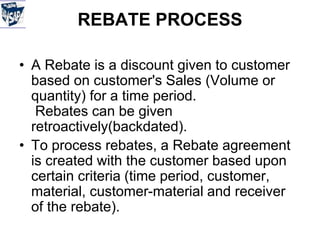
REBATE PROCESS
• A Rebate is a discount given to customer
based on customer's Sales (Volume or
quantity) for a time period.
Rebates can be given
retroactively(backdated).
• To process rebates, a Rebate agreement
is created with the customer based upon
certain criteria (time period, customer,
material, customer-material and receiver
of the rebate).
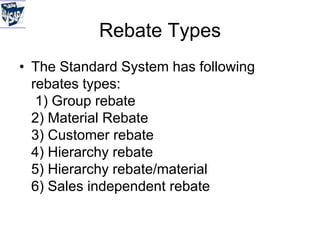
Rebate Types
• The Standard System has following
rebates types:
1) Group rebate
2) Material Rebate
3) Customer rebate
4) Hierarchy rebate
5) Hierarchy rebate/material
6) Sales independent rebate
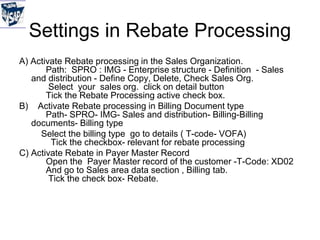
Settings in Rebate Processing
A) Activate Rebate processing in the Sales Organization.
Path: SPRO : IMG - Enterprise structure - Definition - Sales
and distribution - Define Copy, Delete, Check Sales Org.
Select your sales org. click on detail button
Tick the Rebate Processing active check box.
B) Activate Rebate processing in Billing Document type
Path- SPRO- IMG- Sales and distribution- Billing-Billing
documents- Billing type
Select the billing type go to details ( T-code- VOFA)
Tick the checkbox- relevant for rebate processing
C) Activate Rebate in Payer Master Record
Open the Payer Master record of the customer -T-Code: XD02
And go to Sales area data section , Billing tab.
Tick the check box- Rebate.
Customizing in Rebate
• Creating Rebate agreement Menu Path: SPRO- IMG-
Sales and Distribution - Billing - Rebate Processing
• Maintain Access Sequence in Pricing
Menu Path: IMG -- Sales & Distribution -Basic
function -- Pricing - Pricing controls Define Access
Sequence --- Maintain Access Sequence.
B003 is the standard access sequence for
Customer Rebate. Copy the same and define
new access sequence ZB03. Save.
Click on the ZB03 and click the Accesses. A screen
has to appear.
Then click on the Fields. A screen appears.
Customizing in Rebate
• Define Condition Type
Path: SPRO- IMG -Sales and distribution - Basic
Functions - Pricing - Pricing Controls Define condition
type - Maintain Condition
Type.
B003 is the standard Condition Type for Customer
Rebate
Copy B003 and save as ZB03 - Customer Rebate for
Condition type.
• Select ZB03- Customer Rebate and Pick the Detail
Button. And Maintain the Data as per your
requirement.
Customizing in Rebate
• Define Agreement Type
Path: SPRO- IMG -Sales & Distribution -Billing - Rebate
processing -Rebate agreement - Define Agreement Types.
0003 is the standard . Agreement type for Customer Rebate
Processing.
Copy it and save as Z003 - Customer Rebate for Rebate
Agreement Type .Double click on it maintain the data as per your
requirement.
• Define Condition Type Groups.
Menu Path : SPRO- IMG Sales & Distribution- Billing- Rebate
processing -Condition type group - Define Condition Type Groups.
Copy 0003- Customer condition group and save as Z003.
Customizing in Rebate
• Assign Condition Types/Tables to Condition Type Groups
Menu Path: - SPRO- IMG Sales & Distribution - Billing -
Rebate processing --- Condition Type Group - Assign Condition
Types/Tables to Condition Type Groups.
Assign condition type ZB03 to Z003 condition type groups and
save.
• Assign condition type groups to rebate agreement types
Menu Path: SPRO- IMG Sales & Distribution -Billing - Rebate
processing -Condtion type group - Assign condition type groups to
rebate agreement types.
Assign condition type group- Z003 to Z003 agreement type and
save.
Customizing in Rebate
• Assign condition type ZB03 to your pricing procedure
Menu Path:SPRO- IMG-Sales and distribution- Basic function - Pricing- Pricing
control- Define and assign pricing procedure - Maintain pricing procedure -
Assign condition type in step no 901 to 905
maintain Requirement type as 24 and account key ERB and ERU, 400 in From field.
• Create Condition Record.
T-Code: VBO1
Enter required data.
Then Click on the Condition.
Enter required data and save it.
Then a Screen will pop-up asking for Settlement Material. Enter required data and
save it.
A message will pop-up as Customer Rebate No ______ Created.
• Create Sales order, Delivery and Billing. We can see the Rebate amount in
Billing.
Rebate Settlement
• Partial Settlement-In order to create any kind of settlement, you
need to be in change mode (Transaction VBO2) of the rebate
agreement. Clicking the “Create Manual Rebate Payment” button
will open the partial settlement screen. In the “Max amount” field you
see the accrued amount as of today, which, by our configuration
setting, is the maximum amount we are able to pay in a partial
settlement. Enter the amount you want to pay in the “Amt. to be
paid” field. You need to release the credit memo billing block before
the request can be invoiced. Looking at the line item pricing screen
(see Figure 19), you see that only the rebate condition type appears,
although the same pricing procedure as the one on the invoice is
used. There are two entries. One is to actually credit the customer
with the specified amount, the other one to reverse the accrual.
Save the credit memo request and invoice it.
Manual Accrual
• Sometimes manual accruals need to be made in order to increase the accrued
amounts for a given condition record. The most likely scenario is when you create a
rebate agreement in the middle of the year, but set it retroactively valid for the whole
year. The system will take previous invoices into consideration, but no accruals for
these invoices are accounted for. If we want to make partial settlements, we would
not have accrued as much as we would like to pay out. So we need to increase the
accrual amount by creating a manual accrual.
• In order to know how much we need to accrue in addition, click the “Sales volume”
button on the Agreement Overview screen. The resulting screen shows the actual
eligible rebate amount (example $281.25) and the accrued amount ($102.48). We
need to create an accrual for the difference of $178.77.
• This can be accomplished by clicking the button on the Agreement Overview
screen.
• A negative amount will increase the total accrual amount; a positive amount will
decrease it. Save the document and you will receive the message that a manual
accrual has been created. Invoice the credit memo request to post it to FI. Go back
now to the rebate agreement and check the sales volume. You will see that the
accrual amount matches the eligible payout amount
Final Settlements
• At the end of the rebate agreement, we finally can execute the final
settlement to close the agreement. As defined in the agreement
type, we need to manually set the “Agreement status” field on the
Overview screen to “B” (Agreement release for settlement). This is a
manual check that prevents us from accidentally closing the
agreement. Then select Execute settlement from the Overview
screen.
• You could also have used the “Create final settlement” button from
the rebate agreement overview screen, which would have created a
credit memo request right away, without giving you the opportunity
to manipulate the final payment amount.
• After the credit memo request is created, the agreement status is set
to “C”, which prevents you from creating any further settlements out
of this rebate agreement.
• Invoice the credit memo request.

Rebate sap SD.ppt

  • 1.
  • 2.
    REBATE PROCESS • ARebate is a discount given to customer based on customer's Sales (Volume or quantity) for a time period. Rebates can be given retroactively(backdated). • To process rebates, a Rebate agreement is created with the customer based upon certain criteria (time period, customer, material, customer-material and receiver of the rebate).
  • 3.
    Rebate Types • TheStandard System has following rebates types: 1) Group rebate 2) Material Rebate 3) Customer rebate 4) Hierarchy rebate 5) Hierarchy rebate/material 6) Sales independent rebate
  • 4.
    Settings in RebateProcessing A) Activate Rebate processing in the Sales Organization. Path: SPRO : IMG - Enterprise structure - Definition - Sales and distribution - Define Copy, Delete, Check Sales Org. Select your sales org. click on detail button Tick the Rebate Processing active check box. B) Activate Rebate processing in Billing Document type Path- SPRO- IMG- Sales and distribution- Billing-Billing documents- Billing type Select the billing type go to details ( T-code- VOFA) Tick the checkbox- relevant for rebate processing C) Activate Rebate in Payer Master Record Open the Payer Master record of the customer -T-Code: XD02 And go to Sales area data section , Billing tab. Tick the check box- Rebate.
  • 5.
    Customizing in Rebate •Creating Rebate agreement Menu Path: SPRO- IMG- Sales and Distribution - Billing - Rebate Processing • Maintain Access Sequence in Pricing Menu Path: IMG -- Sales & Distribution -Basic function -- Pricing - Pricing controls Define Access Sequence --- Maintain Access Sequence. B003 is the standard access sequence for Customer Rebate. Copy the same and define new access sequence ZB03. Save. Click on the ZB03 and click the Accesses. A screen has to appear. Then click on the Fields. A screen appears.
  • 6.
    Customizing in Rebate •Define Condition Type Path: SPRO- IMG -Sales and distribution - Basic Functions - Pricing - Pricing Controls Define condition type - Maintain Condition Type. B003 is the standard Condition Type for Customer Rebate Copy B003 and save as ZB03 - Customer Rebate for Condition type. • Select ZB03- Customer Rebate and Pick the Detail Button. And Maintain the Data as per your requirement.
  • 7.
    Customizing in Rebate •Define Agreement Type Path: SPRO- IMG -Sales & Distribution -Billing - Rebate processing -Rebate agreement - Define Agreement Types. 0003 is the standard . Agreement type for Customer Rebate Processing. Copy it and save as Z003 - Customer Rebate for Rebate Agreement Type .Double click on it maintain the data as per your requirement. • Define Condition Type Groups. Menu Path : SPRO- IMG Sales & Distribution- Billing- Rebate processing -Condition type group - Define Condition Type Groups. Copy 0003- Customer condition group and save as Z003.
  • 8.
    Customizing in Rebate •Assign Condition Types/Tables to Condition Type Groups Menu Path: - SPRO- IMG Sales & Distribution - Billing - Rebate processing --- Condition Type Group - Assign Condition Types/Tables to Condition Type Groups. Assign condition type ZB03 to Z003 condition type groups and save. • Assign condition type groups to rebate agreement types Menu Path: SPRO- IMG Sales & Distribution -Billing - Rebate processing -Condtion type group - Assign condition type groups to rebate agreement types. Assign condition type group- Z003 to Z003 agreement type and save.
  • 9.
    Customizing in Rebate •Assign condition type ZB03 to your pricing procedure Menu Path:SPRO- IMG-Sales and distribution- Basic function - Pricing- Pricing control- Define and assign pricing procedure - Maintain pricing procedure - Assign condition type in step no 901 to 905 maintain Requirement type as 24 and account key ERB and ERU, 400 in From field. • Create Condition Record. T-Code: VBO1 Enter required data. Then Click on the Condition. Enter required data and save it. Then a Screen will pop-up asking for Settlement Material. Enter required data and save it. A message will pop-up as Customer Rebate No ______ Created. • Create Sales order, Delivery and Billing. We can see the Rebate amount in Billing.
  • 10.
    Rebate Settlement • PartialSettlement-In order to create any kind of settlement, you need to be in change mode (Transaction VBO2) of the rebate agreement. Clicking the “Create Manual Rebate Payment” button will open the partial settlement screen. In the “Max amount” field you see the accrued amount as of today, which, by our configuration setting, is the maximum amount we are able to pay in a partial settlement. Enter the amount you want to pay in the “Amt. to be paid” field. You need to release the credit memo billing block before the request can be invoiced. Looking at the line item pricing screen (see Figure 19), you see that only the rebate condition type appears, although the same pricing procedure as the one on the invoice is used. There are two entries. One is to actually credit the customer with the specified amount, the other one to reverse the accrual. Save the credit memo request and invoice it.
  • 11.
    Manual Accrual • Sometimesmanual accruals need to be made in order to increase the accrued amounts for a given condition record. The most likely scenario is when you create a rebate agreement in the middle of the year, but set it retroactively valid for the whole year. The system will take previous invoices into consideration, but no accruals for these invoices are accounted for. If we want to make partial settlements, we would not have accrued as much as we would like to pay out. So we need to increase the accrual amount by creating a manual accrual. • In order to know how much we need to accrue in addition, click the “Sales volume” button on the Agreement Overview screen. The resulting screen shows the actual eligible rebate amount (example $281.25) and the accrued amount ($102.48). We need to create an accrual for the difference of $178.77. • This can be accomplished by clicking the button on the Agreement Overview screen. • A negative amount will increase the total accrual amount; a positive amount will decrease it. Save the document and you will receive the message that a manual accrual has been created. Invoice the credit memo request to post it to FI. Go back now to the rebate agreement and check the sales volume. You will see that the accrual amount matches the eligible payout amount
  • 12.
    Final Settlements • Atthe end of the rebate agreement, we finally can execute the final settlement to close the agreement. As defined in the agreement type, we need to manually set the “Agreement status” field on the Overview screen to “B” (Agreement release for settlement). This is a manual check that prevents us from accidentally closing the agreement. Then select Execute settlement from the Overview screen. • You could also have used the “Create final settlement” button from the rebate agreement overview screen, which would have created a credit memo request right away, without giving you the opportunity to manipulate the final payment amount. • After the credit memo request is created, the agreement status is set to “C”, which prevents you from creating any further settlements out of this rebate agreement. • Invoice the credit memo request.