

What’s New in
Vision 7.1

October 24, 2013
AGENDA
• Vision 7.1 new features
–
–
–
–
–
–

Invoice Approvals
Interface
Security
Advanced WBS Search / List View
Transaction Auto Numbering
Transactional Document Management

http://www.bcsprosoft.com
Invoice Approvals
• Speeds up the invoicing process by organizing
and automating the steps from Draft Bill to
Final Acceptance of the invoice.
• Provides alerts to move along the invoice
approval process
• Provides electronic comments and retains a
history of the communication
• Allows delegation of the approval process when
primary approver is absent
http://www.bcsprosoft.com
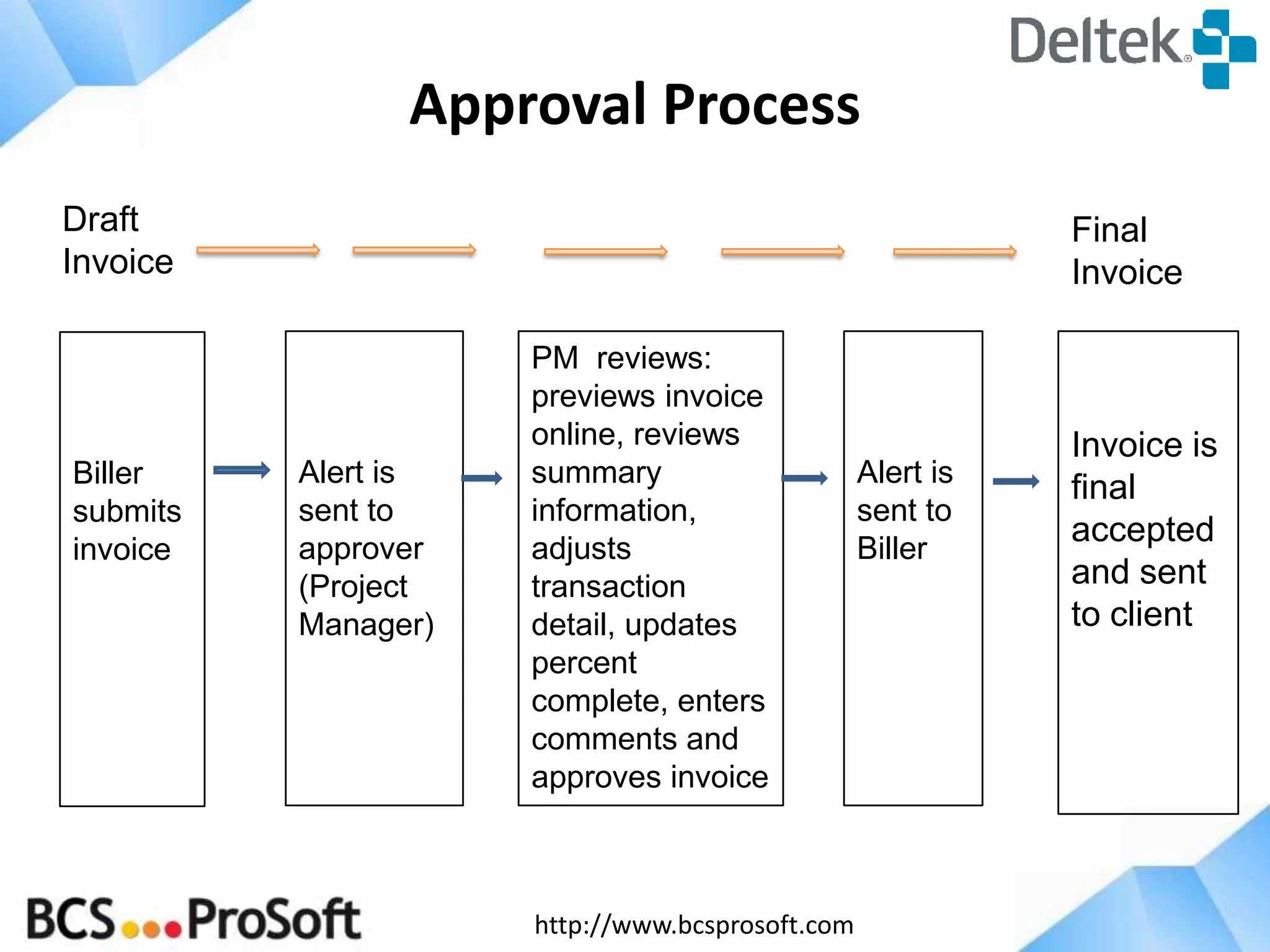
Approval Process
Draft
Invoice

Biller
submits
invoice

Final
Invoice

Alert is
sent to
approver
(Project
Manager)

PM reviews:
previews invoice
online, reviews
summary
information,
adjusts
transaction
detail, updates
percent
complete, enters
comments and
approves invoice

http://www.bcsprosoft.com

Alert is
sent to
Biller

Invoice is
final
accepted
and sent
to client
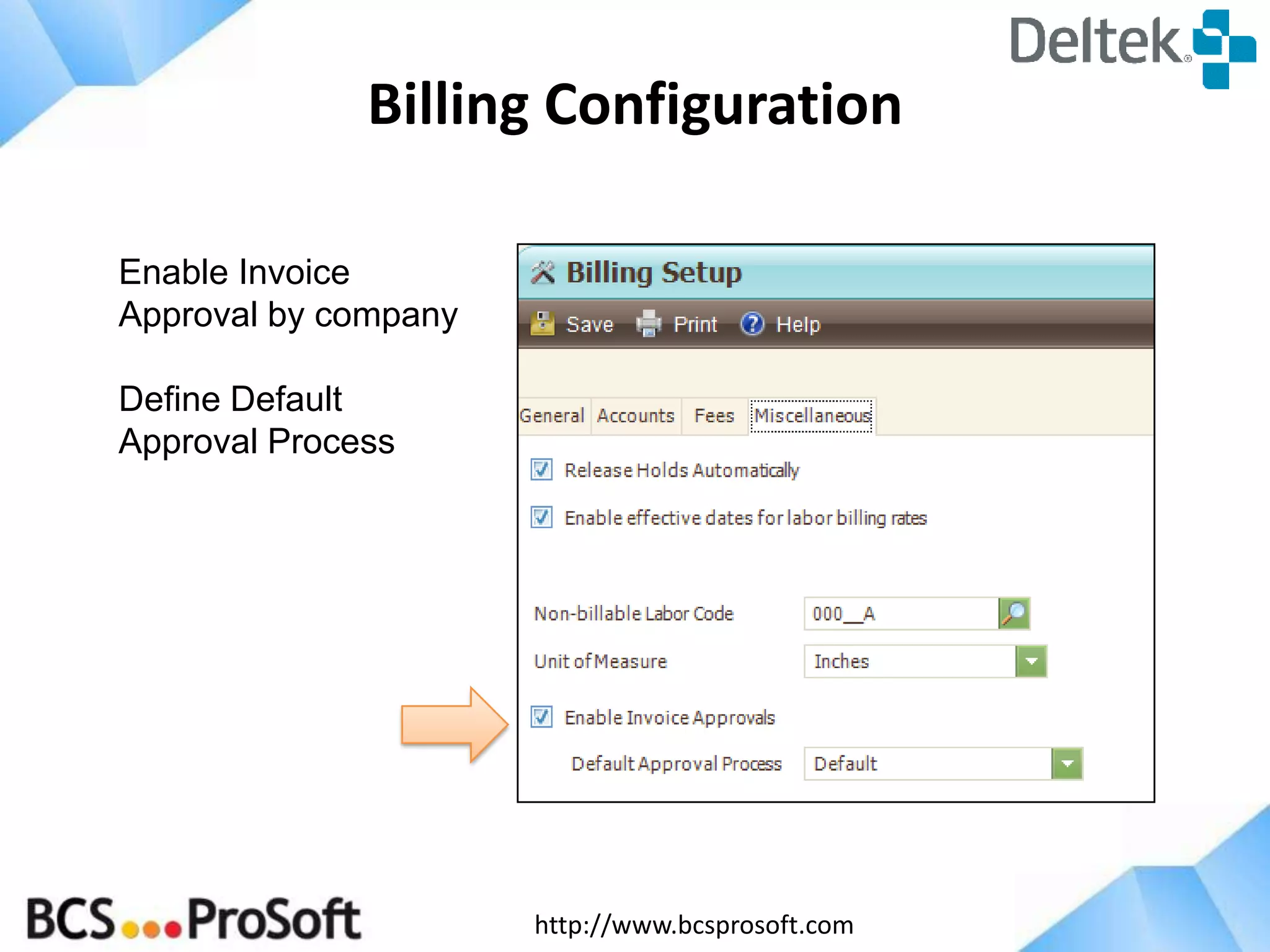
Billing Configuration
Enable Invoice
Approval by company
Define Default
Approval Process

http://www.bcsprosoft.com
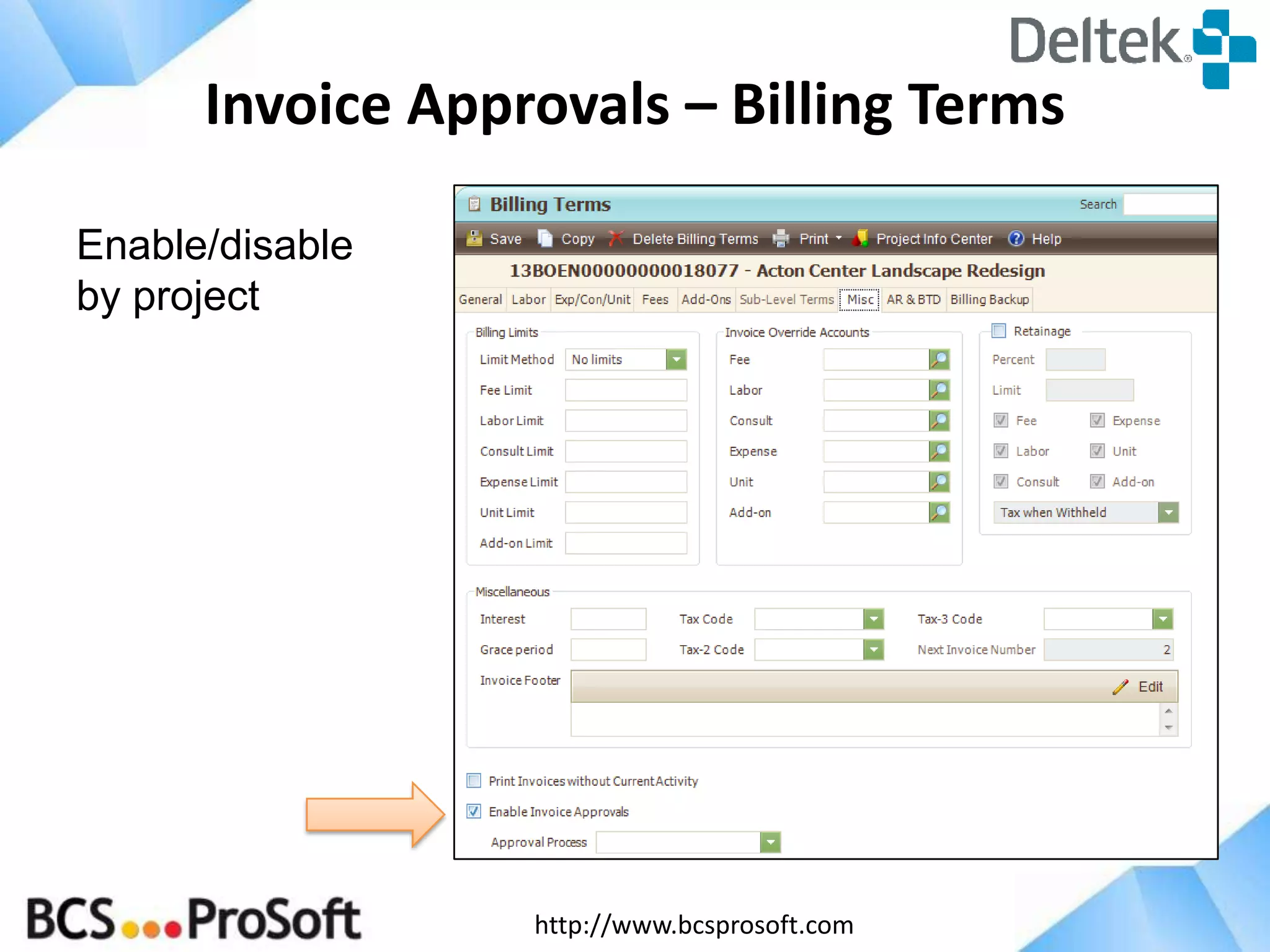
Invoice Approvals – Billing Terms
Enable/disable
by project

http://www.bcsprosoft.com
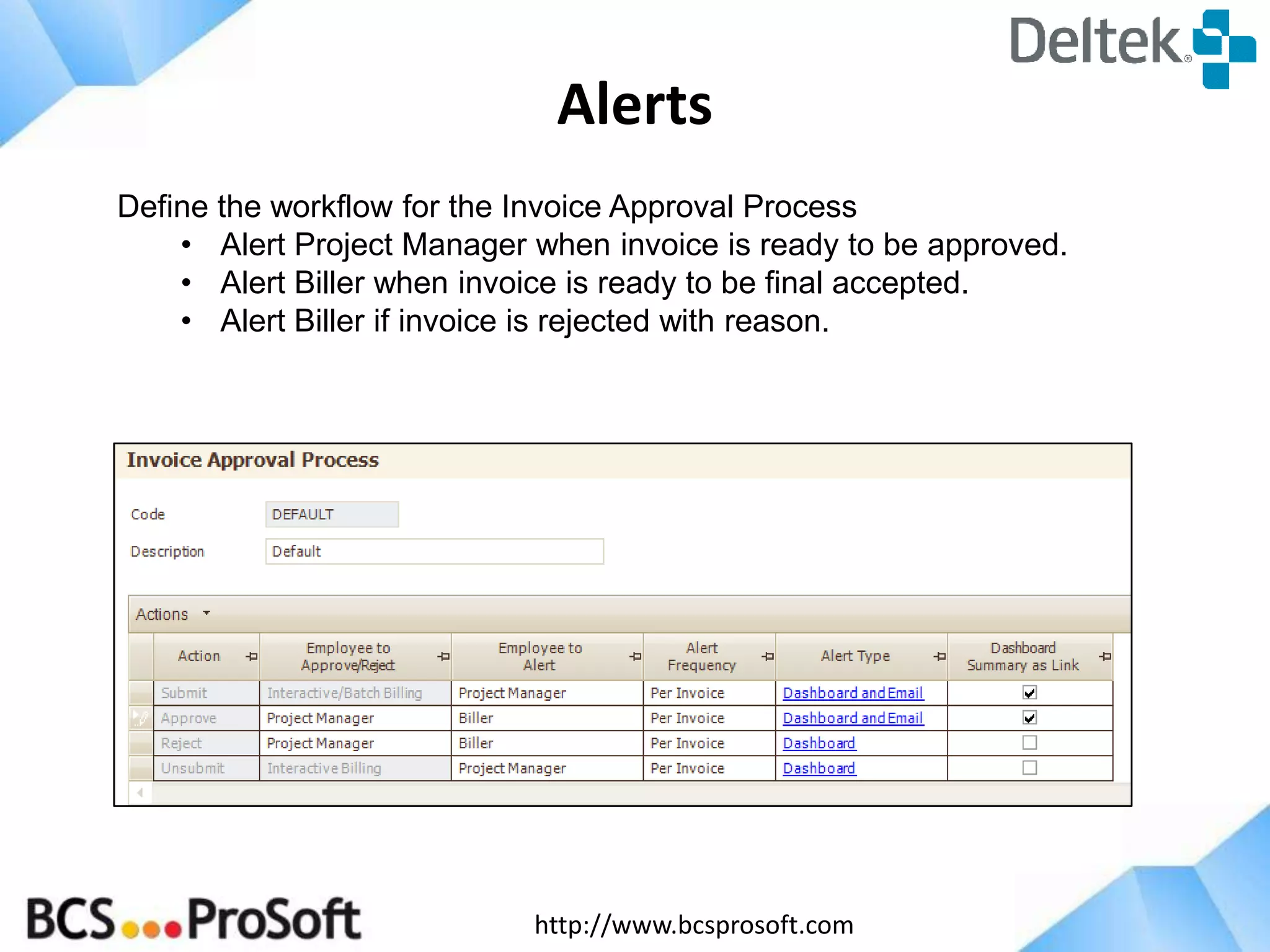
Alerts
Define the workflow for the Invoice Approval Process
• Alert Project Manager when invoice is ready to be approved.
• Alert Biller when invoice is ready to be final accepted.
• Alert Biller if invoice is rejected with reason.

http://www.bcsprosoft.com
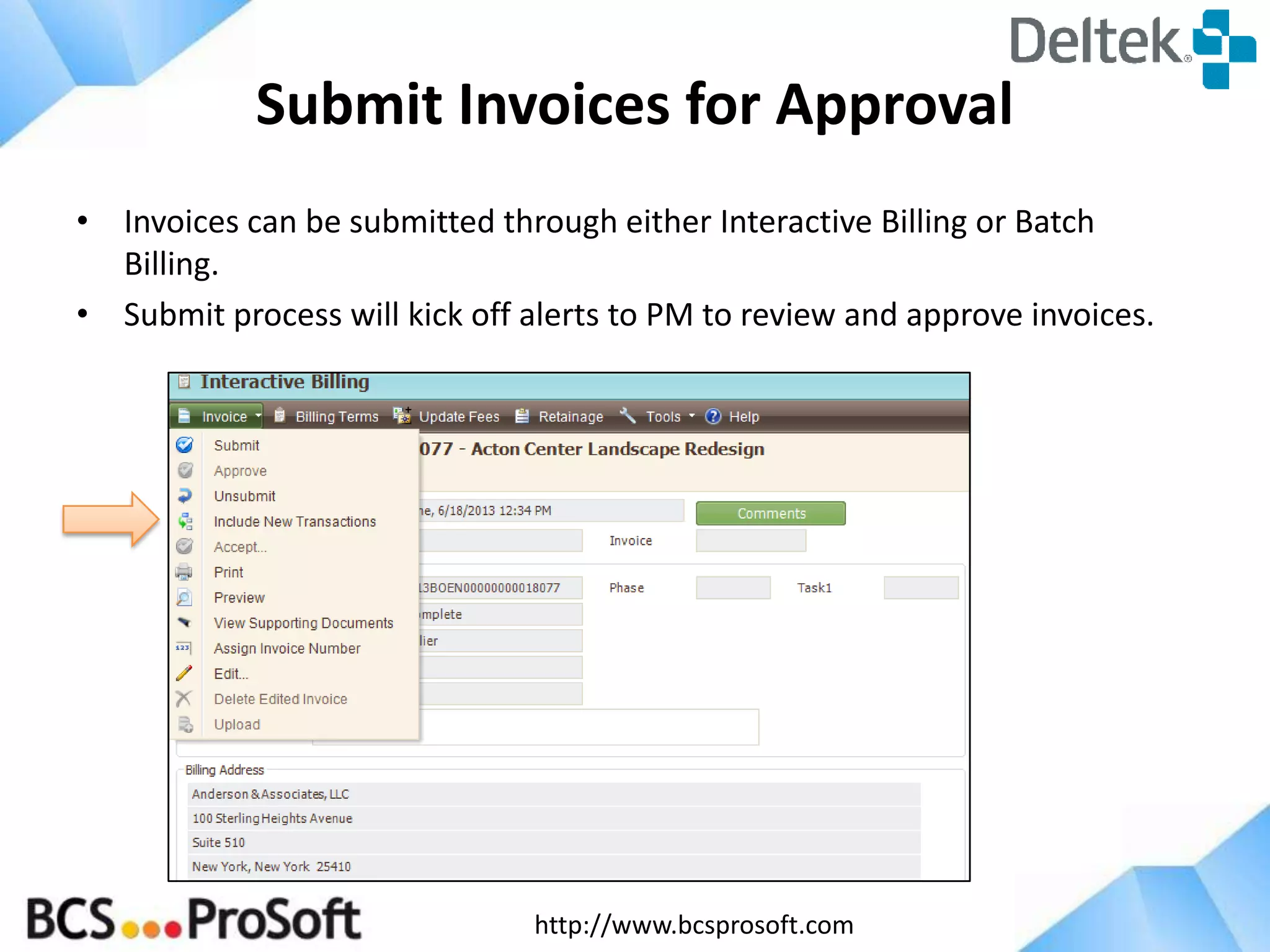
Submit Invoices for Approval
• Invoices can be submitted through either Interactive Billing or Batch
Billing.
• Submit process will kick off alerts to PM to review and approve invoices.

http://www.bcsprosoft.com
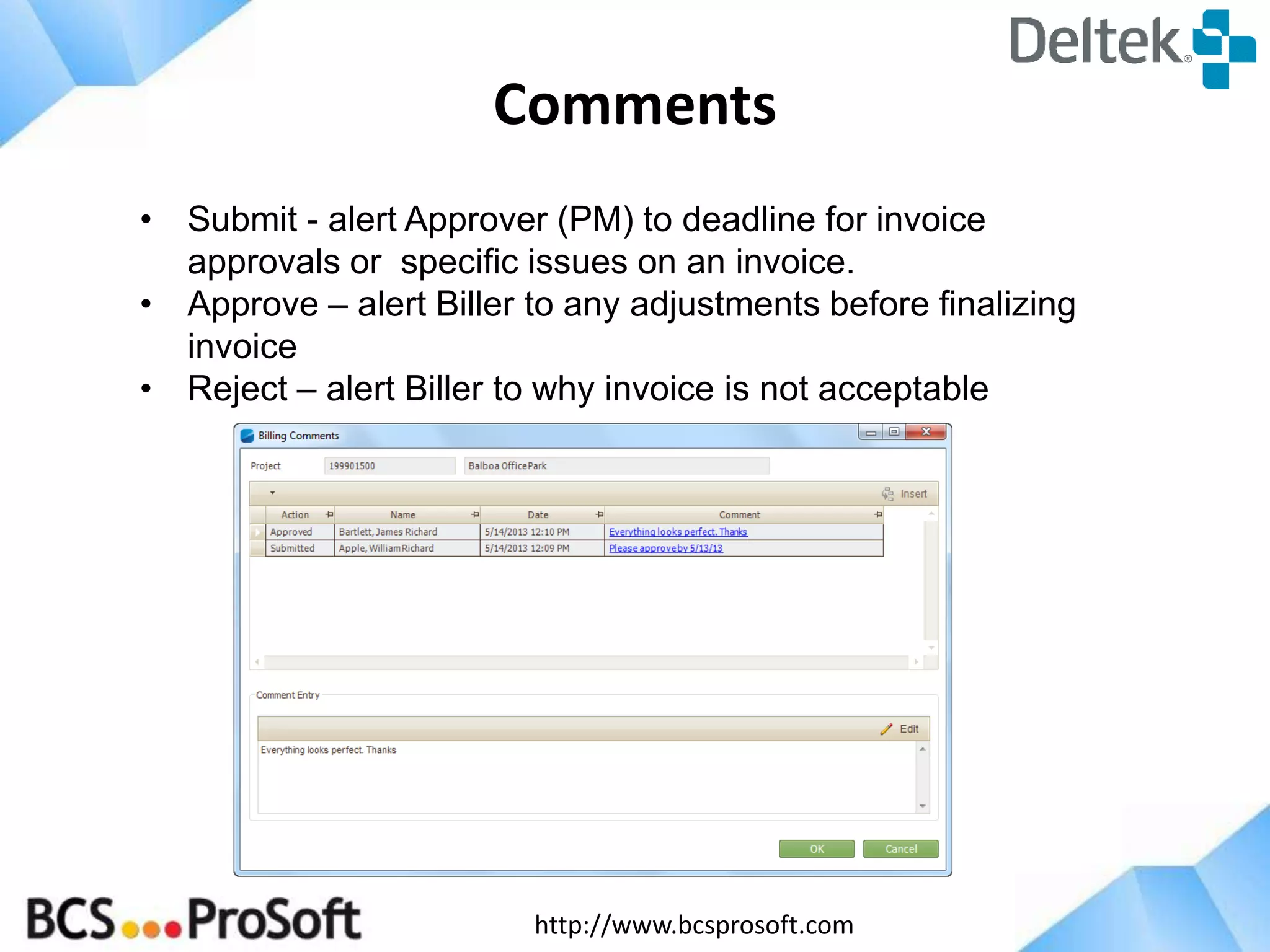
Comments
• Submit - alert Approver (PM) to deadline for invoice
approvals or specific issues on an invoice.
• Approve – alert Biller to any adjustments before finalizing
invoice
• Reject – alert Biller to why invoice is not acceptable

http://www.bcsprosoft.com
Approval Applications
• Invoice Approvals
• Review a summarized list of all invoices in the current approval process.
• Preview invoice, review approval comments, update fees
• Approve and Reject
• Submit alert sends user here.
• Interactive Approvals
• Review one invoice at a time.
• Preview Invoice, review comments
• Review labor, expense and unit transaction detail
• Update transactions (transfer, hold, write off), update percent complete
• Include new transactions on submitted invoice
• Review Billed-to-Date invoice values, current invoice summary
information , and project financial information.
• Approve and Reject
http://www.bcsprosoft.com
Invoice Approvals
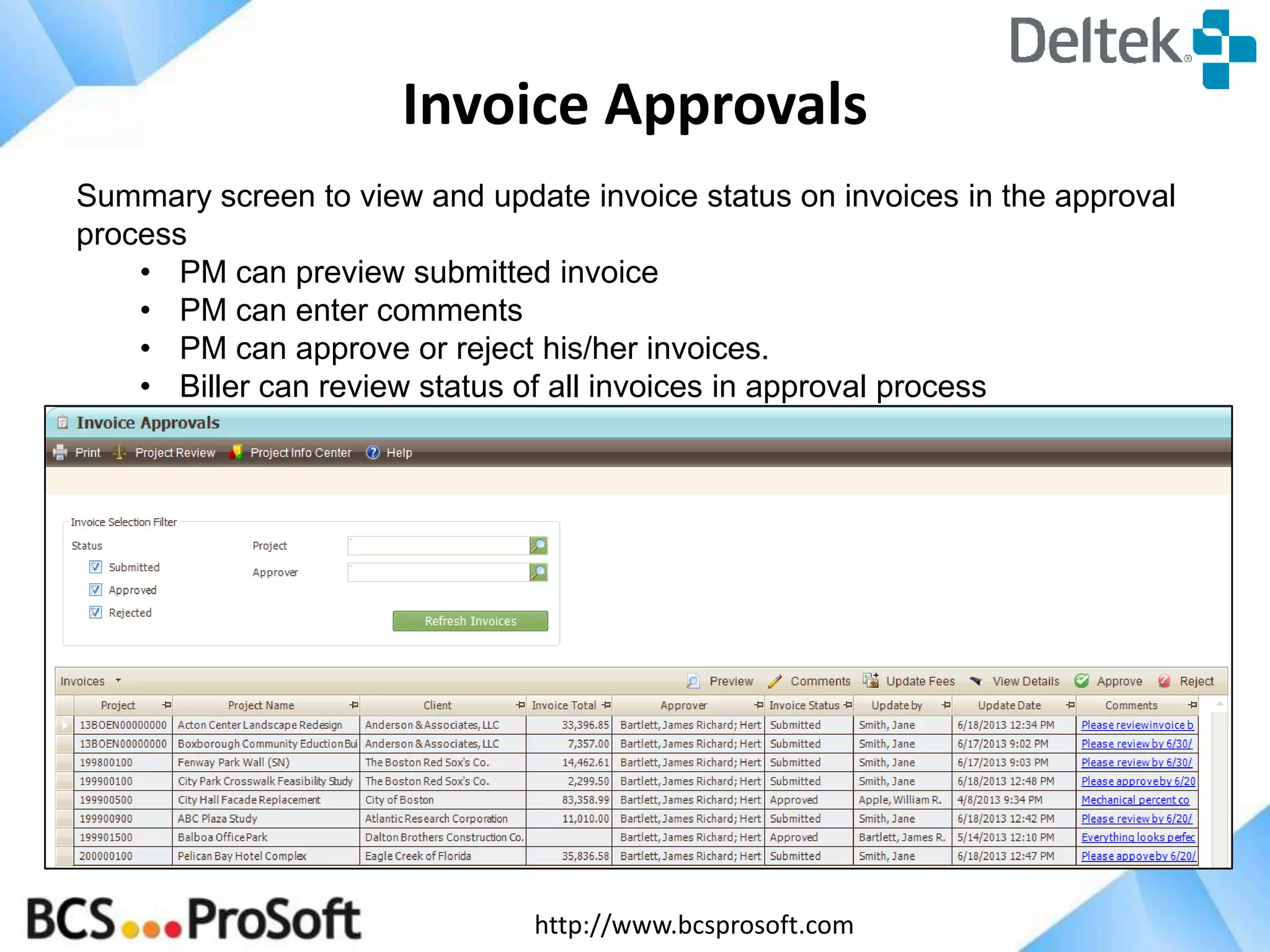
Summary screen to view and update invoice status on invoices in the approval
process
• PM can preview submitted invoice
• PM can enter comments
• PM can approve or reject his/her invoices.
• Biller can review status of all invoices in approval process

http://www.bcsprosoft.com
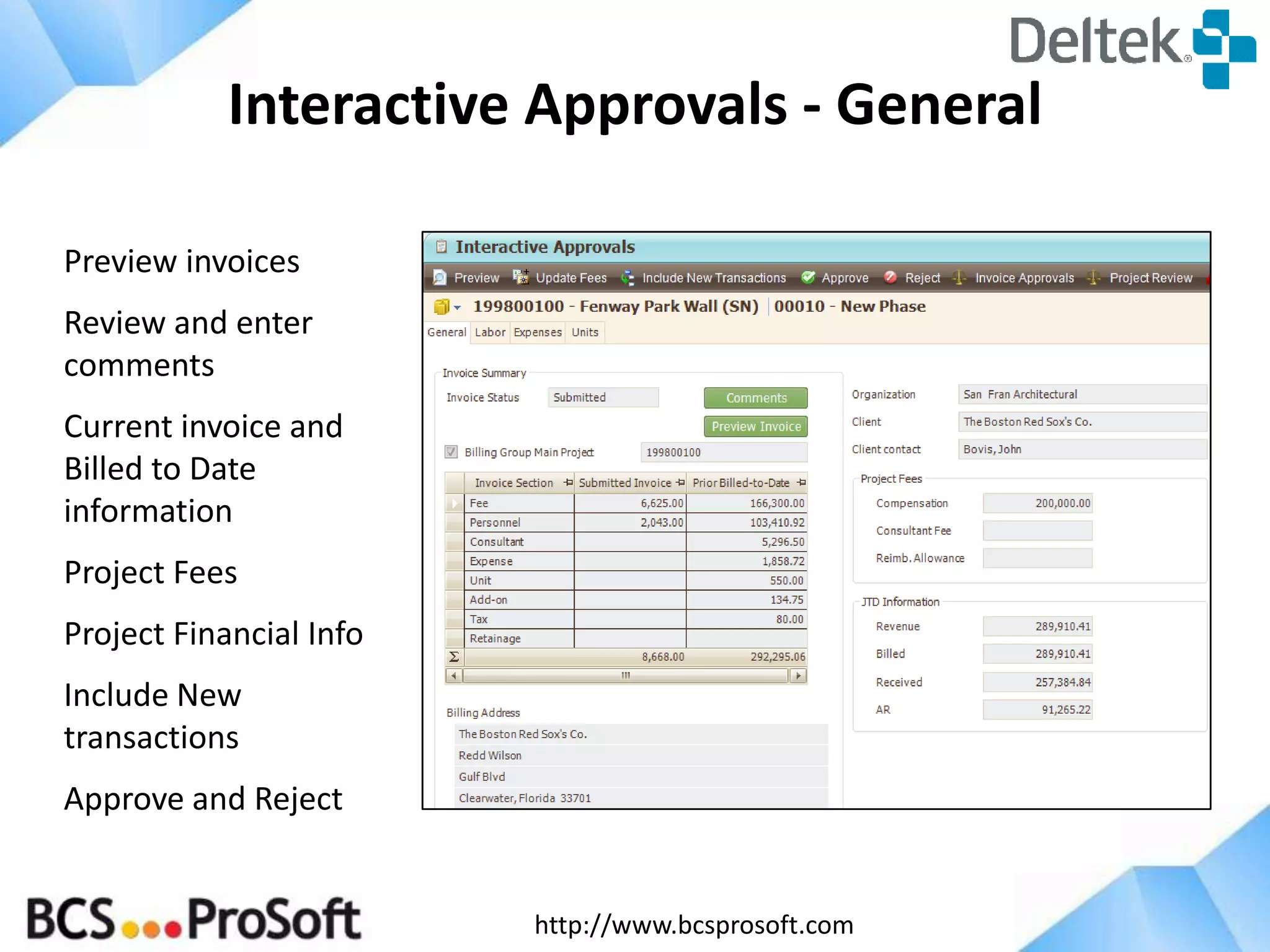
Interactive Approvals - General
Preview invoices

Review and enter
comments
Current invoice and
Billed to Date
information
Project Fees
Project Financial Info
Include New
transactions
Approve and Reject

http://www.bcsprosoft.com
Update Fees
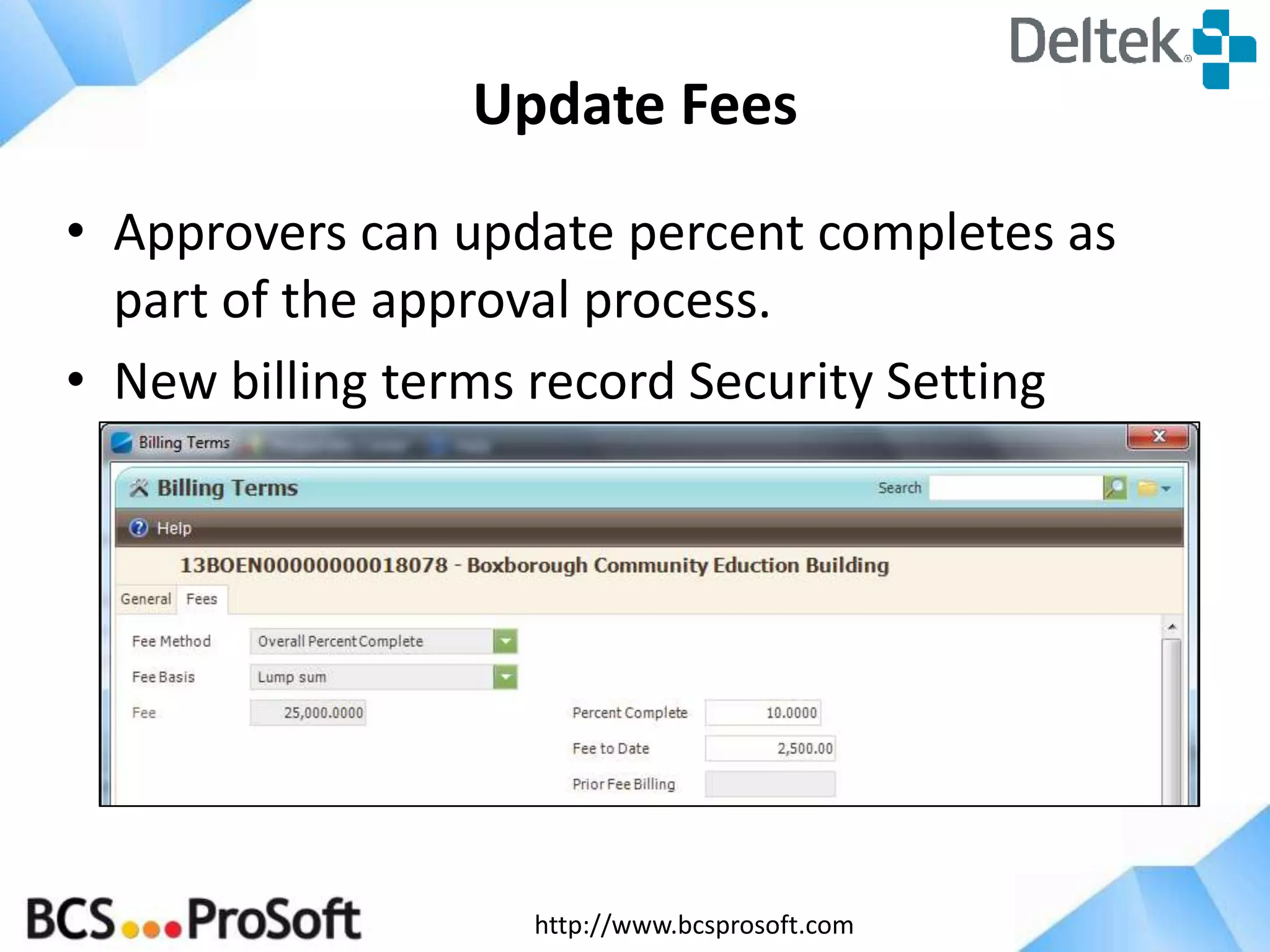
• Approvers can update percent completes as
part of the approval process.
• New billing terms record Security Setting

http://www.bcsprosoft.com
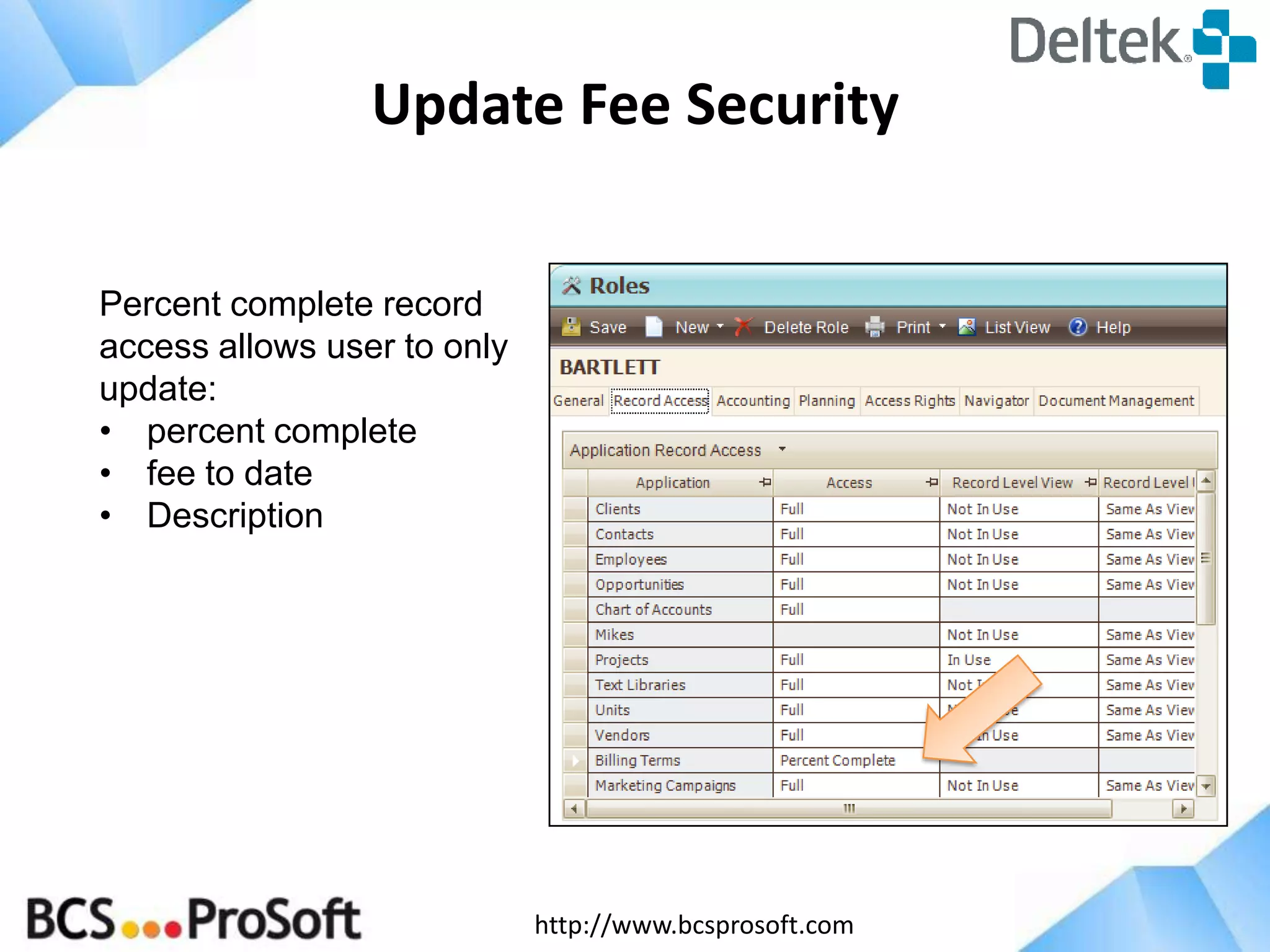
Update Fee Security
Percent complete record
access allows user to only
update:
• percent complete
• fee to date
• Description

http://www.bcsprosoft.com
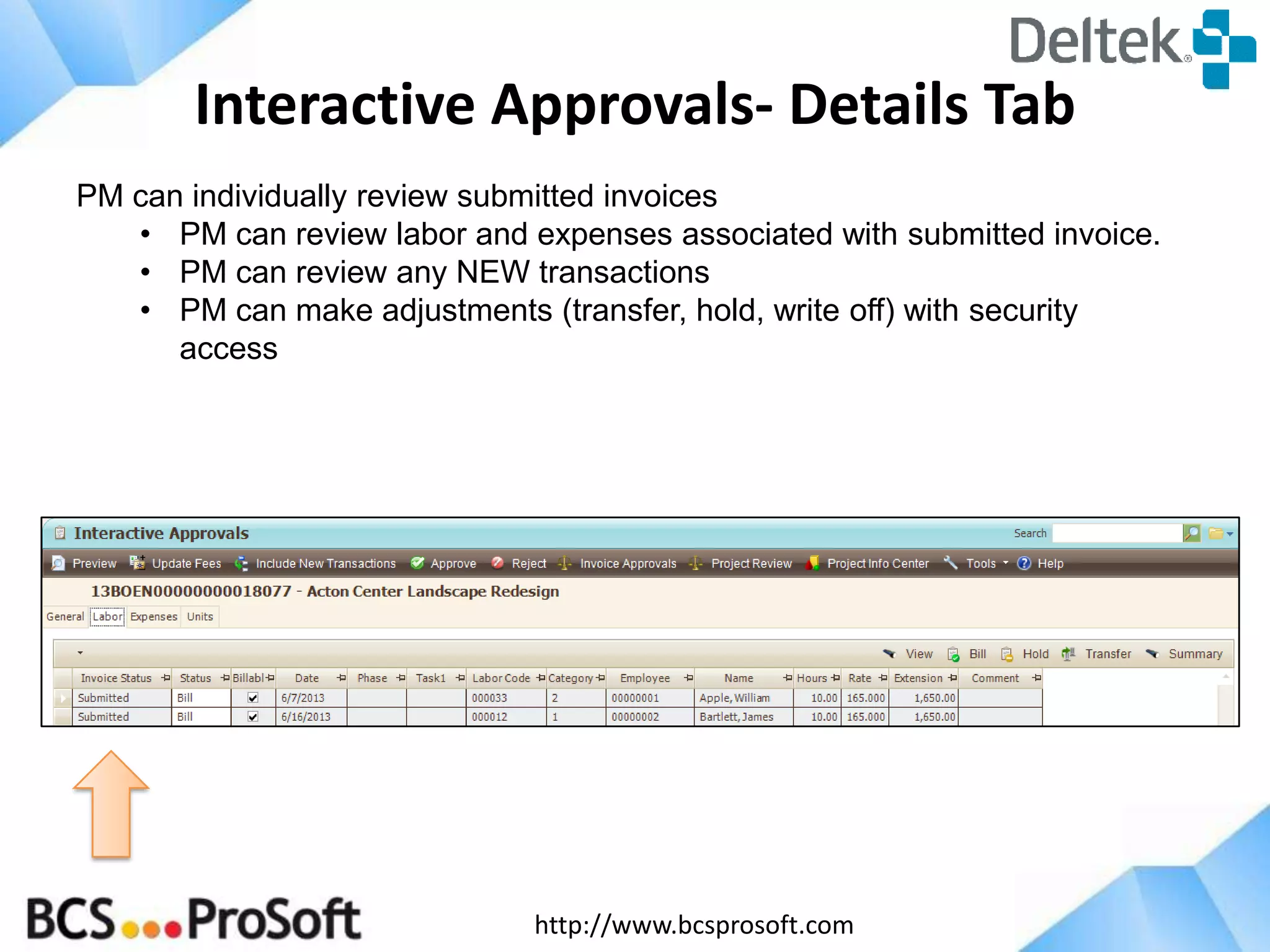
Interactive Approvals- Details Tab
PM can individually review submitted invoices
• PM can review labor and expenses associated with submitted invoice.
• PM can review any NEW transactions
• PM can make adjustments (transfer, hold, write off) with security
access

http://www.bcsprosoft.com
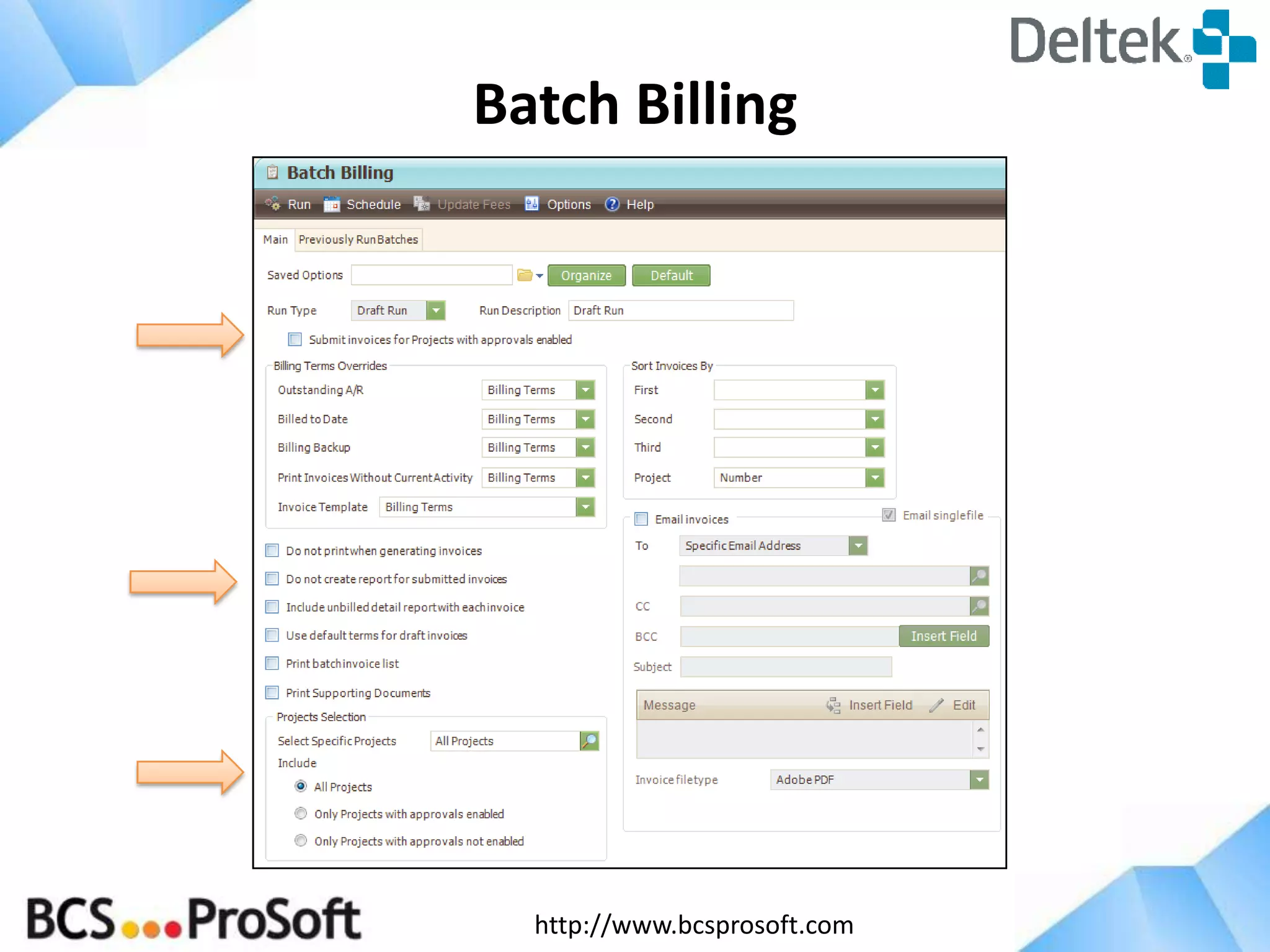
Batch Billing

http://www.bcsprosoft.com
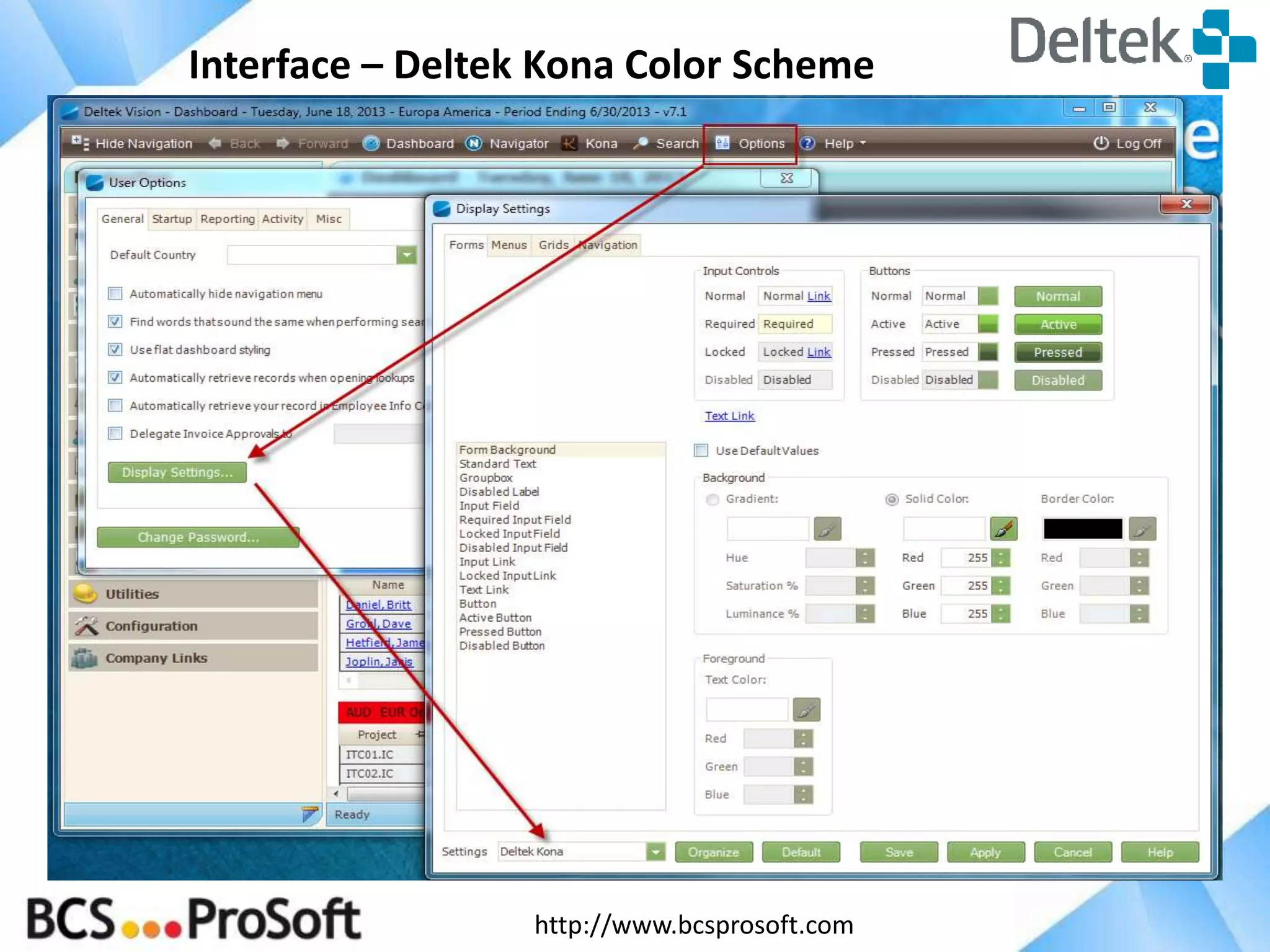
Interface – Deltek Kona Color Scheme

http://www.bcsprosoft.com
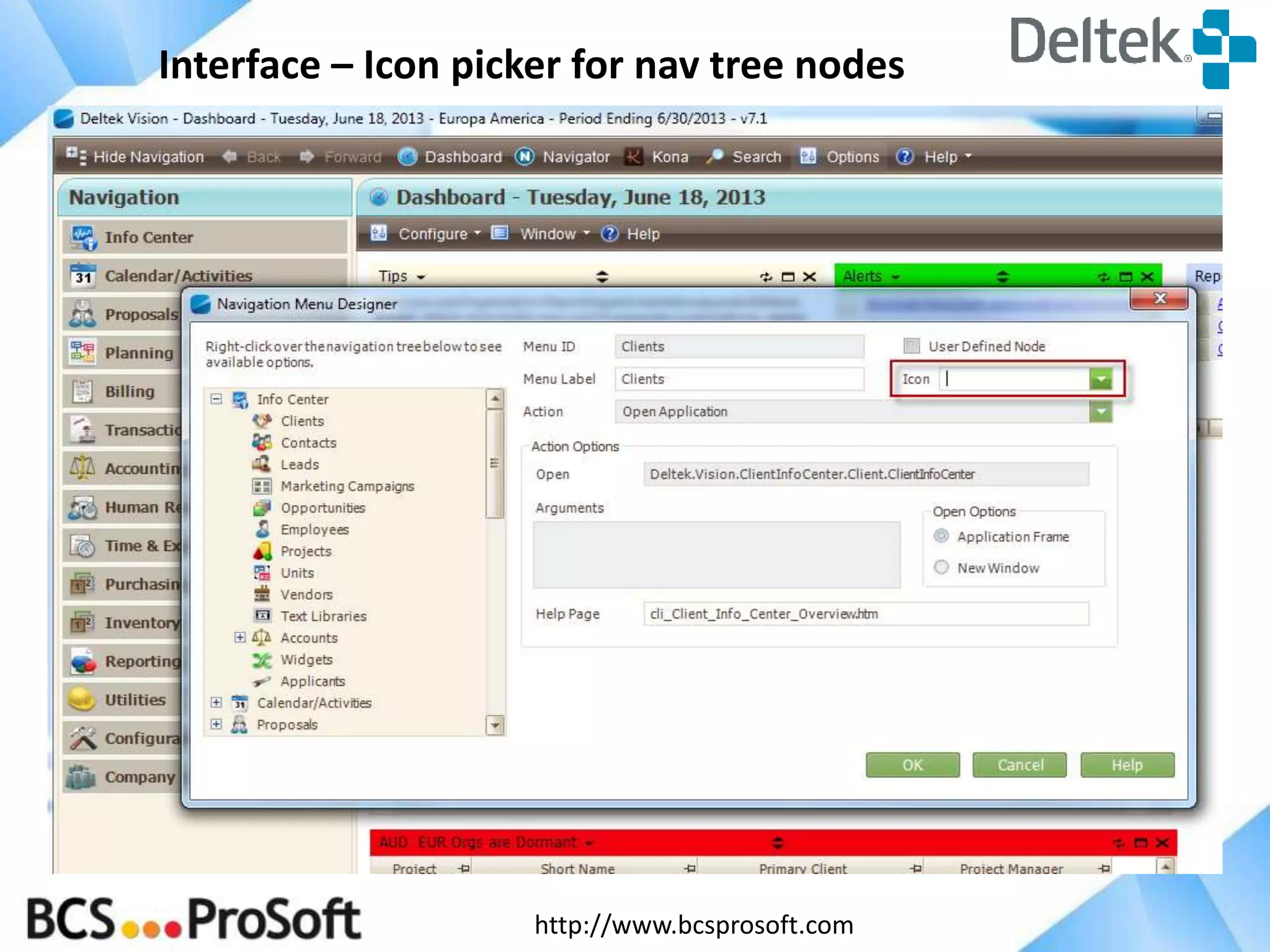
Interface – Icon picker for nav tree nodes

http://www.bcsprosoft.com
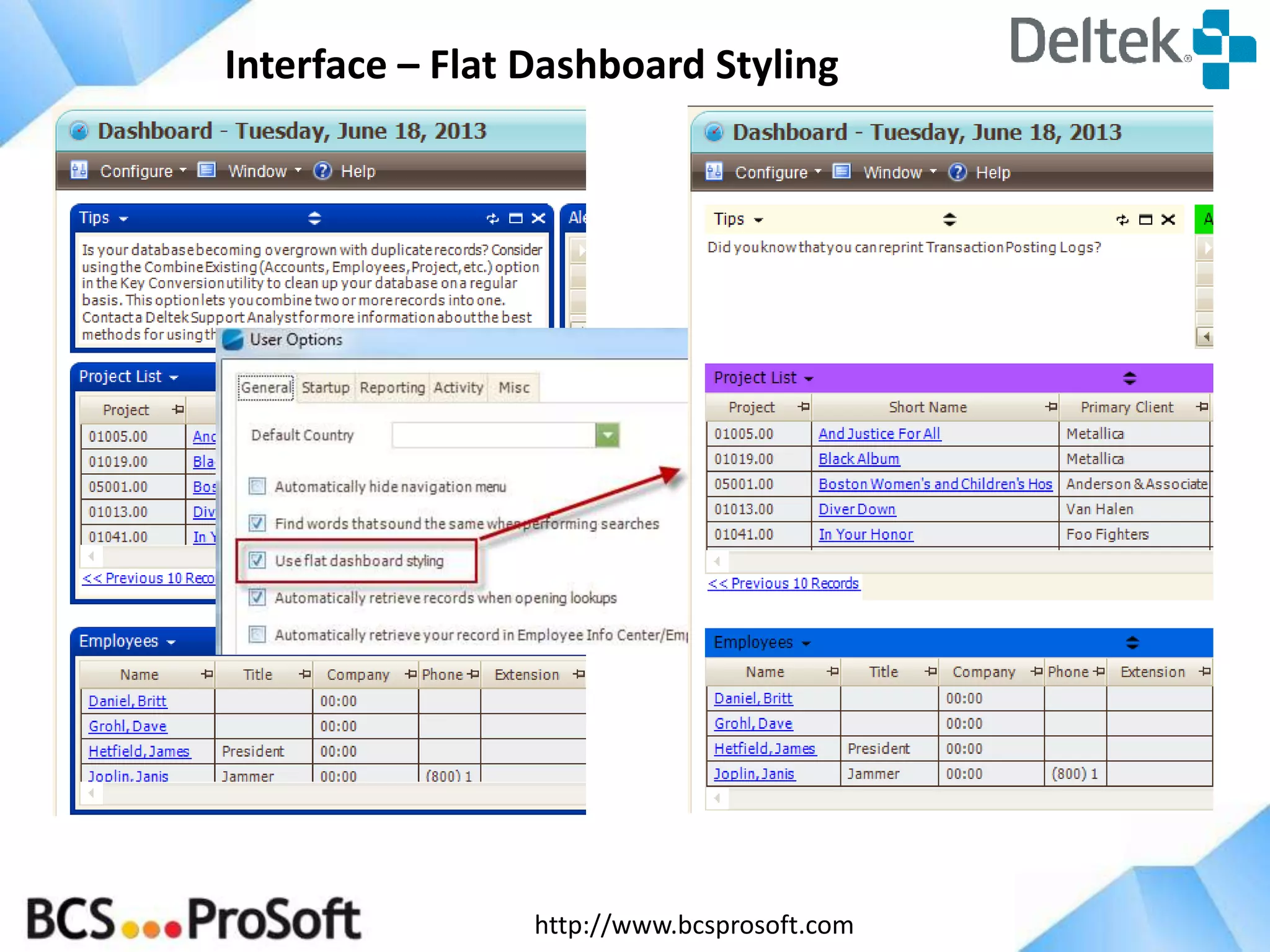
Interface – Flat Dashboard Styling

http://www.bcsprosoft.com
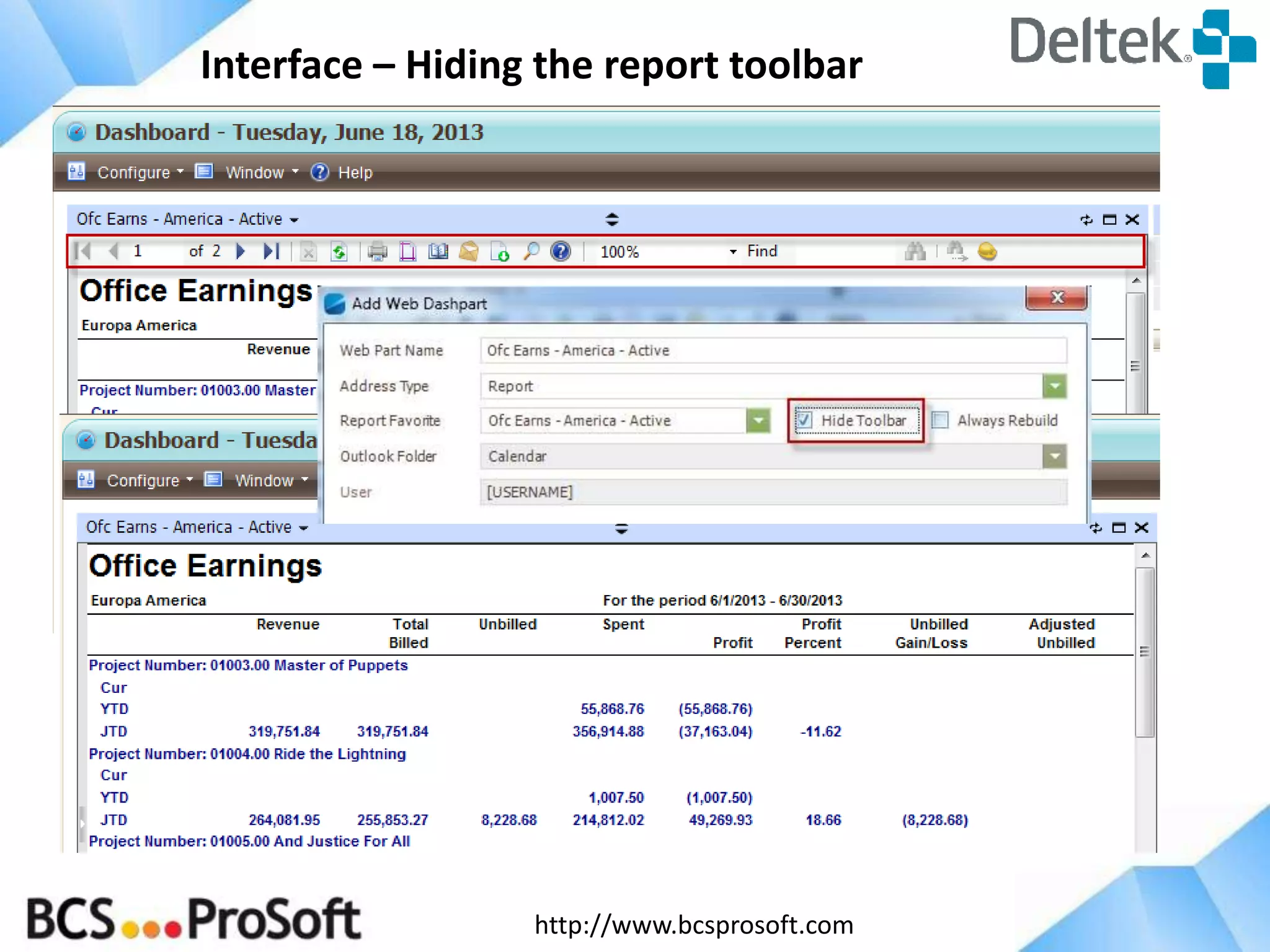
Interface – Hiding the report toolbar

http://www.bcsprosoft.com
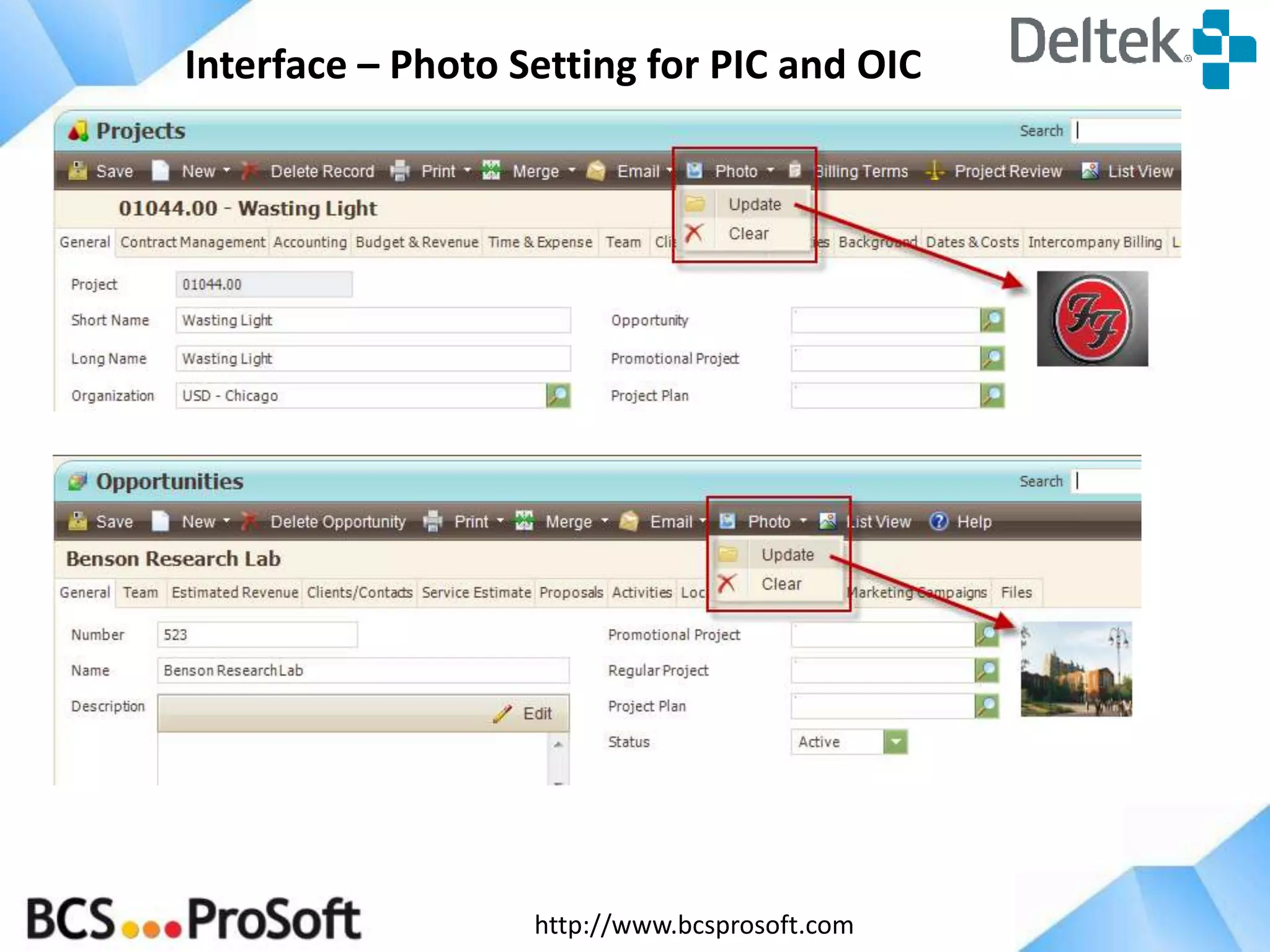
Interface – Photo Setting for PIC and OIC

http://www.bcsprosoft.com
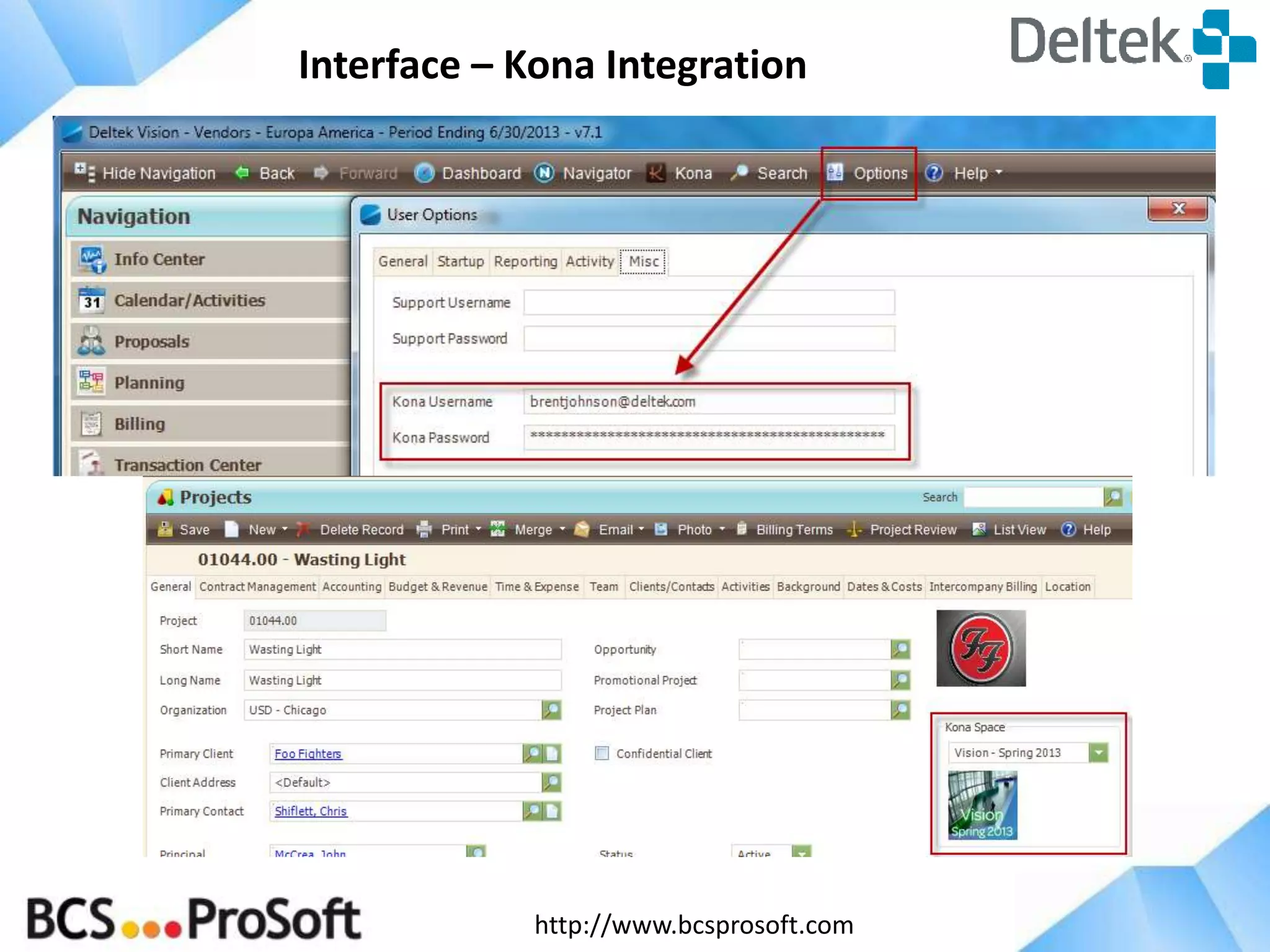
Interface – Kona Integration

http://www.bcsprosoft.com
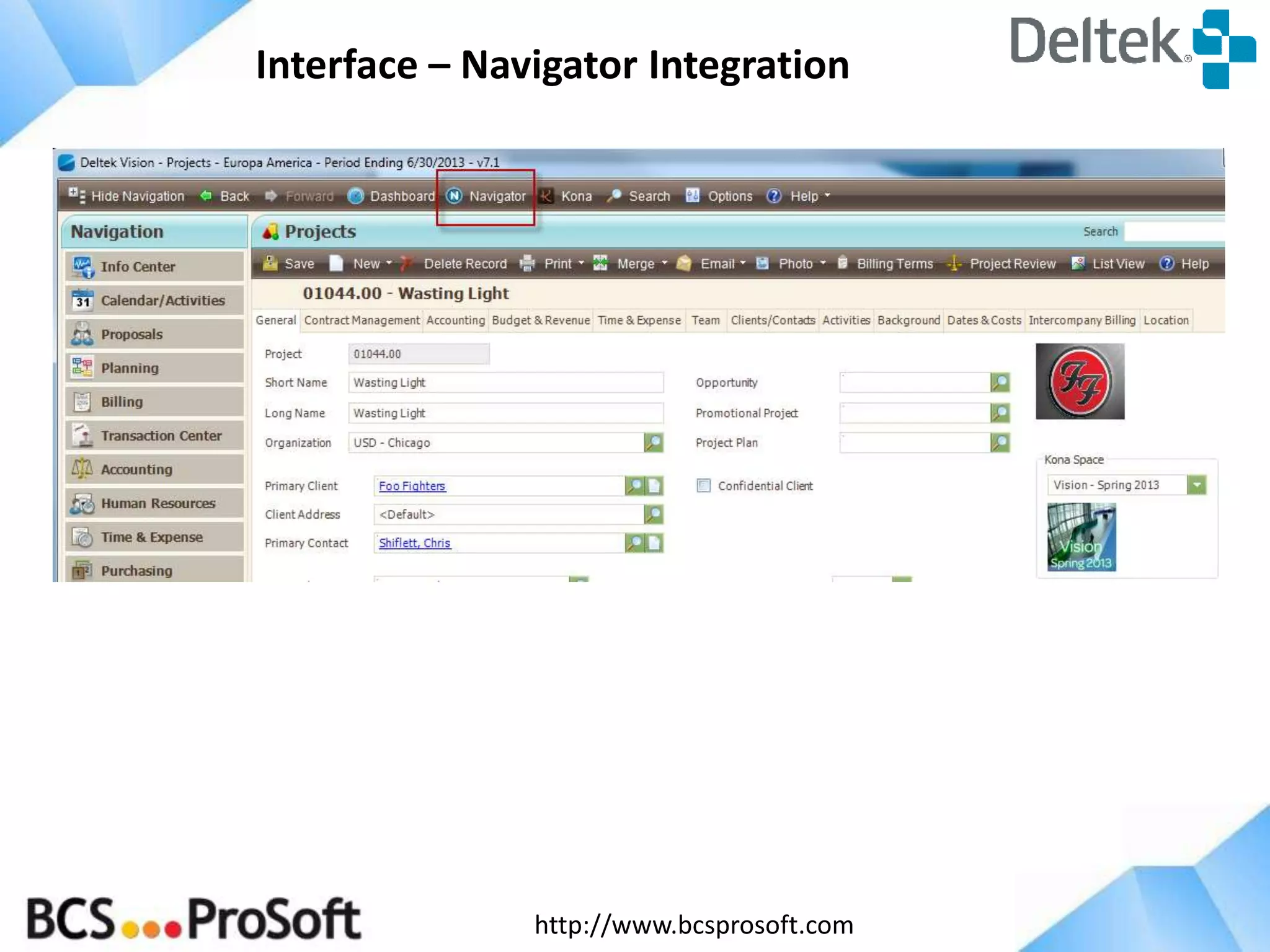
Interface – Navigator Integration

http://www.bcsprosoft.com
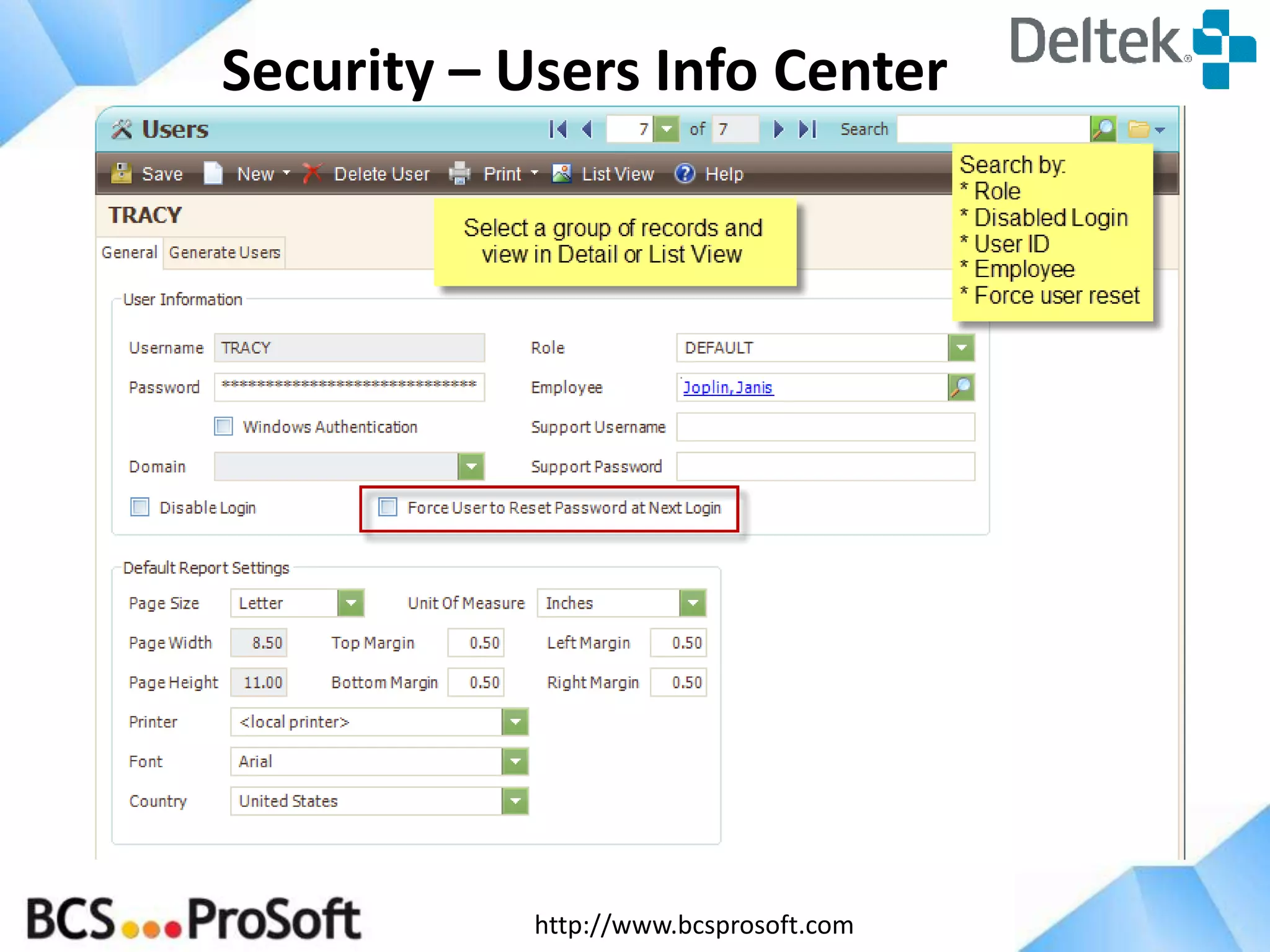
Security – Users Info Center

http://www.bcsprosoft.com
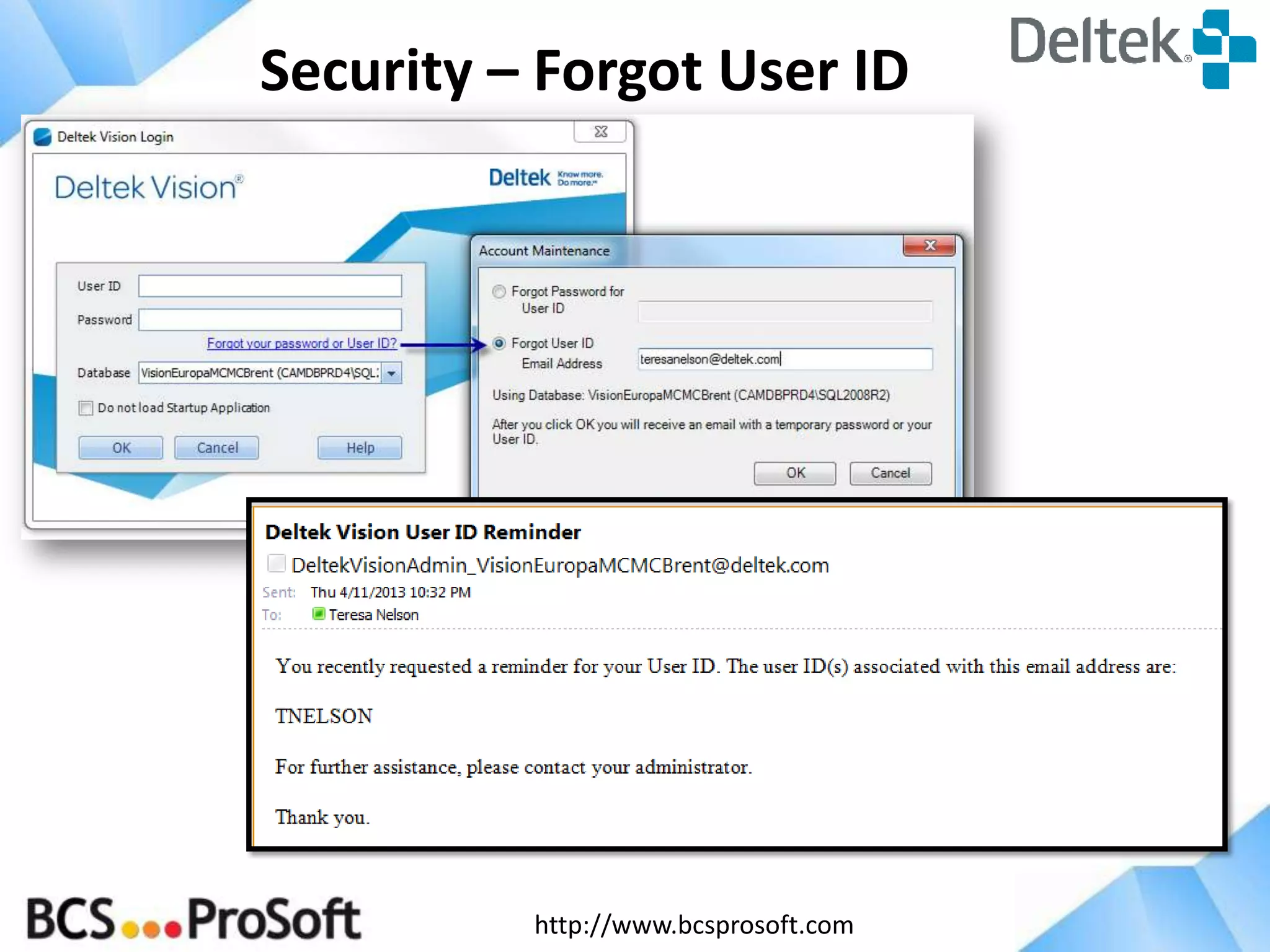
Security – Forgot User ID

http://www.bcsprosoft.com
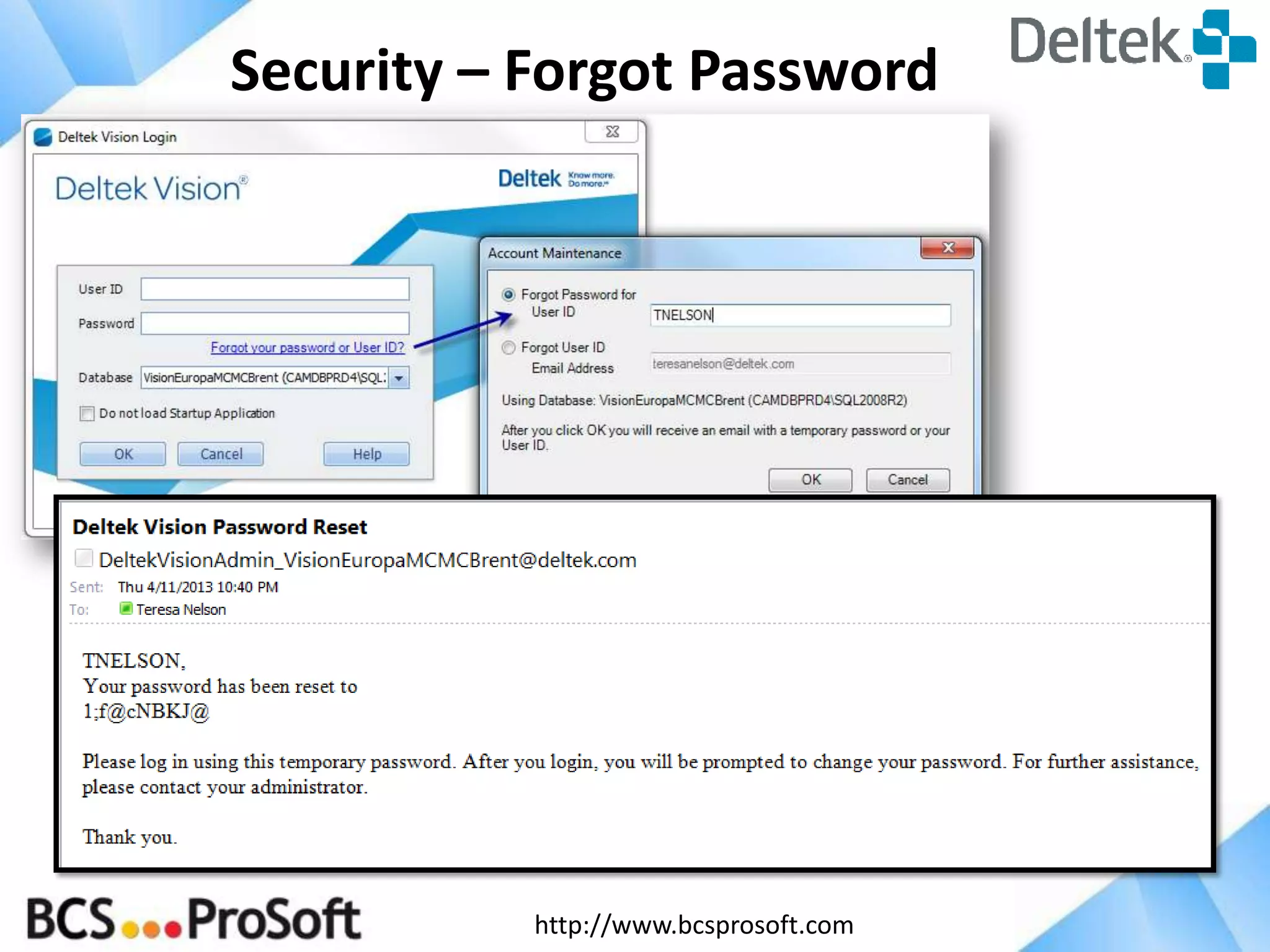
Security – Forgot Password

http://www.bcsprosoft.com
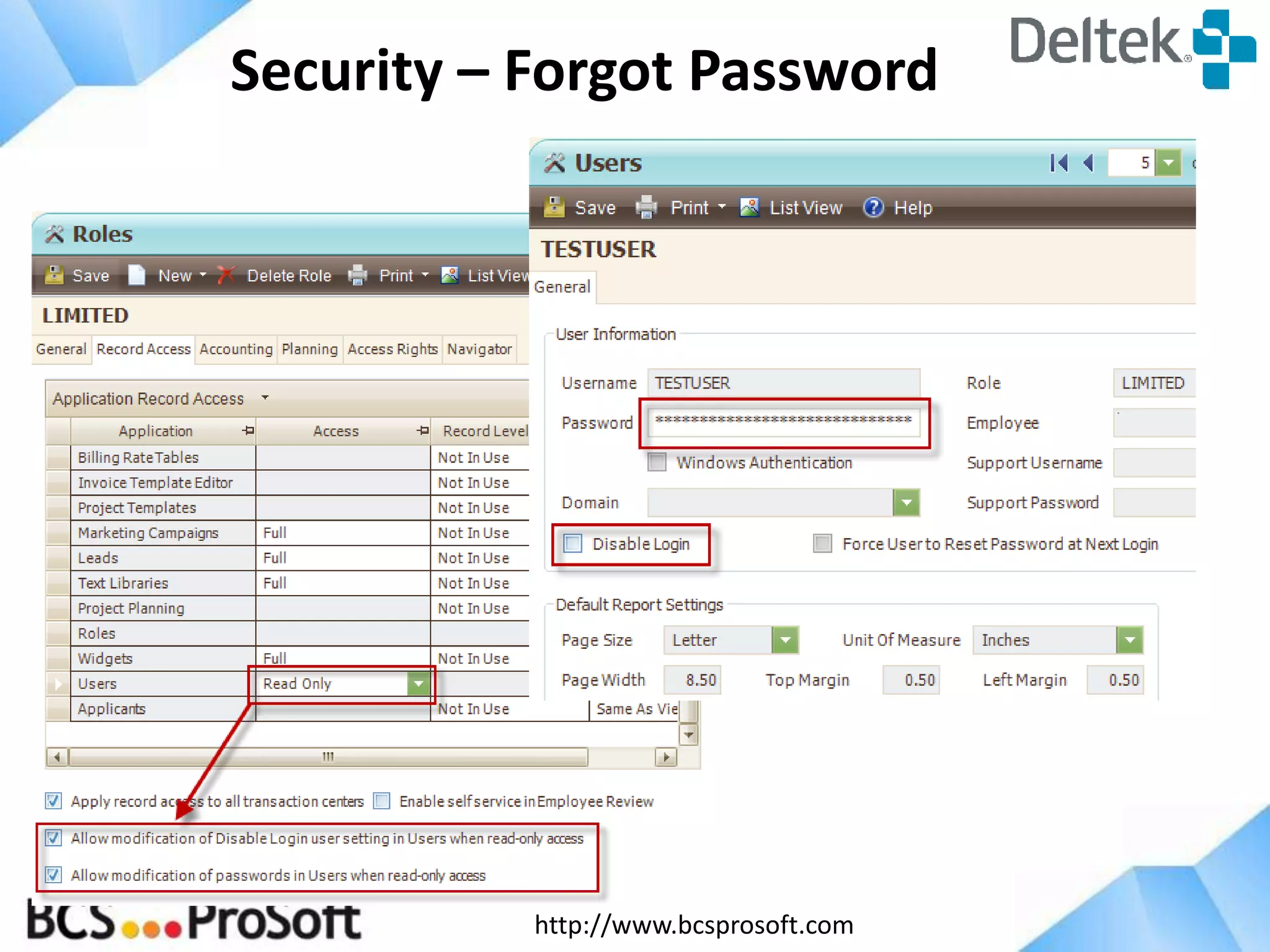
Security – Forgot Password

http://www.bcsprosoft.com
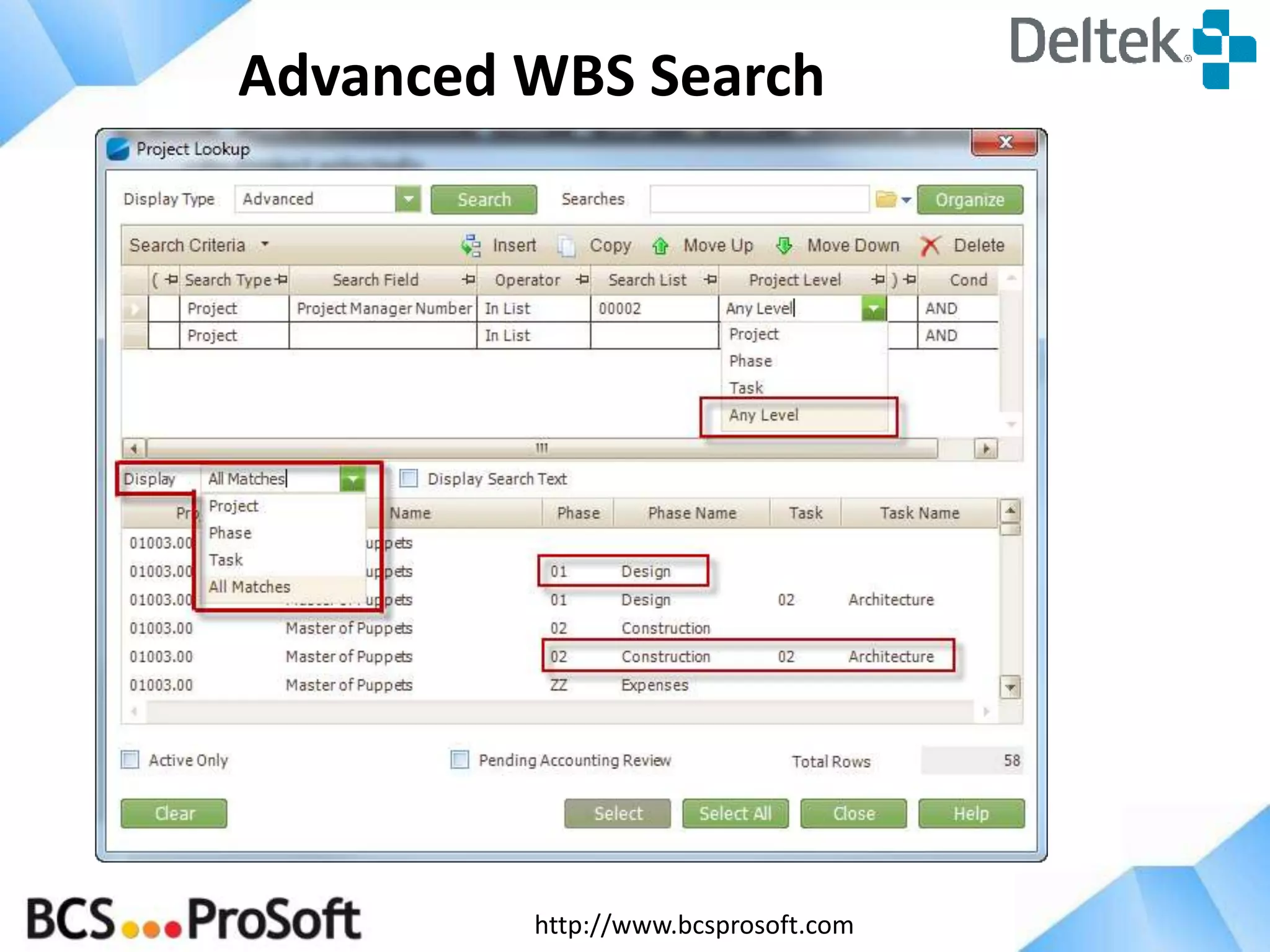
Advanced WBS Search

http://www.bcsprosoft.com
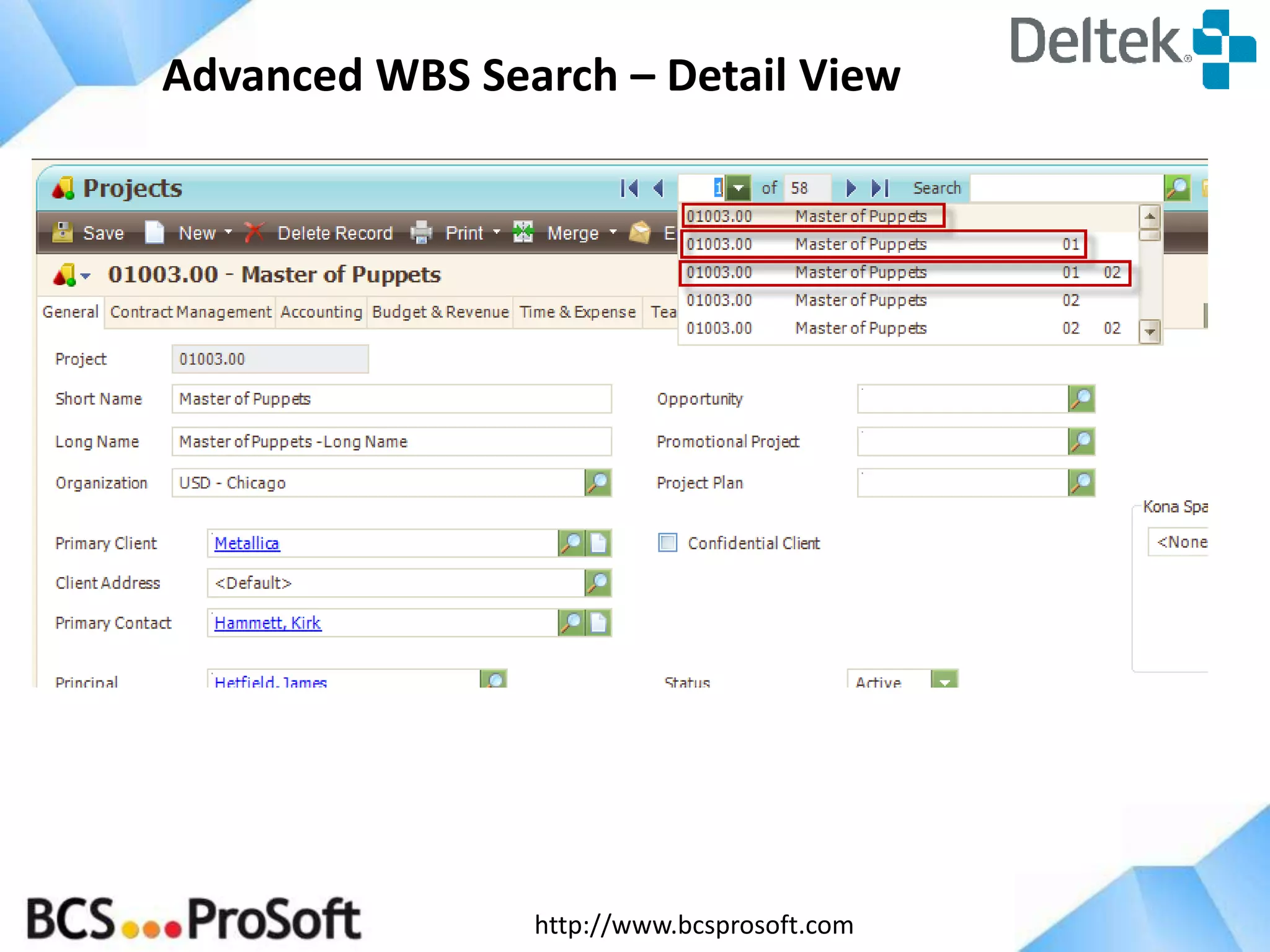
Advanced WBS Search – Detail View

http://www.bcsprosoft.com
Advanced WBS Search – List View

http://www.bcsprosoft.com
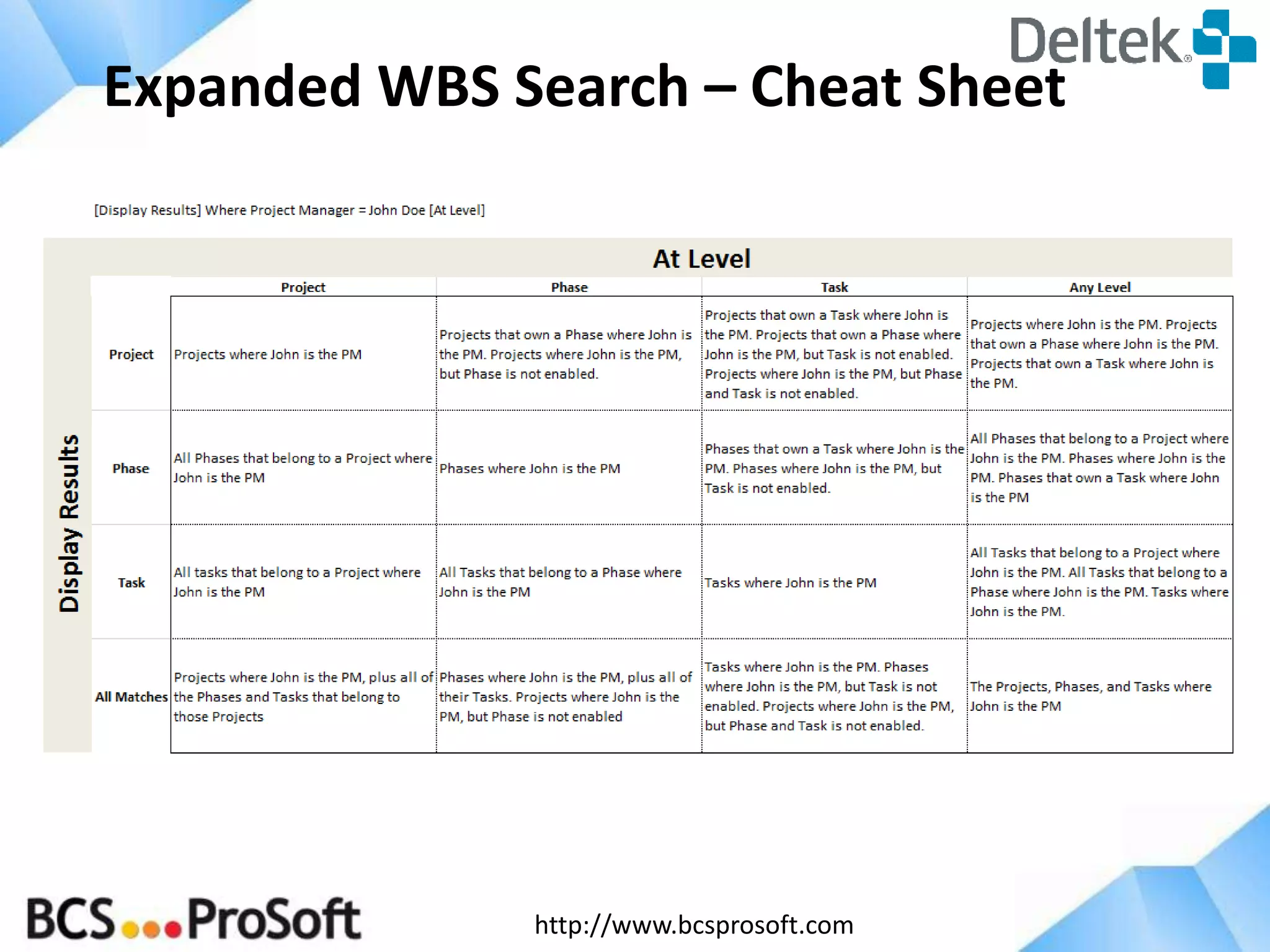
Expanded WBS Search – Cheat Sheet

http://www.bcsprosoft.com
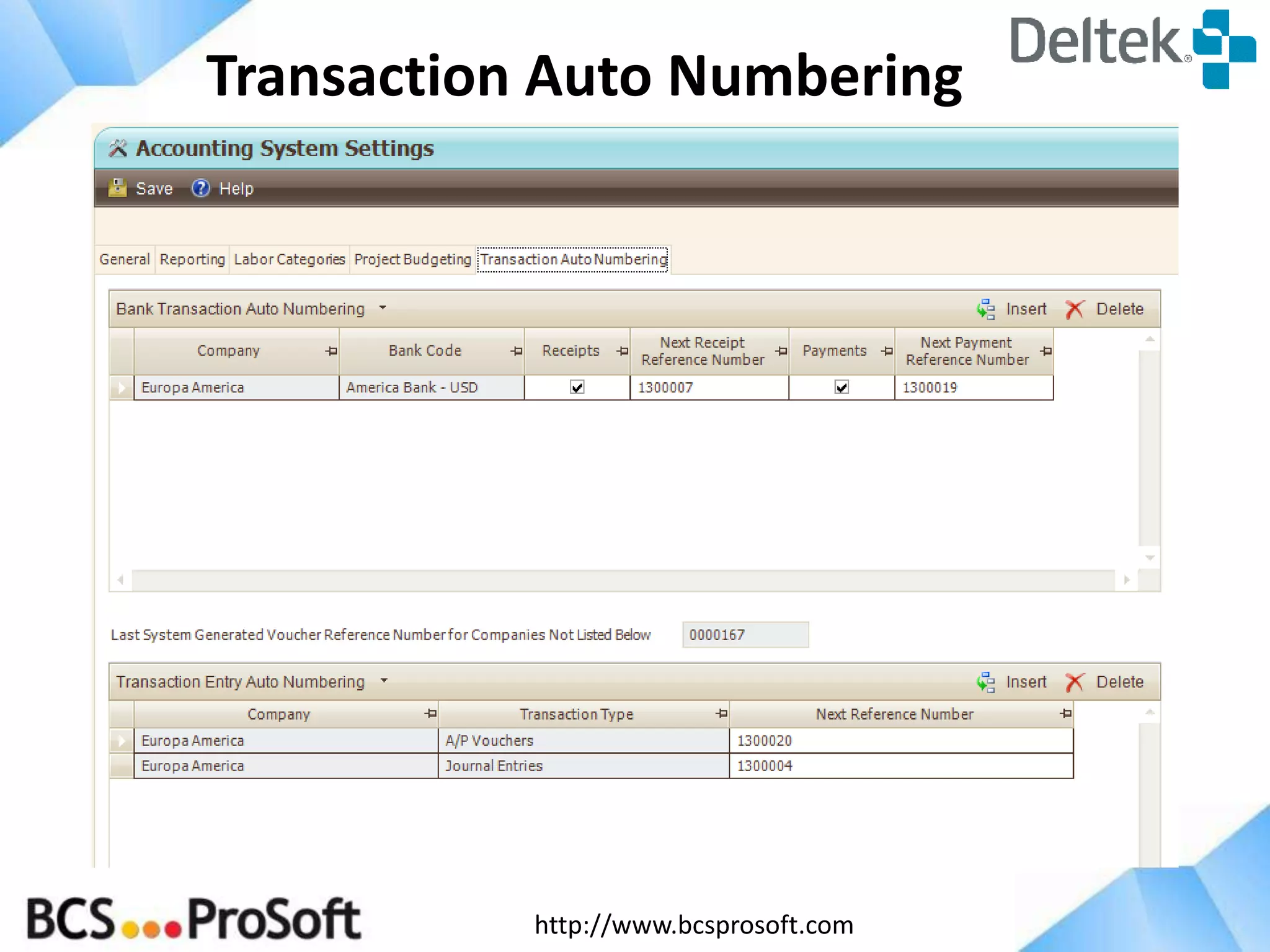
Transaction Auto Numbering

http://www.bcsprosoft.com
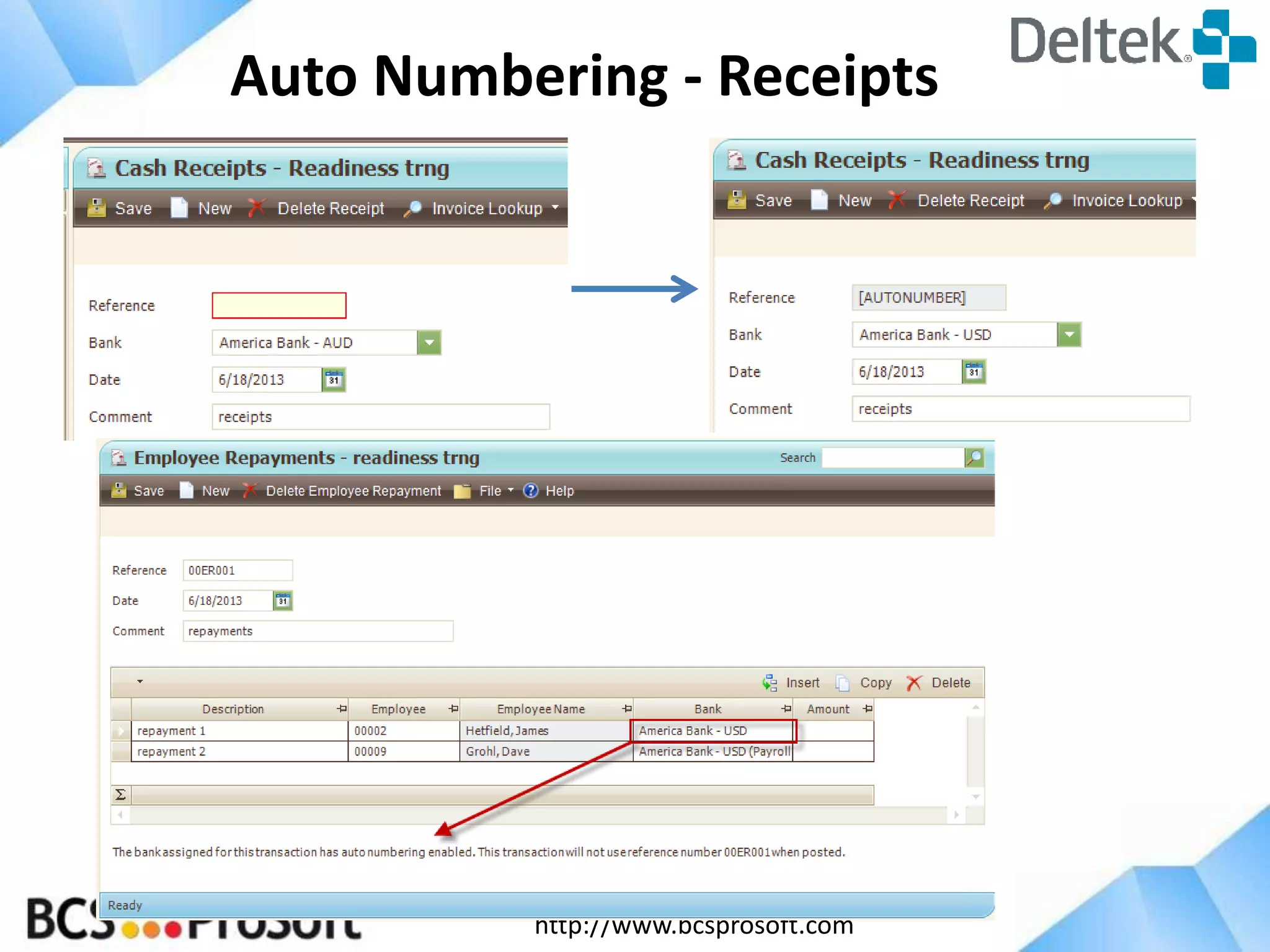
Auto Numbering - Receipts

http://www.bcsprosoft.com
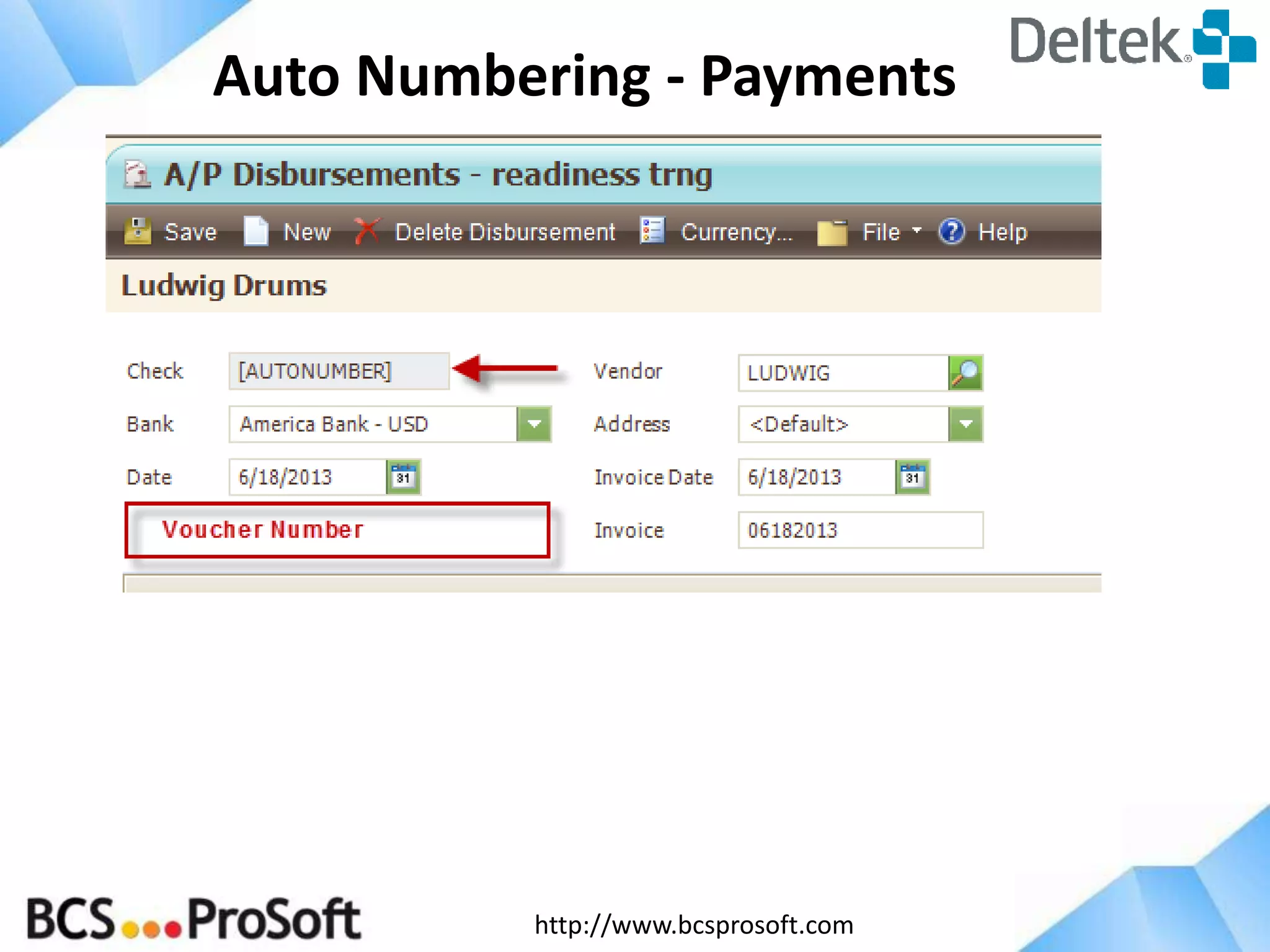
Auto Numbering - Payments

http://www.bcsprosoft.com
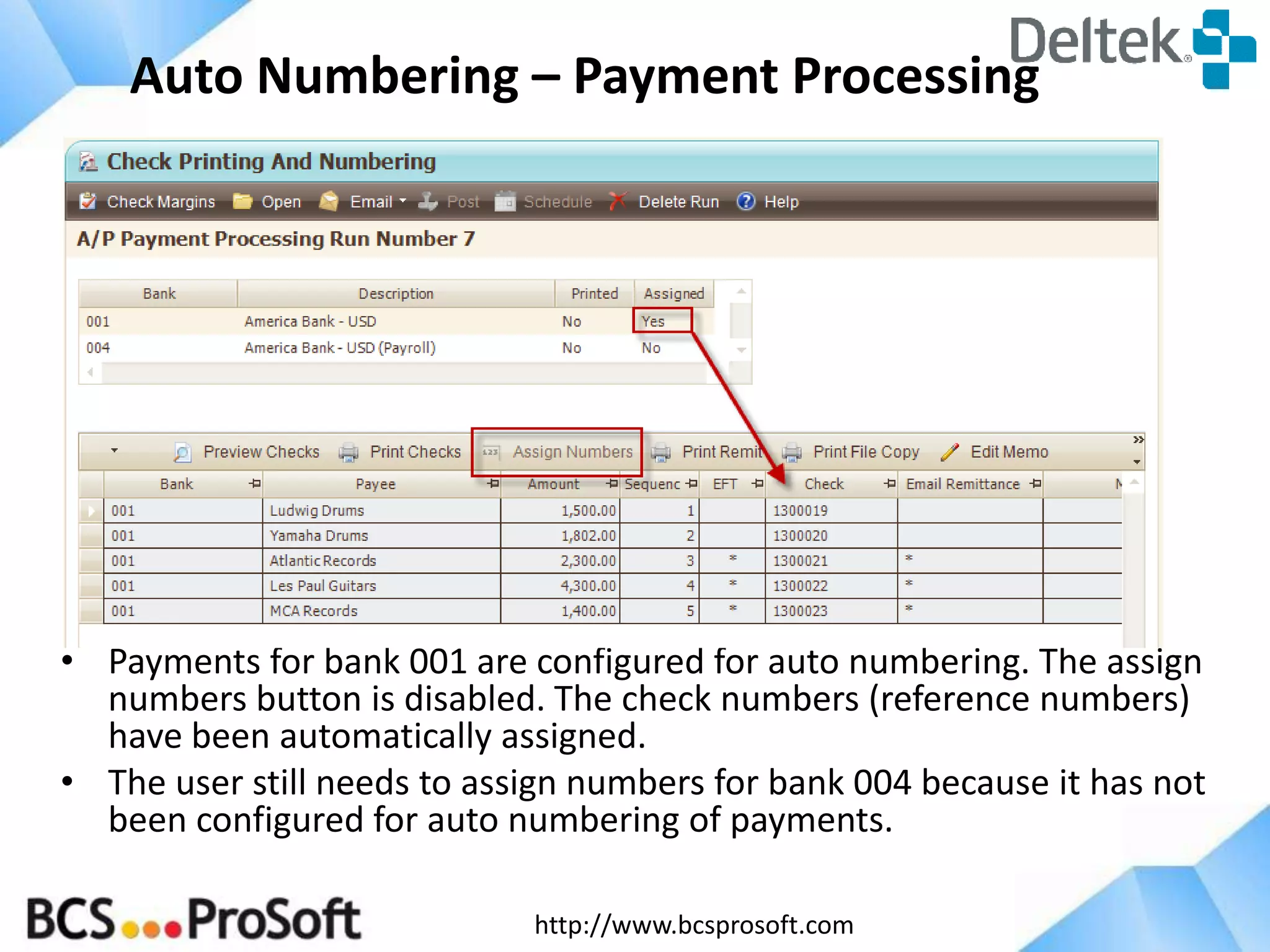
Auto Numbering – Payment Processing

• Payments for bank 001 are configured for auto numbering. The assign
numbers button is disabled. The check numbers (reference numbers)
have been automatically assigned.
• The user still needs to assign numbers for bank 004 because it has not
been configured for auto numbering of payments.
http://www.bcsprosoft.com
TRANCATIONAL DOCUMENT
MANAGEMENT
• Transaction Document Management is designed to allow you to attach
supporting documents to A/P Voucher and Expense Report transactions in
Vision.
• The supporting documents will be available for review in Interactive
Billing. You can choose which supporting documents should be printed
with the invoice when it is accepted.
• Supporting Documents are uploaded to Vision using Microsoft SQL Server
FILESTREAM

http://www.bcsprosoft.com
Contact Information

Email: Clark.Haley@bcsprosoft.com
Phone: (800) 882-6705
LinkedIn:
www.linkedin.com/in/clarkhaley

http://www.bcsprosoft.com

What's New in Deltek Vision 7.1

  • 1.
    What’s New in Vision7.1 October 24, 2013
  • 2.
    AGENDA • Vision 7.1new features – – – – – – Invoice Approvals Interface Security Advanced WBS Search / List View Transaction Auto Numbering Transactional Document Management http://www.bcsprosoft.com
  • 3.
    Invoice Approvals • Speedsup the invoicing process by organizing and automating the steps from Draft Bill to Final Acceptance of the invoice. • Provides alerts to move along the invoice approval process • Provides electronic comments and retains a history of the communication • Allows delegation of the approval process when primary approver is absent http://www.bcsprosoft.com
  • 4.
    Approval Process Draft Invoice Biller submits invoice Final Invoice Alert is sentto approver (Project Manager) PM reviews: previews invoice online, reviews summary information, adjusts transaction detail, updates percent complete, enters comments and approves invoice http://www.bcsprosoft.com Alert is sent to Biller Invoice is final accepted and sent to client
  • 5.
    Billing Configuration Enable Invoice Approvalby company Define Default Approval Process http://www.bcsprosoft.com
  • 6.
    Invoice Approvals –Billing Terms Enable/disable by project http://www.bcsprosoft.com
  • 7.
    Alerts Define the workflowfor the Invoice Approval Process • Alert Project Manager when invoice is ready to be approved. • Alert Biller when invoice is ready to be final accepted. • Alert Biller if invoice is rejected with reason. http://www.bcsprosoft.com
  • 8.
    Submit Invoices forApproval • Invoices can be submitted through either Interactive Billing or Batch Billing. • Submit process will kick off alerts to PM to review and approve invoices. http://www.bcsprosoft.com
  • 9.
    Comments • Submit -alert Approver (PM) to deadline for invoice approvals or specific issues on an invoice. • Approve – alert Biller to any adjustments before finalizing invoice • Reject – alert Biller to why invoice is not acceptable http://www.bcsprosoft.com
  • 10.
    Approval Applications • InvoiceApprovals • Review a summarized list of all invoices in the current approval process. • Preview invoice, review approval comments, update fees • Approve and Reject • Submit alert sends user here. • Interactive Approvals • Review one invoice at a time. • Preview Invoice, review comments • Review labor, expense and unit transaction detail • Update transactions (transfer, hold, write off), update percent complete • Include new transactions on submitted invoice • Review Billed-to-Date invoice values, current invoice summary information , and project financial information. • Approve and Reject http://www.bcsprosoft.com
  • 11.
    Invoice Approvals Summary screento view and update invoice status on invoices in the approval process • PM can preview submitted invoice • PM can enter comments • PM can approve or reject his/her invoices. • Biller can review status of all invoices in approval process http://www.bcsprosoft.com
  • 12.
    Interactive Approvals -General Preview invoices Review and enter comments Current invoice and Billed to Date information Project Fees Project Financial Info Include New transactions Approve and Reject http://www.bcsprosoft.com
  • 13.
    Update Fees • Approverscan update percent completes as part of the approval process. • New billing terms record Security Setting http://www.bcsprosoft.com
  • 14.
    Update Fee Security Percentcomplete record access allows user to only update: • percent complete • fee to date • Description http://www.bcsprosoft.com
  • 15.
    Interactive Approvals- DetailsTab PM can individually review submitted invoices • PM can review labor and expenses associated with submitted invoice. • PM can review any NEW transactions • PM can make adjustments (transfer, hold, write off) with security access http://www.bcsprosoft.com
  • 16.
  • 17.
    Interface – DeltekKona Color Scheme http://www.bcsprosoft.com
  • 18.
    Interface – Iconpicker for nav tree nodes http://www.bcsprosoft.com
  • 19.
    Interface – FlatDashboard Styling http://www.bcsprosoft.com
  • 20.
    Interface – Hidingthe report toolbar http://www.bcsprosoft.com
  • 21.
    Interface – PhotoSetting for PIC and OIC http://www.bcsprosoft.com
  • 22.
    Interface – KonaIntegration http://www.bcsprosoft.com
  • 23.
    Interface – NavigatorIntegration http://www.bcsprosoft.com
  • 24.
    Security – UsersInfo Center http://www.bcsprosoft.com
  • 25.
    Security – ForgotUser ID http://www.bcsprosoft.com
  • 26.
    Security – ForgotPassword http://www.bcsprosoft.com
  • 27.
    Security – ForgotPassword http://www.bcsprosoft.com
  • 28.
  • 29.
    Advanced WBS Search– Detail View http://www.bcsprosoft.com
  • 30.
    Advanced WBS Search– List View http://www.bcsprosoft.com
  • 31.
    Expanded WBS Search– Cheat Sheet http://www.bcsprosoft.com
  • 32.
  • 33.
    Auto Numbering -Receipts http://www.bcsprosoft.com
  • 34.
    Auto Numbering -Payments http://www.bcsprosoft.com
  • 35.
    Auto Numbering –Payment Processing • Payments for bank 001 are configured for auto numbering. The assign numbers button is disabled. The check numbers (reference numbers) have been automatically assigned. • The user still needs to assign numbers for bank 004 because it has not been configured for auto numbering of payments. http://www.bcsprosoft.com
  • 36.
    TRANCATIONAL DOCUMENT MANAGEMENT • TransactionDocument Management is designed to allow you to attach supporting documents to A/P Voucher and Expense Report transactions in Vision. • The supporting documents will be available for review in Interactive Billing. You can choose which supporting documents should be printed with the invoice when it is accepted. • Supporting Documents are uploaded to Vision using Microsoft SQL Server FILESTREAM http://www.bcsprosoft.com
  • 37.
    Contact Information Email: Clark.Haley@bcsprosoft.com Phone:(800) 882-6705 LinkedIn: www.linkedin.com/in/clarkhaley http://www.bcsprosoft.com

Editor's Notes

  • #4 Important: Before you begin working on setting up the Invoice Approvals process, you should update the security roles:
  • #6 You’ll need to set this up in billing configuration and then, optionally set it up in Default Billing Terms, then you’ll need to go to each project/billing terms that you want to turn this on for and select this option.
  • #18 A new Deltek Kona color scheme has been added to the Settings drop down within the Display Setting dialog.After selecting Deltek Kona, select Apply, then Save, and then log out and log back in to see the changes take affect.
  • #19 Users can now select an icon from a predetermined list for any item within the navigation tree, including custom nodes.
  • #20 Users can now set their dash parts to use flat dashboard styling. When using flat dashboard styling, the dashpart can be set to any color.
  • #21 Users can now hide the toolbar for a web dashpartConfigure the web dashpart and then select the Hide Toolbar check boxSave the change and then refresh the dashboard by clicking the dashboard button on the main menu
  • #22 Users can now select an image to be displayed for Projects and Opportunities in the same manner as they do for employees.
  • #23 Users can now enter their Kona credentials into the Misc tab of User OptionsUsers can select a Kona Space for Projects and OpportunitiesThe Kona button has been placed into the Main Menu of VisionThe user can click the Kona button from any app in Vision – if the app is project or opportunity specific, and a Kona space has been identified, then Kona will open to the identified space.Kona will open directly within Vision if IE9 is installed
  • #24 The Navigator button has been placed into the Main Menu of VisionSelecting the Navigator button will launch Navigator within Vision if IE9 is installed.If a user is on a project that is associated with a Navigator plan, then clicking the Navigator button will bring the user directly to that plan in Navigator.If the associated Navigator plan as an image associated with it, then the image will display in place of the Project Photo
  • #25 The Users application has been changed to make it more like an info center.Ability to force users to reset their passwords.
  • #26 Users can now reset their own passwords or be reminded of their User IDs.Email must be configured in System SettingsUsers must be associated to an employee record that has an email address.
  • #27 Users can now reset their own passwords or be reminded of their User IDs.Email must be configured in System SettingsUsers must be associated to an employee record that has an email address.
  • #28 Ability to limit access to users so they can only make certain changes:Enable/disable usersChange passwords for users
  • #29 Available in the Project Info Center OnlyAdded Any Level to the Project Level drop downAdded the Display drop down located above the search results gridThe selected search results will be loaded into the Detail or List View
  • #30 The selected WBS records will be loaded into the detail view and users can scroll from WBS to WBS without needing to use the WBS navigation icon.The VCR drop down will display the Phase and Task number.
  • #31 The selected WBS records will be loaded into the list viewThe Refresh List button is used to refresh the list after changes have been made to records in the grid. For example, if the user changes the compensation for a task, then clicking refresh will show the updated “rolled up” compensation at the WBS1 level.The Refresh List button refreshes the records that are currently displayed in List View. It does not re-load the grid with records based upon the advanced search.
  • #33 Added a new tab to Accounting System SettingsTransaction auto numbering auto assigns the reference number for all receipt and payment transactions per configured bank code.Transaction auto numbering also auto assigns the reference numbers for JE & AP Voucher** transactions per the configured company.Receipts:Cash ReceiptsEmployee RepaymentsPayments:AP DisbursementsCash DisbursementsAP Payment Processing *Employee Payment Processing *Payroll Payment Processing ** All reference numbers are automatically assigned at the time of posting except payment processing check numbers. Those are assigned when the user clicks “Process Checks”.** AP Vouchers can only be configured for auto number IF the “Require entry of voucher numbers” check box is NOT checked in System AP Configuration.
  • #34 Unlike cash receipts, employee repayments requires the bank be entered into the grid.“The bank assigned for this transaction has auto numbering enabled. This transaction will not use the reference number 00ER0001 when posted”