

MC University
R08|Intermediate Reporting: Email, Schedule, and Export
MC University
Agenda
Emailing Reports Defined
Scheduling Reports Defined
Exporting Reports Defined
MC University
Emailing Reports Overview
Email Report Dialog
Email Preferences
Emailing Reports Defined
MC University
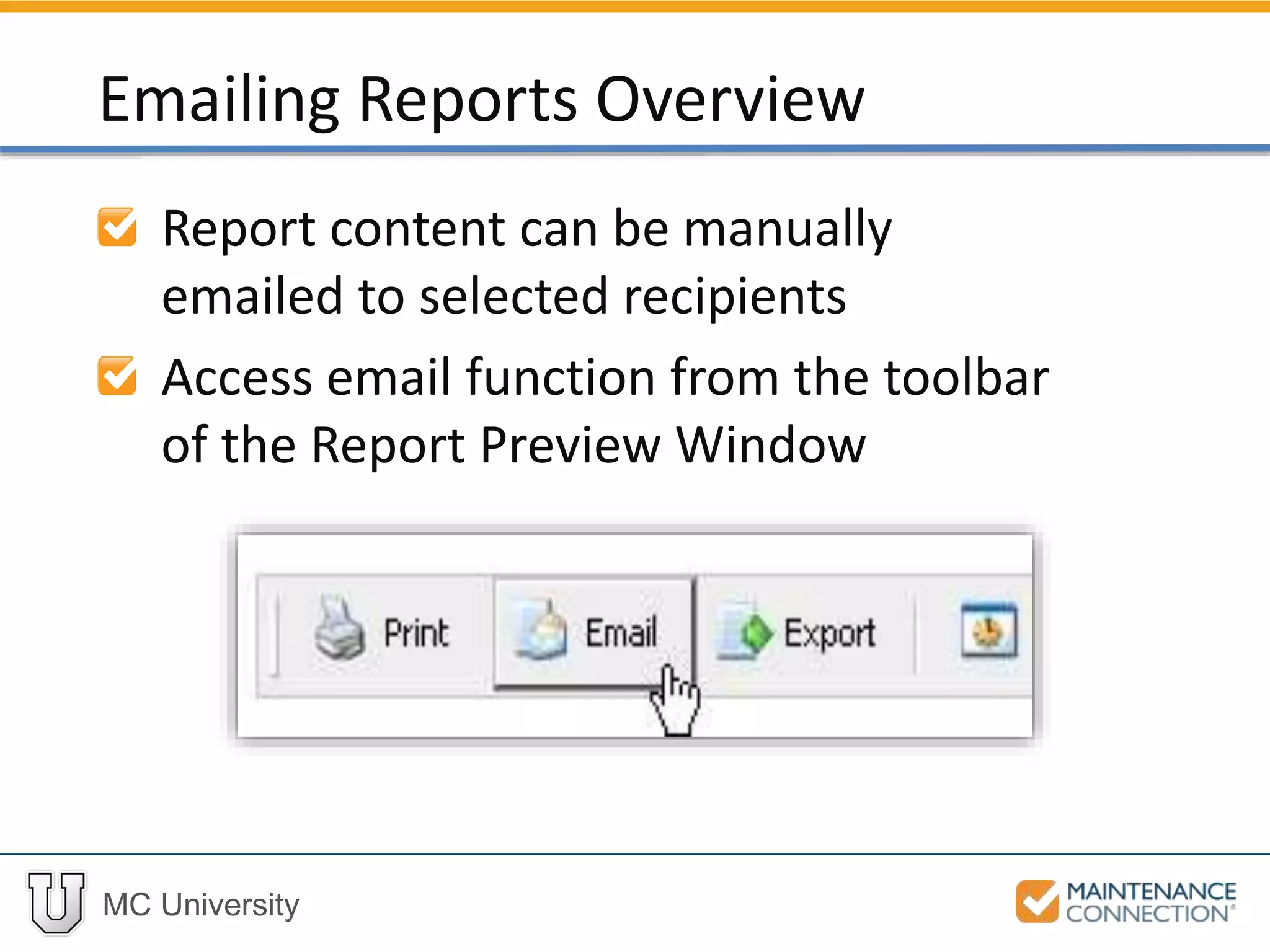
Report content can be manually
emailed to selected recipients
Access email function from the toolbar
of the Report Preview Window
Emailing Reports Overview
MC University
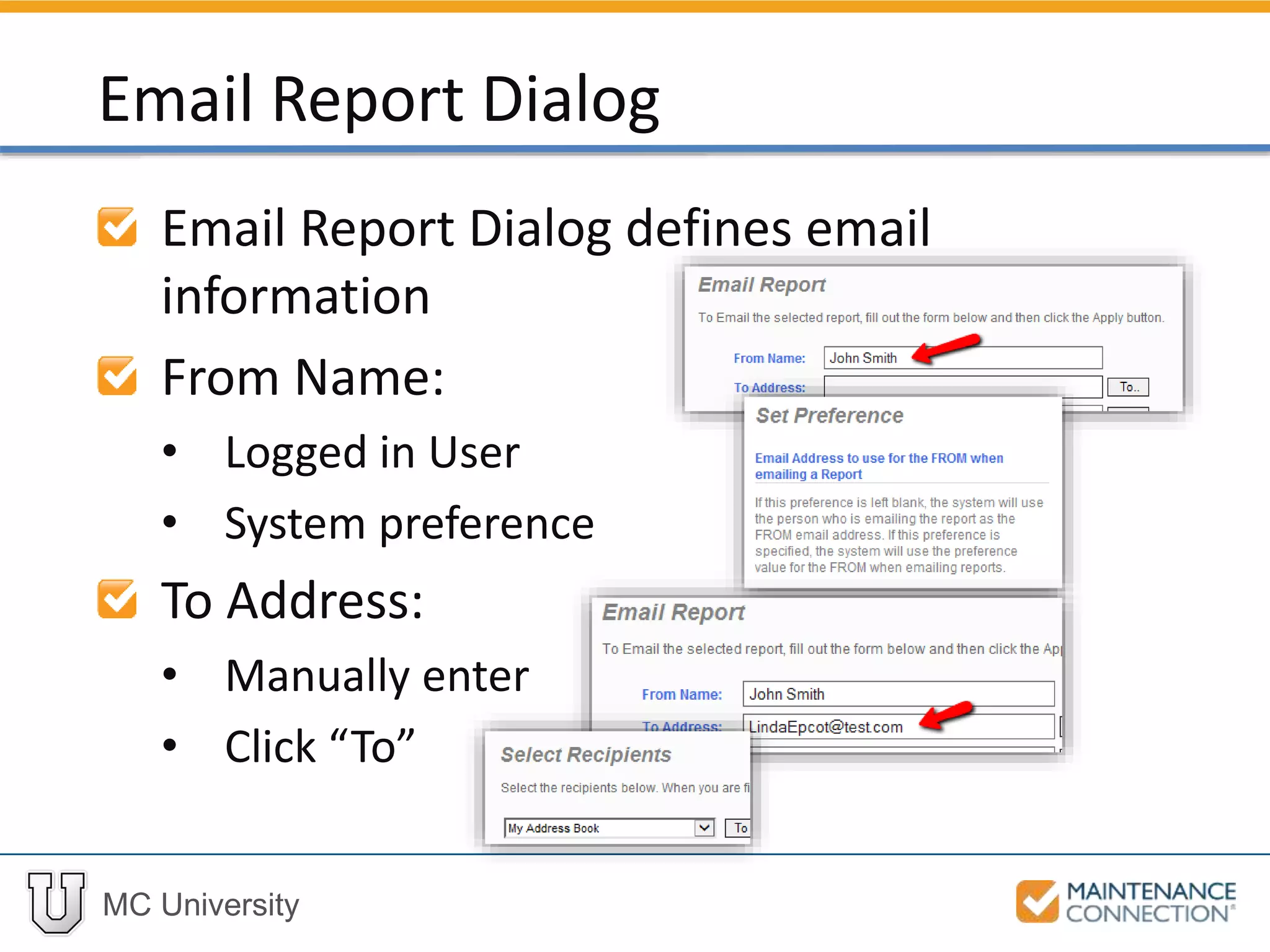
Email Report Dialog defines email
information
From Name:
• Logged in User
• System preference
To Address:
• Manually enter
• Click “To”
Email Report Dialog
MC University
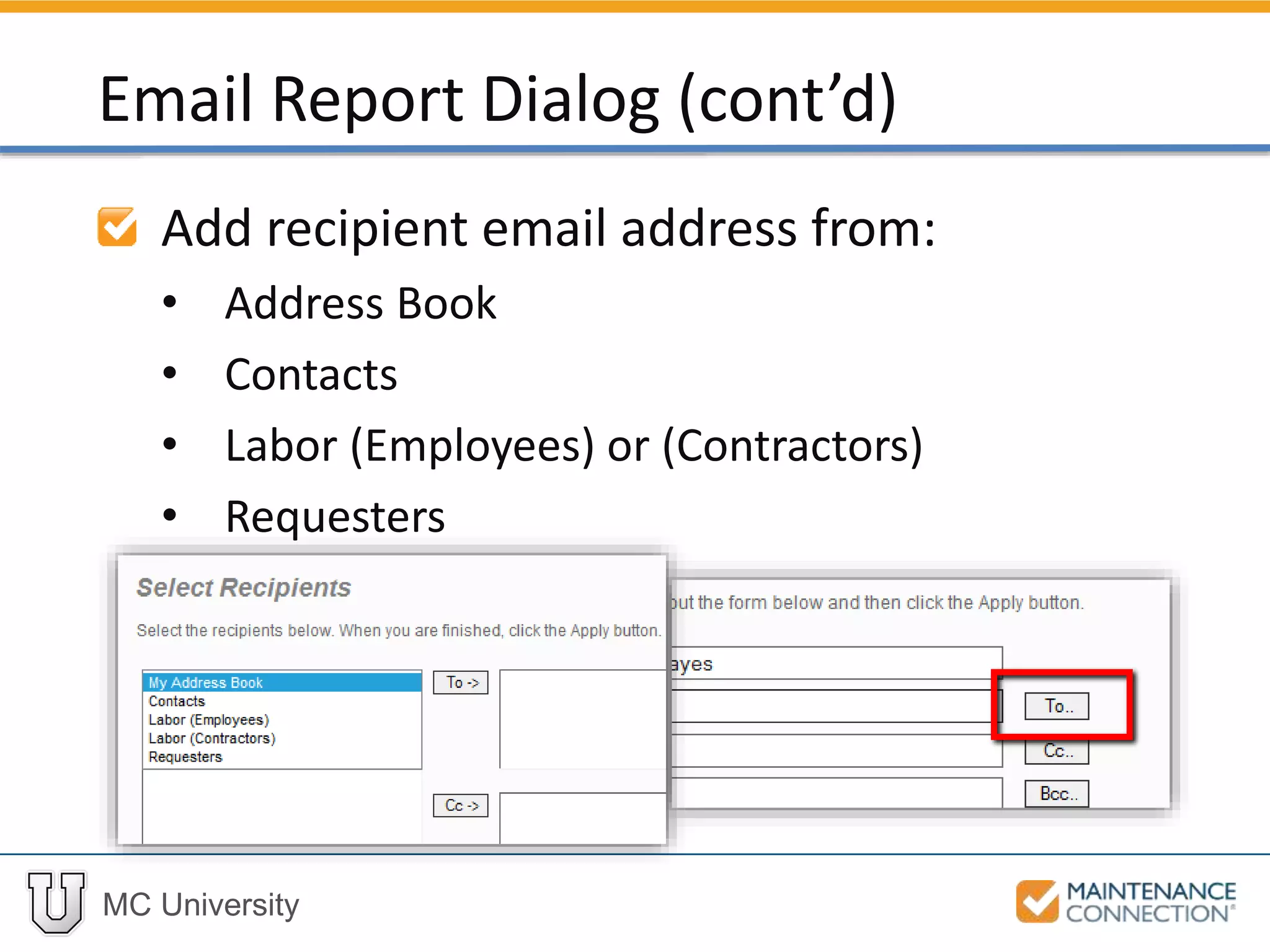
Add recipient email address from:
• Address Book
• Contacts
• Labor (Employees) or (Contractors)
• Requesters
Email Report Dialog (cont’d)
MC University
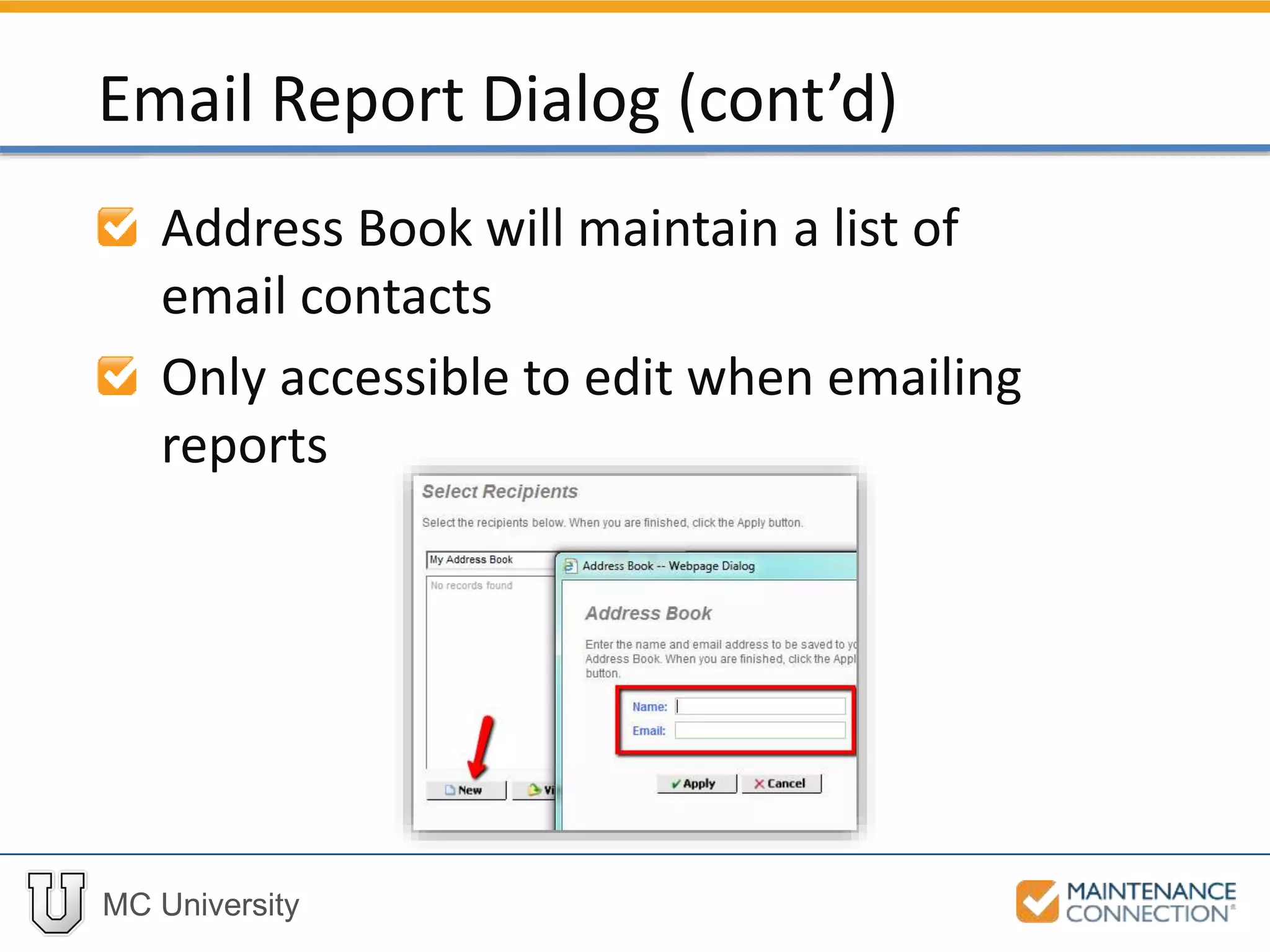
Address Book will maintain a list of
email contacts
Only accessible to edit when emailing
reports
Email Report Dialog (cont’d)
MC University
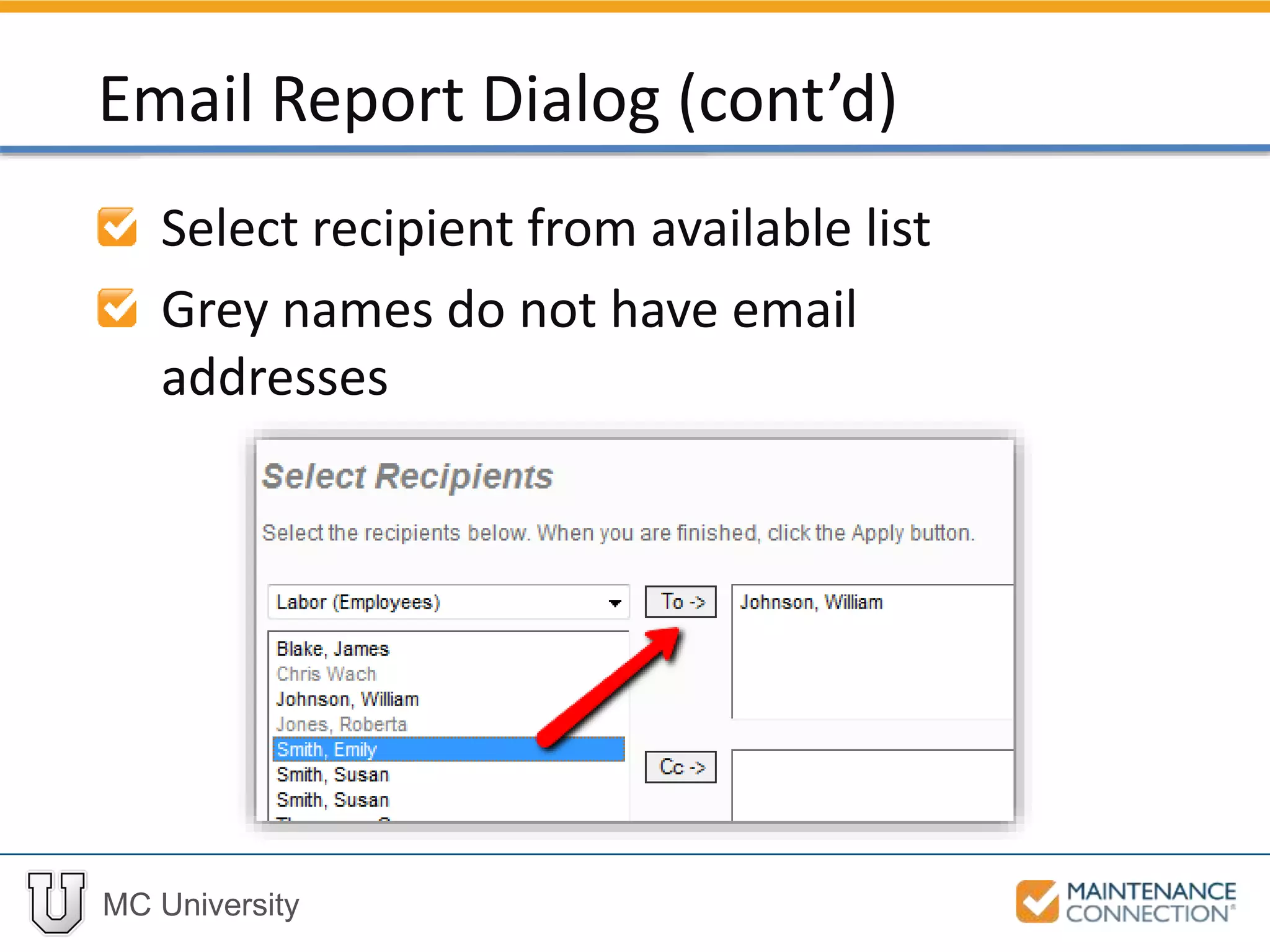
Select recipient from available list
Grey names do not have email
addresses
Email Report Dialog (cont’d)
MC University
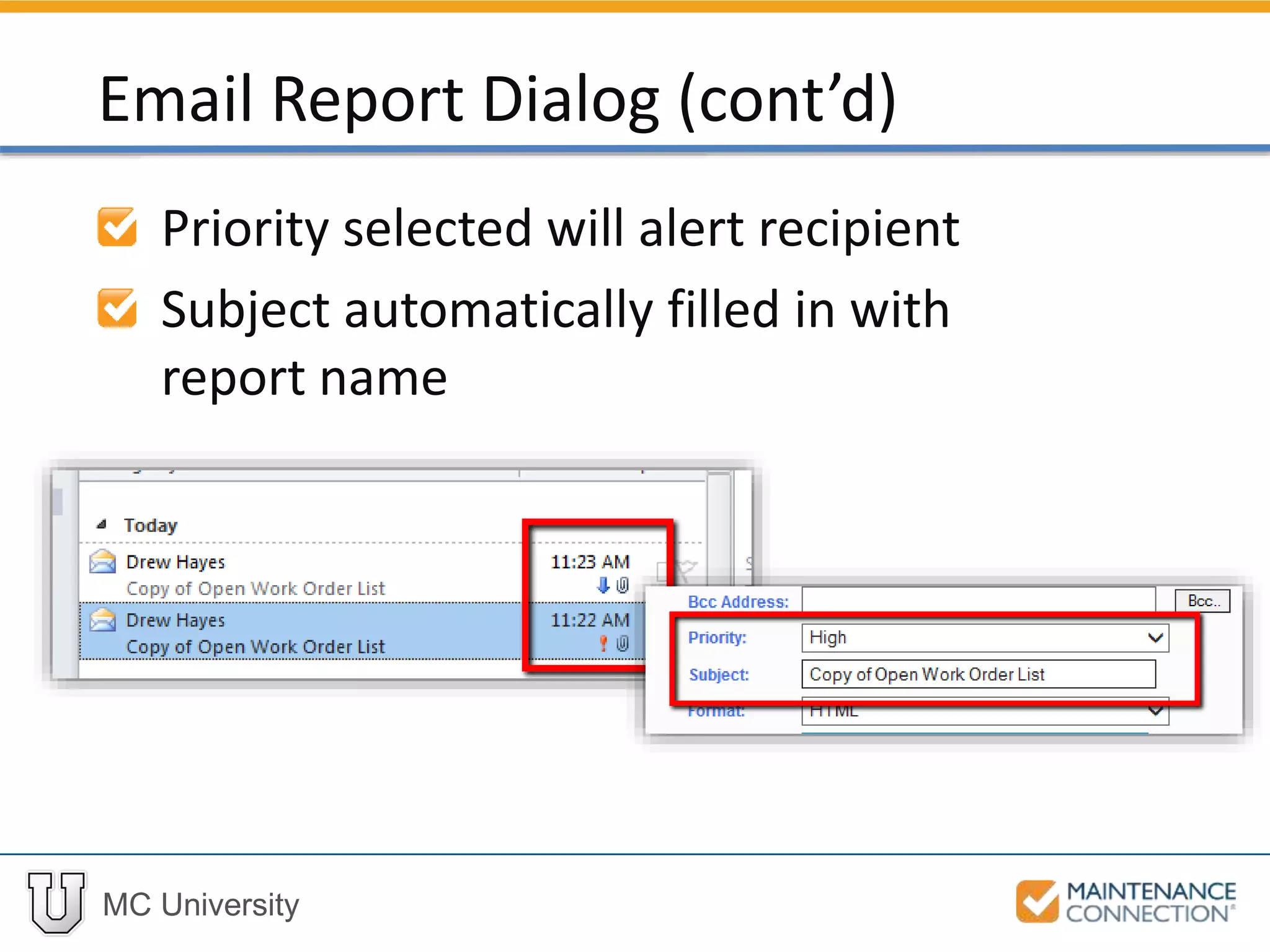
Priority selected will alert recipient
Subject automatically filled in with
report name
Email Report Dialog (cont’d)
MC University
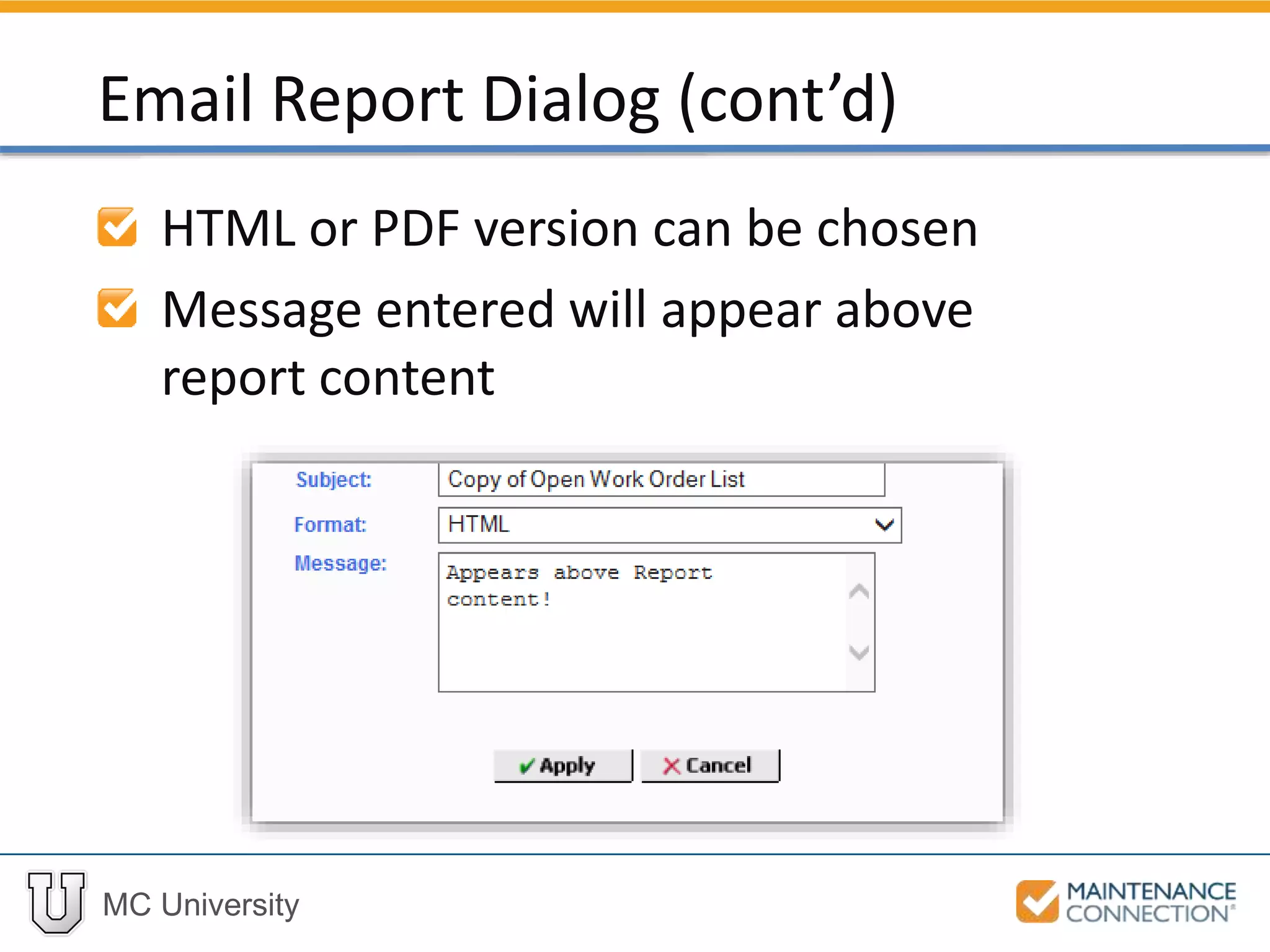
HTML or PDF version can be chosen
Message entered will appear above
report content
Email Report Dialog (cont’d)
MC University
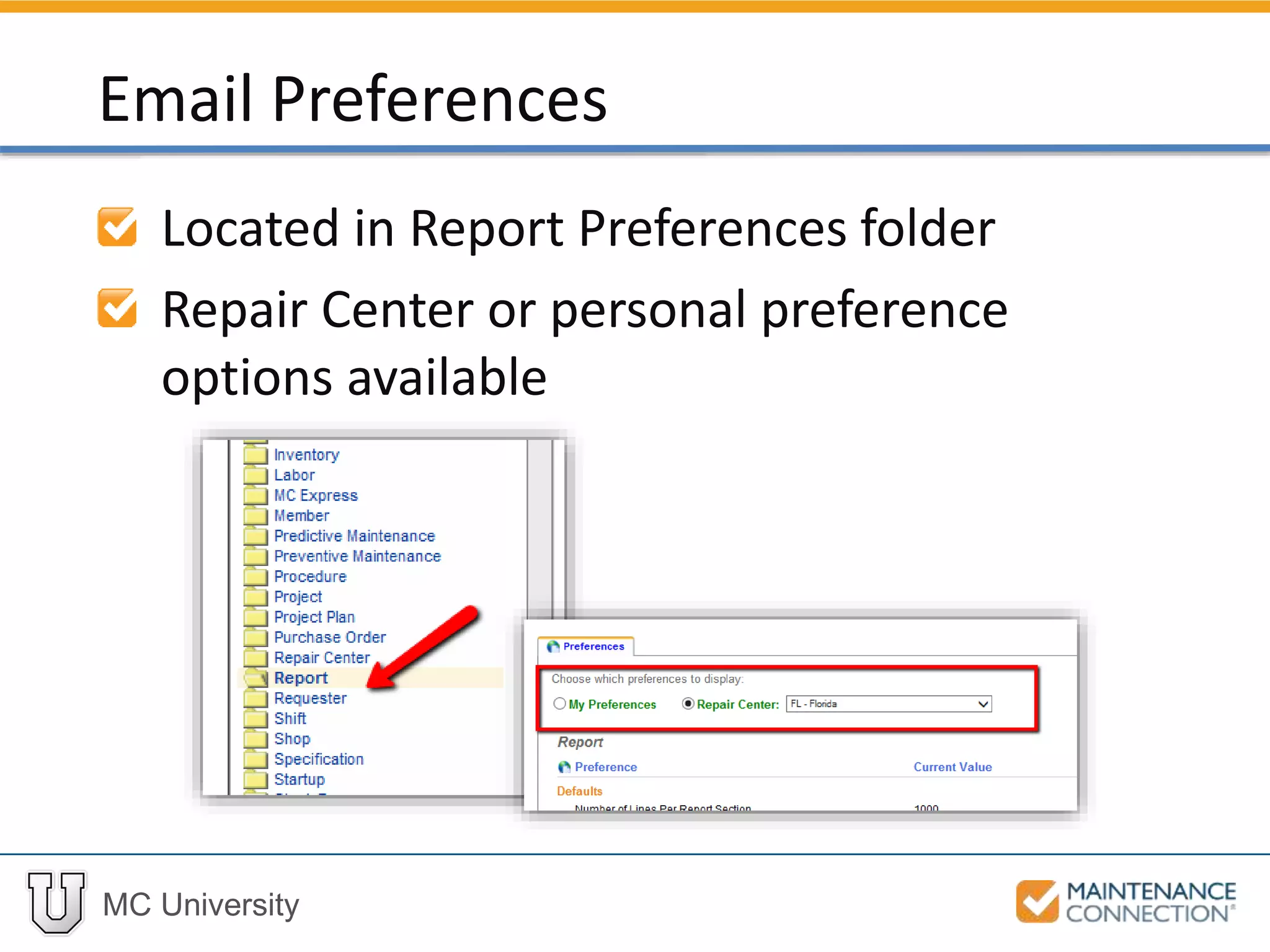
Located in Report Preferences folder
Repair Center or personal preference
options available
Email Preferences
MC University
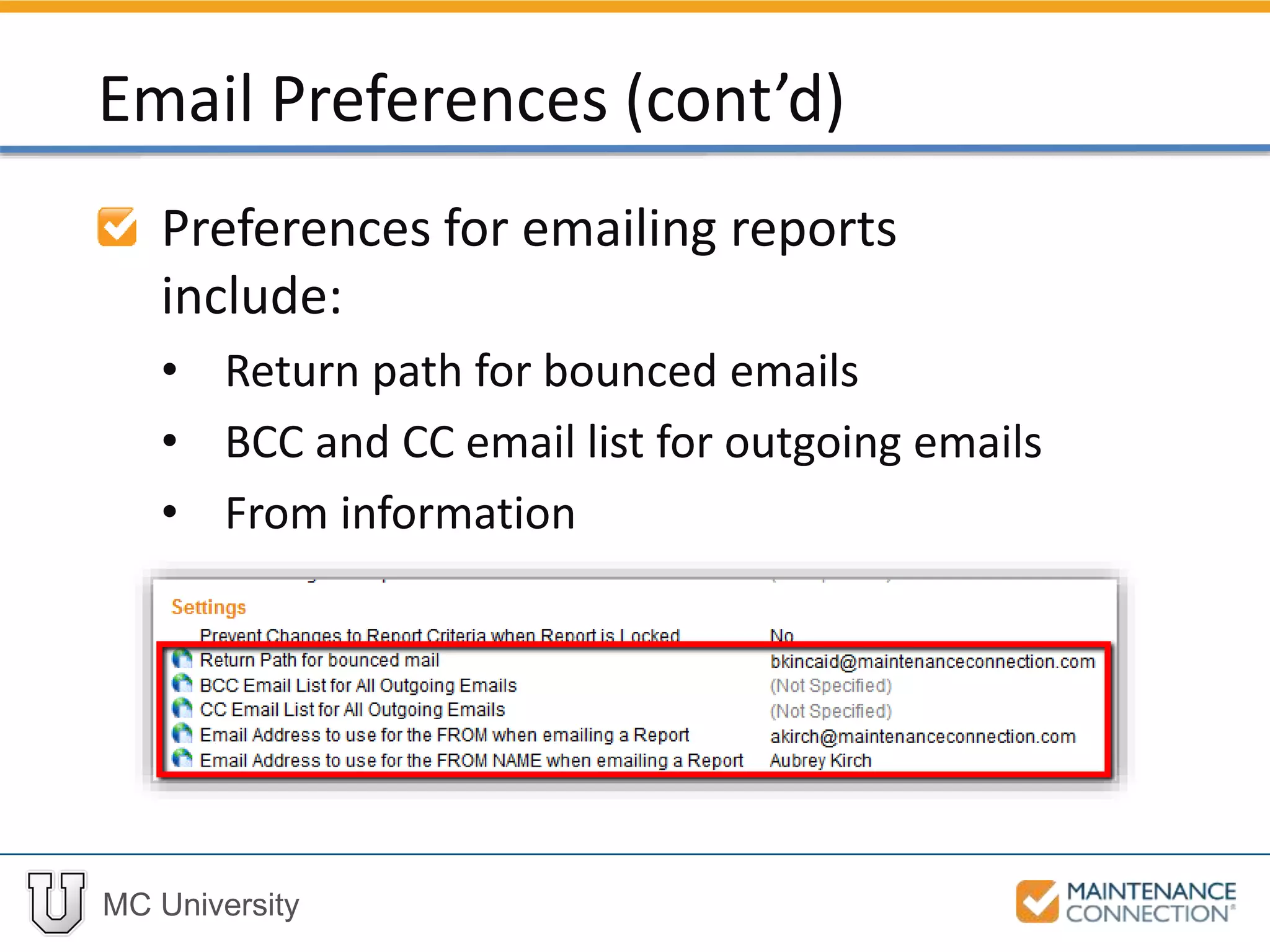
Preferences for emailing reports
include:
• Return path for bounced emails
• BCC and CC email list for outgoing emails
• From information
Email Preferences (cont’d)
MC University
Now let’s practice running and emailing
Reports!
Email Report: Hands-On
MC University
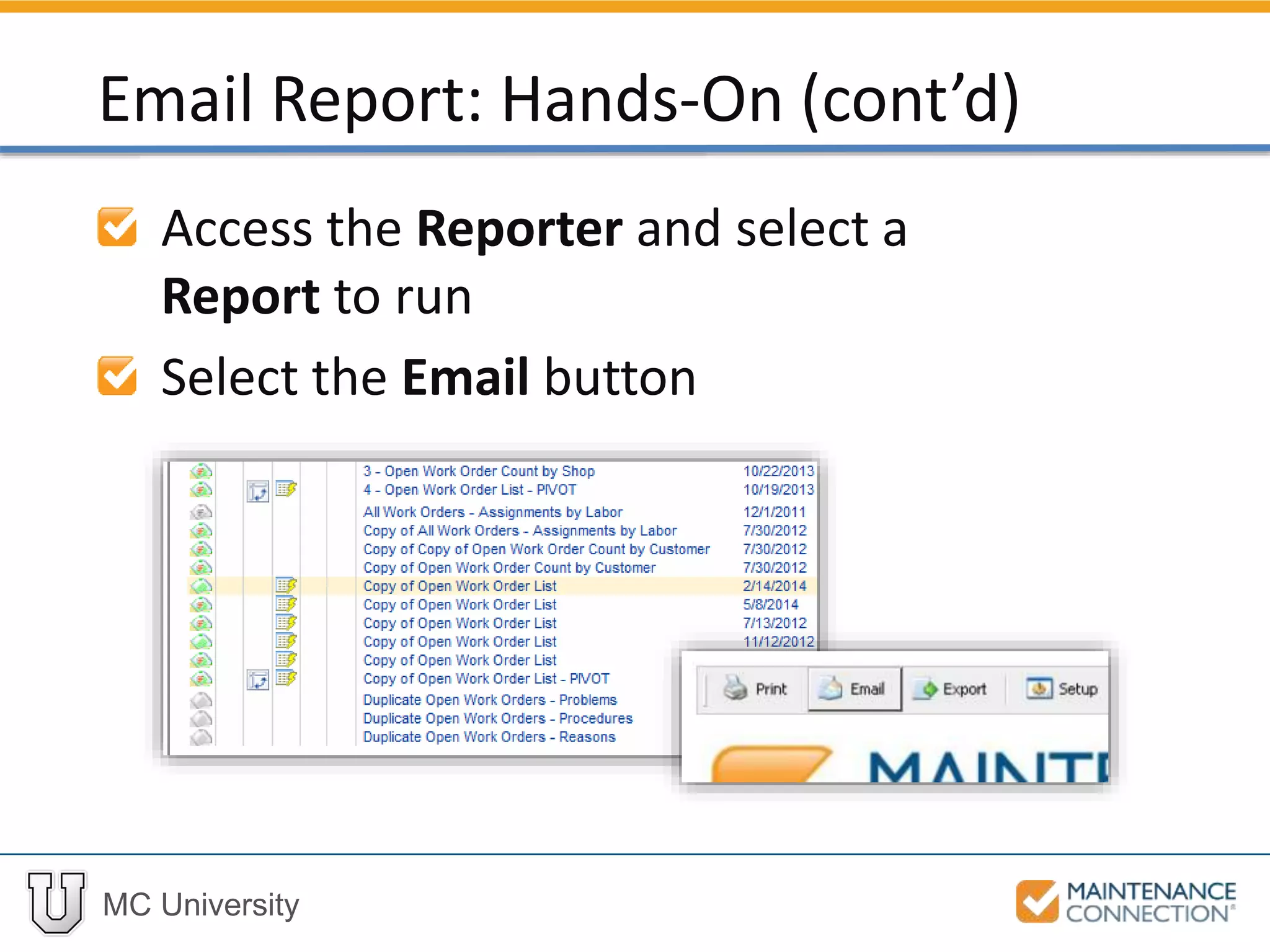
Access the Reporter and select a
Report to run
Select the Email button
Email Report: Hands-On (cont’d)
MC University
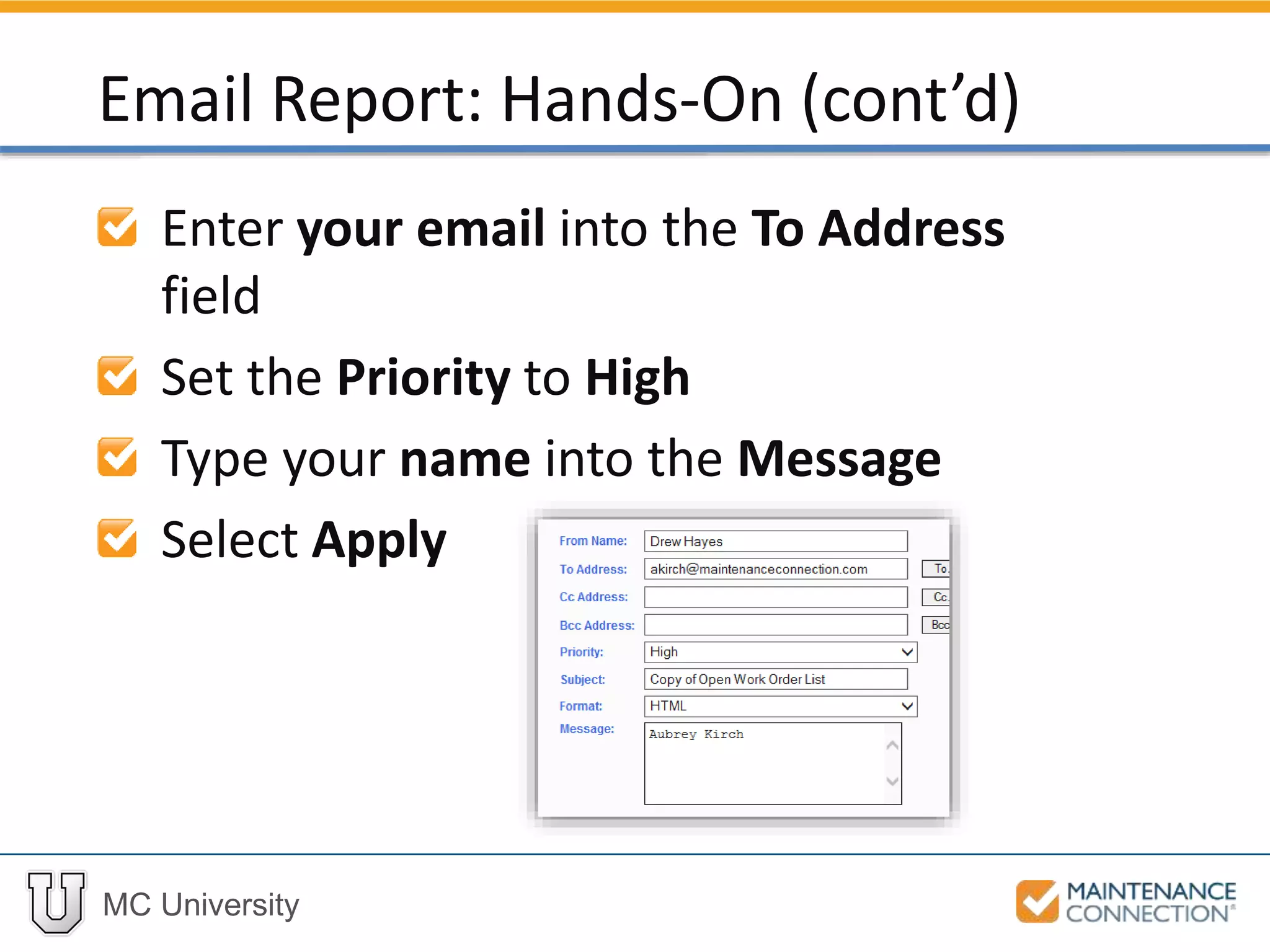
Enter your email into the To Address
field
Set the Priority to High
Type your name into the Message
Select Apply
Email Report: Hands-On (cont’d)
MC University
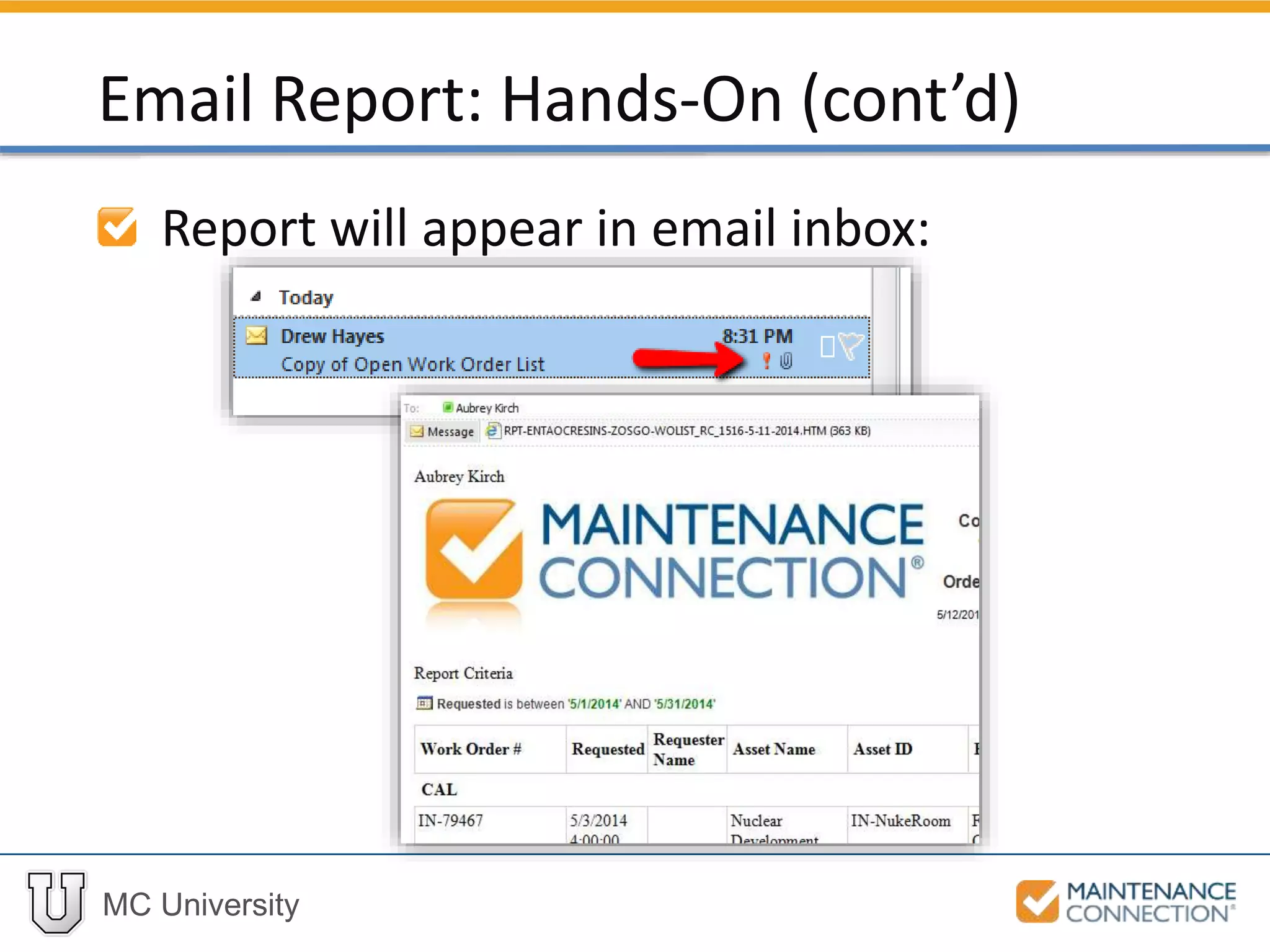
Report will appear in email inbox:
Email Report: Hands-On (cont’d)
MC University
You have now succesfully completed
running and emailing a Report!
Email Report: Hands-On (cont’d)
MC University
Scheduling Reports Overview
Email Sub-Tab
Smart Email Sub-Tab
File Sub-Tab
Scheduling Reports Defined
MC University
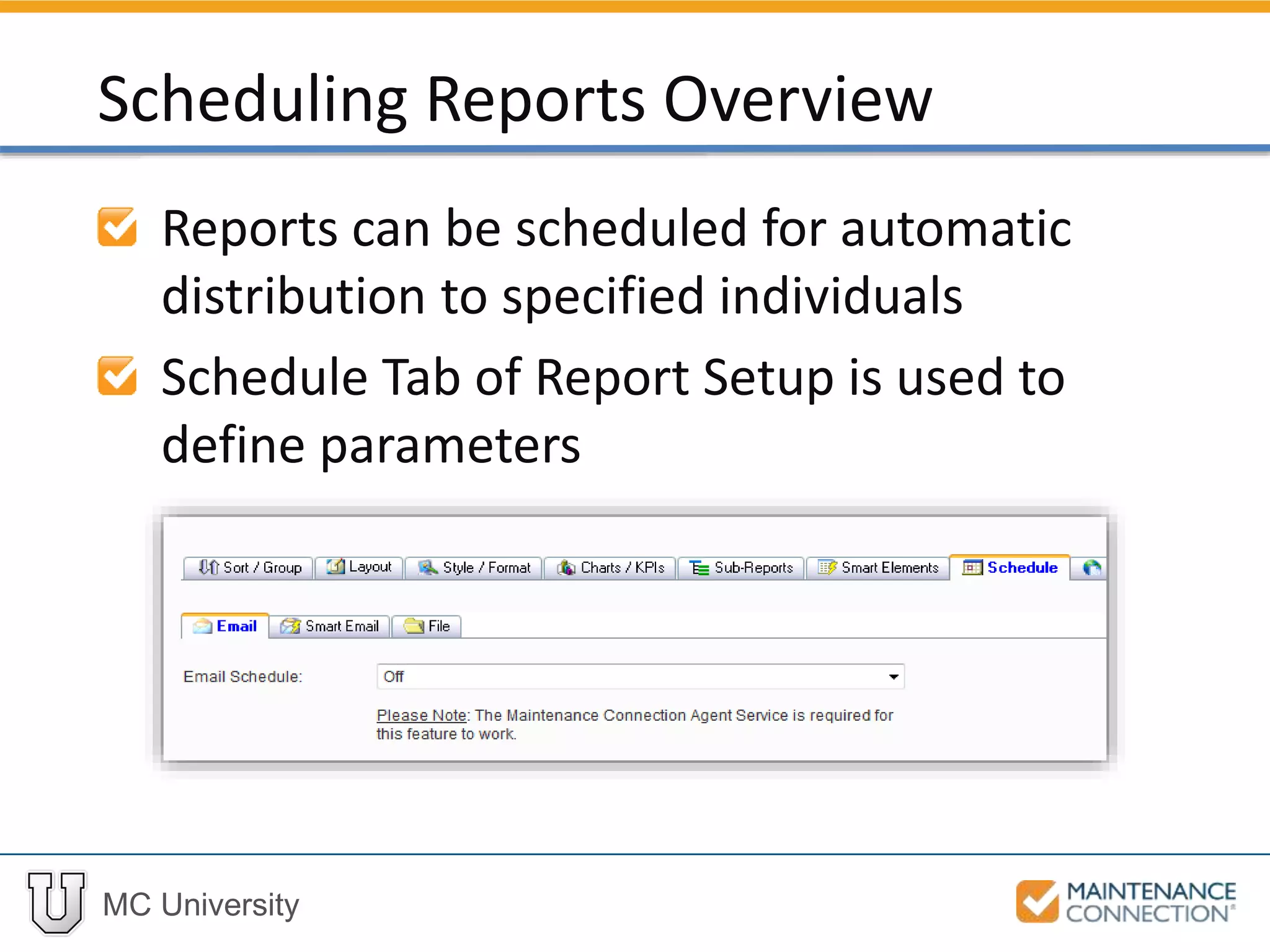
Reports can be scheduled for automatic
distribution to specified individuals
Schedule Tab of Report Setup is used to
define parameters
Scheduling Reports Overview
MC University
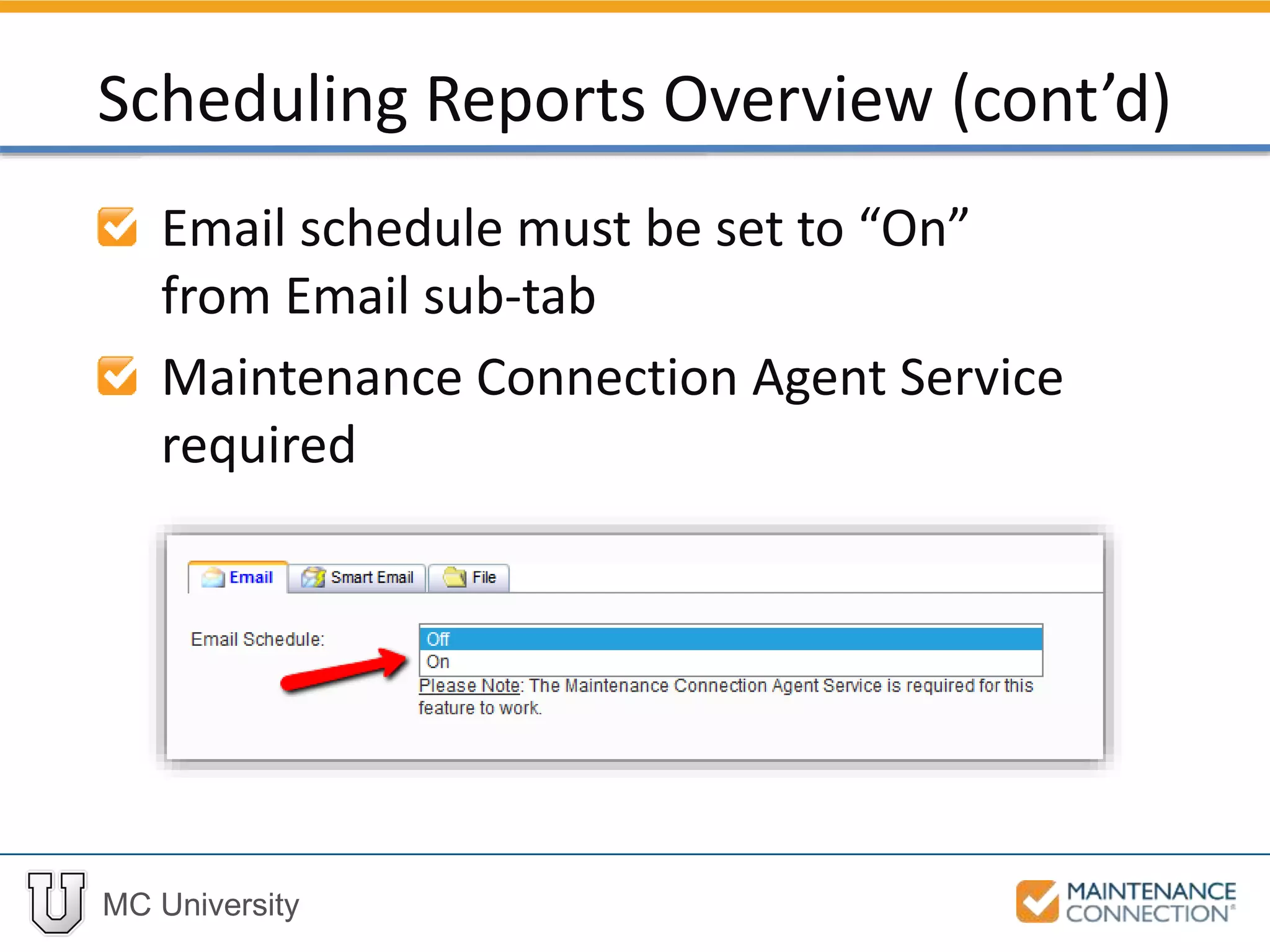
Email schedule must be set to “On”
from Email sub-tab
Maintenance Connection Agent Service
required
Scheduling Reports Overview (cont’d)
MC University
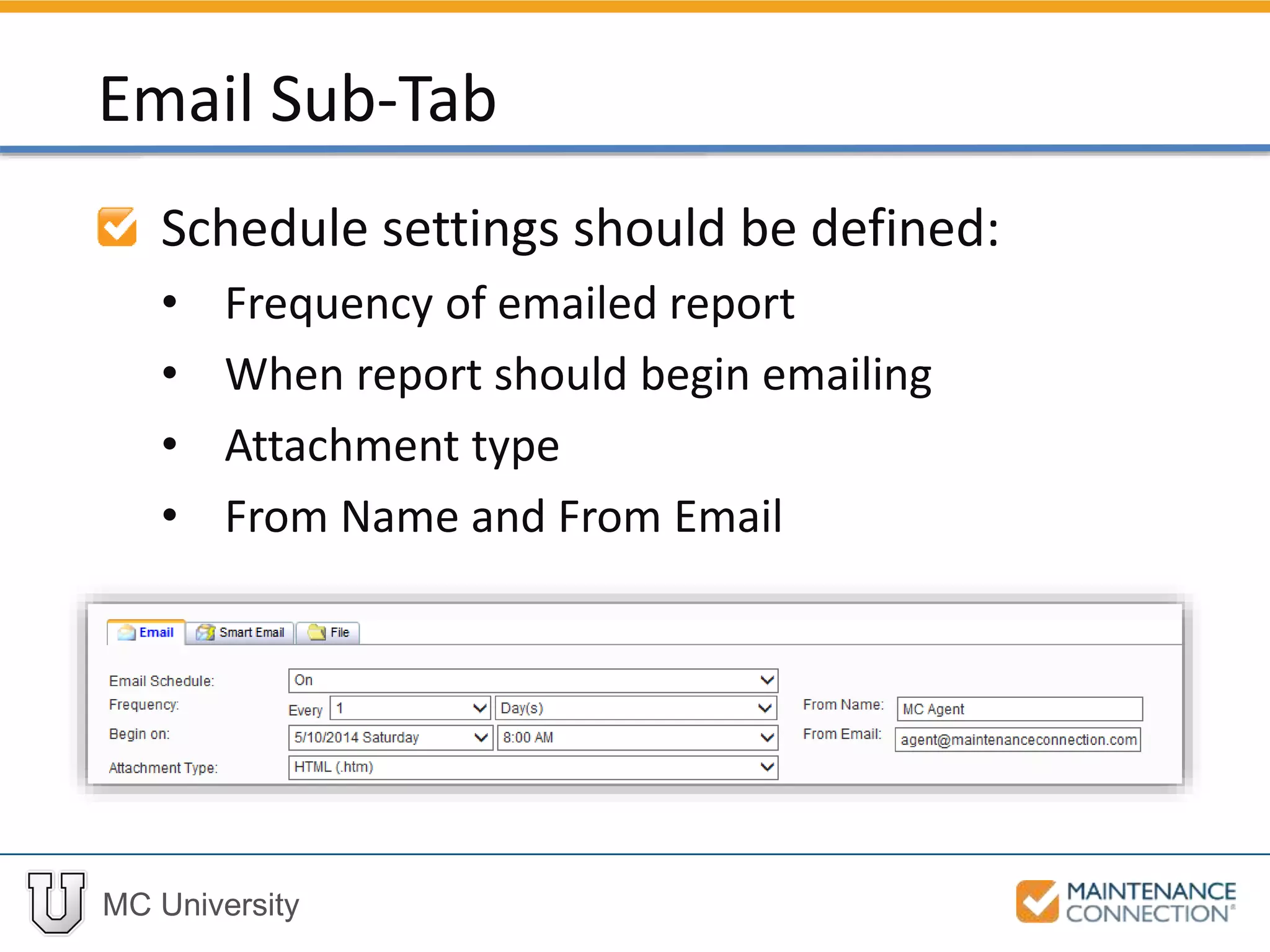
Schedule settings should be defined:
• Frequency of emailed report
• When report should begin emailing
• Attachment type
• From Name and From Email
Email Sub-Tab
MC University
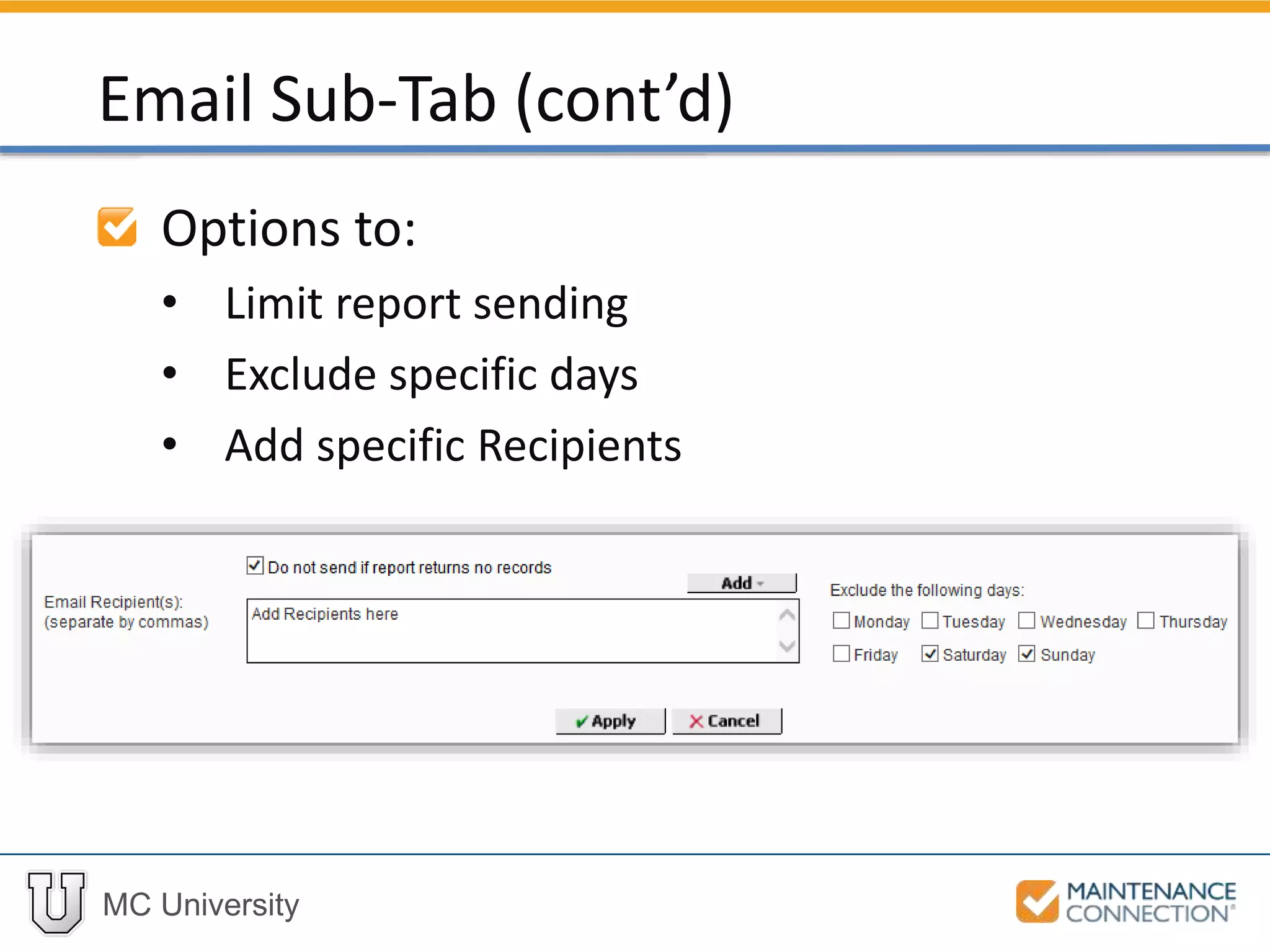
Options to:
• Limit report sending
• Exclude specific days
• Add specific Recipients
Email Sub-Tab (cont’d)
MC University
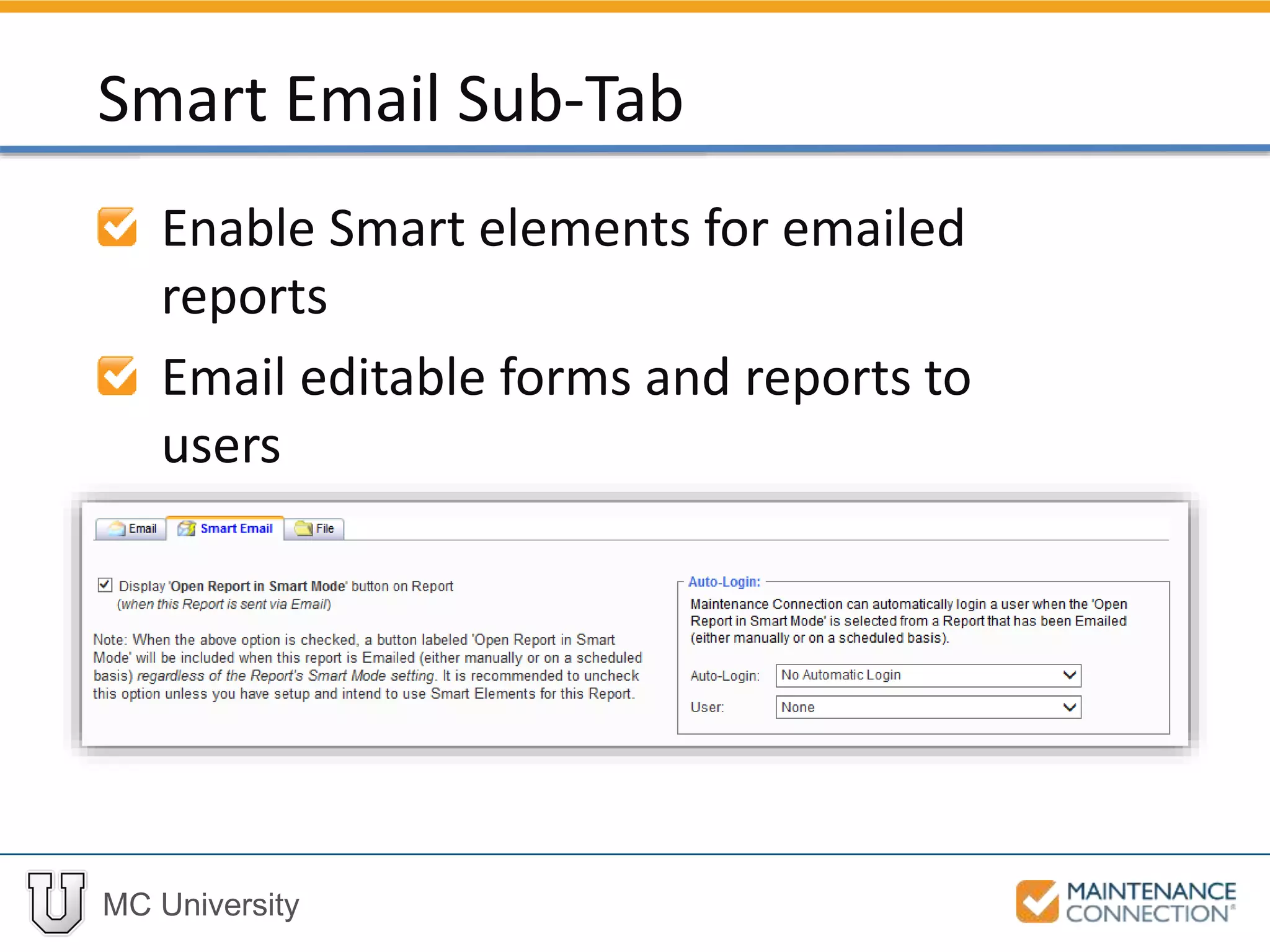
Enable Smart elements for emailed
reports
Email editable forms and reports to
users
Smart Email Sub-Tab
MC University
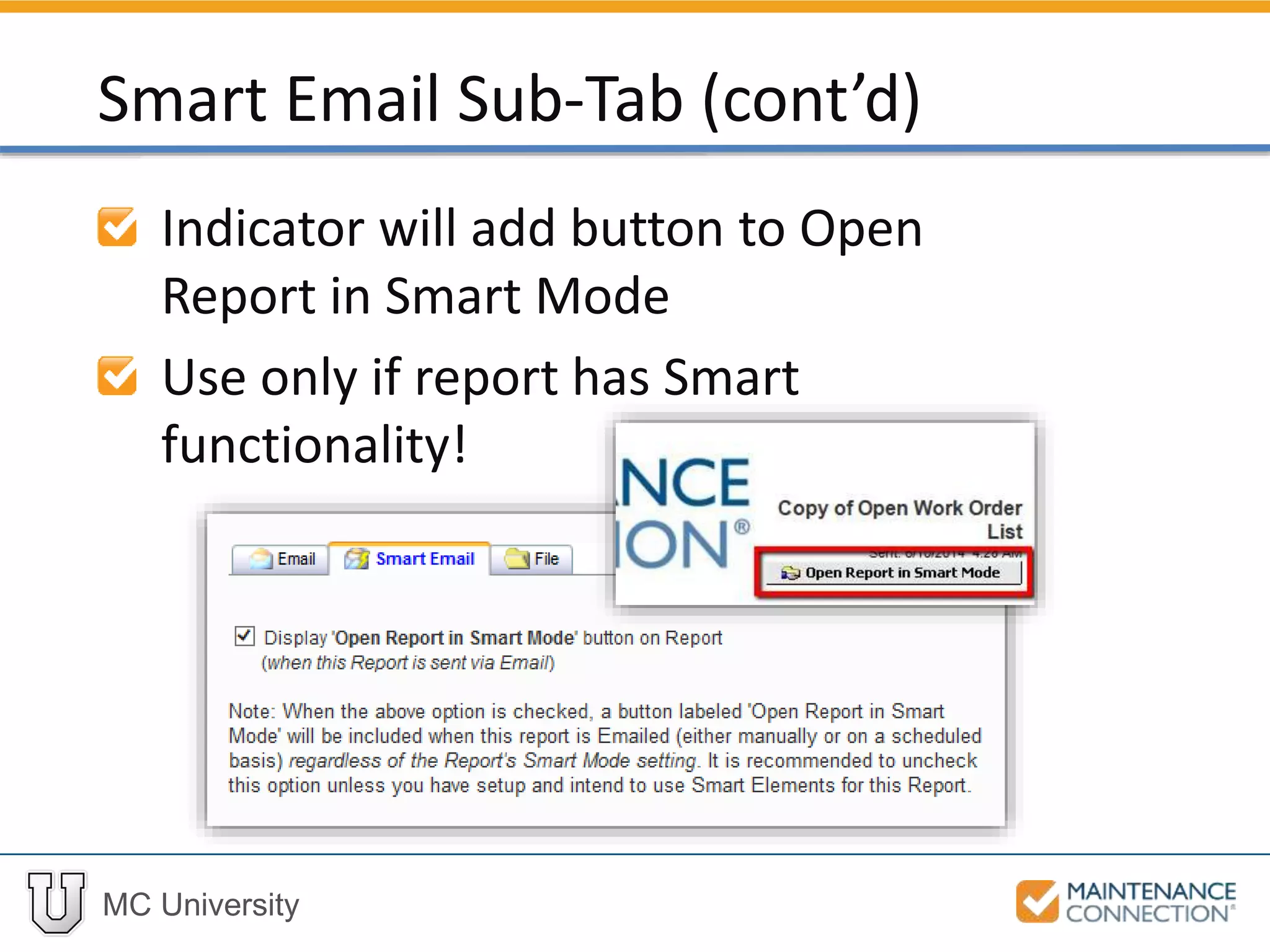
Indicator will add button to Open
Report in Smart Mode
Use only if report has Smart
functionality!
Smart Email Sub-Tab (cont’d)
MC University
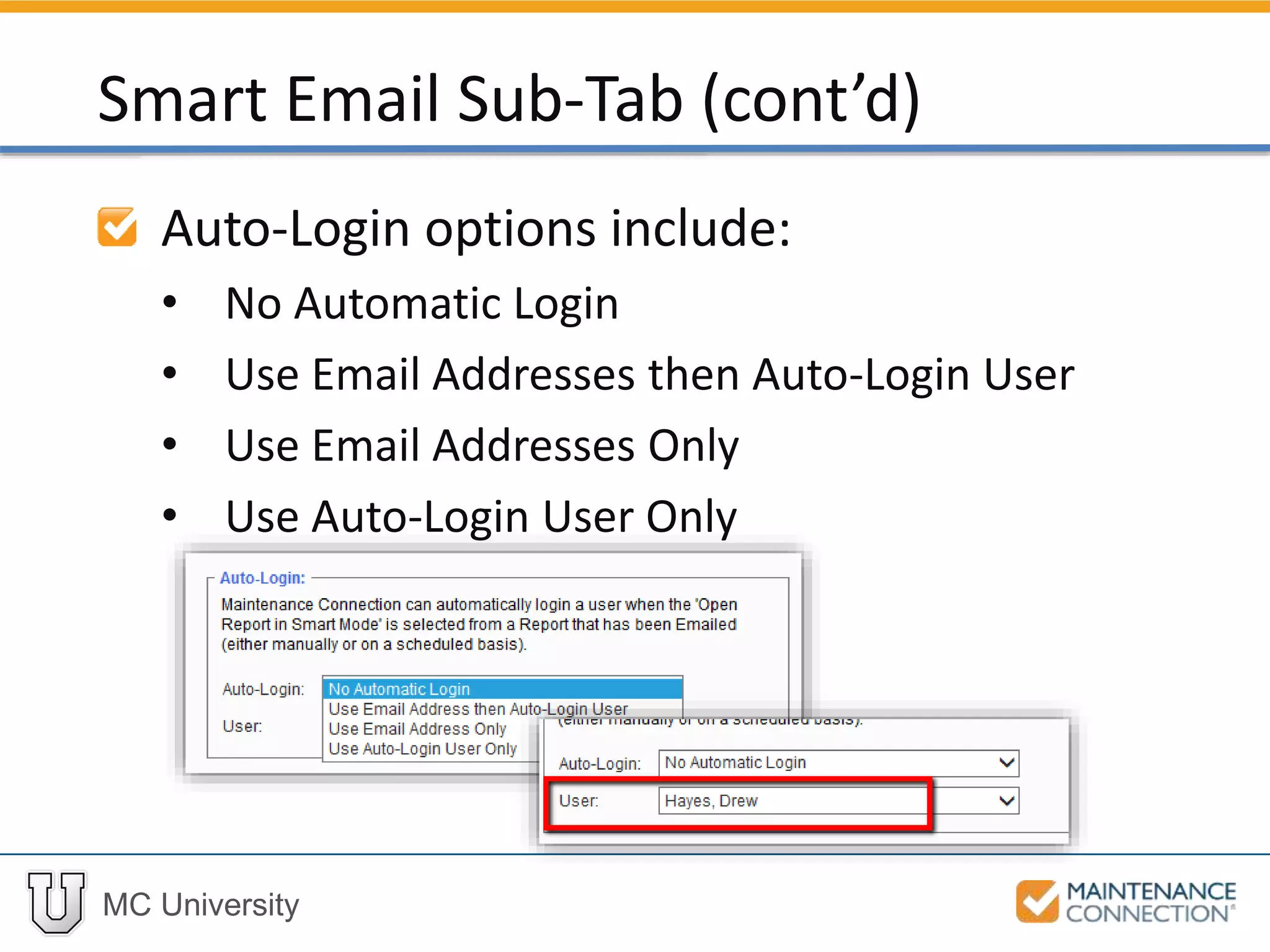
Auto-Login options include:
• No Automatic Login
• Use Email Addresses then Auto-Login User
• Use Email Addresses Only
• Use Auto-Login User Only
Smart Email Sub-Tab (cont’d)
MC University
In this example the Smart Email
function is going to be used to edit
fields from an emailed report
Smart Email: Example
MC University
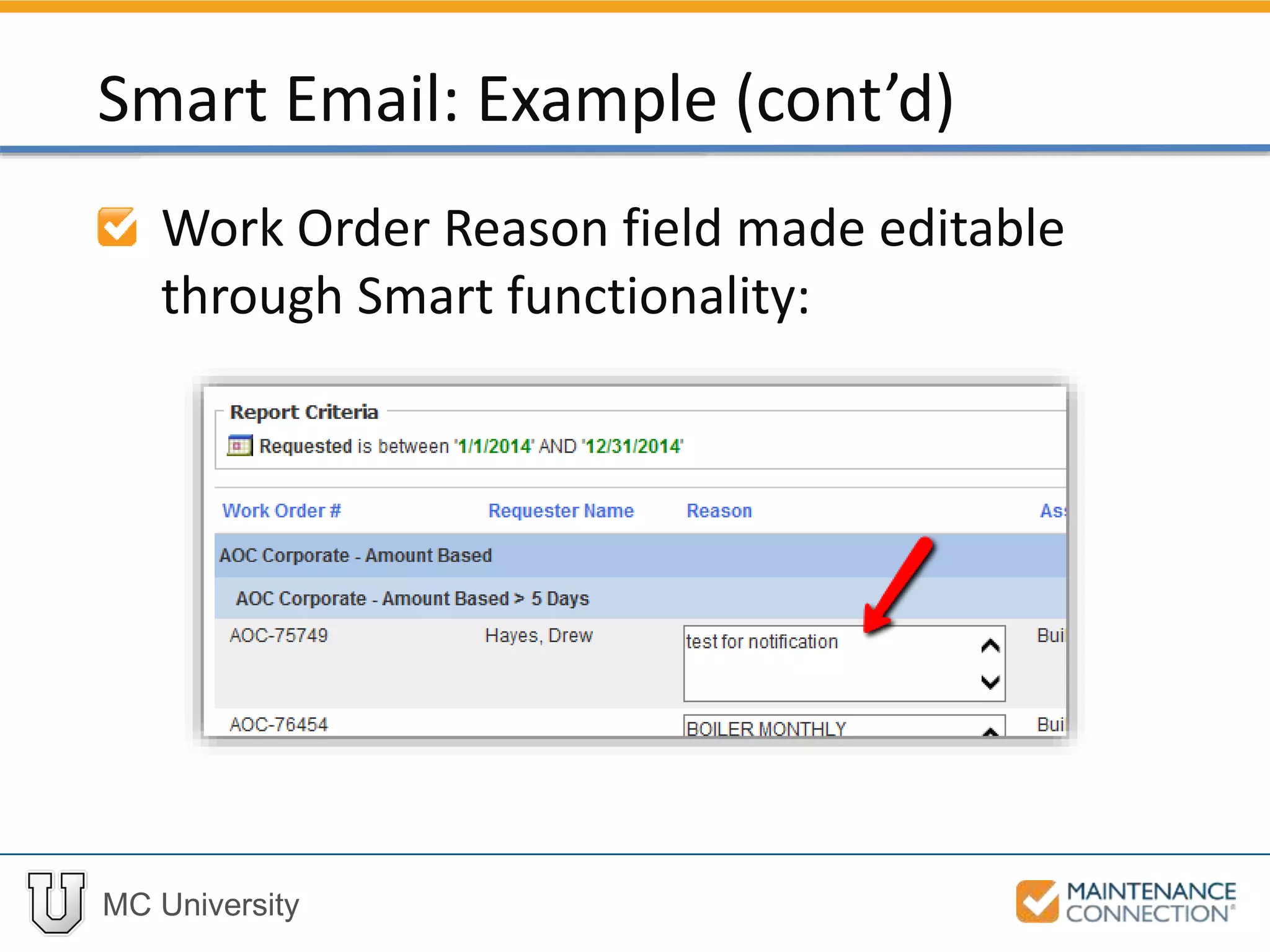
Work Order Reason field made editable
through Smart functionality:
Smart Email: Example (cont’d)
MC University
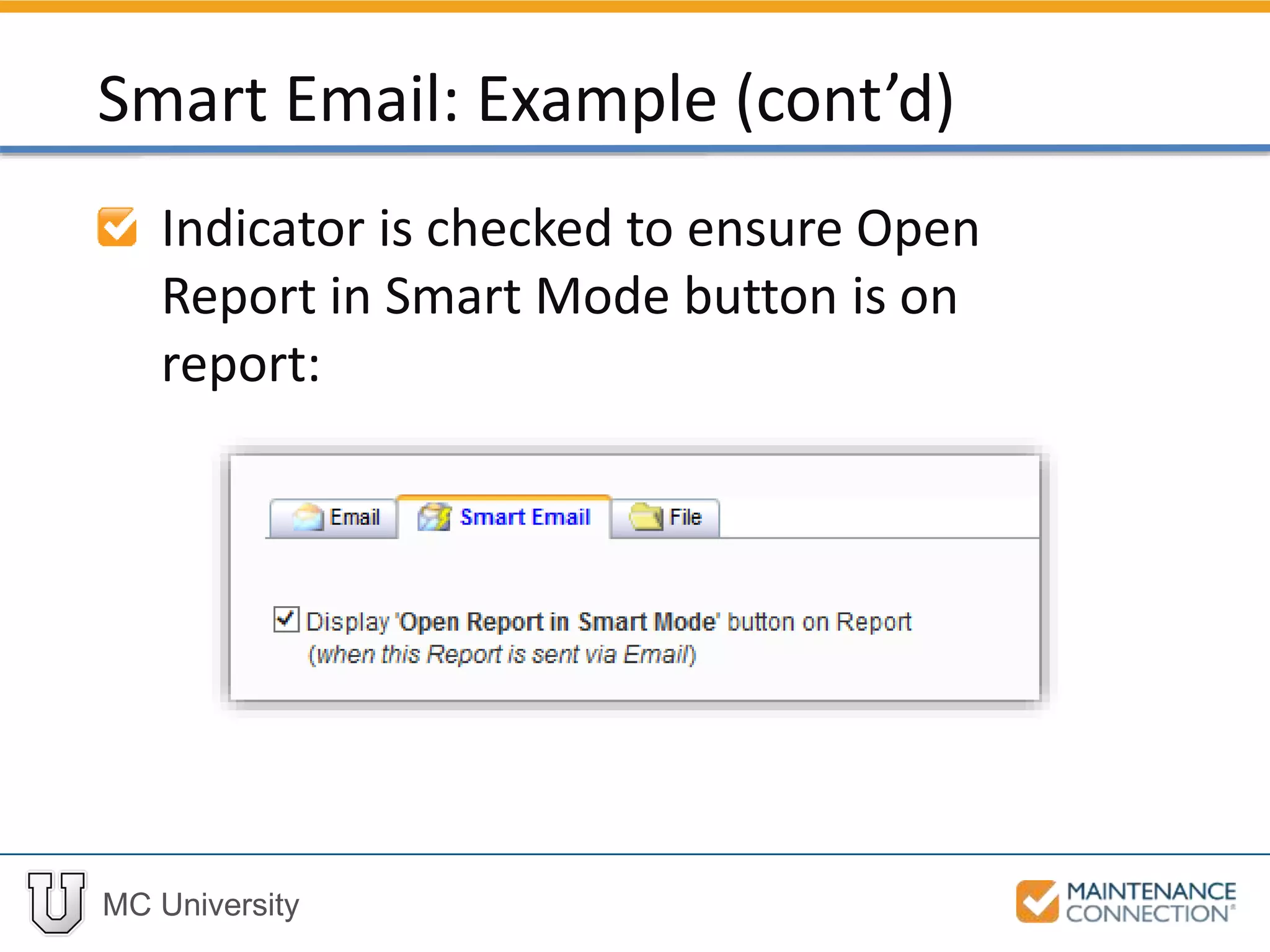
Indicator is checked to ensure Open
Report in Smart Mode button is on
report:
Smart Email: Example (cont’d)
MC University
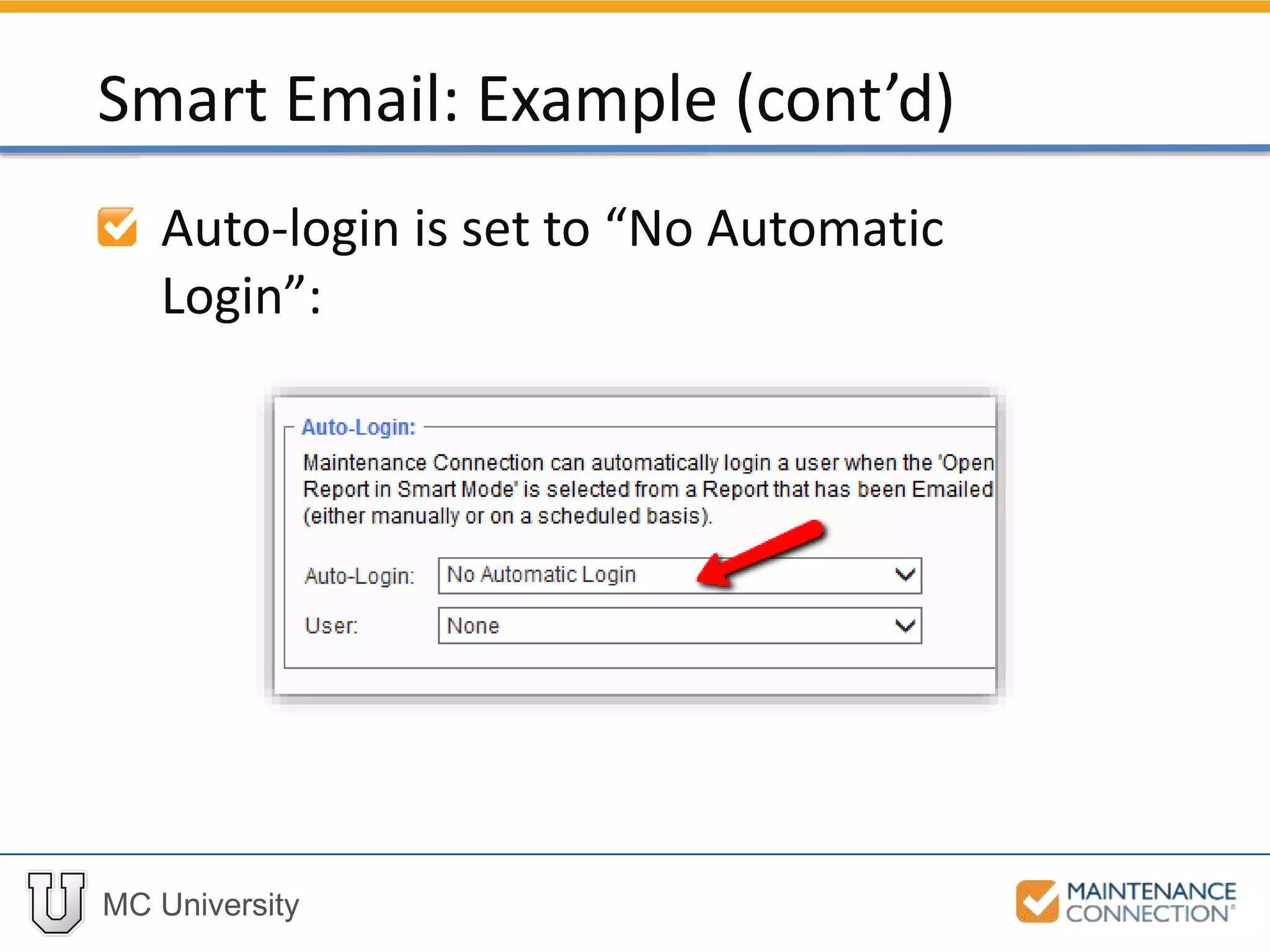
Auto-login is set to “No Automatic
Login”:
Smart Email: Example (cont’d)
MC University
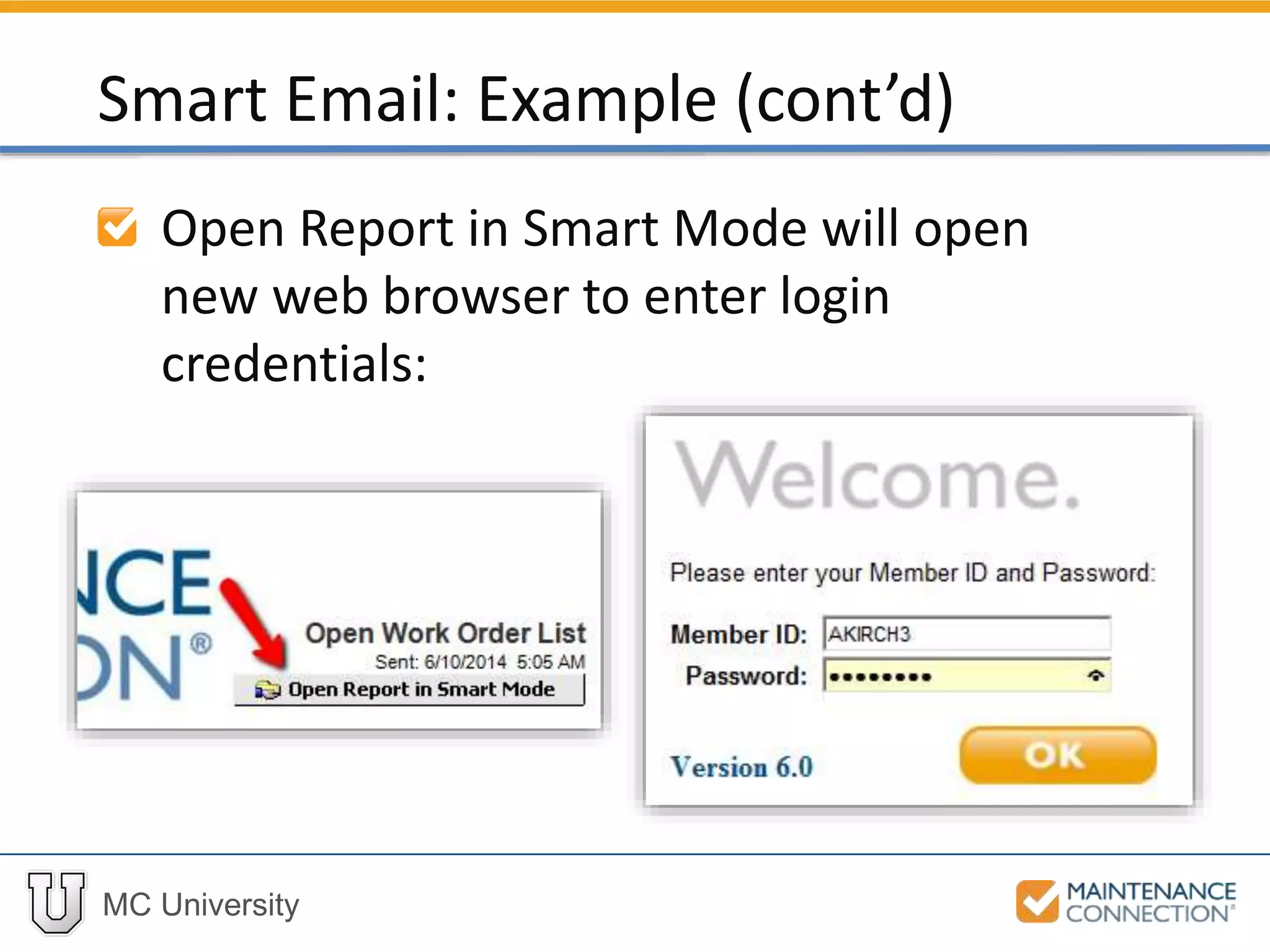
Open Report in Smart Mode will open
new web browser to enter login
credentials:
Smart Email: Example (cont’d)
MC University
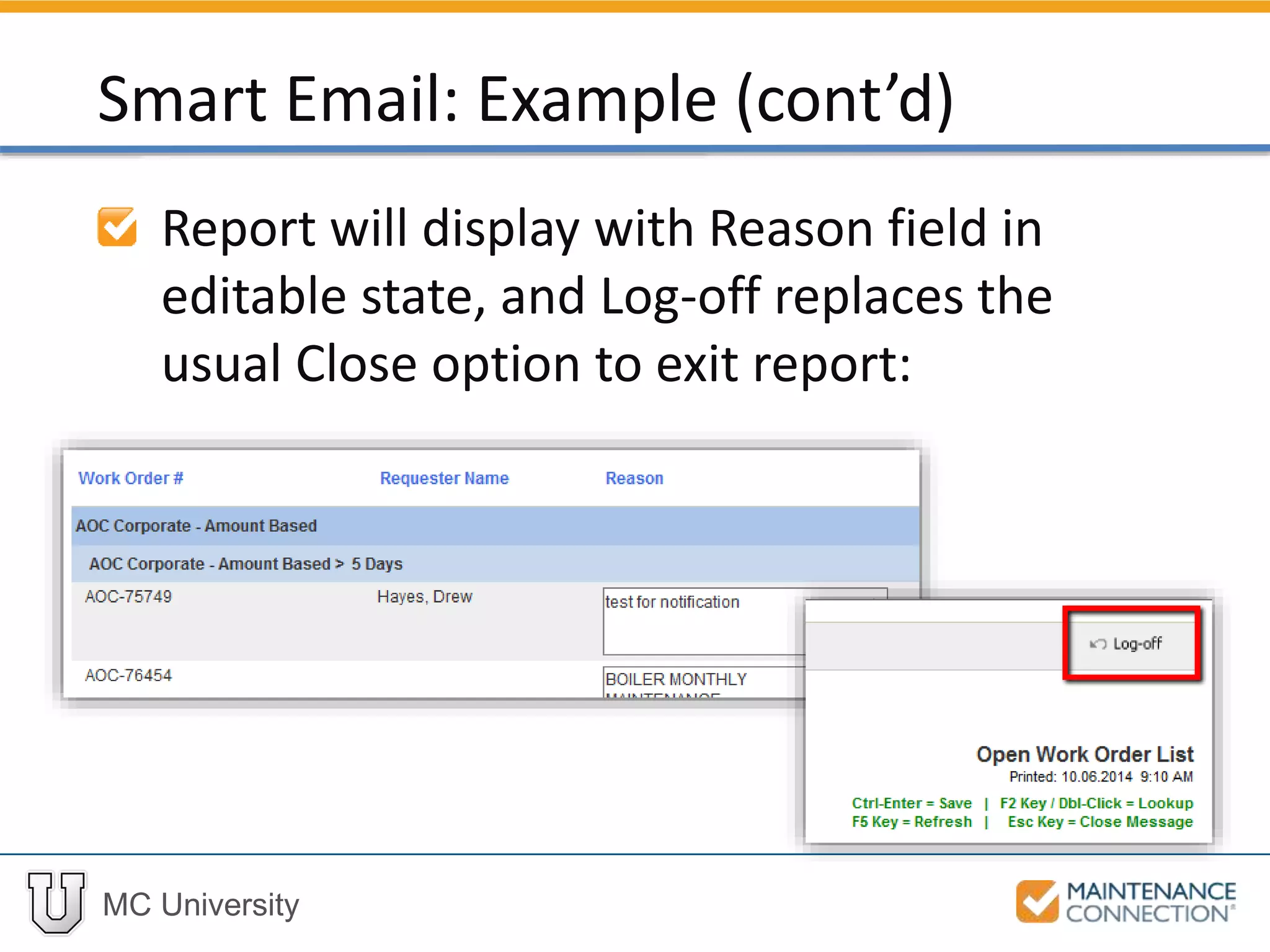
Report will display with Reason field in
editable state, and Log-off replaces the
usual Close option to exit report:
Smart Email: Example (cont’d)
MC University
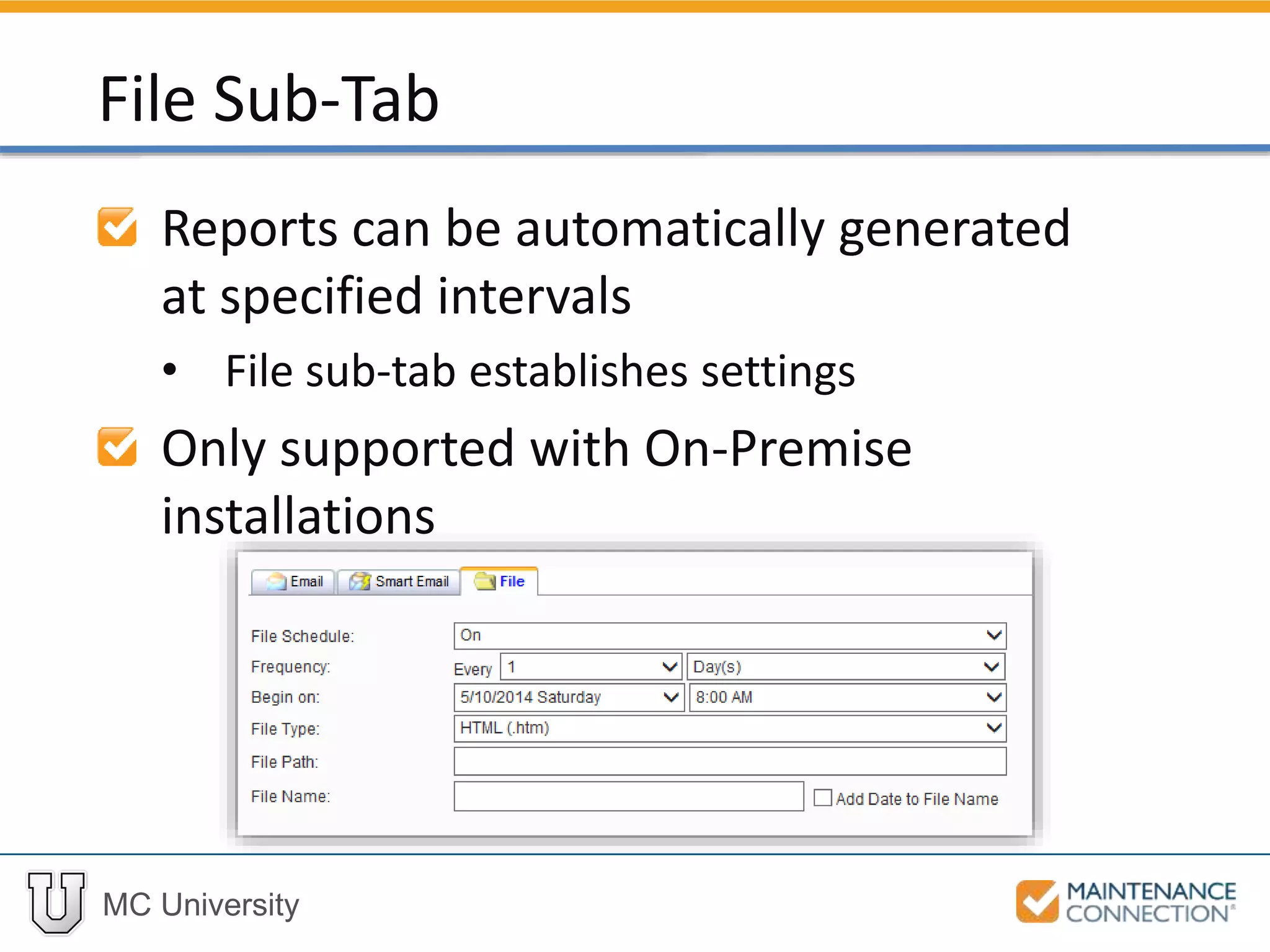
Reports can be automatically generated
at specified intervals
• File sub-tab establishes settings
Only supported with On-Premise
installations
File Sub-Tab
MC University
Exporting Reports Overview
Exporting Reports Defined
MC University
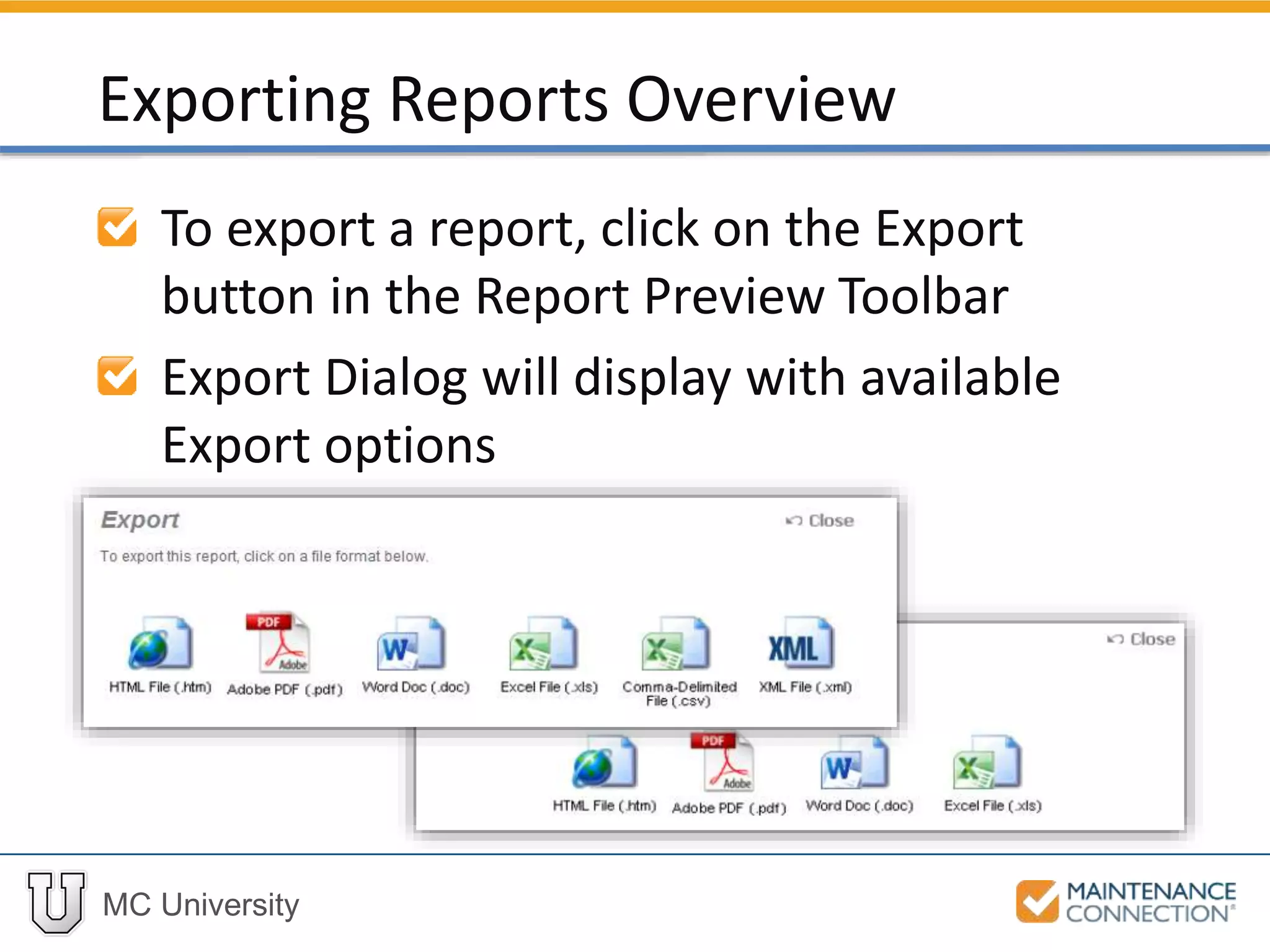
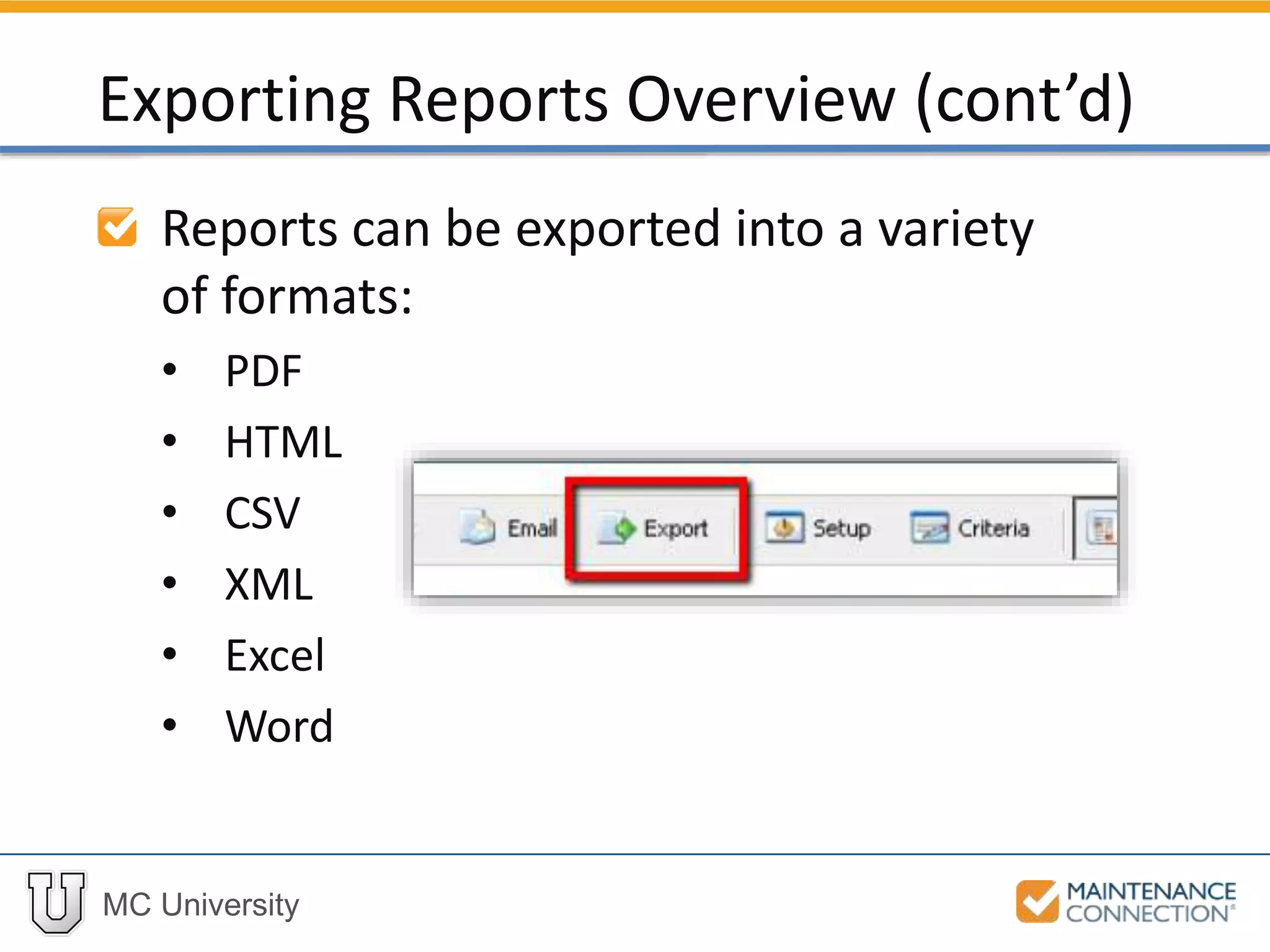
To export a report, click on the Export
button in the Report Preview Toolbar
Export Dialog will display with available
Export options
Exporting Reports Overview
MC University
Reports can be exported into a variety
of formats:
• PDF
• HTML
• CSV
• XML
• Excel
• Word
Exporting Reports Overview (cont’d)
MC University
In this example the Open Work Order
List Report will be exported to an HTML
File
Exporting Reports: Example
MC University
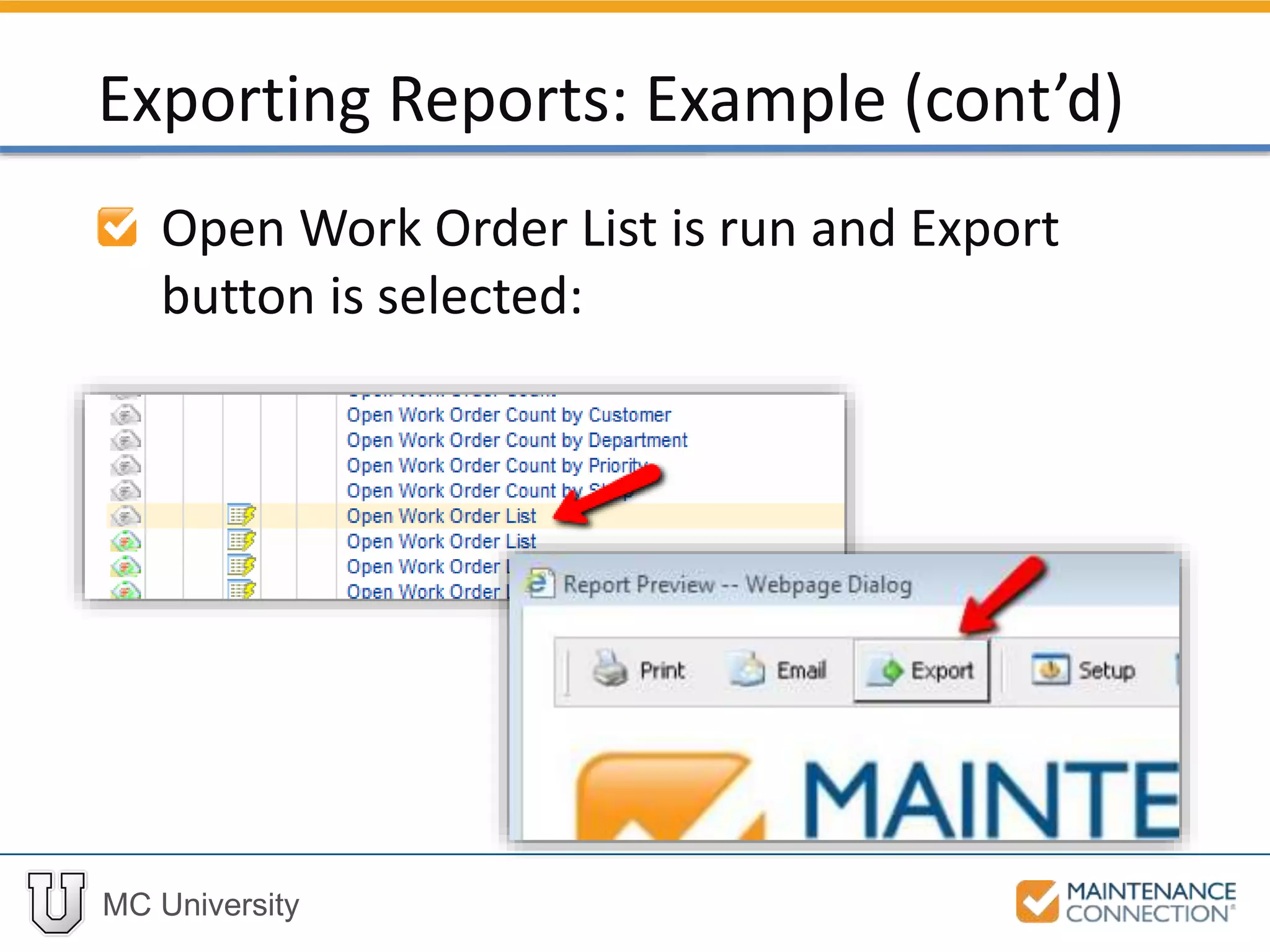
Open Work Order List is run and Export
button is selected:
Exporting Reports: Example (cont’d)
MC University
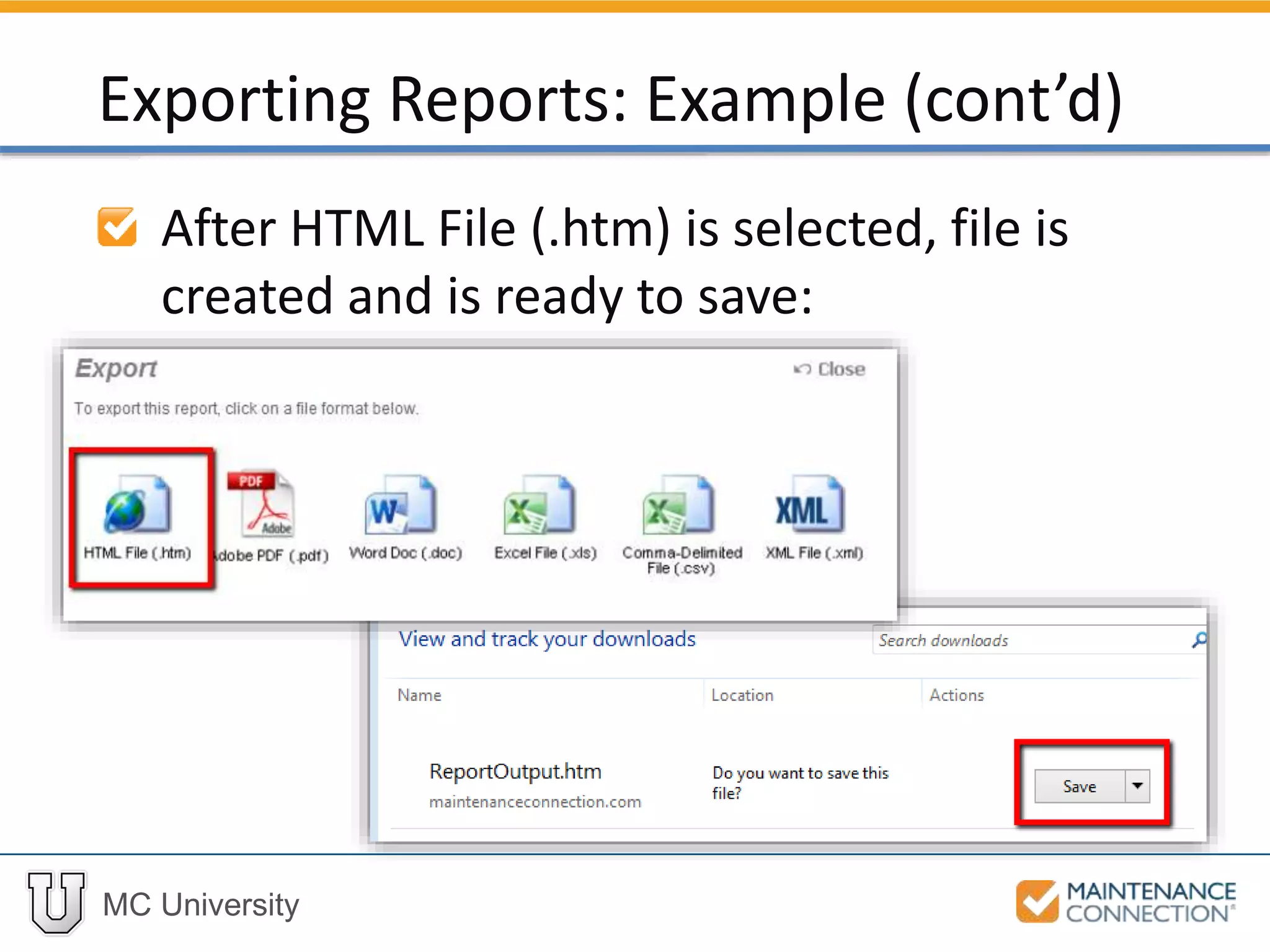
After HTML File (.htm) is selected, file is
created and is ready to save:
Exporting Reports: Example (cont’d)
MC University
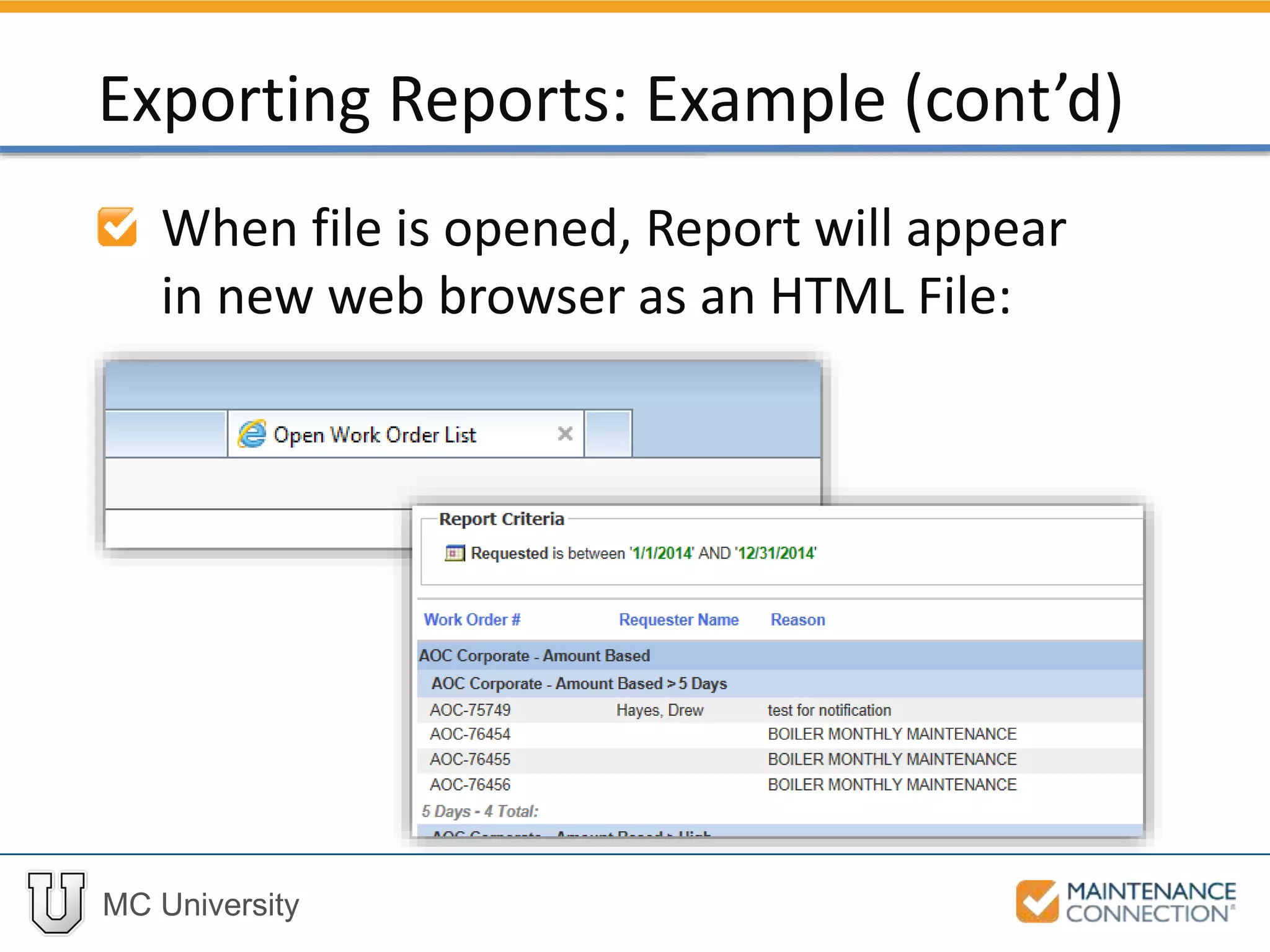
When file is opened, Report will appear
in new web browser as an HTML File:
Exporting Reports: Example (cont’d)
MC University
Now let’s practice exporting a base
report to a Comma-Delimited (.csv) file!
Exporting Reports: Hands-On
MC University
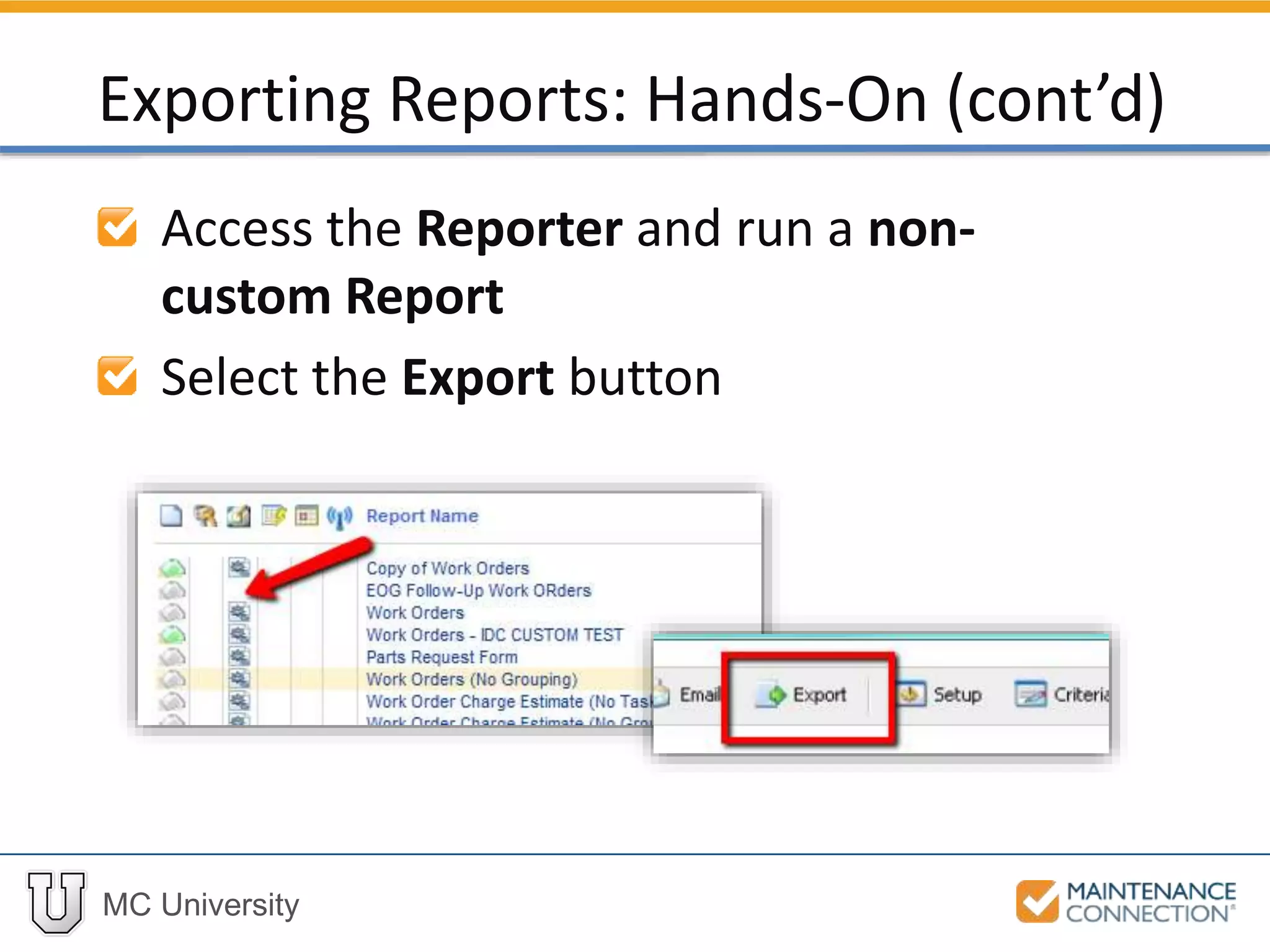
Access the Reporter and run a non-
custom Report
Select the Export button
Exporting Reports: Hands-On (cont’d)
MC University
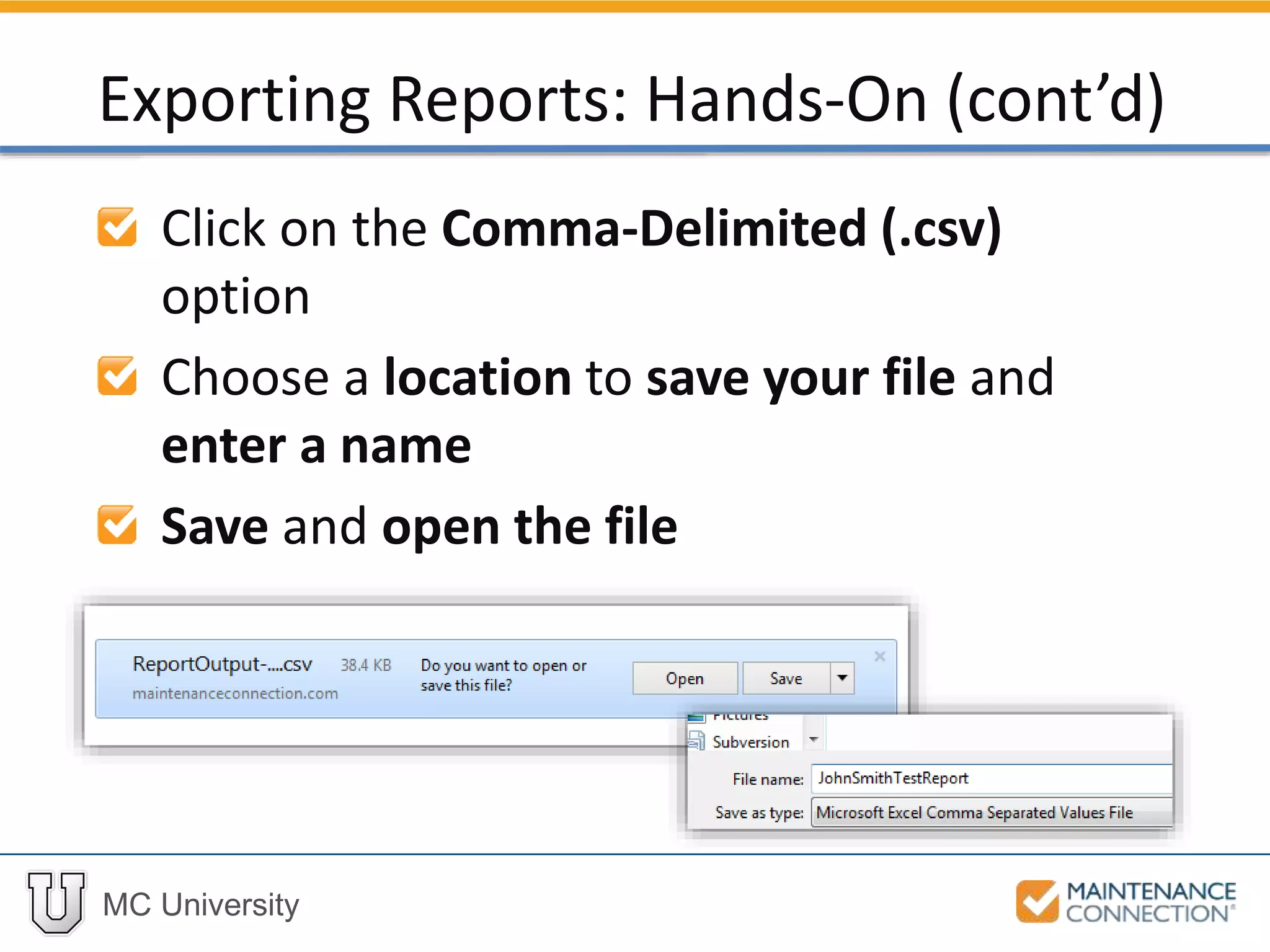
Click on the Comma-Delimited (.csv)
option
Choose a location to save your file and
enter a name
Save and open the file
Exporting Reports: Hands-On (cont’d)
MC University
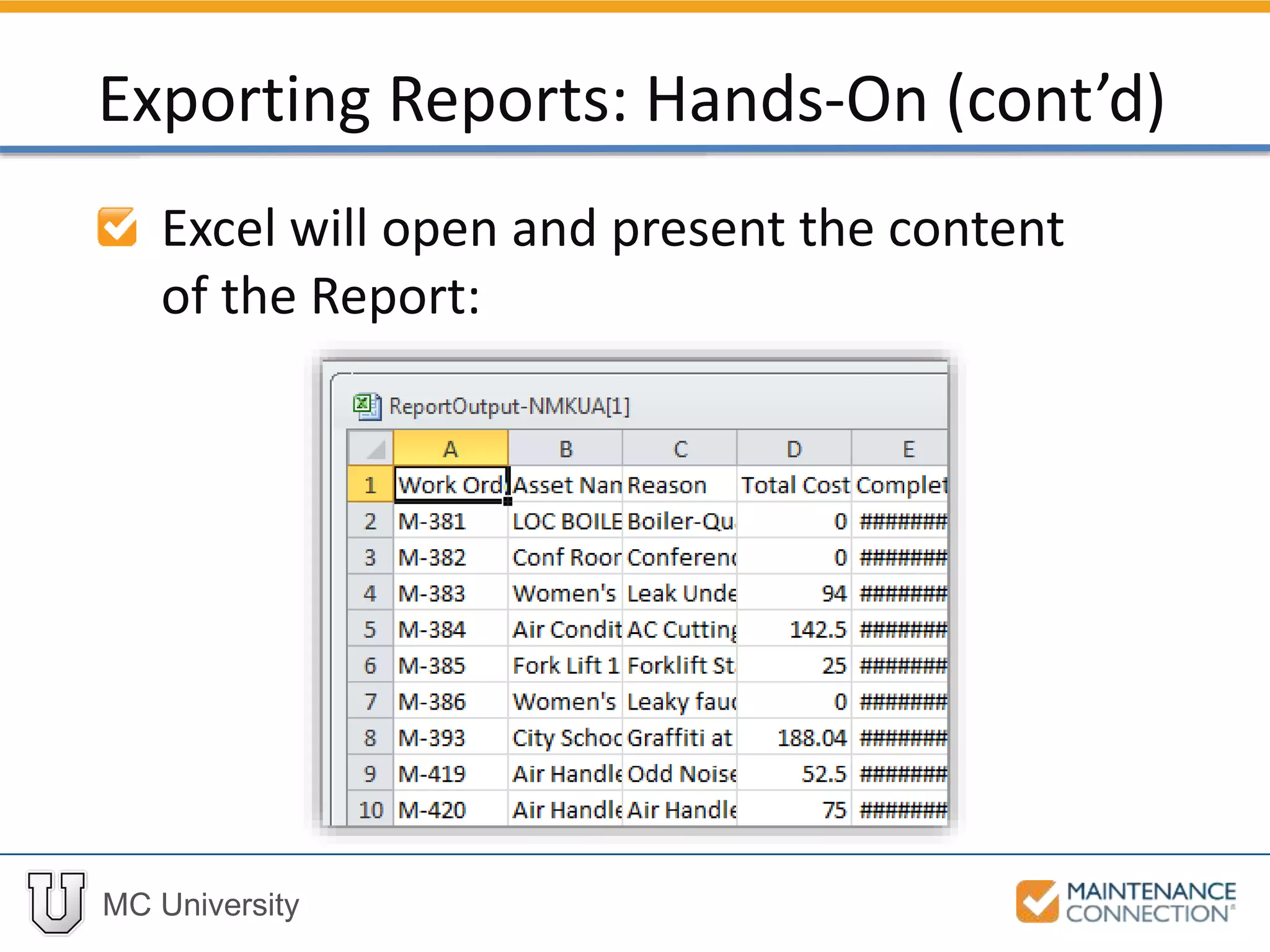
Excel will open and present the content
of the Report:
Exporting Reports: Hands-On (cont’d)
MC University
You have now succesfully completed
running and exporting a Report to a
Comma-Delimited (.csv) file!
Exporting Reports: Hands-On (cont’d)
Thank You for
Watching!

R08 - Intermediate Reporting Email Schedule and Export (MCU)

  • 1.
    MC University R08|Intermediate Reporting:Email, Schedule, and Export
  • 2.
    MC University Agenda Emailing ReportsDefined Scheduling Reports Defined Exporting Reports Defined
  • 3.
    MC University Emailing ReportsOverview Email Report Dialog Email Preferences Emailing Reports Defined
  • 4.
    MC University Report contentcan be manually emailed to selected recipients Access email function from the toolbar of the Report Preview Window Emailing Reports Overview
  • 5.
    MC University Email ReportDialog defines email information From Name: • Logged in User • System preference To Address: • Manually enter • Click “To” Email Report Dialog
  • 6.
    MC University Add recipientemail address from: • Address Book • Contacts • Labor (Employees) or (Contractors) • Requesters Email Report Dialog (cont’d)
  • 7.
    MC University Address Bookwill maintain a list of email contacts Only accessible to edit when emailing reports Email Report Dialog (cont’d)
  • 8.
    MC University Select recipientfrom available list Grey names do not have email addresses Email Report Dialog (cont’d)
  • 9.
    MC University Priority selectedwill alert recipient Subject automatically filled in with report name Email Report Dialog (cont’d)
  • 10.
    MC University HTML orPDF version can be chosen Message entered will appear above report content Email Report Dialog (cont’d)
  • 11.
    MC University Located inReport Preferences folder Repair Center or personal preference options available Email Preferences
  • 12.
    MC University Preferences foremailing reports include: • Return path for bounced emails • BCC and CC email list for outgoing emails • From information Email Preferences (cont’d)
  • 13.
    MC University Now let’spractice running and emailing Reports! Email Report: Hands-On
  • 14.
    MC University Access theReporter and select a Report to run Select the Email button Email Report: Hands-On (cont’d)
  • 15.
    MC University Enter youremail into the To Address field Set the Priority to High Type your name into the Message Select Apply Email Report: Hands-On (cont’d)
  • 16.
    MC University Report willappear in email inbox: Email Report: Hands-On (cont’d)
  • 17.
    MC University You havenow succesfully completed running and emailing a Report! Email Report: Hands-On (cont’d)
  • 18.
    MC University Scheduling ReportsOverview Email Sub-Tab Smart Email Sub-Tab File Sub-Tab Scheduling Reports Defined
  • 19.
    MC University Reports canbe scheduled for automatic distribution to specified individuals Schedule Tab of Report Setup is used to define parameters Scheduling Reports Overview
  • 20.
    MC University Email schedulemust be set to “On” from Email sub-tab Maintenance Connection Agent Service required Scheduling Reports Overview (cont’d)
  • 21.
    MC University Schedule settingsshould be defined: • Frequency of emailed report • When report should begin emailing • Attachment type • From Name and From Email Email Sub-Tab
  • 22.
    MC University Options to: •Limit report sending • Exclude specific days • Add specific Recipients Email Sub-Tab (cont’d)
  • 23.
    MC University Enable Smartelements for emailed reports Email editable forms and reports to users Smart Email Sub-Tab
  • 24.
    MC University Indicator willadd button to Open Report in Smart Mode Use only if report has Smart functionality! Smart Email Sub-Tab (cont’d)
  • 25.
    MC University Auto-Login optionsinclude: • No Automatic Login • Use Email Addresses then Auto-Login User • Use Email Addresses Only • Use Auto-Login User Only Smart Email Sub-Tab (cont’d)
  • 26.
    MC University In thisexample the Smart Email function is going to be used to edit fields from an emailed report Smart Email: Example
  • 27.
    MC University Work OrderReason field made editable through Smart functionality: Smart Email: Example (cont’d)
  • 28.
    MC University Indicator ischecked to ensure Open Report in Smart Mode button is on report: Smart Email: Example (cont’d)
  • 29.
    MC University Auto-login isset to “No Automatic Login”: Smart Email: Example (cont’d)
  • 30.
    MC University Open Reportin Smart Mode will open new web browser to enter login credentials: Smart Email: Example (cont’d)
  • 31.
    MC University Report willdisplay with Reason field in editable state, and Log-off replaces the usual Close option to exit report: Smart Email: Example (cont’d)
  • 32.
    MC University Reports canbe automatically generated at specified intervals • File sub-tab establishes settings Only supported with On-Premise installations File Sub-Tab
  • 33.
    MC University Exporting ReportsOverview Exporting Reports Defined
  • 34.
    MC University To exporta report, click on the Export button in the Report Preview Toolbar Export Dialog will display with available Export options Exporting Reports Overview
  • 35.
    MC University Reports canbe exported into a variety of formats: • PDF • HTML • CSV • XML • Excel • Word Exporting Reports Overview (cont’d)
  • 36.
    MC University In thisexample the Open Work Order List Report will be exported to an HTML File Exporting Reports: Example
  • 37.
    MC University Open WorkOrder List is run and Export button is selected: Exporting Reports: Example (cont’d)
  • 38.
    MC University After HTMLFile (.htm) is selected, file is created and is ready to save: Exporting Reports: Example (cont’d)
  • 39.
    MC University When fileis opened, Report will appear in new web browser as an HTML File: Exporting Reports: Example (cont’d)
  • 40.
    MC University Now let’spractice exporting a base report to a Comma-Delimited (.csv) file! Exporting Reports: Hands-On
  • 41.
    MC University Access theReporter and run a non- custom Report Select the Export button Exporting Reports: Hands-On (cont’d)
  • 42.
    MC University Click onthe Comma-Delimited (.csv) option Choose a location to save your file and enter a name Save and open the file Exporting Reports: Hands-On (cont’d)
  • 43.
    MC University Excel willopen and present the content of the Report: Exporting Reports: Hands-On (cont’d)
  • 44.
    MC University You havenow succesfully completed running and exporting a Report to a Comma-Delimited (.csv) file! Exporting Reports: Hands-On (cont’d)
  • 45.