WELCOME


TIPS & TRICKS

IN THE RAISER’S EDGE


                1
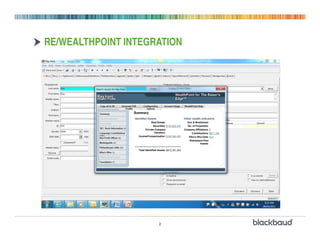
RE/WEALTHPOINT INTEGRATION


                     2
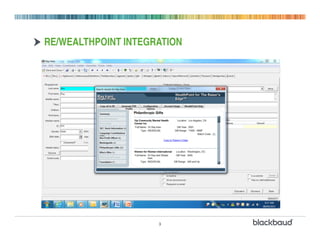
RE/WEALTHPOINT INTEGRATION


                     3
ACTION TRACKS: DEFINE, THEN ASSIGN
• Use Action Tracks to develop a plan that only requires data entry
• Define the process, then Assign to records
  - Let your desired process determine the rules
  - Use Action queries to “explain” the rules to The Raiser’s Edge
  - Useful for Event planning and Appeal execution as well!


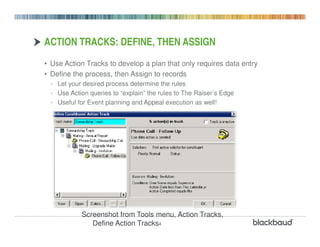
            Screenshot from Tools menu, Action Tracks,
               Define Action Tracks4
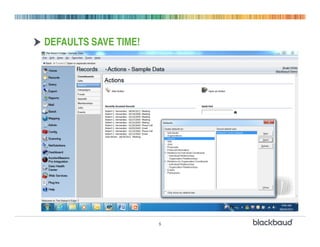
DEFAULTS SAVE TIME!


                      5
AUTOMATE OTHER THINGS…
• How do you get information to people on the road?
  - E-mail?
  - Voicemail?
  - Web Access?
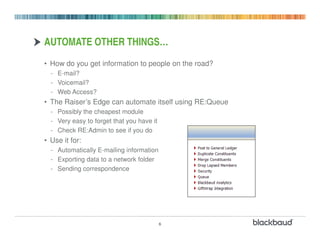
• The Raiser’s Edge can automate itself using RE:Queue
  - Possibly the cheapest module
  - Very easy to forget that you have it
  - Check RE:Admin to see if you do
• Use it for:
  - Automatically E-mailing information
  - Exporting data to a network folder
  - Sending correspondence


                                           6
CONSIDER THIS (COMMON?) EXAMPLE:
• You are traveling to another city
  - You want to visit a couple of key prospects
  - You need information to review before the meetings
  - You want to quickly follow up with them afterwards
• Automate each of these data
  - Receive today’s appointment profiles by E-mail
  - Mark activities as completed (remotely) or appoint someone else to do it
  - Schedule follow-up correspondence to occur based on action details
• The process:
  - Create a query of constituents who have an appointment scheduled for
    “today” (or this week)
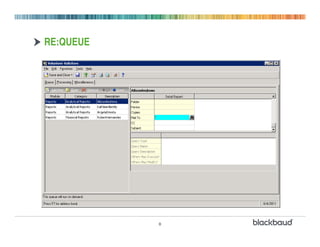
  - Create a queue that E-mails a profile


                                       7
RE:QUEUE


           8
UNDER THE HOOD
• Create a query of constituents who have an appointment scheduled
  for “today” (or this week)
• Create a queue that E-mails a profile for anyone in the query
 - You will need Microsoft Exchange for execution
 - For best results, use ADOBE PDF as the format
• Create a separate queue for correspondence follow-up
 - This could print to an office printer for another staff to pick up and mail
 - Little data entry has to be required
 - Use Follow-up Letters to customize the letters based on details from the
   Action
   • Consider using Action Attributes to further personalize the messages
   • Combine this with Action Tracks to automatically schedule a follow-up
      activity


                                        9
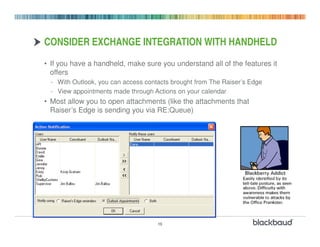
CONSIDER EXCHANGE INTEGRATION WITH HANDHELD
• If you have a handheld, make sure you understand all of the features it
  offers
  - With Outlook, you can access contacts brought from The Raiser’s Edge
  - View appointments made through Actions on your calendar
• Most allow you to open attachments (like the attachments that
  Raiser’s Edge is sending you via RE:Queue)


                                     10
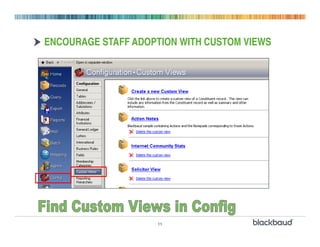
ENCOURAGE STAFF ADOPTION WITH CUSTOM VIEWS


                    11
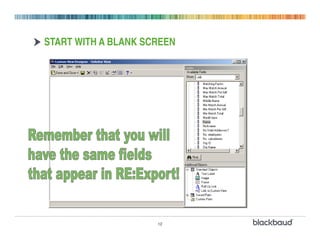
START WITH A BLANK SCREEN


                     12
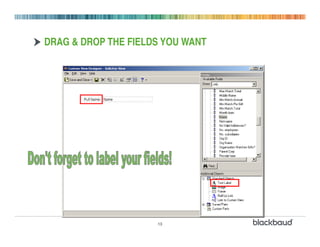
DRAG & DROP THE FIELDS YOU WANT


                     13
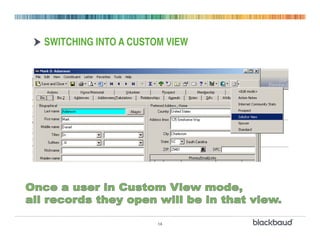
SWITCHING INTO A CUSTOM VIEW


                      14
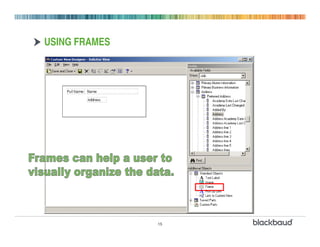
USING FRAMES


               15
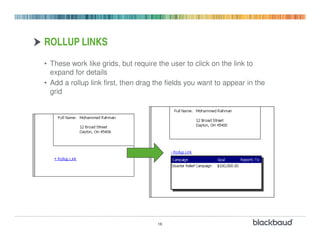
ROLLUP LINKS
• These work like grids, but require the user to click on the link to
  expand for details
• Add a rollup link first, then drag the fields you want to appear in the
  grid


                                     16
ARE PIVOT REPORTS RIGHT FOR ME?

• They are right for everyone!
• Unlike the opposite sex, Pivot Reports are:
  - Always flexible
  - Easy to work with
  - Simple to understand
  - Great for commitment-phobes
• A simple 3 step process makes pivot reports a reality
  for you


                          17
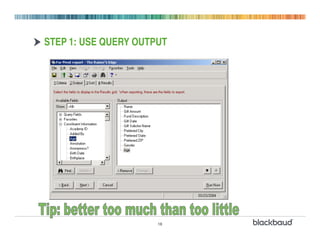
STEP 1: USE QUERY OUTPUT


                      18
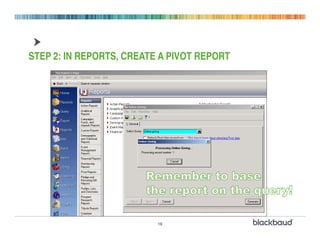
STEP 2: IN REPORTS, CREATE A PIVOT REPORT


                          19
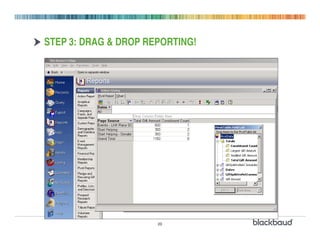
STEP 3: DRAG & DROP REPORTING!


                      20
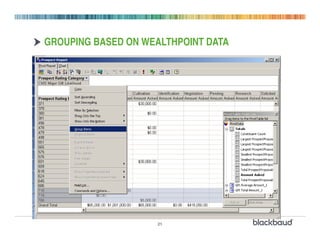
GROUPING BASED ON WEALTHPOINT DATA


                    21
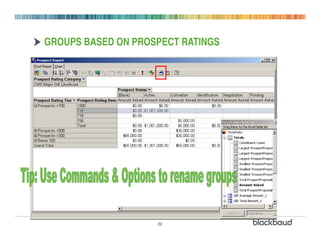
GROUPS BASED ON PROSPECT RATINGS


                    22
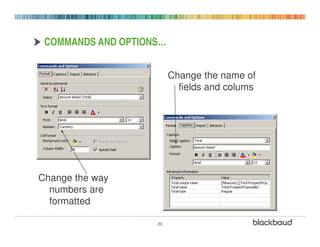
COMMANDS AND OPTIONS…


                         Change the name of
                           fields and colums


Change the way
  numbers are
  formatted

                    23
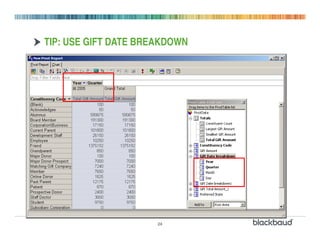
TIP: USE GIFT DATE BREAKDOWN


                      24
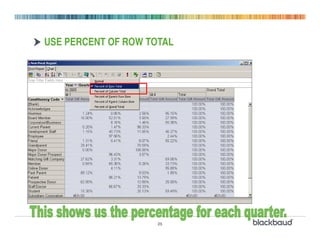
USE PERCENT OF ROW TOTAL


                     25
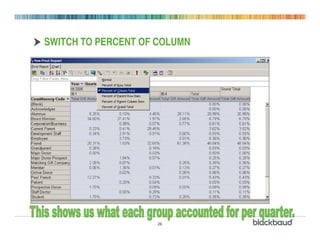
SWITCH TO PERCENT OF COLUMN


                    26
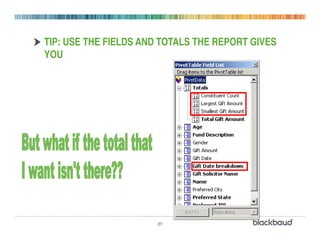
TIP: USE THE FIELDS AND TOTALS THE REPORT GIVES
YOU


                      27
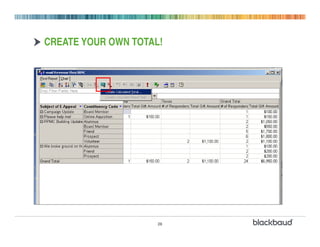
CREATE YOUR OWN TOTAL!


                     28
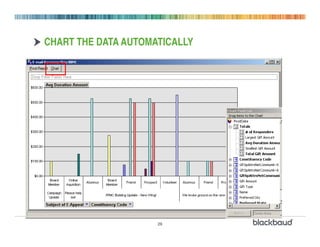
CHART THE DATA AUTOMATICALLY


                     29
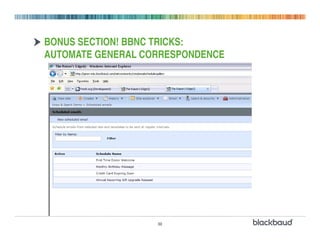
BONUS SECTION! BBNC TRICKS:
AUTOMATE GENERAL CORRESPONDENCE


                   30
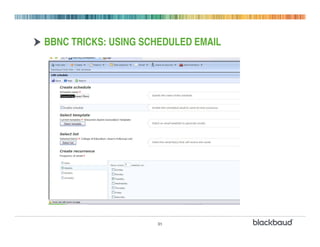
BBNC TRICKS: USING SCHEDULED EMAIL


                     31
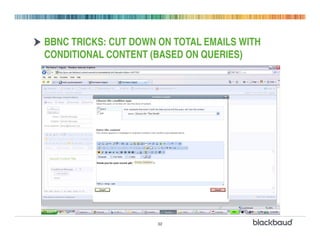
BBNC TRICKS: CUT DOWN ON TOTAL EMAILS WITH
CONDITIONAL CONTENT (BASED ON QUERIES)


                      32

Tricks and tips_re

  • 1.
    WELCOME TIPS & TRICKS INTHE RAISER’S EDGE 1
  • 2.
  • 3.
  • 4.
    ACTION TRACKS: DEFINE,THEN ASSIGN • Use Action Tracks to develop a plan that only requires data entry • Define the process, then Assign to records - Let your desired process determine the rules - Use Action queries to “explain” the rules to The Raiser’s Edge - Useful for Event planning and Appeal execution as well! Screenshot from Tools menu, Action Tracks, Define Action Tracks4
  • 5.
  • 6.
    AUTOMATE OTHER THINGS… •How do you get information to people on the road? - E-mail? - Voicemail? - Web Access? • The Raiser’s Edge can automate itself using RE:Queue - Possibly the cheapest module - Very easy to forget that you have it - Check RE:Admin to see if you do • Use it for: - Automatically E-mailing information - Exporting data to a network folder - Sending correspondence 6
  • 7.
    CONSIDER THIS (COMMON?)EXAMPLE: • You are traveling to another city - You want to visit a couple of key prospects - You need information to review before the meetings - You want to quickly follow up with them afterwards • Automate each of these data - Receive today’s appointment profiles by E-mail - Mark activities as completed (remotely) or appoint someone else to do it - Schedule follow-up correspondence to occur based on action details • The process: - Create a query of constituents who have an appointment scheduled for “today” (or this week) - Create a queue that E-mails a profile 7
  • 8.
  • 9.
    UNDER THE HOOD •Create a query of constituents who have an appointment scheduled for “today” (or this week) • Create a queue that E-mails a profile for anyone in the query - You will need Microsoft Exchange for execution - For best results, use ADOBE PDF as the format • Create a separate queue for correspondence follow-up - This could print to an office printer for another staff to pick up and mail - Little data entry has to be required - Use Follow-up Letters to customize the letters based on details from the Action • Consider using Action Attributes to further personalize the messages • Combine this with Action Tracks to automatically schedule a follow-up activity 9
  • 10.
    CONSIDER EXCHANGE INTEGRATIONWITH HANDHELD • If you have a handheld, make sure you understand all of the features it offers - With Outlook, you can access contacts brought from The Raiser’s Edge - View appointments made through Actions on your calendar • Most allow you to open attachments (like the attachments that Raiser’s Edge is sending you via RE:Queue) 10
  • 11.
    ENCOURAGE STAFF ADOPTIONWITH CUSTOM VIEWS 11
  • 12.
    START WITH ABLANK SCREEN 12
  • 13.
    DRAG & DROPTHE FIELDS YOU WANT 13
  • 14.
    SWITCHING INTO ACUSTOM VIEW 14
  • 15.
  • 16.
    ROLLUP LINKS • Thesework like grids, but require the user to click on the link to expand for details • Add a rollup link first, then drag the fields you want to appear in the grid 16
  • 17.
    ARE PIVOT REPORTSRIGHT FOR ME? • They are right for everyone! • Unlike the opposite sex, Pivot Reports are: - Always flexible - Easy to work with - Simple to understand - Great for commitment-phobes • A simple 3 step process makes pivot reports a reality for you 17
  • 18.
    STEP 1: USEQUERY OUTPUT 18
  • 19.
    STEP 2: INREPORTS, CREATE A PIVOT REPORT 19
  • 20.
    STEP 3: DRAG& DROP REPORTING! 20
  • 21.
    GROUPING BASED ONWEALTHPOINT DATA 21
  • 22.
    GROUPS BASED ONPROSPECT RATINGS 22
  • 23.
    COMMANDS AND OPTIONS… Change the name of fields and colums Change the way numbers are formatted 23
  • 24.
    TIP: USE GIFTDATE BREAKDOWN 24
  • 25.
    USE PERCENT OFROW TOTAL 25
  • 26.
    SWITCH TO PERCENTOF COLUMN 26
  • 27.
    TIP: USE THEFIELDS AND TOTALS THE REPORT GIVES YOU 27
  • 28.
    CREATE YOUR OWNTOTAL! 28
  • 29.
    CHART THE DATAAUTOMATICALLY 29
  • 30.
    BONUS SECTION! BBNCTRICKS: AUTOMATE GENERAL CORRESPONDENCE 30
  • 31.
    BBNC TRICKS: USINGSCHEDULED EMAIL 31
  • 32.
    BBNC TRICKS: CUTDOWN ON TOTAL EMAILS WITH CONDITIONAL CONTENT (BASED ON QUERIES) 32