Quick Reference Guide for Creating a Requisition in Oracle iProcurement
1
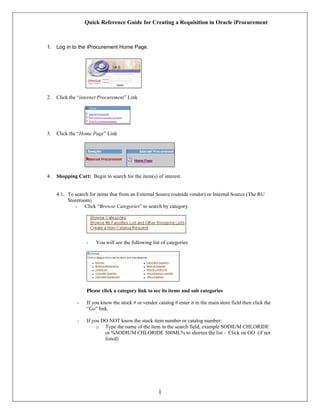
1. Log in to the iProcurement Home Page.
2. Click the “internet Procurement” Link
3. Click the “Home Page” Link
4. Shopping Cart: Begin to search for the item(s) of interest.
4.1. To search for items that from an External Source (outside vendor) or Internal Source (The RU
Storeroom)
- Click “Browse Categories” to search by category.
- You will see the following list of categories
Please click a category link to see its items and sub categories
- If you know the stock # or vendor catalog # enter it in the main store field then click the
“Go” link.
- If you DO NOT know the stock item number or catalog number:
o Type the name of the item in the search field, example SODIUM CHLORIDE
or %SODIUM CHLORIDE 500ML% to shorten the list - Click on GO (if not
listed)
Quick Reference Guide for Creating a Requisition in Oracle iProcurement
2
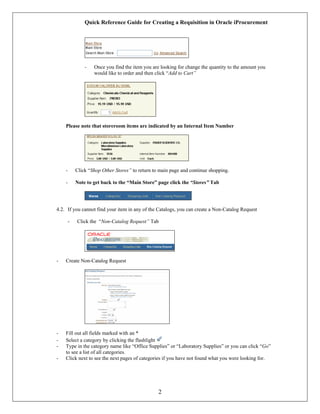
- Once you find the item you are looking for change the quantity to the amount you
would like to order and then click “Add to Cart”
Please note that storeroom items are indicated by an Internal Item Number
- Click “Shop Other Stores” to return to main page and continue shopping.
- Note to get back to the “Main Store” page click the “Stores” Tab
4.2. If you cannot find your item in any of the Catalogs, you can create a Non-Catalog Request
- Click the “Non-Catalog Request” Tab
- Create Non-Catalog Request
- Fill out all fields marked with an *
- Select a category by clicking the flashlight
- Type in the category name like “Office Supplies” or “Laboratory Supplies” or you can click “Go”
to see a list of all categories.
- Click next to see the next pages of categories if you have not found what you were looking for.
Quick Reference Guide for Creating a Requisition in Oracle iProcurement
3
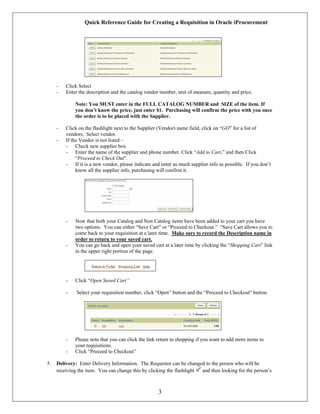
- Click Select
- Enter the description and the catalog vendor number, unit of measure, quantity and price.
Note: You MUST enter in the FULL CATALOG NUMBER and SIZE of the item. If
you don’t know the price, just enter $1. Purchasing will confirm the price with you once
the order is to be placed with the Supplier.
- Click on the flashlight next to the Supplier (Vendor) name field, click on “GO” for a list of
vendors. Select vendor.
- If the Vendor is not listed –
- Check new supplier box
- Enter the name of the supplier and phone number. Click “Add to Cart,” and then Click
“Proceed to Check Out”.
- If it is a new vendor, please indicate and enter as much supplier info as possible. If you don’t
know all the supplier info, purchasing will confirm it.
- Now that both your Catalog and Non Catalog items have been added to your cart you have
two options. You can either “Save Cart” or “Proceed to Checkout.” “Save Cart allows you to
come back to your requisition at a later time. Make sure to record the Description name in
order to return to your saved cart.
- You can go back and open your saved cart at a later time by clicking the “Shopping Cart” link
in the upper right portion of the page.
- Click “Open Saved Cart”
- Select your requisition number, click “Open” button and the “Proceed to Checkout” button.
- Please note that you can click the link return to shopping if you want to add more items to
your requisitions.
- Click “Proceed to Checkout”
5. Delivery: Enter Delivery Information. The Requestor can be changed to the person who will be
receiving the item. You can change this by clicking the flashlight and then looking for the person’s
Quick Reference Guide for Creating a Requisition in Oracle iProcurement
4
name. Please note that Oracle will automatically assign the appropriate Receiving Location (64th
St,
68 th
St, LARC, etc.).
- Click “Continue”
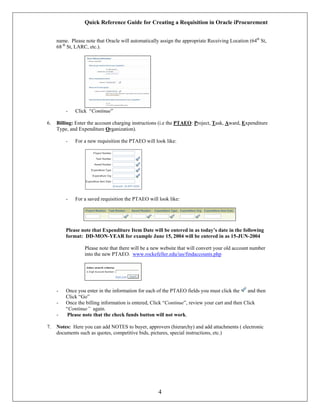
6. Billing: Enter the account charging instructions (i.e the PTAEO: Project, Task, Award, Expenditure
Type, and Expenditure Organization).
- For a new requisition the PTAEO will look like:
- For a saved requisition the PTAEO will look like:
Please note that Expenditure Item Date will be entered in as today’s date in the following
format: DD-MON-YEAR for example June 15, 2004 will be entered in as 15-JUN-2004
Please note that there will be a new website that will convert your old account number
into the new PTAEO. www.rockefeller.edu/ias/findaccounts.php
- Once you enter in the information for each of the PTAEO fields you must click the and then
Click “Go”
- Once the billing information is entered, Click “Continue”, review your cart and then Click
“Continue” again.
- Please note that the check funds button will not work.
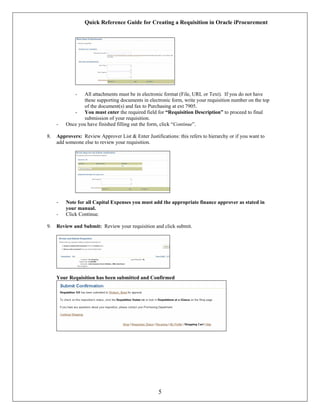
7. Notes: Here you can add NOTES to buyer, approvers (hierarchy) and add attachments ( electronic
documents such as quotes, competitive bids, pictures, special instructions, etc.)
Quick Reference Guide for Creating a Requisition in Oracle iProcurement
5
- All attachments must be in electronic format (File, URL or Text). If you do not have
these supporting documents in electronic form, write your requisition number on the top
of the document(s) and fax to Purchasing at ext 7905.
- You must enter the required field for “Requisition Description” to proceed to final
submission of your requisition.
- Once you have finished filling out the form, click “Continue”.
8. Approvers: Review Approver List & Enter Justifications: this refers to hierarchy or if you want to
add someone else to review your requisition.
- Note for all Capital Expenses you must add the appropriate finance approver as stated in
your manual.
- Click Continue.
9. Review and Submit: Review your requisition and click submit.
Your Requisition has been submitted and Confirmed

Quick Reference Guide

  • 1.
    Quick Reference Guidefor Creating a Requisition in Oracle iProcurement 1 1. Log in to the iProcurement Home Page. 2. Click the “internet Procurement” Link 3. Click the “Home Page” Link 4. Shopping Cart: Begin to search for the item(s) of interest. 4.1. To search for items that from an External Source (outside vendor) or Internal Source (The RU Storeroom) - Click “Browse Categories” to search by category. - You will see the following list of categories Please click a category link to see its items and sub categories - If you know the stock # or vendor catalog # enter it in the main store field then click the “Go” link. - If you DO NOT know the stock item number or catalog number: o Type the name of the item in the search field, example SODIUM CHLORIDE or %SODIUM CHLORIDE 500ML% to shorten the list - Click on GO (if not listed)
  • 2.
    Quick Reference Guidefor Creating a Requisition in Oracle iProcurement 2 - Once you find the item you are looking for change the quantity to the amount you would like to order and then click “Add to Cart” Please note that storeroom items are indicated by an Internal Item Number - Click “Shop Other Stores” to return to main page and continue shopping. - Note to get back to the “Main Store” page click the “Stores” Tab 4.2. If you cannot find your item in any of the Catalogs, you can create a Non-Catalog Request - Click the “Non-Catalog Request” Tab - Create Non-Catalog Request - Fill out all fields marked with an * - Select a category by clicking the flashlight - Type in the category name like “Office Supplies” or “Laboratory Supplies” or you can click “Go” to see a list of all categories. - Click next to see the next pages of categories if you have not found what you were looking for.
  • 3.
    Quick Reference Guidefor Creating a Requisition in Oracle iProcurement 3 - Click Select - Enter the description and the catalog vendor number, unit of measure, quantity and price. Note: You MUST enter in the FULL CATALOG NUMBER and SIZE of the item. If you don’t know the price, just enter $1. Purchasing will confirm the price with you once the order is to be placed with the Supplier. - Click on the flashlight next to the Supplier (Vendor) name field, click on “GO” for a list of vendors. Select vendor. - If the Vendor is not listed – - Check new supplier box - Enter the name of the supplier and phone number. Click “Add to Cart,” and then Click “Proceed to Check Out”. - If it is a new vendor, please indicate and enter as much supplier info as possible. If you don’t know all the supplier info, purchasing will confirm it. - Now that both your Catalog and Non Catalog items have been added to your cart you have two options. You can either “Save Cart” or “Proceed to Checkout.” “Save Cart allows you to come back to your requisition at a later time. Make sure to record the Description name in order to return to your saved cart. - You can go back and open your saved cart at a later time by clicking the “Shopping Cart” link in the upper right portion of the page. - Click “Open Saved Cart” - Select your requisition number, click “Open” button and the “Proceed to Checkout” button. - Please note that you can click the link return to shopping if you want to add more items to your requisitions. - Click “Proceed to Checkout” 5. Delivery: Enter Delivery Information. The Requestor can be changed to the person who will be receiving the item. You can change this by clicking the flashlight and then looking for the person’s
  • 4.
    Quick Reference Guidefor Creating a Requisition in Oracle iProcurement 4 name. Please note that Oracle will automatically assign the appropriate Receiving Location (64th St, 68 th St, LARC, etc.). - Click “Continue” 6. Billing: Enter the account charging instructions (i.e the PTAEO: Project, Task, Award, Expenditure Type, and Expenditure Organization). - For a new requisition the PTAEO will look like: - For a saved requisition the PTAEO will look like: Please note that Expenditure Item Date will be entered in as today’s date in the following format: DD-MON-YEAR for example June 15, 2004 will be entered in as 15-JUN-2004 Please note that there will be a new website that will convert your old account number into the new PTAEO. www.rockefeller.edu/ias/findaccounts.php - Once you enter in the information for each of the PTAEO fields you must click the and then Click “Go” - Once the billing information is entered, Click “Continue”, review your cart and then Click “Continue” again. - Please note that the check funds button will not work. 7. Notes: Here you can add NOTES to buyer, approvers (hierarchy) and add attachments ( electronic documents such as quotes, competitive bids, pictures, special instructions, etc.)
  • 5.
    Quick Reference Guidefor Creating a Requisition in Oracle iProcurement 5 - All attachments must be in electronic format (File, URL or Text). If you do not have these supporting documents in electronic form, write your requisition number on the top of the document(s) and fax to Purchasing at ext 7905. - You must enter the required field for “Requisition Description” to proceed to final submission of your requisition. - Once you have finished filling out the form, click “Continue”. 8. Approvers: Review Approver List & Enter Justifications: this refers to hierarchy or if you want to add someone else to review your requisition. - Note for all Capital Expenses you must add the appropriate finance approver as stated in your manual. - Click Continue. 9. Review and Submit: Review your requisition and click submit. Your Requisition has been submitted and Confirmed