QTP Training


                    QTP Commands
***********************************************


Visit:


www.gcreddy.com
for QTP Scripts and documents


***********************************************
QTP Commands are available in 3 ways.

1.Menu options
2.Tool Bar options
3.Short cut keys (for Some important operations only)

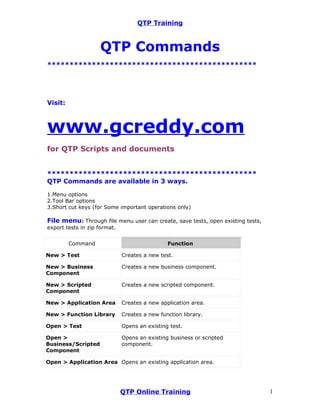
File menu: Through file menu user can create, save tests, open existing tests,
export tests in zip format.


         Command                               Function

New > Test                    Creates a new test.

New > Business                Creates a new business component.
Component

New > Scripted                Creates a new scripted component.
Component

New > Application Area        Creates a new application area.

New > Function Library        Creates a new function library.

Open > Test                   Opens an existing test.

Open >                        Opens an existing business or scripted
Business/Scripted             component.
Component

Open > Application Area Opens an existing application area.


                              QTP Online Training                                1
QTP Training


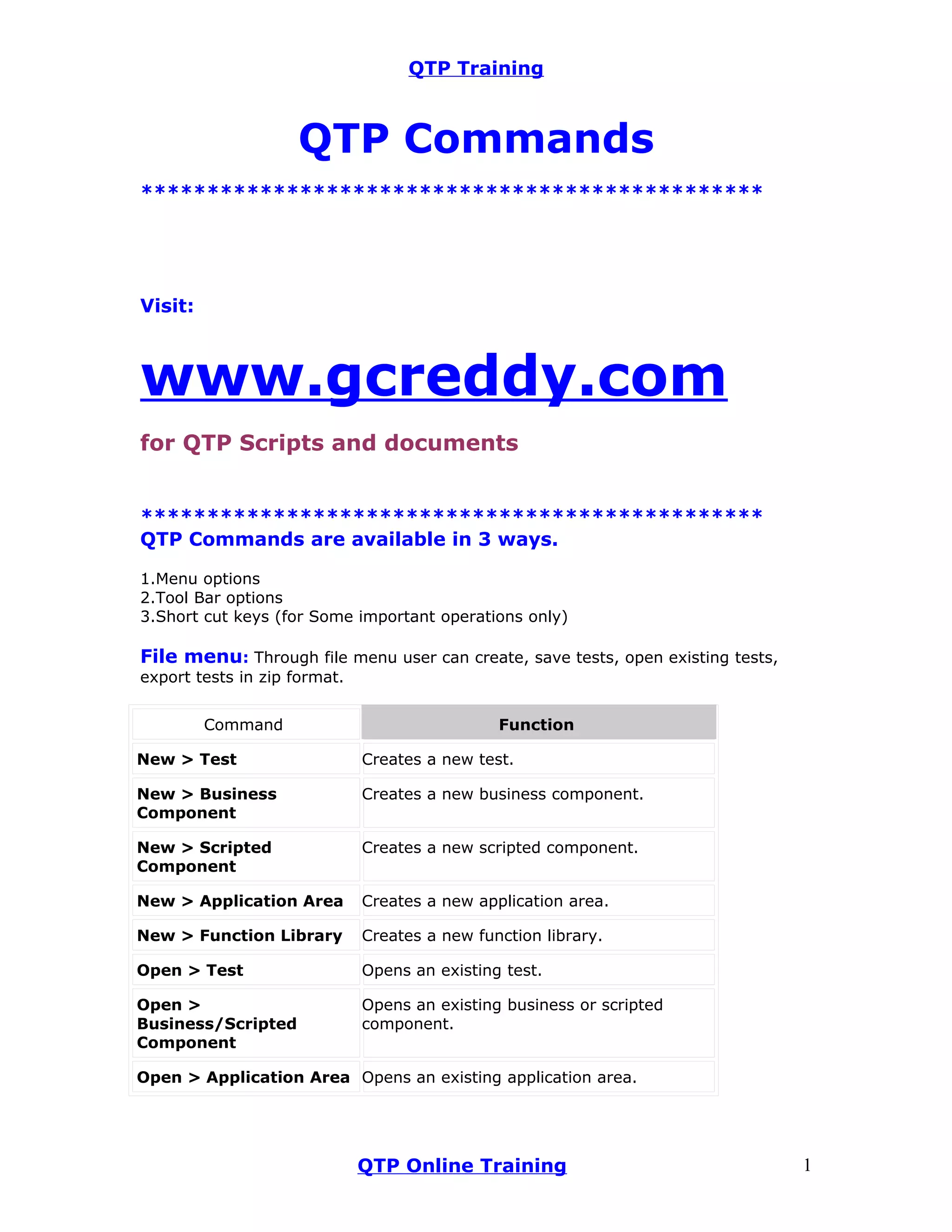
Open > Function Library Opens an existing function library.

Close                      Closes the active function library.

Close All Function         Closes all open function libraries.
Libraries

Quality Center             Opens the Quality Center Connection dialog
Connection                 box, enabling you to connect to a

                           Quality Center project.

Quality Center Version     Provides a sub-menu of options for
Control                    managing versions of QuickTest assets in
                           Quality Center. The sub-menu is available
                           only when you are connected to version-
                           control enabled Quality Center project.

Save                       Saves the active document.

Save As                    Opens the relevant Save dialog box so you
                           can save the open document.

Save Test with             Saves a standalone copy of the current test
Resources                  together with its resource files.

Save All                   Saves all open documents.

Enable Editing             Makes read-only function libraries editable.

Export Test to Zip File    Creates a zip file of the active document.

Import Test from Zip File Imports a document from a zip file.

Convert to Scripted        Converts a business component to a scripted
Component                  component.

Print                      Prints the active document.

Print Preview              Displays the Keyword View as it will look
                           when printed and enables you to modify the
                           page setup.

Settings                   Opens the Settings dialog box, enabling you
                           to define settings for the open document.
                           (Not relevant for function libraries)

Process Guidance           Opens the Process Guidance Management
Management                 dialog box, enabling you to manage the list
                           of processes that are available in QuickTest.

Associate Library          Associates the active function library with
'<Function Library         the open document. (Available only from
Name>' with                function libraries)
'<Document Name>'


                          QTP Online Training                              2
QTP Training


Recent Files               Lists the recently viewed files.

Exit                       Closes the QuickTest session.


Edit Menu: It provides editing options and renaming, deleting and splitting
actions.


           Command                              Function

Undo                       Reverses the last command or deletes the last
                           entry you typed.

Redo                       Reverses the most recent operation of the Undo
                           command.

Cut                        Removes the selection from your document.

Copy                       Copies the selection from your document.

Paste                      Pastes the selection to your document.

Delete                     Deletes the selection from your document.

Copy Documentation to      Copies the content of the Documentation
Clipboard                  column of the Keyword View, enabling you to
                           paste it in an external application.

Action > Split Action      Separates an action into two sibling actions or
                           into parent-child nested actions.

Action > Rename Action Changes the name of an action.

Action > Delete Action     Enables you to remove the selected call to the
                           action, or delete the action and its calls from the
                           active test.

Action > Action            Enables you to specify options, parameters, and
Properties                 associated object repositories for a stored action.

Action > Action Call       Enables you to specify the number of run
Properties                 iterations according to the number of rows in the
                           Data Table, and to define the values of input
                           parameters and the storage location of output
                           parameters.

Step Properties >          Opens the Comment Properties dialog box for a
Comment Properties         comment step. Available only when the selected
                           step is a comment.

Step Properties > Object Opens the Object Properties dialog box for a
Properties               selected object. Available only when the selected
                         step contains a test object.


                          QTP Online Training                                    3
QTP Training


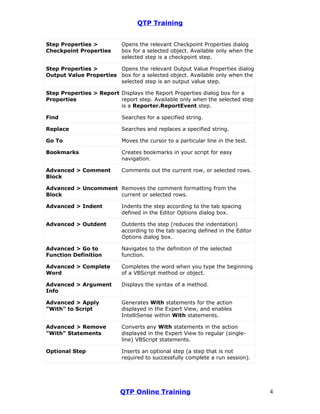
Step Properties >          Opens the relevant Checkpoint Properties dialog
Checkpoint Properties      box for a selected object. Available only when the
                           selected step is a checkpoint step.

Step Properties >       Opens the relevant Output Value Properties dialog
Output Value Properties box for a selected object. Available only when the
                        selected step is an output value step.

Step Properties > Report Displays the Report Properties dialog box for a
Properties               report step. Available only when the selected step
                         is a Reporter.ReportEvent step.

Find                       Searches for a specified string.

Replace                    Searches and replaces a specified string.

Go To                      Moves the cursor to a particular line in the test.

Bookmarks                  Creates bookmarks in your script for easy
                           navigation.

Advanced > Comment         Comments out the current row, or selected rows.
Block

Advanced > Uncomment Removes the comment formatting from the
Block                current or selected rows.

Advanced > Indent          Indents the step according to the tab spacing
                           defined in the Editor Options dialog box.

Advanced > Outdent         Outdents the step (reduces the indentation)
                           according to the tab spacing defined in the Editor
                           Options dialog box.

Advanced > Go to           Navigates to the definition of the selected
Function Definition        function.

Advanced > Complete        Completes the word when you type the beginning
Word                       of a VBScript method or object.

Advanced > Argument        Displays the syntax of a method.
Info

Advanced > Apply           Generates With statements for the action
"With" to Script           displayed in the Expert View, and enables
                           IntelliSense within With statements.

Advanced > Remove          Converts any With statements in the action
"With" Statements          displayed in the Expert View to regular (single-
                           line) VBScript statements.

Optional Step              Inserts an optional step (a step that is not
                           required to successfully complete a run session).


                          QTP Online Training                                   4
QTP Training


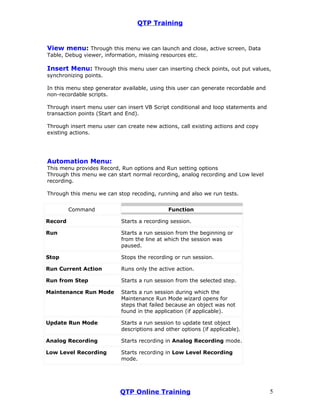
View menu: Through this menu we can launch and close, active screen, Data
Table, Debug viewer, information, missing resources etc.

Insert Menu: Through this menu user can inserting check points, out put values,
synchronizing points.

In this menu step generator available, using this user can generate recordable and
non-recordable scripts.

Through insert menu user can insert VB Script conditional and loop statements and
transaction points (Start and End).

Through insert menu user can create new actions, call existing actions and copy
existing actions.


Automation Menu:
This menu provides Record, Run options and Run setting options
Through this menu we can start normal recording, analog recording and Low level
recording.

Through this menu we can stop recoding, running and also we run tests.


         Command                             Function

Record                     Starts a recording session.

Run                        Starts a run session from the beginning or
                           from the line at which the session was
                           paused.

Stop                       Stops the recording or run session.

Run Current Action         Runs only the active action.

Run from Step              Starts a run session from the selected step.

Maintenance Run Mode       Starts a run session during which the
                           Maintenance Run Mode wizard opens for
                           steps that failed because an object was not
                           found in the application (if applicable).

Update Run Mode            Starts a run session to update test object
                           descriptions and other options (if applicable).

Analog Recording           Starts recording in Analog Recording mode.

Low Level Recording        Starts recording in Low Level Recording
                           mode.


                           QTP Online Training                                       5
QTP Training


Record and Run Settings Opens the Record and Run Settings dialog
                        box, enabling you to define browser
                        preferences for recording and running your
                        test.

Process Guidance List      Lists the processes that are available for the
                           current document type and for the currently
                           loaded QuickTest add-ins, enabling you to
                           open them.

Results                    Enables you to view results for a test run
                           session.


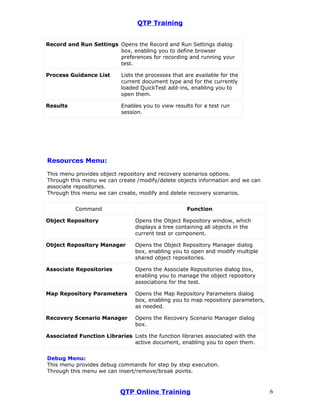
Resources Menu:

This menu provides object repository and recovery scenarios options.
Through this menu we can create /modify/delete objects information and we can
associate repositories.
Through this menu we can create, modify and delete recovery scenarios.


          Command                                    Function

Object Repository                Opens the Object Repository window, which
                                 displays a tree containing all objects in the
                                 current test or component.

Object Repository Manager        Opens the Object Repository Manager dialog
                                 box, enabling you to open and modify multiple
                                 shared object repositories.

Associate Repositories           Opens the Associate Repositories dialog box,
                                 enabling you to manage the object repository
                                 associations for the test.

Map Repository Parameters        Opens the Map Repository Parameters dialog
                                 box, enabling you to map repository parameters,
                                 as needed.

Recovery Scenario Manager        Opens the Recovery Scenario Manager dialog
                                 box.

Associated Function Libraries Lists the function libraries associated with the
                              active document, enabling you to open them.


Debug Menu:
This menu provides debug commands for step by step execution.
Through this menu we can insert/remove/break points.


                           QTP Online Training                                     6
QTP Training


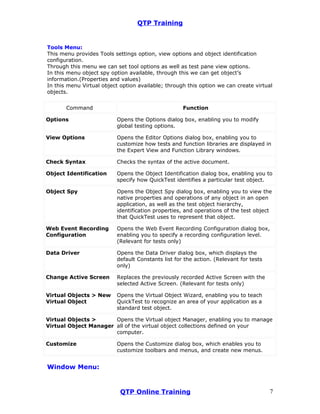
Tools Menu:
This menu provides Tools settings option, view options and object identification
configuration.
Through this menu we can set tool options as well as test pane view options.
In this menu object spy option available, through this we can get object’s
information.(Properties and values)
In this menu Virtual object option available; through this option we can create virtual
objects.


       Command                                      Function

Options                   Opens the Options dialog box, enabling you to modify
                          global testing options.

View Options              Opens the Editor Options dialog box, enabling you to
                          customize how tests and function libraries are displayed in
                          the Expert View and Function Library windows.

Check Syntax              Checks the syntax of the active document.

Object Identification     Opens the Object Identification dialog box, enabling you to
                          specify how QuickTest identifies a particular test object.

Object Spy                Opens the Object Spy dialog box, enabling you to view the
                          native properties and operations of any object in an open
                          application, as well as the test object hierarchy,
                          identification properties, and operations of the test object
                          that QuickTest uses to represent that object.

Web Event Recording       Opens the Web Event Recording Configuration dialog box,
Configuration             enabling you to specify a recording configuration level.
                          (Relevant for tests only)

Data Driver               Opens the Data Driver dialog box, which displays the
                          default Constants list for the action. (Relevant for tests
                          only)

Change Active Screen      Replaces the previously recorded Active Screen with the
                          selected Active Screen. (Relevant for tests only)

Virtual Objects > New     Opens the Virtual Object Wizard, enabling you to teach
Virtual Object            QuickTest to recognize an area of your application as a
                          standard test object.

Virtual Objects >      Opens the Virtual object Manager, enabling you to manage
Virtual Object Manager all of the virtual object collections defined on your
                       computer.

Customize                 Opens the Customize dialog box, which enables you to
                          customize toolbars and menus, and create new menus.


Window Menu:


                            QTP Online Training                                        7
QTP Training

This menu provides QTP tool window style settings.

Help Menu:
This menu provides QTP help as well as VB Script help.
Through this menu we can contact technical support people and we can send
feedback.
Through this menu we can check for updates and download or install directly.


                           QTP Online Training                                 8

Qtp commands

  • 1.
    QTP Training QTP Commands *********************************************** Visit: www.gcreddy.com for QTP Scripts and documents *********************************************** QTP Commands are available in 3 ways. 1.Menu options 2.Tool Bar options 3.Short cut keys (for Some important operations only) File menu: Through file menu user can create, save tests, open existing tests, export tests in zip format. Command Function New > Test Creates a new test. New > Business Creates a new business component. Component New > Scripted Creates a new scripted component. Component New > Application Area Creates a new application area. New > Function Library Creates a new function library. Open > Test Opens an existing test. Open > Opens an existing business or scripted Business/Scripted component. Component Open > Application Area Opens an existing application area. QTP Online Training 1
  • 2.
    QTP Training Open >Function Library Opens an existing function library. Close Closes the active function library. Close All Function Closes all open function libraries. Libraries Quality Center Opens the Quality Center Connection dialog Connection box, enabling you to connect to a Quality Center project. Quality Center Version Provides a sub-menu of options for Control managing versions of QuickTest assets in Quality Center. The sub-menu is available only when you are connected to version- control enabled Quality Center project. Save Saves the active document. Save As Opens the relevant Save dialog box so you can save the open document. Save Test with Saves a standalone copy of the current test Resources together with its resource files. Save All Saves all open documents. Enable Editing Makes read-only function libraries editable. Export Test to Zip File Creates a zip file of the active document. Import Test from Zip File Imports a document from a zip file. Convert to Scripted Converts a business component to a scripted Component component. Print Prints the active document. Print Preview Displays the Keyword View as it will look when printed and enables you to modify the page setup. Settings Opens the Settings dialog box, enabling you to define settings for the open document. (Not relevant for function libraries) Process Guidance Opens the Process Guidance Management Management dialog box, enabling you to manage the list of processes that are available in QuickTest. Associate Library Associates the active function library with '<Function Library the open document. (Available only from Name>' with function libraries) '<Document Name>' QTP Online Training 2
  • 3.
    QTP Training Recent Files Lists the recently viewed files. Exit Closes the QuickTest session. Edit Menu: It provides editing options and renaming, deleting and splitting actions. Command Function Undo Reverses the last command or deletes the last entry you typed. Redo Reverses the most recent operation of the Undo command. Cut Removes the selection from your document. Copy Copies the selection from your document. Paste Pastes the selection to your document. Delete Deletes the selection from your document. Copy Documentation to Copies the content of the Documentation Clipboard column of the Keyword View, enabling you to paste it in an external application. Action > Split Action Separates an action into two sibling actions or into parent-child nested actions. Action > Rename Action Changes the name of an action. Action > Delete Action Enables you to remove the selected call to the action, or delete the action and its calls from the active test. Action > Action Enables you to specify options, parameters, and Properties associated object repositories for a stored action. Action > Action Call Enables you to specify the number of run Properties iterations according to the number of rows in the Data Table, and to define the values of input parameters and the storage location of output parameters. Step Properties > Opens the Comment Properties dialog box for a Comment Properties comment step. Available only when the selected step is a comment. Step Properties > Object Opens the Object Properties dialog box for a Properties selected object. Available only when the selected step contains a test object. QTP Online Training 3
  • 4.
    QTP Training Step Properties> Opens the relevant Checkpoint Properties dialog Checkpoint Properties box for a selected object. Available only when the selected step is a checkpoint step. Step Properties > Opens the relevant Output Value Properties dialog Output Value Properties box for a selected object. Available only when the selected step is an output value step. Step Properties > Report Displays the Report Properties dialog box for a Properties report step. Available only when the selected step is a Reporter.ReportEvent step. Find Searches for a specified string. Replace Searches and replaces a specified string. Go To Moves the cursor to a particular line in the test. Bookmarks Creates bookmarks in your script for easy navigation. Advanced > Comment Comments out the current row, or selected rows. Block Advanced > Uncomment Removes the comment formatting from the Block current or selected rows. Advanced > Indent Indents the step according to the tab spacing defined in the Editor Options dialog box. Advanced > Outdent Outdents the step (reduces the indentation) according to the tab spacing defined in the Editor Options dialog box. Advanced > Go to Navigates to the definition of the selected Function Definition function. Advanced > Complete Completes the word when you type the beginning Word of a VBScript method or object. Advanced > Argument Displays the syntax of a method. Info Advanced > Apply Generates With statements for the action "With" to Script displayed in the Expert View, and enables IntelliSense within With statements. Advanced > Remove Converts any With statements in the action "With" Statements displayed in the Expert View to regular (single- line) VBScript statements. Optional Step Inserts an optional step (a step that is not required to successfully complete a run session). QTP Online Training 4
  • 5.
    QTP Training View menu:Through this menu we can launch and close, active screen, Data Table, Debug viewer, information, missing resources etc. Insert Menu: Through this menu user can inserting check points, out put values, synchronizing points. In this menu step generator available, using this user can generate recordable and non-recordable scripts. Through insert menu user can insert VB Script conditional and loop statements and transaction points (Start and End). Through insert menu user can create new actions, call existing actions and copy existing actions. Automation Menu: This menu provides Record, Run options and Run setting options Through this menu we can start normal recording, analog recording and Low level recording. Through this menu we can stop recoding, running and also we run tests. Command Function Record Starts a recording session. Run Starts a run session from the beginning or from the line at which the session was paused. Stop Stops the recording or run session. Run Current Action Runs only the active action. Run from Step Starts a run session from the selected step. Maintenance Run Mode Starts a run session during which the Maintenance Run Mode wizard opens for steps that failed because an object was not found in the application (if applicable). Update Run Mode Starts a run session to update test object descriptions and other options (if applicable). Analog Recording Starts recording in Analog Recording mode. Low Level Recording Starts recording in Low Level Recording mode. QTP Online Training 5
  • 6.
    QTP Training Record andRun Settings Opens the Record and Run Settings dialog box, enabling you to define browser preferences for recording and running your test. Process Guidance List Lists the processes that are available for the current document type and for the currently loaded QuickTest add-ins, enabling you to open them. Results Enables you to view results for a test run session. Resources Menu: This menu provides object repository and recovery scenarios options. Through this menu we can create /modify/delete objects information and we can associate repositories. Through this menu we can create, modify and delete recovery scenarios. Command Function Object Repository Opens the Object Repository window, which displays a tree containing all objects in the current test or component. Object Repository Manager Opens the Object Repository Manager dialog box, enabling you to open and modify multiple shared object repositories. Associate Repositories Opens the Associate Repositories dialog box, enabling you to manage the object repository associations for the test. Map Repository Parameters Opens the Map Repository Parameters dialog box, enabling you to map repository parameters, as needed. Recovery Scenario Manager Opens the Recovery Scenario Manager dialog box. Associated Function Libraries Lists the function libraries associated with the active document, enabling you to open them. Debug Menu: This menu provides debug commands for step by step execution. Through this menu we can insert/remove/break points. QTP Online Training 6
  • 7.
    QTP Training Tools Menu: Thismenu provides Tools settings option, view options and object identification configuration. Through this menu we can set tool options as well as test pane view options. In this menu object spy option available, through this we can get object’s information.(Properties and values) In this menu Virtual object option available; through this option we can create virtual objects. Command Function Options Opens the Options dialog box, enabling you to modify global testing options. View Options Opens the Editor Options dialog box, enabling you to customize how tests and function libraries are displayed in the Expert View and Function Library windows. Check Syntax Checks the syntax of the active document. Object Identification Opens the Object Identification dialog box, enabling you to specify how QuickTest identifies a particular test object. Object Spy Opens the Object Spy dialog box, enabling you to view the native properties and operations of any object in an open application, as well as the test object hierarchy, identification properties, and operations of the test object that QuickTest uses to represent that object. Web Event Recording Opens the Web Event Recording Configuration dialog box, Configuration enabling you to specify a recording configuration level. (Relevant for tests only) Data Driver Opens the Data Driver dialog box, which displays the default Constants list for the action. (Relevant for tests only) Change Active Screen Replaces the previously recorded Active Screen with the selected Active Screen. (Relevant for tests only) Virtual Objects > New Opens the Virtual Object Wizard, enabling you to teach Virtual Object QuickTest to recognize an area of your application as a standard test object. Virtual Objects > Opens the Virtual object Manager, enabling you to manage Virtual Object Manager all of the virtual object collections defined on your computer. Customize Opens the Customize dialog box, which enables you to customize toolbars and menus, and create new menus. Window Menu: QTP Online Training 7
  • 8.
    QTP Training This menuprovides QTP tool window style settings. Help Menu: This menu provides QTP help as well as VB Script help. Through this menu we can contact technical support people and we can send feedback. Through this menu we can check for updates and download or install directly. QTP Online Training 8