Fundamentals of
QuickBooks
Center for Nonprofit Advancement

Ian Shuman, CPA
Partner, Client Services

February 4, 2014
Fundamentals of QuickBooks
February 4, 2014
Center for Nonprofit Advancement

Ian Shuman, CPA
Partner, Gelman, Rosenberg & Freedman CPAs

• Director of Client Services
• 20 years of experience in auditing, consulting and accounting
• Specializes in nonprofit outsourced accounting services
– Flexible CFO & controllership engagements, guide clients through external
audit, help with board reporting, training of client accounting personnel and
set up of accounting systems

• Nonprofit Involvement:
– Treasurer of the Bach Sinfonia
– Former Treasurer of the Sitar Arts Center

Ian Shuman, CPA
Gelman, Rosenberg & Freedman CPAs

2
Fundamentals of QuickBooks
February 4, 2014
Center for Nonprofit Advancement

Agenda
1. Reference material
2. Orientation and basic navigation
3. Recording expenses

4. Recording income
5. Hodge-podge: credit cards, journal entries and bank reconciliations
6. Basic reporting
7. Eighteen common QuickBooks errors

Ian Shuman, CPA
Gelman, Rosenberg & Freedman CPAs

3
Fundamentals of QuickBooks
February 4, 2014
Center for Nonprofit Advancement

1. Reference Material

Ian Shuman, CPA
Gelman, Rosenberg & Freedman CPAs

4
Fundamentals of QuickBooks
February 4, 2014
Center for Nonprofit Advancement

QuickBooks File Extensions
•

QBW - Normal “Working” file

•

QBB - Full backup file

•

QBM - A “Portable File” meant for emailing (missing some preferences, log and indexing)

•

QBX - Accountant’s copy you create and send to an external accountant (to work concurrently)

•

QBA - The accountant’s copy that the external accountant is working in

•

QBY - File that the external account sends back to you to import their changes (small file)

•

QBMB - Backup for Macintosh

Ian Shuman, CPA
Gelman, Rosenberg & Freedman CPAs

5
Fundamentals of QuickBooks
February 4, 2014
Center for Nonprofit Advancement

QuickBooks Features by Year
•

Be aware of Intuit’s three-year “Sunset” policy for tech support

•

2006: Always-on audit trail, Centers

•

2007: Minor improvements

•

2008: Big improvements to accountant’s copy

•

2009: Some multi-currency, prompt to close, sorting in bank reconciliations

•

2010: Bolds uncleared items on bank reconciliations screen, added “Save” to most forms

•

2011: Added a history pane on forms, limited B/S by class, batch invoicing

•

2012: Inventory center, document attachment, calendar view, simpler creation of credit memos (A/R)

Ian Shuman, CPA
Gelman, Rosenberg & Freedman CPAs

6
Fundamentals of QuickBooks
February 4, 2014
Center for Nonprofit Advancement

QuickBooks Features By Year (cont.)
•

2013: Collapse report line items, visual layout changes throughout (bigger font, wider rows, icon bar
left or top, changes to layout of centers), improved transaction toolbar, maximize transactions,
Journal entry import (from Acct version only but no need for Acct’s Copy)

•

2014: Added the Income Tracker dashboard, bounced customer checks, more reports in transaction
toolbar, can resize or sort the time/cost window, can “fit report to # pages high” (instead of just width)

Ian Shuman, CPA
Gelman, Rosenberg & Freedman CPAs

7
Fundamentals of QuickBooks
February 4, 2014
Center for Nonprofit Advancement

QuickBooks Versions
•

Pro - Most common

•

Premier - Saves reconciliations as PDF, allows reversing entries, subtotals journal entry
debits/credits, about 2x price

•

Nonprofit version is same as Premier with very little added

•

Enterprise - Much stronger database

•

Online - Different interface (one window at a time); limitations on manual imports but fantastic at
automatic imports/synchs; new layout is much better but I still prefer the desktop version

•

Sideways compatible (except online edition) but not between years

Ian Shuman, CPA
Gelman, Rosenberg & Freedman CPAs

8
Fundamentals of QuickBooks
February 4, 2014
Center for Nonprofit Advancement

Technical Specs/Requirements
• 2.4 GHz processor (2 GHz minimum)
• 2 GB RAM (1 GB minimum)
• 2.5 GB disk space
• Windows Vista, 7 or 8 (note that they no longer list XP as officially supported)
• Windows 8 is supported on only the 2013 or 2014 version of QuickBooks

Ian Shuman, CPA
Gelman, Rosenberg & Freedman CPAs

9
Fundamentals of QuickBooks
February 4, 2014
Center for Nonprofit Advancement

2. Orientation and Basic Navigation

Ian Shuman, CPA
Gelman, Rosenberg & Freedman CPAs

10
Fundamentals of QuickBooks
February 4, 2014
Center for Nonprofit Advancement

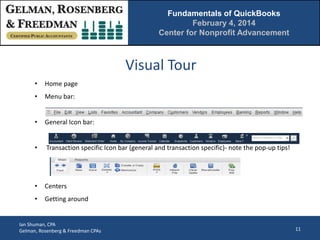
Visual Tour
•

Home page

•

Menu bar:

•

General Icon bar:

•

Transaction specific Icon bar (general and transaction specific)- note the pop-up tips!

•

Centers

•

Getting around

Ian Shuman, CPA
Gelman, Rosenberg & Freedman CPAs

11
Fundamentals of QuickBooks
February 4, 2014
Center for Nonprofit Advancement

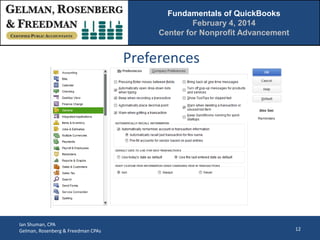
Preferences

Ian Shuman, CPA
Gelman, Rosenberg & Freedman CPAs

12
Fundamentals of QuickBooks
February 4, 2014
Center for Nonprofit Advancement

Preferences and Display Options
• Tip: Spent the time to walk through the preferences
• My favorite preferences: Enter moves between fields,
beep when recording, closing date
• Click on View in the menu bar to see display options
• Windows (one or multiple), Open window list (on or
off), Icon Bar (top or left)
Ian Shuman, CPA
Gelman, Rosenberg & Freedman CPAs

13
Fundamentals of QuickBooks
February 4, 2014
Center for Nonprofit Advancement

The Tao of QuickBooks
• Tip: It thinks like a database- not like an accounting ledger
• Since a modern database can calculate everything on the
fly, there’s no need to have a hard close or to group into
“periods”. It all just calculates every time you run a report.
• How can account numbers be optional?

• It’s table driven instead of chart of accounts driven
Ian Shuman, CPA
Gelman, Rosenberg & Freedman CPAs

14
Fundamentals of QuickBooks
February 4, 2014
Center for Nonprofit Advancement

Connecting Pieces- no separate modules
• Three parts that work together:
o Lists- populate fields in the database
o Forms- use lists to create transactions
o Items- connect forms to the general ledger
• Registers- and a caution about them
• Reports
Ian Shuman, CPA
Gelman, Rosenberg & Freedman CPAs

15
Fundamentals of QuickBooks
February 4, 2014
Center for Nonprofit Advancement

A Few Other Tools
•
•
•
•

Company Snapshot
Income Tracker
Calendar
App Center

• Tips:
o Navigate via the P&L or Balance Sheet reports
o Remember the Help Menu!
Ian Shuman, CPA
Gelman, Rosenberg & Freedman CPAs

16
Fundamentals of QuickBooks
February 4, 2014
Center for Nonprofit Advancement

3. Recording Expenses

Ian Shuman, CPA
Gelman, Rosenberg & Freedman CPAs

17
Fundamentals of QuickBooks
February 4, 2014
Center for Nonprofit Advancement

Two Options for Recording Cash-Out
• “Write Check”- Expense and payment happen at same
date (cash basis)
• “Enter Bill” followed by “Pay Bill”- Expense and
payment happen on different dates (accrual basis)
• Tip: Don’t do “Enter Bill” and then “Write Check.”

Ian Shuman, CPA
Gelman, Rosenberg & Freedman CPAs

18
Fundamentals of QuickBooks
February 4, 2014
Center for Nonprofit Advancement

Online Banking
• Payments can be automatically imported from the bank activity
(limits you to cash basis and won’t include o/s transactions. Can be
okay if you pay bills electronically anyway)
• Payments can be initiated from within QuickBooks (but internal control
issues)
• Tip: Keep in mind that you still have to code all the transactions.

Ian Shuman, CPA
Gelman, Rosenberg & Freedman CPAs

19
Fundamentals of QuickBooks
February 4, 2014
Center for Nonprofit Advancement

Voiding Checks
• Will go back and change the original entry on the original date. This is
a bad thing
• Works slightly better if from a period that is “Closed” via the closing
date
• Suggestion: Always use a journal entry (debit cash, credit something)
and then clear both in the next bank reconciliation.

Ian Shuman, CPA
Gelman, Rosenberg & Freedman CPAs

20
Fundamentals of QuickBooks
February 4, 2014
Center for Nonprofit Advancement

Other Cash-Out Issues
• EFT transactions and wires can be entered by journal entry, “Write
Check” or “Pay Bill”
• What about payroll?
• To enter a credit memos from a vendor:
Go to Enter Bill and select “Credit” in the toggle buttons on top left and
then complete the form. When you go to the “pay bills” screen, you
can select the open bill and then click on “set credits”

Ian Shuman, CPA
Gelman, Rosenberg & Freedman CPAs

21
Fundamentals of QuickBooks
February 4, 2014
Center for Nonprofit Advancement

4. Recording Income

Ian Shuman, CPA
Gelman, Rosenberg & Freedman CPAs

22
Fundamentals of QuickBooks
February 4, 2014
Center for Nonprofit Advancement

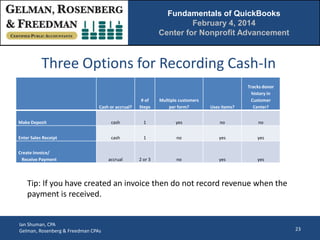
Three Options for Recording Cash-In
Cash or accrual?

# of
Steps

Multiple customers
per form?

Uses items?

Tracks donor
history in
Customer
Center?

Make Deposit

cash

1

yes

no

no

Enter Sales Receipt

cash

1

no

yes

yes

Create Invoice/
Receive Payment

accrual

2 or 3

no

yes

yes

Tip: If you have created an invoice then do not record revenue when the
payment is received.

Ian Shuman, CPA
Gelman, Rosenberg & Freedman CPAs

23
Fundamentals of QuickBooks
February 4, 2014
Center for Nonprofit Advancement

Undeposited Funds
• An optional account that can be used to group “Receive Payment”
transactions into a single deposit
• This makes the bank reconciliation much easier
• Not necessary if you are using “Make Deposit” to record revenue
• In this case a “make deposit” entry would simply move cash from
“Undeposited Funds” to the bank account.
• In theory, the account should go to zero every time there is a deposit
• See preferences/payments/company to set this as default
Ian Shuman, CPA
Gelman, Rosenberg & Freedman CPAs

24
Fundamentals of QuickBooks
February 4, 2014
Center for Nonprofit Advancement

Credit Memos and Refunds
• To create a credit memo just go to Customer/Create Credit memo or just
open the invoice and click on “refund/credit”
• When you close the credit memo QuickBooks will prompt you to apply,
refund or retain the credit memo.
• There are buttons for these options on the credit memo form (in the
transaction icon bar).
• This is much cleaner than credit memos on the vendor side.

Ian Shuman, CPA
Gelman, Rosenberg & Freedman CPAs

25
Fundamentals of QuickBooks
February 4, 2014
Center for Nonprofit Advancement

5. Hodge-Podge: credit cards, journal
entries and bank reconciliations

Ian Shuman, CPA
Gelman, Rosenberg & Freedman CPAs

26
Fundamentals of QuickBooks
February 4, 2014
Center for Nonprofit Advancement

Three Options for Recording
Credit Card Changes
• Often just entered in total as a bill through accounts payable when the
credit card statement arrives
• Advantages of entering each charge individually as a credit card charge:
•
•
•
•
•

The activity can be tracked by vendor (not just name of credit card)
Better tracking of the exact date when expense was incurred
Much better if not paying entire amount due
Can be reconciled the same way a bank account is
… But it’s more work

• Can also automatically import the activity through Bank Feeds
Ian Shuman, CPA
Gelman, Rosenberg & Freedman CPAs

27
Fundamentals of QuickBooks
February 4, 2014
Center for Nonprofit Advancement

Journal Entries
• Found under the Company menu
• Generally these are used for any transaction not represented by a form
• That often means cash is not involved
• You need the Premier version of QuickBooks if you want to do reversing
entries or see the subtotals of debits and credits
• Can set up memorized and/or recurring journal entries
Tip: be careful when trying to edit the memorized entry
Ian Shuman, CPA
Gelman, Rosenberg & Freedman CPAs

28
Fundamentals of QuickBooks
February 4, 2014
Center for Nonprofit Advancement

Bank Reconciliations

• Very easy
• Everything that affects cash automatically shows up in the bank
reconciliation screen
• “Hide Transactions After Statement Date” is your best friend
• “Beginning Balance” is calculated from the register
• Then simply click on everything that appears on the bank statement and
“Difference” should be zero
• If not, the “Reconcile Now” button will give you the option to “Enter
Adjustment” which automatically posts a journal entry to an expense
account called “Reconciliation Adjustments” for the difference.
Tip: Don’t do it!
• Select “reconcile now” to generate a report and update the register

Ian Shuman, CPA
Gelman, Rosenberg & Freedman CPAs

29
Fundamentals of QuickBooks
February 4, 2014
Center for Nonprofit Advancement

6. Basic Reporting

Ian Shuman, CPA
Gelman, Rosenberg & Freedman CPAs

30
Fundamentals of QuickBooks
February 4, 2014
Center for Nonprofit Advancement

Overview
• Can be accessed under “Reports” on menu bar or from the report
center
• Reports menu is grouped by area
• Drilldown: Double click on any number to go from report to ledger
detail to actual form

Ian Shuman, CPA
Gelman, Rosenberg & Freedman CPAs

31
Fundamentals of QuickBooks
February 4, 2014
Center for Nonprofit Advancement

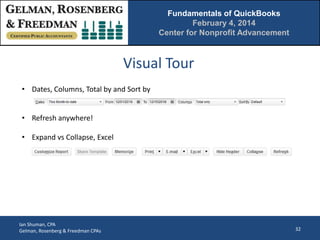
Visual Tour
• Dates, Columns, Total by and Sort by
• Refresh anywhere!
• Expand vs Collapse, Excel

Ian Shuman, CPA
Gelman, Rosenberg & Freedman CPAs

32
Fundamentals of QuickBooks
February 4, 2014
Center for Nonprofit Advancement

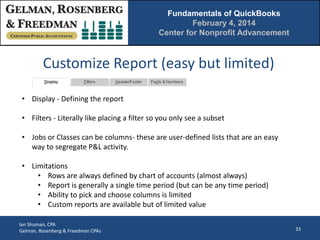
Customize Report (easy but limited)
• Display - Defining the report
• Filters - Literally like placing a filter so you only see a subset
• Jobs or Classes can be columns- these are user-defined lists that are an easy
way to segregate P&L activity.

• Limitations
• Rows are always defined by chart of accounts (almost always)
• Report is generally a single time period (but can be any time period)
• Ability to pick and choose columns is limited
• Custom reports are available but of limited value
Ian Shuman, CPA
Gelman, Rosenberg & Freedman CPAs

33
Fundamentals of QuickBooks
February 4, 2014
Center for Nonprofit Advancement

Memorized Reports
• Make changes and then hit “Memorize” - will prompt you to name the
report
• You can create your own report groups
• Have to memorize again to change what is memorized - will prompt for
“Replace” or “New”
Note: The dates in memorized reports will only change if date field is relative.

Ian Shuman, CPA
Gelman, Rosenberg & Freedman CPAs

34
Fundamentals of QuickBooks
February 4, 2014
Center for Nonprofit Advancement

7. Eighteen Common
QuickBooks Errors

Ian Shuman, CPA
Gelman, Rosenberg & Freedman CPAs

35
Fundamentals of QuickBooks
February 4, 2014
Center for Nonprofit Advancement

1.

Everyone uses the same log in (and it’s the admin user’s login)

2.

Adding, deleting or changing transactions in prior years (tip: use the “closing date” feature)

3.

Having WAY too many windows open and then wondering why the software is so slow

4.

Dangling payable transactions
A.
B.

5.

Entering a bill followed by write check
Deleting a paid bill but not the bill payment

Dangling receivable transactions
A.

Entering a receivable and then recording revenue through “Make Deposits”

B.

Using “Receive Payments” when there is no A/R recorded

Ian Shuman, CPA
Gelman, Rosenberg & Freedman CPAs

36
Fundamentals of QuickBooks
February 4, 2014
Center for Nonprofit Advancement

6.

Using the register to clear bank transactions

7.

Having the same customer or vendor name multiple times using slightly different spellings
8.

Entering payroll at net instead of gross

9.

Not entering electronic payments, payroll or wires received at all

10. Changing or voiding cash activity after the transaction has been cleared in a bank reconciliation
11. In a bank reconciliation, clearing a transaction dated after the bank statement date
12. Posting memorized transactions by accident
13. Using the “Reconcile Now/Enter Adjustment” button

Ian Shuman, CPA
Gelman, Rosenberg & Freedman CPAs

37
Fundamentals of QuickBooks
February 4, 2014
Center for Nonprofit Advancement

14. Posting similar transactions inconsistently
15. Not doing bank reconciliations at all
16. Not using classes for a P&L transaction (if your file uses them)
17. Putting all credit card payments to an expense account called “Credit Card Payments”
18. Working in the wrong file

Ian Shuman, CPA
Gelman, Rosenberg & Freedman CPAs

38
4550 Montgomery Avenue, Suite 650N • Bethesda, MD 20814

Questions?
Ian Shuman, CPA
Partner, Client Services
ishuman@grfcpa.com
Phone: (301) 951 – 9090
Website: www.grfcpa.com

Fundamentals of QuickBooks

  • 1.
    Fundamentals of QuickBooks Center forNonprofit Advancement Ian Shuman, CPA Partner, Client Services February 4, 2014
  • 2.
    Fundamentals of QuickBooks February4, 2014 Center for Nonprofit Advancement Ian Shuman, CPA Partner, Gelman, Rosenberg & Freedman CPAs • Director of Client Services • 20 years of experience in auditing, consulting and accounting • Specializes in nonprofit outsourced accounting services – Flexible CFO & controllership engagements, guide clients through external audit, help with board reporting, training of client accounting personnel and set up of accounting systems • Nonprofit Involvement: – Treasurer of the Bach Sinfonia – Former Treasurer of the Sitar Arts Center Ian Shuman, CPA Gelman, Rosenberg & Freedman CPAs 2
  • 3.
    Fundamentals of QuickBooks February4, 2014 Center for Nonprofit Advancement Agenda 1. Reference material 2. Orientation and basic navigation 3. Recording expenses 4. Recording income 5. Hodge-podge: credit cards, journal entries and bank reconciliations 6. Basic reporting 7. Eighteen common QuickBooks errors Ian Shuman, CPA Gelman, Rosenberg & Freedman CPAs 3
  • 4.
    Fundamentals of QuickBooks February4, 2014 Center for Nonprofit Advancement 1. Reference Material Ian Shuman, CPA Gelman, Rosenberg & Freedman CPAs 4
  • 5.
    Fundamentals of QuickBooks February4, 2014 Center for Nonprofit Advancement QuickBooks File Extensions • QBW - Normal “Working” file • QBB - Full backup file • QBM - A “Portable File” meant for emailing (missing some preferences, log and indexing) • QBX - Accountant’s copy you create and send to an external accountant (to work concurrently) • QBA - The accountant’s copy that the external accountant is working in • QBY - File that the external account sends back to you to import their changes (small file) • QBMB - Backup for Macintosh Ian Shuman, CPA Gelman, Rosenberg & Freedman CPAs 5
  • 6.
    Fundamentals of QuickBooks February4, 2014 Center for Nonprofit Advancement QuickBooks Features by Year • Be aware of Intuit’s three-year “Sunset” policy for tech support • 2006: Always-on audit trail, Centers • 2007: Minor improvements • 2008: Big improvements to accountant’s copy • 2009: Some multi-currency, prompt to close, sorting in bank reconciliations • 2010: Bolds uncleared items on bank reconciliations screen, added “Save” to most forms • 2011: Added a history pane on forms, limited B/S by class, batch invoicing • 2012: Inventory center, document attachment, calendar view, simpler creation of credit memos (A/R) Ian Shuman, CPA Gelman, Rosenberg & Freedman CPAs 6
  • 7.
    Fundamentals of QuickBooks February4, 2014 Center for Nonprofit Advancement QuickBooks Features By Year (cont.) • 2013: Collapse report line items, visual layout changes throughout (bigger font, wider rows, icon bar left or top, changes to layout of centers), improved transaction toolbar, maximize transactions, Journal entry import (from Acct version only but no need for Acct’s Copy) • 2014: Added the Income Tracker dashboard, bounced customer checks, more reports in transaction toolbar, can resize or sort the time/cost window, can “fit report to # pages high” (instead of just width) Ian Shuman, CPA Gelman, Rosenberg & Freedman CPAs 7
  • 8.
    Fundamentals of QuickBooks February4, 2014 Center for Nonprofit Advancement QuickBooks Versions • Pro - Most common • Premier - Saves reconciliations as PDF, allows reversing entries, subtotals journal entry debits/credits, about 2x price • Nonprofit version is same as Premier with very little added • Enterprise - Much stronger database • Online - Different interface (one window at a time); limitations on manual imports but fantastic at automatic imports/synchs; new layout is much better but I still prefer the desktop version • Sideways compatible (except online edition) but not between years Ian Shuman, CPA Gelman, Rosenberg & Freedman CPAs 8
  • 9.
    Fundamentals of QuickBooks February4, 2014 Center for Nonprofit Advancement Technical Specs/Requirements • 2.4 GHz processor (2 GHz minimum) • 2 GB RAM (1 GB minimum) • 2.5 GB disk space • Windows Vista, 7 or 8 (note that they no longer list XP as officially supported) • Windows 8 is supported on only the 2013 or 2014 version of QuickBooks Ian Shuman, CPA Gelman, Rosenberg & Freedman CPAs 9
  • 10.
    Fundamentals of QuickBooks February4, 2014 Center for Nonprofit Advancement 2. Orientation and Basic Navigation Ian Shuman, CPA Gelman, Rosenberg & Freedman CPAs 10
  • 11.
    Fundamentals of QuickBooks February4, 2014 Center for Nonprofit Advancement Visual Tour • Home page • Menu bar: • General Icon bar: • Transaction specific Icon bar (general and transaction specific)- note the pop-up tips! • Centers • Getting around Ian Shuman, CPA Gelman, Rosenberg & Freedman CPAs 11
  • 12.
    Fundamentals of QuickBooks February4, 2014 Center for Nonprofit Advancement Preferences Ian Shuman, CPA Gelman, Rosenberg & Freedman CPAs 12
  • 13.
    Fundamentals of QuickBooks February4, 2014 Center for Nonprofit Advancement Preferences and Display Options • Tip: Spent the time to walk through the preferences • My favorite preferences: Enter moves between fields, beep when recording, closing date • Click on View in the menu bar to see display options • Windows (one or multiple), Open window list (on or off), Icon Bar (top or left) Ian Shuman, CPA Gelman, Rosenberg & Freedman CPAs 13
  • 14.
    Fundamentals of QuickBooks February4, 2014 Center for Nonprofit Advancement The Tao of QuickBooks • Tip: It thinks like a database- not like an accounting ledger • Since a modern database can calculate everything on the fly, there’s no need to have a hard close or to group into “periods”. It all just calculates every time you run a report. • How can account numbers be optional? • It’s table driven instead of chart of accounts driven Ian Shuman, CPA Gelman, Rosenberg & Freedman CPAs 14
  • 15.
    Fundamentals of QuickBooks February4, 2014 Center for Nonprofit Advancement Connecting Pieces- no separate modules • Three parts that work together: o Lists- populate fields in the database o Forms- use lists to create transactions o Items- connect forms to the general ledger • Registers- and a caution about them • Reports Ian Shuman, CPA Gelman, Rosenberg & Freedman CPAs 15
  • 16.
    Fundamentals of QuickBooks February4, 2014 Center for Nonprofit Advancement A Few Other Tools • • • • Company Snapshot Income Tracker Calendar App Center • Tips: o Navigate via the P&L or Balance Sheet reports o Remember the Help Menu! Ian Shuman, CPA Gelman, Rosenberg & Freedman CPAs 16
  • 17.
    Fundamentals of QuickBooks February4, 2014 Center for Nonprofit Advancement 3. Recording Expenses Ian Shuman, CPA Gelman, Rosenberg & Freedman CPAs 17
  • 18.
    Fundamentals of QuickBooks February4, 2014 Center for Nonprofit Advancement Two Options for Recording Cash-Out • “Write Check”- Expense and payment happen at same date (cash basis) • “Enter Bill” followed by “Pay Bill”- Expense and payment happen on different dates (accrual basis) • Tip: Don’t do “Enter Bill” and then “Write Check.” Ian Shuman, CPA Gelman, Rosenberg & Freedman CPAs 18
  • 19.
    Fundamentals of QuickBooks February4, 2014 Center for Nonprofit Advancement Online Banking • Payments can be automatically imported from the bank activity (limits you to cash basis and won’t include o/s transactions. Can be okay if you pay bills electronically anyway) • Payments can be initiated from within QuickBooks (but internal control issues) • Tip: Keep in mind that you still have to code all the transactions. Ian Shuman, CPA Gelman, Rosenberg & Freedman CPAs 19
  • 20.
    Fundamentals of QuickBooks February4, 2014 Center for Nonprofit Advancement Voiding Checks • Will go back and change the original entry on the original date. This is a bad thing • Works slightly better if from a period that is “Closed” via the closing date • Suggestion: Always use a journal entry (debit cash, credit something) and then clear both in the next bank reconciliation. Ian Shuman, CPA Gelman, Rosenberg & Freedman CPAs 20
  • 21.
    Fundamentals of QuickBooks February4, 2014 Center for Nonprofit Advancement Other Cash-Out Issues • EFT transactions and wires can be entered by journal entry, “Write Check” or “Pay Bill” • What about payroll? • To enter a credit memos from a vendor: Go to Enter Bill and select “Credit” in the toggle buttons on top left and then complete the form. When you go to the “pay bills” screen, you can select the open bill and then click on “set credits” Ian Shuman, CPA Gelman, Rosenberg & Freedman CPAs 21
  • 22.
    Fundamentals of QuickBooks February4, 2014 Center for Nonprofit Advancement 4. Recording Income Ian Shuman, CPA Gelman, Rosenberg & Freedman CPAs 22
  • 23.
    Fundamentals of QuickBooks February4, 2014 Center for Nonprofit Advancement Three Options for Recording Cash-In Cash or accrual? # of Steps Multiple customers per form? Uses items? Tracks donor history in Customer Center? Make Deposit cash 1 yes no no Enter Sales Receipt cash 1 no yes yes Create Invoice/ Receive Payment accrual 2 or 3 no yes yes Tip: If you have created an invoice then do not record revenue when the payment is received. Ian Shuman, CPA Gelman, Rosenberg & Freedman CPAs 23
  • 24.
    Fundamentals of QuickBooks February4, 2014 Center for Nonprofit Advancement Undeposited Funds • An optional account that can be used to group “Receive Payment” transactions into a single deposit • This makes the bank reconciliation much easier • Not necessary if you are using “Make Deposit” to record revenue • In this case a “make deposit” entry would simply move cash from “Undeposited Funds” to the bank account. • In theory, the account should go to zero every time there is a deposit • See preferences/payments/company to set this as default Ian Shuman, CPA Gelman, Rosenberg & Freedman CPAs 24
  • 25.
    Fundamentals of QuickBooks February4, 2014 Center for Nonprofit Advancement Credit Memos and Refunds • To create a credit memo just go to Customer/Create Credit memo or just open the invoice and click on “refund/credit” • When you close the credit memo QuickBooks will prompt you to apply, refund or retain the credit memo. • There are buttons for these options on the credit memo form (in the transaction icon bar). • This is much cleaner than credit memos on the vendor side. Ian Shuman, CPA Gelman, Rosenberg & Freedman CPAs 25
  • 26.
    Fundamentals of QuickBooks February4, 2014 Center for Nonprofit Advancement 5. Hodge-Podge: credit cards, journal entries and bank reconciliations Ian Shuman, CPA Gelman, Rosenberg & Freedman CPAs 26
  • 27.
    Fundamentals of QuickBooks February4, 2014 Center for Nonprofit Advancement Three Options for Recording Credit Card Changes • Often just entered in total as a bill through accounts payable when the credit card statement arrives • Advantages of entering each charge individually as a credit card charge: • • • • • The activity can be tracked by vendor (not just name of credit card) Better tracking of the exact date when expense was incurred Much better if not paying entire amount due Can be reconciled the same way a bank account is … But it’s more work • Can also automatically import the activity through Bank Feeds Ian Shuman, CPA Gelman, Rosenberg & Freedman CPAs 27
  • 28.
    Fundamentals of QuickBooks February4, 2014 Center for Nonprofit Advancement Journal Entries • Found under the Company menu • Generally these are used for any transaction not represented by a form • That often means cash is not involved • You need the Premier version of QuickBooks if you want to do reversing entries or see the subtotals of debits and credits • Can set up memorized and/or recurring journal entries Tip: be careful when trying to edit the memorized entry Ian Shuman, CPA Gelman, Rosenberg & Freedman CPAs 28
  • 29.
    Fundamentals of QuickBooks February4, 2014 Center for Nonprofit Advancement Bank Reconciliations • Very easy • Everything that affects cash automatically shows up in the bank reconciliation screen • “Hide Transactions After Statement Date” is your best friend • “Beginning Balance” is calculated from the register • Then simply click on everything that appears on the bank statement and “Difference” should be zero • If not, the “Reconcile Now” button will give you the option to “Enter Adjustment” which automatically posts a journal entry to an expense account called “Reconciliation Adjustments” for the difference. Tip: Don’t do it! • Select “reconcile now” to generate a report and update the register Ian Shuman, CPA Gelman, Rosenberg & Freedman CPAs 29
  • 30.
    Fundamentals of QuickBooks February4, 2014 Center for Nonprofit Advancement 6. Basic Reporting Ian Shuman, CPA Gelman, Rosenberg & Freedman CPAs 30
  • 31.
    Fundamentals of QuickBooks February4, 2014 Center for Nonprofit Advancement Overview • Can be accessed under “Reports” on menu bar or from the report center • Reports menu is grouped by area • Drilldown: Double click on any number to go from report to ledger detail to actual form Ian Shuman, CPA Gelman, Rosenberg & Freedman CPAs 31
  • 32.
    Fundamentals of QuickBooks February4, 2014 Center for Nonprofit Advancement Visual Tour • Dates, Columns, Total by and Sort by • Refresh anywhere! • Expand vs Collapse, Excel Ian Shuman, CPA Gelman, Rosenberg & Freedman CPAs 32
  • 33.
    Fundamentals of QuickBooks February4, 2014 Center for Nonprofit Advancement Customize Report (easy but limited) • Display - Defining the report • Filters - Literally like placing a filter so you only see a subset • Jobs or Classes can be columns- these are user-defined lists that are an easy way to segregate P&L activity. • Limitations • Rows are always defined by chart of accounts (almost always) • Report is generally a single time period (but can be any time period) • Ability to pick and choose columns is limited • Custom reports are available but of limited value Ian Shuman, CPA Gelman, Rosenberg & Freedman CPAs 33
  • 34.
    Fundamentals of QuickBooks February4, 2014 Center for Nonprofit Advancement Memorized Reports • Make changes and then hit “Memorize” - will prompt you to name the report • You can create your own report groups • Have to memorize again to change what is memorized - will prompt for “Replace” or “New” Note: The dates in memorized reports will only change if date field is relative. Ian Shuman, CPA Gelman, Rosenberg & Freedman CPAs 34
  • 35.
    Fundamentals of QuickBooks February4, 2014 Center for Nonprofit Advancement 7. Eighteen Common QuickBooks Errors Ian Shuman, CPA Gelman, Rosenberg & Freedman CPAs 35
  • 36.
    Fundamentals of QuickBooks February4, 2014 Center for Nonprofit Advancement 1. Everyone uses the same log in (and it’s the admin user’s login) 2. Adding, deleting or changing transactions in prior years (tip: use the “closing date” feature) 3. Having WAY too many windows open and then wondering why the software is so slow 4. Dangling payable transactions A. B. 5. Entering a bill followed by write check Deleting a paid bill but not the bill payment Dangling receivable transactions A. Entering a receivable and then recording revenue through “Make Deposits” B. Using “Receive Payments” when there is no A/R recorded Ian Shuman, CPA Gelman, Rosenberg & Freedman CPAs 36
  • 37.
    Fundamentals of QuickBooks February4, 2014 Center for Nonprofit Advancement 6. Using the register to clear bank transactions 7. Having the same customer or vendor name multiple times using slightly different spellings 8. Entering payroll at net instead of gross 9. Not entering electronic payments, payroll or wires received at all 10. Changing or voiding cash activity after the transaction has been cleared in a bank reconciliation 11. In a bank reconciliation, clearing a transaction dated after the bank statement date 12. Posting memorized transactions by accident 13. Using the “Reconcile Now/Enter Adjustment” button Ian Shuman, CPA Gelman, Rosenberg & Freedman CPAs 37
  • 38.
    Fundamentals of QuickBooks February4, 2014 Center for Nonprofit Advancement 14. Posting similar transactions inconsistently 15. Not doing bank reconciliations at all 16. Not using classes for a P&L transaction (if your file uses them) 17. Putting all credit card payments to an expense account called “Credit Card Payments” 18. Working in the wrong file Ian Shuman, CPA Gelman, Rosenberg & Freedman CPAs 38
  • 39.
    4550 Montgomery Avenue,Suite 650N • Bethesda, MD 20814 Questions? Ian Shuman, CPA Partner, Client Services ishuman@grfcpa.com Phone: (301) 951 – 9090 Website: www.grfcpa.com

Editor's Notes

  • #22 for Credit Memo- use Davis Office Equipment
  • #24 for Receive Payment- use Lucchini, Bill (in 1121)
  • #25 Switch to LAW FIRMGL Activity- see law firm FEB 2019Change to MAR 2019Make deposit (to show $3k defaults up)
  • #26 use Williams, Cindy matter #12
  • #27 switch to SAMPLE NPO
  • #30 NOV 2018 (operating), $27,011.59 and clear 1159DEC 2018, $23,261.59 and clear 1161 and 1163