Maximizing
Quickbooks.
Presented by:
Wade Farquhar
 9:00 Seminar begins
10:00 Break
11:00 Break
12:00 Lunch
 1:00 Afternoon session begins
 2:00 Break
 3:00 Break
 3:50 Complete evaluations
 4:00 Dismiss
Today’s Schedule:
Link for this and other
presentations:
www.Slideshare.net/leanteams
To download this
presentation click
here:
Invoicing and receivables.
What we will cover today:
Setting up the Quickbooks environment.
Reports and reporting tools.
Bills and other payables.
Banking with Quickbooks.
2
3
4
5
6
1
Integrations and special functions.
0%
20%
40%
60%
80%
100%
120%
New Construction Remodelling
COGS % to Income Earned
% of Total Income % COGS/Income
$-
$2,000.00
$4,000.00
$6,000.00
$8,000.00
$10,000.00
$12,000.00
$14,000.00
New
Construction
Labor
Remodel
Labor
New
Construction
Materials
Remodel
Materials
New
Construction
Subcontracting
Remodel
Subcontracting
New
Construction
Other
Remodel Other
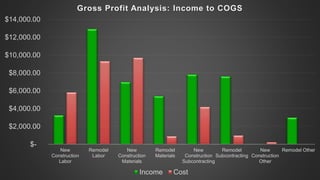
Gross Profit Analysis: Income to COGS
Income Cost
Vendors
Customers
Employees
Company
5 Major Groups
Banking
Chart of Accounts
Item List
Customer List
Vendor List
5 Major Lists
Employee List
Setting Up
A New Company.
Set Up Your Preferences
Set Up User Permissions
Next steps when you get back
to your office:
1. Go through your company preferences.
2. Go through your user permissions.
Often called the “general ledger.”
A list of your company’s accounts and their
balances.
Quickbooks has 16 account types.
Click here to learn how to make accounts, items,
customers, vendors, and classes inactive and click
here to learn about merging.
Chart of Accounts
A list of anything that your company buys, sells, or
resells in the course of business.
Products, services, shipping and handling
charges, discounts, sales tax, etc.
Items can also be miscellaneous fields such as
subtotal fields.
Creates an autofill amount on a line that can be
manually overridden.
The Item List
Next steps when you get back
to your office:
3. Clean up your chart of accounts.
4. Check account mapping in your item
list.
• Join the Quickbooks Blog
• Fred Pryor Training Rewards
• Microsoft Excel
 May 25th
• Payroll Law
 February 4th
• Understanding Financial Statements
 April 14th
• Sales and Use Tax Workshop
 February 8th
• How to Manage and Organize Accounts Payable
 March 15th
Recommended Resources:
For more
information on
Expensify click here:
Can be grouped by customer type.
Cannot have the same name as a vendor.
Records can further be broken down by jobs.
Customer records also contain all pertinent
information related to specific terms.
Customers
Manual entry.
Import from Excel. For instructions click here.
Automatic integration with Outlook, Gmail, and
others.
For more information on the Outlook
integration tool click here.
Entering Customers
Custom Data Fields
“The Claw”
Used to group business activities into separate
departments based on differing factors.
Could be used for different locations, business
units, departments, or sources of funding (NFPs).
Provides an additional level of reporting.
Excellent tool for analysis and decision making.
Class Tracking
Revenues $1,000,000
Cost of sales -750,000
Gross margin 250,000
Administration -100,000
Profit before taxes 150,000
Taxes -50,000
Net Profit $100,000
Standard Income Statement
• This works if all the activities of the organization are
similar in profitability.
• Assumes all costs will vary equally with changes in
revenues.
• In complex situations it does not provide enough
information for monitoring, planning or taking
corrective action.
Issues:
Product Line A Product Line B Total
Revenue $750,000 $250,000 $1,000,000
Cost of Sales $500,000 $250,000 $750,000
Gross margin $250,000 $ 0 $250,000
Administration $100,000
Profit before taxes $150,000
Taxes 50,000
INVOICE ESSENTIALS
Amount that needs to be paid.
How to pay.
When to pay.
Other details you feel are pertinent: date,
number, description of product/services, etc.
All payments go to “Undeposited Funds” by default.
All payments must be applied towards a
customer invoice.
There is not a way to apply a payment towards a
specific line item on an invoice.
Receiving payments and creating a customer
receipt are two separate steps.
Payments & Receipts
The Record Deposits button on the home page will
take you to a list of what is in undeposited funds.
Receiving payments and depositing funds are two
separate steps.
Helps ensure that payments are applied correctly
and that banking matches accounting.
Deposits
A statement is not an invoice.
A statement puts all invoices together in one
document and shows any monies received.
Statements are sent based on customer
preferences.
Statements can be customized much like
invoices.
Statements
For more
information about
Invoice Sherpa click
here:
Accounts
Payable
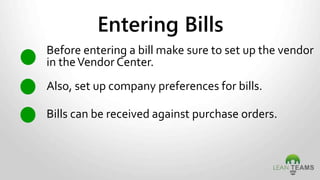
Before entering a bill make sure to set up the vendor
in theVendor Center.
Also, set up company preferences for bills.
Bills can be received against purchase orders.
Entering Bills
Allows you to sort by due date – so that you can
better manage cash.
Allows you to sort by vendor, class, etc.
There is the capability to pay bills online through
Quickbooks, but there is an extra fee.
Choose to “print later” and you can print all of
your cheques as one batch.
Paying Bills
An effective way to save time with regular
transactions.
Any transaction can be memorized (Ex. Bills,
invoices, journal entries, etc.).
You can memorize transactions and leave the
amount blank.
Caution: a memorized transfer will not
automatically transfer funds in your bank
accounts.
Memorized Transactions
Banking in Quickbooks.
Your beginning balances must match.
You can download your transactions from your
bank if it is attached to Quickbooks.
Once the difference equals zero, and all of the
transactions match, choose “Reconcile Now”.
Reconciling Accounts
Reports.
Balance Sheet
Profit & Loss, or Income Statement
Aging Report
Cash Flow Statement
Main Reports
Customized Reports Workflow
0%
20%
40%
60%
80%
100%
120%
New Construction Remodelling
COGS % to Income Earned
% of Total Income % COGS/Income
$-
$2,000.00
$4,000.00
$6,000.00
$8,000.00
$10,000.00
$12,000.00
$14,000.00
New
Construction
Labor
Remodel
Labor
New
Construction
Materials
Remodel
Materials
New
Construction
Subcontracting
Remodel
Subcontracting
New
Construction
Other
Remodel Other
Gross Profit Analysis: Income to COGS
Income Cost
Enterprise Resource
Planning.
E.R.P.
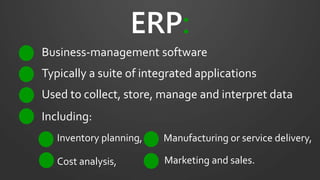
ERP:
Business-management software
Used to collect, store, manage and interpret data
Typically a suite of integrated applications
Inventory planning,
Including:
Cost analysis,
Manufacturing or service delivery,
Marketing and sales.
Next steps when you get back
to your office:
5. Turn the Quickbooks tab on in
Microsoft Excel.
6. Build a customized report template to
measure key performance indicators
in your business.
Meant to be quick view of what is going on in the
company.
Very helpful for owners and/or managers.
Has limited “widget” options on the snapshot.
Can be set as the opening screen when opening
a company file. For instructions click here.
Snapshot Report
For more
information about
LivePlan click here:
Creating a Backup
File.
Go through your company preferences.
Update all of your user permissions.
Clean up your chart of accounts.
Make sure all account mapping is correct in your
item list.
Six Things To Do:
Turn the Quickbooks tab on in Microsoft Excel.
Build a customized report template to measure
key performance indicators in your business.
• Join the Quickbooks Blog
• Training Reward Videos:
• Quickbooks: A 60 Minute Crash Course
• Quickbooks Payroll
• Microsoft Excel (2 day in-person seminar)
• Microsoft Excel: Pivot Tables Made Easy
• Microsoft Excel: Charting Training
• Microsoft Excel: Analyzing Your Data
• Financial Statement Analysis
Next Steps:
Join Fred Pryor Training
Rewards!
… AND
YOU’RE
DONE!
Thank you.
To download this
presentation click
here:
Link to this
presentation:
www.Slideshare.net/leanteams
Wade Farquhar

How to Maximize Quickbooks (Retired Version)