Sandvine Policy Traffic Switch
Hardware Installation Guide
05-00185-A29
2019-2-12
Copyright © 2019 Sandvine Corporation. All rights reserved. Any unauthorized reproduction prohibited.
All other trademarks are the property of their respective owners. This documentation including all documentation incorporated
by reference herein such as documentation provided or made available on the Sandvine website are provided or made accessible
"AS IS" and "AS AVAILABLE" and without condition, endorsement, guarantee, representation, or warranty of any kind by Sandvine
Corporation and its affiliated companies ("Sandvine") and Sandvine assumes no responsibility for any typographical, technical,
or other inaccuracies, errors, or omissions in this documentation. In order to protect Sandvine proprietary and confidential
information and/or trade secrets, this documentation may describe some aspects of Sandvine technology in generalized terms.
Sandvine reserves the right to periodically change information that is contained in this documentation; however, Sandvine makes
no commitment to provide any such changes, updates, enhancements, or other additions to this documentation to you in a timely
manner or at all.
Comments
If you have any comments, questions, or ideas in relation to the content in this documentation, we welcome your feedback. Please
send your comments to Sandvine via email at docs@sandvine.com.
Contacting Sandvine
To view the latest Sandvine documentation or to contact Sandvine Customer Support, register for an account at
https://support.sandvine.com.
See http://www.sandvine.com/about_us/contact.asp for a list of Sandvine Sales and Support offices.
Sandvine Policy Traffic Switch Hardware Installation Guide
2
05-00185-A29
Notices
Related documentation is available from Sandvine's Customer Support website.
All documents are in PDF format and can be opened and read or printed using Adobe® Acrobat® Reader®. You can obtain a
free copy of this software from the Adobe® website.
Part Number
Document
05-00011
Getting Started with Sandvine
05-00361
PTS Release Notes
05-00262
PTS Hardware Installation Guide
05-00245
PTS Software Installation and Upgrade Guide
05-00192
PTS Administration Guide
05-00217
PTS SandScript Guide
05-00269
PTS Virtual Platform User Guide
05-00330
Sandvine API User Guide
05-00337
Sandvine SNMP Alarms Reference Guide
05-00998
Sandvine CLI Reference Guide
3
Sandvine Policy Traffic Switch Hardware Installation Guide
05-00185-A29
Related Documentation
Contents
1 The Installation Environment......................................................................................................................................10
1.1 Sandvine PTS Overview.....................................................................................................................................11
1.1.1 PTS Software...............................................................................................................................................11
1.1.2 PTS Network Performance...........................................................................................................................11
1.2 PTS Series..........................................................................................................................................................13
1.2.1 PTS 32000...................................................................................................................................................13
1.2.2 PTS 24000...................................................................................................................................................13
1.2.3 PTS 22000...................................................................................................................................................13
1.3 PTS Clustering....................................................................................................................................................13
1.3.1 Cluster Configurations..................................................................................................................................14
1.4 Installing Inline and Offline..................................................................................................................................15
1.4.1 Inline Deployment.........................................................................................................................................15
1.4.2 Offline Deployment.......................................................................................................................................15
1.4.3 Installation Differences.................................................................................................................................16
1.5 PTS Deployment Scenarios................................................................................................................................17
1.5.1 LTE Deployment with PTS on S1-U.............................................................................................................17
1.5.2 LTE Deployment with PTS on S5/A8............................................................................................................19
1.5.3 LTE Deployment with PTS on S11...............................................................................................................20
1.5.4 LTE Deployments with the PTS on SGi........................................................................................................21
1.5.5 3G Standard Gi Deployments......................................................................................................................22
1.5.6 3G Standard Gn Deployments.....................................................................................................................23
1.5.7 Standard Cable Deployments......................................................................................................................24
1.5.8 Standard Satellite Deployments...................................................................................................................25
1.5.9 WiFi PTS (CAPWAP) Deployments.............................................................................................................26
1.5.10 Standard Wifi Deployments........................................................................................................................26
1.5.11 Standard DSL (Core) Deployments............................................................................................................28
1.5.12 Standard DSL (Edge) Deployments...........................................................................................................29
1.5.13 Standard WiMAX Deployments..................................................................................................................30
2 Hardware Elements....................................................................................................................................................32
2.1 PTS 32000 Series...............................................................................................................................................33
2.1.1 PTS 32000: Models......................................................................................................................................33
2.1.2 PTS 32000: Dimensions and Power Ratings...............................................................................................34
2.1.3 PTS 32000: Face Plate................................................................................................................................34
2.1.4 PTS 32000: Blades......................................................................................................................................35
2.1.5 Built-in Ports.................................................................................................................................................36
2.1.6 Port Usage and Configuration Examples ....................................................................................................37
Sandvine Policy Traffic Switch Hardware Installation Guide
4
05-00185-A29
4 | Sandvine | TOC
2.1.7 PTS 32000: Rear Chassis............................................................................................................................52
2.2 PTS 24000 Series...............................................................................................................................................53
2.2.1 PTS 24000: Models......................................................................................................................................55
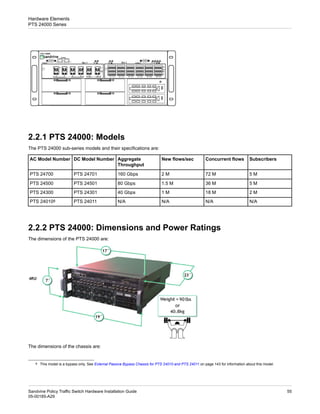
2.2.2 PTS 24000: Dimensions and Power Ratings...............................................................................................55
2.2.3 PTS 24000: Face Plate................................................................................................................................56
2.2.4 PTS 24000: Blades......................................................................................................................................58
2.2.5 PTS 24000: Rear Chassis............................................................................................................................60
2.3 PTS 22000 Series...............................................................................................................................................60
2.3.1 PTS 22000: Models......................................................................................................................................61
2.3.2 PTS 22000: Dimensions and Power Ratings...............................................................................................62
2.3.3 PTS 22000: Face Plate................................................................................................................................62
2.3.4 PTS 22000: Blades......................................................................................................................................63
2.3.5 PTS 22000: Rear Chassis............................................................................................................................65
2.4 Replaceable Components...................................................................................................................................66
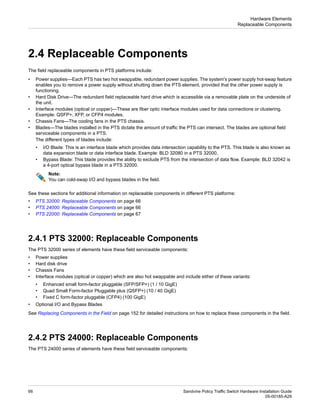
2.4.1 PTS 32000: Replaceable Components........................................................................................................66
2.4.2 PTS 24000: Replaceable Components........................................................................................................66
2.4.3 PTS 22000: Replaceable Components........................................................................................................67
2.5 Additional Hardware Components.......................................................................................................................67
3 Site Preparation..........................................................................................................................................................70
3.1 Rack Considerations...........................................................................................................................................71
3.1.1 Dimensions...................................................................................................................................................71
3.1.2 Weight..........................................................................................................................................................72
3.1.3 Heat Dissipation...........................................................................................................................................72
3.2 Power Considerations.........................................................................................................................................72
3.2.1 PTS Power Architectures.............................................................................................................................73
4 Planning Configuration...............................................................................................................................................84
4.1 PTS Inline/Offline Overview.................................................................................................................................85
4.1.1 Inline Deployment.........................................................................................................................................85
4.1.2 Offline Deployment.......................................................................................................................................85
4.2 Clustering............................................................................................................................................................85
4.2.1 Cluster Link Recommendations for 10 GigE Cluster Links..........................................................................86
4.2.2 Cluster Link Recommendations for 40 GigE Cluster Links..........................................................................88
4.2.3 Maximum PTS 32000 Cluster Link Capabilities (Full Mesh, No Locality)....................................................90
4.2.4 Optimal PTS 32000 Cluster Link Capabilities (Non-Full Mesh)...................................................................92
4.2.5 PTS Cluster Sizes........................................................................................................................................92
4.3 Hardware Compatibility Matrix............................................................................................................................93
4.4 PTS Bypass Deployment Solutions.....................................................................................................................93
4.4.1 Bypass vs PTS Compatibility Matrix.............................................................................................................93
4.4.2 PTS 32000 Bypass Solution.........................................................................................................................94
5
Sandvine Policy Traffic Switch Hardware Installation Guide
05-00185-A29
Sandvine | TOC | 5
4.4.3 PTS 22000 and PTS 24000 Bypass Solutions.............................................................................................95
4.4.4 External Active Bypass Solution...................................................................................................................97
5 Installing PTS Elements.............................................................................................................................................98
5.1 Getting Started....................................................................................................................................................99
5.1.1 Before Installing a PTS.................................................................................................................................99
5.1.2 Installation Tasks..........................................................................................................................................99
5.2 Rack Mounting a PTS.........................................................................................................................................99
5.2.1 Installing a PTS Using Rack Mounting Holes.............................................................................................100
5.2.2 Installing a PTS Using Rack Rails..............................................................................................................100
5.3 Grounding the PTS to the Central Office Ground..............................................................................................101
5.4 Power Connections...........................................................................................................................................102
5.4.1 Connecting AC Power................................................................................................................................102
5.4.2 Connecting DC Power................................................................................................................................104
5.4.3 Verifying Power Connections.....................................................................................................................106
5.5 Installing Optical Modules and Cables..............................................................................................................107
5.5.1 SFP/SFP+ and XFP Modules.....................................................................................................................107
5.5.2 Installing SFP/SFP+ Optical Transceiver Modules.....................................................................................107
5.5.3 Installing XFP Optical Transceiver Modules...............................................................................................108
5.5.4 Removing SFP/SFP+/XFP Modules..........................................................................................................109
5.5.5 QSFP+ Modules (PTS 32000 Only)...........................................................................................................109
5.5.6 CFP4 Modules (PTS 32000 Only)..............................................................................................................110
5.5.7 Active Optical Cables (AOC) for QSFP+....................................................................................................111
5.5.8 MPO (MTP) Breakout Cables (PTS 32000 Only).......................................................................................112
5.6 Status LEDs......................................................................................................................................................114
5.6.1 Element Front LEDs...................................................................................................................................114
5.6.2 PTS 22000, PTS 24000, and PTS 32000 Blade LEDs..............................................................................115
5.6.3 Power Supply LEDs...................................................................................................................................115
5.6.4 Hard Drive LEDs........................................................................................................................................116
5.6.5 Network Interface LEDs.............................................................................................................................117
5.6.6 RJ-45 LEDs................................................................................................................................................120
6 Connecting the Control and Data Ports....................................................................................................................122
6.1 Interface Connections to PTS...........................................................................................................................123
6.1.1 Copper Cabling Support.............................................................................................................................123
6.1.2 Connecting Network Cables.......................................................................................................................123
6.2 Connecting Control Ports..................................................................................................................................124
6.2.1 PTS 32000: Control Port Cabling...............................................................................................................124
6.2.2 PTS 24000: Control Port Cabling...............................................................................................................126
6.2.3 PTS 22000: Control Port Cabling...............................................................................................................129
6.3 Connecting Data Interfaces...............................................................................................................................132
Sandvine Policy Traffic Switch Hardware Installation Guide
6
05-00185-A29
6 | Sandvine | TOC
6.3.1 PTS 32000: Connecting Data Interfaces....................................................................................................132
6.3.2 PTS 24000: Connecting Data Interfaces....................................................................................................134
6.3.3 PTS 22000: Connecting Data Interfaces....................................................................................................136
6.3.4 Recommendations for Wiring the Data Ports.............................................................................................139
6.4 Connecting Cluster Interfaces...........................................................................................................................141
6.4.1 PTS 32000: Connecting Cluster Interfaces................................................................................................141
6.4.2 PTS 22000: Connecting Cluster Interfaces................................................................................................142
6.5 External Passive Bypass Chassis for PTS 24010 and PTS 24011...................................................................143
6.5.1 Cables........................................................................................................................................................144
6.5.2 Bypass Blades............................................................................................................................................144
6.5.3 Bypass Chassis..........................................................................................................................................145
6.6 Cabling Options for External Bypass Chassis...................................................................................................146
6.6.1 Single PTS 24000 to Bypass Chassis with one Bypass Blade..................................................................146
6.6.2 Single PTS 24000 to Bypass Chassis with Two Blades.............................................................................146
6.6.3 Two PTS 24000s to a Bypass Chassis with Two Blades...........................................................................148
6.6.4 Bypass Cascade for PTS 1:1 Redundancy................................................................................................149
6.6.5 Using the External 24000 Bypass Chassis with a PTS 22000 or PTS 32000............................................151
7 Replacing Components in the Field.........................................................................................................................152
7.1 Field Replaceable Components........................................................................................................................153
7.2 Replacing PTS 32000 and PTS 22000 Power Supplies...................................................................................153
7.3 Replacing PTS 24000 Power Supplies.............................................................................................................155
7.4 Replacing PTS 32000 Hard Drives...................................................................................................................157
7.4.1 Removing the Old Solid State Drive...........................................................................................................157
7.4.2 Installing a New Solid State Drive..............................................................................................................159
7.4.3 Software Setup...........................................................................................................................................160
7.5 Replacing PTS 24000 Hard Drives...................................................................................................................161
7.6 Replacing PTS 22000 Hard Drives...................................................................................................................163
7.6.1 Replacing the Hard Drive...........................................................................................................................163
7.6.2 Software Setup...........................................................................................................................................164
7.7 Replacing PTS 24000 Chassis Fans.................................................................................................................164
7.8 Replacing PTS 32000 Chassis Fans.................................................................................................................166
7.8.1 Removing the Chassis Cover for Fan Replacement..................................................................................166
7.8.2 Field Replacement of Chassis Fan............................................................................................................168
7.8.3 Fan Installation...........................................................................................................................................170
7.8.4 Replacing the Chassis Cover after Fan Replacement...............................................................................171
7.9 Adding and Replacing Blades...........................................................................................................................172
7.9.1 Pre-requisites ............................................................................................................................................173
7.9.2 Adding and Replacing Blades in PTS 24000/PTS 22000..........................................................................173
7.9.3 Adding and Replacing Blades in PTS 32000.............................................................................................176
7
Sandvine Policy Traffic Switch Hardware Installation Guide
05-00185-A29
Sandvine | TOC | 7
7.9.4 Blade Compatibility with PTS Platforms ....................................................................................................180
A Specifications...........................................................................................................................................................182
A.1 Cabling and Transceiver Specifications............................................................................................................183
A.1.1 Optical Transceiver and Cable Specifications...........................................................................................183
A.1.2 Key Optical Module Parameters................................................................................................................185
A.1.3 RS-232 Serial Connector Pin-out...............................................................................................................186
A.2 Electrical Specifications....................................................................................................................................187
A.2.1 PTS 32000: Electrical Ratings...................................................................................................................187
A.2.2 PTS 24000: Electrical Ratings...................................................................................................................188
A.2.3 PTS 22000: Electrical Ratings...................................................................................................................189
A.3 Environmental and Physical Specifications......................................................................................................189
A.4 Mean Time Between Failure.............................................................................................................................191
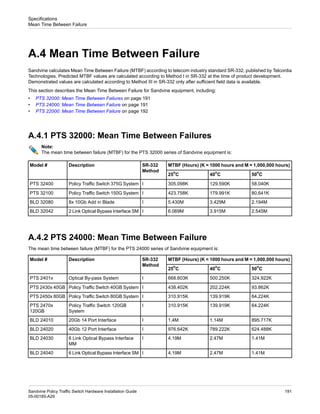
A.4.1 PTS 32000: Mean Time Between Failures................................................................................................191
A.4.2 PTS 24000: Mean Time Between Failure..................................................................................................191
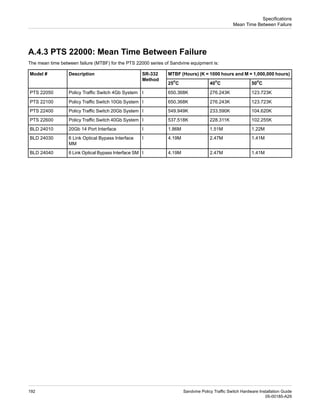
A.4.3 PTS 22000: Mean Time Between Failure..................................................................................................192
B Regulatory Compliance and Safety Warnings.........................................................................................................194
B.1 Regulatory Compliance.....................................................................................................................................195
B.2 Safety Warnings................................................................................................................................................196
Sandvine Policy Traffic Switch Hardware Installation Guide
8
05-00185-A29
8 | Sandvine | TOC
9
Sandvine Policy Traffic Switch Hardware Installation Guide
05-00185-A29
Sandvine | TOC | 9
1
The Installation Environment
• "Sandvine PTS Overview" on page 11
• "PTS Series" on page 13
• "PTS Clustering" on page 13
• "Installing Inline and Offline" on page 15
• "PTS Deployment Scenarios" on page 17
Sandvine Policy Traffic Switch Hardware Installation Guide
10
05-00185-A29
The Installation Environment
1.1 Sandvine PTS Overview
The Policy Traffic Switch (PTS) embeds the Sandvine Policy Engine in the data plane of any network, regardless of whether it
is physical or virtual, with any combination of access technologies, and scales higher with better performance efficiency than any
other PCEF/TDF solution.
Think of the Sandvine policy engine as a black box into which information about measured conditions and provisioned subscriber
entitlements flows, and out of which charging updates, management actions, and business intelligence emerge. Embedded within
the PTS, the Policy Engine makes policy decisions locally, without needing to interact with a PCRF unless additional context is
required. This design prevents unnecessary signaling, reduces the load on PCRF elements, and delivers faster decisions; all
achieved without sacrificing standards compliance.
1.1.1 PTS Software
The PTS runs specialized software that goes beyond simple policy enforcement. PTS software performs vital functions and
provides information for the policy engine, going far beyond even an advanced PCEF/TDF:
• Deep packet inspection (DPI) technology gives the policy engine real-time information about the identity and measured
characteristics of network traffic.
• The PTS provides standard interfaces (including Gx) through which the Policy Engine can acquire additional information,
when required for decision-making.
• In a Policy and Charging Control (PCC) deployment, the PTS measures subscriber usage in real-time and provides the
interfaces through which the policy engine communicates with online (using real-time Diameter Gy) and offline (using the
Service Delivery Engine) charging systems to enable prepaid and postpaid charging use cases.
1.1.2 PTS Network Performance
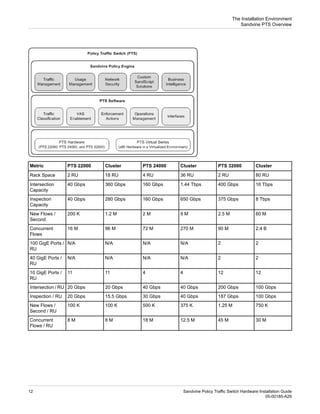
The PTS product line includes three hardware models, the PTS 22000, PTS 24000, and PTS 32000, and the PTS Virtual Series,
each of which is available in a range of variants. With communications service providers (CSPs) worldwide looking to control
operations costs, performance density is as important a consideration as top-line performance and the PTS provides the best of
both worlds: industry-leading port and performance density, with complementing clustering technology that efficiently delivers
massive scale.
11
Sandvine Policy Traffic Switch Hardware Installation Guide
05-00185-A29
The Installation Environment
Sandvine PTS Overview
Cluster
PTS 32000
Cluster
PTS 24000
Cluster
PTS 22000
Metric
80 RU
2 RU
36 RU
4 RU
18 RU
2 RU
Rack Space
16 Tbps
400 Gbps
1.44 Tbps
160 Gbps
360 Gbps
40 Gbps
Intersection
Capacity
8 Tbps
375 Gbps
650 Gbps
160 Gbps
280 Gbps
40 Gbps
Inspection
Capacity
60 M
2.5 M
9 M
2 M
1.2 M
200 K
New Flows /
Second
2.4 B
90 M
270 M
72 M
96 M
16 M
Concurrent
Flows
2
2
N/A
N/A
N/A
N/A
100 GigE Ports /
RU
2
2
N/A
N/A
N/A
N/A
40 GigE Ports /
RU
12
12
4
4
11
11
10 GigE Ports /
RU
100 Gbps
200 Gbps
40 Gbps
40 Gbps
20 Gbps
20 Gbps
Intersection / RU
100 Gbps
187 Gbps
40 Gbps
30 Gbps
15.5 Gbps
20 Gbps
Inspection / RU
750 K
1.25 M
375 K
500 K
100 K
100 K
New Flows /
Second / RU
30 M
45 M
12.5 M
18 M
8 M
8 M
Concurrent
Flows / RU
Sandvine Policy Traffic Switch Hardware Installation Guide
12
05-00185-A29
The Installation Environment
Sandvine PTS Overview
1.2 PTS Series
The blades installed in the PTS dictate the amount of traffic the PTS can intersect (traffic passing through the PTS), while the
model dictates the amount of traffic the PTS can inspect.
1.2.1 PTS 32000
The PTS 32000 includes these capabilities:
• Per element throughput of up to 375 Gbps.
• Clustering capabilities for redundancy and scalability.
• Handles asymmetric routing.
• Compact form factor.
• A modular platform using multiple 10 / 40 / 100 GigE data intersects and industry leading port density.
1.2.2 PTS 24000
The PTS 24000 includes these capabilities:
• Per-element throughput of up to 160 Gbps.
• Clustering capabilities for redundancy and scalability.
• Handles asymmetric routing.
• Compact form factor.
• A modular platform using multiple 1 / 10 GigE data intersects and industry leading port density.
1.2.3 PTS 22000
The PTS 22000 includes these capabilities:
• Per-element throughput of up to 40 Gbps.
• Clustering capabilities for redundancy and scalability.
• Handles asymmetric routing.
• Compact form factor.
• Ideal for expanding edge deployments or aggregation layer deployments.
1.3 PTS Clustering
A cluster of PTS units emulates the behavior of a single network policy control box in order to overcome asymmetry, deliver
enhanced scalability, and preserve redundancy; and importantly, clustering achieves these goals with incredible efficiency. The
PTS architecture (at a per unit level and at a cluster level) is ‘shared nothing’, which ensures linear extensibility and enables
economical N:N+1 redundancy.
While you can use a combination of PTS system variants (such as 243xx or 245xx), you cannot create clusters with combinations
of PTS models (such as 24xxx or 22xxx). The exception to this is the PTS 32000, which you can cluster with 24000 and 22000
models.
13
Sandvine Policy Traffic Switch Hardware Installation Guide
05-00185-A29
The Installation Environment
PTS Series
Not all PTS elements need to intercept traffic using data ports. You can use a PTS that does not intercept traffic to expand the
cluster and provide additional processing capabilities during peak traffic demands.
You can connect multiple PTS elements using cluster links. See the PTS Administration Guide, for additional information on
cluster configurations.
1.3.1 Cluster Configurations
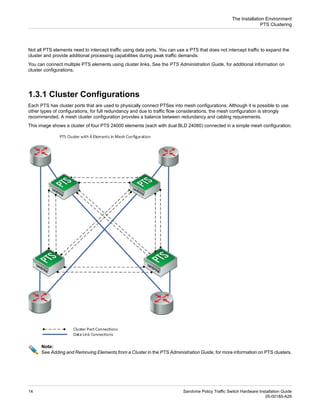
Each PTS has cluster ports that are used to physically connect PTSes into mesh configurations. Although it is possible to use
other types of configurations, for full redundancy and due to traffic flow considerations, the mesh configuration is strongly
recommended. A mesh cluster configuration provides a balance between redundancy and cabling requirements.
This image shows a cluster of four PTS 24000 elements (each with dual BLD 24080) connected in a simple mesh configuration.
Note:
See Adding and Removing Elements from a Cluster in the PTS Administration Guide, for more information on PTS clusters.
Sandvine Policy Traffic Switch Hardware Installation Guide
14
05-00185-A29
The Installation Environment
PTS Clustering
1.4 Installing Inline and Offline
You can deploy the PTS in two broad generic deployment types:
• Inline Deployment on page 15
• Offline Deployment on page 15
1.4.1 Inline Deployment
This is the default deployment mode for the PTS. In this mode, the PTS is located in between the communicating network devices
and PTS intersects the data flow. The policy enforcement in the inline mode is done over the PTS data ports.
This deployment mode offers the full range of features and functionality, including reporting, policy enforcement, and traffic
management.
Example:
PTS Inline Deployment
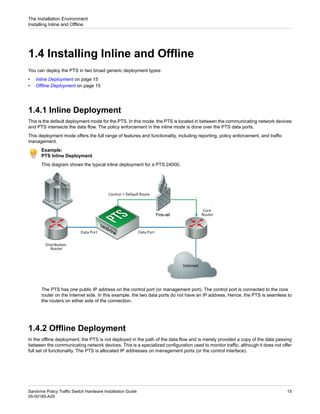
This diagram shows the typical inline deployment for a PTS 24000.
The PTS has one public IP address on the control port (or management port). The control port is connected to the core
router on the Internet side. In this example, the two data ports do not have an IP address. Hence, the PTS is seamless to
the routers on either side of the connection.
1.4.2 Offline Deployment
In the offline deployment, the PTS is not deployed in the path of the data flow and is merely provided a copy of the data passing
between the communicating network devices. This is a specialized configuration used to monitor traffic, although it does not offer
full set of functionality. The PTS is allocated IP addresses on management ports (or the control interface).
15
Sandvine Policy Traffic Switch Hardware Installation Guide
05-00185-A29
The Installation Environment
Installing Inline and Offline
Example:
PTS Offline Deployment
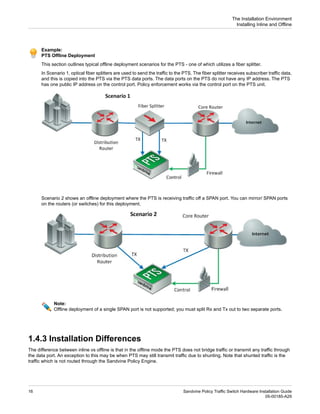
This section outlines typical offline deployment scenarios for the PTS - one of which utilizes a fiber splitter.
In Scenario 1, optical fiber splitters are used to send the traffic to the PTS. The fiber splitter receives subscriber traffic data,
and this is copied into the PTS via the PTS data ports. The data ports on the PTS do not have any IP address. The PTS
has one public IP address on the control port. Policy enforcement works via the control port on the PTS unit.
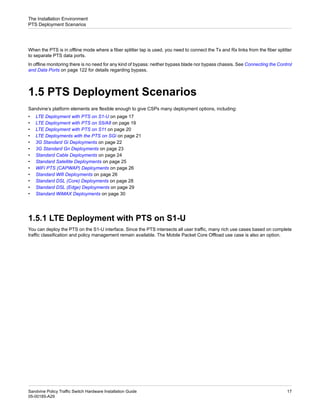
Scenario 2 shows an offline deployment where the PTS is receiving traffic off a SPAN port. You can mirror/ SPAN ports
on the routers (or switches) for this deployment.
Note:
Offline deployment of a single SPAN port is not supported; you must split Rx and Tx out to two separate ports.
1.4.3 Installation Differences
The difference between inline vs offline is that in the offline mode the PTS does not bridge traffic or transmit any traffic through
the data port. An exception to this may be when PTS may still transmit traffic due to shunting. Note that shunted traffic is the
traffic which is not routed through the Sandvine Policy Engine.
Sandvine Policy Traffic Switch Hardware Installation Guide
16
05-00185-A29
The Installation Environment
Installing Inline and Offline
When the PTS is in offline mode where a fiber splitter tap is used, you need to connect the Tx and Rx links from the fiber splitter
to separate PTS data ports.
In offline monitoring there is no need for any kind of bypass: neither bypass blade nor bypass chassis. See Connecting the Control
and Data Ports on page 122 for details regarding bypass.
1.5 PTS Deployment Scenarios
Sandvine’s platform elements are flexible enough to give CSPs many deployment options, including:
• LTE Deployment with PTS on S1-U on page 17
• LTE Deployment with PTS on S5/A8 on page 19
• LTE Deployment with PTS on S11 on page 20
• LTE Deployments with the PTS on SGi on page 21
• 3G Standard Gi Deployments on page 22
• 3G Standard Gn Deployments on page 23
• Standard Cable Deployments on page 24
• Standard Satellite Deployments on page 25
• WiFi PTS (CAPWAP) Deployments on page 26
• Standard Wifi Deployments on page 26
• Standard DSL (Core) Deployments on page 28
• Standard DSL (Edge) Deployments on page 29
• Standard WiMAX Deployments on page 30
1.5.1 LTE Deployment with PTS on S1-U
You can deploy the PTS on the S1-U interface. Since the PTS intersects all user traffic, many rich use cases based on complete
traffic classification and policy management remain available. The Mobile Packet Core Offload use case is also an option.
17
Sandvine Policy Traffic Switch Hardware Installation Guide
05-00185-A29
The Installation Environment
PTS Deployment Scenarios
Sandvine Policy Traffic Switch Hardware Installation Guide
18
05-00185-A29
The Installation Environment
PTS Deployment Scenarios
1.5.2 LTE Deployment with PTS on S5/A8
You can deploy the PTS in the S5/S8. In this location, the PTS sees all traffic in the GTP-U, including GTP-C for signaling such
as subscriber-to-IP mapping, TEID, and location, as well as all roaming traffic. The ability to see the roaming traffic increases
the number of use cases available.
19
Sandvine Policy Traffic Switch Hardware Installation Guide
05-00185-A29
The Installation Environment
PTS Deployment Scenarios
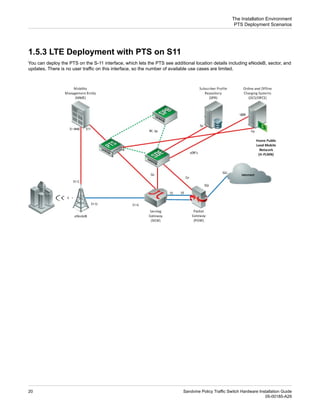
1.5.3 LTE Deployment with PTS on S11
You can deploy the PTS on the S-11 interface, which lets the PTS see additional location details including eNodeB, sector, and
updates. There is no user traffic on this interface, so the number of available use cases are limited.
Sandvine Policy Traffic Switch Hardware Installation Guide
20
05-00185-A29
The Installation Environment
PTS Deployment Scenarios
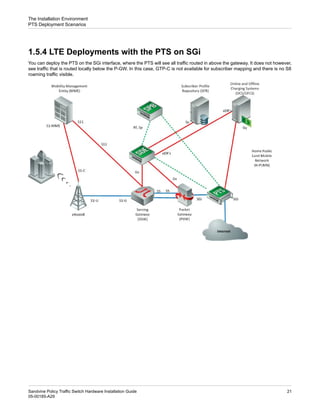
1.5.4 LTE Deployments with the PTS on SGi
You can deploy the PTS on the SGi interface, where the PTS will see all traffic routed in above the gateway. It does not however,
see traffic that is routed locally below the P-GW. In this case, GTP-C is not available for subscriber mapping and there is no S8
roaming traffic visible.
21
Sandvine Policy Traffic Switch Hardware Installation Guide
05-00185-A29
The Installation Environment
PTS Deployment Scenarios
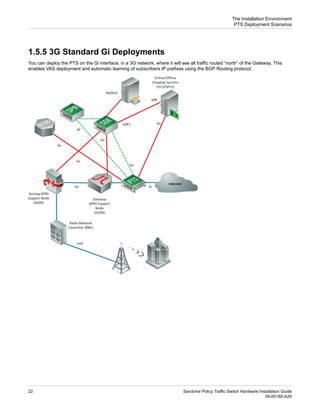
1.5.5 3G Standard Gi Deployments
You can deploy the PTS on the Gi interface, in a 3G network, where it will see all traffic routed “north” of the Gateway. This
enables VAS deployment and automatic learning of subscribers IP prefixes using the BGP Routing protocol.
Sandvine Policy Traffic Switch Hardware Installation Guide
22
05-00185-A29
The Installation Environment
PTS Deployment Scenarios
1.5.6 3G Standard Gn Deployments
You can deploy the PTS on the Gn interface in a 3G network. In this way the PTS sees all GTP-U traffic, including GTP-C for
signaling, such as subscriber-to-IP mapping, TEID, and location). This is required to deploy to a location where you can count
and apply SandScript on inbound roaming traffic. This type of deployment permits more effective counting and applying of the
SandScript policy relevant to subscribers-to-subscribers and subscribers-to-gateway.
23
Sandvine Policy Traffic Switch Hardware Installation Guide
05-00185-A29
The Installation Environment
PTS Deployment Scenarios
1.5.7 Standard Cable Deployments
Sandvine’s platform is a holistic; open-standards based solution providing an integrated policy control architecture that leverages
IPDR, PCMM, and network intelligence, for a complete network policy control platform across DOCSIS and wireless networks.
Sandvine Policy Traffic Switch Hardware Installation Guide
24
05-00185-A29
The Installation Environment
PTS Deployment Scenarios
1.5.8 Standard Satellite Deployments
As shown here, the standard Sandvine satellite solution involves positioning the PTS between the Internet gateway and the
Satellite Modem Termination System (SMTS).
25
Sandvine Policy Traffic Switch Hardware Installation Guide
05-00185-A29
The Installation Environment
PTS Deployment Scenarios
1.5.9 WiFi PTS (CAPWAP) Deployments
In case of a WiFi network, you can deploy the PTS (Sandvine’s data plane element) in different locations.
You can deploy the PTS closer to the subscriber edge inline, between the Access Controller and the Wireless Access Gateway;
a situation unique to Sandvine. This is based on the PTSes technology differentiator in as much as the PTS can define SandScript
that inspects both the ‘inner-tunnel’ and ‘outer-tunnel’ in real time, the tunnel in this case is the CAPWAP.
1.5.10 Standard Wifi Deployments
This standard wifi deployment shows the PTS placed closer to the internet side of the network.
Sandvine Policy Traffic Switch Hardware Installation Guide
26
05-00185-A29
The Installation Environment
PTS Deployment Scenarios
27
Sandvine Policy Traffic Switch Hardware Installation Guide
05-00185-A29
The Installation Environment
PTS Deployment Scenarios
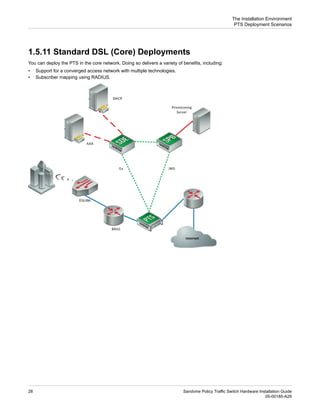
1.5.11 Standard DSL (Core) Deployments
You can deploy the PTS in the core network. Doing so delivers a variety of benefits, including:
• Support for a converged access network with multiple technologies.
• Subscriber mapping using RADIUS.
Sandvine Policy Traffic Switch Hardware Installation Guide
28
05-00185-A29
The Installation Environment
PTS Deployment Scenarios
1.5.12 Standard DSL (Edge) Deployments
You can deploy the PTS closer to the subscriber edge in a DSL network. This delivers additional benefits, including:
• All subscriber traffic is visible.
• VLAN support for multiple regional deployments.
• Network policy control support for MPLS, IPv4, IPv6, and tunnels.
29
Sandvine Policy Traffic Switch Hardware Installation Guide
05-00185-A29
The Installation Environment
PTS Deployment Scenarios
1.5.13 Standard WiMAX Deployments
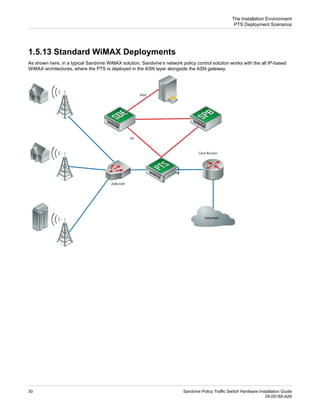
As shown here, in a typical Sandvine WiMAX solution, Sandvine’s network policy control solution works with the all IP-based
WiMAX architectures, where the PTS is deployed in the ASN layer alongside the ASN gateway.
Sandvine Policy Traffic Switch Hardware Installation Guide
30
05-00185-A29
The Installation Environment
PTS Deployment Scenarios
31
Sandvine Policy Traffic Switch Hardware Installation Guide
05-00185-A29
The Installation Environment
PTS Deployment Scenarios
2
Hardware Elements
• "PTS 32000 Series" on page 33
• "PTS 24000 Series" on page 53
• "PTS 22000 Series" on page 60
• "Replaceable Components" on page 66
• "Additional Hardware Components" on page 67
Sandvine Policy Traffic Switch Hardware Installation Guide
32
05-00185-A29
Hardware Elements
2.1 PTS 32000 Series
The PTS 32000 hardware is a 2RU platform capable of inspecting up to 375 Gbps of traffic. This PTS model functions as the
Network Policy Control Element providing the best performance density, and supports 100 GigE, 40 GigE, and 10 GigE interfaces.
With the PTS 32000, the Sandvine Policy Engine can be embedded anywhere, enabling your transition to 100 Gig-enabled policy
control in your network. The PTS 32000 series is scalable to 8 Tbps traffic and 30 million subscribers.
These PTS models are currently available:
Description
Model
Supports 375 Gbps and has 1 blade slot.
PTS 32400
Supports 150 Gbps and has 1 blade slot.
PTS 32100
The PTS 32000 includes these capabilities:
• Per element throughput of up to 375 Gbps.
• Clustering capabilities for redundancy and scalability.
• Handles asymmetric routing.
• Compact form factor.
• A modular platform using multiple 10/40/100 GigE data intersects and industry leading port density.
The PTS 32000 series hardware platform comes in several configurations (375 Gbps chassis with the BLD 32042 bypass blade
and AC Power Supplies shown in this image), offering differing bandwidth capacities, connection choices, and power options.
The chassis has two power supplies for redundancy, both either AC or DC powered.
These PTS 32000 components are field replaceable:
• Power supplies.
• SFP/SFP+ (1 / 10 GigE), QSFP+ (10 / 40 GigE), and CFP4 (100 GigE) transceivers.
• I/O blades.
• Bypass blades.
2.1.1 PTS 32000: Models
The PTS 32000 model and its specifications include:
Subscribers
Concurrent Flows
New flows/sec
Aggregate Throughput
Model Number
30 M
90 M
2.5 M
375 Gbps
PTS 32400
12 M
36 M
1.0 M
150 Gbps
PTS 32100
All PTS 32000 models support an external PTS 24010/24011 bypass chassis. Note that this is a multi 10GigE bypass solution
and supports 6 x 10GigE data links.
33
Sandvine Policy Traffic Switch Hardware Installation Guide
05-00185-A29
Hardware Elements
PTS 32000 Series
2.1.2 PTS 32000: Dimensions and Power Ratings
As shown here, the PTS 32000 chassis dimensions are:
• 16.85 inches (42.8 cm) wide and 3.47 inches (8.8 cm) high, which is 2 Rack Units (RU) and 24 inches (60.96 cm) deep.
• Weight is 60 lbs (27.3 kg). The final system weight depends on the blades installed.
• Standard 19-inch (48.26 cm) rack mounting (2 RU, IEC 60297-3-100) using front mountable brackets.
Note:
See PTS 32000: Electrical Ratings on page 187 for power rating information.
2.1.3 PTS 32000: Face Plate
The face plate can contain either I/O or bypass blades:
The LEDs on the faceplate of the PTS 32000 are:
Sandvine Policy Traffic Switch Hardware Installation Guide
34
05-00185-A29
Hardware Elements
PTS 32000 Series
The system LEDs indicate these states:
Description
State
LED
An alarm was triggered.
Red
Alarms
There are no active alarms.
Off
This LED is always off.
Off
Fault
The device is operating normally and services such as PTSM,
SFCD, CND, and SCDPD are online.
Green
Online
If any service unexpectedly restarts, or if SCDPD or SFCD are
intentionally stopped, the online LED turns off. This LED is
unaffected if any other service is intentionally stopped.
Off
Indicates that the system power is on.
Green
Power
Indicates that system power is off or input power is not present.
Off
2.1.4 PTS 32000: Blades
The available blade types for PTS 32000 hardware platform are:
Description
Type
Model
Bypass blade, 4 bypass ports, 9µm fiber, 40GBASE-LR4, 40GBASE-ER4, 100GBASE-LR4,
100GBASE-ER4.
Passive
Bypass
BLD 32042
Note:
40GBASE-SR4 and 100GBASE-SR4 are not supported.
Data Intersect blade for 8x 10GBase-LR or 10GBase-SR using QSFP+ optics and MPO/MTP
breakout cables.
Expansion
BLD 32080
35
Sandvine Policy Traffic Switch Hardware Installation Guide
05-00185-A29
Hardware Elements
PTS 32000 Series
Description
Type
Model
See MPO (MTP) Breakout Cables (PTS 32000 Only) on page 112 for additional cabling
information.
2.1.5 Built-in Ports
The built-in ports on the PTS 32000 are:
Note:
Due to hardware limitations, 32400-A units consume more physical ports on the switch fabric than originally designed,
resulting in fewer internal ports available for external slot4 interfaces. Sandvine recommends 32400-A models leverage
QSFP+ 40G native on slot4 for clustering. This enables a maximum cluster size of 10x elements for this model.
This table summarizes the built-in ports on the PTS 32000. See the PTS Administration Guide for additional information on Usage
and Interface Types.
Module
Type
Fiber Protocol
Usage or
Interface Type
Speed
Front Panel Port Label
Ports
Type
Qty
SFP
SX, LX, and ZX
Service, Divert,
and Switch
1 GigE
1-1, 1-2, 1-3, 1-4, 1-5, 1-6, 1-7, and
1-8
SFP /
SFP+
8
SFP+
SR, LR, ER, and ZR
Data, Cluster,
Service, Divert,
and Switch
10 GigE
QSFP+
4x 10G-SR and
4x 10G-LR
Data Only
4x10
GigE
2-1, 2-5, 2-9, and 2-131
QSFP+
4
QSFP+
SR4 or LR4 or AOC
Data Only
40 GigE
2-1, 2-5, 2-9, and 2-13. 2
CFP4
4x 10G-LR
Data Only
4x10
GigE
3-1, 3-11, 3-21, and 3-31 3
CFP4
4
1 Each port has 4-subports in this mode. For example, the 2-1 label contains 2-1, 2-2, 2-3, and 2-4. So, the total number of 10 GigE interfaces available = Total
number of ports * number of sub ports = 4*4 =16.
2 Total number of 40 GigE interfaces available = Total number of ports * number of sub ports = 4*1 =4.
3 Each port has 4 subports in this mode. For example, the 3-1 label contains 3-1, 3-2, 3-3, and 3-4. So, the total number of 10 GigE interfaces available = Total
number of ports * number of sub ports = 4*4=16.
Sandvine Policy Traffic Switch Hardware Installation Guide
36
05-00185-A29
Hardware Elements
PTS 32000 Series
Module
Type
Fiber Protocol
Usage or
Interface Type
Speed
Front Panel Port Label
Ports
Type
Qty
Note
The 4x10 GigE module referenced here, is not currently supported.
CFP4
LR4 and
SR45
Data Only
100 GigE
3-1, 3-11, 3-21, and 3-314
QSFP+
4x 10G-SR and
4x 10G-LR
Cluster,
Service, Divert,
and Switch
4x10
GigE
4-1, 4-5, 4-9, 4-13, 4-17, 4-21, 4-25,
4-29, and 4-33 6
QSFP+
9
QSFP+
SR4 or LR4 or AOC
40 GigE
4-1, 4-5, 4-9, 4-13, 4-17, 4-21, 4-25,
4-29, and 4-337
Note:
Related ports on the PTS 32000 cannot be used together. See PTS Administration Guide for more information.
2.1.6 Port Usage and Configuration Examples
This section provides complete configuration examples for selecting hardware and ports for the various operating modes of the
PTS 32000 ports. In every case the maximum configuration is detailed; in some cases the minimum configuration is also included.
The use case examples are divided into two groups:
• Data Intersect Port Use Cases on page 37
• Cluster Port Use Cases on page 48
2.1.6.1 Data Intersect Port Use Cases
Data Intersect Port use cases for PTS 32000, include:
• 100 GigE Data Ports—Single Mode Use Case on page 37
• 100 GigE Data Ports—Multi Mode Use Case on page 39
• 40 GigE Data Ports—Single Mode on page 41
• 40 GigE Data Ports—Multi Mode on page 42
• 10 GigE Data Ports—Single Mode on page 44
• 10 GigE Data Ports—Multi Mode on page 46
2.1.6.1.1 100 GigE Data Ports—Single Mode Use Case
This is probably the most common use of the PTS 32000 product, utilizing the four 100 GigE CFP4 ports.
Here are four different examples to consider when deploying in this configuration:
• Example 1: Intersect 2x 100GBASE-LR4 Links on Single Mode Fiber Without Internal Bypass
• Example 2: Intersect 2x 100GBASE-LR4 Links on Single Mode Fiber (OS2) With Internal Bypass
• Example 3: Intersect 1x 100GBASE-LR4 Link on Single Mode Fiber (OS2) With Internal Bypass
• Example 4: Intersect More Than 2x 100GBASE-LR4 Links
• Example 5: Intersect 2x 100GBASE-LR4 or 100GBASE-ER4 Link on Single Mode Fiber Without Internal Bypass to Third-Party
QSFP28+ Optic Modules
5 The SR4 is only supported on the Sandvine 32000-C element.
4 Total number of 100 GigE interfaces available =Total number of ports * number of sub ports = 4*1 =4.
6 Each port has 4-subports in this mode. For example, the 4-1 label contains 4-1, 4-2, 4-3, and 4-4. So, the total number of 10 GigE interfaces available = Total
number of ports * number of sub ports = 9*4 =36.
7 Total number of 40 GigE interfaces available =Total number of ports * number of sub ports = 9*1 =9.
37
Sandvine Policy Traffic Switch Hardware Installation Guide
05-00185-A29
Hardware Elements
PTS 32000 Series
Example 1: Intersect 2x 100GBASE-LR4 Links on Single Mode Fiber Without Internal Bypass
Quantity
Required
Details
Component
1
Alternative
3-1, 3-11, 3-21, and 3-31
Port Locations
CFP4 100GBASE-LR4
Optics Mode Type
4
100-00466
Sandvine Module Part Number
None
None
Internal Blade Required
Example 2: Intersect 2x 100GBASE-LR4 Links on Single Mode Fiber (OS2) With Internal Bypass
Quantity
Required
Details
Component
1
Alternative
3-1, 3-11, 3-21, and 3-31
Port Locations
CFP4 100GBASE-LR4
Optics Mode Type
4
100-00466
Sandvine Module Part Number
1
BLD 32042
Internal Blade Required
4
100-00216B
Cables Required
Notes:
The four 100-00216B cables are short OS2 (9µ) duplex jumpers that connect the CFP4 optics to the Bypass blade.
Example 3: Intersect 1x 100GBASE-LR4 Link on Single Mode Fiber (OS2) With Internal Bypass
Quantity
Required
Details
Component
1
Alternative
3-1 and 3-11
Port Locations
CFP4 100GBASE-LR4
Optics Mode Type
2
100-00466
Sandvine Module Part Number
1
BLD 32042
Internal Blade Required:
2
100-00216B
Cables Required
Notes:
The two 100-00216B cables are short OS2 (9µ) duplex jumpers that connect the CFP4 optics to the Bypass blade.
Example 4: Intersect More Than 2x 100GBASE-LR4 Links
Quantity
Required
Details
Component
N/A
Alternative
Not supported with a single PTS.
Port Locations
N/A
Optics Mode Type
N/A
N/A
Sandvine Module Part Number
N/A
N/A
Internal Blade Required
Sandvine Policy Traffic Switch Hardware Installation Guide
38
05-00185-A29
Hardware Elements
PTS 32000 Series
N/A
N/A
Cables Required
Notes:
A second PTS 32000 element in the cluster is required for more than 100 GigE data intersect.
Example 5: Intersect 2x 100GBASE-LR4 or 100GBASE-ER4 Link on Single Mode Fiber Without Internal Bypass to
Third-Party QSFP28+ Optic Modules
Quantity
Required
Details
Component
1
Alternative
3-1, 3-11, 3-21, and 3-31
Port Locations
CFP4 100GBASE-LR4 or 100GBASE-ER4
Optics Mode Type
4
100-00466 or 100-00510
Sandvine Module Part Number
None
Internal Blade Required
100-00466 (LR4), Sold Separately (ER4)
Cables Required
Notes:
The PTS 32000 model does not support QSFP28+ optical modules directly in the chassis. To interoperate with 100G networking
infrastructure that uses QSFP28+ form factor pluggables, verify that the other side module fully implements the 100GBASE-LR4
or 100GBASE-ER4 specifications. See Optical Transceiver and Cable Specifications on page 183 for more information.
2.1.6.1.2 100 GigE Data Ports—Multi Mode Use Case
This configuration is for PTS 32000-C models and higher. Here are four different examples to consider when deploying in this
configuration:
• Example 1: Intersect 2x 100GBASE-SR4 Links on Multi Mode Parallel Fiber Without Internal Bypass
• Example 2: Intersect 1x 100GBASE-SR4 Links on Multi-Mode Parallel Fiber (OM1/OM3) With Internal Bypass
• Example 3: Intersect More Than 2x 100GBASE-SR4 Links
• Example 4: Intersect 2x 100GBASE-SR4 Link on Multi Mode Fiber Without Internal Bypass to Third-Party QSFP28+ Optic
Modules
• Example 5: Intersect 2x 100GBASE-SR10 Link on Milti Mode Fiber Without Internal Bypass to Third-Party QSFP28+ Optic
Modules
Example 1: Intersect 2x 100GBASE-SR4 Links on Multi Mode Parallel Fiber Without Internal Bypass
Quantity
Required
Details
Component
1
Alternative
3-1, 3-11, 3-21, and 3-31
Port Locations
CFP4 100GBASE-SR4
Optics Mode Type
4
100-00468
Sandvine Module Part Number
None
None
Internal Blade Required
4
MTP cabling sold separately. Sandvine recommends vendor fiber that adheres
to 100GBASE-SR4 specifications (OM3/OM4, Type B Reverse Polarity). See
Optical Transceiver and Cable Specifications on page 183 for more information.
Cables Required
Notes:
This requires the use of MPO (MTP) style high density Multi-mode Fiber Cables.
39
Sandvine Policy Traffic Switch Hardware Installation Guide
05-00185-A29
Hardware Elements
PTS 32000 Series
Example 2: Intersect 1x 100GBASE-SR4 Links on Multi-Mode Parallel Fiber (OM1/OM3) With Internal Bypass
Quantity
Required
Details
Component
N/A
Alternative
Not supported.
Port Locations
CFP4 100GBASE-SR4
Optics Mode Type
N/A
100-00468
Sandvine Module Part Number
N/A
N/A
Internal Blade Required
N/A
N/A
Cables Required
Notes:
Sandvine does not support multi mode bypass with internal Bypass Blades on the PTS 32000.
Example 3: Intersect More Than 2x 100GBASE-SR4 Links
Quantity
Required
Details
Component
N/A
Alternative
Not supported with a single PTS.
Port Locations
CFP4 100GBASE-SR4
Optics Mode Type
N/A
100-00468
Sandvine Module Part Number
N/A
N/A
Internal Blade Required
N/A
N/A
Cables Required
Notes:
A second PTS 32000 unit in the cluster is required for more than 100 GigE Data intersect.
Example 4: Intersect 2x 100GBASE-SR4 Link on Multi Mode Fiber Without Internal Bypass to Third-Party QSFP28+ Optic
Modules
Quantity
Required
Details
Component
N/A
Alternative
Not supported
Port Locations
CFP4 100GBASE-SR4
Optics Mode Type
N/A
100-00468
Sandvine Module Part Number
N/A
N/A
Internal Blade Required
N/A
N/A
Cables Required
Notes:
The PTS 32000 family does not support QSFP28+ optical modules directly in the chassis. Sandvine does not support
interoperating with other 100G networking infrastructures that use QSFP28+ form factor pluggables that implement the
100GBASE-SR4 specification. See Optical Transceiver and Cable Specifications on page 183 for more information.
Example 5: Intersect 2x 100GBASE-SR10 Link on Milti Mode Fiber Without Internal Bypass to Third-Party QSFP28+ Optic
Modules
Quantity
Required
Details
Component
N/A
Alternative
Sandvine Policy Traffic Switch Hardware Installation Guide
40
05-00185-A29
Hardware Elements
PTS 32000 Series
Not supported
Port Locations
CFP4 100GBASE-SR4
Optics Mode Type
N/A
100-00468
Sandvine Module Part Number
N/A
N/A
Internal Blade Required
N/A
N/A
Cables Required
Notes:
The PTS 32000 family does not support QSFP28+ optical modules directly in the chassis. Sandvine does not support
interoperating with other 100G networking infrastructures that use QSFP28+ form factor pluggables implementing the
100GBASE-SR4 specification. See Optical Transceiver and Cable Specifications on page 183 for more information.
2.1.6.1.3 40 GigE Data Ports—Single Mode
This is one of the lesser used PTS deployments. Here are four different example configurations:
• Example 1: Intersect 2x 40G-LR4 Links on Single Mode Fiber Without Internal Bypass
• Example 2: Intersect 2x 40G-LR4 Links on Single Mode Fiber (OS2) With Internal Bypass
• Example 3: Intersect 1x 40G-LR4 Link on Single Mode Fiber (OS2) With Internal Bypass
• Example 4: Intersect more than 2x 40G-LR4 Links
Example 1: Intersect 2x 40G-LR4 Links on Single Mode Fiber Without Internal Bypass
Quantity
Required
Details
Component
1
Alternative
2-1, 2-5, 2-9, and 2-13
Port Locations
QSFP+ 40GBASE-LR4
Optics Mode Type
4
100-00446
Sandvine Module Part Number
None
None
Internal Blade Required
Example 2: Intersect 2x 40G-LR4 Links on Single Mode Fiber (OS2) With Internal Bypass
Quantity
Required
Details
Component
1
Alternative
2-1, 2-5, 2-9, and 2-13
Port Locations
QSFP+ 40GBASE-LR4
Optics Mode Type
4
100-00446
Sandvine Module Part Number
1
BLD32042
Internal Blade Required
4
100-00216B
Cables Required
Notes:
The 4x 100-00216B cables are short OS2 (9µ) duplex jumpers that connect the QSFP+ optics to the Bypass blade.
Example 3: Intersect 1x 40G-LR4 Link on Single Mode Fiber (OS2) With Internal Bypass
Quantity
Required
Details
Component
41
Sandvine Policy Traffic Switch Hardware Installation Guide
05-00185-A29
Hardware Elements
PTS 32000 Series
1
Alternative
2-1 and 2-5
Port Locations
QSFP+ 40GBASE-LR4
Optics Mode Type
2
100-00446
Sandvine Module Part Number
1
BLD32042
Internal Blade Required
2
100-00216B
Cables Required
Notes:
The two 100-00216B cables are short OS2 (9µ) duplex jumpers that connect the QSFP+ optics to the Bypass blade.
Example 4: Intersect more than 2x 40G-LR4 ports
Quantity
Required
Details
Component
N/A
Alternative
Not supported with a single PTS.
Port Locations
N/A
Optics Mode Type
N/A
N/A
Sandvine Module Part Number
N/A
N/A
Internal Blade Required
N/A
N/A
Cables Required
Notes:
A second PTS 32000 unit in the cluster is required for more than 40 GigE Data intersect.
2.1.6.1.4 40 GigE Data Ports—Multi Mode
This is one of the lesser used PTS deployments. Here are four typical configuration examples:
• Example 1: Intersect 2x 40G-SR4 Links on Multi-Mode Parallel Fiber Without Internal Bypass
• Example 2: Intersect 2x 40G-SR4 Links on Multi-Mode Parallel Fiber (OM3) With External Bypass
• Example 3: Intersect 1x 40G-SR4 Links on Multi-Mode Parallel Fiber (OM1/OM3) With Internal Bypass
• Example 4: Intersect More Than 2x 40G-SR4 Links
Example 1: Intersect 2x 40G-SR4 Links on Multi-Mode Parallel Fiber Without Internal Bypass
Quantity
Required
Details
Component
1
Alternative
2-1, 2-5, 2-9, and 2-13
Port Locations
QSFP+ 40GBASE-SR4
Optics Mode Type
4
100-00462
Sandvine Module Part Number
None
None
Internal Blade Required
Notes:
This requires the use of MPO (MTP) style high density Multi-mode Fiber Cables.
Sandvine Policy Traffic Switch Hardware Installation Guide
42
05-00185-A29
Hardware Elements
PTS 32000 Series
Example 2: Intersect 2x 40G-SR4 Links on Multi-Mode Parallel Fiber (OM3) With External Bypass
Quantity
Required
Details
Component
N/A
Alternative
2-1, 2-5, 2-9, and 2-13
Port Locations
QSFP+ 40GBASE-SR4
Optics Mode Type
4
100-00462
Sandvine Module Part Number
None
None
Internal Blade Required
4
100-00490 to 100-00493
Cables Required
Notes:
An external Sandvine passive bypass chassis (PTS 24010 or PTS 24011) with 50µm (OM3) multi mode Bypass Blades (1x
BLD 24050 + 1x BLD 24052) is required. The 8x MPO fibers from the QSFP+ are broken out by the 4x required (100-00490 to
100-00493) cables to connect into the LC bypass ports.
Example 3: Intersect 1x 40G-SR4 Links on Multi-Mode Parallel Fiber (OM1/OM3) With Internal Bypass
Quantity
Required
Details
Component
N/A
Alternative
Not supported.
Port Locations
N/A
Optics Mode Type
N/A
N/A
Sandvine Module Part Number
N/A
N/A
Internal Blade Required
N/A
N/A
Cables Required
Notes:
Sandvine does not support multi mode bypass with internal Bypass Blades on the PTS 32000.
Example 4: Intersect More Than 2x 40G-SR4 Ports
Quantity
Required
Details
Component
N/A
Alternative
Not supported with a single PTS.
Port Locations
N/A
Optics Mode Type
N/A
N/A
Sandvine Module Part Number
N/A
N/A
Internal Blade Required
N/A
N/A
Cables Required
Notes:
A second PTS 32000 unit in the cluster is required for more than 40 GigE Data intersect.
43
Sandvine Policy Traffic Switch Hardware Installation Guide
05-00185-A29
Hardware Elements
PTS 32000 Series
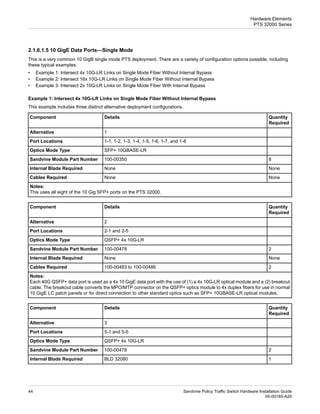
2.1.6.1.5 10 GigE Data Ports—Single Mode
This is a very common 10 GigB single mode PTS deployment. There are a variety of configuration options possible, including
these typical examples:
• Example 1: Intersect 4x 10G-LR Links on Single Mode Fiber Without Internal Bypass
• Example 2: Intersect 16x 10G-LR Links on Single Mode Fiber Without Internal Bypass
• Example 3: Intersect 2x 10G-LR Links on Single Mode Fiber With Internal Bypass
Example 1: Intersect 4x 10G-LR Links on Single Mode Fiber Without Internal Bypass
This example includes three distinct alternative deployment configurations.
Quantity
Required
Details
Component
1
Alternative
1-1, 1-2, 1-3, 1-4, 1-5, 1-6, 1-7, and 1-8
Port Locations
SFP+ 10GBASE-LR
Optics Mode Type
8
100-00350
Sandvine Module Part Number
None
None
Internal Blade Required
None
None
Cables Required
Notes:
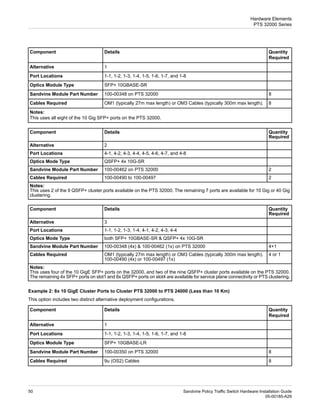
This uses all eight of the 10 Gig SFP+ ports on the PTS 32000.
Quantity
Required
Details
Component
2
Alternative
2-1 and 2-5
Port Locations
QSFP+ 4x 10G-LR
Optics Mode Type
2
100-00478
Sandvine Module Part Number
None
None
Internal Blade Required
2
100-00483 to 100-00486
Cables Required
Notes:
Each 40G QSFP+ data port is used as a 4x 10 GigE data port with the use of (1) a 4x 10G-LR optical module and a (2) breakout
cable. The breakout cable converts the MPO/MTP connector on the QSFP+ optics module to 4x duplex fibers for use in normal
10 GigE LC patch panels or for direct connection to other standard optics such as SFP+ 10GBASE-LR optical modules.
Quantity
Required
Details
Component
3
Alternative
5-1 and 5-5
Port Locations
QSFP+ 4x 10G-LR
Optics Mode Type
2
100-00478
Sandvine Module Part Number
1
BLD 32080
Internal Blade Required
Sandvine Policy Traffic Switch Hardware Installation Guide
44
05-00185-A29
Hardware Elements
PTS 32000 Series
2
100-00483 to 100-00486
Cables Required
Notes:
This mode uses an add-in blade, rather than the built in ports, to provide 2 additional 40G QSFP+ data ports. You can only use
these as 4x 10G ports.
Each 40G QSFP+ data port is used as a 4x 10 GigE data port with the use of (1) a 4x 10G-LR optical module and a (2) breakout
cable. The breakout cable converts the MPO/MTP connector on the QSFP+ optics module to 4x duplex fibers for use in normal
10 GigE LC patch panels or for direct connection to other standard optics such as SFP+ 10GBASE-LR optical modules.
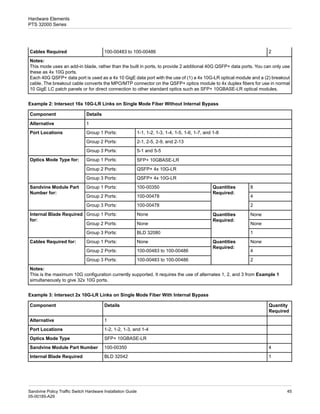
Example 2: Intersect 16x 10G-LR Links on Single Mode Fiber Without Internal Bypass
Details
Component
1
Alternative
1-1, 1-2, 1-3, 1-4, 1-5, 1-6, 1-7, and 1-8
Group 1 Ports:
Port Locations
2-1, 2-5, 2-9, and 2-13
Group 2 Ports:
5-1 and 5-5
Group 3 Ports:
SFP+ 10GBASE-LR
Group 1 Ports:
Optics Mode Type for:
QSFP+ 4x 10G-LR
Group 2 Ports:
QSFP+ 4x 10G-LR
Group 3 Ports:
8
Quantities
Required:
100-00350
Group 1 Ports:
Sandvine Module Part
Number for:
4
100-00478
Group 2 Ports:
2
100-00478
Group 3 Ports:
None
Quantities
Required:
None
Group 1 Ports:
Internal Blade Required
for:
None
None
Group 2 Ports:
1
BLD 32080
Group 3 Ports:
None
Quantities
Required:
None
Group 1 Ports:
Cables Required for:
4
100-00483 to 100-00486
Group 2 Ports:
2
100-00483 to 100-00486
Group 3 Ports:
Notes:
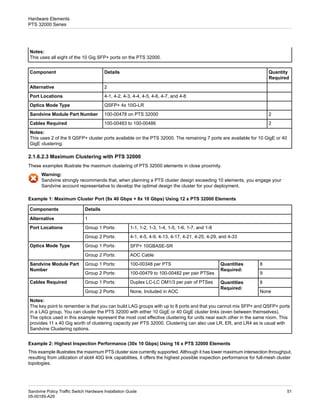
This is the maximum 10G configuration currently supported. It requires the use of alternates 1, 2, and 3 from Example 1
simultaneously to give 32x 10G ports.
Example 3: Intersect 2x 10G-LR Links on Single Mode Fiber With Internal Bypass
Quantity
Required
Details
Component
1
Alternative
1-2, 1-2, 1-3, and 1-4
Port Locations
SFP+ 10GBASE-LR
Optics Mode Type
4
100-00350
Sandvine Module Part Number
1
BLD 32042
Internal Blade Required
45
Sandvine Policy Traffic Switch Hardware Installation Guide
05-00185-A29
Hardware Elements
PTS 32000 Series
4
100-00216B
Cables Required
Notes:
This operating mode works, but is considered highly unusual due to the poor PTS 32000 utilization that results. Also, you could
use one QSFP+ data port in place of the 4x SFP+ ports. It would then follow the guidelines give in alternatives 2 or 3 from
Example 1.
2.1.6.1.6 10 GigE Data Ports—Multi Mode
This is a less commonly used multi-mode PTS deployment. Here are three different example deployments in this configuration:
• Example 1: Intersect 4x 10G-SR Links on Multi-Mode Fiber (OM1/OM3)—Without Internal Bypass
• Example 2: Intersect 16x 10G-SR Links on Multi Mode Fiber (OM1/OM3)—Without Internal Bypass
• Example 3: Intersect 2x 10G-SR Links on Multi Mode Fiber (OM1/OM3)—With Internal Bypass
Example 1: Intersect 4x 10G-SR Links on Multi-Mode Fiber (OM1/OM3)—Without Internal Bypass
This option includes three distinct alternative deployment configurations.
Quantity
Required
Details
Component
1
Alternative
1-1, 1-2, 1-3, 1-4, 1-5, 1-6, 1-7, and 1-8
Port Locations
SFP+ 10GBASE-SR
Optics Mode Type
8
100-00348
Sandvine Module Part Number
None
None
Internal Blade Required
None
None
Cables Required
Notes:
This uses all eight of the 10Gig SFP+ ports on the PTS 32000.
Quantity
Required
Details
Component
2
Alternative
2-1 and 2-5
Port Locations
QSFP+ 4x 10G-SR
Optics Mode Type
2
100-00462
Sandvine Module Part Number
None
None
Internal Blade Required:
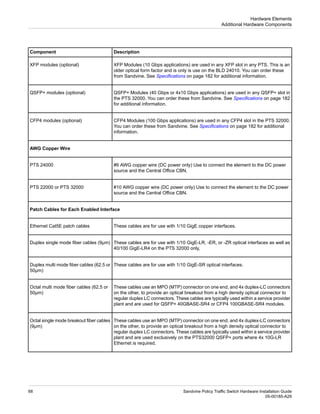
2
100-00490 to 100-00497
Cables Required
Notes:
The 40Gig QSFP+ data ports are used as 4x 10Gig ports through the use of a 4x 10G-SR "or parallel multi mode" optical module
with a breakout cable. This cable converts MPO/MTP to 4x duplex LC fibers (for use in normal LC patch panels) for all required
4x 10Gig ports.
Quantity
Required
Details
Component
3
Alternative
Sandvine Policy Traffic Switch Hardware Installation Guide
46
05-00185-A29
Hardware Elements
PTS 32000 Series
5-1 and 5-5
Port Locations
QSFP+ 4x 10G-SR
Optics Mode Type
2
100-00462
Sandvine Module Part Number
1
BLD 32080
Internal Blade Required
2
100-00490 to 100-00497
Cables Required
Notes:
This uses an add-in blade, in place of built-in ports, to provide 2 additional 40Gig QSFP+ data ports. You can only use these
as 4x 10 Gig ports.
Example 2: Intersect 16x 10G-SR Links on Multi Mode Fiber (OM1/OM3)—Without Internal Bypass
Details
Component
1
Alternative:
1-1, 1-2, 1-3, 1-4, 1-5, 1-6, 1-7, and 1-8
Group 1 Ports:
Port Locations
2-1, 2-5, 2-9, and 2-13
Group 2 Ports:
5-1 and 5-5
Group 3 Ports:
SFP+ 10GBASE-SR
Group 1 Ports:
Optics Mode Type for:
QSFP+ 4x 10G-SR
Group 2 Ports:
QSFP+ 4x 10G-SR
Group 3 Ports:
8
Quantities
Required:
100-00348
Group 1 Ports:
Sandvine Module Part
Number for:
4
100-00462
Group 2 Ports:
2
100-00462
Group 3 Ports:
None
Quantities
Required:
None
Group 1 Ports:
Internal Blade Required
for:
None
None
Group 2 Ports:
1
BLD 32080
Group 3 Ports:
None
Quantities
Required:
None
Group 1 Ports:
Cables Required for:
4
100-00490 to 100-00497
Group 2 Ports:
2
100-00490 to 100-00497
Group 3 Ports:
Notes:
This is the maximum 10Gig configuration that is currently supported. It requires the use of alternatives 1, 2, and 3 simultaneously,
from Example 1 to give thirty-two (32) 10 Gig ports. The ISP uses OM1 Cables (62.5µm, 100-00494-497), but might also select
OM3 Cables (50µm, 100-00490-493).
Example 3: Intersect 2x 10G-SR Links on Multi Mode Fiber (OM1/OM3)—With Internal Bypass
Quantity
Required
Details
Component
N/A
Alternative
Unsupported
Port Locations
47
Sandvine Policy Traffic Switch Hardware Installation Guide
05-00185-A29
Hardware Elements
PTS 32000 Series
N/A
Optics Mode Type
N/A
N/A
Sandvine Module Part Number
N/A
N/A
Internal Blade Required
N/A
N/A
Cables Required
Notes:
Sandvine does not support Multi-mode bypass with internal Bypass Blades on the PTS 32000.
2.1.6.2 Cluster Port Use Cases
Cluster Port use cases for the PTS 32000 include:
• Close Proximity, Direct Connections Between PTS 32000 Elements on page 48
• Inter-plant Direct Connections Between PTS 32000 Elements
• Mixed Cluster PTS 32000 with PTS 22000 or PTS 24000 Families on page 49
• Maximum Clustering with PTS 32000 on page 51
2.1.6.2.1 Close Proximity, Direct Connections Between PTS 32000 Elements
This is one of most common and cost effective cluster port use cases. This flexible deployment scenario gives you four different
configuration examples:
• Example 1: 9x 40G Cluster Ports to Cluster PTS 32000 to PTS 32000—Close Same Rack, Stacked Close
• Example 2: 9x 40G Cluster Ports to Cluster PTS 32000 to PTS 32000—Close Same Rack, Stacked Far Away
• Example 3: 9x 40G Cluster Ports to Cluster PTS 32000 to PTS 32000—Different Racks, But Close
• Example 4: 9x 40G Cluster Ports to Cluster PTS 32000 to PTS 32000—More Than 10m But Less Than 10 Km
Example 1: 9x 40G Cluster Ports to Cluster PTS 32000 to PTS 32000—Close Same Rack, Stacked Close
Quantity
Required
Details
Component
1
Alternative
4-1, 4-5, 4-9, 4-13, 4-17, 4-21, 4-25, 4-29, and 4-33
Port Locations
AOC Cable
Optics Mode Type
9
100-00479 per pair of PTSes.
Sandvine Module Part Number
N/A
None, Included in AOC.
Cables Required
Notes:
Each 1m AOC cable provides QSFP+ connectors for both ends + a captive cable between the QSFP+ connectors.
Example 2: 9x 40G Cluster Ports to Cluster PTS 32000 to PTS 32000—Close Same Rack, Stacked Far Away
Quantity
Required
Details
Component
1
Alternative
4-1, 4-5, 4-9, 4-13, 4-17, 4-21, 4-25, 4-29, and 4-33
Port Locations
AOC Cable
Optics Mode Type
9
100-00480 per pair of PTSes.
Sandvine Module Part Number
Sandvine Policy Traffic Switch Hardware Installation Guide
48
05-00185-A29
Hardware Elements
PTS 32000 Series
N/A
None, Included in AOC.
Cables Required
Notes:
Each 3m AOC cable provides QSFP+ connectors for both ends + a captive cable between the QSFP+ connectors.
Example 3: 9x 40G Cluster Ports to Cluster PTS 32000 to PTS 32000—Different Racks, But Close
Quantity
Required
Details
Component
1
Alternative
4-1, 4-5, 4-9, 4-13, 4-17, 4-21, 4-25, 4-29, and 4-33
Port Locations
AOC Cable
Optics Mode Type
9
100-00481 per pair of PTSes.
Sandvine Module Part Number
N/A
None, Included in AOC.
Cables Required
Notes:
Each 5m or 10m AOC cable provides QSFP+ connectors for both ends + a captive cable between the QSFP+ connectors.
Example 4: 9x 40G Cluster Ports to Cluster PTS 32000 to PTS 32000—More Than 10m But Less Than 10 Km
Quantity
Required
Details
Component
1
Alternative
4-1, 4-5, 4-9, 4-13, 4-17, 4-21, 4-25, 4-29, and 4-33
Port Locations
QSFP+ 40GBASE-LR4
Optics Mode Type
9
100-00446 per PTS 32000
Sandvine Module Part Number
9
Duplex 9µm (OS2)
Cables Required
Notes:
This example assumes that you provide your own cluster cables. Each PTS needs 9x optical modules.
Provided that your deployment supports multi fiber high density fiber distribution, you can also select QSFP+ 40GBASE-SR4
(100-00462) modules for clustering less than 300 m. Sandvine supports this configuration, although you need to provide Multi-mode
50µm, OM3 grade MPO to MPO fiber cables.
2.1.6.2.2 Mixed Cluster PTS 32000 with PTS 22000 or PTS 24000 Families
This is a very common 10 GigB single mode PTS deployment. These are two different examples when deploying in this
configuration, including:
• Example 1: 8x 10 GigE Cluster Ports Clustering PTS 32000 to the PTS 24000 (Less than 27m/300m)
• Example 2: 8x 10 GigE Cluster Ports Clustering PTS 32000 to PTS 24000 (Less than 10 Km)
Note:
See Hardware Compatibility Matrix on page 93 for additional information on the compatibility of PTS models in a cluster
deployment.
Example 1: 8x 10 GigE Cluster Ports Clustering PTS 32000 to the PTS 24000 (Less that 27m/300m)
This option includes two distinct alternative deployment configurations.
49
Sandvine Policy Traffic Switch Hardware Installation Guide
05-00185-A29
Hardware Elements
PTS 32000 Series
Quantity
Required
Details
Component
1
Alternative
1-1, 1-2, 1-3, 1-4, 1-5, 1-6, 1-7, and 1-8
Port Locations
SFP+ 10GBASE-SR
Optics Module Type
8
100-00348 on PTS 32000
Sandvine Module Part Number
8
OM1 (typically 27m max length) or OM3 Cables (typically 300m max length).
Cables Required
Notes:
This uses all eight of the 10 Gig SFP+ ports on the PTS 32000.
Quantity
Required
Details
Component
2
Alternative
4-1, 4-2, 4-3, 4-4, 4-5, 4-6, 4-7, and 4-8
Port Locations
QSFP+ 4x 10G-SR
Optics Mode Type
2
100-00462 on PTS 32000
Sandvine Module Part Number
2
100-00490 to 100-00497
Cables Required
Notes:
This uses 2 of the 9 QSFP+ cluster ports available on the PTS 32000. The remaining 7 ports are available for 10 Gig or 40 Gig
clustering.
Quantity
Required
Details
Component
3
Alternative
1-1, 1-2, 1-3, 1-4, 4-1, 4-2, 4-3, 4-4
Port Locations
both SFP+ 10GBASE-SR & QSFP+ 4x 10G-SR
Optics Mode Type
4+1
100-00348 (4x) & 100-00462 (1x) on PTS 32000
Sandvine Module Part Number
4 or 1
OM1 (typically 27m max length) or OM3 Cables (typically 300m max length).
100-00490 (4x) or 100-00497 (1x)
Cables Required
Notes:
This uses four of the 10 GigE SFP+ ports on the 32000, and two of the nine QSFP+ cluster ports available on the PTS 32000.
The remaining 4x SFP+ ports on slot1 and 8x QSFP+ ports on slot4 are available for service plane connectivity or PTS clustering.
Example 2: 8x 10 GigE Cluster Ports to Cluster PTS 32000 to PTS 24000 (Less than 10 Km)
This option includes two distinct alternative deployment configurations.
Quantity
Required
Details
Component
1
Alternative
1-1, 1-2, 1-3, 1-4, 1-5, 1-6, 1-7, and 1-8
Port Locations
SFP+ 10GBASE-LR
Optics Module Type
8
100-00350 on PTS 32000
Sandvine Module Part Number
8
9u (OS2) Cables
Cables Required
Sandvine Policy Traffic Switch Hardware Installation Guide
50
05-00185-A29
Hardware Elements
PTS 32000 Series
Notes:
This uses all eight of the 10 Gig SFP+ ports on the PTS 32000.
Quantity
Required
Details
Component
2
Alternative
4-1, 4-2, 4-3, 4-4, 4-5, 4-6, 4-7, and 4-8
Port Locations
QSFP+ 4x 10G-LR
Optics Mode Type
2
100-00478 on PTS 32000
Sandvine Module Part Number
2
100-00483 to 100-00486
Cables Required
Notes:
This uses 2 of the 9 QSFP+ cluster ports available on the PTS 32000. The remaining 7 ports are available for 10 GigE or 40
GigE clustering.
2.1.6.2.3 Maximum Clustering with PTS 32000
These examples illustrate the maximum clustering of PTS 32000 elements in close proximity.
Warning:
Sandvine strongly recommends that, when planning a PTS cluster design exceeding 10 elements, you engage your
Sandvine account representative to develop the optimal design the cluster for your deployment.
Example 1: Maximum Cluster Port (9x 40 Gbps + 8x 10 Gbps) Using 12 x PTS 32000 Elements
Details
Components
1
Alternative
1-1, 1-2, 1-3, 1-4, 1-5, 1-6, 1-7, and 1-8
Group 1 Ports:
Port Locations
4-1, 4-5, 4-9, 4-13, 4-17, 4-21, 4-25, 4-29, and 4-33
Group 2 Ports:
SFP+ 10GBASE-SR
Group 1 Ports:
Optics Mode Type
AOC Cable
Group 2 Ports:
8
Quantities
Required:
100-00348 per PTS
Group 1 Ports:
Sandvine Module Part
Number
9
100-00479 to 100-00482 per pair PTSes
Group 2 Ports:
8
Quantities
Required:
Duplex LC-LC OM1/3 per pair of PTSes
Group 1 Ports:
Cables Required
None
None, Included in AOC
Group 2 Ports:
Notes:
The key point to remember is that you can build LAG groups with up to 8 ports and that you cannot mix SFP+ and QSFP+ ports
in a LAG group. You can cluster the PTS 32000 with either 10 GigE or 40 GigE cluster links (even between themselves).
The optics used in this example represent the most cost effective clustering for units near each other in the same room. This
provides 11 x 40 Gig worth of clustering capacity per PTS 32000. Clustering can also use LR, ER, and LR4 as is usual with
Sandvine Clustering options.
Example 2: Highest Inspection Performance (30x 10 Gbps) Using 16 x PTS 32000 Elements
This example illustrates the maximum PTS cluster size currently supported. Although it has lower maximum intersection throughput,
resulting from utilization of slot4 40G link capabilities, it offers the highest possible inspection performance for full-mesh cluster
topologies.
51
Sandvine Policy Traffic Switch Hardware Installation Guide
05-00185-A29
Hardware Elements
PTS 32000 Series
Details
Components
1
Alternative
4-1, 4-5, 4-9, 4-13, 4-17, 4-21, 4-25, and 4-29
Group 1 Ports:
Port Locations
QSFP+ Breakout 4x10GBASE-SR
Group 1 Ports:
Optics Mode Type
8 (7.5)
Quantities
Required:
100-00462 (QSFP+ MM MTP) per PTS
Group 1 Ports:
Optics Required
8 (7.5)
Quantities
Required:
100-00491 (3m OM3 MTP-4xLC) per PTS
Group 1 Ports:
Cables Required
30
Quantities
Required:
740-007A-006B (MM LC-LC coupler) per
pair of PTSes
Group 1 Ports:
Other Components
Caution:
When implementing this example be aware that wiring and configuration issues make this an extremely challenging deployment.
Contact Sandvine (Customer Support or your Sandvine account representative), or its authorized partner, for assistance before
deploying this solution.
2.1.7 PTS 32000: Rear Chassis
The PTS 32000 series is available in both AC and DC input power versions. The PTS 32000 rear chassis is common to all
versions.
In this image, you can see the AC and DC panel, with the different power connections, the common switch, and ground terminals.
The PTS 32000 series provides two levels of power redundancy:
• Primary Power—This refers to the input power to the element, either AC or DC.
• Secondary Power—This refers to the internal system power bus that is delivered through power supply modules.
Sandvine Policy Traffic Switch Hardware Installation Guide
52
05-00185-A29
Hardware Elements
PTS 32000 Series
You can order additional supplies to convert a PTS 32000 element to another power input version.
Note:
See Power Considerations on page 72, for additional information on power distribution planning for PTS network
elements.
See Electrical Specifications on page 187, for information on AC and DC power specifications of the PTS hardware
models.
2.2 PTS 24000 Series
The PTS 24000 series hardware platform comes in several configurations, offering differing bandwidth capacities, connection
choices and power options. Chassis are either AC or DC powered.
These PTS 24000 components are field replaceable:
• Power supplies
• Cooling fans
• Hard drives
• SFP (1GigE), SFP+ (10GigE), and XFP (10GigE) transceivers
• I/O blades
• Bypass blades
See Replacing Components in the Field on page 152 for details on how to replace these components.
This is the PTS 24500 chassis:
53
Sandvine Policy Traffic Switch Hardware Installation Guide
05-00185-A29
Hardware Elements
PTS 24000 Series
This images shows a PTS 24700 with two 80GB (BLD 24080) blades.
This is the PTS 24300, with a 40GB chassis and a 40GB (BLD 24020) blade and a Bypass blade (BLD 24030).
Sandvine Policy Traffic Switch Hardware Installation Guide
54
05-00185-A29
Hardware Elements
PTS 24000 Series
2.2.1 PTS 24000: Models
The PTS 24000 sub-series models and their specifications are:
Subscribers
Concurrent flows
New flows/sec
Aggregate
Throughput
DC Model Number
AC Model Number
5 M
72 M
2 M
160 Gbps
PTS 24701
PTS 24700
5 M
36 M
1.5 M
80 Gbps
PTS 24501
PTS 24500
2 M
18 M
1 M
40 Gbps
PTS 24301
PTS 24300
N/A
N/A
N/A
N/A
PTS 24011
PTS 240108
2.2.2 PTS 24000: Dimensions and Power Ratings
The dimensions of the PTS 24000 are:
The dimensions of the chassis are:
8 This model is a bypass only. See External Passive Bypass Chassis for PTS 24010 and PTS 24011 on page 143 for information about this model.
55
Sandvine Policy Traffic Switch Hardware Installation Guide
05-00185-A29
Hardware Elements
PTS 24000 Series
• 17 inches (43.18 cm) wide by 7 inches (17.78 cm) high, which is 4 Rack Units (RU) and 23 inches (58.43 cm) deep.
• PTS 24000 chassis weight is up to 90 lbs (40.8 kg). Final system weight depends on the blades installed.
• PTS 24500 hardware configuration weight is 94.5 lbs (42.9 kg).
• Mounting is a standard 19-inch (48.26 cm) rack using front mountable brackets.
For power ratings, see PTS 24000: Electrical Ratings on page 188.
2.2.3 PTS 24000: Face Plate
The face plate of a PTS 24000 always contains I/O and/or bypass blades and power supplies:
Regardless of the blade configuration these four LEDs always appears at the top right of the face plate.
Description
Indicator
LED
Red indicates that an alarm has been triggered.
Red
Alarm
Off indicates that no alarm is currently active.
Off
Always off.
Red or Off
Fault
Green indicates device is operating normally.
Green or Off
Online
Sandvine Policy Traffic Switch Hardware Installation Guide
56
05-00185-A29
Hardware Elements
PTS 24000 Series
Description
Indicator
LED
Green when system is powered on.
Green or Off
Power
Off indicates that the system is not online.
See Status LEDs on page 114 for details on how to troubleshoot using interface LEDs.
2.2.3.1 PTS 24000: Power Supplies
The PTS 24000 power supplies include these indicator LEDS:
The power LEDs indicate these states:
Description
Indicator
LED Condition
Green indicates that the input power is good.
Green or Off
Input power
Green indicates that the output power is good.
Green or Off
Output power
2.2.3.2 PTS 24000: Hard Drives
The PTS 24000 hard drives have these indicator lights:
The hard drive LEDs indicate these states:
57
Sandvine Policy Traffic Switch Hardware Installation Guide
05-00185-A29
Hardware Elements
PTS 24000 Series
Description
Indicator
LED Condition
Green indicates activity.
Green
Hard Drive (top LED)
Off indicates no activity.
Off
Red indicates RAID fault.
Red
RAID Fault (bottom LED)
Off indicates no RAID fault.
Off
2.2.4 PTS 24000: Blades
PTS blades dictate the traffic intersection capacity of the PTS they are installed on.
These blade types are available:
Description
Model
20 Gbps interception, 4x10GigE dedicated cluster ports (2x XFP, 2x SFP+), 10x cluster
or data.
BLD 24010
Data is either 1 GigE (SFP copper or fiber) or 10 GigE (SFP+).
40 Gbps interception, 8x10GigE dedicated cluster ports (8x SFP+), 4x dedicated data
ports (4x SFP+).
BLD 24020
Data ports only supports 10 GigE mode.
80 Gbps interception, 8x10GigE dedicated cluster ports (8x SFP+), 8x dedicated data
ports (8x SFP+).
BLD 24080
Data ports only supports 10 GigE mode.
Bypass blade, 12 bypass ports, 62.5 µm fiber.
BLD 24030
Bypass blade, 4 bypass ports, 62.5µm fiber.
BLD 24032
Bypass blade, 12 bypass ports, 9µm fiber.
BLD 24040
Bypass blade, 4 bypass ports, 9µm fiber.
BLD 24042
Bypass blade, 12 bypass ports, 50µm fiber (special order only).
BLD 24050
Bypass blade, 4 bypass ports, 50µm fiber (special order only).
BLD 24052
These blades are one of these types:
Sandvine Policy Traffic Switch Hardware Installation Guide
58
05-00185-A29
Hardware Elements
PTS 24000 Series
• I/O blades contain data and cluster ports.
• Bypass blades provide a passive bypass of the PTS element during maintenance or a system failure.
Note:
• You can cold-swap the I/O and bypass blades in the field.
• Sandvine recommends powering down the PTS unit to prevent any network impact, while modifying the blade
configuration. The I/O blades are hot-swappable and no damage occurs even if you replace the blades with the power
on—however, the blade will not function until you have rebooted the system.
Different combinations of blades are supported.
For example, a PTS could have one I/O blade and one bypass blade installed:
The I/O blades dictate the intersection capacity of the chassis. For example, the system shown above can intersect up to 20
Gbps of traffic because it is fitted with a BLD 24010 on Blade Slot 1. In Blade Slot 2, the chassis is fitted with a fiber bypass
blade—BLD 24030.
There are many possible configurations of I/O and bypass blades. For example, this system can intersect up to 40 Gbps of traffic,
because it is fitted with 2 x 20 Gbps data interface blades (BLD 24010):
Various combinations of blades can be utilized in the Sandvine PTS chassis. See Blade Compatibility with PTS Platforms on
page 180, for more information on blade compatibility with different PTS platforms.
Note:
59
Sandvine Policy Traffic Switch Hardware Installation Guide
05-00185-A29
Hardware Elements
PTS 24000 Series
When using link aggregation groups (LAG), wiring some ports in a LAG on the chassis and other ports in the same LAG
on the blade is not recommended. Failure to do so can lead to dropped packets if a service interface fails over.
2.2.5 PTS 24000: Rear Chassis
The PTS 24000 series is available in both AC and DC input power versions. PTS 24000 chassis' have either 2 or 4 AC input
connections depending on specific model. All DC power versions have 2 input connections.
The PTS 24000 series provides two levels of power redundancy, primary and secondary.
• Primary refers to the input power to the unit, AC or DC.
• Secondary refers to the internal 12 V DC power bus of the PTS 24000.
Note:
See the section Power Considerations on page 72, for additional information on power distribution planning for PTS
network elements.
See Electrical Specifications on page 187, for information on AC and DC power specifications of the PTS hardware
models.
2.3 PTS 22000 Series
The PTS 22000 series hardware platform comes in several configurations, offering differing bandwidth capacities, connection
choices and power options. The chassis has two power supplies for redundancy, both either AC or DC powered.
Sandvine Policy Traffic Switch Hardware Installation Guide
60
05-00185-A29
Hardware Elements
PTS 22000 Series
These PTS 22000 components are field replaceable:
• Power supplies
• SFP/SFP+ (1 / 10 GigE) and XFP (10 GigE) transceivers
• I/O blades
• Bypass blades
See Replacing Components in the Field on page 152 for details on how to replace the components.
2.3.1 PTS 22000: Models
The PTS 22000 models and their specifications are:
Subscribers
Concurrent Flows
New flows/sec
Aggregate Throughput
Model Number
2 M
16 M
200 K
40 Gbps
PTS 22600
2 M
8 M
200 K
20 Gbps
PTS 22400
1 M
4 M
100 K
10 Gbps
PTS 22100
0.5 M
2 M
50 K
4 Gbps
PTS 22050
All PTS 22000 models support using the PTS 24010 bypass chassis.
61
Sandvine Policy Traffic Switch Hardware Installation Guide
05-00185-A29
Hardware Elements
PTS 22000 Series
2.3.2 PTS 22000: Dimensions and Power Ratings
The dimensions of the PTS 22000 are:
The dimensions of the chassis are:
• 16.85 inches (42.8 cm) wide and 3.47 inches (8.8 cm) high, which is 2 Rack Units (RU) and 22.91 inches (58.2 cm) deep.
• Weight is 41.5 lbs (18.86 kg).
• Standard 19-inch (48.26 cm) rack mounting (2 RU, IEC 60297-3-100) using front mountable brackets.
For power ratings, see PTS 22000: Electrical Ratings on page 189.
2.3.3 PTS 22000: Face Plate
The face plate contains either I/O or bypass blades:
The LEDs on the faceplate of the PTS 22000 are:
Sandvine Policy Traffic Switch Hardware Installation Guide
62
05-00185-A29
Hardware Elements
PTS 22000 Series
The system LEDs indicate these states:
Description
Indicator
LED
Red indicates that an alarm has been triggered.
Red
Alarm
Off indicates that no alarm is currently active.
Off
Always off.
Red or Off
Fault
Green indicates device is operating normally.
Green or Off
Online
Green when system is powered on.
Green
Power
Off indicates power off or a power problem.
Off
See Status LEDs on page 114 for details on how to troubleshoot using interface LEDs.
2.3.4 PTS 22000: Blades
The available blade types include:
63
Sandvine Policy Traffic Switch Hardware Installation Guide
05-00185-A29
Hardware Elements
PTS 22000 Series
Description
Model
6 Gbps, 6 x 1 GigE 1000BASE-T data ports, internal bypass capable.
BLD 22006
20 Gbps, 4 x 10 GigE cluster ports, 10 x 10 GigE cluster/data ports.
BLD 24010
Data is either 1 GigE (SFP copper or fiber) or 10 GigE (SFP+).
Note:
Revisions 500-00040N and lower are incompatible with the PTS 22000.
Bypass blade, 12 bypass ports, 62.5µm fiber.
BLD 24030
Bypass blade, 4 bypass ports, 62.5µm fiber.
BLD 24032
Bypass blade, 12 bypass ports, 9µm fiber.
BLD 24040
Bypass blade, 4 bypass ports, 9µm fiber.
BLD 24042
Bypass blade, 12 bypass ports, 50µm fiber (special order only).
BLD 24050
Bypass blade, 4 bypass ports, 50µm fiber (special order only).
BLD 24052
The built-in ports on the PTS 22000 are:
The PTS 22000 supports the same blades as the PTS 24000 except for BLD 24020 and BLD 24080, plus it supports BLD 22006,
which is unique to the PTS 22000. For a BLD 24010 installed in a PTS 22000, all 14 ports are mixed-role ports supporting either
cluster or data. See PTS 24000: Blades on page 58 for a description of the blades.
SFP, copper
SX, LX, and ZX
Data Only
1 GigE
8 ports (cluster or
data)
Built-in ports
SFP+
SR, LRM, LR, and
ER
Data or Cluster
10 GigE
The BLD 22006 is a 6 GB Ethernet blade with internal bypass. The active LEDs are illuminated when BLD 22006 is in active
mode, which means the blade is not in the bypass mode.
Sandvine Policy Traffic Switch Hardware Installation Guide
64
05-00185-A29
Hardware Elements
PTS 22000 Series
Run the show system hardware CLI command to determine if the PTS 22000 can support the BLD 22006.
show system hardware
Id Description SerialNum ModelName
---- ------------- ------------ -------------
1 Motherboard 4500022819 500-00051-F08
2 Chassis SDVN86014504 PTS22050-A
A PTS 22000 with a model name ending in -F08, or higher, supports the BLD 22006.
Note:
When using link aggregation groups (LAG), wiring some ports in a LAG on the chassis and other ports in the same LAG
on the blade is not recommended. Failure to do so can lead to dropped packets if a service interface fails over.
2.3.5 PTS 22000: Rear Chassis
The PTS 22000 series is available in both AC and DC input power versions. The PTS 22000 rear chassis is common to all
versions:
You can order additional supplies to convert a PTS 22000 element to another power input version.
Note:
See the section Power Considerations on page 72, for additional information on power distribution planning for PTS
network elements.
See Electrical Specifications on page 187, for information on AC and DC power specifications of the PTS hardware
models.
65
Sandvine Policy Traffic Switch Hardware Installation Guide
05-00185-A29
Hardware Elements
PTS 22000 Series
2.4 Replaceable Components
The field replaceable components in PTS platforms include:
• Power supplies—Each PTS has two hot swappable, redundant power supplies. The system's power supply hot-swap feature
enables you to remove a power supply without shutting down the PTS element, provided that the other power supply is
functioning.
• Hard Disk Drive—The redundant field replaceable hard drive which is accessible via a removable plate on the underside of
the unit.
• Interface modules (optical or copper)—These are fiber optic interface modules used for data connections or clustering.
Example: QSFP+, XFP, or CFP4 modules.
• Chassis Fans—The cooling fans in the PTS chassis.
• Blades—The blades installed in the PTS dictate the amount of traffic the PTS can intersect. The blades are optional field
serviceable components in a PTS.
The different types of blades include:
• I/O Blade: This is an interface blade which provides data intersection capability to the PTS. This blade is also known as
data expansion blade or data interface blade. Example: BLD 32080 in a PTS 32000.
• Bypass Blade: This blade provides the ability to exclude PTS from the intersection of data flow. Example: BLD 32042 is
a 4-port optical bypass blade in a PTS 32000.
Note:
You can cold-swap I/O and bypass blades in the field.
See these sections for additional information on replaceable components in different PTS platforms:
• PTS 32000: Replaceable Components on page 66
• PTS 24000: Replaceable Components on page 66
• PTS 22000: Replaceable Components on page 67
2.4.1 PTS 32000: Replaceable Components
The PTS 32000 series of elements have these field serviceable components:
• Power supplies
• Hard disk drive
• Chassis Fans
• Interface modules (optical or copper) which are also hot swappable and include either of these variants:
• Enhanced small form-factor pluggable (SFP/SFP+) (1 / 10 GigE)
• Quad Small Form-factor Pluggable plus (QSFP+) (10 / 40 GigE)
• Fixed C form-factor pluggable (CFP4) (100 GigE)
• Optional I/O and Bypass Blades
See Replacing Components in the Field on page 152 for detailed instructions on how to replace these components in the field.
2.4.2 PTS 24000: Replaceable Components
The PTS 24000 series of elements have these field serviceable components:
Sandvine Policy Traffic Switch Hardware Installation Guide
66
05-00185-A29
Hardware Elements
Replaceable Components
• Power supplies
• Hard disk drives
• Interface modules (XFP and SFP/SFP+ modules)
• Chassis fans
• I/O and Bypass blades
See Replacing Components in the Field on page 152 for detailed instructions on how to replace these components in the field.
See the Getting Started Guide for component part numbers.
2.4.3 PTS 22000: Replaceable Components
The PTS 22000 series of elements have these field serviceable components:
• Power supplies
• Interface modules (XFP and SFP/SFP+ modules)
• Optional I/O and Bypass Blades
See Replacing Components in the Field on page 152 for detailed instructions on how to replace these components in the field.
See the Getting Started Guide for component part numbers.
2.5 Additional Hardware Components
In addition to the components supplied with the PTS, you will need to supply some or all of these components:
Description
Component
If mounting the element directly on the rack, use four thread forming screws with paint
piercing washers to connect the mounting brackets to the rack.
Rack mounting screws
If mounting the element using the provided rails, use two screws on the front and rear
mounting brackets of each rail to connect the outer rails to the rack.
Rail mounting screws
If installing DC power, use to connect power wires to the terminal block.
Phillips #2 screwdriver
Use to connect the ground wire to the Central Office ground lug.
Slotted screwdriver
DC power only. Use to strip wire insulation.
Wire stripping tool
SFP modules (1 Gbps applications) are used in any SFP or SFP+ slot in any PTS. You
can order these from Sandvine. See Specifications on page 182 for additional information.
SFP modules (optional)
SFP+ modules (10 Gbps applications) are used in any SFP+ slot in any PTS. You can
order these from Sandvine. See Specifications on page 182 for additional information.
SFP+ modules (optional)
67
Sandvine Policy Traffic Switch Hardware Installation Guide
05-00185-A29
Hardware Elements
Additional Hardware Components
Description
Component
XFP Modules (10 Gbps applications) are used in any XFP slot in any PTS. This is an
older optical form factor and is only is use on the BLD 24010. You can order these
from Sandvine. See Specifications on page 182 for additional information.
XFP modules (optional)
QSFP+ Modules (40 Gbps or 4x10 Gbps applications) are used in any QSFP+ slot in
the PTS 32000. You can order these from Sandvine. See Specifications on page 182
for additional information.
QSFP+ modules (optional)
CFP4 Modules (100 Gbps applications) are used in any CFP4 slot in the PTS 32000.
You can order these from Sandvine. See Specifications on page 182 for additional
information.
CFP4 modules (optional)
AWG Copper Wire
#6 AWG copper wire (DC power only) Use to connect the element to the DC power
source and the Central Office CBN.
PTS 24000
#10 AWG copper wire (DC power only) Use to connect the element to the DC power
source and the Central Office CBN.
PTS 22000 or PTS 32000
Patch Cables for Each Enabled Interface
These cables are for use with 1/10 GigE copper interfaces.
Ethernet Cat5E patch cables
These cables are for use with 1/10 GigE-LR, -ER, or -ZR optical interfaces as well as
40/100 GigE-LR4 on the PTS 32000 only,
Duplex single mode fiber cables (9µm)
These cables are for use with 1/10 GigE-SR optical interfaces.
Duplex multi mode fiber cables (62.5 or
50µm)
These cables use an MPO (MTP) connector on one end, and 4x duplex-LC connectors
on the other, to provide an optical breakout from a high density optical connector to
Octal multi mode fiber cables (62.5 or
50µm)
regular duplex LC connectors. These cables are typically used within a service provider
plant and are used for QSFP+ 40GBASE-SR4 or CFP4 100GBASE-SR4 modules.
These cables use an MPO (MTP) connector on one end, and 4x duplex-LC connectors
on the other, to provide an optical breakout from a high density optical connector to
Octal single mode breakout fiber cables
(9µm)
regular duplex LC connectors. These cables are typically used within a service provider
plant and are used exclusively on the PTS32000 QSFP+ ports where 4x 10G-LR
Ethernet is required.
Sandvine Policy Traffic Switch Hardware Installation Guide
68
05-00185-A29
Hardware Elements
Additional Hardware Components
Description
Component
These cables use QSFP+ connectors on both ends for low cost, short interconnection
of cluster ports between nearby PTS 32000 family elements. The optical interface is
captive with the QSFP+ connector end, it is never exposed to the environment.
Active Optical Cables (AOC)
Note:
You can order most of these cables, which are available in a variety of lengths and with various connectors, from Sandvine.
69
Sandvine Policy Traffic Switch Hardware Installation Guide
05-00185-A29
Hardware Elements
Additional Hardware Components
3
Site Preparation
• "Rack Considerations" on page 71
• "Power Considerations" on page 72
Sandvine Policy Traffic Switch Hardware Installation Guide
70
05-00185-A29
Site Preparation
3.1 Rack Considerations
You must consider these physical qualities of the location before installing a rack.
There are many types of Telecom and server racks that are commercially available. Use the specifications of your particular rack
or frame along with the information in this section and your own company procedures or guidelines to plan the installation of a
PTS. The PTS series of products are NEBS Level 3 certified including Earthquake Zone 4. Telecom racks and frames in this
environment must also meet the NEBS frame requirements to ensure adequate support of the installed equipment.
Physical characteristics to consider when planning installation of the PTS include:
• Dimensions
• Weight
• Heat dissipation
3.1.1 Dimensions
All PTS models are designed for installation in 19-inch (48.26 cm) racks and have common dimensions of 17.125" (43.498 cm)
wide and 23.25" (59.06 cm) long excluding mounting brackets. Specific models come in 4RU (7") and 2RU (3.5") heights. Typical
84" (213.36 cm) racks provide 40 to 45RU of usable vertical equipment mounting space and are designed to accommodate
equipment of various depths. To calculate the maximum number of PTS elements that you can mount on a rack, divide the vertical
mounting space in Rack Units by the height of the PTS in Rack Units.
Based strictly on the dimensions, a substantial number of units could be installed in one 84" (213.36 cm) rack. Refer to sections
Weight on page 72, Heat Dissipation on page 72, and to the specifications of your particular rack to determine how many elements
are practical in your installation.
71
Sandvine Policy Traffic Switch Hardware Installation Guide
05-00185-A29
Site Preparation
Rack Considerations
3.1.2 Weight
To calculate the maximum number of units allowed in your particular rack or frame:
• Determine the weight of your specific PTS model. You can find this information in Environmental and Physical Specifications
on page 189.
• Determine the weight of other equipment to install in the same rack.
• Determine the weight loading specifications of your particular rack.
• Follow your company's guidelines.
Warning:
Due to the weight of individual PTS devices, Sandvine strongly recommends that you install these devices at a height of
5 feet (1.53 meters) or less. Failure to observe this could result in damage to the equipment during removal.
3.1.3 Heat Dissipation
Heat dissipation is arguably the most difficult issue to deal with in network installations. Even if a large number of elements fit in
a rack based on size and weight, it is common to have to reduce the number installed to account for heat dissipation. There are
many variables that will affect this including, but not limited to, the rack type, rack size, rack airflow (convection or forced air),
aisle spacing, adjacent equipment racks and air conditioning capacity. Use the information in this section, along with rack or
frame specifications and your company guidelines, to plan PTS installations.
All PTS models are forced air cooled, with the intake at the front and exhaust at the back of the system. The specified operating
temperature of PTS elements is 0ºC to 40ºC (32ºF to 104ºF) to continuous and -5ºC to +55ºC (23ºF to 131ºF) short term. Short
term is defined as up to 96 consecutive hours and totaling no more than 15 days in a year.
Note:
The PTS 24000 series have additional ventilation openings in the lid near the front of the chassis. You should leave an
additional 1 RU of free space above each element for best thermal performance in fault conditions (elevated ambient
operating temperatures).
To plan your cooling and ventilation requirements, determine the maximum power and heat dissipation values for your specific
model.
If planning is done using BTU/Hr, use this formula and the typical power value for your specific model:
BTU/Hr = Power in Watts x 3.41442
3.2 Power Considerations
There are many issues to consider when planning power distribution for complex systems. Exercise care in order to provide
adequate fault tolerance, without excessive cost due to over provisioning.
The remaining sections in this Chapter provide information to aid in planning power distribution, redundancy and fault current
protection for PTS Series network elements. You should review all sections and examples in relation to your particular installation.
Primary power distribution and redundancy issues vary considerably between AC and DC input power, specific series, individual
models, and even model configurations.
Refer to Electrical Specifications on page 187 for a listing all of PTS models and their respective power usage figures. In typical
installations, plant operators and local power regulators require a minimum of 20% margin above these figures. Please consult
your local electrical code or plant operating/installation manual.
Sandvine Policy Traffic Switch Hardware Installation Guide
72
05-00185-A29
Site Preparation
Power Considerations
3.2.1 PTS Power Architectures
It is important to understand the main architectures used in the different PTS Series in order to plan power distribution for your
specific PTS installation. Primary power refers to the input power to the element, either AC or DC, and secondary power refers
to the internal System Power Bus that is delivered through power supply modules.
3.2.1.1 Dual Feed Power Architecture
Dual Feed refers to two power input connections to an element. It is common to have two power grids, A and B, in Telecom
central offices and other facilities. All DC input power PTS models and some AC input models utilize this basic architecture with
either one or two power supply modules per input connection.
3.2.1.2 Multi-feed Power Architecture
Multi-feed power architecture is used in systems where higher power demand would preclude the use of common facility electrical
branch circuits in a Dual Feed Architecture. For example, in a dual feed architecture in North America, a 2KW system load would
put a typical 120V/15A circuit into overload in the event that one feed circuit is lost. Providing increased granularity on the input
power connections produces very flexible primary power distribution options for all input voltage ratings.
3.2.1.3 Power Redundancy
Power redundancy is often stated relative to secondary power based on the power supply modules in a system, such as n + 1
or 2 + 2. It is more accurate to describe power redundancy in terms of primary and secondary power. All PTS elements provide
both primary and secondary power redundancy in a variety of configurations.
To summarize Electrical Specifications on page 187:
Number of Power Supply Modules (
secondary power redundancy)
Architecture (primary power
redundancy)
Model
2 (1+1)
Dual (1+1)
PTS 32400
2 (1+1)
Dual (1+1)
PTS 32100
73
Sandvine Policy Traffic Switch Hardware Installation Guide
05-00185-A29
Site Preparation
Power Considerations
Number of Power Supply Modules (
secondary power redundancy)
Architecture (primary power
redundancy)
Model
4 (2+2)
Multi (2+2)
PTS 24700
4 (2+2)
Dual (1+1)
PTS 24701
4 (2+2)
Multi (2+2)
PTS 24500
4 (2+2)
Dual (1+1)
PTS 24501
4 (2+2)
Multi (2+2)
PTS 24300
4 (2+2)
Dual (1+1)
PTS 24301
2 (1+1)
Dual (1+1)
PTS 2401x
2 (1+1)
Dual (1+1)
PTS 22600
2 (1+1)
Dual (1+1)
PTS 22400
2 (1+1)
Dual (1+1)
PTS 22100
2 (1+1)
Dual (1+1)
PTS 22050
2 (1+1)
Dual (1+1)
PTS 22000
Primary power redundancy in the dual feed power architecture is always 1 + 1 and you must always have at least one active
input power connection for the system to operate. Multi-feed architectures offer greater flexibility at the cost of some added
complexity.
Caution:
Pay careful attention to the maximum power requirements and the number of available branch circuits. In some cases, the
maximum redundancy could require more branch circuits than are available in existing facilities. Compromises are sometimes
necessary to avoid provisioning extra power for statistically unlikely scenarios.
These examples will help your understanding and planning PTS power distribution. The discussions are all related to AC power
installations due to greater limitations in wiring and fusing options compared to DC power installations.
Note:
These examples are also applicable to lower power models and in such cases one branch circuit could feed multiple low
power model PTS units.
3.2.1.3.1 Power Redundancy Example 1
This example illustrates the ideal AC power distribution for a PTS 24500 installation involving:
Description
Example Criteria
2 in 1 rack
Quantity:
Europe, Nominal 230 VAC, 50 Hz. 16A Branch Circuits
Location/Power Feed:
Total System Power: • 2,200 Watts. This is the Absolute Maximum per Rating Label.
• 1,900 Watts. This is the Typical Maximum at nominal room temperature.
Multi Feed
Power Architecture:
2 + 2
Primary Redundancy:
2 + 2
Secondary Redundancy:
With 230VAC input voltage in Europe, each branch circuit could deliver the total system power for a given unit. However, under
normal operating conditions each will deliver only half the required system power (Primary 1+1 Redundancy). It is important to
Sandvine Policy Traffic Switch Hardware Installation Guide
74
05-00185-A29
Site Preparation
Power Considerations
provision for the full system power demand on each branch circuit even though it will deliver much less than its capacity under
normal operating conditions.
Note:
Branch circuits are distributed across the 3 phases of the facility power service in this example. This provides addition
resiliency in the event of short term interrupts or brownouts on a single phase at a higher level in the facility power service.
Secondary Redundancy is 2+2 in each PTS unit. As many as 2 power supplies could fail in both units without any service
interruption in the PTS cluster.
3.2.1.3.2 Power Redundancy Example 2
This example illustrates the ideal AC power distribution for a PTS 24500 installation involving:
Description
Example Criteria
2 in 1 rack
Quantity:
North America, Nominal 120 VAC, 60 Hz. 15A Branch Circuits
Location/Power Feed:
Total System Power: • 2,200 Watts. This is the Absolute Maximum per Rating Label.
• 1,900 Watts. This is the Typical Maximum at nominal room temperature.
Multi Feed
Power Architecture:
2 + 2
Primary Redundancy:
2 + 2
Secondary Redundancy:
The diagram illustrates the ideal AC power distribution for this type of installation. Both primary and secondary redundancy is 2
+ 2 in each unit. Any 2 branch circuits or power supplies could fail in both units without any service interruption in the PTS cluster.
The architecture is very straight forward but 8 branch circuits may be considered too many in some applications. It is important
to recognize that no single branch circuit can deliver the total system power for a given unit. Under normal operating conditions
in this configuration, each circuit will deliver only 25% of the required system power and could be considered over allocated.
75
Sandvine Policy Traffic Switch Hardware Installation Guide
05-00185-A29
Site Preparation
Power Considerations
Another option is to provision for a 2 + 1 primary redundancy model using the Multi Feed Architecture as shown in Distribution
Option B. In this case, only 6 branch circuits are required and each PTS unit can operate with any 1 branch circuit removed.
Power supply modules at the secondary load determine load sharing. So each module will deliver 25% of the total power. This
means that a branch circuit connected to 2 inputs will deliver 50% of the power, and the other 2 branch circuits load share the
remainder.
Now consider the event that Power Supply 1 in PTS Unit 1 fails. The secondary load sharing is now approximately 33% on each
of the remaining power supply modules with branch circuit 3 carrying 67% of the load.
It is very important to understand that the absolute minimum is 3 branch circuits per PTS to maintain primary power redundancy.
Also, it is always good practice to balance the load across the 3 phases of the facility power service as much as possible to
maximize efficiency and resilience in the facility power service.
Sandvine Policy Traffic Switch Hardware Installation Guide
76
05-00185-A29
Site Preparation
Power Considerations
3.2.1.3.3 Power Redundancy (High Efficiency North America and Japan) Example 3
For AC operation, Sandvine offers power cord options for both North America and Japanese installations that can provide a 3.5%
improvement in operating power efficiency through the use of high line input voltages (200VAC-240VAC, NEMA 6-15 to C13
Cord). Sandvine recommends that you deploy PTS 22000 elements at >180VAC whenever possible, to maximize energy savings
and fault tolerance.
This example illustrates the ideal AC power distribution for a PTS 22100 installation involving:
Description
Example Criteria
Four in one rack
Quantity:
North America and Japan, Nominal 200-240 VAC, 50-60 Hz. 20A Branch Circuits
Location/Power Feed:
Total System Power: • 800 Watts. This is the Absolute Maximum per Rating Label.
• 460 Watts. This is the Typical Maximum at nominal room temperature.
Dual Feed
Power Architecture:
1 + 1
Primary Redundancy:
1 + 1
Secondary Redundancy:
This diagram illustrates a very efficient power distribution for this type of installation. Each branch circuit can deliver the total
power for all 4 elements, yet under normal operating conditions each circuit will deliver only half the required power. Each PTS
unit has primary and secondary 1+1 redundancy. Note that in the case of a fault on one of the branch circuits, all units would
operate in a non-redundant mode until the faulty circuit is restored.
77
Sandvine Policy Traffic Switch Hardware Installation Guide
05-00185-A29
Site Preparation
Power Considerations
3.2.1.3.4 Power Redundancy Example 4
This example illustrates the ideal AC power distribution for a PTS 32400 installation involving:
Description
Example Criteria
Two in one rack
Quantity:
North America, Nominal 120 VAC, 60 Hz. 20A Branch Circuits
Location/Power Feed:
Total System Power: • 1440 Watts. This is the Absolute Maximum per Rating Label.
• 1340 Watts. This is the Typical Maximum at nominal room temperature.
Dual Feed
Power Architecture:
1 + 1
Primary Redundancy:
Sandvine Policy Traffic Switch Hardware Installation Guide
78
05-00185-A29
Site Preparation
Power Considerations
Description
Example Criteria
1 + 1
Secondary Redundancy:
This diagram illustrates that 4 x 20A branch circuits are recommended to withstand simultaneous major fault conditions.
1. A power sub-system fault has occurred such that all power is being delivered by 1 power supply module in a PTS32000.
2. A facility HVAC fault has occurred causing the ambient operating temperature to rise above 40ºC (104ºF).
Under these conditions, the PTS32000 will continue to operate properly, according to the short term operating specification, even
with a marginally low Input Voltage of 108VAC. Due to increased power consumption and fuse/circuit breaker tolerances at
elevated temperatures the use of 15A branch circuits does not provide reliable redundancy above 40ºC (104ºF).
3.2.1.3.5 Power Redundancy (High Efficiency North America and Japan) Example 5
For AC operation, Sandvine offers power cord options for both North America and Japanese installations that improve operating
power efficiency by up to 3.5% through the use of high line input voltages (200VAC-240VAC, NEMA 6-15 to C13 Cord). Sandvine
recommends that you deploy PTS32000 elements at >180VAC, whenever possible, to maximize energy savings and fault
tolerance.
Like example 4, this recommended power distribution example provides full simultaneous fault tolerance for deployments involving
two PTS 32400's.
Description
Example Criteria
Two in one rack
Quantity:
North America and Japan, Nominal 200-240 VAC, 50-60 Hz. 20A Branch Circuits
Location/Power Feed:
Total System Power: • 1440 Watts. This is the Absolute Maximum per Rating Label.
• 1340 Watts. This is the Typical Maximum at nominal room temperature.
Dual Feed
Power Architecture:
1 + 1
Primary Redundancy:
1 + 1
Secondary Redundancy:
The diagram illustrates a very efficient power distribution for this type of installation. Each branch circuit can deliver the total
power for both units, yet under normal operating conditions each circuit will deliver only half the required power. Each PTS unit
79
Sandvine Policy Traffic Switch Hardware Installation Guide
05-00185-A29
Site Preparation
Power Considerations
has primary and secondary 1+1 redundancy. Note that in the case of a fault on one of the branch circuits, all units would operate
in a non-redundant mode until the faulty circuit is restored.
3.2.1.3.6 Power Redundancy Example 6
This example illustrates the ideal AC power distribution for a PTS 32100 installation involving:
Description
Example Criteria
Two in one rack
Quantity:
North America, Nominal 120 VAC, 60 Hz. 20A Branch Circuits
Location/Power Feed:
Total System Power: • 950 Watts. This is the Absolute Maximum per Rating Label.
• 800 Watts. This is the Typical Maximum at nominal room temperature.
Dual Feed
Power Architecture:
1 + 1
Primary Redundancy:
1 + 1
Secondary Redundancy:
This diagram illustrates that 2 x 20A branch circuits are recommended to withstand simultaneous major fault conditions.
1. A power sub-system fault has occurred such that all power is being delivered by 1 power supply module in a PTS 32100.
2. A facility HVAC fault has occurred causing the ambient operating temperature to rise above 40ºC (104ºF).
Sandvine Policy Traffic Switch Hardware Installation Guide
80
05-00185-A29
Site Preparation
Power Considerations
Under these conditions, the PTS32100 will continue to operate properly, according to the short term operating specification, even
with a marginally low Input Voltage of 108VAC. Due to increased power consumption and fuse/circuit breaker tolerances at
elevated temperatures the use of 15A branch circuits does not provide reliable redundancy above 40ºC (104ºF).
3.2.1.3.7 Simple AC or DC Dual Feed 1000 Watt PTS Installation; Example 7
Sandvine recommends that, to properly connect a 1000W maximum power PTS with a redundant power supply (Dual Feed)
architecture:
1. Two branch circuits, that can carry the full load, are required. This should ensure that, in the event of a blown fuse or power
supply failure, the other circuit can carry the full load.
2. Each branch circuit should have margin above the requirements of the unit. Normally a 20% margin is used for most countries
and plants to allow for aging, temperature, plant distribution, and low voltage affects.
Example:
Assuming a nominal -48VDC plant (operating in the -40VDC to -60VDC range), two 30A branch circuits, each sized with a
minimum of 30 A fuses and wiring, are required. The general formula for branch circuit sizing in a DC plant is:
(Maximum Power / |Minimum Voltage| ) X 1.20
= (1000W / 40VDC) X 120
= 30A
This only applies to the 1000 Watt example calculation.
Warning:
This applications example uses 1000W to simplify the calculations throughout, and is not referring to a particular model of
PTS. Use the correct power numbers in your calculation, as specified in Electrical Specifications on page 187, for your PTS
32000 or PTS 22000 model.
If this example used a nominal voltage of 120VAC (operating in the 108VAC to 132VAC range), it would require two 10A branch
circuits, sized with a minimum of 10A fuses and wiring. In an AC power plant planning it is generally acceptable to use the nominal
voltage and apply a 20% margin. However, in DC plant planning it is generally acceptable to use the minimum DC Voltage and
apply the 20% margin. Please consult your local plant regulations for specifics applicable to your deployment.
This table provides sample calculations for a variety of plant sizes, and are based on the 1000 Watt example calculation.
81
Sandvine Policy Traffic Switch Hardware Installation Guide
05-00185-A29
Site Preparation
Power Considerations
The general formula for branch circuit sizing is...
For this sized plant...
(Maximum Power / |Nominal Voltage| ) X 1.20
= (1000W / 120VAC) X 1.20
=10A
120VAC
(Maximum Power / |Nominal Voltage| ) X 1.20
= (1000W / 100VAC) X 1.20
= 12A
100VAC
(Maximum Power / |Nominal Voltage| ) X 1.20
= (1000W / 240VAC) X 1.20
= 5A
240VAC
All of Sandvine's dual feed units (PTS 22000 & 32000 series) specify both a maximum power and a maximum current (at a given
voltage). You can use either the maximum power, as shown in this example or the maximum current at the correct operating
voltage range. However, when using the maximum current, Sandvine recommends that you use a 20% margin factor for sizing
the branch circuits at the operating voltage range of the plant. Irrespective of which method is used, the mathematics should
produce the same branch circuit recommendation results.
Sandvine Policy Traffic Switch Hardware Installation Guide
82
05-00185-A29
Site Preparation
Power Considerations
83
Sandvine Policy Traffic Switch Hardware Installation Guide
05-00185-A29
Site Preparation
Power Considerations
4
Planning Configuration
• "PTS Inline/Offline Overview" on page 85
• "Clustering" on page 85
• "Hardware Compatibility Matrix" on page 93
• "PTS Bypass Deployment Solutions" on page 93
Sandvine Policy Traffic Switch Hardware Installation Guide
84
05-00185-A29
Planning Configuration
4.1 PTS Inline/Offline Overview
You can configure the PTS to intersect the data stream (inline mode) or deployed outside the path of the data stream (offline
mode).
4.1.1 Inline Deployment
Deploying the PTS between communicating network devices so that it intersects the data stream is called an inline deployment.
This deployment mode offers the full range of features and functionality, including reporting, SandScript policy enforcement, and
traffic management. See the section Installing Inline and Offline on page 15, for additional information.
4.1.2 Offline Deployment
Deploying the PTS outside the path of the data stream is called an offline deployment. This is a specialized configuration and
does not offer complete PTS functionality because the PTS is provided a copy of the data passing between the communicating
network devices. The PTS is allocated IP addresses on management ports, which are also called the control interface.
Note:
Offline deployment using a single SPAN port is not supported. Split the Rx and Tx lines to two separate ports.
See the section Installing Inline and Offline on page 15, for additional information.
4.2 Clustering
Clustering lets you configure multiple PTS elements to act as a single unit, which provides these advantages:
• Additional capacity and scaling—A cluster of PTS elements can inspect more traffic than a single element. Refer to PTS
Series on page 13 for more information.
• Asymmetric traffic handling—Diversely routed traffic is transparently recombined to enable stateful inspection without the
need for network changes.
• Failure handling—In case of failure, the PTS automatically redistributes its load between the available units in the cluster.
PTS elements in a cluster are directly connected to each other via cluster ports. Each PTS provides multiple cluster ports, to let
you cluster units in a ring or mesh topology (mesh is recommended).
85
Sandvine Policy Traffic Switch Hardware Installation Guide
05-00185-A29
Planning Configuration
PTS Inline/Offline Overview
4.2.1 Cluster Link Recommendations for 10 GigE Cluster Links
The recommended number of cluster links between any two elements in a full-mesh PTS cluster depends on a number of factors,
including:
• The sum of the input rates of the PTS cluster elements in Gbps.
• The capacity of a single link in Gbps.
• The total number of elements in the cluster.
• The element processing capacity.
Note:
The capacity of the single link PTS 32400 clusters (PTS 32400 to PTS 32000) is 40 Gbps. See Cluster Link
Recommendations for 40 GigE Cluster Links on page 88, for additional information on recommendations for 40 GigE
cluster links.
4.2.1.1 Calculation of Cluster Links in a PTS Cluster with Identical Elements:
When the PTS elements in the cluster are identical (for example, all the elements are PTS 32400), then the elements have equal
processing capacity and hence the number of instances per element is identical.
So the recommended number of cluster links between any two identical PTS elements (for example PTS1 and PTS 2) is:
Where:
• Bandwidth—The traffic input rate to the PTS element (that is, data input rate to the ports with the roles subscriber and
internet) in Gbps.
• n—The number of PTS elements in the cluster.
Sandvine Policy Traffic Switch Hardware Installation Guide
86
05-00185-A29
Planning Configuration
Clustering
Example:
Cluster link calculation for a full mesh PTS 32400 cluster with three identical elements
Consider a deployment scenario of a three element PTS 32400 cluster, where all the PTS elements are identical (all the
elements are PTS 32400s). The elements intersect these bandwidths:
• Element1 is intersecting 60 Gbps of traffic.
• Element2 is intersecting 30 Gbps of traffic.
• Element3 is intersecting 15 Gbps of traffic.
The recommended number of links for each connection, in a non-redundant cluster design (that is, no element added for
redundancy) is calculated as given in this table
Note:
Since the PTS elements are identical, the number of PTSM/PTSD instances per element is the same, and this need
not be considered while calculating the number of cluster links.
Rounded up, recommended number of
links is:
Formula
Elements
5 links
Element1 intersecting 60 Gbps
and
Element2 intersecting 30 Gbps
4 links
Element1 intersecting 60 Gbps
and
Element3 intersecting 15 Gbps
3 links
Element2 intersecting 30 Gbps
and
Element3 intersecting 15 Gbps
Warning:
If you intend to design a cluster of elements with a greater redundancy than 1+1, it is critical that you size the cluster
for the "failed" unit case in the formula above. Consider a failed unit case in the example above, where a 2+1 design
is required. Then two PTSes are required to handle the full 105 Gbps. The number of cluster links becomes
between all elements in the cluster.
Example:
PTS 24700 cluster with identical elements
Another example, can be a full mesh cluster with three PTS 24700 elements (and no element added for redundancy),
supporting 104 Gbps each.
The number of cluster links, in this case, is , rounded to 9 links.
4.2.1.2 Calculation of Cluster Links in a Mixed PTS Cluster Deployment
The recommended number of cluster links between any two PTS elements (say, PTS1 and PTS2) in a full-mesh cluster is:
Where:
87
Sandvine Policy Traffic Switch Hardware Installation Guide
05-00185-A29
Planning Configuration
Clustering
• Bandwidth—The traffic input rate to the PTS element (that is, data input rate to the ports with the roles subscriber and
internet) in Gbps.
• number of instances—The number of processing instances on the PTS.
• Total number of instances in the cluster—The total number of processing instances on the PTS cluster.
• n—The number of PTS elements in the cluster.
Use this formula in a mixed cluster deployment scenario when the cluster includes elements from different PTS platforms (for
example, the cluster has PTS 32400 deployed along with PTS 22000 and PTS 24000).
If the result of this formula is not an integer, it is rounded up and you should add an additional link for redundancy which is
indicated by the +1 in the formula.
Note:
This formula recommendation is only applicable for a full-mesh cluster. For non full-mesh deployments, or for deployments
using load-balancing by locality, the number of cluster links required is dependent on a number of factors. Contact Sandvine
or its authorized partner to determine the best deployment for your needs.
This table provides the number of processing instances for each PTS platform:
Number of processing instances per PTS platform
PTS platform
28
PTS 32100
70
PTS 32400
72
PTS 24700
36
PTS 24500-C
18
PTS 24500-B
18
PTS 24500-A
12
PTS 24300
8
PTS 24100
16
PTS 22600
8
PTS 22400
4
PTS 22100
2
PTS 22050
Example:
PTS cluster with different elements (mixed cluster deployment)
You can cluster the PTS 32000 family of elements with either PTS 22000 or PTS 24000 elements, using the eight fixed
SFP+ and cluster ports and/or the cluster QSFP+ ports running as four 10 GigE ports. The formulas described here still
apply and indicate the number of 10 GigE links required in a mixed cluster configuration.
4.2.2 Cluster Link Recommendations for 40 GigE Cluster Links
The recommended number of links between any two elements in a full-mesh cluster depends on a number of factors, including:
• The sum of the input rates of the elements in Gbps.
• The capacity of a single link in Gbps (currently 40 Gbps).
• The total number of elements in the cluster.
Sandvine Policy Traffic Switch Hardware Installation Guide
88
05-00185-A29
Planning Configuration
Clustering
The recommended number of links between any two elements in a full-mesh cluster, using 40G cluster links, is the sum of the
data input rates of the elements in Gbps, divided by (36 x n); where n is the number of elements in the cluster. If the result is
not an integer, it is rounded up and you can add an additional link for redundancy. The formula for the recommended number of
links between any two elements is:
These examples illustrate how the recommended number of links, in a non-redundant unit configuration for each connection, are
calculated:
Note:
The "G" in the formulas represent Gbps.
Recommended Number of Links
Formula
Elements
Example 1
Four 40GigE cluster links on each PTS 32400.
Consequently, four 40G cluster links are used on
each PTS 32400.
Consider a pair of PTS 32400
elements, each intersecting 100
Gbps of total inbound traffic (or
50% of full duplex line rate), the
number of cluster links required
for each connection (with cluster
link redundancy) in the fully
connected mesh is:
Example 2A
Three 40GigE links for each connection in the
mesh. Consequently, six 40G cluster links are
used on each PTS 32400.
Consider three PTS 32400
elements, with each intersecting
90 Gbps on total inbound traffic
(or 45% of full duplex line rate),
the number of cluster links
required for each connection (
with cluster link redundancy) in
the fully connected mesh is:
Warning:
Not all of the previous examples have unit level redundancy. Examples using three or more PTS elements in a
cluster will not withstand a unit failure.
Example 2B
This requires 5 links in a full mesh between all 3
units, however, since there are only 9x 40G Links,
Example 2A (above) showed at
3+0 redundancy design. This
example shows a 2+1
redundancy design. During a unit
we have to drop the link redundancy (as we have
already designed in unit level redundancy) and
failure condition, in a 2+1 connect four 40G links in a fully connected mesh
between all units.
redundancy design, 2x PTS
In this case, we see that in a 2+1 redundant design
8x 40G cluster links are used per PTS. In the
32000 need to carry the full load
of the cluster. The network design
simple 3+0 design of Example 2A only 6 links per
PTS are used.
places the extra 90G on the two
elements that are still active.
Example 3
Five 40GigE links for each connection in the mesh
between the two intersecting boxes.
Consider two PTS 32400
elements, with each intersecting
200 Gbps on total inbound traffic
(or 100% of full duplex line rate), Three 40G Links for each connection between the
Intersecting and non-intersecting boxes.
and 1x PTS32400 not
intersecting traffic, but helping
with processing; the number of Therefore, eight 40GigE cluster links are used on
each intersecting PTS 32400; six 40GigE cluster
cluster links required for each
89
Sandvine Policy Traffic Switch Hardware Installation Guide
05-00185-A29
Planning Configuration
Clustering
Recommended Number of Links
Formula
Elements
connection (with cluster link
redundancy) in the fully
connected mesh is:
links are also used on the non-intersecting PTS
32400.
Example 4
Three 40GigE links for each connection in the
mesh between the two intersecting boxes.
Consider two PTS 32400
elements, with each intersecting
150 Gbps on total inbound traffic
Three 40GigE links for each connection between
the intersecting and non-intersecting boxes.
(or 75% of full duplex line rate),
and two PTS32400 elements,
that are not intersecting traffic,
but do help with processing; the In this example we have rounded down from 3.08
to 3 cluster links such that all boxes use 9 cluster
number of cluster links required
for each connection (with cluster links. For Larger clusters, you must remove the
link redundancy) in the fully
connected mesh is:
redundant cluster link. The unit level redundancy
will replace this lost redundancy at the link level.
Example 5
Two 40GigE links for each connection in the mesh
between the two intersecting boxes.
Consider three PTS 32400
elements, with each intersecting
200 Gbps on total inbound traffic
One 40GigE link for each connection between the
intersecting and non-intersecting boxes.
(or 100% of full duplex line rate),
and three PTS32400 elements
that are not intersecting traffic,
but do help with processing; the Therefore, seven 40GigE cluster links are used
on each intersecting PTS 32400; three 40GigE
number of cluster links required
for each connection (without cluster links are also used on the non-intersecting
PTS 32400.
cluster link redundancy) in the
fully connected mesh is:
The formula recommendations in this section are only applicable to full-mesh clusters. For non full-mesh deployments, or for
deployments using load-balancing by locality, the number of links required is dependent on a number of factors. Contact Sandvine,
or its authorized partner, to determine the best deployment for your needs.
Note:
The examples in this section also apply to the PTS 32100. However, the PTS 32100 has 40% of the inspection performance
of the PTS 32400. It is typically better to use a single PTS 32400 rather than a cluster of three PTS 32100 elements.
4.2.3 Maximum PTS 32000 Cluster Link Capabilities (Full Mesh, No
Locality)
This table identifies the maximum supported PTS 32000 cluster bandwidth (aggregate input), assuming no cluster link redundancy,
and no restriction on PTS data intersect bandwidth or processing capabilities of a unit.
10G Cluster Port
LAG Size (Per Mesh
Link)
40G Cluster Port
LAG Size (Per Mesh
Link)
Cluster Links Used/
PTS
With PTS
Redundancy (N+1)
Without PTS
Redundancy (N+0)
No. of
PTSes
slot4: 8
8x 40G
(1+1) = 375 Gbps
(2+0) = 576 Gbps
2
slot4: 4
8x 40G
(2+1) = 288 Gbps
(3+0) = 648 Gbps
3
Sandvine Policy Traffic Switch Hardware Installation Guide
90
05-00185-A29
Planning Configuration
Clustering
10G Cluster Port
LAG Size (Per Mesh
Link)
40G Cluster Port
LAG Size (Per Mesh
Link)
Cluster Links Used/
PTS
With PTS
Redundancy (N+1)
Without PTS
Redundancy (N+0)
No. of
PTSes
slot4: 3
9x 40G
(3+1) = 486 Gbps
(4+0) = 864 Gbps
4
slot4: 2
8x 40G
(4+1) = 576 Gbps
(5+0) = 900 Gbps
5
slot4: 1
5x 40G
(5+1) = 450 Gbps
(6+0) = 648 Gbps
6
slot4: 1
6x 40G
(6+1) = 648 Gbps
(7+0) = 882 Gbps
7
slot4: 1
7x 40G
(7+1) = 882 Gbps
(8+0) = 1152 Gbps
8
slot4: 1
8x 40G
(8+1) = 1152 Gbps
(9+0) = 1458 Gbps
9
slot4: 1
9x 40G
(9+1) = 1458 Gbps
(10+0) = 1800 Gbps
10
Caution:
Sandvine strongly recommends that, when planning a PTS cluster design exceeding 10 elements, you engage your Sandvine
account representative to develop an optimal cluster design for your deployment.
slot1: 4x
slot4: 1x
slot4: 9x40G
slot1: 8x 10G
(11+1) = 2376 Gbps
(12+0) = 2592 Gbps
12
Note:
N+0 cluster link redundancy: 18 Gbps x 12 = 216 Gbps per PTS.
Since this example consumes all service-capable interfaces for clustering, reduce slot1
LAGs from 4 to 3 links to free up 2x service plane interfaces. Note that this reduces the
total cluster bandwidth.
slot4: 3x
slot1: 3x
- -
slot4: 36x10G
slot1: 3x10G
(13+1) = 1638 Gbps
(14+0) = 1764 Gbps
14
Note:
N+1 cluster link redundancy (30% loss)
9 Gbps x 14 = 126 Gbps per PTS
slot4: 3x
slot1: 3x
- -
slot4: 36x10G
slot1: 3x10G
(13+1) = 2457 Gbps
(14+0) = 2646 Gbps
Note:
N+0 cluster link redundancy
13.5 Gbps x 14 = 189 Gbps per PTS
slot4: 2x
- -
slot4: 30x10G
breakout
(15+1) = 1584 Gbps
(16+0) = 1728 Gbps
16
91
Sandvine Policy Traffic Switch Hardware Installation Guide
05-00185-A29
Planning Configuration
Clustering
10G Cluster Port
LAG Size (Per Mesh
Link)
40G Cluster Port
LAG Size (Per Mesh
Link)
Cluster Links Used/
PTS
With PTS
Redundancy (N+1)
Without PTS
Redundancy (N+0)
No. of
PTSes
Note:
N+0 cluster link redundancy
9 Gbps x 16 = 144 Gbps per PTS
4.2.4 Optimal PTS 32000 Cluster Link Capabilities (Non-Full Mesh)
In some instances, larger deployments warrant optimization and consideration of non-full mesh cluster topologies which can, in
certain circumstances, offer superior results to those when full-mesh is used. Not all configurations are supported, although many
are considered acceptable however, deployments of this nature require careful design considerations.
Note:
Contact Sandvine Customer Support, or it's authorized partner, for assistance when considering deployments of this nature.
4.2.5 PTS Cluster Sizes
All the PTS platforms support some maximum number of PTS elements in a cluster. Please contact your Sandvine representative
for support in selecting and configuring larger clusters.
Note:
See the PTS Hardware Model Datasheets, for additional information on supported inspection rates and cluster sizes.
Sandvine Policy Traffic Switch Hardware Installation Guide
92
05-00185-A29
Planning Configuration
Clustering
4.3 Hardware Compatibility Matrix
All PTS hardware models are functionally compatible with one another using cluster interface functionality. This includes:
• Same hardware family homogeneous mixing.
• Mixed clustering between 32000 & 22000, and 32000 & 24000
Note:
Mixed clustering of the 22000 and 24000 series is not supported.
In general, there are performance limitations when mixing models that result in varying processing instance performance
capabilities.
To mitigate the performance limitation, use the weighted load balancer. See Weighted Load Balancing for more information.
Configure the load balancing mode as static or policy to cluster all the PTS models together.
4.4 PTS Bypass Deployment Solutions
This section describes bypass deployment solutions using PTS products, including:
• Bypass vs PTS Compatibility Matrix on page 93
• PTS 22000 and PTS 24000 Bypass Solutions on page 95
• PTS 32000 Bypass Solution on page 94
• External Active Bypass Solution on page 97
A PTS bypass deployment, using bypass hardware, can reduce the impact of a service failure in your inline deployments.
Note:
Some Sandvine hardware blades may, or may not, support external passive solutions simultaneously. Contact Sandvine
Customer Support, or authorized partner, for additional information.
Regardless of management routing through the data plane, Sandvine recommends hardware bypass solution deployments to
protect the data plane from unexpected outages. This protects traffic from various fault and maintenance activities including PTS
power loss, system reboots, software upgrades, and software service restarts.
If PTS management traffic is unavoidably routed through your network's data plane, Sandvine recommends statically shunting
this traffic using IP overload management. The IP overload management functionality statically configures a shunting rule for the
traffic specific to the PTS management subnet. This functionality does not include IP overload management's more advanced
overload protection capabilities.
IP overload management allows traffic to and from management IPs to shunt through the network processing unit. This allows
external control plane connectivity and continuous uninterrupted management during traffic overload conditions resulting in packet
drops, DoS attacks, and/or unexpected drops on management due to SandScript policy. See the PTS Administration Guide for
more information about IP overload management.
4.4.1 Bypass vs PTS Compatibility Matrix
This table summarizes Sandvine Bypass interoperability and compatibility:
93
Sandvine Policy Traffic Switch Hardware Installation Guide
05-00185-A29
Planning Configuration
Hardware Compatibility Matrix
Active
Chassis
Slot
Internal PTS
32000 Slot
External
Passive
Bypass
Internal
PTS 24000
Slot
Internal PTS
22000 Slot
Bypass
Modes
Description &
Capability
Blade
No
No
Yes
(2 max)
Yes
(1 max)
Yes
(1 max)
Basic and
Redundant
6-links, 62.5µ, 1G and
10G
BLD 24030
No
No
Yes
(2 max)
Yes
(1 max)
Yes
(1 max)
2-links, 62.5µ, 1G and
10G
BLD 24032
No
No
Yes
(2 max)
Yes
(1 max)
Yes
(1 max)
6-links, 9µ, 1G, 10G,
40G, and 100G
BLD 24040
No
No
Yes
(2 max)
Yes
(1 max)
Yes
(1 max)
2-links, 9µ, 1G, 10G,
40G, and 100G
BLD 24042
No
No
Yes
(2 max)
Yes
(1 max)
Yes
(1 max)
6-links, 50µ, 1G and
10G
BLD 24050
No
No
Yes
(2 max)
Yes
(1 max)
Yes
(1 max)
2-links, 50µ, 1G and
10G
BLD 24052
No
Yes
(1 max)
No
No
No
Basic
2-links, 9µ, 1G, 10G,
40G, and 100G
BLD 32042
Yes
No
No
No
No
Basic and
Monitoring
1-link, 62.5µ, 10G-SR
100-00431
(4 max)
Yes
No
No
No
No
1-link, 9µ, 10G-LR
100-00433
(4 max)
Yes
No
No
No
No
1-link, 62.5µ, 1G-SX
100-00435
(4 max)
Yes
No
No
No
No
1-link, 9µ, 1G-LX
100-00437
(4 max)
Note:
You can implement any external bypass solution with any PTS model (PTS 22000, PTS 24000, & PTS 32000), within the
capabilities of the bypass blade installed. Similarly, a bypass blade might have capabilities that are beyond the system
where it is installed. For example, a BLD 24042 is capable of bypassing 100Gig, but when used with a PTS 22000, it is
limited because the PTS 22000 does not support 100Gig.
4.4.2 PTS 32000 Bypass Solution
The PTS 32000 supports these bypass modes:
• Internal Passive Bypass—A PTS 32000 has a slot that accepts a 4-port, 9µ fiber passive bypass blade. This internal bypass
blade supports the bypass of up to 2x intercepted 1/10/40/100 GigE 9µ fiber single mode links. Primarily this blade provides
bypass capability for all 100 GigE - LR4 links on the PTS 32000. Consequently this blade has the capability to bypass 2x
intercepted links only. Additionally, this internal passive blade only supports the basic deployment mode. Under normal
operating conditions in a basic PTS deployment, traffic flows through the PTS and, if there is a failure, the connections are
passively switched so that no data passes through the PTS. In a bypass situation, if there is a failure on the PTS 32000, data
bypasses the PTS because the two routers are directly connected.
Note:
The internal bypass blade only supports the 40GBASE-LR4, 40GBASE-ER4, 100GBASE-LR4, 100GBASE-ER4
single-optic cables. It doess not support the 40GBASE-SR4, and 100GBASE-SR4 multi-optic cables.
Sandvine Policy Traffic Switch Hardware Installation Guide
94
05-00185-A29
Planning Configuration
PTS Bypass Deployment Solutions
This image shows the 4x CFP4 ports cabled with 4x 9µ duplex LC cables (100-00216B) to the BLD 32042.
• 100G Link 1: The two fiber connections at the top shows a 1x intersected 100G-LR4 link from the left 2-ports. The ends
of these fibers are normally longer and would connect to the internet and subscriber ISP routers.
• 100G Link 2: The two ports (not connected for clarity) on the top right are link 2 and would connect to ISP routers.
• External Passive Bypass—The PTS 32000 also supports the external passive bypass chassis described for the PTS 24000
and PTS 22000. It has the same capabilities when used in this mode (basic and redundant) and can bypass 1/10/40/100
GigE using 9µ single mode fiber. You can also use the external passive bypass chassis to bypass 1/10/40/100 GigE 62.5µm
or 50µm multi-mode fiber for the PTS 32000 ports. When using Multi-mode fiber with 40/100GigE the capacity of the bypass
ports is reduced by 4 times, and requires break out cables. See Example 2, from 40 GigE Data Ports—Multi Mode on page
42, for additional information.
• External Active Bypass—You can also use the PTS 32000 with the Sandvine external active optical bypass chassis on any
1 Gig or 10 Gig link. The external active bypass solution does not currently support 40 Gig or 100 Gig operation.
Note:
Sandvine products support Silicom's iBS and Interface Masters Niagara 2818T external bypasses.
4.4.3 PTS 22000 and PTS 24000 Bypass Solutions
Use a PTS with bypass hardware to reduce the impact of a service failure in inline deployments. The PTS 24000 or PTS 22000
bypass hardware includes either an external passive bypass chassis or an internal passive bypass blade. To compare these
options:
Internal bypass blade
External bypass chassis
You can have different bypass modes on each link.
All links must have the same bypass mode.
Quicker response to failure.
Response to failure is 50 ms slower than an internal bypass blade
as the system must wait to detect the loss of heartbeat from the
PTS.
Can intercept 6 links.
Can intercept 12 links.
Good choice for small deployments of one or two PTS
elements at one site.
Good choice for a larger deployment of many PTS elements at
one site.
95
Sandvine Policy Traffic Switch Hardware Installation Guide
05-00185-A29
Planning Configuration
PTS Bypass Deployment Solutions
Either basic or redundant deployment modes are possible. In a basic deployment, under normal conditions the traffic flows through
the PTS. However, if there a failure on the PTS, the connections are passively switched so that no data goes through the PTS,
but instead the two routers are directly connected. This is illustrated here using the PTS 24000:
In a redundant deployment, two PTS elements are deployed. Under normal conditions, the primary PTS intersects the traffic and
the secondary PTS intersects the bypass path. If a failure occurs on the primary PTS, the bypass causes the traffic to fail over
to the secondary PTS.
On either the PTS 22000 or the PTS 24000, bypass ports are available using a passive optical bypass blade. You can configure
the bypass blade for both bypass and failover to another PTS element:
Sandvine Policy Traffic Switch Hardware Installation Guide
96
05-00185-A29
Planning Configuration
PTS Bypass Deployment Solutions
Note:
Depending on you equipment capabilities, you could deploy a combination of functionalities. Contact Sandvine Inc., or and
authorized partner, for additional information.
4.4.4 External Active Bypass Solution
Sandvine has an external active bypass solution that supports active bypass and monitoring of up to 4x intercepted 1 or 10 GigE
links (9µ, 50µ, or 62.5µ). This guide does not provide details on how to deploy with this solution. Contact Sandvine Customer
Support, or its authorized partner, for additional information.
97
Sandvine Policy Traffic Switch Hardware Installation Guide
05-00185-A29
Planning Configuration
PTS Bypass Deployment Solutions
5
Installing PTS Elements
• "Getting Started" on page 99
• "Rack Mounting a PTS" on page 99
• "Grounding the PTS to the Central Office Ground" on page 101
• "Power Connections" on page 102
• "Installing Optical Modules and Cables" on page 107
• "Status LEDs" on page 114
Sandvine Policy Traffic Switch Hardware Installation Guide
98
05-00185-A29
Installing PTS Elements
5.1 Getting Started
This section describes the activities you perform prior to installing the PTS and provides links to specific installation tasks you
must perform.
5.1.1 Before Installing a PTS
Prior to installing a PTS you should:
• Review the safety precautions, as described in Regulatory Compliance and Safety Warnings on page 194.
• Review the environmental specifications, as described in Environmental and Physical Specifications on page 189.
• Familiarize yourself with the installation tasks.
• Install the rack, if necessary.
• Familiarize yourself with the power considerations described in Power Considerations on page 72. Ensure that the installation
site is adequately provisioned.
Verify that you have all elements and additional hardware components necessary for the installation. See Additional Hardware
Components on page 67 if required.
5.1.2 Installation Tasks
Review this table of the major installation tasks and identify your tasks. See the page indicated for detailed instructions.
See
Installation Task
Regulatory Compliance and Safety Warnings on page 194.
Review safety information
Rack Mounting a PTS on page 99.
Install the PTS into a 19-inch rack
Grounding the PTS to the Central Office Ground on page 101.
Connect the element ground to the central office ground
Connecting AC Power on page 102 orConnecting to the DC
Power Source (PTS 24000) on page 105.
Connect the power
Connecting the Control and Data Ports on page 122.
Connect the PTS to the network
Status LEDs on page 114.
Examine status LEDs to verify that the element is functioning
correctly.
5.2 Rack Mounting a PTS
When rack mounting a PTS:
• Bolt the PTS directly to the rack using the mounting holes on the front of the PTS.
• Attach one of the Sandvine supplied slide rails to the rack. The PTS then slides into the rails, using the mounting rails already
attached to the sides of the PTS chassis. The supplied rail kit consists of two pairs of rails. There are front mounting brackets
(one set for a threaded rack and another for a non-threaded rack), and rear mounting brackets and screws.
99
Sandvine Policy Traffic Switch Hardware Installation Guide
05-00185-A29
Installing PTS Elements
Getting Started
Note:
Screws required to attach the mounting brackets to the rack are not provided.
Warning:
Two people are required to lift the chassis. Grasp the chassis underneath the lower edge and lift with both hands. To
prevent injury, keep your back straight and lift with your legs, not your back. To prevent damage to the chassis and
components, never attempt to lift the chassis with the handles on the power supplies or on the interface modules. These
handles were not designed to support the weight of the chassis. Using them to lift or support the chassis can result in
severe damage to the equipment and serious bodily injury. Also, due to the weight of individual PTS devices, Sandvine
strongly recommends that you install these devices at a height of 5 feet (1.53 meters) or less. Failure to observe this could
result in damage to the equipment during removal.
5.2.1 Installing a PTS Using Rack Mounting Holes
To install a PTS element using rack mounting holes:
1. Remove the PTS element and accessories from the packaging.
2. Hold the element in position against the rack. Ensure the mounting holes in the rack match the corresponding holes in the
element
3. Secure the element to the rack using thread forming screws with paint piercing washers. Ensure the bottom holes are bolted
in first, then work upwards.
5.2.2 Installing a PTS Using Rack Rails
To install a PTS element using the rack mounting rails:
1. Separate each rail into two pieces. Assemble and install the two outer rail components in the rack at the desired height.
2. Select the set of front mounting brackets that are appropriate for the rack (threaded or non-threaded).
3. Attach the front mounting brackets using screws as shown here.
4. Measure the depth of the rack and identify the rear mounting bracket location.
5. Attach the rear mounting brackets to each rail using the provided screws.
6. Using the appropriate screws, bolt the rails to the rack as shown here.
Sandvine Policy Traffic Switch Hardware Installation Guide
100
05-00185-A29
Installing PTS Elements
Rack Mounting a PTS
7. Slide the element into the rack until it locks in place.
8. Secure to the front bracket using the appropriate screws.
5.3 Grounding the PTS to the Central Office
Ground
When installing a PTS, always make the ground (GND) connection first. All PTS models come with a factory installed, Nationally
Recognized Testing Laboratory (NRTL) listed and approved two-hole lug for connection to a central office Common Bonding
Network (CBN) ground.
The ground lug is installed with 1/4 - 20 UNC screws and lock washers using 11 inch-pounds (1.24 Nm) of torque. If you provide
your own ground lug, verify that is a NRTL listed and approved two-hole compression lug and installed with the same screws,
lock washers, and torque specifications listed here.
1. Locate the grounding lug on the rear of the PTS.
2. Connect the grounding strap to the grounding strap jack.
101
Sandvine Policy Traffic Switch Hardware Installation Guide
05-00185-A29
Installing PTS Elements
Grounding the PTS to the Central Office Ground
Warning:
The PTS is an electrostatic sensitive device. Always use a grounding strap when working on the PTS to avoid damage
to the PTS. For convenience, a grounding strap jack is located on the rear panel of every PTS.
3. Using a slotted screwdriver, loosen the screw on the element grounding lug.
Warning:
Verify that bare conductors are coated with an appropriate antioxidant compound before crimp connections are made.
You must bring all un-plated connectors, braided straps, and bus bars to a bright finish, and then coat them with an
antioxidant before making these connections.
4. Place the central office ground wire in the opening on the side of the ground lug.
Note:
The wire is 6 AWG copper wire for the PTS 24000 and 10 AWG copper wire for both the PTS 32000 and the PTS
22000.
5. Tighten the slotted screw until the central office ground wire is locked in the ground lug.
6. Connect the other end of the central office ground wire to the central office CBN.
5.4 Power Connections
This section describes how to make the AC and DC power connections as well as how to verify those connections. It includes:
• Connecting AC Power on page 102
• Connecting DC Power on page 104
• Verifying Power Connections on page 106
5.4.1 Connecting AC Power
Prior to connecting AC power to any PTS, you must:
• Always use a grounding strap when working on a PTS. These devices are electrostatically sensitive; grounding is required
to prevent damage to the element. For your convenience, a grounding strap jack is located on the rear panel of the element.
• Exercise care when connecting the PTS 24000. This device has a high touch current and it is essential that the device is
grounded before connecting the power supply.
Sandvine Policy Traffic Switch Hardware Installation Guide
102
05-00185-A29
Installing PTS Elements
Power Connections
• Verify that you have connected the element to ground as indicated in Grounding the PTS to the Central Office Ground on
page 101 before connecting AC power.
• Ensure that the AC power source receptacle is located near the equipment and easily accessible.
Warning:
The PTS is an electrically sensitive device and failure to observe all of these pre-requisites can result in damage to the
equipment or personal injury.
1. Locate the two AC jacks on the rear panel of the PTS 22000 or PTS 32000, or four AC jacks on the rear panel of the PTS
24000, and insert the socket end of each AC power cable in the AC jack.
This shows the AC power jack locations on the PTS 24000.
This shows the AC power jack locations on the PTS 22000.
This shows the AC power jack locations on the PTS 32000.
2. Connect the plug ends of the AC power cables to separate AC power supplies.
3. To power on the PTS:
• For 24k installations, flip the power switch on.
• For 22k and 32k installation, the system automatically powers on.
103
Sandvine Policy Traffic Switch Hardware Installation Guide
05-00185-A29
Installing PTS Elements
Power Connections
5.4.2 Connecting DC Power
The PTS provides connections for redundant DC power sources. The PTS 24000 has two sets of terminals, as shown here, for
connecting DC power connections to the rear of the system. Each set, labeled Power 1&2 and Power 3&4, consists of a return
or 0V terminal (+) and a -48V terminal. The PTS 22000 and PTS 32000 models have two power supplies labeled Power Supply
1 and Power Supply 2. Each power supply consist of two terminals, RTN (return or 0V) terminal and a -48V terminal.
Warning:
The PTS is an electrostatic sensitive device. Always use a grounding strap when working on the PTS to prevent damage
to the element. For convenience, a grounding strap jack is located on the rear panel of the element.
These are the copper wire requirements for the DC connections:
• 2 wires for power per terminal set
• 6AWG copper wire for the PTS 24000
• 10AWG copper wire for both the PTS 22000 and PTS 32000
Warning:
Ensure that you have connected the element to ground as indicated in Grounding the PTS to the Central Office Ground
on page 101 before making the DC power connections. Verify that a 2-pole disconnect device is readily accessible, for each
DC power source, in the building installation wiring. The PTS is specified for DC-I power configurations. The battery returns
shall remain isolated until they reach the main power bus.
5.4.2.1 Connecting to the DC Power Source (PTS 32000 and PTS 22000)
To connect DC power to a PTS:
1. Verify that the power disconnect devices for both power sources are in the OFF position.
2. Cut the ends of the wires so that the ends are straight. Measure and then strip off 0.5" (13 mm) of insulation off each wire.
Warning:
If you strip too much of the insulation, the exposed wire that is protruding from the connection block on the element
will create an electrical hazard. Stripping too little insulation may result in poor contact with the terminal or with the
wire not being held securely in place.
3. Prepare the other end of each wire to be connected to the DC power per your site requirements.
4. Slide down on the terminal cover to remove it.
5. Turn each of the terminal block screws on the element counterclockwise to open the terminal connections.
6. Connect the wires to Power Supply 1 in this order:
a. Insert the stripped portion of the V+ wire under the RTN screw.
b. Tighten the screw in a clockwise direction. You must ensure that no bare wire is exposed.
c. Insert the stripped portion of the V- wire under the -48V screw.
Sandvine Policy Traffic Switch Hardware Installation Guide
104
05-00185-A29
Installing PTS Elements
Power Connections
d. Tighten the screw in a clockwise direction. You must ensure that no bare wire is exposed.
7. Slide the terminal cover back onto the terminal block.
8. Connect the wires to Power Supply 2 in the same order as for Power Supply 1,
9. Slide the terminal cover back onto the terminal block.
10. Set the power disconnect device to the ON position.
5.4.2.2 Connecting to the DC Power Source (PTS 24000)
To connect DC power to a PTS:
1. Verify that the power disconnect devices for both power sources are in the OFF position.
2. Cut the ends of the wires so that the ends are straight. Measure and then strip off .5" (13 mm) of insulation off each of the
wires.
Warning:
If you strip too much of the insulation, the exposed wire that is protruding from the connection block on the element
will create an electrical hazard. Stripping too little insulation may result in poor contact with the terminal or with the
wire not being held securely in place.
3. Prepare the other end of each wire to be connected to the DC power per your site requirements.
4. Pull down on the terminal cover to remove it.
5. On the element, turn each of the terminal block screws counterclockwise to open the terminal connections.
6. Connect the wires to the power 1&2 terminals in this order:
a. Insert the stripped portion of the V+ wire under the 0V+ screw.
b. Tighten the screw in a clockwise direction. You must ensure that no bare wire is exposed.
c. Insert the stripped portion of the V- wire under the -48V screw.
d. Tighten the screw in a clockwise direction.
e. Ensure that no bare wire is exposed.
7. Connect the wires to the Power 3&4 terminals in this order:
a. Insert the stripped portion of the V+ wire under the 0V+ screw.
b. Tighten the screw in a clockwise direction. You must ensure that no bare wire is exposed.
c. Insert the stripped portion of the V- wire under the -48V screw.
d. Tighten the screw in a clockwise direction.
e. Ensure that no bare wire is exposed.
105
Sandvine Policy Traffic Switch Hardware Installation Guide
05-00185-A29
Installing PTS Elements
Power Connections
8. Replace the cover on the terminal block.
9. Set the power disconnect device to the ON position.
5.4.3 Verifying Power Connections
Regardless of whether you are making AC or DC power connections:
• Check that the power Light Emitting Diode (LED) on the front panel is illuminated. These are the system LEDs on the front
panel of a:
PTS 24000
PTS 22000 and PTS 32000
• Check the LEDs on the power supplies are green on the:
PTS 24000
Sandvine Policy Traffic Switch Hardware Installation Guide
106
05-00185-A29
Installing PTS Elements
Power Connections
PTS 22000 and PTS 32000
5.5 Installing Optical Modules and Cables
These procedures are optional:
• Installing SFP/SFP+ Optical Transceiver Modules on page 107
• Installing XFP Optical Transceiver Modules on page 108
• Removing SFP/SFP+/XFP Modules on page 109
• QSFP+ Modules (PTS 32000 Only) on page 109
• CFP4 Modules (PTS 32000 Only) on page 110
• Active Optical Cables (AOC) for QSFP+ on page 111
• MPO (MTP) Breakout Cables (PTS 32000 Only) on page 112
Warning:
The port aperture can emit radiation when a fiber cable is not connected. Avoid exposure to radiation and do not stare into
open apertures.
5.5.1 SFP/SFP+ and XFP Modules
The SFP, SFP+, and XFP optical tranceiver interface modules are commonly used in Sandvine products supporting 1 GigE (SFP)
and 10 GigE (SFP+/XFP) applications.
5.5.2 Installing SFP/SFP+ Optical Transceiver Modules
To install SFP/SFP+ Optical Transceiver Modules:
1. Remove the dust cover from the port in which you want to insert a module.
2. Orient the module correctly. Modules are keyed; you can only insert them in one orientation.
107
Sandvine Policy Traffic Switch Hardware Installation Guide
05-00185-A29
Installing PTS Elements
Installing Optical Modules and Cables
On PTS components with two rows of ports (PTS 22xxx, BLD 24010, BLD 24020, PTS 32000), the lower-level ports (even
numbered) orient so that the top is facing down. Push the connector fully into the fiber port:
The upper-level ports (odd numbered) orient so that the top is facing up. You must therefore, insert the SFP/SFP+ modules
into these ports opposite from the normal orientation.
Use minimal force to insert the module. Until seated securely in place, you could encounter a small amount of resistance
(which is normal) when inserting these modules. If you cannot insert the module, verify that it is correctly oriented.
5.5.3 Installing XFP Optical Transceiver Modules
To install XFP Optical Transceiver Modules:
1. Remove the dust cover from the port in which you want to insert a module.
2. Orient the module so that the top is facing up and then push the connector fully into the port:
Use minimal force to insert the module. Until seated securely in place, you could encounter a small amount of resistance
(which is normal) when inserting these modules. If you cannot insert the module, verify that it is correctly oriented.
Note:
See Cabling and Transceiver Specifications on page 183, for additional information on optical transceiver and cabling
specifications.
Sandvine Policy Traffic Switch Hardware Installation Guide
108
05-00185-A29
Installing PTS Elements
Installing Optical Modules and Cables
5.5.4 Removing SFP/SFP+/XFP Modules
You can remove and module that is not in the desired slot. To do this:
Warning:
Since the aperture of the port when no fiber cable is connected can emit invisible radiation, avoid exposure to radiation
and do not stare into those open apertures.
1. Disconnect the fiber cable from the module you want to remove.
2. Release the locking mechanism to remove the module. The two common locking mechanisms are:
3. Pull the module out of the slot.
4. Insert a dust cover into the empty slot.
5.5.5 QSFP+ Modules (PTS 32000 Only)
The QSFP+ module used in Sandvine products primarily supports 40 GigE applications. Since a standard SFP+ is a 10 Gig
optical module; the "Q" in a QSFP+ optical module is considered a Quad module supporting 40 GigE. The module has four 10
GigE links that are either:
• Sent over 4x duplex fiber pairs, or
• Optically multiplexed onto 1 fiber pair using a CWDM technology.
The module is a similar size and shape to the XFP form factor and is removed and inserted in a similar fashion. The new socket
for this module only accepts QSFP+ modules. The QSFP+ module supports two primary uses cases:
• One 40 GigE Ethernet link, or
• Four 10 GigE Ethernet links.
Note:
Both are supported in either single or multi-mode applications.
The QSFP+ module either uses either one duplex LC fiber connector, similar to standard SFP+ modules, or a Multi Parallel Fiber
Optic (MPO) connector that houses eight populated fiber channels. Although this connector has 24 fiber channels available; only
eight are used on the QSFP+ module. All of Sandvine's MTP cables use an advanced version of the generic MPO connector
(the US Conec MTP connector). The MTP connector is compatible (forward and backward) with the standard MPO socket.
The QSFP+ module has two ejector options.
Description
Ejector type
This ejector style is used on both SFP+ and XFP+ optics and is typically used with LC fiber connections.
Bail tab
109
Sandvine Policy Traffic Switch Hardware Installation Guide
05-00185-A29
Installing PTS Elements
Installing Optical Modules and Cables
Description
Ejector type
This ejector is used on MPO/MTP style optics and on Active Optical Cables (AOC). The pull tab ejector
is simpler to use given its easy finger access.
Pull tab
This table summarizes the styles of QSFP+ Modules used on Sandvine Products:
Description
QSFP+ Module
40 GigE CWDM Ethernet, with the LR abbreviation, for Long Reach (10Km, 2x 9um fibers)
Ethernet on a duplex LC connector with a Bail Tab ejector.
40GBASE-LR4
40 GigE CWDM Ethernet, with the ER abbreviation, for Extended Reach (30+ Km, 2x 9um
fibers) Ethernet on a duplex LC connector with a Bail Tab ejector.
40GBASE-ER4
40 GigE multi parallel Ethernet, with the SR abbreviation, for Short Reach (300m, 8x 50um
fibers) Ethernet on a MPO connector with a Pull Tab ejector.
40GBASE-SR4
Four 10 GigE multi parallel Ethernet, with the SR abbreviation, for Short Reach (300m, 8x
50um fibers) or (27m, 8x 62.5um fibers) Ethernet on a MPO connector with a Pull Tab ejector.
4x 10GBASE-SR
Note:
The 40GBASE-SR4 and 4x 40GBASE-SR modules are the same module.
Four 10 GigE multi parallel Ethernet, with the LR abbreviation, for Long Reach (10 Km, 8x
9um fibers) or Ethernet on a MPO connector with a Pull Tab ejector.
4x 10GBASE-LR
Warning:
The QSFP28 standard is mechanically, but not electrically, compatible with QSFP+ for use in 100 GigE Short Reach (4x
25.8 Gbps), data center applications. The PTS 32000 does not support this type of module.
Note:
See Cabling and Transceiver Specifications on page 183, for additional information on optical transceiver and cabling
specifications.
5.5.6 CFP4 Modules (PTS 32000 Only)
The CFP4 module is primarily intended to support 100 GigE applications. Since a standard SFP is a 1 GigE optical module; the
"C" in CFP4 is thought of as 100 x 1G or 100 GigE. The module has four 25 GigE links that are either:
• Sent over 4x duplex fiber pairs, or
• Optically multiplexed onto a 1 fiber pair using a CWDM technology.
The module is slightly larger than a standard XFP form factor and is removed and inserted in a similar fashion: the socket for this
module only accepts CFP4 modules. The number "4" refers to the size of the module; the CFP4 is 4 times as dense (1/4 of the
size) as the original 100 GigE form factor known as CFP. These modules are optically compatible, but do not mechanically fit in
each others sockets.
Sandvine Policy Traffic Switch Hardware Installation Guide
110
05-00185-A29
Installing PTS Elements
Installing Optical Modules and Cables
The CFP4 module supports 100GBASE-LR4, and provides 10Km Ethernet, in a single mode CWDM, over a duplex LC 9µm fiber
pair. It also supports 100GBASE-SR4, and provides 100m over OM4 Multimode Fiber. This image shows four CFP4 modules
inserted into a PTS 32000.
Multi-mode or multi-parallel fiber on this interface is only supported on Rev C of the Sandvine PTS 32000 series.
Note:
See Cabling and Transceiver Specifications on page 183, for additional information on optical transceiver and cabling
specifications.
5.5.7 Active Optical Cables (AOC) for QSFP+
An Active Optical Cable (AOC) for QSFP+ application is a fiber onto which a QSFP+ housing is tethered (not removable) on to
each end of the fiber. The optical interface is never exposed to the environment and 40 Gbps performance is guaranteed across
the environmental extremes. You can order the AOC cable in various lengths, to a maximum length of 100m. Sandvine provides
these cables in 1, 3, 5, and 10 meter lengths contact Sandvine if you require a non-standard length of cable.
A single AOC cable is needed to cluster two PTS 32000 devices to either a 4x 10GigE or 40 GigE connection. Two AOC cables,
of the appropriate length, are required to build a LAG group between 2x PTS 32000, with either 2x 40 GigE or 8x 10 GigE using
the QSFP+ cluster ports.
This image shows an AOC cable between ports 4-1 on two PTS 32000 elements, forming either a 40 GigE or 4x 10 GigE cluster
link. In most cases, the QSFP+ port is configured as a 40GigE, since the maximum lag group is 8x ports. This mode supports
bandwidth of up to 320 Gbps.
111
Sandvine Policy Traffic Switch Hardware Installation Guide
05-00185-A29
Installing PTS Elements
Installing Optical Modules and Cables
In addition, the AOC cable is the most cost effective, and least operationally expensive way to cluster PTS 32000 elements that
are (less than 10m typically) close together.
Note:
See Cabling and Transceiver Specifications on page 183, for additional information on optical transceiver and cabling
specifications.
5.5.8 MPO (MTP) Breakout Cables (PTS 32000 Only)
The MPO (MTP) cables breakout the high density 8x fiber optical interface, from a QSFP or CFP4 + MPO device to the standard
duplex LC connector.
Three different fiber types, in four different lengths, are currently available:
1. Octal multi mode fiber cables (orange, OM1, 62.5µm) — These cables use an MPO (MTP) connector on one end and four
duplex-LC connectors, on the other, to provide an optical breakout from a high density optical connector to the regular duplex
LC connectors that are typically used within a service provider plant. These cables are used exclusively on the PTS 32000
QSFP+ ports, where 4x10G-SR Ethernet is required; the distance is typically limited to under 27m.
2. Octal multi mode fiber cables (aqua, OM3, 50µm) — These cables use an MPO (MTP) connector on one end and four
duplex-LC connectors, on the other, to provide an optical breakout from a high density optical connector to the regular duplex
LC connectors that are typically used within a service provider plant. These cables are used exclusively on PTS 32000 QSFP+
and CFP4 ports.
3. Octal single mode fiber cables (yellow, OS2, 9µm) — These cables use an MPO (MTP) connector on one end and four
duplex-LC connectors on the other, to provide an optical breakout from a high density optical connector to the regular duplex
LC connectors that are typically used within a service provider plant. These cables are used exclusively on the PTS 32000
QSFP+ ports, where 4x10G-LR Ethernet is required.
Sandvine Policy Traffic Switch Hardware Installation Guide
112
05-00185-A29
Installing PTS Elements
Installing Optical Modules and Cables
Note:
See Specifications on page 182 for a summary of these cables. Contact Sandvine Inc. for information on other configurations
and cable lengths.
Sandvine manufactures MPO/MTP breakout cables, with LC socket couplers, that let you run standard duplex LC fibers to the
Sandvine PTS32000 and plug them into a 0.7m (27.5”) Sandvine socket coupler breakout cable. When you look at the breakout
cable, small tags (like those shown in the 100-00483 photo) identify the break-out ends as 1, 2, 3, and 4 and these match up to
4-1 through 4-4 respectively.
Sandvine also manufactures MPO/MTP breakout cables that breakout to standard LC cable connectors in 3, 5, and 10m lengths.
You can either:
• Plug these standard duplex LC ends into a 10G optical distribution system that is part of the plant (at the top of rack or end
of row) or,
• Directly connect the Sandvine equipment to the router, or other Sandvine equipment, with these duplex LC ends at 10GigE.
9µ MPO/MTP to 4x duplex receptacle coupler (100-00483)
9µ MPO/MTP to 4x duplex plug cable end (100-00484, 100-00485, or 100-00486)
113
Sandvine Policy Traffic Switch Hardware Installation Guide
05-00185-A29
Installing PTS Elements
Installing Optical Modules and Cables
5.6 Status LEDs
This section describes the status LEDS and explains how to use them to identify potential problems. It includes:
• Element Front LEDs on page 114
• PTS 22000, PTS 24000, and PTS 32000 Blade LEDs on page 115
• Power Supply LEDs on page 115
• Hard Drive LEDs on page 116
• Network Interface LEDs on page 117
• RJ-45 LEDs on page 120
5.6.1 Element Front LEDs
The four indicator LEDs are on the upper right front of the PTS 24000:
The four indicator LEDs are on the left front of the PTS 22000 and the PTS 32000:
Monitor these LEDs to get an indication of operational status. The function of each LED in more detail is:
Description
State
LED
Indicates that the system power is on.
Green
Power
Indicates that system power is off or input power is not present.
Off
The device is operating normally and services such as PTSM,
SFCD, CND, and SCDPD are online.
Green
Online
If any service unexpectedly restarts, or if SCDPD or SFCD are
intentionally stopped, the online LED turns off. This LED is
unaffected if any other service is intentionally stopped.
Off
This LED is always off.
Off
Fault
An alarm was triggered.
Red
Alarms
There are no active alarms.
Off
Sandvine Policy Traffic Switch Hardware Installation Guide
114
05-00185-A29
Installing PTS Elements
Status LEDs
5.6.2 PTS 22000, PTS 24000, and PTS 32000 Blade LEDs
The PTS 22000 blade LEDs are:
The PTS 24000 blade LEDs are:
Note:
With only one blade slot, the PTS 32000 has no blade LEDs. See Element Front LEDs on page 114 for PTS 32000 LED
information.
The blade LEDs indicate these states:
Description/Status
State
LED
The card is online, functional, and can pass traffic.
Green
Online
The slot is empty or the card is inactive and cannot pass traffic.
Off
An alarm, specific to the card, was triggered.
Red
Alarm
There are no active alarms for that blade.
Off
5.6.3 Power Supply LEDs
Power Supply LEDs vary between the PTS 24000, PTS 22000, and the PTS 32000.
5.6.3.1 PTS 24000 Power Supply Modules
Each power supply module on a PTS 24000 has two LEDs:
115
Sandvine Policy Traffic Switch Hardware Installation Guide
05-00185-A29
Installing PTS Elements
Status LEDs
The input power good indicator (left) is a green LED, showing that input power is present. The output power good indicator (right)
is a green LED indicating that the output voltage is present and within operating range. The PTS 24000 power supply has the
same LED locations, colors, and functionality, although the faceplate and handle locations are slightly different. Power supply
LED conditions are:
Description/Status
State
LED
The input power is good.
Green
Input Power
There is an input power fault.
Off
The output power is good.
Green
Output Power
There is an output power fault.
Off
5.6.3.2 PTS 22000 and PTS 32000 Power Supply Modules
Each PTS 22000 and PTS 32000 power supply module is equipped with one LED:
Power supply LED conditions are:
Description
LED State
Indicates that an input is present and the output is off.
Blinking Green
The output is on.
Solid Green
The power supply has a warning, alarm, or fault.
Blinking Amber
5.6.4 Hard Drive LEDs
Each hard drive has two indicator LEDs:
Sandvine Policy Traffic Switch Hardware Installation Guide
116
05-00185-A29
Installing PTS Elements
Status LEDs
The indicator LEDs indicate these states:
Description/Status
State
LED
The hard drive is working.
Green
Hard drive (Top)
There is no activity on the hard drive.
Off
There is a RAID fault.
Red
RAID Fault (Bottom)
There is no RAID fault.
Off
Note:
Neither the PTS 22000 nor PTS 32000 have RAID support.
5.6.5 Network Interface LEDs
Each optical Ethernet interface has network indicator LEDs that you can use to troubleshoot network activity. The optical Ethernet
interfaces include:
• 1000BASE-xx SFP
• 10GBASE-xx XFP or SFP+
• 40GBASE-xx on QSFP+
• 100GBASE-xx on CFP4
Link and Activity LEDs
The network indicator LEDs include the Link and Activity LEDs. The interface LEDs indicate these states (for single port optics),
as given in this table:
Description/Status
State
LED
The PTS is connected to network.
Green
Link
Off indicates that the PTS is not connected to the network.
Off
Data flow
Flashing Green
Activity
117
Sandvine Policy Traffic Switch Hardware Installation Guide
05-00185-A29
Installing PTS Elements
Status LEDs
Description/Status
State
LED
No data flow
Off
Note:
1. No LED activity is present until interfaces are enabled.
2. When a BLD 24010 is connected to a PTS 22000, the activity LED on ports 3 and 4 are always off.
3. The LEDs do not function for any SFP (1 GigE) module.
4. When the PTS 22000 is in the offline deployment mode, with single port bridge group configuration, the activity LEDs
do not blink when Tx or Rx packets are detected. This is a hardware limitation and is not indicative of a larger problem.
5. Refer to the appendix for the hardware configuration for specific information on interface LEDs.
Some optical modules are used with a sub-port configuration. For example, it is common to use a 40GigE QSFP+ optical module
in a 4x 10GigE Ethernet mode whereby there are four sub-ports at 10 Gbps. The PTS 32000 supports the use of these modules
on any of its QSFP+ ports for breakout cables.
This table indicates the states of the Link and Activity LEDs when optical modules are used with a sub-port configuration:
Description/Status
State
LED
The PTS is connected to network.
Green
Link
Some of the optical module sub-ports (where adminState=up) are linked.
In this state, the PTS is partially connected to the network.
Flashing Green
Off indicates that the PTS is not connected to the network.
Off
Data flow on one or more sub-ports on the optical module.
Flashing Green
Activity
No data flow on any sub-port of the optical module.
Off
SFP Optical Ethernet Interface LEDs
This image shows the Link and Activity LEDs in SFP optical Ethernet interface.
Note that 1-1, 1-2, 1-3, and 1-4 denote the data ports on PTS 32000.
XFP Optical Ethernet Interface LEDs
Sandvine Policy Traffic Switch Hardware Installation Guide
118
05-00185-A29
Installing PTS Elements
Status LEDs
This image shows the Link and Activity LEDs in XFP optical Ethernet interface:
QSFP+ Optical Ethernet Interface LEDs
This image shows the Link and Activity LEDs in QSFP+ optical Ethernet interface:
QSFP+ and CFP4 pair LEDs
This image shows the Link and Activity LEDs in QSFP+ and CFP4 (pair) optical Ethernet interface. Note that this pair of LEDs
represent the QSFP+ or CFP4 optical interface that is active. This is because only one of the interfaces in each pair can be used
at a time.
119
Sandvine Policy Traffic Switch Hardware Installation Guide
05-00185-A29
Installing PTS Elements
Status LEDs
5.6.6 RJ-45 LEDs
LEDs are located at the top right and left hand corner of each copper interface RJ45 socket.
The Link LED is on the left side of the connector while the Activity LED is on the right. Links pertain to connections while the
Activity LED indicates data flow. The status indicated includes:
Description
State
LED
An active 1000BASE-T link.
Green
Link
An active 100BASE-T link.
Orange
An active 10BASE-T link or no link.
Off
Data flow.
Flashing green
Activity
No data flow.
Off
Sandvine Policy Traffic Switch Hardware Installation Guide
120
05-00185-A29
Installing PTS Elements
Status LEDs
121
Sandvine Policy Traffic Switch Hardware Installation Guide
05-00185-A29
Installing PTS Elements
Status LEDs
6
Connecting the Control and Data
Ports
• "Interface Connections to PTS" on page 123
• "Connecting Control Ports" on page 124
• "Connecting Data Interfaces" on page 132
• "Connecting Cluster Interfaces" on page 141
• "External Passive Bypass Chassis for PTS 24010 and PTS 24011" on page 143
• "Cabling Options for External Bypass Chassis" on page 146
Sandvine Policy Traffic Switch Hardware Installation Guide
122
05-00185-A29
Connecting the Control and Data Ports
6.1 Interface Connections to PTS
Every PTS has a console interface and a control interface to allow management access to the PTS. The console port provides
a standard serial connection that allows access via a terminal emulator. The control interface allows remote SSH or Telnet
sessions to the PTS. All PTS elements have dual console and control interface ports. You can wire and configure control interface
ports for redundancy.
You can use dedicated cluster interfaces for service actions such as divert, tee, and offline session management.
Subscriber data is switched through the PTS on data interfaces. Data enters one data intersect interface and exits on another.
You can configure some interfaces on the PTS 32000, PTS 24000, or PTS 22000 to serve as either cluster interfaces or data
interfaces.
6.1.1 Copper Cabling Support
When the interfaces on the element are left in their default auto negotiate mode (to detect speed and duplex), they automatically
adapt to whatever cable type is used, either crossover or straight through.
If the interfaces are hard-coded to a specific speed and duplex setting, they lose their ability to automatically adapt, in which case
you must use the correct cable type. The options are:
• MDI (Medium Dependent Interface)—This is used to connect unlike devices, for example, a PC to a switch.
• MDIX (Medium Dependent Interface Crossover)—This is used to connect like devices, for example, a switch to a switch.
• MDI/MDIX—This detection is only enabled if you do not force the interface speed or duplex settings, but rather use auto
mode. If the speed or duplex is forced, use a standard MDI cable exclusively when connecting to a switch.
You cannot force interfaces to 1 Gbps full or half duplex. However, 1GigE auto-negotiate automatically determines the correct
MDI/MDIX settings for a cable. This means that if an incorrect cable is used (crossover when straight through should be used or
vice versa), the cable will link at 1 Gbps, but may not at a lower speed (10 Mbps).
6.1.2 Connecting Network Cables
Use these steps to connect the network cables.
Warning:
All network ports of the PTS are suited for connection to intra-building wiring or cabling only. Do not connect the equipment's
intra-building port(s) metallically to interfaces that connect to either the Outside Plant (OSP) or its wiring. These interfaces
are designed for use as intra-building interfaces only (Type 2 or Type 4 ports as described in GR-1089-CORE, Issue 4)
and require isolation from the exposed OSP cabling. The addition of Primary Protectors is not sufficient protection to
connect these interfaces metallically to OSP wiring.
1. For optical interfaces, remove the dust cover.
2. Connect one end of the appropriate network patch cable to the appropriate interface.
123
Sandvine Policy Traffic Switch Hardware Installation Guide
05-00185-A29
Connecting the Control and Data Ports
Interface Connections to PTS
3. Connect the other end of the cable to the interface indicated by your network administrator.
6.2 Connecting Control Ports
This section provides more information on the control port cabling across different PTS hardware models.
• PTS 32000: Control Port Cabling on page 124
• PTS 24000: Control Port Cabling on page 126
• PTS 22000: Control Port Cabling on page 129
6.2.1 PTS 32000: Control Port Cabling
This section explains the control port cabling and (optional) failover configuration on a PTS 32000.
Console and Control Ports
This image shows the console ports and control ports (or management ports) in a PTS 32000 platform:
Connecting Control Port Cabling
Complete this procedure to connect control port cabling in a single shelf configuration of the PTS 32000:
1. Connect the Laptop or PC to the serial console port using an RS-232 DB-9 null-modem shielded cable. This enables
Command Line Interface (CLI) management.
The default console port settings are:
• Baud rate—115,200
• Parity—None
• Data bits—8
• Stop bits—1
• Flow Control—None
• ANSI escape sequences—VT100+
Sandvine Policy Traffic Switch Hardware Installation Guide
124
05-00185-A29
Connecting the Control and Data Ports
Connecting Control Ports
Note:
These are the known supported terminal emulation programs:
• For Windows—PuTTY
• For Linux—Minicom
2. Connect the Ethernet control RJ45 cable to the control port and in turn to the LAN, for remote management and control.
The PTS 32000 is shown here, with a DB-9 null-modem cable connected to console port 1 (top port) and a CAT 5E network
cable connected to control Port #1 (left port). Plug the appropriate cable into port 2 of both ports for redundant console
and redundant control operation.
Steps 1 and 2 are outlined in this diagram:
3. To verify that your control port connections are good, start up an outbound ping from the PTS to some other element that
is functional on your network.
Note:
See the section Connecting to the PTS and Configuring the Management Interface in the PTS Administration Guide,
for additional information.
Optional Configuration of Redundant Control Ports
125
Sandvine Policy Traffic Switch Hardware Installation Guide
05-00185-A29
Connecting the Control and Data Ports
Connecting Control Ports
All the PTS platforms have two control ports (or management ports) that you can cable and configure for redundancy.
Control port redundancy (or redundant management interface) protects the PTS from communication failure to SPB, SDE,
or 3rd party equipment via the control network.
4. Complete these steps to optionally configure redundancy (failover) of the control ports:
a. Connect a second Ethernet control RJ45 cable to Control Port 2 and in turn either the same LAN as in step 2, or to a
different one.
b. SSH to the PTS element with administrator permissions.
c. Run the svcli CLI command to start the CLI.
d. Run the configure CLI command to enter the configuration mode in the PTS.
e. Run the set config interface management redundancy protocol failback CLI command to enable
failback.
f. When you have completed your configuration changes, run the commit CLI command to commit the configuration
changes.
Control port redundancy settings take effect immediately, without a reboot.
5. If you have configured control port redundancy, test it using these steps:
a. Disconnect the cable from Control Port 1.
b. Start up a ping to some other element on your network. Within one second, it should route through Control Port 2.
c. After testing, ensure that you reconnect Control Port 1. Port redundancy automatically reverts to Control Port 1 after
about one minute.
Note:
See the section Redundant Management Interface in the PTS Administration Guide, for additional information about
control port redundancy.
6.2.1.1 PTS 32000 to External Bypass Shelf Configuration
You can use the PTS 32000 with the Sandvine external bypass chassis. Sandvine's external passive bypass chassis models
are the PTS 24010 (AC operation) and PTS 24011 (DC operation). Do not confuse these chassis models with the PTS 24000,
they are not PTSes.
The Sandvine external bypass chassis is described in External Passive Bypass Chassis for PTS 24010 and PTS 24011 on page
143 and in PTS 22000 and PTS 24000 Bypass Solutions on page 95. In most cases, you should use the internal bypass blade
slot and blade described in PTS 32000 Bypass Solution on page 94 when you deploy the PTS 32000.
6.2.1.2 PTS 32000 Internal Bypass Blade Configuration
See PTS 32000 Bypass Solution on page 94 for information on this blades capabilities.
6.2.2 PTS 24000: Control Port Cabling
This section explains the control port cabling and (optional) failover configuration on a PTS 24000.
Sandvine Policy Traffic Switch Hardware Installation Guide
126
05-00185-A29
Connecting the Control and Data Ports
Connecting Control Ports
Console and Control Ports
The console and control ports on a PTS 24000 platform are shown here:
Connecting Control Port Cabling
Complete this procedure to connect control port cabling in a single shelf configuration of the PTS 24000:
1. Connect the Laptop or PC to the serial console port using an RS-232 DB-9 null-modem shielded cable. This enables
Command Line Interface (CLI) management.
The default console port settings are:
• Baud rate—115,200
• Parity—None
• Data bits—8
• Stop bits—1
• Flow Control—None
• ANSI escape sequences—VT100+
Note:
These are the known supported terminal emulation programs:
• For Windows—PuTTY
• For Linux—Minicom
2. Connect the Ethernet control RJ45 cable to the control port and in turn to the LAN, for remote management and control.
Steps 1 and 2 are outlined in this diagram:
127
Sandvine Policy Traffic Switch Hardware Installation Guide
05-00185-A29
Connecting the Control and Data Ports
Connecting Control Ports
3. To verify that your control port connections are good, start up an outbound ping from the PTS to some other element that
is functional on your network.
Note:
See the section Connecting to the PTS and Configuring the Management Interface in the PTS Administration Guide,
for additional information.
Optional Configuration of Redundant Control Ports
All the PTS platforms have two control ports (or management ports) that you can cable and configure for redundancy.
Control port redundancy (or redundant management interface) protects the PTS from communication failure to SPB, SDE,
or 3rd party equipment via the control network.
4. Complete these steps to optionally configure redundancy (failover) of the control ports:
a. Connect a second Ethernet control RJ45 cable to Control Port 2 and in turn either the same LAN as in step 2, or to a
different one.
b. SSH to the PTS element with administrator permissions.
c. Run the svcli CLI command to start the CLI.
d. Run the configure CLI command to enter the configuration mode in the PTS.
e. Run the set config interface management redundancy protocol failback CLI command to enable
failback.
f. When you have completed your configuration changes, run the commit CLI command to commit the configuration
changes.
Control port redundancy settings take effect immediately, without a reboot.
5. If you have configured control port redundancy, test it using these steps:
a. Disconnect the cable from Control Port 1.
Sandvine Policy Traffic Switch Hardware Installation Guide
128
05-00185-A29
Connecting the Control and Data Ports
Connecting Control Ports
b. Start up a ping to some other element on your network. Within one second, it should route through Control Port 2.
c. After testing, ensure that you reconnect Control Port 1. Port redundancy automatically reverts to Control Port 1 after
about one minute.
Note:
See the section Redundant Management Interface in the PTS Administration Guide, for additional information about
control port redundancy.
6.2.2.1 PTS 24000 to External Bypass Shelf Configuration
You can use the PTS 24000 with the Sandvine external bypass chassis. Sandvine's external passive bypass chassis models
are the PTS 24010 (AC operation) and PTS 24011 (DC operation). Please do not confuse these models with the PTS 24000,
they are not PTSes.
The Sandvine external passive bypass chassis described in External Passive Bypass Chassis for PTS 24010 and PTS 24011
on page 143 is used to bypass 9µ, 50µ, or 62.5µ, 1 or 10 GigE ports from the PTS 24000 family.
6.2.2.2 PTS 24000 Internal Bypass Blade Config
In many PTS 24000 deployments use the internal bypass blades described in PTS 22000 to Internal Bypass Blade Configuration
on page 131. This section shows the PTS 22000 with an internal bypass blade, however, the same configuration and methodology
that you apply to the PTS 24000 family when it is used with an internal bypass blade.
6.2.3 PTS 22000: Control Port Cabling
This section explains the control port cabling and (optional) failover configuration on a PTS 22000.
Console and Control Ports
The console and control ports on a PTS 22000 platform are shown here:
Connecting Control Port Cabling
Complete this procedure to connect control port cabling in a single shelf configuration of the PTS 22000:
1. Connect the Laptop or PC to the serial console port using an RS-232 DB-9 null-modem shielded cable. This enables
Command Line Interface (CLI) management.
The default console port settings are:
• Baud rate—115,200
• Parity—None
• Data bits—8
129
Sandvine Policy Traffic Switch Hardware Installation Guide
05-00185-A29
Connecting the Control and Data Ports
Connecting Control Ports
• Stop bits—1
• Flow Control—None
• ANSI escape sequences—VT100+
Note:
These are the known supported terminal emulation programs:
• For Windows—PuTTY
• For Linux—Minicom
2. Connect the Ethernet control RJ45 cable to the control port and in turn to the LAN, for remote management and control.
Steps 1 and 2 are outlined in this diagram:
3. To verify that your control port connections are good, start up an outbound ping from the PTS to some other element that
is functional on your network.
Note:
See the section Connecting to the PTS and Configuring the Management Interface in the PTS Administration Guide,
for additional information.
Optional Configuration of Redundant Control Ports
All the PTS platforms have two control ports (or management ports) that you can cable and configure for redundancy.
Control port redundancy (or redundant management interface) protects the PTS from communication failure to SPB, SDE,
or 3rd party equipment via the control network.
4. Complete these steps to optionally configure redundancy (failover) of the control ports:
a. Connect a second Ethernet control RJ45 cable to Control Port 2 and in turn either the same LAN as in step 2, or to a
different one.
b. SSH to the PTS element with administrator permissions.
c. Run the svcli CLI command to start the CLI.
d. Run the configure CLI command to enter the configuration mode in the PTS.
e. Run the set config interface management redundancy protocol failback CLI command to enable
failback.
f. When you have completed your configuration changes, run the commit CLI command to commit the configuration
changes.
Sandvine Policy Traffic Switch Hardware Installation Guide
130
05-00185-A29
Connecting the Control and Data Ports
Connecting Control Ports
Control port redundancy settings take effect immediately, without a reboot.
5. If you have configured control port redundancy, test it using these steps:
a. Disconnect the cable from Control Port 1.
b. Start up a ping to some other element on your network. Within one second, it should route through Control Port 2.
c. After testing, ensure that you reconnect Control Port 1. Port redundancy automatically reverts to Control Port 1 after
about one minute.
Note:
See the section Redundant Management Interface in the PTS Administration Guide, for additional information about
control port redundancy.
6.2.3.1 PTS 22000 to External Bypass Shelf Configuration
You can use the PTS 22000 with the Sandvine external bypass chassis. Sandvine's external passive bypass chassis models
are the PTS 24010 (AC operation) and PTS 24011 (DC operation). Do not confuse these models with the PTS 24000, they are
not PTSes. The Sandvine external bypass chassis is described in External Passive Bypass Chassis for PTS 24010 and PTS
24011 on page 143.
In many PTS 22000 deployments, the PTS 22000 uses the internal bypass blade slot and blades described in PTS 22000 to
Internal Bypass Blade Configuration on page 131.
6.2.3.2 PTS 22000 to Internal Bypass Blade Configuration
The section shows how to use an internal passive bypass blade in a PTS 22000. You configure the PTS 24000 to use an internal
passive bypass blade in exactly the same way.
Each relay on the bypass blade has these connectors:
• Normally Open (NO on blade faceplate)—Connect this to the PTS 22000 data interfaces. In non-bypass mode, traffic goes
between the pole and the normally open interfaces.
• Pole—Connect to external devices such as routers.
• Normally Closed (NC on blade faceplate)—This is the bypass path. In bypass mode, the same type of fiber is used on each
side of the PTS so the devices at either end of the PTS can communicate in the Bypass mode. This includes fiber core type
and wavelength used.
131
Sandvine Policy Traffic Switch Hardware Installation Guide
05-00185-A29
Connecting the Control and Data Ports
Connecting Control Ports
6.3 Connecting Data Interfaces
This section provides more information on the data interface connections across different PTS hardware models.
• PTS 32000: Connecting Data Interfaces on page 132
• PTS 24000: Connecting Data Interfaces on page 134
• PTS 22000: Connecting Data Interfaces on page 136
• Recommendations for Wiring the Data Ports on page 139
6.3.1 PTS 32000: Connecting Data Interfaces
As described in Built-in Ports on page 36, the PTS 32000 has four types of data ports, including:
Description
Port Type
These 8 built-in ports are labelled 1-1 through 1-8 respectively, from
left to right, and paired top to bottom. Ports are used as 1 GigE or
10 GigE ports, with any type of laser.
8x SFP/SFP+ Ports
Note:
The PTS 32000 supports only non-data functions (that is, service,
divert and switch functions) when you use these ports with 1 GigE
SFP modules. The data function is not supported on 1 GigE ports.
Sandvine Policy Traffic Switch Hardware Installation Guide
132
05-00185-A29
Connecting the Control and Data Ports
Connecting Data Interfaces
Description
Port Type
These 4 built-in ports (highlighted in the diagram) are labelled 2-1,
2-5, 2-9, and 2-13 respectively, from left to right, and are used as
4x QSFP+ Ports
either a single 40 GigE or four 10 GigE data ports, with any type of
laser. The labelling on these ports increases in increments of 4 to
provide support for an optic module with up to 4 sub-ports.
These 4 built-in ports (highlighted in the diagram) are labelled 3-1,
3-11, 3-21, and 3-31 respectively, from left to right, and are used
4x CFP4 Ports
exclusively as 100G-LR4 data ports. The port labelling increases in
increments of 10 to provide for future support of additional sub-ports.
The PTS 32000 has one add-in slot that accepts a variety of blades.
When a BLD 32080 is used, it provides 2x QSFP+ ports labelled 5-1
BLD 32080 I/O Blade
& 5-5 that are only used as 10 GigE data ports, with any type of laser.
The labelling on these ports increases in increments of 4 to provide
support for these 4x 10G QSFP+ optics with sub-ports.
Note:
The related ports on the PTS 32000 cannot be used together. For example, each QSFP+ data port (example: 2-1) cannot
be used together with the corresponding CFP4 port (example: 3-1). See the PTS Administration Guide for additional
information on Related Ports.
This image gives you an example of CFP4 data port wiring on PTS 32000. Note that port 3-1 is connected to the subscriber-side
of traffic, and port 3-11 is connected to the internet side of the traffic.
Note:
See the Recommendations for Wiring the Data Ports on page 139, for data interfaces wiring examples for PTS 32000.
6.3.1.1 BLD 32080
The BLD 32080 is an 80Gbps data interface blade that supports eight 10GigE data ports. This blade only operates in the PTS
32000 model. The blade ports are not configurable.
This blade uses QSFP+ modules, but you cannot use them in 40GigE native mode. Instead, you can use them for 4x10GigE
breakout mode.
133
Sandvine Policy Traffic Switch Hardware Installation Guide
05-00185-A29
Connecting the Control and Data Ports
Connecting Data Interfaces
10GBase-SR
10GBase-LR
Optical
10 GigE
8 ports (data)
80 Gbps
6.3.2 PTS 24000: Connecting Data Interfaces
The PTS 24000 does not provide data or cluster interfaces on the chassis. So the interfaces on the PTS 24000 depend on which
I/O blade(s) are in the PTS. The port types are:
• Cluster ports—Use these for clustering only.
• Data ports—Use these for data intersection only.
• Data/Cluster ports—You can configure these as either data intersection or clustering ports.
The I/O blades are:
• BLD 24010—PTS 22000 or PTS 24000.
• BLD 24020—PTS 24000 only.
• BLD 24080—PTS 24000 only. The BLD 24080 requires all ports in any bridge-group to be on the same blade, otherwise the
switch-fabric may drop packets.
Note:
See the Recommendations for Wiring the Data Ports on page 139, for data interfaces wiring examples for PTS 24000.
Sandvine Policy Traffic Switch Hardware Installation Guide
134
05-00185-A29
Connecting the Control and Data Ports
Connecting Data Interfaces
6.3.2.1 BLD 24080
The BLD 24080 is a 80 Gbps data interface blade that has 8 cluster ports and 8 data intersection ports. This blade only operates
in the PTS 24000. The ports on this blade are not configurable. The 8 x cluster ports are always cluster ports and the 8x data
ports are always data ports.
The BLD 24080 requires all ports in any bridge-group to be on the same blade, otherwise the switch-fabric may drop packets.
SFP
SX, LX, ZX
Optical
1 GigE
8 ports (cluster)
80 Gbps
SFP+
SR, LRM, LR, ER
Optical
10 GigE
SFP+
SR, LRM, LR, ER
Optical
10 GigE
8 ports (data)
6.3.2.2 BLD 24020
The BLD 24020 is a 40 Gbps data interface blade that has 8 cluster ports and 4 data intersection ports. This blade only operates
in the PTS 24000. The ports on this blade are not configurable; ports 1 through 8 are always cluster ports and the ports 9 through
12 are always data ports.
SFP
SX, LX, ZX
Optical
1 GigE
8 ports (cluster)
40 Gbps
SFP+
SR, LRM, LR, ER
Optical
10 GigE
SFP+
SR, LRM, LR, ER
Optical
10 GigE
4 ports (data)
6.3.2.3 BLD 24010
The BLD 24010 is a 20 Gbps data interface blade that has 14 ports for data intersection or clustering (12 are SFP/SFP+, 2 are
XFP). When inserted into a PTS 24000, ten of the 14 ports (5-14) on this blade are configurable as either cluster or data ports,
while four ports (1-4) are dedicated cluster ports.
135
Sandvine Policy Traffic Switch Hardware Installation Guide
05-00185-A29
Connecting the Control and Data Ports
Connecting Data Interfaces
SX, LX, ZX
Optical
1 GigE
10 ports (cluster or data) 2 ports (
cluster)
20 Gbps • SFP
• Copper (
data only)
SFP+
SR, LRM, LR, ER
Optical
10 GigE
XFP
SR, LRM, LR, ER
Optical
10 GigE
2 ports (cluster)
Note:
Adding a second BLD 24010 to the chassis does not increase the intersection capacity of the existing blade. You must
allocate data traffic to ports on the new blade in order for it to process traffic.
See Assigning Ports to Network Processing Units for more information about the internal 10 Gig limitation for the Network
Processing Unit.
6.3.3 PTS 22000: Connecting Data Interfaces
The PTS 22000 has eight interfaces on the chassis that are configurable as either data intersection or clustering ports. The built-in
ports on the PTS 22000 belong to interface slot 1 and are numbered 1-x, while the ports on the blade belong to interface slot 2
and are numbered 2-x. For example, port 2-3 is the 3
rd
port on the blade.
The I/O blades are:
• BLD 24010—PTS 22000 or PTS 24000
• BLD 22006—PTS 22000 only
Example:
This image shows a PTS 22400 and PTS 22100 in a cluster connection.
Sandvine Policy Traffic Switch Hardware Installation Guide
136
05-00185-A29
Connecting the Control and Data Ports
Connecting Data Interfaces
The PTS 22400 has a BLD 24010 installed in blade slot 1, which is a 20 Gbps data interface blade that has 14 ports for
data intersection or clustering (12 are SFP/SFP+, 2 are XFP). When installed on a 22000 chassis, you can configure all
the 14 ports on the BLD 24010 as either data or cluster ports. The PTS 22100 has a bypass blade installed in blade slot
1, which is not used in this example.
Note:
See the Recommendations for Wiring the Data Ports on page 139, for data interfaces wiring examples for PTS 22000.
See BLD 24010 on page 137 and BLD 22006 on page 138 for additional information on I/O blades.
6.3.3.1 BLD 24010
The BLD 24010 is a 20 Gbps data interface blade that has 14 ports for data intersection or clustering (12 are SFP/SFP+, 2 are
XFP). When inserted into a PTS 22000, all 14 ports on this blade are configurable as either cluster or data ports.
This image shows the BLD 24010:
SX, LX, ZX
Optical
1 GigE
12 ports (cluster or data)
20 Gbps • SFP
• Copper (
data only)
137
Sandvine Policy Traffic Switch Hardware Installation Guide
05-00185-A29
Connecting the Control and Data Ports
Connecting Data Interfaces
SFP+
SR, LRM, LR, ER
Optical
10 GigE
XFP
SR, LRM, LR, ER
Optical
10 GigE
2 ports (cluster or data)
6.3.3.2 BLD 22006
The BLD 22006 is a copper bypass blade that has 6 data ports (4 ports are 1000 Base-T, 2 ports are 10/100/1000 Base-T).
This image shows the BLD 22006:
Cat5/5e/6
1000 Base-T
Copper
1 GigE
4 ports (1, 2, 3, 4)
Bypass
Cat5/5e/6
10/100/1000 Base-T
Copper
Up to 1 GigE
2 ports (5, 6) Auto-MDI
There are 2 modes of operation for BLD 22006:
1. Active
In the active mode, all the traffic passes through the PTS. There is no special cable requirement in this case, as the PTS
element is in Auto-Medium Dependent Interface (Auto-MDI) mode. That is, if the interfaces on the element are in their default
auto negotiate mode (where speed and duplex are detected), they automatically adapt to the cable type used—either crossover
cable or straight-through cable.
2. Bypass
In the bypass mode, all the traffic bypasses the PTS. The blade connectors are connected through straight-through cables
and not via crossover cables. You must use proper cabling for the devices connected to blade ports to ensure proper operation.
Examples of connections/cablings that work correctly:
Details/ Comments
Device 2
Cable 2
BLD 22006
Cable 1
Device 1
For similar devices, one cable
must be a straight-through cable
MDI
Crossover
Bypass Mode
Straight-through
MDI
and the other must be a crossover
cable.
For similar devices, one cable
must be a straight-through cable
MDI-X
Straight-through
Bypass Mode
Crossover
MDI-X
and the other must be a crossover
cable.
Dissimilar devices need both
cables to be either straight-through
or crossover.
MDI-X
Crossover
Bypass Mode
Crossover
MDI
Dissimilar devices need both
cables to be either straight-through
or crossover.
MDI
Straight-through
Bypass Mode
Straight-through
MDI-X
Any cable can be used if at least
one of the devices is in
Any
Any cable
Bypass Mode
Any cable
Auto-MDI
Sandvine Policy Traffic Switch Hardware Installation Guide
138
05-00185-A29
Connecting the Control and Data Ports
Connecting Data Interfaces
Details/ Comments
Device 2
Cable 2
BLD 22006
Cable 1
Device 1
Auto-Medium Dependent Interface
mode.
Any cable can be used if at least
one of the devices is in
Auto-MDI
Any cable
Bypass Mode
Any cable
Any
Auto-Medium Dependent Interface
mode.
6.3.4 Recommendations for Wiring the Data Ports
In a typical two-port bridge group configuration in the PTS, Sandvine recommends wiring of the data ports in this pattern (from
left to right):
Subscriber Port, Internet Port, Internet Port, Subscriber Port
This pattern of wiring the data ports ensures optimal performance and applies across all PTS platforms.
Examples of the Recommended Wiring Pattern
These tables provide examples of the recommended data port wiring pattern for the different PTS platforms:
PTS 32000
Recommended Wiring Pattern
Interface Slot/Blade
For 10 GigE ports:
Interface Slot 1
1-1 : S
1-2 : I
1-3 : I
1-4 : S
1-5 : S
1-6 : I
1-7 : I
1-8 : S
For 10 GigE ports:
2-1 : S
Interface Slot 2
2-2 : I
2-3 : I
2-4 : S
2-5 : S
2-6 : I
2-7 : I
2-8 : S
2-9: S
2-10: I
2-11: I
2-12:S
2-13:S
2-14: I
2-15: I
2-16:S
For 40 GigE ports:
2-1 : S
139
Sandvine Policy Traffic Switch Hardware Installation Guide
05-00185-A29
Connecting the Control and Data Ports
Connecting Data Interfaces
PTS 32000
2-5 : I
2-9 : I
2-13:S
For 100 GigE ports:
Interface Slot 3
3-1 : S
3-11: I
3-21: I
3-31: S
For 10 GigE ports:
Interface Slot 5
5-1 : S
(BLD 32080)
5-2 : I
5-3 : I
5-4 : S
5-5 : S
5-6 : I
5-7 : I
5-8 : S
PTS 24000
Recommended Wiring Pattern
Interface Slot/Blade
2-5 : S
1-5 : S
Interface Slot 1 or 2
2-6 : I
1-6 : I
(BLD 24010)
2-7 : I
1-7 : I
2-8 : S
1-8 : S
2-9 : S
1-9 : S
2-10: I
1-10: I
2-11: I
1-11: I
2-12:S
1-12:S
2-13:S
1-13:S
2-14: I
1-14: I
2-9 : S
1-9 : S
1-10: I
Interface Slot 1 or 2
(BLD 24020) 2-10: I
2-11: I
1-11: I
1-12: S 2-12: S
2-9 : S
1-9 : S
Interface Slot 1 or 2
2-10: I
1-10: I
(BLD 24080)
2-11: I
1-11: I
2-12: S
1-12: S
2-13: S
1-13: S
2-14: I
1-14: I
2-15: I
1-15: I
2-16: S
1-16: S
PTS 22000
Recommended Wiring Pattern
Interface Slot/Blade
1-1 : S
Interface Slot 1 (integrated ports):
1-2 : I
Sandvine Policy Traffic Switch Hardware Installation Guide
140
05-00185-A29
Connecting the Control and Data Ports
Connecting Data Interfaces
PTS 22000
1-3 : I
1-4 : S
1-5 : S
1-6 : I
1-7 : I
1-8 : S
2-1: S
Interface Slot 2
2-2: I
(BLD 24010)
2-3: I
2-4: S
2-5 :S
2-6: I
2-7: I
2-8: S
2-9: S
2-10:I
2-11: I
2-12:S
2-13:S
2-14: I
In the notation SIIS,
• S denotes Subscriber Port: The data port on the subscriber side of traffic.
• I denotes Internet Port: The data port on the Internet side of traffic.
6.4 Connecting Cluster Interfaces
This section provides more information on the cluster interface connections across different PTS hardware models.
• PTS 32000: Connecting Cluster Interfaces on page 141
• PTS 22000: Connecting Cluster Interfaces on page 142
6.4.1 PTS 32000: Connecting Cluster Interfaces
The port types available of the PTS 32000 are summarized in Built-in Ports on page 36. See Port Usage and Configuration
Examples on page 37 and Clustering on page 85 for useful information and examples on sizing, using, and cabling cluster ports
optimally.
The PTS 32000 has 2 different types of cluster ports, including:
Description
Port Type
These 9 built-in ports are labelled 4-1, 4-5, and up to 4-33 respectively. They are used as either a single 40
GigE or four 10 GigE cluster ports with any type of laser or Active Optical Cable (AOC). The labelling on these
9x QSFP+
Ports
ports increases in increments of 4 to provide support for an optic module with either one 40 GigE or four 10
GigE interfaces.
141
Sandvine Policy Traffic Switch Hardware Installation Guide
05-00185-A29
Connecting the Control and Data Ports
Connecting Cluster Interfaces
Description
Port Type
These 8 built-in ports are labelled 1-1 through 1-8 respectively and are used as any type of 1 GigE or 10 GigE
port, with any type of laser.
8x SFP/SFP+
Ports
Note:
For 40G cluster links, slot 4 is the only option.
6.4.2 PTS 22000: Connecting Cluster Interfaces
Using the chassis’ ports for cluster interfaces reduces the risk of overloading the switch fabric under circumstances of high usage.
When connecting the cluster ports you should:
• Connect as many cluster ports as possible on the chassis. Put additional cluster ports on the blade.
• Connect as many service, divert, or tee ports as possible on the chassis. If chassis ports are used for data and cluster ports,
connect these ports on the blade.
• Remember to distribute all data traffic evenly across the chassis and blade, bearing in mind that the capacity for each is 20
Gbps.
Sandvine Policy Traffic Switch Hardware Installation Guide
142
05-00185-A29
Connecting the Control and Data Ports
Connecting Cluster Interfaces
Warning:
Sandvine recommends against wiring some ports in a link aggregation group (LAG) on the chassis and other ports in the
same LAG on the blade. Doing so will lead to dropped packets if a service interface fails over.
6.5 External Passive Bypass Chassis for PTS
24010 and PTS 24011
The Sandvine external passive bypass chassis is mechanically based upon the same platform as the PTS 24000 family. They
are strictly external passive bypass solutions; they are not PTSes. Originally, these passive bypass solutions were developed
for the PTS 24000 family, however, since the Sandvine PTS 22000 and PTS 32000 are functionally similar, you can also use
them with this bypass family. The examples and directions described in these sections refer to the PTS 24000, however the PTS
22000 and PTS 32000 are connected and configured in the same way.
Bypass chassis are cabled depending upon the blades and the number of bypassed PTSes. The bypass chassis has these
modes:
• Gang Mode—Console 1 port controls the bypass blades installed in slots 1 and 2; console 2 port is unused. To select this
mode you connect a gang cable between the RJ45 connectors of ports control 1 and control 2.
• Individual Mode—Console 1 port controls the bypass blades installed in slot 1 and console 2 port controls the bypass blade
in slot 2.
143
Sandvine Policy Traffic Switch Hardware Installation Guide
05-00185-A29
Connecting the Control and Data Ports
External Passive Bypass Chassis for PTS 24010 and PTS 24011
6.5.1 Cables
Special cables are shipped with each PTS 24010 and 24011 to facilitate the bypass functionality. The customer must supply any
optical patch cables required to connect from the PTS to bypass ports on the bypass chassis. Use a null modem serial cable to
connect to a terminal server.
The cables shipped with the PTS are:
Description
Quantity
Cable
The Gang Mode only works if bypass blades are present in both slots.
1
gang cable
In the Gang Mode, a straight-through Ethernet cable is used to connect Control 1 and Control
2 on the bypass chassis. When the bypass chassis is in the Gang Mode, Console port 1
controls both blades in the chassis.
The link LEDs will illuminate when the gang cable is connected. At this time, the bypass
chassis uses Console1 to initiate bypass on both blades. It ignores any transmissions on
Console 2. When the gang cable is not present, Console 1 controls blade 1 and Console 2
controls blade 2.
This cable separates the RS232 serial data from the bypass control signals. The connector
labelled "Bypass" connects to a bypass chassis, and the connector labelled Console
connects to a terminal server for use as a redundant console port.
2
Y-cable
This cable is 12 inches (30.5 cm) in length. A longer extension cable is required to connect
the bypassed element to the bypass chassis.
You do not need this cable if you are not using redundant serial consoles.
This is a standard null modem serial cable, that connects the Bypass adapter cable and the
Bypass chassis and/or terminal server serial port.
2
null modem
Note:
The Sandvine supplied cables are 3 feet (1m) long. If a longer cable is required, a customer
supplied RS232-C null modem serial cable is recommended.
6.5.2 Bypass Blades
Each bypass chassis can have one or two bypass blades and each bypass blade can bypass the ports of one PTS. When two
blades are installed, they are used to bypass the ports of either two PTS elements, or a single PTS element. As shown here,
there are three rows of connectors:
Sandvine Policy Traffic Switch Hardware Installation Guide
144
05-00185-A29
Connecting the Control and Data Ports
External Passive Bypass Chassis for PTS 24010 and PTS 24011
The rows of connectors have these uses:
• Top row, labeled NO (normally open), gets connected to the data intersect ports on the bypassed PTS.
• Middle row, labelled Pole, gets connected to the subscriber/internet routers.
• Bottom row, labeled NC (normally closed), is the bypass path.
There are LEDs to the left of the odd numbers and to the right of the even numbers that have these conditions:
• The LEDs are green when the pole ports are connected to the NO ports.
• The LEDs are not illuminated when the pole ports are connected to the NC ports. If the bypass chassis is not powered, the
pole ports are connected to the NC ports.
6.5.3 Bypass Chassis
A bypass chassis contains two bypass blades.
145
Sandvine Policy Traffic Switch Hardware Installation Guide
05-00185-A29
Connecting the Control and Data Ports
External Passive Bypass Chassis for PTS 24010 and PTS 24011
6.6 Cabling Options for External Bypass Chassis
The options for cabling an external bypass chassis are:
• Single PTS 24000 to Bypass Chassis with one Bypass Blade on page 146
• Single PTS 24000 to Bypass Chassis with Two Blades on page 146
• Two PTS 24000s to a Bypass Chassis with Two Blades on page 148
• Bypass Cascade for PTS 1:1 Redundancy on page 149
• Using the External 24000 Bypass Chassis with a PTS 22000 or PTS 32000 on page 151
6.6.1 Single PTS 24000 to Bypass Chassis with one Bypass Blade
Use these steps to connect a PTS to a bypass chassis with one bypass blade but, before you do, ensure that you have:
• Fiber cables as appropriate for the bypassed ports, subscriber/internet connections, and the bypass path.
• One Y-cable.
Note:
This is only required if you are using redundant terminal servers.
• 2-3 null modem cables.
1. Connect a null modem cable from Console port 1 on the PTS to the terminal server serial port.
2. Connect the fiber cables as appropriate for bypass ports, Internet, and bypass route.
3. If you are using redundant serial terminals, on the bypassed PTS 24000, connect a Y-Cable to the PTS console port 2 and
then:
a. Connect the Bypass end of the Y-cable to a null modem cable and connect it to port #1 of the fiber bypass
chassis.
b. Connect the Console end of the Y-cable to a null modem cable and connect it to the terminal server's redundant serial
port.
4. If you are not using redundant terminal servers, connect a null modem cable directly from PTS console port 2 to Console
port 1 of the fiber bypass chassis.
6.6.2 Single PTS 24000 to Bypass Chassis with Two Blades
Prior to starting this procedure, ensure that you have:
• Fiber cables as appropriate for the ports being bypassed, subscriber/internet connections, and bypass path.
• One Y-cable.
Note:
This cable is only required if you are using redundant terminal servers.
• One gang cable.
• 2-3 null modem serial cables.
Sandvine Policy Traffic Switch Hardware Installation Guide
146
05-00185-A29
Connecting the Control and Data Ports
Cabling Options for External Bypass Chassis
To connect a PTS 24000 to a bypass chassis with two blades:
1. Connect a null modem cable from Console port 1 on the PTS to the terminal server serial port.
2. Connect the fiber cables as appropriate for bypass ports, Internet, and the bypass route.
3. Connect a Y-Cable, if you are using redundant serial terminals on the bypassed PTS 24000, to the PTS console port 2 and
then:
a. Connect the Bypass end of the Y-cable to a null modem cable and connect it to port #1 of the fiber bypass
chassis.
b. Connect the Console end of the Y-cable to a null modem cable and connect it to the terminal server's redundant serial
port.
4. Connect a null modem cable, if you are not using redundant terminal servers, directly from PTS console port 2 to Console
port 1 of the fiber bypass chassis.
5. Connect the gang cable between the Control 1 and Control 2 ports.
147
Sandvine Policy Traffic Switch Hardware Installation Guide
05-00185-A29
Connecting the Control and Data Ports
Cabling Options for External Bypass Chassis
6.6.3 Two PTS 24000s to a Bypass Chassis with Two Blades
Before connecting two PTS devices to a bypass shelf, ensure that you have:
• Fiber cables as appropriate for the ports being bypassed, subscriber/internet connections, and bypass path.
• Two Y-cables.
Note:
Only required if you are using redundant terminal servers.
• 4-6 null modem serial cables.
Note:
When using the bypass chassis for two separate PTS elements, do not connect the gang cable. If the gang cable is
connected, the second bypass blade will not operate as expected.
1. Connect a null modem cable from Console port 1 on the PTS to the terminal server serial port. (You may have already done
this in a previous section.)
2. Connect the fiber cables as appropriate for bypass ports, Internet, and bypass route.
3. If you are using redundant serial terminals, on the first bypassed PTS 24000, connect a Y-cable into PTS console port 2
and then:
a. Connect the "Bypass" end of the Y-cable to a null modem cable and connect it to port #1 of the fiber bypass
chassis.
b. Connect the "Console" end of the Y-cable to a null modem cable and connect it to the terminal server's redundant
serial port.
Sandvine Policy Traffic Switch Hardware Installation Guide
148
05-00185-A29
Connecting the Control and Data Ports
Cabling Options for External Bypass Chassis
4. If you are not using redundant terminal servers, connect a null modem cable directly from the first PTS' console port 2 to
Console port 1 of the fiber bypass chassis.
5. If you are using redundant serial terminals, on the second bypassed PTS 24000, connect a Y-cable into PTS console port
2 and then:
a. Connect the "Bypass" end of the Y-cable to a null modem cable and connect it to port #1 of the fiber bypass
chassis.
b. Connect the "Console" end of the Y-cable to a null modem cable and connect it to the terminal server's redundant
serial port.
6. If you are not using redundant terminal servers, connect a null modem cable directly from Console port 2, on the second
PTS, to Console port 1 of the fiber bypass chassis.
6.6.4 Bypass Cascade for PTS 1:1 Redundancy
Before proceeding, ensure that you have:
• Fiber cables as appropriate for the bypassed ports, subscriber/internet connections, and the bypass path.
• Two Y-cables.
Note:
Only required if you are using redundant terminal servers.
• 4-6 null modem serial cables.
Use this procedure to cable a redundant bypass cascade for 1:1 redundancy. In this scenario, there are two PTS 24000s (element
A and element B) connected to one bypass chassis which has two bypass blades installed. In this configuration, the passive
bypass element normally keeps all the traffic going to element A (active processing element). If A fails, the traffic flows through
B (standby processing element). If B fails, the traffic is passively shunted.
149
Sandvine Policy Traffic Switch Hardware Installation Guide
05-00185-A29
Connecting the Control and Data Ports
Cabling Options for External Bypass Chassis
Note:
When using the bypass chassis for two separate PTS elements, do not connect the gang cable. If the gang cable is
connected, the second bypass blade will not operate as expected.
1. Connect a null modem cable from Console port 1 on the PTS to the terminal server serial port.
2. Connect optical cables as appropriate for bypass ports, Internet, and bypass route.
a. Connect the NO ports, on the first bypass blade, to the ports on the primary PTS24000.
b. Connect the Pole ports, on the first bypass blade, to the Subscriber and Internet routers.
c. Connect the NC ports of the first bypass blade (the bypass path) to the Pole ports on the second bypass blade.
d. Connect the NO ports of the second bypass blade to the data ports of the secondary PTS24000.
e. Connect the bypass route on the second bypass blade.
3. Connect a Y-cable, if using redundant serial terminals, on the active bypassed PTS 24000, to the PTS console port 2:
a. Connect the Bypass end of the Y-cable to a null modem cable and connect it to port #1 of the fiber bypass chassis.
b. Connect the Console end of the Y-cable to a null modem cable and connect it to the terminal server's redundant serial
port.
Sandvine Policy Traffic Switch Hardware Installation Guide
150
05-00185-A29
Connecting the Control and Data Ports
Cabling Options for External Bypass Chassis
4. Connect a null modem cable, if you are not using redundant terminal servers, directly from Console port 2 on the active
PTS to Console port 1 on the fiber bypass chassis.
5. Connect a Y-cable, if you are using redundant serial terminals, on the redundant bypassed PTS 24000, to the PTS console
port 2 and then:
a. Connect the Bypass end of the Y-cable to a null modem cable and connect it to port #1 of the fiber bypass chassis.
b. Connect the Console end of the Y-cable to a null modem cable and connect it to the terminal server's redundant serial
port.
6. Connect a null modem cable, if you are not using redundant terminal servers, directly from the redundant PTS' console port
2 to Console port 1 on the fiber bypass chassis.
6.6.5 Using the External 24000 Bypass Chassis with a PTS 22000 or
PTS 32000
You can use the External 24000 Bypass chassis in exactly the same manner as described in the Cabling Options for External
Bypass Chassis on page 146 section for use with either the PTS 22000 or PTS 32000.
151
Sandvine Policy Traffic Switch Hardware Installation Guide
05-00185-A29
Connecting the Control and Data Ports
Cabling Options for External Bypass Chassis
7
Replacing Components in the Field
• "Field Replaceable Components" on page 153
• "Replacing PTS 32000 and PTS 22000 Power Supplies" on page 153
• "Replacing PTS 24000 Power Supplies" on page 155
• "Replacing PTS 32000 Hard Drives" on page 157
• "Replacing PTS 24000 Hard Drives" on page 161
• "Replacing PTS 22000 Hard Drives" on page 163
• "Replacing PTS 24000 Chassis Fans" on page 164
• "Replacing PTS 32000 Chassis Fans" on page 166
• "Adding and Replacing Blades" on page 172
Sandvine Policy Traffic Switch Hardware Installation Guide
152
05-00185-A29
Replacing Components in the Field
7.1 Field Replaceable Components
This chapter describes how to remove and replace various components in the field.
The field-replaceable components include:
• Power Supplies
• Hard Drive
• Chassis fans
• I/O Blades
Warning:
All electronic devices are sensitive to Electro-static Discharge (ESD). Use a suitably grounded wrist strap during all
installation and service procedures to minimize the risk of damage to the equipment. Only technically qualified service
personnel should perform this, or any other power supply replacement procedure, on Sandvine equipment.
7.2 Replacing PTS 32000 and PTS 22000 Power
Supplies
The system's power supply hot-swap feature lets you remove a power supply without shutting down the element, provided that
the other power supply is functioning.
Warning:
All electronic devices are sensitive to Electro-static Discharge (ESD). To minimize the risk of damage to the equipment
use a suitably grounded wrist strap during all installation and service procedures. Only technically qualified service personnel
should perform this, or any procedure related to replacing a power supply on Sandvine equipment.
To replace a power supply:
1. Locate the defective power supply on the back of the PTS.
2. Remove the power cords from the defective supply and verify that the power LED is off.
153
Sandvine Policy Traffic Switch Hardware Installation Guide
05-00185-A29
Replacing Components in the Field
Field Replaceable Components
3. Grasp the black handle, and depress the green tab with your thumb.
4. Depress the tab and pull the power supply forward to remove it from the bay.
5. Insert the replacement power supply into the bay.
6. Push the power supply all the way into the bay.
7. Re-connect the power supply cords.
8. Turn on the power and then verify that the power supply LED is lit.
Sandvine Policy Traffic Switch Hardware Installation Guide
154
05-00185-A29
Replacing Components in the Field
Replacing PTS 32000 and PTS 22000 Power Supplies
9. Verify that any alarms indicating a problem with the power supply have cleared. Alternatively, you can run the show system
environmental power CLI command to verify that the power supply is working correctly.
7.3 Replacing PTS 24000 Power Supplies
The system's power supply hot-swap feature enables you to remove a power supply without shutting down the element, provided
that at least two other power supplies are functioning.
Warning:
All electronic devices are sensitive to Electro-static Discharge (ESD). Use a suitably grounded wrist strap during all
installation and service procedures to minimize the risk of damage to the equipment. Only technically qualified service
personnel should perform this, or any other power supply replacement procedure, on Sandvine equipment.
Before attempting to replace a power supply, ensure that you have:
• A #2 screwdriver.
• A replacement power supply.
To replace a power supply:
1. Loosen the retaining screw on the failed power supply.
As the retaining screw is loosened, the power supply is automatically disengaged from the backplane and pulled forward in
the bay.
155
Sandvine Policy Traffic Switch Hardware Installation Guide
05-00185-A29
Replacing Components in the Field
Replacing PTS 24000 Power Supplies
2. When the retaining screw is completely loosened, grasp the handle and pull forward to remove the power supply from the
bay.
3. Insert the replacement power supply into the bay. The retaining screw prevents you from inserting the supply all of the way
into the bay.
4. Tighten the retaining screw to engage the backplane connector.
5. Examine the indicator LEDs to verify that the power supply is functioning.
Sandvine Policy Traffic Switch Hardware Installation Guide
156
05-00185-A29
Replacing Components in the Field
Replacing PTS 24000 Power Supplies
7.4 Replacing PTS 32000 Hard Drives
The PTS 32000 family uses a single Solid State Drive to store all local data and program information. This SSD storage format
has the software interface of a standard SATA drive combined with reliability of an EPROM. It has a very high Mean Time Between
Failure (MTBF) and is not expected to fail. In the unlikely event that the Solid State Drive does fail, and you need to perform in
field sparing (verses just RMA the complete PTS 32000), complete the procedures outlined in these sections:
• Removing the Old Solid State Drive on page 157
• Installing a New Solid State Drive on page 159
Warning:
Please read the whole procedure carefully before attempting to replace a Solid State Drive. These instructions provide
details on how to remove and replace the device, and will help you understand how to do it correctly.
Note:
The PTS 32000 hard drive is shipped with application software pre-installed. On receipt of a replacement drive, please
verify that your version of the software is on the unit. See the PTS Software Installation Guide if an upgrade or downgrade
is necessary.
7.4.1 Removing the Old Solid State Drive
Complete this procedure to remove the Solid State Drive:
Warning:
Before attempting this procedures verify that you have connected an ESD wristband and are following all proper ESD
procedures for your environment. Failure to comply with this warning could result in damage to equipment or personal
injury.
1. Remove all power and data cables and then remove the PTS 32000 from the rack.
2. Flip the unit over to expose the bottom Solid State Drive access panel.
3. Using a Pozidriv #1 screw bit on a mechanical driver, remove the 8 screws from the access cover and remove the access
cover as shown in the figure below. You can also use a Phillips #1 screw driver, with a serrated edge, although you must
exercise care and apply sufficient downward pressure. Apply too little pressure and you will strip the screw threads.
Note:
Do not use a mechanically assisted driver to remove or replace screws. Using a mechanically assisted driver can
strip the screw threads.
157
Sandvine Policy Traffic Switch Hardware Installation Guide
05-00185-A29
Replacing Components in the Field
Replacing PTS 32000 Hard Drives
4. Carefully loosen the 4 captive screws, as shown here:
5. Slide the cover with the SSD attached in the direction indicated on the sheet metal. You may find it necessary to 'wiggle'
the drive slightly to disconnect it.
6. Lift the drive out of the cavity once the drive has slid sideway enough to become disengaged from the unit.
Sandvine Policy Traffic Switch Hardware Installation Guide
158
05-00185-A29
Replacing Components in the Field
Replacing PTS 32000 Hard Drives
7. The side of the drive with the sheet metal installed shows how the drive is mechanically secured to the motherboard. Note
that the notch shown here (A) in the sheet metal secures the drive metal to the motherboard. When you 'wiggle' the drive
to remove it, you are freeing this notched metal from the motherboard.
7.4.2 Installing a New Solid State Drive
Complete this procedure to install a new Solid State Drive unit:
Note:
Once this procedure is complete, and the new Solid State Drive is installed, you need to set the drive up.
Warning:
Before attempting this procedures verify that you have connected an ESD wristband and are following all proper ESD
procedures for your environment. Failure to comply with this warning could result in damage to equipment or personal
injury.
1. Remove the new drive assembly from the ESD bag and packaging. Place the drive assembly into the PCB motherboard
slots, slide it such that it re-engages with the slot and SATA connector.
159
Sandvine Policy Traffic Switch Hardware Installation Guide
05-00185-A29
Replacing Components in the Field
Replacing PTS 32000 Hard Drives
2. Re-tighten the 4 captive screws in the drive assembly that you loosened in Removing the Old Solid State Drive on page 157.
3. Replace the bottom cover plate and re-install the 8 bottom cover screws.
4. Follow the instructions detailed in Software Setup on page 160 to put the PTS 32000 back into operation.
7.4.3 Software Setup
To set up software after physically installing a new hard drive on your PTS:
1. Power on the PTS. This configures the interface automatically using quickstart.
2. Install the license file in the /usr/local/sandvine/etc/svptsd-BSD.lic directory.
Note:
If you are acquiring licesnse from the license server, this step is not required. See the License Server User Guide for
more information about licensing.
3. Run the svreload command to reload all configurations.
4. Check the /var/log/svlog file for errors.
5. Upgrade the PTS software to the required version using the svupdate utility. See the PTS Installation Guide for specific
steps.
6. Run the show system services CLI command to confirm all services are online after the PTS is online.
Sandvine Policy Traffic Switch Hardware Installation Guide
160
05-00185-A29
Replacing Components in the Field
Replacing PTS 32000 Hard Drives
7. Install SandScript and other custom configurations in the /usr/local/sandvine/etc/ file.
8. Run the svreload command again to reload all configurations.
9. Check the /var/log/svlog file again for errors.
7.5 Replacing PTS 24000 Hard Drives
You must have a replacement hard drive ready before commencing with this procedure.
Note:
All electronic devices are sensitive to Electro-static Discharge (ESD). To minimize the risk of damage to the equipment
use a suitably grounded wrist strap during all installation and service procedures. Only technically qualified service personnel
should perform this, or any procedure related to replacing a hard drive on Sandvine equipment.
1. Push the hard drive release button and the drive handle releases, as shown.
2. Grasp the drive handle and pull the drive out of the bay.
3. Insert a new hard drive into the bay.
161
Sandvine Policy Traffic Switch Hardware Installation Guide
05-00185-A29
Replacing Components in the Field
Replacing PTS 24000 Hard Drives
4. Using your finger, push the drive into the bay. Do not push the drive into the bay using the drive handle.
5. Once the drive is fully seated, push the drive handle towards the drive until it latches.
6. Examine the drive indicator LEDs to verify that the drive is functioning. When installation is complete, the RAID rebuilds.
7. Run the show system storage disk CLI command to verify that the RAID is properly installed and is rebuilding.
8. Run the show system storage controller CLI command to verify the identity of the installed RAID device.
9. Run the command appropriate to your type of device:
Run this CLI command...
If your device has this RAID card...
arcconf getstatus <drive id>
Adaptec
mfiutil drive progress <drive id>
LSI
Sandvine Policy Traffic Switch Hardware Installation Guide
162
05-00185-A29
Replacing Components in the Field
Replacing PTS 24000 Hard Drives
7.6 Replacing PTS 22000 Hard Drives
Before attempting to replace a PTS 22000 hard drive, ensure that you have:
• A #2 Philips screwdriver.
• A replacement hard drive.
Warning:
All electronic devices are sensitive to Electro-static Discharge (ESD). Use a suitably grounded wrist strap during all
installation and service procedures to minimize the risk of damage to the equipment. Only technically qualified service
personnel should perform this, or any other hardware replacement procedure, on Sandvine equipment.
There are two steps involved in replacing PTS 22000 hard drives:
• Replacing the Hard Drive on page 163
• Software Setup on page 164
7.6.1 Replacing the Hard Drive
To replace the physical hard drive:
1. Loosen the two thumb screws holding the hard drive carrier in place. Use a #2 Philips bit screw driver if necessary.
2. Grasp the two thumbscrews and slide the hard drive and carrier out of the chassis.
3. Insert the new hard drive and carrier into the chassis. Ensure the hard drive carrier is fully seated in the chassis.
163
Sandvine Policy Traffic Switch Hardware Installation Guide
05-00185-A29
Replacing Components in the Field
Replacing PTS 22000 Hard Drives
4. Tighten the two thumb screws.
7.6.2 Software Setup
After physically installing a new hard drive in your PTS, you will need to setup the drive.
To do this:
1. Boot the PTS. The PTS automatically initializes the PTS software and automatically reboots when complete. During this
time several warnings can appear on the console but you can safely ignore these. Booting up is complete when the Login
prompt appears on screen.
2. Log into the PTS and perform the necessary initial configuration. Refer to the PTS Software Installation Guide and the PTS
Administration Guide for additional information.
3. Install the license file. See the PTS Administration Guide for additional information.
4. Boot the PTS. Wait until all services are up.
5. Run svupdate, if a different PTS software version is required for your deployment.
6. If you do not upgrade or downgrade, you must run either the reboot CLI command or the shutdown -r now command
from the shell, to reboot the PTS.
7. Reset any required bypass configurations.
Sandvine RMA solid state drives (SSD) are pre-configured with the bypass solution set to the bypass mode. This ensures
that bypass solutions are automatically protected from accidentally intersecting traffic before the PTS configuration is restored.
Consequently, you need to keep these considerations in mind:
• External Bypass Chassis:
• If your system is connected to a Sandvine external bypass chassis, you must ensure that all steps in this procedure
have correctly configured the chassis to suit your deployment. See the PTS Administration Guide for additional
information.
• If your system is not connected to a Sandvine external bypass chassis, you must remove the bypass configuration.
Run the reset config interface bypass external admin-status CLI command to remove the
unnecessary configuration.
• Internal Bypass Blades:
• Run the show system blades CLI command to determine whether your system has a bypass blade installed. If
it does, ensure that all steps in this procedure have configured the bypass blade groups as required. See the PTS
Administration Guide for additional information.
• No further action is required if your system does not have a bypass blade installed.
7.7 Replacing PTS 24000 Chassis Fans
There are five fans on the back of the PTS 24000. Fans are numbered 1 through 5, from left to right, when looking at the rear of
the unit.
Sandvine Policy Traffic Switch Hardware Installation Guide
164
05-00185-A29
Replacing Components in the Field
Replacing PTS 24000 Chassis Fans
Warning:
All electronic devices are sensitive to Electro-static Discharge (ESD). Use a suitably grounded wrist strap during all
installation and service procedures to minimize the risk of damage to the equipment. Only technically qualified service
personnel should perform this, or any other procedure relating to chassis fan replacement procedure, on Sandvine equipment.
Before attempting to replace a chassis fan, ensure that you have:
• A slotted screwdriver.
• A replacement fan.
1. Loosen the two thumb screws holding the fan in place, with the screwdriver if necessary.
2. When both of the screws have been fully loosened, gently pull the cooling fan out of the chassis.
3. Insert a replacement fan.
4. Tighten the two thumb screws.
5. Verify that any alarms indicating a problem with the fan have cleared. Alternatively, you can run the show system
environmental fans CLI command to verify that the fan is working correctly.
165
Sandvine Policy Traffic Switch Hardware Installation Guide
05-00185-A29
Replacing Components in the Field
Replacing PTS 24000 Chassis Fans
7.8 Replacing PTS 32000 Chassis Fans
These steps are involved in replacing chassis fans on a PTS 32000:
• Removing the Chassis Cover for Fan Replacement on page 166
• Field Replacement of Chassis Fan on page 168
• Fan Installation on page 170
• Replacing the Chassis Cover after Fan Replacement on page 171
7.8.1 Removing the Chassis Cover for Fan Replacement
This section provides the steps involved in removing the chassis cover of a PTS 32000, for the purpose of replacing fans.
Note:
Ensure that the ESD strap is worn and plugged into the grounding unit.
The fans are located inside at the rear of the chassis of the PTS 32000. The chassis top needs to be removed before
replacing the fans.
1. Use a Phillips head #1 screwdriver and remove the seventeen M3 flat head screws securing the top to the chassis.
Sandvine Policy Traffic Switch Hardware Installation Guide
166
05-00185-A29
Replacing Components in the Field
Replacing PTS 32000 Chassis Fans
2. Slide the chassis cover back, as shown here.
3. Remove the chassis cover.
167
Sandvine Policy Traffic Switch Hardware Installation Guide
05-00185-A29
Replacing Components in the Field
Replacing PTS 32000 Chassis Fans
7.8.2 Field Replacement of Chassis Fan
This section provides the steps involved in removing the fan from a PTS 32000.
Note:
Ensure that the ESD strap is worn and plugged into the grounding unit.
1. Disconnect the appropriate fan connector.
2. Ensure that the fan connector and wires are not in the way.
Sandvine Policy Traffic Switch Hardware Installation Guide
168
05-00185-A29
Replacing Components in the Field
Replacing PTS 32000 Chassis Fans
3. Remove the four M3 pan head screws.
4. Remove the fan.
169
Sandvine Policy Traffic Switch Hardware Installation Guide
05-00185-A29
Replacing Components in the Field
Replacing PTS 32000 Chassis Fans
7.8.3 Fan Installation
This section provides the steps involved in installing the fan on a PTS 32000.
Note:
Ensure that the ESD strap is worn and plugged into the grounding unit.
1. Orient the fan as shown and route the fan wires through slot in the fan body.
2. Re-install the fan and replace the four M3 pan head screws.
Sandvine Policy Traffic Switch Hardware Installation Guide
170
05-00185-A29
Replacing Components in the Field
Replacing PTS 32000 Chassis Fans
3. Attach the fan connector to the connector on the mainboard.
7.8.4 Replacing the Chassis Cover after Fan Replacement
This section provides the steps involved in replacing the chassis cover on a PTS 32000, after the fan is replaced.
Note:
Ensure that ESD strap is worn and plugged into the grounding unit.
1. Install the chassis cover, and slide it into place.
171
Sandvine Policy Traffic Switch Hardware Installation Guide
05-00185-A29
Replacing Components in the Field
Replacing PTS 32000 Chassis Fans
2. Use a Phillips head #1 screwdriver to replace the seventeen M3 mounting screws that secure the chassis cover.
7.9 Adding and Replacing Blades
This section explains how to add or replace I/O blades in different PTS platforms, and includes:
• Pre-requisites on page 173
• Adding and Replacing Blades in PTS 24000/PTS 22000 on page 173
• Adding and Replacing Blades in PTS 32000 on page 176
• Blade Compatibility with PTS Platforms on page 180
Note:
The steps for adding/replacing PTS bypass blades are similar to that of I/O Blades.
Sandvine Policy Traffic Switch Hardware Installation Guide
172
05-00185-A29
Replacing Components in the Field
Adding and Replacing Blades
7.9.1 Pre-requisites
Before attempting to replace a blade in any PTS platform, ensure that you have:
• A Phillips screwdriver.
• A replacement I/O blade.
• A suitably grounded wrist strap.
Note:
All electronic devices are sensitive to Electro Static Discharge (ESD). Use a suitably grounded wrist strap during all
installation and service procedures to minimize the risk of damage to the equipment. Only technically qualified service
personnel should perform this, or any other replacement procedure, on Sandvine equipment.
7.9.2 Adding and Replacing Blades in PTS 24000/PTS 22000
Perform these steps to remove or replace an I/O blade in the PTS 22000/ PTS 24000:
1. Upgrade the PTS to a software version that supports the blade type that you want to install.
Examples:
Supported PTS Software Version
I/O Blade Model
PTS 6.20 or later
BLD 24080
PTS 6.10 or later
BLD 22006
See 2.1 Downgrade Compatibility for PTS Hardware in the PTS Software Installation Guide for additional information on
supported PTS software versions.
2. Ensure the hardware compatibility of the blade model with the PTS platform. See Blade Compatibility with PTS Platforms
on page 180 for more information.
3. Perform these steps to shutdown the system.
a. Run the shutdown CLI command.
b. Monitor the serial console to confirm that the system shutdown is complete.
c. Power off the system.
4. Connect a grounded wrist strap to the grounding hole.
Warning:
All electronic devices are sensitive to Electro Static Discharge (ESD). To minimize the risk of damage to the equipment
use a suitably grounded wrist strap during all installation and service procedures.
5. Before disconnecting the wires from the blade, note the wires that are connected to the blade or label them.
6. If you are re-using the optical transceiver interfaces, remove them.
7. Fully loosen the small screw on the right-hand side of the blade. A PTS 24000 is shown but the procedure is the same for
either the PTS 22000.
173
Sandvine Policy Traffic Switch Hardware Installation Guide
05-00185-A29
Replacing Components in the Field
Adding and Replacing Blades
Note:
If the right screw is not removed before the left screw, the blade metal could become twisted and damaged.
8. Loosen the large screw on the left-hand side of the blade. As the retaining screw is loosened, the I/O blade is automatically
disengaged from the main board connector and pulled forward in the bay.
9. Grasp the front panel of the blade and pull to remove it from the chassis.
Sandvine Policy Traffic Switch Hardware Installation Guide
174
05-00185-A29
Replacing Components in the Field
Adding and Replacing Blades
10. Place the blade in an ESD bag.
Note:
Make sure that you place the blade back in the packaging that Sandvine has provided, to ensure that it is protected
from storage or shipping damage.
11. Align the circuit board with the notches in the card guides, and insert the replacement I/O blade.
12. Tighten the large screw on the left side to draw the blade into the chassis.
Note:
Tighten the screw gently by hand, at first, to ensure that there is no cross-threading of the screw.
13. Tighten the small screw on the right side.
14. Insert any optical interfaces and then reconnect the cables.
175
Sandvine Policy Traffic Switch Hardware Installation Guide
05-00185-A29
Replacing Components in the Field
Adding and Replacing Blades
15. Turn the power on.
16. Wait for all system services to come online before verifying the blade. See PTS 22000, PTS 24000, and PTS 32000 Blade
LEDs on page 115.
17. Run the show system blades CLI command to verify the blade. This should generate output similar to:
CLI> show system blades
Blade InterfaceSlot Model OperStatus SerialNumber
------ ------------- -------- ---------- ------------
1 1 BLD24020 [up] 0123456789
2 2 BLD24042 [up] 0123456789
The front panel interfaces on the PTS are prefixed with an Interface Slot identifier, which can be different from the Blade
Slot identifier. For example, a blade on PTS 22000 provides interfaces belonging to Interface Slot 2 (that is, 2-1, 2-2, 2-3,
etc.), while the Blade Slot identifier is 1.
See this table for additional information.
Interface Slot
Blade Slot
Model
2
1
PTS 22000
1
1
PTS 24000
2
2
18. Run the show interface configuration CLI command to verify that the interfaces are operational.
Note:
Follow the same steps above for adding/replacing PTS bypass blades.
7.9.3 Adding and Replacing Blades in PTS 32000
Perform these steps to remove or replace an I/O blade in the PTS 32000:
1. Upgrade the PTS to a software version that supports the blade model that you want to install.
Examples:
Supported PTS Software Version
I/O Blade Model
PTS 7.00.01 or later
BLD 32042
PTS 7.10.00 or later
BLD 32080
See 2.1 Downgrade Compatibility for PTS Hardware in the PTS Software Installation Guide for additional information on
supported PTS software versions.
2. Ensure the hardware compatibility of the blade model with PTS 32000. See Blade Compatibility with PTS Platforms on
page 180 for more information.
3. Perform this additional step when installing BLD 32080 in a PTS 32000, before proceeding to the next step.
A firmware upgrade and subsequent PTS power cycle are required to support the BLD 32080 in PTS 32000. Contact
Sandvine Customer Support, or its authorized partner, for additional information.
Sandvine Policy Traffic Switch Hardware Installation Guide
176
05-00185-A29
Replacing Components in the Field
Adding and Replacing Blades
4. Perform these steps to shutdown the system.
a. Run the shutdown CLI command.
b. Monitor the serial console to confirm that the system shutdown is complete.
c. Power off the system.
5. Connect a grounded wrist strap to the grounding hole.
Warning:
All electronic devices are sensitive to Electro Static Discharge (ESD). To minimize the risk of damage to the equipment
use a suitably grounded wrist strap during all installation and service procedures.
6. Before disconnecting the wires from the blade, note the wires that are connected to the blade or label them.
7. If you are re-using the optical transceiver interfaces, remove them.
8. Fully loosen both screws on the blade. A PTS 32000 is shown here with the I/O blade model BLD 32080, but the procedure
is the same for all blade models for this platform.
Note:
If the right screw is not removed before the left screw, the blade metal could become twisted and damaged.
9. Grasp the thumb screws attached to the blade with both the hands, and gently pull to remove it from the chassis.
177
Sandvine Policy Traffic Switch Hardware Installation Guide
05-00185-A29
Replacing Components in the Field
Adding and Replacing Blades
10. Place the blade in an ESD bag.
Note:
Make sure that you place the blade back in the packaging that Sandvine has provided, to ensure that it is protected
from storage or shipping damage.
11. Locate the rail guides in the blade slot.
Align the replacement blade edge rails with the rail guides in the blade slot.
Then insert the replacement blade as shown.
Sandvine Policy Traffic Switch Hardware Installation Guide
178
05-00185-A29
Replacing Components in the Field
Adding and Replacing Blades
12. Ensure that the blade is fully inserted by pushing on the outer edges of the blade with both thumbs. The blade face plate
should be flush with the chassis face plate.
13. Tighten both screws on the blade.
Note:
Tighten the screw gently by hand, at first, to ensure that there is no cross-threading of the screw.
14. Insert any optical interfaces and then reconnect the cables.
15. Turn the power on.
16. Wait for all system services to come online before verifying the blade. See PTS 22000, PTS 24000, and PTS 32000 Blade
LEDs on page 115.
17. Run the show system blades CLI command to verify the blade. This should generate output similar to:
CLI> show system blades
Blade InterfaceSlot Model OperStatus SerialNumber
------ ------------- -------- ---------- --------------
1 5 BLD32080 [up] 01234567890123
The front panel interfaces on the PTS are prefixed with an Interface Slot identifier, which can be different from the Blade
Slot identifier.
See this table for additional information.
179
Sandvine Policy Traffic Switch Hardware Installation Guide
05-00185-A29
Replacing Components in the Field
Adding and Replacing Blades
Interface Slot
Blade Slot
Model
5
1
PTS 32000
18. Run the show interface configuration CLI command to verify that the interfaces are operational.
Note:
Follow the same steps above for adding/replacing PTS bypass blades.
7.9.4 Blade Compatibility with PTS Platforms
This table provides information on compatibility of blade models with different PTS platforms.
Compatible PTS Platform
Blade Model
PTS 24000
BLD 24080
PTS 24000
BLD 24020
PTS 24000, PTS 22000
BLD 24010
PTS 24000, PTS 22000
BLD 24052
PTS 24000, PTS 22000
BLD 24050
PTS 24000, PTS 22000
BLD 24042
PTS 24000, PTS 22000
BLD 24040
PTS 24000, PTS 22000
BLD 24032
PTS 24000, PTS 22000
BLD 24030
PTS 22000
BLD 22006
PTS 32000
BLD 32080
PTS 32000
BLD 32042
Note:
You cannot use the BLD 24080 in combination with BLD 24010 or BLD 24020; any other combination of blades is supported.
Sandvine Policy Traffic Switch Hardware Installation Guide
180
05-00185-A29
Replacing Components in the Field
Adding and Replacing Blades
181
Sandvine Policy Traffic Switch Hardware Installation Guide
05-00185-A29
Replacing Components in the Field
Adding and Replacing Blades
A
Specifications
• "Cabling and Transceiver Specifications" on page 183
• "Electrical Specifications" on page 187
• "Environmental and Physical Specifications" on page 189
• "Mean Time Between Failure" on page 191
Sandvine Policy Traffic Switch Hardware Installation Guide
182
05-00185-A29
Specifications
A.1 Cabling and Transceiver Specifications
This section describes the recommended cable types and transceiver options, plus their respective specifications. It includes:
• Optical Transceiver and Cable Specifications on page 183
• Key Optical Module Parameters on page 185
• RS-232 Serial Connector Pin-out on page 186
A.1.1 Optical Transceiver and Cable Specifications
The recommended cable types and transceiver options and their respective specifications for the PTS 32000, PTS 24000, and
PTS 22000 are:
PTS
32000
PTS
22000 /
PTS
24000
Cable Type &
Distance
Manufacturer Module
No.
Sandvine
Module No.
Wave
Length
Max
Speed
Connector
Type
Interconnect
Name
Y
Y
UTP Cat 5E
100m
N/A
Fixed Port
N/A
1 GigE
RJ-45
1000BASE
-T
Y
Y
Finisar
FCLF8521P2BTL
100-00155
SFP/RJ-45
Y
Y
OM1 62.5μm
275m
Finisar
FTLF8519P2BNL
100-00156
850nm
1 GigE
SFP/LC
1000BASE
-SX
OM3 50μm
550m
Avago
AFBR-57M5APZ
Y
Y
OS2 9μm 10km
Finisar
FTLF1319P1BTL
100-00157
1310nm
1 GigE
SFP/LC
1000BASE
-LX
Finisar
FTRJ1319P1BTL
Finisar
FTLF-1318P2BTL
Finisar
FTLF1318P3BTL
Y
Y
OS2 9μm 80km
Finisar
FTLF1519P1BCL
100-00278
1550nm
1 GigE
SFP/LC
1000BASE
-ZX
Y
Y
OS2 9μm
120km
Finisar
FTLF1619P1BCL
∆
100-00450
1550nm
1 GigE
SFP/LC
1000BASE
-ZX+
Y
Y
OM1 62.5μm
27m
Finisar
FTLX8571D3BCL
100-00348
850nm
10 GigE
SFP+/LC
10GBASE
-SR
OM3 50μm
300m
Avago AFBR-703SDZ
Avago AFBR-709SMZ
Innolight
TR-PX85S-NCS
Y
OM1 62.5μm
220m
Finisar
FTLX1371D3BCL
100-00349
850nm
10 GigE
SFP+/LC
10GBASE
-LRM
OM3 50μm
220m
183
Sandvine Policy Traffic Switch Hardware Installation Guide
05-00185-A29
Specifications
Cabling and Transceiver Specifications
PTS
32000
PTS
22000 /
PTS
24000
Cable Type &
Distance
Manufacturer Module
No.
Sandvine
Module No.
Wave
Length
Max
Speed
Connector
Type
Interconnect
Name
Y
Y
OS2 9μm 10km
Finisar
FTLX1471D3BCL
100-00350
1310nm
10 GigE
SFP+/LC
10GBASE
-LR
Avago AFCT-701SDZ
Innolight
TR-PX13L-N00
Y
Y
OS2 9μm 40km
Finisar
FTLX1671D3BCL
100-00351
1550nm
10 GigE
SFP+/LC
10GBASE
-ER
Y
Y
OS2 9μm 80km
Finisar
FTLX1871M3BCL
∆
100-00442
1550nm
10 GigE
SFP+/LC
10GBASE
-ZR
OE RSPX0SZR-ST5
∆
Y
OS2 62.5μm
27m
Finisar FTLX8511D3
100-00159
850nm
10 GigE
XFP/LC
10GBASE
-SR
OS2 50μm
300m
Y
OS2 9μm 10km
Finisar
FTLX1412D3BCL
100-00160
1310nm
10 GigE
XFP/LC4
10GBASE
-LR
Y
OS2 9μm 40km
Finisar FTLX1611M3
100-00281
1550nm
10 GigE
XFP/LC4
10GBASE
-ER
Y
OS2 9μm 80km
Finisar FTLX1811M3
∆
None
1550nm
10 GigE
XFP/LC4
10GBASE
-ZR
Y
4x OM3 50μm
300m
Finisar FTL410QD2C
Innolight
TR-QQ85X-N00
100-00462
850nm
40 GigE
QSFP+/
MPO
40GBASE
-SR4
Y
4x OM3 50μm
300m
4x 10
GigE
4x10GBASE
-SR
4x OM1 62.5μm
27m
Y
OS2 9μm 10km
Finisar
FTL4C1QE1C-1B
100-00446
4 λ
40 GigE
QSFP+/LC
40GBASE
-LR4
Sumitomo
SQF0406L4LNGL
Innolight
TR-QQ13L-N00
Y
OS2 9μm
30km+
Sumitomo
SQF0406E4LNGL
Finisar FTL4E1QE1C
(-1B)
100-00498
4 λ
40 GigE
QSFP+/LC
40GBASE
-ER4
Innolight
TR-QQ13E-N00
Y
4x OS2 9μm
10km
Innolight
TR-IQ13L-N00
100-00478
1310nm
4x 10
GigE
QSFP+/
MPO
4x10GBASE
-LR
Sandvine Policy Traffic Switch Hardware Installation Guide
184
05-00185-A29
Specifications
Cabling and Transceiver Specifications
PTS
32000
PTS
22000 /
PTS
24000
Cable Type &
Distance
Manufacturer Module
No.
Sandvine
Module No.
Wave
Length
Max
Speed
Connector
Type
Interconnect
Name
Y
Active Optical
Cables 1, 3, 5,
and 10m
Finisar
FCBN410QB1Cx,
where x is 01, 03, 05,
or 10
100-00479 to
100-00482
N/A
40 GigE
QSFP+/
AOC
40GBASE
-SR4
Y
4x 10
GigE
4x10GBASE
-SR
Y
OS2 9μm 10km
Sumitomo
SFF1400L4LNGG01B
100-00466
4 λ
100
GigE
CFP4/LC
100GBASE
-LR4
Sumitomo
SFF1400L4LNGG02B
Sumitomo
SFF1401L4LNGG01B
JDSU JC4-10LR4AA1
Finisar
FTLC1141RDNL
Fujitsu FIM37500/150
Innolight
TR-KC13L-N00
Y
OS2 9μm 40km
Fujitsu FIM37600/150
∆
100-00510
4 λ
100
GigE
CFP4/LC
100GBASE
-ER4
Y
OS2 9μm
30km/40km
Innolight
TR-KC13D-NSN
100-00529
Y (
model
4x OM4 50μm
100m
Finisar
FTLC9141RENM
100-00468
850nm
100
GigE
CFP4/MPO
(MTP12)
100GBASE
-SR4
32000-C
4x OM3 50μm
70m and
newer)
Type B, Ribbon
Reversed
Polarity
Note:
These conditions apply:
• Optical modules marked
∆
have high transmitter power, and you must use attenuators between Tx and Rx receivers if
you intend to use them for short distances. Consult your optical expert prior to deploying these modules.
• Cable type refers to a duplex pair of fibers. Therefore, 4x OS2 refers to four duplex pairs of OS2 fiber. The OS2 fiber
is typical, although other compatible fibers are sometimes used.
A.1.2 Key Optical Module Parameters
All Sandvine optical modules are compliant to the appropriate Multi Source Agreement (MSA) and IEEE 802.3xxxx for standard
Ethernet operation and interoperability. For example, modules designated as 10G-LR are interoperable and compliant with any
other modules meeting MSA/IEEE 802.3xxxx compliance for Ethernet operation in any module form factor. Consequently XFP,
SFP+, QSFP+ would all interoperate if designated as 10G-LR in our documentation.
185
Sandvine Policy Traffic Switch Hardware Installation Guide
05-00185-A29
Specifications
Cabling and Transceiver Specifications
RX_Pwr_Ave
(max)
RX_Pwr_Ave
(min)
RX_Sen_OMA
(max)
TX_Pwr_Ave
(max)
TX_Pwr_Ave
(min)
TX_Pwr_OMA
(min)
TX_Pwr_OMA-
TDP(min)
0 dBm
-17.0 dBm
-3.0 dBm
-9.0 dBm
156 µW
(-10 dBm)
100-00156
0 dBm
-21 dBm
-3.0 dBm
-9.5 dBm
174 µW
100-00157
0.5 dBm
-11.1 dBm
-1.0 dBm
-3.0 dBm
-2.8 dBm
-6.7 dBm
100-00159
0.5 dBm
-12.6 dBm
‡
0.5 dBm
-4.8 dBm
100-00160
0 dBm
-22 dBm
5 dBm
0 dBm
174 µW
100-00278
-1.0 dBm
-16 dBm
2 dBm
-1 dBm
100-00281
-1.0 dBm
-9.9 dBm
-11.1 dBm
-1.0 dBm
-5.0 dBm
-4.3 dBm
-8.2 dBm
100-00348
1.5 dBm
-6.0 dBm
‡
0.5 dBm
-6.5 dBm
-4.5 dBm
-9.2 dBm
100-00349
0.5 dBm
-14.4 dBm
-12.6 dBm
0.5 dBm
-8.2 dBm
-5.2 dBm
100-00350
-1.0 dBm
-15.8 dBm
-14.1 dBm
4.0 dBm
-4.7 dBm
-2.1 dBm
100-00351
-7.0 dBm
-24 dBm
4 dBm
-1 dBm
100-00442
2.3 dBm
-13.7 dBm
-11.5 dBm
2.3 dBm
-7 dBm
-4 dBm
100-00446
-9.0 dBm
-30 dBm
5 dBm
0 dBm
174 µW
100-00450
2.4 dBm
-9.9 dBm
-11.1 dBm
0.5 dBm
-7.5 dBm
-6.5 dBm
100-00462
4.5 dBm
-10.6 dBm
-8.6 dBm
4.5 dBm
-4.3 dBm
-1.3 dBm
100-00466
2.4dBm
-10.3dBm
-5.2dBm
2.4dBm
-8.4dBm
-6.4dBm
100-00468
0.4 dBm
-14.2 dBm
-12.6 dBm
0.5 dBm
-5.2 dBm
100-00478
-4.5 dBm
-21.2 dBm
-19 dBm
4.5 dBm
-2.7 dBm
0.3 dBm
100-00498
4.5 dBm
-20.9 dBm
-21.4 dBm
2.9 dBm
-2.7 dBm
0.1 dBm
100-00510
Note:
Parameters marked
‡
are RX_STRESSED SEN_OMA (max); this module does not specify the unstressed parameter.
A.1.3 RS-232 Serial Connector Pin-out
The serial interface pin assignments are:
Note:
Wiring is reversed at opposite ends of the cable.
Sandvine Policy Traffic Switch Hardware Installation Guide
186
05-00185-A29
Specifications
Cabling and Transceiver Specifications
Pin Number
Function
Pin Number
Function
2
Serial In
1
DCD
4
DTR
3
Serial Out
6
DSR
5
Ground
8
CTS
7
RTS
9
RI
Null modem cabling is:
End #2
End #1
Function
4
1, 6
DCD/DSR/DTR
3
2
RXD/TXD
2
3
TXD/RXD
1, 6
4
DTR/DCD/DSR
5
5
Ground
8
7
RTS/CTS
7
8
CTS/RTS
9
9
RI
A.2 Electrical Specifications
This section describes the electrical specifications for Sandvine equipment, including:
• PTS 32000: Electrical Ratings on page 187
• PTS 24000: Electrical Ratings on page 188
• PTS 22000: Electrical Ratings on page 189
Note:
Fuse at least 20% higher than maximum rating. In this section the ratings specified with a dash indicate a range and ratings
specified with a slash indicate specific nominal values.
A.2.1 PTS 32000: Electrical Ratings
The internal power backplane on the PTS 32000 is common to both the AC and DC powered models. However, the PTS 32000
only supports one power type at a time. The electrical ratings for each input power connect are:
Blade
Configuration
Typical Total
System
Power
Rated Total
System
Power
Input Power
Connections
Current
Frequency
Voltage
Model
There is no
significant
1400W
∆
/
1340W
†
1500W
∆
/
1440W
†
2
15A/12A-6A
50/60Hz
100/
120-240VAC
PTS
32400
187
Sandvine Policy Traffic Switch Hardware Installation Guide
05-00185-A29
Specifications
Electrical Specifications
Blade
Configuration
Typical Total
System
Power
Rated Total
System
Power
Input Power
Connections
Current
Frequency
Voltage
Model
1400W
1500W
2
37.5- 25.0A
DC
40-60VDC difference with or
without blades.
800W
950W
2
9.5A/7.
9A-4A
50/60Hz
100/
120-240VAC
PTS
32100
800W
950W
2
23.8A-15.
8A
DC
40-60VDC
Note:
Table entries marked as
∆
are at 100VAC input, while those marked as
†
are at 120-240VAC input.
Warning:
Remember to add the appropriate margin (typically 20%) when sizing circuits for connecting this equipment.
A.2.2 PTS 24000: Electrical Ratings
This table identifies the electrical ratings for each input power connection:
Blade Configuration
Total System
Power (
Typical
Rated Total
System
Power
Input
Power
Connections
Current
Freq
Voltage
Model
2x BLD 24080 installed
1900W
2200W
4
11-4.8A
50/60 Hz
100-240 VAC
PTS 24700
1x BLD 24010 installed
1650W
2x BLD 24080 installed
1900W
2200W
2
55-36.7A
DC
40-60VDC
PTS 24701
1x BLD 24010 installed
1650W
2x BLD 24020 installed
1900W
2200W
4
11-4.8A
50/60 Hz
100-240 VAC
PTS 24500
1x BLD 24010 installed
1650W
2x BLD 24020 installed
1900W
2200W
2
55-36.7A
DC
40-60VDC
PTS 24501
1x BLD 24010 installed
1650W
2x BLD 24010 installed
1495W
1700W
4
8.5-3.8A
50/60 Hz
100-240 VAC
PTS 24300
1x BLD 24010 installed
1300W
2x BLD 24010 installed
1495W
1700W
2
42.5-28.3A
DC
40-60VDC
PTS 24301
1x BLD 24010 installed
1300W
2x BLD 24010 installed
1495W
1440W
2
14/12/7A
50/60 Hz
100/120/240
VAC
PTS 24100
1x BLD 24010 installed
1300W
2x BLD 24010 installed
1300W
1440W
2
35-23.3A
DC
40-60VDC
PTS 24101
1x BLD 24010 installed
1105W
All
195W
300W
2
3.0-1.2A
50/60 Hz
100-240 VAC
PTS 24010
All
195W
300W
2
7.0-5.0A
DC
40-60VDC
PTS 24011
Warning:
Remember to add the appropriate margin (typically 20%) when sizing circuits for connecting this equipment.
Sandvine Policy Traffic Switch Hardware Installation Guide
188
05-00185-A29
Specifications
Electrical Specifications
A.2.3 PTS 22000: Electrical Ratings
The PTS 22000 model's internal power backplane is common between both AC power and DC power, although only one type
of power input can be supported at a time. The electrical ratings for each input power connection are:
Blade Configuration
Typical Total
System Power
Rated Total
System
Power
Input
Power
Connections
Current
Frequency
Voltage
Model
BLD 24010 installed
800W
1000W
2
10-4.2A
50/60Hz
100-240VAC
PTS 22600
No optional blade
installed
660W
BLD 24010 installed
800W
1000W
2
24-15.6A
DC
40-60VDC
No optional blade
installed
620W
BLD 24010 installed
800W
1000W
2
10-4.2A
50/60Hz
100-240VAC
PTS 22400
No optional blade
installed
660W
BLD 24010 installed
800W
1000W
2
24-15.6A
DC
40-60VDC
No optional blade
installed
620W
BLD 24010 installed
650W
800W
2
8-3.4A
50/60Hz
100-240VAC
PTS 22100
No optional blade
installed
460W
BLD 24010 installed
615W
800W
2
20-13.4A
DC
40-60VDC
No optional blade
installed
430W
BLD 24010 installed
650W
800W
2
8-3.4A
50/60Hz
100-240VAC
PTS 22050
No optional blade
installed
460W
BLD 24010 installed
615W
800W
2
20-13.4A
DC
40-60VDC
No optional blade
installed
430W
All
195W
250W
2
2.5-1.1A
50/60Hz
100-240VAC
PTS 22010
All
195W
250W
2
6.3-4.2A
DC
40-60VDC
Warning:
Remember to add the appropriate margin (typically 20%) when sizing circuits for connecting this equipment.
A.3 Environmental and Physical Specifications
These environmental specifications are appropriate for all Sandvine equipment:
189
Sandvine Policy Traffic Switch Hardware Installation Guide
05-00185-A29
Specifications
Environmental and Physical Specifications
Parameter
Specification
Category
0°C to +40°C
Operating, Continuous
Temperature
-5°C to +55°C
Operating, Short Term
-40°C to +70°C
Storage
Per Telcordia GR-63-CORE
Thermal Shock
5% to 85% non-condensing
Operating
Relative Humidity
95% maximum
Storage
Width (excluding mounting hardware)
Physical • PTS 32000: 428 mm (16.85 inches)
• PTS 24000: 431.8 mm (17 inches)
• PTS 22000: 428 mm (16.85 inches)
Height • PTS 32000: 89 mm (3.5 inches)
• PTS 24000: 177.8 mm (7 inches)
• PTS 22000: 89 mm (3.5 inches)
Depth (excluding mounting hardware) • PTS 32000: 609.6 mm (24 inches)
• PTS 24000: 584.2 mm (23 inches)
• PTS 22000: 582 mm (22.91 inches)
Weight • PTS 32000: 27.3 kg (60 lbs)
• PTS 24700: 40.6kg (89.5 lbs)
• PTS 24500: 40.6kg (89.5 lbs)
• PTS 24300: 37.6 kg (82.0 lbs)
• PTS 24010: 27.2 kg (60.0 lbs)
• PTS 22000: 18.86 kg (41.5 lbs)
• BLD 24010: 1.6 kg (3.5 lb)
• BLD 24020: 2.0 kg (4.5 lb)
• BLD 24080: 1.8 kg (4.0 lb)
• BLD 24030/40/50: 1.6 kg (3.5 lb)
• BLD 22006: 1.1 kg (2.5 lb)
19-inch rack
Mounting
Per Telcordia GR-63-CORE
Handling
Shock and Vibration
Per Telcordia GR-63-CORE
Transportation Vibration
Per Telcordia GR-63-CORE
Office Vibration
Per Telcordia GR-63-CORE
Earthquake
Level 3 certified.
GR-63-CORE GR-1089-CORE
NEBS Compliance
Sandvine Policy Traffic Switch Hardware Installation Guide
190
05-00185-A29
Specifications
Environmental and Physical Specifications
A.4 Mean Time Between Failure
Sandvine calculates Mean Time Between Failure (MTBF) according to telecom industry standard SR-332, published by Telcordia
Technologies. Predicted MTBF values are calculated according to Method I in SR-332 at the time of product development.
Demonstrated values are calculated according to Method III in SR-332 only after sufficient field data is available.
This section describes the Mean Time Between Failure for Sandvine equipment, including:
• PTS 32000: Mean Time Between Failures on page 191
• PTS 24000: Mean Time Between Failure on page 191
• PTS 22000: Mean Time Between Failure on page 192
A.4.1 PTS 32000: Mean Time Between Failures
Note:
The mean time between failure (MTBF) for the PTS 32000 series of Sandvine equipment is:
MTBF (Hours) (K = 1000 hours and M = 1,000,000 hours)
SR-332
Method
Description
Model #
50
o
C
40
o
C
25
o
C
58.040K
129.590K
305.098K
I
Policy Traffic Switch 375G System
PTS 32400
80.641K
179.991K
423.758K
I
Policy Traffic Switch 150G System
PTS 32100
2.194M
3.429M
5.430M
I
8x 10Gb Add in Blade
BLD 32080
2.545M
3.915M
6.069M
I
2 Link Optical Bypass Interface SM
BLD 32042
A.4.2 PTS 24000: Mean Time Between Failure
The mean time between failure (MTBF) for the PTS 24000 series of Sandvine equipment is:
MTBF (Hours) (K = 1000 hours and M = 1,000,000 hours)
SR-332
Method
Description
Model #
50
o
C
40
o
C
25
o
C
324.922K
500.250K
668.603K
I
Optical By-pass System
PTS 2401x
93.862K
202.224K
438.402K
I
Policy Traffic Switch 40GB System
PTS 2430x 40GB
64.224K
139.919K
310.915K
I
Policy Traffic Switch 80GB System
PTS 2450x 80GB
64.224K
139.919K
310.915K
I
Policy Traffic Switch 120GB
System
PTS 2470x
120GB
895.717K
1.14M
1.4M
I
20Gb 14 Port Interface
BLD 24010
624.488K
789.222K
976.642K
I
40Gb 12 Port Interface
BLD 24020
1.41M
2.47M
4.19M
I
6 Link Optical Bypass Interface
MM
BLD 24030
1.41M
2.47M
4.19M
I
6 Link Optical Bypass Interface SM
BLD 24040
191
Sandvine Policy Traffic Switch Hardware Installation Guide
05-00185-A29
Specifications
Mean Time Between Failure
A.4.3 PTS 22000: Mean Time Between Failure
The mean time between failure (MTBF) for the PTS 22000 series of Sandvine equipment is:
MTBF (Hours) (K = 1000 hours and M = 1,000,000 hours)
SR-332
Method
Description
Model #
50
o
C
40
o
C
25
o
C
123.723K
276.243K
650.368K
I
Policy Traffic Switch 4Gb System
PTS 22050
123.723K
276.243K
650.368K
I
Policy Traffic Switch 10Gb System
PTS 22100
104.620K
233.590K
549.949K
I
Policy Traffic Switch 20Gb System
PTS 22400
102.255K
228.311K
537.518K
I
Policy Traffic Switch 40Gb System
PTS 22600
1.22M
1.51M
1.86M
I
20Gb 14 Port Interface
BLD 24010
1.41M
2.47M
4.19M
I
6 Link Optical Bypass Interface
MM
BLD 24030
1.41M
2.47M
4.19M
I
6 Link Optical Bypass Interface SM
BLD 24040
Sandvine Policy Traffic Switch Hardware Installation Guide
192
05-00185-A29
Specifications
Mean Time Between Failure
193
Sandvine Policy Traffic Switch Hardware Installation Guide
05-00185-A29
Specifications
Mean Time Between Failure
B
Regulatory Compliance and Safety
Warnings
• "Regulatory Compliance" on page 195
• "Safety Warnings" on page 196
Sandvine Policy Traffic Switch Hardware Installation Guide
194
05-00185-A29
Regulatory Compliance and Safety Warnings
B.1 Regulatory Compliance
The PTS family of products comply with these Product Safety and Electro-Magnetic Compatibility (EMC) standards.
Canada and USA
The PTS family of products are certified to CAN/CSA-C22.2 No.60950-1, UL60950-1 Safety of
Information Technology Equipment Bi-National Standard.
Product Safety
This Class A digital apparatus complies with Canadian ICES-003. Cet appareil numérique de la classe
A est conforme à la norme NMB-003 du Canada. This product has been tested and found to comply
EMC
with the limits for a Class A digital device, pursuant to Part 15 of the FCC Rules. These limits are
designed to provide reasonable protection against harmful interference in a commercial environment.
This equipment generates, uses, and can radiate radio frequency energy and, if not installed and used
in accordance with the instruction manual, may cause harmful interference to radio communications.
Operation of this equipment in a residential area is likely to cause harmful interference. In these cases,
the user is required to correct the interference at their expense.
Europe
The PTS family of products are CE marked in accordance with these directives published by the Council of European Communities:
• The Low Voltage Directive, 2006/95/EC, Regarding Product Safety.
• The EMC Directive, 2004/108/EC, Regarding Electro-Magnetic Compatibility
• RoHS Directive 2011/65/EU
These standards are used to demonstrate compliance:
Description
Standard
Safety of Information Technology Equipment
EN60950-1
Information Technology Equipment, Radio Disturbance Characteristics, Limits and Methods of
Measurement.
EN55022
Information Technology Equipment Immunity Characteristics — Limits and Methods of Measurement
EN55024
Electromagnetic compatibility and Radio spectrum Matters (ERM); Telecommunication network
equipment; ElectroMagnetic Compatibility (EMC) requirements.
EN300386
Korea
The PTS family of products are certified according to Article 58-2 of the Radio Waves Act.
This equipment is for business use, and has acquired electromagnetic conformity registration. Users are required to take caution
in this regard. This equipment is not for use in residential homes.
195
Sandvine Policy Traffic Switch Hardware Installation Guide
05-00185-A29
Regulatory Compliance and Safety Warnings
Regulatory Compliance
Russia
Customs Union certificates have been issued for the PTS family of products and all models bear this certification mark:
B.2 Safety Warnings
This section repeats, in multiple languages, relevant safety warnings.
Dieser Anhang wiederholt wichtige Sicherheitswarnungen.
Warning:
This warning symbol means danger. You are in a situation that could cause bodily injury. Before you work on any equipment,
be aware of the hazards involved with electrical circuitry and be familiar with standard practices for preventing accidents.
Warning:
Dieses Warnsymbol weist auf Gefahren hin. Sie befinden sich in einer Situation, in der das Risiko von Verletzungen besteht.
Bevor Sie Arbeiten an jeglichen Komponenten vornehmen, machen Sie sich mit den potenziellen Gefahren von elektrischen
Anlagen sowie den Standardvorschriften zur Unfallverhütung vertraut.
Qualified Personnel Warning
Warning:
Only trained and qualified personnel should be allowed to install or replace this equipment.
Warning:
Diese Komponente darf nur von qualifiziertem Personal installiert oder ausgetauscht werden.
Chassis Lifting Warning
Warning:
Never attempt to lift the chassis with the handles on the power supplies or the switching modules. These handles are not
designed to support the weight of the chassis. Using them to lift or support the chassis can result in severe damage to the
equipment and serious bodily injury.
Warning:
Nicht versuchen, das Chassis mit den Griffen an der Stromversorgung oder den Schaltmodulen anzuheben. Diese Griffe
können das Gewicht des Chassis nicht tragen. Die Verwendung der Griffe zum Anheben oder Tragen des Chassis kann
zu schweren Schäden an der Ausrüstung oder Verletzungen führen.
Sandvine Policy Traffic Switch Hardware Installation Guide
196
05-00185-A29
Regulatory Compliance and Safety Warnings
Safety Warnings
Two-person Lifting Warning
Warning:
Two people are required to lift the chassis. Grasp the chassis underneath the lower edge and lift with both hands. To
prevent injury, keep your back straight and lift with your legs, not your back. To prevent damage to the chassis and
components, never attempt to lift the chassis with the handles on the power supplies or on the interface modules. These
handles were not designed to support the weight of the chassis.
Warning:
Zum Anheben des Chassis sind zwei Personen erforderlich. Das Chassis unterhalb der unteren Kante fassen und mit
beiden Händen anheben. Um Verletzungen zu vermeiden, den Rücken durchdrücken und aus den Beinen heben (d.h.
nicht aus dem Rücken). Um Schäden am Chassis und den Komponenten zu vermeiden, nicht versuchen, das Chassis
mit den Griffen an der Stromversorgung oder den Bedienmodulen anzuheben. Diese Griffe können das Gewicht des
Chassis nicht tragen.
Ground Connection Warning
Warning:
This equipment is intended to be grounded. Ensure that the host is connected to earth ground during normal use.
Warning:
Diese Komponente muss geerdet werden. Sicherstellen, dass der Host während der normalen Verwendung an eine Erde
angeschlossen ist.
Ground Conductor Warning
Warning:
Never defeat the ground conductor or operate the equipment in the absence of a suitably installed ground conductor.
Contact the appropriate electrical inspection authority or an electrician if you are uncertain that suitable grounding is
available.
Warning:
Den Schutzleiter nicht deaktivieren oder das Gerät ohne ordnungsgemäß installierten Schutzleiter betreiben. Die zuständige
Prüfbehörde oder einen Elektriker benachrichtigen, wenn nicht sichergestellt werden kann, dass eine ausreichende Erdung
vorhanden ist.
High Touch Current: PTS 24000 only
Warning:
High touch current. Earth connection essential before connecting supply.
Warning:
Vorsicht Hochspannung! Vor dem Einschalten unbedingt auf Erdung prüfen
197
Sandvine Policy Traffic Switch Hardware Installation Guide
05-00185-A29
Regulatory Compliance and Safety Warnings
Safety Warnings
Class 1 Laser Product Warning
Warning:
Class 1 laser product.
Warning:
Laserprodukt der Klasse 1.
Radiation from Open Port Aperture Warning
Warning:
Warning: Because invisible radiation may be emitted from the aperture of the port when no fiber cable is connected, avoid
exposure to radiation and do not stare into open apertures.
Warning:
Wenn kein Glasfaserkabel eingesteckt ist, kann von der Öffnung des Anschlusses unsichtbare Strahlung ausgehen. Daher
vermeiden, sich der Strahlung auszusetzen und nicht in die freiliegenden Öffnungen schauen.
Lightning Activity Warning
Warning:
Do not work on the system or connect or disconnect cables during periods of lightning activity.
Warning:
Bei Gewitter das System nicht verwenden sowie keine Kabel anschließen oder trennen.
Sandvine Policy Traffic Switch Hardware Installation Guide
198
05-00185-A29
Regulatory Compliance and Safety Warnings
Safety Warnings
199
Sandvine Policy Traffic Switch Hardware Installation Guide
05-00185-A29
Regulatory Compliance and Safety Warnings
Safety Warnings
PTS_Hardware_Installation_Guide_A29.pdf

PTS_Hardware_Installation_Guide_A29.pdf

  • 1.
    Sandvine Policy TrafficSwitch Hardware Installation Guide 05-00185-A29 2019-2-12
  • 2.
    Copyright © 2019Sandvine Corporation. All rights reserved. Any unauthorized reproduction prohibited. All other trademarks are the property of their respective owners. This documentation including all documentation incorporated by reference herein such as documentation provided or made available on the Sandvine website are provided or made accessible "AS IS" and "AS AVAILABLE" and without condition, endorsement, guarantee, representation, or warranty of any kind by Sandvine Corporation and its affiliated companies ("Sandvine") and Sandvine assumes no responsibility for any typographical, technical, or other inaccuracies, errors, or omissions in this documentation. In order to protect Sandvine proprietary and confidential information and/or trade secrets, this documentation may describe some aspects of Sandvine technology in generalized terms. Sandvine reserves the right to periodically change information that is contained in this documentation; however, Sandvine makes no commitment to provide any such changes, updates, enhancements, or other additions to this documentation to you in a timely manner or at all. Comments If you have any comments, questions, or ideas in relation to the content in this documentation, we welcome your feedback. Please send your comments to Sandvine via email at docs@sandvine.com. Contacting Sandvine To view the latest Sandvine documentation or to contact Sandvine Customer Support, register for an account at https://support.sandvine.com. See http://www.sandvine.com/about_us/contact.asp for a list of Sandvine Sales and Support offices. Sandvine Policy Traffic Switch Hardware Installation Guide 2 05-00185-A29 Notices
  • 3.
    Related documentation isavailable from Sandvine's Customer Support website. All documents are in PDF format and can be opened and read or printed using Adobe® Acrobat® Reader®. You can obtain a free copy of this software from the Adobe® website. Part Number Document 05-00011 Getting Started with Sandvine 05-00361 PTS Release Notes 05-00262 PTS Hardware Installation Guide 05-00245 PTS Software Installation and Upgrade Guide 05-00192 PTS Administration Guide 05-00217 PTS SandScript Guide 05-00269 PTS Virtual Platform User Guide 05-00330 Sandvine API User Guide 05-00337 Sandvine SNMP Alarms Reference Guide 05-00998 Sandvine CLI Reference Guide 3 Sandvine Policy Traffic Switch Hardware Installation Guide 05-00185-A29 Related Documentation
  • 4.
    Contents 1 The InstallationEnvironment......................................................................................................................................10 1.1 Sandvine PTS Overview.....................................................................................................................................11 1.1.1 PTS Software...............................................................................................................................................11 1.1.2 PTS Network Performance...........................................................................................................................11 1.2 PTS Series..........................................................................................................................................................13 1.2.1 PTS 32000...................................................................................................................................................13 1.2.2 PTS 24000...................................................................................................................................................13 1.2.3 PTS 22000...................................................................................................................................................13 1.3 PTS Clustering....................................................................................................................................................13 1.3.1 Cluster Configurations..................................................................................................................................14 1.4 Installing Inline and Offline..................................................................................................................................15 1.4.1 Inline Deployment.........................................................................................................................................15 1.4.2 Offline Deployment.......................................................................................................................................15 1.4.3 Installation Differences.................................................................................................................................16 1.5 PTS Deployment Scenarios................................................................................................................................17 1.5.1 LTE Deployment with PTS on S1-U.............................................................................................................17 1.5.2 LTE Deployment with PTS on S5/A8............................................................................................................19 1.5.3 LTE Deployment with PTS on S11...............................................................................................................20 1.5.4 LTE Deployments with the PTS on SGi........................................................................................................21 1.5.5 3G Standard Gi Deployments......................................................................................................................22 1.5.6 3G Standard Gn Deployments.....................................................................................................................23 1.5.7 Standard Cable Deployments......................................................................................................................24 1.5.8 Standard Satellite Deployments...................................................................................................................25 1.5.9 WiFi PTS (CAPWAP) Deployments.............................................................................................................26 1.5.10 Standard Wifi Deployments........................................................................................................................26 1.5.11 Standard DSL (Core) Deployments............................................................................................................28 1.5.12 Standard DSL (Edge) Deployments...........................................................................................................29 1.5.13 Standard WiMAX Deployments..................................................................................................................30 2 Hardware Elements....................................................................................................................................................32 2.1 PTS 32000 Series...............................................................................................................................................33 2.1.1 PTS 32000: Models......................................................................................................................................33 2.1.2 PTS 32000: Dimensions and Power Ratings...............................................................................................34 2.1.3 PTS 32000: Face Plate................................................................................................................................34 2.1.4 PTS 32000: Blades......................................................................................................................................35 2.1.5 Built-in Ports.................................................................................................................................................36 2.1.6 Port Usage and Configuration Examples ....................................................................................................37 Sandvine Policy Traffic Switch Hardware Installation Guide 4 05-00185-A29 4 | Sandvine | TOC
  • 5.
    2.1.7 PTS 32000:Rear Chassis............................................................................................................................52 2.2 PTS 24000 Series...............................................................................................................................................53 2.2.1 PTS 24000: Models......................................................................................................................................55 2.2.2 PTS 24000: Dimensions and Power Ratings...............................................................................................55 2.2.3 PTS 24000: Face Plate................................................................................................................................56 2.2.4 PTS 24000: Blades......................................................................................................................................58 2.2.5 PTS 24000: Rear Chassis............................................................................................................................60 2.3 PTS 22000 Series...............................................................................................................................................60 2.3.1 PTS 22000: Models......................................................................................................................................61 2.3.2 PTS 22000: Dimensions and Power Ratings...............................................................................................62 2.3.3 PTS 22000: Face Plate................................................................................................................................62 2.3.4 PTS 22000: Blades......................................................................................................................................63 2.3.5 PTS 22000: Rear Chassis............................................................................................................................65 2.4 Replaceable Components...................................................................................................................................66 2.4.1 PTS 32000: Replaceable Components........................................................................................................66 2.4.2 PTS 24000: Replaceable Components........................................................................................................66 2.4.3 PTS 22000: Replaceable Components........................................................................................................67 2.5 Additional Hardware Components.......................................................................................................................67 3 Site Preparation..........................................................................................................................................................70 3.1 Rack Considerations...........................................................................................................................................71 3.1.1 Dimensions...................................................................................................................................................71 3.1.2 Weight..........................................................................................................................................................72 3.1.3 Heat Dissipation...........................................................................................................................................72 3.2 Power Considerations.........................................................................................................................................72 3.2.1 PTS Power Architectures.............................................................................................................................73 4 Planning Configuration...............................................................................................................................................84 4.1 PTS Inline/Offline Overview.................................................................................................................................85 4.1.1 Inline Deployment.........................................................................................................................................85 4.1.2 Offline Deployment.......................................................................................................................................85 4.2 Clustering............................................................................................................................................................85 4.2.1 Cluster Link Recommendations for 10 GigE Cluster Links..........................................................................86 4.2.2 Cluster Link Recommendations for 40 GigE Cluster Links..........................................................................88 4.2.3 Maximum PTS 32000 Cluster Link Capabilities (Full Mesh, No Locality)....................................................90 4.2.4 Optimal PTS 32000 Cluster Link Capabilities (Non-Full Mesh)...................................................................92 4.2.5 PTS Cluster Sizes........................................................................................................................................92 4.3 Hardware Compatibility Matrix............................................................................................................................93 4.4 PTS Bypass Deployment Solutions.....................................................................................................................93 4.4.1 Bypass vs PTS Compatibility Matrix.............................................................................................................93 4.4.2 PTS 32000 Bypass Solution.........................................................................................................................94 5 Sandvine Policy Traffic Switch Hardware Installation Guide 05-00185-A29 Sandvine | TOC | 5
  • 6.
    4.4.3 PTS 22000and PTS 24000 Bypass Solutions.............................................................................................95 4.4.4 External Active Bypass Solution...................................................................................................................97 5 Installing PTS Elements.............................................................................................................................................98 5.1 Getting Started....................................................................................................................................................99 5.1.1 Before Installing a PTS.................................................................................................................................99 5.1.2 Installation Tasks..........................................................................................................................................99 5.2 Rack Mounting a PTS.........................................................................................................................................99 5.2.1 Installing a PTS Using Rack Mounting Holes.............................................................................................100 5.2.2 Installing a PTS Using Rack Rails..............................................................................................................100 5.3 Grounding the PTS to the Central Office Ground..............................................................................................101 5.4 Power Connections...........................................................................................................................................102 5.4.1 Connecting AC Power................................................................................................................................102 5.4.2 Connecting DC Power................................................................................................................................104 5.4.3 Verifying Power Connections.....................................................................................................................106 5.5 Installing Optical Modules and Cables..............................................................................................................107 5.5.1 SFP/SFP+ and XFP Modules.....................................................................................................................107 5.5.2 Installing SFP/SFP+ Optical Transceiver Modules.....................................................................................107 5.5.3 Installing XFP Optical Transceiver Modules...............................................................................................108 5.5.4 Removing SFP/SFP+/XFP Modules..........................................................................................................109 5.5.5 QSFP+ Modules (PTS 32000 Only)...........................................................................................................109 5.5.6 CFP4 Modules (PTS 32000 Only)..............................................................................................................110 5.5.7 Active Optical Cables (AOC) for QSFP+....................................................................................................111 5.5.8 MPO (MTP) Breakout Cables (PTS 32000 Only).......................................................................................112 5.6 Status LEDs......................................................................................................................................................114 5.6.1 Element Front LEDs...................................................................................................................................114 5.6.2 PTS 22000, PTS 24000, and PTS 32000 Blade LEDs..............................................................................115 5.6.3 Power Supply LEDs...................................................................................................................................115 5.6.4 Hard Drive LEDs........................................................................................................................................116 5.6.5 Network Interface LEDs.............................................................................................................................117 5.6.6 RJ-45 LEDs................................................................................................................................................120 6 Connecting the Control and Data Ports....................................................................................................................122 6.1 Interface Connections to PTS...........................................................................................................................123 6.1.1 Copper Cabling Support.............................................................................................................................123 6.1.2 Connecting Network Cables.......................................................................................................................123 6.2 Connecting Control Ports..................................................................................................................................124 6.2.1 PTS 32000: Control Port Cabling...............................................................................................................124 6.2.2 PTS 24000: Control Port Cabling...............................................................................................................126 6.2.3 PTS 22000: Control Port Cabling...............................................................................................................129 6.3 Connecting Data Interfaces...............................................................................................................................132 Sandvine Policy Traffic Switch Hardware Installation Guide 6 05-00185-A29 6 | Sandvine | TOC
  • 7.
    6.3.1 PTS 32000:Connecting Data Interfaces....................................................................................................132 6.3.2 PTS 24000: Connecting Data Interfaces....................................................................................................134 6.3.3 PTS 22000: Connecting Data Interfaces....................................................................................................136 6.3.4 Recommendations for Wiring the Data Ports.............................................................................................139 6.4 Connecting Cluster Interfaces...........................................................................................................................141 6.4.1 PTS 32000: Connecting Cluster Interfaces................................................................................................141 6.4.2 PTS 22000: Connecting Cluster Interfaces................................................................................................142 6.5 External Passive Bypass Chassis for PTS 24010 and PTS 24011...................................................................143 6.5.1 Cables........................................................................................................................................................144 6.5.2 Bypass Blades............................................................................................................................................144 6.5.3 Bypass Chassis..........................................................................................................................................145 6.6 Cabling Options for External Bypass Chassis...................................................................................................146 6.6.1 Single PTS 24000 to Bypass Chassis with one Bypass Blade..................................................................146 6.6.2 Single PTS 24000 to Bypass Chassis with Two Blades.............................................................................146 6.6.3 Two PTS 24000s to a Bypass Chassis with Two Blades...........................................................................148 6.6.4 Bypass Cascade for PTS 1:1 Redundancy................................................................................................149 6.6.5 Using the External 24000 Bypass Chassis with a PTS 22000 or PTS 32000............................................151 7 Replacing Components in the Field.........................................................................................................................152 7.1 Field Replaceable Components........................................................................................................................153 7.2 Replacing PTS 32000 and PTS 22000 Power Supplies...................................................................................153 7.3 Replacing PTS 24000 Power Supplies.............................................................................................................155 7.4 Replacing PTS 32000 Hard Drives...................................................................................................................157 7.4.1 Removing the Old Solid State Drive...........................................................................................................157 7.4.2 Installing a New Solid State Drive..............................................................................................................159 7.4.3 Software Setup...........................................................................................................................................160 7.5 Replacing PTS 24000 Hard Drives...................................................................................................................161 7.6 Replacing PTS 22000 Hard Drives...................................................................................................................163 7.6.1 Replacing the Hard Drive...........................................................................................................................163 7.6.2 Software Setup...........................................................................................................................................164 7.7 Replacing PTS 24000 Chassis Fans.................................................................................................................164 7.8 Replacing PTS 32000 Chassis Fans.................................................................................................................166 7.8.1 Removing the Chassis Cover for Fan Replacement..................................................................................166 7.8.2 Field Replacement of Chassis Fan............................................................................................................168 7.8.3 Fan Installation...........................................................................................................................................170 7.8.4 Replacing the Chassis Cover after Fan Replacement...............................................................................171 7.9 Adding and Replacing Blades...........................................................................................................................172 7.9.1 Pre-requisites ............................................................................................................................................173 7.9.2 Adding and Replacing Blades in PTS 24000/PTS 22000..........................................................................173 7.9.3 Adding and Replacing Blades in PTS 32000.............................................................................................176 7 Sandvine Policy Traffic Switch Hardware Installation Guide 05-00185-A29 Sandvine | TOC | 7
  • 8.
    7.9.4 Blade Compatibilitywith PTS Platforms ....................................................................................................180 A Specifications...........................................................................................................................................................182 A.1 Cabling and Transceiver Specifications............................................................................................................183 A.1.1 Optical Transceiver and Cable Specifications...........................................................................................183 A.1.2 Key Optical Module Parameters................................................................................................................185 A.1.3 RS-232 Serial Connector Pin-out...............................................................................................................186 A.2 Electrical Specifications....................................................................................................................................187 A.2.1 PTS 32000: Electrical Ratings...................................................................................................................187 A.2.2 PTS 24000: Electrical Ratings...................................................................................................................188 A.2.3 PTS 22000: Electrical Ratings...................................................................................................................189 A.3 Environmental and Physical Specifications......................................................................................................189 A.4 Mean Time Between Failure.............................................................................................................................191 A.4.1 PTS 32000: Mean Time Between Failures................................................................................................191 A.4.2 PTS 24000: Mean Time Between Failure..................................................................................................191 A.4.3 PTS 22000: Mean Time Between Failure..................................................................................................192 B Regulatory Compliance and Safety Warnings.........................................................................................................194 B.1 Regulatory Compliance.....................................................................................................................................195 B.2 Safety Warnings................................................................................................................................................196 Sandvine Policy Traffic Switch Hardware Installation Guide 8 05-00185-A29 8 | Sandvine | TOC
  • 9.
    9 Sandvine Policy TrafficSwitch Hardware Installation Guide 05-00185-A29 Sandvine | TOC | 9
  • 10.
    1 The Installation Environment •"Sandvine PTS Overview" on page 11 • "PTS Series" on page 13 • "PTS Clustering" on page 13 • "Installing Inline and Offline" on page 15 • "PTS Deployment Scenarios" on page 17 Sandvine Policy Traffic Switch Hardware Installation Guide 10 05-00185-A29 The Installation Environment
  • 11.
    1.1 Sandvine PTSOverview The Policy Traffic Switch (PTS) embeds the Sandvine Policy Engine in the data plane of any network, regardless of whether it is physical or virtual, with any combination of access technologies, and scales higher with better performance efficiency than any other PCEF/TDF solution. Think of the Sandvine policy engine as a black box into which information about measured conditions and provisioned subscriber entitlements flows, and out of which charging updates, management actions, and business intelligence emerge. Embedded within the PTS, the Policy Engine makes policy decisions locally, without needing to interact with a PCRF unless additional context is required. This design prevents unnecessary signaling, reduces the load on PCRF elements, and delivers faster decisions; all achieved without sacrificing standards compliance. 1.1.1 PTS Software The PTS runs specialized software that goes beyond simple policy enforcement. PTS software performs vital functions and provides information for the policy engine, going far beyond even an advanced PCEF/TDF: • Deep packet inspection (DPI) technology gives the policy engine real-time information about the identity and measured characteristics of network traffic. • The PTS provides standard interfaces (including Gx) through which the Policy Engine can acquire additional information, when required for decision-making. • In a Policy and Charging Control (PCC) deployment, the PTS measures subscriber usage in real-time and provides the interfaces through which the policy engine communicates with online (using real-time Diameter Gy) and offline (using the Service Delivery Engine) charging systems to enable prepaid and postpaid charging use cases. 1.1.2 PTS Network Performance The PTS product line includes three hardware models, the PTS 22000, PTS 24000, and PTS 32000, and the PTS Virtual Series, each of which is available in a range of variants. With communications service providers (CSPs) worldwide looking to control operations costs, performance density is as important a consideration as top-line performance and the PTS provides the best of both worlds: industry-leading port and performance density, with complementing clustering technology that efficiently delivers massive scale. 11 Sandvine Policy Traffic Switch Hardware Installation Guide 05-00185-A29 The Installation Environment Sandvine PTS Overview
  • 12.
    Cluster PTS 32000 Cluster PTS 24000 Cluster PTS22000 Metric 80 RU 2 RU 36 RU 4 RU 18 RU 2 RU Rack Space 16 Tbps 400 Gbps 1.44 Tbps 160 Gbps 360 Gbps 40 Gbps Intersection Capacity 8 Tbps 375 Gbps 650 Gbps 160 Gbps 280 Gbps 40 Gbps Inspection Capacity 60 M 2.5 M 9 M 2 M 1.2 M 200 K New Flows / Second 2.4 B 90 M 270 M 72 M 96 M 16 M Concurrent Flows 2 2 N/A N/A N/A N/A 100 GigE Ports / RU 2 2 N/A N/A N/A N/A 40 GigE Ports / RU 12 12 4 4 11 11 10 GigE Ports / RU 100 Gbps 200 Gbps 40 Gbps 40 Gbps 20 Gbps 20 Gbps Intersection / RU 100 Gbps 187 Gbps 40 Gbps 30 Gbps 15.5 Gbps 20 Gbps Inspection / RU 750 K 1.25 M 375 K 500 K 100 K 100 K New Flows / Second / RU 30 M 45 M 12.5 M 18 M 8 M 8 M Concurrent Flows / RU Sandvine Policy Traffic Switch Hardware Installation Guide 12 05-00185-A29 The Installation Environment Sandvine PTS Overview
  • 13.
    1.2 PTS Series Theblades installed in the PTS dictate the amount of traffic the PTS can intersect (traffic passing through the PTS), while the model dictates the amount of traffic the PTS can inspect. 1.2.1 PTS 32000 The PTS 32000 includes these capabilities: • Per element throughput of up to 375 Gbps. • Clustering capabilities for redundancy and scalability. • Handles asymmetric routing. • Compact form factor. • A modular platform using multiple 10 / 40 / 100 GigE data intersects and industry leading port density. 1.2.2 PTS 24000 The PTS 24000 includes these capabilities: • Per-element throughput of up to 160 Gbps. • Clustering capabilities for redundancy and scalability. • Handles asymmetric routing. • Compact form factor. • A modular platform using multiple 1 / 10 GigE data intersects and industry leading port density. 1.2.3 PTS 22000 The PTS 22000 includes these capabilities: • Per-element throughput of up to 40 Gbps. • Clustering capabilities for redundancy and scalability. • Handles asymmetric routing. • Compact form factor. • Ideal for expanding edge deployments or aggregation layer deployments. 1.3 PTS Clustering A cluster of PTS units emulates the behavior of a single network policy control box in order to overcome asymmetry, deliver enhanced scalability, and preserve redundancy; and importantly, clustering achieves these goals with incredible efficiency. The PTS architecture (at a per unit level and at a cluster level) is ‘shared nothing’, which ensures linear extensibility and enables economical N:N+1 redundancy. While you can use a combination of PTS system variants (such as 243xx or 245xx), you cannot create clusters with combinations of PTS models (such as 24xxx or 22xxx). The exception to this is the PTS 32000, which you can cluster with 24000 and 22000 models. 13 Sandvine Policy Traffic Switch Hardware Installation Guide 05-00185-A29 The Installation Environment PTS Series

  • 14.
    Not all PTSelements need to intercept traffic using data ports. You can use a PTS that does not intercept traffic to expand the cluster and provide additional processing capabilities during peak traffic demands. You can connect multiple PTS elements using cluster links. See the PTS Administration Guide, for additional information on cluster configurations. 1.3.1 Cluster Configurations Each PTS has cluster ports that are used to physically connect PTSes into mesh configurations. Although it is possible to use other types of configurations, for full redundancy and due to traffic flow considerations, the mesh configuration is strongly recommended. A mesh cluster configuration provides a balance between redundancy and cabling requirements. This image shows a cluster of four PTS 24000 elements (each with dual BLD 24080) connected in a simple mesh configuration. Note: See Adding and Removing Elements from a Cluster in the PTS Administration Guide, for more information on PTS clusters. Sandvine Policy Traffic Switch Hardware Installation Guide 14 05-00185-A29 The Installation Environment PTS Clustering
  • 15.
    1.4 Installing Inlineand Offline You can deploy the PTS in two broad generic deployment types: • Inline Deployment on page 15 • Offline Deployment on page 15 1.4.1 Inline Deployment This is the default deployment mode for the PTS. In this mode, the PTS is located in between the communicating network devices and PTS intersects the data flow. The policy enforcement in the inline mode is done over the PTS data ports. This deployment mode offers the full range of features and functionality, including reporting, policy enforcement, and traffic management. Example: PTS Inline Deployment This diagram shows the typical inline deployment for a PTS 24000. The PTS has one public IP address on the control port (or management port). The control port is connected to the core router on the Internet side. In this example, the two data ports do not have an IP address. Hence, the PTS is seamless to the routers on either side of the connection. 1.4.2 Offline Deployment In the offline deployment, the PTS is not deployed in the path of the data flow and is merely provided a copy of the data passing between the communicating network devices. This is a specialized configuration used to monitor traffic, although it does not offer full set of functionality. The PTS is allocated IP addresses on management ports (or the control interface). 15 Sandvine Policy Traffic Switch Hardware Installation Guide 05-00185-A29 The Installation Environment Installing Inline and Offline
  • 16.
    Example: PTS Offline Deployment Thissection outlines typical offline deployment scenarios for the PTS - one of which utilizes a fiber splitter. In Scenario 1, optical fiber splitters are used to send the traffic to the PTS. The fiber splitter receives subscriber traffic data, and this is copied into the PTS via the PTS data ports. The data ports on the PTS do not have any IP address. The PTS has one public IP address on the control port. Policy enforcement works via the control port on the PTS unit. Scenario 2 shows an offline deployment where the PTS is receiving traffic off a SPAN port. You can mirror/ SPAN ports on the routers (or switches) for this deployment. Note: Offline deployment of a single SPAN port is not supported; you must split Rx and Tx out to two separate ports. 1.4.3 Installation Differences The difference between inline vs offline is that in the offline mode the PTS does not bridge traffic or transmit any traffic through the data port. An exception to this may be when PTS may still transmit traffic due to shunting. Note that shunted traffic is the traffic which is not routed through the Sandvine Policy Engine. Sandvine Policy Traffic Switch Hardware Installation Guide 16 05-00185-A29 The Installation Environment Installing Inline and Offline
  • 17.
    When the PTSis in offline mode where a fiber splitter tap is used, you need to connect the Tx and Rx links from the fiber splitter to separate PTS data ports. In offline monitoring there is no need for any kind of bypass: neither bypass blade nor bypass chassis. See Connecting the Control and Data Ports on page 122 for details regarding bypass. 1.5 PTS Deployment Scenarios Sandvine’s platform elements are flexible enough to give CSPs many deployment options, including: • LTE Deployment with PTS on S1-U on page 17 • LTE Deployment with PTS on S5/A8 on page 19 • LTE Deployment with PTS on S11 on page 20 • LTE Deployments with the PTS on SGi on page 21 • 3G Standard Gi Deployments on page 22 • 3G Standard Gn Deployments on page 23 • Standard Cable Deployments on page 24 • Standard Satellite Deployments on page 25 • WiFi PTS (CAPWAP) Deployments on page 26 • Standard Wifi Deployments on page 26 • Standard DSL (Core) Deployments on page 28 • Standard DSL (Edge) Deployments on page 29 • Standard WiMAX Deployments on page 30 1.5.1 LTE Deployment with PTS on S1-U You can deploy the PTS on the S1-U interface. Since the PTS intersects all user traffic, many rich use cases based on complete traffic classification and policy management remain available. The Mobile Packet Core Offload use case is also an option. 17 Sandvine Policy Traffic Switch Hardware Installation Guide 05-00185-A29 The Installation Environment PTS Deployment Scenarios
  • 18.
    Sandvine Policy TrafficSwitch Hardware Installation Guide 18 05-00185-A29 The Installation Environment PTS Deployment Scenarios
  • 19.
    1.5.2 LTE Deploymentwith PTS on S5/A8 You can deploy the PTS in the S5/S8. In this location, the PTS sees all traffic in the GTP-U, including GTP-C for signaling such as subscriber-to-IP mapping, TEID, and location, as well as all roaming traffic. The ability to see the roaming traffic increases the number of use cases available. 19 Sandvine Policy Traffic Switch Hardware Installation Guide 05-00185-A29 The Installation Environment PTS Deployment Scenarios
  • 20.
    1.5.3 LTE Deploymentwith PTS on S11 You can deploy the PTS on the S-11 interface, which lets the PTS see additional location details including eNodeB, sector, and updates. There is no user traffic on this interface, so the number of available use cases are limited. Sandvine Policy Traffic Switch Hardware Installation Guide 20 05-00185-A29 The Installation Environment PTS Deployment Scenarios
  • 21.
    1.5.4 LTE Deploymentswith the PTS on SGi You can deploy the PTS on the SGi interface, where the PTS will see all traffic routed in above the gateway. It does not however, see traffic that is routed locally below the P-GW. In this case, GTP-C is not available for subscriber mapping and there is no S8 roaming traffic visible. 21 Sandvine Policy Traffic Switch Hardware Installation Guide 05-00185-A29 The Installation Environment PTS Deployment Scenarios
  • 22.
    1.5.5 3G StandardGi Deployments You can deploy the PTS on the Gi interface, in a 3G network, where it will see all traffic routed “north” of the Gateway. This enables VAS deployment and automatic learning of subscribers IP prefixes using the BGP Routing protocol. Sandvine Policy Traffic Switch Hardware Installation Guide 22 05-00185-A29 The Installation Environment PTS Deployment Scenarios
  • 23.
    1.5.6 3G StandardGn Deployments You can deploy the PTS on the Gn interface in a 3G network. In this way the PTS sees all GTP-U traffic, including GTP-C for signaling, such as subscriber-to-IP mapping, TEID, and location). This is required to deploy to a location where you can count and apply SandScript on inbound roaming traffic. This type of deployment permits more effective counting and applying of the SandScript policy relevant to subscribers-to-subscribers and subscribers-to-gateway. 23 Sandvine Policy Traffic Switch Hardware Installation Guide 05-00185-A29 The Installation Environment PTS Deployment Scenarios
  • 24.
    1.5.7 Standard CableDeployments Sandvine’s platform is a holistic; open-standards based solution providing an integrated policy control architecture that leverages IPDR, PCMM, and network intelligence, for a complete network policy control platform across DOCSIS and wireless networks. Sandvine Policy Traffic Switch Hardware Installation Guide 24 05-00185-A29 The Installation Environment PTS Deployment Scenarios
  • 25.
    1.5.8 Standard SatelliteDeployments As shown here, the standard Sandvine satellite solution involves positioning the PTS between the Internet gateway and the Satellite Modem Termination System (SMTS). 25 Sandvine Policy Traffic Switch Hardware Installation Guide 05-00185-A29 The Installation Environment PTS Deployment Scenarios
  • 26.
    1.5.9 WiFi PTS(CAPWAP) Deployments In case of a WiFi network, you can deploy the PTS (Sandvine’s data plane element) in different locations. You can deploy the PTS closer to the subscriber edge inline, between the Access Controller and the Wireless Access Gateway; a situation unique to Sandvine. This is based on the PTSes technology differentiator in as much as the PTS can define SandScript that inspects both the ‘inner-tunnel’ and ‘outer-tunnel’ in real time, the tunnel in this case is the CAPWAP. 1.5.10 Standard Wifi Deployments This standard wifi deployment shows the PTS placed closer to the internet side of the network. Sandvine Policy Traffic Switch Hardware Installation Guide 26 05-00185-A29 The Installation Environment PTS Deployment Scenarios
  • 27.
    27 Sandvine Policy TrafficSwitch Hardware Installation Guide 05-00185-A29 The Installation Environment PTS Deployment Scenarios
  • 28.
    1.5.11 Standard DSL(Core) Deployments You can deploy the PTS in the core network. Doing so delivers a variety of benefits, including: • Support for a converged access network with multiple technologies. • Subscriber mapping using RADIUS. Sandvine Policy Traffic Switch Hardware Installation Guide 28 05-00185-A29 The Installation Environment PTS Deployment Scenarios
  • 29.
    1.5.12 Standard DSL(Edge) Deployments You can deploy the PTS closer to the subscriber edge in a DSL network. This delivers additional benefits, including: • All subscriber traffic is visible. • VLAN support for multiple regional deployments. • Network policy control support for MPLS, IPv4, IPv6, and tunnels. 29 Sandvine Policy Traffic Switch Hardware Installation Guide 05-00185-A29 The Installation Environment PTS Deployment Scenarios
  • 30.
    1.5.13 Standard WiMAXDeployments As shown here, in a typical Sandvine WiMAX solution, Sandvine’s network policy control solution works with the all IP-based WiMAX architectures, where the PTS is deployed in the ASN layer alongside the ASN gateway. Sandvine Policy Traffic Switch Hardware Installation Guide 30 05-00185-A29 The Installation Environment PTS Deployment Scenarios
  • 31.
    31 Sandvine Policy TrafficSwitch Hardware Installation Guide 05-00185-A29 The Installation Environment PTS Deployment Scenarios
  • 32.
    2 Hardware Elements • "PTS32000 Series" on page 33 • "PTS 24000 Series" on page 53 • "PTS 22000 Series" on page 60 • "Replaceable Components" on page 66 • "Additional Hardware Components" on page 67 Sandvine Policy Traffic Switch Hardware Installation Guide 32 05-00185-A29 Hardware Elements
  • 33.
    2.1 PTS 32000Series The PTS 32000 hardware is a 2RU platform capable of inspecting up to 375 Gbps of traffic. This PTS model functions as the Network Policy Control Element providing the best performance density, and supports 100 GigE, 40 GigE, and 10 GigE interfaces. With the PTS 32000, the Sandvine Policy Engine can be embedded anywhere, enabling your transition to 100 Gig-enabled policy control in your network. The PTS 32000 series is scalable to 8 Tbps traffic and 30 million subscribers. These PTS models are currently available: Description Model Supports 375 Gbps and has 1 blade slot. PTS 32400 Supports 150 Gbps and has 1 blade slot. PTS 32100 The PTS 32000 includes these capabilities: • Per element throughput of up to 375 Gbps. • Clustering capabilities for redundancy and scalability. • Handles asymmetric routing. • Compact form factor. • A modular platform using multiple 10/40/100 GigE data intersects and industry leading port density. The PTS 32000 series hardware platform comes in several configurations (375 Gbps chassis with the BLD 32042 bypass blade and AC Power Supplies shown in this image), offering differing bandwidth capacities, connection choices, and power options. The chassis has two power supplies for redundancy, both either AC or DC powered. These PTS 32000 components are field replaceable: • Power supplies. • SFP/SFP+ (1 / 10 GigE), QSFP+ (10 / 40 GigE), and CFP4 (100 GigE) transceivers. • I/O blades. • Bypass blades. 2.1.1 PTS 32000: Models The PTS 32000 model and its specifications include: Subscribers Concurrent Flows New flows/sec Aggregate Throughput Model Number 30 M 90 M 2.5 M 375 Gbps PTS 32400 12 M 36 M 1.0 M 150 Gbps PTS 32100 All PTS 32000 models support an external PTS 24010/24011 bypass chassis. Note that this is a multi 10GigE bypass solution and supports 6 x 10GigE data links. 33 Sandvine Policy Traffic Switch Hardware Installation Guide 05-00185-A29 Hardware Elements PTS 32000 Series
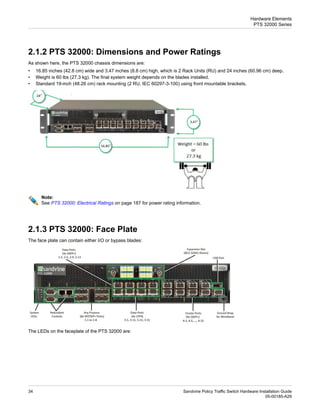
  • 34.
    2.1.2 PTS 32000:Dimensions and Power Ratings As shown here, the PTS 32000 chassis dimensions are: • 16.85 inches (42.8 cm) wide and 3.47 inches (8.8 cm) high, which is 2 Rack Units (RU) and 24 inches (60.96 cm) deep. • Weight is 60 lbs (27.3 kg). The final system weight depends on the blades installed. • Standard 19-inch (48.26 cm) rack mounting (2 RU, IEC 60297-3-100) using front mountable brackets. Note: See PTS 32000: Electrical Ratings on page 187 for power rating information. 2.1.3 PTS 32000: Face Plate The face plate can contain either I/O or bypass blades: The LEDs on the faceplate of the PTS 32000 are: Sandvine Policy Traffic Switch Hardware Installation Guide 34 05-00185-A29 Hardware Elements PTS 32000 Series
  • 35.
    The system LEDsindicate these states: Description State LED An alarm was triggered. Red Alarms There are no active alarms. Off This LED is always off. Off Fault The device is operating normally and services such as PTSM, SFCD, CND, and SCDPD are online. Green Online If any service unexpectedly restarts, or if SCDPD or SFCD are intentionally stopped, the online LED turns off. This LED is unaffected if any other service is intentionally stopped. Off Indicates that the system power is on. Green Power Indicates that system power is off or input power is not present. Off 2.1.4 PTS 32000: Blades The available blade types for PTS 32000 hardware platform are: Description Type Model Bypass blade, 4 bypass ports, 9µm fiber, 40GBASE-LR4, 40GBASE-ER4, 100GBASE-LR4, 100GBASE-ER4. Passive Bypass BLD 32042 Note: 40GBASE-SR4 and 100GBASE-SR4 are not supported. Data Intersect blade for 8x 10GBase-LR or 10GBase-SR using QSFP+ optics and MPO/MTP breakout cables. Expansion BLD 32080 35 Sandvine Policy Traffic Switch Hardware Installation Guide 05-00185-A29 Hardware Elements PTS 32000 Series
  • 36.
    Description Type Model See MPO (MTP)Breakout Cables (PTS 32000 Only) on page 112 for additional cabling information. 2.1.5 Built-in Ports The built-in ports on the PTS 32000 are: Note: Due to hardware limitations, 32400-A units consume more physical ports on the switch fabric than originally designed, resulting in fewer internal ports available for external slot4 interfaces. Sandvine recommends 32400-A models leverage QSFP+ 40G native on slot4 for clustering. This enables a maximum cluster size of 10x elements for this model. This table summarizes the built-in ports on the PTS 32000. See the PTS Administration Guide for additional information on Usage and Interface Types. Module Type Fiber Protocol Usage or Interface Type Speed Front Panel Port Label Ports Type Qty SFP SX, LX, and ZX Service, Divert, and Switch 1 GigE 1-1, 1-2, 1-3, 1-4, 1-5, 1-6, 1-7, and 1-8 SFP / SFP+ 8 SFP+ SR, LR, ER, and ZR Data, Cluster, Service, Divert, and Switch 10 GigE QSFP+ 4x 10G-SR and 4x 10G-LR Data Only 4x10 GigE 2-1, 2-5, 2-9, and 2-131 QSFP+ 4 QSFP+ SR4 or LR4 or AOC Data Only 40 GigE 2-1, 2-5, 2-9, and 2-13. 2 CFP4 4x 10G-LR Data Only 4x10 GigE 3-1, 3-11, 3-21, and 3-31 3 CFP4 4 1 Each port has 4-subports in this mode. For example, the 2-1 label contains 2-1, 2-2, 2-3, and 2-4. So, the total number of 10 GigE interfaces available = Total number of ports * number of sub ports = 4*4 =16. 2 Total number of 40 GigE interfaces available = Total number of ports * number of sub ports = 4*1 =4. 3 Each port has 4 subports in this mode. For example, the 3-1 label contains 3-1, 3-2, 3-3, and 3-4. So, the total number of 10 GigE interfaces available = Total number of ports * number of sub ports = 4*4=16. Sandvine Policy Traffic Switch Hardware Installation Guide 36 05-00185-A29 Hardware Elements PTS 32000 Series
  • 37.
    Module Type Fiber Protocol Usage or InterfaceType Speed Front Panel Port Label Ports Type Qty Note The 4x10 GigE module referenced here, is not currently supported. CFP4 LR4 and SR45 Data Only 100 GigE 3-1, 3-11, 3-21, and 3-314 QSFP+ 4x 10G-SR and 4x 10G-LR Cluster, Service, Divert, and Switch 4x10 GigE 4-1, 4-5, 4-9, 4-13, 4-17, 4-21, 4-25, 4-29, and 4-33 6 QSFP+ 9 QSFP+ SR4 or LR4 or AOC 40 GigE 4-1, 4-5, 4-9, 4-13, 4-17, 4-21, 4-25, 4-29, and 4-337 Note: Related ports on the PTS 32000 cannot be used together. See PTS Administration Guide for more information. 2.1.6 Port Usage and Configuration Examples This section provides complete configuration examples for selecting hardware and ports for the various operating modes of the PTS 32000 ports. In every case the maximum configuration is detailed; in some cases the minimum configuration is also included. The use case examples are divided into two groups: • Data Intersect Port Use Cases on page 37 • Cluster Port Use Cases on page 48 2.1.6.1 Data Intersect Port Use Cases Data Intersect Port use cases for PTS 32000, include: • 100 GigE Data Ports—Single Mode Use Case on page 37 • 100 GigE Data Ports—Multi Mode Use Case on page 39 • 40 GigE Data Ports—Single Mode on page 41 • 40 GigE Data Ports—Multi Mode on page 42 • 10 GigE Data Ports—Single Mode on page 44 • 10 GigE Data Ports—Multi Mode on page 46 2.1.6.1.1 100 GigE Data Ports—Single Mode Use Case This is probably the most common use of the PTS 32000 product, utilizing the four 100 GigE CFP4 ports. Here are four different examples to consider when deploying in this configuration: • Example 1: Intersect 2x 100GBASE-LR4 Links on Single Mode Fiber Without Internal Bypass • Example 2: Intersect 2x 100GBASE-LR4 Links on Single Mode Fiber (OS2) With Internal Bypass • Example 3: Intersect 1x 100GBASE-LR4 Link on Single Mode Fiber (OS2) With Internal Bypass • Example 4: Intersect More Than 2x 100GBASE-LR4 Links • Example 5: Intersect 2x 100GBASE-LR4 or 100GBASE-ER4 Link on Single Mode Fiber Without Internal Bypass to Third-Party QSFP28+ Optic Modules 5 The SR4 is only supported on the Sandvine 32000-C element. 4 Total number of 100 GigE interfaces available =Total number of ports * number of sub ports = 4*1 =4. 6 Each port has 4-subports in this mode. For example, the 4-1 label contains 4-1, 4-2, 4-3, and 4-4. So, the total number of 10 GigE interfaces available = Total number of ports * number of sub ports = 9*4 =36. 7 Total number of 40 GigE interfaces available =Total number of ports * number of sub ports = 9*1 =9. 37 Sandvine Policy Traffic Switch Hardware Installation Guide 05-00185-A29 Hardware Elements PTS 32000 Series
  • 38.
    Example 1: Intersect2x 100GBASE-LR4 Links on Single Mode Fiber Without Internal Bypass Quantity Required Details Component 1 Alternative 3-1, 3-11, 3-21, and 3-31 Port Locations CFP4 100GBASE-LR4 Optics Mode Type 4 100-00466 Sandvine Module Part Number None None Internal Blade Required Example 2: Intersect 2x 100GBASE-LR4 Links on Single Mode Fiber (OS2) With Internal Bypass Quantity Required Details Component 1 Alternative 3-1, 3-11, 3-21, and 3-31 Port Locations CFP4 100GBASE-LR4 Optics Mode Type 4 100-00466 Sandvine Module Part Number 1 BLD 32042 Internal Blade Required 4 100-00216B Cables Required Notes: The four 100-00216B cables are short OS2 (9µ) duplex jumpers that connect the CFP4 optics to the Bypass blade. Example 3: Intersect 1x 100GBASE-LR4 Link on Single Mode Fiber (OS2) With Internal Bypass Quantity Required Details Component 1 Alternative 3-1 and 3-11 Port Locations CFP4 100GBASE-LR4 Optics Mode Type 2 100-00466 Sandvine Module Part Number 1 BLD 32042 Internal Blade Required: 2 100-00216B Cables Required Notes: The two 100-00216B cables are short OS2 (9µ) duplex jumpers that connect the CFP4 optics to the Bypass blade. Example 4: Intersect More Than 2x 100GBASE-LR4 Links Quantity Required Details Component N/A Alternative Not supported with a single PTS. Port Locations N/A Optics Mode Type N/A N/A Sandvine Module Part Number N/A N/A Internal Blade Required Sandvine Policy Traffic Switch Hardware Installation Guide 38 05-00185-A29 Hardware Elements PTS 32000 Series
  • 39.
    N/A N/A Cables Required Notes: A secondPTS 32000 element in the cluster is required for more than 100 GigE data intersect. Example 5: Intersect 2x 100GBASE-LR4 or 100GBASE-ER4 Link on Single Mode Fiber Without Internal Bypass to Third-Party QSFP28+ Optic Modules Quantity Required Details Component 1 Alternative 3-1, 3-11, 3-21, and 3-31 Port Locations CFP4 100GBASE-LR4 or 100GBASE-ER4 Optics Mode Type 4 100-00466 or 100-00510 Sandvine Module Part Number None Internal Blade Required 100-00466 (LR4), Sold Separately (ER4) Cables Required Notes: The PTS 32000 model does not support QSFP28+ optical modules directly in the chassis. To interoperate with 100G networking infrastructure that uses QSFP28+ form factor pluggables, verify that the other side module fully implements the 100GBASE-LR4 or 100GBASE-ER4 specifications. See Optical Transceiver and Cable Specifications on page 183 for more information. 2.1.6.1.2 100 GigE Data Ports—Multi Mode Use Case This configuration is for PTS 32000-C models and higher. Here are four different examples to consider when deploying in this configuration: • Example 1: Intersect 2x 100GBASE-SR4 Links on Multi Mode Parallel Fiber Without Internal Bypass • Example 2: Intersect 1x 100GBASE-SR4 Links on Multi-Mode Parallel Fiber (OM1/OM3) With Internal Bypass • Example 3: Intersect More Than 2x 100GBASE-SR4 Links • Example 4: Intersect 2x 100GBASE-SR4 Link on Multi Mode Fiber Without Internal Bypass to Third-Party QSFP28+ Optic Modules • Example 5: Intersect 2x 100GBASE-SR10 Link on Milti Mode Fiber Without Internal Bypass to Third-Party QSFP28+ Optic Modules Example 1: Intersect 2x 100GBASE-SR4 Links on Multi Mode Parallel Fiber Without Internal Bypass Quantity Required Details Component 1 Alternative 3-1, 3-11, 3-21, and 3-31 Port Locations CFP4 100GBASE-SR4 Optics Mode Type 4 100-00468 Sandvine Module Part Number None None Internal Blade Required 4 MTP cabling sold separately. Sandvine recommends vendor fiber that adheres to 100GBASE-SR4 specifications (OM3/OM4, Type B Reverse Polarity). See Optical Transceiver and Cable Specifications on page 183 for more information. Cables Required Notes: This requires the use of MPO (MTP) style high density Multi-mode Fiber Cables. 39 Sandvine Policy Traffic Switch Hardware Installation Guide 05-00185-A29 Hardware Elements PTS 32000 Series
  • 40.
    Example 2: Intersect1x 100GBASE-SR4 Links on Multi-Mode Parallel Fiber (OM1/OM3) With Internal Bypass Quantity Required Details Component N/A Alternative Not supported. Port Locations CFP4 100GBASE-SR4 Optics Mode Type N/A 100-00468 Sandvine Module Part Number N/A N/A Internal Blade Required N/A N/A Cables Required Notes: Sandvine does not support multi mode bypass with internal Bypass Blades on the PTS 32000. Example 3: Intersect More Than 2x 100GBASE-SR4 Links Quantity Required Details Component N/A Alternative Not supported with a single PTS. Port Locations CFP4 100GBASE-SR4 Optics Mode Type N/A 100-00468 Sandvine Module Part Number N/A N/A Internal Blade Required N/A N/A Cables Required Notes: A second PTS 32000 unit in the cluster is required for more than 100 GigE Data intersect. Example 4: Intersect 2x 100GBASE-SR4 Link on Multi Mode Fiber Without Internal Bypass to Third-Party QSFP28+ Optic Modules Quantity Required Details Component N/A Alternative Not supported Port Locations CFP4 100GBASE-SR4 Optics Mode Type N/A 100-00468 Sandvine Module Part Number N/A N/A Internal Blade Required N/A N/A Cables Required Notes: The PTS 32000 family does not support QSFP28+ optical modules directly in the chassis. Sandvine does not support interoperating with other 100G networking infrastructures that use QSFP28+ form factor pluggables that implement the 100GBASE-SR4 specification. See Optical Transceiver and Cable Specifications on page 183 for more information. Example 5: Intersect 2x 100GBASE-SR10 Link on Milti Mode Fiber Without Internal Bypass to Third-Party QSFP28+ Optic Modules Quantity Required Details Component N/A Alternative Sandvine Policy Traffic Switch Hardware Installation Guide 40 05-00185-A29 Hardware Elements PTS 32000 Series
  • 41.
    Not supported Port Locations CFP4100GBASE-SR4 Optics Mode Type N/A 100-00468 Sandvine Module Part Number N/A N/A Internal Blade Required N/A N/A Cables Required Notes: The PTS 32000 family does not support QSFP28+ optical modules directly in the chassis. Sandvine does not support interoperating with other 100G networking infrastructures that use QSFP28+ form factor pluggables implementing the 100GBASE-SR4 specification. See Optical Transceiver and Cable Specifications on page 183 for more information. 2.1.6.1.3 40 GigE Data Ports—Single Mode This is one of the lesser used PTS deployments. Here are four different example configurations: • Example 1: Intersect 2x 40G-LR4 Links on Single Mode Fiber Without Internal Bypass • Example 2: Intersect 2x 40G-LR4 Links on Single Mode Fiber (OS2) With Internal Bypass • Example 3: Intersect 1x 40G-LR4 Link on Single Mode Fiber (OS2) With Internal Bypass • Example 4: Intersect more than 2x 40G-LR4 Links Example 1: Intersect 2x 40G-LR4 Links on Single Mode Fiber Without Internal Bypass Quantity Required Details Component 1 Alternative 2-1, 2-5, 2-9, and 2-13 Port Locations QSFP+ 40GBASE-LR4 Optics Mode Type 4 100-00446 Sandvine Module Part Number None None Internal Blade Required Example 2: Intersect 2x 40G-LR4 Links on Single Mode Fiber (OS2) With Internal Bypass Quantity Required Details Component 1 Alternative 2-1, 2-5, 2-9, and 2-13 Port Locations QSFP+ 40GBASE-LR4 Optics Mode Type 4 100-00446 Sandvine Module Part Number 1 BLD32042 Internal Blade Required 4 100-00216B Cables Required Notes: The 4x 100-00216B cables are short OS2 (9µ) duplex jumpers that connect the QSFP+ optics to the Bypass blade. Example 3: Intersect 1x 40G-LR4 Link on Single Mode Fiber (OS2) With Internal Bypass Quantity Required Details Component 41 Sandvine Policy Traffic Switch Hardware Installation Guide 05-00185-A29 Hardware Elements PTS 32000 Series
  • 42.
    1 Alternative 2-1 and 2-5 PortLocations QSFP+ 40GBASE-LR4 Optics Mode Type 2 100-00446 Sandvine Module Part Number 1 BLD32042 Internal Blade Required 2 100-00216B Cables Required Notes: The two 100-00216B cables are short OS2 (9µ) duplex jumpers that connect the QSFP+ optics to the Bypass blade. Example 4: Intersect more than 2x 40G-LR4 ports Quantity Required Details Component N/A Alternative Not supported with a single PTS. Port Locations N/A Optics Mode Type N/A N/A Sandvine Module Part Number N/A N/A Internal Blade Required N/A N/A Cables Required Notes: A second PTS 32000 unit in the cluster is required for more than 40 GigE Data intersect. 2.1.6.1.4 40 GigE Data Ports—Multi Mode This is one of the lesser used PTS deployments. Here are four typical configuration examples: • Example 1: Intersect 2x 40G-SR4 Links on Multi-Mode Parallel Fiber Without Internal Bypass • Example 2: Intersect 2x 40G-SR4 Links on Multi-Mode Parallel Fiber (OM3) With External Bypass • Example 3: Intersect 1x 40G-SR4 Links on Multi-Mode Parallel Fiber (OM1/OM3) With Internal Bypass • Example 4: Intersect More Than 2x 40G-SR4 Links Example 1: Intersect 2x 40G-SR4 Links on Multi-Mode Parallel Fiber Without Internal Bypass Quantity Required Details Component 1 Alternative 2-1, 2-5, 2-9, and 2-13 Port Locations QSFP+ 40GBASE-SR4 Optics Mode Type 4 100-00462 Sandvine Module Part Number None None Internal Blade Required Notes: This requires the use of MPO (MTP) style high density Multi-mode Fiber Cables. Sandvine Policy Traffic Switch Hardware Installation Guide 42 05-00185-A29 Hardware Elements PTS 32000 Series
  • 43.
    Example 2: Intersect2x 40G-SR4 Links on Multi-Mode Parallel Fiber (OM3) With External Bypass Quantity Required Details Component N/A Alternative 2-1, 2-5, 2-9, and 2-13 Port Locations QSFP+ 40GBASE-SR4 Optics Mode Type 4 100-00462 Sandvine Module Part Number None None Internal Blade Required 4 100-00490 to 100-00493 Cables Required Notes: An external Sandvine passive bypass chassis (PTS 24010 or PTS 24011) with 50µm (OM3) multi mode Bypass Blades (1x BLD 24050 + 1x BLD 24052) is required. The 8x MPO fibers from the QSFP+ are broken out by the 4x required (100-00490 to 100-00493) cables to connect into the LC bypass ports. Example 3: Intersect 1x 40G-SR4 Links on Multi-Mode Parallel Fiber (OM1/OM3) With Internal Bypass Quantity Required Details Component N/A Alternative Not supported. Port Locations N/A Optics Mode Type N/A N/A Sandvine Module Part Number N/A N/A Internal Blade Required N/A N/A Cables Required Notes: Sandvine does not support multi mode bypass with internal Bypass Blades on the PTS 32000. Example 4: Intersect More Than 2x 40G-SR4 Ports Quantity Required Details Component N/A Alternative Not supported with a single PTS. Port Locations N/A Optics Mode Type N/A N/A Sandvine Module Part Number N/A N/A Internal Blade Required N/A N/A Cables Required Notes: A second PTS 32000 unit in the cluster is required for more than 40 GigE Data intersect. 43 Sandvine Policy Traffic Switch Hardware Installation Guide 05-00185-A29 Hardware Elements PTS 32000 Series
  • 44.
    2.1.6.1.5 10 GigEData Ports—Single Mode This is a very common 10 GigB single mode PTS deployment. There are a variety of configuration options possible, including these typical examples: • Example 1: Intersect 4x 10G-LR Links on Single Mode Fiber Without Internal Bypass • Example 2: Intersect 16x 10G-LR Links on Single Mode Fiber Without Internal Bypass • Example 3: Intersect 2x 10G-LR Links on Single Mode Fiber With Internal Bypass Example 1: Intersect 4x 10G-LR Links on Single Mode Fiber Without Internal Bypass This example includes three distinct alternative deployment configurations. Quantity Required Details Component 1 Alternative 1-1, 1-2, 1-3, 1-4, 1-5, 1-6, 1-7, and 1-8 Port Locations SFP+ 10GBASE-LR Optics Mode Type 8 100-00350 Sandvine Module Part Number None None Internal Blade Required None None Cables Required Notes: This uses all eight of the 10 Gig SFP+ ports on the PTS 32000. Quantity Required Details Component 2 Alternative 2-1 and 2-5 Port Locations QSFP+ 4x 10G-LR Optics Mode Type 2 100-00478 Sandvine Module Part Number None None Internal Blade Required 2 100-00483 to 100-00486 Cables Required Notes: Each 40G QSFP+ data port is used as a 4x 10 GigE data port with the use of (1) a 4x 10G-LR optical module and a (2) breakout cable. The breakout cable converts the MPO/MTP connector on the QSFP+ optics module to 4x duplex fibers for use in normal 10 GigE LC patch panels or for direct connection to other standard optics such as SFP+ 10GBASE-LR optical modules. Quantity Required Details Component 3 Alternative 5-1 and 5-5 Port Locations QSFP+ 4x 10G-LR Optics Mode Type 2 100-00478 Sandvine Module Part Number 1 BLD 32080 Internal Blade Required Sandvine Policy Traffic Switch Hardware Installation Guide 44 05-00185-A29 Hardware Elements PTS 32000 Series
  • 45.
    2 100-00483 to 100-00486 CablesRequired Notes: This mode uses an add-in blade, rather than the built in ports, to provide 2 additional 40G QSFP+ data ports. You can only use these as 4x 10G ports. Each 40G QSFP+ data port is used as a 4x 10 GigE data port with the use of (1) a 4x 10G-LR optical module and a (2) breakout cable. The breakout cable converts the MPO/MTP connector on the QSFP+ optics module to 4x duplex fibers for use in normal 10 GigE LC patch panels or for direct connection to other standard optics such as SFP+ 10GBASE-LR optical modules. Example 2: Intersect 16x 10G-LR Links on Single Mode Fiber Without Internal Bypass Details Component 1 Alternative 1-1, 1-2, 1-3, 1-4, 1-5, 1-6, 1-7, and 1-8 Group 1 Ports: Port Locations 2-1, 2-5, 2-9, and 2-13 Group 2 Ports: 5-1 and 5-5 Group 3 Ports: SFP+ 10GBASE-LR Group 1 Ports: Optics Mode Type for: QSFP+ 4x 10G-LR Group 2 Ports: QSFP+ 4x 10G-LR Group 3 Ports: 8 Quantities Required: 100-00350 Group 1 Ports: Sandvine Module Part Number for: 4 100-00478 Group 2 Ports: 2 100-00478 Group 3 Ports: None Quantities Required: None Group 1 Ports: Internal Blade Required for: None None Group 2 Ports: 1 BLD 32080 Group 3 Ports: None Quantities Required: None Group 1 Ports: Cables Required for: 4 100-00483 to 100-00486 Group 2 Ports: 2 100-00483 to 100-00486 Group 3 Ports: Notes: This is the maximum 10G configuration currently supported. It requires the use of alternates 1, 2, and 3 from Example 1 simultaneously to give 32x 10G ports. Example 3: Intersect 2x 10G-LR Links on Single Mode Fiber With Internal Bypass Quantity Required Details Component 1 Alternative 1-2, 1-2, 1-3, and 1-4 Port Locations SFP+ 10GBASE-LR Optics Mode Type 4 100-00350 Sandvine Module Part Number 1 BLD 32042 Internal Blade Required 45 Sandvine Policy Traffic Switch Hardware Installation Guide 05-00185-A29 Hardware Elements PTS 32000 Series
  • 46.
    4 100-00216B Cables Required Notes: This operatingmode works, but is considered highly unusual due to the poor PTS 32000 utilization that results. Also, you could use one QSFP+ data port in place of the 4x SFP+ ports. It would then follow the guidelines give in alternatives 2 or 3 from Example 1. 2.1.6.1.6 10 GigE Data Ports—Multi Mode This is a less commonly used multi-mode PTS deployment. Here are three different example deployments in this configuration: • Example 1: Intersect 4x 10G-SR Links on Multi-Mode Fiber (OM1/OM3)—Without Internal Bypass • Example 2: Intersect 16x 10G-SR Links on Multi Mode Fiber (OM1/OM3)—Without Internal Bypass • Example 3: Intersect 2x 10G-SR Links on Multi Mode Fiber (OM1/OM3)—With Internal Bypass Example 1: Intersect 4x 10G-SR Links on Multi-Mode Fiber (OM1/OM3)—Without Internal Bypass This option includes three distinct alternative deployment configurations. Quantity Required Details Component 1 Alternative 1-1, 1-2, 1-3, 1-4, 1-5, 1-6, 1-7, and 1-8 Port Locations SFP+ 10GBASE-SR Optics Mode Type 8 100-00348 Sandvine Module Part Number None None Internal Blade Required None None Cables Required Notes: This uses all eight of the 10Gig SFP+ ports on the PTS 32000. Quantity Required Details Component 2 Alternative 2-1 and 2-5 Port Locations QSFP+ 4x 10G-SR Optics Mode Type 2 100-00462 Sandvine Module Part Number None None Internal Blade Required: 2 100-00490 to 100-00497 Cables Required Notes: The 40Gig QSFP+ data ports are used as 4x 10Gig ports through the use of a 4x 10G-SR "or parallel multi mode" optical module with a breakout cable. This cable converts MPO/MTP to 4x duplex LC fibers (for use in normal LC patch panels) for all required 4x 10Gig ports. Quantity Required Details Component 3 Alternative Sandvine Policy Traffic Switch Hardware Installation Guide 46 05-00185-A29 Hardware Elements PTS 32000 Series
  • 47.
    5-1 and 5-5 PortLocations QSFP+ 4x 10G-SR Optics Mode Type 2 100-00462 Sandvine Module Part Number 1 BLD 32080 Internal Blade Required 2 100-00490 to 100-00497 Cables Required Notes: This uses an add-in blade, in place of built-in ports, to provide 2 additional 40Gig QSFP+ data ports. You can only use these as 4x 10 Gig ports. Example 2: Intersect 16x 10G-SR Links on Multi Mode Fiber (OM1/OM3)—Without Internal Bypass Details Component 1 Alternative: 1-1, 1-2, 1-3, 1-4, 1-5, 1-6, 1-7, and 1-8 Group 1 Ports: Port Locations 2-1, 2-5, 2-9, and 2-13 Group 2 Ports: 5-1 and 5-5 Group 3 Ports: SFP+ 10GBASE-SR Group 1 Ports: Optics Mode Type for: QSFP+ 4x 10G-SR Group 2 Ports: QSFP+ 4x 10G-SR Group 3 Ports: 8 Quantities Required: 100-00348 Group 1 Ports: Sandvine Module Part Number for: 4 100-00462 Group 2 Ports: 2 100-00462 Group 3 Ports: None Quantities Required: None Group 1 Ports: Internal Blade Required for: None None Group 2 Ports: 1 BLD 32080 Group 3 Ports: None Quantities Required: None Group 1 Ports: Cables Required for: 4 100-00490 to 100-00497 Group 2 Ports: 2 100-00490 to 100-00497 Group 3 Ports: Notes: This is the maximum 10Gig configuration that is currently supported. It requires the use of alternatives 1, 2, and 3 simultaneously, from Example 1 to give thirty-two (32) 10 Gig ports. The ISP uses OM1 Cables (62.5µm, 100-00494-497), but might also select OM3 Cables (50µm, 100-00490-493). Example 3: Intersect 2x 10G-SR Links on Multi Mode Fiber (OM1/OM3)—With Internal Bypass Quantity Required Details Component N/A Alternative Unsupported Port Locations 47 Sandvine Policy Traffic Switch Hardware Installation Guide 05-00185-A29 Hardware Elements PTS 32000 Series
  • 48.
    N/A Optics Mode Type N/A N/A SandvineModule Part Number N/A N/A Internal Blade Required N/A N/A Cables Required Notes: Sandvine does not support Multi-mode bypass with internal Bypass Blades on the PTS 32000. 2.1.6.2 Cluster Port Use Cases Cluster Port use cases for the PTS 32000 include: • Close Proximity, Direct Connections Between PTS 32000 Elements on page 48 • Inter-plant Direct Connections Between PTS 32000 Elements • Mixed Cluster PTS 32000 with PTS 22000 or PTS 24000 Families on page 49 • Maximum Clustering with PTS 32000 on page 51 2.1.6.2.1 Close Proximity, Direct Connections Between PTS 32000 Elements This is one of most common and cost effective cluster port use cases. This flexible deployment scenario gives you four different configuration examples: • Example 1: 9x 40G Cluster Ports to Cluster PTS 32000 to PTS 32000—Close Same Rack, Stacked Close • Example 2: 9x 40G Cluster Ports to Cluster PTS 32000 to PTS 32000—Close Same Rack, Stacked Far Away • Example 3: 9x 40G Cluster Ports to Cluster PTS 32000 to PTS 32000—Different Racks, But Close • Example 4: 9x 40G Cluster Ports to Cluster PTS 32000 to PTS 32000—More Than 10m But Less Than 10 Km Example 1: 9x 40G Cluster Ports to Cluster PTS 32000 to PTS 32000—Close Same Rack, Stacked Close Quantity Required Details Component 1 Alternative 4-1, 4-5, 4-9, 4-13, 4-17, 4-21, 4-25, 4-29, and 4-33 Port Locations AOC Cable Optics Mode Type 9 100-00479 per pair of PTSes. Sandvine Module Part Number N/A None, Included in AOC. Cables Required Notes: Each 1m AOC cable provides QSFP+ connectors for both ends + a captive cable between the QSFP+ connectors. Example 2: 9x 40G Cluster Ports to Cluster PTS 32000 to PTS 32000—Close Same Rack, Stacked Far Away Quantity Required Details Component 1 Alternative 4-1, 4-5, 4-9, 4-13, 4-17, 4-21, 4-25, 4-29, and 4-33 Port Locations AOC Cable Optics Mode Type 9 100-00480 per pair of PTSes. Sandvine Module Part Number Sandvine Policy Traffic Switch Hardware Installation Guide 48 05-00185-A29 Hardware Elements PTS 32000 Series
  • 49.
    N/A None, Included inAOC. Cables Required Notes: Each 3m AOC cable provides QSFP+ connectors for both ends + a captive cable between the QSFP+ connectors. Example 3: 9x 40G Cluster Ports to Cluster PTS 32000 to PTS 32000—Different Racks, But Close Quantity Required Details Component 1 Alternative 4-1, 4-5, 4-9, 4-13, 4-17, 4-21, 4-25, 4-29, and 4-33 Port Locations AOC Cable Optics Mode Type 9 100-00481 per pair of PTSes. Sandvine Module Part Number N/A None, Included in AOC. Cables Required Notes: Each 5m or 10m AOC cable provides QSFP+ connectors for both ends + a captive cable between the QSFP+ connectors. Example 4: 9x 40G Cluster Ports to Cluster PTS 32000 to PTS 32000—More Than 10m But Less Than 10 Km Quantity Required Details Component 1 Alternative 4-1, 4-5, 4-9, 4-13, 4-17, 4-21, 4-25, 4-29, and 4-33 Port Locations QSFP+ 40GBASE-LR4 Optics Mode Type 9 100-00446 per PTS 32000 Sandvine Module Part Number 9 Duplex 9µm (OS2) Cables Required Notes: This example assumes that you provide your own cluster cables. Each PTS needs 9x optical modules. Provided that your deployment supports multi fiber high density fiber distribution, you can also select QSFP+ 40GBASE-SR4 (100-00462) modules for clustering less than 300 m. Sandvine supports this configuration, although you need to provide Multi-mode 50µm, OM3 grade MPO to MPO fiber cables. 2.1.6.2.2 Mixed Cluster PTS 32000 with PTS 22000 or PTS 24000 Families This is a very common 10 GigB single mode PTS deployment. These are two different examples when deploying in this configuration, including: • Example 1: 8x 10 GigE Cluster Ports Clustering PTS 32000 to the PTS 24000 (Less than 27m/300m) • Example 2: 8x 10 GigE Cluster Ports Clustering PTS 32000 to PTS 24000 (Less than 10 Km) Note: See Hardware Compatibility Matrix on page 93 for additional information on the compatibility of PTS models in a cluster deployment. Example 1: 8x 10 GigE Cluster Ports Clustering PTS 32000 to the PTS 24000 (Less that 27m/300m) This option includes two distinct alternative deployment configurations. 49 Sandvine Policy Traffic Switch Hardware Installation Guide 05-00185-A29 Hardware Elements PTS 32000 Series
  • 50.
    Quantity Required Details Component 1 Alternative 1-1, 1-2, 1-3,1-4, 1-5, 1-6, 1-7, and 1-8 Port Locations SFP+ 10GBASE-SR Optics Module Type 8 100-00348 on PTS 32000 Sandvine Module Part Number 8 OM1 (typically 27m max length) or OM3 Cables (typically 300m max length). Cables Required Notes: This uses all eight of the 10 Gig SFP+ ports on the PTS 32000. Quantity Required Details Component 2 Alternative 4-1, 4-2, 4-3, 4-4, 4-5, 4-6, 4-7, and 4-8 Port Locations QSFP+ 4x 10G-SR Optics Mode Type 2 100-00462 on PTS 32000 Sandvine Module Part Number 2 100-00490 to 100-00497 Cables Required Notes: This uses 2 of the 9 QSFP+ cluster ports available on the PTS 32000. The remaining 7 ports are available for 10 Gig or 40 Gig clustering. Quantity Required Details Component 3 Alternative 1-1, 1-2, 1-3, 1-4, 4-1, 4-2, 4-3, 4-4 Port Locations both SFP+ 10GBASE-SR & QSFP+ 4x 10G-SR Optics Mode Type 4+1 100-00348 (4x) & 100-00462 (1x) on PTS 32000 Sandvine Module Part Number 4 or 1 OM1 (typically 27m max length) or OM3 Cables (typically 300m max length). 100-00490 (4x) or 100-00497 (1x) Cables Required Notes: This uses four of the 10 GigE SFP+ ports on the 32000, and two of the nine QSFP+ cluster ports available on the PTS 32000. The remaining 4x SFP+ ports on slot1 and 8x QSFP+ ports on slot4 are available for service plane connectivity or PTS clustering. Example 2: 8x 10 GigE Cluster Ports to Cluster PTS 32000 to PTS 24000 (Less than 10 Km) This option includes two distinct alternative deployment configurations. Quantity Required Details Component 1 Alternative 1-1, 1-2, 1-3, 1-4, 1-5, 1-6, 1-7, and 1-8 Port Locations SFP+ 10GBASE-LR Optics Module Type 8 100-00350 on PTS 32000 Sandvine Module Part Number 8 9u (OS2) Cables Cables Required Sandvine Policy Traffic Switch Hardware Installation Guide 50 05-00185-A29 Hardware Elements PTS 32000 Series
  • 51.
    Notes: This uses alleight of the 10 Gig SFP+ ports on the PTS 32000. Quantity Required Details Component 2 Alternative 4-1, 4-2, 4-3, 4-4, 4-5, 4-6, 4-7, and 4-8 Port Locations QSFP+ 4x 10G-LR Optics Mode Type 2 100-00478 on PTS 32000 Sandvine Module Part Number 2 100-00483 to 100-00486 Cables Required Notes: This uses 2 of the 9 QSFP+ cluster ports available on the PTS 32000. The remaining 7 ports are available for 10 GigE or 40 GigE clustering. 2.1.6.2.3 Maximum Clustering with PTS 32000 These examples illustrate the maximum clustering of PTS 32000 elements in close proximity. Warning: Sandvine strongly recommends that, when planning a PTS cluster design exceeding 10 elements, you engage your Sandvine account representative to develop the optimal design the cluster for your deployment. Example 1: Maximum Cluster Port (9x 40 Gbps + 8x 10 Gbps) Using 12 x PTS 32000 Elements Details Components 1 Alternative 1-1, 1-2, 1-3, 1-4, 1-5, 1-6, 1-7, and 1-8 Group 1 Ports: Port Locations 4-1, 4-5, 4-9, 4-13, 4-17, 4-21, 4-25, 4-29, and 4-33 Group 2 Ports: SFP+ 10GBASE-SR Group 1 Ports: Optics Mode Type AOC Cable Group 2 Ports: 8 Quantities Required: 100-00348 per PTS Group 1 Ports: Sandvine Module Part Number 9 100-00479 to 100-00482 per pair PTSes Group 2 Ports: 8 Quantities Required: Duplex LC-LC OM1/3 per pair of PTSes Group 1 Ports: Cables Required None None, Included in AOC Group 2 Ports: Notes: The key point to remember is that you can build LAG groups with up to 8 ports and that you cannot mix SFP+ and QSFP+ ports in a LAG group. You can cluster the PTS 32000 with either 10 GigE or 40 GigE cluster links (even between themselves). The optics used in this example represent the most cost effective clustering for units near each other in the same room. This provides 11 x 40 Gig worth of clustering capacity per PTS 32000. Clustering can also use LR, ER, and LR4 as is usual with Sandvine Clustering options. Example 2: Highest Inspection Performance (30x 10 Gbps) Using 16 x PTS 32000 Elements This example illustrates the maximum PTS cluster size currently supported. Although it has lower maximum intersection throughput, resulting from utilization of slot4 40G link capabilities, it offers the highest possible inspection performance for full-mesh cluster topologies. 51 Sandvine Policy Traffic Switch Hardware Installation Guide 05-00185-A29 Hardware Elements PTS 32000 Series
  • 52.
    Details Components 1 Alternative 4-1, 4-5, 4-9,4-13, 4-17, 4-21, 4-25, and 4-29 Group 1 Ports: Port Locations QSFP+ Breakout 4x10GBASE-SR Group 1 Ports: Optics Mode Type 8 (7.5) Quantities Required: 100-00462 (QSFP+ MM MTP) per PTS Group 1 Ports: Optics Required 8 (7.5) Quantities Required: 100-00491 (3m OM3 MTP-4xLC) per PTS Group 1 Ports: Cables Required 30 Quantities Required: 740-007A-006B (MM LC-LC coupler) per pair of PTSes Group 1 Ports: Other Components Caution: When implementing this example be aware that wiring and configuration issues make this an extremely challenging deployment. Contact Sandvine (Customer Support or your Sandvine account representative), or its authorized partner, for assistance before deploying this solution. 2.1.7 PTS 32000: Rear Chassis The PTS 32000 series is available in both AC and DC input power versions. The PTS 32000 rear chassis is common to all versions. In this image, you can see the AC and DC panel, with the different power connections, the common switch, and ground terminals. The PTS 32000 series provides two levels of power redundancy: • Primary Power—This refers to the input power to the element, either AC or DC. • Secondary Power—This refers to the internal system power bus that is delivered through power supply modules. Sandvine Policy Traffic Switch Hardware Installation Guide 52 05-00185-A29 Hardware Elements PTS 32000 Series
  • 53.
    You can orderadditional supplies to convert a PTS 32000 element to another power input version. Note: See Power Considerations on page 72, for additional information on power distribution planning for PTS network elements. See Electrical Specifications on page 187, for information on AC and DC power specifications of the PTS hardware models. 2.2 PTS 24000 Series The PTS 24000 series hardware platform comes in several configurations, offering differing bandwidth capacities, connection choices and power options. Chassis are either AC or DC powered. These PTS 24000 components are field replaceable: • Power supplies • Cooling fans • Hard drives • SFP (1GigE), SFP+ (10GigE), and XFP (10GigE) transceivers • I/O blades • Bypass blades See Replacing Components in the Field on page 152 for details on how to replace these components. This is the PTS 24500 chassis: 53 Sandvine Policy Traffic Switch Hardware Installation Guide 05-00185-A29 Hardware Elements PTS 24000 Series
  • 54.
    This images showsa PTS 24700 with two 80GB (BLD 24080) blades. This is the PTS 24300, with a 40GB chassis and a 40GB (BLD 24020) blade and a Bypass blade (BLD 24030). Sandvine Policy Traffic Switch Hardware Installation Guide 54 05-00185-A29 Hardware Elements PTS 24000 Series
  • 55.
    2.2.1 PTS 24000:Models The PTS 24000 sub-series models and their specifications are: Subscribers Concurrent flows New flows/sec Aggregate Throughput DC Model Number AC Model Number 5 M 72 M 2 M 160 Gbps PTS 24701 PTS 24700 5 M 36 M 1.5 M 80 Gbps PTS 24501 PTS 24500 2 M 18 M 1 M 40 Gbps PTS 24301 PTS 24300 N/A N/A N/A N/A PTS 24011 PTS 240108 2.2.2 PTS 24000: Dimensions and Power Ratings The dimensions of the PTS 24000 are: The dimensions of the chassis are: 8 This model is a bypass only. See External Passive Bypass Chassis for PTS 24010 and PTS 24011 on page 143 for information about this model. 55 Sandvine Policy Traffic Switch Hardware Installation Guide 05-00185-A29 Hardware Elements PTS 24000 Series
  • 56.
    • 17 inches(43.18 cm) wide by 7 inches (17.78 cm) high, which is 4 Rack Units (RU) and 23 inches (58.43 cm) deep. • PTS 24000 chassis weight is up to 90 lbs (40.8 kg). Final system weight depends on the blades installed. • PTS 24500 hardware configuration weight is 94.5 lbs (42.9 kg). • Mounting is a standard 19-inch (48.26 cm) rack using front mountable brackets. For power ratings, see PTS 24000: Electrical Ratings on page 188. 2.2.3 PTS 24000: Face Plate The face plate of a PTS 24000 always contains I/O and/or bypass blades and power supplies: Regardless of the blade configuration these four LEDs always appears at the top right of the face plate. Description Indicator LED Red indicates that an alarm has been triggered. Red Alarm Off indicates that no alarm is currently active. Off Always off. Red or Off Fault Green indicates device is operating normally. Green or Off Online Sandvine Policy Traffic Switch Hardware Installation Guide 56 05-00185-A29 Hardware Elements PTS 24000 Series
  • 57.
    Description Indicator LED Green when systemis powered on. Green or Off Power Off indicates that the system is not online. See Status LEDs on page 114 for details on how to troubleshoot using interface LEDs. 2.2.3.1 PTS 24000: Power Supplies The PTS 24000 power supplies include these indicator LEDS: The power LEDs indicate these states: Description Indicator LED Condition Green indicates that the input power is good. Green or Off Input power Green indicates that the output power is good. Green or Off Output power 2.2.3.2 PTS 24000: Hard Drives The PTS 24000 hard drives have these indicator lights: The hard drive LEDs indicate these states: 57 Sandvine Policy Traffic Switch Hardware Installation Guide 05-00185-A29 Hardware Elements PTS 24000 Series
  • 58.
    Description Indicator LED Condition Green indicatesactivity. Green Hard Drive (top LED) Off indicates no activity. Off Red indicates RAID fault. Red RAID Fault (bottom LED) Off indicates no RAID fault. Off 2.2.4 PTS 24000: Blades PTS blades dictate the traffic intersection capacity of the PTS they are installed on. These blade types are available: Description Model 20 Gbps interception, 4x10GigE dedicated cluster ports (2x XFP, 2x SFP+), 10x cluster or data. BLD 24010 Data is either 1 GigE (SFP copper or fiber) or 10 GigE (SFP+). 40 Gbps interception, 8x10GigE dedicated cluster ports (8x SFP+), 4x dedicated data ports (4x SFP+). BLD 24020 Data ports only supports 10 GigE mode. 80 Gbps interception, 8x10GigE dedicated cluster ports (8x SFP+), 8x dedicated data ports (8x SFP+). BLD 24080 Data ports only supports 10 GigE mode. Bypass blade, 12 bypass ports, 62.5 µm fiber. BLD 24030 Bypass blade, 4 bypass ports, 62.5µm fiber. BLD 24032 Bypass blade, 12 bypass ports, 9µm fiber. BLD 24040 Bypass blade, 4 bypass ports, 9µm fiber. BLD 24042 Bypass blade, 12 bypass ports, 50µm fiber (special order only). BLD 24050 Bypass blade, 4 bypass ports, 50µm fiber (special order only). BLD 24052 These blades are one of these types: Sandvine Policy Traffic Switch Hardware Installation Guide 58 05-00185-A29 Hardware Elements PTS 24000 Series
  • 59.
    • I/O bladescontain data and cluster ports. • Bypass blades provide a passive bypass of the PTS element during maintenance or a system failure. Note: • You can cold-swap the I/O and bypass blades in the field. • Sandvine recommends powering down the PTS unit to prevent any network impact, while modifying the blade configuration. The I/O blades are hot-swappable and no damage occurs even if you replace the blades with the power on—however, the blade will not function until you have rebooted the system. Different combinations of blades are supported. For example, a PTS could have one I/O blade and one bypass blade installed: The I/O blades dictate the intersection capacity of the chassis. For example, the system shown above can intersect up to 20 Gbps of traffic because it is fitted with a BLD 24010 on Blade Slot 1. In Blade Slot 2, the chassis is fitted with a fiber bypass blade—BLD 24030. There are many possible configurations of I/O and bypass blades. For example, this system can intersect up to 40 Gbps of traffic, because it is fitted with 2 x 20 Gbps data interface blades (BLD 24010): Various combinations of blades can be utilized in the Sandvine PTS chassis. See Blade Compatibility with PTS Platforms on page 180, for more information on blade compatibility with different PTS platforms. Note: 59 Sandvine Policy Traffic Switch Hardware Installation Guide 05-00185-A29 Hardware Elements PTS 24000 Series
  • 60.
    When using linkaggregation groups (LAG), wiring some ports in a LAG on the chassis and other ports in the same LAG on the blade is not recommended. Failure to do so can lead to dropped packets if a service interface fails over. 2.2.5 PTS 24000: Rear Chassis The PTS 24000 series is available in both AC and DC input power versions. PTS 24000 chassis' have either 2 or 4 AC input connections depending on specific model. All DC power versions have 2 input connections. The PTS 24000 series provides two levels of power redundancy, primary and secondary. • Primary refers to the input power to the unit, AC or DC. • Secondary refers to the internal 12 V DC power bus of the PTS 24000. Note: See the section Power Considerations on page 72, for additional information on power distribution planning for PTS network elements. See Electrical Specifications on page 187, for information on AC and DC power specifications of the PTS hardware models. 2.3 PTS 22000 Series The PTS 22000 series hardware platform comes in several configurations, offering differing bandwidth capacities, connection choices and power options. The chassis has two power supplies for redundancy, both either AC or DC powered. Sandvine Policy Traffic Switch Hardware Installation Guide 60 05-00185-A29 Hardware Elements PTS 22000 Series
  • 61.
    These PTS 22000components are field replaceable: • Power supplies • SFP/SFP+ (1 / 10 GigE) and XFP (10 GigE) transceivers • I/O blades • Bypass blades See Replacing Components in the Field on page 152 for details on how to replace the components. 2.3.1 PTS 22000: Models The PTS 22000 models and their specifications are: Subscribers Concurrent Flows New flows/sec Aggregate Throughput Model Number 2 M 16 M 200 K 40 Gbps PTS 22600 2 M 8 M 200 K 20 Gbps PTS 22400 1 M 4 M 100 K 10 Gbps PTS 22100 0.5 M 2 M 50 K 4 Gbps PTS 22050 All PTS 22000 models support using the PTS 24010 bypass chassis. 61 Sandvine Policy Traffic Switch Hardware Installation Guide 05-00185-A29 Hardware Elements PTS 22000 Series
  • 62.
    2.3.2 PTS 22000:Dimensions and Power Ratings The dimensions of the PTS 22000 are: The dimensions of the chassis are: • 16.85 inches (42.8 cm) wide and 3.47 inches (8.8 cm) high, which is 2 Rack Units (RU) and 22.91 inches (58.2 cm) deep. • Weight is 41.5 lbs (18.86 kg). • Standard 19-inch (48.26 cm) rack mounting (2 RU, IEC 60297-3-100) using front mountable brackets. For power ratings, see PTS 22000: Electrical Ratings on page 189. 2.3.3 PTS 22000: Face Plate The face plate contains either I/O or bypass blades: The LEDs on the faceplate of the PTS 22000 are: Sandvine Policy Traffic Switch Hardware Installation Guide 62 05-00185-A29 Hardware Elements PTS 22000 Series
  • 63.
    The system LEDsindicate these states: Description Indicator LED Red indicates that an alarm has been triggered. Red Alarm Off indicates that no alarm is currently active. Off Always off. Red or Off Fault Green indicates device is operating normally. Green or Off Online Green when system is powered on. Green Power Off indicates power off or a power problem. Off See Status LEDs on page 114 for details on how to troubleshoot using interface LEDs. 2.3.4 PTS 22000: Blades The available blade types include: 63 Sandvine Policy Traffic Switch Hardware Installation Guide 05-00185-A29 Hardware Elements PTS 22000 Series
  • 64.
    Description Model 6 Gbps, 6x 1 GigE 1000BASE-T data ports, internal bypass capable. BLD 22006 20 Gbps, 4 x 10 GigE cluster ports, 10 x 10 GigE cluster/data ports. BLD 24010 Data is either 1 GigE (SFP copper or fiber) or 10 GigE (SFP+). Note: Revisions 500-00040N and lower are incompatible with the PTS 22000. Bypass blade, 12 bypass ports, 62.5µm fiber. BLD 24030 Bypass blade, 4 bypass ports, 62.5µm fiber. BLD 24032 Bypass blade, 12 bypass ports, 9µm fiber. BLD 24040 Bypass blade, 4 bypass ports, 9µm fiber. BLD 24042 Bypass blade, 12 bypass ports, 50µm fiber (special order only). BLD 24050 Bypass blade, 4 bypass ports, 50µm fiber (special order only). BLD 24052 The built-in ports on the PTS 22000 are: The PTS 22000 supports the same blades as the PTS 24000 except for BLD 24020 and BLD 24080, plus it supports BLD 22006, which is unique to the PTS 22000. For a BLD 24010 installed in a PTS 22000, all 14 ports are mixed-role ports supporting either cluster or data. See PTS 24000: Blades on page 58 for a description of the blades. SFP, copper SX, LX, and ZX Data Only 1 GigE 8 ports (cluster or data) Built-in ports SFP+ SR, LRM, LR, and ER Data or Cluster 10 GigE The BLD 22006 is a 6 GB Ethernet blade with internal bypass. The active LEDs are illuminated when BLD 22006 is in active mode, which means the blade is not in the bypass mode. Sandvine Policy Traffic Switch Hardware Installation Guide 64 05-00185-A29 Hardware Elements PTS 22000 Series
  • 65.
    Run the showsystem hardware CLI command to determine if the PTS 22000 can support the BLD 22006. show system hardware Id Description SerialNum ModelName ---- ------------- ------------ ------------- 1 Motherboard 4500022819 500-00051-F08 2 Chassis SDVN86014504 PTS22050-A A PTS 22000 with a model name ending in -F08, or higher, supports the BLD 22006. Note: When using link aggregation groups (LAG), wiring some ports in a LAG on the chassis and other ports in the same LAG on the blade is not recommended. Failure to do so can lead to dropped packets if a service interface fails over. 2.3.5 PTS 22000: Rear Chassis The PTS 22000 series is available in both AC and DC input power versions. The PTS 22000 rear chassis is common to all versions: You can order additional supplies to convert a PTS 22000 element to another power input version. Note: See the section Power Considerations on page 72, for additional information on power distribution planning for PTS network elements. See Electrical Specifications on page 187, for information on AC and DC power specifications of the PTS hardware models. 65 Sandvine Policy Traffic Switch Hardware Installation Guide 05-00185-A29 Hardware Elements PTS 22000 Series
  • 66.
    2.4 Replaceable Components Thefield replaceable components in PTS platforms include: • Power supplies—Each PTS has two hot swappable, redundant power supplies. The system's power supply hot-swap feature enables you to remove a power supply without shutting down the PTS element, provided that the other power supply is functioning. • Hard Disk Drive—The redundant field replaceable hard drive which is accessible via a removable plate on the underside of the unit. • Interface modules (optical or copper)—These are fiber optic interface modules used for data connections or clustering. Example: QSFP+, XFP, or CFP4 modules. • Chassis Fans—The cooling fans in the PTS chassis. • Blades—The blades installed in the PTS dictate the amount of traffic the PTS can intersect. The blades are optional field serviceable components in a PTS. The different types of blades include: • I/O Blade: This is an interface blade which provides data intersection capability to the PTS. This blade is also known as data expansion blade or data interface blade. Example: BLD 32080 in a PTS 32000. • Bypass Blade: This blade provides the ability to exclude PTS from the intersection of data flow. Example: BLD 32042 is a 4-port optical bypass blade in a PTS 32000. Note: You can cold-swap I/O and bypass blades in the field. See these sections for additional information on replaceable components in different PTS platforms: • PTS 32000: Replaceable Components on page 66 • PTS 24000: Replaceable Components on page 66 • PTS 22000: Replaceable Components on page 67 2.4.1 PTS 32000: Replaceable Components The PTS 32000 series of elements have these field serviceable components: • Power supplies • Hard disk drive • Chassis Fans • Interface modules (optical or copper) which are also hot swappable and include either of these variants: • Enhanced small form-factor pluggable (SFP/SFP+) (1 / 10 GigE) • Quad Small Form-factor Pluggable plus (QSFP+) (10 / 40 GigE) • Fixed C form-factor pluggable (CFP4) (100 GigE) • Optional I/O and Bypass Blades See Replacing Components in the Field on page 152 for detailed instructions on how to replace these components in the field. 2.4.2 PTS 24000: Replaceable Components The PTS 24000 series of elements have these field serviceable components: Sandvine Policy Traffic Switch Hardware Installation Guide 66 05-00185-A29 Hardware Elements Replaceable Components
  • 67.
    • Power supplies •Hard disk drives • Interface modules (XFP and SFP/SFP+ modules) • Chassis fans • I/O and Bypass blades See Replacing Components in the Field on page 152 for detailed instructions on how to replace these components in the field. See the Getting Started Guide for component part numbers. 2.4.3 PTS 22000: Replaceable Components The PTS 22000 series of elements have these field serviceable components: • Power supplies • Interface modules (XFP and SFP/SFP+ modules) • Optional I/O and Bypass Blades See Replacing Components in the Field on page 152 for detailed instructions on how to replace these components in the field. See the Getting Started Guide for component part numbers. 2.5 Additional Hardware Components In addition to the components supplied with the PTS, you will need to supply some or all of these components: Description Component If mounting the element directly on the rack, use four thread forming screws with paint piercing washers to connect the mounting brackets to the rack. Rack mounting screws If mounting the element using the provided rails, use two screws on the front and rear mounting brackets of each rail to connect the outer rails to the rack. Rail mounting screws If installing DC power, use to connect power wires to the terminal block. Phillips #2 screwdriver Use to connect the ground wire to the Central Office ground lug. Slotted screwdriver DC power only. Use to strip wire insulation. Wire stripping tool SFP modules (1 Gbps applications) are used in any SFP or SFP+ slot in any PTS. You can order these from Sandvine. See Specifications on page 182 for additional information. SFP modules (optional) SFP+ modules (10 Gbps applications) are used in any SFP+ slot in any PTS. You can order these from Sandvine. See Specifications on page 182 for additional information. SFP+ modules (optional) 67 Sandvine Policy Traffic Switch Hardware Installation Guide 05-00185-A29 Hardware Elements Additional Hardware Components
  • 68.
    Description Component XFP Modules (10Gbps applications) are used in any XFP slot in any PTS. This is an older optical form factor and is only is use on the BLD 24010. You can order these from Sandvine. See Specifications on page 182 for additional information. XFP modules (optional) QSFP+ Modules (40 Gbps or 4x10 Gbps applications) are used in any QSFP+ slot in the PTS 32000. You can order these from Sandvine. See Specifications on page 182 for additional information. QSFP+ modules (optional) CFP4 Modules (100 Gbps applications) are used in any CFP4 slot in the PTS 32000. You can order these from Sandvine. See Specifications on page 182 for additional information. CFP4 modules (optional) AWG Copper Wire #6 AWG copper wire (DC power only) Use to connect the element to the DC power source and the Central Office CBN. PTS 24000 #10 AWG copper wire (DC power only) Use to connect the element to the DC power source and the Central Office CBN. PTS 22000 or PTS 32000 Patch Cables for Each Enabled Interface These cables are for use with 1/10 GigE copper interfaces. Ethernet Cat5E patch cables These cables are for use with 1/10 GigE-LR, -ER, or -ZR optical interfaces as well as 40/100 GigE-LR4 on the PTS 32000 only, Duplex single mode fiber cables (9µm) These cables are for use with 1/10 GigE-SR optical interfaces. Duplex multi mode fiber cables (62.5 or 50µm) These cables use an MPO (MTP) connector on one end, and 4x duplex-LC connectors on the other, to provide an optical breakout from a high density optical connector to Octal multi mode fiber cables (62.5 or 50µm) regular duplex LC connectors. These cables are typically used within a service provider plant and are used for QSFP+ 40GBASE-SR4 or CFP4 100GBASE-SR4 modules. These cables use an MPO (MTP) connector on one end, and 4x duplex-LC connectors on the other, to provide an optical breakout from a high density optical connector to Octal single mode breakout fiber cables (9µm) regular duplex LC connectors. These cables are typically used within a service provider plant and are used exclusively on the PTS32000 QSFP+ ports where 4x 10G-LR Ethernet is required. Sandvine Policy Traffic Switch Hardware Installation Guide 68 05-00185-A29 Hardware Elements Additional Hardware Components
  • 69.
    Description Component These cables useQSFP+ connectors on both ends for low cost, short interconnection of cluster ports between nearby PTS 32000 family elements. The optical interface is captive with the QSFP+ connector end, it is never exposed to the environment. Active Optical Cables (AOC) Note: You can order most of these cables, which are available in a variety of lengths and with various connectors, from Sandvine. 69 Sandvine Policy Traffic Switch Hardware Installation Guide 05-00185-A29 Hardware Elements Additional Hardware Components
  • 70.
    3 Site Preparation • "RackConsiderations" on page 71 • "Power Considerations" on page 72 Sandvine Policy Traffic Switch Hardware Installation Guide 70 05-00185-A29 Site Preparation
  • 71.
    3.1 Rack Considerations Youmust consider these physical qualities of the location before installing a rack. There are many types of Telecom and server racks that are commercially available. Use the specifications of your particular rack or frame along with the information in this section and your own company procedures or guidelines to plan the installation of a PTS. The PTS series of products are NEBS Level 3 certified including Earthquake Zone 4. Telecom racks and frames in this environment must also meet the NEBS frame requirements to ensure adequate support of the installed equipment. Physical characteristics to consider when planning installation of the PTS include: • Dimensions • Weight • Heat dissipation 3.1.1 Dimensions All PTS models are designed for installation in 19-inch (48.26 cm) racks and have common dimensions of 17.125" (43.498 cm) wide and 23.25" (59.06 cm) long excluding mounting brackets. Specific models come in 4RU (7") and 2RU (3.5") heights. Typical 84" (213.36 cm) racks provide 40 to 45RU of usable vertical equipment mounting space and are designed to accommodate equipment of various depths. To calculate the maximum number of PTS elements that you can mount on a rack, divide the vertical mounting space in Rack Units by the height of the PTS in Rack Units. Based strictly on the dimensions, a substantial number of units could be installed in one 84" (213.36 cm) rack. Refer to sections Weight on page 72, Heat Dissipation on page 72, and to the specifications of your particular rack to determine how many elements are practical in your installation. 71 Sandvine Policy Traffic Switch Hardware Installation Guide 05-00185-A29 Site Preparation Rack Considerations
  • 72.
    3.1.2 Weight To calculatethe maximum number of units allowed in your particular rack or frame: • Determine the weight of your specific PTS model. You can find this information in Environmental and Physical Specifications on page 189. • Determine the weight of other equipment to install in the same rack. • Determine the weight loading specifications of your particular rack. • Follow your company's guidelines. Warning: Due to the weight of individual PTS devices, Sandvine strongly recommends that you install these devices at a height of 5 feet (1.53 meters) or less. Failure to observe this could result in damage to the equipment during removal. 3.1.3 Heat Dissipation Heat dissipation is arguably the most difficult issue to deal with in network installations. Even if a large number of elements fit in a rack based on size and weight, it is common to have to reduce the number installed to account for heat dissipation. There are many variables that will affect this including, but not limited to, the rack type, rack size, rack airflow (convection or forced air), aisle spacing, adjacent equipment racks and air conditioning capacity. Use the information in this section, along with rack or frame specifications and your company guidelines, to plan PTS installations. All PTS models are forced air cooled, with the intake at the front and exhaust at the back of the system. The specified operating temperature of PTS elements is 0ºC to 40ºC (32ºF to 104ºF) to continuous and -5ºC to +55ºC (23ºF to 131ºF) short term. Short term is defined as up to 96 consecutive hours and totaling no more than 15 days in a year. Note: The PTS 24000 series have additional ventilation openings in the lid near the front of the chassis. You should leave an additional 1 RU of free space above each element for best thermal performance in fault conditions (elevated ambient operating temperatures). To plan your cooling and ventilation requirements, determine the maximum power and heat dissipation values for your specific model. If planning is done using BTU/Hr, use this formula and the typical power value for your specific model: BTU/Hr = Power in Watts x 3.41442 3.2 Power Considerations There are many issues to consider when planning power distribution for complex systems. Exercise care in order to provide adequate fault tolerance, without excessive cost due to over provisioning. The remaining sections in this Chapter provide information to aid in planning power distribution, redundancy and fault current protection for PTS Series network elements. You should review all sections and examples in relation to your particular installation. Primary power distribution and redundancy issues vary considerably between AC and DC input power, specific series, individual models, and even model configurations. Refer to Electrical Specifications on page 187 for a listing all of PTS models and their respective power usage figures. In typical installations, plant operators and local power regulators require a minimum of 20% margin above these figures. Please consult your local electrical code or plant operating/installation manual. Sandvine Policy Traffic Switch Hardware Installation Guide 72 05-00185-A29 Site Preparation Power Considerations
  • 73.
    3.2.1 PTS PowerArchitectures It is important to understand the main architectures used in the different PTS Series in order to plan power distribution for your specific PTS installation. Primary power refers to the input power to the element, either AC or DC, and secondary power refers to the internal System Power Bus that is delivered through power supply modules. 3.2.1.1 Dual Feed Power Architecture Dual Feed refers to two power input connections to an element. It is common to have two power grids, A and B, in Telecom central offices and other facilities. All DC input power PTS models and some AC input models utilize this basic architecture with either one or two power supply modules per input connection. 3.2.1.2 Multi-feed Power Architecture Multi-feed power architecture is used in systems where higher power demand would preclude the use of common facility electrical branch circuits in a Dual Feed Architecture. For example, in a dual feed architecture in North America, a 2KW system load would put a typical 120V/15A circuit into overload in the event that one feed circuit is lost. Providing increased granularity on the input power connections produces very flexible primary power distribution options for all input voltage ratings. 3.2.1.3 Power Redundancy Power redundancy is often stated relative to secondary power based on the power supply modules in a system, such as n + 1 or 2 + 2. It is more accurate to describe power redundancy in terms of primary and secondary power. All PTS elements provide both primary and secondary power redundancy in a variety of configurations. To summarize Electrical Specifications on page 187: Number of Power Supply Modules ( secondary power redundancy) Architecture (primary power redundancy) Model 2 (1+1) Dual (1+1) PTS 32400 2 (1+1) Dual (1+1) PTS 32100 73 Sandvine Policy Traffic Switch Hardware Installation Guide 05-00185-A29 Site Preparation Power Considerations
  • 74.
    Number of PowerSupply Modules ( secondary power redundancy) Architecture (primary power redundancy) Model 4 (2+2) Multi (2+2) PTS 24700 4 (2+2) Dual (1+1) PTS 24701 4 (2+2) Multi (2+2) PTS 24500 4 (2+2) Dual (1+1) PTS 24501 4 (2+2) Multi (2+2) PTS 24300 4 (2+2) Dual (1+1) PTS 24301 2 (1+1) Dual (1+1) PTS 2401x 2 (1+1) Dual (1+1) PTS 22600 2 (1+1) Dual (1+1) PTS 22400 2 (1+1) Dual (1+1) PTS 22100 2 (1+1) Dual (1+1) PTS 22050 2 (1+1) Dual (1+1) PTS 22000 Primary power redundancy in the dual feed power architecture is always 1 + 1 and you must always have at least one active input power connection for the system to operate. Multi-feed architectures offer greater flexibility at the cost of some added complexity. Caution: Pay careful attention to the maximum power requirements and the number of available branch circuits. In some cases, the maximum redundancy could require more branch circuits than are available in existing facilities. Compromises are sometimes necessary to avoid provisioning extra power for statistically unlikely scenarios. These examples will help your understanding and planning PTS power distribution. The discussions are all related to AC power installations due to greater limitations in wiring and fusing options compared to DC power installations. Note: These examples are also applicable to lower power models and in such cases one branch circuit could feed multiple low power model PTS units. 3.2.1.3.1 Power Redundancy Example 1 This example illustrates the ideal AC power distribution for a PTS 24500 installation involving: Description Example Criteria 2 in 1 rack Quantity: Europe, Nominal 230 VAC, 50 Hz. 16A Branch Circuits Location/Power Feed: Total System Power: • 2,200 Watts. This is the Absolute Maximum per Rating Label. • 1,900 Watts. This is the Typical Maximum at nominal room temperature. Multi Feed Power Architecture: 2 + 2 Primary Redundancy: 2 + 2 Secondary Redundancy: With 230VAC input voltage in Europe, each branch circuit could deliver the total system power for a given unit. However, under normal operating conditions each will deliver only half the required system power (Primary 1+1 Redundancy). It is important to Sandvine Policy Traffic Switch Hardware Installation Guide 74 05-00185-A29 Site Preparation Power Considerations
  • 75.
    provision for thefull system power demand on each branch circuit even though it will deliver much less than its capacity under normal operating conditions. Note: Branch circuits are distributed across the 3 phases of the facility power service in this example. This provides addition resiliency in the event of short term interrupts or brownouts on a single phase at a higher level in the facility power service. Secondary Redundancy is 2+2 in each PTS unit. As many as 2 power supplies could fail in both units without any service interruption in the PTS cluster. 3.2.1.3.2 Power Redundancy Example 2 This example illustrates the ideal AC power distribution for a PTS 24500 installation involving: Description Example Criteria 2 in 1 rack Quantity: North America, Nominal 120 VAC, 60 Hz. 15A Branch Circuits Location/Power Feed: Total System Power: • 2,200 Watts. This is the Absolute Maximum per Rating Label. • 1,900 Watts. This is the Typical Maximum at nominal room temperature. Multi Feed Power Architecture: 2 + 2 Primary Redundancy: 2 + 2 Secondary Redundancy: The diagram illustrates the ideal AC power distribution for this type of installation. Both primary and secondary redundancy is 2 + 2 in each unit. Any 2 branch circuits or power supplies could fail in both units without any service interruption in the PTS cluster. The architecture is very straight forward but 8 branch circuits may be considered too many in some applications. It is important to recognize that no single branch circuit can deliver the total system power for a given unit. Under normal operating conditions in this configuration, each circuit will deliver only 25% of the required system power and could be considered over allocated. 75 Sandvine Policy Traffic Switch Hardware Installation Guide 05-00185-A29 Site Preparation Power Considerations
  • 76.
    Another option isto provision for a 2 + 1 primary redundancy model using the Multi Feed Architecture as shown in Distribution Option B. In this case, only 6 branch circuits are required and each PTS unit can operate with any 1 branch circuit removed. Power supply modules at the secondary load determine load sharing. So each module will deliver 25% of the total power. This means that a branch circuit connected to 2 inputs will deliver 50% of the power, and the other 2 branch circuits load share the remainder. Now consider the event that Power Supply 1 in PTS Unit 1 fails. The secondary load sharing is now approximately 33% on each of the remaining power supply modules with branch circuit 3 carrying 67% of the load. It is very important to understand that the absolute minimum is 3 branch circuits per PTS to maintain primary power redundancy. Also, it is always good practice to balance the load across the 3 phases of the facility power service as much as possible to maximize efficiency and resilience in the facility power service. Sandvine Policy Traffic Switch Hardware Installation Guide 76 05-00185-A29 Site Preparation Power Considerations
  • 77.
    3.2.1.3.3 Power Redundancy(High Efficiency North America and Japan) Example 3 For AC operation, Sandvine offers power cord options for both North America and Japanese installations that can provide a 3.5% improvement in operating power efficiency through the use of high line input voltages (200VAC-240VAC, NEMA 6-15 to C13 Cord). Sandvine recommends that you deploy PTS 22000 elements at >180VAC whenever possible, to maximize energy savings and fault tolerance. This example illustrates the ideal AC power distribution for a PTS 22100 installation involving: Description Example Criteria Four in one rack Quantity: North America and Japan, Nominal 200-240 VAC, 50-60 Hz. 20A Branch Circuits Location/Power Feed: Total System Power: • 800 Watts. This is the Absolute Maximum per Rating Label. • 460 Watts. This is the Typical Maximum at nominal room temperature. Dual Feed Power Architecture: 1 + 1 Primary Redundancy: 1 + 1 Secondary Redundancy: This diagram illustrates a very efficient power distribution for this type of installation. Each branch circuit can deliver the total power for all 4 elements, yet under normal operating conditions each circuit will deliver only half the required power. Each PTS unit has primary and secondary 1+1 redundancy. Note that in the case of a fault on one of the branch circuits, all units would operate in a non-redundant mode until the faulty circuit is restored. 77 Sandvine Policy Traffic Switch Hardware Installation Guide 05-00185-A29 Site Preparation Power Considerations
  • 78.
    3.2.1.3.4 Power RedundancyExample 4 This example illustrates the ideal AC power distribution for a PTS 32400 installation involving: Description Example Criteria Two in one rack Quantity: North America, Nominal 120 VAC, 60 Hz. 20A Branch Circuits Location/Power Feed: Total System Power: • 1440 Watts. This is the Absolute Maximum per Rating Label. • 1340 Watts. This is the Typical Maximum at nominal room temperature. Dual Feed Power Architecture: 1 + 1 Primary Redundancy: Sandvine Policy Traffic Switch Hardware Installation Guide 78 05-00185-A29 Site Preparation Power Considerations
  • 79.
    Description Example Criteria 1 +1 Secondary Redundancy: This diagram illustrates that 4 x 20A branch circuits are recommended to withstand simultaneous major fault conditions. 1. A power sub-system fault has occurred such that all power is being delivered by 1 power supply module in a PTS32000. 2. A facility HVAC fault has occurred causing the ambient operating temperature to rise above 40ºC (104ºF). Under these conditions, the PTS32000 will continue to operate properly, according to the short term operating specification, even with a marginally low Input Voltage of 108VAC. Due to increased power consumption and fuse/circuit breaker tolerances at elevated temperatures the use of 15A branch circuits does not provide reliable redundancy above 40ºC (104ºF). 3.2.1.3.5 Power Redundancy (High Efficiency North America and Japan) Example 5 For AC operation, Sandvine offers power cord options for both North America and Japanese installations that improve operating power efficiency by up to 3.5% through the use of high line input voltages (200VAC-240VAC, NEMA 6-15 to C13 Cord). Sandvine recommends that you deploy PTS32000 elements at >180VAC, whenever possible, to maximize energy savings and fault tolerance. Like example 4, this recommended power distribution example provides full simultaneous fault tolerance for deployments involving two PTS 32400's. Description Example Criteria Two in one rack Quantity: North America and Japan, Nominal 200-240 VAC, 50-60 Hz. 20A Branch Circuits Location/Power Feed: Total System Power: • 1440 Watts. This is the Absolute Maximum per Rating Label. • 1340 Watts. This is the Typical Maximum at nominal room temperature. Dual Feed Power Architecture: 1 + 1 Primary Redundancy: 1 + 1 Secondary Redundancy: The diagram illustrates a very efficient power distribution for this type of installation. Each branch circuit can deliver the total power for both units, yet under normal operating conditions each circuit will deliver only half the required power. Each PTS unit 79 Sandvine Policy Traffic Switch Hardware Installation Guide 05-00185-A29 Site Preparation Power Considerations
  • 80.
    has primary andsecondary 1+1 redundancy. Note that in the case of a fault on one of the branch circuits, all units would operate in a non-redundant mode until the faulty circuit is restored. 3.2.1.3.6 Power Redundancy Example 6 This example illustrates the ideal AC power distribution for a PTS 32100 installation involving: Description Example Criteria Two in one rack Quantity: North America, Nominal 120 VAC, 60 Hz. 20A Branch Circuits Location/Power Feed: Total System Power: • 950 Watts. This is the Absolute Maximum per Rating Label. • 800 Watts. This is the Typical Maximum at nominal room temperature. Dual Feed Power Architecture: 1 + 1 Primary Redundancy: 1 + 1 Secondary Redundancy: This diagram illustrates that 2 x 20A branch circuits are recommended to withstand simultaneous major fault conditions. 1. A power sub-system fault has occurred such that all power is being delivered by 1 power supply module in a PTS 32100. 2. A facility HVAC fault has occurred causing the ambient operating temperature to rise above 40ºC (104ºF). Sandvine Policy Traffic Switch Hardware Installation Guide 80 05-00185-A29 Site Preparation Power Considerations
  • 81.
    Under these conditions,the PTS32100 will continue to operate properly, according to the short term operating specification, even with a marginally low Input Voltage of 108VAC. Due to increased power consumption and fuse/circuit breaker tolerances at elevated temperatures the use of 15A branch circuits does not provide reliable redundancy above 40ºC (104ºF). 3.2.1.3.7 Simple AC or DC Dual Feed 1000 Watt PTS Installation; Example 7 Sandvine recommends that, to properly connect a 1000W maximum power PTS with a redundant power supply (Dual Feed) architecture: 1. Two branch circuits, that can carry the full load, are required. This should ensure that, in the event of a blown fuse or power supply failure, the other circuit can carry the full load. 2. Each branch circuit should have margin above the requirements of the unit. Normally a 20% margin is used for most countries and plants to allow for aging, temperature, plant distribution, and low voltage affects. Example: Assuming a nominal -48VDC plant (operating in the -40VDC to -60VDC range), two 30A branch circuits, each sized with a minimum of 30 A fuses and wiring, are required. The general formula for branch circuit sizing in a DC plant is: (Maximum Power / |Minimum Voltage| ) X 1.20 = (1000W / 40VDC) X 120 = 30A This only applies to the 1000 Watt example calculation. Warning: This applications example uses 1000W to simplify the calculations throughout, and is not referring to a particular model of PTS. Use the correct power numbers in your calculation, as specified in Electrical Specifications on page 187, for your PTS 32000 or PTS 22000 model. If this example used a nominal voltage of 120VAC (operating in the 108VAC to 132VAC range), it would require two 10A branch circuits, sized with a minimum of 10A fuses and wiring. In an AC power plant planning it is generally acceptable to use the nominal voltage and apply a 20% margin. However, in DC plant planning it is generally acceptable to use the minimum DC Voltage and apply the 20% margin. Please consult your local plant regulations for specifics applicable to your deployment. This table provides sample calculations for a variety of plant sizes, and are based on the 1000 Watt example calculation. 81 Sandvine Policy Traffic Switch Hardware Installation Guide 05-00185-A29 Site Preparation Power Considerations
  • 82.
    The general formulafor branch circuit sizing is... For this sized plant... (Maximum Power / |Nominal Voltage| ) X 1.20 = (1000W / 120VAC) X 1.20 =10A 120VAC (Maximum Power / |Nominal Voltage| ) X 1.20 = (1000W / 100VAC) X 1.20 = 12A 100VAC (Maximum Power / |Nominal Voltage| ) X 1.20 = (1000W / 240VAC) X 1.20 = 5A 240VAC All of Sandvine's dual feed units (PTS 22000 & 32000 series) specify both a maximum power and a maximum current (at a given voltage). You can use either the maximum power, as shown in this example or the maximum current at the correct operating voltage range. However, when using the maximum current, Sandvine recommends that you use a 20% margin factor for sizing the branch circuits at the operating voltage range of the plant. Irrespective of which method is used, the mathematics should produce the same branch circuit recommendation results. Sandvine Policy Traffic Switch Hardware Installation Guide 82 05-00185-A29 Site Preparation Power Considerations
  • 83.
    83 Sandvine Policy TrafficSwitch Hardware Installation Guide 05-00185-A29 Site Preparation Power Considerations
  • 84.
    4 Planning Configuration • "PTSInline/Offline Overview" on page 85 • "Clustering" on page 85 • "Hardware Compatibility Matrix" on page 93 • "PTS Bypass Deployment Solutions" on page 93 Sandvine Policy Traffic Switch Hardware Installation Guide 84 05-00185-A29 Planning Configuration
  • 85.
    4.1 PTS Inline/OfflineOverview You can configure the PTS to intersect the data stream (inline mode) or deployed outside the path of the data stream (offline mode). 4.1.1 Inline Deployment Deploying the PTS between communicating network devices so that it intersects the data stream is called an inline deployment. This deployment mode offers the full range of features and functionality, including reporting, SandScript policy enforcement, and traffic management. See the section Installing Inline and Offline on page 15, for additional information. 4.1.2 Offline Deployment Deploying the PTS outside the path of the data stream is called an offline deployment. This is a specialized configuration and does not offer complete PTS functionality because the PTS is provided a copy of the data passing between the communicating network devices. The PTS is allocated IP addresses on management ports, which are also called the control interface. Note: Offline deployment using a single SPAN port is not supported. Split the Rx and Tx lines to two separate ports. See the section Installing Inline and Offline on page 15, for additional information. 4.2 Clustering Clustering lets you configure multiple PTS elements to act as a single unit, which provides these advantages: • Additional capacity and scaling—A cluster of PTS elements can inspect more traffic than a single element. Refer to PTS Series on page 13 for more information. • Asymmetric traffic handling—Diversely routed traffic is transparently recombined to enable stateful inspection without the need for network changes. • Failure handling—In case of failure, the PTS automatically redistributes its load between the available units in the cluster. PTS elements in a cluster are directly connected to each other via cluster ports. Each PTS provides multiple cluster ports, to let you cluster units in a ring or mesh topology (mesh is recommended). 85 Sandvine Policy Traffic Switch Hardware Installation Guide 05-00185-A29 Planning Configuration PTS Inline/Offline Overview
  • 86.
    4.2.1 Cluster LinkRecommendations for 10 GigE Cluster Links The recommended number of cluster links between any two elements in a full-mesh PTS cluster depends on a number of factors, including: • The sum of the input rates of the PTS cluster elements in Gbps. • The capacity of a single link in Gbps. • The total number of elements in the cluster. • The element processing capacity. Note: The capacity of the single link PTS 32400 clusters (PTS 32400 to PTS 32000) is 40 Gbps. See Cluster Link Recommendations for 40 GigE Cluster Links on page 88, for additional information on recommendations for 40 GigE cluster links. 4.2.1.1 Calculation of Cluster Links in a PTS Cluster with Identical Elements: When the PTS elements in the cluster are identical (for example, all the elements are PTS 32400), then the elements have equal processing capacity and hence the number of instances per element is identical. So the recommended number of cluster links between any two identical PTS elements (for example PTS1 and PTS 2) is: Where: • Bandwidth—The traffic input rate to the PTS element (that is, data input rate to the ports with the roles subscriber and internet) in Gbps. • n—The number of PTS elements in the cluster. Sandvine Policy Traffic Switch Hardware Installation Guide 86 05-00185-A29 Planning Configuration Clustering
  • 87.
    Example: Cluster link calculationfor a full mesh PTS 32400 cluster with three identical elements Consider a deployment scenario of a three element PTS 32400 cluster, where all the PTS elements are identical (all the elements are PTS 32400s). The elements intersect these bandwidths: • Element1 is intersecting 60 Gbps of traffic. • Element2 is intersecting 30 Gbps of traffic. • Element3 is intersecting 15 Gbps of traffic. The recommended number of links for each connection, in a non-redundant cluster design (that is, no element added for redundancy) is calculated as given in this table Note: Since the PTS elements are identical, the number of PTSM/PTSD instances per element is the same, and this need not be considered while calculating the number of cluster links. Rounded up, recommended number of links is: Formula Elements 5 links Element1 intersecting 60 Gbps and Element2 intersecting 30 Gbps 4 links Element1 intersecting 60 Gbps and Element3 intersecting 15 Gbps 3 links Element2 intersecting 30 Gbps and Element3 intersecting 15 Gbps Warning: If you intend to design a cluster of elements with a greater redundancy than 1+1, it is critical that you size the cluster for the "failed" unit case in the formula above. Consider a failed unit case in the example above, where a 2+1 design is required. Then two PTSes are required to handle the full 105 Gbps. The number of cluster links becomes between all elements in the cluster. Example: PTS 24700 cluster with identical elements Another example, can be a full mesh cluster with three PTS 24700 elements (and no element added for redundancy), supporting 104 Gbps each. The number of cluster links, in this case, is , rounded to 9 links. 4.2.1.2 Calculation of Cluster Links in a Mixed PTS Cluster Deployment The recommended number of cluster links between any two PTS elements (say, PTS1 and PTS2) in a full-mesh cluster is: Where: 87 Sandvine Policy Traffic Switch Hardware Installation Guide 05-00185-A29 Planning Configuration Clustering
  • 88.
    • Bandwidth—The trafficinput rate to the PTS element (that is, data input rate to the ports with the roles subscriber and internet) in Gbps. • number of instances—The number of processing instances on the PTS. • Total number of instances in the cluster—The total number of processing instances on the PTS cluster. • n—The number of PTS elements in the cluster. Use this formula in a mixed cluster deployment scenario when the cluster includes elements from different PTS platforms (for example, the cluster has PTS 32400 deployed along with PTS 22000 and PTS 24000). If the result of this formula is not an integer, it is rounded up and you should add an additional link for redundancy which is indicated by the +1 in the formula. Note: This formula recommendation is only applicable for a full-mesh cluster. For non full-mesh deployments, or for deployments using load-balancing by locality, the number of cluster links required is dependent on a number of factors. Contact Sandvine or its authorized partner to determine the best deployment for your needs. This table provides the number of processing instances for each PTS platform: Number of processing instances per PTS platform PTS platform 28 PTS 32100 70 PTS 32400 72 PTS 24700 36 PTS 24500-C 18 PTS 24500-B 18 PTS 24500-A 12 PTS 24300 8 PTS 24100 16 PTS 22600 8 PTS 22400 4 PTS 22100 2 PTS 22050 Example: PTS cluster with different elements (mixed cluster deployment) You can cluster the PTS 32000 family of elements with either PTS 22000 or PTS 24000 elements, using the eight fixed SFP+ and cluster ports and/or the cluster QSFP+ ports running as four 10 GigE ports. The formulas described here still apply and indicate the number of 10 GigE links required in a mixed cluster configuration. 4.2.2 Cluster Link Recommendations for 40 GigE Cluster Links The recommended number of links between any two elements in a full-mesh cluster depends on a number of factors, including: • The sum of the input rates of the elements in Gbps. • The capacity of a single link in Gbps (currently 40 Gbps). • The total number of elements in the cluster. Sandvine Policy Traffic Switch Hardware Installation Guide 88 05-00185-A29 Planning Configuration Clustering
  • 89.
    The recommended numberof links between any two elements in a full-mesh cluster, using 40G cluster links, is the sum of the data input rates of the elements in Gbps, divided by (36 x n); where n is the number of elements in the cluster. If the result is not an integer, it is rounded up and you can add an additional link for redundancy. The formula for the recommended number of links between any two elements is: These examples illustrate how the recommended number of links, in a non-redundant unit configuration for each connection, are calculated: Note: The "G" in the formulas represent Gbps. Recommended Number of Links Formula Elements Example 1 Four 40GigE cluster links on each PTS 32400. Consequently, four 40G cluster links are used on each PTS 32400. Consider a pair of PTS 32400 elements, each intersecting 100 Gbps of total inbound traffic (or 50% of full duplex line rate), the number of cluster links required for each connection (with cluster link redundancy) in the fully connected mesh is: Example 2A Three 40GigE links for each connection in the mesh. Consequently, six 40G cluster links are used on each PTS 32400. Consider three PTS 32400 elements, with each intersecting 90 Gbps on total inbound traffic (or 45% of full duplex line rate), the number of cluster links required for each connection ( with cluster link redundancy) in the fully connected mesh is: Warning: Not all of the previous examples have unit level redundancy. Examples using three or more PTS elements in a cluster will not withstand a unit failure. Example 2B This requires 5 links in a full mesh between all 3 units, however, since there are only 9x 40G Links, Example 2A (above) showed at 3+0 redundancy design. This example shows a 2+1 redundancy design. During a unit we have to drop the link redundancy (as we have already designed in unit level redundancy) and failure condition, in a 2+1 connect four 40G links in a fully connected mesh between all units. redundancy design, 2x PTS In this case, we see that in a 2+1 redundant design 8x 40G cluster links are used per PTS. In the 32000 need to carry the full load of the cluster. The network design simple 3+0 design of Example 2A only 6 links per PTS are used. places the extra 90G on the two elements that are still active. Example 3 Five 40GigE links for each connection in the mesh between the two intersecting boxes. Consider two PTS 32400 elements, with each intersecting 200 Gbps on total inbound traffic (or 100% of full duplex line rate), Three 40G Links for each connection between the Intersecting and non-intersecting boxes. and 1x PTS32400 not intersecting traffic, but helping with processing; the number of Therefore, eight 40GigE cluster links are used on each intersecting PTS 32400; six 40GigE cluster cluster links required for each 89 Sandvine Policy Traffic Switch Hardware Installation Guide 05-00185-A29 Planning Configuration Clustering
  • 90.
    Recommended Number ofLinks Formula Elements connection (with cluster link redundancy) in the fully connected mesh is: links are also used on the non-intersecting PTS 32400. Example 4 Three 40GigE links for each connection in the mesh between the two intersecting boxes. Consider two PTS 32400 elements, with each intersecting 150 Gbps on total inbound traffic Three 40GigE links for each connection between the intersecting and non-intersecting boxes. (or 75% of full duplex line rate), and two PTS32400 elements, that are not intersecting traffic, but do help with processing; the In this example we have rounded down from 3.08 to 3 cluster links such that all boxes use 9 cluster number of cluster links required for each connection (with cluster links. For Larger clusters, you must remove the link redundancy) in the fully connected mesh is: redundant cluster link. The unit level redundancy will replace this lost redundancy at the link level. Example 5 Two 40GigE links for each connection in the mesh between the two intersecting boxes. Consider three PTS 32400 elements, with each intersecting 200 Gbps on total inbound traffic One 40GigE link for each connection between the intersecting and non-intersecting boxes. (or 100% of full duplex line rate), and three PTS32400 elements that are not intersecting traffic, but do help with processing; the Therefore, seven 40GigE cluster links are used on each intersecting PTS 32400; three 40GigE number of cluster links required for each connection (without cluster links are also used on the non-intersecting PTS 32400. cluster link redundancy) in the fully connected mesh is: The formula recommendations in this section are only applicable to full-mesh clusters. For non full-mesh deployments, or for deployments using load-balancing by locality, the number of links required is dependent on a number of factors. Contact Sandvine, or its authorized partner, to determine the best deployment for your needs. Note: The examples in this section also apply to the PTS 32100. However, the PTS 32100 has 40% of the inspection performance of the PTS 32400. It is typically better to use a single PTS 32400 rather than a cluster of three PTS 32100 elements. 4.2.3 Maximum PTS 32000 Cluster Link Capabilities (Full Mesh, No Locality) This table identifies the maximum supported PTS 32000 cluster bandwidth (aggregate input), assuming no cluster link redundancy, and no restriction on PTS data intersect bandwidth or processing capabilities of a unit. 10G Cluster Port LAG Size (Per Mesh Link) 40G Cluster Port LAG Size (Per Mesh Link) Cluster Links Used/ PTS With PTS Redundancy (N+1) Without PTS Redundancy (N+0) No. of PTSes slot4: 8 8x 40G (1+1) = 375 Gbps (2+0) = 576 Gbps 2 slot4: 4 8x 40G (2+1) = 288 Gbps (3+0) = 648 Gbps 3 Sandvine Policy Traffic Switch Hardware Installation Guide 90 05-00185-A29 Planning Configuration Clustering
  • 91.
    10G Cluster Port LAGSize (Per Mesh Link) 40G Cluster Port LAG Size (Per Mesh Link) Cluster Links Used/ PTS With PTS Redundancy (N+1) Without PTS Redundancy (N+0) No. of PTSes slot4: 3 9x 40G (3+1) = 486 Gbps (4+0) = 864 Gbps 4 slot4: 2 8x 40G (4+1) = 576 Gbps (5+0) = 900 Gbps 5 slot4: 1 5x 40G (5+1) = 450 Gbps (6+0) = 648 Gbps 6 slot4: 1 6x 40G (6+1) = 648 Gbps (7+0) = 882 Gbps 7 slot4: 1 7x 40G (7+1) = 882 Gbps (8+0) = 1152 Gbps 8 slot4: 1 8x 40G (8+1) = 1152 Gbps (9+0) = 1458 Gbps 9 slot4: 1 9x 40G (9+1) = 1458 Gbps (10+0) = 1800 Gbps 10 Caution: Sandvine strongly recommends that, when planning a PTS cluster design exceeding 10 elements, you engage your Sandvine account representative to develop an optimal cluster design for your deployment. slot1: 4x slot4: 1x slot4: 9x40G slot1: 8x 10G (11+1) = 2376 Gbps (12+0) = 2592 Gbps 12 Note: N+0 cluster link redundancy: 18 Gbps x 12 = 216 Gbps per PTS. Since this example consumes all service-capable interfaces for clustering, reduce slot1 LAGs from 4 to 3 links to free up 2x service plane interfaces. Note that this reduces the total cluster bandwidth. slot4: 3x slot1: 3x - - slot4: 36x10G slot1: 3x10G (13+1) = 1638 Gbps (14+0) = 1764 Gbps 14 Note: N+1 cluster link redundancy (30% loss) 9 Gbps x 14 = 126 Gbps per PTS slot4: 3x slot1: 3x - - slot4: 36x10G slot1: 3x10G (13+1) = 2457 Gbps (14+0) = 2646 Gbps Note: N+0 cluster link redundancy 13.5 Gbps x 14 = 189 Gbps per PTS slot4: 2x - - slot4: 30x10G breakout (15+1) = 1584 Gbps (16+0) = 1728 Gbps 16 91 Sandvine Policy Traffic Switch Hardware Installation Guide 05-00185-A29 Planning Configuration Clustering
  • 92.
    10G Cluster Port LAGSize (Per Mesh Link) 40G Cluster Port LAG Size (Per Mesh Link) Cluster Links Used/ PTS With PTS Redundancy (N+1) Without PTS Redundancy (N+0) No. of PTSes Note: N+0 cluster link redundancy 9 Gbps x 16 = 144 Gbps per PTS 4.2.4 Optimal PTS 32000 Cluster Link Capabilities (Non-Full Mesh) In some instances, larger deployments warrant optimization and consideration of non-full mesh cluster topologies which can, in certain circumstances, offer superior results to those when full-mesh is used. Not all configurations are supported, although many are considered acceptable however, deployments of this nature require careful design considerations. Note: Contact Sandvine Customer Support, or it's authorized partner, for assistance when considering deployments of this nature. 4.2.5 PTS Cluster Sizes All the PTS platforms support some maximum number of PTS elements in a cluster. Please contact your Sandvine representative for support in selecting and configuring larger clusters. Note: See the PTS Hardware Model Datasheets, for additional information on supported inspection rates and cluster sizes. Sandvine Policy Traffic Switch Hardware Installation Guide 92 05-00185-A29 Planning Configuration Clustering
  • 93.
    4.3 Hardware CompatibilityMatrix All PTS hardware models are functionally compatible with one another using cluster interface functionality. This includes: • Same hardware family homogeneous mixing. • Mixed clustering between 32000 & 22000, and 32000 & 24000 Note: Mixed clustering of the 22000 and 24000 series is not supported. In general, there are performance limitations when mixing models that result in varying processing instance performance capabilities. To mitigate the performance limitation, use the weighted load balancer. See Weighted Load Balancing for more information. Configure the load balancing mode as static or policy to cluster all the PTS models together. 4.4 PTS Bypass Deployment Solutions This section describes bypass deployment solutions using PTS products, including: • Bypass vs PTS Compatibility Matrix on page 93 • PTS 22000 and PTS 24000 Bypass Solutions on page 95 • PTS 32000 Bypass Solution on page 94 • External Active Bypass Solution on page 97 A PTS bypass deployment, using bypass hardware, can reduce the impact of a service failure in your inline deployments. Note: Some Sandvine hardware blades may, or may not, support external passive solutions simultaneously. Contact Sandvine Customer Support, or authorized partner, for additional information. Regardless of management routing through the data plane, Sandvine recommends hardware bypass solution deployments to protect the data plane from unexpected outages. This protects traffic from various fault and maintenance activities including PTS power loss, system reboots, software upgrades, and software service restarts. If PTS management traffic is unavoidably routed through your network's data plane, Sandvine recommends statically shunting this traffic using IP overload management. The IP overload management functionality statically configures a shunting rule for the traffic specific to the PTS management subnet. This functionality does not include IP overload management's more advanced overload protection capabilities. IP overload management allows traffic to and from management IPs to shunt through the network processing unit. This allows external control plane connectivity and continuous uninterrupted management during traffic overload conditions resulting in packet drops, DoS attacks, and/or unexpected drops on management due to SandScript policy. See the PTS Administration Guide for more information about IP overload management. 4.4.1 Bypass vs PTS Compatibility Matrix This table summarizes Sandvine Bypass interoperability and compatibility: 93 Sandvine Policy Traffic Switch Hardware Installation Guide 05-00185-A29 Planning Configuration Hardware Compatibility Matrix
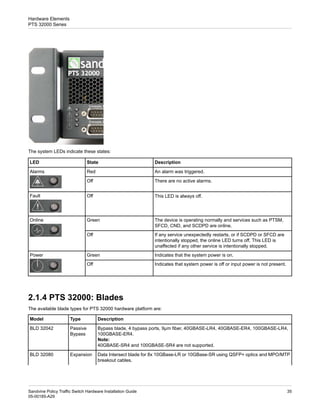
  • 94.
    Active Chassis Slot Internal PTS 32000 Slot External Passive Bypass Internal PTS24000 Slot Internal PTS 22000 Slot Bypass Modes Description & Capability Blade No No Yes (2 max) Yes (1 max) Yes (1 max) Basic and Redundant 6-links, 62.5µ, 1G and 10G BLD 24030 No No Yes (2 max) Yes (1 max) Yes (1 max) 2-links, 62.5µ, 1G and 10G BLD 24032 No No Yes (2 max) Yes (1 max) Yes (1 max) 6-links, 9µ, 1G, 10G, 40G, and 100G BLD 24040 No No Yes (2 max) Yes (1 max) Yes (1 max) 2-links, 9µ, 1G, 10G, 40G, and 100G BLD 24042 No No Yes (2 max) Yes (1 max) Yes (1 max) 6-links, 50µ, 1G and 10G BLD 24050 No No Yes (2 max) Yes (1 max) Yes (1 max) 2-links, 50µ, 1G and 10G BLD 24052 No Yes (1 max) No No No Basic 2-links, 9µ, 1G, 10G, 40G, and 100G BLD 32042 Yes No No No No Basic and Monitoring 1-link, 62.5µ, 10G-SR 100-00431 (4 max) Yes No No No No 1-link, 9µ, 10G-LR 100-00433 (4 max) Yes No No No No 1-link, 62.5µ, 1G-SX 100-00435 (4 max) Yes No No No No 1-link, 9µ, 1G-LX 100-00437 (4 max) Note: You can implement any external bypass solution with any PTS model (PTS 22000, PTS 24000, & PTS 32000), within the capabilities of the bypass blade installed. Similarly, a bypass blade might have capabilities that are beyond the system where it is installed. For example, a BLD 24042 is capable of bypassing 100Gig, but when used with a PTS 22000, it is limited because the PTS 22000 does not support 100Gig. 4.4.2 PTS 32000 Bypass Solution The PTS 32000 supports these bypass modes: • Internal Passive Bypass—A PTS 32000 has a slot that accepts a 4-port, 9µ fiber passive bypass blade. This internal bypass blade supports the bypass of up to 2x intercepted 1/10/40/100 GigE 9µ fiber single mode links. Primarily this blade provides bypass capability for all 100 GigE - LR4 links on the PTS 32000. Consequently this blade has the capability to bypass 2x intercepted links only. Additionally, this internal passive blade only supports the basic deployment mode. Under normal operating conditions in a basic PTS deployment, traffic flows through the PTS and, if there is a failure, the connections are passively switched so that no data passes through the PTS. In a bypass situation, if there is a failure on the PTS 32000, data bypasses the PTS because the two routers are directly connected. Note: The internal bypass blade only supports the 40GBASE-LR4, 40GBASE-ER4, 100GBASE-LR4, 100GBASE-ER4 single-optic cables. It doess not support the 40GBASE-SR4, and 100GBASE-SR4 multi-optic cables. Sandvine Policy Traffic Switch Hardware Installation Guide 94 05-00185-A29 Planning Configuration PTS Bypass Deployment Solutions
  • 95.
    This image showsthe 4x CFP4 ports cabled with 4x 9µ duplex LC cables (100-00216B) to the BLD 32042. • 100G Link 1: The two fiber connections at the top shows a 1x intersected 100G-LR4 link from the left 2-ports. The ends of these fibers are normally longer and would connect to the internet and subscriber ISP routers. • 100G Link 2: The two ports (not connected for clarity) on the top right are link 2 and would connect to ISP routers. • External Passive Bypass—The PTS 32000 also supports the external passive bypass chassis described for the PTS 24000 and PTS 22000. It has the same capabilities when used in this mode (basic and redundant) and can bypass 1/10/40/100 GigE using 9µ single mode fiber. You can also use the external passive bypass chassis to bypass 1/10/40/100 GigE 62.5µm or 50µm multi-mode fiber for the PTS 32000 ports. When using Multi-mode fiber with 40/100GigE the capacity of the bypass ports is reduced by 4 times, and requires break out cables. See Example 2, from 40 GigE Data Ports—Multi Mode on page 42, for additional information. • External Active Bypass—You can also use the PTS 32000 with the Sandvine external active optical bypass chassis on any 1 Gig or 10 Gig link. The external active bypass solution does not currently support 40 Gig or 100 Gig operation. Note: Sandvine products support Silicom's iBS and Interface Masters Niagara 2818T external bypasses. 4.4.3 PTS 22000 and PTS 24000 Bypass Solutions Use a PTS with bypass hardware to reduce the impact of a service failure in inline deployments. The PTS 24000 or PTS 22000 bypass hardware includes either an external passive bypass chassis or an internal passive bypass blade. To compare these options: Internal bypass blade External bypass chassis You can have different bypass modes on each link. All links must have the same bypass mode. Quicker response to failure. Response to failure is 50 ms slower than an internal bypass blade as the system must wait to detect the loss of heartbeat from the PTS. Can intercept 6 links. Can intercept 12 links. Good choice for small deployments of one or two PTS elements at one site. Good choice for a larger deployment of many PTS elements at one site. 95 Sandvine Policy Traffic Switch Hardware Installation Guide 05-00185-A29 Planning Configuration PTS Bypass Deployment Solutions
  • 96.
    Either basic orredundant deployment modes are possible. In a basic deployment, under normal conditions the traffic flows through the PTS. However, if there a failure on the PTS, the connections are passively switched so that no data goes through the PTS, but instead the two routers are directly connected. This is illustrated here using the PTS 24000: In a redundant deployment, two PTS elements are deployed. Under normal conditions, the primary PTS intersects the traffic and the secondary PTS intersects the bypass path. If a failure occurs on the primary PTS, the bypass causes the traffic to fail over to the secondary PTS. On either the PTS 22000 or the PTS 24000, bypass ports are available using a passive optical bypass blade. You can configure the bypass blade for both bypass and failover to another PTS element: Sandvine Policy Traffic Switch Hardware Installation Guide 96 05-00185-A29 Planning Configuration PTS Bypass Deployment Solutions
  • 97.
    Note: Depending on youequipment capabilities, you could deploy a combination of functionalities. Contact Sandvine Inc., or and authorized partner, for additional information. 4.4.4 External Active Bypass Solution Sandvine has an external active bypass solution that supports active bypass and monitoring of up to 4x intercepted 1 or 10 GigE links (9µ, 50µ, or 62.5µ). This guide does not provide details on how to deploy with this solution. Contact Sandvine Customer Support, or its authorized partner, for additional information. 97 Sandvine Policy Traffic Switch Hardware Installation Guide 05-00185-A29 Planning Configuration PTS Bypass Deployment Solutions
  • 98.
    5 Installing PTS Elements •"Getting Started" on page 99 • "Rack Mounting a PTS" on page 99 • "Grounding the PTS to the Central Office Ground" on page 101 • "Power Connections" on page 102 • "Installing Optical Modules and Cables" on page 107 • "Status LEDs" on page 114 Sandvine Policy Traffic Switch Hardware Installation Guide 98 05-00185-A29 Installing PTS Elements
  • 99.
    5.1 Getting Started Thissection describes the activities you perform prior to installing the PTS and provides links to specific installation tasks you must perform. 5.1.1 Before Installing a PTS Prior to installing a PTS you should: • Review the safety precautions, as described in Regulatory Compliance and Safety Warnings on page 194. • Review the environmental specifications, as described in Environmental and Physical Specifications on page 189. • Familiarize yourself with the installation tasks. • Install the rack, if necessary. • Familiarize yourself with the power considerations described in Power Considerations on page 72. Ensure that the installation site is adequately provisioned. Verify that you have all elements and additional hardware components necessary for the installation. See Additional Hardware Components on page 67 if required. 5.1.2 Installation Tasks Review this table of the major installation tasks and identify your tasks. See the page indicated for detailed instructions. See Installation Task Regulatory Compliance and Safety Warnings on page 194. Review safety information Rack Mounting a PTS on page 99. Install the PTS into a 19-inch rack Grounding the PTS to the Central Office Ground on page 101. Connect the element ground to the central office ground Connecting AC Power on page 102 orConnecting to the DC Power Source (PTS 24000) on page 105. Connect the power Connecting the Control and Data Ports on page 122. Connect the PTS to the network Status LEDs on page 114. Examine status LEDs to verify that the element is functioning correctly. 5.2 Rack Mounting a PTS When rack mounting a PTS: • Bolt the PTS directly to the rack using the mounting holes on the front of the PTS. • Attach one of the Sandvine supplied slide rails to the rack. The PTS then slides into the rails, using the mounting rails already attached to the sides of the PTS chassis. The supplied rail kit consists of two pairs of rails. There are front mounting brackets (one set for a threaded rack and another for a non-threaded rack), and rear mounting brackets and screws. 99 Sandvine Policy Traffic Switch Hardware Installation Guide 05-00185-A29 Installing PTS Elements Getting Started
  • 100.
    Note: Screws required toattach the mounting brackets to the rack are not provided. Warning: Two people are required to lift the chassis. Grasp the chassis underneath the lower edge and lift with both hands. To prevent injury, keep your back straight and lift with your legs, not your back. To prevent damage to the chassis and components, never attempt to lift the chassis with the handles on the power supplies or on the interface modules. These handles were not designed to support the weight of the chassis. Using them to lift or support the chassis can result in severe damage to the equipment and serious bodily injury. Also, due to the weight of individual PTS devices, Sandvine strongly recommends that you install these devices at a height of 5 feet (1.53 meters) or less. Failure to observe this could result in damage to the equipment during removal. 5.2.1 Installing a PTS Using Rack Mounting Holes To install a PTS element using rack mounting holes: 1. Remove the PTS element and accessories from the packaging. 2. Hold the element in position against the rack. Ensure the mounting holes in the rack match the corresponding holes in the element 3. Secure the element to the rack using thread forming screws with paint piercing washers. Ensure the bottom holes are bolted in first, then work upwards. 5.2.2 Installing a PTS Using Rack Rails To install a PTS element using the rack mounting rails: 1. Separate each rail into two pieces. Assemble and install the two outer rail components in the rack at the desired height. 2. Select the set of front mounting brackets that are appropriate for the rack (threaded or non-threaded). 3. Attach the front mounting brackets using screws as shown here. 4. Measure the depth of the rack and identify the rear mounting bracket location. 5. Attach the rear mounting brackets to each rail using the provided screws. 6. Using the appropriate screws, bolt the rails to the rack as shown here. Sandvine Policy Traffic Switch Hardware Installation Guide 100 05-00185-A29 Installing PTS Elements Rack Mounting a PTS
  • 101.
    7. Slide theelement into the rack until it locks in place. 8. Secure to the front bracket using the appropriate screws. 5.3 Grounding the PTS to the Central Office Ground When installing a PTS, always make the ground (GND) connection first. All PTS models come with a factory installed, Nationally Recognized Testing Laboratory (NRTL) listed and approved two-hole lug for connection to a central office Common Bonding Network (CBN) ground. The ground lug is installed with 1/4 - 20 UNC screws and lock washers using 11 inch-pounds (1.24 Nm) of torque. If you provide your own ground lug, verify that is a NRTL listed and approved two-hole compression lug and installed with the same screws, lock washers, and torque specifications listed here. 1. Locate the grounding lug on the rear of the PTS. 2. Connect the grounding strap to the grounding strap jack. 101 Sandvine Policy Traffic Switch Hardware Installation Guide 05-00185-A29 Installing PTS Elements Grounding the PTS to the Central Office Ground
  • 102.
    Warning: The PTS isan electrostatic sensitive device. Always use a grounding strap when working on the PTS to avoid damage to the PTS. For convenience, a grounding strap jack is located on the rear panel of every PTS. 3. Using a slotted screwdriver, loosen the screw on the element grounding lug. Warning: Verify that bare conductors are coated with an appropriate antioxidant compound before crimp connections are made. You must bring all un-plated connectors, braided straps, and bus bars to a bright finish, and then coat them with an antioxidant before making these connections. 4. Place the central office ground wire in the opening on the side of the ground lug. Note: The wire is 6 AWG copper wire for the PTS 24000 and 10 AWG copper wire for both the PTS 32000 and the PTS 22000. 5. Tighten the slotted screw until the central office ground wire is locked in the ground lug. 6. Connect the other end of the central office ground wire to the central office CBN. 5.4 Power Connections This section describes how to make the AC and DC power connections as well as how to verify those connections. It includes: • Connecting AC Power on page 102 • Connecting DC Power on page 104 • Verifying Power Connections on page 106 5.4.1 Connecting AC Power Prior to connecting AC power to any PTS, you must: • Always use a grounding strap when working on a PTS. These devices are electrostatically sensitive; grounding is required to prevent damage to the element. For your convenience, a grounding strap jack is located on the rear panel of the element. • Exercise care when connecting the PTS 24000. This device has a high touch current and it is essential that the device is grounded before connecting the power supply. Sandvine Policy Traffic Switch Hardware Installation Guide 102 05-00185-A29 Installing PTS Elements Power Connections
  • 103.
    • Verify thatyou have connected the element to ground as indicated in Grounding the PTS to the Central Office Ground on page 101 before connecting AC power. • Ensure that the AC power source receptacle is located near the equipment and easily accessible. Warning: The PTS is an electrically sensitive device and failure to observe all of these pre-requisites can result in damage to the equipment or personal injury. 1. Locate the two AC jacks on the rear panel of the PTS 22000 or PTS 32000, or four AC jacks on the rear panel of the PTS 24000, and insert the socket end of each AC power cable in the AC jack. This shows the AC power jack locations on the PTS 24000. This shows the AC power jack locations on the PTS 22000. This shows the AC power jack locations on the PTS 32000. 2. Connect the plug ends of the AC power cables to separate AC power supplies. 3. To power on the PTS: • For 24k installations, flip the power switch on. • For 22k and 32k installation, the system automatically powers on. 103 Sandvine Policy Traffic Switch Hardware Installation Guide 05-00185-A29 Installing PTS Elements Power Connections
  • 104.
    5.4.2 Connecting DCPower The PTS provides connections for redundant DC power sources. The PTS 24000 has two sets of terminals, as shown here, for connecting DC power connections to the rear of the system. Each set, labeled Power 1&2 and Power 3&4, consists of a return or 0V terminal (+) and a -48V terminal. The PTS 22000 and PTS 32000 models have two power supplies labeled Power Supply 1 and Power Supply 2. Each power supply consist of two terminals, RTN (return or 0V) terminal and a -48V terminal. Warning: The PTS is an electrostatic sensitive device. Always use a grounding strap when working on the PTS to prevent damage to the element. For convenience, a grounding strap jack is located on the rear panel of the element. These are the copper wire requirements for the DC connections: • 2 wires for power per terminal set • 6AWG copper wire for the PTS 24000 • 10AWG copper wire for both the PTS 22000 and PTS 32000 Warning: Ensure that you have connected the element to ground as indicated in Grounding the PTS to the Central Office Ground on page 101 before making the DC power connections. Verify that a 2-pole disconnect device is readily accessible, for each DC power source, in the building installation wiring. The PTS is specified for DC-I power configurations. The battery returns shall remain isolated until they reach the main power bus. 5.4.2.1 Connecting to the DC Power Source (PTS 32000 and PTS 22000) To connect DC power to a PTS: 1. Verify that the power disconnect devices for both power sources are in the OFF position. 2. Cut the ends of the wires so that the ends are straight. Measure and then strip off 0.5" (13 mm) of insulation off each wire. Warning: If you strip too much of the insulation, the exposed wire that is protruding from the connection block on the element will create an electrical hazard. Stripping too little insulation may result in poor contact with the terminal or with the wire not being held securely in place. 3. Prepare the other end of each wire to be connected to the DC power per your site requirements. 4. Slide down on the terminal cover to remove it. 5. Turn each of the terminal block screws on the element counterclockwise to open the terminal connections. 6. Connect the wires to Power Supply 1 in this order: a. Insert the stripped portion of the V+ wire under the RTN screw. b. Tighten the screw in a clockwise direction. You must ensure that no bare wire is exposed. c. Insert the stripped portion of the V- wire under the -48V screw. Sandvine Policy Traffic Switch Hardware Installation Guide 104 05-00185-A29 Installing PTS Elements Power Connections
  • 105.
    d. Tighten thescrew in a clockwise direction. You must ensure that no bare wire is exposed. 7. Slide the terminal cover back onto the terminal block. 8. Connect the wires to Power Supply 2 in the same order as for Power Supply 1, 9. Slide the terminal cover back onto the terminal block. 10. Set the power disconnect device to the ON position. 5.4.2.2 Connecting to the DC Power Source (PTS 24000) To connect DC power to a PTS: 1. Verify that the power disconnect devices for both power sources are in the OFF position. 2. Cut the ends of the wires so that the ends are straight. Measure and then strip off .5" (13 mm) of insulation off each of the wires. Warning: If you strip too much of the insulation, the exposed wire that is protruding from the connection block on the element will create an electrical hazard. Stripping too little insulation may result in poor contact with the terminal or with the wire not being held securely in place. 3. Prepare the other end of each wire to be connected to the DC power per your site requirements. 4. Pull down on the terminal cover to remove it. 5. On the element, turn each of the terminal block screws counterclockwise to open the terminal connections. 6. Connect the wires to the power 1&2 terminals in this order: a. Insert the stripped portion of the V+ wire under the 0V+ screw. b. Tighten the screw in a clockwise direction. You must ensure that no bare wire is exposed. c. Insert the stripped portion of the V- wire under the -48V screw. d. Tighten the screw in a clockwise direction. e. Ensure that no bare wire is exposed. 7. Connect the wires to the Power 3&4 terminals in this order: a. Insert the stripped portion of the V+ wire under the 0V+ screw. b. Tighten the screw in a clockwise direction. You must ensure that no bare wire is exposed. c. Insert the stripped portion of the V- wire under the -48V screw. d. Tighten the screw in a clockwise direction. e. Ensure that no bare wire is exposed. 105 Sandvine Policy Traffic Switch Hardware Installation Guide 05-00185-A29 Installing PTS Elements Power Connections
  • 106.
    8. Replace thecover on the terminal block. 9. Set the power disconnect device to the ON position. 5.4.3 Verifying Power Connections Regardless of whether you are making AC or DC power connections: • Check that the power Light Emitting Diode (LED) on the front panel is illuminated. These are the system LEDs on the front panel of a: PTS 24000 PTS 22000 and PTS 32000 • Check the LEDs on the power supplies are green on the: PTS 24000 Sandvine Policy Traffic Switch Hardware Installation Guide 106 05-00185-A29 Installing PTS Elements Power Connections
  • 107.
    PTS 22000 andPTS 32000 5.5 Installing Optical Modules and Cables These procedures are optional: • Installing SFP/SFP+ Optical Transceiver Modules on page 107 • Installing XFP Optical Transceiver Modules on page 108 • Removing SFP/SFP+/XFP Modules on page 109 • QSFP+ Modules (PTS 32000 Only) on page 109 • CFP4 Modules (PTS 32000 Only) on page 110 • Active Optical Cables (AOC) for QSFP+ on page 111 • MPO (MTP) Breakout Cables (PTS 32000 Only) on page 112 Warning: The port aperture can emit radiation when a fiber cable is not connected. Avoid exposure to radiation and do not stare into open apertures. 5.5.1 SFP/SFP+ and XFP Modules The SFP, SFP+, and XFP optical tranceiver interface modules are commonly used in Sandvine products supporting 1 GigE (SFP) and 10 GigE (SFP+/XFP) applications. 5.5.2 Installing SFP/SFP+ Optical Transceiver Modules To install SFP/SFP+ Optical Transceiver Modules: 1. Remove the dust cover from the port in which you want to insert a module. 2. Orient the module correctly. Modules are keyed; you can only insert them in one orientation. 107 Sandvine Policy Traffic Switch Hardware Installation Guide 05-00185-A29 Installing PTS Elements Installing Optical Modules and Cables
  • 108.
    On PTS componentswith two rows of ports (PTS 22xxx, BLD 24010, BLD 24020, PTS 32000), the lower-level ports (even numbered) orient so that the top is facing down. Push the connector fully into the fiber port: The upper-level ports (odd numbered) orient so that the top is facing up. You must therefore, insert the SFP/SFP+ modules into these ports opposite from the normal orientation. Use minimal force to insert the module. Until seated securely in place, you could encounter a small amount of resistance (which is normal) when inserting these modules. If you cannot insert the module, verify that it is correctly oriented. 5.5.3 Installing XFP Optical Transceiver Modules To install XFP Optical Transceiver Modules: 1. Remove the dust cover from the port in which you want to insert a module. 2. Orient the module so that the top is facing up and then push the connector fully into the port: Use minimal force to insert the module. Until seated securely in place, you could encounter a small amount of resistance (which is normal) when inserting these modules. If you cannot insert the module, verify that it is correctly oriented. Note: See Cabling and Transceiver Specifications on page 183, for additional information on optical transceiver and cabling specifications. Sandvine Policy Traffic Switch Hardware Installation Guide 108 05-00185-A29 Installing PTS Elements Installing Optical Modules and Cables
  • 109.
    5.5.4 Removing SFP/SFP+/XFPModules You can remove and module that is not in the desired slot. To do this: Warning: Since the aperture of the port when no fiber cable is connected can emit invisible radiation, avoid exposure to radiation and do not stare into those open apertures. 1. Disconnect the fiber cable from the module you want to remove. 2. Release the locking mechanism to remove the module. The two common locking mechanisms are: 3. Pull the module out of the slot. 4. Insert a dust cover into the empty slot. 5.5.5 QSFP+ Modules (PTS 32000 Only) The QSFP+ module used in Sandvine products primarily supports 40 GigE applications. Since a standard SFP+ is a 10 Gig optical module; the "Q" in a QSFP+ optical module is considered a Quad module supporting 40 GigE. The module has four 10 GigE links that are either: • Sent over 4x duplex fiber pairs, or • Optically multiplexed onto 1 fiber pair using a CWDM technology. The module is a similar size and shape to the XFP form factor and is removed and inserted in a similar fashion. The new socket for this module only accepts QSFP+ modules. The QSFP+ module supports two primary uses cases: • One 40 GigE Ethernet link, or • Four 10 GigE Ethernet links. Note: Both are supported in either single or multi-mode applications. The QSFP+ module either uses either one duplex LC fiber connector, similar to standard SFP+ modules, or a Multi Parallel Fiber Optic (MPO) connector that houses eight populated fiber channels. Although this connector has 24 fiber channels available; only eight are used on the QSFP+ module. All of Sandvine's MTP cables use an advanced version of the generic MPO connector (the US Conec MTP connector). The MTP connector is compatible (forward and backward) with the standard MPO socket. The QSFP+ module has two ejector options. Description Ejector type This ejector style is used on both SFP+ and XFP+ optics and is typically used with LC fiber connections. Bail tab 109 Sandvine Policy Traffic Switch Hardware Installation Guide 05-00185-A29 Installing PTS Elements Installing Optical Modules and Cables
  • 110.
    Description Ejector type This ejectoris used on MPO/MTP style optics and on Active Optical Cables (AOC). The pull tab ejector is simpler to use given its easy finger access. Pull tab This table summarizes the styles of QSFP+ Modules used on Sandvine Products: Description QSFP+ Module 40 GigE CWDM Ethernet, with the LR abbreviation, for Long Reach (10Km, 2x 9um fibers) Ethernet on a duplex LC connector with a Bail Tab ejector. 40GBASE-LR4 40 GigE CWDM Ethernet, with the ER abbreviation, for Extended Reach (30+ Km, 2x 9um fibers) Ethernet on a duplex LC connector with a Bail Tab ejector. 40GBASE-ER4 40 GigE multi parallel Ethernet, with the SR abbreviation, for Short Reach (300m, 8x 50um fibers) Ethernet on a MPO connector with a Pull Tab ejector. 40GBASE-SR4 Four 10 GigE multi parallel Ethernet, with the SR abbreviation, for Short Reach (300m, 8x 50um fibers) or (27m, 8x 62.5um fibers) Ethernet on a MPO connector with a Pull Tab ejector. 4x 10GBASE-SR Note: The 40GBASE-SR4 and 4x 40GBASE-SR modules are the same module. Four 10 GigE multi parallel Ethernet, with the LR abbreviation, for Long Reach (10 Km, 8x 9um fibers) or Ethernet on a MPO connector with a Pull Tab ejector. 4x 10GBASE-LR Warning: The QSFP28 standard is mechanically, but not electrically, compatible with QSFP+ for use in 100 GigE Short Reach (4x 25.8 Gbps), data center applications. The PTS 32000 does not support this type of module. Note: See Cabling and Transceiver Specifications on page 183, for additional information on optical transceiver and cabling specifications. 5.5.6 CFP4 Modules (PTS 32000 Only) The CFP4 module is primarily intended to support 100 GigE applications. Since a standard SFP is a 1 GigE optical module; the "C" in CFP4 is thought of as 100 x 1G or 100 GigE. The module has four 25 GigE links that are either: • Sent over 4x duplex fiber pairs, or • Optically multiplexed onto a 1 fiber pair using a CWDM technology. The module is slightly larger than a standard XFP form factor and is removed and inserted in a similar fashion: the socket for this module only accepts CFP4 modules. The number "4" refers to the size of the module; the CFP4 is 4 times as dense (1/4 of the size) as the original 100 GigE form factor known as CFP. These modules are optically compatible, but do not mechanically fit in each others sockets. Sandvine Policy Traffic Switch Hardware Installation Guide 110 05-00185-A29 Installing PTS Elements Installing Optical Modules and Cables
  • 111.
    The CFP4 modulesupports 100GBASE-LR4, and provides 10Km Ethernet, in a single mode CWDM, over a duplex LC 9µm fiber pair. It also supports 100GBASE-SR4, and provides 100m over OM4 Multimode Fiber. This image shows four CFP4 modules inserted into a PTS 32000. Multi-mode or multi-parallel fiber on this interface is only supported on Rev C of the Sandvine PTS 32000 series. Note: See Cabling and Transceiver Specifications on page 183, for additional information on optical transceiver and cabling specifications. 5.5.7 Active Optical Cables (AOC) for QSFP+ An Active Optical Cable (AOC) for QSFP+ application is a fiber onto which a QSFP+ housing is tethered (not removable) on to each end of the fiber. The optical interface is never exposed to the environment and 40 Gbps performance is guaranteed across the environmental extremes. You can order the AOC cable in various lengths, to a maximum length of 100m. Sandvine provides these cables in 1, 3, 5, and 10 meter lengths contact Sandvine if you require a non-standard length of cable. A single AOC cable is needed to cluster two PTS 32000 devices to either a 4x 10GigE or 40 GigE connection. Two AOC cables, of the appropriate length, are required to build a LAG group between 2x PTS 32000, with either 2x 40 GigE or 8x 10 GigE using the QSFP+ cluster ports. This image shows an AOC cable between ports 4-1 on two PTS 32000 elements, forming either a 40 GigE or 4x 10 GigE cluster link. In most cases, the QSFP+ port is configured as a 40GigE, since the maximum lag group is 8x ports. This mode supports bandwidth of up to 320 Gbps. 111 Sandvine Policy Traffic Switch Hardware Installation Guide 05-00185-A29 Installing PTS Elements Installing Optical Modules and Cables
  • 112.
    In addition, theAOC cable is the most cost effective, and least operationally expensive way to cluster PTS 32000 elements that are (less than 10m typically) close together. Note: See Cabling and Transceiver Specifications on page 183, for additional information on optical transceiver and cabling specifications. 5.5.8 MPO (MTP) Breakout Cables (PTS 32000 Only) The MPO (MTP) cables breakout the high density 8x fiber optical interface, from a QSFP or CFP4 + MPO device to the standard duplex LC connector. Three different fiber types, in four different lengths, are currently available: 1. Octal multi mode fiber cables (orange, OM1, 62.5µm) — These cables use an MPO (MTP) connector on one end and four duplex-LC connectors, on the other, to provide an optical breakout from a high density optical connector to the regular duplex LC connectors that are typically used within a service provider plant. These cables are used exclusively on the PTS 32000 QSFP+ ports, where 4x10G-SR Ethernet is required; the distance is typically limited to under 27m. 2. Octal multi mode fiber cables (aqua, OM3, 50µm) — These cables use an MPO (MTP) connector on one end and four duplex-LC connectors, on the other, to provide an optical breakout from a high density optical connector to the regular duplex LC connectors that are typically used within a service provider plant. These cables are used exclusively on PTS 32000 QSFP+ and CFP4 ports. 3. Octal single mode fiber cables (yellow, OS2, 9µm) — These cables use an MPO (MTP) connector on one end and four duplex-LC connectors on the other, to provide an optical breakout from a high density optical connector to the regular duplex LC connectors that are typically used within a service provider plant. These cables are used exclusively on the PTS 32000 QSFP+ ports, where 4x10G-LR Ethernet is required. Sandvine Policy Traffic Switch Hardware Installation Guide 112 05-00185-A29 Installing PTS Elements Installing Optical Modules and Cables
  • 113.
    Note: See Specifications onpage 182 for a summary of these cables. Contact Sandvine Inc. for information on other configurations and cable lengths. Sandvine manufactures MPO/MTP breakout cables, with LC socket couplers, that let you run standard duplex LC fibers to the Sandvine PTS32000 and plug them into a 0.7m (27.5”) Sandvine socket coupler breakout cable. When you look at the breakout cable, small tags (like those shown in the 100-00483 photo) identify the break-out ends as 1, 2, 3, and 4 and these match up to 4-1 through 4-4 respectively. Sandvine also manufactures MPO/MTP breakout cables that breakout to standard LC cable connectors in 3, 5, and 10m lengths. You can either: • Plug these standard duplex LC ends into a 10G optical distribution system that is part of the plant (at the top of rack or end of row) or, • Directly connect the Sandvine equipment to the router, or other Sandvine equipment, with these duplex LC ends at 10GigE. 9µ MPO/MTP to 4x duplex receptacle coupler (100-00483) 9µ MPO/MTP to 4x duplex plug cable end (100-00484, 100-00485, or 100-00486) 113 Sandvine Policy Traffic Switch Hardware Installation Guide 05-00185-A29 Installing PTS Elements Installing Optical Modules and Cables
  • 114.
    5.6 Status LEDs Thissection describes the status LEDS and explains how to use them to identify potential problems. It includes: • Element Front LEDs on page 114 • PTS 22000, PTS 24000, and PTS 32000 Blade LEDs on page 115 • Power Supply LEDs on page 115 • Hard Drive LEDs on page 116 • Network Interface LEDs on page 117 • RJ-45 LEDs on page 120 5.6.1 Element Front LEDs The four indicator LEDs are on the upper right front of the PTS 24000: The four indicator LEDs are on the left front of the PTS 22000 and the PTS 32000: Monitor these LEDs to get an indication of operational status. The function of each LED in more detail is: Description State LED Indicates that the system power is on. Green Power Indicates that system power is off or input power is not present. Off The device is operating normally and services such as PTSM, SFCD, CND, and SCDPD are online. Green Online If any service unexpectedly restarts, or if SCDPD or SFCD are intentionally stopped, the online LED turns off. This LED is unaffected if any other service is intentionally stopped. Off This LED is always off. Off Fault An alarm was triggered. Red Alarms There are no active alarms. Off Sandvine Policy Traffic Switch Hardware Installation Guide 114 05-00185-A29 Installing PTS Elements Status LEDs
  • 115.
    5.6.2 PTS 22000,PTS 24000, and PTS 32000 Blade LEDs The PTS 22000 blade LEDs are: The PTS 24000 blade LEDs are: Note: With only one blade slot, the PTS 32000 has no blade LEDs. See Element Front LEDs on page 114 for PTS 32000 LED information. The blade LEDs indicate these states: Description/Status State LED The card is online, functional, and can pass traffic. Green Online The slot is empty or the card is inactive and cannot pass traffic. Off An alarm, specific to the card, was triggered. Red Alarm There are no active alarms for that blade. Off 5.6.3 Power Supply LEDs Power Supply LEDs vary between the PTS 24000, PTS 22000, and the PTS 32000. 5.6.3.1 PTS 24000 Power Supply Modules Each power supply module on a PTS 24000 has two LEDs: 115 Sandvine Policy Traffic Switch Hardware Installation Guide 05-00185-A29 Installing PTS Elements Status LEDs
  • 116.
    The input powergood indicator (left) is a green LED, showing that input power is present. The output power good indicator (right) is a green LED indicating that the output voltage is present and within operating range. The PTS 24000 power supply has the same LED locations, colors, and functionality, although the faceplate and handle locations are slightly different. Power supply LED conditions are: Description/Status State LED The input power is good. Green Input Power There is an input power fault. Off The output power is good. Green Output Power There is an output power fault. Off 5.6.3.2 PTS 22000 and PTS 32000 Power Supply Modules Each PTS 22000 and PTS 32000 power supply module is equipped with one LED: Power supply LED conditions are: Description LED State Indicates that an input is present and the output is off. Blinking Green The output is on. Solid Green The power supply has a warning, alarm, or fault. Blinking Amber 5.6.4 Hard Drive LEDs Each hard drive has two indicator LEDs: Sandvine Policy Traffic Switch Hardware Installation Guide 116 05-00185-A29 Installing PTS Elements Status LEDs
  • 117.
    The indicator LEDsindicate these states: Description/Status State LED The hard drive is working. Green Hard drive (Top) There is no activity on the hard drive. Off There is a RAID fault. Red RAID Fault (Bottom) There is no RAID fault. Off Note: Neither the PTS 22000 nor PTS 32000 have RAID support. 5.6.5 Network Interface LEDs Each optical Ethernet interface has network indicator LEDs that you can use to troubleshoot network activity. The optical Ethernet interfaces include: • 1000BASE-xx SFP • 10GBASE-xx XFP or SFP+ • 40GBASE-xx on QSFP+ • 100GBASE-xx on CFP4 Link and Activity LEDs The network indicator LEDs include the Link and Activity LEDs. The interface LEDs indicate these states (for single port optics), as given in this table: Description/Status State LED The PTS is connected to network. Green Link Off indicates that the PTS is not connected to the network. Off Data flow Flashing Green Activity 117 Sandvine Policy Traffic Switch Hardware Installation Guide 05-00185-A29 Installing PTS Elements Status LEDs
  • 118.
    Description/Status State LED No data flow Off Note: 1.No LED activity is present until interfaces are enabled. 2. When a BLD 24010 is connected to a PTS 22000, the activity LED on ports 3 and 4 are always off. 3. The LEDs do not function for any SFP (1 GigE) module. 4. When the PTS 22000 is in the offline deployment mode, with single port bridge group configuration, the activity LEDs do not blink when Tx or Rx packets are detected. This is a hardware limitation and is not indicative of a larger problem. 5. Refer to the appendix for the hardware configuration for specific information on interface LEDs. Some optical modules are used with a sub-port configuration. For example, it is common to use a 40GigE QSFP+ optical module in a 4x 10GigE Ethernet mode whereby there are four sub-ports at 10 Gbps. The PTS 32000 supports the use of these modules on any of its QSFP+ ports for breakout cables. This table indicates the states of the Link and Activity LEDs when optical modules are used with a sub-port configuration: Description/Status State LED The PTS is connected to network. Green Link Some of the optical module sub-ports (where adminState=up) are linked. In this state, the PTS is partially connected to the network. Flashing Green Off indicates that the PTS is not connected to the network. Off Data flow on one or more sub-ports on the optical module. Flashing Green Activity No data flow on any sub-port of the optical module. Off SFP Optical Ethernet Interface LEDs This image shows the Link and Activity LEDs in SFP optical Ethernet interface. Note that 1-1, 1-2, 1-3, and 1-4 denote the data ports on PTS 32000. XFP Optical Ethernet Interface LEDs Sandvine Policy Traffic Switch Hardware Installation Guide 118 05-00185-A29 Installing PTS Elements Status LEDs
  • 119.
    This image showsthe Link and Activity LEDs in XFP optical Ethernet interface: QSFP+ Optical Ethernet Interface LEDs This image shows the Link and Activity LEDs in QSFP+ optical Ethernet interface: QSFP+ and CFP4 pair LEDs This image shows the Link and Activity LEDs in QSFP+ and CFP4 (pair) optical Ethernet interface. Note that this pair of LEDs represent the QSFP+ or CFP4 optical interface that is active. This is because only one of the interfaces in each pair can be used at a time. 119 Sandvine Policy Traffic Switch Hardware Installation Guide 05-00185-A29 Installing PTS Elements Status LEDs
  • 120.
    5.6.6 RJ-45 LEDs LEDsare located at the top right and left hand corner of each copper interface RJ45 socket. The Link LED is on the left side of the connector while the Activity LED is on the right. Links pertain to connections while the Activity LED indicates data flow. The status indicated includes: Description State LED An active 1000BASE-T link. Green Link An active 100BASE-T link. Orange An active 10BASE-T link or no link. Off Data flow. Flashing green Activity No data flow. Off Sandvine Policy Traffic Switch Hardware Installation Guide 120 05-00185-A29 Installing PTS Elements Status LEDs
  • 121.
    121 Sandvine Policy TrafficSwitch Hardware Installation Guide 05-00185-A29 Installing PTS Elements Status LEDs
  • 122.
    6 Connecting the Controland Data Ports • "Interface Connections to PTS" on page 123 • "Connecting Control Ports" on page 124 • "Connecting Data Interfaces" on page 132 • "Connecting Cluster Interfaces" on page 141 • "External Passive Bypass Chassis for PTS 24010 and PTS 24011" on page 143 • "Cabling Options for External Bypass Chassis" on page 146 Sandvine Policy Traffic Switch Hardware Installation Guide 122 05-00185-A29 Connecting the Control and Data Ports
  • 123.
    6.1 Interface Connectionsto PTS Every PTS has a console interface and a control interface to allow management access to the PTS. The console port provides a standard serial connection that allows access via a terminal emulator. The control interface allows remote SSH or Telnet sessions to the PTS. All PTS elements have dual console and control interface ports. You can wire and configure control interface ports for redundancy. You can use dedicated cluster interfaces for service actions such as divert, tee, and offline session management. Subscriber data is switched through the PTS on data interfaces. Data enters one data intersect interface and exits on another. You can configure some interfaces on the PTS 32000, PTS 24000, or PTS 22000 to serve as either cluster interfaces or data interfaces. 6.1.1 Copper Cabling Support When the interfaces on the element are left in their default auto negotiate mode (to detect speed and duplex), they automatically adapt to whatever cable type is used, either crossover or straight through. If the interfaces are hard-coded to a specific speed and duplex setting, they lose their ability to automatically adapt, in which case you must use the correct cable type. The options are: • MDI (Medium Dependent Interface)—This is used to connect unlike devices, for example, a PC to a switch. • MDIX (Medium Dependent Interface Crossover)—This is used to connect like devices, for example, a switch to a switch. • MDI/MDIX—This detection is only enabled if you do not force the interface speed or duplex settings, but rather use auto mode. If the speed or duplex is forced, use a standard MDI cable exclusively when connecting to a switch. You cannot force interfaces to 1 Gbps full or half duplex. However, 1GigE auto-negotiate automatically determines the correct MDI/MDIX settings for a cable. This means that if an incorrect cable is used (crossover when straight through should be used or vice versa), the cable will link at 1 Gbps, but may not at a lower speed (10 Mbps). 6.1.2 Connecting Network Cables Use these steps to connect the network cables. Warning: All network ports of the PTS are suited for connection to intra-building wiring or cabling only. Do not connect the equipment's intra-building port(s) metallically to interfaces that connect to either the Outside Plant (OSP) or its wiring. These interfaces are designed for use as intra-building interfaces only (Type 2 or Type 4 ports as described in GR-1089-CORE, Issue 4) and require isolation from the exposed OSP cabling. The addition of Primary Protectors is not sufficient protection to connect these interfaces metallically to OSP wiring. 1. For optical interfaces, remove the dust cover. 2. Connect one end of the appropriate network patch cable to the appropriate interface. 123 Sandvine Policy Traffic Switch Hardware Installation Guide 05-00185-A29 Connecting the Control and Data Ports Interface Connections to PTS
  • 124.
    3. Connect theother end of the cable to the interface indicated by your network administrator. 6.2 Connecting Control Ports This section provides more information on the control port cabling across different PTS hardware models. • PTS 32000: Control Port Cabling on page 124 • PTS 24000: Control Port Cabling on page 126 • PTS 22000: Control Port Cabling on page 129 6.2.1 PTS 32000: Control Port Cabling This section explains the control port cabling and (optional) failover configuration on a PTS 32000. Console and Control Ports This image shows the console ports and control ports (or management ports) in a PTS 32000 platform: Connecting Control Port Cabling Complete this procedure to connect control port cabling in a single shelf configuration of the PTS 32000: 1. Connect the Laptop or PC to the serial console port using an RS-232 DB-9 null-modem shielded cable. This enables Command Line Interface (CLI) management. The default console port settings are: • Baud rate—115,200 • Parity—None • Data bits—8 • Stop bits—1 • Flow Control—None • ANSI escape sequences—VT100+ Sandvine Policy Traffic Switch Hardware Installation Guide 124 05-00185-A29 Connecting the Control and Data Ports Connecting Control Ports
  • 125.
    Note: These are theknown supported terminal emulation programs: • For Windows—PuTTY • For Linux—Minicom 2. Connect the Ethernet control RJ45 cable to the control port and in turn to the LAN, for remote management and control. The PTS 32000 is shown here, with a DB-9 null-modem cable connected to console port 1 (top port) and a CAT 5E network cable connected to control Port #1 (left port). Plug the appropriate cable into port 2 of both ports for redundant console and redundant control operation. Steps 1 and 2 are outlined in this diagram: 3. To verify that your control port connections are good, start up an outbound ping from the PTS to some other element that is functional on your network. Note: See the section Connecting to the PTS and Configuring the Management Interface in the PTS Administration Guide, for additional information. Optional Configuration of Redundant Control Ports 125 Sandvine Policy Traffic Switch Hardware Installation Guide 05-00185-A29 Connecting the Control and Data Ports Connecting Control Ports
  • 126.
    All the PTSplatforms have two control ports (or management ports) that you can cable and configure for redundancy. Control port redundancy (or redundant management interface) protects the PTS from communication failure to SPB, SDE, or 3rd party equipment via the control network. 4. Complete these steps to optionally configure redundancy (failover) of the control ports: a. Connect a second Ethernet control RJ45 cable to Control Port 2 and in turn either the same LAN as in step 2, or to a different one. b. SSH to the PTS element with administrator permissions. c. Run the svcli CLI command to start the CLI. d. Run the configure CLI command to enter the configuration mode in the PTS. e. Run the set config interface management redundancy protocol failback CLI command to enable failback. f. When you have completed your configuration changes, run the commit CLI command to commit the configuration changes. Control port redundancy settings take effect immediately, without a reboot. 5. If you have configured control port redundancy, test it using these steps: a. Disconnect the cable from Control Port 1. b. Start up a ping to some other element on your network. Within one second, it should route through Control Port 2. c. After testing, ensure that you reconnect Control Port 1. Port redundancy automatically reverts to Control Port 1 after about one minute. Note: See the section Redundant Management Interface in the PTS Administration Guide, for additional information about control port redundancy. 6.2.1.1 PTS 32000 to External Bypass Shelf Configuration You can use the PTS 32000 with the Sandvine external bypass chassis. Sandvine's external passive bypass chassis models are the PTS 24010 (AC operation) and PTS 24011 (DC operation). Do not confuse these chassis models with the PTS 24000, they are not PTSes. The Sandvine external bypass chassis is described in External Passive Bypass Chassis for PTS 24010 and PTS 24011 on page 143 and in PTS 22000 and PTS 24000 Bypass Solutions on page 95. In most cases, you should use the internal bypass blade slot and blade described in PTS 32000 Bypass Solution on page 94 when you deploy the PTS 32000. 6.2.1.2 PTS 32000 Internal Bypass Blade Configuration See PTS 32000 Bypass Solution on page 94 for information on this blades capabilities. 6.2.2 PTS 24000: Control Port Cabling This section explains the control port cabling and (optional) failover configuration on a PTS 24000. Sandvine Policy Traffic Switch Hardware Installation Guide 126 05-00185-A29 Connecting the Control and Data Ports Connecting Control Ports
  • 127.
    Console and ControlPorts The console and control ports on a PTS 24000 platform are shown here: Connecting Control Port Cabling Complete this procedure to connect control port cabling in a single shelf configuration of the PTS 24000: 1. Connect the Laptop or PC to the serial console port using an RS-232 DB-9 null-modem shielded cable. This enables Command Line Interface (CLI) management. The default console port settings are: • Baud rate—115,200 • Parity—None • Data bits—8 • Stop bits—1 • Flow Control—None • ANSI escape sequences—VT100+ Note: These are the known supported terminal emulation programs: • For Windows—PuTTY • For Linux—Minicom 2. Connect the Ethernet control RJ45 cable to the control port and in turn to the LAN, for remote management and control. Steps 1 and 2 are outlined in this diagram: 127 Sandvine Policy Traffic Switch Hardware Installation Guide 05-00185-A29 Connecting the Control and Data Ports Connecting Control Ports
  • 128.
    3. To verifythat your control port connections are good, start up an outbound ping from the PTS to some other element that is functional on your network. Note: See the section Connecting to the PTS and Configuring the Management Interface in the PTS Administration Guide, for additional information. Optional Configuration of Redundant Control Ports All the PTS platforms have two control ports (or management ports) that you can cable and configure for redundancy. Control port redundancy (or redundant management interface) protects the PTS from communication failure to SPB, SDE, or 3rd party equipment via the control network. 4. Complete these steps to optionally configure redundancy (failover) of the control ports: a. Connect a second Ethernet control RJ45 cable to Control Port 2 and in turn either the same LAN as in step 2, or to a different one. b. SSH to the PTS element with administrator permissions. c. Run the svcli CLI command to start the CLI. d. Run the configure CLI command to enter the configuration mode in the PTS. e. Run the set config interface management redundancy protocol failback CLI command to enable failback. f. When you have completed your configuration changes, run the commit CLI command to commit the configuration changes. Control port redundancy settings take effect immediately, without a reboot. 5. If you have configured control port redundancy, test it using these steps: a. Disconnect the cable from Control Port 1. Sandvine Policy Traffic Switch Hardware Installation Guide 128 05-00185-A29 Connecting the Control and Data Ports Connecting Control Ports
  • 129.
    b. Start upa ping to some other element on your network. Within one second, it should route through Control Port 2. c. After testing, ensure that you reconnect Control Port 1. Port redundancy automatically reverts to Control Port 1 after about one minute. Note: See the section Redundant Management Interface in the PTS Administration Guide, for additional information about control port redundancy. 6.2.2.1 PTS 24000 to External Bypass Shelf Configuration You can use the PTS 24000 with the Sandvine external bypass chassis. Sandvine's external passive bypass chassis models are the PTS 24010 (AC operation) and PTS 24011 (DC operation). Please do not confuse these models with the PTS 24000, they are not PTSes. The Sandvine external passive bypass chassis described in External Passive Bypass Chassis for PTS 24010 and PTS 24011 on page 143 is used to bypass 9µ, 50µ, or 62.5µ, 1 or 10 GigE ports from the PTS 24000 family. 6.2.2.2 PTS 24000 Internal Bypass Blade Config In many PTS 24000 deployments use the internal bypass blades described in PTS 22000 to Internal Bypass Blade Configuration on page 131. This section shows the PTS 22000 with an internal bypass blade, however, the same configuration and methodology that you apply to the PTS 24000 family when it is used with an internal bypass blade. 6.2.3 PTS 22000: Control Port Cabling This section explains the control port cabling and (optional) failover configuration on a PTS 22000. Console and Control Ports The console and control ports on a PTS 22000 platform are shown here: Connecting Control Port Cabling Complete this procedure to connect control port cabling in a single shelf configuration of the PTS 22000: 1. Connect the Laptop or PC to the serial console port using an RS-232 DB-9 null-modem shielded cable. This enables Command Line Interface (CLI) management. The default console port settings are: • Baud rate—115,200 • Parity—None • Data bits—8 129 Sandvine Policy Traffic Switch Hardware Installation Guide 05-00185-A29 Connecting the Control and Data Ports Connecting Control Ports
  • 130.
    • Stop bits—1 •Flow Control—None • ANSI escape sequences—VT100+ Note: These are the known supported terminal emulation programs: • For Windows—PuTTY • For Linux—Minicom 2. Connect the Ethernet control RJ45 cable to the control port and in turn to the LAN, for remote management and control. Steps 1 and 2 are outlined in this diagram: 3. To verify that your control port connections are good, start up an outbound ping from the PTS to some other element that is functional on your network. Note: See the section Connecting to the PTS and Configuring the Management Interface in the PTS Administration Guide, for additional information. Optional Configuration of Redundant Control Ports All the PTS platforms have two control ports (or management ports) that you can cable and configure for redundancy. Control port redundancy (or redundant management interface) protects the PTS from communication failure to SPB, SDE, or 3rd party equipment via the control network. 4. Complete these steps to optionally configure redundancy (failover) of the control ports: a. Connect a second Ethernet control RJ45 cable to Control Port 2 and in turn either the same LAN as in step 2, or to a different one. b. SSH to the PTS element with administrator permissions. c. Run the svcli CLI command to start the CLI. d. Run the configure CLI command to enter the configuration mode in the PTS. e. Run the set config interface management redundancy protocol failback CLI command to enable failback. f. When you have completed your configuration changes, run the commit CLI command to commit the configuration changes. Sandvine Policy Traffic Switch Hardware Installation Guide 130 05-00185-A29 Connecting the Control and Data Ports Connecting Control Ports
  • 131.
    Control port redundancysettings take effect immediately, without a reboot. 5. If you have configured control port redundancy, test it using these steps: a. Disconnect the cable from Control Port 1. b. Start up a ping to some other element on your network. Within one second, it should route through Control Port 2. c. After testing, ensure that you reconnect Control Port 1. Port redundancy automatically reverts to Control Port 1 after about one minute. Note: See the section Redundant Management Interface in the PTS Administration Guide, for additional information about control port redundancy. 6.2.3.1 PTS 22000 to External Bypass Shelf Configuration You can use the PTS 22000 with the Sandvine external bypass chassis. Sandvine's external passive bypass chassis models are the PTS 24010 (AC operation) and PTS 24011 (DC operation). Do not confuse these models with the PTS 24000, they are not PTSes. The Sandvine external bypass chassis is described in External Passive Bypass Chassis for PTS 24010 and PTS 24011 on page 143. In many PTS 22000 deployments, the PTS 22000 uses the internal bypass blade slot and blades described in PTS 22000 to Internal Bypass Blade Configuration on page 131. 6.2.3.2 PTS 22000 to Internal Bypass Blade Configuration The section shows how to use an internal passive bypass blade in a PTS 22000. You configure the PTS 24000 to use an internal passive bypass blade in exactly the same way. Each relay on the bypass blade has these connectors: • Normally Open (NO on blade faceplate)—Connect this to the PTS 22000 data interfaces. In non-bypass mode, traffic goes between the pole and the normally open interfaces. • Pole—Connect to external devices such as routers. • Normally Closed (NC on blade faceplate)—This is the bypass path. In bypass mode, the same type of fiber is used on each side of the PTS so the devices at either end of the PTS can communicate in the Bypass mode. This includes fiber core type and wavelength used. 131 Sandvine Policy Traffic Switch Hardware Installation Guide 05-00185-A29 Connecting the Control and Data Ports Connecting Control Ports
  • 132.
    6.3 Connecting DataInterfaces This section provides more information on the data interface connections across different PTS hardware models. • PTS 32000: Connecting Data Interfaces on page 132 • PTS 24000: Connecting Data Interfaces on page 134 • PTS 22000: Connecting Data Interfaces on page 136 • Recommendations for Wiring the Data Ports on page 139 6.3.1 PTS 32000: Connecting Data Interfaces As described in Built-in Ports on page 36, the PTS 32000 has four types of data ports, including: Description Port Type These 8 built-in ports are labelled 1-1 through 1-8 respectively, from left to right, and paired top to bottom. Ports are used as 1 GigE or 10 GigE ports, with any type of laser. 8x SFP/SFP+ Ports Note: The PTS 32000 supports only non-data functions (that is, service, divert and switch functions) when you use these ports with 1 GigE SFP modules. The data function is not supported on 1 GigE ports. Sandvine Policy Traffic Switch Hardware Installation Guide 132 05-00185-A29 Connecting the Control and Data Ports Connecting Data Interfaces
  • 133.
    Description Port Type These 4built-in ports (highlighted in the diagram) are labelled 2-1, 2-5, 2-9, and 2-13 respectively, from left to right, and are used as 4x QSFP+ Ports either a single 40 GigE or four 10 GigE data ports, with any type of laser. The labelling on these ports increases in increments of 4 to provide support for an optic module with up to 4 sub-ports. These 4 built-in ports (highlighted in the diagram) are labelled 3-1, 3-11, 3-21, and 3-31 respectively, from left to right, and are used 4x CFP4 Ports exclusively as 100G-LR4 data ports. The port labelling increases in increments of 10 to provide for future support of additional sub-ports. The PTS 32000 has one add-in slot that accepts a variety of blades. When a BLD 32080 is used, it provides 2x QSFP+ ports labelled 5-1 BLD 32080 I/O Blade & 5-5 that are only used as 10 GigE data ports, with any type of laser. The labelling on these ports increases in increments of 4 to provide support for these 4x 10G QSFP+ optics with sub-ports. Note: The related ports on the PTS 32000 cannot be used together. For example, each QSFP+ data port (example: 2-1) cannot be used together with the corresponding CFP4 port (example: 3-1). See the PTS Administration Guide for additional information on Related Ports. This image gives you an example of CFP4 data port wiring on PTS 32000. Note that port 3-1 is connected to the subscriber-side of traffic, and port 3-11 is connected to the internet side of the traffic. Note: See the Recommendations for Wiring the Data Ports on page 139, for data interfaces wiring examples for PTS 32000. 6.3.1.1 BLD 32080 The BLD 32080 is an 80Gbps data interface blade that supports eight 10GigE data ports. This blade only operates in the PTS 32000 model. The blade ports are not configurable. This blade uses QSFP+ modules, but you cannot use them in 40GigE native mode. Instead, you can use them for 4x10GigE breakout mode. 133 Sandvine Policy Traffic Switch Hardware Installation Guide 05-00185-A29 Connecting the Control and Data Ports Connecting Data Interfaces
  • 134.
    10GBase-SR 10GBase-LR Optical 10 GigE 8 ports(data) 80 Gbps 6.3.2 PTS 24000: Connecting Data Interfaces The PTS 24000 does not provide data or cluster interfaces on the chassis. So the interfaces on the PTS 24000 depend on which I/O blade(s) are in the PTS. The port types are: • Cluster ports—Use these for clustering only. • Data ports—Use these for data intersection only. • Data/Cluster ports—You can configure these as either data intersection or clustering ports. The I/O blades are: • BLD 24010—PTS 22000 or PTS 24000. • BLD 24020—PTS 24000 only. • BLD 24080—PTS 24000 only. The BLD 24080 requires all ports in any bridge-group to be on the same blade, otherwise the switch-fabric may drop packets. Note: See the Recommendations for Wiring the Data Ports on page 139, for data interfaces wiring examples for PTS 24000. Sandvine Policy Traffic Switch Hardware Installation Guide 134 05-00185-A29 Connecting the Control and Data Ports Connecting Data Interfaces
  • 135.
    6.3.2.1 BLD 24080 TheBLD 24080 is a 80 Gbps data interface blade that has 8 cluster ports and 8 data intersection ports. This blade only operates in the PTS 24000. The ports on this blade are not configurable. The 8 x cluster ports are always cluster ports and the 8x data ports are always data ports. The BLD 24080 requires all ports in any bridge-group to be on the same blade, otherwise the switch-fabric may drop packets. SFP SX, LX, ZX Optical 1 GigE 8 ports (cluster) 80 Gbps SFP+ SR, LRM, LR, ER Optical 10 GigE SFP+ SR, LRM, LR, ER Optical 10 GigE 8 ports (data) 6.3.2.2 BLD 24020 The BLD 24020 is a 40 Gbps data interface blade that has 8 cluster ports and 4 data intersection ports. This blade only operates in the PTS 24000. The ports on this blade are not configurable; ports 1 through 8 are always cluster ports and the ports 9 through 12 are always data ports. SFP SX, LX, ZX Optical 1 GigE 8 ports (cluster) 40 Gbps SFP+ SR, LRM, LR, ER Optical 10 GigE SFP+ SR, LRM, LR, ER Optical 10 GigE 4 ports (data) 6.3.2.3 BLD 24010 The BLD 24010 is a 20 Gbps data interface blade that has 14 ports for data intersection or clustering (12 are SFP/SFP+, 2 are XFP). When inserted into a PTS 24000, ten of the 14 ports (5-14) on this blade are configurable as either cluster or data ports, while four ports (1-4) are dedicated cluster ports. 135 Sandvine Policy Traffic Switch Hardware Installation Guide 05-00185-A29 Connecting the Control and Data Ports Connecting Data Interfaces
  • 136.
    SX, LX, ZX Optical 1GigE 10 ports (cluster or data) 2 ports ( cluster) 20 Gbps • SFP • Copper ( data only) SFP+ SR, LRM, LR, ER Optical 10 GigE XFP SR, LRM, LR, ER Optical 10 GigE 2 ports (cluster) Note: Adding a second BLD 24010 to the chassis does not increase the intersection capacity of the existing blade. You must allocate data traffic to ports on the new blade in order for it to process traffic. See Assigning Ports to Network Processing Units for more information about the internal 10 Gig limitation for the Network Processing Unit. 6.3.3 PTS 22000: Connecting Data Interfaces The PTS 22000 has eight interfaces on the chassis that are configurable as either data intersection or clustering ports. The built-in ports on the PTS 22000 belong to interface slot 1 and are numbered 1-x, while the ports on the blade belong to interface slot 2 and are numbered 2-x. For example, port 2-3 is the 3 rd port on the blade. The I/O blades are: • BLD 24010—PTS 22000 or PTS 24000 • BLD 22006—PTS 22000 only Example: This image shows a PTS 22400 and PTS 22100 in a cluster connection. Sandvine Policy Traffic Switch Hardware Installation Guide 136 05-00185-A29 Connecting the Control and Data Ports Connecting Data Interfaces
  • 137.
    The PTS 22400has a BLD 24010 installed in blade slot 1, which is a 20 Gbps data interface blade that has 14 ports for data intersection or clustering (12 are SFP/SFP+, 2 are XFP). When installed on a 22000 chassis, you can configure all the 14 ports on the BLD 24010 as either data or cluster ports. The PTS 22100 has a bypass blade installed in blade slot 1, which is not used in this example. Note: See the Recommendations for Wiring the Data Ports on page 139, for data interfaces wiring examples for PTS 22000. See BLD 24010 on page 137 and BLD 22006 on page 138 for additional information on I/O blades. 6.3.3.1 BLD 24010 The BLD 24010 is a 20 Gbps data interface blade that has 14 ports for data intersection or clustering (12 are SFP/SFP+, 2 are XFP). When inserted into a PTS 22000, all 14 ports on this blade are configurable as either cluster or data ports. This image shows the BLD 24010: SX, LX, ZX Optical 1 GigE 12 ports (cluster or data) 20 Gbps • SFP • Copper ( data only) 137 Sandvine Policy Traffic Switch Hardware Installation Guide 05-00185-A29 Connecting the Control and Data Ports Connecting Data Interfaces
  • 138.
    SFP+ SR, LRM, LR,ER Optical 10 GigE XFP SR, LRM, LR, ER Optical 10 GigE 2 ports (cluster or data) 6.3.3.2 BLD 22006 The BLD 22006 is a copper bypass blade that has 6 data ports (4 ports are 1000 Base-T, 2 ports are 10/100/1000 Base-T). This image shows the BLD 22006: Cat5/5e/6 1000 Base-T Copper 1 GigE 4 ports (1, 2, 3, 4) Bypass Cat5/5e/6 10/100/1000 Base-T Copper Up to 1 GigE 2 ports (5, 6) Auto-MDI There are 2 modes of operation for BLD 22006: 1. Active In the active mode, all the traffic passes through the PTS. There is no special cable requirement in this case, as the PTS element is in Auto-Medium Dependent Interface (Auto-MDI) mode. That is, if the interfaces on the element are in their default auto negotiate mode (where speed and duplex are detected), they automatically adapt to the cable type used—either crossover cable or straight-through cable. 2. Bypass In the bypass mode, all the traffic bypasses the PTS. The blade connectors are connected through straight-through cables and not via crossover cables. You must use proper cabling for the devices connected to blade ports to ensure proper operation. Examples of connections/cablings that work correctly: Details/ Comments Device 2 Cable 2 BLD 22006 Cable 1 Device 1 For similar devices, one cable must be a straight-through cable MDI Crossover Bypass Mode Straight-through MDI and the other must be a crossover cable. For similar devices, one cable must be a straight-through cable MDI-X Straight-through Bypass Mode Crossover MDI-X and the other must be a crossover cable. Dissimilar devices need both cables to be either straight-through or crossover. MDI-X Crossover Bypass Mode Crossover MDI Dissimilar devices need both cables to be either straight-through or crossover. MDI Straight-through Bypass Mode Straight-through MDI-X Any cable can be used if at least one of the devices is in Any Any cable Bypass Mode Any cable Auto-MDI Sandvine Policy Traffic Switch Hardware Installation Guide 138 05-00185-A29 Connecting the Control and Data Ports Connecting Data Interfaces
  • 139.
    Details/ Comments Device 2 Cable2 BLD 22006 Cable 1 Device 1 Auto-Medium Dependent Interface mode. Any cable can be used if at least one of the devices is in Auto-MDI Any cable Bypass Mode Any cable Any Auto-Medium Dependent Interface mode. 6.3.4 Recommendations for Wiring the Data Ports In a typical two-port bridge group configuration in the PTS, Sandvine recommends wiring of the data ports in this pattern (from left to right): Subscriber Port, Internet Port, Internet Port, Subscriber Port This pattern of wiring the data ports ensures optimal performance and applies across all PTS platforms. Examples of the Recommended Wiring Pattern These tables provide examples of the recommended data port wiring pattern for the different PTS platforms: PTS 32000 Recommended Wiring Pattern Interface Slot/Blade For 10 GigE ports: Interface Slot 1 1-1 : S 1-2 : I 1-3 : I 1-4 : S 1-5 : S 1-6 : I 1-7 : I 1-8 : S For 10 GigE ports: 2-1 : S Interface Slot 2 2-2 : I 2-3 : I 2-4 : S 2-5 : S 2-6 : I 2-7 : I 2-8 : S 2-9: S 2-10: I 2-11: I 2-12:S 2-13:S 2-14: I 2-15: I 2-16:S For 40 GigE ports: 2-1 : S 139 Sandvine Policy Traffic Switch Hardware Installation Guide 05-00185-A29 Connecting the Control and Data Ports Connecting Data Interfaces
  • 140.
    PTS 32000 2-5 :I 2-9 : I 2-13:S For 100 GigE ports: Interface Slot 3 3-1 : S 3-11: I 3-21: I 3-31: S For 10 GigE ports: Interface Slot 5 5-1 : S (BLD 32080) 5-2 : I 5-3 : I 5-4 : S 5-5 : S 5-6 : I 5-7 : I 5-8 : S PTS 24000 Recommended Wiring Pattern Interface Slot/Blade 2-5 : S 1-5 : S Interface Slot 1 or 2 2-6 : I 1-6 : I (BLD 24010) 2-7 : I 1-7 : I 2-8 : S 1-8 : S 2-9 : S 1-9 : S 2-10: I 1-10: I 2-11: I 1-11: I 2-12:S 1-12:S 2-13:S 1-13:S 2-14: I 1-14: I 2-9 : S 1-9 : S 1-10: I Interface Slot 1 or 2 (BLD 24020) 2-10: I 2-11: I 1-11: I 1-12: S 2-12: S 2-9 : S 1-9 : S Interface Slot 1 or 2 2-10: I 1-10: I (BLD 24080) 2-11: I 1-11: I 2-12: S 1-12: S 2-13: S 1-13: S 2-14: I 1-14: I 2-15: I 1-15: I 2-16: S 1-16: S PTS 22000 Recommended Wiring Pattern Interface Slot/Blade 1-1 : S Interface Slot 1 (integrated ports): 1-2 : I Sandvine Policy Traffic Switch Hardware Installation Guide 140 05-00185-A29 Connecting the Control and Data Ports Connecting Data Interfaces
  • 141.
    PTS 22000 1-3 :I 1-4 : S 1-5 : S 1-6 : I 1-7 : I 1-8 : S 2-1: S Interface Slot 2 2-2: I (BLD 24010) 2-3: I 2-4: S 2-5 :S 2-6: I 2-7: I 2-8: S 2-9: S 2-10:I 2-11: I 2-12:S 2-13:S 2-14: I In the notation SIIS, • S denotes Subscriber Port: The data port on the subscriber side of traffic. • I denotes Internet Port: The data port on the Internet side of traffic. 6.4 Connecting Cluster Interfaces This section provides more information on the cluster interface connections across different PTS hardware models. • PTS 32000: Connecting Cluster Interfaces on page 141 • PTS 22000: Connecting Cluster Interfaces on page 142 6.4.1 PTS 32000: Connecting Cluster Interfaces The port types available of the PTS 32000 are summarized in Built-in Ports on page 36. See Port Usage and Configuration Examples on page 37 and Clustering on page 85 for useful information and examples on sizing, using, and cabling cluster ports optimally. The PTS 32000 has 2 different types of cluster ports, including: Description Port Type These 9 built-in ports are labelled 4-1, 4-5, and up to 4-33 respectively. They are used as either a single 40 GigE or four 10 GigE cluster ports with any type of laser or Active Optical Cable (AOC). The labelling on these 9x QSFP+ Ports ports increases in increments of 4 to provide support for an optic module with either one 40 GigE or four 10 GigE interfaces. 141 Sandvine Policy Traffic Switch Hardware Installation Guide 05-00185-A29 Connecting the Control and Data Ports Connecting Cluster Interfaces
  • 142.
    Description Port Type These 8built-in ports are labelled 1-1 through 1-8 respectively and are used as any type of 1 GigE or 10 GigE port, with any type of laser. 8x SFP/SFP+ Ports Note: For 40G cluster links, slot 4 is the only option. 6.4.2 PTS 22000: Connecting Cluster Interfaces Using the chassis’ ports for cluster interfaces reduces the risk of overloading the switch fabric under circumstances of high usage. When connecting the cluster ports you should: • Connect as many cluster ports as possible on the chassis. Put additional cluster ports on the blade. • Connect as many service, divert, or tee ports as possible on the chassis. If chassis ports are used for data and cluster ports, connect these ports on the blade. • Remember to distribute all data traffic evenly across the chassis and blade, bearing in mind that the capacity for each is 20 Gbps. Sandvine Policy Traffic Switch Hardware Installation Guide 142 05-00185-A29 Connecting the Control and Data Ports Connecting Cluster Interfaces
  • 143.
    Warning: Sandvine recommends againstwiring some ports in a link aggregation group (LAG) on the chassis and other ports in the same LAG on the blade. Doing so will lead to dropped packets if a service interface fails over. 6.5 External Passive Bypass Chassis for PTS 24010 and PTS 24011 The Sandvine external passive bypass chassis is mechanically based upon the same platform as the PTS 24000 family. They are strictly external passive bypass solutions; they are not PTSes. Originally, these passive bypass solutions were developed for the PTS 24000 family, however, since the Sandvine PTS 22000 and PTS 32000 are functionally similar, you can also use them with this bypass family. The examples and directions described in these sections refer to the PTS 24000, however the PTS 22000 and PTS 32000 are connected and configured in the same way. Bypass chassis are cabled depending upon the blades and the number of bypassed PTSes. The bypass chassis has these modes: • Gang Mode—Console 1 port controls the bypass blades installed in slots 1 and 2; console 2 port is unused. To select this mode you connect a gang cable between the RJ45 connectors of ports control 1 and control 2. • Individual Mode—Console 1 port controls the bypass blades installed in slot 1 and console 2 port controls the bypass blade in slot 2. 143 Sandvine Policy Traffic Switch Hardware Installation Guide 05-00185-A29 Connecting the Control and Data Ports External Passive Bypass Chassis for PTS 24010 and PTS 24011
  • 144.
    6.5.1 Cables Special cablesare shipped with each PTS 24010 and 24011 to facilitate the bypass functionality. The customer must supply any optical patch cables required to connect from the PTS to bypass ports on the bypass chassis. Use a null modem serial cable to connect to a terminal server. The cables shipped with the PTS are: Description Quantity Cable The Gang Mode only works if bypass blades are present in both slots. 1 gang cable In the Gang Mode, a straight-through Ethernet cable is used to connect Control 1 and Control 2 on the bypass chassis. When the bypass chassis is in the Gang Mode, Console port 1 controls both blades in the chassis. The link LEDs will illuminate when the gang cable is connected. At this time, the bypass chassis uses Console1 to initiate bypass on both blades. It ignores any transmissions on Console 2. When the gang cable is not present, Console 1 controls blade 1 and Console 2 controls blade 2. This cable separates the RS232 serial data from the bypass control signals. The connector labelled "Bypass" connects to a bypass chassis, and the connector labelled Console connects to a terminal server for use as a redundant console port. 2 Y-cable This cable is 12 inches (30.5 cm) in length. A longer extension cable is required to connect the bypassed element to the bypass chassis. You do not need this cable if you are not using redundant serial consoles. This is a standard null modem serial cable, that connects the Bypass adapter cable and the Bypass chassis and/or terminal server serial port. 2 null modem Note: The Sandvine supplied cables are 3 feet (1m) long. If a longer cable is required, a customer supplied RS232-C null modem serial cable is recommended. 6.5.2 Bypass Blades Each bypass chassis can have one or two bypass blades and each bypass blade can bypass the ports of one PTS. When two blades are installed, they are used to bypass the ports of either two PTS elements, or a single PTS element. As shown here, there are three rows of connectors: Sandvine Policy Traffic Switch Hardware Installation Guide 144 05-00185-A29 Connecting the Control and Data Ports External Passive Bypass Chassis for PTS 24010 and PTS 24011
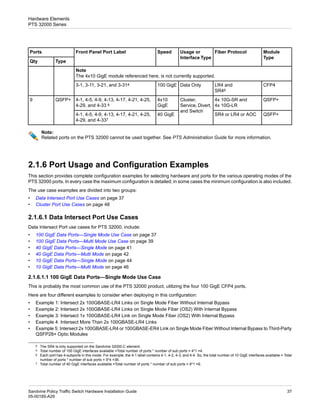
  • 145.
    The rows ofconnectors have these uses: • Top row, labeled NO (normally open), gets connected to the data intersect ports on the bypassed PTS. • Middle row, labelled Pole, gets connected to the subscriber/internet routers. • Bottom row, labeled NC (normally closed), is the bypass path. There are LEDs to the left of the odd numbers and to the right of the even numbers that have these conditions: • The LEDs are green when the pole ports are connected to the NO ports. • The LEDs are not illuminated when the pole ports are connected to the NC ports. If the bypass chassis is not powered, the pole ports are connected to the NC ports. 6.5.3 Bypass Chassis A bypass chassis contains two bypass blades. 145 Sandvine Policy Traffic Switch Hardware Installation Guide 05-00185-A29 Connecting the Control and Data Ports External Passive Bypass Chassis for PTS 24010 and PTS 24011
  • 146.
    6.6 Cabling Optionsfor External Bypass Chassis The options for cabling an external bypass chassis are: • Single PTS 24000 to Bypass Chassis with one Bypass Blade on page 146 • Single PTS 24000 to Bypass Chassis with Two Blades on page 146 • Two PTS 24000s to a Bypass Chassis with Two Blades on page 148 • Bypass Cascade for PTS 1:1 Redundancy on page 149 • Using the External 24000 Bypass Chassis with a PTS 22000 or PTS 32000 on page 151 6.6.1 Single PTS 24000 to Bypass Chassis with one Bypass Blade Use these steps to connect a PTS to a bypass chassis with one bypass blade but, before you do, ensure that you have: • Fiber cables as appropriate for the bypassed ports, subscriber/internet connections, and the bypass path. • One Y-cable. Note: This is only required if you are using redundant terminal servers. • 2-3 null modem cables. 1. Connect a null modem cable from Console port 1 on the PTS to the terminal server serial port. 2. Connect the fiber cables as appropriate for bypass ports, Internet, and bypass route. 3. If you are using redundant serial terminals, on the bypassed PTS 24000, connect a Y-Cable to the PTS console port 2 and then: a. Connect the Bypass end of the Y-cable to a null modem cable and connect it to port #1 of the fiber bypass chassis. b. Connect the Console end of the Y-cable to a null modem cable and connect it to the terminal server's redundant serial port. 4. If you are not using redundant terminal servers, connect a null modem cable directly from PTS console port 2 to Console port 1 of the fiber bypass chassis. 6.6.2 Single PTS 24000 to Bypass Chassis with Two Blades Prior to starting this procedure, ensure that you have: • Fiber cables as appropriate for the ports being bypassed, subscriber/internet connections, and bypass path. • One Y-cable. Note: This cable is only required if you are using redundant terminal servers. • One gang cable. • 2-3 null modem serial cables. Sandvine Policy Traffic Switch Hardware Installation Guide 146 05-00185-A29 Connecting the Control and Data Ports Cabling Options for External Bypass Chassis
  • 147.
    To connect aPTS 24000 to a bypass chassis with two blades: 1. Connect a null modem cable from Console port 1 on the PTS to the terminal server serial port. 2. Connect the fiber cables as appropriate for bypass ports, Internet, and the bypass route. 3. Connect a Y-Cable, if you are using redundant serial terminals on the bypassed PTS 24000, to the PTS console port 2 and then: a. Connect the Bypass end of the Y-cable to a null modem cable and connect it to port #1 of the fiber bypass chassis. b. Connect the Console end of the Y-cable to a null modem cable and connect it to the terminal server's redundant serial port. 4. Connect a null modem cable, if you are not using redundant terminal servers, directly from PTS console port 2 to Console port 1 of the fiber bypass chassis. 5. Connect the gang cable between the Control 1 and Control 2 ports. 147 Sandvine Policy Traffic Switch Hardware Installation Guide 05-00185-A29 Connecting the Control and Data Ports Cabling Options for External Bypass Chassis
  • 148.
    6.6.3 Two PTS24000s to a Bypass Chassis with Two Blades Before connecting two PTS devices to a bypass shelf, ensure that you have: • Fiber cables as appropriate for the ports being bypassed, subscriber/internet connections, and bypass path. • Two Y-cables. Note: Only required if you are using redundant terminal servers. • 4-6 null modem serial cables. Note: When using the bypass chassis for two separate PTS elements, do not connect the gang cable. If the gang cable is connected, the second bypass blade will not operate as expected. 1. Connect a null modem cable from Console port 1 on the PTS to the terminal server serial port. (You may have already done this in a previous section.) 2. Connect the fiber cables as appropriate for bypass ports, Internet, and bypass route. 3. If you are using redundant serial terminals, on the first bypassed PTS 24000, connect a Y-cable into PTS console port 2 and then: a. Connect the "Bypass" end of the Y-cable to a null modem cable and connect it to port #1 of the fiber bypass chassis. b. Connect the "Console" end of the Y-cable to a null modem cable and connect it to the terminal server's redundant serial port. Sandvine Policy Traffic Switch Hardware Installation Guide 148 05-00185-A29 Connecting the Control and Data Ports Cabling Options for External Bypass Chassis
  • 149.
    4. If youare not using redundant terminal servers, connect a null modem cable directly from the first PTS' console port 2 to Console port 1 of the fiber bypass chassis. 5. If you are using redundant serial terminals, on the second bypassed PTS 24000, connect a Y-cable into PTS console port 2 and then: a. Connect the "Bypass" end of the Y-cable to a null modem cable and connect it to port #1 of the fiber bypass chassis. b. Connect the "Console" end of the Y-cable to a null modem cable and connect it to the terminal server's redundant serial port. 6. If you are not using redundant terminal servers, connect a null modem cable directly from Console port 2, on the second PTS, to Console port 1 of the fiber bypass chassis. 6.6.4 Bypass Cascade for PTS 1:1 Redundancy Before proceeding, ensure that you have: • Fiber cables as appropriate for the bypassed ports, subscriber/internet connections, and the bypass path. • Two Y-cables. Note: Only required if you are using redundant terminal servers. • 4-6 null modem serial cables. Use this procedure to cable a redundant bypass cascade for 1:1 redundancy. In this scenario, there are two PTS 24000s (element A and element B) connected to one bypass chassis which has two bypass blades installed. In this configuration, the passive bypass element normally keeps all the traffic going to element A (active processing element). If A fails, the traffic flows through B (standby processing element). If B fails, the traffic is passively shunted. 149 Sandvine Policy Traffic Switch Hardware Installation Guide 05-00185-A29 Connecting the Control and Data Ports Cabling Options for External Bypass Chassis
  • 150.
    Note: When using thebypass chassis for two separate PTS elements, do not connect the gang cable. If the gang cable is connected, the second bypass blade will not operate as expected. 1. Connect a null modem cable from Console port 1 on the PTS to the terminal server serial port. 2. Connect optical cables as appropriate for bypass ports, Internet, and bypass route. a. Connect the NO ports, on the first bypass blade, to the ports on the primary PTS24000. b. Connect the Pole ports, on the first bypass blade, to the Subscriber and Internet routers. c. Connect the NC ports of the first bypass blade (the bypass path) to the Pole ports on the second bypass blade. d. Connect the NO ports of the second bypass blade to the data ports of the secondary PTS24000. e. Connect the bypass route on the second bypass blade. 3. Connect a Y-cable, if using redundant serial terminals, on the active bypassed PTS 24000, to the PTS console port 2: a. Connect the Bypass end of the Y-cable to a null modem cable and connect it to port #1 of the fiber bypass chassis. b. Connect the Console end of the Y-cable to a null modem cable and connect it to the terminal server's redundant serial port. Sandvine Policy Traffic Switch Hardware Installation Guide 150 05-00185-A29 Connecting the Control and Data Ports Cabling Options for External Bypass Chassis
  • 151.
    4. Connect anull modem cable, if you are not using redundant terminal servers, directly from Console port 2 on the active PTS to Console port 1 on the fiber bypass chassis. 5. Connect a Y-cable, if you are using redundant serial terminals, on the redundant bypassed PTS 24000, to the PTS console port 2 and then: a. Connect the Bypass end of the Y-cable to a null modem cable and connect it to port #1 of the fiber bypass chassis. b. Connect the Console end of the Y-cable to a null modem cable and connect it to the terminal server's redundant serial port. 6. Connect a null modem cable, if you are not using redundant terminal servers, directly from the redundant PTS' console port 2 to Console port 1 on the fiber bypass chassis. 6.6.5 Using the External 24000 Bypass Chassis with a PTS 22000 or PTS 32000 You can use the External 24000 Bypass chassis in exactly the same manner as described in the Cabling Options for External Bypass Chassis on page 146 section for use with either the PTS 22000 or PTS 32000. 151 Sandvine Policy Traffic Switch Hardware Installation Guide 05-00185-A29 Connecting the Control and Data Ports Cabling Options for External Bypass Chassis
  • 152.
    7 Replacing Components inthe Field • "Field Replaceable Components" on page 153 • "Replacing PTS 32000 and PTS 22000 Power Supplies" on page 153 • "Replacing PTS 24000 Power Supplies" on page 155 • "Replacing PTS 32000 Hard Drives" on page 157 • "Replacing PTS 24000 Hard Drives" on page 161 • "Replacing PTS 22000 Hard Drives" on page 163 • "Replacing PTS 24000 Chassis Fans" on page 164 • "Replacing PTS 32000 Chassis Fans" on page 166 • "Adding and Replacing Blades" on page 172 Sandvine Policy Traffic Switch Hardware Installation Guide 152 05-00185-A29 Replacing Components in the Field
  • 153.
    7.1 Field ReplaceableComponents This chapter describes how to remove and replace various components in the field. The field-replaceable components include: • Power Supplies • Hard Drive • Chassis fans • I/O Blades Warning: All electronic devices are sensitive to Electro-static Discharge (ESD). Use a suitably grounded wrist strap during all installation and service procedures to minimize the risk of damage to the equipment. Only technically qualified service personnel should perform this, or any other power supply replacement procedure, on Sandvine equipment. 7.2 Replacing PTS 32000 and PTS 22000 Power Supplies The system's power supply hot-swap feature lets you remove a power supply without shutting down the element, provided that the other power supply is functioning. Warning: All electronic devices are sensitive to Electro-static Discharge (ESD). To minimize the risk of damage to the equipment use a suitably grounded wrist strap during all installation and service procedures. Only technically qualified service personnel should perform this, or any procedure related to replacing a power supply on Sandvine equipment. To replace a power supply: 1. Locate the defective power supply on the back of the PTS. 2. Remove the power cords from the defective supply and verify that the power LED is off. 153 Sandvine Policy Traffic Switch Hardware Installation Guide 05-00185-A29 Replacing Components in the Field Field Replaceable Components
  • 154.
    3. Grasp theblack handle, and depress the green tab with your thumb. 4. Depress the tab and pull the power supply forward to remove it from the bay. 5. Insert the replacement power supply into the bay. 6. Push the power supply all the way into the bay. 7. Re-connect the power supply cords. 8. Turn on the power and then verify that the power supply LED is lit. Sandvine Policy Traffic Switch Hardware Installation Guide 154 05-00185-A29 Replacing Components in the Field Replacing PTS 32000 and PTS 22000 Power Supplies
  • 155.
    9. Verify thatany alarms indicating a problem with the power supply have cleared. Alternatively, you can run the show system environmental power CLI command to verify that the power supply is working correctly. 7.3 Replacing PTS 24000 Power Supplies The system's power supply hot-swap feature enables you to remove a power supply without shutting down the element, provided that at least two other power supplies are functioning. Warning: All electronic devices are sensitive to Electro-static Discharge (ESD). Use a suitably grounded wrist strap during all installation and service procedures to minimize the risk of damage to the equipment. Only technically qualified service personnel should perform this, or any other power supply replacement procedure, on Sandvine equipment. Before attempting to replace a power supply, ensure that you have: • A #2 screwdriver. • A replacement power supply. To replace a power supply: 1. Loosen the retaining screw on the failed power supply. As the retaining screw is loosened, the power supply is automatically disengaged from the backplane and pulled forward in the bay. 155 Sandvine Policy Traffic Switch Hardware Installation Guide 05-00185-A29 Replacing Components in the Field Replacing PTS 24000 Power Supplies
  • 156.
    2. When theretaining screw is completely loosened, grasp the handle and pull forward to remove the power supply from the bay. 3. Insert the replacement power supply into the bay. The retaining screw prevents you from inserting the supply all of the way into the bay. 4. Tighten the retaining screw to engage the backplane connector. 5. Examine the indicator LEDs to verify that the power supply is functioning. Sandvine Policy Traffic Switch Hardware Installation Guide 156 05-00185-A29 Replacing Components in the Field Replacing PTS 24000 Power Supplies
  • 157.
    7.4 Replacing PTS32000 Hard Drives The PTS 32000 family uses a single Solid State Drive to store all local data and program information. This SSD storage format has the software interface of a standard SATA drive combined with reliability of an EPROM. It has a very high Mean Time Between Failure (MTBF) and is not expected to fail. In the unlikely event that the Solid State Drive does fail, and you need to perform in field sparing (verses just RMA the complete PTS 32000), complete the procedures outlined in these sections: • Removing the Old Solid State Drive on page 157 • Installing a New Solid State Drive on page 159 Warning: Please read the whole procedure carefully before attempting to replace a Solid State Drive. These instructions provide details on how to remove and replace the device, and will help you understand how to do it correctly. Note: The PTS 32000 hard drive is shipped with application software pre-installed. On receipt of a replacement drive, please verify that your version of the software is on the unit. See the PTS Software Installation Guide if an upgrade or downgrade is necessary. 7.4.1 Removing the Old Solid State Drive Complete this procedure to remove the Solid State Drive: Warning: Before attempting this procedures verify that you have connected an ESD wristband and are following all proper ESD procedures for your environment. Failure to comply with this warning could result in damage to equipment or personal injury. 1. Remove all power and data cables and then remove the PTS 32000 from the rack. 2. Flip the unit over to expose the bottom Solid State Drive access panel. 3. Using a Pozidriv #1 screw bit on a mechanical driver, remove the 8 screws from the access cover and remove the access cover as shown in the figure below. You can also use a Phillips #1 screw driver, with a serrated edge, although you must exercise care and apply sufficient downward pressure. Apply too little pressure and you will strip the screw threads. Note: Do not use a mechanically assisted driver to remove or replace screws. Using a mechanically assisted driver can strip the screw threads. 157 Sandvine Policy Traffic Switch Hardware Installation Guide 05-00185-A29 Replacing Components in the Field Replacing PTS 32000 Hard Drives
  • 158.
    4. Carefully loosenthe 4 captive screws, as shown here: 5. Slide the cover with the SSD attached in the direction indicated on the sheet metal. You may find it necessary to 'wiggle' the drive slightly to disconnect it. 6. Lift the drive out of the cavity once the drive has slid sideway enough to become disengaged from the unit. Sandvine Policy Traffic Switch Hardware Installation Guide 158 05-00185-A29 Replacing Components in the Field Replacing PTS 32000 Hard Drives
  • 159.
    7. The sideof the drive with the sheet metal installed shows how the drive is mechanically secured to the motherboard. Note that the notch shown here (A) in the sheet metal secures the drive metal to the motherboard. When you 'wiggle' the drive to remove it, you are freeing this notched metal from the motherboard. 7.4.2 Installing a New Solid State Drive Complete this procedure to install a new Solid State Drive unit: Note: Once this procedure is complete, and the new Solid State Drive is installed, you need to set the drive up. Warning: Before attempting this procedures verify that you have connected an ESD wristband and are following all proper ESD procedures for your environment. Failure to comply with this warning could result in damage to equipment or personal injury. 1. Remove the new drive assembly from the ESD bag and packaging. Place the drive assembly into the PCB motherboard slots, slide it such that it re-engages with the slot and SATA connector. 159 Sandvine Policy Traffic Switch Hardware Installation Guide 05-00185-A29 Replacing Components in the Field Replacing PTS 32000 Hard Drives
  • 160.
    2. Re-tighten the4 captive screws in the drive assembly that you loosened in Removing the Old Solid State Drive on page 157. 3. Replace the bottom cover plate and re-install the 8 bottom cover screws. 4. Follow the instructions detailed in Software Setup on page 160 to put the PTS 32000 back into operation. 7.4.3 Software Setup To set up software after physically installing a new hard drive on your PTS: 1. Power on the PTS. This configures the interface automatically using quickstart. 2. Install the license file in the /usr/local/sandvine/etc/svptsd-BSD.lic directory. Note: If you are acquiring licesnse from the license server, this step is not required. See the License Server User Guide for more information about licensing. 3. Run the svreload command to reload all configurations. 4. Check the /var/log/svlog file for errors. 5. Upgrade the PTS software to the required version using the svupdate utility. See the PTS Installation Guide for specific steps. 6. Run the show system services CLI command to confirm all services are online after the PTS is online. Sandvine Policy Traffic Switch Hardware Installation Guide 160 05-00185-A29 Replacing Components in the Field Replacing PTS 32000 Hard Drives
  • 161.
    7. Install SandScriptand other custom configurations in the /usr/local/sandvine/etc/ file. 8. Run the svreload command again to reload all configurations. 9. Check the /var/log/svlog file again for errors. 7.5 Replacing PTS 24000 Hard Drives You must have a replacement hard drive ready before commencing with this procedure. Note: All electronic devices are sensitive to Electro-static Discharge (ESD). To minimize the risk of damage to the equipment use a suitably grounded wrist strap during all installation and service procedures. Only technically qualified service personnel should perform this, or any procedure related to replacing a hard drive on Sandvine equipment. 1. Push the hard drive release button and the drive handle releases, as shown. 2. Grasp the drive handle and pull the drive out of the bay. 3. Insert a new hard drive into the bay. 161 Sandvine Policy Traffic Switch Hardware Installation Guide 05-00185-A29 Replacing Components in the Field Replacing PTS 24000 Hard Drives
  • 162.
    4. Using yourfinger, push the drive into the bay. Do not push the drive into the bay using the drive handle. 5. Once the drive is fully seated, push the drive handle towards the drive until it latches. 6. Examine the drive indicator LEDs to verify that the drive is functioning. When installation is complete, the RAID rebuilds. 7. Run the show system storage disk CLI command to verify that the RAID is properly installed and is rebuilding. 8. Run the show system storage controller CLI command to verify the identity of the installed RAID device. 9. Run the command appropriate to your type of device: Run this CLI command... If your device has this RAID card... arcconf getstatus <drive id> Adaptec mfiutil drive progress <drive id> LSI Sandvine Policy Traffic Switch Hardware Installation Guide 162 05-00185-A29 Replacing Components in the Field Replacing PTS 24000 Hard Drives
  • 163.
    7.6 Replacing PTS22000 Hard Drives Before attempting to replace a PTS 22000 hard drive, ensure that you have: • A #2 Philips screwdriver. • A replacement hard drive. Warning: All electronic devices are sensitive to Electro-static Discharge (ESD). Use a suitably grounded wrist strap during all installation and service procedures to minimize the risk of damage to the equipment. Only technically qualified service personnel should perform this, or any other hardware replacement procedure, on Sandvine equipment. There are two steps involved in replacing PTS 22000 hard drives: • Replacing the Hard Drive on page 163 • Software Setup on page 164 7.6.1 Replacing the Hard Drive To replace the physical hard drive: 1. Loosen the two thumb screws holding the hard drive carrier in place. Use a #2 Philips bit screw driver if necessary. 2. Grasp the two thumbscrews and slide the hard drive and carrier out of the chassis. 3. Insert the new hard drive and carrier into the chassis. Ensure the hard drive carrier is fully seated in the chassis. 163 Sandvine Policy Traffic Switch Hardware Installation Guide 05-00185-A29 Replacing Components in the Field Replacing PTS 22000 Hard Drives
  • 164.
    4. Tighten thetwo thumb screws. 7.6.2 Software Setup After physically installing a new hard drive in your PTS, you will need to setup the drive. To do this: 1. Boot the PTS. The PTS automatically initializes the PTS software and automatically reboots when complete. During this time several warnings can appear on the console but you can safely ignore these. Booting up is complete when the Login prompt appears on screen. 2. Log into the PTS and perform the necessary initial configuration. Refer to the PTS Software Installation Guide and the PTS Administration Guide for additional information. 3. Install the license file. See the PTS Administration Guide for additional information. 4. Boot the PTS. Wait until all services are up. 5. Run svupdate, if a different PTS software version is required for your deployment. 6. If you do not upgrade or downgrade, you must run either the reboot CLI command or the shutdown -r now command from the shell, to reboot the PTS. 7. Reset any required bypass configurations. Sandvine RMA solid state drives (SSD) are pre-configured with the bypass solution set to the bypass mode. This ensures that bypass solutions are automatically protected from accidentally intersecting traffic before the PTS configuration is restored. Consequently, you need to keep these considerations in mind: • External Bypass Chassis: • If your system is connected to a Sandvine external bypass chassis, you must ensure that all steps in this procedure have correctly configured the chassis to suit your deployment. See the PTS Administration Guide for additional information. • If your system is not connected to a Sandvine external bypass chassis, you must remove the bypass configuration. Run the reset config interface bypass external admin-status CLI command to remove the unnecessary configuration. • Internal Bypass Blades: • Run the show system blades CLI command to determine whether your system has a bypass blade installed. If it does, ensure that all steps in this procedure have configured the bypass blade groups as required. See the PTS Administration Guide for additional information. • No further action is required if your system does not have a bypass blade installed. 7.7 Replacing PTS 24000 Chassis Fans There are five fans on the back of the PTS 24000. Fans are numbered 1 through 5, from left to right, when looking at the rear of the unit. Sandvine Policy Traffic Switch Hardware Installation Guide 164 05-00185-A29 Replacing Components in the Field Replacing PTS 24000 Chassis Fans
  • 165.
    Warning: All electronic devicesare sensitive to Electro-static Discharge (ESD). Use a suitably grounded wrist strap during all installation and service procedures to minimize the risk of damage to the equipment. Only technically qualified service personnel should perform this, or any other procedure relating to chassis fan replacement procedure, on Sandvine equipment. Before attempting to replace a chassis fan, ensure that you have: • A slotted screwdriver. • A replacement fan. 1. Loosen the two thumb screws holding the fan in place, with the screwdriver if necessary. 2. When both of the screws have been fully loosened, gently pull the cooling fan out of the chassis. 3. Insert a replacement fan. 4. Tighten the two thumb screws. 5. Verify that any alarms indicating a problem with the fan have cleared. Alternatively, you can run the show system environmental fans CLI command to verify that the fan is working correctly. 165 Sandvine Policy Traffic Switch Hardware Installation Guide 05-00185-A29 Replacing Components in the Field Replacing PTS 24000 Chassis Fans
  • 166.
    7.8 Replacing PTS32000 Chassis Fans These steps are involved in replacing chassis fans on a PTS 32000: • Removing the Chassis Cover for Fan Replacement on page 166 • Field Replacement of Chassis Fan on page 168 • Fan Installation on page 170 • Replacing the Chassis Cover after Fan Replacement on page 171 7.8.1 Removing the Chassis Cover for Fan Replacement This section provides the steps involved in removing the chassis cover of a PTS 32000, for the purpose of replacing fans. Note: Ensure that the ESD strap is worn and plugged into the grounding unit. The fans are located inside at the rear of the chassis of the PTS 32000. The chassis top needs to be removed before replacing the fans. 1. Use a Phillips head #1 screwdriver and remove the seventeen M3 flat head screws securing the top to the chassis. Sandvine Policy Traffic Switch Hardware Installation Guide 166 05-00185-A29 Replacing Components in the Field Replacing PTS 32000 Chassis Fans
  • 167.
    2. Slide thechassis cover back, as shown here. 3. Remove the chassis cover. 167 Sandvine Policy Traffic Switch Hardware Installation Guide 05-00185-A29 Replacing Components in the Field Replacing PTS 32000 Chassis Fans
  • 168.
    7.8.2 Field Replacementof Chassis Fan This section provides the steps involved in removing the fan from a PTS 32000. Note: Ensure that the ESD strap is worn and plugged into the grounding unit. 1. Disconnect the appropriate fan connector. 2. Ensure that the fan connector and wires are not in the way. Sandvine Policy Traffic Switch Hardware Installation Guide 168 05-00185-A29 Replacing Components in the Field Replacing PTS 32000 Chassis Fans
  • 169.
    3. Remove thefour M3 pan head screws. 4. Remove the fan. 169 Sandvine Policy Traffic Switch Hardware Installation Guide 05-00185-A29 Replacing Components in the Field Replacing PTS 32000 Chassis Fans
  • 170.
    7.8.3 Fan Installation Thissection provides the steps involved in installing the fan on a PTS 32000. Note: Ensure that the ESD strap is worn and plugged into the grounding unit. 1. Orient the fan as shown and route the fan wires through slot in the fan body. 2. Re-install the fan and replace the four M3 pan head screws. Sandvine Policy Traffic Switch Hardware Installation Guide 170 05-00185-A29 Replacing Components in the Field Replacing PTS 32000 Chassis Fans
  • 171.
    3. Attach thefan connector to the connector on the mainboard. 7.8.4 Replacing the Chassis Cover after Fan Replacement This section provides the steps involved in replacing the chassis cover on a PTS 32000, after the fan is replaced. Note: Ensure that ESD strap is worn and plugged into the grounding unit. 1. Install the chassis cover, and slide it into place. 171 Sandvine Policy Traffic Switch Hardware Installation Guide 05-00185-A29 Replacing Components in the Field Replacing PTS 32000 Chassis Fans
  • 172.
    2. Use aPhillips head #1 screwdriver to replace the seventeen M3 mounting screws that secure the chassis cover. 7.9 Adding and Replacing Blades This section explains how to add or replace I/O blades in different PTS platforms, and includes: • Pre-requisites on page 173 • Adding and Replacing Blades in PTS 24000/PTS 22000 on page 173 • Adding and Replacing Blades in PTS 32000 on page 176 • Blade Compatibility with PTS Platforms on page 180 Note: The steps for adding/replacing PTS bypass blades are similar to that of I/O Blades. Sandvine Policy Traffic Switch Hardware Installation Guide 172 05-00185-A29 Replacing Components in the Field Adding and Replacing Blades
  • 173.
    7.9.1 Pre-requisites Before attemptingto replace a blade in any PTS platform, ensure that you have: • A Phillips screwdriver. • A replacement I/O blade. • A suitably grounded wrist strap. Note: All electronic devices are sensitive to Electro Static Discharge (ESD). Use a suitably grounded wrist strap during all installation and service procedures to minimize the risk of damage to the equipment. Only technically qualified service personnel should perform this, or any other replacement procedure, on Sandvine equipment. 7.9.2 Adding and Replacing Blades in PTS 24000/PTS 22000 Perform these steps to remove or replace an I/O blade in the PTS 22000/ PTS 24000: 1. Upgrade the PTS to a software version that supports the blade type that you want to install. Examples: Supported PTS Software Version I/O Blade Model PTS 6.20 or later BLD 24080 PTS 6.10 or later BLD 22006 See 2.1 Downgrade Compatibility for PTS Hardware in the PTS Software Installation Guide for additional information on supported PTS software versions. 2. Ensure the hardware compatibility of the blade model with the PTS platform. See Blade Compatibility with PTS Platforms on page 180 for more information. 3. Perform these steps to shutdown the system. a. Run the shutdown CLI command. b. Monitor the serial console to confirm that the system shutdown is complete. c. Power off the system. 4. Connect a grounded wrist strap to the grounding hole. Warning: All electronic devices are sensitive to Electro Static Discharge (ESD). To minimize the risk of damage to the equipment use a suitably grounded wrist strap during all installation and service procedures. 5. Before disconnecting the wires from the blade, note the wires that are connected to the blade or label them. 6. If you are re-using the optical transceiver interfaces, remove them. 7. Fully loosen the small screw on the right-hand side of the blade. A PTS 24000 is shown but the procedure is the same for either the PTS 22000. 173 Sandvine Policy Traffic Switch Hardware Installation Guide 05-00185-A29 Replacing Components in the Field Adding and Replacing Blades
  • 174.
    Note: If the rightscrew is not removed before the left screw, the blade metal could become twisted and damaged. 8. Loosen the large screw on the left-hand side of the blade. As the retaining screw is loosened, the I/O blade is automatically disengaged from the main board connector and pulled forward in the bay. 9. Grasp the front panel of the blade and pull to remove it from the chassis. Sandvine Policy Traffic Switch Hardware Installation Guide 174 05-00185-A29 Replacing Components in the Field Adding and Replacing Blades
  • 175.
    10. Place theblade in an ESD bag. Note: Make sure that you place the blade back in the packaging that Sandvine has provided, to ensure that it is protected from storage or shipping damage. 11. Align the circuit board with the notches in the card guides, and insert the replacement I/O blade. 12. Tighten the large screw on the left side to draw the blade into the chassis. Note: Tighten the screw gently by hand, at first, to ensure that there is no cross-threading of the screw. 13. Tighten the small screw on the right side. 14. Insert any optical interfaces and then reconnect the cables. 175 Sandvine Policy Traffic Switch Hardware Installation Guide 05-00185-A29 Replacing Components in the Field Adding and Replacing Blades
  • 176.
    15. Turn thepower on. 16. Wait for all system services to come online before verifying the blade. See PTS 22000, PTS 24000, and PTS 32000 Blade LEDs on page 115. 17. Run the show system blades CLI command to verify the blade. This should generate output similar to: CLI> show system blades Blade InterfaceSlot Model OperStatus SerialNumber ------ ------------- -------- ---------- ------------ 1 1 BLD24020 [up] 0123456789 2 2 BLD24042 [up] 0123456789 The front panel interfaces on the PTS are prefixed with an Interface Slot identifier, which can be different from the Blade Slot identifier. For example, a blade on PTS 22000 provides interfaces belonging to Interface Slot 2 (that is, 2-1, 2-2, 2-3, etc.), while the Blade Slot identifier is 1. See this table for additional information. Interface Slot Blade Slot Model 2 1 PTS 22000 1 1 PTS 24000 2 2 18. Run the show interface configuration CLI command to verify that the interfaces are operational. Note: Follow the same steps above for adding/replacing PTS bypass blades. 7.9.3 Adding and Replacing Blades in PTS 32000 Perform these steps to remove or replace an I/O blade in the PTS 32000: 1. Upgrade the PTS to a software version that supports the blade model that you want to install. Examples: Supported PTS Software Version I/O Blade Model PTS 7.00.01 or later BLD 32042 PTS 7.10.00 or later BLD 32080 See 2.1 Downgrade Compatibility for PTS Hardware in the PTS Software Installation Guide for additional information on supported PTS software versions. 2. Ensure the hardware compatibility of the blade model with PTS 32000. See Blade Compatibility with PTS Platforms on page 180 for more information. 3. Perform this additional step when installing BLD 32080 in a PTS 32000, before proceeding to the next step. A firmware upgrade and subsequent PTS power cycle are required to support the BLD 32080 in PTS 32000. Contact Sandvine Customer Support, or its authorized partner, for additional information. Sandvine Policy Traffic Switch Hardware Installation Guide 176 05-00185-A29 Replacing Components in the Field Adding and Replacing Blades
  • 177.
    4. Perform thesesteps to shutdown the system. a. Run the shutdown CLI command. b. Monitor the serial console to confirm that the system shutdown is complete. c. Power off the system. 5. Connect a grounded wrist strap to the grounding hole. Warning: All electronic devices are sensitive to Electro Static Discharge (ESD). To minimize the risk of damage to the equipment use a suitably grounded wrist strap during all installation and service procedures. 6. Before disconnecting the wires from the blade, note the wires that are connected to the blade or label them. 7. If you are re-using the optical transceiver interfaces, remove them. 8. Fully loosen both screws on the blade. A PTS 32000 is shown here with the I/O blade model BLD 32080, but the procedure is the same for all blade models for this platform. Note: If the right screw is not removed before the left screw, the blade metal could become twisted and damaged. 9. Grasp the thumb screws attached to the blade with both the hands, and gently pull to remove it from the chassis. 177 Sandvine Policy Traffic Switch Hardware Installation Guide 05-00185-A29 Replacing Components in the Field Adding and Replacing Blades
  • 178.
    10. Place theblade in an ESD bag. Note: Make sure that you place the blade back in the packaging that Sandvine has provided, to ensure that it is protected from storage or shipping damage. 11. Locate the rail guides in the blade slot. Align the replacement blade edge rails with the rail guides in the blade slot. Then insert the replacement blade as shown. Sandvine Policy Traffic Switch Hardware Installation Guide 178 05-00185-A29 Replacing Components in the Field Adding and Replacing Blades
  • 179.
    12. Ensure thatthe blade is fully inserted by pushing on the outer edges of the blade with both thumbs. The blade face plate should be flush with the chassis face plate. 13. Tighten both screws on the blade. Note: Tighten the screw gently by hand, at first, to ensure that there is no cross-threading of the screw. 14. Insert any optical interfaces and then reconnect the cables. 15. Turn the power on. 16. Wait for all system services to come online before verifying the blade. See PTS 22000, PTS 24000, and PTS 32000 Blade LEDs on page 115. 17. Run the show system blades CLI command to verify the blade. This should generate output similar to: CLI> show system blades Blade InterfaceSlot Model OperStatus SerialNumber ------ ------------- -------- ---------- -------------- 1 5 BLD32080 [up] 01234567890123 The front panel interfaces on the PTS are prefixed with an Interface Slot identifier, which can be different from the Blade Slot identifier. See this table for additional information. 179 Sandvine Policy Traffic Switch Hardware Installation Guide 05-00185-A29 Replacing Components in the Field Adding and Replacing Blades
  • 180.
    Interface Slot Blade Slot Model 5 1 PTS32000 18. Run the show interface configuration CLI command to verify that the interfaces are operational. Note: Follow the same steps above for adding/replacing PTS bypass blades. 7.9.4 Blade Compatibility with PTS Platforms This table provides information on compatibility of blade models with different PTS platforms. Compatible PTS Platform Blade Model PTS 24000 BLD 24080 PTS 24000 BLD 24020 PTS 24000, PTS 22000 BLD 24010 PTS 24000, PTS 22000 BLD 24052 PTS 24000, PTS 22000 BLD 24050 PTS 24000, PTS 22000 BLD 24042 PTS 24000, PTS 22000 BLD 24040 PTS 24000, PTS 22000 BLD 24032 PTS 24000, PTS 22000 BLD 24030 PTS 22000 BLD 22006 PTS 32000 BLD 32080 PTS 32000 BLD 32042 Note: You cannot use the BLD 24080 in combination with BLD 24010 or BLD 24020; any other combination of blades is supported. Sandvine Policy Traffic Switch Hardware Installation Guide 180 05-00185-A29 Replacing Components in the Field Adding and Replacing Blades
  • 181.
    181 Sandvine Policy TrafficSwitch Hardware Installation Guide 05-00185-A29 Replacing Components in the Field Adding and Replacing Blades
  • 182.
    A Specifications • "Cabling andTransceiver Specifications" on page 183 • "Electrical Specifications" on page 187 • "Environmental and Physical Specifications" on page 189 • "Mean Time Between Failure" on page 191 Sandvine Policy Traffic Switch Hardware Installation Guide 182 05-00185-A29 Specifications
  • 183.
    A.1 Cabling andTransceiver Specifications This section describes the recommended cable types and transceiver options, plus their respective specifications. It includes: • Optical Transceiver and Cable Specifications on page 183 • Key Optical Module Parameters on page 185 • RS-232 Serial Connector Pin-out on page 186 A.1.1 Optical Transceiver and Cable Specifications The recommended cable types and transceiver options and their respective specifications for the PTS 32000, PTS 24000, and PTS 22000 are: PTS 32000 PTS 22000 / PTS 24000 Cable Type & Distance Manufacturer Module No. Sandvine Module No. Wave Length Max Speed Connector Type Interconnect Name Y Y UTP Cat 5E 100m N/A Fixed Port N/A 1 GigE RJ-45 1000BASE -T Y Y Finisar FCLF8521P2BTL 100-00155 SFP/RJ-45 Y Y OM1 62.5μm 275m Finisar FTLF8519P2BNL 100-00156 850nm 1 GigE SFP/LC 1000BASE -SX OM3 50μm 550m Avago AFBR-57M5APZ Y Y OS2 9μm 10km Finisar FTLF1319P1BTL 100-00157 1310nm 1 GigE SFP/LC 1000BASE -LX Finisar FTRJ1319P1BTL Finisar FTLF-1318P2BTL Finisar FTLF1318P3BTL Y Y OS2 9μm 80km Finisar FTLF1519P1BCL 100-00278 1550nm 1 GigE SFP/LC 1000BASE -ZX Y Y OS2 9μm 120km Finisar FTLF1619P1BCL ∆ 100-00450 1550nm 1 GigE SFP/LC 1000BASE -ZX+ Y Y OM1 62.5μm 27m Finisar FTLX8571D3BCL 100-00348 850nm 10 GigE SFP+/LC 10GBASE -SR OM3 50μm 300m Avago AFBR-703SDZ Avago AFBR-709SMZ Innolight TR-PX85S-NCS Y OM1 62.5μm 220m Finisar FTLX1371D3BCL 100-00349 850nm 10 GigE SFP+/LC 10GBASE -LRM OM3 50μm 220m 183 Sandvine Policy Traffic Switch Hardware Installation Guide 05-00185-A29 Specifications Cabling and Transceiver Specifications
  • 184.
    PTS 32000 PTS 22000 / PTS 24000 Cable Type& Distance Manufacturer Module No. Sandvine Module No. Wave Length Max Speed Connector Type Interconnect Name Y Y OS2 9μm 10km Finisar FTLX1471D3BCL 100-00350 1310nm 10 GigE SFP+/LC 10GBASE -LR Avago AFCT-701SDZ Innolight TR-PX13L-N00 Y Y OS2 9μm 40km Finisar FTLX1671D3BCL 100-00351 1550nm 10 GigE SFP+/LC 10GBASE -ER Y Y OS2 9μm 80km Finisar FTLX1871M3BCL ∆ 100-00442 1550nm 10 GigE SFP+/LC 10GBASE -ZR OE RSPX0SZR-ST5 ∆ Y OS2 62.5μm 27m Finisar FTLX8511D3 100-00159 850nm 10 GigE XFP/LC 10GBASE -SR OS2 50μm 300m Y OS2 9μm 10km Finisar FTLX1412D3BCL 100-00160 1310nm 10 GigE XFP/LC4 10GBASE -LR Y OS2 9μm 40km Finisar FTLX1611M3 100-00281 1550nm 10 GigE XFP/LC4 10GBASE -ER Y OS2 9μm 80km Finisar FTLX1811M3 ∆ None 1550nm 10 GigE XFP/LC4 10GBASE -ZR Y 4x OM3 50μm 300m Finisar FTL410QD2C Innolight TR-QQ85X-N00 100-00462 850nm 40 GigE QSFP+/ MPO 40GBASE -SR4 Y 4x OM3 50μm 300m 4x 10 GigE 4x10GBASE -SR 4x OM1 62.5μm 27m Y OS2 9μm 10km Finisar FTL4C1QE1C-1B 100-00446 4 λ 40 GigE QSFP+/LC 40GBASE -LR4 Sumitomo SQF0406L4LNGL Innolight TR-QQ13L-N00 Y OS2 9μm 30km+ Sumitomo SQF0406E4LNGL Finisar FTL4E1QE1C (-1B) 100-00498 4 λ 40 GigE QSFP+/LC 40GBASE -ER4 Innolight TR-QQ13E-N00 Y 4x OS2 9μm 10km Innolight TR-IQ13L-N00 100-00478 1310nm 4x 10 GigE QSFP+/ MPO 4x10GBASE -LR Sandvine Policy Traffic Switch Hardware Installation Guide 184 05-00185-A29 Specifications Cabling and Transceiver Specifications
  • 185.
    PTS 32000 PTS 22000 / PTS 24000 Cable Type& Distance Manufacturer Module No. Sandvine Module No. Wave Length Max Speed Connector Type Interconnect Name Y Active Optical Cables 1, 3, 5, and 10m Finisar FCBN410QB1Cx, where x is 01, 03, 05, or 10 100-00479 to 100-00482 N/A 40 GigE QSFP+/ AOC 40GBASE -SR4 Y 4x 10 GigE 4x10GBASE -SR Y OS2 9μm 10km Sumitomo SFF1400L4LNGG01B 100-00466 4 λ 100 GigE CFP4/LC 100GBASE -LR4 Sumitomo SFF1400L4LNGG02B Sumitomo SFF1401L4LNGG01B JDSU JC4-10LR4AA1 Finisar FTLC1141RDNL Fujitsu FIM37500/150 Innolight TR-KC13L-N00 Y OS2 9μm 40km Fujitsu FIM37600/150 ∆ 100-00510 4 λ 100 GigE CFP4/LC 100GBASE -ER4 Y OS2 9μm 30km/40km Innolight TR-KC13D-NSN 100-00529 Y ( model 4x OM4 50μm 100m Finisar FTLC9141RENM 100-00468 850nm 100 GigE CFP4/MPO (MTP12) 100GBASE -SR4 32000-C 4x OM3 50μm 70m and newer) Type B, Ribbon Reversed Polarity Note: These conditions apply: • Optical modules marked ∆ have high transmitter power, and you must use attenuators between Tx and Rx receivers if you intend to use them for short distances. Consult your optical expert prior to deploying these modules. • Cable type refers to a duplex pair of fibers. Therefore, 4x OS2 refers to four duplex pairs of OS2 fiber. The OS2 fiber is typical, although other compatible fibers are sometimes used. A.1.2 Key Optical Module Parameters All Sandvine optical modules are compliant to the appropriate Multi Source Agreement (MSA) and IEEE 802.3xxxx for standard Ethernet operation and interoperability. For example, modules designated as 10G-LR are interoperable and compliant with any other modules meeting MSA/IEEE 802.3xxxx compliance for Ethernet operation in any module form factor. Consequently XFP, SFP+, QSFP+ would all interoperate if designated as 10G-LR in our documentation. 185 Sandvine Policy Traffic Switch Hardware Installation Guide 05-00185-A29 Specifications Cabling and Transceiver Specifications
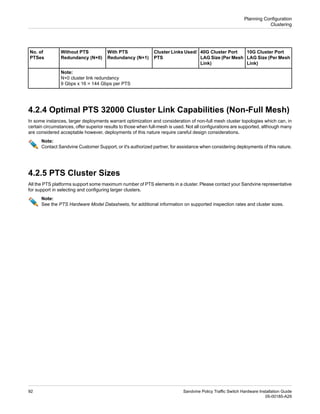
  • 186.
    RX_Pwr_Ave (max) RX_Pwr_Ave (min) RX_Sen_OMA (max) TX_Pwr_Ave (max) TX_Pwr_Ave (min) TX_Pwr_OMA (min) TX_Pwr_OMA- TDP(min) 0 dBm -17.0 dBm -3.0dBm -9.0 dBm 156 µW (-10 dBm) 100-00156 0 dBm -21 dBm -3.0 dBm -9.5 dBm 174 µW 100-00157 0.5 dBm -11.1 dBm -1.0 dBm -3.0 dBm -2.8 dBm -6.7 dBm 100-00159 0.5 dBm -12.6 dBm ‡ 0.5 dBm -4.8 dBm 100-00160 0 dBm -22 dBm 5 dBm 0 dBm 174 µW 100-00278 -1.0 dBm -16 dBm 2 dBm -1 dBm 100-00281 -1.0 dBm -9.9 dBm -11.1 dBm -1.0 dBm -5.0 dBm -4.3 dBm -8.2 dBm 100-00348 1.5 dBm -6.0 dBm ‡ 0.5 dBm -6.5 dBm -4.5 dBm -9.2 dBm 100-00349 0.5 dBm -14.4 dBm -12.6 dBm 0.5 dBm -8.2 dBm -5.2 dBm 100-00350 -1.0 dBm -15.8 dBm -14.1 dBm 4.0 dBm -4.7 dBm -2.1 dBm 100-00351 -7.0 dBm -24 dBm 4 dBm -1 dBm 100-00442 2.3 dBm -13.7 dBm -11.5 dBm 2.3 dBm -7 dBm -4 dBm 100-00446 -9.0 dBm -30 dBm 5 dBm 0 dBm 174 µW 100-00450 2.4 dBm -9.9 dBm -11.1 dBm 0.5 dBm -7.5 dBm -6.5 dBm 100-00462 4.5 dBm -10.6 dBm -8.6 dBm 4.5 dBm -4.3 dBm -1.3 dBm 100-00466 2.4dBm -10.3dBm -5.2dBm 2.4dBm -8.4dBm -6.4dBm 100-00468 0.4 dBm -14.2 dBm -12.6 dBm 0.5 dBm -5.2 dBm 100-00478 -4.5 dBm -21.2 dBm -19 dBm 4.5 dBm -2.7 dBm 0.3 dBm 100-00498 4.5 dBm -20.9 dBm -21.4 dBm 2.9 dBm -2.7 dBm 0.1 dBm 100-00510 Note: Parameters marked ‡ are RX_STRESSED SEN_OMA (max); this module does not specify the unstressed parameter. A.1.3 RS-232 Serial Connector Pin-out The serial interface pin assignments are: Note: Wiring is reversed at opposite ends of the cable. Sandvine Policy Traffic Switch Hardware Installation Guide 186 05-00185-A29 Specifications Cabling and Transceiver Specifications
  • 187.
    Pin Number Function Pin Number Function 2 SerialIn 1 DCD 4 DTR 3 Serial Out 6 DSR 5 Ground 8 CTS 7 RTS 9 RI Null modem cabling is: End #2 End #1 Function 4 1, 6 DCD/DSR/DTR 3 2 RXD/TXD 2 3 TXD/RXD 1, 6 4 DTR/DCD/DSR 5 5 Ground 8 7 RTS/CTS 7 8 CTS/RTS 9 9 RI A.2 Electrical Specifications This section describes the electrical specifications for Sandvine equipment, including: • PTS 32000: Electrical Ratings on page 187 • PTS 24000: Electrical Ratings on page 188 • PTS 22000: Electrical Ratings on page 189 Note: Fuse at least 20% higher than maximum rating. In this section the ratings specified with a dash indicate a range and ratings specified with a slash indicate specific nominal values. A.2.1 PTS 32000: Electrical Ratings The internal power backplane on the PTS 32000 is common to both the AC and DC powered models. However, the PTS 32000 only supports one power type at a time. The electrical ratings for each input power connect are: Blade Configuration Typical Total System Power Rated Total System Power Input Power Connections Current Frequency Voltage Model There is no significant 1400W ∆ / 1340W † 1500W ∆ / 1440W † 2 15A/12A-6A 50/60Hz 100/ 120-240VAC PTS 32400 187 Sandvine Policy Traffic Switch Hardware Installation Guide 05-00185-A29 Specifications Electrical Specifications
  • 188.
    Blade Configuration Typical Total System Power Rated Total System Power InputPower Connections Current Frequency Voltage Model 1400W 1500W 2 37.5- 25.0A DC 40-60VDC difference with or without blades. 800W 950W 2 9.5A/7. 9A-4A 50/60Hz 100/ 120-240VAC PTS 32100 800W 950W 2 23.8A-15. 8A DC 40-60VDC Note: Table entries marked as ∆ are at 100VAC input, while those marked as † are at 120-240VAC input. Warning: Remember to add the appropriate margin (typically 20%) when sizing circuits for connecting this equipment. A.2.2 PTS 24000: Electrical Ratings This table identifies the electrical ratings for each input power connection: Blade Configuration Total System Power ( Typical Rated Total System Power Input Power Connections Current Freq Voltage Model 2x BLD 24080 installed 1900W 2200W 4 11-4.8A 50/60 Hz 100-240 VAC PTS 24700 1x BLD 24010 installed 1650W 2x BLD 24080 installed 1900W 2200W 2 55-36.7A DC 40-60VDC PTS 24701 1x BLD 24010 installed 1650W 2x BLD 24020 installed 1900W 2200W 4 11-4.8A 50/60 Hz 100-240 VAC PTS 24500 1x BLD 24010 installed 1650W 2x BLD 24020 installed 1900W 2200W 2 55-36.7A DC 40-60VDC PTS 24501 1x BLD 24010 installed 1650W 2x BLD 24010 installed 1495W 1700W 4 8.5-3.8A 50/60 Hz 100-240 VAC PTS 24300 1x BLD 24010 installed 1300W 2x BLD 24010 installed 1495W 1700W 2 42.5-28.3A DC 40-60VDC PTS 24301 1x BLD 24010 installed 1300W 2x BLD 24010 installed 1495W 1440W 2 14/12/7A 50/60 Hz 100/120/240 VAC PTS 24100 1x BLD 24010 installed 1300W 2x BLD 24010 installed 1300W 1440W 2 35-23.3A DC 40-60VDC PTS 24101 1x BLD 24010 installed 1105W All 195W 300W 2 3.0-1.2A 50/60 Hz 100-240 VAC PTS 24010 All 195W 300W 2 7.0-5.0A DC 40-60VDC PTS 24011 Warning: Remember to add the appropriate margin (typically 20%) when sizing circuits for connecting this equipment. Sandvine Policy Traffic Switch Hardware Installation Guide 188 05-00185-A29 Specifications Electrical Specifications
  • 189.
    A.2.3 PTS 22000:Electrical Ratings The PTS 22000 model's internal power backplane is common between both AC power and DC power, although only one type of power input can be supported at a time. The electrical ratings for each input power connection are: Blade Configuration Typical Total System Power Rated Total System Power Input Power Connections Current Frequency Voltage Model BLD 24010 installed 800W 1000W 2 10-4.2A 50/60Hz 100-240VAC PTS 22600 No optional blade installed 660W BLD 24010 installed 800W 1000W 2 24-15.6A DC 40-60VDC No optional blade installed 620W BLD 24010 installed 800W 1000W 2 10-4.2A 50/60Hz 100-240VAC PTS 22400 No optional blade installed 660W BLD 24010 installed 800W 1000W 2 24-15.6A DC 40-60VDC No optional blade installed 620W BLD 24010 installed 650W 800W 2 8-3.4A 50/60Hz 100-240VAC PTS 22100 No optional blade installed 460W BLD 24010 installed 615W 800W 2 20-13.4A DC 40-60VDC No optional blade installed 430W BLD 24010 installed 650W 800W 2 8-3.4A 50/60Hz 100-240VAC PTS 22050 No optional blade installed 460W BLD 24010 installed 615W 800W 2 20-13.4A DC 40-60VDC No optional blade installed 430W All 195W 250W 2 2.5-1.1A 50/60Hz 100-240VAC PTS 22010 All 195W 250W 2 6.3-4.2A DC 40-60VDC Warning: Remember to add the appropriate margin (typically 20%) when sizing circuits for connecting this equipment. A.3 Environmental and Physical Specifications These environmental specifications are appropriate for all Sandvine equipment: 189 Sandvine Policy Traffic Switch Hardware Installation Guide 05-00185-A29 Specifications Environmental and Physical Specifications
  • 190.
    Parameter Specification Category 0°C to +40°C Operating,Continuous Temperature -5°C to +55°C Operating, Short Term -40°C to +70°C Storage Per Telcordia GR-63-CORE Thermal Shock 5% to 85% non-condensing Operating Relative Humidity 95% maximum Storage Width (excluding mounting hardware) Physical • PTS 32000: 428 mm (16.85 inches) • PTS 24000: 431.8 mm (17 inches) • PTS 22000: 428 mm (16.85 inches) Height • PTS 32000: 89 mm (3.5 inches) • PTS 24000: 177.8 mm (7 inches) • PTS 22000: 89 mm (3.5 inches) Depth (excluding mounting hardware) • PTS 32000: 609.6 mm (24 inches) • PTS 24000: 584.2 mm (23 inches) • PTS 22000: 582 mm (22.91 inches) Weight • PTS 32000: 27.3 kg (60 lbs) • PTS 24700: 40.6kg (89.5 lbs) • PTS 24500: 40.6kg (89.5 lbs) • PTS 24300: 37.6 kg (82.0 lbs) • PTS 24010: 27.2 kg (60.0 lbs) • PTS 22000: 18.86 kg (41.5 lbs) • BLD 24010: 1.6 kg (3.5 lb) • BLD 24020: 2.0 kg (4.5 lb) • BLD 24080: 1.8 kg (4.0 lb) • BLD 24030/40/50: 1.6 kg (3.5 lb) • BLD 22006: 1.1 kg (2.5 lb) 19-inch rack Mounting Per Telcordia GR-63-CORE Handling Shock and Vibration Per Telcordia GR-63-CORE Transportation Vibration Per Telcordia GR-63-CORE Office Vibration Per Telcordia GR-63-CORE Earthquake Level 3 certified. GR-63-CORE GR-1089-CORE NEBS Compliance Sandvine Policy Traffic Switch Hardware Installation Guide 190 05-00185-A29 Specifications Environmental and Physical Specifications
  • 191.
    A.4 Mean TimeBetween Failure Sandvine calculates Mean Time Between Failure (MTBF) according to telecom industry standard SR-332, published by Telcordia Technologies. Predicted MTBF values are calculated according to Method I in SR-332 at the time of product development. Demonstrated values are calculated according to Method III in SR-332 only after sufficient field data is available. This section describes the Mean Time Between Failure for Sandvine equipment, including: • PTS 32000: Mean Time Between Failures on page 191 • PTS 24000: Mean Time Between Failure on page 191 • PTS 22000: Mean Time Between Failure on page 192 A.4.1 PTS 32000: Mean Time Between Failures Note: The mean time between failure (MTBF) for the PTS 32000 series of Sandvine equipment is: MTBF (Hours) (K = 1000 hours and M = 1,000,000 hours) SR-332 Method Description Model # 50 o C 40 o C 25 o C 58.040K 129.590K 305.098K I Policy Traffic Switch 375G System PTS 32400 80.641K 179.991K 423.758K I Policy Traffic Switch 150G System PTS 32100 2.194M 3.429M 5.430M I 8x 10Gb Add in Blade BLD 32080 2.545M 3.915M 6.069M I 2 Link Optical Bypass Interface SM BLD 32042 A.4.2 PTS 24000: Mean Time Between Failure The mean time between failure (MTBF) for the PTS 24000 series of Sandvine equipment is: MTBF (Hours) (K = 1000 hours and M = 1,000,000 hours) SR-332 Method Description Model # 50 o C 40 o C 25 o C 324.922K 500.250K 668.603K I Optical By-pass System PTS 2401x 93.862K 202.224K 438.402K I Policy Traffic Switch 40GB System PTS 2430x 40GB 64.224K 139.919K 310.915K I Policy Traffic Switch 80GB System PTS 2450x 80GB 64.224K 139.919K 310.915K I Policy Traffic Switch 120GB System PTS 2470x 120GB 895.717K 1.14M 1.4M I 20Gb 14 Port Interface BLD 24010 624.488K 789.222K 976.642K I 40Gb 12 Port Interface BLD 24020 1.41M 2.47M 4.19M I 6 Link Optical Bypass Interface MM BLD 24030 1.41M 2.47M 4.19M I 6 Link Optical Bypass Interface SM BLD 24040 191 Sandvine Policy Traffic Switch Hardware Installation Guide 05-00185-A29 Specifications Mean Time Between Failure
  • 192.
    A.4.3 PTS 22000:Mean Time Between Failure The mean time between failure (MTBF) for the PTS 22000 series of Sandvine equipment is: MTBF (Hours) (K = 1000 hours and M = 1,000,000 hours) SR-332 Method Description Model # 50 o C 40 o C 25 o C 123.723K 276.243K 650.368K I Policy Traffic Switch 4Gb System PTS 22050 123.723K 276.243K 650.368K I Policy Traffic Switch 10Gb System PTS 22100 104.620K 233.590K 549.949K I Policy Traffic Switch 20Gb System PTS 22400 102.255K 228.311K 537.518K I Policy Traffic Switch 40Gb System PTS 22600 1.22M 1.51M 1.86M I 20Gb 14 Port Interface BLD 24010 1.41M 2.47M 4.19M I 6 Link Optical Bypass Interface MM BLD 24030 1.41M 2.47M 4.19M I 6 Link Optical Bypass Interface SM BLD 24040 Sandvine Policy Traffic Switch Hardware Installation Guide 192 05-00185-A29 Specifications Mean Time Between Failure
  • 193.
    193 Sandvine Policy TrafficSwitch Hardware Installation Guide 05-00185-A29 Specifications Mean Time Between Failure
  • 194.
    B Regulatory Compliance andSafety Warnings • "Regulatory Compliance" on page 195 • "Safety Warnings" on page 196 Sandvine Policy Traffic Switch Hardware Installation Guide 194 05-00185-A29 Regulatory Compliance and Safety Warnings
  • 195.
    B.1 Regulatory Compliance ThePTS family of products comply with these Product Safety and Electro-Magnetic Compatibility (EMC) standards. Canada and USA The PTS family of products are certified to CAN/CSA-C22.2 No.60950-1, UL60950-1 Safety of Information Technology Equipment Bi-National Standard. Product Safety This Class A digital apparatus complies with Canadian ICES-003. Cet appareil numérique de la classe A est conforme à la norme NMB-003 du Canada. This product has been tested and found to comply EMC with the limits for a Class A digital device, pursuant to Part 15 of the FCC Rules. These limits are designed to provide reasonable protection against harmful interference in a commercial environment. This equipment generates, uses, and can radiate radio frequency energy and, if not installed and used in accordance with the instruction manual, may cause harmful interference to radio communications. Operation of this equipment in a residential area is likely to cause harmful interference. In these cases, the user is required to correct the interference at their expense. Europe The PTS family of products are CE marked in accordance with these directives published by the Council of European Communities: • The Low Voltage Directive, 2006/95/EC, Regarding Product Safety. • The EMC Directive, 2004/108/EC, Regarding Electro-Magnetic Compatibility • RoHS Directive 2011/65/EU These standards are used to demonstrate compliance: Description Standard Safety of Information Technology Equipment EN60950-1 Information Technology Equipment, Radio Disturbance Characteristics, Limits and Methods of Measurement. EN55022 Information Technology Equipment Immunity Characteristics — Limits and Methods of Measurement EN55024 Electromagnetic compatibility and Radio spectrum Matters (ERM); Telecommunication network equipment; ElectroMagnetic Compatibility (EMC) requirements. EN300386 Korea The PTS family of products are certified according to Article 58-2 of the Radio Waves Act. This equipment is for business use, and has acquired electromagnetic conformity registration. Users are required to take caution in this regard. This equipment is not for use in residential homes. 195 Sandvine Policy Traffic Switch Hardware Installation Guide 05-00185-A29 Regulatory Compliance and Safety Warnings Regulatory Compliance
  • 196.
    Russia Customs Union certificateshave been issued for the PTS family of products and all models bear this certification mark: B.2 Safety Warnings This section repeats, in multiple languages, relevant safety warnings. Dieser Anhang wiederholt wichtige Sicherheitswarnungen. Warning: This warning symbol means danger. You are in a situation that could cause bodily injury. Before you work on any equipment, be aware of the hazards involved with electrical circuitry and be familiar with standard practices for preventing accidents. Warning: Dieses Warnsymbol weist auf Gefahren hin. Sie befinden sich in einer Situation, in der das Risiko von Verletzungen besteht. Bevor Sie Arbeiten an jeglichen Komponenten vornehmen, machen Sie sich mit den potenziellen Gefahren von elektrischen Anlagen sowie den Standardvorschriften zur Unfallverhütung vertraut. Qualified Personnel Warning Warning: Only trained and qualified personnel should be allowed to install or replace this equipment. Warning: Diese Komponente darf nur von qualifiziertem Personal installiert oder ausgetauscht werden. Chassis Lifting Warning Warning: Never attempt to lift the chassis with the handles on the power supplies or the switching modules. These handles are not designed to support the weight of the chassis. Using them to lift or support the chassis can result in severe damage to the equipment and serious bodily injury. Warning: Nicht versuchen, das Chassis mit den Griffen an der Stromversorgung oder den Schaltmodulen anzuheben. Diese Griffe können das Gewicht des Chassis nicht tragen. Die Verwendung der Griffe zum Anheben oder Tragen des Chassis kann zu schweren Schäden an der Ausrüstung oder Verletzungen führen. Sandvine Policy Traffic Switch Hardware Installation Guide 196 05-00185-A29 Regulatory Compliance and Safety Warnings Safety Warnings
  • 197.
    Two-person Lifting Warning Warning: Twopeople are required to lift the chassis. Grasp the chassis underneath the lower edge and lift with both hands. To prevent injury, keep your back straight and lift with your legs, not your back. To prevent damage to the chassis and components, never attempt to lift the chassis with the handles on the power supplies or on the interface modules. These handles were not designed to support the weight of the chassis. Warning: Zum Anheben des Chassis sind zwei Personen erforderlich. Das Chassis unterhalb der unteren Kante fassen und mit beiden Händen anheben. Um Verletzungen zu vermeiden, den Rücken durchdrücken und aus den Beinen heben (d.h. nicht aus dem Rücken). Um Schäden am Chassis und den Komponenten zu vermeiden, nicht versuchen, das Chassis mit den Griffen an der Stromversorgung oder den Bedienmodulen anzuheben. Diese Griffe können das Gewicht des Chassis nicht tragen. Ground Connection Warning Warning: This equipment is intended to be grounded. Ensure that the host is connected to earth ground during normal use. Warning: Diese Komponente muss geerdet werden. Sicherstellen, dass der Host während der normalen Verwendung an eine Erde angeschlossen ist. Ground Conductor Warning Warning: Never defeat the ground conductor or operate the equipment in the absence of a suitably installed ground conductor. Contact the appropriate electrical inspection authority or an electrician if you are uncertain that suitable grounding is available. Warning: Den Schutzleiter nicht deaktivieren oder das Gerät ohne ordnungsgemäß installierten Schutzleiter betreiben. Die zuständige Prüfbehörde oder einen Elektriker benachrichtigen, wenn nicht sichergestellt werden kann, dass eine ausreichende Erdung vorhanden ist. High Touch Current: PTS 24000 only Warning: High touch current. Earth connection essential before connecting supply. Warning: Vorsicht Hochspannung! Vor dem Einschalten unbedingt auf Erdung prüfen 197 Sandvine Policy Traffic Switch Hardware Installation Guide 05-00185-A29 Regulatory Compliance and Safety Warnings Safety Warnings
  • 198.
    Class 1 LaserProduct Warning Warning: Class 1 laser product. Warning: Laserprodukt der Klasse 1. Radiation from Open Port Aperture Warning Warning: Warning: Because invisible radiation may be emitted from the aperture of the port when no fiber cable is connected, avoid exposure to radiation and do not stare into open apertures. Warning: Wenn kein Glasfaserkabel eingesteckt ist, kann von der Öffnung des Anschlusses unsichtbare Strahlung ausgehen. Daher vermeiden, sich der Strahlung auszusetzen und nicht in die freiliegenden Öffnungen schauen. Lightning Activity Warning Warning: Do not work on the system or connect or disconnect cables during periods of lightning activity. Warning: Bei Gewitter das System nicht verwenden sowie keine Kabel anschließen oder trennen. Sandvine Policy Traffic Switch Hardware Installation Guide 198 05-00185-A29 Regulatory Compliance and Safety Warnings Safety Warnings
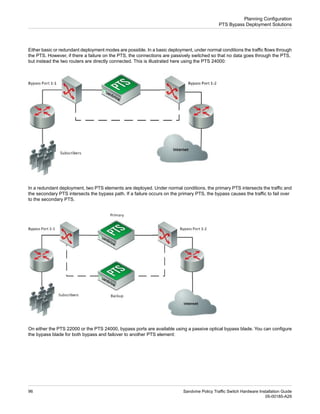
  • 199.
    199 Sandvine Policy TrafficSwitch Hardware Installation Guide 05-00185-A29 Regulatory Compliance and Safety Warnings Safety Warnings