Programming
The Osmium MIMU4444 / MIMU4X4C
With AVR Dragon
Revision 1.3
28 Jan 2016
Committed to Innovate
© 2016, GT Silicon Pvt Ltd, Kanpur, India
www.gt-silicon.comwww.inertialelements.com 1
2
Revision Revision Date Updates
1.0 15 Sep 2014 Initial Release of Programming Instruction Manual
1.2 14 Sep 2015 Updated with latest JTAG programming cable
1.3 28 Jan 2015 Updated for the source of firmware and MIMU4X4C
Revision History
www.inertialelements.com
3
Purpose & Scope
This document carries all the necessary instructions, in
extremely simple and interactive way, required to program (i.e.
update the embedded code of) MIMU4444 and MIMU4X4C
using Atmel Studio 6.2 and AVR Dragon.
www.inertialelements.com
4
Hardware & Software Requirement
• 64 bits computer with 4 GB SRAM and Windows 7 OS
• Atmel Studio 6.2 installed on computer
• AVR Dragon
• MIMU4444 / MIMU4X4C
• MIMU4444 JTAG cable
www.inertialelements.com
5
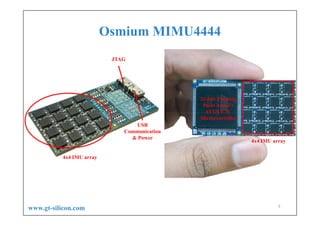
Osmium MIMU4444
4x4 IMU array
4x4 IMU array
32-bits Floating
Point Atmel’s
AT32UC3C
Microcontroller
JTAG
USB
Communication
& Power
www.inertialelements.com
3. Click here to select
OpenShoe_runtime_framework
2. Dropdown menu
1. Go to home page of OpenShoe on SourceForge
6
www.inertialelements.com
Click here to Download Snapshot
7
www.inertialelements.com
Save the downloaded zip file in a separate directory
8
www.inertialelements.com
[28Jan2016] We recommend downloading the zip folder from our
website inertialelements.com  Support Resources
Note: There are separate zip folders for MIMU4444 and MIMU4X4C
1. Dropdown menu
2. Click here to select
Navitation_algorithms
9
www.inertialelements.com
Click here to Download Snapshot
10
www.inertialelements.com
Save the downloaded zip file in the same
Directory where the earlier one is saved
11
www.inertialelements.com
[28Jan2016] We recommend downloading the zip folder from our
website inertialelements.com  Support Resources
Note: There are separate zip folders for MIMU4444 and MIMU4X4C
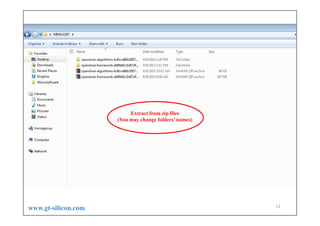
Extract from zip files
(You may change folders’ names)
12
www.inertialelements.com
Open Atmel Studio 6.1
13
www.inertialelements.com
This is how Atmel Studio appears on launch
14
www.inertialelements.com
Click here to open Project/Solution
15
www.inertialelements.com
Go to folder openshoe_algorithms*
16
www.inertialelements.com
1. Select Navigation_algorithms
2. Click here to Open
17
www.inertialelements.com
Note
18
www.inertialelements.com
Click here to select
Existing project
Select & right click on
Solution ‘Navigation _algorithms’
2. Click here
to add project
19
www.inertialelements.com
1. Go to this openshoe-framework*
2. Click here to Open
20
www.inertialelements.com
1. Select OpenShoe_runtime_framework
2. Click here to Open
21
www.inertialelements.com
The project
(OpenShoe_runtime_framework)
will appear in the right window pane
22
www.inertialelements.com
2. Click here to
edit Properties
1. Select
OpenShoe_runtime_framework
and right click
23
www.inertialelements.com
24
2. Select
Symbols
1. Select
Toolchain
3. Select MIMU22BT
4. Click here to edit
www.inertialelements.com
25
1. Change name to MIMU4444 for MIMU4444
OR MIMU4444BT for MIMU4X4C
2. Click to confirm
www.inertialelements.com
2. Select this path
3. Click here to edit path1. Select
Directories
26
www.inertialelements.com
Click here to update path
27
www.inertialelements.com
2. Select this folder
1. Go to this folder (src)
28
www.inertialelements.com
2. Click to confirm
1. Note the updated path
29
www.inertialelements.com
3 Click here to edit path
Click
here
to select
Libraries
2. Click here to select path
30
www.inertialelements.com
Click here to update path
31
www.inertialelements.com
2. Select this folder
1. Go to this folder (Debug)
32
www.inertialelements.com
2. Click to confirm
1. Note the updated path
33
www.inertialelements.com
34
2. Click here to
edit Properties
1. Select Navigation_algorithm
www.inertialelements.com
35
2. Select
Symbols
1. Select
Toolchain
3. Select MIMU22BT 4. Click here to edit
www.inertialelements.com
36
1. Change name to MIMU4444
2. Click to confirm
www.inertialelements.com
Don’t forget to save !
37
www.inertialelements.com
Now include calibration file
3. Click here
to add
1. Select &
right click
Config
2. Select to Add
38
www.inertialelements.com
39
Note: Name of the file must be
user_calibration_MIMU4444.h
1. Select calibration file from appropriate location
2. Click here
www.inertialelements.com
40
Calibration file
appears here
www.inertialelements.com
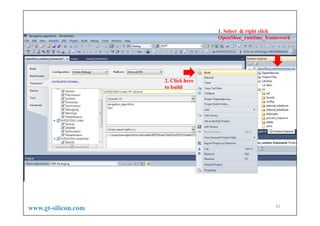
1. Select & right click
OpenShoe_runtime_framework
2. Click here
to build
41
www.inertialelements.com
You will be asked to save the
build. Ignore it by clicking
Cancel.
42
www.inertialelements.com
1. Note this on completion of build.
3. Click here to build complete solution
43
2. Ignore this particular error at this stage.
www.inertialelements.com
You will be asked once again to save the build.
Ignore it by clicking Cancel.
44
www.inertialelements.com
45
Note 0 Errors
Ignore Warnings
www.inertialelements.com
This is also worth your attention
46
www.inertialelements.com
MIMU4444 / MIMU4X4C
1. Connect AVR Dragon with your computer
2. Connect MIMU4444 with AVR Dragon using our custom made JTAG cable.
JTAG Cable
MIMU4444
JTAG connector
AVR Dragon
MIMU4444
Auxiliary USB cable
for power
Details follow next
www.inertialelements.com
In order to use MIMU4X4C without BMBT4444, you must short two pins
(VIN and 5V) on MIMU4X4C board, using a jumper, all the time. This is
useful for programming MIMU4X4C
49
Note the orientation
Note JTAG
connector’s
Position
Details of Connectors on AVR Dragon
www.inertialelements.com
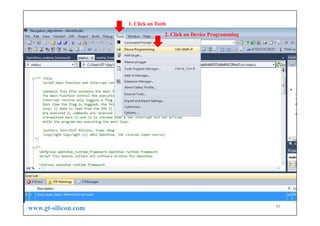
1. Click on Tools
2. Click on Device Programming
50
www.inertialelements.com
51
1. Select
AVR
Dragon 2. Select AT32UC3C0512C
from the dropdown menu
www.inertialelements.com
52
1. Click here to Read JTAG id
2. Note on successful reading devive ID
www.inertialelements.com
53
1. Click on
Memories
2. Select the .elf file
by clicking here
www.inertialelements.com
3. Click here to Open
1. Note the directory path
2. Select .elf
54
www.inertialelements.com
Note: Click on ‘Program’ programs MIMU4444
55
Click here to start programming
www.inertialelements.com
56
Programming under progress
www.inertialelements.com
57
Verification under progress
www.inertialelements.com
58
Programming
Successful !
You have successfully
programmed MIMU4444 !
Click here to close the window
www.inertialelements.com
59
Committed to Innovate
Thank You
www.inertialelements.comwww.gt-silicon.com
Email: info@inertialelements.com
Registered Office: LIG – 1398, Avas Vikas – 3, P.O. – NSI, Kalyanpur, Kanpur (UP), India, PIN – 208017
R&D Centre: D-201, Type 1, VH Extension, IIT Kanpur, Kanpur (UP), India, PIN – 208016
Inertial Elements
60
USB Micro B connector
10-pin FRC connector
2-pin JST connector
Auxiliary USB
power cable
JTAG Programming Cable
for MIMU4444 / MIMU4X4C
www.inertialelements.com
61
Pin-out of 10-pins FRC Connector
www.inertialelements.com

Programming Osmium MIMU4444 Using AVR Dragon

  • 1.
    Programming The Osmium MIMU4444/ MIMU4X4C With AVR Dragon Revision 1.3 28 Jan 2016 Committed to Innovate © 2016, GT Silicon Pvt Ltd, Kanpur, India www.gt-silicon.comwww.inertialelements.com 1
  • 2.
    2 Revision Revision DateUpdates 1.0 15 Sep 2014 Initial Release of Programming Instruction Manual 1.2 14 Sep 2015 Updated with latest JTAG programming cable 1.3 28 Jan 2015 Updated for the source of firmware and MIMU4X4C Revision History www.inertialelements.com
  • 3.
    3 Purpose & Scope Thisdocument carries all the necessary instructions, in extremely simple and interactive way, required to program (i.e. update the embedded code of) MIMU4444 and MIMU4X4C using Atmel Studio 6.2 and AVR Dragon. www.inertialelements.com
  • 4.
    4 Hardware & SoftwareRequirement • 64 bits computer with 4 GB SRAM and Windows 7 OS • Atmel Studio 6.2 installed on computer • AVR Dragon • MIMU4444 / MIMU4X4C • MIMU4444 JTAG cable www.inertialelements.com
  • 5.
    5 Osmium MIMU4444 4x4 IMUarray 4x4 IMU array 32-bits Floating Point Atmel’s AT32UC3C Microcontroller JTAG USB Communication & Power www.inertialelements.com
  • 6.
    3. Click hereto select OpenShoe_runtime_framework 2. Dropdown menu 1. Go to home page of OpenShoe on SourceForge 6 www.inertialelements.com
  • 7.
    Click here toDownload Snapshot 7 www.inertialelements.com
  • 8.
    Save the downloadedzip file in a separate directory 8 www.inertialelements.com [28Jan2016] We recommend downloading the zip folder from our website inertialelements.com  Support Resources Note: There are separate zip folders for MIMU4444 and MIMU4X4C
  • 9.
    1. Dropdown menu 2.Click here to select Navitation_algorithms 9 www.inertialelements.com
  • 10.
    Click here toDownload Snapshot 10 www.inertialelements.com
  • 11.
    Save the downloadedzip file in the same Directory where the earlier one is saved 11 www.inertialelements.com [28Jan2016] We recommend downloading the zip folder from our website inertialelements.com  Support Resources Note: There are separate zip folders for MIMU4444 and MIMU4X4C
  • 12.
    Extract from zipfiles (You may change folders’ names) 12 www.inertialelements.com
  • 13.
    Open Atmel Studio6.1 13 www.inertialelements.com
  • 14.
    This is howAtmel Studio appears on launch 14 www.inertialelements.com
  • 15.
    Click here toopen Project/Solution 15 www.inertialelements.com
  • 16.
    Go to folderopenshoe_algorithms* 16 www.inertialelements.com
  • 17.
    1. Select Navigation_algorithms 2.Click here to Open 17 www.inertialelements.com
  • 18.
  • 19.
    Click here toselect Existing project Select & right click on Solution ‘Navigation _algorithms’ 2. Click here to add project 19 www.inertialelements.com
  • 20.
    1. Go tothis openshoe-framework* 2. Click here to Open 20 www.inertialelements.com
  • 21.
    1. Select OpenShoe_runtime_framework 2.Click here to Open 21 www.inertialelements.com
  • 22.
    The project (OpenShoe_runtime_framework) will appearin the right window pane 22 www.inertialelements.com
  • 23.
    2. Click hereto edit Properties 1. Select OpenShoe_runtime_framework and right click 23 www.inertialelements.com
  • 24.
    24 2. Select Symbols 1. Select Toolchain 3.Select MIMU22BT 4. Click here to edit www.inertialelements.com
  • 25.
    25 1. Change nameto MIMU4444 for MIMU4444 OR MIMU4444BT for MIMU4X4C 2. Click to confirm www.inertialelements.com
  • 26.
    2. Select thispath 3. Click here to edit path1. Select Directories 26 www.inertialelements.com
  • 27.
    Click here toupdate path 27 www.inertialelements.com
  • 28.
    2. Select thisfolder 1. Go to this folder (src) 28 www.inertialelements.com
  • 29.
    2. Click toconfirm 1. Note the updated path 29 www.inertialelements.com
  • 30.
    3 Click hereto edit path Click here to select Libraries 2. Click here to select path 30 www.inertialelements.com
  • 31.
    Click here toupdate path 31 www.inertialelements.com
  • 32.
    2. Select thisfolder 1. Go to this folder (Debug) 32 www.inertialelements.com
  • 33.
    2. Click toconfirm 1. Note the updated path 33 www.inertialelements.com
  • 34.
    34 2. Click hereto edit Properties 1. Select Navigation_algorithm www.inertialelements.com
  • 35.
    35 2. Select Symbols 1. Select Toolchain 3.Select MIMU22BT 4. Click here to edit www.inertialelements.com
  • 36.
    36 1. Change nameto MIMU4444 2. Click to confirm www.inertialelements.com
  • 37.
    Don’t forget tosave ! 37 www.inertialelements.com
  • 38.
    Now include calibrationfile 3. Click here to add 1. Select & right click Config 2. Select to Add 38 www.inertialelements.com
  • 39.
    39 Note: Name ofthe file must be user_calibration_MIMU4444.h 1. Select calibration file from appropriate location 2. Click here www.inertialelements.com
  • 40.
  • 41.
    1. Select &right click OpenShoe_runtime_framework 2. Click here to build 41 www.inertialelements.com
  • 42.
    You will beasked to save the build. Ignore it by clicking Cancel. 42 www.inertialelements.com
  • 43.
    1. Note thison completion of build. 3. Click here to build complete solution 43 2. Ignore this particular error at this stage. www.inertialelements.com
  • 44.
    You will beasked once again to save the build. Ignore it by clicking Cancel. 44 www.inertialelements.com
  • 45.
    45 Note 0 Errors IgnoreWarnings www.inertialelements.com
  • 46.
    This is alsoworth your attention 46 www.inertialelements.com
  • 47.
    MIMU4444 / MIMU4X4C 1.Connect AVR Dragon with your computer 2. Connect MIMU4444 with AVR Dragon using our custom made JTAG cable. JTAG Cable MIMU4444 JTAG connector AVR Dragon MIMU4444 Auxiliary USB cable for power Details follow next www.inertialelements.com
  • 48.
    In order touse MIMU4X4C without BMBT4444, you must short two pins (VIN and 5V) on MIMU4X4C board, using a jumper, all the time. This is useful for programming MIMU4X4C
  • 49.
    49 Note the orientation NoteJTAG connector’s Position Details of Connectors on AVR Dragon www.inertialelements.com
  • 50.
    1. Click onTools 2. Click on Device Programming 50 www.inertialelements.com
  • 51.
    51 1. Select AVR Dragon 2.Select AT32UC3C0512C from the dropdown menu www.inertialelements.com
  • 52.
    52 1. Click hereto Read JTAG id 2. Note on successful reading devive ID www.inertialelements.com
  • 53.
    53 1. Click on Memories 2.Select the .elf file by clicking here www.inertialelements.com
  • 54.
    3. Click hereto Open 1. Note the directory path 2. Select .elf 54 www.inertialelements.com
  • 55.
    Note: Click on‘Program’ programs MIMU4444 55 Click here to start programming www.inertialelements.com
  • 56.
  • 57.
  • 58.
    58 Programming Successful ! You havesuccessfully programmed MIMU4444 ! Click here to close the window www.inertialelements.com
  • 59.
    59 Committed to Innovate ThankYou www.inertialelements.comwww.gt-silicon.com Email: info@inertialelements.com Registered Office: LIG – 1398, Avas Vikas – 3, P.O. – NSI, Kalyanpur, Kanpur (UP), India, PIN – 208017 R&D Centre: D-201, Type 1, VH Extension, IIT Kanpur, Kanpur (UP), India, PIN – 208016 Inertial Elements
  • 60.
    60 USB Micro Bconnector 10-pin FRC connector 2-pin JST connector Auxiliary USB power cable JTAG Programming Cable for MIMU4444 / MIMU4X4C www.inertialelements.com
  • 61.
    61 Pin-out of 10-pinsFRC Connector www.inertialelements.com