Instruction Manual
Doc: MIMUscope-Manual-1v1.pdf
Revision: 1.1
Release Date: 20
th
May 2017
w w w . o b l u . i o h e l l o @ o b l u . i o Page 1
MIMUscope
Instruction Manual
Revision 1.1
© 2017, GT Silicon Pvt. Ltd, Kanpur, India
R&D Centre:
GT Silicon Pvt Ltd
171, MIG, Awadhpuri,
Block B, Lakhanpur,
Kanpur (UP), India, PIN – 208024
Tel: +91 512 258 0039
Fax: +91 512 259 6177
Email: hello@oblu.io
URL: www.oblu.io
Instruction Manual
Doc: MIMUscope-Manual-1v1.pdf
Revision: 1.1
Release Date: 20
th
May 2017
w w w . o b l u . i o h e l l o @ o b l u . i o Page 2
Revision History
Revision Revision Date Updates
1.0 19 Oct 2016 Initial version
1.1 20 May 2017 No change in content. Some minor changes in cover page etc.
Instruction Manual
Doc: MIMUscope-Manual-1v1.pdf
Revision: 1.1
Release Date: 20
th
May 2017
w w w . o b l u . i o h e l l o @ o b l u . i o Page 3
Table of contents:
1. Abstract
2. Feature List
3. Features
I. Real Time IMU
a. Description
b. Input
c. Output
d. Commands Used
II. Raw Data
a. Description
b. Input
c. Output
d. Commands Used
III. Calibrated Data
a. Description
b. Input
c. Output
d. Commands Used
IV. Pedestrian Dead Reckoning
a. Description
b. Input
c. Output
d. Commands Used
V. Settings
VI. Examples
VII. Appendix
Instruction Manual
Doc: MIMUscope-Manual-1v1.pdf
Revision: 1.1
Release Date: 20
th
May 2017
w w w . o b l u . i o h e l l o @ o b l u . i o Page 4
1. Abstract:
Inertial Measurement Unit (IMU) plays a significant role in analyzing the gait of moving and
rotating objects like pendulum, pulleys and even the human foot. IMUS have been an interesting case in
positioning too. MIMUscope can easily plot a roaming pedestrian’s path on the map. It can be used in
warehouse management, mapping, robotics, indoor positioning etc.
The MIMUscope is basically a Windows based interface to oblu devices where you can easily
process the data coming from oblu devices and analyze the gait of objects using real time and offline
graphs. MIMUscope provides a GUI to change the sensor level settings like ‘g’ value. MIMUscope can
also plot the real time Pedestrian Dead Reckoning (PDR) data in 2D and 3D. For each session a report file
is generated with settings used for that experiment.
2. Feature List:
1. Plots real time and off line graphs of accelerations in 3 dimensions (x, y and z)
2. Gives accelerometer data in txt files in 3 dimensions (x, y and z)
3. Plots real time and off line graphs of angular rate around 3 dimensions (x, y and z)
4. Gives gyroscope data in txt files in 3 dimensions (x, y and z)
5. Plots raw data of accelerometer of each individual IMU in 3 dimensions (x, y and z)
6. Gives raw data of accelerometer each individual IMU in 3 dimensions (x, y and z)
7. Plots raw data of gyroscope of each individual IMU in 3 dimensions (x, y and z)
8. Gives raw data of gyroscope of each individual IMU in 3 dimensions (x, y and z)
9. Plots calibrated data of accelerometer of each individual IMU in 3 dimensions (x, y and z)
10. Gives calibrated data of accelerometer each individual IMU in 3 dimensions (x, y and z)
11. Plots calibrated data of gyroscope of each individual IMU in 3 dimensions (x, y and z)
12. Gives calibrated data of gyroscope of each individual IMU in 3 dimensions (x, y and z)
13. Gives the PDR data in txt file
14. Plots the real time 2D and 3D PDR Data
15. Includes a timer for measuring time
16. Provides GUI to change the ‘g’ value in oblu devices
17. Provides GUI to change the accelerometer range in oblu devices
18. Provides GUI to change the gyroscope range in oblu devices
19. Provides GUI to activate some IMUs to function
20. Provides a GUI to calibrate the sensor using a calibration file
3. Features:
I. Real Time IMU
a. Description:
Real Time IMU gives the accelerometer and gyroscope data which can be used in
analyzing various moving and rotating objects. The rate at which the data is coming from the sensor can
Instruction Manual
Doc: MIMUscope-Manual-1v1.pdf
Revision: 1.1
Release Date: 20
th
May 2017
w w w . o b l u . i o h e l l o @ o b l u . i o Page 5
be changed. One can plot the accelerometer and gyroscope values coming from the sensor in real time and
off line. We have an option to store data in txt files at desired directory. We have included a timer watch
which helps in measuring the time efficiently.
b. Input:
1. The COM port through which the communication takes place between the device and
computer comes here. MIMUscope automatically detects the active COM ports.
2. MIMUscope provides two options for displaying graphs. First is real time which shows
the graphs as the data packet comes. Second in off line in which graph is generated after
collecting data.
3. The rate at which packets come from the device. For communication over Bluetooth use
set the rate <=250 Hz for better performance. In case of Real time graph the MIMUscope
automatically detects the most optimum data rate (7.8125 Hz).
4. This checkbox allows user to log the data of precision IMU in a text file. If checkbox is
ticked the MIMUscope logs data in the file.
Instruction Manual
Doc: MIMUscope-Manual-1v1.pdf
Revision: 1.1
Release Date: 20
th
May 2017
w w w . o b l u . i o h e l l o @ o b l u . i o Page 6
5. In this field the name of the file in which data will be logged, is displayed. The word
‘default’ means that the file will be stored in default directory with the default name
which is time stamp.
6. Using this browse button the log file can be created in a desired directory with the desired
name.
7. This checkbox allows user to set the runtime( the time for which the process runs)
8. This field show the runtime
9. User can select the checkboxes to get acceleration in that direction.
10. User can select the checkboxes to get rotation rate in that direction.
c. Run The Process:
To run the process simply press start after giving the inputs mentioned above.
d. Output:
The user will get the graphs and the data in text file for analysis.
II. Raw Data:
a. Description:
Raw Data gives the uncalibrated accelerometer and gyroscope data of each IMU. User can
get the Raw Data of each individual IMU.
b. Input:
1. The COM port through which the communication takes place between the device and
computer comes here. MIMUscope automatically detects the active COM ports.
2. The rate at which packets come from the device. For communication over Bluetooth use
set the rate <=250 Hz for better performance.
3. If this checkbox is ticked, MIMUscope displays the offline graph after collecting the
data.
4. This checkbox allows user to log the data of precision IMU in a text file. If checkbox is
ticked the MIMUscope logs data in the file.
5. In this field the name of the file in which data will be logged, is displayed. The word
‘default’ means that the file will be stored in default directory with the default name
which is time stamp.
6. Using this browse button the log file can be created in a desired directory with the desired
name.
7. This checkbox allows user to set the runtime( the time for which the process runs)
8. This field shows the runtime.
9. User can select the checkboxes to get acceleration and angular rate in that direction for
IMU1.
10. User can select the checkboxes to get acceleration and angular rate in that direction for
IMU2.
Instruction Manual
Doc: MIMUscope-Manual-1v1.pdf
Revision: 1.1
Release Date: 20
th
May 2017
w w w . o b l u . i o h e l l o @ o b l u . i o Page 7
11. User can select the checkboxes to get acceleration and angular rate in that direction for
IMU3.
12. User can select the checkboxes to get acceleration and angular rate in that direction for
IMU4.
c. Run The Process:
To run the process simply press start after giving the inputs mentioned above.
d. Output:
The user will get the graphs and the data in text file for analysis.
Instruction Manual
Doc: MIMUscope-Manual-1v1.pdf
Revision: 1.1
Release Date: 20
th
May 2017
w w w . o b l u . i o h e l l o @ o b l u . i o Page 8
III. Calibrated Data:
a. Description:
Calibrated Data gives the calibrated accelerometer and gyroscope data of each IMU. User
can get the Calibrated Data of each individual IMU.
b. Input:
1. The COM port through which the communication takes place between the device and
computer comes here. MIMUscope automatically detects the active COM ports.
2. The rate at which packets come from the device. For communication over Bluetooth use
set the rate <=250 Hz for better performance.
3. If this checkbox is ticked, MIMUscope displays the offline graph after collecting the
data.
Instruction Manual
Doc: MIMUscope-Manual-1v1.pdf
Revision: 1.1
Release Date: 20
th
May 2017
w w w . o b l u . i o h e l l o @ o b l u . i o Page 9
4. This checkbox allows user to log the data of precision IMU in a text file. If checkbox is
ticked the MIMUscope logs data in the file.
5. In this field the name of the file in which data will be logged, is displayed. The word
‘default’ means that the file will be stored in default directory with the default name
which is time stamp.
6. Using this browse button the log file can be created in a desired directory with the desired
name.
7. This checkbox allows user to set the runtime( the time for which the process runs)
8. This field shows the runtime.
9. User can select the checkboxes to get acceleration and angular rate in that direction for
IMU1.
10. User can select the checkboxes to get acceleration and angular rate in that direction for
IMU2.
11. User can select the checkboxes to get acceleration and angular rate in that direction for
IMU3.
12. User can select the checkboxes to get acceleration and angular rate in that direction for
IMU4.
c. Run The Process:
To run the process simply press start after giving the inputs mentioned above.
d. Output:
The user will get the graphs and the data in text file for analysis.
IV. Pedestrian Dead Reckoning:
a. Description:
PDR is the most innovative outcome using IMUs. The user gets the data of each step. The
data includes displacement of each step, change in orientation of each step and the current coordinates in
the sensors frame.
b. Input:
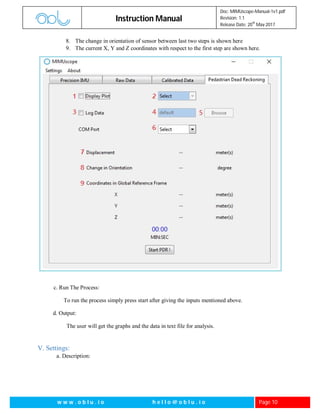
1. This checkbox allows user to enable the 2D and 3D options when ticked
2. The user can select the graph to display 2D or 3D
3. This checkbox allows user to log the data of precision IMU in a text file. If checkbox is
ticked the MIMUscope logs data in the file.
4. In this field the name of the file in which data will be logged, is displayed. The word
‘default’ means that the file will be stored in default directory with the default name
which is time stamp.
5. Using this browse button the log file can be created in a desired directory with the desired
name.
6. The COM port through which the communication takes place between the device and
computer comes here. MIMUscope automatically detects the active COM ports.
7. The sensor’s displacement of last two steps is shown here.
Instruction Manual
Doc: MIMUscope-Manual-1v1.pdf
Revision: 1.1
Release Date: 20
th
May 2017
w w w . o b l u . i o h e l l o @ o b l u . i o Page 10
8. The change in orientation of sensor between last two steps is shown here
9. The current X, Y and Z coordinates with respect to the first step are shown here.
c. Run The Process:
To run the process simply press start after giving the inputs mentioned above.
d. Output:
The user will get the graphs and the data in text file for analysis.
V. Settings:
a. Description:
Instruction Manual
Doc: MIMUscope-Manual-1v1.pdf
Revision: 1.1
Release Date: 20
th
May 2017
w w w . o b l u . i o h e l l o @ o b l u . i o Page 11
Settings make the life of the user easy by providing many sensor related and plot related
setting for data analysis. User can change the sensor’s ‘g’ value, a scale range, g scale rage , can make
any 1 or any 2 IMUs active . The user can also upload a calibration file in the sensor.
b. Input:
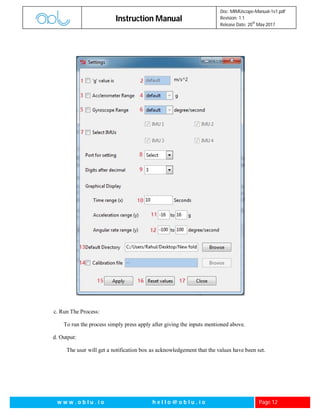
1. This checkbox allows user to change the ‘g’ value when ticked.
2. The new ‘g’ value is entered here.
3. This checkbox allows user to change the Accelerometer Range when ticked.
4. The new Accelerometer Range (ie. +/- 2 g, +/- 4 g, +/- 8 g, +/- 16 g ) is selected here.
5. This checkbox allows user to change the Gyroscope Range when ticked
6. The new Accelerometer Range (ie. +/- 250 deg s, +/- 500 deg/s, +/- 1000 deg/s, +/- 2000
deg/s ) is selected here.
7. This checkbox allows user to change the Selected IMUs when ticked. The IMUs can be
selected from the corresponding checkboxes by ticking.
8. The COM port through which the communication takes place for sending the new setting
values and receiving acknowledgements between the device and computer comes here.
MIMUscope automatically detects the active COM ports.
9. The number of digits after decimal in float values in log files can be changed here.
10. The Time range(X axis range for real time graph in Precision IMU) is changed from here.
11. The Y axis range for accelerometer in ‘g’ for the graphs is changed from here.
12. The Y axis range for accelerometer in deg/s for the graphs is changed from here.
13. The Default Directory, in which the log files (‘default’) of all the processes are stored, is
changed from here.
14. This checkbox allows user to upload the calibration file in the sensor, when ticked. The
corresponding entry field shows the file with the path which will be uploaded in the
sensor. The corresponding browse button is used to navigate to the desired calibration
file.
15. The Apply button sets the new settings.
16. The Reset values changes the values to default but doesn’t set the values.
17. The Close button simply closes the Settings menu.
Instruction Manual
Doc: MIMUscope-Manual-1v1.pdf
Revision: 1.1
Release Date: 20
th
May 2017
w w w . o b l u . i o h e l l o @ o b l u . i o Page 12
c. Run The Process:
To run the process simply press apply after giving the inputs mentioned above.
d. Output:
The user will get a notification box as acknowledgement that the values have been set.
Instruction Manual
Doc: MIMUscope-Manual-1v1.pdf
Revision: 1.1
Release Date: 20
th
May 2017
w w w . o b l u . i o h e l l o @ o b l u . i o Page 13
Example:
1. Change the ‘g’ value:
The oblu devices come with the default ‘g’ value of your location. Still if you want to change
the ‘g’ value for some experiment, follow the following steps. Note: The ‘g’ value set by the
user will be temporary. It will change to the default as the device restarts.
Go to settings => tick ‘g’ value checkbox => enter the desired ‘g’ value =>choose the COM port
for setting => Hit Apply => Done! :) (Figure 1)
2. Changing Accelerometer Range:
The oblu devices come with the default Accelerometer Meter Range set to +/- 16 g. Now if
you want to change the Accelerometer Meter Range for some experiment, follow the
following steps. Note: The Accelerometer Meter Range set by the user will be temporary. It
will change to the default (+/- 16 g ) as the device restarts.
Go to settings => tick Accelerometer Meter Range checkbox => select the desired Accelerometer
Meter Range =>choose the COM port for setting => Hit Apply => Done! :) (Figure 2)
Figure 1 Figure 2
Instruction Manual
Doc: MIMUscope-Manual-1v1.pdf
Revision: 1.1
Release Date: 20
th
May 2017
w w w . o b l u . i o h e l l o @ o b l u . i o Page 14
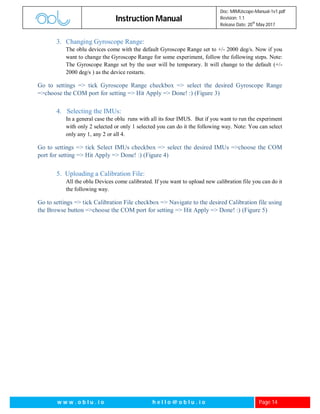
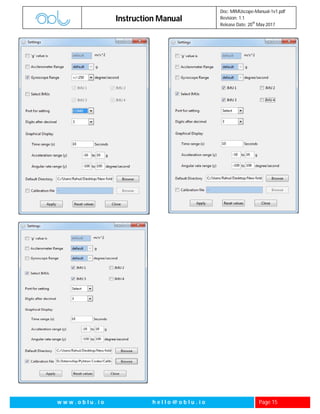
3. Changing Gyroscope Range:
The oblu devices come with the default Gyroscope Range set to +/- 2000 deg/s. Now if you
want to change the Gyroscope Range for some experiment, follow the following steps. Note:
The Gyroscope Range set by the user will be temporary. It will change to the default (+/-
2000 deg/s ) as the device restarts.
Go to settings => tick Gyroscope Range checkbox => select the desired Gyroscope Range
=>choose the COM port for setting => Hit Apply => Done! :) (Figure 3)
4. Selecting the IMUs:
In a general case the oblu runs with all its four IMUS. But if you want to run the experiment
with only 2 selected or only 1 selected you can do it the following way. Note: You can select
only any 1, any 2 or all 4.
Go to settings => tick Select IMUs checkbox => select the desired IMUs =>choose the COM
port for setting => Hit Apply => Done! :) (Figure 4)
5. Uploading a Calibration File:
All the oblu Devices come calibrated. If you want to upload new calibration file you can do it
the following way.
Go to settings => tick Calibration File checkbox => Navigate to the desired Calibration file using
the Browse button =>choose the COM port for setting => Hit Apply => Done! :) (Figure 5)
Instruction Manual
Doc: MIMUscope-Manual-1v1.pdf
Revision: 1.1
Release Date: 20
th
May 2017
w w w . o b l u . i o h e l l o @ o b l u . i o Page 15
Figure 3
Instruction Manual
Doc: MIMUscope-Manual-1v1.pdf
Revision: 1.1
Release Date: 20
th
May 2017
w w w . o b l u . i o h e l l o @ o b l u . i o Page 16
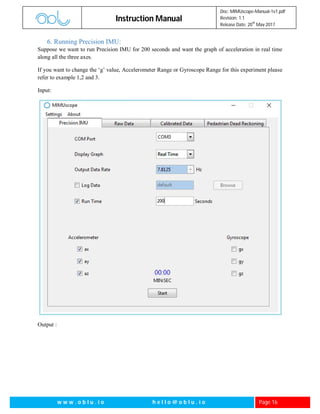
6. Running Precision IMU:
Suppose we want to run Precision IMU for 200 seconds and want the graph of acceleration in real time
along all the three axes.
If you want to change the ‘g’ value, Accelerometer Range or Gyroscope Range for this experiment please
refer to example 1,2 and 3.
Input:
Output :
Instruction Manual
Doc: MIMUscope-Manual-1v1.pdf
Revision: 1.1
Release Date: 20
th
May 2017
w w w . o b l u . i o h e l l o @ o b l u . i o Page 17
7. Raw Data:
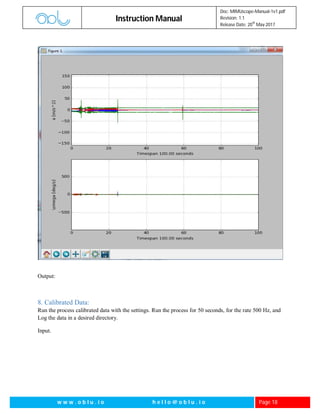
Run the Raw data with the conditions. (i) Select any 2 imus, Display offline graph, rate = 500 Hz,
runtime = 100 s, Log data in default condition.
Input:
First refer to example no 4 to select any two IMUs out of 4.
Instruction Manual
Doc: MIMUscope-Manual-1v1.pdf
Revision: 1.1
Release Date: 20
th
May 2017
w w w . o b l u . i o h e l l o @ o b l u . i o Page 18
Output:
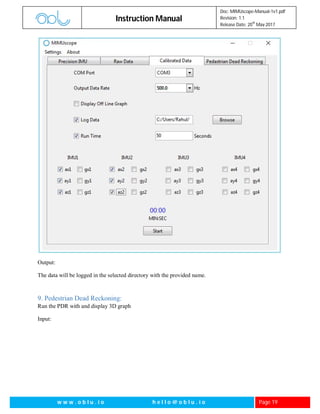
8. Calibrated Data:
Run the process calibrated data with the settings. Run the process for 50 seconds, for the rate 500 Hz, and
Log the data in a desired directory.
Input.
Instruction Manual
Doc: MIMUscope-Manual-1v1.pdf
Revision: 1.1
Release Date: 20
th
May 2017
w w w . o b l u . i o h e l l o @ o b l u . i o Page 19
Output:
The data will be logged in the selected directory with the provided name.
9. Pedestrian Dead Reckoning:
Run the PDR with and display 3D graph
Input:
Instruction Manual
Doc: MIMUscope-Manual-1v1.pdf
Revision: 1.1
Release Date: 20
th
May 2017
w w w . o b l u . i o h e l l o @ o b l u . i o Page 20
Instruction Manual
Doc: MIMUscope-Manual-1v1.pdf
Revision: 1.1
Release Date: 20
th
May 2017
w w w . o b l u . i o h e l l o @ o b l u . i o Page 21
Output:
Instruction Manual
Doc: MIMUscope-Manual-1v1.pdf
Revision: 1.1
Release Date: 20
th
May 2017
w w w . o b l u . i o h e l l o @ o b l u . i o Page 22
Appendix:
Real Time IMU:
Command = [64 pl1 cs1 cs2]
pl1 = output rate divider; cs1, cs2 = checksum
Acknowledgement = “0xA0 0x40 0x00 0xE0” + Real Time IMU packets
0xA0: Acknowledgement state, 0x40 = Start command state, 0x00 0xE0 = Checksum
The device is capable of giving calibration compensated and fused data from the IMU array. This means
the device can be used as a single precision IMU which outputs 3-axis acceleration and 3-axis gyroscope
data. The device outputs gx, gy, gz, ax, ay, az (ref Fig 2 and Fig 3) – 4 bytes each, float type.
B00 = Start Code B08-31 = Payload
B01-2 = Data Packet Number B08-11 = ax, B12-15 = ay, B16-19 = az
B03 = Number of bytes in payload B20-23 = gx, B24-27 = gy, B28-31 = gz
B04-07 = Time stamp (unsigned int) B32-33 = checksum
Raw Data:
Command 1 = [48 19 0 cs1 cs2]
cs1, cs2: Two bytes checksum
This command is used to initiate sampling on board inertial sensors’ data by the oblu device.
Acknowledgement = --
Command 2 = [40 pl1 pl2 pl3 pl4 pl5 cs1 cs2]
pl1, pl2, pl3, pl4 all together consists of 32bits. Each bit corresponds to particular IMU. Thus pl1-pl4 are
used to select IMUs.
pl5* is the actual rate divider+ 64.
cs1, cs2: Two bytes checksum
Instruction Manual
Doc: MIMUscope-Manual-1v1.pdf
Revision: 1.1
Release Date: 20
th
May 2017
w w w . o b l u . i o h e l l o @ o b l u . i o Page 23
Acknowledgement = “0xA0 0x28 0x00 0xC8” + Raw Data packets
0xA0: Acknowledgement state, 0x40 = Start command state, 0x00 0xC8 = Checksum
B00 = Start Code B20-31 = ax2, ay2, az2, gx2, gy2, gz2 (IMU 2)
B01-02 = Packet Number B32-43 = ax3, ay3, az3, gx3, gy3, gz3 (IMU 3)
B04-07 = Time stamp B44-55 = ax4, ay4, az4, gx4, gy4, gz4 (IMU 4)
B08-55 = Payload B56-57 = Checksum
B08-19 = ax1, ay1, az1, gx1, gy1, gz1 (IMU 1)
Each Sensor’s Calibrated Data:
Command = [24 pl1 pl2 pl3 pl4 pl5 cs1 cs2]
pl1, pl2, pl3, pl4 all together consists of 32bits. Each bit corresponds to particular IMU. Thus pl1-pl4 are
used to select IMUs.
pl5* is the actual rate divider+ 64.
cs1, cs2: Two bytes checksum
Acknowledgement = 0xA0 0x18 0x00 0xB2" + Each Sensors Calibrated Data Packets
0xA0: Acknowledgement state, 0x34 = Start command state, 0x00 0xB2 = Checksum
B00 = Start Code B32-55 = ax2, ay2, az2, gx2, gy2, gz2 (IMU 2)
B01-02 = Packet Number B56-79 = ax3, ay3, az3, gx3, gy3, gz3 (IMU 3)
Instruction Manual
Doc: MIMUscope-Manual-1v1.pdf
Revision: 1.1
Release Date: 20
th
May 2017
w w w . o b l u . i o h e l l o @ o b l u . i o Page 24
B04-07 = Time stamp B80-103 = ax4, ay4, az4, gx4, gy4, gz4 (IMU 4)
B08-103 = Payload B104-105 = Checksum
B08-31 = ax1, ay1, az1, gx1, gy1, gz1 (IMU 1)
Stepwise PDR
Command = [52 00 52] or [0x34 0x00 0x34] (in hex)
Acknowledgement = "0xA0 0x34 0x00 0xD4" + PDR Packets
0xA0: Acknowledgement state, 0x34 = Start command state, 0x00 0xD4 = Checksum
B00: State of the Header B16-B19: da: Change in angle around z axis (Type float)
B01-B02: Data packet number B20-B59: 10 entries (4 bytes each) of a 4x4 symmetric
B03: Number of bytes in Payload covariance matrix
B04-B07: dx: Displacement in x (Type float) B62-B63: Check sum
B08-B11: dy: Displacement in y (Type float) B60-B61: Step counter
B12-B15: dz: Displacement in z (Type float)
To change ‘g’ value
Command = [6 d1 f1 f2 f3 f4 f5 f6 cs1 cs2] d1: before decimal digit and f1-6 represent the 6 digits after
decimal
Example: To set ‘g’ value to 9.81 the command should be [06 09 08 01 00 00 00 00 00 24]
Acknowledgement = “0xA0 0x06 00 0xA6”
0xA0: Acknowledgement state, 0x06 = Start command state, 0x00 0xA6 = Checksum
To change accelerometer and gyroscope range:
Command =[67 fscale gscale cs1 cs2]
f scale = 4 // 1 for +/- 2g, 2 for +/- 4g, 3 for +/- 8g, 4 for +/- 16g,
G scale = 4// 1 for +/- 250 deg/s, 2 for +/- 500deg/s, 3 for +/- 1000deg/s, 4 for +/- 2000deg/s,
cs1, cs2 = 2 byte checksum
Example: To set a scale +/- 2g and g scale [/-250 deg/s the command should be [67 01 01 01 00 69]
Acknowledgement = “0xA0 0x43 00 0xCF”
0xA0: Acknowledgement state, 0x43 = Start command state, 0x00 0xCF = Checksum
Instruction Manual
Doc: MIMUscope-Manual-1v1.pdf
Revision: 1.1
Release Date: 20
th
May 2017
w w w . o b l u . i o h e l l o @ o b l u . i o Page 25
To select IMUs out of 4:
Command = [07 00 00 00 se cs1 cs2]
In se byte the first bit from left corresponds to IMU1, second to IMU2 and so on. Bit value of 1 means
that IMU is selected and Bit value of 0 means IMU is not selected.
Select 0001 => 1 => only imu1 selected
0010 =>2 => only imu2 selected
0100 =>4 => only imu3 selected
1000 =>8 => only imu4 selected
Like this if we want to select imu2 and imu4 the command should be [07 00 00 00 10 00 17]
Acknowledgement = “0xA0 0x07 0x00 0xA7”
0xA0: Acknowledgement state, 0x07 = Start command state, 0x00 0xA7 = Checksum

MIMUscope Instruction Manual

  • 1.
    Instruction Manual Doc: MIMUscope-Manual-1v1.pdf Revision:1.1 Release Date: 20 th May 2017 w w w . o b l u . i o h e l l o @ o b l u . i o Page 1 MIMUscope Instruction Manual Revision 1.1 © 2017, GT Silicon Pvt. Ltd, Kanpur, India R&D Centre: GT Silicon Pvt Ltd 171, MIG, Awadhpuri, Block B, Lakhanpur, Kanpur (UP), India, PIN – 208024 Tel: +91 512 258 0039 Fax: +91 512 259 6177 Email: hello@oblu.io URL: www.oblu.io
  • 2.
    Instruction Manual Doc: MIMUscope-Manual-1v1.pdf Revision:1.1 Release Date: 20 th May 2017 w w w . o b l u . i o h e l l o @ o b l u . i o Page 2 Revision History Revision Revision Date Updates 1.0 19 Oct 2016 Initial version 1.1 20 May 2017 No change in content. Some minor changes in cover page etc.
  • 3.
    Instruction Manual Doc: MIMUscope-Manual-1v1.pdf Revision:1.1 Release Date: 20 th May 2017 w w w . o b l u . i o h e l l o @ o b l u . i o Page 3 Table of contents: 1. Abstract 2. Feature List 3. Features I. Real Time IMU a. Description b. Input c. Output d. Commands Used II. Raw Data a. Description b. Input c. Output d. Commands Used III. Calibrated Data a. Description b. Input c. Output d. Commands Used IV. Pedestrian Dead Reckoning a. Description b. Input c. Output d. Commands Used V. Settings VI. Examples VII. Appendix
  • 4.
    Instruction Manual Doc: MIMUscope-Manual-1v1.pdf Revision:1.1 Release Date: 20 th May 2017 w w w . o b l u . i o h e l l o @ o b l u . i o Page 4 1. Abstract: Inertial Measurement Unit (IMU) plays a significant role in analyzing the gait of moving and rotating objects like pendulum, pulleys and even the human foot. IMUS have been an interesting case in positioning too. MIMUscope can easily plot a roaming pedestrian’s path on the map. It can be used in warehouse management, mapping, robotics, indoor positioning etc. The MIMUscope is basically a Windows based interface to oblu devices where you can easily process the data coming from oblu devices and analyze the gait of objects using real time and offline graphs. MIMUscope provides a GUI to change the sensor level settings like ‘g’ value. MIMUscope can also plot the real time Pedestrian Dead Reckoning (PDR) data in 2D and 3D. For each session a report file is generated with settings used for that experiment. 2. Feature List: 1. Plots real time and off line graphs of accelerations in 3 dimensions (x, y and z) 2. Gives accelerometer data in txt files in 3 dimensions (x, y and z) 3. Plots real time and off line graphs of angular rate around 3 dimensions (x, y and z) 4. Gives gyroscope data in txt files in 3 dimensions (x, y and z) 5. Plots raw data of accelerometer of each individual IMU in 3 dimensions (x, y and z) 6. Gives raw data of accelerometer each individual IMU in 3 dimensions (x, y and z) 7. Plots raw data of gyroscope of each individual IMU in 3 dimensions (x, y and z) 8. Gives raw data of gyroscope of each individual IMU in 3 dimensions (x, y and z) 9. Plots calibrated data of accelerometer of each individual IMU in 3 dimensions (x, y and z) 10. Gives calibrated data of accelerometer each individual IMU in 3 dimensions (x, y and z) 11. Plots calibrated data of gyroscope of each individual IMU in 3 dimensions (x, y and z) 12. Gives calibrated data of gyroscope of each individual IMU in 3 dimensions (x, y and z) 13. Gives the PDR data in txt file 14. Plots the real time 2D and 3D PDR Data 15. Includes a timer for measuring time 16. Provides GUI to change the ‘g’ value in oblu devices 17. Provides GUI to change the accelerometer range in oblu devices 18. Provides GUI to change the gyroscope range in oblu devices 19. Provides GUI to activate some IMUs to function 20. Provides a GUI to calibrate the sensor using a calibration file 3. Features: I. Real Time IMU a. Description: Real Time IMU gives the accelerometer and gyroscope data which can be used in analyzing various moving and rotating objects. The rate at which the data is coming from the sensor can
  • 5.
    Instruction Manual Doc: MIMUscope-Manual-1v1.pdf Revision:1.1 Release Date: 20 th May 2017 w w w . o b l u . i o h e l l o @ o b l u . i o Page 5 be changed. One can plot the accelerometer and gyroscope values coming from the sensor in real time and off line. We have an option to store data in txt files at desired directory. We have included a timer watch which helps in measuring the time efficiently. b. Input: 1. The COM port through which the communication takes place between the device and computer comes here. MIMUscope automatically detects the active COM ports. 2. MIMUscope provides two options for displaying graphs. First is real time which shows the graphs as the data packet comes. Second in off line in which graph is generated after collecting data. 3. The rate at which packets come from the device. For communication over Bluetooth use set the rate <=250 Hz for better performance. In case of Real time graph the MIMUscope automatically detects the most optimum data rate (7.8125 Hz). 4. This checkbox allows user to log the data of precision IMU in a text file. If checkbox is ticked the MIMUscope logs data in the file.
  • 6.
    Instruction Manual Doc: MIMUscope-Manual-1v1.pdf Revision:1.1 Release Date: 20 th May 2017 w w w . o b l u . i o h e l l o @ o b l u . i o Page 6 5. In this field the name of the file in which data will be logged, is displayed. The word ‘default’ means that the file will be stored in default directory with the default name which is time stamp. 6. Using this browse button the log file can be created in a desired directory with the desired name. 7. This checkbox allows user to set the runtime( the time for which the process runs) 8. This field show the runtime 9. User can select the checkboxes to get acceleration in that direction. 10. User can select the checkboxes to get rotation rate in that direction. c. Run The Process: To run the process simply press start after giving the inputs mentioned above. d. Output: The user will get the graphs and the data in text file for analysis. II. Raw Data: a. Description: Raw Data gives the uncalibrated accelerometer and gyroscope data of each IMU. User can get the Raw Data of each individual IMU. b. Input: 1. The COM port through which the communication takes place between the device and computer comes here. MIMUscope automatically detects the active COM ports. 2. The rate at which packets come from the device. For communication over Bluetooth use set the rate <=250 Hz for better performance. 3. If this checkbox is ticked, MIMUscope displays the offline graph after collecting the data. 4. This checkbox allows user to log the data of precision IMU in a text file. If checkbox is ticked the MIMUscope logs data in the file. 5. In this field the name of the file in which data will be logged, is displayed. The word ‘default’ means that the file will be stored in default directory with the default name which is time stamp. 6. Using this browse button the log file can be created in a desired directory with the desired name. 7. This checkbox allows user to set the runtime( the time for which the process runs) 8. This field shows the runtime. 9. User can select the checkboxes to get acceleration and angular rate in that direction for IMU1. 10. User can select the checkboxes to get acceleration and angular rate in that direction for IMU2.
  • 7.
    Instruction Manual Doc: MIMUscope-Manual-1v1.pdf Revision:1.1 Release Date: 20 th May 2017 w w w . o b l u . i o h e l l o @ o b l u . i o Page 7 11. User can select the checkboxes to get acceleration and angular rate in that direction for IMU3. 12. User can select the checkboxes to get acceleration and angular rate in that direction for IMU4. c. Run The Process: To run the process simply press start after giving the inputs mentioned above. d. Output: The user will get the graphs and the data in text file for analysis.
  • 8.
    Instruction Manual Doc: MIMUscope-Manual-1v1.pdf Revision:1.1 Release Date: 20 th May 2017 w w w . o b l u . i o h e l l o @ o b l u . i o Page 8 III. Calibrated Data: a. Description: Calibrated Data gives the calibrated accelerometer and gyroscope data of each IMU. User can get the Calibrated Data of each individual IMU. b. Input: 1. The COM port through which the communication takes place between the device and computer comes here. MIMUscope automatically detects the active COM ports. 2. The rate at which packets come from the device. For communication over Bluetooth use set the rate <=250 Hz for better performance. 3. If this checkbox is ticked, MIMUscope displays the offline graph after collecting the data.
  • 9.
    Instruction Manual Doc: MIMUscope-Manual-1v1.pdf Revision:1.1 Release Date: 20 th May 2017 w w w . o b l u . i o h e l l o @ o b l u . i o Page 9 4. This checkbox allows user to log the data of precision IMU in a text file. If checkbox is ticked the MIMUscope logs data in the file. 5. In this field the name of the file in which data will be logged, is displayed. The word ‘default’ means that the file will be stored in default directory with the default name which is time stamp. 6. Using this browse button the log file can be created in a desired directory with the desired name. 7. This checkbox allows user to set the runtime( the time for which the process runs) 8. This field shows the runtime. 9. User can select the checkboxes to get acceleration and angular rate in that direction for IMU1. 10. User can select the checkboxes to get acceleration and angular rate in that direction for IMU2. 11. User can select the checkboxes to get acceleration and angular rate in that direction for IMU3. 12. User can select the checkboxes to get acceleration and angular rate in that direction for IMU4. c. Run The Process: To run the process simply press start after giving the inputs mentioned above. d. Output: The user will get the graphs and the data in text file for analysis. IV. Pedestrian Dead Reckoning: a. Description: PDR is the most innovative outcome using IMUs. The user gets the data of each step. The data includes displacement of each step, change in orientation of each step and the current coordinates in the sensors frame. b. Input: 1. This checkbox allows user to enable the 2D and 3D options when ticked 2. The user can select the graph to display 2D or 3D 3. This checkbox allows user to log the data of precision IMU in a text file. If checkbox is ticked the MIMUscope logs data in the file. 4. In this field the name of the file in which data will be logged, is displayed. The word ‘default’ means that the file will be stored in default directory with the default name which is time stamp. 5. Using this browse button the log file can be created in a desired directory with the desired name. 6. The COM port through which the communication takes place between the device and computer comes here. MIMUscope automatically detects the active COM ports. 7. The sensor’s displacement of last two steps is shown here.
  • 10.
    Instruction Manual Doc: MIMUscope-Manual-1v1.pdf Revision:1.1 Release Date: 20 th May 2017 w w w . o b l u . i o h e l l o @ o b l u . i o Page 10 8. The change in orientation of sensor between last two steps is shown here 9. The current X, Y and Z coordinates with respect to the first step are shown here. c. Run The Process: To run the process simply press start after giving the inputs mentioned above. d. Output: The user will get the graphs and the data in text file for analysis. V. Settings: a. Description:
  • 11.
    Instruction Manual Doc: MIMUscope-Manual-1v1.pdf Revision:1.1 Release Date: 20 th May 2017 w w w . o b l u . i o h e l l o @ o b l u . i o Page 11 Settings make the life of the user easy by providing many sensor related and plot related setting for data analysis. User can change the sensor’s ‘g’ value, a scale range, g scale rage , can make any 1 or any 2 IMUs active . The user can also upload a calibration file in the sensor. b. Input: 1. This checkbox allows user to change the ‘g’ value when ticked. 2. The new ‘g’ value is entered here. 3. This checkbox allows user to change the Accelerometer Range when ticked. 4. The new Accelerometer Range (ie. +/- 2 g, +/- 4 g, +/- 8 g, +/- 16 g ) is selected here. 5. This checkbox allows user to change the Gyroscope Range when ticked 6. The new Accelerometer Range (ie. +/- 250 deg s, +/- 500 deg/s, +/- 1000 deg/s, +/- 2000 deg/s ) is selected here. 7. This checkbox allows user to change the Selected IMUs when ticked. The IMUs can be selected from the corresponding checkboxes by ticking. 8. The COM port through which the communication takes place for sending the new setting values and receiving acknowledgements between the device and computer comes here. MIMUscope automatically detects the active COM ports. 9. The number of digits after decimal in float values in log files can be changed here. 10. The Time range(X axis range for real time graph in Precision IMU) is changed from here. 11. The Y axis range for accelerometer in ‘g’ for the graphs is changed from here. 12. The Y axis range for accelerometer in deg/s for the graphs is changed from here. 13. The Default Directory, in which the log files (‘default’) of all the processes are stored, is changed from here. 14. This checkbox allows user to upload the calibration file in the sensor, when ticked. The corresponding entry field shows the file with the path which will be uploaded in the sensor. The corresponding browse button is used to navigate to the desired calibration file. 15. The Apply button sets the new settings. 16. The Reset values changes the values to default but doesn’t set the values. 17. The Close button simply closes the Settings menu.
  • 12.
    Instruction Manual Doc: MIMUscope-Manual-1v1.pdf Revision:1.1 Release Date: 20 th May 2017 w w w . o b l u . i o h e l l o @ o b l u . i o Page 12 c. Run The Process: To run the process simply press apply after giving the inputs mentioned above. d. Output: The user will get a notification box as acknowledgement that the values have been set.
  • 13.
    Instruction Manual Doc: MIMUscope-Manual-1v1.pdf Revision:1.1 Release Date: 20 th May 2017 w w w . o b l u . i o h e l l o @ o b l u . i o Page 13 Example: 1. Change the ‘g’ value: The oblu devices come with the default ‘g’ value of your location. Still if you want to change the ‘g’ value for some experiment, follow the following steps. Note: The ‘g’ value set by the user will be temporary. It will change to the default as the device restarts. Go to settings => tick ‘g’ value checkbox => enter the desired ‘g’ value =>choose the COM port for setting => Hit Apply => Done! :) (Figure 1) 2. Changing Accelerometer Range: The oblu devices come with the default Accelerometer Meter Range set to +/- 16 g. Now if you want to change the Accelerometer Meter Range for some experiment, follow the following steps. Note: The Accelerometer Meter Range set by the user will be temporary. It will change to the default (+/- 16 g ) as the device restarts. Go to settings => tick Accelerometer Meter Range checkbox => select the desired Accelerometer Meter Range =>choose the COM port for setting => Hit Apply => Done! :) (Figure 2) Figure 1 Figure 2
  • 14.
    Instruction Manual Doc: MIMUscope-Manual-1v1.pdf Revision:1.1 Release Date: 20 th May 2017 w w w . o b l u . i o h e l l o @ o b l u . i o Page 14 3. Changing Gyroscope Range: The oblu devices come with the default Gyroscope Range set to +/- 2000 deg/s. Now if you want to change the Gyroscope Range for some experiment, follow the following steps. Note: The Gyroscope Range set by the user will be temporary. It will change to the default (+/- 2000 deg/s ) as the device restarts. Go to settings => tick Gyroscope Range checkbox => select the desired Gyroscope Range =>choose the COM port for setting => Hit Apply => Done! :) (Figure 3) 4. Selecting the IMUs: In a general case the oblu runs with all its four IMUS. But if you want to run the experiment with only 2 selected or only 1 selected you can do it the following way. Note: You can select only any 1, any 2 or all 4. Go to settings => tick Select IMUs checkbox => select the desired IMUs =>choose the COM port for setting => Hit Apply => Done! :) (Figure 4) 5. Uploading a Calibration File: All the oblu Devices come calibrated. If you want to upload new calibration file you can do it the following way. Go to settings => tick Calibration File checkbox => Navigate to the desired Calibration file using the Browse button =>choose the COM port for setting => Hit Apply => Done! :) (Figure 5)
  • 15.
    Instruction Manual Doc: MIMUscope-Manual-1v1.pdf Revision:1.1 Release Date: 20 th May 2017 w w w . o b l u . i o h e l l o @ o b l u . i o Page 15 Figure 3
  • 16.
    Instruction Manual Doc: MIMUscope-Manual-1v1.pdf Revision:1.1 Release Date: 20 th May 2017 w w w . o b l u . i o h e l l o @ o b l u . i o Page 16 6. Running Precision IMU: Suppose we want to run Precision IMU for 200 seconds and want the graph of acceleration in real time along all the three axes. If you want to change the ‘g’ value, Accelerometer Range or Gyroscope Range for this experiment please refer to example 1,2 and 3. Input: Output :
  • 17.
    Instruction Manual Doc: MIMUscope-Manual-1v1.pdf Revision:1.1 Release Date: 20 th May 2017 w w w . o b l u . i o h e l l o @ o b l u . i o Page 17 7. Raw Data: Run the Raw data with the conditions. (i) Select any 2 imus, Display offline graph, rate = 500 Hz, runtime = 100 s, Log data in default condition. Input: First refer to example no 4 to select any two IMUs out of 4.
  • 18.
    Instruction Manual Doc: MIMUscope-Manual-1v1.pdf Revision:1.1 Release Date: 20 th May 2017 w w w . o b l u . i o h e l l o @ o b l u . i o Page 18 Output: 8. Calibrated Data: Run the process calibrated data with the settings. Run the process for 50 seconds, for the rate 500 Hz, and Log the data in a desired directory. Input.
  • 19.
    Instruction Manual Doc: MIMUscope-Manual-1v1.pdf Revision:1.1 Release Date: 20 th May 2017 w w w . o b l u . i o h e l l o @ o b l u . i o Page 19 Output: The data will be logged in the selected directory with the provided name. 9. Pedestrian Dead Reckoning: Run the PDR with and display 3D graph Input:
  • 20.
    Instruction Manual Doc: MIMUscope-Manual-1v1.pdf Revision:1.1 Release Date: 20 th May 2017 w w w . o b l u . i o h e l l o @ o b l u . i o Page 20
  • 21.
    Instruction Manual Doc: MIMUscope-Manual-1v1.pdf Revision:1.1 Release Date: 20 th May 2017 w w w . o b l u . i o h e l l o @ o b l u . i o Page 21 Output:
  • 22.
    Instruction Manual Doc: MIMUscope-Manual-1v1.pdf Revision:1.1 Release Date: 20 th May 2017 w w w . o b l u . i o h e l l o @ o b l u . i o Page 22 Appendix: Real Time IMU: Command = [64 pl1 cs1 cs2] pl1 = output rate divider; cs1, cs2 = checksum Acknowledgement = “0xA0 0x40 0x00 0xE0” + Real Time IMU packets 0xA0: Acknowledgement state, 0x40 = Start command state, 0x00 0xE0 = Checksum The device is capable of giving calibration compensated and fused data from the IMU array. This means the device can be used as a single precision IMU which outputs 3-axis acceleration and 3-axis gyroscope data. The device outputs gx, gy, gz, ax, ay, az (ref Fig 2 and Fig 3) – 4 bytes each, float type. B00 = Start Code B08-31 = Payload B01-2 = Data Packet Number B08-11 = ax, B12-15 = ay, B16-19 = az B03 = Number of bytes in payload B20-23 = gx, B24-27 = gy, B28-31 = gz B04-07 = Time stamp (unsigned int) B32-33 = checksum Raw Data: Command 1 = [48 19 0 cs1 cs2] cs1, cs2: Two bytes checksum This command is used to initiate sampling on board inertial sensors’ data by the oblu device. Acknowledgement = -- Command 2 = [40 pl1 pl2 pl3 pl4 pl5 cs1 cs2] pl1, pl2, pl3, pl4 all together consists of 32bits. Each bit corresponds to particular IMU. Thus pl1-pl4 are used to select IMUs. pl5* is the actual rate divider+ 64. cs1, cs2: Two bytes checksum
  • 23.
    Instruction Manual Doc: MIMUscope-Manual-1v1.pdf Revision:1.1 Release Date: 20 th May 2017 w w w . o b l u . i o h e l l o @ o b l u . i o Page 23 Acknowledgement = “0xA0 0x28 0x00 0xC8” + Raw Data packets 0xA0: Acknowledgement state, 0x40 = Start command state, 0x00 0xC8 = Checksum B00 = Start Code B20-31 = ax2, ay2, az2, gx2, gy2, gz2 (IMU 2) B01-02 = Packet Number B32-43 = ax3, ay3, az3, gx3, gy3, gz3 (IMU 3) B04-07 = Time stamp B44-55 = ax4, ay4, az4, gx4, gy4, gz4 (IMU 4) B08-55 = Payload B56-57 = Checksum B08-19 = ax1, ay1, az1, gx1, gy1, gz1 (IMU 1) Each Sensor’s Calibrated Data: Command = [24 pl1 pl2 pl3 pl4 pl5 cs1 cs2] pl1, pl2, pl3, pl4 all together consists of 32bits. Each bit corresponds to particular IMU. Thus pl1-pl4 are used to select IMUs. pl5* is the actual rate divider+ 64. cs1, cs2: Two bytes checksum Acknowledgement = 0xA0 0x18 0x00 0xB2" + Each Sensors Calibrated Data Packets 0xA0: Acknowledgement state, 0x34 = Start command state, 0x00 0xB2 = Checksum B00 = Start Code B32-55 = ax2, ay2, az2, gx2, gy2, gz2 (IMU 2) B01-02 = Packet Number B56-79 = ax3, ay3, az3, gx3, gy3, gz3 (IMU 3)
  • 24.
    Instruction Manual Doc: MIMUscope-Manual-1v1.pdf Revision:1.1 Release Date: 20 th May 2017 w w w . o b l u . i o h e l l o @ o b l u . i o Page 24 B04-07 = Time stamp B80-103 = ax4, ay4, az4, gx4, gy4, gz4 (IMU 4) B08-103 = Payload B104-105 = Checksum B08-31 = ax1, ay1, az1, gx1, gy1, gz1 (IMU 1) Stepwise PDR Command = [52 00 52] or [0x34 0x00 0x34] (in hex) Acknowledgement = "0xA0 0x34 0x00 0xD4" + PDR Packets 0xA0: Acknowledgement state, 0x34 = Start command state, 0x00 0xD4 = Checksum B00: State of the Header B16-B19: da: Change in angle around z axis (Type float) B01-B02: Data packet number B20-B59: 10 entries (4 bytes each) of a 4x4 symmetric B03: Number of bytes in Payload covariance matrix B04-B07: dx: Displacement in x (Type float) B62-B63: Check sum B08-B11: dy: Displacement in y (Type float) B60-B61: Step counter B12-B15: dz: Displacement in z (Type float) To change ‘g’ value Command = [6 d1 f1 f2 f3 f4 f5 f6 cs1 cs2] d1: before decimal digit and f1-6 represent the 6 digits after decimal Example: To set ‘g’ value to 9.81 the command should be [06 09 08 01 00 00 00 00 00 24] Acknowledgement = “0xA0 0x06 00 0xA6” 0xA0: Acknowledgement state, 0x06 = Start command state, 0x00 0xA6 = Checksum To change accelerometer and gyroscope range: Command =[67 fscale gscale cs1 cs2] f scale = 4 // 1 for +/- 2g, 2 for +/- 4g, 3 for +/- 8g, 4 for +/- 16g, G scale = 4// 1 for +/- 250 deg/s, 2 for +/- 500deg/s, 3 for +/- 1000deg/s, 4 for +/- 2000deg/s, cs1, cs2 = 2 byte checksum Example: To set a scale +/- 2g and g scale [/-250 deg/s the command should be [67 01 01 01 00 69] Acknowledgement = “0xA0 0x43 00 0xCF” 0xA0: Acknowledgement state, 0x43 = Start command state, 0x00 0xCF = Checksum
  • 25.
    Instruction Manual Doc: MIMUscope-Manual-1v1.pdf Revision:1.1 Release Date: 20 th May 2017 w w w . o b l u . i o h e l l o @ o b l u . i o Page 25 To select IMUs out of 4: Command = [07 00 00 00 se cs1 cs2] In se byte the first bit from left corresponds to IMU1, second to IMU2 and so on. Bit value of 1 means that IMU is selected and Bit value of 0 means IMU is not selected. Select 0001 => 1 => only imu1 selected 0010 =>2 => only imu2 selected 0100 =>4 => only imu3 selected 1000 =>8 => only imu4 selected Like this if we want to select imu2 and imu4 the command should be [07 00 00 00 10 00 17] Acknowledgement = “0xA0 0x07 0x00 0xA7” 0xA0: Acknowledgement state, 0x07 = Start command state, 0x00 0xA7 = Checksum