Tidewater Community College
Marsha Butler
Kwame Edusei
Jessica Garber
Frank Walton
Prezi allows for the creation of unique diagrams and
templates.
Sample Tools:
 Cause & Effect Diagrams- allows one to analyzes
complex situations in a method that clarifies what the
main issues are.
 Bubble Diagrams- two dimensional illustrations linking
ideas to a common thread.
 Timeline Modeling – Provides animation allowing the
audience to follow events or ideas chronologically.
 Flow Diagrams – Show relationships between
ideas.
 Zoom – Allows the presenter to focus on a
main or central idea at any given time during
the presentation.
 Infinite usable canvas space – Engages the
audience.
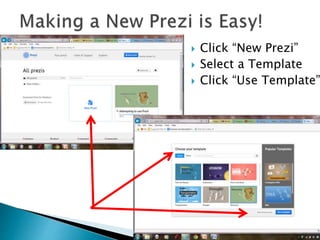
 Click “New Prezi”
 Select a Template
 Click “Use Template”
 Free and web-based
 Easy to use; no drawing skills needed
 User friendly
 Media files can be added
 Image
 Audio
 Video
 Can be embedded into Webpages & Blogs
 Capable of having movement actually become
part of the presentation
 Zooming
 Higher learning curve
 Different user interface than PowerPoint
 Group collaboration can be more difficult
 Cannot print handouts
 Graphic capabilities are limited
 Work is done online, unless you purchase the
paid version
 Can cause headaches/motion sickness
 Technological tools for visual presentation offer
students ways to experiment with the use of
graphics that aid in understanding subject matters
and promote motivation to engage in learning.
 Technological tools can also offer educators
effective ways to reach different types of learners
and assess a students understanding through
multiple means. It can also enhance the
relationship between teacher and student.
 Prezi is one of the best technological Web-based
programs that allow students and teachers to
create graphic presentations that can consist of a
variety of content.
 Tip # 1: Consider your content
Prezi has a judicious blend of text, images, diagrams
and video that can be used simultaneously.
 Tip # 2: Create a rough “Blueprint” before
building your Prezi
Sketch a basic outline of presentation structure and
proposed arrangement of components before completing
a canvas.
 Tip # 3: Choose your design theme early
Create the design before arranging your components on
the canvas.
 Tip # 4: Design BIG and use changes of scale
Make use of the entire canvas by using different size
fonts so that there is space in between your contents.
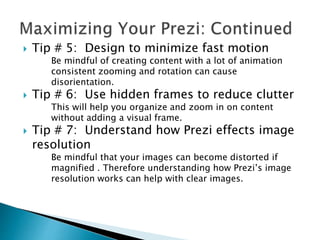
 Tip # 5: Design to minimize fast motion
Be mindful of creating content with a lot of animation
consistent zooming and rotation can cause
disorientation.
 Tip # 6: Use hidden frames to reduce clutter
This will help you organize and zoom in on content
without adding a visual frame.
 Tip # 7: Understand how Prezi effects image
resolution
Be mindful that your images can become distorted if
magnified . Therefore understanding how Prezi’s image
resolution works can help with clear images.
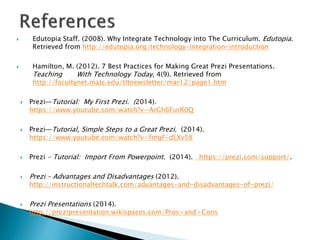
 Edutopia Staff. (2008). Why Integrate Technology into The Curriculum. Edutopia.
Retrieved from http://edutopia.org/technology-integration-introduction
 Hamilton, M. (2012). 7 Best Practices for Making Great Prezi Presentations.
Teaching With Technology Today, 4(9). Retrieved from
http://facultynet.matc.edu/tltnewsletter/mar12/page1.htm
 Prezi—Tutorial: My First Prezi. (2014).
https://www.youtube.com/watch?v=ArGh6FurR0Q
 Prezi—Tutorial, Simple Steps to a Great Prezi. (2014).
https://www.youtube.com/watch?v=fmgF-dLXv58
 Prezi – Tutorial: Import From Powerpoint. (2014). https://prezi.com/support/.
 Prezi – Advantages and Disadvantages (2012).
http://instructionaltechtalk.com/advantages-and-disadvantages-of-prezi/
 Prezi Presentations (2014).
http://prezipresentation.wikispaces.com/Pros+and+Cons

Prezi -bulldogs

  • 1.
    Tidewater Community College MarshaButler Kwame Edusei Jessica Garber Frank Walton
  • 2.
    Prezi allows forthe creation of unique diagrams and templates. Sample Tools:  Cause & Effect Diagrams- allows one to analyzes complex situations in a method that clarifies what the main issues are.  Bubble Diagrams- two dimensional illustrations linking ideas to a common thread.  Timeline Modeling – Provides animation allowing the audience to follow events or ideas chronologically.
  • 3.
     Flow Diagrams– Show relationships between ideas.  Zoom – Allows the presenter to focus on a main or central idea at any given time during the presentation.  Infinite usable canvas space – Engages the audience.
  • 4.
     Click “NewPrezi”  Select a Template  Click “Use Template”
  • 9.
     Free andweb-based  Easy to use; no drawing skills needed  User friendly  Media files can be added  Image  Audio  Video  Can be embedded into Webpages & Blogs  Capable of having movement actually become part of the presentation  Zooming
  • 10.
     Higher learningcurve  Different user interface than PowerPoint  Group collaboration can be more difficult  Cannot print handouts  Graphic capabilities are limited  Work is done online, unless you purchase the paid version  Can cause headaches/motion sickness
  • 11.
     Technological toolsfor visual presentation offer students ways to experiment with the use of graphics that aid in understanding subject matters and promote motivation to engage in learning.  Technological tools can also offer educators effective ways to reach different types of learners and assess a students understanding through multiple means. It can also enhance the relationship between teacher and student.  Prezi is one of the best technological Web-based programs that allow students and teachers to create graphic presentations that can consist of a variety of content.
  • 12.
     Tip #1: Consider your content Prezi has a judicious blend of text, images, diagrams and video that can be used simultaneously.  Tip # 2: Create a rough “Blueprint” before building your Prezi Sketch a basic outline of presentation structure and proposed arrangement of components before completing a canvas.  Tip # 3: Choose your design theme early Create the design before arranging your components on the canvas.  Tip # 4: Design BIG and use changes of scale Make use of the entire canvas by using different size fonts so that there is space in between your contents.
  • 13.
     Tip #5: Design to minimize fast motion Be mindful of creating content with a lot of animation consistent zooming and rotation can cause disorientation.  Tip # 6: Use hidden frames to reduce clutter This will help you organize and zoom in on content without adding a visual frame.  Tip # 7: Understand how Prezi effects image resolution Be mindful that your images can become distorted if magnified . Therefore understanding how Prezi’s image resolution works can help with clear images.
  • 14.
     Edutopia Staff.(2008). Why Integrate Technology into The Curriculum. Edutopia. Retrieved from http://edutopia.org/technology-integration-introduction  Hamilton, M. (2012). 7 Best Practices for Making Great Prezi Presentations. Teaching With Technology Today, 4(9). Retrieved from http://facultynet.matc.edu/tltnewsletter/mar12/page1.htm  Prezi—Tutorial: My First Prezi. (2014). https://www.youtube.com/watch?v=ArGh6FurR0Q  Prezi—Tutorial, Simple Steps to a Great Prezi. (2014). https://www.youtube.com/watch?v=fmgF-dLXv58  Prezi – Tutorial: Import From Powerpoint. (2014). https://prezi.com/support/.  Prezi – Advantages and Disadvantages (2012). http://instructionaltechtalk.com/advantages-and-disadvantages-of-prezi/  Prezi Presentations (2014). http://prezipresentation.wikispaces.com/Pros+and+Cons