PowerPoint Presentations Using them for effective and efficient teaching practice.
Interested in powerpoints? Why do they appeal to you?
Key Reasons Engaging Students Reproducibility Time Management Planning and Preparation Visual cues/aids.
Where to begin? What do powerpoints offer? Freedom from the whiteboard. Simple backtracking on work. Controllable. Can be shared with students, no need for constant copying’ down of notes.
Planning and Preparation This is where it begins. Powerpoints are quick and easy to make up. They are self contained files, will hold everything you need. Powerpoints you make once and always have there for further years, whenever you need to teach the subject again. Sometimes all you will need when you walk in the room, is a laptop, the file, and a projector, simple and easy.
Planning and Preparation Powerpoints can be made from anywhere, be it in your office space during the day, or at home at night. Once they are made, that can be you done for the day. It means you walk in the room with all you need, and with no worries of “what will I do today”.
Planning and Preparation If you are really keen you can plan several powerpoints in advance.  And if you do not finish everything you want too for one lesson, it is as simple as copy-pasting the slides into the next powerpoint.
Planning and Preparation Powerpoints are a good way of putting up course goals or daily goals, at the start of a powerpoint, and continually referring back to them each lesson, simply by a click of a button.
Time Management Once a powerpoint is made, you can go back over it and work through in your head to figure out how long it would take you to get through the work, or for the students to do the problems.  If need be, you can add more in, or take more out.
Time Management If you need to skip ahead to some work, you have it there to skip ahead too. If you need to move on, you can make the powerpoint available to students to go back over for notes. If you want to quickly bring up answers to questions, then you can do so quickly and easily.
Time Management You can continuously monitor how far through the lesson’s material you are by judging how much of the powerpoint you have completed. Pages can easily be numbered. Cues can be hidden away to remind you what’s coming next. o
Classroom Freedom Once you are in the room, with the powerpoint running, it makes it a lot easier to keep a class under control. If you can wipe a board clean, and put up several lines of new work, in a click of a button, it certainly makes it a lot faster then writing it up.
Classroom Freedom If what you need to discuss is up on the whiteboard, then you can just click, its there, and then you can walk around the room talking about it, or getting student’s input. This shy’s away from the standard chalk-and-talk.
Classroom Freedom These days you can get technology which works in marvelous ways. One example is a remote control which allows you to control powerpoints from anywhere in a classroom, as well as locate and highlight key points with a built in laser pointer.
Student Interactions Students can be actively more engaged through the use of powerpoints, then with a standard whiteboard. They do not have to wait for material to be written up. Pictures and videos make the learning process that much more interesting and understandable.
Example.
Substitution Reaction Light is needed to make the reaction occur.
Student Interactions Involving students is easy.  Powerpoints can be modified, recording students work, updating new ideas. The more time you have to talk with the students, discussing an idea, explaining it, getting them involved, the better. Certainly better then spending several minutes trying to write up everything on the whiteboard.
Students Interactions If a student is stuck on a particular spot, its easy to back track a few slides and highlight where they are stuck. This is not quite so easy to do if you just wiped off the last lot of notes and questions.
Students Interactions Powerpoints aren’t the be-all-end-all, you can still structure questions on the whiteboard, put up by the projector, and then write over them with a whiteboard marker. Makes it easy to work through problems with students, in a logical, ordered sense. No more messy whiteboard.
What can be integrated with powerpoints? Static Images - pictures/photos. Moving Images - Animated files. Video - Video files. Youtube Videos - paving the way forward for the replacement of the TV and VCR.
Pictures Images included in powerpoints and put up through a projector are clearer and look better then images from a OHT. Pictures tell a thousand words, and powerpoints enable those who cannot draw to speak.
Rates!
Videos Video clips are easy to add into powerpoint slides, its just a click and drop, then they just need one click to play. Links opening up web browsers to the likes of YouTube and other video sites opens up multimedia at your fingertips.
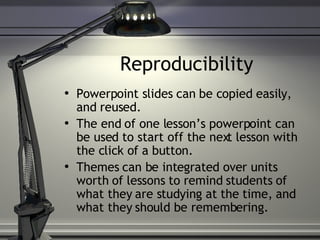
Reproducibility Powerpoint slides can be copied easily, and reused.  The end of one lesson’s powerpoint can be used to start off the next lesson with the click of a button. Themes can be integrated over units worth of lessons to remind students of what they are studying at the time, and what they should be remembering.
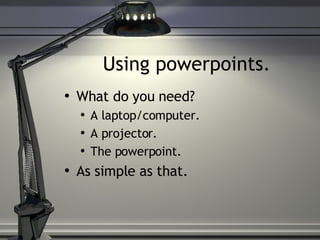
Using powerpoints. What do you need? A laptop/computer. A projector. The powerpoint. As simple as that.
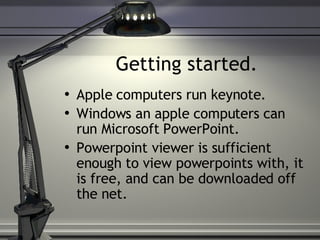
Getting started. Apple computers run keynote. Windows an apple computers can run Microsoft PowerPoint. Powerpoint viewer is sufficient enough to view powerpoints with, it is free, and can be downloaded off the net.
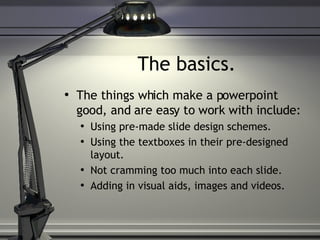
The basics. The things which make a powerpoint good, and are easy to work with include: Using pre-made slide design schemes. Using the textboxes in their pre-designed layout. Not cramming too much into each slide. Adding in visual aids, images and videos.
Starting Off The basic starter slide. Adding a template. Ideas for the first few slides.
Adding Files Images Video Files – YouTube. Animations
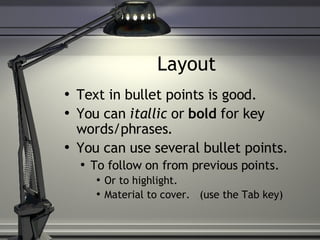
Layout Text in bullet points is good. You can  itallic  or  bold  for key words/phrases. You can use several bullet points. To follow on from previous points. Or to highlight. Material to cover.  (use the Tab key)
Key Points Summary Keep the material simple, rewriting into own-words can help. Jaz it up with a good template and some graphics. Integrate questions and problems into the theory notes.

Using Powerpoints in the Secondary Classroom

  • 1.
    PowerPoint Presentations Usingthem for effective and efficient teaching practice.
  • 2.
    Interested in powerpoints?Why do they appeal to you?
  • 3.
    Key Reasons EngagingStudents Reproducibility Time Management Planning and Preparation Visual cues/aids.
  • 4.
    Where to begin?What do powerpoints offer? Freedom from the whiteboard. Simple backtracking on work. Controllable. Can be shared with students, no need for constant copying’ down of notes.
  • 5.
    Planning and PreparationThis is where it begins. Powerpoints are quick and easy to make up. They are self contained files, will hold everything you need. Powerpoints you make once and always have there for further years, whenever you need to teach the subject again. Sometimes all you will need when you walk in the room, is a laptop, the file, and a projector, simple and easy.
  • 6.
    Planning and PreparationPowerpoints can be made from anywhere, be it in your office space during the day, or at home at night. Once they are made, that can be you done for the day. It means you walk in the room with all you need, and with no worries of “what will I do today”.
  • 7.
    Planning and PreparationIf you are really keen you can plan several powerpoints in advance. And if you do not finish everything you want too for one lesson, it is as simple as copy-pasting the slides into the next powerpoint.
  • 8.
    Planning and PreparationPowerpoints are a good way of putting up course goals or daily goals, at the start of a powerpoint, and continually referring back to them each lesson, simply by a click of a button.
  • 9.
    Time Management Oncea powerpoint is made, you can go back over it and work through in your head to figure out how long it would take you to get through the work, or for the students to do the problems. If need be, you can add more in, or take more out.
  • 10.
    Time Management Ifyou need to skip ahead to some work, you have it there to skip ahead too. If you need to move on, you can make the powerpoint available to students to go back over for notes. If you want to quickly bring up answers to questions, then you can do so quickly and easily.
  • 11.
    Time Management Youcan continuously monitor how far through the lesson’s material you are by judging how much of the powerpoint you have completed. Pages can easily be numbered. Cues can be hidden away to remind you what’s coming next. o
  • 12.
    Classroom Freedom Onceyou are in the room, with the powerpoint running, it makes it a lot easier to keep a class under control. If you can wipe a board clean, and put up several lines of new work, in a click of a button, it certainly makes it a lot faster then writing it up.
  • 13.
    Classroom Freedom Ifwhat you need to discuss is up on the whiteboard, then you can just click, its there, and then you can walk around the room talking about it, or getting student’s input. This shy’s away from the standard chalk-and-talk.
  • 14.
    Classroom Freedom Thesedays you can get technology which works in marvelous ways. One example is a remote control which allows you to control powerpoints from anywhere in a classroom, as well as locate and highlight key points with a built in laser pointer.
  • 15.
    Student Interactions Studentscan be actively more engaged through the use of powerpoints, then with a standard whiteboard. They do not have to wait for material to be written up. Pictures and videos make the learning process that much more interesting and understandable.
  • 16.
  • 17.
    Substitution Reaction Lightis needed to make the reaction occur.
  • 18.
    Student Interactions Involvingstudents is easy. Powerpoints can be modified, recording students work, updating new ideas. The more time you have to talk with the students, discussing an idea, explaining it, getting them involved, the better. Certainly better then spending several minutes trying to write up everything on the whiteboard.
  • 19.
    Students Interactions Ifa student is stuck on a particular spot, its easy to back track a few slides and highlight where they are stuck. This is not quite so easy to do if you just wiped off the last lot of notes and questions.
  • 20.
    Students Interactions Powerpointsaren’t the be-all-end-all, you can still structure questions on the whiteboard, put up by the projector, and then write over them with a whiteboard marker. Makes it easy to work through problems with students, in a logical, ordered sense. No more messy whiteboard.
  • 21.
    What can beintegrated with powerpoints? Static Images - pictures/photos. Moving Images - Animated files. Video - Video files. Youtube Videos - paving the way forward for the replacement of the TV and VCR.
  • 22.
    Pictures Images includedin powerpoints and put up through a projector are clearer and look better then images from a OHT. Pictures tell a thousand words, and powerpoints enable those who cannot draw to speak.
  • 23.
  • 24.
    Videos Video clipsare easy to add into powerpoint slides, its just a click and drop, then they just need one click to play. Links opening up web browsers to the likes of YouTube and other video sites opens up multimedia at your fingertips.
  • 25.
    Reproducibility Powerpoint slidescan be copied easily, and reused. The end of one lesson’s powerpoint can be used to start off the next lesson with the click of a button. Themes can be integrated over units worth of lessons to remind students of what they are studying at the time, and what they should be remembering.
  • 26.
    Using powerpoints. Whatdo you need? A laptop/computer. A projector. The powerpoint. As simple as that.
  • 27.
    Getting started. Applecomputers run keynote. Windows an apple computers can run Microsoft PowerPoint. Powerpoint viewer is sufficient enough to view powerpoints with, it is free, and can be downloaded off the net.
  • 28.
    The basics. Thethings which make a powerpoint good, and are easy to work with include: Using pre-made slide design schemes. Using the textboxes in their pre-designed layout. Not cramming too much into each slide. Adding in visual aids, images and videos.
  • 29.
    Starting Off Thebasic starter slide. Adding a template. Ideas for the first few slides.
  • 30.
    Adding Files ImagesVideo Files – YouTube. Animations
  • 31.
    Layout Text inbullet points is good. You can itallic or bold for key words/phrases. You can use several bullet points. To follow on from previous points. Or to highlight. Material to cover. (use the Tab key)
  • 32.
    Key Points SummaryKeep the material simple, rewriting into own-words can help. Jaz it up with a good template and some graphics. Integrate questions and problems into the theory notes.