
Prezi Lessons 1 & 2
PREZI – Why Use Prezi 1) Introduction       Screen number (1)


 Points highlighted one at a time
                                        Misc Notes can go here
 Opening Screen – Prezi Logo            Prezi is an online presentation tool
 Cloud logo also on slide template      that can be used instead of
                                        Powerpoint. There is nothing to
 Navigation buttons on screen           download, the application is in the
                                        Cloud. Prezi can be used directly from
                                        an internet browser.


 Bullets:

 Online Presentation Tool

 Alternative to Powerpoint

 Cloud Based


Lisa Donaldson D12122634
                                                            1
PREZI – Why Use Prezi 2) Benefits                      Screen number (2)


 Logo animated to zoom in                               Misc Notes can go here
 Opening Screen – Prezi screen & collaboration image    Prezi calls itself the ‘zooming
 Navigation buttons on screen                           presentation editor’ and it’s a
                                                        very slick process zooming into
                                                        and out of different text and
                                                        embedded media.

                                                        Prezi is similar to a mind map in
                                                        the way you lay your
                                                        presentations out. It is non linear
                                                        allowing freedom to navigate
                                                        your presentation
 Bullets:

 Zooming                                                Easily share your prezis
                                                        for collaborating with others
 Non Linear

 Easy collaboration


Lisa Donaldson D12122634
                                                                           2
PREZI – Why Use Prezi 3) Overview                         Screen number (3)


 Click button to activate Overview video:                         Misc Notes can go here
 http://www.youtube.com/watch?v=pxhqD0hNx4Q
 What you will learn                                              Have a look at what Prezi can do!
 Bullets:                                                         In this module, you will gain and
 Text, Images and Video zoom onto screen as image icons           overview of Prezi and learn how to use
 Overview of Prezi Application/link to Prezi Overview             the application to create an engaging
 Click link to Paul Hill’s presentation:                          online presentation that you can easily
 Create engaging presentations using Text, Images and Video
 http://prezi.com/rfsnedhqmhqa/thoughts-on-using-prezi-as-a-      share with your colleagues or students.
 teaching-tool/
 Share and present your presentations                             Click the button to view Prezi’s
                                                                  overview to the application and to gain
                                                                  an insight as to how you can use Prezi
                                                                  for educational purposes, please click
 Still from Paul Hill’s Video                                     the link to view Paul Hill’s
                                                                  presentation on using Prezi as a
                                                                  teaching tool.


Lisa Donaldson D12122634
                                                                                       3
PREZI – Why Use Prezi 4) Activities                             Screen number (4)


Webinar URL - https://prezi.webex.com/mw0307l/mywebex/default.do?   Activities to Try
                                                                    Misc Notes can go here
siteurl=prezi
                                                                    Sign up for the beginning Prezi
                                                                    webminar which runs regularly


                                                                    Go on a WebQuest to Prezi.com to
                                                                    review online prezi examples.
                                                                    Choose Explore and examine
                                                                    samples of Prezi presentations.
                                                                    When you find an interesting
                                                                    presentation, copy the URL and
                                                                    post it to our Discussion Forum.
Bullets: Activities to Try                                          That way, you can share the
Register for Webinar                                                presentations you find most
                                                                    effective …. And see what works
WebQuest to Prezi.com                                               for others!


        Lisa Donaldson D12122634
                                                                                     4
PREZI – Creating an Account 1) Introduction     Screen number (1)


 Screencast of creating an Account with Prezi   Misc Notes can go here
 Opening Screen –                               Prezi allows you to create many
                                                different kinds of accounts from free to a
 Screencast of creating an Account with Prezi   paid subscription.

                                                There is an option for educators to
                                                create free accounts. This is the one you
                                                should select. This allows you to create
                                                private presentations where you can
                                                decide who to share them with. It also
                                                comes with 500 mb of free storage and
                                                support should you need it.

                                                To create your account, you will need to
                                                input your college/institution email
                                                address. A confirmation email will be
                                                sent to this address which you must
                                                activate to complete your account
                                                registration


Lisa Donaldson D12122634
                                                                      5
PREZI – Logging in to your Account 2) Login   Screen number (2)


                                              Misc Notes can go here
 Opening Screen –                             Go to Prezi.com and click the Log in
                                              button in the top right hand corner. Type
 Screencast of Logging in to Prezi            in your username and password and
                                              click Log In.

                                              Once you log in, any presentations you
                                              have already created will be visible. And
                                              from here you can now create new
                                              presentations.

                                              Click on the link for New Prezi and a
                                              dialog box will open for you to input the
                                              title and a description if you wish for
                                              your new presentation. Click New Prezi
                                              to continue. You will now be presented
                                              with a choice of templates to use. Scroll
                                              down to examine your options and
                                              choose a suitable template or choose to
                                              start with a blank canvas. You are now
                                              ready to start creating the text for your
                                              prezi


Lisa Donaldson D12122634
                                                                    6
PREZI – Logging in to your Account 3) Activities         Screen number (3)


 Activities
                                                         Misc Notes canwork!
                                                         It’s time to get to
                                                                             go here
 Opening Screen –
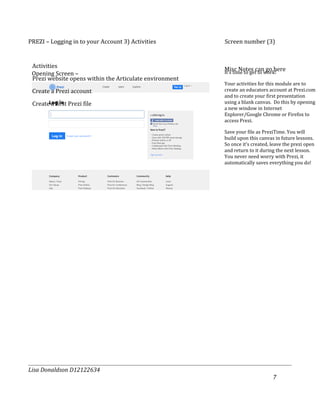
 Prezi website opens within the Articulate environment
                                                         Your activities for this module are to
 Create a Prezi account                                  create an educators account at Prezi.com
                                                         and to create your first presentation
 Create a first Prezi file                               using a blank canvas. Do this by opening
                                                         a new window in Internet
                                                         Explorer/Google Chrome or Firefox to
                                                         access Prezi.

                                                         Save your file as PreziTime. You will
                                                         build upon this canvas in future lessons.
                                                         So once it’s created, leave the prezi open
                                                         and return to it during the next lesson.
                                                         You never need worry with Prezi, it
                                                         automatically saves everything you do!


Lisa Donaldson D12122634
                                                                               7
Prezi Lessons 2 & 3
PREZI – A first look at Prezi 1) Canvas            Screen number (1)


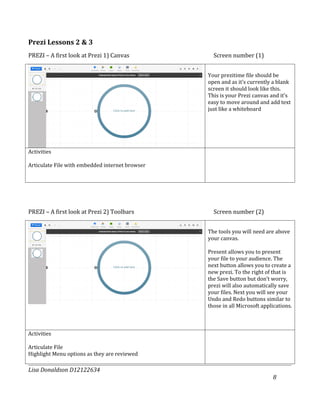
                                                 Your prezitime file should be
                                                 open and as it’s currently a blank
                                                 screen it should look like this.
                                                 This is your Prezi canvas and it’s
                                                 easy to move around and add text
                                                 just like a whiteboard


Activities

Articulate File with embedded internet browser


PREZI – A first look at Prezi 2) Toolbars          Screen number (2)


                                                 The tools you will need are above
                                                 your canvas.

                                                 Present allows you to present
                                                 your file to your audience. The
                                                 next button allows you to create a
                                                 new prezi. To the right of that is
                                                 the Save button but don’t worry,
                                                 prezi will also automatically save
                                                 your files. Next you will see your
                                                 Undo and Redo buttons similar to
                                                 those in all Microsoft applications.


Activities

Articulate File
Highlight Menu options as they are reviewed

Lisa Donaldson D12122634
                                                                            8
PREZI – A first look at Prezi 2) Toolbars               Screen number (3)


                                                      Above the centre of the canvas
                                                      are the tools you will need to add
                                                      Frames for positioning items,
                                                      colour Themes, Images, Shapes,
                                                      and Media to your presentation
                                                      or to import any of your existing
                                                      PowerPoint files. You will learn
                                                      how to use these as you progress
                                                      through the course.

                                                      Continuing at the top of the
                                                      screen are additional buttons to
                                                      allow you to share, print, change
                                                      the settings of or get help with
                                                      your Prezi.

                                                      Finally if you move your cursor
                                                      onto the canvas you will see your
                                                      zoom in, zoom out and home
                                                      buttons which allow you to
                                                      navigate your canvas.


Activities

Screencast & internet window within Articulate File
Highlight Menu options as they are reviewed


PREZI – A first look at Prezi 3) Adding Text            Screen number (4)


Lisa Donaldson D12122634
                                                                                 9
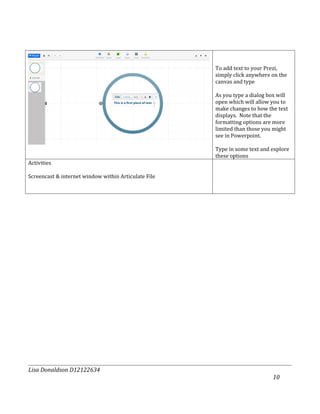
To add text to your Prezi,
                                                      simply click anywhere on the
                                                      canvas and type

                                                      As you type a dialog box will
                                                      open which will allow you to
                                                      make changes to how the text
                                                      displays. Note that the
                                                      formatting options are more
                                                      limited than those you might
                                                      see in Powerpoint.

                                                      Type in some text and explore
                                                      these options
Activities

Screencast & internet window within Articulate File


Lisa Donaldson D12122634
                                                                             10
PREZI – A first look at Prezi 3) Adding Text               Screen number (5)


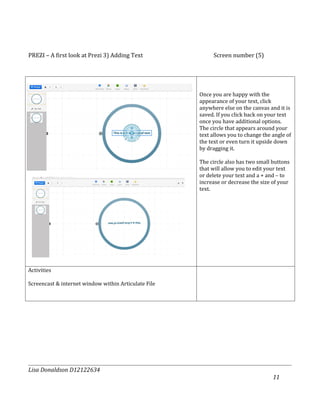
                                                      Once you are happy with the
                                                      appearance of your text, click
                                                      anywhere else on the canvas and it is
                                                      saved. If you click back on your text
                                                      once you have additional options.
                                                      The circle that appears around your
                                                      text allows you to change the angle of
                                                      the text or even turn it upside down
                                                      by dragging it.

                                                      The circle also has two small buttons
                                                      that will allow you to edit your text
                                                      or delete your text and a + and – to
                                                      increase or decrease the size of your
                                                      text.


Activities

Screencast & internet window within Articulate File


Lisa Donaldson D12122634
                                                                                    11
PREZI – A first look at Prezi 3) Adding Text          Screen number (6)


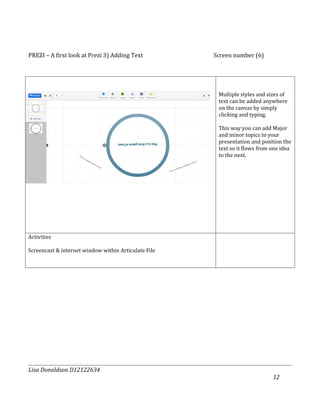
                                                       Multiple styles and sizes of
                                                       text can be added anywhere
                                                       on the canvas by simply
                                                       clicking and typing.

                                                       This way you can add Major
                                                       and minor topics to your
                                                       presentation and position the
                                                       text so it flows from one idea
                                                       to the next.


Activities

Screencast & internet window within Articulate File


Lisa Donaldson D12122634
                                                                             12
PREZI – How much do you remember                                             Screen number (7)


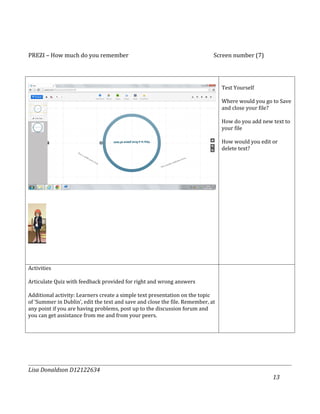
                                                                                 Test Yourself

                                                                                 Where would you go to Save
                                                                                 and close your file?

                                                                                 How do you add new text to
                                                                                 your file

                                                                                 How would you edit or
                                                                                 delete text?


Activities

Articulate Quiz with feedback provided for right and wrong answers

Additional activity: Learners create a simple text presentation on the topic
of ‘Summer in Dublin’, edit the text and save and close the file. Remember, at
any point if you are having problems, post up to the discussion forum and
you can get assistance from me and from your peers.


Lisa Donaldson D12122634
                                                                                                    13
Prezi Lesson 5
PREZI – Zooming and Creating the Path                                       Screen number (1)
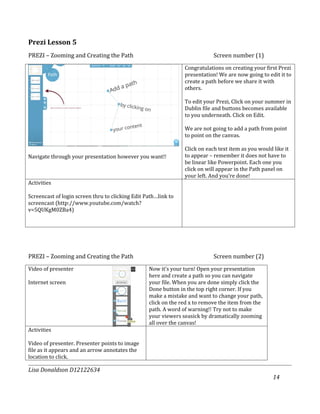
                                                                Congratulations on creating your first Prezi
                                                                presentation! We are now going to edit it to
                                                                create a path before we share it with
                                                                others.

                                                                To edit your Prezi, Click on your summer in
                                                                Dublin file and buttons becomes available
                                                                to you underneath. Click on Edit.

                                                                We are not going to add a path from point
                                                                to point on the canvas.

                                                                Click on each text item as you would like it
Navigate through your presentation however you want!!           to appear – remember it does not have to
                                                                be linear like Powerpoint. Each one you
                                                                click on will appear in the Path panel on
                                                                your left. And you’re done!
Activities

Screencast of login screen thru to clicking Edit Path…link to
screencast (http://www.youtube.com/watch?
v=5QUKgM0ZBa4)


PREZI – Zooming and Creating the Path                                       Screen number (2)
Video of presenter                                Now it’s your turn! Open your presentation
                                                  here and create a path so you can navigate
Internet screen                                   your file. When you are done simply click the
                                                  Done button in the top right corner. If you
                                                  make a mistake and want to change your path,
                                                  click on the red x to remove the item from the
                                                  path. A word of warning!! Try not to make
                                                  your viewers seasick by dramatically zooming
                                                  all over the canvas!
Activities

Video of presenter. Presenter points to image
file as it appears and an arrow annotates the
location to click.

Lisa Donaldson D12122634
                                                                                                     14
Student creates path as an activity


PREZI – Presenting and Sharing                           Screen number (1)
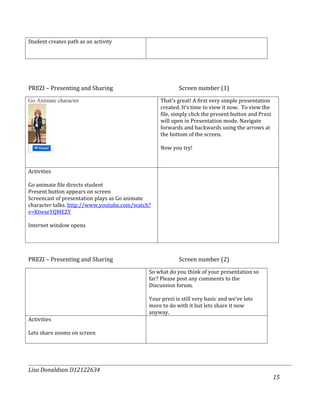
Go Animate character                              That’s great! A first very simple presentation
                                                  created. It’s time to view it now. To view the
                                                  file, simply click the present button and Prezi
                                                  will open in Presentation mode. Navigate
                                                  forwards and backwards using the arrows at
                                                  the bottom of the screen.

                                                  Now you try!


Activities

Go animate file directs student
Present button appears on screen
Screencast of presentation plays as Go animate
character talks. http://www.youtube.com/watch?
v=KtwseYQMEZY

Internet window opens


PREZI – Presenting and Sharing                           Screen number (2)
                                             So what do you think of your presentation so
                                             far? Please post any comments to the
                                             Discussion forum.

                                             Your prezi is still very basic and we’ve lots
                                             more to do with it but lets share it now
                                             anyway.
Activities

Lets share zooms on screen


Lisa Donaldson D12122634
                                                                                                    15
PREZI – Presenting and Sharing           Screen number (3)
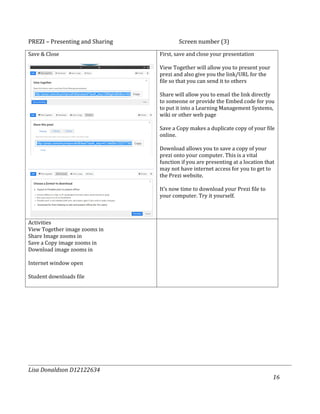
Save & Close                     First, save and close your presentation

                                 View Together will allow you to present your
                                 prezi and also give you the link/URL for the
                                 file so that you can send it to others

                                 Share will allow you to email the link directly
                                 to someone or provide the Embed code for you
                                 to put it into a Learning Management Systems,
                                 wiki or other web page

                                 Save a Copy makes a duplicate copy of your file
                                 online.

                                 Download allows you to save a copy of your
                                 prezi onto your computer. This is a vital
                                 function if you are presenting at a location that
                                 may not have internet access for you to get to
                                 the Prezi website.

                                 It’s now time to download your Prezi file to
                                 your computer. Try it yourself.


Activities
View Together image zooms in
Share Image zooms in
Save a Copy image zooms in
Download image zooms in

Internet window open

Student downloads file


Lisa Donaldson D12122634
                                                                                 16
PREZI – Presenting and Sharing               Screen number (4)


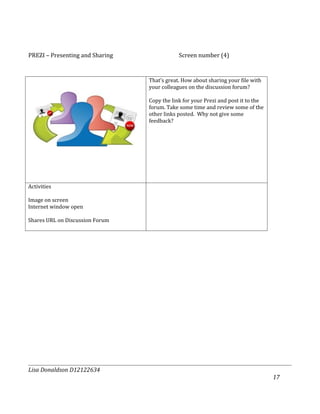
                                 That’s great. How about sharing your file with
                                 your colleagues on the discussion forum?

                                 Copy the link for your Prezi and post it to the
                                 forum. Take some time and review some of the
                                 other links posted. Why not give some
                                 feedback?


Activities

Image on screen
Internet window open

Shares URL on Discussion Forum


Lisa Donaldson D12122634
                                                                                   17
Prezi Lesson 6
PREZI – Adding Images and Video                Screen number (1)
                                  So what did you think of your fellow students
                                  files? I agree they’re a little basic at the
Video of presenter                moment but that’s what we’re going to look at
                                  now.

                                  We’re going to examine adding images and
                                  videos to your prezi. I think you’ll be really
                                  pleased with the finished result.


Activities


PREZI – Adding Images and Video                Screen number (2)
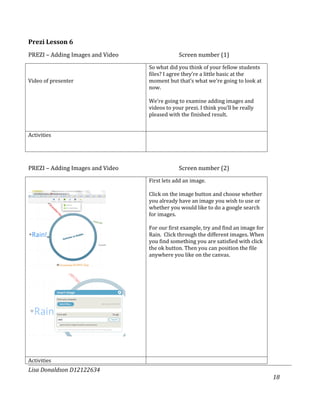
                                  First lets add an image.

                                  Click on the image button and choose whether
                                  you already have an image you wish to use or
                                  whether you would like to do a google search
                                  for images.

                                  For our first example, try and find an image for
                                  Rain. Click through the different images. When
                                  you find something you are satisfied with click
                                  the ok button. Then you can position the file
                                  anywhere you like on the canvas.


Activities
Lisa Donaldson D12122634
                                                                                     18
Screenshot appears first
Image of Rain image being inserted is next
Internet screen open


PREZI – Adding Images and Video                         Screen number (3)
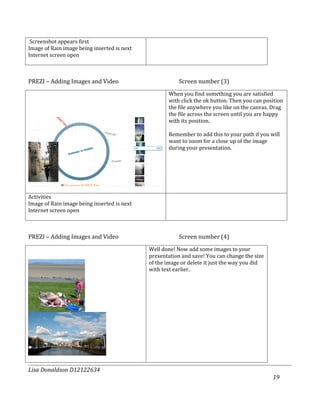
                                                    When you find something you are satisfied
                                                    with click the ok button. Then you can position
                                                    the file anywhere you like on the canvas. Drag
                                                    the file across the screen until you are happy
                                                    with its position.

                                                    Remember to add this to your path if you will
                                                    want to zoom for a close up of the image
                                                    during your presentation.


Activities
Image of Rain image being inserted is next
Internet screen open


PREZI – Adding Images and Video                         Screen number (4)
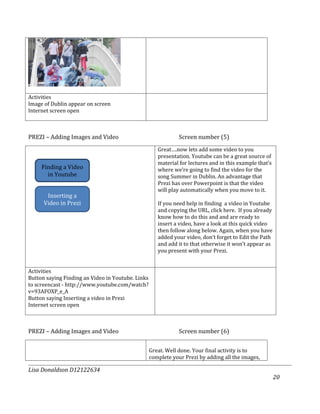
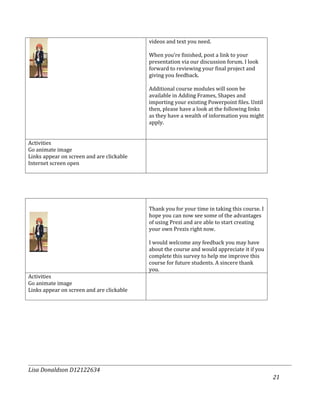
                                             Well done! Now add some images to your
                                             presentation and save! You can change the size
                                             of the image or delete it just the way you did
                                             with text earlier.


Lisa Donaldson D12122634
                                                                                              19
Activities
Image of Dublin appear on screen
Internet screen open


PREZI – Adding Images and Video                                Screen number (5)
                                                      Great….now lets add some video to you
                                                      presentation. Youtube can be a great source of
                                                      material for lectures and in this example that’s
     Finding a Video                                  where we’re going to find the video for the
       in Youtube                                     song Summer in Dublin. An advantage that
                                                      Prezi has over Powerpoint is that the video
                                                      will play automatically when you move to it.
       Inserting a
      Video in Prezi                                  If you need help in finding a video in Youtube
                                                      and copying the URL, click here. If you already
                                                      know how to do this and and are ready to
                                                      insert a video, have a look at this quick video
                                                      then follow along below. Again, when you have
                                                      added your video, don’t forget to Edit the Path
                                                      and add it to that otherwise it won’t appear as
                                                      you present with your Prezi.


Activities
Button saying Finding an Video in Youtube. Links
to screencast - http://www.youtube.com/watch?
v=93AFOXP_e_A
Button saying Inserting a video in Prezi
Internet screen open


PREZI – Adding Images and Video                                Screen number (6)


                                                   Great. Well done. Your final activity is to
                                                   complete your Prezi by adding all the images,

Lisa Donaldson D12122634
                                                                                                         20
videos and text you need.

                                           When you’re finished, post a link to your
                                           presentation via our discussion forum. I look
                                           forward to reviewing your final project and
                                           giving you feedback.

                                           Additional course modules will soon be
                                           available in Adding Frames, Shapes and
                                           importing your existing Powerpoint files. Until
                                           then, please have a look at the following links
                                           as they have a wealth of information you might
                                           apply.


Activities
Go animate image
Links appear on screen and are clickable
Internet screen open


                                           Thank you for your time in taking this course. I
                                           hope you can now see some of the advantages
                                           of using Prezi and are able to start creating
                                           your own Prezis right now.

                                           I would welcome any feedback you may have
                                           about the course and would appreciate it if you
                                           complete this survey to help me improve this
                                           course for future students. A sincere thank
                                           you.
Activities
Go animate image
Links appear on screen and are clickable


Lisa Donaldson D12122634
                                                                                              21
videos and text you need.

                                           When you’re finished, post a link to your
                                           presentation via our discussion forum. I look
                                           forward to reviewing your final project and
                                           giving you feedback.

                                           Additional course modules will soon be
                                           available in Adding Frames, Shapes and
                                           importing your existing Powerpoint files. Until
                                           then, please have a look at the following links
                                           as they have a wealth of information you might
                                           apply.


Activities
Go animate image
Links appear on screen and are clickable
Internet screen open


                                           Thank you for your time in taking this course. I
                                           hope you can now see some of the advantages
                                           of using Prezi and are able to start creating
                                           your own Prezis right now.

                                           I would welcome any feedback you may have
                                           about the course and would appreciate it if you
                                           complete this survey to help me improve this
                                           course for future students. A sincere thank
                                           you.
Activities
Go animate image
Links appear on screen and are clickable


Lisa Donaldson D12122634
                                                                                              21
videos and text you need.

                                           When you’re finished, post a link to your
                                           presentation via our discussion forum. I look
                                           forward to reviewing your final project and
                                           giving you feedback.

                                           Additional course modules will soon be
                                           available in Adding Frames, Shapes and
                                           importing your existing Powerpoint files. Until
                                           then, please have a look at the following links
                                           as they have a wealth of information you might
                                           apply.


Activities
Go animate image
Links appear on screen and are clickable
Internet screen open


                                           Thank you for your time in taking this course. I
                                           hope you can now see some of the advantages
                                           of using Prezi and are able to start creating
                                           your own Prezis right now.

                                           I would welcome any feedback you may have
                                           about the course and would appreciate it if you
                                           complete this survey to help me improve this
                                           course for future students. A sincere thank
                                           you.
Activities
Go animate image
Links appear on screen and are clickable


Lisa Donaldson D12122634
                                                                                              21

Prezi storyboards all

  • 1.
    Prezi Lessons 1& 2 PREZI – Why Use Prezi 1) Introduction Screen number (1) Points highlighted one at a time Misc Notes can go here Opening Screen – Prezi Logo Prezi is an online presentation tool Cloud logo also on slide template that can be used instead of Powerpoint. There is nothing to Navigation buttons on screen download, the application is in the Cloud. Prezi can be used directly from an internet browser. Bullets: Online Presentation Tool Alternative to Powerpoint Cloud Based Lisa Donaldson D12122634 1
  • 2.
    PREZI – WhyUse Prezi 2) Benefits Screen number (2) Logo animated to zoom in Misc Notes can go here Opening Screen – Prezi screen & collaboration image Prezi calls itself the ‘zooming Navigation buttons on screen presentation editor’ and it’s a very slick process zooming into and out of different text and embedded media. Prezi is similar to a mind map in the way you lay your presentations out. It is non linear allowing freedom to navigate your presentation Bullets: Zooming Easily share your prezis for collaborating with others Non Linear Easy collaboration Lisa Donaldson D12122634 2
  • 3.
    PREZI – WhyUse Prezi 3) Overview Screen number (3) Click button to activate Overview video: Misc Notes can go here http://www.youtube.com/watch?v=pxhqD0hNx4Q What you will learn Have a look at what Prezi can do! Bullets: In this module, you will gain and Text, Images and Video zoom onto screen as image icons overview of Prezi and learn how to use Overview of Prezi Application/link to Prezi Overview the application to create an engaging Click link to Paul Hill’s presentation: online presentation that you can easily Create engaging presentations using Text, Images and Video http://prezi.com/rfsnedhqmhqa/thoughts-on-using-prezi-as-a- share with your colleagues or students. teaching-tool/ Share and present your presentations Click the button to view Prezi’s overview to the application and to gain an insight as to how you can use Prezi for educational purposes, please click Still from Paul Hill’s Video the link to view Paul Hill’s presentation on using Prezi as a teaching tool. Lisa Donaldson D12122634 3
  • 4.
    PREZI – WhyUse Prezi 4) Activities Screen number (4) Webinar URL - https://prezi.webex.com/mw0307l/mywebex/default.do? Activities to Try Misc Notes can go here siteurl=prezi Sign up for the beginning Prezi webminar which runs regularly Go on a WebQuest to Prezi.com to review online prezi examples. Choose Explore and examine samples of Prezi presentations. When you find an interesting presentation, copy the URL and post it to our Discussion Forum. Bullets: Activities to Try That way, you can share the Register for Webinar presentations you find most effective …. And see what works WebQuest to Prezi.com for others! Lisa Donaldson D12122634 4
  • 5.
    PREZI – Creatingan Account 1) Introduction Screen number (1) Screencast of creating an Account with Prezi Misc Notes can go here Opening Screen – Prezi allows you to create many different kinds of accounts from free to a Screencast of creating an Account with Prezi paid subscription. There is an option for educators to create free accounts. This is the one you should select. This allows you to create private presentations where you can decide who to share them with. It also comes with 500 mb of free storage and support should you need it. To create your account, you will need to input your college/institution email address. A confirmation email will be sent to this address which you must activate to complete your account registration Lisa Donaldson D12122634 5
  • 6.
    PREZI – Loggingin to your Account 2) Login Screen number (2) Misc Notes can go here Opening Screen – Go to Prezi.com and click the Log in button in the top right hand corner. Type Screencast of Logging in to Prezi in your username and password and click Log In. Once you log in, any presentations you have already created will be visible. And from here you can now create new presentations. Click on the link for New Prezi and a dialog box will open for you to input the title and a description if you wish for your new presentation. Click New Prezi to continue. You will now be presented with a choice of templates to use. Scroll down to examine your options and choose a suitable template or choose to start with a blank canvas. You are now ready to start creating the text for your prezi Lisa Donaldson D12122634 6
  • 7.
    PREZI – Loggingin to your Account 3) Activities Screen number (3) Activities Misc Notes canwork! It’s time to get to go here Opening Screen – Prezi website opens within the Articulate environment Your activities for this module are to Create a Prezi account create an educators account at Prezi.com and to create your first presentation Create a first Prezi file using a blank canvas. Do this by opening a new window in Internet Explorer/Google Chrome or Firefox to access Prezi. Save your file as PreziTime. You will build upon this canvas in future lessons. So once it’s created, leave the prezi open and return to it during the next lesson. You never need worry with Prezi, it automatically saves everything you do! Lisa Donaldson D12122634 7
  • 8.
    Prezi Lessons 2& 3 PREZI – A first look at Prezi 1) Canvas Screen number (1) Your prezitime file should be open and as it’s currently a blank screen it should look like this. This is your Prezi canvas and it’s easy to move around and add text just like a whiteboard Activities Articulate File with embedded internet browser PREZI – A first look at Prezi 2) Toolbars Screen number (2) The tools you will need are above your canvas. Present allows you to present your file to your audience. The next button allows you to create a new prezi. To the right of that is the Save button but don’t worry, prezi will also automatically save your files. Next you will see your Undo and Redo buttons similar to those in all Microsoft applications. Activities Articulate File Highlight Menu options as they are reviewed Lisa Donaldson D12122634 8
  • 9.
    PREZI – Afirst look at Prezi 2) Toolbars Screen number (3) Above the centre of the canvas are the tools you will need to add Frames for positioning items, colour Themes, Images, Shapes, and Media to your presentation or to import any of your existing PowerPoint files. You will learn how to use these as you progress through the course. Continuing at the top of the screen are additional buttons to allow you to share, print, change the settings of or get help with your Prezi. Finally if you move your cursor onto the canvas you will see your zoom in, zoom out and home buttons which allow you to navigate your canvas. Activities Screencast & internet window within Articulate File Highlight Menu options as they are reviewed PREZI – A first look at Prezi 3) Adding Text Screen number (4) Lisa Donaldson D12122634 9
  • 10.
    To add textto your Prezi, simply click anywhere on the canvas and type As you type a dialog box will open which will allow you to make changes to how the text displays. Note that the formatting options are more limited than those you might see in Powerpoint. Type in some text and explore these options Activities Screencast & internet window within Articulate File Lisa Donaldson D12122634 10
  • 11.
    PREZI – Afirst look at Prezi 3) Adding Text Screen number (5) Once you are happy with the appearance of your text, click anywhere else on the canvas and it is saved. If you click back on your text once you have additional options. The circle that appears around your text allows you to change the angle of the text or even turn it upside down by dragging it. The circle also has two small buttons that will allow you to edit your text or delete your text and a + and – to increase or decrease the size of your text. Activities Screencast & internet window within Articulate File Lisa Donaldson D12122634 11
  • 12.
    PREZI – Afirst look at Prezi 3) Adding Text Screen number (6) Multiple styles and sizes of text can be added anywhere on the canvas by simply clicking and typing. This way you can add Major and minor topics to your presentation and position the text so it flows from one idea to the next. Activities Screencast & internet window within Articulate File Lisa Donaldson D12122634 12
  • 13.
    PREZI – Howmuch do you remember Screen number (7) Test Yourself Where would you go to Save and close your file? How do you add new text to your file How would you edit or delete text? Activities Articulate Quiz with feedback provided for right and wrong answers Additional activity: Learners create a simple text presentation on the topic of ‘Summer in Dublin’, edit the text and save and close the file. Remember, at any point if you are having problems, post up to the discussion forum and you can get assistance from me and from your peers. Lisa Donaldson D12122634 13
  • 14.
    Prezi Lesson 5 PREZI– Zooming and Creating the Path Screen number (1) Congratulations on creating your first Prezi presentation! We are now going to edit it to create a path before we share it with others. To edit your Prezi, Click on your summer in Dublin file and buttons becomes available to you underneath. Click on Edit. We are not going to add a path from point to point on the canvas. Click on each text item as you would like it Navigate through your presentation however you want!! to appear – remember it does not have to be linear like Powerpoint. Each one you click on will appear in the Path panel on your left. And you’re done! Activities Screencast of login screen thru to clicking Edit Path…link to screencast (http://www.youtube.com/watch? v=5QUKgM0ZBa4) PREZI – Zooming and Creating the Path Screen number (2) Video of presenter Now it’s your turn! Open your presentation here and create a path so you can navigate Internet screen your file. When you are done simply click the Done button in the top right corner. If you make a mistake and want to change your path, click on the red x to remove the item from the path. A word of warning!! Try not to make your viewers seasick by dramatically zooming all over the canvas! Activities Video of presenter. Presenter points to image file as it appears and an arrow annotates the location to click. Lisa Donaldson D12122634 14
  • 15.
    Student creates pathas an activity PREZI – Presenting and Sharing Screen number (1) Go Animate character That’s great! A first very simple presentation created. It’s time to view it now. To view the file, simply click the present button and Prezi will open in Presentation mode. Navigate forwards and backwards using the arrows at the bottom of the screen. Now you try! Activities Go animate file directs student Present button appears on screen Screencast of presentation plays as Go animate character talks. http://www.youtube.com/watch? v=KtwseYQMEZY Internet window opens PREZI – Presenting and Sharing Screen number (2) So what do you think of your presentation so far? Please post any comments to the Discussion forum. Your prezi is still very basic and we’ve lots more to do with it but lets share it now anyway. Activities Lets share zooms on screen Lisa Donaldson D12122634 15
  • 16.
    PREZI – Presentingand Sharing Screen number (3) Save & Close First, save and close your presentation View Together will allow you to present your prezi and also give you the link/URL for the file so that you can send it to others Share will allow you to email the link directly to someone or provide the Embed code for you to put it into a Learning Management Systems, wiki or other web page Save a Copy makes a duplicate copy of your file online. Download allows you to save a copy of your prezi onto your computer. This is a vital function if you are presenting at a location that may not have internet access for you to get to the Prezi website. It’s now time to download your Prezi file to your computer. Try it yourself. Activities View Together image zooms in Share Image zooms in Save a Copy image zooms in Download image zooms in Internet window open Student downloads file Lisa Donaldson D12122634 16
  • 17.
    PREZI – Presentingand Sharing Screen number (4) That’s great. How about sharing your file with your colleagues on the discussion forum? Copy the link for your Prezi and post it to the forum. Take some time and review some of the other links posted. Why not give some feedback? Activities Image on screen Internet window open Shares URL on Discussion Forum Lisa Donaldson D12122634 17
  • 18.
    Prezi Lesson 6 PREZI– Adding Images and Video Screen number (1) So what did you think of your fellow students files? I agree they’re a little basic at the Video of presenter moment but that’s what we’re going to look at now. We’re going to examine adding images and videos to your prezi. I think you’ll be really pleased with the finished result. Activities PREZI – Adding Images and Video Screen number (2) First lets add an image. Click on the image button and choose whether you already have an image you wish to use or whether you would like to do a google search for images. For our first example, try and find an image for Rain. Click through the different images. When you find something you are satisfied with click the ok button. Then you can position the file anywhere you like on the canvas. Activities Lisa Donaldson D12122634 18
  • 19.
    Screenshot appears first Imageof Rain image being inserted is next Internet screen open PREZI – Adding Images and Video Screen number (3) When you find something you are satisfied with click the ok button. Then you can position the file anywhere you like on the canvas. Drag the file across the screen until you are happy with its position. Remember to add this to your path if you will want to zoom for a close up of the image during your presentation. Activities Image of Rain image being inserted is next Internet screen open PREZI – Adding Images and Video Screen number (4) Well done! Now add some images to your presentation and save! You can change the size of the image or delete it just the way you did with text earlier. Lisa Donaldson D12122634 19
  • 20.
    Activities Image of Dublinappear on screen Internet screen open PREZI – Adding Images and Video Screen number (5) Great….now lets add some video to you presentation. Youtube can be a great source of material for lectures and in this example that’s Finding a Video where we’re going to find the video for the in Youtube song Summer in Dublin. An advantage that Prezi has over Powerpoint is that the video will play automatically when you move to it. Inserting a Video in Prezi If you need help in finding a video in Youtube and copying the URL, click here. If you already know how to do this and and are ready to insert a video, have a look at this quick video then follow along below. Again, when you have added your video, don’t forget to Edit the Path and add it to that otherwise it won’t appear as you present with your Prezi. Activities Button saying Finding an Video in Youtube. Links to screencast - http://www.youtube.com/watch? v=93AFOXP_e_A Button saying Inserting a video in Prezi Internet screen open PREZI – Adding Images and Video Screen number (6) Great. Well done. Your final activity is to complete your Prezi by adding all the images, Lisa Donaldson D12122634 20
  • 21.
    videos and textyou need. When you’re finished, post a link to your presentation via our discussion forum. I look forward to reviewing your final project and giving you feedback. Additional course modules will soon be available in Adding Frames, Shapes and importing your existing Powerpoint files. Until then, please have a look at the following links as they have a wealth of information you might apply. Activities Go animate image Links appear on screen and are clickable Internet screen open Thank you for your time in taking this course. I hope you can now see some of the advantages of using Prezi and are able to start creating your own Prezis right now. I would welcome any feedback you may have about the course and would appreciate it if you complete this survey to help me improve this course for future students. A sincere thank you. Activities Go animate image Links appear on screen and are clickable Lisa Donaldson D12122634 21
  • 22.
    videos and textyou need. When you’re finished, post a link to your presentation via our discussion forum. I look forward to reviewing your final project and giving you feedback. Additional course modules will soon be available in Adding Frames, Shapes and importing your existing Powerpoint files. Until then, please have a look at the following links as they have a wealth of information you might apply. Activities Go animate image Links appear on screen and are clickable Internet screen open Thank you for your time in taking this course. I hope you can now see some of the advantages of using Prezi and are able to start creating your own Prezis right now. I would welcome any feedback you may have about the course and would appreciate it if you complete this survey to help me improve this course for future students. A sincere thank you. Activities Go animate image Links appear on screen and are clickable Lisa Donaldson D12122634 21
  • 23.
    videos and textyou need. When you’re finished, post a link to your presentation via our discussion forum. I look forward to reviewing your final project and giving you feedback. Additional course modules will soon be available in Adding Frames, Shapes and importing your existing Powerpoint files. Until then, please have a look at the following links as they have a wealth of information you might apply. Activities Go animate image Links appear on screen and are clickable Internet screen open Thank you for your time in taking this course. I hope you can now see some of the advantages of using Prezi and are able to start creating your own Prezis right now. I would welcome any feedback you may have about the course and would appreciate it if you complete this survey to help me improve this course for future students. A sincere thank you. Activities Go animate image Links appear on screen and are clickable Lisa Donaldson D12122634 21