World®
’16
Upgrading	CA	Workload	
Automation	DE	to	R12
Lee	Roberson,	Senior	Principal	Consultant,	CA	Technologies
MFX28E
MAINFRAME
@CAWORLD					#CAWORLD
©	2016	CA.	All	rights	reserved.	All	trademarks	referenced	herein	belong	to	their	respective	companies.
The	content	provided	in	this CA	World	2016	presentation	is	intended	for	informational	purposes	only	and	does	not	form	any	type	of	
warranty. The information	provided	by	a	CA	partner	and/or	CA	customer	has	not	been	reviewed	for	accuracy	by	CA.	
For	Informational	Purposes	Only	
Terms	of	this	Presentation
@CAWORLD					#CAWORLD
Abstract
Learn	how	to	perform	an	upgrade	from	11.3	to	CA	Workload	
Automation	(CA	WA)	DE	R12	using	the	new	In-place	Upgrade	
Method.	The	in-place	upgrade	method	upgrades	the	server	to	
the	same	directory	on	your	computer	where	the	server	was	
originally	installed.
This	method	does	not	require	you	to	install	a	new	instance	of	
the	server	or	database	and	migrate	artifacts,	global	variables,	
and	history	data.
The	session	will	also	discuss	the	traditional	migration	method	as	
well.
Lee	Roberson
Senior	Principal	
Consultant,	CA	
Technologies
@CAWORLD					#CAWORLD
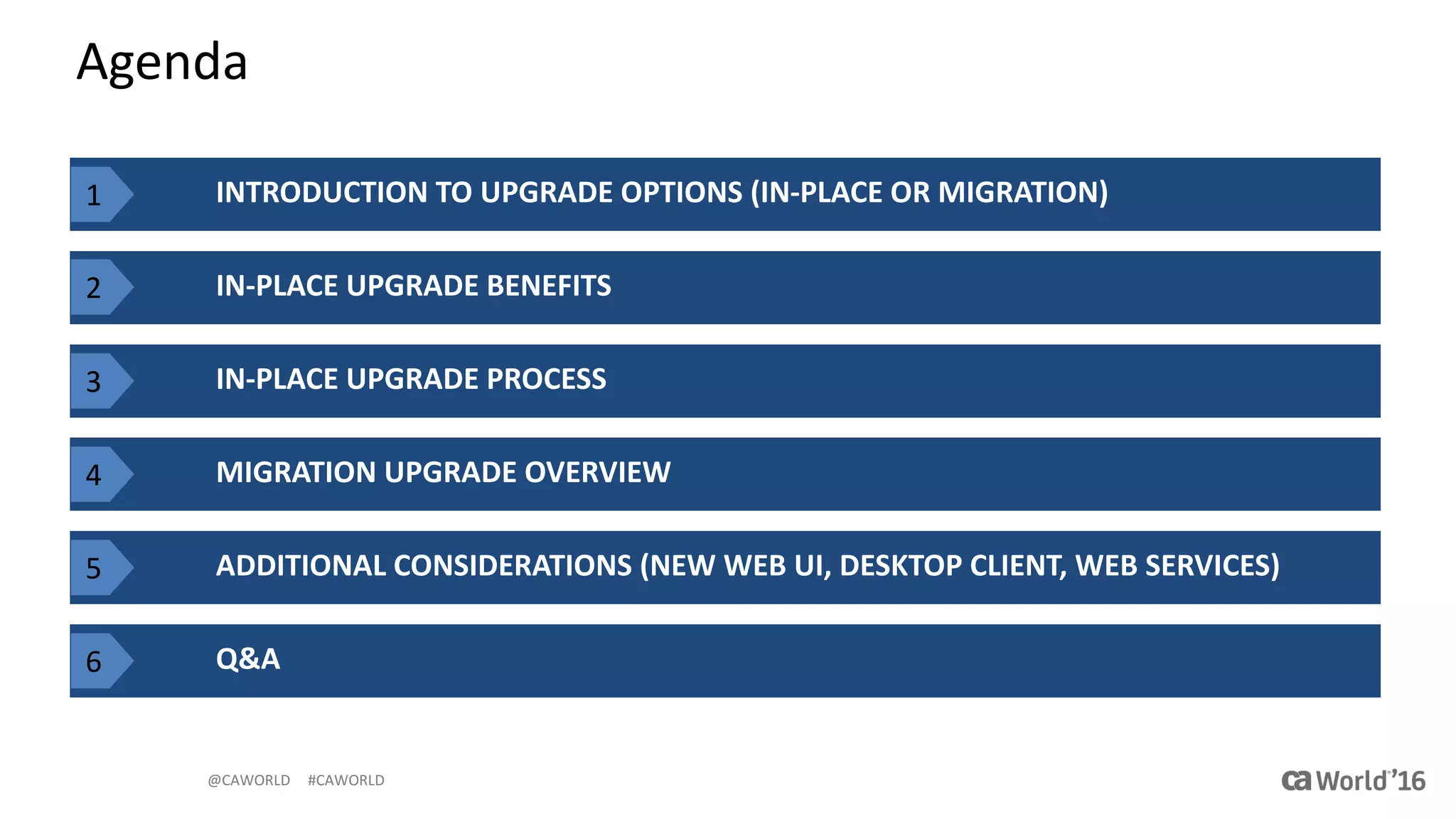
Agenda
INTRODUCTION	TO	UPGRADE	OPTIONS	(IN-PLACE	OR	MIGRATION)
IN-PLACE	UPGRADE	BENEFITS
Q&A
IN-PLACE	UPGRADE	PROCESS
MIGRATION	UPGRADE	OVERVIEW
ADDITIONAL	CONSIDERATIONS	(NEW	WEB	UI,	DESKTOP	CLIENT,	WEB	SERVICES)
1
2
3
4
5
6
@CAWORLD					#CAWORLD
In-place	Upgrade
§ In-place
§ Minimal	down-
time
§ Efficiency
Traditional	Migration	
§ New	install
§ Migrate	artifacts
§ Easy	Fail-back
CA	Workload	Automation	DE	Upgrade	Methods
Two	options	provide	upgrade	
flexibility	to	support	client	
requirements
Each	upgrade	method	has	
Advantages
@CAWORLD					#CAWORLD
CA	WA	DE	Upgrade	Options
§ In-place	Upgrade	Method
– New	simplified	upgrade	process	introduced	in	R12.0
– Upgrades	CA	WA	DE	Server	in	the	same	directory	on	your	computer	where	the	server	was	originally	installed
– Use	the	in-place	upgrade	method	to	upgrade	the	server	from	r11.3	SP3	build	1406	or	higher
– Time taken	for	the upgrade	from	11.3.03	or	12.0	to	12.0.01	is	now	reduced	dramatically	(often	less	than	an	hour)
§ Migration	Method
– Install	new	instance	of	the	server	and	database
– Migrate	artifacts,	global	variables,	and	history	data	from	the	existing	server	to	the	new	server
– Use	the	migration	method	to	upgrade	the	server	from	r11.1	or	higher
©	2016	CA.	All	RIGHTS	RESERVED.5
@CAWORLD					#CAWORLD
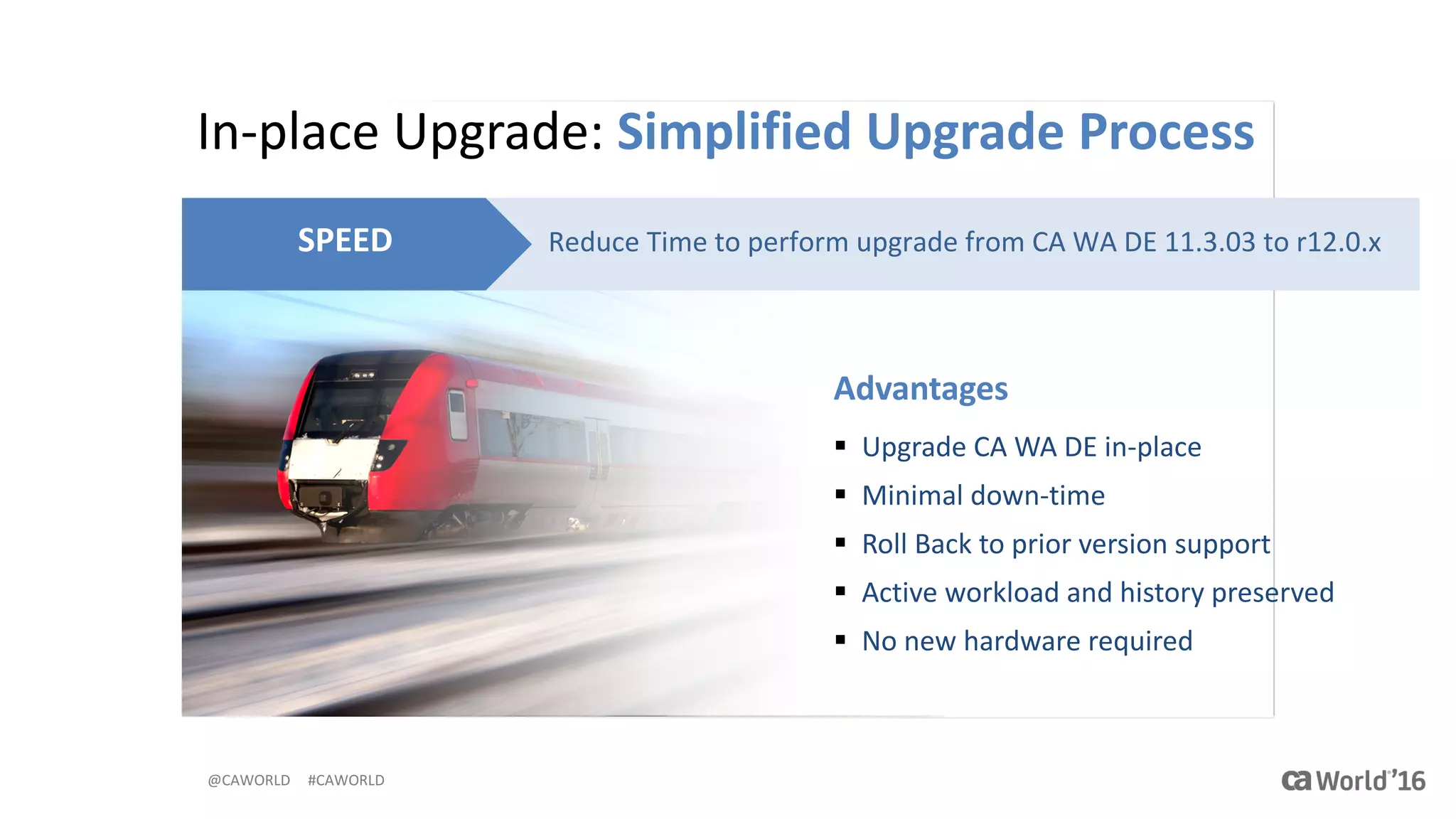
In-place	Upgrade:	Simplified	Upgrade	Process
Reduce	Time	to	perform	upgrade	from	CA	WA	DE	11.3.03	to	r12.0.xSPEED
Advantages
§ Upgrade	CA	WA	DE	in-place
§ Minimal	down-time
§ Roll	Back	to	prior	version	support
§ Active	workload	and	history	preserved
§ No	new	hardware	required
@CAWORLD					#CAWORLD
§ In-place	upgrade	can	be	used	to	upgrade	the	current	CA	WA	
DE	server	with	minimal	down	time
§ No	new	hardware	needed	to	install	the	new	CA	WA	DE	server	
and	migrate	the	data	as	with	migration	method
§ Active	workload	will	not	be	lost	during	in-place	upgrades
§ Active	workload	is	resumed	after	in-place	upgrade	is	
performed
In-place	Upgrade	Benefits
@CAWORLD					#CAWORLD
In-Place	Upgrade	High	Level	Overview
§ Upgrade	installation	upgrades:
– Configuration
– JRE	release	(except	on	z/Linux)
– Binary	and	library	files	on	the	server
– Updates	the	database	schema,	converts	artifacts	versions	(12.0	SP1)
§ It	does	NOT:
– Update	the	default	agent	that	was	installed	with	the	server
©	2016	CA.	All	RIGHTS	RESERVED.8
@CAWORLD					#CAWORLD
In-place	Upgrade	Procedure
1. Suspend	Events	to	stop	any	workload	to	be	triggered
2. Stop	the	CA	WA	DE	server
3. Take	database	backup
4. Perform	In-place	upgrade
5. Validation	- check	the	artifacts	prior	to	resuming	workload	
©	2016	CA.	All	RIGHTS	RESERVED.9
@CAWORLD					#CAWORLD
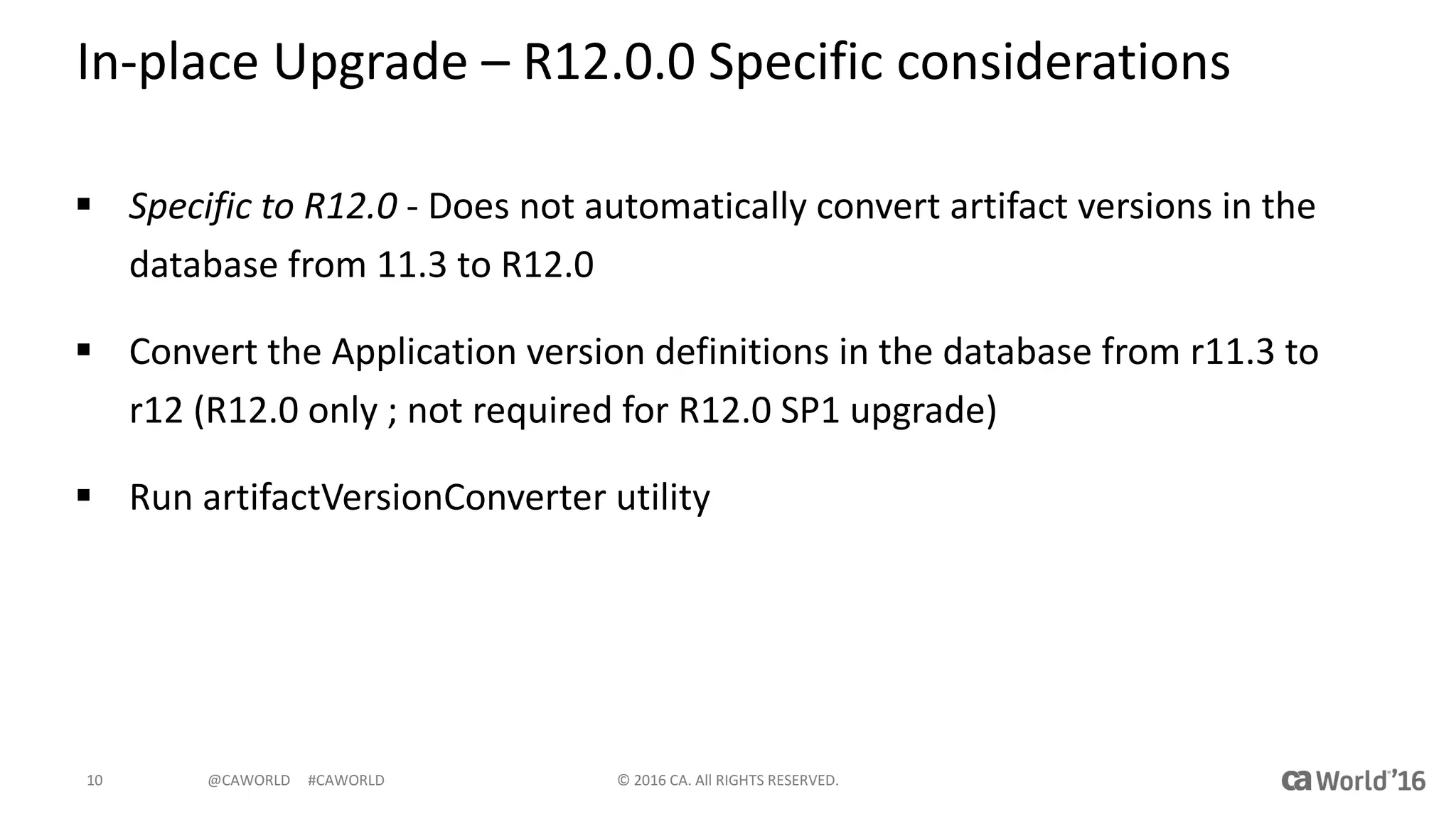
In-place	Upgrade	– R12.0.0	Specific	considerations
§ Specific	to	R12.0	- Does	not	automatically	convert	artifact	versions	in	the	
database	from	11.3	to	R12.0
§ Convert	the	Application	version	definitions	in	the	database	from	r11.3	to	
r12	(R12.0	only	;	not	required	for	R12.0	SP1	upgrade)
§ Run	artifactVersionConverter	utility
©	2016	CA.	All	RIGHTS	RESERVED.10
@CAWORLD					#CAWORLD
Convert	the	Application	version	definitions	(R12.0.0	only)
§ Convert	the	Application	version	definitions	in	the	database	from	r11.3	to	r12.0.0	(not	12.0	
SP1
– Download	/	extract	the artifactVersionsConverter.zip file	to	a	temporary	directory
§ Note:	You	can	also	download	the	artifactVersionsConverter.zip file	from	the	patch	RO86729
– Copy	the	artifactversionsconverter.jar	file	to:
§ server_install_dirlib	directory	(Windows)	or	the server_install_dir/lib	directory	(UNIX)
– Copy	the	artifactVersionsConverter script	to:
§ artifactVersionsConverter.bat	- server_install_dirbin	directory	(Windows)
§ artifactVersionsConverter.sh	to	the - server_install_dirbin	directory	(UNIX)
– (Optional)	Edit	artifactVersionsConverter file	to	set	MAX_HEAP_SIZE=4096
§ default	is	1	GB	may	need	to	increase	if	you	have	a	large	number	of	application	versions
– run	the	artifactVersionsConverter.bat	file	on	Windows	or	the	artifactVersionsConverter.sh	file	on	UNIX
– Verify	that	all	the	Application	versions	are	converted
§ see	the	cawa_home/logs/artifactversions.log
©	2016	CA.	All	RIGHTS	RESERVED.11
@CAWORLD					#CAWORLD
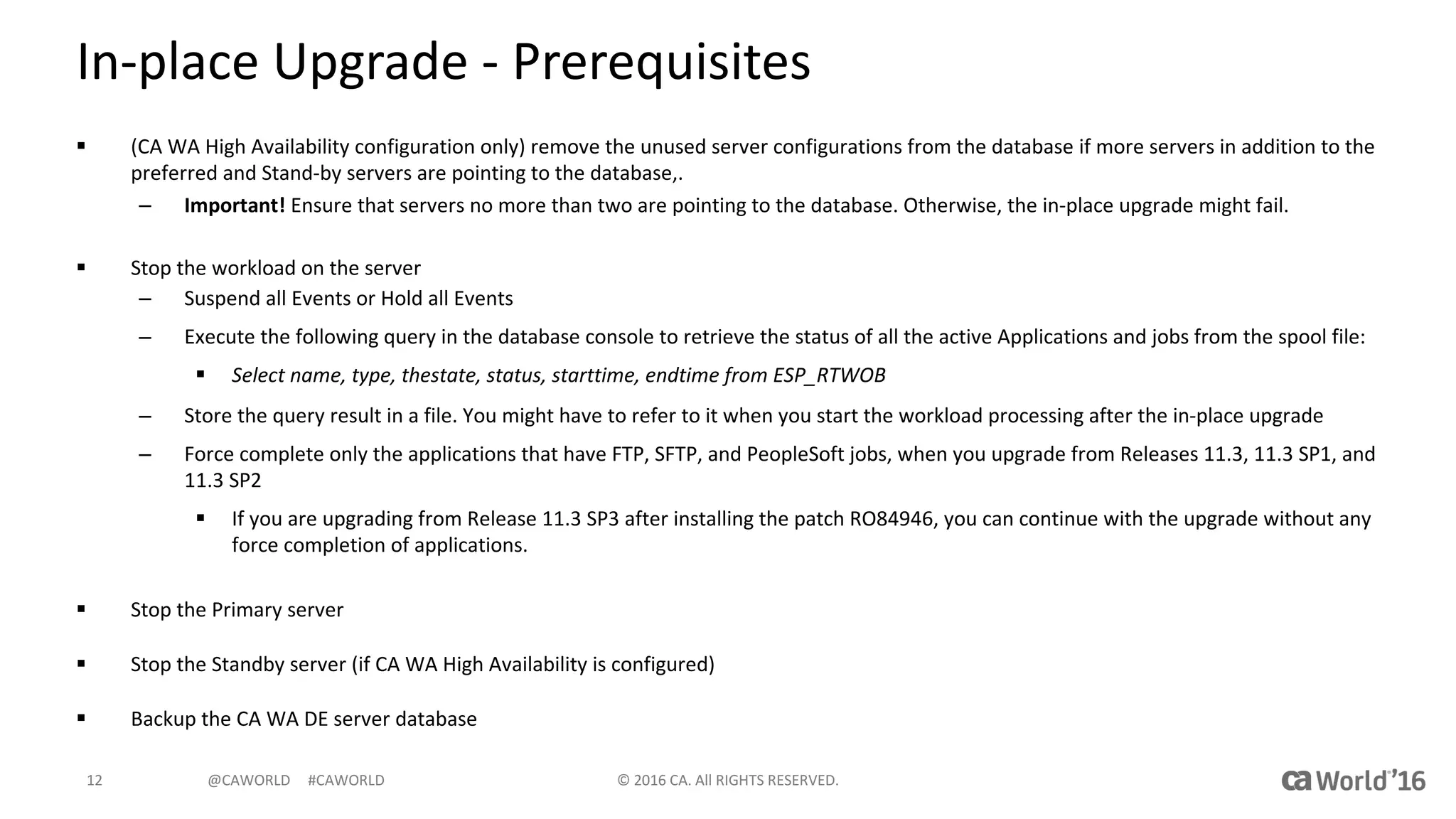
In-place	Upgrade	- Prerequisites
§ (CA	WA	High	Availability	configuration	only)	remove	the	unused	server	configurations	from	the	database	if	more	servers	in	addition	to	the	
preferred	and	Stand-by	servers	are	pointing	to	the	database,.	
– Important! Ensure	that	servers	no	more	than	two	are	pointing	to	the	database.	Otherwise,	the	in-place	upgrade	might	fail.
§ Stop	the	workload	on	the	server
– Suspend	all	Events or	Hold	all	Events
– Execute	the	following	query	in	the	database	console	to	retrieve	the	status	of	all	the	active	Applications	and	jobs	from	the	spool	file:
§ Select	name,	type,	thestate,	status,	starttime,	endtime from	ESP_RTWOB
– Store	the	query	result	in	a	file.	You	might	have	to	refer	to	it	when	you	start	the	workload	processing	after	the	in-place	upgrade
– Force	complete	only	the	applications	that	have	FTP,	SFTP,	and	PeopleSoft	jobs,	when	you	upgrade	from	Releases	11.3,	11.3	SP1, and	
11.3	SP2
§ If	you	are	upgrading	from	Release	11.3	SP3	after	installing	the	patch	RO84946,	you	can	continue	with	the	upgrade	without	any	
force	completion	of	applications.
§ Stop	the	Primary	server
§ Stop	the	Standby	server	(if	CA	WA	High	Availability	is	configured)
§ Backup	the	CA	WA	DE	server	database
©	2016	CA.	All	RIGHTS	RESERVED.12
@CAWORLD					#CAWORLD
Support	for	In-Place	Upgrades
§ Upgrade	11.3.x	server	instances	using	in-place	upgrade	by	modifying	the	
existing	server	install	folder	to	r12	install	folder.
§ Stop	the	workload	and	server	before	running	in-place	upgrade
§ In-place	upgrade	will	ask	for	the	folder	location	which	has	to	be	updated	
to	r12	level.	
§ Before	running	in-place	upgrade,	take	the	backup	of	database	used	by	the	
11.3.x	version.	This	is	a	prerequisite	step	before	proceeding	with	upgrade.
§ In-place	upgrade	modifies	all	the	files	that	are	required	for	r12.0	version	
and	also	makes	modifications	to	the	database	to	bring	it	to	r12	level
@CAWORLD					#CAWORLD
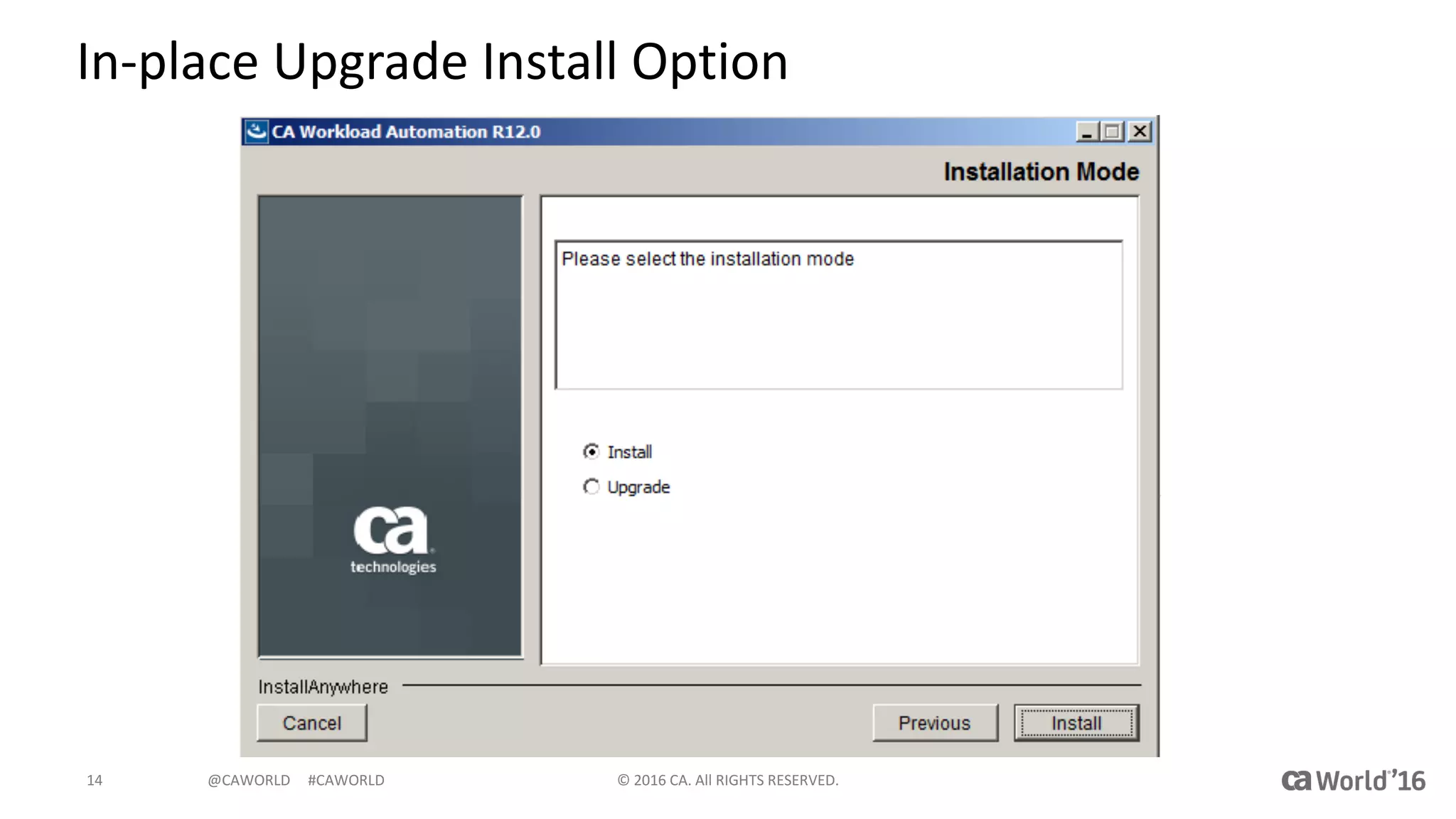
In-place	Upgrade	Install	Option
©	2016	CA.	All	RIGHTS	RESERVED.14
@CAWORLD					#CAWORLD
In-place	Upgrade	Install	Option
§ In	place	upgrade	will	ask	for	the	folder	location	which	has	to	be	updated	to	r12	level
©	2016	CA.	All	RIGHTS	RESERVED.15
@CAWORLD					#CAWORLD
Support	for	In-place	Upgrades
§ Installer	will	create	a	backup	folder	with	a	timestamp	in	the	installed	folder.	
The	backup	folder	has	all	the	artifacts	before	in-place	upgrade	is	run.	
§ Restore	script	can	be	run	to	restore	the	contents	back	to	the	original	state
§ Database	can	be	restored	from	database	backup	taken	before	running	in-
place	upgrade
§ In-place	upgrade	does	not	update	the	agents
§ Any	errors	that	occur	during	in-place	upgrade	will	be	logged	into	the	
installation	log	files.
@CAWORLD					#CAWORLD
In-place	Upgrade	– Important	Caveats
§ In-place	upgrade	needs	to	be	performed	to	bring	the	existing	CA	WA	DE	
installations	to	CA	WA	DE	r12	SP1	level
§ Upgrades	to	CA	WA	DE	server	r12	SP1	can	be	done	from	CA	WA	DE	11.3	SP3	
build	1414	or	higher,	CA	WA	DE	r12
§ The	database	user	used	during	in-place	upgrades	should	be	the	same	user	
used	during	CA	WA	DE	installation
– If	the	same	database	user	is	not	used,	upgrades	will	fail.	Especially	if	the	CA	WA	DE	
server	database	is	using	“MSSQL	Windows	authentication”	
§ In	case	of	any	failures	during	upgrades,	installer	will	report	an	error	and	log	
the	errors	at	$CAWA_HOME/upgrades/logs/inplaceupgrade.log
©	2016	CA.	All	RIGHTS	RESERVED.17
@CAWORLD					#CAWORLD
Additional	Considerations
§ Ensure	the	database	user	in	db.properties and	the	database	user	used	while	creating	the	database	
and	used	for	installation	are	the	same.	Especially	for	Windows	authentication	MSSQL	database
§ Ensure	we	use	the	same	Windows	user	to	run	the	upgrade	with	the	user	that	was	used	to	run	the	
installation
§ Install	latest	version	of	CA	WA	Desktop	Client
– Both	the	CA	WA	DE	server	and	CA	WA	Desktop	Client	must	be	at	the	same	version	level
§ Install	latest	version	of	the	CA	WA	DE	Web	Services	(optional)
§ Install	latest	release	of	CA	WA	DE	Stand-Alone	CLI
§ Install	and	leverage	the	new	CA	WA	DE	Web	UI	(net	new	functionality	in	12.0	SP1)
§ Note:	Using	the	CA	WA	DE	server	API	in	JavaScript	scripts	is	not	supported.	The	javascripts will	fail	
after	in-place	upgrade	or	migration
©	2016	CA.	All	RIGHTS	RESERVED.18
@CAWORLD					#CAWORLD
Roll	Back	Server	Upgrade	to	Previous	Version
§ Can	roll	back	server	after	successful	in-place	upgrade	and	restore	to	the	previous	
version	if	necessary
§ The	binary,	configuration,	JRE,	and	library	files	on	the	server	that	are	modified	by	the	in-
place	upgrade	are	restored
§ Stop	the	Server	and	Standby	Server	(HA)
§ Run	restore.bat/.sh	to	restore	files	and	directories
§ Restore	the	server	database	that	you	backed	up
§ Downgrade	any	upgraded	CA	WA	DE	Desktop	Clients,	Stand	Alone	CLIs,	Web	Services
§ Uninstall	new	CA	WA	DE	Web	UI,	if	deployed,	It	is	NOT	backward	compatible
©	2016	CA.	All	RIGHTS	RESERVED.19
@CAWORLD					#CAWORLD
Migration	Upgrade:	Traditional	Approach
Migrate	artifacts,	global	variables,	history	data	to	new	server	FLEXIBILITY
Advantages
§ Preserves	previous	version	for	fail	
back
§ Change	database	type
§ Supports	hardware/OS	refresh	
requirements
§ Selective	migration	of	artifacts
@CAWORLD					#CAWORLD
Traditional	Migration	Method
§ Requires	install	of	new	CA	WA	DE	Server	instance	and	
database
§ Migration	process	that	migrates	artifacts,	global	variables,	and	
history	data	from	the	existing	server	to	the	new	server
§ Use	the	migration	method	to	upgrade	the	server	from	r11.1	
or	higher	(11.1,	r11.3,	r12.0.x)
§ Migration	can	be	run	from	any	database	to	any	other	
database	of	target	version
©	2016	CA.	All	RIGHTS	RESERVED.21
@CAWORLD					#CAWORLD
Migration	Method	Benefits
§ Migration	preserves	the	previous	server	while	letting	you	use	
the	new	server	to	run	your	previously	defined	workload
§ Migration	can	be	run	from	any	database	to	any	other	
database	of	target	version
§ Easily	fail	back	to	the	prior	release
§ Good	for	hardware	refresh	cycles,	re-platforming	projects
§ Can	be	used	to	migrate	a	subset	of	workload	artifacts
©	2016	CA.	All	RIGHTS	RESERVED.22
@CAWORLD					#CAWORLD
Migration	Method	Process	(7	steps)
©	2016	CA.	All	RIGHTS	RESERVED.23
@CAWORLD					#CAWORLD
How	Migration	Method	Works
§ Migration	utility	reads	artifacts	
from	the	source	server
§ Converts	them	to	the	new	format,	
and	stores	them	in	files	on	the	
new	server
§ When	you	start	the	new	server	
after	migration,	the	stored	
artifacts	are	imported	into	the	
new	server	database
§ Global	variables	and	history	data	
are	migrated	directly	into	the	new	
server	database
©	2016	CA.	All	RIGHTS	RESERVED.24
@CAWORLD					#CAWORLD
Migrated	Artifacts
§ The	migration	utility	migrates	the	following	artifacts:
– Agents
– Alerts
– Applications	and	Application	Versions
– Calendars
– Events
– Forecasts
– Users	(security)
– Groups	(security)
– JavaScripts (JavaScript	repository)
– Resources
– Connection	Profiles	(Hadoop)
– Security	Profiles	(Hadoop)
©	2016	CA.	All	RIGHTS	RESERVED.25
@CAWORLD					#CAWORLD
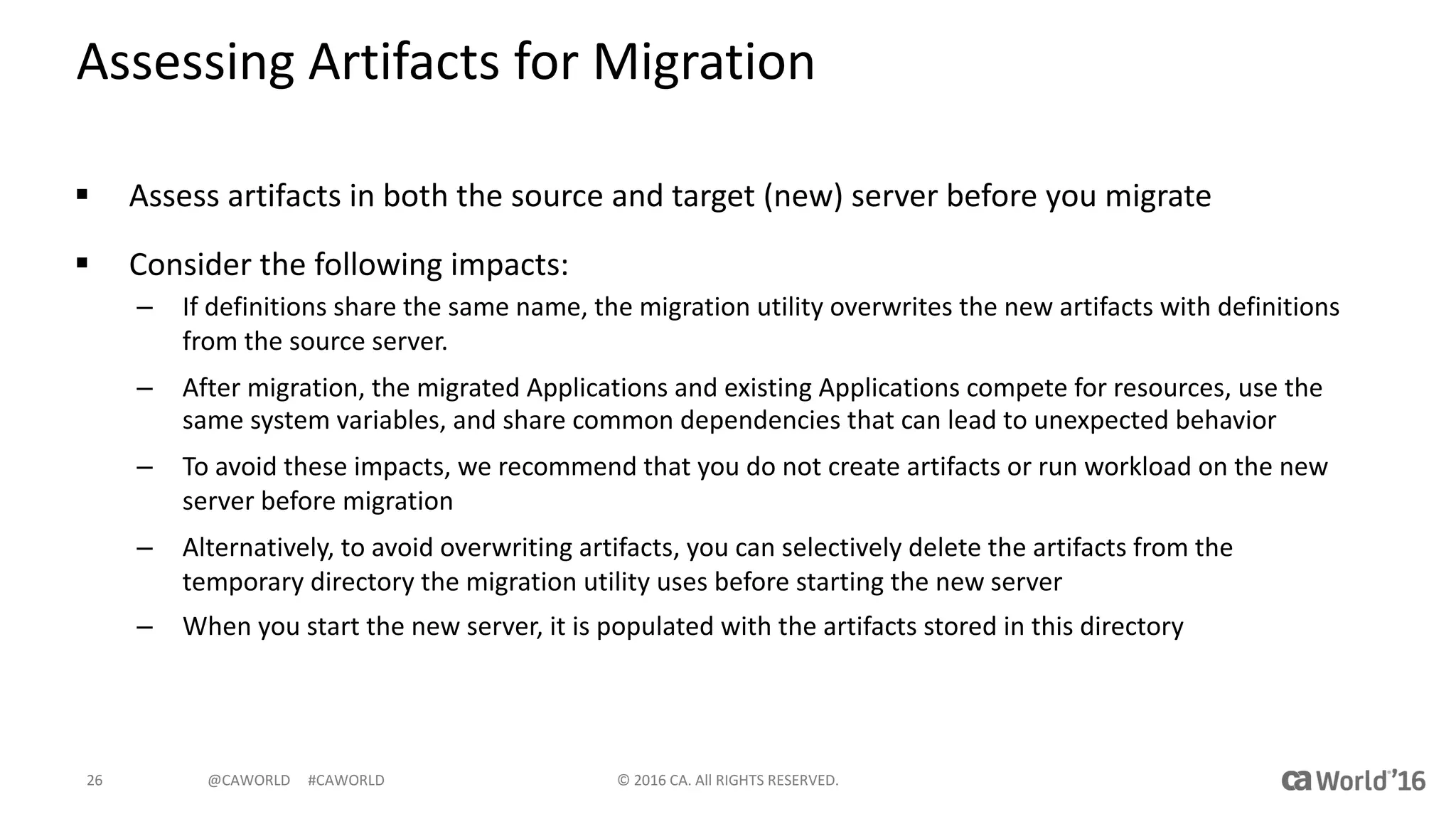
Assessing	Artifacts	for	Migration
§ Assess	artifacts	in	both	the	source	and	target	(new)	server	before	you	migrate
§ Consider	the	following	impacts:
– If	definitions	share the same	name,	the	migration	utility	overwrites	the	new	artifacts	with	definitions	
from	the	source	server.
– After	migration,	the	migrated	Applications	and	existing	Applications	compete	for	resources,	use	the	
same	system	variables,	and	share	common	dependencies	that	can	lead	to	unexpected	behavior
– To	avoid	these	impacts,	we	recommend	that	you	do	not	create	artifacts	or	run	workload	on	the	new	
server	before	migration
– Alternatively,	to	avoid	overwriting	artifacts,	you	can	selectively	delete	the	artifacts	from	the	
temporary	directory	the	migration	utility	uses	before	starting	the	new	server
– When	you	start	the	new	server,	it	is	populated	with	the	artifacts	stored	in	this	directory
©	2016	CA.	All	RIGHTS	RESERVED.26
@CAWORLD					#CAWORLD
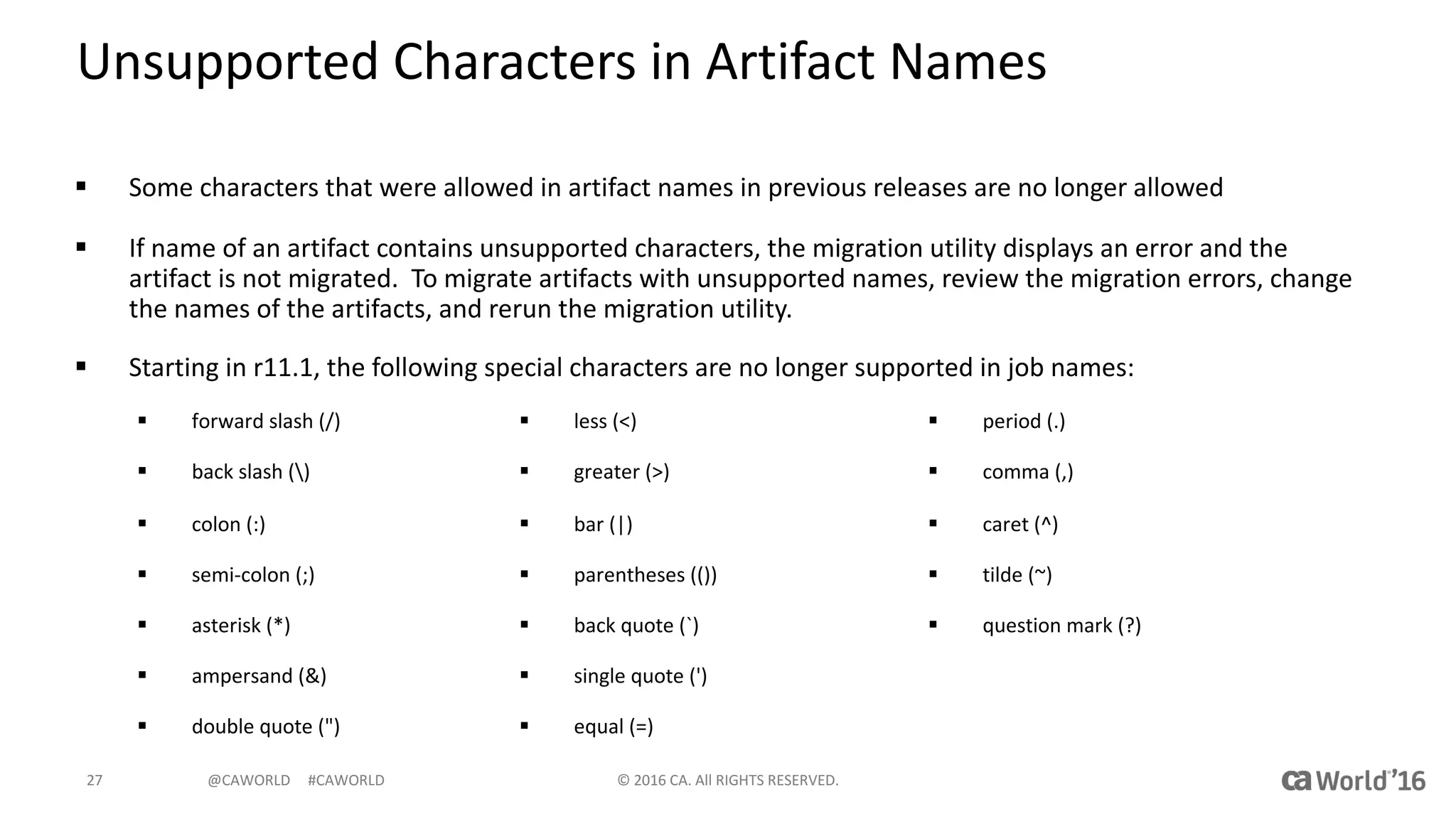
Unsupported	Characters	in	Artifact	Names
§ Some	characters	that	were	allowed	in	artifact	names	in	previous	releases	are	no	longer	allowed
§ If	name	of	an	artifact	contains	unsupported	characters,	the	migration	utility	displays	an	error	and	the	
artifact	is	not	migrated.		To	migrate	artifacts	with	unsupported	names,	review	the	migration	errors,	change	
the	names	of	the	artifacts,	and	rerun	the	migration	utility.
§ Starting	in	r11.1,	the	following	special	characters	are	no	longer	supported	in	job	names:
©	2016	CA.	All	RIGHTS	RESERVED.27
§ forward	slash	(/)
§ back slash	()
§ colon	(:)
§ semi-colon	(;)
§ asterisk	(*)
§ ampersand	(&)
§ double	quote	(")
§ less	(<)
§ greater	(>)
§ bar	(|)
§ parentheses	(())
§ back	quote	(`)
§ single	quote	(')
§ equal	(=)
§ period	(.)
§ comma	(,)
§ caret	(^)
§ tilde	(~)
§ question	mark	(?)
@CAWORLD					#CAWORLD
Migrate	Artifacts,	Global	Variables,	and	History	Data
§ Run	migration	utility	on	new	server	to	migrate	artifacts,	global	variables,	and	history	data
– migrate.bat	[config_file]	(Windows)
– migrate.sh	[config_file]	(UNIX/Linux)
§ The	migration	program	connects	to	the	source	server	and	reads,	converts,	and	stores	the	artifacts	
on	the	new	server	file	system
– migration	utility	uses	the	default	migration	configuration	file
– Can	create	a	customized	configuration	file	to	automate	some	of	the	steps	in	the	following	procedure	or	to	change	
default	values
– The	migration	utility	uses	default	logging	settings	in	the	migration	logging	configuration	file	and	logs	migration-related	
information	in	the	migration.log	file
– To	change	the	log	file	location	or	configure	default	settings,	you	can	modify	the	migration	logging	configuration	file
– If	the	migration	program	cannot	read,	convert,	or	store	an	artifact,	it	prompts	you	to	stop	the	migration,	continue	the	
migration	until	the	next	error	occurs,	or	continue	the	migration	and	ignore	similar	errors.
– You	can	skip	the	migration	of	Application	versions	during	artifacts	migration	by	configuring	the	migration.default.conf
file
©	2016	CA.	All	RIGHTS	RESERVED.28
@CAWORLD					#CAWORLD
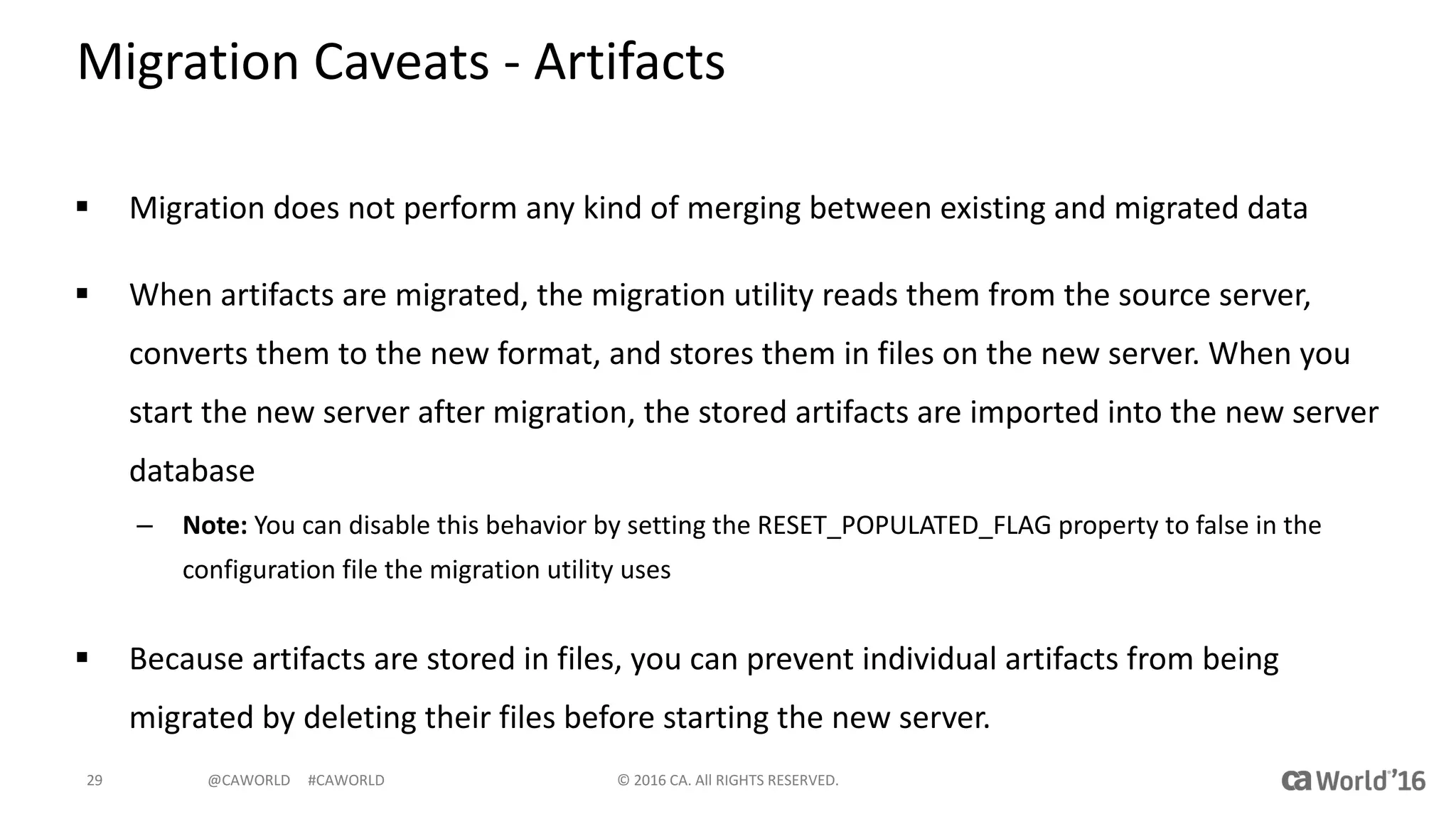
Migration	Caveats	- Artifacts
§ Migration	does	not	perform	any	kind	of	merging	between	existing	and	migrated	data
§ When	artifacts	are	migrated,	the	migration	utility	reads	them	from	the	source	server,	
converts	them	to	the	new	format,	and	stores	them	in	files	on	the	new	server.	When	you	
start	the	new	server	after	migration,	the	stored	artifacts	are	imported	into	the	new	server	
database
– Note: You	can	disable	this	behavior	by	setting	the	RESET_POPULATED_FLAG	property	to	false	in	the	
configuration	file	the	migration	utility	uses
§ Because	artifacts	are	stored	in	files,	you	can	prevent	individual	artifacts	from	being	
migrated	by	deleting	their	files	before	starting	the	new	server.	
©	2016	CA.	All	RIGHTS	RESERVED.29
@CAWORLD					#CAWORLD
Migration	Caveats	– Global	Variables	and	History	Data
§ Migration	utility	reads	Global	Variables	and	history	data	from	the	source	server	database,	
converts	them	to	the	new	format,	and	imports	them	into	the	new	server	database
§ Global	variables	and	history	data	are	migrated	directly	into	the	database
§ Cannot	prevent	individual	global	variables	and	history	data	from	being	migrated.
§ Note: If	workload	was	executed	on	the	new	server	before	migration,	history	data	
migration	can	fail	if	existing	database	rows	conflict	with	the	migrated	rows.	The	migration	
utility	does	not	merge	existing	and	migrated	data.
§ Can	be	time	consuming	depending	on	artifact	volumes
©	2016	CA.	All	RIGHTS	RESERVED.30
@CAWORLD					#CAWORLD
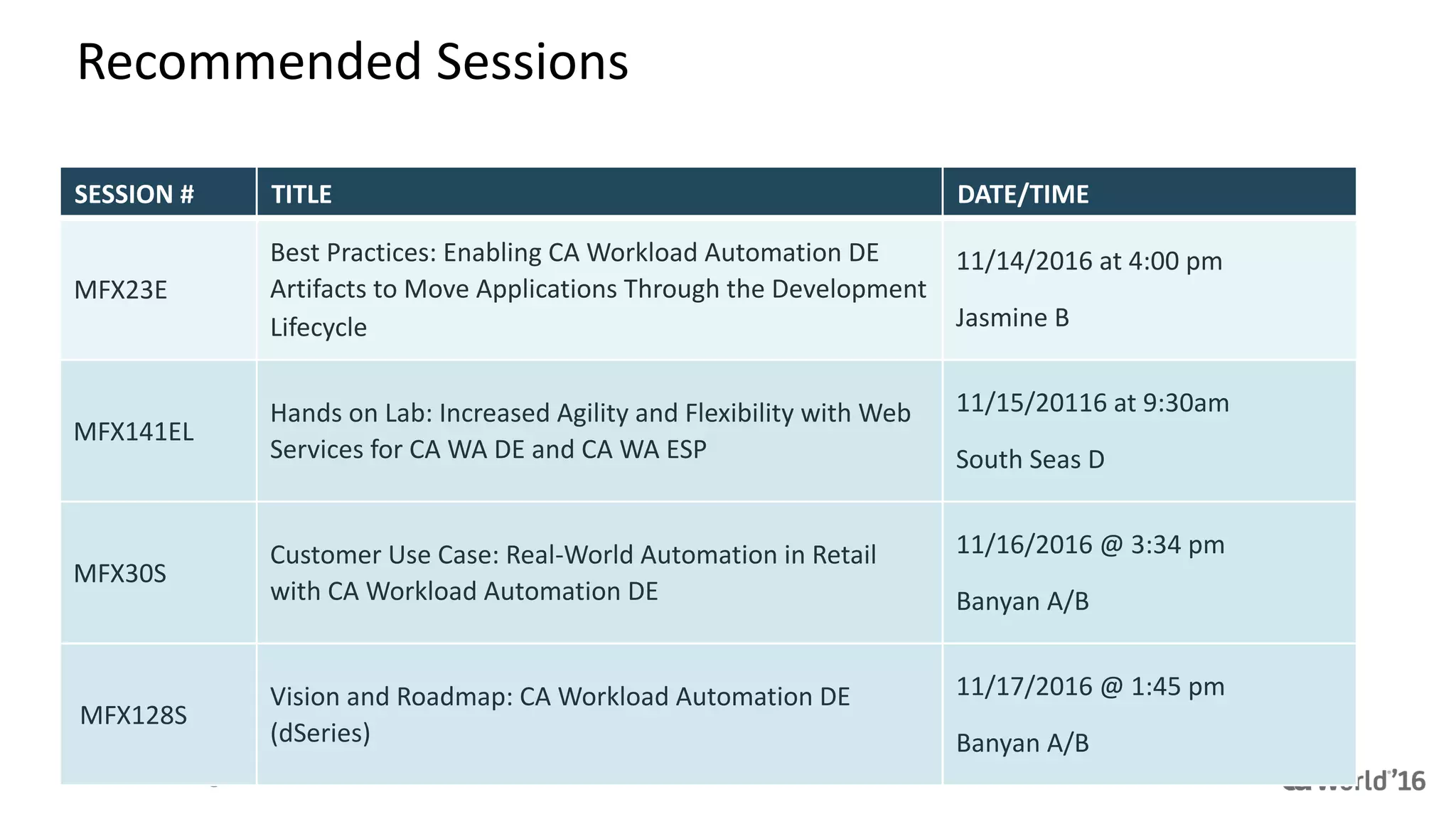
Recommended	Sessions
SESSION	# TITLE DATE/TIME
MFX23E
Best	Practices:	Enabling	CA	Workload	Automation	DE	
Artifacts	to	Move	Applications	Through	the	Development	
Lifecycle
11/14/2016	at	4:00	pm
Jasmine	B
MFX141EL
Hands	on	Lab:	Increased	Agility	and	Flexibility	with	Web	
Services	for	CA	WA	DE	and	CA	WA	ESP
11/15/20116	at	9:30am
South	Seas	D
MFX30S
Customer	Use	Case:	Real-World	Automation	in	Retail	
with	CA	Workload	Automation	DE
11/16/2016	@	3:34	pm
Banyan	A/B
MFX128S
Vision	and	Roadmap:	CA	Workload	Automation	DE	
(dSeries)
11/17/2016	@	1:45	pm
Banyan	A/B
@CAWORLD					#CAWORLD
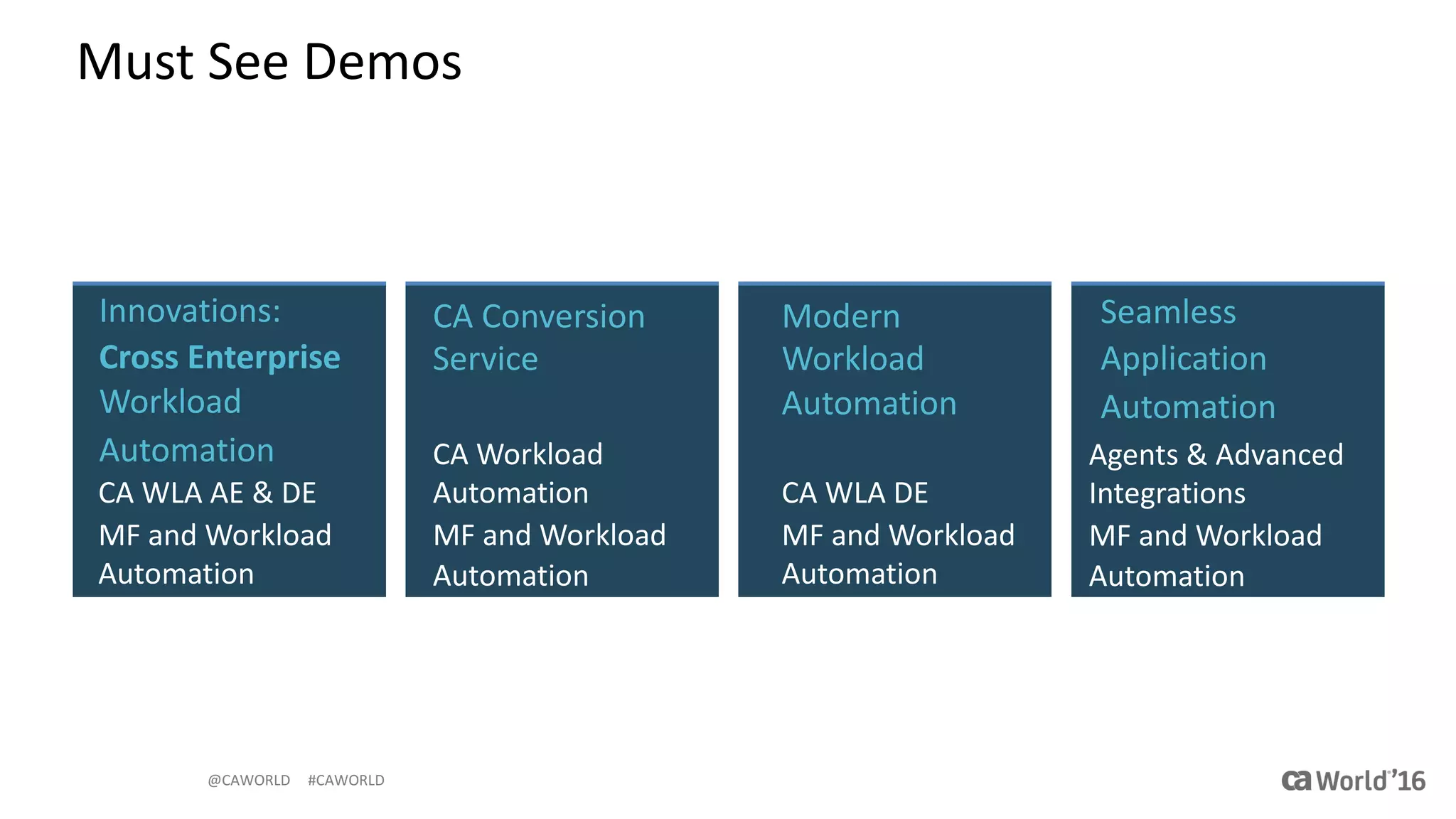
Must	See	Demos
Modern	
Workload	
Automation	
CA	WLA	DE
MF	and	Workload	
Automation
Seamless	
Application
Automation
Agents	&	Advanced	
Integrations
MF	and	Workload	
Automation
CA	Conversion	
Service
CA	Workload	
Automation
MF	and	Workload	
Automation
Innovations:	
Cross	Enterprise	
Workload	
Automation
CA	WLA	AE	&	DE
MF	and	Workload	
Automation
@CAWORLD					#CAWORLD
Questions?
Informatica

Pre-Con Ed: Upgrading CA Workload Automation DE to R12