Powershell UI Automation

Jakub Čupera

Technology Hour 24.10.2013
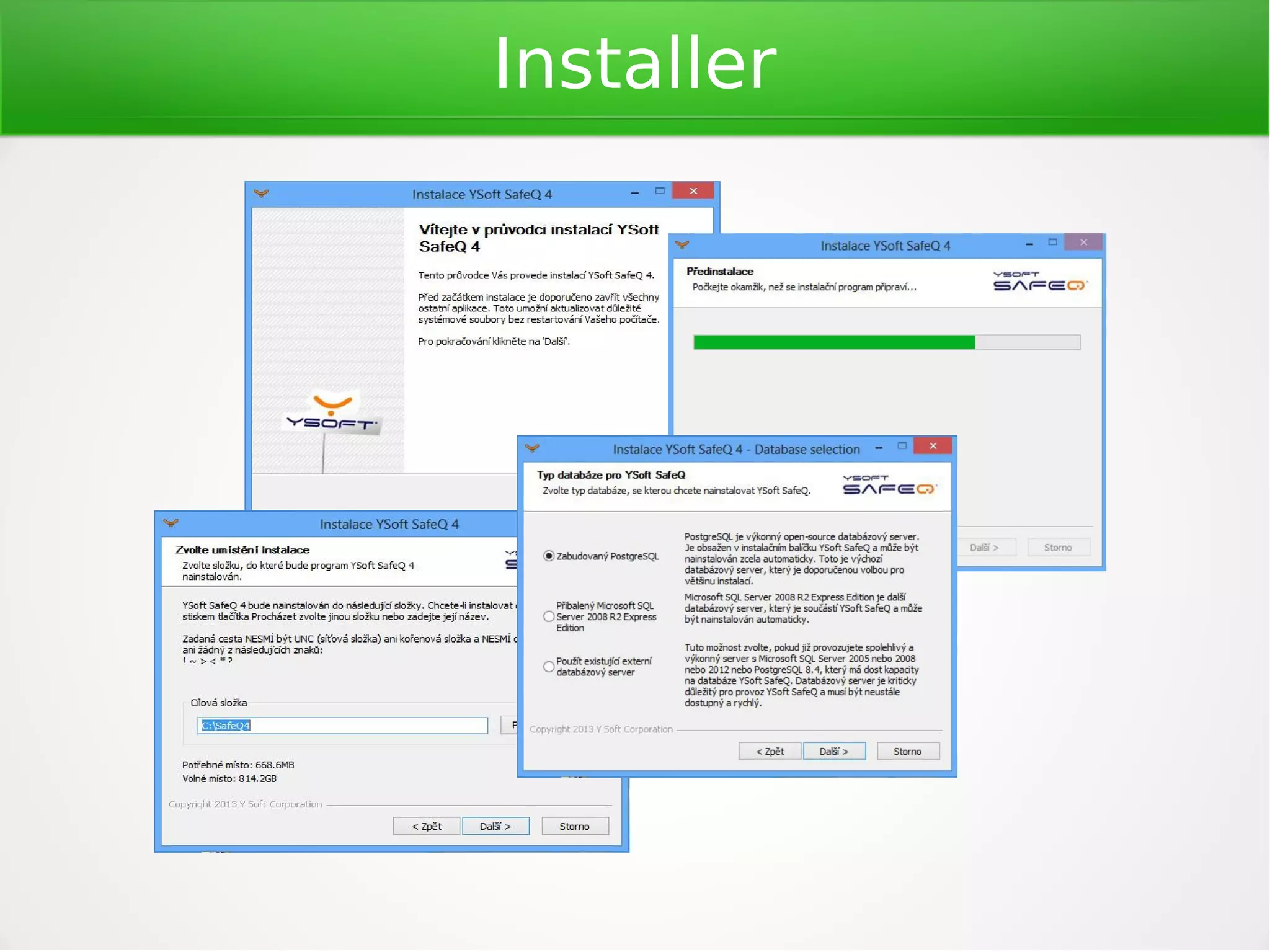
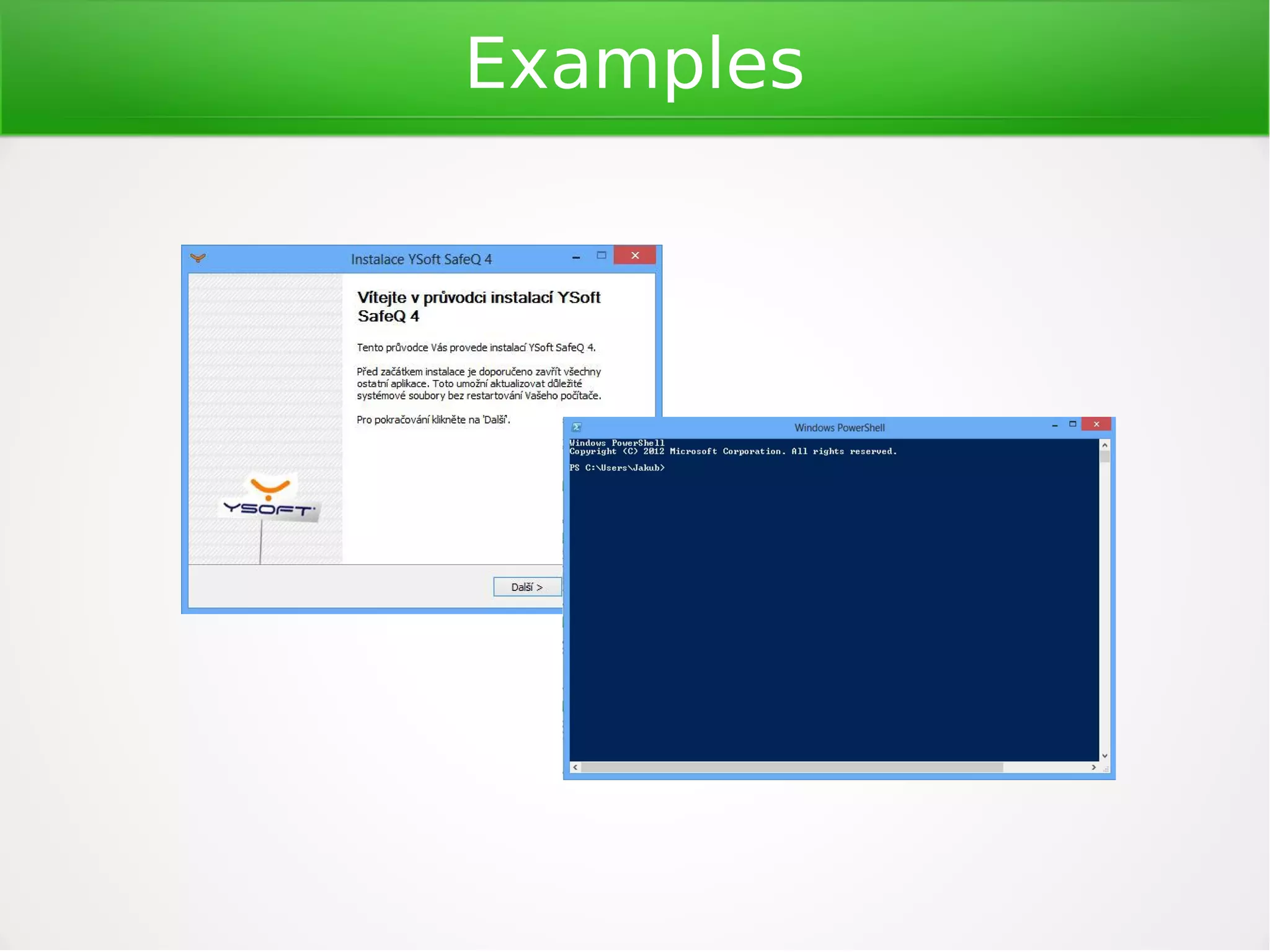
Installer
Installer

Need of automated GUI tests!
Which tool?
GUI Tools
●

Scripting languages / API

●

QAliber

●

.NET, Java libraries

●

SilkTest (Java, .NET, ...)

●

Plugins into VS/Eclipse

●

Jemmy (Java)

●

UI Automation (.NET)

●

Powershell UI Automation

●

TestComplete

●

TestAutomationFX

●

AutoHotkey (macros)

●

Sikuli (image recognition)

●

Selenium (web)
...
And winner is...

Powershell UI Automation
Why?
●

Free tool, open-source
●

●

Simple implementation
●

●

●

Known technology
Jenkins integration
Other tools (Pester)

Screenshot generation
Powershell
●

Scripting language

●

Management framework

●

Integrated since Windows XP
Powershell
Scripting language
●

Dynamically typed variables ($)

●

Conditions

●

Loops (while, do, for, foreach)

●

Lambda expressions

●

Exception handling

●

Access to .NET ( [string]::Format(...) )

●

Can run Cmdlets, PS scripts, functions,
executables
Powershell
Scripting language
●

Pipeline (| operator)

●

Tab completion

●

Support wildcards (*)

●

External modules
Powershell Cmdlets
Management Framework
●

Services

●

Server Management

●

Windows Server Update

●

Scheduled Tasks

●

DNS/IP management

●

Active Directory

●

Exchange

●

...
UI Automation
●

API to access/manipulate GUI elements

●

Successor to MSAA

●

Released by Microsoft in 2005

●

Native part since Vista/Server 2008

●

Separate packages down to Windows XP

●

Managed API since .NET 3.0

●

Used also for assistive technologies
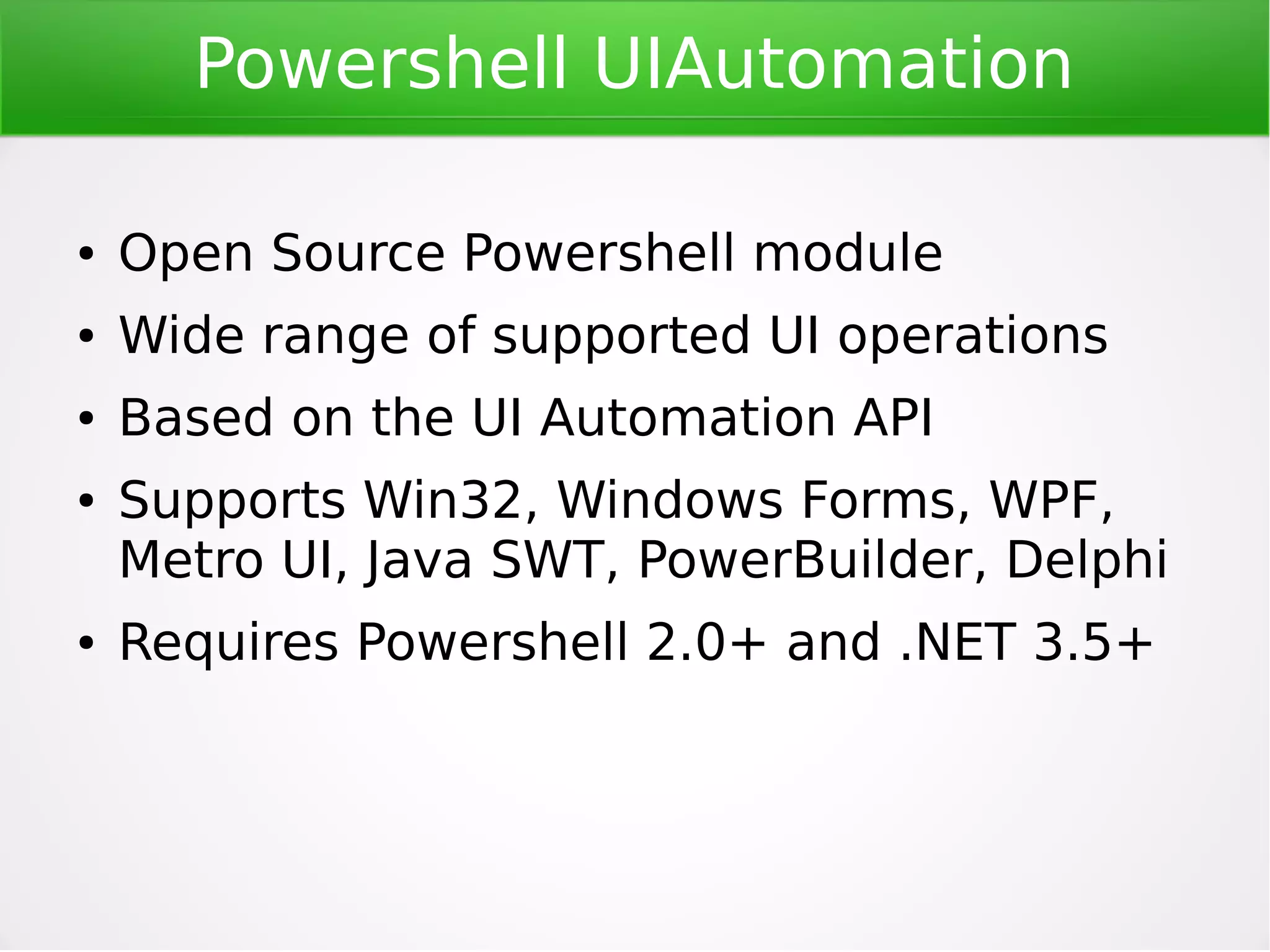
Powershell UI Automation
●

Powershell module using UIA API

●

Wide range of supported UI operations

●

●

Supports Win32, Windows Forms, WPF,
Metro UI, Java SWT, PowerBuilder, Delphi
Requires Powershell 2.0+ and .NET 3.5+
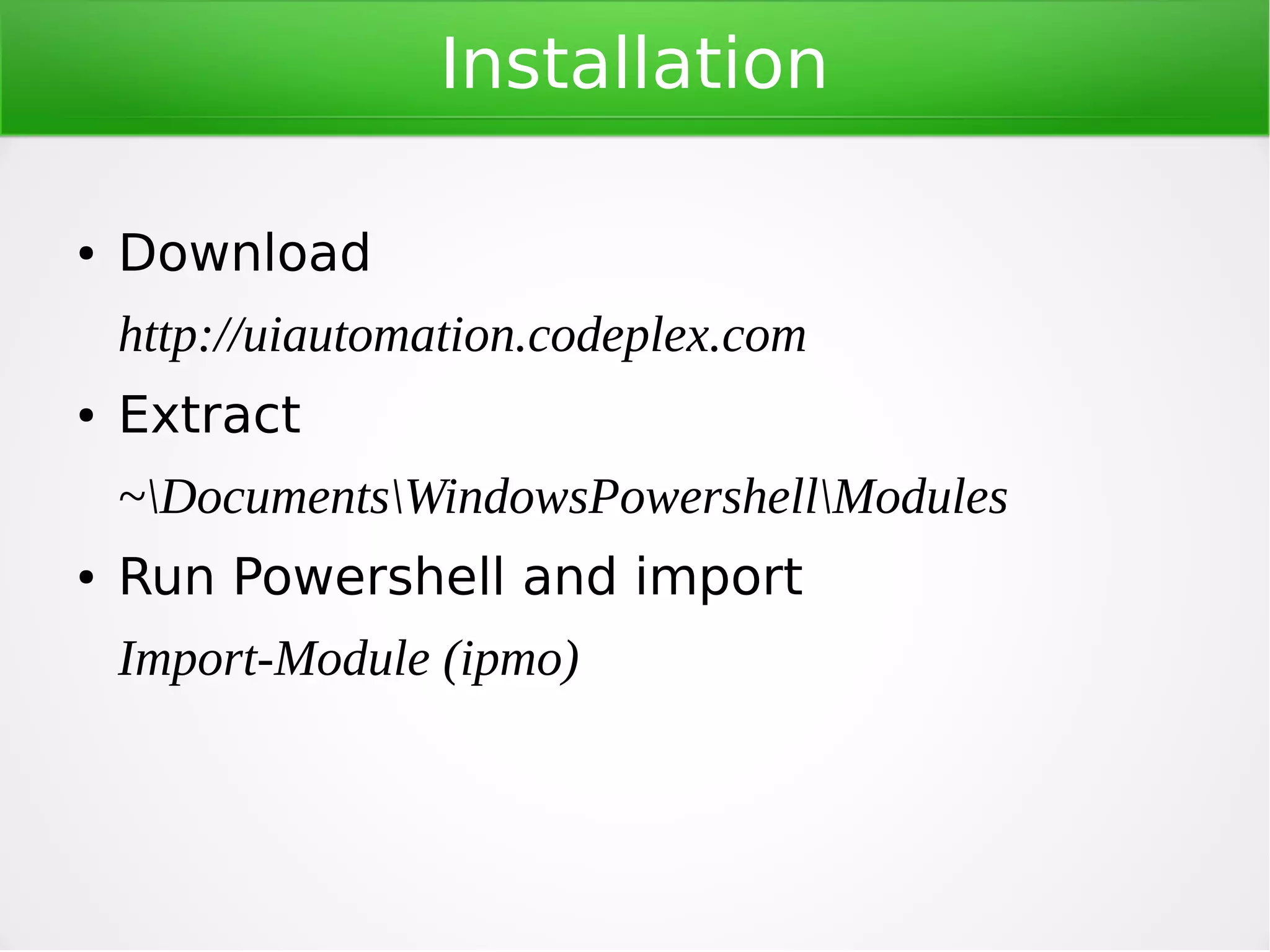
Installation
●

Download
http://uiautomation.codeplex.com

●

Extract
~DocumentsWindowsPowershellModules

●

Run Powershell and import
Import-Module (ipmo)
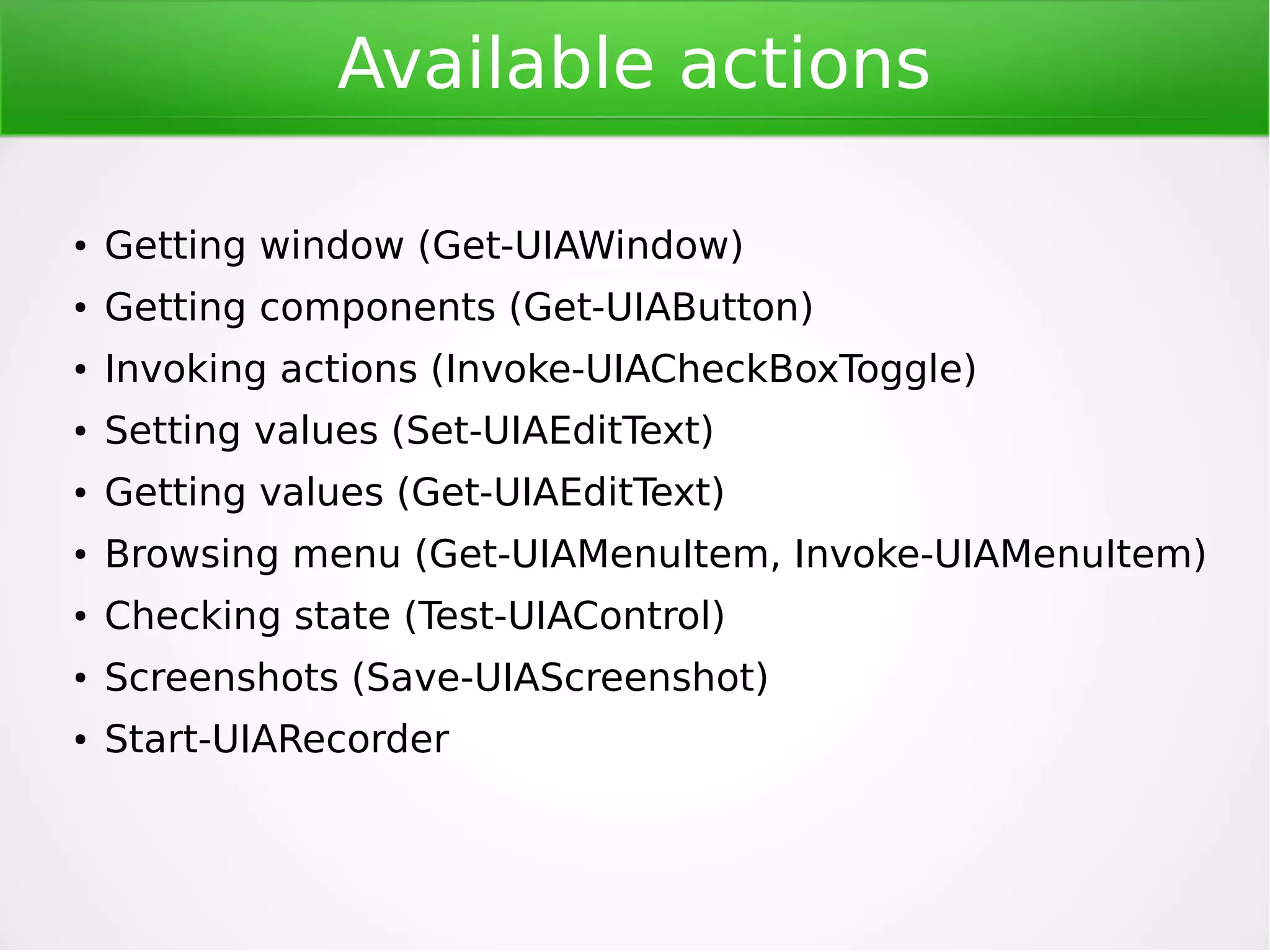
Available actions
●

Getting window (Get-UIAWindow)

●

Getting components (Get-UIAButton, Get-UIAEdit,)

●

Invoking actions (Invoke-UIACheckBoxToggle)

●

Setting values (Set-UIAEditText)

●

Getting values (Get-UIAEditText)

●

Browsing menu (Get-UIAMenuItem, Invoke-UIAMenuItem)

●

Checking state (Test-UIAControl)

●

Screenshots (Save-UIAScreenshot)

●

Get component attributes (Read-UIAControlName)

●

Waiting for element state (Wait-UIAButtonEnabled)

●

Start-UIARecorder

●

…....
Getting Window
Get-UIAWindow
●

Process Name (-ProcessName, -pn)

●

Process Id (-ProcessId, -pid)

●

By Title (-Name)

●

From process

●

Wildcards can be used

●

Returns AutomationElement object

●

Get-UIAActiveWindow

●

What if more processes are started?
Getting a Control
Get-UIAControl
●

Various Cmdlets to obtain all possible GUI elements
Get-UIAButton, Get-UIAEdit, Get-UIARadioButton, ...

●

Returns AutomationElement object

●

Many aliases
Get-UIAEdit = Get-UIATextBox

●

Cmdlets wrap Get-UIAControl

●

Name (-Name, -n)

●

Automation Id (-AutomationId)

●

Wildcards can be used

●

Multiple objects can be selected ([x-y])

●

Popups are also processed
Actions
Invoke-UIAAction
●

Mouse clicking
Invoke-UIAButtonClick, Invoke-UIAMenuItemClick, Invoke-UIACheckBoxToggle ...

●

Scrolling
Invoke-UIAScrollBarScroll

●

Handling texts
Get-UIAEditText, Set-UIAEditText

●

And many others
Invoke-UIAMenuItemExpand, Invoke-UIACalendarScroll, Set-UIAFocus,...

●

Actions are type and context specific
Other Cmdlets
Other Cmdlets
●

Read-UIAControlName, Read-UIAControlAutomationId
Get-UIAButton | Read-UIAControlName

●

Save-UIAScreenshot
Save-UIAScreenShot -Path “c:temp“ -Name 'test.jpg' -As jpeg

●

Test-UIAControlState
Test-UIAControlState -SearchCriteria @{Name=“OK“, ControlType=“button“ }

●

Wait-UIAControlState
Get-UIAButton | Wait-UIAButtonEnabled -Timeout 20

●

Start-UIARecorder

●

Move-UIACursor

●

...
Passing Objects
●

Passing control object as parameter
$btn = Get-UIAButton -Name „Next“
Invoke-UIAButtonClick -InputObject $btn

●

Passing object through pipe
Get-UIAButton -Name „Next“ | Invoke-UIAButtonClick

●

No need to pass window
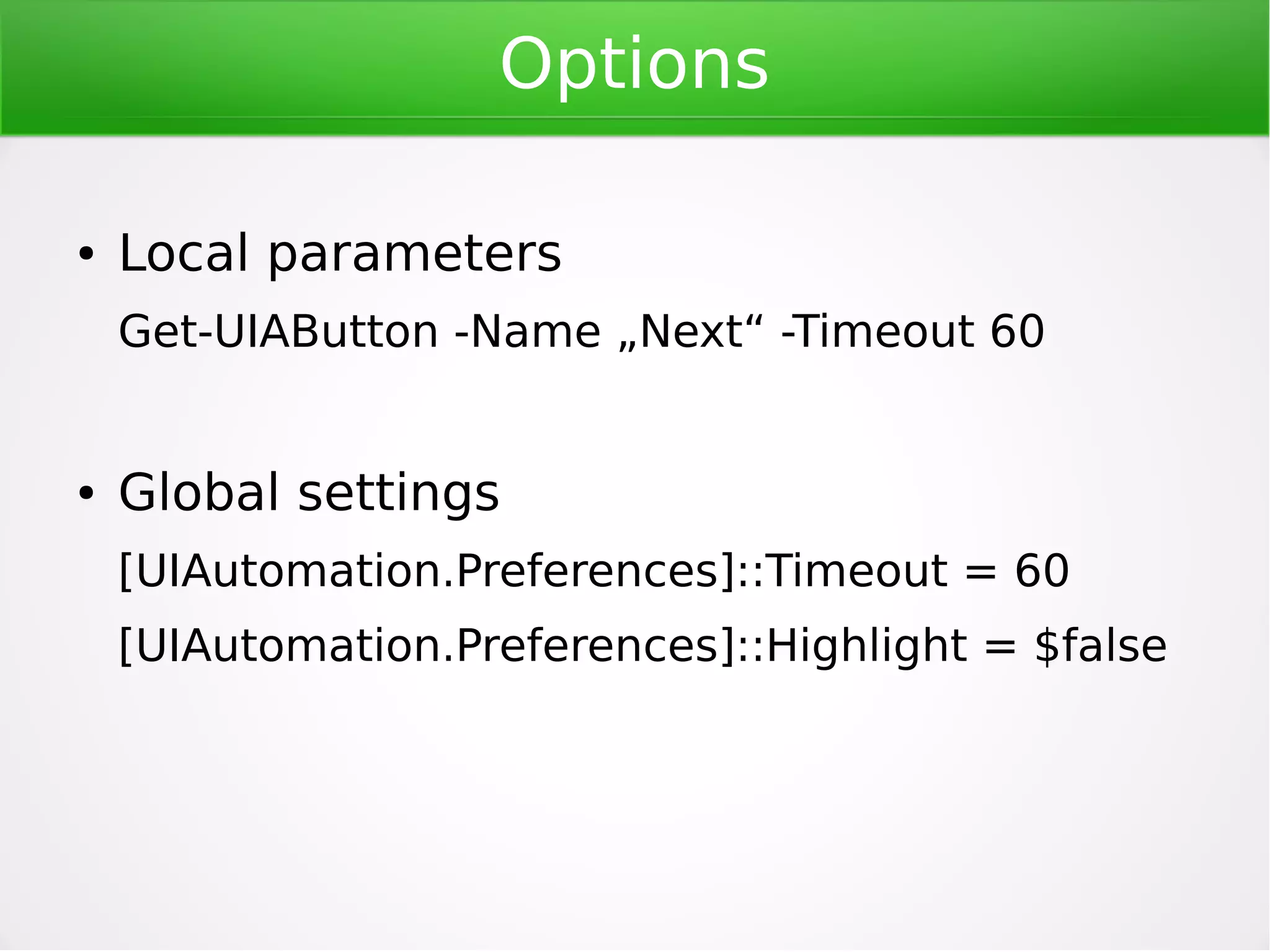
Global Settings
●

Global settings can be modified
Logging, Timeouts, Highlighting, Screenshots, Error handling, ...

●

Usage:
[UIAutomation.Preferences]::Key = $value

●

Cmdlet Show-UIAModuleSettings

●

Some settings can be overriden locally
Get-UIAButton -Timeout 20
Other Functionality
Other Functionality
●

●

Custom event handling
-OnErrorEvent, -OnSuccess
Cmdlets as tests
-TestResultName

●

Save screenshot on error

●

Detailed logging
Examples
Tips & Tricks
●

Tools
UIVerify, UISpy, Spy++

●

Getting control nane
Get-UIAWindow | Get-UIAButton | Read-UIAControlName
Get-UIAWindow | Get-UIAControl | Read-UIAControlName

●

Get cmdlets related to control
Get-Command -Module UIA* *Button*
Gotchas
●

Lack of documentation

●

Last update in February 2013

●

Still officially Beta

●

Loosing focus on window

●

Needs to set focus on element to perform action

●

User account limitations

●

Save screenshot on error by default
Do you want to know more?
●

http://msdn.microsoft.com (UIA API, .NET)

●

http://uiautomation.codeplex.com

●

http://softwaretestingusingpowershell.com

PowerShell UIAtomation