Presenting With PowerPoint Using technology to enhance the learning process Barbara Babcock / EME 5403
Goals After completing this lesson, you will understand: Why many educators either love or hate PowerPoint How PowerPoint can enhance a presentation How information presented with PowerPoint is perceived by students Best Practices for creating lessons with PowerPoint
Technology & Learning Over the last decade, technology has played an increasingly more important role in the classroom. Presentation software, such as Microsoft PowerPoint is regularly used by instructors of all subjects, at all grade levels.
Technology & Learning - 2 Despite its ubiquity, many educators question the value of PowerPoint as a classroom tool. In  PowerPoint and Cooperative Learning: An Ideal Instructional Combination , Harry E. Pence points out that there is very little evidence that use of this technology improves learning.
Technology & Learning  - 3  Dr. Edward Tufte, a long time critic of presentation slideware, goes so far as to declare PowerPoint evil, and asserts that “ The standard PowerPoint presentation elevates format over content, betraying an attitude of commercialism that turns everything into a sales pitch .” 1 1 .  Tufte, Edward.  (2003).  PowerPoint is Evil .  Accessed online June 11, 2006, from  http://www.wired.com/wired/archive/11.09/ppt2.html .
Teaching & Learning - 4 The truth is that PowerPoint is simply an educational tool available to instructors. PowerPoint gives strong visual impact to a well-designed lesson, which can help students absorb the material.  The technology likewise has the tendency to magnify the flaws in a poorly-designed lesson, which can decrease students’ potential to learn.
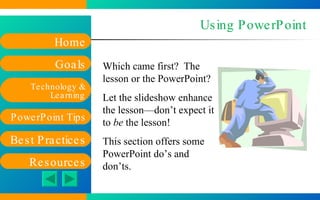
Using PowerPoint Which came first?  The lesson or the PowerPoint? Let the slideshow enhance the lesson—don’t expect it to  be  the lesson! This section offers some PowerPoint do’s and don’ts.
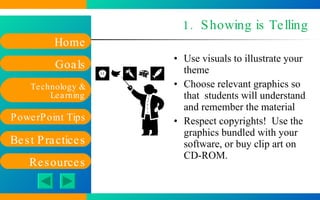
1.  Showing is Telling Use visuals to illustrate your theme Choose relevant graphics so that  students will understand and remember the material Respect copyrights!  Use the graphics bundled with your software, or buy clip art on CD-ROM.
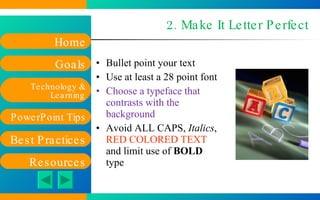
2. Make It Letter Perfect Bullet point your text  Use at least a 28 point font Choose a typeface that contrasts with the background  Avoid ALL CAPS,  Italics ,  RED COLORED TEXT  and limit use of  BOLD  type
3. Go Beyond the Book PowerPoint lets users add motion clips, sound, and special text effects Use animation effects to enhance a point—not to overwhelm the presentation
Best Practices A study conducted by 3M Corporation found that use of multimedia presentations enhanced learning only slightly more than overhead transparency slides.  However, audiences  perceived  that data presented with multimedia technology was more credible than the same data presented on overhead slides.
Best Practices: Presentations 2 State your objectives in a simple, clear opening statement Short, declarative sentences make the most impact Handouts lend credibility to your presentation Use both visuals and text in your presentation Be consistent in your use of typefaces A good choice for fonts:  Arial Bold for headlines; Times New Roman for text 2 . Dreamingdog Studio. (2004).  PowerPoint & Presentation Tips .  Accessed online on June 12, 2006, from  http://dreamingdog.com/tipsheet.html#handout
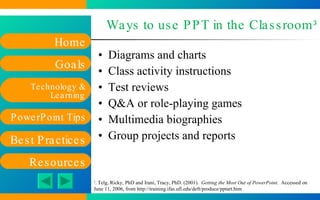
Ways to use PPT in the Classroom 3 Diagrams and charts Class activity instructions Test reviews Q&A or role-playing games Multimedia biographies Group projects and reports 3 . Telg, Ricky, PhD and Irani, Tracy, PhD. (2001).  Getting the Most Out of PowerPoint .  Accessed on June 11, 2006, from  http://training.ifas.ufl.edu/deft/produce/pptart.htm
PowerPoint:  Friend or Foe of Learning? PowerPoint gives educators the ability to add a visual dimension to a verbal lesson presentation.  This combination increases the possibility that the educator will reach learners who are both verbal/text oriented (left brain) thinkers and visually-oriented (right brain) thinkers.
Friend or Foe - 2 The pedagogical value of PowerPoint depends on how it is used: PowerPoint presentations can be saved on a class website or emailed to students.  This portability can help learners construct and absorb new knowledge. PowerPoint is easy to learn and user-friendly.  This can encourage students of all ages and abilities to try this technology.
Friend or Foe - 3 PowerPoint allows educators to easily update or rearrange elements of a presentation. Educators can incorporate media clips, audio files, Internet hyperlinks or diagrams into a presentation.  These additional resources can enhance the learning process for all students.
Resources Dreamingdog Studio. (2004).  PowerPoint & Presentation Tips .  Accessed online on June 12, 2006, from  http://dreamingdog.com/tipsheet.html#handout   Pence, Harry E.  (1997).  PowerPoint and Cooperative Learning:  An Ideal Instructional Combination .  Accessed on June 16, 2006 from  http://technologysource.org/article/powerpoint_and_cooperative_learning   Rocklin, Tom. (2001).  PowerPoint is Not Evil .  Accessed on June 11, 2006, from  http://www.ntlf.com/html/sf/notevil.htm .  Telg, Ricky, PhD and Irani, Tracy, PhD. (2001).  Getting the Most Out of PowerPoint .  Accessed on June 11, 2006 from  http://training.ifas.ufl.edu/deft/produce/pptart.htm .  Tufte, Edward.  (2003).  PowerPoint is Evil .  Accessed on June 11, 2006 from  http://www.wired.com/wired/archive/11.09/ppt2.html .

PowerPoint in the Classroom

  • 1.
    Presenting With PowerPointUsing technology to enhance the learning process Barbara Babcock / EME 5403
  • 2.
    Goals After completingthis lesson, you will understand: Why many educators either love or hate PowerPoint How PowerPoint can enhance a presentation How information presented with PowerPoint is perceived by students Best Practices for creating lessons with PowerPoint
  • 3.
    Technology & LearningOver the last decade, technology has played an increasingly more important role in the classroom. Presentation software, such as Microsoft PowerPoint is regularly used by instructors of all subjects, at all grade levels.
  • 4.
    Technology & Learning- 2 Despite its ubiquity, many educators question the value of PowerPoint as a classroom tool. In PowerPoint and Cooperative Learning: An Ideal Instructional Combination , Harry E. Pence points out that there is very little evidence that use of this technology improves learning.
  • 5.
    Technology & Learning - 3 Dr. Edward Tufte, a long time critic of presentation slideware, goes so far as to declare PowerPoint evil, and asserts that “ The standard PowerPoint presentation elevates format over content, betraying an attitude of commercialism that turns everything into a sales pitch .” 1 1 . Tufte, Edward. (2003). PowerPoint is Evil . Accessed online June 11, 2006, from http://www.wired.com/wired/archive/11.09/ppt2.html .
  • 6.
    Teaching & Learning- 4 The truth is that PowerPoint is simply an educational tool available to instructors. PowerPoint gives strong visual impact to a well-designed lesson, which can help students absorb the material. The technology likewise has the tendency to magnify the flaws in a poorly-designed lesson, which can decrease students’ potential to learn.
  • 7.
    Using PowerPoint Whichcame first? The lesson or the PowerPoint? Let the slideshow enhance the lesson—don’t expect it to be the lesson! This section offers some PowerPoint do’s and don’ts.
  • 8.
    1. Showingis Telling Use visuals to illustrate your theme Choose relevant graphics so that students will understand and remember the material Respect copyrights! Use the graphics bundled with your software, or buy clip art on CD-ROM.
  • 9.
    2. Make ItLetter Perfect Bullet point your text Use at least a 28 point font Choose a typeface that contrasts with the background Avoid ALL CAPS, Italics , RED COLORED TEXT and limit use of BOLD type
  • 10.
    3. Go Beyondthe Book PowerPoint lets users add motion clips, sound, and special text effects Use animation effects to enhance a point—not to overwhelm the presentation
  • 11.
    Best Practices Astudy conducted by 3M Corporation found that use of multimedia presentations enhanced learning only slightly more than overhead transparency slides. However, audiences perceived that data presented with multimedia technology was more credible than the same data presented on overhead slides.
  • 12.
    Best Practices: Presentations2 State your objectives in a simple, clear opening statement Short, declarative sentences make the most impact Handouts lend credibility to your presentation Use both visuals and text in your presentation Be consistent in your use of typefaces A good choice for fonts: Arial Bold for headlines; Times New Roman for text 2 . Dreamingdog Studio. (2004). PowerPoint & Presentation Tips . Accessed online on June 12, 2006, from http://dreamingdog.com/tipsheet.html#handout
  • 13.
    Ways to usePPT in the Classroom 3 Diagrams and charts Class activity instructions Test reviews Q&A or role-playing games Multimedia biographies Group projects and reports 3 . Telg, Ricky, PhD and Irani, Tracy, PhD. (2001). Getting the Most Out of PowerPoint . Accessed on June 11, 2006, from http://training.ifas.ufl.edu/deft/produce/pptart.htm
  • 14.
    PowerPoint: Friendor Foe of Learning? PowerPoint gives educators the ability to add a visual dimension to a verbal lesson presentation. This combination increases the possibility that the educator will reach learners who are both verbal/text oriented (left brain) thinkers and visually-oriented (right brain) thinkers.
  • 15.
    Friend or Foe- 2 The pedagogical value of PowerPoint depends on how it is used: PowerPoint presentations can be saved on a class website or emailed to students. This portability can help learners construct and absorb new knowledge. PowerPoint is easy to learn and user-friendly. This can encourage students of all ages and abilities to try this technology.
  • 16.
    Friend or Foe- 3 PowerPoint allows educators to easily update or rearrange elements of a presentation. Educators can incorporate media clips, audio files, Internet hyperlinks or diagrams into a presentation. These additional resources can enhance the learning process for all students.
  • 17.
    Resources Dreamingdog Studio.(2004). PowerPoint & Presentation Tips . Accessed online on June 12, 2006, from http://dreamingdog.com/tipsheet.html#handout Pence, Harry E. (1997). PowerPoint and Cooperative Learning: An Ideal Instructional Combination . Accessed on June 16, 2006 from http://technologysource.org/article/powerpoint_and_cooperative_learning Rocklin, Tom. (2001). PowerPoint is Not Evil . Accessed on June 11, 2006, from http://www.ntlf.com/html/sf/notevil.htm . Telg, Ricky, PhD and Irani, Tracy, PhD. (2001). Getting the Most Out of PowerPoint . Accessed on June 11, 2006 from http://training.ifas.ufl.edu/deft/produce/pptart.htm . Tufte, Edward. (2003). PowerPoint is Evil . Accessed on June 11, 2006 from http://www.wired.com/wired/archive/11.09/ppt2.html .

Editor's Notes

  • #2 Use this template to create Intranet web pages for your workgroup or project. You can modify the sample content to add your own information, and you can even change the structure of the web site by adding and removing slides. The navigation controls are on the slide master. To change them, on the View menu, point to Master , then choose Slide Master . To add or remove hyperlinks on text or objects, or to change existing hyperlinks, select the text or object, then choose Hyperlink from the Insert menu. When you’re finished customizing, delete these notes to save space in your final HTML files. For more information, ask the Answer Wizard about: The Slide Master Hyperlinks