Using Drill Through
Why set up a drill through?
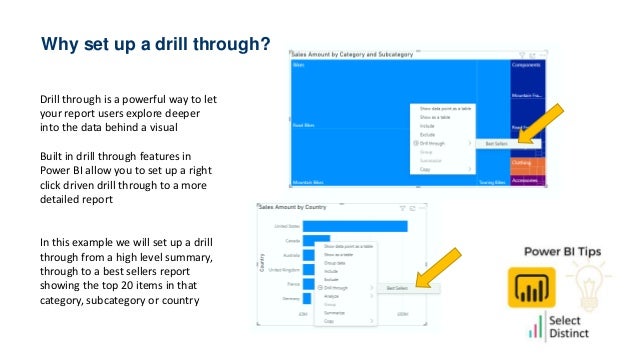
Drill through is a powerful way to let
your report users explore deeper
into the data behind a visual
Built in drill through features in
Power BI allow you to set up a right
click driven drill through to a more
detailed report
In this example we will set up a drill
through from a high level summary,
through to a best sellers report
showing the top 20 items in that
category, subcategory or country
First step….Set up a drill through target page
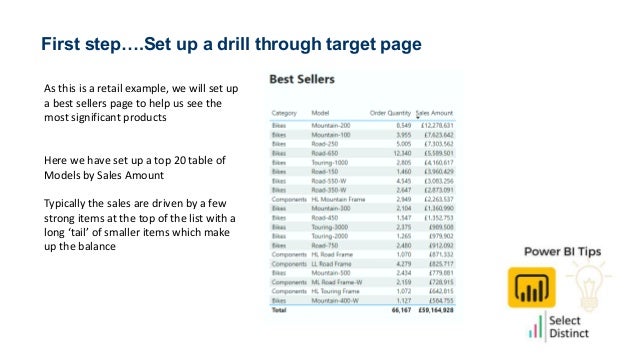
As this is a retail example, we will set up
a best sellers page to help us see the
most significant products
Here we have set up a top 20 table of
Models by Sales Amount
Typically the sales are driven by a few
strong items at the top of the list with a
long ‘tail’ of smaller items which make
up the balance
Step 2. Set the drill through filters
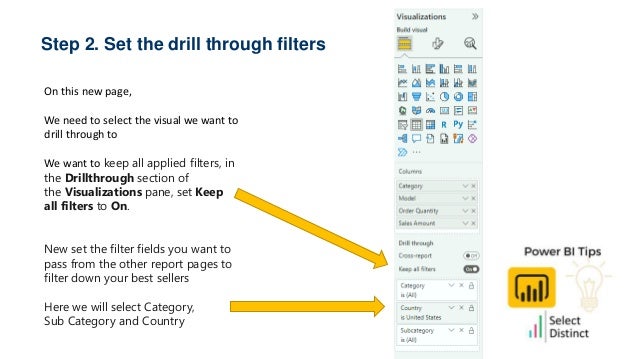
On this new page,
We need to select the visual we want to
drill through to
We want to keep all applied filters, in
the Drillthrough section of
the Visualizations pane, set Keep
all filters to On.
New set the filter fields you want to
pass from the other report pages to
filter down your best sellers
Here we will select Category,
Sub Category and Country
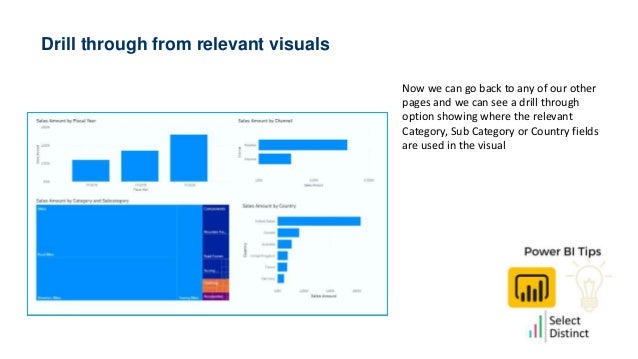
Drill through from relevant visuals
Now we can go back to any of our other
pages and we can see a drill through
option showing where the relevant
Category, Sub Category or Country fields
are used in the visual
Hope you found this useful
For more Tips, Tricks and
Timesavers, visit our website
Tips and Timesavers | Select Distinct Limited
Credit: simon.harrison@selectdistinct.co.uk

Power BI Tips Drill through.pptx

  • 1.
  • 2.
    Why set upa drill through? Drill through is a powerful way to let your report users explore deeper into the data behind a visual Built in drill through features in Power BI allow you to set up a right click driven drill through to a more detailed report In this example we will set up a drill through from a high level summary, through to a best sellers report showing the top 20 items in that category, subcategory or country
  • 3.
    First step….Set upa drill through target page As this is a retail example, we will set up a best sellers page to help us see the most significant products Here we have set up a top 20 table of Models by Sales Amount Typically the sales are driven by a few strong items at the top of the list with a long ‘tail’ of smaller items which make up the balance
  • 4.
    Step 2. Setthe drill through filters On this new page, We need to select the visual we want to drill through to We want to keep all applied filters, in the Drillthrough section of the Visualizations pane, set Keep all filters to On. New set the filter fields you want to pass from the other report pages to filter down your best sellers Here we will select Category, Sub Category and Country
  • 5.
    Drill through fromrelevant visuals Now we can go back to any of our other pages and we can see a drill through option showing where the relevant Category, Sub Category or Country fields are used in the visual
  • 6.
    Hope you foundthis useful
  • 7.
    For more Tips,Tricks and Timesavers, visit our website Tips and Timesavers | Select Distinct Limited Credit: simon.harrison@selectdistinct.co.uk