Power BI Tips and Timesavers
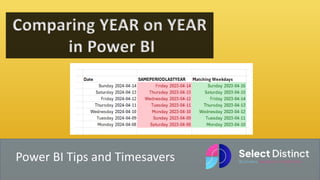
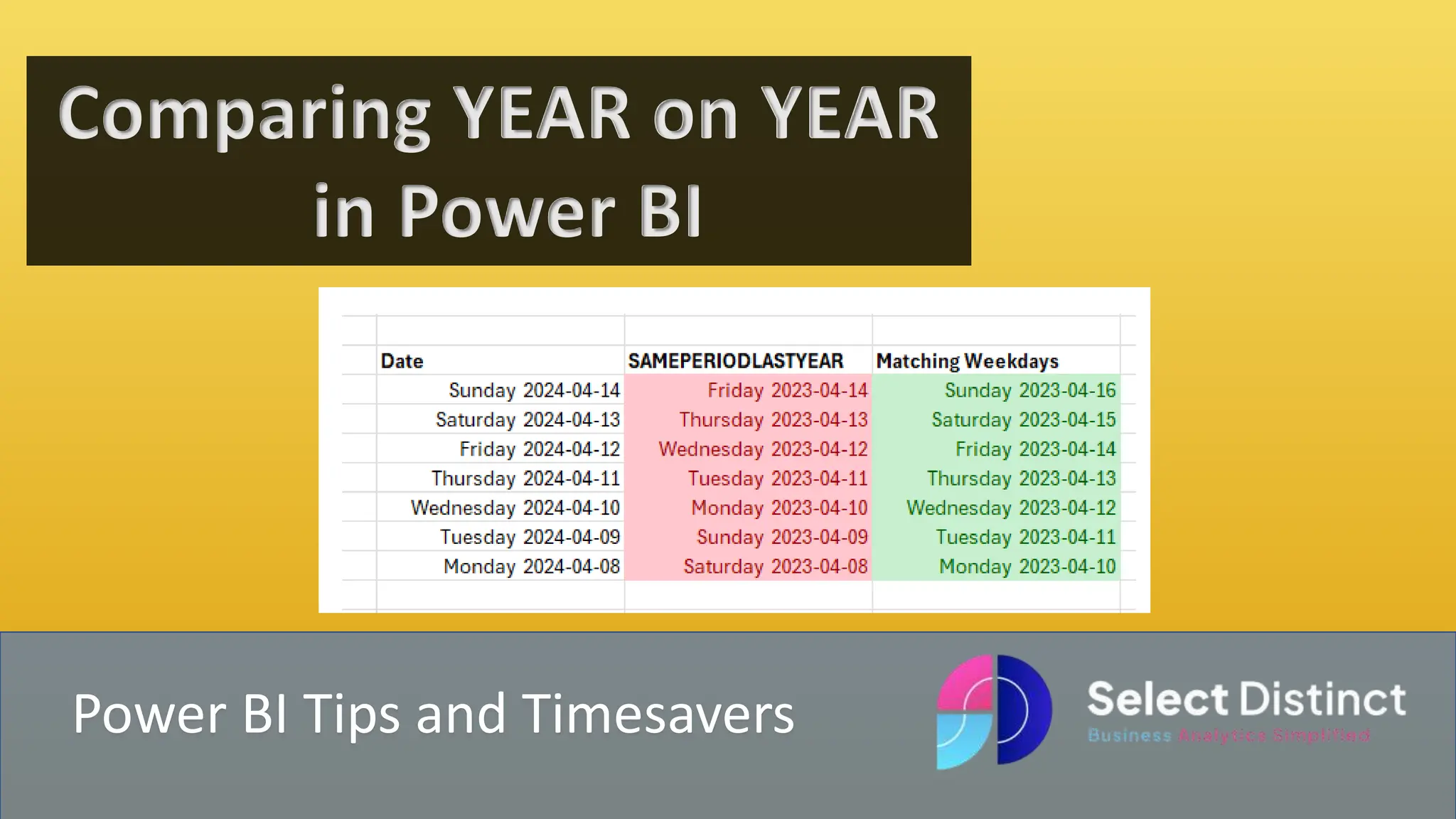
Comparing YEAR on YEAR
in Power BI
Power BI has a built in function SAMEPERIODLASTYEAR
But, it does not necessarily give you what you need, here we show an
alternative to make sure year on year comparisons match by weekday
Why would you need to
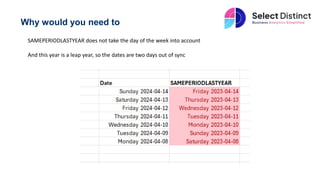
SAMEPERIODLASTYEAR does not take the day of the week into account
And this year is a leap year, so the dates are two days out of sync
The Simple Solution
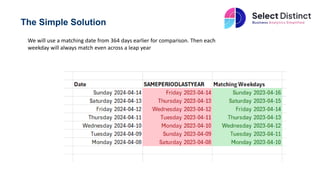
We will use a matching date from 364 days earlier for comparison. Then each
weekday will always match even across a leap year
Use Case Example
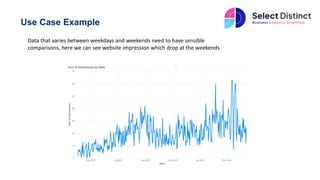
Data that varies between weekdays and weekends need to have sensible
comparisons, here we can see website impression which drop at the weekends
Step by Step Solution
The first thing we will do is show what happens when we use
the same period last year function
We create a measure to return the Impressions for the
previous year using the SAMEPERIODLASTYEAR function
Impressions LY =
CALCULATE(sum('Sample GSC Data'[Impressions]),
SAMEPERIODLASTYEAR('Sample GSC Data'[Date]))
Then we can easily add the result into a simple table to see
the result
Step by Step Solution
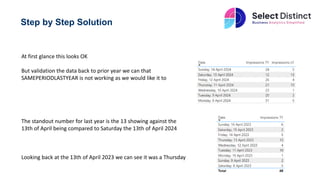
At first glance this looks OK
But validation the data back to prior year we can that
SAMEPERIODLASTYEAR is not working as we would like it to
The standout number for last year is the 13 showing against the
13th of April being compared to Saturday the 13th of April 2024
Looking back at the 13th of April 2023 we can see it was a Thursday
Step 2 – Create a Measure to return the correct
Year on Year comparison
We know that if we compare to 364 days ago we will always match the weekday. So we create a filtered
measure that does this
Impressions LY2
= CALCULATE(sum('Sample GSC Data'[Impressions]), DATEADD('Sample GSC Data'[Date],-364,DAY))
We use the DATEADD function, with a minus 364 days value to match to the correct dates
it now correctly aligns to the week day
If you need to have comparison of year on year performance where the
data is by day, then you need to use this technique or similar
Subscribe to our channel to see more tips and timesavers
For more Tips, Tricks and
Timesavers, visit our website
Business Analytics Blog – Select Distinct
Credit: simon.harrison@selectdistinct.co.uk

Year on Year Comparison in Power BI.pptx

  • 1.
    Power BI Tipsand Timesavers Comparing YEAR on YEAR in Power BI
  • 2.
    Power BI hasa built in function SAMEPERIODLASTYEAR But, it does not necessarily give you what you need, here we show an alternative to make sure year on year comparisons match by weekday
  • 3.
    Why would youneed to SAMEPERIODLASTYEAR does not take the day of the week into account And this year is a leap year, so the dates are two days out of sync
  • 4.
    The Simple Solution Wewill use a matching date from 364 days earlier for comparison. Then each weekday will always match even across a leap year
  • 5.
    Use Case Example Datathat varies between weekdays and weekends need to have sensible comparisons, here we can see website impression which drop at the weekends
  • 6.
    Step by StepSolution The first thing we will do is show what happens when we use the same period last year function We create a measure to return the Impressions for the previous year using the SAMEPERIODLASTYEAR function Impressions LY = CALCULATE(sum('Sample GSC Data'[Impressions]), SAMEPERIODLASTYEAR('Sample GSC Data'[Date])) Then we can easily add the result into a simple table to see the result
  • 7.
    Step by StepSolution At first glance this looks OK But validation the data back to prior year we can that SAMEPERIODLASTYEAR is not working as we would like it to The standout number for last year is the 13 showing against the 13th of April being compared to Saturday the 13th of April 2024 Looking back at the 13th of April 2023 we can see it was a Thursday
  • 8.
    Step 2 –Create a Measure to return the correct Year on Year comparison We know that if we compare to 364 days ago we will always match the weekday. So we create a filtered measure that does this Impressions LY2 = CALCULATE(sum('Sample GSC Data'[Impressions]), DATEADD('Sample GSC Data'[Date],-364,DAY)) We use the DATEADD function, with a minus 364 days value to match to the correct dates it now correctly aligns to the week day
  • 9.
    If you needto have comparison of year on year performance where the data is by day, then you need to use this technique or similar Subscribe to our channel to see more tips and timesavers
  • 10.
    For more Tips,Tricks and Timesavers, visit our website Business Analytics Blog – Select Distinct Credit: simon.harrison@selectdistinct.co.uk