Post-Processing Basics
What to do After You Take the Picture
http://www.slideshare.net/BrianCollier2
Workflow
• Get the pics off your camera/smartphone
• Edit them (if necessary)
• Organize them
• Share them
• Upload
• Print
• Mat, frame, hang
Get the Pics OFF Your Camera
• Card reader
• Camera cable
• Wi-fi
• Bluetooth
• Cloud services
• Email
No excuses!
Organizing Your Pictures
• Choose a naming convention
• Make it easy to find later
• YYYYMMDD-Subject-###.jpg
• Most editing software will batch process renaming
• Use folders!
• Back up everything
• USB drives are cheap
• Cloud storage is free/cheap
Organizing Your Pictures
Online storage options
Service Space/Cost Pros Cons
Google Photos unlimited/free Easy access/sharing,
auto-tagging
16Mb file size limit
Privacy concerns
iCloud Photo Library
(not PhotoStream)
5Gb/free
20Gb/$12
Most convenient
service for iOS
Limited sharing
Expensive
Amazon Photos unlimited for Prime
users / $12 ($99)
Great with Prime Clunky interface
Microsoft OneDrive 30Gb free
1Tb/$84
Convenient for
Windows
Difficult to share
Flickr 1Tb free Pros use it,
Social network
Advertising
DropBox 2Gb free
1Tb/$100
Connects with
everything
Clunky
Expensive to expand
SmugMug Unlimited/$60 Beautiful portfolio
Social network
Expensive
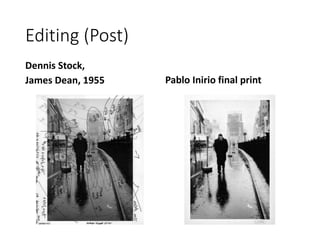
Editing (Post)
Dennis Stock,
James Dean, 1955 Pablo Inirio final print
Editing
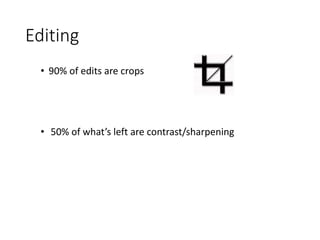
• 90% of edits are crops
• 50% of what’s left are contrast/sharpening
Editing
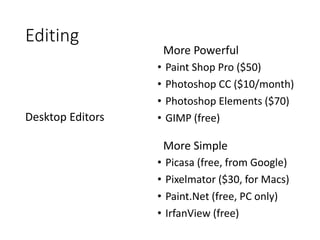
• Paint Shop Pro ($50)
• Photoshop CC ($10/month)
• Photoshop Elements ($70)
• GIMP (free)Desktop Editors
More Powerful
• Picasa (free, from Google)
• Pixelmator ($30, for Macs)
• Paint.Net (free, PC only)
• IrfanView (free)
More Simple
Editing
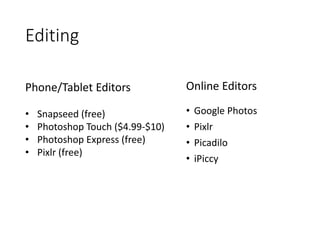
• Google Photos
• Pixlr
• Picadilo
• iPiccy
Phone/Tablet Editors
• Snapseed (free)
• Photoshop Touch ($4.99-$10)
• Photoshop Express (free)
• Pixlr (free)
Online Editors
Editing
Tips:
• Crop ratio doesn’t matter for sharing
• Crop to standard sizes to simplify framing
• Go easy with sharpening
• Filters are like fashion
• Always save your originals
Saving Your Work
• JPG or JPEG
• Can open with anything
• Lossy compression
• GIF
• Can animate, supports alpha
channel
• Only supports 256 colors
• TIFF
• Can save lossless/uncompressed
• Supports image layer data
• Very large file size
• Not supported by browsers
File Types
• RAW
• What your camera sees, unadulterated
• Companies use different formats
• Can’t open with most programs
• PNG
• Supported by some browsers
• Supports alpha channel
• Large file size
• Proprietary Formats
• PSD
• BMP
• PSP
Sharing Your Work
• Look for the icon
• Privacy
• Check your settings
• Do you want to tag people?
• Do you want to be tagged?
• Do you want everyone to see?
Phones and Tablets
• Bulk uploads usually need an app
• Can be clunky
• Still easier than one-at-a-time
Desktop
Printing
• Relatively cheap and easy
• Prints can be shown huge
• Variety of surfaces
• Decorate your home
• Show off your work
Why print?
Printing
• Easy
• Upload your picture
• Pick a size and surface
• Wait for arrival
• Satisfaction Guaranteed
• Make money?
Outsource
• Instant gratification
• Control over product
• Good if you print lots
• Can be a hassle
• EXPENSIVE
• $400-$800 small printer
• $50-$200 ink
• Limited size
DIY
Printing
• Local 1-hour labs for small to medium paper prints
• Costco, Walgreens, Walmart
• Online outlets for larger/special media
• MPIX, AdoramaPix, CanvasPop
• Storefronts if you want to sell your work
• Zazzle, Redbubble, FineArtAmerica
All of these allow you to upload a picture and receive prints in the mail.
Where to print?
Printing
Common Sizes
Size in inches Pixels at 300 PPI Aspect ratio
2 × 3 600 × 900 3:2 (1.5)
4 × 6 1200 × 1800 3:2 (1.5)
5 × 7 1500 × 2100 7:5 (1.4)
8 × 10 2400 × 3000 5:4 (1.25)
8 × 12 2400 × 3600 3:2 (1.5)
11 × 14 3300 × 4200 14:11 (1.27)
16 × 20 4800 × 6000 5:4 (1.25)
24 × 36 Poster Size 7200 × 10800 3:2 (1.5)
Monitors
• If you plan to print a lot or sell prints
• Download and install ICC profiles
• http://www.tftcentral.co.uk/articles/icc_profiles.htm
• Buy a monitor calibration tool
Monitor Calibration
Size
• Whatever suits your vision
Type
• IPS - in-plane switching
• 1080p

Photography Post Processing

  • 1.
    Post-Processing Basics What todo After You Take the Picture
  • 2.
  • 3.
    Workflow • Get thepics off your camera/smartphone • Edit them (if necessary) • Organize them • Share them • Upload • Print • Mat, frame, hang
  • 4.
    Get the PicsOFF Your Camera • Card reader • Camera cable • Wi-fi • Bluetooth • Cloud services • Email No excuses!
  • 5.
    Organizing Your Pictures •Choose a naming convention • Make it easy to find later • YYYYMMDD-Subject-###.jpg • Most editing software will batch process renaming • Use folders! • Back up everything • USB drives are cheap • Cloud storage is free/cheap
  • 6.
    Organizing Your Pictures Onlinestorage options Service Space/Cost Pros Cons Google Photos unlimited/free Easy access/sharing, auto-tagging 16Mb file size limit Privacy concerns iCloud Photo Library (not PhotoStream) 5Gb/free 20Gb/$12 Most convenient service for iOS Limited sharing Expensive Amazon Photos unlimited for Prime users / $12 ($99) Great with Prime Clunky interface Microsoft OneDrive 30Gb free 1Tb/$84 Convenient for Windows Difficult to share Flickr 1Tb free Pros use it, Social network Advertising DropBox 2Gb free 1Tb/$100 Connects with everything Clunky Expensive to expand SmugMug Unlimited/$60 Beautiful portfolio Social network Expensive
  • 7.
    Editing (Post) Dennis Stock, JamesDean, 1955 Pablo Inirio final print
  • 8.
    Editing • 90% ofedits are crops • 50% of what’s left are contrast/sharpening
  • 9.
    Editing • Paint ShopPro ($50) • Photoshop CC ($10/month) • Photoshop Elements ($70) • GIMP (free)Desktop Editors More Powerful • Picasa (free, from Google) • Pixelmator ($30, for Macs) • Paint.Net (free, PC only) • IrfanView (free) More Simple
  • 10.
    Editing • Google Photos •Pixlr • Picadilo • iPiccy Phone/Tablet Editors • Snapseed (free) • Photoshop Touch ($4.99-$10) • Photoshop Express (free) • Pixlr (free) Online Editors
  • 11.
    Editing Tips: • Crop ratiodoesn’t matter for sharing • Crop to standard sizes to simplify framing • Go easy with sharpening • Filters are like fashion • Always save your originals
  • 12.
    Saving Your Work •JPG or JPEG • Can open with anything • Lossy compression • GIF • Can animate, supports alpha channel • Only supports 256 colors • TIFF • Can save lossless/uncompressed • Supports image layer data • Very large file size • Not supported by browsers File Types • RAW • What your camera sees, unadulterated • Companies use different formats • Can’t open with most programs • PNG • Supported by some browsers • Supports alpha channel • Large file size • Proprietary Formats • PSD • BMP • PSP
  • 13.
    Sharing Your Work •Look for the icon • Privacy • Check your settings • Do you want to tag people? • Do you want to be tagged? • Do you want everyone to see? Phones and Tablets • Bulk uploads usually need an app • Can be clunky • Still easier than one-at-a-time Desktop
  • 14.
    Printing • Relatively cheapand easy • Prints can be shown huge • Variety of surfaces • Decorate your home • Show off your work Why print?
  • 15.
    Printing • Easy • Uploadyour picture • Pick a size and surface • Wait for arrival • Satisfaction Guaranteed • Make money? Outsource • Instant gratification • Control over product • Good if you print lots • Can be a hassle • EXPENSIVE • $400-$800 small printer • $50-$200 ink • Limited size DIY
  • 16.
    Printing • Local 1-hourlabs for small to medium paper prints • Costco, Walgreens, Walmart • Online outlets for larger/special media • MPIX, AdoramaPix, CanvasPop • Storefronts if you want to sell your work • Zazzle, Redbubble, FineArtAmerica All of these allow you to upload a picture and receive prints in the mail. Where to print?
  • 17.
    Printing Common Sizes Size ininches Pixels at 300 PPI Aspect ratio 2 × 3 600 × 900 3:2 (1.5) 4 × 6 1200 × 1800 3:2 (1.5) 5 × 7 1500 × 2100 7:5 (1.4) 8 × 10 2400 × 3000 5:4 (1.25) 8 × 12 2400 × 3600 3:2 (1.5) 11 × 14 3300 × 4200 14:11 (1.27) 16 × 20 4800 × 6000 5:4 (1.25) 24 × 36 Poster Size 7200 × 10800 3:2 (1.5)
  • 18.
    Monitors • If youplan to print a lot or sell prints • Download and install ICC profiles • http://www.tftcentral.co.uk/articles/icc_profiles.htm • Buy a monitor calibration tool Monitor Calibration Size • Whatever suits your vision Type • IPS - in-plane switching • 1080p