Contents
Unit1- Basics of Computer
Unit2-Data communication and Networks
Unit3- Using Internet for Research
Unit4- Introduction to Research Related
Software’s
Unit5-Research Related Tools and Utilities
Basics of Computer
Computer Architecture
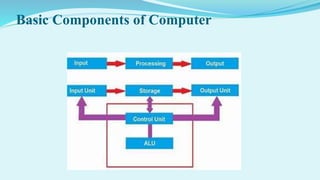
Basic Components of computer
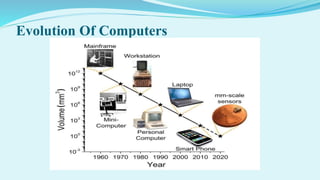
Evolution of computers
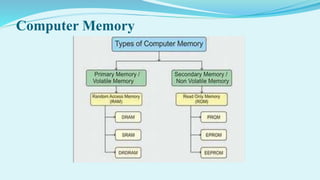
Computer memory
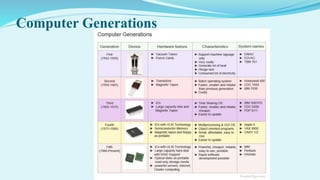
Computer generations
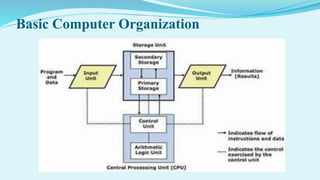
Basic computer organization
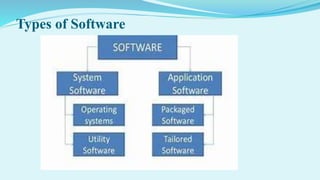
System Software
Application Software
Introduction to operating system
Single user, multi user, multi tasking, single tasking
Application of computer for business and research
MS- Windows , Linux
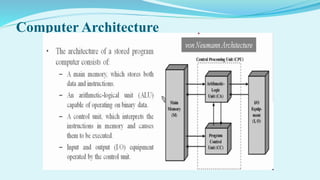
Computer Architecture
Basic Components of Computer
Basic Computer Organization
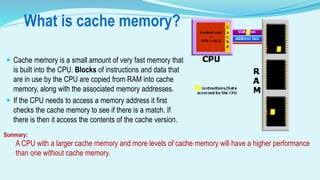
What is cache memory?
 Cache memory is a small amount of very fast memory that
is built into the CPU. Blocks of instructions and data that
are in use by the CPU are copied from RAM into cache
memory, along with the associated memory addresses.
 If the CPU needs to access a memory address it first
checks the cache memory to see if there is a match. If
there is then it access the contents of the cache version.
Summary:
A CPU with a larger cache memory and more levels of cache memory will have a higher performance
than one without cache memory.
Evolution Of Computers
Computer Memory
Computer Generations
Types of Software
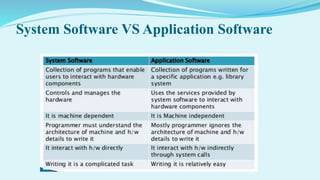
System Software VS Application Software
Operating System And its Type
The operating system acts as a manager of the above
resources and allocates them to specific programs
and users, whenever necessary to perform a
particular task. Therefore operating system is the
resource manager
There are two views:-
User view
System View
Functions of Operating System
 It boots the computer
 It performs basic computer tasks
 It provides a user interface
 It handles system resources such as computer's memory and sharing of the
central processing unit(CPU) time by various applications or peripheral
devices.
 It provides file management which refers to the way that the operating system
manipulates, stores, retrieves and saves data.
 Error Handling is done by the operating system. It takes preventive measures
whenever required to avoid errors.
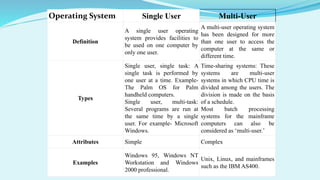
Operating System Single User Multi-User
Definition
A single user operating
system provides facilities to
be used on one computer by
only one user.
A multi-user operating system
has been designed for more
than one user to access the
computer at the same or
different time.
Types
Single user, single task: A
single task is performed by
one user at a time. Example-
The Palm OS for Palm
handheld computers.
Single user, multi-task:
Several programs are run at
the same time by a single
user. For example- Microsoft
Windows.
Time-sharing systems: These
systems are multi-user
systems in which CPU time is
divided among the users. The
division is made on the basis
of a schedule.
Most batch processing
systems for the mainframe
computers can also be
considered as ‘multi-user.’
Attributes Simple Complex
Examples
Windows 95, Windows NT
Workstation and Windows
2000 professional.
Unix, Linux, and mainframes
such as the IBM AS400.
Application of computer for business and
research
E commerce
Engineering Applications
Textile and Appeal Business
Business Research
Accounting and Communication
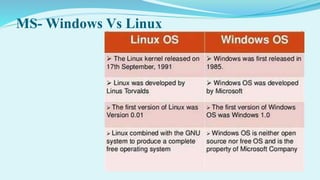
MS- Windows Vs Linux
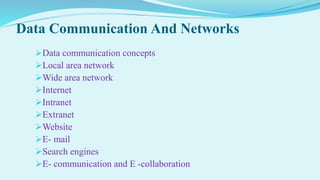
Data Communication And Networks
Data communication concepts
Local area network
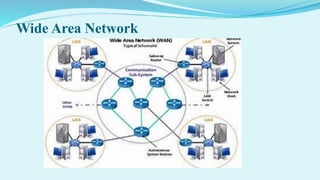
Wide area network
Internet
Intranet
Extranet
Website
E- mail
Search engines
E- communication and E -collaboration
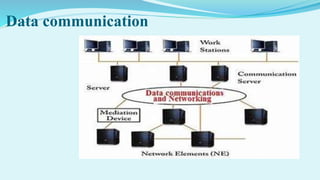
Data communication
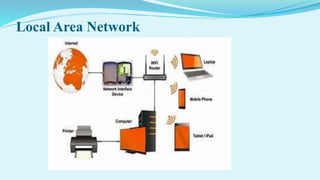
Local Area Network
Wide Area Network
Internet
 The Internet is the global system of interconnected computer networks that
uses the Internet protocol suite (TCP/IP) to link devices worldwide.
 . It is a network of networks that consists of private, public, academic, business,
and government networks of local to global scope, linked by a broad array of
electronic, wireless, and optical networking technologies. The Internet carries a
vast range of information resources and services, such as the inter-linked
hypertext documents and applications of the World Wide Web (WWW),
electronic mail, telephony, and file sharing.
 The origins of the Internet date back to research commissioned by the United
States Department of Defense in the 1960s to build robust, fault-tolerant
communication with computer networks
Intranet
An intranet is a computer network for sharing
information, collaboration tools, operational systems, and
other computing services only within an organization, and
to the exclusion of access by outsiders to the organization
Many modern intranets have search engines, user profiles,
blogs, mobile apps with notifications, and events planning
within their infrastructure.
An intranet is sometimes contrasted to an extranet.
Extranet
An extranet is a controlled private network that allows access to
partners, vendors and suppliers or an authorized set of customers –
normally to a subset of the information accessible from an
organization's intranet
An extranet is similar to a DMZ in that it provides access to needed
services for authorized parties, without granting access to an
organization's entire network.
Extranets can be expensive to implement and maintain within an
organization (e.g., hardware, software, employee training costs), if
hosted internally rather than by an application service provider.
Website
A website or web site is a collection of related network web
resources, such as web pages, multimedia content, which are
typically identified with a common domain name, and published on
at least one web server. Notable examples are wikipedia.org,
google.com, and amazon.com.
Websites can be accessed via a public Internet Protocol (IP)
network, such as the Internet, or a private local area network
(LAN), by a uniform resource locator (URL) that identifies the site.
Websites can have many functions and can be used in various
fashions; a website can be a personal website, a corporate website
for a company, a government website, an organization website, etc.
E-Mail
 Electronic mail (email or e-mail) is a method of exchanging messages
between people using electronic devices. Invented by Ray Tomlinson, email
first entered limited use in the 1960s and by the mid-1970s had taken the form
now recognized as email.
 Email operates across computer networks, which today is primarily the
Internet. Some early email systems required the author and the recipient to both
be online at the same time, in common with instant messaging.
 Today's email systems are based on a store-and-forward model. Email servers
accept, forward, deliver, and store messages
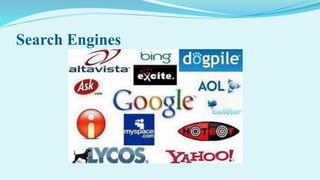
Search Engines
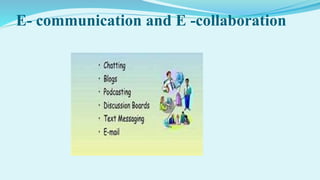
E- communication and E -collaboration
Using Internet for Research
 The internet quick look
 What is internet
 Use of internet
 Major internet services
 Electronic mail
 www
 Downloading super tools for better computing internet and the society
 E- journals and their uses
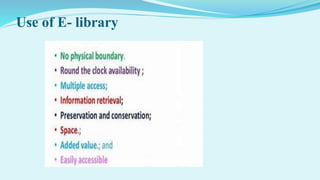
 Use of E- library
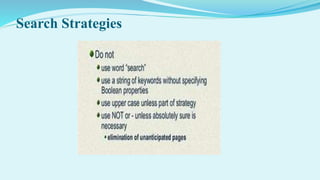
 Search Strategies
 News and multimedia
 Governments
 Archives
 statistics
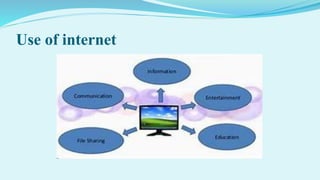
Use of internet
www
The World Wide Web (WWW), commonly known as the Web, is
an information system where documents and other web resources
are identified by Uniform Resource Locators (URLs, such as
https://www.example.com/), which may be interlinked by hypertext,
and are accessible over the Internet.
 The resources of the WWW are transferred via the Hypertext
Transfer Protocol (HTTP) and may be accessed by users by a
software application called a web browser and are published by a
software application called a web server.
Downloading super tools for better
computing internet and the society
 Information technology is the technology used to store, manipulate, distribute
or create information. The type of information or data is not important to this
definition. The technology is any mechanism capable of processing this data.
 Kathleen Guinee wrote, “By information technology, I mean the tools we use
to perform calculations, to store and manipulate text, and to communicate.
Some of these twentieth century tools include: the adding machine, slide rule,
and calculator for performing calculations, the typewriter and word processor
for processing text, and the telephone, radio, and television.
E- journals and their uses
An academic or scholarly journal is a periodical publication in
which scholarship relating to a particular academic discipline is
published.
Academic journals serve as permanent and transparent forums for
the presentation, scrutiny, and discussion of research. They are
usually peer-reviewed or referred.
The term academic journal applies to scholarly publications in all
fields; this article discusses the aspects common to all academic
field journals. Scientific journals and journals of the quantitative
social sciences vary in form and function from journals of the
humanities and qualitative social sciences
They are highly credible.
They offer clarity.
They offer evidence for their claims.
Research options.
Provides case studies.
Provides great reading with a wealth of knowledge.
Focused research.
Freedom to collect journals.
Broadened perspective.
Information comes in many forms.
Use of E- library
Search Strategies
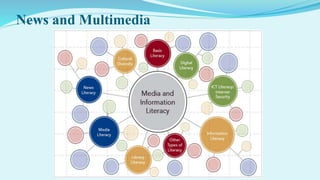
News and Multimedia
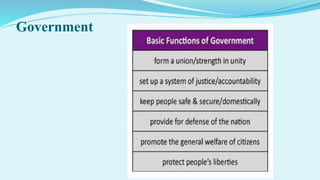
Government
Archives
An archive is a site or location that has a vast amount of
information about a topic that can be downloaded or browsed.
Archives can be used to research and learn more about the topic
being discussed. For example, Computer Hope can be considered an
archive of computer information.
Archive is another term used to describe a file that contains
multiple files that are usually compressed files.
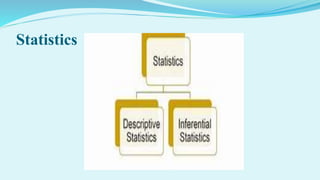
Statistics
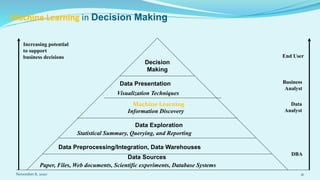
Machine Learning in Decision Making
November 8, 2020 41
Increasing potential
to support
business decisions End User
Business
Analyst
Data
Analyst
DBA
Decision
Making
Data Presentation
Visualization Techniques
Machine Learning
Information Discovery
Data Exploration
Statistical Summary, Querying, and Reporting
Data Preprocessing/Integration, Data Warehouses
Data Sources
Paper, Files, Web documents, Scientific experiments, Database Systems
Evolution of Sciences
 Before 1600, empirical science
 1600-1950s, theoretical science
 Each discipline has grown a theoretical component. Theoretical models often motivate experiments and
generalize our understanding.
 1950s-1990s, computational science
 Over the last 50 years, most disciplines have grown a third, computational branch (e.g. empirical, theoretical,
and computational ecology, or physics, or linguistics.)
 Computational Science traditionally meant simulation. It grew out of our inability to find closed-form solutions
for complex mathematical models.
 1990-now, data science
 The flood of data from new scientific instruments and simulations
 The ability to economically store and manage petabytes of data online
 The Internet and computing Grid that makes all these archives universally accessible
 Scientific info. management, acquisition, organization, query, and visualization tasks scale almost linearly with
data volumes. Soft computing is a major new challenge!
November 8, 2020 Soft computing: Concepts and Techniques 42
Evolution of Database and AI and Machine Learning
 1960s:
 Data collection, database creation, IMS and network DBMS
 1970s:
 Relational data model, relational DBMS implementation
 1980s:
 RDBMS, advanced data models (extended-relational, OO, deductive, etc.)
 Application-oriented DBMS (spatial, scientific, engineering, etc.)
 1990s:
 Soft Computing, data warehousing, multimedia databases, and Web databases
 2000s
 Stream data management and Soft Computing
 Soft Computing and its applications
 Web technology (XML, data integration) and global information systems
November 8, 2020 Soft computing : Concepts and Techniques 43
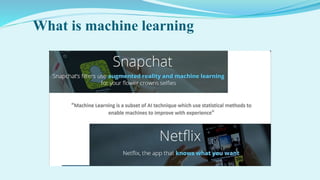
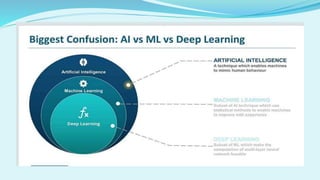
What is machine learning
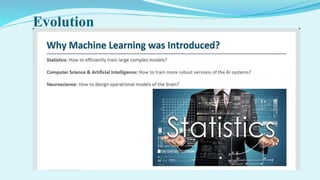
Evolution
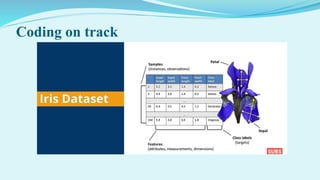
Coding on track
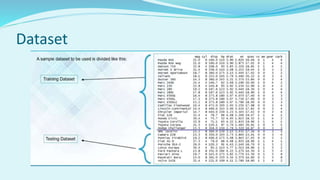
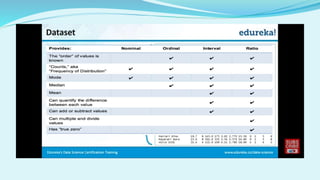
Dataset
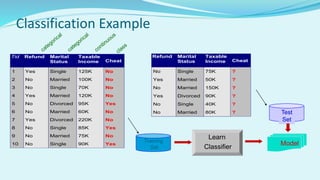
Classification Example
Tid Refund Marital
Status
Taxable
Income Cheat
1 Yes Single 125K No
2 No Married 100K No
3 No Single 70K No
4 Yes Married 120K No
5 No Divorced 95K Yes
6 No Married 60K No
7 Yes Divorced 220K No
8 No Single 85K Yes
9 No Married 75K No
10 No Single 90K Yes
10
Refund Marital
Status
Taxable
Income Cheat
No Single 75K ?
Yes Married 50K ?
No Married 150K ?
Yes Divorced 90K ?
No Single 40K ?
No Married 80K ?
10
Test
Set
Training
Set
Model
Learn
Classifier
Introduction to Research Related Software's
Introduction to data analysis software- SPSS: Definition, objectives
and features
Data analysis using SPSS: Data entry creating variables, Switching
to data labels
Data analysis: Frequencies, recording into different variables, cross
tabulations and layers
Core calculation software
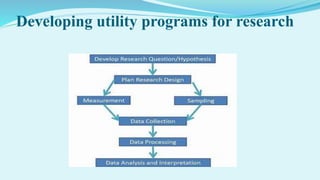
Developing utility programs for research
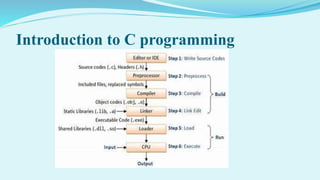
Introduction to C programming
Introduction to data analysis software- SPSS
 SPSS Statistics is a software package used for interactive, or batched,
statistical analysis. Long produced by SPSS Inc., it was acquired by IBM in
2009. The current versions (2015) are named IBM SPSS Statistics.
 The software name originally stood for Statistical Package for the Social
Sciences (SPSS), reflecting the original market, then later changed to
Statistical Product and Service Solutions.
 Statistics included in the base software:
 Descriptive statistics: Cross tabulation, Frequencies, Descriptive, Explore,
Descriptive Ratio Statistics
 Bivariate statistics: Means, t-test, ANOVA, Correlation, Nonparametric tests,
Bayesian
 Prediction for numerical outcomes: Linear regression
 Prediction for identifying groups: Factor analysis, cluster analysis
 Geo spatial analysis, simulation
 R extension , Python
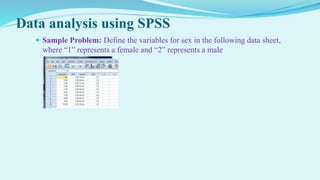
Data analysis using SPSS
 Sample Problem: Define the variables for sex in the following data sheet,
where “1” represents a female and “2” represents a male
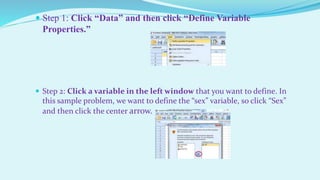
 Step 1: Click “Data” and then click “Define Variable
Properties.”
 Step 2: Click a variable in the left window that you want to define. In
this sample problem, we want to define the “sex” variable, so click “Sex”
and then click the center arrow.
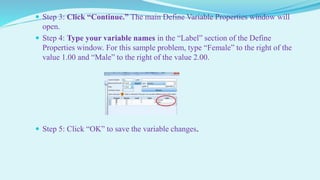
 Step 3: Click “Continue.” The main Define Variable Properties window will
open.
 Step 4: Type your variable names in the “Label” section of the Define
Properties window. For this sample problem, type “Female” to the right of the
value 1.00 and “Male” to the right of the value 2.00.
 Step 5: Click “OK” to save the variable changes.
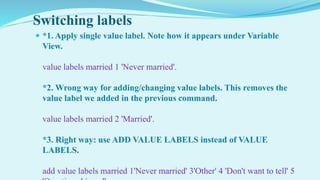
Switching labels
 *1. Apply single value label. Note how it appears under Variable
View.
value labels married 1 'Never married'.
*2. Wrong way for adding/changing value labels. This removes the
value label we added in the previous command.
value labels married 2 'Married'.
*3. Right way: use ADD VALUE LABELS instead of VALUE
LABELS.
add value labels married 1'Never married' 3'Other' 4 'Don't want to tell' 5
Data analysis
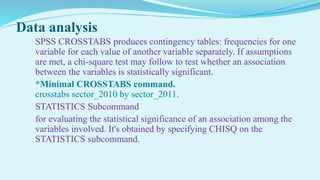
SPSS CROSSTABS produces contingency tables: frequencies for one
variable for each value of another variable separately. If assumptions
are met, a chi-square test may follow to test whether an association
between the variables is statistically significant.
*Minimal CROSSTABS command.
crosstabs sector_2010 by sector_2011.
STATISTICS Subcommand
for evaluating the statistical significance of an association among the
variables involved. It's obtained by specifying CHISQ on the
STATISTICS subcommand.
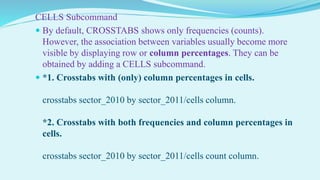
CELLS Subcommand
 By default, CROSSTABS shows only frequencies (counts).
However, the association between variables usually become more
visible by displaying row or column percentages. They can be
obtained by adding a CELLS subcommand.
 *1. Crosstabs with (only) column percentages in cells.
crosstabs sector_2010 by sector_2011/cells column.
*2. Crosstabs with both frequencies and column percentages in
cells.
crosstabs sector_2010 by sector_2011/cells count column.
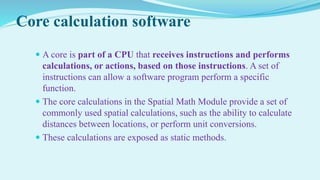
Core calculation software
 A core is part of a CPU that receives instructions and performs
calculations, or actions, based on those instructions. A set of
instructions can allow a software program perform a specific
function.
 The core calculations in the Spatial Math Module provide a set of
commonly used spatial calculations, such as the ability to calculate
distances between locations, or perform unit conversions.
 These calculations are exposed as static methods.
Developing utility programs for research
Introduction to C programming
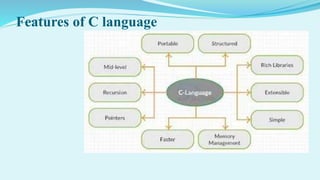
Features of C language
Research related tools and Utilities
MS office and its applications
File handling in windows
Various versions of MS Office
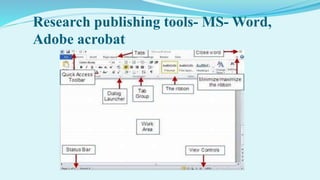
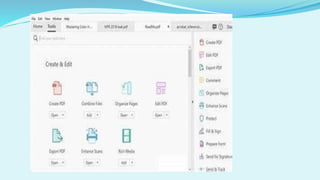
Research publishing tools- MS- Word, Adobe acrobat
 Graphics tool- MS- Excel, MS- PowerPoint: Creating presentations
and adding effects, Subject/field specific tools on
www.freeware.com
MS Office and its applications
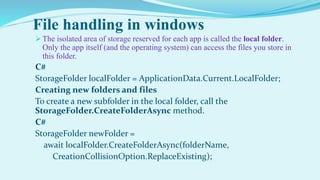
File handling in windows
 The isolated area of storage reserved for each app is called the local folder.
Only the app itself (and the operating system) can access the files you store in
this folder.
C#
StorageFolder localFolder = ApplicationData.Current.LocalFolder;
Creating new folders and files
To create a new subfolder in the local folder, call the
StorageFolder.CreateFolderAsync method.
C#
StorageFolder newFolder =
await localFolder.CreateFolderAsync(folderName,
CreationCollisionOption.ReplaceExisting);
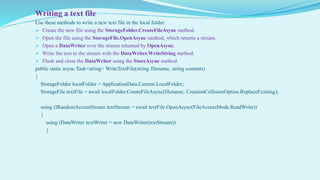
Writing a text file
Use these methods to write a new text file in the local folder:
 Create the new file using the StorageFolder.CreateFileAsync method.
 Open the file using the StorageFile.OpenAsync method, which returns a stream.
 Open a DataWriter over the stream returned by OpenAsync.
 Write the text to the stream with the DataWriter.WriteString method.
 Flush and close the DataWriter using the StoreAsync method.
public static async Task<string> WriteTextFile(string filename, string contents)
{
StorageFolder localFolder = ApplicationData.Current.LocalFolder;
StorageFile textFile = await localFolder.CreateFileAsync(filename, CreationCollisionOption.ReplaceExisting);
using (IRandomAccessStream textStream = await textFile.OpenAsync(FileAccessMode.ReadWrite))
{
using (DataWriter textWriter = new DataWriter(textStream))
{
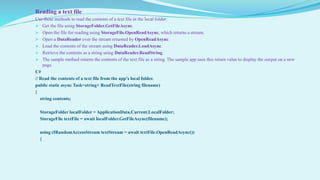
Reading a text file
Use these methods to read the contents of a text file in the local folder:
 Get the file using StorageFolder.GetFileAsync.
 Open the file for reading using StorageFile.OpenReadAsync, which returns a stream.
 Open a DataReader over the stream returned by OpenReadAsync.
 Load the contents of the stream using DataReader.LoadAsync.
 Retrieve the contents as a string using DataReader.ReadString.
 The sample method returns the contents of the text file as a string. The sample app uses this return value to display the output on a new
page.
C#
// Read the contents of a text file from the app’s local folder.
public static async Task<string> ReadTextFile(string filename)
{
string contents;
StorageFolder localFolder = ApplicationData.Current.LocalFolder;
StorageFile textFile = await localFolder.GetFileAsync(filename);
using (IRandomAccessStream textStream = await textFile.OpenReadAsync())
{
Research publishing tools- MS- Word,
Adobe acrobat
Graphics tool- MS- Excel, MS- PowerPoint:
Thankyou

Phd presentation

  • 2.
    Contents Unit1- Basics ofComputer Unit2-Data communication and Networks Unit3- Using Internet for Research Unit4- Introduction to Research Related Software’s Unit5-Research Related Tools and Utilities
  • 3.
    Basics of Computer ComputerArchitecture Basic Components of computer Evolution of computers Computer memory Computer generations Basic computer organization System Software Application Software Introduction to operating system Single user, multi user, multi tasking, single tasking Application of computer for business and research MS- Windows , Linux
  • 4.
  • 5.
  • 6.
  • 7.
    What is cachememory?  Cache memory is a small amount of very fast memory that is built into the CPU. Blocks of instructions and data that are in use by the CPU are copied from RAM into cache memory, along with the associated memory addresses.  If the CPU needs to access a memory address it first checks the cache memory to see if there is a match. If there is then it access the contents of the cache version. Summary: A CPU with a larger cache memory and more levels of cache memory will have a higher performance than one without cache memory.
  • 8.
  • 9.
  • 10.
  • 11.
  • 12.
    System Software VSApplication Software
  • 13.
    Operating System Andits Type The operating system acts as a manager of the above resources and allocates them to specific programs and users, whenever necessary to perform a particular task. Therefore operating system is the resource manager There are two views:- User view System View
  • 14.
    Functions of OperatingSystem  It boots the computer  It performs basic computer tasks  It provides a user interface  It handles system resources such as computer's memory and sharing of the central processing unit(CPU) time by various applications or peripheral devices.  It provides file management which refers to the way that the operating system manipulates, stores, retrieves and saves data.  Error Handling is done by the operating system. It takes preventive measures whenever required to avoid errors.
  • 15.
    Operating System SingleUser Multi-User Definition A single user operating system provides facilities to be used on one computer by only one user. A multi-user operating system has been designed for more than one user to access the computer at the same or different time. Types Single user, single task: A single task is performed by one user at a time. Example- The Palm OS for Palm handheld computers. Single user, multi-task: Several programs are run at the same time by a single user. For example- Microsoft Windows. Time-sharing systems: These systems are multi-user systems in which CPU time is divided among the users. The division is made on the basis of a schedule. Most batch processing systems for the mainframe computers can also be considered as ‘multi-user.’ Attributes Simple Complex Examples Windows 95, Windows NT Workstation and Windows 2000 professional. Unix, Linux, and mainframes such as the IBM AS400.
  • 16.
    Application of computerfor business and research E commerce Engineering Applications Textile and Appeal Business Business Research Accounting and Communication
  • 17.
  • 18.
    Data Communication AndNetworks Data communication concepts Local area network Wide area network Internet Intranet Extranet Website E- mail Search engines E- communication and E -collaboration
  • 19.
  • 20.
  • 21.
  • 22.
    Internet  The Internetis the global system of interconnected computer networks that uses the Internet protocol suite (TCP/IP) to link devices worldwide.  . It is a network of networks that consists of private, public, academic, business, and government networks of local to global scope, linked by a broad array of electronic, wireless, and optical networking technologies. The Internet carries a vast range of information resources and services, such as the inter-linked hypertext documents and applications of the World Wide Web (WWW), electronic mail, telephony, and file sharing.  The origins of the Internet date back to research commissioned by the United States Department of Defense in the 1960s to build robust, fault-tolerant communication with computer networks
  • 23.
    Intranet An intranet isa computer network for sharing information, collaboration tools, operational systems, and other computing services only within an organization, and to the exclusion of access by outsiders to the organization Many modern intranets have search engines, user profiles, blogs, mobile apps with notifications, and events planning within their infrastructure. An intranet is sometimes contrasted to an extranet.
  • 24.
    Extranet An extranet isa controlled private network that allows access to partners, vendors and suppliers or an authorized set of customers – normally to a subset of the information accessible from an organization's intranet An extranet is similar to a DMZ in that it provides access to needed services for authorized parties, without granting access to an organization's entire network. Extranets can be expensive to implement and maintain within an organization (e.g., hardware, software, employee training costs), if hosted internally rather than by an application service provider.
  • 25.
    Website A website orweb site is a collection of related network web resources, such as web pages, multimedia content, which are typically identified with a common domain name, and published on at least one web server. Notable examples are wikipedia.org, google.com, and amazon.com. Websites can be accessed via a public Internet Protocol (IP) network, such as the Internet, or a private local area network (LAN), by a uniform resource locator (URL) that identifies the site. Websites can have many functions and can be used in various fashions; a website can be a personal website, a corporate website for a company, a government website, an organization website, etc.
  • 26.
    E-Mail  Electronic mail(email or e-mail) is a method of exchanging messages between people using electronic devices. Invented by Ray Tomlinson, email first entered limited use in the 1960s and by the mid-1970s had taken the form now recognized as email.  Email operates across computer networks, which today is primarily the Internet. Some early email systems required the author and the recipient to both be online at the same time, in common with instant messaging.  Today's email systems are based on a store-and-forward model. Email servers accept, forward, deliver, and store messages
  • 27.
  • 28.
    E- communication andE -collaboration
  • 29.
    Using Internet forResearch  The internet quick look  What is internet  Use of internet  Major internet services  Electronic mail  www  Downloading super tools for better computing internet and the society  E- journals and their uses  Use of E- library  Search Strategies  News and multimedia  Governments  Archives  statistics
  • 30.
  • 31.
    www The World WideWeb (WWW), commonly known as the Web, is an information system where documents and other web resources are identified by Uniform Resource Locators (URLs, such as https://www.example.com/), which may be interlinked by hypertext, and are accessible over the Internet.  The resources of the WWW are transferred via the Hypertext Transfer Protocol (HTTP) and may be accessed by users by a software application called a web browser and are published by a software application called a web server.
  • 32.
    Downloading super toolsfor better computing internet and the society  Information technology is the technology used to store, manipulate, distribute or create information. The type of information or data is not important to this definition. The technology is any mechanism capable of processing this data.  Kathleen Guinee wrote, “By information technology, I mean the tools we use to perform calculations, to store and manipulate text, and to communicate. Some of these twentieth century tools include: the adding machine, slide rule, and calculator for performing calculations, the typewriter and word processor for processing text, and the telephone, radio, and television.
  • 33.
    E- journals andtheir uses An academic or scholarly journal is a periodical publication in which scholarship relating to a particular academic discipline is published. Academic journals serve as permanent and transparent forums for the presentation, scrutiny, and discussion of research. They are usually peer-reviewed or referred. The term academic journal applies to scholarly publications in all fields; this article discusses the aspects common to all academic field journals. Scientific journals and journals of the quantitative social sciences vary in form and function from journals of the humanities and qualitative social sciences
  • 34.
    They are highlycredible. They offer clarity. They offer evidence for their claims. Research options. Provides case studies. Provides great reading with a wealth of knowledge. Focused research. Freedom to collect journals. Broadened perspective. Information comes in many forms.
  • 35.
    Use of E-library
  • 36.
  • 37.
  • 38.
  • 39.
    Archives An archive isa site or location that has a vast amount of information about a topic that can be downloaded or browsed. Archives can be used to research and learn more about the topic being discussed. For example, Computer Hope can be considered an archive of computer information. Archive is another term used to describe a file that contains multiple files that are usually compressed files.
  • 40.
  • 41.
    Machine Learning inDecision Making November 8, 2020 41 Increasing potential to support business decisions End User Business Analyst Data Analyst DBA Decision Making Data Presentation Visualization Techniques Machine Learning Information Discovery Data Exploration Statistical Summary, Querying, and Reporting Data Preprocessing/Integration, Data Warehouses Data Sources Paper, Files, Web documents, Scientific experiments, Database Systems
  • 42.
    Evolution of Sciences Before 1600, empirical science  1600-1950s, theoretical science  Each discipline has grown a theoretical component. Theoretical models often motivate experiments and generalize our understanding.  1950s-1990s, computational science  Over the last 50 years, most disciplines have grown a third, computational branch (e.g. empirical, theoretical, and computational ecology, or physics, or linguistics.)  Computational Science traditionally meant simulation. It grew out of our inability to find closed-form solutions for complex mathematical models.  1990-now, data science  The flood of data from new scientific instruments and simulations  The ability to economically store and manage petabytes of data online  The Internet and computing Grid that makes all these archives universally accessible  Scientific info. management, acquisition, organization, query, and visualization tasks scale almost linearly with data volumes. Soft computing is a major new challenge! November 8, 2020 Soft computing: Concepts and Techniques 42
  • 43.
    Evolution of Databaseand AI and Machine Learning  1960s:  Data collection, database creation, IMS and network DBMS  1970s:  Relational data model, relational DBMS implementation  1980s:  RDBMS, advanced data models (extended-relational, OO, deductive, etc.)  Application-oriented DBMS (spatial, scientific, engineering, etc.)  1990s:  Soft Computing, data warehousing, multimedia databases, and Web databases  2000s  Stream data management and Soft Computing  Soft Computing and its applications  Web technology (XML, data integration) and global information systems November 8, 2020 Soft computing : Concepts and Techniques 43
  • 45.
  • 46.
  • 48.
  • 49.
  • 51.
    Classification Example Tid RefundMarital Status Taxable Income Cheat 1 Yes Single 125K No 2 No Married 100K No 3 No Single 70K No 4 Yes Married 120K No 5 No Divorced 95K Yes 6 No Married 60K No 7 Yes Divorced 220K No 8 No Single 85K Yes 9 No Married 75K No 10 No Single 90K Yes 10 Refund Marital Status Taxable Income Cheat No Single 75K ? Yes Married 50K ? No Married 150K ? Yes Divorced 90K ? No Single 40K ? No Married 80K ? 10 Test Set Training Set Model Learn Classifier
  • 61.
    Introduction to ResearchRelated Software's Introduction to data analysis software- SPSS: Definition, objectives and features Data analysis using SPSS: Data entry creating variables, Switching to data labels Data analysis: Frequencies, recording into different variables, cross tabulations and layers Core calculation software Developing utility programs for research Introduction to C programming
  • 62.
    Introduction to dataanalysis software- SPSS  SPSS Statistics is a software package used for interactive, or batched, statistical analysis. Long produced by SPSS Inc., it was acquired by IBM in 2009. The current versions (2015) are named IBM SPSS Statistics.  The software name originally stood for Statistical Package for the Social Sciences (SPSS), reflecting the original market, then later changed to Statistical Product and Service Solutions.  Statistics included in the base software:  Descriptive statistics: Cross tabulation, Frequencies, Descriptive, Explore, Descriptive Ratio Statistics  Bivariate statistics: Means, t-test, ANOVA, Correlation, Nonparametric tests, Bayesian  Prediction for numerical outcomes: Linear regression  Prediction for identifying groups: Factor analysis, cluster analysis  Geo spatial analysis, simulation  R extension , Python
  • 63.
    Data analysis usingSPSS  Sample Problem: Define the variables for sex in the following data sheet, where “1” represents a female and “2” represents a male
  • 64.
     Step 1:Click “Data” and then click “Define Variable Properties.”  Step 2: Click a variable in the left window that you want to define. In this sample problem, we want to define the “sex” variable, so click “Sex” and then click the center arrow.
  • 65.
     Step 3:Click “Continue.” The main Define Variable Properties window will open.  Step 4: Type your variable names in the “Label” section of the Define Properties window. For this sample problem, type “Female” to the right of the value 1.00 and “Male” to the right of the value 2.00.  Step 5: Click “OK” to save the variable changes.
  • 66.
    Switching labels  *1.Apply single value label. Note how it appears under Variable View. value labels married 1 'Never married'. *2. Wrong way for adding/changing value labels. This removes the value label we added in the previous command. value labels married 2 'Married'. *3. Right way: use ADD VALUE LABELS instead of VALUE LABELS. add value labels married 1'Never married' 3'Other' 4 'Don't want to tell' 5
  • 67.
    Data analysis SPSS CROSSTABSproduces contingency tables: frequencies for one variable for each value of another variable separately. If assumptions are met, a chi-square test may follow to test whether an association between the variables is statistically significant. *Minimal CROSSTABS command. crosstabs sector_2010 by sector_2011. STATISTICS Subcommand for evaluating the statistical significance of an association among the variables involved. It's obtained by specifying CHISQ on the STATISTICS subcommand.
  • 68.
    CELLS Subcommand  Bydefault, CROSSTABS shows only frequencies (counts). However, the association between variables usually become more visible by displaying row or column percentages. They can be obtained by adding a CELLS subcommand.  *1. Crosstabs with (only) column percentages in cells. crosstabs sector_2010 by sector_2011/cells column. *2. Crosstabs with both frequencies and column percentages in cells. crosstabs sector_2010 by sector_2011/cells count column.
  • 69.
    Core calculation software A core is part of a CPU that receives instructions and performs calculations, or actions, based on those instructions. A set of instructions can allow a software program perform a specific function.  The core calculations in the Spatial Math Module provide a set of commonly used spatial calculations, such as the ability to calculate distances between locations, or perform unit conversions.  These calculations are exposed as static methods.
  • 70.
  • 71.
    Introduction to Cprogramming
  • 72.
    Features of Clanguage
  • 73.
    Research related toolsand Utilities MS office and its applications File handling in windows Various versions of MS Office Research publishing tools- MS- Word, Adobe acrobat  Graphics tool- MS- Excel, MS- PowerPoint: Creating presentations and adding effects, Subject/field specific tools on www.freeware.com
  • 74.
    MS Office andits applications
  • 75.
    File handling inwindows  The isolated area of storage reserved for each app is called the local folder. Only the app itself (and the operating system) can access the files you store in this folder. C# StorageFolder localFolder = ApplicationData.Current.LocalFolder; Creating new folders and files To create a new subfolder in the local folder, call the StorageFolder.CreateFolderAsync method. C# StorageFolder newFolder = await localFolder.CreateFolderAsync(folderName, CreationCollisionOption.ReplaceExisting);
  • 76.
    Writing a textfile Use these methods to write a new text file in the local folder:  Create the new file using the StorageFolder.CreateFileAsync method.  Open the file using the StorageFile.OpenAsync method, which returns a stream.  Open a DataWriter over the stream returned by OpenAsync.  Write the text to the stream with the DataWriter.WriteString method.  Flush and close the DataWriter using the StoreAsync method. public static async Task<string> WriteTextFile(string filename, string contents) { StorageFolder localFolder = ApplicationData.Current.LocalFolder; StorageFile textFile = await localFolder.CreateFileAsync(filename, CreationCollisionOption.ReplaceExisting); using (IRandomAccessStream textStream = await textFile.OpenAsync(FileAccessMode.ReadWrite)) { using (DataWriter textWriter = new DataWriter(textStream)) {
  • 77.
    Reading a textfile Use these methods to read the contents of a text file in the local folder:  Get the file using StorageFolder.GetFileAsync.  Open the file for reading using StorageFile.OpenReadAsync, which returns a stream.  Open a DataReader over the stream returned by OpenReadAsync.  Load the contents of the stream using DataReader.LoadAsync.  Retrieve the contents as a string using DataReader.ReadString.  The sample method returns the contents of the text file as a string. The sample app uses this return value to display the output on a new page. C# // Read the contents of a text file from the app’s local folder. public static async Task<string> ReadTextFile(string filename) { string contents; StorageFolder localFolder = ApplicationData.Current.LocalFolder; StorageFile textFile = await localFolder.GetFileAsync(filename); using (IRandomAccessStream textStream = await textFile.OpenReadAsync()) {
  • 78.
    Research publishing tools-MS- Word, Adobe acrobat
  • 80.
    Graphics tool- MS-Excel, MS- PowerPoint:
  • 81.