Schlumberger-Private
Petrel 2018 Geophysics
Module 3: Seismic intersection and data manipulation
Schlumberger-Private
Exercise 1: Random lines
Schlumberger-Private
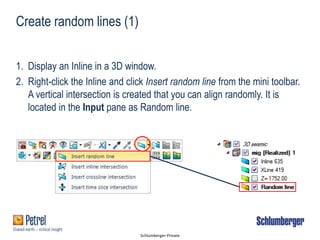
Create random lines (1)
1. Display an Inline in a 3D window.
2. Right-click the Inline and click Insert random line from the mini toolbar.
A vertical intersection is created that you can align randomly. It is
located in the Input pane as Random line.
Schlumberger-Private
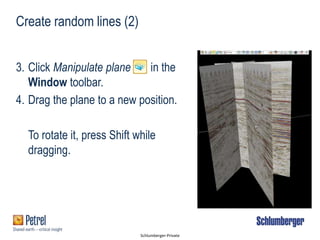
Create random lines (2)
3. Click Manipulate plane in the
Window toolbar.
4. Drag the plane to a new position.
To rotate it, press Shift while
dragging.
Schlumberger-Private
Random lines (3)
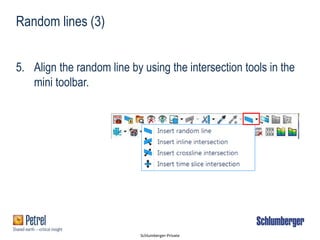
5. Align the random line by using the intersection tools in the
mini toolbar.
Schlumberger-Private
How to tile windows (1)
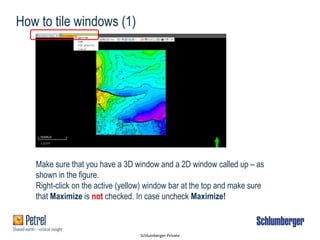
Make sure that you have a 3D window and a 2D window called up – as
shown in the figure.
Right-click on the active (yellow) window bar at the top and make sure
that Maximize is not checked. In case uncheck Maximize!
Schlumberger-Private
How to tile windows (2)
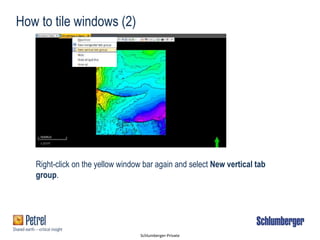
Right-click on the yellow window bar again and select New vertical tab
group.
Schlumberger-Private
How to tile windows - result (3)
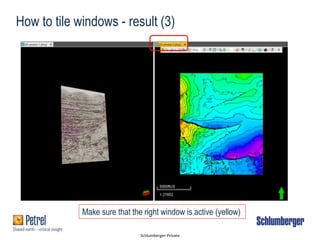
Make sure that the right window is active (yellow)
Schlumberger-Private
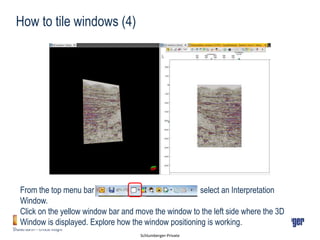
How to tile windows (4)
From the top menu bar select an Interpretation
Window.
Click on the yellow window bar and move the window to the left side where the 3D
Window is displayed. Explore how the window positioning is working.
Schlumberger-Private
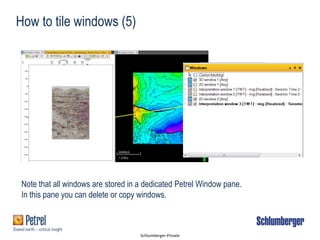
How to tile windows (5)
Note that all windows are stored in a dedicated Petrel Window pane.
In this pane you can delete or copy windows.
Schlumberger-Private
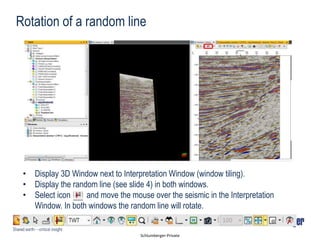
Rotation of a random line
• Display 3D Window next to Interpretation Window (window tiling).
• Display the random line (see slide 4) in both windows.
• Select icon and move the mouse over the seismic in the Interpretation
Window. In both windows the random line will rotate.
Schlumberger-Private
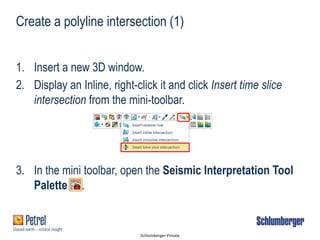
1. Insert a new 3D window.
2. Display an Inline, right-click it and click Insert time slice
intersection from the mini-toolbar.
3. In the mini toolbar, open the Seismic Interpretation Tool
Palette .
Create a polyline intersection (1)
Schlumberger-Private
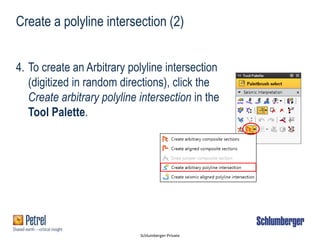
4. To create an Arbitrary polyline intersection
(digitized in random directions), click the
Create arbitrary polyline intersection in the
Tool Palette.
Create a polyline intersection (2)
Schlumberger-Private
Create a polyline intersection (3)
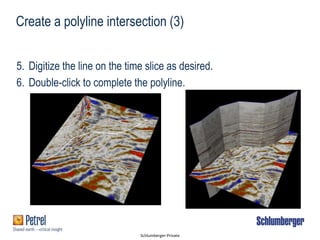
5. Digitize the line on the time slice as desired.
6. Double-click to complete the polyline.
Schlumberger-Private
Create a polyline intersection (4)
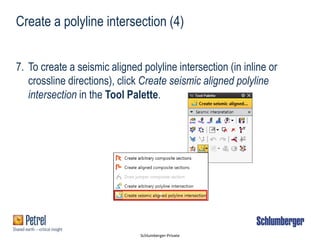
7. To create a seismic aligned polyline intersection (in inline or
crossline directions), click Create seismic aligned polyline
intersection in the Tool Palette.
1
Schlumberger-Private
Create a polyline intersection (5)
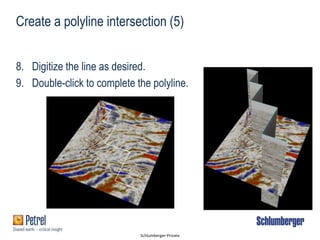
8. Digitize the line as desired.
9. Double-click to complete the polyline.
Schlumberger-Private
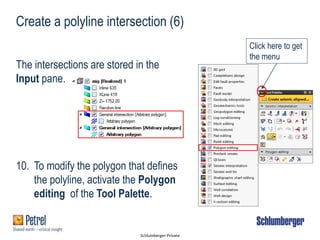
Create a polyline intersection (6)
The intersections are stored in the
Input pane.
10. To modify the polygon that defines
the polyline, activate the Polygon
editing of the Tool Palette.
Click here to get
the menu
Schlumberger-Private
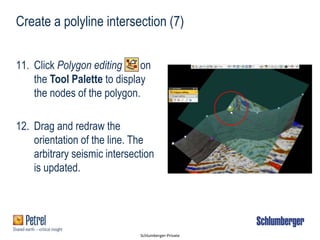
11. Click Polygon editing on
the Tool Palette to display
the nodes of the polygon.
12. Drag and redraw the
orientation of the line. The
arbitrary seismic intersection
is updated.
Create a polyline intersection (7)
Schlumberger-Private
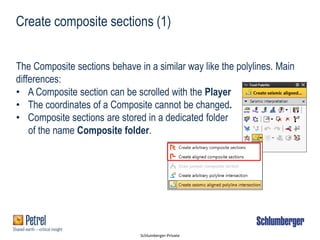
Create composite sections (1)
The Composite sections behave in a similar way like the polylines. Main
differences:
• A Composite section can be scrolled with the Player
• The coordinates of a Composite cannot be changed.
• Composite sections are stored in a dedicated folder
of the name Composite folder.
1
Schlumberger-Private
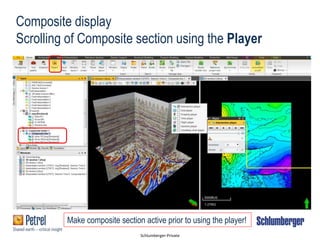
Composite display
Scrolling of Composite section using the Player
Make composite section active prior to using the player!
Schlumberger-Private
Skip slides 23-30!
They cover the handling of 2D seismic data
Schlumberger-Private
Exercise 2: Seismic data visualization and
manipulation
Schlumberger-Private
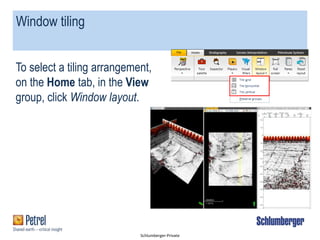
Window tiling
To select a tiling arrangement,
on the Home tab, in the View
group, click Window layout.
Schlumberger-Private
1. On the Window toolbar, click Track this cursor . To see the
cursor position in all windows, change to Select [P] mode.
You also can select Track all cursors to track cursors in all
windows.
2. To deactivate cursor tracking, click Don’t track any cursors.
Cursor tracking
Schlumberger-Private
Camera link
You can link two or more 3D or Interpretation windows with a
camera so that when you zoom, pan, and squeeze the objects
in one window; the action is synchronized in the linked
windows. You can display different objects in each window.
When you click Link camera, the names of all of the windows
that are linked together are updated.
Schlumberger-Private
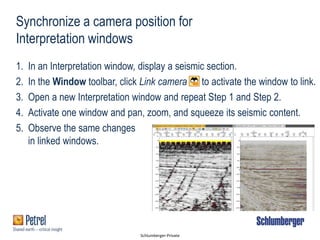
Synchronize a camera position for
Interpretation windows
1. In an Interpretation window, display a seismic section.
2. In the Window toolbar, click Link camera to activate the window to link.
3. Open a new Interpretation window and repeat Step 1 and Step 2.
4. Activate one window and pan, zoom, and squeeze its seismic content.
5. Observe the same changes
in linked windows.
Schlumberger-Private
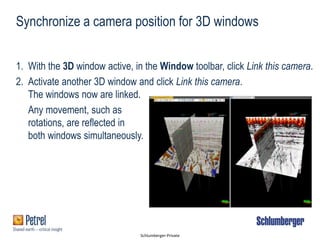
1. With the 3D window active, in the Window toolbar, click Link this camera.
2. Activate another 3D window and click Link this camera.
The windows now are linked.
Any movement, such as
rotations, are reflected in
both windows simultaneously.
Synchronize a camera position for 3D windows
Schlumberger-Private
Seismic ghost curve
 Use the ghost curve to create a small bitmap of reflectors on
a seismic line.
 You can move the ghost curve area to other parts of the
same seismic line or other seismic lines to compare signal
patterns and identify the same horizons across a fault.
Schlumberger-Private
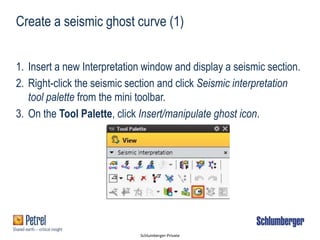
Create a seismic ghost curve (1)
1. Insert a new Interpretation window and display a seismic section.
2. Right-click the seismic section and click Seismic interpretation
tool palette from the mini toolbar.
3. On the Tool Palette, click Insert/manipulate ghost icon.
Schlumberger-Private
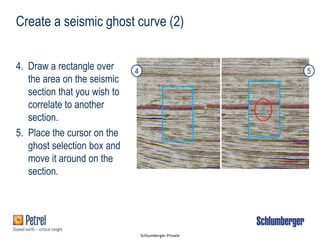
Create a seismic ghost curve (2)
4. Draw a rectangle over
the area on the seismic
section that you wish to
correlate to another
section.
5. Place the cursor on the
ghost selection box and
move it around on the
section.
4 5
Schlumberger-Private
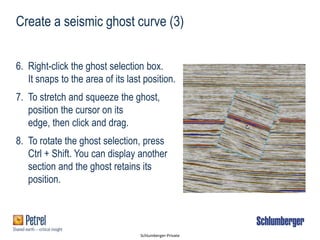
Create a seismic ghost curve (3)
6. Right-click the ghost selection box.
It snaps to the area of its last position.
7. To stretch and squeeze the ghost,
position the cursor on its
edge, then click and drag.
8. To rotate the ghost selection, press
Ctrl + Shift. You can display another
section and the ghost retains its
position.
Schlumberger-Private
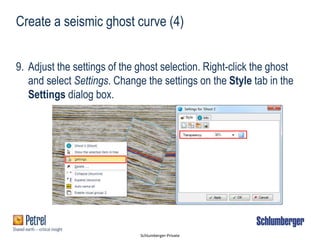
Create a seismic ghost curve (4)
9. Adjust the settings of the ghost selection. Right-click the ghost
and select Settings. Change the settings on the Style tab in the
Settings dialog box.
Schlumberger-Private
Seismic overlay
It is possible to co-visualize seismic attributes/vintages which
aids for numerous seismic interpretation workflows. Seismic
overlay is available in the Interpretation window through the
Inspector.
The Inspector allows you to select a vintage as overlay and co-
visualize it with the background vintage
Schlumberger-Private
1. In an Interpretation window, display a seismic section.
2. From the Quick Access toolbar, click Inspector .
3. Change to Select [P] mode in the Window toolbar and click the
seismic section.
4. Expand the Overlay subtab.
5. Select the Vintage check box.
Using seismic overlay (1)
Schlumberger-Private
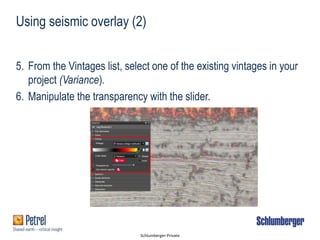
Using seismic overlay (2)
5. From the Vintages list, select one of the existing vintages in your
project (Variance).
6. Manipulate the transparency with the slider.
Schlumberger-Private
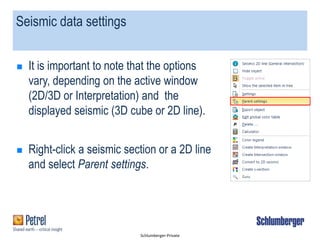
Seismic data settings
 It is important to note that the options
vary, depending on the active window
(2D/3D or Interpretation) and the
displayed seismic (3D cube or 2D line).
 Right-click a seismic section or a 2D line
and select Parent settings.
Schlumberger-Private
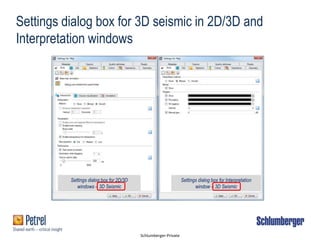
Settings dialog box for 3D seismic in 2D/3D and
Interpretation windows
Settings dialog box for 2D/3D
windows – 3D Seismic
Settings dialog box for Interpretation
window – 3D Seismic
Schlumberger-Private
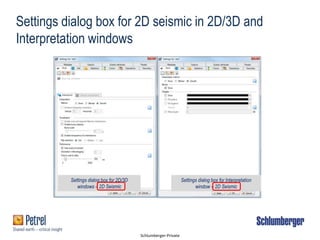
Settings dialog box for 2D seismic in 2D/3D and
Interpretation windows
Settings dialog box for 2D/3D
windows – 2D Seismic
Settings dialog box for Interpretation
window – 2D Seismic
Schlumberger-Private
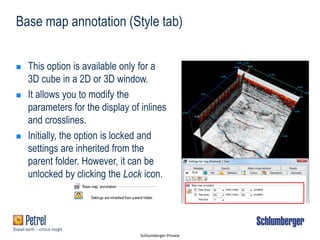
Base map annotation (Style tab)
 This option is available only for a
3D cube in a 2D or 3D window.
 It allows you to modify the
parameters for the display of inlines
and crosslines.
 Initially, the option is locked and
settings are inherited from the
parent folder. However, it can be
unlocked by clicking the Lock icon.
Schlumberger-Private
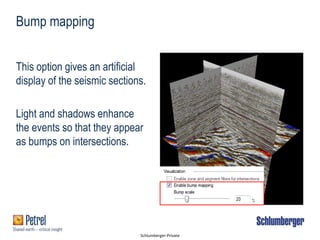
Bump mapping
This option gives an artificial
display of the seismic sections.
Light and shadows enhance
the events so that they appear
as bumps on intersections.
Schlumberger-Private
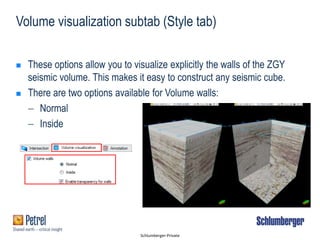
Volume visualization subtab (Style tab)
 These options allow you to visualize explicitly the walls of the ZGY
seismic volume. This makes it easy to construct any seismic cube.
 There are two options available for Volume walls:
 Normal
 Inside
Schlumberger-Private
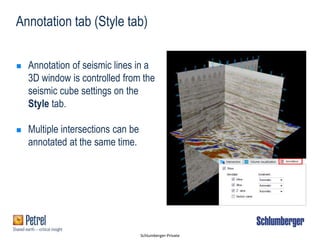
Annotation tab (Style tab)
 Annotation of seismic lines in a
3D window is controlled from the
seismic cube settings on the
Style tab.
 Multiple intersections can be
annotated at the same time.
Schlumberger-Private
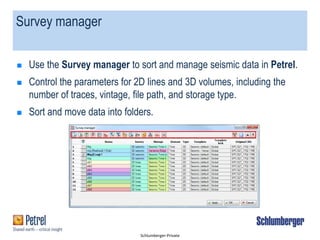
Survey manager
 Use the Survey manager to sort and manage seismic data in Petrel.
 Control the parameters for 2D lines and 3D volumes, including the
number of traces, vintage, file path, and storage type.
 Sort and move data into folders.
Schlumberger-Private
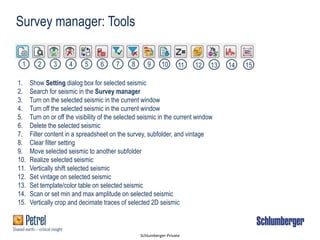
1 2 3 4 5 6 7 8 9 10 11 12 13 14 15
Survey manager: Tools
1. Show Setting dialog box for selected seismic
2. Search for seismic in the Survey manager
3. Turn on the selected seismic in the current window
4. Turn off the selected seismic in the current window
5. Turn on or off the visibility of the selected seismic in the current window
6. Delete the selected seismic
7. Filter content in a spreadsheet on the survey, subfolder, and vintage
8. Clear filter setting
9. Move selected seismic to another subfolder
10. Realize selected seismic
11. Vertically shift selected seismic
12. Set vintage on selected seismic
13. Set template/color table on selected seismic
14. Scan or set min and max amplitude on selected seismic
15. Vertically crop and decimate traces of selected 2D seismic
Schlumberger-Private
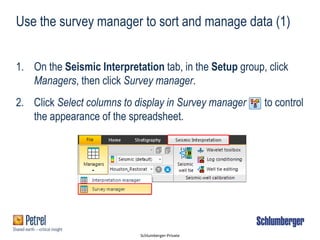
Use the survey manager to sort and manage data (1)
1. On the Seismic Interpretation tab, in the Setup group, click
Managers, then click Survey manager.
2. Click Select columns to display in Survey manager to control
the appearance of the spreadsheet.
Schlumberger-Private
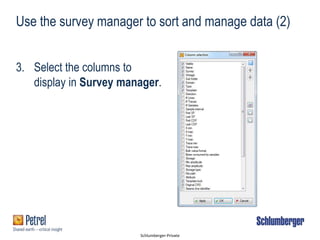
3. Select the columns to
display in Survey manager.
Use the survey manager to sort and manage data (2)
Schlumberger-Private
Exercise 3: Colors and templates
Schlumberger-Private
Templates
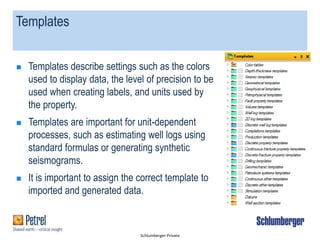
 Templates describe settings such as the colors
used to display data, the level of precision to be
used when creating labels, and units used by
the property.
 Templates are important for unit-dependent
processes, such as estimating well logs using
standard formulas or generating synthetic
seismograms.
 It is important to assign the correct template to
imported and generated data.
Schlumberger-Private
Assign templates (1)
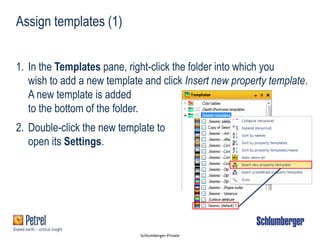
1. In the Templates pane, right-click the folder into which you
wish to add a new template and click Insert new property template.
A new template is added
to the bottom of the folder.
2. Double-click the new template to
open its Settings.
Schlumberger-Private
Assign templates (2)
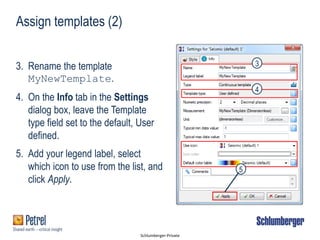
3. Rename the template
MyNewTemplate.
4. On the Info tab in the Settings
dialog box, leave the Template
type field set to the default, User
defined.
5. Add your legend label, select
which icon to use from the list, and
click Apply.
3
4
5
Schlumberger-Private
Assign templates (3)
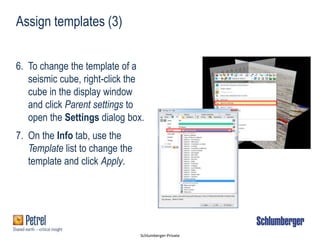
6. To change the template of a
seismic cube, right-click the
cube in the display window
and click Parent settings to
open the Settings dialog box.
7. On the Info tab, use the
Template list to change the
template and click Apply.
Schlumberger-Private
Color tables
Color tables now can be assigned to an individual object. This
functionality allows you to change colors, assign colors to
undefined values, set opacity, and, in the case of discrete color
tables, set different patterns.
Schlumberger-Private
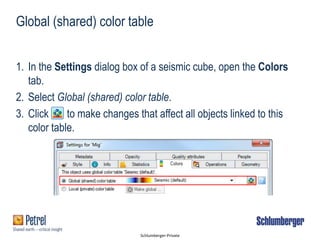
1. In the Settings dialog box of a seismic cube, open the Colors
tab.
2. Select Global (shared) color table.
3. Click to make changes that affect all objects linked to this
color table.
Global (shared) color table
Schlumberger-Private
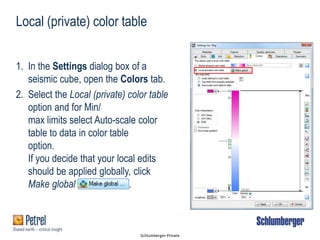
Local (private) color table
1. In the Settings dialog box of a
seismic cube, open the Colors tab.
2. Select the Local (private) color table
option and for Min/
max limits select Auto-scale color
table to data in color table
option.
If you decide that your local edits
should be applied globally, click
Make global .
Schlumberger-Private
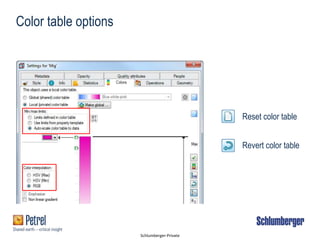
Color table options
Reset color table
Revert color table
Schlumberger-Private
Make seismic intersection transparent (1)
1. In the Quick Access toolbar, click Inspector .
2. Change to Select [P] mode in the Window toolbar and click the seismic
to populate the Inspector.
3. Expand the Color subtab
4. Select the checkbox next to Transparency.
5. Move the slider to change the opacity of
the intersections.
Schlumberger-Private
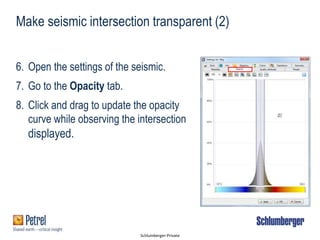
6. Open the settings of the seismic.
7. Go to the Opacity tab.
8. Click and drag to update the opacity
curve while observing the intersection
displayed.
Make seismic intersection transparent (2)
Schlumberger-Private
Exercise 4: Visualization tools
Schlumberger-Private
Volume rendering
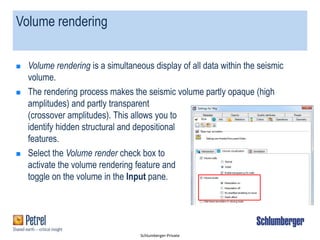
 Volume rendering is a simultaneous display of all data within the seismic
volume.
 The rendering process makes the seismic volume partly opaque (high
amplitudes) and partly transparent
(crossover amplitudes). This allows you to
identify hidden structural and depositional
features.
 Select the Volume render check box to
activate the volume rendering feature and
toggle on the volume in the Input pane.
Schlumberger-Private
Volume rendering (1)
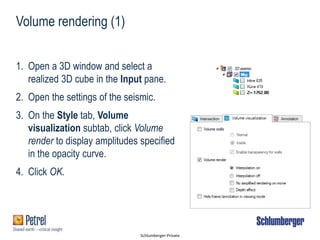
1. Open a 3D window and select a
realized 3D cube in the Input pane.
2. Open the settings of the seismic.
3. On the Style tab, Volume
visualization subtab, click Volume
render to display amplitudes specified
in the opacity curve.
4. Click OK.
Schlumberger-Private
Volume rendering (2)
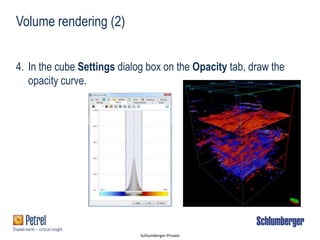
4. In the cube Settings dialog box on the Opacity tab, draw the
opacity curve.
Schlumberger-Private
Light tool
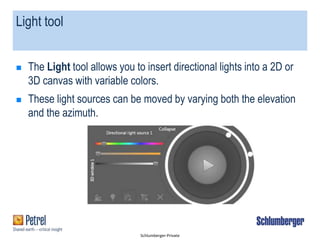
 The Light tool allows you to insert directional lights into a 2D or
3D canvas with variable colors.
 These light sources can be moved by varying both the elevation
and the azimuth.
Schlumberger-Private
Light tool usage
You can use the Light tool in many scenarios including:
 seismic amplitudes
 volume attributes applied on seismic data
 gridded surfaces
 geobodies
Schlumberger-Private
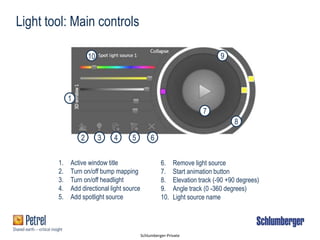
1
2 3 4 5 6
7
8
910
Light tool: Main controls
1. Active window title
2. Turn on/off bump mapping
3. Turn on/off headlight
4. Add directional light source
5. Add spotlight source
6. Remove light source
7. Start animation button
8. Elevation track (-90 +90 degrees)
9. Angle track (0 -360 degrees)
10. Light source name
Schlumberger-Private
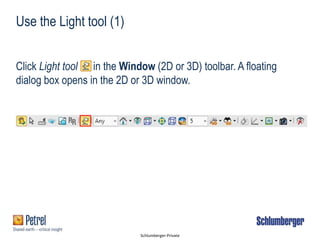
Use the Light tool (1)
Click Light tool in the Window (2D or 3D) toolbar. A floating
dialog box opens in the 2D or 3D window.
Schlumberger-Private
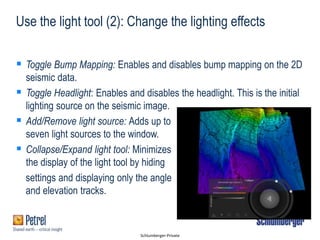
Use the light tool (2): Change the lighting effects
 Toggle Bump Mapping: Enables and disables bump mapping on the 2D
seismic data.
 Toggle Headlight: Enables and disables the headlight. This is the initial
lighting source on the seismic image.
 Add/Remove light source: Adds up to
seven light sources to the window.
 Collapse/Expand light tool: Minimizes
the display of the light tool by hiding
settings and displaying only the angle
and elevation tracks.

Petrel F 3 seismic intersections and data manipulation 2018 v1.1

  • 1.
    Schlumberger-Private Petrel 2018 Geophysics Module3: Seismic intersection and data manipulation
  • 2.
  • 3.
    Schlumberger-Private Create random lines(1) 1. Display an Inline in a 3D window. 2. Right-click the Inline and click Insert random line from the mini toolbar. A vertical intersection is created that you can align randomly. It is located in the Input pane as Random line.
  • 4.
    Schlumberger-Private Create random lines(2) 3. Click Manipulate plane in the Window toolbar. 4. Drag the plane to a new position. To rotate it, press Shift while dragging.
  • 5.
    Schlumberger-Private Random lines (3) 5.Align the random line by using the intersection tools in the mini toolbar.
  • 6.
    Schlumberger-Private How to tilewindows (1) Make sure that you have a 3D window and a 2D window called up – as shown in the figure. Right-click on the active (yellow) window bar at the top and make sure that Maximize is not checked. In case uncheck Maximize!
  • 7.
    Schlumberger-Private How to tilewindows (2) Right-click on the yellow window bar again and select New vertical tab group.
  • 8.
    Schlumberger-Private How to tilewindows - result (3) Make sure that the right window is active (yellow)
  • 9.
    Schlumberger-Private How to tilewindows (4) From the top menu bar select an Interpretation Window. Click on the yellow window bar and move the window to the left side where the 3D Window is displayed. Explore how the window positioning is working.
  • 10.
    Schlumberger-Private How to tilewindows (5) Note that all windows are stored in a dedicated Petrel Window pane. In this pane you can delete or copy windows.
  • 11.
    Schlumberger-Private Rotation of arandom line • Display 3D Window next to Interpretation Window (window tiling). • Display the random line (see slide 4) in both windows. • Select icon and move the mouse over the seismic in the Interpretation Window. In both windows the random line will rotate.
  • 12.
    Schlumberger-Private 1. Insert anew 3D window. 2. Display an Inline, right-click it and click Insert time slice intersection from the mini-toolbar. 3. In the mini toolbar, open the Seismic Interpretation Tool Palette . Create a polyline intersection (1)
  • 13.
    Schlumberger-Private 4. To createan Arbitrary polyline intersection (digitized in random directions), click the Create arbitrary polyline intersection in the Tool Palette. Create a polyline intersection (2)
  • 14.
    Schlumberger-Private Create a polylineintersection (3) 5. Digitize the line on the time slice as desired. 6. Double-click to complete the polyline.
  • 15.
    Schlumberger-Private Create a polylineintersection (4) 7. To create a seismic aligned polyline intersection (in inline or crossline directions), click Create seismic aligned polyline intersection in the Tool Palette. 1
  • 16.
    Schlumberger-Private Create a polylineintersection (5) 8. Digitize the line as desired. 9. Double-click to complete the polyline.
  • 17.
    Schlumberger-Private Create a polylineintersection (6) The intersections are stored in the Input pane. 10. To modify the polygon that defines the polyline, activate the Polygon editing of the Tool Palette. Click here to get the menu
  • 18.
    Schlumberger-Private 11. Click Polygonediting on the Tool Palette to display the nodes of the polygon. 12. Drag and redraw the orientation of the line. The arbitrary seismic intersection is updated. Create a polyline intersection (7)
  • 19.
    Schlumberger-Private Create composite sections(1) The Composite sections behave in a similar way like the polylines. Main differences: • A Composite section can be scrolled with the Player • The coordinates of a Composite cannot be changed. • Composite sections are stored in a dedicated folder of the name Composite folder. 1
  • 20.
    Schlumberger-Private Composite display Scrolling ofComposite section using the Player Make composite section active prior to using the player!
  • 21.
    Schlumberger-Private Skip slides 23-30! Theycover the handling of 2D seismic data
  • 22.
    Schlumberger-Private Exercise 2: Seismicdata visualization and manipulation
  • 23.
    Schlumberger-Private Window tiling To selecta tiling arrangement, on the Home tab, in the View group, click Window layout.
  • 24.
    Schlumberger-Private 1. On theWindow toolbar, click Track this cursor . To see the cursor position in all windows, change to Select [P] mode. You also can select Track all cursors to track cursors in all windows. 2. To deactivate cursor tracking, click Don’t track any cursors. Cursor tracking
  • 25.
    Schlumberger-Private Camera link You canlink two or more 3D or Interpretation windows with a camera so that when you zoom, pan, and squeeze the objects in one window; the action is synchronized in the linked windows. You can display different objects in each window. When you click Link camera, the names of all of the windows that are linked together are updated.
  • 26.
    Schlumberger-Private Synchronize a cameraposition for Interpretation windows 1. In an Interpretation window, display a seismic section. 2. In the Window toolbar, click Link camera to activate the window to link. 3. Open a new Interpretation window and repeat Step 1 and Step 2. 4. Activate one window and pan, zoom, and squeeze its seismic content. 5. Observe the same changes in linked windows.
  • 27.
    Schlumberger-Private 1. With the3D window active, in the Window toolbar, click Link this camera. 2. Activate another 3D window and click Link this camera. The windows now are linked. Any movement, such as rotations, are reflected in both windows simultaneously. Synchronize a camera position for 3D windows
  • 28.
    Schlumberger-Private Seismic ghost curve Use the ghost curve to create a small bitmap of reflectors on a seismic line.  You can move the ghost curve area to other parts of the same seismic line or other seismic lines to compare signal patterns and identify the same horizons across a fault.
  • 29.
    Schlumberger-Private Create a seismicghost curve (1) 1. Insert a new Interpretation window and display a seismic section. 2. Right-click the seismic section and click Seismic interpretation tool palette from the mini toolbar. 3. On the Tool Palette, click Insert/manipulate ghost icon.
  • 30.
    Schlumberger-Private Create a seismicghost curve (2) 4. Draw a rectangle over the area on the seismic section that you wish to correlate to another section. 5. Place the cursor on the ghost selection box and move it around on the section. 4 5
  • 31.
    Schlumberger-Private Create a seismicghost curve (3) 6. Right-click the ghost selection box. It snaps to the area of its last position. 7. To stretch and squeeze the ghost, position the cursor on its edge, then click and drag. 8. To rotate the ghost selection, press Ctrl + Shift. You can display another section and the ghost retains its position.
  • 32.
    Schlumberger-Private Create a seismicghost curve (4) 9. Adjust the settings of the ghost selection. Right-click the ghost and select Settings. Change the settings on the Style tab in the Settings dialog box.
  • 33.
    Schlumberger-Private Seismic overlay It ispossible to co-visualize seismic attributes/vintages which aids for numerous seismic interpretation workflows. Seismic overlay is available in the Interpretation window through the Inspector. The Inspector allows you to select a vintage as overlay and co- visualize it with the background vintage
  • 34.
    Schlumberger-Private 1. In anInterpretation window, display a seismic section. 2. From the Quick Access toolbar, click Inspector . 3. Change to Select [P] mode in the Window toolbar and click the seismic section. 4. Expand the Overlay subtab. 5. Select the Vintage check box. Using seismic overlay (1)
  • 35.
    Schlumberger-Private Using seismic overlay(2) 5. From the Vintages list, select one of the existing vintages in your project (Variance). 6. Manipulate the transparency with the slider.
  • 36.
    Schlumberger-Private Seismic data settings It is important to note that the options vary, depending on the active window (2D/3D or Interpretation) and the displayed seismic (3D cube or 2D line).  Right-click a seismic section or a 2D line and select Parent settings.
  • 37.
    Schlumberger-Private Settings dialog boxfor 3D seismic in 2D/3D and Interpretation windows Settings dialog box for 2D/3D windows – 3D Seismic Settings dialog box for Interpretation window – 3D Seismic
  • 38.
    Schlumberger-Private Settings dialog boxfor 2D seismic in 2D/3D and Interpretation windows Settings dialog box for 2D/3D windows – 2D Seismic Settings dialog box for Interpretation window – 2D Seismic
  • 39.
    Schlumberger-Private Base map annotation(Style tab)  This option is available only for a 3D cube in a 2D or 3D window.  It allows you to modify the parameters for the display of inlines and crosslines.  Initially, the option is locked and settings are inherited from the parent folder. However, it can be unlocked by clicking the Lock icon.
  • 40.
    Schlumberger-Private Bump mapping This optiongives an artificial display of the seismic sections. Light and shadows enhance the events so that they appear as bumps on intersections.
  • 41.
    Schlumberger-Private Volume visualization subtab(Style tab)  These options allow you to visualize explicitly the walls of the ZGY seismic volume. This makes it easy to construct any seismic cube.  There are two options available for Volume walls:  Normal  Inside
  • 42.
    Schlumberger-Private Annotation tab (Styletab)  Annotation of seismic lines in a 3D window is controlled from the seismic cube settings on the Style tab.  Multiple intersections can be annotated at the same time.
  • 43.
    Schlumberger-Private Survey manager  Usethe Survey manager to sort and manage seismic data in Petrel.  Control the parameters for 2D lines and 3D volumes, including the number of traces, vintage, file path, and storage type.  Sort and move data into folders.
  • 44.
    Schlumberger-Private 1 2 34 5 6 7 8 9 10 11 12 13 14 15 Survey manager: Tools 1. Show Setting dialog box for selected seismic 2. Search for seismic in the Survey manager 3. Turn on the selected seismic in the current window 4. Turn off the selected seismic in the current window 5. Turn on or off the visibility of the selected seismic in the current window 6. Delete the selected seismic 7. Filter content in a spreadsheet on the survey, subfolder, and vintage 8. Clear filter setting 9. Move selected seismic to another subfolder 10. Realize selected seismic 11. Vertically shift selected seismic 12. Set vintage on selected seismic 13. Set template/color table on selected seismic 14. Scan or set min and max amplitude on selected seismic 15. Vertically crop and decimate traces of selected 2D seismic
  • 45.
    Schlumberger-Private Use the surveymanager to sort and manage data (1) 1. On the Seismic Interpretation tab, in the Setup group, click Managers, then click Survey manager. 2. Click Select columns to display in Survey manager to control the appearance of the spreadsheet.
  • 46.
    Schlumberger-Private 3. Select thecolumns to display in Survey manager. Use the survey manager to sort and manage data (2)
  • 47.
  • 48.
    Schlumberger-Private Templates  Templates describesettings such as the colors used to display data, the level of precision to be used when creating labels, and units used by the property.  Templates are important for unit-dependent processes, such as estimating well logs using standard formulas or generating synthetic seismograms.  It is important to assign the correct template to imported and generated data.
  • 49.
    Schlumberger-Private Assign templates (1) 1.In the Templates pane, right-click the folder into which you wish to add a new template and click Insert new property template. A new template is added to the bottom of the folder. 2. Double-click the new template to open its Settings.
  • 50.
    Schlumberger-Private Assign templates (2) 3.Rename the template MyNewTemplate. 4. On the Info tab in the Settings dialog box, leave the Template type field set to the default, User defined. 5. Add your legend label, select which icon to use from the list, and click Apply. 3 4 5
  • 51.
    Schlumberger-Private Assign templates (3) 6.To change the template of a seismic cube, right-click the cube in the display window and click Parent settings to open the Settings dialog box. 7. On the Info tab, use the Template list to change the template and click Apply.
  • 52.
    Schlumberger-Private Color tables Color tablesnow can be assigned to an individual object. This functionality allows you to change colors, assign colors to undefined values, set opacity, and, in the case of discrete color tables, set different patterns.
  • 53.
    Schlumberger-Private 1. In theSettings dialog box of a seismic cube, open the Colors tab. 2. Select Global (shared) color table. 3. Click to make changes that affect all objects linked to this color table. Global (shared) color table
  • 54.
    Schlumberger-Private Local (private) colortable 1. In the Settings dialog box of a seismic cube, open the Colors tab. 2. Select the Local (private) color table option and for Min/ max limits select Auto-scale color table to data in color table option. If you decide that your local edits should be applied globally, click Make global .
  • 55.
    Schlumberger-Private Color table options Resetcolor table Revert color table
  • 56.
    Schlumberger-Private Make seismic intersectiontransparent (1) 1. In the Quick Access toolbar, click Inspector . 2. Change to Select [P] mode in the Window toolbar and click the seismic to populate the Inspector. 3. Expand the Color subtab 4. Select the checkbox next to Transparency. 5. Move the slider to change the opacity of the intersections.
  • 57.
    Schlumberger-Private 6. Open thesettings of the seismic. 7. Go to the Opacity tab. 8. Click and drag to update the opacity curve while observing the intersection displayed. Make seismic intersection transparent (2)
  • 58.
  • 59.
    Schlumberger-Private Volume rendering  Volumerendering is a simultaneous display of all data within the seismic volume.  The rendering process makes the seismic volume partly opaque (high amplitudes) and partly transparent (crossover amplitudes). This allows you to identify hidden structural and depositional features.  Select the Volume render check box to activate the volume rendering feature and toggle on the volume in the Input pane.
  • 60.
    Schlumberger-Private Volume rendering (1) 1.Open a 3D window and select a realized 3D cube in the Input pane. 2. Open the settings of the seismic. 3. On the Style tab, Volume visualization subtab, click Volume render to display amplitudes specified in the opacity curve. 4. Click OK.
  • 61.
    Schlumberger-Private Volume rendering (2) 4.In the cube Settings dialog box on the Opacity tab, draw the opacity curve.
  • 62.
    Schlumberger-Private Light tool  TheLight tool allows you to insert directional lights into a 2D or 3D canvas with variable colors.  These light sources can be moved by varying both the elevation and the azimuth.
  • 63.
    Schlumberger-Private Light tool usage Youcan use the Light tool in many scenarios including:  seismic amplitudes  volume attributes applied on seismic data  gridded surfaces  geobodies
  • 64.
    Schlumberger-Private 1 2 3 45 6 7 8 910 Light tool: Main controls 1. Active window title 2. Turn on/off bump mapping 3. Turn on/off headlight 4. Add directional light source 5. Add spotlight source 6. Remove light source 7. Start animation button 8. Elevation track (-90 +90 degrees) 9. Angle track (0 -360 degrees) 10. Light source name
  • 65.
    Schlumberger-Private Use the Lighttool (1) Click Light tool in the Window (2D or 3D) toolbar. A floating dialog box opens in the 2D or 3D window.
  • 66.
    Schlumberger-Private Use the lighttool (2): Change the lighting effects  Toggle Bump Mapping: Enables and disables bump mapping on the 2D seismic data.  Toggle Headlight: Enables and disables the headlight. This is the initial lighting source on the seismic image.  Add/Remove light source: Adds up to seven light sources to the window.  Collapse/Expand light tool: Minimizes the display of the light tool by hiding settings and displaying only the angle and elevation tracks.