Payment lifecycle
In this module, we will discuss:
1. When is the payment transferred?
2. How can you check your payments?
3. Why have you not received your payment yet?
4. How can you change bank details via the seller panel?
5. Why have you received a different payment from the expected payout?
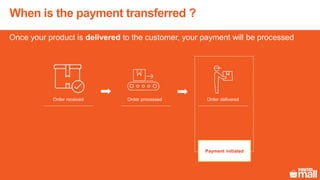
When is the payment transferred ?
Once your product is delivered to the customer, your payment will be processed
Payment initiated
Order received Order processed Order delivered
Example of payment transfer
• The payment is transferred everyday except bank holidays and is processed
during banking hours only
• The payment will be released the day after the date of the delivery of the product
For example –
1. Product delivered - 16th (Tuesday)
2. Payment released - 17th (Wednesday)
How can you check your payments?
You can check your payments in these two ways -
Settlements Reports
Order-wise details for specific date frames
of expected payouts can be viewed in the
following formats:
• Multiple orders detail report of expected
payout
• Expected payout of a specific order
Payout reports will be downloaded in a zip
file and will consist of the following
reports:
• Payment Transactions report
• Order level detail report
• Packaging adjustments report
• Damage product adjustment report
(Inventory in FC)
Order-wise Reports
Overview of the settlement-wise payout report
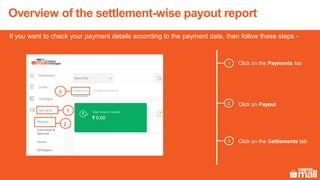
If you want to check your payment details according to the payment date, then follow these steps -
Click on the Payments tab1
2
3
Click on Payout
Click on the Settlements tab
1
2
3
Overview of the settlement-wise payout report
4b
4a
4c
Date filter- you can use this filter to select the date range as per your requirement
Select the date range for which you want to check the payment details. You can select a maximum of 31 days
Click on Apply
4b
4c
4a
Overview of the settlement-wise payout report
Click here to view the total amount settled/payout received from Paytm Mall5
Here, you can view the date-wise payments
The payments that have been settled against a number of orders – Revenue-based & Adjustment-based
Click on Show Details to view the detailed payment transaction
6
7
8
5
6 7 8
Overview of the settlement-wise payout report
View your UTR and date of
payment
9
View all your deductions in
the payout
View your new order level
details & adjustment level
details
10
11
9
10
11
Overview of the settlement-wise payout report
Click on the icon to download
the payout report for the
selected date
Click on the icon to download
the payout report
a) Two files will be downloaded
in the zip format:
• Merchant payout report
• Order summary report
12
13
If you want to download the individual settlement-wise payment details in the excel format, then follow
these steps -
13
12
Overview of the settlement-wise payout report
Click on Download payment
details to download the payout
of the selected date filter
Click on the icon to download
the payout report
14
15
If you want to download payments details from a selected date range in the excel format, then
follow these steps-
15
14
Overview of the settlement-wise payout report
Here, you can check the amount which is under process and will be credited/debited
accordingly in your account within the upcoming days
16
16
Overview of the order-wise payout report
If you want to check your payment details according to the orders, then follow these steps -
Click on Orderwise Payouts1
2 Select the required date frame
1
2
Overview of the order-wise payout report
Click on Search and you can
apply the item status filter to
view the order status
3
3
Overview of the order-wise payout report
Check the status of the
payout
4
5 Click on More Details to view
the deduction made in the
payout
4
5
Overview of the order-wise payout report
If you have any issue regarding the payment, you can raise a payment query
View the UTR (if paid)
View the deduction made in
the payout
5b
If you have any query or issue
related to the payment, then
click on the Payment queries
tab
5c
5a
5a
5b
5c
Overview of the order-wise payout report
Select the issue related to
Payments from the drop-down
6
6
Overview of the order-wise payout report
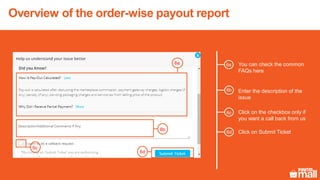
You can check the common
FAQs here
Enter the description of the
issue
6a
6b
Click on the checkbox only if
you want a call back from us
6c
6d Click on Submit Ticket
6a
6b
6c
6d
Overview of the order-wise payout report
Click on Download Order
Details
Click on the download icon to
download the order-wise
payout report
7
8
If you want to download the order-wise payment details in a selected date range in the excel format,
then follow these steps -
8
7
Why have you not received the payment yet?
• Payment against the payout will reflect in your account after the day after the date of the delivery of the
product
• However, there may be occasions when there is a delay in the receipt of the payment
Bank Holiday
• Bank holidays can lead to delayed payments
• Payment will be credited to your account on the next business
day
Account Detail Change
• If there has been a recent change in your bank details, there may be a
delay in your payment.
• You can update it via the Seller Panel.
How can you change your bank details via the seller
panel?
Click on the Support
Tab
1
1
Click on My Account2
2
How can you change your bank details via the seller
panel?
Click on Manage your
account tab
4
3
Click on “Modify Bank
Details” and get your Bank
details changed.
3
4
How can you change your bank details via the seller
panel?
Fill all the required details
6
5
Attach an image of cancelled
cheque for document proof
7 Click on Submit Ticket
Please record your ticket
number for the reference
5
7
6
How can you change your bank details via the seller
panel?
Click on Check Ticket History
to know the status of your
ticket
8
8
How can you change your bank details via the seller
panel?
A number of factors can lead to a different payment from the expected payout:
High returns -
If the customer returns the product against which you’ve already received the
payment, then the refund will be deducted from your next payout
High Logistics -
Wrong packaging can lead to higher than expected logistic charges.
Click here to see the packaging guidelines
Packaging material deduction -
The packaging material ordered by you is charged from your upcoming payout
Possible penalties -
Sometimes, you may have to pay several penalties which could result in a different payout
Why have you received a different payment from the
expected payout?
Thanks everyone!
For any query, please raise a ticket using Seller Helpdesk tab on your
seller panel.

Payment lifecycle

  • 1.
    Payment lifecycle In thismodule, we will discuss: 1. When is the payment transferred? 2. How can you check your payments? 3. Why have you not received your payment yet? 4. How can you change bank details via the seller panel? 5. Why have you received a different payment from the expected payout?
  • 2.
    When is thepayment transferred ? Once your product is delivered to the customer, your payment will be processed Payment initiated Order received Order processed Order delivered
  • 3.
    Example of paymenttransfer • The payment is transferred everyday except bank holidays and is processed during banking hours only • The payment will be released the day after the date of the delivery of the product For example – 1. Product delivered - 16th (Tuesday) 2. Payment released - 17th (Wednesday)
  • 4.
    How can youcheck your payments? You can check your payments in these two ways - Settlements Reports Order-wise details for specific date frames of expected payouts can be viewed in the following formats: • Multiple orders detail report of expected payout • Expected payout of a specific order Payout reports will be downloaded in a zip file and will consist of the following reports: • Payment Transactions report • Order level detail report • Packaging adjustments report • Damage product adjustment report (Inventory in FC) Order-wise Reports
  • 5.
    Overview of thesettlement-wise payout report If you want to check your payment details according to the payment date, then follow these steps - Click on the Payments tab1 2 3 Click on Payout Click on the Settlements tab 1 2 3
  • 6.
    Overview of thesettlement-wise payout report 4b 4a 4c Date filter- you can use this filter to select the date range as per your requirement Select the date range for which you want to check the payment details. You can select a maximum of 31 days Click on Apply 4b 4c 4a
  • 7.
    Overview of thesettlement-wise payout report Click here to view the total amount settled/payout received from Paytm Mall5 Here, you can view the date-wise payments The payments that have been settled against a number of orders – Revenue-based & Adjustment-based Click on Show Details to view the detailed payment transaction 6 7 8 5 6 7 8
  • 8.
    Overview of thesettlement-wise payout report View your UTR and date of payment 9 View all your deductions in the payout View your new order level details & adjustment level details 10 11 9 10 11
  • 9.
    Overview of thesettlement-wise payout report Click on the icon to download the payout report for the selected date Click on the icon to download the payout report a) Two files will be downloaded in the zip format: • Merchant payout report • Order summary report 12 13 If you want to download the individual settlement-wise payment details in the excel format, then follow these steps - 13 12
  • 10.
    Overview of thesettlement-wise payout report Click on Download payment details to download the payout of the selected date filter Click on the icon to download the payout report 14 15 If you want to download payments details from a selected date range in the excel format, then follow these steps- 15 14
  • 11.
    Overview of thesettlement-wise payout report Here, you can check the amount which is under process and will be credited/debited accordingly in your account within the upcoming days 16 16
  • 12.
    Overview of theorder-wise payout report If you want to check your payment details according to the orders, then follow these steps - Click on Orderwise Payouts1 2 Select the required date frame 1 2
  • 13.
    Overview of theorder-wise payout report Click on Search and you can apply the item status filter to view the order status 3 3
  • 14.
    Overview of theorder-wise payout report Check the status of the payout 4 5 Click on More Details to view the deduction made in the payout 4 5
  • 15.
    Overview of theorder-wise payout report If you have any issue regarding the payment, you can raise a payment query View the UTR (if paid) View the deduction made in the payout 5b If you have any query or issue related to the payment, then click on the Payment queries tab 5c 5a 5a 5b 5c
  • 16.
    Overview of theorder-wise payout report Select the issue related to Payments from the drop-down 6 6
  • 17.
    Overview of theorder-wise payout report You can check the common FAQs here Enter the description of the issue 6a 6b Click on the checkbox only if you want a call back from us 6c 6d Click on Submit Ticket 6a 6b 6c 6d
  • 18.
    Overview of theorder-wise payout report Click on Download Order Details Click on the download icon to download the order-wise payout report 7 8 If you want to download the order-wise payment details in a selected date range in the excel format, then follow these steps - 8 7
  • 19.
    Why have younot received the payment yet? • Payment against the payout will reflect in your account after the day after the date of the delivery of the product • However, there may be occasions when there is a delay in the receipt of the payment Bank Holiday • Bank holidays can lead to delayed payments • Payment will be credited to your account on the next business day Account Detail Change • If there has been a recent change in your bank details, there may be a delay in your payment. • You can update it via the Seller Panel.
  • 20.
    How can youchange your bank details via the seller panel? Click on the Support Tab 1 1
  • 21.
    Click on MyAccount2 2 How can you change your bank details via the seller panel?
  • 22.
    Click on Manageyour account tab 4 3 Click on “Modify Bank Details” and get your Bank details changed. 3 4 How can you change your bank details via the seller panel?
  • 23.
    Fill all therequired details 6 5 Attach an image of cancelled cheque for document proof 7 Click on Submit Ticket Please record your ticket number for the reference 5 7 6 How can you change your bank details via the seller panel?
  • 24.
    Click on CheckTicket History to know the status of your ticket 8 8 How can you change your bank details via the seller panel?
  • 25.
    A number offactors can lead to a different payment from the expected payout: High returns - If the customer returns the product against which you’ve already received the payment, then the refund will be deducted from your next payout High Logistics - Wrong packaging can lead to higher than expected logistic charges. Click here to see the packaging guidelines Packaging material deduction - The packaging material ordered by you is charged from your upcoming payout Possible penalties - Sometimes, you may have to pay several penalties which could result in a different payout Why have you received a different payment from the expected payout?
  • 26.
    Thanks everyone! For anyquery, please raise a ticket using Seller Helpdesk tab on your seller panel.