Order Processing
Mark Patterson
http://bit.ly/1BQgIkC
Orders Screen Overview
1. Filters
2. Batches
3. Batch Reports
4. Creating a Shipment
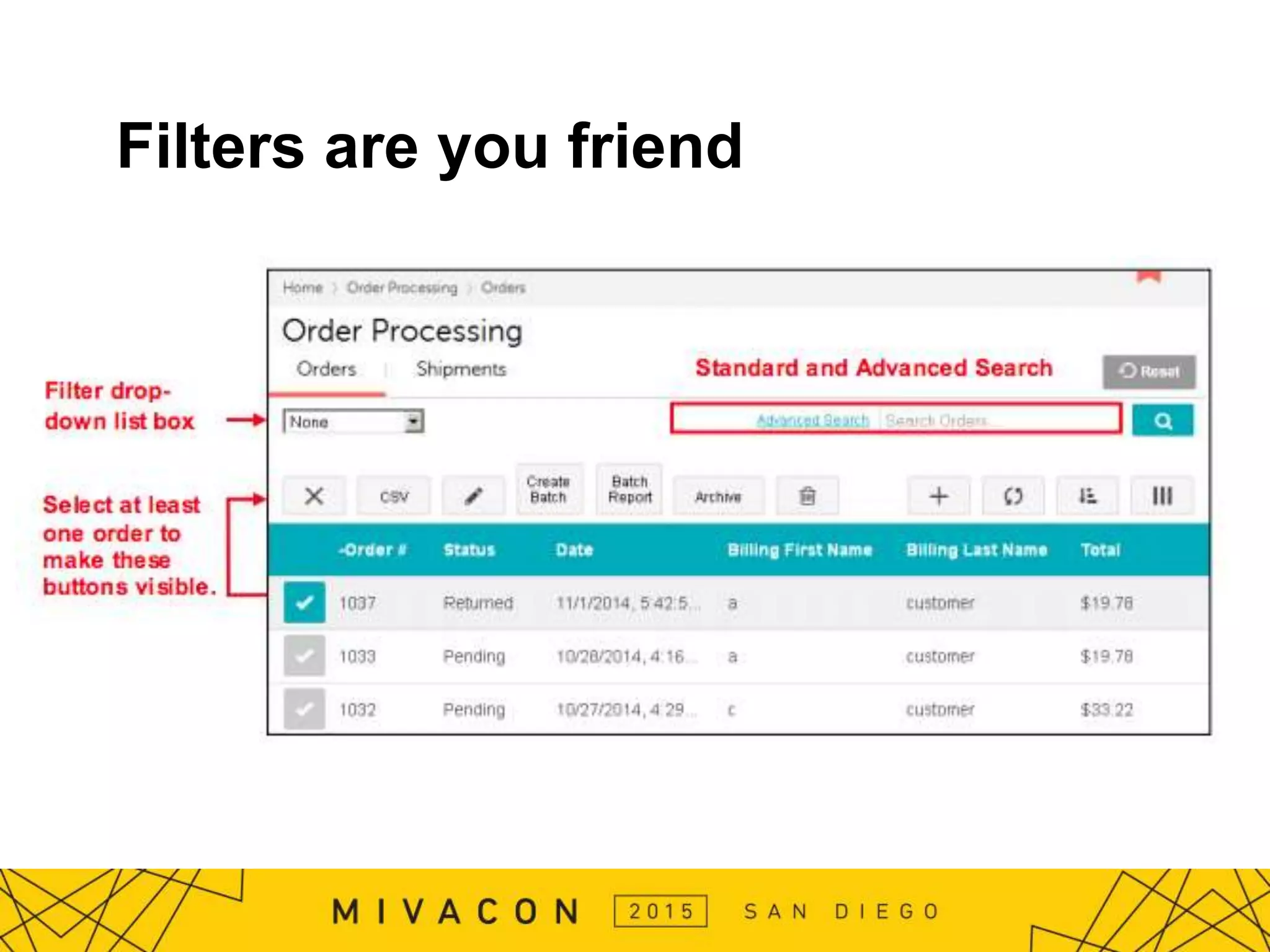
Filters are you friend
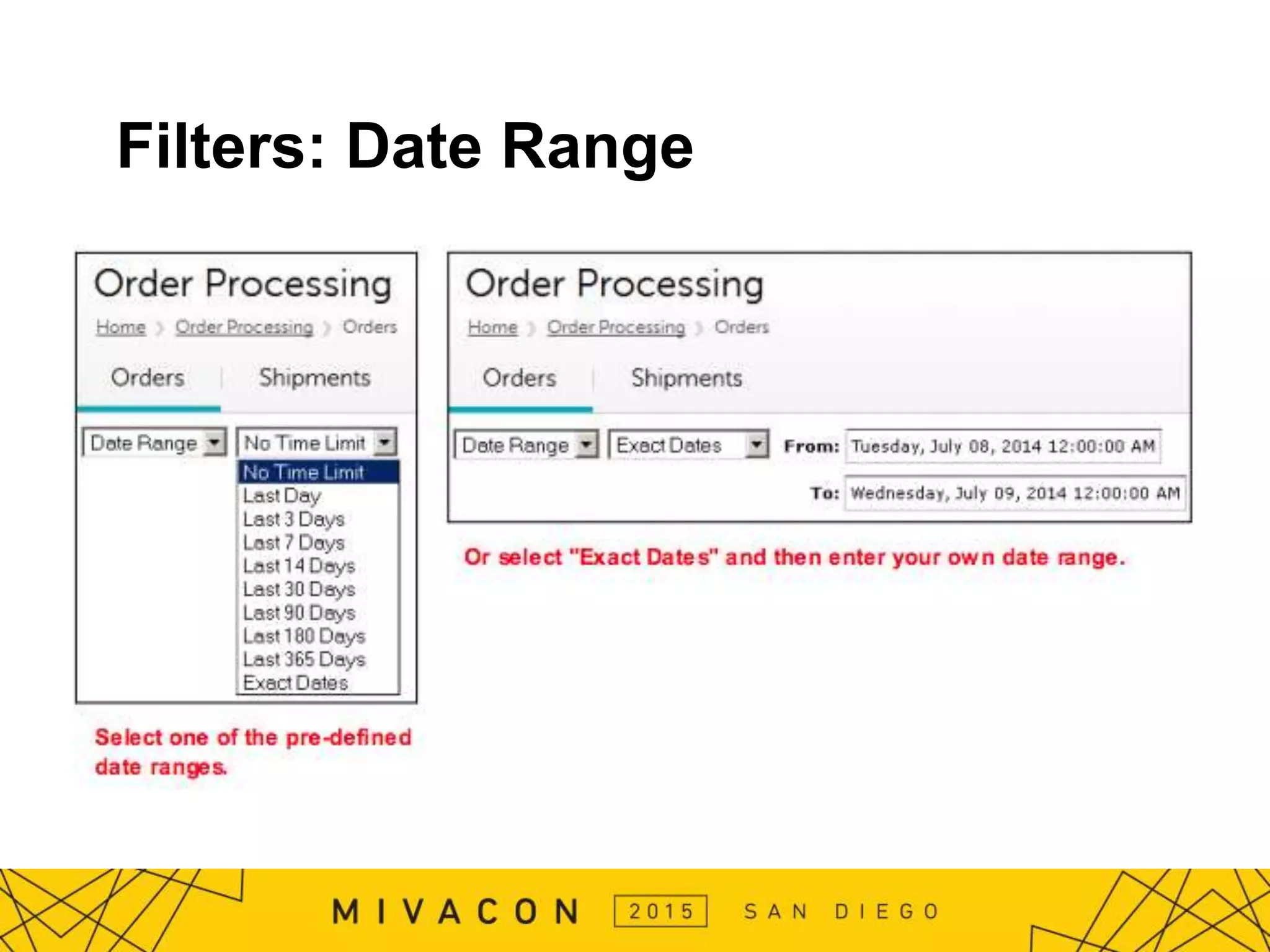
Filters: Date Range
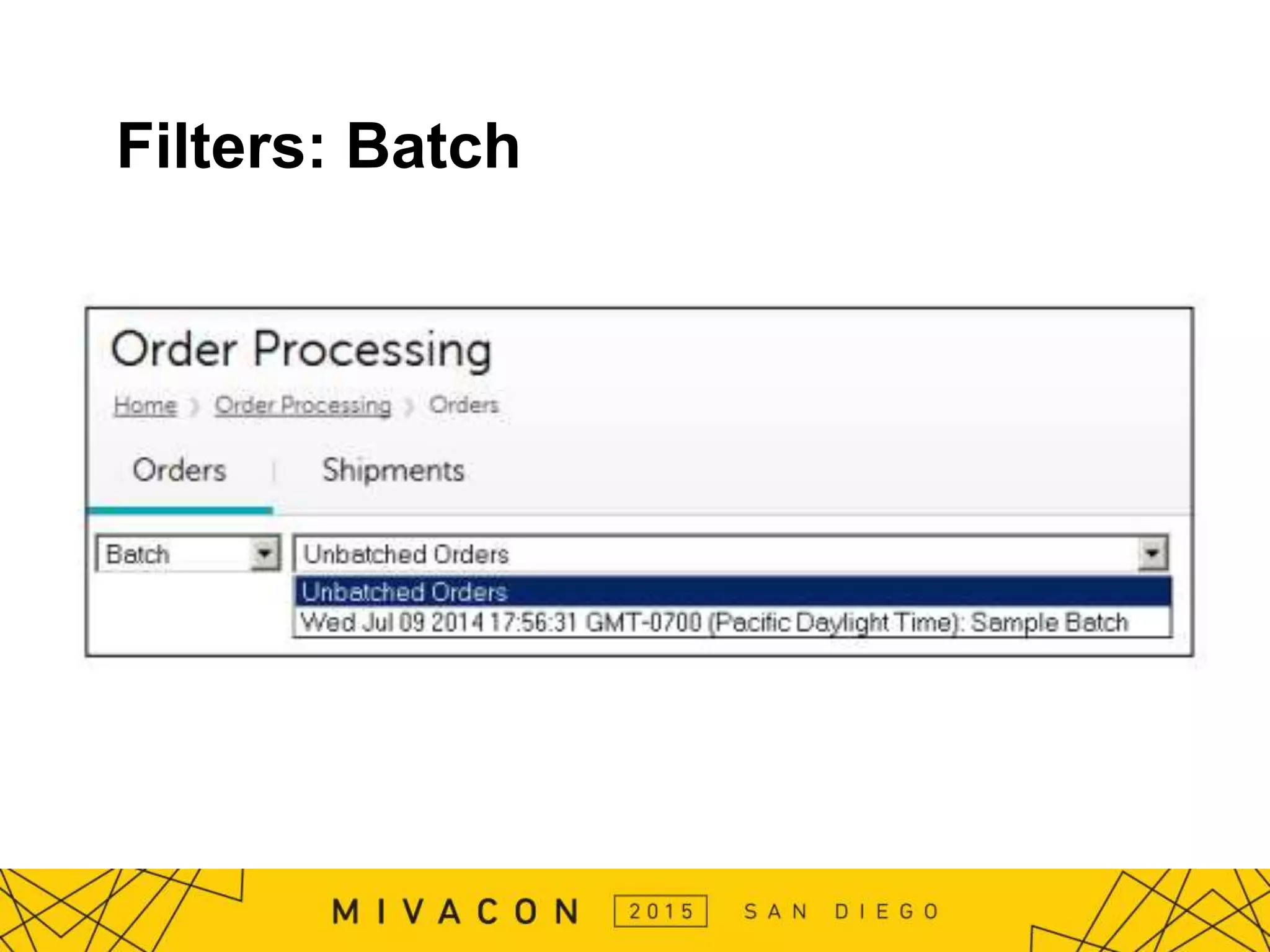
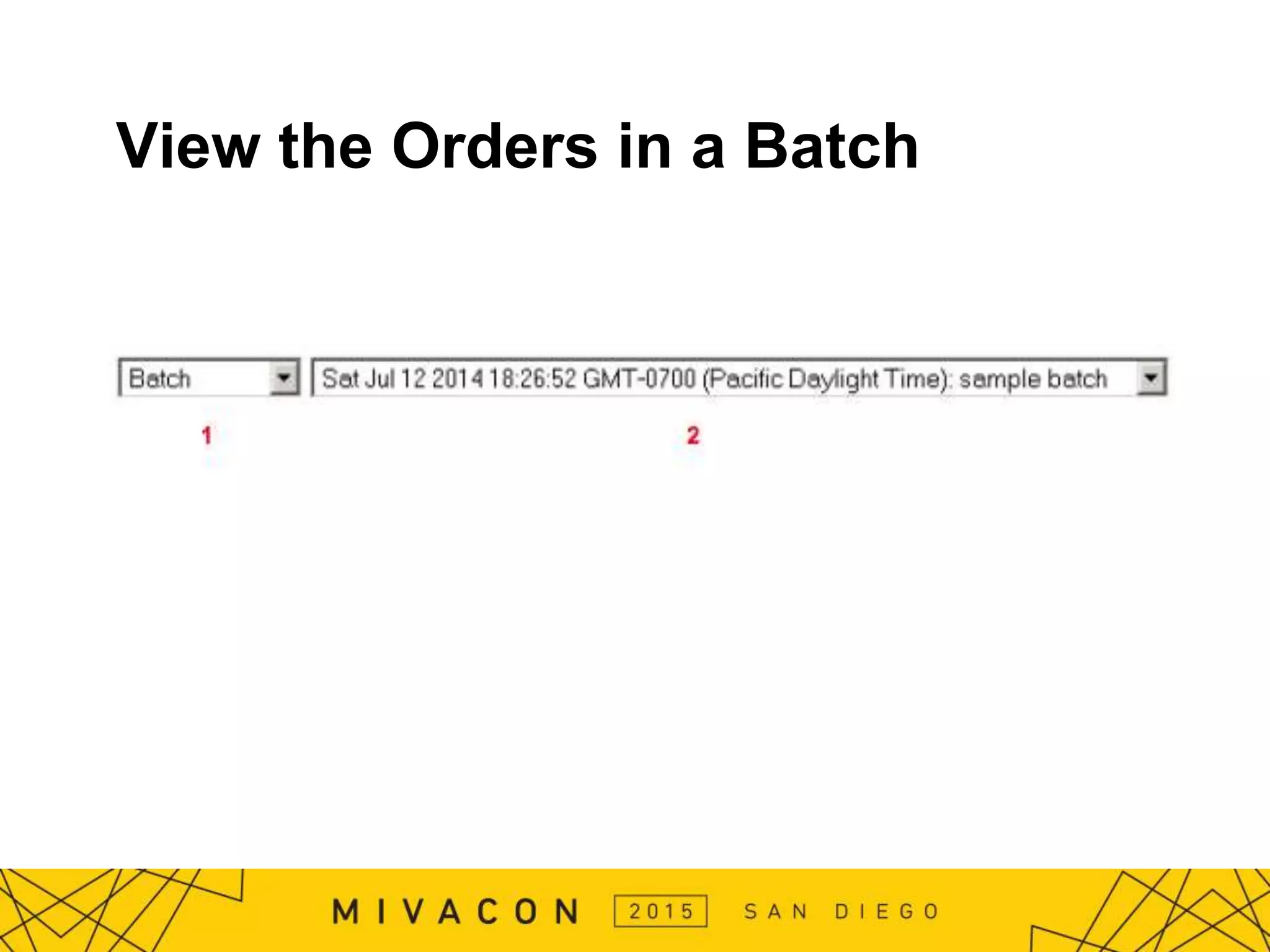
Filters: Batch
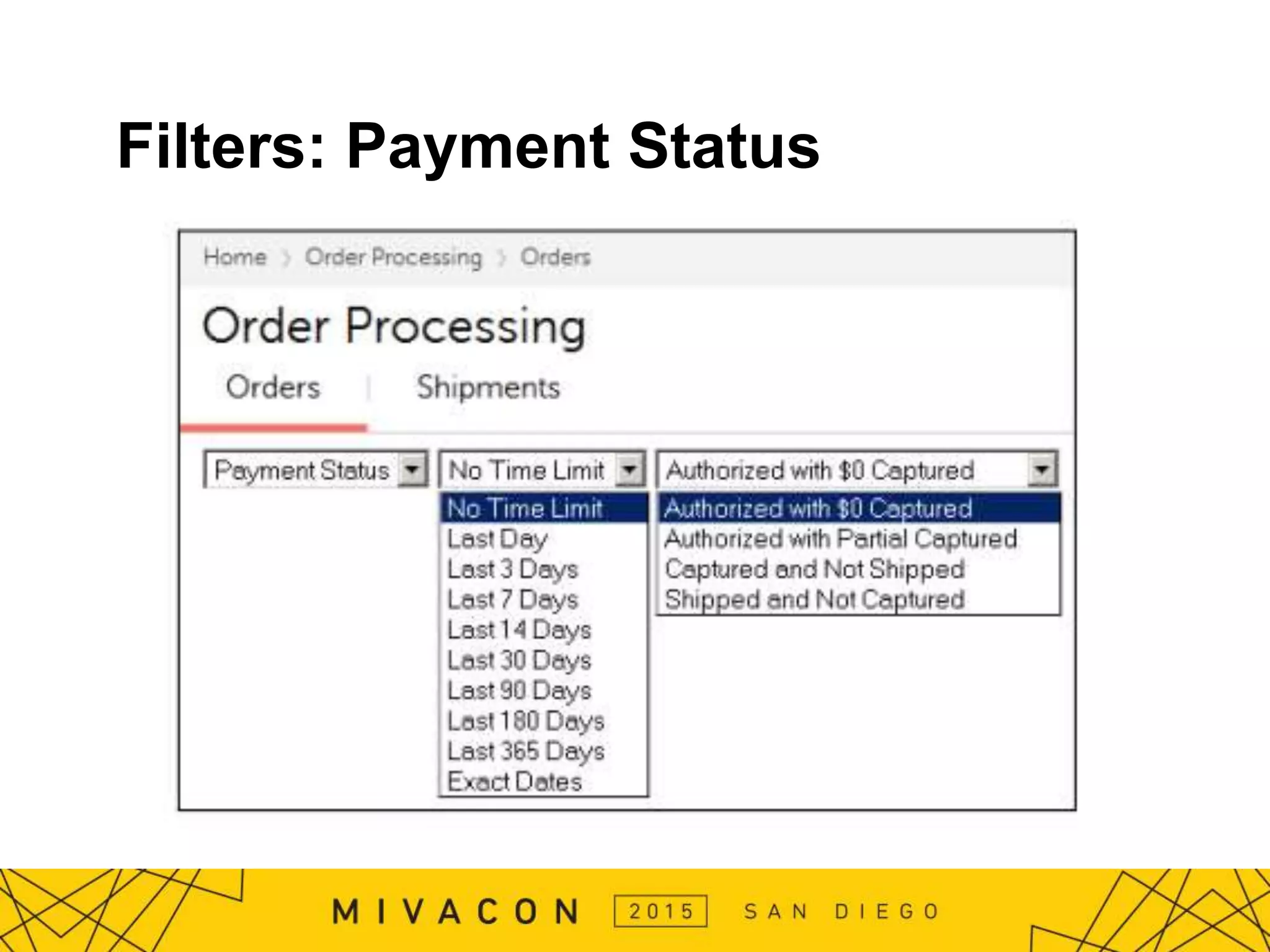
Filters: Payment Status
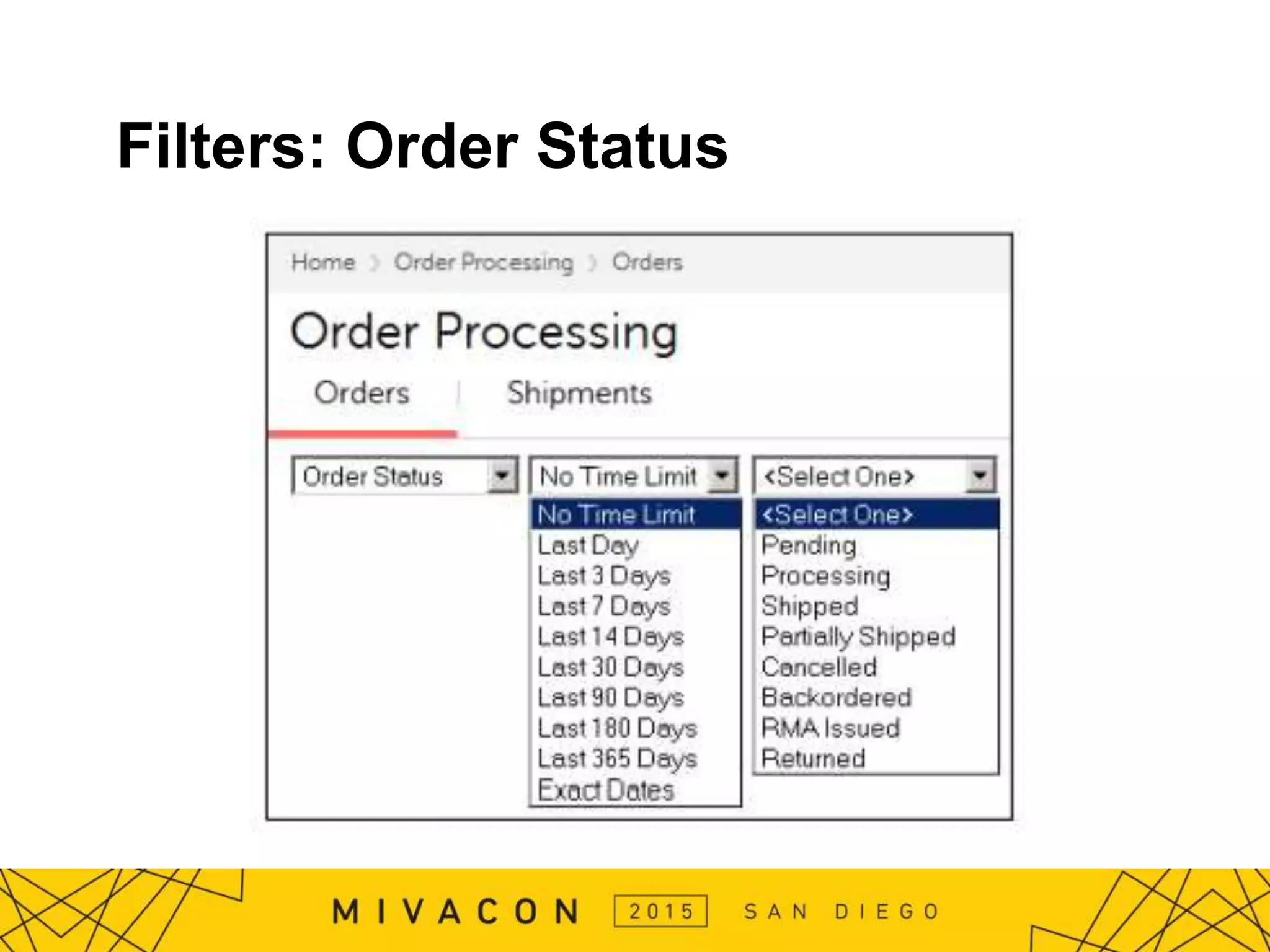
Filters: Order Status
Batches
A Batch is a collection of orders, grouped
together and given a name.
● You can create and delete Batches, but you cannot edit
a Batch.
● An order can only be in one Batch.
● To remove orders from a Batch, you have to transfer
them to another Batch.
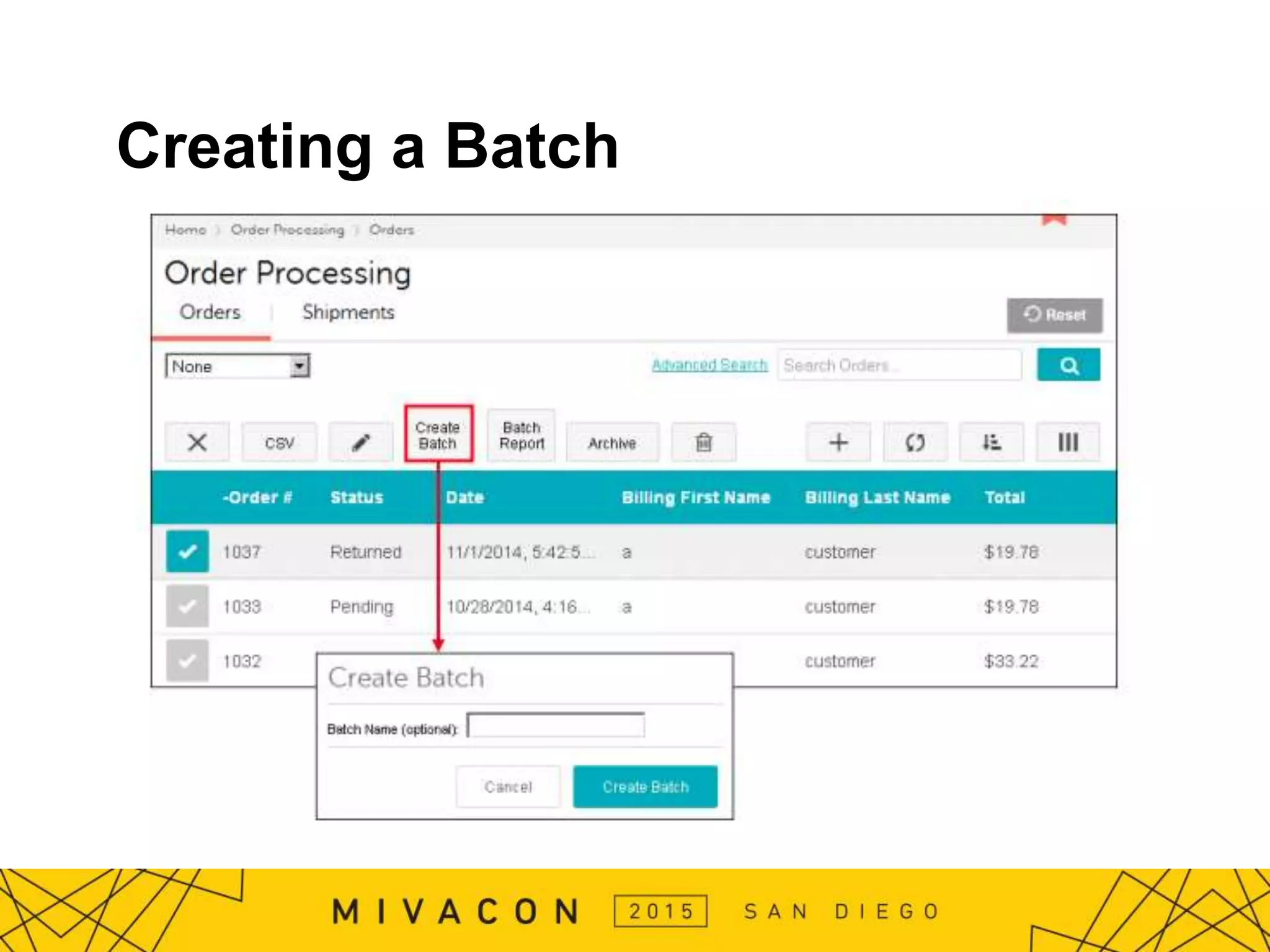
● After you create a Batch, you can view the orders in the
batch, capture funds, or run a report on the Batch.
Creating a Batch
View the Orders in a Batch
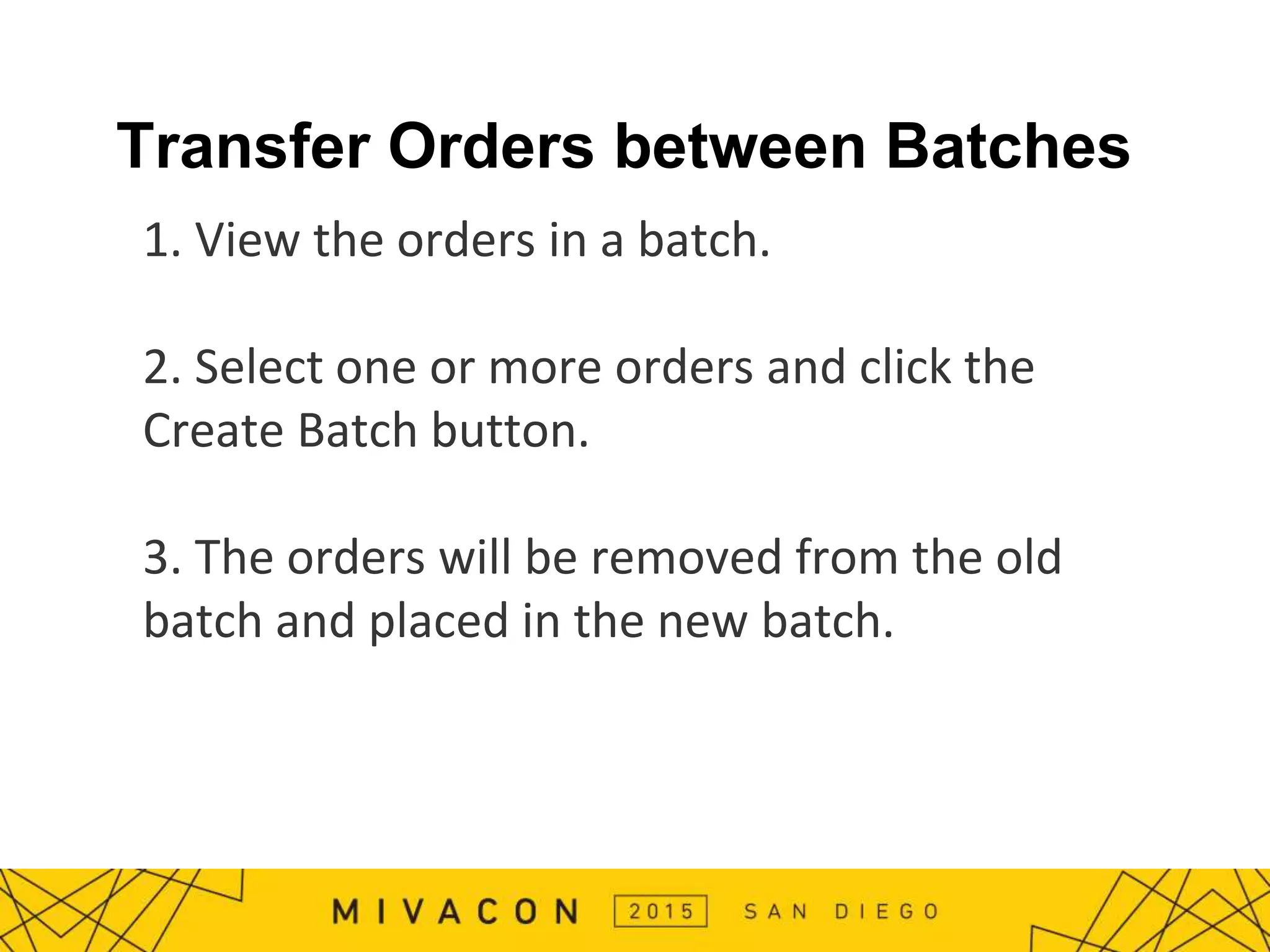
Transfer Orders between Batches
1. View the orders in a batch.
2. Select one or more orders and click the
Create Batch button.
3. The orders will be removed from the old
batch and placed in the new batch.
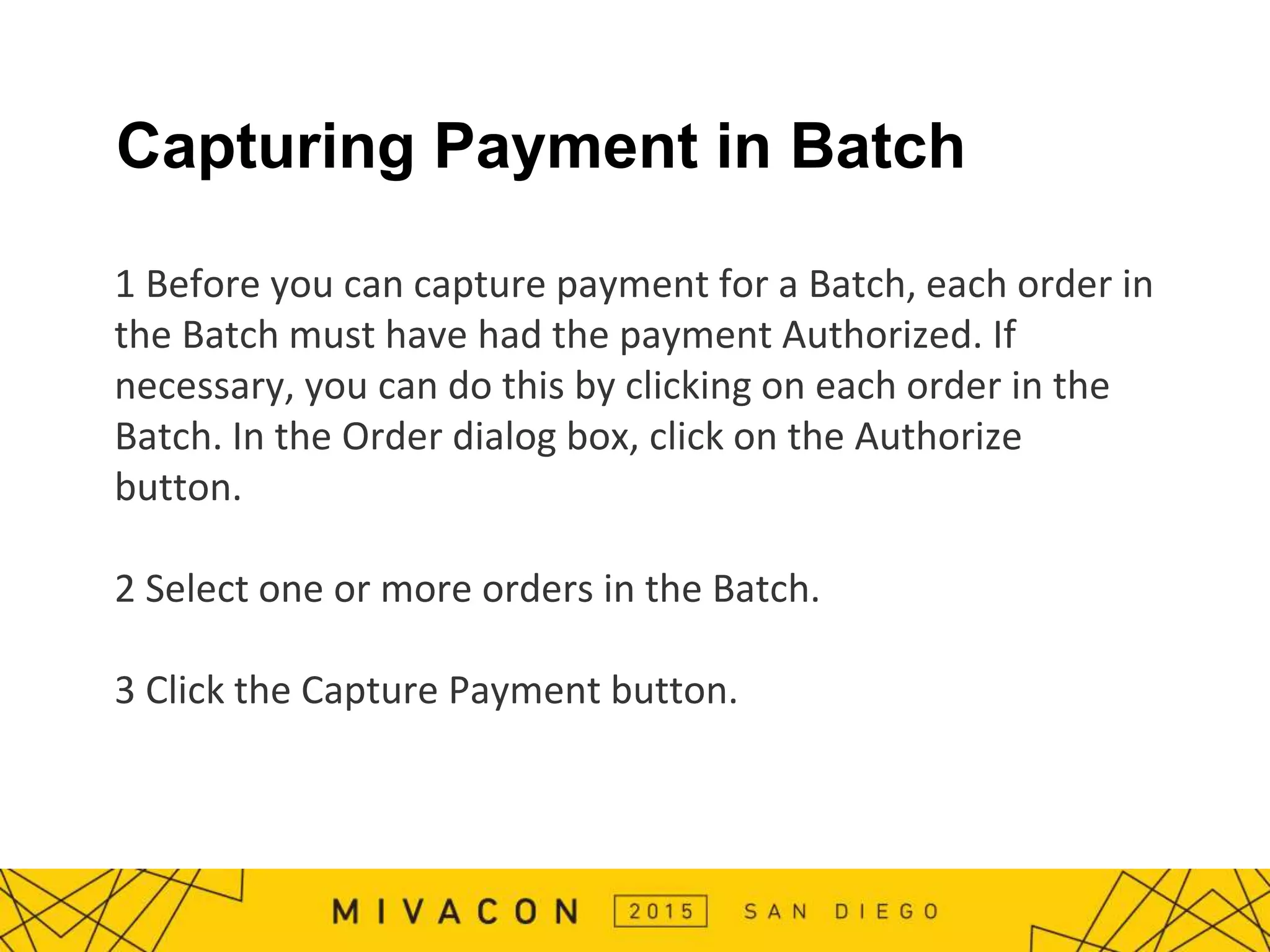
Capturing Payment in Batch
1 Before you can capture payment for a Batch, each order in
the Batch must have had the payment Authorized. If
necessary, you can do this by clicking on each order in the
Batch. In the Order dialog box, click on the Authorize
button.
2 Select one or more orders in the Batch.
3 Click the Capture Payment button.
Running a Batch Report
1 Select one or more orders.
2 Click Batch Report.
3 In the Run Batch Report dialog box, select the
Batch Report that you want to run and click Run
Report.
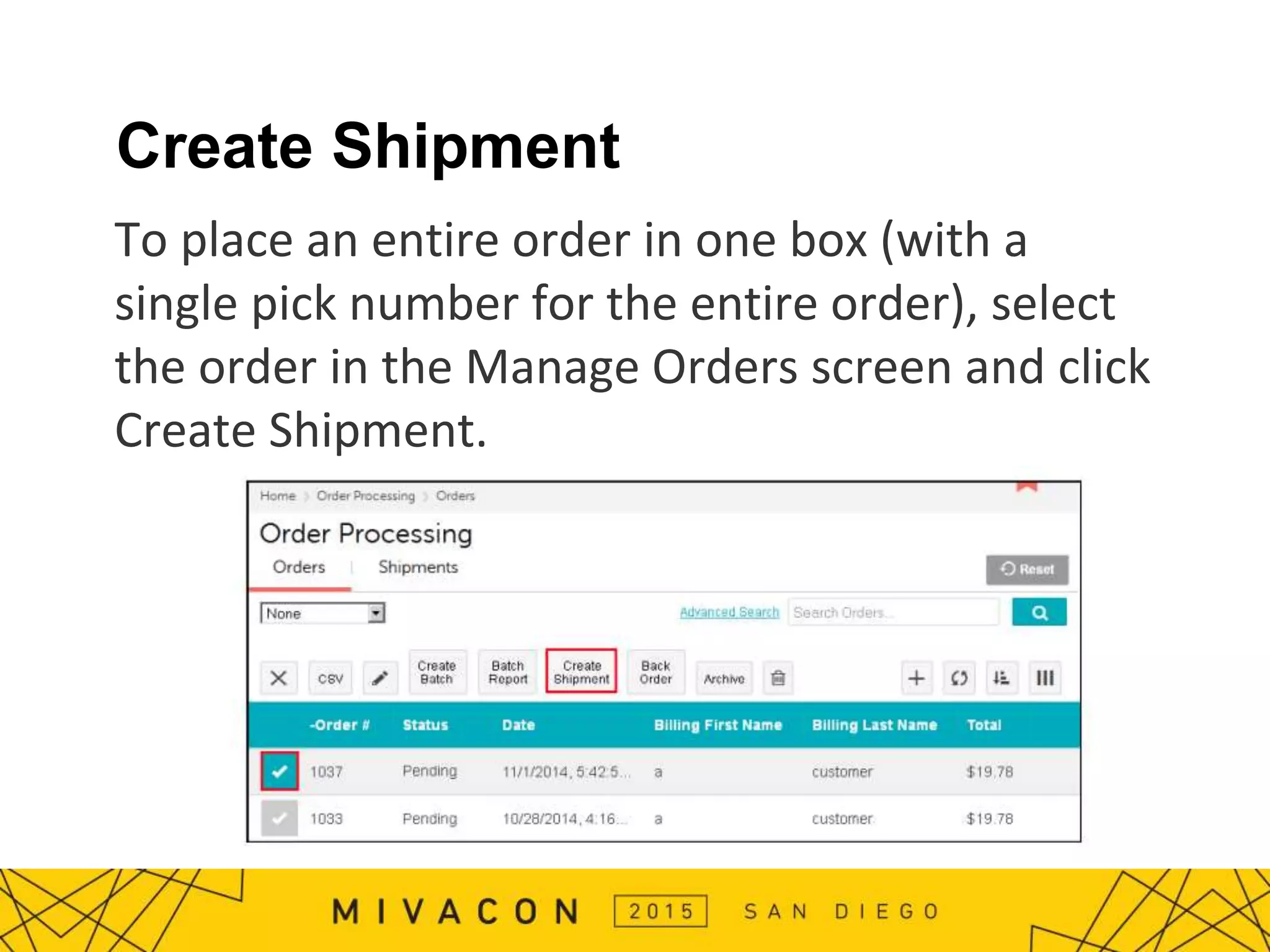
Create Shipment
To place an entire order in one box (with a
single pick number for the entire order), select
the order in the Manage Orders screen and click
Create Shipment.
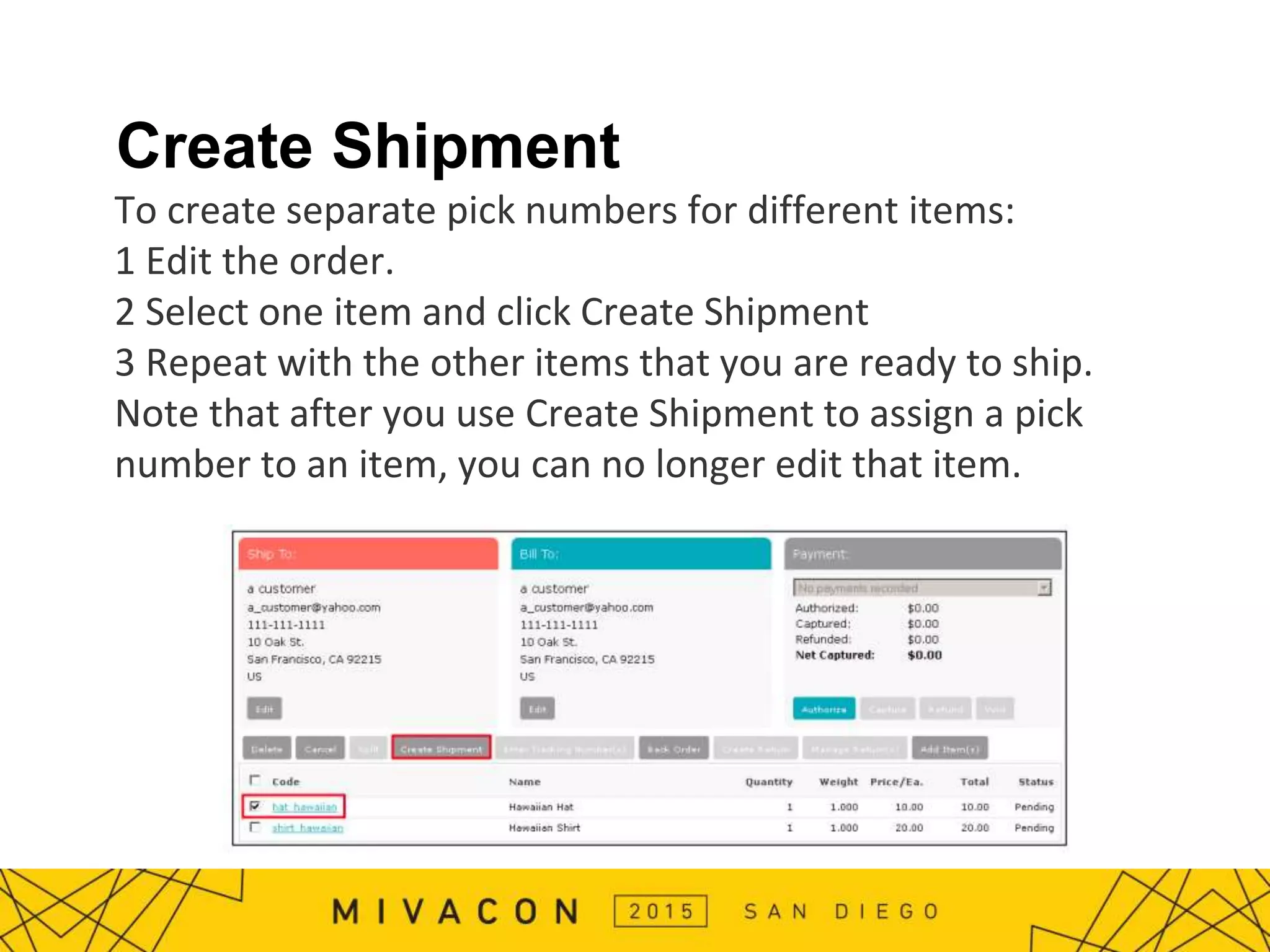
Create Shipment
To create separate pick numbers for different items:
1 Edit the order.
2 Select one item and click Create Shipment
3 Repeat with the other items that you are ready to ship.
Note that after you use Create Shipment to assign a pick
number to an item, you can no longer edit that item.
Edit Order Screen Overview
1. Emails
2. Adding Items to an Order
3. Authorize / Capture Payment
4. Create a Shipment / Enter Tracking #
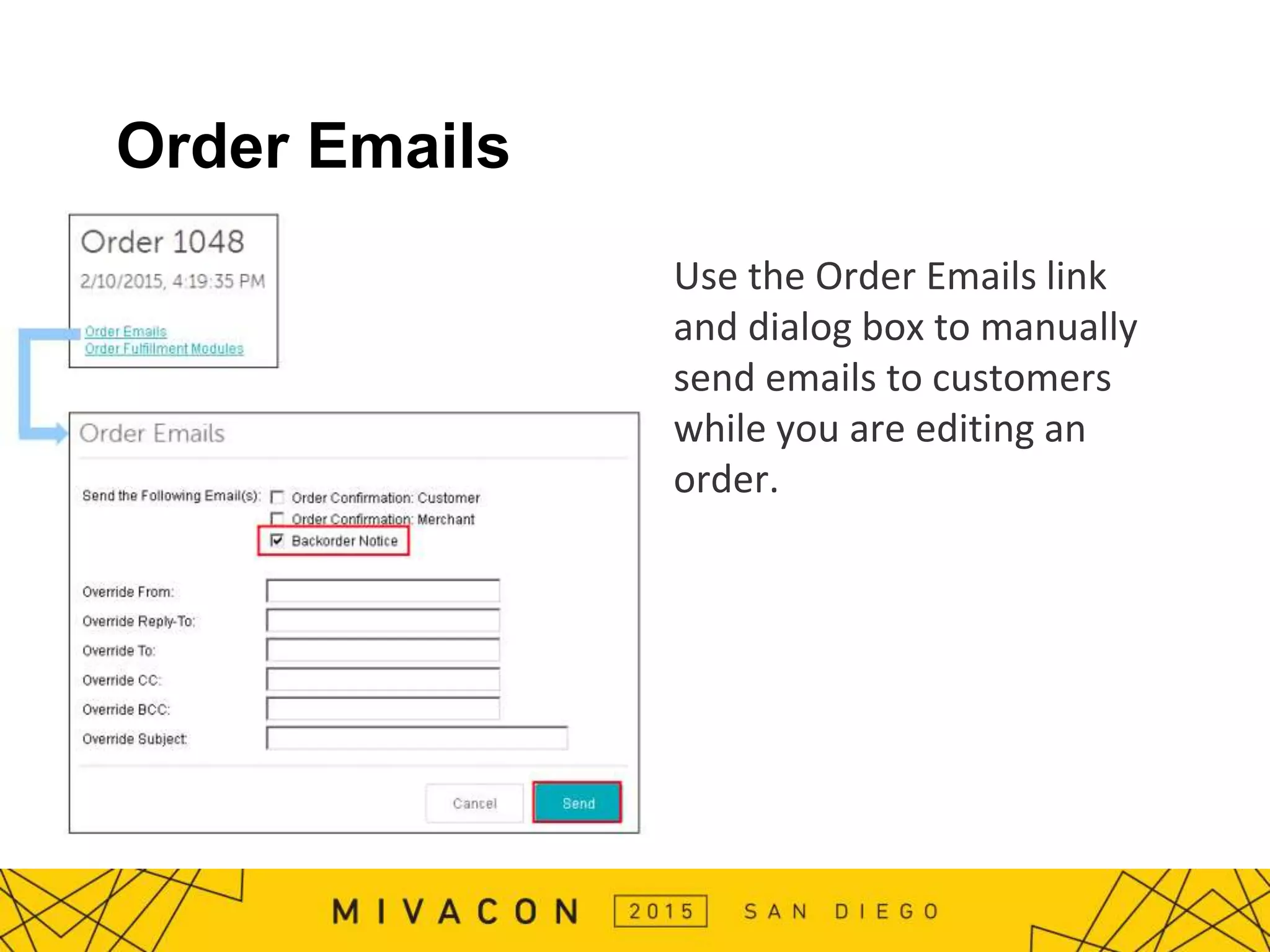
Order Emails
Use the Order Emails link
and dialog box to manually
send emails to customers
while you are editing an
order.
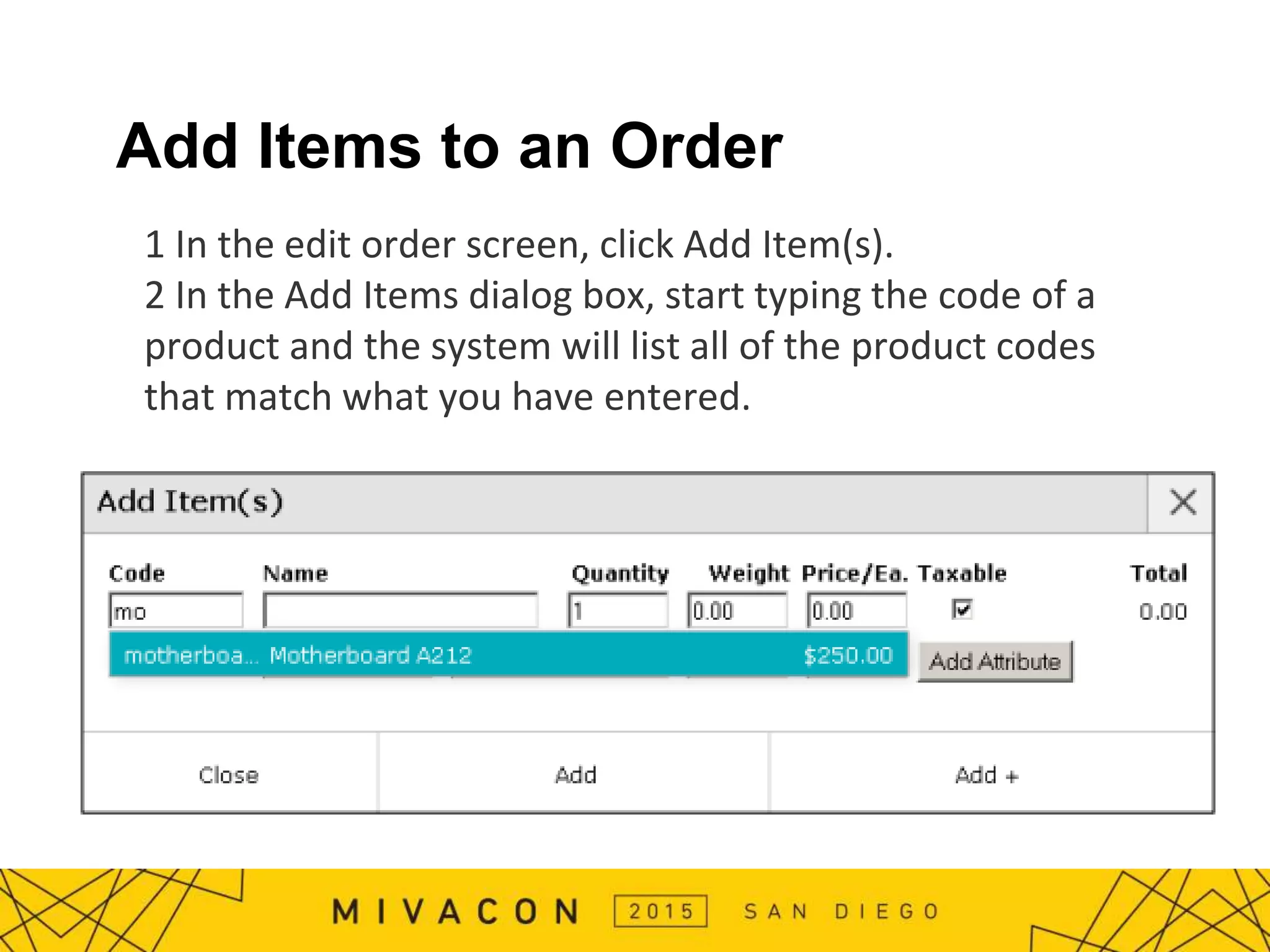
Add Items to an Order
1 In the edit order screen, click Add Item(s).
2 In the Add Items dialog box, start typing the code of a
product and the system will list all of the product codes
that match what you have entered.
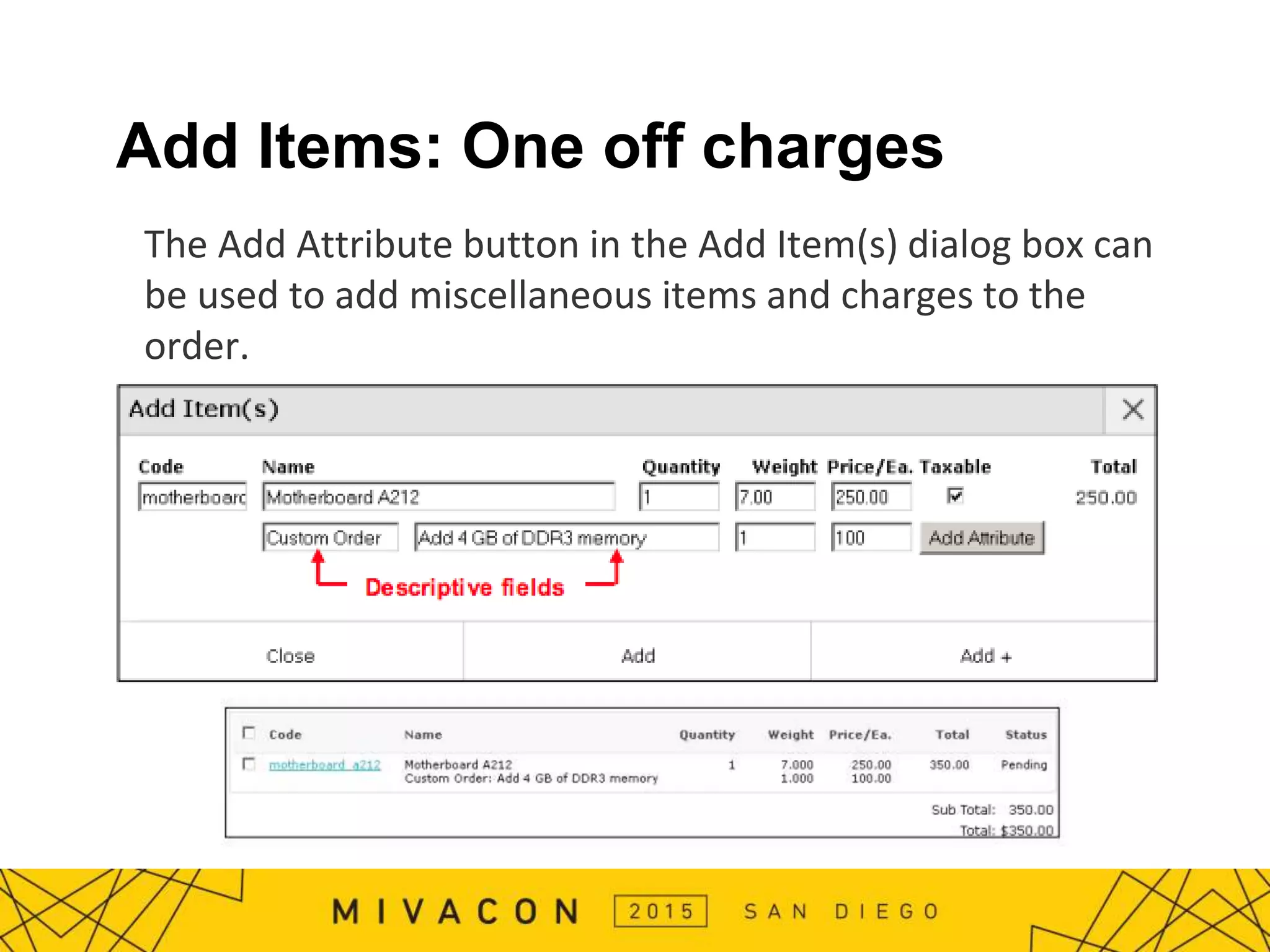
Add Items: One off charges
The Add Attribute button in the Add Item(s) dialog box can
be used to add miscellaneous items and charges to the
order.
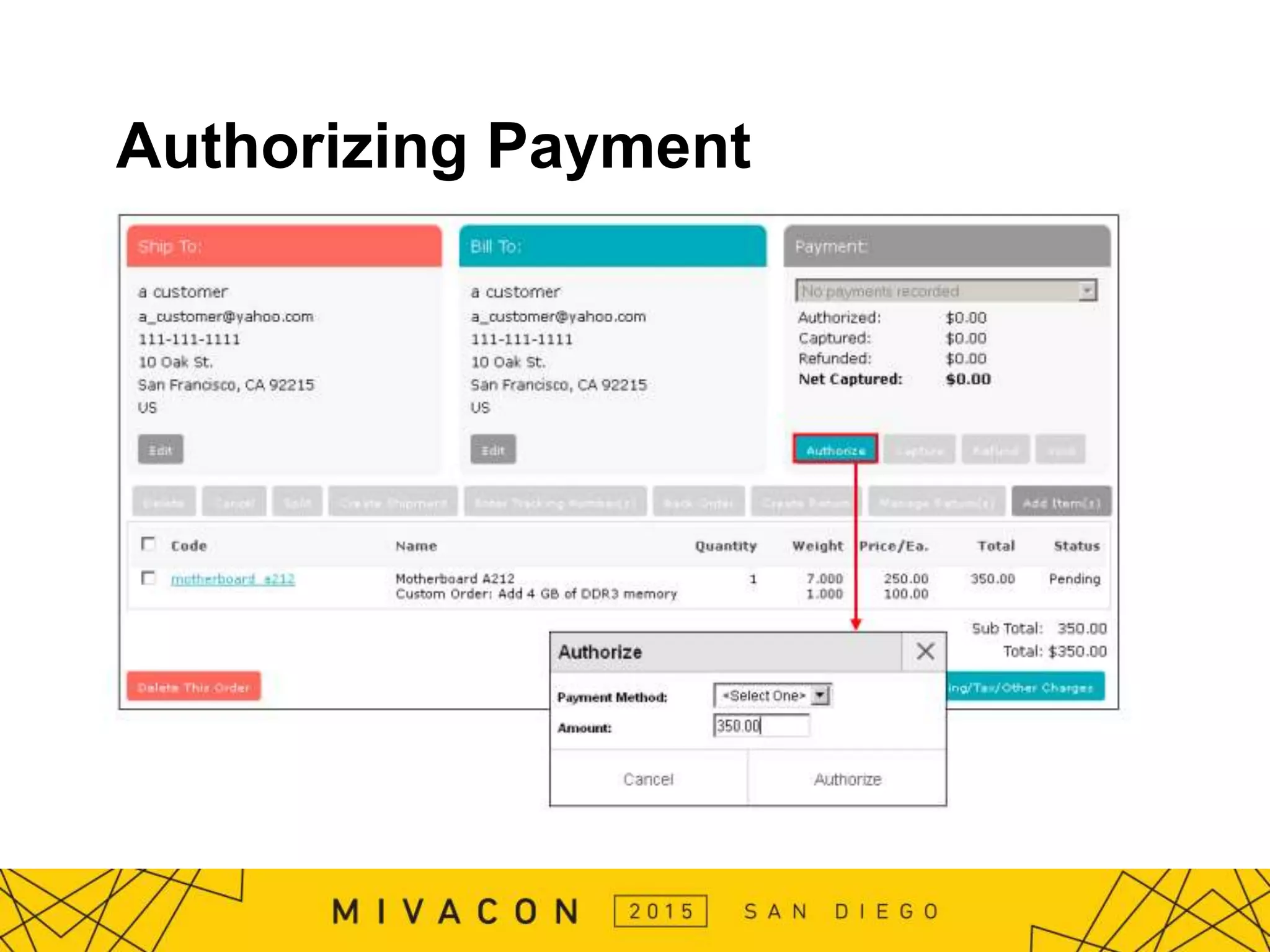
Authorizing Payment
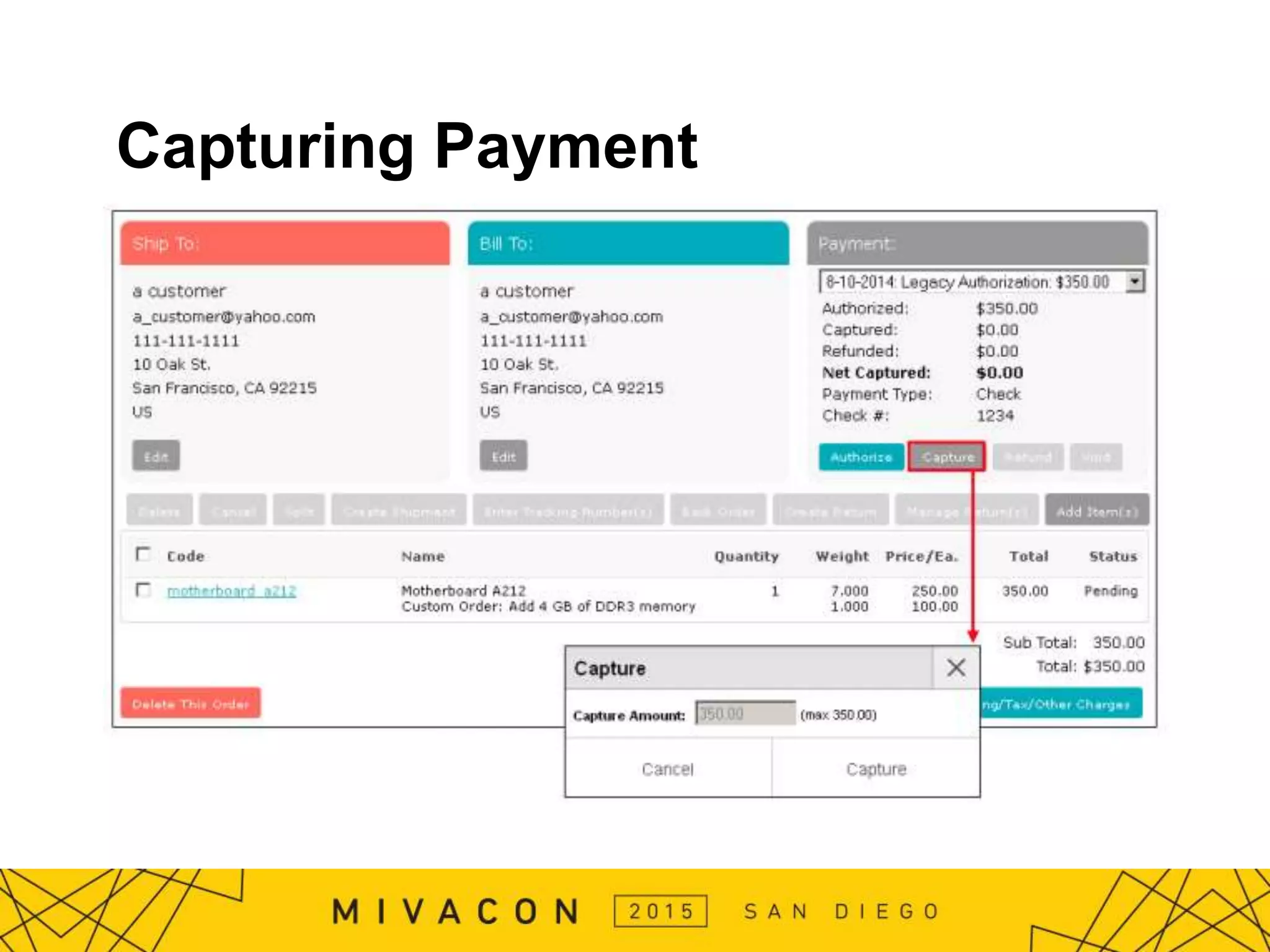
Capturing Payment
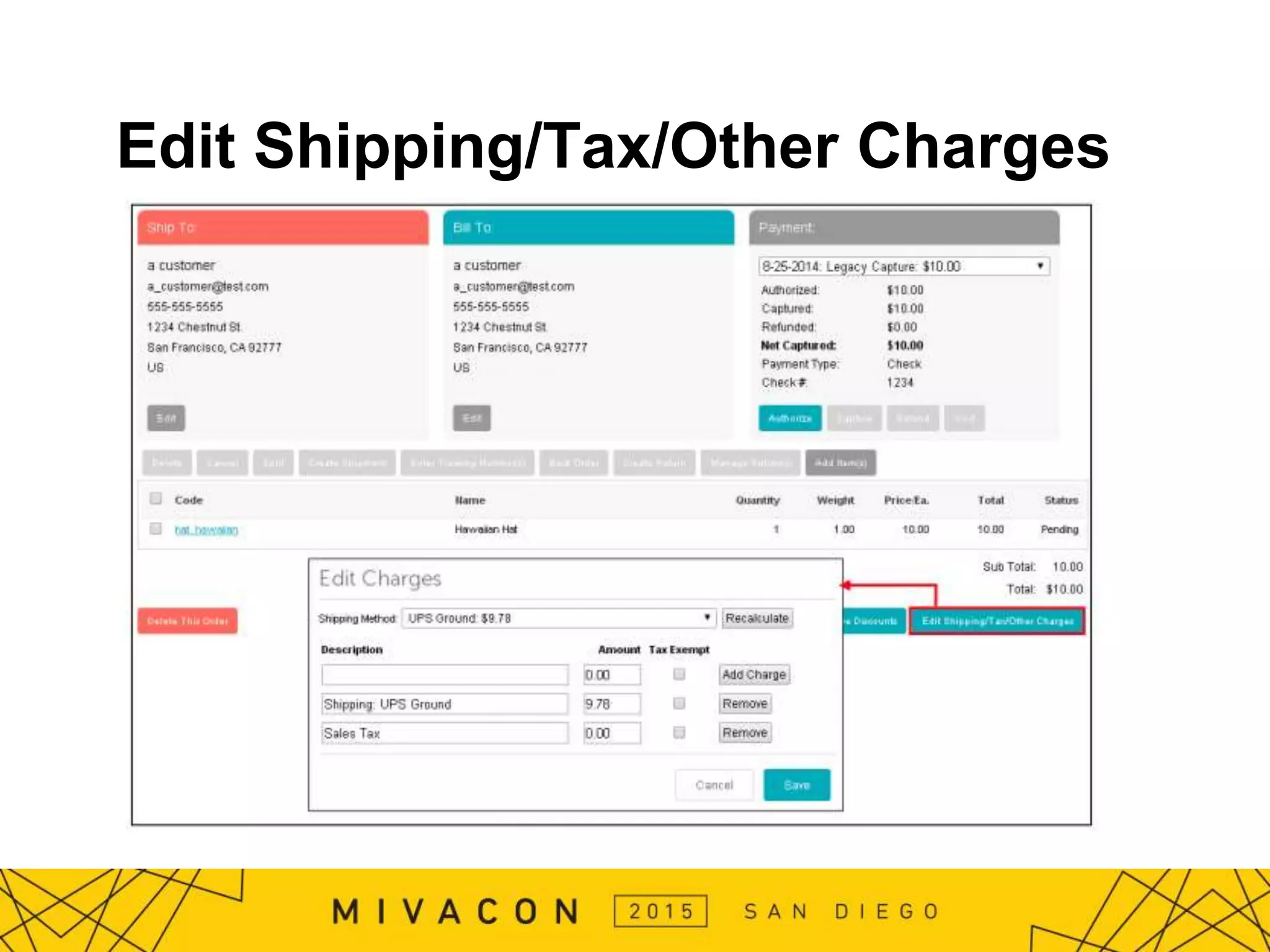
Edit Shipping/Tax/Other Charges
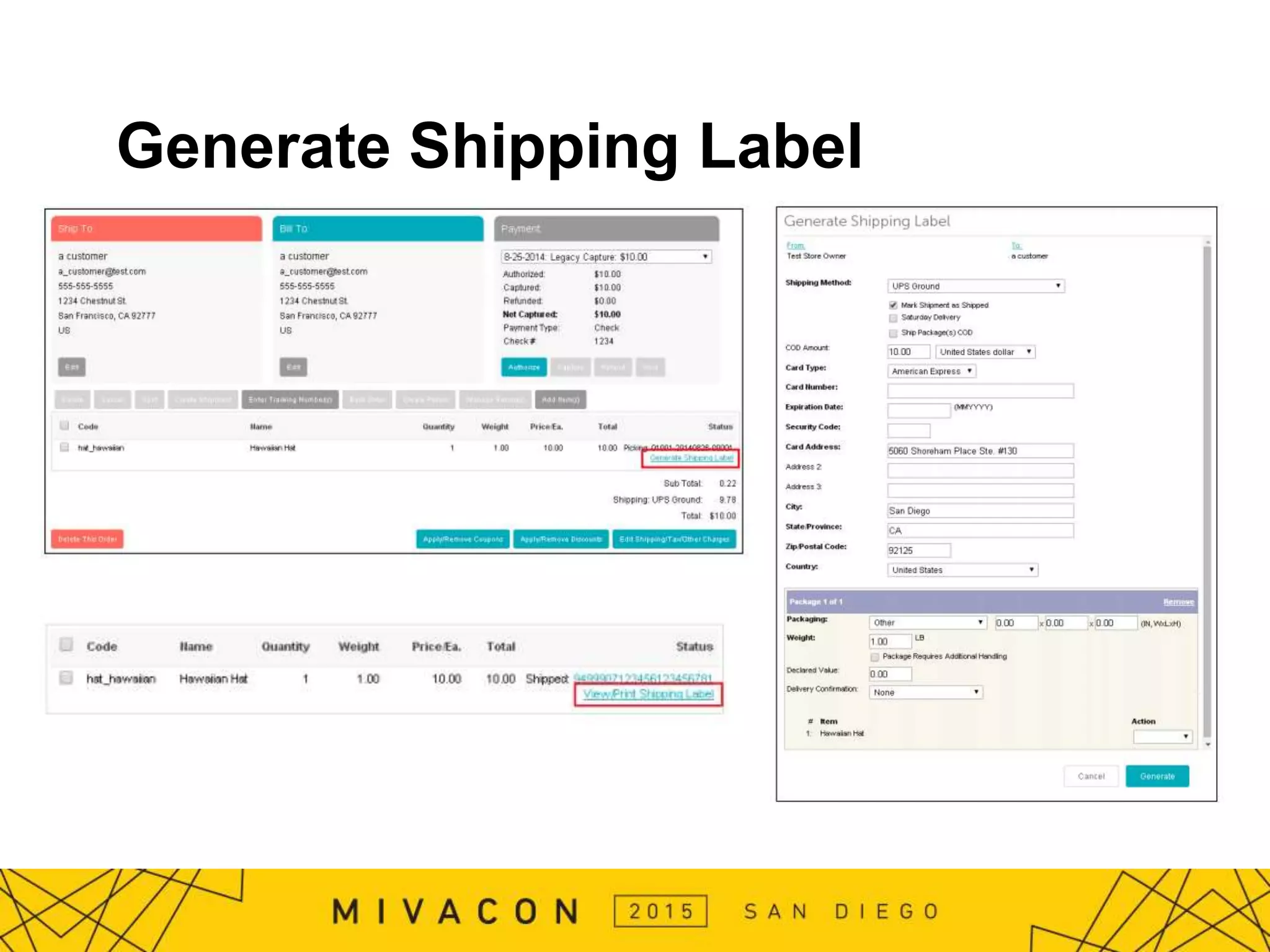
Generate Shipping Label
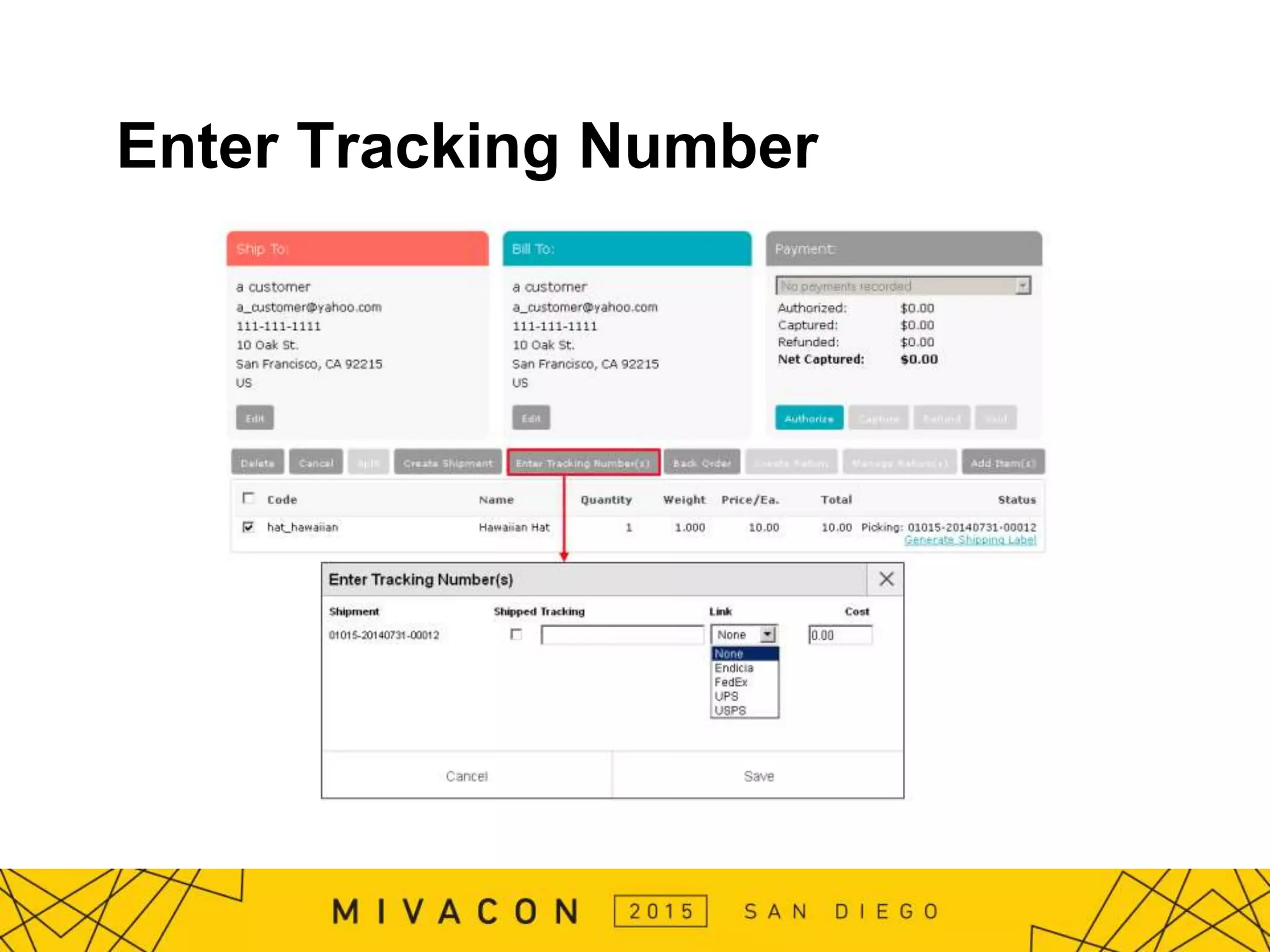
Enter Tracking Number
Tracking Number Links
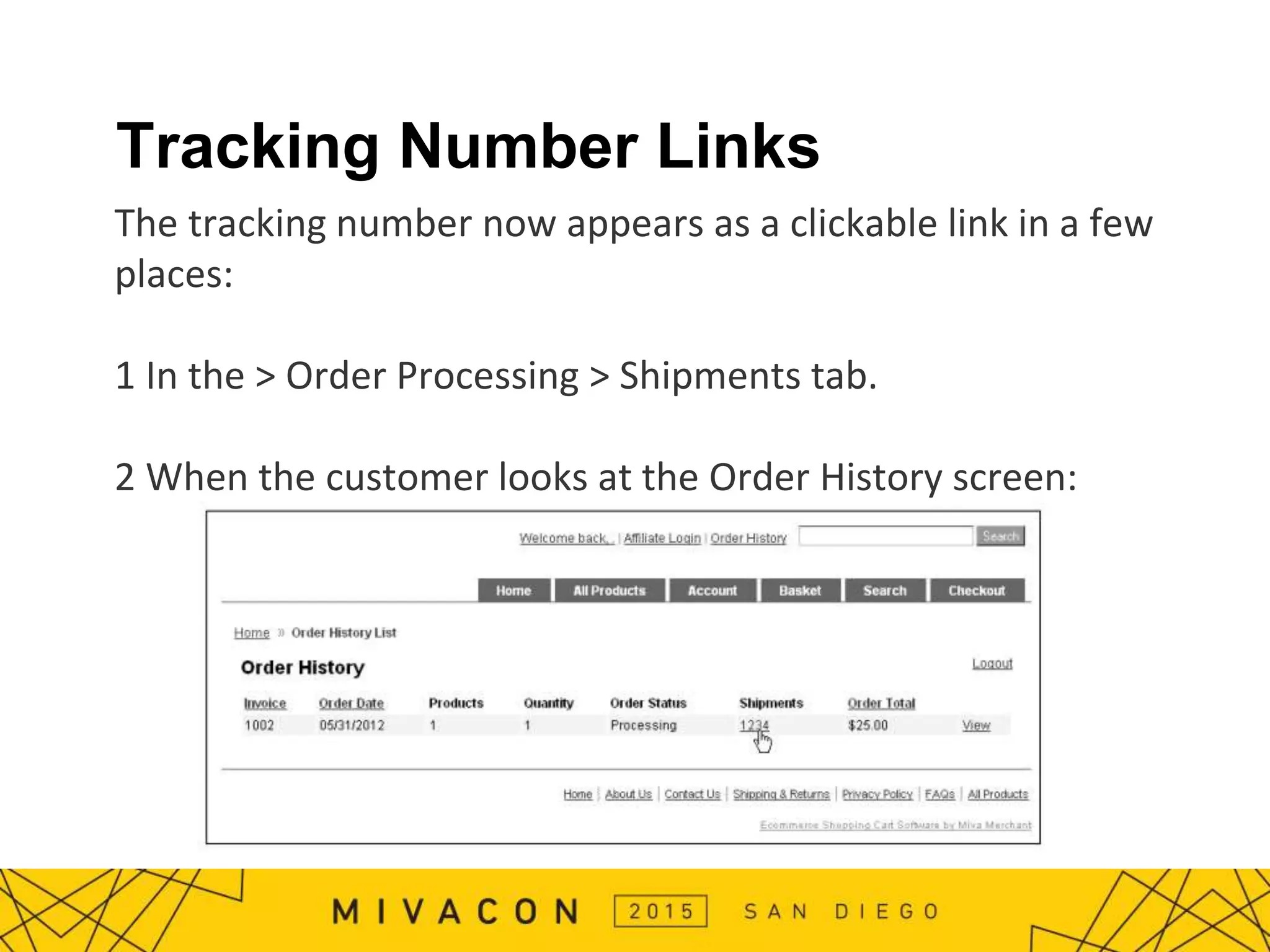
The tracking number now appears as a clickable link in a few
places:
1 In the > Order Processing > Shipments tab.
2 When the customer looks at the Order History screen:
Questions?
http://www.miva.com/pdf/MivaV9_03-20-15.pdf
Mark Patterson

Order processing in miva merchant 9