1
Batch Management & Batch Determination
Batch management is generally used in FMCG and pharma companies. It is generally used for
tracking purpose. The definition of batch varies from industry to industry. In some industry,
batch number is assigned for the products produced under one shift. In some industry, batch
number is assigned based on products produced in a day.
Batch management is applicable in the below scenarios
 Receiving raw materials from vendor
 Production of a finished material having batch
 Issue raw material batches in the production
T Code- MSC1N/MSC2N/MSC3N
Batch can be defined at three levels.
Client- same batch number cannot be used again.
Material- Batch must be unique at material+ batch combination. It is preferred because when
we transfer batch from one plant to another plant then there is no need to create separate
batch and also no need to change the specifications of the batch in the destination plant.
Plant- Batch must be unique at material+ Plant+ batch combination. Here , we have to create a
new batch and new specifications in the destination plant.
Batch can be manually/automatically created at the production order creation or release.
Batch can also be assigned during GR activity.
Configurations
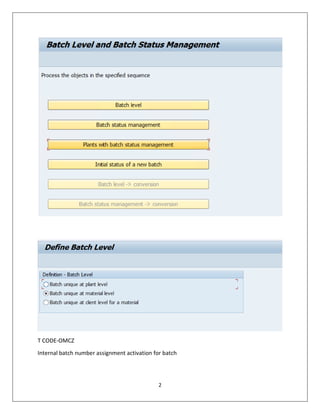
T CODE -OMCT
Batch Level
2
T CODE-OMCZ
Internal batch number assignment activation for batch
3
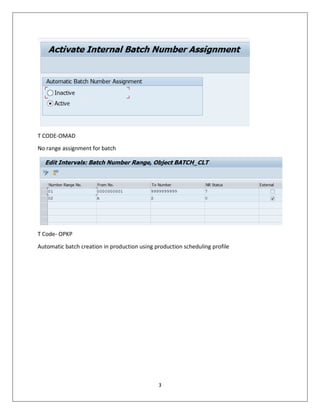
T CODE-OMAD
No range assignment for batch
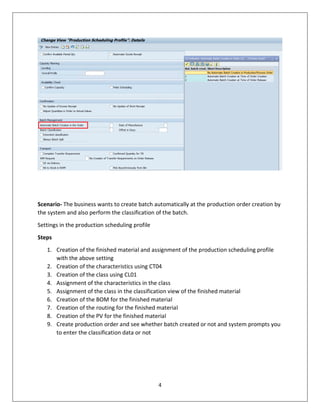
T Code- OPKP
Automatic batch creation in production using production scheduling profile
4
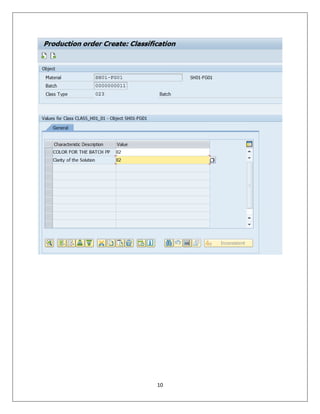
Scenario- The business wants to create batch automatically at the production order creation by
the system and also perform the classification of the batch.
Settings in the production scheduling profile
Steps
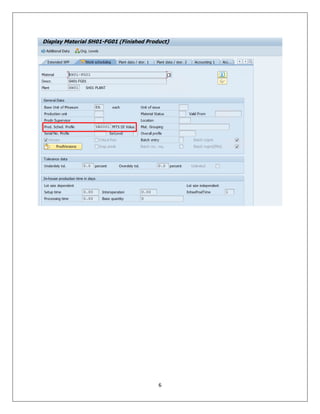
1. Creation of the finished material and assignment of the production scheduling profile
with the above setting
2. Creation of the characteristics using CT04
3. Creation of the class using CL01
4. Assignment of the characteristics in the class
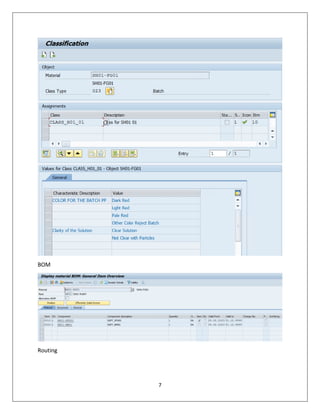
5. Assignment of the class in the classification view of the finished material
6. Creation of the BOM for the finished material
7. Creation of the routing for the finished material
8. Creation of the PV for the finished material
9. Create production order and see whether batch created or not and system prompts you
to enter the classification data or not
5
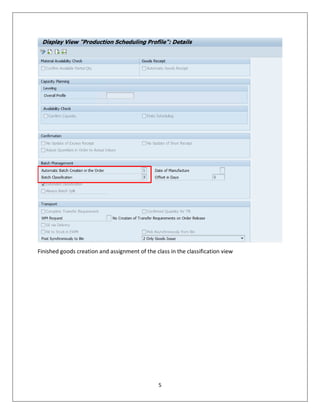
Finished goods creation and assignment of the class in the classification view
6
7
BOM
Routing
8
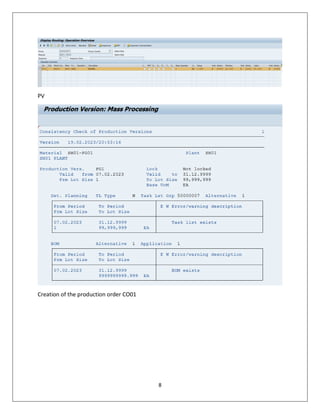
PV
Creation of the production order CO01
9
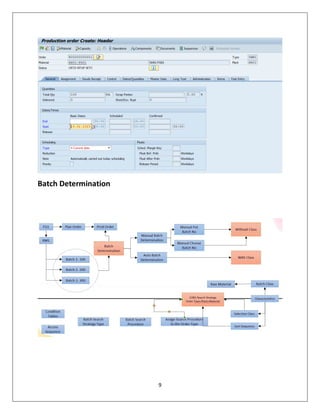
Batch Determination
10
11
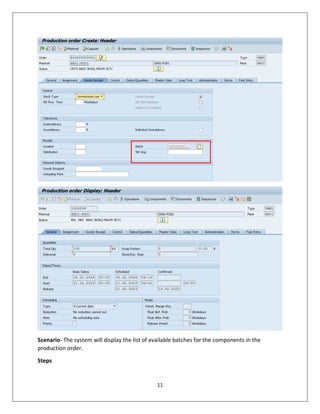
Scenario- The system will display the list of available batches for the components in the
production order.
Steps
12
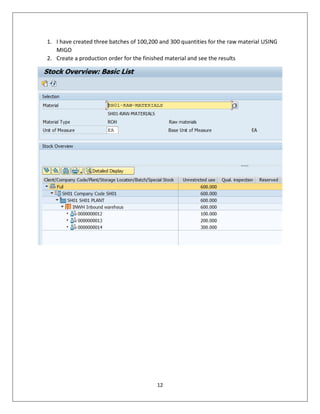
1. I have created three batches of 100,200 and 300 quantities for the raw material USING
MIGO
2. Create a production order for the finished material and see the results
13
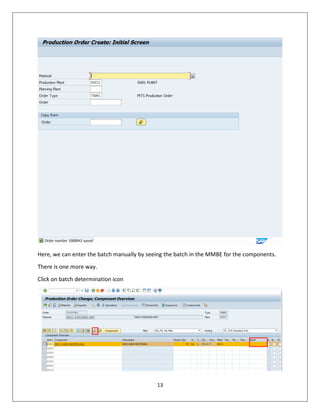
Here, we can enter the batch manually by seeing the batch in the MMBE for the components.
There is one more way.
Click on batch determination icon
14
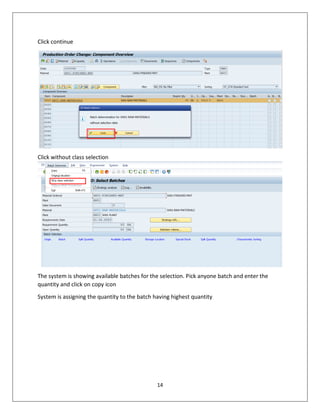
Click continue
Click without class selection
The system is showing available batches for the selection. Pick anyone batch and enter the
quantity and click on copy icon
System is assigning the quantity to the batch having highest quantity
15
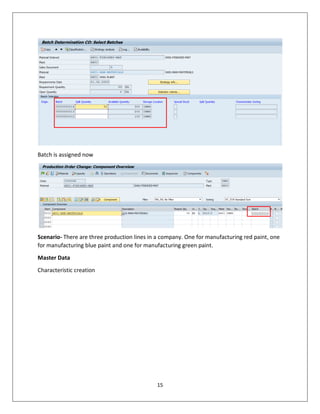
Batch is assigned now
Scenario- There are three production lines in a company. One for manufacturing red paint, one
for manufacturing blue paint and one for manufacturing green paint.
Master Data
Characteristic creation
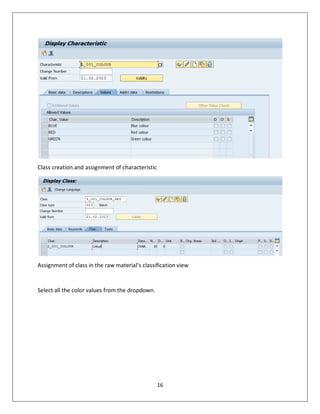
16
Class creation and assignment of characteristic
Assignment of class in the raw material’s classification view
Select all the color values from the dropdown.
17
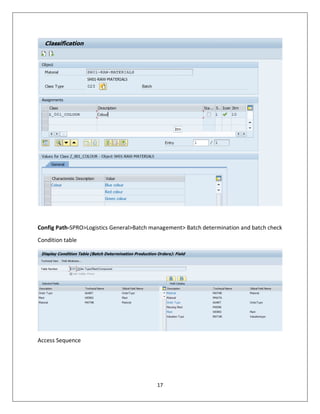
Config Path-SPRO>Logistics General>Batch management> Batch determination and batch check
Condition table
Access Sequence
18
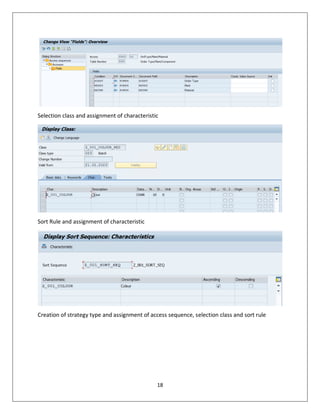
Selection class and assignment of characteristic
Sort Rule and assignment of characteristic
Creation of strategy type and assignment of access sequence, selection class and sort rule
19
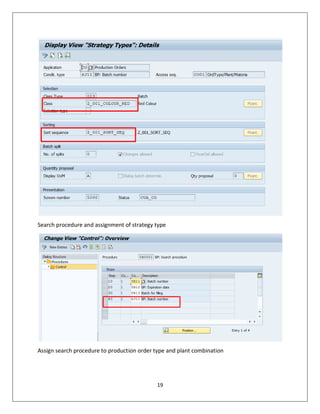
Search procedure and assignment of strategy type
Assign search procedure to production order type and plant combination
20
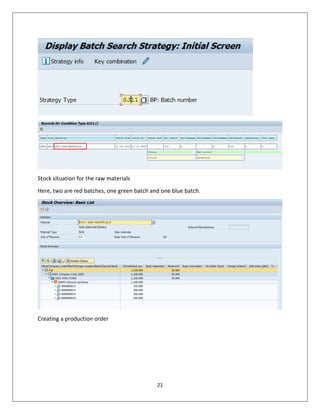
Creation of condition record using COB1
Enter strategy, material ,plant and order type
21
Stock situation for the raw materials
Here, two are red batches, one green batch and one blue batch.
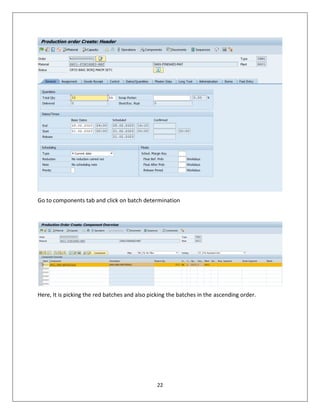
Creating a production order
22
Go to components tab and click on batch determination
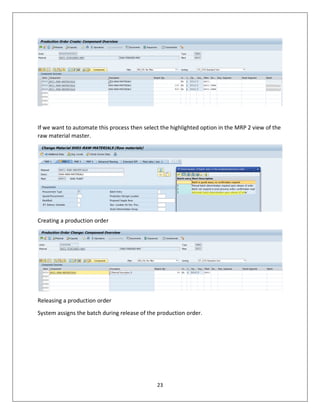
Here, It is picking the red batches and also picking the batches in the ascending order.
23
If we want to automate this process then select the highlighted option in the MRP 2 view of the
raw material master.
Creating a production order
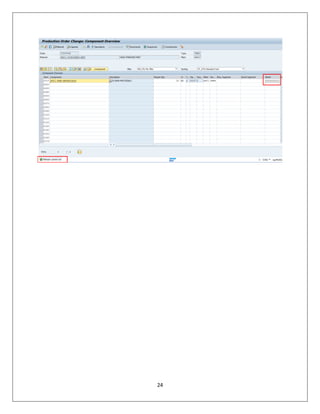
Releasing a production order
System assigns the batch during release of the production order.
24

batch mgmt & batch determination.pdf

  • 1.
    1 Batch Management &Batch Determination Batch management is generally used in FMCG and pharma companies. It is generally used for tracking purpose. The definition of batch varies from industry to industry. In some industry, batch number is assigned for the products produced under one shift. In some industry, batch number is assigned based on products produced in a day. Batch management is applicable in the below scenarios  Receiving raw materials from vendor  Production of a finished material having batch  Issue raw material batches in the production T Code- MSC1N/MSC2N/MSC3N Batch can be defined at three levels. Client- same batch number cannot be used again. Material- Batch must be unique at material+ batch combination. It is preferred because when we transfer batch from one plant to another plant then there is no need to create separate batch and also no need to change the specifications of the batch in the destination plant. Plant- Batch must be unique at material+ Plant+ batch combination. Here , we have to create a new batch and new specifications in the destination plant. Batch can be manually/automatically created at the production order creation or release. Batch can also be assigned during GR activity. Configurations T CODE -OMCT Batch Level
  • 2.
    2 T CODE-OMCZ Internal batchnumber assignment activation for batch
  • 3.
    3 T CODE-OMAD No rangeassignment for batch T Code- OPKP Automatic batch creation in production using production scheduling profile
  • 4.
    4 Scenario- The businesswants to create batch automatically at the production order creation by the system and also perform the classification of the batch. Settings in the production scheduling profile Steps 1. Creation of the finished material and assignment of the production scheduling profile with the above setting 2. Creation of the characteristics using CT04 3. Creation of the class using CL01 4. Assignment of the characteristics in the class 5. Assignment of the class in the classification view of the finished material 6. Creation of the BOM for the finished material 7. Creation of the routing for the finished material 8. Creation of the PV for the finished material 9. Create production order and see whether batch created or not and system prompts you to enter the classification data or not
  • 5.
    5 Finished goods creationand assignment of the class in the classification view
  • 6.
  • 7.
  • 8.
    8 PV Creation of theproduction order CO01
  • 9.
  • 10.
  • 11.
    11 Scenario- The systemwill display the list of available batches for the components in the production order. Steps
  • 12.
    12 1. I havecreated three batches of 100,200 and 300 quantities for the raw material USING MIGO 2. Create a production order for the finished material and see the results
  • 13.
    13 Here, we canenter the batch manually by seeing the batch in the MMBE for the components. There is one more way. Click on batch determination icon
  • 14.
    14 Click continue Click withoutclass selection The system is showing available batches for the selection. Pick anyone batch and enter the quantity and click on copy icon System is assigning the quantity to the batch having highest quantity
  • 15.
    15 Batch is assignednow Scenario- There are three production lines in a company. One for manufacturing red paint, one for manufacturing blue paint and one for manufacturing green paint. Master Data Characteristic creation
  • 16.
    16 Class creation andassignment of characteristic Assignment of class in the raw material’s classification view Select all the color values from the dropdown.
  • 17.
    17 Config Path-SPRO>Logistics General>Batchmanagement> Batch determination and batch check Condition table Access Sequence
  • 18.
    18 Selection class andassignment of characteristic Sort Rule and assignment of characteristic Creation of strategy type and assignment of access sequence, selection class and sort rule
  • 19.
    19 Search procedure andassignment of strategy type Assign search procedure to production order type and plant combination
  • 20.
    20 Creation of conditionrecord using COB1 Enter strategy, material ,plant and order type
  • 21.
    21 Stock situation forthe raw materials Here, two are red batches, one green batch and one blue batch. Creating a production order
  • 22.
    22 Go to componentstab and click on batch determination Here, It is picking the red batches and also picking the batches in the ascending order.
  • 23.
    23 If we wantto automate this process then select the highlighted option in the MRP 2 view of the raw material master. Creating a production order Releasing a production order System assigns the batch during release of the production order.
  • 24.