Budgets
Objectives
– Outline the setup steps for budgeting
– Describe the features of budgetary controls
– Discuss the concept of award budgets
– Describe non-sponsored project budgets
Agenda
– Budget Setup Steps
– Budgetary Controls
– Award Budgets
– Non-sponsored project budgets
Budgeting Implementation Steps
Steps for Implementing Budgeting Required or Optional
Define budget types Optional
Define budget change reasons Optional
Define budget entry methods Required
Define resource lists Required
Define Budget Types
Define different types of budgets to use with budgetary controls
Project
Award
Award
Budget
Define Budget Change Reasons
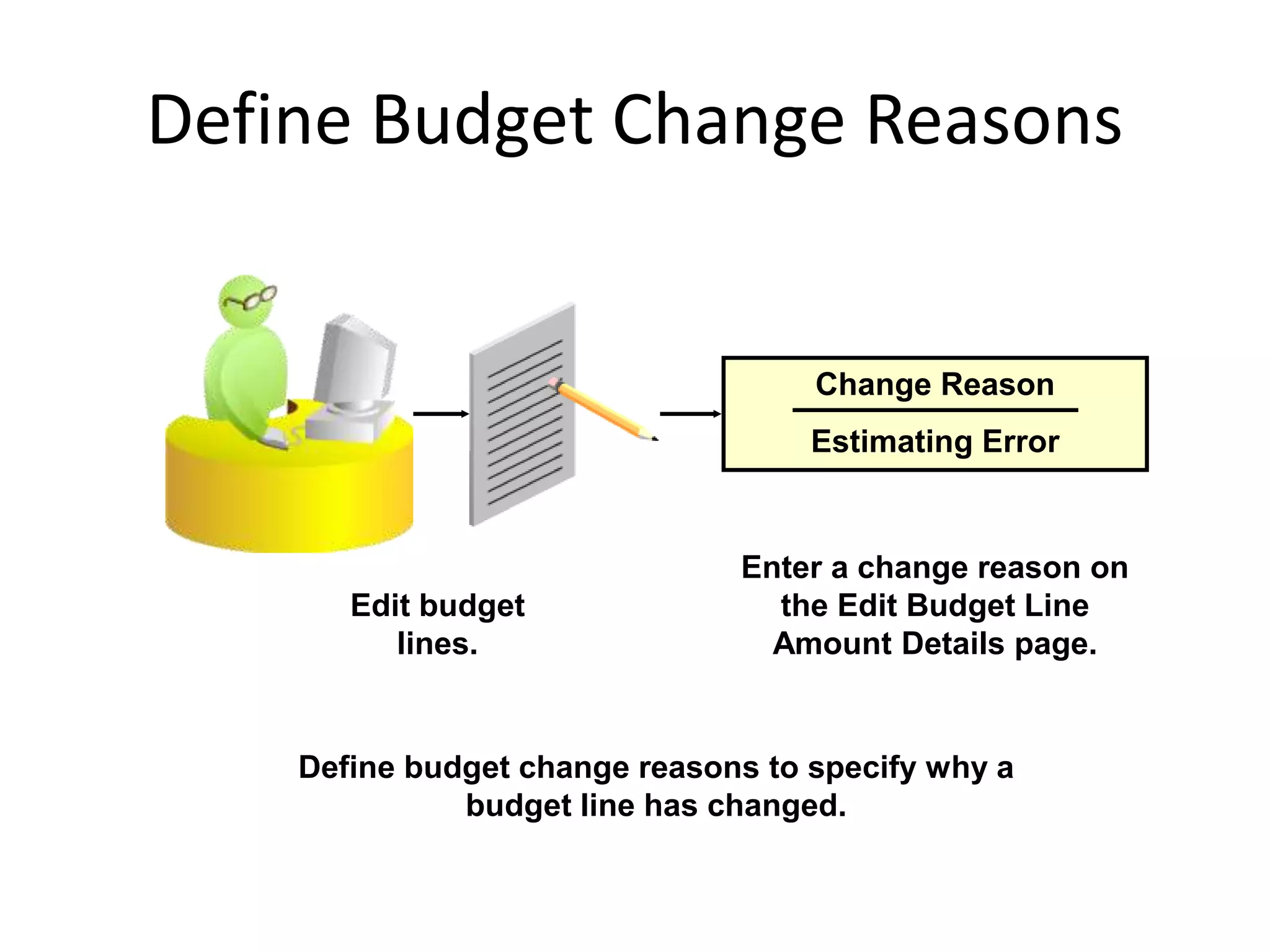
Define budget change reasons to specify why a
budget line has changed.
Change Reason
Estimating Error
Edit budget
lines.
Enter a change reason on
the Edit Budget Line
Amount Details page.
Define Budget Entry Methods
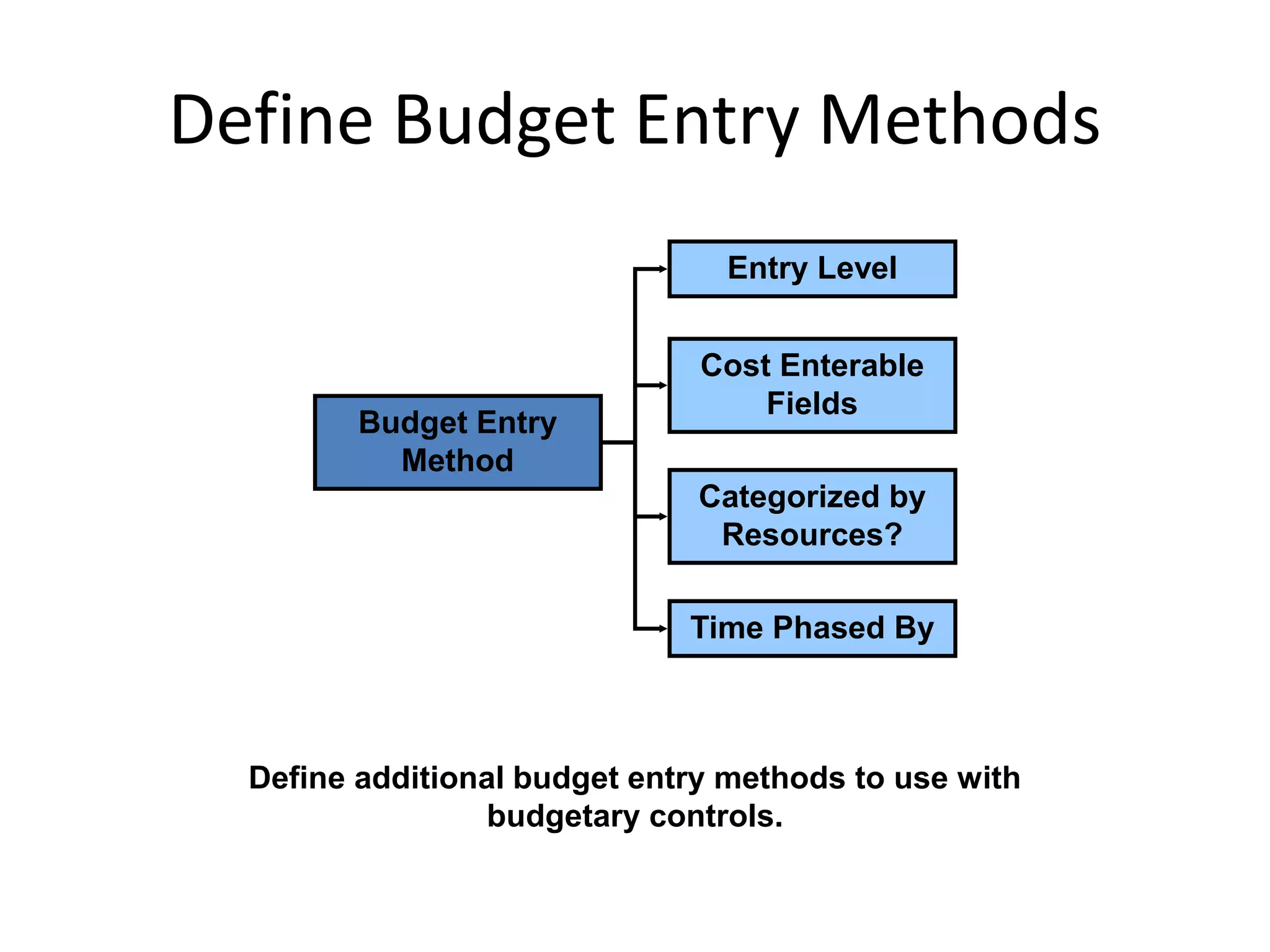
Budget Entry
Method
Entry Level
Cost Enterable
Fields
Categorized by
Resources?
Time Phased By
Define additional budget entry methods to use with
budgetary controls.
Resource Lists
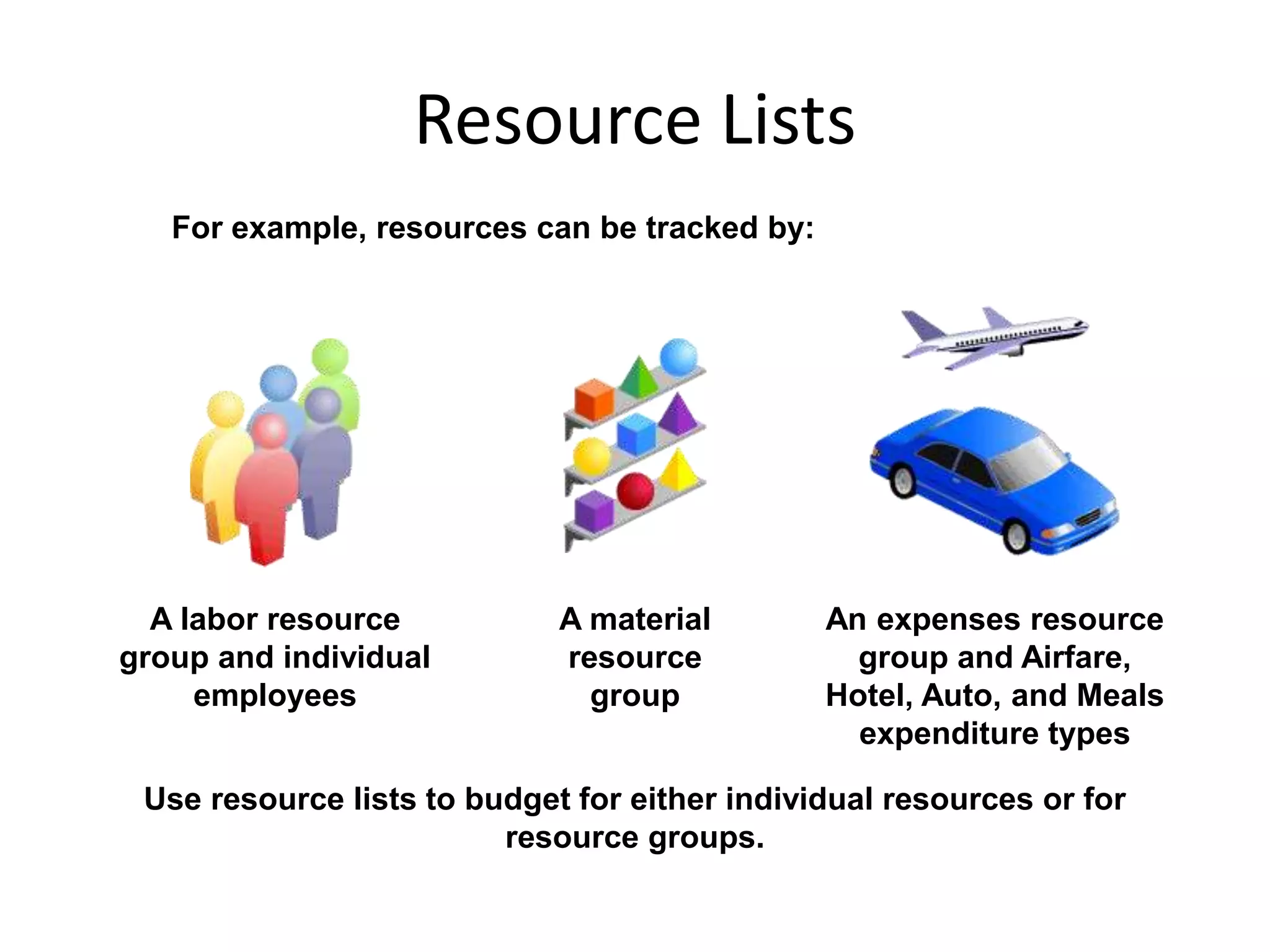
For example, resources can be tracked by:
A labor resource
group and individual
employees
A material
resource
group
An expenses resource
group and Airfare,
Hotel, Auto, and Meals
expenditure types
Use resource lists to budget for either individual resources or for
resource groups.
Resource Lists
Resource List
Group Resources By
Organization
Expenditure Category
None
Resource
Group
Resource
Group
Resource
Resource
Resource
Resource
Resource
Resource
Resource lists are used for budgeting, forecasting, and reporting.
Labor Resources and Resource Lists
Labor resources
– Unit of Measure is set to Hours.
– Quantity of hours is summarized at
the project, task, and resource levels.
Determining the Unit of Measure
for Resources
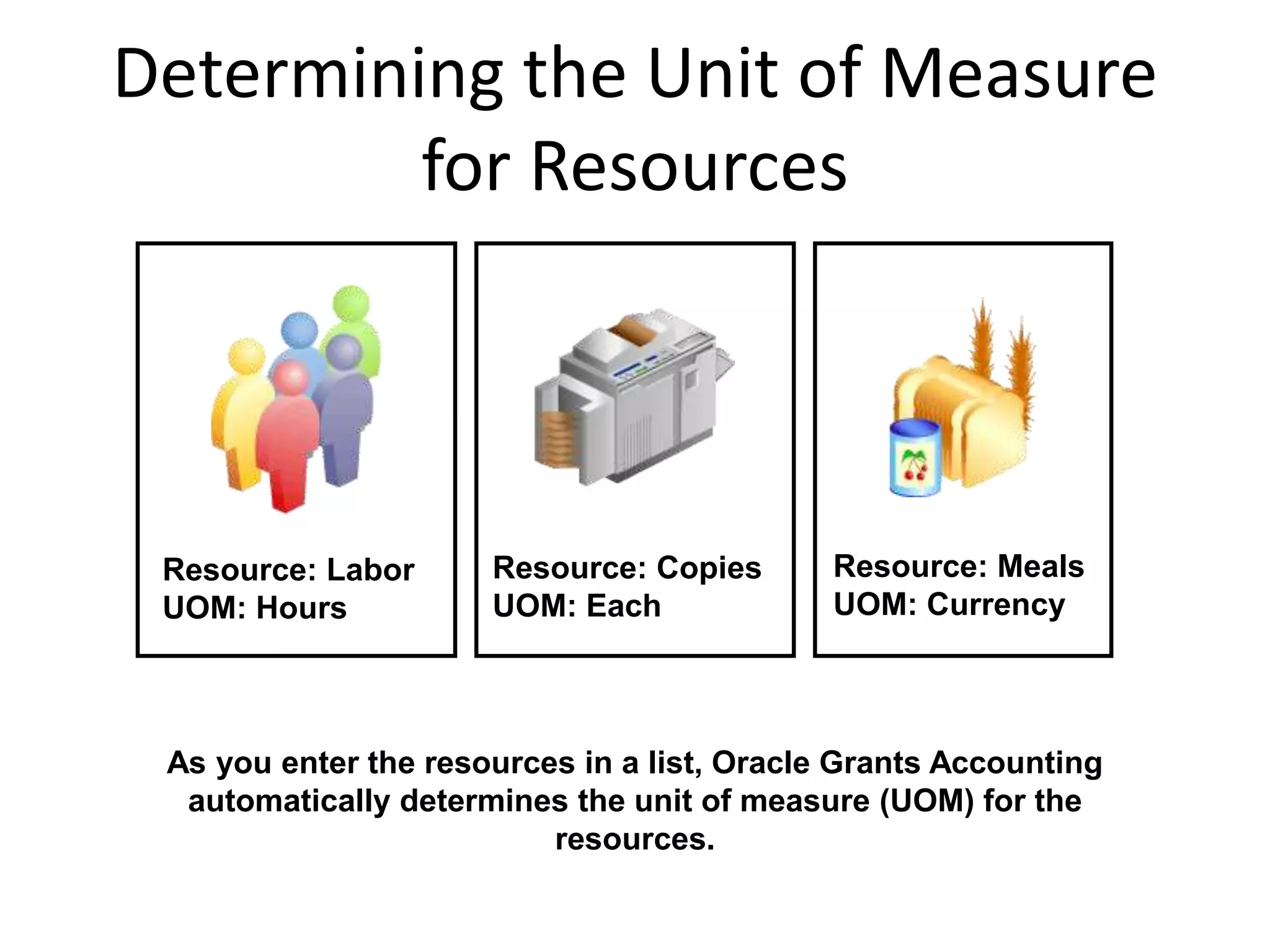
As you enter the resources in a list, Oracle Grants Accounting
automatically determines the unit of measure (UOM) for the
resources.
Resource: Labor
UOM: Hours
Resource: Copies
UOM: Each
Resource: Meals
UOM: Currency
Assigning Resource Lists to Projects
Assign resource list for
status reporting.
Project Template
Resource list for status
reporting defaults;
optionally add/modify
resource lists.
Project
Project Type
Resource list for status
reporting defaults;
optionally add/modify
resource lists.
Agenda
– Budget Setup Steps
– Budgetary Controls
– Award Budgets
– Non-sponsored project budgets
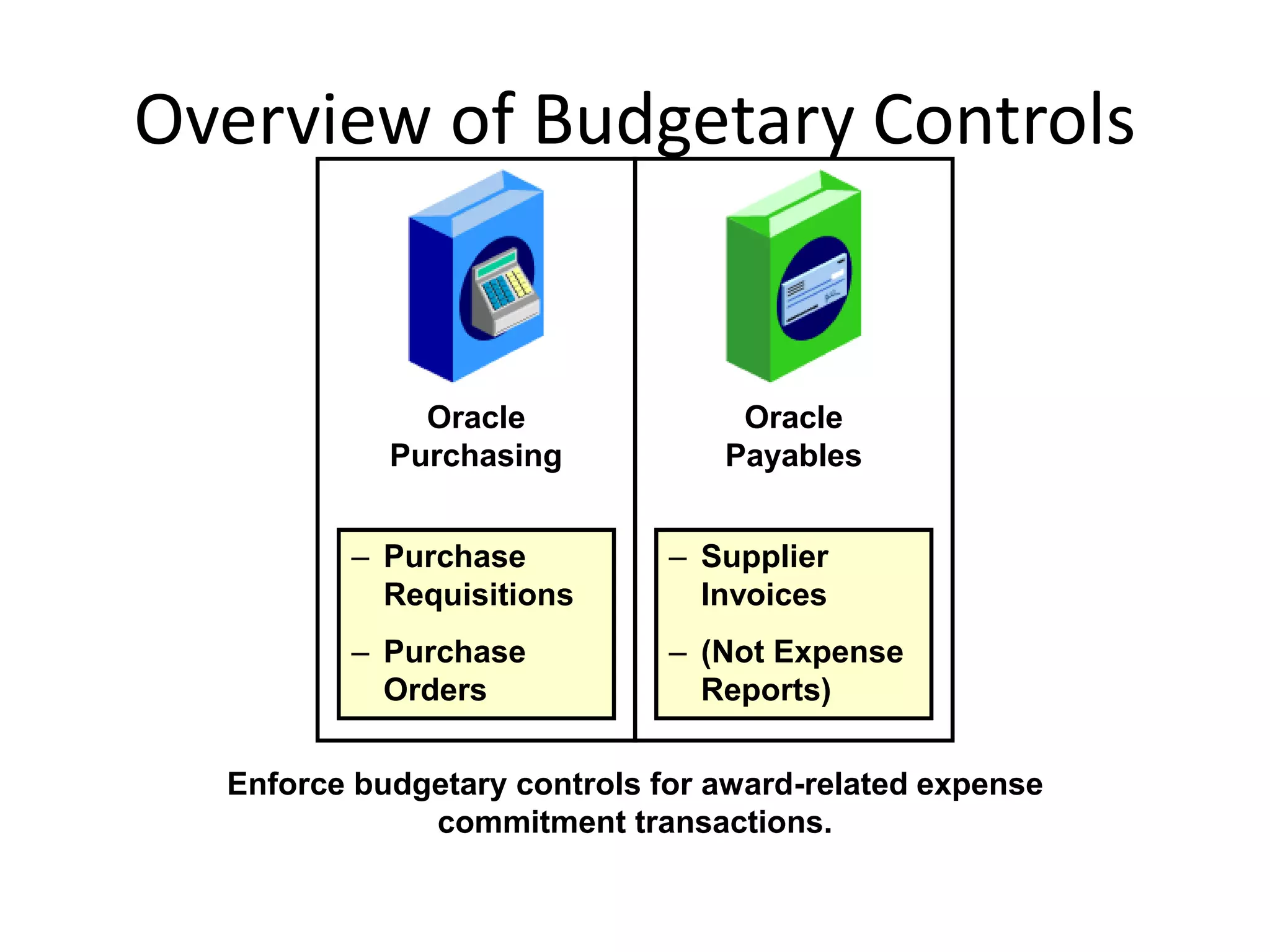
Overview of Budgetary Controls
Enforce budgetary controls for award-related expense
commitment transactions.
Oracle
Payables
Oracle
Purchasing
– Purchase
Requisitions
– Purchase
Orders
– Supplier
Invoices
– (Not Expense
Reports)
Viewing Encumbrance and
Subledger Accounting
Oracle
Payables
Oracle
Purchasing
Oracle Grants
Accounting
Oracle Subledger
Accounting
Inquire on subledger budget and encumbrance journals
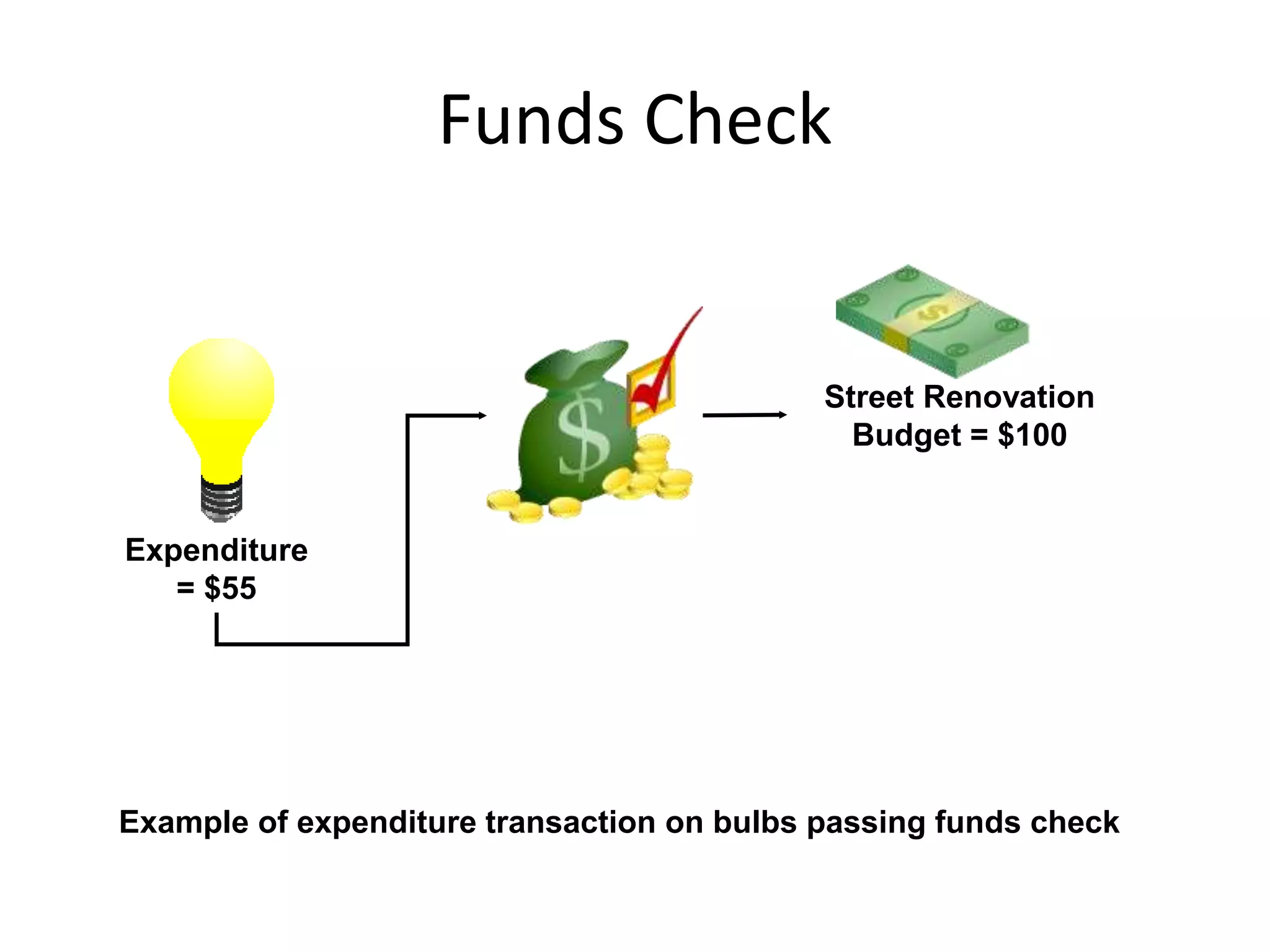
Funds Check
Street Renovation
Budget = $100
Expenditure
= $55
Example of expenditure transaction on bulbs passing funds check
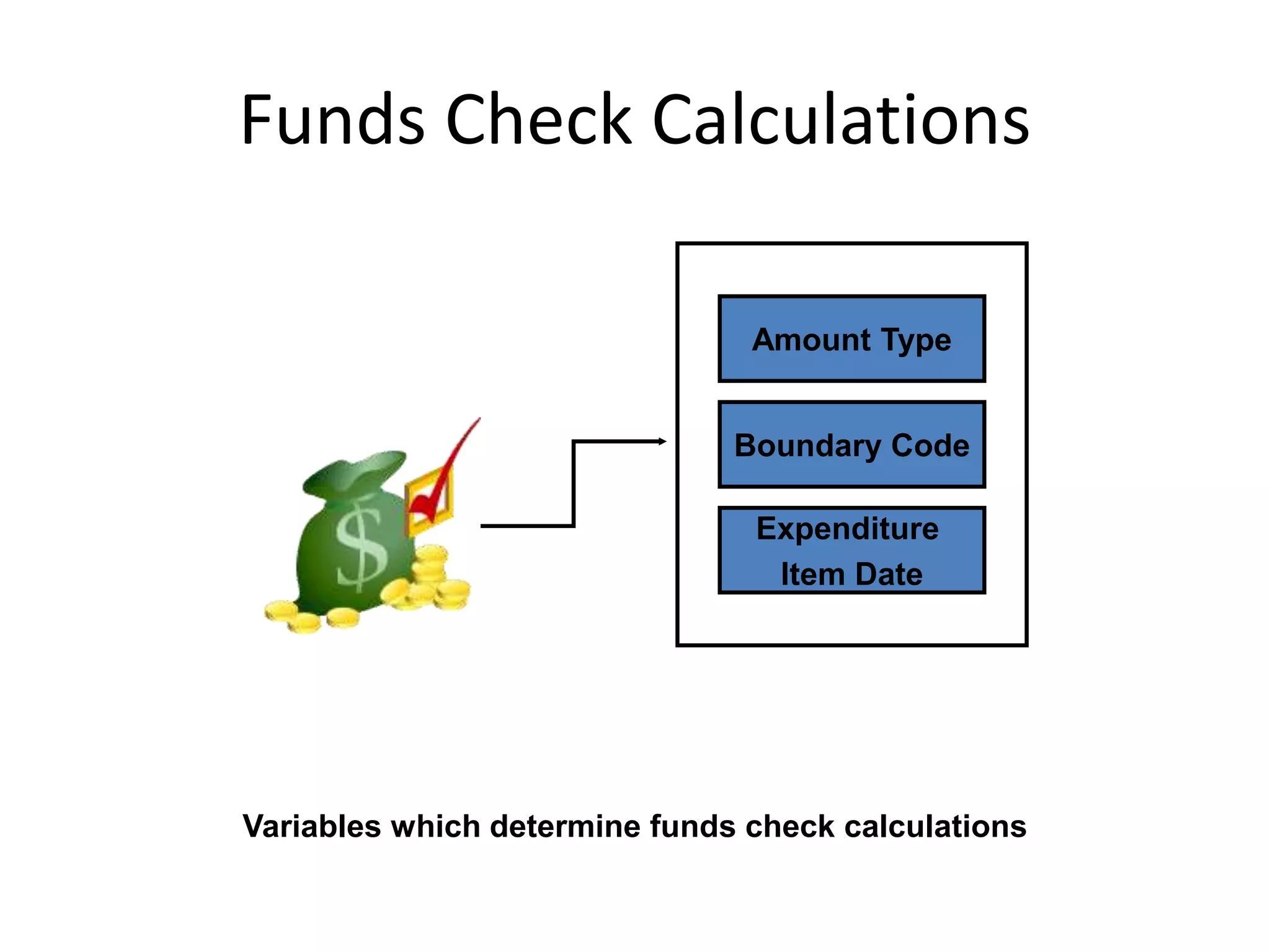
Funds Check Calculations
Amount Type
Boundary Code
Expenditure
Item Date
Variables which determine funds check calculations
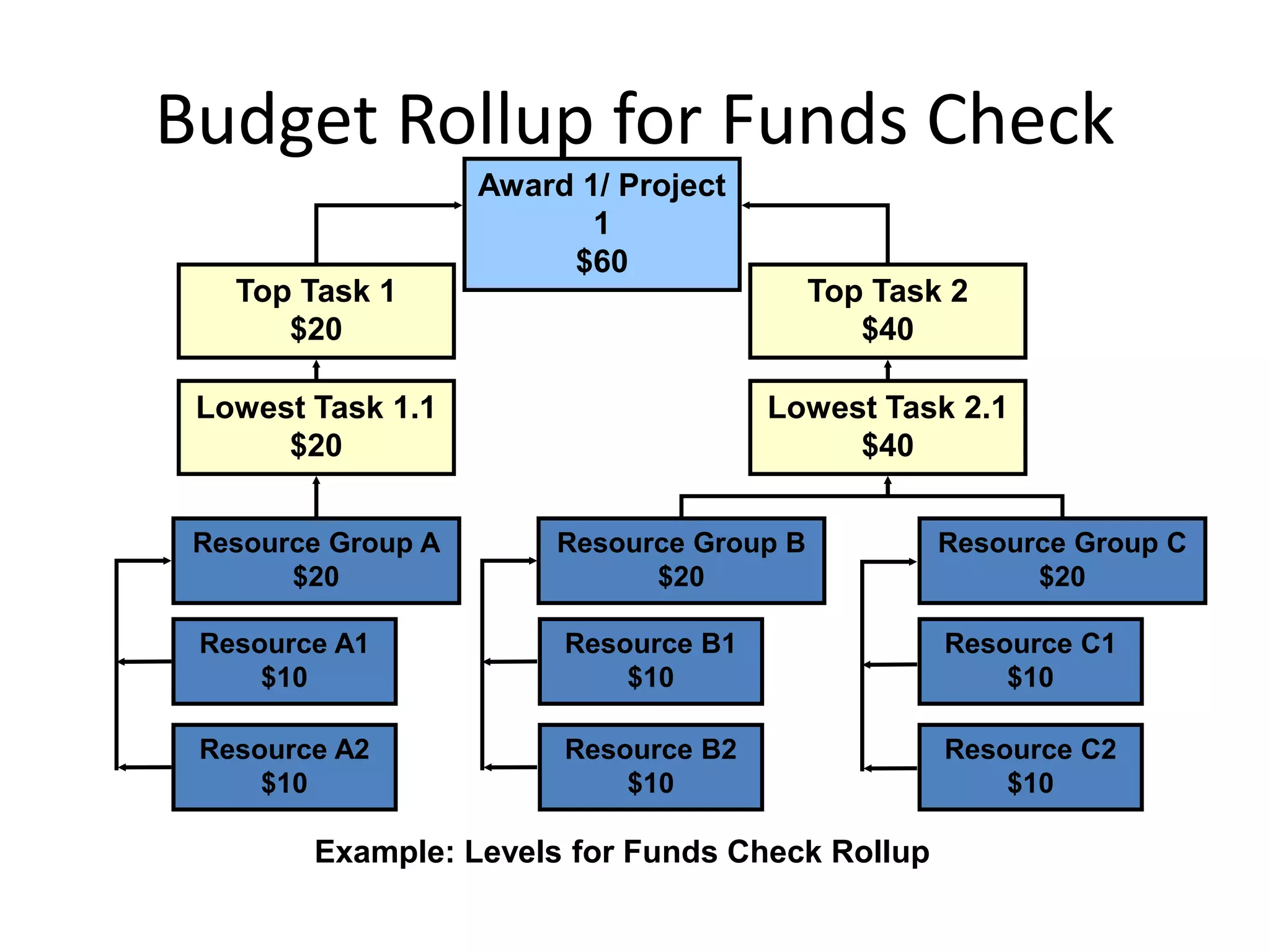
Budget Rollup for Funds Check
Award 1/ Project
1
$60
Top Task 1
$20
Top Task 2
$40
Lowest Task 1.1
$20
Lowest Task 2.1
$40
Resource Group A
$20
Resource Group B
$20
Resource Group C
$20
Resource A1
$10
Resource A2
$10
Resource B1
$10
Resource B2
$10
Resource C1
$10
Resource C2
$10
Example: Levels for Funds Check Rollup
Budgetary Control Settings
NoneAdvisoryAbsolute
Budgetary
Control Options
Budgetary Control Settings: Time
Intervals
Year 1 Year 2
1211109876 1 2 3 4 5 6
1 1 1 1 1 1 1 1 1 1 1 1 1
Funds Check
Funds Available: 5
Period
Budget
Amount
Example: Funds check using Amount Type/Boundary Code of
Year to Date/Period. The expenditure falls into the 5th period
of Year 2. The time interval for available funds begins at the
start of Year 2 and continues through the end of Period 5.
Budgetary Control Settings: Time
Intervals
Budget Time Phase Amount Type Boundary Code
PA Period, GL Period, or
None
Project To Date Project
PA or GL Periods Project To Date Year
PA or GL Periods Project To Date Period
PA or GL Periods Year To Date Year
PA or GL Periods Year To Date Period
PA or GL Periods Period To Date Period
Valid amount type and boundary code combinations
Default Budgetary Control Settings
You can define budgetary control settings for each award,
and these settings can vary between awards.
Absolute
Advisory
None
Default budgetary
control settings
Workflow for award
budget approvals
Time phase for funds
control
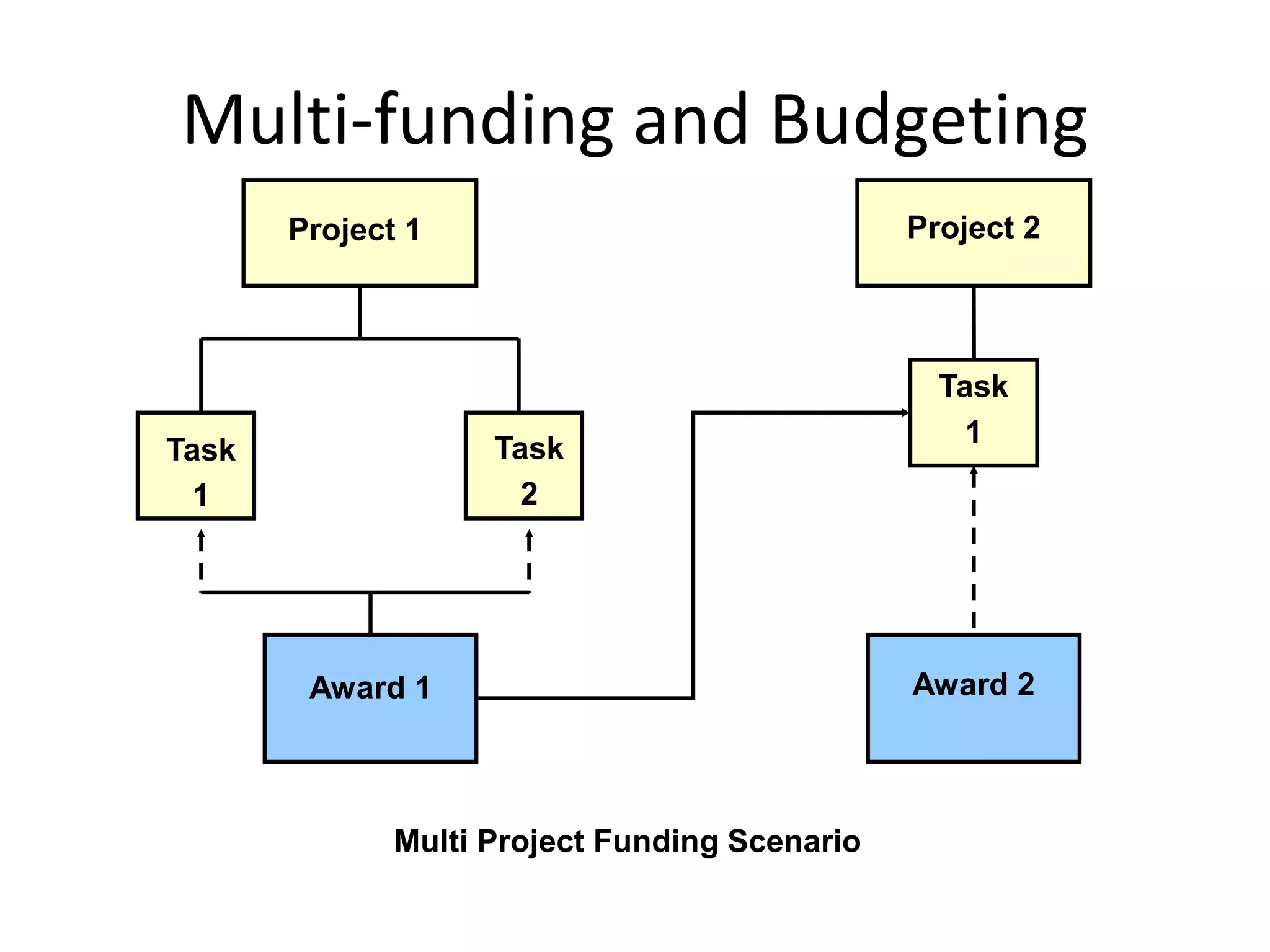
Multi-funding and Budgeting
Project 1 Project 2
Task
1
Task
2
Award 1 Award 2
Task
1
Multi Project Funding Scenario
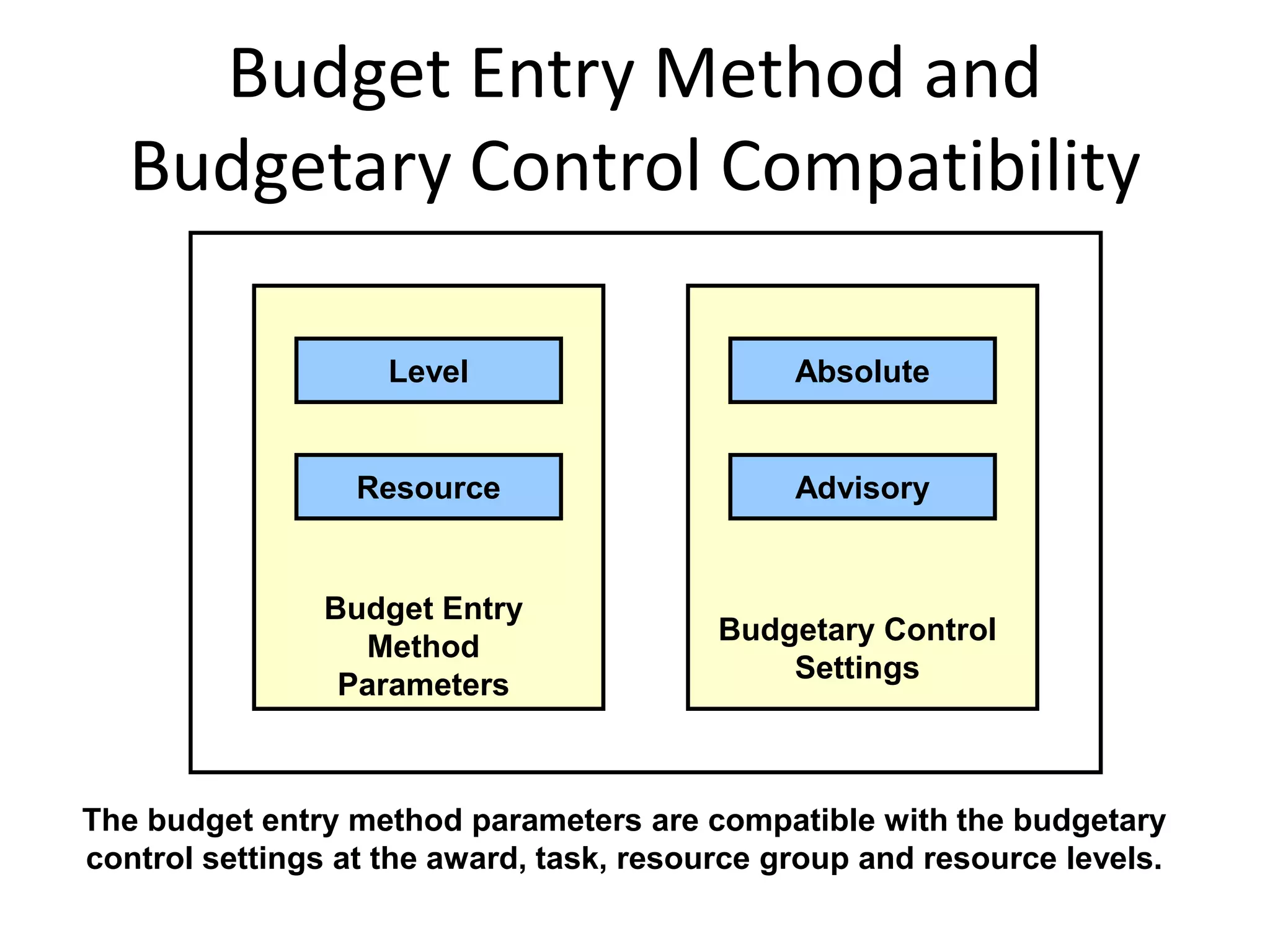
Budget Entry Method and
Budgetary Control Compatibility
The budget entry method parameters are compatible with the budgetary
control settings at the award, task, resource group and resource levels.
Budget Entry
Method
Parameters
Level
Resource
Absolute
Advisory
Budgetary Control
Settings
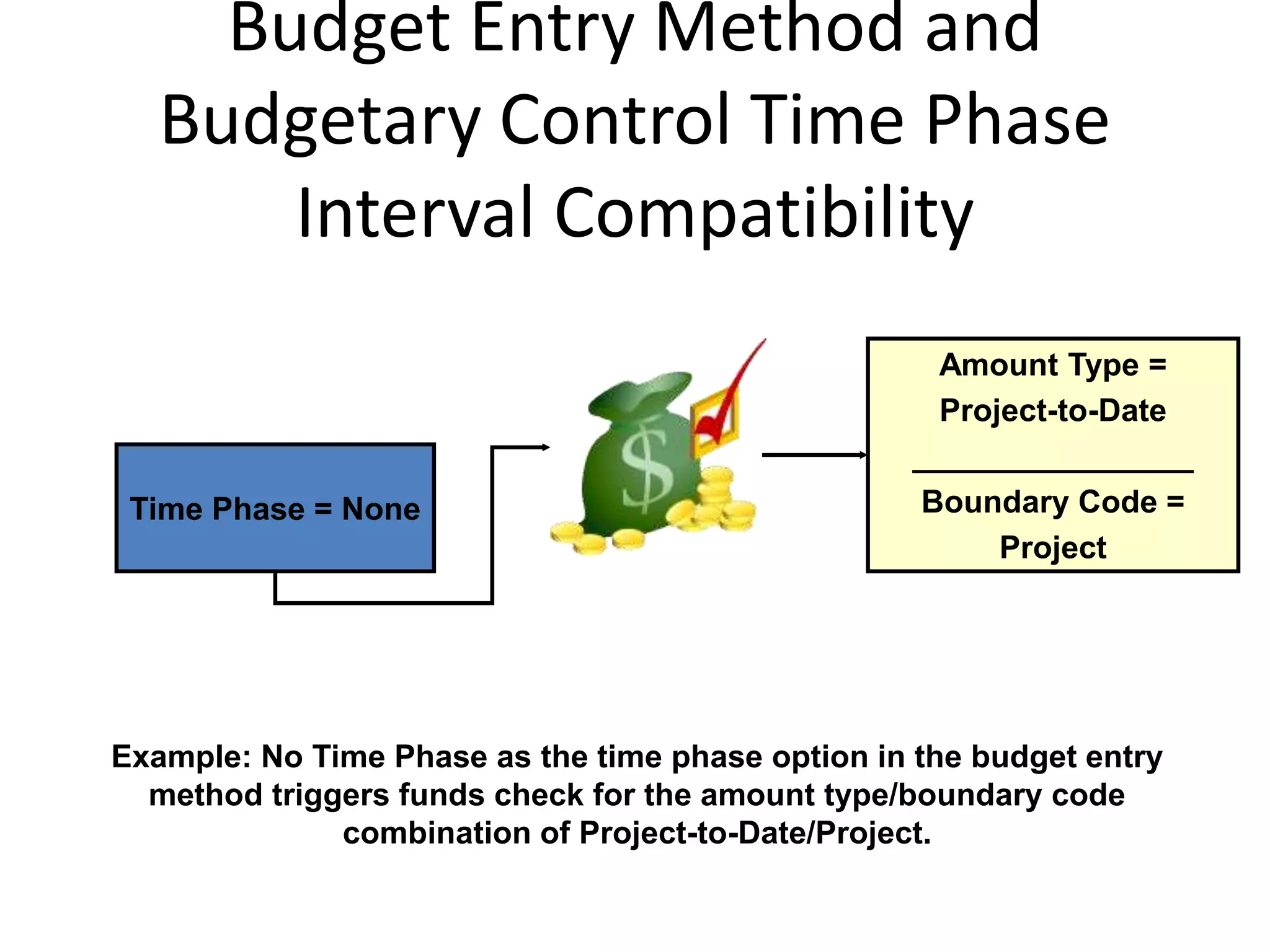
Budget Entry Method and
Budgetary Control Time Phase
Interval Compatibility
Time Phase = None
Amount Type =
Project-to-Date
________________
Boundary Code =
Project
Example: No Time Phase as the time phase option in the budget entry
method triggers funds check for the amount type/boundary code
combination of Project-to-Date/Project.
Agenda
– Budget Setup Steps
– Budgetary Controls
– Award Budgets
– Non-sponsored project budgets
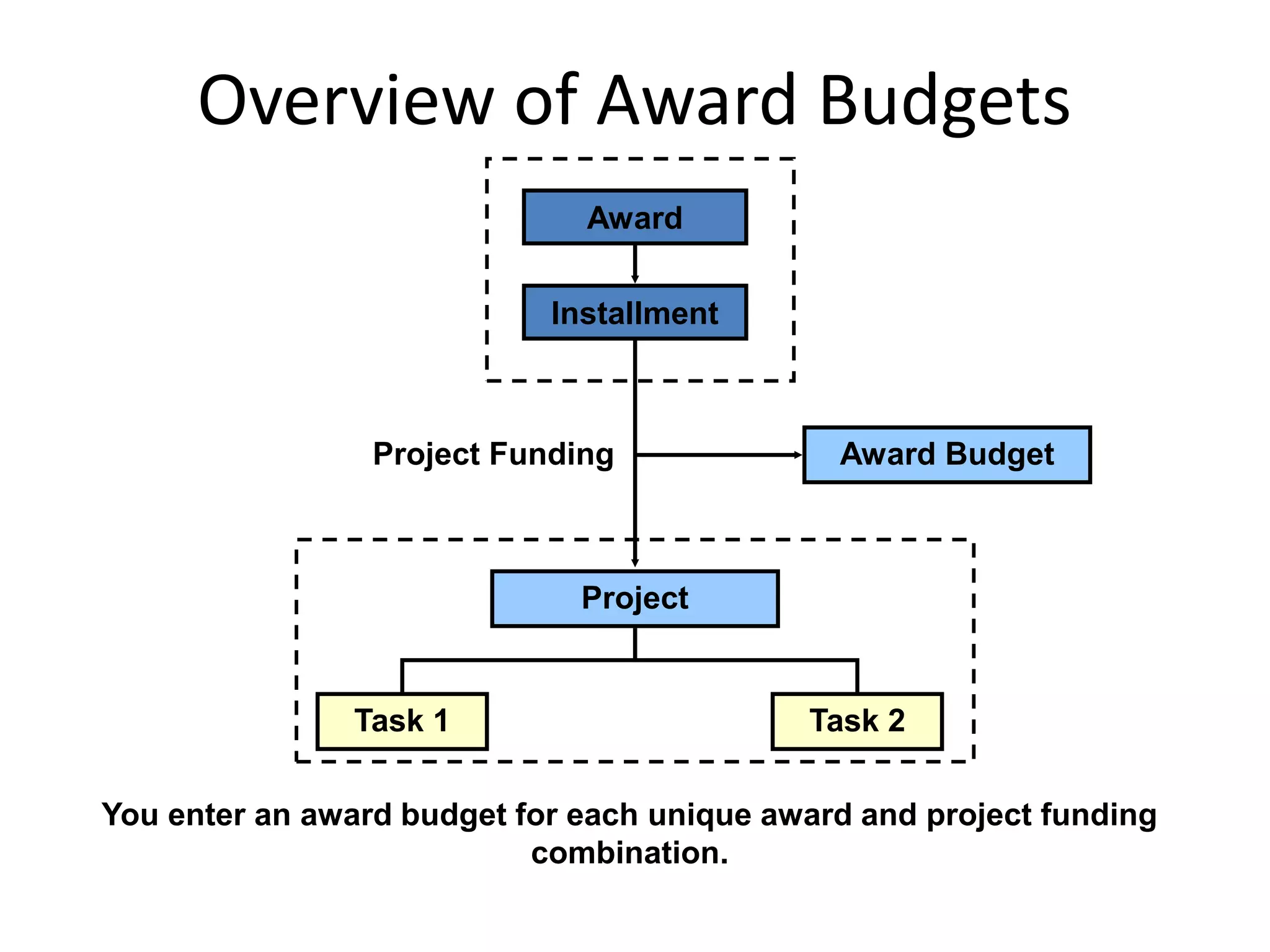
Overview of Award Budgets
You enter an award budget for each unique award and project funding
combination.
Project
Task 1 Task 2
Installment
Award
Project Funding Award Budget
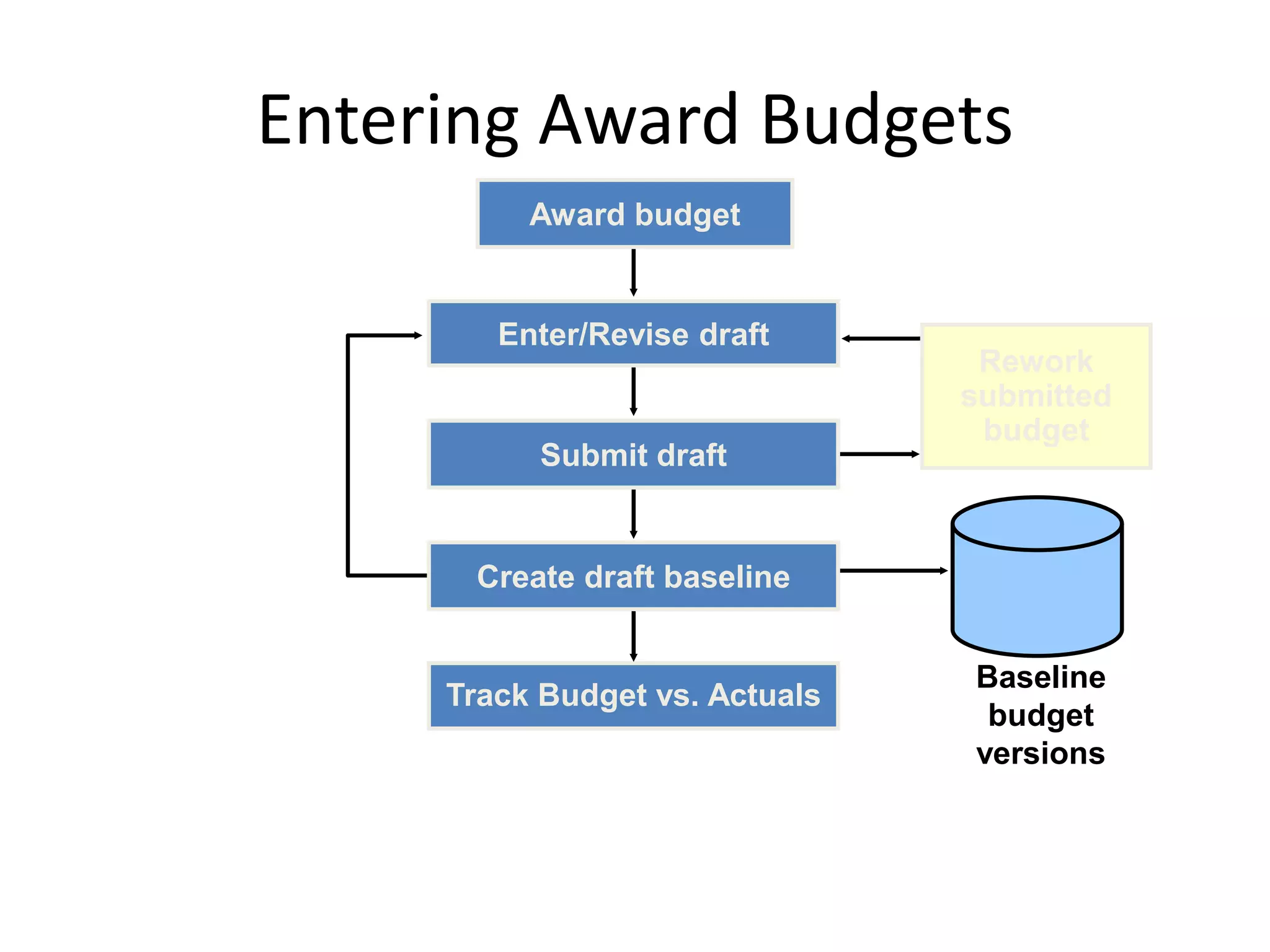
Entering Award Budgets
Track Budget vs. Actuals
Create draft baseline
Award budget
Submit draft
Enter/Revise draft
Rework
submitted
budget
Baseline
budget
versions
Budget Versions
Approved
Cost budget
Original
Revised original
A historical version
Revised original
Current budget
1st
2nd
3rd
4th
Draft
Budget Type
Versions
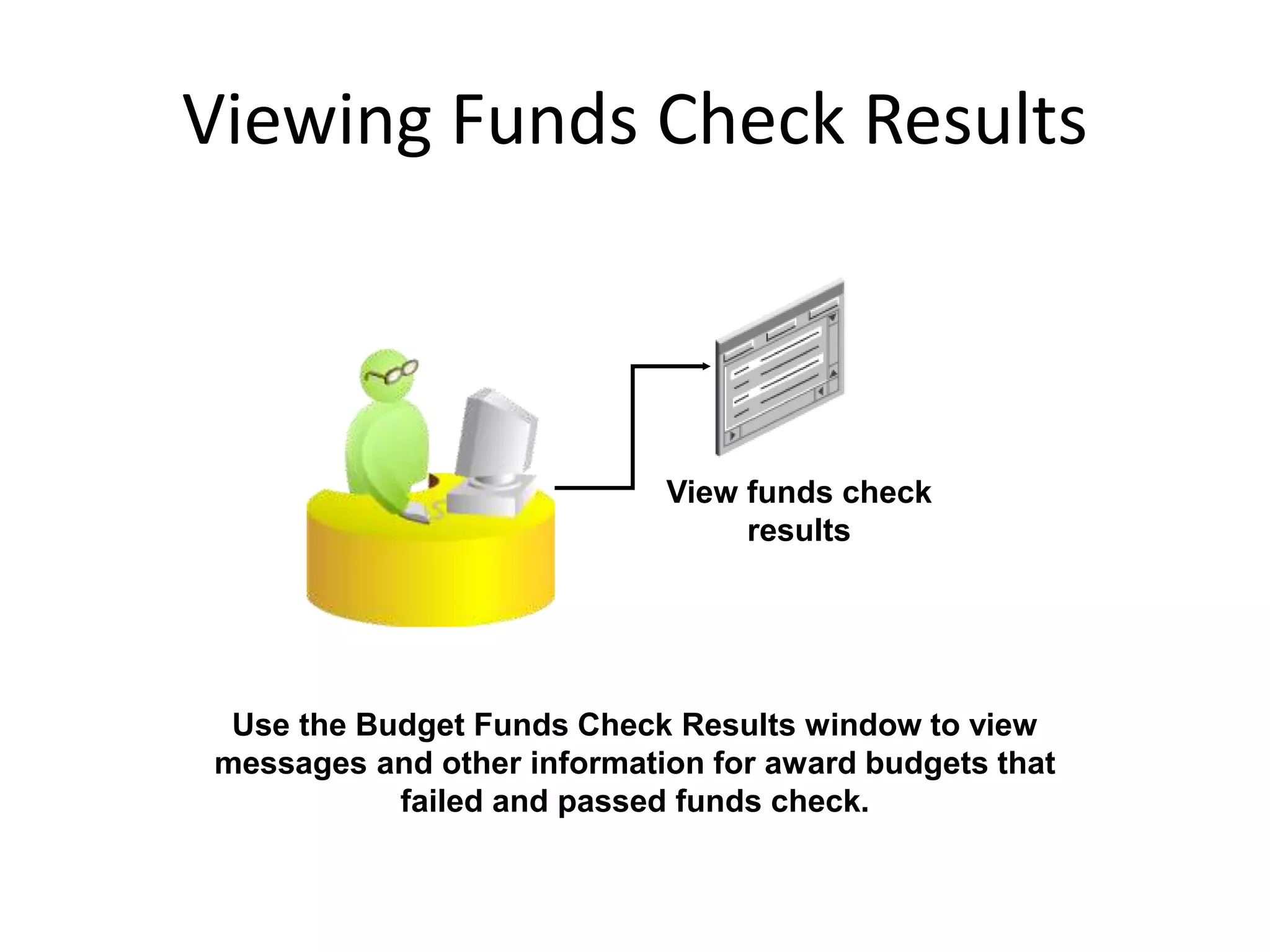
Viewing Funds Check Results
View funds check
results
Use the Budget Funds Check Results window to view
messages and other information for award budgets that
failed and passed funds check.
Project Budgets
Create baseline
Award Budget
Project Budget
Summarize and
Create baseline
Oracle Grants Accounting automatically creates the baseline version of the
Approved Cost Budget for the project, when you create the baseline version
of the award budget.
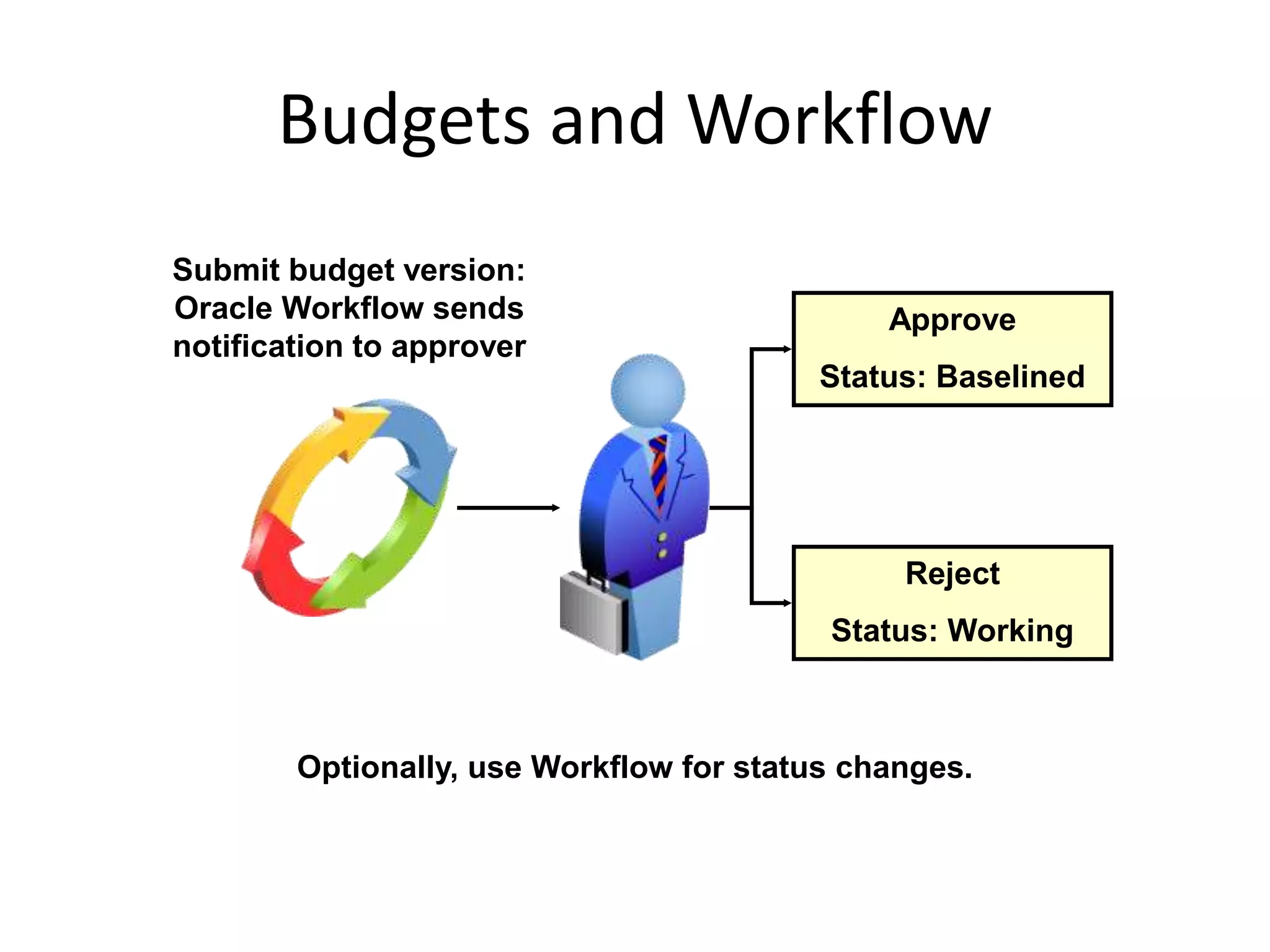
Budgets and Workflow
Approve
Status: Baselined
Reject
Status: Working
Submit budget version:
Oracle Workflow sends
notification to approver
Optionally, use Workflow for status changes.
Changing Budgetary Control
Settings
Budgetary Controls
Settings
Control Levels
Amount Type
Boundary Code
Award / Task level
Resource groups/ Levels
Updating default procedure
Methods of changing budgetary control settings
Profile Options
GMS: Enable Funds Check for Budget Submission
GMS: Tab to Budget Matrix Comment Fields
Profile Options associated with the budget setup steps
Agenda
– Budget Setup Steps
– Budgetary Controls
– Award Budgets
– Non-sponsored project budgets
Non-sponsored Projects
Non-sponsored projects do not have an award budget because they
are not funded by an award.
Non-sponsored project
No award funding
Summary
– Outline the setup steps for budgeting
– Describe the features of budgetary control
– Discuss the concept of award budgets
– Describe non-sponsored award budgets

Oracle grants accounting 9

  • 1.
  • 2.
    Objectives – Outline thesetup steps for budgeting – Describe the features of budgetary controls – Discuss the concept of award budgets – Describe non-sponsored project budgets
  • 3.
    Agenda – Budget SetupSteps – Budgetary Controls – Award Budgets – Non-sponsored project budgets
  • 4.
    Budgeting Implementation Steps Stepsfor Implementing Budgeting Required or Optional Define budget types Optional Define budget change reasons Optional Define budget entry methods Required Define resource lists Required
  • 5.
    Define Budget Types Definedifferent types of budgets to use with budgetary controls Project Award Award Budget
  • 6.
    Define Budget ChangeReasons Define budget change reasons to specify why a budget line has changed. Change Reason Estimating Error Edit budget lines. Enter a change reason on the Edit Budget Line Amount Details page.
  • 7.
    Define Budget EntryMethods Budget Entry Method Entry Level Cost Enterable Fields Categorized by Resources? Time Phased By Define additional budget entry methods to use with budgetary controls.
  • 8.
    Resource Lists For example,resources can be tracked by: A labor resource group and individual employees A material resource group An expenses resource group and Airfare, Hotel, Auto, and Meals expenditure types Use resource lists to budget for either individual resources or for resource groups.
  • 9.
    Resource Lists Resource List GroupResources By Organization Expenditure Category None Resource Group Resource Group Resource Resource Resource Resource Resource Resource Resource lists are used for budgeting, forecasting, and reporting.
  • 10.
    Labor Resources andResource Lists Labor resources – Unit of Measure is set to Hours. – Quantity of hours is summarized at the project, task, and resource levels.
  • 11.
    Determining the Unitof Measure for Resources As you enter the resources in a list, Oracle Grants Accounting automatically determines the unit of measure (UOM) for the resources. Resource: Labor UOM: Hours Resource: Copies UOM: Each Resource: Meals UOM: Currency
  • 12.
    Assigning Resource Liststo Projects Assign resource list for status reporting. Project Template Resource list for status reporting defaults; optionally add/modify resource lists. Project Project Type Resource list for status reporting defaults; optionally add/modify resource lists.
  • 13.
    Agenda – Budget SetupSteps – Budgetary Controls – Award Budgets – Non-sponsored project budgets
  • 14.
    Overview of BudgetaryControls Enforce budgetary controls for award-related expense commitment transactions. Oracle Payables Oracle Purchasing – Purchase Requisitions – Purchase Orders – Supplier Invoices – (Not Expense Reports)
  • 15.
    Viewing Encumbrance and SubledgerAccounting Oracle Payables Oracle Purchasing Oracle Grants Accounting Oracle Subledger Accounting Inquire on subledger budget and encumbrance journals
  • 16.
    Funds Check Street Renovation Budget= $100 Expenditure = $55 Example of expenditure transaction on bulbs passing funds check
  • 17.
    Funds Check Calculations AmountType Boundary Code Expenditure Item Date Variables which determine funds check calculations
  • 18.
    Budget Rollup forFunds Check Award 1/ Project 1 $60 Top Task 1 $20 Top Task 2 $40 Lowest Task 1.1 $20 Lowest Task 2.1 $40 Resource Group A $20 Resource Group B $20 Resource Group C $20 Resource A1 $10 Resource A2 $10 Resource B1 $10 Resource B2 $10 Resource C1 $10 Resource C2 $10 Example: Levels for Funds Check Rollup
  • 19.
  • 20.
    Budgetary Control Settings:Time Intervals Year 1 Year 2 1211109876 1 2 3 4 5 6 1 1 1 1 1 1 1 1 1 1 1 1 1 Funds Check Funds Available: 5 Period Budget Amount Example: Funds check using Amount Type/Boundary Code of Year to Date/Period. The expenditure falls into the 5th period of Year 2. The time interval for available funds begins at the start of Year 2 and continues through the end of Period 5.
  • 21.
    Budgetary Control Settings:Time Intervals Budget Time Phase Amount Type Boundary Code PA Period, GL Period, or None Project To Date Project PA or GL Periods Project To Date Year PA or GL Periods Project To Date Period PA or GL Periods Year To Date Year PA or GL Periods Year To Date Period PA or GL Periods Period To Date Period Valid amount type and boundary code combinations
  • 22.
    Default Budgetary ControlSettings You can define budgetary control settings for each award, and these settings can vary between awards. Absolute Advisory None Default budgetary control settings Workflow for award budget approvals Time phase for funds control
  • 23.
    Multi-funding and Budgeting Project1 Project 2 Task 1 Task 2 Award 1 Award 2 Task 1 Multi Project Funding Scenario
  • 24.
    Budget Entry Methodand Budgetary Control Compatibility The budget entry method parameters are compatible with the budgetary control settings at the award, task, resource group and resource levels. Budget Entry Method Parameters Level Resource Absolute Advisory Budgetary Control Settings
  • 25.
    Budget Entry Methodand Budgetary Control Time Phase Interval Compatibility Time Phase = None Amount Type = Project-to-Date ________________ Boundary Code = Project Example: No Time Phase as the time phase option in the budget entry method triggers funds check for the amount type/boundary code combination of Project-to-Date/Project.
  • 26.
    Agenda – Budget SetupSteps – Budgetary Controls – Award Budgets – Non-sponsored project budgets
  • 27.
    Overview of AwardBudgets You enter an award budget for each unique award and project funding combination. Project Task 1 Task 2 Installment Award Project Funding Award Budget
  • 28.
    Entering Award Budgets TrackBudget vs. Actuals Create draft baseline Award budget Submit draft Enter/Revise draft Rework submitted budget Baseline budget versions
  • 29.
    Budget Versions Approved Cost budget Original Revisedoriginal A historical version Revised original Current budget 1st 2nd 3rd 4th Draft Budget Type Versions
  • 30.
    Viewing Funds CheckResults View funds check results Use the Budget Funds Check Results window to view messages and other information for award budgets that failed and passed funds check.
  • 31.
    Project Budgets Create baseline AwardBudget Project Budget Summarize and Create baseline Oracle Grants Accounting automatically creates the baseline version of the Approved Cost Budget for the project, when you create the baseline version of the award budget.
  • 32.
    Budgets and Workflow Approve Status:Baselined Reject Status: Working Submit budget version: Oracle Workflow sends notification to approver Optionally, use Workflow for status changes.
  • 33.
    Changing Budgetary Control Settings BudgetaryControls Settings Control Levels Amount Type Boundary Code Award / Task level Resource groups/ Levels Updating default procedure Methods of changing budgetary control settings
  • 34.
    Profile Options GMS: EnableFunds Check for Budget Submission GMS: Tab to Budget Matrix Comment Fields Profile Options associated with the budget setup steps
  • 35.
    Agenda – Budget SetupSteps – Budgetary Controls – Award Budgets – Non-sponsored project budgets
  • 36.
    Non-sponsored Projects Non-sponsored projectsdo not have an award budget because they are not funded by an award. Non-sponsored project No award funding
  • 37.
    Summary – Outline thesetup steps for budgeting – Describe the features of budgetary control – Discuss the concept of award budgets – Describe non-sponsored award budgets