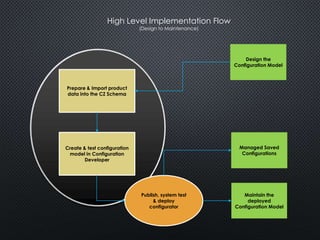
High Level Implementation Flow 
(Design to Maintenance) 
Design the 
Configuration Model 
Prepare & Import product 
data into the CZ Schema 
Create & test configuration 
model in Configuration 
Developer 
Publish, system test 
& deploy 
configurator 
Managed Saved 
Configurations 
Maintain the 
deployed 
Configuration Model
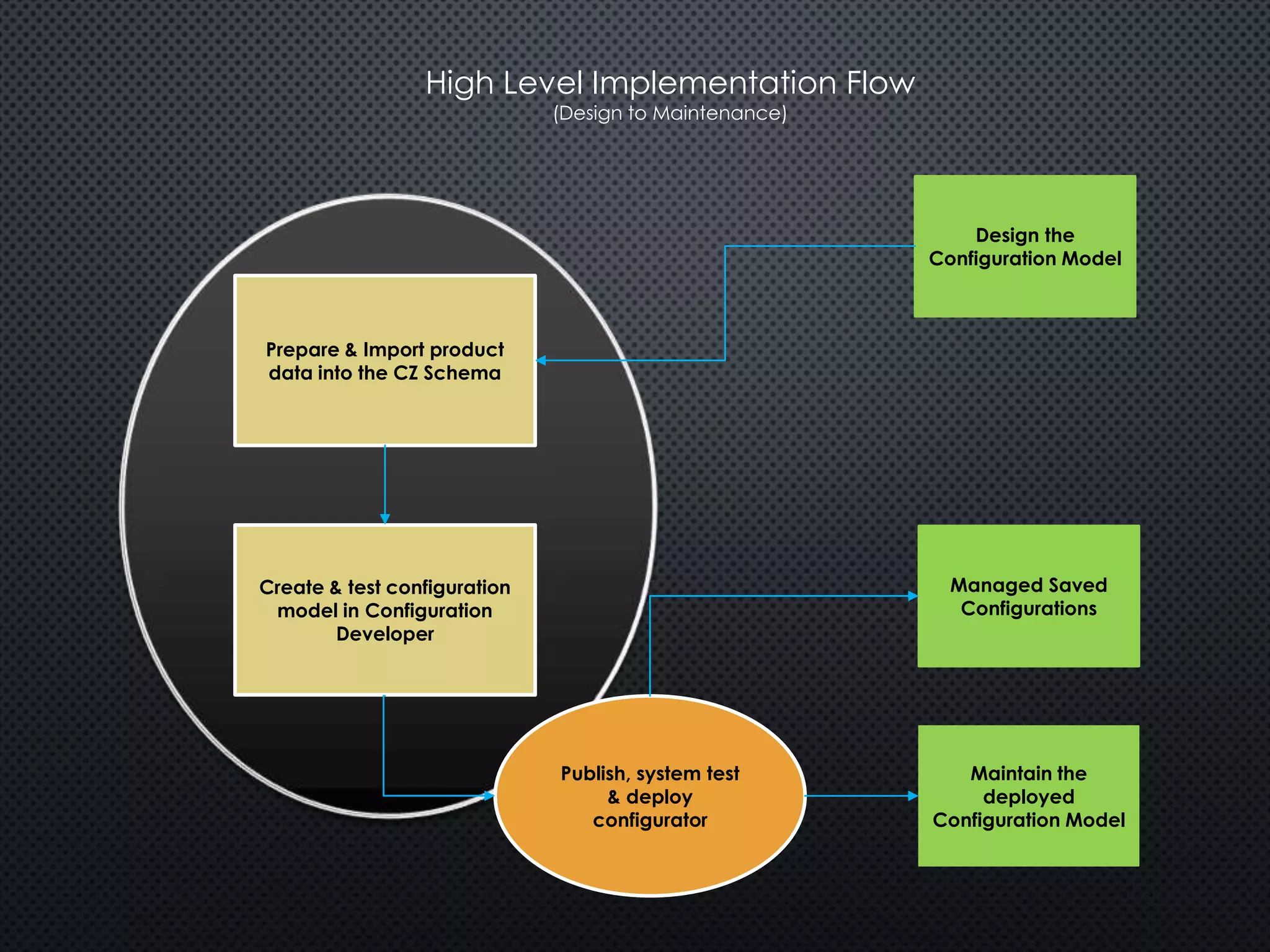
Creating A Configuration Model 
Configurator 
Developer 
Prepare & import 
item, model 
structure or rule 
data 
Test Added 
Data 
Test Rules 
Additional 
Model 
Structure 
Data ? 
Develop Rules 
Add Data like 
Guided Selling 
Default UI 
? 
Develop 
Custom UI 
Unit Test 
Configurator 
Test & Publish 
Integration 
Deploy 
Configurator 
YES 
NO 
YES 
NO
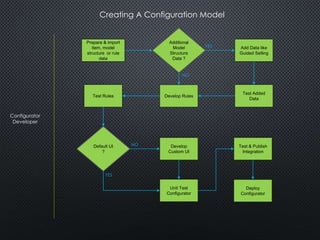
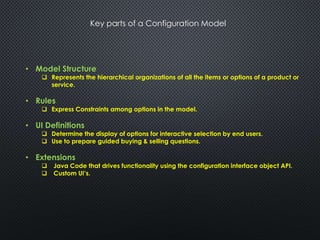
Key parts of a Configuration Model 
• Model Structure 
 Represents the hierarchical organizations of all the items or options of a product or 
service. 
• Rules 
 Express Constraints among options in the model. 
• UI Definitions 
 Determine the display of options for interactive selection by end users. 
 Use to prepare guided buying & selling questions. 
• Extensions 
 Java Code that drives functionality using the configuration interface object API. 
 Custom UI’s.
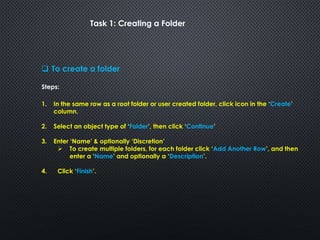
Task 1: Creating a Folder 
 To create a folder 
Steps: 
1. In the same row as a root folder or user created folder, click icon in the ‘Create’ 
column. 
2. Select an object type of ‘Folder’, then click ‘Continue’ 
3. Enter ‘Name’ & optionally ‘Discretion’ 
 To create multiple folders, for each folder click ‘Add Another Row’, and then 
enter a ‘Name’ and optionally a ‘Description’. 
4. Click ‘Finish’.
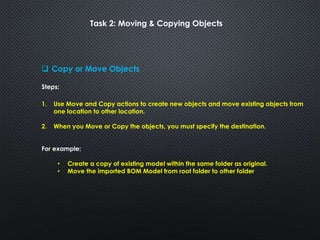
Task 2: Moving & Copying Objects 
 Copy or Move Objects 
Steps: 
1. Use Move and Copy actions to create new objects and move existing objects from 
one location to other location. 
2. When you Move or Copy the objects, you must specify the destination. 
For example: 
• Create a copy of existing model within the same folder as original. 
• Move the imported BOM Model from root folder to other folder
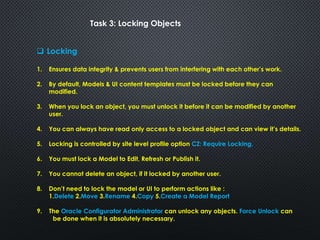
Task 3: Locking Objects 
 Locking 
1. Ensures data integrity & prevents users from interfering with each other’s work. 
2. By default, Models & UI content templates must be locked before they can 
modified. 
3. When you lock an object, you must unlock it before it can be modified by another 
user. 
4. You can always have read only access to a locked object and can view it’s details. 
5. Locking is controlled by site level profile option CZ: Require Locking. 
6. You must lock a Model to Edit, Refresh or Publish it. 
7. You cannot delete an object, if it locked by another user. 
8. Don’t need to lock the model or UI to perform actions like : 
1.Delete 2.Move 3.Rename 4.Copy 5.Create a Model Report 
9. The Oracle Configurator Administrator can unlock any objects. Force Unlock can 
be done when it is absolutely necessary.
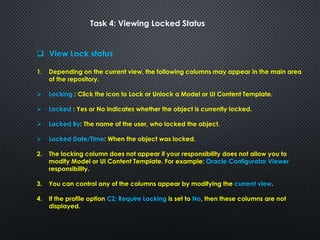
Task 4: Viewing Locked Status 
 View Lock status 
1. Depending on the current view, the following columns may appear in the main area 
of the repository. 
 Locking : Click the icon to Lock or Unlock a Model or UI Content Template. 
 Locked : Yes or No indicates whether the object is currently locked. 
 Locked By: The name of the user, who locked the object. 
 Locked Date/Time: When the object was locked. 
2. The locking column does not appear if your responsibility does not allow you to 
modify Model or UI Content Template. For example: Oracle Configurator Viewer 
responsibility. 
3. You can control any of the columns appear by modifying the current view. 
4. If the profile option CZ: Require Locking is set to No, then these columns are not 
displayed.
Configurator Data 
 Data used by Configurator 
Data used by the runtime Configurator and Configurator Developer. 
 Is stored in a oracle schema within the Oracle Application Database called CZ 
Schema. 
 Data Includes: 
 Imported BOM Models 
 Items created in Configurator Developer 
 User Interface Templates 
 Configurations Models 
 Configurations 
 There is only one CZ Schema per database instance.
Oracle Inventory Item 
 Oracle Inventory Item 
1. Items are created in Oracle Inventory Item Master and enabled in inventory 
organizations . 
2. Item attribute setting determines whether the items can participate in 
Configurations . 
3. Items are imported in CZ Schema as read only. 
Demonstration: 
• Create individual item for ATO Model, ATO Optional Class, PTO Model, PTO Optional 
Class
Oracle Bill Of Material 
 Oracle Bill Of Material (BOM) 
1. BOM Model is created in Oracle Bill Of Material. 
2. BOM Model includes: 
 BOM Model Structure 
 User Defined BOM Item settings : 
 Optional or Required 
 Mutually Exclusive 
 Minimum Quantity 
 Maximum Quantity 
 Quantity cascade (Default Quantity) 
 Effectivity dates
BOM Model Structure 
 BOM Model Structure 
1. BOM Model Structure is a hierarchical relationship of items: 
 Single level BOM Model consists one parent item and its child component 
items under it. 
 Multi level BOM Model Consists multiple of single level BOM Models link 
together.
BOM Item Types 
 BOM Item Types 
1. BOM Item types that can be imported into the CZ Schema are: 
 Models of type ATO or PTO 
― Standard bills that guides manufacturing process 
― Model bills that defines available options. 
 Optional Classes 
 Standard Items 
2. BOM item types that can not be imported are: 
 Planning Bill 
 Product family
BOM Models that can be configured 
 When you import BOM Model, Effective Dates, BOM implicit rules, and other data is 
imported into the CZ Schema. 
 You can extend the structure of BOM Model in Configurator Developer, but you 
cannot modify the BOM Model itself or any of its attributes. 
1. PTO BOM Model: allow you to configure an item during order entry, which 
automatically generates the pick list. 
 PTO BOM Model can contain other PTO BOM Models, ATO BOM Models, 
Standard Items, PTO Option classes 
 PTO BOM Models cannot contains ATO Optional Classes. 
2. ATO BOM Model: allow you to configure an item online during the order entry 
process, for example Order Management and automatically create a Work Order 
in WIP to assemble the resulting item. 
 ATO BOM Model can contain other ATO BOM Models, Standard items, ATO 
Option Classes 
 ATO BOM Models cannot contains PTO Models or PTO Optional Classes.
Implicit Rules 
1. Configurator considers and enforces the following imported BOM Model user 
settings as implicit rule: 
 Optional or Required 
 Mutually Exclusive 
 Maximum or Minimum quantity 
2. BOM Model rules for selecting options from an option class during order entry: 
 Required & Mutually Exclusive: You must select one and only one item in the 
option class. (Item selection is mandatory) 
 Required: You must select one or more optional items in this option class. 
 Optional & Mutually Exclusive: you can select only one optional item in this 
optional class. (Item selection is not mandatory) 
 Optional : Select none, some, or all optional items in this option class.
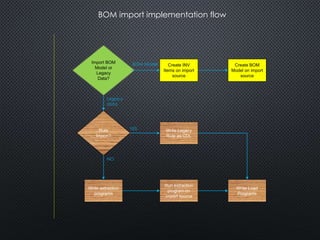
BOM import implementation flow 
Import BOM 
Model or 
Legacy 
Data? 
Create BOM 
Model on import 
source 
Rule 
Import? 
Create INV 
Items on import 
source 
Write extraction 
programs 
Write Legacy 
Rule as CDL 
Run extraction 
program on 
import source 
YES 
NO 
Write Load 
Programs 
BOM Model 
Legacy 
data
Import Data 
1. Importing BOM Model data into the CZ Schema is called ‘Standard Import’ 
 Populate CZ Schema with BOM Model and inventory data copied from oracle 
applications R12. 
2. Import Process: 
 Identifying and setting up import source. 
 Run ‘Populate Configuration Models’ concurrent program. 
 Validate the data in Configurator 
“Populate Configuration Models” concurrent program: Copies Bill of Material and 
Inventory Item master data into the CZ Schema from Bill of Material and Inventory 
Schemas.
Locating Import Data 
1. Import BOM Model are initially located in the top-level root Folder in the Main Area 
of the Repository. 
 At the end, after all the folders 
 In alphabetic Order. 
2. User can move or copy it to other folders. 
3. Refreshed the folder that is specified for refresh. 
4. Import BOM Model is named with BOM Model Item and product key consisting of 
the Organization ID & Item ID. For example : XXX_Base_Model (204 105)
Refresh A Single Configuration Model 
1. “Refresh a single configuration model” concurrent program is run by either the 
Oracle Configurator Administrator or Oracle Configurator Developer. 
2. This concurrent request is used to refresh or update single imported BOM model 
structure and items. 
3. This request require two parameters: 
 Folder 
 Configuration Model ID.
Refresh All Configuration Models 
1. “Refresh all configuration models” concurrent program is run by Oracle 
Configurator Administrator. 
2. This concurrent request is used to refresh or update all imported BOM model 
structure and items. 
3. If the BOM Model has been disabled for refreshing , then it will not be refreshed 
when this concurrent program run. 
4. This request require no parameters
Enable/Disable Refresh of a Configuration 
Models 
1. “The Disable/Enable Refresh of a configuration model” concurrent program is run by 
Oracle Configurator Administrator or Oracle Configurator Developer. 
2. This concurrent request allow you to control whether particular BOM Model can be 
refreshed. 
3. This request require following parameters: 
 Folder 
 Configuration Model ID 
 Refreshed Enabled (Y/N)
Verifying a Refreshed BOM Model 
1. A refreshed BOM Model in Configurator Developer reflects: 
 Modifications to BOM Model structure in Oracle Bill of Material 
 Modifications to the items in Oracle Inventory 
2. Any modification to imported data in the Configurator Developer Item Master are 
overwritten when BOM Model is refreshed. 
3. Items added to the Item Master using Configurator Developer are not affected 
when BOM Model is refreshed. 
4. Refresh may delete previous imported data.
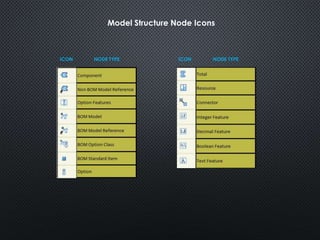
Model Structure Node Icons 
ICON NODE TYPE ICON NODE TYPE
Logical Rules 
1. Express constraints among elements of your Model in terms of Logical Relationship. 
2. Type of Logical Relationship: 
 Requires 
 Implies 
 Negates 
 Excludes 
 Defaults
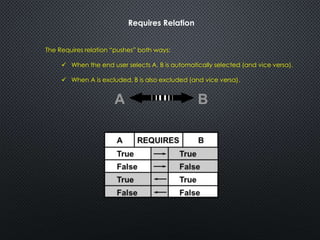
Requires Relation 
The Requires relation “pushes” both ways: 
 When the end user selects A, B is automatically selected (and vice versa). 
 When A is excluded, B is also excluded (and vice versa).
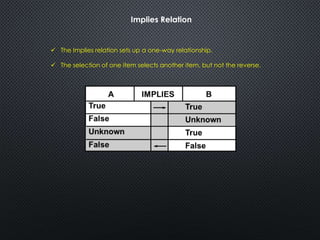
Implies Relation 
 The Implies relation sets up a one-way relationship. 
 The selection of one item selects another item, but not the reverse.
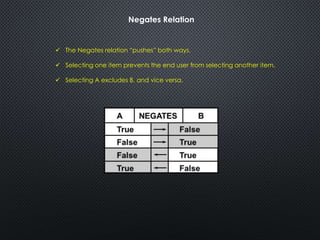
Negates Relation 
 The Negates relation “pushes” both ways. 
 Selecting one item prevents the end user from selecting another item. 
 Selecting A excludes B, and vice versa.
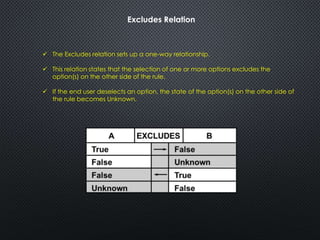
Excludes Relation 
 The Excludes relation sets up a one-way relationship. 
 This relation states that the selection of one or more options excludes the 
option(s) on the other side of the rule. 
 If the end user deselects an option, the state of the option(s) on the other side of 
the rule becomes Unknown.
Defaults Relation 
 The Defaults relation sets a specified option to true when another option is 
selected, but only if it is available. 
 “A Defaults B” means that whenever A is selected and B is available, B is 
selected. 
 The Defaults relation is similar to the Implies relation, only it is “gentler:” 
 No violation message appears if the end user deselects the defaulted 
option.
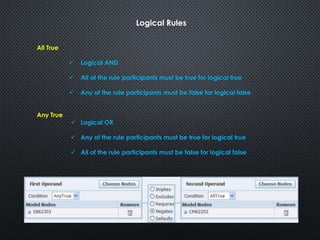
Logical Rules 
All True 
 Logical AND 
 All of the rule participants must be true for logical true 
 Any of the rule participants must be false for logical false 
Any True 
 Logical OR 
 Any of the rule participants must be true for logical true 
 All of the rule participants must be false for logical false
Testing Rules 
1. Unit test all rules in Configurator Developer to: 
 Verify that they function as intended 
 Test performance (Response time) 
2. Testing rule is an iterative process: 
1. Define or modify rule 
2. Generate Logic 
3. Launch the Model Debugger, or generate a UI and launch it from Configurator 
Developer. 
4. Test rules by selecting options or entering values, and observe the results. 
5. Return to Configurator Developer and modify rules as required. 
6. Repeat steps 1-5
UI Template 
1. There are two ways to create UI templates: 
1. Method 1: Copy and optionally modify an existing template 
2. Method 2 : Create the template from Scratch. 
2. Create Empty UI : 
1. You must specify a UI Master Template, this determines the UI’s primary 
navigation style and which message templates, utility templates and icons are 
used at runtime. 
2. Create UI by defining it’s content in the user interface area of the workbench 
 Create UI Pages 
 Add content to each page (like layout regions, selection control, images 
and so on) 
 Create menus or page flows 
 Create page references from the menu.
Testing UI 
1. Before testing, you may need to: 
― Generate Logic 
― Refresh UI Interface 
2. Generate logic from general area of the work bench. 
3. Refresh UI’s from: 
― General area of the workbench 
― User Interface area of the work bench
Publishing Configuration Models 
1. Publishing is performed after a configuration model’s structure, rules and UIs are 
created and unit tested. 
2. It consists of: 
― Creating a publication in Configurator Developer 
― Running a publication concurrent program 
3. Allow implementers to continue working on a model in a development without 
disrupting end-user access to the published version of that model. 
4. Publications concurrent programs are: 
― Process a single publication 
― Process pending publications
Republishing Configuration Models 
1. A configuration model is republished after changes to: 
― The BOM Model on which it is based 
― Model Structure, rules or UI definitions 
2. A Configuration model does not need to be republished after its publication 
applicability parameters are changed. 
3. When selecting the republishing a Model, the original publication’s status changes 
to Update Pending in Configurator Developer and new publication is created with a 
status of Pending. 
4. When a publishing concurrent program has been run on the new publication, the 
status changes to Complete and the original publication is deleted.

Oracle Configurator Developer

  • 1.
    High Level ImplementationFlow (Design to Maintenance) Design the Configuration Model Prepare & Import product data into the CZ Schema Create & test configuration model in Configuration Developer Publish, system test & deploy configurator Managed Saved Configurations Maintain the deployed Configuration Model
  • 2.
    Creating A ConfigurationModel Configurator Developer Prepare & import item, model structure or rule data Test Added Data Test Rules Additional Model Structure Data ? Develop Rules Add Data like Guided Selling Default UI ? Develop Custom UI Unit Test Configurator Test & Publish Integration Deploy Configurator YES NO YES NO
  • 3.
    Key parts ofa Configuration Model • Model Structure  Represents the hierarchical organizations of all the items or options of a product or service. • Rules  Express Constraints among options in the model. • UI Definitions  Determine the display of options for interactive selection by end users.  Use to prepare guided buying & selling questions. • Extensions  Java Code that drives functionality using the configuration interface object API.  Custom UI’s.
  • 4.
    Task 1: Creatinga Folder  To create a folder Steps: 1. In the same row as a root folder or user created folder, click icon in the ‘Create’ column. 2. Select an object type of ‘Folder’, then click ‘Continue’ 3. Enter ‘Name’ & optionally ‘Discretion’  To create multiple folders, for each folder click ‘Add Another Row’, and then enter a ‘Name’ and optionally a ‘Description’. 4. Click ‘Finish’.
  • 5.
    Task 2: Moving& Copying Objects  Copy or Move Objects Steps: 1. Use Move and Copy actions to create new objects and move existing objects from one location to other location. 2. When you Move or Copy the objects, you must specify the destination. For example: • Create a copy of existing model within the same folder as original. • Move the imported BOM Model from root folder to other folder
  • 6.
    Task 3: LockingObjects  Locking 1. Ensures data integrity & prevents users from interfering with each other’s work. 2. By default, Models & UI content templates must be locked before they can modified. 3. When you lock an object, you must unlock it before it can be modified by another user. 4. You can always have read only access to a locked object and can view it’s details. 5. Locking is controlled by site level profile option CZ: Require Locking. 6. You must lock a Model to Edit, Refresh or Publish it. 7. You cannot delete an object, if it locked by another user. 8. Don’t need to lock the model or UI to perform actions like : 1.Delete 2.Move 3.Rename 4.Copy 5.Create a Model Report 9. The Oracle Configurator Administrator can unlock any objects. Force Unlock can be done when it is absolutely necessary.
  • 7.
    Task 4: ViewingLocked Status  View Lock status 1. Depending on the current view, the following columns may appear in the main area of the repository.  Locking : Click the icon to Lock or Unlock a Model or UI Content Template.  Locked : Yes or No indicates whether the object is currently locked.  Locked By: The name of the user, who locked the object.  Locked Date/Time: When the object was locked. 2. The locking column does not appear if your responsibility does not allow you to modify Model or UI Content Template. For example: Oracle Configurator Viewer responsibility. 3. You can control any of the columns appear by modifying the current view. 4. If the profile option CZ: Require Locking is set to No, then these columns are not displayed.
  • 8.
    Configurator Data Data used by Configurator Data used by the runtime Configurator and Configurator Developer.  Is stored in a oracle schema within the Oracle Application Database called CZ Schema.  Data Includes:  Imported BOM Models  Items created in Configurator Developer  User Interface Templates  Configurations Models  Configurations  There is only one CZ Schema per database instance.
  • 9.
    Oracle Inventory Item  Oracle Inventory Item 1. Items are created in Oracle Inventory Item Master and enabled in inventory organizations . 2. Item attribute setting determines whether the items can participate in Configurations . 3. Items are imported in CZ Schema as read only. Demonstration: • Create individual item for ATO Model, ATO Optional Class, PTO Model, PTO Optional Class
  • 10.
    Oracle Bill OfMaterial  Oracle Bill Of Material (BOM) 1. BOM Model is created in Oracle Bill Of Material. 2. BOM Model includes:  BOM Model Structure  User Defined BOM Item settings :  Optional or Required  Mutually Exclusive  Minimum Quantity  Maximum Quantity  Quantity cascade (Default Quantity)  Effectivity dates
  • 11.
    BOM Model Structure  BOM Model Structure 1. BOM Model Structure is a hierarchical relationship of items:  Single level BOM Model consists one parent item and its child component items under it.  Multi level BOM Model Consists multiple of single level BOM Models link together.
  • 12.
    BOM Item Types  BOM Item Types 1. BOM Item types that can be imported into the CZ Schema are:  Models of type ATO or PTO ― Standard bills that guides manufacturing process ― Model bills that defines available options.  Optional Classes  Standard Items 2. BOM item types that can not be imported are:  Planning Bill  Product family
  • 13.
    BOM Models thatcan be configured  When you import BOM Model, Effective Dates, BOM implicit rules, and other data is imported into the CZ Schema.  You can extend the structure of BOM Model in Configurator Developer, but you cannot modify the BOM Model itself or any of its attributes. 1. PTO BOM Model: allow you to configure an item during order entry, which automatically generates the pick list.  PTO BOM Model can contain other PTO BOM Models, ATO BOM Models, Standard Items, PTO Option classes  PTO BOM Models cannot contains ATO Optional Classes. 2. ATO BOM Model: allow you to configure an item online during the order entry process, for example Order Management and automatically create a Work Order in WIP to assemble the resulting item.  ATO BOM Model can contain other ATO BOM Models, Standard items, ATO Option Classes  ATO BOM Models cannot contains PTO Models or PTO Optional Classes.
  • 14.
    Implicit Rules 1.Configurator considers and enforces the following imported BOM Model user settings as implicit rule:  Optional or Required  Mutually Exclusive  Maximum or Minimum quantity 2. BOM Model rules for selecting options from an option class during order entry:  Required & Mutually Exclusive: You must select one and only one item in the option class. (Item selection is mandatory)  Required: You must select one or more optional items in this option class.  Optional & Mutually Exclusive: you can select only one optional item in this optional class. (Item selection is not mandatory)  Optional : Select none, some, or all optional items in this option class.
  • 15.
    BOM import implementationflow Import BOM Model or Legacy Data? Create BOM Model on import source Rule Import? Create INV Items on import source Write extraction programs Write Legacy Rule as CDL Run extraction program on import source YES NO Write Load Programs BOM Model Legacy data
  • 16.
    Import Data 1.Importing BOM Model data into the CZ Schema is called ‘Standard Import’  Populate CZ Schema with BOM Model and inventory data copied from oracle applications R12. 2. Import Process:  Identifying and setting up import source.  Run ‘Populate Configuration Models’ concurrent program.  Validate the data in Configurator “Populate Configuration Models” concurrent program: Copies Bill of Material and Inventory Item master data into the CZ Schema from Bill of Material and Inventory Schemas.
  • 17.
    Locating Import Data 1. Import BOM Model are initially located in the top-level root Folder in the Main Area of the Repository.  At the end, after all the folders  In alphabetic Order. 2. User can move or copy it to other folders. 3. Refreshed the folder that is specified for refresh. 4. Import BOM Model is named with BOM Model Item and product key consisting of the Organization ID & Item ID. For example : XXX_Base_Model (204 105)
  • 18.
    Refresh A SingleConfiguration Model 1. “Refresh a single configuration model” concurrent program is run by either the Oracle Configurator Administrator or Oracle Configurator Developer. 2. This concurrent request is used to refresh or update single imported BOM model structure and items. 3. This request require two parameters:  Folder  Configuration Model ID.
  • 19.
    Refresh All ConfigurationModels 1. “Refresh all configuration models” concurrent program is run by Oracle Configurator Administrator. 2. This concurrent request is used to refresh or update all imported BOM model structure and items. 3. If the BOM Model has been disabled for refreshing , then it will not be refreshed when this concurrent program run. 4. This request require no parameters
  • 20.
    Enable/Disable Refresh ofa Configuration Models 1. “The Disable/Enable Refresh of a configuration model” concurrent program is run by Oracle Configurator Administrator or Oracle Configurator Developer. 2. This concurrent request allow you to control whether particular BOM Model can be refreshed. 3. This request require following parameters:  Folder  Configuration Model ID  Refreshed Enabled (Y/N)
  • 21.
    Verifying a RefreshedBOM Model 1. A refreshed BOM Model in Configurator Developer reflects:  Modifications to BOM Model structure in Oracle Bill of Material  Modifications to the items in Oracle Inventory 2. Any modification to imported data in the Configurator Developer Item Master are overwritten when BOM Model is refreshed. 3. Items added to the Item Master using Configurator Developer are not affected when BOM Model is refreshed. 4. Refresh may delete previous imported data.
  • 22.
    Model Structure NodeIcons ICON NODE TYPE ICON NODE TYPE
  • 23.
    Logical Rules 1.Express constraints among elements of your Model in terms of Logical Relationship. 2. Type of Logical Relationship:  Requires  Implies  Negates  Excludes  Defaults
  • 24.
    Requires Relation TheRequires relation “pushes” both ways:  When the end user selects A, B is automatically selected (and vice versa).  When A is excluded, B is also excluded (and vice versa).
  • 25.
    Implies Relation The Implies relation sets up a one-way relationship.  The selection of one item selects another item, but not the reverse.
  • 26.
    Negates Relation The Negates relation “pushes” both ways.  Selecting one item prevents the end user from selecting another item.  Selecting A excludes B, and vice versa.
  • 27.
    Excludes Relation The Excludes relation sets up a one-way relationship.  This relation states that the selection of one or more options excludes the option(s) on the other side of the rule.  If the end user deselects an option, the state of the option(s) on the other side of the rule becomes Unknown.
  • 28.
    Defaults Relation The Defaults relation sets a specified option to true when another option is selected, but only if it is available.  “A Defaults B” means that whenever A is selected and B is available, B is selected.  The Defaults relation is similar to the Implies relation, only it is “gentler:”  No violation message appears if the end user deselects the defaulted option.
  • 29.
    Logical Rules AllTrue  Logical AND  All of the rule participants must be true for logical true  Any of the rule participants must be false for logical false Any True  Logical OR  Any of the rule participants must be true for logical true  All of the rule participants must be false for logical false
  • 30.
    Testing Rules 1.Unit test all rules in Configurator Developer to:  Verify that they function as intended  Test performance (Response time) 2. Testing rule is an iterative process: 1. Define or modify rule 2. Generate Logic 3. Launch the Model Debugger, or generate a UI and launch it from Configurator Developer. 4. Test rules by selecting options or entering values, and observe the results. 5. Return to Configurator Developer and modify rules as required. 6. Repeat steps 1-5
  • 31.
    UI Template 1.There are two ways to create UI templates: 1. Method 1: Copy and optionally modify an existing template 2. Method 2 : Create the template from Scratch. 2. Create Empty UI : 1. You must specify a UI Master Template, this determines the UI’s primary navigation style and which message templates, utility templates and icons are used at runtime. 2. Create UI by defining it’s content in the user interface area of the workbench  Create UI Pages  Add content to each page (like layout regions, selection control, images and so on)  Create menus or page flows  Create page references from the menu.
  • 32.
    Testing UI 1.Before testing, you may need to: ― Generate Logic ― Refresh UI Interface 2. Generate logic from general area of the work bench. 3. Refresh UI’s from: ― General area of the workbench ― User Interface area of the work bench
  • 33.
    Publishing Configuration Models 1. Publishing is performed after a configuration model’s structure, rules and UIs are created and unit tested. 2. It consists of: ― Creating a publication in Configurator Developer ― Running a publication concurrent program 3. Allow implementers to continue working on a model in a development without disrupting end-user access to the published version of that model. 4. Publications concurrent programs are: ― Process a single publication ― Process pending publications
  • 34.
    Republishing Configuration Models 1. A configuration model is republished after changes to: ― The BOM Model on which it is based ― Model Structure, rules or UI definitions 2. A Configuration model does not need to be republished after its publication applicability parameters are changed. 3. When selecting the republishing a Model, the original publication’s status changes to Update Pending in Configurator Developer and new publication is created with a status of Pending. 4. When a publishing concurrent program has been run on the new publication, the status changes to Complete and the original publication is deleted.