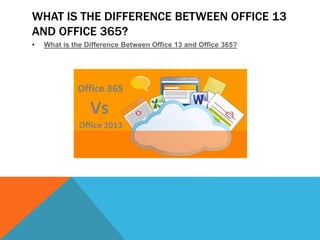
WHAT IS THE DIFFERENCE BETWEEN OFFICE 13
AND OFFICE 365?
• What is the Difference Between Office 13 and Office 365?
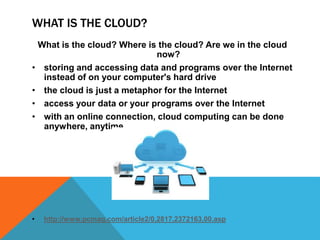
WHAT IS THE CLOUD?
What is the cloud? Where is the cloud? Are we in the cloud
now?
• storing and accessing data and programs over the Internet
instead of on your computer's hard drive
• the cloud is just a metaphor for the Internet
• access your data or your programs over the Internet
• with an online connection, cloud computing can be done
anywhere, anytime
• http://www.pcmag.com/article2/0,2817,2372163,00.asp
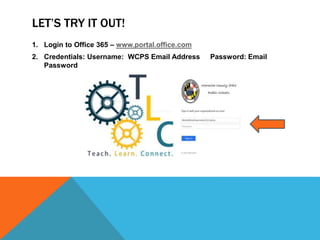
LET’S TRY IT OUT!
1. Login to Office 365 – www.portal.office.com
2. Credentials: Username: WCPS Email Address Password: Email
Password
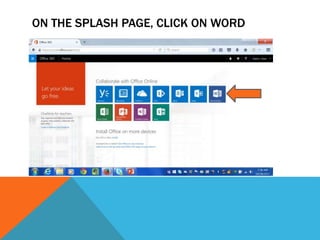
ON THE SPLASH PAGE, CLICK ON WORD
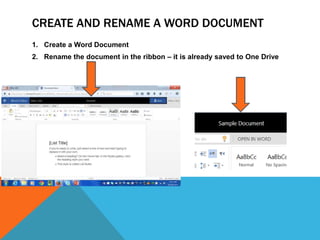
CREATE AND RENAME A WORD DOCUMENT
1. Create a Word Document
2. Rename the document in the ribbon – it is already saved to One Drive
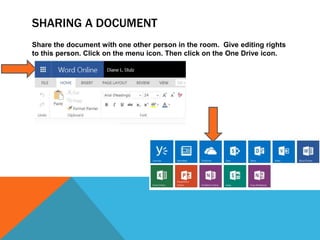
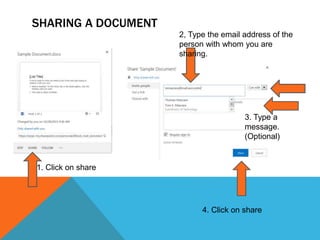
SHARING A DOCUMENT
Share the document with one other person in the room. Give editing rights
to this person. Click on the menu icon. Then click on the One Drive icon.
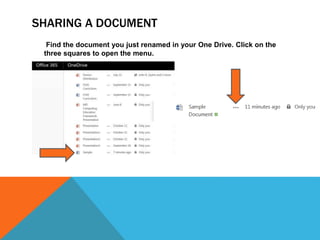
SHARING A DOCUMENT
Find the document you just renamed in your One Drive. Click on the
three squares to open the menu.
SHARING A DOCUMENT
1. Click on share
2, Type the email address of the
person with whom you are
sharing.
4. Click on share
3. Type a
message.
(Optional)
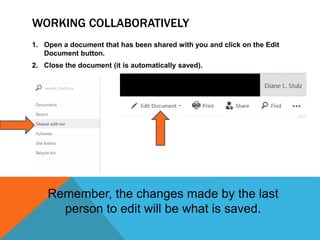
WORKING COLLABORATIVELY
1. Open a document that has been shared with you and click on the Edit
Document button.
2. Close the document (it is automatically saved).
Remember, the changes made by the last
person to edit will be what is saved.

Office 365 module 1

  • 2.
    WHAT IS THEDIFFERENCE BETWEEN OFFICE 13 AND OFFICE 365? • What is the Difference Between Office 13 and Office 365?
  • 3.
    WHAT IS THECLOUD? What is the cloud? Where is the cloud? Are we in the cloud now? • storing and accessing data and programs over the Internet instead of on your computer's hard drive • the cloud is just a metaphor for the Internet • access your data or your programs over the Internet • with an online connection, cloud computing can be done anywhere, anytime • http://www.pcmag.com/article2/0,2817,2372163,00.asp
  • 4.
    LET’S TRY ITOUT! 1. Login to Office 365 – www.portal.office.com 2. Credentials: Username: WCPS Email Address Password: Email Password
  • 5.
    ON THE SPLASHPAGE, CLICK ON WORD
  • 6.
    CREATE AND RENAMEA WORD DOCUMENT 1. Create a Word Document 2. Rename the document in the ribbon – it is already saved to One Drive
  • 7.
    SHARING A DOCUMENT Sharethe document with one other person in the room. Give editing rights to this person. Click on the menu icon. Then click on the One Drive icon.
  • 8.
    SHARING A DOCUMENT Findthe document you just renamed in your One Drive. Click on the three squares to open the menu.
  • 9.
    SHARING A DOCUMENT 1.Click on share 2, Type the email address of the person with whom you are sharing. 4. Click on share 3. Type a message. (Optional)
  • 10.
    WORKING COLLABORATIVELY 1. Opena document that has been shared with you and click on the Edit Document button. 2. Close the document (it is automatically saved). Remember, the changes made by the last person to edit will be what is saved.