How to use Microsoft
Office 365 for Students
Table of Contents
 Introduction
 Getting Started
 Directions for Desktop Installation
 Directions for Mobile Installation
 IOS Devices
 Android Devices
 Windows Devices
 Quiz
 Summary
NEXTBACK
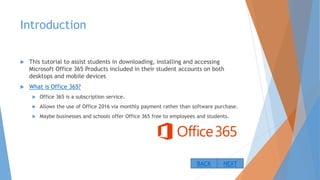
Introduction
 This tutorial to assist students in downloading, installing and accessing
Microsoft Office 365 Products included in their student accounts on both
desktops and mobile devices
 What is Office 365?
 Office 365 is a subscription service.
 Allows the use of Office 2016 via monthly payment rather than software purchase.
 Maybe businesses and schools offer Office 365 free to employees and students.
NEXTBACK
Getting Started
 How to navigate this tutorial
 Use buttons to navigate
 Next goes to the next page
 Back goes to the previous page
 Home goes to the table of contents
NEXTBACK HOME
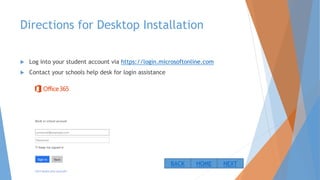
Directions for Desktop Installation
 Log into your student account via https://login.microsoftonline.com
 Contact your schools help desk for login assistance
NEXTBACK HOME
Directions for Desktop Installation
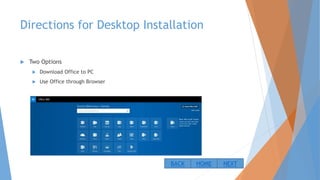
 Two Options
 Download Office to PC
 Use Office through Browser
NEXTBACK HOME
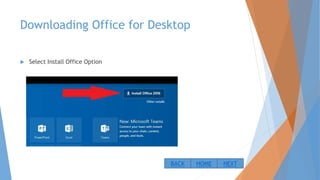
Downloading Office for Desktop
 Select Install Office Option
NEXTBACK HOME
Downloading Office for Desktop
Microsoft Edge
 Select Save
 Select Run
 Select Yes
NEXTBACK HOME
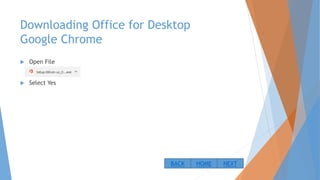
Downloading Office for Desktop
Google Chrome
 Open File
 Select Yes
NEXTBACK HOME
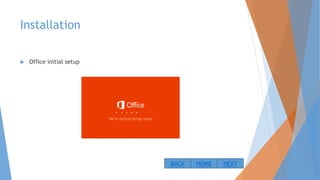
Installation
 Office initial setup
NEXTBACK HOME
Installation Complete
NEXTBACK HOME
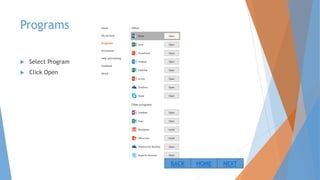
Programs
 Select Program
 Click Open
NEXTBACK HOME
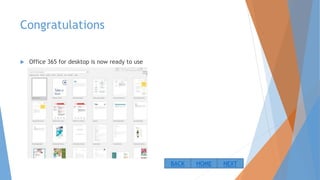
Congratulations
 Office 365 for desktop is now ready to use
NEXTBACK HOME
Directions for Mobile Installation
 Office applications available on
 iOS
 Android
 Windows Mobile
 Not all applications available on mobile
 Office 365 subscription will work on mobile devices
NEXTBACK HOME
Directions for Mobile Installation
iOS
 iPhone and ipad
 iOS Office for iPad® and iPhone® requires iOS 8.0 or later. Office for iPad
Pro® requires iOS 9.0 or later.
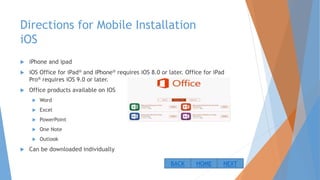
 Office products available on IOS
 Word
 Excel
 PowerPoint
 One Note
 Outlook
 Can be downloaded individually
NEXTBACK HOME
Directions for Mobile Installation
iOS
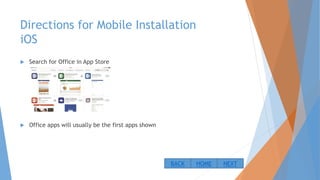
 Search for Office in App Store
 Office apps will usually be the first apps shown
NEXTBACK HOME
Directions for Mobile Installation
IOS
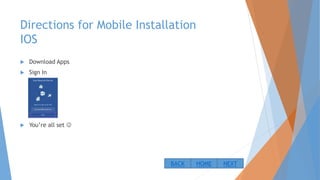
 Download Apps
 Sign In
 You’re all set 
NEXTBACK HOME
Directions for Mobile Installation
Android
 Office for Android™ can be installed on tablets and phones that meet the
following criteria: running Android KitKat 4.4 or later version and have an
ARM-based or Intel x86 processor.
 Apps available
 Word
 Excel
 PowerPoint
 OneNote
 Outlook
 Download from the Android App Store
NEXTBACK HOME
Directions for Mobile Installation
Android
 Search Office in Android App Store
 Download and install from app store
 Sign into app
 Complete
NEXTBACK HOME
Directions for Mobile Installation
Windows Mobile
 Windows tablet: Office 2016 versions of Word, Excel, PowerPoint, OneNote,
Outlook, Publisher, and Access. Windows 8 or later required. Office Mobile
applications (Word, Excel, PowerPoint, and OneNote) require Windows 10.
 Windows phone: Office Mobile applications (Word, Excel, PowerPoint,
OneNote, Outlook Mail, and Outlook Calendar) require Windows 10.
NEXTBACK HOME
Directions for Mobile Installation
Windows Mobile
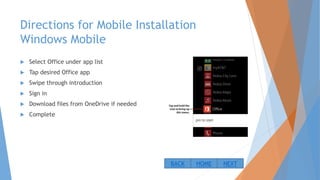
 Select Office under app list
 Tap desired Office app
 Swipe through introduction
 Sign in
 Download files from OneDrive if needed
 Complete
NEXTBACK HOME
Test Your Knowledge Quiz
Question 1
 What can you do when you do not have your login information?
 A) Contact Microsoft
 B) Contact your help desk
 C) Create new Microsoft account
CORRECT
 Schools and businesses will generally have a help desk that will assist in
technical issues including login and password recovery. Give them a call !!
NEXTHOME
INCORRECT
 TRY AGAIN
BACK HOME
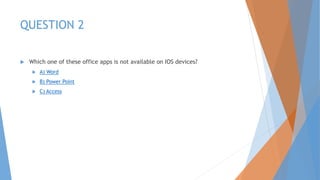
QUESTION 2
 Which one of these office apps is not available on IOS devices?
 A) Word
 B) Power Point
 C) Access
CORRECT
 Office apps for mobile devices include Word, Excel, PowerPoint, OneNote and
Outlook.
NEXTHOME
INCORRECT
 TRY AGAIN
BACK HOME
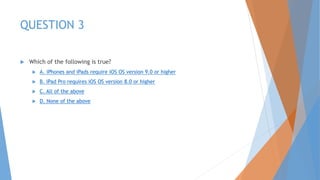
QUESTION 3
 Which of the following is true?
 A. iPhones and iPads require iOS OS version 9.0 or higher
 B. iPad Pro requires iOS OS version 8.0 or higher
 C. All of the above
 D. None of the above
CORRECT
 iOS requirements for Office is OS 8.0 or higher for iPads and iPhones, and 9.0
or higher for iPad Pro.
NEXTHOME
INCORRECT
 TRY AGAIN
BACK HOME
Summary
 Office 365 is a subscription based program which replaces the need to
purchase a software license.
 Can be downloaded or used via browser
 Can access files via OneDrive on any device
 Can access Office 365 on mobile devices although limited to
 Word
 Excel
 OneNote
 PowerPoint
 Outlook
NEXTHOME
CONGRATULATIONS!!!
 You now know how to install and use Office 365
HOME

Office 365 Installation Tutorial

  • 1.
    How to useMicrosoft Office 365 for Students
  • 2.
    Table of Contents Introduction  Getting Started  Directions for Desktop Installation  Directions for Mobile Installation  IOS Devices  Android Devices  Windows Devices  Quiz  Summary NEXTBACK
  • 3.
    Introduction  This tutorialto assist students in downloading, installing and accessing Microsoft Office 365 Products included in their student accounts on both desktops and mobile devices  What is Office 365?  Office 365 is a subscription service.  Allows the use of Office 2016 via monthly payment rather than software purchase.  Maybe businesses and schools offer Office 365 free to employees and students. NEXTBACK
  • 4.
    Getting Started  Howto navigate this tutorial  Use buttons to navigate  Next goes to the next page  Back goes to the previous page  Home goes to the table of contents NEXTBACK HOME
  • 5.
    Directions for DesktopInstallation  Log into your student account via https://login.microsoftonline.com  Contact your schools help desk for login assistance NEXTBACK HOME
  • 6.
    Directions for DesktopInstallation  Two Options  Download Office to PC  Use Office through Browser NEXTBACK HOME
  • 7.
    Downloading Office forDesktop  Select Install Office Option NEXTBACK HOME
  • 8.
    Downloading Office forDesktop Microsoft Edge  Select Save  Select Run  Select Yes NEXTBACK HOME
  • 9.
    Downloading Office forDesktop Google Chrome  Open File  Select Yes NEXTBACK HOME
  • 10.
  • 11.
  • 12.
    Programs  Select Program Click Open NEXTBACK HOME
  • 13.
    Congratulations  Office 365for desktop is now ready to use NEXTBACK HOME
  • 14.
    Directions for MobileInstallation  Office applications available on  iOS  Android  Windows Mobile  Not all applications available on mobile  Office 365 subscription will work on mobile devices NEXTBACK HOME
  • 15.
    Directions for MobileInstallation iOS  iPhone and ipad  iOS Office for iPad® and iPhone® requires iOS 8.0 or later. Office for iPad Pro® requires iOS 9.0 or later.  Office products available on IOS  Word  Excel  PowerPoint  One Note  Outlook  Can be downloaded individually NEXTBACK HOME
  • 16.
    Directions for MobileInstallation iOS  Search for Office in App Store  Office apps will usually be the first apps shown NEXTBACK HOME
  • 17.
    Directions for MobileInstallation IOS  Download Apps  Sign In  You’re all set  NEXTBACK HOME
  • 18.
    Directions for MobileInstallation Android  Office for Android™ can be installed on tablets and phones that meet the following criteria: running Android KitKat 4.4 or later version and have an ARM-based or Intel x86 processor.  Apps available  Word  Excel  PowerPoint  OneNote  Outlook  Download from the Android App Store NEXTBACK HOME
  • 19.
    Directions for MobileInstallation Android  Search Office in Android App Store  Download and install from app store  Sign into app  Complete NEXTBACK HOME
  • 20.
    Directions for MobileInstallation Windows Mobile  Windows tablet: Office 2016 versions of Word, Excel, PowerPoint, OneNote, Outlook, Publisher, and Access. Windows 8 or later required. Office Mobile applications (Word, Excel, PowerPoint, and OneNote) require Windows 10.  Windows phone: Office Mobile applications (Word, Excel, PowerPoint, OneNote, Outlook Mail, and Outlook Calendar) require Windows 10. NEXTBACK HOME
  • 21.
    Directions for MobileInstallation Windows Mobile  Select Office under app list  Tap desired Office app  Swipe through introduction  Sign in  Download files from OneDrive if needed  Complete NEXTBACK HOME
  • 22.
    Test Your KnowledgeQuiz Question 1  What can you do when you do not have your login information?  A) Contact Microsoft  B) Contact your help desk  C) Create new Microsoft account
  • 23.
    CORRECT  Schools andbusinesses will generally have a help desk that will assist in technical issues including login and password recovery. Give them a call !! NEXTHOME
  • 24.
  • 25.
    QUESTION 2  Whichone of these office apps is not available on IOS devices?  A) Word  B) Power Point  C) Access
  • 26.
    CORRECT  Office appsfor mobile devices include Word, Excel, PowerPoint, OneNote and Outlook. NEXTHOME
  • 27.
  • 28.
    QUESTION 3  Whichof the following is true?  A. iPhones and iPads require iOS OS version 9.0 or higher  B. iPad Pro requires iOS OS version 8.0 or higher  C. All of the above  D. None of the above
  • 29.
    CORRECT  iOS requirementsfor Office is OS 8.0 or higher for iPads and iPhones, and 9.0 or higher for iPad Pro. NEXTHOME
  • 30.
  • 31.
    Summary  Office 365is a subscription based program which replaces the need to purchase a software license.  Can be downloaded or used via browser  Can access files via OneDrive on any device  Can access Office 365 on mobile devices although limited to  Word  Excel  OneNote  PowerPoint  Outlook NEXTHOME
  • 32.
    CONGRATULATIONS!!!  You nowknow how to install and use Office 365 HOME