Presented by
Emily J Williams, Georgia State University
Tricia Clayton, Georgia State University
Natalie Bennett, University of Georgia
Sofia Slutskaya, Georgia Institute of Technology
Simon J Hunt, University of Georgia
SIMPLIFYING CATALOGING
WORKFLOWS: TIPS AND TOOLS
GEORGIA LIBRARIES CONFERENCE - OCTOBER 3, 2018
OCLC CONNEXION CLIENT
EFFICIENCY TOOLS
Emily J. Williams
Cataloging & Metadata Librarian
Georgia State University
OCLC CONNEXION BROWSER
Limited efficiency tools (assigned keystrokes only)
• Includes permanent keystrokes for actions you can make on
bibliographic and authority records
• Keystrokes have been assigned for every command that appears on
the Edit, Action, and View lists
• Examples: Add Record <Alt><K> and then <N>
Control All Headings <Alt><K> and then <K>
• Keystrokes have been assigned for search and browse screens
• Examples: Search WorldCat <Ctrl><Shift><W>
Browse Authority File <Ctrl><J>
OCLC CONNEXION BROWSER CONT’D
• Special purpose keystrokes exist for downloading, printing, moving
within the record, etc.
• Examples: Enter MARC subfield delimiter ($) <F8>
Print bibliographic or authority record <F12>
• You can customize keystrokes for some actions(Ex: Mark for Export;
Delete Holdings; Add Delimiter, etc.)
• Examples: Mark for Export
Delete Holdings
• Special Note: Keystrokes/Command shortcuts are only available with
supported versions of Internet Explorer.
OCLC CONNEXION BROWSER RESOURCES
OCLC Documentation:
https://www.oclc.org/content/dam/support/connexion/documentation/brows
er/gettingstarted/options_keyboard/options_keyboard_pdf.pdf (pages 19-
27)
• Includes list of all keystroke assignments
• Provides information on how to customize keystrokes
OCLC CONNEXION CLIENT
Efficiency Tools:
Text Strings
User-created
Shared (ability to import/export)
Macros
Pre-loaded
User-created
Shared (ability to import/export)
User Tools
User-assigned
Keystroke shortcuts
Pre-loaded
User-assigned
Customizable Toolbar
TEXT STRINGS
Definition: Strings of text (phrases, fields w/phrases, etc.) you
commonly add to MARC records you are editing/creating.
Examples:
• 264 _4 $c ©20xx
• 504 _ _ $a Includes bibliographical references (xx-xx) and index.
• Relator terms: , $e author.
• 590 _ _ $a Labor Collection. (GSU Atlanta Campus)
• 650 _0 $a Videorecordings for the hearing impaired.
Purpose:
• Prevent typing errors, ensure consistent phrasing and save time.
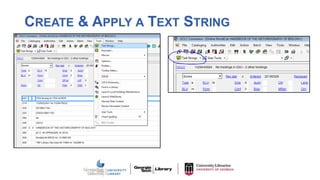
CREATE & APPLY A TEXT STRING
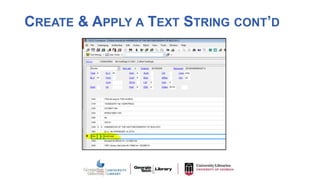
CREATE & APPLY A TEXT STRING CONT’D
TEXT STRINGS CONT’D
From the Text Strings editor box:
• Modify/delete existing text strings
• Import a file of text strings
• Re-order/sort your text strings
• Print a list of text strings
• Create shortcuts to your text strings by assigning them to User
Tools and Keystroke commands
TEXT STRINGS CONT’D
Notes:
• Be mindful of your cursor placement within the record before applying a text string
• Limitless characters in a text string
• Limitless number of text strings you can create
• Client stores your text strings in a single file named TextStrings.xml on your hard drive
• Assigned text strings are retained each time you open or update your program
MACROS
Definition: a single instruction that expands automatically into a set
of instructions to perform a particular task; short computer programs
that automate routine tasks
Examples:
• RDA records: add 33x fields
• Change the case of your selected text
• ALL CAPS to Sentence case or lowercase or Initial Capital Letters
• Browse the Authority Index based on a heading in your authority or bib
record
• Add/Edit an 007 through a prompted menu
• Create an 830 from a 440 or untraced 490 field
Purpose:
• Provide efficiency and consistency to more complicated tasks.
MACROS CONT’D
MACROS CONT’D
MACROS CONT’D
CREATING OCLC MACROS
How to create:
• From scratch within OCLC using a macro editor
• Joel Hahn, Niles Public Library District, Illinois, has written how-to guide which
includes how to import macros created by your colleagues.
• http://www.hahnlibrary.net/libraries/oml/index.html
• Using a macro recorder to capture your actions and the client writes it
for you
• Merry Morris, Free Library of Philadelphia, has written a guide that covers how
to use the macro recorder.
• http://computerwhizzard.50megs.com/
WHERE TO FIND OCLC MACROS
OCLC macro information:
https://www.oclc.org/support/services/connexion/macros.en.html
Shared macros:
• Joel Hahn’s website:
http://www.hahnlibrary.net/libraries/oml/index.html
• Walt Nickeson’s macros: https://github.com/wnickeson/WaltsMacros
USER TOOLS
Definition: shortcut to a command
Examples:
• Enter a diacritic or special character (©, &, etc.)
• Run a macro (add 3xx fields)
• Issue a menu command (Delete record)
• Insert a text string (504 field)
Purpose: Provides a way to group your 10 most frequently
used commands into one area.
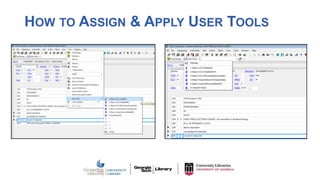
HOW TO ASSIGN & APPLY USER TOOLS
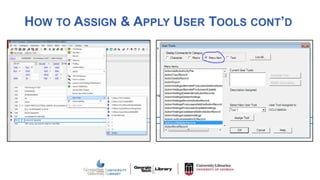
HOW TO ASSIGN & APPLY USER TOOLS CONT’D
USER TOOLS CONT’D
Notes:
• Listed as a number, 1-10, from the User Tool menu
• Note: only 10 slots for assignment available
• Description for each User Tool is customizable
• Can delete and modify User Tool assignment once assigned
• When assigning or modifying User Tools, always click Assign
in the pop-out box to apply the changes/additions.
TOOLBAR CUSTOMIZATION
Purpose: Places an icon/button on your toolbar that links to
your most heavily used menu commands and/or User Tools. In
doing so, you avoid the cumbersome file navigation for
frequently used functions.
Examples:
• Pinned
• Title [windows] Vertically
• Lock Master Record
• Uncontrol All Headings
• Control All Headings
• User Tools
HOW TO CUSTOMIZE YOUR TOOLBAR
THANK YOU!
Nothing will work unless you do.
Maya Angelou
Emily Williams: ewilliams63@gsu.edu

OCLC Connexion Client Efficiency Tools

  • 1.
    Presented by Emily JWilliams, Georgia State University Tricia Clayton, Georgia State University Natalie Bennett, University of Georgia Sofia Slutskaya, Georgia Institute of Technology Simon J Hunt, University of Georgia SIMPLIFYING CATALOGING WORKFLOWS: TIPS AND TOOLS GEORGIA LIBRARIES CONFERENCE - OCTOBER 3, 2018
  • 2.
    OCLC CONNEXION CLIENT EFFICIENCYTOOLS Emily J. Williams Cataloging & Metadata Librarian Georgia State University
  • 3.
    OCLC CONNEXION BROWSER Limitedefficiency tools (assigned keystrokes only) • Includes permanent keystrokes for actions you can make on bibliographic and authority records • Keystrokes have been assigned for every command that appears on the Edit, Action, and View lists • Examples: Add Record <Alt><K> and then <N> Control All Headings <Alt><K> and then <K> • Keystrokes have been assigned for search and browse screens • Examples: Search WorldCat <Ctrl><Shift><W> Browse Authority File <Ctrl><J>
  • 4.
    OCLC CONNEXION BROWSERCONT’D • Special purpose keystrokes exist for downloading, printing, moving within the record, etc. • Examples: Enter MARC subfield delimiter ($) <F8> Print bibliographic or authority record <F12> • You can customize keystrokes for some actions(Ex: Mark for Export; Delete Holdings; Add Delimiter, etc.) • Examples: Mark for Export Delete Holdings • Special Note: Keystrokes/Command shortcuts are only available with supported versions of Internet Explorer.
  • 5.
    OCLC CONNEXION BROWSERRESOURCES OCLC Documentation: https://www.oclc.org/content/dam/support/connexion/documentation/brows er/gettingstarted/options_keyboard/options_keyboard_pdf.pdf (pages 19- 27) • Includes list of all keystroke assignments • Provides information on how to customize keystrokes
  • 6.
    OCLC CONNEXION CLIENT EfficiencyTools: Text Strings User-created Shared (ability to import/export) Macros Pre-loaded User-created Shared (ability to import/export) User Tools User-assigned Keystroke shortcuts Pre-loaded User-assigned Customizable Toolbar
  • 7.
    TEXT STRINGS Definition: Stringsof text (phrases, fields w/phrases, etc.) you commonly add to MARC records you are editing/creating. Examples: • 264 _4 $c ©20xx • 504 _ _ $a Includes bibliographical references (xx-xx) and index. • Relator terms: , $e author. • 590 _ _ $a Labor Collection. (GSU Atlanta Campus) • 650 _0 $a Videorecordings for the hearing impaired. Purpose: • Prevent typing errors, ensure consistent phrasing and save time.
  • 8.
    CREATE & APPLYA TEXT STRING
  • 9.
    CREATE & APPLYA TEXT STRING CONT’D
  • 10.
    CREATE & APPLYA TEXT STRING CONT’D
  • 11.
    CREATE & APPLYA TEXT STRING CONT’D
  • 12.
    CREATE & APPLYA TEXT STRING CONT’D
  • 13.
    CREATE & APPLYA TEXT STRING CONT’D
  • 14.
    TEXT STRINGS CONT’D Fromthe Text Strings editor box: • Modify/delete existing text strings • Import a file of text strings • Re-order/sort your text strings • Print a list of text strings • Create shortcuts to your text strings by assigning them to User Tools and Keystroke commands
  • 15.
    TEXT STRINGS CONT’D Notes: •Be mindful of your cursor placement within the record before applying a text string • Limitless characters in a text string • Limitless number of text strings you can create • Client stores your text strings in a single file named TextStrings.xml on your hard drive • Assigned text strings are retained each time you open or update your program
  • 16.
    MACROS Definition: a singleinstruction that expands automatically into a set of instructions to perform a particular task; short computer programs that automate routine tasks Examples: • RDA records: add 33x fields • Change the case of your selected text • ALL CAPS to Sentence case or lowercase or Initial Capital Letters • Browse the Authority Index based on a heading in your authority or bib record • Add/Edit an 007 through a prompted menu • Create an 830 from a 440 or untraced 490 field Purpose: • Provide efficiency and consistency to more complicated tasks.
  • 17.
  • 18.
  • 19.
  • 20.
    CREATING OCLC MACROS Howto create: • From scratch within OCLC using a macro editor • Joel Hahn, Niles Public Library District, Illinois, has written how-to guide which includes how to import macros created by your colleagues. • http://www.hahnlibrary.net/libraries/oml/index.html • Using a macro recorder to capture your actions and the client writes it for you • Merry Morris, Free Library of Philadelphia, has written a guide that covers how to use the macro recorder. • http://computerwhizzard.50megs.com/
  • 21.
    WHERE TO FINDOCLC MACROS OCLC macro information: https://www.oclc.org/support/services/connexion/macros.en.html Shared macros: • Joel Hahn’s website: http://www.hahnlibrary.net/libraries/oml/index.html • Walt Nickeson’s macros: https://github.com/wnickeson/WaltsMacros
  • 22.
    USER TOOLS Definition: shortcutto a command Examples: • Enter a diacritic or special character (©, &, etc.) • Run a macro (add 3xx fields) • Issue a menu command (Delete record) • Insert a text string (504 field) Purpose: Provides a way to group your 10 most frequently used commands into one area.
  • 23.
    HOW TO ASSIGN& APPLY USER TOOLS
  • 24.
    HOW TO ASSIGN& APPLY USER TOOLS CONT’D
  • 25.
    HOW TO ASSIGN& APPLY USER TOOLS CONT’D
  • 26.
    HOW TO ASSIGN& APPLY USER TOOLS CONT’D
  • 27.
    USER TOOLS CONT’D Notes: •Listed as a number, 1-10, from the User Tool menu • Note: only 10 slots for assignment available • Description for each User Tool is customizable • Can delete and modify User Tool assignment once assigned • When assigning or modifying User Tools, always click Assign in the pop-out box to apply the changes/additions.
  • 28.
    TOOLBAR CUSTOMIZATION Purpose: Placesan icon/button on your toolbar that links to your most heavily used menu commands and/or User Tools. In doing so, you avoid the cumbersome file navigation for frequently used functions. Examples: • Pinned • Title [windows] Vertically • Lock Master Record • Uncontrol All Headings • Control All Headings • User Tools
  • 29.
    HOW TO CUSTOMIZEYOUR TOOLBAR
  • 30.
    THANK YOU! Nothing willwork unless you do. Maya Angelou Emily Williams: ewilliams63@gsu.edu

Editor's Notes

  • #8 Text strings are created by the user from phrases that you commonly type into bibliographic or authority records. Here are some examples of phrases that you might type on a regular basis when cataloging within OCLC. By setting these phrases up as a text string, you can insert the phrase or field and phrase when you need it without typing it out every time. There are no default text strings, they will only exist if you create them.
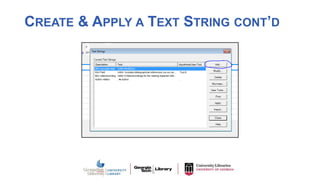
  • #9 There are 2 ways you can get to the Text Strings. The first is directly from the tool bar and the second is from Tools on the tool bar menu. Click on whichever you choose, and a box will open up.
  • #10 If you’ve not created any text strings previously, this box will be empty. To create a new one, click Add.
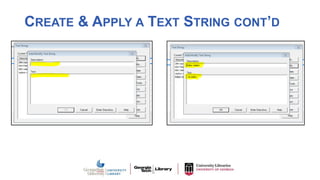
  • #11 Type a description that is meaningful to you and will help indicate what the text string will do for you. (Example= Editor relator)   You’ll enter your text string within the box labeled Text. You’ll need to enter the text exactly as you want it to appear in a record. (Example= comma, space, delimiter symbol (ctrl+d), letter e, and your term (editor) then end it with a period.) Don’t hit the return/enter key as this is the command for creating a new field, just press ok.   For this particular text string, once selected, it will be placed where your cursor is. You’ll need to be mindful of this and remember to remove any unnecessary punctuation once the text string has been placed.
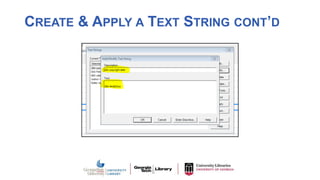
  • #12 Let’s create another one which will add a new field and use a diacritic. Text Strings, Add…, write a name for it in the description field (Example: 264 Copyright Date) place your cursor in the text box; hit the enter key on your keyboard –remember this will create a new field in the record; type the field number you want to add (Example: 264, space, 4, delimiter (ctrl+d), c, insert the copyright symbol by clicking on the Enter diacritics button, 20xx) By adding the 20xx, I’ll have to edit the field once I’ve added it to the record, but I’m more likely to see the edit needed before I publish/update the record.
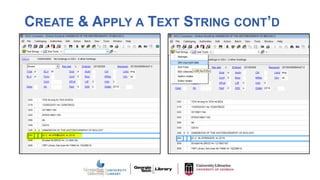
  • #13 Place the cursor anywhere within the field above where I want my new field to be added. Select the text string from the list of options.
  • #14 The new field will be created and the phrasing added.
  • #16 Be mindful of where your cursor placement within in the record before you apply a text string. For those text strings with hard returns at the beginning of them, the cursor needs to be somewhere in the field above where you want the new field to be placed/added. There is no limit to the number of characters in a text string.   I don’t believe there is a maximum number of text strings you can have saved. The client stores your text strings in a single file named TextStrings.xml on your hard drive: [X]:\Documents and Settings\[user name]\Application Data\OCLC\Connex\Profiles\MyProfile, where X is the letter of your hard drive Assigned text strings are retained each time you open or update your program.
  • #17 Macros are short computer programs that automate a repeated task. The macros can be assigned to keystroke commands or other shortcuts. They can be created and applied by specific macro software to the various software that you use. At Georgia State, we pay for MacroExpress which we used in Voyager and can be used in Alma. I’ve seen librarians use it to copy the MMSID from the export pop-up window in OCLC and then apply another macro to paste that mmsid into Alma’s search field. It can reduce the amount of time spent typing and clicking. A possible challenge for the user is that it you’ve got to remember what key strokes you’ve assigned to each task.   Listed here are some examples of what a macro can do. They can perform more complicated tasks than a text string, and are usually more than one task strung together.
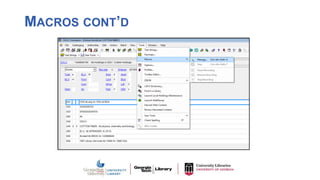
  • #18 OCLC Connexion comes loaded with quite a number of macros for our use. Because of the complexity and the amount of time we have, I’m just going to show you where you can find them within Connexion Client, demonstrate their use, and provide some resources for you to explore on your own. Open bibliographic or authority record in Connexion Client From Tools > Macros > Manage Pop-up box
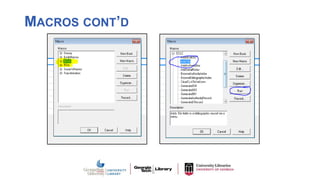
  • #19 OCLC Folder/Book for OCLC-created macros available for use. Select one and Run Example: Add 3xx
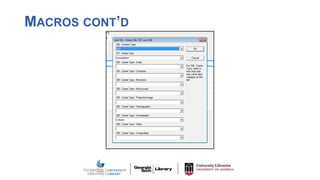
  • #20 This is the 33x pop-up box that appears when you run this macro. Once you’ve selected the appropriate content, media, and carrier types for your item, click OK. The 33x fields will be added to your record.
  • #23 A user tool is a shortcut to a command that can be assigned to a diacritic or special character, a macro, a menu command like ‘Lock a master record’, or a text string.   It’s a way to get at your top 10 most frequently used commands.   For example, I have the ‘3xx macro’, the ‘browse authority index’ macro, and an ‘add a 504 field’ text string as user tools in my instance of the client.
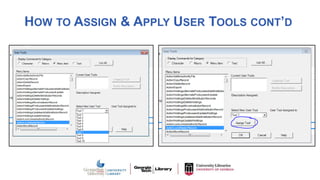
  • #25 From the toolbar: Tools > User Tools > Assign User Tool editor box opens Gives you category options: Character, Macro, Menu Item, Text (Text String) Choose one Example: Menu Item List of menu items is pulled up. Scroll to find one that you use a lot that you want to add to a user tool. Example: ActionLockMasterRecord Note that the name corresponds to where you find it in the menu. Example Action > Lock Master Record
  • #26 Select the new user tool number that you want to assign this command to. (only 1-10) Example: Tool 2 Click Assign Tool.
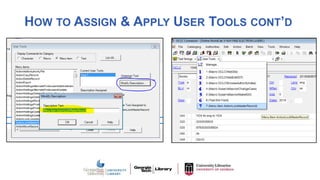
  • #27 You can modify the description through the modify Description button to make it something more meaningful to you.   This User Tool is now available in your list of User Tools.
  • #29 Listed here are some icons that I’ve added to my toolbar. One of my favorite tools in Client is the pin which I use frequently with the tile vertically button. I use these when comparing records. Pinning a record saves it as a window within Connexion which won’t go away until you close it manually. Tiling vertically enables me to see the windows (usually my pinned records) side by side. When I was doing a lot of copy cataloging, this was helpful in determining the correct record and or copy information from one record to another. I also use the uncontrol all headings and control all headings a fair amount as well.
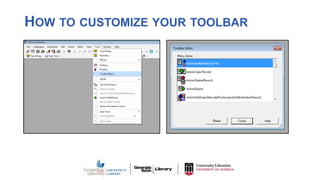
  • #30 Tools > Toolbar Editor > scroll through the list of menu items, you’ll see that their names are based on the file folder they can be found in on the tool bar. Example: ToolsCheckSpelling   Scroll through the menu to find one you want to add. Select it (highlighted blue) and click and drag to the toolbar. ‘Release’ it onto the toolbar where you want it to sit. Not in the right place, you can easily move it around to where you want it to go.   Want to remove something? Open Toolbar editor, and click on the toolbar button/icon you want to remove and drag it to the toolbar editor menu. ‘Release’ it into the list of options. Note: Any of the default toolbar buttons, can be removed from the toolbar in the same way as just described.