Hotspot with
Authentication to a
Radius Server and LDAP
Database
Using DaloRADIUS
Ryan Ellingson Herzing University 12/19/15
1
Table of Contents
I. Executive Summary .......................................................................................................... 2
II. Project Planning ................................................................................................................ 3
Network Diagram
Technical Planning
DaloRADIUS Appliance Specifications
PFSense Specifications
Linksys AP Specifications
Windows Client Specifications
III. Implementation ................................................................................................................. 6
Installation of DaloRADIUS
Login to DaloRADIUS
Create a Billing Plan
PayPal Implementation (User Creation)
Create a User
Add Billing Plan to New User
NAS Listing in DaloRADIUS
Installation of PFSense
Login to PFSense Web Portal
Enable Captive Portal
Set Radius Authentication
Set Accounting
Set DD-WRT IP Address
SSID
IV. Testing DaloRADIUS Authentication and
Monitoring .........................................................................................................................14
Installation of PFSense
Go to a Website
Usage Statistics
Installation of PFSense
V. Conclusion .........................................................................................................................16
VI. Appendix ............................................................................................................................17
Executive Summary
Wireless hotspots are necessary in nearly every public business ranging from
airports to hotels, and even charter busses. Connecting to the internet should
be seamless and affordable; not only for consumers, but also for the business
that is hosting the public wireless internet. Payment plans should be laid out in
a simple to understand fashion, while making the payment plan should
happen at the click of a button (if said business decides to charge for internet
use). Appliances like DaloRADIUS allow business to hit all of these marks and
more.
DaloRADIUS is a free appliance that was created to allow users to login to a
wireless hotspot seamlessly. It allows users and administrators to create an
account with the click of a button, and link up a payment method. Plans are
not simply pre-set with a “one size fits all” mentality. DaloRADIUS allows for
granular editing of plans and rates, so that everyone is happy. The web GUI is
streamlined, so that the learning curve is minimal.
Since FreeRadius is the backend of DaloRADIUS, the appliance is completely
free for to setup and maintain.
HOTSPOTWITH AUTHENTICATION TO A RADIUS SERVER AND LDAP DATABASE - DECEMBER 2015
3
Project Planning
For this project, an understanding of network layouts, firewall/Captive Portal,
RADIUS servers, and wireless are needed.
Setting up the proper network for wireless hotspots is different for every
business. While this network uses a PFSense Captive Portal, other networks
might be able to rely on the Captive Portal built into an AP or their RADIUS
appliance.
Setting up DaloRADIUS for PayPal use is possible through use of a PayPal
Business account.
The AP used is also going to differ from network to network. This project calls
for an AP with DD-WRT, but most other AP’s should work if DD-WRT cannot
be flashed onto the AP.
HOTSPOTWITH AUTHENTICATION TO A RADIUS SERVER AND LDAP DATABASE - DECEMBER 2015
4
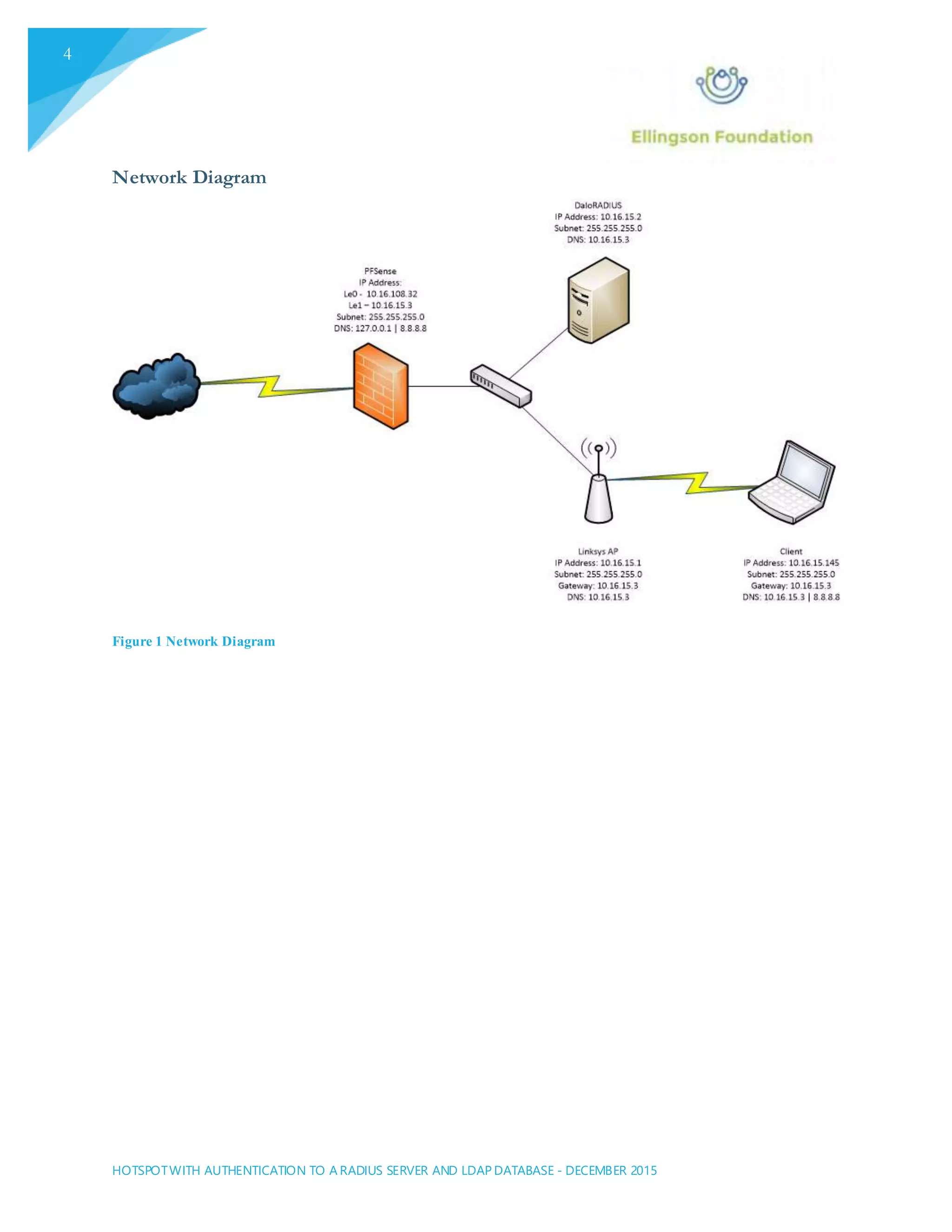
Network Diagram
Figure 1 Network Diagram
HOTSPOTWITH AUTHENTICATION TO A RADIUS SERVER AND LDAP DATABASE - DECEMBER 2015
5
Technical Planning
The followingspecificationswere used as part of the technical planning of the project entities. For thisproject, make a
DaloRADIUS Appliance. This will house the FreeRADIUS application for authentication. It will also supply the Web GUI
needed to manage the appliance. Also needed are a PFSense machine to host the Captive Portal that users will login with, a
Linksys AP for users to wirelessly connect to, and a Windowsclient to test out functionality.
DaloRADIUS Appliance Specifications
Operating System Linux (Centos or Ubuntu)
Memory 512 MB
Hard Disk 20 GB
Network Cards 1 NIC
PFSense Specifications
Operating System PFSense
Memory 512 MB
Hard Disk 15 GB
Network Cards 2 NIC
Linksys AP Specifications
Operating System DD-WRT
Windows Client Specifications
Operating System Windows 7
Memory 4 GB
Hard Disk 60 GB
Network Cards 1 NIC
HOTSPOTWITH AUTHENTICATION TO A RADIUS SERVER AND LDAP DATABASE - DECEMBER 2015
6
Implementation
Implementation (for the purpose of this project) was completed in VMware Workstation 11.
Depending on the network, the time that implementation will take may vary.
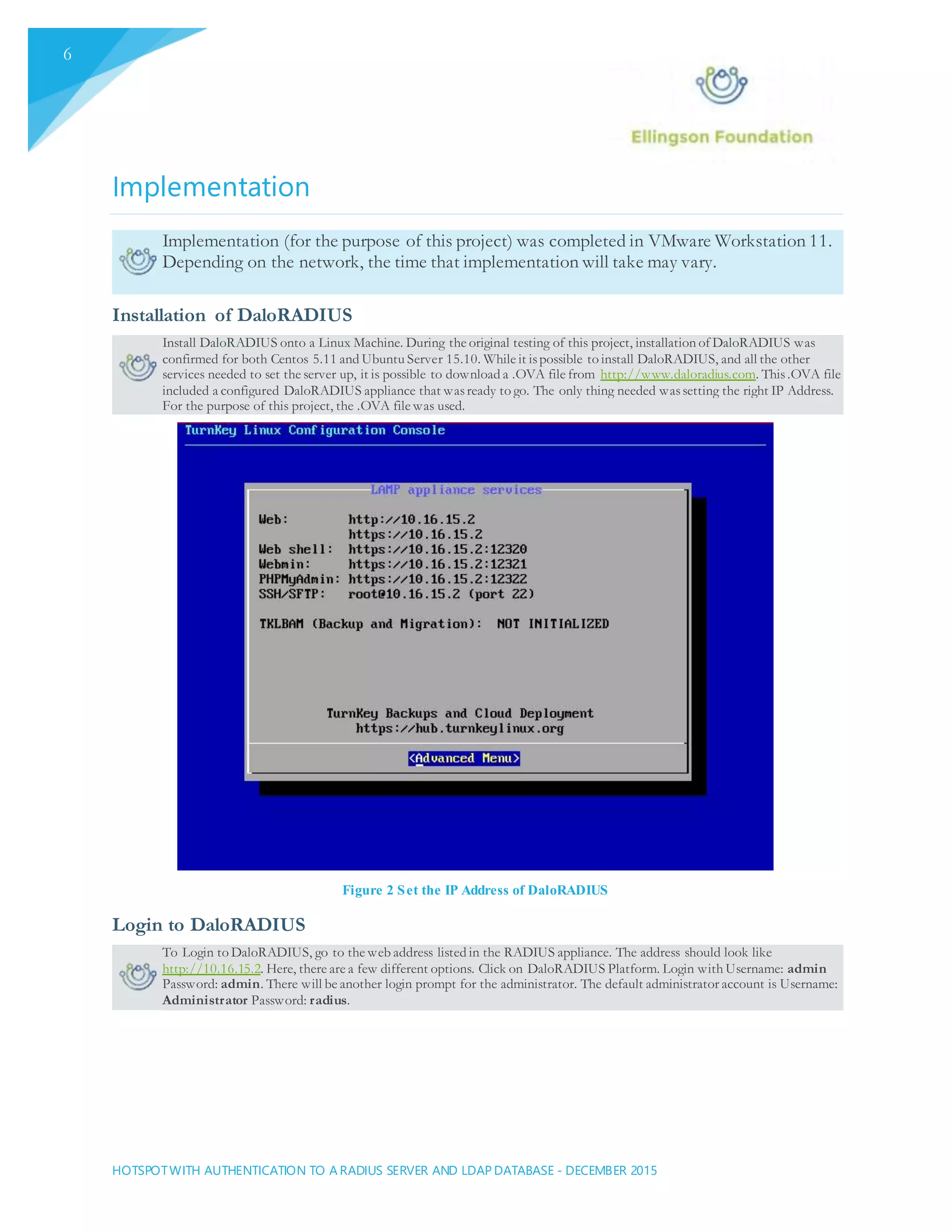
Installation of DaloRADIUS
Install DaloRADIUS onto a Linux Machine. During the original testing of this project, installation of DaloRADIUS was
confirmed for both Centos 5.11 and Ubuntu Server 15.10. While it ispossible to install DaloRADIUS, and all the other
services needed to set the server up, it is possible to download a .OVA file from http://www.daloradius.com. This.OVA file
included a configured DaloRADIUS appliance that wasready to go. The only thing needed wassetting the right IP Address.
For the purpose of this project, the .OVA file was used.
Figure 2 Set the IP Address of DaloRADIUS
Login to DaloRADIUS
To Login to DaloRADIUS, go to the web address listed in the RADIUS appliance. The address should look like
http://10.16.15.2. Here, there are a few different options. Click on DaloRADIUS Platform. Login with Username: admin
Password: admin. There will be another login prompt for the administrator. The default administrator account is Username:
Administrator Password: radius.
HOTSPOTWITH AUTHENTICATION TO A RADIUS SERVER AND LDAP DATABASE - DECEMBER 2015
7
Figure 3 DaloRADIUS login
Create a Billing Plan
Create a Billing Plan by clicking on Billing >> Plan >> New Plan. This will specify how a user is going to pay (before or
after they use the hotspot). This will also determine how much money they will pay and how often they will be charged.
Figure 4 Create Billing Plan
HOTSPOTWITH AUTHENTICATION TO A RADIUS SERVER AND LDAP DATABASE - DECEMBER 2015
8
PayPal Implementation (User Creation)
PayPal can be implemented into the system. For the purposes of thisimplementation, a PayPal account wasnot added (It is
necessary to have a business account for everything to be paid to. This was difficult to do in a test environment.) In the
console of DaloRADIUS, edit the signup-paypal/index.php file to add the business account, website hosting the signup
success, cancel, and thank you page. If users are allowed to create their own account, they would get directed to the signup
page directly after connecting. From there, their user account would be created, they would choose a plan, and they would
link their paypal to their account. Again, for the purpose of thisimplementation, a PayPal account wasnot added, so instead
a general user was created from the administrator.
Figure 5 PayPal User Self-Create
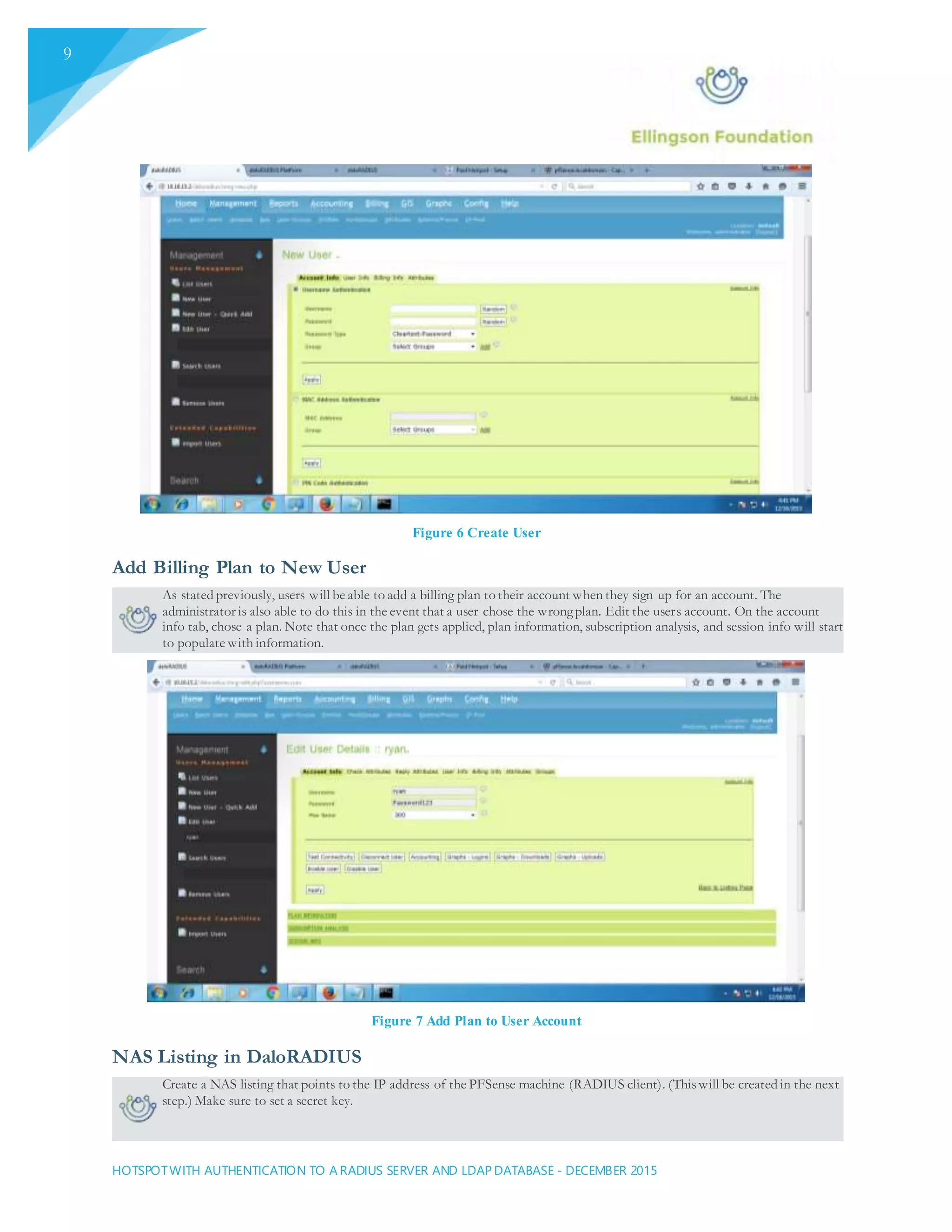
Create a User
DaloRADIUS is able to let users create their own profile and link up to PayPal. For the purposes of thisproject, the
Administrator will create the user profile. Create a new user by going to Management >> New User.
HOTSPOTWITH AUTHENTICATION TO A RADIUS SERVER AND LDAP DATABASE - DECEMBER 2015
9
Figure 6 Create User
Add Billing Plan to New User
As stated previously, users will be able to add a billing plan to their account when they sign up for an account. The
administrator is also able to do this in the event that a user chose the wrongplan. Edit the users account. On the account
info tab, chose a plan. Note that once the plan gets applied, plan information, subscription analysis, and session info will start
to populate with information.
Figure 7 Add Plan to User Account
NAS Listing in DaloRADIUS
Create a NAS listing that points to the IP address of the PFSense machine (RADIUS client). (Thiswill be created in the next
step.) Make sure to set a secret key.
HOTSPOTWITH AUTHENTICATION TO A RADIUS SERVER AND LDAP DATABASE - DECEMBER 2015
10
Figure 8 NAS Listing in DaloRADIUS
Installation of PFSense
Install PFSense on a machine. In thisproject, a PFSense live CD wasused. Use default settings for PFSense’s installation.
Once done, configure the interfaces Le0 for WAN and Le1 for LAN. WAN, for the purpose of thisproject, obtained an IP
Address through DHCP, though a statically set IP Address should probably be set outside of a test environment. LAN has to
be statically set. The IP Address that gets set for the LAN will be the address used to manage PFSense on the web.
Figure 9 Initial PFSense LAN Configuration
Login to PFSense Web Portal
Open a web browser and go to the IP Address of the LAN. This will bring up the PFSense Web Portal. Make sure the
correct IP Addresses are set on both interfaces.
HOTSPOTWITH AUTHENTICATION TO A RADIUS SERVER AND LDAP DATABASE - DECEMBER 2015
11
Figure 10 PFSense Set WAN IP
Enable Captive Portal
In the Services tab, click on Captive Portal. On the Captive Portal Tab, click Enable Captive Portal. Make sure the interface
is set the LAN. In this project, Idle timeout and Hard Timeout were set to one minute for testing purposes. Set these to the
appropriate time a customer should be logged into the hotspot network.
Figure 11 PFSense Captive Portal On LAN
Set Radius Authentication
Set the Primary RadiusAuthentication to the IP address of the DaloRADIUS appliance (RADIUS Server). Keep the port
default, and set the shared secret that was previously set in the NAS listing.
HOTSPOTWITH AUTHENTICATION TO A RADIUS SERVER AND LDAP DATABASE - DECEMBER 2015
12
Figure 12 Set Radius Authentication
Set Accounting
Check "send RADIUS accounting packets" and select interimupdate. Also set the Radius NAS IP to the LAN.
Figure 13 Set Accounting
Set DD-WRT IP Address
Go to the IP address of the wirelessaccess point. Set the gateway and DNS to point to the newly created PFSense machine.
For lab testingpurposes, DHCP wasturned off so that clientswould have to be statically set. In a real-world case, set
DHCP.
HOTSPOTWITH AUTHENTICATION TO A RADIUS SERVER AND LDAP DATABASE - DECEMBER 2015
13
Figure 14 DD-WRT Setting Up IP Address
SSID
Set the SSID of the wirelessaccess point. (For other security purposes, set an administrative password on the AP so nobody
can mess with the configurations.) Also set the wirelessto WPA2 encryption.
Figure 15 DD-WRT SSID
HOTSPOTWITH AUTHENTICATION TO A RADIUS SERVER AND LDAP DATABASE - DECEMBER 2015
14
Testing DaloRADIUS Authentication and Monitoring
Installation of PFSense
In a production environment, the AP would normally hand out DHCP for all clients that connect to the hotspot. For the
purposes of this project, this wasnot possible in the test environment. As a result, set the IP Address to something within
the LAN subnet, set the default gateway and primary DNS to the PFSense IP address, and set the alternate DNS to Google’s
DNS.
Figure 16 Set the IP of Workstation
Go to a Website
Try connecting wirelessly to the hotspot and open the browser. Go to any website. The PFSense Captive Portal will appear,
asking for the proper login. Since the administrator created the users, the user will not be directed to the user account setup
page. After clickingcontinue, the user will be able to browse the internet.
Figure 17 Go to Website
HOTSPOTWITH AUTHENTICATION TO A RADIUS SERVER AND LDAP DATABASE - DECEMBER 2015
15
Usage Statistics
On DaloRADIUS, go to Management >> List Users >> [User] >> Edit Account. Under here, there will be usage
information for said account. Billing history should show up daily, weekly, or monthly. Based on what plan was made, this
will differ. At the end of the preset period, each user's billingstatement will be generated.
Figure 18 Usage Statistics
HOTSPOTWITH AUTHENTICATION TO A RADIUS SERVER AND LDAP DATABASE - DECEMBER 2015
16
Conclusion
To conclude, wireless hotspot networks that are easy to setup and connect to are
drastically important for companies to have implemented. The process, at this point, is
streamlined and nearly ready to go with minor configuration edits.
Some of the major issues that were seen in this project include installation of
DaloRADIUS on Centos and Ubuntu Server. There are guides online for these two
platforms, but ultimately are outdated. After working for two days on getting the
platform setup, I found the .OVA file of the pre-configured appliance from
DaloRADIUS.
Another issue faced was how user creation was done. Some businesses will want default
guest accounts, while others will want users to create their own account. This, coupled
with the fact that implementing a live PayPal account into the system is very difficult
(since you need a business PayPal account) made the rate tracking very difficult and
ultimately unusable in this project environment.
There was an issue getting the Captive Portal availableon DaloRADIUS to work, so
implementing PFSense was necessary.
Due to this being a test environment, DHCP on the AP caused a Spanning Tree Loop.
Since this happened only because this project was implemented in a Herzing University
test environment, cutting DHCP was also necessary. Instead, the workstation that
connects to the hotspot did so with a static IP Address.
References
Wilson, C. (2015, December). Assistance
Cann, J. (2015, December). Assistance
Morse, J. (2015, December). Assistance
http://bit.ly/1ZhVqLe
Virtual Machine daloRADIUS Administrator Guide Version 0.9-9
HOTSPOTWITH AUTHENTICATION TO A RADIUS SERVER AND LDAP DATABASE - DECEMBER 2015
17
Appendix
Figure 19 Rates
Figure 20 User Self-Created
HOTSPOTWITH AUTHENTICATION TO A RADIUS SERVER AND LDAP DATABASE - DECEMBER 2015
18
Figure 21 PayPal Payment
HOTSPOTWITH AUTHENTICATION TO A RADIUS SERVER AND LDAP DATABASE - DECEMBER 2015
19
Figure 22 PayPal Configuration
Figure 23 Invoice for User

NT320-Final White Paper

  • 1.
    Hotspot with Authentication toa Radius Server and LDAP Database Using DaloRADIUS Ryan Ellingson Herzing University 12/19/15
  • 2.
    1 Table of Contents I.Executive Summary .......................................................................................................... 2 II. Project Planning ................................................................................................................ 3 Network Diagram Technical Planning DaloRADIUS Appliance Specifications PFSense Specifications Linksys AP Specifications Windows Client Specifications III. Implementation ................................................................................................................. 6 Installation of DaloRADIUS Login to DaloRADIUS Create a Billing Plan PayPal Implementation (User Creation) Create a User Add Billing Plan to New User NAS Listing in DaloRADIUS Installation of PFSense Login to PFSense Web Portal Enable Captive Portal Set Radius Authentication Set Accounting Set DD-WRT IP Address SSID IV. Testing DaloRADIUS Authentication and Monitoring .........................................................................................................................14 Installation of PFSense Go to a Website Usage Statistics Installation of PFSense V. Conclusion .........................................................................................................................16 VI. Appendix ............................................................................................................................17
  • 3.
    Executive Summary Wireless hotspotsare necessary in nearly every public business ranging from airports to hotels, and even charter busses. Connecting to the internet should be seamless and affordable; not only for consumers, but also for the business that is hosting the public wireless internet. Payment plans should be laid out in a simple to understand fashion, while making the payment plan should happen at the click of a button (if said business decides to charge for internet use). Appliances like DaloRADIUS allow business to hit all of these marks and more. DaloRADIUS is a free appliance that was created to allow users to login to a wireless hotspot seamlessly. It allows users and administrators to create an account with the click of a button, and link up a payment method. Plans are not simply pre-set with a “one size fits all” mentality. DaloRADIUS allows for granular editing of plans and rates, so that everyone is happy. The web GUI is streamlined, so that the learning curve is minimal. Since FreeRadius is the backend of DaloRADIUS, the appliance is completely free for to setup and maintain.
  • 4.
    HOTSPOTWITH AUTHENTICATION TOA RADIUS SERVER AND LDAP DATABASE - DECEMBER 2015 3 Project Planning For this project, an understanding of network layouts, firewall/Captive Portal, RADIUS servers, and wireless are needed. Setting up the proper network for wireless hotspots is different for every business. While this network uses a PFSense Captive Portal, other networks might be able to rely on the Captive Portal built into an AP or their RADIUS appliance. Setting up DaloRADIUS for PayPal use is possible through use of a PayPal Business account. The AP used is also going to differ from network to network. This project calls for an AP with DD-WRT, but most other AP’s should work if DD-WRT cannot be flashed onto the AP.
  • 5.
    HOTSPOTWITH AUTHENTICATION TOA RADIUS SERVER AND LDAP DATABASE - DECEMBER 2015 4 Network Diagram Figure 1 Network Diagram
  • 6.
    HOTSPOTWITH AUTHENTICATION TOA RADIUS SERVER AND LDAP DATABASE - DECEMBER 2015 5 Technical Planning The followingspecificationswere used as part of the technical planning of the project entities. For thisproject, make a DaloRADIUS Appliance. This will house the FreeRADIUS application for authentication. It will also supply the Web GUI needed to manage the appliance. Also needed are a PFSense machine to host the Captive Portal that users will login with, a Linksys AP for users to wirelessly connect to, and a Windowsclient to test out functionality. DaloRADIUS Appliance Specifications Operating System Linux (Centos or Ubuntu) Memory 512 MB Hard Disk 20 GB Network Cards 1 NIC PFSense Specifications Operating System PFSense Memory 512 MB Hard Disk 15 GB Network Cards 2 NIC Linksys AP Specifications Operating System DD-WRT Windows Client Specifications Operating System Windows 7 Memory 4 GB Hard Disk 60 GB Network Cards 1 NIC
  • 7.
    HOTSPOTWITH AUTHENTICATION TOA RADIUS SERVER AND LDAP DATABASE - DECEMBER 2015 6 Implementation Implementation (for the purpose of this project) was completed in VMware Workstation 11. Depending on the network, the time that implementation will take may vary. Installation of DaloRADIUS Install DaloRADIUS onto a Linux Machine. During the original testing of this project, installation of DaloRADIUS was confirmed for both Centos 5.11 and Ubuntu Server 15.10. While it ispossible to install DaloRADIUS, and all the other services needed to set the server up, it is possible to download a .OVA file from http://www.daloradius.com. This.OVA file included a configured DaloRADIUS appliance that wasready to go. The only thing needed wassetting the right IP Address. For the purpose of this project, the .OVA file was used. Figure 2 Set the IP Address of DaloRADIUS Login to DaloRADIUS To Login to DaloRADIUS, go to the web address listed in the RADIUS appliance. The address should look like http://10.16.15.2. Here, there are a few different options. Click on DaloRADIUS Platform. Login with Username: admin Password: admin. There will be another login prompt for the administrator. The default administrator account is Username: Administrator Password: radius.
  • 8.
    HOTSPOTWITH AUTHENTICATION TOA RADIUS SERVER AND LDAP DATABASE - DECEMBER 2015 7 Figure 3 DaloRADIUS login Create a Billing Plan Create a Billing Plan by clicking on Billing >> Plan >> New Plan. This will specify how a user is going to pay (before or after they use the hotspot). This will also determine how much money they will pay and how often they will be charged. Figure 4 Create Billing Plan
  • 9.
    HOTSPOTWITH AUTHENTICATION TOA RADIUS SERVER AND LDAP DATABASE - DECEMBER 2015 8 PayPal Implementation (User Creation) PayPal can be implemented into the system. For the purposes of thisimplementation, a PayPal account wasnot added (It is necessary to have a business account for everything to be paid to. This was difficult to do in a test environment.) In the console of DaloRADIUS, edit the signup-paypal/index.php file to add the business account, website hosting the signup success, cancel, and thank you page. If users are allowed to create their own account, they would get directed to the signup page directly after connecting. From there, their user account would be created, they would choose a plan, and they would link their paypal to their account. Again, for the purpose of thisimplementation, a PayPal account wasnot added, so instead a general user was created from the administrator. Figure 5 PayPal User Self-Create Create a User DaloRADIUS is able to let users create their own profile and link up to PayPal. For the purposes of thisproject, the Administrator will create the user profile. Create a new user by going to Management >> New User.
  • 10.
    HOTSPOTWITH AUTHENTICATION TOA RADIUS SERVER AND LDAP DATABASE - DECEMBER 2015 9 Figure 6 Create User Add Billing Plan to New User As stated previously, users will be able to add a billing plan to their account when they sign up for an account. The administrator is also able to do this in the event that a user chose the wrongplan. Edit the users account. On the account info tab, chose a plan. Note that once the plan gets applied, plan information, subscription analysis, and session info will start to populate with information. Figure 7 Add Plan to User Account NAS Listing in DaloRADIUS Create a NAS listing that points to the IP address of the PFSense machine (RADIUS client). (Thiswill be created in the next step.) Make sure to set a secret key.
  • 11.
    HOTSPOTWITH AUTHENTICATION TOA RADIUS SERVER AND LDAP DATABASE - DECEMBER 2015 10 Figure 8 NAS Listing in DaloRADIUS Installation of PFSense Install PFSense on a machine. In thisproject, a PFSense live CD wasused. Use default settings for PFSense’s installation. Once done, configure the interfaces Le0 for WAN and Le1 for LAN. WAN, for the purpose of thisproject, obtained an IP Address through DHCP, though a statically set IP Address should probably be set outside of a test environment. LAN has to be statically set. The IP Address that gets set for the LAN will be the address used to manage PFSense on the web. Figure 9 Initial PFSense LAN Configuration Login to PFSense Web Portal Open a web browser and go to the IP Address of the LAN. This will bring up the PFSense Web Portal. Make sure the correct IP Addresses are set on both interfaces.
  • 12.
    HOTSPOTWITH AUTHENTICATION TOA RADIUS SERVER AND LDAP DATABASE - DECEMBER 2015 11 Figure 10 PFSense Set WAN IP Enable Captive Portal In the Services tab, click on Captive Portal. On the Captive Portal Tab, click Enable Captive Portal. Make sure the interface is set the LAN. In this project, Idle timeout and Hard Timeout were set to one minute for testing purposes. Set these to the appropriate time a customer should be logged into the hotspot network. Figure 11 PFSense Captive Portal On LAN Set Radius Authentication Set the Primary RadiusAuthentication to the IP address of the DaloRADIUS appliance (RADIUS Server). Keep the port default, and set the shared secret that was previously set in the NAS listing.
  • 13.
    HOTSPOTWITH AUTHENTICATION TOA RADIUS SERVER AND LDAP DATABASE - DECEMBER 2015 12 Figure 12 Set Radius Authentication Set Accounting Check "send RADIUS accounting packets" and select interimupdate. Also set the Radius NAS IP to the LAN. Figure 13 Set Accounting Set DD-WRT IP Address Go to the IP address of the wirelessaccess point. Set the gateway and DNS to point to the newly created PFSense machine. For lab testingpurposes, DHCP wasturned off so that clientswould have to be statically set. In a real-world case, set DHCP.
  • 14.
    HOTSPOTWITH AUTHENTICATION TOA RADIUS SERVER AND LDAP DATABASE - DECEMBER 2015 13 Figure 14 DD-WRT Setting Up IP Address SSID Set the SSID of the wirelessaccess point. (For other security purposes, set an administrative password on the AP so nobody can mess with the configurations.) Also set the wirelessto WPA2 encryption. Figure 15 DD-WRT SSID
  • 15.
    HOTSPOTWITH AUTHENTICATION TOA RADIUS SERVER AND LDAP DATABASE - DECEMBER 2015 14 Testing DaloRADIUS Authentication and Monitoring Installation of PFSense In a production environment, the AP would normally hand out DHCP for all clients that connect to the hotspot. For the purposes of this project, this wasnot possible in the test environment. As a result, set the IP Address to something within the LAN subnet, set the default gateway and primary DNS to the PFSense IP address, and set the alternate DNS to Google’s DNS. Figure 16 Set the IP of Workstation Go to a Website Try connecting wirelessly to the hotspot and open the browser. Go to any website. The PFSense Captive Portal will appear, asking for the proper login. Since the administrator created the users, the user will not be directed to the user account setup page. After clickingcontinue, the user will be able to browse the internet. Figure 17 Go to Website
  • 16.
    HOTSPOTWITH AUTHENTICATION TOA RADIUS SERVER AND LDAP DATABASE - DECEMBER 2015 15 Usage Statistics On DaloRADIUS, go to Management >> List Users >> [User] >> Edit Account. Under here, there will be usage information for said account. Billing history should show up daily, weekly, or monthly. Based on what plan was made, this will differ. At the end of the preset period, each user's billingstatement will be generated. Figure 18 Usage Statistics
  • 17.
    HOTSPOTWITH AUTHENTICATION TOA RADIUS SERVER AND LDAP DATABASE - DECEMBER 2015 16 Conclusion To conclude, wireless hotspot networks that are easy to setup and connect to are drastically important for companies to have implemented. The process, at this point, is streamlined and nearly ready to go with minor configuration edits. Some of the major issues that were seen in this project include installation of DaloRADIUS on Centos and Ubuntu Server. There are guides online for these two platforms, but ultimately are outdated. After working for two days on getting the platform setup, I found the .OVA file of the pre-configured appliance from DaloRADIUS. Another issue faced was how user creation was done. Some businesses will want default guest accounts, while others will want users to create their own account. This, coupled with the fact that implementing a live PayPal account into the system is very difficult (since you need a business PayPal account) made the rate tracking very difficult and ultimately unusable in this project environment. There was an issue getting the Captive Portal availableon DaloRADIUS to work, so implementing PFSense was necessary. Due to this being a test environment, DHCP on the AP caused a Spanning Tree Loop. Since this happened only because this project was implemented in a Herzing University test environment, cutting DHCP was also necessary. Instead, the workstation that connects to the hotspot did so with a static IP Address. References Wilson, C. (2015, December). Assistance Cann, J. (2015, December). Assistance Morse, J. (2015, December). Assistance http://bit.ly/1ZhVqLe Virtual Machine daloRADIUS Administrator Guide Version 0.9-9
  • 18.
    HOTSPOTWITH AUTHENTICATION TOA RADIUS SERVER AND LDAP DATABASE - DECEMBER 2015 17 Appendix Figure 19 Rates Figure 20 User Self-Created
  • 19.
    HOTSPOTWITH AUTHENTICATION TOA RADIUS SERVER AND LDAP DATABASE - DECEMBER 2015 18 Figure 21 PayPal Payment
  • 20.
    HOTSPOTWITH AUTHENTICATION TOA RADIUS SERVER AND LDAP DATABASE - DECEMBER 2015 19 Figure 22 PayPal Configuration Figure 23 Invoice for User