Node-red
With Arduino
Designed by Anshu Pandey
What is Node-red?
Node-Red in its simplest form is an
open source visual editor for wiring
the internet of things produced by
IBM.
Designed by Anshu Pandey
More..
Node-RED is a tool for wiring together
hardware devices, APIs and online services in
new and interesting ways.
Node-RED takes care of the technicalities and
lets you concentrate on the logic of your
workflow. !
Designed by Anshu Pandey
How to get started with Arduino?
Install node-red on windows:
• Install node.js 64 bit or 32 bit according to your
system from https://nodejs.org/en/download/
• Open Command prompt as administrator.
Designed by Anshu Pandey
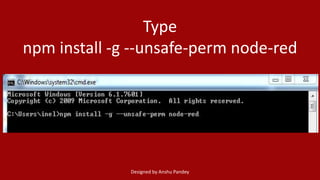
Type
npm install -g --unsafe-perm node-red
Designed by Anshu Pandey
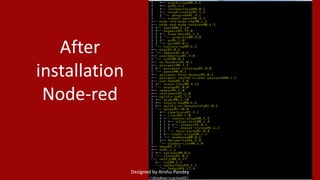
After
installation
Node-red
Designed by Anshu Pandey
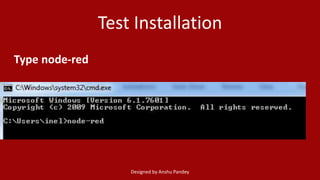
Test Installation
Type node-red
Designed by Anshu Pandey
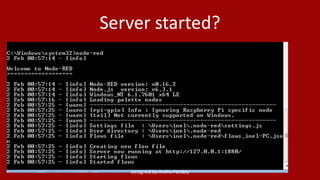
Server started?
Designed by Anshu Pandey
Here you go now!
Let’s begin the magic!
Designed by Anshu Pandey
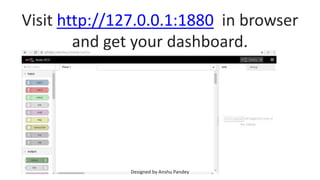
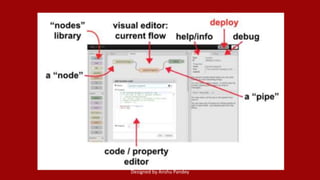
Visit http://127.0.0.1:1880 in browser
and get your dashboard.
Designed by Anshu Pandey
Installing Serial port
Use following command in cmd to install serial port
npm install node-red-node-serialport
Designed by Anshu Pandey
Flow 1: Twitting sensor data
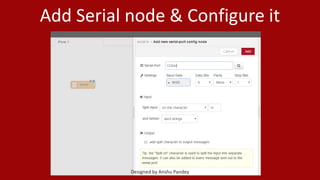
Step 1 Drag and drop serial input node to flow dashboard
Step 2 Double click to configure it and select com port & baudrate
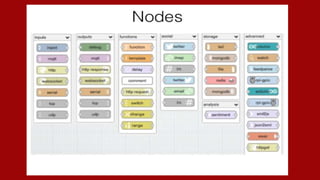
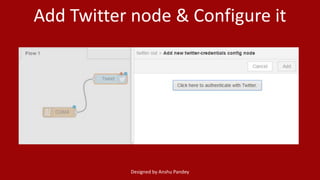
Step 3 Drag and drop twitter output node from social
Step 4 Double click the node to configure it, authenticate your
twitter account
Step 5 Connect both the nodes
Step 6 Deploy the project by clicking on the top right button Deploy
Step 7 Check your tweets on your twitter account, done by sensor.
Designed by Anshu Pandey
Add Serial node & Configure it
Designed by Anshu Pandey
Add Twitter node & Configure it
Designed by Anshu Pandey
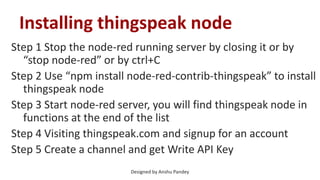
Installing thingspeak node
Step 1 Stop the node-red running server by closing it or by
“stop node-red” or by ctrl+C
Step 2 Use “npm install node-red-contrib-thingspeak” to install
thingspeak node
Step 3 Start node-red server, you will find thingspeak node in
functions at the end of the list
Step 4 Visiting thingspeak.com and signup for an account
Step 5 Create a channel and get Write API Key
Designed by Anshu Pandey
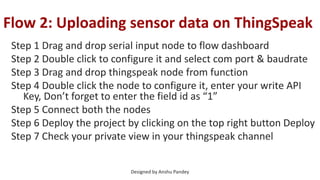
Flow 2: Uploading sensor data on ThingSpeak
Step 1 Drag and drop serial input node to flow dashboard
Step 2 Double click to configure it and select com port & baudrate
Step 3 Drag and drop thingspeak node from function
Step 4 Double click the node to configure it, enter your write API
Key, Don’t forget to enter the field id as “1”
Step 5 Connect both the nodes
Step 6 Deploy the project by clicking on the top right button Deploy
Step 7 Check your private view in your thingspeak channel
Designed by Anshu Pandey
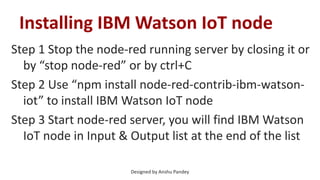
Installing IBM Watson IoT node
Step 1 Stop the node-red running server by closing it or
by “stop node-red” or by ctrl+C
Step 2 Use “npm install node-red-contrib-ibm-watson-
iot” to install IBM Watson IoT node
Step 3 Start node-red server, you will find IBM Watson
IoT node in Input & Output list at the end of the list
Designed by Anshu Pandey
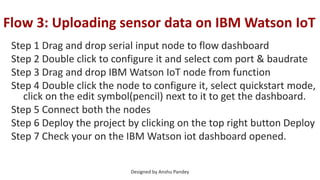
Flow 3: Uploading sensor data on IBM Watson IoT
Step 1 Drag and drop serial input node to flow dashboard
Step 2 Double click to configure it and select com port & baudrate
Step 3 Drag and drop IBM Watson IoT node from function
Step 4 Double click the node to configure it, select quickstart mode,
click on the edit symbol(pencil) next to it to get the dashboard.
Step 5 Connect both the nodes
Step 6 Deploy the project by clicking on the top right button Deploy
Step 7 Check your on the IBM Watson iot dashboard opened.
Designed by Anshu Pandey
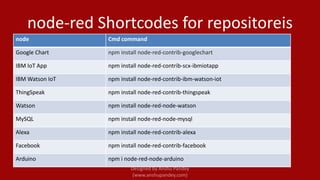
node-red Shortcodes for repositoreis
node Cmd command
Google Chart npm install node-red-contrib-googlechart
IBM IoT App npm install node-red-contrib-scx-ibmiotapp
IBM Watson IoT npm install node-red-contrib-ibm-watson-iot
ThingSpeak npm install node-red-contrib-thingspeak
Watson npm install node-red-node-watson
MySQL npm install node-red-node-mysql
Alexa npm install node-red-contrib-alexa
Facebook npm install node-red-contrib-facebook
Arduino npm i node-red-node-arduino
A BIG THANK YOU
Designed by Anshu Pandey

Node red with Arduino

  • 1.
  • 2.
    What is Node-red? Node-Redin its simplest form is an open source visual editor for wiring the internet of things produced by IBM. Designed by Anshu Pandey
  • 3.
    More.. Node-RED is atool for wiring together hardware devices, APIs and online services in new and interesting ways. Node-RED takes care of the technicalities and lets you concentrate on the logic of your workflow. ! Designed by Anshu Pandey
  • 4.
    How to getstarted with Arduino? Install node-red on windows: • Install node.js 64 bit or 32 bit according to your system from https://nodejs.org/en/download/ • Open Command prompt as administrator. Designed by Anshu Pandey
  • 5.
    Type npm install -g--unsafe-perm node-red Designed by Anshu Pandey
  • 6.
  • 7.
  • 8.
  • 9.
    Here you gonow! Let’s begin the magic! Designed by Anshu Pandey
  • 10.
    Visit http://127.0.0.1:1880 inbrowser and get your dashboard. Designed by Anshu Pandey
  • 11.
  • 12.
  • 13.
    Installing Serial port Usefollowing command in cmd to install serial port npm install node-red-node-serialport Designed by Anshu Pandey
  • 14.
    Flow 1: Twittingsensor data Step 1 Drag and drop serial input node to flow dashboard Step 2 Double click to configure it and select com port & baudrate Step 3 Drag and drop twitter output node from social Step 4 Double click the node to configure it, authenticate your twitter account Step 5 Connect both the nodes Step 6 Deploy the project by clicking on the top right button Deploy Step 7 Check your tweets on your twitter account, done by sensor. Designed by Anshu Pandey
  • 15.
    Add Serial node& Configure it Designed by Anshu Pandey
  • 16.
    Add Twitter node& Configure it Designed by Anshu Pandey
  • 17.
    Installing thingspeak node Step1 Stop the node-red running server by closing it or by “stop node-red” or by ctrl+C Step 2 Use “npm install node-red-contrib-thingspeak” to install thingspeak node Step 3 Start node-red server, you will find thingspeak node in functions at the end of the list Step 4 Visiting thingspeak.com and signup for an account Step 5 Create a channel and get Write API Key Designed by Anshu Pandey
  • 18.
    Flow 2: Uploadingsensor data on ThingSpeak Step 1 Drag and drop serial input node to flow dashboard Step 2 Double click to configure it and select com port & baudrate Step 3 Drag and drop thingspeak node from function Step 4 Double click the node to configure it, enter your write API Key, Don’t forget to enter the field id as “1” Step 5 Connect both the nodes Step 6 Deploy the project by clicking on the top right button Deploy Step 7 Check your private view in your thingspeak channel Designed by Anshu Pandey
  • 19.
    Installing IBM WatsonIoT node Step 1 Stop the node-red running server by closing it or by “stop node-red” or by ctrl+C Step 2 Use “npm install node-red-contrib-ibm-watson- iot” to install IBM Watson IoT node Step 3 Start node-red server, you will find IBM Watson IoT node in Input & Output list at the end of the list Designed by Anshu Pandey
  • 20.
    Flow 3: Uploadingsensor data on IBM Watson IoT Step 1 Drag and drop serial input node to flow dashboard Step 2 Double click to configure it and select com port & baudrate Step 3 Drag and drop IBM Watson IoT node from function Step 4 Double click the node to configure it, select quickstart mode, click on the edit symbol(pencil) next to it to get the dashboard. Step 5 Connect both the nodes Step 6 Deploy the project by clicking on the top right button Deploy Step 7 Check your on the IBM Watson iot dashboard opened. Designed by Anshu Pandey
  • 21.
    node-red Shortcodes forrepositoreis node Cmd command Google Chart npm install node-red-contrib-googlechart IBM IoT App npm install node-red-contrib-scx-ibmiotapp IBM Watson IoT npm install node-red-contrib-ibm-watson-iot ThingSpeak npm install node-red-contrib-thingspeak Watson npm install node-red-node-watson MySQL npm install node-red-node-mysql Alexa npm install node-red-contrib-alexa Facebook npm install node-red-contrib-facebook Arduino npm i node-red-node-arduino
  • 22.
    A BIG THANKYOU Designed by Anshu Pandey