NGINX:
Back to the Basics
INSTALL & CONFIGURE – WEB SERVER,
REVERSE PROXY AND LOAD BALANCER
Jay Desai
Solutions Architect, Melbourne, Australia
| ©2019 F52
Today’s Host
Jay Desai
• Technical Solutions Architect,
Melbourne - Australia
| ©2019 F53
Agenda
1. Introducing NGINX
2. Install NGINX
3. Configure Web Server
4. Configure Reverse Proxy
5. Configure Load Balancer
6. Link to Resources
| ©2019 F54
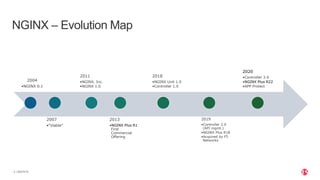
NGINX – Evolution Map
2004
•NGINX 0.1
2007
•“Viable”
2011
•NGINX, Inc.
•NGINX 1.0
2013
•NGINX Plus R1
First
Commercial
Offering
2018
•NGINX Unit 1.0
•Controller 1.0
2019
•Controller 2.0
(API mgmt.)
•NGINX Plus R18
•Acquired by F5
Networks
2020
•Controller 3.4
•NGINX Plus R22
•APP Protect
| ©2019 F55
#1 450
million
Source: Netcraft May 2020 Web Server Survey
“Most websites use NGINX”
| ©2019 F56
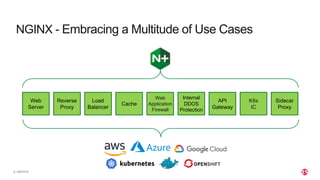
NGINX - Embracing a Multitude of Use Cases
Web
Server
Reverse
Proxy
Load
Balancer
Cache
Web
Application
Firewall
Internal
DDOS
Protection
API
Gateway
K8s
IC
Sidecar
Proxy
| ©2019 F57
Let’s workshop!
| ©2019 F58
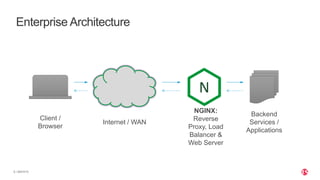
Enterprise Architecture
Client /
Browser
Internet / WAN
NGINX:
Reverse
Proxy, Load
Balancer &
Web Server
Backend
Services /
Applications
| ©2019 F59
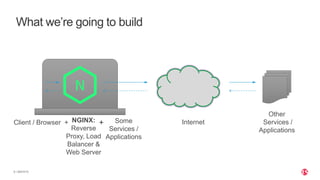
What we’re going to build
Client / Browser + InternetNGINX:
Reverse
Proxy, Load
Balancer &
Web Server
Other
Services /
Applications
Some
Services /
Applications
+
| ©2019 F510
• Laptop
• Internet connection
• Linux host / VM / Docker
• NGINX already installed?
−$ nginx -v
Confidential – Do
Not Distribute
What will you need
| ©2019 F511 CONFIDENTIAL
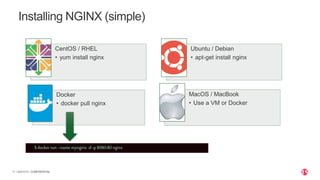
Installing NGINX (simple)
CentOS / RHEL
• yum install nginx
Ubuntu / Debian
• apt-get install nginx
Docker
• docker pull nginx
MacOS / MacBook
• Use a VM or Docker
$ docker run --name mynginx -d -p 8080:80 nginx
| ©2019 F512 CONFIDENTIAL
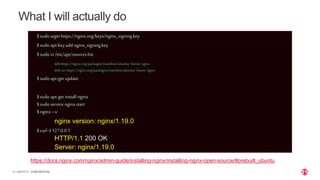
What I will actually do
$sudo wgethttps://nginx.org/keys/nginx_signing.key
$sudo apt-keyadd nginx_signing.key
$sudo vi /etc/apt/sources.list
deb https://nginx.org/packages/mainline/ubuntu/ bionic nginx
deb-src https://nginx.org/packages/mainline/ubuntu/ bionic nginx
$sudo apt-get update
$sudo apt-get install nginx
$sudo service nginxstart
$nginx–v
nginx version: nginx/1.19.0
$ curl -I 127.0.0.1
HTTP/1.1 200 OK
Server: nginx/1.19.0
https://docs.nginx.com/nginx/admin-guide/installing-nginx/installing-nginx-open-source/#prebuilt_ubuntu
| ©2019 F513 CONFIDENTIAL
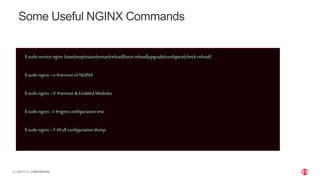
Some Useful NGINX Commands
$sudo service nginx{start|stop|status|restart|reload|force-reload|upgrade|configtest|check-reload}
$sudo nginx–v #versionof NGINX
$sudo nginx–V #version &EnabledModules
$sudo nginx–t #nginxconfiguration test
$sudo nginx–T #Full configuration dump
| ©2019 F514
Status:
Now we have successfully Installed
NGINX
Next:
Configure Web Server
| ©2019 F515
$curl http://localhost
<!DOCTYPE html>
<html>
<head>
<title>Welcometonginx!</title>
<style>
body {
width:35em;
margin:0auto;
font-family:Tahoma, Verdana,Arial, sans-serif;
}
</style>
</head>
<body>
<h1>Welcometo nginx!</h1>
<p>If you see thispage, the nginxweb server is successfullyinstalledand
working.Furtherconfigurationisrequired.</p>
<p>For onlinedocumentationand support please refer to
<a href="http://nginx.org/">nginx.org</a>.<br/>
Commercial support isavailableat
<a href="http://nginx.com/">nginx.com</a>.</p>
<p><em>Thankyou for usingnginx.</em></p>
</body>
</html>
| ©2019 F516
Checking /etc/nginx/nginx.conf
Exists
Has http{} block
• Contains
include/etc/nginx/conf.d/*.conf;
Sample here 
/etc/nginx/nginx.conf
1
2
3
4
5
6
7
8
9
10
11
12
13
14
15
16
17
18
19
20
21
22
23
24
25
26
27
user nginx;
worker_processes auto;
error_log /var/log/nginx/error.lognotice;
pid /var/run/nginx.pid;
events{
worker_connections 1024;
}
http{
include /etc/nginx/mime.types;
default_type application/octet-stream;
log_format main '$remote_addr- $remote_user[$time_local]"$request"'
'$status$body_bytes_sent"$http_referer"'
'"$http_user_agent""$http_x_forwarded_for"';
access_log /var/log/nginx/access.log main;
sendfile on;
keepalive_timeout 65;
include/etc/nginx/conf.d/*.conf; _
}
| ©2019 F517
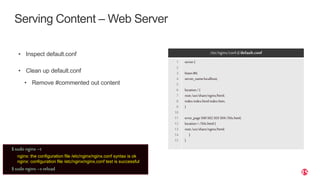
Serving Content – Web Server
• Inspect default.conf
• Clean up default.conf
• Remove #commented out content
/etc/nginx/conf.d/default.conf
1
2
3
4
5
6
7
8
9
10
11
12
13
14
15
server{
listen80;
server_namelocalhost;
location/{
root/usr/share/nginx/html;
index index.htmlindex.htm;
}
error_page500502503504/50x.html;
location= /50x.html{
root/usr/share/nginx/html;
}
}
$sudo nginx–t
nginx: the configuration file /etc/nginx/nginx.conf syntax is ok
nginx: configuration file /etc/nginx/nginx.conf test is successful
$sudo nginx–s reload
| ©2019 F518 CONFIDENTIAL
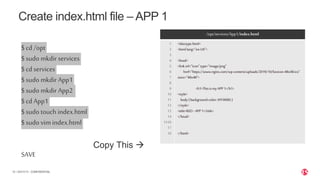
Create index.html file – APP 1
$ cd /opt
$ sudo mkdir services
$ cd services
$ sudo mkdir App1
$ sudo mkdir App2
$ cd App1
$ sudo touch index.html
$ sudo vim index.html
Copy This 
SAVE
/opt/services/App1/index.html
1
2
3
4
5
6
7
8
9
10
11
12
13
14
1516
17
18
<!doctypehtml>
<htmllang="en-US">
<head>
<linkrel="icon"type="image/png"
href="https://www.nginx.com/wp-content/uploads/2019/10/favicon-48x48.ico"
sizes="48x48">
<h1>ThisismyAPP1</h1>
<style>
body{ background-color:#FF0000;}
</style>
<title>RED-APP 1</title>
</head>
</html>
| ©2019 F519 CONFIDENTIAL
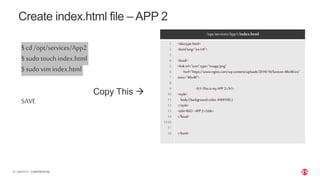
Create index.html file – APP 2
$ cd /opt/services/App2
$ sudo touch index.html
$ sudo vim index.html
Copy This 
SAVE
/opt/services/App1/index.html
1
2
3
4
5
6
7
8
9
10
11
12
13
14
1516
17
18
<!doctypehtml>
<htmllang="en-US">
<head>
<linkrel="icon"type="image/png"
href="https://www.nginx.com/wp-content/uploads/2019/10/favicon-48x48.ico"
sizes="48x48">
<h1>ThisismyAPP2</h1>
<style>
body{ background-color:#00FF00;}
</style>
<title>RED-APP 2</title>
</head>
</html>
| ©2019 F520 CONFIDENTIAL
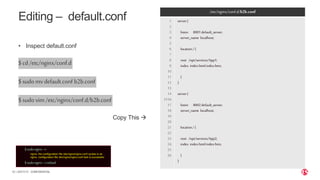
Editing – default.conf
• Inspect default.conf
$cd/etc/nginx/conf.d
$sudomvdefault.conf b2b.conf
$sudovim/etc/nginx/conf.d/b2b.conf
Copy This 
/etc/nginx/conf.d/b2b.conf
1
2
3
4
5
6
7
8
9
10
11
12
13
14
1516
17
18
19
20
21
22
23
24
25
26
server{
listen 8001default_server;
server_name localhost;
location/{
root /opt/services/App1;
index index.htmlindex.htm;
}
}
server{
listen 8002default_server;
server_name localhost;
location/{
root /opt/services/App2;
index index.htmlindex.htm;
}
}
$sudo nginx–t
nginx: the configuration file /etc/nginx/nginx.conf syntax is ok
nginx: configuration file /etc/nginx/nginx.conf test is successful
$sudo nginx–s reload
| ©2019 F521
$ curl http://localhost:8001
<!doctype html>
<html lang="en-US">
.
<h1>This is my APP1</h1>
.
$ curl http://localhost:8002
<!doctype html>
<html lang="en-US">
.
<h1>This is my APP2</h1>
.
| ©2019 F522
Status:
We are serving two
applications/services
Next:
Configure Reverse Proxy & Load Balancer
| ©2019 F523
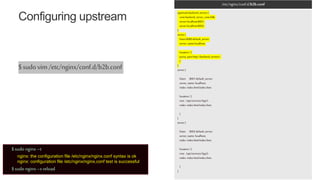
Configuring upstream
/etc/nginx/conf.d/b2b.conf
upstreambackend_servers{
zonebackend_server_zone64k;
serverlocalhost:8001;
serverlocalhost:8002;
}
server{
listen8080 default_server;
server_namelocalhost;
location/{
proxy_passhttp://backend_servers/;
}
}
server{
listen 8001 default_server;
server_name localhost;
index index.htmlindex.htm;
location/{
root /opt/services/App1;
index index.htmlindex.htm;
}
}
server{
listen 8002 default_server;
server_name localhost;
index index.htmlindex.htm;
location/{
root /opt/services/App2;
index index.htmlindex.htm;
}
}
$sudovim/etc/nginx/conf.d/b2b.conf
$sudo nginx–t
nginx: the configuration file /etc/nginx/nginx.conf syntax is ok
nginx: configuration file /etc/nginx/nginx.conf test is successful
$sudo nginx–s reload
| ©2019 F524
$ curl http://localhost:8080
<!doctype html>
<html lang="en-US">
.
<h1>This is my APP1</h1>
.
$ curl http://localhost:8080
<!doctype html>
<html lang="en-US">
.
<h1>This is my APP2</h1>
.
| ©2019 F525
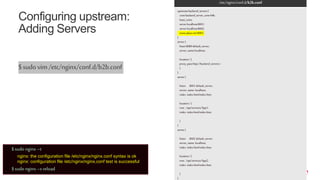
Configuring upstream:
Adding Servers
/etc/nginx/conf.d/b2b.conf
upstreambackend_servers{
zonebackend_server_zone64k;
least_conn;
serverlocalhost:8001;
serverlocalhost:8002;
www.jdaus.net:9083;
}
server{
listen8080 default_server;
server_namelocalhost;
location/{
proxy_passhttp://backend_servers/;
}
}
server{
listen 8001 default_server;
server_name localhost;
index index.htmlindex.htm;
location/{
root /opt/services/App1;
index index.htmlindex.htm;
}
}
server{
listen 8002 default_server;
server_name localhost;
index index.htmlindex.htm;
location/{
root /opt/services/App2;
index index.htmlindex.htm;
}
}
$sudovim/etc/nginx/conf.d/b2b.conf
$sudo nginx–t
nginx: the configuration file /etc/nginx/nginx.conf syntax is ok
nginx: configuration file /etc/nginx/nginx.conf test is successful
$sudo nginx–s reload
| ©2019 F526
$ curl http://localhost:8080
<!doctype html>
<html lang="en-US">
.
<h1>This is my APP1</h1>
.
$ curl http://localhost:8080
<!doctype html>
<html lang="en-US">
.
<h1>This is my APP2</h1>
.
| ©2019 F527
Status:
Now we have configured
Web Server, Reverse Proxy &
Load Balancer
Next:
Unique Features
| ©2019 F528
Shifting to NGINX PLUS
| ©2019 F529
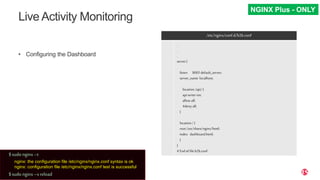
Live Activity Monitoring
• Configuring the Dashboard
/etc/nginx/conf.d/b2b.conf
.
.
.
.
.
.
.
.
.
.
.
.
server{
listen 8005default_server;
server_name localhost;
location/api/{
apiwrite=on;
allowall;
#denyall;
}
location/{
root/usr/share/nginx/html;
index dashboard.html;
}
}
#End offileb2b.conf
NGINX Plus - ONLY
$sudo nginx–t
nginx: the configuration file /etc/nginx/nginx.conf syntax is ok
nginx: configuration file /etc/nginx/nginx.conf test is successful
$sudo nginx–s reload
| ©2019 F530
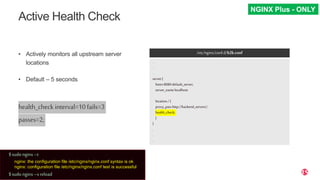
Active Health Check
• Actively monitors all upstream server
locations
• Default – 5 seconds
health_check interval=10fails=3
passes=2;
/etc/nginx/conf.d/b2b.conf
.
.
.
server{
listen8080default_server;
server_namelocalhost;
location/{
proxy_passhttp://backend_servers/;
health_check;
}
}
.
.
.
NGINX Plus - ONLY
$sudo nginx–t
nginx: the configuration file /etc/nginx/nginx.conf syntax is ok
nginx: configuration file /etc/nginx/nginx.conf test is successful
$sudo nginx–s reload
| ©2019 F531
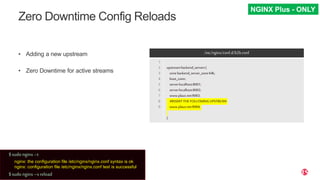
Zero Downtime Config Reloads
• Adding a new upstream
• Zero Downtime for active streams
/etc/nginx/conf.d/b2b.conf
1
2
3
4
5
6
7
8
9
upstreambackend_servers{
zonebackend_server_zone64k;
least_conn;
serverlocalhost:8001;
serverlocalhost:8002;
www.jdaus.net:9083;
#INSERTTHE FOLLOWINGUPSTREAM
www.jdaus.net:9084;
}
NGINX Plus - ONLY
$sudo nginx–t
nginx: the configuration file /etc/nginx/nginx.conf syntax is ok
nginx: configuration file /etc/nginx/nginx.conf test is successful
$sudo nginx–s reload
| ©2019 F532
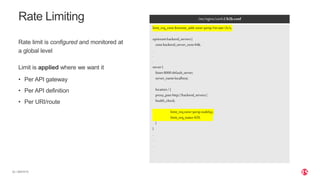
Rate Limiting
Rate limit is configured and monitored at
a global level
Limit is applied where we want it
• Per API gateway
• Per API definition
• Per URI/route
/etc/nginx/conf.d/b2b.conf
limit_req_zone$remote_addrzone=perip:1mrate=2r/s;
upstreambackend_servers{
zonebackend_server_zone64k;
.
.
.
server{
listen8000default_server;
server_namelocalhost;
location/{
proxy_passhttp://backend_servers/;
health_check;
limit_reqzone=peripnodelay;
limit_req_status429;
}
}
.
.
.
| ©2019 F533
$ nginx -s reload
$ curlhttp://localhost:8000
<!doctype html>
<html lang="en-US">
<head>…
$ !!;!!;!!;!!;!!
{"status":429,"message":”Rate limit exceeded"}
| ©2019 F534
How did we do?
1. Installing NGINX
2. Configuring Webserver
3. Configure Reverse Proxy
& Load Balancer
4. Active Health Check
5. Zero Downtime
Configuration Reloads
| ©2019 F535
Resources
Official NGINX open source downloads
• http://nginx.org/en/linux_packages.html
NGINX Plus Trial License
• https://www.nginx.com/free-trial-request/
Getting Started with NGINX Guides
• https://www.nginx.com/resources/wiki/start/
• http://nginx.org/en/docs/beginners_guide.html
NGINX: Back to Basics – APCJ

NGINX: Back to Basics – APCJ

  • 1.
    NGINX: Back to theBasics INSTALL & CONFIGURE – WEB SERVER, REVERSE PROXY AND LOAD BALANCER Jay Desai Solutions Architect, Melbourne, Australia
  • 2.
    | ©2019 F52 Today’sHost Jay Desai • Technical Solutions Architect, Melbourne - Australia
  • 3.
    | ©2019 F53 Agenda 1.Introducing NGINX 2. Install NGINX 3. Configure Web Server 4. Configure Reverse Proxy 5. Configure Load Balancer 6. Link to Resources
  • 4.
    | ©2019 F54 NGINX– Evolution Map 2004 •NGINX 0.1 2007 •“Viable” 2011 •NGINX, Inc. •NGINX 1.0 2013 •NGINX Plus R1 First Commercial Offering 2018 •NGINX Unit 1.0 •Controller 1.0 2019 •Controller 2.0 (API mgmt.) •NGINX Plus R18 •Acquired by F5 Networks 2020 •Controller 3.4 •NGINX Plus R22 •APP Protect
  • 5.
    | ©2019 F55 #1450 million Source: Netcraft May 2020 Web Server Survey “Most websites use NGINX”
  • 6.
    | ©2019 F56 NGINX- Embracing a Multitude of Use Cases Web Server Reverse Proxy Load Balancer Cache Web Application Firewall Internal DDOS Protection API Gateway K8s IC Sidecar Proxy
  • 7.
  • 8.
    | ©2019 F58 EnterpriseArchitecture Client / Browser Internet / WAN NGINX: Reverse Proxy, Load Balancer & Web Server Backend Services / Applications
  • 9.
    | ©2019 F59 Whatwe’re going to build Client / Browser + InternetNGINX: Reverse Proxy, Load Balancer & Web Server Other Services / Applications Some Services / Applications +
  • 10.
    | ©2019 F510 •Laptop • Internet connection • Linux host / VM / Docker • NGINX already installed? −$ nginx -v Confidential – Do Not Distribute What will you need
  • 11.
    | ©2019 F511CONFIDENTIAL Installing NGINX (simple) CentOS / RHEL • yum install nginx Ubuntu / Debian • apt-get install nginx Docker • docker pull nginx MacOS / MacBook • Use a VM or Docker $ docker run --name mynginx -d -p 8080:80 nginx
  • 12.
    | ©2019 F512CONFIDENTIAL What I will actually do $sudo wgethttps://nginx.org/keys/nginx_signing.key $sudo apt-keyadd nginx_signing.key $sudo vi /etc/apt/sources.list deb https://nginx.org/packages/mainline/ubuntu/ bionic nginx deb-src https://nginx.org/packages/mainline/ubuntu/ bionic nginx $sudo apt-get update $sudo apt-get install nginx $sudo service nginxstart $nginx–v nginx version: nginx/1.19.0 $ curl -I 127.0.0.1 HTTP/1.1 200 OK Server: nginx/1.19.0 https://docs.nginx.com/nginx/admin-guide/installing-nginx/installing-nginx-open-source/#prebuilt_ubuntu
  • 13.
    | ©2019 F513CONFIDENTIAL Some Useful NGINX Commands $sudo service nginx{start|stop|status|restart|reload|force-reload|upgrade|configtest|check-reload} $sudo nginx–v #versionof NGINX $sudo nginx–V #version &EnabledModules $sudo nginx–t #nginxconfiguration test $sudo nginx–T #Full configuration dump
  • 14.
    | ©2019 F514 Status: Nowwe have successfully Installed NGINX Next: Configure Web Server
  • 15.
    | ©2019 F515 $curlhttp://localhost <!DOCTYPE html> <html> <head> <title>Welcometonginx!</title> <style> body { width:35em; margin:0auto; font-family:Tahoma, Verdana,Arial, sans-serif; } </style> </head> <body> <h1>Welcometo nginx!</h1> <p>If you see thispage, the nginxweb server is successfullyinstalledand working.Furtherconfigurationisrequired.</p> <p>For onlinedocumentationand support please refer to <a href="http://nginx.org/">nginx.org</a>.<br/> Commercial support isavailableat <a href="http://nginx.com/">nginx.com</a>.</p> <p><em>Thankyou for usingnginx.</em></p> </body> </html>
  • 16.
    | ©2019 F516 Checking/etc/nginx/nginx.conf Exists Has http{} block • Contains include/etc/nginx/conf.d/*.conf; Sample here  /etc/nginx/nginx.conf 1 2 3 4 5 6 7 8 9 10 11 12 13 14 15 16 17 18 19 20 21 22 23 24 25 26 27 user nginx; worker_processes auto; error_log /var/log/nginx/error.lognotice; pid /var/run/nginx.pid; events{ worker_connections 1024; } http{ include /etc/nginx/mime.types; default_type application/octet-stream; log_format main '$remote_addr- $remote_user[$time_local]"$request"' '$status$body_bytes_sent"$http_referer"' '"$http_user_agent""$http_x_forwarded_for"'; access_log /var/log/nginx/access.log main; sendfile on; keepalive_timeout 65; include/etc/nginx/conf.d/*.conf; _ }
  • 17.
    | ©2019 F517 ServingContent – Web Server • Inspect default.conf • Clean up default.conf • Remove #commented out content /etc/nginx/conf.d/default.conf 1 2 3 4 5 6 7 8 9 10 11 12 13 14 15 server{ listen80; server_namelocalhost; location/{ root/usr/share/nginx/html; index index.htmlindex.htm; } error_page500502503504/50x.html; location= /50x.html{ root/usr/share/nginx/html; } } $sudo nginx–t nginx: the configuration file /etc/nginx/nginx.conf syntax is ok nginx: configuration file /etc/nginx/nginx.conf test is successful $sudo nginx–s reload
  • 18.
    | ©2019 F518CONFIDENTIAL Create index.html file – APP 1 $ cd /opt $ sudo mkdir services $ cd services $ sudo mkdir App1 $ sudo mkdir App2 $ cd App1 $ sudo touch index.html $ sudo vim index.html Copy This  SAVE /opt/services/App1/index.html 1 2 3 4 5 6 7 8 9 10 11 12 13 14 1516 17 18 <!doctypehtml> <htmllang="en-US"> <head> <linkrel="icon"type="image/png" href="https://www.nginx.com/wp-content/uploads/2019/10/favicon-48x48.ico" sizes="48x48"> <h1>ThisismyAPP1</h1> <style> body{ background-color:#FF0000;} </style> <title>RED-APP 1</title> </head> </html>
  • 19.
    | ©2019 F519CONFIDENTIAL Create index.html file – APP 2 $ cd /opt/services/App2 $ sudo touch index.html $ sudo vim index.html Copy This  SAVE /opt/services/App1/index.html 1 2 3 4 5 6 7 8 9 10 11 12 13 14 1516 17 18 <!doctypehtml> <htmllang="en-US"> <head> <linkrel="icon"type="image/png" href="https://www.nginx.com/wp-content/uploads/2019/10/favicon-48x48.ico" sizes="48x48"> <h1>ThisismyAPP2</h1> <style> body{ background-color:#00FF00;} </style> <title>RED-APP 2</title> </head> </html>
  • 20.
    | ©2019 F520CONFIDENTIAL Editing – default.conf • Inspect default.conf $cd/etc/nginx/conf.d $sudomvdefault.conf b2b.conf $sudovim/etc/nginx/conf.d/b2b.conf Copy This  /etc/nginx/conf.d/b2b.conf 1 2 3 4 5 6 7 8 9 10 11 12 13 14 1516 17 18 19 20 21 22 23 24 25 26 server{ listen 8001default_server; server_name localhost; location/{ root /opt/services/App1; index index.htmlindex.htm; } } server{ listen 8002default_server; server_name localhost; location/{ root /opt/services/App2; index index.htmlindex.htm; } } $sudo nginx–t nginx: the configuration file /etc/nginx/nginx.conf syntax is ok nginx: configuration file /etc/nginx/nginx.conf test is successful $sudo nginx–s reload
  • 21.
    | ©2019 F521 $curl http://localhost:8001 <!doctype html> <html lang="en-US"> . <h1>This is my APP1</h1> . $ curl http://localhost:8002 <!doctype html> <html lang="en-US"> . <h1>This is my APP2</h1> .
  • 22.
    | ©2019 F522 Status: Weare serving two applications/services Next: Configure Reverse Proxy & Load Balancer
  • 23.
    | ©2019 F523 Configuringupstream /etc/nginx/conf.d/b2b.conf upstreambackend_servers{ zonebackend_server_zone64k; serverlocalhost:8001; serverlocalhost:8002; } server{ listen8080 default_server; server_namelocalhost; location/{ proxy_passhttp://backend_servers/; } } server{ listen 8001 default_server; server_name localhost; index index.htmlindex.htm; location/{ root /opt/services/App1; index index.htmlindex.htm; } } server{ listen 8002 default_server; server_name localhost; index index.htmlindex.htm; location/{ root /opt/services/App2; index index.htmlindex.htm; } } $sudovim/etc/nginx/conf.d/b2b.conf $sudo nginx–t nginx: the configuration file /etc/nginx/nginx.conf syntax is ok nginx: configuration file /etc/nginx/nginx.conf test is successful $sudo nginx–s reload
  • 24.
    | ©2019 F524 $curl http://localhost:8080 <!doctype html> <html lang="en-US"> . <h1>This is my APP1</h1> . $ curl http://localhost:8080 <!doctype html> <html lang="en-US"> . <h1>This is my APP2</h1> .
  • 25.
    | ©2019 F525 Configuringupstream: Adding Servers /etc/nginx/conf.d/b2b.conf upstreambackend_servers{ zonebackend_server_zone64k; least_conn; serverlocalhost:8001; serverlocalhost:8002; www.jdaus.net:9083; } server{ listen8080 default_server; server_namelocalhost; location/{ proxy_passhttp://backend_servers/; } } server{ listen 8001 default_server; server_name localhost; index index.htmlindex.htm; location/{ root /opt/services/App1; index index.htmlindex.htm; } } server{ listen 8002 default_server; server_name localhost; index index.htmlindex.htm; location/{ root /opt/services/App2; index index.htmlindex.htm; } } $sudovim/etc/nginx/conf.d/b2b.conf $sudo nginx–t nginx: the configuration file /etc/nginx/nginx.conf syntax is ok nginx: configuration file /etc/nginx/nginx.conf test is successful $sudo nginx–s reload
  • 26.
    | ©2019 F526 $curl http://localhost:8080 <!doctype html> <html lang="en-US"> . <h1>This is my APP1</h1> . $ curl http://localhost:8080 <!doctype html> <html lang="en-US"> . <h1>This is my APP2</h1> .
  • 27.
    | ©2019 F527 Status: Nowwe have configured Web Server, Reverse Proxy & Load Balancer Next: Unique Features
  • 28.
  • 29.
    | ©2019 F529 LiveActivity Monitoring • Configuring the Dashboard /etc/nginx/conf.d/b2b.conf . . . . . . . . . . . . server{ listen 8005default_server; server_name localhost; location/api/{ apiwrite=on; allowall; #denyall; } location/{ root/usr/share/nginx/html; index dashboard.html; } } #End offileb2b.conf NGINX Plus - ONLY $sudo nginx–t nginx: the configuration file /etc/nginx/nginx.conf syntax is ok nginx: configuration file /etc/nginx/nginx.conf test is successful $sudo nginx–s reload
  • 30.
    | ©2019 F530 ActiveHealth Check • Actively monitors all upstream server locations • Default – 5 seconds health_check interval=10fails=3 passes=2; /etc/nginx/conf.d/b2b.conf . . . server{ listen8080default_server; server_namelocalhost; location/{ proxy_passhttp://backend_servers/; health_check; } } . . . NGINX Plus - ONLY $sudo nginx–t nginx: the configuration file /etc/nginx/nginx.conf syntax is ok nginx: configuration file /etc/nginx/nginx.conf test is successful $sudo nginx–s reload
  • 31.
    | ©2019 F531 ZeroDowntime Config Reloads • Adding a new upstream • Zero Downtime for active streams /etc/nginx/conf.d/b2b.conf 1 2 3 4 5 6 7 8 9 upstreambackend_servers{ zonebackend_server_zone64k; least_conn; serverlocalhost:8001; serverlocalhost:8002; www.jdaus.net:9083; #INSERTTHE FOLLOWINGUPSTREAM www.jdaus.net:9084; } NGINX Plus - ONLY $sudo nginx–t nginx: the configuration file /etc/nginx/nginx.conf syntax is ok nginx: configuration file /etc/nginx/nginx.conf test is successful $sudo nginx–s reload
  • 32.
    | ©2019 F532 RateLimiting Rate limit is configured and monitored at a global level Limit is applied where we want it • Per API gateway • Per API definition • Per URI/route /etc/nginx/conf.d/b2b.conf limit_req_zone$remote_addrzone=perip:1mrate=2r/s; upstreambackend_servers{ zonebackend_server_zone64k; . . . server{ listen8000default_server; server_namelocalhost; location/{ proxy_passhttp://backend_servers/; health_check; limit_reqzone=peripnodelay; limit_req_status429; } } . . .
  • 33.
    | ©2019 F533 $nginx -s reload $ curlhttp://localhost:8000 <!doctype html> <html lang="en-US"> <head>… $ !!;!!;!!;!!;!! {"status":429,"message":”Rate limit exceeded"}
  • 34.
    | ©2019 F534 Howdid we do? 1. Installing NGINX 2. Configuring Webserver 3. Configure Reverse Proxy & Load Balancer 4. Active Health Check 5. Zero Downtime Configuration Reloads
  • 35.
    | ©2019 F535 Resources OfficialNGINX open source downloads • http://nginx.org/en/linux_packages.html NGINX Plus Trial License • https://www.nginx.com/free-trial-request/ Getting Started with NGINX Guides • https://www.nginx.com/resources/wiki/start/ • http://nginx.org/en/docs/beginners_guide.html

Editor's Notes

  • #5 Talk about NGINX PLUS here. Launched in 2013
  • #10 Come to my talk later to hear about other API gateway architectures (deployment patterns)
  • #17 Don’t care what else is in your nginx.conf – make sure the include line is there Throughout the workshop, if you see a line highlighted in yellow, among other config, then it’s time to add that line.