Practical 1 Colourcode for crimping LAN (Cat 5/6/7) cable
c. Crimping LAN Cable
AIM: Study of crimping cable with RJ45
Step 0) Slip on the RJ45 boot (optional)
Step 1) Strip the cable
• Push the cable into the razor slot of the strip tool
and turn it around the cable to make an even cut
around the sheath. Careful not to nick the wires
inside!
• Unwrap the blue foil shielding and plastic to
uncover the twisted wire pairs.
• Push the copper grounding wire to the side.
(Ignore the white string.)
2.
Step 2) Organizethe wires
In this step, you’ll be taking the 8 colored wires inside
the ethernet cable and putting them into the correct
ordering of colors.
Note: This is the hardest part of crimping! The wires
are small and are hard to control. Take your time and
make sure you do this step correctly! Otherwise you
might have to go back and restart.
Step 2.1) Untwist the wires
There should be 4 pairs of wires: green, brown, orange,
and blue. Each pair has a solid-colored wire and a
striped-colored wire. Untwist these pairs and separate
them into the 8 wires.
Step 2.2) Straighten out wires
After untwisting the wires, they are probably still kinked and look like they want to be twisted. In this step, you
should carefully grab all the wires and try to straighten them out by pulling on them. This will prevent the wires
from moving around later on.
Warning: Don’t break off the wires!
3.
Step 2.3) Layout wires in order
With your straightened out wires, put them into the
correct order! Make sure that the wires are all flat and
in line with each other.
The ordering for these wires is:
1. Striped orange
2. Solid orange
3. Striped green
4. Solid blue
5. Striped blue
6. Solid green
7. Striped brown
8. Solid brown
Tip: After laying them out in order, straighten them out again as a group! This will help keep the wires together.
4.
Step 2.4) Trimthe wires
Trim the wires evenly to about 1/2 inch in length using scissors or the blade of your
crimping tool. You want to make sure you have enough room for the wires to reach
the end of the RJ45 connector. But also try to have room for the shielding of the
cable to be inserted into the connector too.
Tip: You can put the wires side-by-side to the RJ45 connector to see how long you
should cut it. Look at the next step to see what the final product looks like.
If you don’t have the shielding inside of the connector, it makes it easier for the
wires to snap off later, which is bad.
Make sure that you cut the wires evenly!
Step 3) Slide wires into RJ45 connector
Carefully slide your 8 wires into the connector. Make
sure that the clip is facing away from you! If it is really
hard to slide it into the connector, you probably didn’t
straighten out the wires enough in step 2.2 or 2.3.
Inserting the wires with the clip facing away from you is
the standard. However, you could technically do it in
‘reverse’ and insert the wires with the clip facing you, as
long as you do it on both ends of the cable. You
shouldn’t do this in practice though because others
would get confused when looking at your cable.
5.
Step 4) Crimpit
Push the RJ45 connector into the slot of your crimping tool for RJ45
connectors. The slot should be labeled something like “8P” for the 8-pin
RJ45 connector that you’re using.
In this step, you’re doing the actual ‘crimping’ part and
crimping/compressing/stabbing the 8 golden pins on the RJ45 connector
into the 8 colored wires.
Tip: Squeeze as hard as you can! You need to make sure that all 8 pins
are crimped.
Step 5) Test it
Slide the two pieces of the tester apart and plug each of the cable
ends into either piece. Turn the switch to “On” or “Slow.” If it’s
working, all 8 numbers should be flashing green.
If any of them are not showing green, it means something is wrong
and you have to redo it! The RJ45 connector can’t be reused once
it’s crimped, so you should just cut the end off and start back at
step 1.
If everything is green, then you’re done! If you had a cable boot,
you can push the boots onto the RJ45 connector now.


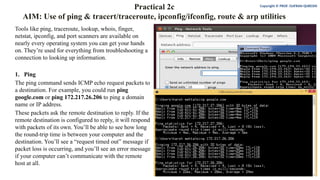
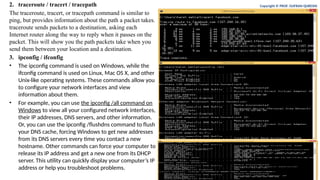
![4. route: This diagnostic command manipulates network
routing tables.
Syntax:
• route [-f] [command [destination] [MASK netmask]
[gateway] [METRIC metric]]
Parameters:
• -f – Clears the routing tables of all gateway entries. If this
parameter is used in conjunction with one of the commands,
the tables are cleared prior to running the command.
command – Specifies one of four commands below:
• print: Prints a route.
• add: Adds a route.
• delete: Deletes a route.
• change: Modifies an existing route.
destination – Specifies the host to send command.
MASK – Specifies, if present, that the next parameter be
interpreted as the netmask parameter.
netmask – Specifies, if present, the subnet mask value to be
associated with this route entry. If not present, this parameter
defaults to 255.255.255.255.
gateway – Specifies the gateway.
METRIC – Specifies the route metric (cost) for the destination.
Copyright © PROF. GUFRAN QURESHI](https://image.slidesharecdn.com/newcnpractical02-250809185256-8ac5414a/85/New-Computer-Network-Practical-02-SYBSCit-pptx-8-320.jpg)
![5. arp: This diagnostic command displays and modifies the IP-to-
Ethernet or Token Ring physical address translation tables used by
the Address Resolution Protocol (ARP).
Syntax:
• arp -a [inet_addr] [-N [if_addr]] arp -dinet_addr [if_addr]
• arp -sinet_addrether_addr [if_addr]
Parameters:
• -a – Displays current ARP entries by querying TCP/IP. If inet_addr
is specified, only the IP and physical addresses for the specified host
are displayed.
• -d – Deletes the entry specified by inet_addr
• -s – Adds an entry in the ARP cache to associate the IP address
inet_addrwith the physical address ether_addr. The physical address
is given as 6 hexadecimal bytes separated by hyphens. The IP
address is specified using dotted decimal notation. The entry is
static. It will not be automatically removed from the cache after the
timeout expires and will not exist after a reboot of your computer.
• -N [if_addr] – Displays the ARP entries for the network interface
specified by if_addr. ether_addr Specifies a physical address.
if_addr Specifies, if present, the IP address of the interface whose
address translation table should be modified. If not present, the first
applicable interface will be used. inet_addr Specifies an IP address
in dotted decimal notation.
Copyright © PROF. GUFRAN QURESHI](https://image.slidesharecdn.com/newcnpractical02-250809185256-8ac5414a/85/New-Computer-Network-Practical-02-SYBSCit-pptx-9-320.jpg)


