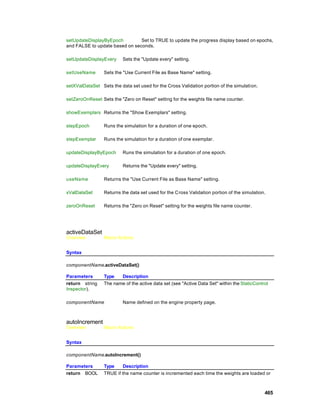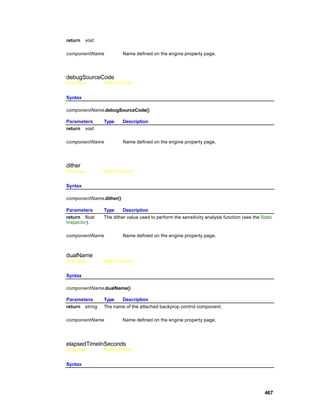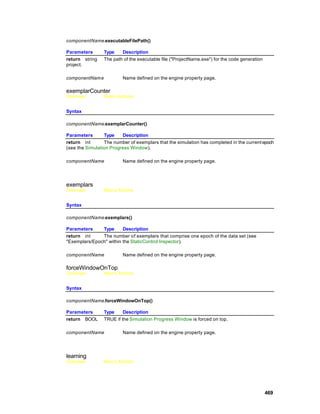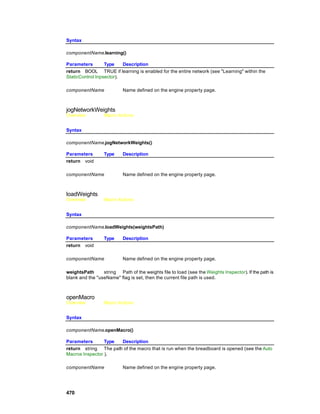
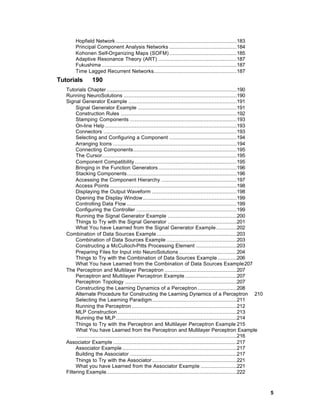

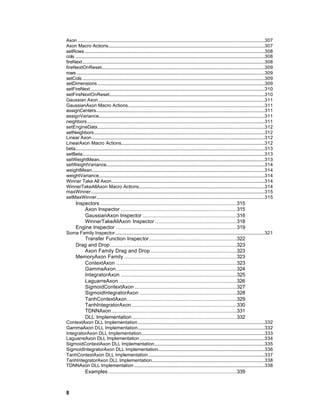
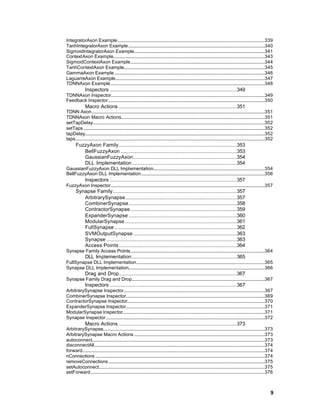
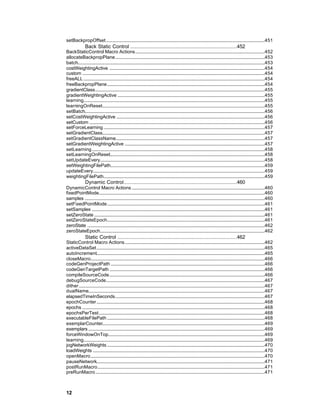
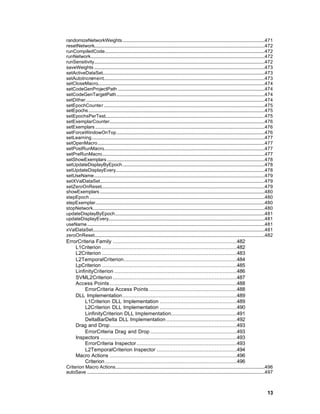
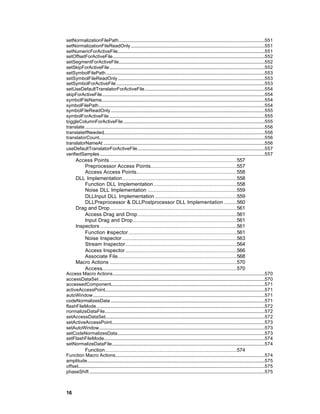
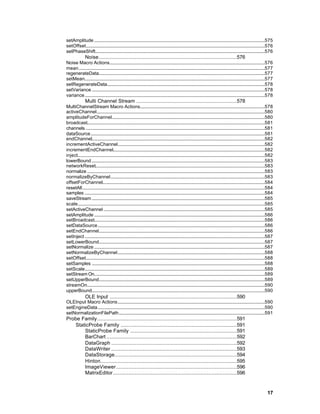
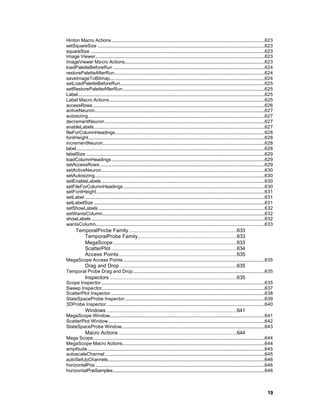
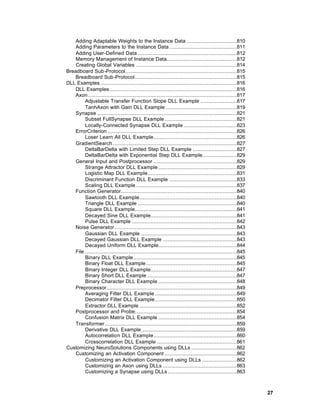
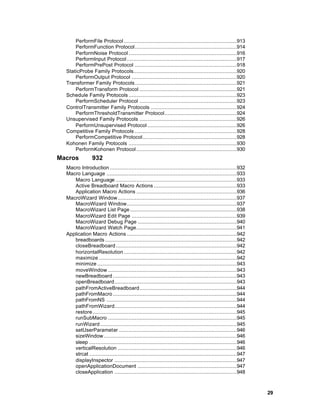
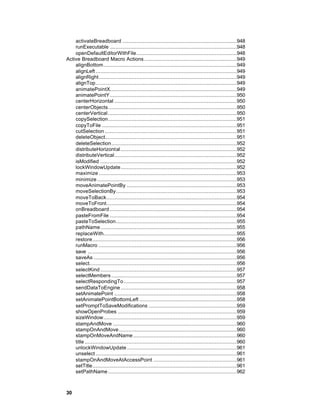


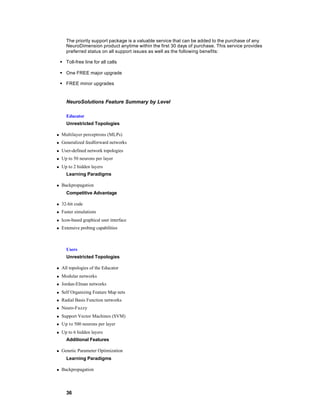




Table of Contents
Preface               32
   About On-line Help ................................................................................. 32
   Acknowledgments .................................................................................. 32
Product Information                                                                                                                33
   Contacting NeuroDimension.................................................................... 33
   NeuroSolutions Technical Support ........................................................... 34
   NeuroDimension Products and Services .................................................. 35
   Level Restrictions ................................................................................... 39
   Evaluation Mode..................................................................................... 40
   NeuroSolutions Pricing ........................................................................... 40
   NeuroSolutions University Site License Pricing ......................................... 41
   Ordering Information ............................................................................... 41
Getting Started                                                                                                                    42
   System Requirements............................................................................. 42
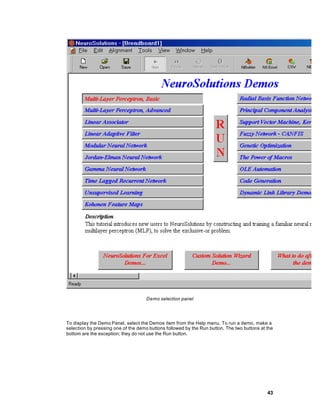
   Running the Demos ................................................................................ 42
   What to do after Running the Demos ....................................................... 45
   Frequently Asked Questions (FAQ) ......................................................... 45
   Terms to Know....................................................................................... 50
       Main Window ................................................................................... 50
       Inspector.......................................................................................... 51
       Breadboards .................................................................................... 52
       Neural Components.......................................................................... 53
       Toolbars and Palettes ....................................................................... 53
       Selection and Stamping Modes ......................................................... 54
       Temporary License........................................................................... 54
   Menus & Toolbars .................................................................................. 55
       File Menu & Toolbar Commands ....................................................... 55
       Edit Menu & Toolbar Commands ....................................................... 56
       Alignment Menu & Toolbar Commands .............................................. 57
       Windows Menu & Toolbar Commands .............................................. 58
       Component Menu ............................................................................. 59
       Tools ............................................................................................... 59
            Tools Menu Commands .............................................................. 59
            Control Menu & Toolbar Commands ............................................ 61
            Macro Menu & Toolbar Commands ............................................. 62
            Customize Toolbars Page ........................................................... 63
   Component Palettes......................................................................................................................................63
   Command Toolbars .......................................................................................................................................64
          Customize Buttons Page............................................................. 65
      View ................................................................................................ 66
          View Menu ................................................................................. 66
          Macro Bars ................................................................................ 66
          Status Bar.................................................................................. 68
      Help................................................................................................. 69
          Help Menu & Toolbar Commands ................................................ 69
          Activate Software Panel .............................................................. 70
   User Options .......................................................................................... 71
      Options Window ............................................................................... 71
      Options Workspace Page.................................................................. 72


                                                                                                                                                           1
Options Save Page........................................................................... 73
  Examples ............................................................................................... 74
     Example 1 - Toolbar Manipulation...................................................... 74
     Example 2 - Component Manipulation................................................ 74
     Example 3 - Inspecting a Component's Parameters ............................ 75
Simulations                                                                                              76
  Simulations ............................................................................................ 76
  Introduction to Neural Network Simulations .............................................. 77
       What Are Artificial Neural Networks ................................................... 77
       A Prototype Problem......................................................................... 78
  Ingredients of a Simulation ...................................................................... 79
       Formulation of the problem................................................................ 79
       Data Collection and Coding ............................................................... 79
       Getting Data into the Network ............................................................ 80
       Cross Validation ............................................................................... 81
       Network Topology ............................................................................ 82
       Network Training .............................................................................. 84
       Probing ............................................................................................ 86
       Running the Simulation ..................................................................... 86
Concepts         86
  Concepts ............................................................................................... 86
  NeuroSolutions Structure ........................................................................ 87
     NeuroSolutions Structure .................................................................. 87
     Palettes ........................................................................................... 87
     Breadboard...................................................................................... 88
  NeuroSolutions Graphical User Interface (GUI) ........................................ 89
     NeuroSolutions Graphical User Interface (GUI) .................................. 89
     Logic of the Interface........................................................................ 89
     Components .................................................................................... 90
     The Inspector................................................................................... 90
     Single-Click vs. Double-Click............................................................. 91
     File Open Dialog Box ........................................................................ 92
     Save As Dialog Box .......................................................................... 92
     Toolbars and Palettes ....................................................................... 92
     Title Bar........................................................................................... 93
     Scroll Bars ....................................................................................... 93
     Network Construction ....................................................................... 94
          Network Construction ................................................................. 94
          Stamping ................................................................................... 94
          Manipulating Components........................................................... 94
          Replacing Axons and Synapses .................................................. 95
          Connectors ................................................................................ 95
          Cabling ...................................................................................... 96
          Stacking..................................................................................... 97
     Network Access ............................................................................... 97
          Network Access ......................................................................... 97
          Probes ....................................................................................... 98
          Data Input/Output ....................................................................... 99
          Transmitters and Receivers ........................................................100
     Network Simulation..........................................................................100
          Network Simulation....................................................................100
     Application Window Commands .......................................................100


  2
Size command (System menu)                                                                           100

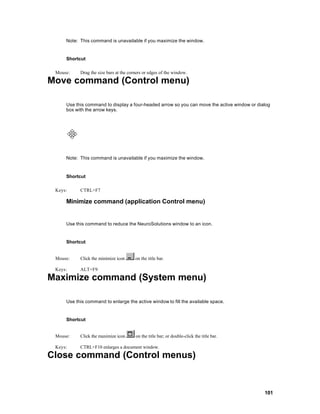
Move command (Control menu)                                                                          101
             Minimize command (application Control menu)............................101
Maximize command (System menu)                                                                       101

Close command (Control menus)                                                                        101

Restore command (Control menu)                                                                       102
Switch to command (application Control menu)                                                         102
  Generating Source Code .......................................................................103
      Generating Source Code .................................................................103
  Customized Components .......................................................................103
      Customized Components .................................................................103
  Testing the Network ...............................................................................104
      The TestingWizard ..........................................................................104
      Freezing the Network Weights..........................................................104
      Cross Validation ..............................................................................104
      Production Data Set.........................................................................105
      Sensitivity Analysis..........................................................................105
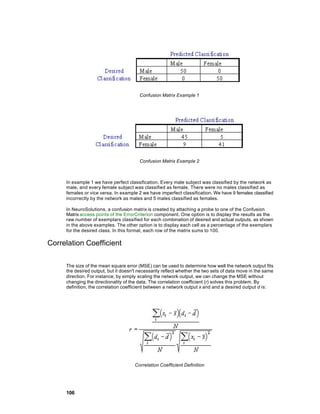
      Confusion Matrix .............................................................................105
      Correlation Coefficient .....................................................................106
      ROC Matrix .....................................................................................107
      Performance Measures ....................................................................108
  Practical Simulation Issues.....................................................................109
      Practical Simulation Issues...............................................................109
      Associating a File Extension with an Editor........................................110
      Data Preparation .............................................................................110
      Normalization File............................................................................111
      Forms of Backpropagation ...............................................................112
      Probing ...........................................................................................113
      Saving and Fixing Network Weights..................................................113
      Weights File ....................................................................................113
      Saving Network Data .......................................................................118
      Stop Criteria ....................................................................................118
      Constructing Learning Dynamics ......................................................118
      Simulating Recurrent Networks ........................................................119
      Component Naming Conventions .....................................................119
      Coordinating Unsupervised and Supervised Learning ........................121
  Organization of NeuroSolutions ..............................................................121
      Organization of NeuroSolutions ........................................................121
      Activation Family .............................................................................122
      Activation Family .............................................................................122
          Axon Family ..............................................................................124
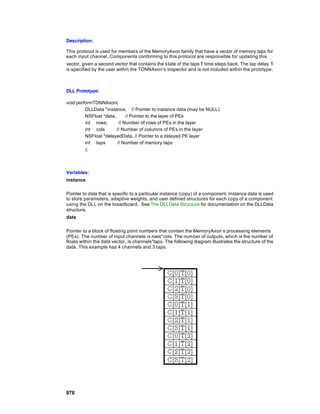
          MemoryAxon Family ..................................................................125
          FuzzyAxon Family .....................................................................127
      ErrorCriteria Family .........................................................................128
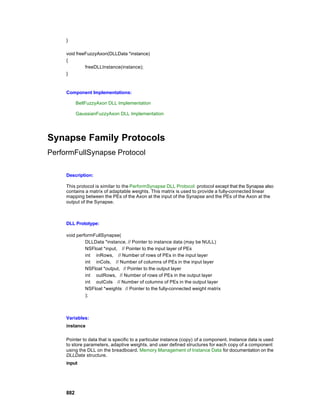
          Synapse Family.........................................................................130
      Backprop Family..............................................................................131
      Backprop Family..............................................................................131
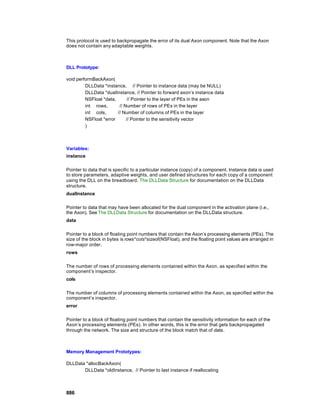
          BackAxon Family.......................................................................132
          BackMemoryAxon Family...........................................................134
          BackSynapse Family .................................................................136


                                                                                                               3
GradientSearch Family ....................................................................137
            GradientSearch Family ..............................................................137
        Controls Family ...............................................................................139
            Controls Family .........................................................................139
            ActivationControl Family ............................................................140
            BackpropControl Family.............................................................142
        Unsupervised Family .......................................................................143
            Unsupervised Family .................................................................143
            Hebbian Family .........................................................................144
            Competitive Family ....................................................................145
            Kohonen Family ........................................................................146
        Probe Family...................................................................................147
            Probe Family.............................................................................147
        Input Family ....................................................................................148
        Input Family ....................................................................................148
        Transmitter Family...........................................................................149
        Transmitter Family...........................................................................149
        Schedule Family..............................................................................150
        Schedule Family..............................................................................150
Introduction to Neural Computation                                                                    151
   Introduction to NeuroComputation ..........................................................151
   Introduction to Neural Computation.........................................................152
        Introduction to NeuroComputation ....................................................152
        History of Neural Networks...............................................................152
        What are Artificial Neural Networks...................................................153
        Neural Network Solutions .................................................................154
   Neural Network Analysis ........................................................................155
        Neural Network Analysis ..................................................................155
        Neural Network Taxonomies ............................................................157
        Learning Paradigms.........................................................................159
             Learning Paradigms...................................................................159
             Cost Function ............................................................................160
             Gradient Descent ......................................................................161
        Constraining the Learning Dynamics.................................................166
             Constraining the Learning Dynamics...........................................166
   Practical Issues of Learning ...................................................................168
        Practical Issues of Learning .............................................................168
        Training Set ....................................................................................168
        Network Size...................................................................................169
        Learning Parameters .......................................................................169
        Stop Criteria ....................................................................................170
   Unsupervised Learning ..........................................................................171
        Unsupervised learning .....................................................................171
   Support Vector Machines .......................................................................174
        Support Vector Machines .................................................................174
   Dynamic Networks.................................................................................176
        Dynamic Networks...........................................................................176
   Famous Neural Topologies ....................................................................177
        Famous Neural Topologies ..............................................................177
        Perceptron ......................................................................................177
        Multilayer Perceptron .......................................................................178
        Madaline .........................................................................................180
        Radial Basis Function Networks .......................................................180
        Associative Memories ......................................................................181
        Jordan/Elman Networks ...................................................................182


   4
Hopfield Network .............................................................................183
        Principal Component Analysis Networks ...........................................184
        Kohonen Self-Organizing Maps (SOFM) ...........................................185
        Adaptive Resonance Theory (ART) ..................................................187
        Fukushima ......................................................................................187
        Time Lagged Recurrent Networks.....................................................187
Tutorials        190
   Tutorials Chapter ...................................................................................190
   Running NeuroSolutions ........................................................................190
   Signal Generator Example .....................................................................191
        Signal Generator Example ...............................................................191
        Construction Rules ..........................................................................192
        Stamping Components ....................................................................193
        On-line Help ....................................................................................193
        Connectors .....................................................................................193
        Selecting and Configuring a Component ...........................................194
        Arranging Icons ...............................................................................194
        Connecting Components..................................................................195
        The Cursor......................................................................................195
        Component Compatibility .................................................................195
        Bringing in the Function Generators ..................................................196
        Stacking Components......................................................................196
        Accessing the Component Hierarchy ................................................197
        Access Points .................................................................................198
        Displaying the Output Waveform ......................................................198
        Opening the Display Window............................................................199
        Controlling Data Flow ......................................................................199
        Configuring the Controller ................................................................199
        Running the Signal Generator Example ............................................200
        Things to Try with the Signal Generator ............................................201
        What You have Learned from the Signal Generator Example .............202
   Combination of Data Sources Example ...................................................203
        Combination of Data Sources Example .............................................203
        Constructing a McCulloch-Pitts Processing Element ..........................203
        Preparing Files for Input into NeuroSolutions .....................................204
        Things to Try with the Combination of Data Sources Example ............206
        What You have Learned from the Combination of Data Sources Example207
   The Perceptron and Multilayer Perceptron ..............................................207
        Perceptron and Multilayer Perceptron Example .................................207
        Perceptron Topology .......................................................................207
        Constructing the Learning Dynamics of a Perceptron .........................208
        Alternate Procedure for Constructing the Learning Dynamics of a Perceptron 210
        Selecting the Learning Paradigm......................................................211
        Running the Perceptron ...................................................................212
        MLP Construction ............................................................................213
        Running the MLP .............................................................................214
        Things to Try with the Perceptron and Multilayer Perceptron Example 215
        What You have Learned from the Perceptron and Multilayer Perceptron Example
        ......................................................................................................216
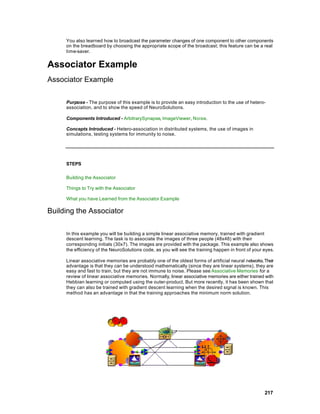
   Associator Example ...............................................................................217
        Associator Example .........................................................................217
        Building the Associator ....................................................................217
        Things to Try with the Associator ......................................................221
        What you have Learned from the Associator Example .......................221
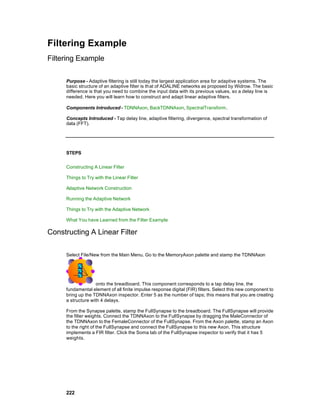
   Filtering Example...................................................................................222


                                                                                                                    5
Filtering Example.............................................................................222
    Constructing A Linear Filter..............................................................222
    Things to Try with the Linear Filter....................................................224
    Adaptive Network Construction.........................................................225
    Running the Adaptive Network .........................................................225
    Things to Try with the Adaptive Network ...........................................226
    What You have Learned from the Filter Example ...............................229
Recurrent Neural Network Example ........................................................229
    Recurrent Neural Network Example ..................................................229
    Creating the Recurrent Topology ......................................................229
    Fixed Point Learning ........................................................................231
    Running the Recurrent Network ........................................................232
    Things to Try with the Recurrent Network ..........................................234
    What You have Learned from the Recurrent Network Example...........237
Frequency Doubler Example ..................................................................237
    Frequency Doubler Example ............................................................237
    Creating the Frequency Doubler Network ..........................................237
    Configuration of the Trajectory..........................................................239
    Running the Frequency Doubler Network ..........................................239
    Using the Gamma Model to Double the Frequency ............................240
    Visualizing the State Space..............................................................242
    Things to Try with the Frequency Doubler Network ............................244
    What You have Learned from the Frequency Doubler Example ..........246
Unsupervised Learning Example ............................................................247
    Unsupervised Learning Example ......................................................247
    Introduction to Unsupervised Learning ..............................................247
    Noise Reduction with Oja's or Sanger's Learning ...............................248
    Things to Try with the Unsupervised Network ....................................249
    What You have Learned from the Unsupervised Learning Example ....251
Principle Component Analysis Example ..................................................251
    Principal Component Analysis Example ............................................251
    Introduction to Principal Component Analysis....................................251
    Running the PCA Network ...............................................................251
    Things to Try with the PCA Network..................................................253
    What You have Learned from the Principal Component Analysis Example                                 253
Competitive Learning Example...............................................................253
    Competitive Learning Example.........................................................253
    Introduction to Competitive Learning .................................................253
    Constructing the Competitive Network ..............................................254
    Things to Try with the Competitive Network .......................................256
    What You have Learned from the Competitive Learning Example.......258
Kohonen Self Organizing Feature Map (SOFM) Example .........................259
    Kohonen Self Organizing Feature Map (SOFM) Example ...................259
    Introduction to SOFM Example .........................................................259
    SOFM Network Construction ............................................................259
    Running the SOFM Network .............................................................260
    Things to Try with the SOFM Network ...............................................261
    What you have Learned from the Kohonen SOFM Example ...............261
Character Recognition Example .............................................................261
    Character Recognition Example .......................................................261
    Introduction to Character Recognition Example .................................262
    Constructing the Counterpropagation Network...................................262
    Running the Counterpropagation Network .........................................263
    Things to Try with the Counterpropagation Network ...........................264
    What You have Learned from the Character Recognition Example .....265
Pattern Recognition Example .................................................................265


6
Pattern Recognition Example ...........................................................265
     Introduction to Pattern Recognition Example .....................................266
     Constructing the Pattern Recognition Network ...................................266
     Running the Pattern Recognition Network .........................................268
     What you have Learned from the Pattern Recognition Example..........269
  Time Series Prediction Example.............................................................269
     Time Series Prediction Example.......................................................269
     Introduction to Time Series Prediction Example .................................269
     Constructing the TLRN Network .......................................................270
     Running the TLRN Network ..............................................................271
     What You have Learned from the Time Series Prediction Example .....271
Neural Network Components                                                                                                         271
  Components .........................................................................................271
  Engine Family .......................................................................................272
  Activation Family ...................................................................................272
      Axon Family ....................................................................................272
           Axon.........................................................................................272
           BiasAxon ..................................................................................273
           CombinerAxon ..........................................................................274
           GaussianAxon...........................................................................275
           LinearAxon................................................................................276
           LinearSigmoidAxon ...................................................................277
           LinearTanhAxon........................................................................278
           NormalizedAxon........................................................................279
           NormalizedSigmoidAxon ............................................................280
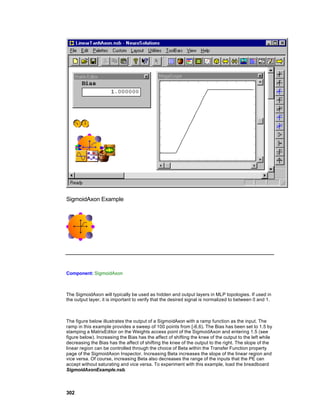
           SigmoidAxon.............................................................................281
           SoftMaxAxon.............................................................................282
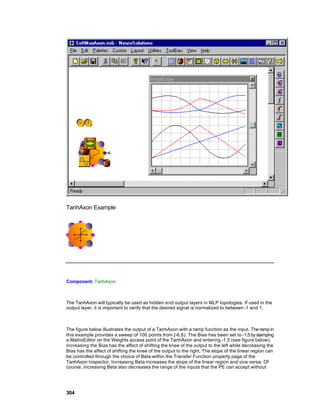
           TanhAxon .................................................................................283
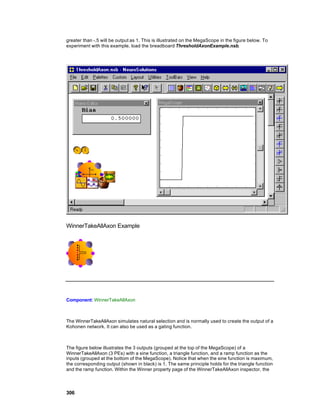
           ThresholdAxon..........................................................................284
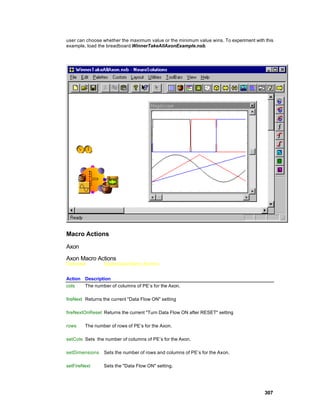
           WinnerTakeAllAxon ...................................................................285
           Access Points ...........................................................................286
  Axon Family Access Points........................................................................................................................286
                DLL Implementation...................................................................287
  Axon DLL Implementation..........................................................................................................................287
  BiasAxon DLL Implementation...................................................................................................................288
  GaussianAxon DLL Implementation.........................................................................................................288
  LinearAxon DLL Implementation...............................................................................................................289
  LinearSigmoidAxon DLL Implementation.................................................................................................290
  LinearTanhAxon DLL Implementation......................................................................................................291
  SigmoidAxon DLL Implementation............................................................................................................292
  SoftMaxAxon DLL Implementation............................................................................................................292
  TanhAxon DLL Implementation.................................................................................................................293
  ThresholdAxon DLL Implementation........................................................................................................294
  WinnerTakeAllAxon DLL Implementation ................................................................................................295
                Examples ..................................................................................296
  Axon Example...............................................................................................................................................296
  BiasAxon Example.......................................................................................................................................297
  GaussianAxon Example..............................................................................................................................298
  LinearAxon Example...................................................................................................................................299
  LinearSigmoidAxon Example.....................................................................................................................300
  LinearTanhAxon Example..........................................................................................................................301
  SigmoidAxon Example................................................................................................................................302
  SoftMaxAxon Example................................................................................................................................303
  TanhAxon Example.....................................................................................................................................304
  ThresholdAxon Example.............................................................................................................................305
  WinnerTakeAllAxon Example.....................................................................................................................306
                Macro Actions ...........................................................................307


                                                                                                                                                              7
Axon ...............................................................................................................................................................307
Axon Macro Actions.....................................................................................................................................307
setRows .........................................................................................................................................................308
cols .................................................................................................................................................................308
fireNext...........................................................................................................................................................308
fireNextOnReset...........................................................................................................................................309
rows ................................................................................................................................................................309
setCols ...........................................................................................................................................................309
setDimensions ..............................................................................................................................................309
setFireNext ....................................................................................................................................................310
setFireNextOnReset....................................................................................................................................310
Gaussian Axon .............................................................................................................................................311
GaussianAxon Macro Actions....................................................................................................................311
assignCenters...............................................................................................................................................311
assignVariance.............................................................................................................................................311
neighbors.......................................................................................................................................................311
setEngineData..............................................................................................................................................312
setNeighbors.................................................................................................................................................312
Linear Axon...................................................................................................................................................312
LinearAxon Macro Actions..........................................................................................................................312
beta.................................................................................................................................................................313
setBeta...........................................................................................................................................................313
setWeightMean.............................................................................................................................................313
setWeightVariance.......................................................................................................................................314
weightMean...................................................................................................................................................314
weightVariance.............................................................................................................................................314
Winner Take All Axon..................................................................................................................................314
WinnerTakeAllAxon Macro Actions...........................................................................................................314
maxWinner....................................................................................................................................................315
setMaxWinner...............................................................................................................................................315
       Inspectors .......................................................................................315
           Axon Inspector ..........................................................................315
           GaussianAxon Inspector ............................................................316
           WinnerTakeAllAxon Inspector ....................................................318
       Engine Inspector .............................................................................319
Soma Family Inspector...............................................................................................................................321
          Transfer Function Inspector........................................................322
       Drag and Drop.................................................................................323
          Axon Family Drag and Drop .......................................................323
       MemoryAxon Family ........................................................................323
          ContextAxon .............................................................................323
          GammaAxon.............................................................................324
          IntegratorAxon ..........................................................................325
          LaguarreAxon ...........................................................................326
          SigmoidContextAxon .................................................................327
          SigmoidIntegratorAxon ..............................................................328
          TanhContextAxon......................................................................329
          TanhIntegratorAxon ...................................................................330
          TDNNAxon................................................................................331
          DLL Implementation...................................................................332
ContextAxon DLL Implementation............................................................................................................332
GammaAxon DLL Implementation............................................................................................................332
IntegratorAxon DLL Implementation.........................................................................................................333
LaguarreAxon DLL Implementation ..........................................................................................................334
SigmoidContextAxon DLL Implementation..............................................................................................335
SigmoidIntegratorAxon DLL Implementation...........................................................................................336
TanhContextAxon DLL Implementation...................................................................................................337
TanhIntegratorAxon DLL Implementation................................................................................................338
TDNNAxon DLL Implementation ...............................................................................................................338
               Examples ..................................................................................339


8
IntegratorAxon Example.............................................................................................................................339
TanhIntegratorAxon Example....................................................................................................................340
SigmoidIntegratorAxon Example...............................................................................................................341
ContextAxon Example.................................................................................................................................343
SigmoidContextAxon Example..................................................................................................................344
TanhContextAxon Example........................................................................................................................345
GammaAxon Example................................................................................................................................346
LaguarreAxon Example...............................................................................................................................347
TDNNAxon Example...................................................................................................................................348
               Inspectors .................................................................................349
TDNNAxon Inspector...................................................................................................................................349
Feedback Inspector.....................................................................................................................................350
               Macro Actions ...........................................................................351
TDNN Axon...................................................................................................................................................351
TDNNAxon Macro Actions..........................................................................................................................351
setTapDelay..................................................................................................................................................352
setTaps ..........................................................................................................................................................352
tapDelay.........................................................................................................................................................352
taps.................................................................................................................................................................352
       FuzzyAxon Family ...........................................................................353
          BellFuzzyAxon ..........................................................................353
          GaussianFuzzyAxon..................................................................354
          DLL Implementation...................................................................354
GaussianFuzzyAxon DLL Implementation...............................................................................................354
BellFuzzyAxon DLL Implementation.........................................................................................................356
               Inspectors .................................................................................357
FuzzyAxon Inspector...................................................................................................................................357
       Synapse Family...............................................................................357
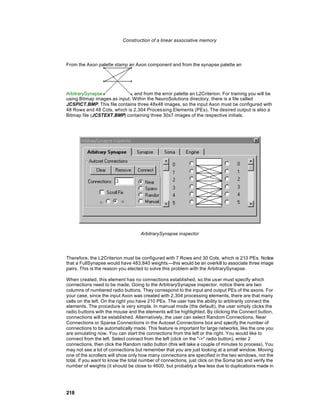
          ArbitrarySynapse.......................................................................357
          CombinerSynapse.....................................................................358
          ContractorSynapse....................................................................359
          ExpanderSynapse .....................................................................360
          ModularSynapse .......................................................................361
          FullSynapse ..............................................................................362
          SVMOutputSynapse ..................................................................363
          Synapse ...................................................................................363
          Access Points ...........................................................................364
Synapse Family Access Points..................................................................................................................364
               DLL Implementation...................................................................365
FullSynapse DLL Implementation.............................................................................................................365
Synapse DLL Implementation....................................................................................................................366
               Drag and Drop...........................................................................367
Synapse Family Drag and Drop.................................................................................................................367
               Inspectors .................................................................................367
ArbitrarySynapse Inspector........................................................................................................................367
CombinerSynapse Inspector......................................................................................................................369
ContractorSynapse Inspector.....................................................................................................................370
ExpanderSynapse Inspector......................................................................................................................371
ModularSynapse Inspector.........................................................................................................................371
Synapse Inspector.......................................................................................................................................372
               Macro Actions ...........................................................................373
ArbitrarySynapse..........................................................................................................................................373
ArbitrarySynapse Macro Actions ...............................................................................................................373
autoconnect...................................................................................................................................................373
disconnectAll.................................................................................................................................................374
forward...........................................................................................................................................................374
nConnections ................................................................................................................................................374
removeConnections.....................................................................................................................................375
setAutoconnect.............................................................................................................................................375
setForward....................................................................................................................................................376


                                                                                                                                                                      9
setNConnections ..........................................................................................................................................376
toggleInputNeuron.......................................................................................................................................376
toggleOutputNeuron....................................................................................................................................376
FullSynapse..................................................................................................................................................377
Synapse.........................................................................................................................................................377
Synapse Macro Actions ..............................................................................................................................377
delay...............................................................................................................................................................377
inputConnector.............................................................................................................................................377
outputConnector...........................................................................................................................................378
setDelay.........................................................................................................................................................378
       Macro Actions .................................................................................378
          Soma........................................................................................378
Soma Macro Actions ...................................................................................................................................378
networkJog....................................................................................................................................................379
networkRandomize ......................................................................................................................................379
setEngineData..............................................................................................................................................379
setWeightsFixed...........................................................................................................................................380
setWeightMean.............................................................................................................................................380
setWeightsSave ...........................................................................................................................................380
setWeightVariance.......................................................................................................................................381
weightsFixed.................................................................................................................................................381
weightMean...................................................................................................................................................381
weightsSave..................................................................................................................................................381
weightVariance.............................................................................................................................................382
Backprop Family....................................................................................382
   BackAxon Family.............................................................................382
       BackAxon .................................................................................382
       BackBiasAxon...........................................................................383
       BackCombinerAxon...................................................................384
       BackLinearAxon ........................................................................385
       BackNormalizedAxon ................................................................386
       BackNormalizedSigmoidAxon ....................................................386
       BackSigmoidAxon .....................................................................387
       BackTanhAxon ..........................................................................388
       BackCriteriaControl ...................................................................389
       BackBellFuzzyAxon...................................................................390
       BackGaussianFuzzyAxon ..........................................................391
       Access Points ...........................................................................392
BackAxon Family Access Points ...............................................................................................................392
               DLL Implementation...................................................................393
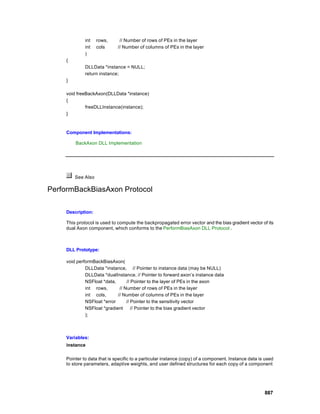
BackAxon DLL Implementation.................................................................................................................393
BackBiasAxon DLL Implementation..........................................................................................................394
BackLinearAxon DLL Implementation ......................................................................................................394
BackSigmoidAxon DLL Implementation...................................................................................................395
BackTanhAxon DLL Implementation ........................................................................................................396
BackBellFuzzyAxon DLL Implementation................................................................................................397
BackGaussianFuzzyAxon DLL Implementation......................................................................................398
               Inspectors .................................................................................400
BackLinearAxon Inspector..........................................................................................................................400
               Macro Actions ...........................................................................400
Back Linear Axon.........................................................................................................................................400
BackLinearAxon Macro Actions.................................................................................................................400
offset...............................................................................................................................................................401
setOffset........................................................................................................................................................401
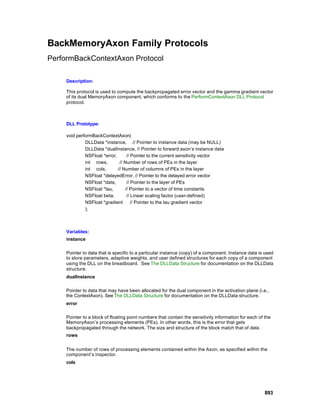
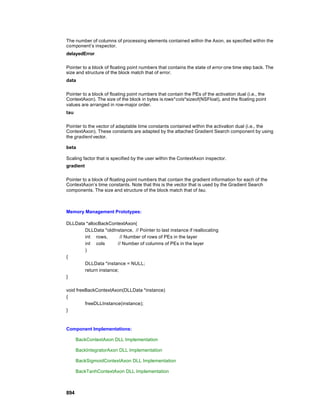
       BackMemoryAxon Family.................................................................401
          BackContextAxon ......................................................................401
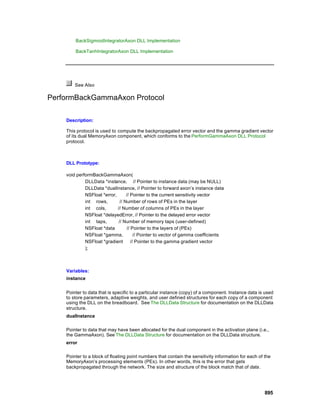
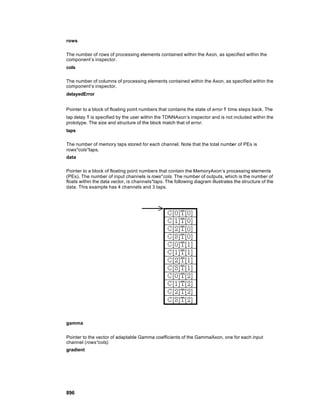
          BackGammaAxon .....................................................................402
          BackLaguarreAxon ....................................................................403
          BackIntegratorAxon ...................................................................404


10
BackSigmoidContextAxon ..........................................................405
              BackSigmoidIntegratorAxon .......................................................406
              BackTanhContextAxon ..............................................................406
              BackTanhIntegratorAxon ...........................................................407
              BackTDNNAxon ........................................................................408
              DLL Implementation...................................................................409
BackContextAxon DLL Implementation....................................................................................................409
BackGammaAxon DLL Implementation...................................................................................................409
BackIntegratorAxon DLL Implementation ................................................................................................410
BackLaguarreAxon DLL Implementation.................................................................................................411
BackSigmoidContextAxon DLL Implementation.....................................................................................413
BackSigmoidIntegratorAxon DLL Implementation..................................................................................413
BackTanhContextAxon DLL Implementation..........................................................................................414
BackTanhIntegratorAxon DLL Implementation.......................................................................................415
BackTDNNAxon DLL Implementation ......................................................................................................416
       BackSynapse Family .......................................................................417
          BackArbitrarySynapse ...............................................................417
          BackFullSynapse.......................................................................418
          BackSynapse............................................................................418
          DLL Implementation...................................................................419
BackFullSynapse DLL Implementation....................................................................................................419
BackSynapse DLL Implementation...........................................................................................................420
   Drag and Drop.................................................................................421
        Backprop Family Drag and Drop.................................................421
Controls Family .....................................................................................422
   StaticControl ...................................................................................422
   BackStaticControl ............................................................................423
   DynamicControl...............................................................................423
   BackDynamicControl .......................................................................425
   GeneticControl ................................................................................426
   Access Points .................................................................................427
        StaticControl Access Points .......................................................427
        GeneticControl Access Points ....................................................427
   Drag and Drop.................................................................................427
        Controls Drag and Drop .............................................................427
   Inspectors .......................................................................................428
        Exemplar Weighting Inspector ....................................................428
        Progress Display Inspector.........................................................429
        Weights Inspector......................................................................430
        StaticControl Inspector...............................................................432
        Termination Inspector ................................................................434
        DynamicControl Inspector ..........................................................435
        Iterative Prediction Inspector ......................................................436
        Backpropagation Inspector (Dynamic).........................................437
        Teacher Forcing Inspector .........................................................438
        BackStaticControl Inspector (Static)............................................439
        Code Generation Inspector ........................................................441
        Auto Macros Inspector ...............................................................443
        GeneticControl Inspector ...........................................................444
        Genetic Operators Inspector ......................................................446
        Genetic Termination Inspector....................................................449
   Windows .........................................................................................450
        Simulation Progress Window......................................................450
   Macro Actions .................................................................................451
        Back Dynamic Control ...............................................................451
BackDynamicControl Macro Actions.........................................................................................................451
backpropOffset.............................................................................................................................................451


                                                                                                                                                         11
setBackpropOffset.......................................................................................................................................451
               Back Static Control ....................................................................452
BackStaticControl Macro Actions..............................................................................................................452
allocateBackpropPlane...............................................................................................................................453
batch...............................................................................................................................................................453
costWeightingActive ....................................................................................................................................454
custom ...........................................................................................................................................................454
freeALL ..........................................................................................................................................................454
freeBackpropPlane......................................................................................................................................454
gradientClass................................................................................................................................................455
gradientWeightingActive .............................................................................................................................455
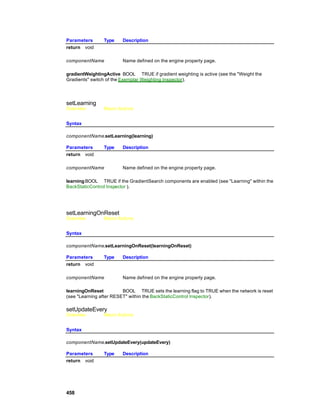
learning..........................................................................................................................................................455
learningOnReset..........................................................................................................................................455
setBatch.........................................................................................................................................................456
setCostWeightingActive ..............................................................................................................................456
setCustom .....................................................................................................................................................456
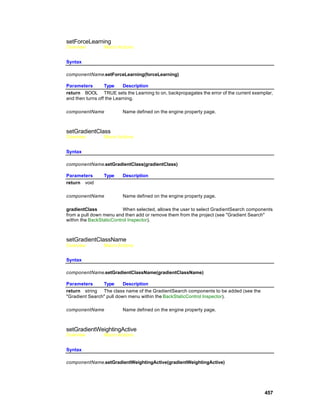
setForceLearning .........................................................................................................................................457
setGradientClass..........................................................................................................................................457
setGradientClassName...............................................................................................................................457
setGradientWeightingActive .......................................................................................................................457
setLearning...................................................................................................................................................458
setLearningOnReset....................................................................................................................................458
setUpdateEvery............................................................................................................................................458
setWeightingFilePath...................................................................................................................................459
updateEvery..................................................................................................................................................459
weightingFilePath.........................................................................................................................................459
               Dynamic Control........................................................................460
DynamicControl Macro Actions .................................................................................................................460
fixedPointMode.............................................................................................................................................460
samples .........................................................................................................................................................460
setFixedPointMode......................................................................................................................................461
setSamples ...................................................................................................................................................461
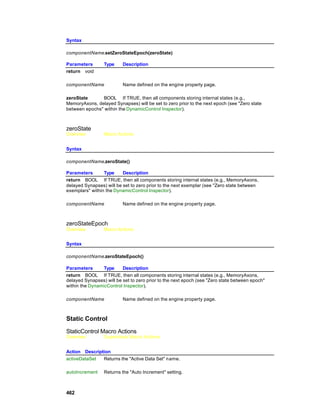
setZeroState .................................................................................................................................................461
setZeroStateEpoch......................................................................................................................................461
zeroState .......................................................................................................................................................462
zeroStateEpoch............................................................................................................................................462
               Static Control ............................................................................462
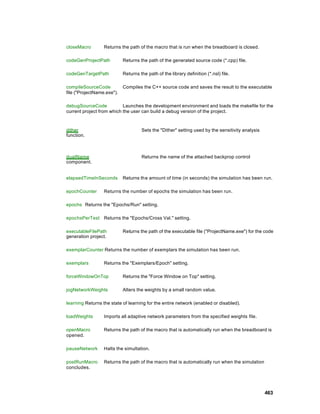
StaticControl Macro Actions.......................................................................................................................462
activeDataSet...............................................................................................................................................465
autoIncrement...............................................................................................................................................465
closeMacro....................................................................................................................................................466
codeGenProjectPath ...................................................................................................................................466
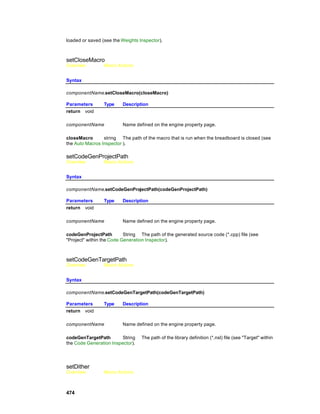
codeGenTargetPath ....................................................................................................................................466
compileSourceCode....................................................................................................................................466
debugSourceCode.......................................................................................................................................467
dither..............................................................................................................................................................467
dualName......................................................................................................................................................467
elapsedTimeInSeconds...............................................................................................................................467
epochCounter...............................................................................................................................................468
epochs ...........................................................................................................................................................468
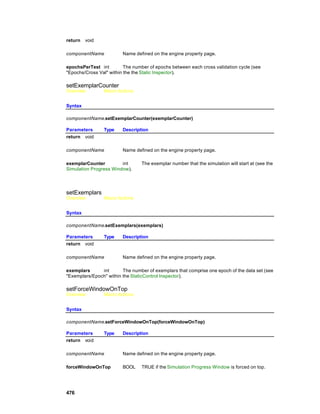
epochsPerTest.............................................................................................................................................468
executableFilePath ......................................................................................................................................468
exemplarCounter..........................................................................................................................................469
exemplars ......................................................................................................................................................469
forceWindowOnTop.....................................................................................................................................469
learning..........................................................................................................................................................469
jogNetworkWeights ......................................................................................................................................470
loadWeights ..................................................................................................................................................470
openMacro....................................................................................................................................................470
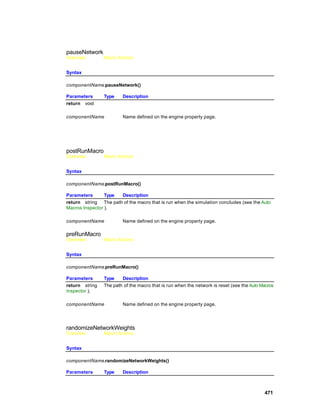
pauseNetwork...............................................................................................................................................471
postRunMacro..............................................................................................................................................471
preRunMacro................................................................................................................................................471


12
randomizeNetworkWeights.........................................................................................................................471
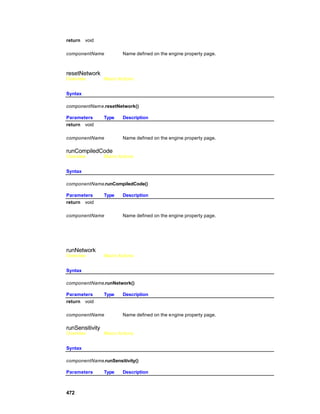
resetNetwork.................................................................................................................................................472
runCompiledCode........................................................................................................................................472
runNetwork....................................................................................................................................................472
runSensitivity.................................................................................................................................................472
saveWeights .................................................................................................................................................473
setActiveDataSet..........................................................................................................................................473
setAutoIncrement.........................................................................................................................................473
setCloseMacro..............................................................................................................................................474
setCodeGenProjectPath .............................................................................................................................474
setCodeGenTargetPath..............................................................................................................................474
setDither........................................................................................................................................................474
setEpochCounter.........................................................................................................................................475
setEpochs......................................................................................................................................................475
setEpochsPerTest........................................................................................................................................475
setExemplarCounter....................................................................................................................................476
setExemplars ................................................................................................................................................476
setForceWindowOnTop..............................................................................................................................476
setLearning...................................................................................................................................................477
setOpenMacro..............................................................................................................................................477
setPostRunMacro.........................................................................................................................................477
setPreRunMacro..........................................................................................................................................477
setShowExemplars ......................................................................................................................................478
setUpdateDisplayByEpoch.........................................................................................................................478
setUpdateDisplayEvery...............................................................................................................................478
setUseName.................................................................................................................................................479
setXValDataSet............................................................................................................................................479
setZeroOnReset...........................................................................................................................................479
showExemplars ............................................................................................................................................480
stepEpoch.....................................................................................................................................................480
stepExemplar................................................................................................................................................480
stopNetwork..................................................................................................................................................480
updateDisplayByEpoch...............................................................................................................................481
updateDisplayEvery.....................................................................................................................................481
useName.......................................................................................................................................................481
xValDataSet..................................................................................................................................................481
zeroOnReset.................................................................................................................................................482
ErrorCriteria Family ...............................................................................482
    L1Criterion ......................................................................................482
    L2Criterion ......................................................................................483
    L2TemporalCriterion........................................................................484
    LpCriterion ......................................................................................485
    LinfinityCriterion ..............................................................................486
    SVML2Criterion ...............................................................................487
    Access Points .................................................................................488
         ErrorCriteria Access Points ........................................................488
    DLL Implementation.........................................................................489
         L1Criterion DLL Implementation .................................................489
         L2Criterion DLL Implementation .................................................490
         LinfinityCriterion DLL Implementation..........................................491
         DeltaBarDelta DLL Implementation .............................................492
    Drag and Drop.................................................................................493
         ErrorCriteria Drag and Drop .......................................................493
    Inspectors .......................................................................................493
         ErrorCriteria Inspector................................................................493
         L2TemporalCriterion Inspector ...................................................494
    Macro Actions .................................................................................496
         Criterion ....................................................................................496
Criterion Macro Actions...............................................................................................................................496
autoSave .......................................................................................................................................................497


                                                                                                                                                               13
averageOverUpdates ..................................................................................................................................497
bestCost.........................................................................................................................................................497
checkCostEvery ...........................................................................................................................................498
onIncrease.....................................................................................................................................................498
reportEvery....................................................................................................................................................498
setAutoSave..................................................................................................................................................498
setAverageOverUpdates.............................................................................................................................499
setBestCost...................................................................................................................................................499
setCheckCostEvery .....................................................................................................................................499
setOnIncrease..............................................................................................................................................500
setReportEvery.............................................................................................................................................500
setTrainTest..................................................................................................................................................500
trainTest.........................................................................................................................................................501
GradientSearch Family ..........................................................................501
   ConjugateGradient ..........................................................................501
   DeltaBarDelta..................................................................................503
   Momentum......................................................................................504
   Quickprop .......................................................................................506
   Step................................................................................................506
   SVMStep ........................................................................................507
   Access Points .................................................................................508
       Momentum Access Points..........................................................508
       Quickprop Access Points ...........................................................508
       Step Access Points....................................................................508
   DLL Implementation.........................................................................509
       Momentum DLL Implementation.................................................509
       Quickprop DLL Implementation ..................................................510
       Step DLL Implementation...........................................................511
   Drag and Drop.................................................................................512
       GradientSearch Drag and Drop ..................................................512
   Inspectors .......................................................................................512
       DeltaBarDelta Inspector.............................................................512
       Momentum Inspector .................................................................513
       Step Inspector ...........................................................................514
   Macro Actions .................................................................................515
       Delta Bar Delta..........................................................................515
DeltaBarDelta Macro Actions.....................................................................................................................515
beta.................................................................................................................................................................516
kappa .............................................................................................................................................................516
setBeta...........................................................................................................................................................516
setKappa.......................................................................................................................................................517
setZeta...........................................................................................................................................................517
zeta .................................................................................................................................................................517
               Momentum................................................................................518
Momentum Macro Actions..........................................................................................................................518
momentumRate............................................................................................................................................518
setMomentumRate.......................................................................................................................................518
               Step..........................................................................................518
Step Macro Actions......................................................................................................................................518
broadcastBumpStep....................................................................................................................................519
bumpStep......................................................................................................................................................519
individualSteps .............................................................................................................................................519
normalized.....................................................................................................................................................520
setIndividualSteps ........................................................................................................................................520
setNormalized...............................................................................................................................................520
setStepSize ...................................................................................................................................................521
stepSize .........................................................................................................................................................521
Input Family ..........................................................................................521
    Access............................................................................................521


14
Function..........................................................................................522
       Noise..............................................................................................522
       DLLInput .........................................................................................524
       DLLPreprocessor ............................................................................524
       OLEInput ........................................................................................525
       File .................................................................................................525
            File ...........................................................................................525
            Translators ................................................................................527
ASCII Translator...........................................................................................................................................527
Binary Translator..........................................................................................................................................527
Bitmap Translator.........................................................................................................................................528
Column-Formatted ASCII Translator........................................................................................................528
DLL Translator..............................................................................................................................................530
Translator Customize ..................................................................................................................................530
Column Translator Customize ...................................................................................................................530
               DLL Implementation...................................................................533
File DLL Implementation.............................................................................................................................533
               Inspectors .................................................................................534
File Inspector................................................................................................................................................534
Data Sets Inspector.....................................................................................................................................535
               File Macro Actions .....................................................................536
File Macro Actions .......................................................................................................................................536
activeDataSet...............................................................................................................................................539
activeFileName.............................................................................................................................................540
activeFilePath ...............................................................................................................................................540
activeTranslatorName.................................................................................................................................540
addFile ...........................................................................................................................................................540
associateActiveFile......................................................................................................................................541
beginCustomizeOfActiveFile......................................................................................................................541
binaryEncodingForSymbols .......................................................................................................................541
columnCountForActiveFile .........................................................................................................................542
columnTagForActiveFile .............................................................................................................................542
customizeActiveFile.....................................................................................................................................542
dataSetCount................................................................................................................................................543
dataSetForActiveFile ...................................................................................................................................543
dataSetNameAt ............................................................................................................................................543
dataSetUsedForNormalization...................................................................................................................543
durationForActiveFile...................................................................................................................................544
endCustomizeOfActiveFile .........................................................................................................................544
expandedColumnCountForActiveFile.......................................................................................................544
fileCount.........................................................................................................................................................544
filePathAt .......................................................................................................................................................545
generateSymbolFile.....................................................................................................................................545
matchPEsWithColumns ..............................................................................................................................545
normalizationFileName...............................................................................................................................545
normalizationFilePath..................................................................................................................................546
normalizationFileReadOnly........................................................................................................................546
numericForActiveFile...................................................................................................................................546
offsetForActiveFile .......................................................................................................................................547
removeActiveFile..........................................................................................................................................547
removeAllFiles..............................................................................................................................................547
segmentForActiveFile..................................................................................................................................547
setActiveDataSet..........................................................................................................................................548
setActiveFileNameAndDataSet.................................................................................................................548
setActiveFilePath .........................................................................................................................................548
setActiveTranslatorName...........................................................................................................................549
setBinaryEncodingForSymbols..................................................................................................................549
setColumnTagForActiveFile.......................................................................................................................549
setDataSetForActiveFile .............................................................................................................................550
setDataSetUsedForNormalization.............................................................................................................550
setDurationForActiveFile.............................................................................................................................550


                                                                                                                                                                 15
setNormalizationFilePath............................................................................................................................551
setNormalizationFileReadOnly..................................................................................................................551
setNumericForActiveFile.............................................................................................................................551
setOffsetForActiveFile.................................................................................................................................552
setSegmentForActiveFile............................................................................................................................552
setSkipForActiveFile....................................................................................................................................552
setSymbolFilePath.......................................................................................................................................553
setSymbolFileReadOnly.............................................................................................................................553
setSymbolForActiveFile ..............................................................................................................................553
setUseDefaultTranslatorForActiveFile......................................................................................................554
skipForActiveFile..........................................................................................................................................554
symbolFileName...........................................................................................................................................554
symbolFilePath.............................................................................................................................................554
symbolFileReadOnly...................................................................................................................................555
symbolForActiveFile ....................................................................................................................................555
toggleColumnForActiveFile ........................................................................................................................555
translate.........................................................................................................................................................556
translateIfNeeded.........................................................................................................................................556
translatorCount.............................................................................................................................................556
translatorNameAt .........................................................................................................................................556
useDefaultTranslatorForActiveFile............................................................................................................557
verifiedSamples ............................................................................................................................................557
       Access Points .................................................................................557
           Preprocessor Access Points.......................................................557
           Access Access Points................................................................558
       DLL Implementation.........................................................................558
           Function DLL Implementation .....................................................558
           Noise DLL Implementation .........................................................559
           DLLInput DLL Implementation ....................................................559
           DLLPreprocessor & DLLPostprocessor DLL Implementation ........560
       Drag and Drop.................................................................................561
           Access Drag and Drop ...............................................................561
           Input Drag and Drop ..................................................................561
       Inspectors .......................................................................................561
           Function Inspector .....................................................................561
           Noise Inspector .........................................................................563
           Stream Inspector.......................................................................564
           Access Inspector .......................................................................566
           Associate File............................................................................568
       Macro Actions .................................................................................570
           Access......................................................................................570
Access Macro Actions.................................................................................................................................570
accessDataSet.............................................................................................................................................570
accessedComponent...................................................................................................................................571
activeAccessPoint........................................................................................................................................571
autoWindow..................................................................................................................................................571
codeNormalizesData ...................................................................................................................................571
flashFileMode...............................................................................................................................................572
normalizeDataFile........................................................................................................................................572
setAccessDataSet........................................................................................................................................572
setActiveAccessPoint..................................................................................................................................573
setAutoWindow.............................................................................................................................................573
setCodeNormalizesData.............................................................................................................................573
setFlashFileMode.........................................................................................................................................574
setNormalizeDataFile..................................................................................................................................574
               Function....................................................................................574
Function Macro Actions...............................................................................................................................574
amplitude.......................................................................................................................................................575
offset...............................................................................................................................................................575
phaseShift .....................................................................................................................................................575


16
setAmplitude .................................................................................................................................................575
setOffset........................................................................................................................................................576
setPhaseShift................................................................................................................................................576
               Noise........................................................................................576
Noise Macro Actions....................................................................................................................................576
mean ..............................................................................................................................................................577
regenerateData.............................................................................................................................................577
setMean.........................................................................................................................................................577
setRegenerateData......................................................................................................................................578
setVariance ...................................................................................................................................................578
variance.........................................................................................................................................................578
               Multi Channel Stream ................................................................578
MultiChannelStream Macro Actions..........................................................................................................578
activeChannel...............................................................................................................................................580
amplitudeForChannel..................................................................................................................................580
broadcast.......................................................................................................................................................581
channels ........................................................................................................................................................581
dataSource....................................................................................................................................................581
endChannel...................................................................................................................................................582
incrementActiveChannel.............................................................................................................................582
incrementEndChannel.................................................................................................................................582
inject...............................................................................................................................................................582
lowerBound ...................................................................................................................................................583
networkReset................................................................................................................................................583
normalize .......................................................................................................................................................583
normalizeByChannel...................................................................................................................................583
offsetForChannel..........................................................................................................................................584
resetAll...........................................................................................................................................................584
samples .........................................................................................................................................................584
saveStream ...................................................................................................................................................585
scale...............................................................................................................................................................585
setActiveChannel .........................................................................................................................................585
setAmplitude .................................................................................................................................................586
setBroadcast.................................................................................................................................................586
setDataSource..............................................................................................................................................586
setEndChannel.............................................................................................................................................586
setInject .........................................................................................................................................................587
setLowerBound.............................................................................................................................................587
setNormalize .................................................................................................................................................587
setNormalizeByChannel.............................................................................................................................588
setOffset........................................................................................................................................................588
setSamples ...................................................................................................................................................588
setScale.........................................................................................................................................................589
setStream On.................................................................................................................................................589
setUpperBound.............................................................................................................................................589
streamOn.......................................................................................................................................................590
upperBound...................................................................................................................................................590
               OLE Input .................................................................................590
OLEInput Macro Actions.............................................................................................................................590
setEngineData..............................................................................................................................................590
setNormalizationFilePath............................................................................................................................591
Probe Family.........................................................................................591
   StaticProbe Family ..........................................................................591
       StaticProbe Family ....................................................................591
       BarChart ...................................................................................592
       DataGraph ................................................................................592
       DataWriter ................................................................................593
       DataStorage..............................................................................594
       Hinton.......................................................................................595
       ImageViewer.............................................................................596
       MatrixEditor...............................................................................596


                                                                                                                                                                   17
MatrixViewer .............................................................................597
               DLLPostprocessor .....................................................................598
               Access Points ...........................................................................599
DataStorage Access Points........................................................................................................................599
Postprocessor Access Points.....................................................................................................................599
               DLL Implementation...................................................................599
Static Probe DLL Implementation..............................................................................................................599
               Drag and Drop...........................................................................600
Static Probe Family Drag and Drop..........................................................................................................600
               Inspectors .................................................................................600
BarChart Inspector.......................................................................................................................................600
DataGraph Inspector...................................................................................................................................601
DataWriter Inspector....................................................................................................................................603
DataStorage Inspector................................................................................................................................604
Hinton Inspector...........................................................................................................................................605
ImageViewer Inspector...............................................................................................................................606
Label Inspector.............................................................................................................................................607
               Windows ...................................................................................608
BarChart Window.........................................................................................................................................608
DataGraph Window.....................................................................................................................................609
DataWriter Window......................................................................................................................................610
Hinton Window.............................................................................................................................................610
ImageViewer Window..................................................................................................................................611
MatrixEditor Window....................................................................................................................................612
MatrixViewer Window..................................................................................................................................612
               Macro Actions ...........................................................................613
Bar Chart.......................................................................................................................................................613
BarChart Macro Actions..............................................................................................................................613
barSize...........................................................................................................................................................613
setBarSize .....................................................................................................................................................614
Data Writer....................................................................................................................................................614
DataWriter Macro Actions...........................................................................................................................614
bufferSize ......................................................................................................................................................615
clear................................................................................................................................................................615
clearBeforeRun.............................................................................................................................................615
dumpFile........................................................................................................................................................616
filePath...........................................................................................................................................................616
fileType ..........................................................................................................................................................616
fontSize ..........................................................................................................................................................616
inputEnabled.................................................................................................................................................617
mergeProbeName........................................................................................................................................617
saveText ........................................................................................................................................................617
scientificNotation..........................................................................................................................................618
setBufferSize.................................................................................................................................................618
setClearBeforeRun......................................................................................................................................618
setDumpFile..................................................................................................................................................618
setFilePath ....................................................................................................................................................619
setFileType....................................................................................................................................................619
setFontSize ...................................................................................................................................................619
setInputEnabled...........................................................................................................................................620
setMergeProbeName..................................................................................................................................620
setScientificNotation....................................................................................................................................620
setTranspose................................................................................................................................................621
transpose.......................................................................................................................................................621
Data Storage.................................................................................................................................................621
DataStorage Macro Actions .......................................................................................................................621
bufferLength..................................................................................................................................................621
messageEvery..............................................................................................................................................622
setBufferLength............................................................................................................................................622
setMessageEvery.........................................................................................................................................622
Hinton.............................................................................................................................................................623


18
Hinton Macro Actions ..................................................................................................................................623
setSquareSize ..............................................................................................................................................623
squareSize ....................................................................................................................................................623
Image Viewer................................................................................................................................................623
ImageViewer Macro Actions.......................................................................................................................623
loadPaletteBeforeRun .................................................................................................................................624
restorePaletteAfterRun................................................................................................................................624
saveImageToBitmap....................................................................................................................................624
setLoadPaletteBeforeRun...........................................................................................................................625
setRestorePaletteAfterRun.........................................................................................................................625
Label...............................................................................................................................................................625
Label Macro Actions....................................................................................................................................625
accessRows ..................................................................................................................................................626
activeNeuron.................................................................................................................................................627
autosizing......................................................................................................................................................627
decrementNeuron........................................................................................................................................627
enableLabels.................................................................................................................................................627
fileForColumnHeadings...............................................................................................................................628
fontHeight......................................................................................................................................................628
incrementNeuron..........................................................................................................................................628
label................................................................................................................................................................628
labelSize ........................................................................................................................................................629
loadColumnHeadings ..................................................................................................................................629
setAccessRows ............................................................................................................................................629
setActiveNeuron...........................................................................................................................................630
setAutosizing.................................................................................................................................................630
setEnableLabels...........................................................................................................................................630
setFileForColumnHeadings ........................................................................................................................630
setFontHeight...............................................................................................................................................631
setLabel .........................................................................................................................................................631
setLabelSize .................................................................................................................................................631
setShowLabels .............................................................................................................................................632
setWantsColumn..........................................................................................................................................632
showLabels ...................................................................................................................................................632
wantsColumn................................................................................................................................................633
       TemporalProbe Family.....................................................................633
          TemporalProbe Family...............................................................633
          MegaScope...............................................................................633
          ScatterPlot ................................................................................634
          Access Points ...........................................................................635
MegaScope Access Points.........................................................................................................................635
               Drag and Drop...........................................................................635
Temporal Probe Drag and Drop................................................................................................................635
               Inspectors .................................................................................635
Scope Inspector...........................................................................................................................................635
Sweep Inspector...........................................................................................................................................637
ScatterPlot Inspector...................................................................................................................................638
StateSpaceProbe Inspector.......................................................................................................................639
3DProbe Inspector.......................................................................................................................................640
               Windows ...................................................................................641
MegaScope Window....................................................................................................................................641
ScatterPlot Window.....................................................................................................................................642
StateSpaceProbe Window..........................................................................................................................643
               Macro Actions ...........................................................................644
Mega Scope..................................................................................................................................................644
MegaScope Macro Actions.........................................................................................................................644
amplitude.......................................................................................................................................................645
autoscaleChannel........................................................................................................................................645
autoSetUpChannels.....................................................................................................................................646
horizontalPos ................................................................................................................................................646
horizontalPosSamples.................................................................................................................................646


                                                                                                                                                                   19
multiplier........................................................................................................................................................646
scale...............................................................................................................................................................647
setAmplitude .................................................................................................................................................647
setHorizontalPos ..........................................................................................................................................647
setHorizontalPosSamples...........................................................................................................................647
setMultiplier...................................................................................................................................................648
setScale.........................................................................................................................................................648
setSweepMult...............................................................................................................................................648
setSweepRate ..............................................................................................................................................649
setSweepScale.............................................................................................................................................649
setVerticalPos...............................................................................................................................................649
setVerticalPosVolts ......................................................................................................................................650
sweepMult.....................................................................................................................................................650
sweepRate ....................................................................................................................................................650
sweepScale...................................................................................................................................................650
verticalPos.....................................................................................................................................................651
verticalPosVolts ............................................................................................................................................651
Scatter Plot....................................................................................................................................................651
ScatterPlot Macro Actions ..........................................................................................................................651
autoSetUpChannels.....................................................................................................................................652
decrementXChannel....................................................................................................................................652
dotSize ...........................................................................................................................................................653
incrementXChannel .....................................................................................................................................653
performAutoscale.........................................................................................................................................653
setDotSize .....................................................................................................................................................654
setXChannel.................................................................................................................................................654
setXMaxScale...............................................................................................................................................654
setXMinScale................................................................................................................................................654
setYMaxScale...............................................................................................................................................655
setYMinScale................................................................................................................................................655
xChannel.......................................................................................................................................................655
xMaxScale.....................................................................................................................................................656
xMinScale......................................................................................................................................................656
yMaxScale.....................................................................................................................................................656
yMinScale......................................................................................................................................................656
Temporal Probe............................................................................................................................................657
TemporalProbe Macro Actions ..................................................................................................................657
activeChannel...............................................................................................................................................657
autoSetUpChannels.....................................................................................................................................658
broadcast.......................................................................................................................................................658
decrementChannel.......................................................................................................................................658
grid..................................................................................................................................................................658
incrementChannel........................................................................................................................................659
setActiveChannel .........................................................................................................................................659
setBroadcast.................................................................................................................................................659
setColor.........................................................................................................................................................660
setGrid...........................................................................................................................................................660
setVisible .......................................................................................................................................................660
visible .............................................................................................................................................................661
       3DProbe Family ..............................................................................661
          3DProbe Family ........................................................................661
          StateSpaceProbe ......................................................................661
          Macro Actions ...........................................................................662
3D Probe .......................................................................................................................................................662
3DProbe Macro Actions..............................................................................................................................662
amplitude.......................................................................................................................................................663
autoscale .......................................................................................................................................................664
distance.........................................................................................................................................................664
offset...............................................................................................................................................................664
phi...................................................................................................................................................................664
reset ...............................................................................................................................................................665
setAmplitude .................................................................................................................................................665


20
setAutoscale.................................................................................................................................................665
setPhi .............................................................................................................................................................666
setShowCube...............................................................................................................................................666
setShowDots.................................................................................................................................................666
setShowLines ...............................................................................................................................................666
setSquareCube.............................................................................................................................................667
setTheta.........................................................................................................................................................667
showCube.....................................................................................................................................................667
showDots.......................................................................................................................................................668
showLines .....................................................................................................................................................668
squareCube...................................................................................................................................................668
theta ...............................................................................................................................................................668
setDistance...................................................................................................................................................669
setOffset........................................................................................................................................................669
State Space Probe.......................................................................................................................................669
StateSpaceProbe Macro Actions ..............................................................................................................669
displacement.................................................................................................................................................670
history.............................................................................................................................................................670
setDisplacement...........................................................................................................................................670
setHistory.......................................................................................................................................................671
       Drag and Drop.................................................................................671
       Inspectors .......................................................................................671
           Probe Inspector .........................................................................671
       Macro Actions .................................................................................673
           Access......................................................................................673
           Probe .......................................................................................673
Probe Macro Actions ...................................................................................................................................673
autoNormalize...............................................................................................................................................674
dataLength ....................................................................................................................................................674
dataWidth ......................................................................................................................................................674
denormalizeFromFile...................................................................................................................................675
displayEvery..................................................................................................................................................675
fixWindowTitle...............................................................................................................................................675
getProbeData................................................................................................................................................675
maxNormValue.............................................................................................................................................676
minNormValue..............................................................................................................................................676
normalizationFilePath..................................................................................................................................676
setAutoNormalize.........................................................................................................................................676
setDenormalizeFromFile.............................................................................................................................677
setDisplayEvery............................................................................................................................................677
setFixWindowTitle........................................................................................................................................677
setMaxNormValue.......................................................................................................................................678
setMinNormValue.........................................................................................................................................678
setNormalizationFilePath............................................................................................................................678
setWindowTitle .............................................................................................................................................679
tileWindow.....................................................................................................................................................679
tileWindowBelow..........................................................................................................................................680
tileWindowNextTo ........................................................................................................................................680
windowTitle...................................................................................................................................................681
Transformer Family ...............................................................................681
    Transformer Family .........................................................................681
    SpectralTransform ...........................................................................681
    Transformer ....................................................................................682
    Access Points .................................................................................683
        Transformer Access Points ........................................................683
    DLL Implementation.........................................................................683
        Transformer DLL Implementation ...............................................683
    Inspectors .......................................................................................684
        SpectralTransform Inspector ......................................................684
        Display Inspector .......................................................................685


                                                                                                                                                                   21
Drag and Drop.................................................................................687
       Macro Actions .................................................................................687
          Spectral Transform ....................................................................687
SpectralTransform Macro Actions.............................................................................................................687
fftSize .............................................................................................................................................................687
linear...............................................................................................................................................................687
overlap...........................................................................................................................................................688
segments .......................................................................................................................................................688
setFFTSize ....................................................................................................................................................688
setLinear........................................................................................................................................................689
setOverlap.....................................................................................................................................................689
setSegments .................................................................................................................................................689
setWindowSize .............................................................................................................................................690
windowSize ...................................................................................................................................................690
       Access......................................................................................690
Schedule Family....................................................................................690
   ExpScheduler..................................................................................690
   LinearScheduler ..............................................................................691
   LogScheduler ..................................................................................692
   DLL Implementation.........................................................................693
       ExpScheduler DLL Implementation .............................................693
       LinearScheduler DLL Implementation .........................................693
       LogScheduler DLL Implementation .............................................694
   Inspectors .......................................................................................695
       Schedule Inspector ....................................................................695
   Drag and Drop.................................................................................696
   Access Points .................................................................................696
   Macro Actions .................................................................................696
       Scheduler .................................................................................696
Scheduler Macro Actions............................................................................................................................696
beta.................................................................................................................................................................696
maximum .......................................................................................................................................................697
minimum ........................................................................................................................................................697
setBeta...........................................................................................................................................................697
setMaximum..................................................................................................................................................697
setMinimum...................................................................................................................................................698
setStart...........................................................................................................................................................698
setStop...........................................................................................................................................................698
start.................................................................................................................................................................699
stop.................................................................................................................................................................699
       Access......................................................................................699
Transmitter Family.................................................................................699
    ControlTransmitter Family ................................................................699
       ControlTransmitter Family ..........................................................699
       DeltaTransmitter........................................................................700
       ThresholdTransmitter.................................................................700
       Access Points ...........................................................................701
ThresholdTransmitter Access Points........................................................................................................701
               DLL Implementation...................................................................701
ThresholdTransmitter DLL Implementation.............................................................................................701
               Inspectors .................................................................................703
ThresholdTransmitter Inspector.................................................................................................................703
               Macro Actions ...........................................................................705
Threshold Transmitter.................................................................................................................................705
ThresholdTransmitter Macro Actions........................................................................................................705
absoluteValue...............................................................................................................................................706
beta.................................................................................................................................................................706
initialValue.....................................................................................................................................................706
lessThan........................................................................................................................................................706


22
multBy............................................................................................................................................................707
setAbsoluteValue .........................................................................................................................................707
setBeta...........................................................................................................................................................707
setInitialValue...............................................................................................................................................708
setLessThan.................................................................................................................................................708
setMultBy.......................................................................................................................................................708
setThreshold .................................................................................................................................................709
setThresholdDecay......................................................................................................................................709
setThresholdType ........................................................................................................................................709
threshold........................................................................................................................................................710
thresholdDecay.............................................................................................................................................710
thresholdType...............................................................................................................................................710
   DataTransmitters Family ..................................................................711
       DataTransmitter Family..............................................................711
       DataStorageTransmitter .............................................................711
   Inspectors .......................................................................................712
       Transmitter Inspector .................................................................712
   Drag and Drop.................................................................................713
   Access Points .................................................................................713
   Transmitter Macro Actions ...............................................................713
       Transmitter Macro Actions .........................................................713
       toggleConnection ......................................................................713
       setParameter ............................................................................713
Unsupervised Family .............................................................................714
   HebbianFull.....................................................................................714
   OjasFull ..........................................................................................715
   SangersFull.....................................................................................716
   SVMInputSynapse...........................................................................717
   Competitive Family ..........................................................................717
       StandardFull .............................................................................717
       ConscienceFull..........................................................................718
       Access Points ...........................................................................719
ConscienceFull Access Points...................................................................................................................719
               DLL Implementation...................................................................720
Competitive DLL Implementation..............................................................................................................720
               Inspectors .................................................................................721
Conscience Inspector..................................................................................................................................721
Competitive Inspector..................................................................................................................................721
               Macro Actions ...........................................................................722
Competitive Full............................................................................................................................................722
CompetitiveFull Macro Actions ..................................................................................................................722
metric .............................................................................................................................................................722
setMetric........................................................................................................................................................722
Conscience Full............................................................................................................................................723
ConscienceFull Macro Actions...................................................................................................................723
beta.................................................................................................................................................................723
gamma...........................................................................................................................................................723
setBeta...........................................................................................................................................................724
setGamma.....................................................................................................................................................724
       Kohonen Family ..............................................................................724
          DiamondKohonen......................................................................724
          LineKohonen.............................................................................725
          SquareKohonen ........................................................................726
          Access Points ...........................................................................727
Kohonen Access Points..............................................................................................................................727
               DLL Implementation...................................................................728
DiamondKohonen DLL Implementation...................................................................................................728
LineKohonen DLL Implementation............................................................................................................729
SquareKohonen DLL Implementation......................................................................................................730


                                                                                                                                                                   23
Inspectors .................................................................................732
Kohonen Inspector.......................................................................................................................................732
               Macro Actions ...........................................................................733
Kohonen Full.................................................................................................................................................733
KohonenFull Macro Actions .......................................................................................................................733
neighborhood................................................................................................................................................733
setNeighborhood..........................................................................................................................................733
       Access Points .................................................................................733
           Unsupervised Access Points......................................................733
           HebbianFull Access Points.........................................................734
       DLL Implementation.........................................................................734
           HebbianFull DLL Implementation ................................................734
           OjasFull DLL Implementation .....................................................735
           SangersFull DLL Implementation ................................................736
       Drag and Drop.................................................................................737
           Unsupervised Drag and Drop .....................................................737
       Inspectors .......................................................................................738
           Rate Inspector...........................................................................738
           SVMInputSynapse Inspector ......................................................739
       Macro Actions .................................................................................739
           Unsupervised Full......................................................................739
UnsupervisedFull Macro Actions...............................................................................................................739
learning..........................................................................................................................................................740
learningOnReset..........................................................................................................................................740
setLearning...................................................................................................................................................740
setLearningOnReset....................................................................................................................................741
setStepSize ...................................................................................................................................................741
stepSize .........................................................................................................................................................741
Inspectors .............................................................................................742
    Genetic Parameters Inspector ..........................................................742
Engine Macro Actions ............................................................................743
    Engine Macro Actions ......................................................................743
    activateDLL .....................................................................................745
    baseEngineOnDocument .................................................................745
    bottom ............................................................................................746
    className ......................................................................................746
    closeEngineWindow ........................................................................746
    connectTo .......................................................................................746
    delete .............................................................................................747
    dllActive ..........................................................................................747
    dllName ..........................................................................................747
    dllPath ............................................................................................748
    engineAtAccessPoint .......................................................................748
    fixToSuperengine ............................................................................748
    fixName ..........................................................................................748
    isDescendant ..................................................................................749
    isKindOf ..........................................................................................749
    isMemberOf ....................................................................................749
    isMemberOf ....................................................................................750
    isSubengine ....................................................................................750
    keepWindowActive ..........................................................................750
    left ..................................................................................................751
    moveBy ..........................................................................................751
    moveEngineWindow........................................................................751
    moveOn ..........................................................................................752
    moveTo ..........................................................................................752
    name ..............................................................................................752


24
openEngineWindow.........................................................................753
         right ................................................................................................753
         setDLLName...................................................................................753
         setFixName.....................................................................................753
         setFixToSuperengine.......................................................................754
         setKeepWindowActive .....................................................................754
         setName .........................................................................................754
         sizeEngineWindow ..........................................................................755
         subengines .....................................................................................755
         top..................................................................................................755
Dialog Components                                                                                                                           756
  DialogEngine Family..............................................................................756
      DialogEngine Family........................................................................756
      ArrowEngine ...................................................................................756
      MacroEngine Family ........................................................................757
          MacroEngine Family ..................................................................757
          TextBoxEngine ..........................................................................757
          ButtonEngine ............................................................................758
          EditEngine ................................................................................759
          Drag and Drop...........................................................................759
  MacroEngine Family Drag and Drop........................................................................................................759
                 Inspectors .................................................................................759
  Text Box Inspector.......................................................................................................................................759
  Edit Inspector................................................................................................................................................760
  Macro Inspector............................................................................................................................................761
                 Macro Actions ...........................................................................762
  Edit Engine....................................................................................................................................................762
  EditEngine Macro Actions...........................................................................................................................762
  autosize .........................................................................................................................................................764
  bold.................................................................................................................................................................764
  borderType....................................................................................................................................................764
  editModeEnabled .........................................................................................................................................765
  fontSize ..........................................................................................................................................................765
  height .............................................................................................................................................................765
  italic................................................................................................................................................................765
  padding..........................................................................................................................................................766
  position...........................................................................................................................................................766
  setAutosize....................................................................................................................................................766
  setBackgroundColor....................................................................................................................................766
  setBold...........................................................................................................................................................767
  setBorderType..............................................................................................................................................767
  setColor.........................................................................................................................................................767
  setEditModeEnabled...................................................................................................................................768
  setFontSize ...................................................................................................................................................768
  setHeight.......................................................................................................................................................768
  setItalic...........................................................................................................................................................769
  setPadding....................................................................................................................................................769
  setPosition.....................................................................................................................................................769
  setText ...........................................................................................................................................................770
  setTextFromFile...........................................................................................................................................770
  setTransparent.............................................................................................................................................770
  setUnderlined................................................................................................................................................771
  setWidth.........................................................................................................................................................771
  sizeToFit........................................................................................................................................................771
  text ..................................................................................................................................................................771
  transparent....................................................................................................................................................772
  underlined......................................................................................................................................................772
  width...............................................................................................................................................................772


                                                                                                                                                                       25
Macro Engine................................................................................................................................................773
   MacroEngine Macro Actions ......................................................................................................................773
   macroAction..................................................................................................................................................773
   macroPath.....................................................................................................................................................773
   runMacro .......................................................................................................................................................773
   setMacroAction.............................................................................................................................................774
   setMacroPath................................................................................................................................................774
          Drag and Drop.................................................................................774
             ArrowEngine Drag and Drop ......................................................774
The Theory 775
   The Theory ...........................................................................................775
   Contributions to the Theory of Neural Networks.......................................775
   Introduction to the Theory Chapter..........................................................775
   Equation-based Modeling.......................................................................777
   Object-oriented Modeling of Neural Networks..........................................780
        Object-oriented Modeling of Neural Networks....................................780
        Static ANNs ....................................................................................782
        Dynamic ANNs ................................................................................783
        Learning Dynamics..........................................................................787
        Error Criterion .................................................................................790
        Gradient Search Methodology ..........................................................791
        Implications for ANN Simulations ......................................................791
        Ideal Simulation Environments .........................................................793
Code Generation                                                                                                                        794
   Code Generation...................................................................................794
   Introduction to Code Generation.............................................................794
   System Requirements for Code Generation ............................................794
   Code Generation User Interface .............................................................795
   Behind the Scenes of C++ Code Generation ...........................................795
   Network Input/Output for Generated Code ..............................................795
   A Simple Example of Code Generation ...................................................797
   Limitations of Code Generation ..............................................................798
   Generating DLL Source Code ................................................................798
   Porting the Generated Code...................................................................798
   Examples of Integrating the Generated C++ Code...................................799
        Examples of Integrating the Generated C++ Code.............................799
        Code Generation Example - Keyboard Input using Function Calls.......799
        Code Generation Example - ASCII File Input using Function Calls......801
        Code Generation Example - ASCII File Input using a File Component .802
Dynamic Link Libraries (DLLs)                                                                                                          803
   Dynamic Link Libraries (DLLs)................................................................803
   Introduction to DLLs...............................................................................803
   System Requirements for creating DLLs .................................................804
   Structure of a DLL .................................................................................804
   How to Use DLLs ..................................................................................804
   User Interface of the DLL Feature...........................................................805
   Behind the Scenes of DLLs ....................................................................805
   Perform Sub-Protocol ............................................................................806
        Perform Sub-Protocol ......................................................................806
        DLL Example ..................................................................................806
   Memory Management Sub-Protocol........................................................808
        Memory Management Sub-protocol ..................................................808
        The DLLData Structure ....................................................................808


   26
Adding Adaptable Weights to the Instance Data ................................810
    Adding Parameters to the Instance Data ...........................................811
    Adding User-Defined Data ...............................................................812
    Memory Management of Instance Data.............................................812
    Creating Global Variables ................................................................814
Breadboard Sub-Protocol.......................................................................815
    Breadboard Sub-Protocol.................................................................815
DLL Examples .......................................................................................816
    DLL Examples .................................................................................816
    Axon...............................................................................................817
         Adjustable Transfer Function Slope DLL Example .......................817
         TanhAxon with Gain DLL Example .............................................819
    Synapse .........................................................................................821
         Subset FullSynapse DLL Example ..............................................821
         Locally-Connected Synapse DLL Example ..................................823
    ErrorCriterion ..................................................................................826
         Loser Learn All DLL Example.....................................................826
    GradientSearch ...............................................................................827
         DeltaBarDelta with Limited Step DLL Example ............................827
         DeltaBarDelta with Exponential Step DLL Example......................829
    General Input and Postprocessor .....................................................829
         Strange Attractor DLL Example ..................................................829
         Logistic Map DLL Example.........................................................831
         Discriminant Function DLL Example ...........................................833
         Scaling DLL Example ................................................................837
    Function Generator..........................................................................840
         Sawtooth DLL Example..............................................................840
         Triangle DLL Example ...............................................................840
         Square DLL Example.................................................................841
         Decayed Sine DLL Example.......................................................841
         Pulse DLL Example ...................................................................842
    Noise Generator..............................................................................843
         Gaussian DLL Example .............................................................843
         Decayed Gaussian DLL Example ...............................................843
         Decayed Uniform DLL Example..................................................844
    File .................................................................................................845
         Binary DLL Example..................................................................845
         Binary Float DLL Example..........................................................845
         Binary Integer DLL Example.......................................................847
         Binary Short DLL Example .........................................................847
         Binary Character DLL Example ..................................................848
    Preprocessor...................................................................................849
         Averaging Filter DLL Example ....................................................849
         Decimator Filter DLL Example ....................................................850
         Extractor DLL Example ..............................................................852
    Postprocessor and Probe.................................................................854
         Confusion Matrix DLL Example ..................................................854
    Transformer ....................................................................................859
         Derivative DLL Example.............................................................859
         Autocorrelation DLL Example.....................................................860
         Crosscorrelation DLL Example ...................................................861
Customizing NeuroSolutions Components using DLLs .............................862
    Customizing an Activation Component ..............................................862
         Customizing an Activation Component using DLLs ......................862
         Customizing an Axon using DLLs ...............................................863
         Customizing a Synapse using DLLs ............................................863


                                                                                                                27
Customizing an ErrorCriterion Component ........................................864
          Customizing an ErrorCriterion using DLLs ...................................864
       Customizing a Gradient Search Component ......................................864
          Customizing a Gradient Search component using DLLs ...............864
       Customizing an Input Component .....................................................865
          Customizing an Input Component using DLLs .............................865
          Customizing a General Input using DLLs ....................................865
          Customizing a Function using DLLs ............................................865
          Customizing a Noise using DLLs ................................................866
          Customizing a File using DLLs ...................................................866
          Customizing a Preprocessor or Postprocessor using DLLs ...........866
       Customizing a Probe Component ....................................................867
          Customizing a Probe Component using DLLs ..............................867
          Customizing a General Probe using DLLs ...................................867
          Customizing a Transformer using DLLs.......................................867
       Customizing a Scheduler Component ...............................................867
          Customizing a Scheduler using DLLs ..........................................867
       Customizing a Transmitter Component .............................................868
          Customizing a Transmitter using DLLs ........................................868
       Customizing an Unsupervised Component ........................................868
          Customizing an Unsupervised component using DLLs .................868
DLL Protocols                                                                                   869
  Axon Family Protocols ...........................................................................869
      PerformAxonProtocol.......................................................................869
      PerformBiasAxon Protocol ...............................................................870
      PerformLinearAxon Protocol ............................................................872
  MemoryAxon Family Protocols ...............................................................874
      PerformContextAxon Protocol ..........................................................874
      PerformGammaAxon Protocol ..........................................................875
      PerformTDNNAxon Protocol ............................................................877
  FuzzyAxon Family Protocols ..................................................................880
      PerformFuzzyAxon Protocol .............................................................880
  Synapse Family Protocols......................................................................882
      PerformFullSynapse Protocol ...........................................................882
      PerformSynapse Protocol ................................................................884
  BackAxon Family Protocols....................................................................885
      PerformBackAxon Protocol ..............................................................885
      PerformBackBiasAxon Protocol ........................................................887
      PerformBackLinearAxon Protocol .....................................................889
      PerformBackFuzzyAxon Protocol .....................................................890
  BackMemoryAxon Family Protocols........................................................893
      PerformBackContextAxon Protocol ...................................................893
      PerformBackGammaAxon Protocol ..................................................895
      PerformBackTDNNAxon Protocol .....................................................897
  BackSynapse Protocols .........................................................................900
      PerformBackFullSynapse Protocol....................................................900
      PerformBackSynapse Protocol .........................................................902
  ErrorCriteria Family Protocols.................................................................904
      PerformCriterion Protocol.................................................................904
  GradientSearch Family Protocols ...........................................................905
      PerformDeltaBarDelta Protocol.........................................................905
      PerformMomentum Protocol.............................................................907
      PerformQuickprop Protocol ..............................................................909
      PerformStep Protocol ......................................................................911
  Input Family Protocols ...........................................................................913


  28
PerformFile Protocol ........................................................................913
      PerformFunction Protocol.................................................................914
      PerformNoise Protocol .....................................................................916
      PerformInput Protocol ......................................................................917
      PerformPrePost Protocol .................................................................918
  StaticProbe Family Protocols..................................................................920
      PerformOutput Protocol ...................................................................920
  Transformer Family Protocols.................................................................921
      PerformTransform Protocol ..............................................................921
  Schedule Family Protocols .....................................................................923
      PerformScheduler Protocol ..............................................................923
  ControlTransmitter Family Protocols .......................................................924
      PerformThresholdTransmitter Protocol..............................................924
  Unsupervised Family Protocols ..............................................................926
      PerformUnsupervised Protocol .........................................................926
  Competitive Family Protocols .................................................................928
      PerformCompetitive Protocol............................................................928
  Kohonen Family Protocols .....................................................................930
      PerformKohonen Protocol ................................................................930
Macros           932
  Macro Introduction .................................................................................932
  Macro Language ...................................................................................933
     Macro Language .............................................................................933
     Active Breadboard Macro Actions .....................................................933
     Application Macro Actions ................................................................936
  MacroWizard Window............................................................................937
     MacroWizard Window......................................................................937
     MacroWizard List Page ....................................................................938
     MacroWizard Edit Page ...................................................................939
     MacroWizard Debug Page ...............................................................940
     MacroWizard Watch Page................................................................941
  Application Macro Actions ......................................................................942
     breadboards ....................................................................................942
     closeBreadboard .............................................................................942
     horizontalResolution ........................................................................942
     maximize ........................................................................................942
     minimize .........................................................................................943
     moveWindow ..................................................................................943
     newBreadboard ...............................................................................943
     openBreadboard..............................................................................943
     pathFromActiveBreadboard..............................................................944
     pathFromMacro ...............................................................................944
     pathFromNS ...................................................................................944
     pathFromWizard..............................................................................944
     restore............................................................................................945
     runSubMacro ..................................................................................945
     runWizard .......................................................................................945
     setUserParameter ...........................................................................946
     sizeWindow.....................................................................................946
     sleep ..............................................................................................946
     verticalResolution ............................................................................946
     strcat ..............................................................................................947
     displayInspector ..............................................................................947
     openApplicationDocument ...............................................................947
     closeApplication ..............................................................................948


                                                                                                                29
activateBreadboard .........................................................................948
    runExecutable .................................................................................948
    openDefaultEditorWithFile................................................................948
Active Breadboard Macro Actions ...........................................................949
    alignBottom.....................................................................................949
    alignLeft ..........................................................................................949
    alignRight........................................................................................949
    alignTop..........................................................................................949
    animatePointX.................................................................................949
    animatePointY.................................................................................950
    centerHorizontal ..............................................................................950
    centerObjects..................................................................................950
    centerVertical ..................................................................................950
    copySelection..................................................................................951
    copyToFile ......................................................................................951
    cutSelection ....................................................................................951
    deleteObject....................................................................................951
    deleteSelection................................................................................952
    distributeHorizontal ..........................................................................952
    distributeVertical..............................................................................952
    isModified .......................................................................................952
    lockWindowUpdate..........................................................................952
    maximize ........................................................................................953
    minimize .........................................................................................953
    moveAnimatePointBy ......................................................................953
    moveSelectionBy.............................................................................953
    moveToBack...................................................................................954
    moveToFront...................................................................................954
    onBreadboard .................................................................................954
    pasteFromFile .................................................................................954
    pasteToSelection.............................................................................955
    pathName.......................................................................................955
    replaceWith.....................................................................................955
    restore............................................................................................956
    runMacro ........................................................................................956
    save ...............................................................................................956
    saveAs ...........................................................................................956
    select..............................................................................................956
    selectKind .......................................................................................957
    selectMembers ................................................................................957
    selectRespondingTo ........................................................................957
    sendDataToEngine ..........................................................................958
    setAnimatePoint ..............................................................................958
    setAnimatePointBottomLeft ..............................................................958
    setPromptToSaveModifications ........................................................959
    showOpenProbes ............................................................................959
    sizeWindow.....................................................................................959
    stampAndMove ...............................................................................960
    stampOnAndMove ...........................................................................960
    stampOnMoveAndName ..................................................................960
    title .................................................................................................960
    unlockWindowUpdate ......................................................................961
    unselect ..........................................................................................961
    stampOnAndMoveAtAccessPoint .....................................................961
    setTitle............................................................................................961
    setPathName ..................................................................................962


30
setEditModeEnabledForTextAndButtons ...........................................962
       promptToSaveModifications .............................................................962
OLE Automation                                                                                      963
  OLE Automation Introduction..................................................................963
  Sample Visual Basic Project Demonstrating OLE Automation...................963
  Sample Visual C++ Project Demonstrating OLE Automation.....................964
References 965
  References ...........................................................................................965


                                                                                                              31
Preface
About On-line Help


       NeuroSolutions

Program version:                            4.10

Help version:                               4.10

Help Release Date:                          05/22/01

Download the latest release from:           www.nd.com/support/help.htm


Acknowledgments

       NeuroSolutions is the product of significant effort by everyone at NeuroDimension, Incorporated.
       The various technical and theoretical achievements present in this package are to be attributed to:
       NeuroSolutions

            Designed and written by Curt Lefebvre, in collaboration with Jose Principe.
       NeuroSolutions - Components

            The various components were developed by Curt Lefebvre, David Samson, Neil Euliano and Gary
            Lynn.
       NeuroSolutions - Wizards

            The NeuralExpert, NeuralBuilder and TestingWizard were developed by Dan Wooten, Neil Euliano,
            and Gary Lynn.
       NeuroSolutions - Documentation

            The manual and on-line help was written by Jose Principe, Curt Lefebvre, Gary Lynn, Craig Fancourt
            and Dan Wooten.
       NeuroSolutions - Demos

            The demo was constructed by Craig Fancourt, Mark Allen, and Curt Lefebvre.
       NeuroSolutions for Excel Add-in

            NeuroSolutions for Excel was developed by Dan Wooten and Richard Madden, in collaboration with
            Curt Lefebvre.
       Custom Solution Wizard

            The Custom Solution Wizard was developed by Dan Wooten, Jason Gerstenburger, Jeremy Purvis and
            Gary Lynn.


       32
The following personnel deserve special mention for their individual contributions:
        Steven A. Reid

            For believing in, and financially supporting, this product through its extensive development phase.
        Matt Kochtan

            For the exceptional work done in maintaining and enhancing the NeuroDimension web site.


Product Information
        Contacting NeuroDimension


                                             NeuroDimension, Inc.

                                         1800 N. Main Street, Suite D4

                                             Gainesville, FL 32609

                                                  www.nd.com

        Sales and Information

Sales                                                               1-800-634-3327 (Option 3)

Product Literature and Evaluation Software                          1-800-634-3327 (Option 2)

Fax                                                                 352-377-9009

Email                                                               info@nd.com

Calls Outside U.S.                                                  352-377-5144


        Technical Support

Bug Reports, Installation Problems, and Priority Support            1-800-634-3327 (Option 0)

All Other Technical Support                                         352-377-1542


                                                                                                                  33
Fax                                                            352-377-9009

Email                                                          support@neurosolutions.com

Calls Outside U.S.                                             352-377-1542


Before contacting technical support, please attempt to answer any questions by first consulting the
following resources:


        •       The printed manual (if applicable)
        •       The on-line help
        •       The Frequently Asked Questions (FAQ)


        The latest versions of the on-line help and FAQ can always be found at the NeuroDimension
        web site: .


NeuroSolutions Technical Support

        Included with Evaluation/Demo Software
        §       Toll-free line for bug reports and installation problems

        Included with Purchased Software
        §       Toll-free line for bug reports and installation problems
        §       1 year unlimited email, fax and phone support (toll line)

        Contact Information

Bug Reports, Installation Problems and Priority Support      1-800-634-3327 (Option 0)

All other Technical Support                                  (352) 377-1542

Fax                                                          (352) 377-9009

Email                                                        support@neurosolutions.com

Calls Outside U.S.                                           (352) 377-1542


Please have your invoice number ready when calling and include your invoice number in all fax, email, or
written correspondence.


        Note that the technical support described above is for questions regarding the software package.
        Neural network experts are on staff and available for consulting on an hourly basis. Consulting
        rates are dependent on the specifics of the problem.


        34
NeuroDimension Products and Services

   NeuroSolutions

   There are six levels of NeuroSolutions, all of which allow you to implement your own neural
   models. The Educator, our entry level version, is intended for those who want to learn about neural
   networks and work with MLPs. The Users version extends the Educator with a variety of neural
   models for static pattern recognition applications. The Consultants version offers enhanced
   models that support dynamic pattern recognition, time-series prediction and process control
   problems.

   The Professional version adds ANSI C++ compatible code generation, allowing you to embed
   NeuroSolutions’ algorithms into your own applications (including learning). Furthermore, this
   version allows any simulation prototyped within NeuroSolutions to be run on other platforms, e.g.
   faster computers or embedded real time systems. The Developer versions allow you to extend the
   functionality of NeuroSolutions by integrating your own neural network, preprocessing, control, and
   input/output algorithms.

   NeuroSolutions for Excel

   NeuroSolutions for Excel is an Excel Add-in that integrates with any of the six levels of
   NeuroSolutions to provide a very powerful environment for manipulating your data, generating
   reports, and running batches of experiments.

   The Custom Solution Wizard

   The Custom Solution Wizard is a program that will take any neural network created with
   NeuroSolutions and automatically generate and compile a Dynamic Link Library (DLL) for that
   network, which you can then embed into your own application.

   The Genetic Server/Library
   The Genetic Server and Genetic Library provide a general purpose API for genetic algorithm
   design. Genetic Server is an ActiveX component that can be used to easily build a custom genetic
   application in Visual Basic. Genetic Library is a C++ library that can be used for building custom
   genetic applications in C++.

   TradingSolutions
   TradingSolutions is a financial analysis and investment program that combines traditional technical
   analysis with state-of-the-art neural network and genetic algorithm technologies. Use any
   combination of financial indicators in conjunction with advanced neural networks and genetic
   algorithms to create remarkably effective trading models.

   Consulting

   Neural network and genetic algorithm experts are on staff and available for Consulting on an hourly
   basis. Consulting rates are dependent upon the specifics of the problem. To obtain an estimate for
   consulting, please email your problem specifics to info@nd.com.

   Training Courses

   Twice a year NeuroDimension holds a course in Orlando, Florida to teach both the theory of neural
   networks and use of NeuroSolutions. The course uses interactive hypertext material that allows a
   "learn by doing" methodology. For more information on the course content and the date of the next
   scheduled course offering, please visit www.nd.com/course/index.html.

   Priority Support Package


                                                                                                   35
The priority support package is a valuable service that can be added to the purchase of any
       NeuroDimension product anytime within the first 30 days of purchase. This service provides
       preferred status on all support issues as well as the following benefits:

    § Toll-free line for all calls

    § One FREE major upgrade

    § FREE minor upgrades


       NeuroSolutions Feature Summary by Level

       Educator
       Unrestricted Topologies

n   Multilayer perceptrons (MLPs)
n   Generalized feedforward networks
n   User-defined network topologies
n   Up to 50 neurons per layer
n   Up to 2 hidden layers
       Learning Paradigms

n   Backpropagation
       Competitive Advantage

n   32-bit code
n   Faster simulations
n   Icon-based graphical user interface
n   Extensive probing capabilities


       Users
       Unrestricted Topologies

n   All topologies of the Educator
n   Modular networks
n   Jordan-Elman networks
n   Self Organizing Feature Map nets
n   Radial Basis Function networks
n   Neuro-Fuzzy
n   Support Vector Machines (SVM)
n   Up to 500 neurons per layer
n   Up to 6 hidden layers
       Additional Features

n   Genetic Parameter Optimization
       Learning Paradigms

n   Backpropagation


       36
n   Unsupervised Learning
    n   Hebbian
    n   Oja’s
    n   Sanger’s
    n   Competitive
    n   Kohonen
        Competitive Advantage

n   More neurons per layer
n   More neural models to choose from
n   More unsupervised learning rules


        Consultants
        Additional Topologies

n   Hopfield networks
n   Time Delay Neural Networks
n   Time-Lag Recurrent Networks
n   Unrestricted User-defined network topologies
    n   Over 90 components to build from
    n   A virtually infinite number of possible networks
        Learning Paradigms

n   All paradigms of Users version
n   Recurrent backpropagation
n   Backpropagation through time
        Competitive Advantage

n   Modular design allowing user-defined network topologies
n   Dynamic systems modeling
n   Time-Lag Recurrent Networks


        Professional
        Additional Features

n   ANSI C++ Source Code generation
    n   Embed networks into your own applications
    n   Train networks on faster computers


        Developers
        Additional Features

n   User-defined dynamic link libraries
    n   Customized neural components


                                                              37
n   Nonlinearities
        n   Interconnection matrices
        n   Gradient search procedures
        n   Error criteria
        n   Unsupervised learning rules
        n   Memory structures
    n   Customized input
    n   Customized output
    n   Customized parameter scheduling


        Developers Lite
        Features

n   All features of the Developers version except for ANSI C++ Source Code generation


        NeuroSolutions for Excel
        Features

n   Visual Data Selection
n   Data Preprocessing and Analysis
n   Batch Training and Parameter Optimization
n   Sensitivity Analysis
n   Automated Report Generation


        Custom Solution Wizard
        Features

n   Encapsulate any NeuroSolutions NN into a Dynamic Link Library (DLL)
n   Use the DLL to embed a NN into your own Visual Basic, Microsoft Excel, Microsoft Access or Visual C++
    application
n   Support for both Recall and Learning networks available
n   Simple protocol for sending the input data and retrieving the network response


        Genetic Library/Server
        Features

n   Provides a general purpose API for genetic algorithm design
n   Genetic Server 1.0 is an ActiveX component that can be used to easily build a custom genetic application in
    Visual Basic
n   Genetic Library 1.0 is a C++ library that can be used for building custom genetic applications in C++
n   There are no royalties for distributing applications built with the ActiveX component or the library


        TradingSolutions
        Features


        38
n   Download data directly from the Internet or import from a variety of other sources
  n   Get up and running fast with animated demonstrations and step-by-step tutorials
  n   Perform calculations on a single security or multiple securities at once
  n   Model optimal actions and predict future prices with exclusive time-based neural networks
  n   Implement your own functions, systems, and complete trading solutions
  n   Evaluate trading models for profit potential using historical back-testing
  n   Optimize your models for maximum profit


Level Restrictions

        All levels of NeuroSolutions use the same executable. The software detects the level you are
        licensed for by reading a code from the attached hardware key or from a password stored on the
        file system. The restrictions for each of the levels are summarized in the table below.


  Level               Restrictions                           Restriction Type

  Evaluation          Always in Evaluation Mode              Evaluation Mode

  Educator            ContextAxon                            Evaluation Mode

                      UnsupervisedFull

                      FuzzyAxon

                      GeneticControl

                      SVMStep

                      PEs per Axon > 50

                      Axons on BB > 5

                      All restrictions of Users

  Users               TDNNAxon                               Evaluation Mode

                      GammaAxon

                      LaguarreAxon

                      PEs per Axon > 500

                      Axons on BB > 9

                      All restrictions of Consultants

  Consultants         Code Generation                        Disabled

                      All restrictions of Professional

  Professional        Non-public DLLs                        Disabled

  Developers          Code Generation                        Disabled
  Lite


                                                                                                    39
Developers        None


Evaluation Mode

      There are six levels of NeuroSolutions (the Educator, Users, Consultants, Professional, Developers
      Lite and Developers versions). If you have not purchased the Consultants version or higher, then
      you may encounter restricted operations. However, this will not keep you from experimenting with
      all of the features available within the Consultants version.

      Whenever a restricted operation is attempted, the program will ask if you would like to enter into
      evaluation mode. The evaluation mode allows you to use all of the features of the Consultants
      version. However, once you have entered this mode, you will encounter the following restrictions:


  Components          Restrictions

  Axons &             The weights are not stored when the breadboard is saved
  Synapses

  DataWriter          Cannot save the text from the display window to a file

                      Cannot copy the text from the display window to the pasteboard

                      Cannot redirect the probed data to a file

  ImageViewer         Cannot save the probed image to a bitmap file

  Criterion           Cannot automatically save the best network weights to a file

  StaticControl &     Cannot save the network weights to a weights file
  DynamicControl
                      The source code generation feature produces incomplete source code

  All Neural          Cannot create, compile, or debug a DLL
  Components
                      Can only load DLLs created by NeuroDimension

  Macro Bars          Cannot create a new Macro Bar or delete an existing one


      Some of the tutorials within the on-line help require some advanced features available only in the
      higher-level versions. By allowing the program to switch to evaluation mode when prompted, you
      will be able to work through all of the tutorials within the text.

      Note: If you have not activated your copy of NeuroSolutions within 60 days from the time of
      installation then the evaluation software will expire.


NeuroSolutions Pricing

      The latest pricing for all NeuroDimension products can be found on our web site at:
      http://www.nd.com/pricing.htm.


      40
Note: If you do not have access to the Internet, see the Contacting NeuroDimension topic for
      information on how to contact NeuroDimension via phone, fax and mail.


NeuroSolutions University Site License Pricing

      The latest university site license pricing for NeuroDimension products can be found on our web site
      at: .


      Note: If you do not have access to the Internet, see the Contacting NeuroDimension topic for
      information on how to contact NeuroDimension via phone, fax and mail.


Ordering Information

NeuroDimension products can be ordered using any of the following 3 methods:


      1 Place the order on-line using our SECURE order entry system.
      2 Download and print the latest order form then fax the completed form to 352-377-9009, or mail it
      to:


      NeuroDimension, Inc.

      Order Processing Department

      1800 N. Main Street, Suite #D4

      Gainesville, FL 32609-8606


      3 Phone in your order (800-634-3327 or 352-377-5144) Monday through Friday between the hours
      of 8:30 AM and 5:00 PM EST.


      We accept payment by credit card (Visa, MasterCard or American Express), wire transfer, or
      prepayment by check or money order.


      Note: In order to use the links within this topic, you must be connected to the Internet.


                                                                                                      41
Getting Started
System Requirements

     Before installing NeuroSolutions, you should verify that the configuration of your system meets the
     following minimum specifications:


  Operating System        Windows 95/98/Me/NT/2000

  Memory                  16MB RAM (32MB recommended)

  Hard Drive              40MB free space

  Video                   640x480 with 256 colors (800x600 with 16M
                          colors recommended)


Running the Demos

     The best way to get an overview of the features provided by NeuroSolutions is to run the demos.
     These demos present a series of examples in neural computing in an attempt to illustrate the broad
     range of capabilities NeuroSolutions has to offer.

     All demos are live! Each one starts with random initial conditions and learns on-line. Since most of
     the examples deal with highly nonlinear problems, they may get stuck in local minima. In such
     cases, simply run the simulation a couple of times.


     42
Demo selection panel


To display the Demo Panel, select the Demos item from the Help menu. To run a demo, make a
selection by pressing one of the demo buttons followed by the Run button. The two buttons at the
bottom are the exception; they do not use the Run button.


                                                                                             43
A running demo


These demos are designed to be interactive. Many of the panels have edit cells that allow you to
modify the network parameters and buttons to run the simulation or single-step through an epoch.

These demos are also not very restrictive. At any time during the presentation you are able to
manipulate the breadboard by, adding a component, removing a component or changing a
component’s parameters with the inspector. This can be advantageous in that you can learn a lot
about the software by experimenting with the components. However, changing the state of the
breadboard may result in a failure for the remainder of the demo, since the demos were designed
with the assumption that no changes would be made. If the demo does fail, simply re-run the demo
from the demo selection panel and do not make any changes to the components as you are
stepping through the panels.

It is important to note that the demos are nothing more than NeuroSolutions macros. In other
words, you the user have the same the same tools at your disposal that we had to create this
demo. To take a look at the macro source code, open one of the macro files (*.nsm) within the
Demos subdirectory of NeuroSolutions using the MacroWizard (under the "Tools" menu).

Once you have run the demos for NeuroSolutions, you should have a good idea of the broad range
of capabilities provided by the base software. The next step you will want to take is to run the demo
for NeuroSolutions for Excel. There is a button at the bottom of the NeuroSolutions demo panel that
will launch this demo for you, or you can click here    . Note that both NeuroSolutions for Excel and
Microsoft Excel (97 or higher) need be installed for this demo to work.


44
What to do after Running the Demos

        After running the demos you will want to read the Getting Started Manual. This document steps you
        through the process of building a neural network with the NeuralExpert and NeuralBuilder utilities.
        The examples are written based on sample data included with the software, but you can use your
        own data instead. Click here     to open the electronic version of this manual.

        One possible starting point for building your own networks is to use the Demos. Simply run one of
        the demos that closely resembles the topology you want to use, then step through the panels until
        the network is constructed. From there you can load your own data into the File component(s) and
        make any other parameter and/or topology modifications that you wish. One you have made the
        desired changes, save the breadboard to a file for future use.

        If you have purchased or are interested in purchasing NeuroSolutions for Excel, then you will want
        to read the Getting Started chapter of the NeuroSolutions for Excel help file. Click here to open
        this documentation.

        Included with the full installation of NeuroSolutions is an introductory chapter of an electronic book
        entitled Neural Systems: Fundamentals Through Simulations by Principe, Lefebvre, and Euliano. If
        you want to read this chapter and work through the simulations, then select "Interactive Book" from
        the Help menu. Please visit the Interactive Book page of the NeuroDimension w eb site for more
        information on this revolutionary teaching tool.


Frequently Asked Questions (FAQ)

        General
        What is NeuroSolutions?

NeuroSolutions is the premier neural network simulation environment.
        What is a neural network?
        A neural network is an adaptable system that can learn relationships through repeated presentation
        of data, and is capable of generalizing to new, previously unseen data. Some networks are
        supervised, in that a human must determine what the network should learn from the data. Other
        networks are unsupervised, in that the way they organize information is hard-coded into their
        architecture.

        What do you use a neural network for?

        Neural networks are used for both regression and classification. In regression, the outputs
        represent some desired, continuously valued transformation of the input patterns. In classification,
        the objective is to assign the input patterns to one of several categories or classes, usually
        represented by outputs restricted to lie in the range from 0 to 1, so that they represent the
        probability of class membership.

        Why are neural networks so powerful?

For regression, it can be shown that neural networks can learn any desired input-output mapping if they
have sufficient numbers of processing elements in the hidden layer(s). For classification, neural networks
can learn the Bayesian posterior probability of correct classification.
        What is the NeuralBuilder?


                                                                                                           45
The NeuralBuilder is an external program that aids the user in neural network design and setup. It
automatically constructs any of the eight most popular neural architectures, including file and probe
specifications.
         What is NeuroSolutions for Excel?


NeuroSolutions for Excel is an Excel add-in that allows the user to construct, train, and test neural networks
entirely from Excel. The user simply selects columns of data as input or target, and rows of data as training,
testing, or cross-validation. NeuroSolutions for Excel then sends messages to NeuroSolutions in order to
train or test a network.


         Algorithms
         How does NeuroSolutions implement neural networks?
         NeuroSolutions adheres to the so-called local additive model. Under this model, each component
         can activate and learn using only its own weights and activations, and the activations of its
         neighbors. This lends itself very well to object orientated modeling, since each component can be
         a separate object that sends and receives messages. This in turn allows for a graphical user
         interface (GUI) with icon based construction of networks.

         What algorithm does NeuroSolutions use to train recurrent networks?

NeuroSolutions uses the back-propagation through time (BPTT) algorithm, which "unfolds" a dynamic net at
each time step into an equivalent feed-forward net.
         How does NeuroSolutions implement Radial Basis Function (RBF) networks?

The centers and widths of the Gaussian axons are determined from the cluster centers of the data, which
are found through an unsupervised clustering algorithm. The weights from the Gaussian axons to the output
layer are then determined through supervised learning with a desired signal.
         Can I implement my own algorithms?

Yes, the easiest way to modify NeuroSolutions is through Dynamic Link Libraries (DLL’s), available with the
Developer’s Lite and Developer’s levels. Every component has default code, which can be generated and
edited from the "Engine" property page, and then compiled with MS Visual C++.


         Platforms and OS Issues
         What operating systems does NeuroSolutions run on?

The full GUI environment of NeuroSolutions runs under Windows NT and Windows95.
         Are there versions of NeuroSolutions for the Macintosh, Sun, etc.?

Not at present, and there are no immediate plans for porting the GUI environment to other platforms (see the
next question).
         Does NeuroSolutions run under Unix?

Yes, NeuroSolutions runs under Unix, but without the GUI environment. The source code license provides
the user with the complete NeuroSolutions’ core algorithmic code, either as a pre-compiled library or raw
source code to be compiled by the user. The easiest way to make use of the library is to use the code
generation capabilities of the Professional and Developer’s versions, which generate source code from the
GUI breadboard. Alternatively, the user can write code that calls the library.
         How can I communicate with NeuroSolutions from another program?


NeuroSolutions is an OLE compatible server, which means it can be controlled by any OLE client, such as
MS Excel or an MS Visual Basic application. The OLE commands take advantage of NeuroSolutions’ macro


         46
language. Two of our other products, the "NeuralBuilder" and "NeuroSolutions for Excel", control
NeuroSolutions externally as clients in this way.


         Network Components
         What do Axons do?
         The Axon family sums all incoming vectors from multiple connections, and then applies a transfer
         function to the sum.

         What does the plain blank Axon do?

         This Axon acts the same as all other Axons, except its transfer function is the identity function.

         What does a Full Synapse do?
         A Full Synapse takes its input and multiplies it by a matrix. If a delay is specified, the output is
         delayed by that many time steps.

         What’s does the straight Synapse do?
         Using the Straight synapse to connect two Axons is exactly the same as making a direct
         connection between them, except it gives the additional option of specifying a delay.

         What is that 2nd network that seems to lie on top of the main network?

         This is the backpropagation network. Every Axon and Synapse has a corresponding BackAxon
         and BackSynapse that attaches to the upper right corner of the corresponding forward component.
         Data flows forward from the input to the output through the forward propagation network. The
         criterion compares the output with the desired response, and computers the error. The error is then
         injected into the backpropagation network, and the data flows through this network, back towards
         the original input.

         In the control palette, what’s the difference between the clocks with one and two dials?
         The clocks with one dial are for use with static networks, where the complete forward activation
         and back-propagation cycle can be completed in the same time step. The clocks with two dials are
         dynamic controllers for use with dynamic networks (see the next question).

         When do I need to use the dynamic controllers?

You need to use the dynamic controllers anytime your network has a feedback loop with an adaptable
weight(s). This includes the Gamma and Laguarre Axons, which are components that have internal
feedback loops with an adaptable weight. You also need the dynamic controllers whenever a component
with delays is used at any point in the network other than the input layer. For example, you can use a static
controller for a network with a TDNN Axon (tapped delay line) at the input layer, but you must use a dynamic
controller if the TDNN Axon is in the hidden layer.


         Constructing Networks
         How do I connect two components on the breadboard?

There are two ways. The easiest way is to left-click select the "from" component, and then right-click select
the "to" component, and choose "Connect To" from the menu. The other way is to manually grab the male
connector of the "from" component, and drag it over the female component of the "to" component, and
release it.
         How do I move or delete a connection?
         First, of the two components connected by the connector, identify the "to" component. Then,
         identify where the male end of the connector joins with the female receptor of the "to" component.
         To move it, left-click select it, and then left-click drag it to a new location. To delete it, right-click
         select it and choose delete from the menu.


                                                                                                                 47
How can I make a connector follow a path instead of straight line?

First, move the male end of the connector to the first way-point on your path (see the previous question).
Then, while holding down the shift key, drag the end of the connector to the next way-point. Continue in this
fashion until the connector follows the desired path. Finally, drag the male end of the connector over the
female receptor of the "to" component.
         Why can’t I connect a Synapse to multiple Axons?
         In NeuroSolutions, only Axons can branch. Thus, you can connect a single Axon to multiple
         Synapses but not the opposite.

         When I try to create a recurrency in my network, why do I get a message that there’s an
         infinite loop in the data flow?

         NeuroSolutions is a discrete-time simulator, and thus any recurrent loops must have a delay.
         Otherwise, the components in the loop would fire in sequence forever without ever advancing the
         time. In NeuroSolutions, Synapses implement the delays, and can be changed from the inspector’s
         Synapse property page. Setting at least one Synapse in your recurrent loop to a delay of one or
         greater will solve the problem.

         What’s the meaning of "stacked access"?
         When you put one component on another, such as placing a probe on a file component, its access
         is said to be "stacked", in that the data it receives (or sends) comes from (or goes to) the same
         access point as the component below it. Note that a stacked component only communicates with
         those components that are below it, not above it.


         Editing Networks
         What is the Inspector?
         The inspector is a panel that displays component specific information that the user can edit.

         How do I bring up the Inspector for a particular component?
         Right-click on the component and choose "Properties". You can also left-click select the
         component and then use the keyboard combination Alt-Enter.

         How can I simultaneously edit the parameters of several components?

         Right-click select the first component and, if the inspector is not already open, choose properties
         from the menu. Then hold down the shift key while left-click selecting the remaining
         components. Any changes you make in the inspector will be reflected in all selected components,
         as long as they all have the same parameter. For examp le, you can simultaneously change the
         number of PE’s of a group of Axons, even if they have different transfer functions (tanh, sigmoid,
         etc.).

         In the Axon family, what is the meaning of "Rows" and "Cols" of PE’s on the Axon property
         page?
         The PE’s of an Axon can be arranged as a matrix for display purposes, such as viewing the
         activations as an image. However, for calculation purposes, NeuroSolutions only cares about the
         total number of PE’s, given by rows times columns, and this is the number shown on the "Axon"
         property page. If you don’t care about arranging the Axon’s activations as a matrix, just set the
         "Rows:" of PE’s. Note that some Axons have a "Transfer Function" property page with a "PEs"
         edit box, which is the same as the "Rows:" edit box.

         Why can’t I change the number of PE’s of an output Axon?


         48
The number of PE’s of the last Axon in a supervised network are completely determined by the number of
PE’s of the Criteria.
         Why can’t I change the dimensions of a Synapse?
         The dimensions of a Synapse are completely determined by the two axons to which it is
         connected.

         In the forward controller’s Inspector, why can’t I choose the number of exemplars/epoch?


For file input, the number of exemplars is entirely determined by the number of data points in the input file
divided by the number of PE’s of the input axon. For other input, such as the function generator, you can set
the number of exemplars.
         What’s the standard naming convention?

All components on the breadboard must have distinct names. NeuroSolutions provides default names, which
can be viewed or changed in the Inspector’s "Engine" property page. The standard naming convention is a
set of suggested names for components based on their place and function within the network. The
suggested names can be found in the on-line help index under "naming".
         Why should I name my components according to the standard convention?

Following the standard naming convention means that you can use the same macros with any network, and
that weight files and generated code will be easier to read.


         File Management
         How do I feed a test set through the network?

First, go to the "File List" property page of the input file, click "Add…", and choose your test set. When the
"Associate File" panel appears, choose "Testing" under the "Data Sets" list. If your test set has an
associated desired file and you want to view error information, repeat the above steps for the desired file.
Then, go to the "Static" property page of the forward controller, and choose "Testing" in the "Active Data
Set" pull down menu. This automatically turns off learning. From the "Access" property page of the output
probe, switch the "Access Data Set" to "Testing". You may then run the test set.
         How do I split a file into a training set and a test set?
         Add the file as usual from the File List property page of the File Inspector. It will be added as a
         Training data set by default. Click "Customize…" and then, within the "Data Segmentation" area
         of the resulting pop-up window, click the "Segment" box, and choose the offset and duration of
         the Training set. Then add the same file to the Data Set list, but this time as a test set (see the
         previous question). With the Testing file highlighted in the Data Set list, click "Customize…"
         again, and then the "Segment" box, and set the offset and duration to a different region of the file.
         These procedures must be applied to both the input and desired files. In addition, make sure you
         change your probe’s Access Data Set (see question H.2).
         Note that this technique can only be used to split files into contiguous regions. To split a file
         randomly, use NeuroSolutions for Excel, or some other external pre-processor.

         How can I train a network to do prediction of a data set without using multiple files?
         Add the input file as usual from the File List property page of the File Inspector. Click
         "Customize…" and then, within the "Data Segmentation" area of the resulting pop-up window,
         click the "Segment" box. Leave the offset at zero. If you are predicting P steps in advance, and
         your file has N exemplars, enter the difference N-P as the duration. Then add the desired file and
         click "Customize…". Click the "Segment" box and enter P as the offset and the difference N-P as
         the duration.
         This process of setting up prediction is much simpler in the NeuralBuilder. Consider using it if
         your network is one of the default architectures it constructs.


                                                                                                              49
What is the normalization file?

NeuroSolutions can scale and shift your data so that it fits in any range. This can be set from the "Stream"
property page of the File Inspector. The normalization file is where NeuroSolutions stores the scale and bias
parameters. You can view, select, and resave the normalization file under a different name from the "Data
Sets" property page.
         How do I denormalize the network output?

Place a probe on the network output, and go to the "Probe" property page, and check the box "Denormalize
from Normalization File". Then choose the file that is used to normalize the desired output.
         What is the meaning of the various NeuroSolutions extensions?

         The extension "nsb" indicates a breadboard, "nsm" is for a macro, "nsn" is used for a
         normalization file, and "nsw" indicates a weight file.


         Running Networks
         Why doesn’t anything happen when I hit the Start button?

NeuroSolutions now keeps track of the total number of epochs trained. After a training run, if you wish to
continue training, you must increase the epochs in the "Static" property page of the forward controller, or
reset the network and start over.
         When using a test data set, why don’t I see anything happening in the probes?
         All probes have an access property page, where you can set the "Access Data Set", through a pull-
         down menu, to "All", "Cross-Validation", "Training", or "Testing". The default setting is
         "Training", and thus you need to set it to either "All" or "Testing".

         If I "fix" a component’s weights in the "Soma" property page, are they permanently frozen?

No, fixing a component’s weights simply means that they can’t be randomized. The component can,
however, still learn and improve its weight estimates.
         How can I freeze a component’s weights while allowing others to learn?
         For supervised components, set the associated gradient descent component’s learning rate to zero.
         For unsupervised components, set the learning rate of the component itself to zero.

         What’s the difference between randomize and jog in the control panel?
         Randomize alters the weights according to a uniform distribution with the given mean and range.
         Jog alters the weights around their current value, using the given range. Jog can be useful during
         training to nudge a network out of a local minima.


Terms to Know
Main Window
         From the Start menu of Windows (the lower-left corner of your screen), select "Programs" then
         "NeuroSolutions 4". The icon  represents the NeuroSolutions program. Double-click on this icon
         to begin or click the following shortcut   to run NeuroSolutions.

         Once the program is launched you will see the main window of NeuroSolutions. The top of the
         window contains the main menus. These are used to issue commands to the program. The icons


         50
just below the menus are the toolbars. These buttons are shortcuts to the menu commands. The
     icons at the bottom of the main window represent neural components. All NeuroSolutions
     components are grouped into families and reside on palettes, which are very similar to toolbars.
     The sub-windows are referred to as the breadboards. These are the NeuroSolutions "documents"
     and it is where the network construction and simulations take place. This multi -document interface
     (MDI) allows you to run multiple simulations simultaneously.


                                     The NeuroSolutions Main Window


Inspector


                                                                                                     51
The Inspector is a window that is used to view and modify the parameters of the selected
    component(s) on the breadboard. Within the Inspector are multiple property pages, each page
    containing a different set of parameters. The pages are selected by clicking on the labeled tabs at
    the top of the Inspector window. To display the inspector window, select Inspector item of the View
    menu, or right-click on the component (to bring up the Component menu) and select the Properties
    item.


                                             Axon Inspector


Breadboards

    From the File menu select the New item. The blank window that appears is referred to as a
    breadboard. This is a simulation "document", similar to a document in your word processing
    program. The breadboard contains all of the information that defines an experiment. When the
    breadboard is saved to disk, all of the components, connections, parameters and (optionally)
    weights are stored.

    The breadboard is where the network construction and simulation takes place. Networks can be
    automatically constructed using the NeuralBuilder utility or they can be built from scratch by
    selecting components from palettes and stamping them on a breadboard. Note that networks
    constructed with the NeuralBuilder can later be customized by removing components and/or adding
    new ones from the palettes.

    Multiple breadboards can be opened at one time, allowing you to run multiple simulations
    simultaneously. To select between th e breadboards you can click on the breadboard window (if it is
    not hidden), or use the Window menu. To maximize a breadboard to fill the entire workspace,
    simply double-click on the title bar of the breadboard window.


    52
Breadboard containing a MLP


Neural Components

     Each neural component encapsulates the functionality of a particular piece of a neural network. A
     working neural network simulation requires the interconnection of many different components.

     As mentioned above, the NeuralBuilder utility automates the construction process of many popular
     neural networks. There may be times when you will want to create a network from scratch, or to
     add components to a network created by the NeuralBuilder. This is done by selecting components
     from palettes and stamping them onto the breadboard.


                                              Axon component


Toolbars and Palettes

     Both the toolbars and palettes are control bars that can be pos itioned anywhere on the screen.
     These control bars are also dockable, meaning that they have the ability to be attached or "docked"
     along any edge of the main window.

     Both the toolbars and palettes have a feature called tooltips. On palettes, tooltips display the name
     of an icon’s component. To activate the tooltip for an icon, simply hold the mouse cursor over the
     icon for a couple of seconds.


                                                Axon Palette


                                                                                                      53
The Customize Toolbars Page is used to toggle the visibility of toolbars. This feature is available so
     that only the palettes and toolbars used most often occupy the screen area. This page also allows
     you to switch between large and small buttons (the sample toolbar shown above contains small
     buttons). The contents of the toolbars is fully customizable within the Customize Buttons Page.


          See Also

Selection and Stamping Modes

     The default operating mode of the NeuroSolutions main window is the Selection mode. The
     Selection mode is required in order to move and select components on the breadboard. The
     Stamping mode is used to select new components from palettes and stamp them onto the
     breadboard.

     Once a component is selected from a palette (by pressing the corresponding palette b utton), the
     program switches to Stamping mode. When the cursor is placed over a valid location on the
     breadboard, the mouse cursor will change from an arrow to a white stamp. At this point, pressing
     either the left or right mouse button will create a new component of the selected type and place it
     on the breadboard at the location of the cursor. By using the left mouse button, the program will
     return to Selection mode after the component is stamped. The right mouse button will leave the
     program in Stamping mode.

     If your cursor changes to a gray stamp, this means you are in replacement mode. Clicking the left
     mouse button will replace the component on the breadboard with the one selected from the palette.


          See Also

Temporary License

     There may be cases when you would like to run simulations of sophisticated networks on multiple
     machines, but you do not want to have to purchase a high-end license for each machine. The
     temporary license feature of NeuroSolutions offers a viable alternative.

     Suppose you have purchased one copy of the Developers version and five copies of the Educator.
     You have used the Developers version to build an elaborate neural network and you would like to
     run simulations using this topology on the other five machines. Once you copy the breadboard to
     those machines, the networks will run just as if they were licensed for the Developers version.
     However, there are two restrictions: 1) you cannot modify the topology, and 2) the breadboard
     expires after 30 days. The temporary license can be renewed by re-saving the breadboard using
     the Developers version.


     54
Menus & Toolbars
File Menu & Toolbar Commands


      Description:

      The "File" menu pertains to the NeuroSolutions documents, otherwise referred to as breadboards.
      Open this toolbar segment by selecting "System" from the "Toolbars" menu.


      Menu/Toolbar Commands:

          New


   Creates a new breadboard (document) and opens it as a separate window.

          Open


   Opens an existing breadboard (document) as a separate window. The file is specified using the File
   Open dialog box.

          Close

   Closes the active breadboard (document). If there have been any changes to the breadboard since the
   last save then you will be given the option to save the breadboard before closing.

          Save


   Use this command to save the active document to its current name and directory. When you save a
   document for the first time, NeuroSolutions displays the Save As dialog box so you can name your
   document. If you want to change the name and directory of an existing document before you save it,
   choose the "Save As" command (see below).

          Save As


   Use this command to save and name the active document. NeuroSolutions displays the Save As
   dialog box so you can name your document.

          Recent Files

   Use the numbers and filenames listed at the bottom of the File menu to open the last four documents
   you closed. Choose the number that corresponds with the document you want to open.

          Exit


                                                                                                   55
Ends your NeuroSolutions session. You can also use the Close button ( ) of the NeuroSolutions
   main window. You will be prompted to save documents with unsaved changes.

Edit Menu & Toolbar Commands


      Description:

      The "Edit" menu contains commands for manipulating the components on the breadboard. Open
      this toolbar segment by selecting "System" from the "Toolbars" menu.


      Menu/Toolbar Commands:

           Undo

   Reverses the most recent change to the breadboard. To return the breadboard its original state, issue
   the Undo command a second time.

           Cut


   Removes the currently selected components from the breadboard and puts them on the clipboard.
   This command is unavailable if there are no components currently selected. Cutting data to the
   clipboard replaces the contents previously stored there.

           Copy


   Copies the currently selected components onto the clipboard. This command is unavailable if there are
   no components currently selected. Copying data to the clipboard replaces the contents previously
   stored there.

           Paste

   Inserts a copy of the clipboard contents at the insertion point. This command is unavailable if the
   clipboard is empty or if a valid insertion point has not been selected.

           Delete


   Removes the currently selected components from the breadboard. This command is unavailable if
   there are no components currently selected.

           Copy to File


   Copies the currently selected components to the selected Clipboard file (*.nsc). This command is
   unavailable if there are no components currently selected.

           Paste from File


      56
Inserts the contents of the selected Clipboard file (*.nsc) at the insertion point. This command is
   unavailable if the clipboard is empty or if a valid insertion point has not been selected.

           Selection Cursor

   Use this command to switch the cursor from the stamping mode to the selection mode.

Alignment Menu & Toolbar Commands


      Description:

      This toolbar is used for arranging the components on the breadboard. Open this toolbar by
      selecting "Alignment" from the "Toolbars" menu. These alignment commands can also be found
      under the "Alignment" menu.


      Menu/Toolbar Commands:

           Align Left

   Moves the selected components s o that the left borders all have the same x coordinate on the
   breadboard.

           Align Right


   Moves the selected components so that the right borders all have the same x coordinate on the
   breadboard.

           Align Top


   Moves the selected components so that the top borders all have the same y coordinate on the
   breadboard.

           Align Bottom


   Moves the selected components so that the bottom borders all have the same y coordinate on the
   breadboard.

           Space Across


   Distributes the selected components within the horizon tal space between the left-most selected
   component and the right-most selected component.

           Space Down


                                                                                                         57
Distributes the selected components within the vertical space between the top selected component
  and the bottom selected component.

          Center Horizontal

  Moves the selected components horizontally to the center of the visible portion of the breadboard.

          Center Vertical

  Moves the selected components vertically to the center of the visible portion of the breadboard.

          Center Objects

  Moves the selected components so that their centers all have the same x coordinate on the
  breadboard.

          Bring To Front


  Moves selected component in front of any other components sharing the same space.

          Send To Back


  Moves selected component behind any other components sharing the same space.

Windows Menu & Toolbar Commands


     Description:

     The "Windows" menu contains commands for manipulating the breadboard (document) windows.


     Menu/Toolbar Commands:

          New Window


  Opens a new window with the same contents as the active window. This feature allows you to
  view/modify two sections of the same breadboard at once.

          Cascade


  Displays all breadboards in windows that do overlap.

          Tile


  Displays all breadboards in windows that do not overlap.


     58
Arrange Icons


   Arranges the minimized versions of the windows along the bottom of the application workspace.

            Currently Open Breadboards


   Activates the window of the selected breadboard.

Component Menu

        The component menu is used to issue commands specific to a parti cular component or group of
        components. To issue a command for an individual component on the breadboard, click the right
        mouse button while the cursor is on top of the component and select the menu item for the
        command. To issue a command for a group of components, you must first select the components
        (see Logic of the Interface) before right-clicking to display the menu.
  Menu Item            Description

  Properties           Displays the inspector window, which is used to
                       view/modify the component’s parameters.

  Connect to           Connects the previously selected component to
                       the selected component.

  Cut                  See Edit Menu

  Copy                 See Edit Menu

  Paste                See Edit Menu

  Delete               Removes the selected component(s) from the
                       breadboard.

  Copy to File         Writes the selected component(s) to a user-
                       specified clipboard (*.nsc) file.

  Paste from File      Pastes the component(s) stored in a user-
                       specified clipboard file (*.nsc) onto the
                       breadboard.

  Insert New           Displays a list of object types available on your
  Object               system. Once a type is selected, the appropriate
                       OLE-compliant application will be launched and a
                       new object of that type will be embedded into the
                       NeuroSolutions breadboard.


Tools
        Tools Menu Commands


        Description:


                                                                                                   59
The "Tools" menu contains macro and control commands. It also provides short cuts to wizard
   programs such as the NeuralBuilder.


   Menu/Toolbar Commands:

        NeuralBuilder


Launches the NeuralBuilder neural network construction utility. The user steps through a series of
panels to specify the topology, input data, learning parameters and probing. The network is then
constructed and ready for simulations.

        NSForExcel


Launches NeuroSolutions for Excel. This Excel add-in can be used in conjunction with any level of
NeuroSolutions to simplify and enhance the process o f getting data in and out of the network. Both
NeuroSolutions for Excel and Microsoft Excel must be installed in order for this toolbar button to
function.

        CustomSolutionWizard


Launches the Custom Solution Wizard. This utility will take any neural network created with
NeuroSolutions and automatically generate and compile a Dynamic Link Library (DLL) for that
network, which you can then embed into your own application. The Custom Solution Wizard must be
installed in order for this toolbar button to function.

        NeuralExpert


Launches the NeuralExpert neural network contruction utility. This is similar to the NeuralBuilder, but it
is much simpler to use. It asks the user a series of questions about their problem and then intelligently
builds a neural network based on the size and type of problem specified.

        TestingWizard


Launches the TestingWizard. This utility provides an easy way to produce the network output for a
new dataset once the training phase has been completed. The network output can be displayed within
a window or saved to a file.

        MacroWizard


Opens the MacroWizard Window.

        Record Macro


See Macro Menu & Toolbar Commands .

        Control

See Control Menu & Toolbar Commands .

        Customize

See Customize Toolbars Page.

        Options


   60
See Options Window.

        Add


Opens a file selection panel to select an executable file. A menu cell is created that when selected will
execute this file.

        Remove

Opens a panel listing the user-defined tools. Select from this list to remove one of the tools from the
Tools menu.


   Control Menu & Toolbar Commands


   Description:

   This toolbar allows you to perform global data flow operations on the network. Open this toolbar by
   selecting "Control" from the "Toolbars" menu. These control commands can also be found within
   the "Tools" menu.


   Toolbar Commands:

        Start


Begins an experiment defined by the Control component on the breadboard. If this button is disabled,
then the experiment has run to completion and the network must either be reset (see below) or the
epochs must be increased (see the Static property page).

        Pause


Pauses the simulation after finishing the current epoch.

        Reset


Resets the experiment by resetting the epoch and exemplar counters, and randomizing the network
weights. Note that when the Learning switch from the Static property page is off, the weights are not
randomized when the network is reset

        Zero Counters


Sets the Epoch and Exemplar counters to zero without resetting the network.

        Step Epoch


                                                                                                      61
Runs the simulation for one epoch.

        Step Exemplar


Runs the simulation for one exemplar.

        Randomize


Randomizes the network weights. The mean and variance of the randomization is defined w ithin the
Soma property page of each component that has adaptable weights.

        Jog

Alters all network weights by a random value. The variance of the randomization is defined within the
Soma property page of each component that has adaptable weights.

        Hide Windows


When this button is selected (pressed down), all display windows are hidden from view. When the
button is de-selected (popped up), the display windows are restored to their original state.


        See Also

   Macro Menu & Toolbar Commands


   Description:

   This toolbar is used to issue commands associated with the MacroWizard. Open this toolbar by
   selecting "Macro" from the "Toolbars" menu. These macro commands can also be found within the
   "Tools" menu.


   Toolbar Commands:

        MacroWizard


Displays the MacroWizard window.

        Record New


Opens a panel for entering a macro name, creates a new macro with the specified nam e, and begins
recording the macro.

        Stop


   62
Stops the macro recording process and displays the MacroWizard Edit Page.

           Pause


 Pauses the macro recording process. Press the button again to resume recording.

    Customize Toolbars Page


    A palette contains a group of neural components belonging to the same family. A toolbar contains
    shortcut buttons to the various menu commands. The Customize Toolbars page allows you to
    toggle the visibility of the various palettes and toolbars , as well as adding new ones and
    customizing the appearance.


    Component Palettes
Menu Item          Description

Axon               Contains the processing elements (PEs) and
                   activation functions of the network.

Backprop           Backpropagation components, which
                   backpropagate the error through the network and
                   compute weight gradients.

Controls           Control the data flow of the network.


                                                                                                 63
Dialog              Text boxes, edit cells and buttons.

ErrorCriteria       Produce a measure of error based on the output
                    and desired signal of the network.

GradientSearch      Updates the weights of the network based on first
                    order gradient information.

Input               Bring data into the network, either by generating it
                    or by reading it from the file system.

MemoryAxon          Axons that store information over time.

Probes              Graph the parameters and data contained within
                    the network.

Schedule            Components that modify the network’s
                    parameters during an experiment.

Synapse             Connect axons together and contain the weights
                    of the network.

Transmitter         Transmit data and control messages from one
                    component to another.

Unsupervised        Synapses whose weights are updated based on
Family              unsupervised learning rules.


    Command Toolbars
Menu Item           Description

Alignment           Commands used to align components on the
                    breadboard.

Control             Commands used to control the simulation.

Macro               Commands used to record and manipulate
                    macros.

Necessities         The most commonly used commands taken from
                    several toolbars.

System              Commands that are common to most Windows
                    programs.

Tools               Shortcuts to wizards and related programs.


    Options:

    Show Tooltips

    This feature will display the full name of the command/component when the cursor is placed over
    the toolbar/palette button.
    Cool Look


    64
This feature diplays the toolbar/palette button in 3-D only when the cursor is placed over it.
Large Buttons

Displays a larger version of the toolbar/palette buttons, which includes the names of the
commands/components.


See also Customize Buttons Page

Customize Buttons Page


The Customize Buttons page allows you to select which tool buttons should be displayed on each
toolbar.


To add a button to a toolbar/palette, select the category of the command/component and then drag
the desired button to the location in the toolbar/palette that you would like it displayed. Note: You
must drag the button to the actual toolbar/palette -- not to the category list.

To remove a button, simply drag the button from the toolbar/palette to an emply place on the
screen (while the Customize Buttons page is displayed).


                                                                                                  65
See also Customize Toolbars Page


View
       View Menu


       This menu is used to toggle the visibility of the selected toolbar or window.
  Menu Item            Description


  Custom Macro         Commands that are defined with user-defined
  Bars                 macros. The default installation includes a set of
                       sam ple macro bars.

  Status Bar           Section of the main window that indicates the
                       current state of the system.

  Inspector            Window to view/modify the component
                       parameters.

  Console              Window that displays the log of error and
                       diagnostic messages.

  New Macro Bar        Creates a blank Macro Bar with the user-specified
                       name.


       Macro Bars


       Macros can be run from the MacroWizard, a MacroEngine or a Macro Bar. Macro bars allow you to
       easily run macros directly from the main window of NeuroSolutions. Simply clicking a button on a
       macro bar will run the associated Macro.

       To create a new macro bar, select "New Macro Bar…" from the View Menu and enter a name for
       the bar. A new macro bar with a blank button should appear. Right-click on this bar to configure the
       buttons. Left-click on a button while holding down the shift key to move the button within the
       toolbar.


       Macro Bar Commands (right-click to display menu):
       Add Button

       Adds a blank button to the macro bar.
       Delete Button

       Deletes the selected button from the macro bar.
       Name Button


       66
Opens a dialog box for entering the name of the selected button.
    Assign Macro

    Opens a file selected panel for selecting the macro file (*.nsm) to associate with the button.
    Edit Macro

    Opens the MacroWizard Edit Page with the associated macro loaded.
    Delete Macro Bar

    Deletes the macro bar and removes its entry from the View Menu.


    The default installation of NeuroSolutions includes three macro bars, which can be found at the top
    of the View Menu. Below is a summary of the default macros.


    Common Macros
Macro               Description

Confusion           Configures the network to display a confusion
                    matrix (see also the Confusion Matrix DLL
                    Example).

Discrim.            Configures the network to display a discriminant
                    function (see also the Discriminant Function DLL
                    Example).

Reset-Run           Resets and Runs the network.

Test Net            Configures the network for testing and runs the
                    simulation for one epoch.

Train Net           Configures the network for training and runs the
                    simulation for the number of epochs defined
                    within the Static Inspector.

Build MLP           Builds a multi -layer perception. Note that the data
                    files need to be added to the File Inspector.


    Probe Manipulation
Macro               Description


BarChart            Replaces the existing training probes with the
                    BarChart.

DataWriter          Replaces the existing training probes with the
                    DataWriter.

MatrixView          Replaces the existing training probes with the
                    MatrixViewer.

Cross Val           Configures the existing training probes to access
                    the Cross Validation data set (see the Access
                    inspector).


                                                                                                     67
Training            Configures the existing training probes to access
                       the Training data set (see the Access inspector).

   Testing             Configures the existing training probes to access
                       the Testing data set (see the Access inspector).


       Custom Dialogs
   Macro               Description

   Epoch               Creates a DialogEngine component that can be
                       used to enter the training epochs directly on the
                       breadboard.

   Layer1 PEs          Creates a DialogEngine component that can be
                       used to enter the number of PEs in the first
                       hidden layer.

   Layer1 Mom.         Creates a DialogEngine component that can be
                       used to enter the momentum of the first hidden
                       layer.

   Layer1 Step         Creates a DialogEngine component that can be
                       used to enter the step size of the first hidden
                       layer.

   Output Mom.         Creates a DialogEngine component that can be
                       used to enter the momentum of the output layer.

   Output Step         Creates a DialogEngine component that can be
                       used to enter the step size of the output layer.


       Status Bar


       The status bar is displayed at the bottom of the NeuroSolutions window. To display or hide the
       status bar, select the "Status Bar" item within the View Menu.


       The left side of the status bar describes the action in p rogress or the action associated with the
       current cursor position. The right areas of the status bar indicate which of the following keys are
       latched down:


Indicator     Description

CAP           The Caps Lock key is latched down.


       68
NUM          The Num Lock key is latched down.

SCRL         The Scroll Lock key is latched down.

Help
       Help Menu & Toolbar Commands


       Description:

       The "Help" menu contains commands for displaying the on-line help, the about panel, and the
       demos.


       Menu/Toolbar Commands:

           NeuroSolutions Help


   Displays the main window for the on-line help system. From there you can find the documentation by
   the table of contents, keyword index, or content search.

           Context Help


   When you click this toolbar button or menu item, the mouse cursor will change to an arrow and
   question mark. Click somewhere inside one of the windows of NeuroSolutions and the help topic will
   be shown for that specific item.

           Getting Started Manual


   This is the online version of the printed manual that comes with all licensed copies of NeuroSolutions.
   It is recommended that new users read this manual before reading the main NeuroSolutions Help.

           About NeuroSolutions


   Display the copyright notice and version number of your copy of NeuroSolutions.

           Demos


   Use this command to run the NeuroSolutions Demo. This will show a panel that contains a number of
   macros that demonstrate some of the capabiliti es of the program. Once an example is complete, the
   breadboard can be modified and additional experiments can be run.

           Interactive Book


   Opens the introductory chapter of an electronic book entitled Neural Systems: Fundamentals Through
   Simulations by Principe, Lefebvre, and Euliano. Please visit the Interactive Book page of the
   NeuroDimension web site for more information on the entire publication.


                                                                                                       69
Open ND Web Page


Opens the home page of NeuroDimension (http://www.nd.com) using the default browser.

        Technical Support


Opens the Tech Support Help Page.

        Activate Software


Opens the Activate Software Panel, which displays the serial number for your installation and allows
you to enter in the activation codes needed to upgrade the software from the evaluation level to the
level you have purchased.


   Activate Software Panel


   70
This panel displays the serial number for your installation and allows you to enter in the activation
    codes needed to upgrade the software from the evaluation level to the level you have purchased.
    Serial Number

    This is the number that the system automatically assigned to your installation of NeuroSolutions.
    You will need this number to obtain the activation code(s) from the Licensed Users section of the
    NeuroDimension web site.
    NeuroSolutions


    Use this text box to enter in the activation code for the level of NeuroSolutions you purchased. This
    code can be obtained from the Licensed Users section of the NeuroDimension web site.
     NeuroSolutions for Excel

    Use this text box to enter in the activation code for NeuroSolutions for Excel if you purchased this
    product. This code can be obtained from the Licensed Users section of the NeuroDimension web
    site.
     Custom Solution Wizard


    Use this text box to enter in the activation code for the Custom Solution Wizard if you purchased
    this product. This code can be obtained from the Licensed Users section of the NeuroDimension
    web site.
    Activate

    Once you have entered in the activation codes for the products you purchased, click this button to
    save these codes. If the codes are correct, the software will be activated to the proper level. To
    verify the level is correct, select "About NeuroSolutions" from the NeuroSolutions Help menu.


User Options
Options Window

    This window is used to view/modify the user preference settings. These settings are stored in the
    file "NeuroSolutions.ini" located within the Windows directory.
    OK

    Saves all changes and closes the window.
    Cancel


    Closes the window and discards all changes that have not yet been applied.
    Apply

    Saves all changes and keeps the window open.
    Help

    Displays the on-line help for the selected options page.


                                                                                                      71
See Also

Options Workspace Page


    This page relates to the components and documents.


    Animation Speed

    Adjusts the speed at which the components are painted on the screen. A slower setting will yield a
    smoother, yet slower, animation effect.
    Open Previous Docs.

    Automatically opens the breadboards that were last opened whenever NeuroSolutions is first
    launched.
    Prompt to change PEs

    When two axons are connected together, their dimensions (number of processing elements) must
    match. If this box is checked and the dimensions of one of two connected axons are changed, a
    dialog box will open asking if you want to make the same change to the other axon. If this box is
    not checked then this change is made automatically.


         See Also


    72
Options Save Page


    This page relates to the saving of files to the file system .


    Autosave

    Saves a backup copy of all open breadboards every x number of minutes, where x is specified in
    the corresponding edit cell. The backup files have a ".auto" extension appended to their names.
    Save before Run

    Saves the breadboard whenever a simulation starts.
    Backup on Save


    When a breadboard is saved it first copies the previously saved breadboard to a backup file. The
    backup files have a ".back" extension appended to their names.
    Data Directory


    This is the directory used to store all data files associated with the breadboards. If this directory is
    blank, then the data files will be stored in the same directory as their corresponding breadboards.
    Temp Directory

    The input components often use a temp directory to store temporary files. When one copy of
    NeuroSolutions is shared over a network, it is recommended that each machine have a unique
    temp directory.
    DLL Directory


                                                                                                        73
The directory used to store user-defined DLLs.
     Book Path

     The directory where the Interactive Book files are stored. If you purchased this product then this
     directory should be on your CD-ROM drive. Otherwise, this directory will be a sub-directory of your
     NeuroSolutions installation and will contain only the files for the first chapter.


          See Also


Examples
Example 1 - Toolbar Manipulation

     The figure below shows the default toolbar. Try moving this toolbar by beginning a drag operation
     with the mouse cursor just to the right of the right-most button. Drag the toolbar to the center of the
     main window and release. This toolbar is no longer attached to the main window. Try moving the
     main window to verify this.


                                                Default Toolbar


     Now drag the toolbar to the right border of the main window. As you drag the toolbar across, you
     should see the border change from a horizontal orientation to a vertical one. At this point, release
     the mouse button. The toolbar should now be docked on the right side of the main window. Both
     toolbars and palettes can be docked at any of the four borders of the main window.

     Move the mouse cursor to the button with the button labeled "NBuilder". After leaving it there for
     about a half of a second, a small yellow box with the text "NeuralBuilder" will appear. This is the
     button’s tooltip.

     Select "Customize" within the Tools menu to view the list of available palettes. Click on the Axon
     check box to display the Axon palette. You may move this palette as described above.


          See Also

Example 2 - Component Manipulation

     During the previous example you displayed the Axon palette. Select the left-most (or top-most if the
     palette is arranged vertically) button on this palette. You have now selected the Axon component.
     Move the mouse cursor over the breadboard and click the left mouse button. This should have


     74
placed an Axon component on the breadboard. From the Probes palette, select the left-most (or
     top-most) button. Now move the mouse cursor over the Axon on the breadboard and click the left
     mouse button. You have now placed a MatrixViewer probe on the Axon. At this point there is little
     to probe since you are missing key elements of the network. This exercise is only intended to be a
     brief introduction to component manipulation.


                                     MatrixViewer attached to an Axon.


         See Also

Example 3 - Inspecting a Component's Parameters

     During the previous example you placed an Axon and a MatrixViewer on the breadboard. If you
     stamped the MatrixViewer using the right mouse button, then you are still in Stamping mode. If this
     is the case, you will first need to click the following button from the System toolbar:


                                      Selection Cursor toolbar button


     This changes the mouse cursor from Stamping mode to Selection mode. Now when you click the
     mouse on the breadboard, you will not stamp a new component as you did earlier. Move the mouse
     over the Axon on the breadboard and single-click. A square should appear around the Axon to
     indicate that this component is selected.

     From the View menu, select the Inspector item. This should display the Inspector window
     containing the parameter settings for the Axon component that you just selected. Click the tab
     buttons at the top of the Inspector window to switch between the three property pages of the Axon.
     From the breadboard, single click on the MatrixViewer’s icon to make it the selected component.
     Note that the Inspector has been updated to reflect the parameter settings of the MatrixViewer
     component.


                                                                                                     75
Axon Inspector


   Double-click on the MatrixViewer’s icon to open its display window. This shows the current value of
   the Axon’s single processing element.


   If the Help toolbar button       is enabled, click on it to switch to the Context-Sensitive Help mode.
   Click on the MatrixViewer’s icon to display the on-line help for this component. Return to the
   Context-Sensitive Help mode and click on the current property page within the Inspector window.
   Note that if you click on a different property page, then a different section of the help will be
   displayed. Repeat the process for the display window of the MatrixViewer, as well as the
   MatrixViewer’s button on the palette. This should give you an appreciation for the powerful on-line
   help facility. Context-Sensitive help is available for most components, inspectors, toolbars and
   display windows.


        See Also


Simulations
Simulations


   NeuroSolutions


   NeuroDimension, In corporated.

   Gainesville, Florida


   76
Purpose

     This chapter describes general principles useful in simulating neural networks, and motivates the
     step by step procedure utilized later in the Manual. After reading this chapter, the user should have
     a better understanding of the power of neural networks and how they can be effectively used to
     solve real world problems.


Introduction to Neural Network Simulations
What Are Artificial Neural Networks

     Before delving into the solution of real world problems using neural networks, a definition of neural
     networks will be presented. It is important to know the conditions under which this style of problem
     solving excels and what its limitations are.

     At the core of neural computation are the concepts of distributed, adaptive and nonlinear
     computing. Neural networks perform computation in a very different way than conventional
     computers, where a single central processing unit sequentially dictates every piece of the action.
     Neural networks are built from a large number of very simple processing elements that individually
     deal with pieces of a big problem. A processing element (PE) simply multiplies an input by a set of
     weights, and nonlinearly transforms the result into an output value (table lookup). The principles of
     computation at the PE level are deceptively simple. The power of neural computation comes from
     the massive interconnection among the PEs, which share the load of the overall processing task,
     and from the adaptive nature of the parameters (weights) that interconnect the PEs.

     Normally, a neural network will have several layers of PEs. This chapter only covers the most basic
     feedforward architecture, the multilayer perceptron (MLP). Other feedforward architectures as well
     as those with recurrent connections are addressed in the Tutorials chapter.

     The diagram below illustrates a simple MLP. The circles are the PEs arranged in layers. The left
     column is the input layer, the middle column is the hidden layer, and the right column is the output
     layer. The lines represent weighted connections (i.e., a scaling factor) between PEs.


                                       A simple multilayer perceptron


     By adapting its weights, the neural network works towards an optimal solution based on a
     measurement of its performance. For supervised learning, the performance is explicitly measured


                                                                                                       77
in terms of a desired signal and an error criterion. For the unsupervised case, the performance is
       implicitly measured in terms of a learning law and topology constraints.

A Prototype Problem

       Sleep staging is a quantitative measure to evaluate sleep. Sleep disorders are becoming quite
       common, probably due to the stress of modern living. Sleep is not a uniform process. The brain
       goes through well defined patterns of activity that have been catalogued by researchers. Insomnia
       is a disruption of this normal pattern, and can be diagnosed by analyzing sleep patterns. Normally
       these patterns are divided into five stages plus awake (sleep stage 0). Sleep staging is a time
       consuming and extremely expensive task, because the expert must score every minute of a
       multichannel tracing (1,200 feet of paper) recorded during the whole night. For these reasons, there
       is great interest in automating this procedure.

       In order to score sleep automatically, it is necessary to measure specific waveforms in the brain
       (alpha, beta, sigma spindles, delta, theta waves) along with additional indicators (two rapid eye
       movements -- REM 1 and 2, and muscle artifact).

       This example illustrates the type of problem that is best solved by a neural network. After much
       training the human expert is able to classify the sleep stages based on the input signals, but it
       would be impossible for that person to come up with an algorithm to automate the process. A
       neural network is able to perform such a classification by extracting information from the data,
       without any prior knowledge.

       The table below shows a segment of the brain wave sensor data. The first column contains the
       time, in minutes, of each reading, and the next eight columns contain the eight sensor readings.
       The last column is the sleep stage, scored by the sleep researcher, for each minute of the
       experiment.


                                               Sleep Staging Data

 Min        ?           ?          ?          ?           ?         MA        REM 1      REM 2       Stage

 37         0           0         25          1          16          0           6          0          1

 38         0           0         25          2          14          0           1          0          1

 39         0           0         29          3          13          0           4          0          2

 40         0           0         29          1           8          0           5          0          1

 41         0           0         32          2           8          0           2          0          0

 42         0           0         29          1           8          0           1          1          1


       The problem is to find the best mapping from the input patterns (the eight sensors) to the desired
       response (one of six sleep stages). The neural network will produce from each set of inputs a set of
       outputs. Given a random set of initial weights, the outputs of the network will be very different from
       the desired classifications. As the network is trained, the weights of the system are continually
       adjusted to incrementally reduce the difference between the output of the system and the desired
       response. This difference is referred to as the error and can be measured in different ways. The
       most common measurement is the mean squared error (MSE). The MSE is the average of the
       squares of the difference between each output PE and the true sleep stage (desired output).


       78
This simple example illustrates the basic ingredients required in neural computation. The network
     requires input data and a desired response to each input. The more data presented to the network,
     the better its performance will be. Neural networks take this input-output data, apply a learning rule
     and extract information from the data. Unlike other technologies that try to model the problem,
     artificial neural networks (ANNs) learn from the input data and the error. The network tries to adjust
     the weights to minimize the error. Therefore, the weights embody all of the information extracted
     during learning.

     Essential to this learning process is the repeated presentation of the input-output patterns. If the
     weights change too fast, the conditions previously learned will be rapidly forgotten. If the weights
     change too slowly, it will take a long time to learn complicated input-output relations. The rate of
     learning is problem dependent and must be judiciously chosen.

     Each PE in the ANN will simply produce a nonlinear weighted sum of inputs. A good network output
     (i.e. a response with small error) is the right combinations of each individual PE response. Learning
     seeks to find this combination. In so doing, the network is discovering patterns in the input data that
     can solve the problem.

     It is interesting that these basic principles are very similar to the ones used by biological
     intelligence. Information is gained and structured from experience, without explicit formulation. This
     is one of the exciting aspects of neural computation. These are probably the same principles
     utilized by evolution to construct intelligent beings. Like biological systems, ANNs can solve difficult
     problems that are not mathematically formulated. The systematic application of the learning rule
     guides the system to find the best possible solution.


Ingredients of a Simulation
Formulation of the problem

     As in the example given, one needs a well defined problem domain. In our everyday life we are
     bombarded with situations so complex that we do not have analytical ways to solve them. Some
     examples are: the best way to invest your money in a diversified portfolio, the prediction of your
     company’s next quarterly sales, repairs to your car which maximize its commercial value, who is
     going to win the football game. Note that in each one of these cases, there is a clearly defined
     problem. Once you have a crisp definition, the next step is to select the input variables and the
     desired responses. Here you always use common sense to select the variables that are relevant for
     the problem. As an example, using your birthday to forecast the weather is probably not a valuable
     variable. One should seek variables and conditions that appear relevant to the problem being
     analyzed. One should also seek data that cover a wide spectrum of cases. If the ANN does not see
     an equilibrated set of cases, its output will be ‘biased’. Since ANNs learn from the data, the data
     must be valid for the results to be meaningful.

     Sometimes the desired response is unknown. For instance, what is the desired response for a
     stock prediction problem? Everyday there is a stock price, so the history of the prices can be used
     as a basis for making a prediction. If the network can do this reliably for every day in the past, then
     it may also be able to predict tomorrow’s stock price.

     NeuroSolutions implements the basic building blocks of neural computation, such as multi -layer
     perceptrons, Jordan and Elman networks, radial basis function (also called probabilistic) networks,
     principal component analysis networks, self-organizing feature map networks, and time-lagged
     recurrent networks. With these neural models one can solve virtually any problem where a neural
     network solution has been reported. See the on-line documentation of the NeuralBuilder for more
     information on these models.

Data Collection and Coding


                                                                                                         79
Data collection is crucial for the training of neural networks. You have to make sure that your data
     covers conditions that the network may encounter later. It is not only necessary to collect large data
     sets, but also representative data sets. The Concepts chapter in this manual provides some
     heuristics to find out if you have enough data to reliably train your network.

     The next step is to get the data in computer readable format. Some data is already quantified and
     readily available, such as financial market indicators. If the data is not in numeric format, you have
     to decide a way to code the data into a numeric format. This may be challenging because there are
     many ways to do it, and unfortunately some are better than others for neural network learning. See
     the File component for a description of the facility provided for automatically coding non-numeric
     data into numeric data. Spreadsheets are a good way to structure and save data. Once the data is
     stored in a spreadsheet, a significant portion of the problem solution is already accomplished.

     Once you have collected and coded your data, you must address the specifics of neural network
     technology to effectively utilize the knowledge embedded in the input data and the desired
     response. The following sections cover these specifics.

Getting Data into the Network

     The input and desired response data that was collected and coded must be written to one of the
     four file formats that NeuroSolutions accepts: ASCII, column-formatted ASCII, binary and bitmap
     (bmp image). Column-formatted ASCII is the most commonly used, since it is directly exportable
     from commercial spreadsheet programs.

     Each column of a column-formatted ASCII file represents one channel of data (i.e., input into one
     PE). Each channel may be used for the input, desired output, or may be ignored. The desired
     response data can be written to the same file as the input data, or they can each be written to
     separate files.

     The first line (row) of the file should contain the column headings, and not actual data (See figure
     below). Each group of spaces and/or tabs indicates a break in the columns. In order for the
     program to detect the correct number of columns, the column headings must not contain spaces.


     80
Example of a column-formatted ASCII file


     The remaining lines contain the individual samples of data. The data elements (values) are
     separated by spaces and/or tabs. The number of data elements for each line must match the
     number of column headings from the first line. The data elem ents can be either numeric or
     symbolic. There is a facility to automatically convert symbolic data to numeric data.

     The remaining three file types are simply read as a sequential stream of floating-point values. Non-
     formatted ASCII files contain numeric value separated by tabs and/or spaces. Any non-numeric
     values are simply ignored. Bitmap files can be either 16-color or 256-color. Each pixel of the image
     is converted to a value from 0 to 1, based on its intensity level. Binary files contain raw data, such
     that each 4-byte segment contains a floating-point value. Many numerical software packages
     export their data to this type of format.

Cross Validation

     During training, the input and desired data will be repeatedly presented to the network. As the
     network learns, the error will drop towards zero. Lower error, however, does not always mean a
     better network. It is possible to overtrain a network.

     Cross validation is a highly recommended criterion for stopping the training of a network. Although
     highly recommended, it is not required. One will often want to try several networks using just
     training data in order to see which works best, and then use cross validation for the final training.

     When using cross validation, the next step is to decide how to divide your data into a training set
     and a validation set, also called the test set. The network is trained with the training set, and the
     performance checked with the test set. The neural network will find the input-output map by
     repeatedly analyzing the training set. This is called the network training phase. Most of the neural
     network design effort is spent in the training phase. Training is normally slow because the
     network’s weights are being u pdated based on the error information. At times, training will strain the
     patience of the designer. But a carefully controlled training phase is indispensable for good
     performance, so be patient. NeuroSolutions’ code was written to take maximum advantage o f your
     computer’s resources. Hardware accelerators for NeuroSolutions that are totally transparent to the
     user are forthcoming.

     There is a need to monitor how well the network is learning. One of the simplest methods is to
     observe how the cost, which is the square difference between the network’s output and the desired
     response, changes over training iterations. This graph of the output error versus iteration is called
     the learning curve. The figure below shows a typical learning curve. Note that in principle the
     learning curve decreases exponentially to zero or a small constant. One should be satisfied with a
     small error. How small depends upon the situation, and your judgment must be used to find what
     error value is appropriate for your problem. The training phase also holds the key to an accurate
     solution, so the criterion to stop training must be very well delineated. The goal of the stop criterion
     is to maximize the network’s generalization.


                                                                                                          81
Typical learning curve


    It is relatively easy to adapt the weights in the training phase to provide a good solution to the
    training data. However, the best test for a network’s performance is to apply data that it has not yet
    seen. Take a stock prediction example. One can train the network to predict the next day’s stock
    price using data from the previous year. This is the training data. But what is really needed is to use
    the trained network to predict tomorrow’s price.

    To test the network one must freeze the weights after the training phase and apply data that the
    network has not seen before. If the training is successful and the network’s topology is correct, it
    will apply its ‘past experience’ to this data and still produce a good solution. If this is the case, then
    the network will be able to generalize based on the training set.

    What is interesting is that a network with enough weights will always learn the training set better as
    the number of iterations is increased. However, neural network researchers have found that this
    decrease in the training set error w as not always coupled to better performance in the test set.
    When the network is trained too much, the network ‘memorizes’ the training patterns and does not
    generalize well.

    A practical way to find a point of better generalization is to set aside a small percentage (around
    10%) of the training set and use it for cross validation. One should monitor the error in the training
    set and the validation set. When the error in the validation set increases, the training should be
    stopped because the point of best generalization has been reached. Cross validation is one of the
    most powerful methods to stop the training. Other methods are discussed under Network Training.

Network Topology

    After taking care of the data collection and organization of the training sets, one must select the
    network’s topology. An understanding of the topology as a whole is needed before the number of
    hidden layers and the number of PEs in each layer can be estim ated. This discussion will focus on
    multilayer perceptrons (MLPs) because they are the most common.

    A multilayer perceptron with two hidden layers is a universal mapper. A universal mapper means
    that if the number of PEs in each layer and the training time is not constrained, then
    mathematicians can prove that the network has the power of solving any problem. This is a very
    important result but it is only an existence proof, so it does not say how such networks can be
    designed. The problem left to the experimentalist (like you) is to find out what is the right


    82
combination of PEs and layers to solve the problem with acceptable training times and
performance.

This result indicates that there is probably not a need for more than two layers. A common
recommendation is to start with a single hidden layer. In fact, unless you’re sure that the data is not
linearly separable, you may want to start without any hidden layers. The reason is that networks
train progressively slower when layers are added. It is just like tapping a stream of water. If you
take too much water in the first couple of taps there will be less and less water available for later
taps. In multilayer neural networks, one can think of the water as being the error generated at the
output of the network. This error is propagated back through the network to train the weights. It is
attenuated at each layer due to the nonlinearities. So if a topology with many layers is chosen, the
error to train the first layer’s weights will be very small. Hence training times can become
excruciatingly slow. As you may expect by the emphasis on training, training times are the
bottleneck in neural computation (it has been shown that training times grow exponentially with the
number of dimension of the network’s inputs), so all efforts should be made to make training easier.

This point has to be balanced with the processing purpose of the layers. Each layer increases the
discriminant power of the network. For instance, a network without hidden layers is only able to
solve classification problems where the classes can be separated by hyper-planes. The figure
below shows how this can be restrictive for a two-dimensional input space.


                      Comparison between linear and nonlinear separability


For completeness, th e role of each PE in the network should also be addressed. These concepts
can be difficult to grasp, so do not be discouraged if it is unclear at first. NeuroSolutions provides
the option of hiding these low-level details. Therefore, understanding these concepts is not a
prerequisite to using this software.

Each PE is able to construct a linear discriminant function (i.e., a plane in many dimensions) in the
space of its inputs. So for a single hidden layer network, each PE is cutting the input space with a
plane. Points that are above the plane belong to one class, points that are below the plane belong
to the other class. The weights position the planes in the input space (i.e., they can rotate or
displace the planes) to best suit the classification task. The PEs for the other layers perform a
similar function, but now in the space defined by the hidden layer activations. The final input/output
map created by the neural network is a composition of all these planes. You may now see the
purpose of the number o f PEs -- they give the network the possibility of fitting very complex
discriminant functions by compositions of piecewise linear approximations in successive spaces
(the input space, the first hidden layer space, etc.). The number of sections in each space is
approximated by the number of PEs. You can also appreciate how difficult it is to find the right
number of PEs. It has nothing to do with the size of the input space, but with the complexity of the
discriminant function needed to solve the problem. Since one normally does not have any idea as
to the shape of the discriminant function required to solve a difficult problem, it is impossible to
analytically (i.e., by a formula) set the number of PEs.


                                                                                                   83
Once again, some heuristics are needed. A base rule is to start small, and observe the behavior of
     the learning curve. If the final training error is small, the number of PEs is probably appropriate. If
     the final error is large, either the learning was caught in a local minima (See Network Training) or
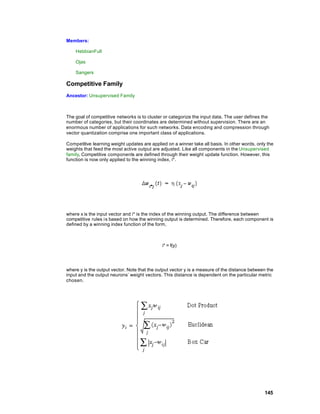
     the network does not have enough degrees of freedom to solve the problem, so you should
     increase the number of PEs.

     Is there a problem with having too many PEs in a neural network? Unfortunately the answer is yes.
     Many PEs in a fully connected neural network means many weights. Neural network researchers
     have shown that an excessive number of weights is the culprit for poor generalization. If the
     network performance drops dramatically from the training set to the test set one of two things has
     happened: either your training set is not representative of the problem domain, or you have
     configured your network with too many weights. You can still train a large network appropriately,
     but you will need a lot of training patterns. A good rule of thumb is that the number of weights
     should be equal to the number of training patterns multiplied by the precision required for the
     classification (in percentage), i.e.


     where N is the number of patterns, W the number of weights and ε the classification error that you
     desire. For instance for a 5% classification error a network with 1000 weights requires 20,000
     patterns.

     This illustrates an inherent problem with the MLP. The network needs a lot of PEs to classify
     complex patterns, but these PEs will have many weights that require lots of training data to
     generalize. The way out is to use data reduction techniques or special topologies (such as principal
     component analysis, or self-organizing maps). This reduces the number of inputs to the network
     (normally the largest layer). Another method is to use alternative topologies to the multilayer
     perceptron that use less weights per PE (such as the radial basis function networks), or to use
     modular MLP designs that decrease the number of weights per PE because their topologies are not
     fully connected.

Network Training

     Training is the process by which the free parameters of the network (i.e. the weights) get optimal

     values. The weights are updated using either supervised or unsupervised learning. This chapter
     focuses o n the MLP, so the details of unsupervised learning are not covered here (see the on-line
     documentation for the NeuralBuilder). With supervised learning, the network is able to learn from
     the input and the error (the difference between the output and the desired response). The
     ingredients for supervised learning are therefore the input, the desired response, the definition of
     error, and a learning law. Error is typically defined through a cost function. Good network
     performance should result in a small value for the cost. A learning law is a systematic way of
     changing the weights such that the cost is minimized. In supervised learning the most popular
     learning law is backpropagation.

     The network is trained in an attempt to find the optimal point on the performance surface, as
     defined by the cost definition. A simple performance surface is illustrated in the figure below. This
     network has only one weight. The performance surface of this system can be completely
     represented using a 2D graph. The x-axis represents the value of the weight, while the y-axis is the
     resulting cost. This performance surface is easy to visualize because it is contained within a two-
     dimensional space. In general, the performance surface is contained within a N+1 dimensional
     space, where N is the number of weights in the network.

     Backpropagation changes each weight of the network based on its localized portion of the input
     signal and its localized portion of the error. The change has to be proportional (a scaled version) of
     the product of these two quantities. The mathematics may be complicated, but the idea is very


     84
simple. When this algorithm is used for weight change, the state of the system is doing gradient
descent; moving in the direction opposite to the largest local slope on the performance surface. In
other words, the weights are being updated in the direction of down.


                                   Simple performance surface


The beauty of backpropagation is that it is simple and can be implemented efficiently in computers.
The drawbacks are just as important: The search for the optimal weight values can get caught in
local minima, i.e. the algorithm thinks it has arrived at the best possible set of weights even though
there are other solutions that are better. Backpropagation is also slow to converge. In making the
process simple, the search direction is noisy and sometimes the weights do not move in the
direction of the minimum. Finally, the learning rates must be set heuristically.

The problems of backpropagation can be reduced. The slowness of convergence can be improved
by speeding up the original gradient descent learning. NeuroSolutions provides several faster
search algorithms such as Quickprop, Delta Bar Delta, and momentum. Momentum learning is
often recommended due to its simplicity and efficiency with respect to the standard gradient.

Most gradient search procedures require the selection of a step size. The idea is that the larger the
step size the faster the minimum will be reached. However, if the step size is too large, then the
algorithm will diverge and the error will increase instead of decrease. If the step size is too small
then it will take too long to reach the minimum, which also increases the probability of getting
caught in local minima. It is recommended that you start with a large step s ize. If the simulation
diverges, then reset the network and start all over with a smaller step size. Starting with a large
step size and decreasing it until the network becomes stable, finds a value that will solve the
problem in fewer iterations. Small step sizes should be utilized to fine tune the convergence in the
later stages of training.

Another issue is how to choose the initial weights. The search must start someplace on the
performance surface. That place is given by the initial condition of the weights. In the absence of
any a priori knowledge and to avoid symmetry conditions that can trap the search algorithm, the
weights should be started at random values. However, the network’s PEs have saturating
nonlinearities, so if the weight values are very large, the PE can saturate. If the PE saturates, the
error that goes through becomes zero, and previous layers may not adapt. Small random weight
values will put every PE in the linear region of the sigmoid at the beginning of learning.
NeuroSolutions uses uniformly distributed random numbers generated with a variance configurable
per layer. If the networks are very large, one should further observe how many inputs each weight
has and divide the variance of the random number generator by this value.


                                                                                                   85
The stop criteria for learning are very important. The stop criterion based on the error of the cross
     validation set was explained earlier. Other methods limit the total number of iterations (hence the
     training time), stopping the training regardless of the networks performance. Another method stops
     training when the error reaches a given value. Since the error is a relative quantity, and the length
     of time needed for the simulation to get there is unknown, this may not be the best stop criterion.
     Another alternative is to stop on incremental error. This method stops the training at the point of
     diminishing returns, when an iteration is only able to decrease the error by a negligible amount.
     However, the training can be prematurely stopped with this criterion because performance surfaces
     may have plateaus where the error changes very little from iteration to iteration.

Probing

     A successful neural network simulation requires the specification of many parameters. The
     performance is highly dependent on the choice of these parameters. A productive way to assess
     the adequacy of the chosen parameters is to observe the signals that flow inside the network.
     NeuroSolutions has an amazingly powerful set of probing tools. One can observe signals flowing in
     the network, weights changing, errors being propagated, and most importantly the cost, all while
     the network is working. This means that you do not need to wait until the end of training to find out
     that the learning rate was set too high.

     All probes within NeuroSolutions belong to one of two categories -- static probes and temporal
     probes. The big difference is that the first kind access instantaneous data, while the second access
     the data over a window in time. The temporal probes have a buffer that stores past values, so one
     can visualize the signals as they change during learning. Fourier transforms provide a look at the
     frequency composition of such signals. There is a lso a probe that provides a 3 -D representation of
     the state space.

Running the Simulation

     The simulation of a network in NeuroSolutions requires the orchestration of many pieces. When
     you run the simulation you should start by checking if the data is being correctly fed into the
     network by placing probes on the input sources. Likewise you should verify the desired signal.

     Another important aspect is to check if the learning rates are sufficiently low to avoid divergence.
     Divergence will usually occur during the beginning of training. You might place a matrix viewer on
     the first synapse to see if the weights are changing. Observing a steady decrease of the cost is the
     best overall indicator (the temperature) that everything is progressing well.

     Note that with a lot of the probes open, you are stealing computing cycles from the simulations.
     Therefore once you are convinced that the training is OK, you should momentarily stop the
     simulation and close the probe windows. Minimally you should leave the matrix viewer to report the
     cost, or even better to attach a scope to the cost, such that you can have the history of the learning
     during the length of the simulation. At this point you can leave the simulation unattended until the
     stop criterion halts the simulation.

     You now have to decide if the learning was successful or not. Most of the time, the first check is to
     see if the cost is within what you think is appropriate for your application. In the affirmative case,
     you should save your network. Remember that all the information gathered by the network from the
     input data is contained in the weights. So you should save the weights, along with the topology.
     The weights are saved by default.

Concepts
Concepts


     86
NeuroSolutions


     NeuroDimension, Incorporated.

     Gainesville, Florida


     Purpose

     This chapter links neural network theory with the principles and components embodied within
     NeuroSolutions. It will provide an abstract tour of the NeuroSolutions components while motivating
     their application to neural network simulations.


NeuroSolutions Structure

     NeuroSolutions consists of two m ajor parts: the main window and the neural network components.
     The main window includes the ability to load, create and save the document, which is called the
     breadboard. The neural components are used to construct neural network topologies and are
     organized into palettes that can be attached to the main window.


     Palettes

     Breadboard

Palettes

     Palettes provide organized storage for neural components. Since NeuroSolutions is object-
     oriented, the program modules that implement the neural component functionality are naturally
     organized in code hierarchies that have common ancestry. Each member of the hierarchy
     increases the functionality of its ancestors. Each branch in the code hierarchy has a specific
     function in the neural network simulations.

     NeuroSolutions associates an icon to each neural component. The user interacts with these icons
     within a graphical user interface (GUI) to construct and simulate neural topologies. The
     components are organized into families and stored within palettes . Select the Palettes menu from
     the NeuroSolutions main window to see a list of the component families.

     Networks are constructed by simply selecting components from the palettes and stamping them
     onto the breadboard. Palettes that are used frequently can be docked (attached) to the main
     window (see Toolbar Manipulation).


                                                                                                    87
Example of a palette


Breadboard

    NeuroSolutions has one document type, the breadboard. Simulations are constructed and run on
    breadboards. With NeuroSolutions, designing a neural network is very similar to prototyping an
    electronic circuit. With an electronic circuit, components such as resistors, capacitors and inductors
    are first arranged on a breadboard. NeuroSolutions instead uses neural components such as
    axons, synapses and probes. The components are then connected together to form a circuit. The
    electronic circuit passes electrons between its components. The circuit (i.e., neural network) of
    NeuroSolutions passes activity between its components, and is termed a data flow machine.
    Finally, the circuit is tested by inputting data and probing the systems' response at various points.
    An electronic circuit would use an instrument, such as an oscilloscope, for this task. A
    NeuroSolutions network uses o ne or more of its components within the probes family (e.g., the
    MegaScope).

    Networks are constructed on a breadboard by selecting components from the palettes, stamping
    them on the breadboard, and then interconnecting them to form a network topology. Once the
    topology is established and its components have been configured, a simulation can be run. An
    example of a functional breadboard is illustrated in the figure below.


                           Example of a breadboard (single hidden layer MLP)


    New breadboards are created by selecting New from the File menu. This will create a blank
    breadboard titled "Breadboard1.nsb". The new breadboard can later be saved. Saving a
    breadboard saves the topology, the configuration of each component and (optionally) their weights.
    Therefore, a breadboard may be saved at any point during training and then restored later. The
    saving of weights is a parameter setting for each component that contains adaptive weights. This
    parameter can be set for all components on the breadboard or just selected ones.


    88
NeuroSolutions Graphical User Interface (GUI)

          Logic of the Interface

          Components

          The Inspector

          Single-Click vs. Double-Click

          Network Construction

          Network Access

          Network Simulation

Logic of the Interface

          User interaction with NeuroSolutions follows very simple and clear principles:


  n   Each neural component is represented by an icon.
  n   Single-clicking on a component's icon will display its Inspector window. A component's inspector is where the
      user can inspect and alter any variables of the component.
  n   Double-clicking on a component's icon will open its animation window, if such a window exist. Animation
      windows allow components to display data while a simulation is running.
  n   Single-clicking on a component's icon with the help cursor will display its on-line help quick reference page.
  n   Networks are constructed by placing and interconnecting components on a breadboard.
  n   Components are created by selecting them from palettes and stamping them onto the breadboard. Components
      can be removed from the topology by means of the cut operation.
  n   During a stamp operation, the cursor will indicate whether stamping the component in its present location is
      valid. These operations and their corresponding mouse cursor are as follows:

      n   A stamp          indicates that the selected palette component can be copied to the present mouse location.

      n   A move cursor       means that the component is under mouse control (drag).

      n   A circle with a slanted line   means that the component can not be copied to the present mouse position.


      n   A gray stamp         indicates that the selected palette component can be used to replace the component at
          the present mouse location.
  n   Stamping by pressing the left mouse button will stamp a single component and return to selection mode.
  n   Stamping by pressing the right mouse button will stamp a single component and remain in stamping mode. This
      allows multiple copies of the same component to be stamped easily.

  n   The Selection Cursor toolbar button        is used to switch from stamping mode to selection mode. Several
      components can be selected at the same time by pressing the Shift key and mousing down on the component.
      Another method is to select a rectangular region of the breadboard, which then selects all components that lie
      within. A box is drawn around each of the selected components.


                                                                                                                        89
n   Selected components can be cut, copied, pasted or moved. The multiple-selection feature is also used to
      broadcast parameter changes made in one component’s inspector to a group of components.

Components

        The building blocks used to create, control and inspect neural networks are referred to as
        components . Each component is represented by an icon. An example is the Axon, which
        corresponds to the icon illustrated in the figure below.


                                                     Icon for the Axon


        Each component is concisely described within the Components chapter. You will find the
        component’s function (with an equation if appropriate), how to manipulate and configure it (via its
        inspector), where it can "live" (be stamped), and how to access its data (access points). You can

        reach the help for a component by selecting the help cursor              and then selecting the component
        that you want help on.

The Inspector

        The Inspector window is the tool used to configure individual components. If for any reason the
        Inspector window is closed, it can be re-opened by selecting Inspector from the View menu. Single-
        clicking on any component will highlight it (put a square around it) and load its property pages into
        the Inspector window. The name of the inspected component is displayed at the top of the
        Inspector window. This procedure is referred to as selecting a component.

        The Inspector window has a folder organization (see figure belowHIDD_NAXONINSPECTOR),
        reflecting the hierarchical organization of the code (inheritance in object-oriented parlance). The
        name of the hierarchy level is placed on the tab of the folder. The highest ancestor is the right most
        tab. This system of inspecting components minimizes the number of windows open at any given
        time. A single breadboard may have hundreds of components. If each component used space on
        the screen for user interaction, the entire screen would quickly become cluttered. After a while this
        convention becomes natural and easy to use.


        90
Axon inspector


     The tabs at the top of the inspector allow the user to configure variables defined by a superclass of
     the component being inspected. The number and contents of these tabs are determined by the
     "object-oriented" style with which each component was developed. While the concepts of object-
     oriented design are beyond the scope of this document, a brief analogy should help.

     A component may be considered to be an "object." Each component belongs to a "family" of
     objects. This family consists of parents, siblings, and children. Each component inherits (i.e.,
     assumes the characteristics) of its parent. All siblings will share the characteristics of their parents
     and their parents' parent, etc. The tabs will contain the name of each ancestor contributing any
     parameters to the selected component. Selecting a tab will display the parameters that are
     common to all components having that same ancestor.

     More than one component of the same type may be inspected at the same time. This allows the
     parameters of multi ple components to be changed simultaneously. Only the parameters of the first
     component selected will be displayed in the inspector window. Changing a parameter setting from
     the inspector will make that change to all selecte d components that have that same parameter. For
     example, if you select all the axons and gradient search components from a breadboard and then
     change the learning rate, the gradient search components will all be updated to the same learning
     rate and the axons will be left unchanged (since they do not have a learning rate).

     To select a group of components, you first must be in selection mode (by clicking the Selection

     Cursor      toolbar button). Select the first component of the group by clicking on its icon. Hold
     down the Shift key while selecting the remaining members of the group. As the components are
     selected they are highlighted with a square border.

     Another method of multiple component selection is to select a rectangular region of the
     breadboard. First determine a rectangle that will encompass all of the components that you would
     like to have selected. Draw this rectangle by placing the mouse cursor at the upper-left corner of
     the region, holding the mouse button down, dragging the cursor to the lower-right corner of the
     region, and releasing the mouse button. All of the components that reside directly on the
     breadboard and are contained within this region will be highlighted (selected).

Single-Click vs. Double-Click

     The single-click and double-click concepts are essential for using NeuroSolutions. As described
     above, when the user single-clicks (i.e., presses and releases the mouse button) on a component's
     icon, that component becomes selected and its current configuration is displayed in the Inspector
     window. When the user double-clicks (i.e. presses the mouse button twice in quick succession) on


                                                                                                          91
any component, NeuroSolutions will select the component and attempt to open any windows that
     the component may have. Component windows allow components to display data while a
     simulation is running. If the inspector is hidden and the component’s window is already open (or it
     doesn’t have a window), then double-clicking on the component will bring the inspector into view.

File Open Dialog Box

     The following options allow you to specify which breadboard to open:
     File Name

     Type or select the filename of the breadboard you want to open. This box lists files with the
     extension you select in the List Files of Type box.
     List Files of Type

     Select the file type you want to open. Since NeuroSolutions only document type is the breadboard,
     you should find your files with the ".nsb" extension.
     Drives


     Select the drive in which NeuroSolutions stores the breadboard that you want to open.
     Directories

     Select the directory in which NeuroSolutions stores the breadboard that you want to open.
     Network...

     Choose this button to connect to a network location, assigning it a new drive letter.

Save As Dialog Box

     The following options allow you to specify the name and location of the file you're about to save:
     File Name

     Type a new filename to save a document with a different name. A filename can contain up to eight
     characters and an extension of up to three characters. NeuroSolutions adds the extension you
     specify in the Save File As Type box.
     Drives

     Select the drive in which you want to store the document.
     Directories

     Select the directory in which you want to store the document.
     Network...

     Choose this button to connect to a network location, assigning it a new drive letter.

Toolbars and Palettes


     92
Both the toolbars and palettes are control bars that can be positioned any where on the screen.
           These control bars are also dockable, meaning that they have the ability to be attached or "docked"
           to the main window.

           Both the toolbars and palettes have a feature called tooltips. Tooltips provide a means for labeling
           the buttons with a name in addition to the icons.

           The Toolbars menu and the Palettes menu are used to toggle the visibility of the control bars. This
           feature is available so that only the palettes and toolbars used most often occupy the screen area.

    Title Bar


           The title bar is located along the top of a window. It contains the name of the application and
           document.


           To move the window, drag the title bar. Note: You can also move dialog boxes by dragging their
           title bars.


           A title bar may contain the following elements:


n      Application Control-menu button
n      Maximize button
n      Minimize button
n      Close Button
n      Name of the application
n      Name of the document

    Scroll Bars

           Displayed at the right and bottom edges of the breadboard. The scroll boxes inside the scroll bars
           indicate your vertical and horizontal location in the document. You can use the mouse to scroll to
           other parts of the breadboard.


                                                                                                             93
Network Construction
     Network Construction


     Components are selected from palettes and stamped on the breadboard. The network topology is
     specified by interconnecting components via male and female connectors. This topology is then
     tested by injecting data into and probing output from components via access points.

     The following sections describe each step in this simulation process.


     Stamping

     Manipulating Components

     Replacing Axons and Synapses

     Connectors

     Cabling

     Stacking

     Stamping


     The method used to copy components from palettes to breadboards is by selecting and stamping.
     Selecting is accomplished by clicking on the component’s button on the palette. The cursor then
     becomes a stamp, and the component can be copied many times on the breadboard by clicking on
     a specific location. Note that some components cannot be stamped directly on the breadboard and
     can only be stamped on top of other components .

     To switch from stamping mode back to selection mode, click the Selection Cursor button from the
     main toolbar (see figure below).


                               Toolbar button used to switch to selection mode


     Manipulating Components


     Moving a component is very straightforward. Select the component by clicking on its icon. Holding
     down the mouse button will make the cursor change to a move cursor. While the mouse button is
     down, the component will track the location of the cursor. Release the mouse button to place the
     component at a new location.

     Copying a component will create a clone with the exact same configuration. To copy a component,

     select it and click the Copy     toolbar button. Then select where the clone should reside; click on


     94
the breadboard or component where the copy should b e placed. Then click the Paste            toolbar
button to create the clone. If the Paste button is disabled (grayed-out), that means that the
component can not be pasted on the selected location. Copied components that reside directly on
the breadboard must be pasted on the breadboard. Copied components that are attached to other
components must be pasted onto other components .

These concepts get a bit more complicated, and more powerful, when a component is connected to
other components on the breadboard. There are basically two methods for connecting components:
through connectors and stacking. When a component is moved or copied, all components stacked
on top of it will also be moved or copied. Components attached by connectors will be disconnected
during a copy, except for those connections made between the copied components. However,
connectors will be disconnected when a component is removed from the breadboard.

Replacing Axons and Synapses


There will often be times when you would like to change the transfer function or memory structure
of an Axon, or change a fully connected Synapse to a sparsely connected one. This requires that
you replace a component, which can be inconvenient when other components are attached and
connected. The component replace feature automatically swaps an Axon or Synapse and re-
establishes all of the attachments and connections. Simply select the new component from the
palette, place your cursor over the component to replace (notice that the cursor changes to a gray
stamp), and click the left mouse button.

Connectors


Constructing a network topology is equivalent to assigning the order in which data flows th rough
network components. Data flow connections are made using male and female connectors . These
connectors have the icons illustrated in the figure below.


                                Male Connector Female Connector


Connections are formed by dragging a MaleConnector over a FemaleConnector and releasing the
mouse button (dropping). The cursor will turn to a move cursor when a male is dragged over an
available female. Otherwise the forbidden sign will show up. The icon for a male connected to a
female is shown in the figure below.


                                            Connection


There is also a shortcut for making a connection between two components. First, select the source
component (by single-clicking the left mouse button), then single click the destination component
with the right mouse button to bring up the Component Menu. Select the "Connect to" menu item.


                                                                                                  95
The connection may be broken by simply dragging the MaleConnector to an empty spot on the
breadboard and performing a Cut operation. If a connection is valid, a set of lines will be drawn
indicating that data will flow between the components. Data flows from the male to the female. The
valid connection of two Axons is shown in the figure below.


                               Valid connection between two axons


Notice that a new FemaleConnector has appeared on the right Axon and a new MaleConnector
was created on the left Axon. This indicates that axons have a summing junction at their input and
a splitting node at their output. Since the axons contain a vector of processing elements, the
summing junctions and splitting nodes are multivariate. Axons can accept input from an arbitrary
number of simulation components, which are summed together. The axons’ output can feed the
inputs of multiple components.

An invalid connection between two components for any reason will look like the image shown in the
figure below.


                              Invalid connection between two axons.


The reason for an invalid connection will appear in an alert panel. Most often the mismatch is due
to incompatible component dimensions. The user must alter the dimensions of one of the
components to correct the situation.

Cabling


Cabling is a graphical option to interconnect components that have connectors. A cable is started
by dropping the MaleConnector at any empty location on the breadboard. Hold down the Shift key
while dragging this connector again. This second drag operation will create a new segment of the
connection (cable). With each successive move of the MaleConnector, a line (cable segment) will
be drawn to show the connection path. This process may be repeated indefinitely.

Single-clicking on the MaleConnector will highlight all breakpoints along the cable. A breakpoint
may then be moved by dragging and dropping. If a breakpoint is Cut from the breadboard, then it is
removed from the cable. Double-clicking on a breakpoint will insert an additional breakpoint next to
it in the cable. Cabling is particularly useful when forming recurrent connections. An example of
cabling between two axons is shown in the figure below.


96
Example of a cable between two axons


    NeuroSolutions verifies that all connections make sense as they are formed. This was already
    evident in the visual indication of incompatibility between components. In cabling, if the output of an
    element is brought to its input, an alert panel will be displayed complaining that an infinite loop was
    detected. It is up to the user to modify the cabling (e.g., making sure that the recurrent connection
    is delayed by at least one time step).

    Stacking


    Connectors are normally used to specify the network topology by defining the data flow. There are
    many situations where components should be connected to a network without altering its topology.
    Examples of such situations are probing, noise injection and attaching learning dynamics. Stacking
    allows this form of connection.

    The figure below illustrates the use of stacking to probe the activity flowing through an Axon. Notice
    that stacking does not use the male and female connectors.


                                    A probe stacked on top of an Axon.


Network Access
    Network Access


    NeuroSolutions allows access to any data within the network via access points. The concept is
    simple. Every internal variable (i.e. piece of data or parameter) is encapsulated within an access
    point. All access points report their data through a universal language or protocol. Typical data that
    would be reported by a component are activations, gradients, weights and MSE.


                                                                                                       97
Components that understand this protocol belong to the Access family. Access components attach
to access points through stacking. Any component with accessible data will report its available
access points to an Access component during the stamping operation. If the component being
stamped has a compatible access point, then the cursor will turn to a stamp. The Probe stacked on
top of an Axon figure illustrates a MatrixViewer that has been placed on an Axon.

Since each component may have more than one access point, the desired access point must be
selected from a list. This list is contained within the Access property page of the stacked
component’s inspector (see The Inspector).

The inspector for the MatrixViewer allows the user to select between the activity and pre-activity
access reported by the Axon. This inspector is illustrated in the figure below.


                         Available access points of the Axon component


All Access components have an access point called Stacked access. This access point allows data
to be simultaneously used by more than one Access component. In the above example, another
probe can be dropped on top of the MatrixViewer using its Stacked access to visualize the data in a
different way.


Probes

Data Input/Output

Transmitters and Receivers

Probes


Probes are one family of components that speak the Access protocol. Each probe provides a
unique way of visualizing the data provided by access points. Consider an access point presenting
a fully connected matrix of weights. You could view this data instantaneously as a matrix of
numbers or you could view this data over time as weight tracks. What is important here is that
NeuroSolutions provides an extensive set of visualization tools that can be attached to any data
within the network.


98
The DataStorage component collects multi -channel data into a circular buffer, which is then
presented as the Buffered Activity access point. Temporal probes, such as the MegaScope, can
only stack on top of a DataStorage component (directly or indirectly). In the configuration illustrated
in the figure below, the MegaScope is used to display the Axon's activity over time. Used in this
manner, the MegaScope/DataStorage combination functions as an oscilloscope.

The DataStorage component may also be used in conjunction with the DataStorageTransmitter,
allowing data from different locations in the topology to be displayed on a single probe. This is also
illustrated in the figure below.


                 Probing the output and input of a network using the same scope.


Data Input/Output


Probes attach to access points to examine data within the network. Network data can also be
altered through access points. This provides an interface for using input files, output files and other
I/O sources. Illustrated in the figure below is a FunctionGenerator stacked on top of the left Axon.
This will inject samples of a user defined function into the network's data flow.


                            FunctionGenerator as the input to a network


To read data from the file system, the File component must be used. This component accepts
straight ASCII, column-formatted ASCII, binary, and bitmap files. Several files of any type may be
opened at the same time and input sequentially to the netw ork. Segmentation and normalization of
the data contained in the files is also provided by this component. The figure below shows a File
component attached to the left Axon.

Any network data can be captured and saved to a binary or ASCII file using the DataWriter probe.
The figure below also shows a DataWriter attached to an output Axon to capture its activity as it
flows through the network.


                                                                                                    99
A File component to read data in and a DataWriter probe to write data out


      Transmitters and Receivers


      Both connectors and stacking provide local communication between components. There are
      situations where a global communication channel is necessary, either to send/receive data or for
      control. NeuroSolutions provides a family of components, called Transmitters , to implement global
      communications. These components use access points to globally transmit data, or to send global
      messages based on local decisions. Several components can receive data or control messages
      that alter their normal operation. This allows very sophisticated tasks to be implemented, such as
      adaptive learning rates, nonuniform relaxation, and error-based stop criteria.

Network Simulation
      Network Simulation


      When a network is "run", data will flow one sample at a time from the input components, through
      the network topology, and into the output components. The standard data flow is from left to right,
      but this depends on how the components are connected together. Note that the NeuroSolutions
      main window has no menu options for controlling the simulation. This is done strictly at the
      component level using members of the Controls family.

Application Window Commands
Size command (System menu)

      Use this command to display a four-headed arrow so you can size the active window with the arrow
      keys.


      After the pointer changes to the four-headed arrow:

  1 Press one of the DIRECTION keys (left, right, up, or down arrow key) to move the pointer to the border you
    want to move.

  2 Press a DIRECTION key to move the border.

  3 Press ENTER when the window is the size you want.


      100
Note: This command is unavailable if you maximize the window.


     Shortcut

 Mouse:    Drag the size bars at the corners or edges of the window.

Move command (Control menu)

     Use this command to display a four-headed arrow so you can move the active window or dialog
     box with the arrow keys.


     Note: This command is unavailable if you maximize the window.


     Shortcut

 Keys:     CTRL+F7

     Minimize command (application Control menu)


     Use this command to reduce the NeuroSolutions window to an icon.


     Shortcut


 Mouse:    Click the minimize icon      on the title bar.

 Keys:     ALT+F9

Maximize command (System menu)

     Use this command to enlarge the active window to fill the available space.


     Shortcut


 Mouse:    Click the maximize icon      on the title bar; or double-click the title bar.

 Keys:     CTRL+F10 enlarges a document window.

Close command (Control menus)


                                                                                             101
Use this command to close the active window or dialog box.


     Double-clicking a Control-menu box is the same as choosing the Close command.


     Note: If you have multiple windows open for a single document, the Close command on the
     document Control menu closes only one window at a time. You can close all windows at once with
     the Close command on the File menu.


     Shortcut

 Keys:       ALT+F4 exits NeuroSolutions

Restore command (Control menu)

     Use this command to return the active window to its size and position before you chose the
     Maximize or Minimize command.

Switch to command (application Control menu)

     Use this command to display a list of all open applications. Use this "Task List" to switch to or
     close an application on the list.


     Shortcut

 Keys:       CTRL+ESC


     Dialog Box Options

     When you choose the Switch To command, you will be presented with a dialog box with the
     following options:
 Task List

 Select the application you want to switch to or close.
 Switch To


 Makes the selected application active.
 End Task

 Closes the selected application.
 Cancel

 Closes the Task List box.
 Cascade


     102
Arranges open applications so they overlap and you can see each title bar. This option does not affect
  applications reduced to icons.
  Tile

  Arranges open applications into windows that do not overlap. This option does not affect applications
  reduced to icons.
  Arrange Icons

  Arranges the icons of all minimized applications across the bottom of the screen.


Generating Source Code

         The Code Generation facility of NeuroSolutions produces ANSI-compatible C++ source code for
         any breadboard, including learning. There are two main uses for this feature.

         You may find that the processing power of your PC is too limited to train your network in a
         reasonable amount of time. By generating the code for your network, you can compile this code on
         a high-end workstation and train the network there. The resulting weights can then be saved to a
         file and imported back into your breadboard within NeuroSolutions.

         Secondly, you may have a network that is trained to a point that it is of practical use. You may then
         want to use the code generation feature to produce a "black box" that can easily be integrated into
         a C++ application. This application would u se function calls to feed data into the network and
         extract the resulting output.

         Note that this feature is only available within the Professional and Developer versions of
         NeuroSolutions. If you have a license for one of these versions, see the Developers manual for
         complete documentation. Also refer to the Code Generation Inspector.


Customized Components

         NeuroSolutions provides close to 100 neural components for you to build your neural networks
         from. Even though this is a fairly representative set of the algorithms most commonly used in the
         field, it is impossible to meet the needs of everyone. NeuroSolutions’ object oriented design
         methodology provides an ideal platform for an extensible simulation environment. These
         extensions are implemented as C/C++ functions that conform to the appropriate protocol and are
         then compiled as Dynamic Link Libraries (DLLs).

         In order for you to write DLLs to implement your own algorithms, you must be licens ed for one of
         the Developer versions of NeuroSolutions. However, you do not have to be a programmer to reap
         the benefits of customized components. NeuroDimension continually develops new components
         that are public to all Developer customers. In addition, there is a subset of DLLs provided that is
         accessible within all versions of NeuroSolutions.

         The loading of a DLL is a very straightforward procedure. You first must select the component on
         the breadboard that the DLL overrides. Open the inspector window, switch to the Engine property
         page, press the Load button, and select the DLL ("*.dll") from the file list. Now the component’s
         functionality is overridden by the DLL. See the Engine property page for more detailed instructions.
         If you are licensed for the Developers version, see the Dynamic Link Libraries chapter for a
         complete description of this feature.


                                                                                                         103
Testing the Network
The TestingWizard

     After training a network, you will want to test the network performance on data that the network was
     not trained with. The TestingWizard automates this procedure by providing an easy way to produce
     the network output for the testing dataset that you defined within the NeuralExpert or NeuralBuilder,
     or on a new dataset not yet defined.

     To launch the TestingWizard from within NeuroSolutions go to the Tools menu and choose
     "TestingWizard" or click the "Testing" toolbar button. If your breadboard was built with the
     NeuralExpert, you may alternatively click the "Test" button in the upper-left corner of the
     breadboard.

     Online help is available from all TestingWizard panels. To access help, click the Help button in the
     lower left corner of the wizard.


Freezing the Network Weights

     The method that the TestingWizard uses for freezing the network weights is to turn off the Learning
     switch from the Static page of the activation control inspector. This method is easy but not very
     efficient because the error is still computed, even though the weights are not modified. This method
     is convenient for times when you just want to run a small test set through your network, where
     efficiency is not a concern.

     To run a fixed network most efficiently, the Backprop and Gradient Search planes, as well as the
     ErrorCriteria component, should be removed from the breadboard. First save the breadboard so
     that you can easily return to the learning state. Press the Free All Backprop button of the
     Backpropagation page of the backprop control inspector to discard these learning planes
     automatically. The fixed network is now ready to run.


Cross Validation

     Cross validation computes the error in a test set at the same time that the network is being trained
     with the training set. It is known that the MSE will keep decreasing in the training set, but may start
     to increase in the test set. This happens when the network starts "memorizing" the training
     patterns. The Termination page of the activation control inspector can be used to monitor the cross
     validation set error and automatically stop the network when it is not improving.

     The easiest way to understand the mechanics of cross validation is to use the NeuralBuilder or
     NeuralExpert to build a simple network that has cross validation. The Static Inspector is used to
     configure the switching between the testing and training phases of the simulation. The File
     components each contain a Training data set and a Cross-Validation data set (see the Data Set
     property page). The Cross-Validation data can either be a different segment of the same file, or a
     different file. There is an additional set of Probes and a ThresholdTransmitter for monitoring the
     cross validation phase of the simulation. Observe the Access Data Set setting of the Access
     property page for these components.


     104
Production Data Set

      Once you have trained and tested a network and have determined that the network adequately
      models your data, you may want to then put that network into production. In doing so, you will have
      input data but no desired data. The data set to use for this case is the "Production" data set. The
      easiest way to configure a Production set is to run the TestingWizard and specify an input data file
      but no desired data file.


Sensitivity Analysis

      As you are training a network, you may want to know the effect that each of the network inputs is
      having on the network output. This provides feedback as to which input channels are the most
      significant. From there, you may decide to prune the input space by removing the insignificant
      channels. This will reduce the size of the network, which in turn reduces the complexity and the
      training times.

      Sensitivity analysis is a method for extracting the cause and effect relationship between the inputs
      and outputs of the network. The network learning is disabled during this operation such that the
      network weights are not affected. The basic idea is that the inputs to the network are shifted slightly
      and the corresponding change in the output is reported either as a percentage or a raw difference.

      The activation control component generates the input data for the sensitivity analysis by temporarily
      increasing the input by a small value (dither). The corresponding change in output is the sensitivity
      data, which is reported by the ErrorCriteria component and displayed by an attached probe.

      To configure a network to report the sensitivity data, simply stamp a StaticProbe component on
      either the "Sensitivity", "Raw Sensitivity", or "Overall Sensitivity" Access Point of the ErrorCriteria
      component. Double-click the icon of the probe to open its display window. Once you have trained
      the network, open the Static Inspector, select the "Active Data Set" to perform the sensitivity
      operation on, specify the "Dither", then click the "Perform" button. The display window of the probe
      should be updated with the calculated sensitivity data.

      Probing the "Sensitivity" access point with a MatrixViewer will display a matrix of values, each
      corresponding to the percentage effect that a particular input has on a particular output. Each row
      represents a single input and each column represents a single output. Note that the total for each
      column (output channel) sums to 100 percent. Likewise, the "Raw Sensitivity" access point
      produces a matrix, but each value corresponding to the raw difference between the outputs for the
      dithered and non-dithered inputs. Probing the "Overall Sensitivity" access point with a MatrixViewer
      will display a column of values, each corresponding to the percentage effect that a particular input
      has on the output vector as a whole (the sum of all output channels).


Confusion Matrix

      A confusion matrix is a simple methodology for displaying the classification results of a network.
      The confusion matrix is defined by labeling the desired classification on the rows and the predicted
      classifications on the columns. For each exemplar, a 1 is added to the cell entry defined by (desired
      classification, predicted classification). Since we want the predicted classification to be the same as
      the desired classification, the ideal situation is to have all the exemplars end up on the diagonal
      cells of the matrix (the diagonal that connects the upper-left corner to the lower right). Observe
      these two examples:


                                                                                                        105
Confusion Matrix Example 1


                                        Confusion Matrix Example 2


     In example 1 we have perfect classification. Every male subject was classified by the network as
     male, and every female subject was classified as female. There were no males classified as
     females or vice versa. In example 2 we have imperfect classification. We have 9 females classified
     incorrectly by the network as males and 5 males classified as females.

     In NeuroSolutions, a confusion matrix is created by attaching a probe to one of the Confusion
     Matrix access points of the ErrorCriterion component. One option is to display the results as the
     raw number of exemplars classified for each combination of desired and actual outputs, as shown
     in the above examples. The other option is to display each cell as a percentage of the exemplars
     for the desired class. In this format, each row of the matrix sums to 100.

Correlation Coefficient

     The size of the mean square error (MSE) can be used to determine how well the network output fits
     the desired output, but it doesn't necessarily reflect whether the two sets of data move in the same
     direction. For instance, by simply scaling the network output, we can change the MSE without
     changing the directionality of the data. The correlation coefficient (r) solves this problem. By
     definition, the correlation coefficient between a network output x and and a desired output d is:


                                      Correlation Coefficient Definition


     106
The correlation coefficient is confined to the range [-1,1]. When r =1 there is a perfect positive linear
    correlation between x and d, that is, they covary, which means that they vary by the same amount.
    When r=-1, there is a perfectly linear negative correlation between x and d, that is, they vary in
    opposite ways (when x increases, d decreases by the same amount). When r =0 there is no
    correlation between x and d, i.e. the variables are called uncorrelated. Intermediate values describe
    partial correlations. For example a correlation coefficient of 0.88 means that the fit of the model to
    the data is reasonably good.

    In NeuroSolutions, a correlation vector is created by attaching a probe to the Correlation access
    point of the ErrorCriterion component.

ROC Matrix

    Receiver Operating Characteristic (ROC) matricies are used to show how changing the detection
    threshold affects detections versus false alarms. If the threshold is set too high then the system will
    miss too many detections. Conversely, if the threshold is set too low then there will be too many
    false alarms. Below is an example of an ROC matrix graphed as an ROC curve.


                                            Example ROC Curve


                                                                                                        107
In NeuroSolutions, a ROC matrix is created by attaching a probe to the ROC access point of the
    ErrorCriterion component. The matrix contains three columns: 1) the detection threshold, 2) the
    percentage of detections classified correctly, and 3) the percentage of non-detections incorrectly
    classified as detections (i.e., fals e alarms). The ouput channel and the number of thresholds are
    defined within the error criteria inspector.

Performance Measures

    The Performance Meassures access point of the ErrorCriterion component provides six values that
    can be used to measure the performance of the network for a particular data set.
    MSE

    The mean squared error is simply two times the average cost (see the access points of the
    ErrorCriterion component.) The formula for the mean squared error is:


    NMSE


    The normalized mean squared error is defined by the following formula:


    r

    The correlation coefficient.
    % Error


    The percent error is defined by the following formula:


    108
Note that this value can easily be misleading. For example, say that your output data is in the range
     of 0 to 100. For one exemplar your desired output is 0.1 and your actual output is 0.2. Even though
     the two values are quite close, the percent error for this exemplar is 100.
     AIC

     Akaike's information criterion (AIC) is used to measure the tradeoff between training performance
     and network size. The goal is to minimize this term to produce a network with the best
     generalization:


     MDL

     Rissanen's minimum description length (MDL) criterion is similar to the AIC in that it tries to
     combine the model’s error with the number of degrees of freedom to determine the level of
     generalization. The goal is to minimize this term:


Practical Simulation Issues

     Data Preparation

     Forms of Backpropagation

     Probing

     Saving and Fixing Network Weights


                                                                                                       109
Saving Network Data

          Stop Criteria

          Constructing Learning Dynamics

          Simulating Recurrent Networks

          Component Naming Conventions

          Coordinating Unsupervised and Supervised Learning

          Macro Bars

Associating a File Extension with an Editor


          There are several places within NeuroSolutions where you can view or edit a text file within an
          editor. The editor that is used is based on the file’s extension (type). To select or modify the editor
          associated with a particular file type you should perform the following steps:


1 Select ‘Options’ from the ‘View’ Menu of the Windows Explorer.

2 Select the ‘File Types’ tab.

3 If the File Type is already registered then select it from the list.

4 If the File Type is not registered then press the ‘New Type" button. Enter the Description and Extension and press
     the ‘OK’ button.

5 Press the ‘Edit’ button.

6 If there is an item labeled ‘open’ under the Actions list, then select it and press ‘Edit’. Type ‘notepad.exe’ for the
     standard Windows editor or enter the full path of the application you wish to use.

7 If there is not an ‘open’ item listed then press the ‘New’ button. Enter ‘open’ as the Action and type ‘notepad.exe’
     for the standard Windows editor or enter the full path of the application you wish to use.

8.     Press ‘OK’ from all panels.


          The ‘Edit’ and ‘View’ buttons of NeuroSolutions should now open up the associated editor for all
          files of the specified type.

Data Preparation

          The training data and testing data must first be converted to a format supported by NeuroSolutions.
          The most common data format is column-formatted ASCII, since this can be easily generated by a
          spreadsheet program. The first line (row) of the file is used to define the column labels, and should
          not contain actual data. In general, each column corresponds to one channel (PE) of the input or
          output of the network. Individual columns can be selected for inclusion or exclusion from the data
          stream.


          110
The input data and desired output data may reside within different columns of the same file, or
     within two separate files. The testing data may be contained within different rows of the same file(s)
     as the training data, or from separate files.


Normalization File


     The Input components have the ability to normalize the data between an upper and lower bound.
     Each sample of data is multiplied by an amplitude and shifted by an offset. The amplitude and
     offset are often referred to as normalization coefficients. These coefficients are most often
     computed "by channel", meaning that there is a unique amplitude and offset for each channel. The
     coefficients are stored in a normalization file (*.nsn) within the same directory as the breadboard.


     The normalization coefficients are computed based on the minimum and maximum values found
     across all of the data sets selected from the Data Set Inspector. All of the data streams within a
     given File component are generated using the same normalization file. For most cases you will
     want to compute the coefficients based on all of the data sets. This will guarantee that all of the
     samples of the data streams will fall between the upper and lower bounds.


     The normalization file is also used by the numerical probes to denormalize the network data to put
     it in terms of the original data. When the ‘Denormalize from File’ option is set (see the Probe
     Inspector) the inverse of the amplitude and offset is applied to each channel before
     displaying/writing the data.


     The normalization files contain two columns of ASCII data: the first column being the amplitude
     terms and the second column being the offset terms. Each row represents one channel of data
     (starting with channel 0).


                                         4-channel normalization file


                                                                                                      111
These coefficients are calculated using the following formula:


              Amp(i) = (UpperBound - LowerBound) / (Max(i) - Min(i))

              Off(i) = UpperBound - Amp(i) * Max(i)


     where Max(i) and Min(i) are the maximum and minimum values found within channel i, and
     UpperBound and LowerBound are the values entered within the Stream Inspector.


     The Input components normalize the data using the following formula:


              Data(i) = Amp(i) * Data(i) + Off(i)


     The Probe components then use the following formula to denormalize the data:


              Data(i) = (Data(i) - Off(i)) / Amp(i)


Forms of Backpropagation

     Backpropagation can either be synchronized in Static, Trajectory or Fixed Point modes.


     Static

     Static backpropagation assumes that the output of a network is strictly a function of its present
     input (i.e., the network topology is static). In this case, the gradients and sensitivities are only
     dependent on the error and activations from the current time step.
     Trajectory

     Training a network in Trajectory mode assumes that each exemplar has a temporal dimension
     defined by its forward samples (period), and that there exists some desired response for the
     network's output over this period. The network is first run forward in time over the entire period,
     during which an error is determined between the network's output and the desired response. Then
     the network is run backwards for a prescribed number of samples (defined by the
     samples/exemplar of the BackDynamicControl                ) to compute the gradients and
     sensitivities. This forward/backward pass is considered a single exemplar.
     Fixed Point

     Fixed Point mode assumes that each exemplar represents a static pattern that is to be embedded
     as a fixed point of a recurrent network. Here the terms forward samples and backward samples can
     be thought of as the forward relaxation period and backward relaxation period, respectively. All
     inputs are held constant while the network is repeatedly fired during its forward relaxation period,
     specified by the samples/exemplar of the DynamicControl component. Note that there are no


     112
guarantees that the forward activity of the network will relax to a fixed point, or even relax at all.
        After the network has relaxed, an error is determined and held as constant input to the
        backpropagation layer. Similarly, the error is backpropagated through the backprop plane for its
        backward relaxation period, specified by the samples/exemplar of the BackDynamicControl
                     . This forward/backward relaxation is considered to be one exemplar.

Probing

        Probing is a fundamental concept of NeuroSolutions. Each probe provides a unique way of
        visualizing the data available throughout the network. Here are some hints on how to use probing
        to better guide the simulations:


  n   Monitor the progression of learning by observing the output means square error.
  n   Judiciously select learning parameters by observing if the learning curve oscillates or is too flat.
  n   Monitor a component’s weights and/or activities to see if they did not change from their initial values during
      learning. These features can indicate redundant units.
  n   Try to understand how the network learned its task, by observing how the waveforms change when they pass
      through the neural topology (particularly useful in dynamic nets).

Saving and Fixing Network Weights

        Once a network is trained, its weights can be saved along with the breadboard. Each component
        with adaptive weights is responsible for saving them. The Soma property page of a component’s
        inspector contains a Save Weights switch. When the breadboard is saved to a file, the current
        weight settings (of all components with the Save switch set) are stored along with the components.
        By default, the Save switch is set on all components. When the breadboard is later re-loaded, the
        training can them resume from where it had left off.

        There is also an opti on within the StaticControl Inspector for saving all adaptive weights of the
        network to a NeuroSolutions Weights File. This allows a convenient interface with which to extract
        trained network weights to be used by another application, or to save the weights of several trials
        and keep the best results.

        The Soma property page also contains a Fix Weights switch. This switch protects the component
        weights from being modified by the global commands of the controller (i.e., Reset, Randomize and
        Jog). This switch is useful when you want to set the values of a component’s weight matrix (using
        the MatrixEditor) and have those values stay fixed while the rest of the network is trained. Note that
        if there is a gradient search component attached, then the learning rate must be set to zero for the
        weights to remain fixed.


Weights File


        The NeuroSolutions weights file is used to store the weights , biases and internal states of each
        component on the breadboard. This file has several uses:


  n   Save the best weights of a training session (see "Save Best" within the ErrorCriteria Inspector).
  n   Save multiple states of the network (see "Auto Increment" within the Weights Inspector).


                                                                                                                   113
n   Stores the state of the network to be retrieved by the Generated C++ Source Code.
n   Allows one to implement their own recall network by looking up the formulas for the components and using the
    parameters stored in the weights file.


      The default extension for NeuroSolutions weights files is "nsw", but the "Save Best" feature of the
      ErrorCriteria components stores the file with a "bst" extension. The file consists of a sequence of
      component definitions, one for each component on the breadboard containing adaptive weights .
      The file format for individual component definitions is as follows:


      #NAME CLASS

      SIZE

      WEIGHTS

      STATES


      All component definitions begin with the # delimiter. Im mediately following this delimiter is the
      component’s name and the component’s class. The component's name is reported in the Engine
      property page of its inspector. The user can alter this name in order to match specific names within
      a weights file, but the name entered will be checked to verify that it is unique to the current
      breadboard. The component’s class must appear as reported by the title bar of its inspector
      (displayed at the top of the inspector window).

      The next lines following the component’s class is reserved for a set of numbers defining the
      component’s size. The contents of these lines will depend on the type of component.

      The next line contains the actual values of the weights. All Somas will store their adaptive weights
      in the following format:


      N w(1) w(2) .... w(N)


      where N is the total number of weights and w(i) represents each individual weight in integer,
      floating point or exponential format.

      The last line contains any parameters that determine the internal state of the component such as
      momentum or delayed activity. Most components do not include this line.


      Size Definitions

      Axon Family

      All axons will store their number of rows and columns in the following format:


              ROW_COUNT COL_COUNT


      Tapped MemoryAxon Family


      114
All tapped memory axons will store their number of taps, rows and columns in the following format:


       TAP_COUNT

       ROW_COUNT COL_COUNT


ArbitrarySynapse Component

This component will store its user-defined connections in the following format:


       m

       FROM_INDEX(1) n(1) TO_INDEX(1) TO_INDEX(2) ... TO_INDEX(n(1))

       FROM_INDEX(2) n(2) TO_INDEX(1) TO_INDEX(2) ... TO_INDEX(n(2))

                  :                          :

                  :                          :

       FROM_INDEX(m) n(m) TO_INDEX(1) TO_INDEX(2) ... TO_INDEX(n(m))


where m is the total number of feeding indices and n(i) is the total number of indices that the
feeding index FROM_INDEX(i) is connected to. Each TO_INDEX is connected to the
FROM_INDEX by an adaptive weight. The total number of weights is the sum of the n(i)’s.


FullSynapse Family

The number of weights of a fully-connected Synapse is determined by the dimensions of the Axons
that it is connected to. For this reason, there is no size field stored for these components.


Weights Definitions

ArbitrarySynapse Component

This component stores its weights in the order that the "TO_INDEX" indices are listed (see above).


FullSynapse Family

These components store their weights in the following order:


       w(1,1) w(1,2) … w(1,N) w(2,1) w(2,2) … w(2,N) … w(M,1) w(M,2) … w(M,N)


where w(i,j) is the weight connecting output processing element i to input processing element j. M is
the total number of outputs and N is the total number of inputs (see the Soma Family Inspector).


                                                                                                  115
GammaAxon Component

This component uses the weights line to store its gamma coefficents, one for each processing
element (see the GammaAxon component definition page).


LaguarreAxon Component

This component uses the weights line to store its Laguarre coefficents, one for each processing
element (see the LaguarreAxon component definition page).


BiasAxon Family

These components use the weights line to store their biases, one for each processing element (see
the BiasAxon component definition page).


Feedback Family


These components use the weights line to store their time constants, one for each processing
element (see the Feedback Family Inspector).


State Definitions

Input Components

This component uses the weights file to store its normalization coefficients, which are used to
normalize the input data. These are the same coefficents stored in the associated Normalization
File. Note that these coefficients are used by the generated C++ source code, but are ignored
when using the weights file within the NeuroSolutions interface.


Probe Components

This component uses the weights file to store its normalization coefficients, which are used to
denormalize the probed data. These are the same coefficents stored in the associated
Normalization File. Note that these coefficients are used by the generated C++ source code, but
are ignored when using the weights file within the NeuroSolutions interface.


Tapped MemoryAxon Family

All tapped memory axons store the values of each individual memory element in the following
format:


         ELEMENT_COUNT e(1,1) e(1,2) … e(1,N) e(2,1) e(2,2) … e(2,N) … e(T,1) e(T,2) …
e(T,N)


116
where e(i,j) is the value of the memory element for tap i and processing element j. T is the number
of taps (see the TDNNAxon Inspector) and N is the total number of processing elements of the
axon ("Rows" times "Columns" defined within the Soma Fam ily Inspector).


Feedback Family

These components store the delayed activities (the activities from the previous time step), one for
each processing element. The format for this line is as follows:


         PE_COUNT a(1) a(2) … a(N)


where a(i) is the delayed activity for processing element i and N is the number of processing
elements of the axon ("Rows" times "Columns" defined within the Soma Family Inspector).


FullSynapse Family

When there is a delay specified (see the Synapse Inspector), these components store the delayed
inputs (the inputs from the previous time step), one for each processing element of the axon that is
feeding the synapse. The format for this line is as follows:


         PE_COUNT a(1) a(2) … a(N)


where a(i) is the delayed activity for processing element i and N is the number of processing
elements of the feeding axon ("Rows" times "Columns" defined within the Soma Family Inspector).


Momentum Component


This components stores the momentum parameters (see the Momentum component reference),
one for each processing element. The format for this line is as follows:


         PE_COUNT m(1) m(2) … m(N)


where m(i) is the momentum parameter for processing element i and N is the number of processing
elements of the attached Activation component.


Quickprop Component

This components stores the momentum parameters (see the Momentum component reference)
and the second order derivative parameters (see the Quickprop component reference). The format
for these lines is as follows:


                                                                                                117
PE_COUNT d(1) d(2) … d(N)

              PE_COUNT m(1) m(2) … m(N)


     where d(i) is the second order derivative for processing element i , m(i) is the momentum
     parameter for processing element i and N is the number of processing elements of the attached
     Activation component.


Saving Network Data

     Any data that can be probed can also be stored to an ASCII or binary file by attaching a DataWriter

     probe. The DataWriter probe          functions similar to the MatrixViewer probe         . It displays
     the probed data within a dis play window. From the DataWriter inspector, there is an option to
     specify a file on the file system. Once this is set, then all data that passes through the attached
     access point is displayed and written to the file.

Stop Criteria


     The StaticControl           and the DynamicControl            components contain a parameter for
     the maximum number of training epochs. This parameter assigns a stop criterion. Other stop
     criteria can be specified that will supersede this criterion.

     The stop criterion of unsupervised components is often based on the amount of weight change
     between epochs. Once this change (for all weights) reaches some threshold then the unsupervised
     training is terminated.

     The stop criteria for supervised training is usually based on the mean squared error (MSE). Most
     often the training is set to terminate when the MSE drops to some threshold. Another approach is
     to terminate when the change in the error between epochs is less than some threshold.

     NeuroSolutions also provides a cross validation method to stop the training. Cross validation
     utilizes the error in the test set. Even though the MSE of the training set will keep decreasing
     throughout the simulation, at some point the MSE of the test set will begin to rise. This is an
     indication that the network has begun to overtrain or "memorize" the training patterns. The network
     can be automatically terminated at this point to insure the best generalization.

     The stop criteria just summarized are the most commonly used. NeuroSolutions provides the
     flexibility to specify a wide range of stop criteria using components from the Transmitter family.

Constructing Learning Dynamics


     The BackStaticControl           and the BackDynamicControl                 components provide a
     mechanism for automatically adding or removing the Backprop and the GradientSearch planes.
     This is used to specify whether or not the weights are to be frozen (i.e., when testing the network).
     The Remove button from the corresponding inspector will remove the two planes and the Add
     button will create two new planes. Note that the type of GradientSearch components created is
     based on the menu selection from the inspector. The learning rates for these components will be
     set to default values and not those from the previous training session.


     118
An alternative method for freezing the weights during a simulation is to set all of the learning rates
     of the GradientSearch components to zero. However, note that the efficiency is worse since the
     learning dynamics are still being computed.

Simulating Recurrent Networks

     Recurrent networks are more powerful than feedforward networks, but they are difficult to train and
     their properties are not well understood. NeuroSolutions provides both construction primitives and
     training paradigms (fixed point learning) for fully recurrent networks, while minimizing these
     disadvantages.

     The training of a recurrent network is much more sensitive to divergence. Most often, several step
     sizes must be used. NeuroSolutions provides the facilities for staging the step sizes during training.
     Another important aspect of fixed point leaning is the relaxation of the system. Without proper
     relaxation, a recurrent network will not learn. The Transmitter family is used for both of these
     functions.

     The user should extensively use the probing capabilities of NeuroSolutions to make sure that the
     network is not becoming unstable during training. This type of instability can be recognized when
     an activation constantly saturates for all input exemplars, effectively shutting the PE off and
     decreasing the number of degrees of freedom available in the network. This type of instability is
     difficult to recognize using the mean squared error of the output.

     Another aspect to be considered is the possibility of creating an infinite loop in the simulations.
     NeuroSolutions checks for a connection that causes an infinite loop and displays a warning if one is
     detected. In order to avoid this condition, the user must include at least one synapse in every
     recurrent connection, and set a non-zero Delay (normally 1, meaning that the activation is delayed
     one sample). A one-layer fully recurrent network can be constructed as illustrated in the figure
     below.


                                            Fully recurrent network


     If the user wants to impose a firing order (as is sometimes the case in simulations of biological
     nets), the network should be constructed from many axons with a single PE each. The firing can be
     controlled by appropriately interconnecting the elements on the breadboard and appropriately
     choosing the delays.


Component Naming Conventions

     Whenever a wizard, macro, or add-in is used to manipulate a network, it must know the names of
     the various components in order to make the appropriate function calls. For this reason, the


                                                                                                      119
following naming conventions have been defined in order to identify each component based on its
particular function within the topology. It is recommended that you name your components
according to these conventions if you plan to use a wizard, macro, or add-in with your network. It is
important to note that the names should begin with a lower case letter, but that the remaining words
should be capitalized (e.g., trainingCostProbe).


                                        Naming Conventions

 Family                      Template                   Comments

 Input                       #File                      # = {input, desired}

 Axon                        #%Axon                     # = {input, output, context, unsupervised,
                                                        memory1, memory2, …, hidden1,
                                                        hidden2, …}

                                                        % = {Lower}

                                                        The ‘Lower’ tag is only used if there are
                                                        two axons in the same layer (e.g., a
                                                        modular network).

                                                        The ‘context’ tag is signifies a layer of
                                                        context units, such as those found in a
                                                        Jordan/Elman network.

                                                        The ‘unsupervised’ tag signifies the axon
                                                        fed by the unsupervisedSynapse of a
                                                        hybrid network (see below).

                                                        The ‘memory’ tag signifies a TDNNAxon,
                                                        as found in the TLRN network.

 Synapse                     #%Synapse                  # = {output, unsupervised, hidden1,
                                                        hidden2, …}

                                                        % = {Lower}

                                                        The ‘Lower’ tag is only used if there are
                                                        two synapses in the same layer (e.g., a
                                                        modular network).

                                                        The ‘context’ tag is signifies a connection
                                                        to a contextAxon (see above).

                                                        The ‘unsupervised’ tag signifies the
                                                        unsupervised component of a hybrid
                                                        network (e.g., PCA, RBF, SOFM).

                             %To#Synapse                % = name of component feeding the
                                                        synapse

                                                        # = name of the component that the
                                                        synapse feeds

                                                        The second template is used for
                                                        connections between non-adjacent layers
                                                        (e.g., Modular and Generalized
                                                        Feedforward networks).


120
Probe                       %#@Probe                     % = {training, crossValidation}

                                                               # = {Input, Output, Desired, Cost,
                                                               ConnectionWeights, BiasWeights}

                                                               @ = {Temporal}

                                                               Only temporal probes (ones that attach to
                                                               the ‘Buffered Activity’ access point of a
                                                               DataStorage) use the ‘Temporal’ tag.
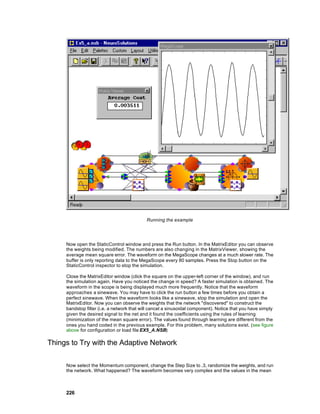
      Transmitter                 #Transmitter                 # = {cost, weights}

      Schedule                    #Scheduler                   # = {stepSize, radius}

      Backprop                    #Backprop                    # = name of attached activation
                                                               component

      GradientSearc               #Gradient                    # = name of attached backprop
      h                                                        component

      ActivationCont              control
      rol


Coordinating Unsupervised and Supervised Learning

     NeuroSolutions provides a very efficient integration of supervised and unsupervised learning within
     the same network. Hybrid networks are a very powerful class that has been largely unused due to
     the difficulty of the simulation of the two types of learning.

     NeuroSolutions’ modularization of learning enables a very elegant integration of unsupervised and
     supervised networks within the same simulation. Examples of this class of networks are the PCA
     networks, the Radial Basis Function Networks and the Self-Organizing Feature Map Networks. The
     unsupervised segment of the network functions as a preprocessor or feature extractor. The
     supervised segment is used to classify the extracted features.

     While the unsupervised segment extracts the features, the supervised classifier does not need to
     train (since it will learn incorrect features). The most efficient way to implement this hybrid training
     is to break the dataflow and train each piece of the network independently. The coordination of the
     learning and the dataflow requires the use of the Transmitter family.


Organization of NeuroSolutions

     In this section, each family is presented along with any concepts regarding the use of its
     components.

     A list of component families is maintained under the Palettes menu of NeuroSolutions. There are
     also "families of families" (e.g., the Activation family), which do not have associated palettes.

     The user can dock some or all of the available palettes on the border of the NeuroSolutions main
     window. When the palette is visible, a check mark is placed by the family name. To dock a
     particular palette, first single-click on the desired menu item to make the palette visible. Then drag


                                                                                                        121
the palette (grab it along its edge) to a free space on the border of the NeuroSolutions main
     window. When dropped, the palette will attach itself.


     Activation Family

     Backprop Family

     GradientSearch Family

     Controls Family

     Unsupervised Family

     Probe Family

     Input Family

     Transmitter Family


Activation Family
Activation Family


     Ancestor: Engine


     At the core of any artificial neural network (ANN) is the neuron, or processing element (PE). Most
     ANNs use PEs, which are derivatives of the McCulloch-Pitts neurons. However, the McCulloch-
     Pitts neuron is not a model for network learning, but rather a model for network activation. By
     activation, we are describing the way in which information, or data, flows through the network. The
     McCulloch-Pitts model describes each neuron as receiving weighted input from every other neuron


     122
in the network, applying a non-linear threshold and presenting its output for the others to input. The
activation of data through a first order McCulloch-Pitts neuron is defined by the following equation,


where xi(t) represents a neurons activity, ? is a nonlinearity and wij is a connection weight linking
PEj to PEi..

Time t is discrete, and it relates to one simulation step. This equation means that the next value of
the activation is obtained from the values of the other activations of PEj at the previous time step. If
the first order model is generalized to any discrete time delay d, more sophisticated models for the
neuron can be implemented from multiple first order models, as given by,


Neural networks are constructed by first defining the neuron interconnections, and then assigning a
learning procedure to adapt its weights. The Activation family only addresses the interconnection of
PEs to form a neural network topology. A network constructed from Activation components
contains no inherent procedure for learning, but rather supports a general communications protocol
such that components belonging to various learning procedure families can adapt its weights.

The McCulloch-Pitts model describes a network topology with a fully interconnected set of neurons
(i.e., each neuron feeds all of the others). In practice, ANN topologies typically interconnect
distributed clusters, or layers of PEs. For this reason, each component in the Activation family will
operate on a layer, or vector of PEs. This leads to very efficient simulations.

Activation family components model the McCulloch-Pitts neuron by dividing its functionality into a
temporally discrete linear map, and an instantaneous nonlinear map.

A Special Note for Neurobiologists

Many of the terms used in NeuroSolutions have different meanings than when used in a biological context.
This section is included to help neurobiologists avoid confusion by explicitly listing these differences.

In NeuroSolutions, the term "soma" refers to a parent, or archetypal class of elements. Both "synapse" and
"axon" are derivative classes of "soma". There is no specific "soma" element used in the construction of
NeuroSolutions breadboards.

The term "axon" in NeuroSolutions refers to an element that integrates its input weights and creates an
output. Often this is a nonlinear process. The NeuroSolutions "axon" more closely resembles the combination
of the neuronal dendrites, soma, and axon hillock in neurobiology.

"Synapse" in NeuroSolutions refers to the principal element that transmits information between
NeuroSolutions "axons". These "synapses" are more like the combined axon and synapses of neurobiology. A
NeuroSolutions "synapse" can be connected to many NeuroSolutions "axons", and is therefore similar to a
highly branched, or arborized, neurobiological axon. A biological synapse is functionally similar to a single
weight in NeuroSolutions.


                                                                                                            123
Members:

      Axon Family

      MemoryAxon Family

      Synapse Family


      See Also

Axon Family


                                        Axon family palette


Ancestor: Activation Family


Artificial neural networks are constructed by interconnecting processing elements (PEs) which
mimic the biological nerve cell, or neuron. NeuroSolutions divides the functionality of a neuron into
two disjoint operations: a nonlinear instantaneous map, which mimics the neuron’s threshold
characteristics; and a linear map applied across an arbitrary discrete time delay, which mimics the
neuron’s synaptic interconnections. The Axon family implements common variations on the
nonlinear instantaneous maps employed by neural models. Each axon represents a layer, or
vector, of PEs. All axons will also be equipped with a summing junction at their input and a splitting
node at their output. This allows multiple components to feed an axon, which then processes their
accumulated activity. It is important to notice the difference between this sum of activity vectors,
and the weighted sum of products depicted by the McCulloch-Pitts neuron model (see Activation
family). The latter is implemented as a linear map by the other functional division of the neuron, the
Synapse family.

For generality, an axon's map may actually be either linear or nonlinear. However, components in
the Axon family typically apply a nonlinear instantaneous map, as given by,


124
where yi(t) is the axon's output, xi(t) is an accumulation of input activity from other components,
is an internal weight or coefficient and             represents an arbitrary functional map. We call
            the activation function, and the on-line help for a particular axon gives the definition of
this map for that axon.

All members of the Axon family accumulate input from, and provide output to, an arbitrary number
of activation components. In other words, each axon has a summing junction at its input and a
splitting node at its output. This functionality is illustrated by the following block diagram:


                             The mapping for the PE of the Axon class.


Axons can receive input from, and provide output to both axons and synapse within the network.


Members:

    Axon

    BiasAxon

    GaussianAxon

    LinearAxon

    LinearSigmoidAxon

    LinearTanhAxon

    SigmoidAxon

    SoftMaxAxon

    TanhAxon

    ThresholdAxon

    WinnerTakeAllAxon


    See Also

MemoryAxon Family


                                                                                                   125
MemoryAxon family palette


Ancestor: Axon


Members of the MemoryAxon family encapsulate a local memory structure into a single axon. They
store a history of the input vector, which is contained within memory taps. MemoryAxons still
belong to the Axon family (even though they are contained within a separate palette), but they
diverge slightly from typical axon functionality. Most axons provide some form of an instantaneous
map. A MemoryAxon's activation function is not instantaneous, but has been wrapped for efficiency
into an axon.

Tapped MemoryAxons also diverge from the Axon family by having more outputs than inputs. In
fact, if there are n inputs and K taps (K-1 delay elements), then the MemoryAxon will have n*K
outputs. MemoryAxons can be best described by using a z-domain (frequency domain) activation
function. All MemoryAxons will be defined by their activation function given by:


Tapped MemoryAxons will use a tap activation function as given by:


with the topological understanding illustrated in the figure below.


126
Block diagram of a memory axon

The index k refers to the tap value.


Probing the Output:

When attaching a MatrixViewer or MatrixEditor to an Axon without memory, the vector of PEs is
displayed as a matrix of rows and columns based on the Rows and Cols parameters set within the
Axon’s inspector. When probing a member of the MemoryAxon family, the number of columns
displayed is the number of channels (Rows*Cols). The number of rows displayed is the number of
Taps entered in the inspector. Therefore, each column represents data stored in a given channel’s
memory taps.


Members:

    ContextAxon

    GammaAxon

    IntegratorAxon

    LaguarreAxon

    SigmoidIntegratorAxon

    TanhContextAxon

    TanhIntegratorAxon

    TDNNAxon

FuzzyAxon Family


                                       FuzzyAxon family palette


                                                                                            127
Ancestor: Axon


     Members of the FuzzyAxon family contain a set of membership functions (MFs) for each input
     processing element. The parameters of the membership functions are stored within the weight
     vector of the FuzzyAxon. The number of membership functions per processing element is specified
     within the FuzzyAxon inspector. The number of outputs is computed by taking the number of
     membership functions per processing element and raising it to the Nth power, where N is the
     number of inputs.


     Activation Function:

     The output of a FuzzyAxon is computed using the following formula:


     where     i = input index

               j = output index

               xi = input i

               wij = weights (MF parameters) corresponding to the jth MF of input i

               MF = membership function of the particular subclass of FuzzyAxon


     Members:

           BellFuzzyAxon

           GaussianFuzzyAxon


ErrorCriteria Family


                                         ErrorCriteria family palette


     128
Ancestor: Axon


Supervised learning requires a metric, a measure of how the network is doing. Members of the
ErrorCriteria family monitor the output of a network, compare it with some desired response and
report any error to the appropriate learning procedure. In gradient descent learning, the metric is
determined by calculating the sensitivity that a cost function has with respect to the network's
output. This cost function, J, is normally positive, but should decay towards zero as the network
approaches the desired response. The literature has presented several cost functions, but the
quadratic cost function is by far the most widely applied (see L2Criterion).

Components in the ErrorCriteria family are defined by a cost function of the form:


and error function:


Where d(t) and y(t) are the desired response and network's output, respectively.

Each ErrorCriteria component accepts its desired response through the Desired Signal access
point, and reports the total cost between weight updates to the Average Cost access point.
ErrorCriteria components are responsible for determining an error that is used by the
backpropagation plane to calculate the gradient information.

NeuroSolutions implements supervised learning procedures using component planes. Each
component used for implementing the activation plane has a single dual component that is used to
implement the backprop plane. Components of the backprop plane are responsible for computing
the weight gradients and backpropagating the sensitivities. ErrorCriteria components are
responsible for determining the error used for the backpropagation.

The ErrorCriteria family is also a member of the Axon family (i.e., its components interact within the
network topology as an axon). It is generally used by attaching MaleConnector of network's output
to the ErrorCriteria component’s FemaleConnector. The figure below illustrates the output segment
of a network. The error is computed by the L2Criterion using the signal from the output Axon (left)
and the data read from the desired output File. The resulting error is displayed using the
MatrixViewer probe.


                                                                                                 129
Output segment of a network (activation plane only)


Members:

      L1Criterion

      L2Criterion

      LpCriterion

      LinfinityCriterion


User Interaction:

      Macro Actions


      See Also

Synapse Family


                                         Synapse family palette


Ancestor: Activation Family


Artificial neural networks are constructed by interconnecting processing elements (PEs) which
mimic the biological nerve cell, or neuron. NeuroSolutions divides the functionality of a neuron into
two disjoint operations: a nonlinear instantaneous m ap, which mimics the neuron’s threshold
characteristics; and a linear map applied across an arbitrary discrete time delay, which mimics the
neuron’s synaptic interconnections. The Synapse family implements the dynamic linear mapping
characteristics of the neuron. A synapse connects two layers of PEs (axons). A synapse will
receive input from, and provide output to, components belonging to the Axon family.

If a synapse is connected between two axons, then these axons represent distributed layers of PEs
within a network. If the synapse's input and output are applied to the same axon, then the axon PEs
are recurrently interconnected as described by the McCulloch-Pitts model. The concept of
interconnected layers of distributed PEs is fundamental to neural network theory. The
interconnection is normally defined by an interconnection matrix. In theory, any network topology
can be specified through a single interconnection matrix. In practice, however, it is impractical to
burden an already computationally expensive task with "connect by zero" operations. It makes


130
more sense to isolate groups of neurons to be fully interconnected, and interconnect the rest by a
     more efficient map.

     A synapse's map may actually be either linear or nonlinear. However, components in the Synapse
     family typically apply a temporally discrete linear map between their input and output axon
     activation vectors. The general form for the activation of a synapse is given by:


     where d is an arbitrary delay in time. This functionality can be illustrated by the following block
     diagram:


                               The mapping for the PEs of the Synapse family.


     Members:

         Synapse

         FullSynapse

         ArbitrarySynapse


         See Also

Backprop Family
Backprop Family


                                           Backprop family Palette


                                                                                                           131
Ancestor: Activation Family


The Activation family provides a base set of neural components which may be interconnected to
construct an enormous number of network to pologies. Once a specific topology has been
constructed, the user can apply an arbitrary learning rule (if a specific rule is not supported,
developers can write their own). The Backprop Family implements the backpropagation learning
rule for elements in the Activation family. Each member of the Activation family will have a dual
component in the Backprop family, which is responsible for calculating the gradient information
based on its activation function. Backprop components are stacked on top of their Activation dual
component.

First, there needs to be a clear definition for the term backpropagation. The literature has presented
many variations to the backpropagation learning rule, such as steepest descent, quickprop and
conjugate gradients . At the core of all backpropagation methods is an application of the chain rule
for ordered partial derivatives to calculate the sensitivity that a cost function has with respect to the
internal states and weights of a network. In other words, the term backpropagation is used to imply
a backward pass of error to each internal node within the network, which is then used to calculate
weight gradients for that node.

The Backprop family does not specify the way in which this gradient information is used to adapt
the network. The GradientSearch family is responsible for applying the gradient information
computed by the Backprop components to adapt the weights within the Activation components. Any
member of the GradientSearch family may be applied to each member of the Backprop family,
providing the variations to backpropagation (e.g. steepest descent, quickprop and conjugate
gradients).

Recall that the Activation family was divided into components having one of two activation
functional forms, corresponding to the Axon and Synapse families. The functional form of
backpropagation components is completely defined by the topology of their respective Activation
duals. In other words, the Backprop family is divided into two distinct functional families. For
convenience, these two families are contained within the same Backprop palette.


Members:

      BackAxon Family

      BackMemoryAxon

      BackSynapse Family


      See Also

BackAxon Family


132
BackAxon section of the Backprop family Palette


Ancestor: Backprop Family


Members of the Axon family implement the instantaneous nonlinear threshold characteristics of the
neuron, and its members are constrained to a standard activation functional form. Thus
components implementing backpropagation for axons will also share a common functional form.

Backpropagation requires that all members of the BackAxon family perform two operations. First,
given an error at their output, BackAxons must calculate gradient information for all adaptive
weights within their dual components (i.e. from the Axon family). Second, they must derive the
relative error at their input to be backpropagated to any components which precedes them. Recall
the standard activation function for members of the Axon family (see equation). Similarly, members
of the BackAxon Family can be defined by a backward sensitivity function (error) as given by,


Each member of the Axon family was completely defined through its activation function. Similarly,
members of the BackAxon family can be defined by a backward sensitivity function (error) as given
by:


and a weight gradient function of the form:


where            and          are sensitivities,     is the weight gradient, ' denote derivatives,
and J is the cost function. The error propagation can be illustrated by the block diagram in the
figure below.


                                                                                                133
BackAxon functionality


Each BackAxon will assign its error function,                 and weight gradient function,

                 .


Members:

      BackAxon

      BackBiasAxon

      BackLinearAxon

      BackSigmoidAxon

      BackTanhAxon

      BackMemoryAxon Family


      See Also

BackMemoryAxon Family


                     BackMemoryAxon section of the Backprop family Palette


Ancestor: BackAxon Family


134
Members of the MemoryAxon family encapsulate a local memory structure into a single axon.
MemoryAxons do not use time domain equations to describe their activation, but instead use z-
domain tap activation equations. Similarly BackMemoryAxons are defined by a z-domain sensitivity
function given by,


Tapped MemoryAxons are defined by a z-domain tap sensitivity function,


A topological perspective for the tapped components is illustrated in the figure below. Each
individual pair of activations (i.e.,   ,       ) is treated as in the backward sensitivity equation
and the weight gradient equation.


                                Block diagram for BackMemoryAxons


Members:

    BackContextAxon

    BackGammaAxon

    BackLaguarreAxon

    BackIntegratorAxon


                                                                                               135
BackSigmoidContextAxon

      BackSigmoidIntegratorAxon

      BackTanhContextAxon

      BackTanhIntegratorAxon

      BackTDNNAxon


      See Also

BackSynapse Family


                      BackSynapse section of the Backprop family Palette


Ancestor: Backprop Family


Neural network topologies are constructed by interconnecting components that mimic the biological
neuron. Members of the Synapse family implement the linear dynamic characteristics of the
neuron, and its members are constrained to a standard activation functional form. Thus
components implementing backpropagation for synapse will also share a common functional form.

Backpropagation requires that all members of the BackSynapse family perform two operations.
First, given an error at their output, BackSynapses must calculate gradient information for all
adaptive weights within their family of dual components (i.e., the Synapse family). Second, they
must derive the relative error (the sensitivities) at their input to be backpropagated to any
components which precedes them. Recall the equation for the standard activation function for
members of the Synapse family. Similarly, members of the BackSynapse family can be defined by
a backward sensitivity function as given by:


Each member of the Synapse family was completely defined through its activation function.
Similarly, members of the BackSynapse family can be defined by a backward sensitivity function
(error) of the form:


136
and a weight gradient function of the form:


     The error propagation can be illustrated by the block diagram in the figure below.


                                       BackSynapse block diagram


     Each BackSynapse is defined by an error function and weight gradient function.


     Members:

         BackSynapse

         BackFullSynapse

         BackArbitrarySynapse


         See Also

GradientSearch Family
     GradientSearch Family


                                                                                          137
GradientSearch family palette


Ancestor: Engine


Components in the GradientSearch family search a network’s performance surface in an attempt to
find the global minima. Recall that the Activation family is responsible for passing activity forward
through the network, and the Backprop family is responsible for passing an error backwards, in
addition to calculating weight gradients. The GradientSearch family will use the weight gradients
provided by the Backprop family to update the weights of the Activation family. This is depicted by
the general form for the weight update equation given in the equation below.


Conceptually, members of the Activation family are interconnected to form the network topology,
which in turn fixes the performance surface topography. Members of the Backprop family act as a
level, i.e. given the current location in weight space, they estimate the direction of a minima or
valley within the performance surface. Members of the GradientSearch family move the location (by
updating the weights) based on this estimated direction in an attempt to minimize the error.

There are many methods for searching the performance surface based on first order gradient
information (e.g., steepest descent, quickprop and conjugate gradients), as w ell as several
methods for deriving these gradients (e.g., static backpropagation, backpropagation through time
and real time recurrent learning). This is the motivation for separating gradient calculations from
weight updates.

A GradientSearch component can be stacked on top of any member of the Backprop family that
contains weights (see figure below). This allows the GradientSearch component to access the
errors and gradients of the Backprop component, as well as the activities and weights of the
Activation component.


                  Network with Activation, Backprop and GradientSearch planes


138
Members:

         Step

         Momentum

         Quickprop

         DeltaBarDelta


         See Also

Controls Family
     Controls Family


                                           Controls family palette


     Ancestor: Engine


     The Activation family is a collection of components which may be interconnected to form neural
     networks. Each component in this family performs a simple neural (processing) fu nction, but when
     interconnected, these components work together to simulate very complicated neural networks.
     The order in which activity is fired through this network establishes a data flow machine. Input data
     is presented to the first component, which p rocesses it and passes the result to the next
     component. This will continue until the last component has processed the data (i.e., the output of
     the network is reached). Each component in the Activation family understands the local rules of
     interaction required to operate as a data flow machine. Global rules of interaction are also required
     when simulating neural networks to insure the proper ordering of events.

     NeuroSolutions uses members of the Controls Family (i.e., controllers) to provide global activation
     and learning synchronization for simulations. All breadboards require at least one member of this
     family in order to run simulations. The Controls family consists of three sub-families. All Controls
     components are contained within the Controls palette.


     Members:

         ActivationControl Family

         BackpropControl Family


                                                                                                     139
See Also

ActivationControl Family


The ActivationControl family consists of the StaticControl       and DynamicControl
components. These components are responsible for synchronizing the presentation of data to a
neural network. The activation of network simulations are divided into experiments, epochs,
exemplars and forward samples. The StaticControl component is only capable of controlling static
network topologies, while the DynamicControl component supports both static and dynamic
topologies.

The outputs of a static network are only a function of its inputs and states at the current instant in
time. This relationship can be depicted by the equation


where y(t) are the network's outputs, i(t) are inputs, x(t) are internal nodes and w are the weights.

The outputs of a dynamic network can be a function of its inputs and internal states at the present
time, as well as its states at any past instant in time. This is defined by


Note that static networks are a special case of dynamic where T is set to zero.

An example may be the best method for explaining the settings available on the inspectors of these
two components. Assume that you have designed a dynamic network for isolated speech
recognition. In particular, you wish to train the network to recognize the digits 0-9. These digits
have been individually spoken into a microphone and properly sampled. Each digit is completely
contained within an isolated segment consisting of 8000 samples. To complete the training set, this
process was repeated 100 times for each digit.

The term samples, refers to the individual pieces of temporal information. An exemplar is a
complete pattern of samples (e.g., each spoken digit), which may be static or temporal. The
temporal dimension of an exemplar is defined by its Samples/Exemplar (in this case 8000). Static
problems will have one sample per exemplar. An epoch refers to the set of all exemplars to be
presented during the training of a network (e.g., all 100 exemplars of each of the 10 digits). Thus an
epoch is defined by assigning the Exemplars/Epoch (1000 in our example). A neural network
experiment will consist of the repeated presentation of an epoch to the network until it has
sufficiently trained. Thus an experiment is defined by assigning the Epochs/Experiment.


140
Inspector for the DynamicControl component


The StaticControl inspector does not contain the Samples/Exemplar parameter. This is because
every sample corresponds to one exemplar. A simple example of a static case is the XOR problem.
The XOR table is composed of 4 cases. You train an MLP to solve the XOR by presenting the 4
cases 100 times. Here an exemplar is one of the four entries of the XOR table. An epoch consists
of the four patterns (Exemplars/Epoch = 4). The experiment consists of 100 presentations of each
of the 4 cases (Epochs/Experiment = 100).


                            Inspector for the StaticControl component


The ActivationControl family is also responsible for cross validation of the network during learning.
It does this by sending a second set of data through the network during the training, while
temporarily freezing the network weights.

All Access components have the ability to choose the data set to access. Each probe can be
assigned to monitor a particular data set. Furthermore, a transmitter can make control decisions
based on one of the data sets, e.g. stopping training after the error in the cross validation set has
fallen below a given threshold.


                                                                                                 141
Members:

      StaticControl

      DynamicControl


      See Also

BackpropControl Family


The BackpropControl family consists of the BackStaticControl              and the
BackDynamicControl                 components. They are responsible for synchronizing components
in the backpropagation plane. There are two distinct synchronization paradigms for
backpropagation. Synchronization refers to the way in which the network processes sensitivity
(error) data. The ActivationControl family divides simulations into experiments, epochs, exemplars
and samples. The BackpropControl family further defines a simulation by the number of backward
samples per exemplar and the number of exemplars per weight update. Backpropagation can
either be synchronized in Static, Trajectory or Fixed-Point modes.

The BackStaticControl component is used in conjunction with the StaticControl component. Static
backpropagation assumes that the output of a network is strictly a function of its present input (i.e.,
the network topology is static). In this case, the gradients and sensitivities are only dependent on
the error and activations from the current time step. The Exemplars/Update field of the
BackStaticControl inspector is the number of patterns presented to the networks before a weight
update is computed. If the weights are updated after every exemplar (Exemplars/Update = 1), then
this is termed on-line learning. If the weights are update after every epoch (Exemplars/Update =
Exemplars/Epoch in the activation control component), then this is termed batch learning.


                                    BackStaticControl inspector


142
Note that for linear systems, static backpropagation is equivalent to least mean squares (LMS). If a
     network does not have any recurrent connections (i.e., the network is feed-forward) but has a
     dynamic component such as a TDNNAxon, then the sensitivity that the output has with respect to
     any internal node is strictly a function of that node at present time. Therefore, static
     backpropagation can still be used even though the network topology is dynamic.


     The BackDynamicControl component is used in conjunction w ith the DynamicControl
     component. These components allow for Trajectory and Fixed-Point learning. Training a network in
     Trajectory mode assumes that each exemplar has a temporal dimension defined by its forward
     samples (period), and that there exists som e desired response for the network's output over this
     period. The network is first run forward in time over the entire period, during which an error is
     determined between the network's output and the desired response. Then the network is run
     backwards for a prescribed number of samples (defined by the Samples/Exemplar of the
     BackDynamicControl inspector) to compute the gradients and sensitivities. This forward/backward
     pass is considered a single exemplar. As with the static case, the Exemplars/Update field specifies
     how many times this process is repeated before the weight gradients are applied to the weights.

     Fixed Point mode assumes that each exemplar represents a static pattern that is to be embedded
     as a fixed point of a recurrent network. Here the terms forward samples and backward samples can
     be thought of as the forward relaxation period and backward relaxation period, respectively. All
     inputs are held constant while the network is repeatedly fired during its forward relaxation period,
     specified by the Samples/Exemplar of the DynamicControl component. There are no guarantees
     that the forward activity of the network will relax to a fixed point, or even relax at all. If the network
     becomes unstable or gets stuck in a limit cycle, simply randomize the weights and try again. Of
     course, a clever researcher will start the network from initial conditions that are known to be stable
     (as in the case of symmetric weights). After the network has relaxed, an error is determined and
     held as constant input to the backpropagation layer. Similarly, the error is backpropagated through
     the backprop plane for its backward relaxation period, specified by the Samples/Exemplar of the
     BackDynamicControl inspector. This forward/backward relaxation is considered to be one
     exemplar. Again, the Exemplars/Update specifies how often to update the weights.


     Members:

         BackStaticControl

         BackDynamicControl


         See Also

Unsupervised Family
     Unsupervised Family


                                          Unsupervised family palette.


                                                                                                          143
Ancestor: Level


    Unsupervised learning trains based on internal constraints, so no desired signal is used during
    training. This should not be confused with not having a desired response. The way in which the
    network responds to input data is pre-encoded into the learning procedure.

    Unsupervised learning is only meaningful if there is redundancy in the input data. Without
    redundancy it is impossible to find any patterns or features. Unsupervised networks extract
    knowledge by exploring redundancy. In this sense, knowledge and information are exact opposites;
    information can be measured by a signal’s lack of redundancy.

    Unsupervised learning is normally applied to a single layer of weighted connections. In
    NeuroSolutions, this corresponds to the Synapse family. Therefore, all components in the
    Unsupervised family are also members of the Synapse family. Unlike supervised procedures,
    unsupervised components do not require a dedicated network controller. These components insert
    themselves into the data flow during the network's forward activation. The weights of the synapse
    are adapted internally with every sample of data flowing through the network. Supervised and
    unsupervised components may be intermixed within a single network.

    Within the Unsupervised palette are three sub-families summarized below. All components in the
    Unsupervised family can be functionally described through a weight update function in the form of
    the equation below.


    where η is the step size specified within the Learning Rateproperty page.


    Members:

Hebbian Family

Competitive Family


    User Interface:

        Macro Actions


    Hebbian Family
    The Hebbian learning is correlation learning. The elements of this family utilize directly the product
    of its local input and output to derive the weight updates. NeuroSolutions implements straight
    Hebbian (Hebbian, anti-Hebbian, forced-Hebbian) and normalized Hebbian (Oja and Sanger). The
    last two types have an inherent normalization. These three components are HebbianFull, OjasFull
    and SangersFull.


    144
Members:

    HebbianFull

    Ojas

    Sangers

Competitive Family
Ancestor: Unsupervised Family


The goal of competitive networks is to cluster or categorize the input data. The user defines the
number of categories, but their coordinates are determined without supervision. There are an
enormous number of applications for such networks. Data encoding and compression through
vector quantization comprise one important class of applications.

Competitive learning weight updates are applied on a winner take all basis. In other words, only the
weights that feed the most active output are adjusted. Like all components in the Unsupervised
family, Competitive components are defined through their weight update function. However, this
function is now only applied to the winning index, i*.


where x is the input vector and i* is the index of the winning output. The difference between
competitive rules i s based on how the winning output is determined. Therefore, each component is
defined by a winning index function of the form,


                                              i* = f(y)


where y is the output vector. Note that the output vector y is a measure of the distance between the
input and the output neurons’ weight vectors. This distance is dependent on the particular metric
chosen.


                                                                                               145
The Competitive family consists of two components, StandardFull and ConscienceFull. The first
component implements the standard competitive rule summarized above. With this rule, there are
cases when one PE will win the competition too much, causing the output to be skewed. The
second component implements the "competitive with a conscience" learning rule. This rule adds a
bias term to balance the competition, which reduces this problem.

The components of the Competitive family are often used in conjunction with a WinnerTakeAllAxon.
This component will extract the winning PE of the competition. For the Dot Product metric, the
winning PE is the one with the maximum value. For the other two metrics, the winning PE is the
one with the minimum value.


Members:

      StandardFull

      ConscienceFull

      Kohonen Family


User Interface:

   Macro Actions


Kohonen Family


Ancestor: Competitive Family


The Kohonen family is an enhancement of the Competitive family. It extends the competition over
spatial neighborhoods. While competitive learning only updates the weights of the winning PE, in
Kohonen learning the weights in a neighborhood of the winning PE are also updated.
NeuroSolutions implements a 1D neighborhood and two types of 2D neighborhoods. Both the
neighborhood and the learning rates can be set to decay as the network learns.

The Kohonen components use the same weight update as used for the competitive components,
and they all use a conscience bias to determine the winning index. The difference is that a
neighborhood of PEs around the winning output are updated along with the winning PE.

The reference page of each component contains an illustration of its neighborhood for a
neighborhood size of 2. Both the neighborhood size and learning rate are available on the
component’s inspector. These parameters can also be scheduled to decay during the simulations.


Members:

      DiamondKohonen

      LineKohonen

      SquareKohonen


146
User Interface:

         Macro Actions


Probe Family
     Probe Family


                                            Probes family palette


     Ancestor: Access Family


     Probing is a fundamental concept of NeuroSolutions. Since it is very difficult to mathematically
     describe the complex signal transformations occurring in highly nonlinear systems, neural networks
     are often used as "black boxes". However in a simulation environment, considerable insight can be
     gained by observing activations and weights at the input, output and internal nodes during training.
     The learning curve (i.e., how the output MSE decreases with training) is a paradigmatic display of
     the importance of probing.

     Analyzing the activity within PEs tends to be almost exclusively applied to output components. In
     NeuroSolutions, the user has the ability to place probes on ANY component in the network. Each
     probe provides a unique way of visualizing the data available at a component’s access points. It is
     obvious that on-line visualization of learning (i.e., visualizing the MSE or other network parameters
     during the simulations) is a time savings feature. Maladjustments in learning parameter settings
     can be observed early in the simulation, and corrected. Another useful feature of probing is the
     added understanding that the user gets about the path that the network takes to arrive at a working
     solution (see Frequency Doubler Example).

     The core idea of probing is to extract data from signal paths for visualization, and further
     processing, without disturbing the network topology. Probing will require additional clock cycles, but
     NeuroSolutions allows the user to set how often the display is refres hed. If the user does not take
     into account the interval between display cycles, probing can significantly hinder the simulation
     speed.

     In NeuroSolutions, whenever a component has data to monitor (e.g., activity, weights and learning
     rates) it reports the data through a standard protocol. In this way, all NeuroSolutions components
     speak the same language. No matter what the data represents, it is reported through the same
     protocol. This is the same protocol that all probes speak, allowing the same data to b e visualized in
     many formats.

     The Probes Family consists of static probes, temporal probes and transformers . The static probes
     accept instantaneous data from component access points. Temporal probes are used to observe
     data that has been collected and sto red over a number of simulation clock cycles. Transformer
     probes transform the data collected at temporal access points (e.g., a spectral estimator based on
     the Fast Fourier Transform). The results of these transformations are then presented as another
     temporal access point.


                                                                                                      147
Members:

           StaticProbe Family

           TemporalProbe Family

           Transformer Family


     User Interaction:

           Macro Actions

Input Family
Input Family


                                             Input family palette


     Ancestor: Access Family


     The Input family links NeuroSolutions with the computer file system for input, and also provides
     testing signals (signal generators and noise sources) for the simulations. This is done by feeding
     data to an access point of the attached network component.

     These components are most often used to generate an input signal and a desired output signal.
     This is implemented by attaching an Input component to the Pre-Activity access point of the input
     Axon and another Input component at the Desired Signal access point of the ErrorCriterion
     component.

     The internal data input format in NeuroSolutions is a multi -channel stream. The number of channels
     is determined by the number of PEs contained within the component stacked below. The data
     stream for an input component is stored as a binary pattern file (*.nsp) within the same directory as
     the breadboard. When the input component is a File, a data stream is generated for each unique
     data set defined in the file list.

     The function of the File component is to translate other file formats to data streams stored as
     pattern files. Presently there is support for ASCII, column-formatted ASCII, binary, and bitmap file
     formats. Multiple files of mixed type can be translated simultaneously within the same File
     component. There are also provisions for normalization, segmentation and symbolic translation of
     input files.

     The Function component is a function generator, used for testing network topologies. It produces
     periodic waveforms of a variety of types. The waveforms can be the same for all channels or they
     can differ between them.


     148
The Noise component provides the ability to inject noise into network components. By attaching a
     Noise component to another component, all data that flows through the selected access point has a
     noise factor added in. This component provides both a uniformly distributed noise source and a
     Gaussian distributed noise source. For both of these, the mean and variance of the noise is
     adjustable and can vary between channels.

     The DLLInput component is used to inject data into the network from a DLL. This is similar to using
     the DLL capability of the Function component, except that this data is not cyclical.

     The DLLPreprocessor component is used to preprocess the data sent from the component stacked
     on the Preprocessor access point using a DLL. The DLL retrieves the data one sample a t a time
     and passes the processed data to the component attached below.


     Members:

         Function

         File

         Noise

         DLLInput

         DLLPreprocessor

         OLEInput


Transmitter Family
Transmitter Family


                                        Transmitters family palette.


     Ancestor: Access Family


     The purpose of the Transmitter Family is to provide global communications between the various
     network components. This is necessary because each network component is an isolated entity that
     only knows how to communicate with its immediate neighbors on the breadboard, via access points
     and connectors. A transmitter transmits control messages or data based on the data that passes
     through the access point of the attached component. In this way, data may be transmitted between
     components that are not connected by the topology, or a component’s parameters may be altered
     based on the data of a remote component.


                                                                                                   149
Many of the components that are on the breadboard will have message that can be sent to them.
     When a transmitter is inspected, all of these messages are shown and any or all of them may be
     sent. Some of these messages may have a parameter that must be sent with the message. These
     parameters may be set using the inspector. The parameters will be of one of three types: a floating
     point number, (i.e. 34.5322 or -3.21e5) an integer number, (i.e. 1322, -5, -132) or a boolean. (i.e.
     TRUE or FALSE) The parameters type is determined by the message.

     If a component has messages, they will be shown in the inspector page of their respective on-line
     help screens. The messages are shown in the following manner:


                                           (Message(parameter))


     Members:

           DataTransmitter Family

           ControlTransmitter Family


     User Interface:

         Macro Actions


Schedule Family
Schedule Family


                                          Scheduler family palette


     Ancestor: Access Family


     The Scheduler family implements a graded change of a parameter during learning. This operation
     is very important in neurocomputing in order to modify the behavior of learning throughout the
     experiment. For instance, it may be advisable to start learning with a high learning rate or over a
     large neighborhood, and during learning slowly decrease the learning rate and the neighborhood
     size to consolidate (i.e., fine-tune) the learning. This is most important in Kohonen self-organizing
     feature maps and other unsupervised topologies.

     The Scheduler family consists of the three components, LinearScheduler, LogScheduler and
     ExpScheduler. These components differ by the formula used to increase/decrease the parameter


     150
from one iteration to the next (i.e., a linear, logarithmic or exponential function). Each component is
   defined by a recursive schedule equation of the form,


   where β is a parameter available on each component’s inspector.


   Members:

       ExpScheduler

       LinearScheduler

       LogScheduler


   User Interface:

       Macro Actions


Introduction to Neural Computation
Introduction to NeuroComputation


   NeuroSolutions


   NeuroDimension, Incorporated.

   Gainesville, Florida


   Purpose

   NeuroSolutions is a highly advanced simulation environment capable of supporting users with
   varying levels of expertise. A conceptual understanding of the fundamentals of Neural Network
   Theory is deemed necessary. Our purpose here is not to provide a substitute for the already
   voluminous literature in this area, but to set pointers to key articles, making explicit the level of user
   knowledge required. This chapter provides a "guided tour" of neural network principles.


                                                                                                        151
Introduction to Neural Computation
Introduction to NeuroComputation

        History of Neural Networks

        What are Artificial Neural Networks

        Neural Network Solutions

History of Neural Networks

        Neural Networks are an expanding and interdisciplinary field bringing together mathematicians,
        physicists, neurobiologists, brain scientists, engineers, and computer scientists. Seldom has a field
        of study coalesced from so much individual expertise, bringing a tremendous momentum to neural
        network research and creating many challenges.

        One unsolved challenge in this field is the definition of a common language for neural network
        researchers with very different backgrounds. Another, to compile a list of key papers which pleases
        everyone, has only recently been accomplished, see Arbib, 1995. However, for the sake of
        pragmatism, we present some key landmarks below.

        Neural network theory started with the first discoveries about brain cellular organization, by Ramon
        Y. Cajal and Charles S. Sherrington at the turn of the century. The challenge was immediately
        undertaken to discover the principles that would make a complex interconnection of relatively
        simple elements produce information processing at an intelligent level. This challenge is still with us
        today.

        The work of the neuroanatomists has grown into a very rich field of science cataloguing the
        interconnectivity of the brain, its physiology and biochemistry [Eccles, Szentagothai], and its
        function [Hebb]. The work of McCulloch and Pitts on the modeling of the neuron as a threshold
        logic unit, and Caia-niello on neurodynamics merit special mention because they respectively led to
        the analysis of neural circuits as switching d evices and as nonlinear dynamic systems. More
        recently, brain scientists began studying the underlying principles of brain function [Braitenberg,
        Marr, Pellionisz, Willshaw, Rumelhart, Freeman, Grossberg], and even implications to philosophy
        [Churchland].


  n   Key books are Freeman’s "Mass Activation of the Nervous System", Eccles et al "The Cerebellum as a Neural
      Machine", Shaw and Palm’s "Brain theory" (collection of key papers), Churchland "NeuroPhilosophy", and
      Sejnowski and Churchland "The Computational Brain".


        The theoretical neurobiologists’ work also interested computer scientists and engineers. The
        principles of computation involved in the interconnection of simple elements led to cellular
        automata [Von Neumann], were present in Norbert Wiener’s work on cybernetics and laid the
        ground for artificial intelligence [Minsky, Arbib]. This branch is often referred to as artificial neural
        networks, and will be the one reviewed here.


  n   There are a few compilations of key papers on ANN’s, for the technically motivated reader. We mention the
      MIT Press Neuro Computing III, the IEEE Press Artificial Neural Networks and the book on Parallel models of
      Associative memories by Erlbaum.


        152
n   Patrick Simpson’s book has an extensive reference list of key papers, and provides one possible taxonomy of
      neural computation.
  n   The DARPA book provides an early account of neural network applications and issues.
  n   Several books present the neural network computation paradigm at different technical levels:
  n   Hertz, Krogh and Palmer’s "Introduction to the Theory of Neural Computation" (Addison Wesley, 1991) has
      probably one of the most thorough coverages of neural models, but requires a strong mathematical background.
  n   Zurada’s "Introduction to Artificial Neural Systems" (West, 1992) and Kung’s "Digital Neural Networks"
      (Prentice Hall) are good texts for readers with an engineering background. Haykin’s book is encyclopedic,
      providing an extensive coverage of neural network theory and its links to signal processing.
  n   An intermediate text is the Rumelhart and McClelland PDP Edition from MIT Press.
  n   Freeman and Skapura, and Caudill and Butler are two recommended books for the least technically oriented
      reader.
  n   In terms of magazines with state-of-the art technical papers, we mention "Neural Computation", "Neural
      Networks" and "IEEE Trans. Neural Networks".
  n   Proceedings of the NIPS (Neuro Information Processing Systems) Conference, the Snowbird Conference, the
      Joint Conferences on Neural Networks and the World Congress are valuable sources of up-to-date technical
      information.


        An initial goal in neural network development was modeling memory as the collective property of a
        group of processing elements [von der Marlburg, Willshaw, Kohonen, Anderson, Shaw, Palm,
        Hopfield, Kosko]. Caianiello, Grossberg and Amari studied the principles of neural dynamics.
        Rosenblatt created the perceptron for data driven (nonparametric) pattern recognition, and
        Fukushima, the cognitron. Widrow’s adaline (adaptive linear element) found applications and
        success in communication systems. Hopfield’s analogy of computation as a dynamic process
        captured the importance of distributed systems. Rumelhart and McClelland’s compilation of papers
        in the PDP (Parallel Distributive Processing) book, opened up the field for a more general
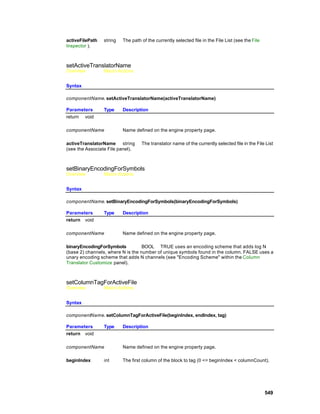
        audience. From the first International Joint Conference on Neural Networks held in San Diego,
        1987, the field exploded.

What are Artificial Neural Networks

        Artificial neural networks (ANN) are highly distributed interconnections of adaptive nonlinear
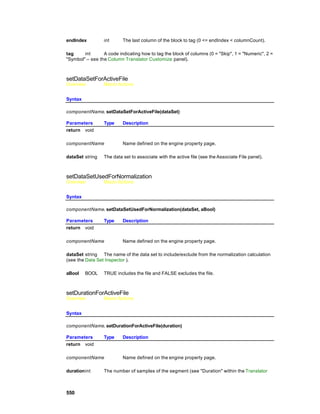
        processing elements (PEs). When implemented in digital hardware, the PE is a simple sum of
        products followed by a nonlinearity (McCulloch-Pitts neuron). An artificial neural network is nothing
        but a collection of interconnected PEs (see figure below). The connection strengths, also called the
        network weights, can be adapted such that the network’s output matches a desired response.


                                                                                                                  153
The building blocks of artificial neural networks


     Distributed computation has the advantages of reliability, fault tolerance, high throughput (division
     of computation tasks) and cooperative computing, but generates problems of locality of information,
     and the choice of interconnection topology.

     Adaptation is the ability to change a system’s parameters according to some rule (normally,
     minimization of an error function). Adaptation enables the system to search for optimal
     performance, but adaptive sys tems have trouble responding in a repeatable manner to absolute
     quantities.

     Nonlinearity is a blessing in dynamic range control for unconstrained variables and produces more
     powerful computation schemes (when compared to linear processing) such as feature separation.
     However, it complicates theoretical analysis tremendously.

     These features of distributed processing, adaptation and nonlinearity, are the hallmark of biological
     information processing systems. ANNs are therefore working with the same basic principles as
     biological brains, but probably the analogy should stop here. We are still at a very rudimentary
     stage of mimicking biological brains, due to the rigidity of the ANN topologies, restriction of PE
     dynamics and timid use of time (time delays) as a computational resource.

Neural Network Solutions

     Neural computation has a style. Unlike more analytically based information processing methods,
     neural computation effectively explores the information contained within input data, without further
     assumptions. Statistical methods are based on assumptions about input data ensembles (i.e. a
     priori probabilities, probability density functions, etc.). Artificial intelligence encodes a priori human
     knowledge with simple IF THEN rules, performing inference (search) on these rules to reach a
     conclusion. Neural networks, on the other hand "discover" relationships in the input data sets
     through the iterative presentation of the data and the intrinsic mapping characteristics of neural
     topologies (normally referred to as learning). There are two basic phases in neural network
     operation. The training or learning phase where data is repeatedly presented to the network, while
     it’s weights are updated to obtain a desired response; and the recall or retrieval phase, where the
     trained network with frozen weights is applied to data that it has never seen. The learning phase is
     very time consuming due to the iterative nature of searching for the best performance. But once the
     network is trained, the retrieval phase can be very fast, because processing can be distributed.

     The user should become familiar with the types of problems that benefit from a neural network
     solution. In general, neural networks offer viable solutions when there are large volumes of data to


     154
train the neural network. When a problem is difficult (or impossible) to formulate analytically and
       experimental data can be obtained, then a neural network solution is normally appropriate.


  The major applications of ANNs are the following:

       Pattern classifiers: The necessity of a data set in classes is a very common problem in information processing.
       We find it in quality control, financial forecasting, laboratory research, targeted marketing, bankruptcy
       prediction, optical character recognition, etc. ANNs of the feedforward type, normally called multilayer
       perceptrons (MLPs) have been applied in these areas because they are excellent functional mappers (these
       problems can be formulated as finding a good input-output map). The article by Lippman is an excellent
       review of MLPs.

       Associative memories: Human memory principles seem to be of this type. In an associative memory, inputs
       are grouped by common characteristics, or facts are related. Networks implementing associative memory
       belong generally to the recurrent topology type, such as the Hopfield network or the bidirectional associative
       memory. However, there are simpler associative memories such as the linear or nonlinear feedforward
       associative memories. A good overview of associative memories is a book edited by Anderson et al,
       Kohonen’s book (for the more technically oriented), or Freeman and Skapura book for the beginner.

       Feature extractors: This is also an important building block for intelligent systems. An important aspect of
       information processing is simply to use relevant information, and discard the rest. This is normally
       accomplished in a pre-processing stage. ANNs can be used here as principal component analyzers, vector
       quantizers, or clustering networks. They are based on the idea of competition, and normally have very simple
       one-layer topologies. Good reviews are presented in Kohonen’s, and in Hertz et al book.

       Dynamic networks: A number of important engineering applications require the processing of time-varying
       information, such as speech recognition, adaptive control, time series prediction, financial forecasting,
       radar/sonar signature recognition and nonlinear dynamic modeling. To cope with time varying signals, neural
       network topologies have to be enhanced with short term memory mechanisms. This is probably the area
       where neural networks will provide an undisputed advantage, since other technologies are far from
       satisfactory. This area is still in a research stage. The books of Hertz and Haykin present a reasonable
       overview, and the paper of deVries and Principe covers the basic theory.


       Notice that a lot of real world problems fall in this category, ranging from classification of irregular
       patterns, forecasting, noise reduction and control applications. Humans solve problems in a very
       similar way. They observe events to extract patterns, and then make generalizations based on their
       observations.


Neural Network Analysis

       At the highest level of neural network analysis is the neural model. Neural models represent
       dynamic behavior. What we call neural networks are nothing but special topologies (realizations) of
       neural models.


       The most common neural model is the additive model [Amari, Grossberg, Carpenter]. The neurodynamical
       equation is


                                                                                                                 155
where     is the eventual input to the i-th unit, τ is the time constant of the unit, σ a nonlinearity, and are
the interconnection weights. Notice that in this model the weights do not depend explicitly on the input. This
model gives rise to the most common neural networks (the multilayer perceptron and the Hopfield networks).
Another neural model is Grossberg’s shunting model, where the weights depend directly on the inputs.


An ANN is an interconnection of PEs as depicted in the Building Blocks of ANN figure. In the figure
below, a more detailed view of one of the PEs is shown.


                                The McCulloch-Pitts processing element


Two basic blocks can be identified: a linear map, the weighted sum of activations from other units
(implemented as a sum of products) which produces the local variable         given by


and an instantaneous nonlinear map that transforms                 to the output variable xi, the activation of
i-th PE, given by


156
Here     are the weights feeding the i-th PE,    is the activation of the j-th PE, and the summation
     runs over all the PEs that feed the i-th PE.

     In general, the form of the nonlinearity is a smooth, monotonically increasing and saturating
     function. Smooth nonlinearities are required when error backpropagation learning is used. The
     figure below shows some commonly used nonlinearities and their equations.


                                    Some commonly used nonlinearities


     Neural Network Taxonomies

     Learning Paradigms

     Constraining the Learning Dynamics

Neural Network Taxonomies

     A neural network is no more than an interconnection of PEs. The form of the interconnection
     provides one of the key variables for dividing neural networks into families. Let us begin with the
     most general case, the fully connected neural network. By definition any PE can feed or receive


                                                                                                     157
activations of any other including itself. Therefore, when the weights are represented in matrix form
(the weight matrix), it will be fully populated. A 6 PE fully connected network is presented in the
figure below.


                           A fully connected ANN, and the weight matrix


This network is called a recurrent network. In recurrent networks some of the connections may be
absent, but there are feedback connections. An input presented to a recurrent network at time t, will
affect the networks output for future time steps greater than t. Therefore, recurrent networks need
to be operated over time.

If the interconnection matrix is restricted to feedforwarding activations (no feedback nor self
connections), the neural network is defined as feedforward. Feedforward networks are
instantaneous mappers; i.e. the output is valid immediately after the presentation of an input. A
special class of feedfo rward networks is the layered class, which is called the multilayer perceptron
(MLP). This name comes from the fact that Rosenblatt’s network, which was called the perceptron,
consisted of a single layer of nonlinear PEs without feedback connections.

Multilayer perceptrons have PEs arranged in layers. The layers without direct access to the
external world, i.e. connected to the input or output, are called hidden layers (PEs 4,5 in the figure
below). Layers that receive the input from the external world are called the input layers (PEs 1,2,3
in the figure below); layers in contact with the outside world are called output layers (PE 6 in the
figure below).


                           A multilayer perceptron and its weight matrix


158
Notice that most entries in the weight matrix of an MLP are zero. In particular, any feedforward
     network has at least the main diagonal, and the elements below it populated with zeros.
     Feedforward neural networks are therefore a special case of recurrent networks. Implementing
     partially connected topologies with the fully connected system and then zeroing weights is very
     inefficient, but unfortunately is sometimes done.

Learning Paradigms
     Learning Paradigms


     The process of modifying network parameters to improve performance is normally called learning.
     Learning in ANN’s can also be thought of as a second set of dynamics, because the network
     parameters will evolve in time according to some rules.

     Consider the 6 PE MLP in A Multilayer Perceptron and its Weight Matrix figure. Assume that inputs
     are currents, and the weights are potentiometers that the user can control. For this example, the
     PEs can be thought of simply as being transistors. The goal is to obtain a value of 1 volt at the
     output, when several different currents are presented to the network. What the user would do is the
     following: start by connecting one of the inputs, and check the value at the output. If the value is not
     1 volt, then some of the potentiometers will have to be changed until the goal state is reached.
     Then a second input is presented, and the process repeated until the desired response is obtained
     for all the inputs. When a neural network is trained, this very process of changing the weights is
     automated.

     Learning requires several ingredients. First, as the network parameters change, the performance
     should improve. Therefore, the definition of a measure of performance is required. Second, the
     rules for changing the parameters should be specified. Third, this procedure (of training the
     network) should be done with known data.

     The application of a performance measure produces another important taxonomic division in ANNs.
     When the performance function is based on the definition of an error measure, learning is said to
     be supervised. Normally the error is defined as the difference of the output of the ANN and a pre-
     specified external desired signal. In engineering applications where the desired performance is
     known, supervised learning paradigm s become very important.

     The other class of learning methods modify the network weights according to some pre-specified
     internal rules of interaction (unsupervised learning). There is therefore no "external teacher". This is
     the reason unsupervised learning is also called self-organization. Self-organization may be very
     appropriate for feature discovery (feature extraction) in complex signals with redundancy. A third
     intermediate class of learning is called reinforcement learning. In reinforcement learning the
     external teacher just indicates the quality (good or bad) of the response. Reinforcement learning is
     still in a research phase, but it may hold the key to on-line learning (i.e. with the present sample).


                                                                                                        159
A taxonomy for artificial neural networks


For the class of supervised learning there are three basic decisions that need to be made: choice of
the error criterion, how the error is propagated through the network, and what constraints (static or
across time) one imposes on the network output. The first issue is related to the formula (the cost
function) that computes the error. The second aspect is associated with mechanisms that modify
the network parameters in an automated fashion. Here we will see that gradient descent learning is
the most common in supervised learning schemes. The third aspect is associated with how we
constrain the network output versus the desired signal. One can specify only the behavior at the
final time (fixed point learning); i.e. we do not constrain the values that the output takes to reach the
desired behavior. Or, we can constrain the intermediate values and have what is called trajectory
learning. Note that a feedforward network, since it is an instantaneous mapper (the response is
obtained in one time step), can only be trained by fixed-point learning. Recurrent networks,
however, can be trained by specifying either the final time behavior (fixed-point learning) or the
behavior along a path (trajectory learning).

Learning requires the specification of a set of data for training the network. This is normally called
the training set. Learning performance should be checked against a disjoint set of data called the
test set. It is of fundamental importance to choose an appropriate training set size, and to provide
representative coverage of all possible conditions. During learning, the network is going to discover
the best mapping between the input data and the desired performance. If the data used in the
training set is not representative of the input data class, we can expect poor performance with the
test set, even though performance can be excellent with the training set.


Cost Function

Gradient Descent

Cost Function


Due to its importance, let us analyze the most general case of supervised learning in greater detail.
There are several ways of going from an error measure, the difference between the network output


160
and the desired behavior, to a cost function. The mean square error is one of the most widely used
error norms (also called    norm), and is defined by


where is the desired response (or target signal),         are the output units of the network, and the
sums run over time and over the output units. When the mean square error is minimized, the power
of the error (i.e. the power of the difference between the desired and the actual ANN output) is
minimized. In certain cases we would prefer to minimize the maximum deviation between the
desired signal and net’s output (    norm), or give equal weights to large and small errors (   norm).
The appeal of the norm is that the equations to be solved for computing the optimal weights (the
weights that minimize the error) are linear for the weights in linear networks, so that closed form

solutions exist to perform the computation. In general the     norm may be defined as


A point worth stressing here is that the norm of the error only affects the error that needs to be
backpropagated through the transpose network (see Gradient Descent). Therefore, gradient
descent learning can be used with any norm, provided one can find a way to approximate the
derivative of the cost function. NeuroSolutions is able to accept many error norms due to the clever
way in which the cost function is implemented in the program.

Gradient Descent


Gradient descent learning is the most widely used principle for ANN training. The reason is that
trivial computation is required to implement this method, and the fact that the gradient can be
computed with local information. The principle of gradient descent learning is very simple. The
weights are moved in a direction opposite to the direction of the gradient. The gradient of a surface
points to the direction of the maximum rate of change.

Therefore, if the weights are moved in the opposite direction of the gradient, the system state will
approach points where the surface is flatter (see figure below).


                                                                                                 161
Gradient descent in one dimension


In the figure above, let us assume that the first point is    . The gradient along x at    points to the
right, so we move to the left, to    At , the gradient still points to the right, so we move to .
Now the gradient points to the left. so we move to the right. The bottom of the bowl is also the flat
region of the surface. So, at least for the convex surface depicted, moving in a direction opposite
that of the gradient moves in the direction of the smallest curvature. The weights that correspond to
the point of minimum error are the optimal weights.

Widrow showed that in order to implement gradient descent in a linear distributed network (called
an adaptive filter, see figure below) each of the weights (indexed by i) should be modified according
to


where ? is a sufficiently small constant (the learning rate parameter),        is the error (the difference
between the desired response and the actual system response) at iteration step k,               is the input
value to the weight i at iteration k, and   is the value of weight i at iteration k.

This is the LMS (least mean square) algorithm . The basic idea behind the LMS algorithm is a
simplification of computing the gradient. Instead of averaging a lot of samples to obtain an accurate
representation of the gradient as indicated by the l2 cost equation, the LMS only uses the present
sample to estimate the gradient. Therefore one only needs to take the derivative of the present
difference between the desired signal and the present output with respect to the PE weights, which
simply becomes the multiplication of the present error by the input at each PE. This estimate is
unbiased, so although noisy, it will converge to the correct value.

Notice that only two multiplications and one addition are necessary per weight to implement this
equation, which is computationally very efficient. Notice also that all the necessary information
(input and local error) is available locally to the weight. These are the two features of gradient
descent that make it so appealing for ANN learning, but as with most things in the real world, there
are some shortcomings.


162
The adaptive linear combiner (FIR filter)


The problem is with the existence of multiple minima (non-convex surfaces) that can trap the
adaptation, and with difficulty in choosing appropriate leaning constants for fast convergence (see
figure below).


                                 A non-convex performance surface


Notice that, from the point of view of the gradient, a local minimum and the global minimum are
indistinguishable, i.e. in both cases the gradient will be zero.

In nonlinear systems such as the ANN PE, the easy LMS rule must be modified to account for the
nonlinearity. This gives rise to the delta rule, and this principle was known for a long time in
sensitivity analysis. If one wants to compute the sensitivity of one quantity (E) with respect to
another (w), related by a function (f(w)), as long as the function f is differentiable, the chain rule can
be used, i.e.


                                                                                                     163
Now we can understand why we required the nonlinearity of the PE to be monotonic and smooth,
otherwise the first term of the equation could not be computed. If we apply this principle to the error
at the output of the ith PE with respect to the weights, we see that


The first term is the derivative of the instantaneous mapper which will be denoted as σ'’          . The
second term gives the LMS rule applied to the weight         (i.e. having   as input and error    ), i.e.


Delta rule learning is just an application of these principles repeated over and over again for each
PE in the network. The problem that was faced by early ANN researchers when they tried to
extrapolate this simple procedure to multilayer perceptrons was the fact that the desired signal in
the hidden layers of the network was not known explicitly. It turns out that when the error is
considered as a signal that is propagated from the output of the net to the input, one can reason
that the error reaching a given node should be distributed proportionally to the strength of the
weights connecting to that node (just think of an electrical signal being propagated through a
resistive network where the weights are the conductances or resistors). This is the principle behind
the backpropagation algorithm.

A relevant aspect of this methodology, which can be considered a contribution of ANN research to
the theory of optimization, is the way the gradients are computed. In optimization, the method of
forward perturbation is normally used to compute the gradient, which implies a massive
computation of partial derivatives (see real time recurrent learning below). It has been shown
repeatedly by ANN researchers, however that gradients can also be computed by propagating the
error through the transpose network (or dual) and multiplying it locally with the activation residing at
the node (see figure below). The transpose network is obtained from the original network by
changing the direction of signal flow and switching the summing junctions with the nodes.


164
Relation between a network and its transpose (dual)


It turns out that this is a much more efficient procedure for computing the gradients than forward
activation of the sensitivities. Moreover, the backpropagation procedure is not restricted to
feedforward networks. A recurrent network can also benefit from the same backpropagation
principle, and the backpropagation principle can even be applied to problems where the gradients
have to be computed over time. NeuroSolutions extensively uses this simplification.

Note that in the backpropagation procedure there is an intrinsic data flow. First, the inputs are
propagated forward through the network to reach the output. The output error is computed as the
difference between the desired output and the current system output. Then errors are propagated
back through the network up to the first layer after which the delta rule can be applied to each
network PE.

Normally, the backpropagation equations are written in a much more complicated manner because
one has to mathematically formulate the composition of intermediate errors. But these equations
cloud a very simple and uniform principle. All the PEs compute the gradient in the same manner as
expressed by the delta rule. When the transpose network is used to propagate the error, a routine
computing the backpropagation procedure only needs to know about the delta rule, because the
complication of propagating the error up to the unit is naturally taken care of by the transpose
network. This is the way NeuroSolutions implements the backpropagation procedure.

A final note about backpropagation that needs to be covered is the functional form of the
propagated error. Notice that the error passing across a PE is multiplied by the derivative of the
nonlinearity taken at the operating value given by the PE activation. Practically, one does not need
to explicitly compute the derivative of the nonlinearity since it can be given as a function of the
operating point.


We know that the nonlinearity is a saturating function. Therefore, the derivative of large activations
(positive or negative) will produce an attenuation in the propagated error. Since the weights will be
modified proportionally to the magnitude of the error, one can expect that learning speed decreases


                                                                                                 165
for multiple layer networks (this phenomenon is sometimes called error dispersion). Fahlman
     proposes adding a small constant (0.1) to the propagated error to speed up learning.

Constraining the Learning Dynamics
     Constraining the Learning Dynamics


     Feedforward networks only accept fixed-point learning algorithms because the network reaches a
     steady state in one iteration (instantaneous mappers). Due to this absence of dynamics,
     feedforward networks are also called static networks. Backpropagation for these networks is a
     static learning rule and is therefore referred to as static backpropagation. In recurrent networks, the
     learning problem is slightly more complex due to the richer dynamic behavior of the networks.

     One may want to teach a recurrent network a static output. In this case the learning paradigm is still
     fixed point learning, but since the network is recurrent it is called recurrent backpropagation.
     Almeida and Pineda showed how static backpropagation could be extended to this case. Using the
     transpose network, fixed-point learning can be implemented with the backpropagation algorithm,
     but the network dynamics MUST die away. The method goes as follows: An input pattern is
     presented to the recurrent net. The network state will evolve until the output stabilizes (normally a
     predetermined number of steps). Then the output error (difference between the stable output and
     the desired behavior) can be computed and propagated backwards through the adjoining network.
     The error must also settle down, and once it stabilizes, the weights can be adapted using the static
     delta rule presented above. This process is repeated for every one of the training patterns and as
     many times as necessary. NeuroSolutions implements this training procedure.

     In some cases the network may fail to converge due to instability of the network dynamics. This is
     an unresolved issue at this time. We therefore recommend extensive probing of recurrent networks
     during learning.

     The other learning paradigm is trajectory learning where the desired signal is not a point but a
     sequence of points. The goal in trajectory learning is to constrain the system output during a period
     of time (therefore the name trajectory learning). This is particularly important in the classification of
     time varying patterns when the desired output occurs in the future; or when we want to approximate
     a desired signal during a time segment, as in multistep prediction. The cost function in trajectory
     learning becomes


     where T is the length of the training sequence and i is the index of output units.

     The ANN literature provides basically two procedures to learn through time: the backpropagation
     through time algorithm (BPTT) and the real time recurrent learning algorithm (RTRL).

     In BPTT the idea is the following [Rumelhart and Williams, Werbos]: the network has to be run
     forward in time until the end of the trajectory and the activation of each PE must be stored locally in
     a memory structure for each time step. Then the output error is computed, and the error is
     backpropagated across the network (as in static backprop) AND the error is backpropagated
     through time (see figure below). In equation form we have,


     166
where     (n) is the error propagated by the transpose network across the network and through
time. Since the activations x(n) in the forward pass have been stored, the gradient across time can
be reconstructed by simple addition. This procedure is naturally implemented in NeuroSolutions.


                  Construction of the gradient in Backpropagation through time.


The other procedure for implementing trajectory learning is based on a very different concept. It is
called real time recurrent learning [Williams and Zipser] and is a natural extension of the gradient
computation in adaptive signal processing and control theory. The idea is to compute, at each time
step, ALL the sensitivities, i.e. how much a change in one weight will affect the activation of all the
PEs of the network. Since there are        weights in a fully connected net, and for each we have to
keep track of N derivatives this is a very computationally intensive procedure (we further need N
multiplications to compute each gradient). However, notice that we can perform the computation at
each time step, so the storage requirements are not a function of the length of the trajectory. At the
end of the trajectory, we can multiply these sensitivities by the error signal and compute the
gradient along the trajectory (see figure below). In equation form we write the gradient as


where     (n) is the output of the network. We can compute the derivative of the activation
recursively as


                                                                                                  167
where      is the kronecker function, i.e. is 1 when p=i and is zero otherwise.


                         Computation of the gradient in real time recurrent learning


Practical Issues of Learning

     There are mainly three practical aspects related to learning. The first is the choice of the training
     set and its size. The second is the selection of learning constants, and the third is when to stop the
     learning. Unfortunately, there are no "formulas" to select these parameters. Only some general
     rules apply and a lot of experimentation is necessary. In this regard, the availability of fast
     simulation environments and extended probing abilities as implemented in NeuroSolutions are a
     definite asset.


     Training Set

     Network Size

     Learning Parameters

     Stop Criteria

Training Set

     The size of the training set is of fundamental importance to the practical usefulness of the network.
     If the training patterns do not convey all the characteristics of the problem class, the mapping
     discovered during training only applies to the training set. Thus the performance in the test set will


     168
be much worse than the training set performance. The only general rules that can be formulated
     are to use a lot of data and use representative data. If you do not have lots of data to train the ANN,
     then the ANN paradigm is probably not the best solution to solve your problem. Understanding of
     the problem to be solved is of fundamental importance in this step.

     Another aspect of proper training is related to the relation between training set size and number of
     weights in the ANN. If the number of training examples is smaller than the number of weights, one
     can expect that the network may "hard code" the solution, i.e. it may allocate one weight to each
     training example. This will obviously produce poor generalization (i.e the ability to link unseen
     examples to the classes defined from the training examples). We recommend that the number of
     training examples be at least double the number of network weights.

     When there is a big discrepancy between the performance in the training set and test set, we can
     suspect deficient learning. Note that one can always expect a drop in performance from the training
     set to the test set. We are referring to a large drop in performance (more than 10~15%). In cases
     like this we recommend increasing the training set size and/or produce a different mixture of
     training and test examples.

Network Size

     At our present stage of knowledge, establishing the size of a network is more efficiently done
     through experimentation. The theory of generalization addresses this issue, but it is still difficult to
     apply in practical settings [VP dimension, Vapnik]. The issue is the following: The number of PEs in
     the hidden layer is associated with the mapping ability of the network. The larger the number, the
     more powerful the network is. However, if one continues to increase the network size, there is a
     point where the generalization gets worse. This is due to the fact that we may be over-fitting the
     training set, so when the network works with patterns that it has never seen before the response is
     unpredictable. The problem is to find the smallest number of degrees of freedom that achieves the
     required performance in the TEST set.

     One school of thought recommends starting with small networks and increasing their size until the
     performance in the test set is appropriate. Fahlman proposes a method of growing neural
     topologies (the cascade correlation) that ensures a minimal number of weights, but the training can
     be fairly long. An alternate approach is to start with a larger network, and remove some of the
     weights. There are a few techniques, such as weight decay, that partially automate this idea
     [Weigend, LeCun]. The weights are allowed to decay from iteration to iteration, so if a weight is
     small, its value will tend to zero and can be eliminated.

     In NeuroSolutions the size of the network can be controlled by probing the hidden layer weight
     activations with the scopes. When the value of an activation is small, does not change during
     learning, or is highly correlated with another activation, then the size of the hidden layer can be
     decreased.

Learning Parameters

     The control of the learning parameters is an unsolved problem in ANN research (and for that matter
     in optimization theory). The point is that one wants to train as fast as possible and reach the best
     performance. Increasing the learning rate parameter will decrease the training time, but will also
     increase the possibility of divergence, and of rattling around the optimal value. Since the weight
     correction is dependent upon the performance surface characteristics and learning rate, to obtain
     constant learning, an adaptive learning parameter is necessary. We may even argue that what is
     necessary is a strategy where the learning rate is large in the beginning of the learning task and
     progressively decays towards the end of adaptation. Modification of learning rates is possible under
     certain circumstances, but a lot of other parameters are included that also need to be
     experimentally set. Therefore, these procedures tend to be brittle and the gains are problem
     dependent (see the work of Fahlman, LeCun, and Silva and Almeida, for a review). NeuroSolutions


                                                                                                        169
enables versatile control of the learning rates by implementing adaptive schemes [Jacob] and
     Fahlman’s quickprop [Fahlman].

     The conventional approach is to simply choose the learning rate and a momentum term. The
     momentum term imposes a "memory factor" on the adaptation, and has been shown to speedup
     adaptation while avoiding local minima trapping to a certain extent. Thus, the learning equation
     becomes


     where γ is a constant (normally set between 0.5 and 0.9), and µ is the learning rate.

     Jacob’s delta bar delta is also a versatile procedure, but requires more care in specification of the
     learning parameters . The idea is the following: when there are consecutive iterations that produce
     the same sign of weight update, the learning rate is too small. On the other hand, if consecutive
     iterations produce weight updates that have opposite signs, the learning rate is too fast. Jacob
     proposed the following formulas for learning rate updates:


     where η is the learning rate for each weight,      (n) is the gradient and


     where ξ is a small constant.

     One other option available to the researcher is when to perform the weight updates. Updates can
     be performed at the end of presentation of all the elements of the training set (batch learning) or at
     each iteration (real time). The first modality "smoothes" the gradient and may give faster learning
     for noisy data, however it may also average the gradient to zero and stall learning. Modification of
     the weights at each iteration with a small learning rate may be preferable most of the time.

Stop Criteria

     The third problem is how to stop the learning. Stop criteria are all based on monitoring the mean
     square error. The curve of the MSE as a function of time is called the learning curve. The most
     used criterion is probably to choose the number of iterations, but we can also preset the final error.


     170
These two methods have shortcomings. A compromise that we use in practice is to th reshold the
     minimum incremental learning. When, between two consecutive iterations, the error does not drop
     at least a given amount, training should be terminated. This gives us a criterion for comparing very
     different topologies.

     Still another possibility is to monitor the MSE for the test set, as in cross validation. One should
     stop the learning when error in the test set starts increasing (see figure below). This is where the
     maximum generalization takes place.


                                  Behavior of MSE for training and test sets


     To implement this procedure we must train the net for a certain number of iterations, freeze the
     weights and test the performance in the test set. Then return to the training set and continue
     learning. It is a little more cumbersome to implement this criterion since, for a block of training
     iterations over the training set, an extra computation of the performance over the test set is
     required. NeuroSolutions implements a wealth of stop criteria for learning that are not necessarily
     limited to the mean square error.


Unsupervised Learning
Unsupervised learning

     For the most part, neural networks that use the unsupervised learning paradigms are very simple,
     one layer networks. In unsupervised learning there is no teacher, so the network must self-organize
     according to some internal rules in response to the environment. One of the most biologically
     plausible learning rules is called Hebbian learning due to the neurophysiologist Donald Hebb. The
     idea is to modify a network weight, proportionally, to the product of the input and the output of the
     weight, i.e.


     where µ is the learning constant, and y the single output of the network. Anti-Hebbian rule is
     formulated in the same way but with a negative learning rate. One of the problems of the Hebbian
     rule is that the weights may grow without bounds if the input is not properly normalized, and
     learning never stops. Hebbian learning implements, iteratively, the idea of correlation between x


                                                                                                     171
and y (the input and output of the weight). This principle can even be applied with the input and a
desired signal, as in heteroassociation (forced Hebbian).

A very effective normalization of the Hebbian rule has been proposed by Oja, and reads


For linear networks, one can show that Oja’s rule finds the principal component o f the input data,
i.e. it implements what is called an eigenfilter. A common name for the eigenfilter is matched filter,
which is known to maximize the signal to noise ratio. Hence, Oja’s rule produces a system that is
optimal and can be used for feature e xtraction.

This network can be extended to M multiple output units and extract, in order, the M principal
components of the input [Sanger], yielding


where


Principal Component Analysis is a very powerful feature representation method. PCA projects the
data cluster on a set of orthogonal axes that best represent the input at each order. It can be shown
that PCA is solving an eigenvalue problem. This can be accomplished with linear algebra
techniques, but here we are doing the same thing using on-line, adaptive techniques.

Another unsupervised learning paradigm is competitive learning. The idea of competitive learning is
that the output PEs compete to be on all the time (winner-take-all). This is accomplished by
creating inhibitory connections among the output PEs. Competitive learning networks cluster the
input patterns, and can therefore be used in data reduction through vector quantization. One can
describe competitive learning as a sort of Hebbian learning applied to the output node that wins the
competition among all the output nodes. First, only one of the output units can be active at a given
time (called the winner), which is defi ned as the PE that has the largest summed input. If the
weights to each PE are normalized, then this choice takes the winner as the unit closest to the
input vector x in the   norm sense, i.e.


172
where    means the winning PE. For the winning PE, the weights are updated as


which displaces the weight vector towards the input pattern (inputs are assumed normalized).
Several other distance metrics can also be used, and the Euclidean seems the one that is more
robust. These types of networks have been applied successfully to vector quantization schemes,
since they can search the code books in parallel.

The problem with competitive learning is that the same unit may always win the competition. One
way to handle this problem is to create a second competitive mechanism, where each unit keeps
track of how many times it wins the competition. The units that win the competition too often are
penalized. This second competition is called conscience. To implement conscience each PE must
count how often it wins the competition by


where   is one or zero. The constant β is normally small (0.001). The current bias for the unit is
computed as


where 1/N measures the equal firing rate for an N PE net. γ is normally large (for -1/+1 normalized
data γ should be 1). The value of      is subtracted from the distance function that selects the
winner. This gives the ability to use all the PEs, but distorts the a priori probability of the classes.

Feature mapping is closely related to competitive learning networks. In feature mapping the output
units are arranged in a geometric configuration (normally a 2D space). The goal is to map a
multidimensional vector onto this 2D space while preserving neighborhoods. This can be achieved
with an extension of competitive learning, where PEs in a neighborhood of the winning PE also
have their weights updated according to the distance to the winning PE. The update rules read,


where


                                                                                                    173
is a neighborhood function that decays like a Gaussian, and the variance and learning rate are
     made time varying to speed up the convergence.


Support Vector Machines

     The support vector machine (SVM) in NeuroSolutions is a new kind of classifier that is motivated by
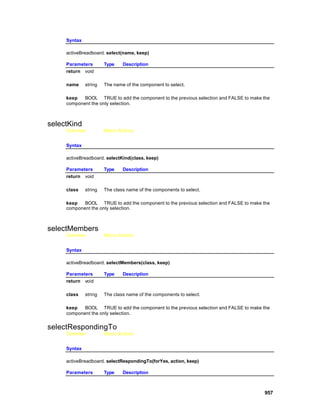
     two concepts. First, transforming data into a high-dimensional space can transform complex
     problems (with complex decision surfaces) into simpler problems that can use linear discriminant
     functions. Second, SVMs are motivated by the concept of training and using only those inputs that
     are near the decision surface since they provide the most information about the classification.

     The first step in a SVM is transforming the data into a high-dimensional space. In NeuroSolutions
     this is done using a Radial Basis Function (RBF) network that places a gaussian at each data
     sample. Thus, the feature space becomes as large as the number of samples. The RBF, however,
     uses backpropagation to train a linear combination of the g aussians to produce the final result. The
     SVM in NeuroSolutions, however, uses the idea of large margin classifiers for training. This
     decouples the capacity of the classifier from the input space and at the same time provides good
     generalization. This is an ideal combination for classification.
     The learning algorithm is based on the Adatron algorithm extended to the RBF network. The
     Adatron algorithm can be easily extended to the RBF network by substituting the inner product of
     patterns in the input space by the kernel function, leading to the following quadratic optimization
     problem:


     We can then define


     174
and choose a common starting multiplier (e.g. αi =0.1), learning rate η, and a small threshold (e.g.,
t = 0.01).

While M>t, we choose a pattern xi and calculate an update ∆αi = ?(1?g(xi)) and perform the update


After adaptation only some of the αi are different from zero (called the support vectors). They
correspond to the samples that are closest to the boundary between classes. This algorithm is
called the kernel Adatron and can adapt an RBF to have an optimal margin. This algorithm can be
considered the "on-line" version of the quadratic optimization approach utilized for SVMs, and it can
find the same solutions as Vapnik's original algorithm for SVMs . Notice that it is easy to implement
the kernel Adatron algorithm since g(xi) can be computed locally to each multiplier, provided that
the desired response is available in the input file. In fact, the expression for g(xi) resembles the
multiplication of an error with an activation, so it can be included in the framework of neural network
learning. The Adatron algorithm essentially prunes the RBF network of Figure 5-12 so that its
output for testing is given by


The typical SVM built by the NeuralBuilder is shown below. The first three components implement
the expansion of the dimensionality by having a gaussian for each input. The second three
components implement the large margin classifier that trains the parameters of the above
equations.


                                                                                                  175
Dynamic Networks
Dynamic Networks

    Dynamic networks are a very important class of neural network topologies that are able to process
    time varying signals. They can be viewed as a nonlinear extension of adaptive linear filters, or an
    extension of static neural networks to time varying inputs. As such they fill an increasingly important
    niche in neural network applications and deserve special treatment in this introduction to neural
    computation. NeuroSolutions was developed from the start with dynamic neural network
    applications in mind.

    A dynamic neural network is a static neural network with an extended memory mechanism, which
    is able to store past values of the input signal. In many applications (system identification,
    classification of patterns in time, nonlinear prediction) memory is important for allowing decisions
    based on input behavior over a period of time. A static classifier makes decisions based on the
    present input only; it can therefore not perform functions that involve knowledge about the history of
    the input signal.

    In neural networks, the most common memory structures are linear filters. In the time delay neural
    network (TDNN) the memory is a tap delay line, i.e. a set of memory locations that store the past of
    the input [Waibel]. Self-recurrent connections (feeding the output of a PE to the input) have also
    been used as memory, and these units are called context units [Elman, Jordan].

    The gamma memory (see figure below) is a structure that cascades self-recurrent connections
    [deVries and Principe]. It is therefore a structure with local feedback, that extends the context unit
    with more versatile storage, and accepts the tap delay line as a special case (µ=1).


                        The gamma memory. gi(t) are inputs to the next layer PEs.


    µ is an adaptive parameter that controls the depth of the memory. This structure has a memory
    depth of K/µ, where K is the number of taps in the cascade. Its resolution is µ [deVries and
    Principe]. Since this topology is recurrent, a form of temporal learning must be used to adapt the
    gamma parameter µ (i.e. either real time recurrent learning or backpropagation through time). The
    advantage of this structure in dynamic networks is that we can, with a predefined number of taps,
    provide a controllable memory. And since the network adapts the gamma parameter to minimize
    the output mean square error, the best compromise depth/resolution is achieved.


    176
The gamma memory can be applied to the input (focused gamma memory), to the hidden PEs or to
     the output PEs. In each case it will store the activations of the respective PEs and use their past
     values to compute the net output. A dynamic neural network with the gamma memory is called the
     gamma neural model. The gamma neural model can be applied to classification of time varying
     patterns, signal detection, prediction of chaotic time series, and identification of nonlinear systems.


Famous Neural Topologies

     Perceptron

     Multilayer Perceptron

     Madaline

     Radial Basis Function Networks

     Associative Memories

     Jordan/Elman Networks

     Hopfield Network

     Principal Component Analysis Networks

     Kohonen Self-Organizing Maps (SOFM)

     Adaptive Resonance Theory (ART)

     Fukushima

     Time Lagged Recurrent Networks

Perceptron

     The perceptron was probably the first successful neurocomputer (Rosenblatt 1957). Rosenblatt
     constructed the MARK I for binary image classification. The perceptron is nothing but a feedforward
     neural network with no hidden units. Its information processing abilities are limited. It can only
     discriminate among linearly separable classes, i.e. classes that could be separated by hyperplanes.
     The appeal of the perceptron was Rosenblatt’s proof that it is trainable (for linearly separable
     classes) in a finite number of steps. The Perceptron learning rule is very simple:


     Present a pattern. If the output is the desired output, do nothing. If the response is wrong, from the units that
     are active, change their weights towards the desired response. Repeat the process until all the units have
     acceptable outputs.


     The delta rule (simplified backpropagation) can also be applied to the perceptron, but perceptron
     learning is faster and more stable if the patterns are linearly separable. Even today (more than 30
     years later), the perceptron and its learning rule have appeal. Recently the perceptron learning rule
     was revisited to provide acceptable results even when the patterns were not linearly separable. We
     can implement a perceptron as a special case (no hidden layer) of a multilayer perceptron.


                                                                                                                 177
Multilayer Perceptron

     The multilayer perceptron (MLP) is one of the most widely implemented neural network topologies.
     The article by Lippman is probably one of the best references for the computational capabilities of
     MLPs. Generally speaking, for static pattern classification, the MLP with two hidden layers is a
     universal pattern classifier. In other words, the discriminant functions can take any shape, as
     required by the input data clusters. Moreover, when the weights are properly normalized and the
     output classes are normalized to 0/1, the MLP achieves the performance of the maximum a
     posteriori receiver, which is optimal from a classification point of view [Makhoul]. In terms of
     mapping abilities, the MLP is believed to be capable of approximating arbitrary functions. This has
     been important in the study of nonlinear dynamics [Lapedes and Farber], and other function
     mapping problems.

     MLPs are normally trained with the backpropagation algorithm [Rumelhart et al]. In fact the
     renewed interest in ANNs was in part triggered by the existence of backpropagation. The LMS
     learning algorithm proposed by Widrow can not be extended to hidden PEs, since we do not know
     the desired signal there. The backpropagation rule propagates the errors through the network and
     allows adaptation of the hidden PEs.

     Two important characteristics of the multilayer perceptron are: its nonlinear processing elements
     (PEs) which have a nonlinearity that must be smooth (the logistic function and the hyperbolic
     tangent are the most widely used); and their massive interconnectivity (i.e. any element of a given
     layer feeds all the elements of the next layer).

     The multilayer perceptron is trained with error correction learning, which means that the desired
     response for the system must be known. In pattern recognition this is normally the case, since we
     have our input data labeled, i.e. we know which data belongs to which experiment.

     Error correction learning works in the following way: From the system response at PE i at iteration
     n, (n), and the desired response      (n) for a given input pattern an instantaneous error   (n) is
     defined by


     Using the theory of gradient descent learning, each weight in the network can be adapted by
     correcting the present value of the weight with a term that is proportional to the present input and
     error at the weight, i.e.


     The local error (n) can be directly computed from (n) at the output PE or can be computed as a
     weighted sum of errors at the internal PEs. The constant η is called the step size. This procedure is
     called the backpropagation algorithm.

     Backpropagation computes the sensitivity of a cost functional with respect to each weight in the
     network, and updates each weight proportional to the sensitivity. The beauty of the procedure is
     that it can be implemented with local information and requires just a few multiplications per weight,
     which is very efficient. Because this is a gradient descent procedure, it only uses the local


     178
information so can be caught in local minima. Moreover, the procedure is inherently noisy since we
      are using a poor estimate of the gradient, causing slow convergence.

      Momentum learning is an improvement to the straight gradient descent in the sense that a memory
      term (the past increment to the weight) is used to speed up and stabilize convergence. In
      momentum learning the equation to update the weights becomes


      where α is the momentum. Normally            α should be set between 0.1 and 0.9.
      Training can be implemented in two ways: Either we present a pattern and adapt the weights (on-
      line training), or we present all the patterns in the input file (an epoch), accumulate the weight
      updates, and then update the weights with the average weight update. This is called batch learning.
      They are theoretically equivalent, but the former sometimes has advantages in tough problems
      (many similar input -output pairs).

      To start backpropagation, we need to load an initial value for each weight (normally a small random
      value), and proceed until some stopping criterion is met. The three most common are: to cap the
      number of iterations, to threshold the output mean square error, or to use cross validation. Cross
      validation is the more powerful of the three since it stops the training at the point of best
      generalization (i.e. the performance in the test set) is obtained. To implement cross validation one
      must put aside a small part of the training data (10%) and use it to see how the trained network is
      doing (e.g. every 100 training epochs, test the net with a validation set). When the performance
      starts to degrade in the validation set, training should be stopped.

      Checking the progress of learning is fundamental in any iterative training procedure. The learning
      curve (how the mean square error evolves with the training iteration) is such a quantity. We can
      judge the difficulty of the task, and how to control the learning parameters from the learning curve.
      When the learning curve is flat, the step size should be increased to speed up learning. On the
      other hand, when the learning curve oscillates up and down the step size should be decreased. In
      the extreme, the error can go steadily up, showing that learning is unstable. At this point the
      network should be reset. When the learning curve stabilizes after many iterations at an error level
      that is not acceptable, it is time to rethink the network topology (more hidden PEs or more hidden
      layers, or a different topology altogether) or the training procedure (other more sophisticated
      gradient search techniques).

      We present below a set of heuristics that will help decrease the training times and, in general,
      produce better performance.


n   Normalize your training data.
n   Use the tanh nonlinearity instead of the logistic function.
n   Normalize the desired signal to be just below the output nonlinearity rail voltages (i.e. if you use the tanh, use
    desired signals of +/- 0.9 instead of +/- 1).
n   Set the step size higher towards the input (i.e. for a one hidden layer MLP, set the step size at 0.05 in the
    synapse between the input and hidden layer, and 0.01 in the synapse between the hidden and output layer).
n   Initialize the net’s weights in the linear region of the nonlinearity (divide the standard deviation of the random
    noise source by the fan-in of each PE).
n   Use more sophisticated learning methods (quick prop or delta bar delta).


                                                                                                                    179
n   Always have more training patterns than weights. You can expect the performance of your MLP in the test set
      to be limited by the relation N>W/ε , where N is the number of training epochs, W the number of weights and ε
      the performance error. You should train until the mean square error is less than ε /2.

Madaline

        Madaline is an acronym for multiple adalines, the ADAptive LINear Element proposed by Widrow
        [Widrow and Hopf]. The adaline is nothing but a linear combiner of static information, which is not
        very powerful. However, when extended to time signals, the adaline becomes an adaptive filter of
        the finite impulse response class. This type of filter was studied earlier by Wiener (1949). Widrow’s
        contribution was the learning rule for training the adaptive filter. Instead of numerically solving the
        equations to obtain the optimal value of the weights (the Wiener-Hopf solution), Widrow proposed a
        very simple rule based on gradient descent learning (the least mean square rule LMS). The
        previous adaptive theory was essentially statistical (it required expected value operators), but
        Widrow took the actual value of the product of the error at each unit and its input as a rough
        estimate of the gradient. It turns out that this estimate is noisy, but unbiased, so the number of
        iterations over the data average the estimate and make it approach the true value.

        The adaptive linear combiner with the LMS rule is one of the most widely used structures in
        adaptive signal processing [Widrow and Stearns]. Its applications range from echo cancellation, to
        line equalization, spectral estimator, beam former in adaptive antennas, noise canceller, and
        adaptive controller. The adaline is missing one of the key ingredients for our definition of neural
        networks (nonlinearity at the processing element), but it possesses the other two (distributed and
        adaptive).

Radial Basis Function Networks

        Radial basis functions networks have a very strong mathematical foundation rooted in
        regularization theory for solving ill-conditioned problems. Suppose that we want to find the map that
        transforms input samples into a desired classification. Due to the fact that we only have a few
        samples, and that they can be noisy, the problem of finding this map may be very difficult
        (mathematicians call it ill-posed). We want to solve the mapping by decreasing the error between
        the network output and the desired response, but we want to also include an added constraint
        relevant to our problem. Normally this constraint is smoothness.

        One can show that such networks can be constructed in the following way (see figure below): Bring
        every input component (p) to a layer of hidden nodes. Each node in the hidden layer is a p
        multivariate Gaussian function


        of mean      (each data point) and variance . These functions are called radial basis functions.
        Finally, linearly weight the output of the hidden nodes to obtain


        180
The problem with this solution is that it may lead to a very large hidden layer (the number of
     samples of your training set).


                                    Radial Basis Function (RBF) network


     We will approximate this solution by reducing the number of PEs in the hidden layer, but cleverly
     position them over the input space regions, i.e. where we have more input samples. This means
     that we have to estimate the positions of each radial basis function and its variance (width), as well
     as compute the linear weights     .
     Estimation of the centers and widths

     The most widely used method of estimating the centers and widths is to use an unsupervised
     technique called the k-nearest neighbor rule. The input space is first discretized into k clusters and
     the size of each is obtained from the structure of the input data. The centers of the clusters give the
     centers of the RBFs, while the distance between the clusters provide the width of the Gaussians.
     The definition of the width is nontrivial. NeuroSolutions uses competitive learning to compute the
     centers and widths. It sets each width proportional to the distance between the center and its
     nearest neighbor. Conscience can be used to make sure that all the RBF centers are brought into
     the data clusters. However, conscience also brings the problem of confining the centers too close
     together. Scheduling of the conscience may be necessary for a good coverage of the data clusters.
     Computing the Output Weights


     The output weights in turn are obtained through supervised learning. The error correction learning
     described in the multilayer perceptron section is normally used, but this problem is easier because
     the output unit is normally linear, so convergence is faster. In practical cases, an MLP can be
     superior to the linear network, because it may take advantage of nonlinearly separable data
     clusters produced by too few RBFs.

Associative Memories


                                                                                                       181
Steinbuch was a cognitive scientist and one of the pioneering researchers in distributed
     computation. His interests were in associative memories, i.e. devices that could learn associations
     among dissimilar binary objects. He implemented the learnmatrix, where a set of binary inputs is
     fed to a matrix of resistors, producing a set of binary outputs. The outputs are 1 if the sum of the
     inputs is above a given threshold, zero otherwise. The weights (which were binary) were updated
     by using several very simple rules based on Hebbian learning. But the interesting thing is that the
     asymptotic capacity of this network is rather high and easy to determine (I=          [Willshaw]).

     The linear associative memory was proposed by several researchers [Anderson, Kohonen]. It is a
     very simple device with one layer of linear units that maps N inputs (a point in N dimensional
     space) onto M outputs (a point in M dimensional space). In terms of signal processing, this network
     does nothing but a projection operation of a vector in N dimensional s pace to a vector in M
     dimensional space.

     This projection is achieved by the weight matrix. The weight matrix can be computed analytically: it
     is the product of the output with the pseudo inverse of the input [Kohonen]. In terms of linear
     algebra, what we are doing is computing the outer product of the input vector with the output
     vector. This solution can be approximated by Hebbian learning and the approximation is quite good
     if the input patterns are orthogonal. Widrow’s LMS rule can also be used to compute a good
     approximation of W even for the case of non-orthogonal patterns [Hecht-Nielsen].

Jordan/Elman Networks

     The theory of neural networks with context units can be analyzed mathematically only for the case
     of linear PEs. In this case the context unit is nothing but a very simple lowpass filter. A lowpass
     filter creates an output that is a weighted (average) value of some of its more recent past inputs. In
     the case of the Jordan context unit, the output is obtained by summing the past values multiplied by
     the scalar     as shown in the figure below.


                                             Context unit response


     Notice that an impulse event x(n) (i.e. x(0)=1, x(n)=0 for n>0) that appears at time n=0, will
     disappear at n=1. However, the output of the context unit is t1 at n=1, t2 at n=2, etc. This is the
     reason these context units are called memory units, because they "remember" past events. t
     should be less than 1, otherwise the context unit response gets progressively larger (unstable).

     The Jordan network and the Elman network combine past values of the context units with the
     present inputs to obtain the present net output. The input to the context unit is copied from the
     network layer, but the outputs of the context unit are incorporated in the net through adaptive
     weights. NeuroSolutions uses straight backpropagation to adapt all the network weights. In the
     NeuralBuilder, the context unit time constant is pre-selected by the user. One issue in these nets is
     that the weighting over time is kind of inflexible since we can only control the time constant (i.e. the
     exponential decay). Moreover, a small change in t is reflected in a large change in the weighting
     (due to the exponential relationship between time constant and amplitude). In general, we do not
     know how large the memory depth should be, so this makes the choice of t problematic, without a


     182
mechanism to adapt it. See time lagged recurrent nets for alternative neural models that have
     adaptive memory depth.

     The Neural Wizard provides four choices for the source of the feedback to the context units (the
     input, the 1 st hidden layer, the 2 nd hidden layer, or the output). In linear systems the use of the past
     of the input signal creates what is called the moving average (MA) models. They represent well
     signals that have a spectrum with sharp valleys and broad peaks. The use of the past of the output
     creates what is called the autoregressive (AR) models. These models represent well signals that
     have broad valleys and sharp spectral peaks. In the case of nonlinear systems, such as neural
     nets, these two topologies become nonlinear (NMA and NAR respectively). The Jordan net is a
     restricted case of an NAR model, while the configuration with context units fed by the input layer
     are a restricted case of NMA. Elman’s net does not have a counterpart in linear system theory. As
     you probably could gather from this simple discussion, the supported topologies have different
     processing power, but the question of which one performs best for a given problem is left to
     experimentation.

Hopfield Network

     The Hopfield network is a recurrent neural network with no hidden units, where the weights are
     symmetric (          ). The PE is an adder followed by a threshold nonlinearity. The model can be
     extended to continuous units [Hopfield]. The processing elements are updated randomly, one at a
     time, with equal probability (synchronous update is also possible). The condition of symmetric
     weights is fundamental for studying the information capabilities of this network. It turns out that
     when this condition is fulfilled the neurodynamics are stable in the sense of Lyapunov, which
     means that the state of the system approaches an equilibrium point. With this condition Hopfield
     was able to explain to the rest of the world what the neural network is doing when an input is
     presented. The input puts the system in a point in its state space, and then the network dynamics
     (created by the recurrent connections) will necessarily relax the system to the nearest equilibrium
     point (point P1 in the figure below).


                                      Relaxation to the nearest fixed point


     Now if the equilibrium points were pre-selected (for instance by hardcoding the weights), then the
     system could work as an associative memory. The final state would be the one closest (in state


                                                                                                          183
space) to that particular input. We could then classify the input or recall it using content
     addressable properties. In fact, such a system is highly robust to noise, also displaying pattern
     completion properties. Very possibly, biological memory is based on identical principles. The
     structure of the hippocampus is very similar to the wiring of a Hopfield net (outputs of one unit fed
     to all the others). In a Hopfield net if one asks where the memory is, the answer has to be in the set
     of weights. The Hopfield net, therefore, implements a nonlinear associative memory, which is
     known to have some of the features of human memory; (e.g. highly distributed, fault tolerance,
     graceful degradation, and finite capacity).

     Most Hopefield net applications are in optimization, where a mapping of the energy function to the
     cost function of the user’s problem must be established and the weights pre-computed. The
     weights in the Hopfield network can be computed using Hebbian learning, which guarantees a
     stable network. Recurrent backpropagation can also be used to compute the weights, but in this
     case, there is no guarantee that the weights are symmetric (hence the system may be unstable).
     NeuroSolutions can implement the Hopfield net and train it with fixed-point learning or Hebbian
     learning.

     The "brain state in a box" [Anderson] can be considered as a special case of the Hopfield network
     where the state of the system is confined to the unit hypercube, and the system attractors are the
     vertices of the cube. This network has been successfully used for categorization of the inputs.

Principal Component Analysis Networks

     The fundamental problem in pattern recognition is to define data features that are important for the
     classification (feature extraction). One wishes to transform our input samples into a new space (the
     feature space) where the information about the samples is retained, but the dimensionality is
     reduced. This will make the classification job much easier.

     Principal component analysis (PCA) also called Karhunen-Loeve transform of Singular Value
     Decomposition (SVD) is such a technique. PCA finds an orthogonal set of directions in the input
     space and provides a way of finding the projections into these directions in an ordered fashion. The
     first principal component is the one that has the largest projection (we can think that the projection
     is the shadow of our data cluster in each direction). The orthogonal directions are called the
     eigenvectors of the correlation matrix of the input vector, and the projections the corresponding
     eigenvalues.

     Since PCA orders the projections, we can reduce the dimensionality by truncating the projections to
     a given order. The reconstruction error is equal to the sum of the projections (eigenvalues) left out.
     The features in the projection space become the eigenvalues. Note that this projection space is
     linear.

     PCA is normally done by analytically solving an eigenvalue problem of the input correlation
     function. However, Sanger and Oja demonstrated (see Unsupervised L earning) that PCA can be
     accomplished by a single layer linear neural network trained with a modified Hebbian learning rule.

     Let us consider the network shown in the figure below. Notice that the network has p inputs (we
     assume that our samples h ave p components) and m<p linear output PEs. The output is given by


     To train the weights, we will use the following modified Hebbian rule


     184
where η is the step size.


                                                 PCA network


     What is interesting in this network is that we are computing the eigenvectors of the correlation
     function of the input without ever computing the correlation function. Sanger showed that this
     learning procedure converges to the correct solution, i.e. the weights of the PCA network approach
     the first m principal components of the input data matrix. The outputs are therefore related to the
     eigenvalues and can be used as input to another neural networks for classification.

     PCA networks can be used for data compression, providing the best m linear features. They can
     also be used for data reduction in conjunction with multilayer perceptron classifiers. In this case,
     however, the separability of the classes is not always guaranteed. If the data clusters are
     sufficiently separated, yes, but if the classes are on top of each other, the PCA will get the largest
     projections, but the separability can be in some of the other projections. Another problem with
     linear PCA networks is outlying data points. Outliers will distort the estimation of the eigenvectors
     and create skewed data projections. Nonlinear networks are better able to handle this case.

     The importance of PCA analysis is that the number of inputs for the MLP classifier can be reduced
     a lot, which positively impacts the number of required training patterns, and the training times of the
     classifier.

Kohonen Self-Organizing Maps (SOFM)

     As was stated previously, one of the most important issues in pattern recognition is feature
     extraction. Since this is such a crucial step, different techniques may provide a better fit to our
     problem. An alternative to the PCA concept is the self-organizing feature map.

     The ideas of SOFM are rooted in competitive learning networks. These nets are one layer nets with
     linear PEs but use a competitive learning rule. In such nets there is one and only one winning PE
     for every input pattern (i.e. the PE whose weights are closest to the input pattern). In competitive


                                                                                                           185
nets, only the weights of the winning node get updated. Kohonen proposed a slight modification of
this principle with tremendous implications. Instead of updating only the winning PE, in SOFM nets
the neighboring PE weights are also updated with a smaller step size. This means that in the
learning process (topological) neighborhood relati onships are created in which the spatial locations
correspond to features of the input data. In fact one can show that the data points that are similar in
input space are mapped to small neighborhoods in Kohonen’s SOFM layer. Our brain has several
known topographic maps (visual and auditory cortex).

The SOFM layer can be a one or two dimensional lattice, and the size of the net provides the
resolution for the lattice. The SOFM algorithm is as follows:

Initialize the weights with small different random values for symmetry breaking.

For each input data find the winning PE using a minimum distance rule, i.e.


For the winning PE, update its weights and those in its neighborhood Λ(n) by


Note that both the neighborhood and the learning rate are dependent on the iteration, i.e. they are
adaptive. Kohonen suggests the following Gaussian neighborhood


where is the winning PE and |rj-rj0| is the spatial distance from the winning node to the j-th PE.
The adaptive standard deviation controls the size of the neighborhood through iterations. The
neighborhood should start as the full output space and decrease to zero (i.e. only the winning PE),
according to


where     and     are constants. The step size η(n) should also be made adaptive. In the
beginning the step size should be large, but decrease progressively to zero, according to


186
where      and     are also problem dependent constants.

     The idea of these adaptive constants is to guarantee, in the early stages of learning, plasticity and
     recruitment of units to form local neighborhoods and, in the later stages of learning, stability and
     fine-tuning of the map. These issues are very difficult to study theoretically, so heuristics have to be
     included in the definition of these values.

     Once the SOFM stabilizes, its output can be fed to an MLP to classify the neighborhoods. Note that
     in so doing we have accomplished two things: first, the input space dimensionality has been
     reduced and second, the n eighborhood relation will make the learning of the MLP easier and faster
     because input data is now structured.

Adaptive Resonance Theory (ART)

     Adaptive resonance theory proposes to solve the stability-plasticity dilemma present in competitive
     learning. Grossberg and co-workers [Grossberg, Carpenter] add a new parameter (vigilance
     parameter) that controls the degree of similarity between stored patterns and the current input.
     When the input is sufficiently dissimilar to the stored patterns, a new unit is created in the network
     for the input. There are two ART models, one for binary patterns and one for continuous valued
     patterns. This is a highly sophisticated network that achieves good performance, but the network
     parameters need to be well tuned. It is not supported in NeuroSolutions.

Fukushima

     Fukushima [Fukushima] proposed the Neocognitron, a hierarchical network for image processing
     that achieves rotation, scale, translation and distortion invariance up to a certain degree. The
     principle of a Fukushima network is a pyramid of two layer networks (one, feature extractor and the
     other, position readjusting) with specific connections that create feature detectors at increasing
     space scales. The feature detector layer is a competitive layer with neighborhoods where the input
     features are recognized. It is not supported in NeuroSolutions

Time Lagged Recurrent Networks

     TLRNs with the memory layer confined to the input can also be thought of as input preprocessors.
     But now the problem is representation of the information in time instead of the information among
     the input patterns, as in the PCA network. When we have a signal in time (such as a time series of
     financial data, or a signal coming from a sensor monitoring an industrial process) we do not know a
     priori where, in time, the relevant information is. Processing of the signal can be used h ere in a
     general sense, and can be substituted for prediction, identification of dynamics, or classification.

     A brute force approach is to use a long time window. But this method does not work in practice
     because it creates very large networks that are difficult or impossible to train (particularly if the data
     is noisy). TLRNs are therefore a very good alternative to this brute force approach. The other class
     of models that have adaptive memory are the recurrent neural networks. However, these nets are
     very difficult to train and require more advanced knowledge of neural network theory.


                                                                                                          187
NeuroSolutions is prepared to run these models, but they were not considered for the
NeuralBuilder.

The most studied TLRN network is the gamma model. The gamma m odel is characterized by a
memory structure that is a cascade of leaky integrators, i.e. an extension of the context unit of the
Jordan and Elman nets (see figure below).


        Connectionist memory structures, and the frequency domain location of the pole


The signal at the taps of the gamma memory can be represented by


188
Note that the signal at tap k is a smoothed version of the input, which holds the voltage of a past
event, creating a memory. When an impulse is presented in the input at time zero, the response of
the different taps is shown in the on-line documentation for the NeuralBuilder.

Note that the point in time where the response has a peak is approximately given by k/µ, where µ
is the feedback parameter. This means that the neural net can control the depth of the memory by
changing the value of the feedback parameter, instead of changing the number of inputs. The
parameter µ can be adapted using gradient descent procedures just like the other parameters in
the neural network. But since this parameter is recursive, a more powerful learning rule needs to be
applied. NeuroSolutions uses backpropagation through time (BPTT) to do this adaptation (see
Constraining the Learning Dynamics).

Memories can be appended to any layer in the network, producing very sophisticated neural
topologies very useful for time series prediction and system identification and temporal pattern
recognition (see figure below).


                          Use of gamma kernels in an MLP architecture


Instead of the gamma memory there are other memory structures that recently have been applied
with some advantages. One of these is the Laguarre memory, based on the Laguarre functions.
The Laguarre functions are an orthogonal set of functions that are built from a lowpass filter
followed by a cascade of allpass functions.

This family of functions constitutes an orthogonal span of the gamma space, so they have the
same properties as the gamma memories, but they may display faster convergence for some
problems. The equation for the Laguarre functions is


Notice that this gives a recursion equation of the form


                                                                                               189
where u(n) is the input signal.

Tutorials
Tutorials Chapter


    NeuroSolutions


    NeuroDimension, Incorporated.

    Gainesville, Florida


    Purpose


    This chapter is a collection of hands -on examples. Our purpose is to explain the core concepts of
    NeuroSolutions by showing them to you. You will be guided through the construction of network
    topologies at increasing levels of difficulty. Upon completion, you are expected to be able to
    construct similar topologies by analogy.


Running NeuroSolutions

    Windows 3.1, 3.11, NT

    In the Program Manager of Windows, there are two icons within the program group labeled
    NeuroSolutions . The question mark represents the on-line help for the program. This can be

    launched separately or from within NeuroSolutions . The cluster        represents the
    NeuroSolutions program. Double-click on this icon or click the following shortcut    to run
    NeuroSolutions .
    Windows 95

    In the Start Menu of Windows 95, there are two icons within the folder labeled NeuroSolutions. The
    book represents the on-line help for the program. This can be launched separately or from within


    190
NeuroSolutions . The icon      represents the NeuroSolutions program. Double-click on this icon to
     begin or click the following shortcut   to run NeuroSolutions.


     The NeuroSolutions MainWindow will appear in the center of the display. The Inspector window will
     also appear in the lower right corner of your display; this is where you will configure all
     NeuroSolutions components.

     A good way to get started with NeuroSolutions is to run through the various demos. The demos can
     be accessed by selecting Utilities/Run Demo from the MainMenu bar. This contains a list of demos,
     each of which is similar to one of the breadboards constructed in the following examples. It is
     recommended that you refer to these breadboards for ideas on solving your particular problem. By
     taking the time to work through the following examples, a much better understanding of the
     concepts behind NeuroSolutions will be obtained.


                                    NeuroSolutions after program launch


Signal Generator Example


                                                                                                  191
Purpose - This example creates a simple system for generating composite waveforms. The
     purpose of this example is to illustrate how components are interconnected, data is injected into the
     network, data is probed within the network and how the simulation is controlled.

     Components Introduced - Axon, MaleConnector, FemaleConnector, FunctionGenerator,
     MegaScope, DataStorage and StaticControl.

     Concepts Introduced - Connecting components, palettes, breadboards, the Inspector, stacking
     components, component selection, access points, probing data, data buffers, data flow and cut &
     paste.


     STEPS

     Construction Rules

     Stamping Components

     On-line Help

     Connectors

     Selecting and Configuring a Component

     Arranging Icons

     Connecting Components

     The Cursor

     Component Compatibility

     Bringing in the Function Generators

     Stacking Components

     Accessing the Component Hierarchy

     Access Points

     Displaying the Output Waveform

     Opening the Display Window

     Controlling Data Flow

     Configuring the Controller

     Running the Signal Generator Example

     Things to Try with the Signal Generator

     What You have Learned from the Signal Generator Example

Construction Rules


     192
When you run NeuroSolutions, the MainWindow has a blank area called a breadboard where the
     user constructs neural networks. The border of the MainWindow can be populated with
     components, which are organized in groups called Palettes. A palette contains a family of related
     components. Components are selected from a palette and stamped onto the breadboard. The
     Palettes Menu contains a list of all families of components available in NeuroSolutions. When you
     click on a given family, the corresponding palette is opened, and you can dock it onto the
     breadboard border. Select "Axon" from the Palettes Menu. The Axon palette is now on the screen.


     It can be docked by dragging it to the border of the MainWindow and releasing the mouse. You can
     organize the palettes any way you want.

Stamping Components

     Put the cursor over the palette and wait a few seconds. You should see a small window pop up with
     the name of a component in it. This is called a "tool tip" and you can use it to determine which
     component you are selecting from the palette. Slide the cursor over each button on the palette until

     the tool tip shows "Axon"     and click on it. Notice that the cursor becomes a stamp          when
     you place it over the breadboard. If you click again anywhere in the breadboard an Axon


                 will be copied to that location. This operation is called component stamping. You can
     stamp more than one Axon or bring new components to the breadboard in the same way. If you
     stamp a component using the right mouse button, you will remain is stamping mode. To return to

     selection mode, you must select the selection cursor icon   located on the top border of the
     main window. If you stamp a component using the left mouse button, the cursor automatically
     returns to selection mode.

On-line Help

     It should be noted again that complete descriptions of all components are contained within the on-
     line help. The easiest way to access the help for a given component is to click on that component

     with the Help cursor     . The Help cursor is located on the tool bar. Just click on it and then move
     the mouse over the component you want to get help, clicking on the component’s icon. Move your
     cursor over to the Axon and single-click to bring up the on-line help for the Axon.

Connectors

     Let’s take a closer look at the Axon icon. Notice that there is a double diamond contact point on its
     left  (the FemaleConnector), and a single diamond contact on its right         (the
     MaleConnector).


                                                                                                     193
Selecting and Configuring a Component

     If you single-click on the Axon’s icon, the Inspector window (see figure below) in the lower right
     corner will show the information pertaining to this component, and the component is itself
     highlighted by a rectangular border. This will also be referred to as selecti ng a component. If the
     inspector window is not visible, then select View/Inspector from NeuroSolutions Main Menu. Notice
     that the Axon was created with a single neuron, or Processing Element (PE), as one of its default
     parameters. The user can modify the number of neurons by simply typing a number in the Rows or
     Cols edit cell of the Processing Elements area. Normally the number is entered in the Rows edit
     cell since your networks are structured by layers, but you can organize the layers also in a matrix
     form (2D). The total number of elements will be the product of the Rows and Cols entries. The area
     called DataFlow configures the Axon to stop data flow or enable transfer of information to other
     Axons connected to it. Normally both switches are activated. If you disable the data flow by clicking


     off the "On" switch, notice that the Axon Icon changed to a CrackedAxon               , meaning
     that the data flow was interrupted at that axon. The switch "Turn ON after RESET" will configure
     the Axon back to its normal dataflow mode after reset commands are given during the simulation.


                                               Axon Inspector


Arranging Icons

     Stamp two more Axons on the breadboard such that you have three axons placed as shown in the
     figure below. The two on the left will be inputs and the one on the left will be an output. You can
     move the icons around on the breadboard, once you have stamped them. Just press the mouse
     button and drag the component to the new position. Notice that the cursor changes from the arrow
     to a move cursor    .


     194
System with two inputs and one output


Connecting Components


     Select the MaleConnector      of one of the input Axons, drag it over the FemaleConnector         of
     the output Axon, and release the mouse button. Notice that three connections have been
     established between the input and output Axons.

     An alternate way to connect components is to select a component, then click with the right mouse
     button on the component to connect to. The three connection lines will be automatically
     established.

The Cursor

     Notice that while you were performing the drag operation, the mouse arrow changed to a move
     cursor , meaning that you can drop the MaleConnector         on any unoccupied portion of the
     breadboard. If you place the cursor over the component, you will see that the cursor becomes a
     crossed circle    , meaning that you can not drop the MaleConnector in that place.

Component Compatibility

     Three lines were drawn from the input Axon to corresponding points on the output Axon. This
     means that there is compatibility between the two components.

     Also notice that the output Axon created a new (second) FemaleConnector          . It will always do
     this so that a new input can always be brought into the Axon. The signals from multiple inputs are
     accumulated (added together) by the Axon. Also notice that a new MaleConnector              was created
     to replace the one just used. This gives the Axon the ability to feed multiple components. Drag the
     MaleConnector of the second input Axon to the newly created FemaleConnector of the output
     Axon. Notice again that three lines are created from the input Axon to the output Axon. All three
     Axons are now interconnected and should resemble the System with Two Input and One Output
     figure.

     Go to the Axon inspector and change the size of the output element to 3 by typing this value into
     the Rows edit cell. Notice that the lines connecting both input Axons to the output Axon collapsed in
     the MaleConnector (see figure below). This along with an Info panel provides a visual indication
     that there is an incompatibility of dimension between the Axons. Return the number of Processing
     Elements to 1and you will see the connection being reestablished.


                                                                                                       195
Attempted connection among Axons of differing dimensions


Bringing in the Function Generators

     Now that the network topology is established, you will connect a function generator to the input
     Axons. Select Palettes/Input from the Palettes menu and dock it on the MainWindow border. Stamp

     the FunctionGenerator icon        onto one of the input Axons.


                                           Input Family Palette


Stacking Components


     Notice that the cursor turns to the stamp      only over the Axons. This means that the
     FunctionGenerator can not be dropped directly onto the breadboard, but only over accepting
     components. The FunctionGenerator will attach to one of the corners of the Axon. If you select the
     FunctionGenerator, its inspector will be shown.


     196
FunctionGenerator inspector


     For each PE in the Axon, you can choose the type of signal, along with its frequency, amplitude,
     sampling rate, offset and phase shift. Click on the button showing the sinewave and type 20 in the
     Samples/Cycle edit cell. A sinewave of 20 samples per cycle was just programmed.

Accessing the Component Hierarchy

     At the top of the Inspector you will find several tabs. Each tab represents another page of
     parameters that can be configured for this component. This allows you to change the other
     attributes of the FunctionGenerator. The attributes you are viewing are specific to the class
     FunctionGenerator. By selecting the Stream tab, you will see the attributes that pertain to a class
     called Stream, from which FunctionGenerator was derived. Notice that it is currently configured to
     Accumulate Data on the Network, i.e. it will add the signal from the FunctionGenerator to the
     accumulated input of the Axon. The option Overwrite data will discard the accumulated input and
     replace it with the injected signal. Since the Axon has no other input, this setting is not important for
     this example. Notice also that the generated data can be normalized and that it can also be saved
     to disk.

     Now s elect the Access tab to view the attributes that configure how the FunctionGenerator
     communicates with the component. In particular this tells you about the data format and the access
     points available for the component the Function Generator is stacked on.


                                                                                                         197
Access Property Page of the FunctionGenerator


Access Points

     Now, where is the sine wave that you created going to be injected? The Axon has several access
     points that can be visualized by selecting the input axon and then clicking on the Access tab in the
     inspector (see Access Property Page of the FunctionGenerator figure). Select PreActivity, which
     means that the signal will be injected before the transfer function of the component is applied. You
     may have noticed that the FunctionGenerator icon moved from the right of the input Axon to the
     left. Since Axon’s transfer function is the identity map, it makes no difference whether the signal is
     injected before or after the component is activated.

     Repeat this process of bringing a signal generator to the s econd Axon, except select a square
     wave of 80 Samples/Cycle.

Displaying the Output Waveform

     Select Palettes/Probes from the main menu, and dock the probes palette. Select the DataStorage

           from the probes palette and stamp it over the output Axon. Notice that once again the arrow

     will turn to a stamp only over the Axon. Select the MegaScope           from the probes palette and
     stamp it on the DataStorage. These two components work together. The DataStorage is a circular
     buffer that will collect samples of data to be visualized by the other component, the MegaScope. If
     you single-click on the DataStorage component, the inspector will show the DataStorage inspector.
     It should contain the size of the buffer along with how often its contents will be reported to the
     component stacked on top of it (in this case the MegaScope). Verify the Buffer Size is set to 100
     and change the Message Every edit cell to 90. When the system runs, the MegaScope’s window
     will be updated after every 90 samples.


                                                Probes Palette


     198
Select the DataStorage and check which access point the DataStorage is attached to by clicking on
     the Access tab of the inspector. The Access Menu should be set to Activity, which is the output of
     the element.

Opening the Display Window

     Now double-click on the MegaScope component. The MegaScope inspector is shown and a
     resizable window opens. This window displays the samples captured in the data buffer from the
     access point of the component being probed. Due to the speed of the computer the changing data
     will appear animated. Notice that the MegaScope inspector resembles the controls of a
     multichannel oscilloscope. You can control the vertical scale and the horizontal and vertical offsets
     of each channel independently or in tandem. If you click on the MegascopeSweep tab, you can
     control the sweep rate of the traces (in samples per division). If you click on the Display tab you can
     change the trace color of each channel, and also control the display background (grid, lines, or
     none). The window is sized by dragging the lower right corner.

Controlling Data Flow


     The final component that you need is the StaticControl           . Every simulation will require one
     and only one StaticControl component. This component exists on the Controls palette. Stamp the
     StaticControl icon, the icon with one large yellow dial, from the palette to the breadboard. Notice
     that it can exist anywhere on the breadboard (once the icon reaches the breadboard, the arrow
     turns to a stamp). Single-clicking on the StaticControl icon brings up the Activation inspector, and
     double-clicking brings up a StaticControl panel.

Configuring the Controller

     The Controller controls the firing of data through the components on the breadboard, from left to
     right. Using a square wave of 80 samples per period, one possible w ay to present this data to the
     network is to consider each sample as an exemplar. To present at least an entire period, set the
     Exemplars/Epoch to 100. Entering 500 in the Epochs/Experiment edit cell will repeatedly present
     the 100 exemplars to the network 500 times.


                                                                                                       199
ActivationControl inspector


     The StaticControl panel has 5 buttons. The 1 st button toggles between Run and Stop and is used to
     initiate or stop the simulation. The Reset button resets the experiment by zeroing all counters, the
     activations, and reloading the weights with random values. The Jog button just jogs the
     component's weights. The Exemplar button allows you to single step the simulations. Whereas, the
     Epoch button presents an entire epoch upon each click. Notice also that there are counters under
     the exemplar and epoch buttons.

Running the Signal Generator Example

     Click on the Run Button of the StaticControl panel. Notice the MegaScope is displaying the addition
     of the square and sine waves. The Epochs counter in the StaticControl panel will show you the
     number of epochs that have elapsed. You have just run your first simulation—a rather simplistic
     simulation but be patient. You can go back to the FunctionGenerator and change the waveforms
     and view the effect on the MegaScope. Every time you want to make a modification in the system,
     simply press Stop, modify the component and press Run again. An error will sound if you try to
     make a modification while the simulation is running. You should get familiar with the controls of the
     MegaScope. It is recommended that you adjust the controls and view the affect of the modifications
     in the MegaScope window. (see the figure below for the completed network configuration or load
     the file EX1.NSB)


     200
Signal generator simulation


Things to Try with the Signal Generator

     Disconnecting Components

     Take one of the input Axon’s MaleConnectors and remove it from the output Axon by dropping it
     over the middle of the output Axon. Notice that the connection between the Axon components
     disappeared, i.e. they were disconnected. An alternate way to disconnect components is to select

     the MaleConnector and then click on the scissors icon      on the tool bar. The scissors will
     always remove the selected component from the breadboard. Reestablish the connection by
     dragging the MaleConnector of the input Axon to the output FemaleConnector.
     Cables

     If you drop a MaleConnector directly on the breadboard, lines will be established from the Axon to
     that point. You can create cables linking the Axons in this way. Every time you drag the
     MaleConnector while holding the shift key, a new section of the cable will be created. This is very
     handy when building recurrent neural networks. You can modify the cable path by first selecting the
     MaleConnector of the cable. This will display all of the points used to define the cable. Dragging


                                                                                                     201
intermediate points of the cable will redefine the cable’s path. Note that all components included in
     the Axon palette obey these simple rules of interconnection.


                                     Forming a connection using cables


     Remove one of the Axons by clicking on it’s icon (this selects the component) and clicking on the
     scissors icon. Instead of stamping both Axons and both FunctionGenerators from the palettes, you
     can construct just one Axon/FunctionGenerator combination and then copy it to get a second set.

     Select the Axon to be copied, click on the copy button      on the toolbar, click on an empty spot

     on the breadboard, and click on the paste button      . A new copy is formed on the breadboard.
     Notice that the FunctionGenerator was also copied. Copying a component will also copy all
     components that are stacked on top of it. More important, you see that the parameter settings
     correspond to the ones you had selected for the original Axon and not the default values.

     There is another way to create a composite signal generator. Throw away one of the input Axons
     (by selecting it and cutting), bring from the Input palette another FunctionGenerator and drop it on
     top of the one residing on the Axon. Using the FunctionGenerator inspector, you will see that under
     Access the Active Access Point is set to StackedAccess, i.e. both FunctionGenerators are sharing
     the same access point. This circuit will perform as the one previously constructed.

     Try saving the breadboard by selecting File/Save from the NeuroSolutions MainMenu, or clicking

     on the disk icon        . A Save panel will then allow you to give a name to the breadboard, and will
     save it to a file. The breadboard can now be re-opened by selecting File/Open from the MainMenu,
     or simply clicking on the open icon from the tool bar. The breadboard is ready to run; press run on
     the StaticControl window.

What You have Learned from the Signal Generator Example

     You have learned the basic rules for connecting and disconnecting components of the Axon class.
     You have also learned how to modify the dimension of Axons (i.e., their number of PEs) and
     hopefully you were able to appreciate the inspector, since it encapsulates all information regarding
     the selected component on the breadboard.

     You were able to inject data into the network by means of FunctionGenerators attached to Axon
     access points. You were also able to view the output of the system by attaching a
     MegaScope/DataStorage to the output Axon. You learned that some components have several
     access points for both injecting and retrieving data. Finally, you learned how to use the
     StaticControl component to set up the parameters of the experiment. It is recommended that you
     refer to the Concepts chapter if any portion of this example was unclear.


     202
Combination of Data Sources Example

     Purpose - Combination of information is fundamental in neurocomputing. By feeding data into a
     series of weights, NeuroSolutions implements virtually all models used in neurocomputing.
     NeuroSolutions combines (linearly or nonlinearly) independent data sources or several delayed
     versions of the same source. This example demonstrates the construction of such topologies.

     Components Introduced - ThresholdAxon, FullSynapse, TanhAxon, MatrixEditor, MatrixViewer,
     File.

     Concepts Introduced - Nonlinear elements, McCulloch-Pitts neuron, weight inspection and
     manipulation, probing data, file input.


     STEPS

     Constructing a McCulloch-Pitts Processing Element

     Preparing Files for Input into NeuroSolutions

     Things to Try with the Combination of Data Sources Example

     What You have Learned from the Combination of Data Sources Example

Constructing a McCulloch-Pitts Processing Element

     Select File/New from the Main Menu. Go to the Axon palette and stamp an Axon and a
     ThresholdAxon to the breadboard. Drop the ThresholdAxon to the right of the Axon. The
     ThresholdAxon component corresponds to a nonlinear element that clips the values of its input at
     +/- 1. This element creates an output that is a logic value as used in digital computers (-1 is
     normally the zero voltage).


                                             Synapse Palette


     From the Synapse palette, select and stamp the FullSynapse (the one with lines connecting all the
     points) to the breadboard between the two other components (see figure below). The FullSynapse


     implements full connectivity between two axons. The FullSynapse                provides the


                                                                                                   203
scalar values (combination weights) that multiply each input. Select the Axon and enter 2 in the
     Processing Element form cell of the inspector. This creates two processing elements in the input
     layer. Connect the Axon to the FullSynapse by dragging the MaleConnector of the Axon to the
     FemaleConnector of the FullSynapse. Then connect the MaleConnector of the FullSynapse to the
     FemaleConnector of the ThresholdAxon. This structure (FullSynapse followed by the
     ThresholdAxon) implements a McCulloch-Pitts processing element (neuron) with two inputs. Go to
     the Soma property page of the inspector to verify that the FullSynapse has two weights.


                                 Implementation of a McCulloch-Pitts neuron


     Go to the Probes palette, select and stamp a MatrixEditor           to the FullSynapse, and place it at
     the WeightsAccess point. Double-click on the MatrixEditor icon and a row vector with two values
     will appear. This MatrixEditor window allows us to observe, and change the network weights. For
     this example, enter 1 in each form cell of the window. Now select the FullSynapse and display it’s
     inspector. Under the Soma tab, click on the Fix switch. This will keep the weight values unchanged
     during the full simulation, even when the Randomize button on the StaticControl is pressed. You
     have to do a similar thing to the bias (i.e., free parameter, weight) of the ThresholdAxon. Place the
     MatrixEditor over this component, select the Weights Access in the inspector, and enter the value -
     1.2 in the MatrixEditor window. Also set the Fix button of the ThresholdAxon in the corresponding
     inspector. Remove the MatrixEditor from the network. What you have done can be translated as
     the following: the data input to the Axon will be multiplied by 1, added in the ThresholdAxon, and
     internally compared with the threshold. If the bias (weight) of the ThresholdAxon is set at -1.2, the
     threshold will be 1.2. If the input to the ThresholdAxon is larger than this value, the output will be 1.
     If smaller, the output will be -1.

Preparing Files for Input into NeuroSolutions

     The last thing to do in this example is to prepare the input files that will contain the input patterns.
     For this simple case, you will use the ASCII column format. Using the Windows NotePad Editor


            (click here to run ), create a file with the format shown in the figure below. The four lines
     will have the numbers specifying the coordinates of the input points (two per line).


     204
An ASCII input file


When you store an ASCII file for NeuroSolutions, name it with the extension ".ASC". Save the file
in your home directory and call it "XOR_IN.ASC". Next establish the link between NeuroSolutions

and these files. From the Input palette, select and stamp a File component             to the input Axon,
and select it to show the corresponding inspector. Click on the Add button and an Add panel will
appear on the screen. Find the "XOR_IN.ASC" file using the browser and double-click on the file
name. This name will be copied to the inspector. Click the Translate button to convert the ASCII
characters to a data stream. The inspector will provide statistics regarding the length of the file (4
exemplars) and the type of data under the Stream tab. Now from the Access level, select the
access point to be Pre-Activity, since you want this file to be the input to the network.

In order to run the input data through the McCulloch-Pitts processing element you need to select
and stamp a StaticControl component to the breadboard. Select the StaticControl to show its
inspector and enter 4 in the exemplar/epoch cell. This is done because the XOR problem has four
exemplars. Notice that each exemplar feeds two channels. Before you simulate this network, think
about how you want to visualize the results. To view the input and the output values use the

MatrixViewer        .

From the Probes palette, stamp the MatrixViewer on the input Axon. Double click on the icon to
open the corresponding window. In the inspector set the Stacked Access, such that you can
observe the data that is input to the network. Stamp another copy of the MatrixViewer to the
ThresholdAxon, double click to open the window, and set the access point to Activity, i.e. the output
of the network.


                                                                                                    205
FileInput inspector


     Now you are ready to run the example. In the StaticControl window, click on the Exemplar button.
     This will bring in the data one exemplar at a time. Observe the MatrixViewer windows. You should
     see them change for every click on the Exemplar button. The relation should implement an AND
     function, i.e. the output is one only when both inputs are one. (see the Implementation of a
     McCulloch-Pitts Neuron figure for network configuration or load file EX2_AND.NSB)

Things to Try with the Combination of Data Sources Example

     By changing the threshold of the ThresholdAxon, the OR function can be implemented. Set the bias
     (weight) at -0.8, and verify that in fact this is true. Now with an OR function and an AND function,
     you can combine them and implement any function of two variables, as is well known in logic
     design. It is a good exercise to create a circuit that will implement the XOR function. You will need
     three ThresholdAxons. The first will implement a logic function that implements the statement ‘the
     response is one only when the first input is one and the second input is zero’. In the OR function it
     is just necessary to change the weight of the second input to -1. The second implements the
     statement ‘the response is one only when the second variable is one and the first is zero’. The XOR
     can be constructed by the OR of these two outputs. Notice that there are no adaptive weights in
     these networks. One configuration for this network can be seen by loading file EX2_XOR.NSB.


     Instead of using the MatrixViewers, the BarChart          can also be used. The BarChart displays
     data amplitude as the length of a bar, so it is a very appealing qualitative display of information. If
     you click on the BarChart component, in the inspector you will find that you can control how often
     the data is displayed. This is a very important feature to save time during the simulations, since the
     display of information steals time from the simulations. Most of the time you want to obs erve the
     information once per epoch, so the DisplayEvery form field should contain a number equal to the
     number of exemplars per epoch plus one (to visualize the next pattern of the next epoch).

     A similar system can be constructed substituting the ThresholdAxon by the TanhAxon. The
     advantage of the TanhAxon as you will see in the next example is that the nonlinearity is
     differentiable, so one can adapt the weights. The same construction rules apply to the linear
     combination of inputs, i.e. when the output processing element is the Axon or the BiasAxon.
     However, in these cases the system will be linear and provide only a weighted sum of inputs.


     206
What You have Learned from the Combination of Data Sources
Example

     You have learned how to construct nonlinear and linear weighting of input data. This is a
     fundamental piece of neurocomputing. You have also learned how to visualize and manipulate
     network parameters with the MatrixEditor. You have linked for the first time NeuroSolutions with the
     computer file system b y means of the File component.


The Perceptron and Multilayer Perceptron
Perceptron and Multilayer Perceptron Example

     Purpose - In this example you will construct your first adaptive network—the perceptron. You will
     repeat the AND function, but now the network will learn how to select the weights and the bias of
     the components by itself. This will be accomplished using backpropagation, one of the most useful
     learning rules. Later you will construct a network to learn the XOR problem.

     Components Introduced - SigmoidAxon, L2Criterion, BackTanhAxon, BackSigmoidAxon,
     BackFullSynapse, BackAxon, BackStaticControl, Momentum, BackCriteriaControl, Quickprop.

     Concepts Introduced - Cost function (mean square error), backpropagation of error, dual network
     (backprop plane), gradient search (weight updating), automatic creation of the backprop plane,
     learning paradigms, divergence, h idden layers, broadcasting of parameter changes.


     STEPS

     Perceptron Topology

     Constructing the Learning Dynamics of a Perceptron

     Alternate Procedure for Constructing the Learning Dynamics of a Perceptron

     Selecting the Learning Paradigm

     Running the Perceptron

     MLP Construction

     Running the MLP

     Things to Try with the Perceptron and Multilayer Perceptron Example

     What You have Learned from the Perceptron and Multilayer Perceptron Example

Perceptron Topology

     The perceptron is one of the most famous neural network topologies (see Perceptron). Its major
     difference with respect to the McCulloch-Pitts model seen in the previous example is the use of
     smooth nonlinearities and adaptive weights. So this is the first adaptive system that you have
     encountered. Here you will construct the perceptron using the SigmoidAxon.


                                                                                                    207
With a new breadboard, stamp from the Axon Palette one Axon for the input, a FullSynapse, and


     the SigmoidAxon               , which implements a smooth nonlinearity also called the logistic
     map. Interconnect all the elements as before. Select the number of processing elements in the
     Axon as two.


                                             ErrorCriteria Palette


     Select Palette/ErrorCriteria from the Main Menu. Go to the ErrorCriteria palette and choose the
     L2Criterion. This cost function implements the mean square error—the most widely used error


     metric. Now place the L2Criterion                to the right of the SigmoidAxon, then make the
     connection between them. The L2Criterion will compare the desired response with the network
     input, compute the error power and give it to other components that handle error backpropagation.

     From the Probes palette, select and sta mp a MatrixViewer on the L2Criterion and set the access
     point to Average Cost. Double-clicking on the MatrixViewer will open up a window. Since you are
     probing the L2Criterion at its average cost access point, this window will display the learning curve,
     i.e. how the mean square error evolves during learning. The MatrixEditor probe could also be used,
     but it would slow the simulations since it allows editing at every epoch.


                                 The perceptron with the L2criterion attached


Constructing the Learning Dynamics of a Perceptron

     There are two basic ways to create the learning dynamics. Start out by docking the Backprop
     palette. Each of these components is a dual of a component on the Axon and Synapse palettes.
     The reason for this can be found in the theory of learning dynamics (see Backprop Family). When
     backpropagation trains a neural network, the error can be thought of as being injected at the output
     of the network, and propagated through a dual network of the original topology. The dual topology
     has the same weights but switches splitting nodes with summing junctions.


     208
Backprop palette


A closer look at the Backprop palette shows that there are two icons with bell shaped curves. One
is the BackTanhAxon that corresponds to the hyperbolic tangent nonlinearity, and the other is the
BackSigmoidAxon corresponding to the logistic function. All Backprop components will be stacked
on top of their activation duals. Bring in the BackAxon, the BackSigmoidAxon, and repeat the
process for the BackFullSynapse. Notice that lines are automatically drawn between the BackAxon
and the BackFullSynapse. By adding the BackCriteriaControl, you have created a network capable
of learning. The error can now flow from the output to every component in the network, allowing the
program to compute local error gradients.


                      Addition of the backprop plane to propagate the error


There are several ways that the activation and error can be combined to compute the weight
updates. Therefore, you must specify what type of gradient search you want by selecting a


component from the GradientSearch palette. There is the Step           (straight LMS), the


Momentum           (LMS with momentum, the most widely used in neural computing), the


Quickprop         (Fahlman’s quick prop) and the DeltaBarDelta           (adaptive step sizes).

You have to place one of these gradient procedures on every activity component that contains
adaptive weights.


                                                                                               209
Momentum inspector


     In the perceptron example, the only elements that have adaptive weights are the FullSynapse and
     the SigmoidAxon (a bias term), so you need to drag the Momentum to these two components.
     From the Momentum inspector, enter a momentum of 0.9 and set the step size to 1.

Alternate Procedure for Constructing the Learning Dynamics of a
Perceptron

     Before moving on, consider a second a lternative to the construction of backprop plane or of
     learning dynamics. Since there is a tight relationship between the original topology and the
     backpropagation topology used for learning, the learning network is unequivocally defined by the
     original topology (there is a duality between the two). Therefore, NeuroSolutions can
     AUTOMATICALLY construct the learning network. This facility is included in the BackStaticControl
     component.

     From the Controls palette, you will recognize the BackStaticControl as the red dial component.
     After stamping a StaticControl on the breadboard, select the BackStaticControl from the palette and
     stamp it over the StaticControl.

     At the bottom of the BackStaticControl inspector, you can find the Backpropagation Plane box.
     There are two buttons—one that adds the backprop plane and one that removes the backprop
     plane. You also have the ability to select on the scroll panel the class of gradient search that you
     want using the pull down menu. Verify that this is set to Momentum. Now press the Remove button
     and observe that the backprop plane that you constructed disappears from the breadboard.

     By pressing the Add button, the backprop plane is automatically constructed for us. Since the
     original topology had weights in the FullSynapse a nd SigmoidAxon, two new GradientSearches
     were created. Since they are new components, you still need to set the Step Size and the
     Momentum values in the corresponding inspector. This facility of NeuroSolutions is very powerful.
     By decoupling the learning dynamics from the original topology, several important goals are
     simultaneously achieved. First, the learning becomes extremely fast because you are giving each
     element the ability to learn (see Learning Dynamics ). This leads to very efficient and compact code.
     Second, the weights can be easily frozen for testing by freeing the learning plane. This speeds up
     the simulations tremendously once the network has learned.


     210
BackStaticControl inspector


Selecting the Learning Paradigm

     There is still one aspect that needs to be selected before the network is able to learn a task. The
     learning paradigm defines how the data is fired through the network, and when learning takes
     place. These aspects are controlled by the network controllers; the StaticControl and the
     BackStaticControl work in tandem to propagate the data back and forth through the network. Note
     that NeuroSolutions has two sets of controllers, one with two dials            and another with three
     dials            . The two dial controllers are static, while the three dial controllers are dynamic.
     Here you will be using the two-dial controller also called the BackStaticControl.

     The activation is computed in the forward pass and the error is computed in the backward pass.
     Then the Momentum updates the weights based on the insta ntaneous error gradient. For this
     problem, the number of Exemplars/Update is set to 1, meaning that weights are updated after the
     presentation of each pattern.

     Finally you have to set the Exemplars/Epoch at 4 (since you have four patterns in the training set),
     and enter 500 in the Epoch/Experiment cell (i.e. training will stop after 500 passes over the training
     set).

     If you were to select the dynamic controller (3 dial) the System Dynamics could be set to Static,
     Trajectory or Fixed-Point. Using static will mimic the static controller, while the other two will
     backpropagate the errors over time (see Constraining the Learning Dynamics ). In other words, the
     weights are updated based on gradient information obtained over several samples for each
     exemplar. As before, the activations are computed in the forward path until the Samples/Exemplar
     is reached. Errors are then computed by driving the system backward for the number of samples
     entered as the Samples/Exemplar for the BackpropControl. In this way, the gradient is computed
     over time and the weights are updated based on the composite gradient. Since the network in this
     example is feedforward, this would be equivalent to batch learning with LMS. Notice that the
     gradient computed by this method is the average gradient, which has some benefit when the input
     data is noisy.

     Now you are ready to deal with the input and desired responses. Since you want to learn the AND
     function of two variables, the file created in the previous example can be used as input. Now create
     a file containing the desired response for the network. The figure below shows the desired
     response file.


                                                                                                       211
An ASCII desired response file


     Note that the inputs and desired data must be aligned in order for the network to learn the desired
     task. You have to stamp a File component on the input Axon (Pre-Activity Access point), and
     another File component on the L2Criterion for the desired response (Desired Access point).


                                  Construction of the Perceptron Example


Running the Perceptron

     In order to analyze the performance of the network, select and stamp a MegaScope/DataStorage
     over the MatrixViewer that has access to the average cost. Configure the buffer size to 100 and
     report the error every sample. This will show the learning curve. Now you are ready to start the
     simulation. Click on the run button of the StaticControl and the simulation will start. Note that the
     error starts large, but then decreases steadily to a very small value (<0.01) meaning that the
     network learned the task.

     It is interesting to verify the weights found after learning the AND task. Select and stamp a
     MatrixViewer on the FullSynapse, and select the weight Access. You will see that both weights are
     large and positive, and the bias of the SigmoidAxon is large and negative, just like you expect after
     running the previous example. (see Construction of the Perceptron Example figure for network
     configuration or load the file EX3_AND.NSB)


     212
MLP Construction

     The perceptron is able to find arbitrary linear discriminant functions in pattern space. However,
     there are a lot of important problems that require more sophisticated discriminant functions. The
     XOR is well known in neural network circles as an example of a problem that requires a nonlinear
     discriminant function. Therefore, a network with at least one hidden layer is required to solve the
     XOR problem. Here you will construct a one-hidden-layer network, an example of a multilayer
     perceptron (MLP). The inputs will be the same as the last example and the desired response will be
     based on the table below.


                                       Definition of the XOR problem


     Start by using the perceptron breadboard. You will be stamping on another FullSynapse, and
     another SigmoidAxon before the L2Criterion (see figure below). You will have to break the
     connection between the SigmoidAxon and the L2Criterion. (by dragging the connected male
     connector of the SigmoidAxon over the center of the L2Criterion and dropping it), and rearrange the
     components to make room for a hidden layer. Connect the components as shown in the figure
     below. Create the new backpropagation plane by pressing the Add button in the BackpropControl
     inspector. Notice that there are Momentums created for the SigmoidAxons and FullSynapses.


                                     Construction of the MLP Example


     Now you need to decide on the size of the layers and a few other parameters. Assign two
     Processing Elements to the SigmoidAxon representing the hidden layer. Now you need to select
     the learning rates. Notice that there are several components that have learning parameters and you
     would like to be able to set them all at once. You can do this easily by broadcasting the changes of


                                                                                                    213
one component to similar components. Select one of the Momentums, and while pressing the shift
    key click on the other Momentums. They will be all selected. Use a Step Size of 1 and a
    Momentum of 0.9. Verify that these parameters were broadcast to the other Momentums by
    clicking on each component and observing its corresponding inspector. You will keep the learning
    in batch mode.

    The last thing to do in this example is to prepare the "desired" file, which will contain the patterns
    for the desired signal according to the table above. You have to create a file called
    XOR_DES.ASC, as shown in the "out" column of the table above and link it to the File placed over
    the L2Criterion. The first step is to remove the previous file, and add the new one, using the same
    procedure as explained in the Combination of Data Sources example. Before running the example,
    you should determine what it is that you want to probe. As usual, you should monitor the output
    mean square error just to make sure that the network is converging. Stamp a MatrixViewer on the
    L2Criterion. You should also bring a MegaScope/DataStorage to the input axon and stamp it on the
    Activity point. This way you can verify that the data is firing in the appropriate order. Configure the
    DataStorage to Message Every 10 samples.

Running the MLP

    Double-click on the MegaScope. You will see that you have two channels, since the input has two
    channels . You may want to move the Channel 1 signal so that it doesn’t overlap the Channel 2
    signal. This can be accomplished by using the Vertical offset slider or the Autoset Channels button.
    Open the StaticControl panel. If you click on the Exemplar button several times, you should see two
    waveforms being displayed—one that looks like a triangular wave and the other more like a square
    wave (you may need to adjust the Vertical Scale and Samples/division to match the display shown
    in the figure below). By looking at the XOR table, you can interpret the alternating 0’s and 1’s in
    each column as being square waves of different frequencies. You may want to adjust the settings
    of the MegaScope to magnify the waveforms. Verify that the input is being correctly read. You can
    now move the MegaScope/DataStorage to the output Axon to observe the output of the network
    through the learning process. Run the network and observe that in the beginning the MegaScope at
    the output will display a wave that is irregular, but that it will converge to a periodic square wave. At
    the same time, the error will decrease to almost zero. The network will most often learn the XOR
    problem in less than 150 iterations (depending on the initial conditions). The network may have to
    be jogged several times if it appears to have settled in a local minima. An example of a network
    solution for this problem using an MLP can be seen by loading file EX3_XORS.NSB.


    214
Training a MLP to learn the XOR problem


Things to Try with the Perceptron and Multilayer Perceptron Example

     Move the MegaScope/DataStorage to the left FullSynapse and select the Weight access point,
     such that you can track the weights through learning. Now randomize the weights and run the
     network again. Observe that the weight tracks are constant in the beginning, but that there is a
     quick inflection and both weight tracks go in opposite directions. This is the most general behavior
     of weights for networks that learn this problem, but other solutions are possible depending upon the
     initial conditions.


                                                                                                    215
Tracking the values of the weights during training


     If one wants to smooth out the learning curve, you can use batch learning. Batch learning adapts
     the weights after the presentation and calculation of the gradients for the full training set (four
     patterns). You can implement batch learning by going to the BackStaticControl Inspector and
     selecting the Batch radio button. Reset the network and run it again. You will see that now the
     learning curve is very smooth, which shows the steady decrease of the error through learning.

     You can also see the effect of different gradient update rules on the learning speed. Choose
     Quickprop and repeat the experiment. Choose the Step and repeat the experiment. The idea is to
     compare the speed of adaptation of each rule.

What You have Learned from the Perceptron and Multilayer
Perceptron Example

     You were able to create a system that was able to adapt its weights to approximate a desired
     signal. To do this, it had to be able to determine the error between the output and the desired
     signal. By attaching an L2Criterion to the output and attaching a desired signal to the L2Criterion,
     the system had the error criteria it needed. This error had to be backpropagated through the
     network to determine error gradients. This gradient was computed and the weights were updated
     by attaching a Momentum to the FullSynapse. After running the system, you observed that it was
     able to learn the AND table with no difficulty.

     You were able to create the backprop plane automatically using the BackStaticControl. This can
     save you the several steps required to stamp each of the backprop components individually. You
     also learned a little more about the probing capabilities of NeuroSolutions. The MatrixViewer is
     similar to the MatrixEditor except that it runs faster because it does not give you the ability to
     modify the data.

     You have also constructed an MLP with the ability to solve a problem that is not linearly separable.
     You did this by using nonlinear processing elements (SigmoidAxons) for the hidden and output
     layers of the network. You were able to give the network the problem (the input and the
     corresponding desired output) by creating ASCII text files and linking them in to the system (by
     means of the File component).


     216
You also learned how to broadcast the parameter changes of one component to other components
     on the breadboard by choosing the appropriate scope of the broadcast; this feature can be a real
     time-saver.


Associator Example
Associator Example

     Purpose - The purpose of this example is to provide an easy introduction to the use of hetero-
     association, and to show the speed of NeuroSolutions.

     Components Introduced - ArbitrarySynapse, ImageViewer, Noise.

     Concepts Introduced - Hetero-association in distributed systems, the use of images in
     simulations, testing systems for immunity to noise.


     STEPS

     Building the Associator

     Things to Try with the Associator

     What you have Learned from the Associator Example

Building the Associator

     In this example you will be building a simple linear associative memory, trained with gradient
     descent learning. The task is to associate the images of three people (48x48) with their
     corresponding initials (30x7). The images are provided with the package. This example also shows
     the efficiency of the NeuroSolutions code, as you will see the training happen in front of your eyes.

     Linear associative memories are probably one of the oldest forms of artificial neural networks. Their
     advantage is that they can be understood mathematically (since they are linear systems), they are
     easy and fast to train, but they are not immune to noise. Please see Associative Memories for a
     review of linear associative memories. Normally, linear associative memories are either trained with
     Hebbian learning or computed using the outer-product. But more recently, it has been shown that
     they can also be trained with gradient descent learning when the desired signal is known. This
     method has an advantage in that the training approaches the minimum norm solution.


                                                                                                     217
Construction of a linear associative memory


From the Axon palette stamp an Axon component and from the synapse palette an


ArbitrarySynapse              , and from the error palette an L2Criterion. For training you will be
using Bitmap images as input. Within the NeuroSolutions directory, there is a file called
JCSPICT.BMP. This file contains three 48x48 images, so the input Axon must be configured with
48 Rows and 48 Cols, which is 2,304 Proces sing Elements (PEs). The desired output is also a
Bitmap file (JCSTEXT.BMP) containing three 30x7 images of the respective initials.


                                    ArbitrarySynapse inspector


Therefore, the L2Criterion must be configured with 7 Rows and 30 Cols, which is 210 PEs. Notice
that a FullSynapse would have 483,840 weights—this would be an overkill to associate three image
pairs. This is the reason you elected to solve this problem with the ArbitrarySynapse.

When created, this element has no connections established, so the us er must specify which
connections need to be made. Going to the ArbitrarySynapse inspector, notice there are two
columns of numbered radio buttons. They correspond to the input and output PEs of the axons. For
your case, since the input Axon was created with 2,304 processing elements, there are that many
cells on the left. On the right you have 210 PEs. The user has the ability to arbitrarily connect the
elements. The procedure is very simple. In manual mode (the default), the user simply clicks the
radio buttons with the mouse and the elements will be highlighted. By clicking the Connect button,
connections will be established. Alternatively, the user can select Random Connections, Near
Connections or Sparse Connections in the Autoset Connections box and specify the number of
connections to be automatically made. This feature is important for large networks, like the one you
are simulating now. You can start the connections from the left or the right. You would like to
connect from the left. Select connect from the left (click on the "->" radio button), enter 2
connections, then click the Random radio button (this will take a couple of minutes to process). You
may not see a lot of connections but remember that you are just looking at a small window. Moving
one of the scrollers will show only how many connections are specified in the two windows, not the
total. If you want to know the total number of connections, just click on the Soma tab and verify the
number of weights (it should be close to 4600, but probably a few less due to duplications made in


218
the randomization process). As you will see, this is more than enough to associate the pairs of
patterns given.

Now go to the Input palette, stamp a File component onto the input Axon, and attach it to the Pre-
Activity Access point. In the Combination of Data Sources example, you used the File component
to input ASCII data into your network. This component also accepts Bitmap image data (8 bits,
without alpha channels). From the File list box of the File inspector, the user can manipulate files or
translators. A translator is a program that reads data from one of the accepted formats to a stream,
which is the format that NeuroSolutions processes. Presently there are translators for ASCII(.ASC),
ASCII- Column Format, Binary and Bitmap (.BMP) files. Data can be read from several files, and
the data types can be mixed.


                                         FileInput inspector


To open the image data file, click on the Add button and select JCSPICT.BMP from the Open
panel. The name will be copied to the Fi leInput inspector. In order to translate it to a stream, click
the Translate button. Notice that the inspector tells you the number of samples in the file in the
Stream level. You also have the ability to Customize the file. Normalize the data (between the
values of Lower and Upper), or to extract a Segment (using Offset and Duration). By not
normalizing, the translator has converted the pixels of the three images into a stream of 6912
floating point values ranging from 0 (black) to 1 (white). Now perform the same procedure using the
file JCSTEXT.BMP and attaching it to the Desired Access point of the L2Criterion.

To complete the example, you need to stamp a MatrixViewer on the Average Cost Access of the

L2Criterion to create an MSE probe. Also needed are two ImageViewers              , one to the input
Axon’s Activity Access point and the other to the Pre-Activity Access point of the L2Criterion. From
the ImageViewer inspector, set to Display Every sample. You would also like the normalization to
be Automatic because it will guarantee the correct gray (or color) scale. You will also need to set
the parameters for the second ImageViewer in the same way. Double click on these ImageViewers
to open their windows.


                                                                                                  219
ImageViewer inspector


You are now ready to stamp the StaticControl and the BackStaticControl. Use the StaticControl
Inspector to enter 3 for the Exemplars/Epoch (the number of image pairs), and set the
Epochs/Experiment to 30. From the BackStaticControl inspector, set the Exemplars/Update to 3
(batch learning), then Allocate the backpropagation plane. Do not forget to select a Step Size (0.08)
and a Momentum (0.5) for the Momentum. You are ready to run the experiment.


                       Viewing the association made between two images


Open the StaticControl window and press the run button. You should see three images presented
in succession—each will correspond to an image with the person’s first name. In the beginning the
names are unrecognizable, but after 30 iterations, you will be able to recognize the names. Notice
that the mean square error decreases very fast. You can stop the simulation and single step
through the exemplars to see the hetero-associations. It is remarkable how fast the network trains
4588 weights. This gives you a feel for the amount of time this environment takes to solve large
problems. (see Construction of a Linear Associative Memory figure for network configuration or
load file EX4.NSB)


220
Things to Try with the Associator

     One obvious thing to try is to go back to the ArbitrarySynapse and test other possible wiring
     combinations to see when the wiring density fails. Another interesting aspect is the weak noise
     immunity of this type of memory. Since it is a linear system, a small amount of noise may disturb

     the associations. You can verify this by stamping a Noise component             from the Input palette
     on the File attached to the input Axon.


                                                Noise inspector


     From the Noise inspector you can control the Variance and Mean of the noise source, and you can
     also have the option to add the noise source to the existing signal (accumulate), or overwrite it (i.e.
     disconnect the other signal source and replace it with just noise). Select Accumulate Data on
     Network from the Stream tab.

     Choose a small Variance of 0.3 (make sure that it is set to Change All Channels) and set the Step
     Size to 0 such that the weights will remain fixed. By single-stepping through the iterations, you will
     see that the images of the faces are still somewhat recognizable. You will also see that the system
     is still able to make the associations. The reason is that 3500 weights provide enough redundancy
     to overcome the noise. Now try decreasing the number of weights, but not so much that the wiring
     density fails. Re-train the network and re-test with the noise. Was the system more susceptible to
     the noise? Why?

What you have Learned from the Associator Example

     You were able to build a system that could associate a set of large images with a set of much
     smaller images. You did this by implementing a simple linear associative memory and trained it
     with gradient descent learning. Since the system only required a fraction of the weights of a
     FullSynapse, you instead used the ArbitrarySynapse with random connections. You were able to
     input the images into the system using the bmp translator of the File component. While running the
     system you were able to view the input image and its corresponding output image with the
     ImageViewer probe. You were also introduced to the UniformNoise component and how it can be
     used to test your system for immunity to noise.


                                                                                                       221
Filtering Example
Filtering Example

     Purpose - Adaptive filtering is still today the largest application area for adaptive systems. The
     basic structure of an adaptive filter is that of ADALINE networks as proposed by Widrow. The basic
     difference is that you need to combine the input data with its previous values, so a delay line is
     needed. Here you will learn how to construct and adapt linear adaptive filters.

     Components Introduced - TDNNAxon, BackTDNNAxon, SpectralTransform.

     Concepts Introduced - Tap delay line, adaptive filtering, divergence, spectral transformation of
     data (FFT).


     STEPS


     Constructing A Linear Filter

     Things to Try with the Linear Filter

     Adaptive Network Construction

     Running the Adaptive Network

     Things to Try with the Adaptive Network

     What You have Learned from the Filter Example

Constructing A Linear Filter

     Select File/New from the Main Menu. Go to the MemoryAxon palette and stamp the TDNNAxon


                    onto the breadboard. This component corresponds to a tap delay line, the
     fundamental element of all finite impulse response digital (FIR) filters. Select this new component to
     bring up the TDNNAxon inspector. Enter 5 as the number of taps; this means that you are creating
     a structure with 4 delays.

     From the Synapse palette, stamp the FullSynapse to the breadboard. The FullSynapse will provide
     the filter weights. Connect the TDNNAxon to the FullSynapse by dragging the MaleConnector of
     the TDNNAxon to the FemaleConnector of the FullSynapse. From the Axon palette, stamp an Axon
     to the right of the FullSynapse and connect the FullSynapse to this new Axon. This structure
     implements a FIR filter. Click the Soma tab of the FullSynapse inspector to verify that it has 5
     weights.


     222
Implementation of a Linear Filter


Now go to the Input palette and stack two FunctionGenerators on the Pre-Activity point of the
TDNNAxon. Select a sinewave of 8 Samples/Cycle on one FunctionGenerator and a sinewave of
20 Samples/Cycle on the other.

Next go to the Probes palette and stamp a MegaScope/DataStorage on the output Axon, placing it
on the Activity access point. Select a StaticControl from the Controls palette and stamp it on the
breadboard, set the Exemplars/Epoch to 100, and verify that the Epochs/Experiment is set to 500.
Run the network. The waveform in the MegaScope will probably appear complex. The reason is
that the sum of input sinusoids is being filtered by a random set of weights.

Go to the Probes palette, stamp a MatrixEditor to the FullSynapse, and place it at the Weight
access point. Double-click on the MatrixEditor icon and a row vector with 5 values will appear. This
MatrixEditor window allows us to observe, and change the filter weights. While running the network,
click the Jog button of the StaticControl window. You should see the values in the MatrixEditor
change and the waveform on the MegaScope should also change.

Say you want to produce a specified frequency response by implementing a simple bandstop filter.
Stop the simulation and enter in the Matrix Editor the values 1,0,0,0,1. This implements the filter


which is known to have zeros at ?/4, ??/4, 5?/4, and 7?/4. Therefore, an 8 samples per cycle
sinewave will be totally attenuated by this filter. In fact, you should see a perfect sinewave at the
output that corresponds to the 20 samples per cycle sinewave generator.


                                                                                                   223
Running the Linear Filter


      If you randomize the weights again, the output waveshape will change as well as the weights
      displayed by the MatrixEditor. Don’t worry if you have no experience with filters, just run the
      example to get its "feel" (see figure above for network configuration or load file EX5.NSB).

Things to Try with the Linear Filter

      You have been introduced to the concept of component stacking, in which a component stacked
      below forwards all of its data to the component stacked on top of it. MegaScopes have the ability to
      forward a segment of data to a component stacked above. Select another MegaScope (without the
      DataStorage) from the Probes palette, and stamp it on top of the existing MegaScope, and bring up
      its inspector. Click on the Access tab of the inspector and set the access point to Selection.
      Double-click on this MegaScope to open its window.

      Now you need to select the data segment to be forwarded to the second MegaScope. First click on
      the MegaScope window (the one stacked on the DataStorage) to select it. Then use the mouse to
      select the beginning point of the segment of interest on the display window. Drag the mouse
      (keeping the left mouse button pressed) either to the left or to the right until the end of the segment
      you want. When you release the left mouse button, the signal within the highlighted area will be
      displayed on the second MegaScope. Adjust the top MegaScope so that the signal occupies the


      224
entire display. When you run the simulation again, you should see the top MegaScope mirroring the
     selected segment of the bottom MegaScope.

     This exercise may not seem that interesting, but you will find that this ability to select segments of
     data for further processing and/or probing is a powerful feature that you will likely find very useful.
     For instance, you will later be introduced to a component that will perform a Fast Fourier Transform
     (FFT) on the data. Using a MegaScope, you are able to select a portion the signal (i.e. how many
     periods) from which to construct the FFT. Notice also that the more windows open the slower the
     simulations run. So a compromise between simulation speed and visualization tools is needed.

Adaptive Network Construction

     You will use the same network but now you will let the weights adapt according to a given desired
     response. From the ErrorCriteria palette, choose the L2Criterion—the most widely used error
     metric. Now place the L2Criterion to the right of the output Axon, then make the connection
     between them. From the Probes palette, select the MatrixViewer and stamp it on the L2Criterion
     and set the access point to Average Cost.


                                    Attaching the L2Criterion to the output


     Now select the BackStaticControl and stamp it over the StaticControl. Use the BackStaticControl
     Inspector to add the backpropagation components. Select the On-Line radio button from within the
     BackStaticControl Inspector. From within the Static Control Inspector, set the Exemplars/Epoch to
     80. Set the Step Size to .1 in the Momentum Inspector. Within the DataStorage Inspector, set the
     Message Every form cell to 80. Make a copy of the 20 samples/cycle input FunctionGenerator and
     place it over the L2Criterion. Now select the access point to be Desired access. Effectively, you are
     telling the ADALINE to output a signal that is equal to a sine with 20 samples per cycle. This
     adaptive system will then try to approximate the filter that you hand-coded for the previous
     example.

Running the Adaptive Network


                                                                                                       225
Running the example


     Now open the StaticControl window and press the Run button. In the MatrixEditor you can observe
     the weights being modified. The numbers are also changing in the MatrixViewer, showing the
     average mean square error. The waveform on the MegaScope changes at a much slower rate. The
     buffer is only reporting data to the MegaScope every 80 samples. Press the Stop button on the
     StaticControl inspector to stop the simulation.

     Close the MatrixEditor window (click the square on the upper-left corner of the window), and run
     the simulation again. Have you noticed the change in speed? A faster simulation is obtained. The
     waveform in the scope is being displayed much more frequently. Notice that the waveform
     approaches a sinewave. You may have to click the run button a few times before you obtain a
     perfect sinewave. When the waveform looks like a sinewave, stop the simulation and open the
     MatrixEditor. Now you can observe the weights that the network "discovered" to construct the
     bandstop filter (i.e. a network that will cancel a sinusoidal component). Notice that you have simply
     given the desired signal to the net and it found the coefficients using the rules of learning
     (minimization of the mean square error). The values found through learning are different from the
     ones you hand coded in the previous example. For this problem, many solutions exist. (see figure
     above for configuration or load file EX5_A.NSB)

Things to Try with the Adaptive Network

     Now select the Momentum component, change the Step Size to .3, randomize the weights, and run
     the network. What happened? The waveform becomes very complex and the values in the mean


     226
square error window become extremely large. Stop the simulation. The step size was selected too
large and the iterations are simply diverging (i.e. the operating point of the network departs further
and further from the optimal solution).

Select a new Step Size of 0.1 in the Momentum Inspector. Now go back to the Probes palette,
select a second MegaScope/DataStorage, and place it over the MatrixViewer attached to the
L2Criterion (the MSE probe). Verify that the access point of the DataStorage is Stacked access (i.e.
it is reading the value reported by the MatrixViewer). Have the buffer message after every 10
samples. You have constructed a probe that will display the learning curve for this network.

Randomize the weights and run the simulation again. What do you see? The MegaScope
connected to the MatrixViewer is showing a very complex waveform—the instantaneous error
through iteration. Notice that the largest value of the waveform is steadily decreasing. After 5
epochs (400 exemplars) the MegaScope connected to the output is displaying a waveform very
close to a sinewave, and the error is decreasing to zero very fast. After 15 epochs (1200
exemplars) the network basically learned the task. Randomize the weights again and re-run the
network just to see the effect of the initialization on the speed of adaptation.

Now let the system learn this task with batch learning. From the BackStaticControl inspector, select
the Batch radio button. This means that you are using 80 exemplars to learn (the setting of the
Exemplars/Epoch form cell in the StaticControl Inspector). Also, select a new Step Size of .5 in the
Momentum Inspector.

Randomize the weights and run the simulation. What happened? Notice that now the learning
curve is much smoother than with the on-line system, decreasing steadily to zero. Also notice that
the system basically learns the task in 150 epochs. But don’t forget that in each epoch has the
gradient has the contribution of 80 samples. Another aspect that must be stressed is that the
simulation with batch learning is more efficient. In the way that the code is implemented, the
activations and errors are being stored in memory, and the switching between forward and
backward task is less frequent. This will be addressed in later sections.

The final test with this example is to show a little more of the phenomenal probing abilities of the

package. From the Probes palette, stamp the SpectralTransform         over the MegaScope on the
output Axon (we will call this the output MegaScope). Stamp another MegaScope on top of this
component. This MegaScope will enable us to visualize the spectrum of the network’s output
WHILE the network is learning. Just double click on this MegaScope to open its corresponding
window.


                                                                                                 227
Using the SpectralTransform to obtain FFT data


The SpectralTransform averages several FFTs for the data stored in the component stacked below
(the DataStorage stacked below the output MegaScope) and sends this transformed data to the
component(s) stacked above (the new MegaScope). In order for the SpectralTransform to access
the output of the MegaScope, a region of the display must be selected. This is done by clicking and
then dragging the mouse cursor across the screen of the MegaScope display (see figure above).

Click once on the SpectralTransform to access the corresponding inspector. Set the Window Size
to 30, the Number of Segments to 2, and verify that the Size of FFT is set to 128 and the
Percentage Overlap is set to 50.

In order to select the appropriate scale for the SpectralTransform, go to the StaticControl window,
reset the weights, and press the Exemplar button twice. This will fire two exemplars through the
network, and will produce one update of the SpectralTransform. Select the MegaScope attached to
the SpectralTransform to bring up the MegaScope controls in the inspector. Since you are
displaying the FFT’s magnitude, you know that it will always be positive. You can therefore place
the zero line on the bottom of the MegaScope’s window (using the vertical position control). You
can also change the vertical scale such that the spectral peak fills two-thirds of the screen.

Now run the simulation and observe what happens. This provides a complete display of the
network performance. You should observe the learning curve, the instantaneous MSE, the output
of the network and its spectrum. All of this will be updated while the network is learning. Of course


228
simulations become a little slower this way, but the insight obtained with this arrangement of probes
     is often worth the performance penalty.

     Notice that the SpectralTransform is very sensitive to the accuracy of the output. The MSE is
     already very low, but the MegaScope still displays a predominant second harmonic stating that the
     learning is not yet complete. After approximately 500 epochs, the spectrum consistently displays a
     single peak and you can say that learning is complete. (see figure above for network configuration
     or load file EX5_FFT.NSB)

What You have Learned from the Filter Example

     In this example you have learned more fundamentals of interconnecting elements. By making the
     appropriate connection, you were able to feed the taps of the TDNNAxon to the weights of the
     FullSynapse. You were able to manipulate the values of those weights by randomizing them, or by
     setting them manually with the MatrixEditor. This manipulation of the weights defined the frequency
     response of the filter.

     You also have learned how to automatically adapt the filter weights by providing a cost function and
     a desired signal. The constructed network worked as an adaptive interference chancellor, widely
     used in communications and instrumentation. You have s een that you can adapt the coefficients
     on-line or in batch mode, and that if you are not careful the adaptation may diverge.

     You have also learned how to compute and display Fast Fourier Transforms with NeuroSolutions.
     This is very important for engineering applications.


Recurrent Neural Network Example

     Purpose - In this example you will learn how to construct a recurrent neural network. You will then
     train this network to learn the exclusive-or problem.

     Components Introduced - DeltaTransmitter.

     Concepts Introduced - Delay operators, feedback loops, fixed point learning algorithms, network
     stability, probing for appropriate learning, dynamic relaxation.


     STEPS

     Creating the Recurrent Topology

     Fixed Point Learning

     Running the Recurrent Network

     Things to Try with the Recurrent Network

     What You have Learned from the Recurrent Network Example

Creating the Recurrent Topology


                                                                                                     229
The network components used for recurrent neural networks are not different from the feedforward
topologies that you have encountered thus far, so you can expect to find Axons and Synapses as
before. The topology is characterized by feedback loops that go from the processing elements to
themselves and to other processing elements. The first thing to realize is that the feedback loops
must include some form of delay to implement a realistic network. This is due to the fact that there
is no instantaneous transmission of information in dynamic systems.


                            Construction of the recurrent neural network


The figure above shows a recurrent topology to solve the XOR problem. Start by stamping an Input
Axon, which should be configured with 2 processing elements to accommodate the two inputs.
Create a new layer using a SigmoidAxon containing 2 PEs and a FullSynapse to connect it with the
input layer. It is necessary to feed the outputs of this layer to itself to create the recurrence
connections. You should use a FullSynapse to receive the output of the layer and feed it back to
the same layer. Notice that in order to make these connections, either a cable is used or straight
connections can be m ade (by dragging the male connector from the SigmoidAxon to the
FullSynapse, and dragging the male of the FullSynapse back to the SigmoidAxon input). When you
close the connection an error panel will pop-up warning us that an infinite loop was detected. In
order to construct an acceptable topology, you have to delay the output of the SigmoidAxon since it
is being fed back to itself. This is done by going to the FullSynapse inspector, switching to the
Synapse tab, and entering 1 as the exponent of the Delay box. Now a delay of 1 time step has
been created between the output and input of the SigmoidAxon. Also notice that a visual feedback
of this operation—the FullSynapse now displays a to symbolize the delay.

The resulting network consists of only 2 PEs, which are fully connected back onto themselves. To
train this network for the XOR problem, you have to assign the PEs to an output. This output will
then be fed to an L2Criterion to compute an error. Stamp an ArbitrarySynapse and an L2Criterion
to the right of the SigmoidAxon. Connect these components to the network. Select the
ArbitrarySynapse to view its inspector. Use the ArbitrarySynapse to bring the output of the
SigmoidAxon to an L2Criterion. Notice that the purpose of this connection is to select which
processing elements to choose for the output. Select PE #0 and PE #1 as the output elements.
From the ArbitrarySynapse inspector, click on the radio button 0 and 1 at the left, 0 at the right, and
click Connect. These connections should not be adaptive. In order to establish connections with a
fixed weight, drop a MatrixEditor on this ArbitrarySynapse, choose the weights access and enter a
1 in each of its cells. Next select the ArbitrarySynapse to view it’s inspector, and in the Soma tab
click on the Fix button in the weights box (we are telling the program to fix these values, so when
you randomize the weights the connections will remain at 1).


230
To provide the input and desired response you can use two FileInput components with the input
     and output files created for the XOR problem. These should be stamped respectively at the input
     Axon and at the L2Criterion. You are now ready to establish the training protocol of fixed-point
     learning.

Fixed Point Learning

     Fixed-point learning is an extension of static backpropagation that is used to embed fixed points
     into recurrent systems. See the Constraining the learning Dynamics for details. There are several
     steps involved in fixed-point learning. First, there is the forward propagation of the activations. This
     has to be done for a certain number of time steps, since the network has its own dynamics (this is
     called the relaxation period). After the net stabilizes, an error can be computed at the output in the
     normal way. Then the error is propagated backward through the dual network, and once again it
     must be fed several times to allow the network to relax. After relaxation, the error at each PE can
     be multiplied by the relaxed activation to update the weights.

     As per this explanation, you have to select the relaxation time both in the forward and
     backpropagation planes. Stamp a DynamicControl                     on the breadboard and then a
     BackDynamicControl                over the DynamicControl. Select the Fixed Point radio button in
     the DynamicControl Inspector. Notice that within the DynamicControl Inspector there are 3 form
     cells: the Epochs/Experiment, the Exemplars/Epoch and the Samples/Exemplar. You should select
     respectively 1000, 4 (since you have 4 patterns for the XOR), and 10. This means that each
     sample will be repeatedly presented to the network 10 times to let the output relax.


                                           DynamicControl inspector


     This parameter is crucial for stable learning. If the network is not relaxed enough, the output
     activation will not be the steady state value and will produce an erroneous error estimate. A
     MegaScope/DataStorage should be used here on the SigmoidAxon to help set and monitor the
     relaxation period through learning. A more efficient method will be presented later using the
     transmitters.

     Now you have to do a similar thing for the BackDynamicControl. From the BackDynamicControl
     inspector, observe the Samples/Exemplar and the Exemplars/Update. You should match the
     Samples/Exemplar of the forward plane and select the Exemplars/Update to 4 for this XOR
     problem.


                                                                                                        231
While here, you should also allocate the backprop plane by selecting Momentum and clicking the
     Add button. The gradient search can be selected by typing the appropriate method or simply using
     the default. Notice that all the components with adaptive weights will be provided with a backprop
     component and a gradient search component. Since the weight of the output ArbitrarySynapse
     should not be adapted, remove the corresponding Momentum from the breadboard.

     Now add the probes needed to monitor the learning. If probing was important for th e static
     networks, it is now ESSENTIAL. In our opinion, one of the reasons recurrent systems are not as
     popular as static systems is the difficulty of the learning dynamics. With probing, a lot of the
     guesswork can be taken away by simply visualizing the appropriate variables. With learning, all of
     the information is carried to the backprop plane (the errors), so place a MegaScope/DataStorage
     on the BackSigmoidAxon and choose the Activity point. This probe will monitor the errors during
     learning. Use a MatrixViewer as a mean square error probe. Note that since the network is
     recurrent, you can expect transient behavior between the different input patterns.

     Now select the Learning Rate. Start with a large Step Size of 0.5 and a Momentum of 0.8. Turn off
     normalization.

Running the Recurrent Network

     You are now ready to run the example. Open the MegaScopes, the MatrixViewer, and run the
     network. The MSE error starts large (~.4) and quickly should approach ~ 0.25. This problem has a
     plateau around this value of MSE (the linear solution). The problem is to get over this part of the
     performance surface. If a smaller step size or momentum is selected, very probably the adaptation
     will be caught in the local minimum. On the other hand, these two parameters are too large towards
     the end of adaptation. Therefore, the user must stop the training and drastically reduce both the
     step size and the momentum after the knee. It is recommended to interrupt the learning just after
     the MSE drops below 0.2, and reduce the Learning Rate at this point to 0.05 Step Size and 0.1
     Momentum. It should be pointed out that this inherent ability to have real time monitoring of
     parameters is a distinctive advantage of NeuroSolutions. Furthermore, you will learn how to use
     transmitters to automate these changes in learning rates. (see Construction of the Recurrent
     Neural Network figure for network configuration or load file EX6.NSB)

     Before continuing the simulation, an important concept relating to the relaxation of the network
     needs to be mentioned. In the beginning of learning, the network relaxes almost immediately as
     can be observed by the flat top and bottom of the error signal waveforms. Towards the end of
     learning, you will notice that the backpropagated error has longer and longer transients. It is
     therefore necessary to increase the relaxation time to ensure that the transients die away before
     the comparison with the desired signal is done.


     232
Probing the state of the system after learning


When you observed the MegaScopes on the initial run, you should have seen that initially the
output signal did not resemble the desired response. To verify this, just go to the desired signal file

to see the sequence of values you entered. Alternatively, use a DataStorageTransmitter         to
project the desired response of the forward activation MegaScope. If you are not yet familiar with
this component, you will learn about it in later sections. Now that you have reached the plateau and
have modified the parameters, continue the simulation. The MSE should decrease steadily and you
should see a square wave, which does resemble the desired signal such that the length of the
pulse is the relaxation time that you chose.

Some extra comments are pertinent at this time. First, training a recurrent system is not trivial and
requires appropriate tools like the ones provided in NeuroSolutions. Don’t give up if the network
seems to get stuck in a local minimum. Try increasing the momentum, but be prepared for "picky"
training and a lot of instabilities (i.e. the network will blow up frequently). When this occurs, you will
need to reset the network. Resetting clears all storage locations (activations) and randomizes the
weights. Note that randomization of the weights alone is not sufficient, since in a recurrent system
the output depends on the initial state of the activations. Finely tuned, the network learns in less
than 800-1000 steps. Remember that each training pattern is presented repeatedly to the net
during relaxation, so training time is longer than for a multi -layer perceptron (MLP).


                                                                                                     233
Notice in the figure above that the amplitude of the backpropagated error signal observed using the
     MegaScope becomes larger towards the end of adaptation (this is normally, but not necessarily
     observed). Also notice the large values of the weights. This is one feature of recurrent systems
     (due to the feedback connections, the output error can be small but internally the backpropagated
     error can be large), and it is one of the reasons they are more difficult to adapt. Notice that the error
     is not as small as the one achieved with a static system, the reason being the dynamic behavior of
     the net output (i.e. the transients). What you gain with a recurrent system is the insensitivity it has
     towards input noise. You observed a disadvantage of the system as it nears adaptation; the
     network weights become large requiring the step size to be reduced proportionally.

Things to Try with the Recurrent Network

     This is the perfect example to introduce the transmitter family. The transmitters are a class of
     objects that test for a particular condition and perform global communications within a breadboard.
     Transmitters have a lot of potential applications, but here they will be used to control the relaxation
     time (i.e. the number of samples/exemplar) of the network in the forward and backward planes.
     Above you had to control the relaxation time conservatively, by imposing a fixed relaxation period.
     But the relaxation can be controlled by measuring the differential between two consecutive
     iterations. When the difference is smaller than a given threshold you can assume that the system
     stabilized. This produces an enormous savings in training time for a recurrent system. Now you can
     include the transmitters in your recurrent system.


                        Using transmitters to dynamically control the relaxation period


     Dock the Transmitters palette, and select the DeltaTransmitter           . The idea is to place one
     DeltaTransmitter in the forward plane to monitor the network output and to notify the breadboard
     controller when to stop firing. To accomplish this, attach it to the Pre-Activity access point of the
     L2Criterion.

     From the Transmitter tab of the DeltaTransmitter inspector, select DynamicControl within the
     Receivers box and double-click on end samples within the Actions box. The selection should be
     preceded by a C, denoting that the connection has been made. You have configured the
     DeltaTransmitter so that after every sample, it will check to see if the change (delta) in activation


     234
crosses a threshold and inform the DynamicControl if it does. When this happens, the
DynamicControl will go to the next exemplar, just as if the specified fixed Relaxation Period was
reached. It should also be noted that the Relaxation Period is now the maximum number of
iterations performed on a s ingle exemplar. Try setting it to 500 for this experiment, and notice that it
never requires all 500 samples to relax.

Switching to the ThresholdTransmitter level of the inspector, observe that you can control the
threshold value, the direction of the threshold crossing (up or down), and if you are interested in All,
One or a Mean of activations. For this application, you will select a Threshold of 0.001 in the down
direction (the "<" symbol). You can also control the smoothing; i.e. instead of working with
instantaneous values (small beta) you can average with an exponential decay of beta.


                                      DeltaTransmitter inspector


In order to control the backward relaxation, you need to place another DeltaTransmitter at the
output of the backpropagation plane to broadcast a message to the BackpropControl when its
threshold is reached. Notice that the output of the backprop plane is the far left processing element
(the BackAxon). This DeltaTransmitter should be configured the same as the first one, except that
the receiver is the BackDynamicControl.


                                                                                                    235
You are ready to use the DeltaTransmitters to train the recurrent net. Starting with the large step
sizes, notice that the training goes much faster. The MegaScope shows that the length of the
pulses becomes much shorter, meaning that the network relaxes very fast because the differential
increment of 0.01 is reached very quickly. You should interrupt the training when the MSE drops
below 0.2 to decrease the Step Size to 0.05 and Momentum to 0.1. Continue training and you will
observe that the relaxation time increases quite a bit towards the end of training, meaning that the
net requires more iterations to reach the steady state. With the transmitters, relax the network only
as much as needed to achieve the incremental condition. However, notice that to achieve a MSE
on the order of 0.08, you will have to set the threshold at 1.e-6 or less, otherwise the network does
not relax sufficiently, possibly resulting in instability.


                                Distorted input to the XOR problem


                              Configuration for testing generalization


Another thing to test is the generalization ability of this network. Recall that one of the advantages
of recurrent systems is their ability to handle noise very well. In order to experiment with this
characteristic, distort the input signal by adding a noise source to the input (see figure above). Then
set the learning rates to zero (in the trained network), and pass the distorted XOR data through the
net. It is clear that the network is able to reproduce the XOR output for these distorted inputs. You


236
may want to try this same experiment for the perceptron that you constructed earlier so that you
     can compare the two network topologies.

What You have Learned from the Recurrent Network Example

     In this example, you were exposed to the concept of recurrent networks, and you learned how to
     train one to solve the XOR problem using fixed point learning. Fixed-point learning is an extension
     of backpropagation for recurrent networks. You were able to setup the controllers for fixed point
     learning, and you learned the importance of probing to appropriately train recurrent systems.

     You were also exposed to the DeltaTransmitter, which allowed you to dynamically adapt the
     relaxation period based on the incremental difference in the activations. This allowed you to run the
     network more efficiently, since you were not forced to make a conservative estimate on the number
     of iterations needed to relax. At the end, you were able to verify the noise immunity of this recurrent
     system.


Frequency Doubler Example

     Purpose - The purpose of the frequency doubler example is to introduce the topic of trajectory
     learning, so us eful in the recognition of time varying patterns such as speech recognition, adaptive
     controls, and time series prediction. Here you will learn how to design and train a dynamic network
     to double the frequency of a sinewave.

     Components Introduced - GammaAxon, LaguarreAxon, BiasAxon, StateSpaceProbe,
     DataStorageTransmitter, IntegratorAxon.

     Concepts Introduced - Trajectory learning, dynamic neural networks, comparison of memory
     structures.


     STEPS

     Creating the Frequency Doubler Network

     Configuration of the Trajectory

     Running the Frequency Doubler Network

     Using the Gamma Model to Double the Frequency

     Visualizing the State Space

     Things to Try with the Frequency Doubler Network

     What You have Learned from the Frequency Doubler Example

Creating the Frequency Doubler Network


                                                                                                       237
Trajectory learning is another variant of backpropagation useful in problems that require solutions
based on gradient information over time. Note that fixed-point learning does not fit this definition
because the learning system is trained to recognize a set of fixed patterns. But there are cases
where the neural network must capture information from patterns that exist over time. In fact this is
the great majority of problems in engineering (speech recognition, adaptive controls), in finance
(time series prediction), and in military and biomedical applications (event detectors and pattern
classifiers). You will see that static neural networks must be extended to dynamic networks, i.e.
have short-term memory structures which capture the information of time patterns. Time Lagged
Recurrent Networks and Constraining the Learning Dynamics should be read to understand the
basic concepts of memory structures and trajectory learning.


                              Construction of the frequency doubler


The network that you will create is a single layer perceptron, but the input will be a memory
structure instead of the more conventional static processing element. From the MemoryAxon
palette, one can find several types of memory structures. Two examples are the TDNNAxon


              (tap delay line), and the GammaAxon                   . Each one of these elements
delay the signals that are fed at their input. They provide an output for each of the delay elements
as well as an output for the input signal. Therefore, they are systems with one input to many (k)
outputs.

Memory depth is a parameter that specifies how far into the past the memory system reaches. You
can think of it as the length of a window that extends to the past. For the delay line, the memory
depth can be defined by entering the number of Taps and the delay between each tap (Tap Delay)
in the corresponding inspector. The product of these two quantities produces the length of the
memory window (in samples). Note that the order of the memory is number of taps minus one.

Start by stamping on a new breadboard a TDNNAxon, a FullSynapse, a TanhAxon, a second


FullSynapse, a BiasAxon                 (this is simply a linear component which adds a bias to the
signal), and a L2Criterion. Interconnect these components as shown in the figure above. This
topology, called a focused TDNN, produces the following result. The input signal is delayed in the
memory layer such that the present sample of the input and delayed versions of the input are used
by the hidden layer PEs to create the appropriate mappings. Even if the input signal is time varying,
the input memory layer will store a segment of the input and use it effectively to solve the problem
at hand. This is unlike the MLP where only the present information is used in the mappings. In a
sense, the memory structures turn a time varying classification problem into a static one.


238
One of the issues is to determine the memory depth (how far into the past is the information
     relevant for your application?). In this case, the definition of the memory depth is simple because
     you want to duplicate the frequency of a sinewave. Therefore, you have to give to the dynamic net
     a number of samples that corresponds roughly to one fourth the period of the slower wave (at
     least), such that the net "sees" the doubling of frequency. To solve this problem, the net has to
     combine the input samples in the window and produce new values that match the double of the
     frequency, all of which is done over time (i.e. the samples keep on changing). Frequency doubling
     of a sinewave is intrinsically a nonlinear problem that no linear system can solve.

     Now stamp two FunctionGenerators, one on the input (TDNNAxon Pre-Activity access) and the
     other to the L2Criterion to be used as the desired signal. Select the input to be a sinewave of 40
     Samples/Cycle and the desired output to be a sinewave of 20 Samples/Cycle. From the
     TDNNAxon inspector, enter a memory depth of 10 Taps and a Tap Delay of 1. The hidden layer
     (TanhAxon) should have 2 PEs. Stamp a DynamicControl on the breadboard and a
     BackDynamicControl on the DynamicControl. Now Allocate the backprop plane and start with an
     initial estimate of the learning rate to be 0.4 for the normalized Step Size and 0.5 for the
     Momentum. Stamp two MegaScopes/DataStorages to verify the performance of the network—one
     on the input and the other on the output (set them to Message Every 80 samples, so that the
     display of the waveforms is steady). Stamp an MSE probe (MatrixViewer) on the output to monitor
     the learning.

Configuration of the Trajectory

     The goal of the trajectory configuration is to use the information of an input section and train the
     classifier to minimize the fitting error between the network output and the desired trajectory. Notice
     that to solve this problem, the network needs information along time. For this problem, you need to
     accumulate the gradient information during at least one period of the slowest wave. You will elect to
     accumulate over two periods (80 samples) and backpropagate the errors 70 (the trajectory length
     minus the memory depth) samples in the past. You propose this length to avoid feeding in
     erroneous values associated with the initial conditions. Learning becomes m ore stable with this
     selection.

     After selecting the DynamicControl, select Trajectory within the System Dynamics box, enter 80 as
     the number of Samples/Exemplar, and 1,000 as the number of Epochs/Experiment. This means
     that you have only two periods of the sinewave that will be repeatedly used for learning. Since the
     sinewave is periodic, the number of Exemplars/Epoch can be set to 1. Otherwise, this number
     would be associated with the length of the input data (divided by the Samples/Exemplar used). You
     have to go to the BackDynamicControl to establish how far into the past to propagate the errors. As
     explained above, you will select 70 for the Samples/Exemplar and 1 for the Exemplars/Update,
     meaning that you will update the weights every time you backpropagate the error through time.
     (see Construction of the Frequency Doubler figure for network configuration or load file EX7.NSB)

Running the Frequency Doubler Network

     Be sure to open the MegaScopes and calibrate them. Within 200 iterations the network should
     learn this task. At first the output waveform looks distorted, but then the second peak
     corresponding to the doubling of frequency appears and the display stabilizes. The errors decrease
     to very small values, showing that the task has been learned.

     It is recommended that you try changing the memory size. If you decrease it too much the doubling
     of frequency will not be complete. If you increase it, the task is learned a little faster with respect to
     the number of iterations, but the actual processing time increases since there are more weights to
     compute. Try decreasing the number of Taps to 5 and increasing the Tap Delay to 2. What this
     does is cut the number of free parameters (weights) in half, but you still span the same segment of
     the signal (with only half of the resolution). You may think that the net will not learn the task with 5
     taps, but you will see that what counts most in temporal signal processing with dynamic neural nets
     is the memory depth (which is still 10). By running the simulation again, you will see that the net


                                                                                                          239
again learns the doubling of the frequency. If the time window size is not properly adjusted, you
     may end up with a very powerful multi-layer net (one with lots of PEs) which may still not be able to
     learn the task.

     In order to help in the determination of the more appropriate memory depth, the gamma memory
     was introduced in neural computation. It is a memory structure that is more versatile than the tap
     delay line, since it is recursive. This means that during learning, the netw ork can change one
     parameter (the gamma parameter) to adapt the memory depth. So, with the gamma memory, there
     are less problems associated with the choice of the memory size, since the net is able to adapt the
     compromise of memory depth and memory resolution.

Using the Gamma Model to Double the Frequency


     Now substitute the TDNNAxon with the GammaAxon                     and assign it 5 Taps with a Tap
     Delay of 1. Remember to also attach a BackGammaAxon and a Momentum, since the
     GammaAxon has one parameter that is adaptive (the gamma parameter). Re-attach the
     FunctionGenerator and stamp the MegaScope/DataStorage on the WeightsAccess point of the
     GammaAxon. You will be observing the adaptation of the gamma parameter during learning, so
     change the Buffer Size of the DataStorage to 250 and have it Message Every 4 iterations. The
     gamma parameter requires a slower adaptation rate (it is a recursive parameter), so configure the
     corresponding Momentum to have a Step Size of 0.1 and a Momentum of 0.5.

     Run the experiment. Notice that the gamma parameter always starts at 1 (you may have to
     autoscale the MegaScope with the first few iterations). For this value, the gamma memory defaults
     to the tap delay line of the same number of taps. So you are starting with the previous case which
     was difficult to learn. Notice that during adaptation the gamma parameter decreases, meaning that
     longer memory depths are being searched (memory depth = number of taps / gamma parameter).
     When the gamma parameter stabilizes (at around 0.5), notice that the output MegaScope displays
     the expected waveform with double the original frequency. This means that the task was solved by
     the static classifier attached to the gamma memory structure, just after the correct memory depth
     was reached.

     Now make the problem even harder. Reduce the number of taps to 3. Notice that to provide the
     same memory depth the gamma parameter must even go to smaller values. Resume the training
     without randomizing the weights. You will find out that the problem is still solvable, and that the
     gamma parameter reduces to an even smaller value (~0.3). This versatility of the gamma
     memory—having the ability to choose an appropriate compromise memory depth/resolution for a
     given memory size—has been shown to be very important in dynamic modeling with neural
     networks.


     240
Tracking the gamma coefficient with 5 and then 3 taps


Another interesting question to ask: How is this network solving the task? This question is
answered by stamping a MegaScope/DataStorage on the hidden layer to monitor the activations of
the hidden nodes. Reset the net (we suggest going back to 5 taps in the GammaAxon such that
learning is a little more stable and faster). By watching the MegaScope, you can analyze the
approach the system takes toward solving the problem. As shown in the figure below, there is more
than one variation of the solution that the system can come up with. Basically, each of the hidden
units saturate the input (creating the flat peaks or troughs) at a phase shift of 90 degrees from each
other. The role of the output unit (which has been selected as linear to utilize the full dynamic range
of the output) is simply to ADD these two contributions. A remarkably simple solution for such a
difficult problem.


                                                                                                  241
Activations of the two hidden layer PEs after learning (two runs)


Visualizing the State Space

     You will now introduce a different way of looking at the waveforms by using the StateSpaceProbe

           . This probe is particularly valuable in dynamic system analysis, because it provides a way to
     visualize the evolution of the state of the system that is producing the output waveform.

     In state space, the axes are the amplitude of the signal and its derivatives. You will restrict your
     display to 3-D (the amplitude, the first derivative, and the second derivative). For instance, a
     sinewave in state space corresponds to a circle. Now the interesting question: How does the state
     of the neural network change while it learns to double the frequency of the input?

     Go to the Probes palette, stamp a StateSpaceProbe, and place it over the output MegaScope at
     the Selection Access point. This means that the segment of data that you select from the
     MegaScope (by dragging the mouse across the window) will be passed to the StateSpaceProbe.
     Select the entire contents of the window as the data segment (be sure to calibrate the MegaScope
     to display the entire segment stored in the DataStorage).


                                        StateSpaceProbe inspector


     242
Select the StateSpaceProbe to show its inspector. At the StateSpaceProbe tab, select a
Displacement of 5 so that the display will go 5 steps back to estimate the first derivative and 10
steps back to estimate the second. Set the History (the number of points displayed in the plot) to be
40 so that one period of the input signal can be visualized.


                       The3DProbe level of the StateSpaceProbe inspector


Notice that you can control the vertical rotation of the display by the left slider, the horizontal
rotation by the bottom slider, and the proximity (relative angle of view) by the right slider. From the
3DProbe level of the inspector, the controls for the 3D display will appear. Controls for zoom and
offset are also provided such that you can center the display within the cube. The cube is just there
to provide a 3-D perspective, and can be turned off (with the Show Cube toggle switch). There is
also an autoscale option (whose use is recommended), and a Uniform Scale switch, which can be
used to ensure that each axis is calibrated using the same scale.

The Reset button returns the parameters to the default setup and the a djacent pull-down menu
simply configures what to display: Dots which plot the samples, Lines which linearly interpolate the
samples, or Both. Both is the more effective setting most of the time because it gives a sense of the
trajectory and the location of the actual values.


                                                                                                  243
Using the StateSpaceProbe to monitor the state trajectory


     Using the StateSpaceProbe, you can now visualize what happens to the state of the system while it
     learns to double the frequency. In the beginning, the trajectory is just an ellipse that corresponds to
     the original frequency. During learning, the state space starts to describe a more complex
     trajectory. Towards the end, you should witness the folding of the ellipsoid such that a second
     ellipsoid is formed and overlaps the original. The visualization of the intermediate states gives us a
     much better appreciation for the nonlinear effects that the system needs to discover in order to
     solve the problem. An example of the state space probe can be seen by loading file
     EX7_STSP.NSB.

Things to Try with the Frequency Doubler Network

     One of the interesting questions to ask about this example is how well does the neural network
     generalize? In order to answer this question, you must train the net and then change the input
     frequency to a different value and see if the output is the double of the input signal frequency.

     The best way to do this is to go to the BackpropControl, Free the backplane, and then just discard
     the BackDynamicControl. The weights will now be fixed to their trained values. In order to make the
     comparison between the input and output frequencies, you can use a component from the

     transmitter family again. Go to the Transmitters palette and stamp the DataStorageTransmitter
     on the input FunctionGenerator, and single-click to bring up the inspector. Note that all of the

     DataStorage         components on the breadboard are displayed as Receivers. Single-click on one
     and see which one is highlighted. Select the one attached to the output, go to the Actions box, and
     double-click on Attach to Buffer. A C will show up to indicate that the connection was made. Now
     the output MegaScope will display BOTH the input and the output waveforms.


     244
Viewing both the input and output using the DataStorageTransmitter


You are now ready to do comparisons. With a network properly trained, you should be able to go
from 10 up to 100 Samples/Period and obtain a fairly good doubling of the frequency. This shows
the generalization ability of this network. Of course, if you choose a square wave the method
breaks down, simply because the relation between the data samples is very different. If you try a
triangular wave, you will verify that the network is still able to double the frequency, but as you
might expect, the corners will be rounded. It is recommended that you substitute the GammaAxon


by the LaguarreAxon                 and repeat the experiment. The Laguarre tends to be a little
faster than the Gamma kernel.

It is also interesting to contrast this solution of the frequency doubler (using the input memory plane
of a delay line) with a solution that instead, uses the memory by recurrency. One experiment is to
substitute the input memory layer with context units creating a Jordan net.


                                                                                                  245
A frequency doubler using recurrent hidden units


     The figure above shows another possible configuration for solving the frequency doubling problem,
     but using "context units" that hold the values of the input units (Elman’s architecture). Use an
     IntegratorAxon for the context units which integrates the input signals, and a TanhAxon as the
     hidden layer with 2 PEs. At the input use an Axon with a single input. Use a FullSynapse to bring
     the output of each context unit to each hidden unit. The breadboard is shown in the figure above.
     The parameters of the trajectory learning should be as before, except that now you should use the
     same value for Samples/Exemplar for both the DynamicControl and BackDynamicControl (since a
     memory depth does not apply anymore).

     This is a recurrent net, but you will not adapt the time constant of the context unit nor the
     connections of the input to the context units. Fix the time constant at 0.8. In order to keep this
     value, you should discard the gradient descent that will automatically be placed on the component
     when the backplane is allocated. Also select Fixed within the weights box under the Soma tab of
     the inspector. In this way, static backpropagation can be used. Choose the initial Step Size to be
     1.0 and Momentum to be 0.6 for all Momentums. Learning progresses very fast. Looking at the
     MegaScope you will see that one of the parts of the sinewave is already there, but the other half
     appears very quickly. In the StateSpaceProbe you see that the double ellipsoid is still not present.

     It is interesting to compare this solution with the gamma memory. Note that here the memory
     necessary to learn the problem is given by the context units, because they integrate the past. See
     figure above for configuration or load EX7_RECU.NSB.


                     Actual output vs. desired output for the recurrent frequency doubler


What You have Learned from the Frequency Doubler Example

     The system you created was one that should have provided an introduction to trajectory learning. It
     was able to take a sinewave as input and produce a sinewave, which was doubled in frequency—
     not a trivial problem. At first, this was done using a tap delay line. You found that the system could
     still learn the problem after you reduced the number of taps, but kept the memory depth the same.
     You then substituted in a gamma delay line, which allowed you to use still fe wer taps. You also
     constructed a system with context units, which replaced the memory structures of the delay lines
     with recurrent connections to provide memory. You found that this approach was well suited to
     solve this problem.


     246
You were introduced to a few more components of NeuroSolutions. The StateSpaceProbe is a
     useful tool in dynamic systems, because it allows you to visualize the evolution of the system state
     in 3D. The DataStorageTransmitter is a useful tool for probing in that it allows you to transmit a
     signal from a remote component to a probe. The context units are important components for
     learning in time.


Unsupervised Learning Example

     Purpose - The purpose of this example is to discuss and present the unsupervised learning
     paradigms available in NeuroSolutions. You will present the Hebbian (including the normalized
     versions), the Sanger’s and the Oja’s rules. You will see that unsupervised learning has the appeal
     of preprocessing and feature extraction.

     Components Introduced - OjasFull, SangersFull, HebbianFull.

     Concepts Introduced - Unsupervised learning topologies (straight Hebbian, anti -Hebbian, Oja’s
     rule, and Sanger’s rule).


     STEPS

     Introduction to Unsupervised Learning

     Noise Reduction with Oja's or Sanger's Learning

     Things to Try with the Unsupervised Network

     What You have Learned from the Unsupervised Learning Example

Introduction to Unsupervised Learning

     Unsupervised learning is particularly well suited to perform feature extraction. There are a lot of
     problems where you do not know a p riori the desired signal, nor what are the most important
     features of a given signal. This happens in compression, in signal and noise separation, and in
     feature extraction problems.

     Unsupervised learning networks are normally very simple topologies that u tilize the idea of
     correlation between input and output to process signals. It turns out that correlation can be easily
     implemented in a neural network through Hebbian learning. Most of the unsupervised learning
     rules, in one way or another, are based on H ebbian learning.

     Hebbian learning has a slight problem of producing unbounded network weights (weights that keep
     increasing with each iteration). To compensate for this, you can either normalize the input data, clip
     the weights, or normalize the weights. The last idea is the more general, so extensions to the
     Hebbian learning (Oja’s rule or Sanger’s rule) are the recommended learning rules.

     In Hebbian type learning, the weights are modified according to the product of the input and output
     at the weight, implying that there is no desired signal. Hence, it is not necessary to propagate the
     signal forward and the error backward, as in gradient descent learning. In terms of network
     construction, these networks are normally very simple in that they consist of a single layer of
     components.


                                                                                                      247
NeuroSolutions provides five Hebbian type learning rules: straight Hebbian, anti-Hebbian, forced
     Hebbian, Oja’s rule, and Sanger’s rule. Please read the Unsupervised Learning topic to learn more
     about them.


                                            Unsupervised palette


Noise Reduction with Oja's or Sanger's Learning

     There are many types of applications that try to reduce the amount of noise in a signal. This can be
     accomplished through linear filtering if the noise and signal spectra do not overlap. Utilize the idea
     of principal components to extract the signal from noise.

     If the signal is viewed as a vector, the principal components are basically the directions of the
     signal vector in signal space. Broadband noise totally fills in the signal space, so it has components
     in every direction. The signal normally exists in a subspace of lower dimension. Hence, if it is
     possible to project the signal plus noise on the subspace built from the principal components of the
     signal, then less noise power will be present and the signal will be less distorted.

     This simple geometric projection can be achieved with Oja’s or Sanger’s rule applied to a single
     layer of linear components, simply because these two learning rules extract the principal
     components of the input signal. This means that the weight vectors of the network are the principal
     components, and the outputs are the projection of the input along these directions.

     The figure below depicts the example that you will be building with NeuroSolutions. The network
     has a single layer of linear units (built from the Axon and an Ojas). You will be using a
     FunctionGenerator as your input, but since these unsupervised rules are static, you will need a
     TDNNAxon at the input layer. Therefore, the memory unit will transform the time signals into static
     patterns of a length equal to the size of the memory. Stamp a TDNNAxon on a new breadboard.


                          Construction of an unsupervised system using Oja’s rule


     Select a memory of 10 Taps. The output will have a single PE. Stamp an Axon to the right of the
     TDNNAxon. The input to this network will be a sinewave of 20 Samples/Cycle added to uniformly
     distributed noise. Stamp a Function component on the Pre-Activity access of the TDNNAxon.
     Select a Noise component from the Input palette, stamp it over the FunctionGenerator and verify
     that the Variance is set to 1.


     248
In order to train this network, open and dock the Unsupervised palette. Stamp an OjasFull


                     component on the breadboard and connect it according to the figure above.
     Unsupervised components are very similar to the FullSynapse. Each contains a matrix of weights
     that will be trained as input is presented. From the Ojas inspector, you will configure the Step Size
     (learning rate) to be 0.01.

     Unsupervised components differ from the supervised learning components in the data flow. You
     only need to fire the data forward through the network, since there is no error to learn from.
     Therefore, you only need to stamp the StaticControl on the breadboard. Each time a sample is fired
     through the network, the learning rule will update the weights.

     This network will then clean the noise added to the sinewave. Stamp a StaticControl, then select
     10,000 Epochs/Experiment, and run the experiment. Observing the MegaScope, you will see the
     output of the net showing a sinewave almost immediately. Compare it to the input by using a
     DataStorageTransmitter to display the input of the network on the existing MegaScope. In view of
     the information that is being supplied, it is remarkable that the system can extract that portion which
     is consistent to produce a sinewave which is so clean (see figure above for the network
     configuration or load file EX8.NSB).


                                  Comparison of noisy input with filtered output


Things to Try with the Unsupervised Network

     You should increase the noise Variance (try using 3) and you will see that the shape of the
     sinewave is hardly recognizable. Decrease the learning rate (0.001) to improve the signal to noise
     ratio. Let the system learn for 15,000 iterations. You should find that it is still able to extract a signal
     that resembles a sinewave.


                                                                                                            249
You can also stamp a SangersFull                  component to train the net. The results will be
indistinguishable from the one explained.


Try another interesting experiment. Bring a HebbianFull                 component to replace the
Ojas and set the Step Size to 0.001. Bring the Variance of the noise back down to 1. Replace the
output MegaScope/DataStorage with a MegaScope/SpectralTransform/DataStorage, and configure
the SpectralTransform as follows: Size of FFT = 128, Percentage Overlap = 50, Number of
Segments = 3, Window Size = 50. Run the experiment for 2000 epochs and monitor the FFT data
on the MegaScope. As mentioned earlier, the weights of the Hebbian model are unbounded and
you should have witnessed this phenomenon. Reset the network and run it again, but for only 350
epochs. As shown in the figure below, the spike indicates that it was able to extract the 20 samples
per cycle frequency of the input sinewave.


                               FFT analysis of the Hebbian network


Now try a negative Step Size (-0.001). This is what is called the anti -Hebbian rule. What do you
expect to happen? Hebbian learning extracts the correlation between signal presentations. Anti-
Hebbian will do the opposite, i.e. it will find what is less common among the signal presentations
(decorrelate the inputs). In other words, it is choosing the direction in space where there is no
signal component. In this case, it will extract the white noise. Run the network for 750 epochs and
you should see that the spike will disappear, but the noise is still present. An example of the FFT
Probe can be seen by loading file EX8_HEBB.NSB.


250
What You have Learned from the Unsupervised Learning Example

     You have been introduced to four of the five Hebbian type learning rules provided by
     NeuroSolutions. Using Oja’s or Sanger’s rule, you were able to construct a simple network which
     could filter out much of the noise from a distorted sinewave. By analyzing the FFT using Hebbian
     learning, you were able to see the extraction of the sinewave. You were then able to extract the
     noise (which eliminated the sinewave) using the anti -Hebbian model. You also verified the
     unbounded nature of the weights using the straight Hebbian rule.


Principle Component Analysis Example
Principal Component Analysis Example

     Purpose - You will show that Sanger’s and Oja’s perform principal component analysis . To verify
     the extraction of the principle components, you will re-combine the extracted signals to approximate
     the original input.

     Components Introduced - OjasFull, SangersFull.

     Concepts Introduced - Principal component analysis , forced Hebbian learning.


     STEPS

     Introduction to Principal Component Analysis

     Running the PCA Network

     Things to Try with the PCA Network

     What You have Learned from the Principal Component Analysis Example

Introduction to Principal Component Analysis

     You will now perform principal component analysis on a complex waveform using Sanger’s and
     Oja’s rules. In this respect, Sanger’s is better because it always outputs the components in order.

     The problem is to input a square wave to a one layer linear network with several outputs, train it
     with Sanger ‘s rule and observe the waveforms at the outputs. As you may know, a square wave is
     built from the addition of multiple sinewaves at the harmonics of the fundam ental frequency,
     properly weighted and shifted. The Fourier series computes this decomposition.

     Sanger’s and Oja’s networks can also provide a very similar decomposition. During learning, the
     weights will find the orthogonal directions (eigenvectors) associated with the square wave. The
     outputs will then be the projections on these directions. For a square wave, you can expect to find
     an infinite number of directions (infinite harmonics). For each frequency, you can expect to find two
     sinusoidal components that are orthogonal (just like the sine and the cosine).

Running the PCA Network


                                                                                                     251
Starting from the Unsupervised Learning example, discard the Noise, increase the size of the
TDNNAxon to have 30 Taps (once again to have a stable "view" of the input), drop the Ojas and
replace it with a Sangers, and enlarge the output Axon to have 6 PEs. Configure the Step Size to
0.001, just to make sure that learning is accurate (it will be a bit slower). Change your input signal
from a sine wave to a square wave of 20 Sam ples/Cycle. (see figure below for network
configuration or load file EX9.NSB)


                                   Configuration of PCA network


Observing the output MegaScope (run the network a few iterations and then autoscale), you will
see that after training the output units will show pairs of sinusoids of the fundamental frequency and
their odd harmonics. As expected, the sinusoids of a given frequency are orthogonal (when one
reaches the peak the other goes through zero). Notice that there is an intrinsic ordering to the
decomposition. The first two units give the slower components, followed by the next higher
frequency, etc. You will not get this feature with Oja’s. It is remarkable that this network performed
principal component analysis (sometimes also called singular value decomposition or Karhunen
Loeve transforms) just using the correlation information, but you can expect this from the theory.
The only difference with respect to the theoretical methods is that the amplitudes of the waves
(which are associated through the power with the eigenvalues) are not estimated correctly.


                Probing the activations to verify the principal component extraction


252
Things to Try with the PCA Network

     Substitute the Sangers with the Ojas and verify that the principal components are not ordered. An
     interesting aspect can be found by adding all the six outputs using a FullSynapse and an Axon and
     plotting the result with another MegaScope. Fix the amplitude of this FullSynapse by dropping the
     MatrixEditor and entering 1 into every weight. Run the network again (without randomizing). If the
     amplitudes were right, the resulting wave should approximate the initial square wave built from
     three harmonics. You can play with the multiplicative constants to see if you get a square wave.

What You have Learned from the Principal Component Analysis
Example

     You were able to verify that both the Sanger’s and Oja’s rules can be used to extract the principle
     components from a complex waveform such as a square wave. The advantage of the Sanger’s
     model is that it produces components in order, where Oja’s does not. You were able to verify that
     these components could be re-combined to approximate the original signal. You tried this first by
     straight addition of the signals, but since the amplitudes of the principal components produced are
     not accurate, the result did not resemble a square wave.


Competitive Learning Example

     Purpose - You will introduce the principles of competitive learning by creating a system that is able
     to represent centers of clusters.

     Components Introduced - StandardFull, ConscienceFull, ScatterPlot.

     Concepts Introduced - The purpose of competitive learning, interpretation of scatter data.


     STEPS

     Introduction to Competitive Learning

     Constructing the Competitive Network

     Things to Try with the Competitive Network

     What You have Learned from the Competitive Learning Example

Introduction to Competitive Learning

     Competitive learning is a rather important unsupervised learning method. It enables the adaptive
     system to cluster input data into classes. There are a lot of engineering applications relate d to
     clustering, such as vector quantization and classification. In classification, one may want to divide
     the input data set into clusters and use their centers to represent the different classes. Competitive
     learning provides exactly this functionality. The user must decide how many classes the data has,


                                                                                                      253
then the learning rule will adapt the weights such that they represent the center of mass for each of
     the classes. Another application is vector quantization. By defining each class as simply the center
     of a cluster, you can perform data reduction (a lot of different signal values can be reduced to the
     value of their centers). This technique has been applied to speech compression (code books).
     NeuroSolutions contains two competitive learning laws, the standard competitive and the
     normalized competitive.

     In this example, you will create two classes of 2D data such that you can visualize the clouds of
     input as well as the values of the weights. After adaptation, these weights should represent the
     centers of mass of each of the clusters.

Constructing the Competitive Network

     From the Axon palette, stamp two Axons. Now go to the Unsupervised palette and stamp a


     StandardFull                and connect them as shown in the figure below. Configure both the
     input and output Axons to have 2 PEs, and enter a Step Size of 0.01 in the StandardFull inspector.
     The inspector also allows the selection of the metric. Competitive learning uses a metric to decide
     the distance between the input and the weight vector. You can choose from a DotProduct
     (measures an angle distance), a Box car (measures distances on a grid) and the Euclidean (the
     normal distance between two points). The Euclidean is the most common distance measure, but
     competitive normally is computed with the dot product. In the Standard inspector you can also
     select the learning rates.


     In order to visualize the data, you will use a ScatterPlot     combined with DataStorage from the
     Probes palette. Stamp it over the input Axon and select the Activity Access point. Since you also
     want to visualize the values of the weights, select a DataStorageTransmitter from the Transmitters
     palette and stamp it over the Standard (on the Weight access point). Now link the
     DataStorageTransmitter to the DataStorage of the ScatterPlot.


                              Construction of the competitive learning example


     The figure below shows the inspector of the ScatterPlot. The ScatterPlot can display scatter plots
     for multiple inputs (channels). The scatter will always be plotted in 2D (i.e. the x versus the y axis),
     but the number of possible combinations depends on the number of channels that are being
     received from its DataStorage. Therefore, the user must have a way to select any possible input-
     output pair in terms of the x and y axis.


     254
ScatterPlot inspector


Using the Y Channel slider, you can select which channel (processing element or weight) will be
plotted as the y coordinate. Likewise, the X Channel slider is used to select which channel to plot
on the x axis for the given Y Channel. In this case you will have 2 channels from the input (the input
PEs) and 4 channels from the output (the weights)— a total of 6 possible (x,y) pairs. Verify that
there are 6 channels available on the sliders. What you would like to do is to plot the inputs
(channels 0 and 1) as an x, y scatter, and the weights connected to a given output PE (channels 2
thru 5) as the other two x, y scatters.

To define the x,y pairs to plot, start at Y Channel 0 (corresponding to PE 0 of the input). You first
need to determine if you want this channel plotted on the y axis. You do, so make the display
Visible (radio button) and choose the color black (click on the set color button under the Display tab
to bring up the Colors panel). You would like this channel to be plotted against PE 1 of the input, so
select X Channel 1. Y Channel 0 is now defined. Move to Y Channel 1 and make the display not
Visible (we already have channel 1 plotted on the x axis). Repeat the process for the remaining four
channels (the weights). Channel 2 should be plotted against Channel 3 (the two weights connected
to output PE 0) and displayed in red. Using purple as the display color, repeat for Channels 4 and 5
(the two weights connected to output PE 1). Enter the Size of the dots to be 2. In summary, you will
be seeing the input as black dots and the weights connected to the output PEs as red and purple
dots. Go to the DataStorage inspector and choose a Buffer Size of 100 and have it Message Every
25.

As for the input, you need to create two clusters of points. One possible way is to use one
FunctionGenerator and a UniformNoise. If you apply to the two input PEs two square waves of 2
Samples/Cycle, with Amplitudes of 1.5 and an Offset of 0, you will be creating alternating pairs of
points (1.5, 1.5) and (-1.5, -1.5). Stamp a FunctionGenerator (which is multichannel) and a
UniformNoise from the Input palette and stack them in the Pre-Activity access point of the input
Axon. From the inspector of the FunctionGenerator, set the Channel to 0, and configure the signal
as described above. Configure Channel 1 the same. If you add small Variance (choose 0.5) noise
to both channels, you will be disturbing these amplitudes slightly. Since the noise is unpredictable,
you will be creating two clusters of points centered at (1.5, 1.5) and (-1.5, -1.5).

Now stamp a StaticControl, enter 100 Exemplars/Epoch, and run the example. You will see the two
scatters of input points in black. At the very beginning, you should see two lines of red and purple
dots moving towards the centers of each cluster, forming two centers of mass. If you randomize the
weights by clicking Reset on the StaticControl window (you can do this while it is running), you will
display the transformation again.


                                                                                                 255
Using ScatterPlot to animate the clustering


     When the weights are randomized, the state of the system could be set to anywhere in this space.
     With the competitive learning rule, the weights are immediately moved towards the centers of mass
     of the clusters. (see figure above for network configuration or load file EX10.NSB)

Things to Try with the Competitive Network


     256
Try setting the Phase of one of the FunctionGenerators to 180. What do you expect to happen?
Run the network again (without randomizing) and you should discover that the clusters are now
moved to the other two quadrants and that the centers were still found.

You can see the effect of a bad selection of the initial number of clusters by selecting 3 output PEs.
Since you have only two clusters of points, the third output unit will have its weights put half way
between the other two, giving an erroneous result (you could interpret it as meaning that there are
three clusters of data).

Now enter an offset of 2 in the FunctionGenerator. (You will have to autoscale the ScatterPlot to
see both clusters.) Notice that the clusters now are not symmetrical with respect to the origin. Try to
run the competitive network again. What do you find? The weights no longer go to the centers of
the clusters. This is due to the dot product metric selected in the competitive. You can still solve the
problem if you select Euclidean in the competitive level of the inspector of the competitive
component. An alternative to solve this new problem is to use a new component, the


ConscienceFull                . Select this component from the Unsupervised palette and us e it to
replace the StandardFull. The Conscience is a mechanism that keeps track of the number of times
that a PE wins the competition. It is a competitive mechanism of its own. The two parameters in the
ConscienceFull Inspector are beta (small value 0.001) and gamma (normally between 1 and 20).
Try to solve the problem again, with the ConscienceFull component, and see that it can be solved
easily.

Another interesting experiment is to take out the competitive learning rule and substitute it with the
Sanger’s rule that you covered in the Principal Components Analysis example. Set the step size to
0.1. You should keep the input exactly as is. The purpose is to show how a change in the learning
rule affects the information extracted from the same input. Can you foresee what will happen?

Competitive learning gave us the centers of the clusters. Sanger’s provides the principal directions
for the data sets (principal components). Therefore, the weights of the FullSynapse should now
seek a point on the unit circle (since the input is normalized) in the direction of the principal axis of
the data clusters. These are the directions where the data projections are the largest. For this case,
these can be obtained by drawing a line between the centers of the clusters and its perpendicular
(the bisectors of the quadrants).

Keep the same learning rate and the same ScatterPlot settings. By running the example, you will
see the larger dots representing the weights move towards the first quadrant bisector and the fourth
quadrant bisector, as expected.


                                                                                                    257
Principal components displayed with the ScatterPlot


     If you randomize the weights during learning, you will see the weights jump to a random position
     and then track to the previous locations. By stopping the simulation and switching to the
     FunctionGenerator inspector, you can change the parameters of the waveforms. By choosing the
     triangular wave, you will find that the clusters of points move to the second and fourth quadrant.
     Immediately after, the synaptic weights will travel to the first and fourth quadrants.

What You have Learned from the Competitive Learning Example


     258
You were able to construct a system that could take two clusters of data and find their centers of
     mass. You did this using the standard competitive learning rule, which updated the weights to
     represent the centers. You were able to visualize the learning process by plotting the input data
     and the centers using the ScatterPlot. You also saw the importance of selecting an appropriate
     number of clusters; otherwise the system may not perform well.


Kohonen Self Organizing Feature Map (SOFM)
Example
Kohonen Self Organizing Feature Map (SOFM) Example

     Purpose - Kohonen self-organizing map is a very important component in self-organization
     because it preserves topological neighborhoods from the input space to the output space (neural
     field).

     Components Introduced - LineKohonen, DiamondKohonen, SquareKohonen,
     WinnerTakeAllAxon, LinearScheduler.

     Concepts Introduced - SOFM and scheduling of learning parameters.


     STEPS

     Introduction to SOFM Example

     SOFM Network Construction

     Running the SOFM Network

     Things to Try with the SOFM Network

     What you have Learned from the Kohonen SOFM Example

Introduction to SOFM Example

     This example will build a self-organizing feature map (SOFM) from a 2D space into a 2D space.
     The input is a cloud of samples that are organized in a circle around the origin. The idea is to
     create a SOFM that will adequately represent this cloud of points in input space. The SOFM
     discretizes the input probability density function. Notice that you are going to do this with several
     different types of neighborhoods, and just a few PEs.

SOFM Network Construction


     Start with an Axon, a LineKohonen              and a WinnerTakeAllAxon                 as
     shown in the figure below. Set the number of PEs in the Axon to 2. The LineKohonenFull Synapse
     creates a line of PEs. The WinnerTakeAllAxon is a component that wins the competition in the


                                                                                                       259
layer (maximum or minimum value depending on the metric); i.e. only one PE in the layer will be
    active at all times. Create a WinnerTakeAllAxon with 25 elements.


                                         LineKohonen SOFM network


    The LineKohonenFull component has several parameters to be set. The first is the neighborhood,
    which normally is set at between 100% and 70% of the linear size of the layer. Here set it to 5
    (100%). The next tab is the conscience where you have to select the value of beta (small ~ 0.001)
    and gamma (large ~1 and 20). The next choice is the type of matrix used, which should select as
    dot Product. Finally you should set the learning rate of the competitive component (0.002).

    As input data, stamp a File component on the input Axon and use the CIRCLE.ASC data file, which
    will create 8 points around a circle. The cloud of points will be produced by adding uniform noise on
    top of these points. So stamp a Noise component on top of the File component and set the
    variance to 0.1 and the mean to 0. To display the data stamp a DataStorage/ScatterPlot on the
    input Axon. Also, stamp a DataStorageTransmitter on the weights access point of the
    LineKohonenFull and connect it to the DataStorage under the ScatterPlot to visualize the weights
    on the LineKohonen component.

Running the SOFM Network

    Stamp a StaticControl, set the Epochs/Experiment to 1000, set the Exemplars/Epoch to 8, and run
    the example. (You will need to autoscale the ScatterPlot to see all the points.) Notice that the
    weights of the PE will start approximating the cloud of points, but fail to reach their final values. This
    is due to the fixed size of the neighborhood. So use a LinearScheduler          to decrease the size of
    the neighborhood from the initial value to a neighborhood of 1.

    Another aspect that will be introduced in this example is how to schedule a component parameter.
    This function is implemented by the Schedule family. There are three schedulers, the
    LinearScheduler, the ExpScheduler       , and the LogScheduler      . As the names indicate, they
    decrease or increase the parameter linearly, exponentially or logarithmically. Notice that the icons
    graphically display these three types by the shape of the curve.

    Select a LinearScheduler from the Schedule palette and drop it on the upper part of the
    LineKohonen. If you go to the inspector, and choose Access you will see that there are two access
    points of interest, the neighborhood radius and the step size. You should use th e neighborhood
    radius. If you go to the schedule tab of the inspector, note that the control area will allow you to
    define the start and stop of the scheduling in number of epochs, and the parameter beta, the rate of
    increase (decrease). Since this is a LinearScheduler, to decrease the neighborhood use a negative
    constant. Notice also that the constraints area of the inspector has a minimum and a maximum.
    These are the extreme values that the parameter can take during scheduling. Since your
    neighborhood sta rts at 5 and goes to one, these should be the values used for maximum and
    minimum respectively. Note that the value of beta should be such as to decrease the maximum


    260
value to the minimum in the number of epochs selected (i.e., beta = -0.0025). Put a MatrixViewer
     on top of the scheduler just to visualize the neighborhood parameter. Running the example again,
     you will see that the number of points in the display split when the neighborhood parameter passes
     through integer values, creating a much better approximation of the cloud of points.

Things to Try with the SOFM Network


     You can change the neighborhood from LineKohonenFull to DiamondKohonen                           (4


     nearest neighbors) or SquareKohonen                    (8 nearest neighbors). You will find out that
     the splitting of neighborhoods is much more readily apparent. Experiment with the size of the
     original neighborhood. If the original neighborhood is large, learning will be much slower, but all
     weights are brought to the cloud of points. Smaller neighborhoods make learning faster, b ut you
     loose some PEs. An example of using the SquareKohonenFull can be seen by loading file
     EX11.NSB. The example in this file also illustrates some of the versatile customizing features of the
     ScatterPlot probe in NeuroSolutions.

What you have Learned from the Kohonen SOFM Example

     You have learned what the self organizing map is, and how to create one. There are a few
     parameters that need to be defined in the Kohonen components. For a more in depth treatment,
     see Kohonen Self-Organizing Maps. You also learned how to schedule parameters, like for
     instance the neighborhood using the LinearScheduler.


Character Recognition Example

     Purpose - The purpose of this example is to show how non-conventional neural models can be
     easily simulated in NeuroSolutions. You will construct a counterpropagation network, which will
     integrate the unsupervised and supervised learning paradigms.

     Components Introduced - SangersFull, ImageViewer, Noise, HebbianFull.

     Concepts Introduced - Integration of supervised and unsupervised learning models.


     STEPS

     Introduction to Character Recognition Example

     Constructing the Counterpropagation Network


                                                                                                     261
Running the Counterpropagation Network

     Things to Try with the Counterpropagation Network

     What You have Learned from the Character Recognition Example

Introduction to Character Recognition Example

     In this example you will simulate a network that will learn how to classify images (8x8) of the 10
     digits. If you used the images without any preprocessing, you would have to construct a very large
     net. This would make the recognition very sensitive to any distortions or noise in the images.
     Instead, you will perform principal component analysis on the input with a Sanger’s network (see
     Principal Component Analysis example), then classify the principal components with a multilayer
     perceptron. The ease with which these more a dvanced topics can be simulated in NeuroSolutions
     shows the power of the environment and the applicability of the neural network principles built into
     the package.

Constructing the Counterpropagation Network

     The mechanics of building this network are very similar to those of the Principal Component
     Analysis example. Without going into the details of the construction, simply copy the breadboard
     shown in the figure below. At the input is an Axon with 64 inputs (8 Rows and 8 Cols) feeding the
     unsupervised learning layer (using a Sangers). This layer then reduces the input such that the next
     Axon has only 8 PEs. The activations of these PEs provide the projections of the input onto the 8
     principal components. These activations now feed the hidden layer of an MLP (a SigmoidAxon with
     15 PEs) which is then trained with backpropagation using the L2Criterion (10 PEs —one for each
     character).


                             Construction of the character recognition example


     Note that the backpropagation plane does not need to span back to the input Axon, since the first
     layer is trained with unsupervised learning, which does not require the backpropagation of errors.
     Theoretically, you know that the two learning paradigms can co-exist. Nonetheless, it is remarkable
     that the simple simulation principle of breaking down global dynamics into local rules of interaction
     can implement such a complex neural system so effortlessly.


     Since this is a character recognition problem, it bests to use the ImageViewer        probe
     extensively. They should be used to visualize the input image, the principal components, and the
     output. Select the ImageViewer attached at the input. It is recommended that you have it Display
     Every 11 so it will always display a new image, but not to slow down the simulation too much. You


     262
should also verify that the Normalization of the gray levels (or color) is set to Automatic. Notice that
     the colors (or gray levels) at the output are meaningless except for white, which represents the
     class.

     Now you need to configure the learning dynamics. For the SangersUnsupervised, set the Step Size
     to be 0.002. This may be too small of a value, but it ensures that there are no instabilities between
     the two learning modes. As for the learning rate of the MLP, set a Step Size of 0.01 and a
     Momentum of 0.7. Again, these may be too small, but remember that there is no point of learning a
     principal component that is not stable. For this reason, the learning of the MLP should be slower or
     at an equivalent speed of the Sanger’s.

     Finally, inject an input and a desired output into the system. From the Examples/Data directory of
     NeuroSolutions, select the file CHAR.ASC as your input. For principal component analysis the
     input data must be normalized between -1 and 1. This is done by using Data Normalization section
     in the Stream tab of the File inspector. Switch on the Normalize switch and type a -1 and a 1 into
     the Lower and Upper forms respectively. As the desired signal, use the file TARGET.ASC from the
     same directory. After you have Translated the files, double-click on each of them to view their
     contents. (see figure above for the network configuration or load file EX12.NSB)

Running the Counterpropagation Network

     Select the StaticControl and enter 10 for the number of Exemplars/Epoch. From the
     BackpropControl inspector, enter 10 as the Exemplars/Update. Click on one of the ImageViewer
     windows to load the grayscale palette and then run the network.


                        Monitoring the learning of the character recognition example


                                                                                                        263
You will see the patterns being flashed through the network and the mean square error decreasing.
     After 400 epochs, the ImageViewer at the output of the net should be displaying an upward
     scrolling white bar, meaning that the highest activation corresponds to the desired pattern. Training
     can continue (try 800 epochs) until basically all the outputs are dark except the desired one,
     proving that the net has learned the task well.

     This example shows how a robust pre-processing sub-system can decrease the size of the nets
     required to learn a large task. It also has the added advantage of creating a system that is fairly
     immune to noise.

Things to Try with the Counterpropagation Network

     An interesting experiment is to stop the learning and add noise to the input. Just stack a Noise

     component          from the Input palette on the File component at the input. Set the Variance (of all
     channels) to 0.2. Now set the learning on the Sanger’s to 0, Free the backprop plane, and discard
     the BackStaticControl. Now run the net again with the frozen weights. You will not be able to
     recognize many of the characters due to the noise, but notice that the white bar is still scrolling as it
     did before, meaning that there is enough information within the principal components to still
     accurately classify the patterns.


                     Testing the classification ability of the system by using a noisy input


     264
Another thing to try is to use forced Hebbian learning instead of the MLP. Set the Step Size of the
     SangersFull to 0.002 and remove the Noise. You also need to convert the second Axon to a
     TanhAxon to ensure that the data fed to the second layer is normalized to -1/1. Now replace the


     FullSynapse with a HebbianFull                     and place a copy of the input signal (the File
     component) on top of it. This will produce forced Hebbian learning, as was demonstrated in th e
     Principal Component Analysis example. Replace the L2Criterion with an Axon of 64 PEs. Copy the
     ImageViewer at the input and attach it to the output Axon. Now you have a full unsupervised
     learning system that will basically learn the same task. The learning rate for the Hebbian must be
     very slow (0.005). You will also find that the training time is much longer and that the learning is not
     as effective as the MLP. (see figure below for the configuration or load file EX12_HEB.NSB)


                           Using solely unsupervised learning for the classification


What You have Learned from the Character Recognition Example

     This example attempted to demonstrate that NeuroSolutions gives tremendous flexibility, namely
     the inclusion of supervised and unsupervised learning components within the same network. The
     unsupervised network worked as a feature extractor, which provided robustness to noise. It also
     enabled a drastic reduction of the size of the net required to learn the problem. You found that by
     strictly using unsupervised learning, the system was not as efficient.


Pattern Recognition Example

     Purpose - This example will show how NeuroSolutions is able to mix unsupervised and supervised
     learning schemes training each part of the network separately.

     Components Introduced - GaussianAxon, ThresholdTransmitter, LinearScheduler, SoftMaxAxon,
     ConscienceFull.

     Concepts Introduced - Coordination of unsupervised and supervised learning.


     STEPS


                                                                                                        265
Introduction to Pattern Recognition Example

        Constructing the Pattern Recognition Network

        Running the Pattern Recognition Network

        What you have Learned from the Pattern Recognition Example

Introduction to Pattern Recognition Example

        In pattern recognition, feature extraction is a decisive step, because when done properly reduces
        drastically the size of the input space and keeps the separability of the data clusters. The problem
        is that feature extraction is more an art than a science, so several alternate procedures should be
        tested to see which one best fits your needs.

        The general idea is to utilize a preprocessor before the classifier. Here you will use a radial basis
        function network for the preprocessing stage, but the following networks could also be used for
        preprocessing:


  n   Principal Component Analysis Networks
  n   Kohonen Self-Organizing Networks


        The major s tep that the integration of the preprocessor brings is how to train the overall system.
        Most of the times the preprocessor is trained with unsupervised learning (competitive or Hebbian)
        to self-organize and discover features, while the back-end classifier requires supervised training. It
        will be a waste to train both systems at the same time as you did in the Introduction to Character
        Recognition example for the following reason: until the features are stable, the classifier will be
        learning the wrong thing. You can choose the learning rates of the classifier much slower than
        those of the feature extractor, but the point is that in terms of computation you are training both
        systems, but one of them will not have stable information.

        In order to guarantee efficient learning, NeuroSolutions enables the training of the front-end system
        independently of the back-end classifier. The orchestration of the training is the objective of this
        example.

Constructing the Pattern Recognition Network

        Here you are going to get deeper into the configuration of components. Instead of training BOTH
        the preprocessor and the classifier at the same time as in the Introduction to Character Recognition
        example, you are going to schedule the learning into two stages.

        In order to do this, you have to break the data flow in the forward plane to avoid sending activations
        to the classifier. You are also going to tell the BackStaticControl to wait for a specified number of
        epochs before starting firing of the backprop plane. Someone has to count the number of epochs
        and automatically piece together the forward plane at the pre-specified moment. These steps are
        accomplished in the following way.

        First, construct the network shown in the figure below (note that the cracked axon should be a


        GaussianAxon                 ). Select the GaussianAxon and at the Axon tab of its inspector, click


        266
off the data flow ON and Turn ON after RESET switches. Notice that the Axon will crack (as shown
in the figure below) meaning that the dataflow is interrupted. Also, in the Transfer Function tab, set
the number of PE’s to 3.

Now click on the BackStaticControl to access its inspector. Click off the two switches Learning and
Learn after RESET. This means that when you press the reset switch supervised learning will not
start automatically. Notice that the red double dial was transformed to a single gray dial to
demonstrate that its functionality has been changed.


                          Construction of the pattern recognition network


Now that these features are disabled, something must turn them on a t the right time. Towards that

goal, you will use a ThresholdTransmitter       . Select the ThresholdTransmitter above the
StaticController and open its corresponding inspector. Set the threshold to 10, and click the greater
than (>) switch. This means that when the controller epoch counts pass 10 the
ThresholdTransmitter will broadcast a command. The problem is who is going to listen?

If you go to the Transmitter tab of the ThresholdTransmitter inspector, you will find a list of possible
receivers of the message. First select the GaussianAxon as the receiver (note that the components
are listed in the order in which they were pasted on the breadboard). After clicking on it, the action
list will display the possible actions. Select the setFireNext action. If this action says (FALSE) you
will need to set it to true by typing TRUE in the Parameter form cell and pressing the set button.
Now, enable this action by double clicking the setFireNext(TRUE) line. Notice that a "C" will appear
meaning that a connection was m ade. Now, when the ThresholdTransmitter fires, the Axon will turn
on data flow and the right side of the topology (the classifier) will be able to learn. Select the
assignCenters() and assignVariance() actions and double click them to connect them also. This will
assign the centers and the variance of the GaussianAxon based on the weights when the
ThresholdTransmitter fires.

Now select the ConscienceFull as the receiver. Double click the action setLearning(FALSE). This
will stop the learning in the preprocessor section when the ThresholdTransmitter fires. You also
need to enable the backpropagation learning for the classifier section when the
ThresholdTransmitter fires. To do this, select the BackStaticControl as the receiver and double click
the setLearning(TRUE) action.


                                                                                                   267
Transmitter Inspector


     Next, you need to schedule the learning rate of the ConscienceFull               component. It
     should be decreased linearly. Click on the LinearScheduler      above the ConscienceFull
     component to open its inspector. Within the Access tab, select the Unsupervised Step Size as the
     access point. Going back to the schedule tab, you should set the start epoch to 1 and the end
     epoch to 10 in this case, since the unsupervised run was set above at 10 iterations.

     You still have to tell the scheduler how you want to schedule the parameter. In this case you want
     to decrease the learning rate, so beta should be a negative value. How negative depends on the
     annealing rate that you want. The right side of the inspector displays two constraint values, a
     minimum and a maximum. In this case the maximum should be chosen equal to the initial setting of
     the ConscienceFull learning rate (use .01). The minimum constraint is the smallest learning rate
     that you want for this application (use .001). Now beta can be easily computed, because it should
     decrease the step size from the maximum to the minimum in 10 iterations. The value of beta can
     be approximated, since the bounds are always met. Data that can be used for training this network
     are located in files FAULT.ASC for the input file and FAULTT.ASC for the desired file.

Running the Pattern Recognition Network

     Now you are ready to run the pattern recognition network. Before pressing the run button, notice
     that the dataflow is interrupted by the cracked axon after the ConscienceFull, i.e. you will train the
     RBF preprocessor for 10 iterations alone, and then the classifier for another 40 iterations (for
     Epochs/Experiment = 50).

     Notice that the scheduler value starts at 0.01 and decreases linearly. Notice als o that the cost is at
     zero (for the first 10 Epochs), signaling that the classifier is not learning. When the epoch counter
     passes over 10, the cracked Axon is reconstructed into a GaussianAxon, and the MSE starts
     changing. Notice how much slower the epoch counter becomes. This is the reason you
     implemented all these features, to make the simulations much more efficient.

     If you stamp and open a Hinton over the ConscienceFull, you will find that during the first 10
     iterations the weights are changing, fast a t first, then very slowly since the learning rates are being
     decreased be the LinearScheduler. After 10 iterations, the Hinton diagram will become unchanged,
     signaling that the weights quit adapting.


     268
The procedure just described also applies to a PCA network and a Kohonen SOFM Network. You
     should try these networks to have a feel for how they behave (see Construction of the Pattern
     Recognition Network figure for the configuration or load the file EX13.NSB).

What you have Learned from the Pattern Recognition Example

     In this example you have learned a very important lesson on how to combine data flow for
     unsupervised and supervised learning. The synchronization aspects that were described in this
     example are very valuable to design sophisticated simulations.


Time Series Prediction Example

     Purpose - The purpose of this example is to show how artificial neural networks can be used to
     predict chaotic time series. To show this, you will construct a time lagged recurrent net (TLRN) that
     will be designed to predict the next point (or the next few points ahead) of a time series.

     Components Introduced - LinearAxon, LaguarreAxon.

     Concepts Introduced - Performing dynamic modeling with time lagged recurrent neural (TLRN)
     networks.


     STEPS

     Introduction to Time Series Prediction Example

     Constructing the TLRN Network

     Running the TLRN Network

     What You have Learned from the Time Series Prediction Example

Introduction to Time Series Prediction Example

     Dynamic modeling is the process of identifying the system that produced a time series, assumed to
     be created by a dynamically system. You will be using a time series produced by the Mackey-Glass
     system, having a delay of 30. This system is mildly chaotic for this choice of delay (largest
     Lyapunov exponent of 0.02 bits/sec).

     Our goal is to predict the Mackey-Glass system using a time lagged recurrent neural network. A
     time lagged recurrent network has the static PEs substituted by PEs with short term memories,
     such as the gamma, the Laguarre or the tap delay line.

     How can you construct and train such an ANN system? The core idea is that you should train the
     ANN as a nonlinear predictor, i.e. the input is delayed by L samples before being presented to the
     net, and the input signal without delays becomes the desired response. Since it is best to match a
     time series, and as long as the network is recurrent, you should use trajectory learning as your
     learning paradigm. For the case of prediction with a net using TDNNAxon (tap delay line) memory
     structures, trajectory learning is equivalent to static backpropagation in batch mode (the batch is


                                                                                                     269
the length of the trajectory), but as soon as you have a net that is recurrent, this equivalency no
     longer holds.

Constructing the TLRN Network


     Stamp a LaguarreAxon                   for the input, a TanhAxon, another LaguarreAxon, a


     LinearAxon                , and two FullSynapse components and connect them as shown in the
     figure below. Note that the Laguarre is a local recurrent memory structure. Set the number of taps
     of the LaguarreAxon at the input to 4. Set the number of taps of the LaguarreAxon in the hidden
     layer to 2. Set the number of PEs of the TanhAxon to 8 (thus, you must also set the number of
     Rows of the hidden layer LaguarreAxon to 8). You will use the L2Criterion and Trajectory learning
     as the gradient descent paradigm (using a Normalized Step Size of 0.5 and Momentum Rate of 0.7
     except for the Momentum components above the two BackLaguarreAxons for which you should
     use a Step Size of .05 and a Momentum Rate of .1). Stamp a DynamicControl and use a trajectory
     (Samples/Exemplar in the DynamicControl) of 50 samples and set the Exemplars/Epoch to 6. Set
     the back trajectory (Samples/Exemplar in the BackDynamicControl) to 50 samples. The gradients
     will be updated at each exemplar (verify that the Exemplars/Update is set to 1). Now stamp two File
     components and use the file MG300.ASC as both the input and the desired signal. This is a well-
     known chaotic time series. Offset the desired signal file by three samples, which can be
     accomplished by pressing the customize button in file property page of the File inspector. This will
     show a panel where you should click the segment switch on, enter 3 in the offset, and enter 300 as
     the duration. This same procedure should be done with the input file, except use 0 offset and 300
     duration. Set the Normalize switch for both the input and desired signal and enter -1 and 1 for the
     Lower and Upper values of the normalization range, respectively.


                                    Construction of the prediction network


     270
Finally, bring a MegaScope/DataStorage to the network output (the Activity access point of the
     LinearAxon), place a DataStorageTransmitter on both File components, and have them transmit to
     the DataStorage. From the DataStorage inspector, configure a Buffer Size of 300 samples, which
     will Message Every 300 samples. You will also want to stamp a MatrixViewer on the Average Cost
     access point of the L2Criterion to monitor the MSE (see figure above for the configuration or load
     file EX14.NSB)

Running the TLRN Network

     Shortly after running the network, you will see that the net output resembles the desired signal very
     closely. It is informative to watch the net output "mold" to the desired signal. First the gross shape
     is fitted, and then the learning concentrates on the finer (higher frequency) detail.


                            Mackey-Glass input, output, and desired after training


What You have Learned from the Time Series Prediction Example

     You constructed an ANN, which was able to predict a chaotic time series. You did this using a
     TLRN network with Laguarre memories. Notice that the memory can be placed anywhere in the
     network structure. In this example it was placed at the input and the hidden PEs.

Neural Network Components
Components


     NeuroSolutions


     NeuroDimension, Incorporated.

     Gainesville, Florida


                                                                                                      271
Purpose

     This chapter provides a detailed descripti on of each component available in NeuroSolutions.


Engine Family

     Ancestor: ImageView Family


     All NeuroSolutions components will belong to the Engine family. Being an Engine provides
     communication and control of inspectors and animation windows. The Engine inspector provides
     the ability to have the component's animation window opened after the component is unarchived,
     and the ability to fix components to their superengine.


     User Interaction:

           Inspector

           Macro Actions


Activation Family
Axon Family
     Axon


     Family: Axon Family

     Superclass: Soma

     Backprop Dual: BackAxon


     Description:


     272
The Axon simply performs an identity map between its input and output activity. The Axon is the
first member of the Axon family, and all subsequent members will subclass its functionality.
Furthermore, each subclass will use the above icon with a graph of their activation function
superimposed on top.


Activation Function:


User Interaction:

    Drag and Drop

    Inspector

    Access Points

    Example

    DLL Implementation

   Macro Actions


    See Also

BiasAxon


Family: Axon Family

Superclass: Axon

Backprop Dual: BackBiasAxon


Description:

The BiasAxon simply provides a bias term, which may be adapted. Most nonlinear axons are
subclasses of this component in order to inherit this bias characteristic.


                                                                                             273
Activation Function:


Note: The Weights access point of the BiasAxon provides access to the Bias vector (    in the
above equation).


User Interaction:

      Drag and Drop

      Inspector

      Access Points

      Example

      DLL Implementation


      See Also

CombinerAxon


Family: Axon Family

Superclass: Axon

Backprop Dual: BackCombinerAxon


Description:
The CombinerAxon multiplies each neuron from the top half of the Axon with the corresponding
neuron from the bottom half of the Axon and overwrites the activity of the top neuron with this


274
product. This Axon has twice as many inputs as it has outputs. This component is normally used
        within the neural-fuzzy architecture built by the NeuralBuilder.


        Activation Function:


where N is equal to the number of input PEs and i < N/2.


        User Interaction:

             Inspector

             Drag and Drop

             Access Points


        GaussianAxon


        Family: Axon Family

        Superclass: LinearAxon

        Backprop Dual: None


        Description:

        The GaussianAxon implements a radial basis function layer. There is a significant difference
        between the GaussianAxon and other members o f the Axon family. The GaussianAxon only
        responds significantly to a local area of the input space (where the peak of the Gaussian is
        located). It is therefore considered to be a local function approximator. The center of the Gaussian
        is controlled using the bias weight inherited from the BiasAxon, and its width using the β parameter
        inherited from the LinearAxon.


        Activation Function:


                                                                                                       275
Note: The Weights access point of the GaussianAxon provides access to the Bias vector ( in the
above equation). These weights control the locations of the centers of the Gaussian functions.


User Interaction:

      Drag and Drop

      Inspector

      Access Points

      Example

      DLL Implementation

      Macro Actions

LinearAxon


Family: Axon Family

Superclass: BiasAxon

Backprop Dual: BackLinearAxon


Description:

The LinearAxon implements a linear axon with slope and offset control. It is therefore more
powerful than the BiasAxon (because it implements an affine transform). The bias is inherited from
the BiasAxon and can be adapted, but the slope is controlled by an additional parameter β , which
is not adaptive.


Activation Function:


276
Note: The Weights access point of the LinearAxon provides access to the Bias vector (    in the
above equation).


User Interaction:

    Drag and Drop

    Inspector

    Access Points

    Example

    DLL Implementation

    Macro Actions

LinearSigmoidAxon


Family: Axon Family

Superclass: LinearAxon

Backprop Dual: BackSigmoidAxon


Description:

The LinearSigmoidAxon substitutes the intermediate portion of the sigmoid by a line of slope β ,
making it a piecewise linear approximation of the sigmoid. This PE has an input-output map that is
discontinuous, so it is not recommended for learning. However, when used with the
BackSigmoidAxon it can learn. This component is more computationally efficient that the
SigmoidAxon (it is much easier to compute the map).


Activation Function:


                                                                                             277
where                 is the scaled and offset activity inherited from the LinearAxon.


Note: The Weights access point of the LinearSigmoidAxon provides access to the Bias vector (
in the above equation).


User Interaction:

      Drag and Drop

      Inspector

      Access Points

      Example

      DLL Implementation

LinearTanhAxon


Family: Axon Family

Superclass: LinearAxon

Backprop Dual: BackTanhAxon


Description:

The LinearTanhAxon substitutes the intermediate portion of the tanh by a line of slope β , making it
a piecewise linear approximation of the tanh. This PE has an input-output map that is
discontinuous, so it is not recommended for learning. However, when used with the BackTanhAxon


278
it can learn. This component is more computationally efficient that the TanhAxon (it is much easier
to compute the map).


Activation Function:


where                 is the scaled and offset activity inherited from the LinearAxon.


Note: The Weights access point of the LinearTanhAxon provides access to the Bias vector (       in
the above equation).


User Interaction:

    Drag and Drop

    Inspector

    Access Points

    Example

    DLL Implementation

NormalizedAxon


Family: Axon Family

Superclass: Axon

Backprop Dual: BackNormalizedAxon


                                                                                               279
Description:
The NormalizedSigmoidAxon divides each neuron by the sum of the inputs. This component is
normally used within the neural-fuzzy architecture built by the NeuralBuilder.


Activation Function:


User Interaction:

      Inspector

      Drag and Drop

      Access Points


NormalizedSigmoidAxon


Family: Axon Family

Superclass: SigmoidAxon

Backprop Dual: BackNormalizedSigmoidAxon


Description:
The NormalizedSigmoidAxon applies a scaled and biased sigmoid function to each neuron in the
layer. The scaling factor and bias are inherited from the SigmoidAxon. In addition, each neuron is
scaled by the ratio of the neuron's input to the sum of the inputs. This component is normally used
within the neural-fuzzy architecture built by the NeuralBuilder.


Activation Function:


280
where               is the activation function inherited from the SigmoidAxon.


User Interaction:

    Inspector

    Drag and Drop

    Access Points


SigmoidAxon


Family: Axon Family

Superclass: LinearAxon

Backprop Dual: BackSigmoidAxon


Description:

The SigmoidAxon applies a scaled and biased sigmoid function to each neuron in the layer. The
scaling factor and bias are inherited from the LinearAxon. The range of values for each neuron in
the layer is between 0 and 1. Such nonlinear elements provide a network with the ability to make
soft decisions.


Activation Function:


                                                                                             281
where                 is the scaled and offset activity inherited from the LinearAxon.


Note: The Weights access point of the SigmoidAxon provides access to the Bias vector (         in the
above equation).


User Interaction:

      Inspector

      Drag and Drop

      Access Points

      Example

      DLL Implementation


SoftMaxAxon


Family: Axon Family

Superclass: LinearAxon


Description:

The SoftMaxAxon is a component used to interpret the output of the neural net as a probability. In
order for a set of numbers to constitute a probability density function, their sum must equal one.

Often the output of a neural network produces a similarity measure. In order to convert this
similarity measure to a probability, the SoftMaxAxon is used at the output of the network.


Activation Function:


282
where                  is the scaled and offset activity inherited from the LinearAxon.


Note: The Weights access point of the SoftMaxAxon provides access to the Bias vector (    in the
above equation).


User Interaction:

    Drag and Drop

    Inspector

    Access Points

    Example

    DLL Implementation

TanhAxon


Family: Axon Family

Superclass: LinearAxon

Backprop Dual: BackTanhAxon


Description:

The TanhAxon applies a bias and tanh function to each neuron in the layer. This will squash the
range of each neuron in the layer to between -1 and 1. Such nonlinear elements provide a network
with the ability to make soft decisions.


Activation Function:


                                                                                            283
where                 is the scaled and offset activity inherited from the LinearAxon.


Note: The Weights access point of the TanhAxon provides access to the Bias vector (      in the
above equation).


User Interaction:

      Inspector

      Drag and Drop

      Access Points

      Example

      DLL Implementation

ThresholdAxon


Family: Axon Family

Superclass: BiasAxon


Description:

The ThresholdAxon will output a 1 if the input plus bias are positive and -1 otherwise. Such
nonlinear elements provide a network with the ability to implement hard decision functions.


Activation Function:


284
where                                              is the offset activity inherited from the BiasAxon.


Note: The Weights access point of the ThresholdAxon provides access to the Bias vector (          in the
above equation).


User Interaction:

    Inspector

    Drag and Drop

    Access Points

    Example

    DLL Implementation

WinnerTakeAllAxon


Family: Axon Family

Superclass: Axon


Description:

The winner-take-all is a special type of Axon that ensures that only one PE is active at all times (the
winner). So the output of all the PEs of that layer are compared, and the one that is largest (or
smallest) wins the competition.


Activation Function:


                                                                                                   285
User Interaction:

      Drag and Drop

      Inspector

      Access Points

      Example

      DLL Implementation


      Macro Actions

Access Points
Axon Family Access Points


Family: Axon Family


Access points allow simulation components that are not part of the neural network topology to
probe and/or alter data flowing through the network. All members of the Axon family share a
standard functional form. The sub-system block diagram given in Axon Family depicted this
functionality. Access to data flowing through any axon is provided at the following three access
points,


Pre-Activity Access:

Attaches the Access component to the vector sum just prior to applying the activation function
           . It is important to realize that this access point does not correspond to any physical
storage within the simulation. In other words, data may be injected or probed as activity flows


286
through the network, but is then immediately lost. Trying to alter the pre-activity out of sync with the
network data flow will actually alter the data storage for Activity Access.

Activity Access:

Attaches the Access component to the vector of activity immediately after the function map


Weights Access:

All adaptive weights within the axon are reported by attaching to Weight Access. This data may be
reported in vector or matrix form, depending on how the axon stores it. If a component does not
have any weights, this access point will not appear in the inspector.

Winning PE Access (WinnerTakeAllAxon only):

With a "winner-take-all" output of a Self-Organizing Map (SOM), the winning PE gets a value of
1 and all the others get a value of 0. This access point provides the numeric value of the winning
PE.


    See Also

DLL Implementation

Axon DLL Implementation


Component: Axon

Protocol: PerformAxon


Description:

The Axon component does not modify the data fed into the processing elements (PEs).


Code:

void performAxon(
       DLLData *instance,                //   Pointer to instance data (may be NULL)
       NSFloat *data,                    //   Pointer to the layer of PEs
       int     rows,                     //   Number of rows of PEs in the layer
       int     cols                      //   Number of columns of PEs in the layer


                                                                                                   287
)
{

}

BiasAxon DLL Implementation


Component: BiasAxon

Protocol: PerformBiasAxon


Description:

The BiasAxon component adds a bias term to each processing element (PE). The bias vector
contains the bias term for each PE and can be thought of as the Axon’s adaptable weights.


Code:

void performBiasAxon(
       DLLData *instance, // Pointer to instance data (may be NULL)
       NSFloat *data,      // Pointer to the layer of PEs
       int     rows,       // Number of rows of PEs in the layer
       int     cols        // Number of columns of PEs in the layer
       NSFloat *bias       // Pointer to the layer's bias vector
       )
{
       int i, length=rows*cols;

        for (i=0; i<length; i++)
               data[i] += bias[i];
}

GaussianAxon DLL Implementation


288
Component: GaussianAxon

Protocol: PerformLinearAxon


Description:

The GaussianAxon applies a gaussian function to each neuron i n the layer. The bias vector
determines the center of the gaussian for each PE, and the beta term determines the width of the
gaussian for all PEs. The range of values for each neuron in the layer is between 0 and 1.


Code:

void performLinearAxon(
       DLLData *instance, // Pointer to instance data (may be NULL)
       NSFloat *data,      // Pointer to the layer of PEs
       int     rows,       // Number of rows of PEs in the layer
       int     cols        // Number of columns of PEs in the layer
       NSFloat *bias       // Pointer to the layer's bias vector
       NSFloat beta        // Slope gain scalar, same for all PEs
       )
{
       int i, length=rows*cols;

        for (i=0; i<length; i++) {
               data[i] += bias[i];
               data[i] = (NSFloat)exp(-beta*data[i]*data[i]);
        }
}

LinearAxon DLL Implementation


Component: LinearAxon

Protocol: PerformLinearAxon


Description:


                                                                                            289
The LinearAxon component adds to the functionality of the BiasAxon by adding a beta term that is
the same for all processing elements (PEs). This scalar specifies the slope of the linear transfer
function.


Code:

void performLinearAxon(
       DLLData *instance, // Pointer to instance data (may be NULL)
       NSFloat *data,      // Pointer to the layer of PEs
       int     rows,       // Number of rows of PEs in the layer
       int     cols        // Number of columns of PEs in the layer
       NSFloat *bias       // Pointer to the layer's bias vector
       NSFloat beta        // Slope gain scalar, same for all PEs
       )
{
       int i, length=rows*cols;

        for (i=0; i<length; i++)
               data[i] = beta*data[i] + bias[i];
}

LinearSigmoidAxon DLL Implementation


Component: LinearSigmoidAxon

Protocol: PerformLinearAxon


Description:

The implementation for the LinearSigmoidAxon is the same as that of the LinearAxon except that
the transfer function is clipped at 0 and 1.


Code:

void performLinearAxon(
       DLLData *instance,          //   Pointer to instance data (may be NULL)
       NSFloat *data,              //   Pointer to the layer of PEs
       int     rows,               //   Number of rows of PEs in the layer
       int     cols                //   Number of columns of PEs in the layer
       NSFloat *bias               //   Pointer to the layer's bias vector


290
NSFloat beta             // Slope gain scalar, same for all PEs
        )
{
        int i, length=rows*cols;

        for (i=0; i<length; i++) {
               data[i] = beta*data[i] + bias[i];
               if (data[i] < 0.0f)
                      data[i] = 0.0f;
               else
                      if (data[i] > 1.0f)
                             data[i] = 1.0f;
        }
}

LinearTanhAxon DLL Implementation


Component: LinearTanhAxon

Protocol: PerformLinearAxon


Description:

The implementation for the LinearTanhAxon is the same as that of the LinearAxon except that the
transfer function is clipped at -1 and 1.


Code:

void performLinearAxon(
       DLLData *instance, // Pointer to instance data (may be NULL)
       NSFloat *data,      // Pointer to the layer of PEs
       int     rows,       // Number of rows of PEs in the layer
       int     cols        // Number of columns of PEs in the layer
       NSFloat *bias       // Pointer to the layer's bias vector
       NSFloat beta        // Slope gain scalar, same for all PEs
       )
{
       int i, length=rows*cols;

        for (i=0; i<length; i++) {
               data[i] = beta*data[i] + bias[i];


                                                                                           291
if (data[i] < -1.0f)
                        data[i] = -1.0f;
                 else
                        if (data[i] > 1.0f)
                               data[i] = 1.0f;
        }
}

SigmoidAxon DLL Implementation


Component: SigmoidAxon

Protocol: PerformLinearAxon


Description:

The SigmoidAxon applies a scaled and biased sigmoid function to each neuron in the layer. The
range of values for each neuron in the layer is between 0 and 1.


Code:

void performLinearAxon(
       DLLData *instance, // Pointer to instance data (may be NULL)
       NSFloat *data,      // Pointer to the layer of PEs
       int     rows,       // Number of rows of PEs in the layer
       int     cols        // Number of columns of PEs in the layer
       NSFloat *bias       // Pointer to the layer's bias vector
       NSFloat beta        // Slope gain scalar, same for all PEs
       )
{
       int i, length=rows*cols;


       for (i=0; i<length; i++)
              data[i] = 1.0f / (1.0f + (NSFloat)exp(-(beta*data[i] +
bias[i])));
}

SoftMaxAxon DLL Implementation


292
Component: SoftMaxAxon

Protocol: PerformLinearAxon


Description:

The SoftMaxAxon is a component used to interpret the output of the neural net as a probability,
such that the sum of the outputs is equal to one. Unlike the WinnerTakeAllAxon, this component
outputs positive values for the non-maximum PEs. The beta term determines how hard or soft the
max function is. A high beta corresponds to a harder max; meaning that the PE with the highest
value is accentuated compared to the other PEs. The bias vector has no effect on this component.
The range of values for each neuron in the layer is between 0 and 1.


Code:

void performLinearAxon(
       DLLData *instance, // Pointer to instance data (may be NULL)
       NSFloat *data,      // Pointer to the layer of PEs
       int     rows,       // Number of rows of PEs in the layer
       int     cols        // Number of columns of PEs in the layer
       NSFloat *bias       // Pointer to the layer's bias vector
       NSFloat beta        // Slope gain scalar, same for all PEs
       )
{
       int i, length=rows*cols;
       NSFloat sum=(NSFloat)0.0;

        for (i=0; i<length; i++) {
               data[i] = beta*data[i];
               sum += data[i] = (NSFloat)exp(data[i]);
        }
        for (i=0; i<length; i++)
               data[i] /= sum;
}

TanhAxon DLL Implementation


                                                                                            293
Component: TanhAxon

Protocol: PerformLinearAxon


Description:

The TanhAxon applies a scaled and biased hyperbolic tangent function to each neuron in the layer.
The range of values for each neuron in the layer is between -1 and 1.


Code:

void performLinearAxon(
       DLLData *instance, // Pointer to instance data (may be NULL)
       NSFloat *data,      // Pointer to the layer of PEs
       int     rows,       // Number of rows of PEs in the layer
       int     cols        // Number of columns of PEs in the layer
       NSFloat *bias       // Pointer to the layer's bias vector
       NSFloat beta        // Slope gain scalar, same for all PEs
       )
{
       int i, length=rows*cols;

         for (i=0; i<length; i++)
                data[i] = (NSFloat)tanh(beta*data[i] + bias[i]);
}

ThresholdAxon DLL Implementation


Component: ThresholdAxon

Protocol: PerformBiasAxon


Description:

The ThresholdAxon component uses the bias term of each processing element (PE) as a
threshold. If the value of a given PE is less than or equal to its corresponding threshold, then this
value is set to -1. Otherwise, the PE’s value is set to 1.


294
Code:

void performBiasAxon(
       DLLData *instance, // Pointer to instance data (may be NULL)
       NSFloat *data,      // Pointer to the layer of PEs
       int     rows,       // Number of rows of PEs in the layer
       int     cols        // Number of columns of PEs in the layer
       NSFloat *bias       // Pointer to the layer's bias vector
       )
{
       int i, length=rows*cols;

         for (i=0; i<length; i++) {
                data[i] += bias[i];
                data[i] = data[i] > 0? (NSFloat)1.0: (NSFloat)-1.0;
         }
}

WinnerTakeAllAxon DLL Implementation


Component: WinnerTakeAllAxon

Protocol: PerformAxon


Description:

The WinnerTakeAllAxon component determines the processing element (PE) with the highest
value and declares it as the winner. It then sets the value of the winning PE to 1 and the rest to 0.


Code:

void performAxon(
       DLLData *instance,     // Pointer to instance data
       NSFloat *data,         // Pointer to the layer of PEs
       int     rows,          // Number of rows of PEs in the layer
       int     cols           // Number of columns of PEs in the layer
       )
{
       register int i, length=rows*cols, winner=0;


                                                                                                 295
for (i=1; i<length; i++)
                if (data[i] > data[winner])
                       winner = i;
         for (i=0; i<length; i++)
                data[i] = (NSFloat)0.0;
         data[winner] = (NSFloat)1.0;
}

Examples

Axon Example


Component: Axon


The Axon’s activation function is the identity map. It is normally used just as a storage unit. Recall
however, that all axons have a summing junction at their input and a node junction at their output.
The Axon will often be used purely to accumulate/distribute vectors of activity to/from other network
components.


The figure below illustrates the output of an Axon with a ramp function as the input. The ramp in
this example provides a sweep of 100 points from [-1,1). Notice that the output is equal to the input
as expected. To experiment with this example, load the breadboard AxonExample.nsb.


296
BiasAxon Example


Component: BiasAxon


The BiasAxon will typically be used at the network's output, or as a superclass of most nonlinear
axons. There are very few applications requiring the BiasAxon class, rather than a s ubclass, to be
instantiated and used directly.


The figure below illustrates the output of a BiasAxon with a ramp function as the input. The ramp in
this example provides a sweep of 100 points from [-1,1). The Bias has been set to .5 by stamping a
MatrixEditor on the Weights access point of the BiasAxon and entering .5 (see figure below).
Increasing the Bias has the affect of shifting the output up while decreasing the Bias has the affect
of shifting the output down. Notice that the output is equal to the input plus the Bias as expected.
To experiment with this example, load the breadboard BiasAxonExample.nsb.


                                                                                                297
GaussianAxon Example


Component: GaussianAxon


The GaussianAxon is at the core of the network topology called Radial Basis Function (RBF). It has
been shown that with a sufficient number of PEs, the RBF outputs can be linearly combined to
produce any input-output map.


The figure below illustrates the output of a GaussianAxon with a ramp function as the input. The
ramp in this example provides a sweep of 100 points from [-1,1). The Bias has been set to -.25 by
stamping a MatrixEditor on the Weights access point of the GaussianAxon and entering -.25 (see
figure below). Increasing the Bias has the affect of shifting the center of the Gaussian function to
the left while decreasing the Bias has the affect of shifting the center of the Gaussian function to
the right. The width of the Gaussian function is controlled through the choice of Beta within the
Transfer Function property page of the GaussianAxon Inspector. Increasing Beta decreases the
width and vice versa. Notice that the output is a Gaussian function as expected. To experiment with
this example, load the breadboard GaussianAxonExample.nsb.


298
LinearAxon Example


Component: LinearAxon


The figure below illustrates the output of a LinearAxon with a ramp function as the input. The ramp
in this example provides a sweep of 100 points from [-1,1). The Bias has been set to 1 by stamping
a MatrixEditor on the Weights access point of the LinearAxon and entering 1 (see figure below).
Increasing the Bias has the affect of shifting the output up while decreasing the Bias has the affect
of shifting the output down. The scale factor can be controlled through the choice of Beta within the
Transfer Function property page of the LinearAxon Inspector. Increasing Beta increases the slope
of the output and vice versa. Notice that the output is a scaled and shifted version of the input as
expected. To experiment with this example, load the breadboard LinearAxonExample.nsb.


                                                                                                299
LinearSigmoidAxon Example


Component: LinearSigmoidAxon


The figure below illustrates the output of a LinearSigmoidAxon with a ramp function as the input.
The ramp in this example provides a sweep of 100 points from [-2,2). The Bias has been set to 0 by
stamping a MatrixEditor on the Weights access point of the LinearSigmoidAxon and entering 0 (see
figure below). Increasing the Bias has the affect of shifting the knee of the output to the left while
decreasing the Bias has the affect of shifting the knee of the output to the right. The slope of the
linear region can be controlled through the choice of Beta within the Transfer Function property
page of the LinearSigmoidAxon Inspector. Increasing Beta increases the slope of the linear region
and vice versa. Of course, increasing Beta also decreases the range of the inputs that the PE can
accept without saturating and vice versa. To experiment with this example, load the breadboard
LinearSigmoidAxonExample.nsb.


300
LinearTanhAxon Example


Component: LinearTanhAxon


The figure below illustrates the output of a LinearTanhAxon with a ramp function as the input. The
ramp in this example provides a sweep of 100 points from [-3,3). The Bias has been set to 1 by
stamping a MatrixEditor on the Weights access point of the LinearTanhAxon and entering 1 (see
figure below). Increasing the Bias has the affect of shifting the knee of the output to the left while
decreasing the Bias has the affect of shifting the knee of the output to the right. The slope of the
linear region can be controlled through the choice of Beta within the Transfer Function property
page of the LinearTanhAxon Inspector. Increasing Beta increases the slope of the linear region and
vice versa. Of course, increasing Beta also decreases the range of the inputs that the PE can
accept without saturating and vice versa. To experiment with this example, load the breadboard
LinearTanhAxonExample.nsb.


                                                                                                 301
SigmoidAxon Example


Component: SigmoidAxon


The SigmoidAxon will typically be used as hidden and output layers in MLP topologies. If used in
the output layer, it is important to verify that the desired signal is normalized to between 0 and 1.


The figure below illustrates the output of a SigmoidAxon with a ramp function as the input. The
ramp in this example provides a sweep of 100 points from [-6,6). The Bias has been set to 1.5 by
stamping a MatrixEditor on the Weights access point of the SigmoidAxon and entering 1.5 (see
figure below). Increasing the Bias has the affect of shifting the knee of the output to the left while
decreasing the Bias has the affect of shifting the knee of the output to the right. The slope of the
linear region can be controlled through the choice of Beta within the Transfer Function property
page of the SigmoidAxon Inspector. Increasing Beta increases the slope of the linear region and
vice versa. Of course, increasing Beta also decreases the range of the inputs that the PE can
accept without saturating and vice versa. To experiment with this example, load the breadboard
SigmoidAxonExample.nsb.


302
SoftMaxAxon Example


Component: SoftMaxAxon


The SoftMaxAxon component should be used as the output of any MLP to allow interpretation of
the output as a probability, as normally is the case in classification.


The figure below illustrates the 3 outputs (grouped at the top of the MegaScope) of a SoftMaxAxon
(3 PEs) with a sine function, a triangle function, and a ramp function as the inputs (grouped at the
bottom of the MegaScope). Notice that at any point in time, the 3 outputs sum to one that is
required for each of the outputs to be interpreted as a probability. To experiment with this example,
load the breadboard SoftMaxAxonExample.nsb.


                                                                                                303
TanhAxon Example


Component: TanhAxon


The TanhAxon will typically be used as hidden a nd output layers in MLP topologies. If used in the
output layer, it is important to verify that the desired signal is normalized to between -1 and 1.


The figure below illustrates the output of a TanhAxon with a ramp function as the input. The ramp in
this example provides a sweep of 100 points from [-6,6). The Bias has been set to -1.5 by stamping
a MatrixEditor on the Weights access point of the TanhAxon and entering -1.5 (see figure below).
Increasing the Bias has the affect of shifting the knee of the output to the left while decreasing the
Bias has the affect of shifting the knee of the output to the right. The slope of the linear region can
be controlled through the choice of Beta within the Transfer Function property page of the
TanhAxon Inspector. Increasing Beta increases the slope of the linear region and vice versa. Of
course, increasing Beta also decreases the range of the inputs that the PE can accept without


304
saturating and vice versa. To experiment with this example, load the breadboard
TanhAxonExample.nsb.


ThresholdAxon Example


Component: ThresholdAxon


The ThresholdAxon will typically be used as hidden layers in non-adaptive (hardwired) topologies
such as the Hopfield net and McCulloch-Pitts models.


The figure below illustrates the output of a ThresholdAxon with a ramp function as the input. The
ramp in this example provides a sweep o f 100 points from [-1,1). The Bias has been set to .5 by
stamping a MatrixEditor on the Weights access point of the ThresholdAxon and entering .5 (see
figure below). Increasing the Bias has the affect of shifting the knee of the output to the left while
decreasing the Bias has the affect of shifting the knee of the output to the right. With the Bias set to
.5 as in the figure below, this means that any input less than -.5 will be output as -1 and any input


                                                                                                   305
greater than -.5 will be output as 1. This is illustrated on the MegaScope in the figure below. To
experiment with this example, load the breadboard ThresholdAxonExample.nsb.


WinnerTakeAllAxon Example


Component: WinnerTakeAllAxon


The WinnerTakeAllAxon simulates natural selection and is normally used to create the output of a
Kohonen network. It can also be used as a gating function.


The figure below illustrates the 3 outputs (grouped at the top of the MegaScope) of a
WinnerTakeAllAxon (3 PEs) with a sine function, a triangle function, and a ramp function as the
inputs (grouped at the bottom of the MegaScope). Notice that when the sine function is maximum,
the corresponding output (shown in black) is 1. The same principle holds for the triangle function
and the ramp function. Within the Winner property page of the WinnerTakeAllAxon inspector, the


306
user can choose whether the maximum value or the minimum value wins. To experiment with this
example, load the breadboard WinnerTakeAllAxonExample.nsb.


Macro Actions

Axon

Axon Macro Actions
Overview         Superclass Macro Actions


Action Description
cols   The number of columns of PE’s for the Axon.

fireNext Returns the current "Data Flow ON" setting

fireNextOnReset Returns the current "Turn Data Flow ON after RESET" setting

rows    The number of rows of PE’s for the Axon.

setCols Sets the number of columns of PE’s for the Axon.

setDimensions    Sets the number of rows and columns of PE’s for the Axon.

setFireNext      Sets the "Data Flow ON" setting.


                                                                                        307
setFireNextOnReset      Sets the "Turn Data Flow ON after RESET" setting.

setRows         Sets the number of rows of PE’s for the axon.


setRows
Overview        Macro Actions


Syntax

componentName.setRows(rows)

Parameters      Type    Description
return void

componentName           Name defined on the engine property page.

rows      int   Number of rows of PE’s for the Axon (see "Rows" within the Axon Inspector ).


cols
Overview        Macro Action


Syntax

componentName.cols()

Parameters      Type   Description
return int      Number of columns of PE’s for the Axon (see "Cols" within the Axon Inspector ).

componentName           Name defined on the engine property page.


fireNext
Overview        Macro Actions


Syntax

componentName.fireNext()

Parameters      Type   Description
return BOOL     When TRUE, data flows through the axon (see "Data Flow On" within the Axon
Inspector).

componentName           Name defined on the engine property page.


308
fireNextOnReset
Overview        Macro Actions


Syntax

componentName.fireNextOnReset()

Parameters       Type      Description
return BOOL When TRUE, data flow resumes after the network is reset (see "Turn Data Flow
On After Reset" within the Axon Inspector ).

componentName           Name defined on the engine property page.


rows
Overview        Macro Actions


Syntax

componentName.rows()

Parameters      Type   Description
return int      Number of rows of PE’s for the Axon (see "Rows" within the Axon Inspector ).

componentName           Name defined on the engine property page.


setCols
Overview        Macro Actions


Syntax

componentName.setCols(cols)

Parameters      Type    Description
return void

componentName           Name defined on the engine property page.

cols    int     The number of columns of PE’s for the Axon (see "Cols" within the Axon
Inspector).


setDimensions
Overview        Macro Actions


                                                                                           309
Syntax

componentName.setDimensions(rows, cols)

Parameters      Type    Description
return void

componentName           Name defined on the engine property page.

rows    int     Number of rows of PE’s for the Axon (see "Rows" within the Axon Inspector ).
cols    int     The number of columns of PE’s for the Axon (see "Cols" within the Axon
Inspector).


setFireNext
Overview        Macro Actions


Syntax

componentName.setFireNext(fireNext)

Parameters      Type    Description
return void

componentName           Name defined on the engine property page.

fireNext BOOL   When TRUE, data flows through the axon (see "Data Flow On" within the Axon
Inspector).


setFireNextOnReset
Overview        Macro Actions


Syntax

componentName.setFireNextOnReset(fireNextOnReset)

Parameters      Type    Description
return void

componentName           Name defined on the engine property page.

fireNextOnReset BOOL When TRUE, data flow resumes after the network is reset (see "Data
Flow Turn On After Reset" within the Axon Inspector ).


310
Gaussian Axon

GaussianAxon Macro Actions
Overview         Superclass Macro Actions


Action Description
assignCenters Sets the centers (weights) of the Axon’s PEs from the FullSynapse that is feeding
it.

assignVariance Sets the widths of the Axon’s PEs from the FullSynapse that is feeding it.

neighbors        Returns the nearest neighbors setting (P).


setEngineData    Sets the gaussian widths (β ) for each of the axon's processing elements.

setNeighbors     Sets the nearest neighbors setting (P).


assignCenters
Overview         Macro Actions


Syntax

componentName.assignCenters()

Parameters       Type     Description
return void

componentName             Name defined on the engine property page.

assignVariance
Overview         Macro Actions


Syntax

componentName.assignVariance()

Parameters       Type     Description
return void

componentName             Name defined on the engine property page.

neighbors
Overview         Macro Actions


Syntax

componentName.neighbors()

Parameters       Type     Description


                                                                                             311
return int     Number of nearest neighbors for computation of variance (see "P" within the
GaussianAxon Inspector ).

componentName             Name defined on the engine property page.


setEngineData
Overview         Macro Actions


Syntax

componentName.setEngineData(data)

Parameters       Type     Description
return void

componentName             Name defined on the engine property page.

data     variant An array of single-precision floating point values that contains the gaussian
widths (β ) for each of the axon's processing elements (see "Variance" within the GaussianAxon
Inspector ).


setNeighbors
Overview         Macro Actions


Syntax

componentName.setNeighbors(neighbors)

Parameters       Type     Description
return void

componentName             Name defined on the engine property page.

neighbors        int     Number of nearest neighbors for computation of variance (see "P"
within the GaussianAxon Inspector ).


Linear Axon

LinearAxon Macro Actions
Overview         Superclass Macro Actions


Action Description
beta   Returns the Beta value.

setBeta Sets the Beta value.

setWeightMean Sets the Bias Mean value.

setWeightVariance         Sets the Bias Variance value.


312
weightMean        Returns the Bias Mean value.

weightVariance    Returns the Bias Variance value.


beta
Overview          Macro Actions


Syntax

componentName.beta()

Parameters       Type    Description
return float     The slope of the nonlinearities for all PE’s (see "Beta" within th e
TransferFunction Inspector ).

componentName              Name defined on the engine property page.


setBeta
Overview          Macro Actions


Syntax

componentName.setBeta(beta)

Parameters        Type     Description
return void

componentNam e             Name defined on the engine property page.

beta    float    The slope of the nonlinearities for all PE’s (see "Beta" within the
TransferFunction Inspector ).

setWeightMean
Overview          Macro Actions


Syntax

componentName.setWeightMean(weightMean)

Parameters        Type     Description
return void

componentName              Name defined on the engine property page.

weightMean       float    The mean of the bias values when the weights are randomized (see
"Bias Mean" within the TransferFunction Inspector ).


                                                                                        313
setWeightVariance
Overview         Macro Actions


Syntax

componentName.setWeightVariance(weightVariance)

Parameters       Type    Description
return void

componentName            Name defined on the engine property page.

weightVariance float       The variance of the bias values when the weights are randomized (see
"Bias Variance" within the TransferFunction Inspector ).

weightMean
Overview         Macro Actions


Syntax

componentName.weightMean()

Parameters        Type    Description
return float      The mean of the bias values when the weights are randomized (see "Bias Mean"
within the TransferFunction Inspector ).

componentName            Name defined on the engine property page.

weightVariance
OverviewMacro Actions


Syntax

componentName.weightVariance()

Parameters        Type     Description
return float      The variance of the bias values when the weights are randomized (see "Bias
Variance" within the TransferFunction Inspector ).

componentName            Name defined on the engine property page.


Winner Take All Axon

WinnerTakeAllAxon Macro Actions
Overview         Superclass Macro Actions


Action Description
maxWinner      Returns TRUE if PE with maximum value is the winner, or FALSE if PE with


314
minimum value is the winner.

     setMaxWinner    Sets the maxWinner setting above.


     maxWinner
     Overview        Macro Actions


     Syntax

     componentName.maxWinner()

     Parameters     Type   Description
     return BOOL When TRUE, the neuron with the largest value is the winner of the competition
     (see "Maximum/Minimum Value is Winner" within the WinnerTakeAllAxon Inspector ).

     componentName            Name defined on the engine property page.


     setMaxWinner
     Overview        Macro Actions


     Syntax

     componentName.setMaxWinner(maxWinner)

     Parameters      Type     Description
     return void

     componentName            Name defined on the engine property page.

     maxWinner        BOOL When TRUE, the neuron with the largest value is the winner of the
     competition (see "Maximum/Minimum Value is Winner" within the WinnerTakeAllAxon Inspector ).


Inspectors
     Axon Inspector


     Family: Axon Family

     Superclass Inspector: Soma Family Inspector


                                                                                             315
Component Configuration:

Rows (SetRows(int))

Used to specify the number of rows of PE’s this axon contains. The total number of PE’s for an
axon is Rows*Cols.
Cols (SetCols(int))

Used to specify the number of columns of PE’s this axon contains. The total number of PE’s for an
axon is Rows*Cols.
Data Flow On

Used to switch the data flowing through the axon on or off. This feature is useful when using
networks that have both an unsupervised stage and a supervised stage. The data flow of the
supervised input is turned off during the unsupervised stage to optimize the computational speed.
Data Flow Turn On After Reset

Used to turn the data flow back on after the network has been reset.


      See Also

GaussianAxon Inspector


Component: GaussianAxon

Superclass Inspector: Transfer Function Family Inspector


316
Component Configuration:

This component i s primarily used in conjunction with a component from the Competitive family
using unsupervised learning. See the Radial Basis Function (RBF) section of the NeuralBuilder
documentation for a description of how this component is implemented.


Centers

Each weight of the GaussianAxon is used to tune the center of its corresponding Gaussian transfer
function. The Center button sets all of the weights based on the following rule:


where w(ij) is a weight from the Synapse component that feeds the GaussianAxon. Note that this
rule is dependent on the metric used by the Synapse. The FullSynapse component uses the Dot
Product metric, while the Competitive components can use any one of the three metrics.

The individual weights can also be adjusted manually by attaching a MatrixEditor to the Weights
access point of the GaussianAxon.


Variance


                                                                                             317
The GaussianAxon has a width parameter (β ) for each PE. This parameter is used to specify the
variance (i.e., the width) of the Gaussian transfer function for the given PE. The Variance button
sets all of the PE widths based on the following formula:


where the Synapse weight w(kj) is one of the P nearest neighbors to the weight w(ij).

The individual widths can also be adjusted manually by attaching a MatrixEditor to the Widths
access point of the GaussianAxon.


P (SetP(int))

This parameter sets the number of nearest neighbors that are averaged together when computing
the variance of the Gaussian transfer functions (see above). If this is set low and there are clusters
of centers that are relatively close together, then the resulting widths will often be too small (filtering
out important data). If P is set high, then many of the neighbors will be averaged together and the
resulting widths may be too high (blending the Gaussians together).


Normalize (SetNormalize(Bool))

This switch determines whether the output is normalized. If the output is normalized, then the sum
of all the activations is equal to one. This can be useful for Generalized Regression and
Probabilistic networks.

WinnerTakeAllAxon Inspector


Component: WinnerTakeAllAxon

Superclass Inspector: Axon Inspector


318
Component Configuration:
     Maximum/Minimum Value is Winner

     These radio buttons allow you to choose whether the winning neuron of the competition is th e one
     with the largest value or the one with the smallest value.

Engine Inspector

     Superclass Inspector: None


     Component Configuration:
     Component Name

     This string is used to uniquely identify the components, which is required by the macro language.


                                                                                                 319
Fix Name

When this switch is on, the component’s name will not be modified by NeuroSolutions.
Keep Window Active

When this switch is on, the window associated with this component will stay open even if the "Hide
Windows" command is issued (see Control Menu & Toolbar Commands ).
Fix to Superengine

When this switch is on, the component may not be dragged from where it sits on the breadboard.
Use DLL

Turning this switch on will attempt to link the selected DLL, thus overriding the functionality of the
base component with that defined by the selected DLL. When this switch is off, the selected DLL is
ignored. The DLL is selected using the New or Load buttons.
Load

This button will display a file selection panel, from which a DLL is selected. The file may be the DLL
itself, or the corresponding source file (with a .c or .cpp extension). Note that the DLL will only be
active when the Use DLL switch is on.
Edit

This button will open an editor containing the source code for the selected DLL. From there, the
code may be modified and saved for the next Compile. Note that the editor used is specified by
associating the .c or .cpp file extension with it. See the Windows documentation for more
information on associating files to applications.
Compile

This button will update the selected DLL by compiling the corresponding source code. Note that the
directory containing the command line compiler (nmake.exe) must be included in the search path.
See the Windows documentation for information on setting the Path environment variable.
New

This button brings up a panel for entering the name of a new DLL. From there, the source code for
the selected component is copied to the appropriate work directory under the new name. The
functionality of the default DLL will, in most cases, be the same as the base component. To modify
this functionality you must first Edit the source code and then Compile the DLL. Note that the DLL
will only be active when the Use DLL switch is on.
Debug
This feature is used to run the DLL through the development environment in order to debug it. The
first thing this button does is create a makefile for the DLL and copies it to the "DLLTest" directory.
This project is then compiled in "debug" mode and the release version of the DLL is replaced by the
debug version. Next, the development environment is launched and the running instance of
NeuroSolutions is linked into the debugger. Now you can set breakpoints within the DLL source
code and run the network. Note that when you stop the debugger then you are also quitting
NeuroSolutions.
Save state variables

Some neural components have internal states the affect their input/output map. By saving the state
variables with the breadboard, the results will be repeatable between identical experiments. The
components that have state variables include: BackContextAxon, BackTDNNAxon, ContextAxon,
Momentum, Quickprop, Step, Synapse, and TDNNAxon.


320
See Also

Soma Family Inspector


Superclass Inspector: Engine Inspector


Component Configuration:
Inputs

This cell reports the number of PEs within the Axon that are attached to the Synapse's input. This
value cannot be modified.
Outputs

This cell reports the number of PEs within the Axon attached to the Synapse's output. This value
cannot be modified.
Weights

This text reports the number of weights within the Activation component. For Axon components, the
weights are referred to as the biases (one for each PE). The number of weights within a
FullSynapse is equal to Inputs*Outputs.
Save

This switch forces the weights to be saved whenever the breadboard is saved. Note that this switch
only corresponds to the weights of this component and not the entire breadboard. To change this
setting for the entire network, first select all Activation components (by holding down the Shift key
while selecting).
Fix


                                                                                                321
When this switch is on, the adaptive weights for the component are frozen during the randomization
process. However, the weights may still be adapted by an attached GradientSearch component.
Use Weights From

This is used for weight sharing. When this switch is on, the adaptive weights for the component are
obtained from another Axon or Synapse of the same dimensions. If a GradientSearch component is
attached, then it will adapt the weights in addition to the adaptation made by the GradientSearch
component attached to the Axon or Synapse who own the weights.
Range

When the component’s weights are randomized or jogged, the randomization range is based on the
value specified within this cell. Note that the weights can be set manually by attaching a
MatrixEditor to the Weights access point.
Mean

When the component’s weights are randomized, the randomization mean is based on the value
specified within this cell. Note that this is the same parameter specified within the Transfer Function
Family Inspector property page.
Jog

This button randomizes each weight of the component using its current value as the mean and the
range specified within the Range cell (see above).
Randomize

This button randomizes each weight of the com ponent using the mean specified within the Mean
cell and the range specified within the Range cell (see above).

Transfer Function Inspector


Superclass Inspector: Axon Inspector


322
Component Configuration
     PE’s

     This cell can be used to alter the total number of PEs for the component.
     Beta (SetBeta(float))

     The cell is used to specify the slope (?) of the nonlinearities for all PEs. Refer to the activation
     function of the particular Axon component for the specifics of its use.
     Bias Mean

     When the network is randomized, the biases are randomized based on a mean and a variance.
     This cell specifies the mean of the randomization. Note that the biases can be set manually by
     attaching a MatrixEditor to the Weights access point.
     Bias Variance

     When the network is randomized, the biases are randomized based on a mean and a variance.
     This cell specifies the variance of the randomization and is the same parameter that appears within
     the Soma property page. Note that the biases can be set manually by attaching a MatrixEditor to
     the Weights access point.

Drag and Drop
     Axon Family Drag and Drop


     Axons are base components on the breadboard. This means that they must be dropped directly
     onto an empty breadboard location.


         See Also

MemoryAxon Family
     ContextAxon


     Family: MemoryAxon Family

     Superclass: LinearAxon

     Backprop Dual: BackContextAxon


                                                                                                        323
Description:

The ContextAxon integrates with a time constant the activity received by each PE in the layer. This
operation implements a (non-normalized) feedback from the scaled output of the PE to its input.
The ContextAxon is very similar to the IntegratorAxon, except that in this family the activity can
have instantaneous jumps, which will taper off according to the defined time constant. The gain
factor β is inherited from the LinearAxon. The time constant is implemented by the Axon’s weight
vector, i.e. τ =   . This allows each PE to have its own time constant, each of which can be
adapted.


Activation Function:


Note: The Weights access point of the ContextAxon provides access to the time constant vector
(  in the above equation).


User Interaction:

      Drag and Drop

      Inspector

      Access Points

      Example

      DLL Implementation

GammaAxon


Family: MemoryAxon Family

Superclass: TDNNAxon

Backprop Dual: BackGammaAxon


324
Description:

The GammaAxon provides a recursive memory of the input signals past. Note that the axon
receives a vector of inputs, therefore the GammaAxon implements a vector memory structure. The
memory depth is equal to K/µ, where K is the number of taps and µ is the Gamma coefficient. The
Gamma coefficient is implemented by the axon’s weight vector, i.e. τ =   . This allows each PE to
have its own coefficient, each of which can be adapted. The delay between taps, τ, is an
adjustable parameter of the component.


Tap Activation Function:


Note: The Weights access point of the GammaAxon provides access to the Gamma coefficient
vector ( in the above equation).


User Interaction:

    Drag and Drop

    Inspector

    Access Point

    Example

    DLL Implementation

IntegratorAxon


Family: MemoryAxon Family

Superclass: ContextAxon

Backprop Dual: BackIntegratorAxon


                                                                                            325
Description:

The IntegratorAxon integrates with a time constant the activity received by each PE in the layer.
This operation implements a normalized feedback from the scaled output of the PE to its input. The
IntegratorAxon is very similar to the ContextAxon, except that in this family the activity cannot have
instantaneous jumps. The gain factor β is inherited from the LinearAxon. The time constant is
implemented by the axons weight vector, i.e. τ =     . This allows each PE to have its own time
constant, each of which can be adapted.


Activation Function:


Note: The Weights access point of the IntegratorAxon provides access to the time constant vector
(  in the above equation).


User Interaction:

      Drag and Drop

      Inspector

      Access Points

      Example

      DLL Implementation

LaguarreAxon


Family: MemoryAxon Family

Superclass: TDNNAxon

Backprop Dual: BackLaguarreAxon


326
Description:

The LaguarreAxon memory structure is built from a low-pass filter with a pole at z = (1-µ), followed
by a cascade of K all-pass functions. This provides a recursive memory of the input signal’s past.
Notice that the axon receives a vector of inputs, therefore the LaguarreAxon implements a vector
memory structure. The memory depth is equal to K/µ, where K is the number of taps and is the
Laguarre coefficient. The Laguarre coefficient is implemented by the axon’s weight vector, i.e. µ =
  . This allows each PE to have its own coefficient, each of which can be adapted. The delay
between taps, τ, is an adjustable parameter of the component.


Tap Activation Function:


Note: The Weights access point of the LaguarreAxon provides access to the Laguarre coefficient
vector ( in the above equation).


User Interaction:

    Drag and Drop

    Inspector

    Access Point

    Example

    DLL Implementation

SigmoidContextAxon


Family: MemoryAxon Family

Superclass: ContextAxon


                                                                                               327
Backprop Dual: BackSigmoidContextAxon


Description:

The SigmoidContextAxon is very similar to the ContextAxon, except that the transfer function of
each PE is a sigmoid (i.e., saturates at 0 and 1) and the feedback is taken from this output.


Tap Activation Function:


The input data is transformed by a SigmoidAxon followed by a ContextAxon.


Note: The Weights access point of the SigmoidContextAxon provides access to the time constant
vector. There is no Bias as in the SigmoidAxon.


User Interaction:

      Drag and Drop

      Inspector

      Access Point

      Example

      DLL Implementation

SigmoidIntegratorAxon


Family: MemoryAxon Family

Superclass: IntegratorAxon

Backprop Dual: BackSigmoidIntegratorAxon


Description:

The SigmoidIntegratorAxon implements the self-feedback of the SigmoidAxon. So it is a nonlinear
integrator, because its output activity saturates at 0 or 1.


328
Tap Activation Function:


The input data is transformed by a SigmoidAxon followed by an IntegratorAxon.


Note: The Weights access point of the SigmoidIntegratorAxon provides access to the time constant
vector. There is no Bias as in the SigmoidAxon.


User Interaction:

    Drag and Drop

    Inspector

    Access Point

    Example

    DLL Implementation

TanhContextAxon


Family: MemoryAxon Family

Superclass: ContextAxon

Backprop Dual: BackTanhContextAxon


Description:

Description: The TanhContextAxon is very similar to the ContextAxon, except that the feedback is
taken from the output of tanh PE, i.e. it will saturate at +/- 1.


Tap Activation Function:


The input data is transformed by a ContextAxon followed by a TanhAxon.


                                                                                             329
Note: The Weights access point of the TanhContextAxon provides access to the time constant
vector. There is no Bias as in the TanhAxon.


User Interaction:

      Drag and Drop

      Inspector

      Access Point

      Example

      DLL Implementation

TanhIntegratorAxon


Family: MemoryAxon Family

Superclass: TDNNAxon

Backprop Dual: BackTanhIntegratorAxon


Description:

The TanhIntegratorAxon implements the self-feedback of the TanhAxon. So it is a nonlinear
integrator, because its output activity saturates at +/- 1.


Tap Activation Function:


The input data is transformed by an IntegratorAxon followed by a TanhAxon.


Note: The Weights access point of the TanhIntegratorAxon provides access to the time constant
vector. There is no Bias as in the TanhAxon.


User Interaction:


330
Drag and Drop

    Inspector

    Access Point

    Example

    DLL Implementation

TDNNAxon


Family: MemoryAxon Family

Superclass: Axon

Backprop Dual: BackTDNNAxon


Description:

The TDNNAxon is a multi -channel tapped delay line memory structure. The number of sample
delays between each tap, defined by τ, may be varied, allowing memory depth and the number of
taps to be decoupled. This forms a local memory whose length (depth) is equal to the number of
taps minus 1, times the tap delay, times the sampling period. Notice that the axon receives a vector
of inputs, therefore the TDNNAxon implements multiple tapped delay line (TDL) memory structures.


Tap Activation Function:


User Interaction:

    Drag and Drop

    Inspector

    Access Points

    Example


                                                                                               331
DLL Implementation

      Macro Actions

DLL Implementation

ContextAxon DLL Implementation


Component: ContextAxon

Protocol: PerformContextAxon


Description:

The ContextAxon integrates the activity received by each PE in the layer using an adaptable time
constant. Each PE within the data vector is computed by adding the product of the PE’s time
constant and the activity of the PE at the previous time step to the current activity. This sum is then
multiplied by a user-defined scaling factor.


Code:

void performContextAxon(
       DLLData *instance,    //            Pointer to instance data (may be NULL)
       NSFloat *data,        //            Pointer to the layer of PEs
       int     rows,         //            Number of rows of PEs in the layer
       int     cols          //            Number of columns of PEs in the layer
       NSFloat *delayedData, //            Pointer to a delayed PE layer
       NSFloat *tau,         //            Pointer to a vector of time constants
       NSFloat beta          //            Linear scaling factor (user-defined)
       )
{
       int i, length=rows*cols;

          for (i=0; i<length; i++)
                 data[i] = beta * (data[i] + tau[i] * delayedData[i]);
}

GammaAxon DLL Implementation


332
Component: GammaAxon

Protocol: PerformGammaAxon


Description:

The GammaAxon is a multi -channel tapped delay line with a Gamma memory structure. With a
straight tapped delay line (TDNNAxon), each memory tap (PE) within the data vector is computed
by simply copying the value from the previous tap of the delayedData vector. With the
GammaAxon, a given tap within data vector is computed by taking a fraction (gamma) of the value
from the previous tap of the delayedData vector and adding it with a fraction (1-gamma) of the
same tap. The first PE of each channel (tap[0]) is simply the channel’s input and is not modified.


Code:

void performGammaAxon(
       DLLData *instance,    // Pointer to instance data (may be NULL)
       NSFloat *data,        // Pointer to the layer of PEs
       int     rows,         // Number of rows of PEs in the layer
       int     cols          // Number of columns of PEs in the layer
       NSFloat *delayedData, // Pointer to a delayed PE layer
       int     taps          // Number of memory taps
       NSFloat *gamma        // Pointer to vector of gamma coefficients
       )
{
       register int i,j,k,length=rows*cols;

       for (i=0; i<length; i++)
              for (j=1; j<taps; j++) {
                     k = i + j*length;
                     data[k] = gamma[i]*delayedData[k-length] + (1-
gamma[i])*delayedData[k];
              }
}

IntegratorAxon DLL Implementation


                                                                                             333
Component: IntegratorAxon

Protocol: PerformContextAxon


Description:

The IntegratorAxon is very similar to the BackLaguarreAxon DLL Implementation, except that the
feedback connection is normalized. Each PE within the data vector is computed by adding the
product of the PE’s time constant and the activity of the PE at the previous time step to the product
of current activity times 1 minus the time constant. This sum is then multiplied by a user-defined
scaling factor.


Code:

void performContextAxon(
       DLLData *instance,    //           Pointer to instance data (may be NULL)
       NSFloat *data,        //           Pointer to the layer of PEs
       int     rows,         //           Number of rows of PEs in the layer
       int     cols          //           Number of columns of PEs in the layer
       NSFloat *delayedData, //           Pointer to a delayed PE layer
       NSFloat *tau,         //           Pointer to a vector of time constants
       NSFloat beta          //           Linear scaling factor (user-defined)
       )
{
       int i, length=rows*cols;

       for (i=0; i<length; i++)
              data[i] = (NSFloat)(beta * ((1.0-tau[i])*data[i] +
tau[i]*delayedData[i]));
}

LaguarreAxon DLL Implementation


Component: LaguarreAxon

Protocol: PerformGammaAxon


334
Description:

The LaguarreAxon is a multi -channel tapped delay line similar to the GammaAxon. The difference
is that this algorithm provides an orthogonal span of the memory space.


Code:

void performGammaAxon(
       DLLData *instance,    // Pointer to instance data (may be NULL)
       NSFloat *data,        // Pointer to the layer of PEs
       int     rows,         // Number of rows of PEs in the layer
       int     cols          // Number of columns of PEs in the layer
       NSFloat *delayedData, // Pointer to a delayed PE layer
       int     taps          // Number of memory taps
       NSFloat *gamma        // Pointer to vector of gamma coefficients
       )
{
       register int i,j,k,length=rows*cols;

       for (i=0; i<length; i++) {
              NSFloat gain = (NSFloat)pow(1-pow(gamma[i], 2), 0.5);
              for (j=1; j<taps; j++) {
                     k = i + j*length;
                     data[k] = delayedData[k-length] +
gamma[i]*delayedData[k];
                     if (j==1)
                            data[k] *= gain;
                     else
                            data[k] -= gamma[i]*data[k-length];
              }
       }
}

SigmoidContextAxon DLL Implementation


Component: SigmoidContextAxon

Protocol: PerformContextAxon


Description:


                                                                                           335
The SigmoidContextAxon is very similar to the ContextAxon, except that the transfer function of
each PE is a sigmoid (i.e., saturates at 0 and 1) and the feedback is taken from this output.


Code:

void performContextAxon(
       DLLData *instance,    //           Pointer to instance data (may be NULL)
       NSFloat *data,        //           Pointer to the layer of PEs
       int     rows,         //           Number of rows of PEs in the layer
       int     cols          //           Number of columns of PEs in the layer
       NSFloat *delayedData, //           Pointer to a delayed PE layer
       NSFloat *tau,         //           Pointer to a vector of time constants
       NSFloat beta          //           Linear scaling factor (user-defined)
       )
{
       int i, length=rows*cols;

         for (i=0; i<length; i++) {
                data[i] = beta * (data[i] + tau[i] * delayedData[i]);
                data[i] = (NSFloat)(1.0/(1.0+exp(-data[i])));
         }
}

SigmoidIntegratorAxon DLL Implementation


Component: SigmoidIntegratorAxon

Protocol: PerformContextAxon


Description:

The SigmoidIntegratorAxon is very similar to the IntegratorAxon, except that the transfer function of
each PE is a sigmoid (i.e., saturates at 0 and 1) and the feedback is taken from this output.


Code:

void performContextAxon(
       DLLData *instance,             // Pointer to instance data (may be NULL)
       NSFloat *data,                 // Pointer to the layer of PEs
       int     rows,                  // Number of rows of PEs in the layer


336
int       cols               //   Number of columns of PEs in the layer
         NSFloat   *delayedData,      //   Pointer to a delayed PE layer
         NSFloat   *tau,              //   Pointer to a vector of time constants
         NSFloat   beta               //   Linear scaling factor (user-defined)
         )
{
         int i, length=rows*cols;

       for (i=0; i<length; i++) {
              data[i] = beta * ((1-tau[i])*data[i] +
tau[i]*delayedData[i]);
              data[i] = 1/(1+(NSFloat)exp(-data[i]));
       }
}

TanhContextAxon DLL Implementation


Component: TanhContextAxon

Protocol: PerformContextAxon


Description:

The TanhContextAxon is very similar to the ContextAxon, except that the transfer function of each
PE is a hyperbolic tangent (i.e., saturates at -1 and 1) and the feedback is taken from this output.


Code:

void performContextAxon(
       DLLData *instance,    //            Pointer to instance data (may be NULL)
       NSFloat *data,        //            Pointer to the layer of PEs
       int     rows,         //            Number of rows of PEs in the layer
       int     cols          //            Number of columns of PEs in the layer
       NSFloat *delayedData, //            Pointer to a delayed PE layer
       NSFloat *tau,         //            Pointer to a vector of time constants
       NSFloat beta          //            Linear scaling factor (user-defined)
       )
{
       int i, length=rows*cols;

         for (i=0; i<length; i++)


                                                                                                337
data[i] = (NSFloat)tanh(beta * (data[i] + tau[i] *
delayedData[i]));
}

TanhIntegratorAxon DLL Implementation


Component: TanhIntegratorAxon

Protocol: PerformContextAxon


Description:

The TanhIntegratorAxon is very similar to the IntegratorAxon, except that the transfer function of
each PE is a hyperbolic tangent (i.e., saturates at -1 and 1) and the feedback is taken from this
output.


Code:

void performContextAxon(
       DLLData *instance,    // Pointer to instance data (may be NULL)
       NSFloat *data,        // Pointer to the layer of PEs
       int     rows,         // Number of rows of PEs in the layer
       int     cols          // Number of columns of PEs in the layer
       NSFloat *delayedData, // Pointer to a delayed PE layer
       NSFloat *tau,         // Pointer to a vector of time constants
       NSFloat beta          // Linear scaling factor (user-defined)
       )
{
       for (i=0; i<length; i++)
              data[i] = (NSFloat)tanh(beta * ((1-tau[i])*data[i] +
tau[i]*delayedData[i]));
}

TDNNAxon DLL Implementation


338
Component: TDNNAxon

Protocol: PerformTDNNAxon


Description:

The TDNNAxon is a multi -channel tapped delay line memory structure. For each memory tap (PE)
within the data vector, the value is copied from the previous tap of the delayedData vector. The first
PE of each channel (tap[0]) is simply the channel’s input and is not modified.


Code:

void performTDNNAxon(
       DLLData *instance,    // Pointer to instance data (may be NULL)
       NSFloat *data,        // Pointer to the layer of PEs
       int     rows,         // Number of rows of PEs in the layer
       int     cols          // Number of columns of PEs in the layer
       NSFloat *delayedData, // Pointer to a delayed PE layer
       int     taps          // Number of memory taps
       )
{
       register int i,j,k,length=rows*cols;

         for (i=0; i<length; i++)
                for (j=1; j<taps; j++) {
                       k = i + j*length;
                       data[k] = delayedData[k-length];
                }
}

Examples
IntegratorAxon Example


Component: IntegratorAxon


                                                                                                 339
The IntegratorAxon can be used as a context unit in Jordan or Elman nets. Its function is to
integrate the past activity. It can also be used as an integrator PE at the output of a net.


The figure below illustrates the impulse response (the output for an impulse at the input) of the
IntegratorAxon. The red curve on the MegaScope is the input impulse, whereas the black and blue
curves illustrate the IntegratorAxon output with time constants of .7 and .5 respectively. The time
constant can be accessed by stamping a matrix editor on the Weights access point of the
IntegratorAxon (as shown in the figure below) or it can be accessed directly on the Feedback
property page of the IntegratorAxon inspector. Notice that increasing the time constant has the
affect of increasing the memory depth. To experiment with this example, load the breadboard
IntegratorAxonExample.nsb.


TanhIntegratorAxon Example


Component: TanhIntegratorAxon


340
The TanhIntegratorAxon can be used as a context unit in Jordan or Elman nets. Its function is to
integrate the past activity. It can also be used as an integrator PE at the output of a net. A signal
fed into a TanhIntegratorAxon is processed by an IntegratorAxon followed by a TanhAxon. Note
that the Weights access point of the TanhIntegratorAxon provides access to the Time Constant (not
the Bias as with the TanhAxon).


The figure below illustrates the impulse response (the output for an impulse at the input) of the
TanhIntegratorAxon. The red curve on the MegaScope is the input impulse, whereas the black and
blue curves illustrate the TanhIntegratorAxon output with time constants of .7 and .5 respectively.
The time constant can be accessed by stamping a matrix editor on the Weights access point of the
TanhIntegratorAxon (as shown in the figure below) or it can be accessed directly on the Feedback
property page of the TanhIntegratorAxon inspector. Notice that increasing the time constant has
the affect of increasing the memory depth. To experiment with this example, load the breadboard
TanhIntegratorAxonExample.nsb.


SigmoidIntegratorAxon Example


                                                                                                341
Component: SigmoidIntegratorAxon


The SigmoidIntegratorAxon can be used as a context unit in Jordan or Elman nets. Its function is to
integrate the past activity. It can also be used as an integrator PE at the output of a net. A signal
fed into a SigmoidIntegratorAxon is processed by a SigmoidAxon followed by an IntegratorAxon.
Note that the Weights access point of the SigmoidIntegratorAxon provides access to the Time
Constant (not the Bias as with the SigmoidAxon). To experiment with this example, load the
breadboard SigmoidIntegratorAxonExample.nsb.


342
ContextAxon Example


Component: ContextAxon


The ContextAxon is normally used in Jordan or Elman nets.


The figure below illustrates the impulse response (the output for an impulse at the input) of the
ContextAxon. The red curve on the MegaScope is the input impulse, whereas the black and blue
curves illustrate the ContextAxon output with time constants of .9 and .6 respectively. The time
constant can be accessed by stamping a matrix editor on the Weights access point of the
ContextAxon (as shown in the figure below) or it can be accessed directly on the Feedback
property page of the ContextAxon inspector. Notice that increasing the time constant has the affect
of increasing the memory depth. To experiment with this example, load the breadboard
ContextAxonExample.nsb.


                                                                                               343
SigmoidContextAxon Example


Component: SigmoidContextAxon


The SigmoidContextAxon is normally used in Jordan or Elman nets. A signal fed into a
SigmoidContextAxon is processed by a SigmoidAxon followed by a ContextAxon. Note that the
Weights access point of the SigmoidContextAxon provides access to the Time Constant (not the
Bias as with the SigmoidAxon). To experiment with this example, load the breadboard
SigmoidContextAxonExample.nsb.


344
TanhContextAxon Example


Component: TanhContextAxon


The TanhContextAxon is normally used in Jordan or Elm an nets. A signal fed into a
TanhContextAxon is processed by a ContextAxon followed by a TanhAxon. Note that the Weights
access point of the TanhContextAxon provides access to the Time Constant (not the Bias as w ith
the TanhAxon).


The figure below illustrates the impulse response (the output for an impulse at the input) of the
TanhContextAxon. The red curve on the MegaScope is the input impulse, whereas the black and
blue curves illustrate the TanhContextAxon output with time constants of .9 and .6 respectively.
The time constant can be accessed by stamping a matrix editor on the Weights access point of the
TanhContextAxon (as shown in the figure below) or it can be accessed directly on the Feedback
property page of the TanhContextAxon inspector. Notice that increasing the time constant has the
affect of increasing the memory depth. To experiment with this example, load the breadboard
TanhContextAxonExample.nsb.


                                                                                            345
GammaAxon Example


Component: GammaAxon


The GammaAxon is typically used as an input layer when processing temporal sequences. This
allows the temporal signal to be presented directly to the network without preprocessing or
segmentation. The GammaAxon finds the best compromise between time resolution vs. memory
depth for the application. When used with Axon, the GammaAxon extends the Adaline to a
recursive adaptive linear filter.


The figure below illustrates the impulse response (the output for an impulse at the input) of each of
the taps of a 5 tap GammaAxon. Notice that the output of the first tap (black) is just an impulse.
This is because the input and the first tap are directly connected. In general, the point in time where
the response has a peak is approximately given by k/? where ? is the Gamma Coefficient and k is
the tap number (note that the directly connected first tap is number 0). In this example ? has been
set to .5 by stamping a MatrixEditor on the Weights access point of the GammaAxon and entering
.5 (see figure below). Thus, the depth of the memory can be controlled by adjusting the value of ?


346
(i.e. increasing ? decreases the memory depth and vice versa). To experiment with this example,
load the breadboard GammaAxonExample.nsb.


LaguarreAxon Example


Component: LaguarreAxon


The LaguarreAxon is typically used as an input layer when processing temporal sequences. This
allows the temporal signal to be presented directly to the network without preprocessing or
segmentation.


The figure below illustrates the impulse response (the output for an impulse at the input) of each of
the taps of a 5 tap LaguarreAxon. Notice that the output of the first tap (black) is just an impulse.
This is because the input and the first tap are directly connected. In general, the point in time where


                                                                                                  347
the response has a peak is approximately given by k/? where ? is the Laguarre Coefficient and k is
the tap number (note that the directly connected first tap is number 0). In this example ? has been
set to .5 by stamping a MatrixEditor on the Weights access point of the LaguarreAxon and entering
.5 (see figure below). Thus, the depth of the memory can be controlled by adjusting the value of ?
(i.e. increasing ? decreases the memory depth and vice versa). To experiment with this example,
load the breadboard LaguarreAxonExample.nsb.


TDNNAxon Example


Component: TDNNAxon


Like any axon, the TDNNAxon can be placed anywhere within the network topology to provide local
memory. The TDNNAxon also serves as the superclass for a number of infinite impulse response
(IIR) memory structures. When used in conjunction with a FullSynapse, the TDNNAxon forms a
linear multivariate adaptive Finite Impulse Response (FIR) filter. In the digital signal processing
literature this system is called the FIR adaptive filter, so important in echo cancellation and line


348
equalization. It is important to remember that this multivariate FIR filter can also be made adaptive,
so NeuroSolutions can also implement adaptive linear filter simulations.


The figure below shows the output of each of the taps of a 3 tap TDNNAxon, with a triangle
function as the input. The input is also set up to display on the MegaScope but it is completely
covered by the by the output of the first tap (red) since the first tap and the input are directly
connected. The second and third taps are simply time-delayed versions of the input as shown in
the figure. The length of the tap delay can be set within the TDNN property page of the TDNNAxon
inspector. To experiment with this example, load the breadboard TDNNAxonExample.nsb.


Inspectors

TDNNAxon Inspector


Family: MemoryAxon Family

Superclass Inspector: Axon Inspector


                                                                                                 349
Component Configuration:
Taps (SetTaps(int))

The TDNNAxon attaches a tapped delay line (TDL) to each PE in its input vector. This cell sets the
number of taps for each of these TDLs.
Tap Delay (SetTapDelay(int))

This cell is used to specify the delay (number of samples) between successive taps in the TDLs.
Rows (SetRows(int))

Used to specify the number of rows of PE’s this axon contains. The total number of PE’s for an
axon is Rows*Cols.
Cols (SetCols(int))


Used to specify the number of columns of PE’s this axon contains. The total number of PE’s for an
axon is Rows*Cols.
Output


This cell reports the total number of outputs that the TDNNAxon generates. This will be the number
of PE’s times the number of taps. Note that a component attached to the output does not
distinguish between the output taps and the PE’s; they are all treated as PE’s.

Feedback Inspector


Superclass Inspector: Axon Inspector


350
Component Configuration:
PE’s

This cell may be used to change the number of PE’s for this component. This parameter is also
defined within the Axon Inspector
PE Gain


This cell specifies the PE gain, β ? This term is primarily used to adjust the saturation for the
SigmoidContextAxon, SigmoidIntegratorAxon, TanhContextAxon, and TanhIntegratorAxon. See the
component reference for the use of β within the activation function
Time Constant (SetTimeConstant(float))

This cell specifies the default time constant ? for each PE. Each time constant can be individually
specified by attaching a MatrixEditor to the Weights access point of the Axon. See the component
reference for the use of ? within the activation function.

Macro Actions

TDNN Axon

TDNNAxon Macro Actions
Overview          Superclass Macro Actions


Action Description
setTapDelay    Sets the Tap Delay setting.

setTaps Sets the number of taps.

tapDelay          Returns the Tap Delay setting.

taps      Returns the number of taps.


                                                                                               351
setTapDelay
Overview         Macro Actions


Syntax

componentName.setTapDelay(tapDelay)

Parameters       Type    Description
return void

componentName            Name defined on the engine property page.

tapDelay         int       The delay (number of samples) between successive taps in the TDLs
(see "Tap Delay" within the TDNNAxon Inspector ).


setTaps
Overview         Macro Actions


Syntax

componentName.setTaps(taps)

Parameters       Type    Description
return void

componentName            Name defined on the engine property page.

taps  int     The number of taps for each tapped delay line (TDL) (see "Taps" within the
TDNNAxon Inspector ).


tapDelay
Overview         Macro Actions


Syntax

componentName.tapDelay()

Parameters        Type    Description
return int        The delay (number of samples) between successive taps in the TD Ls (see "Tap
Delay" within the TDNNAxon Inspector ).

componentName            Name defined on the engine property page.

taps
Overview         Macro Actions


Syntax

componentName.taps()


352
Parameters    Type    Description
     return int    The number of taps for each tapped delay line (TDL) (see "Taps" within the
     TDNNAxon Inspector ).

     componentName              Name defined on the engine property page.


FuzzyAxon Family
     BellFuzzyAxon


     Family: FuzzyAxon Family

     Superclass: Axon


     Description:

     The BellFuzzyAxon is a type of FuzzyAxon that uses a bell-shaped curve as its membership
     function. Each membership function takes 3 parameters, which are stored in the weight vector of
     the BellFuzzyAxon.


     Membership Function:


     User Interaction:

         Drag and Drop

         Inspector

         Access Points

         DLL Implementation


                                                                                                353
GaussianFuzzyAxon


Family: FuzzyAxon Family

Superclass: Axon


Description:

The GaussianFuzzyAxon is a type of FuzzyAxon that uses a gaussian-shaped curve as its
membership function. Each membership function takes 2 parameters, which are stored in the
weight vector of the GaussianFuzzyAxon.


Membership Function:


User Interaction:

      Drag and Drop

      Inspector

      Access Points

      DLL Implementation


DLL Implementation

GaussianFuzzyAxon DLL Implementation


354
Component: GaussianFuzzyAxon

Protocol: PerformFuzzyAxon


Description:

The GaussianFuzzyAxon applies a number of gaussian-shaped membership functions to each
input neuron.


Code:

void performFuzzyAxon(
       DLLData       *instance,// Pointer to instance data (may be NULL)
       NSFloat       *data,        // Pointer to the layer of processing
elements
                                                 // (PEs)
       int    rows,                // Number of rows of PEs in the layer
       int    cols,                // Number of columns of PEs in the
layer
       NSFloat       *param,       // Pointer to the layer of parameters
for the MFs
       int           paramIndex,   // Index into the param array
       int           PEIndex,             // Index into the processing
elements of the Axon
                                                 // (the data array)
       NSFloat *returnVal // Value to return after applying the MF
       )
{
       int baseIndex = paramIndex * 2;
       NSFloat c = *(param + baseIndex);
       NSFloat sigma = *(param + baseIndex + 1);
       if (sigma == 0.0f)
              *returnVal = 0.0f;
       else {
              NSFloat exp_fraction = (*(data + PEIndex) - c) / sigma;
              NSFloat exp_final = (NSFloat) (pow ((double)exp_fraction,
(double)2.0) / (double)-2.0);
              *returnVal = (NSFloat)exp(exp_final);
       }
}


                                                                                    355
BellFuzzyAxon DLL Implementation


Component: BellFuzzyAxon

Protocol: PerformFuzzyAxon


Description:

The BellFuzzyAxon applies a number of bell-shaped membership functions to each input neuron.


Code:

void performFuzzyAxon(
       DLLData       *instance,// Pointer to instance data (may be NULL)
       NSFloat       *data,        // Pointer to the layer of processing
elements
                                                 // (PEs)
       int    rows,                // Number of rows of PEs in the layer
       int    cols,                // Number of columns of PEs in the
layer
       NSFloat       *param,       // Pointer to the layer of parameters
for the MFs
       int           paramIndex,   // Index into the param array
       int           PEIndex,             // Index into the processing
elements of the Axon
                                                 // (the data array)
       NSFloat *returnVal // Value to return after applying the MF
       )
{
       int baseIndex = paramIndex * 3;
       NSFloat a = *(param + baseIndex);
       NSFloat b = *(param + baseIndex + 1);
       NSFloat c = *(param + baseIndex + 2);
       if (a == 0.0f)
              *returnVal = 0.0f;
       else {
              NSFloat tmp1 = (*(data + PEIndex) - c) / a;
              NSFloat tmp2 = tmp1 == 0.0f ? 0.0f : (NSFloat)pow(pow(tmp1,
2.0), b);
              *returnVal = (1 / (1 + tmp2));
       }


356
}


     Inspectors
     FuzzyAxon Inspector


     Components: BellFuzzyAxon; GaussianFuzzyAxon

     Superclass Inspector: Axon Family Inspector


     Component Configuration:

     This component is primarily used as part of the CANFIS neural model built by the NeuralBuilder.
     See the NeuralBuilder documentation for instructions on building this model.


     Membership Functions per Input

     Each input processing element of the FuzzyAxon has a number of fuzzy membership functions
     assigned to it. This edit cell is used to specify this number. Note that the number of outputs
     reported within the Soma inspector will match the number of membership functions per input
     specified.


Synapse Family
     ArbitrarySynapse


                                                                                                  357
Family: Synapse Family

Superclass: Synapse


Description:

The ArbitrarySynapse provides an arbitrarily connected linear map between its input and output
axons. Since each axon contains a vector of processing elements (PEs), the ArbitrarySynapse is
capable of connecting any PE in the input axon to an arbitrary PE in the output axon. The
connections can be either established manually or automatically to form common interconnection
patterns.


Activation Function:

The ArbitrarySynapse does not have a predefined activation function. We know that the map is
linear, but the interconnections are arbitrarily defined by the user.


Note: The Weights access point will provide the connection weights in vector form.


User Interaction:

      Drag and Drop

      Inspector

      Access Points

      Macro Actions


CombinerSynapse


Family: Synapse Family

Superclass: Synapse


358
Description:
The CombinerSynapse is used to establish a one-to-one connection between all N PEs of the Axon
at the input with N PEs of the Axon at the output, in sequential order. The CombinerSynapse
inspector is used to specify the PE of the output Axon to use as the first connection (the one that is
connected to the PE 0 of the input Axon). This component is normally used within the neural-fuzzy
architecture built by the NeuralBuilder.


Activation Function:

The activation function will be the same as the FullSynapse, except the weights associated with
non-existent connections would be 0.


Note: The Weights access point will provide the connection weights in vector form.


User Interaction:

    Drag and Drop

    Inspector

    Access Points


ContractorSynapse


Family: Synapse Family

Superclass: Synapse


Description:

The ContractorSynapse provides a connection mapping between an Axon at its input and an Axon
of smaller dimension at its output. The number of PEs of the input Axon should be an even multiple
of the number of PEs at the output Axon. This component is normally used within the neural-fuzzy
architecture built by the NeuralBuilder.

There are two connection sequences to choose from. The following shows an example of the two
sequences for a ContractorSynapse with six inputs and three outputs:

       Sequence 1: I0-O0, I3-O1, I1-O1, I4-O1, I2-O2, I5-O2

       Sequence 2: I0-O0, I0-O1, I2-O1, I3-O1, I4-O2, I5-O2


                                                                                                 359
where               In-Om indicates a connection between input n and output m


Activation Function:

The activation function will be the same as the FullSynapse, except the weights associated with
non-existent connections would be 0.


Note: The Weights access point will provide the connection weights in vector form.


User Interaction:

      Drag and Drop

      Inspector

      Access Points


ExpanderSynapse


Family: Synapse Family

Superclass: Synapse


Description:

The ExpanderSynapse provides a connection mapping between an Axon at its input and an Axon
of larger dimension at its output. The number of PEs of the output Axon should be an even multiple
of the number of PEs at the input Axon. This component is normally used within the neural-fuzzy
architecture built by the NeuralBuilder.

There are two connection sequences to choose from. The following shows an example of the two
sequences for an ExpanderSynapse with three inputs and six outputs:

        Sequence 1: I0-O0, I0-O3, I1-O1, I1-O4, I2-O2, I2-O5

        Sequence 2: I0-O0, I0-O1, I1-O2, I1-O3, I2-O4, I2-O5

where               In-Om indicates a connection between input n and output m


360
Activation Function:

The activation function will be the same as the FullSynapse, except the weights associated with
non-existent connections would be 0.


Note: The Weights access point will provide the connection weights in vector form.


User Interaction:

    Drag and Drop

    Inspector

    Access Points


ModularSynapse


Family: Synapse Family

Superclass: Synapse


Description:

The ModularSynapse breaks up the neurons of the Axon at its input into equal sized groups, or
modules. The neurons of the Axon at the output are also divided into the same number of groups,
although the number of neurons per group may be different depending on the number of PEs of the
Axon. This Synapse then provides a full interconnection between the corresponding modules of the
two Axons. The number of modules is specified within the ModularSynapse inspector. This
component is normally used within the neural-fuzzy architecture built by the NeuralBuilder.


Activation Function:

The activation function will be the same as the FullSynapse, except the weights associated with
non-existent connections would be 0.


Note: The Weights access point will provide the connection weights in vector form.


                                                                                            361
User Interaction:

      Drag and Drop

      Inspector

      Access Points


FullSynapse


Family: Synapse Family

Superclass: Synapse

Backprop Dual: BackFullSynapse


Description:

The FullSynapse provides a fully connected linear map between its input and output axons. Since
each axon represents a vector of PEs, the FullSynapse sim ply performs a matrix multiplication. For
each PE in its output axon, the FullSynapse accumulates a weighted sum of activations from all
neurons in its input axons.


Activation Function:


Note: The Weights access point will provide the connection weights in vector form.


User Interaction:

      Drag and Drop

      Inspector


362
Access Points

    DLL Implementation


SVMOutputSynapse


Family: Synapse Family

Superclass: FullSynapse

Backprop Dual: BackFullSynapse


Description:

This component is used to implement the "Large Margin Classifier" segment of the Support Vector
Machine model.


User Interaction:

    Drag and Drop

    Inspector

    Access Points


Synapse


Family: Synapse Family

Superclass: Soma


                                                                                          363
Backprop Dual: BackSynapse


Description:

The Synapse applies an identity map between its input and output axons. Since this map is one to
one, the axons must have the same number of processing elements. The Synapse is the first
member of the Synapse family, and all subsequent members will subclass its functionality.


Activation Function:


User Interaction:

      Drag and Drop

      Inspector

      Access Points

      DLL Implementation

   Macro Actions


      See Also

Access Points

Synapse Family Access Points


Family: Synapse Family


Access points allow simulation components that are not part of the neural network topology to
probe and/or alter data flowing through the network. All members of the Synapse family share a
standard functional form. The sub-system block diagram given in diagram depicted this
functionality. Access to data flowing through any synapse is provided at the following two access
points,


364
Activity Access:

Attaches the NSAccess component to the input axon's activity vector just prior to applying the delay
and activation function            . It is important to realize that the data reported by this access
point actually belongs to the input axon, possibly delayed in time.

Weight Access:

All adaptive weights within the synapse are reported by attaching to Weight Access. This data may
be reported in vector or matrix form, depending on how the synapse stores it.


    See Also

DLL Implementation
FullSynapse DLL Implementation


Component: FullSynapse

Protocol: PerformFullSynapse


Description:

The FullSynapse component is similar to the Synapse except that the FullSynapse implements a
fully-connected linear map from its input to its output, while the Synapse implements only a one-to-
one mapping. This mapping requires a matrix of weights, which is adaptable by the Gradient
Search components. For each PE in its output axon, the FullSynapse accumulates a weighted sum
of activations from all neuron in its input axon.


Code:


                                                                                                 365
void performFullSynapse(
       DLLData *instance, // Pointer to instance data (may be NULL)
       NSFloat *input,    // Pointer to the input layer of PEs
       int     inRows,    // Number of rows of PEs in the input layer
       int     inCols,    // Number of columns of PEs in the input layer
       NSFloat *output,   // Pointer to the output layer
       int     outRows,   // Number of rows of PEs in the output layer
       int     outCols    // Number of columns of PEs in the output layer
       NSFloat *weights   // Pointer to the fully-connected weight matrix
       )
{
       int    i, j,
              inCount=inRows*inCols,
              outCount=outRows*outCols;

         for (i=0; i<outCount; i++)
                for (j=0; j<inCount; j++)
                       output[i] += W(i,j)*input[j];
}

Synapse DLL Implementation


Component: Synapse

Protocol: PerformSynapse


Description:

The Synapse component simply takes each PE from the Axon feeding the Synapse’s input and
adds its activity to the corresponding PE of the Axon at the Synapse’s output. The delay between
the input and output is defined by the user within the Synapse Inspector (see Synapse Family).
Note that the activity is accumulated at the output for the case of a summing junction (i.e.,
connection that is fed by multiple Synapses) at the output Axon. Also note that if there is a different
number of input PEs than output PEs, then the extra ones are ignored.


Code:

void performSynapse(
       DLLData *instance, // Pointer to instance data (may be NULL)
       NSFloat *input,    // Pointer to the input layer of PEs
       int     inRows,    // Number of rows of PEs in the input layer


366
int       inCols,       //   Number of columns of PEs in the input layer
        NSFloat   *output,      //   Pointer to the output layer
        int       outRows,      //   Number of rows of PEs in the output layer
        int       outCols       //   Number of columns of PEs in the output layer
        )
{
        int      i,
                 inCount=inRows*inCols,
                 outCount=outRows*outCols,
                 count = inCount<outCount? inCount: outCount;

        for (i=0; i<count; i++)
               output[i] += input[i];
}

Drag and Drop

Synapse Family Drag and Drop


Synapses are base components on the breadboard. This means that they must be dropped directly
onto an empty breadboard location.


    See Also

Inspectors

ArbitrarySynapse Inspector


Component: ArbitrarySynapse

Superclass Inspector: Synapse Inspector


                                                                                         367
Component Configuration:
  Connections Radio Buttons

  The Radio Buttons, which appear on the right half of the inspector, are used to individually select
  connections between neurons. Each Button is associated with one neuron, the left buttons
  corresponding to the neurons at the input and the right buttons corresponding to the neurons at the
  output. Any number of neurons from either side may be selected at once. The connections are
  made once the Connect button is clicked on.
  Connection Sliders


  The left and right Sliders may be used to scroll through the visible input and output neurons,
  respectively. As each input neuron comes into view, any connections it may have with the visible
  output neurons will be displayed. Th e up and down Buttons associated with each of the Sliders
  allows neurons to be scrolled one at a time. If the Sliders or Buttons turn gray, that means they are
  disabled and not used during this mode. This could happen if the number of corresponding
  neurons is less than six, or if the Scroll Fix Switch is on.
  Scroll Fix

  This Switch places the Sliders into fixed mode. In this mode each input neuron will be lined up with
  its corresponding output neuron. This will apply as long as there are sufficient input or output
  neurons to match. Once these have run out, the smaller of the two will remain stationary.
  Near, Sparse, Random, Manual

  These Radio Buttons are used in conjunction with the Connections cell. Specifying the desired
  number of connections and then pressing Near, Sparse, or Random will automatically implement
  the following connection schemes .


Near - tries to make connections to the Nth nearest neurons in the opposing layer.


Sparse - tries to evenly distribute N connections over the opposing layer.


Random - randomly makes N connections to neurons in the opposing layer.


  368
Once the connection scheme has been chosen, the connections will change under the following
conditions: 1) the number of Connections is changed by typing a new number in the Connections
cell, or 2) the number of neurons in either the input or output layer are changed, or 3) the
component is loaded from a saved breadboard. Note that the third condition can be avoided (i.e.,
the individual connections will be stored with the breadboard instead of regenerated) by selecting
the Manual radio button after the automated connections have been made (but before saving the
breadboard).

Pressing the Manual button will allow arbitrarily selected connections to be made. Arbitrary
"adding" or "pruning" of connections may be done at any time as long as the Manual Button is
highlighted. This works by selecting the input and output neurons, then clicking either the Connect
or Remove button.
Connections

This cell is used to indicate how many connections should be made from each neuron when using
the automatic connection schemes (See above description).
From Left, From Right

These radio buttons are used to determine which direction the automatic connection schemes
should use when computing which neurons to connect from and to.
Connect


This button is used to make connections between arbitrarily selected neurons. When this button is
pressed, every highlighted input neuron will be connected to every highlighted output neuron.
Clear


Pressing this button will remove all connections.
Remove

This button is used to remove connections between neurons. When this button is pressed, every
highlighted input neuron will be disconnected from each of the highlighted output neurons.


CombinerSynapse Inspector


Component: CombinerSynapse

Superclass Inspector: Synapse Inspector


                                                                                               369
Component Configuration:
Starting PE

This specifies the PE of the Axon at the output to use as the first connection (the one that is
connected to the PE 0 of the input Axon). The remaining connections are then made in sequential
order (e.g., input PE 1 connects to output PE "Starting+1").


ContractorSynapse Inspector


Component: ContractorSynapse

Superclass Inspector: Synapse Inspector


Component Configuration:
Connection Sequence


370
These Radio Buttons are used to specify the connection mapping between the input and output
PEs of the ExpanderSynapse. The button labeled "123123123" corresponds to the Sequence 1
example given within the ContractorSynapse component definition page and the button labeled
"111222333" corresponds to the Sequence 2 example.


ExpanderSynapse Inspector


Component: ExpanderSynapse

Superclass Inspector: Synapse Inspector


Component Configuration:
Connection Sequence

These Radio Buttons are used to specify the connection mapping between the input and output
PEs of the ExpanderSynapse. The button labeled "123123123" corresponds to the Sequence 1
example given within the ExpanderSynapse component definition page and the button labeled
"111222333" corresponds to the Sequence 2 example.


ModularSynapse Inspector


Component: ModularSynapse

Superclass Inspector: Synapse Inspector


                                                                                        371
Component Configuration:
Modules

This specifies the number of groups to break up the Axons' neurons into. The ModularSynapse
component then provides a full interconnection between the neurons of the corresponding
modules .


Synapse Inspector


Family: Synapse Family

Superclass Inspector: Engine Inspector


Component Configuration:
Delay


372
A synapse applies an arbitrary activation function to the activity of an axon at its input, and passes
the result to an axon at its output. The activation function can be applied to the input axon's current
activity, or its activity at any previous instant in time. The Delay cell allows the user to connect the
synapse to delayed versions of the input axon's activity. All recurrent connections on a breadboard
will require at least one synapse with a delay greater than zero.
Inputs

This cell reports the number of PEs within the Axon attached to the Synapse's input. This value
cannot be modified from this location.
Outputs

This cell reports the number of PEs within the Axon attached to the Synapse's output. This value
cannot be modified from this location.


    See Also

Macro Actions

ArbitrarySynapse

ArbitrarySynapse Macro Actions
Overview           Superclass Macro Actions


Action Description
autoconnect    Returns the autoconnect setting (Near, Sparse, Random, or Manual).

disconnectAll      Removes all connections between neurons.

forward Returns the connection direction setting (left to right or right to left).

nConnections       Returns the number of connections setting.

removeConnections           Removes connections between neurons.

setAutoconnect Sets the autoconnect setting (Near, Sparse, Random, or Manual).

setForward         Sets the connection direction setting (left to right or right to left).

setNConnections Sets the number of connections setting.

toggleInputNeuron           Selects/deselects specific input neurons to be used in the next
connection.

toggleOutputNeuron          Selects/deselects specific output neurons to be used in the next
connection.

autoconnect
Overview           Macro Actions


                                                                                                   373
Syntax

componentName.autoconnect()

Parameters       Type     Description
return int       Current autoconnect setting (see "Near, Sparse, Random, Manual" within the
ArbitrarySynapse Inspector ).
                                  0 = Near
                                  1 = Sparse
                                  2 = Random
                                  3 = Manual

componentName             Name defined on the engine property page.


disconnectAll
Overview         Macro Actions


Syntax

componentName.disconnectAll()

Parameters       Type     Description
return void

componentName             Name defined on the engine property page.


forward
Overview         Macro Actions


Syntax

componentName.forward()

Parameters         Type   Description
return BOOL True if current direction setting is from left to right (see "From Left, From Right"
within the ArbitrarySynapse Inspector ).

componentName             Name defined on the engine property page.


nConnections
Overview         Macro Actions


374
Syntax

componentName.nConnections()

Parameters       Type     Description
return int       The current number of connections from each neuron (see "Connections" within
the ArbitrarySynapse Inspector ).

componentName            Name defined on the engine property page.


removeConnections
Overview        Macro Actions


Syntax

componentName.removeConnections()

Parameters      Type     Description
return void

componentName            Name defined on the engine property page.


setAutoconnect
Overview        Macro Actions


Syntax

componentName.setAutoconnect(autoconnect)


Parameters      Type     Description
return void

componentName            Name defined on the engine property page.

autoconnect      int      New autoconnect setting (see "Near, Sparse, Random, Manual" within
the ArbitrarySynapse Inspector ).
                                  0 = Near
                                  1 = Sparse
                                  2 = Random
                                  3 = Manual


                                                                                         375
setForward
Overview         Macro Actions


Syntax

componentName.setForward(forward)

Parameters       Type     Description
return void

componentName             Name defined on the engine p roperty page.

forward BOOL True if new direction setting is from left to right (see "From Left, From Right"
within the ArbitrarySynapse Inspector ).


setNConnections
Overview         Macro Actions


Syntax

componentName.setNConnections(nConnections)

Parameters       Type     Description
return void

componentName             Name defined on the engine property page.

nConnections     int      The current number of connections from each neuron (see
"Connections" within the ArbitrarySynapse Inspector ).


toggleInputNeuron
Overview         Macro Actions


Syntax

componentName.toggleInputNeuron(neuronPos)

Parameters       Type     Description
return void

componentName             Name defined on the engine property page.

neuronPos        int     Index of the input neuron to be selected/deselected for the next
connection (see "Connections Radio Buttons" within the ArbitrarySynapse Inspector ).


toggleOutputNeuron
Overview         Macro Actions


376
Syntax

componentName.toggleOutputNeuron(neuronPos)

Parameters       Type     Description
return void

componentName             Name defined on the engine property page.

neuronPos        int     Index of the output neuron to be selected/deselected for the next
connection (see "Connections Radio Buttons" within the ArbitrarySynapse Inspector ).


FullSynapse

Synapse

Synapse Macro Actions
Overview         Superclass Macro Actions


Action Description
delay  Returns the Delay setting.

inputConnector   Returns the name of the Axon attached to the Synapse's input.

outputConnector Returns the name of the Axon attached to the Synapse's output.

setDelay         Sets the Delay setting.


delay
Overview         Macro Actions


Syntax

componentName.delay()

Parameters       Type   Description
return int       The Synapse’s delay in samples (see "Delay" within the Synapse Inspector ).

componentName             Name defined on the engine property page.

inputConnector
Overview         Macro Actions


Syntax

componentName.inputConnector()


                                                                                             377
Parameters      Type   Description
     return string   The name of the Axon attached to the Synapse's input.

     componentName            Name defined on the engine property page.

     outputConnector
     Overview        Macro Actions


     Syntax

     componentName.outputConnector()

     Parameters      Type   Description
     return string   The name of the Axon attached to the Synapse's output.

     componentName            Name defined on the engine property page.


     setDelay
     Overview        Macro Actions


     Syntax

     componentName.setDelay(delay)

     Parameters      Type     Description
     return void

     componentName            Name defined on the engine property page.

     delay    int    The Synapse’s delay in samples (see "Delay" within the Synapse Inspector ).


Macro Actions
     Soma

     Soma Macro Actions
     Overview        Superclass Macro Actions


     Action Description
     networkJog       Randomizes each weight of the component using its current value as the mean
     and the variance specified within the Variance cell.

     networkRandomize           Randomizes each weight of the component using the mean specified
     within the Mean cell and the variance specified within the Variance cell.

     setEngineData   Sets the soma's weights.

     setWeightMean Sets the Mean value for the weight randomization.


     378
setWeightsFixed Sets the Fix Weights setting.

setWeightsSave Sets the Save Weights setting.

setWeightVariance        Sets the Variance value for the weight randomization.

weightMean       Returns the Mean value for the weight randomization.

weightsFixed     Returns the Fix Weights setting.

weightsSave      Returns the Save Weights setting.

weightVariance   Returns the Variance value for the weight randomization.


networkJog
Overview         Macro Actions


Syntax

componentName.networkJog()

Parameters       Type    Description
return void

componentName            Name defined on the engine property page.

networkRandomize
Overview         Macro Actions


Syntax

componentName.networkRandomize()

Parameters       Type    Description
return void

componentName            Name defined on the engine property page.


setEngineData
Overview         Macro Actions


Syntax

componentName.setEngineData(data)

Parameters       Type    Description
return void

componentName            Name defined on the engine property page.


                                                                                 379
data     variant An array of single-precision floating point values that contains the soma's
weights.


setWeightsFixed
Overview         Macro Actions


Syntax

componentName.setWeightsFixed(weightsFixed)

Parameters       Type     Description
return void

componentName             Name defined on the engine property page.

weightsFixed     BOOL When TRUE, the adaptive weights for the component are frozen during
the randomization process (see "Fix Weights" within the Soma Fam ily Inspector ).


setWeightMean
Overview         Macro Actions


Syntax

componentName.setWeightMean(weightMean)

Parameters       Type     Description
return void

componentName             Name defined on the engine property page.

weightMean      float    The randomization mean for the component weights (see "Mean" within
the Soma Family Inspector ).


setWeightsSave
Overview         Macro Actions


Syntax

componentName.setWeightsSave(weightsSave)

Parameters       Type     Description
return void

componentName             Name defined on the engine property page.

weightSave        BOOL When TRUE, the weights will be saved when the breadboard is saved
(see "Save" within the Soma Family Inspector ).


380
setWeightVariance
Overview         Macro Actions


Syntax

componentName.setWeightVariance(weightVariance)

Parameters       Type    Description
return void

componentName            Name defined on the engine property page.

weightVariance float      The randomization variance for the component weights (see "Variance"
within the Soma Family Inspector).


weightsFixed
Overview         Macro Actions


Syntax

componentName.weightsFixed()

Parameters       Type    Description
return BOOL When TRUE, the adaptive weights for the component are frozen during the
randomization process (see "Fix Weights" within the Soma Family Inspector ).

componentName            Name defined on the engine property page.


weightMean
Overview         Macro Actions


Syntax

componentName.weightMean()

Parameters      Type     Description
return float    The randomization mean for the component weights (see "Mean" within the
Soma Family Inspector ).

componentName            Name defined on the engine property page.


weightsSave
Overview         Macro Actions


Syntax

componentName.weightsSave()


                                                                                          381
Parameters        Type   Description
    return BOOL When TRUE, the weights will be saved when the breadboard is saved (see
    "Save" within the Soma Family Inspector ).

    componentName             Name defined on the engine property page.


    weightVariance
    Overview         Macro Actions


    Syntax

    componentName.weightVariance()

    Parameters      Type     Description
    return float    The randomization variance for the component weights (see "Variance" within
    the Soma Family Inspector).

    componentName             Name defined on the engine property page.


Backprop Family
BackAxon Family
    BackAxon


    Family: BackAxon Family

    Superclass: Axon

    Activation Dual: Axon


    Sensitivity Function:


    382
Gradient Function:


                            No weights


User Interaction:

    Drag and Drop

    Inspector

    Access Points

    DLL Implementation

BackBiasAxon


Family: BackAxon Family

Superclass: BiasAxon

Activation Dual: BiasAxon


Sensitivity Function:


Gradient Function:


                                         383
User Interaction:

      Drag and Drop

      Inspector

      Access Points

      DLL Implementation

BackCombinerAxon


Family: BackAxon Family

Superclass: BackAxon

Activation Dual: CombinerAxon


Sensitivity Function:


where i < N/2, and


where i >= N/2.


Gradient Function:


No weights to update.


User Interaction:

      Drag and Drop

      Inspector


384
Access Points

    DLL Implementation


BackLinearAxon


Family: BackAxon Family

Superclass: BackBiasAxon

Activation Dual: LinearAxon


Description:

The BackLinearAxon is the companion component for the LinearAxon that implements learning. It
basically allows for the adaptation of the bias weight. The slope can be scheduled or user modified.


Sensitivity Function:


Gradient Function:


User Interaction:

    Drag and Drop

    Inspector

    Access Points


                                                                                               385
DLL Implementation

      Macro Actions

BackNormalizedAxon


Family: BackAxon Family

Superclass: BackAxon

Activation Dual: NormalizedAxon


Sensitivity Function:


Gradient Function:


No weights to update.


User Interaction:

      Drag and Drop

      Inspector

      Access Points

      DLL Implementation


BackNormalizedSigmoidAxon


386
Family: BackAxon Family

Superclass: BackSigmoidAxon

Activation Dual: NormalizedSigmoidAxon


Sensitivity Function:


where                   is the sensitivity function of the BackSigmoidAxon.


Gradient Function:


Same as the BackSigmoidAxon.


User Interaction:

    Drag and Drop

    Inspector

    Access Points

    DLL Implementation


BackSigmoidAxon


                                                                              387
Family: BackAxon Family

Superclass: BackLinearAxon

Activation Duals: SigmoidAxon, LinearSigmoidAxon


Sensitivity Function:


          where O is the Nonlinearity Derivative Offset .


Gradient Function:


User Interaction:

      Drag and Drop

      Inspector

      Access Points

      DLL Implementation


BackTanhAxon


388
Family: BackAxon Family

Superclass: BackLinearAxon

Activation Duals: TanhAxon, LinearTanhAxon


Sensitivity Function:


         where O is the Nonlinearity Derivative Offset .


Gradient Function:


User Interaction:

    Drag and Drop

    Inspector

    Access Points

    DLL Implementation

BackCriteriaControl


Family: BackAxon Family

Superclass: BackAxon

Activation Dual: ErrorCriteria Family


                                                           389
Description:

The BackCriteriaControl is designed to stack on top of any member of the ErrorCriteria family, and
communicate with the Backprop components to perform backpropagation.


User Interaction:

      Drag and Drop

      Inspector

      Access Points

BackBellFuzzyAxon


Family: BackAxon Family

Superclass: BackAxon

Activation Dual: BellFuzzyAxon


Description:

The BackBellFuzzyAxon is the companion component for the BellFuzzyAxon that implements
learning. It basically allows for the adaptation of the three parameters of each of the membership
functions.


Sensitivity Function:


Gradient Function:


390
where   wi = weight (MF parameter)


User Interaction:

    Drag and Drop

    Inspector

    Access Points

    DLL Implementation


BackGaussianFuzzyAxon


Family: BackAxon Family

Superclass: BackAxon

Activation Dual: GaussianFuzzyAxon


                                     391
Description:

The BackGaussianFuzzyAxon is the companion component for the GaussianFuzzyAxon that
implements learning. It basically allows for the adaptation of the two parameters of each of the
membership functions.


Sensitivity Function:


Gradient Function:


where     wi = weight (MF parameter)


User Interaction:

      Drag and Drop

      Inspector

      Access Points

      DLL Implementation


Access Points

BackAxon Family Access Points


Family:BackAxon Family


392
Pre-Activity Gradients Access:

Attaches the Access component to the vector sum just prior to applying the activation function
           . It is important to realize that this access point does not correspond to any physical
storage within the simulation. In other words, data may be injected or probed as activity flows
through the network, but is then immediately lost. Trying to alter the pre-activity out of sync with the
network data flow will actually alter the data storage for Activity Access.

Activity Gradients Access:

Attaches the Access component to the vector of activity immediately after the function map
           .

Weights Gradients Access:

All adaptive weights within the axon are reported by attaching to Weight Access. This data may be
reported in vector or matrix form, depending on how the axon stores it. If a component does not
have any weights, this access point will not appear in the inspector.

DLL Implementation
BackAxon DLL Implementation


Component: BackAxon

Protocol: PerformBackAxon


Description:

Since the Axon component does not modify the data fed into the processing elements (PEs), the
BackAxon component does not modify the sensitivity vector. The Axon component does not have
any adaptable weights, so there is no gradient vector to compute.


Code:

void performBackAxon(
       DLLData *instance,                //   Pointer to instance data (may be NULL)
       DLLData *dualInstance,            //   Pointer to forward axon’s instance data
       NSFloat *data,                    //   Pointer to the layer of PEs
       int     rows,                     //   Number of rows of PEs in the layer
       int     cols,                     //   Number of columns of PEs in the layer
       NSFloat *error                    //   Pointer to the sensitivity vector
       )
{


                                                                                                   393
}

BackBiasAxon DLL Implementation


Component: BackBiasAxon

Protocol: PerformBackBiasAxon


Description:

Since the partial of the BiasAxon’s cost with respect to its activity is 1, the sensitivity vector is not
modified. The partial of the BiasAxon’s cost with respect to its weight vector is used to compute the
gradient vector. This vector is simply an accumulation of the error.


Code:

void performBackBiasAxon(
       DLLData *instance,     //             Pointer to instance data
       DLLData *dualInstance, //             Pointer to forward axon’s instance data
       NSFloat *data,         //             Pointer to the layer of PEs
       int     rows,          //             Number of rows of PEs in the layer
       int     cols,          //             Number of columns of PEs in the layer
       NSFloat *error         //             Pointer to the sensitivity vector
       NSFloat *gradient      //             Pointer to the bias gradient vector
       )
{
       int i, length=rows*cols;

         if (gradient)
                for (i=0; i<length; i++)
                       gradient[i] += error[i];
}


BackLinearAxon DLL Implementation


394
Component: BackLinearAxon

Protocol: PerformBackLinearAxon


Description:

The partial of the LinearAxon’s cost with respect to its activity is the sensitivity from the previous
layer times beta. The partial of the LinearAxon’s cost with respect to its weight vector is used to
compute the gradient vector. As with the BiasAxon, this vector is simply an accumulation of the
error.


Code:

void performBackLinearAxon(
       DLLData *instance,     //             Pointer to instance data
       DLLData *dualInstance, //             Pointer to forward axon’s instance data
       NSFloat *data,         //             Pointer to the layer of PEs
       int     rows,          //             Number of rows of PEs in the layer
       int     cols,          //             Number of columns of PEs in the layer
       NSFloat *error         //             Pointer to the sensitivity vector
       NSFloat *gradient      //             Pointer to the bias gradient vector
       NSFloat beta           //             Slope gain scalar, same for all PEs
       )
{
       int i, length=rows*cols;

         for (i=0; i<length; i++) {
                error[i] *= beta;
                if (gradient)
                       gradient[i] += error[i];
         }
}

BackSigmoidAxon DLL Implementation


Component: BackSigmoidAxon

Protocol: PerformBackLinearAxon


Description:


                                                                                                    395
The partial of the SigmoidAxon’s cost with respect to its activity is used to compute the sensitivity
vector. The partial of the SigmoidAxon’s cost with respect to its weight vector is used to compute
the gradient vector. As with the BiasAxon, this vector is simply an accumulation of the error.


Code:

void performBackLinearAxon(
       DLLData *instance,     //            Pointer to instance data
       DLLData *dualInstance, //            Pointer to forward axon’s instance data
       NSFloat *data,         //            Pointer to the layer of PEs
       int     rows,          //            Number of rows of PEs in the layer
       int     cols,          //            Number of columns of PEs in the layer
       NSFloat *error         //            Pointer to the sensitivity vector
       NSFloat *gradient      //            Pointer to the bias gradient vector
       NSFloat beta           //            Slope gain scalar, same for all PEs
       )
{
       int i, length=rows*cols;

         for (i=0; i<length; i++) {
                error[i] *= beta*(data[i]*(1.0f-data[i]) + 0.1f);
                if (gradient)
                       gradient[i] += error[i];
         }
}

BackTanhAxon DLL Implementation


Component: BackTanhAxon

Protocol: PerformBackLinearAxon


Description:

The partial of the TanhAxon’s cost with respect to its activity is used to compute the sensitivity
vector. The partial of the TanhAxon’s cost with respect to its weight vector is used to compute the
gradient vector. As with the BiasAxon, this vector is simply an accumulation of the error.


Code:

void performBackLinearAxon(
       DLLData *instance,               // Pointer to instance data


396
DLLData   *dualInstance,      //   Pointer to forward axon’s instance data
         NSFloat   *data,              //   Pointer to the layer of PEs
         int       rows,               //   Number of rows of PEs in the layer
         int       cols,               //   Number of columns of PEs in the layer
         NSFloat   *error              //   Pointer to the sensitivity vector
         NSFloat   *gradient           //   Pointer to the bias gradient vector
         NSFloat   beta                //   Slope gain scalar, same for all PEs
         )
{
         int i, length=rows*cols;

         for (i=0; i<length; i++) {
                error[i] *= beta*(1.0f - data[i]*data[i] + 0.1f);
                if (gradient)
                       gradient[i] += error[i];
         }
}

BackBellFuzzyAxon DLL Implementation


Component: BackBellFuzzyAxon

Protocol: PerformBackFuzzyAxon


Description:
The BellFuzzyAxon has three parameters for each membership function. This function computes
the partial of each of those parameters with respect to the input value corresponding to the winning
membership function.


Code:

void performBackFuzzyAxon(
       DLLData       *instance,    // Pointer to instance data (may be
NULL)
       DLLData       *dualInstance,// Pointer to forward axon’s instance
data
                                                        // (may be NULL)
       NSFloat       *data,               // Pointer to the layer of
processing
                                                        // elements (PEs)
       int    rows,                       // Number of rows of PEs in the
layer
       int    cols,                       // Number of columns of PEs in


                                                                                               397
the layer
       NSFloat       *error,            // Pointer to the sensitivity
vector
       NSFloat       *param,            // Pointer to the layer of
parameters for the
                                                      // MFs
      int           paramIndex,         // Index of the MF parameter
      int           winnerIndex,        // Index of the winning MF
      NSFloat winnerVal,         // Value of the winning Input
      NSFloat *returnVal         // Return value
      )
{
      NSFloat b;
      NSFloat c;
      NSFloat tmp1;
      NSFloat tmp2;
      NSFloat denom;
      NSFloat a = *(param + winnerIndex);
      if (a == 0.0f)
             *returnVal = 0.0f;
      b = *(param + winnerIndex + 1);
      c = *(param + winnerIndex + 2);
      tmp1 = (winnerVal - c)/a;
      tmp2 = tmp1 == 0 ? 0 : (NSFloat)pow(pow(tmp1, 2.0), b);
      denom = (1 + tmp2)*(1 + tmp2);
      if (paramIndex == winnerIndex)
             *returnVal = (2*b*tmp2/(a*denom));
      if (paramIndex == (winnerIndex + 1)) {
             if (tmp1 == 0)
                    *returnVal = 0.0f;
             else
                    *returnVal = ((NSFloat)-log(tmp1*tmp1)*tmp2/denom);
      }
      if (paramIndex == (winnerIndex + 2)) {
             if (winnerVal == c)
                    *returnVal = 0.0f;
             else
                    *returnVal = (2*b*tmp2/((winnerVal - c)*(denom)));
      }
}


BackGaussianFuzzyAxon DLL Implementation


398
Component: BackGaussianFuzzyAxon

Protocol: PerformBackFuzzyAxon


Description:
The GaussianFuzzyAxon has two parameters for each membership function. This function
computes the partial of each of those parameters with respect to the input value corresponding to
the winning membership function.


Code:

void performBackFuzzyAxon(
       DLLData       *instance,    // Pointer to instance data (may be
NULL)
       DLLData       *dualInstance,// Pointer to forward axon’s instance
data
                                                        // (may be NULL)
       NSFloat       *data,               // Pointer to the layer of
processing
                                                        // elements (PEs)
       int    rows,                       // Number of rows of PEs in the
layer
       int    cols,                       // Number of columns of PEs in
the layer
       NSFloat       *error,              // Pointer to the sensitivity
vector
       NSFloat       *param,              // Pointer to the layer of
parameters for the
                                                        // MFs
       int           paramIndex,          // Index of the MF parameter
       int           winnerIndex,         // Index of the winning MF
       NSFloat winnerVal,          // Value of the winning Input
       NSFloat *returnVal          // Return value
       )
{
       NSFloat c = *(param + winnerIndex);
       NSFloat sigma = *(param + winnerIndex + 1);
       if (sigma == 0.0f)
              *returnVal = 0.0f;
       else {
              NSFloat exp_fraction = (winnerVal - c) / sigma;
              NSFloat exp_final = (NSFloat)(pow (exp_fraction, 2.0) / -
2.0);
              NSFloat fwrd_activation = (NSFloat)exp (exp_final);
              if (paramIndex == winnerIndex)
              {
                     NSFloat deriv_fwrd = (NSFloat)((winnerVal - c) / pow
(sigma, 2.0));
                     *returnVal = fwrd_activation * deriv_fwrd;
              }
              if (paramIndex == (winnerIndex + 1)) {


                                                                                            399
NSFloat deriv_fwrd = (NSFloat)(pow ( (winnerVal - c),
2.0) / pow (sigma, 3.0));
                     *returnVal = fwrd_activation * deriv_fwrd;
              }
       }
}


Inspectors

BackLinearAxon Inspector


Component: BackLinearAxon

Superclass Inspector: Axon Inspector


Component Configuration:
Nonlinearity Derivative Offset

This offset is added to computed sensitivities in order to avoid a zero error, which could result in a
flat learning curve.


Macro Actions

Back Linear Axon

BackLinearAxon Macro Actions
Overview          Superclass Macro Actions


Action Description


400
offset   Returns the nonlinearity derivative offset.

    setOffset         Sets the nonlinearity derivative offset.


    offset
    Overview          Macro Actions


    Syntax

    componentName.offset()

    Parameters        Type    Description
    return float      The nonlinearity derivative offset (see the BackLinearAxon Inspector).

    componentName              Name defi ned on the engine property page.


    setOffset
    Overview          Macro Actions


    Syntax

    componentName.setOffset(offset)

    Parameters        Type     Description
    return void

    componentName              Name defined on the engine property page.

    offset   float    The nonlinearity derivative offset (see the BackLinearAxon Inspector).


BackMemoryAxon Family
    BackContextAxon


    Family: BackAxon Family


                                                                                               401
Superclass: BackLinearAxon

Activation Dual: ContextAxon


Sensitivity Function:


Gradient Function:


User Interaction:

      Drag and Drop

      Inspector

      Access Points

      DLL Implementation

BackGammaAxon


Family: BackAxon Family

Superclass: BackTDNNAxon

Activation Dual: GammaAxon


Tap Sensitivity Function:


402
Gradient Function:


User Interaction:

    Drag and Drop

    Inspector

    Access Points

    DLL Implementation

BackLaguarreAxon


Family: BackAxon Family

Superclass: BackTDNNAxon

Activation Dual: LaguarreAxon


Tap Sensitivity Function:


                                403
Gradient Function:


User Interaction:

      Drag and Drop

      Inspector

      Access Points

      DLL Implementation

BackIntegratorAxon


Family: BackAxon Family

Superclass: BackContextAxon

Activation Dual: IntegratorAxon


Sensitivity Function:


Gradient Function:


404
User Interaction:

    Drag and Drop

    Inspector

    Access Points

    DLL Implementation

BackSigmoidContextAxon


Family: BackAxon Family

Superclass: BackContextAxon

Activation Dual: SigmoidContextAxon


Sensitivity Function:


See BackSigmoidAxon and BackContextAxon


Gradient Function:


See BackContextAxon


User Interaction:

    Drag and Drop

    Inspector

    Access Points

    DLL Implementation


                                          405
BackSigmoidIntegratorAxon


Family: BackAxon Family

Superclass: BackIntegratorAxon

Activation Dual: SigmoidIntegratorAxon


Sensitivity Function:


See BackSigmoidAxon and BackIntegratorAxon


Gradient Function:


See BackIntegratorAxon


User Interaction:

      Drag and Drop

      Inspector

      Access Points

      DLL Implementation

BackTanhContextAxon


Family: BackAxon Family


406
Superclass: BackContextAxon

Activation Dual: TanhContextAxon


Sensitivity Function:


See BackTanhAxon and BackContextAxon


Gradient Function:


See BackContextAxon


User Interaction:

    Drag and Drop

    Inspector

    Access Points

    DLL Implementation

BackTanhIntegratorAxon


Family: BackAxon Family

Superclass: BackIntegratorAxon

Activation Dual: TanhIntegratorAxon


Sensitivity Function:


See BackTanhAxon and BackIntegratorAxon


Gradient Function:


                                          407
See BackIntegratorAxon


User Interaction:

      Drag and Drop

      Inspector

      Access Points

      DLL Implementation

BackTDNNAxon


Family: BackAxon Family

Superclass: BackAxon

Activation Dual: TDNNAxon


Tap Sensitivity Function:


Gradient Function:


                            No weights


User Interaction:

      Drag and Drop

      Inspector

      Access Points

      DLL Implementation


408
DLL Implementation
BackContextAxon DLL Implementation


Component: BackContextAxon

Protocol: PerformBackContextAxon


Description:

The gradient information is computed to update the time constants and the sensitivity vector is
computed for the backpropagation.


Code:

void performBackContextAxon(
       DLLData *instance,     //          Pointer to instance data (may be NULL)
       DLLData *dualInstance, //          Pointer to forward axon’s instance data
       NSFloat *error,        //          Pointer to the current sensitivity
vector
       int     rows,          //          Number of rows of PEs in the layer
       int     cols,          //          Number of columns of PEs in the layer
       NSFloat *delayedError, //          Pointer to the delayed error vector
       NSFloat *data,         //          Pointer to the layer of PEs
       NSFloat *tau,          //          Pointer to a vector of time constants
       NSFloat beta,          //          Linear scaling factor (user-defined)
       NSFloat *gradient      //          Pointer to the tau gradient vector
       )
{
       int i, length=rows*cols;

        for (i=0; i<length; i++) {
               error[i] = beta*(data[i] + tau[i]*delayedError[i]);
               if (gradient)
                      gradient[i] += delayedError[i]*beta*data[i];
        }
}

BackGammaAxon DLL Implementation


                                                                                             409
Component: BackGammaAxon

Protocol: PerformBackGammaAxon


Description:

The gradient information is computed to update the gamma coefficients and the sensitivity vector is
computed for the backpropagation.


Code:

void performBackGammaAxon(
       DLLData *instance,     // Pointer to instance data (may be NULL)
       DLLData *dualInstance, // Pointer to forward axon’s instance data
       NSFloat *error,        // Pointer to the current sensitivity
vector
       int     rows,          // Number of rows of PEs in the layer
       int     cols,          // Number of columns of PEs in the layer
       NSFloat *delayedError, // Pointer to the delayed error vector
       int     taps,          // Number of memory taps (user-defined)
       NSFloat *data          // Pointer to the layers of (PEs)
       NSFloat *gamma,        // Pointer to vector of gamma coefficients
       NSFloat *gradient      // Pointer to the gamma gradient vector
       )
{
       register int i,j,k,length=rows*cols;

       for (i=0; i<length; i++)
              for (j=1; j<taps; j++) {
                     k = i + j*length;
                     error[k-length] += gamma[i]*delayedError[k];
                     error[k] += (1.0f-gamma[i])*delayedError[k];
                     if (gradient)
                            gradient[i] += delayedError[k]*(data[k-
length]-data[k]);
              }
}

BackIntegratorAxon DLL Implementation


410
Component: BackIntegratorAxon

Protocol: PerformBackContextAxon


Description:

The gradient information is computed to update th e time constants and the sensitivity vector is
computed for the backpropagation.


Code:

void performBackContextAxon(
       DLLData *instance,     //           Pointer to instance data (may be NULL)
       DLLData *dualInstance, //           Pointer to forward axon’s instance data
       NSFloat *error,        //           Pointer to the current sensitivity
vector
       int     rows,          //           Number of rows of PEs in the layer
       int     cols,          //           Number of columns of PEs in the layer
       NSFloat *delayedError, //           Pointer to the delayed error vector
       NSFloat *data,         //           Pointer to the layer of PEs
       NSFloat *tau,          //           Pointer to a vector of time constants
       NSFloat beta,          //           Linear scaling factor (user-defined)
       NSFloat *gradient      //           Pointer to the tau gradient vector
       )
{
       int i, length=rows*cols;

       for (i=0; i<length; i++) {
              error[i] = beta*((1.0f-tau[i])*data[i] +
tau[i]*delayedError[i]);
              if (gradient)
                     gradient[i] += delayedError[i]*beta*data[i];
       }
}

BackLaguarreAxon DLL Implementation


                                                                                              411
Component: BackLaguarreAxon

Protocol: PerformBackGammaAxon DLL Protocol


Description:

The gradient information is computed to update the gamma coefficients and the sensitivity vector is
computed for the backpropagation.


Code:

void performBackGammaAxon(
       DLLData *instance,     // Pointer to instance data (may be NULL)
       DLLData *dualInstance, // Pointer to forward axon’s instance data
       NSFloat *error,        // Pointer to the current sensitivity
vector
       int     rows,          // Number of rows of PEs in the layer
       int     cols,          // Number of columns of PEs in the layer
       NSFloat *delayedError, // Pointer to the delayed error vector
       int     taps,          // Number of memory taps (user-defined)
       NSFloat *data          // Pointer to the layers of (PEs)
       NSFloat *gamma,        // Pointer to vector of gamma coefficients
       NSFloat *gradient      // Pointer to the gamma gradient vector
       )
{
register int i,j,k,length=rows*cols;
       NSFloat gain;

        for (i=0; i<length; i++) {
               gain = (NSFloat)pow(1-pow(gamma[i], 2.0f), 0.5f);
               for (j=1; j<taps; j++) {
                      k = i + j*length;
                      error[k-length] += delayedError[k];
                      error[k] += gamma[i]*delayedError[k];
                      if (gradient)
                             gradient[i] += delayedError[k]*data[k];
                      if (j==1)
                             error[k] *= gain;
                      else {
                             error[k-length] -= gamma[i]*error[k];
                             if (gradient)
                                    gradient[i] -= error[k]*data[k-length];
                      }
               }
        }
}


412
BackSigmoidContextAxon DLL Implementation


Component: BackSigmoidContextAxon

Protocol: PerformBackContextAxon


Description:

The gradient information is computed to update the time constants and the sensitivity vector is
computed for the backpropagation.


Code:

void performBackContextAxon(
       DLLData *instance,     //          Pointer to instance data (may be NULL)
       DLLData *dualInstance, //          Pointer to forward axon’s instance data
       NSFloat *error,        //          Pointer to the current sensitivity
vector
       int     rows,          //          Number of rows of PEs in the layer
       int     cols,          //          Number of columns of PEs in the layer
       NSFloat *delayedError, //          Pointer to the delayed error vector
       NSFloat *data,         //          Pointer to the layer of PEs
       NSFloat *tau,          //          Pointer to a vector of time constants
       NSFloat beta,          //          Linear scaling factor (user-defined)
       NSFloat *gradient      //          Pointer to the tau gradient vector
       )
{
       int i, length=rows*cols;

        for (i=0; i<length; i++) {
               error[i] *= data[i]*(1.0f-data[i]) + 0.1f;
               error[i] = beta*(data[i] + tau[i]*delayedError[i]);
               if (gradient)
                      gradient[i] += delayedError[i]*beta*data[i];
        }
}

BackSigmoidIntegratorAxon DLL Implementation


                                                                                             413
Component: BackSigmoidIntegratorAxon

Protocol: PerformBackContextAxon


Description:

The gradient information is computed to update the time constants and the sensitivity vector is
computed for the backpropagation.


Code:

void performBackContextAxon(
       DLLData *instance,     //          Pointer to instance data (may be NULL)
       DLLData *dualInstance, //          Pointer to forward axon’s instance data
       NSFloat *error,        //          Pointer to the current sensitivity
vector
       int     rows,          //          Number of rows of PEs in the layer
       int     cols,          //          Number of columns of PEs in the layer
       NSFloat *delayedError, //          Pointer to the delayed error vector
       NSFloat *data,         //          Pointer to the layer of PEs
       NSFloat *tau,          //          Pointer to a vector of time constants
       NSFloat beta,          //          Linear scaling factor (user-defined)
       NSFloat *gradient      //          Pointer to the tau gradient vector
       )
{
       int i, length=rows*cols;

       for (i=0; i<length; i++) {
              error[i] *= data[i]*(1.0f-data[i]) + 0.1f;
              error[i] = beta*((1.0f-tau[i])*data[i] +
tau[i]*delayedError[i]);
              if (gradient)
                     gradient[i] += delayedError[i]*beta*data[i];
       }
}

BackTanhContextAxon DLL Implementation


414
Component: BackTanhContextAxon

Protocol: PerformBackContextAxon


Description:

The gradient information is computed to update the time constants and the sensitivity vector is
computed for the backpropagation.


Code:

void performBackContextAxon(
       DLLData *instance,     //          Pointer to instance data (may be NULL)
       DLLData *dualInstance, //          Pointer to forward axon’s instance data
       NSFloat *error,        //          Pointer to the current sensitivity
vector
       int     rows,          //          Number of rows of PEs in the layer
       int     cols,          //          Number of columns of PEs in the layer
       NSFloat *delayedError, //          Pointer to the delayed error vector
       NSFloat *data,         //          Pointer to the layer of PEs
       NSFloat *tau,          //          Pointer to a vector of time constants
       NSFloat beta,          //          Linear scaling factor (user-defined)
       NSFloat *gradient      //          Pointer to the tau gradient vector
       )
{
       int i, length=rows*cols;

        for (i=0; i<length; i++) {
               error[i] *= 1.0f - data[i]*data[i] + 0.1f;
               error[i] = beta*(data[i] + tau[i]*delayedError[i]);
               if (gradient)
                      gradient[i] += delayedError[i]*beta*data[i];
        }
}

BackTanhIntegratorAxon DLL Implementation


Component: BackTanhIntegratorAxon


                                                                                             415
Protocol: PerformBackContextAxon


Description:

The gradient information is computed to update the time constants and the sensitivity vector is
computed for the backpropagation.


Code:

void performBackContextAxon(
       DLLData *instance,     //          Pointer to instance data (may be NULL)
       DLLData *dualInstance, //          Pointer to forward axon’s instance data
       NSFloat *error,        //          Pointer to the current sensitivity
vector
       int     rows,          //          Number of rows of PEs in the layer
       int     cols,          //          Number of columns of PEs in the layer
       NSFloat *delayedError, //          Pointer to the delayed error vector
       NSFloat *data,         //          Pointer to the layer of PEs
       NSFloat *tau,          //          Pointer to a vector of time constants
       NSFloat beta,          //          Linear scaling factor (user-defined)
       NSFloat *gradient      //          Pointer to the tau gradient vector
       )
{
       int i, length=rows*cols;

       for (i=0; i<length; i++) {
              error[i] *= 1.0f - error[i]*error[i] + 0.1f;
              error[i] = beta*((1.0f-tau[i])*error[i] +
tau[i]*delayedError[i]);
              if (gradient)
                     gradient[i] += delayedError[i]*beta*data[i];
       }
}

BackTDNNAxon DLL Implementation


Component: BackTDNNAxon

Protocol: PerformBackTDNNAxon


Description:


416
Since the TDNNAxon has no adaptable weights, there is no gradient information to compute. The
    sensitivity vector is computed by taking the backpropagated error from each PE and adding the
    delayedError from the next tap.


    Code:

    void performBackTDNNAxon(
           DLLData *instance,     // Pointer to instance data (may be NULL)
           DLLData *dualInstance, // Pointer to forward axon’s instance data
           NSFloat *error,        // Pointer to the current sensitivity
    vector
           int     rows,          // Number of rows of PEs in the layer
           int     cols,          // Number of columns of PEs in the layer
           NSFloat *delayedError, // Pointer to the delayed error vector
           int     taps,          // Number of memory taps (user-defined)
           NSFloat *data          // Pointer to the layers of (PEs)
           )
    {
           register int i,j,k,length=rows*cols;

            for (i=0; i<length; i++)
                   for (j=1; j<taps; j++) {
                          k = i + j*length;
                          error[k-length] += delayedError[k];
                   }
    }


BackSynapse Family
    BackArbitrarySynapse


    Family: BackSynapse Family

    Superclass: BackSynapse

    Activation Dual: ArbitrarySynapse


    Sensitivity Function and Gradient Function:


    There is no pre-specified map for the ArbitrarySynapse. This component will backpropagate the
    sensitivities and gradients for any user defined connections within its dual component.


                                                                                              417
User Interaction:

      Drag and Drop

      Inspector

      Access Points

BackFullSynapse


Family: BackSynapse Family

Superclass: BackSynapse

Activation Dual: FullSynapse


Sensitivity Function:


Gradient Function:


User Interaction:

      Drag and Drop

      Inspector

      Access Points

      DLL Implementation

BackSynapse


418
Family: BackSynapse Family

Superclass: Synapse

Activation Dual: Synapse


Sensitivity Function:


Gradient Function:


                                No weights


User Interaction:

    Drag and Drop

    Inspector

    Access Points

    DLL Implementation

DLL Implementation
BackFullSynapse DLL Implementation


Component: BackFullSynapse


                                             419
Protocol: PerformBackFullSynapse


Description:

The gradient of the weight going from the jth PE of the input BackAxon to the ith PE of the output
BackAxon is the product of the error at the ith PE of the input BackAxon and the activity of the jth
PE of the output BackAxon’s activation dual component.

The error at the ith PE of the output BackAxon is the sum of the products of each weight connected
to that PE and the corresponding error at the input BackAxon. Note that the input and output are
reversed from the activation dual (i.e., the Synapse).


Code:

void performBackFullSynapse(
       DLLData *instance,     // Pointer to instance data (may be NULL)
       DLLData *dualInstance, // Pointer to forward axon’s instance data
       NSFloat *errorIn,      // Pointer to the input error layer of PEs
       int     inRows,        // Number of rows of PEs in the input layer
       int     inCols,        // Number of columns of PEs at the input
       NSFloat *errorOut,     // Pointer to the output error layer
       int     outRows,       // Number of rows of PEs in the output
layer
       int     outCols,       // Number of columns of PEs at the output
       NSFloat *input         // Pointer to output PEs of forward synapse
       NSFloat *weights,      // Pointer to fully-connected weight matrix
       NSFloat *gradients     // Pointer to the weight gradient matrix
       )
{
       int    i, j,
              inCount=inRows*inCols,
              outCount=outRows*outCols;

         for (i=0; i<outCount; i++)
                for (j=0; j<inCount; j++) {
                       errorOut[i] += W(j,i)*errorIn[j];
                       if (gradients)
                              Wg(j,i) += errorIn[j]*input[i];
                }
}

BackSynapse DLL Implementation


420
Component: BackSynapse

     Protocol: PerformBackSynapse


     Description:

     Since the Synapse component has no adaptable weights, there is no gradient information
     computed. The sensitivity vector is computed by taking the error from the previous backprop layer
     and adding it to the error at the next backprop layer. Note that the error is accumulated at the
     output for the case of a splitting node (i.e., connection that feeds multiple Synapses) at the Axon
     that feeds the activation dual component (i.e., the Synapse).

     The delay between the output and input is defined by the user within the inspector of the activation
     dual (see Back Synapse Family). Note that the input and output are reversed from the activation
     dual (i.e., the Synapse).


     Code:

     void performBackSynapse(
            DLLData *instance,     // Pointer to instance data (may be NULL)
            DLLData *dualInstance, // Pointer to forward axon’s instance data
            NSFloat *errorIn,      // Pointer to the input error layer of PEs
            int     inRows,        // Number of rows of PEs in the input layer
            int     inCols,        // Number of columns of PEs at the input
            NSFloat *errorOut,     // Pointer to the output error layer
            int     outRows,       // Number of rows of PEs in the output
     layer
            int     outCols,       // Number of columns of PEs at the output
            NSFloat *input         // Pointer to output PEs of forward synapse
            )
     {
            int    i,
                   inCount=inRows*inCols,
                   outCount=outRows*outCols,
                   count=inCount<outCount? inCount: outCount;

              for (i=0; i<count; i++)
                     errorOut[i] += errorIn[i];
     }


Drag and Drop
     Backprop Family Drag and Drop


     Each member of the Backprop family was custom developed to perform backpropagation for a
     component in the Activation family. There is a one-to-one association between members of the
     Backprop family and the adaptive Activation components. The Activation component associated
     with any Backprop member will be referred to as its Activation dual. Each member of the
     Backprop family must be dropped directly on its activation dual, or a subclass of its dual.


                                                                                                    421
See Also

Controls Family
StaticControl


     Family: Controls Family

     Superclass: Control


     Description:

     The StaticControl implements data flow for static backpropagation. It expects a static input and a
     static desired response, from which an error is obtained. The error is propagated through the dual
     system (backprop plane).

     The user-defined options are limited to the number of patterns in the training set (exemplars/epoch)
     and the number of training cycles (epochs/experiment). The Control Toolbar contains controls to
     start/stop the simulation, reset the network (randomize the weights and clear the activations), and
     jog the weights (alter them by a small random value). The user can also single-step through the
     presentation of patterns either one exemplar at a time or one epoch at a time using the Static
     property page.

     The StaticControl allows a Cross Validation data set to flow through a network during learning,
     without affecting the updating of the weights.


     User Interaction:

           Drag and Drop

           Inspector

           Toolbar

           Access Points


           Macro Actions


     422
See Also

     Schedule Family

BackStaticControl


     Family: Controls Family

     Superclass: Control


     Description:

     The BackStaticControl component is used in conjunction with the StaticControl component. Static
     backpropagation assumes that the output of a network is strictly a function of its present input (i.e.,
     the network topology is static). In this case, the gradients and sensitivities are only dependent on
     the error and activations from the current time step. Note that static backpropagation can be used
     with temporal problems when using components with internal memory taps (e.g., TDNNAxon).

     The user specifies the number of patterns to be presented to the network before a weight update is
     computed. If the weights are updated after every exemplar (exemplars/update = 1), then this is
     termed on-line learning. If the weights are update after every epoch (exemplars/update =
     exemplars/epoch), then this is termed batch learning.

     This component also has a facility for automatically constructing or removing the learning dynamics
     (the backprop and gradient search planes) from the network. This provides an efficient means of
     switching a network between testing and training modes.


     User Interaction:

         Drag and Drop

         Inspector


         Macro Actions


         See Also

DynamicControl


                                                                                                       423
Family: Controls Family

Superclass: Control


Description:

The DynamicControl component is responsible for synchronizing the presentation of data to a
neural network. The activation of all network simulations are divided into experiments, epochs,
exemplars and forward samples. The DynamicControl component is capable of controlling both
static and dynamic network topologies and is an extension of the StaticControl component.

The outputs of a static network are only a function of its inputs and states at the current instant in
time. This relationship can be depicted by the following equation:


                                         y(t) = f(i(t), x(t), w)


where y(t) are the network's outputs, i(t) are inputs, x(t) are internal nodes and w are its weights.

The outputs of a dynamic network can be a function of its inputs and internal states at the pres ent
time step, as well as its states at any past instant in time. This is illustrated by:


                               y(t) = f(i(t), x(t), x(t-1), ... , x(t-T), w)


The term forward samples refers to the individual pieces of temporal information. An exemplar is a
complete pattern of samples. The temporal dimension of an exemplar is defined by the number of
samples/exemplar. Note that the temporal dimension of a static network is one. An epoch refers to
the set of all exemplars to be presented during the training of a network. A neural network
experiment consists of the repeated presentation of an epoch to the network until it has sufficiently
trained.

Like the StaticControl, the DynamicControl allows a Cross Validation data set to flow through a
network during learning, without affecting the updating of the weights.


User Interaction:

      Drag and Drop

      Inspector

      Toolbar


      Macro Actions


424
See Also

BackDynamicControl


    Family: Controls Family

    Superclass: Control


    Description:

    The BackDynamicControl and BackStaticControl components are responsible for the
    synchronization of components implementing the backpropagation learning rule (i.e., the
    backpropagation plane). There are two distinct synchronization paradigms for backpropagation.
    Synchronization refers to the way in which the network processes sensitivity (error) data. The
    ActivationControl family divides simulations into experiments, epochs, exemplars and forward
    samples. The BackDynamicControl further defines a simulation by the number of backward
    samples per exemplar and the number of exemplars per update. As with the static case, the
    exemplars/update specifies how many times this process is repeated before the weight gradients
    are applied to the weights. Backpropagation can either be synchronized in Static, Trajectory or
    Fixed Point modes.

    Static backpropagation requires that the samples/exemplar of both the DynamicControl and the
    BackDynamicControl be set to one. See the reference for BackStaticControl for a description of
    static backpropagation.

    Training a network in Trajectory mode assumes that each exemplar has a temporal dimension
    defined by its forward samples (period), and that there exists some desired response for the
    network's output over this period. The network is first run forward in time over the entire period,
    during which an error is determined between the network's output and the desired response. Then
    the network is run backwards for a prescribed number of samples (defined by the
    samples/exemplar of the BackDynamicControl) to compute the gradients and sensitivities. This
    forward/backward pass is considered a single exemplar.

    Fixed Point mode assumes that each exemplar represents a static pattern that is to be embedded
    as a fixed point of a recurrent network. Here the terms forward samples and backward samples can
    be thought of as the forward relaxation period and backward relaxation period, respectively. All
    inputs are held constant while the network is repeatedly fired during its forward relaxation period,
    specified by the samples/exemplar of the DynamicControl component. Note that there are no
    guarantees that the forward activity of the network will relax to a fixed point, or even relax at all.
    After the network has relaxed, an error is determined and held as constant input to the
    backpropagation layer. Similarly, the error is backpropagated through the backprop plane for its
    backward relaxation period, specified by the samples/exemplar of the BackDynamicControl. This
    forward/backward relaxation is considered to be one exemplar.


    User Interaction:

        Drag and Drop

        Inspector


                                                                                                     425
Macro Actions


           See Also

GeneticControl


     Family: Controls Family

     Superclass: Control


     Description:

     The GeneticControl component implements a genetic algorithm to optimize one or more
     parameters within the neural network. The most common parameters to optimize are the input
     columns, the number of hidden PEs, number of memory taps, and the learning rates. Many other
     network parameters are available for optimization.

     Genetic Algorithms are general-purpose search algorithms based upon the principles of evolution
     observed in nature. Genetic algorithms combine selection, crossover, and mutation operators with
     the goal of finding the best solution to a problem. They search for this optimal solution until a
     specified termination criterion is met. In NeuroSolutions the criteria used to evaluate the fitness of
     each potential solution is the lowest cost achieved during the training run.

     The solution to a problem is called a chromosome. A chromosome is made up of a collection of
     genes, which are simply the neural network parameters to be optimized. A genetic algorithm
     creates an initial population (a collection of chromosomes) and then evaluates this population by
     training a neural network for each chromosome. It then evolves the population through multiple
     generations (using the genetic operators discussed above) in the search for the best network
     parameters.


     User Interaction:

           Drag and Drop

           Inspector


     426
Access Points
     StaticControl Access Points


     Family: Activation Control Family


     Epochs:
     This access point reports the number of epochs that have been run during a given simulation. This
     number may be used to transmit messages at various points during leaning.

     Exemplars:

     This access point reports the number of exemplars that have been run during the current epoch.
     This number may be used to transmit messages at various points during leaning.

     GeneticControl Access Points


     Family: Activation Control Family


     Best Fitness:
     Reports the fitness of the chromosome with the lowest value. In other words, this is the lowest
     Average Cost reported by the ErrorCriterion since the beginning of the genetic run.

     Average Fitness:

     Reports the average fitness of all of the chromosomes in the current population. Note that the
     fitness is the Average Cost reported by the ErrorCriterion.

     SD Fitness:

     Reports the standard deviation fitness of all of the chromosomes in the current population. Note
     that the fitness is the Average Cost reported by the ErrorCriterion.

     Worst Fitness:

     Reports the fitness of the chromosome with the highest value. Note that the fitness is the Average
     Cost reported by the Error Criterion.

     Generations:

     Reports the generation number. Note that this value is also reported within the Simulation Progress
     window.


Drag and Drop
     Controls Drag and Drop


                                                                                                   427
Components: StaticControl, DynamicControl, GeneticControl


     All network simulations will require one, and only one of either the StaticControl or
     DynamicControl component on the breadboard. This component may be places anywhere within
     the breadboard. The GeneticControl mu st be stamped on top of either a BackStaticControl or
     BackDynamicControl component.


           See Also

Inspectors
     Exemplar Weighting Inspector


     Component: BackStaticControl

     Superclass Inspector: Engine Inspector


     Component Configuration:
     Weight the Gradients

     When this switch is set, the gradients are weighted for each exemplar based on the coefficients
     stored in the weighting file.
     Weight the Reported Cost


     428
When this switch is set, the computation of the reported cost is weighted for each exemplar based
    on the coefficients stored in the weighting file.
    Weighting File

    Opens a file dialog box to select the path of the exemplar weighting file. This file should contain one
    row for each exemplar of the training set. Each row contains a single floating point value
    representing the weighting coefficient for the exemplar. The higher the value, the more the error for
    the exemplar changes the gradient and/or cost (1.0 is the default).
    Assign Weights to File

    Computes the default weights for the w eighting file based on the following formula:


Wi = y/(x*Zi)


    where       Zi = # of exemplars for output class i

    Wi = weight for output class i

    x = # of classes

    y = # of exemplars


    This function only works properly when the outputs are unary encoded (i.e., each output class is
    represented by a unique output PE).
    Edit

    Opens the weighting file using the default text editor.

    Progress Display Inspector


    Components: StaticControl, DynamicControl

    Superclass Inspector: Engine Inspector


                                                                                                      429
Component Configuration:
Update Every

Specifies how often to update the display of the Simulation Progress Window.
Seconds

When this switch is set, the Simulation Progress Window is updated every x seconds , where x is
defined within the Update Every edit cell. This setting will not work properly when the simulation is
run from an external application such as NeuroSolutions for Excel.
Epochs

When this switch is set, the Simulation Progress Window is updated after every x epochs of
simulation, where x is defined within the Update Every edit cell. It is recommended that you use this
setting when the simulation is run from an external application such as NeuroSolutions for Excel.
Show Exemplars

When this switch is set, the exemplar counter is displayed below the epoch counter within the
Simulation Progress Window.
Force Window on Top

When this switch is set, the Simulation Progress Window is always displayed on top of the other
windows.
Open

This button opens the Simulation Progress Window.
Close


This button closes the Simulation Progress Window.

Weights Inspector


Components:       Static Control


430
Dynamic Control

Superclass Inspector: Auto Macros Inspector


Component Configuration:
Load

Clicking this button will bring up an open panel for specifying a NeuroSolutions Weights File, then
import all adaptive network parameters from this file. This allows a convenient interface with which
to import trained network weights, or to initialize the network with a user-defined set of weights. See
the Save Weights section below for a definition of the file layout. Note that if the "Use Current File"
switch is set, the open panel is bypassed and the current file is used.

The dimensions of the current topology are stored and are automatically recovered when the
weights are loaded. Therefore, the component interconnections for the loading and saved
topologies must agree, but the dimensions (e.g. the number of PEs) can differ.
Save

Clicking this button will bring up a save panel for specifying a NeuroSolutions Weights File, then
export all adaptive network parameters to this file. This allows a convenient interface with which to
extract trained network weights to be used by another application, or to save the weights of several
trials and keep the best results. Note that if the "Use Current File as Base Name" switch is set, the
save panel is bypassed and the current file is used.
Edit

This button is used to edit the current Weights File. The program used to view the file is determined
based on the file’s extension and application associated with that extension defined within
Windows. Click here for instructions on associating an editor with a file extension.
Use Current File

If you click this switch and there is no file defined, a file save dialog box will appear for you to select
the file to use for future weight saves. Once this switch is set, all file saves will use this file (or a
slight variant if "Auto Increment" is selected). When both the "Save Best" switch and the "Use
Current File" switches are set, the path of the best weights file is the same as the path specified for
the normal weights file except it will have a ".bst" extension instead of ".nsw".
Auto Increment


                                                                                                      431
When this switch is turned on, a counter is incremented each time the weights are loaded or saved.
This counter is appended onto the base file name defined (see above). Note the "Use Current File"
switch m ust be set in order for this switch to be enabled.
Zero on Reset


This switch specifies whether or not the file name counter (see above) will be set to zero when the
network is reset. Note that the "Use Name" switch must be set in order for this switch to be
enabled.
Save Best

This switch specifies that the best weights (the weights that produced the lowest error) are
automatically saved during training. This switch is tied to the "Save Best" switch of the ErrorCriteria
inspector – see this page for all of the configuration options of this feature.
Load Best on Test

If this switch is set and there is an ErrorCriteria component on the breadboard and the Learning
switch of the Static page of the inspector is turned off (the default for the Testing set), then the best
weights stored during training are automatically loaded just before the network is run.
Use Seed

When this switch is set, the randomization of the weights is seeded the same each time, allowing
you to start with the same initial conditions for multiple experiments.
Seed

This is the value used to seed the weight randomization when the "Use Seed" switch is set.


      See Also

StaticControl Inspector


Components:        Static Control

          Dynamic Control

Superclass Inspector: Termination Inspector


432
Component Configuration:
Epochs / Run (SetEpochs(int))

This cell specifies the maximum number of epochs to run (i.e., training cycles) before the simulation
stops. Note that the simulation can also be stopped manually with the Control Toolbar, or
automatically using one or more Transmitters.
Exemplars / Epoch

This cell specifies the number of exemplars that comprise one epoch of data (i.e., the number of
patterns in the training set). This value is automatically determined from the exemplars reported by
the File components and cannot be modified by the user.
Epochs / Cross Val.

This cell specifies the number of training epochs between each cross validation epoch. The higher
this number, the less often the network is tested.
Learning

This switch enables/disables the learning for the entire network (for the active data set). It does this
by setting the Learning switch of the BackpropControl component and any Unsupervised
components. Note that when the learning is disabled, the weights are not randomized when the
network is reset (see Control Toolbar).
Active Data Set

This cell is used to select the currently active data set. The available data sets are detemined from
the File components on the breadboard.
Cross Validation Data Set

This cell is used to select the data set that is used for the Cross Validation portion of the simulation.
The available data sets are detemined from the File components on the breadboard. If "None" is
selected then cross validation is not performed.
Epoch


Runs the simulation for a duration of one epoch.
Exemplar


                                                                                                    433
Runs the simulation for a duration of one exemplar.
Perform

Performs the Sensitivity Analysis operation.
Dither

The amount that the inputs are dithered during the Sensitivity Analysis operation.


      See Also

Termination Inspector


Components:        Static Control

          Dynamic Control

Superclass Inspector: Weights Inspector


Component Configuration:
Terminate after (setTerminateWOImprovement(bool))

In general, the error of the cross validation set will initially drop with the error of the training set.
Once the network begins to "memorize" the training set, the cross validation error will begin to rise.
When this switch is set, the training will stop i f the cross validation error has not reached a new low
value within the specified number of epochs. It is important to note that the weights can
automatically be saved at the point of lowest cross validation error even if the simulation stops
many epochs a fterwards. See the Weights page of the inspector for more information.
Epochs w/o improvement in cross val. Error (setMaxEpochsWoImprovement(int))

This cell specifies the number of epochs to let the network run without improvement in the cross
validation error, as described above.


434
DynamicControl Inspector


Component: DynamicControl

Superclass Inspector: Iterative Prediction Inspector


Component Configuration:
Samples / Exemplar (SetSamples(int))

The term forward samples refers to the individual pieces of temporal information. An exemplar is a
complete pattern of samples. The temporal dimension of an exemplar is defined by this cell. Note
that this value is 1 for static networks.
Static

This radio button forces the number of samples/exemplar to be 1. Note that this is equivalent to
using the StaticControl component.
Fixed Point

This radio button sets the network synchronization to be in fixed point mode. See the
DynamicControl reference for an explanation of this mode.
Trajectory

This radio button sets the network synchronization to be in trajectory mode. See the
DynamicControl reference for an explanation of this mode.
Zero state between exemplars


                                                                                             435
When this switch is turned on and an exemplar has completed, all components that store internal
states (e.g., MemoryAxons, delayed Synapses) will have those states set to zero before the next
exemplar.
Zero state between epochs


When this switch is turned on and an epoch has completed, all components that store internal
states (e.g., MemoryAxons, delayed Synapses) will have those states set to zero before the next
epoch.


      See Also

Iterative Prediction Inspector


Component: DynamicControl

Superclass Inspector: Static Inspector


Component Configuration:
Enable (setEnableIP(bool))

Enables interative prediction mode. Interative prediction is a process by which the first input sample
of each trajectory is read from the network input and the remaining input samples of the trajectory
are obtained from the network output. Note that if teacher forcing is enabled (see the Teacher page
of the BackDynamicControl inspector) then the number of input samples read from the network
input may vary.
Trajectory Length (setSamples(int))

The length of the prediction trajectory in samples. This value determines the number of exemplars
per epoch (# of exemplars = # samples in file - trajectory length + 1). Note that any change made to
the Trajectory Length field will be reflected in the Samples/Exemplar field of the Dynamic page of
the inspector.
Input Data Source (setInputDataSourceName(string))


436
The component name of the Input component used for the network input. Note that a component's
name can be found within the Engine page of its inspector.
Desired Data Source (setDesiredDataSourceName(string))

The component name of the Input component used for the desired output of the network. Note that
a components name can be found within the Engine page of its inspector.
Output Axon (setOutputAxonName(string))

The component name of the Axon component used for the network output. Note that a components
name can be found within the Engine page of its inspector.


Backpropagation Inspector (Dynamic)


Component: BackDynamicControl

Superclass Inspector: Teacher Forcing Inspector


Component Configuration:
Samples/Exemplar

Training for an exemplar in Trajectory mode requires that the network first be run forward in time for
the number of samples specified by the samples/exemplar of the DynamicControl Inspector. An
error is determined between the network's output and the desired response. Then the network is
run backwards for a prescribed number of samples to compute the gradients and sensitivities. This
number of backpropagation samples is defined within this cell.

For Fixed Point mode the terms forward samples and backward samples can be thought of as the
forward relaxation period and backward relaxation period, respectively. All inputs are held constant
while the network is repeatedly fired during its forward relaxation period, specified by the
samples/exemplar of the DynamicControl Inspector. After the network has relaxed, an error is
determined and held as constant input to the backpropagation layer. Similarly, the error is


                                                                                                 437
backpropagated through the backprop plane for its backward relaxation period, specified by the
value within this cell.

Note than the value within this cell cannot exceed the samples/exemplar of the DynamicControl
Inspector.
On-Line, Batch, Custom (SetMode(int))

See BackStaticControl Inspector
Exemplars/Update (SetExemplars(int))

See BackStaticControl Inspector
Learning (Turn learning on(); Turn learning off(); Toggle learning())

See BackStaticControl Inspector
Learn after RESET

See BackStaticControl Inspector
Gradient Search

See BackStaticControl Inspector
Add (AddBackprop())

See BackStaticControl Inspector
Remove Button (RemoveBackprop())

See BackStaticControl Inspector
Free All Backprop Components


See BackStaticControl Inspector
(Force Learning())

See BackStaticControl Inspector


      See Also

Teacher Forcing Inspector


Component: BackDynamicControl

Superclass Inspector: Exemplar Weighting Inspector


438
Component Configuration:
Enable (setEnableTF(bool))

Enables teacher forcing mode. Teacher forcing is a variation of iterative prediction in which the first
N samples of each trajectory are read from the network input (i.e., "forced") and the remaining N-T
input samples are obtained from the network output, where T is the trajectory length. Note that
iterative prediction must be enabled (see the prediction page of the DynamicControl inspector) in
order to enable teacher forcing. It is also important to note that teacher forcing only pertains to the
Active Data Set (see the Static page of the DynamicControl inspector) and the Learning switch
must be on in order for it to be enabled.

Initial (setTfInitialPercent(float))

The initial percentage of trajectory samples which are forced.
Decrease per Epoch (setTfDecreasePercent(float))

The amount to decrease the percentage of forced samples after each epoch, provided that the
resulting percentage is not less than the Minimum (see below).
Minimum (setTfMinimumPercent(float))


The minimum percentage of trajectory samples w hich are forced.
Current

This reports the current level of forcing both in terms of the number of samples (N) and the
percentage of the trajectory. The percentage starts at the Initial percentage (when the network is
created and after a reset) then decreases by the specified amount after each epoch until the
Minimum is reached.


BackStaticControl Inspector (Static)


Component: BackStaticControl

Superclass Inspector: Exemplar Weighting Inspector


                                                                                                  439
Component Configuration:
On-Line, Batch, Custom (SetMode(int))

These radio buttons specify the supervised learning mode. On-line learning updates the weights
after the presentation of each exemplar (pattern). Batch learning updates the weights after the
presentation of all exemplars (i.e., after each epoch). Custom enables you to modify the value
within the Exemplars/Update cell (see below).
Exemplars/Update (SetExemplars(int))

This cell specifies how many exemplars are presented between weight updates. This value can
only be modified when the Custom radio button is set (see above). Note that for On-Line learning
this cell is forced to 1 and for Batch learning this value is forced to the number of Exemplars/Epoch
from then StaticControl Inspector .
Learning (Turn learning on(); Turn learning off(); Toggle learning())


When this switch is turned on, the BackStaticControl will communicate with the GradientSearch
components to update the network’s weights. When this switch is turned off, the GradientSearch
components are disabled. This is most often used to synchronize the training of hybrid
supervised/unsupervised networks. It can also be used to freeze the network weights during a
testing phase.

This switch will be turned on when the network is reset provided the Learn after RESET switch is
turned on (see below). For standard supervised learning, both the Learn and the Learn after
RESET switches should be turned on. If you want to start the learning phase in the unsupervised
mode, click off both switches. Note that when the learning is off, the icon changes from a double
red dial to a single gray dial. The learning mode can be switched during the simulation using one or
more Transmitters.
Learn after RESET

This switch specifies whether the Learn switch (see above) is turned on or off when the network is
reset. This is used to specify the initial training mode of the network (supervised or unsupervised).
Gradient Search

This pull down menu is used to select the type of GradientSearch components to create when the
Add button is clicked (see below). Note that the parameters (i.e., learning rates) of these
components will be set to default values; they will not contain the settings from any previous


440
GradientSearch components. In order to change the learning procedure for an existing network,
click the Remove button, select the Gradient Search procedure, and click the Add button.
Add (AddBackprop())

When this button is clicked, a Backprop and GradientSearch component will be attached to each
Activation component that has adaptable weights. Each Backprop component is automatically
selected to be the dual of the corresponding Activation component. The type of GradientSearch
components is specified with the Gradient Search pull down menu (see above). Note that this
function only adds these components if none exist; you must Remove (see below) the old Backprop
and GradientSearch components before adding new ones.
Remove (RemoveBackprop())

When this button is clicked, all Backprop and GradientSearch components will be removed from
the breadboard. This will freeze the network weights, but still allow you to monitor the network
error.
Free All Backprop Components

In addition to the components removed by the Remove button, this button will remove the
ErrorCriterion and the BackStaticControl component. This will freeze the network weights and
eliminate the overhead of the error computation.
(Force Learning())

This transmitter action requires that the Learning switch be turned off. When this message is
received, the Learning is turned on, the error of the current exemplar is backpropagated, and the
learning is turned back off. By attaching a ThresholdTransmitter to the Cost access point of the
ErrorCriteria component, this message can be sent when the error for a given exemplar is above a
certain threshold. This way, only those patterns that the network has not yet sufficiently learned will
be used to update the weights. This can significantly speed the convergence.

Recall that the number of Exemplars/Update specifies how often the GradientSearch components
update their weights. It may be important to note that the exemplar count is only incremented when
the error is backpropagated. Therefore, forced learning may take several epochs of training before
the weights are updated, even though the learning is set to batch mode.


    See Also

Code Generation Inspector


Components: StaticControl, DynamicControl

Superclass Inspector: Progress Display Inspector


                                                                                                  441
Component Configuration:

This property page is used to generate , compile and run C++ source code for the current
breadboard.
Target

Sets the target platform by selecting a library definition file (".nsl" extension) from a file selection
panel. This will copy the appropriate header (".h" extension), library (".lib" extension), and makefile
(".mak" extension) to the directory of the active project. Note that libraries for platforms other than
Windows are sold separately and may be o btained by Contacting NeuroDimension
Project Name

Displays the name of the currently active project. This is used to name the source file (".cpp"
extension), weight file (".nsw" extension) and executable file (".exe" extension). The current project
is switched by clicking on either the Open or New button.
Load Weights before Run

When this flag is set, the generated code will include instructions for loading the weights from the
weight file ("ProjectName.nsw") before running the simulation, allowing you to continue training
from a previously saved state. These weights could be from a previous run of the C++ project (see
Save Weights after Run below), or they could be from a previous run of the NeuroSolutions
breadboard (see Save Weights within the StaticControl Inspector ).
Save Weights after Run

When this flag is set, the generated code will include instructions for saving the weights to the
weight file ("ProjectName.nsw") after running the simulation. These weights could be used by a
future run of the C++ project (see above), or they could be loaded into the NeuroSolutions
breadboard (see Load Weights within the StaticControl Inspector
Generate

Clicking this button generates the C++ source code for the current state of the breadboard and
saves it to the source file ("ProjectName.cpp"). Once the code is generated, press the Compile
button and then the Run button to test the generated code. If the code does not perform as
expected, press the Debug button to load the project into the C++ development environment.
Compile


442
Clicking this button compiles the C++ source code and saves the result to the executable file
("ProjectName.exe"). Note that the directory containing the command line compiler ("nmake.exe")
must be included in the search path. See the Windows documentation for information on the Path
environment variable.
Run

Clicking this button runs the executable file ("ProjectName.exe") within a DOS window. The data
from the probes will be displayed if they are configured to write to the standard output (seeAccess
inspector ).
Edit

Clicking this button opens an editor window and loads the C++ source file ("ProjectName.cpp").
From here you can modify the generated code, save the file, and then Compile and Run the
project. Note that the ".cpp" file extension must be associated with an editor application for this to
work. See the Windows documentation for more information on associating files to applications.
Open

Sets the current project by selecting an existing source file (".cpp" extension) from a file selection
panel. Note that the Generate button will overwrite this file with the source code for the current
breadboard.
New

Sets the current project by creating a new source file (".cpp" extension) from a file selection panel.
This will automatically Generate the code for the existing breadboard and save it to the new source
file ("ProjectName.cpp").
Debug


This launches the development environment and loads the makefile for the current project. From
there, you will need to build a debug version of the project. Presently, this integration is only
available for the MS Visual C++ 4.0 and 5.0 compilers.

Auto Macros Inspector


Components: StaticControl, DynamicControl

Superclass Inspector: Code Generation Inspector


                                                                                                  443
Component Configuration:
Open

Displays a file selection panel to specify the macro that will be run automatically when the
breadboard is opened.
Close

Displays a file s election panel to specify the macro that will be run automatically when the
breadboard is closed.
Reset

Displays a file selection panel to specify the macro that will be run automatically when the network
is Reset.
Post-Run

Displays a file selection panel to specify the macro that will be run automatically when the
simulation has been Paused or run to completion.


GeneticControl Inspector


Component: GeneticControl

Superclass Inspector: Genetic Operators Inspector


444
Component Configuration:
Generational

This is a type of genetic algorithm in which the entire population is replaced with each iteration.
This is the traditional method of progression for a genetic algorithm and has been proven to work
well for a wide variety of problems. It tends to be a little slower than Steady State progression (see
below), but it tends to do a better job avoiding local minima.
Steady State

This is a type of genetic algorithm in which only the worst member of the population gets replaced
with each iteration. This method of progression tends to arrive at a good solution faster than
generational progression. However, this increased performance also increases the chance of
getting trapped in local minima.
Population Size

The number of chromosomes to use in a population. This determines the number of times that the
network will be trained for each generation.
Minimize Training Cost


When this radio button is selected the Average Cost of the training set is used as the fitness criteria
that the genetic algorithm tries to minimize.
Minimize Cross Validation Cost


When this radio button is selected the Average Cost of the cross validation set is used as the
fitness criteria that the genetic algorithm tries to minimize. This is the recommended setting if a
cross validation set is used.
Enable Optimization

This s witch turns genetic optimization on and off. The parameters that are to be optimized are
specified within the Genetic Parameters inspector pages of the network components. The
exception to this is the File component, which uses the Column Translator Customize panel to
specify the inputs to be optimized.
Load Best Parameters

If a genetic training run stops because one of its termination criterion are met (see the Genetic
Termination page) the genetically optimized parameters which produced the lowest cost are
automatically loaded into their respective component inspector pages. If you stop the network


                                                                                                  445
manually with the Pause button, the parameters are left to those of the training run for the current
chromosome. Click this button if you want to load the best parameters into the component’s
inspector pages. Note that if the Save Best switch is set (see below) the weights that produced the
lowest error are automatically loaded in with the best parameters.
Save Best Weights

When this switch is set, the weights of the network are saved whenever the cost is lower than the
previous best training run. These best weights are associated with the set of parameters used to
produce this lowest cost. When the best parameters are loaded, the best weights are loaded as
well.
Randomization Seed

By default, the random values used for the genetic algorithm will be different for each genetic
training run. However, there are times when one may want to use the same random values
between different runs. If this is the case, then check this check box and set the randomization
seed to any integer between 0 and 10,000,000.


Genetic Operators Inspector


Component: GeneticControl

Superclass Inspector: Genetic Termination Inspector


Component Configuration:
Selection

Selection is a genetic operator that chooses a chromosome from the current generation’s
population for inclusion in the next generation’s population. Before making it into the next
generation’s population, selected chromosomes may undergo crossover and/or mutation
(depending upon the probability of crossover and mutation) in which case the offspring
chromosome(s) are actually the ones that make it into the next generation’s population. There are
five selection operators to choose from:


446
• Roulette - The chance of a chromosome getting selected is proportional to its fitness (or rank).
   This is where the idea of survival of the fittest comes into play. There is also the option to specify
   whether the chance of being selected is based on fitness or on rank.

• Tournament - Uses roulette selection N times (the "Tournament Size") to produce a tournament
   subset of chromosomes. The best chromosome in this subset is then chosen as the selected
   chromosome. This method of selection applies addition selective pressure over plain roulette
   selection. There is also the option to specify whether the chance of being selected is based on
   fitness or on rank.

• Top Percent - Randomly selects a chromosome from the top N percent (the "Percentage") of the
   population.

• Best - Selects the best chromosome (as determined by the lowest cost of the training run). If there
   are two or more chromosomes with the same best cost, one of them is chosen randomly.

• Random - Randomly selects a chromosome from the population.


   Crossover
   Crossover is a genetic operator that combines (mates) two chromosomes (parents) to produce a
   new chromosome (offspring). The idea behind crossover is that the new chromosome may be
   better than both of the parents if it takes the best characteristics from each of the parents.
   Crossover occurs during evolution according to the Crossover Probability. This probability should
   usually be set fairly high (0.9 is a good first choice). There are five crossover operators to choose
   from:

• One Point - Randomly selects a crossover point within a chromosome then interchanges the two
   parent chromosomes at this point to produce two new offspring. Consider the following two
   parents that have been selected for crossover. The "|" symbol indicates the randomly chosen
   crossover point.

       Parent 1:     11001|010

       Parent 2:     00100|111

    After interchanging the parent chromosomes at the crossover point, the following offspring are
    produced:

       Offspring1:   11001|111

       Offspring2:   00100|010

• Two Point - Randomly selects two crossover points within a chromosome then interchanges the
   two parent chromosomes between these points to produce two new offspring. Consider the
   following two parents that have been selected for crossover. The "|" symbols indicate the
   randomly chosen crossover points.

       Parent 1:     110|010|10

       Parent 2:     001|001|11

    After interchanging the parent chromosomes at the crossover point, the following offspring are
    produced:

       Offspring1:   110|001|10

       Offspring2:   001|010|11

• Uniform - Decides (with the probability defined by the "Mixing Ratio") which parent will contribute
   each of the gene values in the offspring chromosomes. This allows the parent chromosomes to be


                                                                                                     447
mixed at the gene level rather than the segment level (as with one and two point crossover). For
    some problems, this additional flexibility outweighs the disadvantage of destroying building blocks.
    Consider the following two parents which have been selected for crossover:

        Parent 1:     11001010

        Parent 2:     00100111

    If the mixing ratio is 0.5, approximately half of the genes in the offspring will come from parent 1
    and the other half will come from parent 2. Below is a possible set of offspring after uniform
    crossover:


    Note: The subscripts indicate which parent the gene came from.

• Arithmetic - Linearly combines two parent chromosome vectors to produce two new offspring
   according to the following equations:

        Offspring1 = a * Parent1 + (1- a) * Parent2

        Offspring2 = (1 – a) * Parent1 + a * Parent2

    where a is a random weighting factor (chosen before each crossover operation). If the
    chromosomes contain any integer g enes, these genes are rounded after the linear combination
    operation. If the chromosome contains any binary genes, uniform crossover is performed on these
    genes since arithmetic crossover does not apply. Consider the following two parents (each
    consisting of four float genes) that have been selected for crossover:

        Parent 1:     (0.3)(1.4)(0.2)(7.4)

        Parent 2:     (0.5)(4.5)(0.1)(5.6)

    If a = 0.7, the following two offspring would be produced:

        Offspring1:   (0.36)(2.33)(0.17)(6.86)

        Offspring2:   (0.402)(2.981)(0.149)(6.842)

• Heuristic - uses the fitness values of the two parent chromosomes to determine the direction of the
   search. The offspring are created according to the following equations:

        Offspring1 = BestParent + r * (BestParent – WorstParent)

        Offspring2 = BestParent

    where r is a random number between 0 and 1. It is possible that Offspring1 will not be feasible.
    This can happen if r is chosen such that one or more of its genes fall outside of the allowable
    upper or lower bounds. For this reason, heuristic crossover has a parameter (n) for the number of
    times to try and find an r that results in a feasible chromosome. If a feasible chromosome is not
    produced after n tries, the WorstParent is returned as Offspring1. If the chromosomes contain any
    integer genes, these genes are rounded after the heuristic crossover operation. If the
    chromosome contains any binary genes, uniform crossover is performed on these genes since
    heuristic crossover does not apply.
  Mutation Probability
  Mutation is a genetic operator that alters one ore more gene values in a chromosome from its initial
  state. This can result in entirely new gene values being added to the gene pool. With these new
  gene values, the genetic algorithm may be able to arrive at a better solution than was previously
  possible. Mutation is an important part of the genetic search as it helps to prevent the population
  from stagnating at any local optima. Mutation occurs during evolution according to the probability


  448
defined in this cell. This probability should usually be set fairly low (0.01 is a good first choice). If it
  is set too high, the search will turn into a primitive random search. Note that the mutation type is
  defined within the Genetic Parameters inspector page for the components with parameters to be
  optimized.


  Genetic Termination Inspector


  Component: GeneticControl

  Superclass Inspector: Engine Inspector


  Description:

  A genetic training run will run until the user stops the network with the Pause button, or until one of
  the three termination criteria described below are met. When the network terminates due to one of
  these criterion, the best parameters (those that produced the lowest cost) are automatically loaded
  into the network. See the GeneticControl page if you want to manually load in the best network
  parameters.


  Component Configuration:
  Maximum Generations


  This cell specifies the maximum number of generations that will be run until the simulation is
  stopped.
  Termination Type


  You may choose one of these four termination methods or "None".

• Fitness Threshold - Stops the evolution when the best fitness in the current population becomes
   less than the fitness "Threshold" and the objective is set to minimize the fitness.

• Fitness Convergence - Stops the evolution when the fitness is deemed as converged. Two filters
   of different lengths are used to smooth the bes t fitness across the generations. When the


                                                                                                         449
smoothed best fitness from the long filter is less than the "Threshold" percentage away from the
      smoothed best fitness from the short filter, the fitness is deemed as converged and the evolution
      terminates. Both filters are defined by the following equations:

          y(0) = 0.9 * f(0);        if the objective is set to maximize, or

          y(0) = 1.1 * f(0);        if the objective is set to minimize

          y(n) = (1- b) f(n) + b y(n - 1)

      where n is the generation number, y(n) is the filter output, y(n-1) is the previous filter output, and
      f(n) is the best cost. The only difference between the short and long filters is the coefficient b. As
      can be seen from the equations above, the higher the b, the more that the past values are
      averaged in. The short filter uses b = 0.3 and the long filter uses b = 0.9.

  • Population Convergence - Stops the evolution when the population is deemed as converged. The
     population is deemed as converged when the average fitness across the current population is
     less than the "Threshold" percentage away from the best fitness of the current population.

  • Gene Convergence - Stops the evolution when the "Percentage" of the genes that make up a
     chromosome are deemed as converged. A gene is deemed as converged when the average
     value of that gene across all of the chromosomes in the current population is less than the
     "Threshold" percentage away from the maximum gene value across the chromosomes.
    Elapsed Time

    Stops the evolution when the elapsed genetic training time exceeds the number of "Minutes"
    specified. Note that the training is not stopped until the evaluation of the current generation has
    completed.


Windows
    Simulation Progress Window


    This window displays a status bar indicating the progress of the simulation. If the status bar is
    completely filled in, then the experiment has run to completion and the network must either be
    Reset, the counters must be Zeroed, or the Epochs/Run must be increased.
    Epoch


    450
Display of the current epoch count.
     Exemplar

     Display of the current exemplar count. If this is not displayed then switch the "Show Exemplars"
     setting within the Progress Display Inspector .
     Sample

     Display of the current sample count (DynamicControl only).
     Elapsed Time

     Display of the total time (H::MM::SS) that the simulation has run.
     Time Remaining


     Display of the estimated time remaining (H::MM::SS) until the maximum number of epochs (or
     generations) is reached.
     Generation


     When genetic optimization is enabled (see the GeneticControl inspector) this will show the current
     generation number of the genetic training.


         See Also

Macro Actions
     Back Dynamic Control

     BackDynamicControl Macro Actions
     Overview          Superclass Macro Actions


     Action Description
     backpropOffset Returns the Samples/Exemplar setting.

     setBackpropOffset          Sets the Samples/Exemplar setting.

     backpropOffset
     Overview          Macro Actions


     Syntax

     componentName.backpropOffset()

     Parameters     Type     Description
     return int     The number of backpropagation samples to be run for each epoch (see
     "Samples/Exemplar" within the BackDynamicControl Inspector).

     componentName              Name defined on the engine property page.


     setBackpropOffset
     Overview          Macro Actions


                                                                                                   451
Syntax

      componentName.setBackpropOffset(backpropOffset)

      Parameters         Type     Description
      return void

      componentName               Name defined on the engine property page.

      backpropOffset int      The number of backpropagation samples to be run for each epoch (see
      "Samples/Exemplar" within the BackDynamicControl Inspector).


      Back Static Control

      BackStaticControl Macro Actions
      Overview           Superclass Macro Actions


      Action Description
      allocateBackpropPlane The Backprop and GradientSearch components are attached to each
      Activation component that has adaptable weights (see "Add" within the BackStaticControl
      Inspector).

      batch      Returns the Batch learning mode setting.

      costWeightingActive         Returns the "Weight the Reported Cost" setting.

      custom Returns the Custom learning mode setting.

      freeALL Removes all ErrorCriterion, BackStaticControl, Backprop, and GradientSearch
      components from the breadboard (see "Free All Backprop Components" within the
      BackStaticControl Inspector ).

      freeBackpropPlane      Removes all Backprop and GradientSearch components from the
      breadboard (see "Remove" within the BackStaticControl Inspector).

      gradientClass    Returns the class name of the GradientSearch components that are added when
      the allocateBackpropPlane function is called (see above).

      gradientWeightingActive     Returns the "Weight the Gradients" setting.

      learning Returns FALSE if the GradientSearch components are disabled.

      learningOnReset Returns the "Learning after RESET" setting.

      setBatch           Sets the learning mode to Batch.


setCostWeightingActive            Sets the "Weight the Reported Cost" setting.


      setCustom          Sets the learning mode to Custom.


      452
setForceLearning          Sets the Learning to on, backpropagates the error of the current
exemplar, and then turns off the Learning.

setGradientClass Allows the user to select GradientSearch components from a pull down menu
and then add or remove them from the project.

setGradientClassName Sets the class name of the GradientSearch components that are added
when the allocateBackpropPlane function is called (see above).

setGradientWeightingActive         Sets the "Weight the Gradients" setting.

setLearning      Set to FALSE to disable the GradientSearch components.

setLearningOnReset        Sets the "Learning after RESET" setting.

setUpdateEvery Sets the Exemplar/Update setting.

setWeightingFilePath      Sets the path of the exemplar weighting file.

updateEvery      Returns the Exemplar/Update setting.

weightingFilePath         Returns the path of the exemplar weighting file.


allocateBackpropPlane
Overview         Macro Actions


Syntax

componentName.allocateBackpropPlane()

Parameters       Type     Description
return void

componentName             Name defined on the engine property page.


batch
Overview         Macro Actions


Syntax

componentName.batch()

Parameters      Type      Description
return BOOL TRUE for Batch learning mode (see "On -line, Batch, Custom" within the
BackStaticControl Inspector ).

componentName             Name defined on the engine property page.


                                                                                             453
costWeightingActive
Overview*HIDB_NBackStaticControl        Macro Actions*BackStaticControl_Macro_Actions


Syntax

componentName.costWeightingActive()

Parameters      Type    Description
return BOOL TRUE when cost weighting is active (see "Weight the Reported Cost" within the
Exemplar Weighting Inspector ).

componentName           Name defined on the engine property page.


custom
Overview*HIDB_NBackStaticControl        Macro Actions*BackStaticControl_Macro_Actions


Syntax

componentName.custom()

Parameters      Type      Description
return BOOL TRUE for Custom learning mode (see "On -line, Batch, Custom" within the
BackStaticControl Inspector ).

componentName           Name defined on the engine property page.


freeALL
Overview        Macro Actions


Syntax

componentName.freeAll()

Parameters      Type    Description
return void

componentName           Name defined on the engine property page.

freeBackpropPlane
Overview        Macro Actions


Syntax

componentName.freeBackpropPlane()

Parameters      Type    Description
return void


454
componentName            Name defined on the engine property page.

gradientClass
Overview         Macro Actions


Syntax

componentName.gradientClass()

Parameters      Type      Description
return String The class name of the GradientSearch components to be added (see the
"Gradient Search" pull down menu within the BackStaticControl Inspector).

componentName            Name defined on the engine property page.


gradientWeightingActive
Overview         Macro Actions


Syntax

componentName.gradientWeightingActive()

Parameters      Type    Description
return BOOL TRUE if gradient weighting is active (see the "Weight the Gradients" switch of the
Exemplar Weighting Inspector).

componentName            Name defined on the engine property page.


learning
Overview         Macro Actions


Syntax

componentName.learning()

Parameters      Type      Description
return BOOL TRUE if the GradientSearch components are enabled (see "Learning" within the
BackStaticControl Inspector ).

componentName            Name defined on the engine property page.


learningOnReset
Overview         Macro Actions


Syntax

componentName.learningOnReset()

Parameters       Type    Description


                                                                                          455
return BOOL TRUE sets the learning flag to TRUE when the network is reset (see "Learning
after RESET" within the BackStaticControl Inspector).

componentName           Name defined on the engine property page.


setBatch
Overview        Macro Actions


Syntax

componentName.setBatch(batch)

Parameters      Type    Description
return void

componentName           Name defined on the engine property page.

batch BOOL TRUE for batch learning mode (see "On-line, Batch, Custom" within the
BackStaticControl Inspector).

setCostWeightingActive
Overview        Macro Actions


Syntax

componentName.setCostWeightingActive(costWeightingActive)

Parameters      Type    Description
return void

componentName           Name defined on the engine property page.

costWeightingActive       BOOL TRUE when cost weighting is active (see "Weight the Reported
Cost" within the Exemplar Weighting Inspector ).


setCustom
Overview        Macro Actions


Syntax

componentName.setCustom(custom)

Parameters      Type    Description
return void

componentName           Name defined on the engine property page.

custom BOOL TRUE for custom learning mode (see "On -line, Batch, Custom" within the
BackStaticControl Inspector).


456
setForceLearning
Overview        Macro Actions


Syntax

componentName.setForceLearning(forceLearning)

Parameters        Type     Description
return BOOL TRUE sets the Learning to on, backpropagates the error of the current exemplar,
and then turns off the Learning.

componentName            Name defined on the engine property page.


setGradientClass
Overview        Macro Actions


Syntax

componentName.setGradientClass(gradientClass)

Parameters      Type     Description
return void

componentName            Name defined on the engine property page.

gradientClass             When selected, allows the user to select GradientSearch components
from a pull down menu and then add or remove them from the project (see "Gradient Search"
within the BackStaticControl Inspector).


setGradientClassName
Overview        Macro Actions


Syntax

componentName.setGradientClassName(gradientClassName)

Parameters      Type      Description
return string The class name of the GradientSearch components to be added (see the
"Gradient Search" pull down menu within the BackStaticControl Inspector).

componentName            Name defined on the engine property page.


setGradientWeightingActive
Overview        Macro Actions


Syntax

componentName.setGradientWeightingActive(gradientWeightingActive)


                                                                                        457
Parameters      Type    Description
return void

componentName           Name defined on the engine property page.

gradientWeightingActive BOOL TRUE if gradient weighting is active (see the "Weight the
Gradients" switch of the Exemplar Weighting Inspector).


setLearning
Overview        Macro Actions


Syntax

componentName.setLearning(learning)

Parameters      Type    Description
return void

componentName           Name defined on the engine property page.

learning BOOL TRUE if the GradientSearch components are enabled (see "Learning" within the
BackStaticControl Inspector ).


setLearningOnReset
Overview        Macro Actions


Syntax

componentName.setLearningOnReset(learningOnReset)

Parameters      Type    Description
return void

componentName           Name defined on the engine property page.

learningOnReset          BOOL TRUE sets the learning flag to TRUE when the network is reset
(see "Learning after RESET" within the BackStaticControl Inspector).

setUpdateEvery
Overview        Macro Actions


Syntax

componentName.setUpdateEvery(updateEvery)

Parameters      Type    Description
return void


458
componentName             Name defined on the engine property page.

updateEvery    int       The number of exemplars presented between weight updates (see
"Exemplars/Update" within the BackStaticControl Inspector ).
.

setWeightingFilePath
Overview         Macro Actions


Syntax

componentName.setWeightingFilePath(weightingFilePath)

Parameters       Type     Description
return void

componentName             Name defined on the engine property page.

weightingFilePath        String The path of the weighting file (see the "Weighting File" button
within the Exemplar Weighting Inspector).


updateEvery
Overview         Macro Actions


Syntax

componentName.updateEvery()

Parameters     Type      Description
return int     The number of exemplars presented between weight updates (see
"Exemplars/Update" within the BackStaticControl Inspector ).

componentName             Name defined on the engine property page.

weightingFilePath
Overview         Macro Actions


Syntax

componentName.weightingFilePath()

Parameters      Type    Description
return String The path of the weighting file (see the "Weighting File" button within the
Exemplar Weighting Inspector).

componentName             Name defined on the engine property page.


                                                                                           459
Dynamic Control
DynamicControl Macro Actions
Overview         Superclass Macro Actions


Action Description
fixedPointMode Returns TRUE if activation mode is set to "Fixed Point".

samplesReturns the "Samples/Exemplar" setting.

setFixedPointMode        Set to TRUE to change activation mode to "Fixed Point".

setSamples       Sets the "Samples/Exemplar" setting.

setZeroState     Sets the "Zero state between exemplars" setting.

setZeroStateEpoch        Sets the "Zero state between epochs" setting.

zeroState        Returns the "Zero state between exemplars" setting.

zeroStateEpoch Returns the "Zero state between epochs" setting.


fixedPointMode
Overview         Macro Actions


Syntax

componentName.fixedPointMode()

Parameters        Type      Description
return BOOL TRUE if activation mode is Fixed Point, FALSE is activation mode is Trajectory
(see "Fixed Point" within the DynamicControl Inspector ).

componentName            Name defined on the engine property page.

samples
Overview         Macro Actions


Syntax

componentName.samples()

Parameters      Type     Description
return int      The temporal dimension of an exemplar (see "Samples/Exemplar" within the
DynamicControl Inspector).

componentName            Name defined on the engine property page.


460
setFixedPointMode
Overview         Macro Actions


Syntax

componentName.setFixedPointMode(fixedPointMode)

Parameters       Type     Description
return void

componentName             Name defined on the engine property page.

fixedPointMode BOOL TRUE if activation mode is Fixed Point, FALSE is activation mode is
Trajectory (see "Fixed Point" within the DynamicControl Inspector ).


setSamples
Overview         Macro Actions


Syntax

componentName.setSamples(samples)

Parameters       Type     Description
return void

componentName             Name defined on the engine property page.

samples          int     The temporal dimension of an exe mplar (see "Samples/Exemplar"
within the DynamicControl Inspector).


setZeroState
Overview         Macro Actions


Syntax

componentName.setZeroState(zeroState)

Parameters       Type     Description
return void

componentName             Name defined on the engine property page.

zeroState      BOOL If TRUE, then all components storing internal states (e.g.,
MemoryAxons, delayed Synapses) will be set to zero prior to the next exemplar (see "Zero state
between exemplars" within the DynamicControl Inspector).


setZeroStateEpoch
Overview         Macro Actions


                                                                                            461
Syntax

componentName.setZeroStateEpoch(zeroState)

Parameters       Type     Description
return void

componentName             Name defined on the engine property page.

zeroState      BOOL If TRUE, then all components storing internal states (e.g.,
MemoryAxons, delayed Synapses) will be set to zero prior to the next epoch (see "Zero state
between epochs" within the DynamicControl Inspector).


zeroState
Overview         Macro Actions


Syntax

componentName.zeroState()

Parameters       Type     Description
return BOOL If TRUE, then all components storing internal states (e.g., MemoryAxons,
delayed Synapses) will be set to zero prior to the next exemplar (see "Zero state between
exemplars" within the DynamicControl Inspector).

componentName             Name defined on the engine property page.


zeroStateEpoch
Overview         Macro Actions


Syntax

componentName.zeroStateEpoch()

Parameters       Type     Description
return BOOL If TRUE, then all components storing internal states (e.g., MemoryAxons,
delayed Synapses) will be set to zero prior to the next epoch (see "Zero state between epoch"
within the DynamicControl Inspector).

componentName             Name defined on the engine property page.


Static Control

StaticControl Macro Actions
Overview         Superclass Macro Actions


Action Description
activeDataSet  Returns the "Active Data Set" name.

autoIncrement    Returns the "Auto Increment" setting.


462
closeMacro        Returns the path of the macro that is run when the breadboard is closed.

codeGenProjectPath          Returns the path of the generated source code (*.cpp) file.

codeGenTargetPath           Returns the path of the library definition (*.nsl) file.

compileSourceCode           Compiles the C++ source code and saves the result to the executable
file ("ProjectName.exe").

debugSourceCode            Launches the development environment and loads the makefile for the
current project from which the user can build a debug version of the project.


dither                               Sets the "Dither" setting used by the sensitivity analysis
function.


dualName                             Returns the name of the attached backprop control
component.


elapsedTimeInSeconds        Returns the amount of time (in seconds) the simulation has been run.

epochCounter      Returns the number of epochs the simulation has been run.

epochs Returns the "Epochs/Run" setting.

epochsPerTest Returns the "Epochs/Cross Val." setting.

executableFilePath          Returns the path of the executable file ("ProjectName.exe") for the code
generation project.

exemplarCounter Returns the number of exemplars the simulation has been run.

exemplars         Returns the "Exemplars/Epoch" setting.

forceWindowOnTop            Returns the "Force Window on Top" setting.

jogNetworkWeights           Alters the weights by a small random value.

learning Returns the state of learning for the entire network (enabled or disabled).

loadWeights       Imports all adaptive network parameters from the specified weights file.

openMacro         Returns the path of the macro that is automatically run when the breadboard is
opened.

pauseNetwork      Halts the simultation.

postRunMacro      Returns the path of the macro that is automatically run when the simulation
concludes.


                                                                                                  463
preRunMacro       Returns the path of the macro that is automatically run when the network is reset.

randomizeNetworkWeights              Randomizes the network weights.

resetNetwork      Randomizes the network weights, zeroes the counters and clears the activations.

runCompiledCode            Runs the executable file ("ProjectName.exe") within a DOS window.

runNetwork        Starts the simulation.

runSensitivity    Performs the sensitivity analysis function.

saveWeights       Exports all adaptive network parameters to the specified weights file.

setActiveDataSet Sets the "Active Data Set" name.

setAutoIncrement           Sets the "Auto Increment" setting.

setCloseMacro     Sets the path of the macro that is run when the breadboard is closed.

setCodeGenProjectPath      Sets the path of the generated source code (*.cpp) file.

setCodeGenTargetPath       Sets the path of the library definition (*.nsl) file.

setDither         Sets the "Dither" setting used by the sensitivity analysis function.

setEpochCounter            Sets the current epoch of the experiment.

setEpochs         Sets the "Epochs/Run" setting.

setEpochsPerTest           Sets the "Epochs/Cross Val." Setting.

setExemplarCounter         Sets the current exemplar of the experiment.

setExemplars      Sets the "Exemplars/Epoch" setting.

setForceWindowOnTop        Sets the "Force Window on Top" setting.

setLearning       Sets the state of learning for the entire network (enabled or disabled).

setOpenMacro      Sets the path of the macro that is automatically run when the breadboard is
opened.

setPostRunMacro            Sets the path of the macro that is automatically run when the simulation
concludes.

setPreRunMacro Sets the path of the macro that is automatically run when the network is reset.

setShowExemplars           Sets the "Show Exemplars" setting.


464
setUpdateDisplayByEpoch         Set to TRUE to update the progress display based on epochs,
and FALSE to update based on seconds.

setUpdateDisplayEvery     Sets the "Update every" setting.

setUseName       Sets the "Use Current File as Base Name" setting.

setXValDataSet Sets the data set used for the Cross Validation portion of the simulati on.

setZeroOnReset Sets the "Zero on Reset" setting for the weights file name counter.

showExemplars Returns the "Show Exemplars" setting.

stepEpoch        Runs the simulation for a duration of one epoch.

stepExemplar     Runs the simulation for a duration of one exemplar.

updateDisplayByEpoch      Runs the simulation for a duration of one epoch.

updateDisplayEvery        Returns the "Update every" setting.

useName          Returns the "Use Current File as Base Name" setting.

xValDataSet      Returns the data set used for the Cross Validation portion of the simulation.

zeroOnReset      Returns the "Zero on Reset" setting for the weights file name counter.


activeDataSet
Overview         Macro Actions


Syntax

componentName.activeDataSet()

Parameters       Type   Description
return string    The name of the active data set (see "Active Data Set" within the StaticControl
Inspector).

componentName             Name defined on the engine property page.


autoIncrement
Overview         Macro Actions


Syntax

componentName.autoIncrement()

Parameters       Type     Description
return BOOL      TRUE if the name counter is incremented each time the weights are loaded or


                                                                                              465
saved (see the Weights Inspector).

componentName              Name defined on the engine property page.

closeMacro
Overview          Macro Actions


Syntax

componentName.closeMacro()

Parameters       Type Description
return string The path of the macro that is run when the breadboard is closed (see the Auto
Macros Inspector ).

componentName              Name defined on the engine property page.

codeGenProjectPath
Overview          Macro Actions


Syntax

componentName.codeGenProjectPath()

Parameters      Type   Description
return String The path of the generated source code (*.cpp) file (see "Project" within the Code
Generation Inspector).

componentName              Name defined on the engine property page.

codeGenTargetPath
Overview          Macro Actions


Syntax

componentName.codeGenTargetPath()

Parameters      Type   Description
return String The path of the library definition (*.nsl) file (see "Target" within the Code
Generation Inspector).

componentName              Name defined on the engine property page.


compileSourceCode
Overview          Macro Actions


Syntax

componentName.compileSourceCode()

Parameters        Type     Description


466
return   void

componentName            Name defined on the engine property page.


debugSourceCode
Overview        Macro Actions


Syntax

componentName.debugSourceCode()

Parameters      Type     Description
return void

componentName            Name defined on the engine property page.


dither
Overview        Macro Actions


Syntax

componentName.dither()

Parameters      Type     Description
return float    The dither value used to perform the sensitivity analysis function (see the Static
Inspector).

componentName            Name defined on the engine property page.


dualName
Overview        Macro Actions


Syntax

componentName.dualName()

Parameters      Type   Description
return string   The name of the attached backprop control component.

componentName            Name defined on the engine property page.


elapsedTimeInSeconds
Overview        Macro Actions


Syntax


                                                                                              467
componentName.elapsedTimeInSeconds()

Parameters       Type   Description
return int       The number of seconds that the simulation has been running.

componentName            Name defined on the engine property page.

epochCounter
Overview         Macro Actions


Syntax

componentName.epochCounter()

Parameters     Type   Description
return int     The number of epochs that the simulation has completed (see the Simulation
Progress Window).

componentName            Name defined on the engine property page.


epochs
Overview         Macro Actions


Syntax

componentName.epochs()

Parameters      Type      Description
return int      The maximum number of epochs to run before the simulation stops (see
"Epochs/Run" within the Static Inspector).

componentName            Name defined on the engine property page.

epochsPerTest
Overview         Macro Actions


Syntax

componentName.epochsPerTest()

Parameters         Type      Description
return int         The number of epochs between each cross validation cycle (see "Epochs/Cross
Val" within the the Static Inspector).

componentName            Name defined on the engine property page.

executableFilePath
Overview         Macro Actions


Syntax


468
componentName.executableFilePath()

Parameters       Type    Description
return string    The path of the executable file ("ProjectName.exe") for the code generation
project.

componentNam e           Name defined on the engine property page.

exemplarCounter
Overview         Macro Actions


Syntax

componentName.exemplarCounter()

Parameters       Type    Description
return int       The number of exemplars that the simulation has completed in the current epoch
(see the Simulation Progress Window).

componentName            Name defined on the engine property page.


exemplars
Overview         Macro Actions


Syntax

componentName.exemplars()

Parameters     Type      Description
return int     The number of exemplars that comprise one epoch of the data set (see
"Exemplars/Epoch" within the StaticControl Inspector).

componentName            Name defined on the engine property page.

forceWindowOnTop
Overview         Macro Actions


Syntax

componentName.forceWindowOnTop()

Parameters       Type     Description
return BOOL      TRUE if the Simulation Progress Window is forced on top.

componentName            Name defined on the engine property page.


learning
Overview         Macro Actions


                                                                                               469
Syntax

componentName.learning()

Parameters        Type    Description
return BOOL TRUE if learning is enabled for the entire network (see "Learning" within the
StaticControl Inpsector).

componentName              Name defined on the engine property page.


jogNetworkWeights
Overview          Macro Actions


Syntax

componentName.jogNetworkWeights()

Parameters        Type     Description
return void

componentName              Name defined on the engine property page.


loadWeights
Overview          Macro Actions


Syntax

componentName.loadWeights(weightsPath)

Parameters        Type     Description
return void

componentName              Name defined on the engine property page.

weightsPath      string Path of the weights file to load (see the Weights Inspector). If the path is
blank and the "useName" flag is set, then the current file path is used.


openMacro
Overview          Macro Actions


Syntax

componentName.openMacro()

Parameters       Type Description
return string The path of the macro that is run when the breadboard is opened (see the Auto
Macros Inspector ).

componentName              Name defined on the engine property page.


470
pauseNetwork
Overview        Macro Actions


Syntax

componentName.pauseNetwork()

Parameters      Type     Description
return void

componentName            Name defined on the engine property page.


postRunMacro
Overview        Macro Actions


Syntax

componentName.postRunMacro()

Parameters       Type Description
return string The path of the macro that is run when the simulation concludes (see the Auto
Macros Inspector ).

componentName            Name defined on the engine property page.

preRunMacro
Overview        Macro Actions


Syntax

componentName.preRunMacro()

Parameters      Type    Description
return string   The path of the macro that is run when the network is reset (see the Auto Macros
Inspector ).

componentName            Name defined on the engine property page.


randomizeNetworkWeights
Overview        Macro Actions


Syntax

componentName.randomizeNetworkWeights()

Parameters      Type     Description


                                                                                           471
return   void

componentName            Name defined on the engine property page.


resetNetwork
Overview         Macro Actions


Syntax

componentNam e.resetNetwork()

Parameters       Type    Description
return void

componentName            Name defined on the engine property page.

runCompiledCode
Overview         Macro Actions


Syntax

componentName.runCompiledCode()

Parameters       Type    Description
return void

componentName            Name defined on the engine property page.


runNetwork
Overview         Macro Actions


Syntax

componentName.runNetwork()

Parameters       Type    Description
return void

componentName            Name defined on the e ngine property page.

runSensitivity
Overview         Macro Actions


Syntax

componentName.runSensitivity()

Parameters       Type    Description


472
return   void

componentName               Name defined on the engine property page.


saveWeights
Overview          Macro Actions


Syntax

componentName.saveWeights(weightsPath)

Parameters        Type      Description
return void

componentName               Name defined on the engine property page.

weightsPath       string Path of the weights file to save (see the Weights Inspector). If the path
is blank and the "useName" flag is set, then the current file path is used.


setActiveDataSet
Overview          Macro Actions


Syntax

componentName.setActiveDataSet(activeDataSet)

Parameters        Type      Description
return void

componentName               Name defined on the engine property page.

activeDataSet string        The name of the active data set (see "Active Data Set" within the
StaticControl Inspector).


setAutoIncrement
Overview          Macro Actions


Syntax

componentName.setAutoIncrement(autoIncrement)

Parameters        Type      Description
return void

componentName               Name defined on the engine property page.

autoIncrement     BOOL      TRUE if the name counter is incremented each time the weights are


                                                                                                473
loaded or saved (see the Weights Inspector).


setCloseMacro
Overview         Macro Actions


Syntax

componentName.setCloseMacro(closeMacro)

Parameters       Type     Description
return void

componentName             Name defined on the engine property page.

closeMacro       string The path of the macro that is run when the breadboard is closed (see
the Auto Macros Inspector ).

setCodeGenProjectPath
Overview         Macro Actions


Syntax

componentName.setCodeGenProjectPath(codeGenProjectPath)

Parameters       Type     Description
return void

componentName             Name defined on the engine property page.

codeGenProjectPath         String The path of the generated source code (*.cpp) file (see
"Project" within the Code Generation Inspector).


setCodeGenTargetPath
Overview         Macro Actions


Syntax

componentName.setCodeGenTargetPath(codeGenTargetPath)

Parameters       Type     Description
return void

componentName             Name defined on the engine property page.

codeGenTargetPath        String   The path of the library definition (*.nsl) file (see "Target" within
the Code Generation Inspector).


setDither
Overview         Macro Actions


474
Syntax

componentName.setDither(dither)

Parameters       Type     Description
return Float     The dither value used to perform the sensitivity analysis function (see the Static
Inspector).

componentName             Name defined on the engine property page.


setEpochCounter
Overview         Macro Actions


Syntax

componentName.setEpochCounter(epochCounter)

Parameters       Type     Description
return void

componentName             Name defined on the engine property page.

epochCounter int          The epoch number that the simulation will start at (see the Simulation
Progress Window).


setEpochs
Overview         Macro Actions


Syntax

componentName.setEpochs(epoch)

Parameters       Type     Description
return void

componentName             Name defined on the engine property page.

epochs int        The maximum number of epochs to run (i.e., training cycles) before the
simulation sto ps (see "Epochs/Run" within the StaticControl Inspector).


setEpochsPerTest
Overview         Macro Actions


Syntax

componentName.setEpochsPerTest(epochsPerTest)

Parameters       Type     Description


                                                                                               475
return   void

componentName            Name defined on the engine property page.

epochsPerTest int         The number of epochs between each cross validation cycle (see
"Epochs/Cross Val" within the the Static Inspector).

setExemplarCounter
Overview        Macro Actions


Syntax

componentName.setExemplarCounter(exemplarCounter)

Parameters      Type     Description
return void

componentName            Name defined on the engine property page.

exemplarCounter         int      The exemplar number that the simulation will start at (see the
Simulation Progress Window).


setExemplars
Overview        Macro Actions


Syntax

componentName.setExemplars(exemplars)

Parameters      Type     Description
return void

componentName            Name defined on the engine property page.

exemplars      int       The number of exemplars that comprise one epoch of the data set (see
"Exemplars/Epoch" within the StaticControl Inspector).

setForceWindowOnTop
Overview        Macro Actions


Syntax

componentName.setForceWindowOnTop(forceWindowOnTop)

Parameters      Type     Description
return void

componentName            Name defined on the engine property page.

forceWindowOnTop         BOOL    TRUE if the Simulation Progress Window is forced on top.


476
setLearning
Overview         Macro Actions


Syntax

componentName.setLearning(learning)

Parameters       Type    Description
return void

componentName            Name defined on the engine property page.

learning BOOL TRUE if learning is enabled for the entire network (see "Learning" within the
StaticControl Inpsector).

setOpenMacro
Overview         Macro Actions


Syntax

componentName.setOpenMacro(openMacro)

Parameters       Type    Description
return void

componentName            Name defined on the engine property page.

openMacro        string The path of the macro that is run when the breadboard is opened (see
the Auto Macros Inspector ).

setPostRunMacro
Overview         Macro Actions


Syntax

componentName.setPostRunMacro(postRunMacro)

Parameters       Type    Description
return void

componentName            Name defined on the engine property page.

postRunMacro string The path of the macro that is run when the simulation concludes (see
the Auto Macros Inspector ).

setPreRunMacro
Overview         Macro Actions


Syntax


                                                                                          477
componentName.setPreRunMacro(preRunMacro)

Parameters       Type     Description
return void

componentName             Name defined on the engine property page.

preRunMacro      string   The path of the macro that is run when network is reset (see the Auto
Macros Inspector ).

setShowExemplars
Overview         Macro Actions


Syntax

componentName.setShowExemplars(showExemplars)

Parameters       Type     Description
return void

componentName             Name defined on the engine property page.

showExemplars BOOL        TRUE if the exemplars are displayed in the Simulation Progress
Window.


setUpdateDisplayByEpoch
Overview         Macro Actions


Syntax

componentName.setUpdateDisplayByEpoch(updateDisplayByEpoch)

Parameters       Type     Description
return void

componentName             Name defined on the engine property page.

updateDisplayByEpoch BOOL TRUE if the display of the Simulation Progress Window is
updated based on the number of epochs since the last display (see the Progress Display Inspector
).

setUpdateDisplayEvery
Overview         Macro Actions


Syntax

componentName.setUpdateDisplayEvery(updateDisplayEvery)

Parameters       Type     Description
return void


478
componentName             Name defined on the engine property page.

updateDisplayEvery       int     The value used to specify how often the Simulation Progress
Window is updated (see the Progress Display Inspector ).


setUseName
Overview         Macro Actions


Syntax

componentName.setUseName(useName)

Parameters       Type     Description
return void

componentName             Name defined on the engine property page.

useName          BOOL Sets the base name for the auto-saving of the weights file (see "Use
Name" within the Weights Inspector).

setXValDataSet
Overview         Macro Actions


Syntax

componentName.setXValDataSet(xValDataSet)

Parameters       Type     Description
return void

componentName             Name defined on the engine property page.

xValDataSet        string The name of the cross validation data set (see "Cross Validation Data
Set" within the StaticControl Inspector).


setZeroOnReset
Overview         Macro Actions


Syntax

componentName.setZeroOnReset(zeroOnReset)

Parameters       Type     Description
return void

componentName             Name defined on the engine property page.

zeroOnReset       BOOL TRUE if the file name counter is zeroed when the network is reset (see
"Zero" within the Weights Inspector).


                                                                                           479
showExemplars
Overview       Macro Actions


Syntax

componentName.showExemplars()

Parameters     Type     Description
return BOOL    TRUE if the exemplars are displayed in the Simulation Progress Window).

componentName          Name defi ned on the engine property page.


stepEpoch
Overview       Macro Actions


Syntax

componentName.stepEpoch()

Parameters     Type    Description
return void

componentName          Name defined on the engine property page.


stepExemplar
Overview       Macro Actions


Syntax

componentName.stepExemplar()

Parameters     Type    Description
return void

componentName          Name defined on the engine property page.


stopNetwork
Overview       Macro Actions


Syntax

componentName.stopNetwork()

Parameters     Type    Description
return void

componentName          Name defined on the engine property page.


480
updateDisplayByEpoch
Overview         Macro Actions


Syntax

componentName.updateDisplayByEpoch()

Parameters     Type      Description
return BOOL TRUE if the display of the Simulation Progress Window is updated based on the
number of epochs since the last display (see the Progress Display Inspector ).

componentName            Name defined on the engine property page.

updateDisplayEvery
Overview         Macro Actions


Syntax

componentName.updateDisplayEvery()

Parameters       Type     Description
return int       The value used to specify how often the Simulation Progress Window is updated
(see the Progress Display Inspector ).

componentName            Name defined on the engine property page.


useName
Overview         Macro Actions


Syntax

componentName.useName()

Parameters       Type     Description
return BOOL Sets the base name for the auto -saving of the weights file (see "Use Name"
within the Weights Inspector).


componentName            Name defined on the engine property page.


xValDataSet
Overview         Macro Actions


Syntax

componentName.xValDataSet()

Parameters         Type    Description
return string The name of the cross validation data set (see "Cross Validation Data Set" within
the StaticControl Inspector).


                                                                                           481
componentName              Name defined on the engine property page.


     zeroOnReset
     Overview          Macro Actions


     Syntax

     componentName.zeroOnReset()

     Parameters       Type     Description
     return BOOL TRUE if the file name counter is zeroed when the network is reset (see "Zero"
     within the Weights Inspector).

     componentName              Name defined on the engine property page.


ErrorCriteria Family
L1Criterion


     Family: ErrorCriteria Family

     Superclass: NS Criterion Engine


     Description:

     The L1CriterionEngine implements the absolute value cost function. This criterion is mostly applied
     to networks processing binary data. The error reported to the supervised learning procedure will
     simply be the sign of the difference between the network's output and desired response.


     Cost Function:


     482
Error Function:


     User Interaction:

         Drag and Drop

         Inspector

         Access points

         DLL Implementation

L2Criterion


     Family: ErrorCriteria Family

     Superclass: CriterionEngine


     Description:

     The L2Criterion implements the quadratic cost function. This is by far the most applied cost function
     in adaptive systems. The error reported to the supervised learning procedure is simply the squared
     Euclidean distance between the network's output and the desired response.


     Cost Function:


                                                                                                     483
Error Function:


     User Interaction:

           Drag and Drop

           Inspector

           Access Points

           DLL Implementation


L2TemporalCriterion


     Family: ErrorCriteria Family

     Superclass: CriterionEngine


     Description:

     The L2TemporalCriterion is a variant of the L2Criterion that can weight different aspects of
     temporal (time-series) data differently. Descriptions of the various weighting factors are described
     within the L2TemporalCriterion Inspector.


     Cost Function:


     484
where w is the weighting factor.


     Error Function:


     User Interaction:

         Drag and Drop

         Inspector

         Access Points


LpCriterion


     Family: ErrorCriteria Family

     Superclass: CriterionEngine


     Description:

     The LpCriterion is similar to the L2Criterion, except that the order of the cost function is determined
     by the user-defined constant, p.


     Cost Function:


     Error Function:


                                                                                                       485
User Interaction:

            Drag and Drop

            Inspector

            Access Points

            DLL Implementation

LinfinityCriterion


      Family: ErrorCriteria Family

      Superclass: CriterionEngine


      Description:

      The LinfinityCriterion is actually an approximation to the Linfinity norm. Instead of globally
      searching the output of a network for its maximum error, the LinfinityCriterion locally emphasizes
      large errors in each output. This is done by applying the tan function to the clipped error reported
      by the L2Criterion class.


      Cost Function:


      Error Function:


      486
User Interaction:

        Drag and Drop

        Inspector

        Access Points

        DLL Implementation

SVML2Criterion


    Family: ErrorCriteria Family

    Superclass: L2Criterion


    Description:

    This component is used to implement the "Large Margin Classifier" segment of the Support Vector
    Machine model.


    Cost Function:


    User Interaction:

        Drag and Drop

        Inspector

        Access Points


                                                                                              487
Access Points
     ErrorCriteria Access Points


     Family: ErrorCriteria Family

     Superclass Access Points: Axon Family Access Points


     Pre-Activity Access:

     Attaches the Access component to the network output vector (y). Note that this is the same as
     attaching to the Activity access point of the output Axon.

     Desired Signal Access:

     Attaches an input Access component to the desired response vector (d). This access point is the
     only means for providing the ErrorCriteria component with its desired input. Typically network input
     components such as the Function or File will be attached here.

     Activity Access:

     Attaches the Access component to the network error vector (d-y).

     Cost Access:

     This access point reports one half of the cost of the network's output ((d-y)2) instantaneously with
     each input. Only output Access components should be attached here.

     Average Cost Access:

     This access point reports one half of the average cost of the network's output ((d-y)2) since the last
     weight update or epoch (depending on the ErrorCriteria Inspector property page settings). Only
     output Access components should be attached here.

     Raw Sensitivity Access:

     Produces a matrix of values containing the raw Sensitivity information for each input/output
     combination.

     Sensitivity Access:

     Produces a matrix of values containing the Sensitivity information for each input/output
     combination, computed as a percentage such that the sum of all sensitivity values for a particular
     output totals 100.

     Overall Sensitivity Access:

     Produces a vector of values containing the Sensitivity information for each input, averaged across
     all of the outputs and computed as a percentage such that the sum of all sensitivity values totals
     100.

     Confusion Matrix (Totals) Access:

     Produces a confusion matrix in which each cell contains the raw number of exemplars classified for
     the corresponding combination of desired and actual outputs.

     Confusion Matrix (Percentages) Access:


     488
Produces a confusion matrix in which each cell contains the percentage of exemplars classified for
     the corresponding combination of desired and actual outputs, relative to the total number of
     exemplars for the given desired output class.

     Correlation Access:

     This access point reports the correlation coefficients for each network output.

     ROC Access:

     This access point reports the Receiver Operating Characteristic (ROC) matrix for a given output
     channel.

     Performance Measures Access:

     This access point reports six different performance measures of the network for the given data set.


         See Also

DLL Implementation
     L1Criterion DLL Implementation


     Component: L1Criterion

     Protocol: PerformCriterion


     Description:

     The L1CriterionEngine implements the absolute value cost function. The error reported to the
     supervised learning procedure (costDerivative) is simply the sign of the difference between the
     network's output and desired response, for each output PE. The cost returned is the accumulation
     of the absolute differences between the output and the desired response, for all output PEs.


     Code:

     NSFloat performCriterion(
            DLLData *instance,       // Pointer to instance data (may be NULL)
            NSFloat *costDerivative, // Pointer to output sensitivity vector


                                                                                                   489
int        rows,                 //   Number of rows of PEs in the layer
        int        cols,                 //   Number of columns of PEs in the layer
        NSFloat    *output,              //   Pointer to output layer of the network
        NSFloat    *desired              //   Pointer to desired output vector
        )
{
        int i,length=rows*cols;
        NSFloat cost=0.0f;

       for (i=0; i<length; i++) {
              costDerivative[i] = desired[i] - output[i] >= 0? (NSFloat)-
1.0 : (NSFloat)1.0;
              cost += (NSFloat)fabs(desired[i] - output[i]);
       }
       return cost;
}

L2Criterion DLL Implementation


Component: L2Criterion

Protocol: PerformCriterion


Description:

The L2CriterionEngine implements the quadratic cost function. The error reported to the supervised
learning procedure (costDerivative) is simply the squared Euclidean distance between the net
work's output and the desired response, for each output PE. The cost returned is the accumulation
of the squared error, for all output PEs.


Code:

NSFloat performCriterion(
       DLLData *instance,                //   Pointer to instance data (may be NULL)
       NSFloat *costDerivative,          //   Pointer to output sensitivity vector
       int     rows,                     //   Number of rows of PEs in the layer
       int     cols,                     //   Number of columns of PEs in the layer
       NSFloat *output,                  //   Pointer to output layer of the network
       NSFloat *desired                  //   Pointer to desired output vector
       )
{


490
int i,length=rows*cols;
         NSFloat cost=0.0f;

         for (i=0; i<length; i++) {
                costDerivative[i] = desired[i] - output[i];
                cost += costDerivative[i]*costDerivative[i];
         }
         return cost;
}

LinfinityCriterion DLL Implementation


Component: LinfinityCriterion

Protocol: PerformCriterion


Description:

The LinfinityCriterionEngine implements an approximation to the Linfinity norm cost function. The
error reported to the supervised learning procedure (costDerivative) is simply the hyperbolic
tangent of the difference between the network's output and desired response, for each output PE.
This results in a local emphasis on large errors. The cost returned is the accumulation of the error,
for all output PEs.


Code:

NSFloat performCriterion(
       DLLData *instance,                 //   Pointer to instance data (may be NULL)
       NSFloat *costDerivative,           //   Pointer to output sensitivity vector
       int     rows,                      //   Number of rows of PEs in the layer
       int     cols,                      //   Number of columns of PEs in the layer
       NSFloat *output,                   //   Pointer to output layer of the network
       NSFloat *desired                   //   Pointer to desired output vector
       )
{
       int i,length=rows*cols;
       NSFloat cost=0.0f;

         for (i=0; i<length; i++) {
                costDerivative[i] = (NSFloat)tan(desired[i] - output[i]);
                cost += (NSFloat)fabs(costDerivative[i]);


                                                                                                491
}
        return cost;
}

DeltaBarDelta DLL Implementation


Component: DeltaBarDelta

Protocol: PerformDeltaBarDelta


Description:

The implementation of the DeltaBarDelta component computes the step size for each of the
weights based on the gradient from the backprop component, a smoothed version of the gradient
(smoothedGradient), and three constants (beta, kappa, and zeta) defined by the user within the
DeltaBarDelta inspector. This function is responsible for updating both the step and
smoothedGradient vectors. Note that the updating of the weights uses the standard Momentum
rule, and is performed by the component itself.


Code:

void performDeltaBarDelta(
       DLLData *instance,                 //   Pointer to instance data
       NSFloat *step,                     //   Pointer to vector of learning rates
       int     length,                    //   Length of learning rate vector
       NSFloat *smoothedGradient,         //   Smoothed gradient vector
       NSFloat *gradient,                 //   Gradient vector from backprop comp.
       NSFloat beta,                      //   Multiplicative constant
       NSFloat kappa,                     //   Additive constant
       NSFloat zeta                       //   Smoothing factor
       )
{
       register int i;

       for (i=0; i<length; i++) {
              if (smoothedGradient[i]*gradient[i] > 0)
                     step[i] += kappa;
              else
                     if (smoothedGradient[i]*gradient[i] < 0)
                            step[i] -= beta*step[i];
              smoothedGradient[i] = (1-zeta)*gradient[i] +
zeta*smoothedGradient[i];
       }
}


492
Drag and Drop
     ErrorCriteria Drag and Drop


     ErrorCriteria are members of the Axon family, therefore they may also be dropped anywhere on a
     breadboard. However, members of the ErrorCriteria family must be connected to the output of the
     network. If the network has more than one output and more than one desired response, then there
     will be multiple ErrorCriteria.


         See Also

Inspectors
     ErrorCriteria Inspector


     Family: ErrorCriteria Family

     Superclass Inspector: Axon Inspector


     Component Configuration:
     Average Cost for

     The number of weight updates or epochs, as defined by the network controller, per cost report.
     The individual cost estimates of each update/epoch are averaged over this period.
     Weight Updates

     Specifies the weight update as the metric for the cost report (default).
     Epochs


                                                                                                 493
Specifies the epoch as the metric for the cost report. This is useful for when you have the network
weights, but still want to report the average cost using the trained network.
Save Best

Saves the set of weights with the lowest average cost to the Weights File "xxx.bst", where xxx is
the name of the current breadboard. The weight file can instead be assigned within the Weights
Inspector and it can be configured to increment the file name each time the file is saved. The saved
weight file can then be loaded from the Weights Inspector. Note that the current breadboard must
be assigned to a file (using Save As) before this feature can be activated.
Sampling Every

Specifies how often to check the error to see if it dropped below the Saved error. If the learning
curve is very erratic, then this value should be low to avoid missing a set of weights with low error.
If the error continually decreases, then this value should be higher so that there is less time spent
writing the weights to disk. Note that the error is checked when the network is stopped regardless
of this parameter setting.
On Increase

Saves the weights only when the error of the current sampling is higher than the previous sampling,
but still lower than the error from the previous save. In other words, the system only saves the
weights as an increase in error is detected. This is often more efficient because the weights are
only saved at the valleys of the learning curve.
Training

Saves the best weights based on the error of the training set.
Cross Validation


Saves the best weights based on the error of the cross validation set.
Saved error

Reports the error of the set of saved weights.
Confusion Threshold

When there is only one network output and there is a probe attached to one of the confusion matrix
access points, this edit cell allows you to specify the threshold to use to differentiate between the
two classes represented by the single output.
ROC Channel

The ROC matrix (produced by attaching a probe to the ROC access point) can only display the
detections and false alarms for a singe output at a time. This edit cell allows you to specifiy which
output PE to use.
ROC Thresholds

The ROC matrix (produced by attaching a probe to the ROC access point) consists of one row for
each threshold generated. The thresholds are equally partitioned across the data range specified
by the normalized data range of the input component (see the Stream inspector). The edit cell
specifies the number of thresholds generated within the data range.


L2TemporalCriterion Inspector


494
Family: ErrorCriteria Family

Superclass Inspector: ErrorCriteria Inspector


Component Configuration:
Recency of Observation

This criterion weights the error of the exemplars at the end of the data series more heavily than
those at the beginning of the data series. This is useful when predicting time series in which the
conditions may be changing over time, such as predictions based on long-term historical data. The
amount of weighting is determined by the Discount Rate.
Direction of Change

This criterion weights the error of the exemplars whose output is the opposite sign of the desired
output more heavily than those whose signs match. This is useful for applications such as trading,
when being on the right side of the trade is the most important. There is one weighting specified for
exemplars with outputs in the Right Direction and another weighting for exemplars with outputs in
the Wrong Direction.
Magnitude of Change

This criterion weights the error of the exemplars whose output is far from the desired output more
heavily than those with an output and desired output that are close. This is useful for learning
infrequent data that has a desired value that is not the same as most of the desired values.
However, this may result in less accuracy overall. There is one weighting specified for exemplars
with outputs with a Large Change from the desired output and another weighting for exemplars with
outputs with a Small Change from the desired output.
Data Pre-Differenced


Check this box if the output data is a measurement of the difference between the current exemplar
and the previous exemplar.
Discount Rate

This parameter is used when the Recency of Observation box is checked. The higher this value,
the more weight is given to the errors produced by the recent data (the data at the end of the
series).
Right Direction


                                                                                                495
This parameter is used when the Direction of Change box is checked. The higher this value, the
     more weight is given to the errors produced by the output having the same sign as the desired
     output.
     Wrong Direction


     This parameter is used when the Direction of Change box is checked. The higher this value, the
     more weight is given to the errors produced by the output having the opposite sign as the desired
     output.
     Large Change

     This parameter is used when the Magnitude of Change box is checked. The higher this value, the
     more weight is given to the errors produced by exemplars in which the difference between the
     output and the desired output is large.
     Small Change

     This parameter is used when the Magnitude of Change box is checked. The higher this value, the
     more weight is given to the errors produced by exemplars in which the difference between the
     output and the desired output is small.


Macro Actions
     Criterion

     Criterion Macro Actions
     Overview          Superclass Macro Actions


     Action Description
     autoSave       Returns the "Save Best" setting.

     averageOverUpdates        Returns TRUE when the "Weight Update" is the metric for the cost
     reporting, otherwise "Epochs" is the metric.

     bestCost          Returns the "Saved error" setting.

     checkCostEvery Returns the "Sampling Every" setting.

     onIncrease        Returns the Auto-save weights "On Increase" setting.

     reportEvery       Returns "Average cost for" setting.

     setAutoSave       Sets the "Save Best" setting.

     setAverageOverUpdates Set to TRUE when the "Weight Update" is the metric for the cost
     reporting, otherwise "Epochs" is the metric.

     setBestCost       Sets the "Saved error" setting.

     setCheckCostEvery          Sets the "Sampling Every" setting.

     setOnIncrease     Sets the Auto-save weights "On Increase" setting.


     496
setReportEvery   Sets "Average cost for" setting.

setTrainTest     Sets to TRUE to auto-save on the "Training" set, or FALSE to auto-save on the
"Cross Validation" set.

trainTest        Returns TRUE to auto-save on the "Training" set, or FALSE to auto-save on the
"Cross Validation" set.


autoSave
Overview         Macro Actions


Syntax

componentName.autosave()

Parameters        Type      Description
return BOOL When TRUE, the weights with the lowest average cost are saved (see "Save
Best" within the ErrorCriteria Inspector).

componentName             Name defined on the engine property page.


averageOverUpdates
Overview         Macro Actions


Syntax

componentName.averageOverUpdates()

Parameters        Type     Description
return BOOL When TRUE, the weight update is the metric for the cost report (see "Weight
Update" within the ErrorCriteria Inspector). Otherwise, the epoch is used as the metric.

componentName             Name defined on the engine property page.

bestCost
Overview         Macro Actions


Syntax

componentName.bestCost()

Parameters        Type    Description
return float      The lowest cost that has been achieved (see "Saved Error" within the
ErrorCriteria Inspector).

componentName             Name defined on the engine property page.


                                                                                           497
checkCostEvery
Overview Macro Actions


Syntax

componentName.checkCostEvery()

Parameters      Type      Description
return int      How often the error is sampled to see if it has dropped below the Saved error
(see "Sampling Every" within the ErrorCriteria Inspector).

componentName             Name defined on the engine property page.


onIncrease
Overview         Macro Actions


Syntax

componentName.onIncrease()

Parameters       Type      Description
return BOOL When TRUE, the weights are saved when an increase in error is detected (see
"On Increase" within the ErrorCriteria Inspector).

componentName             Name defined on the engine property page.


reportEvery
Overview         Macro Actions


Syntax

componentName.reportEvery()

Parameters       Type    Description
return int       How often the cost is averaged (see "Average Cost for" within the ErrorCriteria
Inspector).

componentName             Name defined on the engine property page.


setAutoSave
Overview         Macro Actions


Syntax

componentName.setAutoSave(autoSave)


498
Parameters        Type      Description
return void

componentName               Name defined on the engine property page.

autoSave          BOOL When TRUE, the weights with the lowest average cost are saved (see
"Save Best" within the ErrorCriteria Inspector).


setAverageOverUpdates
Overview          Macro Actions


Syntax

componentName.setAverageOverUpdates(averageOverUpdates)

Parameters        Type      Description
return void

componentName               Name defined on the engine property page.

averageOverUpdates        BOOL When TRUE, the weight update is the metric for the cost report
(see "Weight Update" within the ErrorCriteria Inspector). Otherwise, the epoch is used as the
metric.


setBestCost
Overview          Macro Actions


Syntax

componentName.setBestCost(bestCost)

Parameters        Type      Description
return void

componentName               Name defined on the engine property page.

bestCost          float     The lowest cost that has been achieved (see "Saved Error" within the
ErrorCriteria Inspector).


setCheckCostEvery
Overview          Macro Actions


Syntax

componentName.setCheckCostEvery(checkCostEvery)

Parameters        Type      Description
return void


                                                                                             499
componentName               Name defined on the engine property page.

checkCostEvery int        How often the error is sampled to see if it has dropped below the Saved
error (see "Sampling Every" within the ErrorCriteria Inspector).


setOnIncrease
Overview          Macro Actions


Syntax

componentName.setOnIncrease(onIncrease)

Parameters        Type      Description
return void

componentName               Name defined on th e engine property page.

onIncrease       BOOL When TRUE, the weights are saved when an increase in error is
detected (see "On Increase" within the ErrorCriteria Inspector).


setReportEvery
Overview          Macro Actions


Syntax

componentName.setReportEvery(reportEvery)

Parameters        Type      Description
return void

componentName               Name defined on the engine property page.

reportEvery       int       How often the cost is averaged (see "Average Cost for" within the
ErrorCriteria Inspector).


setTrainTest
Overview          Macro Actions


Syntax

componentName.setTrainTest(trainTest)

Parameters        Type      Description
return void

componentName               Name defined on the engine property page.


500
trainTest          BOOL When TRUE, the auto-save will be performed on the "Training" set (see
     "Training" within the ErrorCriteria Inspector). Otherwise, the auto-save will be performed on the
     "Cross Validation" set.


     trainTest
     Overview          Macro Actions


     Syntax

     componentName.trainTest()

     Parameters         Type     Description
     return BOOL When TRUE, the auto-save will be performed on the "Training" set (see
     "Training" within the ErrorCriteria Inspector). Otherwise, the auto-save will be performed on the
     "Cross Validation" set.

     componentName              Name defined on the engine property page.


GradientSearch Family
ConjugateGradient


     Family: GradientSearch Family

     Superclass: GradientEngine


     Description:

     NeuroSolutions ConjugateGradient gradient descent component uses the "scaled conjugate
     gradient" learning algorithm. It is a member of a class of l earning algorithms called "second order
     methods".

     Standard gradient descent algorithms (like "step" and "momentum") use only the local
     approximation of the slope of the performance surface (error versus weights) to determine the best
     direction to move the weights in order to lower the error. Second order methods use or approximate
     second derivatives (the curvature instead of just the slope) of the performance surface to determine
     the weight update. If the performance surface is quadratic (which is only true in general for linear
     systems), then using a second order method can find the exact minimum in one step. In nonlinear
     systems like neural networks, you will generally still need multiple steps. Each step, however, will
     typically lower the error much more than a standard gradient descent step.
     The problem with second order methods is that they require many more computations for each
     weight update. An algorithm that makes many poor decisions may perform better on average than
     a much slower algorithm that makes very good decisions.


                                                                                                     501
Weight Update Equations:

The conjugate gradient method is an excellent tradeoff between speed of computation and
performance. The conjugate gradient method can move to the minimum of a N -dimensional
quadratic function in N steps. By always updating the weights in a direction that is conjugate to all
past movements in the gradient, you can avoid all of the zig-zagging of 1 st order gradient descent
methods. At each step, you determine a new conjugate direction and move to the minimum error
along this direction. Then you compute a new conjugate direction and do the sam e. If the
performance surface is quadratic, information from the Hessian can determine the exact position of
the minimum along each direction, but for nonquadratic surfaces, a line search is typically used. In
theory, there are only N conjugate directions in a space of N dimensions, so the algorithm is reset
each N iterations. The advantage of conjugate gradient method is that you don’t need to store,
compute, or invert the Hessian matrix (which requires many calculations and a lot of storage for
large numbers of weights). The equations are:


where w are the weights, p is the current direction of weight movement, g is the gradient (backprop
information), β is a parameter that determines how much of the past direction is mixed with the
gradient to form the new conjugate direction. The equation for α is a line search to find the
minimum MSE along the direction p. The line search in the conjugate gradient method is critical to
finding the right direction to move next. If the line search is inaccurate, then the algorithm may
become brittle. This means that you may have to spend up to 30 iterations to find the appropriate
step size.
The Scaled Conjugate Gradient method (SCG) is the method used by NeuroSolutions and it avoids
the line search procedure. One key advantage of the SCG algorithm is that it has no real
parameters. The algorithm is based on computing Hd where d is a vector. The Hessian times a
vector can be efficiently computed in O(W) operations and contains only W elements. To ensure
that the Hessian is positive definite, an offset is added to the Hessian, H+λI. The formula for the
step size α as in the conjugate gradient is:


where p is the direction vector and g is the gradient vector as in the CG method. The parameter λ
varies from iteration to iteration – when λ is high, the learning rate is small (the Hessian cannot be
trusted), and when it is low the learning rate is large.

Doing a first order approximation, we can write:


502
which means that you can replace the Hessian calculations with one additional evaluation of the
     gradients (backprop pass). The parameter λ must be set to ensure that the H+λI is positive definite
     so that the denominator of α will always be positive. If the value of the denominator is negative, we

     increase λ by a value λ so that it will be positive. Additionally, we adjust λ based upon how
     closely the current point in the performance surface approximates a quadratic – if the performance
     surface is far from quadratic, we should increase λ resulting in a smaller step size. The value ∆ is
     used to determine "closeness to quadratic" and is estimated via:


     If ∆ is less than zero, the change in the MSE will rise and the algorithm says to not change the
     weights (in my experience, however, it seems to work better if you do change the weights). If ∆ is
     less than .25 you multiply λ by 4, if it is greater than .75 (very quadratic) you multiply λ by .5.

     This algorithm requires a number of global scalar computations. All matrix calculations can be done
     locally (parallel). It also requires one backprop pass to compute E’(w+sp) and one forward pass to
     compute E(w+αp). Conjugate Gradient learning in NeuroSolutions requires that the network learn
     in batch mode. In general, each Conjugate Gradient batch weight update will take twice as long as
     a standard batch weight update (using step or momentum gradient search).


     User Interaction:

         Drag and Drop


DeltaBarDelta


     Family: GradientSearch Family

     Superclass: Step


     Description:

     Delta-Bar-Delta is an adaptive step-size procedure for searching a performance surface. The step
     size and momentum are adapted according to the previous values of the error at the PE. If the


                                                                                                     503
current and past weight updates are both of the same sign, it increases the learning rate linearly.
    The reasoning is that if the weight is being moved in the same direction to decrease the error, then
    it will get there faster with a larger step size. If the updates have different signs, this is an indication
    that the weight has been moved too far. When this happens, the learning rate decreases
    geometrically to avoid divergence.


    Step Size Update Equation:


    where:


                                              κ= Additive constant

                                           β= Multiplicative constant

                                              λ= Smoothing factor


    Weight Update Equation:


                                                 See Momentum


    User Interaction:

          Drag and Drop

          Inspector

          Access Points

          DLL Implementation

          Macro Actions

Momentum


    504
Family: GradientSearch Family

Superclass: Step


Description:

Step components try to find the bottom of a performance surface by taking steps in the direction
estimated by the attached backprop component. Network learning can be very slow if the step size
is small, and can oscillate or diverge if it is chosen too large. To further complicate matters, a step
size that works well for one location in weight space may be unstable in another.

The Momentum provides the gradient descent with some inertia, so that it tends to move along a
direction that is the average estimate for down. The amount of inertia (i.e., how much of the past to
average over) is dictated by the momentum parameter, ρ. The higher the momentum , the more it
smoothes the gradient estimate and the less effect a single change in the gradient has on the
weight change. The major benefit is the added ability to break out of local minima that a Step
component might otherwise get caught in. Note that oscillations may occur if the momentum is set
too high.

The momentum parameter is the same for all weights of the attached component. An access point
has been provided for the step size and momentum allowing access for adaptive and scheduled
learning rate procedures.


Weight Update Equation:


User Interaction:

    Drag and Drop

    Inspector

    Access Points

    DLL Implementation

    Macro Actions


                                                                                                  505
Quickprop


       Family: GradientSearch Family

       Superclass: Momentum


       Description:

       The Quickprop implements Fahlman's quickprop algorithm. It is a gradient search procedure that
       has been shown to be very fast in a multitude of problems. It basically uses information about the
       second order derivative of the performance surface to accelerate the search.


       User Interaction:

             Drag and Drop

             Inspector

             Access Points

             DLL Implementation


Step


       Family: GradientSearch Family

       Superclass: GradientEngine


       Description:

       Gradient descent learning rules, e.g. backpropagation and real time recurrent learning, provide first
       order gradient information about the network's performance surface. In other words, they estimate
       which way is up. The most straightforward way of reaching the bottom (the minima) given which
       way is up, is to move in the opposite direction. With this scenario, the only variable is the step size,
       i.e. how far should it move before obtaining another directional estimate. If the steps are too small,


       506
then it will take too long to get there. If the steps are too large, then it may overshoot the bottom,
    causing it to rattle or even diverge.

    The Step uses this procedure to adapt the weights of the Activation component that it is stacked
    on. The Step’s inspector allows the user to set a default step size for all weights within the
    Activation component. The step sizes of individual weights can be specified by attaching at
    MatrixEditor to the Learning Rate access point and modifying the default values. This access point
    can be used to adapt and/or schedule the step sizes during the simulation.


    Weight Update Equation:


    User Interaction:

        Drag and Drop

        Inspector

        Access Points

        DLL Implementation

        Macro Actions


        See Also

SVMStep


    Family: GradientSearch Family

    Superclass: Step


    Description:

    This component is used to i mplement the "Large Margin Classifier" segment of the Support Vector
    Machine model.


                                                                                                        507
User Interaction:

           Drag and Drop

           Inspector


Access Points
     Momentum Access Points


     Component: Momentum

     Superclass Access Points: Step Access Points


     Momentum Access:

     The Momentum Access provides a static access point to individually set the momentum of each
     weight, or to adaptively change the learning rates.

     Delta Gradient Access:

     The Delta Gradient Access provides a static access point to individually view the delta gradient of
     each weight.

     Quickprop Access Points


     Component: Quickprop

     Superclass Access Points: DeltaBarDelta


     Local Sensitivity Delta Access:

     The Local Sensitivity Access reports the current state sensitivity minus the last state sensitivity
     used by the quickprop algorithm.

     Step Access Points


     Family: Step

     Superclass Access Points: None


     Learning Rate:

     The Step Access provides a static access point to individually set the step size of each weight, or to
     adaptively change the learning rates.


     508
See Also

DLL Implementation
     Momentum DLL Implementation


     Component: Momentum

     Protocol: PerformMomentum


     Description:

     The implementation of the Momentum component is similar to that of the Step component, except
     that there is the addition of a momentum term and a vector containing the previous weight change
     (delta). The delta for a given weight is computed by taking product of the momentum rate and the
     weight’s previous delta and adding it to the product of the step size and the weight’s gradient. Note
     that this function is responsible for updating the delta vector as well as the weights vector.


     Code:

     void performMomentum(
            DLLData *instance,          //   Pointer to instance data
            NSFloat *weights,           //   Pointer to the vector of weights
            int     length,             //   Length of the weight vector
            NSFloat *gradient,          //   Pointer to vector of gradients
            NSFloat *step,              //   Pointer to the learning rate/s
            BOOL    individual          //   Indicates whether there is one learning
     rate
                                        //   for all weights (FALSE), or each weight has
                                        //   its own learning rate (TRUE)
              NSFloat *delta,           //   Last weight Update
              NSFloat momentum          //   Momentum rate for all weights
              )
     {
              register int i;

            for (i=0; i<length; i++)
                   weights[i] += delta[i] = momentum*delta[i] +
     step[individual?i:0]*gradient[i];
     }


                                                                                                     509
Quickprop DLL Implementation


Component: Quickprop

Protocol: PerformQuickprop


Description:

The implementation of the Quickprop component is similar to that of the Momentum component,
except that the momentum rate is unique to each weight. This vector is computed from the gradient
information from the previous (lastGradient) and current (gradient) weight updates. The absolute
value of the individual momentum terms is limited by the defaultMomentum defined by the user
within the inspector. Note that this vector could have been allocated as local storage, but it is
passed as a parameter for efficiency reasons. This function is responsible for updating the
lastGradient vector as well as the delta and weights vectors.


Code:

void performQuickprop(
       DLLData *instance,                //   Pointer to instance data
       NSFloat *weights,                 //   Pointer to the vector of weights
       int     length,                   //   Length of the weight vector
       NSFloat *gradient,                //   Pointer to vector of gradients
       NSFloat *step,                    //   Pointer to the learning rate/s
       BOOL    individual                //   Indicates whether there is one
learning
                                         // rate for all weights (FALSE), or each
                                         // weight has its own learning rate
(TRUE)
         NSFloat *delta,          // Last weight Update
         NSFloat defaultMomentum, // Max momentum rate for all weights
         NSFloat *momentum,       // Individual momentum rate for each
weight
         NSFloat *lastGradient           // Previous weight gradient vector
         )
{
         register int i;

         for (i=0; i<length; i++) {
                momentum[i] = gradient[i]/(lastGradient[i] - gradient[i]);
                if (momentum[i] > defaultMomentum)
                       momentum[i] = defaultMomentum;
                if (momentum[i] < -defaultMomentum)
                       momentum[i] = -defaultMomentum;


510
delta[i] = momentum[i]*delta[i] +
lastGradient[i]*(gradient[i]<0?0:step[individual?i:0]*gradient[i]);
              weights[i] += delta[i];
              lastGradient[i] = gradient[i];
       }
}

Step DLL Implementation


Component: Step

Protocol: PerformStep


Description:

The Step component simply increments each weight by its corresponding gradient times a step
size. Note that the step size can either be specific to a particular weight or it can be the same for all
weights.


Code:

void performStep(
       DLLData *instance,            //   Pointer to instance data
       NSFloat *weights,             //   Pointer to the vector of weights
       int     length,               //   Length of the weight vector
       NSFloat *gradient,            //   Pointer to vector of gradients
       NSFloat *step,                //   Pointer to the learning rate/s
       BOOL    individual            //   Indicates whether there is one learning
rate
                                     // for all weights (FALSE), or each weight has
                                     // its own learning rate (TRUE)
         )
{
         register int i;

         if (!individual)
                for (i=0; i<length; i++)
                       weights[i] += step[individual?i:0] * gradient[i];
}


                                                                                                    511
Drag and Drop
     GradientSearch Drag and Drop


     Neural network topologies are constructed by dropping components from the Activation family
     directly onto the breadboard. Gradient descent learning dynamics are attached by dropping
     gradient descent components, e.g. components from the Backprop family, on top of their
     respective dual Activation component. The GradientSearch components are then dropped directly
     on top of these gradient descent components. In other words, three layers are required for
     networks using gradient descent learning. Each gradient descent learning family will have a
     controller within the Control family, e.g. the StaticBackpropControl component. Each controller is
     capable of automatically generating the gradient descent and GradientSearch layers once the
     Activation layer has been constructed.


           See Also

Inspectors
     DeltaBarDelta Inspector


     Component: DeltaBarDelta

     Superclass Inspector: NSEngineInspector


     Component Configuration:
     Additive (SetAdditive(float))


     512
This cell is used to specify the additive constant (κ), specified within the DeltaBarDelta component
reference.
Multiplicative (SetMult(float))


This cell is used to specify the multiplicative constant (β ), specified within the DeltaBarDelta
component reference.
Smoothing (SetSmoothing(float))


This cell is used to specify the smoothing factor (ζ), specified within the DeltaBarDelta component
reference.

Momentum Inspector


Component: Momentum

Superclass Inspector: Engine Inspector


Component Configuration:
Step Size (SetStepSize(float))


This cell sets the default step size for all weights within the Activation component. If the step size is
adjusted during an experiment through an adaptive or scheduled procedure, then it will be reset to
this default value each time the weights are randomized. Note that the individual step sizes can be
modified by setting the Individual switch (see below), attaching a MatrixEditor to the Momentum
component, and editing the values within the display window of the probe.
Normalized

When this switch is turned o n, the step size is normalized by dividing the number entered in the
Step Size cell (see above) by the number of exemplars/update (see BackStaticControl).
Individual

When this switch is turned on, the step sizes can be set individually by attaching a MatrixEditor to
the Momentum component and editing the values within the display window of the probe. Note that


                                                                                                    513
when this switch is set the step sizes are not restored to their default value when the network is
reset.
Momentum Rate (SetMomentum(float))

This cell sets the default momentum for all weights within the Activation component. If the
momentum is altered during an experiment through an adaptive or scheduled procedure, then it will
be reset to this default value whenever the weights of the Momentum component are randomized.
Up


Raises the step sizes of all Gradient Search components on the breadboard by the percentage
specified within the cell.
Down

Lowers the step sizes of all Gradient Search components on the breadboard by the percentage
specified within the cell.
Decay Weights

The idea in weight elimination is to create a drivi ng force that will attempt to decrease all the
weights to zero during adaptation. If the input-output map requires some large weights, learning will
keep bumping up the important weights, but the ones that are not important will be driven to zero,
thus reducing the number of free parameters in the network. This idea is called weight decay.
When this switch is set, weight decay is enabled such that the product of the current weight and the
Decay Rate (see below) is subtracted from the weight adaptation formula for the Momentum
component.
Decay Rate

This cell specifies the decay rate to use in the weight decay algorithm described above.


Step Inspector


Component: Step

Superclass Inspector: Engine Inspector


514
Component Configuration:
     Step Size (SetStepSize(float))

     This cell sets the default step size for all weights within the Activation component. If the step size is
     adjusted during an experiment through an adaptive or scheduled procedure, then it will be reset to
     this default value each time the weights are randomized. Note that the individual step sizes can be
     modified by setting the Individual switch (see below), attaching a MatrixEditor to the Step
     component, and editing the values within the display window of the probe.
     Normalized


     When this switch is turned on, the step size is normalize d by dividing the number entered in the
     Step Size cell (see above) by the number of exemplars/update (see BackStaticControl).
     Individual


     When this switch is turned on, the step sizes can be set individually by attaching a MatrixEditor to
     the Step component and editing the values within the display window of the probe. Note that when
     this switch is set the step sizes are not restored to their default value when the network is reset.
     Up

     Bumps up the step sizes of all Gradient Search components on the breadboard by the percentage
     specified within the cell.
     Down


     Bumps down the step sizes of all Gradient Search components on the breadboard by the
     percentage specified within the cell.
     Decay Weights


     The idea in weight elimination is to create a driving force that will attempt to decrease all the
     weights to zero during adaptation. If the input-output map requires some large weights, learning will
     keep bumping up the important weights, but the ones that are not important will be driven to zero,
     thus reducing the number of free parameters in the network. This idea is called weight decay.
     When this switch is set, weight decay is enabled such that the product of the current weight and the
     Decay Rate (see below) is subtracted from the weight adaptation formula for the Step component.
     Decay Rate

     This cell specifies the decay rate to use in the weight d ecay algorithm described above.


Macro Actions
     Delta Bar Delta

     DeltaBarDelta Macro Actions
     Overview           Superclass Macro Actions


     Action Description
     beta     Returns the multiplicative constant (β ).


     kappa    Returns the additive constant (κ).


                                                                                                         515
setBeta Sets the multiplicative constant (β ).


setKappa          Sets the additive constant (κ).


setZeta Sets the smoothing factor (ζ).


zeta     Returns the smoothing factor (ζ).


beta
Overview          Macro Actions


Syntax

componentName.beta()

Parameters        Type     Description
return float     The multiplicative constant (β ), specified within the DeltaBarDelta component
reference (see "Multiplicative" within the DeltaBarDelta Inspector).

componentName              Name defined on th e engine property page.


kappa
Overview          Macro Actions


Syntax

componentName.kappa()

Parameters        Type     Description
return float     The additive constant (κ), specified within the DeltaBarDelta component
reference (see "Additive" within the DeltaBarDelta Inspector).

componentName              Name defined on the engine property page.


setBeta
Overview          Macro Actions


Syntax

componentName.setBeta(beta)

Parameters        Type     Description
return void


516
componentName             Name defined on the engine property page.


beta    float    The multiplicative constant (β), specified within the DeltaBarDelta component
reference (see "Multiplicative" within the DeltaBarDelta Inspector).


setKappa
Overview         Macro Actions


Syntax

componentName.setKappa(kappa)

Parameters       Type     Description
return void

componentName             Name defined on the engine property page.


kappa float      The additive constant (κ), specified within the DeltaBarDelta component
reference (see "Additive" within the DeltaBarDelta Inspector).


setZeta
Overview         Macro Actions


Syntax

componentName.setZeta(zeta)

Parameters       Type     Description
return void

componentName             Name defined on the engine property page.


zeta    float    The smoothing factor (ζ), specified within the DeltaBarDelta component
reference (see "Smoothing" within the DeltaBarDelta Inspector).


zeta
Overview         Macro Actions


Syntax

componentName.zeta()

Parameters       Type     Description
return float     The smoothing factor (ζ), specified within the DeltaBarDelta component
reference (see "Smoothing" within the DeltaBarDelta Inspector).

componentName             Name defined on the engine property page.


                                                                                           517
Momentum

Momentum Macro Actions
Overview        Superclass Macro Actions


Action Description
momentumRate Returns the momentum setting.

setMomentumRate          Sets the momentum setting.


momentumRate
Overview        Macro Actions


Syntax

componentName.momentumRate()

Parameters    Type      Description
return float  The default momentum for all weights within the Activation component (see
"Momentum Rate" within the Momentum Inspector).

componentName            Name defined on the engine property page.


setMomentumRate
Overview        Macro Actions


Syntax

componentName.setMomentumRate(momentumRate)

Parameters      Type     Description
return void

componentName            Name defined on the engine property page.

momentumRate float      The default momentum for all weights within the Activation component
(see "Momentum Rate" within the Momentum Inspector).


Step
Step Macro Actions
Overview        Superclass Macro Actions


Action Description
broadcastBumpStep       Bumps the step size of all Gradient Search components on th e
breadboard up or down by a percentage.


518
bumpStep          Bumps the step size up or down by a percentage.

individualSteps   Returns the "Individual" setting.

normalized        Returns the "Normalize" setting.

setIndividualSteps         Sets the "Individual" setting.

setNormalized     Sets the "Normalize" setting.

setStepSize       Sets the step size setting.

stepSize          Returns the step size setting.


broadcastBumpStep
Overview          Macro Actions


Syntax

componentName.broadcastBumpStep(percentage)

Parameters        Type     Description
return void

componentName              Name defined on the engine property page.

percentage     float    Percentage to change the step size for all the GradientSearch
components (see "Up" and "Down" within the Step Inspector).


bumpStep
Overview          Macro Actions


Syntax

componentName.bumpStep(percentage)

Parameters        Type     Description
return void

componentName              Name defined on the engine property page.

percentage       float     Percentage to change the step size (see "Up" and "Down" within the
Step Inspector).


individualSteps
Overview          Macro Actions


                                                                                           519
Syntax

componentName.individualSteps()

Parameters        Type      Description
return BOOL TRUE if the step sizes can be set individually for each weight (see "Individual"
within the Step Inspector).

componentName            Name defined on the engine property page.


normalized
Overview         Macro Actions


Syntax

componentName.normalized()

Parameters       Type     Description
return BOOL TRUE if the step size is divided by the number of exemplars/update (see
"Normalized" within the Step Inspector).

componentName            Name defined on the engine property page.


setIndividualSteps
Overview         Macro Actions


Syntax

componentName.setIndividualSteps(individualSteps)

Parameters       Type    Description
return void

componentName            Name defined on the engine property page.

individualSteps BOOL TRUE if the step sizes can be set individually for each weight (see
"Individual" within the Step Inspector).


setNormalized
Overview         Macro Actions


Syntax

componentName.setNormalized(normalized)

Parameters       Type    Description
return void


520
componentName              Name defined on the engine property page.

    normalized      BOOL TRUE if the step size is divided by the number of exemplars/update
    (see "Normalized" within the Step Inspector).


    setStepSize
    Overview          Macro Actions


    Syntax

    componentName.setStepSize(stepSize)

    Parameters        Type     Description
    return void

    componentName              Name defined on the engine property page.

    stepSize          float     The default step size for all weights within the Activation component
    (see "Step Size" within the Step Inspector).


    stepSize
    Overview          Macro Actions


    Syntax

    componentName.stepSize()

    Parameters         Type    Description
    return float       The default step size for all weights within the Activation component (see "Step
    Size" within the Step Inspector).

    componentName              Name defined on the engine property page.


Input Family
Access

    Ancestor: Engine Family


    The purpose the Access family is to allow its members to access data provided by components
    through access points. This family uses an inspector to show which access points are available and
    provides a means for selecting one.


                                                                                                    521
User Interaction:

           Access Points

           Access inspector

           Macro Actions

Function


     Family: Input Family

     Superclass: MultiChannelStream


     Description:

     The Function component is used to create a variety of waveforms that can be used as input for
     neural networks. These inputs include impulses, square waves, sine wave s, triangle waves,
     sawtooth waves, and user-defined functions via Dynamic Link Libraries (DLLs). The signals are
     specified by their amplitude, frequency, offset, and phase shift.

     Function is a multi -channel component that can produce a different waveform for each neuron. The
     number of channels is dictated by the size (the number of PEs) of the network component that is
     being accessed. Each channel can have different amplitude, offset, and phase shift. However, all
     channels of a given function component must have the same frequency. If different frequencies are
     desired for different channels, the Function components may be stacked on top of each other such
     that each provides a unique input frequency.


     User Interaction:

           Drag and Drop

           Inspector

           Access Points

           DLL Implementation

           Macro Actions

Noise


     522
Family: Input Family

Superclass: MultiChannelStream


Description:

The Noise component is used to inject random noise sources into an attached component. This
component is most often used to test a network’s sensitivity to noise. The noise sources can have a
uniform or a Gaussian distribution, or a user-defined distribution via a Dynamic Link Library (DLL).
The noise signals are specified by their mean and variance.

Noise is a multi -channel component that can produce a different noise source for each neuron. The
number of channels is dictated by the size (the number of PEs) of the network component that is
being accessed. Each channel can have different mean and variance, as well as a different
distribution.

The stream of noise data (of a user-defined size) is usually generated once and recycled
throughout the simulations. There is an option for the data to be continually regenerated so that the
noise is more random.


Noise Functions:


                           Uniform:


                       Gaussian:


where


                x = a pseudo-random random floating point value between 0 and 1


                               σ = is the square root of the variance

                                          µ = is the mean


User Interaction:

    Drag and Drop

    Inspector

    DLL Implementation


                                                                                                523
Macro Actions

DLLInput


    Family: Input Family

    Superclass: MultiChannelStream


    Description:

    The DLLInput component is u sed to inject data into the network from a DLL. This is similar to using
    the DLL capability of the Function component, except that this data is not cyclical. One important
    use for this feature is to retrieve input data from external hardware (such as a analog-to-digital
    converter) by including the data acquisition code within the performInput function call.

    DLLInput is a multi -channel component. The number of channels is dictated by the size (the
    number of PEs) of the network component that is being accessed. Each call to the performInput
    function requires that the implementation generate one sample of data for each channel.


    User Interaction:

          Drag and Drop

          Access Points

          DLL Implementation

DLLPreprocessor


    Family: Input Family

    Superclass: MultiChannelStream


    Description:

    The DLLPreprocessor component is used to preprocess the data sent from the component stacked
    on the Preprocessor access point. It requires that a DLL be loaded within the Engine property page


    524
of the component’s ins pector. The DLL retrieves the data one sample at a time and passes the
       processed data to the component attached below.


       User Interaction:

           Drag and Drop

           Access Points

           DLL Implementation

OLEInput


       Family: Input Family

       Superclass: MultiChannelStream


       Description:

       The OLEInput component is used to inject data into the network from an external program using
       the Object Linking and Embedding (OLE) protocol. To send data to the component you need to
       pass a variant array of floating point values to the sendDataToEngine function.

       OLEInput is a multi -channel component. The number of channels is dictated by the size (the
       number of PEs) of the network component that is being accessed. The number of elements in the
       array passed to the sendDataToEngine function should be equal to the number of PEs times the
       number of input samples (exemplars).


       User Interaction:

           Drag and Drop

           Access Points

           Macro Actions


File
       File


                                                                                                 525
Family: Input Family

Superclass: MultiChannelStream


Description:

The File component reads data from the computer’s file system. Presently there is support for
ASCII, column-formatted ASCII, binary, and bitmap file formats (see the Associate File panel).
Multiple files of mixed type can be translated simultaneously within the same File component.
There are also provisions for normalization and segmentation of input files.

Column-formatted ASCII is the most commonly used, since it is directly exportable from
commercial spreadsheet programs. Each column of a column-formatted ASCII file represents one
channel of data (i.e., input into one PE). The first line (row) of the file contains the column headings,
and the remaining lines contain the samples of data. The data elements can be either numeric or
symbolic. There is a facility to automatically convert symbolic data to numeric data (see Column-
Formatted ASCII Translator).

The remaining three file types are simply read as a sequential stream of floating-point values. Non-
formatted ASCII files contain numeric value separated by delimeters (see ASCII Translator). Any
non-numeric values are simply ignored. Bitmap files can be either 16-color or 256-color. Each pixel
of the image is converted to a value from 0 to 1, based on its intensity level. Binary files contain raw
data, such that each 4-byte segment contains a floating-point value. Many numerical software
packages export their data to this type of format.

The translation process for large ASCII files may be very time consuming. For this reason, each
translated data stream is automatically stored in the same directory as the breadboard as a binary
pattern file (.nsp). This way, the file(s) only need to be re-translated when the data set or
component configuration has changed.

Each unique data set within a File component has its own data stream. The data is read from the
stream of the currently active data set and sequentially fed to the PEs of the component stacked
below. A data set that is translated to a stream that has 100 data elements could be used to feed
10 samples to a 10-PE axon, or 20 samples to a 5 -PE axon. Note that it could also feed 9 samples
to an 11-PE axon, but that the last data element would be discarded.

The File component can be configured to normalize the data based on a set of normalization
coefficients. These coefficients consist of an amplitude and an offset term for each channel of the
File component, and they can be generated automatically or read from a previously generated
and/or modified Normalization File.


User Interaction:

      Drag and Drop

      Inspector

      Access Points

      DLL Implementation


      Macro Actions


526
Translators

ASCII Translator


This translator reads all numeric data from an ASCII file and ignores all non-numeric information.
The numeric data must be separated by any of the delimiters listed below and may be in fl oating
point, scientific, or integer format.


Delimiters:


    ASCII          Char

    --------       -------

    9     <tab>

    10 <line break>

    32 <space>

    34 "

    44 ,

    58 :

    59 ;

    96 `


There are also several other less common ASCII characters that are also interpreted as delimeters:

0, 1, 2, 3, 4, 5, 6, 7, 8, 11, 12, 13, 14, 15, 16, 17, 18, 19, 20, 21, 22, 23, 24, 25, 26, 27, 28, 29, 30,
31, 127, 128, 129, 141, 142, 143, 144, 157, 158, 160


    See Also

Binary Translator


This translator reads files that are in a standard binary format. This format specifies that each
floating point value is stored within 4 bytes of the file. This is the same format used by the pattern
files (*.nsp) generated for each data set of the file (see File).


                                                                                                        527
See Also

        Bitmap Translator


        This translator reads a 16-color, 256-color or 24-bit bitmap and translates the image into a stream
        of intensity values (i.e., gray levels) ranging from 0 to 1. These values are obtained by averaging
        the RGB values from each of the pixels and dividing by 255 (the maximum RGB value).


              See Also

        Column-Formatted ASCII Translator


        Each column of a column-formatted ASCII file represents one channel of data (i.e., input into one
        PE). The first line (row) of the file should contain the column headings, and not actual data. Each
        group of delimiters (see ASCII Translator) indicates a break in the columns. In order for the
        program to detect the correct number of columns, the column headings must not contain any
        delimiters.

        The remaining lines contain the individual samples of data. The data elements (values) are
        separated by delimiters. The number of data elements for each line must match the number of
        column headings from the first line. The data elements can be either numeric or symbolic.

        When there are multiple data files within the same File component using the Column-Formatted
        ASCII Translator, the column selections apply to all of these files. For this reason, the column
        headings of the included columns must match across all files and be arranged in the same order. If
        NeuroSolutions detects that the ordering of the included columns differs between the files, then an
        option will be given to run a utility that will match the column ordering for you.

        The translator handles symbolic columns by reading the symbol definitions from the symbol
        translation file (*.nss), stored in the same directory as the breadboard. This file can be
        automatically generated from the columns that have been declared as symbolic (see Column
        Translator Customize). This file is generated by extracting the symbols from all of the data files
        associated with the Column-Formatted ASCII Translator. The format of the symbol translation file is
        as follows:


Symb1           N1       Val1    Val2         ...        ValN1       Head1      Head2      ...

Symb2           N2       Val1    Val2         ...        ValN2       Head1      Head2      ...

    :             :         :           :                    :           :          :

    :             :         :           :                    :           :          :

SymbM           NM       Val1    Val2         ...        ValNM       Head1      Head2      ...

#Labels

Head1           N1       Symb1   Symb2        ...        SymbN1

Head2           N2       Symb1   Symb2        ...        SymbN2


        528
:           :        :           :                       :

      :           :        :           :                       :


Variable              Definition

Symb                  The symbol being defined. Note that the symbols must not contain any
                      delimiters.

N                     The number of columns (channels) that the heading(s) expand into. Note that if
                      the encoding scheme is unary then the number of e xpanded columns is simply
                      the number of unique symbols contained within the particular column of the file.

Val                   The actual value to be fed to the particular input channel. There should be one
                      value defined for each of the N expansion columns.

Head                  The column heading read from the input file. Note that when the symbol
                      translation file is generated automatically, there is only one heading defined for
                      any given symbol. However, by appending additional headings onto the end of
                      the line, you will give the symbol the same definition for each of the headings
                      listed. The main limitation is that the number of expansion columns (N) must be
                      the same for all headings listed under a particular symbol definition.

Labels                This section is presently only used by the NeuralBuilder to specify the labeling
                      of the probes.


          Below is a sample symbol translation file. This file was generated from the sample data file
          "Sleep2.asc" by selecting the last two columns as symbolic data and performing a Unary encoding.


                                                                                                           529
See Also

DLL Translator


The DLL translator uses a user-defined dynamic link library (DLL) to translate either a text or binary
file into a data stream. The DLL is specified within the Engine property page of the File inspector.
Note that the DLL must be loaded in order to use the DLL translator.


      See Also

Translator Customize


   This panel used to customize the way in which the translator translates the selected file. All
                translators have the ability to extract a segment of the file’s data.


Segment

When this switch is turned on, the first Offset exemplars are skipped, the next Duration exemplars
are read from the file, and the remaining exemplars are skipped.
Offset

This cell is used to specify the number of exemplars to skip before reading the first exemplar.
Duration

This cell is used to specify the number of exemplars of the segment.

Column Translator Customize


This panel used to customize the way in which the Column-Formatted ASCII Translator translates
the selected file. Like all other translators, this has the ability to extract a segment of the file’s data.
It also provides a facility for selecting columns for inclusion to, or exclusion from, the translation


530
process. Included columns may be tagged as either numeric or symbolic data. Symbolic columns
require the use of a symbol translation file.


Column Selection

This lis t contains all of the column headings extracted from the first line of the ASCII file. Each
column can either be tagged as Numeric, Symbol or Skip. The tags can be toggled by double-
clicking on the items.

Numeric indicates that all data elements in the column are valid floating point or integer values and
that the column is to be included in the translation. Skip indicates that the column is to be excluded
from the translation.

Symbol indicates that each data element in the column is a string, which may or may not be
numeric. When the file is translated, symbol columns are replaced by numeric representations of
the symbols contained within the symbol translation file (*.nss). This file can be automatically
generated or read from a previously generated file. This ASCII text file can be modified by the user
to customize the symbol translation process.
Numeric


                                                                                                   531
This button is used to set the tags of the selected item(s) from the Column Selection list to
Numeric. Numeric indicates that all data elements in the column are valid floating point or integer
values and that the column is to be included in the translation.
Symbol


This button is used to set the tags of the selected item(s) from the Column Selection list to Symbol.
Symbol indicates that each data element in the column is a string, which may or may not be
numeric. When the file is translated, symbol columns are replaced by numeric representations of
the symbols contained within the symbol translation file (*.nss).
Skip

This button is used to set the tags of the selected item(s) from the Column Selection list to Skip.
Skip indicates that the column is to be excluded from the translation.
GA

There are times when you are not sure whether or not an input column provides useful information
to the network. By tagging a set of inputs as "GA", a genetic algorithm will try various permutations
of includes and skips among these inputs in an attempt to produce the lowest error. Once the
optimization training run is complete and the best parameters are loaded into the network, the
column list will reflect which genetically optimized input columns were included. Note that the
GeneticControl component must have optimization enabled (see the GeneticControl inspector)
before the selected inputs will be optimized on the next training run.
File Name

This button brings up a panel to enter the file name (including the extension) of the symbol
translation file that is generated or read on translation. This ASCII file contains the definitions for
each unique symbol contained within the tagged columns of all data files using the Column-
Formatted ASCII Translator). Note that there must be at least one column tagged as Symbol in
order for this button to be enabled.
Read Only

If there is at least one column tagged as Symbol, then this switch specifies how the sym bol file is
used. If the switch is off (the default), the symbol file is generated when the Customize panel is
closed, or after the associated data files are modified. If the switch is on, the symbols are read from
an existing symbol file during translation (see Column-Formatted ASCII Translator).
Unary

This encoding scheme adds an additional channel for each unique symbol found in the column.
Each expanded channel of a given symbol column represents one symbol; a 1 indicating the
symbol is present and a 0 indicating the symbol is absent. In other words, each exemplar will have
one channel set to 1 and the remaining columns will be set to 0. Note that this switch is only
enabled when the Read Only switch is off and there is at least one column tagged as Symbol.
Binary

This encoding scheme adds log N (base 2) channels, where N is the number of unique symbols
found in the column. Each symbol is represented by a unique binary number. Note that this switch
is only enabled when the Read Only switch is off and there is at least one column tagged as
Symbol.
View


This button is used to view the current state of the symbol translation file (see Column-Formatted
ASCII Translator). The program used to view the file is determined based on the file’s extension
and application associated with that extension defined within Windows. Click here for instructions
on associating an editor with a file extension.


532
Generate

This button generates the symbol translation file based on the columns tagged as Symbol and will
overwrite the existing file if it exists. If the symbol file has not been generated by the time the
Customize panel is closed, then the file is generated automatically. Note that this switch is only
enabled when the Read Only switch is off and there is at least one column tagged as Sym bol.
Segment

See Translator Customize
Offset

See Translator Customize
Duration

See Translator Customize


    See Also

DLL Implementation

File DLL Implementation


Component: File

Protocol: PerformFile


Description:

The File component contains four base translators: 1) ASCII, 2) Column-formatted ASCII, 3) binary,
and 4) bitmap. The DLL capability of the File component allows you to write your own translator.
The default functionality of the DLL translator is a very basic ASCII translator. It will read a file
containing only space-delimited numbers.


Code:

BOOL performFile(
       DLLData *instance,            // Pointer to instance data (may be NULL)
       FILE     *file,               // Pointer to the opened file
       NSFloat *sample               // Location to place next sample
       )


                                                                                                533
{
         if (fscanf(file, "%f", sample) != EOF)
                return TRUE;
         fclose(file);
         return FALSE;
}

FILE *openFile(DLLData *instance, const char *filePath)
{
       return fopen(filePath, "r");
}

Inspectors
File Inspector


Component: File

Superclass Inspector: Data Sets


This page displays the list of data files used to generate the input streams. Each data file has an
associated translator and data set. The translator specifies the format of the data file and the data
set specifies what the data is to be used for (e.g., training, testing, cross validation). When multiple
data files are assigned to the same data set, the files are concatenated together to generate the
data set’s stream.


Component Configuration:
Add


534
This button displays a file selection panel for adding a file to the list. The Associate File panel is
then displayed for you to specifiy the translator and data set to associate with the file. Each unique
data set added will have an associated pattern file (.nsp) that contains the raw data stream.
Remove


This button removes the currently selected file from the file list.
Replace

This button displays a file selection panel for replacing the currently selected file from the list.
Associate

This button displays the Associate File panel. This panel is used to associate a translator and a
data set with the selected data file. The file list displays the current associations.
Customize

This button displays a panel used to customize the way in which the translator translates the
selected file. Some translators have different parameter settings than others (see the Translator
Customize and Column Translator Customize panels). All translators have the ability to extract a
segment of the file’s data.
View

This button is used to view the selected file. The program used to view the file is determined based
on the file’s extension and application associated with that extension defined within Windows. Click
here for instructions on associating an editor with a file extension.


    See Also


Data Sets Inspector


Component: File

Superclass Inspector: Stream


                                                                                                       535
This page displays the list of data sets used to generate the Normalization File and the number of
exemplars read from the active data set. The normalization coefficients will be computed across all
data sets by default. To use multiple data sets for the normalization coefficients, hold down the
Control key or Shift key while selecting the items from the list.


Component Configuration:
Generate Normalization File

If the File component is configured to normalize the data (see the Stream Inspector), then this
switch specifies how the Normalization File is used. If the switch is on (the default), the
normalization file is generated when the File component performs a translation. If the switch is off,
the normalization coefficients are read from an existing normalization file during translation.
Norm. File


This button brings up a panel to enter the file name (including the extension) of the Normalization
File that is generated or read on translation (see above). Note that the Normalize switch (see the
Stream Inspector) must be switched on in order for this button to be enabled.
View

This button is used to view the current state of the Normalization File. The program used to view
the file is determined based on the file’s extension and application associated with that extension
defined within Windows. Click here for instructions on associating an editor with a file extension.
Translate

This button translates the files for the active data set and generates the corresponding data stream.
Once the file has been translated, the number of exemplars are displayed.

File Macro Actions

File Macro Actions
Overview          Superclass Macro Actions


Action Description


536
activeDataSet      Returns the selected "Active Data Set".

activeFileName Returns the name of the currently selected file in the File List.

activeFilePath     Returns the full path of the currently selected file in the File List.

activeTranslatorName        Returns the translator name of the currently selected file in the File List.

addFile Adds a file to the File List.

associateActiveFile         Associates a translator and a data set with the currently selected file in
the File List.

beginCustomizeOfActiveFile        This function is called before any changes are made to the
parameters within the Translator Customize and Column Translator Customize panels.

binaryEncodingForSymbols                Returns TRUE if the "Encoding Scheme" is set to "Binary" and
FALSE if it is set to "Unary".

columnCountForActiveFile                Returns the number of selected columns within the active file.

columnTagForActiveFile Returns a code based on how the specified column is tagged (0 =
"Skip", 1 = "Numeric", 2 = "Symbol").

customizeActiveFile     Displays either the Translator Customize or Column Translator
Customize panel depending on the translator used for the active file.

dataSetCount       Returns the number of unique data sets within the File List.

dataSetForActiveFile        Returns the data set of the file selected within the File List.

dataSetNameAt Returns the data set at the specified index, where 0 <= index < dataSetCount.

dataSetUsedForNormalization             TRUE if the specified data set is used to calculate the
normalization coefficients.

durationForActiveFile       Returns the "Duration" setting for the currently selected file in the File
List.

endCustomizeOfActiveFile          This function is called after any changes are made to the
parameters within the Translator Customize and Column Translator Customize panels.

expandedColumnCountForActiveFile          Returns the number of selected columns, plus the
number of additional columns added for symbolic data, within the active file.

fileCount          Returns the number of files listed with the File List.

filePathAt       Returns the full file path of a file in the File List, specified by an index number,
where 0 <= index < fileCount.

generateSymbolFile          Generates a symbol file based on the columns tagged as "Symbol".


                                                                                                   537
matchPEsWithColumns Sets the number of rows of the attached Axon component to match that
of the number of selected columns.

normalizationFileName        Returns the name of the "Normalization File" (with extension).

normalizationFilePath        Returns the full path of the "Normalization File".

normalizationFileReadOnly              Returns the "Read Only" setting.

numericForActiveFile         Returns TRUE if the specified column of the active file is tagged as
"Numeric".

offsetForActiveFile          Returns the "Offset" setting for the currently selected file in the File List.

removeActiveFile Removes the currently selected file from the file list.

removeAllFiles      Removes all files from the file list.

segmentForActiveFile         Returns the "Segment" setting for the currently selected file in the File
List.

setActiveDataSet Sets the "Active Data Set" selection.

setActiveFileNameAndDataSet            Selects the active file in the File List given the file's name and
data set.

setActiveFilePath            Selects the active file in the File List given the file's path.

setActiveTranslatorName Associates the specified translator with the active file.

setBinaryEncodingForSymbols            Set to TRUE to set the "Encoding Scheme" to "Binary" and
FALSE to set it to "Unary".

setColumnTagForActiveFile              Tags the specified column (0 = "Skip", 1 = "Numeric", 2 =
"Symbol").

setDataSetForActiveFile      Sets the data set of the file selected within the File List.

setDataSetUsedForNormalization TRUE if the specified data set is used to calculate the
normalization coefficients.

setDurationForActiveFile Sets the "Duration" setting for the currently selected file in the File List.

setNormalizationFilePath Sets the full path of the "Normalization File".

setNormalizationFileReadOnly           Sets the "Read Only" setting.

setNumericForActiveFile Tags the specified columns of the active file as "Numeric".

setOffsetForActiveFile       Sets the "Offset" setting for the active file.

setSegmentForActiveFile Sets the "Segment" setting for the currently selected file in the File List.


538
setSkipForActiveFile        Tags the specified columns of the active file as "Skip".

setSymbolFilePath           Sets the path of the "Symbol Expansion" file.

setSymbolFileReadOnly Sets the "Read Only" setting of the "Symbol Expansion" file.

setSymbolForActiveFile      Tags the specified columns of the active file as "Symbol".

setUseDefaultTranslatorForActiveFile TRUE sets the "Set as default for all files of type" setting,
and FALSE set the "Set only for file" setting.

skipForActiveFile Returns TRUE if the specified column of the active file is tagged as "Skip".

symbolFileName Returns the name (with extension) of the "Symbol Expansion" file.

symbolFilePath     Returns the path of the "Symbol Expansion" file.

symbolFileReadOnly          Returns the "Read Only" setting of the "Symbol Expansion" file.

symbolForActiveFile         Returns TRUE if the specified column of the active file is tagged as
"Symbol".

toggleColumnForActiveFile            Toggles the column setting for the active file from "Skip" to
"Numeric" to "Symbol".

translate          Translates the files for the active data set and generates the corresponding data
stream.

translateIfNeeded           Performs the translate operation only if the data files have changed
since the last translation.

translatorCount Returns the number of available translators.

translatorNameAt            Returns the translator at the specified index, where 0 <= index <
translatorCount.

useDefaultTranslatorForActiveFile Returns TRUE if the "Set as default for all files of type" setting
is active, and FALSE if the "Set only for file" setting is active.

verifiedSamples Performs a translation if needed and returns the number of samples in the active
data set.


activeDataSet
Overview           Macro Actions


Syntax

componentName. activeDataSet()

Parameters         Type     Description


                                                                                                 539
return string The data set used when a "translate" operation is performed (see "Translate"
within the Data Set Inspector ).

componentName             Name defined on the engine property page.


activeFileName
Overview         Macro Actions


Syntax

componentName. activeFileName()

Parameters       Type   Description
return string    The name of the currently selected file in the File List (see the File Inspector ).

componentName             Name defined on the engine property page.


activeFilePath
Overview         Macro Actions


Syntax

componentName. activeFilePath()

Parameters       Type    Description
return string    The path of the currently selected file in the File List (see the File Inspector ).

componentName             Name defined on the engine property page.


activeTranslatorName
Overview         Macro Actions


Syntax

componentName. activeTranslatorName()

Parameters       Type  Description
return string The translator name of the currently selected file in the File List (see the
Associate File panel).

componentName             Name defined on the engine property page.


addFile
Overview         Macro Actions


Syntax


540
componentName. addFile(path, dialogMode)

Parameters        Type     Description
return BOOL       TRUE if the operation completed successfully.

componentName              Name defined on the engine property page.


path     string   The full path of the file to add to the File List (see "Add" within the File Inspector).


dialogMode        BOOL     TRUE to display error and warning messages and FALSE to supress
them.


associateActiveFile
Overview          Macro Actions


Syntax

componentName. associateActiveFile()

Parameters        Type    Description
return BOOL       Returns TRUE if the association was made and FALSE if the user cancelled the
operation.

componentName              Name defined on the engine property page.


beginCustomizeOfActiveFile
Overview          Macro Actions


Syntax

componentName. beginCustomizeOfActiveFile()

Parameters        Type     Description
return void

componentName              Name defined on the engine property page.


binaryEncodingForSymbols
Overview          Macro Actions


Syntax

componentName. binaryEncodingForSymbols()

Parameters        Type   Description
return BOOL       TRUE uses an encoding scheme that adds log N (base 2) channels, where N is


                                                                                                     541
the number of unique symbols found in the column. FALSE uses a unary encoding scheme that
adds N channels (see "Encoding Scheme" within the Column Translator Customize panel).

componentName             Name defined on the engine property page.


columnCountForActiveFile
Overview         Macro Actions


Syntax

componentName. columnCountForActiveFile()

Parameters       Type   Description
return int       The number of selected columns within the active file.

componentName             Name defined on the engine property page.


columnTagForActiveFile
Overview         Macro Actions


Syntax

componentName. columnTagForActiveFile(index)

Parameters        Type    Description
return int        The code based on how the specified column is tagged (0 = "Skip", 1 =
"Numeric", 2 = "Symbol").

componentName             Name defined on the engine property page.


index    int     The column index (0 <= index < columnCountForActiveFile).


customizeActiveFile
Overview         Macro Actions


Syntax

componentName. customizeActiveFile(aString)

Parameters       Type     Description
return string

componentName             Name defined on the engine property page.

aString string   The window title for the customize panel (blank to use the default title).


542
dataSetCount
Overview        Macro Actions


Syntax

componentName. dataSetCount()

Parameters      Type   Description
return int      The number of unique data sets defined (see the Data Set Inspector).

componentName            Name defined on the engine property page.


dataSetForActiveFile
Overview        Macro Actions


Syntax

componentName. dataSetForActiveFile()

Parameters      Type    Description
return string   The data set of the file selected within the File List (see the File Inspector ).

componentName            Name defined on the engine property page.


dataSetNameAt
Overview        Macro Actions


Syntax

componentName. dataSetNameAt(index)

Parameters      Type    Description
return string   The data set at the specified index (see the Data Set Inspector).

componentName            Name defined on the engine property page.

index    int    The index of the data set list (0 <= index < dataSetCount).


dataSetUsedForNormalization
Overview        Macro Actions


Syntax

componentName. dataSetUsedForNormalization(dataset)

Parameters        Type      Description
return BOOL TRUE if the specified dataset has been selected to be included in the calculation
of the normalization coefficients (see the Data Set Inspector).


                                                                                                    543
componentName            Name defined on the engine property page.

dataset string   The data set name.


durationForActiveFile
Overview         Macro Actions


Syntax

componentName. durationForActiveFile()

Parameters     Type    Description
return int     The number of samples of the segment (see "Duration" within the Translator
Customize and Column Translator Customize panels).

componentName            Name defined on the engine property page.


endCustomizeOfActiveFile
Overview         Macro Actions


Syntax

componentName. endCustomizeOfActiveFile()

Parameters       Type    Description
return BOOL      TRUE if the customization operation was successful.

componentName            Name defined on the engine property page.


expandedColumnCountForActiveFile
Overview         Macro Actions


Syntax

componentName. expandedColumnCountForActiveFile()

Parameters        Type      Description
return int        The number of selected columns, plus the number of additional columns added
for symbolic data, within the active file.

componentName            Name defined on the engine property page.

fileCount
Overview         Macro Actions


Syntax


544
componentName. fileCount()

Parameters      Type   Description
return int      The number of files listed with the File List (see the File Inspector ).

componentName            Name defined on the engine property page.


filePathAt
Overview        Macro Actions


Syntax

componentName. filePathAt(index)

Parameters      Type    Description
return string   The path of the specified file within the File List (see the File Inspector ).

componentName            Name defined on the engine property page.


index    int    The index of the file within the File List (0<= index < fileCount).


generateSymbolFile
Overview        Macro Actions


Syntax

componentName. generateSymbolFile()

Parameters      Type     Description
return void

componentName            Name defined on the engine property page.

matchPEsWithColumns
Overview        Macro Actions


Syntax

componentName. matchPEsWithColumns()

Parameters      Type     Description
return void

componentName            Name defined on the engine property page.


normalizationFileName
Overview        Macro Actions


                                                                                                 545
Syntax

componentName. normalizationFileName()

Parameters      Type     Description
return string The name (with extension) of the file that stores the normalization coefficients
(see "Generate Normalization File" within the Data Set Inspector ).

componentName             Name defined on the engine property page.

normalizationFilePath
Overview         Macro Actions


Syntax

componentName. normalizationFilePath()

Parameters       Type       Description
return string The full path of the file that stores the normalization coefficients (see "Generate
Normalization File" within the Data Set Inspector ).

componentName             Name defined on the engine property page.

normalizationFileReadOnly
Overview         Macro Actions


Syntax

componentName. normalizationFileReadOnly()

Parameters     Type      Description
return BOOL FALSE if the normalization file is to be generated from the current data (see
"Generate Normalization File" within the Data Set Inspector ).

componentName             Name defined on the engine property page.


numericForActiveFile
Overview         Macro Actions


Syntax

componentName. numericForActiveFile(index)

Parameters      Type   Description
return BOOL TRUE if the specified column of the active file is tagged as "Numeric" (see the
Column Translator Customize panel).

componentName             Name defined on the engine property page.


index    int     The column index of the active file (0 <= index < columnCount).


546
offsetForActiveFile
Overview         Macro Actions


Syntax

componentName. offsetForActiveFile()

Parameters     Type    Description
return int     The number of samples to offset the segment (see "Offset" within the Translator
Customize and Column Translator Customize panels).

componentName            Name defined on the engine property page.


removeActiveFile
Overview         Macro Actions


Syntax

componentName. removeActiveFile()

Parameters       Type    Description
return void

componentName            Name defined on the engine property page.


removeAllFiles
Overview         Macro Actions


Syntax

componentName. removeAllFiles()

Parameters       Type    Description
return void

componentName            Name defined on the engine property page.


segmentForActiveFile
Overview         Macro Actions


Syntax

componentName. segmentForActiveFile()

Parameters       Type    Description


                                                                                          547
return BOOL TRUE if the active file is segmented (see "Segment" within the Translator
Customize and Column Translator Customize panels).

componentName              Name defined on th e engine property page.


setActiveDataSet
Overview          Macro Actions


Syntax

componentName. setActiveDataSet(activeDataSet)

Parameters        Type     Description
return void

componentName              Name defined on the engine property page.

activeDataSet string The data set used when a "translate" operation is performed (see
"Translate" within the Data Set Inspector ).


setActiveFileNameAndDataSet
Overview          Macro Actions


Syntax

componentName. setActiveFileNameAndDataSet(name, dataSet)

Parameters        Type     Description
return void

componentName              Name defined on the engine property page.

name     string   The name of the file to select from the File List (see the File Inspector ).

dataSet string    The data set of the file to select from the File List (see the File Inspector ).


setActiveFilePath
Overview          Macro Actions


Syntax

componentName. setActiveFilePath(activeFilePath)

Parameters        Type     Description
return void

componentName              Name defined on the engine property page.


548
activeFilePath   string   The path of the currently selected file in the File List (see the File
Inspector ).


setActiveTranslatorName
Overview         Macro Actions


Syntax

componentName. setActiveTranslatorName(activeTranslatorName)

Parameters       Type     Description
return void

componentName             Name defined on the engine property page.

activeTranslatorName      string   The translator name of the currently selected file in the File List
(see the Associate File panel).


setBinaryEncodingForSymbols
Overview         Macro Actions


Syntax

componentName. setBinaryEncodingForSymbols(binaryEncodingForSymbols)

Parameters       Type     Description
return void

componentName             Name defined on the engine property page.

binaryEncodingForSymbols           BOOL TRUE uses an encoding scheme that adds log N
(base 2) channels, where N is the number of unique symbols found in the column. FALSE uses a
unary encoding scheme that adds N channels (see "Encoding Scheme" within the Column
Translator Customize panel).


setColumnTagForActiveFile
Overview         Macro Actions


Syntax

componentName. setColumnTagForActiveFile(beginIndex, endIndex, tag)

Parameters       Type     Description
return void

componentName             Name defined on the engine property page.

beginIndex       int      The first column of the block to tag (0 <= beginIndex < columnCount).


                                                                                                   549
endIndex         int      The last column of the block to tag (0 <= endIndex < columnCount).

tag     int      A code indicating how to tag the block of columns (0 = "Skip", 1 = "Numeric", 2 =
"Symbol" – see the Column Translator Customize panel).


setDataSetForActiveFile
Overview         Macro Actions


Syntax

componentName. setDataSetForActiveFile(dataSet)

Parameters       Type     Description
return void

componentName             Name defined on the engine property page.

dataSet string   The data set to associate with the active file (see the Associate File panel).


setDataSetUsedForNormalization
Overview         Macro Actions


Syntax

componentName. setDataSetUsedForNormalization(dataSet, aBool)

Parameters       Type     Description
return void

componentName             Name defined on the engine property page.

dataSet string The name of the data set to include/exclude from the normalization calculation
(see the Data Set Inspector ).

aBool    BOOL    TRUE includes the file and FALSE excludes the file.


setDurationForActiveFile
Overview         Macro Actions


Syntax

componentName. setDurationForActiveFile(duration)

Parameters       Type     Description
return void

componentName             Name defined on the engine property page.

duration int     The number of samples of the segment (see "Duration" within the Translator


550
Customize and Column Translator Customize panels).


setNormalizationFilePath
Overview          Macro Actions


Syntax

componentName. setNormalizationFilePath(normalizationFilePath)

Parameters        Type     Description
return void

componentName              Name defined on the engine property page.

normalizationFilePath    string The full path of the file that stores the normalization coefficients
(see "Generate Normalization File" within the Data Set Inspector ).


setNormalizationFileReadOnly
Overview          Macro Actions


Syntax

componentName. setNormalizationFileReadOnly(normalizationFileReadOnly)

Parameters        Type     Description
return void

componentName              Name defined on the engine property page.

normalizationFileReadOnly         BOOL FALSE if the normalization file is to be generated from
the current data (see "Generate Normalization File" within the Data Set Inspector ).


setNumericForActiveFile
Overview          Macro Actions


Syntax

componentName. setNumericForActiveFile(beginIndex, endIndex)

Parameters        Type     Description
return void

componentName              Name defined on the engine property page.

beginIndex       int    The column index of the first column of the block to tag as "Numeric" (0
<= beginIndex < columnCount – see the Column Translator Customize panel).

endIndex         int   The column index of the last column of the block to tag as "Numeric" (0
<= endIndex < columnCount – see the Column Translator Customize panel).


                                                                                               551
setOffsetForActiveFile
Overview         Macro Actions


Syntax

componentName. setOffsetForActiveFile(offsetForActiveFile)

Parameters       Type     Description
return void

componentName             Name defined on the engine property page.

offsetForActiveFile        int    The number of samples to offset the segment (see "Offset"
within the Translator Customize and Column Translator Customize panels).


setSegmentForActiveFile
Overview         Macro Actions


Syntax

componentName. setSegmentForActiveFile(segmentForActiveFile)

Parameters       Type     Description
return void

componentName             Name defined on the engine property page.

segmentForActiveFile     BOOL TRUE if the active file is segmented (see "Segment" within the
Translator Customize and Column Translator Customize panels).


setSkipForActiveFile
Overview         Macro Actions


Syntax

componentName. setSkipForActiveFile(beginIndex, endIndex)

Parameters       Type     Description
return void

componentName             Name defined on the engine property page.

beginIndex       int   The column index of the first column of the block to tag as "Skip" (0 <=
beginIndex < columnCount – see the Column Translator Customize panel).

endIndex        int     The column index of the last column of the block to tag as "Skip" (0 <=
endIndex < columnCount – see the Column Translator Customize panel).


552
setSymbolFilePath
Overview         Macro Actions


Syntax

componentName. setSymbolFilePath(symbolFilePath)

Parameters       Type     Description
return void

componentName             Name defined on the engine property page.

symbolFilePath string The path of the file used to store the symbol translation table (see "File
Name" with the Column Translator Customize panel).


setSymbolFileReadOnly
Overview         Macro Actions


Syntax

componentName. setSymbolFileReadOnly(symbolFileReadOnly)

Parameters       Type     Description
return void

componentName             Name defined on the engine property page.

symbolFileReadOnly        BOOL FALSE if the symbol file is to be generated from the current
data (see "Read Only" within the Column Translator Customize panel).


setSymbolForActiveFile
Overview         Macro Actions


Syntax

componentName. setSymbolForActiveFile(beginIndex, endIndex)

Parameters       Type     Description
return void

componentName             Name d efined on the engine property page.

beginIndex       int    The column index of the first column of the block to tag as "Symbol" (0
<= beginIndex < columnCount – see the Column Translator Customize panel).

endIndex         int   The column index of the last column of the block to tag as " Symbol" (0
<= endIndex < columnCount – see the Column Translator Customize panel).


                                                                                           553
setUseDefaultTranslatorForActiveFile
Overview          Macro Actions


Syntax

componentName. setUseDefaultTranslatorForActiveFile(aBool)

Parameters        Type     Description
return void

componentName              Name defined on the engine property page.

aBool BOOL TRUE sets the selected translator as the default translator for all files of the
selected extension, and FALSE uses the selected translator only for the active file (see "Set as
default for all files" and "Set only for file" within the Associate File panel).


skipForActiveFile
Overview          Macro Actions


Syntax

componentName. skipForActiveFile(index)

Parameters      Type    Description
return BOOL TRUE if the specified column of the active file is tagged as "Skip" (see the
Column Translator Customize panel).

componentName              Name defined on the engine property page.

index    int      The column index of the active file (0 <= index < columnCount).


symbolFileName
Overview          Macro Actions


Syntax

componentName. symbolFileName()

Parameters       Type     Description
return BOOL The name (with extension) of the file used to store the symbol translation table
(see "File Name" with the Column Translator Customize panel).

componentName              Name defined on the engine property page.


symbolFilePath
Overview          Macro Actions


Syntax


554
componentName. symbolFilePath()

Parameters       Type    Description
return string The path of the file used to store the symbol translation table (see "File Name"
with the Column Translator Customize panel).

componentName            Name defined on the engine property page.


symbolFileReadOnly
Overview         Macro Actions


Syntax

componentName. symbolFileReadOnly()

Parameters        Type    Description
return BOOL FALSE if the symbol file is to be generated from the current data (see "Read
Only" within the Column Translator Customize panel).

componentName            Name defined on the engine property page.


symbolForActiveFile
Overview         Macro Actions


Syntax

componentName. symbolForActiveFile(index)

Parameters      Type    Description
return BOOL TRUE if the specified column of the active file is tagged as "Symbol" (see the
Column Translator Customize panel).

componentName            Name defined on the engine property page.

index    int     The column index of the active file (0 <= index < columnCount).


toggleColumnForActiveFile
Overview         Macro Actions


Syntax

componentName. toggleColumnForActiveFile()

Parameters       Type    Description
return void

componentName            Name defined on the engine property page.


                                                                                           555
beginIndex        int      The column index of the first column of the block to toggle the selection
from "Skip" to "Numeric" to "Symbol" (0 <= beginIndex < columnCount – see the Column Translator
Customize panel).

endIndex          int      The column index of the last column of the block to toggle the selection
from "Skip" to "Numeric" to "Symbol" (0 <= endIndex < columnCount – see the Column Translator
Customize panel).


translate
Overview          Macro Actions


Syntax

componentName. translate()

Parameters        Type     Description
return void

componentName              Name defined on the engine property page.


translateIfNeeded
Overview          Macro Actions


Syntax

componentName. translateIfNeeded()

Parameters        Type     Description
return void

componentName              Name defined on the engine property page.


translatorCount
Overview          Macro Actions


Syntax

componentName. translatorCount()

Parameters        Type   Description
return int        The number of available translators

componentName              Name defined on the engine property page.


translatorNameAt
Overview          Macro Actions


Syntax


556
componentName. translatorNameAt(index)

     Parameters         Type    Description
     return string      The translator at the specified index (see the Associate File panel).

     componentName               Name defined on the engine property page.


     index    int       The index of the translator list (0 <= index < translatorCount).


     useDefaultTranslatorForActiveFile
     Overview           Macro Actions


     Syntax

     componentName. useDefaultTranslatorForActiveFile()

     Parameters          Type     Description
     return BOOL TRUE indicates that the selected translator is used as the default translator for all
     files of the selected extension, and FALSE indicates that the selected translator is used only for the
     active file (see "Set as default for all files" and "Set only for file" within the Associate File panel).

     componentName               Name defined on the engine property page.


     verifiedSamples
     Overview           Macro Actions


     Syntax

     componentName. verifiedSamples()

     Parameters         Type   Description
     return int         The number of samples in the active data set.

     componentName               Name defined on the engine property page.


Access Points
     Preprocessor Access Points


     Family: Access Family

     Superclass Access Points: Access Points


                                                                                                         557
Preprocessor Input:

     Members of the Access family that are stacked on a preprocessor component will report a
     Preprocessor Input access point. The component attached to this access point feeds its data to the
     preprocessor, which in turn processes the data and feeds the component attached below.


           See Also

     Access Access Points


     Family: Access Family

     Superclass Access Points: None


     Stacked Access:

     Members of the NSAccess family stack on components that report an access point. NSAccess
     members themselves report an access point called Stacked Access. The stacked access point
     allows more than one NSAccess component to access data at the same access point. Therefore
     the user can stack other NSAccess components on top of this one.

DLL Implementation
     Function DLL Implementation


     Component: Function

     Protocol: PerformFunction


     Description:

     The base Function component has five built-in waveforms. The default waveform for New DLLs of
     this type is the sinewave. The perform function simply returns the sine of the angle x.


     Code:

     NSFloat performFunction(
            DLLData *instance, // Pointer to instance data (may be NULL)


     558
NSFloat x               // Current angle in radians
        )
{
        return (NSFloat)sin(x);
}

Noise DLL Implementation


Component: Noise

Protocol: PerformNoise


Description:

The base Noise component has two built-in waveforms. The default distribution for New DLLs of
this type is uniform. The perform function simply generates a random number given the mean and
variance.


Code:

NSFloat performNoise(
       DLLData *instance, // Pointer to instance data (may be NULL)
       NSFloat variance, // Variance set within components inspector
       NSFloat mean       // Mean set within components inspector
       )
{
       return
((NSFloat)sqrt(3*variance)*(NSFloat)(((NSFloat)rand()/RAND_MAX)-
0.5)+mean);
}

DLLInput DLL Implementation


Component: DLLInput

Protocol: PerformInput


                                                                                          559
Description:

The DLLInput component is used to inject data into the network from a DLL. This is similar to using
the DLL capability of the Function component, except that this data is not cyclical. One important
use for this feature is to retrieve input data from external hardware (such as an analog-to-digital
converter) by including the data acquisition code within the performInput function call.

The default implementa tion of this DLL simply fills the input buffer with zeros.


Code:

void performInput(
       DLLData *instance, // Pointer to instance data (may be NULL)
       NSFloat *data,      // Pointer to the data
       int     rows,       // Number of rows of data
       int     cols        // Number of cols of data
       )
{
       int i,j;
       for (i=0; i<rows; i++)
              for (j=0; j<cols; j++)
                     data[i][j] = 0.0f; // You define your own input
source.
}

DLLPreprocessor & DLLPostprocessor DLL Implementation


Components: DLLPreprocessor, DLLPostprocessor

Protocol: PerformPrePost


Description:

The DLLPreprocessor and DLLPreprocessor components use the same protocol because their
functionality is very similar. The DLLPreprocessor is an input component that processes the input
data (using the Preprocessor access point) and injects it into the network. Conversely, the
DLLPostprocessor is a probe that processes data coming out of the network before sending it to
another probe (using the Postprocessor access point).

The default implementation of these DLLs simply copies the data coming in to the data going out.


Code:


560
BOOL performPrePost(
            DLLData *instance,   // Pointer to instance data (may be NULL)
            NSFloat *input       // Pointer to the input data
            NSFloat *output,     // Pointer to the output data
            int     rows,        // Number of rows of data
            int     cols         // Number of cols of data
            )
     {
            int i, length=rows*cols;
            for (i=0; i<length; i++)
                   output[i] += input[i];
            return TRUE;         // Return whether to inject this sample or
                                 // to call performPrePost with another sample
     }


Drag and Drop
     Access Drag and Drop


     Components in the Access family will extract, inspect, or inject data reported by components via
     access points. There are two basic forms of access points, static and temporal. An access point
     may also be restricted to injecting of extracting data. The user however, is sheltered from these
     complexities. When an Access component is dragged over top of another component, the mouse
     cursor will change from a "not" sign to a stamp if the component will be accepted.

     To find out what access points a component reports, reference its on-line help. Each component
     that has access points will have a section describing them.

     Input Drag and Drop


     The members of the Input family are designed to inject data into the network via component
     access points. These components can be dropped on any network component with an available
     static input access point. The members of this family can also be stacked, allowing accumulated
     input from multiple sources. Alternatively, stacking allows a probe to monitor the injected data.

Inspectors
     Function Inspector


     Component: Function

     Superclass Inspector: Access inspector


                                                                                                     561
Component Configuration:
Amplitude FormCell (SetAmplitude(float))

This cell is used to specify the amplitude of the generated signal.
Offset (SetOffset(float))

This cell is used to specify the offset of the generated signal.
Phase (SetPhase(int))

This cell is used to specify the phase shift (in degrees) of the generated signal.
Waveform (SetFunction(int))

These six buttons are used to select the waveform of the generated signal. The five base functions
are the Sine, Square, Triangle, Sawtooth, and Impulse. The sixth button uses the loaded DLL
defined within the Engine property page of the inspector (see Customizing a Function). This button
is inactive if no DLL is loaded.
Apply to Current Channel


When the Channel Properties of the Function component are changed, those changes apply to all
channels by default. When this radio button is selected, only the properties for a single channel are
modified. This channel is specified using the Current Channel cell or slider.
Thru Channel

When this radio button is selected, the Channel Properties for a range of channels can be modified
at once. The default range is all channels. This range can be modified using the Current Channel
and Thru Channel cells or sliders.
Samples/Cycle

Each channel consists of one period (i.e., cycle) of its respective function. This cell specifies how
many samples are generated for each channel. The total stream length is then the number of
Channels times the number of Samples/Channel. Note that this parameter always applies to all
channels, unlike the parameters within the Channel Properties box.
Frequency (SetFrequency(float))


562
This cell is used to compute the Samples/Cycle based on the Sampling Rate . Note that
Samples/Cycle = Sampling Rate / Frequency.
Sampling Rate

This cell is used to compute the Frequency based on the Samples/Cycle. Note that Frequency =
Sampling Rate / (Samples/Cycle).

Noise Inspector


Component: Noise

Superclass Inspector: Stream


Component Configuration
Mean (SetMean(float))

This cell specifies the mean of the noise that is generated. See the Noise reference for the use of
the mean within the noise generation functions.
Variance (SetVariance(float))

This cell specifies the variance of the noise that is generated. See the Noise reference for the use
of the variance within the noise generation functions.
Uniform, Gaussian, DLL (SetGaussian(bool))

The first two buttons (marked with a "U" and "G") are used to select between a uniform distribution
and a Gaussian distribution for the generated noise. See the Noise reference for the equations of
these noise generation functions. The third button (marked with a "DLL") uses the loaded DLL
defined within the Engine property page of the inspector (see Customizing a Noise). This button is
inactive if no DLL is loaded.
Apply to Current Channel


                                                                                               563
When the Channel Properties of the Noise component are changed, those changes apply to all
channels by default. When this radio button is selected, only the properties for a single channel are
modified. This channel is specified using the Current Channel cell or slider.
Thru Channel


When this radio button is selected, the Channel Properties for a range of channels can be modified
at once. The default range is all channels. This range can be modified using the Current Channel
and Thru Channel cells or sliders.
Samples/Channel

This cell specifies how many samples of noise are generated for each channel. The total stream
length is then the number of Channels times the number of Samples/Channel. Note that this
parameter always applies to all channels, unlike the parameters within the Channel Properties box.
Regenerate

The default setting for this switch is off, meaning that the generated noise stream will be continually
recycled as it is fed through the network. By turning this switch on, the Noise component will re-
generate new random numbers each time the end of the noise stream has been reached. This
assures a more random distribution but it is less efficient.

Stream Inspector


Family: Input Family

Superclass Inspector: Access inspector


Component Configuration:
Exemplars

This text reports the number of exemplars contained within the stream generated by the Input
Family component. Note that this value is dependent on the number of Channels (Exemplars =
Stream Length/Channels).
Channels


564
This is the number of channels (i.e., PEs) reported by the component attached below.
Current Exemplar

This text reports the exemplar that is to be read next from the stream. Note that for efficiency
reasons, this display is only updated when the inspector is switched to this property page.
Stream Length

This text reports the length of the stream (i.e., the number of floating point values) generated by the
Input Family component.
Reset

This button resets the stream to start reading from the beginning. Note that the stream is also reset
every time the network is reset.
On, Off (SetOn(bool))

These radio buttons are used to turn the stream on or off. This is useful for when you want to
temporarily stop the data flow without having to remove the Input component.
Overwrite / Accumulate (SetOverwrite(bool))

These radio buttons specify whether or not the stream data is to overwrite the data within the
access point of the attached component. If not, the stream data is added to (i.e., accumulated with)
the accessed data. This is useful for stacking several inputs onto one access point.
Save As

This button displays a file selection panel, which is used to specify a file name for saving the
stream in binary format. This is most useful for large ASCII files where the translation process may
be very time consuming. Once the file is translated, the stream can be saved to a separate binary
file and used in place of the ASCII file. Binary files are processed much more efficiently than ASCII
files.
Normalize


This switch is used to turn the data normalization on or off. When using a File component, the
normalization coefficients (amplitude and offset) for each channel are contained within the specified
Normalization File.
By Channel

A series of numbers is normalized by first detecting the minimum and maximum values from the
selected Data Sets. The resulting scale and offset is then applied to all data elements of the series.
When this switch is turned on, each channel is an independent series with its own scaling and
offset factor calculated from the channel’s minimum and maximum values. When this switch is
turned off, the entire stream is the series and all numbers are normalized using the scaling and
offset calculated from the stream’s minimum and maximum values. Note that this switch is only
enabled when normalization is active and the Generate switch from the File Inspector is set
(applies only to the File component).
Lower, Upper

These cells define the upper and lower bounds of the normalization. Once the stream is
normalized, all data elements from the selected Data Sets will fall within this range. Note that this
switch is only enabled when the normalization is active and the Generate switch from the File
Inspector is set (applies only to the File component).
Scale


                                                                                                   565
This switch is used to turn the data scaling on or off. The scaling is defined for the entire stream
using the Amplitude and Offset cells (see below).
Amplitude, Offset

These cells define the amplitu de and offset of the scaling operation. When scaling is active, these
cells are enabled so that the user can specify these parameters. When normalization is active,
these cells cannot be modified. Instead, they report the offset and scaling that were applied to
generate the normalized stream (unless the normalization is By Channel).

Access Inspector


Superclass Inspector: Engine Inspector


Component Configuration:
Available Access Points


566
The list on the left half of the inspector contains all available access points for the component
attached below. The highlighted item is the access point that this component is currently attached
to. To change the access point, simply single click on the item in the list.
Rows


This cell contains the number of rows that is reported by the access point of the attached
component. This value can only be modified from the inspector of that component.
Cols


This cell contains the number of columns that is reported by the access point of the attached
component. This value can only be modified from the inspector of that component.
Auto Window

When this switch is set, the component’s display window automatically hides itself whenever the
Access Data Set (see below) is not the Active Data Set (see Static Inspector).
Access Data Set

Access components can display (and/or modify) the data of a single data set, "All" data sets, or the
"Active" data set (specified from the Static Inspector). Normally the Probe components are
configured to display the data for the active data set and the File components are configured to
inject the data for all data sets. When a cross validation set is used, then an additional set of probe
components can be added and configured to access only the cross validation data.
ASCII

This option is only applicable to the Probe and File components that are included within a Code
Generation User Interface project. For probes, this specifies that the data passed through this
component is written to an ASCII file. For inputs, this specifies that the input data is read from an
ASCII file. Note that this input file is automatically created by NeuroSolutions when the source code
is generated.
Binary

This option is only applicable to the Probe and Input components that are included within a Code
Generation User Interface project. For probes, this specifies that the data passed through this
component is written to a binary file. For inputs, this specifies that the input data is read from a
binary file. Note that this input file is automatically created by NeuroSolutions when the source code
is generated.
Stdio

This option is only applicable to the Probe components that are included within a Code Generation
User Interface project. This specifies that the data passed through this component is sent to the
standard output, which is normally a DOS shell.
Function

This option is only applicable to the Probe and Input components that are included within a Code
Generation User Interface project. For probes, this specifies that its data is sent to a function
instead of a file or the standard I/O. For each exemplar of output, a pointer to the output data is
passed as a parameter within the function call. For inputs, this specifies that each exemplar of input
data is retrieved by calling a function, instead of reading from a file. The implementation of the
function computes and/or retrieves the data and stores it to the floating point array passed as a
parameter.

This option applies only to the Probe and Input components that are included within a Code
Generation User Interface project. For probes, this specifies that its data is sent to a function. For
each exemplar of output, a pointer to the output data is passed as a parameter within the function
call. For inputs, this specifies that each exemplar of input data is retrieved by calling a function. The


                                                                                                    567
function computes and/or retrieves the data and stores it to the floating point array passed as a
parameter.
Generated Code Normalizes the Data

This option is only applicable to the Input components that are included within a Code Generation
User Interface project. When this switch is set and "ASCII" is selected, the generated data file will
not be normalized and the generated code will perform the normalization as the data is read. When
this switch is set and "Function" is selected the data that is defined by the user-defined function will
be normalized by the generated code after the function returns. Note that this switch is only
enabled if the "Normalize" switch is turned on from the Stream Inspector and the Code Generation
File Format is either "ASCII" or "Function".
Normalize the Data File

This option is only applicable to the Input components that are included within a Code Generation
User Interface project. This switch specifies that the generated file will contain normalized data.
This is always true for "Binary" files, so this switch is only enabled for "ASCII" files. Note that the
switch is only enabled if the "Normalize" switch is turned on from the Stream Inspector.
Denormalize

This option is only applicable to the Probe components that are included within a Code Generation
User Interface project. This switch specifies that the data passed through this component is
denormalized before it is written to the file or sent to the function. Note that the "Denormalize from
Normalization File" switch of the Probe Inspector must be on for this switch to be enabled.


Associate File


This panel is used to map a data file to one of the file translators provided and to select the data set
that the data belongs to. Select a translator by single-clicking on an item within the Available
Translators list and select the data set by single-clicking on an item within the Data Sets list.


568
Set as default for all files

When this button is set and the OK button is pressed, all input files with the same extension will use
the selected translator for reading their data.


Set only for file

When this button is set and the OK button is pressed, only the selected file will use the selected
translator for reading its data.


New

The default data sets are Testing, Training and Cross Validation. You may define your own data set
by pressing this button and entering the data set name.


Translators:

    ASCII Translator

    Binary Translator

    Bitmap Translator

    Column-Formatted ASCII Translator

    DLL Translator


                                                                                                 569
See Also

Macro Actions
     Access

     Access Macro Actions
     Overview         Superclass Macro Actions


     Action Description
     accessDataSet Returns the "Access Data Set" setting.

     accessedComponent         Returns name of the component whose data is being accessed.

     activeAccessPoint         Returns the access point that the component is attached to.

     autoWindow       Returns the "Auto-Window" setting.

     codeNormalizesData      Returns the "Generated Code Normalizes the Data" setting for File
     components or the "Denormalize" setting for Probe components.

     flashFileMode    Returns the "Code Generation File Format" setting (0=ASCII, 1=Binary, 2=Stdio,
     3=Function).

     normalizeDataFile         Returns the "Normalize the Data File" setting.

     setAccessDataSet          Sets the "Access Data Set" setting.

     setActiveAccessPoint      Sets the access point that the component is attached to.

     setAutoWindow Sets the "Auto-Window" setting.

     setCodeNormalizesData Sets the "Generated Code Normalizes the Data" setting for File
     components or the "Denormalize" setting for Probe components.

     setFlashFileMode          Sets the "Code Generation File Format" setting (0=ASCII, 1=Binary,
     2=Stdio, 3=Function).

     setNormalizeDataFile      Sets the "Normalize the Data File" setting.


     accessDataSet
     Overview         Macro Actions


     Syntax

     componentName. accessDataSet()

     Parameters      Type       Description
     return string The name of the data set to display and/or modify, or "All" for all data sets (see
     "Access Data Set" within the Access Inspector).


     570
componentName            Name defined on the engine property page.


accessedComponent
Overview         Macro Actions


Syntax

componentName. accessedComponent()

Parameters       Type   Description
return string    The name of the component whose data is being accessed.

componentName            Name defined on the engine property page.


activeAccessPoint
Overview         Macro Actions


Syntax

componentName. activeAccessPoint()

Parameters         Type    Description
return string The access point that the component is attached to (see "Available Access
Points" within the Access Inspector).

componentName            Name defined on the engine property page.


autoWindow
Overview         Macro Actions


Syntax

componentName. autoWindow()

Parameters      Type   Description
return BOOL When TRUE, the component’s display window automatically hides itself
whenever the accessDataSet is not the active data set (see "Auto Window" within the Access
Inspector).

componentName            Name defined on the engine property page.


codeNormalizesData
Overview         Macro Actions


Syntax

componentName. codeNormalizesData()


                                                                                             571
Parameters           Type     Description
return BOOL When TRUE and the component is a File, the generated data file will not be
normalized and the generated code will perform the normalization as the data is read (see
"Generated Code Normalizes the Data" within the Access Inspector). When TRUE and the
component is a Probe, the data passed through the access point is denormalized before it is written
to the file or sent to the function (see "Denormalize" within the Access Inspector).

componentName              Name defined on the engine property page.


flashFileMode
Overview          Macro Actions


Syntax

componentName. flashFileMode()

Parameters       Type      Description
return int       The file format that is used by the generated code when writing/reading the data
(0=ASCII, 1=Binary, 2=Stdio, 3=Function -- see "Binary", "ASCII", "Stdio", and "Function" within the
Access Inspector).

componentName              Name defined on the engine property page.


normalizeDataFile
Overview          Macro Actions


Syntax

componentName. normalizeDataFile()

Parameters         Type    Description
return BOOL When TRUE, the generated file will contain normalized data (see "Normalize the
Data File" within the Access Inspector).

componentName              Name defined on the engine property page.


setAccessDataSet
Overview          Macro Actions


Syntax

componentName. setAccessDataSet(accessDataSet)

Parameters        Type     Description
return void

componentName              Name defined on the engine property page.

accessDataSet string       The name of the data set to display and/or modify, or "All" for all data


572
sets (see "Access Data Set" within the Access Inspector).


setActiveAccessPoint
Overview         Macro Actions


Syntax

componentName. setActiveAccessPoint(activeAccessPoint)

Parameters       Type     Description
return void

componentName             Name defined on the engine property page.

activeAccessPoint         string The access point that the component is attached to (see
"Available Access Points" within the Access Inspector).


setAutoWindow
Overview         Macro Actions


Syntax

componentName. setAutoWindow(autoWindow)

Parameters       Type     Description
return void

componentName             Name defined on the engine property page.

autoWindow      BOOL When TRUE, the component’s display window automatically hides itself
whenever the accessDataSet is not the active data set (see "Auto Window" within the Access
Inspector).


setCodeNormalizesData
Overview         Macro Actions


Syntax

componentName. setCodeNormalizesData(normalize)

Parameters       Type     Description
return void

componentName             Name defined on the engine property page.

normalize            BOOL When TRUE and the component is a File, the generated data file will
not be normalized and the generated code will perform the normalization as the data is read (see
"Generated Code Normalizes the Data" within the Access Inspector). When TRUE and the
component is a Probe, the data passed through the access point is denormalized before it is written
to the file or sent to the function (see "Denormalize" within the Access Inspector).


                                                                                              573
setFlashFileMode
Overview         Macro Actions


Syntax

componentName. setFlashFileMode(flashFileMode)

Parameters       Type     Description
return void

componentName             Name defined on the engine property page.

flashFileMode    int      The file format that is used by the generated code when writing/reading
the data (0=ASCII, 1=Binary, 2=Stdio, 3=Function -- see "Binary", "ASCII", "Stdio", and "Function"
within the Access Inspector).


setNormalizeDataFile
Overview         Macro Actions


Syntax

componentName. setNormalizeDataFile(normalize)

Parameters       Type     Description
return void

componentName             Name defined on the engine property page.

normalize        BOOL When TRUE, the generated file will contain normalized data (see
"Normalize the Data File" within the Access Inspector).


Function
Function Macro Actions
Overview         Superclass Macro Actions


Action Description
amplitude      Returns the "Amplitude" parameter.

offset   Returns the "Offset" parameter.

phaseShift       Returns the "Phase" parameter.

setAmplitude     Sets the "Amplitude" parameter.

setOffset        Sets the "Offset" parameter.


574
setPhaseShift    Sets the "Phase" parameter.


amplitude
Overview         Macro Actions


Syntax

componentName. amplitude()

Parameters       Type   Description
return float     The amplitude of the generated signal (see "Amplitude Form Cell" within the
Function Inspector).

componentName             Name defined on the engine property page.


offset
Overview         Macro Actions


Syntax

componentName. offset()

Parameters       Type     Description
return float     The offset of the generated signal (see "Offset" within the Function Inspector).

componentName             Name defined on the engine property page.


phaseShift
Overview         Macro Actions


Syntax

componentName. phaseShift()

Parameters       Type   Description
return float     The phase shift (in degrees) of the generated signal (see "Phase" within the
Function Inspector).

componentName             Name defined on the engine property page.


setAmplitude
Overview         Macro Actions


Syntax


                                                                                               575
componentName. setAmplitude(amplitude)

Parameters       Type      Description
return void

componentName              Name defined on the engine property page.

amplitude        float     The amplitude of the generated signal (see "Amplitude Form Cell" within
the Function Inspector).


setOffset
Overview         Macro Actions


Syntax

componentName. setOffset(offset)

Parameters       Type      Description
return void

componentName              Name defined on the e ngine property page.

offset   float   The offset of the generated signal (see "Offset" within the Function Inspector).


setPhaseShift
Overview         Macro Actions


Syntax

componentName. setPhaseShift(phaseShift)

Parameters       Type      Description
return void

componentName              Name defined on the engine property page.

phaseShift       float     The phase shift (in degrees) of the generated signal (see "Phase" within
the Function Inspector).


Noise
Noise Macro Actions
Overview         Superclass Macro Actions


Action Description
mean Returns the "Mean" parameter.

regenerateData Returns the "Regenerate" setting.


576
setMean            Sets the "Mean" parameter.

setRegenerateData          Sets the "Regenerate" setting.

setVariance        Sets the "Variance" parameter.

variance           Returns the "Variance" parameter.


mean
Overview           Macro Actions


Syntax

componentName. mean()

Parameters         Type   Description
return float       The mean of the noise that is generated (see "Mean" within the Noise Inspector).

componentName              Name defined on the engine property page.


regenerateData
Overview           Macro Actions


Syntax

componentName. regenerateData()

Parameters       Type     Description
return BOOL TRUE will re-generate random numbers at the end of each noise stream (see
"Regenerate" within the Noise Inspector).

componentName              Name defined on the engine property page.


setMean
Overview           Macro Actions


Syntax

componentName. setMean(mean)

Parameters         Type    Description
return void

componentName              Name defined on the engine property page.

mean       float   The mean of the noise that is generated (see "Mean" within the Noise Inspector).


                                                                                              577
setRegenerateData
Overview          Macro Actions


Syntax

componentName. setRegenerateData(regenerateData)

Parameters        Type    Description
return void

componentName             Name defined on the engine property page.

regenerateData BOOL TRUE will re-generate random numbers at the end of each noise stream
(see "Regenerate" within the Noise Inspector).


setVariance
Overview          Macro Actions


Syntax

componentName. setVariance(variance)

Parameters        Type    Description
return void

componentName             Name defined on the engine property page.

variance          float   The variance of the noise that is generated (see "Variance" within the
Noise Inspector).


variance
Overview          Macro Actions


Syntax

componentName. variance()

Parameters        Type     Description
return float      The variance of the noise that is generated (see "Variance" within the Noise
Inspector).

componentName             Name defined on the engine property page.


Multi Channel Stream

MultiChannelStream Macro Actions
Overview          Superclass Macro Actions


Action Description


578
activeChannel      Returns the "Current Channel" parameter.

amplitudeForChannel         Returns the normalization amplitude for the specified channel.

broadcast       Returns TRUE if the "Thru Channel" radio button is set and FALSE if the "Apply
to Current Channel" radio button is set.

channels           Returns the number of data channels.

dataSource      Returns the name of the data source for the active channel ("NGaussianNoise",
"NUniformNoise", "NDLLNoise", "NSinWaveFunction", "NSquareWaveFunction",
"NTriangleWaveFunction", "NSawtoothFunction", "NImpulseFunction", or "NDLLFunction").

endChannel         Returns the "Thru Channel" parameter.

incrementActiveChannel Increments the "Current Channel" parameter by the specified amount.

incrementEndChannel         Increments the "Thru Channel" parameter by the specified amount.

inject   Returns TRUE if the data injection is set to "Accumulate" and FALSE if it is set to
"Overwrite".

lowerBound         Returns the "Lower" bound parameter of the data normalization.

networkReset       Resets the IO stream.

normalize          Returns the "Normalize" setting.

normalizeByChannel          Returns the "By Channel" setting.

offsetForChannel Returns the normalization offset for the specified channel.

resetAll Resets all input components on the breadboard.

samples            Returns the number of "Samples/Channel" (Noise) or the "Samples/Cycle"
(Function).

saveStream         Saves the stream as a binary to file to specified path.

scale    Returns the "Scale" setting.

setActiveChannel            Sets the "Current Channel" parameter.

setAmplitude       Sets the "Amplitude" setting for the active channel.

setBroadcast    Set to TRUE to set the "Thru Channel" radio button and FALSE to set the "Apply
to Current Channel" radio button.

setDataSource Sets the name of the data source for the active channel ("NGaussianNoise",
"NUniformNoise", "NDLLNoise", "NSinWaveFunction", "NSquareWaveFunction",
"NTriangleWaveFunction", "NSawtoothFunction", "NImpulseFunction", or "NDLLFunction").


                                                                                               579
setEndChannel Sets the "Thru Channel" parameter.

setInject          Set to TRUE for the data injection to be set to "Accumulate" and FALSE if it is to
be set to "Overwrite".

setLowerBound Sets the "Lower" bound parameter of the data normalization.

setNormalize      Sets the "Normalize" setting.

setNormalizeByChannel Sets the "By Channel" setting.

setOffset         Sets the "Offset" setting for the active channel.

setSamples        Sets the number of "Samples/Channel" (Noise) or the "Samples/Cycle"
(Function).

setScaleSets the "Scale" setting.

setStreamOn       TRUE sets the stream "On" and FALSE sets the stream "Off".

setUpperBound Sets the "Upper" bound parameter of the data normalization.

streamOn          Returns TRUE if the stream is "On" and FALSE if the stream is "Off".

upperBound        Returns the "Upper" bound parameter of the data normalization.


activeChannel
Overview          Macro Actions


Syntax

componentName. activeChannel()

Parameters       Type      Description
return int       The first channel of the specified range used to change the channel parameters
(see "Apply to Current Channel" within the Function Inspector or Noise Inspector).

componentName              Name defined on the engine property page.


amplitudeForChannel
Overview          Macro Actions


Syntax

componentName. amplitudeForChannel(index)

Parameters       Type     Description
return float     The normalization amplitude (stored in the Normalization File) for the specified
channel, or the amplitude of the scaling operation (see "Amplitude/Offset" within the Stream


580
Inspector ).

componentName             Name defined on the engine property page.

index    int     The channel index (0 <= index < channels).


broadcast
Overview         Macro Actions


Syntax

componentName. broadcast()

Parameters        Type     Description
return BOOL TRUE if the changes to the channel setting are made to a block of channels and
FALSE if they are only to be made to the active channel (see "Apply to Current Channel" and "Thru
Channel" within the Function Inspector or Noise Inspector).

componentName             Name defined on the engine property page.


channels
Overview         Macro Actions


Syntax

componentName. channels()

Parameters       Type   Description
return int       The number of data channels .

componentName             Name defined on the engine property page.


dataSource
Overview         Macro Actions


Syntax

componentName. dataSource()

Parameters        Type     Description
return string The name of the data source for the active channel ("NGaussianNoise",
"NUniformNoise", "NDLLNoise", "NSinWaveFunction", "NSquareWaveFunction",
"NTriangleWaveFunction", "NSawtoothFunction", "NImpulseFunction", or "NDLLFunction" – see
the function/noise buttons within the Function Inspector or Noise Inspector).

componentName             Name defined on the engine property page.


                                                                                            581
endChannel
Overview         Macro Actions


Syntax

componentName. endChannel()

Parameters       Type     Description
return int       The last channel of the specified range used to change the channel parameters
(see "Apply to Current Channel" within the Function Inspector or Noise Inspector).

componentName             Name defined on the engine property page.


incrementActiveChannel
Overview         Macro Actions


Syntax

componentName. incrementActiveChannel(increment)

Parameters       Type     Description
return void

componentName             Name defined on the engine property page.

increment        int      The amount to increment the activeChannel by.


incrementEndChannel
Overview         Macro Actions


Syntax

componentName. incrementEndChannel(increment)

Parameters       Type     Description
return void

componentName             Name defined on the engine property page.

increment        int      The amount to increment the endChannel by.


inject
Overview         Macro Actions


Syntax

componentName. inject()


582
Parameters        Type    Description
return BOOL TRUE to accumulate the injected data on the stream and FALSE to overwrite it
(see "Overwrite" and "Accumulate" within the Stream Inspector ).

componentName           Name defined on the engine property page.


lowerBound
Overview        Macro Actions


Syntax

componentName. lowerBound()

Parameters      Type    Description
return float    The lower bound of the normalization calculation (see "Lower" within the Stream
Inspector ).

componentName           Name defined on the engine property page.


networkReset
Overview        Macro Actions


Syntax

componentName. networkReset()

Parameters      Type    Description
return void

componentName           Name defined on the engine property page.


normalize
Overview        Macro Actions


Syntax

componentName. normalize()

Parameters      Type    Description
return BOOL     TRUE if normalization is active (see "Normalize" within the Stream Inspector ).

componentName           Name defined on the engine property page.


normalizeByChannel
Overview        Macro Actions


                                                                                            583
Syntax

componentName. normalizeByChannel()

Parameters         Type      Description
return BOOL TRUE if the normalization is calculated for each individual channel and FALSE if
it is calculated across all channels (see "By Channel" within the Stream Inspector ).


componentName              Name defined on the engine property page.


offsetForChannel
Overview          Macro Actions


Syntax

componentName. offsetForChannel(index)

Parameters        Type      Description
return int        The normalization offset (stored in the Normalization File) for the specified
channel, or the offset of the scaling operation (see "Amplitude/Offset" within the Stream Inspector ).

componentName              Name defined on the engine property page.


index    int      The channel index (0 <= index < channels).


resetAll
Overview          Macro Actions


Syntax

componentName. resetAll()

Parameters        Type     Description
return void

componentName              Name defined on the engine property page.


samples
Overview          Macro Actions


Syntax

componentName. samples()

Parameters        Type   Description
return int        The number of samples that defines the Function or Noise component (see


584
"Samples/Channel" within the Noise Inspector or "Samples/Cycle" within the Function Inspector).

componentName              Name defined on the engine property page.


saveStream
Overview          Macro Actions


Syntax

componentName. saveStream(path)

Parameters        Type     Description
return void

componentName              Name defined on the engine property page.


path     string   The full path of the file to save the binary stream to.


scale
Overview          Macro Actions


Syntax

componentName. scale()

Parameters        Type    Description
return BOOL       TRUE if scaling is active (see "Scale" within the Stream Inspector ).

componentName              Name defined on the engine property page.


setActiveChannel
Overview          Macro Actions


Syntax

componentName. setActiveChannel(activeChannel)

Parameters        Type     Description
return void

componentName              Name defined on the engine property page.

activeChannel int         The first channel of the specified range used to change the channel
parameters (see "Apply to Current Channel" within the Function Inspector or Noise Inspector).


                                                                                           585
setAmplitude
Overview         Macro Actions


Syntax

componentName. setAmplitude(amplitude)

Parameters       Type     Description
return void

componentName             Name defined on the engine property page.

amplitude       float     The amplitude of the scaling operation (see "Amplitude/Offset" within
the Stream Inspector ).


setBroadcast
Overview         Macro Actions


Syntax

componentName. setBroadcast(broadcast)

Parameters       Type     Description
return void

componentName             Name defined on the engine property page.

broadcast       BOOL TRUE if the changes to the channel setting are made to a block of
channels and FALSE if they are only to be made to the active channel (see "Apply to Current
Channel" and "Thru Channel" within the Function Inspector or Noise Inspector).


setDataSource
Overview         Macro Actions


Syntax

componentName. setDataSource(dataSource)

Parameters       Type     Description
return void

componentName             Name defined on the engine property page.

dataSource        string The name of the data source for the active channel ("NGaussianNoise",
"NUniformNoise", "NDLLNoise", "NSinWaveFunction", "NSquareWaveFunction",
"NTriangleWaveFunction", "NSawtoothFunction", "NImpulseFunction", or "NDLLFunction" – see
the function/noise buttons within the Function Inspector or Noise Inspector).


setEndChannel
Overview         Macro Actions


586
Syntax

componentName. setEndChannel(endChannel)

Parameters       Type     Description
return void

componentName             Name defined on the engine property page.

endChannel       int      The last channel of the specified range u sed to change the channel
parameters (see "Apply to Current Channel" within the Function Inspector or Noise Inspector).


setInject
Overview         Macro Actions


Syntax

componentName. setInject(inject)

Parameters       Type     Description
return void

componentName             Name defined on the engine property page.

inject BOOL TRUE to accumulate the injected data on the stream and FALSE to overwrite it
(see "Overwrite" and "Accumulate" within the Stream Inspector ).


setLowerBound
Overview         Macro Actions


Syntax

componentName. setLowerBound(lowerBound)

Parameters       Type     Description
return void

componentName             Name defined on the engine property page.

lowerBound       float    The lower bound of the normalization calculation (see "Lower" within the
Stream Inspector ).


setNormalize
Overview         Macro Actions


Syntax

componentName. setNormalize(normalize)

Parameters       Type     Description


                                                                                             587
return   void

componentName             Name defined on the engine property page.

normalize        BOOL     TRUE if normalization is active (see "Normalize" within the Stream
Inspector ).


setNormalizeByChannel
Overview         Macro Actions


Syntax

componentName. setNormalizeByChannel(normalizeByChannel)

Parameters       Type     Description
return void

componentName             Name defined on the engine property page.

normalizeByChannel         BOOL TRUE if the normalization is calculated for each individual
channel and FALSE if it is calculated across all channels (see "By Channel" within the Stream
Inspector ).


setOffset
Overview         Macro Actions


Syntax

componentName. setOffset(offset)

Parameters       Type     Description
return void

componentName             Name defined on the engine property page.

offset float     The offset of the scaling operation (see "Amplitude/Offset" within the Stream
Inspector ).


setSamples
Overview         Macro Actions


Syntax

componentName. setSamples(samples)

Parameters       Type     Description
return void

componentName             Name defined on the engine property page.


588
samples        int      The number of samples that defines the Function or Noise component
(see "Samples/Channel" within the Noise Inspector or "Samples/Cycle" within the Function
Inspector).


setScale
Overview         Macro Actions


Syntax

componentName. setScale(scale)

Parameters       Type     Description
return void

componentName             Name defined on the engine property page.

scale    BOOL    TRUE if scaling is active (see "Scale" within the Stream Inspector ).


setStreamOn
Overview         Macro Actions


Syntax

componentName. setStreamOn(streamOn)

Parameters       Type     Description
return void

componentName             Name defined on the engine property page.

streamOn         BOOL     TRUE if the stream is turned on (see "On, Off" within the Stream
Inspector ).


setUpperBound
Overview         Macro Actions


Syntax

componentName. setUpperBound(upperBound)

Parameters       Type     Description
return void

componentName             Name defined on the engine property page.

upperBound      float     The upper bound of the normalization calculation (see "Upper" within
the Stream Inspector ).


                                                                                             589
streamOn
Overview          Macro Actions


Syntax

componentName. streamOn()

Parameters        Type     Description
return BOOL       TRUE if the stream is turned on (see "On, Off" within the Stream Inspector ).

componentName              Name defined on the engine property page.


upperBound
Overview          Macro Actions


Syntax

componentName. upperBound()

Parameters        Type   Description
return float      The upper bound of the normalization calculation (see "Upper" within the Stream
Inspector ).

componentName              Name defined on the engine property page.


OLE Input

OLEInput Macro Actions
Overview          Superclass Macro Actions


Action Description
setEngineData Sets the input data to be injected into the network.

setNormalizationFilePath Sets the path of the file containing the normalization coeffiecients.


setEngineData
Overview          Macro Actions


Syntax

componentName.setEngineData(data)

Parameters        Type     Description
return void

componentName              Name defined on the engine property page.


590
data     variant An array of single-precision floating point values that contains the input data to
     be injected into the network.


     setNormalizationFilePath
     Overview           Macro Actions


     Syntax

     componentName.setNormalizationFilePath(normalizationFilePath)

     Parameters         Type     Description
     return void

     componentName               Name defined on the engine property page.

     normalizationFilePath       string The path of the file containing the normalization coeffiecients.
     Once this function is called with a valid normalization file the component is automatically configured
     to normalize the incoming data before injecting it into the network. If this function is not called then
     the data is not altered before being injected.


Probe Family
StaticProbe Family
     StaticProbe Family


     Ancestor: Probe Family


     The StaticProbe family is a collection of components that are used to observe instantaneous data
     at the various access points of the components.


     Members:

         BarChart

         DataGraph

         DataWriter

         DataStorage

         DLLPostprocessor

         Hinton

         ImageViewer

         MatrixEditor


                                                                                                        591
MatrixViewer

BarChart


Family: StaticProbe Family

Superclass: NSProbe


Description:

The BarChart probe creates a view for observing numeric data as a series of horizontal bars. The
length of the bars is proportional to the magnitude of the data being probed. The scale used to
display the bars may be changed manually, or automatically. Each bar can be labeled for clarity.

BarCharts are useful for classification problems that have a reasonably small (less than 25) number
of outputs. By attaching one to the system output and another to the desired output, one can
compare the longest bar of the two probes to see if they match for each exemplar.

Every time that data passes through the component attached below, the BarChart can refresh its
display to reflect this data. This can consume a large percentage of the processing cycles used for
the simulation. For this reason, there is a parameter used to specify how often the display is
refreshed.


User Interaction:

      Drag and Drop

      Inspector

      Window

      Access Points

      DLL Implementation


      Macro Actions


      See Also

DataGraph


592
Family: StaticProbe Family

Superclass: NSProbe


Description:

The DataGraph displays temporal data as a set of signal traces -- values (vertical axis) over time
(horizontal axis). It is similar in functionality to the MegaScope, except it is much easier to use and
includes labels on the X and Y axes so that you can get a better quantitative perspective on the
probed data. It is important to note that even though this displays temporal data, it is still a static
probe, meaning that it does not need to be stacked on top of a DataStorage component.


User Interaction:

    Drag and Drop

    Inspector

    Window

    Access Points

    DLL Implementation


DataWriter


Family: StaticProbe Family

Superclass: NSProbe


Description:

The DataWriter provides a means to collect static data from network components during the
simulations. This component displays the data using an editable window. Moreover, this data may
then be edited and/or saved into ASCII or binary file. The DataWriter is useful in situations where
one wants to save simulation data for further analysis or for report generation (by cutting and
pasting in other documents).

Data can be written to a file using the DataWriter in one of two ways. The first approach is to
specify the file name and type (ASCII or binary) before the simulation is run. As data is fired


                                                                                                  593
through the access point of the component attached below, it is simultaneously written to the
specified file. Note that the display window does not need to be opened for the data to be collected.

The second approach is to first run the simulation with the display window open. This text window
displays the data as it is being fired through the attached component. Once the simulation is
complete, the contents of the display window can be edited (if needed), then the file name is
specified and window’s text is saved in ASCII format.

Note that there is a limit to the amount of data that can be stored within the display window, thus
limiting the size of file that can be generated by this second approach. The size of the file
generated by the first approach is limited only by the amount of available disk space on the
computer system.


User Interaction:

      Drag and Drop

      Inspector

      Window

      Access Points

      DLL Implementation


      Macro Actions


DataStorage


Family: StaticProbe Family

Superclass: NSProbe


Description:

Data flows through network simulations one sample at a time. Several probes display a sequence
of data samples over time. Rather than requiring each of these TemporalProbes to store and
maintain data, the DataStorage component was developed.

The DataStorage component collects data from an access point of the component attached below
and stores it in a circular buffer. A circular buffer of size n stores the most recent n samples of data.
The size of the buffer is user-defined. This buffer is accessible to members of the TemporalProbe
family by means of the Buffered Activity access point. A TemporalProbe uses this buffer to display
the data over time.


594
The DataStorage component periodically sends a message to the components stacked above so
that they can re-process the data or refresh their displays. How often this message is sent is
specified within the DataStorage component. Note that if this message is sent too often, then the
attached probes will consume a high percentage of the processing cycles of the simulation.


User Interaction:

    Drag and Drop

    Inspector

    Access Points

    DLL Implementation

    Macro Actions


    See Also

Hinton


Family: StaticProbe Family

Superclass: NSProbe


Description:

The Hinton probe creates a view for observing numeric data as a matrix of squares. The size of the
squares is proportional to the magnitude (the absolute value) of the data being probed. Positive
values are displayed as solid squares while negative values are displayed as outlined squares. The
scale used to display the squares may be changed manually, or automatically.

This probe is often used to display a weight matrix. Its design makes it easy to detect patterns and
symmetries in the data.


User Interaction:

    Drag and Drop

    Inspector

    Window

    Access Points


                                                                                               595
DLL Implementation


      See Also

ImageViewer


Family: StaticProbe Family

Superclass: NSProbe


Description:

The ImageViewer component provides the ability to display static data reported by a network
component as a 256-level gray-scale image. The dimensions of the component attached below
dictate the dimensions of the image. The range of floating-point values within the probed data can
be specified or automatically computed. The data is normalized based on this range and used to
compute the intensity levels of the individual pixels.

An image shown in the display window can be saved a s a bitmap (.bmp) file.


User Interaction:

      Drag and Drop

      Inspector

      Window

      Access Points

      DLL Implementation

      Macro Actions

MatrixEditor


596
Family: StaticProbe Family

Superclass: NSProbe


Description:

The MatrixEditor is similar to the MatrixViewer in that it can be used to observe static data as a
numerical matrix. However, this component also allows the user to modify the data at the attached
access point. Any modifications will be reflected in the simulation.

There are two consequences to this ability. First, the MatrixEditor slows down the simulations
because it allows for user input. The MatrixViewer should be used for cases when the data only
needs to be observed and not modified. Second, this probe allows for direct user interaction with
the network simulations at any stage. This concept is very powerful, but can also be dangerous if
unintended changes are made. Caution is recommended when using this probe, since it has the
ability to overwrite previous values.


User Interaction:

    Drag and Drop

    Inspector

    Window

    Access Points

    DLL Implementation


    See Also

MatrixViewer


Family: StaticProbe Family

Superclass: NSProbe


Description:

The MatrixViewer is used to observe instantaneous data as a numerical matrix. The dimensions of
matrix is dictated by the dimensions of the component stacked below. The data may not be
manipulated in any way. If editing is desired, the MatrixEditor should be used. Note that the


                                                                                             597
MatrixViewer does not slow down the simulations as much as the MatrixEditor, since it only
displays the data.


User Interaction:

      Drag and Drop

      Inspector

      Window

      Access Points

      DLL Implementation


      See Also

DLLPostprocessor


Family: StaticProbe Family

Superclass: NSProbe


Description:

The DLLPostprocessor component is used to process the data sent from the component stacked
below, and send the processed data to the component attached above using the Postprocessor
access point. This is a static probe, meaning that it processes the data of the attached component
one sample at a time. It is implemented using DLLs, thus requiring that a DLL be loaded within the
Engine Inspector property page of the DLLPostprocessor inspector.


User Interaction:

      Drag and Drop

      Access Points

      DLL Implementation


598
Access Points
DataStorage Access Points


Component: DataStorage

Superclass: Probe


Buffered Activity Access:

This is an access point which is created by the DataStorage class w hich allow Temporal Probes to
display a block of data. This block of data is collected and stored in a circular buffer for each
iteration of the simulation. The user defines the size of this buffer. The buffer can be multi-channel
depending upon the number of processing elements of the network component.


    See Also

Postprocessor Access Points


Family: Access Family

Superclass Access Points: Access Points


Postprocessor Output:

Members of the Access family that are stacked on a postprocessor component will report a
Postprocessor Output access point. A component attached to this access point retrieves processed
data from a postprocessor component attached to the network.


    See Also

DLL Implementation
Static Probe DLL Implementation


Component: StaticProbe Family

Protocol: PerformOutput


Description:


                                                                                                 599
The static probes are used to display instantaneous network data . DLLs can be used with these
components to implement customized display routines or to send the output data to other
processes/applications.

Each call to performOutput contains the next exemplar of data accessed by the probe. The default
implementation of this DLL simply copies each element of the data buffer to the local variable
myOutput. The return value of TRUE indicates that the display of the base probe component
should remain active.


Code:

performOutput(
       DLLData *instance,           //   Pointer to instance data (may be NULL)
       NSFloat *data,               //   Pointer to the data
       int     rows,                //   Number of rows of data
       int     cols                 //   Number of cols of data
       )
{
       int i,j;
       NSFloat myOutput;

       for (i=0; i<rows; i++)
              for (j=0; j<cols; j++)
                     myOutput = data(i,j);      // You define your own
output source.
       // Return whether or not the output component should still work
       return TRUE;
}

Drag and Drop

Static Probe Family Drag and Drop


The Static Probe Family was designed to examine instantaneous data that are presented by
network components. Hence, any network component that has an instantaneous access point
accepts a probe from the Static Probe family. Members of this family can be dropped on any of
these components.


      See Also

Inspectors

BarChart Inspector


Component: BarChart

Superclass Inspector: Label Inspector


600
Component Configuration
Bar Size

Specifies the height of the bars in the BarChart window. This can be used to increase the number
of bars shown in the same vertical space. This number may be set to any integer equal to 5 or
greater.

DataGraph Inspector


Component: DataGraph

Superclass Inspector: Label Inspector


Component Configuration:


                                                                                            601
Buffer Size

       The buffer size form cell sets the size of a circular buffer where samples of data are stored over
       time to be displayed in the window. While there is no limit to the size of this buffer, be aware that
       memory will be allocated from the system to store the data. This number can be any integer
       greater than one. Note that when the X-axis is set to "Epochs", "Exemplars" or "Samples", this cell
       is grayed out and the value is set automatically based on the size of the data set or the settings of
       the controller.
       Refresh Every

       Specifies how often to update the display with the latest data.
       Channel Visible

       All channels of data are displayed by default. To remove a channel from the display, select the
       channel number in the edit cell and uncheck the Visible switch.
       Attach Data

       This pull down menu contains a list of the other Label probes on the breadboard. When one of
       these probes is selected, the data from that probe is displayed in the DataGraph window along with
       the data probed directly by the DataGraph. This is useful for displaying the network output and the
       desired output in the same graph.
       Show Gr id

       Displays horizontal and vertical gridlines on the graph.
       X-Axis

       There are several options available for specifying the X-axis of the graph:
§   Epochs – This is commonly used for probing the error curve, in which the X-axis corresponds to the epoch
    number. When this option is selected the Buffer Size is automatically set to the maximum number of epochs
    specified within the StaticControl inspector.
§   Exemplars – This is commonly used for probing the output, in which the X-axis corresponds to the exemplar
    number of the current epoch. When this option is selected the Buffer Size is automatically set to the number of
    exemplars per epoch shown within the StaticControl inspector.
§   Samples – This is commonly used for dynamic networks, in which there are multiple samples per exemplar. The
    X-axis corresponds to the sample number of the current epoch. When this option is selected the Buffer Size is
    automatically set to the number of samples per exemplar times the number of exemplars per epoch specified
    within the StaticControl inspector and the DynamicControl inspector.
§   Generations – This is commonly used for probing the error curve during a genetic training run, in which the X-
    axis corresponds to the generation number. When this option is selected the Buffer Size must be specified
    manually.
§   Custom – This is commonly used for probing the cross validation set. The X-axis is an internal counter that is
    not tied to a counter on the controller. When this option is selected the Buffer Size must be specified manually.
       Reset At

       This option is only applicable when using a Custom X-axis. When the X-axis counter reaches the
       value specified in this cell, then the counter is reset to 1.
       Minimum X

       Specifies the left-most data point on the graph. This value can also be set using the zoom feature
       of the DataGraph window.
       Window


       602
Specifies the window size, or the number of data points to display on the graph beginning with the
Minimum. This value can also be set using the zoom feature of the DataGraph window.
Auto-adjust

This option automatically adjusts the scale of the Y-axis to fit the data being probed.
Show Zero

When the auto-adjust is active, this option specifies that 0 always be included in the Y-axis even if it
is not part of the displayed data.
Minimum Y

Specifies the bottom of the Y-axis. This parameter is only available when the Auto-adjust switch is
turned off.
Maximum Y

Specifies the top of the Y-axis. This parameter is only available when the Auto-adjust switch is
turned off.


DataWriter Inspector


Component: DataWriter

Superclass Inspector: Label Inspector


Component Configuration:
Clear Contents

Clears the present edit buffer contents.
Clear Before Run


                                                                                                   603
Specifies whether or not the edit buffer is cleared each time a network simulation is run.
Input Enabled

Enables/disables the writing of the accessed data to the edit buffer.
Buffer Size

Sets the maximum number of data points that can be stored in the edit window at any given ti me.
Note that the display window will simply ignore the new data once the buffer is full.
Font Size

Sets the point size of the font used in the edit window.
Scientific Notation


Displays and outputs the data using scientific n otation.
Transpose Matrix

Most Axons are configured to be a one-dimensional vector with N rows and 1 column. However,
you will most often want to display each exemplar of data as a single row, so that each PE is
represented by a column of values. Setting this switch transposes the display matrix for this
purpose.
Save Text to File

Opens a Save panel to select a file name. Once a name is selected, the ASCII text contained within
the data buffer is written to this file.
Dump Raw Data to File


Opens a Save panel to select a file name. Once the name is selected and the switch is set, all data
that passes through the attached access point is written to this file. This file may be of type ASCII
or binary.
Set

Opens a Save panel to change the file used to store the probed data.
ASCII

Set the output file to be of type ASCII.
Binary

Set the output file to be of type binary.
Attach Data From

When a probe component name is selected from this combo-box, the data from that component is
appended to the data from the DataWriter. This is normally used to display/write the output of the
network side-by-side with the desired output. There are three requirements for activating this
combo-box: 1) the DataWriter must be accessing the Desired Signal of an ErrorCriterion
component, 2) the number of columns of the ErrorCriterion must be equal to 1, and 3) the
"Transpose Matrix" option must be selected (see above).


DataStorage Inspector


604
Component: DataStorage

Superclass Inspector: Probe inspector


Component Configuration:
Buffer Size

The buffer size form cell sets the size of a circular buffer where samples of data are stored for other
components to examine. While there is no limit to the size of this buffer, be aware that memory will
be allocated from the system to store the data. This number can be any integer greater than zero.
Message Every

The data storage class w ill send a message to all probes that are attached to it's Temporal Access
point telling them that the data samples contained in the DataStorage are available. The periodicity
of this message is controlled by the number entered in the Message Every form cell. Setting this
value is very important for creating "animations" of the data as it changes. This value will make
attached probes respond to the changes in the data only as often as desired. Since the probes
tend to slow the computational process, it is helpful to increase the value of Message Every so that
the probes respond less frequently. It accepts any integer greater than or equal to one.

Hinton Inspector


Component: Hinton

Superclass Inspector: Label Inspector


                                                                                                  605
Component Configuration:
Square Size

Specifies the maximum size of the squares in the Hinton window. This can be used to increase the
number of squares shown in the same space. This number may be set to any integer equal to 5 or
greater.

ImageViewer Inspector


Component: ImageViewer

Superclass Inspector: Probe inspector


Component Configuration:
TotalPixels


606
Reports how many data points are available in the network component for display as a bit map. We
will refer to these data points as pixels.
Load image palette before run

Loads the gray-scale palette just before the simulation begins. This guarantees that the image will
display correctly, but the components on the breadboard may change to gray during the simulation.
Restore NS palette after run

Loads the NeuroSolutions color palette just after the simulation stops. This will restore the
components to their original colors, but the displayed image may become distorted.
Save Bitmap

This button allows the image shown by the ImageViewer to be saved as a BMP file.

Label Inspector


Superclass Inspector: Probe inspector


Component Configuration:
Active Neuron


These controls are used to select a particular row or column of neurons. The probes that are
derived from this class have windows that display data in row and column format with labels down
the side and across the top.
Row and Column

Use this control to choose between viewing the information regarding the probes rows or columns.
Text


                                                                                                607
Displays the label that corresponds to the Active Neuron. The Active Neuron is set using the Active
Neuron slider/field and the Row and Column radio buttons as described above . The labels may
only be changed if the Enable Label Editing switch is set.
Show Labels


This switch enables the user to view, or remove, the labels in the probe window.


Enable Label Editing

This switch determines if user definable labels should be used in place of the computer generated
ones. Be careful when using this feature on probe windows that are displaying very large amounts
of data. When this switch is enabled, memory is allocated for each row and column showing in the
probe window.
Autosizing


This switch controls the autosizing feature of the probes that are derived from this class. By
changing the size of the probes window, the maximum number of rows and columns can more
easily be displayed. This window will change size whenever the number of neurons being probed
changes.
Label Size

This form cell determines how much space should be allocated for the row labels. Choosing this
number too small could place the probes main view over the labels, making them impossible to
read. This number is in pixels and can be any positive integer.
Font Size

This control allows the user to change the font size of the labels. Sometimes the font size of the
data shown in the probe window of this class can be changed as well.
Load Labels from File Component

This button will load the column headings from the selected File component into the label cells of
the probe. Note that the Enable Label Editing switch must be switched on to enable this button.
Name

Selects the name of the File component that contains the column headings corresponding to the
probed data. Note that the File must use the Column-Formatted ASCII Translator in order to extract
the column headings .

Windows

BarChart Window


Component: BarChart

Superclass: TemporalProbe


608
Description:

The BarChart view has the ability to resize and the contents of the view will automatically redraw
and rescale to fit. The bars shown in the window represent the magnitude of the values being
probed. There is one horizontal bar for each neuron.

DataGraph Window


Component: DataGraph

Superclass: NSProbe


Description:

The DataGraph window allows the plotting of multi -channel variables over time. It has a feature
built in that allows you to zoom in on the data. Just press the mouse button at the left of the desired
region and drag the mouse (with the button pressed) towards the right until the end of the desired
selection. To undo the zoom, simply right-click on the graph. Note that you can manually perform


                                                                                                  609
the zoom and unzoom operations by changing the "Min" and "Window" parameters within the
inspector.


DataWriter Window


Component: DataWriter

Superclass: NSProbe


Description:

The DataWriter view is a full-fledged Editor Window, and as such it has the ability to be edited.
Once the data has been collected, its contents may be cut, and pasted as desired. Also, additional
text may be added for comments. Since this view may be saved as rich text, any font style and
size may be used.

Hinton Window


Component: Hinton


610
Superclass: TemporalProbe


Description

The Hinton view has the ability to resize and the contents of the view will automatically redraw and
rescale to fit. The squares shown in the window represent the magnitude of the values being
probed. There is one square for each neuron.

ImageViewer Window


Component: ImageViewer

Superclass: NSProbe


Description:


                                                                                               611
The ImageViewer view has the ability to be resized and the contents of the view will automatically
redraw and rescale to fit. The image shown in the view can be saved as a BMP file.

MatrixEditor Window


Component: MatrixEditor

Superclass: NSProbe


Description:

Each Cell in the MatrixEditor view can be selected and. The changes will affect the corresponding
parameters in the network component being probed.

Let us assume that in this case the network component is a FullSynapse, and the MatrixEditor was
attached to the Weights access point. So we are displaying the weight matrix between two layers.

Row i show the weights connected to the i -th output processing element. Column j show the
weights connected to the j-th input processing element. So this conforms to the traditional
assignment used in neural networks.

MatrixViewer Window


Component: MatrixViewer

Superclass: NSProbe


612
Description:

The MatrixViewer view has the ability to resize and the contents of the view will automatically
redraw and rescale to fit. The contents of the view can not be changed. The font of the view may
be changed by highlighting the text and using the font Panel.

Let us assume that in this case the network component is a FullSynapse, and the MatrixEditor
access point was the Weights access point. So we are displaying the weight matrix between two
layers.

Row i show the weights connected to the i-th output processing element. Column j show the
weights connected to the j-th input processing element. So this conforms to the traditional
assignment used in neural networks.

Macro Actions

Bar Chart

BarChart Macro Actions
Overview         Superclass Macro Actions


Action Description
barSize Returns the "Bar Size" setting.

setBarSize       Sets the "Bar Size" setting.

barSize
Overview         Macro Actions


Syntax

componentName.barSize()

Parameters       Type    Description
return int       The height of the bars in the BarChart window (see "Bar Size" within the
BarChart Inspector).

componentName             Name defined on the engine property page.


                                                                                              613
setBarSize
Overview             Macro Actions


Syntax

componentName.setBarSize(barSize)

Parameters           Type     Description
return void

componentName                 Name defined on the engine property page.

barSize int      The height of the bars in the BarChart window (see "Bar Size" within the
BarChart Inspector).


Data Writer

DataWriter Macro Actions
Overview             Superclass Macro Actions


Action Description
bufferSize     Returns the "Buffer Size" setting.

clear      Clears the contents of the edit buffer.

clearBeforeRun Returns the "Clear Before Run" setting.

dumpFile             Returns the "Dump Raw Data to File" setting.

filePath Returns the path of the dump file.

fileType Returns the file type of the dump file (0=Binary, 1=ASCII).

fontSize Returns the "Font Size" setting.

inputEnabled         Returns the "Input Enabled" setting.

mergeProbeName                Returns the "Attach Data From" setting.

saveText             Saves the ASCII text contained within the data buffer to the specified file.


scientificNotation                     Returns the "Scientific Notation" setting.


setBufferSize        Sets the "Buffer Size" setting.

setClearBeforeRun             Sets the "Clear Before Run" setting.

setDumpFile          Sets the "Dump Raw Data to File" setting.


614
setFilePath       Sets the path of the dump file.

setFileType       Sets the file type of the dump file (0=Binary, 1=ASCII).

SetFontSize       Sets the "Font Size" setting.

setInputEnabled Sets the "Input Enabled" setting.

setMergeProbeName          Sets the "Attach Data From" setting.

setScientificNotation      Sets the "Scientific Notation" setting.

setTranspose      Sets the "Transpose" setting.

transpose         Returns the "Transpose" setting.


bufferSize
Overview          Macro Actions


Syntax

componentName.bufferSize()

Parameters        Type     Description
return int        The maximum number of data points that can be stored in the edit window at any
given time (see "Buffer Size" within the DataWriter Inspector).

componentName              Name defined on the engine property page.


clear
Overview          Macro Actions


Syntax

componentName.clear()

Parameters        Type     Description
return void

componentName              Name defined on the engine property page.


clearBeforeRun
Overview          Macro Actions


Syntax

componentName.clearBeforeRun()


                                                                                            615
Parameters       Type      Description
return BOOL When TRUE, the edit buffer is cleared each time a network simulation is run (see
"Clear Before Run" within the DataWriter Inspector).

componentName              Name defined on the engine property page.


dumpFile
Overview          Macro Actions


Syntax

componentName.dumpFile()

Parameters          Type  Description
return BOOL When TRUE, all data that passes through the attached access point is written to
the file path (see "Dump Raw Data to File" within the DataWriter Inspector).

componentName              Name defined on the engine property page.


filePath
Overview          Macro Actions


Syntax

componentName.filePath()

Parameters       Type      Description
return string The path of the dump file (see "Save Text to File" and "Dump Raw Data to File"
within the DataWriter Inspector).

componentName              Name defined on the engine property page.


fileType
Overview          Macro Actions


Syntax

componentName.fileType()

Parameters       Type      Description
return int       The file type of the dump file (0=Binary, 1=ASCII – see "Binary" and "ASCII'
within the DataWriter Inspector).

componentName              Name defined on the engine property page.


fontSize
Overview          Macro Actions


616
Syntax

componentName.fontSize()

Parameters       Type    Description
return int       The point size of the font used in the edit window (see "Font Size" within the
DataWriter Inspector).

componentName              Name defined on the engine property page.


inputEnabled
Overview          Macro Actions


Syntax

componentName.inputEnabled()

Parameters       Type      Description
return BOOL When TRUE, the accessed data is written to the edit buffer (see "Input Enabled"
within the DataWriter Inspector).

componentName              Name defined on the engine property page.

mergeProbeName
Overview          Macro Actions


Syntax

componentName.mergeProbeName()

Parameters       Type    Description
return string The component name of the probe that is attaching its data to the DataWriter
(see "Attach Data From" within the DataWriter Inspector).

componentName              Name defined on the engine property page.


saveText
Overview          Macro Actions


Syntax

componentName.saveText(filePath)

Parameters        Type     Description
return void

componentName              Name defined on the engine property page.

filePath string The ASCII text contained within the data buffer is written to this file (see "Save
Text to File" within the DataWriter Inspector).


                                                                                                  617
scientificNotation
Overview         Macro Actions


Syntax

componentName.scientificNotation()

Parameters         Type      Description
return BOOL When TRUE, the data is displayed and/or written in scientific notation (see
"Scientific Notation" within the DataWriter Inspector).

componentName            Name defined on the engine property page.


setBufferSize
Overview         Macro Actions


Syntax

componentName.setBufferSize(bufferSize)

Parameters       Type    Description
return void

componentName            Name defined on the engine property page.

bufferSize       int      The maximum number of data points that can be stored in the edit
window at any given time (see "Buffer Size" within the DataWriter Inspector).


setClearBeforeRun
Overview         Macro Actions


Syntax

componentName.setClearBeforeRun(clearBeforeRun)

Parameters       Type    Description
return void

componentName            Name defined on the engine property page.

clearBeforeRun BOOL When TRUE, the edit buffer is cleared each time a network simulation is
run (see "Clear Before Run" within the DataWriter Inspector).

setDumpFile
Overview         Macro Actions


Syntax

componentName.setDumpFile(dumpFile)


618
Parameters        Type     Description
return void

componentName              Name defined on the engine property page.

dumpFile             BOOL When TRUE, all data that passes through the attached access point is
written to the file path (see "Dump R aw Data to File" within the DataWriter Inspector).


setFilePath
Overview          Macro Actions


Syntax

componentName.setFilePath(filePath)

Parameters        Type     Description
return void

componentName              Name defined on the engine property page.

filePath string The path of the dump file (see "Save Text to File" and "Dump Raw Data to File"
within the DataWriter Inspector).


setFileType
Overview          Macro Actions


Syntax

componentName.setFileType(fileType)

Parameters        Type     Description
return void

componentName              Name defined on the engine property page.

fileType int     The file type of the dump file (0=Binary, 1=ASCII – see "Binary" and "ASCII'
within the DataWriter Inspector).


setFontSize
Overview          Macro Actions


Syntax

componentName.setFontSize(fontSize)

Parameters        Type     Description
return void

componentName              Name defined on the engine property page.


                                                                                                619
fontSize int     The point size of the font used in the edit window (see "Font Size" within the
DataWriter Inspector).


setInputEnabled
Overview          Macro Actions


Syntax

componentName.setInputEnabled(inputEnabled)

Parameters        Type     Description
return void

componentName              Name defined on the engine property page.

inputEnabled      BOOL When TRUE, the accessed data is written to the edit buffer (see "Input
Enabled" within the DataWriter Inspector).


setMergeProbeName
Overview          Macro Actions


Syntax

componentName.setMergeProbeName(nameString)

Parameters        Type     Description
return void

componentName              Name defined on the engine property page.

nameString       string The component name of the probe that is attaching its data to the
DataWriter (see "Attach Data From" within the DataWriter Inspector).


setScientificNotation
Overview          Macro Actions


Syntax

componentName.setScientificNotation(scientificNotation)

Parameters        Type     Description
return void

componentName              Name defined on the engine property page.

scientificNotation          BOOL When TRUE, the data is displayed and/or written in scientific
notation (see "Scientific Notation" within the DataWriter Inspector).


620
setTranspose
Overview         Macro Actions


Syntax

componentName.setTranspose(transpose)

Parameters       Type     Description
return void

componentName             Name defined on the engine property page.

transpose        BOOL When TRUE, the rows and columns are interchanged such that each
PE is represented by a column of values in the display window (see "Transpose Matrix" within the
DataWriter Inspector).

transpose
Overview         Macro Actions


Syntax

componentName.transpose()

Parameters       Type    Description
return BOOL When TRUE, the rows and columns are interchanged such that each PE is
represented by a column of values in the display window (see "Transpose Matrix" within the
DataWriter Inspector).

componentName             Nam e defined on the engine property page.


Data Storage

DataStorage Macro Actions
Overview         Superclass Macro Actions


Action Description
bufferLength   Returns the "Buffer Size" setting.

messageEvery     Returns the "Message Every" setting.

setBufferLength Sets the "Buffer Size" setting.

setMessageEvery           Sets the "Message Every" setting.


bufferLength
Overview         Macro Actions


                                                                                             621
Syntax

componentName.bufferLength()

Parameters      Type     Description
return int      The size of the circular buffer in samples (see "Buffer Size" within the
DataStorage Inspector).

componentName             Name defined on the engine property page.


messageEvery
Overview         Macro Actions


Syntax

componentName.messageEvery()

Parameters        Type    Description
return int        The periodicity at which the attached probes are notified that the data samples
contained in the DataStorage are available (see "Message Every" within the DataStorage
Inspector).

componentName             Name defined on the engine property page.


setBufferLength
Overview         Macro Actions


Syntax

componentName.setBufferLength(bufferLength)

Parameters       Type     Description
return void

componentName             Name defined on the engine property page.

bufferLength    int       The size of the circular buffer in samples (see "Buffer Size" within the
DataStorage Inspector).


setMessageEvery
Overview         Macro Actions


Syntax

componentName.setMesageEvery(messageEvery)

Parameters       Type     Description
return void

componentName             Name defined on the engine property page.


622
messageEvery int         The periodicity at which the attached probes are notified that the data
samples contained in the DataStorage are available (see "Message Every" within the DataStorage
Inspector).


Hinton

Hinton Macro Actions
Overview         Superclass Macro Actions


Action Description
setSquareSize Sets the "Square Size" setting.

squareSize       Returns the "Square Size" setting.


setSquareSize
Overview         Macro Actions


Syntax

componentName.setSquareSize(sqareSize)

Parameters       Type     Description
return void

componentName             Name defined on the engine property page.

squareSize         int      The maximum size of the squares in the probe window (see "Square
Size" within the Hinton Inspector).


squareSize
Overview         Macro Actions


Syntax

componentName.squareSize()

Parameters       Type   Description
return int       The maximum size of the squares in the probe window (see "Square Size" within
the Hinton Inspector).

componentName             Name defined on the engine property page.


Image Viewer

ImageViewer Macro Actions
Overview         Superclass Macro Actions


                                                                                           623
Action Description
loadPaletteBeforeRun      Returns the "Load image palette before run" setting.

restorePaletteAfterRun    Returns the "Restore NS palette after run" setting.

saveImageToBitmap         Saves the image shown in the display window to the specified BMP file.

setLoadPaletteBeforeRun Sets the "Load image palette before run" setting.

setRestorePaletteAfterRun          Sets the "Restore NS palette after run" setting.


loadPaletteBeforeRun
Overview         Macro Actions


Syntax

componentName.loadPaletteBeforeRun()

Parameters        Type      Description
return BOOL When TRUE, the gray-scale palette is loaded just before the simulation begins in
an effort to guarantee that the image will display correctly (see "Load image palette before run"
within the ImageViewer Inspector).

componentName             Name defined on the engine property page.


restorePaletteAfterRun
Overview         Macro Actions


Syntax

componentName.restorePaletteAfterRun()

Parameters        Type     Description
return BOOL When TRUE, the original NeuroSolutions palette will be restored at the
completion of the simulation (see "Restore NS palette after run" within the ImageViewer Inspector).

componentName             Name defined on the engine property page.


saveImageToBitmap
Overview         Macro Actions


Syntax

componentName.saveImageToBitmap(filePath)

Parameters       Type     Description
return void      Saves the image shown by the ImageViewer as a BMP file (see "Save Bitmap"
within the ImageViewer Inspector).


624
componentName             Name defined on the engine property page.

filePath string Saves the image shown by the ImageViewer to this BMP file (see "Save Bitmap"
within the ImageViewer Inspector).


setLoadPaletteBeforeRun
Overview         Macro Actions


Syntax

componentName.setLoadPaletteBeforeRun(loadPaletteBeforeRun)

Parameters       Type     Description
return void

componentName             Name defined on the engine property page.

loadPaletteBeforeRun        BOOL When TRUE, the gray-scale palette is loaded just before the
simulation begins in an effort to guarantee that the image will display correctly (see "Load image
palette before run" within the ImageViewer Inspector).


setRestorePaletteAfterRun
Overview         Macro Actions


Syntax

componentName.setRestorePaletteAfterRun(restorePaletteAfterRun)

Parameters       Type     Description
return void

componentName             Name defined on the engine property page.

restorePaletteAfterRun BOOL When TRUE, the original NeuroSolutions palette will be
restored at the completion of the simulation (see "Restore NS palette after run" within the
ImageViewer Inspector).


Label

Label Macro Actions
Overview         Superclass Macro Actions


Action Description
accessRows     Returns TRUE if the "Rows" radio button is set and FALSE if the "Cols" radio
button is set.

activeNeuron     Returns the "Active Neuron" setting.


                                                                                              625
autosizing          Returns the "Autosize" setting.

decrementNeuron              Decreases the "Active Neuron" setting by one.

enableLabels        Returns the "Enable Label Editing" setting.

fileForColumnHeadings        Returns the "Auto Label Name" setting.

fontHeight          Returns the "Font Size" setting.

incrementNeuron Increases the "Active Neuron" setting by one.

label      Returns the label "Text" that corresponds to the active neuron.

labelSize           Returns the "Size" setting.

loadColumnHeadings      Loads the column headings from the File component specifed by
fileForColumnHeadings .

setAccessRows Set to TRUE to set the "Rows" radio button and "FALSE" to set the "Cols" radio
button.

setActiveNeuron Sets the "Active Neuron" setting.

setAutosizing       Sets the "Autosize" setting.

setEnableLabels Sets the "Enable Label Editing" setting.

setFileForColumnHeadings              Sets the "Auto Label Name" setting.

setFontHeight       Sets the "Font Size" setting.

setLabel            Sets the label "Text" that corresponds to the active neuron.

setLabelSize        Sets the "Size" setting.

setShowLabels Sets the "Show Labels" setting.

setWantsColumn Set to TRUE to force the probe to allow editing of the column labels.

showLabels          Returns the "Show Labels" setting.

wantsColumn         Returns TRUE if the probe is forced to allow editing of the column labels.


accessRows
Overview            Macro Actions


Syntax


626
componentName.accessRows()

Parameters        Type    Description
return BOOL TRUE if the active neuron pertains to the probe window's row and FALSE if it
pertains to the window's column (see "Active Neuron" and "Row and Column" within the Label
Inspector).

componentName             Name defined on the engine property page.


activeNeuron
Overview         Macro Actions


Syntax

componentName.activeNeuron()

Parameters       Type    Description
return int       The row or column which is being viewed/modified (see "Active Neuron" within
the Label Inspector).

componentName             Name defined on the engine property page.


autosizing
Overview         Macro Actions


Syntax

componentName.autosizing()

Parameters       Type     Description
return BOOL When TRUE, the maximum number of rows and columns is more easily be
displayed by changing the size of the probe's window (see "Autosizing" within the Label Inspector).

componentName             Name defined on the engine property page.


decrementNeuron
Overview         Macro Actions


Syntax

componentName.decrementNeuron()

Parameters       Type     Description
return void

componentName             Name defined on the engine property page.


enableLabels
Overview         Macro Actions


                                                                                              627
Syntax

componentName.enableLabels()

Parameters      Type      Description
return BOOL When TRUE, the labels are user definable as opposed to computer generated
(see "Enable Label Editing" within the Label Inspector).

componentName            Name defined on the engine property page.

fileForColumnHeadings
Overview        Macro Actions


Syntax

componentName.fileForColumnHeadings()

Parameters       Type    Description
return string The name of the File component that contains the column headings
corresponding to the probed data (see "Name" within the Label Inspector).

componentName            Name defined on the engine property page.


fontHeight
Overview        Macro Actions


Syntax

componentName.fontHeight()

Parameters      Type     Description
return int      The font height of the labels (see "Font Size" within the Label Inspector).

componentName            Name defined on the engine property page.


incrementNeuron
Overview        Macro Actions


Syntax

componentName.incrementNeuron()

Parameters      Type     Description
return void

componentName            Name defined on the engine property page.


label
Overview        Macro Actions


628
Syntax

componentName.label()

Parameters       Type    Description
return string    The label text corresponding to the Active Neuron (see "Text" within the Label
Inspector).

componentName             Name defined on the engine property page.


labelSize
Overview         Macro Actions


Syntax

componentName.labelSize()

Parameters        Type   Description
return int        The amount of space allocated for the row labels (see "Label Size" within the
Label Inspector).

componentName             Name defined on the engine property page.

loadColumnHeadings
Overview         Macro Actions


Syntax

componentName.loadColumnHeadings()

Parameters       Type     Description
return void

componentName             Name defined on the engine property page.


setAccessRows
Overview         Macro Actions


Syntax

componentName.setAccessRows(accessRows)

Parameters       Type     Description
return void

componentName             Name defined on the engine property page.

accessRows         BOOL TRUE if the active neuron pertains to the probe window's row and
FALSE if it pertains to the window's column (see "Active Neuron" and "Row and Column" within the
Label Inspector).


                                                                                             629
setActiveNeuron
Overview         Macro Actions


Syntax

componentName.setActiveNeuron(activeNeuron)

Parameters       Type     Description
return void

componentName             Name defined on the engine property page.

activeNeuron       int     The row or column which is being viewed/modified (see "Active Neuron"
within the Label Inspector).


setAutosizing
Overview         Macro Actions


Syntax

componentName.setAutosizing(autosizing)

Parameters       Type     Description
return void

componentName             Name defined on the engine property page.

autosizing       BOOL When TRUE, the maximum number of rows and columns is more easily
be displayed by changing the size of the probe's window (see "Autosizing" within the Label
Inspector).


setEnableLabels
Overview         Macro Actions


Syntax

componentName.setEnableLabels(enableLabels)

Parameters       Type     Description
return void

componentName             Name defined on the engine property page.

enableLabels     BOOL When TRUE, the labels are user definable as opposed to computer
generated (see "Enable Label Editing" within the Label Inspector).


setFileForColumnHeadings
Overview         Macro Actions


630
Syntax

componentName.setFileForColumnHeadings(fileForColumnHeadings)

Parameters       Type     Description
return void

componentName             Name defined on the engine property page.

fileForColumnHeadings string The name of the File component that contains the column
headings corresponding to the probed data (see "Name" within the Label Inspector).


setFontHeight
Overview         Macro Actions


Syntax

componentName.setFontHeight(fontHeight)

Parameters       Type     Description
return void

componentName             Name defined on th e engine property page.

fontHeight       int      The font height of the labels (see "Font Size" within the Label
Inspector).


setLabel
Overview         Macro Actions


Syntax

componentName.setLabel(label)

Parameters       Type     Description
return void

componentName             Name defined on the engine property page.

label   string   The label text corresponding to the Active Neuron (see "Text" within the Label
Inspector).


setLabelSize
Overview         Macro Actions


Syntax

componentName.setLabelSize(labelSize)


                                                                                             631
Parameters       Type     Description
return void

componentName             Name defined on the engine property page.

labelSize          int     The amount of space allocated for the row labels (see "Label Size"
within the Label Inspector).


setShowLabels
Overview         Macro Actions


Syntax

componentName.setShowLabels(showLabels)

Parameters       Type     Description
return void

componentName             Name defined on the engine property page.

showLabels        BOOL When TRUE, the labels are displayed in the probe window (see "Show
Labels" within the Label Inspector).


setWantsColumn
Overview         Macro Actions


Syntax

componentName.setWantsColumn(wantsColumn)

Parameters       Type     Description
return void

componentName             Name defined on the engine property page.

wantsColumn      BOOL     When TRUE, the probe is forced to allow editing of the column labels.

showLabels
Overview         Macro Actions


Syntax

componentName.showLabels(labels)

Parameters         Type    Description
return BOOL When TRUE, the labels are displayed in the probe window (see "Show Labels"
within the Label Inspector).

componentName             Name defined on the engine property page.


632
wantsColumn
    Overview           Macro Actions


    Syntax

    componentName.wantsColumn()

    Parameters         Type    Description
    return BOOL        Forces the probe to allow editing of column labels.

    componentName              Name defined on the engine property page.


TemporalProbe Family
    TemporalProbe Family


    Ancestor: Probe Family


    The TemporalProbe family is a collection of components for observing data that has been collected
    from a network component over a number of simulation iterations. This enables the TemporalProbe
    components to process or display data over time. TemporalProbes require that they be attached to
    a component having a temporal access point.


    Members:

        MegaScope

        ScatterPlot

        3DProbe Family

        Transformer Family


    User Interface:

       Macro Actions

    MegaScope


                                                                                                633
Family: TemporalProbe Family

Superclass: TemporalProbe


Description:

The MegaScope probe is a fully functional multi-channel oscilloscope. It has the ability to display
temporal data as a set of signal traces -- values (vertical axis) over time (horizontal axis). These
traces can be manipulated in a variety of ways (e.g., amplitude and time scales, position, and
color).

The length (number of samples) within each trace is specified by the size of the buffer within the
attached temporal access point. The refresh rate of the display is specified by the DataStorage
component used to collect the network data.

Other TemporalProbes may attach to the Selection access point of the MegaScope to access a
segment of the displayed data. This segment is specified by selecting (highlighting) a portion of the
display window.


User Interaction:

      Drag and Drop

      Inspector

      Window

      Access Points

      Macro Actions

ScatterPlot


Family: TemporalProbe Family

Superclass: TemporalProbe


Description:

The ScatterPlot is a probe that takes the data from a temporal access point and plots one channel’s
data against the data of one of the other channels. Multiple pairs of channels can be specified. The
data from each pair is used as the X and Y coordinates of a two-dimensional graph. Since the
points are displayed over a number of samples (i.e., across time), the data is represented as a
scatter plot.


User Interaction:


634
Drag and Drop

Inspector

Window

Macro Actions

Access Points

MegaScope Access Points


Component: MegaScope

Superclass: TemporalProbe


Selection Access:

This is an access point to a region of data that has selected (highlighted) in the MegaScope view.
The data that passes through this selected region will be passed to any component connected to
this access point.

Drag and Drop
Temporal Probe Drag and Drop


The Temporal Probe Family was designed to examine data that has been collected for a period of
time. This data block is presented as a temporal access point. The primary component that is
responsible for data collection is DataStorage. Any component in this family must be placed on a
DataStorage or another TemporalProbe.

Inspectors

Scope Inspector


Component: MegaScope

Superclass Inspector: Sweep Inspector


                                                                                              635
Component Configuration:
Channel

The number of channels (or traces) is determined by the size of the data at the point being probed.
Each element found at a probe point counts as 1 channel.

The "active" channel refers to the channel that appears in the channel form cell. Any adjustments
made using the Channel Settings functions will affect only the channel which is "active." (except
when the "Change All Channels" switch is set. )

The channel may be selected by one of three methods. Clicking on the left or right arrow button
will decrement or increment the active channel one at a time. The channel slider may be used to
scan through all the possible channels. Finally, a specific channel number may be entered directly
into the channel form cell.

Once the "active" channel has been selected, the inspector will display the specific settings for that
channel.
Change All Channels

This switch allows all the channels parameters to be set concurrently. When this switch is set,
adjusting any of the "Channel Settings" will affect all channels.
Autoset Channels

Clicking on the autoset channels button will cause several operations to be performed on the
settings of the visible channels (see Visible switch). These operations include scaling, positioning,
and setting the color. If the Auto Set on Change Switch is set this Button will automatically be
activated any time the number of channels being accessed changes.
Vertical Scale

The vertical scale may be set using one of two different methods. The first method requires the
use of the combination of the vertical scale button matrix and slider. The button matrix will change
the vertical scale by the factor of ten indicated. A fraction of these values can be additionally set
with the slider. When using this method the form cell will report the exact value of vertical scale.
The second method is to type the desired value into the form cell. The slider and button matrix will
automatically be set accordingly.
Auto


636
Clicking on this button will automatically set the vertical scaling so that the active trace will vertically
fill the view.
Vertical Offset

The vertical offset may be set in one of two ways. First, the slider may be used to move the trace.
Using this method the trace may only be moved from the top of the view to the bottom of the view.
The vertical offset form cell will display the offset in the correct units specified by the vertical scale.
The other way to set the vertical offset is by typing the offset directly into the vertical offset form
cell. The offset should be entered in terms of the scale currently being used. For example, if the
scale is set to10/div and 10 is entered into the vertical offset form cell, the trace will be shifted up
one division.
Horizontal Offset

The horizontal offset is set in the same fashion as the vertical offset. The only difference is that
here the samples/division are used to compute the value in the horizontal offset form cell.

Sweep Inspector


Component: MegaScope

Superclass Inspector: Display Inspector


Component Configuration:
Samples/Division


The number of samples per division is a control of the time scale. It sets the number of samples in
each of the ten time divisions across the horizontal axis. These divisions can be seen by displaying
lines or a grid (see Grid Pull Down Menu ).

The samples per division may be set using one of two different methods. The first method requires
the use of the combination of the samples/div button matrix and slider. The button matrix will
change the samples/div by the factor of ten indicated. A fraction of these values can be additionally
set with the slider. When using this method the form cell will report the exact value of samples/div.
The other way to set the samples/div is to type the desired value into the form cell. The slider and
button matrix will automatically be set accordingly.


                                                                                                       637
The number of samples per division is a control of the time scale. It sets the number of samples in
each of the ten time divisions across the horizontal axis. These divisions can be seen by displaying
lines or a grid.

ScatterPlot Inspector


Component: ScatterPlot

Superclass Inspector: Display Inspector


Component Configuration:
Y Channel

These controls are used to display the settings for the channels used as the Y axis. One can use
either the slider, the increment/decrement buttons or enter a value. The value of the Y channel is
an integer that must fall within the range of the total number of channels present at the access
point.
Y Channel Settings

This box will perform selections based on the Y channel selected above. These selections refer to
which channel is used for the X-axis, and the visibility/color/size of the corresponding point. The
scatter plot is intrinsically a 2-D plot, so these controls assume a pair of channels, given that you
selected the Y.
X Channel


These controls are used to set which channel will be used for the x-axis when plotting against the
channel shown as the Y Channel. The control of the X Channel is the same as the explained
above for the Y axis. The X Channel may be set to any of the possible channels including the
current Y Channel. In this case, a 45 degree scatter will be obtained (x,y components are the
same).
Dot Size


638
Each point in the scatter plot will be shown using a square of width "size." Changing this value will
    change the width of the squares and automati cally redisplay the plot. Enter integer values between
    1 and 20.
    Change All Channels


    When this switch is set, any changes made to the parameters of the Y channel will effect all Y
    channels.
    Autoset Channels


    Pushing this button will cause the following to occur:

1) Every odd channel will be plotted against the next even channel (assuming it exists).

2) Every even channel's visibility will be set to off.

    This configuration is considered to be the mos t likely usage for the ScatterPlot given a 2-D input
    space.
    X Scale

    The Max and Min are used to define the range of the x-axis used for the scatter plot. The user
    types in the required values. This field also shows the Max and Min values displayed.
    Y Scale

    The Max and Min are used to define the range of the y-axis used for the scatter plot. The user
    types in the required values. This field also shows the Max and Min values displayed.
    Autoscale

    Pressing this button will automatically set th e Max and Min values for both the x-axis and y-axis
    such that all the points contained in the visible traces will fit within the bounds of the display.

    StateSpaceProbe Inspector


    Component: StateSpaceProbe

    Superclass Inspector: 3DProbe Inspector


                                                                                                      639
Component Configuration:
Displacement

The displacement is used to select ?, i.e. how far apart the samples used to create the input matrix
are taken from the original signal. This value may be any integer greater than zero. Low values
tend to create a state space plot that is elongated along the first quadrant bisector. Too large a
value of displacement destroys the organization of the data.
History

The history is used to determine how many samples will be shown in the display. This value may
be any integer greater than zero. Normally it is related to the size of the buffer or features in the
data that one wants to observe (such as periodicity’s).

3DProbe Inspector


Component: StateSpaceProbe

Superclass Inspector: Display Inspector


Component Configuration:
Zoom

The zoom sliders scale the image when projecting it in the 3DProbe. Each dimension may be
adjusted separately. Pressing the reset button will return these values to the defaults.
Offset

The offset sliders create an offset when projecting the image in the 3DProbe. Each dimension may
be adjusted separately. Pressing the reset button will return these values to the defaults.
∆


640
The ? slider allows control of the apparent viewing angle of the image within 3D probes. This
occurs because the ∆ slider mimics the change of view with distance in the real world.
Uniform Scale

The Uniform Scale switch, when set, will create a uniform scale on all X, Y, and Z dimensions. This
is done so that the image contained within the 3D p robes will not be distorted by varying scale.
Show Cube

The Show Cube switch, when set, will show a cube along the axis. This is known to increase the
3D effect of the display.
Autoscale

The Autoscale switch, when set, will scale the X, Y, and Z dimensions independently so that the
image will fill the cube.
Reset

The reset button will return all sliders to the default positions.
Lines/Dots/Both

The Lines/Dots/Both menu allows three different ways of viewing the data. The image may be
viewed by connecting the data samples with lines, drawing dots on the location of the data sample
in space, or both.
Projection Matrix

The Projection Matrix shows the values of ??????and???used to project the 3 dimensional data
onto the screen. The user can enter a selection directly into these fields.

Windows

MegaScope Window


Component: MegaScope

Superclass: TemporalProbe


                                                                                                641
Description:

The MegaScope view allows the plotting of multi-channel variables over time. The MegaScope
view accepts further selection of a portion of the plotted data, which is accomplished with the
mouse. Just press the mouse button at the left of the desired region and drag the mouse (with the
button pressed) towards the right until the end of the desired selection.

The data in this region can be accessed by other probes. All data that passes through this region
will automatically be forwarded to attached temporal probes. The Slider and Buttons at the bottom
of the view allow the unseen data to be scrolled to the visible region.

ScatterPlot Window


Component: ScatterPlot

Superclass: TemporalProbe


642
Description

The ScatterPlot view has the ability to resize and the contents of the view will automatically redraw
and rescale to fit. The cross hairs shown in the view represent the x and y axes. The point at
which they meet is (0,0).

StateSpaceProbe Window


Component: StateSpaceProbe


                                                                                                643
Description:

The StateSpaceProbe uses the above window to display its data. This window is opened by
double-clicking on the StateSpaceProbe icon.


Φ Slider

The Φ slider (horizontal slider) allows the image in the StateSpaceProbe window to be rotated
around the horizontal axis. The image may be rotated 90 degrees in either direction.
Θ Slider

The Θ slider (vertical slider) allows the image in StateSpaceProbe window to be rotated around the
vertical axis. The image may be rotated 180 degrees in either direction.

Macro Actions

Mega Scope

MegaScope Macro Actions
Overview          Superclass Macro Actions


Action Description
amplitude      Returns the "Vertical Scale" setting.

autoscaleChannel           Automatically adjusts scale setting.

autoSetUpChannels          Automatically adjusts the MegaScope settings so that all of the traces
can be viewed at once.

horizontalPos     Returns the value of the "Horizontal Offset" scroller.

horizontalPosSamples       Returns the value of the "Horizontal Offset" edit cell.

multiplier        Returns the "Vertical Scale" setting.

scale    Returns the exponent of the "Vertical Scale" setting (3=1000, 2=100, 1=10, 0=1, -1=0.1, -
2=0.01, -3=0.001).

setAmplitude      Sets the "Vertical Scale" setting and automatically adjusts the scale.

setHorizontalPos Sets the value of the "Horizontal Offset" scroller.

setHorizontalPosSamples Sets the value of the "Horizontal Offset" edit cell.

setMultiplier     Sets the "Vertical Scale" setting.

setScale          Sets the exponent of the "Vertical Scale" setting (3=1000, 2=100, 1=10, 0=1, -
1=0.1, -2=0.01, -3=0.001).


644
setSweepMult      Sets the sweep multiplier ([sweep rate] = [sweep multiplier] * 10 ^ [sweep scale]).

setSweepRate      Sets the "Samples/Division" setting (sweep rate).

setSweepScale Sets the sweep scale ([sweep rate] = [sweep multiplier] * 10 ^ [sweep scale]).

setVerticalPos    Sets the "Vertical Offset" scroller value.

setVerticalPosVolts        Sets the "Vertical Offset" edit cell value.

sweepMult         Returns the sweep multiplier (Sample/Division = [sweep multiplier] * 10 ^ [sweep
scale]).

sweepRate         Returns the "Samples/Division" setting (sweep rate).

sweepScale        Returns the sweep scale ([sweep rate] = [sweep multiplier] * 10 ^ [sweep scale]).

verticalPos       Returns the "Vertical Offset" scroller value.

verticalPosVolts Returns the "Vertical Offset" edit cell value.


amplitude
Overview          Macro Actions


Syntax

componentName.amplitude()

Parameters        Type     Description
return float      The vertical scaling factor (see "Vertical Scale" of the Scope Inspector).

componentName              Name defined on the engine property page.


autoscaleChannel
Overview          Macro Actions


Syntax

componentName.autoscaleChannel()

Parameters        Type     Description
return void

componentName              Name defined on the engine property page.


                                                                                                645
autoSetUpChannels
Overview          Macro Actions


Syntax

componentName.autoSetUpChannels()

Parameters        Type      Description
return void

componentName               Name defined on the engine property page.


horizontalPos
Overview          Macro Actions


Syntax

componentName.horizontalPos()

Parameters         Type    Description
return float       The position of the scroller used to adjust the horizontal offset (see "Horizontal
Offset" within the Scope Inspector).

componentName               Name defined on the engine property page.


horizontalPosSamples
Overview          Macro Actions


Syntax

componentName.horizontalPosSamples()

Parameters        Type    Description
return float      The value of the edit cell used to set the horizontal offset (see "Horizontal Offset"
within the Scope Inspector).

componentName               Name defined on the engine property page.


multiplier
Overview          Macro Actions


Syntax

componentName.multiplier()

Parameters        Type     Description
return float      The vertical scaling factor (see "Vertical Scale" within the Scope Inspector).


646
componentName               Name defined on the engine property page.


scale
Overview          Macro Actions


Syntax

componentName.scale()

Parameters       Type    Description
return int       The exponent of the vertical scaling factor (3=1000, 2=100, 1=10, 0=1, -1=0.1, -
2=0.01, -3=0.001 – see "Vertical Scale" within the Scope Inspector).

componentName               Name defined on the engine property page.


setAmplitude
Overview          Macro Actions


Syntax

componentName.setAmplitude(amplitude)

Parameters        Type      Description
return void

componentName               Name defined on the engine property page.

amplitude         float     The vertical scaling factor (see "Vertical Scale" of the Scope Inspector).

setHorizontalPos
Overview          Macro Actions


Syntax

componentName.setHorizontalPos(horizontalPos)

Parameters        Type      Description
return void

componentName               Name defined on the engine property page.

horizontalPos     float      The position of the scroller used to adjust the horizontal offset (see
"Horizontal Offset" within the Scope Inspector).

setHorizontalPosSamples
Overview          Macro Actions


Syntax


                                                                                                  647
componentName.setHorizontalPosSamples(horizontalPosSamples)

Parameters        Type     Description
return float

componentName              Name defined on the engine property page.

HorizontalPosSamples float          The value of the edit cell used to set the horizontal offset (see
"Horizontal Offset" within the Scope Inspector).


setMultiplier
Overview          Macro Actions


Syntax

componentName.setMultiplier(multiplier)

Parameters        Type     Description
return void

componentName              Name defined on the engine property page.

multiplier        float    The vertical scaling factor (see "Vertical Scale" within the Scope
Inspector).


setScale
Overview          Macro Actions


Syntax

componentName.setScale(scale)

Parameters        Type     Description
return void

componentName              Name defined on the engine property page.

scale int        The exponent of the vertical scaling factor (3=1000, 2=100, 1=10, 0=1, -1=0.1, -
2=0.01, -3=0.001 – see "Vertical Scale" within the Scope Inspector).


setSweepMult
Overview          Macro Actions


Syntax

componentName.setSweepMult(sweepMult)

Parameters        Type     Description


648
return   void

componentName             Name defined on the engine property page.

sweepMult        float   The sweep multiplier ([sweep rate] = [sweep multiplier] * 10 ^ [sweep
scale] – see "Samples/Division" with the Sweep Inspector).


setSweepRate
Overview         Macro Actions


Syntax

componentName.setSweepRate(sweepRate)

Parameters       Type     Description
return void

componentName             Name defined on the engine property page.

sweepRate       float    The sweep rate ([sweep rate] = [sweep multiplier] * 10 ^ [sweep scale] –
see "Samples/Division" with the Sweep Inspector).


setSweepScale
Overview         Macro Actions


Syntax

componentName.setSweepScale(sweepScale)

Parameters       Type     Description
return void

componentName             Name defined on the engine property page.

sweepScale      int      The sweep scale ([sweep rate] = [sweep multiplier] * 10 ^ [sweep scale]
– see "Samples/Division" with the Sweep Inspector).


setVerticalPos
Overview         Macro Actions


Syntax

componentName.setVerticalPos(verticalPos)

Parameters       Type     Description
return void

componentName             Name defined on the engine property page.


                                                                                            649
verticalPos        float     The position of the scroller used to adjust the vertical offset (see
"Vertical Offset" within the Scope Inspector).


setVerticalPosVolts
Overview          Macro Actions


Syntax

componentName.setVerticalPosVolts(verticalPosVolts)

Parameters        Type      Description
return void

componentName               Name defined on the engine property page.

verticalPosVolts float     The value of the edit cell used to define the vertical offset (see "Vertical
Offset" within the Scope Inspector).


sweepMult
Overview          Macro Actions


Syntax

componentName.sweepMult()

Parameters      Type      Description
return float    The sweep multiplier ([sweep rate] = [sweep multiplier] * 10 ^ [sweep scale] – see
"Samples/Division" with the Sweep Inspector).

componentName               Name defined on the engine property page.


sweepRate
Overview          Macro Actions


Syntax

componentName.sweepRate()

Parameters      Type      Description
return float    The sweep rate ([sweep rate] = [sweep multiplier] * 10 ^ [sweep scale] – see
"Samples/Division" with the Sweep Inspector).

componentName               Name defined on the engine property page.


sweepScale
Overview          Macro Actions


650
Syntax

componentName.sweepScale()

Parameters      Type      Description
return int      The sweep scale ([sweep rate] = [sweep multiplier] * 10 ^ [sweep scale] – see
"Samples/Division" with the Sweep Inspector).

componentName               Name defined on the engine property page.


verticalPos
Overview          Macro Actions


Syntax

componentName.verticalPos()

Parameters        Type    Description
return float      The position of the scroller used to adjust the vertical offset (see "Vertical Offset"
within the Scope Inspector).

componentName               Name defined on the engine property page.


verticalPosVolts
Overview          Macro Actions


Syntax

componentName.verticalPosVolts()

Parameters        Type    Description
return float      The value of the edit cell used to define the vertical offset (see "Vertical Offset"
within the Scope Inspector).

componentName               Name defined on the engine property page.


Scatter Plot

ScatterPlot Macro Actions
Overview          Superclass Macro Actions


Action Description
autoSetUpChannels         Automatically sets every odd channel to be plotted against the next
even channel (assuming it exists), and every even channel’s visibility will be set to off (see "Autoset
Channels" within the ScatterPlot Inspector).

decrementXChannel           Decreases the "X Channel" setting by one (see "X Channel" within the
ScatterPlot Inspector).


                                                                                                    651
dotSize Returns the "Dot Size" setting.

incrementXChannel          Increases the "X Channel" setting by one (see "X Channel" within the
ScatterPlot Inspector).

performAutoscale           Sets the Max and Min values for both the x-axis and y-axis such that all
the points contained in the visible traces will fit within the bounds of the display (see "Autoscale"
within the ScatterPlot Inspector).

setDotSize        Sets the "Dot Size" setting.

setXChannel       Sets the "X Channel" setting.

setXMaxScale      Sets the "X Max" setting.

setXMinScale      Sets the "X Min" setting.

setYMaxScale      Sets the "Y Max" setting.

setYMinScale      Sets the "Y Min" setting.

xChannel          Returns the "X Channel" setting.

xMaxScale         Returns the "X Max" setting.

xMinScale         Returns the "X Min" setting.

yMaxScale         Returns the "Y Max" setting.

yMinScale         Returns the "Y Min" setting.


autoSetUpChannels
Overview          Macro Actions


Syntax

componentName.autoSetUpChannels()

Parameters        Type     Description
return void

componentName              Name defined on the engine property page.


decrementXChannel
Overview          Macro Actions


652
Syntax

componentName. decrementXChannel()

Parameters       Type     Description
return void

componentName             Name defined on the engine property page.


dotSize
Overview         Macro Actions


Syntax

componentName. dotSize()

Parameters        Type    Description
return int        The width of the squares in the display window (see "Dot Size" within the
ScatterPlot Inspector).

componentName             Name defined on the engine property page.


incrementXChannel
Overview         Macro Actions


Syntax

componentName. incrementXChannel()

Parameters       Type     Description
return void

componentName             Name defined on the engine property page.


performAutoscale
Overview         Macro Actions


Syntax

componentName. performAutoscale()

Parameters       Type     Description
return void

componentName             Name defined on the engine property page.


                                                                                              653
setDotSize
Overview         Macro Actions


Syntax

componentName. setDotSize(dotSize)

Parameters       Type     Description
return void

componentName             Name defined on the engine property page.

dotSize int       The width of the squares in the display window (see "Dot Size" within the
ScatterPlot Inspector).


setXChannel
Overview         Macro Actions


Syntax

componentName. setXChannel(xChannel)

Parameters       Type     Description
return void

componentName             Name defined on the engine property page.

xChannel        int      The channel that will be used for the x-axis when plotting against the
channel shown as the "Y Channel" (see "X Channel" within the ScatterPlot Inspector).


setXMaxScale
Overview         Macro Actions


Syntax

componentName. setXMaxScale(xMaxScale)

Parameters       Type     Description
return void

componentName             Name defined on the engine property page.

xMaxScale          float    The maximum value used to define the range of the x-axis on the
scatter plot (see "X Scale" within the ScatterPlot Inspector).

setXMinScale
Overview         Macro Actions


Syntax


654
componentName. setXMinScale(xMinScale)

Parameters        Type     Description
return void

componentName              Name defined on the engine property page.

xMinScale         float     The minimum value used to define the range of the x-axis on the scatter
plot (see "X Scale" within the ScatterPlot Inspector).


setYMaxScale
Overview          Macro Actions


Syntax

componentName. setYMaxScale(yMaxScale)

Parameters        Type     Description
return void

componentName              Name defined on the engine property page.

yMaxScale          float    The maximum value used to define the range of the y-axis on the
scatter plot (see "Y Scale" within the ScatterPlot Inspector).


setYMinScale
Overview          Macro Actions


Syntax

componentName. setYMinScale(yMinScale)

Parameters        Type     Description
return void

componentName              Name defined on the engine property page.

yMinScale         float     The minimum value used to define the range of the y-axis on the scatter
plot (see "Y Scale" within the ScatterPlot Inspector).


xChannel
Overview          Macro Actions


Syntax

componentName.xChannel()

Parameters        Type    Description
return int        The channel that will be used for the x-axis when plotting against the channel


                                                                                              655
shown as the "Y Channel" (see "X Channel" within the ScatterPlot Inspector).

componentName              Name defined on the engine property page.


xMaxScale
Overview          Macro Actions


Syntax

componentName. xMaxScale()

Parameters        Type     Description
return float      The maximum value used to define the range of the x-axis on the scatter plot
(see "X Scale" within the ScatterPlot Inspector).

componentName              Name defined on the engine property page.


xMinScale
Overview          Macro Actions


Syntax

componentName. xMinScale()

Parameters         Type     Description
return float       The minimum value used to define the range of the x-axis on the scatter plot (see
"X Scale" within the ScatterPlot Inspector).

componentName              Name defined on the engine property page.


yMaxScale
Overview          Macro Actions


Syntax

componentName. yMaxScale()

Parameters        Type     Description
return float      The maximum value used to define the range of the x-axis on the scatter plot
(see "X Scale" within the ScatterPlot Inspector).

componentName              Name defined on the engine property page.


yMinScale
Overview          Macro Actions


656
Syntax

componentName. yMinScale()

Parameters         Type     Description
return float       The minimum value used to define the range of the y-axis on the scatter plot (see
"Y Scale" within the ScatterPlot Inspector).

componentName               Name defined on the engine property page.


Temporal Probe

TemporalProbe Macro Actions
Overview           Superclass Macro Actions


Action Description
activeChannel  Returns the "Channel" setting.

autoSetUpChannels         Automatically sets the scaling, positioning, color settings (see "Autoset
Channels" within the Display Inspector).

broadcast          Returns the "Change All Channels" setting.

decrementChannel            Decreases the "Channel" setting by one (see "Channel" within the
Display Inspector).

grid      Returns the "Grid" setting (0="None", 1="Lines", 2="Grid").

incrementChannel            Increases the "Channel" setting by one (see "Channel" within the
Display Inspector).

setActiveChannel            Sets the "Channel" setting.

setBroadcast       Sets the "Change All Channels" setting.

setColor Sets the "Color" setting (Hex value 0x00bbggrr).

setGrid Sets the "Grid" setting (0="None", 1="Lines", 2="Grid")..

setVisible         Sets the "Visible" setting.

visible   Returns the "Visible" setting.


activeChannel
Overview           Macro Actions


Syntax

componentName. activeChannel()


                                                                                               657
Parameters       Type    Description
return int       The current channel used by the "Channel Settings" (see "Channel" within the
Display Inspector).

componentName            Name defined on the engine property page.


autoSetUpChannels
Overview         Macro Actions


Syntax

componentName. autoSetUpChannels()

Parameters       Type    Description
return void

componentName            Name defined on the engine property page.


broadcast
Overview         Macro Actions


Syntax

componentName. broadcast()

Parameters      Type     Description
return BOOL TRUE if the changes made to the current channel are also made to all channels
(see "Autoset Channels" within the Display Inspector).

componentName            Name defined on the engine property page.


decrementChannel
Overview         Macro Actions


Syntax

componentName. decrementChannel()

Parameters       Type    Description
return void

componentName            Name defined on the engine property page.


grid
Overview         Macro Actions


658
Syntax

componentName. grid()

Parameters       Type     Description
return int       Specifies whether or not the view is segmented into 10 equal divisions
(0="None", 1="Lines", 2="Grid" – see "Grid" within the Display Inspector).

componentName             Name defined on the engine property page.


incrementChannel
Overview         Macro Actions


Syntax

componentName. incrementChannel()

Parameters       Type     Description
return void

componentName             Name defined on the engine property page.


setActiveChannel
Overview         Macro Actions


Syntax

componentName. setActiveChannel(activeChannel)

Parameters       Type     Description
return void

componentName             Name defined on the engine property page.

activeChannel int          The current channel used by the "Channel Settings" (see "Channel"
within the Display Inspector).


setBroadcast
Overview         Macro Actions


Syntax

componentName. setBroadcast(broadcast)

Parameters       Type     Description
return void

componentName             Name defined on the engine property page.


                                                                                           659
broadcast       BOOL TRUE if the changes made to the current channel are also made to all
channels (see "Autoset Channels" within the Display Inspector).


setColor
Overview          Macro Actions


Syntax

componentName. setColor(color)

Parameters        Type      Description
return void

componentName               Name defined on the engine property page.

color     int     value has the following hexadecimal form: 0x00bbggrr. The low-order byte
contains a value for the relative intensity of red; the second byte contains a value for green; and the
third byte contains a value for blue. The high-order byte must be zero. The maximum value for a
single byte is 0xFF.


setGrid
Overview          Macro Actions


Syntax

componentName. setGrid(grid)

Parameters        Type      Description
return void

componentName               Name defined on the engine property page.

grid   int       Specifies whether or not the view is segmented into 10 equal divisions
(0="None", 1="Lines", 2="Grid" – see "Grid" within the Display Inspector).


setVisible
Overview          Macro Actions


Syntax

componentName. setVisible(visible)

Parameters        Type      Description
return void

componentName               Name defined on the engine property page.

visible int       TRUE if the trace for the activeChannel is visible (see "Visible" within the Display
Inspector).


660
visible
    Overview            Macro Actions


    Syntax

    componentName. visible()

    Parameters          Type     Description
    return int          TRUE if the trace for the activeChannel is visible (see "Visible" within the Display
    Inspector).

    componentName                Name defined on the engine property page.


3DProbe Family
    3DProbe Family


    Ancestor: TemporalProbe Family


    The 3DProbe family is a collection of components for observing the data in a given network as a
    three dimensional projection. The members of the family determine the way in which the data is
    projected. Members of the 3DProbe family have the ability to rotate and scale the projection. The
    points can be plotted using dots, connected lines, or both.


    Members:

        StateSpaceProbe


    User Interaction:

       Macro Actions

    StateSpaceProbe


    Family: 3DProbe Family

    Superclass: 3DProbe


                                                                                                       661
Description:

The StateSpaceProbe provides a 3D state space representation of a sequence x based on the
matrix given below. This matrix is created using the history, n, of input data at some displacement,
τ. The output of this matrix is displayed using the abilities inherited from 3DProbe.


                         aij =    x0            x?            x2?

                                  x1            x1+?          x1+2?

                                  .             .             .

                                  .             .             .

                                  xn-2?         xn-?          xn


A state space trajectory represents a 3-D plot of the time evolution of the state of the system that
generated the data. Here the generated data is that contained within the attached temporal access
point. The StateSpaceProbe displays the signal against approximations of its first and second
derivatives. This tool is very useful for dynamic system analysis.


User Interaction:

      Drag and Drop

      Inspector

      Window

      Access Points

      Macro Actions

Macro Actions

3D Probe

3DProbe Macro Actions
Overview            Superclass Macro Actions


Action Description
amplitude      Returns the "Amplitude" setting.

autoscale           Returns the "Autoscale" setting.

distance            Returns the "Delta" setting.

offset     Returns the "Offset" setting for the specified axis.


662
phi        Returns the "Phi setting.

reset      Returns all dimension values to their original, default positions.

setAmplitude        Sets the "Amplitude" setting.

setAutoscale        Sets the "Autoscale" setting.

setDistance         Sets the "Delta" setting.

setOffset           Sets the "Offset" setting for the specified axis.

setPhi     Sets the "Phi setting.

setShowCube         Sets the "Show Cube" setting.

setShowDots         Set to TRUE for the "Dots" or "Both" settings.

setShowLines        Set to TRUE for the "Lines" or "Both" settings.

setSquareCube Sets the "Uniform Scale" setting.

setTheta            Sets the "Theta" setting.

showCube            Returns the "Show Cube" setting.

showDots            Returns TRUE for the "Dots" or "Both" settings.

showLines           Returns TRUE for the "Lines" or "Both" settings.

squareCube          Returns the "Uniform Scale" setting.

theta      Returns the "Theta" setting.


amplitude
Overview            Macro Actions


Syntax

componentName.amplitude(axis)

Parameters          Type    Description
return float        Amplitude of the scaling function (see "Zoom" within the 3DProbe Inspector).

componentName                Name defined on the engine property page.


                                                                                              663
Axis     int    Axis to query (X=0, Y=1, Z=2).


autoscale
Overview        Macro Actions


Syntax

componentName.autoscale()

Parameters          Type    Description
return BOOL When TRUE, the X, Y, and Z dimensions will scale independently so that the
image will fill the cube (see "Autoscale" within the 3DProbe Inspector).

componentName            Name defined on the engine property page.


distance
Overview        Macro Actions


Syntax

componentName.distance()

Parameters      Type   Description
return float    The apparent viewing angle of the image (see "Delta" within the 3DProbe
Inspector).

componentName            Name defined on the engine property page.


offset
Overview        Macro Actions


Syntax

componentName.offset()

Parameters      Type      Description
return float    Offset of the scaling function (see " Offset" within the 3DProbe Inspector).

componentName            Name defined on the engine property page.

Axis     int    Axis to query (X=0, Y=1, Z=2).


phi
Overview        Macro Actions


Syntax


664
componentName.phi()

Parameters        Type       Description
return float      Parameter used to project the 3 dimensional data onto the screen (see
"Projection Matrix" within the 3DProbe Inspector).

componentName            Name defined on the engine property page.

reset
Overview         Macro Actions


Syntax

componentName.reset()

Parameters       Type    Description
return void

componentName            Name defined on the engine property page.


setAmplitude
Overview         Macro Actions


Syntax

componentName.setAmplitude(amplitude,axis)

Parameters       Type    Description
return void

componentName            Name defined on the engine property page.

amplitude        float   Amplitude of the scaling function (see "Zoom" within the 3DProbe
Inspector).

Axis     int     Axis to change (X=0, Y=1, Z=2).


setAutoscale
Overview         Macro Actions


Syntax

componentName.setAutoscale(autoscale)

Parameters       Type    Description
return void

componentName            Name defined on the engine property page.

autoscale        BOOL    When TRUE, the X, Y, and Z dimensions will scale independently so


                                                                                            665
that the image will fill the cube (see "Autoscale" within the 3DProbe Inspector).


setPhi
Overview          Macro Actions


Syntax

componentName.setPhi(phi)

Parameters        Type     Description
return void

componentName              Name defined on the engine property page.

phi       float   Parameter used to project the 3 dimensional data onto the screen (see
"Projection Matrix" within the 3DProbe Inspector).

setShowCube
Overview          Macro Actions


Syntax

componentName.setShowCube(showCube)

Parameters        Type     Description
return void

componentName              Name defined on the engine property page.

showCube         BOOL When TRUE, a cube will be displayed along the axis (see "Show Cube"
within the 3DProbe Inspector).


setShowDots
Overview          Macro Actions


Syntax

componentName.setShowDots(showDots)

Parameters        Type     Description
return void

componentName              Name defined on the engine property page.

showDots          BOOL When TRUE, the location of the data samples in space are displayed
through a series of dots (see "Lines/Dots/Both" within the 3DProbe Inspector).


setShowLines
Overview          Macro Actions


666
Syntax

componentName.setShowLines(showLines)

Parameters       Type    Description
return void

componentName            Name defined on the engine property page.

showLines         BOOL When TRUE, the location of the data samples in space are displayed
through a series of lines connecting the points (see "Lines/Dots/Both" within the 3DProbe
Inspector).

setSquareCube
Overview         Macro Actions


Syntax

componentName.setSquareCube(squareCube)

Parameters       Type    Description
return void

componentName            Name defined on the engine property page.

squareCube        BOOL When TRUE, the image within the 3D probes will not be distorted by
varying scale (see "Uniform Scale" within the 3DProbe Inspector).


setTheta
Overview         Macro Actions


Syntax

componentName.setTheta(theta)

Parameters       Type    Description
return void

componentName            Name defined on the engine property page.

theta     float   Parameter used to project the 3 dimensional data onto the screen (see
"Projection Matrix" within the 3DProbe Inspector).


showCube
Overview         Macro Actions


Syntax

componentName.showCube()


                                                                                          667
Parameters      Type    Description
return BOOL When TRUE, a cube will be displayed along the axis (see "Show Cube" within
the 3DProbe Inspector).

componentName           Name defined on the engine property page.


showDots
Overview        Macro Actions


Syntax

componentName.showDots()

Parameters        Type     Description
return BOOL When TRUE, the location of the data samples in space are displayed through a
series of dots (see "Lines/Dots/Both" within the 3DProbe Inspector).

componentName           Name defined on the engine property page.


showLines
Overview        Macro Actions


Syntax

componentName.showLines()

Parameters        Type     Description
return BOOL When TRUE, the location of the data samples in space are displayed through a
series of lines connecting the points (see "Lines/Dots/Both" within the 3DProbe Inspector).

componentName           Name defined on the engine property page.


squareCube
Overview        Macro Actions


Syntax

componentName.squareCube()

Parameters        Type   Description
return BOOL When TRUE, the image within the 3D probes will not be distorted by varying
scale (see "Uniform Scale" within the 3DProbe Inspector).

componentName           Name defined on the engine property page.


theta
Overview        Macro Actions


668
Syntax

componentName.theta()

Parameters        Type       Description
return float      Parameter used to project the 3 dimensional data onto the screen (see
"Projection Matrix" within the 3DProbe Inspector).

componentName            Name defined on the engine property page.


setDistance
Overview         Macro Actions


Syntax

componentName.setDistance(distance)

Parameters       Type    Description
return void

componentName            Name defined on the engine property page.

distance        float    The apparent viewing angle of the image (see "Delta" within the
3DProbe Inspector).

setOffset
Overview         Macro Actions


Syntax

componentName.setOffset(offset)

Parameters       Type    Description
return void

componentName            Name defined on the engine property page.

amplitude        float   Offset of the scaling function (see "Offset" within the 3DProbe
Inspector).

Axis     int     Axis to change (X=0, Y=1, Z=2).


State Space Probe

StateSpaceProbe Macro Actions
Overview         Superclass Macro Actions


Action Description
displacement   Returns the "Displacement" setting.


                                                                                           669
history Returns the "History" setting.

setDisplacement Sets the "Displacement" setting.

setHistory       Sets the "History" setting.


displacement
Overview         Macro Actions


Syntax

componentName. displacement()

Parameters       Type     Description
return int        The displacement τ, i.e. how far apart the samples used to create the input
matrix are taken from the original signal (see "Displacement" within the StateSpaceProbe
Inspector).

componentName             Name defined on the engine property page.


history
Overview         Macro Actions


Syntax

componentName. history()

Parameters     Type     Description
return int     The number of samples that will be shown in the display (see "History" within the
StateSpaceProbe Inspector).

componentName             Name defined o n the engine property page.


setDisplacement
Overview         Macro Actions


Syntax

componentName. setDisplacement(displacement)

Parameters       Type     Description
return void

componentName             Name defined on the e ngine property page.


displacement     int      The displacement τ, i.e. how far apart the samples used to create the


670
input matrix are taken from the original signal (see "Displacement" within the StateSpaceProbe
     Inspector).


     setHistory
     Overview         Macro Actions


     Syntax

     componentName. setHistory(history)

     Parameters       Type     Description
     return void

     componentName             Name defined on the engine property page.

     history int    The number of samples that will be shown in the display (see "History" within the
     StateSpaceProbe Inspector).


Drag and Drop
Inspectors
     Probe Inspector


     Superclass Inspector: Access Inspector


                                                                                                 671
Component Configuration
Min

The minimum data value that will be displayed. All data values smaller than this will be displayed as
the minimum.
Max

The maximum data value that will be displayed. All data values larger than this will be displayed as
the maximum.
Automatic

This feature will set the min and max values using the minimum and maximum values for all
neurons being probed. It is suggested that this switch be used to establish initial values and then it
should be switched off. Leaving it on during training could create confusion in the interpretation of
the data being displayed and it may also slow down the simulation.
Denormalize from Normalization File

Applies the inverse scale and offset for each channel from the selected normalization file (see the
Data Sets Inspector). This is most often used to display/write the network output in the same units
as the desired output.
Browse

Displays an Open panel to select the file that contains the normalization coefficients used for the
denormalization (see above).
Display Every

The update rate of the Probe may be user controlled so that it will occur once every so many
samples. This cell allows this number to be set to any integer greater than or equal to one.
Window Title

The text that appears on the top bar of the probe window.
Fix


672
When this switch is set, the title of the probe window can be fixed to a user-specified string (see
     "Window Title" above).


Macro Actions
     Access
     Probe

     Probe Macro Actions
     Overview           Superclass Macro Actions


     Action Description
     autoNormalize Returns the "Automatic" setting.

     dataLength         Returns the number of rows of formatted data.

     dataWidth          Returns the number of columns of formatted data.

     denormalizeFromFile         Returns the "Denormalize from Normalization File" setting.

     displayEvery       Returns the "Display Every" setting.

     fixWindowTitle     Returns the "Fix Window Title" setting.

     getProbeData       Returns the probe data as a variant array.

     maxNormValue Returns the "View Range Max" setting.

     minNormValue       Returns the "View Range Min" setting.

     normalizationFilePath       Returns the normalization file path used for the denormalization.

     setAutoNormalize            Sets the "Automatic" setting.

     setDenormalizeFromFile Sets the "Denormalize from Normalization File" setting

     setDisplayEvery Sets the "Display Every" setting.

     setFixWindowTitle           Sets the "Fix Window Title" setting.

     setMaxNormValue             Sets the "View Range Max" setting.

     setMinNormValue             Sets the "View Range Min" setting.

     SetNormalizationFilePath Sets the normalization file path used for the denormalization.


     setWindowTitle                       Sets the title of the probe window.


                                                                                                     673
tileWindow      Sizes and positions the probe window based on the position parameters given.

      tileWindowBelow Sizes and positions the probe window based on the position parameters given
      and the name of the probe to be placed below.

      tileWindowNextTo


                              Sizes and positions the probe window based on the position parameters
                              given and the name of the probe to be placed next to.


windowTitle                   Returns the title of the probe window.


      autoNormalize
      Overview        Macro Actions


      Syntax

      componentName.autoNormalize()

      Parameters       Type    Description
      return BOOL When TRUE, the min and max values are automatically determined from the
      data being probed (see "Automatic" within the Probe Inspector).

      componentName           Name defined on the engine property page.


      dataLength
      Overview        Macro Actions


      Syntax

      componentName.dataLength()

      Parameters      Type   Description
      return int      The number of rows of formatted data.

      componentName           Name defined on the engine property page.


      dataWidth
      Overview        Macro Actions


      Syntax

      componentName.dataWidth()

      Parameters      Type    Description


      674
return   int     The number of columns of formatted data.

componentName             Name defined on the engine property page.

denormalizeFromFile
Overview         Macro Actions


Syntax

componentName.denormalizeFromFile()

Parameters        Type      Description
return BOOL When TRUE, the inverse scale and offset is applied to each channel based on
the normalization file (see "Denormalize from Normalization File" within the Probe Inspector).

componentName             Name defined on the engine property page.

displayEvery
Overview         Macro Actions


Syntax

componentName.displayEvery()

Parameters       Type    Description
return int       The update rate of the probe (see "Display Every" within the Probe Inspector).

componentName             Name defined on the engine property page.

fixWindowTitle
Overview         Macro Actions


Syntax

componentName.fixWindowTitle()

Parameters         Type     Description
return BOOL When TRUE, the title of the probe window can be fixed to a user-specified string
(see "Fix" within the Probe Inspector).

componentName             Name defined on the engine property page.


getProbeData
Overview         Macro Actions


Syntax

componentName.getProbeData()

Parameters     Type     Description
return variant Variant array of floating point values containing the data being probed. For static


                                                                                             675
probes, the dimensions of the array are dataWidth by dataLength. For the DataStorage component,
the dimensions of the array are dataWidth by dataLength by bufferLength.

componentName            Name defined on the engine property page.


maxNormValue
Overview         Macro Actions


Syntax

componentName.maxNormValue()

Parameters       Type   Description
return float     The maximum data value that will be displayed (see "Max" within the Probe
Inspector).

componentName            Name defined on the engine property page.


minNormValue
Overview         Macro Actions


Syntax

componentName.minNormValue()

Parameters       Type    Description
return float     The minimum data value that will be displayed (see "Min" within the Probe
Inspector).

componentName            Name defined on the engine property page.


normalizationFilePath
Overview         Macro Actions


Syntax

componentName.normalizationFilePath()

Parameters       Type     Description
return string The path of the normalization file used for denormalization (see "Denormalize
from Normalization File" within the Probe Inspector).


componentName            Name defined on the engine property page.


setAutoNormalize
Overview         Macro Actions


676
Syntax

componentName.setAutoNormalize(autoNormalize)

Parameters       Type    Description
return void

componentName            Name defined on the engine property page .

autoNormalize BOOL When TRUE, the min and max values are automatically determined
from the data being probed (see "Automatic" within the Probe Inspector).


setDenormalizeFromFile
Overview         Macro Actions


Syntax

componentName.setDenormalizeFromFile(denormalizeFromFile)

Parameters       Type    Description
return void

componentName            Name defined on the engine property page.

denormalizeFr omFile    BOOL When TRUE, the inverse scale and offset is applied to each
channel based on the normalization file (see "Denormalize from Normalization File" within the
Probe Inspector).


setDisplayEvery
Overview         Macro Actions


Syntax

componentName.setDisplayEvery(displayEvery)

Parameters       Type    Description
return void

componentName            Name defined on the engine property page.

displayEvery     int     The update rate of the probe (see "Display Every" within the Probe
Inspector).


setFixWindowTitle
Overview         Macro Actions


Syntax


                                                                                              677
componentName.setFixWindowTitle(fixWindowTitle)

Parameters      Type    Description
return void

componentName           Name defined on the engine property page.

fixWindowTitle BOOL When TRUE, the title of the probe window can be fixed to a user-
specified string (see "Fix" within the Probe Inspector).


setMaxNormValue
Overview        Macro Actions


Syntax

componentName.setMaxNormValue(maxNormValue)

Parameters      Type    Description
return void

componentName           Name defined on the engine property page.

maxNormValue float      The maximum data value that will be displayed (see "Max" within the
Probe Inspector).


setMinNormValue
Overview        Macro Actions


Syntax

componentName.setMinNormValue(minNormValue)

Parameters      Type    Description
return void

componentName           Name defined on the engine property page.

minNormValue float      The minimum data value that will be displayed (see "Min" within the
Probe Inspector).


setNormalizationFilePath
Overview        Macro Actions


Syntax

componentName.setNormalizationFilePath(normalizationFilePath)


678
Parameters        Type     Description
return void

componentName              Name defined on the engine property page.

normalizationFilePath   string The path of the normalization file used for denormalization (see
"Denormalize from Normalization File" within the Probe Inspector).


setWindowTitle
Overview          Macro Actions


Syntax

componentName.setWindowTitle(windowTitle)

Parameters        Type     Description
return void

componentName              Name defined on the engine property page.

windowTitle       String   The title of the probe window (see "Window Title" of the Probe Inspector
page).


tileWindow
Overview          Macro Actions


Syntax

componentName.tileWindow(probeNumHoriz, totalProbesHoriz, probeNumVert,
totalProbesVert)

Parameters        Type     Description
return void

componentName              Name defined on the engine property page.


probeNumHoriz int            The horizontal position of the probe window. This value can be between
1 (the left side of the screen) and totalProbesHoriz (the right side of the screen).

totalProbesHoriz           int      The inverse horizontal width of the probe window. A value of 1
would be the width of the entire screen, 2 would be 1/2 of the screen width, 3 would be 1/3 of the
screen width, etc.

probeNumVert int            The vertical position of the probe window. This value can be between 1
(the top of the screen) and totalProbesVert (the bottom of the screen).

totalProbesVert int         The inverse vertical height of the probe window. A value of 1 would be
the height of the entire screen, 2 would be 1/2 of the screen height, 3 would be 1/3 of the screen
height, etc.


                                                                                               679
tileWindowBelow
Overview          Macro Actions


Syntax

componentName.tileWindowBelow(aboveName, probeNum, totalProbes, height)

Parameters        Type     Description
return void

componentName              Name defined on the engine property page.

aboveName         string   Name of the probe whose window will be directly above this probe
window.

probeNum             int     The horizontal position of the probe window. This value can be between
1 (the left side of the screen) and totalProbesHoriz (the right side of the screen).

totalProbes       int       The inverse horizontal width of the probe window. A value of 1 would be
the width of the entire screen, 2 would be 1/2 of the screen width, 3 would be 1/3 of the screen
width, etc.

height int        The height as a percentage of the horizontal width. A value of 100 will produce a
square window, a value of 200 will produce a rectangular window that is twice as high as it is wide,
and a value of 0 will use a default height.


tileWindowNextTo
Overview          Macro Actions


Syntax

componentName.tileWindowNextTo(nextName, probeNum, totalProbes, height)

Parameters        Type     Description
return void

componentName              Name defi ned on the engine property page.

nextName          string   Name of the probe whose window will be directly to the left of this probe
window.

probeNum             int     The horizontal position of the probe window. This value can be between
1 (the left side of the screen) and totalProbesHoriz (the right side of the screen).

totalProbes       int       The inverse horizontal width of the probe window. A value of 1 would be
the width of the entire screen, 2 would be 1/2 of the screen width, 3 would be 1/3 of the screen
width, etc.

height int        The height as a percentage of the horizontal width. A value of 100 will produce a
square window, a value of 200 will produce a rectangular window that is twice as high as it is wide,
and a value of 0 will use a default height.


680
windowTitle
     Overview          Macro Actions


     Syntax

     componentName.windowTitle()

     Parameters        Type      Description
     return String     The title of the probe window (see "Window Title" of the Probe Inspector page).

     componentName             Name defined on the engine property page.


Transformer Family
Transformer Family

     Ancestor: TemporalProbe Family


     The Transformer family is a collection of components that transform temporal data. The data may
     be transformed into any format. An example of a transform is a periodogram (a spectral estimator
     based on the Fast Fourier Transform). The results of the transformations are presented as a
     temporal access point to attached components. The dimensionality of the data at this access point
     is completely defined by the specific Transformer component.

     The actual segment of data used for the transformation is contained within the temporal access
     point of the component attached below. If the Transformer is attached to a MegaScope (at the
     Selection access point), then the segment of data is specified by the selection made within the
     MegaScope’s display window.


     Members:

         SpectralTransform

         Transformer

SpectralTransform


     Family: Transformer Family


                                                                                                   681
Superclass: Transformer


     Description:

     The SpectralTransform is used to compute periodograms from temporal data. These
     periodograms are generated using an averaging of windowed Fast Fourier Transforms (FFT's). The
     FFT is computed based on a number of parameters (e.g., FFT size, window size, percentage
     overlap and number of segments). This component is normally used in conjunction with a
     MegaScope by attaching to its Selection access point to access a segment of the displayed data.
     This segment is specified by selecting (highlighting) a portion of the MegaScope’s display window.

     The problem of spectral estimation is the resolution/stability dilemma. One needs more (averaged)
     segments to improve the variance of the estimator (which improves w ith N, the number of
     segments being averaged). But when doing this for the same spectral resolution (number of points
     of the FFT) there is a need for more data samples. If there is not enough data, you may need to
     overlap the segments and/or augment (pad) each data window with zeros. You may have to settle
     for a worse spectral estimate by decreasing either the FFT size or number of segments.


     User Interaction:

           Drag and Drop

           Inspector

           Access Points

           Macro Actions

Transformer


     Family: Transformer Family

     Superclass: Transformer


     Description:

     The Transformer is a temporal probe that receives a copy of the buffered data sent from the
     component stacked below, and transforms this data. This transformed data is then used by the
     component attached to its Transform access point. It is implemented using DLLs, thus requiring
     that a DLL be loaded within the Engine Inspector property page of the Transformer inspector.


     User Interaction:

           Drag and Drop

           Access Points


     682
DLL Implementation

Access Points
     Transformer Access Points


     Component: Transformer

     Superclass: TemporalProbe


     Transform Access:

     This access point is created by all subclasses of the transformer class. It presents the result of the
     conversion performed by subclasses on temporal data. The dimensions of this access point are
     completely determined by the subclass.


         See Also

DLL Implementation
     Transformer DLL Implementation


     Component: Transformer


     Protocol: PerformTransform


     Description:

     The Transformer component is used to transform the data sent from the component stacked below,
     and send the transformed data to the component attached above using the Transform access
     point. This is a temporal probe meaning that it processes the data stored within the attached
     DataStorage.

     The default DLL implementation of this component simply transforms all of the data to zeros.


     Code:

     BOOL performTransform(


                                                                                                      683
DLLData   *instance,     //   Pointer to instance data
                NSFloat   *data,         //   Pointer to the buffered data
                int       length,        //   Length of the buffer to be transformed
                int       channel        //   Current channel number
                )
     {
                int i;

                for (i=0; i<length; i++)
                       data[i] = 0.0f; // transform the data here
                // Return whether or not to display this channel
                return TRUE;
     }


Inspectors
     SpectralTransform Inspector


     Component: SpectralTransform

     Superclass Inspector: Display Inspector


     Component Configuration:
     FFT Size


     The FFT Size may be set to any power of 2 greater than 2 and less than or equal to 4096. If a
     value that is not a power of 2 is entered into the form cell, the next largest power of 2 will be used.
     If the amount of data specified by the window size is smaller than the FFT size, zero padding will
     be used to get the appropriate number of points (power of 2).
     Overlap


     684
This value is used to determine how much the position of successive windows of data will overlap.
This is commonly set to 50% for periodograms. This may be any integer greater than zero and less
than or equal to100.
Segments


The number of segments determines how many windows of data can be taken from the given data.
This will be determined by the total size of the data, the overlap, and the size of the window used.
This number may be an integer greater than zero.
Window Size

The window size determines how many samples are used for each segment of the periodogram.
This number may be any integer greater than zero and less than or equal to the size of the data
being probed.
Output

This menu allows the user to choose between linear data or logarithmic data for the FFT output.
Window


This menu allows the user to choose which type of windowing function should be applied to the
data before transformation to the frequency domain. Typically the Hamming window is used to
reduce ringing in the frequency domain.

Display Inspector


Component: TemporalProbe Family

Superclass Inspector: Access Inspector


Component Configuration:
Channel


                                                                                               685
The number of channels (or traces) is determined by the size of the data at the point being probed.
Each neuron found at an access point counts as 1 channel.

The "active" channel refers to the channel that appears in the channel form cell. Any adjustments
made using the Channel Settings functions will affect only the channel which is "active." (except
when the "Change All Channels" switch is set)

The channel may be selected by one of three methods. Clicking on the left or right arrow button
will decrement or increment the active channel one at a time. The channel slider may be used to
scan through all the possible channels. Finally, a specific channel number may be entered directly
into the channel form cell.

Once the "active" channel has been selected, the inspector will display the specific settings for that
channel.
Change All Channels

This switch allows all the channels parameters to be set concurrently. When this switch is set,
adjusting any of the "Channel Settings" will affect all channels.
Autoset Channels

Clicking on the autoset channels button will cause s everal operations to be performed on the
settings of the visible channels. These operations include scaling, positioning, and setting the
color.

Each of the visible channels is scaled and positioned so that each can be observed while not
interfering with the others. The color of each channel is also set uniquely.
Grid

The None/Lines/Grid pull down menu allows the view to be segmented into 10 equal divisions.
These divisions are used by the s caling and position to determine a relative placement of the data.
Visible

This is a switch (toggle) that makes the current channel appear in the view.
Set Color

The color may be set by activating the color panel and choosing a color. To activate the color panel
click once on the Set Color button. When the color panel appears, select the color of your
preference. The color of the view will change accordingly.
Window Title

The text that appears on the top bar of the probe window.
Fix

When this switch is set, the title of the probe window can be fixed to a user-specified string (see
"Window Title" above).


686
Drag and Drop
Macro Actions
     Spectral Transform

     SpectralTransform Macro Actions
     Overview           Superclass Macro Actions


     Action Description
     fftSize Returns the "FFT Size" setting.

     linear    Returns TRUE if the output is "Linear", FALSE if the output is "Log".

     overlap Returns the "Percentage Overlap" setting.

     segments           Returns the "Number of Segments" setting.

     setFFTSize         Sets the "FFT Size" setting.

     setLinear          Set to TRUE if the output is "Linear", FALSE if the output is "Log".

     setOverlap         Sets the "Percentage Overlap" setting.

     setSegments        Sets the "Number of Segments" setting.

     setWindowSize      Sets the "Window Size" setting.

     windowSize         Returns the "Window Size" setting.


     fftSize
     Overview           Macro Actions


     Syntax

     componentName. fftSize()

     Parameters       Type      Description
     return int       This value may be any power of 2 greater than 2 and less than or equal to 4096
     (see "FFT Size" within the SpectralTransform Inspector).

     componentName               Name defined on the engine property page.


     linear
     Overview           Macro Actions


     Syntax


                                                                                                687
componentName. linear()

Parameters        Type    Description
return BOOL TRUE if the output is "Linear and FALSE if the output is "Log" (see "Output"
within the SpectralTransform Inspector).

componentName              Name defined on the engine property page.


overlap
Overview          Macro Actions


Syntax

componentName. overlap()

Parameters         Type    Description
return int         The value used to determine how much th e position of successive windows of
data will overlap (see "Overlap" within the SpectralTransform Inspector).

componentName              Name defined on the engine property page.


segments
Overview          Macro Actions


Syntax

componentName. segments()

Parameters      Type     Description
return int      The number of windows of data that can be taken from the probed data (see
"Segments" within the SpectralTransform Inspector).

componentName              Name defined on the engine property page.


setFFTSize
Overview          Macro Actions


Syntax

componentName. setFFTSize(fftSize)

Parameters        Type     Description
return void

componentName              Name defined on the engine property page.

fftSize int         This value may be any power of 2 greater than 2 and less than or equal to 4096.
If the value is not a power of 2, the next largest power of 2 will be used (see "FFT Size" within the


688
SpectralTransform Inspector).


setLinear
Overview         Macro Actions


Syntax

componentName. setLinear(linear)

Parameters       Type    Description
return void

componentName            Name defined on the engine property page.

linear BOOL TRUE if the output is "Linear and FALSE if the output is "Log" (see "Output"
within the SpectralTransform Inspector).


setOverlap
Overview         Macro Actions


Syntax

componentName. setOverlap(overlap)

Parameters       Type    Description
return void

componentName            Name defined on the engine property page.

overlap int        The value used to determine how much the position of successive windows of
data will overlap (see "Overlap" within the SpectralTransform Inspector).


setSegments
Overview         Macro Actions


Syntax

componentName. setSegments(segments)

Parameters       Type    Description
return void

componentName            Name defined on the engine property page.

segments        int      The number of windows of data that can be taken from the probed data
(see "Segments" within the SpectralTransform Inspector).


                                                                                           689
setWindowSize
    Overview        Macro Actions


    Syntax

    componentName. setWindowSize(windowSize)

    Parameters      Type      Description
    return void

    componentName             Name defined on the engine property page.

    windowSize      int       The number of samples are used for each segment of the periodogram
    (see "Window Size" within the SpectralTransform Inspector).


    windowSize
    Overview        Macro Actions


    Syntax

    componentName. windowSize()

    Parameters       Type     Description
    return int       The number of samples are used for each segment of the periodogram (see
    "Window Size" within the SpectralTransform Inspector).

    componentName             Name defined on the engine property page.


    Access

Schedule Family
ExpScheduler


    Family: Schedule Family

    Superclass: NSSchedule


    Description:


    690
The ExpScheduler receives a parameter and modifies it exponentially (either using an increasing or
     decreasing value) during a predetermined number of epochs. It has a maximum and minimum
     constraint that will be met at all times during the scheduling operation.


     Schedule Equation:


     User Interaction:

         Drag and Drop

         Inspector

         Access Points

         DLL Implementation


         See Also

LinearScheduler


     Family: Schedule Family

     Superclass: NSSchedule


     Description:

     The linear scheduler receives a parameter and modifies it linearly (increase or decrease) during a
     predetermined number of epochs. It has a maximum and minimum constraint that will be met at all
     times during the scheduling operation.


     Schedule Equation:


                                                                                                   691
User Interaction:

          Drag and Drop

          Inspector

          Access Points

          DLL Implementation


          See Also

LogScheduler


    Family: Schedule Family

    Superclass: NSSchedule


    Description:

    The LogScheduler receives a parameter and modifies it logarithmically (either using an increasing
    or decreasing value) during a predetermined number of epochs. It has a maximum and minimum
    constraint that will be met at all times during the scheduling operation.


    Schedule Equation:


    User Interaction:

          Drag and Drop

          Inspector

          Access Points

          DLL Implementation


    692
See Also

DLL Implementation
     ExpScheduler DLL Implementation


     Component: ExpScheduler

     Protocol: PerformScheduler


     Description:

     This function is called after each epoch that has scheduling active (specified by the user within the
     Scheduler inspector). It simply multiplies each PE within data by beta and copies the result back
     into data. Note that the component itself handles the clipping if the data exceeds the boundaries
     specified by the user.


     Code:

     BOOL performScheduler(
            DLLData *instance,         //   Pointer to instance data (may be NULL)
            NSFloat *data,             //   Pointer to the data to be scheduled
            int     length,            //   Number of elements in scheduled data vector
            NSFloat beta               //   Scheduler parameter (specified by user)
            )
     {
            int i;

              for (i=0; i<length; i++)
                     data[i] = beta*data[i];
     }


     LinearScheduler DLL Implementation


                                                                                                     693
Component: LinearScheduler

Protocol: PerformScheduler


Description:

This function is called after each epoch that has scheduling active (specified by the user w ithin the
Scheduler inspector). It simply increments each PE within data by beta. Note that the component
itself handles the clipping if the data exceeds the boundaries specified by the user.


Code:

BOOL performScheduler(
       DLLData *instance,         //   Pointer to instance data (may be NULL)
       NSFloat *data,             //   Pointer to the data to be scheduled
       int     length,            //   Number of elements in scheduled data vector
       NSFloat beta               //   Scheduler parameter (specified by user)
       )
{
       int i;

         for (i=0; i<length; i++)
                data[i] += beta;
}


LogScheduler DLL Implementation


Component: LogScheduler

Protocol: PerformScheduler


Description:

This function is called after each epoch that has scheduling active (specifi ed by the user within the
Scheduler inspector). It simply decrements each PE within data by beta over data. Note that the
component itself handles the clipping if the data exceeds the boundaries specified by the user.


Code:

BOOL performScheduler(
       DLLData *instance, // Pointer to instance data (may be NULL)
       NSFloat *data,     // Pointer to the data to be scheduled


694
int     length,           // Number of elements in scheduled data vector
              NSFloat beta              // Scheduler parameter (specified by user)
              )
     {
              int i;

              for (i=0; i<length; i++)
                     data[i] -= beta / data[i];
     }


Inspectors
     Schedule Inspector


     Family: Schedule Family

     Superclass Inspector: Access inspector


     Component Configuration:
     Start at Epoch (SetStartAt(int))

     This cell is used to specify when the scheduling is to begin based on the epoch count.
     Until Epoch (SetUntil(int))


     This cell is used to specify when the scheduling is to end based on the epoch count.
     Beta (SetBeta(float))


     This cell is used to specify β . This parameter determines the rate of change of the scheduled
     variable. The schedule equation of the component reference defines how this parameter is used to
     compute the variable’s current value based on its previous value.
     Minimum (SetMin(float))


                                                                                                 695
The cell specifies the minimum value at which the scheduled variable will be set.
     Maximum (SetMax(float))

     The cell specifies the maximum value at which the scheduled variable will be set.

Drag and Drop
Access Points
Macro Actions
     Scheduler

     Scheduler Macro Actions
     Overview          Superclass Macro Actions


     Action Description
     beta     Returns the "Beta" (β) setting.

     maximum           Returns the "Maximum" setting.

     minimum           Returns the "Minimum" setting.

     setBeta Sets Returns the "Beta" (β) setting.

     setMaximum        Sets the "Maximum" setting.

     setMinimum        Sets the "Minimum" setting.

     setStart Sets the "Start at Epoch" setting.

     setStop Sets the "Until Epoch" setting.

     start    Returns the "Start at Epoch" setting.

     stop     Returns the "Until Epoch" setting.


     beta
     Overview          Macro Actions


     Syntax

     componentName. beta()

     Parameters        Type     Description
     return float    The rate of change of the scheduled variable, or β (see "Beta" within the
     Schedule Inspector).

     componentName              Name defined on the engine property page.


     696
maximum
Overview         Macro Actions


Syntax

componentName. maximum()

Parameters       Type     Description
return float     The maximum value at which the scheduled variable will be set (see "Maximum"
within the Schedule Inspector ).

componentName             Name defined on the engine property page.


minimum
Overview         Macro Actions


Syntax

componentName. minimum()

Parameters       Type     Description
return float     The minimum value at which the scheduled variable will be set (see "Minimum"
within the Schedule Inspector).

componentName             Name defined on the engine property page.


setBeta
Overview         Macro Actions


Syntax

componentName. setBeta(beta)

Parameters       Type     Description
return void

componentName             Name defined on the engine property page.

beta   float    The rate of change of the scheduled variable, or β (see "Beta" within the
Schedule Inspector).


setMaximum
Overview         Macro Actions


Syntax

componentName. setMaximum(maximum)


                                                                                            697
Parameters       Type    Description
return void

componentName            Name defined on the engine property page.

maximum         float    The maximum value at which the scheduled variable will be set (see
"Maximum" within the Schedule Inspector ).


setMinimum
Overview         Macro Actions


Syntax

componentName. setMinimum(minimum)

Parameters       Type    Description
return void

componentName            Name defined on the engine property page.

minimum          float   The minimum value at which the scheduled variable will be set (see
"Minimum" within the Schedule Inspector).


setStart
Overview         Macro Actions


Syntax

componentName. setStart(start)

Parameters       Type    Description
return void

componentName            Name defined on the engine property page.

start    int     The number of epochs to run before the scheduling begins (see "Start at Epoch"
within the Schedule Inspector).

setStop
Overview         Macro Actions


Syntax

componentName. setStop(stop)

Parameters       Type    Description
return void

componentName            Name defined on the engine property page.


698
stop     int     The number of epochs to run before the scheduling ends (see "Until Epoch"
     within the Schedule Inspector).


     start
     Overview         Macro Actions


     Syntax

     componentName. start()

     Parameters       Type     Description
     return int       The number of epochs to run before the scheduling begins (see "Start at Epoch"
     within the Schedule Inspector).

     componentName             Name defined on the engine property page.


     stop
     Overview         Macro Actions


     Syntax

     componentName. stop()

     Parameters       Type     Description
     return int       The number of epochs to run before the scheduling ends (see "Until Epoch"
     within the Schedule Inspector).

     componentName             Name defined on the engine property page.


     Access

Transmitter Family
ControlTransmitter Family
     ControlTransmitter Family


     Ancestor: Transmitter Family


     The ControlTransmitter family provides the ability to transmit control messages to components on
     the breadboard. Members of the ControlTransmitter family monitor the data at the access point of
     the attached component. When the data meets the set of conditions specified by the
     ControlTransmitter, it will send one or more control messages to one or more components on the
     breadboard.


                                                                                                 699
The action taken for a particular message is determined by the receiving components. This enables
a component to have an outside source control its actions during an experiment.


Members:

      ThresholdTransmitter

      DeltaTransmitter

DeltaTransmitter


Family: ControlTransmitter Family

Superclass: ThresholdTransmitter


Description:

The DeltaTransmitter sends control messages to other network components on the breadboard
based on the change in the data of the attached component from one iteration to the next. The
control messages are sent when the change in the data between successive iterations crosses a
specified threshold. There are several ways to specify this boundary based on the type and value
of the threshold and the filtering performed on the accessed data. The threshold can be specified to
move (i.e., incremented, decremented, or scaled by a constant) each time the boundary is crossed.


User Interaction:

      Drag and Drop

      Inspector

      Access Points

ThresholdTransmitter


Family: ControlTransmitter Family

Superclass: Transmitter


700
Description:

The ThresholdTransmitter sends control messages to other network components on the
breadboard based on the data of the attached component. The control messages are sent when
the data crosses a specified threshold. There are several ways to specify this boundary based on
the type and value of the threshold and the filtering performed on the accessed data. The threshold
can be specified to move (i.e., incremented, decremented, or scaled by a constant) each time the
boundary is crossed.


User Interaction:

    Drag and Drop

    Inspector

    Access Points

    DLL Implementation

    Macro Actions

Access Points

ThresholdTransmitter Access Points


Component: ThresholdTransmitter

Superclass: Access Points


Weighted Average Access:

The Weighted Average Access reports the output of the smoothing filter used to estimate the point
at which the threshold is crossed. The smoothing filter is constructed using parameters defined in
the ThresholdTransmitter Inspector

Threshold Access:

This provides access to the value of threshold used to initiate message transmission. This value
may be adapted during training by using a Scheduler.


    See Also

DLL Implementation

ThresholdTransmitter DLL Implementation


                                                                                              701
Component: ThresholdTransmitter

Protocol: PerformThresholdTransmitter


Description:

The ThresholdTransmitter sends control messages to other network compo nents on the
breadboard based on the data of the attached component. The con trol messages are sent when
the function below returns a YES. This function scans through the data and returns a YES if the
data has crossed the threshold specifications contained within the last three parameters.
Otherwise, the function returns a NO.


Code:

BOOL performThresholdTransmitter(
       DLLData *instance, // Pointer to instance data (may be NULL)
       NSFloat *data,     // Pointer to the data at the access point
       int     rows,      // Number of rows of PEs in the layer
       int     cols,      // Number of columns of PEs in the layer
       NSFloat threshold, // Threshold specified by user
       BOOL    lessThan, // Less than/greater than state (user-
specified)
       int     type       // Threshold type, 0=All 1=One 2=Average
       )
{
       int length=rows*cols;

        switch (type) {
               case 0:
                      if (lessThan)
                             return allLessThan(data,length,threshold);
                      return !oneLessThan(data,length,threshold);
                      break;
               case 1:
                      if (lessThan)
                             return oneLessThan(data,length,threshold);
                      return !allLessThan(data,length,threshold);
                      break;
               case 2:
                      if (lessThan)
                             return averageLessThan(data,length,threshold);
                      return !averageLessThan(data,length,threshold);
                      break;
        }
        return NO;
}

BOOL oneLessThan(NSFloat *data, int length, NSFloat threshold)
{


702
register int i;

        for (i=0; i<length; i++)
               if (data[i] < threshold)
                      return YES;
        return NO;
}

BOOL allLessThan(NSFloat *data, int length, NSFloat threshold)
{
       register int i;

        for (i=0; i<length; i++)
               if (data[i] > threshold)
                      return NO;
        return YES;
}

BOOL averageLessThan(NSFloat *data, int length, NSFloat threshold)
{
       register int i;
       register NSFloat average = (NSFloat)0.0;

        for (i=0; i<length; i++)
               average += data[i];
        return (average /= length) < threshold;
}

Inspectors

ThresholdTransmitter Inspector


Component: ThresholdTransmitter

Superclass Inspector: Transmitter Inspector


                                                                     703
Component Configuration:
All, One, Mean (SetElements(int))

This radio button specifies whether All elements, One element, or the Mean element of the
attached access point are used to determine if the threshold has been crossed.
Add To

When this radio button is set and the specified threshold has been crossed, then the value within
the Threshold Adjustment cell will be added to the current threshold to produce a new threshold.
This provides the facility for defining multiple thresholds at once.
Mult By (SetAdjustment(float))

When this radio button is set and the specified threshold has been crossed, then the value within
the Threshold Adjustment cell will be multiplied by the current Threshold to produce a new
Threshold. This provides the facility for defining multiple Thresholds at once.
Threshold Adjustment (SetAdjustment(float))

When the specified threshold has been crossed, then the value within this cell will be multiplied by
or added to (depending on the radio buttons described above) the current Threshold to produce a
new Threshold. This provides the facility for defining multiple Thresholds at once.
Beta (SetBeta(float))

When this cell contains a value that is greater than 0 (but less than one), a filtering operation is
used to smooth (i.e., average) the data being monitored. The higher the β , the more that the past
values are averaged in. The smoothing function is defined as:


                                    y(n+1) = (1- β )x(n) + β y(n)


For the ThresholdTransmitter, x(n) is defined as the current data at the access point of the attached
component. For the DeltaTransmitter, x(n) is defined as the difference between the current data at
the access point and the data from the previous sample.
Initial (SetInitial(float))


704
This cell specifies y(0), the initial value of the filtering operation (see above).
<, > (SetLessThan(bool))

These radio buttons specify whether the crossing occurs when the data is greater than or less than
the Threshold value.
Abs (SetAbs(bool))

When this switch is on, the threshold is based on the absolute value of the data.
Threshold (SetThreshold(float))

This cell is used to specify the initial value of the threshold. This value may change during the
course of the simulati on using the Threshold Adjustment parameters described above.

Macro Actions

Threshold Transmitter

ThresholdTransmitter Macro Actions
Overview           Superclass Macro Actions


Action Description
absoluteValue Returns the "Abs." setting.

beta     Returns the "Beta" setting.

initialValue       Returns the "Initial Value" setting.

lessThan       Returns TRUE if the crossing occurs when the data is less than the Threshold
value and FALSE if the crossing occurs when the data is greater than the Threshold value.

multBy Returns TRUE if the "Mult. By" switch is on and FALSE if the "Add To" switch is on.

setAbsoluteValue             Sets the "Abs." setting.

setBeta Sets the "Beta" setting.

setInitialValue    Sets the "Initial Value" setting.

setLessThan    Set to TRUE if the crossing occurs when the data is less than the Threshold
value and FALSE if the crossing occurs when the data is greater than the Threshold value.

setMultBy          Set to TRUE to turn the "Mult. By" switch on and FALSE to turn the "Add To"
switch on.

setThreshold       Sets the "Threshold" setting.

setThresholdDecay            Sets the "Threshold Adjustment" setting.

setThresholdType             Sets the "Elements of Vector" setting (0 = "All", 1 = "One", 2 =
"Average").

threshold          Returns the "Threshold" setting.


                                                                                                 705
thresholdDecay Returns the "Threshold Adjustment" setting.

thresholdType     Returns the "Elements of Vector" setting (0 = "All", 1 = "One", 2 = "Average").


absoluteValue
Overview          Macro Actions


Syntax

componentName. absoluteValue()

Parameters       Type    Description
return BOOL TRUE if the threshold is based on the absolute value of the data (see "Abs."
within the ThresholdTransmitter Inspector).

componentName               Nam e defined on the engine property page.


beta
Overview          Macro Actions


Syntax

componentName. beta()

Parameters     Type      Description
return float   The smoothing factor of the filtering operation (see "Beta" within the
ThresholdTransmitter Inspector).

componentName               Name defined on the engine property page.


initialValue
Overview          Macro Actions


Syntax

componentName. initialValue()

Parameters      Type      Description
return float    Specifies y(0), the initial value of the filtering operation (see "Initial Value" within
the ThresholdTransmitter Inspector).

componentName               Name defined on the engine property page.


lessThan
Overview          Macro Actions


706
Syntax

componentName. lessThan()

Parameters         Type    Description
return int         TRUE specifies that crossing occurs when the data is less than the Threshold
value and FALSE specifies that crossing occurs when the data is greater than the Threshold value
(see "<,>" within the ThresholdTransmitter Inspector).

componentName             Name defined on the engine property page.


multBy
Overview         Macro Actions


Syntax

componentName. multBy()

Parameters        Type    Description
return BOOL When TRUE and the specified threshold has been crossed, then the Threshold
Adjustment value will be multiplied by the current Threshold to produce a new Threshold. When
FALSE and the specified threshold has been cros sed, then the Threshold Adjustment value will be
added to the current Threshold to produce a new Threshold. (see "Mult By" and "Add to" within the
ThresholdTransmitter Inspector).

componentName             Name defined on the engine property page.


setAbsoluteValue
Overview         Macro Actions


Syntax

componentName. setAbsoluteValue(absoluteValue)

Parameters       Type     Description
return void

componentName             Name defined on the engine property page.

absoluteValue BOOL TRUE if the threshold is based on the absolute value of the data (see
"Abs." within the ThresholdTransmitter Inspector).


setBeta
Overview         Macro Actions


Syntax

componentName. setBeta(beta)


                                                                                            707
Parameters         Type     Description
return void

componentName               Name defined on the engine property page.

beta    float  The smoothing factor of the filtering operation (see "Beta" within the
ThresholdTransmitter Inspector).


setInitialValue
Overview           Macro Actions


Syntax

componentName. setInitialValue(initialValue)

Parameters         Type     Description
return void

componentName               Name defined on the engine property page.

initialValue      float   Specifies y(0), the initial value of the filtering operation (see "Initial
Value" within the ThresholdTransmitter Inspector).


setLessThan
Overview           Macro Actions


Syntax

componentName. setLessThan(lessThan)

Parameters         Type     Description
return void

componentName               Name defined on the engine property page.

lessThan         int      TRUE specifies that crossing occurs when the data is less than the
Threshold value and FALSE specifies that crossing occurs when the data is greater than the
Threshold value (see "<,>" within the ThresholdTransmitter Inspector).


setMultBy
Overview           Macro Actions


Syntax

componentName. setMultBy(multBy)

Parameters         Type     Description
return void


708
componentName             Name defined on the engine property page.

multBy BOOL When TRUE and the specified threshold has been crossed, then the Threshold
Adjustment value will be multiplied by the current Threshold to produce a new Threshold. When
FALSE and the specified threshold has been crossed, then the Threshold Adjustment value will be
added to the current Threshold to produce a new Threshold. (see "Mult By" and "Add to" within the
ThresholdTransmitter Inspector).


setThreshold
Overview         Macro Actions


Syntax

componentName. setThreshold(threshold)

Parameters       Type     Description
return void

componentName             Name defined on the engine property page.

threshold        float    The threshold value (see "Threshold" within the ThresholdTrans mitter
Inspector).


setThresholdDecay
Overview         Macro Actions


Syntax

componentName. setThresholdDecay(thresholdDecay)

Parameters       Type     Description
return void

componentName             Name defined on the engine property page.

thresholdDecay float     The amount to muliply by or add to the Threshold value when the
threshold has been crossed (see "Threshold Adjustment" within the ThresholdTransmitter
Inspector).


setThresholdType
Overview         Macro Actions


Syntax

componentName. setThresholdType(thresholdType)

Parameters       Type     Description
return void

componentName             Name defined on the engine property page.


                                                                                            709
thresholdType int          Specifies whether All elements, One element, or the Mean element of
the attached access point are used to determine if the threshold has been crossed (0 = "All", 1 =
"One", 2 = "Average" -- see "All, One, Mean" within the ThresholdTransmitter Inspector).

threshold
Overview          Macro Actions


Syntax

componentName. threshold()

Parameters        Type    Description
return float      The threshold value (see "Threshold" within the ThresholdTransmitter Inspector).

componentName              Name defined on the engine property page.


thresholdDecay
Overview          Macro Actions


Syntax

componentName. thresholdDecay()

Parameters      Type    Description
return float    The amount to muliply by or add to the Threshold value when the threshold has
been crossed (see "Threshold Adjustment" within the ThresholdTransmitter Inspector).

componentName              Name defined on the engine property page.


thresholdType
Overview          Macro Actions


Syntax

componentName. thresholdType()

Parameters         Type     Description
return int         Specifies whether All elements, One element, or the Mean element of the
attached access point are used to determine if the threshold has been crossed (0 = "All", 1 = "One",
2 = "Average" -- see "All, One, Mean" within the ThresholdTransmitter Inspector).

componentName              Name defined on the engine property page.


710
DataTransmitters Family
     DataTransmitter Family


     Ancestor: Transmitter Family


     DataTransmitters provide a means of globally transmitting data between various network access
     points. This is most often used as a means of displaying data from separate network locations
     within the same probe window.


     Members:

         DataStorageTransmitter

     DataStorageTransmitter


     Family: DataTransmitter Family

     Superclass: Transmitter


     Description:

     The DataStorageTransmitter acts as a remote data collector for one or more DataStorage
     components. A single DataStorage component can collect data from a number of
     DataStorageTransmitters placed anywhere on the breadboard. This feature is useful when
     comparing the signals of various points of the network by displaying all of th e data within the same
     probe window.

     As the DataStorageTransmitter accesses the data of its attached component, this data is
     transmitted to the DataStorage components. Each DataStorage component uses this transmitted
     data as if it were obtained from additional channels of its attached component.

     Note that there is a limitation to the use of the DataStorageTransmitter. A DataStorageTransmitter
     will not work properly if a DataStorage component is accessing its data at a different interval than
     that which the DataStorageTransmitter is receiving.


     User Interaction:

         Drag and Drop

         Inspector

         Access Points


                                                                                                     711
Inspectors
     Transmitter Inspector


     Family: Transmitter Family

     Superclass Inspector: Access inspector


     Component Configuration:
     Receivers List

     This list contains all possible receiver components that exist on the breadboard. To select a
     receiver, simply single-click on the corresponding item in the list. If the selected receiver has any
     actions (messages) which can be sent by this transmitter they will be listed in the Actions Browser.
     Note that the receiver components connected to the transmitter are marked with an asterisk ('*').
     Actions List


     This list contains all possible actions (messages) that can be sent to the selected component in the
     Receivers List (see above). To select which action messages are to be sent, simply double-click on
     the corresponding items in the Actions List. A "C" should appear to the left of the selected actions.
     This indicates that a connection from the transmitter to the receiver has been made. To disconnect
     an action, double-click on an item marked with a "C". Note that only one connection can be made
     for a specific receiver. To send multiple actions to the same receiver component you need to use
     multiple transmitters.
     Parameter


     This cell is used to specify a parameter for those actions that require a value. This value may be a
     floating point number, (i.e. 34.5322 or -3.21e5) an integer number, (i.e. 1322, -5, -132) or a boolean
     (i.e. TRUE or FALSE). The parameter’s type is determined by the message. The value from the
     Parameter cell is copied to the parameter of the selected action when the Set button is clicked.
     Set

     The value from the Parameter cell is copied to the parameter of the selected action when this
     button is clicked.


     712
Drag and Drop
Access Points
Transmitter Macro Actions
     Transmitter Macro Actions
     Overview          Superclass Macro Actions


     Action Description
     toggleConnection           Connects or disconnects the specified action of the specified
     component.

     setParameter      Sets a parameter for those actions that require a value.


     toggleConnection
     Overview          Macro Actions


     Syntax

     componentName. toggleConnection(name, action)

     Parameters        Type     Description
     return BOOL       TRUE if the action is connected upon completion and FALSE if it is not.

     componentName              Name defined on the engine property page.

     name string The name of the component to connect to (see "Receivers List" within the
     Transmitter Inspector ).

     action string The action (function name) to connect to (see "Actions List" within the
     Transmitter Inspector ).


     setParameter
     Overview          Macro Actions


     Syntax

     componentName. setParameter(name, action, parameter)

     Parameters        Type     Description
     return void

     componentName              Name defined on the engine property page.


     name string The name of the component to connect to (see "Receivers List" within the
     Transmitter Inspector ).

     action   string   The action (function name) to connect to (see "Actions List" within the


                                                                                                 713
Transmitter Inspector ).


     parameter        string The parameter associated with the specified component and action (see
     "Parameter" within the Transmitter Inspector ).


Unsupervised Family
HebbianFull


     Family: Unsupervised Family

     Superclass: NSUnsupervised


     Description:

     Hebbian learning adjusts a synapse's weights such that its output reflects its fam iliarity with an
     input. The more probable an input, the larger the output will become, at least on average.
     Unfortunately, plain Hebbian learning continually strengthens its weights without bound (unless the
     input data is properly normalized). There are only a few applications for plain Hebbian learning;
     however, almost every unsupervised and competitive learning procedure can be considered
     Hebbian in nature.

     The HebbianFull component adapts its weights according to either the plain Hebbian or forced
     Hebbian learning rules. In forced Hebbian, the output of the component is substituted by a desired
     response for the purpose of weight update. The desired response is accepted via an access point.
     Forced Hebbian learning is clearly not an unsupervised routine, but in the context of data flow and
     control it fits nicely into the unsupervised family. This type of learning has been applied to
     heteroassociation.

     Anti-Hebbian learning is simply Hebbian with a negative step size, h. It is interesting to note that the
     least mean squares (LMS) adaptation procedure, which is commonly used in engineering, is simply
     the sum of anti-Hebbian and forced Hebbian learning.


     Weight Update Function:
     Plain Hebbian:


     714
Forced Hebbian:


     User Interaction:

           Drag and Drop

           Inspector

           Access Points

           DLL Implementation

OjasFull


     Family: Unsupervised Family

     Superclass: NSUnsupervised


     Description:

     Oja's unsupervised learning is simply a procedure for plain Hebbian learning with constrained
     weight vector growth. This procedure adds a weight decay proportional to the output squared. Oja's
     rule finds a unit weight vector that maximizes the mean square output. For zero mean data this is
     equivalent to principal component analysis.


     Weight Update Function:


                                                                                                  715
where xj is the input, yi is the output, O is the set of all output indices, wij the weight and h the step
     size.


     User Interaction:

           Drag and Drop

           Inspector

           Access Points

           DLL Implementation


SangersFull


     Family: Unsupervised Family

     Superclass: NSUnsupervised


     Description:

     Sanger's unsupervised learning is simply a procedure for plain Hebbian learning with constrained
     weight vector growth. This learning procedure is known to perform principal component analysis.
     Furthermore, the principal components are extracted in order, with respect to the output unit
     ordering.


     Weight Update Function:


     User Interaction:

           Drag and Drop

           Inspector


     716
Access Points

         DLL Implementation

SVMInputSynapse


     Family: Unsupervised Family

     Superclass: NSUnsupervised


     Description:

     This component is used to implement the "RBF Dimensionality Expansion" segment of the Support
     Vector Machine model.


     User Interaction:

         Drag and Drop

         Inspector

         Access Points


Competitive Family
     StandardFull


     Family: Competitive Family

     Superclass: NSCompetitive


                                                                                             717
Description:

The StandardFull is a component that implements competitive learning. The weights of a single
winning neuron will be moved towards the input.


Weight Update Function:


                                           i* = maxi (yi)


User Interaction:

      Drag and Drop

      Inspector

      Access Points

      DLL Implementation

ConscienceFull


Family: Competitive Family

Superclass: Standard


Description:

The ConscienceFull is a special type of competitive learning that keeps track of how often the
outputs win the competition with the goal of equilibrating the winnings (i.e., each unit in a set of N
will win the competition 1/N on average). This implements a second level of competition among the
elements to determine which PE is going to be updated. It avoids the common occurrence in
competitive learning that one element (or a subset) may always win the competition.


Weight Update Function:


718
where b is a bias vector created by the conscience mechanism. The bias for each output is
computed based upon the output’s frequency of winning,


Here Γ is a parameter on the inspector that controls the amount of bias to apply, K is the number of
outputs, and                is the output’s frequency of winning. Running frequency estimates are
given by,


where β is a smoothing parameter also set by the component’s inspector.


User Interaction:

    Drag and Drop

    Inspector

    Access Points

    DLL Implementation

    Macro Actions

Access Points

ConscienceFull Access Points


Component: ConscienceFull

Superclass: Unsupervised Access Points


Bias Access:

This Access point the bias that each processing element has against it’s winning the competition.

Frequency Access:

The current estimate of how often each PE is winning the competition.


                                                                                               719
DLL Implementation
Competitive DLL Implementation


Components: StandardFull, ConscienceFull

Protocol: PerformCompetitive


Description:

The StandardFull and ConscienceFull components implement competitive learning. The
ConscienceFull component differs from the StandardFull in that the former adds a bias (i.e., a
"conscience") to the competition with the goal of equilibrating the winnings. Note that this second
level of competition is performed by the ConscienceFull component to determine the winner, and is
not part of code below. This code updates the weights that are connected to the winning output PE.


Code:

void performCompetitive(
       DLLData *instance, // Pointer to instance data (may be NULL)
       NSFloat *input,     // Pointer to the input layer of PEs
       int     inRows,     // Number of rows of PEs in the input layer
       int     inCols,     // Number of columns of PEs in the input layer
       NSFloat *output,    // Pointer to the output layer
       int     outRows,    // Number of rows of PEs in the output layer
       int     outCols     // Number of columns of PEs in the output
layer
       NSFloat *weights    // Pointer to the fully-connected weight
matrix
       NSFloat step        // Learning rate
       int     winner      // Index of winning PE
       )
{
       int    i,
              inCount=inRows*inCols,
              outCount=outRows*outCols;

         for (i=0; i<inCount; i++)
                W(winner,i) += step*(input[i] - W(winner,i));
}


720
Inspectors
Conscience Inspector


Component: ConscienceFull

Superclass Inspector: Competitive Inspector


Component Configuration:
Beta (SetBeta(float))


This cell specifies the smoothing parameter, β . See the ConscienceFull reference for its use within
the winning index function.
Gamma (SetGamma(float))

This cell specifies the bias term, ?. See the ConscienceFull reference for its use within the winning
index function.

Competitive Inspector


Superclass Inspector: Rate Inspector


                                                                                                721
Component Configuration:
Metric

This pull-down menu is used to select the distance metric used by the competitive algorithm. See
the Competitive Family reference for a summary of the available metrics.

Macro Actions

Competitive Full

CompetitiveFull Macro Actions
Overview          Superclass Macro Actions


Action Description
setMetric      Sets the "Metric" setting.

metric   Returns the "Metric" setting.


metric
Overview          Macro Actions


Syntax

componentName. metric()

Parameters         Type     Description
return int         The distance metric used by the competitive algorithm (0 = " Dot Product", 1 = "
Euclidean", 2 = " Box Car" -- see "Metric" within the Competitive Inspector ).

componentName              Name defined on the engine property page.


setMetric
Overview          Macro Actions


722
Syntax

componentName. setMetric(metric)

Parameters        Type     Description
return void

componentName              Name defined on the engine property page.


metric int         The distance metric used by the competitive algorithm (0 = " Dot Product", 1 = "
Euclidean", 2 = " Box Car" -- see "Metric" within the Competitive Inspector ).


Conscience Full

ConscienceFull Macro Actions
Overview          Superclass Macro Actions


Action Description
beta     Returns the smoothing parameter, β.


gamma Returns the bias term, γ.


setBeta Sets the smoothing parameter, β.


setGamma          Sets the bias term, γ.


beta
Overview          Macro Actions


Syntax

componentName. beta()

Parameters        Type     Description
return   float    The smoothing parameter, β (see "Beta" within the ConscienceFull Inspector).

componentName              Name defined on the engine property page.


gamma
Overview          Macro Actions


Syntax

componentName. gamma()


                                                                                               723
Parameters       Type    Description
    return   float   The bias term, γ (see "Gamma" within the ConscienceFull Inspector).

    componentName            Name defined on the engine property page.


    setBeta
    Overview         Macro Actions


    Syntax

    componentName. setBeta(beta)

    Parameters       Type    Description
    return void

    componentName            Name defined on the engine property page.


    beta     float   The smoothing parameter, β (see "Beta" within the ConscienceFull Inspector).


    setGamma
    Overview         Macro Actions


    Syntax

    componentName. setGamma(gamma)

    Parameters       Type    Description
    return void

    componentName            Name defined on the engine property page.


    gamma float      The bias term, γ (see "Gamma" within the ConscienceFull Inspector).


Kohonen Family
    DiamondKohonen


    724
Family: Kohonen Family

Superclass: NSConscience


Description:

The DiamondKohonen implements a 2D self-organizing feature map (SOFM) with a diamond
neighborhood. The dimensions of the map are dictated by the rows and columns of the axon that
the DiamondKohonen feeds. The neighborhood size is selected from the component’s inspector.


Neighborhood Figure (Size=2):


User Interaction:

    Drag and Drop

    Inspector

    Access Points

    DLL Implementation

LineKohonen


Family: Kohonen Family

Superclass: NSConscience


Description:


                                                                                         725
The LineKohonen implements a 1D self-organizing feature map (SOFM) with a linear
neighborhood. The dimensions of the map are dictated by the rows and columns of the axon that
the LineKohonen feeds. Since this neighborhood is linear, the axons PEs are interpreted as one
long vector of length rows*columns. The neighborhood size is selected from the component’s
inspector.


Neighborhood Figure (Size=2):


User Interaction:

      Drag and Drop

      Inspector

      Access Points

      DLL Implementation

SquareKohonen


Family: Kohonen Family

Superclass: NSConscience


Description:

The SquareKohonen implements a 2D self-organizing feature map (SOFM) with a square
neighborhood. The dimensions of the map are dictated by the rows and columns of the axon that
the SquareKohonen feeds. The neighborhood size is selected from the component’s inspector.


Neighborhood Figure (Size=2):


726
User Interaction:

    Drag and Drop

    Inspector

    Access Points

    DLL Implementation

Access Points

Kohonen Access Points


Family: Kohonen Family

Superclass: ConscienceFull Access Points


Neighborhood Radius Access:

The size of the Neighborhood currently being used. This value may be adapted during training by
using a Scheduler.

Component Plane Access:

This access point allows you to view only the weights from a single input (from the multi -
dimensional input vector) to all the PEs, in order to see how that input varies from cluster to cluster.
For example, if there are regions in the Self-Organizing Map (SOM) where the weights for a
particular input are very high, then we can say that all the inputs clustered in that PE have a high
value for that input. If all of the values for a particular input are approximately the same, then this
particular input has no influence on the clustering. Note that the plane number is selected from the
Kohonen inspector page.

Frequency Access:
When evaluating the clustering in a Self-Organizing Map (SOM) it is important to understand the
mapping done. Typically, the number of SOM PEs is much larger than the number of clusters
expected. This allows multiple PEs to capture one logical cluster. What you expect to see in the
SOM map is groups of PEs representing a single cluster of the input. The question is how to
determine where the clus ters are in your SOM. This access point provides a histogram of win
frequencies, which gives information to help determine the clustering.

You can think of the SOM as stretching its 2 -D grid of PEs over the range of inputs (input space).
Inside a cluster, the PEs will be close together since all the inputs in that area are similar. Often
times you will have "dead PEs" that will get left in "empty" areas of the input space because they do
not win any competitions. By finding these dead PEs, you can locate the borders of the clustering
inside your SOM.


                                                                                                   727
Unified Distance Access:
Another way to determine the clustering in a Self-Organizing Map (SOM) is by looking at the
distance between PE cluster centers. The weights from the input to each PE gives the PE cluster
centers of the SOM. Inside a cluster of inputs, SOM PEs will be close to each other. Between SOM
PEs the SOM map will have to stretch its PEs to map from one input cluster to the next. By finding
large distances between neighboring PEs we should be able to find where inputs are clustered in
the SOM. Large distances imply an input cluster boundary. Remember, in a square SOM, there are
distances from one PE to each of its 8 neighbors.

This access point produces the distance from each PE to its neighbors. Looking for large distances
(light values on an ImageViewer probe, or large black squares on a Hinton probe) shows input
cluster boundaries.

Quantization Metric Access:
This access point produces the average quantization error, which measures the "goodness" of fit of
a clustering algorithm. It is the average distance between each input and the winning PE. If the
quantization error is large, then the winning PE is not a good representation of the input. If it is
small, then the input is very close to the winning PE. Remember, that by increasing the number of
PEs you will almost always get lower quantization errors even though the clustering may logically
not be much better. Also, changing the input will affect the best quantization error possible. The
quantization error is best for comparing the clustering capabilities between multiple trainings of the
same Self-Organizing Map (SOM) on the same input.


      See Also

DLL Implementation

DiamondKohonen DLL Implementation


Component: DiamondKohonen

Protocol: PerformKohonen


Description:

The DiamondKohonen component implements a 2D self-organizing feature map (SOFM) with a
diamond neighborhood. The dimensions of the map are dictated by the dimensions of the axon that
the LineKohonen feeds (outRows and outCols). The neighborhood size is defined by the user
within the component’s inspector.


Code:


728
void performKohonen(
       DLLData *instance, // Pointer to instance data (may be NULL)
       NSFloat *input,     // Pointer to the input layer of PEs
       int     inRows,     // Number of rows of PEs in the input layer
       int     inCols,     // Number of columns of PEs in the input layer
       NSFloat *output,    // Pointer to the output layer
       int     outRows,    // Number of rows of PEs in the output layer
       int     outCols     // Number of columns of PEs in the output
layer
       NSFloat *weights    // Pointer to the fully-connected weight
matrix
       NSFloat step        // Learning rate
       int     winningRow, // Index of winning row
       int     winningCol, // Index of winning column
       int     size        // Size of the neighborhood
       )
{
       int    i,j,k,
              inCount = inRows*inCols,
              startRow = winningRow - size,
              stopRow = winningRow + size,
              startCol = winningCol - size,
              stopCol = winningCol + size;

       if (startRow < 0)
              startRow = 0;
       if (stopRow >= outRows)
              stopRow = outRows-1;
       if (startCol < 0)
              startCol = 0;
       if (stopCol >= outCols)
              stopCol = outCols-1;
       for (i=startRow; i<stopRow; i++)
              for (j=startCol; j<stopCol; j++)
                     if (abs(i-winningRow) + abs(j-winningCol) <= size)
                            for (k=0; k<inCount; k++)
                                   W(j+i*outCols,k) += step*(input[k] -
W(j+i*outCols,k));
}

LineKohonen DLL Implementation


                                                                          729
Component: LineKohonen

Protocol: PerformKohonen


Description:

The LineKohonen component implements a 1D self-organizing feature map (SOFM) with a linear
neighborhood. The dimensions of the map are dictated by the vector length (outRows*outCols) of
the axon that the LineKohonen feeds. The neighborhood size is defined by the user within the
component’s inspector.


Code:

void performKohonen(
       DLLData *instance, // Pointer to instance data (may be NULL)
       NSFloat *input,     // Pointer to the input layer of PEs
       int     inRows,     // Number of rows of PEs in the input layer
       int     inCols,     // Number of columns of PEs in the input layer
       NSFloat *output,    // Pointer to the output layer
       int     outRows,    // Number of rows of PEs in the output layer
       int     outCols     // Number of columns of PEs in the output
layer
       NSFloat *weights    // Pointer to the fully-connected weight
matrix
       NSFloat step        // Learning rate
       int     winningRow, // Index of winning row
       int     winningCol, // Index of winning column
       int     size        // Size of the neighborhood
       )
{
       int    i,j,
              inCount = inRows*inCols,
              outCount = outRows * outCols,
              winner = winningCol + winningRow*outCols,
              start = winner - size,
              stop = winner + size;

        if (start < 0)
               start = 0;
        if (stop >= outCount)
               stop = outCount-1;
        for (i=start; i<=stop; i++)
               for (j=0; j<inCount; j++)
                      W(i,j) += step*(input[j] - W(i,j));
}

SquareKohonen DLL Implementation


730
Component: SquareKohonen

Protocol: PerformKohonen


Description:

The SquareKohonen component implements a 2D self-organizing feature map (SOFM) with a
square neighborhood. The dimensions of the map are dictated by the dimensions of the axon that
the LineKohonen feeds (outRows and outCols). The neighborhood size is defined by the user
within the component’s inspector.


Code:

void performKohonen(
       DLLData *instance, // Pointer to instance data (may be NULL)
       NSFloat *input,     // Pointer to the input layer of PEs
       int     inRows,     // Number of rows of PEs in the input layer
       int     inCols,     // Number of columns of PEs in the input layer
       NSFloat *output,    // Pointer to the output layer
       int     outRows,    // Number of rows of PEs in the output layer
       int     outCols     // Number of columns of PEs in the output
layer
       NSFloat *weights    // Pointer to the fully-connected weight
matrix
       NSFloat step        // Learning rate
       int     winningRow, // Index of winning row
       int     winningCol, // Index of winning column
       int     size        // Size of the neighborhood
       )
{
       int    i,j,k,
              inCount = inRows*inCols,
              startRow = winningRow - size,
              stopRow = winningRow + size,
              startCol = winningCol - size,
              stopCol = winningCol + size;

        if (startRow < 0)
               startRow = 0;
        if (stopRow >= outRows)
               stopRow = outRows-1;
        if (startCol < 0)


                                                                                          731
startCol = 0;
       if (stopCol >= outCols)
              stopCol = outCols-1;
       for (i=startRow; i<=stopRow; i++)
              for (j=startCol; j<=stopCol; j++)
                     for (k=0; k<inCount; k++)
                            W(j+i*outCols,k) += step*(input[k] -
W(j+i*outCols,k));
}

Inspectors

Kohonen Inspector


Superclass Inspector: Conscience Inspector


Component Configuration:
Neighborhood (SetNeighborhood(int))

This cell specifies the size of the spatial neighborhood used by the Kohonen algorithm. See the
Neighborhood Figure section of the component reference for its use of this parameter.
Beta (SetBeta(float))

See Conscience Inspector
Gamma (SetGamma(float))

See Conscience Inspector
Component Plane (setComponentPlane(int))

Used to select the plane displayed by the probe attached to the Component Plane access point.


732
Macro Actions
     Kohonen Full

     KohonenFull Macro Actions
     Overview        Superclass Macro Actions


     Action Description
     neighborhood   Returns the "Neighborhood" setting.

     setNeighborhood Sets the "Neighborhood" setting.


     neighborhood
     Overview        Macro Actions


     Syntax

     componentName. neighborhood()

     Parameters      Type      Description
     return int      The size of the spatial neighborhood used by the Kohonen algorithm (see
     "Neighborhood" within the Kohonen Inspector).

     componentName            Name defined on the engine property page.


     setNeighborhood
     Overview        Macro Actions


     Syntax

     componentName. setNeighborhood(neighborhood)

     Parameters      Type     Description
     return void

     componentName            Name defined on the engine property page.

     neighborhood int         The size of the spatial neighborhood used by the Kohonen algorithm
     (see "Neighborhood" within the Kohonen Inspector).


Access Points
     Unsupervised Access Points


     Family: Unsupervised Family

     Superclass: None


                                                                                               733
Activity Access:

     Attaches the Access component to the vector of activity immediately after the function map


     Weights Access:

     All adaptive weights within the axon are reported by attaching to Weight Access. This data may be
     reported in vector or matrix form, depending on how the axon stores it. If a component does not
     have any weights, this access point will not appear in the inspector.

     Unsupervised Step Size:

     This Access point reports the step size being used by the Unsupervised component. This value
     may be adapted during training by using a Scheduler.

     Forced Access:

     This access point is used to input a desired response to an unsupervised component. It is currently
     only implemented for the Hebbian and StandardFull components. For the Hebbian component, the
     learning rule becomes Forced Hebbian. For the StandardFull component, the learning rule
     becomes Learning Vector Quantization (LVQ), if the desired signal is the class labels of the
     clusters.


           See Also

     HebbianFull Access Points


     Component: HebbianFull

     Superclass: Unsupervised Access Points


     Forced Access:

     This Access point allows a desired response to be input to the Hebbian component, transforming
     the learning rule to Forced Hebbian.

DLL Implementation
     HebbianFull DLL Implementation


     734
Component: HebbianFull

Protocol: PerformUnsupervised


Description:

The HebbianFull component implements Plain Hebbian and Forced Hebbian learning. Each weight
of the fully-connected matrix is adjusted by adding the product of the activity at the output PE, the
activity at the input PE, and the step size.


Code:

void performUnsupervised(
       DLLData *instance, // Pointer to instance data (may be NULL)
       NSFloat *input,    // Pointer to the input layer of PEs
       int     inRows,    // Number of rows of PEs in the input layer
       int     inCols,    // Number of columns of PEs in the input layer
       NSFloat *output,   // Pointer to the output layer
       int     outRows,   // Number of rows of PEs in the output layer
       int     outCols    // Number of columns of PEs in the output layer
       NSFloat *weights   // Pointer to the fully-connected weight matrix
       NSFloat step       // Learning rate
       )
{
       int    i, j,
              inCount=inRows*inCols,
              outCount=outRows*outCols;

         for (j=0; j<inCount; j++)
                for (i=0; i<outCount; i++)
                       W(i,j) += step*input[j]*output[i];
}

OjasFull DLL Implementation


Component: OjasFull

Protocol: PerformUnsupervised


                                                                                                735
Description:

OjasFull implements plain Hebbian learning with constrained weight vector growth. This procedure
adds a weight decay proportional to the output squared. The implementation is similar to that of the
DLL Implementation component, except that each input PE term used to compute the weight
change is reduced by the sum of products of the output PEs and the weights connected to the
given input.


Code:

void performUnsupervised(
       DLLData *instance, // Pointer to instance data (may be NULL)
       NSFloat *input,    // Pointer to the input layer of PEs
       int     inRows,    // Number of rows of PEs in the input layer
       int     inCols,    // Number of columns of PEs in the input layer
       NSFloat *output,   // Pointer to the output layer
       int     outRows,   // Number of rows of PEs in the output layer
       int     outCols    // Number of columns of PEs in the output layer
       NSFloat *weights   // Pointer to the fully-connected weight matrix
       NSFloat step       // Learning rate
       )
{
       int    i, j,
              inCount=inRows*inCols,
              outCount=outRows*outCols;
       NSFloat partialSum;

         for (j=0; j<inCount; j++) {
                partialSum = (NSFloat)0;
                for (i=0; i<outCount; i++)
                       partialSum += output[i] * W(i,j);
                for (i=0; i<outCount; i++)
                       W(i,j) += step*output[i]*(input[j] - partialSum);
         }
}

SangersFull DLL Implementation


Component: SangersFull

Protocol: PerformUnsupervised


736
Description:

     SangersFull implements principal component analysis. It does this with a plain Hebbian weight
     update rule while constraining the growth of the weight vector, similar to the DLL Implementation
     component. The difference is that the range of the summation has changed, resulting in an
     ordering of the principal components.


     Code:

     void performUnsupervised(
            DLLData *instance, // Pointer to instance data (may be NULL)
            NSFloat *input,    // Pointer to the input layer of PEs
            int     inRows,    // Number of rows of PEs in the input layer
            int     inCols,    // Number of columns of PEs in the input layer
            NSFloat *output,   // Pointer to the output layer
            int     outRows,   // Number of rows of PEs in the output layer
            int     outCols    // Number of columns of PEs in the output layer
            NSFloat *weights   // Pointer to the fully-connected weight matrix
            NSFloat step       // Learning rate
            )
            int    i, j,
                   inCount=inRows*inCols,
                   outCount=outRows*outCols;
            NSFloat partialSum;

             for (j=0; j<inCount; j++) {
                    partialSum = (NSFloat)0;
                    for (i=0; i<outCount; i++) {
                           partialSum += output[i] * W(i,j);
                           W(i,j) += step*output[i]*(input[j] - partialSum);
                    }
             }
     }


Drag and Drop
     Unsupervised Drag and Drop


     All components in the Unsupervised family must be dropped directly on a component from the
     Synapse family. The unsupervised component will then be positioned in the upper left corner of
     the synapse.


         See Also


                                                                                                  737
Inspectors
     Rate Inspector


     Superclass Inspector: Synapse Inspector


     Component Configuration:
     Step Size (SetStepSize(float))


     This cell is used to specify the step size parameter, η. See the component reference for its use
     within the weight update function.
     Learning (Turn learning on(); Turn learning off(); Toggle learning())


     When this switch is turned on, the weights of this unsupervised component will be adapted. When
     this switch is turned off, the weights are frozen. This is most often used to synchronize the training
     of hybrid supervised/unsupervised networks.

     This switch will be turned on when the network is reset provided the Learn after RESET switch is
     turned on (see below). For standard unsupervised learning, both the Learn and the Learn after
     RESET switches should be turned on. Note that when the learning is off, the icon changes to that
     of the FullSynapse to indicate the freezing of the weights. The learning mode can be switched
     during the simulation using one or more Transmitters.
     Learn after RESET

     This switch specifies whether the Learn switch (see above) is turned on or off when the network is
     reset.
     Normalize Weights

     This switch is only active for the HebbianFull, OjasFull, and SangersFull components. If activated,
     then each weight vector in the weight matrix is normalized to have an L2 norm of unity after each
     weight update. It is most commonly used with the OjasFull and SangersFull components, with a
     negative learning rate, to compute the smallest principal component.
     Store Hopefield Weights


     738
This button works only with the HebbianFull component with a desired signal at the fo rced access
     point. It is used to calculate, in a single pass, the weights of a Hopefield net.


     SVMInputSynapse Inspector


     Superclass Inspector: Step Inspector


     Component Configuration:

     The output vector y is a measure of the distance between the input and the output neurons’ weight
     vectors. This distance is dependent on the particular metric chosen:
     Dot Product


     Euclidean


Macro Actions
     Unsupervised Full
     UnsupervisedFull Macro Actions
     Overview         Superclass Macro Actions


     Action Description
     learning Returns the "Learning" setting.


                                                                                                  739
learningOnReset Returns the "Learning on Reset" setting.

setLearning     Sets the "Learning" setting.

setLearningOnReset       Sets the "Learning on Reset" setting.


setStepSize     Sets the "Step Size" parameter, η.


stepSize        Returns the "Step Size" parameter, η.


learning
Overview        Macro Actions


Syntax

componentName. learning()

Parameters        Type     Description
return BOOL TRUE if the weights of the unsupervised component are adapted (see "Learning"
within the Learning Rate Inspector).

componentName            Name defined on the engine property page.


learningOnReset
Overview        Macro Actions


Syntax

componentName. learningOnReset()

Parameters      Type     Description
return BOOL TRUE forces the Learn switch on when the network is reset (see "Learn after
RESET" within the Learning Rate Inspector).

componentName            Name defined on the engine property page.


setLearning
Overview        Macro Actions


Syntax

componentName. setLearning(learning)

Parameters      Type     Description


740
return   void

componentName            Name defined on the engine property page.

learning BOOL TRUE if the weights of the unsupervised component are adapted (see "Learning"
within the Learning Rate Inspector).


setLearningOnReset
Overview         Macro Actions


Syntax

componentName. setLearningOnReset(learningOnReset)

Parameters       Type    Description
return void

componentName            Name defined on the engine property page.

learningOnReset          BOOL TRUE forces the Learn switch on when the network is reset
(see "Learn after RESET" within the Learning Rate Inspector).


setStepSize
Overview         Macro Actions


Syntax

componentName. setStepSize(stepSize)

Parameters       Type    Description
return void

componentName            Name defined on the engine property page.
stepSize         float   The step size parameter, η (see "Step Size" within the Learning Rate
Inspector).


stepSize
Overview         Macro Actions


Syntax

componentName. stepSize()

Parameters       Type    Description
return   float   The step size parameter, η (see "Step Size" within the Learning Rate Inspector).

componentName            Name defined on the engine property page.


                                                                                            741
Inspectors
Genetic Parameters Inspector

     Superclass Inspector: None


     Description:

     This inspector is used to select which component parameters are to be optimized using a genetic
     algorithm. Note that this page is only shown if there is GeneticControl component stamped on the
     breadboard.


     Component Configuration:
     Parameter List

     This list box contains all of the component’s parameters that can be genetically optimized.
     Checking the box next to a parameter name specifies that it will be optimized during the next
     genetic run. Note that the GeneticControl component must have optimization enabled (see the
     GeneticControl inspector) before the selected parameters will be optimized on the next training run.
     Lower Bound

     This cell is displayed when a parameter is checked and selected from the Parameter List. It is used
     to specify the lowest value that the genetic algorithm can set the optimized parameter to.
     Upper Bound

     This cell is displayed w hen a parameter is checked and selected from the Parameter List. It is used
     to specify the highest value that the genetic algorithm can set the optimized parameter to.
     Mutation Type


     742
Mutation is a genetic operator that alters one or more gene values in a chromosome from its initial
      state. This can result in entirely new gene values being added to the gene pool. With these new
      gene values, the genetic algorithm may be able to arrive at a better solution than was previously
      possible. Mutation is an important part of the genetic search as it helps to prevent the population
      from stagnating at any local optima. Mutation occurs during evolution according to a user-definable
      mutation probability, set within the Genetic Operators inspector page. There are four different
      mutation operators (types) available:

   • Uniform - Replaces the value of the chosen gene with a uniform random value selected between
      the user-specified upper and lower bounds for that gene.

   • Boundary - Replaces the value of the chosen gene with either the upper or lower bound for that
      gene (chosen randomly).

   • Gaussian - Adds a unit Gaussian distributed random value to the chosen gene. The new gene
      value is clipped if it falls outside of the user-specified lower or upper bounds for that gene.

   • Non-Uniform - Increases the probability that the amount of the mutation will be close to 0 as the
      generation number increases. This mutation operator keeps the population from stagnating in the
      early stages of the evolution, then allows the genetic algorithm to fine tune the solution in the later
      stages of evolution. The chosen gene is mutated according to the following equations:


Engine Macro Actions
      Overview          Superclass Macro Actions


      Action Description
      activateDLL    Sets the "Use DLL" setting.

      baseEngineOnDocument Returns the name of the component within the stack that is stamped
      directly on the breadboard.

      bottom Returns the vertical position of the bottom edge of the component icon.

      className         Returns the class name of the object.


                                                                                                        743
closeEngineWindow             Closes the window associated with the component (e.g., the display
window of a probe).

connectTo            Establishes a connection to the specified component on the breadboard.

delete      Deletes the component.

dllActive            Returns the "Use DLL" setting.

dllName Returns the name (excluding extension) of the DLL associated with the component.

dllPath Returns the full file path of the DLL associated with the component.

engineAtAccessPoint           Returns the name of the component attached to the specified access
point.

fixName Returns the "Fix Name" setting.

fixToSuperengine              Returns the "Fix to superengine" setting.

isDescendant         Returns TRUE if the specified component is directly or indirectly attached below.

isKindOf        Returns TRUE if the component is a member of the specified class or is a
member of a sub-class of the specified class.

isMemberOf           Returns TRUE if the component is a member of the specified class.

isOfLevel            Returns TRUE if the component is a member of the specified level.

isSubengine          Returns TRUE if the specified component is directly or indirectly attached above.

keepWindowActive              Returns the "Keep Window Active" setting.

left        Returns the horizontal position of the left edge of the component icon.

moveBy Moves the component icon by the specified x and y offsets.

moveEngineWindow              Moves the component's associated window to the specified location on
the screen.

moveOn          Detaches the component from its existing location and re-attaches it to the
specified component.

moveTo Moves the component icon to the specified location on the breadboard.

name        Returns the "Component Name".

openEngineWindow              Opens the window associated with the component (e.g., the display
window of a probe).

right       Returns the horizontal position of the right edge of the component icon.


744
setDLLName        Sets the name of the DLL to associate with the component. The directory is
     specifed within the Options Window.


setFixName                     Sets the "Fix Name" setting.


     setFixToSuperengine       Sets the "Fix to superengine" setting.

     setKeepWindowActive       Sets the "Keep window active" setting.

     setName          Sets the "Component name" setting.

     sizeEngineWindow          Sets the height and width of the window associated with the component.

     subengines      Returns a variant array containing the names of all components attached on top
     of the component.

     top      Returns the vertical position of the top edge of the component icon.


activateDLL
     Overview         Macro Actions


     Syntax

     componentName. activateDLL(setSwitch, perform)

     Parameters       Type     Description
     return void

     componentName             Name defined on the engine property page.


     setSwitch        BOOL TRUE to turn the "Use DLL" switch on and FALSE to turn the switch off
     (see " Use DLL" within the Engine Inspector ).


     perform BOOL TRUE to perform the load/unload operation at the time the switch is set. This is
     normally set to TRUE.


baseEngineOnDocument
     Overview         Macro Actions


     Syntax

     componentName. baseEngineOnDocument()


                                                                                                    745
Parameters      Type   Description
    return string   The name of the component within the stack that is stamped directly on the
    breadboard.

    componentName           Name defined on the engine property page.


bottom
    Overview        Macro Actions


    Syntax

    componentName. bottom()

    Parameters      Type     Description
    return int      The vertical position of the bottom edge of the component icon

    componentName           Name defined on the engine property page.


className
    Overview        Macro Actions


    Syntax

    componentName. className()

    Parameters      Type    Description
    return string   The class name of the object.

    componentName           Name defined on the engine property page.


closeEngineWindow
    Overview        Macro Actions


    Syntax

    componentName. closeEngineWindow()

    Parameters      Type    Description
    return void

    componentName           Name defined on the engine property page.


connectTo
    Overview        Macro Actions


    746
Syntax

      componentName. connectTo(name)

      Parameters        Type    Description
      return void

      componentName             Name defined on the engine property page.

      name     string   The name of the component to connect to.


delete
      Overview          Macro Actions


      Syntax

      componentName. delete()

      Parameters        Type    Description
      return void

      componentName             Name defined on the engine property page.


dllActive
      Overview          Macro Actions


      Syntax

      componentName. dllActive()

      Parameters        Type    Description
      return BOOL       TRUE if the associated DLL is being used (see " Use DLL" within the Engine
      Inspector ).

      componentName             Name defined on the engine property page.


dllName
      Overview          Macro Actions


      Syntax

      componentName. dllName()

      Parameters        Type   Description
      return string     The name (excluding extension) of the DLL associated with the component.

      componentName             Name defined on the engine p roperty page.


                                                                                                747
dllPath
     Overview        Macro Actions


     Syntax

     componentName. dllPath()

     Parameters      Type      Description
     return string   The full path of the DLL associated with the component.

     componentName           Name defined on the engine property page.


engineAtAccessPoint
     Overview        Macro Actions


     Syntax

     componentName. engineAtAccessPoint(access)

     Parameters      Type   Description
     return string   The name of the component attached to the specified access point.

     componentName           Name defined on the engine property page.


     access string   The name of the access point.


fixToSuperengine
     Overview        Macro Actions


     Syntax

     componentName. fixToSuperengine()

     Parameters       Type     Description
     return BOOL TRUE if the component cannot be moved from the attached component (see "Fix
     to Superengine" within the Engine Inspector).

     componentName           Name defined on the engine property page.


fixName
     Overview        Macro Actions


     Syntax


     748
componentName. fixName()

     Parameters      Type      Description
     return BOOL TRUE if the component's cannot be modified automatically by NeuroSolutions
     (see "Fix Name" within the Engine Inspector).

     componentName              Name defi ned on the engine property page.


isDescendant
     Overview          Macro Actions


     Syntax

     componentName. isDescendant(name)

     Parameters        Type     Description
     return BOOL       TRUE if the specified component is directly or indirectly attached below.

     componentName              Name defined on the engine property page.


     name     string   The component name.


isKindOf
     Overview          Macro Actions


     Syntax

     componentName. isKindOf(class)

     Parameters        Type     Description
     return BOOL TRUE if the component is a member of the specified class or is a member of a
     sub-class of the specified class.

     componentName              Name defined on the engine property page.


     class    string   The class name.


isMemberOf
     Overview          Macro Actions


     Syntax

     componentName. isMemberOf(class)

     Parameters        Type     Description


                                                                                                   749
return   BOOL     TRUE if the component is a member of the specified class.

     componentName              Name defined on the engine property page.


     class    string   The class name.


isMemberOf
     Overview          Macro Actions


     Syntax

     componentName. isOfLevel(level)

     Parameters        Type     Description
     return BOOL       TRUE if the component is a member of the specified level.

     componentName              Name defined on the engine property page.


     level   string    The component level. Possible values are: "Activity", "Backprop", "Control" and
     "Gradient".


isSubengine
     Overview          Macro Actions


     Syntax

     componentName. isSubengine(name)

     Parameters        Type     Description
     return BOOL       TRUE if the specified component is directly or indirectly attached above.

     componentName              Name defined on the engine property page.


     name     string   The component name.


keepWindowActive
     Overview          Macro Actions


     Syntax

     componentName. keepWindowActive()

     Parameters       Type      Description
     return BOOL TRUE if the window associated with this component will stay open (see "Keep
     window active" within the Engine Inspector).


     750
componentName           Name defi ned on the engine property page.


left
       Overview       Macro Actions


       Syntax

       componentName. left()

       Parameters     Type     Description
       return int     The horizontal position of the left edge of the component icon.

       componentName           Name defined on the engine property page.


moveBy
       Overview       Macro Actions


       Syntax

       componentName. moveBy(x, y)

       Parameters     Type     Description
       return void

       componentName           Name defined on the engine property page.


       x        int   The horizontal offset to move the component icon by.


       y        int   The vertical offset to move the component icon by.


moveEngineWindow
       Overview       Macro Actions


       Syntax

       componentName. moveEngineWindow(x, y)

       Parameters     Type     Description
       return void

       componentName           Name defined on the engine property page.


       x        int   The new horizontal location of the left edge of the window associated with the


                                                                                                  751
component.


       y      int        The new vertical location of the top edge of the window associated with the
       component.


moveOn
       Overview          Macro Actions


       Syntax

       componentName. moveOn(name)

       Parameters        Type    Description
       return void

       componentName             Name defined on the engine property page.


       name     string   The name of the component to attach to.


moveTo
       Overview          Macro Actions


       Syntax

       componentName. moveTo(x, y)

       Parameters        Type    Description
       return void

       componentName             Name defined on the engine property page.

       x        int      The new horizontal location of the left edge of the component icon.


       y        int      The new vertical location of the top edge of the component icon.


name
       Overview          Macro Actions


       Syntax

       componentName. name()

       Parameters        Type   Description
       return string     The name of the component (see "Component name" within the Engine Inspector
       ).

       componentName             Name defined on the engine property page.


       752
openEngineWindow
        Overview         Macro Actions


        Syntax

        componentName. openEngineWindow()

        Parameters       Type    Description
        return void

        componentName            Name defined on the engine property page.


right
        Overview         Macro Actions


        Syntax

        componentName. right()

        Parameters       Type     Description
        return int       The horizontal position of the right edge of the component icon.

        componentName            Name defined on the engine property page.


setDLLName
        Overview         Macro Actions


        Syntax

        componentName. setDLLName(dllName, dllPath)

        Parameters       Type    Description
        return void

        componentName            Name defined on the engine property page.

        dllName string   The name (without extension) of the DLL associated with the component.

        dllPath string   The full path of the DLL associated with the component.


setFixName
        Overview         Macro Actions


        Syntax


                                                                                                  753
componentName. setFixName(fixName)

     Parameters      Type    Description
     return void

     componentName           Name defined on the engine property page.

     fixName BOOL TRUE if the component's cannot be modified automatically by NeuroSolutions
     (see "Fix Name" within the Engine Inspector).


setFixToSuperengine
     Overview        Macro Actions


     Syntax

     componentName. setFixToSuperengine(fixToSuperengine)

     Parameters      Type    Description
     return void

     componentName           Name defined on the engine property page.

     fixToSuperengine         BOOL TRUE if the component cannot be moved from the attached
     component (see "Fix to Superengine" within the Engine Inspector).


setKeepWindowActive
     Overview        Macro Actions


     Syntax

     componentName. setKeepWindowActive(keepWindowActive)

     Parameters      Type    Description
     return void

     componentName           Name defined on the engine property page.

     keepWindowActive        BOOL TRUE if the window associated with this component will stay
     open (see "Keep window active" within the Engine Inspector).


setName
     Overview        Macro Actions


     Syntax

     componentName. setName(name)

     Parameters      Type    Description


     754
return   void

      componentName             Name defined on the engine property page.

      name     string   The name of the component (see "Component name" within the Engine Inspector
      ).


sizeEngineWindow
      Overview          Macro Actions


      Syntax

      componentName. sizeEngineWindow(cx, cy)

      Parameters        Type    Description
      return void

      componentName             Name defined on the engine property page.

      cx       int      The new width of the window associated with the component.


      cy       int      The new height of the window associated with the component.


subengines
      Overview          Macro Actions


      Syntax

      componentName. subengines()

      Parameters     Type     Description
      return variant An array containing the names of all components attached on top of the
      component.

      componentName             Name defined on the engine property page.


top
      Overview          Macro Actions


      Syntax

      componentName. top()

      Parameters        Type     Description
      return int        The vertical position of the top edge of the component icon.


                                                                                               755
componentName              Name defined on the engine property page.


Dialog Components
DialogEngine Family
DialogEngine Family


                                       DialogEngine family palette.


     Ancestor: Engine Family


     This family allows you to enhance a breadboard with user interface components. These
     components can be used to build presentations, demonstrations, or a high-level interface for the
     end users of the network.


     Members:

           MacroEngine Family

           ArrowEngine

ArrowEngine


     Family: MacroEngine Family

     Superclass: NEngine


     Description:


     756
This component acts as a pointing device and is mainly used for demonstration purposes.


     User Interaction:

         Drag and Drop

         Inspector


MacroEngine Family
     MacroEngine Family


     Ancestor: DialogEngine Family


     Each of these components can have a macro associated with them. The component can be
     configured to run the macro whenever the user single-clicks on it. The associated macro can also
     be triggered using a Transmitter and the "runMacro" action.

     Most NeuroSolutions components are selected by single-clicking on them. By default, the
     MacroEngine components are configured to either run a macro or switch to edit mode after a
     single-click. To select a MacroEngine component when it is in this state, select the region around
     the component by pressing the mouse button while pointing at the upper left corner, dragging it
     down to the lower right corner, and releasing (see Logic of the Interface).


     Members:

         TextBoxEngine

         ButtonEngine

         EditEngine


     User Interface:

        Macro Action


         See Also

     TextBoxEngine


                                                                                                  757
Family: MacroEngine Family

Superclass: NEditEngine


Description:

This component is used to place descriptive text on the breadboard, often for demonstration
purposes. The border around the text can be modified, as well as the background color.


User Interaction:

      Drag and Drop

      Inspector

ButtonEngine


Family: MacroEngine Family

Superclass: NEditEngine


Description:

This component is a button that is normally associated with a macro. By default, the macro is run
when the user single-clicks on the button.


User Interaction:

      Drag and Drop

      Inspector


758
EditEngine


Family: MacroEngine Family

Superclass: NMacroEngine


Description:

This component is an edit cell that allows the user to enter in a value. The value entered can be
obtained by calling the ‘text()’ macro function of the EditEngine component.


User Interaction:

    Drag and Drop

    Inspector

    Macro Actions

Drag and Drop

MacroEngine Family Drag and Drop


MacroEngines are base components on the breadboard. This means that they must be dropped
directly onto an empty breadboard location.

Inspectors

Text Box Inspector


Superclass Inspector: Edit Inspector


                                                                                              759
Component Configuration:
Border

Selects the type of border drawn around the text box.
Transparent

Sets the background of the text box to be transparent.
Color

Opens a color selection panel and sets the background of the text box to the selected color.

Edit Inspector


Superclass Inspector: Macro Inspector


760
Component Configuration:
Height

The height of the edit area.
Width

The width of the edit area.
Left


Sets the text to be left justified within the edit area.
Center

Sets the text to be centered within the edit area.
Right

Sets the text to be right justified within the edit area.
Autosize

Sizes the edit area based to the size of the text. As the text is edited, the window resizes with each
keystroke.
Padding

Sets the amount of spacing between the text and the edit area border.
Bold

Sets the font to be bold.
Italic

Sets the font to be italic.
Underlined

Sets the font to be underlined.
Size


Sets the font size.
Color

Opens a color selection panel and sets the text to the selected color.

Macro Inspector


Superclass Inspector: Engine Inspector


                                                                                                 761
Component Configuration:
Browse

Displays a file selection panel for setting the macro to associate with this object. The associated
macro is run whenever this object is clicked on (provided that the "Run" switch is set – see below).
Edit

Displays the MacroWizard_Debug_Page for the associated macro.
Select


When this switch is set, the component is selected when it is clicked on. To select the component
when this switch is not set, select the region around the component (see Logic of the Interface).
Run


When this switch is set, the associated macro is run when the component is clicked on.
Edit

When this switch is set, the edit mode is activated when the component is clicked on.


Macro Actions

Edit Engine

EditEngine Macro Actions
Overview          Superclass Macro Actions


Action Description
autosize       Returns the "Edit Area Autosize" setting.

bold     Returns the "Font Bold" setting.


762
borderType     Returns the "Border" setting (0=None, 5=Raised, 6=Etched Edge, 9=Bumped
Edge, 10=Sunken).

editModeEnabled               Returns the "Edit Mode Enabled" setting.

fontSize Returns the "Font Size" setting.

height     Returns the "Edit Area Height" setting.

italic     Returns the "Font Italic" setting.

padding Returns the "Edit Area Padding" setting.

position Returns the position setting for the text within the edit area (0=Left, 1=Center, 2=Right).

setAutosize         Sets the "Edit Area Autosize" setting.

setBackgroundColor            Sets the "Background Color" setting.

setBold Sets the "Font Bold" setting.

setBorderType       Sets the "Border" setting (0=None, 5=Raised, 6=Etched Edge, 9=Bumped Edge,
10=Sunken).

setColor            Sets the "Font Color" setting.

setEditModeEnabled            Sets the "Edit Mode Enabled" setting.

setFontSize         Sets the "Font Size" setting.

setHeight           Sets the "Edit Area Height" setting.

setItalic Sets the "Font Italic" setting.

setPadding          Sets the "Edit Area Padding" setting.

setPosition         Sets the position setting for the text within the edit area (0=Left, 1=Center,
2=Right).

setText Sets the text to be placed within the edit box.

setTextFromFile Allows the user to read the text to be placed within the text box from an ASCII
text file.

setTransparent Sets the "Background Transparent" setting.

setUnderlined       Sets the "Font Underlined" setting.

setWidth            Sets the "Edit Area Width" setting.

sizeToFit           Sizes the edit area based on the size of the text.


                                                                                                     763
Text     Returns the edit box text.

transparent       Returns the "Background Transparent" setting.

underlined        Returns the "Font Underlined" setting.

width    Returns the "Edit Area Width" setting.


autosize
Overview          Macro Actions


Syntax

componentName. autosize()

Parameters       Type      Description
return BOOL When TRUE, the edit box size automatically adjusts based on the amount of text
(see "Autosize" within the EditEngine Inspector).

componentName              Name defined on the engine property page.


bold
Overview          Macro Actions


Syntax

componentName. bold()

Parameters        Type   Description
return BOOL       When TRUE, the font type is bold (see "Bold" within the EditEngine Inspector).

componentName              Name defined on the engine property page.


borderType
Overview          Macro Actions


Syntax

componentName. borderType()

Parameters     Type      Description
return int     The border type of a text box (0=None, 5=Raised, 6=Etched Edge, 9=Bumped
Edge, 10=Sunken -- see "Border" within the TextBoxEngine Inspector).

componentName              Name defined on the engine property page.


764
editModeEnabled
Overview        Macro Actions


Syntax

componentName. editModeEnabled()

Parameters        Type    Description
return BOOL When TRUE, the text of the edit box may be edited (see "Edit Mode Enabled"
within the EditEngine Inspector).

componentName             Name defined on the engine property page.


fontSize
Overview        Macro Actions


Syntax

componentName. fontSize()

Parameters      Type    Description
return int      The point size of the font (see "Size" within the EditEngine Inspector).

componentName             Name defined on the engine property page.


height
Overview        Macro Actions


Syntax

componentName. height()

Parameters      Type    Description
return int      The height of the edit area (see "Height" within the EditEngine Inspector).

componentName             Name defined on the engine property page.


italic
Overview        Macro Actions


Syntax

componentName. italic()

Parameters      Type      Description


                                                                                              765
return   BOOL     When TRUE, the font type is italic (see "Italic" within the EditEngine Inspector).

componentName              Name defined on the engine property page.


padding
Overview          Macro Actions


Syntax

componentName. padding()

Parameters        Type    Description
return int        The amount of spacing between the text and the edit area border (see "Padding"
within the EditEngine Inspector).

componentName              Name defined on the engine property page.


position
Overview          Macro Actions


Syntax

componentName. position()

Parameters         Type     Description
return int         The position of the text within the edit area (0=Left, 1=Center, 2=Right -- see
"Left", "Center", and "Right" within the EditEngine Inspector).

componentName              Name defined on the engine property page.


setAutosize
Overview          Macro Actions


Syntax

componentName. setAutosize(autosize)

Parameters        Type     Description
return void

componentName              Name defined on the engine property page.

autosize          BOOL When TRUE, the edit box size automatically adjusts based on the
amount of text (see "Autosize" within the EditEngine Inspector).


setBackgroundColor
Overview          Macro Actions


766
Syntax

componentName. setBackgroundColor(red, green, blue)

Parameters        Type     Description
return void

componentName              Name defined on the engine property page.

red      int       The amount of red (0 to 255) in the background color of the text box (see "Color"
within the TextBoxEngine Inspector).
green int          The amount of green (0 to 255) in the background color of the text box (see
"Color" within the TextBoxEngine Inspector).
blue     int       The amount of blue (0 to 255) in the background color of the text box (see
"Color" within the TextBoxEngine Inspector).


setBold
Overview          Macro Actions


Syntax

componentName. setBold(bold)

Parameters        Type     Description
return void

componentName              Name defined on the engine property page.

bold     BOOL     When TRUE, the font type is bold (see "Bold" within the EditEngine Inspector).


setBorderType
Overview          Macro Actions


Syntax

componentName. setBorderType(borderType)

Parameters        Type     Description
return void

componentName              Name defined on the engine property page.

borderType    int    The border type of a text box (0=None, 5=Raised, 6=Etched Edge,
9=Bumped Edge, 10=Sunken -- see "Border" within the TextBoxEngine Inspector).


setColor
Overview          Macro Actions


                                                                                                767
Syntax

componentName. setColor(red, green, blue)

Parameters        Type     Description
return void

componentName              Name defined on the engine property page.

red     int     The amount of red (0 to 255) in the font color of the text (see "Color" within the
EditEngine Inspector).
green int       The amount of green (0 to 255) in the font color of the text (see "Color" within the
EditEngine Inspector).
blue    int     The amount of blue (0 to 255) in the font color of the text (see "Color" within the
EditEngine Inspector).

setEditModeEnabled
Overview          Macro Actions


Syntax

componentName. setEditModeEnabled(editModeEnabled)

Parameters        Type     Description
return void

componentName              Name defined on the engine property page.

editModeEnabled          BOOL When TRUE, the text of the edit box may be edited (see "Edit
Mode Enabled" within the EditEngine Inspector).


setFontSize
Overview          Macro Actions


Syntax

componentName. setFontSize(fontSize)

Parameters        Type     Description
return void

componentName              Name defined on the engine property page.

fontSize int      The point size of the font (see "Size" within the EditEngine Inspector).


setHeight
Overview          Macro Actions


Syntax


768
componentName. setHeight(height)

Parameters       Type     Description
return void

componentName             Name defined on the engine property page.

height   int     The height of the edit area (see "Height" within the EditEngine Inspector).


setItalic
Overview         Macro Actions


Syntax

componentName. setItalic(italic)

Parameters       Type     Description
return void

componentName             Name defined on the engine property page.

italic   BOOL    When TRUE, the font type is italic (see "Italic" within the EditEngine Inspector).


setPadding
Overview         Macro Actions


Syntax

componentName. setPadding(padding)

Parameters       Type     Description
return void

componentName             Name defined on the engine property page.

padding int       The amount of spacing between the text and the edit area border (see "Padding"
within the EditEngine Inspector).


setPosition
Overview         Macro Actions


Syntax

componentName. setPosition(position)

Parameters       Type     Description
return void


                                                                                                769
componentName              Name defined on the engine property page.

position int       The position of the text within the edit area (0=Left, 1=Center, 2=Right -- see
"Left", "Center", and "Right" within the EditEngine Inspector).


setText
Overview          Macro Actions


Syntax

componentName. setText(text)

Parameters        Type     Description
return void

componentName              Name defined on the engine property page.

text     string   The text to be placed within the edit box.

setTextFromFile
Overview          Macro Actions


Syntax

componentName. setTextFromFile(path, index)

Parameters        Type     Description
return void

componentName              Name defined on the engine property page.


path     string The full path name of the ASCII file that contains the edit box text.
index int           The index indicating which string to extract. The strings are delimited by a '#'
immediately followed by the name of the EditEngine component that will use the text. For example,
an index of 3 will find the string following the fourth (because it is zero-based) occurance of #name
where name is the engine name found within the Engine Inspector.


setTransparent
Overview          Macro Actions


Syntax

componentName. setTransparent(transparent)

Parameters        Type     Description
return void

componentName              Name defined on the engine property page.


770
transparent      BOOL When TRUE, the background color of the text box is transparent (see
"Transparent" within the TextBoxEngine Inspector).


setUnderlined
Overview        Macro Actions


Syntax

componentName. setUnderlined(underlined)

Parameters      Type     Description
return void

componentName            Name defined on the engine property page.

underlined      BOOL     When TRUE, the font type is underlined (see "Underlined" within the
EditEngine Inspector).


setWidth
Overview        Macro Actions


Syntax

componentName. setWidth(width)

Parameters      Type     Description
return void

componentName            Name defined on the engine property page.

width    int    The width of the edit area (see "Width" within the EditEngine Inspector).


sizeToFit
Overview        Macro Actions


Syntax

componentName. sizeToFit()

Parameters      Type     Description
return void

componentName            Name defined on the engine property page.


text
Overview        Macro Actions


                                                                                            771
Syntax

componentName. text()

Parameters      Type      Description
return string   The text to be placed within the text box.

componentName            Name defined on the engine property page.


transparent
Overview        Macro Actions


Syntax

componentName. transparent()

Parameters       Type      Description
return BOOL When TRUE, the background color of the text box is transparent (see
"Transparent" within the TextBoxEngine Inspector).

componentName            Name defined on the engine property page.


underlined
Overview        Macro Actions


Syntax

componentName. underlined()

Parameters      Type   Description
return BOOL     When TRUE, the font type is underlined (see "Underlined" within the EditEngine
Inspector).

componentName            Name defined on the engine property page.


width
Overview        Macro Actions


Syntax

componentName. width()

Parameters      Type    Description
return int      The width of the edit area (see "Width" within the EditEngine Inspector).

componentName            Name defined on the engine property page.


772
Macro Engine

MacroEngine Macro Actions
Overview         Superclass Macro Actions


Action Description
macroAction    Returns the "On single-click" setting (0="Select", 1="Run", 2="Edit").

macroPath        Returns the full file path of the macro associated with the dialog component.

runMacro         Runs the macro specified by macroPath.

setMacroAction   Sets the "On single-click" setting (0="Select", 1="Run", 2="Edit").

setMacroPath     Sets the full file path of the macro associated with the dialog component.


macroAction
Overview         Macro Actions


Syntax

componentName. macroAction()

Parameters       Type      Description
return int       The action to be taken when the dialog component is clicked on (0="Select",
1="Run", 2="Edit" -- see "On single-click" within the MacroEngine Inspector).

componentName             Name defined on the engine property page.


macroPath
Overview         Macro Actions


Syntax

componentName. macroPath()

Parameters        Type   Description
return string The full file path of the macro associated with the dialog component (see "Macro
Path" within the MacroEngine Inspector).

componentName             Name defined on the engine property page.


runMacro
Overview         Macro Actions


Syntax


                                                                                              773
componentName. runMacro()

     Parameters       Type     Description
     return void

     componentName             Name defined on the engine property page.


     setMacroAction
     Overview         Macro Actions


     Syntax

     componentName. setMacroAction(macroAction)

     Parameters       Type     Description
     return void

     componentName             Name defined on the engine property page.

     macroAction      int      The action to be taken when the dialog component is clicked on
     (0="Select", 1="Run", 2="Edit" -- see "On single-click" within the MacroEngine Inspector).


     setMacroPath
     Overview         Macro Actions


     Syntax

     componentName. setMacroPath(macroPath)

     Parameters       Type     Description
     return void

     componentName             Name defined on the engine property page.

     macroPath        string The full file path of the macro associated with the dialog component
     (see "Macro Path" within the MacroEngine Inspector).


Drag and Drop
     ArrowEngine Drag and Drop


     ArrowEngines are unique in that they can stamp on top of an existing component, or they can be
     dropped directly onto an empty breadboard location.


     774
The Theory
The Theory


    NeuroSolutions


    NeuroDimension, Incorporated.

    Gainesville, Florida


    Purpose

    The purpose of this chapter is to present the theoretical contributions of NeuroSolutions for the
    simulation of artificial neural networks. We will discuss how the global network dynamics and the
    learning dynamics are broken down into local rules of interaction. We also show the equations
    implemented at the processing level for activation and error backpropagation, and how they are
    encapsulated in objects. Finally, we show how the objects communicate with each other in planes
    of activation and how orchestration of the data flow implements the learning paradigms.


Contributions to the Theory of Neural Networks

    NeuroSolutions was designed based on the principle of local rules of interactions among simple
    neural components. This is one of the principles generally accepted in biological neural networks,
    but very seldom do artificial simulations effectively explore the idea. Moreover, it was necessary to
    formulate the equation based neural network theory into this new formalism.

    Another contribution to the theory of neural computation is the division of neural networks into
    functional blocks. NeuroSolutions builds neural networks from families of components, and
    implements simulations using planes of activations and a data flow concept. The families of
    components naturally translate the parameters needed to configure neural networks and learning
    paradigms. This is a crucial aspect in the integration of the user interface with the simulation code.
    The planes of activation implement, for ultimate efficiency, both the neural network dynamics and
    the learning dynamics.

    Due to its object-oriented nature, NeuroSolutions specifies what components do and how
    components interact with each other, rather than specifying rigid implementation of functions as in
    conventional programming. Therefore a simulation environment of unparalleled versatility and
    power has been achieved. This part of the manual presents, in sufficient detail, the contributions.


Introduction to the Theory Chapter


                                                                                                     775
The simulation of artificial neural networks (ANNs) is an increasingly important research area. This
is due to the demanding computer bandwidth of ANN implementations coupled with the need to
experimentally test topologies and parameters. This compensates, in part, a lack of thorough
theoretical characterization of ANNs. The need to address real world applications implies a
requirement for simulating very large networks. The simulation environments must not only be fast
and efficient, but also user friendly and upgradeable, enabling thorough experimental validation.
With the computational bandwidth requirements, brute force implementation can give unrealistic
computation times, even using supercomputers. Careful planning and fine-tuning of the code has
been a necessity for ANN implementations in digital computers.

At first we looked at the problem from a mere engineering perspective, i.e. to find what
computational models were most natural for an efficient implementation of ANN topologies. Our
conclusion is that an object-oriented programming paradigm conforms to topologies made up of
aggregates of similar elements instantiated as many times as necessary. Along the way we found
out that object-oriented concepts provide an alternate and equivalent description of ANN paradigms
much more appropriate for simulating ANN topologies.

An ANN model is described by a set of dynamic equations. Being adaptive systems, ANNs require
a second set of dynamic equations for learning. Although these equations translate the potential
and concepts of the theoretical model very well, they suffer from a key shortcoming. ANNs are
implemented in digital computers or other hardware through topologies. A given ANN model may
produce several topologies. For each topology the equation-based description applies, but at the
expense of brute force calculations and exaggerated storage requirements.

Consider the multilayer perceptron (MLP) [Lippman, 1987] and Hopfield network [Hopfield, 1982].
As topologies, they differ substantially (one is feedforward while the other is recurrent), but they are
two implementations for the additive model (in the sense of Grossberg [Grossberg, 1983]).
Therefore, if a useful implementation for the additive model is developed in a digital computer, it
can implement an MLP and a Hopfield network indiscriminately (or any other recurrent topology).
The implementations, however, will be very inefficient since, in the MLP, the feedback connections
are set at zero, while the connections in recurrent networks are normally sparse. The same
argument applies to learning dynamics, i.e. gradient descent learning for these two networks.
Furthermore, when implementing the learning rules one ends up with two distinctly different
learning procedures, since the MLP is static and the Hopfield network is recurrent.

This example may be generalized to show that learning equations are specific to topologies and
becomes obvious when the transpose network is used to propagate errors and compute gradients
(one of the leading contributions from neural network theory to gradient descent learning). It may
seem that for the sake of efficiency we are restricted to customized simulation environments, with
code specifically written for each network topology and learning paradigm. But we think otherwise,
and NeuroSolutions is a "living proof" of such beliefs.

The major goal of this document is to present a simulation environment for neural networks which
consists of a mixture of feedforward and recurrent sub-networks, trained with static
backpropagation, fixed point learning, or backpropagation through time (BPTT). In our opinion, the
equation based modeling, so widespread in ANNs, has an alternate and equivalent formulation,
which we call object-oriented modeling, and which is far more natural for computer, based
simulations of ANNs. Object-oriented modeling is achieved by the execution of an ordered
sequence of formal procedures. At present, we utilize digital computers as the engines for object-
oriented modeling. This equivalence is predicated on the well known but often overlooked fact that
ANN interactions are BOTH local to space (finite elemental topologies) and to time neighborhoods
(finite data operators), which we refer to as being local in time and in space. The equation-based
modeling does not explore this natural fact, but object-oriented modeling does. Neural network
behavior can be easily encoded into local dynamic rules of interaction. These elementary rules are
simply replicated across the network. In this sense the ANN with its learning rules operates as a
cellular automaton or a lattice in time and space.

A lattice in mathematics is a partially ordered set (with some constraints [Birkhoff, 1948]). Here we
will be using the term to represent an ensemble of ordered computations that can be mapped to
sites in a graph. Some of these sites may als o require ordered computations in time (such as linear
filtering operations), so the overall simulation structure is a coupled lattice.


776
Equation-based Modeling

   Every neural network researcher has been faced with the problem of translating equations that
   describe ANN dynamics to computer programs that implement the network topology. The synthetic
   power and formalism embedded in a mathematical expression is hard to beat, and has been
   extensively used for characterizing the global dynamics of neural models. Until the advent of
   computers, mathematics was the most utilized formal descriptive system. We should remember,
   however, that computer languages are also formal systems and possess the same properties.

   A computer algorithm describes a relationship as precisely as a mathematical formula. The
   problem is one of choosing the representation that best suits our needs. We do not dispute that at
   the modeling level, equations are the best way to translate global dynamic properties of the
   interactions. But does this extrapolate to implementations, i.e. to neural network simulations? Let
   us examine this point in more detail using the additive model as an example [Amari, 1972,
   Grossberg, 1973]. In modeling, dynamics are described by coupled sets of first order nonlinear
   differential equations of the form,


   where             is the systems state vector,              is a dynamic map,      is an external input,

      represents internal system parameters and                   is a desired trajectory for the
   system’s state. A neural model is adopted by selecting a distributed set of dynamic mapping
   functions        for the system’s state vector. For the additive model, we have,


   where is the time constant of the ith processing element and                   is its input-output
   transfer function.

   In a block diagram this can be illustrated as the block additive model in the figure below (all
   quantities are vectors). Although this model is very general, notice that the activation at node i only
   depends explicitly on the present input. This feature is undesirable for a large class of problems
   such as the classification of time varying signals (speech, control, and prediction). One way of
   modifying the additive model is to substitute the multiplications by convolutions in time


                                                                                                        777
This model has been called the convolution model [deVries and Principe, 1992], and allows the
ANN activations to depend explicitly upon the past of the input signal and/or model states. The
convolution is a linear operation, so conceptually one can picture the neural activations being
stored into a general linear filter, which unfortunately has a growing number of coefficients.


                       Gamma neural model as a prewired additive model


The convolution model can be approximated by fixed order structures [deVries and Principe, 1992].
They showed that the gamma neural model,


for sufficiently large K can approximate the convolution model as close as necessary. These
equations can be easily extended to discrete time [deVries and Principe, 1992]. Special cases of
this recursive memory structure are the tapped delay line for µ =1 (utilized in the time domain
neural network- TDNN, [Lang et al, 1990]), and context unit for K=1 [Jordan, 1986].

A neural network is an implementation of a neural model. Normally a topology is assigned by
choosing specific forms of the weight matrix (i.e. fully populated weight matrices give rise to
recurrent nets, and when all the weights with i?j are zero, feedforward nets).

The learning dynamics in the N -dimensional dynamic system of the equation above also involves
translating equations to network topologies, although some papers have been written with the word


778
"general" in the title [Thrun and Smieja, 1991]. When present, the vector       is used to represent
the target values for the desired output. In this framework, learning consists of adjusting the weight
values such that the desired output is obtained. Notice that this output can be a function of time, or
a constant value.

When the goal is to match a d esired response, a metric must be established in the error, i.e. the
difference between the desired and actual output. This problem has been extensively studied in
adaptive signal processing [Haykin, 1991] and optimal control [Bryson and Ho, 1975]. The standard
metric chosen is the L2 norm (mean square error), and the method normally used to minimize this
error is gradient descent. In gradient descent learning, network coefficients are updated according
to the formula,


where E is an error functional, and η is the learning rate.

In order to proceed we must know more about the problem under different learning methods (static
backpropagation [Rumelhart et al, 1986], fixed point learning [Pineda, Almeida, 1987],
backpropagation through time [Werbos, 1990], and real time recurrent learning [William and Zipser,
1989). For one thing, the error is a function of the network output, which is coupled directly to the
network topology. The desired signal can be a constant (fixed point) or time varying (a trajectory).
This implies two possibilities: either the network is feedforward and the desired signal and network
inputs are static, in which case the gradient computations are independent of time; or the network
is recurrent and/or the desired signal is time dependent in which case the gradient computation
becomes time dependent. Normally in the ANN literature, these cases are divided into the learning
methods mentioned above. A detailed discussion of the methods is outside the scope of this work.
What we want to stress is the following facts: First, the network topology affects the equations that
compute the gradients. Second, in all these methods, the gradient can be computed with local
information, both spatially and temporally.

Let us summarize what we have reviewed. In the figure below (left half) we show diagrammatically
how the analysis progressed, from the model to the topology (network), to the learning system. The
network is a special implementation of the model. Since learning uses the network it will also
become a special case for each topology. For this reason we believe that if a new topology
encapsulates a unique feature of the neural model, it will always require a special set of equations
to describe it.


                                                                                                 779
Equation vs. object-oriented based methodology


     Also in the figure above (right half) we present an alternate route that we call object-oriented
     modeling. Due to the fact that interactions are local, let us first capture the simplest dynamic
     interactions at the processing element level, which we called the elemental neural dynamics. From
     the elemental neural dynamics we can glue together elemental topologies, or full-blown neural
     networks. The elemental dynamics will define local rules of interaction relating the processing of
     neural activity. Additional rules of interaction will have to be defined which allow these elemental
     topologies to exist in a data flow machine.

     These rules of interaction will be solving the equations that we have seen for ANN models, but in
     object-oriented modeling we do not need to write them explicitly. This is the main difference
     between the two approaches. Our point is that once the quantitative and theoretical aspects of
     neural modeling are understood, we do not need to go back to the equations every time we
     implement an ANN simulation. We can construct topologies and, for efficiency, fully utilize the local
     structure of the networks. The number of elementary dynamics required by this method to simulate
     all topologies for a neural model turned out to be small, and different neural models will decompose
     into the same elementary dynamics [Lefebvre and Principe, 1993]. A final comment relates to the
     coding of this scheme in a computer language. Notice that we propose building networks by placing
     together similar elements. This is the software equivalent of building electronic circuits. Therefore,
     an object oriented paradigm where a hierarchy of classes recursively encapsulate standard rules of
     interaction makes perfect sense. Network topologies will be constructed by simply interconnecting
     a small number of instantiated classes. The user can simply arrange neural elements on
     breadboards.


Object-oriented Modeling of Neural Networks

     The first step in object-oriented modeling of ANNs is to characterize an abstract set of elements
     which constitute arbitrary neural functions and which standardize rules for local interaction.
     Therefore we must analyze what is the most general element that one may wish to construct. The
     fundamental element in artificial neural networks is the processing element (PE) based on the


     780
abstraction of the biological neuron proposed by McCulloch and Pitts. The PE used in neural
networks has two primary responsibilities: it receives a sum of weighted input activations, and then
passes the accumulated activity through a nonlinear instantaneous mapping to produce its output.
A neural network can be viewed as a coupled lattice of PEs, i.e. an ordered set of computations.

We define the Axon class which receives the activity from other network elements, implements a
nonlinear mapping to its own activity (usually a sigmoid) and holds the resulting activation for other
elements to acquire. Since artificial neural networks are so highly interconnected, we will consider
for efficiency each Axon to consist of a vector of functionally identical PEs. In other words, there will
be a vector of activity associated with each Axon, and our rules of local interaction are
mathematically expressed in vector notation (all capitals refer to vectors). The standard local
interaction defined by the Axon class can be represented as,


where             is the input ,            is a set of weights for the Axon’s activity (i.e. biases) and

                is an arbitrary mapping (usually nonlinear).

A second class of elements called Synapse will take the activity presented by an Axon, apply
another mapping (usually the linear weighted sum) and present the result to another Axon. A
Synapse is the element that performs linking between lattice sites, and will be represented by a
labeled arrow on diagrams. For now we will assume the linear mapping required in additive models
when representing the standard interaction d efined by the Synapse class,


where            and               are the respective Axon activity vectors,             is a set of

weights for the Synapse class (normally the network weights) and                          is an arbitrary
mapping (usually linear).

All neural elements implemented in NeuroSolutions will belong to either the Axon or Synapse class.
For practical reasons we will define the Soma class as representing all neural elements and the
ordering of the computations. Thus Axon and Synapse are both subclasses of Soma. We have
seen that Axon and Synapse implement the basic McCulloch and Pitts neuron defining rules for
computing and passing local activity. As an illustration, the Static ANNs section addresses the
construction of a static network, the multilayer perceptron, with our basic elements.


Details Behind Object-Oriented Modeling of Neural Networks:

Static ANNs

Dynamic ANNs

Learning Dynamics


                                                                                                       781
Error Criterion

     Gradient Search Methodology

     Implications for ANN Simulations

     Ideal Simulation Environments

Static ANNs

     A MLP is a layered feedforward network belonging to the additive model (see additive model
     equation). The equation in discrete time that defines this topology can be re-written for each PE,
     yielding


     where there are     PEs in layer l. If we examine this equation we see two elementary mappings. A
     linear map between adjacent layers (represented by the weight matrix W), and a nonlinear map
     (represented by the nonlinearity σ ()) between activity received and activity stored at a single layer.
     Notice that the form of these maps exactly fit those defined by Axon and Synapse. Implementing
     the maps for Axon and Synapse as,


     where       =           and            is a fully populated matrix of weights, provides all of the
     elementary dynamics required to construct any MLP. The figure below illustrates the lattice
     arrangement for a one hidden layer MLP. Note that in this figure we are representing vector
     quantities.


     782
MLP on a spatial lattice


    Our goal was to implement an MLP, however the elementary dynamics given by the equation
    above are all that is needed to simulate all topologies within the additive neural model. Learning will
    be discussed for the more general case of dynamic networks.

Dynamic ANNs

    The object-oriented modeling class structure that we have just presented must be enhanced to
    accommodate interactions that exist in time. Recall that static ANNs must be extended with short
    term memory mechanisms for many applications.

    This constitutes the most general additive model, substituting multiplications with a convolution
    operation. In order to implement memory elements we will give Soma the responsibility for storing
    an Axon’s activity over time. In other words, Soma will add a third dimension to the spatial lattice
    figure. The third dimension arises from temporally coupling spatial planes. The ordering of the
    computations can be geometrically viewed in a lattice of PEs according to the following rules. The
    lattice will exist in three dimens ions with two spatial axes (x and y) lying within the plane of the
    paper, and one temporal axis going into the page. The present time is at the top of the stack of
    planes, and each following plane is delayed by one sample (we will use      to denote a delay of
    one sample). This is the reason we prefer to view our neural network as a coupled lattice (in time
    and in space).

    The standard local interaction defined by the Axon class will remain the same with an added
    restriction that its nonlinear mapping be instantaneous. This can be represented for each
    processing element as the mapping


    where the index i runs over the number of processing elements of the Axon (see figure below). The
    Soma class may have temporally coupled the Axon to other PEs in the lattice, but the Axon itself
    will have no access to them.


                                                                                                      783
The mapping for the PE of the Axon class


The Synapse class will now take the activity presented by one of the coupled PEs for an Axon,
apply its linear mapping and present the result to an Axon in the present temporal plane, i.e. the
front face of the lattice. This interaction can be represented as,


where d is a delay that represents which temporal plane the Synapse attaches to (see figure
below). For each processing element of the Synapse we will have the mapping


                          The mapping for the PE of the Synapse Class


Recall that Axon and Synapse are both subclasses of Soma. Since Soma performed temporal
coupling of the Axon, it can provide Synapse with access to coupled sites. It is important to realize
that the temporal coupling performed by Soma is inherent to all network elements and it is hidden
from each one of them. Axon and Synapse have no explicit understanding of time. Axon performs a
mapping from a node on the lattice to that same node, while Syn apse performs its mapping from a
node on the lattice to another node on the lattice. As far as Axon and Synapse are concerned,
these mappings are between static nodes.


784
As an illustration, lets implement the focused gamma neural network using this coupled l attice. A
focused gamma network is a topology that has a gamma memory structure in the input layer
(storing traces of the input signal) followed by an MLP [Principe et al, 1992]. If we examine the
gamma neural model equation, we see that the gamma neural m odel is simply an additive model
with gamma memory structures inserted for arbitrary states. Let us take a closer look at a discrete
version of the gamma memory structure,


Within this equation we see two delayed synaptic maps, one between adjacent memory states (
is a function of activation       at the previous time) and one recurrently feeding each memory
state onto itself (     is a function of     at the previous time). However both of these maps follow
the same elementary form given by,


where          is a vector of coefficients. In other words, this Synapse will apply a bijective (one-to-
one and onto) linear map between Axon sites in the lattice. We can immediately construct the

lattice for a focused gamma network as in the figure below. In this figure,    (t) is the input,   (t)

represents the hidden layer and (t) is the network output.

Notice that the recursive nature of the gamma memory could in principle require an extension of
the instantaneous mapping properties of the Axon class. In the proposed distribution of dynamics
the Axon has no knowledge of temporal information, the Soma is responsible for handling time.


                                                                                                     785
Focused gamma network on coupled lattice


This simple trick allows each elementary map to be applied over spatial and/or temporal
displacements without modification; i.e. all elements are implemented as if they were instantaneous
mappers. An Axon will fire when all contributions from the present and delayed inputs are received.
This implies that all sites in the delayed spatial planes will fire immediately at each increment in
time.

We just presented two examples of topologies belonging to the additive model. In so doing we have
defined ALL the operators that are needed to build ANY topology conforming to the additive model
dynamics. This can be demonstrated in general for most neural models and mathematically proven
using the formalism of graph theory [Lefebvre, 1992], but probably a more insightful discussion
would be to relate this to other areas where similar procedures are used.

For instance in electronics, with capacitors, resistors, inductors and amplifiers, one can build any
linear filter by topologically arranging the elements. The same has been accomplished through
object-oriented modeling for artificial neural networks. We now have a library of elements that can
construct any ANN topology belonging to the additive model. Our examples have not explicitly
addressed globally recurrent networks, so as a final example lets consider the most general (linear
for simplicity) feedback model. The multivariate state variable model is probably the most widely
used description for recurrent systems,


where           is the system’s state vector,          is its input and           is the output.
Notice that because of linearity, the only mapping used by this model is that of our fully connected
Synapse. If we create                                          as instances of the fully connected
Synapse class, then the figure below will implement this state variable description. The state
variable description given above can be considered a specific topology belonging to the additive
model, where              (this is the reason the Axon is not utilized).

We have accomplished an alternate description of ANNs as aggregates of McCulloch and Pitts
processing elements living in an ordered space of computations (the coupled lattice). This
description is equivalent to the equation-based description and is much more appropriate for
computer implementations. Notice that we can mix static and recurrent elements in a network
without the hassle of simulating global dynamic equations.


786
State variable implementation on a coupled lattice


     As we are about to see, when learning dynamics are addressed with the same object-oriented
     framework we can derive learning rules directly from the elementary neural dynamics. We can
     therefore mix static and recurrent components in a network and simulate without ever deriving
     network learning equations. However it should be noted that object-oriented based modeling will
     not provide information about global issues such as stability, descriptive power, etc., thus equation
     based models cannot be ignored.

Learning Dynamics

     Learning dynamics are easily understood if one recalls the contribution of neural network research
     to gradient descent methods, namely the use of a transpose system to backpropagate errors. The
     transpose (or dual) network is simply a network where the input and output are interchanged,
     nodes are substituted by summing junctions and summing junctions by nodes. For the Axon class
     the corresponding transpose will be called the BackAxon and its mapping is shown in the figure
     below.


                                               BackAxon map


                                                                                                     787
For the Synapse class the transpose element is called the BackSynapse and its mapping is shown
in the figure below. You should compare these figures to the ones for the Axon mapping and the
Synapse mapping to see the transpose relationship.


                                          BackSynapse map


The error is fed into the transpose system, and the propagating activities correspond to the error
gradient with respect to activities of the forward network which will be denoted by,


Proof that activities in the transpose system correspond to     follow directly from application of
the chain rule for ordered partial derivatives backwards through all nodes of the forward system
[Werbos, 1990] or from system theoretic concepts [Almeida, 1987]. The chain rule is given by,


where i indexes space and t indexes time. Notice that the gradient at node i can be computed by
adding a direct contribution from the gradient at each internal node with the sum of indirect
contributions flowing to that node. Therefore, one can always compute the gradient at each node in
the lattice by information available in the neighboring nodes.

Gradient descent learning will require two tasks for each of our elementary dynamics: each must
add their effect to the error gradient being propagated, which we call its sensitivity function (this can
be described by the transpose system), and each must use that gradient to determine the effect its
internal coefficient had on the error, which we call the gradient function (this is what is used for
weight update). Therefore deriving learning rules for the elementary dynamic maps requires two
applications of the chain rule, one from the map’s output to its input (sensitivity function) and one
from its output to its coefficients (gradient function). For the BackAxon we get,


788
for its sensitivity function and


for the gradient function. While the fully connected Synapse gives us,


for the sensitivity function and


for the gradient function.

These local learning equations provide everything that is needed to train any topology for the
gamma neural model, which is equivalent in descriptive power to the convolution additive model.
These are the elementary dynamics required; they can now be recursively combined, forming a
hierarchy of increasingly specialized elemental topologies. Since all the methods of gradient
descent learning (except RTRL) can utilize the transpose network they can be implemented with
the elements created. The case of RTRL is slightly different since it computes the gradient using a
"brute force" approach, i.e. a direct computation of each partial derivative. This corresponds to
modeling dynamics associated with sensitivity equations. But these dynamics are also created from
an application of the chain rule for ordered partial derivatives and thus can also be described
through similar object-oriented modeling.


                                                                                              789
There are several important benefits to this approach that we have tried to illustrate through these
      examples. First, learning was derived directly from the elementary maps (of the Axon and Synapse
      classes). Therefore, once you have arranged elements on the lattice, the learning dynamics can be
      implemented by simply reversing the direction of data flow and replacing each elementary dynamic
      with its learning equivalent.


                                  Backpropagation network on coupled lattice


      The figure above illustrates the transpose network for the focused gamma network figure. Notice
      that time runs backwards in this network. This process of constructing the learning network can be
      automated by the simulation environment, thus the user simply constructs the feedforward network
      without ever having to address learning.

      When modeling is based on equations, one generally wants to characterize the dynamics for a
      broad class of systems. But, when implementing the individual systems, these models are
      constrained by assigning a specific topology. In object-oriented modeling one always assigns only
      those elemental maps which are required, thus the implementations are always efficient.

Error Criterion

      Another aspect that should be emphasized in the proposed object-oriented modeling is that as long
      as gradient descent is used, only the output errors injected into the network depend upon the error
      criterion. The output error depends intrinsically on the cost function used, but the criterion does not
      say how errors are propagated inside the net. Our method therefore uncouples error propagation
      inside the net from the error criterion. This is very important because the network elements used for
      learning do not change with a change in criterion (e.g. mean square error to Kulback Liebler, Lp
      norms, etc.). The elements only know how to map input signals to output signals, independent of
      the methods used to create these signals. This is due to the separation of functions a chieved
      through local rules of interaction.

      Conceptually, variants of this implementation can lead to other types of learning such as
      reinforcement learning [Sutton] and the local rules of interaction fit naturally unsupervised learning
      methods.


      790
Gradient Search Methodology

     Another aspect crucial to neural network learning is the choice of gradient search methodology.
     The theory of gradient descent learning (a method of unconstrained optimization) is full of
     strategies to search a performance surface. Basically, they all revolve around the idea of how to
     use the gradient information to compute the weight update. Backpropagation directly utilizes the
     product of the error and the input activation at the processing element to compute the weight
     update. But in neural networks, several methods have been proposed to speed up backpropagation
     and undoubtedly many more will be devised in the future.

     NeuroSolutions encapsulates gradient search methodology in a plane - the gradient search plane -
     which also corresponds to a family of components. Presently, we have only implemented the most
     common search methods, such as simple gradient, momentum learning, and Fahlman’s quickprop
     [Fahlman]. But other first order methods such as conjugate gradient and pseudo second order
     methods such the diagonal approximations to the Hebbian [LeCun] can be easily implemented.

Implications for ANN Simulations

     Effectively, the ANN and learning dynamics exist in two parallel, disjoint planes, the forward plane
     and the backpropagation plane. They use the same elements, and their topology is related by the
     adjoining theorem. The user specifies only the forward topology, because this topology
     unequivocally defines the backpropagation plane (the adjoining network).

     Moreover, the two planes are uncoupled throughout the network. They only become coupled
     externally at the output by the error criterion. The error criterion injects into the backpropagation
     plane the composite error determined by the instantaneous error (difference between the desired
     signal and the network output). The error criterion therefore has the role of supervisor between the
     two planes.

     In order to adapt the weights, a method of computing the weight update is needed. We saw that
     this is the role of the gradient search components.

     These facts lead to a very appealing representation of elements in our simulation model. Each
     learning neural network can be thought of as a juxtaposition of three independent planes, the
     activation (forward) plane, the learning (backward) plane, and the gradient search plane with the
     first two coupled through the error criterion (see figure below).

     We believe that this natural division of functionality derived from an in-depth analysis of neural
     network theory, provides unparalleled power for neural network simulations. It makes neural
     network construction conceptually easy and basically does not impose unnecessary constraints.


                                                                                                     791
Organization of learning by functional planes


It also makes simulations very efficient, since after the network is trained, the backprop plane can
be taken out of the network, speeding up testing, without needing to construct another network with
the trained weights. Moreover, we do not specify what the neural networks are that the user can
construct as most of the other packages do.

We give the user the RULES and ELEMENTS to construct neural networks. Most programming
styles have to define by extension what the program can do. This is reasonable for packages with a
specific goal, but limits the power of applications such as simulation environments, where the user
must have the freedom to experiment unseen combinations of components and methods.

Our approach, of breaking down the global network dynamics into local rules of interaction, was the
crucial step for the flexibility and power of NeuroSolutions. We further utilized an object-oriented
methodology to define the rules of interaction and to construct families of components. This is the
equivalent of a definition by comprehension, which leads to a much more efficient and powerful
simulation environment.
How general is this structure?

The amazing thing regarding the breaking down of global dynamics into local rules of interaction is
that it uncovered several important principles for neural network simulations. We refer here to the
generality achieved in learning.

The conventional approach in equation based modeling is the derivation of new learning rules for
each neural network. For instance, the simple incorporation of a recurrent processing element into
the hidden layer of a feedforward topology implies the derivation of new learning equations. While
static backpropagation was applicable without the recurrent processing element, when the
recurrent element is incorporated in the hidden layer, the learning of the weights in the first layer is
no longer static, so new learning equations (based on RTRL or BPTT) must be derived. This is not
only a time consuming process, but leads to inefficient implementations.

What we verified in our object-oriented modeling approach is that the local rules of interaction are
ALWAYS the same whether static or recurrent networks are used. This also applies to the learning
rules. Static backpropagation, recurrent backpropagation (also called fixed-point learning), or
backpropagation through time are implemented with the same local rules of interaction. What
differs is the data flow control in each case. After some thinking, this is obvious, since all o f these
learning paradigms are based on the delta rule, i.e. the gradient is computed by multiplying locally
at the PE level the activation at the PE and the error that is propagated back (affected by the
derivative of the nonlinearity at the operating point).


792
In static backpropagation, only the present time activation and error are used, so learning
     progresses by alternating toward propagation of the activations and backward propagating of the
     instantaneous errors.

     In recurrent backpropagation, activations are fed forward UNTIL a fixed value is achieved. Only
     then is the error computed and propagated backwards. Again, the error activations must be stable
     before the delta rule is applied, so relaxation of the error is also needed. But once these two
     conditions are met, the delta rule is used at the PE level to adapt the weights.

     In backpropagation through time, the goal is to compute the gradient over the trajectory. Since the
     gradient decomposes over time, this can be achieved by computing instantaneous gradients at
     each component and summing the effect over time. So during BPTT the activation is sent through
     the net and each PE stores its activation locally for the entire length of the trajectory. At each step
     the network output is also computed and stored. At the end of the trajectory the errors are
     generated at the output and a vector of errors is input to the transpose networks. The local error
     activation is then multiplied to the corresponding activation obtained in the feedforward flow, and
     the delta rule applied at the component level. The net weight update is composed of instantaneous
     weight updates.

     Therefore, in NeuroSolutions these three procedures became one in terms of local rules of
     interaction (the delta rule). This does not depend on whether the network is static or recurrent.
     What differs is the firing of activation and errors through the network, a global data control issue.

     Another remarkable feature of the local rules of interaction is that supervised and unsupervised
     learning rules can be INTERMIXED anywhere in the network. These mixed learning rules have only
     now attracted the attention of neural researchers.

Ideal Simulation Environments

     Let us now consider an ideal neural network simulation environment. If we had such an
     environment, it would have to be flexible. We would want to be able to construct any network
     topology (static or recurrent), and then train with any learning rule. We want a single network to be
     able to simultaneously learn under more than one learning rule. Finally, when determining an error,
     for learning rules that belong to a supervised learning paradigm, we want to be able to assign
     arbitrary and user-defined criteria.

     This ideal simulation environment should also be efficient. It should minimize its storage
     requirements and maximize code efficiency based upon the network topology we present it.
     Furthermore, it should allow us to interface with faster hardware platforms.

     User friendliness is also very important. Even though some users may want to develop their own
     network elements by writing source code, others will want to use elements that were provided with
     the environment, or elements that more ambitious users give them, by simply grabbing their icon off
     some component palette. Analogous to prototyping electronic circuits, we want to construct network
     topologies by placing neural components on a breadboard and establishing connections.

     We should then be allowed to inspect and alter each element on a breadboard, as well as place
     runtime probes to graphically monitor any activations or adapting coefficients within the network. In
     particular, in experimental research areas such as neural networks where the theory is being
     developed, the user should have extended probing facilities to understand and control the quality of
     the simulations.

     Finally, this environment should inherently demand constructive development. User defined
     network components should utilize all source code previously developed for similar elements. After
     a breadboard has been developed, we would like to be able to collapse it and use it as a
     component in another network on a separate breadboard. This process could continue indefinitely,
     providing an inherently modular simulation environment.

     Although this ideal environment may seem unrealistic, we have created it in NeuroSolutions.


                                                                                                       793
Code Generation
Code Generation


   NeuroSolutions


   NeuroDimension, Incorporated.

   Gainesville, Florida


   Purpose

   This chapter describes the Code Generation facility available within the Professional and
   Developers versions of NeuroSolutions. This feature enables the user to compile and run a neural
   network on another platform. In addition, the generated code can be integrated into custom C/C++
   user applications.


Introduction to Code Generation

   The Code Generation facility of NeuroSolutions produces ANSI-compatible C++ source code for
   any breadboard, including learning. This allows a simulation prototyped within the GUI of Windows
   to be run on other hardware platforms. In addition, NeuroSolutions' networks can be easily
   integrated into user applications.

   It is important to note that the generated code is not completely self-contained. For any given
   platform that you are compiling under, you must have the corresponding libraries that the source
   code is compiled against. The libraries for Visual C++ are included with the Professional and
   Developer levels, while the libraries for other platforms must be compiled by the user after
   purchasing the Source Code License.


System Requirements for Code Generation

   NeuroSolutions was developed using Microsoft’s Visual C++. The interface for the code generation
   has been tightly integrated with this development environment. This allows you to compile, run, and
   debug your C++ application right from NeuroSolutions. Please contact NeuroDimension for a list of
   other C++ compilers that are supported.

   The generated C++ code is portable to other platforms and other compilers (provided that you are
   licensed for the NeuroSolutions Source Code License). This version of NeuroSolutions is not able


   794
to communicate with those compilers, so you will be required to integrate the generated source
       code into the development environment manually.


Code Generation User Interface

       The interface to the Code Generation facility is contained within the Code Generation property
       page of the StaticControl     or DynamicControl              inspector. This page allows you to
       Compile, Run, and Debug the C++ project right from NeuroSolutions.


Behind the Scenes of C++ Code Generation

       Within the NeuroSolutions directory is a sub-directory named "CodeGen". It contains the
       configuration files for each of the supported compilers. For each compiler there are several
       configuration files. Here is a summary of these files for Vis ual C++ 6.0:


Msvc60.cmp       Commands issued to the Windows 95 operating system when the "Compile" button is
                 pressed.

Msvc60.cmp.NT Commands issued to the Windows NT operating system when the "Compile" button is
              pressed.

Msvc60.dbg       Makefile used when the "Debug" button is pressed.

Msvc60.h         The header file for the NeuroSolutions class library that the generated code links against.

Msvc60.lib       The NeuroSolutions class library that the generated code links against.

Msvc60.mak       The makefile used when the "Compile" button is pressed.

Msvc60.nsl       Contains the configuration information for the Visual C++ compiler. This is the file that is
                 selected when choosing the "Target" from the Code Generation property page.

Msvc60.run       Commands issued to the operating system when the "Run" button is pressed.


       Whenever a new project is created the library ("NS.lib"), header file ("NSLib.h") and makefile
       ("BreadboardName.mak") are copied to the project directory. The makefile is modified slightly to
       include the appropriate files and directories for the project.


Network Input/Output for Generated Code

       Since the Input and Probe components are dependent on the Windows environment, special
       consideration must be given to the network input/output when generating portable source code.
       Inputs


                                                                                                        795
When the code for a breadboard is generated, NeuroSolutions stores a binary file for each Input
   component on the breadboard by default. These binary files contain the data that is feed into the
   network on the breadboard. The generated source code includes statements to read from these
   files.

   This default may be overridden from the Access property page of the Input component (see the on-
   line help). By switching the Code Generation File Format switch to Function, the generated code
   will call a user-defined function for its input instead. This function is called every time a new sample
   of data is required by the attached component. The implementation of the function computes and/or
   retrieves the data sample a nd stores it within the floating point array passed as a parameter.
   Outputs

   During a simulation, each probe on the breadboard will send its output to one of four locations,
   based on the settings of the Code Generation File Format switches from the Access property page
   of the component. The Stdio switch sends the output to the standard output, which is normally a
   DOS window. The ASCII and Binary switches will write the probe’s output to a file of the
   corresponding type. The Function switch is similar to that of the Input component, except the
   implementation of the function reads from the floating-point array instead of writing to it. This data
   may then be displayed, processed, and/or sent to another application.
   File Names used within the Generated Code

   When a file type is selected (ASCII or Binary) from the Access page of either an Input or Probe
   component, the data associated with this component is written to a file. The prefix of the file name
   is "in" for Inputs and "out" for Probes. Appended onto the prefix is the component's name (see the
   Engine property page within the on-line help of the component’s inspector). The file extension is
   "bin" for binary files and "asc" for ASCII files.
   Function Prototype
   void axonXXXAccess(
            NSFloat *data,                 // Buffer to read from/write to
            int                            rows,                // Number of rows in buffer
            int                  cols                 // Number of cols in buffer
   );


where,
 data

 Pointers to a block of floating point numbers that contain the processing elements (PEs) of the attached
 component. For Input components this buffer is written to and for Probe components it is read from. The size of
 this buffer is rows*cols*sizeof(NSFloat).
 rows

 The number of rows of processing elements (PEs) of the component attached below.
 cols


 The number of columns of processing elements (PEs) of the component attached below.


   An empty function is automatically generated for every Input or Probe component on the
   breadboard that has Function specified as its Code Generation File Format within the Access
   property page. The prototype for the functions are identical for both Input components and Probe
   components. The function implementations differ in that Input components write to the data buffer
   and Probe components read from this buffer. Note that the "XXX" of the function name corresponds
   to the name of the component attached below (the one accessing the data buffer).


   796
A Simple Example of Code Generation

   The following example demonstrates how you would go about generating and compiling the code
   for a simple MLP.


   Step 1: Build the Network

   Use the NeuralBuilder to build a 1 -hidden-layer MLP. Set the input file to "xor.asc" such that the x
   and y columns are the input and the z column is the output. From the Probe Configuration panel,
   disable all probes except the MegaScope at the error.


   Step 2: Configure the Network Output

   Select the Access property page from the DataStorage inspector and verify that the Code
   Generation File Format is set to stdio. This will send the mean squared error (MSE) from each
   epoch to the standard output (a DOS window). Also verify that the probes at the networks input,
   output and desired access points are all sending their data to binary files.
   Step 3: Create the Project

   From the Code Generation property page of the StaticControl inspector, press the New button.
   Select the directory and file name of the source code to be generated (it must have a ".cpp"
   extension). It is highly recommended that you create the project in an empty directory, since a
   number of files will be created along with the source file. This will make clean up much easier. Click
   the Edit button to view the generated code.


   Step 4: Compile and Run

   Press the Compile button. A DOS window displays the status of the compile, then prompts you to
   press any key to close the window. Now press the Run button. This brings up another DOS window


                                                                                                    797
and displays a series of floating point numbers. These numbers are the decreasing error values for
    each epoch, indicating that the network was able to learn the XOR problem. Try sending the
    networks input and output to stdio as well, then press the Generate, Compile and Run buttons (in
    that order) to observe how your changes affected the running of the network from the command
    line.


Limitations of Code Generation

    The source code generation facility was designed to produce a self-contained block of code that
    can easily be ported to faster platforms. This code can also be easily integrated within a C/C++
    application by implementing input/output functions. Both the porting and the integration tasks
    should not require any modification to the generated code. However, since you have the header file
    ("NSLib.h") and the NeuroSolutions class library ("NS.lib"), you can experiment with manual
    modifications to the generated code. For this version of NeuroSolutions, there is no documentation
    for the class library and NeuroDimension will not be able to provide technical support for code
    modifications that you make.

    The only components that are not supported are the probes, since they use Windows -specific
    functions for their displays. Instead, the probes write to either the standard output, an ASCII file, a
    binary file, or a floating point array passed as a function parameter.

    There is also a limitation with the use of the transmitters when generating code, in that not all of the
    actions are supported. If you try to generate code for a breadboard containing a transmitter,
    NeuroSolutions will check to make sure that all of the items selected within the Actions List of the
    Transmitter property page are supported. If not, a panel will be displayed to warn you that the
    unsupported action will be ignored.


Generating DLL Source Code

    If the current breadboard contains one or more DLLs, then NeuroSolutions will automatically
    integrate those customized components into the generated source code. It does this by extracting
    the code from the DLL source, and copying it into the source code for the code generation project.
    An additional statement is generated within the main() routine (setDLL), which establishes the link
    between the base component and the DLL functions.

    The function names have the component’s name (from the Engine property page of the
    component’s inspector) appended to them. This forces each DLL implementation to use unique
    function names to prevent overlap between DLLs using the same protocol.

    There is one limitation to this feature: the only functions that are copied are the perform, alloc, and
    free. These are the only functions that will get called automatically by the NeuroSolutions classes.
    Any additional functions or global variables that are used by the DLL implementation must be
    copied to the generated source file by hand. This limitation will be removed for the next release.


Porting the Generated Code

    The Code Generation feature of NeuroSolutions produces C++ code that can be compiled on a
    number of ANSI-compatible compilers under various hardware platforms. However, this code does
    require the source code for the NeuroSolutions class library ("NS.lib"). Contact NeuroDimension for
    information on purchasing a license for this code.

    Some operating systems store the bytes of binary files in reverse from MS DOS/Windows. This
    may require that the binary input files generated by NeuroSolutions be byte-swapped in order for


    798
these files to be read correctly on another platform. This operation is performed automatically when
     these lines are commented o ut of the header file ("NSLib.h"):

            #define PC

            #define MS_VISUAL


     The library source code includes a template makefile, which enable you to easily import the
     generated source code and compile the project from the command line. Please refer to the readme
     file of the library source code for instructions on compiling the NeuroSolutions class library.


Examples of Integrating the Generated C++ Code

     The Code Generation feature of NeuroSolutions produces C++ code that will run a neural network
     simulation without making any modifications to the code. However, if you want to integrate the
     network into another application then some code modifications will be required. This section offers
     three simple examples using an MLP to solve the XOR problem. All of the files needed for these
     examples are contained within the directory "CodeGenExamples".

     To see an overview of the three example programs, run the program "MainMenu.exe". The files
     you will be prompted for are "XorInput.asc", "Xor2Out.asc", and "XorDesir.asc" (for the input,
     network output, and desired output, respectively).


     Getting Started

     Before integrating a network into an application, you most often will train the network within the
     graphical user environment of NeuroSolutions. Open the breadboard "xortrain.nsb". Reset and run
     the network to verify that the error approaches zero and the network output approaches either -1 or
     1.

     After 100 epochs, the weights are ready for use. From the StaticControl property page, save the
     weights to the file "xor.nsw". This Weights File will be used by all three example programs.


     Example 1: Keyboard Input using Function Calls (recall)

     Example 2: ASCII File Input using Function Calls (recall)

     Example 3: ASCII File Input using File Component (learning)

Code Generation Example - Keyboard Input using Function Calls

     The following example demons trates how to generate code for a recall network (one with no
     learning). Two functions are added to the code to read the input from the keyboard and write the
     network output to the screen. The initial weights are obtained by running the network from the
     Example Introduction or Example 3.


                                                                                                    799
Step 1: Load the Network

Open the breadboard "xor1and2.nsb". This is the same topology as "xortrain.nsb", except all of the
components used for learning have been removed.
Step 2: Configure the Network Input

Select the Access property page from the File inspector and verify that the Code Generation File
Format is set to Function. This will create an empty function named inInputFileAccess ("inputFile" is
the component's name), which will be called every time the network needs an exemplar of input
data.


Step 3: Configure the Network Output


Select the Access property page from the DataWriter inspector and verify that the Code Generation
File Format is set to Function. This will create an empty function named outDataWriterAccess,
which will be called every time the network generates an exemplar of output data.
Step 4: Create the Project

From the Code Generation property page of the StaticControl inspector, press the New button.
Select the directory and enter the name of the new source code file to be generated (Note: do not
overwrite the existing source files "xor1.cpp", "xor2.cpp", or "xor3.cpp"). Note that the Load weights
before run switch is set, so that code will be included to read from the default weights file
("xor1.nsw"). Click the Edit button to view the generated code.
Step 5: Modify the Code

The generated functions need to be written in order to inject data into and extract data out of the
network. Open the file "xor1.cpp" within an ASCII editor. Note that code has been added to read
the input from the standard input (the keyboard) and write the output to the standard output (the
screen). The weights file to load has been changed to "xor.nsw". You could insert this code into the
project you created, but to save time you should instead Open this project from the Code
Generation property page. Note that if you click the Generate button, then the modified code will be
deleted.
Step 6: Compile and Run


800
Press the Compile button. If the program is not up to date, a DOS window displays the status of the
     compile, then prompts you to press any key to close the window. Now press the Run button. This
     brings up another DOS window and prompts you for the next exemplar of input data. Enter "1 -1"
     and the program will display the corresponding network output. Type "exit" when you finish entering
     the input data.


         Next Example

Code Generation Example - ASCII File Input using Function Calls

     The following example demonstrates how to generate code for a recall network (one with no
     learning). Two functions are added to the code to read the input from an ASCII File and write the
     network output to another ASCII file. There is also code added outside of the functions to open and
     close the files. The initial weights are obtained by running the network from either the Example
     Introduction or Example 3.


     Step 1: Load the Network

     See Example 1
     Step 2: Configure the Network Input

     See Example 1
     Step 3: Configure the Network Output

     See Example 1
     Step 4: Create the Project

     See Example 1
     Step 5: Modify the Code

     The generated functions need to be written in order to inject data into and extract data out of the
     network. Open the file "xor2.cpp" within an ASCII editor. Note that code has been added in several
     places within the source file. Search on the strings "(Begin)" and "(End)" to find these code
     segments. You could insert this code into the project you created, but to save time you should
     instead Open this project from the Code Generation property page. Note that if you click the
     Generate button, then the modified code will be deleted.
     Step 6: Compile and Run

     Press the Compile button. If the program is not up to date, a DOS window displays the status of the
     compile, then prompts you to press any key to close the window. Now press the Run button. This
     brings up another DOS window and prompts you for the name of input file. Type in "XorInput.asc"
     and press enter. Enter "Xor2Out.asc" as the output file. The network runs until the end of the input
     file is reached (or 100 epochs, whichever comes first). Open the output file within an editor to
     observe the network output for the 4 exemplars of input data.


     Special Note


                                                                                                    801
The purpose of this example is to demonstrate how to inject data using a global variable. In this
     case the variable was a file pointer, but it could have just as easily been a pointer to external data.
     You do not have to write these functions to simply read from and write to a file (see Example
     Introduction or Example 3).


     Next Example


           Next Example

Code Generation Example - ASCII File Input using a File Component

     The following example demonstrates how to generate code for a network with learning. This is
     useful for when you want to train a network on a faster computer, use the trained weights within a
     recall network (one without learning). The code for the File components has been m odified to read
     ASCII instead of binary data. There is also code added to prompt the user to load the weights and
     to set the number of training epochs. The weights are automatically saved to "xor.nsw".


     Step 1: Load the Network

     Open the breadboard "xor3.nsb". This is the same topology as "xortrain.nsb", except that there is
     only one probe used to monitor the error. Select the Access property page from the DataWriter
     inspector and verify that the Code Generation File Format is set to Stdio. This will write the average
     cost for each epoch to the standard output.
     Step 2: Configure the Network Input/Output

     Select the Access property page from the input File inspector and verify that the Code Generation
     File Format is set to Binary. This will later be modified within the code to read from an ASCII
     instead of a binary file. Repeat for the desired output file.
     Step 3: Create the Project


     From the Code Generation property page of the StaticControl inspector, press the New button.
     Select the directory and enter the name of the new source code file to be generated (Reminder: do
     not overwrite the existing source files "xor1.cpp", "xor2.cpp", or "xor3.cpp"). Note that both the
     Load weights before run and the Save weights after run switches are set, so that code will be
     included to read from and write to the default weights file ("xor3.nsw"). Click the Edit button to view
     the generated code.
     Step 4: Modify the Code

     We would like to modify the generated code so that the program reads from ASCII files instead of
     binary ones. We would also like to use the same weights file as the recall networks ("xor.nsw"
     instead of the default of "xor3.nsw"). Open the file "xor3.cpp" within an ASCII editor. Note that code
     has been added and removed in several places within the source file. Search on the strings
     "(Begin)" and "(End)" to find these code segments. You could insert this code into the project you
     created, but to save time you should instead Open this project from the Code Generation property
     page. Note that if you click the Generate button, then the modified code will be deleted.
     Step 5: Compile and Run

     Press the Compile button. If the program is not up to date, a DOS window displays the status of the
     compile, then prompts you to press any key to close the window. Now press the Run button. This
     brings up another DOS window and prompts you for the name of input file. Type in "XorInput.asc"


     802
and press enter. Enter "XorDesir.asc" as the desired output file. Run the first simulation with
    randomized weights for 500 epochs. Run the program again using the same training files, but load
    the weights from the previous simulation. Note that the error starts out where the last simulation
    started and drops further from there.


    Things to Try

    Run one of the recall networks (Example 1 or Example 2) again. Observe the network response
    with the set of weights that you just trained.

Dynamic Link Libraries (DLLs)


    NeuroSolutions


    NeuroDimension, Incorporated.

    Gainesville, Florida


    Purpose

    This chapter describes the Dynamic Link Library facility available within the Developers versions of
    NeuroSolutions. This feature extends NeuroSolutions with a set of utilities that enable the user to
    customize neural components by writing C functions. These new components can utilize all of the
    basic features of the package, creating an extensible and flexible simulation environment.


Introduction to DLLs

    NeuroSolutions utilizes an object oriented design methodology. This design is responsible for the
    power and flexibility of the package, and it also allows for a user extensible simulation environment.
    The need for an open simulation environment is clear. During the design process, the user is
    confronted with a large number of unknowns that may require new solutions. It would be impossible
    to develop a set of neural components that would meet every user’s needs. An alternate approach
    is to let the user define their own modifications to the base components included within the
    environment. Dynamic Link Libraries (DLLs) are the mechanism used for these component
    modifications.

    Dynamic Link Libraries are used to create user-defined components. This is done by writing one or
    more C functions belonging to the base component’s protocol, thus overriding the component’s
    functionality. The DLLs are typically implemented as C functions, but C++ may also be used. The
    source code files for all customized components are included within the "DLLSys" directory. When
    you create a new DLL, the default source code for the overridden component is copied to the


                                                                                                     803
"DLLCust" directory. This allows the user to start from familiar ground, providing the source code
        for how the current component was implemented. The user then simply modifies this source code
        to meet his or her particular needs, and re-compiles.

        A word of caution should be raised. Since the user is able to modify the data variables used by
        NeuroSolutions, some C programming knowledge is certainly required. Care must be taken when
        working with pointers to data vectors in order to prevent errors from occurring outside of the scope
        of the DLL.


System Requirements for creating DLLs

        NeuroSolutions was developed using Microsoft’s Visual C++. The interface for the creation of DLLs
        has been tightly integrated with this development environment. This allows you to compile, run, and
        debug your DLLs within NeuroSolutions.


Structure of a DLL

        Every neural component within NeuroSolutions is implemented as a C++ object. Each object
        shares much of its code with other objects belonging to the same family. The unique functionality of
        an object is normally contained within a couple of C++ functions.

        NeuroSolutions developers extends each base component with a DLL protocol and the
        corresponding default DLL source code that conforms to this protocol. This means that the user
        has access to a source code implementation of the component selected. This source code can be
        used as a starting point to make your modifications.

        There are three sub-protocols available to each DLL implementation:
  n   Perform sub-protocol
  n   Memory management sub-protocol
  n   Breadboard sub-protocol

        The perform sub-protocol (required on every DLL) handles the actual functionality of the
        component. The prototype function name is prefixed with perform, followed by the component’s
        protocol name. The memory management sub-protocol (optional in the DLL) handles the allocation
        and freeing of any data stored within a particular instance of a DLL. The two prototype function
        names are prefixed with alloc and free, followed by the component’s protocol name. The
        breadboard sub-protocol (optional in the DLL) contains function prototypes used for synchronizing
        a DLL with the various stages of the simulation. The prototype function names are the same for all
        DLLs . The ability to modify NeuroSolutions components increases with each one of the sub-
        protocols, but it is also coupled with a more detailed and complex interaction that requires more
        programming skills.


How to Use DLLs

        The first step towards utilizing DLLs is to select a NeuroSolutions component that has a
        functionality similar to the one you seek. Most of the times this is an easy task. However, a
        thorough knowledge of the NeuroSolutions components is necessary.

        We suggest that you consult the Components chapter of NeuroSolutions Manual Volume II, where
        we provide a mathematical description of the functionality of each component in NeuroSolutions.
        You should select the component that has the closest mathematical description to the one you


        804
want to build. In particular, you should seek a component with the same number of parameters. For
       instance, the Axon family has several components. If you want to create a new nonlinearity without
       a bias term, you can select the Axon. If you want your new nonlinearity to have a bias, you should
       use the BiasAxon instead. If you want to create a new memory structure, you should use the
       TDNNAxon.

       Once you have found the component, bring it to the breadboard and go to the Engine level of its
       Inspector. Clicking on the New button will create source code for a new DLL with an
       implementation that is identical to that of the selected component. Details will be given below. Here
       we will simply address the steps of the design.

       Next, simply open the new DLL for the component (the Edit button) to observe the DLL
       implementation of the selected component. Looking at the perform sub-protocol, try to figure out
       how the source code implements the selected component, and then identify the piece that you want
       to modify to create your new component.

       Modify the C code to implement the functionality that you desire. Compile the C code and make
       sure that the code compiles without error. Finally, link the new component with the package (with
       the Use DLL switch). Once properly linked, the component’s icon will have DLL stamped on it. Your
       new component contains all of the features of its base component, so it can utilize all the
       NeuroSolutions features, e.g. probes.

       If you want to not only modify the functionality of a component but also add new variables, or
       deeper modifications, you also can. As you might expect the procedure is more involved, but we
       designed an environment that is very flexible. Please see the examples for a more in depth look at
       DLL design.


User Interface of the DLL Feature

       The interface to the Dynamic Link Library facility is contained within the Engine property page of
       every component’s inspector.


Behind the Scenes of DLLs

       Within the NeuroSolutions directory are two sub-directories used for DLLs: DLLCust and DLLSys.
       DLLSys contains the source code and compiled DLLs for most of the base components within
       NeuroSolutions. These files are arranged based on the protocol that they conform to.

       The DLLCust directory is where the user-defined DLLs are stored. When a new DLL is created, the
       DLL and source code file of the base component are copied from the DLLSys directory to the
       DLLCust directory. Note that the sub-directory structure is preserved such that the user-defined
       DLLs are arranged based on the protocol that they conform to.

       The DLLSys directory also contains a few other files that are used to compile the DLLs:


       DebugMakefile.v60           Visual C++ 6.0 makefile used to compile the DLL after the "Debug"
       button is pressed.
       DebugMakefile.v50           Visual C++ 5.0 makefile used to compile the DLL after the "Debug"
       button is pressed.

DLLTest.dsp                 The Visual C++ project file used when the "Debug" button is pressed.

Global.h                    Global variables included by NSDLL.h.


                                                                                                       805
Makefile.v60              Visual C++ 6.0 makefile used to compile the DLL after the "Compile" button is
                          pressed.

Makefile.v50              Visual C++ 5.0 makefile used to compile the DLL after the " Compile " button is
                          pressed.

NSDLL.h                   Header file included by all DLLs.


Perform Sub-Protocol

       The modifications to the base NeuroSolutions components have several degrees, depending on
       how extensive the new properties differ from the old ones. The perform sub-protocol implements
       the component’s basic functionality. Hence, the simplest type of modification involves a change of
       the functionality of the base component’s perform function without altering the structure of the
       component parameters or data.

       Every DLL must have at least one perform sub-protocol. You can recognize the perform sub-
       protocol in the code by the function:

       void performComponentName(...)
       {
       ...
       }


       which is normally followed by only a few lines of code that implement the component functionality.
       This is the part you have to concentrate on rewriting. In order to make the code more readable, the
       beginning and end of the block are commented.

DLL Example

       One of the more common uses of DLLs is to customize the activation function of an Axon. Suppose
       that the TanhAxon component were not included within NeuroSolutions. The following example
       demonstrates how you would go about adding this component.


       Step 1: Build a Network

       Use the NeuralBuilder to build a 1-hidden-layer MLP. Set the input file to "xor.asc" such that the x
       and y columns are the input and the z column is the desired response. Change the transfer function
       of the layers from a TanhAxon to a LinearAxon. Build the network, and try running it. As expected,
       the network is not able to solve the xor problem when the simulation was run.
       Step 2: Create a New Component

       You need to enhance the LinearAxon in order to have the network solve this problem. You will do
       this by implementing a hyperbolic tangent transfer function.

       Select the LinearAxon at the hidden layer and open its inspector. From the Engine property page,
       click the New button. A panel for the new DLLs name will open. Enter "MyTanh" as the DLL name.
       A copy of the LinearAxon’s DLL source code has been saved under this new name.
       NeuroSolutions created automatically the file bkMyTanh for backpropagation support for this new
       component.


       806
Step 3: Edit the Activation Component

Click the Edit button to bring up the source code for the DLL. The implementation of the
performLinearAxon function looks like this:

__declspec(dllexport) void performLinearAxon(
       DLLData *instance, // Pointer to instance data (may be NULL)
       NSFloat *data,     // Pointer to the layer of processing elements (PEs)
       int rows,          // Number of rows of PEs in the layer
       int cols,          // Number of columns of PEs in the layer
       NSFloat *bias,    // Pointer to the layer's bias vector, one for each PE
       NSFloat beta       // Slope gain scalar, same for all PEs
       )
{
       int i, length=rows*cols;
       for (i=0; i<length; i++)
              data[i] = beta*data[i] + bias[i];
}


which simply multiplies the input data by a constant and adds a bias (implementing a linear input-
output map). To change the transfer function to a hyperbolic tangent, you need to edit the code as
follows:

__declspec(dllexport) void performLinearAxon(
       DLLData *instance, // Pointer to instance data (may be NULL)
       NSFloat *data,     // Pointer to the layer of processing elements (PEs)
       int rows,           // Number of rows of PEs in the layer
       int cols,           // Number of columns of PEs in the layer
       NSFloat *bias,    // Pointer to the layer's bias vector, one for each PE
       NSFloat beta        // Slope gain scalar, same for all PEs
       )
{
       int i, length=rows*cols;
       for (i=0; i<length; i++)
              data[i] = (float)tanh(beta*data[i] + bias[i]);
}


The transfer function of the new component will be now the hyperbolic function of the input plus the
bias, implementing the tanh static nonlinearity. Save your changes and return to NeuroSolutions.
Step 4: Edit the Backprop Component

If we want to use this new component in a network that is trained with backpropagation, we also
have to create the corresponding backpropagation component. To implement this modification, you
need to Edit the code of the BackLinearAxon by selecting the BackLinearAxon, clicking on the Edit
button to edit the file bkMyTanh, and replacing:

error[i] *= beta;


with:

error[i] *= beta*(1.0f - data[i]*data[i]);

Step 5: Link your new Components


                                                                                               807
Select the LinearAxon and click the Use DLL switch from the Engine property page. Notice that
        NeuroSolutions automatically detected that you had modified the DLLs source code and is
        prompting you to first compile it. Press YES to compile the source code. Once this step is
        completed you will be prompted to compile the DLL for the BackLinearAxon. Your new components
        are now linked with the rest of the package, as illustrated by the DLL stamps on their icons.
        Step 6: Use DLL for the Output Layer

        Select the LinearAxon at the output layer and click the Load button. Select "MyTanh.dll" from the
        file selection panel. The corresponding backprop DLL is automatically loaded as well. Now both
        layers have the LinearAxon overridden with the hyperbolic tangent transfer function. Click on the
        Transfer Function property page of the Inspector to verify that the transfer function has changed.
        When you run the simulation, the network will now solve the xor problem.


Memory Management Sub-Protocol
Memory Management Sub-protocol

        When a new instance of a component is created, NeuroSolutions automatically creates the
        variables needed to implement the component. If the modifications do not change the component’s
        data structure, as in the previous example, we do not have to worry about memory management.
        However, for more in-depth DLLs, the developer may want to add to the component’s data
        structure. The purpose of this section is to explain the concepts and the details n eeded to add
        variables to a base component.


        The DLLData Structure

        Adding Adaptable Weights to the Instance Data

        Adding Parameters to the Instance Data

        Adding User-Defined Data

        Memory Management of Instance Data

        Creating Global Variables

The DLLData Structure

        The DLLData structure is used to store the weights, parameters, and user-defined data that is
        specific to a particular instance of a DLL component. A pointer to this structure is passed by
        NeuroSolutions to all im plementation functions of the DLL. This data structure is divided in three
        parts:
  n   the weights
  n   the parameters
  n   the user-defined data

        The reason for this division in the data structure is due to the way components interact within the
        NeuroSolutions environment. Weights are updated by the gradient descent components, and we
        would like developers to be able to add adaptable weights to their components without having to
        write the code for gradient search procedures, which are already implemented with NeuroSolutions.
        Likewise, parameters are displayed and modified within NeuroSolutions’ Inspector window, so
        there is no point in requiring developers to write their own code for this purpose. In general, user


        808
defined data structures cannot be supported by NeuroSolutions, so you will have to write the code
associated with this data. Next we present the general DLL data structure.


Data Structure
typedef struct {
       NSFloat *data;
       int length;
} DLLWeights;
typedef struct {
       char parameters[5][3][64];
       char parameterNames[5][3][64];
} DLLParameters;
typedef struct {
       DLLWeights *weights;
       DLLParameters *parameters;
       void *userData;
} DLLData;


The data variables that are available to the user are:
data

Pointer to a floating point array containing the user-defined weights. This pointer is accessed by
calling the getWeights function defined within "NSDLL.H". Note that the memory is allocated and
freed within NeuroSolutions.
length

The number of weights stored within data. This number is specified when the weights are allocated
(by calling the setWeights function defined within "NSDLL.H").
parameters

Storage for 15 parameter values -- 5 rows and 3 columns. The values are set using the
setBoolParameter, setIntParameter, setFloatParameter, and setStringParameter functions defined
within "NSDLL.H". These values are converted if needed and stored as strings. The parameter
values are retrieved using the getBoolParameter, getIntParameter, getFloatParameter, and
getStringParameter functions.
parameterNames

Storage for 15 parameter names, corresponding to the 15 parameter values. These are used as
labels within the DLL property page of the Inspector window.
weights

Pointer to the DLLWeights structure that holds the user-defined weights. This structure is allocated
by calling the setWeights function defined within "NSDLL.H"
parameters

Pointer to the DLLParameters structure that holds the user-defined parameters. This structure is
allocated during the first call to the setParameterName function defined with in "NSDLL.H".
userData


                                                                                               809
Pointer to a user-defined block of data. The memory is allocated and freed by the user, and the
     pointer is updated by calling the setUserData function defined within "NSDLL.H".


           See Also

Adding Adaptable Weights to the Instance Data

     There may be times when you want to add an adaptable weight vector to a component that already
     has a set of adaptable weights . Recall that a TanhAxon has a bias vector (because it is a subclass
     of BiasAxon), which may be adapted during learning. The beta term (the slope of the tanh function)
     is not adaptable and is the same for all PEs. Suppose that you want to have a unique beta for each
     PE and that these terms should be adaptable. This is a case where an instance weight vector is
     needed (see Adjustable Transfer Function Slope DLL Example).

     An instance weight vector is defined by making a call to the setWeights function within the alloc
     function of the DLL:

     __declspec(dllexport) DLLData *allocLinearAxon(
            DLLData* oldInstance, // Pointer to the last instance if reallocating
            int rows,             // Number of rows of PEs in the layer
            int cols              // Number of columns of PEs in the layer
            )
     {
            DLLData *instance = allocDLLInstance(oldInstance);
            setWeights(instance, rows*cols);
            return instance;
     }


     The setWeights function simply allocates a vector of weights of the specified size, and inserts it
     within the instance of DLLData. The memory for the weights is automatically freed when the
     instance is freed (by calling freeDLLInstance from the freeInstance function of the DLL). Note that
     the implementation of all DLL functions can be found within the "NSDll.h" header file.

     The weights are automatically adapted the same way as the base component’s weights . The
     attached Backprop component will compute the gradients and sensitivities for both sets of weights,
     and the Gradient Search component will update all of the weights based on the computed
     gradients. Note that adaptable instance weights only apply to members of the Axon and Synapse
     families.

     If an Axon or Synapse has a vector of adaptable weights, then the component’s backpropagation
     dual must have a corresponding set of gradients. These gradients are treated as weights in an
     identical manner to that of the activation dual.

     Within the perform function of a DLL, you obtain a pointer to the weight vector by using the
     getWeights function call:


     NSFloat *beta = getWeights(instance);


     From there you access the individual weights by indexing into the array (e.g., beta[i]).


     810
Adding Parameters to the Instance Data

     Each component has a set of parameters that are specified by the user within the various property
     pages of the inspector window. The creation of custom components using DLLs will often require
     additional user-defined parameters . For this reason, a facility has been included for you to specify
     up to 15 parameters that are accessible to the user from the DLL property page of the Inspector.

     A parameter set is initialized by making calls to the setParameterName functions within the alloc
     function of the DLL:

     __declspec(dllexport) DLLData *allocProtocolName(
            DLLData *oldInstance, // Pointer to the last instance if reallocating
            int rows,             // Number of rows of PEs in the layer
            int cols              // Number of columns of PEs in the layer
            )
     {
            DLLData *instance = allocDLLInstance(oldInstance);
            setParameterName(instance, 1, 1, "Amplitude", FALSE);
            setFloatParameter(instance, 1, 1, 11.0f, FALSE);
            setParameterName(instance, 2, 1, "Phase", FALSE);
            setIntParameter(instance, 2, 1, 180, FALSE);
            return instance;
     }


     The protocol for the setParameterName function is as follows:

     void setParameterName(
            DLLData *instance,          //   Pointer to instance data storing parameters
            int row,                    //   Inspector row to display parameter
            int col,                    //   Inspector column to display parameter
            char *name,                 //   Inspector label for parameter
            BOOL realloc                //   Reallocate instance data when value changes
            );


     The parameter names and values are stored as part o f the instance data structure. The row and col
     refer to the parameter’s position within the inspector. The number of parameters stored is static (5
     rows and 3 columns), but only the ones initialized with this function a re displayed within the
     inspector. The name is used to label the parameter within the inspector. The realloc flag is used to
     indicate whether or not this parameter affects the structure of the instance data. If realloc is set to
     TRUE, then the instance data is reallocated (i.e., the DLL receives a call to the alloc function) every
     time the value of the parameter changes. Note that the implementation of setParameterName, as
     well as all other DLL functions, can be found within the "NSDLL.H" header file.

     A default value for each parameter is normally set within the alloc function as well, using one of the
     following function calls:

     void setBoolParameter
            (DLLData *instance,          int row, int col, BOOL boolValue, BOOL force);
     void setIntParameter
            (DLLData *instance,          int row, int col, int intValue, BOOL force);
     void setFloatParameter
            (DLLData *instance,          int row, int col, NSFloat floatValue, BOOL force);
     void setStringParameter
            (DLLData *instance,          int row, int col, char *stringValue, BOOL force);


                                                                                                       811
If the force flag is set to FALSE, then the parameter is only assigned if the current setting is
     undefined (blank). Otherwise, the parameter is always set to the specified value. This flag should
     always be set for FALSE for parameter initialization in order to avoid overwriting a previously
     specified value.

     Here is an example of how a parameter’s value is retrieved and used:

     int i, length=rows*cols;
     NSFloat amplitude = getFloatParameter(instance, 1, 1);
     for (i=0; i<length; i++)
            data[i] = (NSFloat)amplitude*data[i];


     The function prototypes for retrieving the parameter values are similar to those used to set them:

     int getIntParameter(DLLData *instance, int row, int col);
     BOOL getBoolParameter(DLLData *instance, int row, int col);
     NSFloat getFloatParameter(DLLData *instance, int row, int col);
     char *getStringParameter(DLLData *instance, int row, int col);


           See Also

Adding User-Defined Data

     During the definition of your new components you may have necessity to define instance variables
     and data. NeuroSolutions will maintain a pointer to this data for each instance of the DLL
     component. You are responsible for allocating this data during the alloc sub-protocol, freeing it
     during the free sub-protocol, and interpreting it during the perform sub-protocol. NeuroSolutions
     only maintains a single pointer, so all user-defined data must be organized within a single data
     structure.

     For example, if you wanted each instance of your component to contain an integer variable called
     length and a floating point array called dataArray, then you should define the following data
     structure within your DLL:


     typedef struct {
            int length;
            float *dataArray;
     } MyData;


Memory Management of Instance Data
     Allocation

     An instance of a DLL is allocated when the DLL is first loaded, and it is reallocated whenever the
     component itself is reallocated (e.g., the number of PEs change), or the instance data is reallocated
     due to a change in a specially-tagged instance parameter. (Note that the instance parameter is
     tagged by setting realloc=TRUE when calling the setParameterName function.) Whenever a DLL
     instance is allocated or reallocated, the DLL’s instance allocation function is called.


     812
There are three types of instance data that are available within the DLLData structure: weights,
parameters, and user data. The following instance allocation implementation is an example of a
DLL that uses all three types:

__declspec(dllexport) DLLData *allocLinearAxon(
       DLLData *oldInstance, // Pointer to the last instance if reallocating
       int rows,              // Number of rows of PEs in the layer
       int cols               // Number of columns of PEs in the layer
       )
{
       int i, length = rows*cols;
       DLLData *instance = allocDLLInstance(oldInstance);
       setWeights(instance, rows*cols);
       setParameterName(instance, 2, 1, "Gain", TRUE);
       setFloatParameter(instance, 2, 1, 1.0f, FALSE);
       NSFloat *myData = (NSFloat *)calloc(rows*cols, sizeof(NSFloat));
       setUserData(instance, myData);
       return instance;
}


The call to allocDLLInstance allocates a new DLLData structure. If it is allocated for the first time,
then the three members of the structure are all set to NULL. If it is a reallocation (oldInstance !=
NULL), then the parameters and weights of the old instance are preserved in the new structure.

The call to setWeights sets the number of instance weights that NeuroSolutions will allocate. The
first call to setParameterName allocates the memory needed to store 15 instance parameters (5
rows and 3 columns). Only the first call to setFloatParameter sets the parameter value (since the
force flag is set to FALSE). This preserves the parameter values during a reallocation.

The memory management for the user data is the responsibility of the DLL author. Any block of
data may be allocated for use by a particular instance. The call to setUserData stores the pointer to
the data block within the DLLData structure. The prototype for this function as defined within
"NSDLL.H" is:

void setUserData(DLLData *instance, void *userData);

Deallocation

An instance of a DLL is deallocated when the DLL is unloaded, or when the instance has been
reallocated.

The following instance deallocation implementation corresponds to the allocation implementation
above:

__declspec(dllexport) void freeLinearAxon(DLLData *instance)
{
       free(getUserData(instance));
       freeDLLInstance(instance);
}


The prototype for the getUserData function as defined within "NSDLL.H" is:

void *getUserData(DLLData *instance);


Note that the user data is the only memory that the DLL author is responsible for freeing directly;
the freeDLLInstance function handles the rest.


                                                                                                  813
See Also

Creating Global Variables

     A very powerful concept that is supported in the DLLs is the global variable. Global variables allow
     several component DLLs to share the same memory. The user must declare global variables at the
     top of the DLL. When there are several components using the same DLL, the system only loads the
     DLL into memory once. In other words, all of those components share the same memory space
     when accessing the DLL. For this reason, any g lobal variables that are declared within the DLL are
     global to all instances using the DLL.


     Example

     Stamp two TanhAxons on a blank breadboard and bring up the inspector for one of them. From the
     Engine property page click the New button and enter "MyAxon" as the DLL name. Edit the code as
     follows:

     NSFloat myBeta = 0.01f;
     __declspec(dllexport) void performLinearAxon(
            DLLData *instance, // Pointer to instance data (may be NULL)
            NSFloat *data,       // Pointer to the layer of processing elements (PEs)
            int rows,            // Number of rows of PEs in the layer
            int cols,            // Number of columns of PEs in the layer
            NSFloat *bias,     // Pointer to the layer's bias vector, one for each PE
            NSFloat beta         // Slope gain scalar, same for all PEs
            )
     {
            int i, length=rows*cols;
            for (i=0; i<length; i++) {
                   data[i] = (NSFloat)tanh(myBeta*data[i] + bias[i]);
                   myBeta += 0.01f;
            }
     }


     In this code myBeta is a global variable since it is defined before the perform function. Click the
     Compile button to create and load this DLL. Select the other TanhAxon and click the Load button
     from the Engine property page. Select the "MyAxon" DLL that you have just compiled. Now both
     components are sharing the same DLL. Select the Transfer Function property page to observe the
     effect of the global variable. Note that NeuroSolutions computes this graph by making consecutive
     calls to performLinearAxon, thus the slope of the hyperbolic tangent function (myBeta) increases
     with every point that is plotted. Now view the Transfer Function property page of the other
     TanhAxon. It plotted the function based on the value of myBeta computed by the first TanhAxon.
     Switch back and forth between the two components to observe the increasing slope of the transfer
     function.

     If these two DLL instances were placed in a network, then the slope would increase twice for each
     sample of data run through the network because each instantiated object would be incrementing
     the same variable.


     814
See Also


Breadboard Sub-Protocol

     The breadboard sub-protocol addresses the need to synchronize DLLs with the rest of the
     simulation environment. This is an important feature for the functionality of the reconfigured
     component since there are a lot of messages from the simulation environment that have to be
     attended to by any component, such as reset, zeroing of counters at the end of epoch, updating of
     weights in batch mode, etc.

     NeuroSolutions will call all of the functions that are implemented during the appropriate times, and
     pass a pointer to The DLLData Structure as the first parameter. Below we present the
     synchronization function calls available to the DLLs.


     // Called after the current epoch has completed
                   __declspec(dllexport) void epochEnded(
                          DLLData *instance,
                          int epoch     // Current epoch count
                   );

     // Called after the current exemplar has completed
                   __declspec(dllexport) void exemplarEnded(
                          DLLData *instance,
                          int exemplar // Current exemplar count
                   );

     // Called after the Run button is pressed
                   __declspec(dllexport) void fireGetReady(DLLData *instance);

     // Called after fireGetReady(); return FALSE to abort the Run
                   __declspec(dllexport) BOOL fireIsReady(DLLData *instance);

     // Called after the simulation has stopped
                   __declspec(dllexport) void fireConclude(DLLData *instance);

     // Called after the weights have been jogged (Controller button)
                   __declspec(dllexport) void networkJog(DLLData *instance);
     // Called after the network weights are randomized (Controller button)
                   __declspec(dllexport) void networkRandomize(DLLData *instance);

     // Called after the network has been reset (Controller button)
                   __declspec(dllexport) void networkReset(DLLData *instance);

     // Called before the network weights are updated
                   __declspec(dllexport) void prepareToUpdateWeights(DLLData
     *instance);

     // Called after the network weights have been updated
                   __declspec(dllexport) void updateWeights(DLLData *instance);


                                                                                                    815
DLL Examples
DLL Examples

        In the following we will present several important examples to illustrate the use of DLL features. For
        each example we explicitly state the feature that is being illustrated, and the code is compared with
        the base NeuroSolutions component to emphasize the differences, and how the new functionality
        was implemented. We present examples to reconfigure components belonging to all the
        NeuroSolutions families. The following summarizes all of the examples:


        Axon

  n   Adjustable sigmoid - illustrates the addition of adaptable weights
  n   Adjustable hyperbolic tangent - illustrates the addition of adaptable weights
  n   Adjustable linear - illustrates the addition of adaptable weights
  n   TanhAxon with gain - illustrates the addition of a parameter
        Synapse

  n   Subset FullSynapse - illustrates the addition of adaptable weights
  n   Locally-Connected Synapse - illustrates configuration
        ErrorCriterion

  n   Loser learn all - illustrates configuration
        GradientSearch

  n   DeltaBarDelta with limited step - illustrates configuration
  n   DeltaBarDelta with exponential step - illustrates configuration
        General Input and Postprocessor

  n   Strange attractor - illustrates configuration
  n   Logistic function - illustrates configuration
  n   Discriminant function - illustrates configuration
  n   Scaling - illustrates configuration
        Function Generator

  n   Sawtooth - illustrates configuration
  n   Triangle - illustrates configuration
  n   Square - illustrates configuration
  n   Decayed Sine - illustrates configuration
  n   Pulse - illustrates configuration
        Noise Generator

  n   Gaussian - illustrates configuration
  n   Decayed Gaussian - illustrates configuration
  n   Decayed Uniform - illustrates configuration
        File


        816
n   Binary - illustrates configuration
  n   Binary float - illustrates configuration
  n   Binary Integer - illustrates configuration
  n   Binary Short - illustrates configuration
  n   Binary character - illustrates configuration
        Preprocessor

  n   Averaging filter - illustrates configuration
  n   Decimator filter - illustrates configuration
  n   Extractor - illustrates configuration
        Postprocessor and Probe

  n   Confusion matrix - illustrates global variables
        Transformer

  n   Derivative - illustrates configuration
  n   Autocorrelation - illustrates configuration
  n   Crosscorrelation - illustrates configuration

Axon
        Adjustable Transfer Function Slope DLL Example


        Within the "DLLCUST/BiasAxon" directory are three DLL examples entitled "adjtana", "adjsiga", and
        "adjlina". These DLLs implement specialized versions of the TanhAxon, SigmoidAxon, and
        LinearAxon, respectively, to demonstrate the use of instance weights .

        Each of the base components has a bias vector (because they are subclasses of BiasAxon) that
        may be adapted during learning. However, the beta term (the slope of the transfer function) is not
        adaptable and is the same for all PEs . These DLLs use adaptable instance weights to maintain a
        unique beta for each PE. The backpropagation dual components ("bkadjtan", "bkadjsig", and
        "bkadjlin") have a corresponding set of weights that store the gradient information, which is used to
        adapt the beta terms of the activation dual.

        The instance weight vectors for both the activation and backpropagation components are allocated
        and freed as follows:

        DLLData *allocBiasAxon(
               DLLData *oldInstance, // Pointer to the last instance if reallocating
               int rows,              // Number of rows of PEs in the layer
               int cols               // Number of columns of PEs in the layer
               )
        {
               DLLData *instance = allocDLLInstance(oldInstance);
               setWeights(instance, rows*cols);
               return instance;
        }
        void freeBiasAxon (DLLData *instance)
        {
               freeDLLInstance(instance);
        }


                                                                                                        817
All three DLLs have very similar implementations, so only the code for hyperbolic tangent will be
shown here. Refer to the sample source code for the implementations of the other two.

The implementation for the activation DLL ("adjtana") is as follows:

void performBiasAxon(
       DLLData *instance, // Pointer to instance data
       NSFloat *data,       // Pointer to the layer of processing elements (PEs)
       int rows,             // Number of rows of PEs in the layer
       int cols,             // Number of columns of PEs in the layer
       NSFloat *bias       // Pointer to the layer's bias vector, one for each PE
       )
{
       int i, length=rows*cols;
       NSFloat *beta = getWeights(instance);
       for (i=0; i<length; i++) {
              if (beta[i] < 0.5f)
                      beta[i] = 0.5f;
              data[i] = (NSFloat)tanh(beta[i]*data[i] + bias[i]);
       }
}


Compare this with the implementation for the base component (TanhAxon):

int i, length=rows*cols;
for (i=0; i<length; i++)
       data[i] = (NSFloat)tanh(beta*data[i] + bias[i]);


The weight vector is stored within the DLLData structure and the pointer is obtained with the
getWeights function. The weights are accessed by indexing the floating point array.

Note that there is minimum value forced on each beta term. When the network is reset, the weights
are randomized to a value between -1 and 1. The beta term must be greater than zero. The higher
the beta, the steeper the slope and the more discriminating the function becomes. A value of 0.5
was chosen as a minimum value for this starting point. Most often, the network will adapt to a
higher value.

The implementation for the backpropagation DLL ("bkadjtan") is as follows:

void performBackBiasAxon(
       DLLData *instance,      // Pointer to instance data
       DLLData *dualInstance, // Pointer to the forward axons instance data
       NSFloat *data,          // Pointer to the layer of processing elements
(PEs)
       int rows,               // Number of rows of PEs in the layer
       int cols,               // Number of columns of PEs in the layer
       NSFloat *error,         // Pointer to the sensitivity vector
       NSFloat *gradient       // Pointer to the bias gradient vector
       )
{
       int i,length=rows*cols;
       NSFloat *beta = getWeights(dualInstance);
       NSFloat *betaGradient = getWeights(instance);
       for (i=0; i<length; i++) {
              error[i] *= beta[i]*(1.0f - data[i]*data[i] + 0.1f);
              if (gradient)


818
gradient[i] += error[i];
                  if (betaGradient)
                         betaGradient[i] += error[i]*data[i];
         }
}


Compare this with the implementation for the base component (BackTanhAxon):

int i, length=rows*cols;
for (i=0; i<length; i++) {
       error[i] *= beta*(1.0f - data[i]*data[i] + 0.1f);
       if (gradient)
              gradient[i] += error[i];
}


The only differences are that the beta term is unique to each PE and that the gradient information
for the beta vector is computed along with the gradient information for the Axon’s weights.


    See Also

TanhAxon with Gain DLL Example


Within the "DLLCUST/LinAxon" directory is a DLL example entitled "gaintanh" and its
corresponding backprop dual "bkgainta". This DLL implements a specialized version of the
TanhAxon to demonstrate the use of instance parameters .

The transfer function of the base TanhAxon produces an output that ranges from -1 to 1. There are
cases when you may want to have the output scaled to match that of the original data. This would
be one use for a TanhAxon component that is enhanced with a gain factor.

The gain parameter is stored within the instance data of the activation component (the TanhAxon).
It is initialized within the allocLinearAxon function as follows:

DLLData *allocLinearAxon(
       DLLData *oldInstance, // Pointer to the last instance if reallocating
       int rows,              // Number of rows of PEs in the layer
       int cols               // Number of columns of PEs in the layer
       )
{
       DLLData *instance = allocDLLInstance(oldInstance);
       setParameterName(instance, 2, 1, "Gain");
       setFloatParameter(instance, 2, 1, 1.0f, FALSE);
       return instance;
}


The two function calls set the label on the inspecto r to "Gain" and set the default value to 1.0. The
call to setParameterName must occur before the call to setFloatParameter in order to allocate
memory for the parameters. Note that since the parameters are stored with the instance data, that
memory is auto matically freed when the freeDllInstance function is called.


                                                                                                 819
The implementation for the activation DLL ("gaintanh") is as follows:

void performLinearAxon(
       DLLData *instance, // Pointer to instance data
       NSFloat *data,      // Pointer to the layer of processing elements (PEs)
       int rows,            // Number of rows of PEs in the layer
       int cols,            // Number of columns of PEs in the layer
       NSFloat *bias,     // Pointer to the layer's bias vector, one for each PE
       NSFloat beta         // Slope gain scalar, same for all PEs
       )
{
       int i, length=rows*cols;
       NSFloat gain = getFloatParameter(instance, 2, 1);
       for (i=0; i<length; i++)
              data[i] = (NSFloat)gain*tanh(beta*data[i] + bias[i]);
}


Compare this with the implementation for the base component (TanhAxon):

        int i, length=rows*cols;
        for (i=0; i<length; i++)
               data[i] = (NSFloat)tanh(beta*data[i] + bias[i]);


The gain parameter is stored within the DLLData structure and the value is obtained with the
getFloatParameter function. The activation function is simply multiplied by this parameter to
produce the scaled result.

The implementation for the backpropagation DLL ("bkgainta") is as follows:

void performBackLinearAxon(
       DLLData *instance,       // Pointer to instance data
       DLLData *dualInstance, // Pointer to the forward axons instance data
       NSFloat *data,           // Pointer to the layer of processing elements
(PEs)
       int rows,                // Number of rows of PEs in the layer
       int cols,                // Number of columns of PEs in the layer
       NSFloat *error,          // Pointer to the sensitivity vector
       NSFloat *gradient,       // Pointer to the bias gradient vector
       NSFloat beta             // Slope gain scalar, same for all PEs
       )
{
       int i, length=rows*cols;
       NSFloat gain = getFloatParameter(dualInstance, 2, 1);
       for (i=0; i<length; i++) {
              error[i] *= gain*beta*(1.0f - data[i]*data[i] + 0.1f);
              if (gradient)
                      gradient[i] += error[i];
       }
}


Compare this with the implementation for the base component (BackTanhAxon):

        int i, length=rows*cols;
        for (i=0; i<length; i++) {
               error[i] *= beta*(1.0f - data[i]*data[i] + 0.1f);


820
if (gradient)
                             gradient[i] += error[i];
             }


    The backprop component does not need to store its own gain parameter. Instead, it retrieves it
    from the activation dual component by passing the dualInstance pointer to the getFloatParameter
    function.


        See Also

Synapse
    Subset FullSynapse DLL Example


    Within the "DLLCUST/Synapse" directory is a DLL example entitled "subsyn" and its corresponding
    backprop DLL, "bksubsyn". These DLLs implement a specialized version of the Synapse
    component to demonstrate connectivity customization using instance parameters .

    When connecting two Axons of differing size together using the base Synapse component, all N
    PEs of the smaller Axon are connected to the first N PEs of the larger Axon. This DLL provides
    more flexibility by letting the user specify a subset of PEs from one Axon that is to be connected to
    the other Axon.

    The user has three parameters to work with from the DLL property page of the inspector. The Input
    parameter specifies which Axon to select the segment of PEs from -- the input (Input=TRUE) or
    output (Input=FALSE). The segment begins with the Start PE and ends with the Start+Length-1 PE.
    These PEs are connected to the other Axon in order starting with PE 0.

    DLLData *allocSynapse(
           DLLData *oldInstance, // Pointer to the last instance if reallocating
           int      inRows,         // Number of rows of PEs in the input layer
           int      inCols,        // Number of columns of PEs in the input layer
           int      outRows,        // Number of rows of PEs in the output layer
           int      outCols        // Number of columns of PEs in the output layer
           )
    {
           BOOL subInput;
           int maxLength, start, length;
           DLLData *instance = allocDLLInstance(oldInstance);
           setParameterName(instance, 1, 1, "Input", TRUE);
           setBoolParameter(instance, 1, 1, TRUE, FALSE);
           setParameterName(instance, 2, 1, "Start", TRUE);
           setIntParameter(instance, 2, 1, 0, FALSE);
           setParameterName(instance, 3, 1, "Length", TRUE);
           setIntParameter(instance, 3, 1, 1, FALSE);
           subInput = getBoolParameter(instance, 1, 1);
           maxLength = subInput? inRows*inCols: outRows*outCols;
           start = getIntParameter(instance, 2, 1);
           if (inRows && inCols && outRows && outCols) {
                  if (start >= maxLength)
                         start = maxLength-1;


                                                                                                    821
length = getIntParameter(instance, 3, 1);
                 if (start+length > maxLength)
                        length = maxLength-start;
                 if (!subInput)
                        if (length > inRows*inCols)
                               length = inRows*inCols;
        } else
               start = length = 0;
        setBoolParameter(instance, 1, 1, subInput, TRUE);
        setIntParameter(instance, 2, 1, start, TRUE);
        setIntParameter(instance, 3, 1, length, TRUE);
        return instance;
}


The call to freeDLLInstance handles the freeing of the instance parameters:

void freeInstance(DLLData *instance)
{
       freeDLLInstance(instance);
}


The implementation for the activation DLL ("subsyn") is as follows:

void performSynapse(
       DLLData *instance, // Pointer to instance data
       NSFloat *input,      // Pointer to the input layer of PEs
       int     inRows,      // Number of rows of PEs in the input layer
       int     inCols,      // Number of columns of PEs in the input layer
       NSFloat *output,     // Pointer to the output layer
       int     outRows,     // Number of rows of PEs in the output layer
       int     outCols      // Number of columns of PEs in the output layer
       )
{
       BOOL   subInput = getBoolParameter(instance, 1, 1);
       int    i,
              inCount = subInput? getIntParameter(instance, 3, 1): inRows*inCols,
              outCount = !subInput? getIntParameter(instance, 3, 1):
outRows*outCols,
              start = getIntParameter(instance, 2, 1),
              count = inCount<outCount? inCount: outCount;
       if (subInput)
              for (i=0; i<count; i++)
                     output[i] += input[i+start];
       else
              for (i=0; i<count; i++)
                     output[i+start] += input[i];
}


Compare this with the implementation for the base component (Synapse):

int     i,
        inCount=inRows*inCols,
        outCount=outRows*outCols,
        count = inCount<outCount? inCount: outCount;


822
for (i=0; i<count; i++)
       output[i] += input[i];


The implementation for the backpropagation DLL ("bksubsyn") is as follows:

void performBackSynapse(
       DLLData *instance,     // Pointer to instance data
       DLLData *dualInstance // Pointer to the forward synapses instance data
       NSFloat *errorIn,      // Pointer to the input error layer of PEs
       int     inRows,        // Number of rows of PEs in the input layer
       int     inCols,        // Number of columns of PEs in the input layer
       NSFloat *errorOut,     // Pointer to the output error layer
       int     outRows,       // Number of rows of PEs in the output layer
       int     outCols,       // Number of columns of PEs in the output layer
       NSFloat *input         // Pointer to output layer of forward synapse
       )
{
       BOOL   subInput = getBoolParameter(dualInstance, 1, 1);
       int    i,
              inCount = !subInput? getIntParameter(dualInstance, 3, 1):
                                   inRows*inCols,
              outCount = subInput? getIntParameter(dualInstance, 3, 1):
                                   outRows*outCols,
              start = getIntParameter(dualInstance, 2, 1),
              count = inCount<outCount? inCount: outCount;
       if (subInput)
              for (i=0; i<count; i++)
                     errorOut[i+start] += errorIn[i];
       else
              for (i=0; i<count; i++)
                     errorOut[i] += errorIn[i+start];
}


Compare this with the implementation for the base component (BackSynapse):

        int    i,
               inCount=inRows*inCols,
               outCount=outRows*outCols,
               count=inCount<outCount? inCount: outCount;
        for (i=0; i<count; i++)
               errorOut[i] += errorIn[i];


   See Also

Locally-Connected Synapse DLL Example


Within the "DLLCUST/Synapse" directory is a DLL example entitled "localsyn" and its
corresponding backprop DLL, "bklocals". These DLLs implement a specialized version of the
Synapse component to demonstrate connectivity customization using instance weights .


                                                                                        823
A common problem with using a fully-connected neural network for image processing problems is
that even a modest sized image requires an enormous number of weights. One way to solve this
problem is to replace the fully-connected matrix of weights at the first layer with one that is only
locally-connected. For instance, if the input image is 400x400 pixels and the first hidden layer is a
40x40 PE Axon, then each PE of the hidden layer would be fed by a 10x10 matrix of weighted
connections from the input. In this way, much of the spatial information of the image is preserved
while the number of weights is drastically reduced (from 256,000,000 for the fully-connected case
down to 160,000 for the locally-connected case).

The instance weight vectors for both the activation and backpropagation components are allocated
and freed as follows:


DLLData *allocSynapse(
       DLLData *oldInstance, // Pointer to the last instance if reallocating
       int      inRows,         // Number of rows of PEs in the input layer
       int      inCols,        // Number of columns of PEs in the input layer
       int      outRows,        // Number of rows of PEs in the output layer
       int      outCols        // Number of columns of PEs in the output layer
       )
{
       DLLData *instance = allocDLLInstance(oldInstance);
       int colSize = (int)inCols/outCols,
              colRemainder = inCols-outCols*colSize,
              rowSize = (int)inRows/outRows,
              rowRemainder = inRows-outRows*rowSize,
              totalWeights = outRows*outCols*rowSize*colSize +
                            outRows*rowSize*colRemainder +
outCols*colSize*rowRemainder +
                            rowRemainder*colRemainder;
       setWeights(instance, totalWeights);
       return instance;
}


The number of weights to allocate is based on ratio of input PEs to output PEs. This algorithm
takes into account the case when the rows or columns do not divide evenly.

The call to freeDLLInstance handles the freeing of the instance weights:

void freeSynapse(DLLData *instance)
{
       freeDLLInstance(instance);
}


The implementation for the activation DLL ("localsyn") is as follows:

void performSynapse(
       DLLData *instance, // Pointer to instance data
       NSFloat *input,     // Pointer to the input layer of PEs
       int     inRows,     // Number of rows of PEs in the input layer
       int     inCols,     // Number of columns of PEs in the input layer
       NSFloat *output,    // Pointer to the output layer
       int     outRows,    // Number of rows of PEs in the output layer
       int     outCols     // Number of columns of PEs in the output layer
       )
{
       int    i, j, k, l, startRow, stopRow, startCol, stopCol,


824
colSize = (int)inCols/outCols,
               colRemainder = inCols-outCols*colSize,
               rowSize = (int)inRows/outRows,
               rowRemainder = inRows-outRows*rowSize;
        NSFloat *weights = getWeights(instance);
        for (i=0; i<outRows; i++)
               for (j=0; j<outCols; j++) {
                      startRow = rowSize*i;
                      if (i == outRows-1)
                             stopRow = inRows;
                      else
                             stopRow = rowSize*(i+1);
                      startCol = colSize*j;
                      if (j == outCols-1)
                             stopCol = inCols;
                      else
                             stopCol = colSize*(j+1);
                      for (k=startRow; k<stopRow; k++)
                             for (l=startCol; l<stopCol; l++)
                                    out(i,j) += *weights++ * in(k,l);
               }
}


Compare this with the implementation for the base component (Synapse):

int    i,
       inCount=inRows*inCols,
       outCount=outRows*outCols,
       count = inCount<outCount? inCount: outCount;
for (i=0; i<count; i++)
       output[i] += input[i];


The implementation for the backpropagation DLL ("bklocals") is as follows:

void performBackSynapse(
       DLLData *instance,     // Pointer to instance data
       DLLData *dualInstance // Pointer to the forward synapses instance data
       NSFloat *errorIn,      // Pointer to the input error layer of PEs
       int     inRows,        // Number of rows of PEs in the input layer
       int     inCols,        // Number of columns of PEs in the input layer
       NSFloat *errorOut,     // Pointer to the output error layer
       int     outRows,       // Number of rows of PEs in the output layer
       int     outCols,       // Number of columns of PEs in the output layer
       NSFloat *input         // Pointer to output layer of forward synapse
       )
{
       int    i, j, k, l, startRow, stopRow, startCol, stopCol,
              colSize = (int)outCols/inCols,
              colRemainder = outCols-inCols*colSize,
              rowSize = (int)outRows/inRows,
              rowRemainder = outRows-inRows*rowSize;
       NSFloat *weights = getWeights(dualInstance);
       NSFloat *gradients = getWeights(instance);
       for (i=0; i<inRows; i++)
              for (j=0; j<inCols; j++) {


                                                                             825
startRow = rowSize*i;
                                 if (i == inRows-1)
                                        stopRow = outRows;
                                 else
                                        stopRow = rowSize*(i+1);
                                 startCol = colSize*j;
                                 if (j == inCols-1)
                                        stopCol = outCols;
                                 else
                                        stopCol = colSize*(j+1);
                                 for (k=startRow; k<stopRow; k++)
                                        for (l=startCol; l<stopCol; l++) {
                                               out(k,l) += *weights++ * in(i,j);
                                               *gradients++ += in(i,j) * activity(k,l);
                                        }
                       }
     }


     Compare this with the implementation for the base component (BackSynapse):

     int    i,
            inCount=inRows*inCols,
            outCount=outRows*outCols,
            count=inCount<outCount? inCount: outCount;
     for (i=0; i<count; i++)
            errorOut[i] += errorIn[i];


           See Also

ErrorCriterion
     Loser Learn All DLL Example


     Within the "DLLCUST/ErrCrit" directory is a DLL example entitled "loserlrn". This DLL implements a
     modified version of the L2Criterion. Instead of backpropagating the sensitivities for all output PEs,
     this algorithm only passes back the sensitivity data for the PE that has the highest error. The rest of
     the sensitivity vector is forced to zero.

     NSFloat performCriterion(
            DLLData *instance,                   // Pointer to instance data (may be NULL)
            NSFloat *costDerivative,             // Pointer to the cost derivative vector,
                                                 // i.e. output sensitivity
               int rows,                         // Number of rows of PEs in the layer
               int cols,                         // Number of columns of PEs in the layer
               NSFloat *output,                 // Pointer to the output layer of the network
               NSFloat *desired                 // Pointer to the desired output vector, same
                                                 // length as output layer
               )
     {
               int i,maxInt=0,length=rows*cols;


     826
NSFloat cost = 0.0f;
             for (i=0; i<length; i++) {
                    costDerivative[i] = desired[i] - output[i];
                    cost += costDerivative[i]*costDerivative[i];
                    if (fabs(costDerivative[i]) > fabs(costDerivative[maxInt]))
                           maxInt = i;
             }
             for (i=0; i<length; i++)
                    if (i != maxInt)
                           costDerivative[i] = 0.0f;
             return cost;
     }


     Compare this with the implementation for the base component (L2Criterion):

     int i,length=rows*cols;
     NSFloat cost=0.0f;
     for (i=0; i<length; i++) {
            costDerivative[i] = desired[i] - output[i];
            cost += costDerivative[i]*costDerivative[i];
     }
     return cost;


         See Also

GradientSearch
     DeltaBarDelta with Limited Step DLL Example


     Within the "DLLCUST/DeltaBar" directory is a DLL example entitled "limitdbd". This DLL
     implements a modified version of the DeltaBarDelta. The base DeltaBarDelta component has an
     adaptive step size. In some cases, this step size may grow too large and make the network
     unstable. This DLL uses an instance parameter to allow the user to specify the maximum step size
     that any PE can have. This parameter is defined within the allocation function:

     DLLData *allocDeltaBarDelta(
            DLLData *oldInstance, // Pointer to the last instance if reallocating
            int      length,        // Length of the weight vector
            BOOL    individual    // Indicates whether their is one learning rate for
                                    //all weights (FALSE),
                                    // or each weight has its own learning rate
            )
     {
            DLLData *instance = allocDLLInstance(oldInstance);
            setParameterName(instance, 2, 1, "Max Step", TRUE);
            setFloatParameter(instance, 2, 1, 0.1f, FALSE);
            if (getFloatParameter(instance, 2, 1) < 0)
                   setFloatParameter(instance, 2, 1, 0.0f, TRUE);
            return instance;
     }


                                                                                                827
The parameter (stepMax) is then used to limit the step size of each PE:

void performDeltaBarDelta(
       DLLData *instance,                                  // Pointer to instance data (may
be NULL)
       NSFloat *step,                                      // Pointer to vector of learning
rates for each
                                                           // weight
          int      length,                                    // Length of learning rate
vector
       NSFloat momentum,                        // Momentum rate for all weights
       NSFloat *delta,                             // Last weight Update
       NSFloat *gradient,                       // Gradient vector from backprop
component
       NSFloat *smoothedGradient,                  // Smoothed gradient vector
       NSFloat beta,                               // Multiplicative constant
       NSFloat kappa,                              // Additive constant
       NSFloat zeta                                // Smoothing factor
       )
{
       int i;
       NSFloat stepMax = getFloatParameter(instance, 2, 1);
       for (i=0; i<length; i++) {
              if (smoothedGradient[i]*gradient[i] > 0)
                      step[i] += kappa;
              else
                      if (smoothedGradient[i]*gradient[i] < 0)
                             step[i] -= beta*step[i];
              if (step[i] > stepMax)
                      step[i] = stepMax;
              smoothedGradient[i] = (1-zeta)*gradient[i] +
zeta*smoothedGradient[i];
       }
}


Compare this with the implementati on for the base component (DeltaBarDelta):

int i;
for (i=0; i<length; i++) {
       if (smoothedGradient[i]*gradient[i] > 0)
              step[i] += kappa;
       else
              if (smoothedGradient[i]*gradient[i] < 0)
                     step[i] -= beta*step[i];
       smoothedGradient[i] = (1-zeta)*gradient[i] + zeta*smoothedGradient[i];
}


      See Also


828
DeltaBarDelta with Exponential Step DLL Example


     Within the "DLLCUST/DeltaBar" directory is a DLL example entitled "expdbd". This DLL further
     modifies the DeltaBarDelta with Limited Step example. It simply multiplies kappa by an exponential
     term when computing the step sizes.

     void performDeltaBarDelta(
            DLLData *instance,                                  // Pointer to instance data (may
     be NULL)
            NSFloat *step,                                       // Pointer to vector of learning
     rates for each
                                                                // weight
              int       length,                                    // Length of learning rate
     vector
            NSFloat momentum,                          // Momentum rate for all weights
            NSFloat *delta,                             // Last weight Update
            NSFloat *gradient,                       // Gradient vector from backprop
     component
            NSFloat *smoothedGradient,                  // Smoothed gradient vector
            NSFloat beta,                               // Multiplicative constant
            NSFloat kappa,                              // Additive constant
            NSFloat zeta                                // Smoothing factor
            )
     {
            int i;
            NSFloat gamma = getFloatParameter(instance, 2, 1);
            NSFloat stepMax = getFloatParameter(instance, 3, 1);
            for (i=0; i<length; i++) {
                   if (smoothedGradient[i]*gradient[i] > 0)
                           step[i] += kappa * (NSFloat)exp(-
     gamma*fabs(smoothedGradient[i]));
                   else
                           if (smoothedGradient[i]*gradient[i] < 0)
                                  step[i] -= beta*step[i];
                   if (step[i] > stepMax)
                           step[i] = stepMax;
                   smoothedGradient[i] = (1-zeta)*gradient[i] +
     zeta*smoothedGradient[i];
            }
     }


         See Also

General Input and Postprocessor
     Strange Attractor DLL Example


     Within the "DLLCUST/PrePost" directory is a DLL example entitled "strange". This DLL implements
     a strange attractor using the DLLInput component.


                                                                                                  829
A strange attractor is a chaotic system whose path in phase space is fully determined, but never
recurs. The particular attractor implemented by this DLL is represented by the following 3
equations:


      x[n+1] = sin(a*y[n]) - z[n]cos(b*x[n])

      y[n+1] = z[n]sin(c*x[n]) - cos(d*y[n])

      z[n+1] = sin(x[n])


The user specifies the 4 constants (a, b, c, and d) and the starting point (x[0], y[0], and z[0]). The
system state described by the 3-D point and the constants will ultimately converge to the attractor
after enough iterations.

The implementation of the strange attractor requires the use of 7 user-defined parameters (the 4
constants and the starting point) and 3 instance variables (the previous x, y, and z).

void performInput(
       DLLData *instance, // Pointer to instance data (may be NULL)
       NSFloat *data,       // Pointer to the data
       int      rows,       // Number of rows of data
       int      cols        // Number of cols of data
       )
{
       int i;
       NSFloat a = getFloatParameter(instance, 1, 1);
       NSFloat b = getFloatParameter(instance, 2, 1);
       NSFloat c = getFloatParameter(instance, 3, 1);
       NSFloat d = getFloatParameter(instance, 4, 1);
       NSFloat *lastResult = (NSFloat*)getUserData(instance);
       data[0] = (NSFloat)(sin(a*lastResult[1]) -
                             lastResult[2]*cos(b*lastResult[0]));
       if (rows*cols > 1) {
              data[1] = (NSFloat)(lastResult[2]*sin(c*lastResult[0]) -
                                    cos(d*lastResult[1]));
              if (rows*cols > 2) {
                      data[2] = (NSFloat)sin(lastResult[0]);
                      lastResult[2] = data[2];
              }
              lastResult[1] = data[1];
       }
       lastResult[0] = data[0];
}

void networkReset(
       DLLData   *instance   // Pointer to instance data (may be NULL)
       )
{
       int i;
       NSFloat Xo = getFloatParameter(instance, 1, 2);
       NSFloat Yo = getFloatParameter(instance, 2, 2);
       NSFloat Zo = getFloatParameter(instance, 3, 2);
       NSFloat *lastData = (NSFloat*)getUserData(instance);
       lastData[0] = Xo;


830
lastData[1] = Yo;
         lastData[2] = Zo;
}

DLLData *allocInput(
       DLLData *oldInstance, // Pointer to the last instance if reallocating
       int      rows,          // Number of rows of data
       int      cols           // Number of cols of data
       )
{
       DLLData *instance = allocDLLInstance(oldInstance);
       setUserData(instance, calloc(3, sizeof(NSFloat)));
       setParameterName(instance, 1, 1, "a", FALSE);
       setFloatParameter(instance, 1, 1, 2.24f, FALSE);
       setParameterName(instance, 2, 1, "b", FALSE);
       setFloatParameter(instance, 2, 1, 0.43f, FALSE);
       setParameterName(instance, 3, 1, "c", FALSE);
       setFloatParameter(instance, 3, 1, -0.65f, FALSE);
       setParameterName(instance, 4, 1, "d", FALSE);
       setFloatParameter(instance, 4, 1, -2.43f, FALSE);
       setParameterName(instance, 1, 2, "Xo", FALSE);
       setFloatParameter(instance, 1, 2, 0.0f, FALSE);
       setParameterName(instance, 2, 2, "Yo", FALSE);
       setFloatParameter(instance, 2, 2, 0.0f, FALSE);
       setParameterName(instance, 3, 2, "Zo", FALSE);
       setFloatParameter(instance, 3, 2, 0.0f, FALSE);
       networkReset(instance);
       return instance;
}

void freeInput(DLLData *instance)
{
       if (getUserData(instance))
              free(getUserData(instance));
       freeDLLInstance(instance);
}


    See Also

Logistic Map DLL Example


Within the "DLLCUST/PrePost" directory is a DLL example entitled "logistic". This DLL implements
a logistic map using the DLLInput component.

This logistic map is a simple difference equation that produces widely varying time series (constant
periodic, quasi-periodic, and chaotic) depending upon the value of the parameter R:


      R=0.8 - Signal decays to 0

      R=2.9 - Alternating decay to a value greater than 0


                                                                                               831
R=3.2 - Cycle of period 2

      R=3.5 - Cycle of period 4

      R>4      - Chaos


The user specifies the value of R and the initial value of the series (seed). The implementation
requires the use of 2 user-defined parameters and an instance data structure that stores the result
from the last computation.

typedef struct {
       NSFloat *data;
       int length;
} ResultData;

void performInput(
       DLLData   *instance, // Pointer to instance data (may be NULL)
       NSFloat   *data,      // Pointer to the data
       int       rows,       // Number of rows of data
       int       cols        // Number of cols of data
       )
{
       int i;
       NSFloat constant = getFloatParameter(instance, 2, 1);
       ResultData *results = (ResultData*)getUserData(instance);
       for (i=0; i<results->length; i++)
              data[i] = results->data[i] = constant * results->data[i] *
                            (1 - results->data[i]);
}

void networkReset(
       DLLData   *instance   // Pointer to instance data (may be NULL)
       )
{
       int i;
       NSFloat seed = getFloatParameter(instance, 3, 1);
       ResultData *results = (ResultData*)getUserData(instance);
       for (i=0; i<results->length; i++)
               results->data[i] = seed;
}

DLLData *allocInput(
       DLLData *oldInstance, // Pointer to the last instance if reallocating
       int     rows,          // Number of rows of data
       int     cols           // Number of cols of data
       )
{
       DLLData *instance = allocDLLInstance(oldInstance);
       ResultData *results = calloc(1,sizeof(ResultData));
       results->length = rows*cols;
       results->data = calloc(results->length, sizeof(NSFloat));
       setUserData(instance, results);
       setParameterName(instance, 2, 1, "Constant", FALSE);
       setFloatParameter(instance, 2, 1, 4.0f, FALSE);
       setParameterName(instance, 3, 1, "Seed", FALSE);


832
setFloatParameter(instance, 3, 1, 0.4f, FALSE);
         networkReset(instance);
         return instance;
}

void freeInput(DLLData *instance)
{
       ResultData *results = (ResultData*)getUserData(instance);
       if (results) {
              free(results->data);
              free(results);
       }
       freeDLLInstance(instance);
}


    See Also

Discriminant Function DLL Example


Within the "DLLCUST/PrePost" directory is a DLL example entitled "discrim". This DLL is used to
map the discriminant function between two input channels. It does this by scanning through a range
of input values and plotting the network’s output. This example demonstrates the customization of
the Postprocessor and Input components. It is also a good example of how global variables are
used to share data between two DLLs.


Using the DLL


In order to understand the source code for this DLL, you should start by seeing it in action. Using
the NeuralBuilder, build a MLP using the file "XOR.ASC" as the input file. Tag the x and y columns
as Input and the z column as Desired. Leave the rest of the default settings and Build the network.
Run the simulation to verify that the network easily learns the XOR problem.

Remove all of the probes except the MegaScope/DataStorage at the error. Attach a
DLLPostprocessor at the Activity access point of the output TanhAxon. From the Engine property
page of the DLLPostprocessor, load the "discrim" DLL. From the DLL property page, set the
number of Steps to 30. From the Access property page, set the Access During switch to Testing.
Stamp an ImageViewer on top of the DLLPostprocessor at the Postprocessor Output access point
and open its window. This will display a 30x30 image.

Stamp a StaticTestSetControl on top of the BackStaticControl. Set the Training Epochs / Test to 1
(to display after every epoch) and the Exemplars / Epoch to 900 (the number of points that are
plotted).

Stack a DLLInput on top of the input File. From the Engine property page of the DLLInput, load the
same DLL ("DLLCUSTPrePostdiscrim.dll"). Keep the default settings of the DLL property page.
From the Access property page, set the Access During switch to Testing. Reset and run the
network.


                                                                                               833
Discriminant function of the XOR problem


The corners of this graph represent the input data. As expected, the lower-left (-1,-1) and upper-
right (1,1) corners have an output of 0, and the other to two corners have an output of 1. The plot
shows how the network responds to every combination of values in between (in increments of
0.066667).


Functions used by the DLLPostprocessor


The DLLPostprocessor has two parameters defined by the user. The Plot Channel specifies which
PE to use as the output. The number of Steps specifies the resolution of the function. Note that the
number of output channels is Steps squared.

#define matrix(i,j)        output[j+(i)*buffer.steps]

typedef struct {
       int steps;
       int currentX, currentY;
       int xChannel, yChannel;
       int plotChannel;
       NSFloat minX, maxX;
       NSFloat minY, maxY;
} BufferData;


834
BufferData buffer = {0, 0, 0, 0, 0, 0, 0.0f, 0.0f, 0.0f, 0.0f};

BOOL performPrePost(
       DLLData *instance,      //   Pointer to instance data (may be NULL)
       NSFloat *input,         //   Pointer to the input data
       NSFloat *output,        //   Pointer to the output data
       int     rows,           //   Number of rows of data
       int     cols,           //   Number of cols of data
       BOOL    preprocessor    //   Flag to indicate whether this is a preprocessor
                               //   or postprocessor
       )
{
       matrix(buffer.currentX++, buffer.currentY) = input[buffer.plotChannel];
       if (buffer.currentX >= buffer.steps) {
              buffer.currentX = 0;
              if (++buffer.currentY >= buffer.steps) {
                     buffer.currentY = 0;
                     return TRUE;
              }
       }
       return FALSE;        // Return whether to inject this sample or to call
                             // performPrePost with another sample
}

void networkReset(
       DLLData *instance    // Pointer to instance data (may be NULL)
       )
{
       buffer.currentX = 0;
       buffer.currentY = 0;
}

DLLData *allocPrePost(
       DLLData *oldInstance,         // Pointer to the last instance if reallocating
       int   *rows,                   // Number of rows of data attached above -- can
be
                                      // changed. The default is the number of rows
                                       // attached below.
       int   *cols,                  // Number of cols of data attached above -- can
be
                                       // changed. The default is the number of cols
                                       // attached below.
       BOOL preprocessor               // Flag to indicate whether this is a
preprocessor
                                       // or postprocessor
       )
{
       DLLData *instance = allocDLLInstance(oldInstance);
       if (preprocessor)
              MessageBox(NULL,
                     "Confusion matrix should only be used as a postprocessor",
                     "Warning", MB_OK);
       setParameterName(instance, 2, 1, "Steps", TRUE);
       setIntParameter(instance, 2, 1, 10, FALSE);
       setParameterName(instance, 3, 1, "Plot Channel", TRUE);
       setIntParameter(instance, 3, 1, 0, FALSE);


                                                                                 835
buffer.steps = getIntParameter(instance, 2, 1);
        buffer.plotChannel = getIntParameter(instance, 3, 1);
        if (buffer.steps < 2)
               buffer.steps = 2;
        if (buffer.plotChannel >= *rows * *cols)
               buffer.plotChannel = *rows * *cols - 1;
        setIntParameter(instance, 2, 1, buffer.steps, TRUE);
        setIntParameter(instance, 3, 1, buffer.plotChannel, TRUE);
        *rows = *cols = buffer.steps;
        networkReset(instance);
        return instance;
}

void freePrePost(DLLData *instance)
{
       freeDLLInstance(instance);
}


Functions used by the DLLInput

The DLLInput has six parameters defined by the user. The X Channel and Y Channel parameters
specify which two PEs to use as the function’s input. The Min X, Min Y, Max X and Max Y
parameters specify the range of values to scan across. Note that the resolution of the scan is
defined by the Steps parameter of the DLLPostprocessor.

void performInput(
       DLLData *instance,   // Pointer to instance data (may be NULL)
       NSFloat *data,       // Pointer to the data
       int     rows,        // Number of rows of data
       int     cols         // Number of cols of data
       )
{
       data[buffer.xChannel] = buffer.minX +
                            buffer.currentX*(buffer.maxX-
buffer.minX)/(buffer.steps-1);
       data[buffer.yChannel] = buffer.minY +
                            buffer.currentY*(buffer.maxY-
buffer.minY)/(buffer.steps-1);
}

DLLData *allocInput(
       DLLData *oldInstance,  // Pointer to the last instance if reallocating
       int     rows,           // Number of rows of data
       int     cols            // Number of cols of data
       )
{
       DLLData *instance = allocDLLInstance(oldInstance);
       setParameterName(instance, 2, 0, "X Channel", TRUE);
       setIntParameter(instance, 2, 0, 0, FALSE);
       setParameterName(instance, 2, 1, "Min X", TRUE);
       setFloatParameter(instance, 2, 1, -1.0f, FALSE);
       setParameterName(instance, 2, 2, "Max X", TRUE);
       setFloatParameter(instance, 2, 2, 1.0f, FALSE);
       setParameterName(instance, 3, 0, "Y Channel", TRUE);
       setIntParameter(instance, 3, 0, 1, FALSE);
       setParameterName(instance, 3, 1, "Min Y", TRUE);


836
setFloatParameter(instance, 3, 1, -1.0f, FALSE);
         setParameterName(instance, 3, 2, "Max Y", TRUE);
         setFloatParameter(instance, 3, 2, 1.0f, FALSE);
         buffer.xChannel = getIntParameter(instance, 2, 0);
         buffer.minX = getFloatParameter(instance, 2, 1);
         buffer.maxX = getFloatParameter(instance, 2, 2);
         buffer.yChannel = getIntParameter(instance, 3, 0);
         buffer.minY = getFloatParameter(instance, 3, 1);
         buffer.maxY = getFloatParameter(instance, 3, 2);
         if (buffer.minX >= buffer.maxX)
                buffer.maxX = buffer.minX + 0.1f;
         if (buffer.minY >= buffer.maxY)
                buffer.maxY = buffer.minY + 0.1f;
         if (buffer.xChannel >= rows*cols)
                buffer.xChannel = rows*cols-1;
         if (buffer.yChannel >= rows*cols)
                buffer.yChannel = rows*cols-1;
         setIntParameter(instance, 2, 0, buffer.xChannel, TRUE);
         setFloatParameter(instance, 2, 2, buffer.maxX, TRUE);
         setIntParameter(instance, 3, 0, buffer.yChannel, TRUE);
         setFloatParameter(instance, 3, 2, buffer.maxY, TRUE);
         networkReset(instance);
         return instance;
}

void freeInput(DLLData *instance)
{
       freeDLLInstance(instance);
}


    See Also

Scaling DLL Example


Within the "DLLCUST/PrePost" directory is a DLL example entitled "scale". This DLL provides the
ability to apply a scale and an offset to either the input or output data. This is most commonly used
to denormalize the network output to match the units of the desired response data.


Using the DLL

This DLL is public to all versions of NeuroSolutions. Below is a p rocedure for using this DLL to
denormalize your output data. From a working neural network, perform the following steps:


Remove the probe attached to the Activity access point of the Axon at the network output.

Stamp a DLLPostprocessor probe where the old probe was.

Stamp a copy of the old probe on the DLLPostprocessor and move it to the Postprocessor Output
access point.


                                                                                                837
n   From the Engine property page of the DLLPostprocessor inspector, click the Load button.
n   Select the file "Scale.dll".
n   Open the inspector for the File component attached to the ErrorCriterion component.
n   Switch to the Stream property page set the Normalize switch to ON and the By Channel switch to OFF.
n   Switch to the File property page and press the Translate button if it is present (otherwise, the number of
    exemplars should be displayed).
n   Switch back to the Stream property page and record the values for Amp and Offset.


n   Open the DLLPostprocessor inspector and switch to the DLL property page.
n   Set the Offset parameter to be -1 times the Offset from the File inspector and set the Gain parameter to be
    1/Amp.


      838
n   Run the network. The displayed output data should be denormalized to match the desired output data.


      How the DLL is Implemented


      This DLL has 2 instance parameters. The Gain specifies the multiplicative constant and the Offset
      specifies the additive constant.

      BOOL performPrePost(
             DLLData *instance,    // Pointer to instance data (may be NULL)
             NSFloat *input        // Pointer to the input data
             NSFloat *output,      // Pointer to the output data
             int     rows,         // Number of rows of data
             int     cols,         // Number of cols of data
             BOOL   preprocessor // Flag to indicate whether this is a preprocessor or
      postprocessor
             )
      {
             int i, length=rows*cols;
             float gain = getFloatParameter(instance, 2, 1);
             float offset = getFloatParameter(instance, 3, 1);

                for (i=0; i<length; i++)
                       output[i] += gain*(input[i] + offset);
                return TRUE;
      }

      DLLData *allocPrePost(
               DLLData *oldInstance, // Pointer to the last instance if reallocating
              int      *rows,        // Number of rows of data attached above -- can be
                                       // changed. The default is the number of rows
                                       // attached below.
               int      *cols,         // Number of cols of data attached above -- can be
                                       // changed. The default is the number of cols
                                       // attached below.
              BOOL     preprocessor  // Flag to indicate whether this is a preprocessor
                                       // or postprocessor
             )
      {


                                                                                                          839
DLLData *instance = allocDLLInstance(oldInstance);
               setParameterName(instance, 2, 1, "Gain", FALSE);
               setFloatParameter(instance, 2, 1, 1.0f, FALSE);
               setParameterName(instance, 3, 1, "Offset", FALSE);
               setFloatParameter(instance, 3, 1, 0.0f, FALSE);
               return instance;
     }

     void freePrePost(DLLData *instance)
     {
            freeDLLInstance(instance);
     }


           See Also

Function Generator
     Sawtooth DLL Example


     Within the "DLLCUST/Function" directory there is an example entitled "sawtooth". This DLL
     implements a sawtooth waveform that is built into the base Function component. Note that the sine
     is the default waveform for the Function DLLs and is defined within the "DLLSYS/Function"
     directory.

     The implementation of this function is very straight forward -- given the angle in radians, compute
     the output of the function.

     NSFloat performFunction(
            DLLData*instance, // Pointer to instance data (may be NULL)
            NSFloatx          // Current angle in radians
            )
     {
            return (NSFloat)((x - PI)/PI);
     }


           See Also

     Triangle DLL Example


     Within the "DLLCUST/Function" directory there is an example entitled "triangle". This DLL
     implements a triangle waveform that is built in to the base Function component. Note that the sine
     is the default waveform for the Function DLLs and is defined within the "DLLSYS/Function"
     directory.

     The implementation of this function is very straight forward -- given the angle in radians, compute
     the output of the function.


     840
NSFloat performFunction(
       DLLData*instance, // Pointer to instance data (may be NULL)
       NSFloatx          // Current angle in radians
       )
{
       return (NSFloat)(x<PI? x/PI: (-x + 2*PI)/PI);
}


    See Also

Square DLL Example


Within the "DLLCUST/Function" directory there is an example entitled "square". This DLL
implements a square waveform that is built in to the base Function component. Note that the sine is
the default waveform for the Function DLLs and is defined within the "DLLSYS/Function" directory.

The implementation of this function is very straight forward -- given the angle in radians, compute
the output of the function.

NSFloat performFunction(
       DLLData*instance, // Pointer to instance data (may be NULL)
       NSFloatx          // Current angle in radians
       )
{
       return x<PI? 1.0f: -1.0f;
}


    See Also

Decayed Sine DLL Example


The "decaysin" DLL implements a decayed sinewave function. This requires the use of two
additional user parameters and an additional instance variable. The cycles parameter specifies how
many sub-cycles are contained within each cycle of the function. The decay parameter is a floating
point number between 0 and 1 that specifies how fast the output decays (decay rate). The
amplitudeDecay variable is used to store the current level of decay.

NSFloat performFunction(
       DLLData *instance, // Pointer to instance data (may be NULL)
       NSFloat x            // Current angle in radians
       )
{
       int cycles = getIntParameter(instance, 3, 1);
       NSFloat decay = getFloatParameter(instance, 2, 1);
       NSFloat *amplitudeDecay = getUserData(instance);
       NSFloat function = (NSFloat)(*amplitudeDecay*sin(cycles*x));


                                                                                               841
*amplitudeDecay *= decay;
          return function;
}

void getReadyToFire(
       DLLData *instance // Pointer to instance data (may be NULL)
       )
{
       NSFloat *amplitudeDecay = getUserData(instance);
       *amplitudeDecay = 1.0f;
}

DLLData *allocFunction(
       DLLData *oldInstance // Pointer to the last instance if reallocating
       )
{
       DLLData *instance = allocDLLInstance(oldInstance);
       setParameterName(instance, 3, 1, "Cycles", FALSE);
       setIntParameter(instance, 3, 1, 5, FALSE);
       setParameterName(instance, 2, 1, "Decay", FALSE);
       setFloatParameter(instance, 2, 1, 0.9f, FALSE);
       setUserData(instance, malloc(sizeof(NSFloat)));
       return instance;
}

void freeFunction(DLLData *instance)
{
       free((NSFloat*)getUserData(instance));
       freeDLLInstance(instance);
}


      See Also

Pulse DLL Example


The "pulse" DLL implements a pulse function. This requires the use of an additional user
parameter. The width parameter is a floating point number between 0 and 1. The function returns a
1 if the current angle (x) is less than the width and 0 otherwise.

NSFloat performFunction(
       DLLData *instance, // Pointer to instance data (may be NULL)
       NSFloat x            // Current angle in radians
       )
{
       NSFloat width = getFloatParameter(instance, 2, 1);
       return x<width? 1.0f: 0;
}

DLLData *allocFunction(
       DLLData *oldInstance          // Pointer to the last instance if reallocating
       )


842
{
              DLLData *instance = allocDLLInstance(oldInstance);
              setParameterName(instance, 2, 1, "Width", FALSE);
              setFloatParameter(instance, 2, 1, 0.1f, FALSE);
              return instance;
     }

     void freeFunction(DLLData *instance)
     {
            freeDLLInstance(instance);
     }


         See Also

Noise Generator
     Gaussian DLL Example


     Within the "DLLCUST/Noise" directory is a DLL example entitled "gaussian". This DLL implements
     one of the noise generators built into the base Noise component. Note that the uniform is the
     default distribution for the Noise DLLs and is defined within the "DLLSYS/Noise" directory.

     The implementati on of this function is very straightforward; given the mean and variance specified
     by the user, generate a random number.

     NSFloat performNoise(
            DLLData *instance, // Pointer to instance data (may be NULL)
            NSFloat variance,     // Variance set within components inspector
            NSFloat mean          // Mean set within components inspector
            )
     {
            return (variance*(NSFloat)(sqrt(-2*log((NSFloat)rand()/
                          RAND_MAX))*cos(2*PI*((NSFloat)rand()/RAND_MAX))) + mean);
     }


         See Also

     Decayed Gaussian DLL Example


     Within the "DLLCUST/Noise" directory is a DLL example entitled "decgaus". The "decgaus" DLL
     implements a decayed version of its base counterpart. This requires the use of one additional user
     parameter and an additional instance variable. The decay parameter is a floating point number
     between 0 and 1 that specifies how fast the variance decays (decay rate). The varianceDecay
     variable is used to store the current level of decay.

     NSFloat performNoise(


                                                                                                   843
DLLData   *instance,    // Pointer to instance data (may be NULL)
          NSFloat   variance,     // Variance set within components inspector
          NSFloat   mean          // Mean set within components inspector
          )
{
          NSFloat decay = getFloatParameter(instance, 2, 1);
          NSFloat *varianceDecay = getUserData(instance);
          NSFloat noise = (variance * *varianceDecay*
                               (NSFloat)(sqrt(-2*log((NSFloat)rand()/RAND_MAX))*
                               cos(2*PI*((NSFloat)rand()/RAND_MAX))) + mean);
          *varianceDecay *= decay;
          return noise;
}

void getReadyToFire(
       DLLData *instance // Pointer to instance data (may be NULL)
       )
{
       NSFloat *varianceDecay = getUserData(instance);
       *varianceDecay = 1.0f;
}

DLLData *allocNoise(
       DLLData *oldInstance // Pointer to the last instance if reallocating
       )
{
       DLLData *instance = allocDLLInstance(oldInstance);
       setParameterName(instance, 2, 1, "Decay", FALSE);
       setFloatParameter(instance, 2, 1, 0.9f, FALSE);
       setUserData(instance, malloc(sizeof(NSFloat)));
       return instance;
}

void freeNoise(DLLData *instance)
{
       free((NSFloat*)getUserData(instance));
       freeDLLInstance(instance);
}


      See Also

Decayed Uniform DLL Example


Within the "DLLCUST/Noise" directory is a DLL example entitled "decunifm". The "decunifm" DLL
implements a decayed version of its base counterpart. The structure of the implementation
matches that of the decayed gaussian DLL.

NSFloat performNoise(
       DLLData *instance,         // Pointer to instance data (may be NULL)
       NSFloat variance,          // Variance set within components inspector
       NSFloat mean               // Mean set within components inspector


844
)
       {
              NSFloat decay = getFloatParameter(instance, 2, 1);
              NSFloat *varianceDecay = getUserData(instance);
              NSFloat noise = ((NSFloat)sqrt(3*variance * *varianceDecay)*
                                         (NSFloat)(((NSFloat)rand()/RAND_MAX)-
       0.5)+mean);
              *varianceDecay *= decay;
              return noise;
       }


           See Also

File
       Binary DLL Example


       Within the "DLLCUST/File" directory is a DLL example entitled "binary". This DLL implements the
       binary translator that is built into the base File component. Note that the ASCII translator is the
       default for the File DLLs and is defined within the "DLLSYS/File" directory.

       The implementation of this function is very straightforward -- the fileOpen function opens the file
       and the performFile function reads the next floating point number.

       BOOL performFile(
              DLLData *instance, // Pointer to instance data (may be NULL)
              FILE     *file,      // Pointer to the opened file
              NSFloat *sample      // Location to place next sample
              )
       {
              if (fread(sample, sizeof(NSFloat), 1, (FILE*)file))
                     return TRUE;
              fclose((FILE*)file);
              return FALSE;
       }

       FILE *openFile(DLLData *instance, const char *filePath)
       {
              return fopen(filePath, "rb");
       }


           See Also

       Binary Float DLL Example


                                                                                                       845
Within the "DLLCUST/File" directory is a DLL example entitled "binfloat". The "binfloat" DLL is a
specialized version of the binary translator. It allows the user to specify a segment of the data to
read. This requires the use of two additional integer parameters and an additional instance
variable. The offset parameter specifies how many samples to skip from the beginning of the file
and the duration parameter specifies how many samples to read. The durationCount variable is
used to store the number of samples that have been skipped so far.

BOOL performFile(
       DLLData *instance, // Pointer to instance data (may be NULL)
       FILE     *file,      // Pointer to the opened file
       NSFloat *sample      // Location to place next sample
       )
{
       int duration = getIntParameter(instance, 2, 1);
       int *durationCount = (int*)getUserData(instance);
       if ((!duration || ((*durationCount)++ < duration)) && fread(sample,
sizeof(NSFloat), 1, (FILE*)file))
              return TRUE;
       *durationCount = 0;
       fclose((FILE*)file);
       return FALSE;
}

FILE *openFile(
       DLLData    *instance, // Pointer to instance data (may be NULL)
       const char *filePath   // Full path of file to be opened
       )
{
       NSFloat *buffer;
       FILE *file = fopen(filePath, "rb");
       int offset = getIntParameter(instance, 1, 1);
       if (offset) {
              buffer = malloc(offset*sizeof(NSFloat));
              fread(buffer, sizeof(NSFloat), offset, file);
              free(buffer);
       }
       return file;
}

DLLData *allocFile(
       DLLData *oldInstance // Pointer to the last instance if reallocating
       )
{
       DLLData *instance = allocDLLInstance(oldInstance);
       setParameterName(instance, 1, 1, "Offset", FALSE);
       setIntParameter(instance, 1, 1, 0, FALSE);
       setParameterName(instance, 2, 1, "Duration", FALSE);
       setIntParameter(instance, 2, 1, 0, FALSE);
       setUserData(instance, calloc(1,sizeof(int)));
       return instance;
}

void freeFile(DLLData *instance)
{
       free((int*)getUserData(instance));
       freeDLLInstance(instance);
}


846
See Also

Binary Integer DLL Example


Within the "DLLCUST/File" directory is a DLL example entitled "binint". The "binint" DLL is a
specialized version of the binary translator. It allows the user to specify a segment of the data to
read. This requires the use of two additional integer parameters and an additional instance
variable. The offset parameter specifies how many samples to skip from the beginning of the file
and the duration parameter specifies how many samples to read. The durationCount variable is
used to store the number of samples that have been skipped so far. This translator reads binary
data stored as integers (4-bytes).

BOOL performFile(
       DLLData *instance, // Pointer to instance data (may be NULL)
       FILE     *file,      // Pointer to the opened file
       NSFloat *sample      // Location to place next sample
       )
{
       int duration = getIntParameter(instance, 2, 1);
       int *durationCount = (int*)getUserData(instance);
       int typedSample;
       if ((!duration || ((*durationCount)++ < duration)) &&
                            fread(&typedSample, sizeof(int), 1, (FILE*)file)) {
              *sample = (NSFloat)typedSample;
              return TRUE;
       }
       *durationCount = 0;
       fclose((FILE*)file);
       return FALSE;
}


    See Also

Binary Short DLL Example


Within the "DLLCUST/File" directory is a DLL example entitled "binshort". The "binshort" DLL is a
specialized version of the binary translator. It allows the user to specify a segment of the data to
read. This requires the use of two additional integer parameters and an additional instance
variable. The offset parameter specifies how many samples to skip from the beginning of the file
and the duration parameter specifies how many samples to read. The durationCount variable is
used to store the number of samples that have been skipped so far. This translator reads binary
data stored as short integers (2-bytes).

BOOL performFile(
       DLLData *instance,            // Pointer to instance data (may be NULL)
       FILE     *file,               // Pointer to the opened file
       NSFloat *sample               // Location to place next sample


                                                                                                847
)
{
          int duration = getIntParameter(instance, 2, 1);
          int *durationCount = (int*)getUserData(instance);
          short typedSample;
          if ((!duration || ((*durationCount)++ < duration)) &&
                               fread(&typedSample, sizeof(short), 1, (FILE*)file))
{
                  *sample = (NSFloat)typedSample;
                  return TRUE;
          }
          *durationCount = 0;
          fclose((FILE*)file);
          return FALSE;
}


      See Also

Binary Character DLL Example


Within the "DLLCUST/File" directory is a DLL example entitled "binchar". The "binchar" DLL is a
specialized version of the binary translator. It allows the user to specify a segment of the data to
read. This requires the use of two additional integer parameters and an additional instance
variable. The offset parameter specifies how many samples to skip from the beginning of the file
and the duration parameter specifies how many samples to read. The durationCount variable is
used to store the number of samples that have been skipped so far. This translator reads binary
data stored as characters (1-byte).

BOOL performFile(
       DLLData *instance, // Pointer to instance data (may be NULL)
       FILE     *file,      // Pointer to the opened file
       NSFloat *sample      // Location to place next sample
       )
{
       int duration = getIntParameter(instance, 2, 1);
       int *durationCount = (int*)getUserData(instance);
       char typedSample;
       if ((!duration || ((*durationCount)++ < duration)) &&
                            fread(&typedSample, sizeof(char), 1, (FILE*)file)) {
              *sample = (NSFloat)typedSample;
              return TRUE;
       }
       *durationCount = 0;
       fclose((FILE*)file);
       return FALSE;
}


      See Also


848
Preprocessor
    Averaging Filter DLL Example


    Within the "DLLCUST/PrePost" directory is a DLL examples entitled "average". This DLL
    implements an averaging filter, which averages the last N samples of input for each channel and
    writes the result to the output for each call to performPrePost. This requires the use of a user-
    defined parameter (N) and a vector of instance data (bufferData) to store the past samples.

    #definebuffer(i, j)       bufferData->data[j+(i)*bufferData->length]

    typedef struct {
           int length;
           NSFloat *data;
    } AverageData;

    BOOL performPrePost(
           DLLData *instance,    // Pointer to instance data (may be NULL)
           NSFloat *input        // Pointer to the input data
           NSFloat *output,      // Pointer to the output data
           int     rows,         // Number of rows of data
           int     cols          // Number of cols of data
           BOOL    preprocessor // Flag to indicate preprocessor or postprocessor
           )
    {
           int i, j;
           int N = getIntParameter(instance, 2, 1);
           AverageData *bufferData = getUserData(instance);
           NSFloat result;
           for (i=N-1; i>0; i--)
                  for (j=0; j<bufferData->length; j++)
                         buffer(i,j) = buffer(i-1,j);
           for (j=0; j<bufferData->length; j++)
                  buffer(0,j) = input[j];
           if (!preprocessor)   //Zero output buffer if postprocessor (since it is
    local)
                  for (j=0; j<bufferData->length; j++)
                         output[j] = 0.0f;
           for (j=0; j<bufferData->length; j++) {
                  result = 0.0f;
                  for (i=0; i<N; i++)
                         result += buffer(i,j);
                  output[j] += result/N;
           }
           return TRUE;
    }

    void networkReset(
           DLLData *instance // Pointer to instance data (may be NULL)
           )
    {
           int i, j;
           int N = getIntParameter(instance, 2, 1);
           AverageData *bufferData = getUserData(instance);
           for (i=0; i<N; i++)


                                                                                                 849
for (j=0; j<bufferData->length; j++)
                         buffer(i,j) = 0.0f;
}

DLLData *allocPrePost(
       DLLData *oldInstance,           // Pointer to the last instance if reallocating
       int     *rows,                  // Number of rows of data attached above -- can be
                                        // changed. The default is the number of rows
                                        // attached below.
          int      *cols,              // Number of cols of data attached above -- can be
                                        // changed. The default is the number of cols
                                        // attached below.
          BOOL     preprocessor         // Flag to indicate whether this is a preprocessor
                                        // or postprocessor
          )
{
       DLLData *instance = allocDLLInstance(oldInstance);
       AverageData *bufferData = calloc(1,sizeof(AverageData));
       setParameterName(instance, 2, 1, "N", TRUE);
       setIntParameter(instance, 2, 1, 4, FALSE);
       bufferData->length = *rows * *cols;
       bufferData->data = calloc(bufferData->length*
                                          getIntParameter(instance, 2, 1),
sizeof(NSFloat));
       setUserData(instance, bufferData);
       return instance;
}

void freePrePost(DLLData *instance)
{
       AverageData *bufferData = getUserData(instance);
       if (bufferData) {
              free(bufferData->data);
              free(bufferData);
       }
       freeDLLInstance(instance);
}


      See Also

Decimator Filter DLL Example


Within the "DLLCUST/PrePost" directory is a DLL examples entitled "decimate". This DLL
implements a decimator filter, which reduces the amount of input data by skipping samples. In
order to keep as much of the input information as possible, the samples are averaged together to
produce the output. This is similar to the averaging filter except that the implementation passes the
results to the output one out of every N calls to performPrePost instead of every call. For the other
N-1 calls, it simply stores the input into the bufferData vector. The boolean value returned is used
to specify when to process the output.

#definebuffer(i, j)         bufferData->data[j+(i)*bufferData->length]


850
typedef struct {
       int length;
       NSFloat *data;
} AverageData;

BOOL performPrePost(
       DLLData *instance,    // Pointer to instance data (may be NULL)
       NSFloat *input        // Pointer to the input data
       NSFloat *output,      // Pointer to the output data
       int      rows,        // Number of rows of data
       int      cols,        // Number of cols of data
       BOOL     preprocessor // Flag to indicate a preprocessor or postprocessor
       )
{
       int i, j;
       int N = getIntParameter(instance, 2, 1);
       DecimatorData *bufferData = getUserData(instance);
       NSFloat result;
       for (i=N-1; i>0; i--)
              for (j=0; j<bufferData->length; j++)
                      buffer(i,j) = buffer(i-1,j);
       for (j=0; j<bufferData->length; j++)
              buffer(0,j) = input[j];
       if (++bufferData->count >= N) {
              bufferData->count = 0;
              if (!preprocessor)    //Zero buffer if postprocessor (since it is
local)
                      for (j=0; j<bufferData->length; j++)
                             output[j] = 0.0f;
              for (j=0; j<bufferData->length; j++) {
                      result = 0.0f;
                      for (i=0; i<N; i++)
                             result += buffer(i,j);
                      output[j] = result/N;
              }
              return TRUE;
       }
       return FALSE;
}

void networkReset(
       DLLData *instance // Pointer to instance data (may be NULL)
       )
{
       int i, j;
       int N = getIntParameter(instance, 2, 1);
       DecimatorData *bufferData = getUserData(instance);
       for (i=0; i<N; i++)
              for (j=0; j<bufferData->length; j++)
                     buffer(i,j) = 0.0f;
       bufferData->count = 0;
}

DLLData *allocPrePost(
       DLLData *oldInstance,   // Pointer to the last instance if reallocating
       int     *rows,          // Number of rows of data attached above -- can be


                                                                             851
// changed. The default is the number of rows
                                       // attached below.
          int      *cols,             // Number of cols of data attached above -- can be
                                       // changed. The default is the number of cols
                                       // attached below.
          BOOL     preprocessor        // Flag to indicate whether this is a preprocessor
                                       // or postprocessor
          )
{
       DLLData *instance = allocDLLInstance(oldInstance);
       DecimatorData *bufferData = calloc(1,sizeof(DecimatorData));
       setParameterName(instance, 2, 1, "N", TRUE);
       setIntParameter(instance, 2, 1, 4, FALSE);
       bufferData->length = *rows * *cols;
       bufferData->data = calloc(bufferData->length*
                                          getIntParameter(instance, 2, 1),
sizeof(NSFloat));
       setUserData(instance, bufferData);
       return instance;
}

void freePrePost(DLLData *instance)
{
       DecimatorData *bufferData = getUserData(instance);
       if (bufferData) {
              free(bufferData->data);
              free(bufferData);
       }
       freeDLLInstance(instance);
}


      See Also

Extractor DLL Example


Within the "DLLCUST/PrePost" directory is a DLL example entitled "extract". This DLL provides the
ability to extract a subset of channels from the input and copy them to a subset of output channels.
This example also demonstrates how on-line parameter verification is implemented.

This DLL has 4 instance parameters. The fromLength or toLength (depending on the value of the
preprocessor flag of the allocPrePost function) specifies the number of channels for the component
stacked above by setting the rows and cols of the allocPrePost function. The fromStart parameter
specifies the first channel of input to extract and the fromStop parameter specifies the last channel
of input (the rest of the input channels are ignored). The toStart parameter specifies the channel of
output that will be mapped to the fromStart channel of input. The remaining extracted input
channels are mapped sequentially to the output from this point. Therefore, there is no need to
specify a toStop parameter (since toStop = toStart + fromStop - toStop).

BOOL performPrePost(
       DLLData *instance,            // Pointer to instance data (may be NULL)
       NSFloat *input                // Pointer to the input data
       NSFloat *output,              // Pointer to the output data


852
int     rows,        // Number of rows of data
       int     cols,        // Number of cols of data
       BOOL    preprocessor // Flag to indicate preprocessor or postprocessor
       )
{
       int i;
       int fromLength = getIntParameter(instance, 2, 0);
       int fromStart = getIntParameter(instance, 2, 1);
       int fromStop = getIntParameter(instance, 2, 2);
       int toStart = getIntParameter(instance, 3, 1);
       if (!preprocessor)   //Zero buffer if postprocessor (since it is local)
              for (i=0; i<bufferData->length; i++)
                     output[i] = 0.0f;
       for (i=0; i<=fromStop-fromStart; i++)
              output[toStart+i] += input[fromStart+i];
       return TRUE;
}

DLLData *allocPrePost(
       DLLData *oldInstance,   // Pointer to the last instance if reallocating
       int     *rows,          // Number of rows of data attached above -- can be
                                // changed. The default is the number of rows
                                // attached below.
       int    *cols,           // Number of cols of data attached above -- can be
                                // changed. The default is the number of cols
                                // attached below.
       BOOL    preprocessor     // Flag to indicate whether this is a preprocessor
                                // or postprocessor
       )
{
       DLLData *instance = allocDLLInstance(oldInstance);
       int fromLength, toLength, fromStart, fromStop, toStart, returnMax;

       setParameterName(instance, 2, 1, "From Start", TRUE);
       setIntParameter(instance, 2, 1, 0, FALSE);
       setParameterName(instance, 2, 2, "From Stop", TRUE);
       setIntParameter(instance, 2, 2, 0, FALSE);
       setParameterName(instance, 3, 1, "To Start", TRUE);
       setIntParameter(instance, 3, 1, 0, FALSE);
       if (preprocessor) {
              setParameterName(instance, 2, 0, "From Length", TRUE);
              setIntParameter(instance, 2, 0, 1, FALSE);
              returnMax = fromLength = getIntParameter(instance, 2, 0);
              toLength = *rows * *cols;
       } else {
              setParameterName(instance, 2, 0, "To Length", TRUE);
              setIntParameter(instance, 2, 0, 1, FALSE);
              fromLength = *rows * *cols;
              returnMax = toLength = getIntParameter(instance, 2, 0);
       }
       if (fromLength < 1)
              fromLength = 1;
       fromStart = getIntParameter(instance, 2, 1);
       if (fromStart >= fromLength)
              fromStart = fromLength - 1;
       fromStop = getIntParameter(instance, 2, 2);


                                                                              853
if (fromStop < fromStart)
                      fromStop = fromStart;
               if (fromStop >= fromLength)
                      fromStop = fromLength - 1;
               toStart = getIntParameter(instance, 3, 1);
               if (toStart >= toLength)
                      toStart = toLength - 1;
               if (toStart > toLength - (fromStop-fromStart+1))
                      fromStop = fromStart + (toLength-toStart-1);
               setIntParameter(instance, 2, 1, fromStart, TRUE);
               setIntParameter(instance, 2, 2, fromStop, TRUE);
               setIntParameter(instance, 3, 1, toStart, TRUE);
               setIntParameter(instance, 2, 0, returnMax, TRUE);
               *rows = returnMax;
               *cols = 1;
               return instance;
     }

     void freePrePost(DLLData *instance)
     {
            freeDLLInstance(instance);
     }


           See Also

Postprocessor and Probe
     Confusion Matrix DLL Example


     Within the "DLLCUST/PrePost" directory is a DLL example entitled "confuse". This DLL is used to
     determine the percentage of correctly classified exemplars for each output class. This example
     demonstrates the customization of the Postprocessor and Probe components. It is also a good
     example of how global variables are used to share data between two DLLs.


     Using the DLL

     In order to understand the source code for this DLL, you should start by seeing it in action. Run the
     Character Recognition example from the NeuroSolutions Demo Panel (press Run Demo from the
     Utilities menu). Quit the demo after the network has run the first experiment. You now have a fully
     functioning network to work from.

     Remove all of the probes except the MegaScope/DataStorage at the error. Attach a
     DLLPostprocessor at the Activity access point of the SoftMaxAxon (the network output). From the
     Engine property page of the DLLPostprocessor, load the "confuse" DLL. Switch to the DLL page of
     the inspector and enter "TRUE" if you want the output classes computed as percentages or
     "FALSE" if you want the raw tallies for each output class. Attach a MatrixViewer on top of the
     DLLPostprocessor at the Postprocessor Output access point and open its window. Stack a Hinton
     on top of the MatrixViewer and open its window. Reset and run the network.


     854
Confusion Matrix of the Character Recognition Example


As the network learns, you will see the output of the confusion matrix form a diagonal line (after
about 100 epochs). This indicates that the network has fully learned the problem. Normally, this
matrix will consist of output percentages (if the "Percentages" DLL parameter of the
DLLPostprocessor is set to "TRUE"), but since the training set consists of only one exemplar per
output class, the percentage is either 100 or 0 for each channel. Note that the x-axis represents the
network output and the y-axis represents the correct output class.

This type of classification problem is a special case. It requires that the exemplars be ordered by
the output class, and that there is the same number of exemplars for each class. This example
contained only one exemplar per output class, but there could have been several sets of digits of
differing fonts.

Since most classification problems do not fit within these constraints, this use of the DLL may not
be that useful. However, this same DLL can be used by a Probe at the desired output to implement
a confusion matrix for any classification problem that has each output class represented by the
activity of a single PE.

Run the Sleep Staging example from the NeuroSolutions Demo Panel. Quit the demo after the
network has run the first experiment. Remove all of the probes except for the error and the desired
output, and set the Epochs/Experiment to 100. Attach to the network output a DLLPostprocessor, a
Hinton, and a MatrixViewer, and configure them the same way as described above. Select the
BarChart stacked on top of the desired output File, switch to the Engine property page of the
inspector, and load the same DLL ("DLLCUSTPrePostConfuse.dll"). Reset and run the network.
After about 60 epochs, the confusion matrix should look something like this:


                                                                                                855
Confusion Matrix of the Sleep Staging Example


In the first example, the DLLPreprocessor knew which PE was supposed to be active because the
exemplars were ordered. For this example, it is the job of the Probe DLL attached to the desired
output File to communicate with the DLLPreprocessor to tell it the active PE for each exemplar.
This is done by sharing global variables within the same DLL source file.


Functions used by the DLLPostprocessor
#define matrix(i,j)       buffer.output[j+i*buffer.length]

typedef struct {
       int length;
       int currentClass;
       int currentOutput;
       BOOL report, zero;
       BOOL outputProbe;
       NSFloat *output;
} BufferData;

BufferData buffer = {0, 0, 0, FALSE, FALSE, FALSE, NULL};

/*****************************************/
/* Activation of Postprocessor component */
__declspec(dllexport) BOOL performPrePost(
       DLLData*instance,    // Pointer to instance data (may be NULL)
       NSFloat*input,       // Pointer to the input data
       NSFloat*output,      // Pointer to the output data
       int rows,                   // Number of rows of data
       int cols,                   // Number of cols of data
       BOOL preprocessor    // Flag to indicate whether this is a preprocessor
or postprocessor
       )
{
       int i, j;
       NSFloat total;
       BOOL percentFlag = getBoolParameter(instance, 1, 1);

        buffer.output = output;


856
buffer.currentOutput = 0;
       if (buffer.zero) {
              for (i=0; i<buffer.length; i++)
                     for (j=0; j<buffer.length; j++)
                            matrix(i,j) = 0.0f;
              buffer.zero = FALSE;
       }
       for (i=1; i<buffer.length; i++)
              if (input[i] > input[buffer.currentOutput])
                     buffer.currentOutput = i;
       if (!buffer.outputProbe) {
              matrix(buffer.currentClass++, buffer.currentOutput) += 1;
              if (buffer.currentClass >= buffer.length)
                     buffer.currentClass = 0;
       }
       if (buffer.report) {
              buffer.report = FALSE;
              buffer.zero = TRUE;
              if (percentFlag) {
                     for (i=0; i<buffer.length; i++) {
                            total = 0.0f;
                            for (j=0; j<buffer.length; j++)
                                   total += matrix(i,j);
                            if (total > 0)
                                   for (j=0; j<buffer.length; j++)
                                          matrix(i,j) = 100*matrix(i,j)/total;
                     }
              }
              return TRUE;
       }
       return FALSE; // Return whether to inject this sample or to call
performPrePost with another sample
}

/******************************************/
/* Called every time the network is reset */
__declspec(dllexport) void networkReset(
       DLLData*instance     // Pointer to instance data (may be NULL)
       )
{
       int i,j;
       if (buffer.output) {
              for (i=0; i<buffer.length; i++)
                     for (j=0; j<buffer.length; j++)
                            matrix(i,j) = 0.0f;
       }
       buffer.zero = FALSE;
       epochEnded(instance);
}

/******************************************/
/* Management of instance data (OPTIONAL) */
__declspec(dllexport) DLLData *allocPrePost(
       DLLData*oldInstance, // Pointer to the last instance if reallocating
       int *rows,           // Number of rows of output data, can be changed to
reflect a diffenent number for the input data
       int *cols,           // Number of cols of output data, can be changed to


                                                                           857
reflect a diffenent number for the input data
       BOOL preprocessor    // Flag to indicate whether this is a preprocessor
or postprocessor
       )
{
       DLLData *instance = allocDLLInstance(oldInstance);
       int size = *rows * *cols;

       if (preprocessor)
              MessageBox(NULL, "Confusion matrix should only be used as a
postprocessor", "Warning", MB_OK);
       *rows = *cols = size;
       buffer.length = size;
       buffer.report = FALSE;
       buffer.zero = FALSE;

        setParameterName(instance, 1, 1, "Percent", FALSE);
        setBoolParameter(instance, 1, 1, FALSE, FALSE);
        return instance;
}

__declspec(dllexport) void freePrePost(DLLData *instance)
{
       buffer.output = NULL;
}


Functions used by the Probe
/**********************************/
/* Activation of output component */
__declspec(dllexport) BOOL performOutput(
       DLLData*instance,   // Pointer to instance data (may be NULL)
       NSFloat*data,       // Pointer to the data
       int rows,           // Number of rows of data
       int cols            // Number of cols of data
       )
{
       int i,j;

        if (buffer.zero) {
               for (i=0; i<buffer.length; i++)
                      for (j=0; j<buffer.length; j++)
                             matrix(i,j) = 0.0f;
               buffer.zero = FALSE;
        }

        if (buffer.output) {
               buffer.currentClass = 0;
               for (i=1; i<buffer.length; i++)
               if (data[i] > data[buffer.currentClass])
                      buffer.currentClass = i;
               matrix(buffer.currentClass, buffer.currentOutput) += 1;
        }
        return TRUE;
}

/************************************/


858
/* Called at the end of every epoch */
     __declspec(dllexport) void epochEnded(
            DLLData*instance     // Pointer to instance data (may be NULL)
            )
     {
            if (!buffer.outputProbe)
                   buffer.currentClass = 0;
            buffer.report = TRUE;
     }

     __declspec(dllexport) DLLData *allocOutput(
            DLLData*oldInstance, // Pointer to the last instance if reallocating
            int rows,            // Number of rows of data
            int cols             // Number of cols of data
            )
     {
            buffer.outputProbe = TRUE;
            return NULL;
     }

     __declspec(dllexport) void freeOutput(DLLData *instance)
     {
            buffer.outputProbe = FALSE;
     }


         See Also

Transformer
     Derivative DLL Example


     Within the "DLLCUST/transfrm" directory there is a DLL example entitled "deriv". This DLL
     demonstrates how to implement a signal transformer. The "deriv" DLL performs a simple derivative
     approximation by outputting the difference between each pair of successive samples. It performs
     this operation on each channel independently.

     There is no instance data required for this operation, so the instance allocation and deallocation
     functions are omitted. The implementation for the perform function is as follows:

     BOOL performTransform(
            DLLData *instance,   // Pointer to instance data
            NSFloat *data,       // Pointer to the buffered data
            int     length,      // Length of the buffer to be transformed
            int     channel      // Current channel number
            )
     {
            int i;
            for (i=length-1; i>0; i--)
                   data[i] = data[i] - data[i-1];


                                                                                                   859
// Return whether or not to display this channel
          return TRUE;
}


This algorithm simply starts at the last sample in the buffer and scans backward while computing
the difference between the samples. Note that this function is called once for each channel, since
each channel has its own data buffer. The function returns TRUE to indicate that the probe
attached to this DLL should display all channels.


      See Also

Autocorrelation DLL Example


Within the "DLLCUST/transfrm" directory there is a DLL example entitled "autocorr". This DLL
demonstrates how to implement a signal transformer. The "autocorr" DLL performs an
autocorrelation operation on each channel independently. There is no instance data required for
this operation, so the instance allocation and deallocation functions are omitted. The
implementation for the perform function is as follows:

BOOL performTransform(
       DLLData *instance,   // Pointer to instance data
       NSFloat *data,       // Pointer to the buffered data
       int     length,      // Length of the buffer to be transformed
       int     channel      // Current channel number
       )
{
       int i,j, start=0, stop=length;
       NSFloat *corr = (NSFloat*)calloc(length, sizeof(NSFloat));
       for (i=0; i<length; i++) {
              for (j=start; j<stop; j++)
                     corr[i] += data[j]*data[j-start];
              start++;
       }
       for (i=0; i<length; i++)
              data[i] = corr[i];
       free(corr);
       // Return whether or not to display this channel
       return TRUE;
}


This algorithm scans through the data buffer while storing the computed correlation information in
the corr buffer. Then the corr buffer is copied to the data buffer to produce the output of the
Transformer. The function returns TRUE to indicate that the probe attached to this DLL should
display all channels.


      See Also


860
Crosscorrelation DLL Example


Within the "DLLCUST/transfrm" directory there is a DLL example entitled "crosscor". This DLL
demonstrates how to implement a signal transformer. The "crosscor" DLL performs a
crosscorrelation operation between two channels of the data buffer to produce a single channel of
output. The two channels are selected by the user from the DLL property page of the inspector.
These instance parameters are defined within the instance allocation function:

DLLData *allocTransform(
       DLLData *oldInstance, // Pointer to the last instance if reallocating
       int     length,        // Length of the buffer to be transformed
       int     channels       // Number of channels to be transformed
       )
{
       DLLData *instance = allocDLLInstance(oldInstance);
       setParameterName(instance, 2, 1, "Chan X");
       setIntParameter(instance, 2, 1, 0, FALSE);
       setParameterName(instance, 2, 2, "Chan Y");
       setIntParameter(instance, 2, 2, 1, FALSE);
       return instance;
}


The perform function is implemented as follows:
BOOL performTransform(
       DLLData *instance,    // Pointer to instance data
       NSFloat *data,        // Pointer to the buffered data
       int     length,       // Length of the buffer to be transformed
       int     channel       // Current channal number
       )
{
       NSFloat *corr, *firstChannel=(NSFloat*)getUserData(instance);
       BOOL   displayChannel=FALSE;
       int    i, j, start=0,
              channel1=getIntParameter(instance, 2, 1),
              channel2=getIntParameter(instance, 2, 2);
       if ((channel == channel1) || (channel == channel2)) {
              if (channel1 == channel2)
                     firstChannel = data;
              if (firstChannel) {
                     corr = (NSFloat*)calloc(length, sizeof(NSFloat));
                     for (i=0; i<length; i++) {
                            for (j=start; j<length; j++)
                                   corr[i] += data[j]*firstChannel[j-start];
                            start++;
                     }
                     for (i=0; i<length; i++)
                            data[i] = corr[i];
                     setUserData(instance, NULL);
                     displayChannel = TRUE;
                     free(corr);
              } else
                     setUserData(instance, data);
       }
       return displayChannel;


                                                                                             861
}


     This algorithm is similar to that of the autocorrelation, except that the correlation is based on two
     channels instead of one. The two channel numbers are defined by the user and stored as instance
     parameters. Also, there is only one channel displayed by the Probe attached to the DLL instead of
     displaying an output channel for every input channel.

     Recall that each call to performTransform represents only one channel of data. In order to use the
     data from two channels at once, the DLL must store a pointer to the data of the first correlation
     channel. The call to setUserData stores this pointer as part of the instance data. When
     performTransform is called during the second correlation channel, then getUserData is called to
     retrieve the data pointer of the first correlation channel.

     Once the correlation is computed based on the two channels, the corr buffer is copied the data
     buffer. This is the only time that the data should be displayed by the probe attached to the DLL.
     This is why displayChannel is set to TRUE after the correlation has been computed. Note that this
     only occurs when channel is equal to the second correlation channel.


           See Also


Customizing NeuroSolutions Components using
DLLs
Customizing an Activation Component
     Customizing an Activation Component using DLLs
     Introduction

     Activation components consist of the Axon and Synapse families. Customizing any of these
     components for supervised learning requires the creati on of a DLL for both the activation
     component and the corresponding backprop dual.

     To get started, simply build a breadboard that contains an activation/backprop pair that closely
     resembles the components that you want to create. Select the activation component and press the
     New button from the Engine Inspector property page of the inspector. This will create a DLL that
     matches the functionality of the base component. Edit the source code to change the functionality
     and press the Compile button.

     When an activation DLL is created, the default DLL for the corresponding backprop component is
     automatically created (assuming that the backprop component is attached). Edit and Compile the
     source code for the backprop component. Run the network to test your new components.
     Activation

     Within the DLLData structure containing The DLLData Structure, there is a mechanism for storing
     Adding Adaptable Weights to the Instance Data . These weights are in addition to any weights that
     are contained within the base component.
     Backprop

     The responsibility of the backprop component is to compute the gradients and sensitivities (the
     gradient and error vectors) for the activation component. If the activation component contains


     862
adaptable weights within its instance data, then the backprop component must also allocate a
corresponding weight vector and use it to store the computed gradients.


   See Also

Customizing an Axon using DLLs
Protocols:


    Activation

    PerformAxon DLL Protocol

    PerformBiasAxon DLL Protocol

    PerformContextAxon DLL Protocol

    PerformGammaAxon DLL Protocol

    PerformLinearAxon DLL Protocol

    PerformTDNNAxon DLL Protocol


    Backprop

    PerformBackAxon DLL Protocol

    PerformBackBiasAxon DLL Protocol

    PerformBackContextAxon DLL Protocol

    PerformBackGammaAxon DLL Protocol

    PerformBackLinearAxon DLL Protocol

    PerformBackTDNNAxon DLL Protocol


Examples:

    Adjustable sigmoid

    Adjustable hyperbolic tangent

    Adjustable linear

    TanhAxon with gain

Customizing a Synapse using DLLs
Protocols:

    Activation

    PerformSynapse DLL Protocol


                                                                                          863
PerformFullSynapse DLL Protocol


           Backprop

           PerformBackSynapse DLL Protocol

           PerformBackFullSynapse DLL Protocol


     Examples:


           Locally-Connected Synapse DLL Example

           Subset FullSynapse DLL Example

Customizing an ErrorCriterion Component
     Customizing an ErrorCriterion using DLLs
     Description:


     ErrorCriteria DLLs are used to customize the computation of the backpropagated sensitivities and
     the cost (error).


     Protocols:

           PerformCriterion DLL Protocol


     Examples:

           Loser Learn All DLL Example

Customizing a Gradient Search Component
     Customizing a Gradient Search component using DLLs
     Description:

     ErrorCriterion DLLs are used to customize the computation of the backpropagated sensitivities and
     the cost (error).


     Protocols:

           PerformDeltaBarDelta DLL Protocol

           PerformMomentum DLL Protocol

           PerformQuickprop DLL Protocol

           PerformStep DLL Protocol


     864
Examples:

         DeltaBarDelta with Limited Step DLL Example

         DeltaBarDelta with Exponential Step DLL Example

Customizing an Input Component
     Customizing an Input Component using DLLs
     Introduction:

     The base components of the Input family consist of a function generator (Function), a noise
     generator (Noise), and a file reader (File). Each of these components can be customized by
     implementing a DLL. There are two additional input components that require the use of a DLL in
     order to function: the DLLInput and the DLLPreprocessor. The first allows you to inject any data
     into the network through a function call and the second is used to preprocess the data from another
     Input source before it is injected into the network.

     To get started, simply stamp an Axon on the breadboard, then stamp one of the Input components
     on the PreActivity access point of the Axon. Stamp a StaticControl on the breadboard and set the
     Exemplars/Epoch to 1000. Stamp a MegaScope/DataStorage pair on the Activity access point of
     the Axon. Select the Input component and press the New button from the Engine Inspector
     property page of the inspector. This will create a copy of the default DLL for the base component.
     Edit the source code to change the functionality and press the Compile button. Run the network
     and monitor the MegaScope display to test your DLL.


         See Also

     Customizing a General Input using DLLs
     Protocols:

         PerformInput DLL Protocol


     Examples:

         Strange attractor

         Logistic function

         Discriminant Function DLL Example

     Customizing a Function using DLLs
     Protocols:

         PerformFunction DLL Protocol


     Examples:

         Sawtooth


                                                                                                    865
Triangle

      Square

      Decayed Sine

      Pulse

Customizing a Noise using DLLs
Protocols:

      PerformNoise DLL Protocol


Examples:

      Gaussian

      Decayed Gaussian

      Decayed Uniform

Customizing a File using DLLs
Protocols:

      PerformFile DLL Protocol


Examples:

      Binary

      Binary float

      Binary Integer

      Binary Short

      Binary character

Customizing a Preprocessor or Postprocessor using DLLs
Protocols:

      PerformPrePost DLL Protocol


Examples:

      Averaging Filter DLL Example

      Extractor DLL Example

      Scaling

      Confusion Matrix DLL Example


866
Discriminant Function DLL Example

Customizing a Probe Component
     Customizing a Probe Component using DLLs
     Introduction:

     Any data that is accessed by a Static Probe can be forwarded on to a function within a DLL
     conforming to thePerformOutput DLL Protocol . This protocol is passive, meaning that it does not
     alter the network data. To process static data for further use by other static probes, the
     DLLPostprocessor component is used in conjunction with a DLL conforming to the PerformPrePost
     DLL Protocol To process buffered data for use by the TemporalProbe Family , the Transformer
     component is used in conjunction with a DLL conforming to the PerformTransform DLL Protocol .


        See Also

     Customizing a General Probe using DLLs
     Protocols:


         PerformOutput DLL Protocol


     Examples:

         Confusion Matrix DLL Example

     Customizing a Transformer using DLLs
     Protocols:

         PerformTransform DLL Protocol


     Examples:

         Derivative

         Autocorrelation

         Crosscorrelation

Customizing a Scheduler Component
     Customizing a Scheduler using DLLs
     Description:

     Scheduler DLLs are used to customize the scheduling of internal network parameters (i.e.,
     processing elements). The DLL implementation applies a function of beta to the vector of PEs.


     Protocols:


                                                                                                867
PerformScheduler DLL Protocol


     Examples:

     There are no DLL examples available for the Schedulers. Instead, use the DLL implementations of
     the base components as a reference:

           LinearScheduler DLL Implementation

           LogScheduler DLL Implementation

           ExpScheduler DLL Implementation

Customizing a Transmitter Component
     Customizing a Transmitter using DLLs
     Description:

     DLLs for Transmitters are currently restricted to the ThresholdTransmitter. The DLL implementation
     returns a boolean value indicating whether or not the user-defined threshold has been crossed
     during a particular exemplar.


     Protocols:

           PerformThresholdTransmitter DLL Protocol


     Examples:

     There are no DLL examples available for the ThresholdTransmitter. Instead, use the DLL
     implementation of the base component as a reference:

           ThresholdTransmitter DLL Implementation

Customizing an Unsupervised Component
     Customizing an Unsupervised component using DLLs


     The Unsupervised components are Synapses that update their own weights. The basis for
     implementing an Unsupervised DLL is to modify the matrix of weights given a matrix of PEs at the
     input, a matrix of PEs at the output, and a user-defined step size. The performCompetitive and
     performKohonen protocols pass additional parameters that are specific to those algorithms.


     Protocols:

           PerformUnsupervised DLL Protocol

           PerformCompetitive DLL Protocol

           PerformKohonen DLL Protocol


     868
Examples:

    There are no DLL examples available for the Unsupervised family. Instead, use the DLL
    implementations of the base components as a reference:

        Competitive DLL Implementation

        LineKohonen DLL Implementation

        SquareKohonen DLL Implementation

        DiamondKohonen DLL Implementation

        HebbianFull DLL Implementation

        OjasFull DLL Implementation

        SangersFull DLL Implementation

DLL Protocols
Axon Family Protocols
PerformAxonProtocol

    Description:

    This protocol is used for members of the Axon family that do not contain any adaptable weights,
    nor parameters.


    DLL Prototype:


    void performAxon(
             DLLData *instance, // Pointer to instance data (may be NULL)
             NSFloat *data,      // Pointer to the layer of PEs
             int rows,       // Number of rows of PEs in the layer
             int cols       // Number of columns of PEs in the layer
             );


    Variables:
    instance

    Pointer to data that is specific to a particular instance (copy) of a component. Instance data is used
    to store parameters, adaptive weights, and user defined structures for each copy of a component
    using the DLL on the breadboard. See The DLLData Structure for documentation on the DLLData
    structure.
    data


                                                                                                     869
Pointer to a block of floating point numbers that contain the Axon’s processing elements (PEs). The
     size of the block in bytes is rows*cols*sizeof(NSFloat), and the floating point values are arranged in
     row-major order.
     rows


     The number of rows of processing elements contained within the Axon, as specified within the
     component’s inspector.
     cols


     The number of columns of processing elements contained within the Axon, as specified within the
     component’s inspector.


     Memory Management Protocol:


     DLLData *allocAxon(
            DLLData *oldInstance, // Pointer to last instance if reallocating
            int rows,        // Number of rows of PEs in the layer
            int cols       // Number of columns of PEs in the layer
            )
     {
            DLLData *instance = NULL;
            return instance;
     }

     void freeAxon(DLLData *instance)
     {
              freeDLLInstance(instance);
     }


     Component Implementations:

            Axon DLL Implementation

            WinnerTakeAllAxon DLL Implementation


           See Also

PerformBiasAxon Protocol

     Description:

     This protocol is used for members of the Axon family that contain an adaptable bias vector, one
     bias term for each of the Axon’s PEs.


     870
DLL Prototype:

void performBiasAxon(
         DLLData *instance, // Pointer to instance data
         NSFloat *data,     // Pointer to the layer of PEs
         int rows,      // Number of rows of PEs in the layer
         int cols      // Number of columns of PEs in the layer
         NSFloat *bias      // Pointer to the layer's bias vector
         );


Variables:
instance

Pointer to data that is specific to a particular instance (copy) of a component. Instance data is used
to store parameters, adaptive weights, and user defined structures for each copy of a component
using the DLL on the breadboard. See The DLLData Structure for documentation on the DLLData
structure.
data

Pointer to a block of floating point numbers that contain the Axon’s processing elements (PEs). The
size of the block in bytes is rows*cols*sizeof(NSFloat), and the floating point values are arranged in
row-major order.
rows


The number of rows of processing elements contained within the Axon, as specified within the
component’s inspector.
cols

The number of columns of processing elements contained within the Axon, as specified within the
component’s inspector.
bias

Pointer to a block of floating point numbers that contain the bias term for each of the Axon’s
processing elements (PEs). The size and structure of the block match that of data.


Memory Management Protocol:

DLLData *allocBiasAxon(
       DLLData *oldInstance, // Pointer to last instance if reallocating
       int rows,        // Number of rows of PEs in the layer
       int cols       // Number of columns of PEs in the layer
       )
{
       DLLData *instance = NULL;
       return instance;
}

void freeBiasAxon(DLLData *instance)
{


                                                                                                 871
freeDLLInstance(instance);
     }


     Component Implementations:

           BiasAxon DLL Implementation

           ThresholdAxon DLL Implementation


           See Also

PerformLinearAxon Protocol

     Description:

     This protocol is used for members of the Axon family that have all of the parameters contained
     within the PerformBiasAxon DLL Protocol protocol, in addition to a beta term. This term is the
     same for all PEs and is used to specify the slope of the Axon’s transfer function.


     DLL Prototype:

     void performLinearAxon(
              DLLData *instance, // Pointer to instance data
              NSFloat *data,     // Pointer to the layer of PEs
              int rows,      // Number of rows of PEs in the layer
              int cols     // Number of columns of PEs in the layer
              NSFloat *bias      // Pointer to the layer's bias vector
              NSFloat beta       // Slope gain scalar, same for all PEs
              );


     Variables:
     instance

     Pointer to data that is specific to a particular instance (copy) of a component. Instance data is used
     to store parameters, adaptive weights, and user defined structures for each copy of a component
     using the DLL on the breadboard. The DLLData Structure for documentation on the DLLData
     structure.
     data

     Pointer to a block of floating point numbers that contain the Axon’s processing elements (PEs). The
     size of the block in bytes is rows*cols*sizeof(NSFloat), and the floating point values are arranged in
     row-major order.
     rows


     872
The number of rows of processing elements contained within the Axon, as specified within the
component’s inspector.
cols

The number of columns of processing elements contained within the Axon, as specified within the
component’s inspector.
bias

Pointer to a block of floating point numbers that contain the bias term for each of the Axon’s
processing elements (PEs). The size and structure of the block match that of data.
beta

A scalar that is applied to all PEs to provide the slope of the transfer function.


Memory Management Prototypes:

DLLData *allocLinearAxon(
       DLLData *oldInstance, // Pointer to last instance if reallocating
       int rows,        // Number of rows of PEs in the layer
       int cols       // Number of columns of PEs in the layer
       )
{
       DLLData *instance = NULL;
       return instance;
}

void freeLinearAxon(DLLData *instance)
{
         freeDLLInstance(instance);
}


Component Implementations:

       LinearAxon DLL Implementation

       LinearSigmoidAxon DLL Implementation

       LinearTanhAxon DLL Implementation

       SigmoidAxon DLL Implementation

       TanhAxon DLL Implementation

       GaussianAxon DLL Implementation


    See Also


                                                                                                 873
MemoryAxon Family Protocols
PerformContextAxon Protocol

     Description:

     This protocol is used for members of the MemoryAxon family that have a vector of adaptable time
     constants, one for each processing element (PE), and a user-defined scaling factor that is applied
     to all PEs.


     DLL Prototype:

     void performContextAxon(
              DLLData *instance, // Pointer to instance data (may be NULL)
              NSFloat *data,       // Pointer to the layer of PEs
              int rows,       // Number of rows of PEs in the layer
              int cols       // Number of columns of PEs in the layer
              NSFloat *delayedData, // Pointer to a delayed PE layer
              NSFloat *tau,       // Pointer to a vector of time constants
              NSFloat beta         // Linear scaling factor (user-defined)
              );


     Variables:
     instance

     Pointer to data that is specific to a particular instance (copy) of a component. Instance data is used
     to store parameters, adaptive weights, and user defined structures for each copy of a component
     using the DLL on the breadboard. The DLLData Structure for documentation on the DLLData
     structure.
     data

     Pointer to a block of floating point numbers that contain the MemoryAxon’s processing elements
     (PEs). The size of the block in bytes is rows*cols*sizeof(NSFloat), and the floating point values are
     arranged in row-major order.
     rows


     The number of rows of processing elements contained within the Axon, as specified within the
     component’s inspector.
     cols


     The number of columns of processing elements contained within the Axon, as specified within the
     component’s inspector.
     delayedData

     Pointer to a block of floating point numbers that contains the state of data one time step back. The
     size and structure of the block match that of data.
     tau


     874
Pointer to a vector of adaptable time constants, one for each processing element. Each of these
    constants determines the memory depth for the corresponding PE.
    beta

    Scaling factor that is specified by the user within the ContextAxon inspector.


    Memory Management Protocol:

    DLLData *allocContextAxon(
           DLLData *oldInstance, // Pointer to last instance if reallocating
           int rows,        // Number of rows of PEs in the layer
           int cols       // Number of columns of PEs in the layer
           )
    {
           DLLData *instance = NULL;
           return instance;
    }

    void freeContextAxon(DLLData *instance)
    {
             freeDLLInstance(instance);
    }


    Component Implementations:

        ContextAxon DLL Implementation

        IntegratorAxon DLL Implementation

        SigmoidContextAxon DLL Implementation

        TanhContextAxon DLL Implementation

        SigmoidIntegratorAxon DLL Implementation

        TanhIntegratorAxon DLL Implementation


        See Also

PerformGammaAxon Protocol

    Description:

    This protocol is used for members of the MemoryAxon family that have a vector of memory taps
    and an adaptable Gamma coefficient for each input channel. Components conforming to this
    protocol are responsible for updating the data vector, given the gamma coefficient vector and the
    delayedData vector. The latter contains the state of the taps τ time steps back. The tap delay τ is
    specified by the user within the TDNNAxon’s inspector and is not included within the prototype.


                                                                                                   875
DLL Prototype:

void performGammaAxon(
         DLLData *instance, // Pointer to instance data (may be NULL)
         NSFloat *data,      // Pointer to the layer of PEs
         int rows,       // Number of rows of PEs in the layer
         int cols       // Number of columns of PEs in the layer
         NSFloat *delayedData, // Pointer to a delayed PE layer
         int taps       // Number of memory taps
         NSFloat *gamma          // Pointer to vector of gamma coefficients
         );


Variables:
instance

Pointer to data that is specific to a particular instance (copy) of a component. Instance data is used
to store parameters, adaptive weights, and user defined structures for each copy of a component
using the DLL on the breadboard. See The DLLData Structure for documentation on the DLLData
structure.
data

Pointer to a block of floating point numbers that contain the MemoryAxon’s processing elements
(PEs). The number of input channels is rows*cols. The number of outputs, which is the number of
floats within the data vector, is channels*taps. The following diagram illustrates the structure of the
data. This example has 4 channels and 3 taps.


rows

The number of rows of processing elements contained within the Axon, as specified within the
component’s inspector.


876
cols

    The number of columns of processing elements contained within the Axon, as specified within the
    component’s inspector.
    delayedData


    Pointer to a block of floating point numbers that contains the state of data   τ time steps back. The
    tap delay τ is specified by the user within the TDNNAxon’s inspector and is not included within the
    prototype. The size and structure of the block match that of data.
    taps

    The number of memory taps stored for each channel. Note that the total number of PEs is
    rows*cols*taps.
    gamma

    Pointer to the vector of adaptable Gamma coefficients, one for each input channel (rows*cols).


    Memory Management Prototypes:

    DLLData *allocGammaAxon (
           DLLData *oldInstance, // Pointer to last instance if reallocating
           int rows,        // Number of rows of PEs in the layer
           int cols       // Number of columns of PEs in the layer
           int taps        // Number of taps attached to each channel
           )
    {
           DLLData *instance = NULL;
           return instance;
    }

    void freeGammaAxon(DLLData *instance)
    {
             freeDLLInstance(instance);
    }


    Component Implementations:

           GammaAxon DLL Implementation

           LaguarreAxon DLL Implementation


        See Also

PerformTDNNAxon Protocol


                                                                                                     877
Description:

This protocol is used for members of the MemoryAxon family that have a vector of memory taps for
each input channel. Components conforming to this protocol are responsible for updating this
vector, given a second vector that contains the state of the taps τ time steps back. The tap delay τ
is specified by the user within the TDNNAxon’s inspector and is not included within the prototype.


DLL Prototype:

void performTDNNAxon(
         DLLData *instance, // Pointer to instance data (may be NULL)
         NSFloat *data,      // Pointer to the layer of PEs
         int rows,       // Number of rows of PEs in the layer
         int cols       // Number of columns of PEs in the layer
         NSFloat *delayedData, // Pointer to a delayed PE layer
         int taps       // Number of memory taps
         );


Variables:
instance

Pointer to data that is specific to a particular instance (copy) of a component. Instance data is used
to store parameters, adaptive weights, and user defined structures for each copy of a component
using the DLL on the breadboard. See The DLLData Structure for documentation on the DLLData
structure.
data

Pointer to a block of floating point numbers that contain the MemoryAxon’s processing elements
(PEs). The number of input channels is rows*cols. The number of outputs, which is the number of
floats within the data vector, is channels*taps. The following diagram illustrates the structure of the
data. This example has 4 channels and 3 taps.


878
rows

The number of rows of processing elements contained within the Axon, as specified within the
component’s inspector.
cols

The number of columns of processing elements contained within the Axon, as specified within the
component’s inspector.
delayedData


Pointer to a block of floating point numbers that contains the state of data   τ time steps back. The
tap delay τ is specified by the user within the TDNNAxon’s inspector and is not included within the
prototype. The size and structure of the block match that of data.
taps


The number of memory taps stored for each channel. Note that the total number of PEs is
rows*cols*taps.


Memory Management Prototypes:

DLLData *allocTDNNAxon(
       DLLData *oldInstance, // Pointer to last instance if reallocating
       int rows,        // Number of rows of PEs in the layer
       int cols       // Number of columns of PEs in the layer
       int taps        // Number of taps attached to each channel
       )
{
       DLLData *instance = NULL;
       return instance;
}

void freeTDNNAxon(DLLData *instance)
{
         freeDLLInstance(instance);
}


Component Implementations:

       TDNNAxon DLL Implementation


Example:


                                                                                                 879
A TDNNAxon with 1 channel and three taps is fed 6 samples of data. The first row of the table is
     tap[0], which is the Axon’s input. Each column of the table shows that state of the 3 taps at a given
     instant in time. Compare the two tables and note how the tap delay    τ determines the memory
     depth.

     It is worth pointing out how the delayedData vector fits into this example. If τ is set to 1, then
     delayedData would point to a block containing the values found in the time=4 column of the first
     table. Likewise, If τ is set to 2, then delayedData would point to a block containing the values found
     in the time=3 column of the second table.


           See Also


FuzzyAxon Family Protocols
PerformFuzzyAxon Protocol

     Description:

     This protocol is used for members of the FuzzyAxon family that have all of the parameters
     contained within the PerformAxon DLL Protocol protocol, with the addition of four parameters.


     DLL Prototype:

     void performFuzzyAxon(
            DLLData*instance,    // Pointer to instance data (may be NULL)
            NSFloat*data,        // Pointer to the layer of processing elements (PEs)
            int    rows,         // Number of rows of PEs in the layer
            int    cols,         // Number of columns of PEs in the layer
            NSFloat*param,       // Pointer to the layer of parameters for the MFs
            int           paramIndex,   // Index into the param array
            int           PEIndex,      // Index into the processing elements of the


     880
Axon
                                                   // (the data array)
          NSFloat *returnVal         // Value to return after applying the MF
          );


Variables:
instance


Pointer to data that is specific to a particular instance (copy) of a component. Instance data is used
to store parameters, adaptive weights, and user defined structures for each copy of a component
using the DLL on the breadboard. The DLLData Structure for documentation on the DLLData
structure.
data

Pointer to a block of floating point numbers that contain the Axon’s processing elements (PEs). The
size of the block in bytes is rows*cols*sizeof(NSFloat), and the floating point values are arranged in
row-major order.
rows

The number of rows of processing elements contained within the Axon, as specified within the
component’s inspector.
cols

The number of columns of processing elements contained within the Axon, as specified within the
component’s inspector.
param

Pointer to a block of floating point numbers that contain the set of membership function parameters
for each of the Axon’s input processing elements (PEs).
paramIndex

The base index into the parameter array.
PEIndex


The index of the current input PE that is being calculated.
returnVal

Pointer to a floating point value, used to store the result of the membership function calculation.


Memory Management Prototypes:

DLLData *allocFuzzyAxon(
       DLLData *oldInstance, // Pointer to last instance if reallocating
       int rows,        // Number of rows of PEs in the layer
       int cols       // Number of columns of PEs in the layer
       )
{
       DLLData *instance = NULL;
       return instance;


                                                                                                 881
}

     void freeFuzzyAxon(DLLData *instance)
     {
              freeDLLInstance(instance);
     }


     Component Implementations:

           BellFuzzyAxon DLL Implementation

           GaussianFuzzyAxon DLL Implementation


Synapse Family Protocols
PerformFullSynapse Protocol

     Description:

     This protocol is similar to the PerformSynapse DLL Protocol protocol except that the Synapse also
     contains a matrix of adaptable weights. This matrix is used to provide a fully-connected linear
     mapping between the PEs of the Axon at the input of the Synapse and the PEs of the Axon at the
     output of the Synapse.


     DLL Prototype:

     void performFullSynapse(
              DLLData *instance, // Pointer to instance data (may be NULL)
              NSFloat *input, // Pointer to the input layer of PEs
              int inRows, // Number of rows of PEs in the input layer
              int inCols, // Number of columns of PEs in the input layer
              NSFloat *output, // Pointer to the output layer
              int outRows, // Number of rows of PEs in the output layer
              int outCols // Number of columns of PEs in the output layer
              NSFloat *weights // Pointer to the fully-connected weight matrix
              );


     Variables:
     instance

     Pointer to data that is specific to a particular instance (copy) of a component. Instance data is used
     to store parameters, adaptive weights, and user defined structures for each copy of a component
     using the DLL on the breadboard. Memory Management of Instance Data for documentation on the
     DLLData structure.
     input


     882
Pointer to a block of floating point numbers that contain the feeding Axon’s processing elements
(PEs). The size of the block in bytes is inRows*inCols*sizeof(NSFloat), and the floating point values
are arranged in row-major order.
inRows


The number of rows o f processing elements contained within the feeding Axon, as specified within
its inspector.
inCols


The number of columns of processing elements contained within the feeding Axon, as specified
within its inspector.
output

Pointer to a block of floating point numbers that contain the processing elements (PEs) of the Axon
that is being fed by the Synapse. The size of the block in bytes is
outRows*outCols*sizeof(NSFloat), and the floating point values are arranged in row-major order.
outRows


The number of rows of processing elements contained within the Axon that is being fed by the
Synapse, as specified within the Axon’s inspector.
outCols


The number of columns of processing elements contained within the Axon that is being fed by the
Synapse, as specified within the Axon’s inspector.
weights

Pointer to a block of floating point numbers that contain the adaptable weights of the Synapse. The
size of the block in bytes is inRows*inCols*outRows*outCols*sizeof(NSFloat), and the floating point
values are arranged in input-major order.


Memory Management Prototypes:

DLLData *allocFullSynapse(
       DLLData *oldInstance, // Pointer to last instance if reallocating
       int inRows,        // Number of rows of PEs in the input layer
       int inCols,      // Number of columns o f PEs in input layer
       int outRows,        // Number of rows of PEs in the output layer
       int outCols       // Number of columns of PEs in output layer
       )
{
       DLLData *instance = NULL;
       return instance;
}

void freeFullSynapse(DLLData *instance)
{
         freeDLLInstance(instance);
}


                                                                                                883
Component Implementations:

           FullSynapse DLL Implementation


           See Also

PerformSynapse Protocol

     Description:

     This protocol is used for members of the Synapse family that simply provide a one-to-one mapping
     from the inputs to the outputs. The delay between the input and output is defined by the user within
     the Synapse Inspector (see Synapse Family).


     DLL Prototype:

     void performSynapse(
              DLLData *instance, // Pointer to instance data (may be NULL)
              NSFloat *input, // Pointer to the input layer of PEs
              int inRows, // Number of rows of PEs in the input layer
              int inCols, // Number of columns of PEs in the input layer
              NSFloat *output, // Pointer to the output layer
              int outRows, // Number of rows of PEs in the output layer
              int outCols // Number of columns of PEs in the output layer);


     Variables:
     instance


     Pointer to data that is specific to a particular instance (copy) of a component. Instance data is used
     to store parameters, adaptive weights, and user defined structures for each copy of a component
     using the DLL on the breadboard. See The DLLData Structure for documentation on the DLLData
     structure.
     input

     Pointer to a block of floating point numbers that contain the feeding Axon’s processing elements
     (PEs). The size of the block in bytes is inRows*inCols*sizeof(NSFloat), and the floating point values
     are arranged in row-major order.
     inRows

     The number of rows of processing elements contained within the feeding Axon, as specified within
     its inspector.
     inCols

     The number of columns of processing elements contained within the feeding Axon, as specified
     within its inspector.


     884
output

    Pointer to a block of floating point numbers that contain the processing elements (PEs) of the Axon
    that is being fed by the Synapse. The size of the block in bytes is
    outRows*outCols*sizeof(NSFloat), and the floating point values are arranged in row-major order.
    outRows

    The number of rows of processing elements contained within the Axon that is being fed by the
    Synapse, as specified within the Axon’s inspector.
    outCols

    The number of columns of processing elements contained within the Axon that is being fed by the
    Synapse, as specified within the Axon’s inspector.


    Memory Management Prototypes:

    DLLData *allocSynapse(
           DLLData *oldInstance, // Pointer to last instance if reallocating
           int inRows,        // Number of rows of PEs in the input layer
           int inCols,      // Number of columns of PEs in input layer
           int outRows,        // Number of rows of PEs in the output layer
           int outCols       // Number of columns of PEs in output layer
           )
    {
           DLLData *instance = NULL;
           return instance;
    }

    void freeSynapse(DLLData *instance)
    {
             freeDLLInstance(instance);
    }


    Component Implementations:

        Synapse DLL Implementation


        See Also


BackAxon Family Protocols
PerformBackAxon Protocol

    Description:


                                                                                                  885
This protocol is used to backpropagate the error of its dual Axon component. Note that the Axon
does not contain any adaptable weights.


DLL Prototype:

void performBackAxon(
         DLLData *instance, // Pointer to instance data (may be NULL)
         DLLData *dualInstance, // Pointer to forward axon’s instance data
         NSFloat *data,       // Pointer to the layer of PEs in the axon
         int rows,       // Number of rows of PEs in the layer
         int cols,      // Number of columns of PEs in the layer
         NSFloat *error      // Pointer to the sensitivity vector
         )


Variables:
instance

Pointer to data that is specific to a particular instance (copy) of a component. Instance data is used
to store parameters, adaptive weights, and user defined structures for each copy of a component
using the DLL on the breadboard. The DLLData Structure for documentation on the DLLData
structure.
dualInstance

Pointer to data that may have been allocated for the dual component in the activation plane (i.e.,
the Axon). See The DLLData Structure for documentation on the DLLData structure.
data

Pointer to a block of floating point numbers that contain the Axon’s processing elements (PEs). The
size of the block in bytes is rows*cols*sizeof(NSFloat), and the floating point values are arranged in
row-major order.
rows

The number of rows of processing elements contained within the Axon, as specified within the
component’s inspector.
cols

The number of columns of processing elements contained within the Axon, as specified within the
component’s inspector.
error

Pointer to a block of floating point numbers that contain the sensitivity information for each of the
Axon’s processing elements (PEs). In other words, this is the error that gets backpropagated
through the network. The size and structure of the block match that of data.


Memory Management Prototypes:

DLLData *allocBackAxon(
       DLLData *oldInstance, // Pointer to last instance if reallocating


886
int   rows,      // Number of rows of PEs in the layer
              int   cols      // Number of columns of PEs in the layer
              )
     {
              DLLData *instance = NULL;
              return instance;
     }

     void freeBackAxon(DLLData *instance)
     {
              freeDLLInstance(instance);
     }


     Component Implementations:

         BackAxon DLL Implementation


         See Also

PerformBackBiasAxon Protocol

     Description:

     This protocol is used to compute the backpropagated error vector and the bias gradient vector of its
     dual Axon component, which conforms to the PerformBiasAxon DLL Protocol .


     DLL Prototype:

     void performBackBiasAxon(
              DLLData *instance, // Pointer to instance data (may be NULL)
              DLLData *dualInstance, // Pointer to forward axon’s instance data
              NSFloat *data,      // Pointer to the layer of PEs in the axon
              int rows,       // Number of rows of PEs in the layer
              int cols,      // Number of columns of PEs in the layer
              NSFloat *error      // Pointer to the sensitivity vector
              NSFloat *gradient      // Pointer to the bias gradient vector
              );


     Variables:
     instance

     Pointer to data that is specific to a particular instance (copy) of a component. Instance data is used
     to store parameters, adaptive weights, and user defined structures for each copy of a component


                                                                                                      887
using the DLL on the breadboard. See The DLLData Structure for documentation on the DLLData
structure.
dualInstance

Pointer to data that may have been allocated for the dual component in the activation plane (i.e.,
the BiasAxon). See The DLLData Structure for documentation on the DLLData structure.
data

Pointer to a block of floating point numbers that contain the Axon’s processing elements (PEs). The
size of the block in bytes is rows*cols*sizeof(NSFloat), and the floating point values are arranged in
row-major order.
rows

The number of rows of processing elements contained within the Axon, as specified within the
component’s inspector.
cols

The number of columns of processing elements contained within the Axon, as specified within the
component’s inspector.
error

Pointer to a block of floating point numbers that contain the sensitivity information for each of the
Axon’s processing elements (PEs). In other words, this is the error th at gets backpropagated
through the network. The size and structure of the block match that of data.
gradient

Pointer to a block of floating point numbers that contain the gradient information for each of the
Axon’s weights (i.e., bias terms). Note that this is the vector that is used by the Gradient Search
components. The size and structure of the block match that of bias.


Memory Management Prototypes:

DLLData *allocBackBiasAxon(
       DLLData *oldInstance, // Pointer to last instance if reallocating
       int rows,        // Number of rows of PEs in the layer
       int cols       // Number of columns of PEs in the layer
       )
{
       DLLData *instance = NULL;
       return instance;
}

void freeBackBiasAxon(DLLData *instance)
{
         freeDLLInstance(instance);
}


Component Implementations:

       BackBiasAxon DLL Implementation


888
See Also

PerformBackLinearAxon Protocol

     Description:

     This protocol is used to compute the backpropagated error vector and the bias gradient vector of its
     dual Axon component, which conforms to the PerformLinearAxon DLL Protocol protocol.


     DLL Prototype:

     void performBackLinearAxon(
              DLLData *instance, // Pointer to instance data
              DLLData *dualInstance, // Pointer to forward axon’s instance data
              NSFloat *data,      // Pointer to the layer of PEs
              int rows,       // Number of rows of PEs in the layer
              int cols,      // Number of columns of PEs in the layer
              NSFloat *error      // Pointer to the sensitivity vector
              NSFloat *gradient      // Pointer to the bias gradient vector
              NSFloat beta        // Slope gain scalar, same for all PEs
              );


     Variables:
     instance

     Pointer to data that is specific to a particular instance (copy) of a component. Instance data is used
     to store parameters, adaptive weights, and user defined structures for each copy of a component
     using the DLL on the breadboard. See The DLLData Structure for documentation on the DLLData
     structure.
     dualInstance

     Pointer to data that may have been allocated for the dual component in the activation plane (i.e.,
     the LinearAxon). See The DLLData Structure for documentation on the DLLData structure.
     data

     Pointer to a block of floating point numbers that contain the Axon’s processing elements (PEs). The
     size of the block in bytes is rows*cols*sizeof(NSFloat), and the floating point values are arranged in
     row-major order.
     rows

     The number of rows of processing elements contained within the Axon, as specified within the
     component’s inspector.
     cols


                                                                                                      889
The number of columns of processing elements contained within the Axon, as specified within the
    component’s inspector.
    error

    Pointer to a block of floating point numbers that contain the sensitivity information for each of the
    Axon’s processing elements (PEs). In other words, this is the error that gets backpropagated
    through the network. The size and structure of the block match that of data.
    gradient


    Pointer to a block of floating point numbers that contain the gradient information for each of the
    Axon’s weights (i.e., bias terms). Note that this the vector that is used by the Gradient Search
    components. The size and structure of the block match that of bias.
    beta

    A scalar that is applied to all PEs to provide the slope of the Axon’s transfer function.


    Memory Management Prototypes:

    DLLData *allocBackLinearAxon(
           DLLData *oldInstance, // Pointer to last instance if reallocating
           int rows,        // Number of rows of PEs in the layer
           int cols       // Number of columns of PEs in the layer
           )
    {
           DLLData *instance = NULL;
           return instance;
    }

    void freeBackLinearAxon(DLLData *instance)
    {
             freeDLLInstance(instance);
    }


    Component Implementations:

          BackLinearAxon DLL Implementation

          BackTanhAxon DLL Implementation

          BackSigmoidAxon DLL Implementation


          See Also

PerformBackFuzzyAxon Protocol

    Description:


    890
This protocol is used to compute the gradient for the specified parameter of the membership
function of its dual Axon component, which conforms to the PerformFuzzyAxon DLL Protocol
protocol.


DLL Prototype:

void performBackFuzzyAxon(
       DLLData*instance,           // Pointer to instance data (may be NULL)
       DLLData*dualInstance,// Pointer to forward axon’s instance data (may be
NULL)
       NSFloat*data,               // Pointer to the layer of processing
elements (PEs)
       int    rows,                // Number of rows of PEs in the layer
       int    cols,                // Number of columns of PEs in the layer
       NSFloat*error,              // Pointer to the sensitivity vector
       NSFloat*param,              // Pointer to the layer of parameters for
the MFs
       int           paramIndex,          // Index of the MF parameter
       int           winnerIndex, // Index of the winning MF
       NSFloat winnerVal,          // Value of the winning Input
       NSFloat *returnVal          // Return value
       );


Variables:
instance

Pointer to data that is specific to a particular instance (copy) of a component. Instance data is used
to store parameters, adaptive weights, and user defined structures for each copy of a component
using the DLL on the breadboard. See The DLLData Structure for documentation on the DLLData
structure.
dualInstance

Pointer to data that may have been allocated for the dual component in the activation plane (i.e.,
the LinearAxon). See The DLLData Structure for documentation on the DLLData structure.
data

Pointer to a block of floating point numbers that contain the Axon’s processing elements (PEs). The
size of the block in bytes is rows*cols*sizeof(NSFloat), and the floating point values are arranged in
row-major order.
rows


The number of rows of processing elements contained within the Axon, as specified within the
component’s inspector.
cols

The number of columns of processing elements contained within the Axon, as specified within the
component’s inspector.
error


                                                                                                 891
Pointer to a block of floating point numbers that contain the sensitivity information for each of the
Axon’s processing elements (PEs). In other words, this is the error that gets backpropagated
through the network. The size and structure of the block match that of data.
param


Pointer to a block of floating point numbers that contain the set of membership function parameters
for each of the dual Axon’s input processing elements (PEs).
paramIndex


The index into the parameter array that specifies the parameter whose derivative needs to be
calculated.
winnerIndex

The index of the dual Axon's membership function which produced the minimum value (i.e., the
winning MF).
winnerVal

The dual Axon's input PE value corresponding to the membership function which produced the
minimum value (i.e., the winning MF).
returnVal

The return value, which is the gradient (derivative) for the specified membership function
parameter.


Memory Management Prototypes:

DLLData *allocBackFuzzyAxon(
       DLLData*oldInstance, // Pointer to the last instance if reallocating
       DLLData*dualInstance,// Pointer to forward axon’s instance data (may be
NULL)
       int    rows,                // Number of rows of PEs in the layer
       int    cols                 // Number of columns of PEs in the layer
       )
{
       DLLData *instance = allocDLLInstance(oldInstance);
       return instance;
}

void freeBackFuzzyAxon(DLLData *instance)
{
       freeDLLInstance(instance);
}


Component Implementations:

      BackBellFuzzyAxon DLL Implementation

      BackGaussianFuzzyAxon DLL Implementation


892
BackMemoryAxon Family Protocols
PerformBackContextAxon Protocol

     Description:

     This protocol is used to compute the backpropagated error vector and the gamma gradient vector
     of its dual MemoryAxon component, which conforms to the PerformContextAxon DLL Protocol
     protocol.


     DLL Prototype:

     void performBackContextAxon(
              DLLData *instance, // Pointer to instance data (may be NULL)
              DLLData *dualInstance, // Pointer to forward axon’s instance data
              NSFloat *error,      // Pointer to the current sensitivity vector
              int rows,        // Number of rows of PEs in the layer
              int cols,       // Number of columns of PEs in the layer
              NSFloat *delayedError, // Pointer to the delayed error vector
              NSFloat *data,       // Pointer to the layer of PEs
              NSFloat *tau,       // Pointer to a vector of time constants
              NSFloat beta,        // Linear scaling factor (user-defined)
              NSFloat *gradient       // Pointer to the tau gradient vector
              );


     Variables:
     instance

     Pointer to data that is specific to a particular instance (copy) of a component. Instance data is used
     to store parameters, adaptive weights, and user defined structures for each copy of a component
     using the DLL on the breadboard. See The DLLData Structure for documentation on the DLLData
     structure.
     dualInstance

     Pointer to data that may have been allocated for the dual component in the activation plane (i.e.,
     the ContextAxon). See The DLLData Structure for documentation on the DLLData structure.
     error

     Pointer to a block of floating point numbers that contain the sensitivity information for each of the
     MemoryAxon’s processing elements (PEs). In other words, this is the error that gets
     backpropagated through the network. The size and structure of the block match that of data.
     rows


     The number of rows of processing elements contained within the Axon, as specified within the
     component’s inspector.
     cols


                                                                                                       893
The number of columns of processing elements contained within the Axon, as specified within the
component’s inspector.
delayedError

Pointer to a block of floating point numbers that contains the state of error one time step back. The
size and structure of the block match that of error.
data

Pointer to a block of floating point numbers that contain the PEs of the activation dual (i.e., the
ContextAxon). The size of the block in bytes is rows*cols*sizeof(NSFloat), and the floating point
values are arranged in row-major order.
tau

Pointer to the vector of adaptable time constants contained within the activation dual (i.e., the
ContextAxon). These constants are adapted by the attached Gradient Search component by using
the gradient vector.

beta

Scaling factor that is specified by the user within the ContextAxon inspector.
gradient

Pointer to a block of floating point numbers that contain the gradient information for each of the
ContextAxon’s time constants. Note that this is the vector that is used by the Gradient Search
components. The size and structure of the block match that of tau.


Memory Management Prototypes:

DLLData *allocBackContextAxon(
       DLLData *oldInstance, // Pointer to last instance if reallocating
       int rows,        // Number of rows of PEs in the layer
       int cols       // Number of columns of PEs in the layer
       )
{
       DLLData *instance = NULL;
       return instance;
}

void freeBackContextAxon(DLLData *instance)
{
         freeDLLInstance(instance);
}


Component Implementations:

      BackContextAxon DLL Implementation

      BackIntegratorAxon DLL Implementation

      BackSigmoidContextAxon DLL Implementation

      BackTanhContextAxon DLL Implementation


894
BackSigmoidIntegratorAxon DLL Implementation

        BackTanhIntegratorAxon DLL Implementation


        See Also

PerformBackGammaAxon Protocol

    Description:

    This protocol is used to compute the backpropagated error vector and the gamma gradient vector
    of its dual MemoryAxon component, which conforms to the PerformGammaAxon DLL Protocol
    protocol.


    DLL Prototype:

    void performBackGammaAxon(
             DLLData *instance, // Pointer to instance data (may be NULL)
             DLLData *dualInstance, // Pointer to forward axon’s instance data
             NSFloat *error,      // Pointer to the current sensitivity vector
             int rows,        // Number of rows of PEs in the layer
             int cols,       // Number of columns of PEs in the layer
             NSFloat *delayedError, // Pointer to the delayed error vector
             int taps,       // Number of memory taps (user-defined)
             NSFloat *data        // Pointer to the layers of (PEs)
             NSFloat *gamma,           // Pointer to vector of gamma coefficients
             NSFloat *gradient       // Pointer to the gamma gradient vector
             );


    Variables:
    instance


    Pointer to data that is specific to a particular instance (copy) of a component. Instance data is used
    to store parameters, adaptive weights, and user defined structures for each copy of a component
    using the DLL on the breadboard. See The DLLData Structure for documentation on the DLLData
    structure.
    dualInstance

    Pointer to data that may have been allocated for the dual component in the activation plane (i.e.,
    the GammaAxon). See The DLLData Structure for documentation on the DLLData structure.
    error

    Pointer to a block of floating point numbers that contain the sensitivity information for each of the
    MemoryAxon’s processing elements (PEs). In other words, this is the error that gets
    backpropagated through the network. The size and structure of the block match that of data.


                                                                                                      895
rows

The number of rows of processing elements contained within the Axon, as specified within the
component’s inspector.
cols

The number of columns of processing elements contained within the Axon, as specified within the
component’s inspector.
delayedError


Pointer to a block of floating point numbers that contains the state of error τ time steps back. The
tap delay τ is specified by the user within the TDNNAxon’s inspector and is not included within the
prototype. The size and structure of the block match that of error.
taps

The number of memory taps stored for each channel. Note that the total number of PEs is
rows*cols*taps.
data

Pointer to a block of floating point numbers that contain the MemoryAxon’s processing elements
(PEs). The number of input channels is rows*cols. The number of outputs, which is the number of
floats within the data vector, is channels*taps. The following diagram illustrates the structure of the
data. This example has 4 channels and 3 taps.


gamma


Pointer to the vector of adaptable Gamma coefficients of the GammaAxon, one for each input
channel (rows*cols).
gradient


896
Pointer to a block of floating point numbers that contain the gradient information for each of the
    GammaAxon’s gamma coefficients. Note that this is the vector that is used by the Gradient Search
    components. The size and structure of the block match that of gam ma.


    Memory Management Prototypes:

    DLLData *allocBackGammaAxon(
           DLLData *oldInstance, // Pointer to last instance if reallocating
           int rows,        // Number of rows of PEs in the layer
           int cols       // Number of columns of PEs in the layer
           int taps        // Number of taps attached to each channel
           )
    {
           DLLData *instance = NULL;
           return instance;
    }

    void freeBackGammaAxon(DLLData *instance)
    {
             freeDLLInstance(instance);
    }


    Component Implementations:

        BackGammaAxon DLL Implementation

        BackLaguarreAxon DLL Implementation


        See Also

PerformBackTDNNAxon Protocol

    Description:

    This protocol is used to compute the backpropagated error vector of its dual MemoryAxon
    component, which conforms to the PerformTDNNAxon DLL Protocol protocol.


    DLL Prototype:

    void performBackTDNNAxon(
             DLLData *instance, // Pointer to instance data (may be NULL)
             DLLData *dualInstance, // Pointer to forward axon’s instance data
             NSFloat *error,      // Pointer to the current sensitivity vector
             int rows,        // Number of rows of PEs in the layer
             int cols,       // Number of columns of PEs in the layer


                                                                                                 897
NSFloat *delayedError, // Pointer to the delayed error vector
         int taps,      // Number of memory taps (user-defined)
         NSFloat *data      // Pointer to the layers of (PEs)
         );


Variables:
instance

Pointer to data that is specific to a particular instance (copy) of a component. Instance data is used
to store parameters, adaptive weights, and user defined structures for each copy of a component
using the DLL on the breadboard. See The DLLData Structure for documentation on the DLLData
structure.
dualInstance

Pointer to data that may have been allocated for the dual component in the activation plane (i.e.,
the TDNNAxon). See The DLLData Structure for documentation on the DLLData structure.
error

Pointer to a block of floating point numbers that contain the sensitivity information for each of the
MemoryAxon’s processing elements (PEs). In other words, this is the error that gets
backpropagated through the network. The size and structure of the block match that of data.
rows

The number of rows of processing elements contained within the Axon, as specified within the
component’s inspector.
cols

The number of columns of processing elements contained within the Axon, as specified within the
component’s inspector.
delayedError


Pointer to a block of floating point numbers that contains the state of error τ time steps b ack. The
tap delay τ is specified by the user within the TDNNAxon’s inspector and is not included within the
prototype. The size and structure of the block match that of error.
taps


The number of memory taps stored for each channel. Note that the total number of PEs is
rows*cols*taps.
data

Pointer to a block of floating point numbers that contain the MemoryAxon’s processing elements
(PEs). The number of input channels is rows*cols. The number of outputs, which is the number of
floats within the data vector, is channels*taps. The following diagram illustrates the structure of the
data. This example has 4 channels and 3 taps.


898
Memory Management Prototypes:

DLLData *allocBackTDNNAxon(
       DLLData *oldInstance, // Pointer to last instance if reallocating
       int rows,        // Number of rows of PEs in the layer
       int cols       // Number of columns of PEs in the layer
       int taps        // Number of taps attached to each channel
       )
{
       DLLData *instance = NULL;
       return instance;
}

void freeBackTDNNAxon(DLLData *instance)
{
         freeDLLInstance(instance);
}


Component Implementations:

    BackTDNNAxon DLL Implementation


    See Also


                                                                           899
BackSynapse Protocols
PerformBackFullSynapse Protocol

     Description:

     This protocol is used to compute the weight gradient matrix and the backpropagated error vector of
     its dual Synapse component, which conforms to the PerformFullSynapse DLL Protocol protocol.
     Note that the input and output are reversed from that of the activation dual component.


     DLL Prototype:

     void performBackFullSynapse(
              DLLData *instance, // Pointer to instance data (may be NULL)
              DLLData *dualInstance, // Pointer to forward axon’s instance data
              NSFloat *errorIn,      // Pointer to the input error layer of PEs
              int inRows,        // Number of rows of PEs in the input layer
              int inCols,      // Number of columns of PEs at the input
              NSFloat *errorOut, // Pointer to the output error layer
              int outRows,        // Number of rows of PEs in the output layer
              int outCols,      // Number of columns of PEs at the output
              NSFloat *input        // Pointer to output PEs of forward synapse
              NSFloat *weights,        // Pointer to fully-connected weight matrix
              NSFloat *gradients // Pointer to the weight gradient matrix );


     Variables:
     instance

     Pointer to data that is specific to a particular instance (copy) of a component. Instance data is used
     to store parameters, adaptive weights, and user defined structures for each copy of a component
     using the DLL on the breadboard. See The DLLData Structure for documentation on the DLLData
     structure.
     dualInstance

     Pointer to data that may have been allocated for the dual component in the activation plane (i.e.,
     the Synapse). The DLLData Structure for documentation on the DLLData structure.
     errorIn

     Pointer to the sensitivity vector of the PerformBackAxon DLL Protocol component that is feeding
     the BackSynapse. The size and structure of the block match that of output from the activation dual
     component.
     inRows


     The number of rows of processing elements associated with the BackAxon component that is
     feeding the BackSynapse, as specified within the corresponding Axon’s inspector.
     inCols


     900
The number of columns of processing elements associated with the BackAxon component that is
feeding the BackSynapse, as specified within the corresponding Axon’s inspector.
errorOut

Pointer to the sensitivity vector of the PerformBackAxon DLL Protocol component the
BackSynapse is feeding. In other words, this is the error that gets backpropagated through the
network. The size and structure of the block match that of input from the activation dual
component.
outRows

The number of rows of processing elements associated with the BackAxon component that the
BackSynapse is feeding, as specified within the corresponding Axon’s inspector.
outCols

The number of columns of processing elements associated with the BackAxon component that the
BackSynapse is feeding, as specified within the corresponding Axon’s inspector.
input


Pointer to a block of floating point numbers that contain the PEs of the activation dual (i.e., the
Synapse) at its output. The size of the block in bytes is inRows*inCols*sizeof(NSFloat), and the
floating point values are arranged in row-major order.
weights

Pointer to a block of floating point numbers that contain the adaptable weights of the activation dual
component (see PerformFullSynapse DLL Protocol ).
gradient

Pointer to a block of floating point numbers that contain the matrix of gradients for each of the
Synapse’s weights. Note that this is the matrix that is used by the Gradient Search components.
The size and structure of the block match that of weights.


Memory Management Prototypes:

DLLData *allocBackFullSynapse(
       DLLData *oldInstance, // Pointer to last instance if reallocating
       int inRows,        // Number of rows of PEs in the input layer
       int inCols,      // Number of columns of PEs in input layer
       int outRows,        // Number of rows of PEs in the output layer
       int outCols       // Number of columns of PEs in output layer
       )
{
       DLLData *instance = NULL;
       return instance;
}

void freeBackFullSynapse(DLLData *instance)
{
         freeDLLInstance(instance);
}


                                                                                                 901
Component Implementations:

          BackFullSynapse DLL Implementation


          See Also

PerformBackSynapse Protocol

    Description:

    This protocol is used to compute the backpropagated error vector of its dual Synapse component,
    which conforms to the PerformSynapse DLL Protocol protocol. The delay between the output and
    input is defined by the user within the inspector of the activation dual (see BackSynapse Family).
    Note that the input and output are reversed from that of the activation dual component.


    DLL Prototype:

    void performBackSynapse(
             DLLData *instance, // Pointer to instance data (may be NULL)
             DLLData *dualInstance, // Pointer to forward axon’s instance data
             NSFloat *errorIn,       // Pointer to the input error layer of PEs
             int inRows,        // Number of rows of PEs in the input layer
             int inCols,       // Number of columns of PEs at the input
             NSFloat *errorOut, // Pointer to the output error layer
             int outRows,         // Number of rows of PEs in the output layer
             int outCols,       // Number of columns of PEs at the output
             NSFloat *input         // Pointer to output PEs of forward synapse
             );


    Variables:
    instance

    Pointer to data that is specific to a particular instance (copy) of a component. Instance data is used
    to store parameters, adaptive weights, and user defined structures for each copy of a component
    using the DLL on the breadboard. See The DLLData Structure for documentation on the DLLData
    structure.
    dualInstance

    Pointer to data that may have been allocated for the dual component in the activation plane (i.e.,
    the Synapse). See The DLLData Structure for documentation on the DLLData structure.
    errorIn

    Pointer to the sensitivity vector of the PerformBackAxon DLL Protocol component that is feeding
    the BackSynapse. The size and structure of the block match that of output from the activation dual
    component.
    inRows


    902
The number of rows of processing elements associated with the BackAxon component that is
feeding the BackSynapse, as specified within the corresponding Axon’s inspector.
inCols

The number of columns of processing elements associated with the BackAxon component that is
feeding the BackSynapse, as specified within the corresponding Axon’s inspector.
errorOut

Pointer to the sensitivity vector of the PerformBackAxon DLL Protocol component the
BackSynapse is feeding. In other words, this is the error that gets backpropagated through the
network. The size and structure of the block match that of input from the activation dual
component.
outRows

The number of rows of processing elements associated with the BackAxon component that the
BackSynapse is feeding, as specified within the corresponding Axon’s inspector.
outCols


The number of columns of processing elements associated with the BackAxon component that the
BackSynapse is feeding, as specified within the corresponding Axon’s inspector.
input


Pointer to a block of floating point numbers that contain the PEs of the activation dual (i.e., the
Synapse) at its output. The size of the block in bytes is inRows*inCols*sizeof(NSFloat), and the
floating point values are arranged in row-major order.


Memory Management Prototypes:

DLLData *allocBackSynapse(
       DLLData *oldInstance, // Pointer to last instance if reallocating
       int inRows,        // Number of rows of PEs in the input layer
       int inCols,      // Number of columns of PEs in input layer
       int outRows,        // Number of rows of PEs in the output layer
       int outCols       // Number of columns of PEs in output layer
       )
{
       DLLData *instance = NULL;
       return instance;
}

void freeBackSynapse(DLLData *instance)
{
         freeDLLInstance(instance);
}


Component Implementations:

    BackSynapse DLL Implementation


                                                                                                 903
See Also


ErrorCriteria Family Protocols
PerformCriterion Protocol

     Description:

     This protocol is used for members of the ErrorCriterion family. Implementations of this protocol are
     responsible for computing the output sensitivity vector, which is the error used for the
     backpropagation. The function returns the accumulated cost based on the particular criterion.


     DLL Prototype:

     NSFloat performCriterion(
             DLLData *instance,        // Pointer to instance data (may be NULL)
             NSFloat *costDerivative, // Pointer to output sensitivity vector
             int rows,         // Number of rows of PEs in the layer
             int cols,        // Number of columns of PEs in the layer
             NSFloat *output,       // Pointer to output layer of the network
             NSFloat *desired        // Pointer to desired output vector
             );


     Variables:
     instance

     Pointer to data that is specific to a particular instance (copy) of a component. Instance data is used
     to store parameters, adaptive weights, and user defined structures for each copy of a component
     using the DLL on the breadboard. The DLLData Structure for documentation on the DLLData
     structure.
     error

     Pointer to a block of floating point numbers that contain the sensitivity information for each of the
     processing elements (PEs) of the Axon at the output of the network. In other words, this is the error
     that gets backpropagated through the network. The size and structure of the block match that of
     output.
     rows

     The number of rows of processing elements contained within the ErrorCriterion component. Note
     that this should match the number of rows of the feeding Axon.
     cols

     The number of columns of processing elements contained within the ErrorCriterion component.
     Note that this should match the number of columns of the feeding Axon.
     output


     904
Pointer to a block of floating point numbers that contain the processing elem ents (PEs) at the
     output of the network. The size of the block in bytes is rows*cols*sizeof(NSFloat), and the floating
     point values are arranged in row-major order.
     desired


     Pointer to a block of floating point numbers that contain the desired response of the corresponding
     processing elements (PEs) at the output of the network. The size and structure of the block match
     that of output.


     Memory Management Protocol:

     DLLData *allocCriterion(
            DLLData *oldInstance, // Pointer to last instance if reallocating
            int rows,         // Number of rows of PEs in the layer
            int cols        // Number of columns of PEs in the layer
            )
     {
            DLLData *instance = NULL;
            return instance;
     }

     void freeCriterion(DLLData *instance)
     {
              freeDLLInstance(instance);
     }


     Component Implementations:

         L1Criterion DLL Implementation

         L2Criterion DLL Implementation

         LinfinityCriterion DLL Implementation


         See Also


GradientSearch Family Protocols
PerformDeltaBarDelta Protocol

     Description:

     The implementati on of this protocol is responsible for computing the step size for each of the
     weights based on the gradient from the backprop component, a smoothed version of the gradient
     (smoothedGradient), and three constants (beta, kappa, and zeta) defined by the user within the
     DeltaBarDelta inspector. The implementation is also responsible for computing the


                                                                                                     905
smoothedGradient vector. Note that the component itself implements the standard Momentum DLL
Implementation rule using the step sizes computed with in the function.


DLL Prototype:

void performDeltaBarDelta(
         DLLData *instance,           // Pointer to instance data
         NSFloat *step,          // Pointer to vector of learning rates
         int length,        // Length of learning rate vector
         NSFloat *smoothedGradient, // Smoothed gradient vector
         NSFloat *gradient,         // Gradient vector from backprop comp.
         NSFloat beta,          // Multiplicative constant
         NSFloat kappa,            // Additive constant
         NSFloat zeta           // Smoothing factor
         );


Variables:
instance

Pointer to data that is specific to a particular instance (copy) of a component. Instance data is used
to store parameters, adaptive weights, and user defined structures for each copy of a component
using the DLL on the b readboard. See The DLLData Structure for documentation on the DLLData
structure.
step

Pointer to a block of floating point numbers that contain the learning rates (i.e., step sizes) for each
of the weights. This vector is computed within the protocol implementation and is used by the
component itself for the standard Momentum weight update.
length

The number of weights.
smoothedGradient

Pointer to a block of floating point numbers that contain the gradient information applied to a
smoothing filter. This vector is computed by the protocol implementation. The size and structure of
the block match that of gradient.
gradient

Pointer to a block of floating point numbers that contain the gradient information for each of the
weights o f the attached activation component. This vector is used in conjunction with the
smoothedGradient vector to compute the step vector.
beta

Multiplicative constant specified by the user within the DeltaBarDelta inspector (see equation within
DeltaBarDelta).
kappa

Additive constant specified by the user within the DeltaBarDelta inspector (see equation within
DeltaBarDelta).


906
zeta

    Smoothing factor specified by the user within the DeltaBarDelta inspector (see equation within
    DeltaBarDelta).


    Memory Management Prototypes:

    DLLData *allocDeltaBarDelta(
           DLLData *oldInstance, // Pointer to last instance if reallocating
           int length,       // Length of the weight vector
           BOOL individual // Indicates whether their is one learning
                        // rate for all weights (FALSE), or each
                        // weight has its own learning rate (TRUE)
           )
    {
           DLLData *instance = NULL;
           return instance;
    }

    void freeDeltaBarDelta(DLLData *instance)
    {
             freeDLLInstance(instance);
    }


    Component Implementations:

           DeltaBarDelta DLL Implementation


        See Also

PerformMomentum Protocol

    Description:

    This protocol is similar to the PerformStep DLL Protocol protocol, except that there is the addition
    of a momentum term and a vector containing the previous weight change (delta). These terms are
    used in conjunction with the step size and gradient information to adjust the weights. This weight
    adjustment is the new delta and the implementation of this function is respons ible for updating this
    vector as well as the weights vector.


    DLL Prototype:

    void performMomentum(
             DLLData *instance, // Pointer to instance data
             NSFloat *weights, // Pointer to the vector of weights


                                                                                                    907
int length, // Length of the weight vector
           NSFloat *gradient, // Pointer to vector of gradients
           NSFloat *step,      // Pointer to the learning rate/s
           BOOL individual // Indicates whether there is one learning rate
                      // for all weights (FALSE), or each weight has
                      // its own learning rate (TRUE)
           NSFloat *delta, // Last weight Update
           NSFloat momentum // Momentum rate for all weights
           );


Variables:
instance

Pointer to data that is specific to a particular instance (copy) of a component. Instance data is used
to store parameters, adaptive weights, and user defined structures for each copy of a component
using the DLL on the breadboard. See The DLLData Structure for documentation on the DLLData
structure.
weights

Pointer to a block of floating point numbers that contain the weights of the attached activation
component. This vector is adjusted by the GradientSearch component. The size of the block in
bytes is length*sizeof(NSFloat).
length

The number of elements contained within the weights vector.
gradient

Pointer to a block of floating point numbers that contain the gradient information for each of the
weights of the attached activation component. This vector is used to determine the amount to
adjust the weights. The size and structure of the block match that of weights.
step

Pointer to a block of floating point numbers that contain the learning rates (i.e., step sizes) for each
of the weights. If individual is set to TRUE, then this block contains only one floating-point number,
which is the step size for all of the weights.
individual

Flag to indicate whether the step pointer contains only one floating point number, which is the step
size for all of the weights (individual=FALSE), or length floating point numbers, which are the
individual step sizes for each of the weights (individual=TRUE).
delta

Pointer to a block of floating point numbers that contain the previous update (i.e., delta) for each of
the weights. The implementation of this function is responsible for updating this vector before
returning.
momentum


Scalar containing the momentum rate applied to all weight updates.


908
Memory Management Prototypes:

     DLLData *allocMomentum(
            DLLData *oldInstance, // Pointer to last instance if reallocating
            int length,       // Length of the weight vector
            BOOL individual // Indicates whether their is one learning
                         // rate for all weights (FALSE), or each
                         // weight has its own learning rate (TRUE)
            )
     {
            DLLData *instance = NULL;
            return instance;
     }

     void freeMomentum(DLLData *instance)
     {
              freeDLLInstance(instance);
     }


     Component Implementations:

         Momentum DLL Implementation


         See Also

PerformQuickprop Protocol

     Description:

     This protocol is similar to the PerformMomentum DLL Protocol protocol, except that the momentum
     rate is unique to each weight. Note that this vector could have been allocated as local storage, but
     it is passed as a parameter for efficiency reasons. The defaultMomentum is defined by the user
     within the inspector. The lastGradient is a pointer to a block containing the previous state of
     gradient. This function is responsible for updating the lastGradient vector as well as the delta and
     weights vectors.


     DLL Prototype:

     void performQuickprop(
              DLLData *instance,         // Pointer to instance data
              NSFloat *weights,        // Pointer to the vector of weights
              int length,       // Length of the weight vector
              NSFloat *gradient,      // Pointer to vector of gradients
              NSFloat *step,        // Pointer to the learning rate/s
              BOOL individual         // Indicates whether there is one learning
                           // rate for all weights (FALSE), or each


                                                                                                    909
// weight has its own learning rate (TRUE)
           NSFloat *delta,     // Last weight Update
           NSFloat defaultMomentum, // Max momentum rate for all weights
           NSFloat *momentum,        // Individual momentum rate for each weight
           NSFloat *lastGradient // Previous weight gradient vector
           );


Variables:
instance

Pointer to data that is specific to a particular instance (copy) of a component. Instance data is used
to store parameters, adaptive weights, and user defined structures for each copy of a component
using the DLL on the breadboard. See The DLLData Structure for documentation on the DLLData
structure.
weights

Pointer to a block of floating point numbers that contain the weights of the attached activation
component. This vector is adjusted by the GradientSearch component. The size of the block in
bytes is length*sizeof(NSFloat).
length

The number of elements contained within the weights vector.
gradient

Pointer to a block of floating point numbers that contain the gradient information for each of the
weights of the attached activation component. This vector is used to determine the amount to
adjust the weights. The size and structure of the block match that of weights.
step

Pointer to a block of floating point numbers that contain the learning rates (i.e., step sizes) for each
of the weights. If individual is set to TRUE, then this block contains only one floating-point number,
which is the step size for all of the weights.
individual

Flag to indicate whether the step pointer contains only one floating point number, which is the step
size for all of the weights (individual=FALSE), or length floating point numbers, which are the
individual step sizes for each of the weights (individual=TRUE).
delta

Pointer to a block of floating point numbers that contain the previous update (i.e., delta) for each of
the weights. The implementation of this function is responsible for updating this vector before
returning.
defaultMomentum


Scalar containing the momentum rate entered by the user within the inspector. The quickprop
algorithm uses this parameter as the maximum that the absolute value of each element within the
momentum vector can be.
momentum


910
Pointer to a block of floating point numbers used to store the momentum rates for each of the
     weights. Note that this vector could have been allocated as local storage, but it is passed as a
     parameter for efficiency reasons.
     lastGradient


     Pointer to a block of floating point numbers that contain the previous state of the gradient vector.
     This pointer must be maintained by the protocol’s implementation.


     Memory Management Prototypes:

     DLLData *allocQuickprop(
            DLLData *oldInstance, // Pointer to last instance if reallocating
            int length,       // Length of the weight vector
            BOOL individual // Indicates whether their is one learning
                         // rate for all weights (FALSE), or each
                         // weight has its own learning rate (TRUE)
            )
     {
            DLLData *instance = NULL;
            return instance;
     }

     void freeQuickprop(DLLData *instance)
     {
              freeDLLInstance(instance);
     }


     Component Implementations:

         Quickprop DLL Implementation


         See Also

PerformStep Protocol

     Description:

     This protocol is used to update the weight vector of the attached Activation component given the
     gradient information from the corresponding Backprop component. The learning rate is solely
     determined by the step size, which can be unique to each weight or the same for all weights.


     DLL Prototype:

     void performStep(
              DLLData *instance, // Pointer to instance data


                                                                                                      911
NSFloat *weights, // Pointer to the vector of weights
           int length, // Length of the weight vector
           NSFloat *gradient, // Pointer to vector of gradients
           NSFloat *step,      // Pointer to the learning rate/s
           BOOL individual // Indicates whether there is one learning rate
                      // for all weights (FALSE), or each weight has
                      // its own learning rate (TRUE)
           );


Variables:
instance

Pointer to data that is specific to a particular instance (copy) of a component. Instance data is used
to store parameters, adaptive weights, and user defined structures for each copy of a component
using the DLL on the breadboard. See The DLLData Structure for documentation on the DLLData
structure.
weights

Pointer to a block of floating point numbers that contain the weights of the attached activation
component. This vector is adjusted by the GradientSearch component. The size of the block in
bytes is length*sizeof(NSFloat).
length

The number of elements contained within the weights vector.
gradient

Pointer to a block of floating point numbers that contain the gradient information for each of the
weights of the attached activation component. This vector is used to determine the amount to
adjust the weights. The size and structure of the block match that of weights.
step

Pointer to a block of floating point numbers that contain the learning rates (i.e., step sizes) for each
of the weights. If individual is set to TRUE, then this block contains only one floating-point number,
which is the step size for all of the weights.
individual

Flag to indicate whether the step pointer contains only one floating point number, which is the step
size for all of the weights (individual=FALSE), or length floating point numbers, which are the
individual step sizes for each of the weights (individual=TRUE).


Memory Management Prototypes:

DLLData *allocStep(
       DLLData *oldInstance, // Pointer to last instance if reallocating
       int length,       // Length of the weight vector
       BOOL individual // Indicates whether their is one learning
                    // rate for all weights (FALSE), or each
                    // weight has its own learning rate (TRUE)
       )


912
{
                DLLData *instance = NULL;
                return instance;
     }

     void freeStep(DLLData *instance)
     {
              freeDLLInstance(instance);
     }


     Component Implementations:

            Step DLL Implementation


            See Also


Input Family Protocols
PerformFile Protocol

     Description:

     This protocol is used to implement a customized file translator. The responsibility of the performFile
     implementation is to read the next floating-point value from the file. The function returns a TRUE if
     a value was read and a FALSE if the end-of-file was reached.


     DLL Prototype:

     BOOL performFile(
            DLLData *instance, // Pointer to instance data (may be NULL)
            FILE *file,   // Pointer to the opened file
            NSFloat *sample // Location to place next sample
            );


     Variables:
     instance

     Pointer to data that is specific to a particular instance (copy) of a component. Instance data is used
     to store parameters and user defined structures for each copy of a component using a particular
     DLL on the breadboard. See The DLLData Structure for documentation on the DLLData structure.
     file


     Pointer returned by the openFile function of the DLL.
     sample


                                                                                                      913
Pointer to the storage used to return the next floating-point value read from the file.


     Initialization Prototype:

     This function takes in the path name of the input file and returns a pointer to the opened file.

     FILE *openFile(
             DLLData *instance, // Pointer to instance data (may be NULL)
             const char *filePath // Full path of file to be opened
             );


     Memory Management Protocol:

     DLLData *allocFile(
            DLLData*oldInstance    // Pointer to the last instance if reallocating
            )
     {
            DLLData *instance = NULL;
            return instance;
     }

     void freeFile(DLLData *instance)
     {
              freeDLLInstance(instance);
     }


     Component Implementations:

           File DLL Implementation


           See Also

PerformFunction Protocol

     Description:

     This protocol is used to define a periodic wave to be used as an input source.


     DLL Prototype:

     NSFloat performFunction(
             DLLData *instance, // Pointer to instance data (may be NULL)
             NSFloat x     // Current angle in radians


     914
);


Variables:
instance

Pointer to data that is specific to a particular instance (copy) of a component. Instance data is used
to store parameters and user defined structures for each copy of a component using a particular
DLL on the breadboard. See The DLLData Structure for documentation on the DLLData structure.

x

The current angle in radians. Each time the perform function is called, this angle is incremented by
NeuroSolutions based on the number of Samples/Cycle specified by the user within the Function
inspector.


Initialization Prototype:

This function is used to initialize any instance variables before a new cycle of input is generated.
Note that this is different from (and called before) the global prototype, fireGetReady().

void getReadyToFire(
         DLLData *instance // Pointer to instance data (may be NULL)
         );


Memory Management Protocol:

DLLData *allocFunction(
       DLLData *oldInstance // Pointer to the last instance if reallocating
       )
{
       DLLData *instance = NULL;
       return instance;
}

void freeFunction(DLLData *instance)
{
         freeDLLInstance(instance);
}


Component Implementations:

    Function DLL Implementation


    See Also


                                                                                                 915
PerformNoise Protocol

     Description:

     This protocol is used to generate a noise source.


     DLL Prototype:

     NSFloat performNoise(
             DLLData *instance, // Pointer to instance data (may be NULL)
             NSFloat variance, // Variance set within components inspector
             NSFloat mean     // Mean set within components inspector
             );


     Variables:
     instance


     Pointer to data that is specific to a particular instance (copy) of a component. Instance data is used
     to store parameters and user defined structures for each copy of a component using a particular
     DLL on the breadboard. See The DLLData Structure for documentation on the DLLData structure.
     variance

     The variance of the generated noise defined by the user within the Noise inspector.
     mean

     The mean of the generated noise defined by the user within the Noise inspector.


     Initialization Prototype:

     This function is used to initialize any instance variables before a new segment of noise data is
     generated. Note that this is different from (and called before) the global prototype, fireGetReady().

     void getReadyToFire(
              DLLData *instance // Pointer to instance data (may be NULL)
              );


     Memory Management Protocol:

     DLLData *allocNoise(
            DLLData *oldInstance // Pointer to the last instance if reallocating
            )
     {
            DLLData *instance = NULL;
            return instance;
     }


     916
void freeNoise(DLLData *instance)
     {
              freeDLLInstance(instance);
     }


     Component Implementations:

         Noise DLL Implementation


         See Also

PerformInput Protocol

     Description:

     This protocol is used to inject data into the network. The implementation of the performInput
     function computes the next sample of data for each of the input channels (PEs of the attached
     component) and writes the floating-point values to the data vector.


     DLL Prototype:

     void performInput(
              DLLData *instance, // Pointer to instance data (may be NULL)
              NSFloat *data,     // Pointer to the data
              int rows,      // Number of rows of data
              int cols     // Number of cols of data
              );


     Variables:
     instance

     Pointer to data that is specific to a particular instance (copy) of a component. Instance data is used
     to store parameters and user defined structures for each copy of a component using a particular
     DLL on the breadboard. See The DLLData Structure for documentation on the DLLData structure.
     data

     Pointer to a block of floating point numbers that contain the processing elements (PEs) of the
     attached component. This is where the next sample o f data is written to. The size of the block in
     bytes is rows*cols*sizeof(NSFloat), and the floating point values are arranged in row-major order.
     rows


     The number of rows of processing elements contained within the attached component, as specified
     within the component’s inspector.


                                                                                                      917
cols

     The number of columns of processing elements contained within the attached component, as
     specified within the component’s inspector.


     Memory Management Protocol:

     DLLData *allocInput(
            DLLData *oldInstance // Pointer to the last instance if reallocating
            int rows,        // Number of rows of data
            int cols       // Number of cols of data
            )
     {
            DLLData *instance = allocDLLInstance(oldInstance);
            return instance;
     }

     void freeInput(DLLData *instance)
     {
              freeDLLInstance(instance);
     }


     Component Implementations:

            DLLInput DLL Implementation


           See Also

PerformPrePost Protocol

     Description:

     This protocol is used for both preprocessing of network input as well as postprocessing of n etwork
     output. The implementation of the performPrePost function reads the data from input and writes the
     processed data to output. The function returns a TRUE if the output is to be passed on to the next
     component, or FALSE if more data needs to be processed (more calls to performPrePost).

     It is important to understand the distinction between the preprocessor and postprocessor modes.
     The preprocessor gets its input from an Input component stacked above, and its output is the
     vector of processing elements o f the component stacked below. The preprocessed output is
     normally accumulated to the existing activity (e.g., data[i] = data[i] + preprocessedData[i]), in order
     allow other components to inject data into the same component. The postprocessor’s input is the
     vector of PEs of the component stacked below and its output is a locally-stored vector, which is
     used by a Probe attached above. Note that this vector is not automatically zeroed, so that it can be
     used to store the postprocessed data from the previous call to performPrePost.


     918
DLL Prototype:

BOOL performPrePost(
       DLLData *instance, // Pointer to instance data (may be NULL)
       NSFloat *input,     // Pointer to the input data
       NSFloat *output, // Pointer to the output data
       int rows,       // Number of rows of data
       int cols,      // Number of cols of data
       BOOL preprocessor // Flag to indicate whether this is a preprocessor
                  // or postprocessor
       );


Variables:
instance

Pointer to data that is specific to a particular instance (copy) of a component. Instance data is used
to store parameters and user defined structures for each copy of a component using a particular
DLL on the breadboard. See The DLLData Structure for documentation on the DLLData structure.
input

Pointer to a block of floating point numbers that contain the processing elements (PEs) of the
attached component that is feeding data into the processor. For the DLLPreprocessor, this is the
component stacked above (using the Preprocessor access point) and for the DLLPostprocessor,
this is the component stacked below. Note that for the DLLPostprocessor, the size of this vector is
fixed based on the size of the component stacked below (rows*cols*sizeof(NSFloat). For the
DLLPreprocessor, the size of this vector defaults to the size of output, but can be modified within
the allocPrePost function.
output

Pointer to a block of floating point numbers that contain the processing elements (PEs) of the
attached component that is retrieving data from the processor. For the DLLPostprocessor, this is
the component stacked above (using the Postprocessor access point) and for the
DLLPreprocessor, this is the component stacked below. Note that for the DLLPreprocessor, the
size of this vector is fixed based on the size of the component stacked below
(rows*cols*sizeof(NSFloat). For the DLLPostprocessor, the size of this vector defaults to the size of
input, but can be modified within the allocPrePost function.
rows

The number of rows of processing elements contained within the attached component that is fixed
in size (i.e., the component stacked below).
cols

The number of columns of processing elements contained within the attached component that is
fixed in size (i.e., the component stacked below).
preprocessor

Flag to indicate if the component using the DLL is a DLLPreprocessor (TRUE) or a
DLLPostprocessor (FALSE).


Memory Management Protocol:


                                                                                                 919
DLLData *allocPrePost(
            DLLData *oldInstance, // Pointer to the last instance if reallocating
            int *rows,       // Number of rows of data attached above -- can be
                        // changed. The default is the number of rows
                        // attached below.
            int *cols,      // Number of cols of data attached above -- can be
                        // changed. The default is the number of cols
                        // attached below.
            BOOL preprocessor // Flag to indicate whether this is a preprocessor
                        // or postprocessor
            );

     void freePrePost(DLLData *instance)
     {
              freeDLLInstance(instance);
     }


     Component Implementations:

           DLLPreprocessor and DLLPostprocessor DLL Implementation


           See Also


StaticProbe Family Protocols
PerformOutput Protocol

     Description:

     This protocol is used to extract the data accessed by a static Probe. Each call to performOutput
     contains a single sample (of rows*cols PEs) of output data. This DLL is intended to be passive,
     meaning that the data vector should not be modified. The return value indicates whether the base
     Probe component is active (TRUE) or not (FALSE).


     DLL Prototype:

     BOOL performOutput(
            DLLData *instance, // Pointer to instance data (may be NULL)
            NSFloat *data,     // Pointer to the data
            int  rows,     // Number of rows of data
            int  cols    // Number of cols of data
            );


     920
Variables:
     instance

     Pointer to data that is specific to a particular instance (copy) of a component. Instance data is used
     to store parameters and user defined structures for each copy of a component using a particular
     DLL on the breadboard. See The DLLData Structure for documentation on the DLLData structure.
     data

     Pointer to a block of floating point numbers containing one sample of output for all channels
     (rows*cols).
     rows

     The number of rows contained within data.
     cols

     The number of cols contained within data.


     Memory Management Protocol:

     DLLData *allocOutput(
            DLLData *oldInstance, // Pointer to the last instance if reallocating
            int rows,        // Number of rows of data
            int cols        // Number of cols of data
            )
     {
            DLLData *instance = allocDLLInstance(oldInstance);
            return instance;
     }

     void freeOutput(DLLData *instance)
     {
              freeDLLInstance(instance);
     }


     Component Implementations:

            Static Probe DLL Implementation


         See Also


Transformer Family Protocols
PerformTransform Protocol


                                                                                                      921
Description:

This protocol is used to transform temporal output data. For each sample of data to be processed,
the performTransform function is called once for each channel. The caller copies its buffer (of
length samples) to the data buffer for that particular channel. The implementation then processes
the data and writes the transformed data back to the same buffer. The return value specifies
whether or not the data for the particular channel is to be displayed by the component stacked on
the Transformer Access Points access point.


DLL Prototype:

BOOL performTransform(
       DLLData *instance, // Pointer to instance data
       NSFloat *data,  // Pointer to the buffered data
       int length, // Length of the buffer to be transformed
       int channel // Current channel number
       );


Variables:
instance


Pointer to data that is specific to a particular instance (copy) of a component. Instance data is used
to store parameters and user defined structures for each copy of a component using a particular
DLL on the breadboard. See The DLLData Structure for documentation on the DLLData structure.
data

Pointer to a block of floating point numbers containing the output for a single channel over time.
This buffer is also used for writing the transformed data. The size of the buffer is
length*sizeof(NSFloat).
length

The number of samples stored in the data buffer.
channel


The channel number that corresponds to the data buffer. Note that for each sample of output, the
performTransform function is called once for each channel.


Memory Management Protocol:

DLLData *allocTransform(
       int length, // Length of the buffer to be transformed
       int channels // Number of channels to be transformed
       )

void freeTransform(DLLData *instance)
{
         if (instance)
                   free(instance);
}


922
Component Implementations:

         Transformer DLL Implementation


         See Also


Schedule Family Protocols
PerformScheduler Protocol

     Description:

     This protocol is implemented by members of the Scheduler family. The function is called during
     each epoch that has scheduling active (specified by the user within the Scheduler inspector). The
     implementation simply applies a function of beta to the vector of data. Note that the base
     component automatically handles the clipping if the data exceeds the boundaries specified by the
     user.


     DLL Prototype:

     BOOL performScheduler(
            DLLData *instance, // Pointer to instance data (may be NULL)
            NSFloat *data, // Pointer to the data to be scheduled
            int length, // Number of elements in scheduled data vector
            NSFloat beta    // Scheduler parameter (specified by user)
            );


     Variables:
     instance

     Pointer to data that is specific to a particular instance (copy) of a component. Instance data is used
     to store parameters, adaptive weights, and user defined structures for each copy of a component
     using the DLL on the breadboard. See The DLLData Structure for documentation on the DLLData
     structure.
     data

     Pointer to a block of floating point numbers that contain the processing elements (PEs) of the
     attached component at a particular access point. This is the data that is modified (i.e., scheduled)
     by the Scheduler component. The size of the block in bytes is length*sizeof(NSFloat).
     length

     The number of processing elements contained within the attached component at a particular
     access point.
     beta


                                                                                                      923
User-specified parameter that is used to define the rate of change of the scheduling function.


     Memory Management Protocol:

     DLLData *allocScheduler(
            DLLData *oldInstance, // Pointer to last instance if reallocating
            int length       // Number of PEs in scheduled data vector
            )
     {
            DLLData *instance = NULL;
            return instance;
     }

     void freeScheduler(DLLData *instance)
     {
              freeDLLInstance(instance);
     }


     Component Implementations:

           LinearScheduler DLL Implementation

           LogScheduler DLL Implementation

           ExpScheduler DLL Implementation


           See Also


ControlTransmitter Family Protocols
PerformThresholdTransmitter Protocol

     Description:

     This protocol is used by ThresholdTransmitter components to signal when a threshold has been
     crossed by returning a TRUE from the function. The implementation of this protocol scans through
     the values within data, and determines if the user-defined threshold (specified by the threshold,
     lessThan, and type parameters) has been crossed.


     DLL Prototype:

     BOOL performThresholdTransmitter(
            DLLData *instance, // Pointer to instance data (may be NULL)
            NSFloat *data, // Pointer to the data at the access point
            int rows,    // Number of rows of PEs in the layer


     924
int cols,   // Number of columns of PEs in the layer
         NSFloat threshold, // Threshold specified by user
         BOOL lessThan, // Less than/greater than state (user-specified)
         int type    // Threshold type, 0=All 1=One 2=Average
         );


Variables:
instance

Pointer to data that is specific to a particular instance (copy) of a component. Instance data is used
to store parameters, adaptive weights, and user defined structures for each copy of a component
using the DLL on the breadboard. See The DLLData Structure for documentation on the DLLData
structure.
data

Pointer to a block of floating point numbers that contain the processing elements (PEs) of the
attached component at a particular access point. The size of the block in bytes is
rows*cols*sizeof(NSFloat), and the floating point values are arranged in row-major order.
rows

The number of rows of processing elements contained within th e attached component at a
particular access point.
cols

The number of cols of processing elements contained within the attached component at a particular
access point.
threshold

Threshold value specified by the user within the ThresholdTransmitter inspecto r.
lessThan

Flag to indicate whether the crossing occurs when the data is greater than (lessThan=FALSE) or
less than (lessThan=TRUE) the threshold value. This flag is specified by the user within the
ThresholdTransmitter inspector.
type

Flag to indicate whether All elements (type=0), One element (type=1), or the Mean element
(type=2) of the attached access point are used to determine if the threshold has been crossed. This
flag is specified by the user within the ThresholdTransmitter inspector.


Memory Management Protocol:

DLLData *allocThresholdTransmitter(
       DLLData *oldInstance, // Pointer to last instance if reallocating
       int rows,       // Number of rows of PEs in the layer
       int cols       // Number of columns of PEs in the layer
       )
{
       DLLData *instance = NULL;


                                                                                                 925
return instance;
     }

     void freeThresholdTransmitter(DLLData *instance)
     {
              freeDLLInstance(instance);
     }


     Component Implementations:

           ThresholdTransmitter DLL Implementation


           See Also


Unsupervised Family Protocols
PerformUnsupervised Protocol

     Description:

     This protocol is similar to the PerformSynapse DLL Protocol protocol, except that there is an
     additional parameter for the learning rate (for all PEs). Note that the weight matrix is adapted by the
     DLL implementation of the Unsupervised component, instead of an attached BackSynapse
     component as required by supervised learning.


     DLL Prototype:

     void performUnsupervised(
              DLLData *instance, // Pointer to instance data (may be NULL)
              NSFloat *input, // Pointer to the input layer of PEs
              int inRows, // Number of rows of PEs in the input layer
              int inCols, // Number of columns of PEs in the input layer
              NSFloat *output, // Pointer to the output layer
              int outRows, // Number of rows of PEs in the output layer
              int outCols // Number of columns of PEs in the output layer
              NSFloat *weights // Pointer to the fully-connected weight matrix
              NSFloat step    // Learning rate
              );


     Variables:
     instance


     Pointer to data that is specific to a particular instance (copy) of a component. Instance data is used
     to store parameters, adaptive weights, and user defined structures for each copy of a component


     926
using the DLL on the breadboard. See The DLLData Structure for documentation on the DLLData
structure.
input

Pointer to a block of floating point numbers that contain the feeding Axon’s processing elements
(PEs). The size of the block in bytes is inRows*inCols*sizeof(NSFloat), and the floating point values
are arranged in row-major order.
inRows


The number of rows of processing elements contained within the feeding Axon, as specified within
its inspector.
inCols

The number of columns of processing elements contained within the feeding Axon, as specified
within its inspector.
output

Pointer to a block of floating point numbers that contain the processing elements (PEs) of the Axon
that is being fed by the Synapse. The size of the block in bytes is
outRows*outCols*sizeof(NSFloat), and the floating point values are arranged in row-major order.
outRows


The number of rows of processing elements contained within the Axon that is being fed by the
Synapse, as specified within the Axon’s inspector.
outCols

The number of columns of processing elements contained within the Axon that is being fed by the
Synapse, as specified within the Axon’s inspector.
weights

Pointer to a block of floating point numbers that contain the adaptable weights of the Synapse. The
size of the block in bytes is inRows*inCols*outRows*outCols*sizeof(NSFloat), and the floating point
values are arranged in input-major order. Note that this matrix is adapted by the Unsupervised
component itself.
step

A scalar used to specify the learning rate of the unsupervised procedure.


Memory Management Prototypes:

DLLData *allocUnsupervised(
       DLLData *oldInstance, // Pointer to last instance if reallocating
       int inRows,        // Number of rows of PEs in the input layer
       int inCols,      // Number of columns of PEs in input layer
       int outRows,        // Number of rows of PEs in the output layer
       int outCols       // Number of columns of PEs in output layer
       )
{
       DLLData *instance = NULL;
       return instance;


                                                                                                927
}

     void freeUnsupervised(DLLData *instance)
     {
              freeDLLInstance(instance);
     }


     Component Implementations:

           HebbianFull DLL Implementation

           OjasFull DLL Implementation

           SangersFull DLL Implementation


           See Also


Competitive Family Protocols
PerformCompetitive Protocol

     Description:

     This protocol is similar to the PerformUnsupervised DLL Protocol protocol, except that there is an
     additional parameter that contains the winning PE at the output. Implementations of this protocol
     are responsible for updating the weights, which are normally only those connected to the winning
     PE. Note that this protocol is used for both Standard Competitive learning and Competitive with a
     Conscience, since the computation of the winning PE is made by the component i tself.


     DLL Prototype:

     void performCompetitive(
              DLLData *instance, // Pointer to instance data (may be NULL)
              NSFloat *input, // Pointer to the input layer of PEs
              int inRows, // Number of rows of PEs in the input layer
              int inCols, // Number of columns of PEs in the input layer
              NSFloat *output, // Pointer to the output layer
              int outRows, // Number of rows of PEs in the output layer
              int outCols // Number of columns of PEs in the output layer
              NSFloat *weights // Pointer to the fully-connected weight matrix
              NSFloat step       // Learning rate
              int winner     // Index of winning PE
              );


     Variables:


     928
instance

Pointer to data that is specific to a particular instance (copy) of a component. Instance data is used
to store parameters, adaptive weights, and user defined structures for each copy of a component
using the DLL on the breadboard. See The DLLData Structure for documentation on the DLLData
structure.
input

Pointer to a block of floating point numbers that contain the feeding Axon’s processing elements
(PEs). The size of the block in bytes is inRows*inCols*sizeof(NSFloat), and the floating point values
are arranged in row-major order.
inRows

The number of rows of processing elements contained within the fe eding Axon, as specified within
its inspector.
inCols

The number of columns of processing elements contained within the feeding Axon, as specified
within its inspector.
output

Pointer to a block of floating point numbers that contain the processing elements (PEs) of the Axon
that is being fed by the Synapse. The size of the block in bytes is
outRows*outCols*sizeof(NSFloat), and the floating point values are arranged in row-major order.
outRows

The number of rows of processing elements contained within the Axon that is being fed by the
Synapse, as specified within the Axon’s inspector.
outCols

The number of columns of processing elements contained within the Axon that is being fed by the
Synapse, as specified within the Axon’s inspector.
weights

Pointer to a block of floating point numbers that contain the adaptable weights of the Synapse. The
size of the block in bytes is inRows*inCols*outRows*outCols*sizeof(NSFloat), and the floating point
values are arranged in input-major order. Note that this matrix is adapted by the Unsupervised
component itself.
step

A scalar used to specify the learning rate of the unsupervised procedure.
winner

The index of the winning PE within output.


Memory Management Prototypes:

DLLData *allocCompetitive(
       DLLData *oldInstance, // Pointer to last instance if reallocating
       int inRows,      // Number of rows of PEs in the input layer


                                                                                                 929
int    inCols,  // Number of columns of PEs in input layer
              int    outRows,    // Number of rows of PEs in the output layer
              int    outCols   // Number of columns of PEs in output layer
              )
    {
              DLLData *instance = NULL;
              return instance;
    }

    void freeCompetitive(DLLData *instance)
    {
             freeDLLInstance(instance);
    }


    Component Implementations:

          StandardFull

          ConscienceFull


          See Also


Kohonen Family Protocols
PerformKohonen Protocol

    Description:

    This protocol is similar to the PerformUnsupervised DLL Protocol protocol, except that there are
    two parameters to specify the location of the winning PE, and a third that contains the
    neighborhood size specified by the user within the component’s inspector.


    DLL Prototype:

    void performKohonen(
             DLLData *instance, // Pointer to instance data (may be NULL)
             NSFloat *input, // Pointer to the input layer of PEs
             int inRows, // Number of rows of PEs in the input layer
             int inCols, // Number of columns of PEs in the input layer
             NSFloat *output, // Pointer to the output layer
             int outRows, // Number of rows of PEs in the output layer
             int outCols // Number of columns of PEs in the output layer
             NSFloat *weights // Pointer to the fully-connected weight matrix
             NSFloat step    // Learning rate
             int winningRow, // Index of winning row
             int winningCol, // Index of winning column


    930
int   size   // Size of the neighborhood
          );


Variables:
instance

Pointer to data that is specific to a particular instance (copy) of a component. Instance data is used
to store parameters, adaptive weights, and user defined structures for each copy of a component
using the DLL on the breadboard. See The DLLData Structure for documentation on the DLLData
structure.
input

Pointer to a block of floating point numbers that contain the feeding Axon’s processing elements
(PEs). The size of the block in bytes is inRows*inCols*sizeof(NSFloat), and the floating point values
are arranged in row-major order.
inRows

The number of rows of processing elements contained within the feeding Axon, as specified within
its inspector.
inCols

The number of columns of processing elements contained within the feeding Axon, as specified
within its inspector.
output

Pointer to a block of floating point numbers that contain the processing elements (PEs) of the Axon
that is being fed by the Synapse. The size of the block in bytes is
outRows*outCols*sizeof(NSFloat), and the floating point values are arranged in row-major order.
outRows

The number of rows of processing elements contained within the Axon that is being fed by the
Synapse, as specified within the Axon’s inspector.
outCols

The number of columns of processing elements contained within the Axon that is being fed by the
Synapse, as specified within the Axon’s inspector.
weights

Pointer to a block of floating point numbers that contain the adaptable weights of the Synapse. The
size of the block in bytes is inRows*inCols*outRows*outCols*sizeof(NSFloat), and the floating point
values are arranged in input-major order. Note that this matrix is adapted by the Unsupervised
component itself.
step

A scalar used to specify the learning rate of the unsupervised procedure.
winningRow

The row index of the winning PE within output.
winningCol


                                                                                                 931
The column index of the winning PE within output.
   size

   The neighborhood size specified by the user within the component’s inspector.


   Memory Management Prototypes:

   DLLData *allocKohonen(
          DLLData *oldInstance, // Pointer to last instance if reallocating
          int inRows,        // Number of rows of PEs in the input layer
          int inCols,      // Number of columns of PEs in input layer
          int outRows,        // Number of rows of PEs in the output layer
          int outCols       // Number of columns of PEs in output layer
          )
   {
          DLLData *instance = NULL;
          return instance;
   }

   void freeKohonen(DLLData *instance)
   {
            freeDLLInstance(instance);
   }


   Component Implementations:

          LineKohonen DLL Implementation

          SquareKohonen DLL Implementation

          DiamondKohonen DLL Implementation


         See Also


Macros
Macro Introduction

   The NeuroSolutions' macro language consists of hundreds of function calls, which are available to
   you as the user to create and run very elaborate scripts of operations. To see the power of the
   macros , try Running the Demos – they were created entirely with macros.


   It is usually quite simple to create these scripts using the "Record at Cursor" button of the
   MacroWizard Edit Page. However, more complex macros require that you write some commands


   932
manually. For this reason, you will need to become familiar with the reference pages of the Macro
         Language.


              See Also


Macro Language
Macro Language

         Each component on the breadboard has a set of macro commands that are associated with it. The
         easiest way to bring up the reference page for these commands is to perform the following steps:


   n   Click on the "Context Help" button of the Help Toolbar.
   n   Click on the desired component to display its main help page.
   n   Scroll down to the bottom of the page and click on "Macro Actions". Note: if there is not a "Macro Actions"
       link then you will want to go to the help page for the component's superclass (the superclass link is at the top of
       the page).
   n   From there you see a summary of each function specific to that component. You can click on a particular
       function to view its syntax and parameter descriptions. You can also click on the "Superclass Macro Actions"
       link at the top to view the other functions that are supported by the component.


To issue a component-specific command from a macro you simply need to precede the function name by the
     component name (see "Component Name" within the Engine Inspector ) and a period ('.').


In addition to the component-specific macro commands, there are commands that allow you to control the active
     breadboard and the NeuroSolutions application. To issue these commands from a macro you simply need to
     precede the function name by "activeBreadboard." or "application." respectively.


              See Also

Active Breadboard Macro Actions
         Overview


         Action Description
         alignBottom      Moves the selected components so that the bottom borders all have the same y
         coordinate on the breadboard.

         alignLeft        Moves the selected components so that the left borders all have the same x
         coordinate on the breadboard.

         alignRight       Moves the selected components so that the right borders all have the same x
         coordinate on the breadboard.

         alignTop             Moves the selected components so that the top borders all have the same y


                                                                                                                     933
coordinate on the breadboard.

       animatePointX     Returns the x-coordinate of the animate point (the location of the next stamped
       component).

       animatePointY     Returns the y-coordinate of the animate point (the location of the next stamped
       component).

       centerHorizontal Moves the selected components horizontally to the center of the visible portion of
       the breadboard.

       centerObjects    Moves the selected components so that their centers all have the same x
       coordinate on the breadboard.


centerVertical                    Moves the selected components vertically to the center of the visible
                                  portion of the breadboard.


       copySelection     Assigns the currently selected component(s) to the pasteboard.

       copyToFile        Copies the currently selected components to the specified Clipboard fi le (*.nsc).

       cutSelection   Assigns the currently selected component(s) to the pasteboard and removes the
       components from the breadboard.

       deleteObject      Removes the specified named component from the breadboard.

       deleteSelection Removes the currently selected component(s) from the breadboard.

       distributeHorizontal      Distributes the selected components within the horizontal space
       between the left-most selected component and the right-most selected component.

       distributeVertical Distributes the selected components within the vertical space between the top
       selected component and the bottom selected component.

       isModified        Returns TRUE if the breadboard has been modified since the last save.

       lockWindowUpdate         Puts the breadboard in a state such that the display is not updated as
       the macro statements are being executed. Returns TRUE if the statement executed successfully.

       maximize          Maximizes the breadboard window within the NeuroSolutions window.

       minimize          Minimizes the breadboard window within the NeuroSolutions window.

       moveAnimatePointBy         Moves the animate point (the location of the next stamped component)
       by the specifed horizontal and vertical offsets.

       moveSelectionBy            Moves the selected components by the specifed horizontal and vertical
       offsets.

       moveToBack        Moves selected component behind all other components sharing the same
       space.


       934
moveToFront        Moves selected component in front of all other components sharing the same
space.

onBreadboard       Returns TRUE if the specified named component exists on the breadboard.

pasteFromFile      Places the contents of the specified Clipboard file (*.nsc) at the animate point.

pasteToSelection            Copies the contents of the pasteboard to the breadboard at the animate
point.

pathName           Returns the full path of the breadboard file.

promptToSaveModifications        Returns TRUE if the user is to be prompted to save the
breadboard modifications when closing the document.

replaceWith        Replaces the specified named component with a new component of the specified
class.

restore Restores the breadboard window to its original size.

runMacro           Runs the specified macro file.

save     Saves the breadboard file. If the breadboard has not yet been saved then a Save As
dialog box opens to specify the file name and location.

saveAs Saves the breadboard to the specified file path.

select Selects the named component. The previously selected components can either be
included or not.

selectKind        Selects all components that are members of a specified class, or members a
sub-class of that class.

selectMembers      Selects all components that are members of a specified class.

selectRespondingTo          Selects all components that respond to the specified function name.

sendDataToEngine            Passes data to the setEngineData function of the specified component.

setAnimatePoint Sets the animate point (the location of the next stamped component).

setAnimatePointBottomLeft          Sets the animate point (the location of the next stamped
component) relative to the bottom-left corner of the breadboard.

setEditModeEnabledForTextAndButtons Set to TRUE to enable the text of the TextBoxEngine and
the ButtonEngine components to be edited by the user.

setPathName        Sets the full path of the breadboard file.

setPromptToSaveModifications     Set to TRUE if the user is to be prompted to save the
breadboard modifications when closing the document.


                                                                                                 935
setTitle                                Sets the breadboard's title (the string displayed in the title bar of a frame
                                        window).

           showOpenProbes            Set to TRUE to display the windows of all probes on the breadboard,
           and set to FALSE to hide them.

           sizeWindow          Sizes the breadboard window to the specified width and height.

           stampAndMove        Creates a new component of the specified class and sets the component name.

           stampOnAndMove          Creates a new component of the specified class and stamps it on top of
           the specified named component.

           stampOnMoveAndName Creates a new component of the specified class, stamps it on top of the
           specified named component and names the new component.

           stampOnAndMoveAtAccessPoint Creates a new component of the specified class and stamps it
           on top of the specified named component at the specified access point.

           title      Returns the breadboard's title (the string displayed in the title bar of a frame window).

           unlockWindowUpdate       Puts the breadboard in a state such that the display is updated as the
           macro statements are being executed.

           unselect            Unselects the name component from those that are selected.


Application Macro Actions
           Overview


           Action Description

activateBreadboard                      Sets the breadboard with the specified name (with extension) as the
                                        active document.


           breadboards         Sets the breadboard with the specified name (without extension) as the active
           document.

           closeApplication Closes the NeuroSolutions program.

           closeBreadboard Closes the active breadboard.

           displayInspector Opens or closes the inspector window.

           horizontalResolution         Returns the number of horizontal pixels of the user's desktop area.

           maximize            Maximizes the NeuroSolutions window.

           minimize            Minimizes the NeuroSolutions window.

           moveWindow          Moves the upper-left corner of the NeuroSolutions window to the specified
           location.


           936
newBreadboard Creates an empty breadboard window.

    openApplicationDocument Opens a file into an application based on the file's extension.

    openBreadboard Opens a breadboard given the full path of the file.

    openDefaultEditorWithFile Opens a file into an application based on the file's extension, and allows
    the user to select an application if one is not associated.

    pathFromActiveBreadboard            Returns the full path of a file given the path relative to the
    active breadboard.

    pathFromMacro Returns the full path of a file given the path relative to the current macro file.

    pathFromNS        Returns the full path of a file given the path relative to the NeuroSolutions
    executable.

    pathFromWizard Returns the full path of a file given the path relative to the executable of the
    specifed wizard (found in the Tools Menu of NeuroSolutions).

    restore Restores the NeuroSolutions window.

    runExecutable     Lauches an executable file given its path.

    runWizard         Lauches a wizard given its name (found in the Tools Menu of NeuroSolutions).

    runSubMacro       Runs the specified macro within the currently running macro.

    setUserParameter           Sets one of 10 user-defined string parameters.

    sizeWindow        Sizes the NeuroSolutions window to the specified height and width.

    sleep    Halts processing for a set number of milliseconds.

    strcat   Returns the concatenation of the two passed strings.

    verticalResolution         Returns the num ber of vertical pixels of the user's desktop area.


MacroWizard Window
MacroWizard Window

    This window is used to select, edit, record, run and debug NeuroSolutions macro files (*.nsm).
    Macro files contain a series of macro commands, each of which correspond to a user interface
    command (e.g., stamping a component or changing a component parameter). This very powerful
    yet simple programming language allows you to write very elaborate scripts, which can be run from
    within NeuroSolutions or from other OLE server applications such as Excel.


                                                                                                         937
See Also

MacroWizard List Page


     This page serves as a file browser for macros. All macro files (ones with a "nsm" extension) in the
     current directory are displayed in the list box. Single-click on the item to select the macro or double-
     click to run it. Double-click on a directory labeled with a plus (+) (or single-click on the plus) to
     expand the directory tree.


     New

     Displays a window to enter the name of a new macro. A blank macro file (*.nsm) is created with the
     specified name and placed in the current directory of the macro browser.
     Delete

     Deletes the selected macro from the file system.
     Stamp

     Creates a graphical button for the selected macro and stamps it o n the breadboard. When this
     macro button is pressed, the corresponding macro is run. To move this button you must first select
     a rectangular region around the button to highlight it.
     Editor


     938
Opens a text editor for the selected macro. The editor used is determined based on the application
     associated with the "nsm" extension defined within Windows. Click here for instructions on
     associating an editor with a file extension.
     Copy as VB


     Generates VBA (Visual Basic for Applications) code for the selected macro and copies it to the
     Windows clipboard. This code can then be pasted into an Excel module sheet as a user-defined
     script. This code can also be used within Visual Basic or any other development environment that
     supports OLE (some syntax differences may exist).
     Run

     Executes the entire macro.


         See Also

MacroWizard Edit Page


     This page serves as a macro editor. The edit box allows you to directly modify the ASCII text of the
     macro file (*.nsm). If the button is pressed, NeuroSolutions internally translates all of the user
     interface commands (e.g., stamping components and changing component parameters) into the
     macro language. Once the stop button is pressed from the Macro Toolbar, the recording stops and
     the recorded macro commands are inserted into the macro.


                                                                                                    939
Toggle Breakpoint

    Sets a breakpoint at the line where the cursor is currently located. When a breakpoint is set and the
    macro is run (see MacroWizard List Page) the execution stops just before the tagged line and the
    MacroWizard Debug Page is displayed. From there you can single step through the macro to track
    down any bugs.
    Record at Cursor

    Starts the macro recording process and inserts the recorded macro commands into the macro file
    once the Stop button has been pressed (from the Macro Toolbar). The macro commands are
    inserted beginning at the current cursor position. Note that if you are inserting commands in the
    middle of the macro then you will want to insert a carriage return to put the cursor on a blank line.


          See Also

MacroWizard Debug Page


    This page serves as a macro debugger. The edit box displays the macro command to be executed
    next. Change the selected command by single-clicking within the edit box. The buttons below allow
    you to single step through the commands one at a time, or execute the remainder of the macro.


    Single Step


    940
Executes the macro command that is selected within the edit box and selects the next command in
    the list.
    Continue

    Executes from the selected command through the end of the macro, or until a breakpoint is
    reached.


        See Also

MacroWizard Watch Page


    This page displays the values of all active variables. This is most commonly used to find out the
    result returned by the previous macro command (using the "lastResult" variable).


    Value

    Displays the value for the variable selected within the Variables list box above. Change the variable
    to examine by single-clicking on the item in the list.


        See Also


                                                                                                    941
Application Macro Actions
breadboards
     Overview          MacroActions


     Syntax

     application. breadboards(name)

     Parameters        Type    Description
     return void

     name     string   The name of the breadboard (without extension) to activate.


closeBreadboard
     Overview          MacroActions


     Syntax

     componentName. closeBreadboard()

     Parameters        Type    Description
     return void

     componentName             Name defined on the engine property page.


horizontalResolution
     Overview          MacroActions


     Syntax

     componentName. horizontalResolution()

     Parameters        Type   Description
     return int        The number of horizontal pixels of the user's desktop area.

     componentName             Name defined on the engine property page.


maximize
     Overview          MacroActions


     Syntax

     componentName. maximize()


     942
Parameters       Type     Description
     return void

     componentName             Name defined on the engine property page.


minimize
     Overview         MacroActions


     Syntax

     application. minimize()

     Parameters       Type     Description
     return void


moveWindow
     Overview         MacroActions


     Syntax

     application. moveWindow(x, y)

     Parameters       Type     Description
     return void

     x        int     The new x-coordinate for the upper-left corner of the NeuroSolutions window.


     y        int     The new y-coordinate for the upper-left corner of the NeuroSolutions window.


newBreadboard
     Overview         MacroActions


     Syntax

     application. newBreadboard()

     Parameters       Type     Description
     return void


openBreadboard
     Overview         MacroActions


     Syntax


                                                                                                943
application. openBreadboard(path)

    Parameters        Type      Description
    return void

    path     string   The full path of the breadboard file to open.


pathFromActiveBreadboard
    Overview          MacroActions


    Syntax

    application. pathFromActiveBreadboard(relativePath)

    Parameters        Type      Description
    return string     The full path of the file.

    relativePath      string    The file path relative to the active breadboard.


pathFromMacro
    Overview          MacroActions


    Syntax

    application. pathFromMacro(relativePath)

    Parameters        Type      Description
    return string     The full path of the file.

    relativePath      string    The file path relative to the currently running macro.


pathFromNS
    Overview          MacroActions


    Syntax

    application. pathFromNS(relativePath)

    Parameters        Type      Description
    return string     The full path of the file.

    relativePath      string    The file path relative to the NeuroSolutions executable.


pathFromWizard
    Overview          MacroActions


    944
Syntax

     application. pathFromWizard(wizardName, relativePath)

     Parameters        Type      Description
     return string     The full path of the file.

     wizardName        string    The name of a wizard found within the Tools Menu of NeuroSolutions.


     relativePath      string    The file path relative to the named wizard.


restore
     Overview          MacroActions


     Syntax

     application. restore()

     Parameters        Type      Description
     return void


runSubMacro
     Overview          MacroActions


     Syntax

     application. runSubMacro(path)

     Parameters        Type      Description
     return void

     path     string   The path of the macro file to run.


runWizard
     Overview          MacroActions


     Syntax

     application. runWizard(wizardName)

     Parameters        Type      Description
     return void

     wizardName       string     The name of the wizard to run (found within the Tools Menu of
     NeuroSolutions).


                                                                                                 945
setUserParameter
        Overview         MacroActions


        Syntax

        application. setUserParameter(index, aString)

        Parameters       Type      Description
        return void

        index    int     The index of the parameter array (0 <= index <= 9).


        aString string   The user-defined parameter.


sizeWindow
        Overview         MacroActions


        Syntax

        application. sizeWindow(cx, cy)

        Parameters       Type      Description
        return void


        cx       int     The new width of the NeuroSolutions window.


        cy       int     The new height of the NeuroSolutions window.


sleep
        Overview         MacroActions


        Syntax

        application. sleep(time)

        Parameters       Type      Description
        return void

        time     int     The number of milliseconds to halt the processing for.


verticalResolution
        Overview         MacroActions


        Syntax


        946
application. verticalResolution()

         Parameters        Type   Description
         return int        The number of vertical pixels of the user's desktop area.


strcat
         Overview          MacroActions


         Syntax

         application. strcat(str1, str2)

         Parameters        Type    Description
         return string     The concatenation of str1 and str2.

         str1     string   The left half of the concatenated string.


         str2     string   The right half of the concatenated string.


displayInspector
         Overview          MacroActions


         Syntax

         application. displayInspector(show)

         Parameters        Type     Description
         return void

         show     BOOL     TRUE to show the inspector window and FALSE to hide it.


openApplicationDocument
         Overview          MacroActions


         Syntax

         application. openApplicationDocument(path)

         Parameters        Type     Description
         return void

         path     string   Full path of the document file to open.


                                                                                       947
closeApplication
     Overview          MacroActions


     Syntax

     application. closeApplication()

     Parameters        Type     Description
     return void


activateBreadboard
     Overview          MacroActions


     Syntax

     application. activateBreadboard(name)

     Parameters        Type     Description
     return void

     name     string   The name of the breadboard (with extension) to activate.


runExecutable
     Overview          MacroActions


     Syntax

     application. runExecutable(path)

     Parameters        Type     Description
     return voie

     path     string   The full path of the executable file to run.


openDefaultEditorWithFile
     Overview          MacroActions


     Syntax

     application. openDefaultEditorWithFile(path)

     Parameters        Type     Description
     return void

     path     string   Full path of the document file to open.


     948
Active Breadboard Macro Actions
alignBottom
     Overview         Macro Actions


     Syntax

     activeBreadboard. alignBottom()

     Parameters       Type     Description
     return void


alignLeft
     Overview         Macro Actions


     Syntax

     activeBreadboard. alignLeft()

     Parameters       Type     Description
     return void


alignRight
     Overview         Macro Actions


     Syntax

     activeBreadboard. alignRight()

     Parameters       Type     Description
     return void


alignTop
     Overview         Macro Actions


     Syntax

     activeBreadboard. alignTop()

     Parameters       Type     Description
     return void


animatePointX
     Overview         Macro Actions


                                             949
Syntax

     activeBreadboard. animatePointX()

     Parameters       Type    Description
     return int       The x-coordinate of the animate point (the location of the next stamped
     component).


animatePointY
     Overview         Macro Actions


     Syntax

     activeBreadboard. animatePointY()

     Parameters       Type    Description
     return int       The y-coordinate of the animate point (the location of the next stamped
     component).


centerHorizontal
     Overview         Macro Actions


     Syntax

     activeBreadboard. centerHorizontal()

     Parameters       Type    Description
     return void


centerObjects
     Overview         Macro Actions


     Syntax

     activeBreadboard. centerObjects()

     Parameters       Type    Description
     return void


centerVertical
     Overview         Macro Actions


     Syntax

     activeBreadboard. centerVertical()


     950
Parameters       Type     Description
     return void


copySelection
     Overview         Macro Actions


     Syntax

     activeBreadboard. copySelection()

     Parameters       Type     Description
     return void


copyToFile
     Overview         Macro Actions


     Syntax

     activeBreadboard. copyToFile(path)

     Parameters       Type     Description
     return void


     path    string The path of the clipboard file (*.nsc) to copy the currently selected components to
     (see "Copy to File" within the Edit Menu and Toolbar Commands page).


cutSelection
     Overview         Macro Actions


     Syntax

     activeBreadboard. cutSelection()

     Parameters       Type     Description
     return void


deleteObject
     Overview         Macro Actions


     Syntax

     activeBreadboard. deleteObject()

     Parameters       Type     Description
     return void


                                                                                                  951
deleteSelection
      Overview         Macro Actions


      Syntax

      activeBreadboard. deleteSelection()

      Parameters       Type     Description
      return void


distributeHorizontal
      Overview         Macro Actions


      Syntax

      activeBreadboard. distributeHorizontal()

      Parameters       Type     Description
      return void


distributeVertical
      Overview         Macro Actions


      Syntax

      activeBreadboard. distributeVertical()

      Parameters       Type     Description
      return void


isModified
      Overview         Macro Actions


      Syntax

      activeBreadboard. isModified()

      Parameters       Type    Description
      return BOOL      TRUE if the breadboard has been modified since it was last saved.


lockWindowUpdate
      Overview         Macro Actions


      952
Syntax

     activeBreadboard. lockWindowUpdate()

     Parameters      Type    Description
     return void     Returns TRUE if the statement executed successfully.


maximize
     Overview        Macro Actions


     Syntax

     activeBreadboard. maximize()

     Parameters      Type     Description
     return void


minimize
     Overview        Macro Actions


     Syntax

     activeBreadboard. minimize()

     Parameters      Type     Description
     return void


moveAnimatePointBy
     Overview        Macro Actions


     Syntax

     activeBreadboard. moveAnimatePointBy(x, y)

     Parameters      Type     Description
     return void

     x        int    The horizontal offset to move the animate point by.

     y        int    The vertical offset to move the animate point by.


moveSelectionBy
     Overview        Macro Actions


     Syntax


                                                                            953
activeBreadboard. moveSelectionBy(x, y)

     Parameters        Type    Description
     return void


     x        int      The horizontal offset to move the selected components by.

     y        int      The vertical offset to move the selected components by.


moveToBack
     Overview          Macro Actions


     Syntax

     activeBreadboard. moveToBack()

     Parameters        Type    Description
     return void


moveToFront
     Overview          Macro Actions


     Syntax

     activeBreadboard. moveToFront()

     Parameters        Type    Description
     return void


onBreadboard
     Overview          Macro Actions


     Syntax

     activeBreadboard. onBreadboard(name)

     Parameters        Type    Description
     return BOOL       TRUE if the named component is on the breadboard.

     name     string   The component name.


pasteFromFile
     Overview          Macro Actions


     954
Syntax

     activeBreadboard. pasteFromFile(path)

     Parameters        Type     Description
     return void

     path     string The Clipboard file (*.nsc) path that contains the components to paste (see "Paste
     from File" within the Edit Menu and Toolbar Commands page).


pasteToSelection
     Overview          Macro Actions


     Syntax

     activeBreadboard. pasteToSelection()

     Parameters        Type     Description
     return void


pathName
     Overview          Macro Actions


     Syntax

     activeBreadboard. pathName()

     Parameters        Type      Description
     return string     The full path of the breadboard file.


replaceWith
     Overview          Macro Actions


     Syntax

     activeBreadboard. replaceWith(name, class)

     Parameters        Type     Description
     return void

     name     string   The name of the component to replace.


     class    string   The class of the new component.


                                                                                                 955
restore
       Overview          Macro Actions


       Syntax

       activeBreadboard. restore()

       Parameters        Type     Description
       return void


runMacro
       Overview          Macro Actions


       Syntax

       activeBreadboard. runMacro(path)

       Parameters        Type     Description
       return void

       path     string   The full path of the macro file to run.


save
       Overview          Macro Actions


       Syntax

       activeBreadboard. save()

       Parameters        Type     Description
       return void


saveAs
       Overview          Macro Actions


       Syntax

       activeBreadboard. saveAs(path)

       Parameters        Type     Description
       return void

       path     string   The full path of the breadboard file.


select
       Overview          Macro Actions


       956
Syntax

     activeBreadboard. select(name, keep)

     Parameters        Type    Description
     return void

     name     string   The name of the component to select.

     keep   BOOL TRUE to add the component to the previous selection and FALSE to make the
     component the only selection.


selectKind
     Overview          Macro Actions


     Syntax

     activeBreadboard. selectKind(class, keep)

     Parameters        Type    Description
     return void

     class    string   The class name of the components to select.

     keep   BOOL TRUE to add the component to the previous selection and FALSE to make the
     component the only selection.


selectMembers
     Overview          Macro Actions


     Syntax

     activeBreadboard. selectMembers(class, keep)

     Parameters        Type    Description
     return void

     class    string   The class name of the components to select.

     keep   BOOL TRUE to add the component to the previous selection and FALSE to make the
     component the only selection.


selectRespondingTo
     Overview          Macro Actions


     Syntax

     activeBreadboard. selectRespondingTo(forYes, action, keep)

     Parameters        Type    Description


                                                                                       957
return   void

     forYes BOOL       TRUE to select only those components that return a non-null value from the
     function.

     action   string   The name of the function.

     keep   BOOL TRUE to add the component to the previous selection and FALSE to make the
     component the only selection.


sendDataToEngine
     Overview          Macro Actions


     Syntax

     activeBreadboard. sendDataToEngine(data, component)

     Parameters        Type     Description
     return void

     data   variant Data to pass to the setEngineData function (see the reference pages for the
     OLEInput, Soma, and the GaussianAxon).

     component         string   The name of the component to pass the data to.


setAnimatePoint
     Overview          Macro Actions


     Syntax

     activeBreadboard. setAnimatePoint(x, y)

     Parameters        Type     Description
     return void

     x      int        The horizontal location of the animate point (the location of the next stamped
     component).

     y      int        The vertical location of the animate point (the location of the next stamped
     component).


setAnimatePointBottomLeft
     Overview          Macro Actions


     Syntax

     activeBreadboard. setAnimatePointBottomLeft(x, y)

     Parameters        Type     Description


     958
return   void

     x      int        The horizontal location of the animate point (the location of the next stamped
     component).

     y      int       The vertical location of the animate point (the location of the next stamped
     component) relative to the bottom of the breadboard window.


setPromptToSaveModifications
     Overview          Macro Actions


     Syntax

     activeBreadboard. setPromptToSaveModifications(aBool)

     Parameters        Type     Description
     return void

     aBool BOOL TRUE if the user is to be prompted to save the breadboard modifications when
     closing the document.


showOpenProbes
     Overview          Macro Actions


     Syntax

     activeBreadboard. showOpenProbes(aBool)

     Parameters        Type     Description
     return voie

     aBool BOOL        TRUE to display the windows of all probes on the breadboard, and FALSE to
     hide them.


sizeWindow
     Overview          Macro Actions


     Syntax

     activeBreadboard. sizeWindow(cx, cy)

     Parameters        Type     Description
     return void

     cx       int      The new width of the breadboard window.

     cy       int      The new height of the breadboard window.


                                                                                                     959
stampAndMove
        Overview          Macro Actions


        Syntax

        activeBreadboard. stampAndMove(class, name)

        Parameters        Type     Description
        return void

        class    string   The class of the new component to be created.

        name     string   The name of the new component.


stampOnAndMove
        Overview          Macro Actions


        Syntax

        activeBreadboard. stampOnAndMove(class, name)

        Parameters        Type     Description
        return void

        class    string   The class of the new component to be created.

        name     string   The name of the component to stamp the new component on top of.


stampOnMoveAndName
        Overview          Macro Actions


        Syntax

        activeBreadboard. stampOnMoveAndName(class, onName, newName)

        Parameters        Type     Description
        return void

        class    string   The class of the new component to be created.

        onName string     The name of the component to stamp the new component on top of.

        newName           string   The name of the new component.


title
        Overview          Macro Actions


        960
Syntax

      activeBreadboard. title()

      Parameters        Type    Description
      return string     The breadboard's title (the string displayed in the title bar of a frame window).


unlockWindowUpdate
      Overview          Macro Actions


      Syntax

      activeBreadboard. unlockWindowUpdate()

      Parameters        Type      Description
      return void


unselect
      Overview          Macro Actions


      Syntax

      activeBreadboard. unselect(name)

      Parameters        Type      Description
      return void

      name     string   The name of the component to remove from the selection group.


stampOnAndMoveAtAccessPoint
      Overview          Macro Actions


      Syntax

      activeBreadboard. stampOnAndMoveAtAccessPoint(class, name, access)

      Parameters        Type      Description
      return void

      class    string   The class of the new component to be created.

      name     string   The name of the component to stamp the new component on top of.

      access string     The name of the access point to attach the new component to.


setTitle
      Overview          Macro Actions


                                                                                                       961
Syntax

     activeBreadboard. setTitle(title)

     Parameters        Type     Description
     return void

     title    string   The new title of the breadboard window.


setPathName
     Overview          Macro Actions


     Syntax

     c activeBreadboard. setPathName(pathName)

     Parameters        Type     Description
     return void

     pathName          string   The new pathname of the breadboard file.


setEditModeEnabledForTextAndButtons
     Overview          Macro Actions


     Syntax

     activeBreadboard. setEditModeEnabledForTextAndButtons(bool)

     Parameters        Type     Description
     return void

     bool   BOOL TRUE to allow the user to change the text of the TextBoxEngine and
     ButtonEngine components.


promptToSaveModifications
     Overview          Macro Actions


     Syntax

     activeBreadboard. promptToSaveModifications()

     Parameters        Type    Description
     return BOOL       TRUE if the user is to be prompted to save changes when closing the
     breadboard.


     962
OLE Automation
OLE Automation Introduction
   NeuroSolutions is a fully-compliant OLE Automation Server. This means that NeuroSolutions can
   receive control messages from OLE Automation Controllers, such as Visual Basic, Microsoft Excel,
   Microsoft Access, and Delphi. All of the functions that are accessible through the NeuroSolutions
   Macro Language are also accessible from other applications by means OLE automation.

   Writing a fully-functioning VB program is as simple as recording a NeuroSolutions macro, clicking
   the "Convert to VB" button (see the MacroWizard List Page), and pasting the converted VB code
   into the desired VB application. A VB application might be written to set a network’s parameters,
   run the network, then retrieve the network’s output. The NeuroSolutions Demos include a sample
   VB application that communicates with NeuroSolutions via OLE and there is a complete Visual
   Basic Project included with the NeuroSolutions installation.

   Writing a Visual C++ program to interface with NeuroSolutions is a little more difficult, because
   there is no facility for directly converting from a macro to C++ code. However, the code generated
   from the "Convert to VB" operation can be used as a starting point for writing the C++ code. You
   may want to use the sample Visual C++ Project included with the NeuroSolutions installation as a
   starting point for your own OLE application.


       See Also


Sample Visual Basic Project Demonstrating OLE
Automation

   The complete installation of NeuroSolutions includes a subdirectory named "OLEVisual Basic".
   This contains a Visual Basic project, which injects data into a NeuroSolutions breadboard
   ("OLEBreadboardMLPXor.nsb") and extracts the network output. The breadboard is a 1-hidden-
   layer MLP trained with the exclusive-or data.

   To open the project, simply double-click on the file "OLEShellProject.vbp" from your Windows
   Explorer (Note: this project requires Visual Basic 5.0 or higher). Pressing the Start button of the
   Visual Basic toolbar should run the program and bring up the following dialog:


                                                                                                    963
Click the "Open Breadboard" button, enter two values between –1 and 1, then click the "Compute
       Output" button. Notice that the network output displayed on the NeuroSolutions probe is copied to
       the dialog box.

       The code is pretty self-explanatory, however there are a few points worth mentioning:


 n   The "NSApp" variable is the NeuroSolutions Application object.
 n   The "NSBB" variable is the Active Breadboard object.
 n   The sendDataToEngine function is what is used to inject the X and Y values into the network.
 n   The getProbeData function is what is used to extract the Z value from the network.


             See Also


Sample Visual C++ Project Demonstrating OLE
Automation

       The complete installation of NeuroSolutions includes a subdirectory named "OLEVC++". This
       contains a Visual C++ project, which injects data into a NeuroSolutions breadboard
       ("OLEBreadboardMLPXor.nsb") and extracts the network output. The breadboard is a 1-hidden-
       layer MLP trained with the exclusive-or data.

       To open the project simply double-click on the file " OLEShell.dsw" from your Windows Explorer
       (Note: this project requires Visual C++ 5.0 or higher). Press F7 to build the project, then press F5 to
       run the program, which should bring up the following dialog:


       Click the "Open Breadboard" button, enter two values between –1 and 1, then click the "Compute
       Output" button. Notice that the network output displayed on the NeuroSolutions probe is copied to
       the dialog box.

       The code is pretty self-explanatory, however there are a few points worth mentioning:


       964
n   The " m_nsApp" variable is the NeuroSolutions Application object.
 n   The " m_nsObject" variable is the Active Breadboard object.
 n   The sendDataToEngine function is what is used to inject the X and Y values into the network.
 n   The getProbeData function is what is used to extract the Z value from the network.


           See Also


References
References

       Almeida L. "A learning rule in perceptrons with feedback in a combinatorial environment." 1st IEEE
       Int. Conf. Neural Networks 2, 609-618, 1987.

       Amari S. "Characteristics of random nets of analog neuron-like elements." IEEE Trans. Syst. Man
       Cybern. SMC-2,5, 643-657, 1972.

       Anderson J. and Rosenfeld E. NeuroComputing: Foundations for Research. MIT Press, (vol I,
       1988), (vol II, 1990).

       Anderson J. "The BSB model: a simple nonlinear autoassociative neural network." In Associative
       Neural Memories , (ed. Hassoun). Oxford Press, pp77-103, 1993.

       Arbib M. Brains, Machines and Mathematics . Springer Verlag, 1987.

       Baldi P. "Gradient descent learning algorithms: a general overview." (submitted to IEEE Trans.
       Neural Networks, 1992).

       Braitenberg V. "Functional interpretation of cerebellar histology." Nature 190, 539-540, 1961.

       Birkhoff G. Lattice Theory. American Mathematical Society, 1967.

       Bryson A. and Ho Y. Applied Optimal Control, Optimization, Estimation and Control. Hemispheric
       publishing Co., New York, 1975.

       Caianiello E. "Outline of a theory of thought-processes and thinking machines." Journal of
       Theoretical Biology 2, 204-235, 1961.

       Carpenter G. and Grossberg S. Pattern Recognition by Self-organizing Neural Networks. MIT
       Press, 1991.

       Cox R. Object Oriented Programming. Addison Wesley, 1987.

       Churchland P. Neurophilosophy: Towards a Unified Science of the Mind/Brain. MIT Press, 1986.

       DARPA Neural Network Study. AFCEA, 1988.

       deVries B. and Principe J. "The gamma model - A new neural model for temporal processing."
       Neural Networks 5(4), 565-576, 1992.

       Eccles J., Ito M. and Szentagothai J. The Cerebellum as a Neuronal Machine. Springer Verlag,
       1967.

       Elman J. "Finding structure in time." Cognitive science 14, 179-211, 1990.


                                                                                                        965
Freeman W. Mass Activation in the Nervous System. Academic Press, 1975.

Freeman J. and Sakura D. Neural Networks: Algorithms, Applications, and Programming
Techniques. Addison-Wesley, 1991.

Fukushima K. "Neocognitron: a self-organizing neural network model for a mechanism of pattern
recognition unaffected by shift in position." Biological Cybernetics 36, 193-202, 1980.

Grossberg S. Studies of Mind and Brain. Dordrecht, Holland, 1982.

Grossberg S. and Cohen M. "Absolute stability of global pattern formation and parallel memory
storage by competitive neural networks." IEEE Trans. on Syst. Man Cybern. SMC-13, 815-826,
1983.

Haykin S. Adaptive Filter Theory. Prentice-Hall, Englewood Cliffs, 1991.

Haykin S. Neural Networks, a Comprehensive Foundation. MacMillan, 1994.

Hebb D. The Organization of Behavior. Wiley, New York, 1949.

Hecht-Nielsen R. NeuroComputing. Addison Wesley, 1990.

Hertz J., Krogh A. and Palmer R. Introduction to the Theory of Neural Networks. Addison Wesley,
1991.

Hopfield J. "Neural networks and physical systems with emergent collective computational
abilities." Proc. Natl. Acad. Sci. (USA) 79, 2554-2558, 1982.

Jacobs R. "Increased rates of convergence through learning rate adaptation." Neural Networks 1,
295-307, 1988.

Jordan M. "Attractor dynamics and parallelism in a connectionist sequential machine." Proc. 8th
Annual Conf. on Cognition Science Society, pp 531-546, 1986.

Kohonen T. Self Organization and Associative Memory. Springer Verlag, 1988.

Kohonen T. "The self-organizing map." Proc. IEEE 78, 1464-1480, 1990.

Kosko B. Neural Networks and Fuzzy Systems. Prentice Hall, 1992.

Kung S.Y. Digital Neural Networks. Prentice Hall, 1993.

Lang K., Waibel A. and Hinton G. "A time delay neural network architecture for isolated word
recognition." Neural Networks 3(1), 23-44, 1990.

Lapedes A. and Farber R. "Nonlinear signal processing using neural networks: prediction, and
system modelling." LA-VR-87-2662, Los Alamos, 1987.

LeCun Y., Denker J., Henderson D., Howard R., Hubbard W. and Jackel L. "Handwritten digit
recognition with a backpropagation network." In Advances in Neural Information Processing
Systems 2, (ed. Touretsky), pp 396-404, 1990.

Lefebvre C. and Principe J. "Object-oriented artificial neural network implementations." World
Cong. Neural Networks 4, 436-439, 1993.

Lefebvre C. An Object-Oriented Methodology for the Analysis of Artificial Neural Networks. Masters
Thesis, University of Florida, 1992.

Lippman R. "An introduction to computing with neural nets." IEEE Trans. ASSP Magazine 4, 4-22,
1987.

Little W. and Shaw G. "Analytical study of the memory storage capacity of a neural network."
Mathematical Biosciences 39, 281-290, 1978.


966
Makhoul J. "Pattern recognition properties of neural networks." Proc. 1991 IEEE Workshop on
Neural Networks for Signal Processing, pp 173-187, 1992.

Marr D. "A theory of cerebellar cortex." Journal of Physiology 202, 437-470, 1969.

McCulloch W. and Pitts W. "A logical calculus of the ideas imminent in the nervous activity."
Bulletin of Mathematical Biophysics 5, 115-133, 1943.

Minsky M. and Papert S. Perceptrons. MIT Press, 1969.

NeXTStep Operating System, NeXT Computer Documentation, 1991.

Oja E. "A simplified neuron modeled as a principal component analyzer." J. of mathematical biology
15, 267- 273, 1982.

Palm G. "On associative memory." Biological Cybernetics 36, 19-31, 1980.

Pineda F. "Generalization of backpropagation to recurrent neural networks." Physical Rev. Let. 59,
2229-2232, 1987.

Pellionisz A. and Llinas R. "Brain modeling by tensor network theory and computer simulation."
NeuroScience 4, 323-348, 1979.

Principe J., deVries B., Kuo J. and Oliveira P. " Modeling applications with the focused gamma
network." In Neural Information Processing Systems 4 , (eds. Moody, Hanson, Touretsky), pp121-
126, Morgan Kaufmann, 1992.

Ramon y Cajal S. Histologie du systeme nerveux de l’homme et des vertebres . Tome I and II,
Paris, 1911.

Ros enblatt F. "The perceptron: a probabilistic model for information storage and organization in the
brain." Physiological Review 65, 386-408, 1958.

Rumelhart D. and McClelland J. (eds.) Parallel Distributed Processing. vol I, II, MIT Press, 1987.

Rumelhart D., Hinton G. and Williams R. "Learning internal representations by error propagation."
In Parallel Distributed Processing, (eds. Rumelhart and McClelland), MIT Press, 1986.

Sanchez-Sinencio E. and Lau C. Artificial Neural Networks. IEEE Press, 1992.

Sanger T. "Optimal unsupervised learning in a single layer linear feedforward network." Neural
Networks 12, 459-473, 1989.

Sejnowski T., Koch C. and Churchland P. "Computational Neuroscience." Science 241, 1299-1306,
1988.

Shaw G. and Palm G. (eds.) Brain Theory. World Scientific, 1988.

Sherrington C. The Integrative Action of the Nervous System. Yale Press, 1906.

Simpson P. Artificial Neural Systems. Pergamon Press, 1990.

Silva F., Almeida L. "Speeding up backpropagation." In Advanced Neural Computers, (ed.
Eckmiller), pp 151-160.

Steinbuch K. "Die Lernmatrix." Kybernetik 1, 36-45, 1961.

Sutton R. "Learning to predict by the methods of temporal differences." Machine Learning 3, 9-44,
1988.

Thrun S. and Smieja F. "A general feedforward algorithm for gradient descent learning in
connectionist networks." Int. Rep. German National Res. Center Comp. Sci., 1991.


                                                                                                967
Von der Marlsburg C. "Network self-organization." In Introduction to Neural and Electronic
Computing, (eds. Zornetzer, Davis, Lau), pp 421-432, Academic Press, 1990.

Von Neumann J. The Computer and the Brain. Yale Press, 1958.

Weigend A., Rumelhart D. and Huberman B. "Generalization by weight elimination with applications
to forecasting." In Advances in Neural Information Processing Systems 3 , (eds. Lippman, Moody,
Touretsky), pp 875-882, 1991.

Werbos P. "Backpropagation through time: what it does and how to do it." Proc. IEEE 78(10), 1990.

Wiener N. Cybernetics. Wiley, 1961.

Widrow B. and Hoff M. Adaptive Switching Circuits. IRE Wescon Rept. 4, 1960.

Widrow B. and Lehr M. "30 years of adaptive neural networks: perceptron, madaline and
backpropagation." Proc. IEEE 78, 1415-1442, 1990.

Widrow B. and Stearns S. Adaptive Signal Processing. Prentice-Hall, 1985.

Williams R. and Zipser D. "A learning algorithm for continually running fully recurrent neural
networks." Neural Computation 1, 270-280, 1989.

Willshaw D. "Holography, associative memory and inductive generalization." In Parallel Models of
Associative Memory, (eds. Hinton, Anderson). pp83-104, Lawrence Erlbaum, 1981.

Zurada J. Artificial Neural Systems. West, 1992


968
Index
3
3DProbe ......................................................................................................... 640, 661
Macro Actions ......................................................662, 663, 664, 665, 666, 667, 668, 669
A
About ..................................................................................................................32, 69
Absolute value ....................................................................................................... 705
absoluteValue ........................................................................................................ 706
Access.................................................................... 97, 98, 521, 522, 558, 561, 566, 567
Macro Actions ........................................................................... 570, 571, 572, 573, 574
Access Points ... 286, 364, 392, 427, 488, 508, 557, 599, 635, 683, 701, 719, 727, 733, 734
accessDataSet ....................................................................................................... 570
accessedComponent .............................................................................................. 571
accessRows ........................................................................................................... 626
Accumulate .......................................................................................................... 565
Acknowledgments .................................................................................................... 32
Action .................................................................................................................... 712
Activate .................................................................................................................. 71
activateBreadboard ................................................................................................ 948
activateDLL ............................................................................................................ 745
Activation................................................................................................. 122, 123, 862
Activation Code ........................................................................................................ 71
ActivationControl .................................................................................................... 140
Active Breadboard Macro Actions ............................................................................ 933
Active Neuron................................................................................................ 607, 608
activeAccessPoint .................................................................................................. 571
activeBreadboard ................................................................................................... 933
ActiveBreadboard
Macro Actions ................. 949, 950, 951, 952, 953, 954, 955, 956, 957, 958, 959, 960, 961
activeChannel ................................................................................................. 580, 657
activeDataSet .................................................................................................. 465, 539
activeFileName ...................................................................................................... 540
activeFilePath ........................................................................................................ 540
activeNeuron.......................................................................................................... 627
activeTranslatorName ............................................................................................. 540
Adaptive ................................................................................................................ 187
Add .......................................................................................... 438, 440, 441, 534, 704
addFile .................................................................................................................. 540
Additive ......................................................................................................... 512, 513
Adjustment ...................................................................................................... 704, 705
AIC........................................................................................................................ 109
alignBottom............................................................................................................ 949
alignLeft ................................................................................................................. 949
Alignment................................................................................................................. 57
alignRight............................................................................................................... 949
alignTop................................................................................................................. 949
allocateBackpropPlane ........................................................................................... 453
amplitude................................................................................................. 575, 645, 663
Amplitude ............................................................................................................. 566


                                                                                                                         969
Amplitude FormCell.............................................................................................. 562
amplitudeForChannel ............................................................................................. 580
animatePointX........................................................................................................ 949
animatePointY........................................................................................................ 950
Application
Macro Actions ........................................................................... 936, 942, 943, 945, 946
ArbitrarySynapse...................................................................................... 358, 367, 430
Macro Actions ...................................................................................373, 374, 375, 376
Arrange................................................................................................................... 59
Arrow..................................................................................................................... 756
ArrowEngine ................................................................................................... 756, 774
ART....................................................................................................................... 187
Artificial........................................................................................................... 153, 154
ASCII.......................................................................... 527, 528, 530, 531, 532, 567, 604
assignCenters ........................................................................................................ 311
assignVariance....................................................................................................... 311
Associate................................................................................................. 110, 535, 568
associateActiveFile ................................................................................................. 541
Associative Memory................................................................................................ 182
Associator.............................................................................................................. 217
Example ................................................................................................................ 217
Attach ................................................................................................................... 602
Auto..................................................................................................443, 636, 638, 685
Auto Increment..................................................................................................... 431
autoconnect ........................................................................................................... 374
autoIncrement ........................................................................................................ 465
autoNormalize........................................................................................................ 674
autoSave ............................................................................................................... 497
autoscale ............................................................................................................... 664
autoscaleChannel................................................................................................... 645
autoSetUpChannels.................................................................................. 646, 652, 658
autosize................................................................................................................. 764
Autosize ............................................................................................................... 761
autosizing .............................................................................................................. 627
Autosizing ............................................................................................................ 608
autoWindow ........................................................................................................... 571
Average Cost ................................................................................................. 493, 494
averageOverUpdates .............................................................................................. 497
Axon................. 124, 125, 272, 273, 286, 287, 296, 307, 308, 315, 316, 323, 817, 819, 863
Macro Actions ...................................................................................307, 308, 309, 310
Axon Example ........................................................................................................ 296

B
Back........................................................................................................................ 57
BackArbitrarySynapse ............................................................................................ 417
BackAxon ................................................................................. 133, 134, 382, 392, 393
BackBellFuzzyAxon......................................................................................... 390, 397
BackBiasAxon................................................................................................. 383, 394
BackCombinerAxon................................................................................................ 384
BackContextAxon ............................................................................................ 401, 409
BackCriteriaControl ................................................................................................ 390
BackDynamicControl ................................................................................ 425, 437, 438
Macro Action .......................................................................................................... 451
Macro Actions ........................................................................................................ 451
BackFullSynapse............................................................................................. 418, 419
BackGammaAxon ........................................................................................... 402, 409


970
BackGaussianFuzzyAxon ................................................................................ 392, 398
Background............................................................................................................ 760
BackIntegratorAxon ......................................................................................... 404, 411
BackLaguarreAxon .......................................................................................... 403, 411
BackLinearAxon ....................................................................................... 385, 394, 400
Macro Actions ................................................................................................. 400, 401
BackMemoryAxon .................................................................................................. 134
BackNormalizedAxon ............................................................................................. 386
BackNormalizedSigmoidAxon ................................................................................. 386
Backprop ................................................................................................. 131, 132, 421
Backpropagation ....................................................................... 112, 113, 437, 438, 439
BackpropControl..................................................................................................... 142
backpropOffset ....................................................................................................... 451
BackSigmoidAxon ........................................................................................... 387, 395
BackSigmoidContextAxon ................................................................................ 405, 413
BackSigmoidIntegratorAxon ............................................................................. 406, 413
BackStaticControl ..............................................................................423, 428, 440, 441
Macro Actions ......................................................452, 453, 454, 455, 456, 457, 458, 459
BackStaticControl Macro Actions ............................................................................. 452
BackSynapse....................................................................................136, 137, 419, 420
BackTanhAxon ................................................................................................ 388, 396
BackTanhContextAxon .................................................................................... 406, 414
BackTanhIntegratorAxon ................................................................................. 407, 415
BackTDNNAxon .............................................................................................. 408, 416
Bar Size ................................................................................................................ 601
BarChart .................................................................................................. 592, 601, 609
Macro Actions ................................................................................................. 613, 614
barSize .................................................................................................................. 613
baseEngineOnDocument ........................................................................................ 745
batch ..................................................................................................................... 453
Batch ...................................................................................................... 438, 440, 441
beginCustomizeOfActiveFile ................................................................................... 541
Behind the Scenes of C++ Code Generation ............................................................ 795
Behind the Scenes of DLLs ..................................................................................... 805
BellFuzzyAxon ................................................................................................ 353, 356
Best................................................................................................................ 431, 432
bestCost ................................................................................................................ 497
beta.......................................................................................... 313, 516, 696, 706, 723
Beta ......................................................................................... 323, 695, 703, 721, 732
Bias ...................................................................................................................... 323
Bias Axon Example ................................................................................................ 297
BiasAxon ..........................................................................................273, 274, 288, 297
Binary ...............................................................................................527, 532, 567, 604
binaryEncodingForSymbols..................................................................................... 541
Bitmap ............................................................................................................ 528, 607
bold ....................................................................................................................... 764
Bold ...................................................................................................................... 761
Border .................................................................................................................. 760
borderType ............................................................................................................ 764
bottom ................................................................................................................... 746
Bottom................................................................................................................57, 58
Breadboard........................................................................... 52, 53, 55, 58, 59, 88, 815
Macro Actions ........................................................................................................ 933
breadboards ........................................................................................................... 942
broadcast........................................................................................................ 581, 658
broadcastBumpStep ............................................................................................... 519


                                                                                                                          971
Browse ................................................................................................................. 762
Buffer.................................................................................................................... 602
Buffer Size..................................................................................................... 604, 605
bufferLength........................................................................................................... 621
bufferSize .............................................................................................................. 615
bumpStep .............................................................................................................. 519
Button.................................................................................................................... 758
ButtonEngine ......................................................................................................... 758
Buttons .................................................................................................................... 65
C
Cabling ...............................................................................................................96, 97
Cascade .................................................................................................................. 58
Center.......................................................................................................58, 317, 761
centerHorizontal ..................................................................................................... 950
centerObjects......................................................................................................... 950
centerVertical ......................................................................................................... 950
Channel ...................................................... 562, 563, 564, 565, 636, 638, 639, 685, 686
channels ................................................................................................................ 581
Character Recognition ............................................................................................ 261
Example ................................................................................................................ 261
checkCostEvery ..................................................................................................... 498
Classification............................................................................................ 105, 106, 107
className ............................................................................................................. 746
clear ...................................................................................................................... 615
Clear.............................................................................................................. 369, 603
clearBeforeRun ...................................................................................................... 615
Click ........................................................................................................................ 91
Clipboard ................................................................................................................. 59
Close .................................................................................................................... 444
closeApplication ..................................................................................................... 948
closeBreadboard .................................................................................................... 942
closeEngineWindow ............................................................................................... 746
closeMacro ............................................................................................................ 466
Code ....................................................................................................... 103, 442, 443
Code Generation................................... 441, 794, 795, 796, 797, 798, 799, 800, 801, 802
Code Generation Chapter ....................................................................................... 794
Purpose ................................................................................................................ 794
codeGenProjectPath............................................................................................... 466
codeGenTargetPath ............................................................................................... 466
codeNormalizesData .............................................................................................. 571
Coefficients ..................................................................................................... 111, 112
Color ....................................................................................................... 686, 760, 761
cols ....................................................................................................................... 308
Cols......................................................................................................... 315, 350, 567
Column .............................................................................. 528, 529, 531, 532, 607, 608
Column headings ................................................................................................... 608
columnCountForActiveFile ...................................................................................... 542
columnTagForActiveFile ......................................................................................... 542
CombinerAxon ....................................................................................................... 274
CombinerSynapse........................................................................................... 359, 369
Competitive .......................................................................................145, 146, 720, 722
Competitive Learning .............................................................................................. 253
Example ................................................................................................................ 253
CompetitiveFull
Macro Actions ........................................................................................................ 722


972
Compile ......................................................................................................... 320, 442
compileSourceCode ............................................................................................... 466
Component ............................................................................................................ 120
Component Menu ..................................................................................................... 59
Components ...................................................................................... 53, 74, 90, 94, 95
Adding..................................................................................................................... 94
Manipulating ............................................................................................................ 94
Replacing................................................................................................................. 95
Components Chapter.............................................................................................. 271
Purpose ................................................................................................................ 272
Concepts Chapter .................................................................................................... 86
Purpose .................................................................................................................. 87
Confusion Matrix ...............................................................................105, 106, 855, 856
Conjugate ....................................................................................................... 502, 503
ConjugateGradient ................................................................................................. 501
Connect ................................................................................................................... 59
Connection ......................................................................................368, 369, 370, 371
Connectors .............................................................................................................. 95
connectTo .............................................................................................................. 746
Conscience............................................................................................................ 721
ConscienceFull................................................................................................ 718, 719
Macro Actions ................................................................................................. 723, 724
Constraint .............................................................................................................. 166
Contact.................................................................................................................... 33
Contents .................................................................................................................. 69
ContextAxon ............................................................................................ 324, 332, 343
Context-sensitive ...................................................................................................... 69
ContractorSynapse.......................................................................................... 359, 370
Contributions .......................................................................................................... 775
to the theory of Neural Networks.............................................................................. 775
Control.......................................................................................................61, 433, 434
Controls .....................................................................................................59, 139, 427
ControlTransmitter .................................................................................................. 699
Conventions ........................................................................................................... 120
Copy ...................................................................................................................56, 59
copySelection......................................................................................................... 951
copyToFile ............................................................................................................. 951
correlation .............................................................................................................. 108
Correlation ...................................................................................................... 106, 107
Cost ............................................................................................................... 428, 429
Cost Function ......................................................................................................... 161
costWeightingActive ............................................................................................... 454
Criteria..................................................................................................... 118, 170, 171
Criterion ................................................................................................................. 790
Macro Actions .................................................................... 496, 497, 498, 499, 500, 501
Cross Validation ................................................................................... 81, 82, 104, 433
Cube ..................................................................................................................... 641
Current ................................................................................................................. 565
Cursor ..................................................................................................................... 57
custom................................................................................................................... 454
Custom .......................................................................................................... 438, 440
Custom Solution Wizard............................................................................................ 60
Customize............................................................... 65, 66, 103, 530, 531, 532, 533, 535
customizeActiveFile ................................................................................................ 542
Cut .....................................................................................................................56, 59
cutSelection ........................................................................................................... 951


                                                                                                                         973
Cycle ..................................................................................................................... 561
D
Data ................................................................................................................. 99, 100
Coding ..................................................................................................................... 80
Collection................................................................................................................. 80
Injection ................................................................................................................... 80
Input/Output ............................................................................................................. 99
Preparation ............................................................................................................ 110
Saving ................................................................................................................... 118
Data Flow.............................................................................................................. 316
Data Set ................................................................................... 433, 526, 536, 567, 568
Data: ................................................................................................... 79, 80, 110, 118
DataGraph ........................................................................................593, 602, 603, 609
dataLength............................................................................................................. 674
dataSetCount ......................................................................................................... 543
dataSetForActiveFile .............................................................................................. 543
dataSetNameAt...................................................................................................... 543
dataSetUsedForNormalization................................................................................. 543
dataSource ............................................................................................................ 581
DataStorage......................................................................................594, 595, 599, 605
Macro Actions ................................................................................................. 621, 622
DataStorageTransmitter .......................................................................................... 711
DataTransmitter ..................................................................................................... 711
dataWidth .............................................................................................................. 674
DataWriter ............................................................................................... 593, 604, 610
Macro Actions ......................................................614, 615, 616, 617, 618, 619, 620, 621
Debug ..................................................................................................... 320, 443, 940
debugSourceCode.................................................................................................. 467
decrementChannel ................................................................................................. 658
decrementNeuron................................................................................................... 627
decrementXChannel ............................................................................................... 652
Default.................................................................................................................. 569
delay ..................................................................................................................... 377
Delay ....................................................................................................... 350, 372, 373
delete .................................................................................................................... 747
Delete...................................................................................................................... 59
deleteObject........................................................................................................... 951
deleteSelection....................................................................................................... 952
Delta...................................................................................................................... 640
DeltaBarDelta........................................................................................... 492, 503, 513
Macro Actions .......................................................................................... 515, 516, 517
DeltaTransmitter..................................................................................................... 700
Demo ........................................................................................................... 43, 44, 45
Denormalize............................................................................................. 111, 112, 672
denormalizeFromFile .............................................................................................. 675
Dialog......................................................................................... 92, 756, 757, 758, 759
DialogEngine.......................................................................................................... 756
DiamondKohonen............................................................................................ 725, 728
disconnectAll.......................................................................................................... 374
Discriminant Function ...................................................................................... 833, 834
displacement .......................................................................................................... 670
Displacement........................................................................................................ 640
Display .............................................................................................430, 607, 672, 686
displayEvery .......................................................................................................... 675
displayInspector ..................................................................................................... 947


974
distance................................................................................................................. 664
distributeHorizontal ................................................................................................. 952
distributeVertical..................................................................................................... 952
dither ..................................................................................................................... 467
Division........................................................................................................... 637, 638
DLL .. 103, 287, 288, 289, 290, 291, 292, 293, 294, 295, 320, 332, 334, 335, 336, 337, 338,
354, 356, 365, 366, 393, 394, 395, 396, 397, 398, 409, 410, 412, 413, 414, 415, 416,
419, 420, 489, 490, 491, 492, 509, 510, 511, 530, 533, 558, 559, 560, 563, 600, 683,
693, 694, 701, 720, 728, 729, 730, 734, 736, 737, 798, 804, 805, 806, 807, 808, 809,
810, 811, 812, 813, 814, 815, 816, 862, 863, 864, 865, 866, 867, 868, 869
DLL Chapter .......................................................................................................... 803
Purpose ................................................................................................................ 803
DLL Example ... 817, 819, 821, 823, 826, 827, 829, 831, 833, 840, 841, 842, 843, 844, 845,
846, 847, 848, 849, 850, 852, 854, 859, 860, 861
dllActive ................................................................................................................. 747
DLLData ......................................................................................................... 808, 809
DLLInput ......................................................................................................... 524, 560
dllName ................................................................................................................. 747
dllPath ................................................................................................................... 748
DLLPostprocessor .................................................................................... 560, 598, 599
DLLPreprocessor ..................................................................................... 524, 557, 560
DLLScaling ............................................................................................................ 837
Document ...........................................................................................................55, 58
Dot ........................................................................................................................ 739
Dot Size ................................................................................................................ 638
dotSize .................................................................................................................. 653
Down ............................................................................................................. 514, 515
dualName .............................................................................................................. 467
Dump .................................................................................................................... 604
dumpFile................................................................................................................ 616
Duration......................................................................................................... 530, 533
durationForActiveFile .............................................................................................. 544
Dynamic ...........................................................................................176, 435, 436, 786
DynamicControl.............................................. 61, 424, 429, 430, 432, 434, 435, 436, 443
Macro Actions .......................................................................................... 460, 461, 462
Dynamics............................................................................................................... 119
E
Edit...............................................................................56, 320, 443, 759, 761, 762, 939
EditEngine ............................................................................................................. 759
Macro Actions ....................................... 762, 764, 765, 766, 767, 768, 769, 770, 771, 772
editModeEnabled ................................................................................................... 765
Editor..................................................................................................................... 110
elapsedTimeInSeconds........................................................................................... 467
enableLabels.......................................................................................................... 627
endChannel ........................................................................................................... 582
endCustomizeOfActiveFile ...................................................................................... 544
Engine............................................................................................................ 272, 319
Macro Actions .........................743, 745, 746, 747, 748, 749, 750, 751, 752, 753, 754, 755
engineAtAccessPoint .............................................................................................. 748
Epoch...............................................................................................433, 434, 494, 695
epochCounter ........................................................................................................ 468
epochs ................................................................................................................... 468
Epochs .......................................................................................................... 430, 451
epochsPerTest ....................................................................................................... 468
Equation-based Modeling........................................................................................ 777


                                                                                                                          975
error............................................................................................................... 108, 109
Error...................................................................................................................... 790
ErrorCriteria .............................................................................. 128, 129, 488, 493, 495
ErrorCriterion .................................................................................................. 826, 864
Euclidean.............................................................................................................. 739
Evaluation ................................................................................................................ 40
Example .. 74, 75, 78, 79, 192, 203, 207, 217, 222, 229, 237, 247, 251, 253, 259, 261, 265,
269, 296, 297, 298, 299, 300, 301, 302, 303, 304, 305, 306, 307, 340, 341, 342, 343,
344, 345, 346, 347, 348, 349, 797, 799, 801, 802, 803, 806, 816, 837
Associator.............................................................................................................. 217
Character Recognition ..................................................................................... 261, 262
Combination of Data Sources .................................................................................. 203
Competitive Learning .............................................................................................. 253
Filtering.................................................................................................................. 222
Frequency Doubler ................................................................................................. 237
Pattern Recognition ................................................................................................ 266
Perceptron and Multilayer Perceptron ...................................................................... 207
Principal Component Analysis ................................................................................. 251
Recurrent ............................................................................................................... 229
Self Organizing Feature Map................................................................................... 259
Signal Generator .................................................................................................... 192
Unsupervised Learning ........................................................................................... 247
executableFilePath ................................................................................................. 468
Exemplar ....................................... 428, 429, 433, 434, 435, 436, 437, 439, 440, 441, 565
exemplarCounter .................................................................................................... 469
exemplars .............................................................................................................. 469
Exemplars...................................................................................................... 430, 450
expandedColumnCountForActiveFile ....................................................................... 544
ExpanderSynapse ........................................................................................... 360, 371
ExpScheduler.................................................................................................. 691, 693
Extension............................................................................................................... 110
F
Family................................................... 127, 128, 140, 141, 142, 144, 272, 521, 756, 757
3DProbe ................................................................................................................ 661
Activation............................................................................................................... 122
ActivationControl ............................................................................................. 140, 141
Axon...................................................................................................................... 124
BackAxon .............................................................................................................. 132
BackMemoryAxon .................................................................................................. 134
Backprop ............................................................................................................... 131
BackpropControl..................................................................................................... 142
BackSynapse......................................................................................................... 136
Competitive ............................................................................................................ 145
Controls ................................................................................................................. 139
ControlTransmitter .................................................................................................. 699
DataTransmitter ..................................................................................................... 711
DialogEngine.......................................................................................................... 756
ErrorCriteria ........................................................................................................... 128
GradientSearch ...................................................................................................... 137
Hebbian................................................................................................................. 144
Input ...................................................................................................................... 148
Kohonen ................................................................................................................ 146
MacroEngine.......................................................................................................... 757
MemoryAxon.......................................................................................................... 125
Probe .................................................................................................................... 147


976
Schedule ............................................................................................................... 150
StaticProbe ............................................................................................................ 591
Synapse ................................................................................................................ 130
TemporalProbe ...................................................................................................... 633
Transformer ........................................................................................................... 681
Transmitter............................................................................................................. 149
Unsupervised......................................................................................................... 143
Family:......122, 124, 125, 128, 130, 131, 132, 134, 136, 137, 139, 143, 145, 146, 147, 148,
149, 150, 591, 633, 661, 681, 699, 711
FAQ......................................................................................................................... 45
Feedback............................................................................................................... 350
FFT Size................................................................................................................ 684
fftSize .................................................................................................................... 687
File ..... 55, 111, 113, 114, 116, 148, 526, 527, 528, 529, 530, 531, 532, 533, 534, 535, 568,
569, 604, 608, 801, 802, 803, 845, 846, 847, 848, 866
Macro Actions .. 536, 539, 540, 541, 542, 543, 544, 545, 546, 547, 548, 549, 550, 551, 552,
553, 554, 555, 556, 557
fileCount ................................................................................................................ 544
fileForColumnHeadings........................................................................................... 628
filePath .................................................................................................................. 616
filePathAt ............................................................................................................... 545
fileType.................................................................................................................. 616
Filtering.................................................................................................................. 222
Example ................................................................................................................ 222
fireNext.................................................................................................................. 308
fireNextOnReset ..................................................................................................... 309
Fitness................................................................................................................... 427
Fix....................................................................................................104, 113, 320, 321
Fixed Point ............................................................................................... 112, 113, 435
fixedPointMode ...................................................................................................... 460
fixName ................................................................................................................. 748
fixToSuperengine ................................................................................................... 748
fixWindowTitle ........................................................................................................ 675
flashFileMode......................................................................................................... 572
Font ............................................................................................................... 608, 761
Font Size............................................................................................................... 604
fontHeight .............................................................................................................. 628
fontSize .......................................................................................................... 616, 765
Force ............................................................................................................. 430, 438
Force Learning....................................................................................................... 439
forceWindowOnTop................................................................................................ 469
Form........................................................................................................................ 41
Formulation .............................................................................................................. 79
forward .................................................................................................................. 374
Free ............................................................................................................... 438, 441
freeALL.................................................................................................................. 454
freeBackpropPlane ................................................................................................. 454
Freeze................................................................................................................... 104
Freezing ................................................................................................................ 104
Frequency...................................................................................................... 562, 563
Frequency Doubler ................................................................................................. 237
Example ................................................................................................................ 237
Front ........................................................................................................................ 58
Fukushima ............................................................................................................. 187
FullSynapse ............................................................................................. 362, 365, 430
function.................................................................................................................. 357


                                                                                                                           977
Function......................................... 522, 558, 562, 567, 568, 800, 801, 840, 841, 842, 865
Macro Actions .......................................................................................... 574, 575, 576
fuzzy............................................................ 274, 279, 280, 358, 359, 360, 361, 390, 391
Fuzzy ...................................................................................................... 127, 353, 354
FuzzyAxon......................................................................... 127, 128, 354, 356, 357, 880

G
Gain...................................................................................................................... 351
gamma .................................................................................................................. 723
Gamma........................................................................................................... 721, 732
GammaAxon............................................................................................ 325, 333, 346
Gaussian .............................................................................................................. 563
GaussianAxon.................................................................... 275, 276, 289, 298, 317, 318
Macro Actions ................................................................................................. 311, 312
GaussianAxon Example .......................................................................................... 298
GaussianFuzzyAxon........................................................................................ 354, 355
General........................................................................................................... 865, 867
General Input and Postprocessor .............................................................. 829, 831, 833
Generate ................................................................................................. 442, 533, 536
generateSymbolFile................................................................................................ 545
Generation ...................................................................................................... 103, 441
Genetic.......................................... 426, 427, 444, 445, 446, 447, 448, 449, 450, 742, 743
GeneticControl .......................................................................... 426, 427, 444, 446, 449
getProbeData......................................................................................................... 675
Global Variables ..................................................................................................... 814
Gradient ............................................................................................429, 501, 502, 503
Gradient Descent ............................................................................................ 161, 162
Gradient Search...............................................................................438, 440, 441, 791
gradientClass ......................................................................................................... 455
GradientSearch ......................................................................... 138, 512, 827, 829, 864
gradientWeightingActive ......................................................................................... 455
Graph .................................................................................................................... 592
Graphical User Interface........................................................................................... 89
grid ........................................................................................................................ 658
Grid....................................................................................................................... 686
GUI ......................................................................................................................... 89

H
Hebbian................................................................................................................. 144
HebbianFull.............................................................................................. 714, 734, 735
height .................................................................................................................... 765
Height ................................................................................................................... 761
Help.............................................................................................................. 32, 69, 70
Hide ........................................................................................................................ 62
Hinton...................................................................................................... 595, 606, 611
Macro Actions ........................................................................................................ 623
history.................................................................................................................... 670
History ............................................................................................................ 152, 640
Hopfield .......................................................................................................... 183, 184
Horizontal Offset..................................................................................................... 637
horizontalPos ......................................................................................................... 646
horizontalPosSamples ............................................................................................ 646
horizontalResolution ............................................................................................... 942
Hybrid.................................................................................................................... 121


978
I
I/O......................................................................................................................... 795
Icon ......................................................................................................................... 58
ImageViewer............................................................................. 596, 606, 607, 611, 612
Macro Actions .......................................................................................... 623, 624, 625
incrementActiveChannel ......................................................................................... 582
incrementChannel .................................................................................................. 659
incrementEndChannel ............................................................................................ 582
incrementNeuron .................................................................................................... 628
incrementXChannel ................................................................................................ 653
Individual ........................................................................................................ 513, 515
individualSteps ....................................................................................................... 519
Initial.............................................................................................................. 704, 705
initialValue ............................................................................................................. 706
inject...................................................................................................................... 582
Input ......................................................................................... 148, 321, 373, 561, 865
Input/Output ........................................................................................................... 795
inputConnector ....................................................................................................... 377
inputEnabled.......................................................................................................... 617
Inspector...... 52, 59, 75, 76, 90, 91, 315, 316, 318, 319, 321, 322, 349, 350, 357, 368, 369,
370, 371, 372, 400, 428, 429, 432, 434, 435, 436, 437, 438, 440, 441, 442, 443, 445,
446, 449, 493, 494, 512, 513, 514, 534, 535, 561, 562, 563, 564, 565, 566, 567, 600,
601, 603, 605, 606, 607, 635, 636, 637, 638, 639, 640, 671, 684, 685, 686, 695, 703,
712, 721, 732, 738, 742, 743, 759, 760, 761
Instance Data....................................................................................810, 811, 812, 813
Integration................................................................................................ 799, 801, 802
IntegratorAxon ......................................................................................... 326, 334, 340
IntegratorAxon Example.......................................................................................... 339
Interface ....................................................................................................89, 795, 805
Introduction ........................................................................................ 77, 152, 932, 963
Introduction to NeuroComputation Chapter............................................................... 151
Purpose ................................................................................................................ 151
isDescendant ......................................................................................................... 749
isKindOf ................................................................................................................. 749
isMemberOf ........................................................................................................... 749
isModified .............................................................................................................. 952
isOfLevel ............................................................................................................... 750
isSubengine ........................................................................................................... 750
italic....................................................................................................................... 766
Italic...................................................................................................................... 761
Iterative ........................................................................................................... 436, 439

J
Jog ................................................................................................................... 61, 322
jogNetworkWeights................................................................................................. 470
Jordan/Elman ......................................................................................................... 182
Famous Neural Topology ........................................................................................ 182
K
kappa .................................................................................................................... 516
keepWindowActive ................................................................................................. 750
Keyboard ............................................................................................................... 799
Kohonen .................................................................................................. 146, 727, 732
KohonenFull
Macro Actions ........................................................................................................ 733


                                                                                                                           979
L
L1Criterion ...................................................................................................... 482, 489
L2Criterion ...................................................................................................... 483, 490
L2TemporalCriterion........................................................................................ 484, 494
label ...................................................................................................................... 629
Label ..................................................................................................................... 608
Macro Actions ......................................................625, 626, 627, 628, 629, 630, 631, 632
labelSize................................................................................................................ 629
LaguarreAxon ...................................................................................327, 335, 347, 348
Language............................................................................................................... 933
learning.................................................................................................... 455, 470, 740
Learning ...118, 119, 159, 160, 166, 167, 168, 171, 172, 173, 174, 433, 438, 440, 441, 738,
787, 788, 789, 790
Paradigms ............................................................................................................. 159
Parameters ..................................................................................................... 169, 170
Practical Issues ...................................................................................................... 168
Unsupervised.................................................................................................. 171, 172
Learning Rate ........................................................................................................ 738
Learning: ........................................................................................................ 168, 169
learningOnReset ............................................................................................. 455, 740
left ......................................................................................................................... 751
Left ................................................................................................................... 57, 761
lessThan ................................................................................................................ 706
Level ....................................................................................................................... 71
License.................................................................................................................... 54
Limitations ............................................................................................................. 798
linear ..................................................................................................................... 687
LinearAxon........................................................................................276, 277, 290, 299
Macro Actions .......................................................................................... 312, 313, 314
LinearAxon Example............................................................................................... 299
LinearScheduler .............................................................................................. 691, 693
LinearSigmoidAxon .................................................................................. 277, 278, 290
LinearSigmoidAxon;Example................................................................................... 300
LinearTanhAxon................................................................................278, 279, 291, 301
LinearTanhAxon Example ....................................................................................... 301
LineKohonen................................................................................................... 726, 730
LinfinityCriterion .............................................................................................. 486, 491
List ........................................................................................................................ 938
Load ................................................................................................320, 431, 432, 608
Load weights ........................................................................................................ 442
loadColumnHeadings ............................................................................................. 629
loadPaletteBeforeRun............................................................................................. 624
loadWeights ........................................................................................................... 470
lockWindowUpdate................................................................................................. 952
LogScheduler .................................................................................................. 692, 694
Lower.................................................................................................................... 565
lowerBound ............................................................................................................ 583
LpCriterion ............................................................................................................. 485
M
Machine ............................................................................................363, 487, 507, 739
Machines ........................................................................................................ 174, 717
Macro ................................................................... 60, 62, 63, 66, 67, 444, 757, 758, 762
macroAction ........................................................................................................... 773
MacroEngine................................................................................................... 757, 759


980
Macro Actions ................................................................................................. 773, 774
macroPath ............................................................................................................. 773
Macros ........................................................................................................... 932, 933
MacroWizard............................................................................... 63, 937, 938, 940, 941
Madaline ................................................................................................................ 180
Manual........................................................................................................... 368, 369
matchPEsWithColumns .......................................................................................... 545
Matrix.................................................................................................................... 604
MatrixEditor..................................................................................................... 597, 612
MatrixViewer ............................................................................................ 597, 598, 613
maximize ........................................................................................................ 942, 953
maximum ............................................................................................................... 697
Maximum ........................................................................................................ 318, 696
maxNormValue ...................................................................................................... 676
maxWinner............................................................................................................. 315
MDL ...................................................................................................................... 109
mean ..................................................................................................................... 577
Mean................................................................................................322, 323, 563, 704
mean squared error ................................................................................................ 108
Measurement ......................................................................................................... 108
MegaScope.......................................................................................634, 635, 637, 642
Macro Actions ............................................................. 645, 646, 647, 648, 649, 650, 651
MegaScope Macro Actions...................................................................................... 644
membership.......................................................................................................... 357
Memory Management ...................................................................................... 808, 813
MemoryAxon................................................................................................... 126, 127
Menu .................................................................................55, 56, 57, 58, 60, 61, 62, 69
Component .............................................................................................................. 59
Palettes ................................................................................................................... 63
View ...................................................................................................................65, 66
Menu: ......................................................................................................59, 63, 65, 66
mergeProbeNames ................................................................................................ 617
Message ............................................................................................................... 605
messageEvery ....................................................................................................... 622
metric .................................................................................................................... 722
Metric.................................................................................................................... 722
minimize ......................................................................................................... 943, 953
minimum ................................................................................................................ 697
Minimum .................................................................................................. 318, 695, 696
minNormValue ....................................................................................................... 676
MLP......................................................................................................... 179, 180, 207
Example ................................................................................................................ 207
Famous Neural Topology ........................................................................................ 178
Mode ....................................................................................................................... 40
Modeling .................................................................................................. 777, 780, 781
Equation-based ............................................................................................... 777, 780
Modes ..................................................................................................................... 54
ModularSynapse ............................................................................................. 361, 372
Modules................................................................................................................ 372
Momentum................................................................................ 505, 508, 509, 513, 514
Macro Actions ........................................................................................................ 518
Momentum Rate ................................................................................................... 514
momentumRate...................................................................................................... 518
Mouse ..................................................................................................................... 91
moveAnimatePointBy ............................................................................................. 953
moveBy ................................................................................................................. 751


                                                                                                                         981
moveEngineWindow............................................................................................... 751
moveOn ................................................................................................................. 752
moveSelectionBy.................................................................................................... 953
moveTo ................................................................................................................. 752
moveToBack.......................................................................................................... 954
moveToFront.......................................................................................................... 954
moveWindow ......................................................................................................... 943
MSE ...................................................................................................................... 108
multiBy .................................................................................................................. 707
MultiChannelStream
Macro Actions .........................578, 580, 581, 582, 583, 584, 585, 586, 587, 588, 589, 590
Multilayer Perceptron ....................................................................................... 178, 207
Example ................................................................................................................ 207
Famous Neural Topology ........................................................................................ 178
Multiplicative ........................................................................................................ 513
multiplier ................................................................................................................ 646
Multiply .................................................................................................................. 703

N
name ..................................................................................................................... 752
Name ............................................................................................................. 319, 320
Naming .................................................................................................................. 120
nConnections ......................................................................................................... 374
Near...................................................................................................................... 368
neighborhood......................................................................................................... 733
Neighborhood....................................................................................................... 732
neighbors ............................................................................................................... 312
Network .......................................................................................................... 155, 157
Access..................................................................................................................... 97
Analysis................................................................................................... 104, 105, 155
Construction............................................................................................................. 94
Simulation .............................................................................................................. 100
Size....................................................................................................................... 169
Network: ................................................................................94, 97, 100, 104, 105, 169
networkJog ............................................................................................................ 379
networkRandomize................................................................................................. 379
networkReset ......................................................................................................... 583
Networks ............................................................................................................... 176
Dynamic ......................................................................................................... 176, 177
Recurrent ............................................................................................................... 119
Networks:............................................................................................................... 119
Neural............................................................................................................... 53, 177
Topologies ............................................................................................................. 177
Neural Network .................................................................. 152, 153, 154, 155, 157, 158
History ................................................................................................................... 152
Solutions ................................................................................................................ 154
Taxonomies ........................................................................................................... 157
NeuralBuilder ........................................................................................................... 60
NeuralExpert ............................................................................................................ 60
NeuroComputation ................................................................................................. 152
NeuroDimension..................................................................................................33, 34
NeuroSolutions................................................................................................ 190, 191
Running................................................................................................................. 190
NeuroSolutions for Excel........................................................................................... 60
New.............................................................................................. 55, 58, 320, 443, 569
newBreadboard ...................................................................................................... 943


982
NMSE.................................................................................................................... 108
Noise...................................................................523, 559, 563, 564, 843, 844, 845, 866
Macro Actions .......................................................................................... 576, 577, 578
Norm.File ............................................................................................................... 535
Normalization.................................................................................................. 111, 536
Normalization file.................................................................................................. 672
normalizationFileName ........................................................................................... 545
normalizationFilePath ...................................................................................... 546, 676
normalizationFileReadOnly ..................................................................................... 546
normalize............................................................................................................... 583
Normalize ................................................................................................ 111, 112, 565
normalizeByChannel............................................................................................... 583
normalized ...................................................................................................... 108, 520
Normalized .................................................................................................... 513, 515
normalizeDataFile .................................................................................................. 572
NormalizedAxon..................................................................................................... 279
NormalizedSigmoidAxon ......................................................................................... 280
Notation ................................................................................................................ 604
NSN ...................................................................................................................... 111
NSP................................................................................................................ 148, 525
Numeric .......................................................................................................... 531, 532
numericForActiveFile .............................................................................................. 546
O
Object...................................................................................................................... 59
Object-oriented Modeling ........................................................................................ 780
Off.................................................................................................................. 565, 566
offset ....................................................................................................... 401, 575, 664
Offset......................................................................... 400, 530, 533, 562, 565, 566, 640
offsetForActiveFile .................................................................................................. 547
offsetForChannel .................................................................................................... 584
OjasFull .......................................................................................................... 715, 736
OLE ................................................................................................... 59, 525, 963, 964
OLEInput ............................................................................................................... 525
Macro Actions ................................................................................................. 590, 591
On ........................................................................................................... 564, 565, 566
onBreadboard ........................................................................................................ 954
onIncrease............................................................................................................. 498
On-Line .......................................................................................................... 438, 440
Open ................................................................................................... 55, 92, 443, 444
openApplicationDocument ...................................................................................... 947
openBreadboard..................................................................................................... 943
openDefaultEditorWithFile....................................................................................... 948
openEngineWindow................................................................................................ 753
openMacro............................................................................................................. 470
Operators........................................................................................................ 446, 447
Optimization ......................................................................................426, 445, 446, 449
Optimize ................................................................................................................ 742
Options ......................................................................................................... 71, 72, 73
Order ....................................................................................................................... 41
Organization .......................................................................................................... 121
Output ..............................................................................................321, 350, 373, 685
outputConnector..................................................................................................... 378
overlap .................................................................................................................. 688
Overlap.......................................................................................................... 684, 685
Overwrite .............................................................................................................. 565


                                                                                                                          983
P
padding.................................................................................................................. 766
Padding ................................................................................................................ 761
Palette.....................................................................................................53, 74, 88, 92
Paradigms ............................................................................................................. 159
Parameter ................................................................................................ 426, 712, 759
Parameters ..................................................................................................... 742, 811
Password................................................................................................................. 70
Paste .................................................................................................................56, 59
pasteFromFile ........................................................................................................ 954
pasteToSelection.................................................................................................... 955
pathFromActiveBreadboard..................................................................................... 944
pathFromMacro ...................................................................................................... 944
pathFromNS .......................................................................................................... 944
pathFromWizard..................................................................................................... 944
pathName.............................................................................................................. 955
Pattern............................................................................................................ 148, 526
Pattern Recognition ................................................................................................ 265
Example ................................................................................................................ 265
Pause.................................................................................................................61, 62
pauseNetwork ........................................................................................................ 471
PCA......................................................................................................... 184, 185, 251
Example ................................................................................................................ 251
Famous Neural Topology ........................................................................................ 184
PE .................................................................................................................. 322, 351
Perceptron ...................................................................................................... 177, 207
Example ................................................................................................................ 207
Perform.................................................................................................................. 806
Performance ................................................................................................... 108, 109
performAutoscale ................................................................................................... 653
PerformAxon............................................................................................ 287, 295, 869
PerformBackAxon ........................................................................................... 393, 885
PerformBackBiasAxon ..................................................................................... 394, 887
PerformBackContextAxon ................................................... 409, 410, 413, 414, 415, 893
PerformBackFullSynapse................................................................................. 419, 900
PerformBackFuzzyAxon............................................................................ 397, 398, 890
PerformBackGammaAxon......................................................................... 409, 412, 895
PerformBackLinearAxon ....................................................................394, 395, 396, 889
performBackSynapse ...................................................................................... 821, 823
PerformBackSynapse ...................................................................................... 420, 902
PerformBackTDNNAxon .................................................................................. 416, 897
performBiasAxon .................................................................................................... 817
PerformBiasAxon ..................................................................................... 288, 294, 870
PerformCompetitive ......................................................................................... 720, 928
PerformContextAxon ................................................... 332, 333, 335, 336, 337, 338, 874
performCriterion ..................................................................................................... 826
PerformCriterion................................................................................489, 490, 491, 904
performDeltaBarDelta ...................................................................................... 827, 829
PerformDeltaBarDelta...................................................................................... 492, 905
performFile............................................................................................... 845, 847, 848
PerformFile .............................................................................................. 530, 533, 913
PerformFullSynapse ........................................................................................ 365, 882
performFunction ....................................................................................... 840, 841, 842
PerformFunction.............................................................................................. 558, 914
PerformFuzzyAxon ................................................................................... 354, 356, 880


984
performGammaAxon .............................................................................................. 875
PerformGammaAxon ....................................................................................... 332, 334
performInput ................................................................................................... 829, 831
PerformInput ................................................................................................... 560, 917
PerformKohonen ...............................................................................728, 729, 730, 930
performLinearAxon ................................................................................................. 819
PerformLinearAxon...................................................... 288, 289, 290, 291, 292, 293, 872
PerformMomentum .......................................................................................... 509, 907
performNoise .................................................................................................. 843, 844
PerformNoise.................................................................................................. 559, 916
performOutput ........................................................................................................ 854
PerformOutput................................................................................................. 600, 920
performPrePost ......................................................................... 835, 849, 850, 852, 857
PerformPrePost........................................................................................ 561, 837, 918
PerformQuickprop ........................................................................................... 510, 909
PerformScheduler .................................................................................... 693, 694, 923
PerformStep.................................................................................................... 511, 911
performSynapse.............................................................................................. 821, 823
PerformSynapse.............................................................................................. 366, 884
PerformTDNNAxon.......................................................................................... 338, 877
PerformThresholdTransmitter ........................................................................... 701, 924
performTransform..................................................................................... 859, 860, 862
PerformTransform ........................................................................................... 683, 921
PerformUnsupervised ........................................................................734, 735, 736, 926
Phase.................................................................................................................... 562
phaseShift .............................................................................................................. 575
phi ......................................................................................................................... 664
Pixel ...................................................................................................................... 606
Pointer ................................................................................................................... 756
Porting ................................................................................................................... 798
position .................................................................................................................. 766
Postprocessor ................................................................................................. 599, 866
Postprocessor and Probe........................................................................................ 854
Post-run................................................................................................................ 444
postRunMacro........................................................................................................ 471
Practical................................................................................................................. 109
Prediction........................................................................................................ 436, 439
Preferences ............................................................................................................. 71
Preprocessor............................................................... 558, 849, 850, 851, 852, 853, 866
preRunMacro ......................................................................................................... 471
Pricing ................................................................................................................40, 41
Principal Component Analysis .......................................................................... 184, 251
Example ................................................................................................................ 251
Famous Neural Topology ........................................................................................ 184
Print......................................................................................................................... 55
probe .............................................................................................................. 600, 635
Probe ...............................................................................................147, 672, 673, 867
Macro Actions ......................................................673, 674, 675, 676, 677, 678, 679, 680
Probes ................................................................................................................98, 99
Probing ............................................................................................................. 86, 113
Product ................................................................................................................. 739
Production ............................................................................................................. 105
Progress .................................................................................................. 430, 450, 451
Project ............................................................................................................ 442, 443
Projection ............................................................................................................. 641
promptToSaveModifications .................................................................................... 962


                                                                                                                           985
Properties ................................................................................................................ 59
Protocol ....806, 808, 815, 869, 870, 872, 874, 875, 878, 880, 882, 884, 886, 887, 889, 891,
893, 895, 897, 900, 901, 902, 904, 905, 906, 907, 909, 911, 913, 914, 916, 917, 918,
920, 922, 923, 924, 926, 928, 930
Purpose ................................................................. 77, 86, 151, 190, 271, 775, 794, 803
Code Generation Chapter ....................................................................................... 794
Components Chapter.............................................................................................. 271
Concepts Chapter .................................................................................................... 86
DLL Chapter .......................................................................................................... 803
Introduction to NeuroComputation Chapter............................................................... 151
Theory Chapter ...................................................................................................... 775
Tutorials Chapter .................................................................................................... 190
Q
Questions ................................................................................................................ 45
Quickprop ....................................................................................................... 506, 510
Quicprop ................................................................................................................ 508
R
Radial Basis Function ............................................................................................. 181
Famous Neural Topology ........................................................................................ 180
Radio Button .......................................................................................................... 369
Random ................................................................................................................ 368
Randomize........................................................................................................ 61, 322
randomizeNetworkWeights...................................................................................... 471
RBF....................................................................................................................... 180
Famous Neural Topology ........................................................................................ 180
Read Only...................................................................................................... 532, 533
Receiver ......................................................................................................... 107, 712
Receivers............................................................................................................... 100
Recent files .............................................................................................................. 55
Record .................................................................................................................... 62
Recurrent ........................................................................................................ 119, 229
Example ................................................................................................................ 229
References ............................................................................................................ 965
Refresh ................................................................................................................. 602
Regenerate ........................................................................................................... 564
regenerateData ...................................................................................................... 577
Regression............................................................................................................. 106
Remove ................................................................................................... 369, 441, 535
Remove Button..................................................................................................... 438
removeActiveFile .................................................................................................... 547
removeAllFiles........................................................................................................ 547
removeConnections ................................................................................................ 375
Replace................................................................................................................. 535
replaceWith............................................................................................................ 955
reportEvery ............................................................................................................ 498
Requirement .......................................................................................................... 804
Requirements........................................................................................................... 42
reset ...................................................................................................................... 665
Reset ................................................................................................. 61, 444, 565, 738
resetAll .................................................................................................................. 584
resetNetwork .......................................................................................................... 472
restore............................................................................................................ 945, 956
restorePaletteAfterRun ........................................................................................... 624


986
Restriction
Level ....................................................................................................................... 39
right ....................................................................................................................... 753
Right ................................................................................................................. 57, 761
Right -click ................................................................................................................ 59
ROC ............................................................................................................... 107, 108
Row.......................................................................................... 315, 349, 566, 607, 608
rows ...................................................................................................................... 309
Run .......................................................................................... 433, 442, 443, 444, 762
runCompiledCode .................................................................................................. 472
runExecutable ........................................................................................................ 948
runMacro ........................................................................................................ 773, 956
runNetwork ............................................................................................................ 472
Running................................................................................................................... 86
runSensitivity.......................................................................................................... 472
runSubMacro ......................................................................................................... 945
runWizard .............................................................................................................. 945

S
Sample ..................................................................................... 435, 437, 561, 563, 637
samples .......................................................................................................... 460, 584
Samples ................................................................................................................ 429
Sampling .............................................................................................................. 494
Sampling Rate........................................................................................................ 563
SangersFull..................................................................................................... 716, 737
save ...................................................................................................................... 956
Save ..................................................................55, 56, 73, 113, 118, 321, 431, 432, 565
Save As ................................................................................................................... 92
Save Best ............................................................................................................. 494
Save Text.............................................................................................................. 604
Save weights.......................................................................................................... 442
saveAs .................................................................................................................. 956
Saved error........................................................................................................... 494
saveImageToBitmap ............................................................................................... 624
saveStream............................................................................................................ 585
saveText ................................................................................................................ 617
saveWeights .......................................................................................................... 473
scale............................................................................................................... 585, 647
Scale ....................................................................................................... 565, 640, 641
ScatterPlot ............................................................................................... 634, 639, 643
Macro Actions .................................................................... 651, 652, 653, 654, 655, 656
Schedule ................................................................................................. 151, 695, 867
Scheduler
Macro Actions ...................................................................................696, 697, 698, 699
scientificNotation .................................................................................................... 618
Scope .................................................................................................................... 635
Scroll ....................................................................................................................... 93
Scroll Fix................................................................................................................ 368
Seconds ............................................................................................................... 430
Segment ......................................................................................................... 530, 533
segmentForActiveFile ............................................................................................. 547
segments ............................................................................................................... 688
Segments ............................................................................................................. 685
select..................................................................................................................... 957
Select.................................................................................................................... 762
Selection.............................................................................................................54, 57


                                                                                                                           987
selectKind .............................................................................................................. 957
selectMembers ....................................................................................................... 957
selectRespondingTo ............................................................................................... 957
Self Organizing Feature Map................................................................................... 259
Example ................................................................................................................ 259
Self Organizing Maps ............................................................................................. 727
Self-Organizing Feature Map................................................................................... 185
Famous Neural Topology ........................................................................................ 185
Sensitivity .............................................................................................................. 105
sentDataToEngine .................................................................................................. 958
Sequence....................................................................................................... 370, 371
Serial Number .......................................................................................................... 71
Set ................................................................................................................. 604, 712
setAbsoluteValue ................................................................................................... 707
setAccessDataSet .................................................................................................. 572
setAccessRows ...................................................................................................... 629
setActiveAccessPoint ............................................................................................. 573
setActiveChannel ............................................................................................ 585, 659
setActiveDataSet ............................................................................................. 473, 548
setActiveFileNameAndDataSet ................................................................................ 548
setActiveFilePath.................................................................................................... 548
setActiveNeuron..................................................................................................... 630
setActiveTranslatorName........................................................................................ 549
setAmplitude .....................................................................................575, 586, 647, 665
setAnimatePoint ..................................................................................................... 958
setAnimatePointBottomLeft ..................................................................................... 958
setAutoconnect ...................................................................................................... 375
setAutoIncrement ................................................................................................... 473
setAutoNormalize ................................................................................................... 676
setAutoSave .......................................................................................................... 498
setAutoscale .......................................................................................................... 665
setAutosize............................................................................................................ 766
setAutoSizing ......................................................................................................... 630
setAutoWindow ...................................................................................................... 573
setAverageOverUpdates ......................................................................................... 499
setBackgroundColor ............................................................................................... 766
setBackpropOffset .................................................................................................. 451
setBarSize ............................................................................................................. 614
setBatch ................................................................................................................ 456
setBestCost ........................................................................................................... 499
setBeta..................................................................................... 313, 516, 697, 707, 724
setBinaryEncodingForSymbols................................................................................ 549
setBold .................................................................................................................. 767
setBoradcast .......................................................................................................... 659
setBorderType........................................................................................................ 767
setBroadcast .......................................................................................................... 586
setBufferLength...................................................................................................... 622
setBufferSize.......................................................................................................... 618
setCheckCostEvery ................................................................................................ 499
setClearBeforeRun ................................................................................................. 618
setCloseMacro ....................................................................................................... 474
setCodeGenProjectPath ......................................................................................... 474
setCodeGenTargetPath .......................................................................................... 474
setCodeNormalizesData......................................................................................... 573
setColor.......................................................................................................... 660, 767
setCols .................................................................................................................. 309


988
setColumnTagForActiveFile .................................................................................... 549
setCostWeightingActive .......................................................................................... 456
setCustom ............................................................................................................. 456
setDataSetForActiveFile ......................................................................................... 550
setDataSetUsedForNormalization............................................................................ 550
setDataSource ....................................................................................................... 586
setDelay ................................................................................................................ 378
setDenormalizeFromFile ......................................................................................... 677
setDimensions........................................................................................................ 309
setDisplacement ..................................................................................................... 670
setDisplayEvery ..................................................................................................... 677
setDistance............................................................................................................ 669
setDither ................................................................................................................ 474
setDLLName.......................................................................................................... 753
setDotSize ............................................................................................................. 654
setDumpFile........................................................................................................... 618
setDurationForActiveFile ......................................................................................... 550
setEditModeEnabled............................................................................................... 768
setEditModeEnabledForTextAndButtons .................................................................. 962
setEnableLabels..................................................................................................... 630
setEndChannel....................................................................................................... 586
setEngineData ................................................................................................ 312, 590
setEpochCounter.................................................................................................... 475
setEpochs .............................................................................................................. 475
setEpochsPerTest .................................................................................................. 475
setExemplarCounter............................................................................................... 476
setExemplars ......................................................................................................... 476
setFFTSize ............................................................................................................ 688
setFileForColumnHeadings ..................................................................................... 630
setFilePath............................................................................................................. 619
setFileType ............................................................................................................ 619
setFireNext ............................................................................................................ 310
setFireNextOnReset ............................................................................................... 310
setFixedPointMode ................................................................................................. 461
setFixName............................................................................................................ 753
setFixToSuperengine.............................................................................................. 754
setFixWindowTitle .................................................................................................. 677
setFlashFileMode ................................................................................................... 574
setFontHeight ......................................................................................................... 631
setFontSize..................................................................................................... 619, 768
setForceLearning ................................................................................................... 457
setForceWindowOnTop .......................................................................................... 476
setForward............................................................................................................. 376
setGamma ............................................................................................................. 724
setGradientClass.................................................................................................... 457
setGradientClassName........................................................................................... 457
setGradientWeightingActive .................................................................................... 457
setGrid................................................................................................................... 660
setHeight ............................................................................................................... 768
setHistory............................................................................................................... 671
setHorizontalPos .................................................................................................... 647
setHorizontalPosSamples ....................................................................................... 647
setIndividualSteps .................................................................................................. 520
setInitialValue......................................................................................................... 708
setInject ................................................................................................................. 587
setInputEnabled ..................................................................................................... 620


                                                                                                                         989
setItalic .................................................................................................................. 769
setKappa ............................................................................................................... 517
setKeepWindowActive ............................................................................................ 754
setLabel ................................................................................................................. 631
setLabelSize .......................................................................................................... 631
setLearning.............................................................................................. 458, 477, 740
setLearningOnReset ........................................................................................ 458, 741
setLessThan .......................................................................................................... 708
setLinear................................................................................................................ 689
setLoadPaletteBeforeRun ....................................................................................... 625
setLowerBound ...................................................................................................... 587
setMacroAction ...................................................................................................... 774
setMacroPath......................................................................................................... 774
setMaximum .......................................................................................................... 697
setMaxNormValue.................................................................................................. 678
setMaxWinner ........................................................................................................ 315
setMean................................................................................................................. 577
setMergeProbeName.............................................................................................. 620
setMessageEvery ................................................................................................... 622
setMetric................................................................................................................ 722
setMinimum ........................................................................................................... 698
setMinNormValue ................................................................................................... 678
setMomentumRate ................................................................................................. 518
setMultBy............................................................................................................... 708
setMultiplier............................................................................................................ 648
setName ................................................................................................................ 754
setNConnections .................................................................................................... 376
setNeighborhood.................................................................................................... 733
setNeighbors .......................................................................................................... 312
setNormalizationFilePath .......................................................................... 551, 591, 678
setNormalizationFileReadOnly ................................................................................ 551
setNormalize.......................................................................................................... 587
setNormalizeByChannel.......................................................................................... 588
setNormalized ........................................................................................................ 520
setNormalizeDataFile ............................................................................................. 574
setNumericForActiveFile ......................................................................................... 551
setOffset ...........................................................................................401, 576, 588, 669
setOffsetForActiveFile............................................................................................. 552
setOnIncrease........................................................................................................ 500
setOpenMacro........................................................................................................ 477
setOverlap ............................................................................................................. 689
setPadding............................................................................................................. 769
setParameter ......................................................................................................... 713
setPathName ......................................................................................................... 962
setPhaseShift ......................................................................................................... 576
setPhi .................................................................................................................... 666
setPosition ............................................................................................................. 769
setPostRunMacro ................................................................................................... 477
setPreRunMacro .................................................................................................... 477
setPromptToSaveModifications ............................................................................... 959
setRegenerateData ................................................................................................ 578
setReportEvery ...................................................................................................... 500
setRestorePaletteAfterRun...................................................................................... 625
setRows ................................................................................................................. 308
setSamples ..................................................................................................... 461, 588
setScale.......................................................................................................... 589, 648


990
setScientificNotation ............................................................................................... 620
setSegmentForActiveFile ........................................................................................ 552
setSegments .......................................................................................................... 689
setShowCube......................................................................................................... 666
setShowDots.......................................................................................................... 666
setShowExemplars ................................................................................................. 478
setShowLabels....................................................................................................... 632
setShowLines ......................................................................................................... 666
setSkipForActiveFile............................................................................................... 552
setSquareCube ...................................................................................................... 667
setSquareSize........................................................................................................ 623
setStart .................................................................................................................. 698
setStepSize..................................................................................................... 521, 741
setStop .................................................................................................................. 698
setStreamOn.......................................................................................................... 589
setSweepMulti........................................................................................................ 648
setSweepRate........................................................................................................ 649
setSweepScale ...................................................................................................... 649
setSymbolFilePath.................................................................................................. 553
setSymbolFileReadOnly.......................................................................................... 553
setSymbolForActiveFile .......................................................................................... 553
setTapDelay ........................................................................................................... 352
setTaps.................................................................................................................. 352
setText .................................................................................................................. 770
setTextFromFile ..................................................................................................... 770
setTheta ................................................................................................................ 667
setThreshold .......................................................................................................... 709
setThresholdDecay ................................................................................................. 709
setThresholdType................................................................................................... 709
setTitle................................................................................................................... 961
setTrainTest........................................................................................................... 500
setTransparent ....................................................................................................... 770
setTranspose ......................................................................................................... 621
setUnderlined ......................................................................................................... 771
setUpdateDisplayByEpoch...................................................................................... 478
setUpdateDisplayEvery ........................................................................................... 478
setUpdateEvery ...................................................................................................... 458
setUpperBound ...................................................................................................... 589
setUseDefaultTranslatorForActiveFile...................................................................... 554
setUseName .......................................................................................................... 479
setUserParameter .................................................................................................. 946
setVariance ............................................................................................................ 578
setVerticalPos ........................................................................................................ 649
setVerticalPosVolts................................................................................................. 650
setVisible ............................................................................................................... 660
setWantsColumn.................................................................................................... 632
setWeightingFilePath.............................................................................................. 459
setWeightMean ............................................................................................... 313, 380
setWeightsFixed..................................................................................................... 380
setWeightsSave ..................................................................................................... 380
setWeightVariance .......................................................................................... 314, 381
setWidth ................................................................................................................ 771
setWindowSize....................................................................................................... 690
setWindowTitle ....................................................................................................... 679
setXChannel .......................................................................................................... 654
setXMaxScale ........................................................................................................ 654


                                                                                                                         991
setXMinScale......................................................................................................... 654
setXValDataSet ...................................................................................................... 479
setYMaxScale ........................................................................................................ 655
setYMinScale ......................................................................................................... 655
setZeroOnReset ..................................................................................................... 479
setZeroState .......................................................................................................... 461
setZeroStateEpoch................................................................................................. 461
setZeta .................................................................................................................. 517
Show .................................................................................................................... 430
showCube.............................................................................................................. 667
showDots............................................................................................................... 668
showExemplars ...................................................................................................... 480
showLabels............................................................................................................ 632
showLines .............................................................................................................. 668
showOpenProbes ................................................................................................... 959
SigmoidAxon.....................................................................................281, 282, 292, 302
SigmoidAxon Example ............................................................................................ 302
SigmoidContextAxon ................................................................................ 328, 336, 344
SigmoidIntegratorAxon ......................................................................328, 329, 336, 342
Simulation ............................................................... 76, 86, 100, 450, 451, 791, 792, 793
Size......................................................................................................... 684, 685, 761
sizeEngineWindow ................................................................................................. 755
sizeToFit ................................................................................................................ 771
sizeWindow..................................................................................................... 946, 959
Skip................................................................................................................ 531, 532
skipForActiveFile.................................................................................................... 554
sleep ..................................................................................................................... 946
Sliders .................................................................................................................. 368
Smoothing ............................................................................................................. 513
SOFM...............................................................................................185, 186, 187, 259
Example ................................................................................................................ 259
Famous Neural Topology ........................................................................................ 185
SoftMaxAxon.....................................................................................282, 283, 293, 303
SoftMaxAxon Example............................................................................................ 303
SOM............................................................................................................... 727, 728
Soma..................................................................................................................... 321
Macro Actions ........................................................................... 378, 379, 380, 381, 382
Source Code.......................................................................................................... 103
Space.................................................................................................................57, 58
Sparse .................................................................................................................. 368
SpectralTransform ........................................................................................... 682, 684
Macro Actions ...................................................................................687, 688, 689, 690
Square Size .......................................................................................................... 606
squareCube ........................................................................................................... 668
SquareKohonen .............................................................................................. 726, 731
squareSize............................................................................................................. 623
Stacking................................................................................................................... 97
Stamp...................................................................................................................... 59
stampAndMove ...................................................................................................... 960
Stamping ...................................................................................................... 54, 74, 94
stampOnAndMove .................................................................................................. 960
stampOnAndMoveAtAccessPoint ............................................................................ 961
stampOnMoveAndName ......................................................................................... 960
StandardFull .......................................................................................................... 718
start ....................................................................................................................... 699
Start...................................................................................................................... 695


992
Starting................................................................................................................. 370
StateSpaceProbe ..............................................................................639, 643, 644, 662
Macro Actions .......................................................................................... 669, 670, 671
Static....................................................................................................... 112, 435, 782
Static Probe ........................................................................................................... 599
StaticControl ......................................................... 61, 422, 427, 429, 430, 432, 434, 443
Macro Actions ... 462, 465, 467, 468, 469, 470, 471, 472, 473, 475, 476, 477, 479, 480, 481
StaticProbe ............................................................................................................ 591
Status .................................................................................................................... 450
Status Bar................................................................................................................ 68
Stdio ..................................................................................................................... 567
Step..................................................................................................506, 508, 511, 515
Macro Actions ...................................................................................518, 519, 520, 521
Step Size................................................................................................. 513, 515, 738
stepEpoch.............................................................................................................. 480
stepExemplar......................................................................................................... 480
stepSize.......................................................................................................... 521, 741
stop ....................................................................................................................... 699
Stop.............................................................................................. 61, 62, 118, 170, 171
stopNetwork ........................................................................................................... 480
strcat ..................................................................................................................... 947
Stream..................................................................................................... 564, 565, 566
Stream Length...................................................................................................... 565
streamOn............................................................................................................... 590
Structure ........................................................................................................... 87, 804
subengines ............................................................................................................ 755
Superengine ......................................................................................................... 320
Supervised............................................................................................................. 121
Support ....................................................................... 174, 175, 363, 487, 507, 717, 739
SVM ........................................................................... 174, 175, 363, 487, 507, 717, 739
SVMInputSynapse........................................................................................... 717, 739
SVML2Criterion ...................................................................................................... 487
SVMOutputSynapse ............................................................................................... 363
SVMStep ............................................................................................................... 507
Sweep ................................................................................................................... 637
sweepMult ............................................................................................................. 650
sweepRate............................................................................................................. 650
sweepScale ........................................................................................................... 650
Symbol .............................................................................................529, 531, 532, 533
symbolFileName..................................................................................................... 554
symbolFilePath....................................................................................................... 554
symbolFileReadOnly............................................................................................... 555
symbolForActiveFile ............................................................................................... 555
Synapse ......................... 130, 131, 363, 364, 365, 366, 367, 372, 373, 821, 823, 825, 864
Macro Actions ................................................................................................. 377, 378
System .................................................................................................................... 42
System Requirements for Code Generation ............................................................. 794

T
TanhAxon .........................................................................................283, 284, 294, 304
TanhAxon Example ................................................................................................ 304
TanhContextAxon..............................................................................329, 330, 337, 345
TanhIntegratorAxon .................................................................................. 330, 338, 341
Tap ....................................................................................................................... 350
tapDelay ................................................................................................................ 352
taps ....................................................................................................................... 353


                                                                                                                          993
Target ................................................................................................................... 442
TDNN Axon Example.............................................................................................. 348
TDNNAxon................................................................................ 331, 339, 348, 349, 350
Macro Actions ................................................................................................. 351, 352
Teacher................................................................................................................. 439
Technical Support .................................................................................................... 34
temporal
time-series ............................................................................................................. 484
Temporal ........................................................................................................ 494, 593
TemporalProbe ...................................................................................................... 633
Macro Actions ........................................................................... 657, 658, 659, 660, 661
Temporary ............................................................................................................... 54
Terminate ............................................................................................................. 434
Termination ............................................................................................................ 449
Testing .............................................................................. 104, 105, 106, 107, 108, 493
TestingWizard ................................................................................................... 60, 104
text........................................................................................................................ 772
Text....................................................................................................................... 758
Text Box ................................................................................................................ 760
TextBoxEngine ....................................................................................................... 757
Theory Chapter ...................................................................................................... 775
Introduction ............................................................................................................ 775
Purpose ................................................................................................................ 775
theta...................................................................................................................... 668
threshold................................................................................................................ 710
Threshold........................................................................................................ 704, 705
ThresholdAxon..................................................................................284, 285, 294, 305
ThresholdAxon Example ......................................................................................... 305
thresholdDecay ...................................................................................................... 710
ThresholdTransmitter................................................................................ 701, 702, 704
Macro Actions .................................................................... 705, 706, 707, 708, 709, 710
thresholdType ........................................................................................................ 710
Tile .......................................................................................................................... 58
tileWindow ............................................................................................................. 679
tileWindowBelow .................................................................................................... 680
tileWindowNextTo ................................................................................................... 680
Time...................................................................................................................... 451
Time Constant ...................................................................................................... 351
Time Lagged Recurrent .......................................................................................... 187
Famous Neural Topology ........................................................................................ 187
Time Series Prediction ............................................................................................ 269
title ........................................................................................................................ 961
Title ......................................................................................................................... 93
TLRN.............................................................................................................. 188, 269
Famous Neural Topology ........................................................................................ 187
toggleColumnForActiveFile ..................................................................................... 555
toggleConnection ................................................................................................... 713
toggleInputNeuron.................................................................................................. 376
toggleOutputNeuron ............................................................................................... 376
Toolbar ..............................................................................53, 55, 56, 57, 61, 62, 74, 92
Toolbars .............................................................................................................63, 64
Tools ....................................................................................................................... 61
top......................................................................................................................... 755
Top.....................................................................................................................57, 58
Topics...................................................................................................................... 69
Topologies ............................................................................................................. 177


994
Neural.................................................................................................................... 177
Topology .............................................................................................................82, 83
Training ..........................................................................................84, 85, 86, 434, 494
Training Set .................................................................................................... 168, 169
trainTest ................................................................................................................ 501
Trajectory........................................................................................................ 112, 435
Transfer................................................................................................................. 322
Transformer ................................................................ 681, 682, 683, 859, 860, 861, 867
translate................................................................................................................. 556
Translate............................................................................................................... 536
translateIfNeeded ................................................................................................... 556
Translator .......................................................................... 525, 527, 528, 530, 533, 569
translatorCount ....................................................................................................... 556
translatorNameAt ................................................................................................... 556
Transmitter................................................................................ 149, 150, 703, 712, 868
Macro Actions ........................................................................................................ 713
Transmitters ........................................................................................................... 100
transparent............................................................................................................. 772
Transparent .......................................................................................................... 760
transpose............................................................................................................... 621
Transpose ............................................................................................................. 604
Tutorials Chapter .................................................................................................... 190
Purpose ................................................................................................................ 190

U
Unary .................................................................................................................... 532
Underline ............................................................................................................... 760
underlined .............................................................................................................. 772
Undo ....................................................................................................................... 56
Uniform................................................................................................................. 563
University Site License.............................................................................................. 41
unlockWindowUpdate ............................................................................................. 961
unselect ................................................................................................................. 961
Unsupervised.......................................................121, 143, 144, 171, 733, 734, 737, 868
Unsupervised Learning ........................................................................................... 247
Example ................................................................................................................ 247
UnsupervisedFull
Macro Actions .......................................................................................... 739, 740, 741
Until ...................................................................................................................... 695
Up .................................................................................................................. 514, 515
Update..................................................................................................... 437, 440, 441
updateDisplayByEpoch........................................................................................... 481
updateDisplayEvery ................................................................................................ 481
updateEvery ........................................................................................................... 459
Upgrade................................................................................................................... 71
Upper.................................................................................................................... 565
upperBound ........................................................................................................... 590
URL......................................................................................................................... 55
useDefaultTranslatorForActiveFile........................................................................... 557
useName ............................................................................................................... 481
User ........................................................................................................................ 71
User-Defined Data.................................................................................................. 812
V
variance................................................................................................................. 578


                                                                                                                          995
Variance .................................................................................. 317, 318, 321, 323, 563
VB ......................................................................................................................... 963
Vector................................................................................ 174, 363, 487, 507, 717, 739
verifiedSamples ...................................................................................................... 557
Version .................................................................................................................... 32
Versions .................................................................................................................. 35
Vertical Offset ........................................................................................................ 637
Vertical Scale .................................................................................................. 636, 637
verticalPos ............................................................................................................. 651
verticalPosVolts...................................................................................................... 651
verticalResolution ................................................................................................... 946
View........................................................................................................ 532, 535, 536
View Menu ..........................................................................................................66, 68
View Range ........................................................................................................... 671
visible .................................................................................................................... 661
Visible.................................................................................................................... 686
Visual Basic ........................................................................................................... 963
Visual C++ ............................................................................................................. 964
W
wantsColumn ......................................................................................................... 633
Watch.................................................................................................................... 941
Waveform ............................................................................................................. 562
Weight Update ....................................................................................................... 493
Weighting........................................................................................................ 428, 429
weightingFilePath ................................................................................................... 459
weightMean .................................................................................................... 314, 381
Weights ................................................ 104, 113, 114, 115, 116, 321, 322, 431, 432, 810
Fixing .................................................................................................................... 113
Saving ................................................................................................................... 113
Weights: ................................................................................................................ 113
weightsFixed .......................................................................................................... 381
weightsSave .......................................................................................................... 381
weightVariance................................................................................................ 314, 382
width...................................................................................................................... 772
Width .................................................................................................................... 761
Window.................................... 71, 450, 609, 610, 611, 612, 641, 642, 644, 684, 685, 937
Main ...................................................................................................................50, 51
Window: ................................................................................................................... 50
Windows .............................................................................................................58, 59
windowSize............................................................................................................ 690
windowTitle ............................................................................................................ 681
Winner.................................................................................................................. 319
WinnerTakeAllAxon ...........................................................................285, 295, 306, 318
Macro Actions ................................................................................................. 314, 315
WinnerTakeAllAxon Example .................................................................................. 306
Workspace............................................................................................................... 72
WWW...................................................................................................................... 55

X
X ........................................................................................................................... 638
X-Axis .................................................................................................................... 602
xChannel ............................................................................................................... 655
xMaxScale ............................................................................................................. 656
xMinScale .............................................................................................................. 656


996
xValDataSet ........................................................................................................... 481
Y
Y .................................................................................................................... 638, 639
Y-Axis.................................................................................................................... 603
yMaxScale ............................................................................................................. 656
yMinScale .............................................................................................................. 656
Z
Zero ...................................................................................................................... 432
Zero state ...................................................................................................... 435, 436
zeroOnReset .......................................................................................................... 482
zeroState ............................................................................................................... 462
zeroStateEpoch...................................................................................................... 462
zeta ....................................................................................................................... 517
Zoom .................................................................................................................... 640


                                                                                                                          997

NeuroDimension Neuro Solutions HELP

  • 1.
    Table of Contents Preface 32 About On-line Help ................................................................................. 32 Acknowledgments .................................................................................. 32 Product Information 33 Contacting NeuroDimension.................................................................... 33 NeuroSolutions Technical Support ........................................................... 34 NeuroDimension Products and Services .................................................. 35 Level Restrictions ................................................................................... 39 Evaluation Mode..................................................................................... 40 NeuroSolutions Pricing ........................................................................... 40 NeuroSolutions University Site License Pricing ......................................... 41 Ordering Information ............................................................................... 41 Getting Started 42 System Requirements............................................................................. 42 Running the Demos ................................................................................ 42 What to do after Running the Demos ....................................................... 45 Frequently Asked Questions (FAQ) ......................................................... 45 Terms to Know....................................................................................... 50 Main Window ................................................................................... 50 Inspector.......................................................................................... 51 Breadboards .................................................................................... 52 Neural Components.......................................................................... 53 Toolbars and Palettes ....................................................................... 53 Selection and Stamping Modes ......................................................... 54 Temporary License........................................................................... 54 Menus & Toolbars .................................................................................. 55 File Menu & Toolbar Commands ....................................................... 55 Edit Menu & Toolbar Commands ....................................................... 56 Alignment Menu & Toolbar Commands .............................................. 57 Windows Menu & Toolbar Commands .............................................. 58 Component Menu ............................................................................. 59 Tools ............................................................................................... 59 Tools Menu Commands .............................................................. 59 Control Menu & Toolbar Commands ............................................ 61 Macro Menu & Toolbar Commands ............................................. 62 Customize Toolbars Page ........................................................... 63 Component Palettes......................................................................................................................................63 Command Toolbars .......................................................................................................................................64 Customize Buttons Page............................................................. 65 View ................................................................................................ 66 View Menu ................................................................................. 66 Macro Bars ................................................................................ 66 Status Bar.................................................................................. 68 Help................................................................................................. 69 Help Menu & Toolbar Commands ................................................ 69 Activate Software Panel .............................................................. 70 User Options .......................................................................................... 71 Options Window ............................................................................... 71 Options Workspace Page.................................................................. 72 1
  • 2.
    Options Save Page...........................................................................73 Examples ............................................................................................... 74 Example 1 - Toolbar Manipulation...................................................... 74 Example 2 - Component Manipulation................................................ 74 Example 3 - Inspecting a Component's Parameters ............................ 75 Simulations 76 Simulations ............................................................................................ 76 Introduction to Neural Network Simulations .............................................. 77 What Are Artificial Neural Networks ................................................... 77 A Prototype Problem......................................................................... 78 Ingredients of a Simulation ...................................................................... 79 Formulation of the problem................................................................ 79 Data Collection and Coding ............................................................... 79 Getting Data into the Network ............................................................ 80 Cross Validation ............................................................................... 81 Network Topology ............................................................................ 82 Network Training .............................................................................. 84 Probing ............................................................................................ 86 Running the Simulation ..................................................................... 86 Concepts 86 Concepts ............................................................................................... 86 NeuroSolutions Structure ........................................................................ 87 NeuroSolutions Structure .................................................................. 87 Palettes ........................................................................................... 87 Breadboard...................................................................................... 88 NeuroSolutions Graphical User Interface (GUI) ........................................ 89 NeuroSolutions Graphical User Interface (GUI) .................................. 89 Logic of the Interface........................................................................ 89 Components .................................................................................... 90 The Inspector................................................................................... 90 Single-Click vs. Double-Click............................................................. 91 File Open Dialog Box ........................................................................ 92 Save As Dialog Box .......................................................................... 92 Toolbars and Palettes ....................................................................... 92 Title Bar........................................................................................... 93 Scroll Bars ....................................................................................... 93 Network Construction ....................................................................... 94 Network Construction ................................................................. 94 Stamping ................................................................................... 94 Manipulating Components........................................................... 94 Replacing Axons and Synapses .................................................. 95 Connectors ................................................................................ 95 Cabling ...................................................................................... 96 Stacking..................................................................................... 97 Network Access ............................................................................... 97 Network Access ......................................................................... 97 Probes ....................................................................................... 98 Data Input/Output ....................................................................... 99 Transmitters and Receivers ........................................................100 Network Simulation..........................................................................100 Network Simulation....................................................................100 Application Window Commands .......................................................100 2
  • 3.
    Size command (Systemmenu) 100 Move command (Control menu) 101 Minimize command (application Control menu)............................101 Maximize command (System menu) 101 Close command (Control menus) 101 Restore command (Control menu) 102 Switch to command (application Control menu) 102 Generating Source Code .......................................................................103 Generating Source Code .................................................................103 Customized Components .......................................................................103 Customized Components .................................................................103 Testing the Network ...............................................................................104 The TestingWizard ..........................................................................104 Freezing the Network Weights..........................................................104 Cross Validation ..............................................................................104 Production Data Set.........................................................................105 Sensitivity Analysis..........................................................................105 Confusion Matrix .............................................................................105 Correlation Coefficient .....................................................................106 ROC Matrix .....................................................................................107 Performance Measures ....................................................................108 Practical Simulation Issues.....................................................................109 Practical Simulation Issues...............................................................109 Associating a File Extension with an Editor........................................110 Data Preparation .............................................................................110 Normalization File............................................................................111 Forms of Backpropagation ...............................................................112 Probing ...........................................................................................113 Saving and Fixing Network Weights..................................................113 Weights File ....................................................................................113 Saving Network Data .......................................................................118 Stop Criteria ....................................................................................118 Constructing Learning Dynamics ......................................................118 Simulating Recurrent Networks ........................................................119 Component Naming Conventions .....................................................119 Coordinating Unsupervised and Supervised Learning ........................121 Organization of NeuroSolutions ..............................................................121 Organization of NeuroSolutions ........................................................121 Activation Family .............................................................................122 Activation Family .............................................................................122 Axon Family ..............................................................................124 MemoryAxon Family ..................................................................125 FuzzyAxon Family .....................................................................127 ErrorCriteria Family .........................................................................128 Synapse Family.........................................................................130 Backprop Family..............................................................................131 Backprop Family..............................................................................131 BackAxon Family.......................................................................132 BackMemoryAxon Family...........................................................134 BackSynapse Family .................................................................136 3
  • 4.
    GradientSearch Family ....................................................................137 GradientSearch Family ..............................................................137 Controls Family ...............................................................................139 Controls Family .........................................................................139 ActivationControl Family ............................................................140 BackpropControl Family.............................................................142 Unsupervised Family .......................................................................143 Unsupervised Family .................................................................143 Hebbian Family .........................................................................144 Competitive Family ....................................................................145 Kohonen Family ........................................................................146 Probe Family...................................................................................147 Probe Family.............................................................................147 Input Family ....................................................................................148 Input Family ....................................................................................148 Transmitter Family...........................................................................149 Transmitter Family...........................................................................149 Schedule Family..............................................................................150 Schedule Family..............................................................................150 Introduction to Neural Computation 151 Introduction to NeuroComputation ..........................................................151 Introduction to Neural Computation.........................................................152 Introduction to NeuroComputation ....................................................152 History of Neural Networks...............................................................152 What are Artificial Neural Networks...................................................153 Neural Network Solutions .................................................................154 Neural Network Analysis ........................................................................155 Neural Network Analysis ..................................................................155 Neural Network Taxonomies ............................................................157 Learning Paradigms.........................................................................159 Learning Paradigms...................................................................159 Cost Function ............................................................................160 Gradient Descent ......................................................................161 Constraining the Learning Dynamics.................................................166 Constraining the Learning Dynamics...........................................166 Practical Issues of Learning ...................................................................168 Practical Issues of Learning .............................................................168 Training Set ....................................................................................168 Network Size...................................................................................169 Learning Parameters .......................................................................169 Stop Criteria ....................................................................................170 Unsupervised Learning ..........................................................................171 Unsupervised learning .....................................................................171 Support Vector Machines .......................................................................174 Support Vector Machines .................................................................174 Dynamic Networks.................................................................................176 Dynamic Networks...........................................................................176 Famous Neural Topologies ....................................................................177 Famous Neural Topologies ..............................................................177 Perceptron ......................................................................................177 Multilayer Perceptron .......................................................................178 Madaline .........................................................................................180 Radial Basis Function Networks .......................................................180 Associative Memories ......................................................................181 Jordan/Elman Networks ...................................................................182 4
  • 5.
    Hopfield Network .............................................................................183 Principal Component Analysis Networks ...........................................184 Kohonen Self-Organizing Maps (SOFM) ...........................................185 Adaptive Resonance Theory (ART) ..................................................187 Fukushima ......................................................................................187 Time Lagged Recurrent Networks.....................................................187 Tutorials 190 Tutorials Chapter ...................................................................................190 Running NeuroSolutions ........................................................................190 Signal Generator Example .....................................................................191 Signal Generator Example ...............................................................191 Construction Rules ..........................................................................192 Stamping Components ....................................................................193 On-line Help ....................................................................................193 Connectors .....................................................................................193 Selecting and Configuring a Component ...........................................194 Arranging Icons ...............................................................................194 Connecting Components..................................................................195 The Cursor......................................................................................195 Component Compatibility .................................................................195 Bringing in the Function Generators ..................................................196 Stacking Components......................................................................196 Accessing the Component Hierarchy ................................................197 Access Points .................................................................................198 Displaying the Output Waveform ......................................................198 Opening the Display Window............................................................199 Controlling Data Flow ......................................................................199 Configuring the Controller ................................................................199 Running the Signal Generator Example ............................................200 Things to Try with the Signal Generator ............................................201 What You have Learned from the Signal Generator Example .............202 Combination of Data Sources Example ...................................................203 Combination of Data Sources Example .............................................203 Constructing a McCulloch-Pitts Processing Element ..........................203 Preparing Files for Input into NeuroSolutions .....................................204 Things to Try with the Combination of Data Sources Example ............206 What You have Learned from the Combination of Data Sources Example207 The Perceptron and Multilayer Perceptron ..............................................207 Perceptron and Multilayer Perceptron Example .................................207 Perceptron Topology .......................................................................207 Constructing the Learning Dynamics of a Perceptron .........................208 Alternate Procedure for Constructing the Learning Dynamics of a Perceptron 210 Selecting the Learning Paradigm......................................................211 Running the Perceptron ...................................................................212 MLP Construction ............................................................................213 Running the MLP .............................................................................214 Things to Try with the Perceptron and Multilayer Perceptron Example 215 What You have Learned from the Perceptron and Multilayer Perceptron Example ......................................................................................................216 Associator Example ...............................................................................217 Associator Example .........................................................................217 Building the Associator ....................................................................217 Things to Try with the Associator ......................................................221 What you have Learned from the Associator Example .......................221 Filtering Example...................................................................................222 5
  • 6.
    Filtering Example.............................................................................222 Constructing A Linear Filter..............................................................222 Things to Try with the Linear Filter....................................................224 Adaptive Network Construction.........................................................225 Running the Adaptive Network .........................................................225 Things to Try with the Adaptive Network ...........................................226 What You have Learned from the Filter Example ...............................229 Recurrent Neural Network Example ........................................................229 Recurrent Neural Network Example ..................................................229 Creating the Recurrent Topology ......................................................229 Fixed Point Learning ........................................................................231 Running the Recurrent Network ........................................................232 Things to Try with the Recurrent Network ..........................................234 What You have Learned from the Recurrent Network Example...........237 Frequency Doubler Example ..................................................................237 Frequency Doubler Example ............................................................237 Creating the Frequency Doubler Network ..........................................237 Configuration of the Trajectory..........................................................239 Running the Frequency Doubler Network ..........................................239 Using the Gamma Model to Double the Frequency ............................240 Visualizing the State Space..............................................................242 Things to Try with the Frequency Doubler Network ............................244 What You have Learned from the Frequency Doubler Example ..........246 Unsupervised Learning Example ............................................................247 Unsupervised Learning Example ......................................................247 Introduction to Unsupervised Learning ..............................................247 Noise Reduction with Oja's or Sanger's Learning ...............................248 Things to Try with the Unsupervised Network ....................................249 What You have Learned from the Unsupervised Learning Example ....251 Principle Component Analysis Example ..................................................251 Principal Component Analysis Example ............................................251 Introduction to Principal Component Analysis....................................251 Running the PCA Network ...............................................................251 Things to Try with the PCA Network..................................................253 What You have Learned from the Principal Component Analysis Example 253 Competitive Learning Example...............................................................253 Competitive Learning Example.........................................................253 Introduction to Competitive Learning .................................................253 Constructing the Competitive Network ..............................................254 Things to Try with the Competitive Network .......................................256 What You have Learned from the Competitive Learning Example.......258 Kohonen Self Organizing Feature Map (SOFM) Example .........................259 Kohonen Self Organizing Feature Map (SOFM) Example ...................259 Introduction to SOFM Example .........................................................259 SOFM Network Construction ............................................................259 Running the SOFM Network .............................................................260 Things to Try with the SOFM Network ...............................................261 What you have Learned from the Kohonen SOFM Example ...............261 Character Recognition Example .............................................................261 Character Recognition Example .......................................................261 Introduction to Character Recognition Example .................................262 Constructing the Counterpropagation Network...................................262 Running the Counterpropagation Network .........................................263 Things to Try with the Counterpropagation Network ...........................264 What You have Learned from the Character Recognition Example .....265 Pattern Recognition Example .................................................................265 6
  • 7.
    Pattern Recognition Example...........................................................265 Introduction to Pattern Recognition Example .....................................266 Constructing the Pattern Recognition Network ...................................266 Running the Pattern Recognition Network .........................................268 What you have Learned from the Pattern Recognition Example..........269 Time Series Prediction Example.............................................................269 Time Series Prediction Example.......................................................269 Introduction to Time Series Prediction Example .................................269 Constructing the TLRN Network .......................................................270 Running the TLRN Network ..............................................................271 What You have Learned from the Time Series Prediction Example .....271 Neural Network Components 271 Components .........................................................................................271 Engine Family .......................................................................................272 Activation Family ...................................................................................272 Axon Family ....................................................................................272 Axon.........................................................................................272 BiasAxon ..................................................................................273 CombinerAxon ..........................................................................274 GaussianAxon...........................................................................275 LinearAxon................................................................................276 LinearSigmoidAxon ...................................................................277 LinearTanhAxon........................................................................278 NormalizedAxon........................................................................279 NormalizedSigmoidAxon ............................................................280 SigmoidAxon.............................................................................281 SoftMaxAxon.............................................................................282 TanhAxon .................................................................................283 ThresholdAxon..........................................................................284 WinnerTakeAllAxon ...................................................................285 Access Points ...........................................................................286 Axon Family Access Points........................................................................................................................286 DLL Implementation...................................................................287 Axon DLL Implementation..........................................................................................................................287 BiasAxon DLL Implementation...................................................................................................................288 GaussianAxon DLL Implementation.........................................................................................................288 LinearAxon DLL Implementation...............................................................................................................289 LinearSigmoidAxon DLL Implementation.................................................................................................290 LinearTanhAxon DLL Implementation......................................................................................................291 SigmoidAxon DLL Implementation............................................................................................................292 SoftMaxAxon DLL Implementation............................................................................................................292 TanhAxon DLL Implementation.................................................................................................................293 ThresholdAxon DLL Implementation........................................................................................................294 WinnerTakeAllAxon DLL Implementation ................................................................................................295 Examples ..................................................................................296 Axon Example...............................................................................................................................................296 BiasAxon Example.......................................................................................................................................297 GaussianAxon Example..............................................................................................................................298 LinearAxon Example...................................................................................................................................299 LinearSigmoidAxon Example.....................................................................................................................300 LinearTanhAxon Example..........................................................................................................................301 SigmoidAxon Example................................................................................................................................302 SoftMaxAxon Example................................................................................................................................303 TanhAxon Example.....................................................................................................................................304 ThresholdAxon Example.............................................................................................................................305 WinnerTakeAllAxon Example.....................................................................................................................306 Macro Actions ...........................................................................307 7
  • 8.
    Axon ...............................................................................................................................................................307 Axon MacroActions.....................................................................................................................................307 setRows .........................................................................................................................................................308 cols .................................................................................................................................................................308 fireNext...........................................................................................................................................................308 fireNextOnReset...........................................................................................................................................309 rows ................................................................................................................................................................309 setCols ...........................................................................................................................................................309 setDimensions ..............................................................................................................................................309 setFireNext ....................................................................................................................................................310 setFireNextOnReset....................................................................................................................................310 Gaussian Axon .............................................................................................................................................311 GaussianAxon Macro Actions....................................................................................................................311 assignCenters...............................................................................................................................................311 assignVariance.............................................................................................................................................311 neighbors.......................................................................................................................................................311 setEngineData..............................................................................................................................................312 setNeighbors.................................................................................................................................................312 Linear Axon...................................................................................................................................................312 LinearAxon Macro Actions..........................................................................................................................312 beta.................................................................................................................................................................313 setBeta...........................................................................................................................................................313 setWeightMean.............................................................................................................................................313 setWeightVariance.......................................................................................................................................314 weightMean...................................................................................................................................................314 weightVariance.............................................................................................................................................314 Winner Take All Axon..................................................................................................................................314 WinnerTakeAllAxon Macro Actions...........................................................................................................314 maxWinner....................................................................................................................................................315 setMaxWinner...............................................................................................................................................315 Inspectors .......................................................................................315 Axon Inspector ..........................................................................315 GaussianAxon Inspector ............................................................316 WinnerTakeAllAxon Inspector ....................................................318 Engine Inspector .............................................................................319 Soma Family Inspector...............................................................................................................................321 Transfer Function Inspector........................................................322 Drag and Drop.................................................................................323 Axon Family Drag and Drop .......................................................323 MemoryAxon Family ........................................................................323 ContextAxon .............................................................................323 GammaAxon.............................................................................324 IntegratorAxon ..........................................................................325 LaguarreAxon ...........................................................................326 SigmoidContextAxon .................................................................327 SigmoidIntegratorAxon ..............................................................328 TanhContextAxon......................................................................329 TanhIntegratorAxon ...................................................................330 TDNNAxon................................................................................331 DLL Implementation...................................................................332 ContextAxon DLL Implementation............................................................................................................332 GammaAxon DLL Implementation............................................................................................................332 IntegratorAxon DLL Implementation.........................................................................................................333 LaguarreAxon DLL Implementation ..........................................................................................................334 SigmoidContextAxon DLL Implementation..............................................................................................335 SigmoidIntegratorAxon DLL Implementation...........................................................................................336 TanhContextAxon DLL Implementation...................................................................................................337 TanhIntegratorAxon DLL Implementation................................................................................................338 TDNNAxon DLL Implementation ...............................................................................................................338 Examples ..................................................................................339 8
  • 9.
    IntegratorAxon Example.............................................................................................................................339 TanhIntegratorAxon Example....................................................................................................................340 SigmoidIntegratorAxonExample...............................................................................................................341 ContextAxon Example.................................................................................................................................343 SigmoidContextAxon Example..................................................................................................................344 TanhContextAxon Example........................................................................................................................345 GammaAxon Example................................................................................................................................346 LaguarreAxon Example...............................................................................................................................347 TDNNAxon Example...................................................................................................................................348 Inspectors .................................................................................349 TDNNAxon Inspector...................................................................................................................................349 Feedback Inspector.....................................................................................................................................350 Macro Actions ...........................................................................351 TDNN Axon...................................................................................................................................................351 TDNNAxon Macro Actions..........................................................................................................................351 setTapDelay..................................................................................................................................................352 setTaps ..........................................................................................................................................................352 tapDelay.........................................................................................................................................................352 taps.................................................................................................................................................................352 FuzzyAxon Family ...........................................................................353 BellFuzzyAxon ..........................................................................353 GaussianFuzzyAxon..................................................................354 DLL Implementation...................................................................354 GaussianFuzzyAxon DLL Implementation...............................................................................................354 BellFuzzyAxon DLL Implementation.........................................................................................................356 Inspectors .................................................................................357 FuzzyAxon Inspector...................................................................................................................................357 Synapse Family...............................................................................357 ArbitrarySynapse.......................................................................357 CombinerSynapse.....................................................................358 ContractorSynapse....................................................................359 ExpanderSynapse .....................................................................360 ModularSynapse .......................................................................361 FullSynapse ..............................................................................362 SVMOutputSynapse ..................................................................363 Synapse ...................................................................................363 Access Points ...........................................................................364 Synapse Family Access Points..................................................................................................................364 DLL Implementation...................................................................365 FullSynapse DLL Implementation.............................................................................................................365 Synapse DLL Implementation....................................................................................................................366 Drag and Drop...........................................................................367 Synapse Family Drag and Drop.................................................................................................................367 Inspectors .................................................................................367 ArbitrarySynapse Inspector........................................................................................................................367 CombinerSynapse Inspector......................................................................................................................369 ContractorSynapse Inspector.....................................................................................................................370 ExpanderSynapse Inspector......................................................................................................................371 ModularSynapse Inspector.........................................................................................................................371 Synapse Inspector.......................................................................................................................................372 Macro Actions ...........................................................................373 ArbitrarySynapse..........................................................................................................................................373 ArbitrarySynapse Macro Actions ...............................................................................................................373 autoconnect...................................................................................................................................................373 disconnectAll.................................................................................................................................................374 forward...........................................................................................................................................................374 nConnections ................................................................................................................................................374 removeConnections.....................................................................................................................................375 setAutoconnect.............................................................................................................................................375 setForward....................................................................................................................................................376 9
  • 10.
    setNConnections ..........................................................................................................................................376 toggleInputNeuron.......................................................................................................................................376 toggleOutputNeuron....................................................................................................................................376 FullSynapse..................................................................................................................................................377 Synapse.........................................................................................................................................................377 Synapse MacroActions ..............................................................................................................................377 delay...............................................................................................................................................................377 inputConnector.............................................................................................................................................377 outputConnector...........................................................................................................................................378 setDelay.........................................................................................................................................................378 Macro Actions .................................................................................378 Soma........................................................................................378 Soma Macro Actions ...................................................................................................................................378 networkJog....................................................................................................................................................379 networkRandomize ......................................................................................................................................379 setEngineData..............................................................................................................................................379 setWeightsFixed...........................................................................................................................................380 setWeightMean.............................................................................................................................................380 setWeightsSave ...........................................................................................................................................380 setWeightVariance.......................................................................................................................................381 weightsFixed.................................................................................................................................................381 weightMean...................................................................................................................................................381 weightsSave..................................................................................................................................................381 weightVariance.............................................................................................................................................382 Backprop Family....................................................................................382 BackAxon Family.............................................................................382 BackAxon .................................................................................382 BackBiasAxon...........................................................................383 BackCombinerAxon...................................................................384 BackLinearAxon ........................................................................385 BackNormalizedAxon ................................................................386 BackNormalizedSigmoidAxon ....................................................386 BackSigmoidAxon .....................................................................387 BackTanhAxon ..........................................................................388 BackCriteriaControl ...................................................................389 BackBellFuzzyAxon...................................................................390 BackGaussianFuzzyAxon ..........................................................391 Access Points ...........................................................................392 BackAxon Family Access Points ...............................................................................................................392 DLL Implementation...................................................................393 BackAxon DLL Implementation.................................................................................................................393 BackBiasAxon DLL Implementation..........................................................................................................394 BackLinearAxon DLL Implementation ......................................................................................................394 BackSigmoidAxon DLL Implementation...................................................................................................395 BackTanhAxon DLL Implementation ........................................................................................................396 BackBellFuzzyAxon DLL Implementation................................................................................................397 BackGaussianFuzzyAxon DLL Implementation......................................................................................398 Inspectors .................................................................................400 BackLinearAxon Inspector..........................................................................................................................400 Macro Actions ...........................................................................400 Back Linear Axon.........................................................................................................................................400 BackLinearAxon Macro Actions.................................................................................................................400 offset...............................................................................................................................................................401 setOffset........................................................................................................................................................401 BackMemoryAxon Family.................................................................401 BackContextAxon ......................................................................401 BackGammaAxon .....................................................................402 BackLaguarreAxon ....................................................................403 BackIntegratorAxon ...................................................................404 10
  • 11.
    BackSigmoidContextAxon ..........................................................405 BackSigmoidIntegratorAxon .......................................................406 BackTanhContextAxon ..............................................................406 BackTanhIntegratorAxon ...........................................................407 BackTDNNAxon ........................................................................408 DLL Implementation...................................................................409 BackContextAxon DLL Implementation....................................................................................................409 BackGammaAxon DLL Implementation...................................................................................................409 BackIntegratorAxon DLL Implementation ................................................................................................410 BackLaguarreAxon DLL Implementation.................................................................................................411 BackSigmoidContextAxon DLL Implementation.....................................................................................413 BackSigmoidIntegratorAxon DLL Implementation..................................................................................413 BackTanhContextAxon DLL Implementation..........................................................................................414 BackTanhIntegratorAxon DLL Implementation.......................................................................................415 BackTDNNAxon DLL Implementation ......................................................................................................416 BackSynapse Family .......................................................................417 BackArbitrarySynapse ...............................................................417 BackFullSynapse.......................................................................418 BackSynapse............................................................................418 DLL Implementation...................................................................419 BackFullSynapse DLL Implementation....................................................................................................419 BackSynapse DLL Implementation...........................................................................................................420 Drag and Drop.................................................................................421 Backprop Family Drag and Drop.................................................421 Controls Family .....................................................................................422 StaticControl ...................................................................................422 BackStaticControl ............................................................................423 DynamicControl...............................................................................423 BackDynamicControl .......................................................................425 GeneticControl ................................................................................426 Access Points .................................................................................427 StaticControl Access Points .......................................................427 GeneticControl Access Points ....................................................427 Drag and Drop.................................................................................427 Controls Drag and Drop .............................................................427 Inspectors .......................................................................................428 Exemplar Weighting Inspector ....................................................428 Progress Display Inspector.........................................................429 Weights Inspector......................................................................430 StaticControl Inspector...............................................................432 Termination Inspector ................................................................434 DynamicControl Inspector ..........................................................435 Iterative Prediction Inspector ......................................................436 Backpropagation Inspector (Dynamic).........................................437 Teacher Forcing Inspector .........................................................438 BackStaticControl Inspector (Static)............................................439 Code Generation Inspector ........................................................441 Auto Macros Inspector ...............................................................443 GeneticControl Inspector ...........................................................444 Genetic Operators Inspector ......................................................446 Genetic Termination Inspector....................................................449 Windows .........................................................................................450 Simulation Progress Window......................................................450 Macro Actions .................................................................................451 Back Dynamic Control ...............................................................451 BackDynamicControl Macro Actions.........................................................................................................451 backpropOffset.............................................................................................................................................451 11
  • 12.
    setBackpropOffset.......................................................................................................................................451 Back Static Control ....................................................................452 BackStaticControl Macro Actions..............................................................................................................452 allocateBackpropPlane...............................................................................................................................453 batch...............................................................................................................................................................453 costWeightingActive ....................................................................................................................................454 custom ...........................................................................................................................................................454 freeALL ..........................................................................................................................................................454 freeBackpropPlane......................................................................................................................................454 gradientClass................................................................................................................................................455 gradientWeightingActive .............................................................................................................................455 learning..........................................................................................................................................................455 learningOnReset..........................................................................................................................................455 setBatch.........................................................................................................................................................456 setCostWeightingActive ..............................................................................................................................456 setCustom .....................................................................................................................................................456 setForceLearning .........................................................................................................................................457 setGradientClass..........................................................................................................................................457 setGradientClassName...............................................................................................................................457 setGradientWeightingActive .......................................................................................................................457 setLearning...................................................................................................................................................458 setLearningOnReset....................................................................................................................................458 setUpdateEvery............................................................................................................................................458 setWeightingFilePath...................................................................................................................................459 updateEvery..................................................................................................................................................459 weightingFilePath.........................................................................................................................................459 Dynamic Control........................................................................460 DynamicControl Macro Actions .................................................................................................................460 fixedPointMode.............................................................................................................................................460 samples .........................................................................................................................................................460 setFixedPointMode......................................................................................................................................461 setSamples ...................................................................................................................................................461 setZeroState .................................................................................................................................................461 setZeroStateEpoch......................................................................................................................................461 zeroState .......................................................................................................................................................462 zeroStateEpoch............................................................................................................................................462 Static Control ............................................................................462 StaticControl Macro Actions.......................................................................................................................462 activeDataSet...............................................................................................................................................465 autoIncrement...............................................................................................................................................465 closeMacro....................................................................................................................................................466 codeGenProjectPath ...................................................................................................................................466 codeGenTargetPath ....................................................................................................................................466 compileSourceCode....................................................................................................................................466 debugSourceCode.......................................................................................................................................467 dither..............................................................................................................................................................467 dualName......................................................................................................................................................467 elapsedTimeInSeconds...............................................................................................................................467 epochCounter...............................................................................................................................................468 epochs ...........................................................................................................................................................468 epochsPerTest.............................................................................................................................................468 executableFilePath ......................................................................................................................................468 exemplarCounter..........................................................................................................................................469 exemplars ......................................................................................................................................................469 forceWindowOnTop.....................................................................................................................................469 learning..........................................................................................................................................................469 jogNetworkWeights ......................................................................................................................................470 loadWeights ..................................................................................................................................................470 openMacro....................................................................................................................................................470 pauseNetwork...............................................................................................................................................471 postRunMacro..............................................................................................................................................471 preRunMacro................................................................................................................................................471 12
  • 13.
    randomizeNetworkWeights.........................................................................................................................471 resetNetwork.................................................................................................................................................472 runCompiledCode........................................................................................................................................472 runNetwork....................................................................................................................................................472 runSensitivity.................................................................................................................................................472 saveWeights .................................................................................................................................................473 setActiveDataSet..........................................................................................................................................473 setAutoIncrement.........................................................................................................................................473 setCloseMacro..............................................................................................................................................474 setCodeGenProjectPath .............................................................................................................................474 setCodeGenTargetPath..............................................................................................................................474 setDither........................................................................................................................................................474 setEpochCounter.........................................................................................................................................475 setEpochs......................................................................................................................................................475 setEpochsPerTest........................................................................................................................................475 setExemplarCounter....................................................................................................................................476 setExemplars................................................................................................................................................476 setForceWindowOnTop..............................................................................................................................476 setLearning...................................................................................................................................................477 setOpenMacro..............................................................................................................................................477 setPostRunMacro.........................................................................................................................................477 setPreRunMacro..........................................................................................................................................477 setShowExemplars ......................................................................................................................................478 setUpdateDisplayByEpoch.........................................................................................................................478 setUpdateDisplayEvery...............................................................................................................................478 setUseName.................................................................................................................................................479 setXValDataSet............................................................................................................................................479 setZeroOnReset...........................................................................................................................................479 showExemplars ............................................................................................................................................480 stepEpoch.....................................................................................................................................................480 stepExemplar................................................................................................................................................480 stopNetwork..................................................................................................................................................480 updateDisplayByEpoch...............................................................................................................................481 updateDisplayEvery.....................................................................................................................................481 useName.......................................................................................................................................................481 xValDataSet..................................................................................................................................................481 zeroOnReset.................................................................................................................................................482 ErrorCriteria Family ...............................................................................482 L1Criterion ......................................................................................482 L2Criterion ......................................................................................483 L2TemporalCriterion........................................................................484 LpCriterion ......................................................................................485 LinfinityCriterion ..............................................................................486 SVML2Criterion ...............................................................................487 Access Points .................................................................................488 ErrorCriteria Access Points ........................................................488 DLL Implementation.........................................................................489 L1Criterion DLL Implementation .................................................489 L2Criterion DLL Implementation .................................................490 LinfinityCriterion DLL Implementation..........................................491 DeltaBarDelta DLL Implementation .............................................492 Drag and Drop.................................................................................493 ErrorCriteria Drag and Drop .......................................................493 Inspectors .......................................................................................493 ErrorCriteria Inspector................................................................493 L2TemporalCriterion Inspector ...................................................494 Macro Actions .................................................................................496 Criterion ....................................................................................496 Criterion Macro Actions...............................................................................................................................496 autoSave .......................................................................................................................................................497 13
  • 14.
    averageOverUpdates ..................................................................................................................................497 bestCost.........................................................................................................................................................497 checkCostEvery ...........................................................................................................................................498 onIncrease.....................................................................................................................................................498 reportEvery....................................................................................................................................................498 setAutoSave..................................................................................................................................................498 setAverageOverUpdates.............................................................................................................................499 setBestCost...................................................................................................................................................499 setCheckCostEvery.....................................................................................................................................499 setOnIncrease..............................................................................................................................................500 setReportEvery.............................................................................................................................................500 setTrainTest..................................................................................................................................................500 trainTest.........................................................................................................................................................501 GradientSearch Family ..........................................................................501 ConjugateGradient ..........................................................................501 DeltaBarDelta..................................................................................503 Momentum......................................................................................504 Quickprop .......................................................................................506 Step................................................................................................506 SVMStep ........................................................................................507 Access Points .................................................................................508 Momentum Access Points..........................................................508 Quickprop Access Points ...........................................................508 Step Access Points....................................................................508 DLL Implementation.........................................................................509 Momentum DLL Implementation.................................................509 Quickprop DLL Implementation ..................................................510 Step DLL Implementation...........................................................511 Drag and Drop.................................................................................512 GradientSearch Drag and Drop ..................................................512 Inspectors .......................................................................................512 DeltaBarDelta Inspector.............................................................512 Momentum Inspector .................................................................513 Step Inspector ...........................................................................514 Macro Actions .................................................................................515 Delta Bar Delta..........................................................................515 DeltaBarDelta Macro Actions.....................................................................................................................515 beta.................................................................................................................................................................516 kappa .............................................................................................................................................................516 setBeta...........................................................................................................................................................516 setKappa.......................................................................................................................................................517 setZeta...........................................................................................................................................................517 zeta .................................................................................................................................................................517 Momentum................................................................................518 Momentum Macro Actions..........................................................................................................................518 momentumRate............................................................................................................................................518 setMomentumRate.......................................................................................................................................518 Step..........................................................................................518 Step Macro Actions......................................................................................................................................518 broadcastBumpStep....................................................................................................................................519 bumpStep......................................................................................................................................................519 individualSteps .............................................................................................................................................519 normalized.....................................................................................................................................................520 setIndividualSteps ........................................................................................................................................520 setNormalized...............................................................................................................................................520 setStepSize ...................................................................................................................................................521 stepSize .........................................................................................................................................................521 Input Family ..........................................................................................521 Access............................................................................................521 14
  • 15.
    Function..........................................................................................522 Noise..............................................................................................522 DLLInput .........................................................................................524 DLLPreprocessor ............................................................................524 OLEInput ........................................................................................525 File .................................................................................................525 File ...........................................................................................525 Translators ................................................................................527 ASCII Translator...........................................................................................................................................527 Binary Translator..........................................................................................................................................527 Bitmap Translator.........................................................................................................................................528 Column-Formatted ASCII Translator........................................................................................................528 DLL Translator..............................................................................................................................................530 Translator Customize ..................................................................................................................................530 Column Translator Customize ...................................................................................................................530 DLL Implementation...................................................................533 File DLL Implementation.............................................................................................................................533 Inspectors .................................................................................534 File Inspector................................................................................................................................................534 Data Sets Inspector.....................................................................................................................................535 File Macro Actions .....................................................................536 File Macro Actions .......................................................................................................................................536 activeDataSet...............................................................................................................................................539 activeFileName.............................................................................................................................................540 activeFilePath ...............................................................................................................................................540 activeTranslatorName.................................................................................................................................540 addFile ...........................................................................................................................................................540 associateActiveFile......................................................................................................................................541 beginCustomizeOfActiveFile......................................................................................................................541 binaryEncodingForSymbols .......................................................................................................................541 columnCountForActiveFile .........................................................................................................................542 columnTagForActiveFile .............................................................................................................................542 customizeActiveFile.....................................................................................................................................542 dataSetCount................................................................................................................................................543 dataSetForActiveFile ...................................................................................................................................543 dataSetNameAt ............................................................................................................................................543 dataSetUsedForNormalization...................................................................................................................543 durationForActiveFile...................................................................................................................................544 endCustomizeOfActiveFile .........................................................................................................................544 expandedColumnCountForActiveFile.......................................................................................................544 fileCount.........................................................................................................................................................544 filePathAt .......................................................................................................................................................545 generateSymbolFile.....................................................................................................................................545 matchPEsWithColumns ..............................................................................................................................545 normalizationFileName...............................................................................................................................545 normalizationFilePath..................................................................................................................................546 normalizationFileReadOnly........................................................................................................................546 numericForActiveFile...................................................................................................................................546 offsetForActiveFile .......................................................................................................................................547 removeActiveFile..........................................................................................................................................547 removeAllFiles..............................................................................................................................................547 segmentForActiveFile..................................................................................................................................547 setActiveDataSet..........................................................................................................................................548 setActiveFileNameAndDataSet.................................................................................................................548 setActiveFilePath .........................................................................................................................................548 setActiveTranslatorName...........................................................................................................................549 setBinaryEncodingForSymbols..................................................................................................................549 setColumnTagForActiveFile.......................................................................................................................549 setDataSetForActiveFile .............................................................................................................................550 setDataSetUsedForNormalization.............................................................................................................550 setDurationForActiveFile.............................................................................................................................550 15
  • 16.
    setNormalizationFilePath............................................................................................................................551 setNormalizationFileReadOnly..................................................................................................................551 setNumericForActiveFile.............................................................................................................................551 setOffsetForActiveFile.................................................................................................................................552 setSegmentForActiveFile............................................................................................................................552 setSkipForActiveFile....................................................................................................................................552 setSymbolFilePath.......................................................................................................................................553 setSymbolFileReadOnly.............................................................................................................................553 setSymbolForActiveFile ..............................................................................................................................553 setUseDefaultTranslatorForActiveFile......................................................................................................554 skipForActiveFile..........................................................................................................................................554 symbolFileName...........................................................................................................................................554 symbolFilePath.............................................................................................................................................554 symbolFileReadOnly...................................................................................................................................555 symbolForActiveFile ....................................................................................................................................555 toggleColumnForActiveFile........................................................................................................................555 translate.........................................................................................................................................................556 translateIfNeeded.........................................................................................................................................556 translatorCount.............................................................................................................................................556 translatorNameAt .........................................................................................................................................556 useDefaultTranslatorForActiveFile............................................................................................................557 verifiedSamples ............................................................................................................................................557 Access Points .................................................................................557 Preprocessor Access Points.......................................................557 Access Access Points................................................................558 DLL Implementation.........................................................................558 Function DLL Implementation .....................................................558 Noise DLL Implementation .........................................................559 DLLInput DLL Implementation ....................................................559 DLLPreprocessor & DLLPostprocessor DLL Implementation ........560 Drag and Drop.................................................................................561 Access Drag and Drop ...............................................................561 Input Drag and Drop ..................................................................561 Inspectors .......................................................................................561 Function Inspector .....................................................................561 Noise Inspector .........................................................................563 Stream Inspector.......................................................................564 Access Inspector .......................................................................566 Associate File............................................................................568 Macro Actions .................................................................................570 Access......................................................................................570 Access Macro Actions.................................................................................................................................570 accessDataSet.............................................................................................................................................570 accessedComponent...................................................................................................................................571 activeAccessPoint........................................................................................................................................571 autoWindow..................................................................................................................................................571 codeNormalizesData ...................................................................................................................................571 flashFileMode...............................................................................................................................................572 normalizeDataFile........................................................................................................................................572 setAccessDataSet........................................................................................................................................572 setActiveAccessPoint..................................................................................................................................573 setAutoWindow.............................................................................................................................................573 setCodeNormalizesData.............................................................................................................................573 setFlashFileMode.........................................................................................................................................574 setNormalizeDataFile..................................................................................................................................574 Function....................................................................................574 Function Macro Actions...............................................................................................................................574 amplitude.......................................................................................................................................................575 offset...............................................................................................................................................................575 phaseShift .....................................................................................................................................................575 16
  • 17.
    setAmplitude .................................................................................................................................................575 setOffset........................................................................................................................................................576 setPhaseShift................................................................................................................................................576 Noise........................................................................................576 Noise Macro Actions....................................................................................................................................576 mean ..............................................................................................................................................................577 regenerateData.............................................................................................................................................577 setMean.........................................................................................................................................................577 setRegenerateData......................................................................................................................................578 setVariance ...................................................................................................................................................578 variance.........................................................................................................................................................578 Multi Channel Stream ................................................................578 MultiChannelStream Macro Actions..........................................................................................................578 activeChannel...............................................................................................................................................580 amplitudeForChannel..................................................................................................................................580 broadcast.......................................................................................................................................................581 channels ........................................................................................................................................................581 dataSource....................................................................................................................................................581 endChannel...................................................................................................................................................582 incrementActiveChannel.............................................................................................................................582 incrementEndChannel.................................................................................................................................582 inject...............................................................................................................................................................582 lowerBound ...................................................................................................................................................583 networkReset................................................................................................................................................583 normalize .......................................................................................................................................................583 normalizeByChannel...................................................................................................................................583 offsetForChannel..........................................................................................................................................584 resetAll...........................................................................................................................................................584 samples .........................................................................................................................................................584 saveStream ...................................................................................................................................................585 scale...............................................................................................................................................................585 setActiveChannel .........................................................................................................................................585 setAmplitude .................................................................................................................................................586 setBroadcast.................................................................................................................................................586 setDataSource..............................................................................................................................................586 setEndChannel.............................................................................................................................................586 setInject .........................................................................................................................................................587 setLowerBound.............................................................................................................................................587 setNormalize .................................................................................................................................................587 setNormalizeByChannel.............................................................................................................................588 setOffset........................................................................................................................................................588 setSamples ...................................................................................................................................................588 setScale.........................................................................................................................................................589 setStream On.................................................................................................................................................589 setUpperBound.............................................................................................................................................589 streamOn.......................................................................................................................................................590 upperBound...................................................................................................................................................590 OLE Input .................................................................................590 OLEInput Macro Actions.............................................................................................................................590 setEngineData..............................................................................................................................................590 setNormalizationFilePath............................................................................................................................591 Probe Family.........................................................................................591 StaticProbe Family ..........................................................................591 StaticProbe Family ....................................................................591 BarChart ...................................................................................592 DataGraph ................................................................................592 DataWriter ................................................................................593 DataStorage..............................................................................594 Hinton.......................................................................................595 ImageViewer.............................................................................596 MatrixEditor...............................................................................596 17
  • 18.
    MatrixViewer .............................................................................597 DLLPostprocessor .....................................................................598 Access Points ...........................................................................599 DataStorage Access Points........................................................................................................................599 Postprocessor Access Points.....................................................................................................................599 DLL Implementation...................................................................599 Static Probe DLL Implementation..............................................................................................................599 Drag and Drop...........................................................................600 Static Probe Family Drag and Drop..........................................................................................................600 Inspectors .................................................................................600 BarChart Inspector.......................................................................................................................................600 DataGraph Inspector...................................................................................................................................601 DataWriter Inspector....................................................................................................................................603 DataStorage Inspector................................................................................................................................604 Hinton Inspector...........................................................................................................................................605 ImageViewer Inspector...............................................................................................................................606 Label Inspector.............................................................................................................................................607 Windows ...................................................................................608 BarChart Window.........................................................................................................................................608 DataGraph Window.....................................................................................................................................609 DataWriter Window......................................................................................................................................610 Hinton Window.............................................................................................................................................610 ImageViewer Window..................................................................................................................................611 MatrixEditor Window....................................................................................................................................612 MatrixViewer Window..................................................................................................................................612 Macro Actions ...........................................................................613 Bar Chart.......................................................................................................................................................613 BarChart Macro Actions..............................................................................................................................613 barSize...........................................................................................................................................................613 setBarSize .....................................................................................................................................................614 Data Writer....................................................................................................................................................614 DataWriter Macro Actions...........................................................................................................................614 bufferSize ......................................................................................................................................................615 clear................................................................................................................................................................615 clearBeforeRun.............................................................................................................................................615 dumpFile........................................................................................................................................................616 filePath...........................................................................................................................................................616 fileType ..........................................................................................................................................................616 fontSize ..........................................................................................................................................................616 inputEnabled.................................................................................................................................................617 mergeProbeName........................................................................................................................................617 saveText ........................................................................................................................................................617 scientificNotation..........................................................................................................................................618 setBufferSize.................................................................................................................................................618 setClearBeforeRun......................................................................................................................................618 setDumpFile..................................................................................................................................................618 setFilePath ....................................................................................................................................................619 setFileType....................................................................................................................................................619 setFontSize ...................................................................................................................................................619 setInputEnabled...........................................................................................................................................620 setMergeProbeName..................................................................................................................................620 setScientificNotation....................................................................................................................................620 setTranspose................................................................................................................................................621 transpose.......................................................................................................................................................621 Data Storage.................................................................................................................................................621 DataStorage Macro Actions .......................................................................................................................621 bufferLength..................................................................................................................................................621 messageEvery..............................................................................................................................................622 setBufferLength............................................................................................................................................622 setMessageEvery.........................................................................................................................................622 Hinton.............................................................................................................................................................623 18
  • 19.
    Hinton Macro Actions..................................................................................................................................623 setSquareSize ..............................................................................................................................................623 squareSize ....................................................................................................................................................623 Image Viewer................................................................................................................................................623 ImageViewer Macro Actions.......................................................................................................................623 loadPaletteBeforeRun .................................................................................................................................624 restorePaletteAfterRun................................................................................................................................624 saveImageToBitmap....................................................................................................................................624 setLoadPaletteBeforeRun...........................................................................................................................625 setRestorePaletteAfterRun.........................................................................................................................625 Label...............................................................................................................................................................625 Label Macro Actions....................................................................................................................................625 accessRows ..................................................................................................................................................626 activeNeuron.................................................................................................................................................627 autosizing......................................................................................................................................................627 decrementNeuron........................................................................................................................................627 enableLabels.................................................................................................................................................627 fileForColumnHeadings...............................................................................................................................628 fontHeight......................................................................................................................................................628 incrementNeuron..........................................................................................................................................628 label................................................................................................................................................................628 labelSize ........................................................................................................................................................629 loadColumnHeadings ..................................................................................................................................629 setAccessRows ............................................................................................................................................629 setActiveNeuron...........................................................................................................................................630 setAutosizing.................................................................................................................................................630 setEnableLabels...........................................................................................................................................630 setFileForColumnHeadings ........................................................................................................................630 setFontHeight...............................................................................................................................................631 setLabel .........................................................................................................................................................631 setLabelSize .................................................................................................................................................631 setShowLabels .............................................................................................................................................632 setWantsColumn..........................................................................................................................................632 showLabels ...................................................................................................................................................632 wantsColumn................................................................................................................................................633 TemporalProbe Family.....................................................................633 TemporalProbe Family...............................................................633 MegaScope...............................................................................633 ScatterPlot ................................................................................634 Access Points ...........................................................................635 MegaScope Access Points.........................................................................................................................635 Drag and Drop...........................................................................635 Temporal Probe Drag and Drop................................................................................................................635 Inspectors .................................................................................635 Scope Inspector...........................................................................................................................................635 Sweep Inspector...........................................................................................................................................637 ScatterPlot Inspector...................................................................................................................................638 StateSpaceProbe Inspector.......................................................................................................................639 3DProbe Inspector.......................................................................................................................................640 Windows ...................................................................................641 MegaScope Window....................................................................................................................................641 ScatterPlot Window.....................................................................................................................................642 StateSpaceProbe Window..........................................................................................................................643 Macro Actions ...........................................................................644 Mega Scope..................................................................................................................................................644 MegaScope Macro Actions.........................................................................................................................644 amplitude.......................................................................................................................................................645 autoscaleChannel........................................................................................................................................645 autoSetUpChannels.....................................................................................................................................646 horizontalPos ................................................................................................................................................646 horizontalPosSamples.................................................................................................................................646 19
  • 20.
    multiplier........................................................................................................................................................646 scale...............................................................................................................................................................647 setAmplitude .................................................................................................................................................647 setHorizontalPos ..........................................................................................................................................647 setHorizontalPosSamples...........................................................................................................................647 setMultiplier...................................................................................................................................................648 setScale.........................................................................................................................................................648 setSweepMult...............................................................................................................................................648 setSweepRate..............................................................................................................................................649 setSweepScale.............................................................................................................................................649 setVerticalPos...............................................................................................................................................649 setVerticalPosVolts ......................................................................................................................................650 sweepMult.....................................................................................................................................................650 sweepRate ....................................................................................................................................................650 sweepScale...................................................................................................................................................650 verticalPos.....................................................................................................................................................651 verticalPosVolts ............................................................................................................................................651 Scatter Plot....................................................................................................................................................651 ScatterPlot Macro Actions ..........................................................................................................................651 autoSetUpChannels.....................................................................................................................................652 decrementXChannel....................................................................................................................................652 dotSize ...........................................................................................................................................................653 incrementXChannel .....................................................................................................................................653 performAutoscale.........................................................................................................................................653 setDotSize .....................................................................................................................................................654 setXChannel.................................................................................................................................................654 setXMaxScale...............................................................................................................................................654 setXMinScale................................................................................................................................................654 setYMaxScale...............................................................................................................................................655 setYMinScale................................................................................................................................................655 xChannel.......................................................................................................................................................655 xMaxScale.....................................................................................................................................................656 xMinScale......................................................................................................................................................656 yMaxScale.....................................................................................................................................................656 yMinScale......................................................................................................................................................656 Temporal Probe............................................................................................................................................657 TemporalProbe Macro Actions ..................................................................................................................657 activeChannel...............................................................................................................................................657 autoSetUpChannels.....................................................................................................................................658 broadcast.......................................................................................................................................................658 decrementChannel.......................................................................................................................................658 grid..................................................................................................................................................................658 incrementChannel........................................................................................................................................659 setActiveChannel .........................................................................................................................................659 setBroadcast.................................................................................................................................................659 setColor.........................................................................................................................................................660 setGrid...........................................................................................................................................................660 setVisible .......................................................................................................................................................660 visible .............................................................................................................................................................661 3DProbe Family ..............................................................................661 3DProbe Family ........................................................................661 StateSpaceProbe ......................................................................661 Macro Actions ...........................................................................662 3D Probe .......................................................................................................................................................662 3DProbe Macro Actions..............................................................................................................................662 amplitude.......................................................................................................................................................663 autoscale .......................................................................................................................................................664 distance.........................................................................................................................................................664 offset...............................................................................................................................................................664 phi...................................................................................................................................................................664 reset ...............................................................................................................................................................665 setAmplitude .................................................................................................................................................665 20
  • 21.
    setAutoscale.................................................................................................................................................665 setPhi .............................................................................................................................................................666 setShowCube...............................................................................................................................................666 setShowDots.................................................................................................................................................666 setShowLines ...............................................................................................................................................666 setSquareCube.............................................................................................................................................667 setTheta.........................................................................................................................................................667 showCube.....................................................................................................................................................667 showDots.......................................................................................................................................................668 showLines.....................................................................................................................................................668 squareCube...................................................................................................................................................668 theta ...............................................................................................................................................................668 setDistance...................................................................................................................................................669 setOffset........................................................................................................................................................669 State Space Probe.......................................................................................................................................669 StateSpaceProbe Macro Actions ..............................................................................................................669 displacement.................................................................................................................................................670 history.............................................................................................................................................................670 setDisplacement...........................................................................................................................................670 setHistory.......................................................................................................................................................671 Drag and Drop.................................................................................671 Inspectors .......................................................................................671 Probe Inspector .........................................................................671 Macro Actions .................................................................................673 Access......................................................................................673 Probe .......................................................................................673 Probe Macro Actions ...................................................................................................................................673 autoNormalize...............................................................................................................................................674 dataLength ....................................................................................................................................................674 dataWidth ......................................................................................................................................................674 denormalizeFromFile...................................................................................................................................675 displayEvery..................................................................................................................................................675 fixWindowTitle...............................................................................................................................................675 getProbeData................................................................................................................................................675 maxNormValue.............................................................................................................................................676 minNormValue..............................................................................................................................................676 normalizationFilePath..................................................................................................................................676 setAutoNormalize.........................................................................................................................................676 setDenormalizeFromFile.............................................................................................................................677 setDisplayEvery............................................................................................................................................677 setFixWindowTitle........................................................................................................................................677 setMaxNormValue.......................................................................................................................................678 setMinNormValue.........................................................................................................................................678 setNormalizationFilePath............................................................................................................................678 setWindowTitle .............................................................................................................................................679 tileWindow.....................................................................................................................................................679 tileWindowBelow..........................................................................................................................................680 tileWindowNextTo ........................................................................................................................................680 windowTitle...................................................................................................................................................681 Transformer Family ...............................................................................681 Transformer Family .........................................................................681 SpectralTransform ...........................................................................681 Transformer ....................................................................................682 Access Points .................................................................................683 Transformer Access Points ........................................................683 DLL Implementation.........................................................................683 Transformer DLL Implementation ...............................................683 Inspectors .......................................................................................684 SpectralTransform Inspector ......................................................684 Display Inspector .......................................................................685 21
  • 22.
    Drag and Drop.................................................................................687 Macro Actions .................................................................................687 Spectral Transform ....................................................................687 SpectralTransform Macro Actions.............................................................................................................687 fftSize .............................................................................................................................................................687 linear...............................................................................................................................................................687 overlap...........................................................................................................................................................688 segments .......................................................................................................................................................688 setFFTSize ....................................................................................................................................................688 setLinear........................................................................................................................................................689 setOverlap.....................................................................................................................................................689 setSegments .................................................................................................................................................689 setWindowSize .............................................................................................................................................690 windowSize ...................................................................................................................................................690 Access......................................................................................690 Schedule Family....................................................................................690 ExpScheduler..................................................................................690 LinearScheduler ..............................................................................691 LogScheduler ..................................................................................692 DLL Implementation.........................................................................693 ExpScheduler DLL Implementation .............................................693 LinearScheduler DLL Implementation .........................................693 LogScheduler DLL Implementation .............................................694 Inspectors .......................................................................................695 Schedule Inspector ....................................................................695 Drag and Drop.................................................................................696 Access Points .................................................................................696 Macro Actions .................................................................................696 Scheduler .................................................................................696 Scheduler Macro Actions............................................................................................................................696 beta.................................................................................................................................................................696 maximum .......................................................................................................................................................697 minimum ........................................................................................................................................................697 setBeta...........................................................................................................................................................697 setMaximum..................................................................................................................................................697 setMinimum...................................................................................................................................................698 setStart...........................................................................................................................................................698 setStop...........................................................................................................................................................698 start.................................................................................................................................................................699 stop.................................................................................................................................................................699 Access......................................................................................699 Transmitter Family.................................................................................699 ControlTransmitter Family ................................................................699 ControlTransmitter Family ..........................................................699 DeltaTransmitter........................................................................700 ThresholdTransmitter.................................................................700 Access Points ...........................................................................701 ThresholdTransmitter Access Points........................................................................................................701 DLL Implementation...................................................................701 ThresholdTransmitter DLL Implementation.............................................................................................701 Inspectors .................................................................................703 ThresholdTransmitter Inspector.................................................................................................................703 Macro Actions ...........................................................................705 Threshold Transmitter.................................................................................................................................705 ThresholdTransmitter Macro Actions........................................................................................................705 absoluteValue...............................................................................................................................................706 beta.................................................................................................................................................................706 initialValue.....................................................................................................................................................706 lessThan........................................................................................................................................................706 22
  • 23.
    multBy............................................................................................................................................................707 setAbsoluteValue .........................................................................................................................................707 setBeta...........................................................................................................................................................707 setInitialValue...............................................................................................................................................708 setLessThan.................................................................................................................................................708 setMultBy.......................................................................................................................................................708 setThreshold .................................................................................................................................................709 setThresholdDecay......................................................................................................................................709 setThresholdType........................................................................................................................................709 threshold........................................................................................................................................................710 thresholdDecay.............................................................................................................................................710 thresholdType...............................................................................................................................................710 DataTransmitters Family ..................................................................711 DataTransmitter Family..............................................................711 DataStorageTransmitter .............................................................711 Inspectors .......................................................................................712 Transmitter Inspector .................................................................712 Drag and Drop.................................................................................713 Access Points .................................................................................713 Transmitter Macro Actions ...............................................................713 Transmitter Macro Actions .........................................................713 toggleConnection ......................................................................713 setParameter ............................................................................713 Unsupervised Family .............................................................................714 HebbianFull.....................................................................................714 OjasFull ..........................................................................................715 SangersFull.....................................................................................716 SVMInputSynapse...........................................................................717 Competitive Family ..........................................................................717 StandardFull .............................................................................717 ConscienceFull..........................................................................718 Access Points ...........................................................................719 ConscienceFull Access Points...................................................................................................................719 DLL Implementation...................................................................720 Competitive DLL Implementation..............................................................................................................720 Inspectors .................................................................................721 Conscience Inspector..................................................................................................................................721 Competitive Inspector..................................................................................................................................721 Macro Actions ...........................................................................722 Competitive Full............................................................................................................................................722 CompetitiveFull Macro Actions ..................................................................................................................722 metric .............................................................................................................................................................722 setMetric........................................................................................................................................................722 Conscience Full............................................................................................................................................723 ConscienceFull Macro Actions...................................................................................................................723 beta.................................................................................................................................................................723 gamma...........................................................................................................................................................723 setBeta...........................................................................................................................................................724 setGamma.....................................................................................................................................................724 Kohonen Family ..............................................................................724 DiamondKohonen......................................................................724 LineKohonen.............................................................................725 SquareKohonen ........................................................................726 Access Points ...........................................................................727 Kohonen Access Points..............................................................................................................................727 DLL Implementation...................................................................728 DiamondKohonen DLL Implementation...................................................................................................728 LineKohonen DLL Implementation............................................................................................................729 SquareKohonen DLL Implementation......................................................................................................730 23
  • 24.
    Inspectors .................................................................................732 Kohonen Inspector.......................................................................................................................................732 Macro Actions ...........................................................................733 Kohonen Full.................................................................................................................................................733 KohonenFull Macro Actions .......................................................................................................................733 neighborhood................................................................................................................................................733 setNeighborhood..........................................................................................................................................733 Access Points .................................................................................733 Unsupervised Access Points......................................................733 HebbianFull Access Points.........................................................734 DLL Implementation.........................................................................734 HebbianFull DLL Implementation ................................................734 OjasFull DLL Implementation .....................................................735 SangersFull DLL Implementation ................................................736 Drag and Drop.................................................................................737 Unsupervised Drag and Drop .....................................................737 Inspectors .......................................................................................738 Rate Inspector...........................................................................738 SVMInputSynapse Inspector ......................................................739 Macro Actions .................................................................................739 Unsupervised Full......................................................................739 UnsupervisedFull Macro Actions...............................................................................................................739 learning..........................................................................................................................................................740 learningOnReset..........................................................................................................................................740 setLearning...................................................................................................................................................740 setLearningOnReset....................................................................................................................................741 setStepSize ...................................................................................................................................................741 stepSize .........................................................................................................................................................741 Inspectors .............................................................................................742 Genetic Parameters Inspector ..........................................................742 Engine Macro Actions ............................................................................743 Engine Macro Actions ......................................................................743 activateDLL .....................................................................................745 baseEngineOnDocument .................................................................745 bottom ............................................................................................746 className ......................................................................................746 closeEngineWindow ........................................................................746 connectTo .......................................................................................746 delete .............................................................................................747 dllActive ..........................................................................................747 dllName ..........................................................................................747 dllPath ............................................................................................748 engineAtAccessPoint .......................................................................748 fixToSuperengine ............................................................................748 fixName ..........................................................................................748 isDescendant ..................................................................................749 isKindOf ..........................................................................................749 isMemberOf ....................................................................................749 isMemberOf ....................................................................................750 isSubengine ....................................................................................750 keepWindowActive ..........................................................................750 left ..................................................................................................751 moveBy ..........................................................................................751 moveEngineWindow........................................................................751 moveOn ..........................................................................................752 moveTo ..........................................................................................752 name ..............................................................................................752 24
  • 25.
    openEngineWindow.........................................................................753 right ................................................................................................753 setDLLName...................................................................................753 setFixName.....................................................................................753 setFixToSuperengine.......................................................................754 setKeepWindowActive .....................................................................754 setName .........................................................................................754 sizeEngineWindow ..........................................................................755 subengines .....................................................................................755 top..................................................................................................755 Dialog Components 756 DialogEngine Family..............................................................................756 DialogEngine Family........................................................................756 ArrowEngine ...................................................................................756 MacroEngine Family ........................................................................757 MacroEngine Family ..................................................................757 TextBoxEngine ..........................................................................757 ButtonEngine ............................................................................758 EditEngine ................................................................................759 Drag and Drop...........................................................................759 MacroEngine Family Drag and Drop........................................................................................................759 Inspectors .................................................................................759 Text Box Inspector.......................................................................................................................................759 Edit Inspector................................................................................................................................................760 Macro Inspector............................................................................................................................................761 Macro Actions ...........................................................................762 Edit Engine....................................................................................................................................................762 EditEngine Macro Actions...........................................................................................................................762 autosize .........................................................................................................................................................764 bold.................................................................................................................................................................764 borderType....................................................................................................................................................764 editModeEnabled .........................................................................................................................................765 fontSize ..........................................................................................................................................................765 height .............................................................................................................................................................765 italic................................................................................................................................................................765 padding..........................................................................................................................................................766 position...........................................................................................................................................................766 setAutosize....................................................................................................................................................766 setBackgroundColor....................................................................................................................................766 setBold...........................................................................................................................................................767 setBorderType..............................................................................................................................................767 setColor.........................................................................................................................................................767 setEditModeEnabled...................................................................................................................................768 setFontSize ...................................................................................................................................................768 setHeight.......................................................................................................................................................768 setItalic...........................................................................................................................................................769 setPadding....................................................................................................................................................769 setPosition.....................................................................................................................................................769 setText ...........................................................................................................................................................770 setTextFromFile...........................................................................................................................................770 setTransparent.............................................................................................................................................770 setUnderlined................................................................................................................................................771 setWidth.........................................................................................................................................................771 sizeToFit........................................................................................................................................................771 text ..................................................................................................................................................................771 transparent....................................................................................................................................................772 underlined......................................................................................................................................................772 width...............................................................................................................................................................772 25
  • 26.
    Macro Engine................................................................................................................................................773 MacroEngine Macro Actions ......................................................................................................................773 macroAction..................................................................................................................................................773 macroPath.....................................................................................................................................................773 runMacro .......................................................................................................................................................773 setMacroAction.............................................................................................................................................774 setMacroPath................................................................................................................................................774 Drag and Drop.................................................................................774 ArrowEngine Drag and Drop ......................................................774 The Theory 775 The Theory ...........................................................................................775 Contributions to the Theory of Neural Networks.......................................775 Introduction to the Theory Chapter..........................................................775 Equation-based Modeling.......................................................................777 Object-oriented Modeling of Neural Networks..........................................780 Object-oriented Modeling of Neural Networks....................................780 Static ANNs ....................................................................................782 Dynamic ANNs ................................................................................783 Learning Dynamics..........................................................................787 Error Criterion .................................................................................790 Gradient Search Methodology ..........................................................791 Implications for ANN Simulations ......................................................791 Ideal Simulation Environments .........................................................793 Code Generation 794 Code Generation...................................................................................794 Introduction to Code Generation.............................................................794 System Requirements for Code Generation ............................................794 Code Generation User Interface .............................................................795 Behind the Scenes of C++ Code Generation ...........................................795 Network Input/Output for Generated Code ..............................................795 A Simple Example of Code Generation ...................................................797 Limitations of Code Generation ..............................................................798 Generating DLL Source Code ................................................................798 Porting the Generated Code...................................................................798 Examples of Integrating the Generated C++ Code...................................799 Examples of Integrating the Generated C++ Code.............................799 Code Generation Example - Keyboard Input using Function Calls.......799 Code Generation Example - ASCII File Input using Function Calls......801 Code Generation Example - ASCII File Input using a File Component .802 Dynamic Link Libraries (DLLs) 803 Dynamic Link Libraries (DLLs)................................................................803 Introduction to DLLs...............................................................................803 System Requirements for creating DLLs .................................................804 Structure of a DLL .................................................................................804 How to Use DLLs ..................................................................................804 User Interface of the DLL Feature...........................................................805 Behind the Scenes of DLLs ....................................................................805 Perform Sub-Protocol ............................................................................806 Perform Sub-Protocol ......................................................................806 DLL Example ..................................................................................806 Memory Management Sub-Protocol........................................................808 Memory Management Sub-protocol ..................................................808 The DLLData Structure ....................................................................808 26
  • 27.
    Adding Adaptable Weightsto the Instance Data ................................810 Adding Parameters to the Instance Data ...........................................811 Adding User-Defined Data ...............................................................812 Memory Management of Instance Data.............................................812 Creating Global Variables ................................................................814 Breadboard Sub-Protocol.......................................................................815 Breadboard Sub-Protocol.................................................................815 DLL Examples .......................................................................................816 DLL Examples .................................................................................816 Axon...............................................................................................817 Adjustable Transfer Function Slope DLL Example .......................817 TanhAxon with Gain DLL Example .............................................819 Synapse .........................................................................................821 Subset FullSynapse DLL Example ..............................................821 Locally-Connected Synapse DLL Example ..................................823 ErrorCriterion ..................................................................................826 Loser Learn All DLL Example.....................................................826 GradientSearch ...............................................................................827 DeltaBarDelta with Limited Step DLL Example ............................827 DeltaBarDelta with Exponential Step DLL Example......................829 General Input and Postprocessor .....................................................829 Strange Attractor DLL Example ..................................................829 Logistic Map DLL Example.........................................................831 Discriminant Function DLL Example ...........................................833 Scaling DLL Example ................................................................837 Function Generator..........................................................................840 Sawtooth DLL Example..............................................................840 Triangle DLL Example ...............................................................840 Square DLL Example.................................................................841 Decayed Sine DLL Example.......................................................841 Pulse DLL Example ...................................................................842 Noise Generator..............................................................................843 Gaussian DLL Example .............................................................843 Decayed Gaussian DLL Example ...............................................843 Decayed Uniform DLL Example..................................................844 File .................................................................................................845 Binary DLL Example..................................................................845 Binary Float DLL Example..........................................................845 Binary Integer DLL Example.......................................................847 Binary Short DLL Example .........................................................847 Binary Character DLL Example ..................................................848 Preprocessor...................................................................................849 Averaging Filter DLL Example ....................................................849 Decimator Filter DLL Example ....................................................850 Extractor DLL Example ..............................................................852 Postprocessor and Probe.................................................................854 Confusion Matrix DLL Example ..................................................854 Transformer ....................................................................................859 Derivative DLL Example.............................................................859 Autocorrelation DLL Example.....................................................860 Crosscorrelation DLL Example ...................................................861 Customizing NeuroSolutions Components using DLLs .............................862 Customizing an Activation Component ..............................................862 Customizing an Activation Component using DLLs ......................862 Customizing an Axon using DLLs ...............................................863 Customizing a Synapse using DLLs ............................................863 27
  • 28.
    Customizing an ErrorCriterionComponent ........................................864 Customizing an ErrorCriterion using DLLs ...................................864 Customizing a Gradient Search Component ......................................864 Customizing a Gradient Search component using DLLs ...............864 Customizing an Input Component .....................................................865 Customizing an Input Component using DLLs .............................865 Customizing a General Input using DLLs ....................................865 Customizing a Function using DLLs ............................................865 Customizing a Noise using DLLs ................................................866 Customizing a File using DLLs ...................................................866 Customizing a Preprocessor or Postprocessor using DLLs ...........866 Customizing a Probe Component ....................................................867 Customizing a Probe Component using DLLs ..............................867 Customizing a General Probe using DLLs ...................................867 Customizing a Transformer using DLLs.......................................867 Customizing a Scheduler Component ...............................................867 Customizing a Scheduler using DLLs ..........................................867 Customizing a Transmitter Component .............................................868 Customizing a Transmitter using DLLs ........................................868 Customizing an Unsupervised Component ........................................868 Customizing an Unsupervised component using DLLs .................868 DLL Protocols 869 Axon Family Protocols ...........................................................................869 PerformAxonProtocol.......................................................................869 PerformBiasAxon Protocol ...............................................................870 PerformLinearAxon Protocol ............................................................872 MemoryAxon Family Protocols ...............................................................874 PerformContextAxon Protocol ..........................................................874 PerformGammaAxon Protocol ..........................................................875 PerformTDNNAxon Protocol ............................................................877 FuzzyAxon Family Protocols ..................................................................880 PerformFuzzyAxon Protocol .............................................................880 Synapse Family Protocols......................................................................882 PerformFullSynapse Protocol ...........................................................882 PerformSynapse Protocol ................................................................884 BackAxon Family Protocols....................................................................885 PerformBackAxon Protocol ..............................................................885 PerformBackBiasAxon Protocol ........................................................887 PerformBackLinearAxon Protocol .....................................................889 PerformBackFuzzyAxon Protocol .....................................................890 BackMemoryAxon Family Protocols........................................................893 PerformBackContextAxon Protocol ...................................................893 PerformBackGammaAxon Protocol ..................................................895 PerformBackTDNNAxon Protocol .....................................................897 BackSynapse Protocols .........................................................................900 PerformBackFullSynapse Protocol....................................................900 PerformBackSynapse Protocol .........................................................902 ErrorCriteria Family Protocols.................................................................904 PerformCriterion Protocol.................................................................904 GradientSearch Family Protocols ...........................................................905 PerformDeltaBarDelta Protocol.........................................................905 PerformMomentum Protocol.............................................................907 PerformQuickprop Protocol ..............................................................909 PerformStep Protocol ......................................................................911 Input Family Protocols ...........................................................................913 28
  • 29.
    PerformFile Protocol ........................................................................913 PerformFunction Protocol.................................................................914 PerformNoise Protocol .....................................................................916 PerformInput Protocol ......................................................................917 PerformPrePost Protocol .................................................................918 StaticProbe Family Protocols..................................................................920 PerformOutput Protocol ...................................................................920 Transformer Family Protocols.................................................................921 PerformTransform Protocol ..............................................................921 Schedule Family Protocols .....................................................................923 PerformScheduler Protocol ..............................................................923 ControlTransmitter Family Protocols .......................................................924 PerformThresholdTransmitter Protocol..............................................924 Unsupervised Family Protocols ..............................................................926 PerformUnsupervised Protocol .........................................................926 Competitive Family Protocols .................................................................928 PerformCompetitive Protocol............................................................928 Kohonen Family Protocols .....................................................................930 PerformKohonen Protocol ................................................................930 Macros 932 Macro Introduction .................................................................................932 Macro Language ...................................................................................933 Macro Language .............................................................................933 Active Breadboard Macro Actions .....................................................933 Application Macro Actions ................................................................936 MacroWizard Window............................................................................937 MacroWizard Window......................................................................937 MacroWizard List Page ....................................................................938 MacroWizard Edit Page ...................................................................939 MacroWizard Debug Page ...............................................................940 MacroWizard Watch Page................................................................941 Application Macro Actions ......................................................................942 breadboards ....................................................................................942 closeBreadboard .............................................................................942 horizontalResolution ........................................................................942 maximize ........................................................................................942 minimize .........................................................................................943 moveWindow ..................................................................................943 newBreadboard ...............................................................................943 openBreadboard..............................................................................943 pathFromActiveBreadboard..............................................................944 pathFromMacro ...............................................................................944 pathFromNS ...................................................................................944 pathFromWizard..............................................................................944 restore............................................................................................945 runSubMacro ..................................................................................945 runWizard .......................................................................................945 setUserParameter ...........................................................................946 sizeWindow.....................................................................................946 sleep ..............................................................................................946 verticalResolution ............................................................................946 strcat ..............................................................................................947 displayInspector ..............................................................................947 openApplicationDocument ...............................................................947 closeApplication ..............................................................................948 29
  • 30.
    activateBreadboard .........................................................................948 runExecutable .................................................................................948 openDefaultEditorWithFile................................................................948 Active Breadboard Macro Actions ...........................................................949 alignBottom.....................................................................................949 alignLeft ..........................................................................................949 alignRight........................................................................................949 alignTop..........................................................................................949 animatePointX.................................................................................949 animatePointY.................................................................................950 centerHorizontal ..............................................................................950 centerObjects..................................................................................950 centerVertical ..................................................................................950 copySelection..................................................................................951 copyToFile ......................................................................................951 cutSelection ....................................................................................951 deleteObject....................................................................................951 deleteSelection................................................................................952 distributeHorizontal ..........................................................................952 distributeVertical..............................................................................952 isModified .......................................................................................952 lockWindowUpdate..........................................................................952 maximize ........................................................................................953 minimize .........................................................................................953 moveAnimatePointBy ......................................................................953 moveSelectionBy.............................................................................953 moveToBack...................................................................................954 moveToFront...................................................................................954 onBreadboard .................................................................................954 pasteFromFile .................................................................................954 pasteToSelection.............................................................................955 pathName.......................................................................................955 replaceWith.....................................................................................955 restore............................................................................................956 runMacro ........................................................................................956 save ...............................................................................................956 saveAs ...........................................................................................956 select..............................................................................................956 selectKind .......................................................................................957 selectMembers ................................................................................957 selectRespondingTo ........................................................................957 sendDataToEngine ..........................................................................958 setAnimatePoint ..............................................................................958 setAnimatePointBottomLeft ..............................................................958 setPromptToSaveModifications ........................................................959 showOpenProbes ............................................................................959 sizeWindow.....................................................................................959 stampAndMove ...............................................................................960 stampOnAndMove ...........................................................................960 stampOnMoveAndName ..................................................................960 title .................................................................................................960 unlockWindowUpdate ......................................................................961 unselect ..........................................................................................961 stampOnAndMoveAtAccessPoint .....................................................961 setTitle............................................................................................961 setPathName ..................................................................................962 30
  • 31.
    setEditModeEnabledForTextAndButtons ...........................................962 promptToSaveModifications .............................................................962 OLE Automation 963 OLE Automation Introduction..................................................................963 Sample Visual Basic Project Demonstrating OLE Automation...................963 Sample Visual C++ Project Demonstrating OLE Automation.....................964 References 965 References ...........................................................................................965 31
  • 32.
    Preface About On-line Help NeuroSolutions Program version: 4.10 Help version: 4.10 Help Release Date: 05/22/01 Download the latest release from: www.nd.com/support/help.htm Acknowledgments NeuroSolutions is the product of significant effort by everyone at NeuroDimension, Incorporated. The various technical and theoretical achievements present in this package are to be attributed to: NeuroSolutions Designed and written by Curt Lefebvre, in collaboration with Jose Principe. NeuroSolutions - Components The various components were developed by Curt Lefebvre, David Samson, Neil Euliano and Gary Lynn. NeuroSolutions - Wizards The NeuralExpert, NeuralBuilder and TestingWizard were developed by Dan Wooten, Neil Euliano, and Gary Lynn. NeuroSolutions - Documentation The manual and on-line help was written by Jose Principe, Curt Lefebvre, Gary Lynn, Craig Fancourt and Dan Wooten. NeuroSolutions - Demos The demo was constructed by Craig Fancourt, Mark Allen, and Curt Lefebvre. NeuroSolutions for Excel Add-in NeuroSolutions for Excel was developed by Dan Wooten and Richard Madden, in collaboration with Curt Lefebvre. Custom Solution Wizard The Custom Solution Wizard was developed by Dan Wooten, Jason Gerstenburger, Jeremy Purvis and Gary Lynn. 32
  • 33.
    The following personneldeserve special mention for their individual contributions: Steven A. Reid For believing in, and financially supporting, this product through its extensive development phase. Matt Kochtan For the exceptional work done in maintaining and enhancing the NeuroDimension web site. Product Information Contacting NeuroDimension NeuroDimension, Inc. 1800 N. Main Street, Suite D4 Gainesville, FL 32609 www.nd.com Sales and Information Sales 1-800-634-3327 (Option 3) Product Literature and Evaluation Software 1-800-634-3327 (Option 2) Fax 352-377-9009 Email info@nd.com Calls Outside U.S. 352-377-5144 Technical Support Bug Reports, Installation Problems, and Priority Support 1-800-634-3327 (Option 0) All Other Technical Support 352-377-1542 33
  • 34.
    Fax 352-377-9009 Email support@neurosolutions.com Calls Outside U.S. 352-377-1542 Before contacting technical support, please attempt to answer any questions by first consulting the following resources: • The printed manual (if applicable) • The on-line help • The Frequently Asked Questions (FAQ) The latest versions of the on-line help and FAQ can always be found at the NeuroDimension web site: . NeuroSolutions Technical Support Included with Evaluation/Demo Software § Toll-free line for bug reports and installation problems Included with Purchased Software § Toll-free line for bug reports and installation problems § 1 year unlimited email, fax and phone support (toll line) Contact Information Bug Reports, Installation Problems and Priority Support 1-800-634-3327 (Option 0) All other Technical Support (352) 377-1542 Fax (352) 377-9009 Email support@neurosolutions.com Calls Outside U.S. (352) 377-1542 Please have your invoice number ready when calling and include your invoice number in all fax, email, or written correspondence. Note that the technical support described above is for questions regarding the software package. Neural network experts are on staff and available for consulting on an hourly basis. Consulting rates are dependent on the specifics of the problem. 34
  • 35.
    NeuroDimension Products andServices NeuroSolutions There are six levels of NeuroSolutions, all of which allow you to implement your own neural models. The Educator, our entry level version, is intended for those who want to learn about neural networks and work with MLPs. The Users version extends the Educator with a variety of neural models for static pattern recognition applications. The Consultants version offers enhanced models that support dynamic pattern recognition, time-series prediction and process control problems. The Professional version adds ANSI C++ compatible code generation, allowing you to embed NeuroSolutions’ algorithms into your own applications (including learning). Furthermore, this version allows any simulation prototyped within NeuroSolutions to be run on other platforms, e.g. faster computers or embedded real time systems. The Developer versions allow you to extend the functionality of NeuroSolutions by integrating your own neural network, preprocessing, control, and input/output algorithms. NeuroSolutions for Excel NeuroSolutions for Excel is an Excel Add-in that integrates with any of the six levels of NeuroSolutions to provide a very powerful environment for manipulating your data, generating reports, and running batches of experiments. The Custom Solution Wizard The Custom Solution Wizard is a program that will take any neural network created with NeuroSolutions and automatically generate and compile a Dynamic Link Library (DLL) for that network, which you can then embed into your own application. The Genetic Server/Library The Genetic Server and Genetic Library provide a general purpose API for genetic algorithm design. Genetic Server is an ActiveX component that can be used to easily build a custom genetic application in Visual Basic. Genetic Library is a C++ library that can be used for building custom genetic applications in C++. TradingSolutions TradingSolutions is a financial analysis and investment program that combines traditional technical analysis with state-of-the-art neural network and genetic algorithm technologies. Use any combination of financial indicators in conjunction with advanced neural networks and genetic algorithms to create remarkably effective trading models. Consulting Neural network and genetic algorithm experts are on staff and available for Consulting on an hourly basis. Consulting rates are dependent upon the specifics of the problem. To obtain an estimate for consulting, please email your problem specifics to info@nd.com. Training Courses Twice a year NeuroDimension holds a course in Orlando, Florida to teach both the theory of neural networks and use of NeuroSolutions. The course uses interactive hypertext material that allows a "learn by doing" methodology. For more information on the course content and the date of the next scheduled course offering, please visit www.nd.com/course/index.html. Priority Support Package 35
  • 36.
    The priority supportpackage is a valuable service that can be added to the purchase of any NeuroDimension product anytime within the first 30 days of purchase. This service provides preferred status on all support issues as well as the following benefits: § Toll-free line for all calls § One FREE major upgrade § FREE minor upgrades NeuroSolutions Feature Summary by Level Educator Unrestricted Topologies n Multilayer perceptrons (MLPs) n Generalized feedforward networks n User-defined network topologies n Up to 50 neurons per layer n Up to 2 hidden layers Learning Paradigms n Backpropagation Competitive Advantage n 32-bit code n Faster simulations n Icon-based graphical user interface n Extensive probing capabilities Users Unrestricted Topologies n All topologies of the Educator n Modular networks n Jordan-Elman networks n Self Organizing Feature Map nets n Radial Basis Function networks n Neuro-Fuzzy n Support Vector Machines (SVM) n Up to 500 neurons per layer n Up to 6 hidden layers Additional Features n Genetic Parameter Optimization Learning Paradigms n Backpropagation 36
  • 37.
    n Unsupervised Learning n Hebbian n Oja’s n Sanger’s n Competitive n Kohonen Competitive Advantage n More neurons per layer n More neural models to choose from n More unsupervised learning rules Consultants Additional Topologies n Hopfield networks n Time Delay Neural Networks n Time-Lag Recurrent Networks n Unrestricted User-defined network topologies n Over 90 components to build from n A virtually infinite number of possible networks Learning Paradigms n All paradigms of Users version n Recurrent backpropagation n Backpropagation through time Competitive Advantage n Modular design allowing user-defined network topologies n Dynamic systems modeling n Time-Lag Recurrent Networks Professional Additional Features n ANSI C++ Source Code generation n Embed networks into your own applications n Train networks on faster computers Developers Additional Features n User-defined dynamic link libraries n Customized neural components 37
  • 38.
    n Nonlinearities n Interconnection matrices n Gradient search procedures n Error criteria n Unsupervised learning rules n Memory structures n Customized input n Customized output n Customized parameter scheduling Developers Lite Features n All features of the Developers version except for ANSI C++ Source Code generation NeuroSolutions for Excel Features n Visual Data Selection n Data Preprocessing and Analysis n Batch Training and Parameter Optimization n Sensitivity Analysis n Automated Report Generation Custom Solution Wizard Features n Encapsulate any NeuroSolutions NN into a Dynamic Link Library (DLL) n Use the DLL to embed a NN into your own Visual Basic, Microsoft Excel, Microsoft Access or Visual C++ application n Support for both Recall and Learning networks available n Simple protocol for sending the input data and retrieving the network response Genetic Library/Server Features n Provides a general purpose API for genetic algorithm design n Genetic Server 1.0 is an ActiveX component that can be used to easily build a custom genetic application in Visual Basic n Genetic Library 1.0 is a C++ library that can be used for building custom genetic applications in C++ n There are no royalties for distributing applications built with the ActiveX component or the library TradingSolutions Features 38
  • 39.
    n Download data directly from the Internet or import from a variety of other sources n Get up and running fast with animated demonstrations and step-by-step tutorials n Perform calculations on a single security or multiple securities at once n Model optimal actions and predict future prices with exclusive time-based neural networks n Implement your own functions, systems, and complete trading solutions n Evaluate trading models for profit potential using historical back-testing n Optimize your models for maximum profit Level Restrictions All levels of NeuroSolutions use the same executable. The software detects the level you are licensed for by reading a code from the attached hardware key or from a password stored on the file system. The restrictions for each of the levels are summarized in the table below. Level Restrictions Restriction Type Evaluation Always in Evaluation Mode Evaluation Mode Educator ContextAxon Evaluation Mode UnsupervisedFull FuzzyAxon GeneticControl SVMStep PEs per Axon > 50 Axons on BB > 5 All restrictions of Users Users TDNNAxon Evaluation Mode GammaAxon LaguarreAxon PEs per Axon > 500 Axons on BB > 9 All restrictions of Consultants Consultants Code Generation Disabled All restrictions of Professional Professional Non-public DLLs Disabled Developers Code Generation Disabled Lite 39
  • 40.
    Developers None Evaluation Mode There are six levels of NeuroSolutions (the Educator, Users, Consultants, Professional, Developers Lite and Developers versions). If you have not purchased the Consultants version or higher, then you may encounter restricted operations. However, this will not keep you from experimenting with all of the features available within the Consultants version. Whenever a restricted operation is attempted, the program will ask if you would like to enter into evaluation mode. The evaluation mode allows you to use all of the features of the Consultants version. However, once you have entered this mode, you will encounter the following restrictions: Components Restrictions Axons & The weights are not stored when the breadboard is saved Synapses DataWriter Cannot save the text from the display window to a file Cannot copy the text from the display window to the pasteboard Cannot redirect the probed data to a file ImageViewer Cannot save the probed image to a bitmap file Criterion Cannot automatically save the best network weights to a file StaticControl & Cannot save the network weights to a weights file DynamicControl The source code generation feature produces incomplete source code All Neural Cannot create, compile, or debug a DLL Components Can only load DLLs created by NeuroDimension Macro Bars Cannot create a new Macro Bar or delete an existing one Some of the tutorials within the on-line help require some advanced features available only in the higher-level versions. By allowing the program to switch to evaluation mode when prompted, you will be able to work through all of the tutorials within the text. Note: If you have not activated your copy of NeuroSolutions within 60 days from the time of installation then the evaluation software will expire. NeuroSolutions Pricing The latest pricing for all NeuroDimension products can be found on our web site at: http://www.nd.com/pricing.htm. 40
  • 41.
    Note: If youdo not have access to the Internet, see the Contacting NeuroDimension topic for information on how to contact NeuroDimension via phone, fax and mail. NeuroSolutions University Site License Pricing The latest university site license pricing for NeuroDimension products can be found on our web site at: . Note: If you do not have access to the Internet, see the Contacting NeuroDimension topic for information on how to contact NeuroDimension via phone, fax and mail. Ordering Information NeuroDimension products can be ordered using any of the following 3 methods: 1 Place the order on-line using our SECURE order entry system. 2 Download and print the latest order form then fax the completed form to 352-377-9009, or mail it to: NeuroDimension, Inc. Order Processing Department 1800 N. Main Street, Suite #D4 Gainesville, FL 32609-8606 3 Phone in your order (800-634-3327 or 352-377-5144) Monday through Friday between the hours of 8:30 AM and 5:00 PM EST. We accept payment by credit card (Visa, MasterCard or American Express), wire transfer, or prepayment by check or money order. Note: In order to use the links within this topic, you must be connected to the Internet. 41
  • 42.
    Getting Started System Requirements Before installing NeuroSolutions, you should verify that the configuration of your system meets the following minimum specifications: Operating System Windows 95/98/Me/NT/2000 Memory 16MB RAM (32MB recommended) Hard Drive 40MB free space Video 640x480 with 256 colors (800x600 with 16M colors recommended) Running the Demos The best way to get an overview of the features provided by NeuroSolutions is to run the demos. These demos present a series of examples in neural computing in an attempt to illustrate the broad range of capabilities NeuroSolutions has to offer. All demos are live! Each one starts with random initial conditions and learns on-line. Since most of the examples deal with highly nonlinear problems, they may get stuck in local minima. In such cases, simply run the simulation a couple of times. 42
  • 43.
    Demo selection panel Todisplay the Demo Panel, select the Demos item from the Help menu. To run a demo, make a selection by pressing one of the demo buttons followed by the Run button. The two buttons at the bottom are the exception; they do not use the Run button. 43
  • 44.
    A running demo Thesedemos are designed to be interactive. Many of the panels have edit cells that allow you to modify the network parameters and buttons to run the simulation or single-step through an epoch. These demos are also not very restrictive. At any time during the presentation you are able to manipulate the breadboard by, adding a component, removing a component or changing a component’s parameters with the inspector. This can be advantageous in that you can learn a lot about the software by experimenting with the components. However, changing the state of the breadboard may result in a failure for the remainder of the demo, since the demos were designed with the assumption that no changes would be made. If the demo does fail, simply re-run the demo from the demo selection panel and do not make any changes to the components as you are stepping through the panels. It is important to note that the demos are nothing more than NeuroSolutions macros. In other words, you the user have the same the same tools at your disposal that we had to create this demo. To take a look at the macro source code, open one of the macro files (*.nsm) within the Demos subdirectory of NeuroSolutions using the MacroWizard (under the "Tools" menu). Once you have run the demos for NeuroSolutions, you should have a good idea of the broad range of capabilities provided by the base software. The next step you will want to take is to run the demo for NeuroSolutions for Excel. There is a button at the bottom of the NeuroSolutions demo panel that will launch this demo for you, or you can click here . Note that both NeuroSolutions for Excel and Microsoft Excel (97 or higher) need be installed for this demo to work. 44
  • 45.
    What to doafter Running the Demos After running the demos you will want to read the Getting Started Manual. This document steps you through the process of building a neural network with the NeuralExpert and NeuralBuilder utilities. The examples are written based on sample data included with the software, but you can use your own data instead. Click here to open the electronic version of this manual. One possible starting point for building your own networks is to use the Demos. Simply run one of the demos that closely resembles the topology you want to use, then step through the panels until the network is constructed. From there you can load your own data into the File component(s) and make any other parameter and/or topology modifications that you wish. One you have made the desired changes, save the breadboard to a file for future use. If you have purchased or are interested in purchasing NeuroSolutions for Excel, then you will want to read the Getting Started chapter of the NeuroSolutions for Excel help file. Click here to open this documentation. Included with the full installation of NeuroSolutions is an introductory chapter of an electronic book entitled Neural Systems: Fundamentals Through Simulations by Principe, Lefebvre, and Euliano. If you want to read this chapter and work through the simulations, then select "Interactive Book" from the Help menu. Please visit the Interactive Book page of the NeuroDimension w eb site for more information on this revolutionary teaching tool. Frequently Asked Questions (FAQ) General What is NeuroSolutions? NeuroSolutions is the premier neural network simulation environment. What is a neural network? A neural network is an adaptable system that can learn relationships through repeated presentation of data, and is capable of generalizing to new, previously unseen data. Some networks are supervised, in that a human must determine what the network should learn from the data. Other networks are unsupervised, in that the way they organize information is hard-coded into their architecture. What do you use a neural network for? Neural networks are used for both regression and classification. In regression, the outputs represent some desired, continuously valued transformation of the input patterns. In classification, the objective is to assign the input patterns to one of several categories or classes, usually represented by outputs restricted to lie in the range from 0 to 1, so that they represent the probability of class membership. Why are neural networks so powerful? For regression, it can be shown that neural networks can learn any desired input-output mapping if they have sufficient numbers of processing elements in the hidden layer(s). For classification, neural networks can learn the Bayesian posterior probability of correct classification. What is the NeuralBuilder? 45
  • 46.
    The NeuralBuilder isan external program that aids the user in neural network design and setup. It automatically constructs any of the eight most popular neural architectures, including file and probe specifications. What is NeuroSolutions for Excel? NeuroSolutions for Excel is an Excel add-in that allows the user to construct, train, and test neural networks entirely from Excel. The user simply selects columns of data as input or target, and rows of data as training, testing, or cross-validation. NeuroSolutions for Excel then sends messages to NeuroSolutions in order to train or test a network. Algorithms How does NeuroSolutions implement neural networks? NeuroSolutions adheres to the so-called local additive model. Under this model, each component can activate and learn using only its own weights and activations, and the activations of its neighbors. This lends itself very well to object orientated modeling, since each component can be a separate object that sends and receives messages. This in turn allows for a graphical user interface (GUI) with icon based construction of networks. What algorithm does NeuroSolutions use to train recurrent networks? NeuroSolutions uses the back-propagation through time (BPTT) algorithm, which "unfolds" a dynamic net at each time step into an equivalent feed-forward net. How does NeuroSolutions implement Radial Basis Function (RBF) networks? The centers and widths of the Gaussian axons are determined from the cluster centers of the data, which are found through an unsupervised clustering algorithm. The weights from the Gaussian axons to the output layer are then determined through supervised learning with a desired signal. Can I implement my own algorithms? Yes, the easiest way to modify NeuroSolutions is through Dynamic Link Libraries (DLL’s), available with the Developer’s Lite and Developer’s levels. Every component has default code, which can be generated and edited from the "Engine" property page, and then compiled with MS Visual C++. Platforms and OS Issues What operating systems does NeuroSolutions run on? The full GUI environment of NeuroSolutions runs under Windows NT and Windows95. Are there versions of NeuroSolutions for the Macintosh, Sun, etc.? Not at present, and there are no immediate plans for porting the GUI environment to other platforms (see the next question). Does NeuroSolutions run under Unix? Yes, NeuroSolutions runs under Unix, but without the GUI environment. The source code license provides the user with the complete NeuroSolutions’ core algorithmic code, either as a pre-compiled library or raw source code to be compiled by the user. The easiest way to make use of the library is to use the code generation capabilities of the Professional and Developer’s versions, which generate source code from the GUI breadboard. Alternatively, the user can write code that calls the library. How can I communicate with NeuroSolutions from another program? NeuroSolutions is an OLE compatible server, which means it can be controlled by any OLE client, such as MS Excel or an MS Visual Basic application. The OLE commands take advantage of NeuroSolutions’ macro 46
  • 47.
    language. Two ofour other products, the "NeuralBuilder" and "NeuroSolutions for Excel", control NeuroSolutions externally as clients in this way. Network Components What do Axons do? The Axon family sums all incoming vectors from multiple connections, and then applies a transfer function to the sum. What does the plain blank Axon do? This Axon acts the same as all other Axons, except its transfer function is the identity function. What does a Full Synapse do? A Full Synapse takes its input and multiplies it by a matrix. If a delay is specified, the output is delayed by that many time steps. What’s does the straight Synapse do? Using the Straight synapse to connect two Axons is exactly the same as making a direct connection between them, except it gives the additional option of specifying a delay. What is that 2nd network that seems to lie on top of the main network? This is the backpropagation network. Every Axon and Synapse has a corresponding BackAxon and BackSynapse that attaches to the upper right corner of the corresponding forward component. Data flows forward from the input to the output through the forward propagation network. The criterion compares the output with the desired response, and computers the error. The error is then injected into the backpropagation network, and the data flows through this network, back towards the original input. In the control palette, what’s the difference between the clocks with one and two dials? The clocks with one dial are for use with static networks, where the complete forward activation and back-propagation cycle can be completed in the same time step. The clocks with two dials are dynamic controllers for use with dynamic networks (see the next question). When do I need to use the dynamic controllers? You need to use the dynamic controllers anytime your network has a feedback loop with an adaptable weight(s). This includes the Gamma and Laguarre Axons, which are components that have internal feedback loops with an adaptable weight. You also need the dynamic controllers whenever a component with delays is used at any point in the network other than the input layer. For example, you can use a static controller for a network with a TDNN Axon (tapped delay line) at the input layer, but you must use a dynamic controller if the TDNN Axon is in the hidden layer. Constructing Networks How do I connect two components on the breadboard? There are two ways. The easiest way is to left-click select the "from" component, and then right-click select the "to" component, and choose "Connect To" from the menu. The other way is to manually grab the male connector of the "from" component, and drag it over the female component of the "to" component, and release it. How do I move or delete a connection? First, of the two components connected by the connector, identify the "to" component. Then, identify where the male end of the connector joins with the female receptor of the "to" component. To move it, left-click select it, and then left-click drag it to a new location. To delete it, right-click select it and choose delete from the menu. 47
  • 48.
    How can Imake a connector follow a path instead of straight line? First, move the male end of the connector to the first way-point on your path (see the previous question). Then, while holding down the shift key, drag the end of the connector to the next way-point. Continue in this fashion until the connector follows the desired path. Finally, drag the male end of the connector over the female receptor of the "to" component. Why can’t I connect a Synapse to multiple Axons? In NeuroSolutions, only Axons can branch. Thus, you can connect a single Axon to multiple Synapses but not the opposite. When I try to create a recurrency in my network, why do I get a message that there’s an infinite loop in the data flow? NeuroSolutions is a discrete-time simulator, and thus any recurrent loops must have a delay. Otherwise, the components in the loop would fire in sequence forever without ever advancing the time. In NeuroSolutions, Synapses implement the delays, and can be changed from the inspector’s Synapse property page. Setting at least one Synapse in your recurrent loop to a delay of one or greater will solve the problem. What’s the meaning of "stacked access"? When you put one component on another, such as placing a probe on a file component, its access is said to be "stacked", in that the data it receives (or sends) comes from (or goes to) the same access point as the component below it. Note that a stacked component only communicates with those components that are below it, not above it. Editing Networks What is the Inspector? The inspector is a panel that displays component specific information that the user can edit. How do I bring up the Inspector for a particular component? Right-click on the component and choose "Properties". You can also left-click select the component and then use the keyboard combination Alt-Enter. How can I simultaneously edit the parameters of several components? Right-click select the first component and, if the inspector is not already open, choose properties from the menu. Then hold down the shift key while left-click selecting the remaining components. Any changes you make in the inspector will be reflected in all selected components, as long as they all have the same parameter. For examp le, you can simultaneously change the number of PE’s of a group of Axons, even if they have different transfer functions (tanh, sigmoid, etc.). In the Axon family, what is the meaning of "Rows" and "Cols" of PE’s on the Axon property page? The PE’s of an Axon can be arranged as a matrix for display purposes, such as viewing the activations as an image. However, for calculation purposes, NeuroSolutions only cares about the total number of PE’s, given by rows times columns, and this is the number shown on the "Axon" property page. If you don’t care about arranging the Axon’s activations as a matrix, just set the "Rows:" of PE’s. Note that some Axons have a "Transfer Function" property page with a "PEs" edit box, which is the same as the "Rows:" edit box. Why can’t I change the number of PE’s of an output Axon? 48
  • 49.
    The number ofPE’s of the last Axon in a supervised network are completely determined by the number of PE’s of the Criteria. Why can’t I change the dimensions of a Synapse? The dimensions of a Synapse are completely determined by the two axons to which it is connected. In the forward controller’s Inspector, why can’t I choose the number of exemplars/epoch? For file input, the number of exemplars is entirely determined by the number of data points in the input file divided by the number of PE’s of the input axon. For other input, such as the function generator, you can set the number of exemplars. What’s the standard naming convention? All components on the breadboard must have distinct names. NeuroSolutions provides default names, which can be viewed or changed in the Inspector’s "Engine" property page. The standard naming convention is a set of suggested names for components based on their place and function within the network. The suggested names can be found in the on-line help index under "naming". Why should I name my components according to the standard convention? Following the standard naming convention means that you can use the same macros with any network, and that weight files and generated code will be easier to read. File Management How do I feed a test set through the network? First, go to the "File List" property page of the input file, click "Add…", and choose your test set. When the "Associate File" panel appears, choose "Testing" under the "Data Sets" list. If your test set has an associated desired file and you want to view error information, repeat the above steps for the desired file. Then, go to the "Static" property page of the forward controller, and choose "Testing" in the "Active Data Set" pull down menu. This automatically turns off learning. From the "Access" property page of the output probe, switch the "Access Data Set" to "Testing". You may then run the test set. How do I split a file into a training set and a test set? Add the file as usual from the File List property page of the File Inspector. It will be added as a Training data set by default. Click "Customize…" and then, within the "Data Segmentation" area of the resulting pop-up window, click the "Segment" box, and choose the offset and duration of the Training set. Then add the same file to the Data Set list, but this time as a test set (see the previous question). With the Testing file highlighted in the Data Set list, click "Customize…" again, and then the "Segment" box, and set the offset and duration to a different region of the file. These procedures must be applied to both the input and desired files. In addition, make sure you change your probe’s Access Data Set (see question H.2). Note that this technique can only be used to split files into contiguous regions. To split a file randomly, use NeuroSolutions for Excel, or some other external pre-processor. How can I train a network to do prediction of a data set without using multiple files? Add the input file as usual from the File List property page of the File Inspector. Click "Customize…" and then, within the "Data Segmentation" area of the resulting pop-up window, click the "Segment" box. Leave the offset at zero. If you are predicting P steps in advance, and your file has N exemplars, enter the difference N-P as the duration. Then add the desired file and click "Customize…". Click the "Segment" box and enter P as the offset and the difference N-P as the duration. This process of setting up prediction is much simpler in the NeuralBuilder. Consider using it if your network is one of the default architectures it constructs. 49
  • 50.
    What is thenormalization file? NeuroSolutions can scale and shift your data so that it fits in any range. This can be set from the "Stream" property page of the File Inspector. The normalization file is where NeuroSolutions stores the scale and bias parameters. You can view, select, and resave the normalization file under a different name from the "Data Sets" property page. How do I denormalize the network output? Place a probe on the network output, and go to the "Probe" property page, and check the box "Denormalize from Normalization File". Then choose the file that is used to normalize the desired output. What is the meaning of the various NeuroSolutions extensions? The extension "nsb" indicates a breadboard, "nsm" is for a macro, "nsn" is used for a normalization file, and "nsw" indicates a weight file. Running Networks Why doesn’t anything happen when I hit the Start button? NeuroSolutions now keeps track of the total number of epochs trained. After a training run, if you wish to continue training, you must increase the epochs in the "Static" property page of the forward controller, or reset the network and start over. When using a test data set, why don’t I see anything happening in the probes? All probes have an access property page, where you can set the "Access Data Set", through a pull- down menu, to "All", "Cross-Validation", "Training", or "Testing". The default setting is "Training", and thus you need to set it to either "All" or "Testing". If I "fix" a component’s weights in the "Soma" property page, are they permanently frozen? No, fixing a component’s weights simply means that they can’t be randomized. The component can, however, still learn and improve its weight estimates. How can I freeze a component’s weights while allowing others to learn? For supervised components, set the associated gradient descent component’s learning rate to zero. For unsupervised components, set the learning rate of the component itself to zero. What’s the difference between randomize and jog in the control panel? Randomize alters the weights according to a uniform distribution with the given mean and range. Jog alters the weights around their current value, using the given range. Jog can be useful during training to nudge a network out of a local minima. Terms to Know Main Window From the Start menu of Windows (the lower-left corner of your screen), select "Programs" then "NeuroSolutions 4". The icon represents the NeuroSolutions program. Double-click on this icon to begin or click the following shortcut to run NeuroSolutions. Once the program is launched you will see the main window of NeuroSolutions. The top of the window contains the main menus. These are used to issue commands to the program. The icons 50
  • 51.
    just below themenus are the toolbars. These buttons are shortcuts to the menu commands. The icons at the bottom of the main window represent neural components. All NeuroSolutions components are grouped into families and reside on palettes, which are very similar to toolbars. The sub-windows are referred to as the breadboards. These are the NeuroSolutions "documents" and it is where the network construction and simulations take place. This multi -document interface (MDI) allows you to run multiple simulations simultaneously. The NeuroSolutions Main Window Inspector 51
  • 52.
    The Inspector isa window that is used to view and modify the parameters of the selected component(s) on the breadboard. Within the Inspector are multiple property pages, each page containing a different set of parameters. The pages are selected by clicking on the labeled tabs at the top of the Inspector window. To display the inspector window, select Inspector item of the View menu, or right-click on the component (to bring up the Component menu) and select the Properties item. Axon Inspector Breadboards From the File menu select the New item. The blank window that appears is referred to as a breadboard. This is a simulation "document", similar to a document in your word processing program. The breadboard contains all of the information that defines an experiment. When the breadboard is saved to disk, all of the components, connections, parameters and (optionally) weights are stored. The breadboard is where the network construction and simulation takes place. Networks can be automatically constructed using the NeuralBuilder utility or they can be built from scratch by selecting components from palettes and stamping them on a breadboard. Note that networks constructed with the NeuralBuilder can later be customized by removing components and/or adding new ones from the palettes. Multiple breadboards can be opened at one time, allowing you to run multiple simulations simultaneously. To select between th e breadboards you can click on the breadboard window (if it is not hidden), or use the Window menu. To maximize a breadboard to fill the entire workspace, simply double-click on the title bar of the breadboard window. 52
  • 53.
    Breadboard containing aMLP Neural Components Each neural component encapsulates the functionality of a particular piece of a neural network. A working neural network simulation requires the interconnection of many different components. As mentioned above, the NeuralBuilder utility automates the construction process of many popular neural networks. There may be times when you will want to create a network from scratch, or to add components to a network created by the NeuralBuilder. This is done by selecting components from palettes and stamping them onto the breadboard. Axon component Toolbars and Palettes Both the toolbars and palettes are control bars that can be pos itioned anywhere on the screen. These control bars are also dockable, meaning that they have the ability to be attached or "docked" along any edge of the main window. Both the toolbars and palettes have a feature called tooltips. On palettes, tooltips display the name of an icon’s component. To activate the tooltip for an icon, simply hold the mouse cursor over the icon for a couple of seconds. Axon Palette 53
  • 54.
    The Customize ToolbarsPage is used to toggle the visibility of toolbars. This feature is available so that only the palettes and toolbars used most often occupy the screen area. This page also allows you to switch between large and small buttons (the sample toolbar shown above contains small buttons). The contents of the toolbars is fully customizable within the Customize Buttons Page. See Also Selection and Stamping Modes The default operating mode of the NeuroSolutions main window is the Selection mode. The Selection mode is required in order to move and select components on the breadboard. The Stamping mode is used to select new components from palettes and stamp them onto the breadboard. Once a component is selected from a palette (by pressing the corresponding palette b utton), the program switches to Stamping mode. When the cursor is placed over a valid location on the breadboard, the mouse cursor will change from an arrow to a white stamp. At this point, pressing either the left or right mouse button will create a new component of the selected type and place it on the breadboard at the location of the cursor. By using the left mouse button, the program will return to Selection mode after the component is stamped. The right mouse button will leave the program in Stamping mode. If your cursor changes to a gray stamp, this means you are in replacement mode. Clicking the left mouse button will replace the component on the breadboard with the one selected from the palette. See Also Temporary License There may be cases when you would like to run simulations of sophisticated networks on multiple machines, but you do not want to have to purchase a high-end license for each machine. The temporary license feature of NeuroSolutions offers a viable alternative. Suppose you have purchased one copy of the Developers version and five copies of the Educator. You have used the Developers version to build an elaborate neural network and you would like to run simulations using this topology on the other five machines. Once you copy the breadboard to those machines, the networks will run just as if they were licensed for the Developers version. However, there are two restrictions: 1) you cannot modify the topology, and 2) the breadboard expires after 30 days. The temporary license can be renewed by re-saving the breadboard using the Developers version. 54
  • 55.
    Menus & Toolbars FileMenu & Toolbar Commands Description: The "File" menu pertains to the NeuroSolutions documents, otherwise referred to as breadboards. Open this toolbar segment by selecting "System" from the "Toolbars" menu. Menu/Toolbar Commands: New Creates a new breadboard (document) and opens it as a separate window. Open Opens an existing breadboard (document) as a separate window. The file is specified using the File Open dialog box. Close Closes the active breadboard (document). If there have been any changes to the breadboard since the last save then you will be given the option to save the breadboard before closing. Save Use this command to save the active document to its current name and directory. When you save a document for the first time, NeuroSolutions displays the Save As dialog box so you can name your document. If you want to change the name and directory of an existing document before you save it, choose the "Save As" command (see below). Save As Use this command to save and name the active document. NeuroSolutions displays the Save As dialog box so you can name your document. Recent Files Use the numbers and filenames listed at the bottom of the File menu to open the last four documents you closed. Choose the number that corresponds with the document you want to open. Exit 55
  • 56.
    Ends your NeuroSolutionssession. You can also use the Close button ( ) of the NeuroSolutions main window. You will be prompted to save documents with unsaved changes. Edit Menu & Toolbar Commands Description: The "Edit" menu contains commands for manipulating the components on the breadboard. Open this toolbar segment by selecting "System" from the "Toolbars" menu. Menu/Toolbar Commands: Undo Reverses the most recent change to the breadboard. To return the breadboard its original state, issue the Undo command a second time. Cut Removes the currently selected components from the breadboard and puts them on the clipboard. This command is unavailable if there are no components currently selected. Cutting data to the clipboard replaces the contents previously stored there. Copy Copies the currently selected components onto the clipboard. This command is unavailable if there are no components currently selected. Copying data to the clipboard replaces the contents previously stored there. Paste Inserts a copy of the clipboard contents at the insertion point. This command is unavailable if the clipboard is empty or if a valid insertion point has not been selected. Delete Removes the currently selected components from the breadboard. This command is unavailable if there are no components currently selected. Copy to File Copies the currently selected components to the selected Clipboard file (*.nsc). This command is unavailable if there are no components currently selected. Paste from File 56
  • 57.
    Inserts the contentsof the selected Clipboard file (*.nsc) at the insertion point. This command is unavailable if the clipboard is empty or if a valid insertion point has not been selected. Selection Cursor Use this command to switch the cursor from the stamping mode to the selection mode. Alignment Menu & Toolbar Commands Description: This toolbar is used for arranging the components on the breadboard. Open this toolbar by selecting "Alignment" from the "Toolbars" menu. These alignment commands can also be found under the "Alignment" menu. Menu/Toolbar Commands: Align Left Moves the selected components s o that the left borders all have the same x coordinate on the breadboard. Align Right Moves the selected components so that the right borders all have the same x coordinate on the breadboard. Align Top Moves the selected components so that the top borders all have the same y coordinate on the breadboard. Align Bottom Moves the selected components so that the bottom borders all have the same y coordinate on the breadboard. Space Across Distributes the selected components within the horizon tal space between the left-most selected component and the right-most selected component. Space Down 57
  • 58.
    Distributes the selectedcomponents within the vertical space between the top selected component and the bottom selected component. Center Horizontal Moves the selected components horizontally to the center of the visible portion of the breadboard. Center Vertical Moves the selected components vertically to the center of the visible portion of the breadboard. Center Objects Moves the selected components so that their centers all have the same x coordinate on the breadboard. Bring To Front Moves selected component in front of any other components sharing the same space. Send To Back Moves selected component behind any other components sharing the same space. Windows Menu & Toolbar Commands Description: The "Windows" menu contains commands for manipulating the breadboard (document) windows. Menu/Toolbar Commands: New Window Opens a new window with the same contents as the active window. This feature allows you to view/modify two sections of the same breadboard at once. Cascade Displays all breadboards in windows that do overlap. Tile Displays all breadboards in windows that do not overlap. 58
  • 59.
    Arrange Icons Arranges the minimized versions of the windows along the bottom of the application workspace. Currently Open Breadboards Activates the window of the selected breadboard. Component Menu The component menu is used to issue commands specific to a parti cular component or group of components. To issue a command for an individual component on the breadboard, click the right mouse button while the cursor is on top of the component and select the menu item for the command. To issue a command for a group of components, you must first select the components (see Logic of the Interface) before right-clicking to display the menu. Menu Item Description Properties Displays the inspector window, which is used to view/modify the component’s parameters. Connect to Connects the previously selected component to the selected component. Cut See Edit Menu Copy See Edit Menu Paste See Edit Menu Delete Removes the selected component(s) from the breadboard. Copy to File Writes the selected component(s) to a user- specified clipboard (*.nsc) file. Paste from File Pastes the component(s) stored in a user- specified clipboard file (*.nsc) onto the breadboard. Insert New Displays a list of object types available on your Object system. Once a type is selected, the appropriate OLE-compliant application will be launched and a new object of that type will be embedded into the NeuroSolutions breadboard. Tools Tools Menu Commands Description: 59
  • 60.
    The "Tools" menucontains macro and control commands. It also provides short cuts to wizard programs such as the NeuralBuilder. Menu/Toolbar Commands: NeuralBuilder Launches the NeuralBuilder neural network construction utility. The user steps through a series of panels to specify the topology, input data, learning parameters and probing. The network is then constructed and ready for simulations. NSForExcel Launches NeuroSolutions for Excel. This Excel add-in can be used in conjunction with any level of NeuroSolutions to simplify and enhance the process o f getting data in and out of the network. Both NeuroSolutions for Excel and Microsoft Excel must be installed in order for this toolbar button to function. CustomSolutionWizard Launches the Custom Solution Wizard. This utility will take any neural network created with NeuroSolutions and automatically generate and compile a Dynamic Link Library (DLL) for that network, which you can then embed into your own application. The Custom Solution Wizard must be installed in order for this toolbar button to function. NeuralExpert Launches the NeuralExpert neural network contruction utility. This is similar to the NeuralBuilder, but it is much simpler to use. It asks the user a series of questions about their problem and then intelligently builds a neural network based on the size and type of problem specified. TestingWizard Launches the TestingWizard. This utility provides an easy way to produce the network output for a new dataset once the training phase has been completed. The network output can be displayed within a window or saved to a file. MacroWizard Opens the MacroWizard Window. Record Macro See Macro Menu & Toolbar Commands . Control See Control Menu & Toolbar Commands . Customize See Customize Toolbars Page. Options 60
  • 61.
    See Options Window. Add Opens a file selection panel to select an executable file. A menu cell is created that when selected will execute this file. Remove Opens a panel listing the user-defined tools. Select from this list to remove one of the tools from the Tools menu. Control Menu & Toolbar Commands Description: This toolbar allows you to perform global data flow operations on the network. Open this toolbar by selecting "Control" from the "Toolbars" menu. These control commands can also be found within the "Tools" menu. Toolbar Commands: Start Begins an experiment defined by the Control component on the breadboard. If this button is disabled, then the experiment has run to completion and the network must either be reset (see below) or the epochs must be increased (see the Static property page). Pause Pauses the simulation after finishing the current epoch. Reset Resets the experiment by resetting the epoch and exemplar counters, and randomizing the network weights. Note that when the Learning switch from the Static property page is off, the weights are not randomized when the network is reset Zero Counters Sets the Epoch and Exemplar counters to zero without resetting the network. Step Epoch 61
  • 62.
    Runs the simulationfor one epoch. Step Exemplar Runs the simulation for one exemplar. Randomize Randomizes the network weights. The mean and variance of the randomization is defined w ithin the Soma property page of each component that has adaptable weights. Jog Alters all network weights by a random value. The variance of the randomization is defined within the Soma property page of each component that has adaptable weights. Hide Windows When this button is selected (pressed down), all display windows are hidden from view. When the button is de-selected (popped up), the display windows are restored to their original state. See Also Macro Menu & Toolbar Commands Description: This toolbar is used to issue commands associated with the MacroWizard. Open this toolbar by selecting "Macro" from the "Toolbars" menu. These macro commands can also be found within the "Tools" menu. Toolbar Commands: MacroWizard Displays the MacroWizard window. Record New Opens a panel for entering a macro name, creates a new macro with the specified nam e, and begins recording the macro. Stop 62
  • 63.
    Stops the macrorecording process and displays the MacroWizard Edit Page. Pause Pauses the macro recording process. Press the button again to resume recording. Customize Toolbars Page A palette contains a group of neural components belonging to the same family. A toolbar contains shortcut buttons to the various menu commands. The Customize Toolbars page allows you to toggle the visibility of the various palettes and toolbars , as well as adding new ones and customizing the appearance. Component Palettes Menu Item Description Axon Contains the processing elements (PEs) and activation functions of the network. Backprop Backpropagation components, which backpropagate the error through the network and compute weight gradients. Controls Control the data flow of the network. 63
  • 64.
    Dialog Text boxes, edit cells and buttons. ErrorCriteria Produce a measure of error based on the output and desired signal of the network. GradientSearch Updates the weights of the network based on first order gradient information. Input Bring data into the network, either by generating it or by reading it from the file system. MemoryAxon Axons that store information over time. Probes Graph the parameters and data contained within the network. Schedule Components that modify the network’s parameters during an experiment. Synapse Connect axons together and contain the weights of the network. Transmitter Transmit data and control messages from one component to another. Unsupervised Synapses whose weights are updated based on Family unsupervised learning rules. Command Toolbars Menu Item Description Alignment Commands used to align components on the breadboard. Control Commands used to control the simulation. Macro Commands used to record and manipulate macros. Necessities The most commonly used commands taken from several toolbars. System Commands that are common to most Windows programs. Tools Shortcuts to wizards and related programs. Options: Show Tooltips This feature will display the full name of the command/component when the cursor is placed over the toolbar/palette button. Cool Look 64
  • 65.
    This feature diplaysthe toolbar/palette button in 3-D only when the cursor is placed over it. Large Buttons Displays a larger version of the toolbar/palette buttons, which includes the names of the commands/components. See also Customize Buttons Page Customize Buttons Page The Customize Buttons page allows you to select which tool buttons should be displayed on each toolbar. To add a button to a toolbar/palette, select the category of the command/component and then drag the desired button to the location in the toolbar/palette that you would like it displayed. Note: You must drag the button to the actual toolbar/palette -- not to the category list. To remove a button, simply drag the button from the toolbar/palette to an emply place on the screen (while the Customize Buttons page is displayed). 65
  • 66.
    See also CustomizeToolbars Page View View Menu This menu is used to toggle the visibility of the selected toolbar or window. Menu Item Description Custom Macro Commands that are defined with user-defined Bars macros. The default installation includes a set of sam ple macro bars. Status Bar Section of the main window that indicates the current state of the system. Inspector Window to view/modify the component parameters. Console Window that displays the log of error and diagnostic messages. New Macro Bar Creates a blank Macro Bar with the user-specified name. Macro Bars Macros can be run from the MacroWizard, a MacroEngine or a Macro Bar. Macro bars allow you to easily run macros directly from the main window of NeuroSolutions. Simply clicking a button on a macro bar will run the associated Macro. To create a new macro bar, select "New Macro Bar…" from the View Menu and enter a name for the bar. A new macro bar with a blank button should appear. Right-click on this bar to configure the buttons. Left-click on a button while holding down the shift key to move the button within the toolbar. Macro Bar Commands (right-click to display menu): Add Button Adds a blank button to the macro bar. Delete Button Deletes the selected button from the macro bar. Name Button 66
  • 67.
    Opens a dialogbox for entering the name of the selected button. Assign Macro Opens a file selected panel for selecting the macro file (*.nsm) to associate with the button. Edit Macro Opens the MacroWizard Edit Page with the associated macro loaded. Delete Macro Bar Deletes the macro bar and removes its entry from the View Menu. The default installation of NeuroSolutions includes three macro bars, which can be found at the top of the View Menu. Below is a summary of the default macros. Common Macros Macro Description Confusion Configures the network to display a confusion matrix (see also the Confusion Matrix DLL Example). Discrim. Configures the network to display a discriminant function (see also the Discriminant Function DLL Example). Reset-Run Resets and Runs the network. Test Net Configures the network for testing and runs the simulation for one epoch. Train Net Configures the network for training and runs the simulation for the number of epochs defined within the Static Inspector. Build MLP Builds a multi -layer perception. Note that the data files need to be added to the File Inspector. Probe Manipulation Macro Description BarChart Replaces the existing training probes with the BarChart. DataWriter Replaces the existing training probes with the DataWriter. MatrixView Replaces the existing training probes with the MatrixViewer. Cross Val Configures the existing training probes to access the Cross Validation data set (see the Access inspector). 67
  • 68.
    Training Configures the existing training probes to access the Training data set (see the Access inspector). Testing Configures the existing training probes to access the Testing data set (see the Access inspector). Custom Dialogs Macro Description Epoch Creates a DialogEngine component that can be used to enter the training epochs directly on the breadboard. Layer1 PEs Creates a DialogEngine component that can be used to enter the number of PEs in the first hidden layer. Layer1 Mom. Creates a DialogEngine component that can be used to enter the momentum of the first hidden layer. Layer1 Step Creates a DialogEngine component that can be used to enter the step size of the first hidden layer. Output Mom. Creates a DialogEngine component that can be used to enter the momentum of the output layer. Output Step Creates a DialogEngine component that can be used to enter the step size of the output layer. Status Bar The status bar is displayed at the bottom of the NeuroSolutions window. To display or hide the status bar, select the "Status Bar" item within the View Menu. The left side of the status bar describes the action in p rogress or the action associated with the current cursor position. The right areas of the status bar indicate which of the following keys are latched down: Indicator Description CAP The Caps Lock key is latched down. 68
  • 69.
    NUM The Num Lock key is latched down. SCRL The Scroll Lock key is latched down. Help Help Menu & Toolbar Commands Description: The "Help" menu contains commands for displaying the on-line help, the about panel, and the demos. Menu/Toolbar Commands: NeuroSolutions Help Displays the main window for the on-line help system. From there you can find the documentation by the table of contents, keyword index, or content search. Context Help When you click this toolbar button or menu item, the mouse cursor will change to an arrow and question mark. Click somewhere inside one of the windows of NeuroSolutions and the help topic will be shown for that specific item. Getting Started Manual This is the online version of the printed manual that comes with all licensed copies of NeuroSolutions. It is recommended that new users read this manual before reading the main NeuroSolutions Help. About NeuroSolutions Display the copyright notice and version number of your copy of NeuroSolutions. Demos Use this command to run the NeuroSolutions Demo. This will show a panel that contains a number of macros that demonstrate some of the capabiliti es of the program. Once an example is complete, the breadboard can be modified and additional experiments can be run. Interactive Book Opens the introductory chapter of an electronic book entitled Neural Systems: Fundamentals Through Simulations by Principe, Lefebvre, and Euliano. Please visit the Interactive Book page of the NeuroDimension web site for more information on the entire publication. 69
  • 70.
    Open ND WebPage Opens the home page of NeuroDimension (http://www.nd.com) using the default browser. Technical Support Opens the Tech Support Help Page. Activate Software Opens the Activate Software Panel, which displays the serial number for your installation and allows you to enter in the activation codes needed to upgrade the software from the evaluation level to the level you have purchased. Activate Software Panel 70
  • 71.
    This panel displaysthe serial number for your installation and allows you to enter in the activation codes needed to upgrade the software from the evaluation level to the level you have purchased. Serial Number This is the number that the system automatically assigned to your installation of NeuroSolutions. You will need this number to obtain the activation code(s) from the Licensed Users section of the NeuroDimension web site. NeuroSolutions Use this text box to enter in the activation code for the level of NeuroSolutions you purchased. This code can be obtained from the Licensed Users section of the NeuroDimension web site. NeuroSolutions for Excel Use this text box to enter in the activation code for NeuroSolutions for Excel if you purchased this product. This code can be obtained from the Licensed Users section of the NeuroDimension web site. Custom Solution Wizard Use this text box to enter in the activation code for the Custom Solution Wizard if you purchased this product. This code can be obtained from the Licensed Users section of the NeuroDimension web site. Activate Once you have entered in the activation codes for the products you purchased, click this button to save these codes. If the codes are correct, the software will be activated to the proper level. To verify the level is correct, select "About NeuroSolutions" from the NeuroSolutions Help menu. User Options Options Window This window is used to view/modify the user preference settings. These settings are stored in the file "NeuroSolutions.ini" located within the Windows directory. OK Saves all changes and closes the window. Cancel Closes the window and discards all changes that have not yet been applied. Apply Saves all changes and keeps the window open. Help Displays the on-line help for the selected options page. 71
  • 72.
    See Also Options WorkspacePage This page relates to the components and documents. Animation Speed Adjusts the speed at which the components are painted on the screen. A slower setting will yield a smoother, yet slower, animation effect. Open Previous Docs. Automatically opens the breadboards that were last opened whenever NeuroSolutions is first launched. Prompt to change PEs When two axons are connected together, their dimensions (number of processing elements) must match. If this box is checked and the dimensions of one of two connected axons are changed, a dialog box will open asking if you want to make the same change to the other axon. If this box is not checked then this change is made automatically. See Also 72
  • 73.
    Options Save Page This page relates to the saving of files to the file system . Autosave Saves a backup copy of all open breadboards every x number of minutes, where x is specified in the corresponding edit cell. The backup files have a ".auto" extension appended to their names. Save before Run Saves the breadboard whenever a simulation starts. Backup on Save When a breadboard is saved it first copies the previously saved breadboard to a backup file. The backup files have a ".back" extension appended to their names. Data Directory This is the directory used to store all data files associated with the breadboards. If this directory is blank, then the data files will be stored in the same directory as their corresponding breadboards. Temp Directory The input components often use a temp directory to store temporary files. When one copy of NeuroSolutions is shared over a network, it is recommended that each machine have a unique temp directory. DLL Directory 73
  • 74.
    The directory usedto store user-defined DLLs. Book Path The directory where the Interactive Book files are stored. If you purchased this product then this directory should be on your CD-ROM drive. Otherwise, this directory will be a sub-directory of your NeuroSolutions installation and will contain only the files for the first chapter. See Also Examples Example 1 - Toolbar Manipulation The figure below shows the default toolbar. Try moving this toolbar by beginning a drag operation with the mouse cursor just to the right of the right-most button. Drag the toolbar to the center of the main window and release. This toolbar is no longer attached to the main window. Try moving the main window to verify this. Default Toolbar Now drag the toolbar to the right border of the main window. As you drag the toolbar across, you should see the border change from a horizontal orientation to a vertical one. At this point, release the mouse button. The toolbar should now be docked on the right side of the main window. Both toolbars and palettes can be docked at any of the four borders of the main window. Move the mouse cursor to the button with the button labeled "NBuilder". After leaving it there for about a half of a second, a small yellow box with the text "NeuralBuilder" will appear. This is the button’s tooltip. Select "Customize" within the Tools menu to view the list of available palettes. Click on the Axon check box to display the Axon palette. You may move this palette as described above. See Also Example 2 - Component Manipulation During the previous example you displayed the Axon palette. Select the left-most (or top-most if the palette is arranged vertically) button on this palette. You have now selected the Axon component. Move the mouse cursor over the breadboard and click the left mouse button. This should have 74
  • 75.
    placed an Axoncomponent on the breadboard. From the Probes palette, select the left-most (or top-most) button. Now move the mouse cursor over the Axon on the breadboard and click the left mouse button. You have now placed a MatrixViewer probe on the Axon. At this point there is little to probe since you are missing key elements of the network. This exercise is only intended to be a brief introduction to component manipulation. MatrixViewer attached to an Axon. See Also Example 3 - Inspecting a Component's Parameters During the previous example you placed an Axon and a MatrixViewer on the breadboard. If you stamped the MatrixViewer using the right mouse button, then you are still in Stamping mode. If this is the case, you will first need to click the following button from the System toolbar: Selection Cursor toolbar button This changes the mouse cursor from Stamping mode to Selection mode. Now when you click the mouse on the breadboard, you will not stamp a new component as you did earlier. Move the mouse over the Axon on the breadboard and single-click. A square should appear around the Axon to indicate that this component is selected. From the View menu, select the Inspector item. This should display the Inspector window containing the parameter settings for the Axon component that you just selected. Click the tab buttons at the top of the Inspector window to switch between the three property pages of the Axon. From the breadboard, single click on the MatrixViewer’s icon to make it the selected component. Note that the Inspector has been updated to reflect the parameter settings of the MatrixViewer component. 75
  • 76.
    Axon Inspector Double-click on the MatrixViewer’s icon to open its display window. This shows the current value of the Axon’s single processing element. If the Help toolbar button is enabled, click on it to switch to the Context-Sensitive Help mode. Click on the MatrixViewer’s icon to display the on-line help for this component. Return to the Context-Sensitive Help mode and click on the current property page within the Inspector window. Note that if you click on a different property page, then a different section of the help will be displayed. Repeat the process for the display window of the MatrixViewer, as well as the MatrixViewer’s button on the palette. This should give you an appreciation for the powerful on-line help facility. Context-Sensitive help is available for most components, inspectors, toolbars and display windows. See Also Simulations Simulations NeuroSolutions NeuroDimension, In corporated. Gainesville, Florida 76
  • 77.
    Purpose This chapter describes general principles useful in simulating neural networks, and motivates the step by step procedure utilized later in the Manual. After reading this chapter, the user should have a better understanding of the power of neural networks and how they can be effectively used to solve real world problems. Introduction to Neural Network Simulations What Are Artificial Neural Networks Before delving into the solution of real world problems using neural networks, a definition of neural networks will be presented. It is important to know the conditions under which this style of problem solving excels and what its limitations are. At the core of neural computation are the concepts of distributed, adaptive and nonlinear computing. Neural networks perform computation in a very different way than conventional computers, where a single central processing unit sequentially dictates every piece of the action. Neural networks are built from a large number of very simple processing elements that individually deal with pieces of a big problem. A processing element (PE) simply multiplies an input by a set of weights, and nonlinearly transforms the result into an output value (table lookup). The principles of computation at the PE level are deceptively simple. The power of neural computation comes from the massive interconnection among the PEs, which share the load of the overall processing task, and from the adaptive nature of the parameters (weights) that interconnect the PEs. Normally, a neural network will have several layers of PEs. This chapter only covers the most basic feedforward architecture, the multilayer perceptron (MLP). Other feedforward architectures as well as those with recurrent connections are addressed in the Tutorials chapter. The diagram below illustrates a simple MLP. The circles are the PEs arranged in layers. The left column is the input layer, the middle column is the hidden layer, and the right column is the output layer. The lines represent weighted connections (i.e., a scaling factor) between PEs. A simple multilayer perceptron By adapting its weights, the neural network works towards an optimal solution based on a measurement of its performance. For supervised learning, the performance is explicitly measured 77
  • 78.
    in terms ofa desired signal and an error criterion. For the unsupervised case, the performance is implicitly measured in terms of a learning law and topology constraints. A Prototype Problem Sleep staging is a quantitative measure to evaluate sleep. Sleep disorders are becoming quite common, probably due to the stress of modern living. Sleep is not a uniform process. The brain goes through well defined patterns of activity that have been catalogued by researchers. Insomnia is a disruption of this normal pattern, and can be diagnosed by analyzing sleep patterns. Normally these patterns are divided into five stages plus awake (sleep stage 0). Sleep staging is a time consuming and extremely expensive task, because the expert must score every minute of a multichannel tracing (1,200 feet of paper) recorded during the whole night. For these reasons, there is great interest in automating this procedure. In order to score sleep automatically, it is necessary to measure specific waveforms in the brain (alpha, beta, sigma spindles, delta, theta waves) along with additional indicators (two rapid eye movements -- REM 1 and 2, and muscle artifact). This example illustrates the type of problem that is best solved by a neural network. After much training the human expert is able to classify the sleep stages based on the input signals, but it would be impossible for that person to come up with an algorithm to automate the process. A neural network is able to perform such a classification by extracting information from the data, without any prior knowledge. The table below shows a segment of the brain wave sensor data. The first column contains the time, in minutes, of each reading, and the next eight columns contain the eight sensor readings. The last column is the sleep stage, scored by the sleep researcher, for each minute of the experiment. Sleep Staging Data Min ? ? ? ? ? MA REM 1 REM 2 Stage 37 0 0 25 1 16 0 6 0 1 38 0 0 25 2 14 0 1 0 1 39 0 0 29 3 13 0 4 0 2 40 0 0 29 1 8 0 5 0 1 41 0 0 32 2 8 0 2 0 0 42 0 0 29 1 8 0 1 1 1 The problem is to find the best mapping from the input patterns (the eight sensors) to the desired response (one of six sleep stages). The neural network will produce from each set of inputs a set of outputs. Given a random set of initial weights, the outputs of the network will be very different from the desired classifications. As the network is trained, the weights of the system are continually adjusted to incrementally reduce the difference between the output of the system and the desired response. This difference is referred to as the error and can be measured in different ways. The most common measurement is the mean squared error (MSE). The MSE is the average of the squares of the difference between each output PE and the true sleep stage (desired output). 78
  • 79.
    This simple exampleillustrates the basic ingredients required in neural computation. The network requires input data and a desired response to each input. The more data presented to the network, the better its performance will be. Neural networks take this input-output data, apply a learning rule and extract information from the data. Unlike other technologies that try to model the problem, artificial neural networks (ANNs) learn from the input data and the error. The network tries to adjust the weights to minimize the error. Therefore, the weights embody all of the information extracted during learning. Essential to this learning process is the repeated presentation of the input-output patterns. If the weights change too fast, the conditions previously learned will be rapidly forgotten. If the weights change too slowly, it will take a long time to learn complicated input-output relations. The rate of learning is problem dependent and must be judiciously chosen. Each PE in the ANN will simply produce a nonlinear weighted sum of inputs. A good network output (i.e. a response with small error) is the right combinations of each individual PE response. Learning seeks to find this combination. In so doing, the network is discovering patterns in the input data that can solve the problem. It is interesting that these basic principles are very similar to the ones used by biological intelligence. Information is gained and structured from experience, without explicit formulation. This is one of the exciting aspects of neural computation. These are probably the same principles utilized by evolution to construct intelligent beings. Like biological systems, ANNs can solve difficult problems that are not mathematically formulated. The systematic application of the learning rule guides the system to find the best possible solution. Ingredients of a Simulation Formulation of the problem As in the example given, one needs a well defined problem domain. In our everyday life we are bombarded with situations so complex that we do not have analytical ways to solve them. Some examples are: the best way to invest your money in a diversified portfolio, the prediction of your company’s next quarterly sales, repairs to your car which maximize its commercial value, who is going to win the football game. Note that in each one of these cases, there is a clearly defined problem. Once you have a crisp definition, the next step is to select the input variables and the desired responses. Here you always use common sense to select the variables that are relevant for the problem. As an example, using your birthday to forecast the weather is probably not a valuable variable. One should seek variables and conditions that appear relevant to the problem being analyzed. One should also seek data that cover a wide spectrum of cases. If the ANN does not see an equilibrated set of cases, its output will be ‘biased’. Since ANNs learn from the data, the data must be valid for the results to be meaningful. Sometimes the desired response is unknown. For instance, what is the desired response for a stock prediction problem? Everyday there is a stock price, so the history of the prices can be used as a basis for making a prediction. If the network can do this reliably for every day in the past, then it may also be able to predict tomorrow’s stock price. NeuroSolutions implements the basic building blocks of neural computation, such as multi -layer perceptrons, Jordan and Elman networks, radial basis function (also called probabilistic) networks, principal component analysis networks, self-organizing feature map networks, and time-lagged recurrent networks. With these neural models one can solve virtually any problem where a neural network solution has been reported. See the on-line documentation of the NeuralBuilder for more information on these models. Data Collection and Coding 79
  • 80.
    Data collection iscrucial for the training of neural networks. You have to make sure that your data covers conditions that the network may encounter later. It is not only necessary to collect large data sets, but also representative data sets. The Concepts chapter in this manual provides some heuristics to find out if you have enough data to reliably train your network. The next step is to get the data in computer readable format. Some data is already quantified and readily available, such as financial market indicators. If the data is not in numeric format, you have to decide a way to code the data into a numeric format. This may be challenging because there are many ways to do it, and unfortunately some are better than others for neural network learning. See the File component for a description of the facility provided for automatically coding non-numeric data into numeric data. Spreadsheets are a good way to structure and save data. Once the data is stored in a spreadsheet, a significant portion of the problem solution is already accomplished. Once you have collected and coded your data, you must address the specifics of neural network technology to effectively utilize the knowledge embedded in the input data and the desired response. The following sections cover these specifics. Getting Data into the Network The input and desired response data that was collected and coded must be written to one of the four file formats that NeuroSolutions accepts: ASCII, column-formatted ASCII, binary and bitmap (bmp image). Column-formatted ASCII is the most commonly used, since it is directly exportable from commercial spreadsheet programs. Each column of a column-formatted ASCII file represents one channel of data (i.e., input into one PE). Each channel may be used for the input, desired output, or may be ignored. The desired response data can be written to the same file as the input data, or they can each be written to separate files. The first line (row) of the file should contain the column headings, and not actual data (See figure below). Each group of spaces and/or tabs indicates a break in the columns. In order for the program to detect the correct number of columns, the column headings must not contain spaces. 80
  • 81.
    Example of acolumn-formatted ASCII file The remaining lines contain the individual samples of data. The data elements (values) are separated by spaces and/or tabs. The number of data elements for each line must match the number of column headings from the first line. The data elem ents can be either numeric or symbolic. There is a facility to automatically convert symbolic data to numeric data. The remaining three file types are simply read as a sequential stream of floating-point values. Non- formatted ASCII files contain numeric value separated by tabs and/or spaces. Any non-numeric values are simply ignored. Bitmap files can be either 16-color or 256-color. Each pixel of the image is converted to a value from 0 to 1, based on its intensity level. Binary files contain raw data, such that each 4-byte segment contains a floating-point value. Many numerical software packages export their data to this type of format. Cross Validation During training, the input and desired data will be repeatedly presented to the network. As the network learns, the error will drop towards zero. Lower error, however, does not always mean a better network. It is possible to overtrain a network. Cross validation is a highly recommended criterion for stopping the training of a network. Although highly recommended, it is not required. One will often want to try several networks using just training data in order to see which works best, and then use cross validation for the final training. When using cross validation, the next step is to decide how to divide your data into a training set and a validation set, also called the test set. The network is trained with the training set, and the performance checked with the test set. The neural network will find the input-output map by repeatedly analyzing the training set. This is called the network training phase. Most of the neural network design effort is spent in the training phase. Training is normally slow because the network’s weights are being u pdated based on the error information. At times, training will strain the patience of the designer. But a carefully controlled training phase is indispensable for good performance, so be patient. NeuroSolutions’ code was written to take maximum advantage o f your computer’s resources. Hardware accelerators for NeuroSolutions that are totally transparent to the user are forthcoming. There is a need to monitor how well the network is learning. One of the simplest methods is to observe how the cost, which is the square difference between the network’s output and the desired response, changes over training iterations. This graph of the output error versus iteration is called the learning curve. The figure below shows a typical learning curve. Note that in principle the learning curve decreases exponentially to zero or a small constant. One should be satisfied with a small error. How small depends upon the situation, and your judgment must be used to find what error value is appropriate for your problem. The training phase also holds the key to an accurate solution, so the criterion to stop training must be very well delineated. The goal of the stop criterion is to maximize the network’s generalization. 81
  • 82.
    Typical learning curve It is relatively easy to adapt the weights in the training phase to provide a good solution to the training data. However, the best test for a network’s performance is to apply data that it has not yet seen. Take a stock prediction example. One can train the network to predict the next day’s stock price using data from the previous year. This is the training data. But what is really needed is to use the trained network to predict tomorrow’s price. To test the network one must freeze the weights after the training phase and apply data that the network has not seen before. If the training is successful and the network’s topology is correct, it will apply its ‘past experience’ to this data and still produce a good solution. If this is the case, then the network will be able to generalize based on the training set. What is interesting is that a network with enough weights will always learn the training set better as the number of iterations is increased. However, neural network researchers have found that this decrease in the training set error w as not always coupled to better performance in the test set. When the network is trained too much, the network ‘memorizes’ the training patterns and does not generalize well. A practical way to find a point of better generalization is to set aside a small percentage (around 10%) of the training set and use it for cross validation. One should monitor the error in the training set and the validation set. When the error in the validation set increases, the training should be stopped because the point of best generalization has been reached. Cross validation is one of the most powerful methods to stop the training. Other methods are discussed under Network Training. Network Topology After taking care of the data collection and organization of the training sets, one must select the network’s topology. An understanding of the topology as a whole is needed before the number of hidden layers and the number of PEs in each layer can be estim ated. This discussion will focus on multilayer perceptrons (MLPs) because they are the most common. A multilayer perceptron with two hidden layers is a universal mapper. A universal mapper means that if the number of PEs in each layer and the training time is not constrained, then mathematicians can prove that the network has the power of solving any problem. This is a very important result but it is only an existence proof, so it does not say how such networks can be designed. The problem left to the experimentalist (like you) is to find out what is the right 82
  • 83.
    combination of PEsand layers to solve the problem with acceptable training times and performance. This result indicates that there is probably not a need for more than two layers. A common recommendation is to start with a single hidden layer. In fact, unless you’re sure that the data is not linearly separable, you may want to start without any hidden layers. The reason is that networks train progressively slower when layers are added. It is just like tapping a stream of water. If you take too much water in the first couple of taps there will be less and less water available for later taps. In multilayer neural networks, one can think of the water as being the error generated at the output of the network. This error is propagated back through the network to train the weights. It is attenuated at each layer due to the nonlinearities. So if a topology with many layers is chosen, the error to train the first layer’s weights will be very small. Hence training times can become excruciatingly slow. As you may expect by the emphasis on training, training times are the bottleneck in neural computation (it has been shown that training times grow exponentially with the number of dimension of the network’s inputs), so all efforts should be made to make training easier. This point has to be balanced with the processing purpose of the layers. Each layer increases the discriminant power of the network. For instance, a network without hidden layers is only able to solve classification problems where the classes can be separated by hyper-planes. The figure below shows how this can be restrictive for a two-dimensional input space. Comparison between linear and nonlinear separability For completeness, th e role of each PE in the network should also be addressed. These concepts can be difficult to grasp, so do not be discouraged if it is unclear at first. NeuroSolutions provides the option of hiding these low-level details. Therefore, understanding these concepts is not a prerequisite to using this software. Each PE is able to construct a linear discriminant function (i.e., a plane in many dimensions) in the space of its inputs. So for a single hidden layer network, each PE is cutting the input space with a plane. Points that are above the plane belong to one class, points that are below the plane belong to the other class. The weights position the planes in the input space (i.e., they can rotate or displace the planes) to best suit the classification task. The PEs for the other layers perform a similar function, but now in the space defined by the hidden layer activations. The final input/output map created by the neural network is a composition of all these planes. You may now see the purpose of the number o f PEs -- they give the network the possibility of fitting very complex discriminant functions by compositions of piecewise linear approximations in successive spaces (the input space, the first hidden layer space, etc.). The number of sections in each space is approximated by the number of PEs. You can also appreciate how difficult it is to find the right number of PEs. It has nothing to do with the size of the input space, but with the complexity of the discriminant function needed to solve the problem. Since one normally does not have any idea as to the shape of the discriminant function required to solve a difficult problem, it is impossible to analytically (i.e., by a formula) set the number of PEs. 83
  • 84.
    Once again, someheuristics are needed. A base rule is to start small, and observe the behavior of the learning curve. If the final training error is small, the number of PEs is probably appropriate. If the final error is large, either the learning was caught in a local minima (See Network Training) or the network does not have enough degrees of freedom to solve the problem, so you should increase the number of PEs. Is there a problem with having too many PEs in a neural network? Unfortunately the answer is yes. Many PEs in a fully connected neural network means many weights. Neural network researchers have shown that an excessive number of weights is the culprit for poor generalization. If the network performance drops dramatically from the training set to the test set one of two things has happened: either your training set is not representative of the problem domain, or you have configured your network with too many weights. You can still train a large network appropriately, but you will need a lot of training patterns. A good rule of thumb is that the number of weights should be equal to the number of training patterns multiplied by the precision required for the classification (in percentage), i.e. where N is the number of patterns, W the number of weights and ε the classification error that you desire. For instance for a 5% classification error a network with 1000 weights requires 20,000 patterns. This illustrates an inherent problem with the MLP. The network needs a lot of PEs to classify complex patterns, but these PEs will have many weights that require lots of training data to generalize. The way out is to use data reduction techniques or special topologies (such as principal component analysis, or self-organizing maps). This reduces the number of inputs to the network (normally the largest layer). Another method is to use alternative topologies to the multilayer perceptron that use less weights per PE (such as the radial basis function networks), or to use modular MLP designs that decrease the number of weights per PE because their topologies are not fully connected. Network Training Training is the process by which the free parameters of the network (i.e. the weights) get optimal values. The weights are updated using either supervised or unsupervised learning. This chapter focuses o n the MLP, so the details of unsupervised learning are not covered here (see the on-line documentation for the NeuralBuilder). With supervised learning, the network is able to learn from the input and the error (the difference between the output and the desired response). The ingredients for supervised learning are therefore the input, the desired response, the definition of error, and a learning law. Error is typically defined through a cost function. Good network performance should result in a small value for the cost. A learning law is a systematic way of changing the weights such that the cost is minimized. In supervised learning the most popular learning law is backpropagation. The network is trained in an attempt to find the optimal point on the performance surface, as defined by the cost definition. A simple performance surface is illustrated in the figure below. This network has only one weight. The performance surface of this system can be completely represented using a 2D graph. The x-axis represents the value of the weight, while the y-axis is the resulting cost. This performance surface is easy to visualize because it is contained within a two- dimensional space. In general, the performance surface is contained within a N+1 dimensional space, where N is the number of weights in the network. Backpropagation changes each weight of the network based on its localized portion of the input signal and its localized portion of the error. The change has to be proportional (a scaled version) of the product of these two quantities. The mathematics may be complicated, but the idea is very 84
  • 85.
    simple. When thisalgorithm is used for weight change, the state of the system is doing gradient descent; moving in the direction opposite to the largest local slope on the performance surface. In other words, the weights are being updated in the direction of down. Simple performance surface The beauty of backpropagation is that it is simple and can be implemented efficiently in computers. The drawbacks are just as important: The search for the optimal weight values can get caught in local minima, i.e. the algorithm thinks it has arrived at the best possible set of weights even though there are other solutions that are better. Backpropagation is also slow to converge. In making the process simple, the search direction is noisy and sometimes the weights do not move in the direction of the minimum. Finally, the learning rates must be set heuristically. The problems of backpropagation can be reduced. The slowness of convergence can be improved by speeding up the original gradient descent learning. NeuroSolutions provides several faster search algorithms such as Quickprop, Delta Bar Delta, and momentum. Momentum learning is often recommended due to its simplicity and efficiency with respect to the standard gradient. Most gradient search procedures require the selection of a step size. The idea is that the larger the step size the faster the minimum will be reached. However, if the step size is too large, then the algorithm will diverge and the error will increase instead of decrease. If the step size is too small then it will take too long to reach the minimum, which also increases the probability of getting caught in local minima. It is recommended that you start with a large step s ize. If the simulation diverges, then reset the network and start all over with a smaller step size. Starting with a large step size and decreasing it until the network becomes stable, finds a value that will solve the problem in fewer iterations. Small step sizes should be utilized to fine tune the convergence in the later stages of training. Another issue is how to choose the initial weights. The search must start someplace on the performance surface. That place is given by the initial condition of the weights. In the absence of any a priori knowledge and to avoid symmetry conditions that can trap the search algorithm, the weights should be started at random values. However, the network’s PEs have saturating nonlinearities, so if the weight values are very large, the PE can saturate. If the PE saturates, the error that goes through becomes zero, and previous layers may not adapt. Small random weight values will put every PE in the linear region of the sigmoid at the beginning of learning. NeuroSolutions uses uniformly distributed random numbers generated with a variance configurable per layer. If the networks are very large, one should further observe how many inputs each weight has and divide the variance of the random number generator by this value. 85
  • 86.
    The stop criteriafor learning are very important. The stop criterion based on the error of the cross validation set was explained earlier. Other methods limit the total number of iterations (hence the training time), stopping the training regardless of the networks performance. Another method stops training when the error reaches a given value. Since the error is a relative quantity, and the length of time needed for the simulation to get there is unknown, this may not be the best stop criterion. Another alternative is to stop on incremental error. This method stops the training at the point of diminishing returns, when an iteration is only able to decrease the error by a negligible amount. However, the training can be prematurely stopped with this criterion because performance surfaces may have plateaus where the error changes very little from iteration to iteration. Probing A successful neural network simulation requires the specification of many parameters. The performance is highly dependent on the choice of these parameters. A productive way to assess the adequacy of the chosen parameters is to observe the signals that flow inside the network. NeuroSolutions has an amazingly powerful set of probing tools. One can observe signals flowing in the network, weights changing, errors being propagated, and most importantly the cost, all while the network is working. This means that you do not need to wait until the end of training to find out that the learning rate was set too high. All probes within NeuroSolutions belong to one of two categories -- static probes and temporal probes. The big difference is that the first kind access instantaneous data, while the second access the data over a window in time. The temporal probes have a buffer that stores past values, so one can visualize the signals as they change during learning. Fourier transforms provide a look at the frequency composition of such signals. There is a lso a probe that provides a 3 -D representation of the state space. Running the Simulation The simulation of a network in NeuroSolutions requires the orchestration of many pieces. When you run the simulation you should start by checking if the data is being correctly fed into the network by placing probes on the input sources. Likewise you should verify the desired signal. Another important aspect is to check if the learning rates are sufficiently low to avoid divergence. Divergence will usually occur during the beginning of training. You might place a matrix viewer on the first synapse to see if the weights are changing. Observing a steady decrease of the cost is the best overall indicator (the temperature) that everything is progressing well. Note that with a lot of the probes open, you are stealing computing cycles from the simulations. Therefore once you are convinced that the training is OK, you should momentarily stop the simulation and close the probe windows. Minimally you should leave the matrix viewer to report the cost, or even better to attach a scope to the cost, such that you can have the history of the learning during the length of the simulation. At this point you can leave the simulation unattended until the stop criterion halts the simulation. You now have to decide if the learning was successful or not. Most of the time, the first check is to see if the cost is within what you think is appropriate for your application. In the affirmative case, you should save your network. Remember that all the information gathered by the network from the input data is contained in the weights. So you should save the weights, along with the topology. The weights are saved by default. Concepts Concepts 86
  • 87.
    NeuroSolutions NeuroDimension, Incorporated. Gainesville, Florida Purpose This chapter links neural network theory with the principles and components embodied within NeuroSolutions. It will provide an abstract tour of the NeuroSolutions components while motivating their application to neural network simulations. NeuroSolutions Structure NeuroSolutions Structure NeuroSolutions consists of two m ajor parts: the main window and the neural network components. The main window includes the ability to load, create and save the document, which is called the breadboard. The neural components are used to construct neural network topologies and are organized into palettes that can be attached to the main window. Palettes Breadboard Palettes Palettes provide organized storage for neural components. Since NeuroSolutions is object- oriented, the program modules that implement the neural component functionality are naturally organized in code hierarchies that have common ancestry. Each member of the hierarchy increases the functionality of its ancestors. Each branch in the code hierarchy has a specific function in the neural network simulations. NeuroSolutions associates an icon to each neural component. The user interacts with these icons within a graphical user interface (GUI) to construct and simulate neural topologies. The components are organized into families and stored within palettes . Select the Palettes menu from the NeuroSolutions main window to see a list of the component families. Networks are constructed by simply selecting components from the palettes and stamping them onto the breadboard. Palettes that are used frequently can be docked (attached) to the main window (see Toolbar Manipulation). 87
  • 88.
    Example of apalette Breadboard NeuroSolutions has one document type, the breadboard. Simulations are constructed and run on breadboards. With NeuroSolutions, designing a neural network is very similar to prototyping an electronic circuit. With an electronic circuit, components such as resistors, capacitors and inductors are first arranged on a breadboard. NeuroSolutions instead uses neural components such as axons, synapses and probes. The components are then connected together to form a circuit. The electronic circuit passes electrons between its components. The circuit (i.e., neural network) of NeuroSolutions passes activity between its components, and is termed a data flow machine. Finally, the circuit is tested by inputting data and probing the systems' response at various points. An electronic circuit would use an instrument, such as an oscilloscope, for this task. A NeuroSolutions network uses o ne or more of its components within the probes family (e.g., the MegaScope). Networks are constructed on a breadboard by selecting components from the palettes, stamping them on the breadboard, and then interconnecting them to form a network topology. Once the topology is established and its components have been configured, a simulation can be run. An example of a functional breadboard is illustrated in the figure below. Example of a breadboard (single hidden layer MLP) New breadboards are created by selecting New from the File menu. This will create a blank breadboard titled "Breadboard1.nsb". The new breadboard can later be saved. Saving a breadboard saves the topology, the configuration of each component and (optionally) their weights. Therefore, a breadboard may be saved at any point during training and then restored later. The saving of weights is a parameter setting for each component that contains adaptive weights. This parameter can be set for all components on the breadboard or just selected ones. 88
  • 89.
    NeuroSolutions Graphical UserInterface (GUI) NeuroSolutions Graphical User Interface (GUI) Logic of the Interface Components The Inspector Single-Click vs. Double-Click Network Construction Network Access Network Simulation Logic of the Interface User interaction with NeuroSolutions follows very simple and clear principles: n Each neural component is represented by an icon. n Single-clicking on a component's icon will display its Inspector window. A component's inspector is where the user can inspect and alter any variables of the component. n Double-clicking on a component's icon will open its animation window, if such a window exist. Animation windows allow components to display data while a simulation is running. n Single-clicking on a component's icon with the help cursor will display its on-line help quick reference page. n Networks are constructed by placing and interconnecting components on a breadboard. n Components are created by selecting them from palettes and stamping them onto the breadboard. Components can be removed from the topology by means of the cut operation. n During a stamp operation, the cursor will indicate whether stamping the component in its present location is valid. These operations and their corresponding mouse cursor are as follows: n A stamp indicates that the selected palette component can be copied to the present mouse location. n A move cursor means that the component is under mouse control (drag). n A circle with a slanted line means that the component can not be copied to the present mouse position. n A gray stamp indicates that the selected palette component can be used to replace the component at the present mouse location. n Stamping by pressing the left mouse button will stamp a single component and return to selection mode. n Stamping by pressing the right mouse button will stamp a single component and remain in stamping mode. This allows multiple copies of the same component to be stamped easily. n The Selection Cursor toolbar button is used to switch from stamping mode to selection mode. Several components can be selected at the same time by pressing the Shift key and mousing down on the component. Another method is to select a rectangular region of the breadboard, which then selects all components that lie within. A box is drawn around each of the selected components. 89
  • 90.
    n Selected components can be cut, copied, pasted or moved. The multiple-selection feature is also used to broadcast parameter changes made in one component’s inspector to a group of components. Components The building blocks used to create, control and inspect neural networks are referred to as components . Each component is represented by an icon. An example is the Axon, which corresponds to the icon illustrated in the figure below. Icon for the Axon Each component is concisely described within the Components chapter. You will find the component’s function (with an equation if appropriate), how to manipulate and configure it (via its inspector), where it can "live" (be stamped), and how to access its data (access points). You can reach the help for a component by selecting the help cursor and then selecting the component that you want help on. The Inspector The Inspector window is the tool used to configure individual components. If for any reason the Inspector window is closed, it can be re-opened by selecting Inspector from the View menu. Single- clicking on any component will highlight it (put a square around it) and load its property pages into the Inspector window. The name of the inspected component is displayed at the top of the Inspector window. This procedure is referred to as selecting a component. The Inspector window has a folder organization (see figure belowHIDD_NAXONINSPECTOR), reflecting the hierarchical organization of the code (inheritance in object-oriented parlance). The name of the hierarchy level is placed on the tab of the folder. The highest ancestor is the right most tab. This system of inspecting components minimizes the number of windows open at any given time. A single breadboard may have hundreds of components. If each component used space on the screen for user interaction, the entire screen would quickly become cluttered. After a while this convention becomes natural and easy to use. 90
  • 91.
    Axon inspector The tabs at the top of the inspector allow the user to configure variables defined by a superclass of the component being inspected. The number and contents of these tabs are determined by the "object-oriented" style with which each component was developed. While the concepts of object- oriented design are beyond the scope of this document, a brief analogy should help. A component may be considered to be an "object." Each component belongs to a "family" of objects. This family consists of parents, siblings, and children. Each component inherits (i.e., assumes the characteristics) of its parent. All siblings will share the characteristics of their parents and their parents' parent, etc. The tabs will contain the name of each ancestor contributing any parameters to the selected component. Selecting a tab will display the parameters that are common to all components having that same ancestor. More than one component of the same type may be inspected at the same time. This allows the parameters of multi ple components to be changed simultaneously. Only the parameters of the first component selected will be displayed in the inspector window. Changing a parameter setting from the inspector will make that change to all selecte d components that have that same parameter. For example, if you select all the axons and gradient search components from a breadboard and then change the learning rate, the gradient search components will all be updated to the same learning rate and the axons will be left unchanged (since they do not have a learning rate). To select a group of components, you first must be in selection mode (by clicking the Selection Cursor toolbar button). Select the first component of the group by clicking on its icon. Hold down the Shift key while selecting the remaining members of the group. As the components are selected they are highlighted with a square border. Another method of multiple component selection is to select a rectangular region of the breadboard. First determine a rectangle that will encompass all of the components that you would like to have selected. Draw this rectangle by placing the mouse cursor at the upper-left corner of the region, holding the mouse button down, dragging the cursor to the lower-right corner of the region, and releasing the mouse button. All of the components that reside directly on the breadboard and are contained within this region will be highlighted (selected). Single-Click vs. Double-Click The single-click and double-click concepts are essential for using NeuroSolutions. As described above, when the user single-clicks (i.e., presses and releases the mouse button) on a component's icon, that component becomes selected and its current configuration is displayed in the Inspector window. When the user double-clicks (i.e. presses the mouse button twice in quick succession) on 91
  • 92.
    any component, NeuroSolutionswill select the component and attempt to open any windows that the component may have. Component windows allow components to display data while a simulation is running. If the inspector is hidden and the component’s window is already open (or it doesn’t have a window), then double-clicking on the component will bring the inspector into view. File Open Dialog Box The following options allow you to specify which breadboard to open: File Name Type or select the filename of the breadboard you want to open. This box lists files with the extension you select in the List Files of Type box. List Files of Type Select the file type you want to open. Since NeuroSolutions only document type is the breadboard, you should find your files with the ".nsb" extension. Drives Select the drive in which NeuroSolutions stores the breadboard that you want to open. Directories Select the directory in which NeuroSolutions stores the breadboard that you want to open. Network... Choose this button to connect to a network location, assigning it a new drive letter. Save As Dialog Box The following options allow you to specify the name and location of the file you're about to save: File Name Type a new filename to save a document with a different name. A filename can contain up to eight characters and an extension of up to three characters. NeuroSolutions adds the extension you specify in the Save File As Type box. Drives Select the drive in which you want to store the document. Directories Select the directory in which you want to store the document. Network... Choose this button to connect to a network location, assigning it a new drive letter. Toolbars and Palettes 92
  • 93.
    Both the toolbarsand palettes are control bars that can be positioned any where on the screen. These control bars are also dockable, meaning that they have the ability to be attached or "docked" to the main window. Both the toolbars and palettes have a feature called tooltips. Tooltips provide a means for labeling the buttons with a name in addition to the icons. The Toolbars menu and the Palettes menu are used to toggle the visibility of the control bars. This feature is available so that only the palettes and toolbars used most often occupy the screen area. Title Bar The title bar is located along the top of a window. It contains the name of the application and document. To move the window, drag the title bar. Note: You can also move dialog boxes by dragging their title bars. A title bar may contain the following elements: n Application Control-menu button n Maximize button n Minimize button n Close Button n Name of the application n Name of the document Scroll Bars Displayed at the right and bottom edges of the breadboard. The scroll boxes inside the scroll bars indicate your vertical and horizontal location in the document. You can use the mouse to scroll to other parts of the breadboard. 93
  • 94.
    Network Construction Network Construction Components are selected from palettes and stamped on the breadboard. The network topology is specified by interconnecting components via male and female connectors. This topology is then tested by injecting data into and probing output from components via access points. The following sections describe each step in this simulation process. Stamping Manipulating Components Replacing Axons and Synapses Connectors Cabling Stacking Stamping The method used to copy components from palettes to breadboards is by selecting and stamping. Selecting is accomplished by clicking on the component’s button on the palette. The cursor then becomes a stamp, and the component can be copied many times on the breadboard by clicking on a specific location. Note that some components cannot be stamped directly on the breadboard and can only be stamped on top of other components . To switch from stamping mode back to selection mode, click the Selection Cursor button from the main toolbar (see figure below). Toolbar button used to switch to selection mode Manipulating Components Moving a component is very straightforward. Select the component by clicking on its icon. Holding down the mouse button will make the cursor change to a move cursor. While the mouse button is down, the component will track the location of the cursor. Release the mouse button to place the component at a new location. Copying a component will create a clone with the exact same configuration. To copy a component, select it and click the Copy toolbar button. Then select where the clone should reside; click on 94
  • 95.
    the breadboard orcomponent where the copy should b e placed. Then click the Paste toolbar button to create the clone. If the Paste button is disabled (grayed-out), that means that the component can not be pasted on the selected location. Copied components that reside directly on the breadboard must be pasted on the breadboard. Copied components that are attached to other components must be pasted onto other components . These concepts get a bit more complicated, and more powerful, when a component is connected to other components on the breadboard. There are basically two methods for connecting components: through connectors and stacking. When a component is moved or copied, all components stacked on top of it will also be moved or copied. Components attached by connectors will be disconnected during a copy, except for those connections made between the copied components. However, connectors will be disconnected when a component is removed from the breadboard. Replacing Axons and Synapses There will often be times when you would like to change the transfer function or memory structure of an Axon, or change a fully connected Synapse to a sparsely connected one. This requires that you replace a component, which can be inconvenient when other components are attached and connected. The component replace feature automatically swaps an Axon or Synapse and re- establishes all of the attachments and connections. Simply select the new component from the palette, place your cursor over the component to replace (notice that the cursor changes to a gray stamp), and click the left mouse button. Connectors Constructing a network topology is equivalent to assigning the order in which data flows th rough network components. Data flow connections are made using male and female connectors . These connectors have the icons illustrated in the figure below. Male Connector Female Connector Connections are formed by dragging a MaleConnector over a FemaleConnector and releasing the mouse button (dropping). The cursor will turn to a move cursor when a male is dragged over an available female. Otherwise the forbidden sign will show up. The icon for a male connected to a female is shown in the figure below. Connection There is also a shortcut for making a connection between two components. First, select the source component (by single-clicking the left mouse button), then single click the destination component with the right mouse button to bring up the Component Menu. Select the "Connect to" menu item. 95
  • 96.
    The connection maybe broken by simply dragging the MaleConnector to an empty spot on the breadboard and performing a Cut operation. If a connection is valid, a set of lines will be drawn indicating that data will flow between the components. Data flows from the male to the female. The valid connection of two Axons is shown in the figure below. Valid connection between two axons Notice that a new FemaleConnector has appeared on the right Axon and a new MaleConnector was created on the left Axon. This indicates that axons have a summing junction at their input and a splitting node at their output. Since the axons contain a vector of processing elements, the summing junctions and splitting nodes are multivariate. Axons can accept input from an arbitrary number of simulation components, which are summed together. The axons’ output can feed the inputs of multiple components. An invalid connection between two components for any reason will look like the image shown in the figure below. Invalid connection between two axons. The reason for an invalid connection will appear in an alert panel. Most often the mismatch is due to incompatible component dimensions. The user must alter the dimensions of one of the components to correct the situation. Cabling Cabling is a graphical option to interconnect components that have connectors. A cable is started by dropping the MaleConnector at any empty location on the breadboard. Hold down the Shift key while dragging this connector again. This second drag operation will create a new segment of the connection (cable). With each successive move of the MaleConnector, a line (cable segment) will be drawn to show the connection path. This process may be repeated indefinitely. Single-clicking on the MaleConnector will highlight all breakpoints along the cable. A breakpoint may then be moved by dragging and dropping. If a breakpoint is Cut from the breadboard, then it is removed from the cable. Double-clicking on a breakpoint will insert an additional breakpoint next to it in the cable. Cabling is particularly useful when forming recurrent connections. An example of cabling between two axons is shown in the figure below. 96
  • 97.
    Example of acable between two axons NeuroSolutions verifies that all connections make sense as they are formed. This was already evident in the visual indication of incompatibility between components. In cabling, if the output of an element is brought to its input, an alert panel will be displayed complaining that an infinite loop was detected. It is up to the user to modify the cabling (e.g., making sure that the recurrent connection is delayed by at least one time step). Stacking Connectors are normally used to specify the network topology by defining the data flow. There are many situations where components should be connected to a network without altering its topology. Examples of such situations are probing, noise injection and attaching learning dynamics. Stacking allows this form of connection. The figure below illustrates the use of stacking to probe the activity flowing through an Axon. Notice that stacking does not use the male and female connectors. A probe stacked on top of an Axon. Network Access Network Access NeuroSolutions allows access to any data within the network via access points. The concept is simple. Every internal variable (i.e. piece of data or parameter) is encapsulated within an access point. All access points report their data through a universal language or protocol. Typical data that would be reported by a component are activations, gradients, weights and MSE. 97
  • 98.
    Components that understandthis protocol belong to the Access family. Access components attach to access points through stacking. Any component with accessible data will report its available access points to an Access component during the stamping operation. If the component being stamped has a compatible access point, then the cursor will turn to a stamp. The Probe stacked on top of an Axon figure illustrates a MatrixViewer that has been placed on an Axon. Since each component may have more than one access point, the desired access point must be selected from a list. This list is contained within the Access property page of the stacked component’s inspector (see The Inspector). The inspector for the MatrixViewer allows the user to select between the activity and pre-activity access reported by the Axon. This inspector is illustrated in the figure below. Available access points of the Axon component All Access components have an access point called Stacked access. This access point allows data to be simultaneously used by more than one Access component. In the above example, another probe can be dropped on top of the MatrixViewer using its Stacked access to visualize the data in a different way. Probes Data Input/Output Transmitters and Receivers Probes Probes are one family of components that speak the Access protocol. Each probe provides a unique way of visualizing the data provided by access points. Consider an access point presenting a fully connected matrix of weights. You could view this data instantaneously as a matrix of numbers or you could view this data over time as weight tracks. What is important here is that NeuroSolutions provides an extensive set of visualization tools that can be attached to any data within the network. 98
  • 99.
    The DataStorage componentcollects multi -channel data into a circular buffer, which is then presented as the Buffered Activity access point. Temporal probes, such as the MegaScope, can only stack on top of a DataStorage component (directly or indirectly). In the configuration illustrated in the figure below, the MegaScope is used to display the Axon's activity over time. Used in this manner, the MegaScope/DataStorage combination functions as an oscilloscope. The DataStorage component may also be used in conjunction with the DataStorageTransmitter, allowing data from different locations in the topology to be displayed on a single probe. This is also illustrated in the figure below. Probing the output and input of a network using the same scope. Data Input/Output Probes attach to access points to examine data within the network. Network data can also be altered through access points. This provides an interface for using input files, output files and other I/O sources. Illustrated in the figure below is a FunctionGenerator stacked on top of the left Axon. This will inject samples of a user defined function into the network's data flow. FunctionGenerator as the input to a network To read data from the file system, the File component must be used. This component accepts straight ASCII, column-formatted ASCII, binary, and bitmap files. Several files of any type may be opened at the same time and input sequentially to the netw ork. Segmentation and normalization of the data contained in the files is also provided by this component. The figure below shows a File component attached to the left Axon. Any network data can be captured and saved to a binary or ASCII file using the DataWriter probe. The figure below also shows a DataWriter attached to an output Axon to capture its activity as it flows through the network. 99
  • 100.
    A File componentto read data in and a DataWriter probe to write data out Transmitters and Receivers Both connectors and stacking provide local communication between components. There are situations where a global communication channel is necessary, either to send/receive data or for control. NeuroSolutions provides a family of components, called Transmitters , to implement global communications. These components use access points to globally transmit data, or to send global messages based on local decisions. Several components can receive data or control messages that alter their normal operation. This allows very sophisticated tasks to be implemented, such as adaptive learning rates, nonuniform relaxation, and error-based stop criteria. Network Simulation Network Simulation When a network is "run", data will flow one sample at a time from the input components, through the network topology, and into the output components. The standard data flow is from left to right, but this depends on how the components are connected together. Note that the NeuroSolutions main window has no menu options for controlling the simulation. This is done strictly at the component level using members of the Controls family. Application Window Commands Size command (System menu) Use this command to display a four-headed arrow so you can size the active window with the arrow keys. After the pointer changes to the four-headed arrow: 1 Press one of the DIRECTION keys (left, right, up, or down arrow key) to move the pointer to the border you want to move. 2 Press a DIRECTION key to move the border. 3 Press ENTER when the window is the size you want. 100
  • 101.
    Note: This commandis unavailable if you maximize the window. Shortcut Mouse: Drag the size bars at the corners or edges of the window. Move command (Control menu) Use this command to display a four-headed arrow so you can move the active window or dialog box with the arrow keys. Note: This command is unavailable if you maximize the window. Shortcut Keys: CTRL+F7 Minimize command (application Control menu) Use this command to reduce the NeuroSolutions window to an icon. Shortcut Mouse: Click the minimize icon on the title bar. Keys: ALT+F9 Maximize command (System menu) Use this command to enlarge the active window to fill the available space. Shortcut Mouse: Click the maximize icon on the title bar; or double-click the title bar. Keys: CTRL+F10 enlarges a document window. Close command (Control menus) 101
  • 102.
    Use this commandto close the active window or dialog box. Double-clicking a Control-menu box is the same as choosing the Close command. Note: If you have multiple windows open for a single document, the Close command on the document Control menu closes only one window at a time. You can close all windows at once with the Close command on the File menu. Shortcut Keys: ALT+F4 exits NeuroSolutions Restore command (Control menu) Use this command to return the active window to its size and position before you chose the Maximize or Minimize command. Switch to command (application Control menu) Use this command to display a list of all open applications. Use this "Task List" to switch to or close an application on the list. Shortcut Keys: CTRL+ESC Dialog Box Options When you choose the Switch To command, you will be presented with a dialog box with the following options: Task List Select the application you want to switch to or close. Switch To Makes the selected application active. End Task Closes the selected application. Cancel Closes the Task List box. Cascade 102
  • 103.
    Arranges open applicationsso they overlap and you can see each title bar. This option does not affect applications reduced to icons. Tile Arranges open applications into windows that do not overlap. This option does not affect applications reduced to icons. Arrange Icons Arranges the icons of all minimized applications across the bottom of the screen. Generating Source Code Generating Source Code The Code Generation facility of NeuroSolutions produces ANSI-compatible C++ source code for any breadboard, including learning. There are two main uses for this feature. You may find that the processing power of your PC is too limited to train your network in a reasonable amount of time. By generating the code for your network, you can compile this code on a high-end workstation and train the network there. The resulting weights can then be saved to a file and imported back into your breadboard within NeuroSolutions. Secondly, you may have a network that is trained to a point that it is of practical use. You may then want to use the code generation feature to produce a "black box" that can easily be integrated into a C++ application. This application would u se function calls to feed data into the network and extract the resulting output. Note that this feature is only available within the Professional and Developer versions of NeuroSolutions. If you have a license for one of these versions, see the Developers manual for complete documentation. Also refer to the Code Generation Inspector. Customized Components Customized Components NeuroSolutions provides close to 100 neural components for you to build your neural networks from. Even though this is a fairly representative set of the algorithms most commonly used in the field, it is impossible to meet the needs of everyone. NeuroSolutions’ object oriented design methodology provides an ideal platform for an extensible simulation environment. These extensions are implemented as C/C++ functions that conform to the appropriate protocol and are then compiled as Dynamic Link Libraries (DLLs). In order for you to write DLLs to implement your own algorithms, you must be licens ed for one of the Developer versions of NeuroSolutions. However, you do not have to be a programmer to reap the benefits of customized components. NeuroDimension continually develops new components that are public to all Developer customers. In addition, there is a subset of DLLs provided that is accessible within all versions of NeuroSolutions. The loading of a DLL is a very straightforward procedure. You first must select the component on the breadboard that the DLL overrides. Open the inspector window, switch to the Engine property page, press the Load button, and select the DLL ("*.dll") from the file list. Now the component’s functionality is overridden by the DLL. See the Engine property page for more detailed instructions. If you are licensed for the Developers version, see the Dynamic Link Libraries chapter for a complete description of this feature. 103
  • 104.
    Testing the Network TheTestingWizard After training a network, you will want to test the network performance on data that the network was not trained with. The TestingWizard automates this procedure by providing an easy way to produce the network output for the testing dataset that you defined within the NeuralExpert or NeuralBuilder, or on a new dataset not yet defined. To launch the TestingWizard from within NeuroSolutions go to the Tools menu and choose "TestingWizard" or click the "Testing" toolbar button. If your breadboard was built with the NeuralExpert, you may alternatively click the "Test" button in the upper-left corner of the breadboard. Online help is available from all TestingWizard panels. To access help, click the Help button in the lower left corner of the wizard. Freezing the Network Weights The method that the TestingWizard uses for freezing the network weights is to turn off the Learning switch from the Static page of the activation control inspector. This method is easy but not very efficient because the error is still computed, even though the weights are not modified. This method is convenient for times when you just want to run a small test set through your network, where efficiency is not a concern. To run a fixed network most efficiently, the Backprop and Gradient Search planes, as well as the ErrorCriteria component, should be removed from the breadboard. First save the breadboard so that you can easily return to the learning state. Press the Free All Backprop button of the Backpropagation page of the backprop control inspector to discard these learning planes automatically. The fixed network is now ready to run. Cross Validation Cross validation computes the error in a test set at the same time that the network is being trained with the training set. It is known that the MSE will keep decreasing in the training set, but may start to increase in the test set. This happens when the network starts "memorizing" the training patterns. The Termination page of the activation control inspector can be used to monitor the cross validation set error and automatically stop the network when it is not improving. The easiest way to understand the mechanics of cross validation is to use the NeuralBuilder or NeuralExpert to build a simple network that has cross validation. The Static Inspector is used to configure the switching between the testing and training phases of the simulation. The File components each contain a Training data set and a Cross-Validation data set (see the Data Set property page). The Cross-Validation data can either be a different segment of the same file, or a different file. There is an additional set of Probes and a ThresholdTransmitter for monitoring the cross validation phase of the simulation. Observe the Access Data Set setting of the Access property page for these components. 104
  • 105.
    Production Data Set Once you have trained and tested a network and have determined that the network adequately models your data, you may want to then put that network into production. In doing so, you will have input data but no desired data. The data set to use for this case is the "Production" data set. The easiest way to configure a Production set is to run the TestingWizard and specify an input data file but no desired data file. Sensitivity Analysis As you are training a network, you may want to know the effect that each of the network inputs is having on the network output. This provides feedback as to which input channels are the most significant. From there, you may decide to prune the input space by removing the insignificant channels. This will reduce the size of the network, which in turn reduces the complexity and the training times. Sensitivity analysis is a method for extracting the cause and effect relationship between the inputs and outputs of the network. The network learning is disabled during this operation such that the network weights are not affected. The basic idea is that the inputs to the network are shifted slightly and the corresponding change in the output is reported either as a percentage or a raw difference. The activation control component generates the input data for the sensitivity analysis by temporarily increasing the input by a small value (dither). The corresponding change in output is the sensitivity data, which is reported by the ErrorCriteria component and displayed by an attached probe. To configure a network to report the sensitivity data, simply stamp a StaticProbe component on either the "Sensitivity", "Raw Sensitivity", or "Overall Sensitivity" Access Point of the ErrorCriteria component. Double-click the icon of the probe to open its display window. Once you have trained the network, open the Static Inspector, select the "Active Data Set" to perform the sensitivity operation on, specify the "Dither", then click the "Perform" button. The display window of the probe should be updated with the calculated sensitivity data. Probing the "Sensitivity" access point with a MatrixViewer will display a matrix of values, each corresponding to the percentage effect that a particular input has on a particular output. Each row represents a single input and each column represents a single output. Note that the total for each column (output channel) sums to 100 percent. Likewise, the "Raw Sensitivity" access point produces a matrix, but each value corresponding to the raw difference between the outputs for the dithered and non-dithered inputs. Probing the "Overall Sensitivity" access point with a MatrixViewer will display a column of values, each corresponding to the percentage effect that a particular input has on the output vector as a whole (the sum of all output channels). Confusion Matrix A confusion matrix is a simple methodology for displaying the classification results of a network. The confusion matrix is defined by labeling the desired classification on the rows and the predicted classifications on the columns. For each exemplar, a 1 is added to the cell entry defined by (desired classification, predicted classification). Since we want the predicted classification to be the same as the desired classification, the ideal situation is to have all the exemplars end up on the diagonal cells of the matrix (the diagonal that connects the upper-left corner to the lower right). Observe these two examples: 105
  • 106.
    Confusion Matrix Example1 Confusion Matrix Example 2 In example 1 we have perfect classification. Every male subject was classified by the network as male, and every female subject was classified as female. There were no males classified as females or vice versa. In example 2 we have imperfect classification. We have 9 females classified incorrectly by the network as males and 5 males classified as females. In NeuroSolutions, a confusion matrix is created by attaching a probe to one of the Confusion Matrix access points of the ErrorCriterion component. One option is to display the results as the raw number of exemplars classified for each combination of desired and actual outputs, as shown in the above examples. The other option is to display each cell as a percentage of the exemplars for the desired class. In this format, each row of the matrix sums to 100. Correlation Coefficient The size of the mean square error (MSE) can be used to determine how well the network output fits the desired output, but it doesn't necessarily reflect whether the two sets of data move in the same direction. For instance, by simply scaling the network output, we can change the MSE without changing the directionality of the data. The correlation coefficient (r) solves this problem. By definition, the correlation coefficient between a network output x and and a desired output d is: Correlation Coefficient Definition 106
  • 107.
    The correlation coefficientis confined to the range [-1,1]. When r =1 there is a perfect positive linear correlation between x and d, that is, they covary, which means that they vary by the same amount. When r=-1, there is a perfectly linear negative correlation between x and d, that is, they vary in opposite ways (when x increases, d decreases by the same amount). When r =0 there is no correlation between x and d, i.e. the variables are called uncorrelated. Intermediate values describe partial correlations. For example a correlation coefficient of 0.88 means that the fit of the model to the data is reasonably good. In NeuroSolutions, a correlation vector is created by attaching a probe to the Correlation access point of the ErrorCriterion component. ROC Matrix Receiver Operating Characteristic (ROC) matricies are used to show how changing the detection threshold affects detections versus false alarms. If the threshold is set too high then the system will miss too many detections. Conversely, if the threshold is set too low then there will be too many false alarms. Below is an example of an ROC matrix graphed as an ROC curve. Example ROC Curve 107
  • 108.
    In NeuroSolutions, aROC matrix is created by attaching a probe to the ROC access point of the ErrorCriterion component. The matrix contains three columns: 1) the detection threshold, 2) the percentage of detections classified correctly, and 3) the percentage of non-detections incorrectly classified as detections (i.e., fals e alarms). The ouput channel and the number of thresholds are defined within the error criteria inspector. Performance Measures The Performance Meassures access point of the ErrorCriterion component provides six values that can be used to measure the performance of the network for a particular data set. MSE The mean squared error is simply two times the average cost (see the access points of the ErrorCriterion component.) The formula for the mean squared error is: NMSE The normalized mean squared error is defined by the following formula: r The correlation coefficient. % Error The percent error is defined by the following formula: 108
  • 109.
    Note that thisvalue can easily be misleading. For example, say that your output data is in the range of 0 to 100. For one exemplar your desired output is 0.1 and your actual output is 0.2. Even though the two values are quite close, the percent error for this exemplar is 100. AIC Akaike's information criterion (AIC) is used to measure the tradeoff between training performance and network size. The goal is to minimize this term to produce a network with the best generalization: MDL Rissanen's minimum description length (MDL) criterion is similar to the AIC in that it tries to combine the model’s error with the number of degrees of freedom to determine the level of generalization. The goal is to minimize this term: Practical Simulation Issues Practical Simulation Issues Data Preparation Forms of Backpropagation Probing Saving and Fixing Network Weights 109
  • 110.
    Saving Network Data Stop Criteria Constructing Learning Dynamics Simulating Recurrent Networks Component Naming Conventions Coordinating Unsupervised and Supervised Learning Macro Bars Associating a File Extension with an Editor There are several places within NeuroSolutions where you can view or edit a text file within an editor. The editor that is used is based on the file’s extension (type). To select or modify the editor associated with a particular file type you should perform the following steps: 1 Select ‘Options’ from the ‘View’ Menu of the Windows Explorer. 2 Select the ‘File Types’ tab. 3 If the File Type is already registered then select it from the list. 4 If the File Type is not registered then press the ‘New Type" button. Enter the Description and Extension and press the ‘OK’ button. 5 Press the ‘Edit’ button. 6 If there is an item labeled ‘open’ under the Actions list, then select it and press ‘Edit’. Type ‘notepad.exe’ for the standard Windows editor or enter the full path of the application you wish to use. 7 If there is not an ‘open’ item listed then press the ‘New’ button. Enter ‘open’ as the Action and type ‘notepad.exe’ for the standard Windows editor or enter the full path of the application you wish to use. 8. Press ‘OK’ from all panels. The ‘Edit’ and ‘View’ buttons of NeuroSolutions should now open up the associated editor for all files of the specified type. Data Preparation The training data and testing data must first be converted to a format supported by NeuroSolutions. The most common data format is column-formatted ASCII, since this can be easily generated by a spreadsheet program. The first line (row) of the file is used to define the column labels, and should not contain actual data. In general, each column corresponds to one channel (PE) of the input or output of the network. Individual columns can be selected for inclusion or exclusion from the data stream. 110
  • 111.
    The input dataand desired output data may reside within different columns of the same file, or within two separate files. The testing data may be contained within different rows of the same file(s) as the training data, or from separate files. Normalization File The Input components have the ability to normalize the data between an upper and lower bound. Each sample of data is multiplied by an amplitude and shifted by an offset. The amplitude and offset are often referred to as normalization coefficients. These coefficients are most often computed "by channel", meaning that there is a unique amplitude and offset for each channel. The coefficients are stored in a normalization file (*.nsn) within the same directory as the breadboard. The normalization coefficients are computed based on the minimum and maximum values found across all of the data sets selected from the Data Set Inspector. All of the data streams within a given File component are generated using the same normalization file. For most cases you will want to compute the coefficients based on all of the data sets. This will guarantee that all of the samples of the data streams will fall between the upper and lower bounds. The normalization file is also used by the numerical probes to denormalize the network data to put it in terms of the original data. When the ‘Denormalize from File’ option is set (see the Probe Inspector) the inverse of the amplitude and offset is applied to each channel before displaying/writing the data. The normalization files contain two columns of ASCII data: the first column being the amplitude terms and the second column being the offset terms. Each row represents one channel of data (starting with channel 0). 4-channel normalization file 111
  • 112.
    These coefficients arecalculated using the following formula: Amp(i) = (UpperBound - LowerBound) / (Max(i) - Min(i)) Off(i) = UpperBound - Amp(i) * Max(i) where Max(i) and Min(i) are the maximum and minimum values found within channel i, and UpperBound and LowerBound are the values entered within the Stream Inspector. The Input components normalize the data using the following formula: Data(i) = Amp(i) * Data(i) + Off(i) The Probe components then use the following formula to denormalize the data: Data(i) = (Data(i) - Off(i)) / Amp(i) Forms of Backpropagation Backpropagation can either be synchronized in Static, Trajectory or Fixed Point modes. Static Static backpropagation assumes that the output of a network is strictly a function of its present input (i.e., the network topology is static). In this case, the gradients and sensitivities are only dependent on the error and activations from the current time step. Trajectory Training a network in Trajectory mode assumes that each exemplar has a temporal dimension defined by its forward samples (period), and that there exists some desired response for the network's output over this period. The network is first run forward in time over the entire period, during which an error is determined between the network's output and the desired response. Then the network is run backwards for a prescribed number of samples (defined by the samples/exemplar of the BackDynamicControl ) to compute the gradients and sensitivities. This forward/backward pass is considered a single exemplar. Fixed Point Fixed Point mode assumes that each exemplar represents a static pattern that is to be embedded as a fixed point of a recurrent network. Here the terms forward samples and backward samples can be thought of as the forward relaxation period and backward relaxation period, respectively. All inputs are held constant while the network is repeatedly fired during its forward relaxation period, specified by the samples/exemplar of the DynamicControl component. Note that there are no 112
  • 113.
    guarantees that theforward activity of the network will relax to a fixed point, or even relax at all. After the network has relaxed, an error is determined and held as constant input to the backpropagation layer. Similarly, the error is backpropagated through the backprop plane for its backward relaxation period, specified by the samples/exemplar of the BackDynamicControl . This forward/backward relaxation is considered to be one exemplar. Probing Probing is a fundamental concept of NeuroSolutions. Each probe provides a unique way of visualizing the data available throughout the network. Here are some hints on how to use probing to better guide the simulations: n Monitor the progression of learning by observing the output means square error. n Judiciously select learning parameters by observing if the learning curve oscillates or is too flat. n Monitor a component’s weights and/or activities to see if they did not change from their initial values during learning. These features can indicate redundant units. n Try to understand how the network learned its task, by observing how the waveforms change when they pass through the neural topology (particularly useful in dynamic nets). Saving and Fixing Network Weights Once a network is trained, its weights can be saved along with the breadboard. Each component with adaptive weights is responsible for saving them. The Soma property page of a component’s inspector contains a Save Weights switch. When the breadboard is saved to a file, the current weight settings (of all components with the Save switch set) are stored along with the components. By default, the Save switch is set on all components. When the breadboard is later re-loaded, the training can them resume from where it had left off. There is also an opti on within the StaticControl Inspector for saving all adaptive weights of the network to a NeuroSolutions Weights File. This allows a convenient interface with which to extract trained network weights to be used by another application, or to save the weights of several trials and keep the best results. The Soma property page also contains a Fix Weights switch. This switch protects the component weights from being modified by the global commands of the controller (i.e., Reset, Randomize and Jog). This switch is useful when you want to set the values of a component’s weight matrix (using the MatrixEditor) and have those values stay fixed while the rest of the network is trained. Note that if there is a gradient search component attached, then the learning rate must be set to zero for the weights to remain fixed. Weights File The NeuroSolutions weights file is used to store the weights , biases and internal states of each component on the breadboard. This file has several uses: n Save the best weights of a training session (see "Save Best" within the ErrorCriteria Inspector). n Save multiple states of the network (see "Auto Increment" within the Weights Inspector). 113
  • 114.
    n Stores the state of the network to be retrieved by the Generated C++ Source Code. n Allows one to implement their own recall network by looking up the formulas for the components and using the parameters stored in the weights file. The default extension for NeuroSolutions weights files is "nsw", but the "Save Best" feature of the ErrorCriteria components stores the file with a "bst" extension. The file consists of a sequence of component definitions, one for each component on the breadboard containing adaptive weights . The file format for individual component definitions is as follows: #NAME CLASS SIZE WEIGHTS STATES All component definitions begin with the # delimiter. Im mediately following this delimiter is the component’s name and the component’s class. The component's name is reported in the Engine property page of its inspector. The user can alter this name in order to match specific names within a weights file, but the name entered will be checked to verify that it is unique to the current breadboard. The component’s class must appear as reported by the title bar of its inspector (displayed at the top of the inspector window). The next lines following the component’s class is reserved for a set of numbers defining the component’s size. The contents of these lines will depend on the type of component. The next line contains the actual values of the weights. All Somas will store their adaptive weights in the following format: N w(1) w(2) .... w(N) where N is the total number of weights and w(i) represents each individual weight in integer, floating point or exponential format. The last line contains any parameters that determine the internal state of the component such as momentum or delayed activity. Most components do not include this line. Size Definitions Axon Family All axons will store their number of rows and columns in the following format: ROW_COUNT COL_COUNT Tapped MemoryAxon Family 114
  • 115.
    All tapped memoryaxons will store their number of taps, rows and columns in the following format: TAP_COUNT ROW_COUNT COL_COUNT ArbitrarySynapse Component This component will store its user-defined connections in the following format: m FROM_INDEX(1) n(1) TO_INDEX(1) TO_INDEX(2) ... TO_INDEX(n(1)) FROM_INDEX(2) n(2) TO_INDEX(1) TO_INDEX(2) ... TO_INDEX(n(2)) : : : : FROM_INDEX(m) n(m) TO_INDEX(1) TO_INDEX(2) ... TO_INDEX(n(m)) where m is the total number of feeding indices and n(i) is the total number of indices that the feeding index FROM_INDEX(i) is connected to. Each TO_INDEX is connected to the FROM_INDEX by an adaptive weight. The total number of weights is the sum of the n(i)’s. FullSynapse Family The number of weights of a fully-connected Synapse is determined by the dimensions of the Axons that it is connected to. For this reason, there is no size field stored for these components. Weights Definitions ArbitrarySynapse Component This component stores its weights in the order that the "TO_INDEX" indices are listed (see above). FullSynapse Family These components store their weights in the following order: w(1,1) w(1,2) … w(1,N) w(2,1) w(2,2) … w(2,N) … w(M,1) w(M,2) … w(M,N) where w(i,j) is the weight connecting output processing element i to input processing element j. M is the total number of outputs and N is the total number of inputs (see the Soma Family Inspector). 115
  • 116.
    GammaAxon Component This componentuses the weights line to store its gamma coefficents, one for each processing element (see the GammaAxon component definition page). LaguarreAxon Component This component uses the weights line to store its Laguarre coefficents, one for each processing element (see the LaguarreAxon component definition page). BiasAxon Family These components use the weights line to store their biases, one for each processing element (see the BiasAxon component definition page). Feedback Family These components use the weights line to store their time constants, one for each processing element (see the Feedback Family Inspector). State Definitions Input Components This component uses the weights file to store its normalization coefficients, which are used to normalize the input data. These are the same coefficents stored in the associated Normalization File. Note that these coefficients are used by the generated C++ source code, but are ignored when using the weights file within the NeuroSolutions interface. Probe Components This component uses the weights file to store its normalization coefficients, which are used to denormalize the probed data. These are the same coefficents stored in the associated Normalization File. Note that these coefficients are used by the generated C++ source code, but are ignored when using the weights file within the NeuroSolutions interface. Tapped MemoryAxon Family All tapped memory axons store the values of each individual memory element in the following format: ELEMENT_COUNT e(1,1) e(1,2) … e(1,N) e(2,1) e(2,2) … e(2,N) … e(T,1) e(T,2) … e(T,N) 116
  • 117.
    where e(i,j) isthe value of the memory element for tap i and processing element j. T is the number of taps (see the TDNNAxon Inspector) and N is the total number of processing elements of the axon ("Rows" times "Columns" defined within the Soma Fam ily Inspector). Feedback Family These components store the delayed activities (the activities from the previous time step), one for each processing element. The format for this line is as follows: PE_COUNT a(1) a(2) … a(N) where a(i) is the delayed activity for processing element i and N is the number of processing elements of the axon ("Rows" times "Columns" defined within the Soma Family Inspector). FullSynapse Family When there is a delay specified (see the Synapse Inspector), these components store the delayed inputs (the inputs from the previous time step), one for each processing element of the axon that is feeding the synapse. The format for this line is as follows: PE_COUNT a(1) a(2) … a(N) where a(i) is the delayed activity for processing element i and N is the number of processing elements of the feeding axon ("Rows" times "Columns" defined within the Soma Family Inspector). Momentum Component This components stores the momentum parameters (see the Momentum component reference), one for each processing element. The format for this line is as follows: PE_COUNT m(1) m(2) … m(N) where m(i) is the momentum parameter for processing element i and N is the number of processing elements of the attached Activation component. Quickprop Component This components stores the momentum parameters (see the Momentum component reference) and the second order derivative parameters (see the Quickprop component reference). The format for these lines is as follows: 117
  • 118.
    PE_COUNT d(1) d(2)… d(N) PE_COUNT m(1) m(2) … m(N) where d(i) is the second order derivative for processing element i , m(i) is the momentum parameter for processing element i and N is the number of processing elements of the attached Activation component. Saving Network Data Any data that can be probed can also be stored to an ASCII or binary file by attaching a DataWriter probe. The DataWriter probe functions similar to the MatrixViewer probe . It displays the probed data within a dis play window. From the DataWriter inspector, there is an option to specify a file on the file system. Once this is set, then all data that passes through the attached access point is displayed and written to the file. Stop Criteria The StaticControl and the DynamicControl components contain a parameter for the maximum number of training epochs. This parameter assigns a stop criterion. Other stop criteria can be specified that will supersede this criterion. The stop criterion of unsupervised components is often based on the amount of weight change between epochs. Once this change (for all weights) reaches some threshold then the unsupervised training is terminated. The stop criteria for supervised training is usually based on the mean squared error (MSE). Most often the training is set to terminate when the MSE drops to some threshold. Another approach is to terminate when the change in the error between epochs is less than some threshold. NeuroSolutions also provides a cross validation method to stop the training. Cross validation utilizes the error in the test set. Even though the MSE of the training set will keep decreasing throughout the simulation, at some point the MSE of the test set will begin to rise. This is an indication that the network has begun to overtrain or "memorize" the training patterns. The network can be automatically terminated at this point to insure the best generalization. The stop criteria just summarized are the most commonly used. NeuroSolutions provides the flexibility to specify a wide range of stop criteria using components from the Transmitter family. Constructing Learning Dynamics The BackStaticControl and the BackDynamicControl components provide a mechanism for automatically adding or removing the Backprop and the GradientSearch planes. This is used to specify whether or not the weights are to be frozen (i.e., when testing the network). The Remove button from the corresponding inspector will remove the two planes and the Add button will create two new planes. Note that the type of GradientSearch components created is based on the menu selection from the inspector. The learning rates for these components will be set to default values and not those from the previous training session. 118
  • 119.
    An alternative methodfor freezing the weights during a simulation is to set all of the learning rates of the GradientSearch components to zero. However, note that the efficiency is worse since the learning dynamics are still being computed. Simulating Recurrent Networks Recurrent networks are more powerful than feedforward networks, but they are difficult to train and their properties are not well understood. NeuroSolutions provides both construction primitives and training paradigms (fixed point learning) for fully recurrent networks, while minimizing these disadvantages. The training of a recurrent network is much more sensitive to divergence. Most often, several step sizes must be used. NeuroSolutions provides the facilities for staging the step sizes during training. Another important aspect of fixed point leaning is the relaxation of the system. Without proper relaxation, a recurrent network will not learn. The Transmitter family is used for both of these functions. The user should extensively use the probing capabilities of NeuroSolutions to make sure that the network is not becoming unstable during training. This type of instability can be recognized when an activation constantly saturates for all input exemplars, effectively shutting the PE off and decreasing the number of degrees of freedom available in the network. This type of instability is difficult to recognize using the mean squared error of the output. Another aspect to be considered is the possibility of creating an infinite loop in the simulations. NeuroSolutions checks for a connection that causes an infinite loop and displays a warning if one is detected. In order to avoid this condition, the user must include at least one synapse in every recurrent connection, and set a non-zero Delay (normally 1, meaning that the activation is delayed one sample). A one-layer fully recurrent network can be constructed as illustrated in the figure below. Fully recurrent network If the user wants to impose a firing order (as is sometimes the case in simulations of biological nets), the network should be constructed from many axons with a single PE each. The firing can be controlled by appropriately interconnecting the elements on the breadboard and appropriately choosing the delays. Component Naming Conventions Whenever a wizard, macro, or add-in is used to manipulate a network, it must know the names of the various components in order to make the appropriate function calls. For this reason, the 119
  • 120.
    following naming conventionshave been defined in order to identify each component based on its particular function within the topology. It is recommended that you name your components according to these conventions if you plan to use a wizard, macro, or add-in with your network. It is important to note that the names should begin with a lower case letter, but that the remaining words should be capitalized (e.g., trainingCostProbe). Naming Conventions Family Template Comments Input #File # = {input, desired} Axon #%Axon # = {input, output, context, unsupervised, memory1, memory2, …, hidden1, hidden2, …} % = {Lower} The ‘Lower’ tag is only used if there are two axons in the same layer (e.g., a modular network). The ‘context’ tag is signifies a layer of context units, such as those found in a Jordan/Elman network. The ‘unsupervised’ tag signifies the axon fed by the unsupervisedSynapse of a hybrid network (see below). The ‘memory’ tag signifies a TDNNAxon, as found in the TLRN network. Synapse #%Synapse # = {output, unsupervised, hidden1, hidden2, …} % = {Lower} The ‘Lower’ tag is only used if there are two synapses in the same layer (e.g., a modular network). The ‘context’ tag is signifies a connection to a contextAxon (see above). The ‘unsupervised’ tag signifies the unsupervised component of a hybrid network (e.g., PCA, RBF, SOFM). %To#Synapse % = name of component feeding the synapse # = name of the component that the synapse feeds The second template is used for connections between non-adjacent layers (e.g., Modular and Generalized Feedforward networks). 120
  • 121.
    Probe %#@Probe % = {training, crossValidation} # = {Input, Output, Desired, Cost, ConnectionWeights, BiasWeights} @ = {Temporal} Only temporal probes (ones that attach to the ‘Buffered Activity’ access point of a DataStorage) use the ‘Temporal’ tag. Transmitter #Transmitter # = {cost, weights} Schedule #Scheduler # = {stepSize, radius} Backprop #Backprop # = name of attached activation component GradientSearc #Gradient # = name of attached backprop h component ActivationCont control rol Coordinating Unsupervised and Supervised Learning NeuroSolutions provides a very efficient integration of supervised and unsupervised learning within the same network. Hybrid networks are a very powerful class that has been largely unused due to the difficulty of the simulation of the two types of learning. NeuroSolutions’ modularization of learning enables a very elegant integration of unsupervised and supervised networks within the same simulation. Examples of this class of networks are the PCA networks, the Radial Basis Function Networks and the Self-Organizing Feature Map Networks. The unsupervised segment of the network functions as a preprocessor or feature extractor. The supervised segment is used to classify the extracted features. While the unsupervised segment extracts the features, the supervised classifier does not need to train (since it will learn incorrect features). The most efficient way to implement this hybrid training is to break the dataflow and train each piece of the network independently. The coordination of the learning and the dataflow requires the use of the Transmitter family. Organization of NeuroSolutions Organization of NeuroSolutions In this section, each family is presented along with any concepts regarding the use of its components. A list of component families is maintained under the Palettes menu of NeuroSolutions. There are also "families of families" (e.g., the Activation family), which do not have associated palettes. The user can dock some or all of the available palettes on the border of the NeuroSolutions main window. When the palette is visible, a check mark is placed by the family name. To dock a particular palette, first single-click on the desired menu item to make the palette visible. Then drag 121
  • 122.
    the palette (grabit along its edge) to a free space on the border of the NeuroSolutions main window. When dropped, the palette will attach itself. Activation Family Backprop Family GradientSearch Family Controls Family Unsupervised Family Probe Family Input Family Transmitter Family Activation Family Activation Family Ancestor: Engine At the core of any artificial neural network (ANN) is the neuron, or processing element (PE). Most ANNs use PEs, which are derivatives of the McCulloch-Pitts neurons. However, the McCulloch- Pitts neuron is not a model for network learning, but rather a model for network activation. By activation, we are describing the way in which information, or data, flows through the network. The McCulloch-Pitts model describes each neuron as receiving weighted input from every other neuron 122
  • 123.
    in the network,applying a non-linear threshold and presenting its output for the others to input. The activation of data through a first order McCulloch-Pitts neuron is defined by the following equation, where xi(t) represents a neurons activity, ? is a nonlinearity and wij is a connection weight linking PEj to PEi.. Time t is discrete, and it relates to one simulation step. This equation means that the next value of the activation is obtained from the values of the other activations of PEj at the previous time step. If the first order model is generalized to any discrete time delay d, more sophisticated models for the neuron can be implemented from multiple first order models, as given by, Neural networks are constructed by first defining the neuron interconnections, and then assigning a learning procedure to adapt its weights. The Activation family only addresses the interconnection of PEs to form a neural network topology. A network constructed from Activation components contains no inherent procedure for learning, but rather supports a general communications protocol such that components belonging to various learning procedure families can adapt its weights. The McCulloch-Pitts model describes a network topology with a fully interconnected set of neurons (i.e., each neuron feeds all of the others). In practice, ANN topologies typically interconnect distributed clusters, or layers of PEs. For this reason, each component in the Activation family will operate on a layer, or vector of PEs. This leads to very efficient simulations. Activation family components model the McCulloch-Pitts neuron by dividing its functionality into a temporally discrete linear map, and an instantaneous nonlinear map. A Special Note for Neurobiologists Many of the terms used in NeuroSolutions have different meanings than when used in a biological context. This section is included to help neurobiologists avoid confusion by explicitly listing these differences. In NeuroSolutions, the term "soma" refers to a parent, or archetypal class of elements. Both "synapse" and "axon" are derivative classes of "soma". There is no specific "soma" element used in the construction of NeuroSolutions breadboards. The term "axon" in NeuroSolutions refers to an element that integrates its input weights and creates an output. Often this is a nonlinear process. The NeuroSolutions "axon" more closely resembles the combination of the neuronal dendrites, soma, and axon hillock in neurobiology. "Synapse" in NeuroSolutions refers to the principal element that transmits information between NeuroSolutions "axons". These "synapses" are more like the combined axon and synapses of neurobiology. A NeuroSolutions "synapse" can be connected to many NeuroSolutions "axons", and is therefore similar to a highly branched, or arborized, neurobiological axon. A biological synapse is functionally similar to a single weight in NeuroSolutions. 123
  • 124.
    Members: Axon Family MemoryAxon Family Synapse Family See Also Axon Family Axon family palette Ancestor: Activation Family Artificial neural networks are constructed by interconnecting processing elements (PEs) which mimic the biological nerve cell, or neuron. NeuroSolutions divides the functionality of a neuron into two disjoint operations: a nonlinear instantaneous map, which mimics the neuron’s threshold characteristics; and a linear map applied across an arbitrary discrete time delay, which mimics the neuron’s synaptic interconnections. The Axon family implements common variations on the nonlinear instantaneous maps employed by neural models. Each axon represents a layer, or vector, of PEs. All axons will also be equipped with a summing junction at their input and a splitting node at their output. This allows multiple components to feed an axon, which then processes their accumulated activity. It is important to notice the difference between this sum of activity vectors, and the weighted sum of products depicted by the McCulloch-Pitts neuron model (see Activation family). The latter is implemented as a linear map by the other functional division of the neuron, the Synapse family. For generality, an axon's map may actually be either linear or nonlinear. However, components in the Axon family typically apply a nonlinear instantaneous map, as given by, 124
  • 125.
    where yi(t) isthe axon's output, xi(t) is an accumulation of input activity from other components, is an internal weight or coefficient and represents an arbitrary functional map. We call the activation function, and the on-line help for a particular axon gives the definition of this map for that axon. All members of the Axon family accumulate input from, and provide output to, an arbitrary number of activation components. In other words, each axon has a summing junction at its input and a splitting node at its output. This functionality is illustrated by the following block diagram: The mapping for the PE of the Axon class. Axons can receive input from, and provide output to both axons and synapse within the network. Members: Axon BiasAxon GaussianAxon LinearAxon LinearSigmoidAxon LinearTanhAxon SigmoidAxon SoftMaxAxon TanhAxon ThresholdAxon WinnerTakeAllAxon See Also MemoryAxon Family 125
  • 126.
    MemoryAxon family palette Ancestor:Axon Members of the MemoryAxon family encapsulate a local memory structure into a single axon. They store a history of the input vector, which is contained within memory taps. MemoryAxons still belong to the Axon family (even though they are contained within a separate palette), but they diverge slightly from typical axon functionality. Most axons provide some form of an instantaneous map. A MemoryAxon's activation function is not instantaneous, but has been wrapped for efficiency into an axon. Tapped MemoryAxons also diverge from the Axon family by having more outputs than inputs. In fact, if there are n inputs and K taps (K-1 delay elements), then the MemoryAxon will have n*K outputs. MemoryAxons can be best described by using a z-domain (frequency domain) activation function. All MemoryAxons will be defined by their activation function given by: Tapped MemoryAxons will use a tap activation function as given by: with the topological understanding illustrated in the figure below. 126
  • 127.
    Block diagram ofa memory axon The index k refers to the tap value. Probing the Output: When attaching a MatrixViewer or MatrixEditor to an Axon without memory, the vector of PEs is displayed as a matrix of rows and columns based on the Rows and Cols parameters set within the Axon’s inspector. When probing a member of the MemoryAxon family, the number of columns displayed is the number of channels (Rows*Cols). The number of rows displayed is the number of Taps entered in the inspector. Therefore, each column represents data stored in a given channel’s memory taps. Members: ContextAxon GammaAxon IntegratorAxon LaguarreAxon SigmoidIntegratorAxon TanhContextAxon TanhIntegratorAxon TDNNAxon FuzzyAxon Family FuzzyAxon family palette 127
  • 128.
    Ancestor: Axon Members of the FuzzyAxon family contain a set of membership functions (MFs) for each input processing element. The parameters of the membership functions are stored within the weight vector of the FuzzyAxon. The number of membership functions per processing element is specified within the FuzzyAxon inspector. The number of outputs is computed by taking the number of membership functions per processing element and raising it to the Nth power, where N is the number of inputs. Activation Function: The output of a FuzzyAxon is computed using the following formula: where i = input index j = output index xi = input i wij = weights (MF parameters) corresponding to the jth MF of input i MF = membership function of the particular subclass of FuzzyAxon Members: BellFuzzyAxon GaussianFuzzyAxon ErrorCriteria Family ErrorCriteria family palette 128
  • 129.
    Ancestor: Axon Supervised learningrequires a metric, a measure of how the network is doing. Members of the ErrorCriteria family monitor the output of a network, compare it with some desired response and report any error to the appropriate learning procedure. In gradient descent learning, the metric is determined by calculating the sensitivity that a cost function has with respect to the network's output. This cost function, J, is normally positive, but should decay towards zero as the network approaches the desired response. The literature has presented several cost functions, but the quadratic cost function is by far the most widely applied (see L2Criterion). Components in the ErrorCriteria family are defined by a cost function of the form: and error function: Where d(t) and y(t) are the desired response and network's output, respectively. Each ErrorCriteria component accepts its desired response through the Desired Signal access point, and reports the total cost between weight updates to the Average Cost access point. ErrorCriteria components are responsible for determining an error that is used by the backpropagation plane to calculate the gradient information. NeuroSolutions implements supervised learning procedures using component planes. Each component used for implementing the activation plane has a single dual component that is used to implement the backprop plane. Components of the backprop plane are responsible for computing the weight gradients and backpropagating the sensitivities. ErrorCriteria components are responsible for determining the error used for the backpropagation. The ErrorCriteria family is also a member of the Axon family (i.e., its components interact within the network topology as an axon). It is generally used by attaching MaleConnector of network's output to the ErrorCriteria component’s FemaleConnector. The figure below illustrates the output segment of a network. The error is computed by the L2Criterion using the signal from the output Axon (left) and the data read from the desired output File. The resulting error is displayed using the MatrixViewer probe. 129
  • 130.
    Output segment ofa network (activation plane only) Members: L1Criterion L2Criterion LpCriterion LinfinityCriterion User Interaction: Macro Actions See Also Synapse Family Synapse family palette Ancestor: Activation Family Artificial neural networks are constructed by interconnecting processing elements (PEs) which mimic the biological nerve cell, or neuron. NeuroSolutions divides the functionality of a neuron into two disjoint operations: a nonlinear instantaneous m ap, which mimics the neuron’s threshold characteristics; and a linear map applied across an arbitrary discrete time delay, which mimics the neuron’s synaptic interconnections. The Synapse family implements the dynamic linear mapping characteristics of the neuron. A synapse connects two layers of PEs (axons). A synapse will receive input from, and provide output to, components belonging to the Axon family. If a synapse is connected between two axons, then these axons represent distributed layers of PEs within a network. If the synapse's input and output are applied to the same axon, then the axon PEs are recurrently interconnected as described by the McCulloch-Pitts model. The concept of interconnected layers of distributed PEs is fundamental to neural network theory. The interconnection is normally defined by an interconnection matrix. In theory, any network topology can be specified through a single interconnection matrix. In practice, however, it is impractical to burden an already computationally expensive task with "connect by zero" operations. It makes 130
  • 131.
    more sense toisolate groups of neurons to be fully interconnected, and interconnect the rest by a more efficient map. A synapse's map may actually be either linear or nonlinear. However, components in the Synapse family typically apply a temporally discrete linear map between their input and output axon activation vectors. The general form for the activation of a synapse is given by: where d is an arbitrary delay in time. This functionality can be illustrated by the following block diagram: The mapping for the PEs of the Synapse family. Members: Synapse FullSynapse ArbitrarySynapse See Also Backprop Family Backprop Family Backprop family Palette 131
  • 132.
    Ancestor: Activation Family TheActivation family provides a base set of neural components which may be interconnected to construct an enormous number of network to pologies. Once a specific topology has been constructed, the user can apply an arbitrary learning rule (if a specific rule is not supported, developers can write their own). The Backprop Family implements the backpropagation learning rule for elements in the Activation family. Each member of the Activation family will have a dual component in the Backprop family, which is responsible for calculating the gradient information based on its activation function. Backprop components are stacked on top of their Activation dual component. First, there needs to be a clear definition for the term backpropagation. The literature has presented many variations to the backpropagation learning rule, such as steepest descent, quickprop and conjugate gradients . At the core of all backpropagation methods is an application of the chain rule for ordered partial derivatives to calculate the sensitivity that a cost function has with respect to the internal states and weights of a network. In other words, the term backpropagation is used to imply a backward pass of error to each internal node within the network, which is then used to calculate weight gradients for that node. The Backprop family does not specify the way in which this gradient information is used to adapt the network. The GradientSearch family is responsible for applying the gradient information computed by the Backprop components to adapt the weights within the Activation components. Any member of the GradientSearch family may be applied to each member of the Backprop family, providing the variations to backpropagation (e.g. steepest descent, quickprop and conjugate gradients). Recall that the Activation family was divided into components having one of two activation functional forms, corresponding to the Axon and Synapse families. The functional form of backpropagation components is completely defined by the topology of their respective Activation duals. In other words, the Backprop family is divided into two distinct functional families. For convenience, these two families are contained within the same Backprop palette. Members: BackAxon Family BackMemoryAxon BackSynapse Family See Also BackAxon Family 132
  • 133.
    BackAxon section ofthe Backprop family Palette Ancestor: Backprop Family Members of the Axon family implement the instantaneous nonlinear threshold characteristics of the neuron, and its members are constrained to a standard activation functional form. Thus components implementing backpropagation for axons will also share a common functional form. Backpropagation requires that all members of the BackAxon family perform two operations. First, given an error at their output, BackAxons must calculate gradient information for all adaptive weights within their dual components (i.e. from the Axon family). Second, they must derive the relative error at their input to be backpropagated to any components which precedes them. Recall the standard activation function for members of the Axon family (see equation). Similarly, members of the BackAxon Family can be defined by a backward sensitivity function (error) as given by, Each member of the Axon family was completely defined through its activation function. Similarly, members of the BackAxon family can be defined by a backward sensitivity function (error) as given by: and a weight gradient function of the form: where and are sensitivities, is the weight gradient, ' denote derivatives, and J is the cost function. The error propagation can be illustrated by the block diagram in the figure below. 133
  • 134.
    BackAxon functionality Each BackAxonwill assign its error function, and weight gradient function, . Members: BackAxon BackBiasAxon BackLinearAxon BackSigmoidAxon BackTanhAxon BackMemoryAxon Family See Also BackMemoryAxon Family BackMemoryAxon section of the Backprop family Palette Ancestor: BackAxon Family 134
  • 135.
    Members of theMemoryAxon family encapsulate a local memory structure into a single axon. MemoryAxons do not use time domain equations to describe their activation, but instead use z- domain tap activation equations. Similarly BackMemoryAxons are defined by a z-domain sensitivity function given by, Tapped MemoryAxons are defined by a z-domain tap sensitivity function, A topological perspective for the tapped components is illustrated in the figure below. Each individual pair of activations (i.e., , ) is treated as in the backward sensitivity equation and the weight gradient equation. Block diagram for BackMemoryAxons Members: BackContextAxon BackGammaAxon BackLaguarreAxon BackIntegratorAxon 135
  • 136.
    BackSigmoidContextAxon BackSigmoidIntegratorAxon BackTanhContextAxon BackTanhIntegratorAxon BackTDNNAxon See Also BackSynapse Family BackSynapse section of the Backprop family Palette Ancestor: Backprop Family Neural network topologies are constructed by interconnecting components that mimic the biological neuron. Members of the Synapse family implement the linear dynamic characteristics of the neuron, and its members are constrained to a standard activation functional form. Thus components implementing backpropagation for synapse will also share a common functional form. Backpropagation requires that all members of the BackSynapse family perform two operations. First, given an error at their output, BackSynapses must calculate gradient information for all adaptive weights within their family of dual components (i.e., the Synapse family). Second, they must derive the relative error (the sensitivities) at their input to be backpropagated to any components which precedes them. Recall the equation for the standard activation function for members of the Synapse family. Similarly, members of the BackSynapse family can be defined by a backward sensitivity function as given by: Each member of the Synapse family was completely defined through its activation function. Similarly, members of the BackSynapse family can be defined by a backward sensitivity function (error) of the form: 136
  • 137.
    and a weightgradient function of the form: The error propagation can be illustrated by the block diagram in the figure below. BackSynapse block diagram Each BackSynapse is defined by an error function and weight gradient function. Members: BackSynapse BackFullSynapse BackArbitrarySynapse See Also GradientSearch Family GradientSearch Family 137
  • 138.
    GradientSearch family palette Ancestor:Engine Components in the GradientSearch family search a network’s performance surface in an attempt to find the global minima. Recall that the Activation family is responsible for passing activity forward through the network, and the Backprop family is responsible for passing an error backwards, in addition to calculating weight gradients. The GradientSearch family will use the weight gradients provided by the Backprop family to update the weights of the Activation family. This is depicted by the general form for the weight update equation given in the equation below. Conceptually, members of the Activation family are interconnected to form the network topology, which in turn fixes the performance surface topography. Members of the Backprop family act as a level, i.e. given the current location in weight space, they estimate the direction of a minima or valley within the performance surface. Members of the GradientSearch family move the location (by updating the weights) based on this estimated direction in an attempt to minimize the error. There are many methods for searching the performance surface based on first order gradient information (e.g., steepest descent, quickprop and conjugate gradients), as w ell as several methods for deriving these gradients (e.g., static backpropagation, backpropagation through time and real time recurrent learning). This is the motivation for separating gradient calculations from weight updates. A GradientSearch component can be stacked on top of any member of the Backprop family that contains weights (see figure below). This allows the GradientSearch component to access the errors and gradients of the Backprop component, as well as the activities and weights of the Activation component. Network with Activation, Backprop and GradientSearch planes 138
  • 139.
    Members: Step Momentum Quickprop DeltaBarDelta See Also Controls Family Controls Family Controls family palette Ancestor: Engine The Activation family is a collection of components which may be interconnected to form neural networks. Each component in this family performs a simple neural (processing) fu nction, but when interconnected, these components work together to simulate very complicated neural networks. The order in which activity is fired through this network establishes a data flow machine. Input data is presented to the first component, which p rocesses it and passes the result to the next component. This will continue until the last component has processed the data (i.e., the output of the network is reached). Each component in the Activation family understands the local rules of interaction required to operate as a data flow machine. Global rules of interaction are also required when simulating neural networks to insure the proper ordering of events. NeuroSolutions uses members of the Controls Family (i.e., controllers) to provide global activation and learning synchronization for simulations. All breadboards require at least one member of this family in order to run simulations. The Controls family consists of three sub-families. All Controls components are contained within the Controls palette. Members: ActivationControl Family BackpropControl Family 139
  • 140.
    See Also ActivationControl Family TheActivationControl family consists of the StaticControl and DynamicControl components. These components are responsible for synchronizing the presentation of data to a neural network. The activation of network simulations are divided into experiments, epochs, exemplars and forward samples. The StaticControl component is only capable of controlling static network topologies, while the DynamicControl component supports both static and dynamic topologies. The outputs of a static network are only a function of its inputs and states at the current instant in time. This relationship can be depicted by the equation where y(t) are the network's outputs, i(t) are inputs, x(t) are internal nodes and w are the weights. The outputs of a dynamic network can be a function of its inputs and internal states at the present time, as well as its states at any past instant in time. This is defined by Note that static networks are a special case of dynamic where T is set to zero. An example may be the best method for explaining the settings available on the inspectors of these two components. Assume that you have designed a dynamic network for isolated speech recognition. In particular, you wish to train the network to recognize the digits 0-9. These digits have been individually spoken into a microphone and properly sampled. Each digit is completely contained within an isolated segment consisting of 8000 samples. To complete the training set, this process was repeated 100 times for each digit. The term samples, refers to the individual pieces of temporal information. An exemplar is a complete pattern of samples (e.g., each spoken digit), which may be static or temporal. The temporal dimension of an exemplar is defined by its Samples/Exemplar (in this case 8000). Static problems will have one sample per exemplar. An epoch refers to the set of all exemplars to be presented during the training of a network (e.g., all 100 exemplars of each of the 10 digits). Thus an epoch is defined by assigning the Exemplars/Epoch (1000 in our example). A neural network experiment will consist of the repeated presentation of an epoch to the network until it has sufficiently trained. Thus an experiment is defined by assigning the Epochs/Experiment. 140
  • 141.
    Inspector for theDynamicControl component The StaticControl inspector does not contain the Samples/Exemplar parameter. This is because every sample corresponds to one exemplar. A simple example of a static case is the XOR problem. The XOR table is composed of 4 cases. You train an MLP to solve the XOR by presenting the 4 cases 100 times. Here an exemplar is one of the four entries of the XOR table. An epoch consists of the four patterns (Exemplars/Epoch = 4). The experiment consists of 100 presentations of each of the 4 cases (Epochs/Experiment = 100). Inspector for the StaticControl component The ActivationControl family is also responsible for cross validation of the network during learning. It does this by sending a second set of data through the network during the training, while temporarily freezing the network weights. All Access components have the ability to choose the data set to access. Each probe can be assigned to monitor a particular data set. Furthermore, a transmitter can make control decisions based on one of the data sets, e.g. stopping training after the error in the cross validation set has fallen below a given threshold. 141
  • 142.
    Members: StaticControl DynamicControl See Also BackpropControl Family The BackpropControl family consists of the BackStaticControl and the BackDynamicControl components. They are responsible for synchronizing components in the backpropagation plane. There are two distinct synchronization paradigms for backpropagation. Synchronization refers to the way in which the network processes sensitivity (error) data. The ActivationControl family divides simulations into experiments, epochs, exemplars and samples. The BackpropControl family further defines a simulation by the number of backward samples per exemplar and the number of exemplars per weight update. Backpropagation can either be synchronized in Static, Trajectory or Fixed-Point modes. The BackStaticControl component is used in conjunction with the StaticControl component. Static backpropagation assumes that the output of a network is strictly a function of its present input (i.e., the network topology is static). In this case, the gradients and sensitivities are only dependent on the error and activations from the current time step. The Exemplars/Update field of the BackStaticControl inspector is the number of patterns presented to the networks before a weight update is computed. If the weights are updated after every exemplar (Exemplars/Update = 1), then this is termed on-line learning. If the weights are update after every epoch (Exemplars/Update = Exemplars/Epoch in the activation control component), then this is termed batch learning. BackStaticControl inspector 142
  • 143.
    Note that forlinear systems, static backpropagation is equivalent to least mean squares (LMS). If a network does not have any recurrent connections (i.e., the network is feed-forward) but has a dynamic component such as a TDNNAxon, then the sensitivity that the output has with respect to any internal node is strictly a function of that node at present time. Therefore, static backpropagation can still be used even though the network topology is dynamic. The BackDynamicControl component is used in conjunction w ith the DynamicControl component. These components allow for Trajectory and Fixed-Point learning. Training a network in Trajectory mode assumes that each exemplar has a temporal dimension defined by its forward samples (period), and that there exists som e desired response for the network's output over this period. The network is first run forward in time over the entire period, during which an error is determined between the network's output and the desired response. Then the network is run backwards for a prescribed number of samples (defined by the Samples/Exemplar of the BackDynamicControl inspector) to compute the gradients and sensitivities. This forward/backward pass is considered a single exemplar. As with the static case, the Exemplars/Update field specifies how many times this process is repeated before the weight gradients are applied to the weights. Fixed Point mode assumes that each exemplar represents a static pattern that is to be embedded as a fixed point of a recurrent network. Here the terms forward samples and backward samples can be thought of as the forward relaxation period and backward relaxation period, respectively. All inputs are held constant while the network is repeatedly fired during its forward relaxation period, specified by the Samples/Exemplar of the DynamicControl component. There are no guarantees that the forward activity of the network will relax to a fixed point, or even relax at all. If the network becomes unstable or gets stuck in a limit cycle, simply randomize the weights and try again. Of course, a clever researcher will start the network from initial conditions that are known to be stable (as in the case of symmetric weights). After the network has relaxed, an error is determined and held as constant input to the backpropagation layer. Similarly, the error is backpropagated through the backprop plane for its backward relaxation period, specified by the Samples/Exemplar of the BackDynamicControl inspector. This forward/backward relaxation is considered to be one exemplar. Again, the Exemplars/Update specifies how often to update the weights. Members: BackStaticControl BackDynamicControl See Also Unsupervised Family Unsupervised Family Unsupervised family palette. 143
  • 144.
    Ancestor: Level Unsupervised learning trains based on internal constraints, so no desired signal is used during training. This should not be confused with not having a desired response. The way in which the network responds to input data is pre-encoded into the learning procedure. Unsupervised learning is only meaningful if there is redundancy in the input data. Without redundancy it is impossible to find any patterns or features. Unsupervised networks extract knowledge by exploring redundancy. In this sense, knowledge and information are exact opposites; information can be measured by a signal’s lack of redundancy. Unsupervised learning is normally applied to a single layer of weighted connections. In NeuroSolutions, this corresponds to the Synapse family. Therefore, all components in the Unsupervised family are also members of the Synapse family. Unlike supervised procedures, unsupervised components do not require a dedicated network controller. These components insert themselves into the data flow during the network's forward activation. The weights of the synapse are adapted internally with every sample of data flowing through the network. Supervised and unsupervised components may be intermixed within a single network. Within the Unsupervised palette are three sub-families summarized below. All components in the Unsupervised family can be functionally described through a weight update function in the form of the equation below. where η is the step size specified within the Learning Rateproperty page. Members: Hebbian Family Competitive Family User Interface: Macro Actions Hebbian Family The Hebbian learning is correlation learning. The elements of this family utilize directly the product of its local input and output to derive the weight updates. NeuroSolutions implements straight Hebbian (Hebbian, anti-Hebbian, forced-Hebbian) and normalized Hebbian (Oja and Sanger). The last two types have an inherent normalization. These three components are HebbianFull, OjasFull and SangersFull. 144
  • 145.
    Members: HebbianFull Ojas Sangers Competitive Family Ancestor: Unsupervised Family The goal of competitive networks is to cluster or categorize the input data. The user defines the number of categories, but their coordinates are determined without supervision. There are an enormous number of applications for such networks. Data encoding and compression through vector quantization comprise one important class of applications. Competitive learning weight updates are applied on a winner take all basis. In other words, only the weights that feed the most active output are adjusted. Like all components in the Unsupervised family, Competitive components are defined through their weight update function. However, this function is now only applied to the winning index, i*. where x is the input vector and i* is the index of the winning output. The difference between competitive rules i s based on how the winning output is determined. Therefore, each component is defined by a winning index function of the form, i* = f(y) where y is the output vector. Note that the output vector y is a measure of the distance between the input and the output neurons’ weight vectors. This distance is dependent on the particular metric chosen. 145
  • 146.
    The Competitive familyconsists of two components, StandardFull and ConscienceFull. The first component implements the standard competitive rule summarized above. With this rule, there are cases when one PE will win the competition too much, causing the output to be skewed. The second component implements the "competitive with a conscience" learning rule. This rule adds a bias term to balance the competition, which reduces this problem. The components of the Competitive family are often used in conjunction with a WinnerTakeAllAxon. This component will extract the winning PE of the competition. For the Dot Product metric, the winning PE is the one with the maximum value. For the other two metrics, the winning PE is the one with the minimum value. Members: StandardFull ConscienceFull Kohonen Family User Interface: Macro Actions Kohonen Family Ancestor: Competitive Family The Kohonen family is an enhancement of the Competitive family. It extends the competition over spatial neighborhoods. While competitive learning only updates the weights of the winning PE, in Kohonen learning the weights in a neighborhood of the winning PE are also updated. NeuroSolutions implements a 1D neighborhood and two types of 2D neighborhoods. Both the neighborhood and the learning rates can be set to decay as the network learns. The Kohonen components use the same weight update as used for the competitive components, and they all use a conscience bias to determine the winning index. The difference is that a neighborhood of PEs around the winning output are updated along with the winning PE. The reference page of each component contains an illustration of its neighborhood for a neighborhood size of 2. Both the neighborhood size and learning rate are available on the component’s inspector. These parameters can also be scheduled to decay during the simulations. Members: DiamondKohonen LineKohonen SquareKohonen 146
  • 147.
    User Interface: Macro Actions Probe Family Probe Family Probes family palette Ancestor: Access Family Probing is a fundamental concept of NeuroSolutions. Since it is very difficult to mathematically describe the complex signal transformations occurring in highly nonlinear systems, neural networks are often used as "black boxes". However in a simulation environment, considerable insight can be gained by observing activations and weights at the input, output and internal nodes during training. The learning curve (i.e., how the output MSE decreases with training) is a paradigmatic display of the importance of probing. Analyzing the activity within PEs tends to be almost exclusively applied to output components. In NeuroSolutions, the user has the ability to place probes on ANY component in the network. Each probe provides a unique way of visualizing the data available at a component’s access points. It is obvious that on-line visualization of learning (i.e., visualizing the MSE or other network parameters during the simulations) is a time savings feature. Maladjustments in learning parameter settings can be observed early in the simulation, and corrected. Another useful feature of probing is the added understanding that the user gets about the path that the network takes to arrive at a working solution (see Frequency Doubler Example). The core idea of probing is to extract data from signal paths for visualization, and further processing, without disturbing the network topology. Probing will require additional clock cycles, but NeuroSolutions allows the user to set how often the display is refres hed. If the user does not take into account the interval between display cycles, probing can significantly hinder the simulation speed. In NeuroSolutions, whenever a component has data to monitor (e.g., activity, weights and learning rates) it reports the data through a standard protocol. In this way, all NeuroSolutions components speak the same language. No matter what the data represents, it is reported through the same protocol. This is the same protocol that all probes speak, allowing the same data to b e visualized in many formats. The Probes Family consists of static probes, temporal probes and transformers . The static probes accept instantaneous data from component access points. Temporal probes are used to observe data that has been collected and sto red over a number of simulation clock cycles. Transformer probes transform the data collected at temporal access points (e.g., a spectral estimator based on the Fast Fourier Transform). The results of these transformations are then presented as another temporal access point. 147
  • 148.
    Members: StaticProbe Family TemporalProbe Family Transformer Family User Interaction: Macro Actions Input Family Input Family Input family palette Ancestor: Access Family The Input family links NeuroSolutions with the computer file system for input, and also provides testing signals (signal generators and noise sources) for the simulations. This is done by feeding data to an access point of the attached network component. These components are most often used to generate an input signal and a desired output signal. This is implemented by attaching an Input component to the Pre-Activity access point of the input Axon and another Input component at the Desired Signal access point of the ErrorCriterion component. The internal data input format in NeuroSolutions is a multi -channel stream. The number of channels is determined by the number of PEs contained within the component stacked below. The data stream for an input component is stored as a binary pattern file (*.nsp) within the same directory as the breadboard. When the input component is a File, a data stream is generated for each unique data set defined in the file list. The function of the File component is to translate other file formats to data streams stored as pattern files. Presently there is support for ASCII, column-formatted ASCII, binary, and bitmap file formats. Multiple files of mixed type can be translated simultaneously within the same File component. There are also provisions for normalization, segmentation and symbolic translation of input files. The Function component is a function generator, used for testing network topologies. It produces periodic waveforms of a variety of types. The waveforms can be the same for all channels or they can differ between them. 148
  • 149.
    The Noise componentprovides the ability to inject noise into network components. By attaching a Noise component to another component, all data that flows through the selected access point has a noise factor added in. This component provides both a uniformly distributed noise source and a Gaussian distributed noise source. For both of these, the mean and variance of the noise is adjustable and can vary between channels. The DLLInput component is used to inject data into the network from a DLL. This is similar to using the DLL capability of the Function component, except that this data is not cyclical. The DLLPreprocessor component is used to preprocess the data sent from the component stacked on the Preprocessor access point using a DLL. The DLL retrieves the data one sample a t a time and passes the processed data to the component attached below. Members: Function File Noise DLLInput DLLPreprocessor OLEInput Transmitter Family Transmitter Family Transmitters family palette. Ancestor: Access Family The purpose of the Transmitter Family is to provide global communications between the various network components. This is necessary because each network component is an isolated entity that only knows how to communicate with its immediate neighbors on the breadboard, via access points and connectors. A transmitter transmits control messages or data based on the data that passes through the access point of the attached component. In this way, data may be transmitted between components that are not connected by the topology, or a component’s parameters may be altered based on the data of a remote component. 149
  • 150.
    Many of thecomponents that are on the breadboard will have message that can be sent to them. When a transmitter is inspected, all of these messages are shown and any or all of them may be sent. Some of these messages may have a parameter that must be sent with the message. These parameters may be set using the inspector. The parameters will be of one of three types: a floating point number, (i.e. 34.5322 or -3.21e5) an integer number, (i.e. 1322, -5, -132) or a boolean. (i.e. TRUE or FALSE) The parameters type is determined by the message. If a component has messages, they will be shown in the inspector page of their respective on-line help screens. The messages are shown in the following manner: (Message(parameter)) Members: DataTransmitter Family ControlTransmitter Family User Interface: Macro Actions Schedule Family Schedule Family Scheduler family palette Ancestor: Access Family The Scheduler family implements a graded change of a parameter during learning. This operation is very important in neurocomputing in order to modify the behavior of learning throughout the experiment. For instance, it may be advisable to start learning with a high learning rate or over a large neighborhood, and during learning slowly decrease the learning rate and the neighborhood size to consolidate (i.e., fine-tune) the learning. This is most important in Kohonen self-organizing feature maps and other unsupervised topologies. The Scheduler family consists of the three components, LinearScheduler, LogScheduler and ExpScheduler. These components differ by the formula used to increase/decrease the parameter 150
  • 151.
    from one iterationto the next (i.e., a linear, logarithmic or exponential function). Each component is defined by a recursive schedule equation of the form, where β is a parameter available on each component’s inspector. Members: ExpScheduler LinearScheduler LogScheduler User Interface: Macro Actions Introduction to Neural Computation Introduction to NeuroComputation NeuroSolutions NeuroDimension, Incorporated. Gainesville, Florida Purpose NeuroSolutions is a highly advanced simulation environment capable of supporting users with varying levels of expertise. A conceptual understanding of the fundamentals of Neural Network Theory is deemed necessary. Our purpose here is not to provide a substitute for the already voluminous literature in this area, but to set pointers to key articles, making explicit the level of user knowledge required. This chapter provides a "guided tour" of neural network principles. 151
  • 152.
    Introduction to NeuralComputation Introduction to NeuroComputation History of Neural Networks What are Artificial Neural Networks Neural Network Solutions History of Neural Networks Neural Networks are an expanding and interdisciplinary field bringing together mathematicians, physicists, neurobiologists, brain scientists, engineers, and computer scientists. Seldom has a field of study coalesced from so much individual expertise, bringing a tremendous momentum to neural network research and creating many challenges. One unsolved challenge in this field is the definition of a common language for neural network researchers with very different backgrounds. Another, to compile a list of key papers which pleases everyone, has only recently been accomplished, see Arbib, 1995. However, for the sake of pragmatism, we present some key landmarks below. Neural network theory started with the first discoveries about brain cellular organization, by Ramon Y. Cajal and Charles S. Sherrington at the turn of the century. The challenge was immediately undertaken to discover the principles that would make a complex interconnection of relatively simple elements produce information processing at an intelligent level. This challenge is still with us today. The work of the neuroanatomists has grown into a very rich field of science cataloguing the interconnectivity of the brain, its physiology and biochemistry [Eccles, Szentagothai], and its function [Hebb]. The work of McCulloch and Pitts on the modeling of the neuron as a threshold logic unit, and Caia-niello on neurodynamics merit special mention because they respectively led to the analysis of neural circuits as switching d evices and as nonlinear dynamic systems. More recently, brain scientists began studying the underlying principles of brain function [Braitenberg, Marr, Pellionisz, Willshaw, Rumelhart, Freeman, Grossberg], and even implications to philosophy [Churchland]. n Key books are Freeman’s "Mass Activation of the Nervous System", Eccles et al "The Cerebellum as a Neural Machine", Shaw and Palm’s "Brain theory" (collection of key papers), Churchland "NeuroPhilosophy", and Sejnowski and Churchland "The Computational Brain". The theoretical neurobiologists’ work also interested computer scientists and engineers. The principles of computation involved in the interconnection of simple elements led to cellular automata [Von Neumann], were present in Norbert Wiener’s work on cybernetics and laid the ground for artificial intelligence [Minsky, Arbib]. This branch is often referred to as artificial neural networks, and will be the one reviewed here. n There are a few compilations of key papers on ANN’s, for the technically motivated reader. We mention the MIT Press Neuro Computing III, the IEEE Press Artificial Neural Networks and the book on Parallel models of Associative memories by Erlbaum. 152
  • 153.
    n Patrick Simpson’s book has an extensive reference list of key papers, and provides one possible taxonomy of neural computation. n The DARPA book provides an early account of neural network applications and issues. n Several books present the neural network computation paradigm at different technical levels: n Hertz, Krogh and Palmer’s "Introduction to the Theory of Neural Computation" (Addison Wesley, 1991) has probably one of the most thorough coverages of neural models, but requires a strong mathematical background. n Zurada’s "Introduction to Artificial Neural Systems" (West, 1992) and Kung’s "Digital Neural Networks" (Prentice Hall) are good texts for readers with an engineering background. Haykin’s book is encyclopedic, providing an extensive coverage of neural network theory and its links to signal processing. n An intermediate text is the Rumelhart and McClelland PDP Edition from MIT Press. n Freeman and Skapura, and Caudill and Butler are two recommended books for the least technically oriented reader. n In terms of magazines with state-of-the art technical papers, we mention "Neural Computation", "Neural Networks" and "IEEE Trans. Neural Networks". n Proceedings of the NIPS (Neuro Information Processing Systems) Conference, the Snowbird Conference, the Joint Conferences on Neural Networks and the World Congress are valuable sources of up-to-date technical information. An initial goal in neural network development was modeling memory as the collective property of a group of processing elements [von der Marlburg, Willshaw, Kohonen, Anderson, Shaw, Palm, Hopfield, Kosko]. Caianiello, Grossberg and Amari studied the principles of neural dynamics. Rosenblatt created the perceptron for data driven (nonparametric) pattern recognition, and Fukushima, the cognitron. Widrow’s adaline (adaptive linear element) found applications and success in communication systems. Hopfield’s analogy of computation as a dynamic process captured the importance of distributed systems. Rumelhart and McClelland’s compilation of papers in the PDP (Parallel Distributive Processing) book, opened up the field for a more general audience. From the first International Joint Conference on Neural Networks held in San Diego, 1987, the field exploded. What are Artificial Neural Networks Artificial neural networks (ANN) are highly distributed interconnections of adaptive nonlinear processing elements (PEs). When implemented in digital hardware, the PE is a simple sum of products followed by a nonlinearity (McCulloch-Pitts neuron). An artificial neural network is nothing but a collection of interconnected PEs (see figure below). The connection strengths, also called the network weights, can be adapted such that the network’s output matches a desired response. 153
  • 154.
    The building blocksof artificial neural networks Distributed computation has the advantages of reliability, fault tolerance, high throughput (division of computation tasks) and cooperative computing, but generates problems of locality of information, and the choice of interconnection topology. Adaptation is the ability to change a system’s parameters according to some rule (normally, minimization of an error function). Adaptation enables the system to search for optimal performance, but adaptive sys tems have trouble responding in a repeatable manner to absolute quantities. Nonlinearity is a blessing in dynamic range control for unconstrained variables and produces more powerful computation schemes (when compared to linear processing) such as feature separation. However, it complicates theoretical analysis tremendously. These features of distributed processing, adaptation and nonlinearity, are the hallmark of biological information processing systems. ANNs are therefore working with the same basic principles as biological brains, but probably the analogy should stop here. We are still at a very rudimentary stage of mimicking biological brains, due to the rigidity of the ANN topologies, restriction of PE dynamics and timid use of time (time delays) as a computational resource. Neural Network Solutions Neural computation has a style. Unlike more analytically based information processing methods, neural computation effectively explores the information contained within input data, without further assumptions. Statistical methods are based on assumptions about input data ensembles (i.e. a priori probabilities, probability density functions, etc.). Artificial intelligence encodes a priori human knowledge with simple IF THEN rules, performing inference (search) on these rules to reach a conclusion. Neural networks, on the other hand "discover" relationships in the input data sets through the iterative presentation of the data and the intrinsic mapping characteristics of neural topologies (normally referred to as learning). There are two basic phases in neural network operation. The training or learning phase where data is repeatedly presented to the network, while it’s weights are updated to obtain a desired response; and the recall or retrieval phase, where the trained network with frozen weights is applied to data that it has never seen. The learning phase is very time consuming due to the iterative nature of searching for the best performance. But once the network is trained, the retrieval phase can be very fast, because processing can be distributed. The user should become familiar with the types of problems that benefit from a neural network solution. In general, neural networks offer viable solutions when there are large volumes of data to 154
  • 155.
    train the neuralnetwork. When a problem is difficult (or impossible) to formulate analytically and experimental data can be obtained, then a neural network solution is normally appropriate. The major applications of ANNs are the following: Pattern classifiers: The necessity of a data set in classes is a very common problem in information processing. We find it in quality control, financial forecasting, laboratory research, targeted marketing, bankruptcy prediction, optical character recognition, etc. ANNs of the feedforward type, normally called multilayer perceptrons (MLPs) have been applied in these areas because they are excellent functional mappers (these problems can be formulated as finding a good input-output map). The article by Lippman is an excellent review of MLPs. Associative memories: Human memory principles seem to be of this type. In an associative memory, inputs are grouped by common characteristics, or facts are related. Networks implementing associative memory belong generally to the recurrent topology type, such as the Hopfield network or the bidirectional associative memory. However, there are simpler associative memories such as the linear or nonlinear feedforward associative memories. A good overview of associative memories is a book edited by Anderson et al, Kohonen’s book (for the more technically oriented), or Freeman and Skapura book for the beginner. Feature extractors: This is also an important building block for intelligent systems. An important aspect of information processing is simply to use relevant information, and discard the rest. This is normally accomplished in a pre-processing stage. ANNs can be used here as principal component analyzers, vector quantizers, or clustering networks. They are based on the idea of competition, and normally have very simple one-layer topologies. Good reviews are presented in Kohonen’s, and in Hertz et al book. Dynamic networks: A number of important engineering applications require the processing of time-varying information, such as speech recognition, adaptive control, time series prediction, financial forecasting, radar/sonar signature recognition and nonlinear dynamic modeling. To cope with time varying signals, neural network topologies have to be enhanced with short term memory mechanisms. This is probably the area where neural networks will provide an undisputed advantage, since other technologies are far from satisfactory. This area is still in a research stage. The books of Hertz and Haykin present a reasonable overview, and the paper of deVries and Principe covers the basic theory. Notice that a lot of real world problems fall in this category, ranging from classification of irregular patterns, forecasting, noise reduction and control applications. Humans solve problems in a very similar way. They observe events to extract patterns, and then make generalizations based on their observations. Neural Network Analysis Neural Network Analysis At the highest level of neural network analysis is the neural model. Neural models represent dynamic behavior. What we call neural networks are nothing but special topologies (realizations) of neural models. The most common neural model is the additive model [Amari, Grossberg, Carpenter]. The neurodynamical equation is 155
  • 156.
    where is the eventual input to the i-th unit, τ is the time constant of the unit, σ a nonlinearity, and are the interconnection weights. Notice that in this model the weights do not depend explicitly on the input. This model gives rise to the most common neural networks (the multilayer perceptron and the Hopfield networks). Another neural model is Grossberg’s shunting model, where the weights depend directly on the inputs. An ANN is an interconnection of PEs as depicted in the Building Blocks of ANN figure. In the figure below, a more detailed view of one of the PEs is shown. The McCulloch-Pitts processing element Two basic blocks can be identified: a linear map, the weighted sum of activations from other units (implemented as a sum of products) which produces the local variable given by and an instantaneous nonlinear map that transforms to the output variable xi, the activation of i-th PE, given by 156
  • 157.
    Here are the weights feeding the i-th PE, is the activation of the j-th PE, and the summation runs over all the PEs that feed the i-th PE. In general, the form of the nonlinearity is a smooth, monotonically increasing and saturating function. Smooth nonlinearities are required when error backpropagation learning is used. The figure below shows some commonly used nonlinearities and their equations. Some commonly used nonlinearities Neural Network Taxonomies Learning Paradigms Constraining the Learning Dynamics Neural Network Taxonomies A neural network is no more than an interconnection of PEs. The form of the interconnection provides one of the key variables for dividing neural networks into families. Let us begin with the most general case, the fully connected neural network. By definition any PE can feed or receive 157
  • 158.
    activations of anyother including itself. Therefore, when the weights are represented in matrix form (the weight matrix), it will be fully populated. A 6 PE fully connected network is presented in the figure below. A fully connected ANN, and the weight matrix This network is called a recurrent network. In recurrent networks some of the connections may be absent, but there are feedback connections. An input presented to a recurrent network at time t, will affect the networks output for future time steps greater than t. Therefore, recurrent networks need to be operated over time. If the interconnection matrix is restricted to feedforwarding activations (no feedback nor self connections), the neural network is defined as feedforward. Feedforward networks are instantaneous mappers; i.e. the output is valid immediately after the presentation of an input. A special class of feedfo rward networks is the layered class, which is called the multilayer perceptron (MLP). This name comes from the fact that Rosenblatt’s network, which was called the perceptron, consisted of a single layer of nonlinear PEs without feedback connections. Multilayer perceptrons have PEs arranged in layers. The layers without direct access to the external world, i.e. connected to the input or output, are called hidden layers (PEs 4,5 in the figure below). Layers that receive the input from the external world are called the input layers (PEs 1,2,3 in the figure below); layers in contact with the outside world are called output layers (PE 6 in the figure below). A multilayer perceptron and its weight matrix 158
  • 159.
    Notice that mostentries in the weight matrix of an MLP are zero. In particular, any feedforward network has at least the main diagonal, and the elements below it populated with zeros. Feedforward neural networks are therefore a special case of recurrent networks. Implementing partially connected topologies with the fully connected system and then zeroing weights is very inefficient, but unfortunately is sometimes done. Learning Paradigms Learning Paradigms The process of modifying network parameters to improve performance is normally called learning. Learning in ANN’s can also be thought of as a second set of dynamics, because the network parameters will evolve in time according to some rules. Consider the 6 PE MLP in A Multilayer Perceptron and its Weight Matrix figure. Assume that inputs are currents, and the weights are potentiometers that the user can control. For this example, the PEs can be thought of simply as being transistors. The goal is to obtain a value of 1 volt at the output, when several different currents are presented to the network. What the user would do is the following: start by connecting one of the inputs, and check the value at the output. If the value is not 1 volt, then some of the potentiometers will have to be changed until the goal state is reached. Then a second input is presented, and the process repeated until the desired response is obtained for all the inputs. When a neural network is trained, this very process of changing the weights is automated. Learning requires several ingredients. First, as the network parameters change, the performance should improve. Therefore, the definition of a measure of performance is required. Second, the rules for changing the parameters should be specified. Third, this procedure (of training the network) should be done with known data. The application of a performance measure produces another important taxonomic division in ANNs. When the performance function is based on the definition of an error measure, learning is said to be supervised. Normally the error is defined as the difference of the output of the ANN and a pre- specified external desired signal. In engineering applications where the desired performance is known, supervised learning paradigm s become very important. The other class of learning methods modify the network weights according to some pre-specified internal rules of interaction (unsupervised learning). There is therefore no "external teacher". This is the reason unsupervised learning is also called self-organization. Self-organization may be very appropriate for feature discovery (feature extraction) in complex signals with redundancy. A third intermediate class of learning is called reinforcement learning. In reinforcement learning the external teacher just indicates the quality (good or bad) of the response. Reinforcement learning is still in a research phase, but it may hold the key to on-line learning (i.e. with the present sample). 159
  • 160.
    A taxonomy forartificial neural networks For the class of supervised learning there are three basic decisions that need to be made: choice of the error criterion, how the error is propagated through the network, and what constraints (static or across time) one imposes on the network output. The first issue is related to the formula (the cost function) that computes the error. The second aspect is associated with mechanisms that modify the network parameters in an automated fashion. Here we will see that gradient descent learning is the most common in supervised learning schemes. The third aspect is associated with how we constrain the network output versus the desired signal. One can specify only the behavior at the final time (fixed point learning); i.e. we do not constrain the values that the output takes to reach the desired behavior. Or, we can constrain the intermediate values and have what is called trajectory learning. Note that a feedforward network, since it is an instantaneous mapper (the response is obtained in one time step), can only be trained by fixed-point learning. Recurrent networks, however, can be trained by specifying either the final time behavior (fixed-point learning) or the behavior along a path (trajectory learning). Learning requires the specification of a set of data for training the network. This is normally called the training set. Learning performance should be checked against a disjoint set of data called the test set. It is of fundamental importance to choose an appropriate training set size, and to provide representative coverage of all possible conditions. During learning, the network is going to discover the best mapping between the input data and the desired performance. If the data used in the training set is not representative of the input data class, we can expect poor performance with the test set, even though performance can be excellent with the training set. Cost Function Gradient Descent Cost Function Due to its importance, let us analyze the most general case of supervised learning in greater detail. There are several ways of going from an error measure, the difference between the network output 160
  • 161.
    and the desiredbehavior, to a cost function. The mean square error is one of the most widely used error norms (also called norm), and is defined by where is the desired response (or target signal), are the output units of the network, and the sums run over time and over the output units. When the mean square error is minimized, the power of the error (i.e. the power of the difference between the desired and the actual ANN output) is minimized. In certain cases we would prefer to minimize the maximum deviation between the desired signal and net’s output ( norm), or give equal weights to large and small errors ( norm). The appeal of the norm is that the equations to be solved for computing the optimal weights (the weights that minimize the error) are linear for the weights in linear networks, so that closed form solutions exist to perform the computation. In general the norm may be defined as A point worth stressing here is that the norm of the error only affects the error that needs to be backpropagated through the transpose network (see Gradient Descent). Therefore, gradient descent learning can be used with any norm, provided one can find a way to approximate the derivative of the cost function. NeuroSolutions is able to accept many error norms due to the clever way in which the cost function is implemented in the program. Gradient Descent Gradient descent learning is the most widely used principle for ANN training. The reason is that trivial computation is required to implement this method, and the fact that the gradient can be computed with local information. The principle of gradient descent learning is very simple. The weights are moved in a direction opposite to the direction of the gradient. The gradient of a surface points to the direction of the maximum rate of change. Therefore, if the weights are moved in the opposite direction of the gradient, the system state will approach points where the surface is flatter (see figure below). 161
  • 162.
    Gradient descent inone dimension In the figure above, let us assume that the first point is . The gradient along x at points to the right, so we move to the left, to At , the gradient still points to the right, so we move to . Now the gradient points to the left. so we move to the right. The bottom of the bowl is also the flat region of the surface. So, at least for the convex surface depicted, moving in a direction opposite that of the gradient moves in the direction of the smallest curvature. The weights that correspond to the point of minimum error are the optimal weights. Widrow showed that in order to implement gradient descent in a linear distributed network (called an adaptive filter, see figure below) each of the weights (indexed by i) should be modified according to where ? is a sufficiently small constant (the learning rate parameter), is the error (the difference between the desired response and the actual system response) at iteration step k, is the input value to the weight i at iteration k, and is the value of weight i at iteration k. This is the LMS (least mean square) algorithm . The basic idea behind the LMS algorithm is a simplification of computing the gradient. Instead of averaging a lot of samples to obtain an accurate representation of the gradient as indicated by the l2 cost equation, the LMS only uses the present sample to estimate the gradient. Therefore one only needs to take the derivative of the present difference between the desired signal and the present output with respect to the PE weights, which simply becomes the multiplication of the present error by the input at each PE. This estimate is unbiased, so although noisy, it will converge to the correct value. Notice that only two multiplications and one addition are necessary per weight to implement this equation, which is computationally very efficient. Notice also that all the necessary information (input and local error) is available locally to the weight. These are the two features of gradient descent that make it so appealing for ANN learning, but as with most things in the real world, there are some shortcomings. 162
  • 163.
    The adaptive linearcombiner (FIR filter) The problem is with the existence of multiple minima (non-convex surfaces) that can trap the adaptation, and with difficulty in choosing appropriate leaning constants for fast convergence (see figure below). A non-convex performance surface Notice that, from the point of view of the gradient, a local minimum and the global minimum are indistinguishable, i.e. in both cases the gradient will be zero. In nonlinear systems such as the ANN PE, the easy LMS rule must be modified to account for the nonlinearity. This gives rise to the delta rule, and this principle was known for a long time in sensitivity analysis. If one wants to compute the sensitivity of one quantity (E) with respect to another (w), related by a function (f(w)), as long as the function f is differentiable, the chain rule can be used, i.e. 163
  • 164.
    Now we canunderstand why we required the nonlinearity of the PE to be monotonic and smooth, otherwise the first term of the equation could not be computed. If we apply this principle to the error at the output of the ith PE with respect to the weights, we see that The first term is the derivative of the instantaneous mapper which will be denoted as σ'’ . The second term gives the LMS rule applied to the weight (i.e. having as input and error ), i.e. Delta rule learning is just an application of these principles repeated over and over again for each PE in the network. The problem that was faced by early ANN researchers when they tried to extrapolate this simple procedure to multilayer perceptrons was the fact that the desired signal in the hidden layers of the network was not known explicitly. It turns out that when the error is considered as a signal that is propagated from the output of the net to the input, one can reason that the error reaching a given node should be distributed proportionally to the strength of the weights connecting to that node (just think of an electrical signal being propagated through a resistive network where the weights are the conductances or resistors). This is the principle behind the backpropagation algorithm. A relevant aspect of this methodology, which can be considered a contribution of ANN research to the theory of optimization, is the way the gradients are computed. In optimization, the method of forward perturbation is normally used to compute the gradient, which implies a massive computation of partial derivatives (see real time recurrent learning below). It has been shown repeatedly by ANN researchers, however that gradients can also be computed by propagating the error through the transpose network (or dual) and multiplying it locally with the activation residing at the node (see figure below). The transpose network is obtained from the original network by changing the direction of signal flow and switching the summing junctions with the nodes. 164
  • 165.
    Relation between anetwork and its transpose (dual) It turns out that this is a much more efficient procedure for computing the gradients than forward activation of the sensitivities. Moreover, the backpropagation procedure is not restricted to feedforward networks. A recurrent network can also benefit from the same backpropagation principle, and the backpropagation principle can even be applied to problems where the gradients have to be computed over time. NeuroSolutions extensively uses this simplification. Note that in the backpropagation procedure there is an intrinsic data flow. First, the inputs are propagated forward through the network to reach the output. The output error is computed as the difference between the desired output and the current system output. Then errors are propagated back through the network up to the first layer after which the delta rule can be applied to each network PE. Normally, the backpropagation equations are written in a much more complicated manner because one has to mathematically formulate the composition of intermediate errors. But these equations cloud a very simple and uniform principle. All the PEs compute the gradient in the same manner as expressed by the delta rule. When the transpose network is used to propagate the error, a routine computing the backpropagation procedure only needs to know about the delta rule, because the complication of propagating the error up to the unit is naturally taken care of by the transpose network. This is the way NeuroSolutions implements the backpropagation procedure. A final note about backpropagation that needs to be covered is the functional form of the propagated error. Notice that the error passing across a PE is multiplied by the derivative of the nonlinearity taken at the operating value given by the PE activation. Practically, one does not need to explicitly compute the derivative of the nonlinearity since it can be given as a function of the operating point. We know that the nonlinearity is a saturating function. Therefore, the derivative of large activations (positive or negative) will produce an attenuation in the propagated error. Since the weights will be modified proportionally to the magnitude of the error, one can expect that learning speed decreases 165
  • 166.
    for multiple layernetworks (this phenomenon is sometimes called error dispersion). Fahlman proposes adding a small constant (0.1) to the propagated error to speed up learning. Constraining the Learning Dynamics Constraining the Learning Dynamics Feedforward networks only accept fixed-point learning algorithms because the network reaches a steady state in one iteration (instantaneous mappers). Due to this absence of dynamics, feedforward networks are also called static networks. Backpropagation for these networks is a static learning rule and is therefore referred to as static backpropagation. In recurrent networks, the learning problem is slightly more complex due to the richer dynamic behavior of the networks. One may want to teach a recurrent network a static output. In this case the learning paradigm is still fixed point learning, but since the network is recurrent it is called recurrent backpropagation. Almeida and Pineda showed how static backpropagation could be extended to this case. Using the transpose network, fixed-point learning can be implemented with the backpropagation algorithm, but the network dynamics MUST die away. The method goes as follows: An input pattern is presented to the recurrent net. The network state will evolve until the output stabilizes (normally a predetermined number of steps). Then the output error (difference between the stable output and the desired behavior) can be computed and propagated backwards through the adjoining network. The error must also settle down, and once it stabilizes, the weights can be adapted using the static delta rule presented above. This process is repeated for every one of the training patterns and as many times as necessary. NeuroSolutions implements this training procedure. In some cases the network may fail to converge due to instability of the network dynamics. This is an unresolved issue at this time. We therefore recommend extensive probing of recurrent networks during learning. The other learning paradigm is trajectory learning where the desired signal is not a point but a sequence of points. The goal in trajectory learning is to constrain the system output during a period of time (therefore the name trajectory learning). This is particularly important in the classification of time varying patterns when the desired output occurs in the future; or when we want to approximate a desired signal during a time segment, as in multistep prediction. The cost function in trajectory learning becomes where T is the length of the training sequence and i is the index of output units. The ANN literature provides basically two procedures to learn through time: the backpropagation through time algorithm (BPTT) and the real time recurrent learning algorithm (RTRL). In BPTT the idea is the following [Rumelhart and Williams, Werbos]: the network has to be run forward in time until the end of the trajectory and the activation of each PE must be stored locally in a memory structure for each time step. Then the output error is computed, and the error is backpropagated across the network (as in static backprop) AND the error is backpropagated through time (see figure below). In equation form we have, 166
  • 167.
    where (n) is the error propagated by the transpose network across the network and through time. Since the activations x(n) in the forward pass have been stored, the gradient across time can be reconstructed by simple addition. This procedure is naturally implemented in NeuroSolutions. Construction of the gradient in Backpropagation through time. The other procedure for implementing trajectory learning is based on a very different concept. It is called real time recurrent learning [Williams and Zipser] and is a natural extension of the gradient computation in adaptive signal processing and control theory. The idea is to compute, at each time step, ALL the sensitivities, i.e. how much a change in one weight will affect the activation of all the PEs of the network. Since there are weights in a fully connected net, and for each we have to keep track of N derivatives this is a very computationally intensive procedure (we further need N multiplications to compute each gradient). However, notice that we can perform the computation at each time step, so the storage requirements are not a function of the length of the trajectory. At the end of the trajectory, we can multiply these sensitivities by the error signal and compute the gradient along the trajectory (see figure below). In equation form we write the gradient as where (n) is the output of the network. We can compute the derivative of the activation recursively as 167
  • 168.
    where is the kronecker function, i.e. is 1 when p=i and is zero otherwise. Computation of the gradient in real time recurrent learning Practical Issues of Learning Practical Issues of Learning There are mainly three practical aspects related to learning. The first is the choice of the training set and its size. The second is the selection of learning constants, and the third is when to stop the learning. Unfortunately, there are no "formulas" to select these parameters. Only some general rules apply and a lot of experimentation is necessary. In this regard, the availability of fast simulation environments and extended probing abilities as implemented in NeuroSolutions are a definite asset. Training Set Network Size Learning Parameters Stop Criteria Training Set The size of the training set is of fundamental importance to the practical usefulness of the network. If the training patterns do not convey all the characteristics of the problem class, the mapping discovered during training only applies to the training set. Thus the performance in the test set will 168
  • 169.
    be much worsethan the training set performance. The only general rules that can be formulated are to use a lot of data and use representative data. If you do not have lots of data to train the ANN, then the ANN paradigm is probably not the best solution to solve your problem. Understanding of the problem to be solved is of fundamental importance in this step. Another aspect of proper training is related to the relation between training set size and number of weights in the ANN. If the number of training examples is smaller than the number of weights, one can expect that the network may "hard code" the solution, i.e. it may allocate one weight to each training example. This will obviously produce poor generalization (i.e the ability to link unseen examples to the classes defined from the training examples). We recommend that the number of training examples be at least double the number of network weights. When there is a big discrepancy between the performance in the training set and test set, we can suspect deficient learning. Note that one can always expect a drop in performance from the training set to the test set. We are referring to a large drop in performance (more than 10~15%). In cases like this we recommend increasing the training set size and/or produce a different mixture of training and test examples. Network Size At our present stage of knowledge, establishing the size of a network is more efficiently done through experimentation. The theory of generalization addresses this issue, but it is still difficult to apply in practical settings [VP dimension, Vapnik]. The issue is the following: The number of PEs in the hidden layer is associated with the mapping ability of the network. The larger the number, the more powerful the network is. However, if one continues to increase the network size, there is a point where the generalization gets worse. This is due to the fact that we may be over-fitting the training set, so when the network works with patterns that it has never seen before the response is unpredictable. The problem is to find the smallest number of degrees of freedom that achieves the required performance in the TEST set. One school of thought recommends starting with small networks and increasing their size until the performance in the test set is appropriate. Fahlman proposes a method of growing neural topologies (the cascade correlation) that ensures a minimal number of weights, but the training can be fairly long. An alternate approach is to start with a larger network, and remove some of the weights. There are a few techniques, such as weight decay, that partially automate this idea [Weigend, LeCun]. The weights are allowed to decay from iteration to iteration, so if a weight is small, its value will tend to zero and can be eliminated. In NeuroSolutions the size of the network can be controlled by probing the hidden layer weight activations with the scopes. When the value of an activation is small, does not change during learning, or is highly correlated with another activation, then the size of the hidden layer can be decreased. Learning Parameters The control of the learning parameters is an unsolved problem in ANN research (and for that matter in optimization theory). The point is that one wants to train as fast as possible and reach the best performance. Increasing the learning rate parameter will decrease the training time, but will also increase the possibility of divergence, and of rattling around the optimal value. Since the weight correction is dependent upon the performance surface characteristics and learning rate, to obtain constant learning, an adaptive learning parameter is necessary. We may even argue that what is necessary is a strategy where the learning rate is large in the beginning of the learning task and progressively decays towards the end of adaptation. Modification of learning rates is possible under certain circumstances, but a lot of other parameters are included that also need to be experimentally set. Therefore, these procedures tend to be brittle and the gains are problem dependent (see the work of Fahlman, LeCun, and Silva and Almeida, for a review). NeuroSolutions 169
  • 170.
    enables versatile controlof the learning rates by implementing adaptive schemes [Jacob] and Fahlman’s quickprop [Fahlman]. The conventional approach is to simply choose the learning rate and a momentum term. The momentum term imposes a "memory factor" on the adaptation, and has been shown to speedup adaptation while avoiding local minima trapping to a certain extent. Thus, the learning equation becomes where γ is a constant (normally set between 0.5 and 0.9), and µ is the learning rate. Jacob’s delta bar delta is also a versatile procedure, but requires more care in specification of the learning parameters . The idea is the following: when there are consecutive iterations that produce the same sign of weight update, the learning rate is too small. On the other hand, if consecutive iterations produce weight updates that have opposite signs, the learning rate is too fast. Jacob proposed the following formulas for learning rate updates: where η is the learning rate for each weight, (n) is the gradient and where ξ is a small constant. One other option available to the researcher is when to perform the weight updates. Updates can be performed at the end of presentation of all the elements of the training set (batch learning) or at each iteration (real time). The first modality "smoothes" the gradient and may give faster learning for noisy data, however it may also average the gradient to zero and stall learning. Modification of the weights at each iteration with a small learning rate may be preferable most of the time. Stop Criteria The third problem is how to stop the learning. Stop criteria are all based on monitoring the mean square error. The curve of the MSE as a function of time is called the learning curve. The most used criterion is probably to choose the number of iterations, but we can also preset the final error. 170
  • 171.
    These two methodshave shortcomings. A compromise that we use in practice is to th reshold the minimum incremental learning. When, between two consecutive iterations, the error does not drop at least a given amount, training should be terminated. This gives us a criterion for comparing very different topologies. Still another possibility is to monitor the MSE for the test set, as in cross validation. One should stop the learning when error in the test set starts increasing (see figure below). This is where the maximum generalization takes place. Behavior of MSE for training and test sets To implement this procedure we must train the net for a certain number of iterations, freeze the weights and test the performance in the test set. Then return to the training set and continue learning. It is a little more cumbersome to implement this criterion since, for a block of training iterations over the training set, an extra computation of the performance over the test set is required. NeuroSolutions implements a wealth of stop criteria for learning that are not necessarily limited to the mean square error. Unsupervised Learning Unsupervised learning For the most part, neural networks that use the unsupervised learning paradigms are very simple, one layer networks. In unsupervised learning there is no teacher, so the network must self-organize according to some internal rules in response to the environment. One of the most biologically plausible learning rules is called Hebbian learning due to the neurophysiologist Donald Hebb. The idea is to modify a network weight, proportionally, to the product of the input and the output of the weight, i.e. where µ is the learning constant, and y the single output of the network. Anti-Hebbian rule is formulated in the same way but with a negative learning rate. One of the problems of the Hebbian rule is that the weights may grow without bounds if the input is not properly normalized, and learning never stops. Hebbian learning implements, iteratively, the idea of correlation between x 171
  • 172.
    and y (theinput and output of the weight). This principle can even be applied with the input and a desired signal, as in heteroassociation (forced Hebbian). A very effective normalization of the Hebbian rule has been proposed by Oja, and reads For linear networks, one can show that Oja’s rule finds the principal component o f the input data, i.e. it implements what is called an eigenfilter. A common name for the eigenfilter is matched filter, which is known to maximize the signal to noise ratio. Hence, Oja’s rule produces a system that is optimal and can be used for feature e xtraction. This network can be extended to M multiple output units and extract, in order, the M principal components of the input [Sanger], yielding where Principal Component Analysis is a very powerful feature representation method. PCA projects the data cluster on a set of orthogonal axes that best represent the input at each order. It can be shown that PCA is solving an eigenvalue problem. This can be accomplished with linear algebra techniques, but here we are doing the same thing using on-line, adaptive techniques. Another unsupervised learning paradigm is competitive learning. The idea of competitive learning is that the output PEs compete to be on all the time (winner-take-all). This is accomplished by creating inhibitory connections among the output PEs. Competitive learning networks cluster the input patterns, and can therefore be used in data reduction through vector quantization. One can describe competitive learning as a sort of Hebbian learning applied to the output node that wins the competition among all the output nodes. First, only one of the output units can be active at a given time (called the winner), which is defi ned as the PE that has the largest summed input. If the weights to each PE are normalized, then this choice takes the winner as the unit closest to the input vector x in the norm sense, i.e. 172
  • 173.
    where means the winning PE. For the winning PE, the weights are updated as which displaces the weight vector towards the input pattern (inputs are assumed normalized). Several other distance metrics can also be used, and the Euclidean seems the one that is more robust. These types of networks have been applied successfully to vector quantization schemes, since they can search the code books in parallel. The problem with competitive learning is that the same unit may always win the competition. One way to handle this problem is to create a second competitive mechanism, where each unit keeps track of how many times it wins the competition. The units that win the competition too often are penalized. This second competition is called conscience. To implement conscience each PE must count how often it wins the competition by where is one or zero. The constant β is normally small (0.001). The current bias for the unit is computed as where 1/N measures the equal firing rate for an N PE net. γ is normally large (for -1/+1 normalized data γ should be 1). The value of is subtracted from the distance function that selects the winner. This gives the ability to use all the PEs, but distorts the a priori probability of the classes. Feature mapping is closely related to competitive learning networks. In feature mapping the output units are arranged in a geometric configuration (normally a 2D space). The goal is to map a multidimensional vector onto this 2D space while preserving neighborhoods. This can be achieved with an extension of competitive learning, where PEs in a neighborhood of the winning PE also have their weights updated according to the distance to the winning PE. The update rules read, where 173
  • 174.
    is a neighborhoodfunction that decays like a Gaussian, and the variance and learning rate are made time varying to speed up the convergence. Support Vector Machines Support Vector Machines The support vector machine (SVM) in NeuroSolutions is a new kind of classifier that is motivated by two concepts. First, transforming data into a high-dimensional space can transform complex problems (with complex decision surfaces) into simpler problems that can use linear discriminant functions. Second, SVMs are motivated by the concept of training and using only those inputs that are near the decision surface since they provide the most information about the classification. The first step in a SVM is transforming the data into a high-dimensional space. In NeuroSolutions this is done using a Radial Basis Function (RBF) network that places a gaussian at each data sample. Thus, the feature space becomes as large as the number of samples. The RBF, however, uses backpropagation to train a linear combination of the g aussians to produce the final result. The SVM in NeuroSolutions, however, uses the idea of large margin classifiers for training. This decouples the capacity of the classifier from the input space and at the same time provides good generalization. This is an ideal combination for classification. The learning algorithm is based on the Adatron algorithm extended to the RBF network. The Adatron algorithm can be easily extended to the RBF network by substituting the inner product of patterns in the input space by the kernel function, leading to the following quadratic optimization problem: We can then define 174
  • 175.
    and choose acommon starting multiplier (e.g. αi =0.1), learning rate η, and a small threshold (e.g., t = 0.01). While M>t, we choose a pattern xi and calculate an update ∆αi = ?(1?g(xi)) and perform the update After adaptation only some of the αi are different from zero (called the support vectors). They correspond to the samples that are closest to the boundary between classes. This algorithm is called the kernel Adatron and can adapt an RBF to have an optimal margin. This algorithm can be considered the "on-line" version of the quadratic optimization approach utilized for SVMs, and it can find the same solutions as Vapnik's original algorithm for SVMs . Notice that it is easy to implement the kernel Adatron algorithm since g(xi) can be computed locally to each multiplier, provided that the desired response is available in the input file. In fact, the expression for g(xi) resembles the multiplication of an error with an activation, so it can be included in the framework of neural network learning. The Adatron algorithm essentially prunes the RBF network of Figure 5-12 so that its output for testing is given by The typical SVM built by the NeuralBuilder is shown below. The first three components implement the expansion of the dimensionality by having a gaussian for each input. The second three components implement the large margin classifier that trains the parameters of the above equations. 175
  • 176.
    Dynamic Networks Dynamic Networks Dynamic networks are a very important class of neural network topologies that are able to process time varying signals. They can be viewed as a nonlinear extension of adaptive linear filters, or an extension of static neural networks to time varying inputs. As such they fill an increasingly important niche in neural network applications and deserve special treatment in this introduction to neural computation. NeuroSolutions was developed from the start with dynamic neural network applications in mind. A dynamic neural network is a static neural network with an extended memory mechanism, which is able to store past values of the input signal. In many applications (system identification, classification of patterns in time, nonlinear prediction) memory is important for allowing decisions based on input behavior over a period of time. A static classifier makes decisions based on the present input only; it can therefore not perform functions that involve knowledge about the history of the input signal. In neural networks, the most common memory structures are linear filters. In the time delay neural network (TDNN) the memory is a tap delay line, i.e. a set of memory locations that store the past of the input [Waibel]. Self-recurrent connections (feeding the output of a PE to the input) have also been used as memory, and these units are called context units [Elman, Jordan]. The gamma memory (see figure below) is a structure that cascades self-recurrent connections [deVries and Principe]. It is therefore a structure with local feedback, that extends the context unit with more versatile storage, and accepts the tap delay line as a special case (µ=1). The gamma memory. gi(t) are inputs to the next layer PEs. µ is an adaptive parameter that controls the depth of the memory. This structure has a memory depth of K/µ, where K is the number of taps in the cascade. Its resolution is µ [deVries and Principe]. Since this topology is recurrent, a form of temporal learning must be used to adapt the gamma parameter µ (i.e. either real time recurrent learning or backpropagation through time). The advantage of this structure in dynamic networks is that we can, with a predefined number of taps, provide a controllable memory. And since the network adapts the gamma parameter to minimize the output mean square error, the best compromise depth/resolution is achieved. 176
  • 177.
    The gamma memorycan be applied to the input (focused gamma memory), to the hidden PEs or to the output PEs. In each case it will store the activations of the respective PEs and use their past values to compute the net output. A dynamic neural network with the gamma memory is called the gamma neural model. The gamma neural model can be applied to classification of time varying patterns, signal detection, prediction of chaotic time series, and identification of nonlinear systems. Famous Neural Topologies Famous Neural Topologies Perceptron Multilayer Perceptron Madaline Radial Basis Function Networks Associative Memories Jordan/Elman Networks Hopfield Network Principal Component Analysis Networks Kohonen Self-Organizing Maps (SOFM) Adaptive Resonance Theory (ART) Fukushima Time Lagged Recurrent Networks Perceptron The perceptron was probably the first successful neurocomputer (Rosenblatt 1957). Rosenblatt constructed the MARK I for binary image classification. The perceptron is nothing but a feedforward neural network with no hidden units. Its information processing abilities are limited. It can only discriminate among linearly separable classes, i.e. classes that could be separated by hyperplanes. The appeal of the perceptron was Rosenblatt’s proof that it is trainable (for linearly separable classes) in a finite number of steps. The Perceptron learning rule is very simple: Present a pattern. If the output is the desired output, do nothing. If the response is wrong, from the units that are active, change their weights towards the desired response. Repeat the process until all the units have acceptable outputs. The delta rule (simplified backpropagation) can also be applied to the perceptron, but perceptron learning is faster and more stable if the patterns are linearly separable. Even today (more than 30 years later), the perceptron and its learning rule have appeal. Recently the perceptron learning rule was revisited to provide acceptable results even when the patterns were not linearly separable. We can implement a perceptron as a special case (no hidden layer) of a multilayer perceptron. 177
  • 178.
    Multilayer Perceptron The multilayer perceptron (MLP) is one of the most widely implemented neural network topologies. The article by Lippman is probably one of the best references for the computational capabilities of MLPs. Generally speaking, for static pattern classification, the MLP with two hidden layers is a universal pattern classifier. In other words, the discriminant functions can take any shape, as required by the input data clusters. Moreover, when the weights are properly normalized and the output classes are normalized to 0/1, the MLP achieves the performance of the maximum a posteriori receiver, which is optimal from a classification point of view [Makhoul]. In terms of mapping abilities, the MLP is believed to be capable of approximating arbitrary functions. This has been important in the study of nonlinear dynamics [Lapedes and Farber], and other function mapping problems. MLPs are normally trained with the backpropagation algorithm [Rumelhart et al]. In fact the renewed interest in ANNs was in part triggered by the existence of backpropagation. The LMS learning algorithm proposed by Widrow can not be extended to hidden PEs, since we do not know the desired signal there. The backpropagation rule propagates the errors through the network and allows adaptation of the hidden PEs. Two important characteristics of the multilayer perceptron are: its nonlinear processing elements (PEs) which have a nonlinearity that must be smooth (the logistic function and the hyperbolic tangent are the most widely used); and their massive interconnectivity (i.e. any element of a given layer feeds all the elements of the next layer). The multilayer perceptron is trained with error correction learning, which means that the desired response for the system must be known. In pattern recognition this is normally the case, since we have our input data labeled, i.e. we know which data belongs to which experiment. Error correction learning works in the following way: From the system response at PE i at iteration n, (n), and the desired response (n) for a given input pattern an instantaneous error (n) is defined by Using the theory of gradient descent learning, each weight in the network can be adapted by correcting the present value of the weight with a term that is proportional to the present input and error at the weight, i.e. The local error (n) can be directly computed from (n) at the output PE or can be computed as a weighted sum of errors at the internal PEs. The constant η is called the step size. This procedure is called the backpropagation algorithm. Backpropagation computes the sensitivity of a cost functional with respect to each weight in the network, and updates each weight proportional to the sensitivity. The beauty of the procedure is that it can be implemented with local information and requires just a few multiplications per weight, which is very efficient. Because this is a gradient descent procedure, it only uses the local 178
  • 179.
    information so canbe caught in local minima. Moreover, the procedure is inherently noisy since we are using a poor estimate of the gradient, causing slow convergence. Momentum learning is an improvement to the straight gradient descent in the sense that a memory term (the past increment to the weight) is used to speed up and stabilize convergence. In momentum learning the equation to update the weights becomes where α is the momentum. Normally α should be set between 0.1 and 0.9. Training can be implemented in two ways: Either we present a pattern and adapt the weights (on- line training), or we present all the patterns in the input file (an epoch), accumulate the weight updates, and then update the weights with the average weight update. This is called batch learning. They are theoretically equivalent, but the former sometimes has advantages in tough problems (many similar input -output pairs). To start backpropagation, we need to load an initial value for each weight (normally a small random value), and proceed until some stopping criterion is met. The three most common are: to cap the number of iterations, to threshold the output mean square error, or to use cross validation. Cross validation is the more powerful of the three since it stops the training at the point of best generalization (i.e. the performance in the test set) is obtained. To implement cross validation one must put aside a small part of the training data (10%) and use it to see how the trained network is doing (e.g. every 100 training epochs, test the net with a validation set). When the performance starts to degrade in the validation set, training should be stopped. Checking the progress of learning is fundamental in any iterative training procedure. The learning curve (how the mean square error evolves with the training iteration) is such a quantity. We can judge the difficulty of the task, and how to control the learning parameters from the learning curve. When the learning curve is flat, the step size should be increased to speed up learning. On the other hand, when the learning curve oscillates up and down the step size should be decreased. In the extreme, the error can go steadily up, showing that learning is unstable. At this point the network should be reset. When the learning curve stabilizes after many iterations at an error level that is not acceptable, it is time to rethink the network topology (more hidden PEs or more hidden layers, or a different topology altogether) or the training procedure (other more sophisticated gradient search techniques). We present below a set of heuristics that will help decrease the training times and, in general, produce better performance. n Normalize your training data. n Use the tanh nonlinearity instead of the logistic function. n Normalize the desired signal to be just below the output nonlinearity rail voltages (i.e. if you use the tanh, use desired signals of +/- 0.9 instead of +/- 1). n Set the step size higher towards the input (i.e. for a one hidden layer MLP, set the step size at 0.05 in the synapse between the input and hidden layer, and 0.01 in the synapse between the hidden and output layer). n Initialize the net’s weights in the linear region of the nonlinearity (divide the standard deviation of the random noise source by the fan-in of each PE). n Use more sophisticated learning methods (quick prop or delta bar delta). 179
  • 180.
    n Always have more training patterns than weights. You can expect the performance of your MLP in the test set to be limited by the relation N>W/ε , where N is the number of training epochs, W the number of weights and ε the performance error. You should train until the mean square error is less than ε /2. Madaline Madaline is an acronym for multiple adalines, the ADAptive LINear Element proposed by Widrow [Widrow and Hopf]. The adaline is nothing but a linear combiner of static information, which is not very powerful. However, when extended to time signals, the adaline becomes an adaptive filter of the finite impulse response class. This type of filter was studied earlier by Wiener (1949). Widrow’s contribution was the learning rule for training the adaptive filter. Instead of numerically solving the equations to obtain the optimal value of the weights (the Wiener-Hopf solution), Widrow proposed a very simple rule based on gradient descent learning (the least mean square rule LMS). The previous adaptive theory was essentially statistical (it required expected value operators), but Widrow took the actual value of the product of the error at each unit and its input as a rough estimate of the gradient. It turns out that this estimate is noisy, but unbiased, so the number of iterations over the data average the estimate and make it approach the true value. The adaptive linear combiner with the LMS rule is one of the most widely used structures in adaptive signal processing [Widrow and Stearns]. Its applications range from echo cancellation, to line equalization, spectral estimator, beam former in adaptive antennas, noise canceller, and adaptive controller. The adaline is missing one of the key ingredients for our definition of neural networks (nonlinearity at the processing element), but it possesses the other two (distributed and adaptive). Radial Basis Function Networks Radial basis functions networks have a very strong mathematical foundation rooted in regularization theory for solving ill-conditioned problems. Suppose that we want to find the map that transforms input samples into a desired classification. Due to the fact that we only have a few samples, and that they can be noisy, the problem of finding this map may be very difficult (mathematicians call it ill-posed). We want to solve the mapping by decreasing the error between the network output and the desired response, but we want to also include an added constraint relevant to our problem. Normally this constraint is smoothness. One can show that such networks can be constructed in the following way (see figure below): Bring every input component (p) to a layer of hidden nodes. Each node in the hidden layer is a p multivariate Gaussian function of mean (each data point) and variance . These functions are called radial basis functions. Finally, linearly weight the output of the hidden nodes to obtain 180
  • 181.
    The problem withthis solution is that it may lead to a very large hidden layer (the number of samples of your training set). Radial Basis Function (RBF) network We will approximate this solution by reducing the number of PEs in the hidden layer, but cleverly position them over the input space regions, i.e. where we have more input samples. This means that we have to estimate the positions of each radial basis function and its variance (width), as well as compute the linear weights . Estimation of the centers and widths The most widely used method of estimating the centers and widths is to use an unsupervised technique called the k-nearest neighbor rule. The input space is first discretized into k clusters and the size of each is obtained from the structure of the input data. The centers of the clusters give the centers of the RBFs, while the distance between the clusters provide the width of the Gaussians. The definition of the width is nontrivial. NeuroSolutions uses competitive learning to compute the centers and widths. It sets each width proportional to the distance between the center and its nearest neighbor. Conscience can be used to make sure that all the RBF centers are brought into the data clusters. However, conscience also brings the problem of confining the centers too close together. Scheduling of the conscience may be necessary for a good coverage of the data clusters. Computing the Output Weights The output weights in turn are obtained through supervised learning. The error correction learning described in the multilayer perceptron section is normally used, but this problem is easier because the output unit is normally linear, so convergence is faster. In practical cases, an MLP can be superior to the linear network, because it may take advantage of nonlinearly separable data clusters produced by too few RBFs. Associative Memories 181
  • 182.
    Steinbuch was acognitive scientist and one of the pioneering researchers in distributed computation. His interests were in associative memories, i.e. devices that could learn associations among dissimilar binary objects. He implemented the learnmatrix, where a set of binary inputs is fed to a matrix of resistors, producing a set of binary outputs. The outputs are 1 if the sum of the inputs is above a given threshold, zero otherwise. The weights (which were binary) were updated by using several very simple rules based on Hebbian learning. But the interesting thing is that the asymptotic capacity of this network is rather high and easy to determine (I= [Willshaw]). The linear associative memory was proposed by several researchers [Anderson, Kohonen]. It is a very simple device with one layer of linear units that maps N inputs (a point in N dimensional space) onto M outputs (a point in M dimensional space). In terms of signal processing, this network does nothing but a projection operation of a vector in N dimensional s pace to a vector in M dimensional space. This projection is achieved by the weight matrix. The weight matrix can be computed analytically: it is the product of the output with the pseudo inverse of the input [Kohonen]. In terms of linear algebra, what we are doing is computing the outer product of the input vector with the output vector. This solution can be approximated by Hebbian learning and the approximation is quite good if the input patterns are orthogonal. Widrow’s LMS rule can also be used to compute a good approximation of W even for the case of non-orthogonal patterns [Hecht-Nielsen]. Jordan/Elman Networks The theory of neural networks with context units can be analyzed mathematically only for the case of linear PEs. In this case the context unit is nothing but a very simple lowpass filter. A lowpass filter creates an output that is a weighted (average) value of some of its more recent past inputs. In the case of the Jordan context unit, the output is obtained by summing the past values multiplied by the scalar as shown in the figure below. Context unit response Notice that an impulse event x(n) (i.e. x(0)=1, x(n)=0 for n>0) that appears at time n=0, will disappear at n=1. However, the output of the context unit is t1 at n=1, t2 at n=2, etc. This is the reason these context units are called memory units, because they "remember" past events. t should be less than 1, otherwise the context unit response gets progressively larger (unstable). The Jordan network and the Elman network combine past values of the context units with the present inputs to obtain the present net output. The input to the context unit is copied from the network layer, but the outputs of the context unit are incorporated in the net through adaptive weights. NeuroSolutions uses straight backpropagation to adapt all the network weights. In the NeuralBuilder, the context unit time constant is pre-selected by the user. One issue in these nets is that the weighting over time is kind of inflexible since we can only control the time constant (i.e. the exponential decay). Moreover, a small change in t is reflected in a large change in the weighting (due to the exponential relationship between time constant and amplitude). In general, we do not know how large the memory depth should be, so this makes the choice of t problematic, without a 182
  • 183.
    mechanism to adaptit. See time lagged recurrent nets for alternative neural models that have adaptive memory depth. The Neural Wizard provides four choices for the source of the feedback to the context units (the input, the 1 st hidden layer, the 2 nd hidden layer, or the output). In linear systems the use of the past of the input signal creates what is called the moving average (MA) models. They represent well signals that have a spectrum with sharp valleys and broad peaks. The use of the past of the output creates what is called the autoregressive (AR) models. These models represent well signals that have broad valleys and sharp spectral peaks. In the case of nonlinear systems, such as neural nets, these two topologies become nonlinear (NMA and NAR respectively). The Jordan net is a restricted case of an NAR model, while the configuration with context units fed by the input layer are a restricted case of NMA. Elman’s net does not have a counterpart in linear system theory. As you probably could gather from this simple discussion, the supported topologies have different processing power, but the question of which one performs best for a given problem is left to experimentation. Hopfield Network The Hopfield network is a recurrent neural network with no hidden units, where the weights are symmetric ( ). The PE is an adder followed by a threshold nonlinearity. The model can be extended to continuous units [Hopfield]. The processing elements are updated randomly, one at a time, with equal probability (synchronous update is also possible). The condition of symmetric weights is fundamental for studying the information capabilities of this network. It turns out that when this condition is fulfilled the neurodynamics are stable in the sense of Lyapunov, which means that the state of the system approaches an equilibrium point. With this condition Hopfield was able to explain to the rest of the world what the neural network is doing when an input is presented. The input puts the system in a point in its state space, and then the network dynamics (created by the recurrent connections) will necessarily relax the system to the nearest equilibrium point (point P1 in the figure below). Relaxation to the nearest fixed point Now if the equilibrium points were pre-selected (for instance by hardcoding the weights), then the system could work as an associative memory. The final state would be the one closest (in state 183
  • 184.
    space) to thatparticular input. We could then classify the input or recall it using content addressable properties. In fact, such a system is highly robust to noise, also displaying pattern completion properties. Very possibly, biological memory is based on identical principles. The structure of the hippocampus is very similar to the wiring of a Hopfield net (outputs of one unit fed to all the others). In a Hopfield net if one asks where the memory is, the answer has to be in the set of weights. The Hopfield net, therefore, implements a nonlinear associative memory, which is known to have some of the features of human memory; (e.g. highly distributed, fault tolerance, graceful degradation, and finite capacity). Most Hopefield net applications are in optimization, where a mapping of the energy function to the cost function of the user’s problem must be established and the weights pre-computed. The weights in the Hopfield network can be computed using Hebbian learning, which guarantees a stable network. Recurrent backpropagation can also be used to compute the weights, but in this case, there is no guarantee that the weights are symmetric (hence the system may be unstable). NeuroSolutions can implement the Hopfield net and train it with fixed-point learning or Hebbian learning. The "brain state in a box" [Anderson] can be considered as a special case of the Hopfield network where the state of the system is confined to the unit hypercube, and the system attractors are the vertices of the cube. This network has been successfully used for categorization of the inputs. Principal Component Analysis Networks The fundamental problem in pattern recognition is to define data features that are important for the classification (feature extraction). One wishes to transform our input samples into a new space (the feature space) where the information about the samples is retained, but the dimensionality is reduced. This will make the classification job much easier. Principal component analysis (PCA) also called Karhunen-Loeve transform of Singular Value Decomposition (SVD) is such a technique. PCA finds an orthogonal set of directions in the input space and provides a way of finding the projections into these directions in an ordered fashion. The first principal component is the one that has the largest projection (we can think that the projection is the shadow of our data cluster in each direction). The orthogonal directions are called the eigenvectors of the correlation matrix of the input vector, and the projections the corresponding eigenvalues. Since PCA orders the projections, we can reduce the dimensionality by truncating the projections to a given order. The reconstruction error is equal to the sum of the projections (eigenvalues) left out. The features in the projection space become the eigenvalues. Note that this projection space is linear. PCA is normally done by analytically solving an eigenvalue problem of the input correlation function. However, Sanger and Oja demonstrated (see Unsupervised L earning) that PCA can be accomplished by a single layer linear neural network trained with a modified Hebbian learning rule. Let us consider the network shown in the figure below. Notice that the network has p inputs (we assume that our samples h ave p components) and m<p linear output PEs. The output is given by To train the weights, we will use the following modified Hebbian rule 184
  • 185.
    where η isthe step size. PCA network What is interesting in this network is that we are computing the eigenvectors of the correlation function of the input without ever computing the correlation function. Sanger showed that this learning procedure converges to the correct solution, i.e. the weights of the PCA network approach the first m principal components of the input data matrix. The outputs are therefore related to the eigenvalues and can be used as input to another neural networks for classification. PCA networks can be used for data compression, providing the best m linear features. They can also be used for data reduction in conjunction with multilayer perceptron classifiers. In this case, however, the separability of the classes is not always guaranteed. If the data clusters are sufficiently separated, yes, but if the classes are on top of each other, the PCA will get the largest projections, but the separability can be in some of the other projections. Another problem with linear PCA networks is outlying data points. Outliers will distort the estimation of the eigenvectors and create skewed data projections. Nonlinear networks are better able to handle this case. The importance of PCA analysis is that the number of inputs for the MLP classifier can be reduced a lot, which positively impacts the number of required training patterns, and the training times of the classifier. Kohonen Self-Organizing Maps (SOFM) As was stated previously, one of the most important issues in pattern recognition is feature extraction. Since this is such a crucial step, different techniques may provide a better fit to our problem. An alternative to the PCA concept is the self-organizing feature map. The ideas of SOFM are rooted in competitive learning networks. These nets are one layer nets with linear PEs but use a competitive learning rule. In such nets there is one and only one winning PE for every input pattern (i.e. the PE whose weights are closest to the input pattern). In competitive 185
  • 186.
    nets, only theweights of the winning node get updated. Kohonen proposed a slight modification of this principle with tremendous implications. Instead of updating only the winning PE, in SOFM nets the neighboring PE weights are also updated with a smaller step size. This means that in the learning process (topological) neighborhood relati onships are created in which the spatial locations correspond to features of the input data. In fact one can show that the data points that are similar in input space are mapped to small neighborhoods in Kohonen’s SOFM layer. Our brain has several known topographic maps (visual and auditory cortex). The SOFM layer can be a one or two dimensional lattice, and the size of the net provides the resolution for the lattice. The SOFM algorithm is as follows: Initialize the weights with small different random values for symmetry breaking. For each input data find the winning PE using a minimum distance rule, i.e. For the winning PE, update its weights and those in its neighborhood Λ(n) by Note that both the neighborhood and the learning rate are dependent on the iteration, i.e. they are adaptive. Kohonen suggests the following Gaussian neighborhood where is the winning PE and |rj-rj0| is the spatial distance from the winning node to the j-th PE. The adaptive standard deviation controls the size of the neighborhood through iterations. The neighborhood should start as the full output space and decrease to zero (i.e. only the winning PE), according to where and are constants. The step size η(n) should also be made adaptive. In the beginning the step size should be large, but decrease progressively to zero, according to 186
  • 187.
    where and are also problem dependent constants. The idea of these adaptive constants is to guarantee, in the early stages of learning, plasticity and recruitment of units to form local neighborhoods and, in the later stages of learning, stability and fine-tuning of the map. These issues are very difficult to study theoretically, so heuristics have to be included in the definition of these values. Once the SOFM stabilizes, its output can be fed to an MLP to classify the neighborhoods. Note that in so doing we have accomplished two things: first, the input space dimensionality has been reduced and second, the n eighborhood relation will make the learning of the MLP easier and faster because input data is now structured. Adaptive Resonance Theory (ART) Adaptive resonance theory proposes to solve the stability-plasticity dilemma present in competitive learning. Grossberg and co-workers [Grossberg, Carpenter] add a new parameter (vigilance parameter) that controls the degree of similarity between stored patterns and the current input. When the input is sufficiently dissimilar to the stored patterns, a new unit is created in the network for the input. There are two ART models, one for binary patterns and one for continuous valued patterns. This is a highly sophisticated network that achieves good performance, but the network parameters need to be well tuned. It is not supported in NeuroSolutions. Fukushima Fukushima [Fukushima] proposed the Neocognitron, a hierarchical network for image processing that achieves rotation, scale, translation and distortion invariance up to a certain degree. The principle of a Fukushima network is a pyramid of two layer networks (one, feature extractor and the other, position readjusting) with specific connections that create feature detectors at increasing space scales. The feature detector layer is a competitive layer with neighborhoods where the input features are recognized. It is not supported in NeuroSolutions Time Lagged Recurrent Networks TLRNs with the memory layer confined to the input can also be thought of as input preprocessors. But now the problem is representation of the information in time instead of the information among the input patterns, as in the PCA network. When we have a signal in time (such as a time series of financial data, or a signal coming from a sensor monitoring an industrial process) we do not know a priori where, in time, the relevant information is. Processing of the signal can be used h ere in a general sense, and can be substituted for prediction, identification of dynamics, or classification. A brute force approach is to use a long time window. But this method does not work in practice because it creates very large networks that are difficult or impossible to train (particularly if the data is noisy). TLRNs are therefore a very good alternative to this brute force approach. The other class of models that have adaptive memory are the recurrent neural networks. However, these nets are very difficult to train and require more advanced knowledge of neural network theory. 187
  • 188.
    NeuroSolutions is preparedto run these models, but they were not considered for the NeuralBuilder. The most studied TLRN network is the gamma model. The gamma m odel is characterized by a memory structure that is a cascade of leaky integrators, i.e. an extension of the context unit of the Jordan and Elman nets (see figure below). Connectionist memory structures, and the frequency domain location of the pole The signal at the taps of the gamma memory can be represented by 188
  • 189.
    Note that thesignal at tap k is a smoothed version of the input, which holds the voltage of a past event, creating a memory. When an impulse is presented in the input at time zero, the response of the different taps is shown in the on-line documentation for the NeuralBuilder. Note that the point in time where the response has a peak is approximately given by k/µ, where µ is the feedback parameter. This means that the neural net can control the depth of the memory by changing the value of the feedback parameter, instead of changing the number of inputs. The parameter µ can be adapted using gradient descent procedures just like the other parameters in the neural network. But since this parameter is recursive, a more powerful learning rule needs to be applied. NeuroSolutions uses backpropagation through time (BPTT) to do this adaptation (see Constraining the Learning Dynamics). Memories can be appended to any layer in the network, producing very sophisticated neural topologies very useful for time series prediction and system identification and temporal pattern recognition (see figure below). Use of gamma kernels in an MLP architecture Instead of the gamma memory there are other memory structures that recently have been applied with some advantages. One of these is the Laguarre memory, based on the Laguarre functions. The Laguarre functions are an orthogonal set of functions that are built from a lowpass filter followed by a cascade of allpass functions. This family of functions constitutes an orthogonal span of the gamma space, so they have the same properties as the gamma memories, but they may display faster convergence for some problems. The equation for the Laguarre functions is Notice that this gives a recursion equation of the form 189
  • 190.
    where u(n) isthe input signal. Tutorials Tutorials Chapter NeuroSolutions NeuroDimension, Incorporated. Gainesville, Florida Purpose This chapter is a collection of hands -on examples. Our purpose is to explain the core concepts of NeuroSolutions by showing them to you. You will be guided through the construction of network topologies at increasing levels of difficulty. Upon completion, you are expected to be able to construct similar topologies by analogy. Running NeuroSolutions Windows 3.1, 3.11, NT In the Program Manager of Windows, there are two icons within the program group labeled NeuroSolutions . The question mark represents the on-line help for the program. This can be launched separately or from within NeuroSolutions . The cluster represents the NeuroSolutions program. Double-click on this icon or click the following shortcut to run NeuroSolutions . Windows 95 In the Start Menu of Windows 95, there are two icons within the folder labeled NeuroSolutions. The book represents the on-line help for the program. This can be launched separately or from within 190
  • 191.
    NeuroSolutions . Theicon represents the NeuroSolutions program. Double-click on this icon to begin or click the following shortcut to run NeuroSolutions. The NeuroSolutions MainWindow will appear in the center of the display. The Inspector window will also appear in the lower right corner of your display; this is where you will configure all NeuroSolutions components. A good way to get started with NeuroSolutions is to run through the various demos. The demos can be accessed by selecting Utilities/Run Demo from the MainMenu bar. This contains a list of demos, each of which is similar to one of the breadboards constructed in the following examples. It is recommended that you refer to these breadboards for ideas on solving your particular problem. By taking the time to work through the following examples, a much better understanding of the concepts behind NeuroSolutions will be obtained. NeuroSolutions after program launch Signal Generator Example Signal Generator Example 191
  • 192.
    Purpose - Thisexample creates a simple system for generating composite waveforms. The purpose of this example is to illustrate how components are interconnected, data is injected into the network, data is probed within the network and how the simulation is controlled. Components Introduced - Axon, MaleConnector, FemaleConnector, FunctionGenerator, MegaScope, DataStorage and StaticControl. Concepts Introduced - Connecting components, palettes, breadboards, the Inspector, stacking components, component selection, access points, probing data, data buffers, data flow and cut & paste. STEPS Construction Rules Stamping Components On-line Help Connectors Selecting and Configuring a Component Arranging Icons Connecting Components The Cursor Component Compatibility Bringing in the Function Generators Stacking Components Accessing the Component Hierarchy Access Points Displaying the Output Waveform Opening the Display Window Controlling Data Flow Configuring the Controller Running the Signal Generator Example Things to Try with the Signal Generator What You have Learned from the Signal Generator Example Construction Rules 192
  • 193.
    When you runNeuroSolutions, the MainWindow has a blank area called a breadboard where the user constructs neural networks. The border of the MainWindow can be populated with components, which are organized in groups called Palettes. A palette contains a family of related components. Components are selected from a palette and stamped onto the breadboard. The Palettes Menu contains a list of all families of components available in NeuroSolutions. When you click on a given family, the corresponding palette is opened, and you can dock it onto the breadboard border. Select "Axon" from the Palettes Menu. The Axon palette is now on the screen. It can be docked by dragging it to the border of the MainWindow and releasing the mouse. You can organize the palettes any way you want. Stamping Components Put the cursor over the palette and wait a few seconds. You should see a small window pop up with the name of a component in it. This is called a "tool tip" and you can use it to determine which component you are selecting from the palette. Slide the cursor over each button on the palette until the tool tip shows "Axon" and click on it. Notice that the cursor becomes a stamp when you place it over the breadboard. If you click again anywhere in the breadboard an Axon will be copied to that location. This operation is called component stamping. You can stamp more than one Axon or bring new components to the breadboard in the same way. If you stamp a component using the right mouse button, you will remain is stamping mode. To return to selection mode, you must select the selection cursor icon located on the top border of the main window. If you stamp a component using the left mouse button, the cursor automatically returns to selection mode. On-line Help It should be noted again that complete descriptions of all components are contained within the on- line help. The easiest way to access the help for a given component is to click on that component with the Help cursor . The Help cursor is located on the tool bar. Just click on it and then move the mouse over the component you want to get help, clicking on the component’s icon. Move your cursor over to the Axon and single-click to bring up the on-line help for the Axon. Connectors Let’s take a closer look at the Axon icon. Notice that there is a double diamond contact point on its left (the FemaleConnector), and a single diamond contact on its right (the MaleConnector). 193
  • 194.
    Selecting and Configuringa Component If you single-click on the Axon’s icon, the Inspector window (see figure below) in the lower right corner will show the information pertaining to this component, and the component is itself highlighted by a rectangular border. This will also be referred to as selecti ng a component. If the inspector window is not visible, then select View/Inspector from NeuroSolutions Main Menu. Notice that the Axon was created with a single neuron, or Processing Element (PE), as one of its default parameters. The user can modify the number of neurons by simply typing a number in the Rows or Cols edit cell of the Processing Elements area. Normally the number is entered in the Rows edit cell since your networks are structured by layers, but you can organize the layers also in a matrix form (2D). The total number of elements will be the product of the Rows and Cols entries. The area called DataFlow configures the Axon to stop data flow or enable transfer of information to other Axons connected to it. Normally both switches are activated. If you disable the data flow by clicking off the "On" switch, notice that the Axon Icon changed to a CrackedAxon , meaning that the data flow was interrupted at that axon. The switch "Turn ON after RESET" will configure the Axon back to its normal dataflow mode after reset commands are given during the simulation. Axon Inspector Arranging Icons Stamp two more Axons on the breadboard such that you have three axons placed as shown in the figure below. The two on the left will be inputs and the one on the left will be an output. You can move the icons around on the breadboard, once you have stamped them. Just press the mouse button and drag the component to the new position. Notice that the cursor changes from the arrow to a move cursor . 194
  • 195.
    System with twoinputs and one output Connecting Components Select the MaleConnector of one of the input Axons, drag it over the FemaleConnector of the output Axon, and release the mouse button. Notice that three connections have been established between the input and output Axons. An alternate way to connect components is to select a component, then click with the right mouse button on the component to connect to. The three connection lines will be automatically established. The Cursor Notice that while you were performing the drag operation, the mouse arrow changed to a move cursor , meaning that you can drop the MaleConnector on any unoccupied portion of the breadboard. If you place the cursor over the component, you will see that the cursor becomes a crossed circle , meaning that you can not drop the MaleConnector in that place. Component Compatibility Three lines were drawn from the input Axon to corresponding points on the output Axon. This means that there is compatibility between the two components. Also notice that the output Axon created a new (second) FemaleConnector . It will always do this so that a new input can always be brought into the Axon. The signals from multiple inputs are accumulated (added together) by the Axon. Also notice that a new MaleConnector was created to replace the one just used. This gives the Axon the ability to feed multiple components. Drag the MaleConnector of the second input Axon to the newly created FemaleConnector of the output Axon. Notice again that three lines are created from the input Axon to the output Axon. All three Axons are now interconnected and should resemble the System with Two Input and One Output figure. Go to the Axon inspector and change the size of the output element to 3 by typing this value into the Rows edit cell. Notice that the lines connecting both input Axons to the output Axon collapsed in the MaleConnector (see figure below). This along with an Info panel provides a visual indication that there is an incompatibility of dimension between the Axons. Return the number of Processing Elements to 1and you will see the connection being reestablished. 195
  • 196.
    Attempted connection amongAxons of differing dimensions Bringing in the Function Generators Now that the network topology is established, you will connect a function generator to the input Axons. Select Palettes/Input from the Palettes menu and dock it on the MainWindow border. Stamp the FunctionGenerator icon onto one of the input Axons. Input Family Palette Stacking Components Notice that the cursor turns to the stamp only over the Axons. This means that the FunctionGenerator can not be dropped directly onto the breadboard, but only over accepting components. The FunctionGenerator will attach to one of the corners of the Axon. If you select the FunctionGenerator, its inspector will be shown. 196
  • 197.
    FunctionGenerator inspector For each PE in the Axon, you can choose the type of signal, along with its frequency, amplitude, sampling rate, offset and phase shift. Click on the button showing the sinewave and type 20 in the Samples/Cycle edit cell. A sinewave of 20 samples per cycle was just programmed. Accessing the Component Hierarchy At the top of the Inspector you will find several tabs. Each tab represents another page of parameters that can be configured for this component. This allows you to change the other attributes of the FunctionGenerator. The attributes you are viewing are specific to the class FunctionGenerator. By selecting the Stream tab, you will see the attributes that pertain to a class called Stream, from which FunctionGenerator was derived. Notice that it is currently configured to Accumulate Data on the Network, i.e. it will add the signal from the FunctionGenerator to the accumulated input of the Axon. The option Overwrite data will discard the accumulated input and replace it with the injected signal. Since the Axon has no other input, this setting is not important for this example. Notice also that the generated data can be normalized and that it can also be saved to disk. Now s elect the Access tab to view the attributes that configure how the FunctionGenerator communicates with the component. In particular this tells you about the data format and the access points available for the component the Function Generator is stacked on. 197
  • 198.
    Access Property Pageof the FunctionGenerator Access Points Now, where is the sine wave that you created going to be injected? The Axon has several access points that can be visualized by selecting the input axon and then clicking on the Access tab in the inspector (see Access Property Page of the FunctionGenerator figure). Select PreActivity, which means that the signal will be injected before the transfer function of the component is applied. You may have noticed that the FunctionGenerator icon moved from the right of the input Axon to the left. Since Axon’s transfer function is the identity map, it makes no difference whether the signal is injected before or after the component is activated. Repeat this process of bringing a signal generator to the s econd Axon, except select a square wave of 80 Samples/Cycle. Displaying the Output Waveform Select Palettes/Probes from the main menu, and dock the probes palette. Select the DataStorage from the probes palette and stamp it over the output Axon. Notice that once again the arrow will turn to a stamp only over the Axon. Select the MegaScope from the probes palette and stamp it on the DataStorage. These two components work together. The DataStorage is a circular buffer that will collect samples of data to be visualized by the other component, the MegaScope. If you single-click on the DataStorage component, the inspector will show the DataStorage inspector. It should contain the size of the buffer along with how often its contents will be reported to the component stacked on top of it (in this case the MegaScope). Verify the Buffer Size is set to 100 and change the Message Every edit cell to 90. When the system runs, the MegaScope’s window will be updated after every 90 samples. Probes Palette 198
  • 199.
    Select the DataStorageand check which access point the DataStorage is attached to by clicking on the Access tab of the inspector. The Access Menu should be set to Activity, which is the output of the element. Opening the Display Window Now double-click on the MegaScope component. The MegaScope inspector is shown and a resizable window opens. This window displays the samples captured in the data buffer from the access point of the component being probed. Due to the speed of the computer the changing data will appear animated. Notice that the MegaScope inspector resembles the controls of a multichannel oscilloscope. You can control the vertical scale and the horizontal and vertical offsets of each channel independently or in tandem. If you click on the MegascopeSweep tab, you can control the sweep rate of the traces (in samples per division). If you click on the Display tab you can change the trace color of each channel, and also control the display background (grid, lines, or none). The window is sized by dragging the lower right corner. Controlling Data Flow The final component that you need is the StaticControl . Every simulation will require one and only one StaticControl component. This component exists on the Controls palette. Stamp the StaticControl icon, the icon with one large yellow dial, from the palette to the breadboard. Notice that it can exist anywhere on the breadboard (once the icon reaches the breadboard, the arrow turns to a stamp). Single-clicking on the StaticControl icon brings up the Activation inspector, and double-clicking brings up a StaticControl panel. Configuring the Controller The Controller controls the firing of data through the components on the breadboard, from left to right. Using a square wave of 80 samples per period, one possible w ay to present this data to the network is to consider each sample as an exemplar. To present at least an entire period, set the Exemplars/Epoch to 100. Entering 500 in the Epochs/Experiment edit cell will repeatedly present the 100 exemplars to the network 500 times. 199
  • 200.
    ActivationControl inspector The StaticControl panel has 5 buttons. The 1 st button toggles between Run and Stop and is used to initiate or stop the simulation. The Reset button resets the experiment by zeroing all counters, the activations, and reloading the weights with random values. The Jog button just jogs the component's weights. The Exemplar button allows you to single step the simulations. Whereas, the Epoch button presents an entire epoch upon each click. Notice also that there are counters under the exemplar and epoch buttons. Running the Signal Generator Example Click on the Run Button of the StaticControl panel. Notice the MegaScope is displaying the addition of the square and sine waves. The Epochs counter in the StaticControl panel will show you the number of epochs that have elapsed. You have just run your first simulation—a rather simplistic simulation but be patient. You can go back to the FunctionGenerator and change the waveforms and view the effect on the MegaScope. Every time you want to make a modification in the system, simply press Stop, modify the component and press Run again. An error will sound if you try to make a modification while the simulation is running. You should get familiar with the controls of the MegaScope. It is recommended that you adjust the controls and view the affect of the modifications in the MegaScope window. (see the figure below for the completed network configuration or load the file EX1.NSB) 200
  • 201.
    Signal generator simulation Thingsto Try with the Signal Generator Disconnecting Components Take one of the input Axon’s MaleConnectors and remove it from the output Axon by dropping it over the middle of the output Axon. Notice that the connection between the Axon components disappeared, i.e. they were disconnected. An alternate way to disconnect components is to select the MaleConnector and then click on the scissors icon on the tool bar. The scissors will always remove the selected component from the breadboard. Reestablish the connection by dragging the MaleConnector of the input Axon to the output FemaleConnector. Cables If you drop a MaleConnector directly on the breadboard, lines will be established from the Axon to that point. You can create cables linking the Axons in this way. Every time you drag the MaleConnector while holding the shift key, a new section of the cable will be created. This is very handy when building recurrent neural networks. You can modify the cable path by first selecting the MaleConnector of the cable. This will display all of the points used to define the cable. Dragging 201
  • 202.
    intermediate points ofthe cable will redefine the cable’s path. Note that all components included in the Axon palette obey these simple rules of interconnection. Forming a connection using cables Remove one of the Axons by clicking on it’s icon (this selects the component) and clicking on the scissors icon. Instead of stamping both Axons and both FunctionGenerators from the palettes, you can construct just one Axon/FunctionGenerator combination and then copy it to get a second set. Select the Axon to be copied, click on the copy button on the toolbar, click on an empty spot on the breadboard, and click on the paste button . A new copy is formed on the breadboard. Notice that the FunctionGenerator was also copied. Copying a component will also copy all components that are stacked on top of it. More important, you see that the parameter settings correspond to the ones you had selected for the original Axon and not the default values. There is another way to create a composite signal generator. Throw away one of the input Axons (by selecting it and cutting), bring from the Input palette another FunctionGenerator and drop it on top of the one residing on the Axon. Using the FunctionGenerator inspector, you will see that under Access the Active Access Point is set to StackedAccess, i.e. both FunctionGenerators are sharing the same access point. This circuit will perform as the one previously constructed. Try saving the breadboard by selecting File/Save from the NeuroSolutions MainMenu, or clicking on the disk icon . A Save panel will then allow you to give a name to the breadboard, and will save it to a file. The breadboard can now be re-opened by selecting File/Open from the MainMenu, or simply clicking on the open icon from the tool bar. The breadboard is ready to run; press run on the StaticControl window. What You have Learned from the Signal Generator Example You have learned the basic rules for connecting and disconnecting components of the Axon class. You have also learned how to modify the dimension of Axons (i.e., their number of PEs) and hopefully you were able to appreciate the inspector, since it encapsulates all information regarding the selected component on the breadboard. You were able to inject data into the network by means of FunctionGenerators attached to Axon access points. You were also able to view the output of the system by attaching a MegaScope/DataStorage to the output Axon. You learned that some components have several access points for both injecting and retrieving data. Finally, you learned how to use the StaticControl component to set up the parameters of the experiment. It is recommended that you refer to the Concepts chapter if any portion of this example was unclear. 202
  • 203.
    Combination of DataSources Example Combination of Data Sources Example Purpose - Combination of information is fundamental in neurocomputing. By feeding data into a series of weights, NeuroSolutions implements virtually all models used in neurocomputing. NeuroSolutions combines (linearly or nonlinearly) independent data sources or several delayed versions of the same source. This example demonstrates the construction of such topologies. Components Introduced - ThresholdAxon, FullSynapse, TanhAxon, MatrixEditor, MatrixViewer, File. Concepts Introduced - Nonlinear elements, McCulloch-Pitts neuron, weight inspection and manipulation, probing data, file input. STEPS Constructing a McCulloch-Pitts Processing Element Preparing Files for Input into NeuroSolutions Things to Try with the Combination of Data Sources Example What You have Learned from the Combination of Data Sources Example Constructing a McCulloch-Pitts Processing Element Select File/New from the Main Menu. Go to the Axon palette and stamp an Axon and a ThresholdAxon to the breadboard. Drop the ThresholdAxon to the right of the Axon. The ThresholdAxon component corresponds to a nonlinear element that clips the values of its input at +/- 1. This element creates an output that is a logic value as used in digital computers (-1 is normally the zero voltage). Synapse Palette From the Synapse palette, select and stamp the FullSynapse (the one with lines connecting all the points) to the breadboard between the two other components (see figure below). The FullSynapse implements full connectivity between two axons. The FullSynapse provides the 203
  • 204.
    scalar values (combinationweights) that multiply each input. Select the Axon and enter 2 in the Processing Element form cell of the inspector. This creates two processing elements in the input layer. Connect the Axon to the FullSynapse by dragging the MaleConnector of the Axon to the FemaleConnector of the FullSynapse. Then connect the MaleConnector of the FullSynapse to the FemaleConnector of the ThresholdAxon. This structure (FullSynapse followed by the ThresholdAxon) implements a McCulloch-Pitts processing element (neuron) with two inputs. Go to the Soma property page of the inspector to verify that the FullSynapse has two weights. Implementation of a McCulloch-Pitts neuron Go to the Probes palette, select and stamp a MatrixEditor to the FullSynapse, and place it at the WeightsAccess point. Double-click on the MatrixEditor icon and a row vector with two values will appear. This MatrixEditor window allows us to observe, and change the network weights. For this example, enter 1 in each form cell of the window. Now select the FullSynapse and display it’s inspector. Under the Soma tab, click on the Fix switch. This will keep the weight values unchanged during the full simulation, even when the Randomize button on the StaticControl is pressed. You have to do a similar thing to the bias (i.e., free parameter, weight) of the ThresholdAxon. Place the MatrixEditor over this component, select the Weights Access in the inspector, and enter the value - 1.2 in the MatrixEditor window. Also set the Fix button of the ThresholdAxon in the corresponding inspector. Remove the MatrixEditor from the network. What you have done can be translated as the following: the data input to the Axon will be multiplied by 1, added in the ThresholdAxon, and internally compared with the threshold. If the bias (weight) of the ThresholdAxon is set at -1.2, the threshold will be 1.2. If the input to the ThresholdAxon is larger than this value, the output will be 1. If smaller, the output will be -1. Preparing Files for Input into NeuroSolutions The last thing to do in this example is to prepare the input files that will contain the input patterns. For this simple case, you will use the ASCII column format. Using the Windows NotePad Editor (click here to run ), create a file with the format shown in the figure below. The four lines will have the numbers specifying the coordinates of the input points (two per line). 204
  • 205.
    An ASCII inputfile When you store an ASCII file for NeuroSolutions, name it with the extension ".ASC". Save the file in your home directory and call it "XOR_IN.ASC". Next establish the link between NeuroSolutions and these files. From the Input palette, select and stamp a File component to the input Axon, and select it to show the corresponding inspector. Click on the Add button and an Add panel will appear on the screen. Find the "XOR_IN.ASC" file using the browser and double-click on the file name. This name will be copied to the inspector. Click the Translate button to convert the ASCII characters to a data stream. The inspector will provide statistics regarding the length of the file (4 exemplars) and the type of data under the Stream tab. Now from the Access level, select the access point to be Pre-Activity, since you want this file to be the input to the network. In order to run the input data through the McCulloch-Pitts processing element you need to select and stamp a StaticControl component to the breadboard. Select the StaticControl to show its inspector and enter 4 in the exemplar/epoch cell. This is done because the XOR problem has four exemplars. Notice that each exemplar feeds two channels. Before you simulate this network, think about how you want to visualize the results. To view the input and the output values use the MatrixViewer . From the Probes palette, stamp the MatrixViewer on the input Axon. Double click on the icon to open the corresponding window. In the inspector set the Stacked Access, such that you can observe the data that is input to the network. Stamp another copy of the MatrixViewer to the ThresholdAxon, double click to open the window, and set the access point to Activity, i.e. the output of the network. 205
  • 206.
    FileInput inspector Now you are ready to run the example. In the StaticControl window, click on the Exemplar button. This will bring in the data one exemplar at a time. Observe the MatrixViewer windows. You should see them change for every click on the Exemplar button. The relation should implement an AND function, i.e. the output is one only when both inputs are one. (see the Implementation of a McCulloch-Pitts Neuron figure for network configuration or load file EX2_AND.NSB) Things to Try with the Combination of Data Sources Example By changing the threshold of the ThresholdAxon, the OR function can be implemented. Set the bias (weight) at -0.8, and verify that in fact this is true. Now with an OR function and an AND function, you can combine them and implement any function of two variables, as is well known in logic design. It is a good exercise to create a circuit that will implement the XOR function. You will need three ThresholdAxons. The first will implement a logic function that implements the statement ‘the response is one only when the first input is one and the second input is zero’. In the OR function it is just necessary to change the weight of the second input to -1. The second implements the statement ‘the response is one only when the second variable is one and the first is zero’. The XOR can be constructed by the OR of these two outputs. Notice that there are no adaptive weights in these networks. One configuration for this network can be seen by loading file EX2_XOR.NSB. Instead of using the MatrixViewers, the BarChart can also be used. The BarChart displays data amplitude as the length of a bar, so it is a very appealing qualitative display of information. If you click on the BarChart component, in the inspector you will find that you can control how often the data is displayed. This is a very important feature to save time during the simulations, since the display of information steals time from the simulations. Most of the time you want to obs erve the information once per epoch, so the DisplayEvery form field should contain a number equal to the number of exemplars per epoch plus one (to visualize the next pattern of the next epoch). A similar system can be constructed substituting the ThresholdAxon by the TanhAxon. The advantage of the TanhAxon as you will see in the next example is that the nonlinearity is differentiable, so one can adapt the weights. The same construction rules apply to the linear combination of inputs, i.e. when the output processing element is the Axon or the BiasAxon. However, in these cases the system will be linear and provide only a weighted sum of inputs. 206
  • 207.
    What You haveLearned from the Combination of Data Sources Example You have learned how to construct nonlinear and linear weighting of input data. This is a fundamental piece of neurocomputing. You have also learned how to visualize and manipulate network parameters with the MatrixEditor. You have linked for the first time NeuroSolutions with the computer file system b y means of the File component. The Perceptron and Multilayer Perceptron Perceptron and Multilayer Perceptron Example Purpose - In this example you will construct your first adaptive network—the perceptron. You will repeat the AND function, but now the network will learn how to select the weights and the bias of the components by itself. This will be accomplished using backpropagation, one of the most useful learning rules. Later you will construct a network to learn the XOR problem. Components Introduced - SigmoidAxon, L2Criterion, BackTanhAxon, BackSigmoidAxon, BackFullSynapse, BackAxon, BackStaticControl, Momentum, BackCriteriaControl, Quickprop. Concepts Introduced - Cost function (mean square error), backpropagation of error, dual network (backprop plane), gradient search (weight updating), automatic creation of the backprop plane, learning paradigms, divergence, h idden layers, broadcasting of parameter changes. STEPS Perceptron Topology Constructing the Learning Dynamics of a Perceptron Alternate Procedure for Constructing the Learning Dynamics of a Perceptron Selecting the Learning Paradigm Running the Perceptron MLP Construction Running the MLP Things to Try with the Perceptron and Multilayer Perceptron Example What You have Learned from the Perceptron and Multilayer Perceptron Example Perceptron Topology The perceptron is one of the most famous neural network topologies (see Perceptron). Its major difference with respect to the McCulloch-Pitts model seen in the previous example is the use of smooth nonlinearities and adaptive weights. So this is the first adaptive system that you have encountered. Here you will construct the perceptron using the SigmoidAxon. 207
  • 208.
    With a newbreadboard, stamp from the Axon Palette one Axon for the input, a FullSynapse, and the SigmoidAxon , which implements a smooth nonlinearity also called the logistic map. Interconnect all the elements as before. Select the number of processing elements in the Axon as two. ErrorCriteria Palette Select Palette/ErrorCriteria from the Main Menu. Go to the ErrorCriteria palette and choose the L2Criterion. This cost function implements the mean square error—the most widely used error metric. Now place the L2Criterion to the right of the SigmoidAxon, then make the connection between them. The L2Criterion will compare the desired response with the network input, compute the error power and give it to other components that handle error backpropagation. From the Probes palette, select and sta mp a MatrixViewer on the L2Criterion and set the access point to Average Cost. Double-clicking on the MatrixViewer will open up a window. Since you are probing the L2Criterion at its average cost access point, this window will display the learning curve, i.e. how the mean square error evolves during learning. The MatrixEditor probe could also be used, but it would slow the simulations since it allows editing at every epoch. The perceptron with the L2criterion attached Constructing the Learning Dynamics of a Perceptron There are two basic ways to create the learning dynamics. Start out by docking the Backprop palette. Each of these components is a dual of a component on the Axon and Synapse palettes. The reason for this can be found in the theory of learning dynamics (see Backprop Family). When backpropagation trains a neural network, the error can be thought of as being injected at the output of the network, and propagated through a dual network of the original topology. The dual topology has the same weights but switches splitting nodes with summing junctions. 208
  • 209.
    Backprop palette A closerlook at the Backprop palette shows that there are two icons with bell shaped curves. One is the BackTanhAxon that corresponds to the hyperbolic tangent nonlinearity, and the other is the BackSigmoidAxon corresponding to the logistic function. All Backprop components will be stacked on top of their activation duals. Bring in the BackAxon, the BackSigmoidAxon, and repeat the process for the BackFullSynapse. Notice that lines are automatically drawn between the BackAxon and the BackFullSynapse. By adding the BackCriteriaControl, you have created a network capable of learning. The error can now flow from the output to every component in the network, allowing the program to compute local error gradients. Addition of the backprop plane to propagate the error There are several ways that the activation and error can be combined to compute the weight updates. Therefore, you must specify what type of gradient search you want by selecting a component from the GradientSearch palette. There is the Step (straight LMS), the Momentum (LMS with momentum, the most widely used in neural computing), the Quickprop (Fahlman’s quick prop) and the DeltaBarDelta (adaptive step sizes). You have to place one of these gradient procedures on every activity component that contains adaptive weights. 209
  • 210.
    Momentum inspector In the perceptron example, the only elements that have adaptive weights are the FullSynapse and the SigmoidAxon (a bias term), so you need to drag the Momentum to these two components. From the Momentum inspector, enter a momentum of 0.9 and set the step size to 1. Alternate Procedure for Constructing the Learning Dynamics of a Perceptron Before moving on, consider a second a lternative to the construction of backprop plane or of learning dynamics. Since there is a tight relationship between the original topology and the backpropagation topology used for learning, the learning network is unequivocally defined by the original topology (there is a duality between the two). Therefore, NeuroSolutions can AUTOMATICALLY construct the learning network. This facility is included in the BackStaticControl component. From the Controls palette, you will recognize the BackStaticControl as the red dial component. After stamping a StaticControl on the breadboard, select the BackStaticControl from the palette and stamp it over the StaticControl. At the bottom of the BackStaticControl inspector, you can find the Backpropagation Plane box. There are two buttons—one that adds the backprop plane and one that removes the backprop plane. You also have the ability to select on the scroll panel the class of gradient search that you want using the pull down menu. Verify that this is set to Momentum. Now press the Remove button and observe that the backprop plane that you constructed disappears from the breadboard. By pressing the Add button, the backprop plane is automatically constructed for us. Since the original topology had weights in the FullSynapse a nd SigmoidAxon, two new GradientSearches were created. Since they are new components, you still need to set the Step Size and the Momentum values in the corresponding inspector. This facility of NeuroSolutions is very powerful. By decoupling the learning dynamics from the original topology, several important goals are simultaneously achieved. First, the learning becomes extremely fast because you are giving each element the ability to learn (see Learning Dynamics ). This leads to very efficient and compact code. Second, the weights can be easily frozen for testing by freeing the learning plane. This speeds up the simulations tremendously once the network has learned. 210
  • 211.
    BackStaticControl inspector Selecting theLearning Paradigm There is still one aspect that needs to be selected before the network is able to learn a task. The learning paradigm defines how the data is fired through the network, and when learning takes place. These aspects are controlled by the network controllers; the StaticControl and the BackStaticControl work in tandem to propagate the data back and forth through the network. Note that NeuroSolutions has two sets of controllers, one with two dials and another with three dials . The two dial controllers are static, while the three dial controllers are dynamic. Here you will be using the two-dial controller also called the BackStaticControl. The activation is computed in the forward pass and the error is computed in the backward pass. Then the Momentum updates the weights based on the insta ntaneous error gradient. For this problem, the number of Exemplars/Update is set to 1, meaning that weights are updated after the presentation of each pattern. Finally you have to set the Exemplars/Epoch at 4 (since you have four patterns in the training set), and enter 500 in the Epoch/Experiment cell (i.e. training will stop after 500 passes over the training set). If you were to select the dynamic controller (3 dial) the System Dynamics could be set to Static, Trajectory or Fixed-Point. Using static will mimic the static controller, while the other two will backpropagate the errors over time (see Constraining the Learning Dynamics ). In other words, the weights are updated based on gradient information obtained over several samples for each exemplar. As before, the activations are computed in the forward path until the Samples/Exemplar is reached. Errors are then computed by driving the system backward for the number of samples entered as the Samples/Exemplar for the BackpropControl. In this way, the gradient is computed over time and the weights are updated based on the composite gradient. Since the network in this example is feedforward, this would be equivalent to batch learning with LMS. Notice that the gradient computed by this method is the average gradient, which has some benefit when the input data is noisy. Now you are ready to deal with the input and desired responses. Since you want to learn the AND function of two variables, the file created in the previous example can be used as input. Now create a file containing the desired response for the network. The figure below shows the desired response file. 211
  • 212.
    An ASCII desiredresponse file Note that the inputs and desired data must be aligned in order for the network to learn the desired task. You have to stamp a File component on the input Axon (Pre-Activity Access point), and another File component on the L2Criterion for the desired response (Desired Access point). Construction of the Perceptron Example Running the Perceptron In order to analyze the performance of the network, select and stamp a MegaScope/DataStorage over the MatrixViewer that has access to the average cost. Configure the buffer size to 100 and report the error every sample. This will show the learning curve. Now you are ready to start the simulation. Click on the run button of the StaticControl and the simulation will start. Note that the error starts large, but then decreases steadily to a very small value (<0.01) meaning that the network learned the task. It is interesting to verify the weights found after learning the AND task. Select and stamp a MatrixViewer on the FullSynapse, and select the weight Access. You will see that both weights are large and positive, and the bias of the SigmoidAxon is large and negative, just like you expect after running the previous example. (see Construction of the Perceptron Example figure for network configuration or load the file EX3_AND.NSB) 212
  • 213.
    MLP Construction The perceptron is able to find arbitrary linear discriminant functions in pattern space. However, there are a lot of important problems that require more sophisticated discriminant functions. The XOR is well known in neural network circles as an example of a problem that requires a nonlinear discriminant function. Therefore, a network with at least one hidden layer is required to solve the XOR problem. Here you will construct a one-hidden-layer network, an example of a multilayer perceptron (MLP). The inputs will be the same as the last example and the desired response will be based on the table below. Definition of the XOR problem Start by using the perceptron breadboard. You will be stamping on another FullSynapse, and another SigmoidAxon before the L2Criterion (see figure below). You will have to break the connection between the SigmoidAxon and the L2Criterion. (by dragging the connected male connector of the SigmoidAxon over the center of the L2Criterion and dropping it), and rearrange the components to make room for a hidden layer. Connect the components as shown in the figure below. Create the new backpropagation plane by pressing the Add button in the BackpropControl inspector. Notice that there are Momentums created for the SigmoidAxons and FullSynapses. Construction of the MLP Example Now you need to decide on the size of the layers and a few other parameters. Assign two Processing Elements to the SigmoidAxon representing the hidden layer. Now you need to select the learning rates. Notice that there are several components that have learning parameters and you would like to be able to set them all at once. You can do this easily by broadcasting the changes of 213
  • 214.
    one component tosimilar components. Select one of the Momentums, and while pressing the shift key click on the other Momentums. They will be all selected. Use a Step Size of 1 and a Momentum of 0.9. Verify that these parameters were broadcast to the other Momentums by clicking on each component and observing its corresponding inspector. You will keep the learning in batch mode. The last thing to do in this example is to prepare the "desired" file, which will contain the patterns for the desired signal according to the table above. You have to create a file called XOR_DES.ASC, as shown in the "out" column of the table above and link it to the File placed over the L2Criterion. The first step is to remove the previous file, and add the new one, using the same procedure as explained in the Combination of Data Sources example. Before running the example, you should determine what it is that you want to probe. As usual, you should monitor the output mean square error just to make sure that the network is converging. Stamp a MatrixViewer on the L2Criterion. You should also bring a MegaScope/DataStorage to the input axon and stamp it on the Activity point. This way you can verify that the data is firing in the appropriate order. Configure the DataStorage to Message Every 10 samples. Running the MLP Double-click on the MegaScope. You will see that you have two channels, since the input has two channels . You may want to move the Channel 1 signal so that it doesn’t overlap the Channel 2 signal. This can be accomplished by using the Vertical offset slider or the Autoset Channels button. Open the StaticControl panel. If you click on the Exemplar button several times, you should see two waveforms being displayed—one that looks like a triangular wave and the other more like a square wave (you may need to adjust the Vertical Scale and Samples/division to match the display shown in the figure below). By looking at the XOR table, you can interpret the alternating 0’s and 1’s in each column as being square waves of different frequencies. You may want to adjust the settings of the MegaScope to magnify the waveforms. Verify that the input is being correctly read. You can now move the MegaScope/DataStorage to the output Axon to observe the output of the network through the learning process. Run the network and observe that in the beginning the MegaScope at the output will display a wave that is irregular, but that it will converge to a periodic square wave. At the same time, the error will decrease to almost zero. The network will most often learn the XOR problem in less than 150 iterations (depending on the initial conditions). The network may have to be jogged several times if it appears to have settled in a local minima. An example of a network solution for this problem using an MLP can be seen by loading file EX3_XORS.NSB. 214
  • 215.
    Training a MLPto learn the XOR problem Things to Try with the Perceptron and Multilayer Perceptron Example Move the MegaScope/DataStorage to the left FullSynapse and select the Weight access point, such that you can track the weights through learning. Now randomize the weights and run the network again. Observe that the weight tracks are constant in the beginning, but that there is a quick inflection and both weight tracks go in opposite directions. This is the most general behavior of weights for networks that learn this problem, but other solutions are possible depending upon the initial conditions. 215
  • 216.
    Tracking the valuesof the weights during training If one wants to smooth out the learning curve, you can use batch learning. Batch learning adapts the weights after the presentation and calculation of the gradients for the full training set (four patterns). You can implement batch learning by going to the BackStaticControl Inspector and selecting the Batch radio button. Reset the network and run it again. You will see that now the learning curve is very smooth, which shows the steady decrease of the error through learning. You can also see the effect of different gradient update rules on the learning speed. Choose Quickprop and repeat the experiment. Choose the Step and repeat the experiment. The idea is to compare the speed of adaptation of each rule. What You have Learned from the Perceptron and Multilayer Perceptron Example You were able to create a system that was able to adapt its weights to approximate a desired signal. To do this, it had to be able to determine the error between the output and the desired signal. By attaching an L2Criterion to the output and attaching a desired signal to the L2Criterion, the system had the error criteria it needed. This error had to be backpropagated through the network to determine error gradients. This gradient was computed and the weights were updated by attaching a Momentum to the FullSynapse. After running the system, you observed that it was able to learn the AND table with no difficulty. You were able to create the backprop plane automatically using the BackStaticControl. This can save you the several steps required to stamp each of the backprop components individually. You also learned a little more about the probing capabilities of NeuroSolutions. The MatrixViewer is similar to the MatrixEditor except that it runs faster because it does not give you the ability to modify the data. You have also constructed an MLP with the ability to solve a problem that is not linearly separable. You did this by using nonlinear processing elements (SigmoidAxons) for the hidden and output layers of the network. You were able to give the network the problem (the input and the corresponding desired output) by creating ASCII text files and linking them in to the system (by means of the File component). 216
  • 217.
    You also learnedhow to broadcast the parameter changes of one component to other components on the breadboard by choosing the appropriate scope of the broadcast; this feature can be a real time-saver. Associator Example Associator Example Purpose - The purpose of this example is to provide an easy introduction to the use of hetero- association, and to show the speed of NeuroSolutions. Components Introduced - ArbitrarySynapse, ImageViewer, Noise. Concepts Introduced - Hetero-association in distributed systems, the use of images in simulations, testing systems for immunity to noise. STEPS Building the Associator Things to Try with the Associator What you have Learned from the Associator Example Building the Associator In this example you will be building a simple linear associative memory, trained with gradient descent learning. The task is to associate the images of three people (48x48) with their corresponding initials (30x7). The images are provided with the package. This example also shows the efficiency of the NeuroSolutions code, as you will see the training happen in front of your eyes. Linear associative memories are probably one of the oldest forms of artificial neural networks. Their advantage is that they can be understood mathematically (since they are linear systems), they are easy and fast to train, but they are not immune to noise. Please see Associative Memories for a review of linear associative memories. Normally, linear associative memories are either trained with Hebbian learning or computed using the outer-product. But more recently, it has been shown that they can also be trained with gradient descent learning when the desired signal is known. This method has an advantage in that the training approaches the minimum norm solution. 217
  • 218.
    Construction of alinear associative memory From the Axon palette stamp an Axon component and from the synapse palette an ArbitrarySynapse , and from the error palette an L2Criterion. For training you will be using Bitmap images as input. Within the NeuroSolutions directory, there is a file called JCSPICT.BMP. This file contains three 48x48 images, so the input Axon must be configured with 48 Rows and 48 Cols, which is 2,304 Proces sing Elements (PEs). The desired output is also a Bitmap file (JCSTEXT.BMP) containing three 30x7 images of the respective initials. ArbitrarySynapse inspector Therefore, the L2Criterion must be configured with 7 Rows and 30 Cols, which is 210 PEs. Notice that a FullSynapse would have 483,840 weights—this would be an overkill to associate three image pairs. This is the reason you elected to solve this problem with the ArbitrarySynapse. When created, this element has no connections established, so the us er must specify which connections need to be made. Going to the ArbitrarySynapse inspector, notice there are two columns of numbered radio buttons. They correspond to the input and output PEs of the axons. For your case, since the input Axon was created with 2,304 processing elements, there are that many cells on the left. On the right you have 210 PEs. The user has the ability to arbitrarily connect the elements. The procedure is very simple. In manual mode (the default), the user simply clicks the radio buttons with the mouse and the elements will be highlighted. By clicking the Connect button, connections will be established. Alternatively, the user can select Random Connections, Near Connections or Sparse Connections in the Autoset Connections box and specify the number of connections to be automatically made. This feature is important for large networks, like the one you are simulating now. You can start the connections from the left or the right. You would like to connect from the left. Select connect from the left (click on the "->" radio button), enter 2 connections, then click the Random radio button (this will take a couple of minutes to process). You may not see a lot of connections but remember that you are just looking at a small window. Moving one of the scrollers will show only how many connections are specified in the two windows, not the total. If you want to know the total number of connections, just click on the Soma tab and verify the number of weights (it should be close to 4600, but probably a few less due to duplications made in 218
  • 219.
    the randomization process).As you will see, this is more than enough to associate the pairs of patterns given. Now go to the Input palette, stamp a File component onto the input Axon, and attach it to the Pre- Activity Access point. In the Combination of Data Sources example, you used the File component to input ASCII data into your network. This component also accepts Bitmap image data (8 bits, without alpha channels). From the File list box of the File inspector, the user can manipulate files or translators. A translator is a program that reads data from one of the accepted formats to a stream, which is the format that NeuroSolutions processes. Presently there are translators for ASCII(.ASC), ASCII- Column Format, Binary and Bitmap (.BMP) files. Data can be read from several files, and the data types can be mixed. FileInput inspector To open the image data file, click on the Add button and select JCSPICT.BMP from the Open panel. The name will be copied to the Fi leInput inspector. In order to translate it to a stream, click the Translate button. Notice that the inspector tells you the number of samples in the file in the Stream level. You also have the ability to Customize the file. Normalize the data (between the values of Lower and Upper), or to extract a Segment (using Offset and Duration). By not normalizing, the translator has converted the pixels of the three images into a stream of 6912 floating point values ranging from 0 (black) to 1 (white). Now perform the same procedure using the file JCSTEXT.BMP and attaching it to the Desired Access point of the L2Criterion. To complete the example, you need to stamp a MatrixViewer on the Average Cost Access of the L2Criterion to create an MSE probe. Also needed are two ImageViewers , one to the input Axon’s Activity Access point and the other to the Pre-Activity Access point of the L2Criterion. From the ImageViewer inspector, set to Display Every sample. You would also like the normalization to be Automatic because it will guarantee the correct gray (or color) scale. You will also need to set the parameters for the second ImageViewer in the same way. Double click on these ImageViewers to open their windows. 219
  • 220.
    ImageViewer inspector You arenow ready to stamp the StaticControl and the BackStaticControl. Use the StaticControl Inspector to enter 3 for the Exemplars/Epoch (the number of image pairs), and set the Epochs/Experiment to 30. From the BackStaticControl inspector, set the Exemplars/Update to 3 (batch learning), then Allocate the backpropagation plane. Do not forget to select a Step Size (0.08) and a Momentum (0.5) for the Momentum. You are ready to run the experiment. Viewing the association made between two images Open the StaticControl window and press the run button. You should see three images presented in succession—each will correspond to an image with the person’s first name. In the beginning the names are unrecognizable, but after 30 iterations, you will be able to recognize the names. Notice that the mean square error decreases very fast. You can stop the simulation and single step through the exemplars to see the hetero-associations. It is remarkable how fast the network trains 4588 weights. This gives you a feel for the amount of time this environment takes to solve large problems. (see Construction of a Linear Associative Memory figure for network configuration or load file EX4.NSB) 220
  • 221.
    Things to Trywith the Associator One obvious thing to try is to go back to the ArbitrarySynapse and test other possible wiring combinations to see when the wiring density fails. Another interesting aspect is the weak noise immunity of this type of memory. Since it is a linear system, a small amount of noise may disturb the associations. You can verify this by stamping a Noise component from the Input palette on the File attached to the input Axon. Noise inspector From the Noise inspector you can control the Variance and Mean of the noise source, and you can also have the option to add the noise source to the existing signal (accumulate), or overwrite it (i.e. disconnect the other signal source and replace it with just noise). Select Accumulate Data on Network from the Stream tab. Choose a small Variance of 0.3 (make sure that it is set to Change All Channels) and set the Step Size to 0 such that the weights will remain fixed. By single-stepping through the iterations, you will see that the images of the faces are still somewhat recognizable. You will also see that the system is still able to make the associations. The reason is that 3500 weights provide enough redundancy to overcome the noise. Now try decreasing the number of weights, but not so much that the wiring density fails. Re-train the network and re-test with the noise. Was the system more susceptible to the noise? Why? What you have Learned from the Associator Example You were able to build a system that could associate a set of large images with a set of much smaller images. You did this by implementing a simple linear associative memory and trained it with gradient descent learning. Since the system only required a fraction of the weights of a FullSynapse, you instead used the ArbitrarySynapse with random connections. You were able to input the images into the system using the bmp translator of the File component. While running the system you were able to view the input image and its corresponding output image with the ImageViewer probe. You were also introduced to the UniformNoise component and how it can be used to test your system for immunity to noise. 221
  • 222.
    Filtering Example Filtering Example Purpose - Adaptive filtering is still today the largest application area for adaptive systems. The basic structure of an adaptive filter is that of ADALINE networks as proposed by Widrow. The basic difference is that you need to combine the input data with its previous values, so a delay line is needed. Here you will learn how to construct and adapt linear adaptive filters. Components Introduced - TDNNAxon, BackTDNNAxon, SpectralTransform. Concepts Introduced - Tap delay line, adaptive filtering, divergence, spectral transformation of data (FFT). STEPS Constructing A Linear Filter Things to Try with the Linear Filter Adaptive Network Construction Running the Adaptive Network Things to Try with the Adaptive Network What You have Learned from the Filter Example Constructing A Linear Filter Select File/New from the Main Menu. Go to the MemoryAxon palette and stamp the TDNNAxon onto the breadboard. This component corresponds to a tap delay line, the fundamental element of all finite impulse response digital (FIR) filters. Select this new component to bring up the TDNNAxon inspector. Enter 5 as the number of taps; this means that you are creating a structure with 4 delays. From the Synapse palette, stamp the FullSynapse to the breadboard. The FullSynapse will provide the filter weights. Connect the TDNNAxon to the FullSynapse by dragging the MaleConnector of the TDNNAxon to the FemaleConnector of the FullSynapse. From the Axon palette, stamp an Axon to the right of the FullSynapse and connect the FullSynapse to this new Axon. This structure implements a FIR filter. Click the Soma tab of the FullSynapse inspector to verify that it has 5 weights. 222
  • 223.
    Implementation of aLinear Filter Now go to the Input palette and stack two FunctionGenerators on the Pre-Activity point of the TDNNAxon. Select a sinewave of 8 Samples/Cycle on one FunctionGenerator and a sinewave of 20 Samples/Cycle on the other. Next go to the Probes palette and stamp a MegaScope/DataStorage on the output Axon, placing it on the Activity access point. Select a StaticControl from the Controls palette and stamp it on the breadboard, set the Exemplars/Epoch to 100, and verify that the Epochs/Experiment is set to 500. Run the network. The waveform in the MegaScope will probably appear complex. The reason is that the sum of input sinusoids is being filtered by a random set of weights. Go to the Probes palette, stamp a MatrixEditor to the FullSynapse, and place it at the Weight access point. Double-click on the MatrixEditor icon and a row vector with 5 values will appear. This MatrixEditor window allows us to observe, and change the filter weights. While running the network, click the Jog button of the StaticControl window. You should see the values in the MatrixEditor change and the waveform on the MegaScope should also change. Say you want to produce a specified frequency response by implementing a simple bandstop filter. Stop the simulation and enter in the Matrix Editor the values 1,0,0,0,1. This implements the filter which is known to have zeros at ?/4, ??/4, 5?/4, and 7?/4. Therefore, an 8 samples per cycle sinewave will be totally attenuated by this filter. In fact, you should see a perfect sinewave at the output that corresponds to the 20 samples per cycle sinewave generator. 223
  • 224.
    Running the LinearFilter If you randomize the weights again, the output waveshape will change as well as the weights displayed by the MatrixEditor. Don’t worry if you have no experience with filters, just run the example to get its "feel" (see figure above for network configuration or load file EX5.NSB). Things to Try with the Linear Filter You have been introduced to the concept of component stacking, in which a component stacked below forwards all of its data to the component stacked on top of it. MegaScopes have the ability to forward a segment of data to a component stacked above. Select another MegaScope (without the DataStorage) from the Probes palette, and stamp it on top of the existing MegaScope, and bring up its inspector. Click on the Access tab of the inspector and set the access point to Selection. Double-click on this MegaScope to open its window. Now you need to select the data segment to be forwarded to the second MegaScope. First click on the MegaScope window (the one stacked on the DataStorage) to select it. Then use the mouse to select the beginning point of the segment of interest on the display window. Drag the mouse (keeping the left mouse button pressed) either to the left or to the right until the end of the segment you want. When you release the left mouse button, the signal within the highlighted area will be displayed on the second MegaScope. Adjust the top MegaScope so that the signal occupies the 224
  • 225.
    entire display. Whenyou run the simulation again, you should see the top MegaScope mirroring the selected segment of the bottom MegaScope. This exercise may not seem that interesting, but you will find that this ability to select segments of data for further processing and/or probing is a powerful feature that you will likely find very useful. For instance, you will later be introduced to a component that will perform a Fast Fourier Transform (FFT) on the data. Using a MegaScope, you are able to select a portion the signal (i.e. how many periods) from which to construct the FFT. Notice also that the more windows open the slower the simulations run. So a compromise between simulation speed and visualization tools is needed. Adaptive Network Construction You will use the same network but now you will let the weights adapt according to a given desired response. From the ErrorCriteria palette, choose the L2Criterion—the most widely used error metric. Now place the L2Criterion to the right of the output Axon, then make the connection between them. From the Probes palette, select the MatrixViewer and stamp it on the L2Criterion and set the access point to Average Cost. Attaching the L2Criterion to the output Now select the BackStaticControl and stamp it over the StaticControl. Use the BackStaticControl Inspector to add the backpropagation components. Select the On-Line radio button from within the BackStaticControl Inspector. From within the Static Control Inspector, set the Exemplars/Epoch to 80. Set the Step Size to .1 in the Momentum Inspector. Within the DataStorage Inspector, set the Message Every form cell to 80. Make a copy of the 20 samples/cycle input FunctionGenerator and place it over the L2Criterion. Now select the access point to be Desired access. Effectively, you are telling the ADALINE to output a signal that is equal to a sine with 20 samples per cycle. This adaptive system will then try to approximate the filter that you hand-coded for the previous example. Running the Adaptive Network 225
  • 226.
    Running the example Now open the StaticControl window and press the Run button. In the MatrixEditor you can observe the weights being modified. The numbers are also changing in the MatrixViewer, showing the average mean square error. The waveform on the MegaScope changes at a much slower rate. The buffer is only reporting data to the MegaScope every 80 samples. Press the Stop button on the StaticControl inspector to stop the simulation. Close the MatrixEditor window (click the square on the upper-left corner of the window), and run the simulation again. Have you noticed the change in speed? A faster simulation is obtained. The waveform in the scope is being displayed much more frequently. Notice that the waveform approaches a sinewave. You may have to click the run button a few times before you obtain a perfect sinewave. When the waveform looks like a sinewave, stop the simulation and open the MatrixEditor. Now you can observe the weights that the network "discovered" to construct the bandstop filter (i.e. a network that will cancel a sinusoidal component). Notice that you have simply given the desired signal to the net and it found the coefficients using the rules of learning (minimization of the mean square error). The values found through learning are different from the ones you hand coded in the previous example. For this problem, many solutions exist. (see figure above for configuration or load file EX5_A.NSB) Things to Try with the Adaptive Network Now select the Momentum component, change the Step Size to .3, randomize the weights, and run the network. What happened? The waveform becomes very complex and the values in the mean 226
  • 227.
    square error windowbecome extremely large. Stop the simulation. The step size was selected too large and the iterations are simply diverging (i.e. the operating point of the network departs further and further from the optimal solution). Select a new Step Size of 0.1 in the Momentum Inspector. Now go back to the Probes palette, select a second MegaScope/DataStorage, and place it over the MatrixViewer attached to the L2Criterion (the MSE probe). Verify that the access point of the DataStorage is Stacked access (i.e. it is reading the value reported by the MatrixViewer). Have the buffer message after every 10 samples. You have constructed a probe that will display the learning curve for this network. Randomize the weights and run the simulation again. What do you see? The MegaScope connected to the MatrixViewer is showing a very complex waveform—the instantaneous error through iteration. Notice that the largest value of the waveform is steadily decreasing. After 5 epochs (400 exemplars) the MegaScope connected to the output is displaying a waveform very close to a sinewave, and the error is decreasing to zero very fast. After 15 epochs (1200 exemplars) the network basically learned the task. Randomize the weights again and re-run the network just to see the effect of the initialization on the speed of adaptation. Now let the system learn this task with batch learning. From the BackStaticControl inspector, select the Batch radio button. This means that you are using 80 exemplars to learn (the setting of the Exemplars/Epoch form cell in the StaticControl Inspector). Also, select a new Step Size of .5 in the Momentum Inspector. Randomize the weights and run the simulation. What happened? Notice that now the learning curve is much smoother than with the on-line system, decreasing steadily to zero. Also notice that the system basically learns the task in 150 epochs. But don’t forget that in each epoch has the gradient has the contribution of 80 samples. Another aspect that must be stressed is that the simulation with batch learning is more efficient. In the way that the code is implemented, the activations and errors are being stored in memory, and the switching between forward and backward task is less frequent. This will be addressed in later sections. The final test with this example is to show a little more of the phenomenal probing abilities of the package. From the Probes palette, stamp the SpectralTransform over the MegaScope on the output Axon (we will call this the output MegaScope). Stamp another MegaScope on top of this component. This MegaScope will enable us to visualize the spectrum of the network’s output WHILE the network is learning. Just double click on this MegaScope to open its corresponding window. 227
  • 228.
    Using the SpectralTransformto obtain FFT data The SpectralTransform averages several FFTs for the data stored in the component stacked below (the DataStorage stacked below the output MegaScope) and sends this transformed data to the component(s) stacked above (the new MegaScope). In order for the SpectralTransform to access the output of the MegaScope, a region of the display must be selected. This is done by clicking and then dragging the mouse cursor across the screen of the MegaScope display (see figure above). Click once on the SpectralTransform to access the corresponding inspector. Set the Window Size to 30, the Number of Segments to 2, and verify that the Size of FFT is set to 128 and the Percentage Overlap is set to 50. In order to select the appropriate scale for the SpectralTransform, go to the StaticControl window, reset the weights, and press the Exemplar button twice. This will fire two exemplars through the network, and will produce one update of the SpectralTransform. Select the MegaScope attached to the SpectralTransform to bring up the MegaScope controls in the inspector. Since you are displaying the FFT’s magnitude, you know that it will always be positive. You can therefore place the zero line on the bottom of the MegaScope’s window (using the vertical position control). You can also change the vertical scale such that the spectral peak fills two-thirds of the screen. Now run the simulation and observe what happens. This provides a complete display of the network performance. You should observe the learning curve, the instantaneous MSE, the output of the network and its spectrum. All of this will be updated while the network is learning. Of course 228
  • 229.
    simulations become alittle slower this way, but the insight obtained with this arrangement of probes is often worth the performance penalty. Notice that the SpectralTransform is very sensitive to the accuracy of the output. The MSE is already very low, but the MegaScope still displays a predominant second harmonic stating that the learning is not yet complete. After approximately 500 epochs, the spectrum consistently displays a single peak and you can say that learning is complete. (see figure above for network configuration or load file EX5_FFT.NSB) What You have Learned from the Filter Example In this example you have learned more fundamentals of interconnecting elements. By making the appropriate connection, you were able to feed the taps of the TDNNAxon to the weights of the FullSynapse. You were able to manipulate the values of those weights by randomizing them, or by setting them manually with the MatrixEditor. This manipulation of the weights defined the frequency response of the filter. You also have learned how to automatically adapt the filter weights by providing a cost function and a desired signal. The constructed network worked as an adaptive interference chancellor, widely used in communications and instrumentation. You have s een that you can adapt the coefficients on-line or in batch mode, and that if you are not careful the adaptation may diverge. You have also learned how to compute and display Fast Fourier Transforms with NeuroSolutions. This is very important for engineering applications. Recurrent Neural Network Example Recurrent Neural Network Example Purpose - In this example you will learn how to construct a recurrent neural network. You will then train this network to learn the exclusive-or problem. Components Introduced - DeltaTransmitter. Concepts Introduced - Delay operators, feedback loops, fixed point learning algorithms, network stability, probing for appropriate learning, dynamic relaxation. STEPS Creating the Recurrent Topology Fixed Point Learning Running the Recurrent Network Things to Try with the Recurrent Network What You have Learned from the Recurrent Network Example Creating the Recurrent Topology 229
  • 230.
    The network componentsused for recurrent neural networks are not different from the feedforward topologies that you have encountered thus far, so you can expect to find Axons and Synapses as before. The topology is characterized by feedback loops that go from the processing elements to themselves and to other processing elements. The first thing to realize is that the feedback loops must include some form of delay to implement a realistic network. This is due to the fact that there is no instantaneous transmission of information in dynamic systems. Construction of the recurrent neural network The figure above shows a recurrent topology to solve the XOR problem. Start by stamping an Input Axon, which should be configured with 2 processing elements to accommodate the two inputs. Create a new layer using a SigmoidAxon containing 2 PEs and a FullSynapse to connect it with the input layer. It is necessary to feed the outputs of this layer to itself to create the recurrence connections. You should use a FullSynapse to receive the output of the layer and feed it back to the same layer. Notice that in order to make these connections, either a cable is used or straight connections can be m ade (by dragging the male connector from the SigmoidAxon to the FullSynapse, and dragging the male of the FullSynapse back to the SigmoidAxon input). When you close the connection an error panel will pop-up warning us that an infinite loop was detected. In order to construct an acceptable topology, you have to delay the output of the SigmoidAxon since it is being fed back to itself. This is done by going to the FullSynapse inspector, switching to the Synapse tab, and entering 1 as the exponent of the Delay box. Now a delay of 1 time step has been created between the output and input of the SigmoidAxon. Also notice that a visual feedback of this operation—the FullSynapse now displays a to symbolize the delay. The resulting network consists of only 2 PEs, which are fully connected back onto themselves. To train this network for the XOR problem, you have to assign the PEs to an output. This output will then be fed to an L2Criterion to compute an error. Stamp an ArbitrarySynapse and an L2Criterion to the right of the SigmoidAxon. Connect these components to the network. Select the ArbitrarySynapse to view its inspector. Use the ArbitrarySynapse to bring the output of the SigmoidAxon to an L2Criterion. Notice that the purpose of this connection is to select which processing elements to choose for the output. Select PE #0 and PE #1 as the output elements. From the ArbitrarySynapse inspector, click on the radio button 0 and 1 at the left, 0 at the right, and click Connect. These connections should not be adaptive. In order to establish connections with a fixed weight, drop a MatrixEditor on this ArbitrarySynapse, choose the weights access and enter a 1 in each of its cells. Next select the ArbitrarySynapse to view it’s inspector, and in the Soma tab click on the Fix button in the weights box (we are telling the program to fix these values, so when you randomize the weights the connections will remain at 1). 230
  • 231.
    To provide theinput and desired response you can use two FileInput components with the input and output files created for the XOR problem. These should be stamped respectively at the input Axon and at the L2Criterion. You are now ready to establish the training protocol of fixed-point learning. Fixed Point Learning Fixed-point learning is an extension of static backpropagation that is used to embed fixed points into recurrent systems. See the Constraining the learning Dynamics for details. There are several steps involved in fixed-point learning. First, there is the forward propagation of the activations. This has to be done for a certain number of time steps, since the network has its own dynamics (this is called the relaxation period). After the net stabilizes, an error can be computed at the output in the normal way. Then the error is propagated backward through the dual network, and once again it must be fed several times to allow the network to relax. After relaxation, the error at each PE can be multiplied by the relaxed activation to update the weights. As per this explanation, you have to select the relaxation time both in the forward and backpropagation planes. Stamp a DynamicControl on the breadboard and then a BackDynamicControl over the DynamicControl. Select the Fixed Point radio button in the DynamicControl Inspector. Notice that within the DynamicControl Inspector there are 3 form cells: the Epochs/Experiment, the Exemplars/Epoch and the Samples/Exemplar. You should select respectively 1000, 4 (since you have 4 patterns for the XOR), and 10. This means that each sample will be repeatedly presented to the network 10 times to let the output relax. DynamicControl inspector This parameter is crucial for stable learning. If the network is not relaxed enough, the output activation will not be the steady state value and will produce an erroneous error estimate. A MegaScope/DataStorage should be used here on the SigmoidAxon to help set and monitor the relaxation period through learning. A more efficient method will be presented later using the transmitters. Now you have to do a similar thing for the BackDynamicControl. From the BackDynamicControl inspector, observe the Samples/Exemplar and the Exemplars/Update. You should match the Samples/Exemplar of the forward plane and select the Exemplars/Update to 4 for this XOR problem. 231
  • 232.
    While here, youshould also allocate the backprop plane by selecting Momentum and clicking the Add button. The gradient search can be selected by typing the appropriate method or simply using the default. Notice that all the components with adaptive weights will be provided with a backprop component and a gradient search component. Since the weight of the output ArbitrarySynapse should not be adapted, remove the corresponding Momentum from the breadboard. Now add the probes needed to monitor the learning. If probing was important for th e static networks, it is now ESSENTIAL. In our opinion, one of the reasons recurrent systems are not as popular as static systems is the difficulty of the learning dynamics. With probing, a lot of the guesswork can be taken away by simply visualizing the appropriate variables. With learning, all of the information is carried to the backprop plane (the errors), so place a MegaScope/DataStorage on the BackSigmoidAxon and choose the Activity point. This probe will monitor the errors during learning. Use a MatrixViewer as a mean square error probe. Note that since the network is recurrent, you can expect transient behavior between the different input patterns. Now select the Learning Rate. Start with a large Step Size of 0.5 and a Momentum of 0.8. Turn off normalization. Running the Recurrent Network You are now ready to run the example. Open the MegaScopes, the MatrixViewer, and run the network. The MSE error starts large (~.4) and quickly should approach ~ 0.25. This problem has a plateau around this value of MSE (the linear solution). The problem is to get over this part of the performance surface. If a smaller step size or momentum is selected, very probably the adaptation will be caught in the local minimum. On the other hand, these two parameters are too large towards the end of adaptation. Therefore, the user must stop the training and drastically reduce both the step size and the momentum after the knee. It is recommended to interrupt the learning just after the MSE drops below 0.2, and reduce the Learning Rate at this point to 0.05 Step Size and 0.1 Momentum. It should be pointed out that this inherent ability to have real time monitoring of parameters is a distinctive advantage of NeuroSolutions. Furthermore, you will learn how to use transmitters to automate these changes in learning rates. (see Construction of the Recurrent Neural Network figure for network configuration or load file EX6.NSB) Before continuing the simulation, an important concept relating to the relaxation of the network needs to be mentioned. In the beginning of learning, the network relaxes almost immediately as can be observed by the flat top and bottom of the error signal waveforms. Towards the end of learning, you will notice that the backpropagated error has longer and longer transients. It is therefore necessary to increase the relaxation time to ensure that the transients die away before the comparison with the desired signal is done. 232
  • 233.
    Probing the stateof the system after learning When you observed the MegaScopes on the initial run, you should have seen that initially the output signal did not resemble the desired response. To verify this, just go to the desired signal file to see the sequence of values you entered. Alternatively, use a DataStorageTransmitter to project the desired response of the forward activation MegaScope. If you are not yet familiar with this component, you will learn about it in later sections. Now that you have reached the plateau and have modified the parameters, continue the simulation. The MSE should decrease steadily and you should see a square wave, which does resemble the desired signal such that the length of the pulse is the relaxation time that you chose. Some extra comments are pertinent at this time. First, training a recurrent system is not trivial and requires appropriate tools like the ones provided in NeuroSolutions. Don’t give up if the network seems to get stuck in a local minimum. Try increasing the momentum, but be prepared for "picky" training and a lot of instabilities (i.e. the network will blow up frequently). When this occurs, you will need to reset the network. Resetting clears all storage locations (activations) and randomizes the weights. Note that randomization of the weights alone is not sufficient, since in a recurrent system the output depends on the initial state of the activations. Finely tuned, the network learns in less than 800-1000 steps. Remember that each training pattern is presented repeatedly to the net during relaxation, so training time is longer than for a multi -layer perceptron (MLP). 233
  • 234.
    Notice in thefigure above that the amplitude of the backpropagated error signal observed using the MegaScope becomes larger towards the end of adaptation (this is normally, but not necessarily observed). Also notice the large values of the weights. This is one feature of recurrent systems (due to the feedback connections, the output error can be small but internally the backpropagated error can be large), and it is one of the reasons they are more difficult to adapt. Notice that the error is not as small as the one achieved with a static system, the reason being the dynamic behavior of the net output (i.e. the transients). What you gain with a recurrent system is the insensitivity it has towards input noise. You observed a disadvantage of the system as it nears adaptation; the network weights become large requiring the step size to be reduced proportionally. Things to Try with the Recurrent Network This is the perfect example to introduce the transmitter family. The transmitters are a class of objects that test for a particular condition and perform global communications within a breadboard. Transmitters have a lot of potential applications, but here they will be used to control the relaxation time (i.e. the number of samples/exemplar) of the network in the forward and backward planes. Above you had to control the relaxation time conservatively, by imposing a fixed relaxation period. But the relaxation can be controlled by measuring the differential between two consecutive iterations. When the difference is smaller than a given threshold you can assume that the system stabilized. This produces an enormous savings in training time for a recurrent system. Now you can include the transmitters in your recurrent system. Using transmitters to dynamically control the relaxation period Dock the Transmitters palette, and select the DeltaTransmitter . The idea is to place one DeltaTransmitter in the forward plane to monitor the network output and to notify the breadboard controller when to stop firing. To accomplish this, attach it to the Pre-Activity access point of the L2Criterion. From the Transmitter tab of the DeltaTransmitter inspector, select DynamicControl within the Receivers box and double-click on end samples within the Actions box. The selection should be preceded by a C, denoting that the connection has been made. You have configured the DeltaTransmitter so that after every sample, it will check to see if the change (delta) in activation 234
  • 235.
    crosses a thresholdand inform the DynamicControl if it does. When this happens, the DynamicControl will go to the next exemplar, just as if the specified fixed Relaxation Period was reached. It should also be noted that the Relaxation Period is now the maximum number of iterations performed on a s ingle exemplar. Try setting it to 500 for this experiment, and notice that it never requires all 500 samples to relax. Switching to the ThresholdTransmitter level of the inspector, observe that you can control the threshold value, the direction of the threshold crossing (up or down), and if you are interested in All, One or a Mean of activations. For this application, you will select a Threshold of 0.001 in the down direction (the "<" symbol). You can also control the smoothing; i.e. instead of working with instantaneous values (small beta) you can average with an exponential decay of beta. DeltaTransmitter inspector In order to control the backward relaxation, you need to place another DeltaTransmitter at the output of the backpropagation plane to broadcast a message to the BackpropControl when its threshold is reached. Notice that the output of the backprop plane is the far left processing element (the BackAxon). This DeltaTransmitter should be configured the same as the first one, except that the receiver is the BackDynamicControl. 235
  • 236.
    You are readyto use the DeltaTransmitters to train the recurrent net. Starting with the large step sizes, notice that the training goes much faster. The MegaScope shows that the length of the pulses becomes much shorter, meaning that the network relaxes very fast because the differential increment of 0.01 is reached very quickly. You should interrupt the training when the MSE drops below 0.2 to decrease the Step Size to 0.05 and Momentum to 0.1. Continue training and you will observe that the relaxation time increases quite a bit towards the end of training, meaning that the net requires more iterations to reach the steady state. With the transmitters, relax the network only as much as needed to achieve the incremental condition. However, notice that to achieve a MSE on the order of 0.08, you will have to set the threshold at 1.e-6 or less, otherwise the network does not relax sufficiently, possibly resulting in instability. Distorted input to the XOR problem Configuration for testing generalization Another thing to test is the generalization ability of this network. Recall that one of the advantages of recurrent systems is their ability to handle noise very well. In order to experiment with this characteristic, distort the input signal by adding a noise source to the input (see figure above). Then set the learning rates to zero (in the trained network), and pass the distorted XOR data through the net. It is clear that the network is able to reproduce the XOR output for these distorted inputs. You 236
  • 237.
    may want totry this same experiment for the perceptron that you constructed earlier so that you can compare the two network topologies. What You have Learned from the Recurrent Network Example In this example, you were exposed to the concept of recurrent networks, and you learned how to train one to solve the XOR problem using fixed point learning. Fixed-point learning is an extension of backpropagation for recurrent networks. You were able to setup the controllers for fixed point learning, and you learned the importance of probing to appropriately train recurrent systems. You were also exposed to the DeltaTransmitter, which allowed you to dynamically adapt the relaxation period based on the incremental difference in the activations. This allowed you to run the network more efficiently, since you were not forced to make a conservative estimate on the number of iterations needed to relax. At the end, you were able to verify the noise immunity of this recurrent system. Frequency Doubler Example Frequency Doubler Example Purpose - The purpose of the frequency doubler example is to introduce the topic of trajectory learning, so us eful in the recognition of time varying patterns such as speech recognition, adaptive controls, and time series prediction. Here you will learn how to design and train a dynamic network to double the frequency of a sinewave. Components Introduced - GammaAxon, LaguarreAxon, BiasAxon, StateSpaceProbe, DataStorageTransmitter, IntegratorAxon. Concepts Introduced - Trajectory learning, dynamic neural networks, comparison of memory structures. STEPS Creating the Frequency Doubler Network Configuration of the Trajectory Running the Frequency Doubler Network Using the Gamma Model to Double the Frequency Visualizing the State Space Things to Try with the Frequency Doubler Network What You have Learned from the Frequency Doubler Example Creating the Frequency Doubler Network 237
  • 238.
    Trajectory learning isanother variant of backpropagation useful in problems that require solutions based on gradient information over time. Note that fixed-point learning does not fit this definition because the learning system is trained to recognize a set of fixed patterns. But there are cases where the neural network must capture information from patterns that exist over time. In fact this is the great majority of problems in engineering (speech recognition, adaptive controls), in finance (time series prediction), and in military and biomedical applications (event detectors and pattern classifiers). You will see that static neural networks must be extended to dynamic networks, i.e. have short-term memory structures which capture the information of time patterns. Time Lagged Recurrent Networks and Constraining the Learning Dynamics should be read to understand the basic concepts of memory structures and trajectory learning. Construction of the frequency doubler The network that you will create is a single layer perceptron, but the input will be a memory structure instead of the more conventional static processing element. From the MemoryAxon palette, one can find several types of memory structures. Two examples are the TDNNAxon (tap delay line), and the GammaAxon . Each one of these elements delay the signals that are fed at their input. They provide an output for each of the delay elements as well as an output for the input signal. Therefore, they are systems with one input to many (k) outputs. Memory depth is a parameter that specifies how far into the past the memory system reaches. You can think of it as the length of a window that extends to the past. For the delay line, the memory depth can be defined by entering the number of Taps and the delay between each tap (Tap Delay) in the corresponding inspector. The product of these two quantities produces the length of the memory window (in samples). Note that the order of the memory is number of taps minus one. Start by stamping on a new breadboard a TDNNAxon, a FullSynapse, a TanhAxon, a second FullSynapse, a BiasAxon (this is simply a linear component which adds a bias to the signal), and a L2Criterion. Interconnect these components as shown in the figure above. This topology, called a focused TDNN, produces the following result. The input signal is delayed in the memory layer such that the present sample of the input and delayed versions of the input are used by the hidden layer PEs to create the appropriate mappings. Even if the input signal is time varying, the input memory layer will store a segment of the input and use it effectively to solve the problem at hand. This is unlike the MLP where only the present information is used in the mappings. In a sense, the memory structures turn a time varying classification problem into a static one. 238
  • 239.
    One of theissues is to determine the memory depth (how far into the past is the information relevant for your application?). In this case, the definition of the memory depth is simple because you want to duplicate the frequency of a sinewave. Therefore, you have to give to the dynamic net a number of samples that corresponds roughly to one fourth the period of the slower wave (at least), such that the net "sees" the doubling of frequency. To solve this problem, the net has to combine the input samples in the window and produce new values that match the double of the frequency, all of which is done over time (i.e. the samples keep on changing). Frequency doubling of a sinewave is intrinsically a nonlinear problem that no linear system can solve. Now stamp two FunctionGenerators, one on the input (TDNNAxon Pre-Activity access) and the other to the L2Criterion to be used as the desired signal. Select the input to be a sinewave of 40 Samples/Cycle and the desired output to be a sinewave of 20 Samples/Cycle. From the TDNNAxon inspector, enter a memory depth of 10 Taps and a Tap Delay of 1. The hidden layer (TanhAxon) should have 2 PEs. Stamp a DynamicControl on the breadboard and a BackDynamicControl on the DynamicControl. Now Allocate the backprop plane and start with an initial estimate of the learning rate to be 0.4 for the normalized Step Size and 0.5 for the Momentum. Stamp two MegaScopes/DataStorages to verify the performance of the network—one on the input and the other on the output (set them to Message Every 80 samples, so that the display of the waveforms is steady). Stamp an MSE probe (MatrixViewer) on the output to monitor the learning. Configuration of the Trajectory The goal of the trajectory configuration is to use the information of an input section and train the classifier to minimize the fitting error between the network output and the desired trajectory. Notice that to solve this problem, the network needs information along time. For this problem, you need to accumulate the gradient information during at least one period of the slowest wave. You will elect to accumulate over two periods (80 samples) and backpropagate the errors 70 (the trajectory length minus the memory depth) samples in the past. You propose this length to avoid feeding in erroneous values associated with the initial conditions. Learning becomes m ore stable with this selection. After selecting the DynamicControl, select Trajectory within the System Dynamics box, enter 80 as the number of Samples/Exemplar, and 1,000 as the number of Epochs/Experiment. This means that you have only two periods of the sinewave that will be repeatedly used for learning. Since the sinewave is periodic, the number of Exemplars/Epoch can be set to 1. Otherwise, this number would be associated with the length of the input data (divided by the Samples/Exemplar used). You have to go to the BackDynamicControl to establish how far into the past to propagate the errors. As explained above, you will select 70 for the Samples/Exemplar and 1 for the Exemplars/Update, meaning that you will update the weights every time you backpropagate the error through time. (see Construction of the Frequency Doubler figure for network configuration or load file EX7.NSB) Running the Frequency Doubler Network Be sure to open the MegaScopes and calibrate them. Within 200 iterations the network should learn this task. At first the output waveform looks distorted, but then the second peak corresponding to the doubling of frequency appears and the display stabilizes. The errors decrease to very small values, showing that the task has been learned. It is recommended that you try changing the memory size. If you decrease it too much the doubling of frequency will not be complete. If you increase it, the task is learned a little faster with respect to the number of iterations, but the actual processing time increases since there are more weights to compute. Try decreasing the number of Taps to 5 and increasing the Tap Delay to 2. What this does is cut the number of free parameters (weights) in half, but you still span the same segment of the signal (with only half of the resolution). You may think that the net will not learn the task with 5 taps, but you will see that what counts most in temporal signal processing with dynamic neural nets is the memory depth (which is still 10). By running the simulation again, you will see that the net 239
  • 240.
    again learns thedoubling of the frequency. If the time window size is not properly adjusted, you may end up with a very powerful multi-layer net (one with lots of PEs) which may still not be able to learn the task. In order to help in the determination of the more appropriate memory depth, the gamma memory was introduced in neural computation. It is a memory structure that is more versatile than the tap delay line, since it is recursive. This means that during learning, the netw ork can change one parameter (the gamma parameter) to adapt the memory depth. So, with the gamma memory, there are less problems associated with the choice of the memory size, since the net is able to adapt the compromise of memory depth and memory resolution. Using the Gamma Model to Double the Frequency Now substitute the TDNNAxon with the GammaAxon and assign it 5 Taps with a Tap Delay of 1. Remember to also attach a BackGammaAxon and a Momentum, since the GammaAxon has one parameter that is adaptive (the gamma parameter). Re-attach the FunctionGenerator and stamp the MegaScope/DataStorage on the WeightsAccess point of the GammaAxon. You will be observing the adaptation of the gamma parameter during learning, so change the Buffer Size of the DataStorage to 250 and have it Message Every 4 iterations. The gamma parameter requires a slower adaptation rate (it is a recursive parameter), so configure the corresponding Momentum to have a Step Size of 0.1 and a Momentum of 0.5. Run the experiment. Notice that the gamma parameter always starts at 1 (you may have to autoscale the MegaScope with the first few iterations). For this value, the gamma memory defaults to the tap delay line of the same number of taps. So you are starting with the previous case which was difficult to learn. Notice that during adaptation the gamma parameter decreases, meaning that longer memory depths are being searched (memory depth = number of taps / gamma parameter). When the gamma parameter stabilizes (at around 0.5), notice that the output MegaScope displays the expected waveform with double the original frequency. This means that the task was solved by the static classifier attached to the gamma memory structure, just after the correct memory depth was reached. Now make the problem even harder. Reduce the number of taps to 3. Notice that to provide the same memory depth the gamma parameter must even go to smaller values. Resume the training without randomizing the weights. You will find out that the problem is still solvable, and that the gamma parameter reduces to an even smaller value (~0.3). This versatility of the gamma memory—having the ability to choose an appropriate compromise memory depth/resolution for a given memory size—has been shown to be very important in dynamic modeling with neural networks. 240
  • 241.
    Tracking the gammacoefficient with 5 and then 3 taps Another interesting question to ask: How is this network solving the task? This question is answered by stamping a MegaScope/DataStorage on the hidden layer to monitor the activations of the hidden nodes. Reset the net (we suggest going back to 5 taps in the GammaAxon such that learning is a little more stable and faster). By watching the MegaScope, you can analyze the approach the system takes toward solving the problem. As shown in the figure below, there is more than one variation of the solution that the system can come up with. Basically, each of the hidden units saturate the input (creating the flat peaks or troughs) at a phase shift of 90 degrees from each other. The role of the output unit (which has been selected as linear to utilize the full dynamic range of the output) is simply to ADD these two contributions. A remarkably simple solution for such a difficult problem. 241
  • 242.
    Activations of thetwo hidden layer PEs after learning (two runs) Visualizing the State Space You will now introduce a different way of looking at the waveforms by using the StateSpaceProbe . This probe is particularly valuable in dynamic system analysis, because it provides a way to visualize the evolution of the state of the system that is producing the output waveform. In state space, the axes are the amplitude of the signal and its derivatives. You will restrict your display to 3-D (the amplitude, the first derivative, and the second derivative). For instance, a sinewave in state space corresponds to a circle. Now the interesting question: How does the state of the neural network change while it learns to double the frequency of the input? Go to the Probes palette, stamp a StateSpaceProbe, and place it over the output MegaScope at the Selection Access point. This means that the segment of data that you select from the MegaScope (by dragging the mouse across the window) will be passed to the StateSpaceProbe. Select the entire contents of the window as the data segment (be sure to calibrate the MegaScope to display the entire segment stored in the DataStorage). StateSpaceProbe inspector 242
  • 243.
    Select the StateSpaceProbeto show its inspector. At the StateSpaceProbe tab, select a Displacement of 5 so that the display will go 5 steps back to estimate the first derivative and 10 steps back to estimate the second. Set the History (the number of points displayed in the plot) to be 40 so that one period of the input signal can be visualized. The3DProbe level of the StateSpaceProbe inspector Notice that you can control the vertical rotation of the display by the left slider, the horizontal rotation by the bottom slider, and the proximity (relative angle of view) by the right slider. From the 3DProbe level of the inspector, the controls for the 3D display will appear. Controls for zoom and offset are also provided such that you can center the display within the cube. The cube is just there to provide a 3-D perspective, and can be turned off (with the Show Cube toggle switch). There is also an autoscale option (whose use is recommended), and a Uniform Scale switch, which can be used to ensure that each axis is calibrated using the same scale. The Reset button returns the parameters to the default setup and the a djacent pull-down menu simply configures what to display: Dots which plot the samples, Lines which linearly interpolate the samples, or Both. Both is the more effective setting most of the time because it gives a sense of the trajectory and the location of the actual values. 243
  • 244.
    Using the StateSpaceProbeto monitor the state trajectory Using the StateSpaceProbe, you can now visualize what happens to the state of the system while it learns to double the frequency. In the beginning, the trajectory is just an ellipse that corresponds to the original frequency. During learning, the state space starts to describe a more complex trajectory. Towards the end, you should witness the folding of the ellipsoid such that a second ellipsoid is formed and overlaps the original. The visualization of the intermediate states gives us a much better appreciation for the nonlinear effects that the system needs to discover in order to solve the problem. An example of the state space probe can be seen by loading file EX7_STSP.NSB. Things to Try with the Frequency Doubler Network One of the interesting questions to ask about this example is how well does the neural network generalize? In order to answer this question, you must train the net and then change the input frequency to a different value and see if the output is the double of the input signal frequency. The best way to do this is to go to the BackpropControl, Free the backplane, and then just discard the BackDynamicControl. The weights will now be fixed to their trained values. In order to make the comparison between the input and output frequencies, you can use a component from the transmitter family again. Go to the Transmitters palette and stamp the DataStorageTransmitter on the input FunctionGenerator, and single-click to bring up the inspector. Note that all of the DataStorage components on the breadboard are displayed as Receivers. Single-click on one and see which one is highlighted. Select the one attached to the output, go to the Actions box, and double-click on Attach to Buffer. A C will show up to indicate that the connection was made. Now the output MegaScope will display BOTH the input and the output waveforms. 244
  • 245.
    Viewing both theinput and output using the DataStorageTransmitter You are now ready to do comparisons. With a network properly trained, you should be able to go from 10 up to 100 Samples/Period and obtain a fairly good doubling of the frequency. This shows the generalization ability of this network. Of course, if you choose a square wave the method breaks down, simply because the relation between the data samples is very different. If you try a triangular wave, you will verify that the network is still able to double the frequency, but as you might expect, the corners will be rounded. It is recommended that you substitute the GammaAxon by the LaguarreAxon and repeat the experiment. The Laguarre tends to be a little faster than the Gamma kernel. It is also interesting to contrast this solution of the frequency doubler (using the input memory plane of a delay line) with a solution that instead, uses the memory by recurrency. One experiment is to substitute the input memory layer with context units creating a Jordan net. 245
  • 246.
    A frequency doublerusing recurrent hidden units The figure above shows another possible configuration for solving the frequency doubling problem, but using "context units" that hold the values of the input units (Elman’s architecture). Use an IntegratorAxon for the context units which integrates the input signals, and a TanhAxon as the hidden layer with 2 PEs. At the input use an Axon with a single input. Use a FullSynapse to bring the output of each context unit to each hidden unit. The breadboard is shown in the figure above. The parameters of the trajectory learning should be as before, except that now you should use the same value for Samples/Exemplar for both the DynamicControl and BackDynamicControl (since a memory depth does not apply anymore). This is a recurrent net, but you will not adapt the time constant of the context unit nor the connections of the input to the context units. Fix the time constant at 0.8. In order to keep this value, you should discard the gradient descent that will automatically be placed on the component when the backplane is allocated. Also select Fixed within the weights box under the Soma tab of the inspector. In this way, static backpropagation can be used. Choose the initial Step Size to be 1.0 and Momentum to be 0.6 for all Momentums. Learning progresses very fast. Looking at the MegaScope you will see that one of the parts of the sinewave is already there, but the other half appears very quickly. In the StateSpaceProbe you see that the double ellipsoid is still not present. It is interesting to compare this solution with the gamma memory. Note that here the memory necessary to learn the problem is given by the context units, because they integrate the past. See figure above for configuration or load EX7_RECU.NSB. Actual output vs. desired output for the recurrent frequency doubler What You have Learned from the Frequency Doubler Example The system you created was one that should have provided an introduction to trajectory learning. It was able to take a sinewave as input and produce a sinewave, which was doubled in frequency— not a trivial problem. At first, this was done using a tap delay line. You found that the system could still learn the problem after you reduced the number of taps, but kept the memory depth the same. You then substituted in a gamma delay line, which allowed you to use still fe wer taps. You also constructed a system with context units, which replaced the memory structures of the delay lines with recurrent connections to provide memory. You found that this approach was well suited to solve this problem. 246
  • 247.
    You were introducedto a few more components of NeuroSolutions. The StateSpaceProbe is a useful tool in dynamic systems, because it allows you to visualize the evolution of the system state in 3D. The DataStorageTransmitter is a useful tool for probing in that it allows you to transmit a signal from a remote component to a probe. The context units are important components for learning in time. Unsupervised Learning Example Unsupervised Learning Example Purpose - The purpose of this example is to discuss and present the unsupervised learning paradigms available in NeuroSolutions. You will present the Hebbian (including the normalized versions), the Sanger’s and the Oja’s rules. You will see that unsupervised learning has the appeal of preprocessing and feature extraction. Components Introduced - OjasFull, SangersFull, HebbianFull. Concepts Introduced - Unsupervised learning topologies (straight Hebbian, anti -Hebbian, Oja’s rule, and Sanger’s rule). STEPS Introduction to Unsupervised Learning Noise Reduction with Oja's or Sanger's Learning Things to Try with the Unsupervised Network What You have Learned from the Unsupervised Learning Example Introduction to Unsupervised Learning Unsupervised learning is particularly well suited to perform feature extraction. There are a lot of problems where you do not know a p riori the desired signal, nor what are the most important features of a given signal. This happens in compression, in signal and noise separation, and in feature extraction problems. Unsupervised learning networks are normally very simple topologies that u tilize the idea of correlation between input and output to process signals. It turns out that correlation can be easily implemented in a neural network through Hebbian learning. Most of the unsupervised learning rules, in one way or another, are based on H ebbian learning. Hebbian learning has a slight problem of producing unbounded network weights (weights that keep increasing with each iteration). To compensate for this, you can either normalize the input data, clip the weights, or normalize the weights. The last idea is the more general, so extensions to the Hebbian learning (Oja’s rule or Sanger’s rule) are the recommended learning rules. In Hebbian type learning, the weights are modified according to the product of the input and output at the weight, implying that there is no desired signal. Hence, it is not necessary to propagate the signal forward and the error backward, as in gradient descent learning. In terms of network construction, these networks are normally very simple in that they consist of a single layer of components. 247
  • 248.
    NeuroSolutions provides fiveHebbian type learning rules: straight Hebbian, anti-Hebbian, forced Hebbian, Oja’s rule, and Sanger’s rule. Please read the Unsupervised Learning topic to learn more about them. Unsupervised palette Noise Reduction with Oja's or Sanger's Learning There are many types of applications that try to reduce the amount of noise in a signal. This can be accomplished through linear filtering if the noise and signal spectra do not overlap. Utilize the idea of principal components to extract the signal from noise. If the signal is viewed as a vector, the principal components are basically the directions of the signal vector in signal space. Broadband noise totally fills in the signal space, so it has components in every direction. The signal normally exists in a subspace of lower dimension. Hence, if it is possible to project the signal plus noise on the subspace built from the principal components of the signal, then less noise power will be present and the signal will be less distorted. This simple geometric projection can be achieved with Oja’s or Sanger’s rule applied to a single layer of linear components, simply because these two learning rules extract the principal components of the input signal. This means that the weight vectors of the network are the principal components, and the outputs are the projection of the input along these directions. The figure below depicts the example that you will be building with NeuroSolutions. The network has a single layer of linear units (built from the Axon and an Ojas). You will be using a FunctionGenerator as your input, but since these unsupervised rules are static, you will need a TDNNAxon at the input layer. Therefore, the memory unit will transform the time signals into static patterns of a length equal to the size of the memory. Stamp a TDNNAxon on a new breadboard. Construction of an unsupervised system using Oja’s rule Select a memory of 10 Taps. The output will have a single PE. Stamp an Axon to the right of the TDNNAxon. The input to this network will be a sinewave of 20 Samples/Cycle added to uniformly distributed noise. Stamp a Function component on the Pre-Activity access of the TDNNAxon. Select a Noise component from the Input palette, stamp it over the FunctionGenerator and verify that the Variance is set to 1. 248
  • 249.
    In order totrain this network, open and dock the Unsupervised palette. Stamp an OjasFull component on the breadboard and connect it according to the figure above. Unsupervised components are very similar to the FullSynapse. Each contains a matrix of weights that will be trained as input is presented. From the Ojas inspector, you will configure the Step Size (learning rate) to be 0.01. Unsupervised components differ from the supervised learning components in the data flow. You only need to fire the data forward through the network, since there is no error to learn from. Therefore, you only need to stamp the StaticControl on the breadboard. Each time a sample is fired through the network, the learning rule will update the weights. This network will then clean the noise added to the sinewave. Stamp a StaticControl, then select 10,000 Epochs/Experiment, and run the experiment. Observing the MegaScope, you will see the output of the net showing a sinewave almost immediately. Compare it to the input by using a DataStorageTransmitter to display the input of the network on the existing MegaScope. In view of the information that is being supplied, it is remarkable that the system can extract that portion which is consistent to produce a sinewave which is so clean (see figure above for the network configuration or load file EX8.NSB). Comparison of noisy input with filtered output Things to Try with the Unsupervised Network You should increase the noise Variance (try using 3) and you will see that the shape of the sinewave is hardly recognizable. Decrease the learning rate (0.001) to improve the signal to noise ratio. Let the system learn for 15,000 iterations. You should find that it is still able to extract a signal that resembles a sinewave. 249
  • 250.
    You can alsostamp a SangersFull component to train the net. The results will be indistinguishable from the one explained. Try another interesting experiment. Bring a HebbianFull component to replace the Ojas and set the Step Size to 0.001. Bring the Variance of the noise back down to 1. Replace the output MegaScope/DataStorage with a MegaScope/SpectralTransform/DataStorage, and configure the SpectralTransform as follows: Size of FFT = 128, Percentage Overlap = 50, Number of Segments = 3, Window Size = 50. Run the experiment for 2000 epochs and monitor the FFT data on the MegaScope. As mentioned earlier, the weights of the Hebbian model are unbounded and you should have witnessed this phenomenon. Reset the network and run it again, but for only 350 epochs. As shown in the figure below, the spike indicates that it was able to extract the 20 samples per cycle frequency of the input sinewave. FFT analysis of the Hebbian network Now try a negative Step Size (-0.001). This is what is called the anti -Hebbian rule. What do you expect to happen? Hebbian learning extracts the correlation between signal presentations. Anti- Hebbian will do the opposite, i.e. it will find what is less common among the signal presentations (decorrelate the inputs). In other words, it is choosing the direction in space where there is no signal component. In this case, it will extract the white noise. Run the network for 750 epochs and you should see that the spike will disappear, but the noise is still present. An example of the FFT Probe can be seen by loading file EX8_HEBB.NSB. 250
  • 251.
    What You haveLearned from the Unsupervised Learning Example You have been introduced to four of the five Hebbian type learning rules provided by NeuroSolutions. Using Oja’s or Sanger’s rule, you were able to construct a simple network which could filter out much of the noise from a distorted sinewave. By analyzing the FFT using Hebbian learning, you were able to see the extraction of the sinewave. You were then able to extract the noise (which eliminated the sinewave) using the anti -Hebbian model. You also verified the unbounded nature of the weights using the straight Hebbian rule. Principle Component Analysis Example Principal Component Analysis Example Purpose - You will show that Sanger’s and Oja’s perform principal component analysis . To verify the extraction of the principle components, you will re-combine the extracted signals to approximate the original input. Components Introduced - OjasFull, SangersFull. Concepts Introduced - Principal component analysis , forced Hebbian learning. STEPS Introduction to Principal Component Analysis Running the PCA Network Things to Try with the PCA Network What You have Learned from the Principal Component Analysis Example Introduction to Principal Component Analysis You will now perform principal component analysis on a complex waveform using Sanger’s and Oja’s rules. In this respect, Sanger’s is better because it always outputs the components in order. The problem is to input a square wave to a one layer linear network with several outputs, train it with Sanger ‘s rule and observe the waveforms at the outputs. As you may know, a square wave is built from the addition of multiple sinewaves at the harmonics of the fundam ental frequency, properly weighted and shifted. The Fourier series computes this decomposition. Sanger’s and Oja’s networks can also provide a very similar decomposition. During learning, the weights will find the orthogonal directions (eigenvectors) associated with the square wave. The outputs will then be the projections on these directions. For a square wave, you can expect to find an infinite number of directions (infinite harmonics). For each frequency, you can expect to find two sinusoidal components that are orthogonal (just like the sine and the cosine). Running the PCA Network 251
  • 252.
    Starting from theUnsupervised Learning example, discard the Noise, increase the size of the TDNNAxon to have 30 Taps (once again to have a stable "view" of the input), drop the Ojas and replace it with a Sangers, and enlarge the output Axon to have 6 PEs. Configure the Step Size to 0.001, just to make sure that learning is accurate (it will be a bit slower). Change your input signal from a sine wave to a square wave of 20 Sam ples/Cycle. (see figure below for network configuration or load file EX9.NSB) Configuration of PCA network Observing the output MegaScope (run the network a few iterations and then autoscale), you will see that after training the output units will show pairs of sinusoids of the fundamental frequency and their odd harmonics. As expected, the sinusoids of a given frequency are orthogonal (when one reaches the peak the other goes through zero). Notice that there is an intrinsic ordering to the decomposition. The first two units give the slower components, followed by the next higher frequency, etc. You will not get this feature with Oja’s. It is remarkable that this network performed principal component analysis (sometimes also called singular value decomposition or Karhunen Loeve transforms) just using the correlation information, but you can expect this from the theory. The only difference with respect to the theoretical methods is that the amplitudes of the waves (which are associated through the power with the eigenvalues) are not estimated correctly. Probing the activations to verify the principal component extraction 252
  • 253.
    Things to Trywith the PCA Network Substitute the Sangers with the Ojas and verify that the principal components are not ordered. An interesting aspect can be found by adding all the six outputs using a FullSynapse and an Axon and plotting the result with another MegaScope. Fix the amplitude of this FullSynapse by dropping the MatrixEditor and entering 1 into every weight. Run the network again (without randomizing). If the amplitudes were right, the resulting wave should approximate the initial square wave built from three harmonics. You can play with the multiplicative constants to see if you get a square wave. What You have Learned from the Principal Component Analysis Example You were able to verify that both the Sanger’s and Oja’s rules can be used to extract the principle components from a complex waveform such as a square wave. The advantage of the Sanger’s model is that it produces components in order, where Oja’s does not. You were able to verify that these components could be re-combined to approximate the original signal. You tried this first by straight addition of the signals, but since the amplitudes of the principal components produced are not accurate, the result did not resemble a square wave. Competitive Learning Example Competitive Learning Example Purpose - You will introduce the principles of competitive learning by creating a system that is able to represent centers of clusters. Components Introduced - StandardFull, ConscienceFull, ScatterPlot. Concepts Introduced - The purpose of competitive learning, interpretation of scatter data. STEPS Introduction to Competitive Learning Constructing the Competitive Network Things to Try with the Competitive Network What You have Learned from the Competitive Learning Example Introduction to Competitive Learning Competitive learning is a rather important unsupervised learning method. It enables the adaptive system to cluster input data into classes. There are a lot of engineering applications relate d to clustering, such as vector quantization and classification. In classification, one may want to divide the input data set into clusters and use their centers to represent the different classes. Competitive learning provides exactly this functionality. The user must decide how many classes the data has, 253
  • 254.
    then the learningrule will adapt the weights such that they represent the center of mass for each of the classes. Another application is vector quantization. By defining each class as simply the center of a cluster, you can perform data reduction (a lot of different signal values can be reduced to the value of their centers). This technique has been applied to speech compression (code books). NeuroSolutions contains two competitive learning laws, the standard competitive and the normalized competitive. In this example, you will create two classes of 2D data such that you can visualize the clouds of input as well as the values of the weights. After adaptation, these weights should represent the centers of mass of each of the clusters. Constructing the Competitive Network From the Axon palette, stamp two Axons. Now go to the Unsupervised palette and stamp a StandardFull and connect them as shown in the figure below. Configure both the input and output Axons to have 2 PEs, and enter a Step Size of 0.01 in the StandardFull inspector. The inspector also allows the selection of the metric. Competitive learning uses a metric to decide the distance between the input and the weight vector. You can choose from a DotProduct (measures an angle distance), a Box car (measures distances on a grid) and the Euclidean (the normal distance between two points). The Euclidean is the most common distance measure, but competitive normally is computed with the dot product. In the Standard inspector you can also select the learning rates. In order to visualize the data, you will use a ScatterPlot combined with DataStorage from the Probes palette. Stamp it over the input Axon and select the Activity Access point. Since you also want to visualize the values of the weights, select a DataStorageTransmitter from the Transmitters palette and stamp it over the Standard (on the Weight access point). Now link the DataStorageTransmitter to the DataStorage of the ScatterPlot. Construction of the competitive learning example The figure below shows the inspector of the ScatterPlot. The ScatterPlot can display scatter plots for multiple inputs (channels). The scatter will always be plotted in 2D (i.e. the x versus the y axis), but the number of possible combinations depends on the number of channels that are being received from its DataStorage. Therefore, the user must have a way to select any possible input- output pair in terms of the x and y axis. 254
  • 255.
    ScatterPlot inspector Using theY Channel slider, you can select which channel (processing element or weight) will be plotted as the y coordinate. Likewise, the X Channel slider is used to select which channel to plot on the x axis for the given Y Channel. In this case you will have 2 channels from the input (the input PEs) and 4 channels from the output (the weights)— a total of 6 possible (x,y) pairs. Verify that there are 6 channels available on the sliders. What you would like to do is to plot the inputs (channels 0 and 1) as an x, y scatter, and the weights connected to a given output PE (channels 2 thru 5) as the other two x, y scatters. To define the x,y pairs to plot, start at Y Channel 0 (corresponding to PE 0 of the input). You first need to determine if you want this channel plotted on the y axis. You do, so make the display Visible (radio button) and choose the color black (click on the set color button under the Display tab to bring up the Colors panel). You would like this channel to be plotted against PE 1 of the input, so select X Channel 1. Y Channel 0 is now defined. Move to Y Channel 1 and make the display not Visible (we already have channel 1 plotted on the x axis). Repeat the process for the remaining four channels (the weights). Channel 2 should be plotted against Channel 3 (the two weights connected to output PE 0) and displayed in red. Using purple as the display color, repeat for Channels 4 and 5 (the two weights connected to output PE 1). Enter the Size of the dots to be 2. In summary, you will be seeing the input as black dots and the weights connected to the output PEs as red and purple dots. Go to the DataStorage inspector and choose a Buffer Size of 100 and have it Message Every 25. As for the input, you need to create two clusters of points. One possible way is to use one FunctionGenerator and a UniformNoise. If you apply to the two input PEs two square waves of 2 Samples/Cycle, with Amplitudes of 1.5 and an Offset of 0, you will be creating alternating pairs of points (1.5, 1.5) and (-1.5, -1.5). Stamp a FunctionGenerator (which is multichannel) and a UniformNoise from the Input palette and stack them in the Pre-Activity access point of the input Axon. From the inspector of the FunctionGenerator, set the Channel to 0, and configure the signal as described above. Configure Channel 1 the same. If you add small Variance (choose 0.5) noise to both channels, you will be disturbing these amplitudes slightly. Since the noise is unpredictable, you will be creating two clusters of points centered at (1.5, 1.5) and (-1.5, -1.5). Now stamp a StaticControl, enter 100 Exemplars/Epoch, and run the example. You will see the two scatters of input points in black. At the very beginning, you should see two lines of red and purple dots moving towards the centers of each cluster, forming two centers of mass. If you randomize the weights by clicking Reset on the StaticControl window (you can do this while it is running), you will display the transformation again. 255
  • 256.
    Using ScatterPlot toanimate the clustering When the weights are randomized, the state of the system could be set to anywhere in this space. With the competitive learning rule, the weights are immediately moved towards the centers of mass of the clusters. (see figure above for network configuration or load file EX10.NSB) Things to Try with the Competitive Network 256
  • 257.
    Try setting thePhase of one of the FunctionGenerators to 180. What do you expect to happen? Run the network again (without randomizing) and you should discover that the clusters are now moved to the other two quadrants and that the centers were still found. You can see the effect of a bad selection of the initial number of clusters by selecting 3 output PEs. Since you have only two clusters of points, the third output unit will have its weights put half way between the other two, giving an erroneous result (you could interpret it as meaning that there are three clusters of data). Now enter an offset of 2 in the FunctionGenerator. (You will have to autoscale the ScatterPlot to see both clusters.) Notice that the clusters now are not symmetrical with respect to the origin. Try to run the competitive network again. What do you find? The weights no longer go to the centers of the clusters. This is due to the dot product metric selected in the competitive. You can still solve the problem if you select Euclidean in the competitive level of the inspector of the competitive component. An alternative to solve this new problem is to use a new component, the ConscienceFull . Select this component from the Unsupervised palette and us e it to replace the StandardFull. The Conscience is a mechanism that keeps track of the number of times that a PE wins the competition. It is a competitive mechanism of its own. The two parameters in the ConscienceFull Inspector are beta (small value 0.001) and gamma (normally between 1 and 20). Try to solve the problem again, with the ConscienceFull component, and see that it can be solved easily. Another interesting experiment is to take out the competitive learning rule and substitute it with the Sanger’s rule that you covered in the Principal Components Analysis example. Set the step size to 0.1. You should keep the input exactly as is. The purpose is to show how a change in the learning rule affects the information extracted from the same input. Can you foresee what will happen? Competitive learning gave us the centers of the clusters. Sanger’s provides the principal directions for the data sets (principal components). Therefore, the weights of the FullSynapse should now seek a point on the unit circle (since the input is normalized) in the direction of the principal axis of the data clusters. These are the directions where the data projections are the largest. For this case, these can be obtained by drawing a line between the centers of the clusters and its perpendicular (the bisectors of the quadrants). Keep the same learning rate and the same ScatterPlot settings. By running the example, you will see the larger dots representing the weights move towards the first quadrant bisector and the fourth quadrant bisector, as expected. 257
  • 258.
    Principal components displayedwith the ScatterPlot If you randomize the weights during learning, you will see the weights jump to a random position and then track to the previous locations. By stopping the simulation and switching to the FunctionGenerator inspector, you can change the parameters of the waveforms. By choosing the triangular wave, you will find that the clusters of points move to the second and fourth quadrant. Immediately after, the synaptic weights will travel to the first and fourth quadrants. What You have Learned from the Competitive Learning Example 258
  • 259.
    You were ableto construct a system that could take two clusters of data and find their centers of mass. You did this using the standard competitive learning rule, which updated the weights to represent the centers. You were able to visualize the learning process by plotting the input data and the centers using the ScatterPlot. You also saw the importance of selecting an appropriate number of clusters; otherwise the system may not perform well. Kohonen Self Organizing Feature Map (SOFM) Example Kohonen Self Organizing Feature Map (SOFM) Example Purpose - Kohonen self-organizing map is a very important component in self-organization because it preserves topological neighborhoods from the input space to the output space (neural field). Components Introduced - LineKohonen, DiamondKohonen, SquareKohonen, WinnerTakeAllAxon, LinearScheduler. Concepts Introduced - SOFM and scheduling of learning parameters. STEPS Introduction to SOFM Example SOFM Network Construction Running the SOFM Network Things to Try with the SOFM Network What you have Learned from the Kohonen SOFM Example Introduction to SOFM Example This example will build a self-organizing feature map (SOFM) from a 2D space into a 2D space. The input is a cloud of samples that are organized in a circle around the origin. The idea is to create a SOFM that will adequately represent this cloud of points in input space. The SOFM discretizes the input probability density function. Notice that you are going to do this with several different types of neighborhoods, and just a few PEs. SOFM Network Construction Start with an Axon, a LineKohonen and a WinnerTakeAllAxon as shown in the figure below. Set the number of PEs in the Axon to 2. The LineKohonenFull Synapse creates a line of PEs. The WinnerTakeAllAxon is a component that wins the competition in the 259
  • 260.
    layer (maximum orminimum value depending on the metric); i.e. only one PE in the layer will be active at all times. Create a WinnerTakeAllAxon with 25 elements. LineKohonen SOFM network The LineKohonenFull component has several parameters to be set. The first is the neighborhood, which normally is set at between 100% and 70% of the linear size of the layer. Here set it to 5 (100%). The next tab is the conscience where you have to select the value of beta (small ~ 0.001) and gamma (large ~1 and 20). The next choice is the type of matrix used, which should select as dot Product. Finally you should set the learning rate of the competitive component (0.002). As input data, stamp a File component on the input Axon and use the CIRCLE.ASC data file, which will create 8 points around a circle. The cloud of points will be produced by adding uniform noise on top of these points. So stamp a Noise component on top of the File component and set the variance to 0.1 and the mean to 0. To display the data stamp a DataStorage/ScatterPlot on the input Axon. Also, stamp a DataStorageTransmitter on the weights access point of the LineKohonenFull and connect it to the DataStorage under the ScatterPlot to visualize the weights on the LineKohonen component. Running the SOFM Network Stamp a StaticControl, set the Epochs/Experiment to 1000, set the Exemplars/Epoch to 8, and run the example. (You will need to autoscale the ScatterPlot to see all the points.) Notice that the weights of the PE will start approximating the cloud of points, but fail to reach their final values. This is due to the fixed size of the neighborhood. So use a LinearScheduler to decrease the size of the neighborhood from the initial value to a neighborhood of 1. Another aspect that will be introduced in this example is how to schedule a component parameter. This function is implemented by the Schedule family. There are three schedulers, the LinearScheduler, the ExpScheduler , and the LogScheduler . As the names indicate, they decrease or increase the parameter linearly, exponentially or logarithmically. Notice that the icons graphically display these three types by the shape of the curve. Select a LinearScheduler from the Schedule palette and drop it on the upper part of the LineKohonen. If you go to the inspector, and choose Access you will see that there are two access points of interest, the neighborhood radius and the step size. You should use th e neighborhood radius. If you go to the schedule tab of the inspector, note that the control area will allow you to define the start and stop of the scheduling in number of epochs, and the parameter beta, the rate of increase (decrease). Since this is a LinearScheduler, to decrease the neighborhood use a negative constant. Notice also that the constraints area of the inspector has a minimum and a maximum. These are the extreme values that the parameter can take during scheduling. Since your neighborhood sta rts at 5 and goes to one, these should be the values used for maximum and minimum respectively. Note that the value of beta should be such as to decrease the maximum 260
  • 261.
    value to theminimum in the number of epochs selected (i.e., beta = -0.0025). Put a MatrixViewer on top of the scheduler just to visualize the neighborhood parameter. Running the example again, you will see that the number of points in the display split when the neighborhood parameter passes through integer values, creating a much better approximation of the cloud of points. Things to Try with the SOFM Network You can change the neighborhood from LineKohonenFull to DiamondKohonen (4 nearest neighbors) or SquareKohonen (8 nearest neighbors). You will find out that the splitting of neighborhoods is much more readily apparent. Experiment with the size of the original neighborhood. If the original neighborhood is large, learning will be much slower, but all weights are brought to the cloud of points. Smaller neighborhoods make learning faster, b ut you loose some PEs. An example of using the SquareKohonenFull can be seen by loading file EX11.NSB. The example in this file also illustrates some of the versatile customizing features of the ScatterPlot probe in NeuroSolutions. What you have Learned from the Kohonen SOFM Example You have learned what the self organizing map is, and how to create one. There are a few parameters that need to be defined in the Kohonen components. For a more in depth treatment, see Kohonen Self-Organizing Maps. You also learned how to schedule parameters, like for instance the neighborhood using the LinearScheduler. Character Recognition Example Character Recognition Example Purpose - The purpose of this example is to show how non-conventional neural models can be easily simulated in NeuroSolutions. You will construct a counterpropagation network, which will integrate the unsupervised and supervised learning paradigms. Components Introduced - SangersFull, ImageViewer, Noise, HebbianFull. Concepts Introduced - Integration of supervised and unsupervised learning models. STEPS Introduction to Character Recognition Example Constructing the Counterpropagation Network 261
  • 262.
    Running the CounterpropagationNetwork Things to Try with the Counterpropagation Network What You have Learned from the Character Recognition Example Introduction to Character Recognition Example In this example you will simulate a network that will learn how to classify images (8x8) of the 10 digits. If you used the images without any preprocessing, you would have to construct a very large net. This would make the recognition very sensitive to any distortions or noise in the images. Instead, you will perform principal component analysis on the input with a Sanger’s network (see Principal Component Analysis example), then classify the principal components with a multilayer perceptron. The ease with which these more a dvanced topics can be simulated in NeuroSolutions shows the power of the environment and the applicability of the neural network principles built into the package. Constructing the Counterpropagation Network The mechanics of building this network are very similar to those of the Principal Component Analysis example. Without going into the details of the construction, simply copy the breadboard shown in the figure below. At the input is an Axon with 64 inputs (8 Rows and 8 Cols) feeding the unsupervised learning layer (using a Sangers). This layer then reduces the input such that the next Axon has only 8 PEs. The activations of these PEs provide the projections of the input onto the 8 principal components. These activations now feed the hidden layer of an MLP (a SigmoidAxon with 15 PEs) which is then trained with backpropagation using the L2Criterion (10 PEs —one for each character). Construction of the character recognition example Note that the backpropagation plane does not need to span back to the input Axon, since the first layer is trained with unsupervised learning, which does not require the backpropagation of errors. Theoretically, you know that the two learning paradigms can co-exist. Nonetheless, it is remarkable that the simple simulation principle of breaking down global dynamics into local rules of interaction can implement such a complex neural system so effortlessly. Since this is a character recognition problem, it bests to use the ImageViewer probe extensively. They should be used to visualize the input image, the principal components, and the output. Select the ImageViewer attached at the input. It is recommended that you have it Display Every 11 so it will always display a new image, but not to slow down the simulation too much. You 262
  • 263.
    should also verifythat the Normalization of the gray levels (or color) is set to Automatic. Notice that the colors (or gray levels) at the output are meaningless except for white, which represents the class. Now you need to configure the learning dynamics. For the SangersUnsupervised, set the Step Size to be 0.002. This may be too small of a value, but it ensures that there are no instabilities between the two learning modes. As for the learning rate of the MLP, set a Step Size of 0.01 and a Momentum of 0.7. Again, these may be too small, but remember that there is no point of learning a principal component that is not stable. For this reason, the learning of the MLP should be slower or at an equivalent speed of the Sanger’s. Finally, inject an input and a desired output into the system. From the Examples/Data directory of NeuroSolutions, select the file CHAR.ASC as your input. For principal component analysis the input data must be normalized between -1 and 1. This is done by using Data Normalization section in the Stream tab of the File inspector. Switch on the Normalize switch and type a -1 and a 1 into the Lower and Upper forms respectively. As the desired signal, use the file TARGET.ASC from the same directory. After you have Translated the files, double-click on each of them to view their contents. (see figure above for the network configuration or load file EX12.NSB) Running the Counterpropagation Network Select the StaticControl and enter 10 for the number of Exemplars/Epoch. From the BackpropControl inspector, enter 10 as the Exemplars/Update. Click on one of the ImageViewer windows to load the grayscale palette and then run the network. Monitoring the learning of the character recognition example 263
  • 264.
    You will seethe patterns being flashed through the network and the mean square error decreasing. After 400 epochs, the ImageViewer at the output of the net should be displaying an upward scrolling white bar, meaning that the highest activation corresponds to the desired pattern. Training can continue (try 800 epochs) until basically all the outputs are dark except the desired one, proving that the net has learned the task well. This example shows how a robust pre-processing sub-system can decrease the size of the nets required to learn a large task. It also has the added advantage of creating a system that is fairly immune to noise. Things to Try with the Counterpropagation Network An interesting experiment is to stop the learning and add noise to the input. Just stack a Noise component from the Input palette on the File component at the input. Set the Variance (of all channels) to 0.2. Now set the learning on the Sanger’s to 0, Free the backprop plane, and discard the BackStaticControl. Now run the net again with the frozen weights. You will not be able to recognize many of the characters due to the noise, but notice that the white bar is still scrolling as it did before, meaning that there is enough information within the principal components to still accurately classify the patterns. Testing the classification ability of the system by using a noisy input 264
  • 265.
    Another thing totry is to use forced Hebbian learning instead of the MLP. Set the Step Size of the SangersFull to 0.002 and remove the Noise. You also need to convert the second Axon to a TanhAxon to ensure that the data fed to the second layer is normalized to -1/1. Now replace the FullSynapse with a HebbianFull and place a copy of the input signal (the File component) on top of it. This will produce forced Hebbian learning, as was demonstrated in th e Principal Component Analysis example. Replace the L2Criterion with an Axon of 64 PEs. Copy the ImageViewer at the input and attach it to the output Axon. Now you have a full unsupervised learning system that will basically learn the same task. The learning rate for the Hebbian must be very slow (0.005). You will also find that the training time is much longer and that the learning is not as effective as the MLP. (see figure below for the configuration or load file EX12_HEB.NSB) Using solely unsupervised learning for the classification What You have Learned from the Character Recognition Example This example attempted to demonstrate that NeuroSolutions gives tremendous flexibility, namely the inclusion of supervised and unsupervised learning components within the same network. The unsupervised network worked as a feature extractor, which provided robustness to noise. It also enabled a drastic reduction of the size of the net required to learn the problem. You found that by strictly using unsupervised learning, the system was not as efficient. Pattern Recognition Example Pattern Recognition Example Purpose - This example will show how NeuroSolutions is able to mix unsupervised and supervised learning schemes training each part of the network separately. Components Introduced - GaussianAxon, ThresholdTransmitter, LinearScheduler, SoftMaxAxon, ConscienceFull. Concepts Introduced - Coordination of unsupervised and supervised learning. STEPS 265
  • 266.
    Introduction to PatternRecognition Example Constructing the Pattern Recognition Network Running the Pattern Recognition Network What you have Learned from the Pattern Recognition Example Introduction to Pattern Recognition Example In pattern recognition, feature extraction is a decisive step, because when done properly reduces drastically the size of the input space and keeps the separability of the data clusters. The problem is that feature extraction is more an art than a science, so several alternate procedures should be tested to see which one best fits your needs. The general idea is to utilize a preprocessor before the classifier. Here you will use a radial basis function network for the preprocessing stage, but the following networks could also be used for preprocessing: n Principal Component Analysis Networks n Kohonen Self-Organizing Networks The major s tep that the integration of the preprocessor brings is how to train the overall system. Most of the times the preprocessor is trained with unsupervised learning (competitive or Hebbian) to self-organize and discover features, while the back-end classifier requires supervised training. It will be a waste to train both systems at the same time as you did in the Introduction to Character Recognition example for the following reason: until the features are stable, the classifier will be learning the wrong thing. You can choose the learning rates of the classifier much slower than those of the feature extractor, but the point is that in terms of computation you are training both systems, but one of them will not have stable information. In order to guarantee efficient learning, NeuroSolutions enables the training of the front-end system independently of the back-end classifier. The orchestration of the training is the objective of this example. Constructing the Pattern Recognition Network Here you are going to get deeper into the configuration of components. Instead of training BOTH the preprocessor and the classifier at the same time as in the Introduction to Character Recognition example, you are going to schedule the learning into two stages. In order to do this, you have to break the data flow in the forward plane to avoid sending activations to the classifier. You are also going to tell the BackStaticControl to wait for a specified number of epochs before starting firing of the backprop plane. Someone has to count the number of epochs and automatically piece together the forward plane at the pre-specified moment. These steps are accomplished in the following way. First, construct the network shown in the figure below (note that the cracked axon should be a GaussianAxon ). Select the GaussianAxon and at the Axon tab of its inspector, click 266
  • 267.
    off the dataflow ON and Turn ON after RESET switches. Notice that the Axon will crack (as shown in the figure below) meaning that the dataflow is interrupted. Also, in the Transfer Function tab, set the number of PE’s to 3. Now click on the BackStaticControl to access its inspector. Click off the two switches Learning and Learn after RESET. This means that when you press the reset switch supervised learning will not start automatically. Notice that the red double dial was transformed to a single gray dial to demonstrate that its functionality has been changed. Construction of the pattern recognition network Now that these features are disabled, something must turn them on a t the right time. Towards that goal, you will use a ThresholdTransmitter . Select the ThresholdTransmitter above the StaticController and open its corresponding inspector. Set the threshold to 10, and click the greater than (>) switch. This means that when the controller epoch counts pass 10 the ThresholdTransmitter will broadcast a command. The problem is who is going to listen? If you go to the Transmitter tab of the ThresholdTransmitter inspector, you will find a list of possible receivers of the message. First select the GaussianAxon as the receiver (note that the components are listed in the order in which they were pasted on the breadboard). After clicking on it, the action list will display the possible actions. Select the setFireNext action. If this action says (FALSE) you will need to set it to true by typing TRUE in the Parameter form cell and pressing the set button. Now, enable this action by double clicking the setFireNext(TRUE) line. Notice that a "C" will appear meaning that a connection was m ade. Now, when the ThresholdTransmitter fires, the Axon will turn on data flow and the right side of the topology (the classifier) will be able to learn. Select the assignCenters() and assignVariance() actions and double click them to connect them also. This will assign the centers and the variance of the GaussianAxon based on the weights when the ThresholdTransmitter fires. Now select the ConscienceFull as the receiver. Double click the action setLearning(FALSE). This will stop the learning in the preprocessor section when the ThresholdTransmitter fires. You also need to enable the backpropagation learning for the classifier section when the ThresholdTransmitter fires. To do this, select the BackStaticControl as the receiver and double click the setLearning(TRUE) action. 267
  • 268.
    Transmitter Inspector Next, you need to schedule the learning rate of the ConscienceFull component. It should be decreased linearly. Click on the LinearScheduler above the ConscienceFull component to open its inspector. Within the Access tab, select the Unsupervised Step Size as the access point. Going back to the schedule tab, you should set the start epoch to 1 and the end epoch to 10 in this case, since the unsupervised run was set above at 10 iterations. You still have to tell the scheduler how you want to schedule the parameter. In this case you want to decrease the learning rate, so beta should be a negative value. How negative depends on the annealing rate that you want. The right side of the inspector displays two constraint values, a minimum and a maximum. In this case the maximum should be chosen equal to the initial setting of the ConscienceFull learning rate (use .01). The minimum constraint is the smallest learning rate that you want for this application (use .001). Now beta can be easily computed, because it should decrease the step size from the maximum to the minimum in 10 iterations. The value of beta can be approximated, since the bounds are always met. Data that can be used for training this network are located in files FAULT.ASC for the input file and FAULTT.ASC for the desired file. Running the Pattern Recognition Network Now you are ready to run the pattern recognition network. Before pressing the run button, notice that the dataflow is interrupted by the cracked axon after the ConscienceFull, i.e. you will train the RBF preprocessor for 10 iterations alone, and then the classifier for another 40 iterations (for Epochs/Experiment = 50). Notice that the scheduler value starts at 0.01 and decreases linearly. Notice als o that the cost is at zero (for the first 10 Epochs), signaling that the classifier is not learning. When the epoch counter passes over 10, the cracked Axon is reconstructed into a GaussianAxon, and the MSE starts changing. Notice how much slower the epoch counter becomes. This is the reason you implemented all these features, to make the simulations much more efficient. If you stamp and open a Hinton over the ConscienceFull, you will find that during the first 10 iterations the weights are changing, fast a t first, then very slowly since the learning rates are being decreased be the LinearScheduler. After 10 iterations, the Hinton diagram will become unchanged, signaling that the weights quit adapting. 268
  • 269.
    The procedure justdescribed also applies to a PCA network and a Kohonen SOFM Network. You should try these networks to have a feel for how they behave (see Construction of the Pattern Recognition Network figure for the configuration or load the file EX13.NSB). What you have Learned from the Pattern Recognition Example In this example you have learned a very important lesson on how to combine data flow for unsupervised and supervised learning. The synchronization aspects that were described in this example are very valuable to design sophisticated simulations. Time Series Prediction Example Time Series Prediction Example Purpose - The purpose of this example is to show how artificial neural networks can be used to predict chaotic time series. To show this, you will construct a time lagged recurrent net (TLRN) that will be designed to predict the next point (or the next few points ahead) of a time series. Components Introduced - LinearAxon, LaguarreAxon. Concepts Introduced - Performing dynamic modeling with time lagged recurrent neural (TLRN) networks. STEPS Introduction to Time Series Prediction Example Constructing the TLRN Network Running the TLRN Network What You have Learned from the Time Series Prediction Example Introduction to Time Series Prediction Example Dynamic modeling is the process of identifying the system that produced a time series, assumed to be created by a dynamically system. You will be using a time series produced by the Mackey-Glass system, having a delay of 30. This system is mildly chaotic for this choice of delay (largest Lyapunov exponent of 0.02 bits/sec). Our goal is to predict the Mackey-Glass system using a time lagged recurrent neural network. A time lagged recurrent network has the static PEs substituted by PEs with short term memories, such as the gamma, the Laguarre or the tap delay line. How can you construct and train such an ANN system? The core idea is that you should train the ANN as a nonlinear predictor, i.e. the input is delayed by L samples before being presented to the net, and the input signal without delays becomes the desired response. Since it is best to match a time series, and as long as the network is recurrent, you should use trajectory learning as your learning paradigm. For the case of prediction with a net using TDNNAxon (tap delay line) memory structures, trajectory learning is equivalent to static backpropagation in batch mode (the batch is 269
  • 270.
    the length ofthe trajectory), but as soon as you have a net that is recurrent, this equivalency no longer holds. Constructing the TLRN Network Stamp a LaguarreAxon for the input, a TanhAxon, another LaguarreAxon, a LinearAxon , and two FullSynapse components and connect them as shown in the figure below. Note that the Laguarre is a local recurrent memory structure. Set the number of taps of the LaguarreAxon at the input to 4. Set the number of taps of the LaguarreAxon in the hidden layer to 2. Set the number of PEs of the TanhAxon to 8 (thus, you must also set the number of Rows of the hidden layer LaguarreAxon to 8). You will use the L2Criterion and Trajectory learning as the gradient descent paradigm (using a Normalized Step Size of 0.5 and Momentum Rate of 0.7 except for the Momentum components above the two BackLaguarreAxons for which you should use a Step Size of .05 and a Momentum Rate of .1). Stamp a DynamicControl and use a trajectory (Samples/Exemplar in the DynamicControl) of 50 samples and set the Exemplars/Epoch to 6. Set the back trajectory (Samples/Exemplar in the BackDynamicControl) to 50 samples. The gradients will be updated at each exemplar (verify that the Exemplars/Update is set to 1). Now stamp two File components and use the file MG300.ASC as both the input and the desired signal. This is a well- known chaotic time series. Offset the desired signal file by three samples, which can be accomplished by pressing the customize button in file property page of the File inspector. This will show a panel where you should click the segment switch on, enter 3 in the offset, and enter 300 as the duration. This same procedure should be done with the input file, except use 0 offset and 300 duration. Set the Normalize switch for both the input and desired signal and enter -1 and 1 for the Lower and Upper values of the normalization range, respectively. Construction of the prediction network 270
  • 271.
    Finally, bring aMegaScope/DataStorage to the network output (the Activity access point of the LinearAxon), place a DataStorageTransmitter on both File components, and have them transmit to the DataStorage. From the DataStorage inspector, configure a Buffer Size of 300 samples, which will Message Every 300 samples. You will also want to stamp a MatrixViewer on the Average Cost access point of the L2Criterion to monitor the MSE (see figure above for the configuration or load file EX14.NSB) Running the TLRN Network Shortly after running the network, you will see that the net output resembles the desired signal very closely. It is informative to watch the net output "mold" to the desired signal. First the gross shape is fitted, and then the learning concentrates on the finer (higher frequency) detail. Mackey-Glass input, output, and desired after training What You have Learned from the Time Series Prediction Example You constructed an ANN, which was able to predict a chaotic time series. You did this using a TLRN network with Laguarre memories. Notice that the memory can be placed anywhere in the network structure. In this example it was placed at the input and the hidden PEs. Neural Network Components Components NeuroSolutions NeuroDimension, Incorporated. Gainesville, Florida 271
  • 272.
    Purpose This chapter provides a detailed descripti on of each component available in NeuroSolutions. Engine Family Ancestor: ImageView Family All NeuroSolutions components will belong to the Engine family. Being an Engine provides communication and control of inspectors and animation windows. The Engine inspector provides the ability to have the component's animation window opened after the component is unarchived, and the ability to fix components to their superengine. User Interaction: Inspector Macro Actions Activation Family Axon Family Axon Family: Axon Family Superclass: Soma Backprop Dual: BackAxon Description: 272
  • 273.
    The Axon simplyperforms an identity map between its input and output activity. The Axon is the first member of the Axon family, and all subsequent members will subclass its functionality. Furthermore, each subclass will use the above icon with a graph of their activation function superimposed on top. Activation Function: User Interaction: Drag and Drop Inspector Access Points Example DLL Implementation Macro Actions See Also BiasAxon Family: Axon Family Superclass: Axon Backprop Dual: BackBiasAxon Description: The BiasAxon simply provides a bias term, which may be adapted. Most nonlinear axons are subclasses of this component in order to inherit this bias characteristic. 273
  • 274.
    Activation Function: Note: TheWeights access point of the BiasAxon provides access to the Bias vector ( in the above equation). User Interaction: Drag and Drop Inspector Access Points Example DLL Implementation See Also CombinerAxon Family: Axon Family Superclass: Axon Backprop Dual: BackCombinerAxon Description: The CombinerAxon multiplies each neuron from the top half of the Axon with the corresponding neuron from the bottom half of the Axon and overwrites the activity of the top neuron with this 274
  • 275.
    product. This Axonhas twice as many inputs as it has outputs. This component is normally used within the neural-fuzzy architecture built by the NeuralBuilder. Activation Function: where N is equal to the number of input PEs and i < N/2. User Interaction: Inspector Drag and Drop Access Points GaussianAxon Family: Axon Family Superclass: LinearAxon Backprop Dual: None Description: The GaussianAxon implements a radial basis function layer. There is a significant difference between the GaussianAxon and other members o f the Axon family. The GaussianAxon only responds significantly to a local area of the input space (where the peak of the Gaussian is located). It is therefore considered to be a local function approximator. The center of the Gaussian is controlled using the bias weight inherited from the BiasAxon, and its width using the β parameter inherited from the LinearAxon. Activation Function: 275
  • 276.
    Note: The Weightsaccess point of the GaussianAxon provides access to the Bias vector ( in the above equation). These weights control the locations of the centers of the Gaussian functions. User Interaction: Drag and Drop Inspector Access Points Example DLL Implementation Macro Actions LinearAxon Family: Axon Family Superclass: BiasAxon Backprop Dual: BackLinearAxon Description: The LinearAxon implements a linear axon with slope and offset control. It is therefore more powerful than the BiasAxon (because it implements an affine transform). The bias is inherited from the BiasAxon and can be adapted, but the slope is controlled by an additional parameter β , which is not adaptive. Activation Function: 276
  • 277.
    Note: The Weightsaccess point of the LinearAxon provides access to the Bias vector ( in the above equation). User Interaction: Drag and Drop Inspector Access Points Example DLL Implementation Macro Actions LinearSigmoidAxon Family: Axon Family Superclass: LinearAxon Backprop Dual: BackSigmoidAxon Description: The LinearSigmoidAxon substitutes the intermediate portion of the sigmoid by a line of slope β , making it a piecewise linear approximation of the sigmoid. This PE has an input-output map that is discontinuous, so it is not recommended for learning. However, when used with the BackSigmoidAxon it can learn. This component is more computationally efficient that the SigmoidAxon (it is much easier to compute the map). Activation Function: 277
  • 278.
    where is the scaled and offset activity inherited from the LinearAxon. Note: The Weights access point of the LinearSigmoidAxon provides access to the Bias vector ( in the above equation). User Interaction: Drag and Drop Inspector Access Points Example DLL Implementation LinearTanhAxon Family: Axon Family Superclass: LinearAxon Backprop Dual: BackTanhAxon Description: The LinearTanhAxon substitutes the intermediate portion of the tanh by a line of slope β , making it a piecewise linear approximation of the tanh. This PE has an input-output map that is discontinuous, so it is not recommended for learning. However, when used with the BackTanhAxon 278
  • 279.
    it can learn.This component is more computationally efficient that the TanhAxon (it is much easier to compute the map). Activation Function: where is the scaled and offset activity inherited from the LinearAxon. Note: The Weights access point of the LinearTanhAxon provides access to the Bias vector ( in the above equation). User Interaction: Drag and Drop Inspector Access Points Example DLL Implementation NormalizedAxon Family: Axon Family Superclass: Axon Backprop Dual: BackNormalizedAxon 279
  • 280.
    Description: The NormalizedSigmoidAxon divideseach neuron by the sum of the inputs. This component is normally used within the neural-fuzzy architecture built by the NeuralBuilder. Activation Function: User Interaction: Inspector Drag and Drop Access Points NormalizedSigmoidAxon Family: Axon Family Superclass: SigmoidAxon Backprop Dual: BackNormalizedSigmoidAxon Description: The NormalizedSigmoidAxon applies a scaled and biased sigmoid function to each neuron in the layer. The scaling factor and bias are inherited from the SigmoidAxon. In addition, each neuron is scaled by the ratio of the neuron's input to the sum of the inputs. This component is normally used within the neural-fuzzy architecture built by the NeuralBuilder. Activation Function: 280
  • 281.
    where is the activation function inherited from the SigmoidAxon. User Interaction: Inspector Drag and Drop Access Points SigmoidAxon Family: Axon Family Superclass: LinearAxon Backprop Dual: BackSigmoidAxon Description: The SigmoidAxon applies a scaled and biased sigmoid function to each neuron in the layer. The scaling factor and bias are inherited from the LinearAxon. The range of values for each neuron in the layer is between 0 and 1. Such nonlinear elements provide a network with the ability to make soft decisions. Activation Function: 281
  • 282.
    where is the scaled and offset activity inherited from the LinearAxon. Note: The Weights access point of the SigmoidAxon provides access to the Bias vector ( in the above equation). User Interaction: Inspector Drag and Drop Access Points Example DLL Implementation SoftMaxAxon Family: Axon Family Superclass: LinearAxon Description: The SoftMaxAxon is a component used to interpret the output of the neural net as a probability. In order for a set of numbers to constitute a probability density function, their sum must equal one. Often the output of a neural network produces a similarity measure. In order to convert this similarity measure to a probability, the SoftMaxAxon is used at the output of the network. Activation Function: 282
  • 283.
    where is the scaled and offset activity inherited from the LinearAxon. Note: The Weights access point of the SoftMaxAxon provides access to the Bias vector ( in the above equation). User Interaction: Drag and Drop Inspector Access Points Example DLL Implementation TanhAxon Family: Axon Family Superclass: LinearAxon Backprop Dual: BackTanhAxon Description: The TanhAxon applies a bias and tanh function to each neuron in the layer. This will squash the range of each neuron in the layer to between -1 and 1. Such nonlinear elements provide a network with the ability to make soft decisions. Activation Function: 283
  • 284.
    where is the scaled and offset activity inherited from the LinearAxon. Note: The Weights access point of the TanhAxon provides access to the Bias vector ( in the above equation). User Interaction: Inspector Drag and Drop Access Points Example DLL Implementation ThresholdAxon Family: Axon Family Superclass: BiasAxon Description: The ThresholdAxon will output a 1 if the input plus bias are positive and -1 otherwise. Such nonlinear elements provide a network with the ability to implement hard decision functions. Activation Function: 284
  • 285.
    where is the offset activity inherited from the BiasAxon. Note: The Weights access point of the ThresholdAxon provides access to the Bias vector ( in the above equation). User Interaction: Inspector Drag and Drop Access Points Example DLL Implementation WinnerTakeAllAxon Family: Axon Family Superclass: Axon Description: The winner-take-all is a special type of Axon that ensures that only one PE is active at all times (the winner). So the output of all the PEs of that layer are compared, and the one that is largest (or smallest) wins the competition. Activation Function: 285
  • 286.
    User Interaction: Drag and Drop Inspector Access Points Example DLL Implementation Macro Actions Access Points Axon Family Access Points Family: Axon Family Access points allow simulation components that are not part of the neural network topology to probe and/or alter data flowing through the network. All members of the Axon family share a standard functional form. The sub-system block diagram given in Axon Family depicted this functionality. Access to data flowing through any axon is provided at the following three access points, Pre-Activity Access: Attaches the Access component to the vector sum just prior to applying the activation function . It is important to realize that this access point does not correspond to any physical storage within the simulation. In other words, data may be injected or probed as activity flows 286
  • 287.
    through the network,but is then immediately lost. Trying to alter the pre-activity out of sync with the network data flow will actually alter the data storage for Activity Access. Activity Access: Attaches the Access component to the vector of activity immediately after the function map Weights Access: All adaptive weights within the axon are reported by attaching to Weight Access. This data may be reported in vector or matrix form, depending on how the axon stores it. If a component does not have any weights, this access point will not appear in the inspector. Winning PE Access (WinnerTakeAllAxon only): With a "winner-take-all" output of a Self-Organizing Map (SOM), the winning PE gets a value of 1 and all the others get a value of 0. This access point provides the numeric value of the winning PE. See Also DLL Implementation Axon DLL Implementation Component: Axon Protocol: PerformAxon Description: The Axon component does not modify the data fed into the processing elements (PEs). Code: void performAxon( DLLData *instance, // Pointer to instance data (may be NULL) NSFloat *data, // Pointer to the layer of PEs int rows, // Number of rows of PEs in the layer int cols // Number of columns of PEs in the layer 287
  • 288.
    ) { } BiasAxon DLL Implementation Component:BiasAxon Protocol: PerformBiasAxon Description: The BiasAxon component adds a bias term to each processing element (PE). The bias vector contains the bias term for each PE and can be thought of as the Axon’s adaptable weights. Code: void performBiasAxon( DLLData *instance, // Pointer to instance data (may be NULL) NSFloat *data, // Pointer to the layer of PEs int rows, // Number of rows of PEs in the layer int cols // Number of columns of PEs in the layer NSFloat *bias // Pointer to the layer's bias vector ) { int i, length=rows*cols; for (i=0; i<length; i++) data[i] += bias[i]; } GaussianAxon DLL Implementation 288
  • 289.
    Component: GaussianAxon Protocol: PerformLinearAxon Description: TheGaussianAxon applies a gaussian function to each neuron i n the layer. The bias vector determines the center of the gaussian for each PE, and the beta term determines the width of the gaussian for all PEs. The range of values for each neuron in the layer is between 0 and 1. Code: void performLinearAxon( DLLData *instance, // Pointer to instance data (may be NULL) NSFloat *data, // Pointer to the layer of PEs int rows, // Number of rows of PEs in the layer int cols // Number of columns of PEs in the layer NSFloat *bias // Pointer to the layer's bias vector NSFloat beta // Slope gain scalar, same for all PEs ) { int i, length=rows*cols; for (i=0; i<length; i++) { data[i] += bias[i]; data[i] = (NSFloat)exp(-beta*data[i]*data[i]); } } LinearAxon DLL Implementation Component: LinearAxon Protocol: PerformLinearAxon Description: 289
  • 290.
    The LinearAxon componentadds to the functionality of the BiasAxon by adding a beta term that is the same for all processing elements (PEs). This scalar specifies the slope of the linear transfer function. Code: void performLinearAxon( DLLData *instance, // Pointer to instance data (may be NULL) NSFloat *data, // Pointer to the layer of PEs int rows, // Number of rows of PEs in the layer int cols // Number of columns of PEs in the layer NSFloat *bias // Pointer to the layer's bias vector NSFloat beta // Slope gain scalar, same for all PEs ) { int i, length=rows*cols; for (i=0; i<length; i++) data[i] = beta*data[i] + bias[i]; } LinearSigmoidAxon DLL Implementation Component: LinearSigmoidAxon Protocol: PerformLinearAxon Description: The implementation for the LinearSigmoidAxon is the same as that of the LinearAxon except that the transfer function is clipped at 0 and 1. Code: void performLinearAxon( DLLData *instance, // Pointer to instance data (may be NULL) NSFloat *data, // Pointer to the layer of PEs int rows, // Number of rows of PEs in the layer int cols // Number of columns of PEs in the layer NSFloat *bias // Pointer to the layer's bias vector 290
  • 291.
    NSFloat beta // Slope gain scalar, same for all PEs ) { int i, length=rows*cols; for (i=0; i<length; i++) { data[i] = beta*data[i] + bias[i]; if (data[i] < 0.0f) data[i] = 0.0f; else if (data[i] > 1.0f) data[i] = 1.0f; } } LinearTanhAxon DLL Implementation Component: LinearTanhAxon Protocol: PerformLinearAxon Description: The implementation for the LinearTanhAxon is the same as that of the LinearAxon except that the transfer function is clipped at -1 and 1. Code: void performLinearAxon( DLLData *instance, // Pointer to instance data (may be NULL) NSFloat *data, // Pointer to the layer of PEs int rows, // Number of rows of PEs in the layer int cols // Number of columns of PEs in the layer NSFloat *bias // Pointer to the layer's bias vector NSFloat beta // Slope gain scalar, same for all PEs ) { int i, length=rows*cols; for (i=0; i<length; i++) { data[i] = beta*data[i] + bias[i]; 291
  • 292.
    if (data[i] <-1.0f) data[i] = -1.0f; else if (data[i] > 1.0f) data[i] = 1.0f; } } SigmoidAxon DLL Implementation Component: SigmoidAxon Protocol: PerformLinearAxon Description: The SigmoidAxon applies a scaled and biased sigmoid function to each neuron in the layer. The range of values for each neuron in the layer is between 0 and 1. Code: void performLinearAxon( DLLData *instance, // Pointer to instance data (may be NULL) NSFloat *data, // Pointer to the layer of PEs int rows, // Number of rows of PEs in the layer int cols // Number of columns of PEs in the layer NSFloat *bias // Pointer to the layer's bias vector NSFloat beta // Slope gain scalar, same for all PEs ) { int i, length=rows*cols; for (i=0; i<length; i++) data[i] = 1.0f / (1.0f + (NSFloat)exp(-(beta*data[i] + bias[i]))); } SoftMaxAxon DLL Implementation 292
  • 293.
    Component: SoftMaxAxon Protocol: PerformLinearAxon Description: TheSoftMaxAxon is a component used to interpret the output of the neural net as a probability, such that the sum of the outputs is equal to one. Unlike the WinnerTakeAllAxon, this component outputs positive values for the non-maximum PEs. The beta term determines how hard or soft the max function is. A high beta corresponds to a harder max; meaning that the PE with the highest value is accentuated compared to the other PEs. The bias vector has no effect on this component. The range of values for each neuron in the layer is between 0 and 1. Code: void performLinearAxon( DLLData *instance, // Pointer to instance data (may be NULL) NSFloat *data, // Pointer to the layer of PEs int rows, // Number of rows of PEs in the layer int cols // Number of columns of PEs in the layer NSFloat *bias // Pointer to the layer's bias vector NSFloat beta // Slope gain scalar, same for all PEs ) { int i, length=rows*cols; NSFloat sum=(NSFloat)0.0; for (i=0; i<length; i++) { data[i] = beta*data[i]; sum += data[i] = (NSFloat)exp(data[i]); } for (i=0; i<length; i++) data[i] /= sum; } TanhAxon DLL Implementation 293
  • 294.
    Component: TanhAxon Protocol: PerformLinearAxon Description: TheTanhAxon applies a scaled and biased hyperbolic tangent function to each neuron in the layer. The range of values for each neuron in the layer is between -1 and 1. Code: void performLinearAxon( DLLData *instance, // Pointer to instance data (may be NULL) NSFloat *data, // Pointer to the layer of PEs int rows, // Number of rows of PEs in the layer int cols // Number of columns of PEs in the layer NSFloat *bias // Pointer to the layer's bias vector NSFloat beta // Slope gain scalar, same for all PEs ) { int i, length=rows*cols; for (i=0; i<length; i++) data[i] = (NSFloat)tanh(beta*data[i] + bias[i]); } ThresholdAxon DLL Implementation Component: ThresholdAxon Protocol: PerformBiasAxon Description: The ThresholdAxon component uses the bias term of each processing element (PE) as a threshold. If the value of a given PE is less than or equal to its corresponding threshold, then this value is set to -1. Otherwise, the PE’s value is set to 1. 294
  • 295.
    Code: void performBiasAxon( DLLData *instance, // Pointer to instance data (may be NULL) NSFloat *data, // Pointer to the layer of PEs int rows, // Number of rows of PEs in the layer int cols // Number of columns of PEs in the layer NSFloat *bias // Pointer to the layer's bias vector ) { int i, length=rows*cols; for (i=0; i<length; i++) { data[i] += bias[i]; data[i] = data[i] > 0? (NSFloat)1.0: (NSFloat)-1.0; } } WinnerTakeAllAxon DLL Implementation Component: WinnerTakeAllAxon Protocol: PerformAxon Description: The WinnerTakeAllAxon component determines the processing element (PE) with the highest value and declares it as the winner. It then sets the value of the winning PE to 1 and the rest to 0. Code: void performAxon( DLLData *instance, // Pointer to instance data NSFloat *data, // Pointer to the layer of PEs int rows, // Number of rows of PEs in the layer int cols // Number of columns of PEs in the layer ) { register int i, length=rows*cols, winner=0; 295
  • 296.
    for (i=1; i<length;i++) if (data[i] > data[winner]) winner = i; for (i=0; i<length; i++) data[i] = (NSFloat)0.0; data[winner] = (NSFloat)1.0; } Examples Axon Example Component: Axon The Axon’s activation function is the identity map. It is normally used just as a storage unit. Recall however, that all axons have a summing junction at their input and a node junction at their output. The Axon will often be used purely to accumulate/distribute vectors of activity to/from other network components. The figure below illustrates the output of an Axon with a ramp function as the input. The ramp in this example provides a sweep of 100 points from [-1,1). Notice that the output is equal to the input as expected. To experiment with this example, load the breadboard AxonExample.nsb. 296
  • 297.
    BiasAxon Example Component: BiasAxon TheBiasAxon will typically be used at the network's output, or as a superclass of most nonlinear axons. There are very few applications requiring the BiasAxon class, rather than a s ubclass, to be instantiated and used directly. The figure below illustrates the output of a BiasAxon with a ramp function as the input. The ramp in this example provides a sweep of 100 points from [-1,1). The Bias has been set to .5 by stamping a MatrixEditor on the Weights access point of the BiasAxon and entering .5 (see figure below). Increasing the Bias has the affect of shifting the output up while decreasing the Bias has the affect of shifting the output down. Notice that the output is equal to the input plus the Bias as expected. To experiment with this example, load the breadboard BiasAxonExample.nsb. 297
  • 298.
    GaussianAxon Example Component: GaussianAxon TheGaussianAxon is at the core of the network topology called Radial Basis Function (RBF). It has been shown that with a sufficient number of PEs, the RBF outputs can be linearly combined to produce any input-output map. The figure below illustrates the output of a GaussianAxon with a ramp function as the input. The ramp in this example provides a sweep of 100 points from [-1,1). The Bias has been set to -.25 by stamping a MatrixEditor on the Weights access point of the GaussianAxon and entering -.25 (see figure below). Increasing the Bias has the affect of shifting the center of the Gaussian function to the left while decreasing the Bias has the affect of shifting the center of the Gaussian function to the right. The width of the Gaussian function is controlled through the choice of Beta within the Transfer Function property page of the GaussianAxon Inspector. Increasing Beta decreases the width and vice versa. Notice that the output is a Gaussian function as expected. To experiment with this example, load the breadboard GaussianAxonExample.nsb. 298
  • 299.
    LinearAxon Example Component: LinearAxon Thefigure below illustrates the output of a LinearAxon with a ramp function as the input. The ramp in this example provides a sweep of 100 points from [-1,1). The Bias has been set to 1 by stamping a MatrixEditor on the Weights access point of the LinearAxon and entering 1 (see figure below). Increasing the Bias has the affect of shifting the output up while decreasing the Bias has the affect of shifting the output down. The scale factor can be controlled through the choice of Beta within the Transfer Function property page of the LinearAxon Inspector. Increasing Beta increases the slope of the output and vice versa. Notice that the output is a scaled and shifted version of the input as expected. To experiment with this example, load the breadboard LinearAxonExample.nsb. 299
  • 300.
    LinearSigmoidAxon Example Component: LinearSigmoidAxon Thefigure below illustrates the output of a LinearSigmoidAxon with a ramp function as the input. The ramp in this example provides a sweep of 100 points from [-2,2). The Bias has been set to 0 by stamping a MatrixEditor on the Weights access point of the LinearSigmoidAxon and entering 0 (see figure below). Increasing the Bias has the affect of shifting the knee of the output to the left while decreasing the Bias has the affect of shifting the knee of the output to the right. The slope of the linear region can be controlled through the choice of Beta within the Transfer Function property page of the LinearSigmoidAxon Inspector. Increasing Beta increases the slope of the linear region and vice versa. Of course, increasing Beta also decreases the range of the inputs that the PE can accept without saturating and vice versa. To experiment with this example, load the breadboard LinearSigmoidAxonExample.nsb. 300
  • 301.
    LinearTanhAxon Example Component: LinearTanhAxon Thefigure below illustrates the output of a LinearTanhAxon with a ramp function as the input. The ramp in this example provides a sweep of 100 points from [-3,3). The Bias has been set to 1 by stamping a MatrixEditor on the Weights access point of the LinearTanhAxon and entering 1 (see figure below). Increasing the Bias has the affect of shifting the knee of the output to the left while decreasing the Bias has the affect of shifting the knee of the output to the right. The slope of the linear region can be controlled through the choice of Beta within the Transfer Function property page of the LinearTanhAxon Inspector. Increasing Beta increases the slope of the linear region and vice versa. Of course, increasing Beta also decreases the range of the inputs that the PE can accept without saturating and vice versa. To experiment with this example, load the breadboard LinearTanhAxonExample.nsb. 301
  • 302.
    SigmoidAxon Example Component: SigmoidAxon TheSigmoidAxon will typically be used as hidden and output layers in MLP topologies. If used in the output layer, it is important to verify that the desired signal is normalized to between 0 and 1. The figure below illustrates the output of a SigmoidAxon with a ramp function as the input. The ramp in this example provides a sweep of 100 points from [-6,6). The Bias has been set to 1.5 by stamping a MatrixEditor on the Weights access point of the SigmoidAxon and entering 1.5 (see figure below). Increasing the Bias has the affect of shifting the knee of the output to the left while decreasing the Bias has the affect of shifting the knee of the output to the right. The slope of the linear region can be controlled through the choice of Beta within the Transfer Function property page of the SigmoidAxon Inspector. Increasing Beta increases the slope of the linear region and vice versa. Of course, increasing Beta also decreases the range of the inputs that the PE can accept without saturating and vice versa. To experiment with this example, load the breadboard SigmoidAxonExample.nsb. 302
  • 303.
    SoftMaxAxon Example Component: SoftMaxAxon TheSoftMaxAxon component should be used as the output of any MLP to allow interpretation of the output as a probability, as normally is the case in classification. The figure below illustrates the 3 outputs (grouped at the top of the MegaScope) of a SoftMaxAxon (3 PEs) with a sine function, a triangle function, and a ramp function as the inputs (grouped at the bottom of the MegaScope). Notice that at any point in time, the 3 outputs sum to one that is required for each of the outputs to be interpreted as a probability. To experiment with this example, load the breadboard SoftMaxAxonExample.nsb. 303
  • 304.
    TanhAxon Example Component: TanhAxon TheTanhAxon will typically be used as hidden a nd output layers in MLP topologies. If used in the output layer, it is important to verify that the desired signal is normalized to between -1 and 1. The figure below illustrates the output of a TanhAxon with a ramp function as the input. The ramp in this example provides a sweep of 100 points from [-6,6). The Bias has been set to -1.5 by stamping a MatrixEditor on the Weights access point of the TanhAxon and entering -1.5 (see figure below). Increasing the Bias has the affect of shifting the knee of the output to the left while decreasing the Bias has the affect of shifting the knee of the output to the right. The slope of the linear region can be controlled through the choice of Beta within the Transfer Function property page of the TanhAxon Inspector. Increasing Beta increases the slope of the linear region and vice versa. Of course, increasing Beta also decreases the range of the inputs that the PE can accept without 304
  • 305.
    saturating and viceversa. To experiment with this example, load the breadboard TanhAxonExample.nsb. ThresholdAxon Example Component: ThresholdAxon The ThresholdAxon will typically be used as hidden layers in non-adaptive (hardwired) topologies such as the Hopfield net and McCulloch-Pitts models. The figure below illustrates the output of a ThresholdAxon with a ramp function as the input. The ramp in this example provides a sweep o f 100 points from [-1,1). The Bias has been set to .5 by stamping a MatrixEditor on the Weights access point of the ThresholdAxon and entering .5 (see figure below). Increasing the Bias has the affect of shifting the knee of the output to the left while decreasing the Bias has the affect of shifting the knee of the output to the right. With the Bias set to .5 as in the figure below, this means that any input less than -.5 will be output as -1 and any input 305
  • 306.
    greater than -.5will be output as 1. This is illustrated on the MegaScope in the figure below. To experiment with this example, load the breadboard ThresholdAxonExample.nsb. WinnerTakeAllAxon Example Component: WinnerTakeAllAxon The WinnerTakeAllAxon simulates natural selection and is normally used to create the output of a Kohonen network. It can also be used as a gating function. The figure below illustrates the 3 outputs (grouped at the top of the MegaScope) of a WinnerTakeAllAxon (3 PEs) with a sine function, a triangle function, and a ramp function as the inputs (grouped at the bottom of the MegaScope). Notice that when the sine function is maximum, the corresponding output (shown in black) is 1. The same principle holds for the triangle function and the ramp function. Within the Winner property page of the WinnerTakeAllAxon inspector, the 306
  • 307.
    user can choosewhether the maximum value or the minimum value wins. To experiment with this example, load the breadboard WinnerTakeAllAxonExample.nsb. Macro Actions Axon Axon Macro Actions Overview Superclass Macro Actions Action Description cols The number of columns of PE’s for the Axon. fireNext Returns the current "Data Flow ON" setting fireNextOnReset Returns the current "Turn Data Flow ON after RESET" setting rows The number of rows of PE’s for the Axon. setCols Sets the number of columns of PE’s for the Axon. setDimensions Sets the number of rows and columns of PE’s for the Axon. setFireNext Sets the "Data Flow ON" setting. 307
  • 308.
    setFireNextOnReset Sets the "Turn Data Flow ON after RESET" setting. setRows Sets the number of rows of PE’s for the axon. setRows Overview Macro Actions Syntax componentName.setRows(rows) Parameters Type Description return void componentName Name defined on the engine property page. rows int Number of rows of PE’s for the Axon (see "Rows" within the Axon Inspector ). cols Overview Macro Action Syntax componentName.cols() Parameters Type Description return int Number of columns of PE’s for the Axon (see "Cols" within the Axon Inspector ). componentName Name defined on the engine property page. fireNext Overview Macro Actions Syntax componentName.fireNext() Parameters Type Description return BOOL When TRUE, data flows through the axon (see "Data Flow On" within the Axon Inspector). componentName Name defined on the engine property page. 308
  • 309.
    fireNextOnReset Overview Macro Actions Syntax componentName.fireNextOnReset() Parameters Type Description return BOOL When TRUE, data flow resumes after the network is reset (see "Turn Data Flow On After Reset" within the Axon Inspector ). componentName Name defined on the engine property page. rows Overview Macro Actions Syntax componentName.rows() Parameters Type Description return int Number of rows of PE’s for the Axon (see "Rows" within the Axon Inspector ). componentName Name defined on the engine property page. setCols Overview Macro Actions Syntax componentName.setCols(cols) Parameters Type Description return void componentName Name defined on the engine property page. cols int The number of columns of PE’s for the Axon (see "Cols" within the Axon Inspector). setDimensions Overview Macro Actions 309
  • 310.
    Syntax componentName.setDimensions(rows, cols) Parameters Type Description return void componentName Name defined on the engine property page. rows int Number of rows of PE’s for the Axon (see "Rows" within the Axon Inspector ). cols int The number of columns of PE’s for the Axon (see "Cols" within the Axon Inspector). setFireNext Overview Macro Actions Syntax componentName.setFireNext(fireNext) Parameters Type Description return void componentName Name defined on the engine property page. fireNext BOOL When TRUE, data flows through the axon (see "Data Flow On" within the Axon Inspector). setFireNextOnReset Overview Macro Actions Syntax componentName.setFireNextOnReset(fireNextOnReset) Parameters Type Description return void componentName Name defined on the engine property page. fireNextOnReset BOOL When TRUE, data flow resumes after the network is reset (see "Data Flow Turn On After Reset" within the Axon Inspector ). 310
  • 311.
    Gaussian Axon GaussianAxon MacroActions Overview Superclass Macro Actions Action Description assignCenters Sets the centers (weights) of the Axon’s PEs from the FullSynapse that is feeding it. assignVariance Sets the widths of the Axon’s PEs from the FullSynapse that is feeding it. neighbors Returns the nearest neighbors setting (P). setEngineData Sets the gaussian widths (β ) for each of the axon's processing elements. setNeighbors Sets the nearest neighbors setting (P). assignCenters Overview Macro Actions Syntax componentName.assignCenters() Parameters Type Description return void componentName Name defined on the engine property page. assignVariance Overview Macro Actions Syntax componentName.assignVariance() Parameters Type Description return void componentName Name defined on the engine property page. neighbors Overview Macro Actions Syntax componentName.neighbors() Parameters Type Description 311
  • 312.
    return int Number of nearest neighbors for computation of variance (see "P" within the GaussianAxon Inspector ). componentName Name defined on the engine property page. setEngineData Overview Macro Actions Syntax componentName.setEngineData(data) Parameters Type Description return void componentName Name defined on the engine property page. data variant An array of single-precision floating point values that contains the gaussian widths (β ) for each of the axon's processing elements (see "Variance" within the GaussianAxon Inspector ). setNeighbors Overview Macro Actions Syntax componentName.setNeighbors(neighbors) Parameters Type Description return void componentName Name defined on the engine property page. neighbors int Number of nearest neighbors for computation of variance (see "P" within the GaussianAxon Inspector ). Linear Axon LinearAxon Macro Actions Overview Superclass Macro Actions Action Description beta Returns the Beta value. setBeta Sets the Beta value. setWeightMean Sets the Bias Mean value. setWeightVariance Sets the Bias Variance value. 312
  • 313.
    weightMean Returns the Bias Mean value. weightVariance Returns the Bias Variance value. beta Overview Macro Actions Syntax componentName.beta() Parameters Type Description return float The slope of the nonlinearities for all PE’s (see "Beta" within th e TransferFunction Inspector ). componentName Name defined on the engine property page. setBeta Overview Macro Actions Syntax componentName.setBeta(beta) Parameters Type Description return void componentNam e Name defined on the engine property page. beta float The slope of the nonlinearities for all PE’s (see "Beta" within the TransferFunction Inspector ). setWeightMean Overview Macro Actions Syntax componentName.setWeightMean(weightMean) Parameters Type Description return void componentName Name defined on the engine property page. weightMean float The mean of the bias values when the weights are randomized (see "Bias Mean" within the TransferFunction Inspector ). 313
  • 314.
    setWeightVariance Overview Macro Actions Syntax componentName.setWeightVariance(weightVariance) Parameters Type Description return void componentName Name defined on the engine property page. weightVariance float The variance of the bias values when the weights are randomized (see "Bias Variance" within the TransferFunction Inspector ). weightMean Overview Macro Actions Syntax componentName.weightMean() Parameters Type Description return float The mean of the bias values when the weights are randomized (see "Bias Mean" within the TransferFunction Inspector ). componentName Name defined on the engine property page. weightVariance OverviewMacro Actions Syntax componentName.weightVariance() Parameters Type Description return float The variance of the bias values when the weights are randomized (see "Bias Variance" within the TransferFunction Inspector ). componentName Name defined on the engine property page. Winner Take All Axon WinnerTakeAllAxon Macro Actions Overview Superclass Macro Actions Action Description maxWinner Returns TRUE if PE with maximum value is the winner, or FALSE if PE with 314
  • 315.
    minimum value isthe winner. setMaxWinner Sets the maxWinner setting above. maxWinner Overview Macro Actions Syntax componentName.maxWinner() Parameters Type Description return BOOL When TRUE, the neuron with the largest value is the winner of the competition (see "Maximum/Minimum Value is Winner" within the WinnerTakeAllAxon Inspector ). componentName Name defined on the engine property page. setMaxWinner Overview Macro Actions Syntax componentName.setMaxWinner(maxWinner) Parameters Type Description return void componentName Name defined on the engine property page. maxWinner BOOL When TRUE, the neuron with the largest value is the winner of the competition (see "Maximum/Minimum Value is Winner" within the WinnerTakeAllAxon Inspector ). Inspectors Axon Inspector Family: Axon Family Superclass Inspector: Soma Family Inspector 315
  • 316.
    Component Configuration: Rows (SetRows(int)) Usedto specify the number of rows of PE’s this axon contains. The total number of PE’s for an axon is Rows*Cols. Cols (SetCols(int)) Used to specify the number of columns of PE’s this axon contains. The total number of PE’s for an axon is Rows*Cols. Data Flow On Used to switch the data flowing through the axon on or off. This feature is useful when using networks that have both an unsupervised stage and a supervised stage. The data flow of the supervised input is turned off during the unsupervised stage to optimize the computational speed. Data Flow Turn On After Reset Used to turn the data flow back on after the network has been reset. See Also GaussianAxon Inspector Component: GaussianAxon Superclass Inspector: Transfer Function Family Inspector 316
  • 317.
    Component Configuration: This componenti s primarily used in conjunction with a component from the Competitive family using unsupervised learning. See the Radial Basis Function (RBF) section of the NeuralBuilder documentation for a description of how this component is implemented. Centers Each weight of the GaussianAxon is used to tune the center of its corresponding Gaussian transfer function. The Center button sets all of the weights based on the following rule: where w(ij) is a weight from the Synapse component that feeds the GaussianAxon. Note that this rule is dependent on the metric used by the Synapse. The FullSynapse component uses the Dot Product metric, while the Competitive components can use any one of the three metrics. The individual weights can also be adjusted manually by attaching a MatrixEditor to the Weights access point of the GaussianAxon. Variance 317
  • 318.
    The GaussianAxon hasa width parameter (β ) for each PE. This parameter is used to specify the variance (i.e., the width) of the Gaussian transfer function for the given PE. The Variance button sets all of the PE widths based on the following formula: where the Synapse weight w(kj) is one of the P nearest neighbors to the weight w(ij). The individual widths can also be adjusted manually by attaching a MatrixEditor to the Widths access point of the GaussianAxon. P (SetP(int)) This parameter sets the number of nearest neighbors that are averaged together when computing the variance of the Gaussian transfer functions (see above). If this is set low and there are clusters of centers that are relatively close together, then the resulting widths will often be too small (filtering out important data). If P is set high, then many of the neighbors will be averaged together and the resulting widths may be too high (blending the Gaussians together). Normalize (SetNormalize(Bool)) This switch determines whether the output is normalized. If the output is normalized, then the sum of all the activations is equal to one. This can be useful for Generalized Regression and Probabilistic networks. WinnerTakeAllAxon Inspector Component: WinnerTakeAllAxon Superclass Inspector: Axon Inspector 318
  • 319.
    Component Configuration: Maximum/Minimum Value is Winner These radio buttons allow you to choose whether the winning neuron of the competition is th e one with the largest value or the one with the smallest value. Engine Inspector Superclass Inspector: None Component Configuration: Component Name This string is used to uniquely identify the components, which is required by the macro language. 319
  • 320.
    Fix Name When thisswitch is on, the component’s name will not be modified by NeuroSolutions. Keep Window Active When this switch is on, the window associated with this component will stay open even if the "Hide Windows" command is issued (see Control Menu & Toolbar Commands ). Fix to Superengine When this switch is on, the component may not be dragged from where it sits on the breadboard. Use DLL Turning this switch on will attempt to link the selected DLL, thus overriding the functionality of the base component with that defined by the selected DLL. When this switch is off, the selected DLL is ignored. The DLL is selected using the New or Load buttons. Load This button will display a file selection panel, from which a DLL is selected. The file may be the DLL itself, or the corresponding source file (with a .c or .cpp extension). Note that the DLL will only be active when the Use DLL switch is on. Edit This button will open an editor containing the source code for the selected DLL. From there, the code may be modified and saved for the next Compile. Note that the editor used is specified by associating the .c or .cpp file extension with it. See the Windows documentation for more information on associating files to applications. Compile This button will update the selected DLL by compiling the corresponding source code. Note that the directory containing the command line compiler (nmake.exe) must be included in the search path. See the Windows documentation for information on setting the Path environment variable. New This button brings up a panel for entering the name of a new DLL. From there, the source code for the selected component is copied to the appropriate work directory under the new name. The functionality of the default DLL will, in most cases, be the same as the base component. To modify this functionality you must first Edit the source code and then Compile the DLL. Note that the DLL will only be active when the Use DLL switch is on. Debug This feature is used to run the DLL through the development environment in order to debug it. The first thing this button does is create a makefile for the DLL and copies it to the "DLLTest" directory. This project is then compiled in "debug" mode and the release version of the DLL is replaced by the debug version. Next, the development environment is launched and the running instance of NeuroSolutions is linked into the debugger. Now you can set breakpoints within the DLL source code and run the network. Note that when you stop the debugger then you are also quitting NeuroSolutions. Save state variables Some neural components have internal states the affect their input/output map. By saving the state variables with the breadboard, the results will be repeatable between identical experiments. The components that have state variables include: BackContextAxon, BackTDNNAxon, ContextAxon, Momentum, Quickprop, Step, Synapse, and TDNNAxon. 320
  • 321.
    See Also Soma FamilyInspector Superclass Inspector: Engine Inspector Component Configuration: Inputs This cell reports the number of PEs within the Axon that are attached to the Synapse's input. This value cannot be modified. Outputs This cell reports the number of PEs within the Axon attached to the Synapse's output. This value cannot be modified. Weights This text reports the number of weights within the Activation component. For Axon components, the weights are referred to as the biases (one for each PE). The number of weights within a FullSynapse is equal to Inputs*Outputs. Save This switch forces the weights to be saved whenever the breadboard is saved. Note that this switch only corresponds to the weights of this component and not the entire breadboard. To change this setting for the entire network, first select all Activation components (by holding down the Shift key while selecting). Fix 321
  • 322.
    When this switchis on, the adaptive weights for the component are frozen during the randomization process. However, the weights may still be adapted by an attached GradientSearch component. Use Weights From This is used for weight sharing. When this switch is on, the adaptive weights for the component are obtained from another Axon or Synapse of the same dimensions. If a GradientSearch component is attached, then it will adapt the weights in addition to the adaptation made by the GradientSearch component attached to the Axon or Synapse who own the weights. Range When the component’s weights are randomized or jogged, the randomization range is based on the value specified within this cell. Note that the weights can be set manually by attaching a MatrixEditor to the Weights access point. Mean When the component’s weights are randomized, the randomization mean is based on the value specified within this cell. Note that this is the same parameter specified within the Transfer Function Family Inspector property page. Jog This button randomizes each weight of the component using its current value as the mean and the range specified within the Range cell (see above). Randomize This button randomizes each weight of the com ponent using the mean specified within the Mean cell and the range specified within the Range cell (see above). Transfer Function Inspector Superclass Inspector: Axon Inspector 322
  • 323.
    Component Configuration PE’s This cell can be used to alter the total number of PEs for the component. Beta (SetBeta(float)) The cell is used to specify the slope (?) of the nonlinearities for all PEs. Refer to the activation function of the particular Axon component for the specifics of its use. Bias Mean When the network is randomized, the biases are randomized based on a mean and a variance. This cell specifies the mean of the randomization. Note that the biases can be set manually by attaching a MatrixEditor to the Weights access point. Bias Variance When the network is randomized, the biases are randomized based on a mean and a variance. This cell specifies the variance of the randomization and is the same parameter that appears within the Soma property page. Note that the biases can be set manually by attaching a MatrixEditor to the Weights access point. Drag and Drop Axon Family Drag and Drop Axons are base components on the breadboard. This means that they must be dropped directly onto an empty breadboard location. See Also MemoryAxon Family ContextAxon Family: MemoryAxon Family Superclass: LinearAxon Backprop Dual: BackContextAxon 323
  • 324.
    Description: The ContextAxon integrateswith a time constant the activity received by each PE in the layer. This operation implements a (non-normalized) feedback from the scaled output of the PE to its input. The ContextAxon is very similar to the IntegratorAxon, except that in this family the activity can have instantaneous jumps, which will taper off according to the defined time constant. The gain factor β is inherited from the LinearAxon. The time constant is implemented by the Axon’s weight vector, i.e. τ = . This allows each PE to have its own time constant, each of which can be adapted. Activation Function: Note: The Weights access point of the ContextAxon provides access to the time constant vector ( in the above equation). User Interaction: Drag and Drop Inspector Access Points Example DLL Implementation GammaAxon Family: MemoryAxon Family Superclass: TDNNAxon Backprop Dual: BackGammaAxon 324
  • 325.
    Description: The GammaAxon providesa recursive memory of the input signals past. Note that the axon receives a vector of inputs, therefore the GammaAxon implements a vector memory structure. The memory depth is equal to K/µ, where K is the number of taps and µ is the Gamma coefficient. The Gamma coefficient is implemented by the axon’s weight vector, i.e. τ = . This allows each PE to have its own coefficient, each of which can be adapted. The delay between taps, τ, is an adjustable parameter of the component. Tap Activation Function: Note: The Weights access point of the GammaAxon provides access to the Gamma coefficient vector ( in the above equation). User Interaction: Drag and Drop Inspector Access Point Example DLL Implementation IntegratorAxon Family: MemoryAxon Family Superclass: ContextAxon Backprop Dual: BackIntegratorAxon 325
  • 326.
    Description: The IntegratorAxon integrateswith a time constant the activity received by each PE in the layer. This operation implements a normalized feedback from the scaled output of the PE to its input. The IntegratorAxon is very similar to the ContextAxon, except that in this family the activity cannot have instantaneous jumps. The gain factor β is inherited from the LinearAxon. The time constant is implemented by the axons weight vector, i.e. τ = . This allows each PE to have its own time constant, each of which can be adapted. Activation Function: Note: The Weights access point of the IntegratorAxon provides access to the time constant vector ( in the above equation). User Interaction: Drag and Drop Inspector Access Points Example DLL Implementation LaguarreAxon Family: MemoryAxon Family Superclass: TDNNAxon Backprop Dual: BackLaguarreAxon 326
  • 327.
    Description: The LaguarreAxon memorystructure is built from a low-pass filter with a pole at z = (1-µ), followed by a cascade of K all-pass functions. This provides a recursive memory of the input signal’s past. Notice that the axon receives a vector of inputs, therefore the LaguarreAxon implements a vector memory structure. The memory depth is equal to K/µ, where K is the number of taps and is the Laguarre coefficient. The Laguarre coefficient is implemented by the axon’s weight vector, i.e. µ = . This allows each PE to have its own coefficient, each of which can be adapted. The delay between taps, τ, is an adjustable parameter of the component. Tap Activation Function: Note: The Weights access point of the LaguarreAxon provides access to the Laguarre coefficient vector ( in the above equation). User Interaction: Drag and Drop Inspector Access Point Example DLL Implementation SigmoidContextAxon Family: MemoryAxon Family Superclass: ContextAxon 327
  • 328.
    Backprop Dual: BackSigmoidContextAxon Description: TheSigmoidContextAxon is very similar to the ContextAxon, except that the transfer function of each PE is a sigmoid (i.e., saturates at 0 and 1) and the feedback is taken from this output. Tap Activation Function: The input data is transformed by a SigmoidAxon followed by a ContextAxon. Note: The Weights access point of the SigmoidContextAxon provides access to the time constant vector. There is no Bias as in the SigmoidAxon. User Interaction: Drag and Drop Inspector Access Point Example DLL Implementation SigmoidIntegratorAxon Family: MemoryAxon Family Superclass: IntegratorAxon Backprop Dual: BackSigmoidIntegratorAxon Description: The SigmoidIntegratorAxon implements the self-feedback of the SigmoidAxon. So it is a nonlinear integrator, because its output activity saturates at 0 or 1. 328
  • 329.
    Tap Activation Function: Theinput data is transformed by a SigmoidAxon followed by an IntegratorAxon. Note: The Weights access point of the SigmoidIntegratorAxon provides access to the time constant vector. There is no Bias as in the SigmoidAxon. User Interaction: Drag and Drop Inspector Access Point Example DLL Implementation TanhContextAxon Family: MemoryAxon Family Superclass: ContextAxon Backprop Dual: BackTanhContextAxon Description: Description: The TanhContextAxon is very similar to the ContextAxon, except that the feedback is taken from the output of tanh PE, i.e. it will saturate at +/- 1. Tap Activation Function: The input data is transformed by a ContextAxon followed by a TanhAxon. 329
  • 330.
    Note: The Weightsaccess point of the TanhContextAxon provides access to the time constant vector. There is no Bias as in the TanhAxon. User Interaction: Drag and Drop Inspector Access Point Example DLL Implementation TanhIntegratorAxon Family: MemoryAxon Family Superclass: TDNNAxon Backprop Dual: BackTanhIntegratorAxon Description: The TanhIntegratorAxon implements the self-feedback of the TanhAxon. So it is a nonlinear integrator, because its output activity saturates at +/- 1. Tap Activation Function: The input data is transformed by an IntegratorAxon followed by a TanhAxon. Note: The Weights access point of the TanhIntegratorAxon provides access to the time constant vector. There is no Bias as in the TanhAxon. User Interaction: 330
  • 331.
    Drag and Drop Inspector Access Point Example DLL Implementation TDNNAxon Family: MemoryAxon Family Superclass: Axon Backprop Dual: BackTDNNAxon Description: The TDNNAxon is a multi -channel tapped delay line memory structure. The number of sample delays between each tap, defined by τ, may be varied, allowing memory depth and the number of taps to be decoupled. This forms a local memory whose length (depth) is equal to the number of taps minus 1, times the tap delay, times the sampling period. Notice that the axon receives a vector of inputs, therefore the TDNNAxon implements multiple tapped delay line (TDL) memory structures. Tap Activation Function: User Interaction: Drag and Drop Inspector Access Points Example 331
  • 332.
    DLL Implementation Macro Actions DLL Implementation ContextAxon DLL Implementation Component: ContextAxon Protocol: PerformContextAxon Description: The ContextAxon integrates the activity received by each PE in the layer using an adaptable time constant. Each PE within the data vector is computed by adding the product of the PE’s time constant and the activity of the PE at the previous time step to the current activity. This sum is then multiplied by a user-defined scaling factor. Code: void performContextAxon( DLLData *instance, // Pointer to instance data (may be NULL) NSFloat *data, // Pointer to the layer of PEs int rows, // Number of rows of PEs in the layer int cols // Number of columns of PEs in the layer NSFloat *delayedData, // Pointer to a delayed PE layer NSFloat *tau, // Pointer to a vector of time constants NSFloat beta // Linear scaling factor (user-defined) ) { int i, length=rows*cols; for (i=0; i<length; i++) data[i] = beta * (data[i] + tau[i] * delayedData[i]); } GammaAxon DLL Implementation 332
  • 333.
    Component: GammaAxon Protocol: PerformGammaAxon Description: TheGammaAxon is a multi -channel tapped delay line with a Gamma memory structure. With a straight tapped delay line (TDNNAxon), each memory tap (PE) within the data vector is computed by simply copying the value from the previous tap of the delayedData vector. With the GammaAxon, a given tap within data vector is computed by taking a fraction (gamma) of the value from the previous tap of the delayedData vector and adding it with a fraction (1-gamma) of the same tap. The first PE of each channel (tap[0]) is simply the channel’s input and is not modified. Code: void performGammaAxon( DLLData *instance, // Pointer to instance data (may be NULL) NSFloat *data, // Pointer to the layer of PEs int rows, // Number of rows of PEs in the layer int cols // Number of columns of PEs in the layer NSFloat *delayedData, // Pointer to a delayed PE layer int taps // Number of memory taps NSFloat *gamma // Pointer to vector of gamma coefficients ) { register int i,j,k,length=rows*cols; for (i=0; i<length; i++) for (j=1; j<taps; j++) { k = i + j*length; data[k] = gamma[i]*delayedData[k-length] + (1- gamma[i])*delayedData[k]; } } IntegratorAxon DLL Implementation 333
  • 334.
    Component: IntegratorAxon Protocol: PerformContextAxon Description: TheIntegratorAxon is very similar to the BackLaguarreAxon DLL Implementation, except that the feedback connection is normalized. Each PE within the data vector is computed by adding the product of the PE’s time constant and the activity of the PE at the previous time step to the product of current activity times 1 minus the time constant. This sum is then multiplied by a user-defined scaling factor. Code: void performContextAxon( DLLData *instance, // Pointer to instance data (may be NULL) NSFloat *data, // Pointer to the layer of PEs int rows, // Number of rows of PEs in the layer int cols // Number of columns of PEs in the layer NSFloat *delayedData, // Pointer to a delayed PE layer NSFloat *tau, // Pointer to a vector of time constants NSFloat beta // Linear scaling factor (user-defined) ) { int i, length=rows*cols; for (i=0; i<length; i++) data[i] = (NSFloat)(beta * ((1.0-tau[i])*data[i] + tau[i]*delayedData[i])); } LaguarreAxon DLL Implementation Component: LaguarreAxon Protocol: PerformGammaAxon 334
  • 335.
    Description: The LaguarreAxon isa multi -channel tapped delay line similar to the GammaAxon. The difference is that this algorithm provides an orthogonal span of the memory space. Code: void performGammaAxon( DLLData *instance, // Pointer to instance data (may be NULL) NSFloat *data, // Pointer to the layer of PEs int rows, // Number of rows of PEs in the layer int cols // Number of columns of PEs in the layer NSFloat *delayedData, // Pointer to a delayed PE layer int taps // Number of memory taps NSFloat *gamma // Pointer to vector of gamma coefficients ) { register int i,j,k,length=rows*cols; for (i=0; i<length; i++) { NSFloat gain = (NSFloat)pow(1-pow(gamma[i], 2), 0.5); for (j=1; j<taps; j++) { k = i + j*length; data[k] = delayedData[k-length] + gamma[i]*delayedData[k]; if (j==1) data[k] *= gain; else data[k] -= gamma[i]*data[k-length]; } } } SigmoidContextAxon DLL Implementation Component: SigmoidContextAxon Protocol: PerformContextAxon Description: 335
  • 336.
    The SigmoidContextAxon isvery similar to the ContextAxon, except that the transfer function of each PE is a sigmoid (i.e., saturates at 0 and 1) and the feedback is taken from this output. Code: void performContextAxon( DLLData *instance, // Pointer to instance data (may be NULL) NSFloat *data, // Pointer to the layer of PEs int rows, // Number of rows of PEs in the layer int cols // Number of columns of PEs in the layer NSFloat *delayedData, // Pointer to a delayed PE layer NSFloat *tau, // Pointer to a vector of time constants NSFloat beta // Linear scaling factor (user-defined) ) { int i, length=rows*cols; for (i=0; i<length; i++) { data[i] = beta * (data[i] + tau[i] * delayedData[i]); data[i] = (NSFloat)(1.0/(1.0+exp(-data[i]))); } } SigmoidIntegratorAxon DLL Implementation Component: SigmoidIntegratorAxon Protocol: PerformContextAxon Description: The SigmoidIntegratorAxon is very similar to the IntegratorAxon, except that the transfer function of each PE is a sigmoid (i.e., saturates at 0 and 1) and the feedback is taken from this output. Code: void performContextAxon( DLLData *instance, // Pointer to instance data (may be NULL) NSFloat *data, // Pointer to the layer of PEs int rows, // Number of rows of PEs in the layer 336
  • 337.
    int cols // Number of columns of PEs in the layer NSFloat *delayedData, // Pointer to a delayed PE layer NSFloat *tau, // Pointer to a vector of time constants NSFloat beta // Linear scaling factor (user-defined) ) { int i, length=rows*cols; for (i=0; i<length; i++) { data[i] = beta * ((1-tau[i])*data[i] + tau[i]*delayedData[i]); data[i] = 1/(1+(NSFloat)exp(-data[i])); } } TanhContextAxon DLL Implementation Component: TanhContextAxon Protocol: PerformContextAxon Description: The TanhContextAxon is very similar to the ContextAxon, except that the transfer function of each PE is a hyperbolic tangent (i.e., saturates at -1 and 1) and the feedback is taken from this output. Code: void performContextAxon( DLLData *instance, // Pointer to instance data (may be NULL) NSFloat *data, // Pointer to the layer of PEs int rows, // Number of rows of PEs in the layer int cols // Number of columns of PEs in the layer NSFloat *delayedData, // Pointer to a delayed PE layer NSFloat *tau, // Pointer to a vector of time constants NSFloat beta // Linear scaling factor (user-defined) ) { int i, length=rows*cols; for (i=0; i<length; i++) 337
  • 338.
    data[i] = (NSFloat)tanh(beta* (data[i] + tau[i] * delayedData[i])); } TanhIntegratorAxon DLL Implementation Component: TanhIntegratorAxon Protocol: PerformContextAxon Description: The TanhIntegratorAxon is very similar to the IntegratorAxon, except that the transfer function of each PE is a hyperbolic tangent (i.e., saturates at -1 and 1) and the feedback is taken from this output. Code: void performContextAxon( DLLData *instance, // Pointer to instance data (may be NULL) NSFloat *data, // Pointer to the layer of PEs int rows, // Number of rows of PEs in the layer int cols // Number of columns of PEs in the layer NSFloat *delayedData, // Pointer to a delayed PE layer NSFloat *tau, // Pointer to a vector of time constants NSFloat beta // Linear scaling factor (user-defined) ) { for (i=0; i<length; i++) data[i] = (NSFloat)tanh(beta * ((1-tau[i])*data[i] + tau[i]*delayedData[i])); } TDNNAxon DLL Implementation 338
  • 339.
    Component: TDNNAxon Protocol: PerformTDNNAxon Description: TheTDNNAxon is a multi -channel tapped delay line memory structure. For each memory tap (PE) within the data vector, the value is copied from the previous tap of the delayedData vector. The first PE of each channel (tap[0]) is simply the channel’s input and is not modified. Code: void performTDNNAxon( DLLData *instance, // Pointer to instance data (may be NULL) NSFloat *data, // Pointer to the layer of PEs int rows, // Number of rows of PEs in the layer int cols // Number of columns of PEs in the layer NSFloat *delayedData, // Pointer to a delayed PE layer int taps // Number of memory taps ) { register int i,j,k,length=rows*cols; for (i=0; i<length; i++) for (j=1; j<taps; j++) { k = i + j*length; data[k] = delayedData[k-length]; } } Examples IntegratorAxon Example Component: IntegratorAxon 339
  • 340.
    The IntegratorAxon canbe used as a context unit in Jordan or Elman nets. Its function is to integrate the past activity. It can also be used as an integrator PE at the output of a net. The figure below illustrates the impulse response (the output for an impulse at the input) of the IntegratorAxon. The red curve on the MegaScope is the input impulse, whereas the black and blue curves illustrate the IntegratorAxon output with time constants of .7 and .5 respectively. The time constant can be accessed by stamping a matrix editor on the Weights access point of the IntegratorAxon (as shown in the figure below) or it can be accessed directly on the Feedback property page of the IntegratorAxon inspector. Notice that increasing the time constant has the affect of increasing the memory depth. To experiment with this example, load the breadboard IntegratorAxonExample.nsb. TanhIntegratorAxon Example Component: TanhIntegratorAxon 340
  • 341.
    The TanhIntegratorAxon canbe used as a context unit in Jordan or Elman nets. Its function is to integrate the past activity. It can also be used as an integrator PE at the output of a net. A signal fed into a TanhIntegratorAxon is processed by an IntegratorAxon followed by a TanhAxon. Note that the Weights access point of the TanhIntegratorAxon provides access to the Time Constant (not the Bias as with the TanhAxon). The figure below illustrates the impulse response (the output for an impulse at the input) of the TanhIntegratorAxon. The red curve on the MegaScope is the input impulse, whereas the black and blue curves illustrate the TanhIntegratorAxon output with time constants of .7 and .5 respectively. The time constant can be accessed by stamping a matrix editor on the Weights access point of the TanhIntegratorAxon (as shown in the figure below) or it can be accessed directly on the Feedback property page of the TanhIntegratorAxon inspector. Notice that increasing the time constant has the affect of increasing the memory depth. To experiment with this example, load the breadboard TanhIntegratorAxonExample.nsb. SigmoidIntegratorAxon Example 341
  • 342.
    Component: SigmoidIntegratorAxon The SigmoidIntegratorAxoncan be used as a context unit in Jordan or Elman nets. Its function is to integrate the past activity. It can also be used as an integrator PE at the output of a net. A signal fed into a SigmoidIntegratorAxon is processed by a SigmoidAxon followed by an IntegratorAxon. Note that the Weights access point of the SigmoidIntegratorAxon provides access to the Time Constant (not the Bias as with the SigmoidAxon). To experiment with this example, load the breadboard SigmoidIntegratorAxonExample.nsb. 342
  • 343.
    ContextAxon Example Component: ContextAxon TheContextAxon is normally used in Jordan or Elman nets. The figure below illustrates the impulse response (the output for an impulse at the input) of the ContextAxon. The red curve on the MegaScope is the input impulse, whereas the black and blue curves illustrate the ContextAxon output with time constants of .9 and .6 respectively. The time constant can be accessed by stamping a matrix editor on the Weights access point of the ContextAxon (as shown in the figure below) or it can be accessed directly on the Feedback property page of the ContextAxon inspector. Notice that increasing the time constant has the affect of increasing the memory depth. To experiment with this example, load the breadboard ContextAxonExample.nsb. 343
  • 344.
    SigmoidContextAxon Example Component: SigmoidContextAxon TheSigmoidContextAxon is normally used in Jordan or Elman nets. A signal fed into a SigmoidContextAxon is processed by a SigmoidAxon followed by a ContextAxon. Note that the Weights access point of the SigmoidContextAxon provides access to the Time Constant (not the Bias as with the SigmoidAxon). To experiment with this example, load the breadboard SigmoidContextAxonExample.nsb. 344
  • 345.
    TanhContextAxon Example Component: TanhContextAxon TheTanhContextAxon is normally used in Jordan or Elm an nets. A signal fed into a TanhContextAxon is processed by a ContextAxon followed by a TanhAxon. Note that the Weights access point of the TanhContextAxon provides access to the Time Constant (not the Bias as w ith the TanhAxon). The figure below illustrates the impulse response (the output for an impulse at the input) of the TanhContextAxon. The red curve on the MegaScope is the input impulse, whereas the black and blue curves illustrate the TanhContextAxon output with time constants of .9 and .6 respectively. The time constant can be accessed by stamping a matrix editor on the Weights access point of the TanhContextAxon (as shown in the figure below) or it can be accessed directly on the Feedback property page of the TanhContextAxon inspector. Notice that increasing the time constant has the affect of increasing the memory depth. To experiment with this example, load the breadboard TanhContextAxonExample.nsb. 345
  • 346.
    GammaAxon Example Component: GammaAxon TheGammaAxon is typically used as an input layer when processing temporal sequences. This allows the temporal signal to be presented directly to the network without preprocessing or segmentation. The GammaAxon finds the best compromise between time resolution vs. memory depth for the application. When used with Axon, the GammaAxon extends the Adaline to a recursive adaptive linear filter. The figure below illustrates the impulse response (the output for an impulse at the input) of each of the taps of a 5 tap GammaAxon. Notice that the output of the first tap (black) is just an impulse. This is because the input and the first tap are directly connected. In general, the point in time where the response has a peak is approximately given by k/? where ? is the Gamma Coefficient and k is the tap number (note that the directly connected first tap is number 0). In this example ? has been set to .5 by stamping a MatrixEditor on the Weights access point of the GammaAxon and entering .5 (see figure below). Thus, the depth of the memory can be controlled by adjusting the value of ? 346
  • 347.
    (i.e. increasing ?decreases the memory depth and vice versa). To experiment with this example, load the breadboard GammaAxonExample.nsb. LaguarreAxon Example Component: LaguarreAxon The LaguarreAxon is typically used as an input layer when processing temporal sequences. This allows the temporal signal to be presented directly to the network without preprocessing or segmentation. The figure below illustrates the impulse response (the output for an impulse at the input) of each of the taps of a 5 tap LaguarreAxon. Notice that the output of the first tap (black) is just an impulse. This is because the input and the first tap are directly connected. In general, the point in time where 347
  • 348.
    the response hasa peak is approximately given by k/? where ? is the Laguarre Coefficient and k is the tap number (note that the directly connected first tap is number 0). In this example ? has been set to .5 by stamping a MatrixEditor on the Weights access point of the LaguarreAxon and entering .5 (see figure below). Thus, the depth of the memory can be controlled by adjusting the value of ? (i.e. increasing ? decreases the memory depth and vice versa). To experiment with this example, load the breadboard LaguarreAxonExample.nsb. TDNNAxon Example Component: TDNNAxon Like any axon, the TDNNAxon can be placed anywhere within the network topology to provide local memory. The TDNNAxon also serves as the superclass for a number of infinite impulse response (IIR) memory structures. When used in conjunction with a FullSynapse, the TDNNAxon forms a linear multivariate adaptive Finite Impulse Response (FIR) filter. In the digital signal processing literature this system is called the FIR adaptive filter, so important in echo cancellation and line 348
  • 349.
    equalization. It isimportant to remember that this multivariate FIR filter can also be made adaptive, so NeuroSolutions can also implement adaptive linear filter simulations. The figure below shows the output of each of the taps of a 3 tap TDNNAxon, with a triangle function as the input. The input is also set up to display on the MegaScope but it is completely covered by the by the output of the first tap (red) since the first tap and the input are directly connected. The second and third taps are simply time-delayed versions of the input as shown in the figure. The length of the tap delay can be set within the TDNN property page of the TDNNAxon inspector. To experiment with this example, load the breadboard TDNNAxonExample.nsb. Inspectors TDNNAxon Inspector Family: MemoryAxon Family Superclass Inspector: Axon Inspector 349
  • 350.
    Component Configuration: Taps (SetTaps(int)) TheTDNNAxon attaches a tapped delay line (TDL) to each PE in its input vector. This cell sets the number of taps for each of these TDLs. Tap Delay (SetTapDelay(int)) This cell is used to specify the delay (number of samples) between successive taps in the TDLs. Rows (SetRows(int)) Used to specify the number of rows of PE’s this axon contains. The total number of PE’s for an axon is Rows*Cols. Cols (SetCols(int)) Used to specify the number of columns of PE’s this axon contains. The total number of PE’s for an axon is Rows*Cols. Output This cell reports the total number of outputs that the TDNNAxon generates. This will be the number of PE’s times the number of taps. Note that a component attached to the output does not distinguish between the output taps and the PE’s; they are all treated as PE’s. Feedback Inspector Superclass Inspector: Axon Inspector 350
  • 351.
    Component Configuration: PE’s This cellmay be used to change the number of PE’s for this component. This parameter is also defined within the Axon Inspector PE Gain This cell specifies the PE gain, β ? This term is primarily used to adjust the saturation for the SigmoidContextAxon, SigmoidIntegratorAxon, TanhContextAxon, and TanhIntegratorAxon. See the component reference for the use of β within the activation function Time Constant (SetTimeConstant(float)) This cell specifies the default time constant ? for each PE. Each time constant can be individually specified by attaching a MatrixEditor to the Weights access point of the Axon. See the component reference for the use of ? within the activation function. Macro Actions TDNN Axon TDNNAxon Macro Actions Overview Superclass Macro Actions Action Description setTapDelay Sets the Tap Delay setting. setTaps Sets the number of taps. tapDelay Returns the Tap Delay setting. taps Returns the number of taps. 351
  • 352.
    setTapDelay Overview Macro Actions Syntax componentName.setTapDelay(tapDelay) Parameters Type Description return void componentName Name defined on the engine property page. tapDelay int The delay (number of samples) between successive taps in the TDLs (see "Tap Delay" within the TDNNAxon Inspector ). setTaps Overview Macro Actions Syntax componentName.setTaps(taps) Parameters Type Description return void componentName Name defined on the engine property page. taps int The number of taps for each tapped delay line (TDL) (see "Taps" within the TDNNAxon Inspector ). tapDelay Overview Macro Actions Syntax componentName.tapDelay() Parameters Type Description return int The delay (number of samples) between successive taps in the TD Ls (see "Tap Delay" within the TDNNAxon Inspector ). componentName Name defined on the engine property page. taps Overview Macro Actions Syntax componentName.taps() 352
  • 353.
    Parameters Type Description return int The number of taps for each tapped delay line (TDL) (see "Taps" within the TDNNAxon Inspector ). componentName Name defined on the engine property page. FuzzyAxon Family BellFuzzyAxon Family: FuzzyAxon Family Superclass: Axon Description: The BellFuzzyAxon is a type of FuzzyAxon that uses a bell-shaped curve as its membership function. Each membership function takes 3 parameters, which are stored in the weight vector of the BellFuzzyAxon. Membership Function: User Interaction: Drag and Drop Inspector Access Points DLL Implementation 353
  • 354.
    GaussianFuzzyAxon Family: FuzzyAxon Family Superclass:Axon Description: The GaussianFuzzyAxon is a type of FuzzyAxon that uses a gaussian-shaped curve as its membership function. Each membership function takes 2 parameters, which are stored in the weight vector of the GaussianFuzzyAxon. Membership Function: User Interaction: Drag and Drop Inspector Access Points DLL Implementation DLL Implementation GaussianFuzzyAxon DLL Implementation 354
  • 355.
    Component: GaussianFuzzyAxon Protocol: PerformFuzzyAxon Description: TheGaussianFuzzyAxon applies a number of gaussian-shaped membership functions to each input neuron. Code: void performFuzzyAxon( DLLData *instance,// Pointer to instance data (may be NULL) NSFloat *data, // Pointer to the layer of processing elements // (PEs) int rows, // Number of rows of PEs in the layer int cols, // Number of columns of PEs in the layer NSFloat *param, // Pointer to the layer of parameters for the MFs int paramIndex, // Index into the param array int PEIndex, // Index into the processing elements of the Axon // (the data array) NSFloat *returnVal // Value to return after applying the MF ) { int baseIndex = paramIndex * 2; NSFloat c = *(param + baseIndex); NSFloat sigma = *(param + baseIndex + 1); if (sigma == 0.0f) *returnVal = 0.0f; else { NSFloat exp_fraction = (*(data + PEIndex) - c) / sigma; NSFloat exp_final = (NSFloat) (pow ((double)exp_fraction, (double)2.0) / (double)-2.0); *returnVal = (NSFloat)exp(exp_final); } } 355
  • 356.
    BellFuzzyAxon DLL Implementation Component:BellFuzzyAxon Protocol: PerformFuzzyAxon Description: The BellFuzzyAxon applies a number of bell-shaped membership functions to each input neuron. Code: void performFuzzyAxon( DLLData *instance,// Pointer to instance data (may be NULL) NSFloat *data, // Pointer to the layer of processing elements // (PEs) int rows, // Number of rows of PEs in the layer int cols, // Number of columns of PEs in the layer NSFloat *param, // Pointer to the layer of parameters for the MFs int paramIndex, // Index into the param array int PEIndex, // Index into the processing elements of the Axon // (the data array) NSFloat *returnVal // Value to return after applying the MF ) { int baseIndex = paramIndex * 3; NSFloat a = *(param + baseIndex); NSFloat b = *(param + baseIndex + 1); NSFloat c = *(param + baseIndex + 2); if (a == 0.0f) *returnVal = 0.0f; else { NSFloat tmp1 = (*(data + PEIndex) - c) / a; NSFloat tmp2 = tmp1 == 0.0f ? 0.0f : (NSFloat)pow(pow(tmp1, 2.0), b); *returnVal = (1 / (1 + tmp2)); } 356
  • 357.
    } Inspectors FuzzyAxon Inspector Components: BellFuzzyAxon; GaussianFuzzyAxon Superclass Inspector: Axon Family Inspector Component Configuration: This component is primarily used as part of the CANFIS neural model built by the NeuralBuilder. See the NeuralBuilder documentation for instructions on building this model. Membership Functions per Input Each input processing element of the FuzzyAxon has a number of fuzzy membership functions assigned to it. This edit cell is used to specify this number. Note that the number of outputs reported within the Soma inspector will match the number of membership functions per input specified. Synapse Family ArbitrarySynapse 357
  • 358.
    Family: Synapse Family Superclass:Synapse Description: The ArbitrarySynapse provides an arbitrarily connected linear map between its input and output axons. Since each axon contains a vector of processing elements (PEs), the ArbitrarySynapse is capable of connecting any PE in the input axon to an arbitrary PE in the output axon. The connections can be either established manually or automatically to form common interconnection patterns. Activation Function: The ArbitrarySynapse does not have a predefined activation function. We know that the map is linear, but the interconnections are arbitrarily defined by the user. Note: The Weights access point will provide the connection weights in vector form. User Interaction: Drag and Drop Inspector Access Points Macro Actions CombinerSynapse Family: Synapse Family Superclass: Synapse 358
  • 359.
    Description: The CombinerSynapse isused to establish a one-to-one connection between all N PEs of the Axon at the input with N PEs of the Axon at the output, in sequential order. The CombinerSynapse inspector is used to specify the PE of the output Axon to use as the first connection (the one that is connected to the PE 0 of the input Axon). This component is normally used within the neural-fuzzy architecture built by the NeuralBuilder. Activation Function: The activation function will be the same as the FullSynapse, except the weights associated with non-existent connections would be 0. Note: The Weights access point will provide the connection weights in vector form. User Interaction: Drag and Drop Inspector Access Points ContractorSynapse Family: Synapse Family Superclass: Synapse Description: The ContractorSynapse provides a connection mapping between an Axon at its input and an Axon of smaller dimension at its output. The number of PEs of the input Axon should be an even multiple of the number of PEs at the output Axon. This component is normally used within the neural-fuzzy architecture built by the NeuralBuilder. There are two connection sequences to choose from. The following shows an example of the two sequences for a ContractorSynapse with six inputs and three outputs: Sequence 1: I0-O0, I3-O1, I1-O1, I4-O1, I2-O2, I5-O2 Sequence 2: I0-O0, I0-O1, I2-O1, I3-O1, I4-O2, I5-O2 359
  • 360.
    where In-Om indicates a connection between input n and output m Activation Function: The activation function will be the same as the FullSynapse, except the weights associated with non-existent connections would be 0. Note: The Weights access point will provide the connection weights in vector form. User Interaction: Drag and Drop Inspector Access Points ExpanderSynapse Family: Synapse Family Superclass: Synapse Description: The ExpanderSynapse provides a connection mapping between an Axon at its input and an Axon of larger dimension at its output. The number of PEs of the output Axon should be an even multiple of the number of PEs at the input Axon. This component is normally used within the neural-fuzzy architecture built by the NeuralBuilder. There are two connection sequences to choose from. The following shows an example of the two sequences for an ExpanderSynapse with three inputs and six outputs: Sequence 1: I0-O0, I0-O3, I1-O1, I1-O4, I2-O2, I2-O5 Sequence 2: I0-O0, I0-O1, I1-O2, I1-O3, I2-O4, I2-O5 where In-Om indicates a connection between input n and output m 360
  • 361.
    Activation Function: The activationfunction will be the same as the FullSynapse, except the weights associated with non-existent connections would be 0. Note: The Weights access point will provide the connection weights in vector form. User Interaction: Drag and Drop Inspector Access Points ModularSynapse Family: Synapse Family Superclass: Synapse Description: The ModularSynapse breaks up the neurons of the Axon at its input into equal sized groups, or modules. The neurons of the Axon at the output are also divided into the same number of groups, although the number of neurons per group may be different depending on the number of PEs of the Axon. This Synapse then provides a full interconnection between the corresponding modules of the two Axons. The number of modules is specified within the ModularSynapse inspector. This component is normally used within the neural-fuzzy architecture built by the NeuralBuilder. Activation Function: The activation function will be the same as the FullSynapse, except the weights associated with non-existent connections would be 0. Note: The Weights access point will provide the connection weights in vector form. 361
  • 362.
    User Interaction: Drag and Drop Inspector Access Points FullSynapse Family: Synapse Family Superclass: Synapse Backprop Dual: BackFullSynapse Description: The FullSynapse provides a fully connected linear map between its input and output axons. Since each axon represents a vector of PEs, the FullSynapse sim ply performs a matrix multiplication. For each PE in its output axon, the FullSynapse accumulates a weighted sum of activations from all neurons in its input axons. Activation Function: Note: The Weights access point will provide the connection weights in vector form. User Interaction: Drag and Drop Inspector 362
  • 363.
    Access Points DLL Implementation SVMOutputSynapse Family: Synapse Family Superclass: FullSynapse Backprop Dual: BackFullSynapse Description: This component is used to implement the "Large Margin Classifier" segment of the Support Vector Machine model. User Interaction: Drag and Drop Inspector Access Points Synapse Family: Synapse Family Superclass: Soma 363
  • 364.
    Backprop Dual: BackSynapse Description: TheSynapse applies an identity map between its input and output axons. Since this map is one to one, the axons must have the same number of processing elements. The Synapse is the first member of the Synapse family, and all subsequent members will subclass its functionality. Activation Function: User Interaction: Drag and Drop Inspector Access Points DLL Implementation Macro Actions See Also Access Points Synapse Family Access Points Family: Synapse Family Access points allow simulation components that are not part of the neural network topology to probe and/or alter data flowing through the network. All members of the Synapse family share a standard functional form. The sub-system block diagram given in diagram depicted this functionality. Access to data flowing through any synapse is provided at the following two access points, 364
  • 365.
    Activity Access: Attaches theNSAccess component to the input axon's activity vector just prior to applying the delay and activation function . It is important to realize that the data reported by this access point actually belongs to the input axon, possibly delayed in time. Weight Access: All adaptive weights within the synapse are reported by attaching to Weight Access. This data may be reported in vector or matrix form, depending on how the synapse stores it. See Also DLL Implementation FullSynapse DLL Implementation Component: FullSynapse Protocol: PerformFullSynapse Description: The FullSynapse component is similar to the Synapse except that the FullSynapse implements a fully-connected linear map from its input to its output, while the Synapse implements only a one-to- one mapping. This mapping requires a matrix of weights, which is adaptable by the Gradient Search components. For each PE in its output axon, the FullSynapse accumulates a weighted sum of activations from all neuron in its input axon. Code: 365
  • 366.
    void performFullSynapse( DLLData *instance, // Pointer to instance data (may be NULL) NSFloat *input, // Pointer to the input layer of PEs int inRows, // Number of rows of PEs in the input layer int inCols, // Number of columns of PEs in the input layer NSFloat *output, // Pointer to the output layer int outRows, // Number of rows of PEs in the output layer int outCols // Number of columns of PEs in the output layer NSFloat *weights // Pointer to the fully-connected weight matrix ) { int i, j, inCount=inRows*inCols, outCount=outRows*outCols; for (i=0; i<outCount; i++) for (j=0; j<inCount; j++) output[i] += W(i,j)*input[j]; } Synapse DLL Implementation Component: Synapse Protocol: PerformSynapse Description: The Synapse component simply takes each PE from the Axon feeding the Synapse’s input and adds its activity to the corresponding PE of the Axon at the Synapse’s output. The delay between the input and output is defined by the user within the Synapse Inspector (see Synapse Family). Note that the activity is accumulated at the output for the case of a summing junction (i.e., connection that is fed by multiple Synapses) at the output Axon. Also note that if there is a different number of input PEs than output PEs, then the extra ones are ignored. Code: void performSynapse( DLLData *instance, // Pointer to instance data (may be NULL) NSFloat *input, // Pointer to the input layer of PEs int inRows, // Number of rows of PEs in the input layer 366
  • 367.
    int inCols, // Number of columns of PEs in the input layer NSFloat *output, // Pointer to the output layer int outRows, // Number of rows of PEs in the output layer int outCols // Number of columns of PEs in the output layer ) { int i, inCount=inRows*inCols, outCount=outRows*outCols, count = inCount<outCount? inCount: outCount; for (i=0; i<count; i++) output[i] += input[i]; } Drag and Drop Synapse Family Drag and Drop Synapses are base components on the breadboard. This means that they must be dropped directly onto an empty breadboard location. See Also Inspectors ArbitrarySynapse Inspector Component: ArbitrarySynapse Superclass Inspector: Synapse Inspector 367
  • 368.
    Component Configuration: Connections Radio Buttons The Radio Buttons, which appear on the right half of the inspector, are used to individually select connections between neurons. Each Button is associated with one neuron, the left buttons corresponding to the neurons at the input and the right buttons corresponding to the neurons at the output. Any number of neurons from either side may be selected at once. The connections are made once the Connect button is clicked on. Connection Sliders The left and right Sliders may be used to scroll through the visible input and output neurons, respectively. As each input neuron comes into view, any connections it may have with the visible output neurons will be displayed. Th e up and down Buttons associated with each of the Sliders allows neurons to be scrolled one at a time. If the Sliders or Buttons turn gray, that means they are disabled and not used during this mode. This could happen if the number of corresponding neurons is less than six, or if the Scroll Fix Switch is on. Scroll Fix This Switch places the Sliders into fixed mode. In this mode each input neuron will be lined up with its corresponding output neuron. This will apply as long as there are sufficient input or output neurons to match. Once these have run out, the smaller of the two will remain stationary. Near, Sparse, Random, Manual These Radio Buttons are used in conjunction with the Connections cell. Specifying the desired number of connections and then pressing Near, Sparse, or Random will automatically implement the following connection schemes . Near - tries to make connections to the Nth nearest neurons in the opposing layer. Sparse - tries to evenly distribute N connections over the opposing layer. Random - randomly makes N connections to neurons in the opposing layer. 368
  • 369.
    Once the connectionscheme has been chosen, the connections will change under the following conditions: 1) the number of Connections is changed by typing a new number in the Connections cell, or 2) the number of neurons in either the input or output layer are changed, or 3) the component is loaded from a saved breadboard. Note that the third condition can be avoided (i.e., the individual connections will be stored with the breadboard instead of regenerated) by selecting the Manual radio button after the automated connections have been made (but before saving the breadboard). Pressing the Manual button will allow arbitrarily selected connections to be made. Arbitrary "adding" or "pruning" of connections may be done at any time as long as the Manual Button is highlighted. This works by selecting the input and output neurons, then clicking either the Connect or Remove button. Connections This cell is used to indicate how many connections should be made from each neuron when using the automatic connection schemes (See above description). From Left, From Right These radio buttons are used to determine which direction the automatic connection schemes should use when computing which neurons to connect from and to. Connect This button is used to make connections between arbitrarily selected neurons. When this button is pressed, every highlighted input neuron will be connected to every highlighted output neuron. Clear Pressing this button will remove all connections. Remove This button is used to remove connections between neurons. When this button is pressed, every highlighted input neuron will be disconnected from each of the highlighted output neurons. CombinerSynapse Inspector Component: CombinerSynapse Superclass Inspector: Synapse Inspector 369
  • 370.
    Component Configuration: Starting PE Thisspecifies the PE of the Axon at the output to use as the first connection (the one that is connected to the PE 0 of the input Axon). The remaining connections are then made in sequential order (e.g., input PE 1 connects to output PE "Starting+1"). ContractorSynapse Inspector Component: ContractorSynapse Superclass Inspector: Synapse Inspector Component Configuration: Connection Sequence 370
  • 371.
    These Radio Buttonsare used to specify the connection mapping between the input and output PEs of the ExpanderSynapse. The button labeled "123123123" corresponds to the Sequence 1 example given within the ContractorSynapse component definition page and the button labeled "111222333" corresponds to the Sequence 2 example. ExpanderSynapse Inspector Component: ExpanderSynapse Superclass Inspector: Synapse Inspector Component Configuration: Connection Sequence These Radio Buttons are used to specify the connection mapping between the input and output PEs of the ExpanderSynapse. The button labeled "123123123" corresponds to the Sequence 1 example given within the ExpanderSynapse component definition page and the button labeled "111222333" corresponds to the Sequence 2 example. ModularSynapse Inspector Component: ModularSynapse Superclass Inspector: Synapse Inspector 371
  • 372.
    Component Configuration: Modules This specifiesthe number of groups to break up the Axons' neurons into. The ModularSynapse component then provides a full interconnection between the neurons of the corresponding modules . Synapse Inspector Family: Synapse Family Superclass Inspector: Engine Inspector Component Configuration: Delay 372
  • 373.
    A synapse appliesan arbitrary activation function to the activity of an axon at its input, and passes the result to an axon at its output. The activation function can be applied to the input axon's current activity, or its activity at any previous instant in time. The Delay cell allows the user to connect the synapse to delayed versions of the input axon's activity. All recurrent connections on a breadboard will require at least one synapse with a delay greater than zero. Inputs This cell reports the number of PEs within the Axon attached to the Synapse's input. This value cannot be modified from this location. Outputs This cell reports the number of PEs within the Axon attached to the Synapse's output. This value cannot be modified from this location. See Also Macro Actions ArbitrarySynapse ArbitrarySynapse Macro Actions Overview Superclass Macro Actions Action Description autoconnect Returns the autoconnect setting (Near, Sparse, Random, or Manual). disconnectAll Removes all connections between neurons. forward Returns the connection direction setting (left to right or right to left). nConnections Returns the number of connections setting. removeConnections Removes connections between neurons. setAutoconnect Sets the autoconnect setting (Near, Sparse, Random, or Manual). setForward Sets the connection direction setting (left to right or right to left). setNConnections Sets the number of connections setting. toggleInputNeuron Selects/deselects specific input neurons to be used in the next connection. toggleOutputNeuron Selects/deselects specific output neurons to be used in the next connection. autoconnect Overview Macro Actions 373
  • 374.
    Syntax componentName.autoconnect() Parameters Type Description return int Current autoconnect setting (see "Near, Sparse, Random, Manual" within the ArbitrarySynapse Inspector ). 0 = Near 1 = Sparse 2 = Random 3 = Manual componentName Name defined on the engine property page. disconnectAll Overview Macro Actions Syntax componentName.disconnectAll() Parameters Type Description return void componentName Name defined on the engine property page. forward Overview Macro Actions Syntax componentName.forward() Parameters Type Description return BOOL True if current direction setting is from left to right (see "From Left, From Right" within the ArbitrarySynapse Inspector ). componentName Name defined on the engine property page. nConnections Overview Macro Actions 374
  • 375.
    Syntax componentName.nConnections() Parameters Type Description return int The current number of connections from each neuron (see "Connections" within the ArbitrarySynapse Inspector ). componentName Name defined on the engine property page. removeConnections Overview Macro Actions Syntax componentName.removeConnections() Parameters Type Description return void componentName Name defined on the engine property page. setAutoconnect Overview Macro Actions Syntax componentName.setAutoconnect(autoconnect) Parameters Type Description return void componentName Name defined on the engine property page. autoconnect int New autoconnect setting (see "Near, Sparse, Random, Manual" within the ArbitrarySynapse Inspector ). 0 = Near 1 = Sparse 2 = Random 3 = Manual 375
  • 376.
    setForward Overview Macro Actions Syntax componentName.setForward(forward) Parameters Type Description return void componentName Name defined on the engine p roperty page. forward BOOL True if new direction setting is from left to right (see "From Left, From Right" within the ArbitrarySynapse Inspector ). setNConnections Overview Macro Actions Syntax componentName.setNConnections(nConnections) Parameters Type Description return void componentName Name defined on the engine property page. nConnections int The current number of connections from each neuron (see "Connections" within the ArbitrarySynapse Inspector ). toggleInputNeuron Overview Macro Actions Syntax componentName.toggleInputNeuron(neuronPos) Parameters Type Description return void componentName Name defined on the engine property page. neuronPos int Index of the input neuron to be selected/deselected for the next connection (see "Connections Radio Buttons" within the ArbitrarySynapse Inspector ). toggleOutputNeuron Overview Macro Actions 376
  • 377.
    Syntax componentName.toggleOutputNeuron(neuronPos) Parameters Type Description return void componentName Name defined on the engine property page. neuronPos int Index of the output neuron to be selected/deselected for the next connection (see "Connections Radio Buttons" within the ArbitrarySynapse Inspector ). FullSynapse Synapse Synapse Macro Actions Overview Superclass Macro Actions Action Description delay Returns the Delay setting. inputConnector Returns the name of the Axon attached to the Synapse's input. outputConnector Returns the name of the Axon attached to the Synapse's output. setDelay Sets the Delay setting. delay Overview Macro Actions Syntax componentName.delay() Parameters Type Description return int The Synapse’s delay in samples (see "Delay" within the Synapse Inspector ). componentName Name defined on the engine property page. inputConnector Overview Macro Actions Syntax componentName.inputConnector() 377
  • 378.
    Parameters Type Description return string The name of the Axon attached to the Synapse's input. componentName Name defined on the engine property page. outputConnector Overview Macro Actions Syntax componentName.outputConnector() Parameters Type Description return string The name of the Axon attached to the Synapse's output. componentName Name defined on the engine property page. setDelay Overview Macro Actions Syntax componentName.setDelay(delay) Parameters Type Description return void componentName Name defined on the engine property page. delay int The Synapse’s delay in samples (see "Delay" within the Synapse Inspector ). Macro Actions Soma Soma Macro Actions Overview Superclass Macro Actions Action Description networkJog Randomizes each weight of the component using its current value as the mean and the variance specified within the Variance cell. networkRandomize Randomizes each weight of the component using the mean specified within the Mean cell and the variance specified within the Variance cell. setEngineData Sets the soma's weights. setWeightMean Sets the Mean value for the weight randomization. 378
  • 379.
    setWeightsFixed Sets theFix Weights setting. setWeightsSave Sets the Save Weights setting. setWeightVariance Sets the Variance value for the weight randomization. weightMean Returns the Mean value for the weight randomization. weightsFixed Returns the Fix Weights setting. weightsSave Returns the Save Weights setting. weightVariance Returns the Variance value for the weight randomization. networkJog Overview Macro Actions Syntax componentName.networkJog() Parameters Type Description return void componentName Name defined on the engine property page. networkRandomize Overview Macro Actions Syntax componentName.networkRandomize() Parameters Type Description return void componentName Name defined on the engine property page. setEngineData Overview Macro Actions Syntax componentName.setEngineData(data) Parameters Type Description return void componentName Name defined on the engine property page. 379
  • 380.
    data variant An array of single-precision floating point values that contains the soma's weights. setWeightsFixed Overview Macro Actions Syntax componentName.setWeightsFixed(weightsFixed) Parameters Type Description return void componentName Name defined on the engine property page. weightsFixed BOOL When TRUE, the adaptive weights for the component are frozen during the randomization process (see "Fix Weights" within the Soma Fam ily Inspector ). setWeightMean Overview Macro Actions Syntax componentName.setWeightMean(weightMean) Parameters Type Description return void componentName Name defined on the engine property page. weightMean float The randomization mean for the component weights (see "Mean" within the Soma Family Inspector ). setWeightsSave Overview Macro Actions Syntax componentName.setWeightsSave(weightsSave) Parameters Type Description return void componentName Name defined on the engine property page. weightSave BOOL When TRUE, the weights will be saved when the breadboard is saved (see "Save" within the Soma Family Inspector ). 380
  • 381.
    setWeightVariance Overview Macro Actions Syntax componentName.setWeightVariance(weightVariance) Parameters Type Description return void componentName Name defined on the engine property page. weightVariance float The randomization variance for the component weights (see "Variance" within the Soma Family Inspector). weightsFixed Overview Macro Actions Syntax componentName.weightsFixed() Parameters Type Description return BOOL When TRUE, the adaptive weights for the component are frozen during the randomization process (see "Fix Weights" within the Soma Family Inspector ). componentName Name defined on the engine property page. weightMean Overview Macro Actions Syntax componentName.weightMean() Parameters Type Description return float The randomization mean for the component weights (see "Mean" within the Soma Family Inspector ). componentName Name defined on the engine property page. weightsSave Overview Macro Actions Syntax componentName.weightsSave() 381
  • 382.
    Parameters Type Description return BOOL When TRUE, the weights will be saved when the breadboard is saved (see "Save" within the Soma Family Inspector ). componentName Name defined on the engine property page. weightVariance Overview Macro Actions Syntax componentName.weightVariance() Parameters Type Description return float The randomization variance for the component weights (see "Variance" within the Soma Family Inspector). componentName Name defined on the engine property page. Backprop Family BackAxon Family BackAxon Family: BackAxon Family Superclass: Axon Activation Dual: Axon Sensitivity Function: 382
  • 383.
    Gradient Function: No weights User Interaction: Drag and Drop Inspector Access Points DLL Implementation BackBiasAxon Family: BackAxon Family Superclass: BiasAxon Activation Dual: BiasAxon Sensitivity Function: Gradient Function: 383
  • 384.
    User Interaction: Drag and Drop Inspector Access Points DLL Implementation BackCombinerAxon Family: BackAxon Family Superclass: BackAxon Activation Dual: CombinerAxon Sensitivity Function: where i < N/2, and where i >= N/2. Gradient Function: No weights to update. User Interaction: Drag and Drop Inspector 384
  • 385.
    Access Points DLL Implementation BackLinearAxon Family: BackAxon Family Superclass: BackBiasAxon Activation Dual: LinearAxon Description: The BackLinearAxon is the companion component for the LinearAxon that implements learning. It basically allows for the adaptation of the bias weight. The slope can be scheduled or user modified. Sensitivity Function: Gradient Function: User Interaction: Drag and Drop Inspector Access Points 385
  • 386.
    DLL Implementation Macro Actions BackNormalizedAxon Family: BackAxon Family Superclass: BackAxon Activation Dual: NormalizedAxon Sensitivity Function: Gradient Function: No weights to update. User Interaction: Drag and Drop Inspector Access Points DLL Implementation BackNormalizedSigmoidAxon 386
  • 387.
    Family: BackAxon Family Superclass:BackSigmoidAxon Activation Dual: NormalizedSigmoidAxon Sensitivity Function: where is the sensitivity function of the BackSigmoidAxon. Gradient Function: Same as the BackSigmoidAxon. User Interaction: Drag and Drop Inspector Access Points DLL Implementation BackSigmoidAxon 387
  • 388.
    Family: BackAxon Family Superclass:BackLinearAxon Activation Duals: SigmoidAxon, LinearSigmoidAxon Sensitivity Function: where O is the Nonlinearity Derivative Offset . Gradient Function: User Interaction: Drag and Drop Inspector Access Points DLL Implementation BackTanhAxon 388
  • 389.
    Family: BackAxon Family Superclass:BackLinearAxon Activation Duals: TanhAxon, LinearTanhAxon Sensitivity Function: where O is the Nonlinearity Derivative Offset . Gradient Function: User Interaction: Drag and Drop Inspector Access Points DLL Implementation BackCriteriaControl Family: BackAxon Family Superclass: BackAxon Activation Dual: ErrorCriteria Family 389
  • 390.
    Description: The BackCriteriaControl isdesigned to stack on top of any member of the ErrorCriteria family, and communicate with the Backprop components to perform backpropagation. User Interaction: Drag and Drop Inspector Access Points BackBellFuzzyAxon Family: BackAxon Family Superclass: BackAxon Activation Dual: BellFuzzyAxon Description: The BackBellFuzzyAxon is the companion component for the BellFuzzyAxon that implements learning. It basically allows for the adaptation of the three parameters of each of the membership functions. Sensitivity Function: Gradient Function: 390
  • 391.
    where wi = weight (MF parameter) User Interaction: Drag and Drop Inspector Access Points DLL Implementation BackGaussianFuzzyAxon Family: BackAxon Family Superclass: BackAxon Activation Dual: GaussianFuzzyAxon 391
  • 392.
    Description: The BackGaussianFuzzyAxon isthe companion component for the GaussianFuzzyAxon that implements learning. It basically allows for the adaptation of the two parameters of each of the membership functions. Sensitivity Function: Gradient Function: where wi = weight (MF parameter) User Interaction: Drag and Drop Inspector Access Points DLL Implementation Access Points BackAxon Family Access Points Family:BackAxon Family 392
  • 393.
    Pre-Activity Gradients Access: Attachesthe Access component to the vector sum just prior to applying the activation function . It is important to realize that this access point does not correspond to any physical storage within the simulation. In other words, data may be injected or probed as activity flows through the network, but is then immediately lost. Trying to alter the pre-activity out of sync with the network data flow will actually alter the data storage for Activity Access. Activity Gradients Access: Attaches the Access component to the vector of activity immediately after the function map . Weights Gradients Access: All adaptive weights within the axon are reported by attaching to Weight Access. This data may be reported in vector or matrix form, depending on how the axon stores it. If a component does not have any weights, this access point will not appear in the inspector. DLL Implementation BackAxon DLL Implementation Component: BackAxon Protocol: PerformBackAxon Description: Since the Axon component does not modify the data fed into the processing elements (PEs), the BackAxon component does not modify the sensitivity vector. The Axon component does not have any adaptable weights, so there is no gradient vector to compute. Code: void performBackAxon( DLLData *instance, // Pointer to instance data (may be NULL) DLLData *dualInstance, // Pointer to forward axon’s instance data NSFloat *data, // Pointer to the layer of PEs int rows, // Number of rows of PEs in the layer int cols, // Number of columns of PEs in the layer NSFloat *error // Pointer to the sensitivity vector ) { 393
  • 394.
    } BackBiasAxon DLL Implementation Component:BackBiasAxon Protocol: PerformBackBiasAxon Description: Since the partial of the BiasAxon’s cost with respect to its activity is 1, the sensitivity vector is not modified. The partial of the BiasAxon’s cost with respect to its weight vector is used to compute the gradient vector. This vector is simply an accumulation of the error. Code: void performBackBiasAxon( DLLData *instance, // Pointer to instance data DLLData *dualInstance, // Pointer to forward axon’s instance data NSFloat *data, // Pointer to the layer of PEs int rows, // Number of rows of PEs in the layer int cols, // Number of columns of PEs in the layer NSFloat *error // Pointer to the sensitivity vector NSFloat *gradient // Pointer to the bias gradient vector ) { int i, length=rows*cols; if (gradient) for (i=0; i<length; i++) gradient[i] += error[i]; } BackLinearAxon DLL Implementation 394
  • 395.
    Component: BackLinearAxon Protocol: PerformBackLinearAxon Description: Thepartial of the LinearAxon’s cost with respect to its activity is the sensitivity from the previous layer times beta. The partial of the LinearAxon’s cost with respect to its weight vector is used to compute the gradient vector. As with the BiasAxon, this vector is simply an accumulation of the error. Code: void performBackLinearAxon( DLLData *instance, // Pointer to instance data DLLData *dualInstance, // Pointer to forward axon’s instance data NSFloat *data, // Pointer to the layer of PEs int rows, // Number of rows of PEs in the layer int cols, // Number of columns of PEs in the layer NSFloat *error // Pointer to the sensitivity vector NSFloat *gradient // Pointer to the bias gradient vector NSFloat beta // Slope gain scalar, same for all PEs ) { int i, length=rows*cols; for (i=0; i<length; i++) { error[i] *= beta; if (gradient) gradient[i] += error[i]; } } BackSigmoidAxon DLL Implementation Component: BackSigmoidAxon Protocol: PerformBackLinearAxon Description: 395
  • 396.
    The partial ofthe SigmoidAxon’s cost with respect to its activity is used to compute the sensitivity vector. The partial of the SigmoidAxon’s cost with respect to its weight vector is used to compute the gradient vector. As with the BiasAxon, this vector is simply an accumulation of the error. Code: void performBackLinearAxon( DLLData *instance, // Pointer to instance data DLLData *dualInstance, // Pointer to forward axon’s instance data NSFloat *data, // Pointer to the layer of PEs int rows, // Number of rows of PEs in the layer int cols, // Number of columns of PEs in the layer NSFloat *error // Pointer to the sensitivity vector NSFloat *gradient // Pointer to the bias gradient vector NSFloat beta // Slope gain scalar, same for all PEs ) { int i, length=rows*cols; for (i=0; i<length; i++) { error[i] *= beta*(data[i]*(1.0f-data[i]) + 0.1f); if (gradient) gradient[i] += error[i]; } } BackTanhAxon DLL Implementation Component: BackTanhAxon Protocol: PerformBackLinearAxon Description: The partial of the TanhAxon’s cost with respect to its activity is used to compute the sensitivity vector. The partial of the TanhAxon’s cost with respect to its weight vector is used to compute the gradient vector. As with the BiasAxon, this vector is simply an accumulation of the error. Code: void performBackLinearAxon( DLLData *instance, // Pointer to instance data 396
  • 397.
    DLLData *dualInstance, // Pointer to forward axon’s instance data NSFloat *data, // Pointer to the layer of PEs int rows, // Number of rows of PEs in the layer int cols, // Number of columns of PEs in the layer NSFloat *error // Pointer to the sensitivity vector NSFloat *gradient // Pointer to the bias gradient vector NSFloat beta // Slope gain scalar, same for all PEs ) { int i, length=rows*cols; for (i=0; i<length; i++) { error[i] *= beta*(1.0f - data[i]*data[i] + 0.1f); if (gradient) gradient[i] += error[i]; } } BackBellFuzzyAxon DLL Implementation Component: BackBellFuzzyAxon Protocol: PerformBackFuzzyAxon Description: The BellFuzzyAxon has three parameters for each membership function. This function computes the partial of each of those parameters with respect to the input value corresponding to the winning membership function. Code: void performBackFuzzyAxon( DLLData *instance, // Pointer to instance data (may be NULL) DLLData *dualInstance,// Pointer to forward axon’s instance data // (may be NULL) NSFloat *data, // Pointer to the layer of processing // elements (PEs) int rows, // Number of rows of PEs in the layer int cols, // Number of columns of PEs in 397
  • 398.
    the layer NSFloat *error, // Pointer to the sensitivity vector NSFloat *param, // Pointer to the layer of parameters for the // MFs int paramIndex, // Index of the MF parameter int winnerIndex, // Index of the winning MF NSFloat winnerVal, // Value of the winning Input NSFloat *returnVal // Return value ) { NSFloat b; NSFloat c; NSFloat tmp1; NSFloat tmp2; NSFloat denom; NSFloat a = *(param + winnerIndex); if (a == 0.0f) *returnVal = 0.0f; b = *(param + winnerIndex + 1); c = *(param + winnerIndex + 2); tmp1 = (winnerVal - c)/a; tmp2 = tmp1 == 0 ? 0 : (NSFloat)pow(pow(tmp1, 2.0), b); denom = (1 + tmp2)*(1 + tmp2); if (paramIndex == winnerIndex) *returnVal = (2*b*tmp2/(a*denom)); if (paramIndex == (winnerIndex + 1)) { if (tmp1 == 0) *returnVal = 0.0f; else *returnVal = ((NSFloat)-log(tmp1*tmp1)*tmp2/denom); } if (paramIndex == (winnerIndex + 2)) { if (winnerVal == c) *returnVal = 0.0f; else *returnVal = (2*b*tmp2/((winnerVal - c)*(denom))); } } BackGaussianFuzzyAxon DLL Implementation 398
  • 399.
    Component: BackGaussianFuzzyAxon Protocol: PerformBackFuzzyAxon Description: TheGaussianFuzzyAxon has two parameters for each membership function. This function computes the partial of each of those parameters with respect to the input value corresponding to the winning membership function. Code: void performBackFuzzyAxon( DLLData *instance, // Pointer to instance data (may be NULL) DLLData *dualInstance,// Pointer to forward axon’s instance data // (may be NULL) NSFloat *data, // Pointer to the layer of processing // elements (PEs) int rows, // Number of rows of PEs in the layer int cols, // Number of columns of PEs in the layer NSFloat *error, // Pointer to the sensitivity vector NSFloat *param, // Pointer to the layer of parameters for the // MFs int paramIndex, // Index of the MF parameter int winnerIndex, // Index of the winning MF NSFloat winnerVal, // Value of the winning Input NSFloat *returnVal // Return value ) { NSFloat c = *(param + winnerIndex); NSFloat sigma = *(param + winnerIndex + 1); if (sigma == 0.0f) *returnVal = 0.0f; else { NSFloat exp_fraction = (winnerVal - c) / sigma; NSFloat exp_final = (NSFloat)(pow (exp_fraction, 2.0) / - 2.0); NSFloat fwrd_activation = (NSFloat)exp (exp_final); if (paramIndex == winnerIndex) { NSFloat deriv_fwrd = (NSFloat)((winnerVal - c) / pow (sigma, 2.0)); *returnVal = fwrd_activation * deriv_fwrd; } if (paramIndex == (winnerIndex + 1)) { 399
  • 400.
    NSFloat deriv_fwrd =(NSFloat)(pow ( (winnerVal - c), 2.0) / pow (sigma, 3.0)); *returnVal = fwrd_activation * deriv_fwrd; } } } Inspectors BackLinearAxon Inspector Component: BackLinearAxon Superclass Inspector: Axon Inspector Component Configuration: Nonlinearity Derivative Offset This offset is added to computed sensitivities in order to avoid a zero error, which could result in a flat learning curve. Macro Actions Back Linear Axon BackLinearAxon Macro Actions Overview Superclass Macro Actions Action Description 400
  • 401.
    offset Returns the nonlinearity derivative offset. setOffset Sets the nonlinearity derivative offset. offset Overview Macro Actions Syntax componentName.offset() Parameters Type Description return float The nonlinearity derivative offset (see the BackLinearAxon Inspector). componentName Name defi ned on the engine property page. setOffset Overview Macro Actions Syntax componentName.setOffset(offset) Parameters Type Description return void componentName Name defined on the engine property page. offset float The nonlinearity derivative offset (see the BackLinearAxon Inspector). BackMemoryAxon Family BackContextAxon Family: BackAxon Family 401
  • 402.
    Superclass: BackLinearAxon Activation Dual:ContextAxon Sensitivity Function: Gradient Function: User Interaction: Drag and Drop Inspector Access Points DLL Implementation BackGammaAxon Family: BackAxon Family Superclass: BackTDNNAxon Activation Dual: GammaAxon Tap Sensitivity Function: 402
  • 403.
    Gradient Function: User Interaction: Drag and Drop Inspector Access Points DLL Implementation BackLaguarreAxon Family: BackAxon Family Superclass: BackTDNNAxon Activation Dual: LaguarreAxon Tap Sensitivity Function: 403
  • 404.
    Gradient Function: User Interaction: Drag and Drop Inspector Access Points DLL Implementation BackIntegratorAxon Family: BackAxon Family Superclass: BackContextAxon Activation Dual: IntegratorAxon Sensitivity Function: Gradient Function: 404
  • 405.
    User Interaction: Drag and Drop Inspector Access Points DLL Implementation BackSigmoidContextAxon Family: BackAxon Family Superclass: BackContextAxon Activation Dual: SigmoidContextAxon Sensitivity Function: See BackSigmoidAxon and BackContextAxon Gradient Function: See BackContextAxon User Interaction: Drag and Drop Inspector Access Points DLL Implementation 405
  • 406.
    BackSigmoidIntegratorAxon Family: BackAxon Family Superclass:BackIntegratorAxon Activation Dual: SigmoidIntegratorAxon Sensitivity Function: See BackSigmoidAxon and BackIntegratorAxon Gradient Function: See BackIntegratorAxon User Interaction: Drag and Drop Inspector Access Points DLL Implementation BackTanhContextAxon Family: BackAxon Family 406
  • 407.
    Superclass: BackContextAxon Activation Dual:TanhContextAxon Sensitivity Function: See BackTanhAxon and BackContextAxon Gradient Function: See BackContextAxon User Interaction: Drag and Drop Inspector Access Points DLL Implementation BackTanhIntegratorAxon Family: BackAxon Family Superclass: BackIntegratorAxon Activation Dual: TanhIntegratorAxon Sensitivity Function: See BackTanhAxon and BackIntegratorAxon Gradient Function: 407
  • 408.
    See BackIntegratorAxon User Interaction: Drag and Drop Inspector Access Points DLL Implementation BackTDNNAxon Family: BackAxon Family Superclass: BackAxon Activation Dual: TDNNAxon Tap Sensitivity Function: Gradient Function: No weights User Interaction: Drag and Drop Inspector Access Points DLL Implementation 408
  • 409.
    DLL Implementation BackContextAxon DLLImplementation Component: BackContextAxon Protocol: PerformBackContextAxon Description: The gradient information is computed to update the time constants and the sensitivity vector is computed for the backpropagation. Code: void performBackContextAxon( DLLData *instance, // Pointer to instance data (may be NULL) DLLData *dualInstance, // Pointer to forward axon’s instance data NSFloat *error, // Pointer to the current sensitivity vector int rows, // Number of rows of PEs in the layer int cols, // Number of columns of PEs in the layer NSFloat *delayedError, // Pointer to the delayed error vector NSFloat *data, // Pointer to the layer of PEs NSFloat *tau, // Pointer to a vector of time constants NSFloat beta, // Linear scaling factor (user-defined) NSFloat *gradient // Pointer to the tau gradient vector ) { int i, length=rows*cols; for (i=0; i<length; i++) { error[i] = beta*(data[i] + tau[i]*delayedError[i]); if (gradient) gradient[i] += delayedError[i]*beta*data[i]; } } BackGammaAxon DLL Implementation 409
  • 410.
    Component: BackGammaAxon Protocol: PerformBackGammaAxon Description: Thegradient information is computed to update the gamma coefficients and the sensitivity vector is computed for the backpropagation. Code: void performBackGammaAxon( DLLData *instance, // Pointer to instance data (may be NULL) DLLData *dualInstance, // Pointer to forward axon’s instance data NSFloat *error, // Pointer to the current sensitivity vector int rows, // Number of rows of PEs in the layer int cols, // Number of columns of PEs in the layer NSFloat *delayedError, // Pointer to the delayed error vector int taps, // Number of memory taps (user-defined) NSFloat *data // Pointer to the layers of (PEs) NSFloat *gamma, // Pointer to vector of gamma coefficients NSFloat *gradient // Pointer to the gamma gradient vector ) { register int i,j,k,length=rows*cols; for (i=0; i<length; i++) for (j=1; j<taps; j++) { k = i + j*length; error[k-length] += gamma[i]*delayedError[k]; error[k] += (1.0f-gamma[i])*delayedError[k]; if (gradient) gradient[i] += delayedError[k]*(data[k- length]-data[k]); } } BackIntegratorAxon DLL Implementation 410
  • 411.
    Component: BackIntegratorAxon Protocol: PerformBackContextAxon Description: Thegradient information is computed to update th e time constants and the sensitivity vector is computed for the backpropagation. Code: void performBackContextAxon( DLLData *instance, // Pointer to instance data (may be NULL) DLLData *dualInstance, // Pointer to forward axon’s instance data NSFloat *error, // Pointer to the current sensitivity vector int rows, // Number of rows of PEs in the layer int cols, // Number of columns of PEs in the layer NSFloat *delayedError, // Pointer to the delayed error vector NSFloat *data, // Pointer to the layer of PEs NSFloat *tau, // Pointer to a vector of time constants NSFloat beta, // Linear scaling factor (user-defined) NSFloat *gradient // Pointer to the tau gradient vector ) { int i, length=rows*cols; for (i=0; i<length; i++) { error[i] = beta*((1.0f-tau[i])*data[i] + tau[i]*delayedError[i]); if (gradient) gradient[i] += delayedError[i]*beta*data[i]; } } BackLaguarreAxon DLL Implementation 411
  • 412.
    Component: BackLaguarreAxon Protocol: PerformBackGammaAxonDLL Protocol Description: The gradient information is computed to update the gamma coefficients and the sensitivity vector is computed for the backpropagation. Code: void performBackGammaAxon( DLLData *instance, // Pointer to instance data (may be NULL) DLLData *dualInstance, // Pointer to forward axon’s instance data NSFloat *error, // Pointer to the current sensitivity vector int rows, // Number of rows of PEs in the layer int cols, // Number of columns of PEs in the layer NSFloat *delayedError, // Pointer to the delayed error vector int taps, // Number of memory taps (user-defined) NSFloat *data // Pointer to the layers of (PEs) NSFloat *gamma, // Pointer to vector of gamma coefficients NSFloat *gradient // Pointer to the gamma gradient vector ) { register int i,j,k,length=rows*cols; NSFloat gain; for (i=0; i<length; i++) { gain = (NSFloat)pow(1-pow(gamma[i], 2.0f), 0.5f); for (j=1; j<taps; j++) { k = i + j*length; error[k-length] += delayedError[k]; error[k] += gamma[i]*delayedError[k]; if (gradient) gradient[i] += delayedError[k]*data[k]; if (j==1) error[k] *= gain; else { error[k-length] -= gamma[i]*error[k]; if (gradient) gradient[i] -= error[k]*data[k-length]; } } } } 412
  • 413.
    BackSigmoidContextAxon DLL Implementation Component:BackSigmoidContextAxon Protocol: PerformBackContextAxon Description: The gradient information is computed to update the time constants and the sensitivity vector is computed for the backpropagation. Code: void performBackContextAxon( DLLData *instance, // Pointer to instance data (may be NULL) DLLData *dualInstance, // Pointer to forward axon’s instance data NSFloat *error, // Pointer to the current sensitivity vector int rows, // Number of rows of PEs in the layer int cols, // Number of columns of PEs in the layer NSFloat *delayedError, // Pointer to the delayed error vector NSFloat *data, // Pointer to the layer of PEs NSFloat *tau, // Pointer to a vector of time constants NSFloat beta, // Linear scaling factor (user-defined) NSFloat *gradient // Pointer to the tau gradient vector ) { int i, length=rows*cols; for (i=0; i<length; i++) { error[i] *= data[i]*(1.0f-data[i]) + 0.1f; error[i] = beta*(data[i] + tau[i]*delayedError[i]); if (gradient) gradient[i] += delayedError[i]*beta*data[i]; } } BackSigmoidIntegratorAxon DLL Implementation 413
  • 414.
    Component: BackSigmoidIntegratorAxon Protocol: PerformBackContextAxon Description: Thegradient information is computed to update the time constants and the sensitivity vector is computed for the backpropagation. Code: void performBackContextAxon( DLLData *instance, // Pointer to instance data (may be NULL) DLLData *dualInstance, // Pointer to forward axon’s instance data NSFloat *error, // Pointer to the current sensitivity vector int rows, // Number of rows of PEs in the layer int cols, // Number of columns of PEs in the layer NSFloat *delayedError, // Pointer to the delayed error vector NSFloat *data, // Pointer to the layer of PEs NSFloat *tau, // Pointer to a vector of time constants NSFloat beta, // Linear scaling factor (user-defined) NSFloat *gradient // Pointer to the tau gradient vector ) { int i, length=rows*cols; for (i=0; i<length; i++) { error[i] *= data[i]*(1.0f-data[i]) + 0.1f; error[i] = beta*((1.0f-tau[i])*data[i] + tau[i]*delayedError[i]); if (gradient) gradient[i] += delayedError[i]*beta*data[i]; } } BackTanhContextAxon DLL Implementation 414
  • 415.
    Component: BackTanhContextAxon Protocol: PerformBackContextAxon Description: Thegradient information is computed to update the time constants and the sensitivity vector is computed for the backpropagation. Code: void performBackContextAxon( DLLData *instance, // Pointer to instance data (may be NULL) DLLData *dualInstance, // Pointer to forward axon’s instance data NSFloat *error, // Pointer to the current sensitivity vector int rows, // Number of rows of PEs in the layer int cols, // Number of columns of PEs in the layer NSFloat *delayedError, // Pointer to the delayed error vector NSFloat *data, // Pointer to the layer of PEs NSFloat *tau, // Pointer to a vector of time constants NSFloat beta, // Linear scaling factor (user-defined) NSFloat *gradient // Pointer to the tau gradient vector ) { int i, length=rows*cols; for (i=0; i<length; i++) { error[i] *= 1.0f - data[i]*data[i] + 0.1f; error[i] = beta*(data[i] + tau[i]*delayedError[i]); if (gradient) gradient[i] += delayedError[i]*beta*data[i]; } } BackTanhIntegratorAxon DLL Implementation Component: BackTanhIntegratorAxon 415
  • 416.
    Protocol: PerformBackContextAxon Description: The gradientinformation is computed to update the time constants and the sensitivity vector is computed for the backpropagation. Code: void performBackContextAxon( DLLData *instance, // Pointer to instance data (may be NULL) DLLData *dualInstance, // Pointer to forward axon’s instance data NSFloat *error, // Pointer to the current sensitivity vector int rows, // Number of rows of PEs in the layer int cols, // Number of columns of PEs in the layer NSFloat *delayedError, // Pointer to the delayed error vector NSFloat *data, // Pointer to the layer of PEs NSFloat *tau, // Pointer to a vector of time constants NSFloat beta, // Linear scaling factor (user-defined) NSFloat *gradient // Pointer to the tau gradient vector ) { int i, length=rows*cols; for (i=0; i<length; i++) { error[i] *= 1.0f - error[i]*error[i] + 0.1f; error[i] = beta*((1.0f-tau[i])*error[i] + tau[i]*delayedError[i]); if (gradient) gradient[i] += delayedError[i]*beta*data[i]; } } BackTDNNAxon DLL Implementation Component: BackTDNNAxon Protocol: PerformBackTDNNAxon Description: 416
  • 417.
    Since the TDNNAxonhas no adaptable weights, there is no gradient information to compute. The sensitivity vector is computed by taking the backpropagated error from each PE and adding the delayedError from the next tap. Code: void performBackTDNNAxon( DLLData *instance, // Pointer to instance data (may be NULL) DLLData *dualInstance, // Pointer to forward axon’s instance data NSFloat *error, // Pointer to the current sensitivity vector int rows, // Number of rows of PEs in the layer int cols, // Number of columns of PEs in the layer NSFloat *delayedError, // Pointer to the delayed error vector int taps, // Number of memory taps (user-defined) NSFloat *data // Pointer to the layers of (PEs) ) { register int i,j,k,length=rows*cols; for (i=0; i<length; i++) for (j=1; j<taps; j++) { k = i + j*length; error[k-length] += delayedError[k]; } } BackSynapse Family BackArbitrarySynapse Family: BackSynapse Family Superclass: BackSynapse Activation Dual: ArbitrarySynapse Sensitivity Function and Gradient Function: There is no pre-specified map for the ArbitrarySynapse. This component will backpropagate the sensitivities and gradients for any user defined connections within its dual component. 417
  • 418.
    User Interaction: Drag and Drop Inspector Access Points BackFullSynapse Family: BackSynapse Family Superclass: BackSynapse Activation Dual: FullSynapse Sensitivity Function: Gradient Function: User Interaction: Drag and Drop Inspector Access Points DLL Implementation BackSynapse 418
  • 419.
    Family: BackSynapse Family Superclass:Synapse Activation Dual: Synapse Sensitivity Function: Gradient Function: No weights User Interaction: Drag and Drop Inspector Access Points DLL Implementation DLL Implementation BackFullSynapse DLL Implementation Component: BackFullSynapse 419
  • 420.
    Protocol: PerformBackFullSynapse Description: The gradientof the weight going from the jth PE of the input BackAxon to the ith PE of the output BackAxon is the product of the error at the ith PE of the input BackAxon and the activity of the jth PE of the output BackAxon’s activation dual component. The error at the ith PE of the output BackAxon is the sum of the products of each weight connected to that PE and the corresponding error at the input BackAxon. Note that the input and output are reversed from the activation dual (i.e., the Synapse). Code: void performBackFullSynapse( DLLData *instance, // Pointer to instance data (may be NULL) DLLData *dualInstance, // Pointer to forward axon’s instance data NSFloat *errorIn, // Pointer to the input error layer of PEs int inRows, // Number of rows of PEs in the input layer int inCols, // Number of columns of PEs at the input NSFloat *errorOut, // Pointer to the output error layer int outRows, // Number of rows of PEs in the output layer int outCols, // Number of columns of PEs at the output NSFloat *input // Pointer to output PEs of forward synapse NSFloat *weights, // Pointer to fully-connected weight matrix NSFloat *gradients // Pointer to the weight gradient matrix ) { int i, j, inCount=inRows*inCols, outCount=outRows*outCols; for (i=0; i<outCount; i++) for (j=0; j<inCount; j++) { errorOut[i] += W(j,i)*errorIn[j]; if (gradients) Wg(j,i) += errorIn[j]*input[i]; } } BackSynapse DLL Implementation 420
  • 421.
    Component: BackSynapse Protocol: PerformBackSynapse Description: Since the Synapse component has no adaptable weights, there is no gradient information computed. The sensitivity vector is computed by taking the error from the previous backprop layer and adding it to the error at the next backprop layer. Note that the error is accumulated at the output for the case of a splitting node (i.e., connection that feeds multiple Synapses) at the Axon that feeds the activation dual component (i.e., the Synapse). The delay between the output and input is defined by the user within the inspector of the activation dual (see Back Synapse Family). Note that the input and output are reversed from the activation dual (i.e., the Synapse). Code: void performBackSynapse( DLLData *instance, // Pointer to instance data (may be NULL) DLLData *dualInstance, // Pointer to forward axon’s instance data NSFloat *errorIn, // Pointer to the input error layer of PEs int inRows, // Number of rows of PEs in the input layer int inCols, // Number of columns of PEs at the input NSFloat *errorOut, // Pointer to the output error layer int outRows, // Number of rows of PEs in the output layer int outCols, // Number of columns of PEs at the output NSFloat *input // Pointer to output PEs of forward synapse ) { int i, inCount=inRows*inCols, outCount=outRows*outCols, count=inCount<outCount? inCount: outCount; for (i=0; i<count; i++) errorOut[i] += errorIn[i]; } Drag and Drop Backprop Family Drag and Drop Each member of the Backprop family was custom developed to perform backpropagation for a component in the Activation family. There is a one-to-one association between members of the Backprop family and the adaptive Activation components. The Activation component associated with any Backprop member will be referred to as its Activation dual. Each member of the Backprop family must be dropped directly on its activation dual, or a subclass of its dual. 421
  • 422.
    See Also Controls Family StaticControl Family: Controls Family Superclass: Control Description: The StaticControl implements data flow for static backpropagation. It expects a static input and a static desired response, from which an error is obtained. The error is propagated through the dual system (backprop plane). The user-defined options are limited to the number of patterns in the training set (exemplars/epoch) and the number of training cycles (epochs/experiment). The Control Toolbar contains controls to start/stop the simulation, reset the network (randomize the weights and clear the activations), and jog the weights (alter them by a small random value). The user can also single-step through the presentation of patterns either one exemplar at a time or one epoch at a time using the Static property page. The StaticControl allows a Cross Validation data set to flow through a network during learning, without affecting the updating of the weights. User Interaction: Drag and Drop Inspector Toolbar Access Points Macro Actions 422
  • 423.
    See Also Schedule Family BackStaticControl Family: Controls Family Superclass: Control Description: The BackStaticControl component is used in conjunction with the StaticControl component. Static backpropagation assumes that the output of a network is strictly a function of its present input (i.e., the network topology is static). In this case, the gradients and sensitivities are only dependent on the error and activations from the current time step. Note that static backpropagation can be used with temporal problems when using components with internal memory taps (e.g., TDNNAxon). The user specifies the number of patterns to be presented to the network before a weight update is computed. If the weights are updated after every exemplar (exemplars/update = 1), then this is termed on-line learning. If the weights are update after every epoch (exemplars/update = exemplars/epoch), then this is termed batch learning. This component also has a facility for automatically constructing or removing the learning dynamics (the backprop and gradient search planes) from the network. This provides an efficient means of switching a network between testing and training modes. User Interaction: Drag and Drop Inspector Macro Actions See Also DynamicControl 423
  • 424.
    Family: Controls Family Superclass:Control Description: The DynamicControl component is responsible for synchronizing the presentation of data to a neural network. The activation of all network simulations are divided into experiments, epochs, exemplars and forward samples. The DynamicControl component is capable of controlling both static and dynamic network topologies and is an extension of the StaticControl component. The outputs of a static network are only a function of its inputs and states at the current instant in time. This relationship can be depicted by the following equation: y(t) = f(i(t), x(t), w) where y(t) are the network's outputs, i(t) are inputs, x(t) are internal nodes and w are its weights. The outputs of a dynamic network can be a function of its inputs and internal states at the pres ent time step, as well as its states at any past instant in time. This is illustrated by: y(t) = f(i(t), x(t), x(t-1), ... , x(t-T), w) The term forward samples refers to the individual pieces of temporal information. An exemplar is a complete pattern of samples. The temporal dimension of an exemplar is defined by the number of samples/exemplar. Note that the temporal dimension of a static network is one. An epoch refers to the set of all exemplars to be presented during the training of a network. A neural network experiment consists of the repeated presentation of an epoch to the network until it has sufficiently trained. Like the StaticControl, the DynamicControl allows a Cross Validation data set to flow through a network during learning, without affecting the updating of the weights. User Interaction: Drag and Drop Inspector Toolbar Macro Actions 424
  • 425.
    See Also BackDynamicControl Family: Controls Family Superclass: Control Description: The BackDynamicControl and BackStaticControl components are responsible for the synchronization of components implementing the backpropagation learning rule (i.e., the backpropagation plane). There are two distinct synchronization paradigms for backpropagation. Synchronization refers to the way in which the network processes sensitivity (error) data. The ActivationControl family divides simulations into experiments, epochs, exemplars and forward samples. The BackDynamicControl further defines a simulation by the number of backward samples per exemplar and the number of exemplars per update. As with the static case, the exemplars/update specifies how many times this process is repeated before the weight gradients are applied to the weights. Backpropagation can either be synchronized in Static, Trajectory or Fixed Point modes. Static backpropagation requires that the samples/exemplar of both the DynamicControl and the BackDynamicControl be set to one. See the reference for BackStaticControl for a description of static backpropagation. Training a network in Trajectory mode assumes that each exemplar has a temporal dimension defined by its forward samples (period), and that there exists some desired response for the network's output over this period. The network is first run forward in time over the entire period, during which an error is determined between the network's output and the desired response. Then the network is run backwards for a prescribed number of samples (defined by the samples/exemplar of the BackDynamicControl) to compute the gradients and sensitivities. This forward/backward pass is considered a single exemplar. Fixed Point mode assumes that each exemplar represents a static pattern that is to be embedded as a fixed point of a recurrent network. Here the terms forward samples and backward samples can be thought of as the forward relaxation period and backward relaxation period, respectively. All inputs are held constant while the network is repeatedly fired during its forward relaxation period, specified by the samples/exemplar of the DynamicControl component. Note that there are no guarantees that the forward activity of the network will relax to a fixed point, or even relax at all. After the network has relaxed, an error is determined and held as constant input to the backpropagation layer. Similarly, the error is backpropagated through the backprop plane for its backward relaxation period, specified by the samples/exemplar of the BackDynamicControl. This forward/backward relaxation is considered to be one exemplar. User Interaction: Drag and Drop Inspector 425
  • 426.
    Macro Actions See Also GeneticControl Family: Controls Family Superclass: Control Description: The GeneticControl component implements a genetic algorithm to optimize one or more parameters within the neural network. The most common parameters to optimize are the input columns, the number of hidden PEs, number of memory taps, and the learning rates. Many other network parameters are available for optimization. Genetic Algorithms are general-purpose search algorithms based upon the principles of evolution observed in nature. Genetic algorithms combine selection, crossover, and mutation operators with the goal of finding the best solution to a problem. They search for this optimal solution until a specified termination criterion is met. In NeuroSolutions the criteria used to evaluate the fitness of each potential solution is the lowest cost achieved during the training run. The solution to a problem is called a chromosome. A chromosome is made up of a collection of genes, which are simply the neural network parameters to be optimized. A genetic algorithm creates an initial population (a collection of chromosomes) and then evaluates this population by training a neural network for each chromosome. It then evolves the population through multiple generations (using the genetic operators discussed above) in the search for the best network parameters. User Interaction: Drag and Drop Inspector 426
  • 427.
    Access Points StaticControl Access Points Family: Activation Control Family Epochs: This access point reports the number of epochs that have been run during a given simulation. This number may be used to transmit messages at various points during leaning. Exemplars: This access point reports the number of exemplars that have been run during the current epoch. This number may be used to transmit messages at various points during leaning. GeneticControl Access Points Family: Activation Control Family Best Fitness: Reports the fitness of the chromosome with the lowest value. In other words, this is the lowest Average Cost reported by the ErrorCriterion since the beginning of the genetic run. Average Fitness: Reports the average fitness of all of the chromosomes in the current population. Note that the fitness is the Average Cost reported by the ErrorCriterion. SD Fitness: Reports the standard deviation fitness of all of the chromosomes in the current population. Note that the fitness is the Average Cost reported by the ErrorCriterion. Worst Fitness: Reports the fitness of the chromosome with the highest value. Note that the fitness is the Average Cost reported by the Error Criterion. Generations: Reports the generation number. Note that this value is also reported within the Simulation Progress window. Drag and Drop Controls Drag and Drop 427
  • 428.
    Components: StaticControl, DynamicControl,GeneticControl All network simulations will require one, and only one of either the StaticControl or DynamicControl component on the breadboard. This component may be places anywhere within the breadboard. The GeneticControl mu st be stamped on top of either a BackStaticControl or BackDynamicControl component. See Also Inspectors Exemplar Weighting Inspector Component: BackStaticControl Superclass Inspector: Engine Inspector Component Configuration: Weight the Gradients When this switch is set, the gradients are weighted for each exemplar based on the coefficients stored in the weighting file. Weight the Reported Cost 428
  • 429.
    When this switchis set, the computation of the reported cost is weighted for each exemplar based on the coefficients stored in the weighting file. Weighting File Opens a file dialog box to select the path of the exemplar weighting file. This file should contain one row for each exemplar of the training set. Each row contains a single floating point value representing the weighting coefficient for the exemplar. The higher the value, the more the error for the exemplar changes the gradient and/or cost (1.0 is the default). Assign Weights to File Computes the default weights for the w eighting file based on the following formula: Wi = y/(x*Zi) where Zi = # of exemplars for output class i Wi = weight for output class i x = # of classes y = # of exemplars This function only works properly when the outputs are unary encoded (i.e., each output class is represented by a unique output PE). Edit Opens the weighting file using the default text editor. Progress Display Inspector Components: StaticControl, DynamicControl Superclass Inspector: Engine Inspector 429
  • 430.
    Component Configuration: Update Every Specifieshow often to update the display of the Simulation Progress Window. Seconds When this switch is set, the Simulation Progress Window is updated every x seconds , where x is defined within the Update Every edit cell. This setting will not work properly when the simulation is run from an external application such as NeuroSolutions for Excel. Epochs When this switch is set, the Simulation Progress Window is updated after every x epochs of simulation, where x is defined within the Update Every edit cell. It is recommended that you use this setting when the simulation is run from an external application such as NeuroSolutions for Excel. Show Exemplars When this switch is set, the exemplar counter is displayed below the epoch counter within the Simulation Progress Window. Force Window on Top When this switch is set, the Simulation Progress Window is always displayed on top of the other windows. Open This button opens the Simulation Progress Window. Close This button closes the Simulation Progress Window. Weights Inspector Components: Static Control 430
  • 431.
    Dynamic Control Superclass Inspector:Auto Macros Inspector Component Configuration: Load Clicking this button will bring up an open panel for specifying a NeuroSolutions Weights File, then import all adaptive network parameters from this file. This allows a convenient interface with which to import trained network weights, or to initialize the network with a user-defined set of weights. See the Save Weights section below for a definition of the file layout. Note that if the "Use Current File" switch is set, the open panel is bypassed and the current file is used. The dimensions of the current topology are stored and are automatically recovered when the weights are loaded. Therefore, the component interconnections for the loading and saved topologies must agree, but the dimensions (e.g. the number of PEs) can differ. Save Clicking this button will bring up a save panel for specifying a NeuroSolutions Weights File, then export all adaptive network parameters to this file. This allows a convenient interface with which to extract trained network weights to be used by another application, or to save the weights of several trials and keep the best results. Note that if the "Use Current File as Base Name" switch is set, the save panel is bypassed and the current file is used. Edit This button is used to edit the current Weights File. The program used to view the file is determined based on the file’s extension and application associated with that extension defined within Windows. Click here for instructions on associating an editor with a file extension. Use Current File If you click this switch and there is no file defined, a file save dialog box will appear for you to select the file to use for future weight saves. Once this switch is set, all file saves will use this file (or a slight variant if "Auto Increment" is selected). When both the "Save Best" switch and the "Use Current File" switches are set, the path of the best weights file is the same as the path specified for the normal weights file except it will have a ".bst" extension instead of ".nsw". Auto Increment 431
  • 432.
    When this switchis turned on, a counter is incremented each time the weights are loaded or saved. This counter is appended onto the base file name defined (see above). Note the "Use Current File" switch m ust be set in order for this switch to be enabled. Zero on Reset This switch specifies whether or not the file name counter (see above) will be set to zero when the network is reset. Note that the "Use Name" switch must be set in order for this switch to be enabled. Save Best This switch specifies that the best weights (the weights that produced the lowest error) are automatically saved during training. This switch is tied to the "Save Best" switch of the ErrorCriteria inspector – see this page for all of the configuration options of this feature. Load Best on Test If this switch is set and there is an ErrorCriteria component on the breadboard and the Learning switch of the Static page of the inspector is turned off (the default for the Testing set), then the best weights stored during training are automatically loaded just before the network is run. Use Seed When this switch is set, the randomization of the weights is seeded the same each time, allowing you to start with the same initial conditions for multiple experiments. Seed This is the value used to seed the weight randomization when the "Use Seed" switch is set. See Also StaticControl Inspector Components: Static Control Dynamic Control Superclass Inspector: Termination Inspector 432
  • 433.
    Component Configuration: Epochs /Run (SetEpochs(int)) This cell specifies the maximum number of epochs to run (i.e., training cycles) before the simulation stops. Note that the simulation can also be stopped manually with the Control Toolbar, or automatically using one or more Transmitters. Exemplars / Epoch This cell specifies the number of exemplars that comprise one epoch of data (i.e., the number of patterns in the training set). This value is automatically determined from the exemplars reported by the File components and cannot be modified by the user. Epochs / Cross Val. This cell specifies the number of training epochs between each cross validation epoch. The higher this number, the less often the network is tested. Learning This switch enables/disables the learning for the entire network (for the active data set). It does this by setting the Learning switch of the BackpropControl component and any Unsupervised components. Note that when the learning is disabled, the weights are not randomized when the network is reset (see Control Toolbar). Active Data Set This cell is used to select the currently active data set. The available data sets are detemined from the File components on the breadboard. Cross Validation Data Set This cell is used to select the data set that is used for the Cross Validation portion of the simulation. The available data sets are detemined from the File components on the breadboard. If "None" is selected then cross validation is not performed. Epoch Runs the simulation for a duration of one epoch. Exemplar 433
  • 434.
    Runs the simulationfor a duration of one exemplar. Perform Performs the Sensitivity Analysis operation. Dither The amount that the inputs are dithered during the Sensitivity Analysis operation. See Also Termination Inspector Components: Static Control Dynamic Control Superclass Inspector: Weights Inspector Component Configuration: Terminate after (setTerminateWOImprovement(bool)) In general, the error of the cross validation set will initially drop with the error of the training set. Once the network begins to "memorize" the training set, the cross validation error will begin to rise. When this switch is set, the training will stop i f the cross validation error has not reached a new low value within the specified number of epochs. It is important to note that the weights can automatically be saved at the point of lowest cross validation error even if the simulation stops many epochs a fterwards. See the Weights page of the inspector for more information. Epochs w/o improvement in cross val. Error (setMaxEpochsWoImprovement(int)) This cell specifies the number of epochs to let the network run without improvement in the cross validation error, as described above. 434
  • 435.
    DynamicControl Inspector Component: DynamicControl SuperclassInspector: Iterative Prediction Inspector Component Configuration: Samples / Exemplar (SetSamples(int)) The term forward samples refers to the individual pieces of temporal information. An exemplar is a complete pattern of samples. The temporal dimension of an exemplar is defined by this cell. Note that this value is 1 for static networks. Static This radio button forces the number of samples/exemplar to be 1. Note that this is equivalent to using the StaticControl component. Fixed Point This radio button sets the network synchronization to be in fixed point mode. See the DynamicControl reference for an explanation of this mode. Trajectory This radio button sets the network synchronization to be in trajectory mode. See the DynamicControl reference for an explanation of this mode. Zero state between exemplars 435
  • 436.
    When this switchis turned on and an exemplar has completed, all components that store internal states (e.g., MemoryAxons, delayed Synapses) will have those states set to zero before the next exemplar. Zero state between epochs When this switch is turned on and an epoch has completed, all components that store internal states (e.g., MemoryAxons, delayed Synapses) will have those states set to zero before the next epoch. See Also Iterative Prediction Inspector Component: DynamicControl Superclass Inspector: Static Inspector Component Configuration: Enable (setEnableIP(bool)) Enables interative prediction mode. Interative prediction is a process by which the first input sample of each trajectory is read from the network input and the remaining input samples of the trajectory are obtained from the network output. Note that if teacher forcing is enabled (see the Teacher page of the BackDynamicControl inspector) then the number of input samples read from the network input may vary. Trajectory Length (setSamples(int)) The length of the prediction trajectory in samples. This value determines the number of exemplars per epoch (# of exemplars = # samples in file - trajectory length + 1). Note that any change made to the Trajectory Length field will be reflected in the Samples/Exemplar field of the Dynamic page of the inspector. Input Data Source (setInputDataSourceName(string)) 436
  • 437.
    The component nameof the Input component used for the network input. Note that a component's name can be found within the Engine page of its inspector. Desired Data Source (setDesiredDataSourceName(string)) The component name of the Input component used for the desired output of the network. Note that a components name can be found within the Engine page of its inspector. Output Axon (setOutputAxonName(string)) The component name of the Axon component used for the network output. Note that a components name can be found within the Engine page of its inspector. Backpropagation Inspector (Dynamic) Component: BackDynamicControl Superclass Inspector: Teacher Forcing Inspector Component Configuration: Samples/Exemplar Training for an exemplar in Trajectory mode requires that the network first be run forward in time for the number of samples specified by the samples/exemplar of the DynamicControl Inspector. An error is determined between the network's output and the desired response. Then the network is run backwards for a prescribed number of samples to compute the gradients and sensitivities. This number of backpropagation samples is defined within this cell. For Fixed Point mode the terms forward samples and backward samples can be thought of as the forward relaxation period and backward relaxation period, respectively. All inputs are held constant while the network is repeatedly fired during its forward relaxation period, specified by the samples/exemplar of the DynamicControl Inspector. After the network has relaxed, an error is determined and held as constant input to the backpropagation layer. Similarly, the error is 437
  • 438.
    backpropagated through thebackprop plane for its backward relaxation period, specified by the value within this cell. Note than the value within this cell cannot exceed the samples/exemplar of the DynamicControl Inspector. On-Line, Batch, Custom (SetMode(int)) See BackStaticControl Inspector Exemplars/Update (SetExemplars(int)) See BackStaticControl Inspector Learning (Turn learning on(); Turn learning off(); Toggle learning()) See BackStaticControl Inspector Learn after RESET See BackStaticControl Inspector Gradient Search See BackStaticControl Inspector Add (AddBackprop()) See BackStaticControl Inspector Remove Button (RemoveBackprop()) See BackStaticControl Inspector Free All Backprop Components See BackStaticControl Inspector (Force Learning()) See BackStaticControl Inspector See Also Teacher Forcing Inspector Component: BackDynamicControl Superclass Inspector: Exemplar Weighting Inspector 438
  • 439.
    Component Configuration: Enable (setEnableTF(bool)) Enablesteacher forcing mode. Teacher forcing is a variation of iterative prediction in which the first N samples of each trajectory are read from the network input (i.e., "forced") and the remaining N-T input samples are obtained from the network output, where T is the trajectory length. Note that iterative prediction must be enabled (see the prediction page of the DynamicControl inspector) in order to enable teacher forcing. It is also important to note that teacher forcing only pertains to the Active Data Set (see the Static page of the DynamicControl inspector) and the Learning switch must be on in order for it to be enabled. Initial (setTfInitialPercent(float)) The initial percentage of trajectory samples which are forced. Decrease per Epoch (setTfDecreasePercent(float)) The amount to decrease the percentage of forced samples after each epoch, provided that the resulting percentage is not less than the Minimum (see below). Minimum (setTfMinimumPercent(float)) The minimum percentage of trajectory samples w hich are forced. Current This reports the current level of forcing both in terms of the number of samples (N) and the percentage of the trajectory. The percentage starts at the Initial percentage (when the network is created and after a reset) then decreases by the specified amount after each epoch until the Minimum is reached. BackStaticControl Inspector (Static) Component: BackStaticControl Superclass Inspector: Exemplar Weighting Inspector 439
  • 440.
    Component Configuration: On-Line, Batch,Custom (SetMode(int)) These radio buttons specify the supervised learning mode. On-line learning updates the weights after the presentation of each exemplar (pattern). Batch learning updates the weights after the presentation of all exemplars (i.e., after each epoch). Custom enables you to modify the value within the Exemplars/Update cell (see below). Exemplars/Update (SetExemplars(int)) This cell specifies how many exemplars are presented between weight updates. This value can only be modified when the Custom radio button is set (see above). Note that for On-Line learning this cell is forced to 1 and for Batch learning this value is forced to the number of Exemplars/Epoch from then StaticControl Inspector . Learning (Turn learning on(); Turn learning off(); Toggle learning()) When this switch is turned on, the BackStaticControl will communicate with the GradientSearch components to update the network’s weights. When this switch is turned off, the GradientSearch components are disabled. This is most often used to synchronize the training of hybrid supervised/unsupervised networks. It can also be used to freeze the network weights during a testing phase. This switch will be turned on when the network is reset provided the Learn after RESET switch is turned on (see below). For standard supervised learning, both the Learn and the Learn after RESET switches should be turned on. If you want to start the learning phase in the unsupervised mode, click off both switches. Note that when the learning is off, the icon changes from a double red dial to a single gray dial. The learning mode can be switched during the simulation using one or more Transmitters. Learn after RESET This switch specifies whether the Learn switch (see above) is turned on or off when the network is reset. This is used to specify the initial training mode of the network (supervised or unsupervised). Gradient Search This pull down menu is used to select the type of GradientSearch components to create when the Add button is clicked (see below). Note that the parameters (i.e., learning rates) of these components will be set to default values; they will not contain the settings from any previous 440
  • 441.
    GradientSearch components. Inorder to change the learning procedure for an existing network, click the Remove button, select the Gradient Search procedure, and click the Add button. Add (AddBackprop()) When this button is clicked, a Backprop and GradientSearch component will be attached to each Activation component that has adaptable weights. Each Backprop component is automatically selected to be the dual of the corresponding Activation component. The type of GradientSearch components is specified with the Gradient Search pull down menu (see above). Note that this function only adds these components if none exist; you must Remove (see below) the old Backprop and GradientSearch components before adding new ones. Remove (RemoveBackprop()) When this button is clicked, all Backprop and GradientSearch components will be removed from the breadboard. This will freeze the network weights, but still allow you to monitor the network error. Free All Backprop Components In addition to the components removed by the Remove button, this button will remove the ErrorCriterion and the BackStaticControl component. This will freeze the network weights and eliminate the overhead of the error computation. (Force Learning()) This transmitter action requires that the Learning switch be turned off. When this message is received, the Learning is turned on, the error of the current exemplar is backpropagated, and the learning is turned back off. By attaching a ThresholdTransmitter to the Cost access point of the ErrorCriteria component, this message can be sent when the error for a given exemplar is above a certain threshold. This way, only those patterns that the network has not yet sufficiently learned will be used to update the weights. This can significantly speed the convergence. Recall that the number of Exemplars/Update specifies how often the GradientSearch components update their weights. It may be important to note that the exemplar count is only incremented when the error is backpropagated. Therefore, forced learning may take several epochs of training before the weights are updated, even though the learning is set to batch mode. See Also Code Generation Inspector Components: StaticControl, DynamicControl Superclass Inspector: Progress Display Inspector 441
  • 442.
    Component Configuration: This propertypage is used to generate , compile and run C++ source code for the current breadboard. Target Sets the target platform by selecting a library definition file (".nsl" extension) from a file selection panel. This will copy the appropriate header (".h" extension), library (".lib" extension), and makefile (".mak" extension) to the directory of the active project. Note that libraries for platforms other than Windows are sold separately and may be o btained by Contacting NeuroDimension Project Name Displays the name of the currently active project. This is used to name the source file (".cpp" extension), weight file (".nsw" extension) and executable file (".exe" extension). The current project is switched by clicking on either the Open or New button. Load Weights before Run When this flag is set, the generated code will include instructions for loading the weights from the weight file ("ProjectName.nsw") before running the simulation, allowing you to continue training from a previously saved state. These weights could be from a previous run of the C++ project (see Save Weights after Run below), or they could be from a previous run of the NeuroSolutions breadboard (see Save Weights within the StaticControl Inspector ). Save Weights after Run When this flag is set, the generated code will include instructions for saving the weights to the weight file ("ProjectName.nsw") after running the simulation. These weights could be used by a future run of the C++ project (see above), or they could be loaded into the NeuroSolutions breadboard (see Load Weights within the StaticControl Inspector Generate Clicking this button generates the C++ source code for the current state of the breadboard and saves it to the source file ("ProjectName.cpp"). Once the code is generated, press the Compile button and then the Run button to test the generated code. If the code does not perform as expected, press the Debug button to load the project into the C++ development environment. Compile 442
  • 443.
    Clicking this buttoncompiles the C++ source code and saves the result to the executable file ("ProjectName.exe"). Note that the directory containing the command line compiler ("nmake.exe") must be included in the search path. See the Windows documentation for information on the Path environment variable. Run Clicking this button runs the executable file ("ProjectName.exe") within a DOS window. The data from the probes will be displayed if they are configured to write to the standard output (seeAccess inspector ). Edit Clicking this button opens an editor window and loads the C++ source file ("ProjectName.cpp"). From here you can modify the generated code, save the file, and then Compile and Run the project. Note that the ".cpp" file extension must be associated with an editor application for this to work. See the Windows documentation for more information on associating files to applications. Open Sets the current project by selecting an existing source file (".cpp" extension) from a file selection panel. Note that the Generate button will overwrite this file with the source code for the current breadboard. New Sets the current project by creating a new source file (".cpp" extension) from a file selection panel. This will automatically Generate the code for the existing breadboard and save it to the new source file ("ProjectName.cpp"). Debug This launches the development environment and loads the makefile for the current project. From there, you will need to build a debug version of the project. Presently, this integration is only available for the MS Visual C++ 4.0 and 5.0 compilers. Auto Macros Inspector Components: StaticControl, DynamicControl Superclass Inspector: Code Generation Inspector 443
  • 444.
    Component Configuration: Open Displays afile selection panel to specify the macro that will be run automatically when the breadboard is opened. Close Displays a file s election panel to specify the macro that will be run automatically when the breadboard is closed. Reset Displays a file selection panel to specify the macro that will be run automatically when the network is Reset. Post-Run Displays a file selection panel to specify the macro that will be run automatically when the simulation has been Paused or run to completion. GeneticControl Inspector Component: GeneticControl Superclass Inspector: Genetic Operators Inspector 444
  • 445.
    Component Configuration: Generational This isa type of genetic algorithm in which the entire population is replaced with each iteration. This is the traditional method of progression for a genetic algorithm and has been proven to work well for a wide variety of problems. It tends to be a little slower than Steady State progression (see below), but it tends to do a better job avoiding local minima. Steady State This is a type of genetic algorithm in which only the worst member of the population gets replaced with each iteration. This method of progression tends to arrive at a good solution faster than generational progression. However, this increased performance also increases the chance of getting trapped in local minima. Population Size The number of chromosomes to use in a population. This determines the number of times that the network will be trained for each generation. Minimize Training Cost When this radio button is selected the Average Cost of the training set is used as the fitness criteria that the genetic algorithm tries to minimize. Minimize Cross Validation Cost When this radio button is selected the Average Cost of the cross validation set is used as the fitness criteria that the genetic algorithm tries to minimize. This is the recommended setting if a cross validation set is used. Enable Optimization This s witch turns genetic optimization on and off. The parameters that are to be optimized are specified within the Genetic Parameters inspector pages of the network components. The exception to this is the File component, which uses the Column Translator Customize panel to specify the inputs to be optimized. Load Best Parameters If a genetic training run stops because one of its termination criterion are met (see the Genetic Termination page) the genetically optimized parameters which produced the lowest cost are automatically loaded into their respective component inspector pages. If you stop the network 445
  • 446.
    manually with thePause button, the parameters are left to those of the training run for the current chromosome. Click this button if you want to load the best parameters into the component’s inspector pages. Note that if the Save Best switch is set (see below) the weights that produced the lowest error are automatically loaded in with the best parameters. Save Best Weights When this switch is set, the weights of the network are saved whenever the cost is lower than the previous best training run. These best weights are associated with the set of parameters used to produce this lowest cost. When the best parameters are loaded, the best weights are loaded as well. Randomization Seed By default, the random values used for the genetic algorithm will be different for each genetic training run. However, there are times when one may want to use the same random values between different runs. If this is the case, then check this check box and set the randomization seed to any integer between 0 and 10,000,000. Genetic Operators Inspector Component: GeneticControl Superclass Inspector: Genetic Termination Inspector Component Configuration: Selection Selection is a genetic operator that chooses a chromosome from the current generation’s population for inclusion in the next generation’s population. Before making it into the next generation’s population, selected chromosomes may undergo crossover and/or mutation (depending upon the probability of crossover and mutation) in which case the offspring chromosome(s) are actually the ones that make it into the next generation’s population. There are five selection operators to choose from: 446
  • 447.
    • Roulette -The chance of a chromosome getting selected is proportional to its fitness (or rank). This is where the idea of survival of the fittest comes into play. There is also the option to specify whether the chance of being selected is based on fitness or on rank. • Tournament - Uses roulette selection N times (the "Tournament Size") to produce a tournament subset of chromosomes. The best chromosome in this subset is then chosen as the selected chromosome. This method of selection applies addition selective pressure over plain roulette selection. There is also the option to specify whether the chance of being selected is based on fitness or on rank. • Top Percent - Randomly selects a chromosome from the top N percent (the "Percentage") of the population. • Best - Selects the best chromosome (as determined by the lowest cost of the training run). If there are two or more chromosomes with the same best cost, one of them is chosen randomly. • Random - Randomly selects a chromosome from the population. Crossover Crossover is a genetic operator that combines (mates) two chromosomes (parents) to produce a new chromosome (offspring). The idea behind crossover is that the new chromosome may be better than both of the parents if it takes the best characteristics from each of the parents. Crossover occurs during evolution according to the Crossover Probability. This probability should usually be set fairly high (0.9 is a good first choice). There are five crossover operators to choose from: • One Point - Randomly selects a crossover point within a chromosome then interchanges the two parent chromosomes at this point to produce two new offspring. Consider the following two parents that have been selected for crossover. The "|" symbol indicates the randomly chosen crossover point. Parent 1: 11001|010 Parent 2: 00100|111 After interchanging the parent chromosomes at the crossover point, the following offspring are produced: Offspring1: 11001|111 Offspring2: 00100|010 • Two Point - Randomly selects two crossover points within a chromosome then interchanges the two parent chromosomes between these points to produce two new offspring. Consider the following two parents that have been selected for crossover. The "|" symbols indicate the randomly chosen crossover points. Parent 1: 110|010|10 Parent 2: 001|001|11 After interchanging the parent chromosomes at the crossover point, the following offspring are produced: Offspring1: 110|001|10 Offspring2: 001|010|11 • Uniform - Decides (with the probability defined by the "Mixing Ratio") which parent will contribute each of the gene values in the offspring chromosomes. This allows the parent chromosomes to be 447
  • 448.
    mixed at thegene level rather than the segment level (as with one and two point crossover). For some problems, this additional flexibility outweighs the disadvantage of destroying building blocks. Consider the following two parents which have been selected for crossover: Parent 1: 11001010 Parent 2: 00100111 If the mixing ratio is 0.5, approximately half of the genes in the offspring will come from parent 1 and the other half will come from parent 2. Below is a possible set of offspring after uniform crossover: Note: The subscripts indicate which parent the gene came from. • Arithmetic - Linearly combines two parent chromosome vectors to produce two new offspring according to the following equations: Offspring1 = a * Parent1 + (1- a) * Parent2 Offspring2 = (1 – a) * Parent1 + a * Parent2 where a is a random weighting factor (chosen before each crossover operation). If the chromosomes contain any integer g enes, these genes are rounded after the linear combination operation. If the chromosome contains any binary genes, uniform crossover is performed on these genes since arithmetic crossover does not apply. Consider the following two parents (each consisting of four float genes) that have been selected for crossover: Parent 1: (0.3)(1.4)(0.2)(7.4) Parent 2: (0.5)(4.5)(0.1)(5.6) If a = 0.7, the following two offspring would be produced: Offspring1: (0.36)(2.33)(0.17)(6.86) Offspring2: (0.402)(2.981)(0.149)(6.842) • Heuristic - uses the fitness values of the two parent chromosomes to determine the direction of the search. The offspring are created according to the following equations: Offspring1 = BestParent + r * (BestParent – WorstParent) Offspring2 = BestParent where r is a random number between 0 and 1. It is possible that Offspring1 will not be feasible. This can happen if r is chosen such that one or more of its genes fall outside of the allowable upper or lower bounds. For this reason, heuristic crossover has a parameter (n) for the number of times to try and find an r that results in a feasible chromosome. If a feasible chromosome is not produced after n tries, the WorstParent is returned as Offspring1. If the chromosomes contain any integer genes, these genes are rounded after the heuristic crossover operation. If the chromosome contains any binary genes, uniform crossover is performed on these genes since heuristic crossover does not apply. Mutation Probability Mutation is a genetic operator that alters one ore more gene values in a chromosome from its initial state. This can result in entirely new gene values being added to the gene pool. With these new gene values, the genetic algorithm may be able to arrive at a better solution than was previously possible. Mutation is an important part of the genetic search as it helps to prevent the population from stagnating at any local optima. Mutation occurs during evolution according to the probability 448
  • 449.
    defined in thiscell. This probability should usually be set fairly low (0.01 is a good first choice). If it is set too high, the search will turn into a primitive random search. Note that the mutation type is defined within the Genetic Parameters inspector page for the components with parameters to be optimized. Genetic Termination Inspector Component: GeneticControl Superclass Inspector: Engine Inspector Description: A genetic training run will run until the user stops the network with the Pause button, or until one of the three termination criteria described below are met. When the network terminates due to one of these criterion, the best parameters (those that produced the lowest cost) are automatically loaded into the network. See the GeneticControl page if you want to manually load in the best network parameters. Component Configuration: Maximum Generations This cell specifies the maximum number of generations that will be run until the simulation is stopped. Termination Type You may choose one of these four termination methods or "None". • Fitness Threshold - Stops the evolution when the best fitness in the current population becomes less than the fitness "Threshold" and the objective is set to minimize the fitness. • Fitness Convergence - Stops the evolution when the fitness is deemed as converged. Two filters of different lengths are used to smooth the bes t fitness across the generations. When the 449
  • 450.
    smoothed best fitnessfrom the long filter is less than the "Threshold" percentage away from the smoothed best fitness from the short filter, the fitness is deemed as converged and the evolution terminates. Both filters are defined by the following equations: y(0) = 0.9 * f(0); if the objective is set to maximize, or y(0) = 1.1 * f(0); if the objective is set to minimize y(n) = (1- b) f(n) + b y(n - 1) where n is the generation number, y(n) is the filter output, y(n-1) is the previous filter output, and f(n) is the best cost. The only difference between the short and long filters is the coefficient b. As can be seen from the equations above, the higher the b, the more that the past values are averaged in. The short filter uses b = 0.3 and the long filter uses b = 0.9. • Population Convergence - Stops the evolution when the population is deemed as converged. The population is deemed as converged when the average fitness across the current population is less than the "Threshold" percentage away from the best fitness of the current population. • Gene Convergence - Stops the evolution when the "Percentage" of the genes that make up a chromosome are deemed as converged. A gene is deemed as converged when the average value of that gene across all of the chromosomes in the current population is less than the "Threshold" percentage away from the maximum gene value across the chromosomes. Elapsed Time Stops the evolution when the elapsed genetic training time exceeds the number of "Minutes" specified. Note that the training is not stopped until the evaluation of the current generation has completed. Windows Simulation Progress Window This window displays a status bar indicating the progress of the simulation. If the status bar is completely filled in, then the experiment has run to completion and the network must either be Reset, the counters must be Zeroed, or the Epochs/Run must be increased. Epoch 450
  • 451.
    Display of thecurrent epoch count. Exemplar Display of the current exemplar count. If this is not displayed then switch the "Show Exemplars" setting within the Progress Display Inspector . Sample Display of the current sample count (DynamicControl only). Elapsed Time Display of the total time (H::MM::SS) that the simulation has run. Time Remaining Display of the estimated time remaining (H::MM::SS) until the maximum number of epochs (or generations) is reached. Generation When genetic optimization is enabled (see the GeneticControl inspector) this will show the current generation number of the genetic training. See Also Macro Actions Back Dynamic Control BackDynamicControl Macro Actions Overview Superclass Macro Actions Action Description backpropOffset Returns the Samples/Exemplar setting. setBackpropOffset Sets the Samples/Exemplar setting. backpropOffset Overview Macro Actions Syntax componentName.backpropOffset() Parameters Type Description return int The number of backpropagation samples to be run for each epoch (see "Samples/Exemplar" within the BackDynamicControl Inspector). componentName Name defined on the engine property page. setBackpropOffset Overview Macro Actions 451
  • 452.
    Syntax componentName.setBackpropOffset(backpropOffset) Parameters Type Description return void componentName Name defined on the engine property page. backpropOffset int The number of backpropagation samples to be run for each epoch (see "Samples/Exemplar" within the BackDynamicControl Inspector). Back Static Control BackStaticControl Macro Actions Overview Superclass Macro Actions Action Description allocateBackpropPlane The Backprop and GradientSearch components are attached to each Activation component that has adaptable weights (see "Add" within the BackStaticControl Inspector). batch Returns the Batch learning mode setting. costWeightingActive Returns the "Weight the Reported Cost" setting. custom Returns the Custom learning mode setting. freeALL Removes all ErrorCriterion, BackStaticControl, Backprop, and GradientSearch components from the breadboard (see "Free All Backprop Components" within the BackStaticControl Inspector ). freeBackpropPlane Removes all Backprop and GradientSearch components from the breadboard (see "Remove" within the BackStaticControl Inspector). gradientClass Returns the class name of the GradientSearch components that are added when the allocateBackpropPlane function is called (see above). gradientWeightingActive Returns the "Weight the Gradients" setting. learning Returns FALSE if the GradientSearch components are disabled. learningOnReset Returns the "Learning after RESET" setting. setBatch Sets the learning mode to Batch. setCostWeightingActive Sets the "Weight the Reported Cost" setting. setCustom Sets the learning mode to Custom. 452
  • 453.
    setForceLearning Sets the Learning to on, backpropagates the error of the current exemplar, and then turns off the Learning. setGradientClass Allows the user to select GradientSearch components from a pull down menu and then add or remove them from the project. setGradientClassName Sets the class name of the GradientSearch components that are added when the allocateBackpropPlane function is called (see above). setGradientWeightingActive Sets the "Weight the Gradients" setting. setLearning Set to FALSE to disable the GradientSearch components. setLearningOnReset Sets the "Learning after RESET" setting. setUpdateEvery Sets the Exemplar/Update setting. setWeightingFilePath Sets the path of the exemplar weighting file. updateEvery Returns the Exemplar/Update setting. weightingFilePath Returns the path of the exemplar weighting file. allocateBackpropPlane Overview Macro Actions Syntax componentName.allocateBackpropPlane() Parameters Type Description return void componentName Name defined on the engine property page. batch Overview Macro Actions Syntax componentName.batch() Parameters Type Description return BOOL TRUE for Batch learning mode (see "On -line, Batch, Custom" within the BackStaticControl Inspector ). componentName Name defined on the engine property page. 453
  • 454.
    costWeightingActive Overview*HIDB_NBackStaticControl Macro Actions*BackStaticControl_Macro_Actions Syntax componentName.costWeightingActive() Parameters Type Description return BOOL TRUE when cost weighting is active (see "Weight the Reported Cost" within the Exemplar Weighting Inspector ). componentName Name defined on the engine property page. custom Overview*HIDB_NBackStaticControl Macro Actions*BackStaticControl_Macro_Actions Syntax componentName.custom() Parameters Type Description return BOOL TRUE for Custom learning mode (see "On -line, Batch, Custom" within the BackStaticControl Inspector ). componentName Name defined on the engine property page. freeALL Overview Macro Actions Syntax componentName.freeAll() Parameters Type Description return void componentName Name defined on the engine property page. freeBackpropPlane Overview Macro Actions Syntax componentName.freeBackpropPlane() Parameters Type Description return void 454
  • 455.
    componentName Name defined on the engine property page. gradientClass Overview Macro Actions Syntax componentName.gradientClass() Parameters Type Description return String The class name of the GradientSearch components to be added (see the "Gradient Search" pull down menu within the BackStaticControl Inspector). componentName Name defined on the engine property page. gradientWeightingActive Overview Macro Actions Syntax componentName.gradientWeightingActive() Parameters Type Description return BOOL TRUE if gradient weighting is active (see the "Weight the Gradients" switch of the Exemplar Weighting Inspector). componentName Name defined on the engine property page. learning Overview Macro Actions Syntax componentName.learning() Parameters Type Description return BOOL TRUE if the GradientSearch components are enabled (see "Learning" within the BackStaticControl Inspector ). componentName Name defined on the engine property page. learningOnReset Overview Macro Actions Syntax componentName.learningOnReset() Parameters Type Description 455
  • 456.
    return BOOL TRUEsets the learning flag to TRUE when the network is reset (see "Learning after RESET" within the BackStaticControl Inspector). componentName Name defined on the engine property page. setBatch Overview Macro Actions Syntax componentName.setBatch(batch) Parameters Type Description return void componentName Name defined on the engine property page. batch BOOL TRUE for batch learning mode (see "On-line, Batch, Custom" within the BackStaticControl Inspector). setCostWeightingActive Overview Macro Actions Syntax componentName.setCostWeightingActive(costWeightingActive) Parameters Type Description return void componentName Name defined on the engine property page. costWeightingActive BOOL TRUE when cost weighting is active (see "Weight the Reported Cost" within the Exemplar Weighting Inspector ). setCustom Overview Macro Actions Syntax componentName.setCustom(custom) Parameters Type Description return void componentName Name defined on the engine property page. custom BOOL TRUE for custom learning mode (see "On -line, Batch, Custom" within the BackStaticControl Inspector). 456
  • 457.
    setForceLearning Overview Macro Actions Syntax componentName.setForceLearning(forceLearning) Parameters Type Description return BOOL TRUE sets the Learning to on, backpropagates the error of the current exemplar, and then turns off the Learning. componentName Name defined on the engine property page. setGradientClass Overview Macro Actions Syntax componentName.setGradientClass(gradientClass) Parameters Type Description return void componentName Name defined on the engine property page. gradientClass When selected, allows the user to select GradientSearch components from a pull down menu and then add or remove them from the project (see "Gradient Search" within the BackStaticControl Inspector). setGradientClassName Overview Macro Actions Syntax componentName.setGradientClassName(gradientClassName) Parameters Type Description return string The class name of the GradientSearch components to be added (see the "Gradient Search" pull down menu within the BackStaticControl Inspector). componentName Name defined on the engine property page. setGradientWeightingActive Overview Macro Actions Syntax componentName.setGradientWeightingActive(gradientWeightingActive) 457
  • 458.
    Parameters Type Description return void componentName Name defined on the engine property page. gradientWeightingActive BOOL TRUE if gradient weighting is active (see the "Weight the Gradients" switch of the Exemplar Weighting Inspector). setLearning Overview Macro Actions Syntax componentName.setLearning(learning) Parameters Type Description return void componentName Name defined on the engine property page. learning BOOL TRUE if the GradientSearch components are enabled (see "Learning" within the BackStaticControl Inspector ). setLearningOnReset Overview Macro Actions Syntax componentName.setLearningOnReset(learningOnReset) Parameters Type Description return void componentName Name defined on the engine property page. learningOnReset BOOL TRUE sets the learning flag to TRUE when the network is reset (see "Learning after RESET" within the BackStaticControl Inspector). setUpdateEvery Overview Macro Actions Syntax componentName.setUpdateEvery(updateEvery) Parameters Type Description return void 458
  • 459.
    componentName Name defined on the engine property page. updateEvery int The number of exemplars presented between weight updates (see "Exemplars/Update" within the BackStaticControl Inspector ). . setWeightingFilePath Overview Macro Actions Syntax componentName.setWeightingFilePath(weightingFilePath) Parameters Type Description return void componentName Name defined on the engine property page. weightingFilePath String The path of the weighting file (see the "Weighting File" button within the Exemplar Weighting Inspector). updateEvery Overview Macro Actions Syntax componentName.updateEvery() Parameters Type Description return int The number of exemplars presented between weight updates (see "Exemplars/Update" within the BackStaticControl Inspector ). componentName Name defined on the engine property page. weightingFilePath Overview Macro Actions Syntax componentName.weightingFilePath() Parameters Type Description return String The path of the weighting file (see the "Weighting File" button within the Exemplar Weighting Inspector). componentName Name defined on the engine property page. 459
  • 460.
    Dynamic Control DynamicControl MacroActions Overview Superclass Macro Actions Action Description fixedPointMode Returns TRUE if activation mode is set to "Fixed Point". samplesReturns the "Samples/Exemplar" setting. setFixedPointMode Set to TRUE to change activation mode to "Fixed Point". setSamples Sets the "Samples/Exemplar" setting. setZeroState Sets the "Zero state between exemplars" setting. setZeroStateEpoch Sets the "Zero state between epochs" setting. zeroState Returns the "Zero state between exemplars" setting. zeroStateEpoch Returns the "Zero state between epochs" setting. fixedPointMode Overview Macro Actions Syntax componentName.fixedPointMode() Parameters Type Description return BOOL TRUE if activation mode is Fixed Point, FALSE is activation mode is Trajectory (see "Fixed Point" within the DynamicControl Inspector ). componentName Name defined on the engine property page. samples Overview Macro Actions Syntax componentName.samples() Parameters Type Description return int The temporal dimension of an exemplar (see "Samples/Exemplar" within the DynamicControl Inspector). componentName Name defined on the engine property page. 460
  • 461.
    setFixedPointMode Overview Macro Actions Syntax componentName.setFixedPointMode(fixedPointMode) Parameters Type Description return void componentName Name defined on the engine property page. fixedPointMode BOOL TRUE if activation mode is Fixed Point, FALSE is activation mode is Trajectory (see "Fixed Point" within the DynamicControl Inspector ). setSamples Overview Macro Actions Syntax componentName.setSamples(samples) Parameters Type Description return void componentName Name defined on the engine property page. samples int The temporal dimension of an exe mplar (see "Samples/Exemplar" within the DynamicControl Inspector). setZeroState Overview Macro Actions Syntax componentName.setZeroState(zeroState) Parameters Type Description return void componentName Name defined on the engine property page. zeroState BOOL If TRUE, then all components storing internal states (e.g., MemoryAxons, delayed Synapses) will be set to zero prior to the next exemplar (see "Zero state between exemplars" within the DynamicControl Inspector). setZeroStateEpoch Overview Macro Actions 461
  • 462.
    Syntax componentName.setZeroStateEpoch(zeroState) Parameters Type Description return void componentName Name defined on the engine property page. zeroState BOOL If TRUE, then all components storing internal states (e.g., MemoryAxons, delayed Synapses) will be set to zero prior to the next epoch (see "Zero state between epochs" within the DynamicControl Inspector). zeroState Overview Macro Actions Syntax componentName.zeroState() Parameters Type Description return BOOL If TRUE, then all components storing internal states (e.g., MemoryAxons, delayed Synapses) will be set to zero prior to the next exemplar (see "Zero state between exemplars" within the DynamicControl Inspector). componentName Name defined on the engine property page. zeroStateEpoch Overview Macro Actions Syntax componentName.zeroStateEpoch() Parameters Type Description return BOOL If TRUE, then all components storing internal states (e.g., MemoryAxons, delayed Synapses) will be set to zero prior to the next epoch (see "Zero state between epoch" within the DynamicControl Inspector). componentName Name defined on the engine property page. Static Control StaticControl Macro Actions Overview Superclass Macro Actions Action Description activeDataSet Returns the "Active Data Set" name. autoIncrement Returns the "Auto Increment" setting. 462
  • 463.
    closeMacro Returns the path of the macro that is run when the breadboard is closed. codeGenProjectPath Returns the path of the generated source code (*.cpp) file. codeGenTargetPath Returns the path of the library definition (*.nsl) file. compileSourceCode Compiles the C++ source code and saves the result to the executable file ("ProjectName.exe"). debugSourceCode Launches the development environment and loads the makefile for the current project from which the user can build a debug version of the project. dither Sets the "Dither" setting used by the sensitivity analysis function. dualName Returns the name of the attached backprop control component. elapsedTimeInSeconds Returns the amount of time (in seconds) the simulation has been run. epochCounter Returns the number of epochs the simulation has been run. epochs Returns the "Epochs/Run" setting. epochsPerTest Returns the "Epochs/Cross Val." setting. executableFilePath Returns the path of the executable file ("ProjectName.exe") for the code generation project. exemplarCounter Returns the number of exemplars the simulation has been run. exemplars Returns the "Exemplars/Epoch" setting. forceWindowOnTop Returns the "Force Window on Top" setting. jogNetworkWeights Alters the weights by a small random value. learning Returns the state of learning for the entire network (enabled or disabled). loadWeights Imports all adaptive network parameters from the specified weights file. openMacro Returns the path of the macro that is automatically run when the breadboard is opened. pauseNetwork Halts the simultation. postRunMacro Returns the path of the macro that is automatically run when the simulation concludes. 463
  • 464.
    preRunMacro Returns the path of the macro that is automatically run when the network is reset. randomizeNetworkWeights Randomizes the network weights. resetNetwork Randomizes the network weights, zeroes the counters and clears the activations. runCompiledCode Runs the executable file ("ProjectName.exe") within a DOS window. runNetwork Starts the simulation. runSensitivity Performs the sensitivity analysis function. saveWeights Exports all adaptive network parameters to the specified weights file. setActiveDataSet Sets the "Active Data Set" name. setAutoIncrement Sets the "Auto Increment" setting. setCloseMacro Sets the path of the macro that is run when the breadboard is closed. setCodeGenProjectPath Sets the path of the generated source code (*.cpp) file. setCodeGenTargetPath Sets the path of the library definition (*.nsl) file. setDither Sets the "Dither" setting used by the sensitivity analysis function. setEpochCounter Sets the current epoch of the experiment. setEpochs Sets the "Epochs/Run" setting. setEpochsPerTest Sets the "Epochs/Cross Val." Setting. setExemplarCounter Sets the current exemplar of the experiment. setExemplars Sets the "Exemplars/Epoch" setting. setForceWindowOnTop Sets the "Force Window on Top" setting. setLearning Sets the state of learning for the entire network (enabled or disabled). setOpenMacro Sets the path of the macro that is automatically run when the breadboard is opened. setPostRunMacro Sets the path of the macro that is automatically run when the simulation concludes. setPreRunMacro Sets the path of the macro that is automatically run when the network is reset. setShowExemplars Sets the "Show Exemplars" setting. 464
  • 465.
    setUpdateDisplayByEpoch Set to TRUE to update the progress display based on epochs, and FALSE to update based on seconds. setUpdateDisplayEvery Sets the "Update every" setting. setUseName Sets the "Use Current File as Base Name" setting. setXValDataSet Sets the data set used for the Cross Validation portion of the simulati on. setZeroOnReset Sets the "Zero on Reset" setting for the weights file name counter. showExemplars Returns the "Show Exemplars" setting. stepEpoch Runs the simulation for a duration of one epoch. stepExemplar Runs the simulation for a duration of one exemplar. updateDisplayByEpoch Runs the simulation for a duration of one epoch. updateDisplayEvery Returns the "Update every" setting. useName Returns the "Use Current File as Base Name" setting. xValDataSet Returns the data set used for the Cross Validation portion of the simulation. zeroOnReset Returns the "Zero on Reset" setting for the weights file name counter. activeDataSet Overview Macro Actions Syntax componentName.activeDataSet() Parameters Type Description return string The name of the active data set (see "Active Data Set" within the StaticControl Inspector). componentName Name defined on the engine property page. autoIncrement Overview Macro Actions Syntax componentName.autoIncrement() Parameters Type Description return BOOL TRUE if the name counter is incremented each time the weights are loaded or 465
  • 466.
    saved (see theWeights Inspector). componentName Name defined on the engine property page. closeMacro Overview Macro Actions Syntax componentName.closeMacro() Parameters Type Description return string The path of the macro that is run when the breadboard is closed (see the Auto Macros Inspector ). componentName Name defined on the engine property page. codeGenProjectPath Overview Macro Actions Syntax componentName.codeGenProjectPath() Parameters Type Description return String The path of the generated source code (*.cpp) file (see "Project" within the Code Generation Inspector). componentName Name defined on the engine property page. codeGenTargetPath Overview Macro Actions Syntax componentName.codeGenTargetPath() Parameters Type Description return String The path of the library definition (*.nsl) file (see "Target" within the Code Generation Inspector). componentName Name defined on the engine property page. compileSourceCode Overview Macro Actions Syntax componentName.compileSourceCode() Parameters Type Description 466
  • 467.
    return void componentName Name defined on the engine property page. debugSourceCode Overview Macro Actions Syntax componentName.debugSourceCode() Parameters Type Description return void componentName Name defined on the engine property page. dither Overview Macro Actions Syntax componentName.dither() Parameters Type Description return float The dither value used to perform the sensitivity analysis function (see the Static Inspector). componentName Name defined on the engine property page. dualName Overview Macro Actions Syntax componentName.dualName() Parameters Type Description return string The name of the attached backprop control component. componentName Name defined on the engine property page. elapsedTimeInSeconds Overview Macro Actions Syntax 467
  • 468.
    componentName.elapsedTimeInSeconds() Parameters Type Description return int The number of seconds that the simulation has been running. componentName Name defined on the engine property page. epochCounter Overview Macro Actions Syntax componentName.epochCounter() Parameters Type Description return int The number of epochs that the simulation has completed (see the Simulation Progress Window). componentName Name defined on the engine property page. epochs Overview Macro Actions Syntax componentName.epochs() Parameters Type Description return int The maximum number of epochs to run before the simulation stops (see "Epochs/Run" within the Static Inspector). componentName Name defined on the engine property page. epochsPerTest Overview Macro Actions Syntax componentName.epochsPerTest() Parameters Type Description return int The number of epochs between each cross validation cycle (see "Epochs/Cross Val" within the the Static Inspector). componentName Name defined on the engine property page. executableFilePath Overview Macro Actions Syntax 468
  • 469.
    componentName.executableFilePath() Parameters Type Description return string The path of the executable file ("ProjectName.exe") for the code generation project. componentNam e Name defined on the engine property page. exemplarCounter Overview Macro Actions Syntax componentName.exemplarCounter() Parameters Type Description return int The number of exemplars that the simulation has completed in the current epoch (see the Simulation Progress Window). componentName Name defined on the engine property page. exemplars Overview Macro Actions Syntax componentName.exemplars() Parameters Type Description return int The number of exemplars that comprise one epoch of the data set (see "Exemplars/Epoch" within the StaticControl Inspector). componentName Name defined on the engine property page. forceWindowOnTop Overview Macro Actions Syntax componentName.forceWindowOnTop() Parameters Type Description return BOOL TRUE if the Simulation Progress Window is forced on top. componentName Name defined on the engine property page. learning Overview Macro Actions 469
  • 470.
    Syntax componentName.learning() Parameters Type Description return BOOL TRUE if learning is enabled for the entire network (see "Learning" within the StaticControl Inpsector). componentName Name defined on the engine property page. jogNetworkWeights Overview Macro Actions Syntax componentName.jogNetworkWeights() Parameters Type Description return void componentName Name defined on the engine property page. loadWeights Overview Macro Actions Syntax componentName.loadWeights(weightsPath) Parameters Type Description return void componentName Name defined on the engine property page. weightsPath string Path of the weights file to load (see the Weights Inspector). If the path is blank and the "useName" flag is set, then the current file path is used. openMacro Overview Macro Actions Syntax componentName.openMacro() Parameters Type Description return string The path of the macro that is run when the breadboard is opened (see the Auto Macros Inspector ). componentName Name defined on the engine property page. 470
  • 471.
    pauseNetwork Overview Macro Actions Syntax componentName.pauseNetwork() Parameters Type Description return void componentName Name defined on the engine property page. postRunMacro Overview Macro Actions Syntax componentName.postRunMacro() Parameters Type Description return string The path of the macro that is run when the simulation concludes (see the Auto Macros Inspector ). componentName Name defined on the engine property page. preRunMacro Overview Macro Actions Syntax componentName.preRunMacro() Parameters Type Description return string The path of the macro that is run when the network is reset (see the Auto Macros Inspector ). componentName Name defined on the engine property page. randomizeNetworkWeights Overview Macro Actions Syntax componentName.randomizeNetworkWeights() Parameters Type Description 471
  • 472.
    return void componentName Name defined on the engine property page. resetNetwork Overview Macro Actions Syntax componentNam e.resetNetwork() Parameters Type Description return void componentName Name defined on the engine property page. runCompiledCode Overview Macro Actions Syntax componentName.runCompiledCode() Parameters Type Description return void componentName Name defined on the engine property page. runNetwork Overview Macro Actions Syntax componentName.runNetwork() Parameters Type Description return void componentName Name defined on the e ngine property page. runSensitivity Overview Macro Actions Syntax componentName.runSensitivity() Parameters Type Description 472
  • 473.
    return void componentName Name defined on the engine property page. saveWeights Overview Macro Actions Syntax componentName.saveWeights(weightsPath) Parameters Type Description return void componentName Name defined on the engine property page. weightsPath string Path of the weights file to save (see the Weights Inspector). If the path is blank and the "useName" flag is set, then the current file path is used. setActiveDataSet Overview Macro Actions Syntax componentName.setActiveDataSet(activeDataSet) Parameters Type Description return void componentName Name defined on the engine property page. activeDataSet string The name of the active data set (see "Active Data Set" within the StaticControl Inspector). setAutoIncrement Overview Macro Actions Syntax componentName.setAutoIncrement(autoIncrement) Parameters Type Description return void componentName Name defined on the engine property page. autoIncrement BOOL TRUE if the name counter is incremented each time the weights are 473
  • 474.
    loaded or saved(see the Weights Inspector). setCloseMacro Overview Macro Actions Syntax componentName.setCloseMacro(closeMacro) Parameters Type Description return void componentName Name defined on the engine property page. closeMacro string The path of the macro that is run when the breadboard is closed (see the Auto Macros Inspector ). setCodeGenProjectPath Overview Macro Actions Syntax componentName.setCodeGenProjectPath(codeGenProjectPath) Parameters Type Description return void componentName Name defined on the engine property page. codeGenProjectPath String The path of the generated source code (*.cpp) file (see "Project" within the Code Generation Inspector). setCodeGenTargetPath Overview Macro Actions Syntax componentName.setCodeGenTargetPath(codeGenTargetPath) Parameters Type Description return void componentName Name defined on the engine property page. codeGenTargetPath String The path of the library definition (*.nsl) file (see "Target" within the Code Generation Inspector). setDither Overview Macro Actions 474
  • 475.
    Syntax componentName.setDither(dither) Parameters Type Description return Float The dither value used to perform the sensitivity analysis function (see the Static Inspector). componentName Name defined on the engine property page. setEpochCounter Overview Macro Actions Syntax componentName.setEpochCounter(epochCounter) Parameters Type Description return void componentName Name defined on the engine property page. epochCounter int The epoch number that the simulation will start at (see the Simulation Progress Window). setEpochs Overview Macro Actions Syntax componentName.setEpochs(epoch) Parameters Type Description return void componentName Name defined on the engine property page. epochs int The maximum number of epochs to run (i.e., training cycles) before the simulation sto ps (see "Epochs/Run" within the StaticControl Inspector). setEpochsPerTest Overview Macro Actions Syntax componentName.setEpochsPerTest(epochsPerTest) Parameters Type Description 475
  • 476.
    return void componentName Name defined on the engine property page. epochsPerTest int The number of epochs between each cross validation cycle (see "Epochs/Cross Val" within the the Static Inspector). setExemplarCounter Overview Macro Actions Syntax componentName.setExemplarCounter(exemplarCounter) Parameters Type Description return void componentName Name defined on the engine property page. exemplarCounter int The exemplar number that the simulation will start at (see the Simulation Progress Window). setExemplars Overview Macro Actions Syntax componentName.setExemplars(exemplars) Parameters Type Description return void componentName Name defined on the engine property page. exemplars int The number of exemplars that comprise one epoch of the data set (see "Exemplars/Epoch" within the StaticControl Inspector). setForceWindowOnTop Overview Macro Actions Syntax componentName.setForceWindowOnTop(forceWindowOnTop) Parameters Type Description return void componentName Name defined on the engine property page. forceWindowOnTop BOOL TRUE if the Simulation Progress Window is forced on top. 476
  • 477.
    setLearning Overview Macro Actions Syntax componentName.setLearning(learning) Parameters Type Description return void componentName Name defined on the engine property page. learning BOOL TRUE if learning is enabled for the entire network (see "Learning" within the StaticControl Inpsector). setOpenMacro Overview Macro Actions Syntax componentName.setOpenMacro(openMacro) Parameters Type Description return void componentName Name defined on the engine property page. openMacro string The path of the macro that is run when the breadboard is opened (see the Auto Macros Inspector ). setPostRunMacro Overview Macro Actions Syntax componentName.setPostRunMacro(postRunMacro) Parameters Type Description return void componentName Name defined on the engine property page. postRunMacro string The path of the macro that is run when the simulation concludes (see the Auto Macros Inspector ). setPreRunMacro Overview Macro Actions Syntax 477
  • 478.
    componentName.setPreRunMacro(preRunMacro) Parameters Type Description return void componentName Name defined on the engine property page. preRunMacro string The path of the macro that is run when network is reset (see the Auto Macros Inspector ). setShowExemplars Overview Macro Actions Syntax componentName.setShowExemplars(showExemplars) Parameters Type Description return void componentName Name defined on the engine property page. showExemplars BOOL TRUE if the exemplars are displayed in the Simulation Progress Window. setUpdateDisplayByEpoch Overview Macro Actions Syntax componentName.setUpdateDisplayByEpoch(updateDisplayByEpoch) Parameters Type Description return void componentName Name defined on the engine property page. updateDisplayByEpoch BOOL TRUE if the display of the Simulation Progress Window is updated based on the number of epochs since the last display (see the Progress Display Inspector ). setUpdateDisplayEvery Overview Macro Actions Syntax componentName.setUpdateDisplayEvery(updateDisplayEvery) Parameters Type Description return void 478
  • 479.
    componentName Name defined on the engine property page. updateDisplayEvery int The value used to specify how often the Simulation Progress Window is updated (see the Progress Display Inspector ). setUseName Overview Macro Actions Syntax componentName.setUseName(useName) Parameters Type Description return void componentName Name defined on the engine property page. useName BOOL Sets the base name for the auto-saving of the weights file (see "Use Name" within the Weights Inspector). setXValDataSet Overview Macro Actions Syntax componentName.setXValDataSet(xValDataSet) Parameters Type Description return void componentName Name defined on the engine property page. xValDataSet string The name of the cross validation data set (see "Cross Validation Data Set" within the StaticControl Inspector). setZeroOnReset Overview Macro Actions Syntax componentName.setZeroOnReset(zeroOnReset) Parameters Type Description return void componentName Name defined on the engine property page. zeroOnReset BOOL TRUE if the file name counter is zeroed when the network is reset (see "Zero" within the Weights Inspector). 479
  • 480.
    showExemplars Overview Macro Actions Syntax componentName.showExemplars() Parameters Type Description return BOOL TRUE if the exemplars are displayed in the Simulation Progress Window). componentName Name defi ned on the engine property page. stepEpoch Overview Macro Actions Syntax componentName.stepEpoch() Parameters Type Description return void componentName Name defined on the engine property page. stepExemplar Overview Macro Actions Syntax componentName.stepExemplar() Parameters Type Description return void componentName Name defined on the engine property page. stopNetwork Overview Macro Actions Syntax componentName.stopNetwork() Parameters Type Description return void componentName Name defined on the engine property page. 480
  • 481.
    updateDisplayByEpoch Overview Macro Actions Syntax componentName.updateDisplayByEpoch() Parameters Type Description return BOOL TRUE if the display of the Simulation Progress Window is updated based on the number of epochs since the last display (see the Progress Display Inspector ). componentName Name defined on the engine property page. updateDisplayEvery Overview Macro Actions Syntax componentName.updateDisplayEvery() Parameters Type Description return int The value used to specify how often the Simulation Progress Window is updated (see the Progress Display Inspector ). componentName Name defined on the engine property page. useName Overview Macro Actions Syntax componentName.useName() Parameters Type Description return BOOL Sets the base name for the auto -saving of the weights file (see "Use Name" within the Weights Inspector). componentName Name defined on the engine property page. xValDataSet Overview Macro Actions Syntax componentName.xValDataSet() Parameters Type Description return string The name of the cross validation data set (see "Cross Validation Data Set" within the StaticControl Inspector). 481
  • 482.
    componentName Name defined on the engine property page. zeroOnReset Overview Macro Actions Syntax componentName.zeroOnReset() Parameters Type Description return BOOL TRUE if the file name counter is zeroed when the network is reset (see "Zero" within the Weights Inspector). componentName Name defined on the engine property page. ErrorCriteria Family L1Criterion Family: ErrorCriteria Family Superclass: NS Criterion Engine Description: The L1CriterionEngine implements the absolute value cost function. This criterion is mostly applied to networks processing binary data. The error reported to the supervised learning procedure will simply be the sign of the difference between the network's output and desired response. Cost Function: 482
  • 483.
    Error Function: User Interaction: Drag and Drop Inspector Access points DLL Implementation L2Criterion Family: ErrorCriteria Family Superclass: CriterionEngine Description: The L2Criterion implements the quadratic cost function. This is by far the most applied cost function in adaptive systems. The error reported to the supervised learning procedure is simply the squared Euclidean distance between the network's output and the desired response. Cost Function: 483
  • 484.
    Error Function: User Interaction: Drag and Drop Inspector Access Points DLL Implementation L2TemporalCriterion Family: ErrorCriteria Family Superclass: CriterionEngine Description: The L2TemporalCriterion is a variant of the L2Criterion that can weight different aspects of temporal (time-series) data differently. Descriptions of the various weighting factors are described within the L2TemporalCriterion Inspector. Cost Function: 484
  • 485.
    where w isthe weighting factor. Error Function: User Interaction: Drag and Drop Inspector Access Points LpCriterion Family: ErrorCriteria Family Superclass: CriterionEngine Description: The LpCriterion is similar to the L2Criterion, except that the order of the cost function is determined by the user-defined constant, p. Cost Function: Error Function: 485
  • 486.
    User Interaction: Drag and Drop Inspector Access Points DLL Implementation LinfinityCriterion Family: ErrorCriteria Family Superclass: CriterionEngine Description: The LinfinityCriterion is actually an approximation to the Linfinity norm. Instead of globally searching the output of a network for its maximum error, the LinfinityCriterion locally emphasizes large errors in each output. This is done by applying the tan function to the clipped error reported by the L2Criterion class. Cost Function: Error Function: 486
  • 487.
    User Interaction: Drag and Drop Inspector Access Points DLL Implementation SVML2Criterion Family: ErrorCriteria Family Superclass: L2Criterion Description: This component is used to implement the "Large Margin Classifier" segment of the Support Vector Machine model. Cost Function: User Interaction: Drag and Drop Inspector Access Points 487
  • 488.
    Access Points ErrorCriteria Access Points Family: ErrorCriteria Family Superclass Access Points: Axon Family Access Points Pre-Activity Access: Attaches the Access component to the network output vector (y). Note that this is the same as attaching to the Activity access point of the output Axon. Desired Signal Access: Attaches an input Access component to the desired response vector (d). This access point is the only means for providing the ErrorCriteria component with its desired input. Typically network input components such as the Function or File will be attached here. Activity Access: Attaches the Access component to the network error vector (d-y). Cost Access: This access point reports one half of the cost of the network's output ((d-y)2) instantaneously with each input. Only output Access components should be attached here. Average Cost Access: This access point reports one half of the average cost of the network's output ((d-y)2) since the last weight update or epoch (depending on the ErrorCriteria Inspector property page settings). Only output Access components should be attached here. Raw Sensitivity Access: Produces a matrix of values containing the raw Sensitivity information for each input/output combination. Sensitivity Access: Produces a matrix of values containing the Sensitivity information for each input/output combination, computed as a percentage such that the sum of all sensitivity values for a particular output totals 100. Overall Sensitivity Access: Produces a vector of values containing the Sensitivity information for each input, averaged across all of the outputs and computed as a percentage such that the sum of all sensitivity values totals 100. Confusion Matrix (Totals) Access: Produces a confusion matrix in which each cell contains the raw number of exemplars classified for the corresponding combination of desired and actual outputs. Confusion Matrix (Percentages) Access: 488
  • 489.
    Produces a confusionmatrix in which each cell contains the percentage of exemplars classified for the corresponding combination of desired and actual outputs, relative to the total number of exemplars for the given desired output class. Correlation Access: This access point reports the correlation coefficients for each network output. ROC Access: This access point reports the Receiver Operating Characteristic (ROC) matrix for a given output channel. Performance Measures Access: This access point reports six different performance measures of the network for the given data set. See Also DLL Implementation L1Criterion DLL Implementation Component: L1Criterion Protocol: PerformCriterion Description: The L1CriterionEngine implements the absolute value cost function. The error reported to the supervised learning procedure (costDerivative) is simply the sign of the difference between the network's output and desired response, for each output PE. The cost returned is the accumulation of the absolute differences between the output and the desired response, for all output PEs. Code: NSFloat performCriterion( DLLData *instance, // Pointer to instance data (may be NULL) NSFloat *costDerivative, // Pointer to output sensitivity vector 489
  • 490.
    int rows, // Number of rows of PEs in the layer int cols, // Number of columns of PEs in the layer NSFloat *output, // Pointer to output layer of the network NSFloat *desired // Pointer to desired output vector ) { int i,length=rows*cols; NSFloat cost=0.0f; for (i=0; i<length; i++) { costDerivative[i] = desired[i] - output[i] >= 0? (NSFloat)- 1.0 : (NSFloat)1.0; cost += (NSFloat)fabs(desired[i] - output[i]); } return cost; } L2Criterion DLL Implementation Component: L2Criterion Protocol: PerformCriterion Description: The L2CriterionEngine implements the quadratic cost function. The error reported to the supervised learning procedure (costDerivative) is simply the squared Euclidean distance between the net work's output and the desired response, for each output PE. The cost returned is the accumulation of the squared error, for all output PEs. Code: NSFloat performCriterion( DLLData *instance, // Pointer to instance data (may be NULL) NSFloat *costDerivative, // Pointer to output sensitivity vector int rows, // Number of rows of PEs in the layer int cols, // Number of columns of PEs in the layer NSFloat *output, // Pointer to output layer of the network NSFloat *desired // Pointer to desired output vector ) { 490
  • 491.
    int i,length=rows*cols; NSFloat cost=0.0f; for (i=0; i<length; i++) { costDerivative[i] = desired[i] - output[i]; cost += costDerivative[i]*costDerivative[i]; } return cost; } LinfinityCriterion DLL Implementation Component: LinfinityCriterion Protocol: PerformCriterion Description: The LinfinityCriterionEngine implements an approximation to the Linfinity norm cost function. The error reported to the supervised learning procedure (costDerivative) is simply the hyperbolic tangent of the difference between the network's output and desired response, for each output PE. This results in a local emphasis on large errors. The cost returned is the accumulation of the error, for all output PEs. Code: NSFloat performCriterion( DLLData *instance, // Pointer to instance data (may be NULL) NSFloat *costDerivative, // Pointer to output sensitivity vector int rows, // Number of rows of PEs in the layer int cols, // Number of columns of PEs in the layer NSFloat *output, // Pointer to output layer of the network NSFloat *desired // Pointer to desired output vector ) { int i,length=rows*cols; NSFloat cost=0.0f; for (i=0; i<length; i++) { costDerivative[i] = (NSFloat)tan(desired[i] - output[i]); cost += (NSFloat)fabs(costDerivative[i]); 491
  • 492.
    } return cost; } DeltaBarDelta DLL Implementation Component: DeltaBarDelta Protocol: PerformDeltaBarDelta Description: The implementation of the DeltaBarDelta component computes the step size for each of the weights based on the gradient from the backprop component, a smoothed version of the gradient (smoothedGradient), and three constants (beta, kappa, and zeta) defined by the user within the DeltaBarDelta inspector. This function is responsible for updating both the step and smoothedGradient vectors. Note that the updating of the weights uses the standard Momentum rule, and is performed by the component itself. Code: void performDeltaBarDelta( DLLData *instance, // Pointer to instance data NSFloat *step, // Pointer to vector of learning rates int length, // Length of learning rate vector NSFloat *smoothedGradient, // Smoothed gradient vector NSFloat *gradient, // Gradient vector from backprop comp. NSFloat beta, // Multiplicative constant NSFloat kappa, // Additive constant NSFloat zeta // Smoothing factor ) { register int i; for (i=0; i<length; i++) { if (smoothedGradient[i]*gradient[i] > 0) step[i] += kappa; else if (smoothedGradient[i]*gradient[i] < 0) step[i] -= beta*step[i]; smoothedGradient[i] = (1-zeta)*gradient[i] + zeta*smoothedGradient[i]; } } 492
  • 493.
    Drag and Drop ErrorCriteria Drag and Drop ErrorCriteria are members of the Axon family, therefore they may also be dropped anywhere on a breadboard. However, members of the ErrorCriteria family must be connected to the output of the network. If the network has more than one output and more than one desired response, then there will be multiple ErrorCriteria. See Also Inspectors ErrorCriteria Inspector Family: ErrorCriteria Family Superclass Inspector: Axon Inspector Component Configuration: Average Cost for The number of weight updates or epochs, as defined by the network controller, per cost report. The individual cost estimates of each update/epoch are averaged over this period. Weight Updates Specifies the weight update as the metric for the cost report (default). Epochs 493
  • 494.
    Specifies the epochas the metric for the cost report. This is useful for when you have the network weights, but still want to report the average cost using the trained network. Save Best Saves the set of weights with the lowest average cost to the Weights File "xxx.bst", where xxx is the name of the current breadboard. The weight file can instead be assigned within the Weights Inspector and it can be configured to increment the file name each time the file is saved. The saved weight file can then be loaded from the Weights Inspector. Note that the current breadboard must be assigned to a file (using Save As) before this feature can be activated. Sampling Every Specifies how often to check the error to see if it dropped below the Saved error. If the learning curve is very erratic, then this value should be low to avoid missing a set of weights with low error. If the error continually decreases, then this value should be higher so that there is less time spent writing the weights to disk. Note that the error is checked when the network is stopped regardless of this parameter setting. On Increase Saves the weights only when the error of the current sampling is higher than the previous sampling, but still lower than the error from the previous save. In other words, the system only saves the weights as an increase in error is detected. This is often more efficient because the weights are only saved at the valleys of the learning curve. Training Saves the best weights based on the error of the training set. Cross Validation Saves the best weights based on the error of the cross validation set. Saved error Reports the error of the set of saved weights. Confusion Threshold When there is only one network output and there is a probe attached to one of the confusion matrix access points, this edit cell allows you to specify the threshold to use to differentiate between the two classes represented by the single output. ROC Channel The ROC matrix (produced by attaching a probe to the ROC access point) can only display the detections and false alarms for a singe output at a time. This edit cell allows you to specifiy which output PE to use. ROC Thresholds The ROC matrix (produced by attaching a probe to the ROC access point) consists of one row for each threshold generated. The thresholds are equally partitioned across the data range specified by the normalized data range of the input component (see the Stream inspector). The edit cell specifies the number of thresholds generated within the data range. L2TemporalCriterion Inspector 494
  • 495.
    Family: ErrorCriteria Family SuperclassInspector: ErrorCriteria Inspector Component Configuration: Recency of Observation This criterion weights the error of the exemplars at the end of the data series more heavily than those at the beginning of the data series. This is useful when predicting time series in which the conditions may be changing over time, such as predictions based on long-term historical data. The amount of weighting is determined by the Discount Rate. Direction of Change This criterion weights the error of the exemplars whose output is the opposite sign of the desired output more heavily than those whose signs match. This is useful for applications such as trading, when being on the right side of the trade is the most important. There is one weighting specified for exemplars with outputs in the Right Direction and another weighting for exemplars with outputs in the Wrong Direction. Magnitude of Change This criterion weights the error of the exemplars whose output is far from the desired output more heavily than those with an output and desired output that are close. This is useful for learning infrequent data that has a desired value that is not the same as most of the desired values. However, this may result in less accuracy overall. There is one weighting specified for exemplars with outputs with a Large Change from the desired output and another weighting for exemplars with outputs with a Small Change from the desired output. Data Pre-Differenced Check this box if the output data is a measurement of the difference between the current exemplar and the previous exemplar. Discount Rate This parameter is used when the Recency of Observation box is checked. The higher this value, the more weight is given to the errors produced by the recent data (the data at the end of the series). Right Direction 495
  • 496.
    This parameter isused when the Direction of Change box is checked. The higher this value, the more weight is given to the errors produced by the output having the same sign as the desired output. Wrong Direction This parameter is used when the Direction of Change box is checked. The higher this value, the more weight is given to the errors produced by the output having the opposite sign as the desired output. Large Change This parameter is used when the Magnitude of Change box is checked. The higher this value, the more weight is given to the errors produced by exemplars in which the difference between the output and the desired output is large. Small Change This parameter is used when the Magnitude of Change box is checked. The higher this value, the more weight is given to the errors produced by exemplars in which the difference between the output and the desired output is small. Macro Actions Criterion Criterion Macro Actions Overview Superclass Macro Actions Action Description autoSave Returns the "Save Best" setting. averageOverUpdates Returns TRUE when the "Weight Update" is the metric for the cost reporting, otherwise "Epochs" is the metric. bestCost Returns the "Saved error" setting. checkCostEvery Returns the "Sampling Every" setting. onIncrease Returns the Auto-save weights "On Increase" setting. reportEvery Returns "Average cost for" setting. setAutoSave Sets the "Save Best" setting. setAverageOverUpdates Set to TRUE when the "Weight Update" is the metric for the cost reporting, otherwise "Epochs" is the metric. setBestCost Sets the "Saved error" setting. setCheckCostEvery Sets the "Sampling Every" setting. setOnIncrease Sets the Auto-save weights "On Increase" setting. 496
  • 497.
    setReportEvery Sets "Average cost for" setting. setTrainTest Sets to TRUE to auto-save on the "Training" set, or FALSE to auto-save on the "Cross Validation" set. trainTest Returns TRUE to auto-save on the "Training" set, or FALSE to auto-save on the "Cross Validation" set. autoSave Overview Macro Actions Syntax componentName.autosave() Parameters Type Description return BOOL When TRUE, the weights with the lowest average cost are saved (see "Save Best" within the ErrorCriteria Inspector). componentName Name defined on the engine property page. averageOverUpdates Overview Macro Actions Syntax componentName.averageOverUpdates() Parameters Type Description return BOOL When TRUE, the weight update is the metric for the cost report (see "Weight Update" within the ErrorCriteria Inspector). Otherwise, the epoch is used as the metric. componentName Name defined on the engine property page. bestCost Overview Macro Actions Syntax componentName.bestCost() Parameters Type Description return float The lowest cost that has been achieved (see "Saved Error" within the ErrorCriteria Inspector). componentName Name defined on the engine property page. 497
  • 498.
    checkCostEvery Overview Macro Actions Syntax componentName.checkCostEvery() Parameters Type Description return int How often the error is sampled to see if it has dropped below the Saved error (see "Sampling Every" within the ErrorCriteria Inspector). componentName Name defined on the engine property page. onIncrease Overview Macro Actions Syntax componentName.onIncrease() Parameters Type Description return BOOL When TRUE, the weights are saved when an increase in error is detected (see "On Increase" within the ErrorCriteria Inspector). componentName Name defined on the engine property page. reportEvery Overview Macro Actions Syntax componentName.reportEvery() Parameters Type Description return int How often the cost is averaged (see "Average Cost for" within the ErrorCriteria Inspector). componentName Name defined on the engine property page. setAutoSave Overview Macro Actions Syntax componentName.setAutoSave(autoSave) 498
  • 499.
    Parameters Type Description return void componentName Name defined on the engine property page. autoSave BOOL When TRUE, the weights with the lowest average cost are saved (see "Save Best" within the ErrorCriteria Inspector). setAverageOverUpdates Overview Macro Actions Syntax componentName.setAverageOverUpdates(averageOverUpdates) Parameters Type Description return void componentName Name defined on the engine property page. averageOverUpdates BOOL When TRUE, the weight update is the metric for the cost report (see "Weight Update" within the ErrorCriteria Inspector). Otherwise, the epoch is used as the metric. setBestCost Overview Macro Actions Syntax componentName.setBestCost(bestCost) Parameters Type Description return void componentName Name defined on the engine property page. bestCost float The lowest cost that has been achieved (see "Saved Error" within the ErrorCriteria Inspector). setCheckCostEvery Overview Macro Actions Syntax componentName.setCheckCostEvery(checkCostEvery) Parameters Type Description return void 499
  • 500.
    componentName Name defined on the engine property page. checkCostEvery int How often the error is sampled to see if it has dropped below the Saved error (see "Sampling Every" within the ErrorCriteria Inspector). setOnIncrease Overview Macro Actions Syntax componentName.setOnIncrease(onIncrease) Parameters Type Description return void componentName Name defined on th e engine property page. onIncrease BOOL When TRUE, the weights are saved when an increase in error is detected (see "On Increase" within the ErrorCriteria Inspector). setReportEvery Overview Macro Actions Syntax componentName.setReportEvery(reportEvery) Parameters Type Description return void componentName Name defined on the engine property page. reportEvery int How often the cost is averaged (see "Average Cost for" within the ErrorCriteria Inspector). setTrainTest Overview Macro Actions Syntax componentName.setTrainTest(trainTest) Parameters Type Description return void componentName Name defined on the engine property page. 500
  • 501.
    trainTest BOOL When TRUE, the auto-save will be performed on the "Training" set (see "Training" within the ErrorCriteria Inspector). Otherwise, the auto-save will be performed on the "Cross Validation" set. trainTest Overview Macro Actions Syntax componentName.trainTest() Parameters Type Description return BOOL When TRUE, the auto-save will be performed on the "Training" set (see "Training" within the ErrorCriteria Inspector). Otherwise, the auto-save will be performed on the "Cross Validation" set. componentName Name defined on the engine property page. GradientSearch Family ConjugateGradient Family: GradientSearch Family Superclass: GradientEngine Description: NeuroSolutions ConjugateGradient gradient descent component uses the "scaled conjugate gradient" learning algorithm. It is a member of a class of l earning algorithms called "second order methods". Standard gradient descent algorithms (like "step" and "momentum") use only the local approximation of the slope of the performance surface (error versus weights) to determine the best direction to move the weights in order to lower the error. Second order methods use or approximate second derivatives (the curvature instead of just the slope) of the performance surface to determine the weight update. If the performance surface is quadratic (which is only true in general for linear systems), then using a second order method can find the exact minimum in one step. In nonlinear systems like neural networks, you will generally still need multiple steps. Each step, however, will typically lower the error much more than a standard gradient descent step. The problem with second order methods is that they require many more computations for each weight update. An algorithm that makes many poor decisions may perform better on average than a much slower algorithm that makes very good decisions. 501
  • 502.
    Weight Update Equations: Theconjugate gradient method is an excellent tradeoff between speed of computation and performance. The conjugate gradient method can move to the minimum of a N -dimensional quadratic function in N steps. By always updating the weights in a direction that is conjugate to all past movements in the gradient, you can avoid all of the zig-zagging of 1 st order gradient descent methods. At each step, you determine a new conjugate direction and move to the minimum error along this direction. Then you compute a new conjugate direction and do the sam e. If the performance surface is quadratic, information from the Hessian can determine the exact position of the minimum along each direction, but for nonquadratic surfaces, a line search is typically used. In theory, there are only N conjugate directions in a space of N dimensions, so the algorithm is reset each N iterations. The advantage of conjugate gradient method is that you don’t need to store, compute, or invert the Hessian matrix (which requires many calculations and a lot of storage for large numbers of weights). The equations are: where w are the weights, p is the current direction of weight movement, g is the gradient (backprop information), β is a parameter that determines how much of the past direction is mixed with the gradient to form the new conjugate direction. The equation for α is a line search to find the minimum MSE along the direction p. The line search in the conjugate gradient method is critical to finding the right direction to move next. If the line search is inaccurate, then the algorithm may become brittle. This means that you may have to spend up to 30 iterations to find the appropriate step size. The Scaled Conjugate Gradient method (SCG) is the method used by NeuroSolutions and it avoids the line search procedure. One key advantage of the SCG algorithm is that it has no real parameters. The algorithm is based on computing Hd where d is a vector. The Hessian times a vector can be efficiently computed in O(W) operations and contains only W elements. To ensure that the Hessian is positive definite, an offset is added to the Hessian, H+λI. The formula for the step size α as in the conjugate gradient is: where p is the direction vector and g is the gradient vector as in the CG method. The parameter λ varies from iteration to iteration – when λ is high, the learning rate is small (the Hessian cannot be trusted), and when it is low the learning rate is large. Doing a first order approximation, we can write: 502
  • 503.
    which means thatyou can replace the Hessian calculations with one additional evaluation of the gradients (backprop pass). The parameter λ must be set to ensure that the H+λI is positive definite so that the denominator of α will always be positive. If the value of the denominator is negative, we increase λ by a value λ so that it will be positive. Additionally, we adjust λ based upon how closely the current point in the performance surface approximates a quadratic – if the performance surface is far from quadratic, we should increase λ resulting in a smaller step size. The value ∆ is used to determine "closeness to quadratic" and is estimated via: If ∆ is less than zero, the change in the MSE will rise and the algorithm says to not change the weights (in my experience, however, it seems to work better if you do change the weights). If ∆ is less than .25 you multiply λ by 4, if it is greater than .75 (very quadratic) you multiply λ by .5. This algorithm requires a number of global scalar computations. All matrix calculations can be done locally (parallel). It also requires one backprop pass to compute E’(w+sp) and one forward pass to compute E(w+αp). Conjugate Gradient learning in NeuroSolutions requires that the network learn in batch mode. In general, each Conjugate Gradient batch weight update will take twice as long as a standard batch weight update (using step or momentum gradient search). User Interaction: Drag and Drop DeltaBarDelta Family: GradientSearch Family Superclass: Step Description: Delta-Bar-Delta is an adaptive step-size procedure for searching a performance surface. The step size and momentum are adapted according to the previous values of the error at the PE. If the 503
  • 504.
    current and pastweight updates are both of the same sign, it increases the learning rate linearly. The reasoning is that if the weight is being moved in the same direction to decrease the error, then it will get there faster with a larger step size. If the updates have different signs, this is an indication that the weight has been moved too far. When this happens, the learning rate decreases geometrically to avoid divergence. Step Size Update Equation: where: κ= Additive constant β= Multiplicative constant λ= Smoothing factor Weight Update Equation: See Momentum User Interaction: Drag and Drop Inspector Access Points DLL Implementation Macro Actions Momentum 504
  • 505.
    Family: GradientSearch Family Superclass:Step Description: Step components try to find the bottom of a performance surface by taking steps in the direction estimated by the attached backprop component. Network learning can be very slow if the step size is small, and can oscillate or diverge if it is chosen too large. To further complicate matters, a step size that works well for one location in weight space may be unstable in another. The Momentum provides the gradient descent with some inertia, so that it tends to move along a direction that is the average estimate for down. The amount of inertia (i.e., how much of the past to average over) is dictated by the momentum parameter, ρ. The higher the momentum , the more it smoothes the gradient estimate and the less effect a single change in the gradient has on the weight change. The major benefit is the added ability to break out of local minima that a Step component might otherwise get caught in. Note that oscillations may occur if the momentum is set too high. The momentum parameter is the same for all weights of the attached component. An access point has been provided for the step size and momentum allowing access for adaptive and scheduled learning rate procedures. Weight Update Equation: User Interaction: Drag and Drop Inspector Access Points DLL Implementation Macro Actions 505
  • 506.
    Quickprop Family: GradientSearch Family Superclass: Momentum Description: The Quickprop implements Fahlman's quickprop algorithm. It is a gradient search procedure that has been shown to be very fast in a multitude of problems. It basically uses information about the second order derivative of the performance surface to accelerate the search. User Interaction: Drag and Drop Inspector Access Points DLL Implementation Step Family: GradientSearch Family Superclass: GradientEngine Description: Gradient descent learning rules, e.g. backpropagation and real time recurrent learning, provide first order gradient information about the network's performance surface. In other words, they estimate which way is up. The most straightforward way of reaching the bottom (the minima) given which way is up, is to move in the opposite direction. With this scenario, the only variable is the step size, i.e. how far should it move before obtaining another directional estimate. If the steps are too small, 506
  • 507.
    then it willtake too long to get there. If the steps are too large, then it may overshoot the bottom, causing it to rattle or even diverge. The Step uses this procedure to adapt the weights of the Activation component that it is stacked on. The Step’s inspector allows the user to set a default step size for all weights within the Activation component. The step sizes of individual weights can be specified by attaching at MatrixEditor to the Learning Rate access point and modifying the default values. This access point can be used to adapt and/or schedule the step sizes during the simulation. Weight Update Equation: User Interaction: Drag and Drop Inspector Access Points DLL Implementation Macro Actions See Also SVMStep Family: GradientSearch Family Superclass: Step Description: This component is used to i mplement the "Large Margin Classifier" segment of the Support Vector Machine model. 507
  • 508.
    User Interaction: Drag and Drop Inspector Access Points Momentum Access Points Component: Momentum Superclass Access Points: Step Access Points Momentum Access: The Momentum Access provides a static access point to individually set the momentum of each weight, or to adaptively change the learning rates. Delta Gradient Access: The Delta Gradient Access provides a static access point to individually view the delta gradient of each weight. Quickprop Access Points Component: Quickprop Superclass Access Points: DeltaBarDelta Local Sensitivity Delta Access: The Local Sensitivity Access reports the current state sensitivity minus the last state sensitivity used by the quickprop algorithm. Step Access Points Family: Step Superclass Access Points: None Learning Rate: The Step Access provides a static access point to individually set the step size of each weight, or to adaptively change the learning rates. 508
  • 509.
    See Also DLL Implementation Momentum DLL Implementation Component: Momentum Protocol: PerformMomentum Description: The implementation of the Momentum component is similar to that of the Step component, except that there is the addition of a momentum term and a vector containing the previous weight change (delta). The delta for a given weight is computed by taking product of the momentum rate and the weight’s previous delta and adding it to the product of the step size and the weight’s gradient. Note that this function is responsible for updating the delta vector as well as the weights vector. Code: void performMomentum( DLLData *instance, // Pointer to instance data NSFloat *weights, // Pointer to the vector of weights int length, // Length of the weight vector NSFloat *gradient, // Pointer to vector of gradients NSFloat *step, // Pointer to the learning rate/s BOOL individual // Indicates whether there is one learning rate // for all weights (FALSE), or each weight has // its own learning rate (TRUE) NSFloat *delta, // Last weight Update NSFloat momentum // Momentum rate for all weights ) { register int i; for (i=0; i<length; i++) weights[i] += delta[i] = momentum*delta[i] + step[individual?i:0]*gradient[i]; } 509
  • 510.
    Quickprop DLL Implementation Component:Quickprop Protocol: PerformQuickprop Description: The implementation of the Quickprop component is similar to that of the Momentum component, except that the momentum rate is unique to each weight. This vector is computed from the gradient information from the previous (lastGradient) and current (gradient) weight updates. The absolute value of the individual momentum terms is limited by the defaultMomentum defined by the user within the inspector. Note that this vector could have been allocated as local storage, but it is passed as a parameter for efficiency reasons. This function is responsible for updating the lastGradient vector as well as the delta and weights vectors. Code: void performQuickprop( DLLData *instance, // Pointer to instance data NSFloat *weights, // Pointer to the vector of weights int length, // Length of the weight vector NSFloat *gradient, // Pointer to vector of gradients NSFloat *step, // Pointer to the learning rate/s BOOL individual // Indicates whether there is one learning // rate for all weights (FALSE), or each // weight has its own learning rate (TRUE) NSFloat *delta, // Last weight Update NSFloat defaultMomentum, // Max momentum rate for all weights NSFloat *momentum, // Individual momentum rate for each weight NSFloat *lastGradient // Previous weight gradient vector ) { register int i; for (i=0; i<length; i++) { momentum[i] = gradient[i]/(lastGradient[i] - gradient[i]); if (momentum[i] > defaultMomentum) momentum[i] = defaultMomentum; if (momentum[i] < -defaultMomentum) momentum[i] = -defaultMomentum; 510
  • 511.
    delta[i] = momentum[i]*delta[i]+ lastGradient[i]*(gradient[i]<0?0:step[individual?i:0]*gradient[i]); weights[i] += delta[i]; lastGradient[i] = gradient[i]; } } Step DLL Implementation Component: Step Protocol: PerformStep Description: The Step component simply increments each weight by its corresponding gradient times a step size. Note that the step size can either be specific to a particular weight or it can be the same for all weights. Code: void performStep( DLLData *instance, // Pointer to instance data NSFloat *weights, // Pointer to the vector of weights int length, // Length of the weight vector NSFloat *gradient, // Pointer to vector of gradients NSFloat *step, // Pointer to the learning rate/s BOOL individual // Indicates whether there is one learning rate // for all weights (FALSE), or each weight has // its own learning rate (TRUE) ) { register int i; if (!individual) for (i=0; i<length; i++) weights[i] += step[individual?i:0] * gradient[i]; } 511
  • 512.
    Drag and Drop GradientSearch Drag and Drop Neural network topologies are constructed by dropping components from the Activation family directly onto the breadboard. Gradient descent learning dynamics are attached by dropping gradient descent components, e.g. components from the Backprop family, on top of their respective dual Activation component. The GradientSearch components are then dropped directly on top of these gradient descent components. In other words, three layers are required for networks using gradient descent learning. Each gradient descent learning family will have a controller within the Control family, e.g. the StaticBackpropControl component. Each controller is capable of automatically generating the gradient descent and GradientSearch layers once the Activation layer has been constructed. See Also Inspectors DeltaBarDelta Inspector Component: DeltaBarDelta Superclass Inspector: NSEngineInspector Component Configuration: Additive (SetAdditive(float)) 512
  • 513.
    This cell isused to specify the additive constant (κ), specified within the DeltaBarDelta component reference. Multiplicative (SetMult(float)) This cell is used to specify the multiplicative constant (β ), specified within the DeltaBarDelta component reference. Smoothing (SetSmoothing(float)) This cell is used to specify the smoothing factor (ζ), specified within the DeltaBarDelta component reference. Momentum Inspector Component: Momentum Superclass Inspector: Engine Inspector Component Configuration: Step Size (SetStepSize(float)) This cell sets the default step size for all weights within the Activation component. If the step size is adjusted during an experiment through an adaptive or scheduled procedure, then it will be reset to this default value each time the weights are randomized. Note that the individual step sizes can be modified by setting the Individual switch (see below), attaching a MatrixEditor to the Momentum component, and editing the values within the display window of the probe. Normalized When this switch is turned o n, the step size is normalized by dividing the number entered in the Step Size cell (see above) by the number of exemplars/update (see BackStaticControl). Individual When this switch is turned on, the step sizes can be set individually by attaching a MatrixEditor to the Momentum component and editing the values within the display window of the probe. Note that 513
  • 514.
    when this switchis set the step sizes are not restored to their default value when the network is reset. Momentum Rate (SetMomentum(float)) This cell sets the default momentum for all weights within the Activation component. If the momentum is altered during an experiment through an adaptive or scheduled procedure, then it will be reset to this default value whenever the weights of the Momentum component are randomized. Up Raises the step sizes of all Gradient Search components on the breadboard by the percentage specified within the cell. Down Lowers the step sizes of all Gradient Search components on the breadboard by the percentage specified within the cell. Decay Weights The idea in weight elimination is to create a drivi ng force that will attempt to decrease all the weights to zero during adaptation. If the input-output map requires some large weights, learning will keep bumping up the important weights, but the ones that are not important will be driven to zero, thus reducing the number of free parameters in the network. This idea is called weight decay. When this switch is set, weight decay is enabled such that the product of the current weight and the Decay Rate (see below) is subtracted from the weight adaptation formula for the Momentum component. Decay Rate This cell specifies the decay rate to use in the weight decay algorithm described above. Step Inspector Component: Step Superclass Inspector: Engine Inspector 514
  • 515.
    Component Configuration: Step Size (SetStepSize(float)) This cell sets the default step size for all weights within the Activation component. If the step size is adjusted during an experiment through an adaptive or scheduled procedure, then it will be reset to this default value each time the weights are randomized. Note that the individual step sizes can be modified by setting the Individual switch (see below), attaching a MatrixEditor to the Step component, and editing the values within the display window of the probe. Normalized When this switch is turned on, the step size is normalize d by dividing the number entered in the Step Size cell (see above) by the number of exemplars/update (see BackStaticControl). Individual When this switch is turned on, the step sizes can be set individually by attaching a MatrixEditor to the Step component and editing the values within the display window of the probe. Note that when this switch is set the step sizes are not restored to their default value when the network is reset. Up Bumps up the step sizes of all Gradient Search components on the breadboard by the percentage specified within the cell. Down Bumps down the step sizes of all Gradient Search components on the breadboard by the percentage specified within the cell. Decay Weights The idea in weight elimination is to create a driving force that will attempt to decrease all the weights to zero during adaptation. If the input-output map requires some large weights, learning will keep bumping up the important weights, but the ones that are not important will be driven to zero, thus reducing the number of free parameters in the network. This idea is called weight decay. When this switch is set, weight decay is enabled such that the product of the current weight and the Decay Rate (see below) is subtracted from the weight adaptation formula for the Step component. Decay Rate This cell specifies the decay rate to use in the weight d ecay algorithm described above. Macro Actions Delta Bar Delta DeltaBarDelta Macro Actions Overview Superclass Macro Actions Action Description beta Returns the multiplicative constant (β ). kappa Returns the additive constant (κ). 515
  • 516.
    setBeta Sets themultiplicative constant (β ). setKappa Sets the additive constant (κ). setZeta Sets the smoothing factor (ζ). zeta Returns the smoothing factor (ζ). beta Overview Macro Actions Syntax componentName.beta() Parameters Type Description return float The multiplicative constant (β ), specified within the DeltaBarDelta component reference (see "Multiplicative" within the DeltaBarDelta Inspector). componentName Name defined on th e engine property page. kappa Overview Macro Actions Syntax componentName.kappa() Parameters Type Description return float The additive constant (κ), specified within the DeltaBarDelta component reference (see "Additive" within the DeltaBarDelta Inspector). componentName Name defined on the engine property page. setBeta Overview Macro Actions Syntax componentName.setBeta(beta) Parameters Type Description return void 516
  • 517.
    componentName Name defined on the engine property page. beta float The multiplicative constant (β), specified within the DeltaBarDelta component reference (see "Multiplicative" within the DeltaBarDelta Inspector). setKappa Overview Macro Actions Syntax componentName.setKappa(kappa) Parameters Type Description return void componentName Name defined on the engine property page. kappa float The additive constant (κ), specified within the DeltaBarDelta component reference (see "Additive" within the DeltaBarDelta Inspector). setZeta Overview Macro Actions Syntax componentName.setZeta(zeta) Parameters Type Description return void componentName Name defined on the engine property page. zeta float The smoothing factor (ζ), specified within the DeltaBarDelta component reference (see "Smoothing" within the DeltaBarDelta Inspector). zeta Overview Macro Actions Syntax componentName.zeta() Parameters Type Description return float The smoothing factor (ζ), specified within the DeltaBarDelta component reference (see "Smoothing" within the DeltaBarDelta Inspector). componentName Name defined on the engine property page. 517
  • 518.
    Momentum Momentum Macro Actions Overview Superclass Macro Actions Action Description momentumRate Returns the momentum setting. setMomentumRate Sets the momentum setting. momentumRate Overview Macro Actions Syntax componentName.momentumRate() Parameters Type Description return float The default momentum for all weights within the Activation component (see "Momentum Rate" within the Momentum Inspector). componentName Name defined on the engine property page. setMomentumRate Overview Macro Actions Syntax componentName.setMomentumRate(momentumRate) Parameters Type Description return void componentName Name defined on the engine property page. momentumRate float The default momentum for all weights within the Activation component (see "Momentum Rate" within the Momentum Inspector). Step Step Macro Actions Overview Superclass Macro Actions Action Description broadcastBumpStep Bumps the step size of all Gradient Search components on th e breadboard up or down by a percentage. 518
  • 519.
    bumpStep Bumps the step size up or down by a percentage. individualSteps Returns the "Individual" setting. normalized Returns the "Normalize" setting. setIndividualSteps Sets the "Individual" setting. setNormalized Sets the "Normalize" setting. setStepSize Sets the step size setting. stepSize Returns the step size setting. broadcastBumpStep Overview Macro Actions Syntax componentName.broadcastBumpStep(percentage) Parameters Type Description return void componentName Name defined on the engine property page. percentage float Percentage to change the step size for all the GradientSearch components (see "Up" and "Down" within the Step Inspector). bumpStep Overview Macro Actions Syntax componentName.bumpStep(percentage) Parameters Type Description return void componentName Name defined on the engine property page. percentage float Percentage to change the step size (see "Up" and "Down" within the Step Inspector). individualSteps Overview Macro Actions 519
  • 520.
    Syntax componentName.individualSteps() Parameters Type Description return BOOL TRUE if the step sizes can be set individually for each weight (see "Individual" within the Step Inspector). componentName Name defined on the engine property page. normalized Overview Macro Actions Syntax componentName.normalized() Parameters Type Description return BOOL TRUE if the step size is divided by the number of exemplars/update (see "Normalized" within the Step Inspector). componentName Name defined on the engine property page. setIndividualSteps Overview Macro Actions Syntax componentName.setIndividualSteps(individualSteps) Parameters Type Description return void componentName Name defined on the engine property page. individualSteps BOOL TRUE if the step sizes can be set individually for each weight (see "Individual" within the Step Inspector). setNormalized Overview Macro Actions Syntax componentName.setNormalized(normalized) Parameters Type Description return void 520
  • 521.
    componentName Name defined on the engine property page. normalized BOOL TRUE if the step size is divided by the number of exemplars/update (see "Normalized" within the Step Inspector). setStepSize Overview Macro Actions Syntax componentName.setStepSize(stepSize) Parameters Type Description return void componentName Name defined on the engine property page. stepSize float The default step size for all weights within the Activation component (see "Step Size" within the Step Inspector). stepSize Overview Macro Actions Syntax componentName.stepSize() Parameters Type Description return float The default step size for all weights within the Activation component (see "Step Size" within the Step Inspector). componentName Name defined on the engine property page. Input Family Access Ancestor: Engine Family The purpose the Access family is to allow its members to access data provided by components through access points. This family uses an inspector to show which access points are available and provides a means for selecting one. 521
  • 522.
    User Interaction: Access Points Access inspector Macro Actions Function Family: Input Family Superclass: MultiChannelStream Description: The Function component is used to create a variety of waveforms that can be used as input for neural networks. These inputs include impulses, square waves, sine wave s, triangle waves, sawtooth waves, and user-defined functions via Dynamic Link Libraries (DLLs). The signals are specified by their amplitude, frequency, offset, and phase shift. Function is a multi -channel component that can produce a different waveform for each neuron. The number of channels is dictated by the size (the number of PEs) of the network component that is being accessed. Each channel can have different amplitude, offset, and phase shift. However, all channels of a given function component must have the same frequency. If different frequencies are desired for different channels, the Function components may be stacked on top of each other such that each provides a unique input frequency. User Interaction: Drag and Drop Inspector Access Points DLL Implementation Macro Actions Noise 522
  • 523.
    Family: Input Family Superclass:MultiChannelStream Description: The Noise component is used to inject random noise sources into an attached component. This component is most often used to test a network’s sensitivity to noise. The noise sources can have a uniform or a Gaussian distribution, or a user-defined distribution via a Dynamic Link Library (DLL). The noise signals are specified by their mean and variance. Noise is a multi -channel component that can produce a different noise source for each neuron. The number of channels is dictated by the size (the number of PEs) of the network component that is being accessed. Each channel can have different mean and variance, as well as a different distribution. The stream of noise data (of a user-defined size) is usually generated once and recycled throughout the simulations. There is an option for the data to be continually regenerated so that the noise is more random. Noise Functions: Uniform: Gaussian: where x = a pseudo-random random floating point value between 0 and 1 σ = is the square root of the variance µ = is the mean User Interaction: Drag and Drop Inspector DLL Implementation 523
  • 524.
    Macro Actions DLLInput Family: Input Family Superclass: MultiChannelStream Description: The DLLInput component is u sed to inject data into the network from a DLL. This is similar to using the DLL capability of the Function component, except that this data is not cyclical. One important use for this feature is to retrieve input data from external hardware (such as a analog-to-digital converter) by including the data acquisition code within the performInput function call. DLLInput is a multi -channel component. The number of channels is dictated by the size (the number of PEs) of the network component that is being accessed. Each call to the performInput function requires that the implementation generate one sample of data for each channel. User Interaction: Drag and Drop Access Points DLL Implementation DLLPreprocessor Family: Input Family Superclass: MultiChannelStream Description: The DLLPreprocessor component is used to preprocess the data sent from the component stacked on the Preprocessor access point. It requires that a DLL be loaded within the Engine property page 524
  • 525.
    of the component’sins pector. The DLL retrieves the data one sample at a time and passes the processed data to the component attached below. User Interaction: Drag and Drop Access Points DLL Implementation OLEInput Family: Input Family Superclass: MultiChannelStream Description: The OLEInput component is used to inject data into the network from an external program using the Object Linking and Embedding (OLE) protocol. To send data to the component you need to pass a variant array of floating point values to the sendDataToEngine function. OLEInput is a multi -channel component. The number of channels is dictated by the size (the number of PEs) of the network component that is being accessed. The number of elements in the array passed to the sendDataToEngine function should be equal to the number of PEs times the number of input samples (exemplars). User Interaction: Drag and Drop Access Points Macro Actions File File 525
  • 526.
    Family: Input Family Superclass:MultiChannelStream Description: The File component reads data from the computer’s file system. Presently there is support for ASCII, column-formatted ASCII, binary, and bitmap file formats (see the Associate File panel). Multiple files of mixed type can be translated simultaneously within the same File component. There are also provisions for normalization and segmentation of input files. Column-formatted ASCII is the most commonly used, since it is directly exportable from commercial spreadsheet programs. Each column of a column-formatted ASCII file represents one channel of data (i.e., input into one PE). The first line (row) of the file contains the column headings, and the remaining lines contain the samples of data. The data elements can be either numeric or symbolic. There is a facility to automatically convert symbolic data to numeric data (see Column- Formatted ASCII Translator). The remaining three file types are simply read as a sequential stream of floating-point values. Non- formatted ASCII files contain numeric value separated by delimeters (see ASCII Translator). Any non-numeric values are simply ignored. Bitmap files can be either 16-color or 256-color. Each pixel of the image is converted to a value from 0 to 1, based on its intensity level. Binary files contain raw data, such that each 4-byte segment contains a floating-point value. Many numerical software packages export their data to this type of format. The translation process for large ASCII files may be very time consuming. For this reason, each translated data stream is automatically stored in the same directory as the breadboard as a binary pattern file (.nsp). This way, the file(s) only need to be re-translated when the data set or component configuration has changed. Each unique data set within a File component has its own data stream. The data is read from the stream of the currently active data set and sequentially fed to the PEs of the component stacked below. A data set that is translated to a stream that has 100 data elements could be used to feed 10 samples to a 10-PE axon, or 20 samples to a 5 -PE axon. Note that it could also feed 9 samples to an 11-PE axon, but that the last data element would be discarded. The File component can be configured to normalize the data based on a set of normalization coefficients. These coefficients consist of an amplitude and an offset term for each channel of the File component, and they can be generated automatically or read from a previously generated and/or modified Normalization File. User Interaction: Drag and Drop Inspector Access Points DLL Implementation Macro Actions 526
  • 527.
    Translators ASCII Translator This translatorreads all numeric data from an ASCII file and ignores all non-numeric information. The numeric data must be separated by any of the delimiters listed below and may be in fl oating point, scientific, or integer format. Delimiters: ASCII Char -------- ------- 9 <tab> 10 <line break> 32 <space> 34 " 44 , 58 : 59 ; 96 ` There are also several other less common ASCII characters that are also interpreted as delimeters: 0, 1, 2, 3, 4, 5, 6, 7, 8, 11, 12, 13, 14, 15, 16, 17, 18, 19, 20, 21, 22, 23, 24, 25, 26, 27, 28, 29, 30, 31, 127, 128, 129, 141, 142, 143, 144, 157, 158, 160 See Also Binary Translator This translator reads files that are in a standard binary format. This format specifies that each floating point value is stored within 4 bytes of the file. This is the same format used by the pattern files (*.nsp) generated for each data set of the file (see File). 527
  • 528.
    See Also Bitmap Translator This translator reads a 16-color, 256-color or 24-bit bitmap and translates the image into a stream of intensity values (i.e., gray levels) ranging from 0 to 1. These values are obtained by averaging the RGB values from each of the pixels and dividing by 255 (the maximum RGB value). See Also Column-Formatted ASCII Translator Each column of a column-formatted ASCII file represents one channel of data (i.e., input into one PE). The first line (row) of the file should contain the column headings, and not actual data. Each group of delimiters (see ASCII Translator) indicates a break in the columns. In order for the program to detect the correct number of columns, the column headings must not contain any delimiters. The remaining lines contain the individual samples of data. The data elements (values) are separated by delimiters. The number of data elements for each line must match the number of column headings from the first line. The data elements can be either numeric or symbolic. When there are multiple data files within the same File component using the Column-Formatted ASCII Translator, the column selections apply to all of these files. For this reason, the column headings of the included columns must match across all files and be arranged in the same order. If NeuroSolutions detects that the ordering of the included columns differs between the files, then an option will be given to run a utility that will match the column ordering for you. The translator handles symbolic columns by reading the symbol definitions from the symbol translation file (*.nss), stored in the same directory as the breadboard. This file can be automatically generated from the columns that have been declared as symbolic (see Column Translator Customize). This file is generated by extracting the symbols from all of the data files associated with the Column-Formatted ASCII Translator. The format of the symbol translation file is as follows: Symb1 N1 Val1 Val2 ... ValN1 Head1 Head2 ... Symb2 N2 Val1 Val2 ... ValN2 Head1 Head2 ... : : : : : : : : : : : : : : SymbM NM Val1 Val2 ... ValNM Head1 Head2 ... #Labels Head1 N1 Symb1 Symb2 ... SymbN1 Head2 N2 Symb1 Symb2 ... SymbN2 528
  • 529.
    : : : : : : : : : : Variable Definition Symb The symbol being defined. Note that the symbols must not contain any delimiters. N The number of columns (channels) that the heading(s) expand into. Note that if the encoding scheme is unary then the number of e xpanded columns is simply the number of unique symbols contained within the particular column of the file. Val The actual value to be fed to the particular input channel. There should be one value defined for each of the N expansion columns. Head The column heading read from the input file. Note that when the symbol translation file is generated automatically, there is only one heading defined for any given symbol. However, by appending additional headings onto the end of the line, you will give the symbol the same definition for each of the headings listed. The main limitation is that the number of expansion columns (N) must be the same for all headings listed under a particular symbol definition. Labels This section is presently only used by the NeuralBuilder to specify the labeling of the probes. Below is a sample symbol translation file. This file was generated from the sample data file "Sleep2.asc" by selecting the last two columns as symbolic data and performing a Unary encoding. 529
  • 530.
    See Also DLL Translator TheDLL translator uses a user-defined dynamic link library (DLL) to translate either a text or binary file into a data stream. The DLL is specified within the Engine property page of the File inspector. Note that the DLL must be loaded in order to use the DLL translator. See Also Translator Customize This panel used to customize the way in which the translator translates the selected file. All translators have the ability to extract a segment of the file’s data. Segment When this switch is turned on, the first Offset exemplars are skipped, the next Duration exemplars are read from the file, and the remaining exemplars are skipped. Offset This cell is used to specify the number of exemplars to skip before reading the first exemplar. Duration This cell is used to specify the number of exemplars of the segment. Column Translator Customize This panel used to customize the way in which the Column-Formatted ASCII Translator translates the selected file. Like all other translators, this has the ability to extract a segment of the file’s data. It also provides a facility for selecting columns for inclusion to, or exclusion from, the translation 530
  • 531.
    process. Included columnsmay be tagged as either numeric or symbolic data. Symbolic columns require the use of a symbol translation file. Column Selection This lis t contains all of the column headings extracted from the first line of the ASCII file. Each column can either be tagged as Numeric, Symbol or Skip. The tags can be toggled by double- clicking on the items. Numeric indicates that all data elements in the column are valid floating point or integer values and that the column is to be included in the translation. Skip indicates that the column is to be excluded from the translation. Symbol indicates that each data element in the column is a string, which may or may not be numeric. When the file is translated, symbol columns are replaced by numeric representations of the symbols contained within the symbol translation file (*.nss). This file can be automatically generated or read from a previously generated file. This ASCII text file can be modified by the user to customize the symbol translation process. Numeric 531
  • 532.
    This button isused to set the tags of the selected item(s) from the Column Selection list to Numeric. Numeric indicates that all data elements in the column are valid floating point or integer values and that the column is to be included in the translation. Symbol This button is used to set the tags of the selected item(s) from the Column Selection list to Symbol. Symbol indicates that each data element in the column is a string, which may or may not be numeric. When the file is translated, symbol columns are replaced by numeric representations of the symbols contained within the symbol translation file (*.nss). Skip This button is used to set the tags of the selected item(s) from the Column Selection list to Skip. Skip indicates that the column is to be excluded from the translation. GA There are times when you are not sure whether or not an input column provides useful information to the network. By tagging a set of inputs as "GA", a genetic algorithm will try various permutations of includes and skips among these inputs in an attempt to produce the lowest error. Once the optimization training run is complete and the best parameters are loaded into the network, the column list will reflect which genetically optimized input columns were included. Note that the GeneticControl component must have optimization enabled (see the GeneticControl inspector) before the selected inputs will be optimized on the next training run. File Name This button brings up a panel to enter the file name (including the extension) of the symbol translation file that is generated or read on translation. This ASCII file contains the definitions for each unique symbol contained within the tagged columns of all data files using the Column- Formatted ASCII Translator). Note that there must be at least one column tagged as Symbol in order for this button to be enabled. Read Only If there is at least one column tagged as Symbol, then this switch specifies how the sym bol file is used. If the switch is off (the default), the symbol file is generated when the Customize panel is closed, or after the associated data files are modified. If the switch is on, the symbols are read from an existing symbol file during translation (see Column-Formatted ASCII Translator). Unary This encoding scheme adds an additional channel for each unique symbol found in the column. Each expanded channel of a given symbol column represents one symbol; a 1 indicating the symbol is present and a 0 indicating the symbol is absent. In other words, each exemplar will have one channel set to 1 and the remaining columns will be set to 0. Note that this switch is only enabled when the Read Only switch is off and there is at least one column tagged as Symbol. Binary This encoding scheme adds log N (base 2) channels, where N is the number of unique symbols found in the column. Each symbol is represented by a unique binary number. Note that this switch is only enabled when the Read Only switch is off and there is at least one column tagged as Symbol. View This button is used to view the current state of the symbol translation file (see Column-Formatted ASCII Translator). The program used to view the file is determined based on the file’s extension and application associated with that extension defined within Windows. Click here for instructions on associating an editor with a file extension. 532
  • 533.
    Generate This button generatesthe symbol translation file based on the columns tagged as Symbol and will overwrite the existing file if it exists. If the symbol file has not been generated by the time the Customize panel is closed, then the file is generated automatically. Note that this switch is only enabled when the Read Only switch is off and there is at least one column tagged as Sym bol. Segment See Translator Customize Offset See Translator Customize Duration See Translator Customize See Also DLL Implementation File DLL Implementation Component: File Protocol: PerformFile Description: The File component contains four base translators: 1) ASCII, 2) Column-formatted ASCII, 3) binary, and 4) bitmap. The DLL capability of the File component allows you to write your own translator. The default functionality of the DLL translator is a very basic ASCII translator. It will read a file containing only space-delimited numbers. Code: BOOL performFile( DLLData *instance, // Pointer to instance data (may be NULL) FILE *file, // Pointer to the opened file NSFloat *sample // Location to place next sample ) 533
  • 534.
    { if (fscanf(file, "%f", sample) != EOF) return TRUE; fclose(file); return FALSE; } FILE *openFile(DLLData *instance, const char *filePath) { return fopen(filePath, "r"); } Inspectors File Inspector Component: File Superclass Inspector: Data Sets This page displays the list of data files used to generate the input streams. Each data file has an associated translator and data set. The translator specifies the format of the data file and the data set specifies what the data is to be used for (e.g., training, testing, cross validation). When multiple data files are assigned to the same data set, the files are concatenated together to generate the data set’s stream. Component Configuration: Add 534
  • 535.
    This button displaysa file selection panel for adding a file to the list. The Associate File panel is then displayed for you to specifiy the translator and data set to associate with the file. Each unique data set added will have an associated pattern file (.nsp) that contains the raw data stream. Remove This button removes the currently selected file from the file list. Replace This button displays a file selection panel for replacing the currently selected file from the list. Associate This button displays the Associate File panel. This panel is used to associate a translator and a data set with the selected data file. The file list displays the current associations. Customize This button displays a panel used to customize the way in which the translator translates the selected file. Some translators have different parameter settings than others (see the Translator Customize and Column Translator Customize panels). All translators have the ability to extract a segment of the file’s data. View This button is used to view the selected file. The program used to view the file is determined based on the file’s extension and application associated with that extension defined within Windows. Click here for instructions on associating an editor with a file extension. See Also Data Sets Inspector Component: File Superclass Inspector: Stream 535
  • 536.
    This page displaysthe list of data sets used to generate the Normalization File and the number of exemplars read from the active data set. The normalization coefficients will be computed across all data sets by default. To use multiple data sets for the normalization coefficients, hold down the Control key or Shift key while selecting the items from the list. Component Configuration: Generate Normalization File If the File component is configured to normalize the data (see the Stream Inspector), then this switch specifies how the Normalization File is used. If the switch is on (the default), the normalization file is generated when the File component performs a translation. If the switch is off, the normalization coefficients are read from an existing normalization file during translation. Norm. File This button brings up a panel to enter the file name (including the extension) of the Normalization File that is generated or read on translation (see above). Note that the Normalize switch (see the Stream Inspector) must be switched on in order for this button to be enabled. View This button is used to view the current state of the Normalization File. The program used to view the file is determined based on the file’s extension and application associated with that extension defined within Windows. Click here for instructions on associating an editor with a file extension. Translate This button translates the files for the active data set and generates the corresponding data stream. Once the file has been translated, the number of exemplars are displayed. File Macro Actions File Macro Actions Overview Superclass Macro Actions Action Description 536
  • 537.
    activeDataSet Returns the selected "Active Data Set". activeFileName Returns the name of the currently selected file in the File List. activeFilePath Returns the full path of the currently selected file in the File List. activeTranslatorName Returns the translator name of the currently selected file in the File List. addFile Adds a file to the File List. associateActiveFile Associates a translator and a data set with the currently selected file in the File List. beginCustomizeOfActiveFile This function is called before any changes are made to the parameters within the Translator Customize and Column Translator Customize panels. binaryEncodingForSymbols Returns TRUE if the "Encoding Scheme" is set to "Binary" and FALSE if it is set to "Unary". columnCountForActiveFile Returns the number of selected columns within the active file. columnTagForActiveFile Returns a code based on how the specified column is tagged (0 = "Skip", 1 = "Numeric", 2 = "Symbol"). customizeActiveFile Displays either the Translator Customize or Column Translator Customize panel depending on the translator used for the active file. dataSetCount Returns the number of unique data sets within the File List. dataSetForActiveFile Returns the data set of the file selected within the File List. dataSetNameAt Returns the data set at the specified index, where 0 <= index < dataSetCount. dataSetUsedForNormalization TRUE if the specified data set is used to calculate the normalization coefficients. durationForActiveFile Returns the "Duration" setting for the currently selected file in the File List. endCustomizeOfActiveFile This function is called after any changes are made to the parameters within the Translator Customize and Column Translator Customize panels. expandedColumnCountForActiveFile Returns the number of selected columns, plus the number of additional columns added for symbolic data, within the active file. fileCount Returns the number of files listed with the File List. filePathAt Returns the full file path of a file in the File List, specified by an index number, where 0 <= index < fileCount. generateSymbolFile Generates a symbol file based on the columns tagged as "Symbol". 537
  • 538.
    matchPEsWithColumns Sets thenumber of rows of the attached Axon component to match that of the number of selected columns. normalizationFileName Returns the name of the "Normalization File" (with extension). normalizationFilePath Returns the full path of the "Normalization File". normalizationFileReadOnly Returns the "Read Only" setting. numericForActiveFile Returns TRUE if the specified column of the active file is tagged as "Numeric". offsetForActiveFile Returns the "Offset" setting for the currently selected file in the File List. removeActiveFile Removes the currently selected file from the file list. removeAllFiles Removes all files from the file list. segmentForActiveFile Returns the "Segment" setting for the currently selected file in the File List. setActiveDataSet Sets the "Active Data Set" selection. setActiveFileNameAndDataSet Selects the active file in the File List given the file's name and data set. setActiveFilePath Selects the active file in the File List given the file's path. setActiveTranslatorName Associates the specified translator with the active file. setBinaryEncodingForSymbols Set to TRUE to set the "Encoding Scheme" to "Binary" and FALSE to set it to "Unary". setColumnTagForActiveFile Tags the specified column (0 = "Skip", 1 = "Numeric", 2 = "Symbol"). setDataSetForActiveFile Sets the data set of the file selected within the File List. setDataSetUsedForNormalization TRUE if the specified data set is used to calculate the normalization coefficients. setDurationForActiveFile Sets the "Duration" setting for the currently selected file in the File List. setNormalizationFilePath Sets the full path of the "Normalization File". setNormalizationFileReadOnly Sets the "Read Only" setting. setNumericForActiveFile Tags the specified columns of the active file as "Numeric". setOffsetForActiveFile Sets the "Offset" setting for the active file. setSegmentForActiveFile Sets the "Segment" setting for the currently selected file in the File List. 538
  • 539.
    setSkipForActiveFile Tags the specified columns of the active file as "Skip". setSymbolFilePath Sets the path of the "Symbol Expansion" file. setSymbolFileReadOnly Sets the "Read Only" setting of the "Symbol Expansion" file. setSymbolForActiveFile Tags the specified columns of the active file as "Symbol". setUseDefaultTranslatorForActiveFile TRUE sets the "Set as default for all files of type" setting, and FALSE set the "Set only for file" setting. skipForActiveFile Returns TRUE if the specified column of the active file is tagged as "Skip". symbolFileName Returns the name (with extension) of the "Symbol Expansion" file. symbolFilePath Returns the path of the "Symbol Expansion" file. symbolFileReadOnly Returns the "Read Only" setting of the "Symbol Expansion" file. symbolForActiveFile Returns TRUE if the specified column of the active file is tagged as "Symbol". toggleColumnForActiveFile Toggles the column setting for the active file from "Skip" to "Numeric" to "Symbol". translate Translates the files for the active data set and generates the corresponding data stream. translateIfNeeded Performs the translate operation only if the data files have changed since the last translation. translatorCount Returns the number of available translators. translatorNameAt Returns the translator at the specified index, where 0 <= index < translatorCount. useDefaultTranslatorForActiveFile Returns TRUE if the "Set as default for all files of type" setting is active, and FALSE if the "Set only for file" setting is active. verifiedSamples Performs a translation if needed and returns the number of samples in the active data set. activeDataSet Overview Macro Actions Syntax componentName. activeDataSet() Parameters Type Description 539
  • 540.
    return string Thedata set used when a "translate" operation is performed (see "Translate" within the Data Set Inspector ). componentName Name defined on the engine property page. activeFileName Overview Macro Actions Syntax componentName. activeFileName() Parameters Type Description return string The name of the currently selected file in the File List (see the File Inspector ). componentName Name defined on the engine property page. activeFilePath Overview Macro Actions Syntax componentName. activeFilePath() Parameters Type Description return string The path of the currently selected file in the File List (see the File Inspector ). componentName Name defined on the engine property page. activeTranslatorName Overview Macro Actions Syntax componentName. activeTranslatorName() Parameters Type Description return string The translator name of the currently selected file in the File List (see the Associate File panel). componentName Name defined on the engine property page. addFile Overview Macro Actions Syntax 540
  • 541.
    componentName. addFile(path, dialogMode) Parameters Type Description return BOOL TRUE if the operation completed successfully. componentName Name defined on the engine property page. path string The full path of the file to add to the File List (see "Add" within the File Inspector). dialogMode BOOL TRUE to display error and warning messages and FALSE to supress them. associateActiveFile Overview Macro Actions Syntax componentName. associateActiveFile() Parameters Type Description return BOOL Returns TRUE if the association was made and FALSE if the user cancelled the operation. componentName Name defined on the engine property page. beginCustomizeOfActiveFile Overview Macro Actions Syntax componentName. beginCustomizeOfActiveFile() Parameters Type Description return void componentName Name defined on the engine property page. binaryEncodingForSymbols Overview Macro Actions Syntax componentName. binaryEncodingForSymbols() Parameters Type Description return BOOL TRUE uses an encoding scheme that adds log N (base 2) channels, where N is 541
  • 542.
    the number ofunique symbols found in the column. FALSE uses a unary encoding scheme that adds N channels (see "Encoding Scheme" within the Column Translator Customize panel). componentName Name defined on the engine property page. columnCountForActiveFile Overview Macro Actions Syntax componentName. columnCountForActiveFile() Parameters Type Description return int The number of selected columns within the active file. componentName Name defined on the engine property page. columnTagForActiveFile Overview Macro Actions Syntax componentName. columnTagForActiveFile(index) Parameters Type Description return int The code based on how the specified column is tagged (0 = "Skip", 1 = "Numeric", 2 = "Symbol"). componentName Name defined on the engine property page. index int The column index (0 <= index < columnCountForActiveFile). customizeActiveFile Overview Macro Actions Syntax componentName. customizeActiveFile(aString) Parameters Type Description return string componentName Name defined on the engine property page. aString string The window title for the customize panel (blank to use the default title). 542
  • 543.
    dataSetCount Overview Macro Actions Syntax componentName. dataSetCount() Parameters Type Description return int The number of unique data sets defined (see the Data Set Inspector). componentName Name defined on the engine property page. dataSetForActiveFile Overview Macro Actions Syntax componentName. dataSetForActiveFile() Parameters Type Description return string The data set of the file selected within the File List (see the File Inspector ). componentName Name defined on the engine property page. dataSetNameAt Overview Macro Actions Syntax componentName. dataSetNameAt(index) Parameters Type Description return string The data set at the specified index (see the Data Set Inspector). componentName Name defined on the engine property page. index int The index of the data set list (0 <= index < dataSetCount). dataSetUsedForNormalization Overview Macro Actions Syntax componentName. dataSetUsedForNormalization(dataset) Parameters Type Description return BOOL TRUE if the specified dataset has been selected to be included in the calculation of the normalization coefficients (see the Data Set Inspector). 543
  • 544.
    componentName Name defined on the engine property page. dataset string The data set name. durationForActiveFile Overview Macro Actions Syntax componentName. durationForActiveFile() Parameters Type Description return int The number of samples of the segment (see "Duration" within the Translator Customize and Column Translator Customize panels). componentName Name defined on the engine property page. endCustomizeOfActiveFile Overview Macro Actions Syntax componentName. endCustomizeOfActiveFile() Parameters Type Description return BOOL TRUE if the customization operation was successful. componentName Name defined on the engine property page. expandedColumnCountForActiveFile Overview Macro Actions Syntax componentName. expandedColumnCountForActiveFile() Parameters Type Description return int The number of selected columns, plus the number of additional columns added for symbolic data, within the active file. componentName Name defined on the engine property page. fileCount Overview Macro Actions Syntax 544
  • 545.
    componentName. fileCount() Parameters Type Description return int The number of files listed with the File List (see the File Inspector ). componentName Name defined on the engine property page. filePathAt Overview Macro Actions Syntax componentName. filePathAt(index) Parameters Type Description return string The path of the specified file within the File List (see the File Inspector ). componentName Name defined on the engine property page. index int The index of the file within the File List (0<= index < fileCount). generateSymbolFile Overview Macro Actions Syntax componentName. generateSymbolFile() Parameters Type Description return void componentName Name defined on the engine property page. matchPEsWithColumns Overview Macro Actions Syntax componentName. matchPEsWithColumns() Parameters Type Description return void componentName Name defined on the engine property page. normalizationFileName Overview Macro Actions 545
  • 546.
    Syntax componentName. normalizationFileName() Parameters Type Description return string The name (with extension) of the file that stores the normalization coefficients (see "Generate Normalization File" within the Data Set Inspector ). componentName Name defined on the engine property page. normalizationFilePath Overview Macro Actions Syntax componentName. normalizationFilePath() Parameters Type Description return string The full path of the file that stores the normalization coefficients (see "Generate Normalization File" within the Data Set Inspector ). componentName Name defined on the engine property page. normalizationFileReadOnly Overview Macro Actions Syntax componentName. normalizationFileReadOnly() Parameters Type Description return BOOL FALSE if the normalization file is to be generated from the current data (see "Generate Normalization File" within the Data Set Inspector ). componentName Name defined on the engine property page. numericForActiveFile Overview Macro Actions Syntax componentName. numericForActiveFile(index) Parameters Type Description return BOOL TRUE if the specified column of the active file is tagged as "Numeric" (see the Column Translator Customize panel). componentName Name defined on the engine property page. index int The column index of the active file (0 <= index < columnCount). 546
  • 547.
    offsetForActiveFile Overview Macro Actions Syntax componentName. offsetForActiveFile() Parameters Type Description return int The number of samples to offset the segment (see "Offset" within the Translator Customize and Column Translator Customize panels). componentName Name defined on the engine property page. removeActiveFile Overview Macro Actions Syntax componentName. removeActiveFile() Parameters Type Description return void componentName Name defined on the engine property page. removeAllFiles Overview Macro Actions Syntax componentName. removeAllFiles() Parameters Type Description return void componentName Name defined on the engine property page. segmentForActiveFile Overview Macro Actions Syntax componentName. segmentForActiveFile() Parameters Type Description 547
  • 548.
    return BOOL TRUEif the active file is segmented (see "Segment" within the Translator Customize and Column Translator Customize panels). componentName Name defined on th e engine property page. setActiveDataSet Overview Macro Actions Syntax componentName. setActiveDataSet(activeDataSet) Parameters Type Description return void componentName Name defined on the engine property page. activeDataSet string The data set used when a "translate" operation is performed (see "Translate" within the Data Set Inspector ). setActiveFileNameAndDataSet Overview Macro Actions Syntax componentName. setActiveFileNameAndDataSet(name, dataSet) Parameters Type Description return void componentName Name defined on the engine property page. name string The name of the file to select from the File List (see the File Inspector ). dataSet string The data set of the file to select from the File List (see the File Inspector ). setActiveFilePath Overview Macro Actions Syntax componentName. setActiveFilePath(activeFilePath) Parameters Type Description return void componentName Name defined on the engine property page. 548
  • 549.
    activeFilePath string The path of the currently selected file in the File List (see the File Inspector ). setActiveTranslatorName Overview Macro Actions Syntax componentName. setActiveTranslatorName(activeTranslatorName) Parameters Type Description return void componentName Name defined on the engine property page. activeTranslatorName string The translator name of the currently selected file in the File List (see the Associate File panel). setBinaryEncodingForSymbols Overview Macro Actions Syntax componentName. setBinaryEncodingForSymbols(binaryEncodingForSymbols) Parameters Type Description return void componentName Name defined on the engine property page. binaryEncodingForSymbols BOOL TRUE uses an encoding scheme that adds log N (base 2) channels, where N is the number of unique symbols found in the column. FALSE uses a unary encoding scheme that adds N channels (see "Encoding Scheme" within the Column Translator Customize panel). setColumnTagForActiveFile Overview Macro Actions Syntax componentName. setColumnTagForActiveFile(beginIndex, endIndex, tag) Parameters Type Description return void componentName Name defined on the engine property page. beginIndex int The first column of the block to tag (0 <= beginIndex < columnCount). 549
  • 550.
    endIndex int The last column of the block to tag (0 <= endIndex < columnCount). tag int A code indicating how to tag the block of columns (0 = "Skip", 1 = "Numeric", 2 = "Symbol" – see the Column Translator Customize panel). setDataSetForActiveFile Overview Macro Actions Syntax componentName. setDataSetForActiveFile(dataSet) Parameters Type Description return void componentName Name defined on the engine property page. dataSet string The data set to associate with the active file (see the Associate File panel). setDataSetUsedForNormalization Overview Macro Actions Syntax componentName. setDataSetUsedForNormalization(dataSet, aBool) Parameters Type Description return void componentName Name defined on the engine property page. dataSet string The name of the data set to include/exclude from the normalization calculation (see the Data Set Inspector ). aBool BOOL TRUE includes the file and FALSE excludes the file. setDurationForActiveFile Overview Macro Actions Syntax componentName. setDurationForActiveFile(duration) Parameters Type Description return void componentName Name defined on the engine property page. duration int The number of samples of the segment (see "Duration" within the Translator 550
  • 551.
    Customize and ColumnTranslator Customize panels). setNormalizationFilePath Overview Macro Actions Syntax componentName. setNormalizationFilePath(normalizationFilePath) Parameters Type Description return void componentName Name defined on the engine property page. normalizationFilePath string The full path of the file that stores the normalization coefficients (see "Generate Normalization File" within the Data Set Inspector ). setNormalizationFileReadOnly Overview Macro Actions Syntax componentName. setNormalizationFileReadOnly(normalizationFileReadOnly) Parameters Type Description return void componentName Name defined on the engine property page. normalizationFileReadOnly BOOL FALSE if the normalization file is to be generated from the current data (see "Generate Normalization File" within the Data Set Inspector ). setNumericForActiveFile Overview Macro Actions Syntax componentName. setNumericForActiveFile(beginIndex, endIndex) Parameters Type Description return void componentName Name defined on the engine property page. beginIndex int The column index of the first column of the block to tag as "Numeric" (0 <= beginIndex < columnCount – see the Column Translator Customize panel). endIndex int The column index of the last column of the block to tag as "Numeric" (0 <= endIndex < columnCount – see the Column Translator Customize panel). 551
  • 552.
    setOffsetForActiveFile Overview Macro Actions Syntax componentName. setOffsetForActiveFile(offsetForActiveFile) Parameters Type Description return void componentName Name defined on the engine property page. offsetForActiveFile int The number of samples to offset the segment (see "Offset" within the Translator Customize and Column Translator Customize panels). setSegmentForActiveFile Overview Macro Actions Syntax componentName. setSegmentForActiveFile(segmentForActiveFile) Parameters Type Description return void componentName Name defined on the engine property page. segmentForActiveFile BOOL TRUE if the active file is segmented (see "Segment" within the Translator Customize and Column Translator Customize panels). setSkipForActiveFile Overview Macro Actions Syntax componentName. setSkipForActiveFile(beginIndex, endIndex) Parameters Type Description return void componentName Name defined on the engine property page. beginIndex int The column index of the first column of the block to tag as "Skip" (0 <= beginIndex < columnCount – see the Column Translator Customize panel). endIndex int The column index of the last column of the block to tag as "Skip" (0 <= endIndex < columnCount – see the Column Translator Customize panel). 552
  • 553.
    setSymbolFilePath Overview Macro Actions Syntax componentName. setSymbolFilePath(symbolFilePath) Parameters Type Description return void componentName Name defined on the engine property page. symbolFilePath string The path of the file used to store the symbol translation table (see "File Name" with the Column Translator Customize panel). setSymbolFileReadOnly Overview Macro Actions Syntax componentName. setSymbolFileReadOnly(symbolFileReadOnly) Parameters Type Description return void componentName Name defined on the engine property page. symbolFileReadOnly BOOL FALSE if the symbol file is to be generated from the current data (see "Read Only" within the Column Translator Customize panel). setSymbolForActiveFile Overview Macro Actions Syntax componentName. setSymbolForActiveFile(beginIndex, endIndex) Parameters Type Description return void componentName Name d efined on the engine property page. beginIndex int The column index of the first column of the block to tag as "Symbol" (0 <= beginIndex < columnCount – see the Column Translator Customize panel). endIndex int The column index of the last column of the block to tag as " Symbol" (0 <= endIndex < columnCount – see the Column Translator Customize panel). 553
  • 554.
    setUseDefaultTranslatorForActiveFile Overview Macro Actions Syntax componentName. setUseDefaultTranslatorForActiveFile(aBool) Parameters Type Description return void componentName Name defined on the engine property page. aBool BOOL TRUE sets the selected translator as the default translator for all files of the selected extension, and FALSE uses the selected translator only for the active file (see "Set as default for all files" and "Set only for file" within the Associate File panel). skipForActiveFile Overview Macro Actions Syntax componentName. skipForActiveFile(index) Parameters Type Description return BOOL TRUE if the specified column of the active file is tagged as "Skip" (see the Column Translator Customize panel). componentName Name defined on the engine property page. index int The column index of the active file (0 <= index < columnCount). symbolFileName Overview Macro Actions Syntax componentName. symbolFileName() Parameters Type Description return BOOL The name (with extension) of the file used to store the symbol translation table (see "File Name" with the Column Translator Customize panel). componentName Name defined on the engine property page. symbolFilePath Overview Macro Actions Syntax 554
  • 555.
    componentName. symbolFilePath() Parameters Type Description return string The path of the file used to store the symbol translation table (see "File Name" with the Column Translator Customize panel). componentName Name defined on the engine property page. symbolFileReadOnly Overview Macro Actions Syntax componentName. symbolFileReadOnly() Parameters Type Description return BOOL FALSE if the symbol file is to be generated from the current data (see "Read Only" within the Column Translator Customize panel). componentName Name defined on the engine property page. symbolForActiveFile Overview Macro Actions Syntax componentName. symbolForActiveFile(index) Parameters Type Description return BOOL TRUE if the specified column of the active file is tagged as "Symbol" (see the Column Translator Customize panel). componentName Name defined on the engine property page. index int The column index of the active file (0 <= index < columnCount). toggleColumnForActiveFile Overview Macro Actions Syntax componentName. toggleColumnForActiveFile() Parameters Type Description return void componentName Name defined on the engine property page. 555
  • 556.
    beginIndex int The column index of the first column of the block to toggle the selection from "Skip" to "Numeric" to "Symbol" (0 <= beginIndex < columnCount – see the Column Translator Customize panel). endIndex int The column index of the last column of the block to toggle the selection from "Skip" to "Numeric" to "Symbol" (0 <= endIndex < columnCount – see the Column Translator Customize panel). translate Overview Macro Actions Syntax componentName. translate() Parameters Type Description return void componentName Name defined on the engine property page. translateIfNeeded Overview Macro Actions Syntax componentName. translateIfNeeded() Parameters Type Description return void componentName Name defined on the engine property page. translatorCount Overview Macro Actions Syntax componentName. translatorCount() Parameters Type Description return int The number of available translators componentName Name defined on the engine property page. translatorNameAt Overview Macro Actions Syntax 556
  • 557.
    componentName. translatorNameAt(index) Parameters Type Description return string The translator at the specified index (see the Associate File panel). componentName Name defined on the engine property page. index int The index of the translator list (0 <= index < translatorCount). useDefaultTranslatorForActiveFile Overview Macro Actions Syntax componentName. useDefaultTranslatorForActiveFile() Parameters Type Description return BOOL TRUE indicates that the selected translator is used as the default translator for all files of the selected extension, and FALSE indicates that the selected translator is used only for the active file (see "Set as default for all files" and "Set only for file" within the Associate File panel). componentName Name defined on the engine property page. verifiedSamples Overview Macro Actions Syntax componentName. verifiedSamples() Parameters Type Description return int The number of samples in the active data set. componentName Name defined on the engine property page. Access Points Preprocessor Access Points Family: Access Family Superclass Access Points: Access Points 557
  • 558.
    Preprocessor Input: Members of the Access family that are stacked on a preprocessor component will report a Preprocessor Input access point. The component attached to this access point feeds its data to the preprocessor, which in turn processes the data and feeds the component attached below. See Also Access Access Points Family: Access Family Superclass Access Points: None Stacked Access: Members of the NSAccess family stack on components that report an access point. NSAccess members themselves report an access point called Stacked Access. The stacked access point allows more than one NSAccess component to access data at the same access point. Therefore the user can stack other NSAccess components on top of this one. DLL Implementation Function DLL Implementation Component: Function Protocol: PerformFunction Description: The base Function component has five built-in waveforms. The default waveform for New DLLs of this type is the sinewave. The perform function simply returns the sine of the angle x. Code: NSFloat performFunction( DLLData *instance, // Pointer to instance data (may be NULL) 558
  • 559.
    NSFloat x // Current angle in radians ) { return (NSFloat)sin(x); } Noise DLL Implementation Component: Noise Protocol: PerformNoise Description: The base Noise component has two built-in waveforms. The default distribution for New DLLs of this type is uniform. The perform function simply generates a random number given the mean and variance. Code: NSFloat performNoise( DLLData *instance, // Pointer to instance data (may be NULL) NSFloat variance, // Variance set within components inspector NSFloat mean // Mean set within components inspector ) { return ((NSFloat)sqrt(3*variance)*(NSFloat)(((NSFloat)rand()/RAND_MAX)- 0.5)+mean); } DLLInput DLL Implementation Component: DLLInput Protocol: PerformInput 559
  • 560.
    Description: The DLLInput componentis used to inject data into the network from a DLL. This is similar to using the DLL capability of the Function component, except that this data is not cyclical. One important use for this feature is to retrieve input data from external hardware (such as an analog-to-digital converter) by including the data acquisition code within the performInput function call. The default implementa tion of this DLL simply fills the input buffer with zeros. Code: void performInput( DLLData *instance, // Pointer to instance data (may be NULL) NSFloat *data, // Pointer to the data int rows, // Number of rows of data int cols // Number of cols of data ) { int i,j; for (i=0; i<rows; i++) for (j=0; j<cols; j++) data[i][j] = 0.0f; // You define your own input source. } DLLPreprocessor & DLLPostprocessor DLL Implementation Components: DLLPreprocessor, DLLPostprocessor Protocol: PerformPrePost Description: The DLLPreprocessor and DLLPreprocessor components use the same protocol because their functionality is very similar. The DLLPreprocessor is an input component that processes the input data (using the Preprocessor access point) and injects it into the network. Conversely, the DLLPostprocessor is a probe that processes data coming out of the network before sending it to another probe (using the Postprocessor access point). The default implementation of these DLLs simply copies the data coming in to the data going out. Code: 560
  • 561.
    BOOL performPrePost( DLLData *instance, // Pointer to instance data (may be NULL) NSFloat *input // Pointer to the input data NSFloat *output, // Pointer to the output data int rows, // Number of rows of data int cols // Number of cols of data ) { int i, length=rows*cols; for (i=0; i<length; i++) output[i] += input[i]; return TRUE; // Return whether to inject this sample or // to call performPrePost with another sample } Drag and Drop Access Drag and Drop Components in the Access family will extract, inspect, or inject data reported by components via access points. There are two basic forms of access points, static and temporal. An access point may also be restricted to injecting of extracting data. The user however, is sheltered from these complexities. When an Access component is dragged over top of another component, the mouse cursor will change from a "not" sign to a stamp if the component will be accepted. To find out what access points a component reports, reference its on-line help. Each component that has access points will have a section describing them. Input Drag and Drop The members of the Input family are designed to inject data into the network via component access points. These components can be dropped on any network component with an available static input access point. The members of this family can also be stacked, allowing accumulated input from multiple sources. Alternatively, stacking allows a probe to monitor the injected data. Inspectors Function Inspector Component: Function Superclass Inspector: Access inspector 561
  • 562.
    Component Configuration: Amplitude FormCell(SetAmplitude(float)) This cell is used to specify the amplitude of the generated signal. Offset (SetOffset(float)) This cell is used to specify the offset of the generated signal. Phase (SetPhase(int)) This cell is used to specify the phase shift (in degrees) of the generated signal. Waveform (SetFunction(int)) These six buttons are used to select the waveform of the generated signal. The five base functions are the Sine, Square, Triangle, Sawtooth, and Impulse. The sixth button uses the loaded DLL defined within the Engine property page of the inspector (see Customizing a Function). This button is inactive if no DLL is loaded. Apply to Current Channel When the Channel Properties of the Function component are changed, those changes apply to all channels by default. When this radio button is selected, only the properties for a single channel are modified. This channel is specified using the Current Channel cell or slider. Thru Channel When this radio button is selected, the Channel Properties for a range of channels can be modified at once. The default range is all channels. This range can be modified using the Current Channel and Thru Channel cells or sliders. Samples/Cycle Each channel consists of one period (i.e., cycle) of its respective function. This cell specifies how many samples are generated for each channel. The total stream length is then the number of Channels times the number of Samples/Channel. Note that this parameter always applies to all channels, unlike the parameters within the Channel Properties box. Frequency (SetFrequency(float)) 562
  • 563.
    This cell isused to compute the Samples/Cycle based on the Sampling Rate . Note that Samples/Cycle = Sampling Rate / Frequency. Sampling Rate This cell is used to compute the Frequency based on the Samples/Cycle. Note that Frequency = Sampling Rate / (Samples/Cycle). Noise Inspector Component: Noise Superclass Inspector: Stream Component Configuration Mean (SetMean(float)) This cell specifies the mean of the noise that is generated. See the Noise reference for the use of the mean within the noise generation functions. Variance (SetVariance(float)) This cell specifies the variance of the noise that is generated. See the Noise reference for the use of the variance within the noise generation functions. Uniform, Gaussian, DLL (SetGaussian(bool)) The first two buttons (marked with a "U" and "G") are used to select between a uniform distribution and a Gaussian distribution for the generated noise. See the Noise reference for the equations of these noise generation functions. The third button (marked with a "DLL") uses the loaded DLL defined within the Engine property page of the inspector (see Customizing a Noise). This button is inactive if no DLL is loaded. Apply to Current Channel 563
  • 564.
    When the ChannelProperties of the Noise component are changed, those changes apply to all channels by default. When this radio button is selected, only the properties for a single channel are modified. This channel is specified using the Current Channel cell or slider. Thru Channel When this radio button is selected, the Channel Properties for a range of channels can be modified at once. The default range is all channels. This range can be modified using the Current Channel and Thru Channel cells or sliders. Samples/Channel This cell specifies how many samples of noise are generated for each channel. The total stream length is then the number of Channels times the number of Samples/Channel. Note that this parameter always applies to all channels, unlike the parameters within the Channel Properties box. Regenerate The default setting for this switch is off, meaning that the generated noise stream will be continually recycled as it is fed through the network. By turning this switch on, the Noise component will re- generate new random numbers each time the end of the noise stream has been reached. This assures a more random distribution but it is less efficient. Stream Inspector Family: Input Family Superclass Inspector: Access inspector Component Configuration: Exemplars This text reports the number of exemplars contained within the stream generated by the Input Family component. Note that this value is dependent on the number of Channels (Exemplars = Stream Length/Channels). Channels 564
  • 565.
    This is thenumber of channels (i.e., PEs) reported by the component attached below. Current Exemplar This text reports the exemplar that is to be read next from the stream. Note that for efficiency reasons, this display is only updated when the inspector is switched to this property page. Stream Length This text reports the length of the stream (i.e., the number of floating point values) generated by the Input Family component. Reset This button resets the stream to start reading from the beginning. Note that the stream is also reset every time the network is reset. On, Off (SetOn(bool)) These radio buttons are used to turn the stream on or off. This is useful for when you want to temporarily stop the data flow without having to remove the Input component. Overwrite / Accumulate (SetOverwrite(bool)) These radio buttons specify whether or not the stream data is to overwrite the data within the access point of the attached component. If not, the stream data is added to (i.e., accumulated with) the accessed data. This is useful for stacking several inputs onto one access point. Save As This button displays a file selection panel, which is used to specify a file name for saving the stream in binary format. This is most useful for large ASCII files where the translation process may be very time consuming. Once the file is translated, the stream can be saved to a separate binary file and used in place of the ASCII file. Binary files are processed much more efficiently than ASCII files. Normalize This switch is used to turn the data normalization on or off. When using a File component, the normalization coefficients (amplitude and offset) for each channel are contained within the specified Normalization File. By Channel A series of numbers is normalized by first detecting the minimum and maximum values from the selected Data Sets. The resulting scale and offset is then applied to all data elements of the series. When this switch is turned on, each channel is an independent series with its own scaling and offset factor calculated from the channel’s minimum and maximum values. When this switch is turned off, the entire stream is the series and all numbers are normalized using the scaling and offset calculated from the stream’s minimum and maximum values. Note that this switch is only enabled when normalization is active and the Generate switch from the File Inspector is set (applies only to the File component). Lower, Upper These cells define the upper and lower bounds of the normalization. Once the stream is normalized, all data elements from the selected Data Sets will fall within this range. Note that this switch is only enabled when the normalization is active and the Generate switch from the File Inspector is set (applies only to the File component). Scale 565
  • 566.
    This switch isused to turn the data scaling on or off. The scaling is defined for the entire stream using the Amplitude and Offset cells (see below). Amplitude, Offset These cells define the amplitu de and offset of the scaling operation. When scaling is active, these cells are enabled so that the user can specify these parameters. When normalization is active, these cells cannot be modified. Instead, they report the offset and scaling that were applied to generate the normalized stream (unless the normalization is By Channel). Access Inspector Superclass Inspector: Engine Inspector Component Configuration: Available Access Points 566
  • 567.
    The list onthe left half of the inspector contains all available access points for the component attached below. The highlighted item is the access point that this component is currently attached to. To change the access point, simply single click on the item in the list. Rows This cell contains the number of rows that is reported by the access point of the attached component. This value can only be modified from the inspector of that component. Cols This cell contains the number of columns that is reported by the access point of the attached component. This value can only be modified from the inspector of that component. Auto Window When this switch is set, the component’s display window automatically hides itself whenever the Access Data Set (see below) is not the Active Data Set (see Static Inspector). Access Data Set Access components can display (and/or modify) the data of a single data set, "All" data sets, or the "Active" data set (specified from the Static Inspector). Normally the Probe components are configured to display the data for the active data set and the File components are configured to inject the data for all data sets. When a cross validation set is used, then an additional set of probe components can be added and configured to access only the cross validation data. ASCII This option is only applicable to the Probe and File components that are included within a Code Generation User Interface project. For probes, this specifies that the data passed through this component is written to an ASCII file. For inputs, this specifies that the input data is read from an ASCII file. Note that this input file is automatically created by NeuroSolutions when the source code is generated. Binary This option is only applicable to the Probe and Input components that are included within a Code Generation User Interface project. For probes, this specifies that the data passed through this component is written to a binary file. For inputs, this specifies that the input data is read from a binary file. Note that this input file is automatically created by NeuroSolutions when the source code is generated. Stdio This option is only applicable to the Probe components that are included within a Code Generation User Interface project. This specifies that the data passed through this component is sent to the standard output, which is normally a DOS shell. Function This option is only applicable to the Probe and Input components that are included within a Code Generation User Interface project. For probes, this specifies that its data is sent to a function instead of a file or the standard I/O. For each exemplar of output, a pointer to the output data is passed as a parameter within the function call. For inputs, this specifies that each exemplar of input data is retrieved by calling a function, instead of reading from a file. The implementation of the function computes and/or retrieves the data and stores it to the floating point array passed as a parameter. This option applies only to the Probe and Input components that are included within a Code Generation User Interface project. For probes, this specifies that its data is sent to a function. For each exemplar of output, a pointer to the output data is passed as a parameter within the function call. For inputs, this specifies that each exemplar of input data is retrieved by calling a function. The 567
  • 568.
    function computes and/orretrieves the data and stores it to the floating point array passed as a parameter. Generated Code Normalizes the Data This option is only applicable to the Input components that are included within a Code Generation User Interface project. When this switch is set and "ASCII" is selected, the generated data file will not be normalized and the generated code will perform the normalization as the data is read. When this switch is set and "Function" is selected the data that is defined by the user-defined function will be normalized by the generated code after the function returns. Note that this switch is only enabled if the "Normalize" switch is turned on from the Stream Inspector and the Code Generation File Format is either "ASCII" or "Function". Normalize the Data File This option is only applicable to the Input components that are included within a Code Generation User Interface project. This switch specifies that the generated file will contain normalized data. This is always true for "Binary" files, so this switch is only enabled for "ASCII" files. Note that the switch is only enabled if the "Normalize" switch is turned on from the Stream Inspector. Denormalize This option is only applicable to the Probe components that are included within a Code Generation User Interface project. This switch specifies that the data passed through this component is denormalized before it is written to the file or sent to the function. Note that the "Denormalize from Normalization File" switch of the Probe Inspector must be on for this switch to be enabled. Associate File This panel is used to map a data file to one of the file translators provided and to select the data set that the data belongs to. Select a translator by single-clicking on an item within the Available Translators list and select the data set by single-clicking on an item within the Data Sets list. 568
  • 569.
    Set as defaultfor all files When this button is set and the OK button is pressed, all input files with the same extension will use the selected translator for reading their data. Set only for file When this button is set and the OK button is pressed, only the selected file will use the selected translator for reading its data. New The default data sets are Testing, Training and Cross Validation. You may define your own data set by pressing this button and entering the data set name. Translators: ASCII Translator Binary Translator Bitmap Translator Column-Formatted ASCII Translator DLL Translator 569
  • 570.
    See Also Macro Actions Access Access Macro Actions Overview Superclass Macro Actions Action Description accessDataSet Returns the "Access Data Set" setting. accessedComponent Returns name of the component whose data is being accessed. activeAccessPoint Returns the access point that the component is attached to. autoWindow Returns the "Auto-Window" setting. codeNormalizesData Returns the "Generated Code Normalizes the Data" setting for File components or the "Denormalize" setting for Probe components. flashFileMode Returns the "Code Generation File Format" setting (0=ASCII, 1=Binary, 2=Stdio, 3=Function). normalizeDataFile Returns the "Normalize the Data File" setting. setAccessDataSet Sets the "Access Data Set" setting. setActiveAccessPoint Sets the access point that the component is attached to. setAutoWindow Sets the "Auto-Window" setting. setCodeNormalizesData Sets the "Generated Code Normalizes the Data" setting for File components or the "Denormalize" setting for Probe components. setFlashFileMode Sets the "Code Generation File Format" setting (0=ASCII, 1=Binary, 2=Stdio, 3=Function). setNormalizeDataFile Sets the "Normalize the Data File" setting. accessDataSet Overview Macro Actions Syntax componentName. accessDataSet() Parameters Type Description return string The name of the data set to display and/or modify, or "All" for all data sets (see "Access Data Set" within the Access Inspector). 570
  • 571.
    componentName Name defined on the engine property page. accessedComponent Overview Macro Actions Syntax componentName. accessedComponent() Parameters Type Description return string The name of the component whose data is being accessed. componentName Name defined on the engine property page. activeAccessPoint Overview Macro Actions Syntax componentName. activeAccessPoint() Parameters Type Description return string The access point that the component is attached to (see "Available Access Points" within the Access Inspector). componentName Name defined on the engine property page. autoWindow Overview Macro Actions Syntax componentName. autoWindow() Parameters Type Description return BOOL When TRUE, the component’s display window automatically hides itself whenever the accessDataSet is not the active data set (see "Auto Window" within the Access Inspector). componentName Name defined on the engine property page. codeNormalizesData Overview Macro Actions Syntax componentName. codeNormalizesData() 571
  • 572.
    Parameters Type Description return BOOL When TRUE and the component is a File, the generated data file will not be normalized and the generated code will perform the normalization as the data is read (see "Generated Code Normalizes the Data" within the Access Inspector). When TRUE and the component is a Probe, the data passed through the access point is denormalized before it is written to the file or sent to the function (see "Denormalize" within the Access Inspector). componentName Name defined on the engine property page. flashFileMode Overview Macro Actions Syntax componentName. flashFileMode() Parameters Type Description return int The file format that is used by the generated code when writing/reading the data (0=ASCII, 1=Binary, 2=Stdio, 3=Function -- see "Binary", "ASCII", "Stdio", and "Function" within the Access Inspector). componentName Name defined on the engine property page. normalizeDataFile Overview Macro Actions Syntax componentName. normalizeDataFile() Parameters Type Description return BOOL When TRUE, the generated file will contain normalized data (see "Normalize the Data File" within the Access Inspector). componentName Name defined on the engine property page. setAccessDataSet Overview Macro Actions Syntax componentName. setAccessDataSet(accessDataSet) Parameters Type Description return void componentName Name defined on the engine property page. accessDataSet string The name of the data set to display and/or modify, or "All" for all data 572
  • 573.
    sets (see "AccessData Set" within the Access Inspector). setActiveAccessPoint Overview Macro Actions Syntax componentName. setActiveAccessPoint(activeAccessPoint) Parameters Type Description return void componentName Name defined on the engine property page. activeAccessPoint string The access point that the component is attached to (see "Available Access Points" within the Access Inspector). setAutoWindow Overview Macro Actions Syntax componentName. setAutoWindow(autoWindow) Parameters Type Description return void componentName Name defined on the engine property page. autoWindow BOOL When TRUE, the component’s display window automatically hides itself whenever the accessDataSet is not the active data set (see "Auto Window" within the Access Inspector). setCodeNormalizesData Overview Macro Actions Syntax componentName. setCodeNormalizesData(normalize) Parameters Type Description return void componentName Name defined on the engine property page. normalize BOOL When TRUE and the component is a File, the generated data file will not be normalized and the generated code will perform the normalization as the data is read (see "Generated Code Normalizes the Data" within the Access Inspector). When TRUE and the component is a Probe, the data passed through the access point is denormalized before it is written to the file or sent to the function (see "Denormalize" within the Access Inspector). 573
  • 574.
    setFlashFileMode Overview Macro Actions Syntax componentName. setFlashFileMode(flashFileMode) Parameters Type Description return void componentName Name defined on the engine property page. flashFileMode int The file format that is used by the generated code when writing/reading the data (0=ASCII, 1=Binary, 2=Stdio, 3=Function -- see "Binary", "ASCII", "Stdio", and "Function" within the Access Inspector). setNormalizeDataFile Overview Macro Actions Syntax componentName. setNormalizeDataFile(normalize) Parameters Type Description return void componentName Name defined on the engine property page. normalize BOOL When TRUE, the generated file will contain normalized data (see "Normalize the Data File" within the Access Inspector). Function Function Macro Actions Overview Superclass Macro Actions Action Description amplitude Returns the "Amplitude" parameter. offset Returns the "Offset" parameter. phaseShift Returns the "Phase" parameter. setAmplitude Sets the "Amplitude" parameter. setOffset Sets the "Offset" parameter. 574
  • 575.
    setPhaseShift Sets the "Phase" parameter. amplitude Overview Macro Actions Syntax componentName. amplitude() Parameters Type Description return float The amplitude of the generated signal (see "Amplitude Form Cell" within the Function Inspector). componentName Name defined on the engine property page. offset Overview Macro Actions Syntax componentName. offset() Parameters Type Description return float The offset of the generated signal (see "Offset" within the Function Inspector). componentName Name defined on the engine property page. phaseShift Overview Macro Actions Syntax componentName. phaseShift() Parameters Type Description return float The phase shift (in degrees) of the generated signal (see "Phase" within the Function Inspector). componentName Name defined on the engine property page. setAmplitude Overview Macro Actions Syntax 575
  • 576.
    componentName. setAmplitude(amplitude) Parameters Type Description return void componentName Name defined on the engine property page. amplitude float The amplitude of the generated signal (see "Amplitude Form Cell" within the Function Inspector). setOffset Overview Macro Actions Syntax componentName. setOffset(offset) Parameters Type Description return void componentName Name defined on the e ngine property page. offset float The offset of the generated signal (see "Offset" within the Function Inspector). setPhaseShift Overview Macro Actions Syntax componentName. setPhaseShift(phaseShift) Parameters Type Description return void componentName Name defined on the engine property page. phaseShift float The phase shift (in degrees) of the generated signal (see "Phase" within the Function Inspector). Noise Noise Macro Actions Overview Superclass Macro Actions Action Description mean Returns the "Mean" parameter. regenerateData Returns the "Regenerate" setting. 576
  • 577.
    setMean Sets the "Mean" parameter. setRegenerateData Sets the "Regenerate" setting. setVariance Sets the "Variance" parameter. variance Returns the "Variance" parameter. mean Overview Macro Actions Syntax componentName. mean() Parameters Type Description return float The mean of the noise that is generated (see "Mean" within the Noise Inspector). componentName Name defined on the engine property page. regenerateData Overview Macro Actions Syntax componentName. regenerateData() Parameters Type Description return BOOL TRUE will re-generate random numbers at the end of each noise stream (see "Regenerate" within the Noise Inspector). componentName Name defined on the engine property page. setMean Overview Macro Actions Syntax componentName. setMean(mean) Parameters Type Description return void componentName Name defined on the engine property page. mean float The mean of the noise that is generated (see "Mean" within the Noise Inspector). 577
  • 578.
    setRegenerateData Overview Macro Actions Syntax componentName. setRegenerateData(regenerateData) Parameters Type Description return void componentName Name defined on the engine property page. regenerateData BOOL TRUE will re-generate random numbers at the end of each noise stream (see "Regenerate" within the Noise Inspector). setVariance Overview Macro Actions Syntax componentName. setVariance(variance) Parameters Type Description return void componentName Name defined on the engine property page. variance float The variance of the noise that is generated (see "Variance" within the Noise Inspector). variance Overview Macro Actions Syntax componentName. variance() Parameters Type Description return float The variance of the noise that is generated (see "Variance" within the Noise Inspector). componentName Name defined on the engine property page. Multi Channel Stream MultiChannelStream Macro Actions Overview Superclass Macro Actions Action Description 578
  • 579.
    activeChannel Returns the "Current Channel" parameter. amplitudeForChannel Returns the normalization amplitude for the specified channel. broadcast Returns TRUE if the "Thru Channel" radio button is set and FALSE if the "Apply to Current Channel" radio button is set. channels Returns the number of data channels. dataSource Returns the name of the data source for the active channel ("NGaussianNoise", "NUniformNoise", "NDLLNoise", "NSinWaveFunction", "NSquareWaveFunction", "NTriangleWaveFunction", "NSawtoothFunction", "NImpulseFunction", or "NDLLFunction"). endChannel Returns the "Thru Channel" parameter. incrementActiveChannel Increments the "Current Channel" parameter by the specified amount. incrementEndChannel Increments the "Thru Channel" parameter by the specified amount. inject Returns TRUE if the data injection is set to "Accumulate" and FALSE if it is set to "Overwrite". lowerBound Returns the "Lower" bound parameter of the data normalization. networkReset Resets the IO stream. normalize Returns the "Normalize" setting. normalizeByChannel Returns the "By Channel" setting. offsetForChannel Returns the normalization offset for the specified channel. resetAll Resets all input components on the breadboard. samples Returns the number of "Samples/Channel" (Noise) or the "Samples/Cycle" (Function). saveStream Saves the stream as a binary to file to specified path. scale Returns the "Scale" setting. setActiveChannel Sets the "Current Channel" parameter. setAmplitude Sets the "Amplitude" setting for the active channel. setBroadcast Set to TRUE to set the "Thru Channel" radio button and FALSE to set the "Apply to Current Channel" radio button. setDataSource Sets the name of the data source for the active channel ("NGaussianNoise", "NUniformNoise", "NDLLNoise", "NSinWaveFunction", "NSquareWaveFunction", "NTriangleWaveFunction", "NSawtoothFunction", "NImpulseFunction", or "NDLLFunction"). 579
  • 580.
    setEndChannel Sets the"Thru Channel" parameter. setInject Set to TRUE for the data injection to be set to "Accumulate" and FALSE if it is to be set to "Overwrite". setLowerBound Sets the "Lower" bound parameter of the data normalization. setNormalize Sets the "Normalize" setting. setNormalizeByChannel Sets the "By Channel" setting. setOffset Sets the "Offset" setting for the active channel. setSamples Sets the number of "Samples/Channel" (Noise) or the "Samples/Cycle" (Function). setScaleSets the "Scale" setting. setStreamOn TRUE sets the stream "On" and FALSE sets the stream "Off". setUpperBound Sets the "Upper" bound parameter of the data normalization. streamOn Returns TRUE if the stream is "On" and FALSE if the stream is "Off". upperBound Returns the "Upper" bound parameter of the data normalization. activeChannel Overview Macro Actions Syntax componentName. activeChannel() Parameters Type Description return int The first channel of the specified range used to change the channel parameters (see "Apply to Current Channel" within the Function Inspector or Noise Inspector). componentName Name defined on the engine property page. amplitudeForChannel Overview Macro Actions Syntax componentName. amplitudeForChannel(index) Parameters Type Description return float The normalization amplitude (stored in the Normalization File) for the specified channel, or the amplitude of the scaling operation (see "Amplitude/Offset" within the Stream 580
  • 581.
    Inspector ). componentName Name defined on the engine property page. index int The channel index (0 <= index < channels). broadcast Overview Macro Actions Syntax componentName. broadcast() Parameters Type Description return BOOL TRUE if the changes to the channel setting are made to a block of channels and FALSE if they are only to be made to the active channel (see "Apply to Current Channel" and "Thru Channel" within the Function Inspector or Noise Inspector). componentName Name defined on the engine property page. channels Overview Macro Actions Syntax componentName. channels() Parameters Type Description return int The number of data channels . componentName Name defined on the engine property page. dataSource Overview Macro Actions Syntax componentName. dataSource() Parameters Type Description return string The name of the data source for the active channel ("NGaussianNoise", "NUniformNoise", "NDLLNoise", "NSinWaveFunction", "NSquareWaveFunction", "NTriangleWaveFunction", "NSawtoothFunction", "NImpulseFunction", or "NDLLFunction" – see the function/noise buttons within the Function Inspector or Noise Inspector). componentName Name defined on the engine property page. 581
  • 582.
    endChannel Overview Macro Actions Syntax componentName. endChannel() Parameters Type Description return int The last channel of the specified range used to change the channel parameters (see "Apply to Current Channel" within the Function Inspector or Noise Inspector). componentName Name defined on the engine property page. incrementActiveChannel Overview Macro Actions Syntax componentName. incrementActiveChannel(increment) Parameters Type Description return void componentName Name defined on the engine property page. increment int The amount to increment the activeChannel by. incrementEndChannel Overview Macro Actions Syntax componentName. incrementEndChannel(increment) Parameters Type Description return void componentName Name defined on the engine property page. increment int The amount to increment the endChannel by. inject Overview Macro Actions Syntax componentName. inject() 582
  • 583.
    Parameters Type Description return BOOL TRUE to accumulate the injected data on the stream and FALSE to overwrite it (see "Overwrite" and "Accumulate" within the Stream Inspector ). componentName Name defined on the engine property page. lowerBound Overview Macro Actions Syntax componentName. lowerBound() Parameters Type Description return float The lower bound of the normalization calculation (see "Lower" within the Stream Inspector ). componentName Name defined on the engine property page. networkReset Overview Macro Actions Syntax componentName. networkReset() Parameters Type Description return void componentName Name defined on the engine property page. normalize Overview Macro Actions Syntax componentName. normalize() Parameters Type Description return BOOL TRUE if normalization is active (see "Normalize" within the Stream Inspector ). componentName Name defined on the engine property page. normalizeByChannel Overview Macro Actions 583
  • 584.
    Syntax componentName. normalizeByChannel() Parameters Type Description return BOOL TRUE if the normalization is calculated for each individual channel and FALSE if it is calculated across all channels (see "By Channel" within the Stream Inspector ). componentName Name defined on the engine property page. offsetForChannel Overview Macro Actions Syntax componentName. offsetForChannel(index) Parameters Type Description return int The normalization offset (stored in the Normalization File) for the specified channel, or the offset of the scaling operation (see "Amplitude/Offset" within the Stream Inspector ). componentName Name defined on the engine property page. index int The channel index (0 <= index < channels). resetAll Overview Macro Actions Syntax componentName. resetAll() Parameters Type Description return void componentName Name defined on the engine property page. samples Overview Macro Actions Syntax componentName. samples() Parameters Type Description return int The number of samples that defines the Function or Noise component (see 584
  • 585.
    "Samples/Channel" within theNoise Inspector or "Samples/Cycle" within the Function Inspector). componentName Name defined on the engine property page. saveStream Overview Macro Actions Syntax componentName. saveStream(path) Parameters Type Description return void componentName Name defined on the engine property page. path string The full path of the file to save the binary stream to. scale Overview Macro Actions Syntax componentName. scale() Parameters Type Description return BOOL TRUE if scaling is active (see "Scale" within the Stream Inspector ). componentName Name defined on the engine property page. setActiveChannel Overview Macro Actions Syntax componentName. setActiveChannel(activeChannel) Parameters Type Description return void componentName Name defined on the engine property page. activeChannel int The first channel of the specified range used to change the channel parameters (see "Apply to Current Channel" within the Function Inspector or Noise Inspector). 585
  • 586.
    setAmplitude Overview Macro Actions Syntax componentName. setAmplitude(amplitude) Parameters Type Description return void componentName Name defined on the engine property page. amplitude float The amplitude of the scaling operation (see "Amplitude/Offset" within the Stream Inspector ). setBroadcast Overview Macro Actions Syntax componentName. setBroadcast(broadcast) Parameters Type Description return void componentName Name defined on the engine property page. broadcast BOOL TRUE if the changes to the channel setting are made to a block of channels and FALSE if they are only to be made to the active channel (see "Apply to Current Channel" and "Thru Channel" within the Function Inspector or Noise Inspector). setDataSource Overview Macro Actions Syntax componentName. setDataSource(dataSource) Parameters Type Description return void componentName Name defined on the engine property page. dataSource string The name of the data source for the active channel ("NGaussianNoise", "NUniformNoise", "NDLLNoise", "NSinWaveFunction", "NSquareWaveFunction", "NTriangleWaveFunction", "NSawtoothFunction", "NImpulseFunction", or "NDLLFunction" – see the function/noise buttons within the Function Inspector or Noise Inspector). setEndChannel Overview Macro Actions 586
  • 587.
    Syntax componentName. setEndChannel(endChannel) Parameters Type Description return void componentName Name defined on the engine property page. endChannel int The last channel of the specified range u sed to change the channel parameters (see "Apply to Current Channel" within the Function Inspector or Noise Inspector). setInject Overview Macro Actions Syntax componentName. setInject(inject) Parameters Type Description return void componentName Name defined on the engine property page. inject BOOL TRUE to accumulate the injected data on the stream and FALSE to overwrite it (see "Overwrite" and "Accumulate" within the Stream Inspector ). setLowerBound Overview Macro Actions Syntax componentName. setLowerBound(lowerBound) Parameters Type Description return void componentName Name defined on the engine property page. lowerBound float The lower bound of the normalization calculation (see "Lower" within the Stream Inspector ). setNormalize Overview Macro Actions Syntax componentName. setNormalize(normalize) Parameters Type Description 587
  • 588.
    return void componentName Name defined on the engine property page. normalize BOOL TRUE if normalization is active (see "Normalize" within the Stream Inspector ). setNormalizeByChannel Overview Macro Actions Syntax componentName. setNormalizeByChannel(normalizeByChannel) Parameters Type Description return void componentName Name defined on the engine property page. normalizeByChannel BOOL TRUE if the normalization is calculated for each individual channel and FALSE if it is calculated across all channels (see "By Channel" within the Stream Inspector ). setOffset Overview Macro Actions Syntax componentName. setOffset(offset) Parameters Type Description return void componentName Name defined on the engine property page. offset float The offset of the scaling operation (see "Amplitude/Offset" within the Stream Inspector ). setSamples Overview Macro Actions Syntax componentName. setSamples(samples) Parameters Type Description return void componentName Name defined on the engine property page. 588
  • 589.
    samples int The number of samples that defines the Function or Noise component (see "Samples/Channel" within the Noise Inspector or "Samples/Cycle" within the Function Inspector). setScale Overview Macro Actions Syntax componentName. setScale(scale) Parameters Type Description return void componentName Name defined on the engine property page. scale BOOL TRUE if scaling is active (see "Scale" within the Stream Inspector ). setStreamOn Overview Macro Actions Syntax componentName. setStreamOn(streamOn) Parameters Type Description return void componentName Name defined on the engine property page. streamOn BOOL TRUE if the stream is turned on (see "On, Off" within the Stream Inspector ). setUpperBound Overview Macro Actions Syntax componentName. setUpperBound(upperBound) Parameters Type Description return void componentName Name defined on the engine property page. upperBound float The upper bound of the normalization calculation (see "Upper" within the Stream Inspector ). 589
  • 590.
    streamOn Overview Macro Actions Syntax componentName. streamOn() Parameters Type Description return BOOL TRUE if the stream is turned on (see "On, Off" within the Stream Inspector ). componentName Name defined on the engine property page. upperBound Overview Macro Actions Syntax componentName. upperBound() Parameters Type Description return float The upper bound of the normalization calculation (see "Upper" within the Stream Inspector ). componentName Name defined on the engine property page. OLE Input OLEInput Macro Actions Overview Superclass Macro Actions Action Description setEngineData Sets the input data to be injected into the network. setNormalizationFilePath Sets the path of the file containing the normalization coeffiecients. setEngineData Overview Macro Actions Syntax componentName.setEngineData(data) Parameters Type Description return void componentName Name defined on the engine property page. 590
  • 591.
    data variant An array of single-precision floating point values that contains the input data to be injected into the network. setNormalizationFilePath Overview Macro Actions Syntax componentName.setNormalizationFilePath(normalizationFilePath) Parameters Type Description return void componentName Name defined on the engine property page. normalizationFilePath string The path of the file containing the normalization coeffiecients. Once this function is called with a valid normalization file the component is automatically configured to normalize the incoming data before injecting it into the network. If this function is not called then the data is not altered before being injected. Probe Family StaticProbe Family StaticProbe Family Ancestor: Probe Family The StaticProbe family is a collection of components that are used to observe instantaneous data at the various access points of the components. Members: BarChart DataGraph DataWriter DataStorage DLLPostprocessor Hinton ImageViewer MatrixEditor 591
  • 592.
    MatrixViewer BarChart Family: StaticProbe Family Superclass:NSProbe Description: The BarChart probe creates a view for observing numeric data as a series of horizontal bars. The length of the bars is proportional to the magnitude of the data being probed. The scale used to display the bars may be changed manually, or automatically. Each bar can be labeled for clarity. BarCharts are useful for classification problems that have a reasonably small (less than 25) number of outputs. By attaching one to the system output and another to the desired output, one can compare the longest bar of the two probes to see if they match for each exemplar. Every time that data passes through the component attached below, the BarChart can refresh its display to reflect this data. This can consume a large percentage of the processing cycles used for the simulation. For this reason, there is a parameter used to specify how often the display is refreshed. User Interaction: Drag and Drop Inspector Window Access Points DLL Implementation Macro Actions See Also DataGraph 592
  • 593.
    Family: StaticProbe Family Superclass:NSProbe Description: The DataGraph displays temporal data as a set of signal traces -- values (vertical axis) over time (horizontal axis). It is similar in functionality to the MegaScope, except it is much easier to use and includes labels on the X and Y axes so that you can get a better quantitative perspective on the probed data. It is important to note that even though this displays temporal data, it is still a static probe, meaning that it does not need to be stacked on top of a DataStorage component. User Interaction: Drag and Drop Inspector Window Access Points DLL Implementation DataWriter Family: StaticProbe Family Superclass: NSProbe Description: The DataWriter provides a means to collect static data from network components during the simulations. This component displays the data using an editable window. Moreover, this data may then be edited and/or saved into ASCII or binary file. The DataWriter is useful in situations where one wants to save simulation data for further analysis or for report generation (by cutting and pasting in other documents). Data can be written to a file using the DataWriter in one of two ways. The first approach is to specify the file name and type (ASCII or binary) before the simulation is run. As data is fired 593
  • 594.
    through the accesspoint of the component attached below, it is simultaneously written to the specified file. Note that the display window does not need to be opened for the data to be collected. The second approach is to first run the simulation with the display window open. This text window displays the data as it is being fired through the attached component. Once the simulation is complete, the contents of the display window can be edited (if needed), then the file name is specified and window’s text is saved in ASCII format. Note that there is a limit to the amount of data that can be stored within the display window, thus limiting the size of file that can be generated by this second approach. The size of the file generated by the first approach is limited only by the amount of available disk space on the computer system. User Interaction: Drag and Drop Inspector Window Access Points DLL Implementation Macro Actions DataStorage Family: StaticProbe Family Superclass: NSProbe Description: Data flows through network simulations one sample at a time. Several probes display a sequence of data samples over time. Rather than requiring each of these TemporalProbes to store and maintain data, the DataStorage component was developed. The DataStorage component collects data from an access point of the component attached below and stores it in a circular buffer. A circular buffer of size n stores the most recent n samples of data. The size of the buffer is user-defined. This buffer is accessible to members of the TemporalProbe family by means of the Buffered Activity access point. A TemporalProbe uses this buffer to display the data over time. 594
  • 595.
    The DataStorage componentperiodically sends a message to the components stacked above so that they can re-process the data or refresh their displays. How often this message is sent is specified within the DataStorage component. Note that if this message is sent too often, then the attached probes will consume a high percentage of the processing cycles of the simulation. User Interaction: Drag and Drop Inspector Access Points DLL Implementation Macro Actions See Also Hinton Family: StaticProbe Family Superclass: NSProbe Description: The Hinton probe creates a view for observing numeric data as a matrix of squares. The size of the squares is proportional to the magnitude (the absolute value) of the data being probed. Positive values are displayed as solid squares while negative values are displayed as outlined squares. The scale used to display the squares may be changed manually, or automatically. This probe is often used to display a weight matrix. Its design makes it easy to detect patterns and symmetries in the data. User Interaction: Drag and Drop Inspector Window Access Points 595
  • 596.
    DLL Implementation See Also ImageViewer Family: StaticProbe Family Superclass: NSProbe Description: The ImageViewer component provides the ability to display static data reported by a network component as a 256-level gray-scale image. The dimensions of the component attached below dictate the dimensions of the image. The range of floating-point values within the probed data can be specified or automatically computed. The data is normalized based on this range and used to compute the intensity levels of the individual pixels. An image shown in the display window can be saved a s a bitmap (.bmp) file. User Interaction: Drag and Drop Inspector Window Access Points DLL Implementation Macro Actions MatrixEditor 596
  • 597.
    Family: StaticProbe Family Superclass:NSProbe Description: The MatrixEditor is similar to the MatrixViewer in that it can be used to observe static data as a numerical matrix. However, this component also allows the user to modify the data at the attached access point. Any modifications will be reflected in the simulation. There are two consequences to this ability. First, the MatrixEditor slows down the simulations because it allows for user input. The MatrixViewer should be used for cases when the data only needs to be observed and not modified. Second, this probe allows for direct user interaction with the network simulations at any stage. This concept is very powerful, but can also be dangerous if unintended changes are made. Caution is recommended when using this probe, since it has the ability to overwrite previous values. User Interaction: Drag and Drop Inspector Window Access Points DLL Implementation See Also MatrixViewer Family: StaticProbe Family Superclass: NSProbe Description: The MatrixViewer is used to observe instantaneous data as a numerical matrix. The dimensions of matrix is dictated by the dimensions of the component stacked below. The data may not be manipulated in any way. If editing is desired, the MatrixEditor should be used. Note that the 597
  • 598.
    MatrixViewer does notslow down the simulations as much as the MatrixEditor, since it only displays the data. User Interaction: Drag and Drop Inspector Window Access Points DLL Implementation See Also DLLPostprocessor Family: StaticProbe Family Superclass: NSProbe Description: The DLLPostprocessor component is used to process the data sent from the component stacked below, and send the processed data to the component attached above using the Postprocessor access point. This is a static probe, meaning that it processes the data of the attached component one sample at a time. It is implemented using DLLs, thus requiring that a DLL be loaded within the Engine Inspector property page of the DLLPostprocessor inspector. User Interaction: Drag and Drop Access Points DLL Implementation 598
  • 599.
    Access Points DataStorage AccessPoints Component: DataStorage Superclass: Probe Buffered Activity Access: This is an access point which is created by the DataStorage class w hich allow Temporal Probes to display a block of data. This block of data is collected and stored in a circular buffer for each iteration of the simulation. The user defines the size of this buffer. The buffer can be multi-channel depending upon the number of processing elements of the network component. See Also Postprocessor Access Points Family: Access Family Superclass Access Points: Access Points Postprocessor Output: Members of the Access family that are stacked on a postprocessor component will report a Postprocessor Output access point. A component attached to this access point retrieves processed data from a postprocessor component attached to the network. See Also DLL Implementation Static Probe DLL Implementation Component: StaticProbe Family Protocol: PerformOutput Description: 599
  • 600.
    The static probesare used to display instantaneous network data . DLLs can be used with these components to implement customized display routines or to send the output data to other processes/applications. Each call to performOutput contains the next exemplar of data accessed by the probe. The default implementation of this DLL simply copies each element of the data buffer to the local variable myOutput. The return value of TRUE indicates that the display of the base probe component should remain active. Code: performOutput( DLLData *instance, // Pointer to instance data (may be NULL) NSFloat *data, // Pointer to the data int rows, // Number of rows of data int cols // Number of cols of data ) { int i,j; NSFloat myOutput; for (i=0; i<rows; i++) for (j=0; j<cols; j++) myOutput = data(i,j); // You define your own output source. // Return whether or not the output component should still work return TRUE; } Drag and Drop Static Probe Family Drag and Drop The Static Probe Family was designed to examine instantaneous data that are presented by network components. Hence, any network component that has an instantaneous access point accepts a probe from the Static Probe family. Members of this family can be dropped on any of these components. See Also Inspectors BarChart Inspector Component: BarChart Superclass Inspector: Label Inspector 600
  • 601.
    Component Configuration Bar Size Specifiesthe height of the bars in the BarChart window. This can be used to increase the number of bars shown in the same vertical space. This number may be set to any integer equal to 5 or greater. DataGraph Inspector Component: DataGraph Superclass Inspector: Label Inspector Component Configuration: 601
  • 602.
    Buffer Size The buffer size form cell sets the size of a circular buffer where samples of data are stored over time to be displayed in the window. While there is no limit to the size of this buffer, be aware that memory will be allocated from the system to store the data. This number can be any integer greater than one. Note that when the X-axis is set to "Epochs", "Exemplars" or "Samples", this cell is grayed out and the value is set automatically based on the size of the data set or the settings of the controller. Refresh Every Specifies how often to update the display with the latest data. Channel Visible All channels of data are displayed by default. To remove a channel from the display, select the channel number in the edit cell and uncheck the Visible switch. Attach Data This pull down menu contains a list of the other Label probes on the breadboard. When one of these probes is selected, the data from that probe is displayed in the DataGraph window along with the data probed directly by the DataGraph. This is useful for displaying the network output and the desired output in the same graph. Show Gr id Displays horizontal and vertical gridlines on the graph. X-Axis There are several options available for specifying the X-axis of the graph: § Epochs – This is commonly used for probing the error curve, in which the X-axis corresponds to the epoch number. When this option is selected the Buffer Size is automatically set to the maximum number of epochs specified within the StaticControl inspector. § Exemplars – This is commonly used for probing the output, in which the X-axis corresponds to the exemplar number of the current epoch. When this option is selected the Buffer Size is automatically set to the number of exemplars per epoch shown within the StaticControl inspector. § Samples – This is commonly used for dynamic networks, in which there are multiple samples per exemplar. The X-axis corresponds to the sample number of the current epoch. When this option is selected the Buffer Size is automatically set to the number of samples per exemplar times the number of exemplars per epoch specified within the StaticControl inspector and the DynamicControl inspector. § Generations – This is commonly used for probing the error curve during a genetic training run, in which the X- axis corresponds to the generation number. When this option is selected the Buffer Size must be specified manually. § Custom – This is commonly used for probing the cross validation set. The X-axis is an internal counter that is not tied to a counter on the controller. When this option is selected the Buffer Size must be specified manually. Reset At This option is only applicable when using a Custom X-axis. When the X-axis counter reaches the value specified in this cell, then the counter is reset to 1. Minimum X Specifies the left-most data point on the graph. This value can also be set using the zoom feature of the DataGraph window. Window 602
  • 603.
    Specifies the windowsize, or the number of data points to display on the graph beginning with the Minimum. This value can also be set using the zoom feature of the DataGraph window. Auto-adjust This option automatically adjusts the scale of the Y-axis to fit the data being probed. Show Zero When the auto-adjust is active, this option specifies that 0 always be included in the Y-axis even if it is not part of the displayed data. Minimum Y Specifies the bottom of the Y-axis. This parameter is only available when the Auto-adjust switch is turned off. Maximum Y Specifies the top of the Y-axis. This parameter is only available when the Auto-adjust switch is turned off. DataWriter Inspector Component: DataWriter Superclass Inspector: Label Inspector Component Configuration: Clear Contents Clears the present edit buffer contents. Clear Before Run 603
  • 604.
    Specifies whether ornot the edit buffer is cleared each time a network simulation is run. Input Enabled Enables/disables the writing of the accessed data to the edit buffer. Buffer Size Sets the maximum number of data points that can be stored in the edit window at any given ti me. Note that the display window will simply ignore the new data once the buffer is full. Font Size Sets the point size of the font used in the edit window. Scientific Notation Displays and outputs the data using scientific n otation. Transpose Matrix Most Axons are configured to be a one-dimensional vector with N rows and 1 column. However, you will most often want to display each exemplar of data as a single row, so that each PE is represented by a column of values. Setting this switch transposes the display matrix for this purpose. Save Text to File Opens a Save panel to select a file name. Once a name is selected, the ASCII text contained within the data buffer is written to this file. Dump Raw Data to File Opens a Save panel to select a file name. Once the name is selected and the switch is set, all data that passes through the attached access point is written to this file. This file may be of type ASCII or binary. Set Opens a Save panel to change the file used to store the probed data. ASCII Set the output file to be of type ASCII. Binary Set the output file to be of type binary. Attach Data From When a probe component name is selected from this combo-box, the data from that component is appended to the data from the DataWriter. This is normally used to display/write the output of the network side-by-side with the desired output. There are three requirements for activating this combo-box: 1) the DataWriter must be accessing the Desired Signal of an ErrorCriterion component, 2) the number of columns of the ErrorCriterion must be equal to 1, and 3) the "Transpose Matrix" option must be selected (see above). DataStorage Inspector 604
  • 605.
    Component: DataStorage Superclass Inspector:Probe inspector Component Configuration: Buffer Size The buffer size form cell sets the size of a circular buffer where samples of data are stored for other components to examine. While there is no limit to the size of this buffer, be aware that memory will be allocated from the system to store the data. This number can be any integer greater than zero. Message Every The data storage class w ill send a message to all probes that are attached to it's Temporal Access point telling them that the data samples contained in the DataStorage are available. The periodicity of this message is controlled by the number entered in the Message Every form cell. Setting this value is very important for creating "animations" of the data as it changes. This value will make attached probes respond to the changes in the data only as often as desired. Since the probes tend to slow the computational process, it is helpful to increase the value of Message Every so that the probes respond less frequently. It accepts any integer greater than or equal to one. Hinton Inspector Component: Hinton Superclass Inspector: Label Inspector 605
  • 606.
    Component Configuration: Square Size Specifiesthe maximum size of the squares in the Hinton window. This can be used to increase the number of squares shown in the same space. This number may be set to any integer equal to 5 or greater. ImageViewer Inspector Component: ImageViewer Superclass Inspector: Probe inspector Component Configuration: TotalPixels 606
  • 607.
    Reports how manydata points are available in the network component for display as a bit map. We will refer to these data points as pixels. Load image palette before run Loads the gray-scale palette just before the simulation begins. This guarantees that the image will display correctly, but the components on the breadboard may change to gray during the simulation. Restore NS palette after run Loads the NeuroSolutions color palette just after the simulation stops. This will restore the components to their original colors, but the displayed image may become distorted. Save Bitmap This button allows the image shown by the ImageViewer to be saved as a BMP file. Label Inspector Superclass Inspector: Probe inspector Component Configuration: Active Neuron These controls are used to select a particular row or column of neurons. The probes that are derived from this class have windows that display data in row and column format with labels down the side and across the top. Row and Column Use this control to choose between viewing the information regarding the probes rows or columns. Text 607
  • 608.
    Displays the labelthat corresponds to the Active Neuron. The Active Neuron is set using the Active Neuron slider/field and the Row and Column radio buttons as described above . The labels may only be changed if the Enable Label Editing switch is set. Show Labels This switch enables the user to view, or remove, the labels in the probe window. Enable Label Editing This switch determines if user definable labels should be used in place of the computer generated ones. Be careful when using this feature on probe windows that are displaying very large amounts of data. When this switch is enabled, memory is allocated for each row and column showing in the probe window. Autosizing This switch controls the autosizing feature of the probes that are derived from this class. By changing the size of the probes window, the maximum number of rows and columns can more easily be displayed. This window will change size whenever the number of neurons being probed changes. Label Size This form cell determines how much space should be allocated for the row labels. Choosing this number too small could place the probes main view over the labels, making them impossible to read. This number is in pixels and can be any positive integer. Font Size This control allows the user to change the font size of the labels. Sometimes the font size of the data shown in the probe window of this class can be changed as well. Load Labels from File Component This button will load the column headings from the selected File component into the label cells of the probe. Note that the Enable Label Editing switch must be switched on to enable this button. Name Selects the name of the File component that contains the column headings corresponding to the probed data. Note that the File must use the Column-Formatted ASCII Translator in order to extract the column headings . Windows BarChart Window Component: BarChart Superclass: TemporalProbe 608
  • 609.
    Description: The BarChart viewhas the ability to resize and the contents of the view will automatically redraw and rescale to fit. The bars shown in the window represent the magnitude of the values being probed. There is one horizontal bar for each neuron. DataGraph Window Component: DataGraph Superclass: NSProbe Description: The DataGraph window allows the plotting of multi -channel variables over time. It has a feature built in that allows you to zoom in on the data. Just press the mouse button at the left of the desired region and drag the mouse (with the button pressed) towards the right until the end of the desired selection. To undo the zoom, simply right-click on the graph. Note that you can manually perform 609
  • 610.
    the zoom andunzoom operations by changing the "Min" and "Window" parameters within the inspector. DataWriter Window Component: DataWriter Superclass: NSProbe Description: The DataWriter view is a full-fledged Editor Window, and as such it has the ability to be edited. Once the data has been collected, its contents may be cut, and pasted as desired. Also, additional text may be added for comments. Since this view may be saved as rich text, any font style and size may be used. Hinton Window Component: Hinton 610
  • 611.
    Superclass: TemporalProbe Description The Hintonview has the ability to resize and the contents of the view will automatically redraw and rescale to fit. The squares shown in the window represent the magnitude of the values being probed. There is one square for each neuron. ImageViewer Window Component: ImageViewer Superclass: NSProbe Description: 611
  • 612.
    The ImageViewer viewhas the ability to be resized and the contents of the view will automatically redraw and rescale to fit. The image shown in the view can be saved as a BMP file. MatrixEditor Window Component: MatrixEditor Superclass: NSProbe Description: Each Cell in the MatrixEditor view can be selected and. The changes will affect the corresponding parameters in the network component being probed. Let us assume that in this case the network component is a FullSynapse, and the MatrixEditor was attached to the Weights access point. So we are displaying the weight matrix between two layers. Row i show the weights connected to the i -th output processing element. Column j show the weights connected to the j-th input processing element. So this conforms to the traditional assignment used in neural networks. MatrixViewer Window Component: MatrixViewer Superclass: NSProbe 612
  • 613.
    Description: The MatrixViewer viewhas the ability to resize and the contents of the view will automatically redraw and rescale to fit. The contents of the view can not be changed. The font of the view may be changed by highlighting the text and using the font Panel. Let us assume that in this case the network component is a FullSynapse, and the MatrixEditor access point was the Weights access point. So we are displaying the weight matrix between two layers. Row i show the weights connected to the i-th output processing element. Column j show the weights connected to the j-th input processing element. So this conforms to the traditional assignment used in neural networks. Macro Actions Bar Chart BarChart Macro Actions Overview Superclass Macro Actions Action Description barSize Returns the "Bar Size" setting. setBarSize Sets the "Bar Size" setting. barSize Overview Macro Actions Syntax componentName.barSize() Parameters Type Description return int The height of the bars in the BarChart window (see "Bar Size" within the BarChart Inspector). componentName Name defined on the engine property page. 613
  • 614.
    setBarSize Overview Macro Actions Syntax componentName.setBarSize(barSize) Parameters Type Description return void componentName Name defined on the engine property page. barSize int The height of the bars in the BarChart window (see "Bar Size" within the BarChart Inspector). Data Writer DataWriter Macro Actions Overview Superclass Macro Actions Action Description bufferSize Returns the "Buffer Size" setting. clear Clears the contents of the edit buffer. clearBeforeRun Returns the "Clear Before Run" setting. dumpFile Returns the "Dump Raw Data to File" setting. filePath Returns the path of the dump file. fileType Returns the file type of the dump file (0=Binary, 1=ASCII). fontSize Returns the "Font Size" setting. inputEnabled Returns the "Input Enabled" setting. mergeProbeName Returns the "Attach Data From" setting. saveText Saves the ASCII text contained within the data buffer to the specified file. scientificNotation Returns the "Scientific Notation" setting. setBufferSize Sets the "Buffer Size" setting. setClearBeforeRun Sets the "Clear Before Run" setting. setDumpFile Sets the "Dump Raw Data to File" setting. 614
  • 615.
    setFilePath Sets the path of the dump file. setFileType Sets the file type of the dump file (0=Binary, 1=ASCII). SetFontSize Sets the "Font Size" setting. setInputEnabled Sets the "Input Enabled" setting. setMergeProbeName Sets the "Attach Data From" setting. setScientificNotation Sets the "Scientific Notation" setting. setTranspose Sets the "Transpose" setting. transpose Returns the "Transpose" setting. bufferSize Overview Macro Actions Syntax componentName.bufferSize() Parameters Type Description return int The maximum number of data points that can be stored in the edit window at any given time (see "Buffer Size" within the DataWriter Inspector). componentName Name defined on the engine property page. clear Overview Macro Actions Syntax componentName.clear() Parameters Type Description return void componentName Name defined on the engine property page. clearBeforeRun Overview Macro Actions Syntax componentName.clearBeforeRun() 615
  • 616.
    Parameters Type Description return BOOL When TRUE, the edit buffer is cleared each time a network simulation is run (see "Clear Before Run" within the DataWriter Inspector). componentName Name defined on the engine property page. dumpFile Overview Macro Actions Syntax componentName.dumpFile() Parameters Type Description return BOOL When TRUE, all data that passes through the attached access point is written to the file path (see "Dump Raw Data to File" within the DataWriter Inspector). componentName Name defined on the engine property page. filePath Overview Macro Actions Syntax componentName.filePath() Parameters Type Description return string The path of the dump file (see "Save Text to File" and "Dump Raw Data to File" within the DataWriter Inspector). componentName Name defined on the engine property page. fileType Overview Macro Actions Syntax componentName.fileType() Parameters Type Description return int The file type of the dump file (0=Binary, 1=ASCII – see "Binary" and "ASCII' within the DataWriter Inspector). componentName Name defined on the engine property page. fontSize Overview Macro Actions 616
  • 617.
    Syntax componentName.fontSize() Parameters Type Description return int The point size of the font used in the edit window (see "Font Size" within the DataWriter Inspector). componentName Name defined on the engine property page. inputEnabled Overview Macro Actions Syntax componentName.inputEnabled() Parameters Type Description return BOOL When TRUE, the accessed data is written to the edit buffer (see "Input Enabled" within the DataWriter Inspector). componentName Name defined on the engine property page. mergeProbeName Overview Macro Actions Syntax componentName.mergeProbeName() Parameters Type Description return string The component name of the probe that is attaching its data to the DataWriter (see "Attach Data From" within the DataWriter Inspector). componentName Name defined on the engine property page. saveText Overview Macro Actions Syntax componentName.saveText(filePath) Parameters Type Description return void componentName Name defined on the engine property page. filePath string The ASCII text contained within the data buffer is written to this file (see "Save Text to File" within the DataWriter Inspector). 617
  • 618.
    scientificNotation Overview Macro Actions Syntax componentName.scientificNotation() Parameters Type Description return BOOL When TRUE, the data is displayed and/or written in scientific notation (see "Scientific Notation" within the DataWriter Inspector). componentName Name defined on the engine property page. setBufferSize Overview Macro Actions Syntax componentName.setBufferSize(bufferSize) Parameters Type Description return void componentName Name defined on the engine property page. bufferSize int The maximum number of data points that can be stored in the edit window at any given time (see "Buffer Size" within the DataWriter Inspector). setClearBeforeRun Overview Macro Actions Syntax componentName.setClearBeforeRun(clearBeforeRun) Parameters Type Description return void componentName Name defined on the engine property page. clearBeforeRun BOOL When TRUE, the edit buffer is cleared each time a network simulation is run (see "Clear Before Run" within the DataWriter Inspector). setDumpFile Overview Macro Actions Syntax componentName.setDumpFile(dumpFile) 618
  • 619.
    Parameters Type Description return void componentName Name defined on the engine property page. dumpFile BOOL When TRUE, all data that passes through the attached access point is written to the file path (see "Dump R aw Data to File" within the DataWriter Inspector). setFilePath Overview Macro Actions Syntax componentName.setFilePath(filePath) Parameters Type Description return void componentName Name defined on the engine property page. filePath string The path of the dump file (see "Save Text to File" and "Dump Raw Data to File" within the DataWriter Inspector). setFileType Overview Macro Actions Syntax componentName.setFileType(fileType) Parameters Type Description return void componentName Name defined on the engine property page. fileType int The file type of the dump file (0=Binary, 1=ASCII – see "Binary" and "ASCII' within the DataWriter Inspector). setFontSize Overview Macro Actions Syntax componentName.setFontSize(fontSize) Parameters Type Description return void componentName Name defined on the engine property page. 619
  • 620.
    fontSize int The point size of the font used in the edit window (see "Font Size" within the DataWriter Inspector). setInputEnabled Overview Macro Actions Syntax componentName.setInputEnabled(inputEnabled) Parameters Type Description return void componentName Name defined on the engine property page. inputEnabled BOOL When TRUE, the accessed data is written to the edit buffer (see "Input Enabled" within the DataWriter Inspector). setMergeProbeName Overview Macro Actions Syntax componentName.setMergeProbeName(nameString) Parameters Type Description return void componentName Name defined on the engine property page. nameString string The component name of the probe that is attaching its data to the DataWriter (see "Attach Data From" within the DataWriter Inspector). setScientificNotation Overview Macro Actions Syntax componentName.setScientificNotation(scientificNotation) Parameters Type Description return void componentName Name defined on the engine property page. scientificNotation BOOL When TRUE, the data is displayed and/or written in scientific notation (see "Scientific Notation" within the DataWriter Inspector). 620
  • 621.
    setTranspose Overview Macro Actions Syntax componentName.setTranspose(transpose) Parameters Type Description return void componentName Name defined on the engine property page. transpose BOOL When TRUE, the rows and columns are interchanged such that each PE is represented by a column of values in the display window (see "Transpose Matrix" within the DataWriter Inspector). transpose Overview Macro Actions Syntax componentName.transpose() Parameters Type Description return BOOL When TRUE, the rows and columns are interchanged such that each PE is represented by a column of values in the display window (see "Transpose Matrix" within the DataWriter Inspector). componentName Nam e defined on the engine property page. Data Storage DataStorage Macro Actions Overview Superclass Macro Actions Action Description bufferLength Returns the "Buffer Size" setting. messageEvery Returns the "Message Every" setting. setBufferLength Sets the "Buffer Size" setting. setMessageEvery Sets the "Message Every" setting. bufferLength Overview Macro Actions 621
  • 622.
    Syntax componentName.bufferLength() Parameters Type Description return int The size of the circular buffer in samples (see "Buffer Size" within the DataStorage Inspector). componentName Name defined on the engine property page. messageEvery Overview Macro Actions Syntax componentName.messageEvery() Parameters Type Description return int The periodicity at which the attached probes are notified that the data samples contained in the DataStorage are available (see "Message Every" within the DataStorage Inspector). componentName Name defined on the engine property page. setBufferLength Overview Macro Actions Syntax componentName.setBufferLength(bufferLength) Parameters Type Description return void componentName Name defined on the engine property page. bufferLength int The size of the circular buffer in samples (see "Buffer Size" within the DataStorage Inspector). setMessageEvery Overview Macro Actions Syntax componentName.setMesageEvery(messageEvery) Parameters Type Description return void componentName Name defined on the engine property page. 622
  • 623.
    messageEvery int The periodicity at which the attached probes are notified that the data samples contained in the DataStorage are available (see "Message Every" within the DataStorage Inspector). Hinton Hinton Macro Actions Overview Superclass Macro Actions Action Description setSquareSize Sets the "Square Size" setting. squareSize Returns the "Square Size" setting. setSquareSize Overview Macro Actions Syntax componentName.setSquareSize(sqareSize) Parameters Type Description return void componentName Name defined on the engine property page. squareSize int The maximum size of the squares in the probe window (see "Square Size" within the Hinton Inspector). squareSize Overview Macro Actions Syntax componentName.squareSize() Parameters Type Description return int The maximum size of the squares in the probe window (see "Square Size" within the Hinton Inspector). componentName Name defined on the engine property page. Image Viewer ImageViewer Macro Actions Overview Superclass Macro Actions 623
  • 624.
    Action Description loadPaletteBeforeRun Returns the "Load image palette before run" setting. restorePaletteAfterRun Returns the "Restore NS palette after run" setting. saveImageToBitmap Saves the image shown in the display window to the specified BMP file. setLoadPaletteBeforeRun Sets the "Load image palette before run" setting. setRestorePaletteAfterRun Sets the "Restore NS palette after run" setting. loadPaletteBeforeRun Overview Macro Actions Syntax componentName.loadPaletteBeforeRun() Parameters Type Description return BOOL When TRUE, the gray-scale palette is loaded just before the simulation begins in an effort to guarantee that the image will display correctly (see "Load image palette before run" within the ImageViewer Inspector). componentName Name defined on the engine property page. restorePaletteAfterRun Overview Macro Actions Syntax componentName.restorePaletteAfterRun() Parameters Type Description return BOOL When TRUE, the original NeuroSolutions palette will be restored at the completion of the simulation (see "Restore NS palette after run" within the ImageViewer Inspector). componentName Name defined on the engine property page. saveImageToBitmap Overview Macro Actions Syntax componentName.saveImageToBitmap(filePath) Parameters Type Description return void Saves the image shown by the ImageViewer as a BMP file (see "Save Bitmap" within the ImageViewer Inspector). 624
  • 625.
    componentName Name defined on the engine property page. filePath string Saves the image shown by the ImageViewer to this BMP file (see "Save Bitmap" within the ImageViewer Inspector). setLoadPaletteBeforeRun Overview Macro Actions Syntax componentName.setLoadPaletteBeforeRun(loadPaletteBeforeRun) Parameters Type Description return void componentName Name defined on the engine property page. loadPaletteBeforeRun BOOL When TRUE, the gray-scale palette is loaded just before the simulation begins in an effort to guarantee that the image will display correctly (see "Load image palette before run" within the ImageViewer Inspector). setRestorePaletteAfterRun Overview Macro Actions Syntax componentName.setRestorePaletteAfterRun(restorePaletteAfterRun) Parameters Type Description return void componentName Name defined on the engine property page. restorePaletteAfterRun BOOL When TRUE, the original NeuroSolutions palette will be restored at the completion of the simulation (see "Restore NS palette after run" within the ImageViewer Inspector). Label Label Macro Actions Overview Superclass Macro Actions Action Description accessRows Returns TRUE if the "Rows" radio button is set and FALSE if the "Cols" radio button is set. activeNeuron Returns the "Active Neuron" setting. 625
  • 626.
    autosizing Returns the "Autosize" setting. decrementNeuron Decreases the "Active Neuron" setting by one. enableLabels Returns the "Enable Label Editing" setting. fileForColumnHeadings Returns the "Auto Label Name" setting. fontHeight Returns the "Font Size" setting. incrementNeuron Increases the "Active Neuron" setting by one. label Returns the label "Text" that corresponds to the active neuron. labelSize Returns the "Size" setting. loadColumnHeadings Loads the column headings from the File component specifed by fileForColumnHeadings . setAccessRows Set to TRUE to set the "Rows" radio button and "FALSE" to set the "Cols" radio button. setActiveNeuron Sets the "Active Neuron" setting. setAutosizing Sets the "Autosize" setting. setEnableLabels Sets the "Enable Label Editing" setting. setFileForColumnHeadings Sets the "Auto Label Name" setting. setFontHeight Sets the "Font Size" setting. setLabel Sets the label "Text" that corresponds to the active neuron. setLabelSize Sets the "Size" setting. setShowLabels Sets the "Show Labels" setting. setWantsColumn Set to TRUE to force the probe to allow editing of the column labels. showLabels Returns the "Show Labels" setting. wantsColumn Returns TRUE if the probe is forced to allow editing of the column labels. accessRows Overview Macro Actions Syntax 626
  • 627.
    componentName.accessRows() Parameters Type Description return BOOL TRUE if the active neuron pertains to the probe window's row and FALSE if it pertains to the window's column (see "Active Neuron" and "Row and Column" within the Label Inspector). componentName Name defined on the engine property page. activeNeuron Overview Macro Actions Syntax componentName.activeNeuron() Parameters Type Description return int The row or column which is being viewed/modified (see "Active Neuron" within the Label Inspector). componentName Name defined on the engine property page. autosizing Overview Macro Actions Syntax componentName.autosizing() Parameters Type Description return BOOL When TRUE, the maximum number of rows and columns is more easily be displayed by changing the size of the probe's window (see "Autosizing" within the Label Inspector). componentName Name defined on the engine property page. decrementNeuron Overview Macro Actions Syntax componentName.decrementNeuron() Parameters Type Description return void componentName Name defined on the engine property page. enableLabels Overview Macro Actions 627
  • 628.
    Syntax componentName.enableLabels() Parameters Type Description return BOOL When TRUE, the labels are user definable as opposed to computer generated (see "Enable Label Editing" within the Label Inspector). componentName Name defined on the engine property page. fileForColumnHeadings Overview Macro Actions Syntax componentName.fileForColumnHeadings() Parameters Type Description return string The name of the File component that contains the column headings corresponding to the probed data (see "Name" within the Label Inspector). componentName Name defined on the engine property page. fontHeight Overview Macro Actions Syntax componentName.fontHeight() Parameters Type Description return int The font height of the labels (see "Font Size" within the Label Inspector). componentName Name defined on the engine property page. incrementNeuron Overview Macro Actions Syntax componentName.incrementNeuron() Parameters Type Description return void componentName Name defined on the engine property page. label Overview Macro Actions 628
  • 629.
    Syntax componentName.label() Parameters Type Description return string The label text corresponding to the Active Neuron (see "Text" within the Label Inspector). componentName Name defined on the engine property page. labelSize Overview Macro Actions Syntax componentName.labelSize() Parameters Type Description return int The amount of space allocated for the row labels (see "Label Size" within the Label Inspector). componentName Name defined on the engine property page. loadColumnHeadings Overview Macro Actions Syntax componentName.loadColumnHeadings() Parameters Type Description return void componentName Name defined on the engine property page. setAccessRows Overview Macro Actions Syntax componentName.setAccessRows(accessRows) Parameters Type Description return void componentName Name defined on the engine property page. accessRows BOOL TRUE if the active neuron pertains to the probe window's row and FALSE if it pertains to the window's column (see "Active Neuron" and "Row and Column" within the Label Inspector). 629
  • 630.
    setActiveNeuron Overview Macro Actions Syntax componentName.setActiveNeuron(activeNeuron) Parameters Type Description return void componentName Name defined on the engine property page. activeNeuron int The row or column which is being viewed/modified (see "Active Neuron" within the Label Inspector). setAutosizing Overview Macro Actions Syntax componentName.setAutosizing(autosizing) Parameters Type Description return void componentName Name defined on the engine property page. autosizing BOOL When TRUE, the maximum number of rows and columns is more easily be displayed by changing the size of the probe's window (see "Autosizing" within the Label Inspector). setEnableLabels Overview Macro Actions Syntax componentName.setEnableLabels(enableLabels) Parameters Type Description return void componentName Name defined on the engine property page. enableLabels BOOL When TRUE, the labels are user definable as opposed to computer generated (see "Enable Label Editing" within the Label Inspector). setFileForColumnHeadings Overview Macro Actions 630
  • 631.
    Syntax componentName.setFileForColumnHeadings(fileForColumnHeadings) Parameters Type Description return void componentName Name defined on the engine property page. fileForColumnHeadings string The name of the File component that contains the column headings corresponding to the probed data (see "Name" within the Label Inspector). setFontHeight Overview Macro Actions Syntax componentName.setFontHeight(fontHeight) Parameters Type Description return void componentName Name defined on th e engine property page. fontHeight int The font height of the labels (see "Font Size" within the Label Inspector). setLabel Overview Macro Actions Syntax componentName.setLabel(label) Parameters Type Description return void componentName Name defined on the engine property page. label string The label text corresponding to the Active Neuron (see "Text" within the Label Inspector). setLabelSize Overview Macro Actions Syntax componentName.setLabelSize(labelSize) 631
  • 632.
    Parameters Type Description return void componentName Name defined on the engine property page. labelSize int The amount of space allocated for the row labels (see "Label Size" within the Label Inspector). setShowLabels Overview Macro Actions Syntax componentName.setShowLabels(showLabels) Parameters Type Description return void componentName Name defined on the engine property page. showLabels BOOL When TRUE, the labels are displayed in the probe window (see "Show Labels" within the Label Inspector). setWantsColumn Overview Macro Actions Syntax componentName.setWantsColumn(wantsColumn) Parameters Type Description return void componentName Name defined on the engine property page. wantsColumn BOOL When TRUE, the probe is forced to allow editing of the column labels. showLabels Overview Macro Actions Syntax componentName.showLabels(labels) Parameters Type Description return BOOL When TRUE, the labels are displayed in the probe window (see "Show Labels" within the Label Inspector). componentName Name defined on the engine property page. 632
  • 633.
    wantsColumn Overview Macro Actions Syntax componentName.wantsColumn() Parameters Type Description return BOOL Forces the probe to allow editing of column labels. componentName Name defined on the engine property page. TemporalProbe Family TemporalProbe Family Ancestor: Probe Family The TemporalProbe family is a collection of components for observing data that has been collected from a network component over a number of simulation iterations. This enables the TemporalProbe components to process or display data over time. TemporalProbes require that they be attached to a component having a temporal access point. Members: MegaScope ScatterPlot 3DProbe Family Transformer Family User Interface: Macro Actions MegaScope 633
  • 634.
    Family: TemporalProbe Family Superclass:TemporalProbe Description: The MegaScope probe is a fully functional multi-channel oscilloscope. It has the ability to display temporal data as a set of signal traces -- values (vertical axis) over time (horizontal axis). These traces can be manipulated in a variety of ways (e.g., amplitude and time scales, position, and color). The length (number of samples) within each trace is specified by the size of the buffer within the attached temporal access point. The refresh rate of the display is specified by the DataStorage component used to collect the network data. Other TemporalProbes may attach to the Selection access point of the MegaScope to access a segment of the displayed data. This segment is specified by selecting (highlighting) a portion of the display window. User Interaction: Drag and Drop Inspector Window Access Points Macro Actions ScatterPlot Family: TemporalProbe Family Superclass: TemporalProbe Description: The ScatterPlot is a probe that takes the data from a temporal access point and plots one channel’s data against the data of one of the other channels. Multiple pairs of channels can be specified. The data from each pair is used as the X and Y coordinates of a two-dimensional graph. Since the points are displayed over a number of samples (i.e., across time), the data is represented as a scatter plot. User Interaction: 634
  • 635.
    Drag and Drop Inspector Window MacroActions Access Points MegaScope Access Points Component: MegaScope Superclass: TemporalProbe Selection Access: This is an access point to a region of data that has selected (highlighted) in the MegaScope view. The data that passes through this selected region will be passed to any component connected to this access point. Drag and Drop Temporal Probe Drag and Drop The Temporal Probe Family was designed to examine data that has been collected for a period of time. This data block is presented as a temporal access point. The primary component that is responsible for data collection is DataStorage. Any component in this family must be placed on a DataStorage or another TemporalProbe. Inspectors Scope Inspector Component: MegaScope Superclass Inspector: Sweep Inspector 635
  • 636.
    Component Configuration: Channel The numberof channels (or traces) is determined by the size of the data at the point being probed. Each element found at a probe point counts as 1 channel. The "active" channel refers to the channel that appears in the channel form cell. Any adjustments made using the Channel Settings functions will affect only the channel which is "active." (except when the "Change All Channels" switch is set. ) The channel may be selected by one of three methods. Clicking on the left or right arrow button will decrement or increment the active channel one at a time. The channel slider may be used to scan through all the possible channels. Finally, a specific channel number may be entered directly into the channel form cell. Once the "active" channel has been selected, the inspector will display the specific settings for that channel. Change All Channels This switch allows all the channels parameters to be set concurrently. When this switch is set, adjusting any of the "Channel Settings" will affect all channels. Autoset Channels Clicking on the autoset channels button will cause several operations to be performed on the settings of the visible channels (see Visible switch). These operations include scaling, positioning, and setting the color. If the Auto Set on Change Switch is set this Button will automatically be activated any time the number of channels being accessed changes. Vertical Scale The vertical scale may be set using one of two different methods. The first method requires the use of the combination of the vertical scale button matrix and slider. The button matrix will change the vertical scale by the factor of ten indicated. A fraction of these values can be additionally set with the slider. When using this method the form cell will report the exact value of vertical scale. The second method is to type the desired value into the form cell. The slider and button matrix will automatically be set accordingly. Auto 636
  • 637.
    Clicking on thisbutton will automatically set the vertical scaling so that the active trace will vertically fill the view. Vertical Offset The vertical offset may be set in one of two ways. First, the slider may be used to move the trace. Using this method the trace may only be moved from the top of the view to the bottom of the view. The vertical offset form cell will display the offset in the correct units specified by the vertical scale. The other way to set the vertical offset is by typing the offset directly into the vertical offset form cell. The offset should be entered in terms of the scale currently being used. For example, if the scale is set to10/div and 10 is entered into the vertical offset form cell, the trace will be shifted up one division. Horizontal Offset The horizontal offset is set in the same fashion as the vertical offset. The only difference is that here the samples/division are used to compute the value in the horizontal offset form cell. Sweep Inspector Component: MegaScope Superclass Inspector: Display Inspector Component Configuration: Samples/Division The number of samples per division is a control of the time scale. It sets the number of samples in each of the ten time divisions across the horizontal axis. These divisions can be seen by displaying lines or a grid (see Grid Pull Down Menu ). The samples per division may be set using one of two different methods. The first method requires the use of the combination of the samples/div button matrix and slider. The button matrix will change the samples/div by the factor of ten indicated. A fraction of these values can be additionally set with the slider. When using this method the form cell will report the exact value of samples/div. The other way to set the samples/div is to type the desired value into the form cell. The slider and button matrix will automatically be set accordingly. 637
  • 638.
    The number ofsamples per division is a control of the time scale. It sets the number of samples in each of the ten time divisions across the horizontal axis. These divisions can be seen by displaying lines or a grid. ScatterPlot Inspector Component: ScatterPlot Superclass Inspector: Display Inspector Component Configuration: Y Channel These controls are used to display the settings for the channels used as the Y axis. One can use either the slider, the increment/decrement buttons or enter a value. The value of the Y channel is an integer that must fall within the range of the total number of channels present at the access point. Y Channel Settings This box will perform selections based on the Y channel selected above. These selections refer to which channel is used for the X-axis, and the visibility/color/size of the corresponding point. The scatter plot is intrinsically a 2-D plot, so these controls assume a pair of channels, given that you selected the Y. X Channel These controls are used to set which channel will be used for the x-axis when plotting against the channel shown as the Y Channel. The control of the X Channel is the same as the explained above for the Y axis. The X Channel may be set to any of the possible channels including the current Y Channel. In this case, a 45 degree scatter will be obtained (x,y components are the same). Dot Size 638
  • 639.
    Each point inthe scatter plot will be shown using a square of width "size." Changing this value will change the width of the squares and automati cally redisplay the plot. Enter integer values between 1 and 20. Change All Channels When this switch is set, any changes made to the parameters of the Y channel will effect all Y channels. Autoset Channels Pushing this button will cause the following to occur: 1) Every odd channel will be plotted against the next even channel (assuming it exists). 2) Every even channel's visibility will be set to off. This configuration is considered to be the mos t likely usage for the ScatterPlot given a 2-D input space. X Scale The Max and Min are used to define the range of the x-axis used for the scatter plot. The user types in the required values. This field also shows the Max and Min values displayed. Y Scale The Max and Min are used to define the range of the y-axis used for the scatter plot. The user types in the required values. This field also shows the Max and Min values displayed. Autoscale Pressing this button will automatically set th e Max and Min values for both the x-axis and y-axis such that all the points contained in the visible traces will fit within the bounds of the display. StateSpaceProbe Inspector Component: StateSpaceProbe Superclass Inspector: 3DProbe Inspector 639
  • 640.
    Component Configuration: Displacement The displacementis used to select ?, i.e. how far apart the samples used to create the input matrix are taken from the original signal. This value may be any integer greater than zero. Low values tend to create a state space plot that is elongated along the first quadrant bisector. Too large a value of displacement destroys the organization of the data. History The history is used to determine how many samples will be shown in the display. This value may be any integer greater than zero. Normally it is related to the size of the buffer or features in the data that one wants to observe (such as periodicity’s). 3DProbe Inspector Component: StateSpaceProbe Superclass Inspector: Display Inspector Component Configuration: Zoom The zoom sliders scale the image when projecting it in the 3DProbe. Each dimension may be adjusted separately. Pressing the reset button will return these values to the defaults. Offset The offset sliders create an offset when projecting the image in the 3DProbe. Each dimension may be adjusted separately. Pressing the reset button will return these values to the defaults. ∆ 640
  • 641.
    The ? sliderallows control of the apparent viewing angle of the image within 3D probes. This occurs because the ∆ slider mimics the change of view with distance in the real world. Uniform Scale The Uniform Scale switch, when set, will create a uniform scale on all X, Y, and Z dimensions. This is done so that the image contained within the 3D p robes will not be distorted by varying scale. Show Cube The Show Cube switch, when set, will show a cube along the axis. This is known to increase the 3D effect of the display. Autoscale The Autoscale switch, when set, will scale the X, Y, and Z dimensions independently so that the image will fill the cube. Reset The reset button will return all sliders to the default positions. Lines/Dots/Both The Lines/Dots/Both menu allows three different ways of viewing the data. The image may be viewed by connecting the data samples with lines, drawing dots on the location of the data sample in space, or both. Projection Matrix The Projection Matrix shows the values of ??????and???used to project the 3 dimensional data onto the screen. The user can enter a selection directly into these fields. Windows MegaScope Window Component: MegaScope Superclass: TemporalProbe 641
  • 642.
    Description: The MegaScope viewallows the plotting of multi-channel variables over time. The MegaScope view accepts further selection of a portion of the plotted data, which is accomplished with the mouse. Just press the mouse button at the left of the desired region and drag the mouse (with the button pressed) towards the right until the end of the desired selection. The data in this region can be accessed by other probes. All data that passes through this region will automatically be forwarded to attached temporal probes. The Slider and Buttons at the bottom of the view allow the unseen data to be scrolled to the visible region. ScatterPlot Window Component: ScatterPlot Superclass: TemporalProbe 642
  • 643.
    Description The ScatterPlot viewhas the ability to resize and the contents of the view will automatically redraw and rescale to fit. The cross hairs shown in the view represent the x and y axes. The point at which they meet is (0,0). StateSpaceProbe Window Component: StateSpaceProbe 643
  • 644.
    Description: The StateSpaceProbe usesthe above window to display its data. This window is opened by double-clicking on the StateSpaceProbe icon. Φ Slider The Φ slider (horizontal slider) allows the image in the StateSpaceProbe window to be rotated around the horizontal axis. The image may be rotated 90 degrees in either direction. Θ Slider The Θ slider (vertical slider) allows the image in StateSpaceProbe window to be rotated around the vertical axis. The image may be rotated 180 degrees in either direction. Macro Actions Mega Scope MegaScope Macro Actions Overview Superclass Macro Actions Action Description amplitude Returns the "Vertical Scale" setting. autoscaleChannel Automatically adjusts scale setting. autoSetUpChannels Automatically adjusts the MegaScope settings so that all of the traces can be viewed at once. horizontalPos Returns the value of the "Horizontal Offset" scroller. horizontalPosSamples Returns the value of the "Horizontal Offset" edit cell. multiplier Returns the "Vertical Scale" setting. scale Returns the exponent of the "Vertical Scale" setting (3=1000, 2=100, 1=10, 0=1, -1=0.1, - 2=0.01, -3=0.001). setAmplitude Sets the "Vertical Scale" setting and automatically adjusts the scale. setHorizontalPos Sets the value of the "Horizontal Offset" scroller. setHorizontalPosSamples Sets the value of the "Horizontal Offset" edit cell. setMultiplier Sets the "Vertical Scale" setting. setScale Sets the exponent of the "Vertical Scale" setting (3=1000, 2=100, 1=10, 0=1, - 1=0.1, -2=0.01, -3=0.001). 644
  • 645.
    setSweepMult Sets the sweep multiplier ([sweep rate] = [sweep multiplier] * 10 ^ [sweep scale]). setSweepRate Sets the "Samples/Division" setting (sweep rate). setSweepScale Sets the sweep scale ([sweep rate] = [sweep multiplier] * 10 ^ [sweep scale]). setVerticalPos Sets the "Vertical Offset" scroller value. setVerticalPosVolts Sets the "Vertical Offset" edit cell value. sweepMult Returns the sweep multiplier (Sample/Division = [sweep multiplier] * 10 ^ [sweep scale]). sweepRate Returns the "Samples/Division" setting (sweep rate). sweepScale Returns the sweep scale ([sweep rate] = [sweep multiplier] * 10 ^ [sweep scale]). verticalPos Returns the "Vertical Offset" scroller value. verticalPosVolts Returns the "Vertical Offset" edit cell value. amplitude Overview Macro Actions Syntax componentName.amplitude() Parameters Type Description return float The vertical scaling factor (see "Vertical Scale" of the Scope Inspector). componentName Name defined on the engine property page. autoscaleChannel Overview Macro Actions Syntax componentName.autoscaleChannel() Parameters Type Description return void componentName Name defined on the engine property page. 645
  • 646.
    autoSetUpChannels Overview Macro Actions Syntax componentName.autoSetUpChannels() Parameters Type Description return void componentName Name defined on the engine property page. horizontalPos Overview Macro Actions Syntax componentName.horizontalPos() Parameters Type Description return float The position of the scroller used to adjust the horizontal offset (see "Horizontal Offset" within the Scope Inspector). componentName Name defined on the engine property page. horizontalPosSamples Overview Macro Actions Syntax componentName.horizontalPosSamples() Parameters Type Description return float The value of the edit cell used to set the horizontal offset (see "Horizontal Offset" within the Scope Inspector). componentName Name defined on the engine property page. multiplier Overview Macro Actions Syntax componentName.multiplier() Parameters Type Description return float The vertical scaling factor (see "Vertical Scale" within the Scope Inspector). 646
  • 647.
    componentName Name defined on the engine property page. scale Overview Macro Actions Syntax componentName.scale() Parameters Type Description return int The exponent of the vertical scaling factor (3=1000, 2=100, 1=10, 0=1, -1=0.1, - 2=0.01, -3=0.001 – see "Vertical Scale" within the Scope Inspector). componentName Name defined on the engine property page. setAmplitude Overview Macro Actions Syntax componentName.setAmplitude(amplitude) Parameters Type Description return void componentName Name defined on the engine property page. amplitude float The vertical scaling factor (see "Vertical Scale" of the Scope Inspector). setHorizontalPos Overview Macro Actions Syntax componentName.setHorizontalPos(horizontalPos) Parameters Type Description return void componentName Name defined on the engine property page. horizontalPos float The position of the scroller used to adjust the horizontal offset (see "Horizontal Offset" within the Scope Inspector). setHorizontalPosSamples Overview Macro Actions Syntax 647
  • 648.
    componentName.setHorizontalPosSamples(horizontalPosSamples) Parameters Type Description return float componentName Name defined on the engine property page. HorizontalPosSamples float The value of the edit cell used to set the horizontal offset (see "Horizontal Offset" within the Scope Inspector). setMultiplier Overview Macro Actions Syntax componentName.setMultiplier(multiplier) Parameters Type Description return void componentName Name defined on the engine property page. multiplier float The vertical scaling factor (see "Vertical Scale" within the Scope Inspector). setScale Overview Macro Actions Syntax componentName.setScale(scale) Parameters Type Description return void componentName Name defined on the engine property page. scale int The exponent of the vertical scaling factor (3=1000, 2=100, 1=10, 0=1, -1=0.1, - 2=0.01, -3=0.001 – see "Vertical Scale" within the Scope Inspector). setSweepMult Overview Macro Actions Syntax componentName.setSweepMult(sweepMult) Parameters Type Description 648
  • 649.
    return void componentName Name defined on the engine property page. sweepMult float The sweep multiplier ([sweep rate] = [sweep multiplier] * 10 ^ [sweep scale] – see "Samples/Division" with the Sweep Inspector). setSweepRate Overview Macro Actions Syntax componentName.setSweepRate(sweepRate) Parameters Type Description return void componentName Name defined on the engine property page. sweepRate float The sweep rate ([sweep rate] = [sweep multiplier] * 10 ^ [sweep scale] – see "Samples/Division" with the Sweep Inspector). setSweepScale Overview Macro Actions Syntax componentName.setSweepScale(sweepScale) Parameters Type Description return void componentName Name defined on the engine property page. sweepScale int The sweep scale ([sweep rate] = [sweep multiplier] * 10 ^ [sweep scale] – see "Samples/Division" with the Sweep Inspector). setVerticalPos Overview Macro Actions Syntax componentName.setVerticalPos(verticalPos) Parameters Type Description return void componentName Name defined on the engine property page. 649
  • 650.
    verticalPos float The position of the scroller used to adjust the vertical offset (see "Vertical Offset" within the Scope Inspector). setVerticalPosVolts Overview Macro Actions Syntax componentName.setVerticalPosVolts(verticalPosVolts) Parameters Type Description return void componentName Name defined on the engine property page. verticalPosVolts float The value of the edit cell used to define the vertical offset (see "Vertical Offset" within the Scope Inspector). sweepMult Overview Macro Actions Syntax componentName.sweepMult() Parameters Type Description return float The sweep multiplier ([sweep rate] = [sweep multiplier] * 10 ^ [sweep scale] – see "Samples/Division" with the Sweep Inspector). componentName Name defined on the engine property page. sweepRate Overview Macro Actions Syntax componentName.sweepRate() Parameters Type Description return float The sweep rate ([sweep rate] = [sweep multiplier] * 10 ^ [sweep scale] – see "Samples/Division" with the Sweep Inspector). componentName Name defined on the engine property page. sweepScale Overview Macro Actions 650
  • 651.
    Syntax componentName.sweepScale() Parameters Type Description return int The sweep scale ([sweep rate] = [sweep multiplier] * 10 ^ [sweep scale] – see "Samples/Division" with the Sweep Inspector). componentName Name defined on the engine property page. verticalPos Overview Macro Actions Syntax componentName.verticalPos() Parameters Type Description return float The position of the scroller used to adjust the vertical offset (see "Vertical Offset" within the Scope Inspector). componentName Name defined on the engine property page. verticalPosVolts Overview Macro Actions Syntax componentName.verticalPosVolts() Parameters Type Description return float The value of the edit cell used to define the vertical offset (see "Vertical Offset" within the Scope Inspector). componentName Name defined on the engine property page. Scatter Plot ScatterPlot Macro Actions Overview Superclass Macro Actions Action Description autoSetUpChannels Automatically sets every odd channel to be plotted against the next even channel (assuming it exists), and every even channel’s visibility will be set to off (see "Autoset Channels" within the ScatterPlot Inspector). decrementXChannel Decreases the "X Channel" setting by one (see "X Channel" within the ScatterPlot Inspector). 651
  • 652.
    dotSize Returns the"Dot Size" setting. incrementXChannel Increases the "X Channel" setting by one (see "X Channel" within the ScatterPlot Inspector). performAutoscale Sets the Max and Min values for both the x-axis and y-axis such that all the points contained in the visible traces will fit within the bounds of the display (see "Autoscale" within the ScatterPlot Inspector). setDotSize Sets the "Dot Size" setting. setXChannel Sets the "X Channel" setting. setXMaxScale Sets the "X Max" setting. setXMinScale Sets the "X Min" setting. setYMaxScale Sets the "Y Max" setting. setYMinScale Sets the "Y Min" setting. xChannel Returns the "X Channel" setting. xMaxScale Returns the "X Max" setting. xMinScale Returns the "X Min" setting. yMaxScale Returns the "Y Max" setting. yMinScale Returns the "Y Min" setting. autoSetUpChannels Overview Macro Actions Syntax componentName.autoSetUpChannels() Parameters Type Description return void componentName Name defined on the engine property page. decrementXChannel Overview Macro Actions 652
  • 653.
    Syntax componentName. decrementXChannel() Parameters Type Description return void componentName Name defined on the engine property page. dotSize Overview Macro Actions Syntax componentName. dotSize() Parameters Type Description return int The width of the squares in the display window (see "Dot Size" within the ScatterPlot Inspector). componentName Name defined on the engine property page. incrementXChannel Overview Macro Actions Syntax componentName. incrementXChannel() Parameters Type Description return void componentName Name defined on the engine property page. performAutoscale Overview Macro Actions Syntax componentName. performAutoscale() Parameters Type Description return void componentName Name defined on the engine property page. 653
  • 654.
    setDotSize Overview Macro Actions Syntax componentName. setDotSize(dotSize) Parameters Type Description return void componentName Name defined on the engine property page. dotSize int The width of the squares in the display window (see "Dot Size" within the ScatterPlot Inspector). setXChannel Overview Macro Actions Syntax componentName. setXChannel(xChannel) Parameters Type Description return void componentName Name defined on the engine property page. xChannel int The channel that will be used for the x-axis when plotting against the channel shown as the "Y Channel" (see "X Channel" within the ScatterPlot Inspector). setXMaxScale Overview Macro Actions Syntax componentName. setXMaxScale(xMaxScale) Parameters Type Description return void componentName Name defined on the engine property page. xMaxScale float The maximum value used to define the range of the x-axis on the scatter plot (see "X Scale" within the ScatterPlot Inspector). setXMinScale Overview Macro Actions Syntax 654
  • 655.
    componentName. setXMinScale(xMinScale) Parameters Type Description return void componentName Name defined on the engine property page. xMinScale float The minimum value used to define the range of the x-axis on the scatter plot (see "X Scale" within the ScatterPlot Inspector). setYMaxScale Overview Macro Actions Syntax componentName. setYMaxScale(yMaxScale) Parameters Type Description return void componentName Name defined on the engine property page. yMaxScale float The maximum value used to define the range of the y-axis on the scatter plot (see "Y Scale" within the ScatterPlot Inspector). setYMinScale Overview Macro Actions Syntax componentName. setYMinScale(yMinScale) Parameters Type Description return void componentName Name defined on the engine property page. yMinScale float The minimum value used to define the range of the y-axis on the scatter plot (see "Y Scale" within the ScatterPlot Inspector). xChannel Overview Macro Actions Syntax componentName.xChannel() Parameters Type Description return int The channel that will be used for the x-axis when plotting against the channel 655
  • 656.
    shown as the"Y Channel" (see "X Channel" within the ScatterPlot Inspector). componentName Name defined on the engine property page. xMaxScale Overview Macro Actions Syntax componentName. xMaxScale() Parameters Type Description return float The maximum value used to define the range of the x-axis on the scatter plot (see "X Scale" within the ScatterPlot Inspector). componentName Name defined on the engine property page. xMinScale Overview Macro Actions Syntax componentName. xMinScale() Parameters Type Description return float The minimum value used to define the range of the x-axis on the scatter plot (see "X Scale" within the ScatterPlot Inspector). componentName Name defined on the engine property page. yMaxScale Overview Macro Actions Syntax componentName. yMaxScale() Parameters Type Description return float The maximum value used to define the range of the x-axis on the scatter plot (see "X Scale" within the ScatterPlot Inspector). componentName Name defined on the engine property page. yMinScale Overview Macro Actions 656
  • 657.
    Syntax componentName. yMinScale() Parameters Type Description return float The minimum value used to define the range of the y-axis on the scatter plot (see "Y Scale" within the ScatterPlot Inspector). componentName Name defined on the engine property page. Temporal Probe TemporalProbe Macro Actions Overview Superclass Macro Actions Action Description activeChannel Returns the "Channel" setting. autoSetUpChannels Automatically sets the scaling, positioning, color settings (see "Autoset Channels" within the Display Inspector). broadcast Returns the "Change All Channels" setting. decrementChannel Decreases the "Channel" setting by one (see "Channel" within the Display Inspector). grid Returns the "Grid" setting (0="None", 1="Lines", 2="Grid"). incrementChannel Increases the "Channel" setting by one (see "Channel" within the Display Inspector). setActiveChannel Sets the "Channel" setting. setBroadcast Sets the "Change All Channels" setting. setColor Sets the "Color" setting (Hex value 0x00bbggrr). setGrid Sets the "Grid" setting (0="None", 1="Lines", 2="Grid").. setVisible Sets the "Visible" setting. visible Returns the "Visible" setting. activeChannel Overview Macro Actions Syntax componentName. activeChannel() 657
  • 658.
    Parameters Type Description return int The current channel used by the "Channel Settings" (see "Channel" within the Display Inspector). componentName Name defined on the engine property page. autoSetUpChannels Overview Macro Actions Syntax componentName. autoSetUpChannels() Parameters Type Description return void componentName Name defined on the engine property page. broadcast Overview Macro Actions Syntax componentName. broadcast() Parameters Type Description return BOOL TRUE if the changes made to the current channel are also made to all channels (see "Autoset Channels" within the Display Inspector). componentName Name defined on the engine property page. decrementChannel Overview Macro Actions Syntax componentName. decrementChannel() Parameters Type Description return void componentName Name defined on the engine property page. grid Overview Macro Actions 658
  • 659.
    Syntax componentName. grid() Parameters Type Description return int Specifies whether or not the view is segmented into 10 equal divisions (0="None", 1="Lines", 2="Grid" – see "Grid" within the Display Inspector). componentName Name defined on the engine property page. incrementChannel Overview Macro Actions Syntax componentName. incrementChannel() Parameters Type Description return void componentName Name defined on the engine property page. setActiveChannel Overview Macro Actions Syntax componentName. setActiveChannel(activeChannel) Parameters Type Description return void componentName Name defined on the engine property page. activeChannel int The current channel used by the "Channel Settings" (see "Channel" within the Display Inspector). setBroadcast Overview Macro Actions Syntax componentName. setBroadcast(broadcast) Parameters Type Description return void componentName Name defined on the engine property page. 659
  • 660.
    broadcast BOOL TRUE if the changes made to the current channel are also made to all channels (see "Autoset Channels" within the Display Inspector). setColor Overview Macro Actions Syntax componentName. setColor(color) Parameters Type Description return void componentName Name defined on the engine property page. color int value has the following hexadecimal form: 0x00bbggrr. The low-order byte contains a value for the relative intensity of red; the second byte contains a value for green; and the third byte contains a value for blue. The high-order byte must be zero. The maximum value for a single byte is 0xFF. setGrid Overview Macro Actions Syntax componentName. setGrid(grid) Parameters Type Description return void componentName Name defined on the engine property page. grid int Specifies whether or not the view is segmented into 10 equal divisions (0="None", 1="Lines", 2="Grid" – see "Grid" within the Display Inspector). setVisible Overview Macro Actions Syntax componentName. setVisible(visible) Parameters Type Description return void componentName Name defined on the engine property page. visible int TRUE if the trace for the activeChannel is visible (see "Visible" within the Display Inspector). 660
  • 661.
    visible Overview Macro Actions Syntax componentName. visible() Parameters Type Description return int TRUE if the trace for the activeChannel is visible (see "Visible" within the Display Inspector). componentName Name defined on the engine property page. 3DProbe Family 3DProbe Family Ancestor: TemporalProbe Family The 3DProbe family is a collection of components for observing the data in a given network as a three dimensional projection. The members of the family determine the way in which the data is projected. Members of the 3DProbe family have the ability to rotate and scale the projection. The points can be plotted using dots, connected lines, or both. Members: StateSpaceProbe User Interaction: Macro Actions StateSpaceProbe Family: 3DProbe Family Superclass: 3DProbe 661
  • 662.
    Description: The StateSpaceProbe providesa 3D state space representation of a sequence x based on the matrix given below. This matrix is created using the history, n, of input data at some displacement, τ. The output of this matrix is displayed using the abilities inherited from 3DProbe. aij = x0 x? x2? x1 x1+? x1+2? . . . . . . xn-2? xn-? xn A state space trajectory represents a 3-D plot of the time evolution of the state of the system that generated the data. Here the generated data is that contained within the attached temporal access point. The StateSpaceProbe displays the signal against approximations of its first and second derivatives. This tool is very useful for dynamic system analysis. User Interaction: Drag and Drop Inspector Window Access Points Macro Actions Macro Actions 3D Probe 3DProbe Macro Actions Overview Superclass Macro Actions Action Description amplitude Returns the "Amplitude" setting. autoscale Returns the "Autoscale" setting. distance Returns the "Delta" setting. offset Returns the "Offset" setting for the specified axis. 662
  • 663.
    phi Returns the "Phi setting. reset Returns all dimension values to their original, default positions. setAmplitude Sets the "Amplitude" setting. setAutoscale Sets the "Autoscale" setting. setDistance Sets the "Delta" setting. setOffset Sets the "Offset" setting for the specified axis. setPhi Sets the "Phi setting. setShowCube Sets the "Show Cube" setting. setShowDots Set to TRUE for the "Dots" or "Both" settings. setShowLines Set to TRUE for the "Lines" or "Both" settings. setSquareCube Sets the "Uniform Scale" setting. setTheta Sets the "Theta" setting. showCube Returns the "Show Cube" setting. showDots Returns TRUE for the "Dots" or "Both" settings. showLines Returns TRUE for the "Lines" or "Both" settings. squareCube Returns the "Uniform Scale" setting. theta Returns the "Theta" setting. amplitude Overview Macro Actions Syntax componentName.amplitude(axis) Parameters Type Description return float Amplitude of the scaling function (see "Zoom" within the 3DProbe Inspector). componentName Name defined on the engine property page. 663
  • 664.
    Axis int Axis to query (X=0, Y=1, Z=2). autoscale Overview Macro Actions Syntax componentName.autoscale() Parameters Type Description return BOOL When TRUE, the X, Y, and Z dimensions will scale independently so that the image will fill the cube (see "Autoscale" within the 3DProbe Inspector). componentName Name defined on the engine property page. distance Overview Macro Actions Syntax componentName.distance() Parameters Type Description return float The apparent viewing angle of the image (see "Delta" within the 3DProbe Inspector). componentName Name defined on the engine property page. offset Overview Macro Actions Syntax componentName.offset() Parameters Type Description return float Offset of the scaling function (see " Offset" within the 3DProbe Inspector). componentName Name defined on the engine property page. Axis int Axis to query (X=0, Y=1, Z=2). phi Overview Macro Actions Syntax 664
  • 665.
    componentName.phi() Parameters Type Description return float Parameter used to project the 3 dimensional data onto the screen (see "Projection Matrix" within the 3DProbe Inspector). componentName Name defined on the engine property page. reset Overview Macro Actions Syntax componentName.reset() Parameters Type Description return void componentName Name defined on the engine property page. setAmplitude Overview Macro Actions Syntax componentName.setAmplitude(amplitude,axis) Parameters Type Description return void componentName Name defined on the engine property page. amplitude float Amplitude of the scaling function (see "Zoom" within the 3DProbe Inspector). Axis int Axis to change (X=0, Y=1, Z=2). setAutoscale Overview Macro Actions Syntax componentName.setAutoscale(autoscale) Parameters Type Description return void componentName Name defined on the engine property page. autoscale BOOL When TRUE, the X, Y, and Z dimensions will scale independently so 665
  • 666.
    that the imagewill fill the cube (see "Autoscale" within the 3DProbe Inspector). setPhi Overview Macro Actions Syntax componentName.setPhi(phi) Parameters Type Description return void componentName Name defined on the engine property page. phi float Parameter used to project the 3 dimensional data onto the screen (see "Projection Matrix" within the 3DProbe Inspector). setShowCube Overview Macro Actions Syntax componentName.setShowCube(showCube) Parameters Type Description return void componentName Name defined on the engine property page. showCube BOOL When TRUE, a cube will be displayed along the axis (see "Show Cube" within the 3DProbe Inspector). setShowDots Overview Macro Actions Syntax componentName.setShowDots(showDots) Parameters Type Description return void componentName Name defined on the engine property page. showDots BOOL When TRUE, the location of the data samples in space are displayed through a series of dots (see "Lines/Dots/Both" within the 3DProbe Inspector). setShowLines Overview Macro Actions 666
  • 667.
    Syntax componentName.setShowLines(showLines) Parameters Type Description return void componentName Name defined on the engine property page. showLines BOOL When TRUE, the location of the data samples in space are displayed through a series of lines connecting the points (see "Lines/Dots/Both" within the 3DProbe Inspector). setSquareCube Overview Macro Actions Syntax componentName.setSquareCube(squareCube) Parameters Type Description return void componentName Name defined on the engine property page. squareCube BOOL When TRUE, the image within the 3D probes will not be distorted by varying scale (see "Uniform Scale" within the 3DProbe Inspector). setTheta Overview Macro Actions Syntax componentName.setTheta(theta) Parameters Type Description return void componentName Name defined on the engine property page. theta float Parameter used to project the 3 dimensional data onto the screen (see "Projection Matrix" within the 3DProbe Inspector). showCube Overview Macro Actions Syntax componentName.showCube() 667
  • 668.
    Parameters Type Description return BOOL When TRUE, a cube will be displayed along the axis (see "Show Cube" within the 3DProbe Inspector). componentName Name defined on the engine property page. showDots Overview Macro Actions Syntax componentName.showDots() Parameters Type Description return BOOL When TRUE, the location of the data samples in space are displayed through a series of dots (see "Lines/Dots/Both" within the 3DProbe Inspector). componentName Name defined on the engine property page. showLines Overview Macro Actions Syntax componentName.showLines() Parameters Type Description return BOOL When TRUE, the location of the data samples in space are displayed through a series of lines connecting the points (see "Lines/Dots/Both" within the 3DProbe Inspector). componentName Name defined on the engine property page. squareCube Overview Macro Actions Syntax componentName.squareCube() Parameters Type Description return BOOL When TRUE, the image within the 3D probes will not be distorted by varying scale (see "Uniform Scale" within the 3DProbe Inspector). componentName Name defined on the engine property page. theta Overview Macro Actions 668
  • 669.
    Syntax componentName.theta() Parameters Type Description return float Parameter used to project the 3 dimensional data onto the screen (see "Projection Matrix" within the 3DProbe Inspector). componentName Name defined on the engine property page. setDistance Overview Macro Actions Syntax componentName.setDistance(distance) Parameters Type Description return void componentName Name defined on the engine property page. distance float The apparent viewing angle of the image (see "Delta" within the 3DProbe Inspector). setOffset Overview Macro Actions Syntax componentName.setOffset(offset) Parameters Type Description return void componentName Name defined on the engine property page. amplitude float Offset of the scaling function (see "Offset" within the 3DProbe Inspector). Axis int Axis to change (X=0, Y=1, Z=2). State Space Probe StateSpaceProbe Macro Actions Overview Superclass Macro Actions Action Description displacement Returns the "Displacement" setting. 669
  • 670.
    history Returns the"History" setting. setDisplacement Sets the "Displacement" setting. setHistory Sets the "History" setting. displacement Overview Macro Actions Syntax componentName. displacement() Parameters Type Description return int The displacement τ, i.e. how far apart the samples used to create the input matrix are taken from the original signal (see "Displacement" within the StateSpaceProbe Inspector). componentName Name defined on the engine property page. history Overview Macro Actions Syntax componentName. history() Parameters Type Description return int The number of samples that will be shown in the display (see "History" within the StateSpaceProbe Inspector). componentName Name defined o n the engine property page. setDisplacement Overview Macro Actions Syntax componentName. setDisplacement(displacement) Parameters Type Description return void componentName Name defined on the e ngine property page. displacement int The displacement τ, i.e. how far apart the samples used to create the 670
  • 671.
    input matrix aretaken from the original signal (see "Displacement" within the StateSpaceProbe Inspector). setHistory Overview Macro Actions Syntax componentName. setHistory(history) Parameters Type Description return void componentName Name defined on the engine property page. history int The number of samples that will be shown in the display (see "History" within the StateSpaceProbe Inspector). Drag and Drop Inspectors Probe Inspector Superclass Inspector: Access Inspector 671
  • 672.
    Component Configuration Min The minimumdata value that will be displayed. All data values smaller than this will be displayed as the minimum. Max The maximum data value that will be displayed. All data values larger than this will be displayed as the maximum. Automatic This feature will set the min and max values using the minimum and maximum values for all neurons being probed. It is suggested that this switch be used to establish initial values and then it should be switched off. Leaving it on during training could create confusion in the interpretation of the data being displayed and it may also slow down the simulation. Denormalize from Normalization File Applies the inverse scale and offset for each channel from the selected normalization file (see the Data Sets Inspector). This is most often used to display/write the network output in the same units as the desired output. Browse Displays an Open panel to select the file that contains the normalization coefficients used for the denormalization (see above). Display Every The update rate of the Probe may be user controlled so that it will occur once every so many samples. This cell allows this number to be set to any integer greater than or equal to one. Window Title The text that appears on the top bar of the probe window. Fix 672
  • 673.
    When this switchis set, the title of the probe window can be fixed to a user-specified string (see "Window Title" above). Macro Actions Access Probe Probe Macro Actions Overview Superclass Macro Actions Action Description autoNormalize Returns the "Automatic" setting. dataLength Returns the number of rows of formatted data. dataWidth Returns the number of columns of formatted data. denormalizeFromFile Returns the "Denormalize from Normalization File" setting. displayEvery Returns the "Display Every" setting. fixWindowTitle Returns the "Fix Window Title" setting. getProbeData Returns the probe data as a variant array. maxNormValue Returns the "View Range Max" setting. minNormValue Returns the "View Range Min" setting. normalizationFilePath Returns the normalization file path used for the denormalization. setAutoNormalize Sets the "Automatic" setting. setDenormalizeFromFile Sets the "Denormalize from Normalization File" setting setDisplayEvery Sets the "Display Every" setting. setFixWindowTitle Sets the "Fix Window Title" setting. setMaxNormValue Sets the "View Range Max" setting. setMinNormValue Sets the "View Range Min" setting. SetNormalizationFilePath Sets the normalization file path used for the denormalization. setWindowTitle Sets the title of the probe window. 673
  • 674.
    tileWindow Sizes and positions the probe window based on the position parameters given. tileWindowBelow Sizes and positions the probe window based on the position parameters given and the name of the probe to be placed below. tileWindowNextTo Sizes and positions the probe window based on the position parameters given and the name of the probe to be placed next to. windowTitle Returns the title of the probe window. autoNormalize Overview Macro Actions Syntax componentName.autoNormalize() Parameters Type Description return BOOL When TRUE, the min and max values are automatically determined from the data being probed (see "Automatic" within the Probe Inspector). componentName Name defined on the engine property page. dataLength Overview Macro Actions Syntax componentName.dataLength() Parameters Type Description return int The number of rows of formatted data. componentName Name defined on the engine property page. dataWidth Overview Macro Actions Syntax componentName.dataWidth() Parameters Type Description 674
  • 675.
    return int The number of columns of formatted data. componentName Name defined on the engine property page. denormalizeFromFile Overview Macro Actions Syntax componentName.denormalizeFromFile() Parameters Type Description return BOOL When TRUE, the inverse scale and offset is applied to each channel based on the normalization file (see "Denormalize from Normalization File" within the Probe Inspector). componentName Name defined on the engine property page. displayEvery Overview Macro Actions Syntax componentName.displayEvery() Parameters Type Description return int The update rate of the probe (see "Display Every" within the Probe Inspector). componentName Name defined on the engine property page. fixWindowTitle Overview Macro Actions Syntax componentName.fixWindowTitle() Parameters Type Description return BOOL When TRUE, the title of the probe window can be fixed to a user-specified string (see "Fix" within the Probe Inspector). componentName Name defined on the engine property page. getProbeData Overview Macro Actions Syntax componentName.getProbeData() Parameters Type Description return variant Variant array of floating point values containing the data being probed. For static 675
  • 676.
    probes, the dimensionsof the array are dataWidth by dataLength. For the DataStorage component, the dimensions of the array are dataWidth by dataLength by bufferLength. componentName Name defined on the engine property page. maxNormValue Overview Macro Actions Syntax componentName.maxNormValue() Parameters Type Description return float The maximum data value that will be displayed (see "Max" within the Probe Inspector). componentName Name defined on the engine property page. minNormValue Overview Macro Actions Syntax componentName.minNormValue() Parameters Type Description return float The minimum data value that will be displayed (see "Min" within the Probe Inspector). componentName Name defined on the engine property page. normalizationFilePath Overview Macro Actions Syntax componentName.normalizationFilePath() Parameters Type Description return string The path of the normalization file used for denormalization (see "Denormalize from Normalization File" within the Probe Inspector). componentName Name defined on the engine property page. setAutoNormalize Overview Macro Actions 676
  • 677.
    Syntax componentName.setAutoNormalize(autoNormalize) Parameters Type Description return void componentName Name defined on the engine property page . autoNormalize BOOL When TRUE, the min and max values are automatically determined from the data being probed (see "Automatic" within the Probe Inspector). setDenormalizeFromFile Overview Macro Actions Syntax componentName.setDenormalizeFromFile(denormalizeFromFile) Parameters Type Description return void componentName Name defined on the engine property page. denormalizeFr omFile BOOL When TRUE, the inverse scale and offset is applied to each channel based on the normalization file (see "Denormalize from Normalization File" within the Probe Inspector). setDisplayEvery Overview Macro Actions Syntax componentName.setDisplayEvery(displayEvery) Parameters Type Description return void componentName Name defined on the engine property page. displayEvery int The update rate of the probe (see "Display Every" within the Probe Inspector). setFixWindowTitle Overview Macro Actions Syntax 677
  • 678.
    componentName.setFixWindowTitle(fixWindowTitle) Parameters Type Description return void componentName Name defined on the engine property page. fixWindowTitle BOOL When TRUE, the title of the probe window can be fixed to a user- specified string (see "Fix" within the Probe Inspector). setMaxNormValue Overview Macro Actions Syntax componentName.setMaxNormValue(maxNormValue) Parameters Type Description return void componentName Name defined on the engine property page. maxNormValue float The maximum data value that will be displayed (see "Max" within the Probe Inspector). setMinNormValue Overview Macro Actions Syntax componentName.setMinNormValue(minNormValue) Parameters Type Description return void componentName Name defined on the engine property page. minNormValue float The minimum data value that will be displayed (see "Min" within the Probe Inspector). setNormalizationFilePath Overview Macro Actions Syntax componentName.setNormalizationFilePath(normalizationFilePath) 678
  • 679.
    Parameters Type Description return void componentName Name defined on the engine property page. normalizationFilePath string The path of the normalization file used for denormalization (see "Denormalize from Normalization File" within the Probe Inspector). setWindowTitle Overview Macro Actions Syntax componentName.setWindowTitle(windowTitle) Parameters Type Description return void componentName Name defined on the engine property page. windowTitle String The title of the probe window (see "Window Title" of the Probe Inspector page). tileWindow Overview Macro Actions Syntax componentName.tileWindow(probeNumHoriz, totalProbesHoriz, probeNumVert, totalProbesVert) Parameters Type Description return void componentName Name defined on the engine property page. probeNumHoriz int The horizontal position of the probe window. This value can be between 1 (the left side of the screen) and totalProbesHoriz (the right side of the screen). totalProbesHoriz int The inverse horizontal width of the probe window. A value of 1 would be the width of the entire screen, 2 would be 1/2 of the screen width, 3 would be 1/3 of the screen width, etc. probeNumVert int The vertical position of the probe window. This value can be between 1 (the top of the screen) and totalProbesVert (the bottom of the screen). totalProbesVert int The inverse vertical height of the probe window. A value of 1 would be the height of the entire screen, 2 would be 1/2 of the screen height, 3 would be 1/3 of the screen height, etc. 679
  • 680.
    tileWindowBelow Overview Macro Actions Syntax componentName.tileWindowBelow(aboveName, probeNum, totalProbes, height) Parameters Type Description return void componentName Name defined on the engine property page. aboveName string Name of the probe whose window will be directly above this probe window. probeNum int The horizontal position of the probe window. This value can be between 1 (the left side of the screen) and totalProbesHoriz (the right side of the screen). totalProbes int The inverse horizontal width of the probe window. A value of 1 would be the width of the entire screen, 2 would be 1/2 of the screen width, 3 would be 1/3 of the screen width, etc. height int The height as a percentage of the horizontal width. A value of 100 will produce a square window, a value of 200 will produce a rectangular window that is twice as high as it is wide, and a value of 0 will use a default height. tileWindowNextTo Overview Macro Actions Syntax componentName.tileWindowNextTo(nextName, probeNum, totalProbes, height) Parameters Type Description return void componentName Name defi ned on the engine property page. nextName string Name of the probe whose window will be directly to the left of this probe window. probeNum int The horizontal position of the probe window. This value can be between 1 (the left side of the screen) and totalProbesHoriz (the right side of the screen). totalProbes int The inverse horizontal width of the probe window. A value of 1 would be the width of the entire screen, 2 would be 1/2 of the screen width, 3 would be 1/3 of the screen width, etc. height int The height as a percentage of the horizontal width. A value of 100 will produce a square window, a value of 200 will produce a rectangular window that is twice as high as it is wide, and a value of 0 will use a default height. 680
  • 681.
    windowTitle Overview Macro Actions Syntax componentName.windowTitle() Parameters Type Description return String The title of the probe window (see "Window Title" of the Probe Inspector page). componentName Name defined on the engine property page. Transformer Family Transformer Family Ancestor: TemporalProbe Family The Transformer family is a collection of components that transform temporal data. The data may be transformed into any format. An example of a transform is a periodogram (a spectral estimator based on the Fast Fourier Transform). The results of the transformations are presented as a temporal access point to attached components. The dimensionality of the data at this access point is completely defined by the specific Transformer component. The actual segment of data used for the transformation is contained within the temporal access point of the component attached below. If the Transformer is attached to a MegaScope (at the Selection access point), then the segment of data is specified by the selection made within the MegaScope’s display window. Members: SpectralTransform Transformer SpectralTransform Family: Transformer Family 681
  • 682.
    Superclass: Transformer Description: The SpectralTransform is used to compute periodograms from temporal data. These periodograms are generated using an averaging of windowed Fast Fourier Transforms (FFT's). The FFT is computed based on a number of parameters (e.g., FFT size, window size, percentage overlap and number of segments). This component is normally used in conjunction with a MegaScope by attaching to its Selection access point to access a segment of the displayed data. This segment is specified by selecting (highlighting) a portion of the MegaScope’s display window. The problem of spectral estimation is the resolution/stability dilemma. One needs more (averaged) segments to improve the variance of the estimator (which improves w ith N, the number of segments being averaged). But when doing this for the same spectral resolution (number of points of the FFT) there is a need for more data samples. If there is not enough data, you may need to overlap the segments and/or augment (pad) each data window with zeros. You may have to settle for a worse spectral estimate by decreasing either the FFT size or number of segments. User Interaction: Drag and Drop Inspector Access Points Macro Actions Transformer Family: Transformer Family Superclass: Transformer Description: The Transformer is a temporal probe that receives a copy of the buffered data sent from the component stacked below, and transforms this data. This transformed data is then used by the component attached to its Transform access point. It is implemented using DLLs, thus requiring that a DLL be loaded within the Engine Inspector property page of the Transformer inspector. User Interaction: Drag and Drop Access Points 682
  • 683.
    DLL Implementation Access Points Transformer Access Points Component: Transformer Superclass: TemporalProbe Transform Access: This access point is created by all subclasses of the transformer class. It presents the result of the conversion performed by subclasses on temporal data. The dimensions of this access point are completely determined by the subclass. See Also DLL Implementation Transformer DLL Implementation Component: Transformer Protocol: PerformTransform Description: The Transformer component is used to transform the data sent from the component stacked below, and send the transformed data to the component attached above using the Transform access point. This is a temporal probe meaning that it processes the data stored within the attached DataStorage. The default DLL implementation of this component simply transforms all of the data to zeros. Code: BOOL performTransform( 683
  • 684.
    DLLData *instance, // Pointer to instance data NSFloat *data, // Pointer to the buffered data int length, // Length of the buffer to be transformed int channel // Current channel number ) { int i; for (i=0; i<length; i++) data[i] = 0.0f; // transform the data here // Return whether or not to display this channel return TRUE; } Inspectors SpectralTransform Inspector Component: SpectralTransform Superclass Inspector: Display Inspector Component Configuration: FFT Size The FFT Size may be set to any power of 2 greater than 2 and less than or equal to 4096. If a value that is not a power of 2 is entered into the form cell, the next largest power of 2 will be used. If the amount of data specified by the window size is smaller than the FFT size, zero padding will be used to get the appropriate number of points (power of 2). Overlap 684
  • 685.
    This value isused to determine how much the position of successive windows of data will overlap. This is commonly set to 50% for periodograms. This may be any integer greater than zero and less than or equal to100. Segments The number of segments determines how many windows of data can be taken from the given data. This will be determined by the total size of the data, the overlap, and the size of the window used. This number may be an integer greater than zero. Window Size The window size determines how many samples are used for each segment of the periodogram. This number may be any integer greater than zero and less than or equal to the size of the data being probed. Output This menu allows the user to choose between linear data or logarithmic data for the FFT output. Window This menu allows the user to choose which type of windowing function should be applied to the data before transformation to the frequency domain. Typically the Hamming window is used to reduce ringing in the frequency domain. Display Inspector Component: TemporalProbe Family Superclass Inspector: Access Inspector Component Configuration: Channel 685
  • 686.
    The number ofchannels (or traces) is determined by the size of the data at the point being probed. Each neuron found at an access point counts as 1 channel. The "active" channel refers to the channel that appears in the channel form cell. Any adjustments made using the Channel Settings functions will affect only the channel which is "active." (except when the "Change All Channels" switch is set) The channel may be selected by one of three methods. Clicking on the left or right arrow button will decrement or increment the active channel one at a time. The channel slider may be used to scan through all the possible channels. Finally, a specific channel number may be entered directly into the channel form cell. Once the "active" channel has been selected, the inspector will display the specific settings for that channel. Change All Channels This switch allows all the channels parameters to be set concurrently. When this switch is set, adjusting any of the "Channel Settings" will affect all channels. Autoset Channels Clicking on the autoset channels button will cause s everal operations to be performed on the settings of the visible channels. These operations include scaling, positioning, and setting the color. Each of the visible channels is scaled and positioned so that each can be observed while not interfering with the others. The color of each channel is also set uniquely. Grid The None/Lines/Grid pull down menu allows the view to be segmented into 10 equal divisions. These divisions are used by the s caling and position to determine a relative placement of the data. Visible This is a switch (toggle) that makes the current channel appear in the view. Set Color The color may be set by activating the color panel and choosing a color. To activate the color panel click once on the Set Color button. When the color panel appears, select the color of your preference. The color of the view will change accordingly. Window Title The text that appears on the top bar of the probe window. Fix When this switch is set, the title of the probe window can be fixed to a user-specified string (see "Window Title" above). 686
  • 687.
    Drag and Drop MacroActions Spectral Transform SpectralTransform Macro Actions Overview Superclass Macro Actions Action Description fftSize Returns the "FFT Size" setting. linear Returns TRUE if the output is "Linear", FALSE if the output is "Log". overlap Returns the "Percentage Overlap" setting. segments Returns the "Number of Segments" setting. setFFTSize Sets the "FFT Size" setting. setLinear Set to TRUE if the output is "Linear", FALSE if the output is "Log". setOverlap Sets the "Percentage Overlap" setting. setSegments Sets the "Number of Segments" setting. setWindowSize Sets the "Window Size" setting. windowSize Returns the "Window Size" setting. fftSize Overview Macro Actions Syntax componentName. fftSize() Parameters Type Description return int This value may be any power of 2 greater than 2 and less than or equal to 4096 (see "FFT Size" within the SpectralTransform Inspector). componentName Name defined on the engine property page. linear Overview Macro Actions Syntax 687
  • 688.
    componentName. linear() Parameters Type Description return BOOL TRUE if the output is "Linear and FALSE if the output is "Log" (see "Output" within the SpectralTransform Inspector). componentName Name defined on the engine property page. overlap Overview Macro Actions Syntax componentName. overlap() Parameters Type Description return int The value used to determine how much th e position of successive windows of data will overlap (see "Overlap" within the SpectralTransform Inspector). componentName Name defined on the engine property page. segments Overview Macro Actions Syntax componentName. segments() Parameters Type Description return int The number of windows of data that can be taken from the probed data (see "Segments" within the SpectralTransform Inspector). componentName Name defined on the engine property page. setFFTSize Overview Macro Actions Syntax componentName. setFFTSize(fftSize) Parameters Type Description return void componentName Name defined on the engine property page. fftSize int This value may be any power of 2 greater than 2 and less than or equal to 4096. If the value is not a power of 2, the next largest power of 2 will be used (see "FFT Size" within the 688
  • 689.
    SpectralTransform Inspector). setLinear Overview Macro Actions Syntax componentName. setLinear(linear) Parameters Type Description return void componentName Name defined on the engine property page. linear BOOL TRUE if the output is "Linear and FALSE if the output is "Log" (see "Output" within the SpectralTransform Inspector). setOverlap Overview Macro Actions Syntax componentName. setOverlap(overlap) Parameters Type Description return void componentName Name defined on the engine property page. overlap int The value used to determine how much the position of successive windows of data will overlap (see "Overlap" within the SpectralTransform Inspector). setSegments Overview Macro Actions Syntax componentName. setSegments(segments) Parameters Type Description return void componentName Name defined on the engine property page. segments int The number of windows of data that can be taken from the probed data (see "Segments" within the SpectralTransform Inspector). 689
  • 690.
    setWindowSize Overview Macro Actions Syntax componentName. setWindowSize(windowSize) Parameters Type Description return void componentName Name defined on the engine property page. windowSize int The number of samples are used for each segment of the periodogram (see "Window Size" within the SpectralTransform Inspector). windowSize Overview Macro Actions Syntax componentName. windowSize() Parameters Type Description return int The number of samples are used for each segment of the periodogram (see "Window Size" within the SpectralTransform Inspector). componentName Name defined on the engine property page. Access Schedule Family ExpScheduler Family: Schedule Family Superclass: NSSchedule Description: 690
  • 691.
    The ExpScheduler receivesa parameter and modifies it exponentially (either using an increasing or decreasing value) during a predetermined number of epochs. It has a maximum and minimum constraint that will be met at all times during the scheduling operation. Schedule Equation: User Interaction: Drag and Drop Inspector Access Points DLL Implementation See Also LinearScheduler Family: Schedule Family Superclass: NSSchedule Description: The linear scheduler receives a parameter and modifies it linearly (increase or decrease) during a predetermined number of epochs. It has a maximum and minimum constraint that will be met at all times during the scheduling operation. Schedule Equation: 691
  • 692.
    User Interaction: Drag and Drop Inspector Access Points DLL Implementation See Also LogScheduler Family: Schedule Family Superclass: NSSchedule Description: The LogScheduler receives a parameter and modifies it logarithmically (either using an increasing or decreasing value) during a predetermined number of epochs. It has a maximum and minimum constraint that will be met at all times during the scheduling operation. Schedule Equation: User Interaction: Drag and Drop Inspector Access Points DLL Implementation 692
  • 693.
    See Also DLL Implementation ExpScheduler DLL Implementation Component: ExpScheduler Protocol: PerformScheduler Description: This function is called after each epoch that has scheduling active (specified by the user within the Scheduler inspector). It simply multiplies each PE within data by beta and copies the result back into data. Note that the component itself handles the clipping if the data exceeds the boundaries specified by the user. Code: BOOL performScheduler( DLLData *instance, // Pointer to instance data (may be NULL) NSFloat *data, // Pointer to the data to be scheduled int length, // Number of elements in scheduled data vector NSFloat beta // Scheduler parameter (specified by user) ) { int i; for (i=0; i<length; i++) data[i] = beta*data[i]; } LinearScheduler DLL Implementation 693
  • 694.
    Component: LinearScheduler Protocol: PerformScheduler Description: Thisfunction is called after each epoch that has scheduling active (specified by the user w ithin the Scheduler inspector). It simply increments each PE within data by beta. Note that the component itself handles the clipping if the data exceeds the boundaries specified by the user. Code: BOOL performScheduler( DLLData *instance, // Pointer to instance data (may be NULL) NSFloat *data, // Pointer to the data to be scheduled int length, // Number of elements in scheduled data vector NSFloat beta // Scheduler parameter (specified by user) ) { int i; for (i=0; i<length; i++) data[i] += beta; } LogScheduler DLL Implementation Component: LogScheduler Protocol: PerformScheduler Description: This function is called after each epoch that has scheduling active (specifi ed by the user within the Scheduler inspector). It simply decrements each PE within data by beta over data. Note that the component itself handles the clipping if the data exceeds the boundaries specified by the user. Code: BOOL performScheduler( DLLData *instance, // Pointer to instance data (may be NULL) NSFloat *data, // Pointer to the data to be scheduled 694
  • 695.
    int length, // Number of elements in scheduled data vector NSFloat beta // Scheduler parameter (specified by user) ) { int i; for (i=0; i<length; i++) data[i] -= beta / data[i]; } Inspectors Schedule Inspector Family: Schedule Family Superclass Inspector: Access inspector Component Configuration: Start at Epoch (SetStartAt(int)) This cell is used to specify when the scheduling is to begin based on the epoch count. Until Epoch (SetUntil(int)) This cell is used to specify when the scheduling is to end based on the epoch count. Beta (SetBeta(float)) This cell is used to specify β . This parameter determines the rate of change of the scheduled variable. The schedule equation of the component reference defines how this parameter is used to compute the variable’s current value based on its previous value. Minimum (SetMin(float)) 695
  • 696.
    The cell specifiesthe minimum value at which the scheduled variable will be set. Maximum (SetMax(float)) The cell specifies the maximum value at which the scheduled variable will be set. Drag and Drop Access Points Macro Actions Scheduler Scheduler Macro Actions Overview Superclass Macro Actions Action Description beta Returns the "Beta" (β) setting. maximum Returns the "Maximum" setting. minimum Returns the "Minimum" setting. setBeta Sets Returns the "Beta" (β) setting. setMaximum Sets the "Maximum" setting. setMinimum Sets the "Minimum" setting. setStart Sets the "Start at Epoch" setting. setStop Sets the "Until Epoch" setting. start Returns the "Start at Epoch" setting. stop Returns the "Until Epoch" setting. beta Overview Macro Actions Syntax componentName. beta() Parameters Type Description return float The rate of change of the scheduled variable, or β (see "Beta" within the Schedule Inspector). componentName Name defined on the engine property page. 696
  • 697.
    maximum Overview Macro Actions Syntax componentName. maximum() Parameters Type Description return float The maximum value at which the scheduled variable will be set (see "Maximum" within the Schedule Inspector ). componentName Name defined on the engine property page. minimum Overview Macro Actions Syntax componentName. minimum() Parameters Type Description return float The minimum value at which the scheduled variable will be set (see "Minimum" within the Schedule Inspector). componentName Name defined on the engine property page. setBeta Overview Macro Actions Syntax componentName. setBeta(beta) Parameters Type Description return void componentName Name defined on the engine property page. beta float The rate of change of the scheduled variable, or β (see "Beta" within the Schedule Inspector). setMaximum Overview Macro Actions Syntax componentName. setMaximum(maximum) 697
  • 698.
    Parameters Type Description return void componentName Name defined on the engine property page. maximum float The maximum value at which the scheduled variable will be set (see "Maximum" within the Schedule Inspector ). setMinimum Overview Macro Actions Syntax componentName. setMinimum(minimum) Parameters Type Description return void componentName Name defined on the engine property page. minimum float The minimum value at which the scheduled variable will be set (see "Minimum" within the Schedule Inspector). setStart Overview Macro Actions Syntax componentName. setStart(start) Parameters Type Description return void componentName Name defined on the engine property page. start int The number of epochs to run before the scheduling begins (see "Start at Epoch" within the Schedule Inspector). setStop Overview Macro Actions Syntax componentName. setStop(stop) Parameters Type Description return void componentName Name defined on the engine property page. 698
  • 699.
    stop int The number of epochs to run before the scheduling ends (see "Until Epoch" within the Schedule Inspector). start Overview Macro Actions Syntax componentName. start() Parameters Type Description return int The number of epochs to run before the scheduling begins (see "Start at Epoch" within the Schedule Inspector). componentName Name defined on the engine property page. stop Overview Macro Actions Syntax componentName. stop() Parameters Type Description return int The number of epochs to run before the scheduling ends (see "Until Epoch" within the Schedule Inspector). componentName Name defined on the engine property page. Access Transmitter Family ControlTransmitter Family ControlTransmitter Family Ancestor: Transmitter Family The ControlTransmitter family provides the ability to transmit control messages to components on the breadboard. Members of the ControlTransmitter family monitor the data at the access point of the attached component. When the data meets the set of conditions specified by the ControlTransmitter, it will send one or more control messages to one or more components on the breadboard. 699
  • 700.
    The action takenfor a particular message is determined by the receiving components. This enables a component to have an outside source control its actions during an experiment. Members: ThresholdTransmitter DeltaTransmitter DeltaTransmitter Family: ControlTransmitter Family Superclass: ThresholdTransmitter Description: The DeltaTransmitter sends control messages to other network components on the breadboard based on the change in the data of the attached component from one iteration to the next. The control messages are sent when the change in the data between successive iterations crosses a specified threshold. There are several ways to specify this boundary based on the type and value of the threshold and the filtering performed on the accessed data. The threshold can be specified to move (i.e., incremented, decremented, or scaled by a constant) each time the boundary is crossed. User Interaction: Drag and Drop Inspector Access Points ThresholdTransmitter Family: ControlTransmitter Family Superclass: Transmitter 700
  • 701.
    Description: The ThresholdTransmitter sendscontrol messages to other network components on the breadboard based on the data of the attached component. The control messages are sent when the data crosses a specified threshold. There are several ways to specify this boundary based on the type and value of the threshold and the filtering performed on the accessed data. The threshold can be specified to move (i.e., incremented, decremented, or scaled by a constant) each time the boundary is crossed. User Interaction: Drag and Drop Inspector Access Points DLL Implementation Macro Actions Access Points ThresholdTransmitter Access Points Component: ThresholdTransmitter Superclass: Access Points Weighted Average Access: The Weighted Average Access reports the output of the smoothing filter used to estimate the point at which the threshold is crossed. The smoothing filter is constructed using parameters defined in the ThresholdTransmitter Inspector Threshold Access: This provides access to the value of threshold used to initiate message transmission. This value may be adapted during training by using a Scheduler. See Also DLL Implementation ThresholdTransmitter DLL Implementation 701
  • 702.
    Component: ThresholdTransmitter Protocol: PerformThresholdTransmitter Description: TheThresholdTransmitter sends control messages to other network compo nents on the breadboard based on the data of the attached component. The con trol messages are sent when the function below returns a YES. This function scans through the data and returns a YES if the data has crossed the threshold specifications contained within the last three parameters. Otherwise, the function returns a NO. Code: BOOL performThresholdTransmitter( DLLData *instance, // Pointer to instance data (may be NULL) NSFloat *data, // Pointer to the data at the access point int rows, // Number of rows of PEs in the layer int cols, // Number of columns of PEs in the layer NSFloat threshold, // Threshold specified by user BOOL lessThan, // Less than/greater than state (user- specified) int type // Threshold type, 0=All 1=One 2=Average ) { int length=rows*cols; switch (type) { case 0: if (lessThan) return allLessThan(data,length,threshold); return !oneLessThan(data,length,threshold); break; case 1: if (lessThan) return oneLessThan(data,length,threshold); return !allLessThan(data,length,threshold); break; case 2: if (lessThan) return averageLessThan(data,length,threshold); return !averageLessThan(data,length,threshold); break; } return NO; } BOOL oneLessThan(NSFloat *data, int length, NSFloat threshold) { 702
  • 703.
    register int i; for (i=0; i<length; i++) if (data[i] < threshold) return YES; return NO; } BOOL allLessThan(NSFloat *data, int length, NSFloat threshold) { register int i; for (i=0; i<length; i++) if (data[i] > threshold) return NO; return YES; } BOOL averageLessThan(NSFloat *data, int length, NSFloat threshold) { register int i; register NSFloat average = (NSFloat)0.0; for (i=0; i<length; i++) average += data[i]; return (average /= length) < threshold; } Inspectors ThresholdTransmitter Inspector Component: ThresholdTransmitter Superclass Inspector: Transmitter Inspector 703
  • 704.
    Component Configuration: All, One,Mean (SetElements(int)) This radio button specifies whether All elements, One element, or the Mean element of the attached access point are used to determine if the threshold has been crossed. Add To When this radio button is set and the specified threshold has been crossed, then the value within the Threshold Adjustment cell will be added to the current threshold to produce a new threshold. This provides the facility for defining multiple thresholds at once. Mult By (SetAdjustment(float)) When this radio button is set and the specified threshold has been crossed, then the value within the Threshold Adjustment cell will be multiplied by the current Threshold to produce a new Threshold. This provides the facility for defining multiple Thresholds at once. Threshold Adjustment (SetAdjustment(float)) When the specified threshold has been crossed, then the value within this cell will be multiplied by or added to (depending on the radio buttons described above) the current Threshold to produce a new Threshold. This provides the facility for defining multiple Thresholds at once. Beta (SetBeta(float)) When this cell contains a value that is greater than 0 (but less than one), a filtering operation is used to smooth (i.e., average) the data being monitored. The higher the β , the more that the past values are averaged in. The smoothing function is defined as: y(n+1) = (1- β )x(n) + β y(n) For the ThresholdTransmitter, x(n) is defined as the current data at the access point of the attached component. For the DeltaTransmitter, x(n) is defined as the difference between the current data at the access point and the data from the previous sample. Initial (SetInitial(float)) 704
  • 705.
    This cell specifiesy(0), the initial value of the filtering operation (see above). <, > (SetLessThan(bool)) These radio buttons specify whether the crossing occurs when the data is greater than or less than the Threshold value. Abs (SetAbs(bool)) When this switch is on, the threshold is based on the absolute value of the data. Threshold (SetThreshold(float)) This cell is used to specify the initial value of the threshold. This value may change during the course of the simulati on using the Threshold Adjustment parameters described above. Macro Actions Threshold Transmitter ThresholdTransmitter Macro Actions Overview Superclass Macro Actions Action Description absoluteValue Returns the "Abs." setting. beta Returns the "Beta" setting. initialValue Returns the "Initial Value" setting. lessThan Returns TRUE if the crossing occurs when the data is less than the Threshold value and FALSE if the crossing occurs when the data is greater than the Threshold value. multBy Returns TRUE if the "Mult. By" switch is on and FALSE if the "Add To" switch is on. setAbsoluteValue Sets the "Abs." setting. setBeta Sets the "Beta" setting. setInitialValue Sets the "Initial Value" setting. setLessThan Set to TRUE if the crossing occurs when the data is less than the Threshold value and FALSE if the crossing occurs when the data is greater than the Threshold value. setMultBy Set to TRUE to turn the "Mult. By" switch on and FALSE to turn the "Add To" switch on. setThreshold Sets the "Threshold" setting. setThresholdDecay Sets the "Threshold Adjustment" setting. setThresholdType Sets the "Elements of Vector" setting (0 = "All", 1 = "One", 2 = "Average"). threshold Returns the "Threshold" setting. 705
  • 706.
    thresholdDecay Returns the"Threshold Adjustment" setting. thresholdType Returns the "Elements of Vector" setting (0 = "All", 1 = "One", 2 = "Average"). absoluteValue Overview Macro Actions Syntax componentName. absoluteValue() Parameters Type Description return BOOL TRUE if the threshold is based on the absolute value of the data (see "Abs." within the ThresholdTransmitter Inspector). componentName Nam e defined on the engine property page. beta Overview Macro Actions Syntax componentName. beta() Parameters Type Description return float The smoothing factor of the filtering operation (see "Beta" within the ThresholdTransmitter Inspector). componentName Name defined on the engine property page. initialValue Overview Macro Actions Syntax componentName. initialValue() Parameters Type Description return float Specifies y(0), the initial value of the filtering operation (see "Initial Value" within the ThresholdTransmitter Inspector). componentName Name defined on the engine property page. lessThan Overview Macro Actions 706
  • 707.
    Syntax componentName. lessThan() Parameters Type Description return int TRUE specifies that crossing occurs when the data is less than the Threshold value and FALSE specifies that crossing occurs when the data is greater than the Threshold value (see "<,>" within the ThresholdTransmitter Inspector). componentName Name defined on the engine property page. multBy Overview Macro Actions Syntax componentName. multBy() Parameters Type Description return BOOL When TRUE and the specified threshold has been crossed, then the Threshold Adjustment value will be multiplied by the current Threshold to produce a new Threshold. When FALSE and the specified threshold has been cros sed, then the Threshold Adjustment value will be added to the current Threshold to produce a new Threshold. (see "Mult By" and "Add to" within the ThresholdTransmitter Inspector). componentName Name defined on the engine property page. setAbsoluteValue Overview Macro Actions Syntax componentName. setAbsoluteValue(absoluteValue) Parameters Type Description return void componentName Name defined on the engine property page. absoluteValue BOOL TRUE if the threshold is based on the absolute value of the data (see "Abs." within the ThresholdTransmitter Inspector). setBeta Overview Macro Actions Syntax componentName. setBeta(beta) 707
  • 708.
    Parameters Type Description return void componentName Name defined on the engine property page. beta float The smoothing factor of the filtering operation (see "Beta" within the ThresholdTransmitter Inspector). setInitialValue Overview Macro Actions Syntax componentName. setInitialValue(initialValue) Parameters Type Description return void componentName Name defined on the engine property page. initialValue float Specifies y(0), the initial value of the filtering operation (see "Initial Value" within the ThresholdTransmitter Inspector). setLessThan Overview Macro Actions Syntax componentName. setLessThan(lessThan) Parameters Type Description return void componentName Name defined on the engine property page. lessThan int TRUE specifies that crossing occurs when the data is less than the Threshold value and FALSE specifies that crossing occurs when the data is greater than the Threshold value (see "<,>" within the ThresholdTransmitter Inspector). setMultBy Overview Macro Actions Syntax componentName. setMultBy(multBy) Parameters Type Description return void 708
  • 709.
    componentName Name defined on the engine property page. multBy BOOL When TRUE and the specified threshold has been crossed, then the Threshold Adjustment value will be multiplied by the current Threshold to produce a new Threshold. When FALSE and the specified threshold has been crossed, then the Threshold Adjustment value will be added to the current Threshold to produce a new Threshold. (see "Mult By" and "Add to" within the ThresholdTransmitter Inspector). setThreshold Overview Macro Actions Syntax componentName. setThreshold(threshold) Parameters Type Description return void componentName Name defined on the engine property page. threshold float The threshold value (see "Threshold" within the ThresholdTrans mitter Inspector). setThresholdDecay Overview Macro Actions Syntax componentName. setThresholdDecay(thresholdDecay) Parameters Type Description return void componentName Name defined on the engine property page. thresholdDecay float The amount to muliply by or add to the Threshold value when the threshold has been crossed (see "Threshold Adjustment" within the ThresholdTransmitter Inspector). setThresholdType Overview Macro Actions Syntax componentName. setThresholdType(thresholdType) Parameters Type Description return void componentName Name defined on the engine property page. 709
  • 710.
    thresholdType int Specifies whether All elements, One element, or the Mean element of the attached access point are used to determine if the threshold has been crossed (0 = "All", 1 = "One", 2 = "Average" -- see "All, One, Mean" within the ThresholdTransmitter Inspector). threshold Overview Macro Actions Syntax componentName. threshold() Parameters Type Description return float The threshold value (see "Threshold" within the ThresholdTransmitter Inspector). componentName Name defined on the engine property page. thresholdDecay Overview Macro Actions Syntax componentName. thresholdDecay() Parameters Type Description return float The amount to muliply by or add to the Threshold value when the threshold has been crossed (see "Threshold Adjustment" within the ThresholdTransmitter Inspector). componentName Name defined on the engine property page. thresholdType Overview Macro Actions Syntax componentName. thresholdType() Parameters Type Description return int Specifies whether All elements, One element, or the Mean element of the attached access point are used to determine if the threshold has been crossed (0 = "All", 1 = "One", 2 = "Average" -- see "All, One, Mean" within the ThresholdTransmitter Inspector). componentName Name defined on the engine property page. 710
  • 711.
    DataTransmitters Family DataTransmitter Family Ancestor: Transmitter Family DataTransmitters provide a means of globally transmitting data between various network access points. This is most often used as a means of displaying data from separate network locations within the same probe window. Members: DataStorageTransmitter DataStorageTransmitter Family: DataTransmitter Family Superclass: Transmitter Description: The DataStorageTransmitter acts as a remote data collector for one or more DataStorage components. A single DataStorage component can collect data from a number of DataStorageTransmitters placed anywhere on the breadboard. This feature is useful when comparing the signals of various points of the network by displaying all of th e data within the same probe window. As the DataStorageTransmitter accesses the data of its attached component, this data is transmitted to the DataStorage components. Each DataStorage component uses this transmitted data as if it were obtained from additional channels of its attached component. Note that there is a limitation to the use of the DataStorageTransmitter. A DataStorageTransmitter will not work properly if a DataStorage component is accessing its data at a different interval than that which the DataStorageTransmitter is receiving. User Interaction: Drag and Drop Inspector Access Points 711
  • 712.
    Inspectors Transmitter Inspector Family: Transmitter Family Superclass Inspector: Access inspector Component Configuration: Receivers List This list contains all possible receiver components that exist on the breadboard. To select a receiver, simply single-click on the corresponding item in the list. If the selected receiver has any actions (messages) which can be sent by this transmitter they will be listed in the Actions Browser. Note that the receiver components connected to the transmitter are marked with an asterisk ('*'). Actions List This list contains all possible actions (messages) that can be sent to the selected component in the Receivers List (see above). To select which action messages are to be sent, simply double-click on the corresponding items in the Actions List. A "C" should appear to the left of the selected actions. This indicates that a connection from the transmitter to the receiver has been made. To disconnect an action, double-click on an item marked with a "C". Note that only one connection can be made for a specific receiver. To send multiple actions to the same receiver component you need to use multiple transmitters. Parameter This cell is used to specify a parameter for those actions that require a value. This value may be a floating point number, (i.e. 34.5322 or -3.21e5) an integer number, (i.e. 1322, -5, -132) or a boolean (i.e. TRUE or FALSE). The parameter’s type is determined by the message. The value from the Parameter cell is copied to the parameter of the selected action when the Set button is clicked. Set The value from the Parameter cell is copied to the parameter of the selected action when this button is clicked. 712
  • 713.
    Drag and Drop AccessPoints Transmitter Macro Actions Transmitter Macro Actions Overview Superclass Macro Actions Action Description toggleConnection Connects or disconnects the specified action of the specified component. setParameter Sets a parameter for those actions that require a value. toggleConnection Overview Macro Actions Syntax componentName. toggleConnection(name, action) Parameters Type Description return BOOL TRUE if the action is connected upon completion and FALSE if it is not. componentName Name defined on the engine property page. name string The name of the component to connect to (see "Receivers List" within the Transmitter Inspector ). action string The action (function name) to connect to (see "Actions List" within the Transmitter Inspector ). setParameter Overview Macro Actions Syntax componentName. setParameter(name, action, parameter) Parameters Type Description return void componentName Name defined on the engine property page. name string The name of the component to connect to (see "Receivers List" within the Transmitter Inspector ). action string The action (function name) to connect to (see "Actions List" within the 713
  • 714.
    Transmitter Inspector ). parameter string The parameter associated with the specified component and action (see "Parameter" within the Transmitter Inspector ). Unsupervised Family HebbianFull Family: Unsupervised Family Superclass: NSUnsupervised Description: Hebbian learning adjusts a synapse's weights such that its output reflects its fam iliarity with an input. The more probable an input, the larger the output will become, at least on average. Unfortunately, plain Hebbian learning continually strengthens its weights without bound (unless the input data is properly normalized). There are only a few applications for plain Hebbian learning; however, almost every unsupervised and competitive learning procedure can be considered Hebbian in nature. The HebbianFull component adapts its weights according to either the plain Hebbian or forced Hebbian learning rules. In forced Hebbian, the output of the component is substituted by a desired response for the purpose of weight update. The desired response is accepted via an access point. Forced Hebbian learning is clearly not an unsupervised routine, but in the context of data flow and control it fits nicely into the unsupervised family. This type of learning has been applied to heteroassociation. Anti-Hebbian learning is simply Hebbian with a negative step size, h. It is interesting to note that the least mean squares (LMS) adaptation procedure, which is commonly used in engineering, is simply the sum of anti-Hebbian and forced Hebbian learning. Weight Update Function: Plain Hebbian: 714
  • 715.
    Forced Hebbian: User Interaction: Drag and Drop Inspector Access Points DLL Implementation OjasFull Family: Unsupervised Family Superclass: NSUnsupervised Description: Oja's unsupervised learning is simply a procedure for plain Hebbian learning with constrained weight vector growth. This procedure adds a weight decay proportional to the output squared. Oja's rule finds a unit weight vector that maximizes the mean square output. For zero mean data this is equivalent to principal component analysis. Weight Update Function: 715
  • 716.
    where xj isthe input, yi is the output, O is the set of all output indices, wij the weight and h the step size. User Interaction: Drag and Drop Inspector Access Points DLL Implementation SangersFull Family: Unsupervised Family Superclass: NSUnsupervised Description: Sanger's unsupervised learning is simply a procedure for plain Hebbian learning with constrained weight vector growth. This learning procedure is known to perform principal component analysis. Furthermore, the principal components are extracted in order, with respect to the output unit ordering. Weight Update Function: User Interaction: Drag and Drop Inspector 716
  • 717.
    Access Points DLL Implementation SVMInputSynapse Family: Unsupervised Family Superclass: NSUnsupervised Description: This component is used to implement the "RBF Dimensionality Expansion" segment of the Support Vector Machine model. User Interaction: Drag and Drop Inspector Access Points Competitive Family StandardFull Family: Competitive Family Superclass: NSCompetitive 717
  • 718.
    Description: The StandardFull isa component that implements competitive learning. The weights of a single winning neuron will be moved towards the input. Weight Update Function: i* = maxi (yi) User Interaction: Drag and Drop Inspector Access Points DLL Implementation ConscienceFull Family: Competitive Family Superclass: Standard Description: The ConscienceFull is a special type of competitive learning that keeps track of how often the outputs win the competition with the goal of equilibrating the winnings (i.e., each unit in a set of N will win the competition 1/N on average). This implements a second level of competition among the elements to determine which PE is going to be updated. It avoids the common occurrence in competitive learning that one element (or a subset) may always win the competition. Weight Update Function: 718
  • 719.
    where b isa bias vector created by the conscience mechanism. The bias for each output is computed based upon the output’s frequency of winning, Here Γ is a parameter on the inspector that controls the amount of bias to apply, K is the number of outputs, and is the output’s frequency of winning. Running frequency estimates are given by, where β is a smoothing parameter also set by the component’s inspector. User Interaction: Drag and Drop Inspector Access Points DLL Implementation Macro Actions Access Points ConscienceFull Access Points Component: ConscienceFull Superclass: Unsupervised Access Points Bias Access: This Access point the bias that each processing element has against it’s winning the competition. Frequency Access: The current estimate of how often each PE is winning the competition. 719
  • 720.
    DLL Implementation Competitive DLLImplementation Components: StandardFull, ConscienceFull Protocol: PerformCompetitive Description: The StandardFull and ConscienceFull components implement competitive learning. The ConscienceFull component differs from the StandardFull in that the former adds a bias (i.e., a "conscience") to the competition with the goal of equilibrating the winnings. Note that this second level of competition is performed by the ConscienceFull component to determine the winner, and is not part of code below. This code updates the weights that are connected to the winning output PE. Code: void performCompetitive( DLLData *instance, // Pointer to instance data (may be NULL) NSFloat *input, // Pointer to the input layer of PEs int inRows, // Number of rows of PEs in the input layer int inCols, // Number of columns of PEs in the input layer NSFloat *output, // Pointer to the output layer int outRows, // Number of rows of PEs in the output layer int outCols // Number of columns of PEs in the output layer NSFloat *weights // Pointer to the fully-connected weight matrix NSFloat step // Learning rate int winner // Index of winning PE ) { int i, inCount=inRows*inCols, outCount=outRows*outCols; for (i=0; i<inCount; i++) W(winner,i) += step*(input[i] - W(winner,i)); } 720
  • 721.
    Inspectors Conscience Inspector Component: ConscienceFull SuperclassInspector: Competitive Inspector Component Configuration: Beta (SetBeta(float)) This cell specifies the smoothing parameter, β . See the ConscienceFull reference for its use within the winning index function. Gamma (SetGamma(float)) This cell specifies the bias term, ?. See the ConscienceFull reference for its use within the winning index function. Competitive Inspector Superclass Inspector: Rate Inspector 721
  • 722.
    Component Configuration: Metric This pull-downmenu is used to select the distance metric used by the competitive algorithm. See the Competitive Family reference for a summary of the available metrics. Macro Actions Competitive Full CompetitiveFull Macro Actions Overview Superclass Macro Actions Action Description setMetric Sets the "Metric" setting. metric Returns the "Metric" setting. metric Overview Macro Actions Syntax componentName. metric() Parameters Type Description return int The distance metric used by the competitive algorithm (0 = " Dot Product", 1 = " Euclidean", 2 = " Box Car" -- see "Metric" within the Competitive Inspector ). componentName Name defined on the engine property page. setMetric Overview Macro Actions 722
  • 723.
    Syntax componentName. setMetric(metric) Parameters Type Description return void componentName Name defined on the engine property page. metric int The distance metric used by the competitive algorithm (0 = " Dot Product", 1 = " Euclidean", 2 = " Box Car" -- see "Metric" within the Competitive Inspector ). Conscience Full ConscienceFull Macro Actions Overview Superclass Macro Actions Action Description beta Returns the smoothing parameter, β. gamma Returns the bias term, γ. setBeta Sets the smoothing parameter, β. setGamma Sets the bias term, γ. beta Overview Macro Actions Syntax componentName. beta() Parameters Type Description return float The smoothing parameter, β (see "Beta" within the ConscienceFull Inspector). componentName Name defined on the engine property page. gamma Overview Macro Actions Syntax componentName. gamma() 723
  • 724.
    Parameters Type Description return float The bias term, γ (see "Gamma" within the ConscienceFull Inspector). componentName Name defined on the engine property page. setBeta Overview Macro Actions Syntax componentName. setBeta(beta) Parameters Type Description return void componentName Name defined on the engine property page. beta float The smoothing parameter, β (see "Beta" within the ConscienceFull Inspector). setGamma Overview Macro Actions Syntax componentName. setGamma(gamma) Parameters Type Description return void componentName Name defined on the engine property page. gamma float The bias term, γ (see "Gamma" within the ConscienceFull Inspector). Kohonen Family DiamondKohonen 724
  • 725.
    Family: Kohonen Family Superclass:NSConscience Description: The DiamondKohonen implements a 2D self-organizing feature map (SOFM) with a diamond neighborhood. The dimensions of the map are dictated by the rows and columns of the axon that the DiamondKohonen feeds. The neighborhood size is selected from the component’s inspector. Neighborhood Figure (Size=2): User Interaction: Drag and Drop Inspector Access Points DLL Implementation LineKohonen Family: Kohonen Family Superclass: NSConscience Description: 725
  • 726.
    The LineKohonen implementsa 1D self-organizing feature map (SOFM) with a linear neighborhood. The dimensions of the map are dictated by the rows and columns of the axon that the LineKohonen feeds. Since this neighborhood is linear, the axons PEs are interpreted as one long vector of length rows*columns. The neighborhood size is selected from the component’s inspector. Neighborhood Figure (Size=2): User Interaction: Drag and Drop Inspector Access Points DLL Implementation SquareKohonen Family: Kohonen Family Superclass: NSConscience Description: The SquareKohonen implements a 2D self-organizing feature map (SOFM) with a square neighborhood. The dimensions of the map are dictated by the rows and columns of the axon that the SquareKohonen feeds. The neighborhood size is selected from the component’s inspector. Neighborhood Figure (Size=2): 726
  • 727.
    User Interaction: Drag and Drop Inspector Access Points DLL Implementation Access Points Kohonen Access Points Family: Kohonen Family Superclass: ConscienceFull Access Points Neighborhood Radius Access: The size of the Neighborhood currently being used. This value may be adapted during training by using a Scheduler. Component Plane Access: This access point allows you to view only the weights from a single input (from the multi - dimensional input vector) to all the PEs, in order to see how that input varies from cluster to cluster. For example, if there are regions in the Self-Organizing Map (SOM) where the weights for a particular input are very high, then we can say that all the inputs clustered in that PE have a high value for that input. If all of the values for a particular input are approximately the same, then this particular input has no influence on the clustering. Note that the plane number is selected from the Kohonen inspector page. Frequency Access: When evaluating the clustering in a Self-Organizing Map (SOM) it is important to understand the mapping done. Typically, the number of SOM PEs is much larger than the number of clusters expected. This allows multiple PEs to capture one logical cluster. What you expect to see in the SOM map is groups of PEs representing a single cluster of the input. The question is how to determine where the clus ters are in your SOM. This access point provides a histogram of win frequencies, which gives information to help determine the clustering. You can think of the SOM as stretching its 2 -D grid of PEs over the range of inputs (input space). Inside a cluster, the PEs will be close together since all the inputs in that area are similar. Often times you will have "dead PEs" that will get left in "empty" areas of the input space because they do not win any competitions. By finding these dead PEs, you can locate the borders of the clustering inside your SOM. 727
  • 728.
    Unified Distance Access: Anotherway to determine the clustering in a Self-Organizing Map (SOM) is by looking at the distance between PE cluster centers. The weights from the input to each PE gives the PE cluster centers of the SOM. Inside a cluster of inputs, SOM PEs will be close to each other. Between SOM PEs the SOM map will have to stretch its PEs to map from one input cluster to the next. By finding large distances between neighboring PEs we should be able to find where inputs are clustered in the SOM. Large distances imply an input cluster boundary. Remember, in a square SOM, there are distances from one PE to each of its 8 neighbors. This access point produces the distance from each PE to its neighbors. Looking for large distances (light values on an ImageViewer probe, or large black squares on a Hinton probe) shows input cluster boundaries. Quantization Metric Access: This access point produces the average quantization error, which measures the "goodness" of fit of a clustering algorithm. It is the average distance between each input and the winning PE. If the quantization error is large, then the winning PE is not a good representation of the input. If it is small, then the input is very close to the winning PE. Remember, that by increasing the number of PEs you will almost always get lower quantization errors even though the clustering may logically not be much better. Also, changing the input will affect the best quantization error possible. The quantization error is best for comparing the clustering capabilities between multiple trainings of the same Self-Organizing Map (SOM) on the same input. See Also DLL Implementation DiamondKohonen DLL Implementation Component: DiamondKohonen Protocol: PerformKohonen Description: The DiamondKohonen component implements a 2D self-organizing feature map (SOFM) with a diamond neighborhood. The dimensions of the map are dictated by the dimensions of the axon that the LineKohonen feeds (outRows and outCols). The neighborhood size is defined by the user within the component’s inspector. Code: 728
  • 729.
    void performKohonen( DLLData *instance, // Pointer to instance data (may be NULL) NSFloat *input, // Pointer to the input layer of PEs int inRows, // Number of rows of PEs in the input layer int inCols, // Number of columns of PEs in the input layer NSFloat *output, // Pointer to the output layer int outRows, // Number of rows of PEs in the output layer int outCols // Number of columns of PEs in the output layer NSFloat *weights // Pointer to the fully-connected weight matrix NSFloat step // Learning rate int winningRow, // Index of winning row int winningCol, // Index of winning column int size // Size of the neighborhood ) { int i,j,k, inCount = inRows*inCols, startRow = winningRow - size, stopRow = winningRow + size, startCol = winningCol - size, stopCol = winningCol + size; if (startRow < 0) startRow = 0; if (stopRow >= outRows) stopRow = outRows-1; if (startCol < 0) startCol = 0; if (stopCol >= outCols) stopCol = outCols-1; for (i=startRow; i<stopRow; i++) for (j=startCol; j<stopCol; j++) if (abs(i-winningRow) + abs(j-winningCol) <= size) for (k=0; k<inCount; k++) W(j+i*outCols,k) += step*(input[k] - W(j+i*outCols,k)); } LineKohonen DLL Implementation 729
  • 730.
    Component: LineKohonen Protocol: PerformKohonen Description: TheLineKohonen component implements a 1D self-organizing feature map (SOFM) with a linear neighborhood. The dimensions of the map are dictated by the vector length (outRows*outCols) of the axon that the LineKohonen feeds. The neighborhood size is defined by the user within the component’s inspector. Code: void performKohonen( DLLData *instance, // Pointer to instance data (may be NULL) NSFloat *input, // Pointer to the input layer of PEs int inRows, // Number of rows of PEs in the input layer int inCols, // Number of columns of PEs in the input layer NSFloat *output, // Pointer to the output layer int outRows, // Number of rows of PEs in the output layer int outCols // Number of columns of PEs in the output layer NSFloat *weights // Pointer to the fully-connected weight matrix NSFloat step // Learning rate int winningRow, // Index of winning row int winningCol, // Index of winning column int size // Size of the neighborhood ) { int i,j, inCount = inRows*inCols, outCount = outRows * outCols, winner = winningCol + winningRow*outCols, start = winner - size, stop = winner + size; if (start < 0) start = 0; if (stop >= outCount) stop = outCount-1; for (i=start; i<=stop; i++) for (j=0; j<inCount; j++) W(i,j) += step*(input[j] - W(i,j)); } SquareKohonen DLL Implementation 730
  • 731.
    Component: SquareKohonen Protocol: PerformKohonen Description: TheSquareKohonen component implements a 2D self-organizing feature map (SOFM) with a square neighborhood. The dimensions of the map are dictated by the dimensions of the axon that the LineKohonen feeds (outRows and outCols). The neighborhood size is defined by the user within the component’s inspector. Code: void performKohonen( DLLData *instance, // Pointer to instance data (may be NULL) NSFloat *input, // Pointer to the input layer of PEs int inRows, // Number of rows of PEs in the input layer int inCols, // Number of columns of PEs in the input layer NSFloat *output, // Pointer to the output layer int outRows, // Number of rows of PEs in the output layer int outCols // Number of columns of PEs in the output layer NSFloat *weights // Pointer to the fully-connected weight matrix NSFloat step // Learning rate int winningRow, // Index of winning row int winningCol, // Index of winning column int size // Size of the neighborhood ) { int i,j,k, inCount = inRows*inCols, startRow = winningRow - size, stopRow = winningRow + size, startCol = winningCol - size, stopCol = winningCol + size; if (startRow < 0) startRow = 0; if (stopRow >= outRows) stopRow = outRows-1; if (startCol < 0) 731
  • 732.
    startCol = 0; if (stopCol >= outCols) stopCol = outCols-1; for (i=startRow; i<=stopRow; i++) for (j=startCol; j<=stopCol; j++) for (k=0; k<inCount; k++) W(j+i*outCols,k) += step*(input[k] - W(j+i*outCols,k)); } Inspectors Kohonen Inspector Superclass Inspector: Conscience Inspector Component Configuration: Neighborhood (SetNeighborhood(int)) This cell specifies the size of the spatial neighborhood used by the Kohonen algorithm. See the Neighborhood Figure section of the component reference for its use of this parameter. Beta (SetBeta(float)) See Conscience Inspector Gamma (SetGamma(float)) See Conscience Inspector Component Plane (setComponentPlane(int)) Used to select the plane displayed by the probe attached to the Component Plane access point. 732
  • 733.
    Macro Actions Kohonen Full KohonenFull Macro Actions Overview Superclass Macro Actions Action Description neighborhood Returns the "Neighborhood" setting. setNeighborhood Sets the "Neighborhood" setting. neighborhood Overview Macro Actions Syntax componentName. neighborhood() Parameters Type Description return int The size of the spatial neighborhood used by the Kohonen algorithm (see "Neighborhood" within the Kohonen Inspector). componentName Name defined on the engine property page. setNeighborhood Overview Macro Actions Syntax componentName. setNeighborhood(neighborhood) Parameters Type Description return void componentName Name defined on the engine property page. neighborhood int The size of the spatial neighborhood used by the Kohonen algorithm (see "Neighborhood" within the Kohonen Inspector). Access Points Unsupervised Access Points Family: Unsupervised Family Superclass: None 733
  • 734.
    Activity Access: Attaches the Access component to the vector of activity immediately after the function map Weights Access: All adaptive weights within the axon are reported by attaching to Weight Access. This data may be reported in vector or matrix form, depending on how the axon stores it. If a component does not have any weights, this access point will not appear in the inspector. Unsupervised Step Size: This Access point reports the step size being used by the Unsupervised component. This value may be adapted during training by using a Scheduler. Forced Access: This access point is used to input a desired response to an unsupervised component. It is currently only implemented for the Hebbian and StandardFull components. For the Hebbian component, the learning rule becomes Forced Hebbian. For the StandardFull component, the learning rule becomes Learning Vector Quantization (LVQ), if the desired signal is the class labels of the clusters. See Also HebbianFull Access Points Component: HebbianFull Superclass: Unsupervised Access Points Forced Access: This Access point allows a desired response to be input to the Hebbian component, transforming the learning rule to Forced Hebbian. DLL Implementation HebbianFull DLL Implementation 734
  • 735.
    Component: HebbianFull Protocol: PerformUnsupervised Description: TheHebbianFull component implements Plain Hebbian and Forced Hebbian learning. Each weight of the fully-connected matrix is adjusted by adding the product of the activity at the output PE, the activity at the input PE, and the step size. Code: void performUnsupervised( DLLData *instance, // Pointer to instance data (may be NULL) NSFloat *input, // Pointer to the input layer of PEs int inRows, // Number of rows of PEs in the input layer int inCols, // Number of columns of PEs in the input layer NSFloat *output, // Pointer to the output layer int outRows, // Number of rows of PEs in the output layer int outCols // Number of columns of PEs in the output layer NSFloat *weights // Pointer to the fully-connected weight matrix NSFloat step // Learning rate ) { int i, j, inCount=inRows*inCols, outCount=outRows*outCols; for (j=0; j<inCount; j++) for (i=0; i<outCount; i++) W(i,j) += step*input[j]*output[i]; } OjasFull DLL Implementation Component: OjasFull Protocol: PerformUnsupervised 735
  • 736.
    Description: OjasFull implements plainHebbian learning with constrained weight vector growth. This procedure adds a weight decay proportional to the output squared. The implementation is similar to that of the DLL Implementation component, except that each input PE term used to compute the weight change is reduced by the sum of products of the output PEs and the weights connected to the given input. Code: void performUnsupervised( DLLData *instance, // Pointer to instance data (may be NULL) NSFloat *input, // Pointer to the input layer of PEs int inRows, // Number of rows of PEs in the input layer int inCols, // Number of columns of PEs in the input layer NSFloat *output, // Pointer to the output layer int outRows, // Number of rows of PEs in the output layer int outCols // Number of columns of PEs in the output layer NSFloat *weights // Pointer to the fully-connected weight matrix NSFloat step // Learning rate ) { int i, j, inCount=inRows*inCols, outCount=outRows*outCols; NSFloat partialSum; for (j=0; j<inCount; j++) { partialSum = (NSFloat)0; for (i=0; i<outCount; i++) partialSum += output[i] * W(i,j); for (i=0; i<outCount; i++) W(i,j) += step*output[i]*(input[j] - partialSum); } } SangersFull DLL Implementation Component: SangersFull Protocol: PerformUnsupervised 736
  • 737.
    Description: SangersFull implements principal component analysis. It does this with a plain Hebbian weight update rule while constraining the growth of the weight vector, similar to the DLL Implementation component. The difference is that the range of the summation has changed, resulting in an ordering of the principal components. Code: void performUnsupervised( DLLData *instance, // Pointer to instance data (may be NULL) NSFloat *input, // Pointer to the input layer of PEs int inRows, // Number of rows of PEs in the input layer int inCols, // Number of columns of PEs in the input layer NSFloat *output, // Pointer to the output layer int outRows, // Number of rows of PEs in the output layer int outCols // Number of columns of PEs in the output layer NSFloat *weights // Pointer to the fully-connected weight matrix NSFloat step // Learning rate ) int i, j, inCount=inRows*inCols, outCount=outRows*outCols; NSFloat partialSum; for (j=0; j<inCount; j++) { partialSum = (NSFloat)0; for (i=0; i<outCount; i++) { partialSum += output[i] * W(i,j); W(i,j) += step*output[i]*(input[j] - partialSum); } } } Drag and Drop Unsupervised Drag and Drop All components in the Unsupervised family must be dropped directly on a component from the Synapse family. The unsupervised component will then be positioned in the upper left corner of the synapse. See Also 737
  • 738.
    Inspectors Rate Inspector Superclass Inspector: Synapse Inspector Component Configuration: Step Size (SetStepSize(float)) This cell is used to specify the step size parameter, η. See the component reference for its use within the weight update function. Learning (Turn learning on(); Turn learning off(); Toggle learning()) When this switch is turned on, the weights of this unsupervised component will be adapted. When this switch is turned off, the weights are frozen. This is most often used to synchronize the training of hybrid supervised/unsupervised networks. This switch will be turned on when the network is reset provided the Learn after RESET switch is turned on (see below). For standard unsupervised learning, both the Learn and the Learn after RESET switches should be turned on. Note that when the learning is off, the icon changes to that of the FullSynapse to indicate the freezing of the weights. The learning mode can be switched during the simulation using one or more Transmitters. Learn after RESET This switch specifies whether the Learn switch (see above) is turned on or off when the network is reset. Normalize Weights This switch is only active for the HebbianFull, OjasFull, and SangersFull components. If activated, then each weight vector in the weight matrix is normalized to have an L2 norm of unity after each weight update. It is most commonly used with the OjasFull and SangersFull components, with a negative learning rate, to compute the smallest principal component. Store Hopefield Weights 738
  • 739.
    This button worksonly with the HebbianFull component with a desired signal at the fo rced access point. It is used to calculate, in a single pass, the weights of a Hopefield net. SVMInputSynapse Inspector Superclass Inspector: Step Inspector Component Configuration: The output vector y is a measure of the distance between the input and the output neurons’ weight vectors. This distance is dependent on the particular metric chosen: Dot Product Euclidean Macro Actions Unsupervised Full UnsupervisedFull Macro Actions Overview Superclass Macro Actions Action Description learning Returns the "Learning" setting. 739
  • 740.
    learningOnReset Returns the"Learning on Reset" setting. setLearning Sets the "Learning" setting. setLearningOnReset Sets the "Learning on Reset" setting. setStepSize Sets the "Step Size" parameter, η. stepSize Returns the "Step Size" parameter, η. learning Overview Macro Actions Syntax componentName. learning() Parameters Type Description return BOOL TRUE if the weights of the unsupervised component are adapted (see "Learning" within the Learning Rate Inspector). componentName Name defined on the engine property page. learningOnReset Overview Macro Actions Syntax componentName. learningOnReset() Parameters Type Description return BOOL TRUE forces the Learn switch on when the network is reset (see "Learn after RESET" within the Learning Rate Inspector). componentName Name defined on the engine property page. setLearning Overview Macro Actions Syntax componentName. setLearning(learning) Parameters Type Description 740
  • 741.
    return void componentName Name defined on the engine property page. learning BOOL TRUE if the weights of the unsupervised component are adapted (see "Learning" within the Learning Rate Inspector). setLearningOnReset Overview Macro Actions Syntax componentName. setLearningOnReset(learningOnReset) Parameters Type Description return void componentName Name defined on the engine property page. learningOnReset BOOL TRUE forces the Learn switch on when the network is reset (see "Learn after RESET" within the Learning Rate Inspector). setStepSize Overview Macro Actions Syntax componentName. setStepSize(stepSize) Parameters Type Description return void componentName Name defined on the engine property page. stepSize float The step size parameter, η (see "Step Size" within the Learning Rate Inspector). stepSize Overview Macro Actions Syntax componentName. stepSize() Parameters Type Description return float The step size parameter, η (see "Step Size" within the Learning Rate Inspector). componentName Name defined on the engine property page. 741
  • 742.
    Inspectors Genetic Parameters Inspector Superclass Inspector: None Description: This inspector is used to select which component parameters are to be optimized using a genetic algorithm. Note that this page is only shown if there is GeneticControl component stamped on the breadboard. Component Configuration: Parameter List This list box contains all of the component’s parameters that can be genetically optimized. Checking the box next to a parameter name specifies that it will be optimized during the next genetic run. Note that the GeneticControl component must have optimization enabled (see the GeneticControl inspector) before the selected parameters will be optimized on the next training run. Lower Bound This cell is displayed when a parameter is checked and selected from the Parameter List. It is used to specify the lowest value that the genetic algorithm can set the optimized parameter to. Upper Bound This cell is displayed w hen a parameter is checked and selected from the Parameter List. It is used to specify the highest value that the genetic algorithm can set the optimized parameter to. Mutation Type 742
  • 743.
    Mutation is agenetic operator that alters one or more gene values in a chromosome from its initial state. This can result in entirely new gene values being added to the gene pool. With these new gene values, the genetic algorithm may be able to arrive at a better solution than was previously possible. Mutation is an important part of the genetic search as it helps to prevent the population from stagnating at any local optima. Mutation occurs during evolution according to a user-definable mutation probability, set within the Genetic Operators inspector page. There are four different mutation operators (types) available: • Uniform - Replaces the value of the chosen gene with a uniform random value selected between the user-specified upper and lower bounds for that gene. • Boundary - Replaces the value of the chosen gene with either the upper or lower bound for that gene (chosen randomly). • Gaussian - Adds a unit Gaussian distributed random value to the chosen gene. The new gene value is clipped if it falls outside of the user-specified lower or upper bounds for that gene. • Non-Uniform - Increases the probability that the amount of the mutation will be close to 0 as the generation number increases. This mutation operator keeps the population from stagnating in the early stages of the evolution, then allows the genetic algorithm to fine tune the solution in the later stages of evolution. The chosen gene is mutated according to the following equations: Engine Macro Actions Engine Macro Actions Overview Superclass Macro Actions Action Description activateDLL Sets the "Use DLL" setting. baseEngineOnDocument Returns the name of the component within the stack that is stamped directly on the breadboard. bottom Returns the vertical position of the bottom edge of the component icon. className Returns the class name of the object. 743
  • 744.
    closeEngineWindow Closes the window associated with the component (e.g., the display window of a probe). connectTo Establishes a connection to the specified component on the breadboard. delete Deletes the component. dllActive Returns the "Use DLL" setting. dllName Returns the name (excluding extension) of the DLL associated with the component. dllPath Returns the full file path of the DLL associated with the component. engineAtAccessPoint Returns the name of the component attached to the specified access point. fixName Returns the "Fix Name" setting. fixToSuperengine Returns the "Fix to superengine" setting. isDescendant Returns TRUE if the specified component is directly or indirectly attached below. isKindOf Returns TRUE if the component is a member of the specified class or is a member of a sub-class of the specified class. isMemberOf Returns TRUE if the component is a member of the specified class. isOfLevel Returns TRUE if the component is a member of the specified level. isSubengine Returns TRUE if the specified component is directly or indirectly attached above. keepWindowActive Returns the "Keep Window Active" setting. left Returns the horizontal position of the left edge of the component icon. moveBy Moves the component icon by the specified x and y offsets. moveEngineWindow Moves the component's associated window to the specified location on the screen. moveOn Detaches the component from its existing location and re-attaches it to the specified component. moveTo Moves the component icon to the specified location on the breadboard. name Returns the "Component Name". openEngineWindow Opens the window associated with the component (e.g., the display window of a probe). right Returns the horizontal position of the right edge of the component icon. 744
  • 745.
    setDLLName Sets the name of the DLL to associate with the component. The directory is specifed within the Options Window. setFixName Sets the "Fix Name" setting. setFixToSuperengine Sets the "Fix to superengine" setting. setKeepWindowActive Sets the "Keep window active" setting. setName Sets the "Component name" setting. sizeEngineWindow Sets the height and width of the window associated with the component. subengines Returns a variant array containing the names of all components attached on top of the component. top Returns the vertical position of the top edge of the component icon. activateDLL Overview Macro Actions Syntax componentName. activateDLL(setSwitch, perform) Parameters Type Description return void componentName Name defined on the engine property page. setSwitch BOOL TRUE to turn the "Use DLL" switch on and FALSE to turn the switch off (see " Use DLL" within the Engine Inspector ). perform BOOL TRUE to perform the load/unload operation at the time the switch is set. This is normally set to TRUE. baseEngineOnDocument Overview Macro Actions Syntax componentName. baseEngineOnDocument() 745
  • 746.
    Parameters Type Description return string The name of the component within the stack that is stamped directly on the breadboard. componentName Name defined on the engine property page. bottom Overview Macro Actions Syntax componentName. bottom() Parameters Type Description return int The vertical position of the bottom edge of the component icon componentName Name defined on the engine property page. className Overview Macro Actions Syntax componentName. className() Parameters Type Description return string The class name of the object. componentName Name defined on the engine property page. closeEngineWindow Overview Macro Actions Syntax componentName. closeEngineWindow() Parameters Type Description return void componentName Name defined on the engine property page. connectTo Overview Macro Actions 746
  • 747.
    Syntax componentName. connectTo(name) Parameters Type Description return void componentName Name defined on the engine property page. name string The name of the component to connect to. delete Overview Macro Actions Syntax componentName. delete() Parameters Type Description return void componentName Name defined on the engine property page. dllActive Overview Macro Actions Syntax componentName. dllActive() Parameters Type Description return BOOL TRUE if the associated DLL is being used (see " Use DLL" within the Engine Inspector ). componentName Name defined on the engine property page. dllName Overview Macro Actions Syntax componentName. dllName() Parameters Type Description return string The name (excluding extension) of the DLL associated with the component. componentName Name defined on the engine p roperty page. 747
  • 748.
    dllPath Overview Macro Actions Syntax componentName. dllPath() Parameters Type Description return string The full path of the DLL associated with the component. componentName Name defined on the engine property page. engineAtAccessPoint Overview Macro Actions Syntax componentName. engineAtAccessPoint(access) Parameters Type Description return string The name of the component attached to the specified access point. componentName Name defined on the engine property page. access string The name of the access point. fixToSuperengine Overview Macro Actions Syntax componentName. fixToSuperengine() Parameters Type Description return BOOL TRUE if the component cannot be moved from the attached component (see "Fix to Superengine" within the Engine Inspector). componentName Name defined on the engine property page. fixName Overview Macro Actions Syntax 748
  • 749.
    componentName. fixName() Parameters Type Description return BOOL TRUE if the component's cannot be modified automatically by NeuroSolutions (see "Fix Name" within the Engine Inspector). componentName Name defi ned on the engine property page. isDescendant Overview Macro Actions Syntax componentName. isDescendant(name) Parameters Type Description return BOOL TRUE if the specified component is directly or indirectly attached below. componentName Name defined on the engine property page. name string The component name. isKindOf Overview Macro Actions Syntax componentName. isKindOf(class) Parameters Type Description return BOOL TRUE if the component is a member of the specified class or is a member of a sub-class of the specified class. componentName Name defined on the engine property page. class string The class name. isMemberOf Overview Macro Actions Syntax componentName. isMemberOf(class) Parameters Type Description 749
  • 750.
    return BOOL TRUE if the component is a member of the specified class. componentName Name defined on the engine property page. class string The class name. isMemberOf Overview Macro Actions Syntax componentName. isOfLevel(level) Parameters Type Description return BOOL TRUE if the component is a member of the specified level. componentName Name defined on the engine property page. level string The component level. Possible values are: "Activity", "Backprop", "Control" and "Gradient". isSubengine Overview Macro Actions Syntax componentName. isSubengine(name) Parameters Type Description return BOOL TRUE if the specified component is directly or indirectly attached above. componentName Name defined on the engine property page. name string The component name. keepWindowActive Overview Macro Actions Syntax componentName. keepWindowActive() Parameters Type Description return BOOL TRUE if the window associated with this component will stay open (see "Keep window active" within the Engine Inspector). 750
  • 751.
    componentName Name defi ned on the engine property page. left Overview Macro Actions Syntax componentName. left() Parameters Type Description return int The horizontal position of the left edge of the component icon. componentName Name defined on the engine property page. moveBy Overview Macro Actions Syntax componentName. moveBy(x, y) Parameters Type Description return void componentName Name defined on the engine property page. x int The horizontal offset to move the component icon by. y int The vertical offset to move the component icon by. moveEngineWindow Overview Macro Actions Syntax componentName. moveEngineWindow(x, y) Parameters Type Description return void componentName Name defined on the engine property page. x int The new horizontal location of the left edge of the window associated with the 751
  • 752.
    component. y int The new vertical location of the top edge of the window associated with the component. moveOn Overview Macro Actions Syntax componentName. moveOn(name) Parameters Type Description return void componentName Name defined on the engine property page. name string The name of the component to attach to. moveTo Overview Macro Actions Syntax componentName. moveTo(x, y) Parameters Type Description return void componentName Name defined on the engine property page. x int The new horizontal location of the left edge of the component icon. y int The new vertical location of the top edge of the component icon. name Overview Macro Actions Syntax componentName. name() Parameters Type Description return string The name of the component (see "Component name" within the Engine Inspector ). componentName Name defined on the engine property page. 752
  • 753.
    openEngineWindow Overview Macro Actions Syntax componentName. openEngineWindow() Parameters Type Description return void componentName Name defined on the engine property page. right Overview Macro Actions Syntax componentName. right() Parameters Type Description return int The horizontal position of the right edge of the component icon. componentName Name defined on the engine property page. setDLLName Overview Macro Actions Syntax componentName. setDLLName(dllName, dllPath) Parameters Type Description return void componentName Name defined on the engine property page. dllName string The name (without extension) of the DLL associated with the component. dllPath string The full path of the DLL associated with the component. setFixName Overview Macro Actions Syntax 753
  • 754.
    componentName. setFixName(fixName) Parameters Type Description return void componentName Name defined on the engine property page. fixName BOOL TRUE if the component's cannot be modified automatically by NeuroSolutions (see "Fix Name" within the Engine Inspector). setFixToSuperengine Overview Macro Actions Syntax componentName. setFixToSuperengine(fixToSuperengine) Parameters Type Description return void componentName Name defined on the engine property page. fixToSuperengine BOOL TRUE if the component cannot be moved from the attached component (see "Fix to Superengine" within the Engine Inspector). setKeepWindowActive Overview Macro Actions Syntax componentName. setKeepWindowActive(keepWindowActive) Parameters Type Description return void componentName Name defined on the engine property page. keepWindowActive BOOL TRUE if the window associated with this component will stay open (see "Keep window active" within the Engine Inspector). setName Overview Macro Actions Syntax componentName. setName(name) Parameters Type Description 754
  • 755.
    return void componentName Name defined on the engine property page. name string The name of the component (see "Component name" within the Engine Inspector ). sizeEngineWindow Overview Macro Actions Syntax componentName. sizeEngineWindow(cx, cy) Parameters Type Description return void componentName Name defined on the engine property page. cx int The new width of the window associated with the component. cy int The new height of the window associated with the component. subengines Overview Macro Actions Syntax componentName. subengines() Parameters Type Description return variant An array containing the names of all components attached on top of the component. componentName Name defined on the engine property page. top Overview Macro Actions Syntax componentName. top() Parameters Type Description return int The vertical position of the top edge of the component icon. 755
  • 756.
    componentName Name defined on the engine property page. Dialog Components DialogEngine Family DialogEngine Family DialogEngine family palette. Ancestor: Engine Family This family allows you to enhance a breadboard with user interface components. These components can be used to build presentations, demonstrations, or a high-level interface for the end users of the network. Members: MacroEngine Family ArrowEngine ArrowEngine Family: MacroEngine Family Superclass: NEngine Description: 756
  • 757.
    This component actsas a pointing device and is mainly used for demonstration purposes. User Interaction: Drag and Drop Inspector MacroEngine Family MacroEngine Family Ancestor: DialogEngine Family Each of these components can have a macro associated with them. The component can be configured to run the macro whenever the user single-clicks on it. The associated macro can also be triggered using a Transmitter and the "runMacro" action. Most NeuroSolutions components are selected by single-clicking on them. By default, the MacroEngine components are configured to either run a macro or switch to edit mode after a single-click. To select a MacroEngine component when it is in this state, select the region around the component by pressing the mouse button while pointing at the upper left corner, dragging it down to the lower right corner, and releasing (see Logic of the Interface). Members: TextBoxEngine ButtonEngine EditEngine User Interface: Macro Action See Also TextBoxEngine 757
  • 758.
    Family: MacroEngine Family Superclass:NEditEngine Description: This component is used to place descriptive text on the breadboard, often for demonstration purposes. The border around the text can be modified, as well as the background color. User Interaction: Drag and Drop Inspector ButtonEngine Family: MacroEngine Family Superclass: NEditEngine Description: This component is a button that is normally associated with a macro. By default, the macro is run when the user single-clicks on the button. User Interaction: Drag and Drop Inspector 758
  • 759.
    EditEngine Family: MacroEngine Family Superclass:NMacroEngine Description: This component is an edit cell that allows the user to enter in a value. The value entered can be obtained by calling the ‘text()’ macro function of the EditEngine component. User Interaction: Drag and Drop Inspector Macro Actions Drag and Drop MacroEngine Family Drag and Drop MacroEngines are base components on the breadboard. This means that they must be dropped directly onto an empty breadboard location. Inspectors Text Box Inspector Superclass Inspector: Edit Inspector 759
  • 760.
    Component Configuration: Border Selects thetype of border drawn around the text box. Transparent Sets the background of the text box to be transparent. Color Opens a color selection panel and sets the background of the text box to the selected color. Edit Inspector Superclass Inspector: Macro Inspector 760
  • 761.
    Component Configuration: Height The heightof the edit area. Width The width of the edit area. Left Sets the text to be left justified within the edit area. Center Sets the text to be centered within the edit area. Right Sets the text to be right justified within the edit area. Autosize Sizes the edit area based to the size of the text. As the text is edited, the window resizes with each keystroke. Padding Sets the amount of spacing between the text and the edit area border. Bold Sets the font to be bold. Italic Sets the font to be italic. Underlined Sets the font to be underlined. Size Sets the font size. Color Opens a color selection panel and sets the text to the selected color. Macro Inspector Superclass Inspector: Engine Inspector 761
  • 762.
    Component Configuration: Browse Displays afile selection panel for setting the macro to associate with this object. The associated macro is run whenever this object is clicked on (provided that the "Run" switch is set – see below). Edit Displays the MacroWizard_Debug_Page for the associated macro. Select When this switch is set, the component is selected when it is clicked on. To select the component when this switch is not set, select the region around the component (see Logic of the Interface). Run When this switch is set, the associated macro is run when the component is clicked on. Edit When this switch is set, the edit mode is activated when the component is clicked on. Macro Actions Edit Engine EditEngine Macro Actions Overview Superclass Macro Actions Action Description autosize Returns the "Edit Area Autosize" setting. bold Returns the "Font Bold" setting. 762
  • 763.
    borderType Returns the "Border" setting (0=None, 5=Raised, 6=Etched Edge, 9=Bumped Edge, 10=Sunken). editModeEnabled Returns the "Edit Mode Enabled" setting. fontSize Returns the "Font Size" setting. height Returns the "Edit Area Height" setting. italic Returns the "Font Italic" setting. padding Returns the "Edit Area Padding" setting. position Returns the position setting for the text within the edit area (0=Left, 1=Center, 2=Right). setAutosize Sets the "Edit Area Autosize" setting. setBackgroundColor Sets the "Background Color" setting. setBold Sets the "Font Bold" setting. setBorderType Sets the "Border" setting (0=None, 5=Raised, 6=Etched Edge, 9=Bumped Edge, 10=Sunken). setColor Sets the "Font Color" setting. setEditModeEnabled Sets the "Edit Mode Enabled" setting. setFontSize Sets the "Font Size" setting. setHeight Sets the "Edit Area Height" setting. setItalic Sets the "Font Italic" setting. setPadding Sets the "Edit Area Padding" setting. setPosition Sets the position setting for the text within the edit area (0=Left, 1=Center, 2=Right). setText Sets the text to be placed within the edit box. setTextFromFile Allows the user to read the text to be placed within the text box from an ASCII text file. setTransparent Sets the "Background Transparent" setting. setUnderlined Sets the "Font Underlined" setting. setWidth Sets the "Edit Area Width" setting. sizeToFit Sizes the edit area based on the size of the text. 763
  • 764.
    Text Returns the edit box text. transparent Returns the "Background Transparent" setting. underlined Returns the "Font Underlined" setting. width Returns the "Edit Area Width" setting. autosize Overview Macro Actions Syntax componentName. autosize() Parameters Type Description return BOOL When TRUE, the edit box size automatically adjusts based on the amount of text (see "Autosize" within the EditEngine Inspector). componentName Name defined on the engine property page. bold Overview Macro Actions Syntax componentName. bold() Parameters Type Description return BOOL When TRUE, the font type is bold (see "Bold" within the EditEngine Inspector). componentName Name defined on the engine property page. borderType Overview Macro Actions Syntax componentName. borderType() Parameters Type Description return int The border type of a text box (0=None, 5=Raised, 6=Etched Edge, 9=Bumped Edge, 10=Sunken -- see "Border" within the TextBoxEngine Inspector). componentName Name defined on the engine property page. 764
  • 765.
    editModeEnabled Overview Macro Actions Syntax componentName. editModeEnabled() Parameters Type Description return BOOL When TRUE, the text of the edit box may be edited (see "Edit Mode Enabled" within the EditEngine Inspector). componentName Name defined on the engine property page. fontSize Overview Macro Actions Syntax componentName. fontSize() Parameters Type Description return int The point size of the font (see "Size" within the EditEngine Inspector). componentName Name defined on the engine property page. height Overview Macro Actions Syntax componentName. height() Parameters Type Description return int The height of the edit area (see "Height" within the EditEngine Inspector). componentName Name defined on the engine property page. italic Overview Macro Actions Syntax componentName. italic() Parameters Type Description 765
  • 766.
    return BOOL When TRUE, the font type is italic (see "Italic" within the EditEngine Inspector). componentName Name defined on the engine property page. padding Overview Macro Actions Syntax componentName. padding() Parameters Type Description return int The amount of spacing between the text and the edit area border (see "Padding" within the EditEngine Inspector). componentName Name defined on the engine property page. position Overview Macro Actions Syntax componentName. position() Parameters Type Description return int The position of the text within the edit area (0=Left, 1=Center, 2=Right -- see "Left", "Center", and "Right" within the EditEngine Inspector). componentName Name defined on the engine property page. setAutosize Overview Macro Actions Syntax componentName. setAutosize(autosize) Parameters Type Description return void componentName Name defined on the engine property page. autosize BOOL When TRUE, the edit box size automatically adjusts based on the amount of text (see "Autosize" within the EditEngine Inspector). setBackgroundColor Overview Macro Actions 766
  • 767.
    Syntax componentName. setBackgroundColor(red, green,blue) Parameters Type Description return void componentName Name defined on the engine property page. red int The amount of red (0 to 255) in the background color of the text box (see "Color" within the TextBoxEngine Inspector). green int The amount of green (0 to 255) in the background color of the text box (see "Color" within the TextBoxEngine Inspector). blue int The amount of blue (0 to 255) in the background color of the text box (see "Color" within the TextBoxEngine Inspector). setBold Overview Macro Actions Syntax componentName. setBold(bold) Parameters Type Description return void componentName Name defined on the engine property page. bold BOOL When TRUE, the font type is bold (see "Bold" within the EditEngine Inspector). setBorderType Overview Macro Actions Syntax componentName. setBorderType(borderType) Parameters Type Description return void componentName Name defined on the engine property page. borderType int The border type of a text box (0=None, 5=Raised, 6=Etched Edge, 9=Bumped Edge, 10=Sunken -- see "Border" within the TextBoxEngine Inspector). setColor Overview Macro Actions 767
  • 768.
    Syntax componentName. setColor(red, green,blue) Parameters Type Description return void componentName Name defined on the engine property page. red int The amount of red (0 to 255) in the font color of the text (see "Color" within the EditEngine Inspector). green int The amount of green (0 to 255) in the font color of the text (see "Color" within the EditEngine Inspector). blue int The amount of blue (0 to 255) in the font color of the text (see "Color" within the EditEngine Inspector). setEditModeEnabled Overview Macro Actions Syntax componentName. setEditModeEnabled(editModeEnabled) Parameters Type Description return void componentName Name defined on the engine property page. editModeEnabled BOOL When TRUE, the text of the edit box may be edited (see "Edit Mode Enabled" within the EditEngine Inspector). setFontSize Overview Macro Actions Syntax componentName. setFontSize(fontSize) Parameters Type Description return void componentName Name defined on the engine property page. fontSize int The point size of the font (see "Size" within the EditEngine Inspector). setHeight Overview Macro Actions Syntax 768
  • 769.
    componentName. setHeight(height) Parameters Type Description return void componentName Name defined on the engine property page. height int The height of the edit area (see "Height" within the EditEngine Inspector). setItalic Overview Macro Actions Syntax componentName. setItalic(italic) Parameters Type Description return void componentName Name defined on the engine property page. italic BOOL When TRUE, the font type is italic (see "Italic" within the EditEngine Inspector). setPadding Overview Macro Actions Syntax componentName. setPadding(padding) Parameters Type Description return void componentName Name defined on the engine property page. padding int The amount of spacing between the text and the edit area border (see "Padding" within the EditEngine Inspector). setPosition Overview Macro Actions Syntax componentName. setPosition(position) Parameters Type Description return void 769
  • 770.
    componentName Name defined on the engine property page. position int The position of the text within the edit area (0=Left, 1=Center, 2=Right -- see "Left", "Center", and "Right" within the EditEngine Inspector). setText Overview Macro Actions Syntax componentName. setText(text) Parameters Type Description return void componentName Name defined on the engine property page. text string The text to be placed within the edit box. setTextFromFile Overview Macro Actions Syntax componentName. setTextFromFile(path, index) Parameters Type Description return void componentName Name defined on the engine property page. path string The full path name of the ASCII file that contains the edit box text. index int The index indicating which string to extract. The strings are delimited by a '#' immediately followed by the name of the EditEngine component that will use the text. For example, an index of 3 will find the string following the fourth (because it is zero-based) occurance of #name where name is the engine name found within the Engine Inspector. setTransparent Overview Macro Actions Syntax componentName. setTransparent(transparent) Parameters Type Description return void componentName Name defined on the engine property page. 770
  • 771.
    transparent BOOL When TRUE, the background color of the text box is transparent (see "Transparent" within the TextBoxEngine Inspector). setUnderlined Overview Macro Actions Syntax componentName. setUnderlined(underlined) Parameters Type Description return void componentName Name defined on the engine property page. underlined BOOL When TRUE, the font type is underlined (see "Underlined" within the EditEngine Inspector). setWidth Overview Macro Actions Syntax componentName. setWidth(width) Parameters Type Description return void componentName Name defined on the engine property page. width int The width of the edit area (see "Width" within the EditEngine Inspector). sizeToFit Overview Macro Actions Syntax componentName. sizeToFit() Parameters Type Description return void componentName Name defined on the engine property page. text Overview Macro Actions 771
  • 772.
    Syntax componentName. text() Parameters Type Description return string The text to be placed within the text box. componentName Name defined on the engine property page. transparent Overview Macro Actions Syntax componentName. transparent() Parameters Type Description return BOOL When TRUE, the background color of the text box is transparent (see "Transparent" within the TextBoxEngine Inspector). componentName Name defined on the engine property page. underlined Overview Macro Actions Syntax componentName. underlined() Parameters Type Description return BOOL When TRUE, the font type is underlined (see "Underlined" within the EditEngine Inspector). componentName Name defined on the engine property page. width Overview Macro Actions Syntax componentName. width() Parameters Type Description return int The width of the edit area (see "Width" within the EditEngine Inspector). componentName Name defined on the engine property page. 772
  • 773.
    Macro Engine MacroEngine MacroActions Overview Superclass Macro Actions Action Description macroAction Returns the "On single-click" setting (0="Select", 1="Run", 2="Edit"). macroPath Returns the full file path of the macro associated with the dialog component. runMacro Runs the macro specified by macroPath. setMacroAction Sets the "On single-click" setting (0="Select", 1="Run", 2="Edit"). setMacroPath Sets the full file path of the macro associated with the dialog component. macroAction Overview Macro Actions Syntax componentName. macroAction() Parameters Type Description return int The action to be taken when the dialog component is clicked on (0="Select", 1="Run", 2="Edit" -- see "On single-click" within the MacroEngine Inspector). componentName Name defined on the engine property page. macroPath Overview Macro Actions Syntax componentName. macroPath() Parameters Type Description return string The full file path of the macro associated with the dialog component (see "Macro Path" within the MacroEngine Inspector). componentName Name defined on the engine property page. runMacro Overview Macro Actions Syntax 773
  • 774.
    componentName. runMacro() Parameters Type Description return void componentName Name defined on the engine property page. setMacroAction Overview Macro Actions Syntax componentName. setMacroAction(macroAction) Parameters Type Description return void componentName Name defined on the engine property page. macroAction int The action to be taken when the dialog component is clicked on (0="Select", 1="Run", 2="Edit" -- see "On single-click" within the MacroEngine Inspector). setMacroPath Overview Macro Actions Syntax componentName. setMacroPath(macroPath) Parameters Type Description return void componentName Name defined on the engine property page. macroPath string The full file path of the macro associated with the dialog component (see "Macro Path" within the MacroEngine Inspector). Drag and Drop ArrowEngine Drag and Drop ArrowEngines are unique in that they can stamp on top of an existing component, or they can be dropped directly onto an empty breadboard location. 774
  • 775.
    The Theory The Theory NeuroSolutions NeuroDimension, Incorporated. Gainesville, Florida Purpose The purpose of this chapter is to present the theoretical contributions of NeuroSolutions for the simulation of artificial neural networks. We will discuss how the global network dynamics and the learning dynamics are broken down into local rules of interaction. We also show the equations implemented at the processing level for activation and error backpropagation, and how they are encapsulated in objects. Finally, we show how the objects communicate with each other in planes of activation and how orchestration of the data flow implements the learning paradigms. Contributions to the Theory of Neural Networks NeuroSolutions was designed based on the principle of local rules of interactions among simple neural components. This is one of the principles generally accepted in biological neural networks, but very seldom do artificial simulations effectively explore the idea. Moreover, it was necessary to formulate the equation based neural network theory into this new formalism. Another contribution to the theory of neural computation is the division of neural networks into functional blocks. NeuroSolutions builds neural networks from families of components, and implements simulations using planes of activations and a data flow concept. The families of components naturally translate the parameters needed to configure neural networks and learning paradigms. This is a crucial aspect in the integration of the user interface with the simulation code. The planes of activation implement, for ultimate efficiency, both the neural network dynamics and the learning dynamics. Due to its object-oriented nature, NeuroSolutions specifies what components do and how components interact with each other, rather than specifying rigid implementation of functions as in conventional programming. Therefore a simulation environment of unparalleled versatility and power has been achieved. This part of the manual presents, in sufficient detail, the contributions. Introduction to the Theory Chapter 775
  • 776.
    The simulation ofartificial neural networks (ANNs) is an increasingly important research area. This is due to the demanding computer bandwidth of ANN implementations coupled with the need to experimentally test topologies and parameters. This compensates, in part, a lack of thorough theoretical characterization of ANNs. The need to address real world applications implies a requirement for simulating very large networks. The simulation environments must not only be fast and efficient, but also user friendly and upgradeable, enabling thorough experimental validation. With the computational bandwidth requirements, brute force implementation can give unrealistic computation times, even using supercomputers. Careful planning and fine-tuning of the code has been a necessity for ANN implementations in digital computers. At first we looked at the problem from a mere engineering perspective, i.e. to find what computational models were most natural for an efficient implementation of ANN topologies. Our conclusion is that an object-oriented programming paradigm conforms to topologies made up of aggregates of similar elements instantiated as many times as necessary. Along the way we found out that object-oriented concepts provide an alternate and equivalent description of ANN paradigms much more appropriate for simulating ANN topologies. An ANN model is described by a set of dynamic equations. Being adaptive systems, ANNs require a second set of dynamic equations for learning. Although these equations translate the potential and concepts of the theoretical model very well, they suffer from a key shortcoming. ANNs are implemented in digital computers or other hardware through topologies. A given ANN model may produce several topologies. For each topology the equation-based description applies, but at the expense of brute force calculations and exaggerated storage requirements. Consider the multilayer perceptron (MLP) [Lippman, 1987] and Hopfield network [Hopfield, 1982]. As topologies, they differ substantially (one is feedforward while the other is recurrent), but they are two implementations for the additive model (in the sense of Grossberg [Grossberg, 1983]). Therefore, if a useful implementation for the additive model is developed in a digital computer, it can implement an MLP and a Hopfield network indiscriminately (or any other recurrent topology). The implementations, however, will be very inefficient since, in the MLP, the feedback connections are set at zero, while the connections in recurrent networks are normally sparse. The same argument applies to learning dynamics, i.e. gradient descent learning for these two networks. Furthermore, when implementing the learning rules one ends up with two distinctly different learning procedures, since the MLP is static and the Hopfield network is recurrent. This example may be generalized to show that learning equations are specific to topologies and becomes obvious when the transpose network is used to propagate errors and compute gradients (one of the leading contributions from neural network theory to gradient descent learning). It may seem that for the sake of efficiency we are restricted to customized simulation environments, with code specifically written for each network topology and learning paradigm. But we think otherwise, and NeuroSolutions is a "living proof" of such beliefs. The major goal of this document is to present a simulation environment for neural networks which consists of a mixture of feedforward and recurrent sub-networks, trained with static backpropagation, fixed point learning, or backpropagation through time (BPTT). In our opinion, the equation based modeling, so widespread in ANNs, has an alternate and equivalent formulation, which we call object-oriented modeling, and which is far more natural for computer, based simulations of ANNs. Object-oriented modeling is achieved by the execution of an ordered sequence of formal procedures. At present, we utilize digital computers as the engines for object- oriented modeling. This equivalence is predicated on the well known but often overlooked fact that ANN interactions are BOTH local to space (finite elemental topologies) and to time neighborhoods (finite data operators), which we refer to as being local in time and in space. The equation-based modeling does not explore this natural fact, but object-oriented modeling does. Neural network behavior can be easily encoded into local dynamic rules of interaction. These elementary rules are simply replicated across the network. In this sense the ANN with its learning rules operates as a cellular automaton or a lattice in time and space. A lattice in mathematics is a partially ordered set (with some constraints [Birkhoff, 1948]). Here we will be using the term to represent an ensemble of ordered computations that can be mapped to sites in a graph. Some of these sites may als o require ordered computations in time (such as linear filtering operations), so the overall simulation structure is a coupled lattice. 776
  • 777.
    Equation-based Modeling Every neural network researcher has been faced with the problem of translating equations that describe ANN dynamics to computer programs that implement the network topology. The synthetic power and formalism embedded in a mathematical expression is hard to beat, and has been extensively used for characterizing the global dynamics of neural models. Until the advent of computers, mathematics was the most utilized formal descriptive system. We should remember, however, that computer languages are also formal systems and possess the same properties. A computer algorithm describes a relationship as precisely as a mathematical formula. The problem is one of choosing the representation that best suits our needs. We do not dispute that at the modeling level, equations are the best way to translate global dynamic properties of the interactions. But does this extrapolate to implementations, i.e. to neural network simulations? Let us examine this point in more detail using the additive model as an example [Amari, 1972, Grossberg, 1973]. In modeling, dynamics are described by coupled sets of first order nonlinear differential equations of the form, where is the systems state vector, is a dynamic map, is an external input, represents internal system parameters and is a desired trajectory for the system’s state. A neural model is adopted by selecting a distributed set of dynamic mapping functions for the system’s state vector. For the additive model, we have, where is the time constant of the ith processing element and is its input-output transfer function. In a block diagram this can be illustrated as the block additive model in the figure below (all quantities are vectors). Although this model is very general, notice that the activation at node i only depends explicitly on the present input. This feature is undesirable for a large class of problems such as the classification of time varying signals (speech, control, and prediction). One way of modifying the additive model is to substitute the multiplications by convolutions in time 777
  • 778.
    This model hasbeen called the convolution model [deVries and Principe, 1992], and allows the ANN activations to depend explicitly upon the past of the input signal and/or model states. The convolution is a linear operation, so conceptually one can picture the neural activations being stored into a general linear filter, which unfortunately has a growing number of coefficients. Gamma neural model as a prewired additive model The convolution model can be approximated by fixed order structures [deVries and Principe, 1992]. They showed that the gamma neural model, for sufficiently large K can approximate the convolution model as close as necessary. These equations can be easily extended to discrete time [deVries and Principe, 1992]. Special cases of this recursive memory structure are the tapped delay line for µ =1 (utilized in the time domain neural network- TDNN, [Lang et al, 1990]), and context unit for K=1 [Jordan, 1986]. A neural network is an implementation of a neural model. Normally a topology is assigned by choosing specific forms of the weight matrix (i.e. fully populated weight matrices give rise to recurrent nets, and when all the weights with i?j are zero, feedforward nets). The learning dynamics in the N -dimensional dynamic system of the equation above also involves translating equations to network topologies, although some papers have been written with the word 778
  • 779.
    "general" in thetitle [Thrun and Smieja, 1991]. When present, the vector is used to represent the target values for the desired output. In this framework, learning consists of adjusting the weight values such that the desired output is obtained. Notice that this output can be a function of time, or a constant value. When the goal is to match a d esired response, a metric must be established in the error, i.e. the difference between the desired and actual output. This problem has been extensively studied in adaptive signal processing [Haykin, 1991] and optimal control [Bryson and Ho, 1975]. The standard metric chosen is the L2 norm (mean square error), and the method normally used to minimize this error is gradient descent. In gradient descent learning, network coefficients are updated according to the formula, where E is an error functional, and η is the learning rate. In order to proceed we must know more about the problem under different learning methods (static backpropagation [Rumelhart et al, 1986], fixed point learning [Pineda, Almeida, 1987], backpropagation through time [Werbos, 1990], and real time recurrent learning [William and Zipser, 1989). For one thing, the error is a function of the network output, which is coupled directly to the network topology. The desired signal can be a constant (fixed point) or time varying (a trajectory). This implies two possibilities: either the network is feedforward and the desired signal and network inputs are static, in which case the gradient computations are independent of time; or the network is recurrent and/or the desired signal is time dependent in which case the gradient computation becomes time dependent. Normally in the ANN literature, these cases are divided into the learning methods mentioned above. A detailed discussion of the methods is outside the scope of this work. What we want to stress is the following facts: First, the network topology affects the equations that compute the gradients. Second, in all these methods, the gradient can be computed with local information, both spatially and temporally. Let us summarize what we have reviewed. In the figure below (left half) we show diagrammatically how the analysis progressed, from the model to the topology (network), to the learning system. The network is a special implementation of the model. Since learning uses the network it will also become a special case for each topology. For this reason we believe that if a new topology encapsulates a unique feature of the neural model, it will always require a special set of equations to describe it. 779
  • 780.
    Equation vs. object-orientedbased methodology Also in the figure above (right half) we present an alternate route that we call object-oriented modeling. Due to the fact that interactions are local, let us first capture the simplest dynamic interactions at the processing element level, which we called the elemental neural dynamics. From the elemental neural dynamics we can glue together elemental topologies, or full-blown neural networks. The elemental dynamics will define local rules of interaction relating the processing of neural activity. Additional rules of interaction will have to be defined which allow these elemental topologies to exist in a data flow machine. These rules of interaction will be solving the equations that we have seen for ANN models, but in object-oriented modeling we do not need to write them explicitly. This is the main difference between the two approaches. Our point is that once the quantitative and theoretical aspects of neural modeling are understood, we do not need to go back to the equations every time we implement an ANN simulation. We can construct topologies and, for efficiency, fully utilize the local structure of the networks. The number of elementary dynamics required by this method to simulate all topologies for a neural model turned out to be small, and different neural models will decompose into the same elementary dynamics [Lefebvre and Principe, 1993]. A final comment relates to the coding of this scheme in a computer language. Notice that we propose building networks by placing together similar elements. This is the software equivalent of building electronic circuits. Therefore, an object oriented paradigm where a hierarchy of classes recursively encapsulate standard rules of interaction makes perfect sense. Network topologies will be constructed by simply interconnecting a small number of instantiated classes. The user can simply arrange neural elements on breadboards. Object-oriented Modeling of Neural Networks Object-oriented Modeling of Neural Networks The first step in object-oriented modeling of ANNs is to characterize an abstract set of elements which constitute arbitrary neural functions and which standardize rules for local interaction. Therefore we must analyze what is the most general element that one may wish to construct. The fundamental element in artificial neural networks is the processing element (PE) based on the 780
  • 781.
    abstraction of thebiological neuron proposed by McCulloch and Pitts. The PE used in neural networks has two primary responsibilities: it receives a sum of weighted input activations, and then passes the accumulated activity through a nonlinear instantaneous mapping to produce its output. A neural network can be viewed as a coupled lattice of PEs, i.e. an ordered set of computations. We define the Axon class which receives the activity from other network elements, implements a nonlinear mapping to its own activity (usually a sigmoid) and holds the resulting activation for other elements to acquire. Since artificial neural networks are so highly interconnected, we will consider for efficiency each Axon to consist of a vector of functionally identical PEs. In other words, there will be a vector of activity associated with each Axon, and our rules of local interaction are mathematically expressed in vector notation (all capitals refer to vectors). The standard local interaction defined by the Axon class can be represented as, where is the input , is a set of weights for the Axon’s activity (i.e. biases) and is an arbitrary mapping (usually nonlinear). A second class of elements called Synapse will take the activity presented by an Axon, apply another mapping (usually the linear weighted sum) and present the result to another Axon. A Synapse is the element that performs linking between lattice sites, and will be represented by a labeled arrow on diagrams. For now we will assume the linear mapping required in additive models when representing the standard interaction d efined by the Synapse class, where and are the respective Axon activity vectors, is a set of weights for the Synapse class (normally the network weights) and is an arbitrary mapping (usually linear). All neural elements implemented in NeuroSolutions will belong to either the Axon or Synapse class. For practical reasons we will define the Soma class as representing all neural elements and the ordering of the computations. Thus Axon and Synapse are both subclasses of Soma. We have seen that Axon and Synapse implement the basic McCulloch and Pitts neuron defining rules for computing and passing local activity. As an illustration, the Static ANNs section addresses the construction of a static network, the multilayer perceptron, with our basic elements. Details Behind Object-Oriented Modeling of Neural Networks: Static ANNs Dynamic ANNs Learning Dynamics 781
  • 782.
    Error Criterion Gradient Search Methodology Implications for ANN Simulations Ideal Simulation Environments Static ANNs A MLP is a layered feedforward network belonging to the additive model (see additive model equation). The equation in discrete time that defines this topology can be re-written for each PE, yielding where there are PEs in layer l. If we examine this equation we see two elementary mappings. A linear map between adjacent layers (represented by the weight matrix W), and a nonlinear map (represented by the nonlinearity σ ()) between activity received and activity stored at a single layer. Notice that the form of these maps exactly fit those defined by Axon and Synapse. Implementing the maps for Axon and Synapse as, where = and is a fully populated matrix of weights, provides all of the elementary dynamics required to construct any MLP. The figure below illustrates the lattice arrangement for a one hidden layer MLP. Note that in this figure we are representing vector quantities. 782
  • 783.
    MLP on aspatial lattice Our goal was to implement an MLP, however the elementary dynamics given by the equation above are all that is needed to simulate all topologies within the additive neural model. Learning will be discussed for the more general case of dynamic networks. Dynamic ANNs The object-oriented modeling class structure that we have just presented must be enhanced to accommodate interactions that exist in time. Recall that static ANNs must be extended with short term memory mechanisms for many applications. This constitutes the most general additive model, substituting multiplications with a convolution operation. In order to implement memory elements we will give Soma the responsibility for storing an Axon’s activity over time. In other words, Soma will add a third dimension to the spatial lattice figure. The third dimension arises from temporally coupling spatial planes. The ordering of the computations can be geometrically viewed in a lattice of PEs according to the following rules. The lattice will exist in three dimens ions with two spatial axes (x and y) lying within the plane of the paper, and one temporal axis going into the page. The present time is at the top of the stack of planes, and each following plane is delayed by one sample (we will use to denote a delay of one sample). This is the reason we prefer to view our neural network as a coupled lattice (in time and in space). The standard local interaction defined by the Axon class will remain the same with an added restriction that its nonlinear mapping be instantaneous. This can be represented for each processing element as the mapping where the index i runs over the number of processing elements of the Axon (see figure below). The Soma class may have temporally coupled the Axon to other PEs in the lattice, but the Axon itself will have no access to them. 783
  • 784.
    The mapping forthe PE of the Axon class The Synapse class will now take the activity presented by one of the coupled PEs for an Axon, apply its linear mapping and present the result to an Axon in the present temporal plane, i.e. the front face of the lattice. This interaction can be represented as, where d is a delay that represents which temporal plane the Synapse attaches to (see figure below). For each processing element of the Synapse we will have the mapping The mapping for the PE of the Synapse Class Recall that Axon and Synapse are both subclasses of Soma. Since Soma performed temporal coupling of the Axon, it can provide Synapse with access to coupled sites. It is important to realize that the temporal coupling performed by Soma is inherent to all network elements and it is hidden from each one of them. Axon and Synapse have no explicit understanding of time. Axon performs a mapping from a node on the lattice to that same node, while Syn apse performs its mapping from a node on the lattice to another node on the lattice. As far as Axon and Synapse are concerned, these mappings are between static nodes. 784
  • 785.
    As an illustration,lets implement the focused gamma neural network using this coupled l attice. A focused gamma network is a topology that has a gamma memory structure in the input layer (storing traces of the input signal) followed by an MLP [Principe et al, 1992]. If we examine the gamma neural model equation, we see that the gamma neural m odel is simply an additive model with gamma memory structures inserted for arbitrary states. Let us take a closer look at a discrete version of the gamma memory structure, Within this equation we see two delayed synaptic maps, one between adjacent memory states ( is a function of activation at the previous time) and one recurrently feeding each memory state onto itself ( is a function of at the previous time). However both of these maps follow the same elementary form given by, where is a vector of coefficients. In other words, this Synapse will apply a bijective (one-to- one and onto) linear map between Axon sites in the lattice. We can immediately construct the lattice for a focused gamma network as in the figure below. In this figure, (t) is the input, (t) represents the hidden layer and (t) is the network output. Notice that the recursive nature of the gamma memory could in principle require an extension of the instantaneous mapping properties of the Axon class. In the proposed distribution of dynamics the Axon has no knowledge of temporal information, the Soma is responsible for handling time. 785
  • 786.
    Focused gamma networkon coupled lattice This simple trick allows each elementary map to be applied over spatial and/or temporal displacements without modification; i.e. all elements are implemented as if they were instantaneous mappers. An Axon will fire when all contributions from the present and delayed inputs are received. This implies that all sites in the delayed spatial planes will fire immediately at each increment in time. We just presented two examples of topologies belonging to the additive model. In so doing we have defined ALL the operators that are needed to build ANY topology conforming to the additive model dynamics. This can be demonstrated in general for most neural models and mathematically proven using the formalism of graph theory [Lefebvre, 1992], but probably a more insightful discussion would be to relate this to other areas where similar procedures are used. For instance in electronics, with capacitors, resistors, inductors and amplifiers, one can build any linear filter by topologically arranging the elements. The same has been accomplished through object-oriented modeling for artificial neural networks. We now have a library of elements that can construct any ANN topology belonging to the additive model. Our examples have not explicitly addressed globally recurrent networks, so as a final example lets consider the most general (linear for simplicity) feedback model. The multivariate state variable model is probably the most widely used description for recurrent systems, where is the system’s state vector, is its input and is the output. Notice that because of linearity, the only mapping used by this model is that of our fully connected Synapse. If we create as instances of the fully connected Synapse class, then the figure below will implement this state variable description. The state variable description given above can be considered a specific topology belonging to the additive model, where (this is the reason the Axon is not utilized). We have accomplished an alternate description of ANNs as aggregates of McCulloch and Pitts processing elements living in an ordered space of computations (the coupled lattice). This description is equivalent to the equation-based description and is much more appropriate for computer implementations. Notice that we can mix static and recurrent elements in a network without the hassle of simulating global dynamic equations. 786
  • 787.
    State variable implementationon a coupled lattice As we are about to see, when learning dynamics are addressed with the same object-oriented framework we can derive learning rules directly from the elementary neural dynamics. We can therefore mix static and recurrent components in a network and simulate without ever deriving network learning equations. However it should be noted that object-oriented based modeling will not provide information about global issues such as stability, descriptive power, etc., thus equation based models cannot be ignored. Learning Dynamics Learning dynamics are easily understood if one recalls the contribution of neural network research to gradient descent methods, namely the use of a transpose system to backpropagate errors. The transpose (or dual) network is simply a network where the input and output are interchanged, nodes are substituted by summing junctions and summing junctions by nodes. For the Axon class the corresponding transpose will be called the BackAxon and its mapping is shown in the figure below. BackAxon map 787
  • 788.
    For the Synapseclass the transpose element is called the BackSynapse and its mapping is shown in the figure below. You should compare these figures to the ones for the Axon mapping and the Synapse mapping to see the transpose relationship. BackSynapse map The error is fed into the transpose system, and the propagating activities correspond to the error gradient with respect to activities of the forward network which will be denoted by, Proof that activities in the transpose system correspond to follow directly from application of the chain rule for ordered partial derivatives backwards through all nodes of the forward system [Werbos, 1990] or from system theoretic concepts [Almeida, 1987]. The chain rule is given by, where i indexes space and t indexes time. Notice that the gradient at node i can be computed by adding a direct contribution from the gradient at each internal node with the sum of indirect contributions flowing to that node. Therefore, one can always compute the gradient at each node in the lattice by information available in the neighboring nodes. Gradient descent learning will require two tasks for each of our elementary dynamics: each must add their effect to the error gradient being propagated, which we call its sensitivity function (this can be described by the transpose system), and each must use that gradient to determine the effect its internal coefficient had on the error, which we call the gradient function (this is what is used for weight update). Therefore deriving learning rules for the elementary dynamic maps requires two applications of the chain rule, one from the map’s output to its input (sensitivity function) and one from its output to its coefficients (gradient function). For the BackAxon we get, 788
  • 789.
    for its sensitivityfunction and for the gradient function. While the fully connected Synapse gives us, for the sensitivity function and for the gradient function. These local learning equations provide everything that is needed to train any topology for the gamma neural model, which is equivalent in descriptive power to the convolution additive model. These are the elementary dynamics required; they can now be recursively combined, forming a hierarchy of increasingly specialized elemental topologies. Since all the methods of gradient descent learning (except RTRL) can utilize the transpose network they can be implemented with the elements created. The case of RTRL is slightly different since it computes the gradient using a "brute force" approach, i.e. a direct computation of each partial derivative. This corresponds to modeling dynamics associated with sensitivity equations. But these dynamics are also created from an application of the chain rule for ordered partial derivatives and thus can also be described through similar object-oriented modeling. 789
  • 790.
    There are severalimportant benefits to this approach that we have tried to illustrate through these examples. First, learning was derived directly from the elementary maps (of the Axon and Synapse classes). Therefore, once you have arranged elements on the lattice, the learning dynamics can be implemented by simply reversing the direction of data flow and replacing each elementary dynamic with its learning equivalent. Backpropagation network on coupled lattice The figure above illustrates the transpose network for the focused gamma network figure. Notice that time runs backwards in this network. This process of constructing the learning network can be automated by the simulation environment, thus the user simply constructs the feedforward network without ever having to address learning. When modeling is based on equations, one generally wants to characterize the dynamics for a broad class of systems. But, when implementing the individual systems, these models are constrained by assigning a specific topology. In object-oriented modeling one always assigns only those elemental maps which are required, thus the implementations are always efficient. Error Criterion Another aspect that should be emphasized in the proposed object-oriented modeling is that as long as gradient descent is used, only the output errors injected into the network depend upon the error criterion. The output error depends intrinsically on the cost function used, but the criterion does not say how errors are propagated inside the net. Our method therefore uncouples error propagation inside the net from the error criterion. This is very important because the network elements used for learning do not change with a change in criterion (e.g. mean square error to Kulback Liebler, Lp norms, etc.). The elements only know how to map input signals to output signals, independent of the methods used to create these signals. This is due to the separation of functions a chieved through local rules of interaction. Conceptually, variants of this implementation can lead to other types of learning such as reinforcement learning [Sutton] and the local rules of interaction fit naturally unsupervised learning methods. 790
  • 791.
    Gradient Search Methodology Another aspect crucial to neural network learning is the choice of gradient search methodology. The theory of gradient descent learning (a method of unconstrained optimization) is full of strategies to search a performance surface. Basically, they all revolve around the idea of how to use the gradient information to compute the weight update. Backpropagation directly utilizes the product of the error and the input activation at the processing element to compute the weight update. But in neural networks, several methods have been proposed to speed up backpropagation and undoubtedly many more will be devised in the future. NeuroSolutions encapsulates gradient search methodology in a plane - the gradient search plane - which also corresponds to a family of components. Presently, we have only implemented the most common search methods, such as simple gradient, momentum learning, and Fahlman’s quickprop [Fahlman]. But other first order methods such as conjugate gradient and pseudo second order methods such the diagonal approximations to the Hebbian [LeCun] can be easily implemented. Implications for ANN Simulations Effectively, the ANN and learning dynamics exist in two parallel, disjoint planes, the forward plane and the backpropagation plane. They use the same elements, and their topology is related by the adjoining theorem. The user specifies only the forward topology, because this topology unequivocally defines the backpropagation plane (the adjoining network). Moreover, the two planes are uncoupled throughout the network. They only become coupled externally at the output by the error criterion. The error criterion injects into the backpropagation plane the composite error determined by the instantaneous error (difference between the desired signal and the network output). The error criterion therefore has the role of supervisor between the two planes. In order to adapt the weights, a method of computing the weight update is needed. We saw that this is the role of the gradient search components. These facts lead to a very appealing representation of elements in our simulation model. Each learning neural network can be thought of as a juxtaposition of three independent planes, the activation (forward) plane, the learning (backward) plane, and the gradient search plane with the first two coupled through the error criterion (see figure below). We believe that this natural division of functionality derived from an in-depth analysis of neural network theory, provides unparalleled power for neural network simulations. It makes neural network construction conceptually easy and basically does not impose unnecessary constraints. 791
  • 792.
    Organization of learningby functional planes It also makes simulations very efficient, since after the network is trained, the backprop plane can be taken out of the network, speeding up testing, without needing to construct another network with the trained weights. Moreover, we do not specify what the neural networks are that the user can construct as most of the other packages do. We give the user the RULES and ELEMENTS to construct neural networks. Most programming styles have to define by extension what the program can do. This is reasonable for packages with a specific goal, but limits the power of applications such as simulation environments, where the user must have the freedom to experiment unseen combinations of components and methods. Our approach, of breaking down the global network dynamics into local rules of interaction, was the crucial step for the flexibility and power of NeuroSolutions. We further utilized an object-oriented methodology to define the rules of interaction and to construct families of components. This is the equivalent of a definition by comprehension, which leads to a much more efficient and powerful simulation environment. How general is this structure? The amazing thing regarding the breaking down of global dynamics into local rules of interaction is that it uncovered several important principles for neural network simulations. We refer here to the generality achieved in learning. The conventional approach in equation based modeling is the derivation of new learning rules for each neural network. For instance, the simple incorporation of a recurrent processing element into the hidden layer of a feedforward topology implies the derivation of new learning equations. While static backpropagation was applicable without the recurrent processing element, when the recurrent element is incorporated in the hidden layer, the learning of the weights in the first layer is no longer static, so new learning equations (based on RTRL or BPTT) must be derived. This is not only a time consuming process, but leads to inefficient implementations. What we verified in our object-oriented modeling approach is that the local rules of interaction are ALWAYS the same whether static or recurrent networks are used. This also applies to the learning rules. Static backpropagation, recurrent backpropagation (also called fixed-point learning), or backpropagation through time are implemented with the same local rules of interaction. What differs is the data flow control in each case. After some thinking, this is obvious, since all o f these learning paradigms are based on the delta rule, i.e. the gradient is computed by multiplying locally at the PE level the activation at the PE and the error that is propagated back (affected by the derivative of the nonlinearity at the operating point). 792
  • 793.
    In static backpropagation,only the present time activation and error are used, so learning progresses by alternating toward propagation of the activations and backward propagating of the instantaneous errors. In recurrent backpropagation, activations are fed forward UNTIL a fixed value is achieved. Only then is the error computed and propagated backwards. Again, the error activations must be stable before the delta rule is applied, so relaxation of the error is also needed. But once these two conditions are met, the delta rule is used at the PE level to adapt the weights. In backpropagation through time, the goal is to compute the gradient over the trajectory. Since the gradient decomposes over time, this can be achieved by computing instantaneous gradients at each component and summing the effect over time. So during BPTT the activation is sent through the net and each PE stores its activation locally for the entire length of the trajectory. At each step the network output is also computed and stored. At the end of the trajectory the errors are generated at the output and a vector of errors is input to the transpose networks. The local error activation is then multiplied to the corresponding activation obtained in the feedforward flow, and the delta rule applied at the component level. The net weight update is composed of instantaneous weight updates. Therefore, in NeuroSolutions these three procedures became one in terms of local rules of interaction (the delta rule). This does not depend on whether the network is static or recurrent. What differs is the firing of activation and errors through the network, a global data control issue. Another remarkable feature of the local rules of interaction is that supervised and unsupervised learning rules can be INTERMIXED anywhere in the network. These mixed learning rules have only now attracted the attention of neural researchers. Ideal Simulation Environments Let us now consider an ideal neural network simulation environment. If we had such an environment, it would have to be flexible. We would want to be able to construct any network topology (static or recurrent), and then train with any learning rule. We want a single network to be able to simultaneously learn under more than one learning rule. Finally, when determining an error, for learning rules that belong to a supervised learning paradigm, we want to be able to assign arbitrary and user-defined criteria. This ideal simulation environment should also be efficient. It should minimize its storage requirements and maximize code efficiency based upon the network topology we present it. Furthermore, it should allow us to interface with faster hardware platforms. User friendliness is also very important. Even though some users may want to develop their own network elements by writing source code, others will want to use elements that were provided with the environment, or elements that more ambitious users give them, by simply grabbing their icon off some component palette. Analogous to prototyping electronic circuits, we want to construct network topologies by placing neural components on a breadboard and establishing connections. We should then be allowed to inspect and alter each element on a breadboard, as well as place runtime probes to graphically monitor any activations or adapting coefficients within the network. In particular, in experimental research areas such as neural networks where the theory is being developed, the user should have extended probing facilities to understand and control the quality of the simulations. Finally, this environment should inherently demand constructive development. User defined network components should utilize all source code previously developed for similar elements. After a breadboard has been developed, we would like to be able to collapse it and use it as a component in another network on a separate breadboard. This process could continue indefinitely, providing an inherently modular simulation environment. Although this ideal environment may seem unrealistic, we have created it in NeuroSolutions. 793
  • 794.
    Code Generation Code Generation NeuroSolutions NeuroDimension, Incorporated. Gainesville, Florida Purpose This chapter describes the Code Generation facility available within the Professional and Developers versions of NeuroSolutions. This feature enables the user to compile and run a neural network on another platform. In addition, the generated code can be integrated into custom C/C++ user applications. Introduction to Code Generation The Code Generation facility of NeuroSolutions produces ANSI-compatible C++ source code for any breadboard, including learning. This allows a simulation prototyped within the GUI of Windows to be run on other hardware platforms. In addition, NeuroSolutions' networks can be easily integrated into user applications. It is important to note that the generated code is not completely self-contained. For any given platform that you are compiling under, you must have the corresponding libraries that the source code is compiled against. The libraries for Visual C++ are included with the Professional and Developer levels, while the libraries for other platforms must be compiled by the user after purchasing the Source Code License. System Requirements for Code Generation NeuroSolutions was developed using Microsoft’s Visual C++. The interface for the code generation has been tightly integrated with this development environment. This allows you to compile, run, and debug your C++ application right from NeuroSolutions. Please contact NeuroDimension for a list of other C++ compilers that are supported. The generated C++ code is portable to other platforms and other compilers (provided that you are licensed for the NeuroSolutions Source Code License). This version of NeuroSolutions is not able 794
  • 795.
    to communicate withthose compilers, so you will be required to integrate the generated source code into the development environment manually. Code Generation User Interface The interface to the Code Generation facility is contained within the Code Generation property page of the StaticControl or DynamicControl inspector. This page allows you to Compile, Run, and Debug the C++ project right from NeuroSolutions. Behind the Scenes of C++ Code Generation Within the NeuroSolutions directory is a sub-directory named "CodeGen". It contains the configuration files for each of the supported compilers. For each compiler there are several configuration files. Here is a summary of these files for Vis ual C++ 6.0: Msvc60.cmp Commands issued to the Windows 95 operating system when the "Compile" button is pressed. Msvc60.cmp.NT Commands issued to the Windows NT operating system when the "Compile" button is pressed. Msvc60.dbg Makefile used when the "Debug" button is pressed. Msvc60.h The header file for the NeuroSolutions class library that the generated code links against. Msvc60.lib The NeuroSolutions class library that the generated code links against. Msvc60.mak The makefile used when the "Compile" button is pressed. Msvc60.nsl Contains the configuration information for the Visual C++ compiler. This is the file that is selected when choosing the "Target" from the Code Generation property page. Msvc60.run Commands issued to the operating system when the "Run" button is pressed. Whenever a new project is created the library ("NS.lib"), header file ("NSLib.h") and makefile ("BreadboardName.mak") are copied to the project directory. The makefile is modified slightly to include the appropriate files and directories for the project. Network Input/Output for Generated Code Since the Input and Probe components are dependent on the Windows environment, special consideration must be given to the network input/output when generating portable source code. Inputs 795
  • 796.
    When the codefor a breadboard is generated, NeuroSolutions stores a binary file for each Input component on the breadboard by default. These binary files contain the data that is feed into the network on the breadboard. The generated source code includes statements to read from these files. This default may be overridden from the Access property page of the Input component (see the on- line help). By switching the Code Generation File Format switch to Function, the generated code will call a user-defined function for its input instead. This function is called every time a new sample of data is required by the attached component. The implementation of the function computes and/or retrieves the data sample a nd stores it within the floating point array passed as a parameter. Outputs During a simulation, each probe on the breadboard will send its output to one of four locations, based on the settings of the Code Generation File Format switches from the Access property page of the component. The Stdio switch sends the output to the standard output, which is normally a DOS window. The ASCII and Binary switches will write the probe’s output to a file of the corresponding type. The Function switch is similar to that of the Input component, except the implementation of the function reads from the floating-point array instead of writing to it. This data may then be displayed, processed, and/or sent to another application. File Names used within the Generated Code When a file type is selected (ASCII or Binary) from the Access page of either an Input or Probe component, the data associated with this component is written to a file. The prefix of the file name is "in" for Inputs and "out" for Probes. Appended onto the prefix is the component's name (see the Engine property page within the on-line help of the component’s inspector). The file extension is "bin" for binary files and "asc" for ASCII files. Function Prototype void axonXXXAccess( NSFloat *data, // Buffer to read from/write to int rows, // Number of rows in buffer int cols // Number of cols in buffer ); where, data Pointers to a block of floating point numbers that contain the processing elements (PEs) of the attached component. For Input components this buffer is written to and for Probe components it is read from. The size of this buffer is rows*cols*sizeof(NSFloat). rows The number of rows of processing elements (PEs) of the component attached below. cols The number of columns of processing elements (PEs) of the component attached below. An empty function is automatically generated for every Input or Probe component on the breadboard that has Function specified as its Code Generation File Format within the Access property page. The prototype for the functions are identical for both Input components and Probe components. The function implementations differ in that Input components write to the data buffer and Probe components read from this buffer. Note that the "XXX" of the function name corresponds to the name of the component attached below (the one accessing the data buffer). 796
  • 797.
    A Simple Exampleof Code Generation The following example demonstrates how you would go about generating and compiling the code for a simple MLP. Step 1: Build the Network Use the NeuralBuilder to build a 1 -hidden-layer MLP. Set the input file to "xor.asc" such that the x and y columns are the input and the z column is the output. From the Probe Configuration panel, disable all probes except the MegaScope at the error. Step 2: Configure the Network Output Select the Access property page from the DataStorage inspector and verify that the Code Generation File Format is set to stdio. This will send the mean squared error (MSE) from each epoch to the standard output (a DOS window). Also verify that the probes at the networks input, output and desired access points are all sending their data to binary files. Step 3: Create the Project From the Code Generation property page of the StaticControl inspector, press the New button. Select the directory and file name of the source code to be generated (it must have a ".cpp" extension). It is highly recommended that you create the project in an empty directory, since a number of files will be created along with the source file. This will make clean up much easier. Click the Edit button to view the generated code. Step 4: Compile and Run Press the Compile button. A DOS window displays the status of the compile, then prompts you to press any key to close the window. Now press the Run button. This brings up another DOS window 797
  • 798.
    and displays aseries of floating point numbers. These numbers are the decreasing error values for each epoch, indicating that the network was able to learn the XOR problem. Try sending the networks input and output to stdio as well, then press the Generate, Compile and Run buttons (in that order) to observe how your changes affected the running of the network from the command line. Limitations of Code Generation The source code generation facility was designed to produce a self-contained block of code that can easily be ported to faster platforms. This code can also be easily integrated within a C/C++ application by implementing input/output functions. Both the porting and the integration tasks should not require any modification to the generated code. However, since you have the header file ("NSLib.h") and the NeuroSolutions class library ("NS.lib"), you can experiment with manual modifications to the generated code. For this version of NeuroSolutions, there is no documentation for the class library and NeuroDimension will not be able to provide technical support for code modifications that you make. The only components that are not supported are the probes, since they use Windows -specific functions for their displays. Instead, the probes write to either the standard output, an ASCII file, a binary file, or a floating point array passed as a function parameter. There is also a limitation with the use of the transmitters when generating code, in that not all of the actions are supported. If you try to generate code for a breadboard containing a transmitter, NeuroSolutions will check to make sure that all of the items selected within the Actions List of the Transmitter property page are supported. If not, a panel will be displayed to warn you that the unsupported action will be ignored. Generating DLL Source Code If the current breadboard contains one or more DLLs, then NeuroSolutions will automatically integrate those customized components into the generated source code. It does this by extracting the code from the DLL source, and copying it into the source code for the code generation project. An additional statement is generated within the main() routine (setDLL), which establishes the link between the base component and the DLL functions. The function names have the component’s name (from the Engine property page of the component’s inspector) appended to them. This forces each DLL implementation to use unique function names to prevent overlap between DLLs using the same protocol. There is one limitation to this feature: the only functions that are copied are the perform, alloc, and free. These are the only functions that will get called automatically by the NeuroSolutions classes. Any additional functions or global variables that are used by the DLL implementation must be copied to the generated source file by hand. This limitation will be removed for the next release. Porting the Generated Code The Code Generation feature of NeuroSolutions produces C++ code that can be compiled on a number of ANSI-compatible compilers under various hardware platforms. However, this code does require the source code for the NeuroSolutions class library ("NS.lib"). Contact NeuroDimension for information on purchasing a license for this code. Some operating systems store the bytes of binary files in reverse from MS DOS/Windows. This may require that the binary input files generated by NeuroSolutions be byte-swapped in order for 798
  • 799.
    these files tobe read correctly on another platform. This operation is performed automatically when these lines are commented o ut of the header file ("NSLib.h"): #define PC #define MS_VISUAL The library source code includes a template makefile, which enable you to easily import the generated source code and compile the project from the command line. Please refer to the readme file of the library source code for instructions on compiling the NeuroSolutions class library. Examples of Integrating the Generated C++ Code Examples of Integrating the Generated C++ Code The Code Generation feature of NeuroSolutions produces C++ code that will run a neural network simulation without making any modifications to the code. However, if you want to integrate the network into another application then some code modifications will be required. This section offers three simple examples using an MLP to solve the XOR problem. All of the files needed for these examples are contained within the directory "CodeGenExamples". To see an overview of the three example programs, run the program "MainMenu.exe". The files you will be prompted for are "XorInput.asc", "Xor2Out.asc", and "XorDesir.asc" (for the input, network output, and desired output, respectively). Getting Started Before integrating a network into an application, you most often will train the network within the graphical user environment of NeuroSolutions. Open the breadboard "xortrain.nsb". Reset and run the network to verify that the error approaches zero and the network output approaches either -1 or 1. After 100 epochs, the weights are ready for use. From the StaticControl property page, save the weights to the file "xor.nsw". This Weights File will be used by all three example programs. Example 1: Keyboard Input using Function Calls (recall) Example 2: ASCII File Input using Function Calls (recall) Example 3: ASCII File Input using File Component (learning) Code Generation Example - Keyboard Input using Function Calls The following example demons trates how to generate code for a recall network (one with no learning). Two functions are added to the code to read the input from the keyboard and write the network output to the screen. The initial weights are obtained by running the network from the Example Introduction or Example 3. 799
  • 800.
    Step 1: Loadthe Network Open the breadboard "xor1and2.nsb". This is the same topology as "xortrain.nsb", except all of the components used for learning have been removed. Step 2: Configure the Network Input Select the Access property page from the File inspector and verify that the Code Generation File Format is set to Function. This will create an empty function named inInputFileAccess ("inputFile" is the component's name), which will be called every time the network needs an exemplar of input data. Step 3: Configure the Network Output Select the Access property page from the DataWriter inspector and verify that the Code Generation File Format is set to Function. This will create an empty function named outDataWriterAccess, which will be called every time the network generates an exemplar of output data. Step 4: Create the Project From the Code Generation property page of the StaticControl inspector, press the New button. Select the directory and enter the name of the new source code file to be generated (Note: do not overwrite the existing source files "xor1.cpp", "xor2.cpp", or "xor3.cpp"). Note that the Load weights before run switch is set, so that code will be included to read from the default weights file ("xor1.nsw"). Click the Edit button to view the generated code. Step 5: Modify the Code The generated functions need to be written in order to inject data into and extract data out of the network. Open the file "xor1.cpp" within an ASCII editor. Note that code has been added to read the input from the standard input (the keyboard) and write the output to the standard output (the screen). The weights file to load has been changed to "xor.nsw". You could insert this code into the project you created, but to save time you should instead Open this project from the Code Generation property page. Note that if you click the Generate button, then the modified code will be deleted. Step 6: Compile and Run 800
  • 801.
    Press the Compilebutton. If the program is not up to date, a DOS window displays the status of the compile, then prompts you to press any key to close the window. Now press the Run button. This brings up another DOS window and prompts you for the next exemplar of input data. Enter "1 -1" and the program will display the corresponding network output. Type "exit" when you finish entering the input data. Next Example Code Generation Example - ASCII File Input using Function Calls The following example demonstrates how to generate code for a recall network (one with no learning). Two functions are added to the code to read the input from an ASCII File and write the network output to another ASCII file. There is also code added outside of the functions to open and close the files. The initial weights are obtained by running the network from either the Example Introduction or Example 3. Step 1: Load the Network See Example 1 Step 2: Configure the Network Input See Example 1 Step 3: Configure the Network Output See Example 1 Step 4: Create the Project See Example 1 Step 5: Modify the Code The generated functions need to be written in order to inject data into and extract data out of the network. Open the file "xor2.cpp" within an ASCII editor. Note that code has been added in several places within the source file. Search on the strings "(Begin)" and "(End)" to find these code segments. You could insert this code into the project you created, but to save time you should instead Open this project from the Code Generation property page. Note that if you click the Generate button, then the modified code will be deleted. Step 6: Compile and Run Press the Compile button. If the program is not up to date, a DOS window displays the status of the compile, then prompts you to press any key to close the window. Now press the Run button. This brings up another DOS window and prompts you for the name of input file. Type in "XorInput.asc" and press enter. Enter "Xor2Out.asc" as the output file. The network runs until the end of the input file is reached (or 100 epochs, whichever comes first). Open the output file within an editor to observe the network output for the 4 exemplars of input data. Special Note 801
  • 802.
    The purpose ofthis example is to demonstrate how to inject data using a global variable. In this case the variable was a file pointer, but it could have just as easily been a pointer to external data. You do not have to write these functions to simply read from and write to a file (see Example Introduction or Example 3). Next Example Next Example Code Generation Example - ASCII File Input using a File Component The following example demonstrates how to generate code for a network with learning. This is useful for when you want to train a network on a faster computer, use the trained weights within a recall network (one without learning). The code for the File components has been m odified to read ASCII instead of binary data. There is also code added to prompt the user to load the weights and to set the number of training epochs. The weights are automatically saved to "xor.nsw". Step 1: Load the Network Open the breadboard "xor3.nsb". This is the same topology as "xortrain.nsb", except that there is only one probe used to monitor the error. Select the Access property page from the DataWriter inspector and verify that the Code Generation File Format is set to Stdio. This will write the average cost for each epoch to the standard output. Step 2: Configure the Network Input/Output Select the Access property page from the input File inspector and verify that the Code Generation File Format is set to Binary. This will later be modified within the code to read from an ASCII instead of a binary file. Repeat for the desired output file. Step 3: Create the Project From the Code Generation property page of the StaticControl inspector, press the New button. Select the directory and enter the name of the new source code file to be generated (Reminder: do not overwrite the existing source files "xor1.cpp", "xor2.cpp", or "xor3.cpp"). Note that both the Load weights before run and the Save weights after run switches are set, so that code will be included to read from and write to the default weights file ("xor3.nsw"). Click the Edit button to view the generated code. Step 4: Modify the Code We would like to modify the generated code so that the program reads from ASCII files instead of binary ones. We would also like to use the same weights file as the recall networks ("xor.nsw" instead of the default of "xor3.nsw"). Open the file "xor3.cpp" within an ASCII editor. Note that code has been added and removed in several places within the source file. Search on the strings "(Begin)" and "(End)" to find these code segments. You could insert this code into the project you created, but to save time you should instead Open this project from the Code Generation property page. Note that if you click the Generate button, then the modified code will be deleted. Step 5: Compile and Run Press the Compile button. If the program is not up to date, a DOS window displays the status of the compile, then prompts you to press any key to close the window. Now press the Run button. This brings up another DOS window and prompts you for the name of input file. Type in "XorInput.asc" 802
  • 803.
    and press enter.Enter "XorDesir.asc" as the desired output file. Run the first simulation with randomized weights for 500 epochs. Run the program again using the same training files, but load the weights from the previous simulation. Note that the error starts out where the last simulation started and drops further from there. Things to Try Run one of the recall networks (Example 1 or Example 2) again. Observe the network response with the set of weights that you just trained. Dynamic Link Libraries (DLLs) Dynamic Link Libraries (DLLs) NeuroSolutions NeuroDimension, Incorporated. Gainesville, Florida Purpose This chapter describes the Dynamic Link Library facility available within the Developers versions of NeuroSolutions. This feature extends NeuroSolutions with a set of utilities that enable the user to customize neural components by writing C functions. These new components can utilize all of the basic features of the package, creating an extensible and flexible simulation environment. Introduction to DLLs NeuroSolutions utilizes an object oriented design methodology. This design is responsible for the power and flexibility of the package, and it also allows for a user extensible simulation environment. The need for an open simulation environment is clear. During the design process, the user is confronted with a large number of unknowns that may require new solutions. It would be impossible to develop a set of neural components that would meet every user’s needs. An alternate approach is to let the user define their own modifications to the base components included within the environment. Dynamic Link Libraries (DLLs) are the mechanism used for these component modifications. Dynamic Link Libraries are used to create user-defined components. This is done by writing one or more C functions belonging to the base component’s protocol, thus overriding the component’s functionality. The DLLs are typically implemented as C functions, but C++ may also be used. The source code files for all customized components are included within the "DLLSys" directory. When you create a new DLL, the default source code for the overridden component is copied to the 803
  • 804.
    "DLLCust" directory. Thisallows the user to start from familiar ground, providing the source code for how the current component was implemented. The user then simply modifies this source code to meet his or her particular needs, and re-compiles. A word of caution should be raised. Since the user is able to modify the data variables used by NeuroSolutions, some C programming knowledge is certainly required. Care must be taken when working with pointers to data vectors in order to prevent errors from occurring outside of the scope of the DLL. System Requirements for creating DLLs NeuroSolutions was developed using Microsoft’s Visual C++. The interface for the creation of DLLs has been tightly integrated with this development environment. This allows you to compile, run, and debug your DLLs within NeuroSolutions. Structure of a DLL Every neural component within NeuroSolutions is implemented as a C++ object. Each object shares much of its code with other objects belonging to the same family. The unique functionality of an object is normally contained within a couple of C++ functions. NeuroSolutions developers extends each base component with a DLL protocol and the corresponding default DLL source code that conforms to this protocol. This means that the user has access to a source code implementation of the component selected. This source code can be used as a starting point to make your modifications. There are three sub-protocols available to each DLL implementation: n Perform sub-protocol n Memory management sub-protocol n Breadboard sub-protocol The perform sub-protocol (required on every DLL) handles the actual functionality of the component. The prototype function name is prefixed with perform, followed by the component’s protocol name. The memory management sub-protocol (optional in the DLL) handles the allocation and freeing of any data stored within a particular instance of a DLL. The two prototype function names are prefixed with alloc and free, followed by the component’s protocol name. The breadboard sub-protocol (optional in the DLL) contains function prototypes used for synchronizing a DLL with the various stages of the simulation. The prototype function names are the same for all DLLs . The ability to modify NeuroSolutions components increases with each one of the sub- protocols, but it is also coupled with a more detailed and complex interaction that requires more programming skills. How to Use DLLs The first step towards utilizing DLLs is to select a NeuroSolutions component that has a functionality similar to the one you seek. Most of the times this is an easy task. However, a thorough knowledge of the NeuroSolutions components is necessary. We suggest that you consult the Components chapter of NeuroSolutions Manual Volume II, where we provide a mathematical description of the functionality of each component in NeuroSolutions. You should select the component that has the closest mathematical description to the one you 804
  • 805.
    want to build.In particular, you should seek a component with the same number of parameters. For instance, the Axon family has several components. If you want to create a new nonlinearity without a bias term, you can select the Axon. If you want your new nonlinearity to have a bias, you should use the BiasAxon instead. If you want to create a new memory structure, you should use the TDNNAxon. Once you have found the component, bring it to the breadboard and go to the Engine level of its Inspector. Clicking on the New button will create source code for a new DLL with an implementation that is identical to that of the selected component. Details will be given below. Here we will simply address the steps of the design. Next, simply open the new DLL for the component (the Edit button) to observe the DLL implementation of the selected component. Looking at the perform sub-protocol, try to figure out how the source code implements the selected component, and then identify the piece that you want to modify to create your new component. Modify the C code to implement the functionality that you desire. Compile the C code and make sure that the code compiles without error. Finally, link the new component with the package (with the Use DLL switch). Once properly linked, the component’s icon will have DLL stamped on it. Your new component contains all of the features of its base component, so it can utilize all the NeuroSolutions features, e.g. probes. If you want to not only modify the functionality of a component but also add new variables, or deeper modifications, you also can. As you might expect the procedure is more involved, but we designed an environment that is very flexible. Please see the examples for a more in depth look at DLL design. User Interface of the DLL Feature The interface to the Dynamic Link Library facility is contained within the Engine property page of every component’s inspector. Behind the Scenes of DLLs Within the NeuroSolutions directory are two sub-directories used for DLLs: DLLCust and DLLSys. DLLSys contains the source code and compiled DLLs for most of the base components within NeuroSolutions. These files are arranged based on the protocol that they conform to. The DLLCust directory is where the user-defined DLLs are stored. When a new DLL is created, the DLL and source code file of the base component are copied from the DLLSys directory to the DLLCust directory. Note that the sub-directory structure is preserved such that the user-defined DLLs are arranged based on the protocol that they conform to. The DLLSys directory also contains a few other files that are used to compile the DLLs: DebugMakefile.v60 Visual C++ 6.0 makefile used to compile the DLL after the "Debug" button is pressed. DebugMakefile.v50 Visual C++ 5.0 makefile used to compile the DLL after the "Debug" button is pressed. DLLTest.dsp The Visual C++ project file used when the "Debug" button is pressed. Global.h Global variables included by NSDLL.h. 805
  • 806.
    Makefile.v60 Visual C++ 6.0 makefile used to compile the DLL after the "Compile" button is pressed. Makefile.v50 Visual C++ 5.0 makefile used to compile the DLL after the " Compile " button is pressed. NSDLL.h Header file included by all DLLs. Perform Sub-Protocol Perform Sub-Protocol The modifications to the base NeuroSolutions components have several degrees, depending on how extensive the new properties differ from the old ones. The perform sub-protocol implements the component’s basic functionality. Hence, the simplest type of modification involves a change of the functionality of the base component’s perform function without altering the structure of the component parameters or data. Every DLL must have at least one perform sub-protocol. You can recognize the perform sub- protocol in the code by the function: void performComponentName(...) { ... } which is normally followed by only a few lines of code that implement the component functionality. This is the part you have to concentrate on rewriting. In order to make the code more readable, the beginning and end of the block are commented. DLL Example One of the more common uses of DLLs is to customize the activation function of an Axon. Suppose that the TanhAxon component were not included within NeuroSolutions. The following example demonstrates how you would go about adding this component. Step 1: Build a Network Use the NeuralBuilder to build a 1-hidden-layer MLP. Set the input file to "xor.asc" such that the x and y columns are the input and the z column is the desired response. Change the transfer function of the layers from a TanhAxon to a LinearAxon. Build the network, and try running it. As expected, the network is not able to solve the xor problem when the simulation was run. Step 2: Create a New Component You need to enhance the LinearAxon in order to have the network solve this problem. You will do this by implementing a hyperbolic tangent transfer function. Select the LinearAxon at the hidden layer and open its inspector. From the Engine property page, click the New button. A panel for the new DLLs name will open. Enter "MyTanh" as the DLL name. A copy of the LinearAxon’s DLL source code has been saved under this new name. NeuroSolutions created automatically the file bkMyTanh for backpropagation support for this new component. 806
  • 807.
    Step 3: Editthe Activation Component Click the Edit button to bring up the source code for the DLL. The implementation of the performLinearAxon function looks like this: __declspec(dllexport) void performLinearAxon( DLLData *instance, // Pointer to instance data (may be NULL) NSFloat *data, // Pointer to the layer of processing elements (PEs) int rows, // Number of rows of PEs in the layer int cols, // Number of columns of PEs in the layer NSFloat *bias, // Pointer to the layer's bias vector, one for each PE NSFloat beta // Slope gain scalar, same for all PEs ) { int i, length=rows*cols; for (i=0; i<length; i++) data[i] = beta*data[i] + bias[i]; } which simply multiplies the input data by a constant and adds a bias (implementing a linear input- output map). To change the transfer function to a hyperbolic tangent, you need to edit the code as follows: __declspec(dllexport) void performLinearAxon( DLLData *instance, // Pointer to instance data (may be NULL) NSFloat *data, // Pointer to the layer of processing elements (PEs) int rows, // Number of rows of PEs in the layer int cols, // Number of columns of PEs in the layer NSFloat *bias, // Pointer to the layer's bias vector, one for each PE NSFloat beta // Slope gain scalar, same for all PEs ) { int i, length=rows*cols; for (i=0; i<length; i++) data[i] = (float)tanh(beta*data[i] + bias[i]); } The transfer function of the new component will be now the hyperbolic function of the input plus the bias, implementing the tanh static nonlinearity. Save your changes and return to NeuroSolutions. Step 4: Edit the Backprop Component If we want to use this new component in a network that is trained with backpropagation, we also have to create the corresponding backpropagation component. To implement this modification, you need to Edit the code of the BackLinearAxon by selecting the BackLinearAxon, clicking on the Edit button to edit the file bkMyTanh, and replacing: error[i] *= beta; with: error[i] *= beta*(1.0f - data[i]*data[i]); Step 5: Link your new Components 807
  • 808.
    Select the LinearAxonand click the Use DLL switch from the Engine property page. Notice that NeuroSolutions automatically detected that you had modified the DLLs source code and is prompting you to first compile it. Press YES to compile the source code. Once this step is completed you will be prompted to compile the DLL for the BackLinearAxon. Your new components are now linked with the rest of the package, as illustrated by the DLL stamps on their icons. Step 6: Use DLL for the Output Layer Select the LinearAxon at the output layer and click the Load button. Select "MyTanh.dll" from the file selection panel. The corresponding backprop DLL is automatically loaded as well. Now both layers have the LinearAxon overridden with the hyperbolic tangent transfer function. Click on the Transfer Function property page of the Inspector to verify that the transfer function has changed. When you run the simulation, the network will now solve the xor problem. Memory Management Sub-Protocol Memory Management Sub-protocol When a new instance of a component is created, NeuroSolutions automatically creates the variables needed to implement the component. If the modifications do not change the component’s data structure, as in the previous example, we do not have to worry about memory management. However, for more in-depth DLLs, the developer may want to add to the component’s data structure. The purpose of this section is to explain the concepts and the details n eeded to add variables to a base component. The DLLData Structure Adding Adaptable Weights to the Instance Data Adding Parameters to the Instance Data Adding User-Defined Data Memory Management of Instance Data Creating Global Variables The DLLData Structure The DLLData structure is used to store the weights, parameters, and user-defined data that is specific to a particular instance of a DLL component. A pointer to this structure is passed by NeuroSolutions to all im plementation functions of the DLL. This data structure is divided in three parts: n the weights n the parameters n the user-defined data The reason for this division in the data structure is due to the way components interact within the NeuroSolutions environment. Weights are updated by the gradient descent components, and we would like developers to be able to add adaptable weights to their components without having to write the code for gradient search procedures, which are already implemented with NeuroSolutions. Likewise, parameters are displayed and modified within NeuroSolutions’ Inspector window, so there is no point in requiring developers to write their own code for this purpose. In general, user 808
  • 809.
    defined data structurescannot be supported by NeuroSolutions, so you will have to write the code associated with this data. Next we present the general DLL data structure. Data Structure typedef struct { NSFloat *data; int length; } DLLWeights; typedef struct { char parameters[5][3][64]; char parameterNames[5][3][64]; } DLLParameters; typedef struct { DLLWeights *weights; DLLParameters *parameters; void *userData; } DLLData; The data variables that are available to the user are: data Pointer to a floating point array containing the user-defined weights. This pointer is accessed by calling the getWeights function defined within "NSDLL.H". Note that the memory is allocated and freed within NeuroSolutions. length The number of weights stored within data. This number is specified when the weights are allocated (by calling the setWeights function defined within "NSDLL.H"). parameters Storage for 15 parameter values -- 5 rows and 3 columns. The values are set using the setBoolParameter, setIntParameter, setFloatParameter, and setStringParameter functions defined within "NSDLL.H". These values are converted if needed and stored as strings. The parameter values are retrieved using the getBoolParameter, getIntParameter, getFloatParameter, and getStringParameter functions. parameterNames Storage for 15 parameter names, corresponding to the 15 parameter values. These are used as labels within the DLL property page of the Inspector window. weights Pointer to the DLLWeights structure that holds the user-defined weights. This structure is allocated by calling the setWeights function defined within "NSDLL.H" parameters Pointer to the DLLParameters structure that holds the user-defined parameters. This structure is allocated during the first call to the setParameterName function defined with in "NSDLL.H". userData 809
  • 810.
    Pointer to auser-defined block of data. The memory is allocated and freed by the user, and the pointer is updated by calling the setUserData function defined within "NSDLL.H". See Also Adding Adaptable Weights to the Instance Data There may be times when you want to add an adaptable weight vector to a component that already has a set of adaptable weights . Recall that a TanhAxon has a bias vector (because it is a subclass of BiasAxon), which may be adapted during learning. The beta term (the slope of the tanh function) is not adaptable and is the same for all PEs. Suppose that you want to have a unique beta for each PE and that these terms should be adaptable. This is a case where an instance weight vector is needed (see Adjustable Transfer Function Slope DLL Example). An instance weight vector is defined by making a call to the setWeights function within the alloc function of the DLL: __declspec(dllexport) DLLData *allocLinearAxon( DLLData* oldInstance, // Pointer to the last instance if reallocating int rows, // Number of rows of PEs in the layer int cols // Number of columns of PEs in the layer ) { DLLData *instance = allocDLLInstance(oldInstance); setWeights(instance, rows*cols); return instance; } The setWeights function simply allocates a vector of weights of the specified size, and inserts it within the instance of DLLData. The memory for the weights is automatically freed when the instance is freed (by calling freeDLLInstance from the freeInstance function of the DLL). Note that the implementation of all DLL functions can be found within the "NSDll.h" header file. The weights are automatically adapted the same way as the base component’s weights . The attached Backprop component will compute the gradients and sensitivities for both sets of weights, and the Gradient Search component will update all of the weights based on the computed gradients. Note that adaptable instance weights only apply to members of the Axon and Synapse families. If an Axon or Synapse has a vector of adaptable weights, then the component’s backpropagation dual must have a corresponding set of gradients. These gradients are treated as weights in an identical manner to that of the activation dual. Within the perform function of a DLL, you obtain a pointer to the weight vector by using the getWeights function call: NSFloat *beta = getWeights(instance); From there you access the individual weights by indexing into the array (e.g., beta[i]). 810
  • 811.
    Adding Parameters tothe Instance Data Each component has a set of parameters that are specified by the user within the various property pages of the inspector window. The creation of custom components using DLLs will often require additional user-defined parameters . For this reason, a facility has been included for you to specify up to 15 parameters that are accessible to the user from the DLL property page of the Inspector. A parameter set is initialized by making calls to the setParameterName functions within the alloc function of the DLL: __declspec(dllexport) DLLData *allocProtocolName( DLLData *oldInstance, // Pointer to the last instance if reallocating int rows, // Number of rows of PEs in the layer int cols // Number of columns of PEs in the layer ) { DLLData *instance = allocDLLInstance(oldInstance); setParameterName(instance, 1, 1, "Amplitude", FALSE); setFloatParameter(instance, 1, 1, 11.0f, FALSE); setParameterName(instance, 2, 1, "Phase", FALSE); setIntParameter(instance, 2, 1, 180, FALSE); return instance; } The protocol for the setParameterName function is as follows: void setParameterName( DLLData *instance, // Pointer to instance data storing parameters int row, // Inspector row to display parameter int col, // Inspector column to display parameter char *name, // Inspector label for parameter BOOL realloc // Reallocate instance data when value changes ); The parameter names and values are stored as part o f the instance data structure. The row and col refer to the parameter’s position within the inspector. The number of parameters stored is static (5 rows and 3 columns), but only the ones initialized with this function a re displayed within the inspector. The name is used to label the parameter within the inspector. The realloc flag is used to indicate whether or not this parameter affects the structure of the instance data. If realloc is set to TRUE, then the instance data is reallocated (i.e., the DLL receives a call to the alloc function) every time the value of the parameter changes. Note that the implementation of setParameterName, as well as all other DLL functions, can be found within the "NSDLL.H" header file. A default value for each parameter is normally set within the alloc function as well, using one of the following function calls: void setBoolParameter (DLLData *instance, int row, int col, BOOL boolValue, BOOL force); void setIntParameter (DLLData *instance, int row, int col, int intValue, BOOL force); void setFloatParameter (DLLData *instance, int row, int col, NSFloat floatValue, BOOL force); void setStringParameter (DLLData *instance, int row, int col, char *stringValue, BOOL force); 811
  • 812.
    If the forceflag is set to FALSE, then the parameter is only assigned if the current setting is undefined (blank). Otherwise, the parameter is always set to the specified value. This flag should always be set for FALSE for parameter initialization in order to avoid overwriting a previously specified value. Here is an example of how a parameter’s value is retrieved and used: int i, length=rows*cols; NSFloat amplitude = getFloatParameter(instance, 1, 1); for (i=0; i<length; i++) data[i] = (NSFloat)amplitude*data[i]; The function prototypes for retrieving the parameter values are similar to those used to set them: int getIntParameter(DLLData *instance, int row, int col); BOOL getBoolParameter(DLLData *instance, int row, int col); NSFloat getFloatParameter(DLLData *instance, int row, int col); char *getStringParameter(DLLData *instance, int row, int col); See Also Adding User-Defined Data During the definition of your new components you may have necessity to define instance variables and data. NeuroSolutions will maintain a pointer to this data for each instance of the DLL component. You are responsible for allocating this data during the alloc sub-protocol, freeing it during the free sub-protocol, and interpreting it during the perform sub-protocol. NeuroSolutions only maintains a single pointer, so all user-defined data must be organized within a single data structure. For example, if you wanted each instance of your component to contain an integer variable called length and a floating point array called dataArray, then you should define the following data structure within your DLL: typedef struct { int length; float *dataArray; } MyData; Memory Management of Instance Data Allocation An instance of a DLL is allocated when the DLL is first loaded, and it is reallocated whenever the component itself is reallocated (e.g., the number of PEs change), or the instance data is reallocated due to a change in a specially-tagged instance parameter. (Note that the instance parameter is tagged by setting realloc=TRUE when calling the setParameterName function.) Whenever a DLL instance is allocated or reallocated, the DLL’s instance allocation function is called. 812
  • 813.
    There are threetypes of instance data that are available within the DLLData structure: weights, parameters, and user data. The following instance allocation implementation is an example of a DLL that uses all three types: __declspec(dllexport) DLLData *allocLinearAxon( DLLData *oldInstance, // Pointer to the last instance if reallocating int rows, // Number of rows of PEs in the layer int cols // Number of columns of PEs in the layer ) { int i, length = rows*cols; DLLData *instance = allocDLLInstance(oldInstance); setWeights(instance, rows*cols); setParameterName(instance, 2, 1, "Gain", TRUE); setFloatParameter(instance, 2, 1, 1.0f, FALSE); NSFloat *myData = (NSFloat *)calloc(rows*cols, sizeof(NSFloat)); setUserData(instance, myData); return instance; } The call to allocDLLInstance allocates a new DLLData structure. If it is allocated for the first time, then the three members of the structure are all set to NULL. If it is a reallocation (oldInstance != NULL), then the parameters and weights of the old instance are preserved in the new structure. The call to setWeights sets the number of instance weights that NeuroSolutions will allocate. The first call to setParameterName allocates the memory needed to store 15 instance parameters (5 rows and 3 columns). Only the first call to setFloatParameter sets the parameter value (since the force flag is set to FALSE). This preserves the parameter values during a reallocation. The memory management for the user data is the responsibility of the DLL author. Any block of data may be allocated for use by a particular instance. The call to setUserData stores the pointer to the data block within the DLLData structure. The prototype for this function as defined within "NSDLL.H" is: void setUserData(DLLData *instance, void *userData); Deallocation An instance of a DLL is deallocated when the DLL is unloaded, or when the instance has been reallocated. The following instance deallocation implementation corresponds to the allocation implementation above: __declspec(dllexport) void freeLinearAxon(DLLData *instance) { free(getUserData(instance)); freeDLLInstance(instance); } The prototype for the getUserData function as defined within "NSDLL.H" is: void *getUserData(DLLData *instance); Note that the user data is the only memory that the DLL author is responsible for freeing directly; the freeDLLInstance function handles the rest. 813
  • 814.
    See Also Creating GlobalVariables A very powerful concept that is supported in the DLLs is the global variable. Global variables allow several component DLLs to share the same memory. The user must declare global variables at the top of the DLL. When there are several components using the same DLL, the system only loads the DLL into memory once. In other words, all of those components share the same memory space when accessing the DLL. For this reason, any g lobal variables that are declared within the DLL are global to all instances using the DLL. Example Stamp two TanhAxons on a blank breadboard and bring up the inspector for one of them. From the Engine property page click the New button and enter "MyAxon" as the DLL name. Edit the code as follows: NSFloat myBeta = 0.01f; __declspec(dllexport) void performLinearAxon( DLLData *instance, // Pointer to instance data (may be NULL) NSFloat *data, // Pointer to the layer of processing elements (PEs) int rows, // Number of rows of PEs in the layer int cols, // Number of columns of PEs in the layer NSFloat *bias, // Pointer to the layer's bias vector, one for each PE NSFloat beta // Slope gain scalar, same for all PEs ) { int i, length=rows*cols; for (i=0; i<length; i++) { data[i] = (NSFloat)tanh(myBeta*data[i] + bias[i]); myBeta += 0.01f; } } In this code myBeta is a global variable since it is defined before the perform function. Click the Compile button to create and load this DLL. Select the other TanhAxon and click the Load button from the Engine property page. Select the "MyAxon" DLL that you have just compiled. Now both components are sharing the same DLL. Select the Transfer Function property page to observe the effect of the global variable. Note that NeuroSolutions computes this graph by making consecutive calls to performLinearAxon, thus the slope of the hyperbolic tangent function (myBeta) increases with every point that is plotted. Now view the Transfer Function property page of the other TanhAxon. It plotted the function based on the value of myBeta computed by the first TanhAxon. Switch back and forth between the two components to observe the increasing slope of the transfer function. If these two DLL instances were placed in a network, then the slope would increase twice for each sample of data run through the network because each instantiated object would be incrementing the same variable. 814
  • 815.
    See Also Breadboard Sub-Protocol BreadboardSub-Protocol The breadboard sub-protocol addresses the need to synchronize DLLs with the rest of the simulation environment. This is an important feature for the functionality of the reconfigured component since there are a lot of messages from the simulation environment that have to be attended to by any component, such as reset, zeroing of counters at the end of epoch, updating of weights in batch mode, etc. NeuroSolutions will call all of the functions that are implemented during the appropriate times, and pass a pointer to The DLLData Structure as the first parameter. Below we present the synchronization function calls available to the DLLs. // Called after the current epoch has completed __declspec(dllexport) void epochEnded( DLLData *instance, int epoch // Current epoch count ); // Called after the current exemplar has completed __declspec(dllexport) void exemplarEnded( DLLData *instance, int exemplar // Current exemplar count ); // Called after the Run button is pressed __declspec(dllexport) void fireGetReady(DLLData *instance); // Called after fireGetReady(); return FALSE to abort the Run __declspec(dllexport) BOOL fireIsReady(DLLData *instance); // Called after the simulation has stopped __declspec(dllexport) void fireConclude(DLLData *instance); // Called after the weights have been jogged (Controller button) __declspec(dllexport) void networkJog(DLLData *instance); // Called after the network weights are randomized (Controller button) __declspec(dllexport) void networkRandomize(DLLData *instance); // Called after the network has been reset (Controller button) __declspec(dllexport) void networkReset(DLLData *instance); // Called before the network weights are updated __declspec(dllexport) void prepareToUpdateWeights(DLLData *instance); // Called after the network weights have been updated __declspec(dllexport) void updateWeights(DLLData *instance); 815
  • 816.
    DLL Examples DLL Examples In the following we will present several important examples to illustrate the use of DLL features. For each example we explicitly state the feature that is being illustrated, and the code is compared with the base NeuroSolutions component to emphasize the differences, and how the new functionality was implemented. We present examples to reconfigure components belonging to all the NeuroSolutions families. The following summarizes all of the examples: Axon n Adjustable sigmoid - illustrates the addition of adaptable weights n Adjustable hyperbolic tangent - illustrates the addition of adaptable weights n Adjustable linear - illustrates the addition of adaptable weights n TanhAxon with gain - illustrates the addition of a parameter Synapse n Subset FullSynapse - illustrates the addition of adaptable weights n Locally-Connected Synapse - illustrates configuration ErrorCriterion n Loser learn all - illustrates configuration GradientSearch n DeltaBarDelta with limited step - illustrates configuration n DeltaBarDelta with exponential step - illustrates configuration General Input and Postprocessor n Strange attractor - illustrates configuration n Logistic function - illustrates configuration n Discriminant function - illustrates configuration n Scaling - illustrates configuration Function Generator n Sawtooth - illustrates configuration n Triangle - illustrates configuration n Square - illustrates configuration n Decayed Sine - illustrates configuration n Pulse - illustrates configuration Noise Generator n Gaussian - illustrates configuration n Decayed Gaussian - illustrates configuration n Decayed Uniform - illustrates configuration File 816
  • 817.
    n Binary - illustrates configuration n Binary float - illustrates configuration n Binary Integer - illustrates configuration n Binary Short - illustrates configuration n Binary character - illustrates configuration Preprocessor n Averaging filter - illustrates configuration n Decimator filter - illustrates configuration n Extractor - illustrates configuration Postprocessor and Probe n Confusion matrix - illustrates global variables Transformer n Derivative - illustrates configuration n Autocorrelation - illustrates configuration n Crosscorrelation - illustrates configuration Axon Adjustable Transfer Function Slope DLL Example Within the "DLLCUST/BiasAxon" directory are three DLL examples entitled "adjtana", "adjsiga", and "adjlina". These DLLs implement specialized versions of the TanhAxon, SigmoidAxon, and LinearAxon, respectively, to demonstrate the use of instance weights . Each of the base components has a bias vector (because they are subclasses of BiasAxon) that may be adapted during learning. However, the beta term (the slope of the transfer function) is not adaptable and is the same for all PEs . These DLLs use adaptable instance weights to maintain a unique beta for each PE. The backpropagation dual components ("bkadjtan", "bkadjsig", and "bkadjlin") have a corresponding set of weights that store the gradient information, which is used to adapt the beta terms of the activation dual. The instance weight vectors for both the activation and backpropagation components are allocated and freed as follows: DLLData *allocBiasAxon( DLLData *oldInstance, // Pointer to the last instance if reallocating int rows, // Number of rows of PEs in the layer int cols // Number of columns of PEs in the layer ) { DLLData *instance = allocDLLInstance(oldInstance); setWeights(instance, rows*cols); return instance; } void freeBiasAxon (DLLData *instance) { freeDLLInstance(instance); } 817
  • 818.
    All three DLLshave very similar implementations, so only the code for hyperbolic tangent will be shown here. Refer to the sample source code for the implementations of the other two. The implementation for the activation DLL ("adjtana") is as follows: void performBiasAxon( DLLData *instance, // Pointer to instance data NSFloat *data, // Pointer to the layer of processing elements (PEs) int rows, // Number of rows of PEs in the layer int cols, // Number of columns of PEs in the layer NSFloat *bias // Pointer to the layer's bias vector, one for each PE ) { int i, length=rows*cols; NSFloat *beta = getWeights(instance); for (i=0; i<length; i++) { if (beta[i] < 0.5f) beta[i] = 0.5f; data[i] = (NSFloat)tanh(beta[i]*data[i] + bias[i]); } } Compare this with the implementation for the base component (TanhAxon): int i, length=rows*cols; for (i=0; i<length; i++) data[i] = (NSFloat)tanh(beta*data[i] + bias[i]); The weight vector is stored within the DLLData structure and the pointer is obtained with the getWeights function. The weights are accessed by indexing the floating point array. Note that there is minimum value forced on each beta term. When the network is reset, the weights are randomized to a value between -1 and 1. The beta term must be greater than zero. The higher the beta, the steeper the slope and the more discriminating the function becomes. A value of 0.5 was chosen as a minimum value for this starting point. Most often, the network will adapt to a higher value. The implementation for the backpropagation DLL ("bkadjtan") is as follows: void performBackBiasAxon( DLLData *instance, // Pointer to instance data DLLData *dualInstance, // Pointer to the forward axons instance data NSFloat *data, // Pointer to the layer of processing elements (PEs) int rows, // Number of rows of PEs in the layer int cols, // Number of columns of PEs in the layer NSFloat *error, // Pointer to the sensitivity vector NSFloat *gradient // Pointer to the bias gradient vector ) { int i,length=rows*cols; NSFloat *beta = getWeights(dualInstance); NSFloat *betaGradient = getWeights(instance); for (i=0; i<length; i++) { error[i] *= beta[i]*(1.0f - data[i]*data[i] + 0.1f); if (gradient) 818
  • 819.
    gradient[i] += error[i]; if (betaGradient) betaGradient[i] += error[i]*data[i]; } } Compare this with the implementation for the base component (BackTanhAxon): int i, length=rows*cols; for (i=0; i<length; i++) { error[i] *= beta*(1.0f - data[i]*data[i] + 0.1f); if (gradient) gradient[i] += error[i]; } The only differences are that the beta term is unique to each PE and that the gradient information for the beta vector is computed along with the gradient information for the Axon’s weights. See Also TanhAxon with Gain DLL Example Within the "DLLCUST/LinAxon" directory is a DLL example entitled "gaintanh" and its corresponding backprop dual "bkgainta". This DLL implements a specialized version of the TanhAxon to demonstrate the use of instance parameters . The transfer function of the base TanhAxon produces an output that ranges from -1 to 1. There are cases when you may want to have the output scaled to match that of the original data. This would be one use for a TanhAxon component that is enhanced with a gain factor. The gain parameter is stored within the instance data of the activation component (the TanhAxon). It is initialized within the allocLinearAxon function as follows: DLLData *allocLinearAxon( DLLData *oldInstance, // Pointer to the last instance if reallocating int rows, // Number of rows of PEs in the layer int cols // Number of columns of PEs in the layer ) { DLLData *instance = allocDLLInstance(oldInstance); setParameterName(instance, 2, 1, "Gain"); setFloatParameter(instance, 2, 1, 1.0f, FALSE); return instance; } The two function calls set the label on the inspecto r to "Gain" and set the default value to 1.0. The call to setParameterName must occur before the call to setFloatParameter in order to allocate memory for the parameters. Note that since the parameters are stored with the instance data, that memory is auto matically freed when the freeDllInstance function is called. 819
  • 820.
    The implementation forthe activation DLL ("gaintanh") is as follows: void performLinearAxon( DLLData *instance, // Pointer to instance data NSFloat *data, // Pointer to the layer of processing elements (PEs) int rows, // Number of rows of PEs in the layer int cols, // Number of columns of PEs in the layer NSFloat *bias, // Pointer to the layer's bias vector, one for each PE NSFloat beta // Slope gain scalar, same for all PEs ) { int i, length=rows*cols; NSFloat gain = getFloatParameter(instance, 2, 1); for (i=0; i<length; i++) data[i] = (NSFloat)gain*tanh(beta*data[i] + bias[i]); } Compare this with the implementation for the base component (TanhAxon): int i, length=rows*cols; for (i=0; i<length; i++) data[i] = (NSFloat)tanh(beta*data[i] + bias[i]); The gain parameter is stored within the DLLData structure and the value is obtained with the getFloatParameter function. The activation function is simply multiplied by this parameter to produce the scaled result. The implementation for the backpropagation DLL ("bkgainta") is as follows: void performBackLinearAxon( DLLData *instance, // Pointer to instance data DLLData *dualInstance, // Pointer to the forward axons instance data NSFloat *data, // Pointer to the layer of processing elements (PEs) int rows, // Number of rows of PEs in the layer int cols, // Number of columns of PEs in the layer NSFloat *error, // Pointer to the sensitivity vector NSFloat *gradient, // Pointer to the bias gradient vector NSFloat beta // Slope gain scalar, same for all PEs ) { int i, length=rows*cols; NSFloat gain = getFloatParameter(dualInstance, 2, 1); for (i=0; i<length; i++) { error[i] *= gain*beta*(1.0f - data[i]*data[i] + 0.1f); if (gradient) gradient[i] += error[i]; } } Compare this with the implementation for the base component (BackTanhAxon): int i, length=rows*cols; for (i=0; i<length; i++) { error[i] *= beta*(1.0f - data[i]*data[i] + 0.1f); 820
  • 821.
    if (gradient) gradient[i] += error[i]; } The backprop component does not need to store its own gain parameter. Instead, it retrieves it from the activation dual component by passing the dualInstance pointer to the getFloatParameter function. See Also Synapse Subset FullSynapse DLL Example Within the "DLLCUST/Synapse" directory is a DLL example entitled "subsyn" and its corresponding backprop DLL, "bksubsyn". These DLLs implement a specialized version of the Synapse component to demonstrate connectivity customization using instance parameters . When connecting two Axons of differing size together using the base Synapse component, all N PEs of the smaller Axon are connected to the first N PEs of the larger Axon. This DLL provides more flexibility by letting the user specify a subset of PEs from one Axon that is to be connected to the other Axon. The user has three parameters to work with from the DLL property page of the inspector. The Input parameter specifies which Axon to select the segment of PEs from -- the input (Input=TRUE) or output (Input=FALSE). The segment begins with the Start PE and ends with the Start+Length-1 PE. These PEs are connected to the other Axon in order starting with PE 0. DLLData *allocSynapse( DLLData *oldInstance, // Pointer to the last instance if reallocating int inRows, // Number of rows of PEs in the input layer int inCols, // Number of columns of PEs in the input layer int outRows, // Number of rows of PEs in the output layer int outCols // Number of columns of PEs in the output layer ) { BOOL subInput; int maxLength, start, length; DLLData *instance = allocDLLInstance(oldInstance); setParameterName(instance, 1, 1, "Input", TRUE); setBoolParameter(instance, 1, 1, TRUE, FALSE); setParameterName(instance, 2, 1, "Start", TRUE); setIntParameter(instance, 2, 1, 0, FALSE); setParameterName(instance, 3, 1, "Length", TRUE); setIntParameter(instance, 3, 1, 1, FALSE); subInput = getBoolParameter(instance, 1, 1); maxLength = subInput? inRows*inCols: outRows*outCols; start = getIntParameter(instance, 2, 1); if (inRows && inCols && outRows && outCols) { if (start >= maxLength) start = maxLength-1; 821
  • 822.
    length = getIntParameter(instance,3, 1); if (start+length > maxLength) length = maxLength-start; if (!subInput) if (length > inRows*inCols) length = inRows*inCols; } else start = length = 0; setBoolParameter(instance, 1, 1, subInput, TRUE); setIntParameter(instance, 2, 1, start, TRUE); setIntParameter(instance, 3, 1, length, TRUE); return instance; } The call to freeDLLInstance handles the freeing of the instance parameters: void freeInstance(DLLData *instance) { freeDLLInstance(instance); } The implementation for the activation DLL ("subsyn") is as follows: void performSynapse( DLLData *instance, // Pointer to instance data NSFloat *input, // Pointer to the input layer of PEs int inRows, // Number of rows of PEs in the input layer int inCols, // Number of columns of PEs in the input layer NSFloat *output, // Pointer to the output layer int outRows, // Number of rows of PEs in the output layer int outCols // Number of columns of PEs in the output layer ) { BOOL subInput = getBoolParameter(instance, 1, 1); int i, inCount = subInput? getIntParameter(instance, 3, 1): inRows*inCols, outCount = !subInput? getIntParameter(instance, 3, 1): outRows*outCols, start = getIntParameter(instance, 2, 1), count = inCount<outCount? inCount: outCount; if (subInput) for (i=0; i<count; i++) output[i] += input[i+start]; else for (i=0; i<count; i++) output[i+start] += input[i]; } Compare this with the implementation for the base component (Synapse): int i, inCount=inRows*inCols, outCount=outRows*outCols, count = inCount<outCount? inCount: outCount; 822
  • 823.
    for (i=0; i<count;i++) output[i] += input[i]; The implementation for the backpropagation DLL ("bksubsyn") is as follows: void performBackSynapse( DLLData *instance, // Pointer to instance data DLLData *dualInstance // Pointer to the forward synapses instance data NSFloat *errorIn, // Pointer to the input error layer of PEs int inRows, // Number of rows of PEs in the input layer int inCols, // Number of columns of PEs in the input layer NSFloat *errorOut, // Pointer to the output error layer int outRows, // Number of rows of PEs in the output layer int outCols, // Number of columns of PEs in the output layer NSFloat *input // Pointer to output layer of forward synapse ) { BOOL subInput = getBoolParameter(dualInstance, 1, 1); int i, inCount = !subInput? getIntParameter(dualInstance, 3, 1): inRows*inCols, outCount = subInput? getIntParameter(dualInstance, 3, 1): outRows*outCols, start = getIntParameter(dualInstance, 2, 1), count = inCount<outCount? inCount: outCount; if (subInput) for (i=0; i<count; i++) errorOut[i+start] += errorIn[i]; else for (i=0; i<count; i++) errorOut[i] += errorIn[i+start]; } Compare this with the implementation for the base component (BackSynapse): int i, inCount=inRows*inCols, outCount=outRows*outCols, count=inCount<outCount? inCount: outCount; for (i=0; i<count; i++) errorOut[i] += errorIn[i]; See Also Locally-Connected Synapse DLL Example Within the "DLLCUST/Synapse" directory is a DLL example entitled "localsyn" and its corresponding backprop DLL, "bklocals". These DLLs implement a specialized version of the Synapse component to demonstrate connectivity customization using instance weights . 823
  • 824.
    A common problemwith using a fully-connected neural network for image processing problems is that even a modest sized image requires an enormous number of weights. One way to solve this problem is to replace the fully-connected matrix of weights at the first layer with one that is only locally-connected. For instance, if the input image is 400x400 pixels and the first hidden layer is a 40x40 PE Axon, then each PE of the hidden layer would be fed by a 10x10 matrix of weighted connections from the input. In this way, much of the spatial information of the image is preserved while the number of weights is drastically reduced (from 256,000,000 for the fully-connected case down to 160,000 for the locally-connected case). The instance weight vectors for both the activation and backpropagation components are allocated and freed as follows: DLLData *allocSynapse( DLLData *oldInstance, // Pointer to the last instance if reallocating int inRows, // Number of rows of PEs in the input layer int inCols, // Number of columns of PEs in the input layer int outRows, // Number of rows of PEs in the output layer int outCols // Number of columns of PEs in the output layer ) { DLLData *instance = allocDLLInstance(oldInstance); int colSize = (int)inCols/outCols, colRemainder = inCols-outCols*colSize, rowSize = (int)inRows/outRows, rowRemainder = inRows-outRows*rowSize, totalWeights = outRows*outCols*rowSize*colSize + outRows*rowSize*colRemainder + outCols*colSize*rowRemainder + rowRemainder*colRemainder; setWeights(instance, totalWeights); return instance; } The number of weights to allocate is based on ratio of input PEs to output PEs. This algorithm takes into account the case when the rows or columns do not divide evenly. The call to freeDLLInstance handles the freeing of the instance weights: void freeSynapse(DLLData *instance) { freeDLLInstance(instance); } The implementation for the activation DLL ("localsyn") is as follows: void performSynapse( DLLData *instance, // Pointer to instance data NSFloat *input, // Pointer to the input layer of PEs int inRows, // Number of rows of PEs in the input layer int inCols, // Number of columns of PEs in the input layer NSFloat *output, // Pointer to the output layer int outRows, // Number of rows of PEs in the output layer int outCols // Number of columns of PEs in the output layer ) { int i, j, k, l, startRow, stopRow, startCol, stopCol, 824
  • 825.
    colSize = (int)inCols/outCols, colRemainder = inCols-outCols*colSize, rowSize = (int)inRows/outRows, rowRemainder = inRows-outRows*rowSize; NSFloat *weights = getWeights(instance); for (i=0; i<outRows; i++) for (j=0; j<outCols; j++) { startRow = rowSize*i; if (i == outRows-1) stopRow = inRows; else stopRow = rowSize*(i+1); startCol = colSize*j; if (j == outCols-1) stopCol = inCols; else stopCol = colSize*(j+1); for (k=startRow; k<stopRow; k++) for (l=startCol; l<stopCol; l++) out(i,j) += *weights++ * in(k,l); } } Compare this with the implementation for the base component (Synapse): int i, inCount=inRows*inCols, outCount=outRows*outCols, count = inCount<outCount? inCount: outCount; for (i=0; i<count; i++) output[i] += input[i]; The implementation for the backpropagation DLL ("bklocals") is as follows: void performBackSynapse( DLLData *instance, // Pointer to instance data DLLData *dualInstance // Pointer to the forward synapses instance data NSFloat *errorIn, // Pointer to the input error layer of PEs int inRows, // Number of rows of PEs in the input layer int inCols, // Number of columns of PEs in the input layer NSFloat *errorOut, // Pointer to the output error layer int outRows, // Number of rows of PEs in the output layer int outCols, // Number of columns of PEs in the output layer NSFloat *input // Pointer to output layer of forward synapse ) { int i, j, k, l, startRow, stopRow, startCol, stopCol, colSize = (int)outCols/inCols, colRemainder = outCols-inCols*colSize, rowSize = (int)outRows/inRows, rowRemainder = outRows-inRows*rowSize; NSFloat *weights = getWeights(dualInstance); NSFloat *gradients = getWeights(instance); for (i=0; i<inRows; i++) for (j=0; j<inCols; j++) { 825
  • 826.
    startRow = rowSize*i; if (i == inRows-1) stopRow = outRows; else stopRow = rowSize*(i+1); startCol = colSize*j; if (j == inCols-1) stopCol = outCols; else stopCol = colSize*(j+1); for (k=startRow; k<stopRow; k++) for (l=startCol; l<stopCol; l++) { out(k,l) += *weights++ * in(i,j); *gradients++ += in(i,j) * activity(k,l); } } } Compare this with the implementation for the base component (BackSynapse): int i, inCount=inRows*inCols, outCount=outRows*outCols, count=inCount<outCount? inCount: outCount; for (i=0; i<count; i++) errorOut[i] += errorIn[i]; See Also ErrorCriterion Loser Learn All DLL Example Within the "DLLCUST/ErrCrit" directory is a DLL example entitled "loserlrn". This DLL implements a modified version of the L2Criterion. Instead of backpropagating the sensitivities for all output PEs, this algorithm only passes back the sensitivity data for the PE that has the highest error. The rest of the sensitivity vector is forced to zero. NSFloat performCriterion( DLLData *instance, // Pointer to instance data (may be NULL) NSFloat *costDerivative, // Pointer to the cost derivative vector, // i.e. output sensitivity int rows, // Number of rows of PEs in the layer int cols, // Number of columns of PEs in the layer NSFloat *output, // Pointer to the output layer of the network NSFloat *desired // Pointer to the desired output vector, same // length as output layer ) { int i,maxInt=0,length=rows*cols; 826
  • 827.
    NSFloat cost =0.0f; for (i=0; i<length; i++) { costDerivative[i] = desired[i] - output[i]; cost += costDerivative[i]*costDerivative[i]; if (fabs(costDerivative[i]) > fabs(costDerivative[maxInt])) maxInt = i; } for (i=0; i<length; i++) if (i != maxInt) costDerivative[i] = 0.0f; return cost; } Compare this with the implementation for the base component (L2Criterion): int i,length=rows*cols; NSFloat cost=0.0f; for (i=0; i<length; i++) { costDerivative[i] = desired[i] - output[i]; cost += costDerivative[i]*costDerivative[i]; } return cost; See Also GradientSearch DeltaBarDelta with Limited Step DLL Example Within the "DLLCUST/DeltaBar" directory is a DLL example entitled "limitdbd". This DLL implements a modified version of the DeltaBarDelta. The base DeltaBarDelta component has an adaptive step size. In some cases, this step size may grow too large and make the network unstable. This DLL uses an instance parameter to allow the user to specify the maximum step size that any PE can have. This parameter is defined within the allocation function: DLLData *allocDeltaBarDelta( DLLData *oldInstance, // Pointer to the last instance if reallocating int length, // Length of the weight vector BOOL individual // Indicates whether their is one learning rate for //all weights (FALSE), // or each weight has its own learning rate ) { DLLData *instance = allocDLLInstance(oldInstance); setParameterName(instance, 2, 1, "Max Step", TRUE); setFloatParameter(instance, 2, 1, 0.1f, FALSE); if (getFloatParameter(instance, 2, 1) < 0) setFloatParameter(instance, 2, 1, 0.0f, TRUE); return instance; } 827
  • 828.
    The parameter (stepMax)is then used to limit the step size of each PE: void performDeltaBarDelta( DLLData *instance, // Pointer to instance data (may be NULL) NSFloat *step, // Pointer to vector of learning rates for each // weight int length, // Length of learning rate vector NSFloat momentum, // Momentum rate for all weights NSFloat *delta, // Last weight Update NSFloat *gradient, // Gradient vector from backprop component NSFloat *smoothedGradient, // Smoothed gradient vector NSFloat beta, // Multiplicative constant NSFloat kappa, // Additive constant NSFloat zeta // Smoothing factor ) { int i; NSFloat stepMax = getFloatParameter(instance, 2, 1); for (i=0; i<length; i++) { if (smoothedGradient[i]*gradient[i] > 0) step[i] += kappa; else if (smoothedGradient[i]*gradient[i] < 0) step[i] -= beta*step[i]; if (step[i] > stepMax) step[i] = stepMax; smoothedGradient[i] = (1-zeta)*gradient[i] + zeta*smoothedGradient[i]; } } Compare this with the implementati on for the base component (DeltaBarDelta): int i; for (i=0; i<length; i++) { if (smoothedGradient[i]*gradient[i] > 0) step[i] += kappa; else if (smoothedGradient[i]*gradient[i] < 0) step[i] -= beta*step[i]; smoothedGradient[i] = (1-zeta)*gradient[i] + zeta*smoothedGradient[i]; } See Also 828
  • 829.
    DeltaBarDelta with ExponentialStep DLL Example Within the "DLLCUST/DeltaBar" directory is a DLL example entitled "expdbd". This DLL further modifies the DeltaBarDelta with Limited Step example. It simply multiplies kappa by an exponential term when computing the step sizes. void performDeltaBarDelta( DLLData *instance, // Pointer to instance data (may be NULL) NSFloat *step, // Pointer to vector of learning rates for each // weight int length, // Length of learning rate vector NSFloat momentum, // Momentum rate for all weights NSFloat *delta, // Last weight Update NSFloat *gradient, // Gradient vector from backprop component NSFloat *smoothedGradient, // Smoothed gradient vector NSFloat beta, // Multiplicative constant NSFloat kappa, // Additive constant NSFloat zeta // Smoothing factor ) { int i; NSFloat gamma = getFloatParameter(instance, 2, 1); NSFloat stepMax = getFloatParameter(instance, 3, 1); for (i=0; i<length; i++) { if (smoothedGradient[i]*gradient[i] > 0) step[i] += kappa * (NSFloat)exp(- gamma*fabs(smoothedGradient[i])); else if (smoothedGradient[i]*gradient[i] < 0) step[i] -= beta*step[i]; if (step[i] > stepMax) step[i] = stepMax; smoothedGradient[i] = (1-zeta)*gradient[i] + zeta*smoothedGradient[i]; } } See Also General Input and Postprocessor Strange Attractor DLL Example Within the "DLLCUST/PrePost" directory is a DLL example entitled "strange". This DLL implements a strange attractor using the DLLInput component. 829
  • 830.
    A strange attractoris a chaotic system whose path in phase space is fully determined, but never recurs. The particular attractor implemented by this DLL is represented by the following 3 equations: x[n+1] = sin(a*y[n]) - z[n]cos(b*x[n]) y[n+1] = z[n]sin(c*x[n]) - cos(d*y[n]) z[n+1] = sin(x[n]) The user specifies the 4 constants (a, b, c, and d) and the starting point (x[0], y[0], and z[0]). The system state described by the 3-D point and the constants will ultimately converge to the attractor after enough iterations. The implementation of the strange attractor requires the use of 7 user-defined parameters (the 4 constants and the starting point) and 3 instance variables (the previous x, y, and z). void performInput( DLLData *instance, // Pointer to instance data (may be NULL) NSFloat *data, // Pointer to the data int rows, // Number of rows of data int cols // Number of cols of data ) { int i; NSFloat a = getFloatParameter(instance, 1, 1); NSFloat b = getFloatParameter(instance, 2, 1); NSFloat c = getFloatParameter(instance, 3, 1); NSFloat d = getFloatParameter(instance, 4, 1); NSFloat *lastResult = (NSFloat*)getUserData(instance); data[0] = (NSFloat)(sin(a*lastResult[1]) - lastResult[2]*cos(b*lastResult[0])); if (rows*cols > 1) { data[1] = (NSFloat)(lastResult[2]*sin(c*lastResult[0]) - cos(d*lastResult[1])); if (rows*cols > 2) { data[2] = (NSFloat)sin(lastResult[0]); lastResult[2] = data[2]; } lastResult[1] = data[1]; } lastResult[0] = data[0]; } void networkReset( DLLData *instance // Pointer to instance data (may be NULL) ) { int i; NSFloat Xo = getFloatParameter(instance, 1, 2); NSFloat Yo = getFloatParameter(instance, 2, 2); NSFloat Zo = getFloatParameter(instance, 3, 2); NSFloat *lastData = (NSFloat*)getUserData(instance); lastData[0] = Xo; 830
  • 831.
    lastData[1] = Yo; lastData[2] = Zo; } DLLData *allocInput( DLLData *oldInstance, // Pointer to the last instance if reallocating int rows, // Number of rows of data int cols // Number of cols of data ) { DLLData *instance = allocDLLInstance(oldInstance); setUserData(instance, calloc(3, sizeof(NSFloat))); setParameterName(instance, 1, 1, "a", FALSE); setFloatParameter(instance, 1, 1, 2.24f, FALSE); setParameterName(instance, 2, 1, "b", FALSE); setFloatParameter(instance, 2, 1, 0.43f, FALSE); setParameterName(instance, 3, 1, "c", FALSE); setFloatParameter(instance, 3, 1, -0.65f, FALSE); setParameterName(instance, 4, 1, "d", FALSE); setFloatParameter(instance, 4, 1, -2.43f, FALSE); setParameterName(instance, 1, 2, "Xo", FALSE); setFloatParameter(instance, 1, 2, 0.0f, FALSE); setParameterName(instance, 2, 2, "Yo", FALSE); setFloatParameter(instance, 2, 2, 0.0f, FALSE); setParameterName(instance, 3, 2, "Zo", FALSE); setFloatParameter(instance, 3, 2, 0.0f, FALSE); networkReset(instance); return instance; } void freeInput(DLLData *instance) { if (getUserData(instance)) free(getUserData(instance)); freeDLLInstance(instance); } See Also Logistic Map DLL Example Within the "DLLCUST/PrePost" directory is a DLL example entitled "logistic". This DLL implements a logistic map using the DLLInput component. This logistic map is a simple difference equation that produces widely varying time series (constant periodic, quasi-periodic, and chaotic) depending upon the value of the parameter R: R=0.8 - Signal decays to 0 R=2.9 - Alternating decay to a value greater than 0 831
  • 832.
    R=3.2 - Cycleof period 2 R=3.5 - Cycle of period 4 R>4 - Chaos The user specifies the value of R and the initial value of the series (seed). The implementation requires the use of 2 user-defined parameters and an instance data structure that stores the result from the last computation. typedef struct { NSFloat *data; int length; } ResultData; void performInput( DLLData *instance, // Pointer to instance data (may be NULL) NSFloat *data, // Pointer to the data int rows, // Number of rows of data int cols // Number of cols of data ) { int i; NSFloat constant = getFloatParameter(instance, 2, 1); ResultData *results = (ResultData*)getUserData(instance); for (i=0; i<results->length; i++) data[i] = results->data[i] = constant * results->data[i] * (1 - results->data[i]); } void networkReset( DLLData *instance // Pointer to instance data (may be NULL) ) { int i; NSFloat seed = getFloatParameter(instance, 3, 1); ResultData *results = (ResultData*)getUserData(instance); for (i=0; i<results->length; i++) results->data[i] = seed; } DLLData *allocInput( DLLData *oldInstance, // Pointer to the last instance if reallocating int rows, // Number of rows of data int cols // Number of cols of data ) { DLLData *instance = allocDLLInstance(oldInstance); ResultData *results = calloc(1,sizeof(ResultData)); results->length = rows*cols; results->data = calloc(results->length, sizeof(NSFloat)); setUserData(instance, results); setParameterName(instance, 2, 1, "Constant", FALSE); setFloatParameter(instance, 2, 1, 4.0f, FALSE); setParameterName(instance, 3, 1, "Seed", FALSE); 832
  • 833.
    setFloatParameter(instance, 3, 1,0.4f, FALSE); networkReset(instance); return instance; } void freeInput(DLLData *instance) { ResultData *results = (ResultData*)getUserData(instance); if (results) { free(results->data); free(results); } freeDLLInstance(instance); } See Also Discriminant Function DLL Example Within the "DLLCUST/PrePost" directory is a DLL example entitled "discrim". This DLL is used to map the discriminant function between two input channels. It does this by scanning through a range of input values and plotting the network’s output. This example demonstrates the customization of the Postprocessor and Input components. It is also a good example of how global variables are used to share data between two DLLs. Using the DLL In order to understand the source code for this DLL, you should start by seeing it in action. Using the NeuralBuilder, build a MLP using the file "XOR.ASC" as the input file. Tag the x and y columns as Input and the z column as Desired. Leave the rest of the default settings and Build the network. Run the simulation to verify that the network easily learns the XOR problem. Remove all of the probes except the MegaScope/DataStorage at the error. Attach a DLLPostprocessor at the Activity access point of the output TanhAxon. From the Engine property page of the DLLPostprocessor, load the "discrim" DLL. From the DLL property page, set the number of Steps to 30. From the Access property page, set the Access During switch to Testing. Stamp an ImageViewer on top of the DLLPostprocessor at the Postprocessor Output access point and open its window. This will display a 30x30 image. Stamp a StaticTestSetControl on top of the BackStaticControl. Set the Training Epochs / Test to 1 (to display after every epoch) and the Exemplars / Epoch to 900 (the number of points that are plotted). Stack a DLLInput on top of the input File. From the Engine property page of the DLLInput, load the same DLL ("DLLCUSTPrePostdiscrim.dll"). Keep the default settings of the DLL property page. From the Access property page, set the Access During switch to Testing. Reset and run the network. 833
  • 834.
    Discriminant function ofthe XOR problem The corners of this graph represent the input data. As expected, the lower-left (-1,-1) and upper- right (1,1) corners have an output of 0, and the other to two corners have an output of 1. The plot shows how the network responds to every combination of values in between (in increments of 0.066667). Functions used by the DLLPostprocessor The DLLPostprocessor has two parameters defined by the user. The Plot Channel specifies which PE to use as the output. The number of Steps specifies the resolution of the function. Note that the number of output channels is Steps squared. #define matrix(i,j) output[j+(i)*buffer.steps] typedef struct { int steps; int currentX, currentY; int xChannel, yChannel; int plotChannel; NSFloat minX, maxX; NSFloat minY, maxY; } BufferData; 834
  • 835.
    BufferData buffer ={0, 0, 0, 0, 0, 0, 0.0f, 0.0f, 0.0f, 0.0f}; BOOL performPrePost( DLLData *instance, // Pointer to instance data (may be NULL) NSFloat *input, // Pointer to the input data NSFloat *output, // Pointer to the output data int rows, // Number of rows of data int cols, // Number of cols of data BOOL preprocessor // Flag to indicate whether this is a preprocessor // or postprocessor ) { matrix(buffer.currentX++, buffer.currentY) = input[buffer.plotChannel]; if (buffer.currentX >= buffer.steps) { buffer.currentX = 0; if (++buffer.currentY >= buffer.steps) { buffer.currentY = 0; return TRUE; } } return FALSE; // Return whether to inject this sample or to call // performPrePost with another sample } void networkReset( DLLData *instance // Pointer to instance data (may be NULL) ) { buffer.currentX = 0; buffer.currentY = 0; } DLLData *allocPrePost( DLLData *oldInstance, // Pointer to the last instance if reallocating int *rows, // Number of rows of data attached above -- can be // changed. The default is the number of rows // attached below. int *cols, // Number of cols of data attached above -- can be // changed. The default is the number of cols // attached below. BOOL preprocessor // Flag to indicate whether this is a preprocessor // or postprocessor ) { DLLData *instance = allocDLLInstance(oldInstance); if (preprocessor) MessageBox(NULL, "Confusion matrix should only be used as a postprocessor", "Warning", MB_OK); setParameterName(instance, 2, 1, "Steps", TRUE); setIntParameter(instance, 2, 1, 10, FALSE); setParameterName(instance, 3, 1, "Plot Channel", TRUE); setIntParameter(instance, 3, 1, 0, FALSE); 835
  • 836.
    buffer.steps = getIntParameter(instance,2, 1); buffer.plotChannel = getIntParameter(instance, 3, 1); if (buffer.steps < 2) buffer.steps = 2; if (buffer.plotChannel >= *rows * *cols) buffer.plotChannel = *rows * *cols - 1; setIntParameter(instance, 2, 1, buffer.steps, TRUE); setIntParameter(instance, 3, 1, buffer.plotChannel, TRUE); *rows = *cols = buffer.steps; networkReset(instance); return instance; } void freePrePost(DLLData *instance) { freeDLLInstance(instance); } Functions used by the DLLInput The DLLInput has six parameters defined by the user. The X Channel and Y Channel parameters specify which two PEs to use as the function’s input. The Min X, Min Y, Max X and Max Y parameters specify the range of values to scan across. Note that the resolution of the scan is defined by the Steps parameter of the DLLPostprocessor. void performInput( DLLData *instance, // Pointer to instance data (may be NULL) NSFloat *data, // Pointer to the data int rows, // Number of rows of data int cols // Number of cols of data ) { data[buffer.xChannel] = buffer.minX + buffer.currentX*(buffer.maxX- buffer.minX)/(buffer.steps-1); data[buffer.yChannel] = buffer.minY + buffer.currentY*(buffer.maxY- buffer.minY)/(buffer.steps-1); } DLLData *allocInput( DLLData *oldInstance, // Pointer to the last instance if reallocating int rows, // Number of rows of data int cols // Number of cols of data ) { DLLData *instance = allocDLLInstance(oldInstance); setParameterName(instance, 2, 0, "X Channel", TRUE); setIntParameter(instance, 2, 0, 0, FALSE); setParameterName(instance, 2, 1, "Min X", TRUE); setFloatParameter(instance, 2, 1, -1.0f, FALSE); setParameterName(instance, 2, 2, "Max X", TRUE); setFloatParameter(instance, 2, 2, 1.0f, FALSE); setParameterName(instance, 3, 0, "Y Channel", TRUE); setIntParameter(instance, 3, 0, 1, FALSE); setParameterName(instance, 3, 1, "Min Y", TRUE); 836
  • 837.
    setFloatParameter(instance, 3, 1,-1.0f, FALSE); setParameterName(instance, 3, 2, "Max Y", TRUE); setFloatParameter(instance, 3, 2, 1.0f, FALSE); buffer.xChannel = getIntParameter(instance, 2, 0); buffer.minX = getFloatParameter(instance, 2, 1); buffer.maxX = getFloatParameter(instance, 2, 2); buffer.yChannel = getIntParameter(instance, 3, 0); buffer.minY = getFloatParameter(instance, 3, 1); buffer.maxY = getFloatParameter(instance, 3, 2); if (buffer.minX >= buffer.maxX) buffer.maxX = buffer.minX + 0.1f; if (buffer.minY >= buffer.maxY) buffer.maxY = buffer.minY + 0.1f; if (buffer.xChannel >= rows*cols) buffer.xChannel = rows*cols-1; if (buffer.yChannel >= rows*cols) buffer.yChannel = rows*cols-1; setIntParameter(instance, 2, 0, buffer.xChannel, TRUE); setFloatParameter(instance, 2, 2, buffer.maxX, TRUE); setIntParameter(instance, 3, 0, buffer.yChannel, TRUE); setFloatParameter(instance, 3, 2, buffer.maxY, TRUE); networkReset(instance); return instance; } void freeInput(DLLData *instance) { freeDLLInstance(instance); } See Also Scaling DLL Example Within the "DLLCUST/PrePost" directory is a DLL example entitled "scale". This DLL provides the ability to apply a scale and an offset to either the input or output data. This is most commonly used to denormalize the network output to match the units of the desired response data. Using the DLL This DLL is public to all versions of NeuroSolutions. Below is a p rocedure for using this DLL to denormalize your output data. From a working neural network, perform the following steps: Remove the probe attached to the Activity access point of the Axon at the network output. Stamp a DLLPostprocessor probe where the old probe was. Stamp a copy of the old probe on the DLLPostprocessor and move it to the Postprocessor Output access point. 837
  • 838.
    n From the Engine property page of the DLLPostprocessor inspector, click the Load button. n Select the file "Scale.dll". n Open the inspector for the File component attached to the ErrorCriterion component. n Switch to the Stream property page set the Normalize switch to ON and the By Channel switch to OFF. n Switch to the File property page and press the Translate button if it is present (otherwise, the number of exemplars should be displayed). n Switch back to the Stream property page and record the values for Amp and Offset. n Open the DLLPostprocessor inspector and switch to the DLL property page. n Set the Offset parameter to be -1 times the Offset from the File inspector and set the Gain parameter to be 1/Amp. 838
  • 839.
    n Run the network. The displayed output data should be denormalized to match the desired output data. How the DLL is Implemented This DLL has 2 instance parameters. The Gain specifies the multiplicative constant and the Offset specifies the additive constant. BOOL performPrePost( DLLData *instance, // Pointer to instance data (may be NULL) NSFloat *input // Pointer to the input data NSFloat *output, // Pointer to the output data int rows, // Number of rows of data int cols, // Number of cols of data BOOL preprocessor // Flag to indicate whether this is a preprocessor or postprocessor ) { int i, length=rows*cols; float gain = getFloatParameter(instance, 2, 1); float offset = getFloatParameter(instance, 3, 1); for (i=0; i<length; i++) output[i] += gain*(input[i] + offset); return TRUE; } DLLData *allocPrePost( DLLData *oldInstance, // Pointer to the last instance if reallocating int *rows, // Number of rows of data attached above -- can be // changed. The default is the number of rows // attached below. int *cols, // Number of cols of data attached above -- can be // changed. The default is the number of cols // attached below. BOOL preprocessor // Flag to indicate whether this is a preprocessor // or postprocessor ) { 839
  • 840.
    DLLData *instance =allocDLLInstance(oldInstance); setParameterName(instance, 2, 1, "Gain", FALSE); setFloatParameter(instance, 2, 1, 1.0f, FALSE); setParameterName(instance, 3, 1, "Offset", FALSE); setFloatParameter(instance, 3, 1, 0.0f, FALSE); return instance; } void freePrePost(DLLData *instance) { freeDLLInstance(instance); } See Also Function Generator Sawtooth DLL Example Within the "DLLCUST/Function" directory there is an example entitled "sawtooth". This DLL implements a sawtooth waveform that is built into the base Function component. Note that the sine is the default waveform for the Function DLLs and is defined within the "DLLSYS/Function" directory. The implementation of this function is very straight forward -- given the angle in radians, compute the output of the function. NSFloat performFunction( DLLData*instance, // Pointer to instance data (may be NULL) NSFloatx // Current angle in radians ) { return (NSFloat)((x - PI)/PI); } See Also Triangle DLL Example Within the "DLLCUST/Function" directory there is an example entitled "triangle". This DLL implements a triangle waveform that is built in to the base Function component. Note that the sine is the default waveform for the Function DLLs and is defined within the "DLLSYS/Function" directory. The implementation of this function is very straight forward -- given the angle in radians, compute the output of the function. 840
  • 841.
    NSFloat performFunction( DLLData*instance, // Pointer to instance data (may be NULL) NSFloatx // Current angle in radians ) { return (NSFloat)(x<PI? x/PI: (-x + 2*PI)/PI); } See Also Square DLL Example Within the "DLLCUST/Function" directory there is an example entitled "square". This DLL implements a square waveform that is built in to the base Function component. Note that the sine is the default waveform for the Function DLLs and is defined within the "DLLSYS/Function" directory. The implementation of this function is very straight forward -- given the angle in radians, compute the output of the function. NSFloat performFunction( DLLData*instance, // Pointer to instance data (may be NULL) NSFloatx // Current angle in radians ) { return x<PI? 1.0f: -1.0f; } See Also Decayed Sine DLL Example The "decaysin" DLL implements a decayed sinewave function. This requires the use of two additional user parameters and an additional instance variable. The cycles parameter specifies how many sub-cycles are contained within each cycle of the function. The decay parameter is a floating point number between 0 and 1 that specifies how fast the output decays (decay rate). The amplitudeDecay variable is used to store the current level of decay. NSFloat performFunction( DLLData *instance, // Pointer to instance data (may be NULL) NSFloat x // Current angle in radians ) { int cycles = getIntParameter(instance, 3, 1); NSFloat decay = getFloatParameter(instance, 2, 1); NSFloat *amplitudeDecay = getUserData(instance); NSFloat function = (NSFloat)(*amplitudeDecay*sin(cycles*x)); 841
  • 842.
    *amplitudeDecay *= decay; return function; } void getReadyToFire( DLLData *instance // Pointer to instance data (may be NULL) ) { NSFloat *amplitudeDecay = getUserData(instance); *amplitudeDecay = 1.0f; } DLLData *allocFunction( DLLData *oldInstance // Pointer to the last instance if reallocating ) { DLLData *instance = allocDLLInstance(oldInstance); setParameterName(instance, 3, 1, "Cycles", FALSE); setIntParameter(instance, 3, 1, 5, FALSE); setParameterName(instance, 2, 1, "Decay", FALSE); setFloatParameter(instance, 2, 1, 0.9f, FALSE); setUserData(instance, malloc(sizeof(NSFloat))); return instance; } void freeFunction(DLLData *instance) { free((NSFloat*)getUserData(instance)); freeDLLInstance(instance); } See Also Pulse DLL Example The "pulse" DLL implements a pulse function. This requires the use of an additional user parameter. The width parameter is a floating point number between 0 and 1. The function returns a 1 if the current angle (x) is less than the width and 0 otherwise. NSFloat performFunction( DLLData *instance, // Pointer to instance data (may be NULL) NSFloat x // Current angle in radians ) { NSFloat width = getFloatParameter(instance, 2, 1); return x<width? 1.0f: 0; } DLLData *allocFunction( DLLData *oldInstance // Pointer to the last instance if reallocating ) 842
  • 843.
    { DLLData *instance = allocDLLInstance(oldInstance); setParameterName(instance, 2, 1, "Width", FALSE); setFloatParameter(instance, 2, 1, 0.1f, FALSE); return instance; } void freeFunction(DLLData *instance) { freeDLLInstance(instance); } See Also Noise Generator Gaussian DLL Example Within the "DLLCUST/Noise" directory is a DLL example entitled "gaussian". This DLL implements one of the noise generators built into the base Noise component. Note that the uniform is the default distribution for the Noise DLLs and is defined within the "DLLSYS/Noise" directory. The implementati on of this function is very straightforward; given the mean and variance specified by the user, generate a random number. NSFloat performNoise( DLLData *instance, // Pointer to instance data (may be NULL) NSFloat variance, // Variance set within components inspector NSFloat mean // Mean set within components inspector ) { return (variance*(NSFloat)(sqrt(-2*log((NSFloat)rand()/ RAND_MAX))*cos(2*PI*((NSFloat)rand()/RAND_MAX))) + mean); } See Also Decayed Gaussian DLL Example Within the "DLLCUST/Noise" directory is a DLL example entitled "decgaus". The "decgaus" DLL implements a decayed version of its base counterpart. This requires the use of one additional user parameter and an additional instance variable. The decay parameter is a floating point number between 0 and 1 that specifies how fast the variance decays (decay rate). The varianceDecay variable is used to store the current level of decay. NSFloat performNoise( 843
  • 844.
    DLLData *instance, // Pointer to instance data (may be NULL) NSFloat variance, // Variance set within components inspector NSFloat mean // Mean set within components inspector ) { NSFloat decay = getFloatParameter(instance, 2, 1); NSFloat *varianceDecay = getUserData(instance); NSFloat noise = (variance * *varianceDecay* (NSFloat)(sqrt(-2*log((NSFloat)rand()/RAND_MAX))* cos(2*PI*((NSFloat)rand()/RAND_MAX))) + mean); *varianceDecay *= decay; return noise; } void getReadyToFire( DLLData *instance // Pointer to instance data (may be NULL) ) { NSFloat *varianceDecay = getUserData(instance); *varianceDecay = 1.0f; } DLLData *allocNoise( DLLData *oldInstance // Pointer to the last instance if reallocating ) { DLLData *instance = allocDLLInstance(oldInstance); setParameterName(instance, 2, 1, "Decay", FALSE); setFloatParameter(instance, 2, 1, 0.9f, FALSE); setUserData(instance, malloc(sizeof(NSFloat))); return instance; } void freeNoise(DLLData *instance) { free((NSFloat*)getUserData(instance)); freeDLLInstance(instance); } See Also Decayed Uniform DLL Example Within the "DLLCUST/Noise" directory is a DLL example entitled "decunifm". The "decunifm" DLL implements a decayed version of its base counterpart. The structure of the implementation matches that of the decayed gaussian DLL. NSFloat performNoise( DLLData *instance, // Pointer to instance data (may be NULL) NSFloat variance, // Variance set within components inspector NSFloat mean // Mean set within components inspector 844
  • 845.
    ) { NSFloat decay = getFloatParameter(instance, 2, 1); NSFloat *varianceDecay = getUserData(instance); NSFloat noise = ((NSFloat)sqrt(3*variance * *varianceDecay)* (NSFloat)(((NSFloat)rand()/RAND_MAX)- 0.5)+mean); *varianceDecay *= decay; return noise; } See Also File Binary DLL Example Within the "DLLCUST/File" directory is a DLL example entitled "binary". This DLL implements the binary translator that is built into the base File component. Note that the ASCII translator is the default for the File DLLs and is defined within the "DLLSYS/File" directory. The implementation of this function is very straightforward -- the fileOpen function opens the file and the performFile function reads the next floating point number. BOOL performFile( DLLData *instance, // Pointer to instance data (may be NULL) FILE *file, // Pointer to the opened file NSFloat *sample // Location to place next sample ) { if (fread(sample, sizeof(NSFloat), 1, (FILE*)file)) return TRUE; fclose((FILE*)file); return FALSE; } FILE *openFile(DLLData *instance, const char *filePath) { return fopen(filePath, "rb"); } See Also Binary Float DLL Example 845
  • 846.
    Within the "DLLCUST/File"directory is a DLL example entitled "binfloat". The "binfloat" DLL is a specialized version of the binary translator. It allows the user to specify a segment of the data to read. This requires the use of two additional integer parameters and an additional instance variable. The offset parameter specifies how many samples to skip from the beginning of the file and the duration parameter specifies how many samples to read. The durationCount variable is used to store the number of samples that have been skipped so far. BOOL performFile( DLLData *instance, // Pointer to instance data (may be NULL) FILE *file, // Pointer to the opened file NSFloat *sample // Location to place next sample ) { int duration = getIntParameter(instance, 2, 1); int *durationCount = (int*)getUserData(instance); if ((!duration || ((*durationCount)++ < duration)) && fread(sample, sizeof(NSFloat), 1, (FILE*)file)) return TRUE; *durationCount = 0; fclose((FILE*)file); return FALSE; } FILE *openFile( DLLData *instance, // Pointer to instance data (may be NULL) const char *filePath // Full path of file to be opened ) { NSFloat *buffer; FILE *file = fopen(filePath, "rb"); int offset = getIntParameter(instance, 1, 1); if (offset) { buffer = malloc(offset*sizeof(NSFloat)); fread(buffer, sizeof(NSFloat), offset, file); free(buffer); } return file; } DLLData *allocFile( DLLData *oldInstance // Pointer to the last instance if reallocating ) { DLLData *instance = allocDLLInstance(oldInstance); setParameterName(instance, 1, 1, "Offset", FALSE); setIntParameter(instance, 1, 1, 0, FALSE); setParameterName(instance, 2, 1, "Duration", FALSE); setIntParameter(instance, 2, 1, 0, FALSE); setUserData(instance, calloc(1,sizeof(int))); return instance; } void freeFile(DLLData *instance) { free((int*)getUserData(instance)); freeDLLInstance(instance); } 846
  • 847.
    See Also Binary IntegerDLL Example Within the "DLLCUST/File" directory is a DLL example entitled "binint". The "binint" DLL is a specialized version of the binary translator. It allows the user to specify a segment of the data to read. This requires the use of two additional integer parameters and an additional instance variable. The offset parameter specifies how many samples to skip from the beginning of the file and the duration parameter specifies how many samples to read. The durationCount variable is used to store the number of samples that have been skipped so far. This translator reads binary data stored as integers (4-bytes). BOOL performFile( DLLData *instance, // Pointer to instance data (may be NULL) FILE *file, // Pointer to the opened file NSFloat *sample // Location to place next sample ) { int duration = getIntParameter(instance, 2, 1); int *durationCount = (int*)getUserData(instance); int typedSample; if ((!duration || ((*durationCount)++ < duration)) && fread(&typedSample, sizeof(int), 1, (FILE*)file)) { *sample = (NSFloat)typedSample; return TRUE; } *durationCount = 0; fclose((FILE*)file); return FALSE; } See Also Binary Short DLL Example Within the "DLLCUST/File" directory is a DLL example entitled "binshort". The "binshort" DLL is a specialized version of the binary translator. It allows the user to specify a segment of the data to read. This requires the use of two additional integer parameters and an additional instance variable. The offset parameter specifies how many samples to skip from the beginning of the file and the duration parameter specifies how many samples to read. The durationCount variable is used to store the number of samples that have been skipped so far. This translator reads binary data stored as short integers (2-bytes). BOOL performFile( DLLData *instance, // Pointer to instance data (may be NULL) FILE *file, // Pointer to the opened file NSFloat *sample // Location to place next sample 847
  • 848.
    ) { int duration = getIntParameter(instance, 2, 1); int *durationCount = (int*)getUserData(instance); short typedSample; if ((!duration || ((*durationCount)++ < duration)) && fread(&typedSample, sizeof(short), 1, (FILE*)file)) { *sample = (NSFloat)typedSample; return TRUE; } *durationCount = 0; fclose((FILE*)file); return FALSE; } See Also Binary Character DLL Example Within the "DLLCUST/File" directory is a DLL example entitled "binchar". The "binchar" DLL is a specialized version of the binary translator. It allows the user to specify a segment of the data to read. This requires the use of two additional integer parameters and an additional instance variable. The offset parameter specifies how many samples to skip from the beginning of the file and the duration parameter specifies how many samples to read. The durationCount variable is used to store the number of samples that have been skipped so far. This translator reads binary data stored as characters (1-byte). BOOL performFile( DLLData *instance, // Pointer to instance data (may be NULL) FILE *file, // Pointer to the opened file NSFloat *sample // Location to place next sample ) { int duration = getIntParameter(instance, 2, 1); int *durationCount = (int*)getUserData(instance); char typedSample; if ((!duration || ((*durationCount)++ < duration)) && fread(&typedSample, sizeof(char), 1, (FILE*)file)) { *sample = (NSFloat)typedSample; return TRUE; } *durationCount = 0; fclose((FILE*)file); return FALSE; } See Also 848
  • 849.
    Preprocessor Averaging Filter DLL Example Within the "DLLCUST/PrePost" directory is a DLL examples entitled "average". This DLL implements an averaging filter, which averages the last N samples of input for each channel and writes the result to the output for each call to performPrePost. This requires the use of a user- defined parameter (N) and a vector of instance data (bufferData) to store the past samples. #definebuffer(i, j) bufferData->data[j+(i)*bufferData->length] typedef struct { int length; NSFloat *data; } AverageData; BOOL performPrePost( DLLData *instance, // Pointer to instance data (may be NULL) NSFloat *input // Pointer to the input data NSFloat *output, // Pointer to the output data int rows, // Number of rows of data int cols // Number of cols of data BOOL preprocessor // Flag to indicate preprocessor or postprocessor ) { int i, j; int N = getIntParameter(instance, 2, 1); AverageData *bufferData = getUserData(instance); NSFloat result; for (i=N-1; i>0; i--) for (j=0; j<bufferData->length; j++) buffer(i,j) = buffer(i-1,j); for (j=0; j<bufferData->length; j++) buffer(0,j) = input[j]; if (!preprocessor) //Zero output buffer if postprocessor (since it is local) for (j=0; j<bufferData->length; j++) output[j] = 0.0f; for (j=0; j<bufferData->length; j++) { result = 0.0f; for (i=0; i<N; i++) result += buffer(i,j); output[j] += result/N; } return TRUE; } void networkReset( DLLData *instance // Pointer to instance data (may be NULL) ) { int i, j; int N = getIntParameter(instance, 2, 1); AverageData *bufferData = getUserData(instance); for (i=0; i<N; i++) 849
  • 850.
    for (j=0; j<bufferData->length;j++) buffer(i,j) = 0.0f; } DLLData *allocPrePost( DLLData *oldInstance, // Pointer to the last instance if reallocating int *rows, // Number of rows of data attached above -- can be // changed. The default is the number of rows // attached below. int *cols, // Number of cols of data attached above -- can be // changed. The default is the number of cols // attached below. BOOL preprocessor // Flag to indicate whether this is a preprocessor // or postprocessor ) { DLLData *instance = allocDLLInstance(oldInstance); AverageData *bufferData = calloc(1,sizeof(AverageData)); setParameterName(instance, 2, 1, "N", TRUE); setIntParameter(instance, 2, 1, 4, FALSE); bufferData->length = *rows * *cols; bufferData->data = calloc(bufferData->length* getIntParameter(instance, 2, 1), sizeof(NSFloat)); setUserData(instance, bufferData); return instance; } void freePrePost(DLLData *instance) { AverageData *bufferData = getUserData(instance); if (bufferData) { free(bufferData->data); free(bufferData); } freeDLLInstance(instance); } See Also Decimator Filter DLL Example Within the "DLLCUST/PrePost" directory is a DLL examples entitled "decimate". This DLL implements a decimator filter, which reduces the amount of input data by skipping samples. In order to keep as much of the input information as possible, the samples are averaged together to produce the output. This is similar to the averaging filter except that the implementation passes the results to the output one out of every N calls to performPrePost instead of every call. For the other N-1 calls, it simply stores the input into the bufferData vector. The boolean value returned is used to specify when to process the output. #definebuffer(i, j) bufferData->data[j+(i)*bufferData->length] 850
  • 851.
    typedef struct { int length; NSFloat *data; } AverageData; BOOL performPrePost( DLLData *instance, // Pointer to instance data (may be NULL) NSFloat *input // Pointer to the input data NSFloat *output, // Pointer to the output data int rows, // Number of rows of data int cols, // Number of cols of data BOOL preprocessor // Flag to indicate a preprocessor or postprocessor ) { int i, j; int N = getIntParameter(instance, 2, 1); DecimatorData *bufferData = getUserData(instance); NSFloat result; for (i=N-1; i>0; i--) for (j=0; j<bufferData->length; j++) buffer(i,j) = buffer(i-1,j); for (j=0; j<bufferData->length; j++) buffer(0,j) = input[j]; if (++bufferData->count >= N) { bufferData->count = 0; if (!preprocessor) //Zero buffer if postprocessor (since it is local) for (j=0; j<bufferData->length; j++) output[j] = 0.0f; for (j=0; j<bufferData->length; j++) { result = 0.0f; for (i=0; i<N; i++) result += buffer(i,j); output[j] = result/N; } return TRUE; } return FALSE; } void networkReset( DLLData *instance // Pointer to instance data (may be NULL) ) { int i, j; int N = getIntParameter(instance, 2, 1); DecimatorData *bufferData = getUserData(instance); for (i=0; i<N; i++) for (j=0; j<bufferData->length; j++) buffer(i,j) = 0.0f; bufferData->count = 0; } DLLData *allocPrePost( DLLData *oldInstance, // Pointer to the last instance if reallocating int *rows, // Number of rows of data attached above -- can be 851
  • 852.
    // changed. Thedefault is the number of rows // attached below. int *cols, // Number of cols of data attached above -- can be // changed. The default is the number of cols // attached below. BOOL preprocessor // Flag to indicate whether this is a preprocessor // or postprocessor ) { DLLData *instance = allocDLLInstance(oldInstance); DecimatorData *bufferData = calloc(1,sizeof(DecimatorData)); setParameterName(instance, 2, 1, "N", TRUE); setIntParameter(instance, 2, 1, 4, FALSE); bufferData->length = *rows * *cols; bufferData->data = calloc(bufferData->length* getIntParameter(instance, 2, 1), sizeof(NSFloat)); setUserData(instance, bufferData); return instance; } void freePrePost(DLLData *instance) { DecimatorData *bufferData = getUserData(instance); if (bufferData) { free(bufferData->data); free(bufferData); } freeDLLInstance(instance); } See Also Extractor DLL Example Within the "DLLCUST/PrePost" directory is a DLL example entitled "extract". This DLL provides the ability to extract a subset of channels from the input and copy them to a subset of output channels. This example also demonstrates how on-line parameter verification is implemented. This DLL has 4 instance parameters. The fromLength or toLength (depending on the value of the preprocessor flag of the allocPrePost function) specifies the number of channels for the component stacked above by setting the rows and cols of the allocPrePost function. The fromStart parameter specifies the first channel of input to extract and the fromStop parameter specifies the last channel of input (the rest of the input channels are ignored). The toStart parameter specifies the channel of output that will be mapped to the fromStart channel of input. The remaining extracted input channels are mapped sequentially to the output from this point. Therefore, there is no need to specify a toStop parameter (since toStop = toStart + fromStop - toStop). BOOL performPrePost( DLLData *instance, // Pointer to instance data (may be NULL) NSFloat *input // Pointer to the input data NSFloat *output, // Pointer to the output data 852
  • 853.
    int rows, // Number of rows of data int cols, // Number of cols of data BOOL preprocessor // Flag to indicate preprocessor or postprocessor ) { int i; int fromLength = getIntParameter(instance, 2, 0); int fromStart = getIntParameter(instance, 2, 1); int fromStop = getIntParameter(instance, 2, 2); int toStart = getIntParameter(instance, 3, 1); if (!preprocessor) //Zero buffer if postprocessor (since it is local) for (i=0; i<bufferData->length; i++) output[i] = 0.0f; for (i=0; i<=fromStop-fromStart; i++) output[toStart+i] += input[fromStart+i]; return TRUE; } DLLData *allocPrePost( DLLData *oldInstance, // Pointer to the last instance if reallocating int *rows, // Number of rows of data attached above -- can be // changed. The default is the number of rows // attached below. int *cols, // Number of cols of data attached above -- can be // changed. The default is the number of cols // attached below. BOOL preprocessor // Flag to indicate whether this is a preprocessor // or postprocessor ) { DLLData *instance = allocDLLInstance(oldInstance); int fromLength, toLength, fromStart, fromStop, toStart, returnMax; setParameterName(instance, 2, 1, "From Start", TRUE); setIntParameter(instance, 2, 1, 0, FALSE); setParameterName(instance, 2, 2, "From Stop", TRUE); setIntParameter(instance, 2, 2, 0, FALSE); setParameterName(instance, 3, 1, "To Start", TRUE); setIntParameter(instance, 3, 1, 0, FALSE); if (preprocessor) { setParameterName(instance, 2, 0, "From Length", TRUE); setIntParameter(instance, 2, 0, 1, FALSE); returnMax = fromLength = getIntParameter(instance, 2, 0); toLength = *rows * *cols; } else { setParameterName(instance, 2, 0, "To Length", TRUE); setIntParameter(instance, 2, 0, 1, FALSE); fromLength = *rows * *cols; returnMax = toLength = getIntParameter(instance, 2, 0); } if (fromLength < 1) fromLength = 1; fromStart = getIntParameter(instance, 2, 1); if (fromStart >= fromLength) fromStart = fromLength - 1; fromStop = getIntParameter(instance, 2, 2); 853
  • 854.
    if (fromStop <fromStart) fromStop = fromStart; if (fromStop >= fromLength) fromStop = fromLength - 1; toStart = getIntParameter(instance, 3, 1); if (toStart >= toLength) toStart = toLength - 1; if (toStart > toLength - (fromStop-fromStart+1)) fromStop = fromStart + (toLength-toStart-1); setIntParameter(instance, 2, 1, fromStart, TRUE); setIntParameter(instance, 2, 2, fromStop, TRUE); setIntParameter(instance, 3, 1, toStart, TRUE); setIntParameter(instance, 2, 0, returnMax, TRUE); *rows = returnMax; *cols = 1; return instance; } void freePrePost(DLLData *instance) { freeDLLInstance(instance); } See Also Postprocessor and Probe Confusion Matrix DLL Example Within the "DLLCUST/PrePost" directory is a DLL example entitled "confuse". This DLL is used to determine the percentage of correctly classified exemplars for each output class. This example demonstrates the customization of the Postprocessor and Probe components. It is also a good example of how global variables are used to share data between two DLLs. Using the DLL In order to understand the source code for this DLL, you should start by seeing it in action. Run the Character Recognition example from the NeuroSolutions Demo Panel (press Run Demo from the Utilities menu). Quit the demo after the network has run the first experiment. You now have a fully functioning network to work from. Remove all of the probes except the MegaScope/DataStorage at the error. Attach a DLLPostprocessor at the Activity access point of the SoftMaxAxon (the network output). From the Engine property page of the DLLPostprocessor, load the "confuse" DLL. Switch to the DLL page of the inspector and enter "TRUE" if you want the output classes computed as percentages or "FALSE" if you want the raw tallies for each output class. Attach a MatrixViewer on top of the DLLPostprocessor at the Postprocessor Output access point and open its window. Stack a Hinton on top of the MatrixViewer and open its window. Reset and run the network. 854
  • 855.
    Confusion Matrix ofthe Character Recognition Example As the network learns, you will see the output of the confusion matrix form a diagonal line (after about 100 epochs). This indicates that the network has fully learned the problem. Normally, this matrix will consist of output percentages (if the "Percentages" DLL parameter of the DLLPostprocessor is set to "TRUE"), but since the training set consists of only one exemplar per output class, the percentage is either 100 or 0 for each channel. Note that the x-axis represents the network output and the y-axis represents the correct output class. This type of classification problem is a special case. It requires that the exemplars be ordered by the output class, and that there is the same number of exemplars for each class. This example contained only one exemplar per output class, but there could have been several sets of digits of differing fonts. Since most classification problems do not fit within these constraints, this use of the DLL may not be that useful. However, this same DLL can be used by a Probe at the desired output to implement a confusion matrix for any classification problem that has each output class represented by the activity of a single PE. Run the Sleep Staging example from the NeuroSolutions Demo Panel. Quit the demo after the network has run the first experiment. Remove all of the probes except for the error and the desired output, and set the Epochs/Experiment to 100. Attach to the network output a DLLPostprocessor, a Hinton, and a MatrixViewer, and configure them the same way as described above. Select the BarChart stacked on top of the desired output File, switch to the Engine property page of the inspector, and load the same DLL ("DLLCUSTPrePostConfuse.dll"). Reset and run the network. After about 60 epochs, the confusion matrix should look something like this: 855
  • 856.
    Confusion Matrix ofthe Sleep Staging Example In the first example, the DLLPreprocessor knew which PE was supposed to be active because the exemplars were ordered. For this example, it is the job of the Probe DLL attached to the desired output File to communicate with the DLLPreprocessor to tell it the active PE for each exemplar. This is done by sharing global variables within the same DLL source file. Functions used by the DLLPostprocessor #define matrix(i,j) buffer.output[j+i*buffer.length] typedef struct { int length; int currentClass; int currentOutput; BOOL report, zero; BOOL outputProbe; NSFloat *output; } BufferData; BufferData buffer = {0, 0, 0, FALSE, FALSE, FALSE, NULL}; /*****************************************/ /* Activation of Postprocessor component */ __declspec(dllexport) BOOL performPrePost( DLLData*instance, // Pointer to instance data (may be NULL) NSFloat*input, // Pointer to the input data NSFloat*output, // Pointer to the output data int rows, // Number of rows of data int cols, // Number of cols of data BOOL preprocessor // Flag to indicate whether this is a preprocessor or postprocessor ) { int i, j; NSFloat total; BOOL percentFlag = getBoolParameter(instance, 1, 1); buffer.output = output; 856
  • 857.
    buffer.currentOutput = 0; if (buffer.zero) { for (i=0; i<buffer.length; i++) for (j=0; j<buffer.length; j++) matrix(i,j) = 0.0f; buffer.zero = FALSE; } for (i=1; i<buffer.length; i++) if (input[i] > input[buffer.currentOutput]) buffer.currentOutput = i; if (!buffer.outputProbe) { matrix(buffer.currentClass++, buffer.currentOutput) += 1; if (buffer.currentClass >= buffer.length) buffer.currentClass = 0; } if (buffer.report) { buffer.report = FALSE; buffer.zero = TRUE; if (percentFlag) { for (i=0; i<buffer.length; i++) { total = 0.0f; for (j=0; j<buffer.length; j++) total += matrix(i,j); if (total > 0) for (j=0; j<buffer.length; j++) matrix(i,j) = 100*matrix(i,j)/total; } } return TRUE; } return FALSE; // Return whether to inject this sample or to call performPrePost with another sample } /******************************************/ /* Called every time the network is reset */ __declspec(dllexport) void networkReset( DLLData*instance // Pointer to instance data (may be NULL) ) { int i,j; if (buffer.output) { for (i=0; i<buffer.length; i++) for (j=0; j<buffer.length; j++) matrix(i,j) = 0.0f; } buffer.zero = FALSE; epochEnded(instance); } /******************************************/ /* Management of instance data (OPTIONAL) */ __declspec(dllexport) DLLData *allocPrePost( DLLData*oldInstance, // Pointer to the last instance if reallocating int *rows, // Number of rows of output data, can be changed to reflect a diffenent number for the input data int *cols, // Number of cols of output data, can be changed to 857
  • 858.
    reflect a diffenentnumber for the input data BOOL preprocessor // Flag to indicate whether this is a preprocessor or postprocessor ) { DLLData *instance = allocDLLInstance(oldInstance); int size = *rows * *cols; if (preprocessor) MessageBox(NULL, "Confusion matrix should only be used as a postprocessor", "Warning", MB_OK); *rows = *cols = size; buffer.length = size; buffer.report = FALSE; buffer.zero = FALSE; setParameterName(instance, 1, 1, "Percent", FALSE); setBoolParameter(instance, 1, 1, FALSE, FALSE); return instance; } __declspec(dllexport) void freePrePost(DLLData *instance) { buffer.output = NULL; } Functions used by the Probe /**********************************/ /* Activation of output component */ __declspec(dllexport) BOOL performOutput( DLLData*instance, // Pointer to instance data (may be NULL) NSFloat*data, // Pointer to the data int rows, // Number of rows of data int cols // Number of cols of data ) { int i,j; if (buffer.zero) { for (i=0; i<buffer.length; i++) for (j=0; j<buffer.length; j++) matrix(i,j) = 0.0f; buffer.zero = FALSE; } if (buffer.output) { buffer.currentClass = 0; for (i=1; i<buffer.length; i++) if (data[i] > data[buffer.currentClass]) buffer.currentClass = i; matrix(buffer.currentClass, buffer.currentOutput) += 1; } return TRUE; } /************************************/ 858
  • 859.
    /* Called atthe end of every epoch */ __declspec(dllexport) void epochEnded( DLLData*instance // Pointer to instance data (may be NULL) ) { if (!buffer.outputProbe) buffer.currentClass = 0; buffer.report = TRUE; } __declspec(dllexport) DLLData *allocOutput( DLLData*oldInstance, // Pointer to the last instance if reallocating int rows, // Number of rows of data int cols // Number of cols of data ) { buffer.outputProbe = TRUE; return NULL; } __declspec(dllexport) void freeOutput(DLLData *instance) { buffer.outputProbe = FALSE; } See Also Transformer Derivative DLL Example Within the "DLLCUST/transfrm" directory there is a DLL example entitled "deriv". This DLL demonstrates how to implement a signal transformer. The "deriv" DLL performs a simple derivative approximation by outputting the difference between each pair of successive samples. It performs this operation on each channel independently. There is no instance data required for this operation, so the instance allocation and deallocation functions are omitted. The implementation for the perform function is as follows: BOOL performTransform( DLLData *instance, // Pointer to instance data NSFloat *data, // Pointer to the buffered data int length, // Length of the buffer to be transformed int channel // Current channel number ) { int i; for (i=length-1; i>0; i--) data[i] = data[i] - data[i-1]; 859
  • 860.
    // Return whetheror not to display this channel return TRUE; } This algorithm simply starts at the last sample in the buffer and scans backward while computing the difference between the samples. Note that this function is called once for each channel, since each channel has its own data buffer. The function returns TRUE to indicate that the probe attached to this DLL should display all channels. See Also Autocorrelation DLL Example Within the "DLLCUST/transfrm" directory there is a DLL example entitled "autocorr". This DLL demonstrates how to implement a signal transformer. The "autocorr" DLL performs an autocorrelation operation on each channel independently. There is no instance data required for this operation, so the instance allocation and deallocation functions are omitted. The implementation for the perform function is as follows: BOOL performTransform( DLLData *instance, // Pointer to instance data NSFloat *data, // Pointer to the buffered data int length, // Length of the buffer to be transformed int channel // Current channel number ) { int i,j, start=0, stop=length; NSFloat *corr = (NSFloat*)calloc(length, sizeof(NSFloat)); for (i=0; i<length; i++) { for (j=start; j<stop; j++) corr[i] += data[j]*data[j-start]; start++; } for (i=0; i<length; i++) data[i] = corr[i]; free(corr); // Return whether or not to display this channel return TRUE; } This algorithm scans through the data buffer while storing the computed correlation information in the corr buffer. Then the corr buffer is copied to the data buffer to produce the output of the Transformer. The function returns TRUE to indicate that the probe attached to this DLL should display all channels. See Also 860
  • 861.
    Crosscorrelation DLL Example Withinthe "DLLCUST/transfrm" directory there is a DLL example entitled "crosscor". This DLL demonstrates how to implement a signal transformer. The "crosscor" DLL performs a crosscorrelation operation between two channels of the data buffer to produce a single channel of output. The two channels are selected by the user from the DLL property page of the inspector. These instance parameters are defined within the instance allocation function: DLLData *allocTransform( DLLData *oldInstance, // Pointer to the last instance if reallocating int length, // Length of the buffer to be transformed int channels // Number of channels to be transformed ) { DLLData *instance = allocDLLInstance(oldInstance); setParameterName(instance, 2, 1, "Chan X"); setIntParameter(instance, 2, 1, 0, FALSE); setParameterName(instance, 2, 2, "Chan Y"); setIntParameter(instance, 2, 2, 1, FALSE); return instance; } The perform function is implemented as follows: BOOL performTransform( DLLData *instance, // Pointer to instance data NSFloat *data, // Pointer to the buffered data int length, // Length of the buffer to be transformed int channel // Current channal number ) { NSFloat *corr, *firstChannel=(NSFloat*)getUserData(instance); BOOL displayChannel=FALSE; int i, j, start=0, channel1=getIntParameter(instance, 2, 1), channel2=getIntParameter(instance, 2, 2); if ((channel == channel1) || (channel == channel2)) { if (channel1 == channel2) firstChannel = data; if (firstChannel) { corr = (NSFloat*)calloc(length, sizeof(NSFloat)); for (i=0; i<length; i++) { for (j=start; j<length; j++) corr[i] += data[j]*firstChannel[j-start]; start++; } for (i=0; i<length; i++) data[i] = corr[i]; setUserData(instance, NULL); displayChannel = TRUE; free(corr); } else setUserData(instance, data); } return displayChannel; 861
  • 862.
    } This algorithm is similar to that of the autocorrelation, except that the correlation is based on two channels instead of one. The two channel numbers are defined by the user and stored as instance parameters. Also, there is only one channel displayed by the Probe attached to the DLL instead of displaying an output channel for every input channel. Recall that each call to performTransform represents only one channel of data. In order to use the data from two channels at once, the DLL must store a pointer to the data of the first correlation channel. The call to setUserData stores this pointer as part of the instance data. When performTransform is called during the second correlation channel, then getUserData is called to retrieve the data pointer of the first correlation channel. Once the correlation is computed based on the two channels, the corr buffer is copied the data buffer. This is the only time that the data should be displayed by the probe attached to the DLL. This is why displayChannel is set to TRUE after the correlation has been computed. Note that this only occurs when channel is equal to the second correlation channel. See Also Customizing NeuroSolutions Components using DLLs Customizing an Activation Component Customizing an Activation Component using DLLs Introduction Activation components consist of the Axon and Synapse families. Customizing any of these components for supervised learning requires the creati on of a DLL for both the activation component and the corresponding backprop dual. To get started, simply build a breadboard that contains an activation/backprop pair that closely resembles the components that you want to create. Select the activation component and press the New button from the Engine Inspector property page of the inspector. This will create a DLL that matches the functionality of the base component. Edit the source code to change the functionality and press the Compile button. When an activation DLL is created, the default DLL for the corresponding backprop component is automatically created (assuming that the backprop component is attached). Edit and Compile the source code for the backprop component. Run the network to test your new components. Activation Within the DLLData structure containing The DLLData Structure, there is a mechanism for storing Adding Adaptable Weights to the Instance Data . These weights are in addition to any weights that are contained within the base component. Backprop The responsibility of the backprop component is to compute the gradients and sensitivities (the gradient and error vectors) for the activation component. If the activation component contains 862
  • 863.
    adaptable weights withinits instance data, then the backprop component must also allocate a corresponding weight vector and use it to store the computed gradients. See Also Customizing an Axon using DLLs Protocols: Activation PerformAxon DLL Protocol PerformBiasAxon DLL Protocol PerformContextAxon DLL Protocol PerformGammaAxon DLL Protocol PerformLinearAxon DLL Protocol PerformTDNNAxon DLL Protocol Backprop PerformBackAxon DLL Protocol PerformBackBiasAxon DLL Protocol PerformBackContextAxon DLL Protocol PerformBackGammaAxon DLL Protocol PerformBackLinearAxon DLL Protocol PerformBackTDNNAxon DLL Protocol Examples: Adjustable sigmoid Adjustable hyperbolic tangent Adjustable linear TanhAxon with gain Customizing a Synapse using DLLs Protocols: Activation PerformSynapse DLL Protocol 863
  • 864.
    PerformFullSynapse DLL Protocol Backprop PerformBackSynapse DLL Protocol PerformBackFullSynapse DLL Protocol Examples: Locally-Connected Synapse DLL Example Subset FullSynapse DLL Example Customizing an ErrorCriterion Component Customizing an ErrorCriterion using DLLs Description: ErrorCriteria DLLs are used to customize the computation of the backpropagated sensitivities and the cost (error). Protocols: PerformCriterion DLL Protocol Examples: Loser Learn All DLL Example Customizing a Gradient Search Component Customizing a Gradient Search component using DLLs Description: ErrorCriterion DLLs are used to customize the computation of the backpropagated sensitivities and the cost (error). Protocols: PerformDeltaBarDelta DLL Protocol PerformMomentum DLL Protocol PerformQuickprop DLL Protocol PerformStep DLL Protocol 864
  • 865.
    Examples: DeltaBarDelta with Limited Step DLL Example DeltaBarDelta with Exponential Step DLL Example Customizing an Input Component Customizing an Input Component using DLLs Introduction: The base components of the Input family consist of a function generator (Function), a noise generator (Noise), and a file reader (File). Each of these components can be customized by implementing a DLL. There are two additional input components that require the use of a DLL in order to function: the DLLInput and the DLLPreprocessor. The first allows you to inject any data into the network through a function call and the second is used to preprocess the data from another Input source before it is injected into the network. To get started, simply stamp an Axon on the breadboard, then stamp one of the Input components on the PreActivity access point of the Axon. Stamp a StaticControl on the breadboard and set the Exemplars/Epoch to 1000. Stamp a MegaScope/DataStorage pair on the Activity access point of the Axon. Select the Input component and press the New button from the Engine Inspector property page of the inspector. This will create a copy of the default DLL for the base component. Edit the source code to change the functionality and press the Compile button. Run the network and monitor the MegaScope display to test your DLL. See Also Customizing a General Input using DLLs Protocols: PerformInput DLL Protocol Examples: Strange attractor Logistic function Discriminant Function DLL Example Customizing a Function using DLLs Protocols: PerformFunction DLL Protocol Examples: Sawtooth 865
  • 866.
    Triangle Square Decayed Sine Pulse Customizing a Noise using DLLs Protocols: PerformNoise DLL Protocol Examples: Gaussian Decayed Gaussian Decayed Uniform Customizing a File using DLLs Protocols: PerformFile DLL Protocol Examples: Binary Binary float Binary Integer Binary Short Binary character Customizing a Preprocessor or Postprocessor using DLLs Protocols: PerformPrePost DLL Protocol Examples: Averaging Filter DLL Example Extractor DLL Example Scaling Confusion Matrix DLL Example 866
  • 867.
    Discriminant Function DLLExample Customizing a Probe Component Customizing a Probe Component using DLLs Introduction: Any data that is accessed by a Static Probe can be forwarded on to a function within a DLL conforming to thePerformOutput DLL Protocol . This protocol is passive, meaning that it does not alter the network data. To process static data for further use by other static probes, the DLLPostprocessor component is used in conjunction with a DLL conforming to the PerformPrePost DLL Protocol To process buffered data for use by the TemporalProbe Family , the Transformer component is used in conjunction with a DLL conforming to the PerformTransform DLL Protocol . See Also Customizing a General Probe using DLLs Protocols: PerformOutput DLL Protocol Examples: Confusion Matrix DLL Example Customizing a Transformer using DLLs Protocols: PerformTransform DLL Protocol Examples: Derivative Autocorrelation Crosscorrelation Customizing a Scheduler Component Customizing a Scheduler using DLLs Description: Scheduler DLLs are used to customize the scheduling of internal network parameters (i.e., processing elements). The DLL implementation applies a function of beta to the vector of PEs. Protocols: 867
  • 868.
    PerformScheduler DLL Protocol Examples: There are no DLL examples available for the Schedulers. Instead, use the DLL implementations of the base components as a reference: LinearScheduler DLL Implementation LogScheduler DLL Implementation ExpScheduler DLL Implementation Customizing a Transmitter Component Customizing a Transmitter using DLLs Description: DLLs for Transmitters are currently restricted to the ThresholdTransmitter. The DLL implementation returns a boolean value indicating whether or not the user-defined threshold has been crossed during a particular exemplar. Protocols: PerformThresholdTransmitter DLL Protocol Examples: There are no DLL examples available for the ThresholdTransmitter. Instead, use the DLL implementation of the base component as a reference: ThresholdTransmitter DLL Implementation Customizing an Unsupervised Component Customizing an Unsupervised component using DLLs The Unsupervised components are Synapses that update their own weights. The basis for implementing an Unsupervised DLL is to modify the matrix of weights given a matrix of PEs at the input, a matrix of PEs at the output, and a user-defined step size. The performCompetitive and performKohonen protocols pass additional parameters that are specific to those algorithms. Protocols: PerformUnsupervised DLL Protocol PerformCompetitive DLL Protocol PerformKohonen DLL Protocol 868
  • 869.
    Examples: There are no DLL examples available for the Unsupervised family. Instead, use the DLL implementations of the base components as a reference: Competitive DLL Implementation LineKohonen DLL Implementation SquareKohonen DLL Implementation DiamondKohonen DLL Implementation HebbianFull DLL Implementation OjasFull DLL Implementation SangersFull DLL Implementation DLL Protocols Axon Family Protocols PerformAxonProtocol Description: This protocol is used for members of the Axon family that do not contain any adaptable weights, nor parameters. DLL Prototype: void performAxon( DLLData *instance, // Pointer to instance data (may be NULL) NSFloat *data, // Pointer to the layer of PEs int rows, // Number of rows of PEs in the layer int cols // Number of columns of PEs in the layer ); Variables: instance Pointer to data that is specific to a particular instance (copy) of a component. Instance data is used to store parameters, adaptive weights, and user defined structures for each copy of a component using the DLL on the breadboard. See The DLLData Structure for documentation on the DLLData structure. data 869
  • 870.
    Pointer to ablock of floating point numbers that contain the Axon’s processing elements (PEs). The size of the block in bytes is rows*cols*sizeof(NSFloat), and the floating point values are arranged in row-major order. rows The number of rows of processing elements contained within the Axon, as specified within the component’s inspector. cols The number of columns of processing elements contained within the Axon, as specified within the component’s inspector. Memory Management Protocol: DLLData *allocAxon( DLLData *oldInstance, // Pointer to last instance if reallocating int rows, // Number of rows of PEs in the layer int cols // Number of columns of PEs in the layer ) { DLLData *instance = NULL; return instance; } void freeAxon(DLLData *instance) { freeDLLInstance(instance); } Component Implementations: Axon DLL Implementation WinnerTakeAllAxon DLL Implementation See Also PerformBiasAxon Protocol Description: This protocol is used for members of the Axon family that contain an adaptable bias vector, one bias term for each of the Axon’s PEs. 870
  • 871.
    DLL Prototype: void performBiasAxon( DLLData *instance, // Pointer to instance data NSFloat *data, // Pointer to the layer of PEs int rows, // Number of rows of PEs in the layer int cols // Number of columns of PEs in the layer NSFloat *bias // Pointer to the layer's bias vector ); Variables: instance Pointer to data that is specific to a particular instance (copy) of a component. Instance data is used to store parameters, adaptive weights, and user defined structures for each copy of a component using the DLL on the breadboard. See The DLLData Structure for documentation on the DLLData structure. data Pointer to a block of floating point numbers that contain the Axon’s processing elements (PEs). The size of the block in bytes is rows*cols*sizeof(NSFloat), and the floating point values are arranged in row-major order. rows The number of rows of processing elements contained within the Axon, as specified within the component’s inspector. cols The number of columns of processing elements contained within the Axon, as specified within the component’s inspector. bias Pointer to a block of floating point numbers that contain the bias term for each of the Axon’s processing elements (PEs). The size and structure of the block match that of data. Memory Management Protocol: DLLData *allocBiasAxon( DLLData *oldInstance, // Pointer to last instance if reallocating int rows, // Number of rows of PEs in the layer int cols // Number of columns of PEs in the layer ) { DLLData *instance = NULL; return instance; } void freeBiasAxon(DLLData *instance) { 871
  • 872.
    freeDLLInstance(instance); } Component Implementations: BiasAxon DLL Implementation ThresholdAxon DLL Implementation See Also PerformLinearAxon Protocol Description: This protocol is used for members of the Axon family that have all of the parameters contained within the PerformBiasAxon DLL Protocol protocol, in addition to a beta term. This term is the same for all PEs and is used to specify the slope of the Axon’s transfer function. DLL Prototype: void performLinearAxon( DLLData *instance, // Pointer to instance data NSFloat *data, // Pointer to the layer of PEs int rows, // Number of rows of PEs in the layer int cols // Number of columns of PEs in the layer NSFloat *bias // Pointer to the layer's bias vector NSFloat beta // Slope gain scalar, same for all PEs ); Variables: instance Pointer to data that is specific to a particular instance (copy) of a component. Instance data is used to store parameters, adaptive weights, and user defined structures for each copy of a component using the DLL on the breadboard. The DLLData Structure for documentation on the DLLData structure. data Pointer to a block of floating point numbers that contain the Axon’s processing elements (PEs). The size of the block in bytes is rows*cols*sizeof(NSFloat), and the floating point values are arranged in row-major order. rows 872
  • 873.
    The number ofrows of processing elements contained within the Axon, as specified within the component’s inspector. cols The number of columns of processing elements contained within the Axon, as specified within the component’s inspector. bias Pointer to a block of floating point numbers that contain the bias term for each of the Axon’s processing elements (PEs). The size and structure of the block match that of data. beta A scalar that is applied to all PEs to provide the slope of the transfer function. Memory Management Prototypes: DLLData *allocLinearAxon( DLLData *oldInstance, // Pointer to last instance if reallocating int rows, // Number of rows of PEs in the layer int cols // Number of columns of PEs in the layer ) { DLLData *instance = NULL; return instance; } void freeLinearAxon(DLLData *instance) { freeDLLInstance(instance); } Component Implementations: LinearAxon DLL Implementation LinearSigmoidAxon DLL Implementation LinearTanhAxon DLL Implementation SigmoidAxon DLL Implementation TanhAxon DLL Implementation GaussianAxon DLL Implementation See Also 873
  • 874.
    MemoryAxon Family Protocols PerformContextAxonProtocol Description: This protocol is used for members of the MemoryAxon family that have a vector of adaptable time constants, one for each processing element (PE), and a user-defined scaling factor that is applied to all PEs. DLL Prototype: void performContextAxon( DLLData *instance, // Pointer to instance data (may be NULL) NSFloat *data, // Pointer to the layer of PEs int rows, // Number of rows of PEs in the layer int cols // Number of columns of PEs in the layer NSFloat *delayedData, // Pointer to a delayed PE layer NSFloat *tau, // Pointer to a vector of time constants NSFloat beta // Linear scaling factor (user-defined) ); Variables: instance Pointer to data that is specific to a particular instance (copy) of a component. Instance data is used to store parameters, adaptive weights, and user defined structures for each copy of a component using the DLL on the breadboard. The DLLData Structure for documentation on the DLLData structure. data Pointer to a block of floating point numbers that contain the MemoryAxon’s processing elements (PEs). The size of the block in bytes is rows*cols*sizeof(NSFloat), and the floating point values are arranged in row-major order. rows The number of rows of processing elements contained within the Axon, as specified within the component’s inspector. cols The number of columns of processing elements contained within the Axon, as specified within the component’s inspector. delayedData Pointer to a block of floating point numbers that contains the state of data one time step back. The size and structure of the block match that of data. tau 874
  • 875.
    Pointer to avector of adaptable time constants, one for each processing element. Each of these constants determines the memory depth for the corresponding PE. beta Scaling factor that is specified by the user within the ContextAxon inspector. Memory Management Protocol: DLLData *allocContextAxon( DLLData *oldInstance, // Pointer to last instance if reallocating int rows, // Number of rows of PEs in the layer int cols // Number of columns of PEs in the layer ) { DLLData *instance = NULL; return instance; } void freeContextAxon(DLLData *instance) { freeDLLInstance(instance); } Component Implementations: ContextAxon DLL Implementation IntegratorAxon DLL Implementation SigmoidContextAxon DLL Implementation TanhContextAxon DLL Implementation SigmoidIntegratorAxon DLL Implementation TanhIntegratorAxon DLL Implementation See Also PerformGammaAxon Protocol Description: This protocol is used for members of the MemoryAxon family that have a vector of memory taps and an adaptable Gamma coefficient for each input channel. Components conforming to this protocol are responsible for updating the data vector, given the gamma coefficient vector and the delayedData vector. The latter contains the state of the taps τ time steps back. The tap delay τ is specified by the user within the TDNNAxon’s inspector and is not included within the prototype. 875
  • 876.
    DLL Prototype: void performGammaAxon( DLLData *instance, // Pointer to instance data (may be NULL) NSFloat *data, // Pointer to the layer of PEs int rows, // Number of rows of PEs in the layer int cols // Number of columns of PEs in the layer NSFloat *delayedData, // Pointer to a delayed PE layer int taps // Number of memory taps NSFloat *gamma // Pointer to vector of gamma coefficients ); Variables: instance Pointer to data that is specific to a particular instance (copy) of a component. Instance data is used to store parameters, adaptive weights, and user defined structures for each copy of a component using the DLL on the breadboard. See The DLLData Structure for documentation on the DLLData structure. data Pointer to a block of floating point numbers that contain the MemoryAxon’s processing elements (PEs). The number of input channels is rows*cols. The number of outputs, which is the number of floats within the data vector, is channels*taps. The following diagram illustrates the structure of the data. This example has 4 channels and 3 taps. rows The number of rows of processing elements contained within the Axon, as specified within the component’s inspector. 876
  • 877.
    cols The number of columns of processing elements contained within the Axon, as specified within the component’s inspector. delayedData Pointer to a block of floating point numbers that contains the state of data τ time steps back. The tap delay τ is specified by the user within the TDNNAxon’s inspector and is not included within the prototype. The size and structure of the block match that of data. taps The number of memory taps stored for each channel. Note that the total number of PEs is rows*cols*taps. gamma Pointer to the vector of adaptable Gamma coefficients, one for each input channel (rows*cols). Memory Management Prototypes: DLLData *allocGammaAxon ( DLLData *oldInstance, // Pointer to last instance if reallocating int rows, // Number of rows of PEs in the layer int cols // Number of columns of PEs in the layer int taps // Number of taps attached to each channel ) { DLLData *instance = NULL; return instance; } void freeGammaAxon(DLLData *instance) { freeDLLInstance(instance); } Component Implementations: GammaAxon DLL Implementation LaguarreAxon DLL Implementation See Also PerformTDNNAxon Protocol 877
  • 878.
    Description: This protocol isused for members of the MemoryAxon family that have a vector of memory taps for each input channel. Components conforming to this protocol are responsible for updating this vector, given a second vector that contains the state of the taps τ time steps back. The tap delay τ is specified by the user within the TDNNAxon’s inspector and is not included within the prototype. DLL Prototype: void performTDNNAxon( DLLData *instance, // Pointer to instance data (may be NULL) NSFloat *data, // Pointer to the layer of PEs int rows, // Number of rows of PEs in the layer int cols // Number of columns of PEs in the layer NSFloat *delayedData, // Pointer to a delayed PE layer int taps // Number of memory taps ); Variables: instance Pointer to data that is specific to a particular instance (copy) of a component. Instance data is used to store parameters, adaptive weights, and user defined structures for each copy of a component using the DLL on the breadboard. See The DLLData Structure for documentation on the DLLData structure. data Pointer to a block of floating point numbers that contain the MemoryAxon’s processing elements (PEs). The number of input channels is rows*cols. The number of outputs, which is the number of floats within the data vector, is channels*taps. The following diagram illustrates the structure of the data. This example has 4 channels and 3 taps. 878
  • 879.
    rows The number ofrows of processing elements contained within the Axon, as specified within the component’s inspector. cols The number of columns of processing elements contained within the Axon, as specified within the component’s inspector. delayedData Pointer to a block of floating point numbers that contains the state of data τ time steps back. The tap delay τ is specified by the user within the TDNNAxon’s inspector and is not included within the prototype. The size and structure of the block match that of data. taps The number of memory taps stored for each channel. Note that the total number of PEs is rows*cols*taps. Memory Management Prototypes: DLLData *allocTDNNAxon( DLLData *oldInstance, // Pointer to last instance if reallocating int rows, // Number of rows of PEs in the layer int cols // Number of columns of PEs in the layer int taps // Number of taps attached to each channel ) { DLLData *instance = NULL; return instance; } void freeTDNNAxon(DLLData *instance) { freeDLLInstance(instance); } Component Implementations: TDNNAxon DLL Implementation Example: 879
  • 880.
    A TDNNAxon with1 channel and three taps is fed 6 samples of data. The first row of the table is tap[0], which is the Axon’s input. Each column of the table shows that state of the 3 taps at a given instant in time. Compare the two tables and note how the tap delay τ determines the memory depth. It is worth pointing out how the delayedData vector fits into this example. If τ is set to 1, then delayedData would point to a block containing the values found in the time=4 column of the first table. Likewise, If τ is set to 2, then delayedData would point to a block containing the values found in the time=3 column of the second table. See Also FuzzyAxon Family Protocols PerformFuzzyAxon Protocol Description: This protocol is used for members of the FuzzyAxon family that have all of the parameters contained within the PerformAxon DLL Protocol protocol, with the addition of four parameters. DLL Prototype: void performFuzzyAxon( DLLData*instance, // Pointer to instance data (may be NULL) NSFloat*data, // Pointer to the layer of processing elements (PEs) int rows, // Number of rows of PEs in the layer int cols, // Number of columns of PEs in the layer NSFloat*param, // Pointer to the layer of parameters for the MFs int paramIndex, // Index into the param array int PEIndex, // Index into the processing elements of the 880
  • 881.
    Axon // (the data array) NSFloat *returnVal // Value to return after applying the MF ); Variables: instance Pointer to data that is specific to a particular instance (copy) of a component. Instance data is used to store parameters, adaptive weights, and user defined structures for each copy of a component using the DLL on the breadboard. The DLLData Structure for documentation on the DLLData structure. data Pointer to a block of floating point numbers that contain the Axon’s processing elements (PEs). The size of the block in bytes is rows*cols*sizeof(NSFloat), and the floating point values are arranged in row-major order. rows The number of rows of processing elements contained within the Axon, as specified within the component’s inspector. cols The number of columns of processing elements contained within the Axon, as specified within the component’s inspector. param Pointer to a block of floating point numbers that contain the set of membership function parameters for each of the Axon’s input processing elements (PEs). paramIndex The base index into the parameter array. PEIndex The index of the current input PE that is being calculated. returnVal Pointer to a floating point value, used to store the result of the membership function calculation. Memory Management Prototypes: DLLData *allocFuzzyAxon( DLLData *oldInstance, // Pointer to last instance if reallocating int rows, // Number of rows of PEs in the layer int cols // Number of columns of PEs in the layer ) { DLLData *instance = NULL; return instance; 881
  • 882.
    } void freeFuzzyAxon(DLLData *instance) { freeDLLInstance(instance); } Component Implementations: BellFuzzyAxon DLL Implementation GaussianFuzzyAxon DLL Implementation Synapse Family Protocols PerformFullSynapse Protocol Description: This protocol is similar to the PerformSynapse DLL Protocol protocol except that the Synapse also contains a matrix of adaptable weights. This matrix is used to provide a fully-connected linear mapping between the PEs of the Axon at the input of the Synapse and the PEs of the Axon at the output of the Synapse. DLL Prototype: void performFullSynapse( DLLData *instance, // Pointer to instance data (may be NULL) NSFloat *input, // Pointer to the input layer of PEs int inRows, // Number of rows of PEs in the input layer int inCols, // Number of columns of PEs in the input layer NSFloat *output, // Pointer to the output layer int outRows, // Number of rows of PEs in the output layer int outCols // Number of columns of PEs in the output layer NSFloat *weights // Pointer to the fully-connected weight matrix ); Variables: instance Pointer to data that is specific to a particular instance (copy) of a component. Instance data is used to store parameters, adaptive weights, and user defined structures for each copy of a component using the DLL on the breadboard. Memory Management of Instance Data for documentation on the DLLData structure. input 882
  • 883.
    Pointer to ablock of floating point numbers that contain the feeding Axon’s processing elements (PEs). The size of the block in bytes is inRows*inCols*sizeof(NSFloat), and the floating point values are arranged in row-major order. inRows The number of rows o f processing elements contained within the feeding Axon, as specified within its inspector. inCols The number of columns of processing elements contained within the feeding Axon, as specified within its inspector. output Pointer to a block of floating point numbers that contain the processing elements (PEs) of the Axon that is being fed by the Synapse. The size of the block in bytes is outRows*outCols*sizeof(NSFloat), and the floating point values are arranged in row-major order. outRows The number of rows of processing elements contained within the Axon that is being fed by the Synapse, as specified within the Axon’s inspector. outCols The number of columns of processing elements contained within the Axon that is being fed by the Synapse, as specified within the Axon’s inspector. weights Pointer to a block of floating point numbers that contain the adaptable weights of the Synapse. The size of the block in bytes is inRows*inCols*outRows*outCols*sizeof(NSFloat), and the floating point values are arranged in input-major order. Memory Management Prototypes: DLLData *allocFullSynapse( DLLData *oldInstance, // Pointer to last instance if reallocating int inRows, // Number of rows of PEs in the input layer int inCols, // Number of columns o f PEs in input layer int outRows, // Number of rows of PEs in the output layer int outCols // Number of columns of PEs in output layer ) { DLLData *instance = NULL; return instance; } void freeFullSynapse(DLLData *instance) { freeDLLInstance(instance); } 883
  • 884.
    Component Implementations: FullSynapse DLL Implementation See Also PerformSynapse Protocol Description: This protocol is used for members of the Synapse family that simply provide a one-to-one mapping from the inputs to the outputs. The delay between the input and output is defined by the user within the Synapse Inspector (see Synapse Family). DLL Prototype: void performSynapse( DLLData *instance, // Pointer to instance data (may be NULL) NSFloat *input, // Pointer to the input layer of PEs int inRows, // Number of rows of PEs in the input layer int inCols, // Number of columns of PEs in the input layer NSFloat *output, // Pointer to the output layer int outRows, // Number of rows of PEs in the output layer int outCols // Number of columns of PEs in the output layer); Variables: instance Pointer to data that is specific to a particular instance (copy) of a component. Instance data is used to store parameters, adaptive weights, and user defined structures for each copy of a component using the DLL on the breadboard. See The DLLData Structure for documentation on the DLLData structure. input Pointer to a block of floating point numbers that contain the feeding Axon’s processing elements (PEs). The size of the block in bytes is inRows*inCols*sizeof(NSFloat), and the floating point values are arranged in row-major order. inRows The number of rows of processing elements contained within the feeding Axon, as specified within its inspector. inCols The number of columns of processing elements contained within the feeding Axon, as specified within its inspector. 884
  • 885.
    output Pointer to a block of floating point numbers that contain the processing elements (PEs) of the Axon that is being fed by the Synapse. The size of the block in bytes is outRows*outCols*sizeof(NSFloat), and the floating point values are arranged in row-major order. outRows The number of rows of processing elements contained within the Axon that is being fed by the Synapse, as specified within the Axon’s inspector. outCols The number of columns of processing elements contained within the Axon that is being fed by the Synapse, as specified within the Axon’s inspector. Memory Management Prototypes: DLLData *allocSynapse( DLLData *oldInstance, // Pointer to last instance if reallocating int inRows, // Number of rows of PEs in the input layer int inCols, // Number of columns of PEs in input layer int outRows, // Number of rows of PEs in the output layer int outCols // Number of columns of PEs in output layer ) { DLLData *instance = NULL; return instance; } void freeSynapse(DLLData *instance) { freeDLLInstance(instance); } Component Implementations: Synapse DLL Implementation See Also BackAxon Family Protocols PerformBackAxon Protocol Description: 885
  • 886.
    This protocol isused to backpropagate the error of its dual Axon component. Note that the Axon does not contain any adaptable weights. DLL Prototype: void performBackAxon( DLLData *instance, // Pointer to instance data (may be NULL) DLLData *dualInstance, // Pointer to forward axon’s instance data NSFloat *data, // Pointer to the layer of PEs in the axon int rows, // Number of rows of PEs in the layer int cols, // Number of columns of PEs in the layer NSFloat *error // Pointer to the sensitivity vector ) Variables: instance Pointer to data that is specific to a particular instance (copy) of a component. Instance data is used to store parameters, adaptive weights, and user defined structures for each copy of a component using the DLL on the breadboard. The DLLData Structure for documentation on the DLLData structure. dualInstance Pointer to data that may have been allocated for the dual component in the activation plane (i.e., the Axon). See The DLLData Structure for documentation on the DLLData structure. data Pointer to a block of floating point numbers that contain the Axon’s processing elements (PEs). The size of the block in bytes is rows*cols*sizeof(NSFloat), and the floating point values are arranged in row-major order. rows The number of rows of processing elements contained within the Axon, as specified within the component’s inspector. cols The number of columns of processing elements contained within the Axon, as specified within the component’s inspector. error Pointer to a block of floating point numbers that contain the sensitivity information for each of the Axon’s processing elements (PEs). In other words, this is the error that gets backpropagated through the network. The size and structure of the block match that of data. Memory Management Prototypes: DLLData *allocBackAxon( DLLData *oldInstance, // Pointer to last instance if reallocating 886
  • 887.
    int rows, // Number of rows of PEs in the layer int cols // Number of columns of PEs in the layer ) { DLLData *instance = NULL; return instance; } void freeBackAxon(DLLData *instance) { freeDLLInstance(instance); } Component Implementations: BackAxon DLL Implementation See Also PerformBackBiasAxon Protocol Description: This protocol is used to compute the backpropagated error vector and the bias gradient vector of its dual Axon component, which conforms to the PerformBiasAxon DLL Protocol . DLL Prototype: void performBackBiasAxon( DLLData *instance, // Pointer to instance data (may be NULL) DLLData *dualInstance, // Pointer to forward axon’s instance data NSFloat *data, // Pointer to the layer of PEs in the axon int rows, // Number of rows of PEs in the layer int cols, // Number of columns of PEs in the layer NSFloat *error // Pointer to the sensitivity vector NSFloat *gradient // Pointer to the bias gradient vector ); Variables: instance Pointer to data that is specific to a particular instance (copy) of a component. Instance data is used to store parameters, adaptive weights, and user defined structures for each copy of a component 887
  • 888.
    using the DLLon the breadboard. See The DLLData Structure for documentation on the DLLData structure. dualInstance Pointer to data that may have been allocated for the dual component in the activation plane (i.e., the BiasAxon). See The DLLData Structure for documentation on the DLLData structure. data Pointer to a block of floating point numbers that contain the Axon’s processing elements (PEs). The size of the block in bytes is rows*cols*sizeof(NSFloat), and the floating point values are arranged in row-major order. rows The number of rows of processing elements contained within the Axon, as specified within the component’s inspector. cols The number of columns of processing elements contained within the Axon, as specified within the component’s inspector. error Pointer to a block of floating point numbers that contain the sensitivity information for each of the Axon’s processing elements (PEs). In other words, this is the error th at gets backpropagated through the network. The size and structure of the block match that of data. gradient Pointer to a block of floating point numbers that contain the gradient information for each of the Axon’s weights (i.e., bias terms). Note that this is the vector that is used by the Gradient Search components. The size and structure of the block match that of bias. Memory Management Prototypes: DLLData *allocBackBiasAxon( DLLData *oldInstance, // Pointer to last instance if reallocating int rows, // Number of rows of PEs in the layer int cols // Number of columns of PEs in the layer ) { DLLData *instance = NULL; return instance; } void freeBackBiasAxon(DLLData *instance) { freeDLLInstance(instance); } Component Implementations: BackBiasAxon DLL Implementation 888
  • 889.
    See Also PerformBackLinearAxon Protocol Description: This protocol is used to compute the backpropagated error vector and the bias gradient vector of its dual Axon component, which conforms to the PerformLinearAxon DLL Protocol protocol. DLL Prototype: void performBackLinearAxon( DLLData *instance, // Pointer to instance data DLLData *dualInstance, // Pointer to forward axon’s instance data NSFloat *data, // Pointer to the layer of PEs int rows, // Number of rows of PEs in the layer int cols, // Number of columns of PEs in the layer NSFloat *error // Pointer to the sensitivity vector NSFloat *gradient // Pointer to the bias gradient vector NSFloat beta // Slope gain scalar, same for all PEs ); Variables: instance Pointer to data that is specific to a particular instance (copy) of a component. Instance data is used to store parameters, adaptive weights, and user defined structures for each copy of a component using the DLL on the breadboard. See The DLLData Structure for documentation on the DLLData structure. dualInstance Pointer to data that may have been allocated for the dual component in the activation plane (i.e., the LinearAxon). See The DLLData Structure for documentation on the DLLData structure. data Pointer to a block of floating point numbers that contain the Axon’s processing elements (PEs). The size of the block in bytes is rows*cols*sizeof(NSFloat), and the floating point values are arranged in row-major order. rows The number of rows of processing elements contained within the Axon, as specified within the component’s inspector. cols 889
  • 890.
    The number ofcolumns of processing elements contained within the Axon, as specified within the component’s inspector. error Pointer to a block of floating point numbers that contain the sensitivity information for each of the Axon’s processing elements (PEs). In other words, this is the error that gets backpropagated through the network. The size and structure of the block match that of data. gradient Pointer to a block of floating point numbers that contain the gradient information for each of the Axon’s weights (i.e., bias terms). Note that this the vector that is used by the Gradient Search components. The size and structure of the block match that of bias. beta A scalar that is applied to all PEs to provide the slope of the Axon’s transfer function. Memory Management Prototypes: DLLData *allocBackLinearAxon( DLLData *oldInstance, // Pointer to last instance if reallocating int rows, // Number of rows of PEs in the layer int cols // Number of columns of PEs in the layer ) { DLLData *instance = NULL; return instance; } void freeBackLinearAxon(DLLData *instance) { freeDLLInstance(instance); } Component Implementations: BackLinearAxon DLL Implementation BackTanhAxon DLL Implementation BackSigmoidAxon DLL Implementation See Also PerformBackFuzzyAxon Protocol Description: 890
  • 891.
    This protocol isused to compute the gradient for the specified parameter of the membership function of its dual Axon component, which conforms to the PerformFuzzyAxon DLL Protocol protocol. DLL Prototype: void performBackFuzzyAxon( DLLData*instance, // Pointer to instance data (may be NULL) DLLData*dualInstance,// Pointer to forward axon’s instance data (may be NULL) NSFloat*data, // Pointer to the layer of processing elements (PEs) int rows, // Number of rows of PEs in the layer int cols, // Number of columns of PEs in the layer NSFloat*error, // Pointer to the sensitivity vector NSFloat*param, // Pointer to the layer of parameters for the MFs int paramIndex, // Index of the MF parameter int winnerIndex, // Index of the winning MF NSFloat winnerVal, // Value of the winning Input NSFloat *returnVal // Return value ); Variables: instance Pointer to data that is specific to a particular instance (copy) of a component. Instance data is used to store parameters, adaptive weights, and user defined structures for each copy of a component using the DLL on the breadboard. See The DLLData Structure for documentation on the DLLData structure. dualInstance Pointer to data that may have been allocated for the dual component in the activation plane (i.e., the LinearAxon). See The DLLData Structure for documentation on the DLLData structure. data Pointer to a block of floating point numbers that contain the Axon’s processing elements (PEs). The size of the block in bytes is rows*cols*sizeof(NSFloat), and the floating point values are arranged in row-major order. rows The number of rows of processing elements contained within the Axon, as specified within the component’s inspector. cols The number of columns of processing elements contained within the Axon, as specified within the component’s inspector. error 891
  • 892.
    Pointer to ablock of floating point numbers that contain the sensitivity information for each of the Axon’s processing elements (PEs). In other words, this is the error that gets backpropagated through the network. The size and structure of the block match that of data. param Pointer to a block of floating point numbers that contain the set of membership function parameters for each of the dual Axon’s input processing elements (PEs). paramIndex The index into the parameter array that specifies the parameter whose derivative needs to be calculated. winnerIndex The index of the dual Axon's membership function which produced the minimum value (i.e., the winning MF). winnerVal The dual Axon's input PE value corresponding to the membership function which produced the minimum value (i.e., the winning MF). returnVal The return value, which is the gradient (derivative) for the specified membership function parameter. Memory Management Prototypes: DLLData *allocBackFuzzyAxon( DLLData*oldInstance, // Pointer to the last instance if reallocating DLLData*dualInstance,// Pointer to forward axon’s instance data (may be NULL) int rows, // Number of rows of PEs in the layer int cols // Number of columns of PEs in the layer ) { DLLData *instance = allocDLLInstance(oldInstance); return instance; } void freeBackFuzzyAxon(DLLData *instance) { freeDLLInstance(instance); } Component Implementations: BackBellFuzzyAxon DLL Implementation BackGaussianFuzzyAxon DLL Implementation 892
  • 893.
    BackMemoryAxon Family Protocols PerformBackContextAxonProtocol Description: This protocol is used to compute the backpropagated error vector and the gamma gradient vector of its dual MemoryAxon component, which conforms to the PerformContextAxon DLL Protocol protocol. DLL Prototype: void performBackContextAxon( DLLData *instance, // Pointer to instance data (may be NULL) DLLData *dualInstance, // Pointer to forward axon’s instance data NSFloat *error, // Pointer to the current sensitivity vector int rows, // Number of rows of PEs in the layer int cols, // Number of columns of PEs in the layer NSFloat *delayedError, // Pointer to the delayed error vector NSFloat *data, // Pointer to the layer of PEs NSFloat *tau, // Pointer to a vector of time constants NSFloat beta, // Linear scaling factor (user-defined) NSFloat *gradient // Pointer to the tau gradient vector ); Variables: instance Pointer to data that is specific to a particular instance (copy) of a component. Instance data is used to store parameters, adaptive weights, and user defined structures for each copy of a component using the DLL on the breadboard. See The DLLData Structure for documentation on the DLLData structure. dualInstance Pointer to data that may have been allocated for the dual component in the activation plane (i.e., the ContextAxon). See The DLLData Structure for documentation on the DLLData structure. error Pointer to a block of floating point numbers that contain the sensitivity information for each of the MemoryAxon’s processing elements (PEs). In other words, this is the error that gets backpropagated through the network. The size and structure of the block match that of data. rows The number of rows of processing elements contained within the Axon, as specified within the component’s inspector. cols 893
  • 894.
    The number ofcolumns of processing elements contained within the Axon, as specified within the component’s inspector. delayedError Pointer to a block of floating point numbers that contains the state of error one time step back. The size and structure of the block match that of error. data Pointer to a block of floating point numbers that contain the PEs of the activation dual (i.e., the ContextAxon). The size of the block in bytes is rows*cols*sizeof(NSFloat), and the floating point values are arranged in row-major order. tau Pointer to the vector of adaptable time constants contained within the activation dual (i.e., the ContextAxon). These constants are adapted by the attached Gradient Search component by using the gradient vector. beta Scaling factor that is specified by the user within the ContextAxon inspector. gradient Pointer to a block of floating point numbers that contain the gradient information for each of the ContextAxon’s time constants. Note that this is the vector that is used by the Gradient Search components. The size and structure of the block match that of tau. Memory Management Prototypes: DLLData *allocBackContextAxon( DLLData *oldInstance, // Pointer to last instance if reallocating int rows, // Number of rows of PEs in the layer int cols // Number of columns of PEs in the layer ) { DLLData *instance = NULL; return instance; } void freeBackContextAxon(DLLData *instance) { freeDLLInstance(instance); } Component Implementations: BackContextAxon DLL Implementation BackIntegratorAxon DLL Implementation BackSigmoidContextAxon DLL Implementation BackTanhContextAxon DLL Implementation 894
  • 895.
    BackSigmoidIntegratorAxon DLL Implementation BackTanhIntegratorAxon DLL Implementation See Also PerformBackGammaAxon Protocol Description: This protocol is used to compute the backpropagated error vector and the gamma gradient vector of its dual MemoryAxon component, which conforms to the PerformGammaAxon DLL Protocol protocol. DLL Prototype: void performBackGammaAxon( DLLData *instance, // Pointer to instance data (may be NULL) DLLData *dualInstance, // Pointer to forward axon’s instance data NSFloat *error, // Pointer to the current sensitivity vector int rows, // Number of rows of PEs in the layer int cols, // Number of columns of PEs in the layer NSFloat *delayedError, // Pointer to the delayed error vector int taps, // Number of memory taps (user-defined) NSFloat *data // Pointer to the layers of (PEs) NSFloat *gamma, // Pointer to vector of gamma coefficients NSFloat *gradient // Pointer to the gamma gradient vector ); Variables: instance Pointer to data that is specific to a particular instance (copy) of a component. Instance data is used to store parameters, adaptive weights, and user defined structures for each copy of a component using the DLL on the breadboard. See The DLLData Structure for documentation on the DLLData structure. dualInstance Pointer to data that may have been allocated for the dual component in the activation plane (i.e., the GammaAxon). See The DLLData Structure for documentation on the DLLData structure. error Pointer to a block of floating point numbers that contain the sensitivity information for each of the MemoryAxon’s processing elements (PEs). In other words, this is the error that gets backpropagated through the network. The size and structure of the block match that of data. 895
  • 896.
    rows The number ofrows of processing elements contained within the Axon, as specified within the component’s inspector. cols The number of columns of processing elements contained within the Axon, as specified within the component’s inspector. delayedError Pointer to a block of floating point numbers that contains the state of error τ time steps back. The tap delay τ is specified by the user within the TDNNAxon’s inspector and is not included within the prototype. The size and structure of the block match that of error. taps The number of memory taps stored for each channel. Note that the total number of PEs is rows*cols*taps. data Pointer to a block of floating point numbers that contain the MemoryAxon’s processing elements (PEs). The number of input channels is rows*cols. The number of outputs, which is the number of floats within the data vector, is channels*taps. The following diagram illustrates the structure of the data. This example has 4 channels and 3 taps. gamma Pointer to the vector of adaptable Gamma coefficients of the GammaAxon, one for each input channel (rows*cols). gradient 896
  • 897.
    Pointer to ablock of floating point numbers that contain the gradient information for each of the GammaAxon’s gamma coefficients. Note that this is the vector that is used by the Gradient Search components. The size and structure of the block match that of gam ma. Memory Management Prototypes: DLLData *allocBackGammaAxon( DLLData *oldInstance, // Pointer to last instance if reallocating int rows, // Number of rows of PEs in the layer int cols // Number of columns of PEs in the layer int taps // Number of taps attached to each channel ) { DLLData *instance = NULL; return instance; } void freeBackGammaAxon(DLLData *instance) { freeDLLInstance(instance); } Component Implementations: BackGammaAxon DLL Implementation BackLaguarreAxon DLL Implementation See Also PerformBackTDNNAxon Protocol Description: This protocol is used to compute the backpropagated error vector of its dual MemoryAxon component, which conforms to the PerformTDNNAxon DLL Protocol protocol. DLL Prototype: void performBackTDNNAxon( DLLData *instance, // Pointer to instance data (may be NULL) DLLData *dualInstance, // Pointer to forward axon’s instance data NSFloat *error, // Pointer to the current sensitivity vector int rows, // Number of rows of PEs in the layer int cols, // Number of columns of PEs in the layer 897
  • 898.
    NSFloat *delayedError, //Pointer to the delayed error vector int taps, // Number of memory taps (user-defined) NSFloat *data // Pointer to the layers of (PEs) ); Variables: instance Pointer to data that is specific to a particular instance (copy) of a component. Instance data is used to store parameters, adaptive weights, and user defined structures for each copy of a component using the DLL on the breadboard. See The DLLData Structure for documentation on the DLLData structure. dualInstance Pointer to data that may have been allocated for the dual component in the activation plane (i.e., the TDNNAxon). See The DLLData Structure for documentation on the DLLData structure. error Pointer to a block of floating point numbers that contain the sensitivity information for each of the MemoryAxon’s processing elements (PEs). In other words, this is the error that gets backpropagated through the network. The size and structure of the block match that of data. rows The number of rows of processing elements contained within the Axon, as specified within the component’s inspector. cols The number of columns of processing elements contained within the Axon, as specified within the component’s inspector. delayedError Pointer to a block of floating point numbers that contains the state of error τ time steps b ack. The tap delay τ is specified by the user within the TDNNAxon’s inspector and is not included within the prototype. The size and structure of the block match that of error. taps The number of memory taps stored for each channel. Note that the total number of PEs is rows*cols*taps. data Pointer to a block of floating point numbers that contain the MemoryAxon’s processing elements (PEs). The number of input channels is rows*cols. The number of outputs, which is the number of floats within the data vector, is channels*taps. The following diagram illustrates the structure of the data. This example has 4 channels and 3 taps. 898
  • 899.
    Memory Management Prototypes: DLLData*allocBackTDNNAxon( DLLData *oldInstance, // Pointer to last instance if reallocating int rows, // Number of rows of PEs in the layer int cols // Number of columns of PEs in the layer int taps // Number of taps attached to each channel ) { DLLData *instance = NULL; return instance; } void freeBackTDNNAxon(DLLData *instance) { freeDLLInstance(instance); } Component Implementations: BackTDNNAxon DLL Implementation See Also 899
  • 900.
    BackSynapse Protocols PerformBackFullSynapse Protocol Description: This protocol is used to compute the weight gradient matrix and the backpropagated error vector of its dual Synapse component, which conforms to the PerformFullSynapse DLL Protocol protocol. Note that the input and output are reversed from that of the activation dual component. DLL Prototype: void performBackFullSynapse( DLLData *instance, // Pointer to instance data (may be NULL) DLLData *dualInstance, // Pointer to forward axon’s instance data NSFloat *errorIn, // Pointer to the input error layer of PEs int inRows, // Number of rows of PEs in the input layer int inCols, // Number of columns of PEs at the input NSFloat *errorOut, // Pointer to the output error layer int outRows, // Number of rows of PEs in the output layer int outCols, // Number of columns of PEs at the output NSFloat *input // Pointer to output PEs of forward synapse NSFloat *weights, // Pointer to fully-connected weight matrix NSFloat *gradients // Pointer to the weight gradient matrix ); Variables: instance Pointer to data that is specific to a particular instance (copy) of a component. Instance data is used to store parameters, adaptive weights, and user defined structures for each copy of a component using the DLL on the breadboard. See The DLLData Structure for documentation on the DLLData structure. dualInstance Pointer to data that may have been allocated for the dual component in the activation plane (i.e., the Synapse). The DLLData Structure for documentation on the DLLData structure. errorIn Pointer to the sensitivity vector of the PerformBackAxon DLL Protocol component that is feeding the BackSynapse. The size and structure of the block match that of output from the activation dual component. inRows The number of rows of processing elements associated with the BackAxon component that is feeding the BackSynapse, as specified within the corresponding Axon’s inspector. inCols 900
  • 901.
    The number ofcolumns of processing elements associated with the BackAxon component that is feeding the BackSynapse, as specified within the corresponding Axon’s inspector. errorOut Pointer to the sensitivity vector of the PerformBackAxon DLL Protocol component the BackSynapse is feeding. In other words, this is the error that gets backpropagated through the network. The size and structure of the block match that of input from the activation dual component. outRows The number of rows of processing elements associated with the BackAxon component that the BackSynapse is feeding, as specified within the corresponding Axon’s inspector. outCols The number of columns of processing elements associated with the BackAxon component that the BackSynapse is feeding, as specified within the corresponding Axon’s inspector. input Pointer to a block of floating point numbers that contain the PEs of the activation dual (i.e., the Synapse) at its output. The size of the block in bytes is inRows*inCols*sizeof(NSFloat), and the floating point values are arranged in row-major order. weights Pointer to a block of floating point numbers that contain the adaptable weights of the activation dual component (see PerformFullSynapse DLL Protocol ). gradient Pointer to a block of floating point numbers that contain the matrix of gradients for each of the Synapse’s weights. Note that this is the matrix that is used by the Gradient Search components. The size and structure of the block match that of weights. Memory Management Prototypes: DLLData *allocBackFullSynapse( DLLData *oldInstance, // Pointer to last instance if reallocating int inRows, // Number of rows of PEs in the input layer int inCols, // Number of columns of PEs in input layer int outRows, // Number of rows of PEs in the output layer int outCols // Number of columns of PEs in output layer ) { DLLData *instance = NULL; return instance; } void freeBackFullSynapse(DLLData *instance) { freeDLLInstance(instance); } 901
  • 902.
    Component Implementations: BackFullSynapse DLL Implementation See Also PerformBackSynapse Protocol Description: This protocol is used to compute the backpropagated error vector of its dual Synapse component, which conforms to the PerformSynapse DLL Protocol protocol. The delay between the output and input is defined by the user within the inspector of the activation dual (see BackSynapse Family). Note that the input and output are reversed from that of the activation dual component. DLL Prototype: void performBackSynapse( DLLData *instance, // Pointer to instance data (may be NULL) DLLData *dualInstance, // Pointer to forward axon’s instance data NSFloat *errorIn, // Pointer to the input error layer of PEs int inRows, // Number of rows of PEs in the input layer int inCols, // Number of columns of PEs at the input NSFloat *errorOut, // Pointer to the output error layer int outRows, // Number of rows of PEs in the output layer int outCols, // Number of columns of PEs at the output NSFloat *input // Pointer to output PEs of forward synapse ); Variables: instance Pointer to data that is specific to a particular instance (copy) of a component. Instance data is used to store parameters, adaptive weights, and user defined structures for each copy of a component using the DLL on the breadboard. See The DLLData Structure for documentation on the DLLData structure. dualInstance Pointer to data that may have been allocated for the dual component in the activation plane (i.e., the Synapse). See The DLLData Structure for documentation on the DLLData structure. errorIn Pointer to the sensitivity vector of the PerformBackAxon DLL Protocol component that is feeding the BackSynapse. The size and structure of the block match that of output from the activation dual component. inRows 902
  • 903.
    The number ofrows of processing elements associated with the BackAxon component that is feeding the BackSynapse, as specified within the corresponding Axon’s inspector. inCols The number of columns of processing elements associated with the BackAxon component that is feeding the BackSynapse, as specified within the corresponding Axon’s inspector. errorOut Pointer to the sensitivity vector of the PerformBackAxon DLL Protocol component the BackSynapse is feeding. In other words, this is the error that gets backpropagated through the network. The size and structure of the block match that of input from the activation dual component. outRows The number of rows of processing elements associated with the BackAxon component that the BackSynapse is feeding, as specified within the corresponding Axon’s inspector. outCols The number of columns of processing elements associated with the BackAxon component that the BackSynapse is feeding, as specified within the corresponding Axon’s inspector. input Pointer to a block of floating point numbers that contain the PEs of the activation dual (i.e., the Synapse) at its output. The size of the block in bytes is inRows*inCols*sizeof(NSFloat), and the floating point values are arranged in row-major order. Memory Management Prototypes: DLLData *allocBackSynapse( DLLData *oldInstance, // Pointer to last instance if reallocating int inRows, // Number of rows of PEs in the input layer int inCols, // Number of columns of PEs in input layer int outRows, // Number of rows of PEs in the output layer int outCols // Number of columns of PEs in output layer ) { DLLData *instance = NULL; return instance; } void freeBackSynapse(DLLData *instance) { freeDLLInstance(instance); } Component Implementations: BackSynapse DLL Implementation 903
  • 904.
    See Also ErrorCriteria FamilyProtocols PerformCriterion Protocol Description: This protocol is used for members of the ErrorCriterion family. Implementations of this protocol are responsible for computing the output sensitivity vector, which is the error used for the backpropagation. The function returns the accumulated cost based on the particular criterion. DLL Prototype: NSFloat performCriterion( DLLData *instance, // Pointer to instance data (may be NULL) NSFloat *costDerivative, // Pointer to output sensitivity vector int rows, // Number of rows of PEs in the layer int cols, // Number of columns of PEs in the layer NSFloat *output, // Pointer to output layer of the network NSFloat *desired // Pointer to desired output vector ); Variables: instance Pointer to data that is specific to a particular instance (copy) of a component. Instance data is used to store parameters, adaptive weights, and user defined structures for each copy of a component using the DLL on the breadboard. The DLLData Structure for documentation on the DLLData structure. error Pointer to a block of floating point numbers that contain the sensitivity information for each of the processing elements (PEs) of the Axon at the output of the network. In other words, this is the error that gets backpropagated through the network. The size and structure of the block match that of output. rows The number of rows of processing elements contained within the ErrorCriterion component. Note that this should match the number of rows of the feeding Axon. cols The number of columns of processing elements contained within the ErrorCriterion component. Note that this should match the number of columns of the feeding Axon. output 904
  • 905.
    Pointer to ablock of floating point numbers that contain the processing elem ents (PEs) at the output of the network. The size of the block in bytes is rows*cols*sizeof(NSFloat), and the floating point values are arranged in row-major order. desired Pointer to a block of floating point numbers that contain the desired response of the corresponding processing elements (PEs) at the output of the network. The size and structure of the block match that of output. Memory Management Protocol: DLLData *allocCriterion( DLLData *oldInstance, // Pointer to last instance if reallocating int rows, // Number of rows of PEs in the layer int cols // Number of columns of PEs in the layer ) { DLLData *instance = NULL; return instance; } void freeCriterion(DLLData *instance) { freeDLLInstance(instance); } Component Implementations: L1Criterion DLL Implementation L2Criterion DLL Implementation LinfinityCriterion DLL Implementation See Also GradientSearch Family Protocols PerformDeltaBarDelta Protocol Description: The implementati on of this protocol is responsible for computing the step size for each of the weights based on the gradient from the backprop component, a smoothed version of the gradient (smoothedGradient), and three constants (beta, kappa, and zeta) defined by the user within the DeltaBarDelta inspector. The implementation is also responsible for computing the 905
  • 906.
    smoothedGradient vector. Notethat the component itself implements the standard Momentum DLL Implementation rule using the step sizes computed with in the function. DLL Prototype: void performDeltaBarDelta( DLLData *instance, // Pointer to instance data NSFloat *step, // Pointer to vector of learning rates int length, // Length of learning rate vector NSFloat *smoothedGradient, // Smoothed gradient vector NSFloat *gradient, // Gradient vector from backprop comp. NSFloat beta, // Multiplicative constant NSFloat kappa, // Additive constant NSFloat zeta // Smoothing factor ); Variables: instance Pointer to data that is specific to a particular instance (copy) of a component. Instance data is used to store parameters, adaptive weights, and user defined structures for each copy of a component using the DLL on the b readboard. See The DLLData Structure for documentation on the DLLData structure. step Pointer to a block of floating point numbers that contain the learning rates (i.e., step sizes) for each of the weights. This vector is computed within the protocol implementation and is used by the component itself for the standard Momentum weight update. length The number of weights. smoothedGradient Pointer to a block of floating point numbers that contain the gradient information applied to a smoothing filter. This vector is computed by the protocol implementation. The size and structure of the block match that of gradient. gradient Pointer to a block of floating point numbers that contain the gradient information for each of the weights o f the attached activation component. This vector is used in conjunction with the smoothedGradient vector to compute the step vector. beta Multiplicative constant specified by the user within the DeltaBarDelta inspector (see equation within DeltaBarDelta). kappa Additive constant specified by the user within the DeltaBarDelta inspector (see equation within DeltaBarDelta). 906
  • 907.
    zeta Smoothing factor specified by the user within the DeltaBarDelta inspector (see equation within DeltaBarDelta). Memory Management Prototypes: DLLData *allocDeltaBarDelta( DLLData *oldInstance, // Pointer to last instance if reallocating int length, // Length of the weight vector BOOL individual // Indicates whether their is one learning // rate for all weights (FALSE), or each // weight has its own learning rate (TRUE) ) { DLLData *instance = NULL; return instance; } void freeDeltaBarDelta(DLLData *instance) { freeDLLInstance(instance); } Component Implementations: DeltaBarDelta DLL Implementation See Also PerformMomentum Protocol Description: This protocol is similar to the PerformStep DLL Protocol protocol, except that there is the addition of a momentum term and a vector containing the previous weight change (delta). These terms are used in conjunction with the step size and gradient information to adjust the weights. This weight adjustment is the new delta and the implementation of this function is respons ible for updating this vector as well as the weights vector. DLL Prototype: void performMomentum( DLLData *instance, // Pointer to instance data NSFloat *weights, // Pointer to the vector of weights 907
  • 908.
    int length, //Length of the weight vector NSFloat *gradient, // Pointer to vector of gradients NSFloat *step, // Pointer to the learning rate/s BOOL individual // Indicates whether there is one learning rate // for all weights (FALSE), or each weight has // its own learning rate (TRUE) NSFloat *delta, // Last weight Update NSFloat momentum // Momentum rate for all weights ); Variables: instance Pointer to data that is specific to a particular instance (copy) of a component. Instance data is used to store parameters, adaptive weights, and user defined structures for each copy of a component using the DLL on the breadboard. See The DLLData Structure for documentation on the DLLData structure. weights Pointer to a block of floating point numbers that contain the weights of the attached activation component. This vector is adjusted by the GradientSearch component. The size of the block in bytes is length*sizeof(NSFloat). length The number of elements contained within the weights vector. gradient Pointer to a block of floating point numbers that contain the gradient information for each of the weights of the attached activation component. This vector is used to determine the amount to adjust the weights. The size and structure of the block match that of weights. step Pointer to a block of floating point numbers that contain the learning rates (i.e., step sizes) for each of the weights. If individual is set to TRUE, then this block contains only one floating-point number, which is the step size for all of the weights. individual Flag to indicate whether the step pointer contains only one floating point number, which is the step size for all of the weights (individual=FALSE), or length floating point numbers, which are the individual step sizes for each of the weights (individual=TRUE). delta Pointer to a block of floating point numbers that contain the previous update (i.e., delta) for each of the weights. The implementation of this function is responsible for updating this vector before returning. momentum Scalar containing the momentum rate applied to all weight updates. 908
  • 909.
    Memory Management Prototypes: DLLData *allocMomentum( DLLData *oldInstance, // Pointer to last instance if reallocating int length, // Length of the weight vector BOOL individual // Indicates whether their is one learning // rate for all weights (FALSE), or each // weight has its own learning rate (TRUE) ) { DLLData *instance = NULL; return instance; } void freeMomentum(DLLData *instance) { freeDLLInstance(instance); } Component Implementations: Momentum DLL Implementation See Also PerformQuickprop Protocol Description: This protocol is similar to the PerformMomentum DLL Protocol protocol, except that the momentum rate is unique to each weight. Note that this vector could have been allocated as local storage, but it is passed as a parameter for efficiency reasons. The defaultMomentum is defined by the user within the inspector. The lastGradient is a pointer to a block containing the previous state of gradient. This function is responsible for updating the lastGradient vector as well as the delta and weights vectors. DLL Prototype: void performQuickprop( DLLData *instance, // Pointer to instance data NSFloat *weights, // Pointer to the vector of weights int length, // Length of the weight vector NSFloat *gradient, // Pointer to vector of gradients NSFloat *step, // Pointer to the learning rate/s BOOL individual // Indicates whether there is one learning // rate for all weights (FALSE), or each 909
  • 910.
    // weight hasits own learning rate (TRUE) NSFloat *delta, // Last weight Update NSFloat defaultMomentum, // Max momentum rate for all weights NSFloat *momentum, // Individual momentum rate for each weight NSFloat *lastGradient // Previous weight gradient vector ); Variables: instance Pointer to data that is specific to a particular instance (copy) of a component. Instance data is used to store parameters, adaptive weights, and user defined structures for each copy of a component using the DLL on the breadboard. See The DLLData Structure for documentation on the DLLData structure. weights Pointer to a block of floating point numbers that contain the weights of the attached activation component. This vector is adjusted by the GradientSearch component. The size of the block in bytes is length*sizeof(NSFloat). length The number of elements contained within the weights vector. gradient Pointer to a block of floating point numbers that contain the gradient information for each of the weights of the attached activation component. This vector is used to determine the amount to adjust the weights. The size and structure of the block match that of weights. step Pointer to a block of floating point numbers that contain the learning rates (i.e., step sizes) for each of the weights. If individual is set to TRUE, then this block contains only one floating-point number, which is the step size for all of the weights. individual Flag to indicate whether the step pointer contains only one floating point number, which is the step size for all of the weights (individual=FALSE), or length floating point numbers, which are the individual step sizes for each of the weights (individual=TRUE). delta Pointer to a block of floating point numbers that contain the previous update (i.e., delta) for each of the weights. The implementation of this function is responsible for updating this vector before returning. defaultMomentum Scalar containing the momentum rate entered by the user within the inspector. The quickprop algorithm uses this parameter as the maximum that the absolute value of each element within the momentum vector can be. momentum 910
  • 911.
    Pointer to ablock of floating point numbers used to store the momentum rates for each of the weights. Note that this vector could have been allocated as local storage, but it is passed as a parameter for efficiency reasons. lastGradient Pointer to a block of floating point numbers that contain the previous state of the gradient vector. This pointer must be maintained by the protocol’s implementation. Memory Management Prototypes: DLLData *allocQuickprop( DLLData *oldInstance, // Pointer to last instance if reallocating int length, // Length of the weight vector BOOL individual // Indicates whether their is one learning // rate for all weights (FALSE), or each // weight has its own learning rate (TRUE) ) { DLLData *instance = NULL; return instance; } void freeQuickprop(DLLData *instance) { freeDLLInstance(instance); } Component Implementations: Quickprop DLL Implementation See Also PerformStep Protocol Description: This protocol is used to update the weight vector of the attached Activation component given the gradient information from the corresponding Backprop component. The learning rate is solely determined by the step size, which can be unique to each weight or the same for all weights. DLL Prototype: void performStep( DLLData *instance, // Pointer to instance data 911
  • 912.
    NSFloat *weights, //Pointer to the vector of weights int length, // Length of the weight vector NSFloat *gradient, // Pointer to vector of gradients NSFloat *step, // Pointer to the learning rate/s BOOL individual // Indicates whether there is one learning rate // for all weights (FALSE), or each weight has // its own learning rate (TRUE) ); Variables: instance Pointer to data that is specific to a particular instance (copy) of a component. Instance data is used to store parameters, adaptive weights, and user defined structures for each copy of a component using the DLL on the breadboard. See The DLLData Structure for documentation on the DLLData structure. weights Pointer to a block of floating point numbers that contain the weights of the attached activation component. This vector is adjusted by the GradientSearch component. The size of the block in bytes is length*sizeof(NSFloat). length The number of elements contained within the weights vector. gradient Pointer to a block of floating point numbers that contain the gradient information for each of the weights of the attached activation component. This vector is used to determine the amount to adjust the weights. The size and structure of the block match that of weights. step Pointer to a block of floating point numbers that contain the learning rates (i.e., step sizes) for each of the weights. If individual is set to TRUE, then this block contains only one floating-point number, which is the step size for all of the weights. individual Flag to indicate whether the step pointer contains only one floating point number, which is the step size for all of the weights (individual=FALSE), or length floating point numbers, which are the individual step sizes for each of the weights (individual=TRUE). Memory Management Prototypes: DLLData *allocStep( DLLData *oldInstance, // Pointer to last instance if reallocating int length, // Length of the weight vector BOOL individual // Indicates whether their is one learning // rate for all weights (FALSE), or each // weight has its own learning rate (TRUE) ) 912
  • 913.
    { DLLData *instance = NULL; return instance; } void freeStep(DLLData *instance) { freeDLLInstance(instance); } Component Implementations: Step DLL Implementation See Also Input Family Protocols PerformFile Protocol Description: This protocol is used to implement a customized file translator. The responsibility of the performFile implementation is to read the next floating-point value from the file. The function returns a TRUE if a value was read and a FALSE if the end-of-file was reached. DLL Prototype: BOOL performFile( DLLData *instance, // Pointer to instance data (may be NULL) FILE *file, // Pointer to the opened file NSFloat *sample // Location to place next sample ); Variables: instance Pointer to data that is specific to a particular instance (copy) of a component. Instance data is used to store parameters and user defined structures for each copy of a component using a particular DLL on the breadboard. See The DLLData Structure for documentation on the DLLData structure. file Pointer returned by the openFile function of the DLL. sample 913
  • 914.
    Pointer to thestorage used to return the next floating-point value read from the file. Initialization Prototype: This function takes in the path name of the input file and returns a pointer to the opened file. FILE *openFile( DLLData *instance, // Pointer to instance data (may be NULL) const char *filePath // Full path of file to be opened ); Memory Management Protocol: DLLData *allocFile( DLLData*oldInstance // Pointer to the last instance if reallocating ) { DLLData *instance = NULL; return instance; } void freeFile(DLLData *instance) { freeDLLInstance(instance); } Component Implementations: File DLL Implementation See Also PerformFunction Protocol Description: This protocol is used to define a periodic wave to be used as an input source. DLL Prototype: NSFloat performFunction( DLLData *instance, // Pointer to instance data (may be NULL) NSFloat x // Current angle in radians 914
  • 915.
    ); Variables: instance Pointer to datathat is specific to a particular instance (copy) of a component. Instance data is used to store parameters and user defined structures for each copy of a component using a particular DLL on the breadboard. See The DLLData Structure for documentation on the DLLData structure. x The current angle in radians. Each time the perform function is called, this angle is incremented by NeuroSolutions based on the number of Samples/Cycle specified by the user within the Function inspector. Initialization Prototype: This function is used to initialize any instance variables before a new cycle of input is generated. Note that this is different from (and called before) the global prototype, fireGetReady(). void getReadyToFire( DLLData *instance // Pointer to instance data (may be NULL) ); Memory Management Protocol: DLLData *allocFunction( DLLData *oldInstance // Pointer to the last instance if reallocating ) { DLLData *instance = NULL; return instance; } void freeFunction(DLLData *instance) { freeDLLInstance(instance); } Component Implementations: Function DLL Implementation See Also 915
  • 916.
    PerformNoise Protocol Description: This protocol is used to generate a noise source. DLL Prototype: NSFloat performNoise( DLLData *instance, // Pointer to instance data (may be NULL) NSFloat variance, // Variance set within components inspector NSFloat mean // Mean set within components inspector ); Variables: instance Pointer to data that is specific to a particular instance (copy) of a component. Instance data is used to store parameters and user defined structures for each copy of a component using a particular DLL on the breadboard. See The DLLData Structure for documentation on the DLLData structure. variance The variance of the generated noise defined by the user within the Noise inspector. mean The mean of the generated noise defined by the user within the Noise inspector. Initialization Prototype: This function is used to initialize any instance variables before a new segment of noise data is generated. Note that this is different from (and called before) the global prototype, fireGetReady(). void getReadyToFire( DLLData *instance // Pointer to instance data (may be NULL) ); Memory Management Protocol: DLLData *allocNoise( DLLData *oldInstance // Pointer to the last instance if reallocating ) { DLLData *instance = NULL; return instance; } 916
  • 917.
    void freeNoise(DLLData *instance) { freeDLLInstance(instance); } Component Implementations: Noise DLL Implementation See Also PerformInput Protocol Description: This protocol is used to inject data into the network. The implementation of the performInput function computes the next sample of data for each of the input channels (PEs of the attached component) and writes the floating-point values to the data vector. DLL Prototype: void performInput( DLLData *instance, // Pointer to instance data (may be NULL) NSFloat *data, // Pointer to the data int rows, // Number of rows of data int cols // Number of cols of data ); Variables: instance Pointer to data that is specific to a particular instance (copy) of a component. Instance data is used to store parameters and user defined structures for each copy of a component using a particular DLL on the breadboard. See The DLLData Structure for documentation on the DLLData structure. data Pointer to a block of floating point numbers that contain the processing elements (PEs) of the attached component. This is where the next sample o f data is written to. The size of the block in bytes is rows*cols*sizeof(NSFloat), and the floating point values are arranged in row-major order. rows The number of rows of processing elements contained within the attached component, as specified within the component’s inspector. 917
  • 918.
    cols The number of columns of processing elements contained within the attached component, as specified within the component’s inspector. Memory Management Protocol: DLLData *allocInput( DLLData *oldInstance // Pointer to the last instance if reallocating int rows, // Number of rows of data int cols // Number of cols of data ) { DLLData *instance = allocDLLInstance(oldInstance); return instance; } void freeInput(DLLData *instance) { freeDLLInstance(instance); } Component Implementations: DLLInput DLL Implementation See Also PerformPrePost Protocol Description: This protocol is used for both preprocessing of network input as well as postprocessing of n etwork output. The implementation of the performPrePost function reads the data from input and writes the processed data to output. The function returns a TRUE if the output is to be passed on to the next component, or FALSE if more data needs to be processed (more calls to performPrePost). It is important to understand the distinction between the preprocessor and postprocessor modes. The preprocessor gets its input from an Input component stacked above, and its output is the vector of processing elements o f the component stacked below. The preprocessed output is normally accumulated to the existing activity (e.g., data[i] = data[i] + preprocessedData[i]), in order allow other components to inject data into the same component. The postprocessor’s input is the vector of PEs of the component stacked below and its output is a locally-stored vector, which is used by a Probe attached above. Note that this vector is not automatically zeroed, so that it can be used to store the postprocessed data from the previous call to performPrePost. 918
  • 919.
    DLL Prototype: BOOL performPrePost( DLLData *instance, // Pointer to instance data (may be NULL) NSFloat *input, // Pointer to the input data NSFloat *output, // Pointer to the output data int rows, // Number of rows of data int cols, // Number of cols of data BOOL preprocessor // Flag to indicate whether this is a preprocessor // or postprocessor ); Variables: instance Pointer to data that is specific to a particular instance (copy) of a component. Instance data is used to store parameters and user defined structures for each copy of a component using a particular DLL on the breadboard. See The DLLData Structure for documentation on the DLLData structure. input Pointer to a block of floating point numbers that contain the processing elements (PEs) of the attached component that is feeding data into the processor. For the DLLPreprocessor, this is the component stacked above (using the Preprocessor access point) and for the DLLPostprocessor, this is the component stacked below. Note that for the DLLPostprocessor, the size of this vector is fixed based on the size of the component stacked below (rows*cols*sizeof(NSFloat). For the DLLPreprocessor, the size of this vector defaults to the size of output, but can be modified within the allocPrePost function. output Pointer to a block of floating point numbers that contain the processing elements (PEs) of the attached component that is retrieving data from the processor. For the DLLPostprocessor, this is the component stacked above (using the Postprocessor access point) and for the DLLPreprocessor, this is the component stacked below. Note that for the DLLPreprocessor, the size of this vector is fixed based on the size of the component stacked below (rows*cols*sizeof(NSFloat). For the DLLPostprocessor, the size of this vector defaults to the size of input, but can be modified within the allocPrePost function. rows The number of rows of processing elements contained within the attached component that is fixed in size (i.e., the component stacked below). cols The number of columns of processing elements contained within the attached component that is fixed in size (i.e., the component stacked below). preprocessor Flag to indicate if the component using the DLL is a DLLPreprocessor (TRUE) or a DLLPostprocessor (FALSE). Memory Management Protocol: 919
  • 920.
    DLLData *allocPrePost( DLLData *oldInstance, // Pointer to the last instance if reallocating int *rows, // Number of rows of data attached above -- can be // changed. The default is the number of rows // attached below. int *cols, // Number of cols of data attached above -- can be // changed. The default is the number of cols // attached below. BOOL preprocessor // Flag to indicate whether this is a preprocessor // or postprocessor ); void freePrePost(DLLData *instance) { freeDLLInstance(instance); } Component Implementations: DLLPreprocessor and DLLPostprocessor DLL Implementation See Also StaticProbe Family Protocols PerformOutput Protocol Description: This protocol is used to extract the data accessed by a static Probe. Each call to performOutput contains a single sample (of rows*cols PEs) of output data. This DLL is intended to be passive, meaning that the data vector should not be modified. The return value indicates whether the base Probe component is active (TRUE) or not (FALSE). DLL Prototype: BOOL performOutput( DLLData *instance, // Pointer to instance data (may be NULL) NSFloat *data, // Pointer to the data int rows, // Number of rows of data int cols // Number of cols of data ); 920
  • 921.
    Variables: instance Pointer to data that is specific to a particular instance (copy) of a component. Instance data is used to store parameters and user defined structures for each copy of a component using a particular DLL on the breadboard. See The DLLData Structure for documentation on the DLLData structure. data Pointer to a block of floating point numbers containing one sample of output for all channels (rows*cols). rows The number of rows contained within data. cols The number of cols contained within data. Memory Management Protocol: DLLData *allocOutput( DLLData *oldInstance, // Pointer to the last instance if reallocating int rows, // Number of rows of data int cols // Number of cols of data ) { DLLData *instance = allocDLLInstance(oldInstance); return instance; } void freeOutput(DLLData *instance) { freeDLLInstance(instance); } Component Implementations: Static Probe DLL Implementation See Also Transformer Family Protocols PerformTransform Protocol 921
  • 922.
    Description: This protocol isused to transform temporal output data. For each sample of data to be processed, the performTransform function is called once for each channel. The caller copies its buffer (of length samples) to the data buffer for that particular channel. The implementation then processes the data and writes the transformed data back to the same buffer. The return value specifies whether or not the data for the particular channel is to be displayed by the component stacked on the Transformer Access Points access point. DLL Prototype: BOOL performTransform( DLLData *instance, // Pointer to instance data NSFloat *data, // Pointer to the buffered data int length, // Length of the buffer to be transformed int channel // Current channel number ); Variables: instance Pointer to data that is specific to a particular instance (copy) of a component. Instance data is used to store parameters and user defined structures for each copy of a component using a particular DLL on the breadboard. See The DLLData Structure for documentation on the DLLData structure. data Pointer to a block of floating point numbers containing the output for a single channel over time. This buffer is also used for writing the transformed data. The size of the buffer is length*sizeof(NSFloat). length The number of samples stored in the data buffer. channel The channel number that corresponds to the data buffer. Note that for each sample of output, the performTransform function is called once for each channel. Memory Management Protocol: DLLData *allocTransform( int length, // Length of the buffer to be transformed int channels // Number of channels to be transformed ) void freeTransform(DLLData *instance) { if (instance) free(instance); } 922
  • 923.
    Component Implementations: Transformer DLL Implementation See Also Schedule Family Protocols PerformScheduler Protocol Description: This protocol is implemented by members of the Scheduler family. The function is called during each epoch that has scheduling active (specified by the user within the Scheduler inspector). The implementation simply applies a function of beta to the vector of data. Note that the base component automatically handles the clipping if the data exceeds the boundaries specified by the user. DLL Prototype: BOOL performScheduler( DLLData *instance, // Pointer to instance data (may be NULL) NSFloat *data, // Pointer to the data to be scheduled int length, // Number of elements in scheduled data vector NSFloat beta // Scheduler parameter (specified by user) ); Variables: instance Pointer to data that is specific to a particular instance (copy) of a component. Instance data is used to store parameters, adaptive weights, and user defined structures for each copy of a component using the DLL on the breadboard. See The DLLData Structure for documentation on the DLLData structure. data Pointer to a block of floating point numbers that contain the processing elements (PEs) of the attached component at a particular access point. This is the data that is modified (i.e., scheduled) by the Scheduler component. The size of the block in bytes is length*sizeof(NSFloat). length The number of processing elements contained within the attached component at a particular access point. beta 923
  • 924.
    User-specified parameter thatis used to define the rate of change of the scheduling function. Memory Management Protocol: DLLData *allocScheduler( DLLData *oldInstance, // Pointer to last instance if reallocating int length // Number of PEs in scheduled data vector ) { DLLData *instance = NULL; return instance; } void freeScheduler(DLLData *instance) { freeDLLInstance(instance); } Component Implementations: LinearScheduler DLL Implementation LogScheduler DLL Implementation ExpScheduler DLL Implementation See Also ControlTransmitter Family Protocols PerformThresholdTransmitter Protocol Description: This protocol is used by ThresholdTransmitter components to signal when a threshold has been crossed by returning a TRUE from the function. The implementation of this protocol scans through the values within data, and determines if the user-defined threshold (specified by the threshold, lessThan, and type parameters) has been crossed. DLL Prototype: BOOL performThresholdTransmitter( DLLData *instance, // Pointer to instance data (may be NULL) NSFloat *data, // Pointer to the data at the access point int rows, // Number of rows of PEs in the layer 924
  • 925.
    int cols, // Number of columns of PEs in the layer NSFloat threshold, // Threshold specified by user BOOL lessThan, // Less than/greater than state (user-specified) int type // Threshold type, 0=All 1=One 2=Average ); Variables: instance Pointer to data that is specific to a particular instance (copy) of a component. Instance data is used to store parameters, adaptive weights, and user defined structures for each copy of a component using the DLL on the breadboard. See The DLLData Structure for documentation on the DLLData structure. data Pointer to a block of floating point numbers that contain the processing elements (PEs) of the attached component at a particular access point. The size of the block in bytes is rows*cols*sizeof(NSFloat), and the floating point values are arranged in row-major order. rows The number of rows of processing elements contained within th e attached component at a particular access point. cols The number of cols of processing elements contained within the attached component at a particular access point. threshold Threshold value specified by the user within the ThresholdTransmitter inspecto r. lessThan Flag to indicate whether the crossing occurs when the data is greater than (lessThan=FALSE) or less than (lessThan=TRUE) the threshold value. This flag is specified by the user within the ThresholdTransmitter inspector. type Flag to indicate whether All elements (type=0), One element (type=1), or the Mean element (type=2) of the attached access point are used to determine if the threshold has been crossed. This flag is specified by the user within the ThresholdTransmitter inspector. Memory Management Protocol: DLLData *allocThresholdTransmitter( DLLData *oldInstance, // Pointer to last instance if reallocating int rows, // Number of rows of PEs in the layer int cols // Number of columns of PEs in the layer ) { DLLData *instance = NULL; 925
  • 926.
    return instance; } void freeThresholdTransmitter(DLLData *instance) { freeDLLInstance(instance); } Component Implementations: ThresholdTransmitter DLL Implementation See Also Unsupervised Family Protocols PerformUnsupervised Protocol Description: This protocol is similar to the PerformSynapse DLL Protocol protocol, except that there is an additional parameter for the learning rate (for all PEs). Note that the weight matrix is adapted by the DLL implementation of the Unsupervised component, instead of an attached BackSynapse component as required by supervised learning. DLL Prototype: void performUnsupervised( DLLData *instance, // Pointer to instance data (may be NULL) NSFloat *input, // Pointer to the input layer of PEs int inRows, // Number of rows of PEs in the input layer int inCols, // Number of columns of PEs in the input layer NSFloat *output, // Pointer to the output layer int outRows, // Number of rows of PEs in the output layer int outCols // Number of columns of PEs in the output layer NSFloat *weights // Pointer to the fully-connected weight matrix NSFloat step // Learning rate ); Variables: instance Pointer to data that is specific to a particular instance (copy) of a component. Instance data is used to store parameters, adaptive weights, and user defined structures for each copy of a component 926
  • 927.
    using the DLLon the breadboard. See The DLLData Structure for documentation on the DLLData structure. input Pointer to a block of floating point numbers that contain the feeding Axon’s processing elements (PEs). The size of the block in bytes is inRows*inCols*sizeof(NSFloat), and the floating point values are arranged in row-major order. inRows The number of rows of processing elements contained within the feeding Axon, as specified within its inspector. inCols The number of columns of processing elements contained within the feeding Axon, as specified within its inspector. output Pointer to a block of floating point numbers that contain the processing elements (PEs) of the Axon that is being fed by the Synapse. The size of the block in bytes is outRows*outCols*sizeof(NSFloat), and the floating point values are arranged in row-major order. outRows The number of rows of processing elements contained within the Axon that is being fed by the Synapse, as specified within the Axon’s inspector. outCols The number of columns of processing elements contained within the Axon that is being fed by the Synapse, as specified within the Axon’s inspector. weights Pointer to a block of floating point numbers that contain the adaptable weights of the Synapse. The size of the block in bytes is inRows*inCols*outRows*outCols*sizeof(NSFloat), and the floating point values are arranged in input-major order. Note that this matrix is adapted by the Unsupervised component itself. step A scalar used to specify the learning rate of the unsupervised procedure. Memory Management Prototypes: DLLData *allocUnsupervised( DLLData *oldInstance, // Pointer to last instance if reallocating int inRows, // Number of rows of PEs in the input layer int inCols, // Number of columns of PEs in input layer int outRows, // Number of rows of PEs in the output layer int outCols // Number of columns of PEs in output layer ) { DLLData *instance = NULL; return instance; 927
  • 928.
    } void freeUnsupervised(DLLData *instance) { freeDLLInstance(instance); } Component Implementations: HebbianFull DLL Implementation OjasFull DLL Implementation SangersFull DLL Implementation See Also Competitive Family Protocols PerformCompetitive Protocol Description: This protocol is similar to the PerformUnsupervised DLL Protocol protocol, except that there is an additional parameter that contains the winning PE at the output. Implementations of this protocol are responsible for updating the weights, which are normally only those connected to the winning PE. Note that this protocol is used for both Standard Competitive learning and Competitive with a Conscience, since the computation of the winning PE is made by the component i tself. DLL Prototype: void performCompetitive( DLLData *instance, // Pointer to instance data (may be NULL) NSFloat *input, // Pointer to the input layer of PEs int inRows, // Number of rows of PEs in the input layer int inCols, // Number of columns of PEs in the input layer NSFloat *output, // Pointer to the output layer int outRows, // Number of rows of PEs in the output layer int outCols // Number of columns of PEs in the output layer NSFloat *weights // Pointer to the fully-connected weight matrix NSFloat step // Learning rate int winner // Index of winning PE ); Variables: 928
  • 929.
    instance Pointer to datathat is specific to a particular instance (copy) of a component. Instance data is used to store parameters, adaptive weights, and user defined structures for each copy of a component using the DLL on the breadboard. See The DLLData Structure for documentation on the DLLData structure. input Pointer to a block of floating point numbers that contain the feeding Axon’s processing elements (PEs). The size of the block in bytes is inRows*inCols*sizeof(NSFloat), and the floating point values are arranged in row-major order. inRows The number of rows of processing elements contained within the fe eding Axon, as specified within its inspector. inCols The number of columns of processing elements contained within the feeding Axon, as specified within its inspector. output Pointer to a block of floating point numbers that contain the processing elements (PEs) of the Axon that is being fed by the Synapse. The size of the block in bytes is outRows*outCols*sizeof(NSFloat), and the floating point values are arranged in row-major order. outRows The number of rows of processing elements contained within the Axon that is being fed by the Synapse, as specified within the Axon’s inspector. outCols The number of columns of processing elements contained within the Axon that is being fed by the Synapse, as specified within the Axon’s inspector. weights Pointer to a block of floating point numbers that contain the adaptable weights of the Synapse. The size of the block in bytes is inRows*inCols*outRows*outCols*sizeof(NSFloat), and the floating point values are arranged in input-major order. Note that this matrix is adapted by the Unsupervised component itself. step A scalar used to specify the learning rate of the unsupervised procedure. winner The index of the winning PE within output. Memory Management Prototypes: DLLData *allocCompetitive( DLLData *oldInstance, // Pointer to last instance if reallocating int inRows, // Number of rows of PEs in the input layer 929
  • 930.
    int inCols, // Number of columns of PEs in input layer int outRows, // Number of rows of PEs in the output layer int outCols // Number of columns of PEs in output layer ) { DLLData *instance = NULL; return instance; } void freeCompetitive(DLLData *instance) { freeDLLInstance(instance); } Component Implementations: StandardFull ConscienceFull See Also Kohonen Family Protocols PerformKohonen Protocol Description: This protocol is similar to the PerformUnsupervised DLL Protocol protocol, except that there are two parameters to specify the location of the winning PE, and a third that contains the neighborhood size specified by the user within the component’s inspector. DLL Prototype: void performKohonen( DLLData *instance, // Pointer to instance data (may be NULL) NSFloat *input, // Pointer to the input layer of PEs int inRows, // Number of rows of PEs in the input layer int inCols, // Number of columns of PEs in the input layer NSFloat *output, // Pointer to the output layer int outRows, // Number of rows of PEs in the output layer int outCols // Number of columns of PEs in the output layer NSFloat *weights // Pointer to the fully-connected weight matrix NSFloat step // Learning rate int winningRow, // Index of winning row int winningCol, // Index of winning column 930
  • 931.
    int size // Size of the neighborhood ); Variables: instance Pointer to data that is specific to a particular instance (copy) of a component. Instance data is used to store parameters, adaptive weights, and user defined structures for each copy of a component using the DLL on the breadboard. See The DLLData Structure for documentation on the DLLData structure. input Pointer to a block of floating point numbers that contain the feeding Axon’s processing elements (PEs). The size of the block in bytes is inRows*inCols*sizeof(NSFloat), and the floating point values are arranged in row-major order. inRows The number of rows of processing elements contained within the feeding Axon, as specified within its inspector. inCols The number of columns of processing elements contained within the feeding Axon, as specified within its inspector. output Pointer to a block of floating point numbers that contain the processing elements (PEs) of the Axon that is being fed by the Synapse. The size of the block in bytes is outRows*outCols*sizeof(NSFloat), and the floating point values are arranged in row-major order. outRows The number of rows of processing elements contained within the Axon that is being fed by the Synapse, as specified within the Axon’s inspector. outCols The number of columns of processing elements contained within the Axon that is being fed by the Synapse, as specified within the Axon’s inspector. weights Pointer to a block of floating point numbers that contain the adaptable weights of the Synapse. The size of the block in bytes is inRows*inCols*outRows*outCols*sizeof(NSFloat), and the floating point values are arranged in input-major order. Note that this matrix is adapted by the Unsupervised component itself. step A scalar used to specify the learning rate of the unsupervised procedure. winningRow The row index of the winning PE within output. winningCol 931
  • 932.
    The column indexof the winning PE within output. size The neighborhood size specified by the user within the component’s inspector. Memory Management Prototypes: DLLData *allocKohonen( DLLData *oldInstance, // Pointer to last instance if reallocating int inRows, // Number of rows of PEs in the input layer int inCols, // Number of columns of PEs in input layer int outRows, // Number of rows of PEs in the output layer int outCols // Number of columns of PEs in output layer ) { DLLData *instance = NULL; return instance; } void freeKohonen(DLLData *instance) { freeDLLInstance(instance); } Component Implementations: LineKohonen DLL Implementation SquareKohonen DLL Implementation DiamondKohonen DLL Implementation See Also Macros Macro Introduction The NeuroSolutions' macro language consists of hundreds of function calls, which are available to you as the user to create and run very elaborate scripts of operations. To see the power of the macros , try Running the Demos – they were created entirely with macros. It is usually quite simple to create these scripts using the "Record at Cursor" button of the MacroWizard Edit Page. However, more complex macros require that you write some commands 932
  • 933.
    manually. For thisreason, you will need to become familiar with the reference pages of the Macro Language. See Also Macro Language Macro Language Each component on the breadboard has a set of macro commands that are associated with it. The easiest way to bring up the reference page for these commands is to perform the following steps: n Click on the "Context Help" button of the Help Toolbar. n Click on the desired component to display its main help page. n Scroll down to the bottom of the page and click on "Macro Actions". Note: if there is not a "Macro Actions" link then you will want to go to the help page for the component's superclass (the superclass link is at the top of the page). n From there you see a summary of each function specific to that component. You can click on a particular function to view its syntax and parameter descriptions. You can also click on the "Superclass Macro Actions" link at the top to view the other functions that are supported by the component. To issue a component-specific command from a macro you simply need to precede the function name by the component name (see "Component Name" within the Engine Inspector ) and a period ('.'). In addition to the component-specific macro commands, there are commands that allow you to control the active breadboard and the NeuroSolutions application. To issue these commands from a macro you simply need to precede the function name by "activeBreadboard." or "application." respectively. See Also Active Breadboard Macro Actions Overview Action Description alignBottom Moves the selected components so that the bottom borders all have the same y coordinate on the breadboard. alignLeft Moves the selected components so that the left borders all have the same x coordinate on the breadboard. alignRight Moves the selected components so that the right borders all have the same x coordinate on the breadboard. alignTop Moves the selected components so that the top borders all have the same y 933
  • 934.
    coordinate on thebreadboard. animatePointX Returns the x-coordinate of the animate point (the location of the next stamped component). animatePointY Returns the y-coordinate of the animate point (the location of the next stamped component). centerHorizontal Moves the selected components horizontally to the center of the visible portion of the breadboard. centerObjects Moves the selected components so that their centers all have the same x coordinate on the breadboard. centerVertical Moves the selected components vertically to the center of the visible portion of the breadboard. copySelection Assigns the currently selected component(s) to the pasteboard. copyToFile Copies the currently selected components to the specified Clipboard fi le (*.nsc). cutSelection Assigns the currently selected component(s) to the pasteboard and removes the components from the breadboard. deleteObject Removes the specified named component from the breadboard. deleteSelection Removes the currently selected component(s) from the breadboard. distributeHorizontal Distributes the selected components within the horizontal space between the left-most selected component and the right-most selected component. distributeVertical Distributes the selected components within the vertical space between the top selected component and the bottom selected component. isModified Returns TRUE if the breadboard has been modified since the last save. lockWindowUpdate Puts the breadboard in a state such that the display is not updated as the macro statements are being executed. Returns TRUE if the statement executed successfully. maximize Maximizes the breadboard window within the NeuroSolutions window. minimize Minimizes the breadboard window within the NeuroSolutions window. moveAnimatePointBy Moves the animate point (the location of the next stamped component) by the specifed horizontal and vertical offsets. moveSelectionBy Moves the selected components by the specifed horizontal and vertical offsets. moveToBack Moves selected component behind all other components sharing the same space. 934
  • 935.
    moveToFront Moves selected component in front of all other components sharing the same space. onBreadboard Returns TRUE if the specified named component exists on the breadboard. pasteFromFile Places the contents of the specified Clipboard file (*.nsc) at the animate point. pasteToSelection Copies the contents of the pasteboard to the breadboard at the animate point. pathName Returns the full path of the breadboard file. promptToSaveModifications Returns TRUE if the user is to be prompted to save the breadboard modifications when closing the document. replaceWith Replaces the specified named component with a new component of the specified class. restore Restores the breadboard window to its original size. runMacro Runs the specified macro file. save Saves the breadboard file. If the breadboard has not yet been saved then a Save As dialog box opens to specify the file name and location. saveAs Saves the breadboard to the specified file path. select Selects the named component. The previously selected components can either be included or not. selectKind Selects all components that are members of a specified class, or members a sub-class of that class. selectMembers Selects all components that are members of a specified class. selectRespondingTo Selects all components that respond to the specified function name. sendDataToEngine Passes data to the setEngineData function of the specified component. setAnimatePoint Sets the animate point (the location of the next stamped component). setAnimatePointBottomLeft Sets the animate point (the location of the next stamped component) relative to the bottom-left corner of the breadboard. setEditModeEnabledForTextAndButtons Set to TRUE to enable the text of the TextBoxEngine and the ButtonEngine components to be edited by the user. setPathName Sets the full path of the breadboard file. setPromptToSaveModifications Set to TRUE if the user is to be prompted to save the breadboard modifications when closing the document. 935
  • 936.
    setTitle Sets the breadboard's title (the string displayed in the title bar of a frame window). showOpenProbes Set to TRUE to display the windows of all probes on the breadboard, and set to FALSE to hide them. sizeWindow Sizes the breadboard window to the specified width and height. stampAndMove Creates a new component of the specified class and sets the component name. stampOnAndMove Creates a new component of the specified class and stamps it on top of the specified named component. stampOnMoveAndName Creates a new component of the specified class, stamps it on top of the specified named component and names the new component. stampOnAndMoveAtAccessPoint Creates a new component of the specified class and stamps it on top of the specified named component at the specified access point. title Returns the breadboard's title (the string displayed in the title bar of a frame window). unlockWindowUpdate Puts the breadboard in a state such that the display is updated as the macro statements are being executed. unselect Unselects the name component from those that are selected. Application Macro Actions Overview Action Description activateBreadboard Sets the breadboard with the specified name (with extension) as the active document. breadboards Sets the breadboard with the specified name (without extension) as the active document. closeApplication Closes the NeuroSolutions program. closeBreadboard Closes the active breadboard. displayInspector Opens or closes the inspector window. horizontalResolution Returns the number of horizontal pixels of the user's desktop area. maximize Maximizes the NeuroSolutions window. minimize Minimizes the NeuroSolutions window. moveWindow Moves the upper-left corner of the NeuroSolutions window to the specified location. 936
  • 937.
    newBreadboard Creates anempty breadboard window. openApplicationDocument Opens a file into an application based on the file's extension. openBreadboard Opens a breadboard given the full path of the file. openDefaultEditorWithFile Opens a file into an application based on the file's extension, and allows the user to select an application if one is not associated. pathFromActiveBreadboard Returns the full path of a file given the path relative to the active breadboard. pathFromMacro Returns the full path of a file given the path relative to the current macro file. pathFromNS Returns the full path of a file given the path relative to the NeuroSolutions executable. pathFromWizard Returns the full path of a file given the path relative to the executable of the specifed wizard (found in the Tools Menu of NeuroSolutions). restore Restores the NeuroSolutions window. runExecutable Lauches an executable file given its path. runWizard Lauches a wizard given its name (found in the Tools Menu of NeuroSolutions). runSubMacro Runs the specified macro within the currently running macro. setUserParameter Sets one of 10 user-defined string parameters. sizeWindow Sizes the NeuroSolutions window to the specified height and width. sleep Halts processing for a set number of milliseconds. strcat Returns the concatenation of the two passed strings. verticalResolution Returns the num ber of vertical pixels of the user's desktop area. MacroWizard Window MacroWizard Window This window is used to select, edit, record, run and debug NeuroSolutions macro files (*.nsm). Macro files contain a series of macro commands, each of which correspond to a user interface command (e.g., stamping a component or changing a component parameter). This very powerful yet simple programming language allows you to write very elaborate scripts, which can be run from within NeuroSolutions or from other OLE server applications such as Excel. 937
  • 938.
    See Also MacroWizard ListPage This page serves as a file browser for macros. All macro files (ones with a "nsm" extension) in the current directory are displayed in the list box. Single-click on the item to select the macro or double- click to run it. Double-click on a directory labeled with a plus (+) (or single-click on the plus) to expand the directory tree. New Displays a window to enter the name of a new macro. A blank macro file (*.nsm) is created with the specified name and placed in the current directory of the macro browser. Delete Deletes the selected macro from the file system. Stamp Creates a graphical button for the selected macro and stamps it o n the breadboard. When this macro button is pressed, the corresponding macro is run. To move this button you must first select a rectangular region around the button to highlight it. Editor 938
  • 939.
    Opens a texteditor for the selected macro. The editor used is determined based on the application associated with the "nsm" extension defined within Windows. Click here for instructions on associating an editor with a file extension. Copy as VB Generates VBA (Visual Basic for Applications) code for the selected macro and copies it to the Windows clipboard. This code can then be pasted into an Excel module sheet as a user-defined script. This code can also be used within Visual Basic or any other development environment that supports OLE (some syntax differences may exist). Run Executes the entire macro. See Also MacroWizard Edit Page This page serves as a macro editor. The edit box allows you to directly modify the ASCII text of the macro file (*.nsm). If the button is pressed, NeuroSolutions internally translates all of the user interface commands (e.g., stamping components and changing component parameters) into the macro language. Once the stop button is pressed from the Macro Toolbar, the recording stops and the recorded macro commands are inserted into the macro. 939
  • 940.
    Toggle Breakpoint Sets a breakpoint at the line where the cursor is currently located. When a breakpoint is set and the macro is run (see MacroWizard List Page) the execution stops just before the tagged line and the MacroWizard Debug Page is displayed. From there you can single step through the macro to track down any bugs. Record at Cursor Starts the macro recording process and inserts the recorded macro commands into the macro file once the Stop button has been pressed (from the Macro Toolbar). The macro commands are inserted beginning at the current cursor position. Note that if you are inserting commands in the middle of the macro then you will want to insert a carriage return to put the cursor on a blank line. See Also MacroWizard Debug Page This page serves as a macro debugger. The edit box displays the macro command to be executed next. Change the selected command by single-clicking within the edit box. The buttons below allow you to single step through the commands one at a time, or execute the remainder of the macro. Single Step 940
  • 941.
    Executes the macrocommand that is selected within the edit box and selects the next command in the list. Continue Executes from the selected command through the end of the macro, or until a breakpoint is reached. See Also MacroWizard Watch Page This page displays the values of all active variables. This is most commonly used to find out the result returned by the previous macro command (using the "lastResult" variable). Value Displays the value for the variable selected within the Variables list box above. Change the variable to examine by single-clicking on the item in the list. See Also 941
  • 942.
    Application Macro Actions breadboards Overview MacroActions Syntax application. breadboards(name) Parameters Type Description return void name string The name of the breadboard (without extension) to activate. closeBreadboard Overview MacroActions Syntax componentName. closeBreadboard() Parameters Type Description return void componentName Name defined on the engine property page. horizontalResolution Overview MacroActions Syntax componentName. horizontalResolution() Parameters Type Description return int The number of horizontal pixels of the user's desktop area. componentName Name defined on the engine property page. maximize Overview MacroActions Syntax componentName. maximize() 942
  • 943.
    Parameters Type Description return void componentName Name defined on the engine property page. minimize Overview MacroActions Syntax application. minimize() Parameters Type Description return void moveWindow Overview MacroActions Syntax application. moveWindow(x, y) Parameters Type Description return void x int The new x-coordinate for the upper-left corner of the NeuroSolutions window. y int The new y-coordinate for the upper-left corner of the NeuroSolutions window. newBreadboard Overview MacroActions Syntax application. newBreadboard() Parameters Type Description return void openBreadboard Overview MacroActions Syntax 943
  • 944.
    application. openBreadboard(path) Parameters Type Description return void path string The full path of the breadboard file to open. pathFromActiveBreadboard Overview MacroActions Syntax application. pathFromActiveBreadboard(relativePath) Parameters Type Description return string The full path of the file. relativePath string The file path relative to the active breadboard. pathFromMacro Overview MacroActions Syntax application. pathFromMacro(relativePath) Parameters Type Description return string The full path of the file. relativePath string The file path relative to the currently running macro. pathFromNS Overview MacroActions Syntax application. pathFromNS(relativePath) Parameters Type Description return string The full path of the file. relativePath string The file path relative to the NeuroSolutions executable. pathFromWizard Overview MacroActions 944
  • 945.
    Syntax application. pathFromWizard(wizardName, relativePath) Parameters Type Description return string The full path of the file. wizardName string The name of a wizard found within the Tools Menu of NeuroSolutions. relativePath string The file path relative to the named wizard. restore Overview MacroActions Syntax application. restore() Parameters Type Description return void runSubMacro Overview MacroActions Syntax application. runSubMacro(path) Parameters Type Description return void path string The path of the macro file to run. runWizard Overview MacroActions Syntax application. runWizard(wizardName) Parameters Type Description return void wizardName string The name of the wizard to run (found within the Tools Menu of NeuroSolutions). 945
  • 946.
    setUserParameter Overview MacroActions Syntax application. setUserParameter(index, aString) Parameters Type Description return void index int The index of the parameter array (0 <= index <= 9). aString string The user-defined parameter. sizeWindow Overview MacroActions Syntax application. sizeWindow(cx, cy) Parameters Type Description return void cx int The new width of the NeuroSolutions window. cy int The new height of the NeuroSolutions window. sleep Overview MacroActions Syntax application. sleep(time) Parameters Type Description return void time int The number of milliseconds to halt the processing for. verticalResolution Overview MacroActions Syntax 946
  • 947.
    application. verticalResolution() Parameters Type Description return int The number of vertical pixels of the user's desktop area. strcat Overview MacroActions Syntax application. strcat(str1, str2) Parameters Type Description return string The concatenation of str1 and str2. str1 string The left half of the concatenated string. str2 string The right half of the concatenated string. displayInspector Overview MacroActions Syntax application. displayInspector(show) Parameters Type Description return void show BOOL TRUE to show the inspector window and FALSE to hide it. openApplicationDocument Overview MacroActions Syntax application. openApplicationDocument(path) Parameters Type Description return void path string Full path of the document file to open. 947
  • 948.
    closeApplication Overview MacroActions Syntax application. closeApplication() Parameters Type Description return void activateBreadboard Overview MacroActions Syntax application. activateBreadboard(name) Parameters Type Description return void name string The name of the breadboard (with extension) to activate. runExecutable Overview MacroActions Syntax application. runExecutable(path) Parameters Type Description return voie path string The full path of the executable file to run. openDefaultEditorWithFile Overview MacroActions Syntax application. openDefaultEditorWithFile(path) Parameters Type Description return void path string Full path of the document file to open. 948
  • 949.
    Active Breadboard MacroActions alignBottom Overview Macro Actions Syntax activeBreadboard. alignBottom() Parameters Type Description return void alignLeft Overview Macro Actions Syntax activeBreadboard. alignLeft() Parameters Type Description return void alignRight Overview Macro Actions Syntax activeBreadboard. alignRight() Parameters Type Description return void alignTop Overview Macro Actions Syntax activeBreadboard. alignTop() Parameters Type Description return void animatePointX Overview Macro Actions 949
  • 950.
    Syntax activeBreadboard. animatePointX() Parameters Type Description return int The x-coordinate of the animate point (the location of the next stamped component). animatePointY Overview Macro Actions Syntax activeBreadboard. animatePointY() Parameters Type Description return int The y-coordinate of the animate point (the location of the next stamped component). centerHorizontal Overview Macro Actions Syntax activeBreadboard. centerHorizontal() Parameters Type Description return void centerObjects Overview Macro Actions Syntax activeBreadboard. centerObjects() Parameters Type Description return void centerVertical Overview Macro Actions Syntax activeBreadboard. centerVertical() 950
  • 951.
    Parameters Type Description return void copySelection Overview Macro Actions Syntax activeBreadboard. copySelection() Parameters Type Description return void copyToFile Overview Macro Actions Syntax activeBreadboard. copyToFile(path) Parameters Type Description return void path string The path of the clipboard file (*.nsc) to copy the currently selected components to (see "Copy to File" within the Edit Menu and Toolbar Commands page). cutSelection Overview Macro Actions Syntax activeBreadboard. cutSelection() Parameters Type Description return void deleteObject Overview Macro Actions Syntax activeBreadboard. deleteObject() Parameters Type Description return void 951
  • 952.
    deleteSelection Overview Macro Actions Syntax activeBreadboard. deleteSelection() Parameters Type Description return void distributeHorizontal Overview Macro Actions Syntax activeBreadboard. distributeHorizontal() Parameters Type Description return void distributeVertical Overview Macro Actions Syntax activeBreadboard. distributeVertical() Parameters Type Description return void isModified Overview Macro Actions Syntax activeBreadboard. isModified() Parameters Type Description return BOOL TRUE if the breadboard has been modified since it was last saved. lockWindowUpdate Overview Macro Actions 952
  • 953.
    Syntax activeBreadboard. lockWindowUpdate() Parameters Type Description return void Returns TRUE if the statement executed successfully. maximize Overview Macro Actions Syntax activeBreadboard. maximize() Parameters Type Description return void minimize Overview Macro Actions Syntax activeBreadboard. minimize() Parameters Type Description return void moveAnimatePointBy Overview Macro Actions Syntax activeBreadboard. moveAnimatePointBy(x, y) Parameters Type Description return void x int The horizontal offset to move the animate point by. y int The vertical offset to move the animate point by. moveSelectionBy Overview Macro Actions Syntax 953
  • 954.
    activeBreadboard. moveSelectionBy(x, y) Parameters Type Description return void x int The horizontal offset to move the selected components by. y int The vertical offset to move the selected components by. moveToBack Overview Macro Actions Syntax activeBreadboard. moveToBack() Parameters Type Description return void moveToFront Overview Macro Actions Syntax activeBreadboard. moveToFront() Parameters Type Description return void onBreadboard Overview Macro Actions Syntax activeBreadboard. onBreadboard(name) Parameters Type Description return BOOL TRUE if the named component is on the breadboard. name string The component name. pasteFromFile Overview Macro Actions 954
  • 955.
    Syntax activeBreadboard. pasteFromFile(path) Parameters Type Description return void path string The Clipboard file (*.nsc) path that contains the components to paste (see "Paste from File" within the Edit Menu and Toolbar Commands page). pasteToSelection Overview Macro Actions Syntax activeBreadboard. pasteToSelection() Parameters Type Description return void pathName Overview Macro Actions Syntax activeBreadboard. pathName() Parameters Type Description return string The full path of the breadboard file. replaceWith Overview Macro Actions Syntax activeBreadboard. replaceWith(name, class) Parameters Type Description return void name string The name of the component to replace. class string The class of the new component. 955
  • 956.
    restore Overview Macro Actions Syntax activeBreadboard. restore() Parameters Type Description return void runMacro Overview Macro Actions Syntax activeBreadboard. runMacro(path) Parameters Type Description return void path string The full path of the macro file to run. save Overview Macro Actions Syntax activeBreadboard. save() Parameters Type Description return void saveAs Overview Macro Actions Syntax activeBreadboard. saveAs(path) Parameters Type Description return void path string The full path of the breadboard file. select Overview Macro Actions 956
  • 957.
    Syntax activeBreadboard. select(name, keep) Parameters Type Description return void name string The name of the component to select. keep BOOL TRUE to add the component to the previous selection and FALSE to make the component the only selection. selectKind Overview Macro Actions Syntax activeBreadboard. selectKind(class, keep) Parameters Type Description return void class string The class name of the components to select. keep BOOL TRUE to add the component to the previous selection and FALSE to make the component the only selection. selectMembers Overview Macro Actions Syntax activeBreadboard. selectMembers(class, keep) Parameters Type Description return void class string The class name of the components to select. keep BOOL TRUE to add the component to the previous selection and FALSE to make the component the only selection. selectRespondingTo Overview Macro Actions Syntax activeBreadboard. selectRespondingTo(forYes, action, keep) Parameters Type Description 957
  • 958.
    return void forYes BOOL TRUE to select only those components that return a non-null value from the function. action string The name of the function. keep BOOL TRUE to add the component to the previous selection and FALSE to make the component the only selection. sendDataToEngine Overview Macro Actions Syntax activeBreadboard. sendDataToEngine(data, component) Parameters Type Description return void data variant Data to pass to the setEngineData function (see the reference pages for the OLEInput, Soma, and the GaussianAxon). component string The name of the component to pass the data to. setAnimatePoint Overview Macro Actions Syntax activeBreadboard. setAnimatePoint(x, y) Parameters Type Description return void x int The horizontal location of the animate point (the location of the next stamped component). y int The vertical location of the animate point (the location of the next stamped component). setAnimatePointBottomLeft Overview Macro Actions Syntax activeBreadboard. setAnimatePointBottomLeft(x, y) Parameters Type Description 958
  • 959.
    return void x int The horizontal location of the animate point (the location of the next stamped component). y int The vertical location of the animate point (the location of the next stamped component) relative to the bottom of the breadboard window. setPromptToSaveModifications Overview Macro Actions Syntax activeBreadboard. setPromptToSaveModifications(aBool) Parameters Type Description return void aBool BOOL TRUE if the user is to be prompted to save the breadboard modifications when closing the document. showOpenProbes Overview Macro Actions Syntax activeBreadboard. showOpenProbes(aBool) Parameters Type Description return voie aBool BOOL TRUE to display the windows of all probes on the breadboard, and FALSE to hide them. sizeWindow Overview Macro Actions Syntax activeBreadboard. sizeWindow(cx, cy) Parameters Type Description return void cx int The new width of the breadboard window. cy int The new height of the breadboard window. 959
  • 960.
    stampAndMove Overview Macro Actions Syntax activeBreadboard. stampAndMove(class, name) Parameters Type Description return void class string The class of the new component to be created. name string The name of the new component. stampOnAndMove Overview Macro Actions Syntax activeBreadboard. stampOnAndMove(class, name) Parameters Type Description return void class string The class of the new component to be created. name string The name of the component to stamp the new component on top of. stampOnMoveAndName Overview Macro Actions Syntax activeBreadboard. stampOnMoveAndName(class, onName, newName) Parameters Type Description return void class string The class of the new component to be created. onName string The name of the component to stamp the new component on top of. newName string The name of the new component. title Overview Macro Actions 960
  • 961.
    Syntax activeBreadboard. title() Parameters Type Description return string The breadboard's title (the string displayed in the title bar of a frame window). unlockWindowUpdate Overview Macro Actions Syntax activeBreadboard. unlockWindowUpdate() Parameters Type Description return void unselect Overview Macro Actions Syntax activeBreadboard. unselect(name) Parameters Type Description return void name string The name of the component to remove from the selection group. stampOnAndMoveAtAccessPoint Overview Macro Actions Syntax activeBreadboard. stampOnAndMoveAtAccessPoint(class, name, access) Parameters Type Description return void class string The class of the new component to be created. name string The name of the component to stamp the new component on top of. access string The name of the access point to attach the new component to. setTitle Overview Macro Actions 961
  • 962.
    Syntax activeBreadboard. setTitle(title) Parameters Type Description return void title string The new title of the breadboard window. setPathName Overview Macro Actions Syntax c activeBreadboard. setPathName(pathName) Parameters Type Description return void pathName string The new pathname of the breadboard file. setEditModeEnabledForTextAndButtons Overview Macro Actions Syntax activeBreadboard. setEditModeEnabledForTextAndButtons(bool) Parameters Type Description return void bool BOOL TRUE to allow the user to change the text of the TextBoxEngine and ButtonEngine components. promptToSaveModifications Overview Macro Actions Syntax activeBreadboard. promptToSaveModifications() Parameters Type Description return BOOL TRUE if the user is to be prompted to save changes when closing the breadboard. 962
  • 963.
    OLE Automation OLE AutomationIntroduction NeuroSolutions is a fully-compliant OLE Automation Server. This means that NeuroSolutions can receive control messages from OLE Automation Controllers, such as Visual Basic, Microsoft Excel, Microsoft Access, and Delphi. All of the functions that are accessible through the NeuroSolutions Macro Language are also accessible from other applications by means OLE automation. Writing a fully-functioning VB program is as simple as recording a NeuroSolutions macro, clicking the "Convert to VB" button (see the MacroWizard List Page), and pasting the converted VB code into the desired VB application. A VB application might be written to set a network’s parameters, run the network, then retrieve the network’s output. The NeuroSolutions Demos include a sample VB application that communicates with NeuroSolutions via OLE and there is a complete Visual Basic Project included with the NeuroSolutions installation. Writing a Visual C++ program to interface with NeuroSolutions is a little more difficult, because there is no facility for directly converting from a macro to C++ code. However, the code generated from the "Convert to VB" operation can be used as a starting point for writing the C++ code. You may want to use the sample Visual C++ Project included with the NeuroSolutions installation as a starting point for your own OLE application. See Also Sample Visual Basic Project Demonstrating OLE Automation The complete installation of NeuroSolutions includes a subdirectory named "OLEVisual Basic". This contains a Visual Basic project, which injects data into a NeuroSolutions breadboard ("OLEBreadboardMLPXor.nsb") and extracts the network output. The breadboard is a 1-hidden- layer MLP trained with the exclusive-or data. To open the project, simply double-click on the file "OLEShellProject.vbp" from your Windows Explorer (Note: this project requires Visual Basic 5.0 or higher). Pressing the Start button of the Visual Basic toolbar should run the program and bring up the following dialog: 963
  • 964.
    Click the "OpenBreadboard" button, enter two values between –1 and 1, then click the "Compute Output" button. Notice that the network output displayed on the NeuroSolutions probe is copied to the dialog box. The code is pretty self-explanatory, however there are a few points worth mentioning: n The "NSApp" variable is the NeuroSolutions Application object. n The "NSBB" variable is the Active Breadboard object. n The sendDataToEngine function is what is used to inject the X and Y values into the network. n The getProbeData function is what is used to extract the Z value from the network. See Also Sample Visual C++ Project Demonstrating OLE Automation The complete installation of NeuroSolutions includes a subdirectory named "OLEVC++". This contains a Visual C++ project, which injects data into a NeuroSolutions breadboard ("OLEBreadboardMLPXor.nsb") and extracts the network output. The breadboard is a 1-hidden- layer MLP trained with the exclusive-or data. To open the project simply double-click on the file " OLEShell.dsw" from your Windows Explorer (Note: this project requires Visual C++ 5.0 or higher). Press F7 to build the project, then press F5 to run the program, which should bring up the following dialog: Click the "Open Breadboard" button, enter two values between –1 and 1, then click the "Compute Output" button. Notice that the network output displayed on the NeuroSolutions probe is copied to the dialog box. The code is pretty self-explanatory, however there are a few points worth mentioning: 964
  • 965.
    n The " m_nsApp" variable is the NeuroSolutions Application object. n The " m_nsObject" variable is the Active Breadboard object. n The sendDataToEngine function is what is used to inject the X and Y values into the network. n The getProbeData function is what is used to extract the Z value from the network. See Also References References Almeida L. "A learning rule in perceptrons with feedback in a combinatorial environment." 1st IEEE Int. Conf. Neural Networks 2, 609-618, 1987. Amari S. "Characteristics of random nets of analog neuron-like elements." IEEE Trans. Syst. Man Cybern. SMC-2,5, 643-657, 1972. Anderson J. and Rosenfeld E. NeuroComputing: Foundations for Research. MIT Press, (vol I, 1988), (vol II, 1990). Anderson J. "The BSB model: a simple nonlinear autoassociative neural network." In Associative Neural Memories , (ed. Hassoun). Oxford Press, pp77-103, 1993. Arbib M. Brains, Machines and Mathematics . Springer Verlag, 1987. Baldi P. "Gradient descent learning algorithms: a general overview." (submitted to IEEE Trans. Neural Networks, 1992). Braitenberg V. "Functional interpretation of cerebellar histology." Nature 190, 539-540, 1961. Birkhoff G. Lattice Theory. American Mathematical Society, 1967. Bryson A. and Ho Y. Applied Optimal Control, Optimization, Estimation and Control. Hemispheric publishing Co., New York, 1975. Caianiello E. "Outline of a theory of thought-processes and thinking machines." Journal of Theoretical Biology 2, 204-235, 1961. Carpenter G. and Grossberg S. Pattern Recognition by Self-organizing Neural Networks. MIT Press, 1991. Cox R. Object Oriented Programming. Addison Wesley, 1987. Churchland P. Neurophilosophy: Towards a Unified Science of the Mind/Brain. MIT Press, 1986. DARPA Neural Network Study. AFCEA, 1988. deVries B. and Principe J. "The gamma model - A new neural model for temporal processing." Neural Networks 5(4), 565-576, 1992. Eccles J., Ito M. and Szentagothai J. The Cerebellum as a Neuronal Machine. Springer Verlag, 1967. Elman J. "Finding structure in time." Cognitive science 14, 179-211, 1990. 965
  • 966.
    Freeman W. MassActivation in the Nervous System. Academic Press, 1975. Freeman J. and Sakura D. Neural Networks: Algorithms, Applications, and Programming Techniques. Addison-Wesley, 1991. Fukushima K. "Neocognitron: a self-organizing neural network model for a mechanism of pattern recognition unaffected by shift in position." Biological Cybernetics 36, 193-202, 1980. Grossberg S. Studies of Mind and Brain. Dordrecht, Holland, 1982. Grossberg S. and Cohen M. "Absolute stability of global pattern formation and parallel memory storage by competitive neural networks." IEEE Trans. on Syst. Man Cybern. SMC-13, 815-826, 1983. Haykin S. Adaptive Filter Theory. Prentice-Hall, Englewood Cliffs, 1991. Haykin S. Neural Networks, a Comprehensive Foundation. MacMillan, 1994. Hebb D. The Organization of Behavior. Wiley, New York, 1949. Hecht-Nielsen R. NeuroComputing. Addison Wesley, 1990. Hertz J., Krogh A. and Palmer R. Introduction to the Theory of Neural Networks. Addison Wesley, 1991. Hopfield J. "Neural networks and physical systems with emergent collective computational abilities." Proc. Natl. Acad. Sci. (USA) 79, 2554-2558, 1982. Jacobs R. "Increased rates of convergence through learning rate adaptation." Neural Networks 1, 295-307, 1988. Jordan M. "Attractor dynamics and parallelism in a connectionist sequential machine." Proc. 8th Annual Conf. on Cognition Science Society, pp 531-546, 1986. Kohonen T. Self Organization and Associative Memory. Springer Verlag, 1988. Kohonen T. "The self-organizing map." Proc. IEEE 78, 1464-1480, 1990. Kosko B. Neural Networks and Fuzzy Systems. Prentice Hall, 1992. Kung S.Y. Digital Neural Networks. Prentice Hall, 1993. Lang K., Waibel A. and Hinton G. "A time delay neural network architecture for isolated word recognition." Neural Networks 3(1), 23-44, 1990. Lapedes A. and Farber R. "Nonlinear signal processing using neural networks: prediction, and system modelling." LA-VR-87-2662, Los Alamos, 1987. LeCun Y., Denker J., Henderson D., Howard R., Hubbard W. and Jackel L. "Handwritten digit recognition with a backpropagation network." In Advances in Neural Information Processing Systems 2, (ed. Touretsky), pp 396-404, 1990. Lefebvre C. and Principe J. "Object-oriented artificial neural network implementations." World Cong. Neural Networks 4, 436-439, 1993. Lefebvre C. An Object-Oriented Methodology for the Analysis of Artificial Neural Networks. Masters Thesis, University of Florida, 1992. Lippman R. "An introduction to computing with neural nets." IEEE Trans. ASSP Magazine 4, 4-22, 1987. Little W. and Shaw G. "Analytical study of the memory storage capacity of a neural network." Mathematical Biosciences 39, 281-290, 1978. 966
  • 967.
    Makhoul J. "Patternrecognition properties of neural networks." Proc. 1991 IEEE Workshop on Neural Networks for Signal Processing, pp 173-187, 1992. Marr D. "A theory of cerebellar cortex." Journal of Physiology 202, 437-470, 1969. McCulloch W. and Pitts W. "A logical calculus of the ideas imminent in the nervous activity." Bulletin of Mathematical Biophysics 5, 115-133, 1943. Minsky M. and Papert S. Perceptrons. MIT Press, 1969. NeXTStep Operating System, NeXT Computer Documentation, 1991. Oja E. "A simplified neuron modeled as a principal component analyzer." J. of mathematical biology 15, 267- 273, 1982. Palm G. "On associative memory." Biological Cybernetics 36, 19-31, 1980. Pineda F. "Generalization of backpropagation to recurrent neural networks." Physical Rev. Let. 59, 2229-2232, 1987. Pellionisz A. and Llinas R. "Brain modeling by tensor network theory and computer simulation." NeuroScience 4, 323-348, 1979. Principe J., deVries B., Kuo J. and Oliveira P. " Modeling applications with the focused gamma network." In Neural Information Processing Systems 4 , (eds. Moody, Hanson, Touretsky), pp121- 126, Morgan Kaufmann, 1992. Ramon y Cajal S. Histologie du systeme nerveux de l’homme et des vertebres . Tome I and II, Paris, 1911. Ros enblatt F. "The perceptron: a probabilistic model for information storage and organization in the brain." Physiological Review 65, 386-408, 1958. Rumelhart D. and McClelland J. (eds.) Parallel Distributed Processing. vol I, II, MIT Press, 1987. Rumelhart D., Hinton G. and Williams R. "Learning internal representations by error propagation." In Parallel Distributed Processing, (eds. Rumelhart and McClelland), MIT Press, 1986. Sanchez-Sinencio E. and Lau C. Artificial Neural Networks. IEEE Press, 1992. Sanger T. "Optimal unsupervised learning in a single layer linear feedforward network." Neural Networks 12, 459-473, 1989. Sejnowski T., Koch C. and Churchland P. "Computational Neuroscience." Science 241, 1299-1306, 1988. Shaw G. and Palm G. (eds.) Brain Theory. World Scientific, 1988. Sherrington C. The Integrative Action of the Nervous System. Yale Press, 1906. Simpson P. Artificial Neural Systems. Pergamon Press, 1990. Silva F., Almeida L. "Speeding up backpropagation." In Advanced Neural Computers, (ed. Eckmiller), pp 151-160. Steinbuch K. "Die Lernmatrix." Kybernetik 1, 36-45, 1961. Sutton R. "Learning to predict by the methods of temporal differences." Machine Learning 3, 9-44, 1988. Thrun S. and Smieja F. "A general feedforward algorithm for gradient descent learning in connectionist networks." Int. Rep. German National Res. Center Comp. Sci., 1991. 967
  • 968.
    Von der MarlsburgC. "Network self-organization." In Introduction to Neural and Electronic Computing, (eds. Zornetzer, Davis, Lau), pp 421-432, Academic Press, 1990. Von Neumann J. The Computer and the Brain. Yale Press, 1958. Weigend A., Rumelhart D. and Huberman B. "Generalization by weight elimination with applications to forecasting." In Advances in Neural Information Processing Systems 3 , (eds. Lippman, Moody, Touretsky), pp 875-882, 1991. Werbos P. "Backpropagation through time: what it does and how to do it." Proc. IEEE 78(10), 1990. Wiener N. Cybernetics. Wiley, 1961. Widrow B. and Hoff M. Adaptive Switching Circuits. IRE Wescon Rept. 4, 1960. Widrow B. and Lehr M. "30 years of adaptive neural networks: perceptron, madaline and backpropagation." Proc. IEEE 78, 1415-1442, 1990. Widrow B. and Stearns S. Adaptive Signal Processing. Prentice-Hall, 1985. Williams R. and Zipser D. "A learning algorithm for continually running fully recurrent neural networks." Neural Computation 1, 270-280, 1989. Willshaw D. "Holography, associative memory and inductive generalization." In Parallel Models of Associative Memory, (eds. Hinton, Anderson). pp83-104, Lawrence Erlbaum, 1981. Zurada J. Artificial Neural Systems. West, 1992 968
  • 969.
    Index 3 3DProbe ......................................................................................................... 640,661 Macro Actions ......................................................662, 663, 664, 665, 666, 667, 668, 669 A About ..................................................................................................................32, 69 Absolute value ....................................................................................................... 705 absoluteValue ........................................................................................................ 706 Access.................................................................... 97, 98, 521, 522, 558, 561, 566, 567 Macro Actions ........................................................................... 570, 571, 572, 573, 574 Access Points ... 286, 364, 392, 427, 488, 508, 557, 599, 635, 683, 701, 719, 727, 733, 734 accessDataSet ....................................................................................................... 570 accessedComponent .............................................................................................. 571 accessRows ........................................................................................................... 626 Accumulate .......................................................................................................... 565 Acknowledgments .................................................................................................... 32 Action .................................................................................................................... 712 Activate .................................................................................................................. 71 activateBreadboard ................................................................................................ 948 activateDLL ............................................................................................................ 745 Activation................................................................................................. 122, 123, 862 Activation Code ........................................................................................................ 71 ActivationControl .................................................................................................... 140 Active Breadboard Macro Actions ............................................................................ 933 Active Neuron................................................................................................ 607, 608 activeAccessPoint .................................................................................................. 571 activeBreadboard ................................................................................................... 933 ActiveBreadboard Macro Actions ................. 949, 950, 951, 952, 953, 954, 955, 956, 957, 958, 959, 960, 961 activeChannel ................................................................................................. 580, 657 activeDataSet .................................................................................................. 465, 539 activeFileName ...................................................................................................... 540 activeFilePath ........................................................................................................ 540 activeNeuron.......................................................................................................... 627 activeTranslatorName ............................................................................................. 540 Adaptive ................................................................................................................ 187 Add .......................................................................................... 438, 440, 441, 534, 704 addFile .................................................................................................................. 540 Additive ......................................................................................................... 512, 513 Adjustment ...................................................................................................... 704, 705 AIC........................................................................................................................ 109 alignBottom............................................................................................................ 949 alignLeft ................................................................................................................. 949 Alignment................................................................................................................. 57 alignRight............................................................................................................... 949 alignTop................................................................................................................. 949 allocateBackpropPlane ........................................................................................... 453 amplitude................................................................................................. 575, 645, 663 Amplitude ............................................................................................................. 566 969
  • 970.
    Amplitude FormCell.............................................................................................. 562 amplitudeForChannel............................................................................................. 580 animatePointX........................................................................................................ 949 animatePointY........................................................................................................ 950 Application Macro Actions ........................................................................... 936, 942, 943, 945, 946 ArbitrarySynapse...................................................................................... 358, 367, 430 Macro Actions ...................................................................................373, 374, 375, 376 Arrange................................................................................................................... 59 Arrow..................................................................................................................... 756 ArrowEngine ................................................................................................... 756, 774 ART....................................................................................................................... 187 Artificial........................................................................................................... 153, 154 ASCII.......................................................................... 527, 528, 530, 531, 532, 567, 604 assignCenters ........................................................................................................ 311 assignVariance....................................................................................................... 311 Associate................................................................................................. 110, 535, 568 associateActiveFile ................................................................................................. 541 Associative Memory................................................................................................ 182 Associator.............................................................................................................. 217 Example ................................................................................................................ 217 Attach ................................................................................................................... 602 Auto..................................................................................................443, 636, 638, 685 Auto Increment..................................................................................................... 431 autoconnect ........................................................................................................... 374 autoIncrement ........................................................................................................ 465 autoNormalize........................................................................................................ 674 autoSave ............................................................................................................... 497 autoscale ............................................................................................................... 664 autoscaleChannel................................................................................................... 645 autoSetUpChannels.................................................................................. 646, 652, 658 autosize................................................................................................................. 764 Autosize ............................................................................................................... 761 autosizing .............................................................................................................. 627 Autosizing ............................................................................................................ 608 autoWindow ........................................................................................................... 571 Average Cost ................................................................................................. 493, 494 averageOverUpdates .............................................................................................. 497 Axon................. 124, 125, 272, 273, 286, 287, 296, 307, 308, 315, 316, 323, 817, 819, 863 Macro Actions ...................................................................................307, 308, 309, 310 Axon Example ........................................................................................................ 296 B Back........................................................................................................................ 57 BackArbitrarySynapse ............................................................................................ 417 BackAxon ................................................................................. 133, 134, 382, 392, 393 BackBellFuzzyAxon......................................................................................... 390, 397 BackBiasAxon................................................................................................. 383, 394 BackCombinerAxon................................................................................................ 384 BackContextAxon ............................................................................................ 401, 409 BackCriteriaControl ................................................................................................ 390 BackDynamicControl ................................................................................ 425, 437, 438 Macro Action .......................................................................................................... 451 Macro Actions ........................................................................................................ 451 BackFullSynapse............................................................................................. 418, 419 BackGammaAxon ........................................................................................... 402, 409 970
  • 971.
    BackGaussianFuzzyAxon ................................................................................ 392,398 Background............................................................................................................ 760 BackIntegratorAxon ......................................................................................... 404, 411 BackLaguarreAxon .......................................................................................... 403, 411 BackLinearAxon ....................................................................................... 385, 394, 400 Macro Actions ................................................................................................. 400, 401 BackMemoryAxon .................................................................................................. 134 BackNormalizedAxon ............................................................................................. 386 BackNormalizedSigmoidAxon ................................................................................. 386 Backprop ................................................................................................. 131, 132, 421 Backpropagation ....................................................................... 112, 113, 437, 438, 439 BackpropControl..................................................................................................... 142 backpropOffset ....................................................................................................... 451 BackSigmoidAxon ........................................................................................... 387, 395 BackSigmoidContextAxon ................................................................................ 405, 413 BackSigmoidIntegratorAxon ............................................................................. 406, 413 BackStaticControl ..............................................................................423, 428, 440, 441 Macro Actions ......................................................452, 453, 454, 455, 456, 457, 458, 459 BackStaticControl Macro Actions ............................................................................. 452 BackSynapse....................................................................................136, 137, 419, 420 BackTanhAxon ................................................................................................ 388, 396 BackTanhContextAxon .................................................................................... 406, 414 BackTanhIntegratorAxon ................................................................................. 407, 415 BackTDNNAxon .............................................................................................. 408, 416 Bar Size ................................................................................................................ 601 BarChart .................................................................................................. 592, 601, 609 Macro Actions ................................................................................................. 613, 614 barSize .................................................................................................................. 613 baseEngineOnDocument ........................................................................................ 745 batch ..................................................................................................................... 453 Batch ...................................................................................................... 438, 440, 441 beginCustomizeOfActiveFile ................................................................................... 541 Behind the Scenes of C++ Code Generation ............................................................ 795 Behind the Scenes of DLLs ..................................................................................... 805 BellFuzzyAxon ................................................................................................ 353, 356 Best................................................................................................................ 431, 432 bestCost ................................................................................................................ 497 beta.......................................................................................... 313, 516, 696, 706, 723 Beta ......................................................................................... 323, 695, 703, 721, 732 Bias ...................................................................................................................... 323 Bias Axon Example ................................................................................................ 297 BiasAxon ..........................................................................................273, 274, 288, 297 Binary ...............................................................................................527, 532, 567, 604 binaryEncodingForSymbols..................................................................................... 541 Bitmap ............................................................................................................ 528, 607 bold ....................................................................................................................... 764 Bold ...................................................................................................................... 761 Border .................................................................................................................. 760 borderType ............................................................................................................ 764 bottom ................................................................................................................... 746 Bottom................................................................................................................57, 58 Breadboard........................................................................... 52, 53, 55, 58, 59, 88, 815 Macro Actions ........................................................................................................ 933 breadboards ........................................................................................................... 942 broadcast........................................................................................................ 581, 658 broadcastBumpStep ............................................................................................... 519 971
  • 972.
    Browse ................................................................................................................. 762 Buffer....................................................................................................................602 Buffer Size..................................................................................................... 604, 605 bufferLength........................................................................................................... 621 bufferSize .............................................................................................................. 615 bumpStep .............................................................................................................. 519 Button.................................................................................................................... 758 ButtonEngine ......................................................................................................... 758 Buttons .................................................................................................................... 65 C Cabling ...............................................................................................................96, 97 Cascade .................................................................................................................. 58 Center.......................................................................................................58, 317, 761 centerHorizontal ..................................................................................................... 950 centerObjects......................................................................................................... 950 centerVertical ......................................................................................................... 950 Channel ...................................................... 562, 563, 564, 565, 636, 638, 639, 685, 686 channels ................................................................................................................ 581 Character Recognition ............................................................................................ 261 Example ................................................................................................................ 261 checkCostEvery ..................................................................................................... 498 Classification............................................................................................ 105, 106, 107 className ............................................................................................................. 746 clear ...................................................................................................................... 615 Clear.............................................................................................................. 369, 603 clearBeforeRun ...................................................................................................... 615 Click ........................................................................................................................ 91 Clipboard ................................................................................................................. 59 Close .................................................................................................................... 444 closeApplication ..................................................................................................... 948 closeBreadboard .................................................................................................... 942 closeEngineWindow ............................................................................................... 746 closeMacro ............................................................................................................ 466 Code ....................................................................................................... 103, 442, 443 Code Generation................................... 441, 794, 795, 796, 797, 798, 799, 800, 801, 802 Code Generation Chapter ....................................................................................... 794 Purpose ................................................................................................................ 794 codeGenProjectPath............................................................................................... 466 codeGenTargetPath ............................................................................................... 466 codeNormalizesData .............................................................................................. 571 Coefficients ..................................................................................................... 111, 112 Color ....................................................................................................... 686, 760, 761 cols ....................................................................................................................... 308 Cols......................................................................................................... 315, 350, 567 Column .............................................................................. 528, 529, 531, 532, 607, 608 Column headings ................................................................................................... 608 columnCountForActiveFile ...................................................................................... 542 columnTagForActiveFile ......................................................................................... 542 CombinerAxon ....................................................................................................... 274 CombinerSynapse........................................................................................... 359, 369 Competitive .......................................................................................145, 146, 720, 722 Competitive Learning .............................................................................................. 253 Example ................................................................................................................ 253 CompetitiveFull Macro Actions ........................................................................................................ 722 972
  • 973.
    Compile ......................................................................................................... 320,442 compileSourceCode ............................................................................................... 466 Component ............................................................................................................ 120 Component Menu ..................................................................................................... 59 Components ...................................................................................... 53, 74, 90, 94, 95 Adding..................................................................................................................... 94 Manipulating ............................................................................................................ 94 Replacing................................................................................................................. 95 Components Chapter.............................................................................................. 271 Purpose ................................................................................................................ 272 Concepts Chapter .................................................................................................... 86 Purpose .................................................................................................................. 87 Confusion Matrix ...............................................................................105, 106, 855, 856 Conjugate ....................................................................................................... 502, 503 ConjugateGradient ................................................................................................. 501 Connect ................................................................................................................... 59 Connection ......................................................................................368, 369, 370, 371 Connectors .............................................................................................................. 95 connectTo .............................................................................................................. 746 Conscience............................................................................................................ 721 ConscienceFull................................................................................................ 718, 719 Macro Actions ................................................................................................. 723, 724 Constraint .............................................................................................................. 166 Contact.................................................................................................................... 33 Contents .................................................................................................................. 69 ContextAxon ............................................................................................ 324, 332, 343 Context-sensitive ...................................................................................................... 69 ContractorSynapse.......................................................................................... 359, 370 Contributions .......................................................................................................... 775 to the theory of Neural Networks.............................................................................. 775 Control.......................................................................................................61, 433, 434 Controls .....................................................................................................59, 139, 427 ControlTransmitter .................................................................................................. 699 Conventions ........................................................................................................... 120 Copy ...................................................................................................................56, 59 copySelection......................................................................................................... 951 copyToFile ............................................................................................................. 951 correlation .............................................................................................................. 108 Correlation ...................................................................................................... 106, 107 Cost ............................................................................................................... 428, 429 Cost Function ......................................................................................................... 161 costWeightingActive ............................................................................................... 454 Criteria..................................................................................................... 118, 170, 171 Criterion ................................................................................................................. 790 Macro Actions .................................................................... 496, 497, 498, 499, 500, 501 Cross Validation ................................................................................... 81, 82, 104, 433 Cube ..................................................................................................................... 641 Current ................................................................................................................. 565 Cursor ..................................................................................................................... 57 custom................................................................................................................... 454 Custom .......................................................................................................... 438, 440 Custom Solution Wizard............................................................................................ 60 Customize............................................................... 65, 66, 103, 530, 531, 532, 533, 535 customizeActiveFile ................................................................................................ 542 Cut .....................................................................................................................56, 59 cutSelection ........................................................................................................... 951 973
  • 974.
    Cycle ..................................................................................................................... 561 D Data................................................................................................................. 99, 100 Coding ..................................................................................................................... 80 Collection................................................................................................................. 80 Injection ................................................................................................................... 80 Input/Output ............................................................................................................. 99 Preparation ............................................................................................................ 110 Saving ................................................................................................................... 118 Data Flow.............................................................................................................. 316 Data Set ................................................................................... 433, 526, 536, 567, 568 Data: ................................................................................................... 79, 80, 110, 118 DataGraph ........................................................................................593, 602, 603, 609 dataLength............................................................................................................. 674 dataSetCount ......................................................................................................... 543 dataSetForActiveFile .............................................................................................. 543 dataSetNameAt...................................................................................................... 543 dataSetUsedForNormalization................................................................................. 543 dataSource ............................................................................................................ 581 DataStorage......................................................................................594, 595, 599, 605 Macro Actions ................................................................................................. 621, 622 DataStorageTransmitter .......................................................................................... 711 DataTransmitter ..................................................................................................... 711 dataWidth .............................................................................................................. 674 DataWriter ............................................................................................... 593, 604, 610 Macro Actions ......................................................614, 615, 616, 617, 618, 619, 620, 621 Debug ..................................................................................................... 320, 443, 940 debugSourceCode.................................................................................................. 467 decrementChannel ................................................................................................. 658 decrementNeuron................................................................................................... 627 decrementXChannel ............................................................................................... 652 Default.................................................................................................................. 569 delay ..................................................................................................................... 377 Delay ....................................................................................................... 350, 372, 373 delete .................................................................................................................... 747 Delete...................................................................................................................... 59 deleteObject........................................................................................................... 951 deleteSelection....................................................................................................... 952 Delta...................................................................................................................... 640 DeltaBarDelta........................................................................................... 492, 503, 513 Macro Actions .......................................................................................... 515, 516, 517 DeltaTransmitter..................................................................................................... 700 Demo ........................................................................................................... 43, 44, 45 Denormalize............................................................................................. 111, 112, 672 denormalizeFromFile .............................................................................................. 675 Dialog......................................................................................... 92, 756, 757, 758, 759 DialogEngine.......................................................................................................... 756 DiamondKohonen............................................................................................ 725, 728 disconnectAll.......................................................................................................... 374 Discriminant Function ...................................................................................... 833, 834 displacement .......................................................................................................... 670 Displacement........................................................................................................ 640 Display .............................................................................................430, 607, 672, 686 displayEvery .......................................................................................................... 675 displayInspector ..................................................................................................... 947 974
  • 975.
    distance................................................................................................................. 664 distributeHorizontal .................................................................................................952 distributeVertical..................................................................................................... 952 dither ..................................................................................................................... 467 Division........................................................................................................... 637, 638 DLL .. 103, 287, 288, 289, 290, 291, 292, 293, 294, 295, 320, 332, 334, 335, 336, 337, 338, 354, 356, 365, 366, 393, 394, 395, 396, 397, 398, 409, 410, 412, 413, 414, 415, 416, 419, 420, 489, 490, 491, 492, 509, 510, 511, 530, 533, 558, 559, 560, 563, 600, 683, 693, 694, 701, 720, 728, 729, 730, 734, 736, 737, 798, 804, 805, 806, 807, 808, 809, 810, 811, 812, 813, 814, 815, 816, 862, 863, 864, 865, 866, 867, 868, 869 DLL Chapter .......................................................................................................... 803 Purpose ................................................................................................................ 803 DLL Example ... 817, 819, 821, 823, 826, 827, 829, 831, 833, 840, 841, 842, 843, 844, 845, 846, 847, 848, 849, 850, 852, 854, 859, 860, 861 dllActive ................................................................................................................. 747 DLLData ......................................................................................................... 808, 809 DLLInput ......................................................................................................... 524, 560 dllName ................................................................................................................. 747 dllPath ................................................................................................................... 748 DLLPostprocessor .................................................................................... 560, 598, 599 DLLPreprocessor ..................................................................................... 524, 557, 560 DLLScaling ............................................................................................................ 837 Document ...........................................................................................................55, 58 Dot ........................................................................................................................ 739 Dot Size ................................................................................................................ 638 dotSize .................................................................................................................. 653 Down ............................................................................................................. 514, 515 dualName .............................................................................................................. 467 Dump .................................................................................................................... 604 dumpFile................................................................................................................ 616 Duration......................................................................................................... 530, 533 durationForActiveFile .............................................................................................. 544 Dynamic ...........................................................................................176, 435, 436, 786 DynamicControl.............................................. 61, 424, 429, 430, 432, 434, 435, 436, 443 Macro Actions .......................................................................................... 460, 461, 462 Dynamics............................................................................................................... 119 E Edit...............................................................................56, 320, 443, 759, 761, 762, 939 EditEngine ............................................................................................................. 759 Macro Actions ....................................... 762, 764, 765, 766, 767, 768, 769, 770, 771, 772 editModeEnabled ................................................................................................... 765 Editor..................................................................................................................... 110 elapsedTimeInSeconds........................................................................................... 467 enableLabels.......................................................................................................... 627 endChannel ........................................................................................................... 582 endCustomizeOfActiveFile ...................................................................................... 544 Engine............................................................................................................ 272, 319 Macro Actions .........................743, 745, 746, 747, 748, 749, 750, 751, 752, 753, 754, 755 engineAtAccessPoint .............................................................................................. 748 Epoch...............................................................................................433, 434, 494, 695 epochCounter ........................................................................................................ 468 epochs ................................................................................................................... 468 Epochs .......................................................................................................... 430, 451 epochsPerTest ....................................................................................................... 468 Equation-based Modeling........................................................................................ 777 975
  • 976.
    error............................................................................................................... 108, 109 Error......................................................................................................................790 ErrorCriteria .............................................................................. 128, 129, 488, 493, 495 ErrorCriterion .................................................................................................. 826, 864 Euclidean.............................................................................................................. 739 Evaluation ................................................................................................................ 40 Example .. 74, 75, 78, 79, 192, 203, 207, 217, 222, 229, 237, 247, 251, 253, 259, 261, 265, 269, 296, 297, 298, 299, 300, 301, 302, 303, 304, 305, 306, 307, 340, 341, 342, 343, 344, 345, 346, 347, 348, 349, 797, 799, 801, 802, 803, 806, 816, 837 Associator.............................................................................................................. 217 Character Recognition ..................................................................................... 261, 262 Combination of Data Sources .................................................................................. 203 Competitive Learning .............................................................................................. 253 Filtering.................................................................................................................. 222 Frequency Doubler ................................................................................................. 237 Pattern Recognition ................................................................................................ 266 Perceptron and Multilayer Perceptron ...................................................................... 207 Principal Component Analysis ................................................................................. 251 Recurrent ............................................................................................................... 229 Self Organizing Feature Map................................................................................... 259 Signal Generator .................................................................................................... 192 Unsupervised Learning ........................................................................................... 247 executableFilePath ................................................................................................. 468 Exemplar ....................................... 428, 429, 433, 434, 435, 436, 437, 439, 440, 441, 565 exemplarCounter .................................................................................................... 469 exemplars .............................................................................................................. 469 Exemplars...................................................................................................... 430, 450 expandedColumnCountForActiveFile ....................................................................... 544 ExpanderSynapse ........................................................................................... 360, 371 ExpScheduler.................................................................................................. 691, 693 Extension............................................................................................................... 110 F Family................................................... 127, 128, 140, 141, 142, 144, 272, 521, 756, 757 3DProbe ................................................................................................................ 661 Activation............................................................................................................... 122 ActivationControl ............................................................................................. 140, 141 Axon...................................................................................................................... 124 BackAxon .............................................................................................................. 132 BackMemoryAxon .................................................................................................. 134 Backprop ............................................................................................................... 131 BackpropControl..................................................................................................... 142 BackSynapse......................................................................................................... 136 Competitive ............................................................................................................ 145 Controls ................................................................................................................. 139 ControlTransmitter .................................................................................................. 699 DataTransmitter ..................................................................................................... 711 DialogEngine.......................................................................................................... 756 ErrorCriteria ........................................................................................................... 128 GradientSearch ...................................................................................................... 137 Hebbian................................................................................................................. 144 Input ...................................................................................................................... 148 Kohonen ................................................................................................................ 146 MacroEngine.......................................................................................................... 757 MemoryAxon.......................................................................................................... 125 Probe .................................................................................................................... 147 976
  • 977.
    Schedule ............................................................................................................... 150 StaticProbe............................................................................................................ 591 Synapse ................................................................................................................ 130 TemporalProbe ...................................................................................................... 633 Transformer ........................................................................................................... 681 Transmitter............................................................................................................. 149 Unsupervised......................................................................................................... 143 Family:......122, 124, 125, 128, 130, 131, 132, 134, 136, 137, 139, 143, 145, 146, 147, 148, 149, 150, 591, 633, 661, 681, 699, 711 FAQ......................................................................................................................... 45 Feedback............................................................................................................... 350 FFT Size................................................................................................................ 684 fftSize .................................................................................................................... 687 File ..... 55, 111, 113, 114, 116, 148, 526, 527, 528, 529, 530, 531, 532, 533, 534, 535, 568, 569, 604, 608, 801, 802, 803, 845, 846, 847, 848, 866 Macro Actions .. 536, 539, 540, 541, 542, 543, 544, 545, 546, 547, 548, 549, 550, 551, 552, 553, 554, 555, 556, 557 fileCount ................................................................................................................ 544 fileForColumnHeadings........................................................................................... 628 filePath .................................................................................................................. 616 filePathAt ............................................................................................................... 545 fileType.................................................................................................................. 616 Filtering.................................................................................................................. 222 Example ................................................................................................................ 222 fireNext.................................................................................................................. 308 fireNextOnReset ..................................................................................................... 309 Fitness................................................................................................................... 427 Fix....................................................................................................104, 113, 320, 321 Fixed Point ............................................................................................... 112, 113, 435 fixedPointMode ...................................................................................................... 460 fixName ................................................................................................................. 748 fixToSuperengine ................................................................................................... 748 fixWindowTitle ........................................................................................................ 675 flashFileMode......................................................................................................... 572 Font ............................................................................................................... 608, 761 Font Size............................................................................................................... 604 fontHeight .............................................................................................................. 628 fontSize .......................................................................................................... 616, 765 Force ............................................................................................................. 430, 438 Force Learning....................................................................................................... 439 forceWindowOnTop................................................................................................ 469 Form........................................................................................................................ 41 Formulation .............................................................................................................. 79 forward .................................................................................................................. 374 Free ............................................................................................................... 438, 441 freeALL.................................................................................................................. 454 freeBackpropPlane ................................................................................................. 454 Freeze................................................................................................................... 104 Freezing ................................................................................................................ 104 Frequency...................................................................................................... 562, 563 Frequency Doubler ................................................................................................. 237 Example ................................................................................................................ 237 Front ........................................................................................................................ 58 Fukushima ............................................................................................................. 187 FullSynapse ............................................................................................. 362, 365, 430 function.................................................................................................................. 357 977
  • 978.
    Function......................................... 522, 558,562, 567, 568, 800, 801, 840, 841, 842, 865 Macro Actions .......................................................................................... 574, 575, 576 fuzzy............................................................ 274, 279, 280, 358, 359, 360, 361, 390, 391 Fuzzy ...................................................................................................... 127, 353, 354 FuzzyAxon......................................................................... 127, 128, 354, 356, 357, 880 G Gain...................................................................................................................... 351 gamma .................................................................................................................. 723 Gamma........................................................................................................... 721, 732 GammaAxon............................................................................................ 325, 333, 346 Gaussian .............................................................................................................. 563 GaussianAxon.................................................................... 275, 276, 289, 298, 317, 318 Macro Actions ................................................................................................. 311, 312 GaussianAxon Example .......................................................................................... 298 GaussianFuzzyAxon........................................................................................ 354, 355 General........................................................................................................... 865, 867 General Input and Postprocessor .............................................................. 829, 831, 833 Generate ................................................................................................. 442, 533, 536 generateSymbolFile................................................................................................ 545 Generation ...................................................................................................... 103, 441 Genetic.......................................... 426, 427, 444, 445, 446, 447, 448, 449, 450, 742, 743 GeneticControl .......................................................................... 426, 427, 444, 446, 449 getProbeData......................................................................................................... 675 Global Variables ..................................................................................................... 814 Gradient ............................................................................................429, 501, 502, 503 Gradient Descent ............................................................................................ 161, 162 Gradient Search...............................................................................438, 440, 441, 791 gradientClass ......................................................................................................... 455 GradientSearch ......................................................................... 138, 512, 827, 829, 864 gradientWeightingActive ......................................................................................... 455 Graph .................................................................................................................... 592 Graphical User Interface........................................................................................... 89 grid ........................................................................................................................ 658 Grid....................................................................................................................... 686 GUI ......................................................................................................................... 89 H Hebbian................................................................................................................. 144 HebbianFull.............................................................................................. 714, 734, 735 height .................................................................................................................... 765 Height ................................................................................................................... 761 Help.............................................................................................................. 32, 69, 70 Hide ........................................................................................................................ 62 Hinton...................................................................................................... 595, 606, 611 Macro Actions ........................................................................................................ 623 history.................................................................................................................... 670 History ............................................................................................................ 152, 640 Hopfield .......................................................................................................... 183, 184 Horizontal Offset..................................................................................................... 637 horizontalPos ......................................................................................................... 646 horizontalPosSamples ............................................................................................ 646 horizontalResolution ............................................................................................... 942 Hybrid.................................................................................................................... 121 978
  • 979.
    I I/O......................................................................................................................... 795 Icon .........................................................................................................................58 ImageViewer............................................................................. 596, 606, 607, 611, 612 Macro Actions .......................................................................................... 623, 624, 625 incrementActiveChannel ......................................................................................... 582 incrementChannel .................................................................................................. 659 incrementEndChannel ............................................................................................ 582 incrementNeuron .................................................................................................... 628 incrementXChannel ................................................................................................ 653 Individual ........................................................................................................ 513, 515 individualSteps ....................................................................................................... 519 Initial.............................................................................................................. 704, 705 initialValue ............................................................................................................. 706 inject...................................................................................................................... 582 Input ......................................................................................... 148, 321, 373, 561, 865 Input/Output ........................................................................................................... 795 inputConnector ....................................................................................................... 377 inputEnabled.......................................................................................................... 617 Inspector...... 52, 59, 75, 76, 90, 91, 315, 316, 318, 319, 321, 322, 349, 350, 357, 368, 369, 370, 371, 372, 400, 428, 429, 432, 434, 435, 436, 437, 438, 440, 441, 442, 443, 445, 446, 449, 493, 494, 512, 513, 514, 534, 535, 561, 562, 563, 564, 565, 566, 567, 600, 601, 603, 605, 606, 607, 635, 636, 637, 638, 639, 640, 671, 684, 685, 686, 695, 703, 712, 721, 732, 738, 742, 743, 759, 760, 761 Instance Data....................................................................................810, 811, 812, 813 Integration................................................................................................ 799, 801, 802 IntegratorAxon ......................................................................................... 326, 334, 340 IntegratorAxon Example.......................................................................................... 339 Interface ....................................................................................................89, 795, 805 Introduction ........................................................................................ 77, 152, 932, 963 Introduction to NeuroComputation Chapter............................................................... 151 Purpose ................................................................................................................ 151 isDescendant ......................................................................................................... 749 isKindOf ................................................................................................................. 749 isMemberOf ........................................................................................................... 749 isModified .............................................................................................................. 952 isOfLevel ............................................................................................................... 750 isSubengine ........................................................................................................... 750 italic....................................................................................................................... 766 Italic...................................................................................................................... 761 Iterative ........................................................................................................... 436, 439 J Jog ................................................................................................................... 61, 322 jogNetworkWeights................................................................................................. 470 Jordan/Elman ......................................................................................................... 182 Famous Neural Topology ........................................................................................ 182 K kappa .................................................................................................................... 516 keepWindowActive ................................................................................................. 750 Keyboard ............................................................................................................... 799 Kohonen .................................................................................................. 146, 727, 732 KohonenFull Macro Actions ........................................................................................................ 733 979
  • 980.
    L L1Criterion ...................................................................................................... 482,489 L2Criterion ...................................................................................................... 483, 490 L2TemporalCriterion........................................................................................ 484, 494 label ...................................................................................................................... 629 Label ..................................................................................................................... 608 Macro Actions ......................................................625, 626, 627, 628, 629, 630, 631, 632 labelSize................................................................................................................ 629 LaguarreAxon ...................................................................................327, 335, 347, 348 Language............................................................................................................... 933 learning.................................................................................................... 455, 470, 740 Learning ...118, 119, 159, 160, 166, 167, 168, 171, 172, 173, 174, 433, 438, 440, 441, 738, 787, 788, 789, 790 Paradigms ............................................................................................................. 159 Parameters ..................................................................................................... 169, 170 Practical Issues ...................................................................................................... 168 Unsupervised.................................................................................................. 171, 172 Learning Rate ........................................................................................................ 738 Learning: ........................................................................................................ 168, 169 learningOnReset ............................................................................................. 455, 740 left ......................................................................................................................... 751 Left ................................................................................................................... 57, 761 lessThan ................................................................................................................ 706 Level ....................................................................................................................... 71 License.................................................................................................................... 54 Limitations ............................................................................................................. 798 linear ..................................................................................................................... 687 LinearAxon........................................................................................276, 277, 290, 299 Macro Actions .......................................................................................... 312, 313, 314 LinearAxon Example............................................................................................... 299 LinearScheduler .............................................................................................. 691, 693 LinearSigmoidAxon .................................................................................. 277, 278, 290 LinearSigmoidAxon;Example................................................................................... 300 LinearTanhAxon................................................................................278, 279, 291, 301 LinearTanhAxon Example ....................................................................................... 301 LineKohonen................................................................................................... 726, 730 LinfinityCriterion .............................................................................................. 486, 491 List ........................................................................................................................ 938 Load ................................................................................................320, 431, 432, 608 Load weights ........................................................................................................ 442 loadColumnHeadings ............................................................................................. 629 loadPaletteBeforeRun............................................................................................. 624 loadWeights ........................................................................................................... 470 lockWindowUpdate................................................................................................. 952 LogScheduler .................................................................................................. 692, 694 Lower.................................................................................................................... 565 lowerBound ............................................................................................................ 583 LpCriterion ............................................................................................................. 485 M Machine ............................................................................................363, 487, 507, 739 Machines ........................................................................................................ 174, 717 Macro ................................................................... 60, 62, 63, 66, 67, 444, 757, 758, 762 macroAction ........................................................................................................... 773 MacroEngine................................................................................................... 757, 759 980
  • 981.
    Macro Actions .................................................................................................773, 774 macroPath ............................................................................................................. 773 Macros ........................................................................................................... 932, 933 MacroWizard............................................................................... 63, 937, 938, 940, 941 Madaline ................................................................................................................ 180 Manual........................................................................................................... 368, 369 matchPEsWithColumns .......................................................................................... 545 Matrix.................................................................................................................... 604 MatrixEditor..................................................................................................... 597, 612 MatrixViewer ............................................................................................ 597, 598, 613 maximize ........................................................................................................ 942, 953 maximum ............................................................................................................... 697 Maximum ........................................................................................................ 318, 696 maxNormValue ...................................................................................................... 676 maxWinner............................................................................................................. 315 MDL ...................................................................................................................... 109 mean ..................................................................................................................... 577 Mean................................................................................................322, 323, 563, 704 mean squared error ................................................................................................ 108 Measurement ......................................................................................................... 108 MegaScope.......................................................................................634, 635, 637, 642 Macro Actions ............................................................. 645, 646, 647, 648, 649, 650, 651 MegaScope Macro Actions...................................................................................... 644 membership.......................................................................................................... 357 Memory Management ...................................................................................... 808, 813 MemoryAxon................................................................................................... 126, 127 Menu .................................................................................55, 56, 57, 58, 60, 61, 62, 69 Component .............................................................................................................. 59 Palettes ................................................................................................................... 63 View ...................................................................................................................65, 66 Menu: ......................................................................................................59, 63, 65, 66 mergeProbeNames ................................................................................................ 617 Message ............................................................................................................... 605 messageEvery ....................................................................................................... 622 metric .................................................................................................................... 722 Metric.................................................................................................................... 722 minimize ......................................................................................................... 943, 953 minimum ................................................................................................................ 697 Minimum .................................................................................................. 318, 695, 696 minNormValue ....................................................................................................... 676 MLP......................................................................................................... 179, 180, 207 Example ................................................................................................................ 207 Famous Neural Topology ........................................................................................ 178 Mode ....................................................................................................................... 40 Modeling .................................................................................................. 777, 780, 781 Equation-based ............................................................................................... 777, 780 Modes ..................................................................................................................... 54 ModularSynapse ............................................................................................. 361, 372 Modules................................................................................................................ 372 Momentum................................................................................ 505, 508, 509, 513, 514 Macro Actions ........................................................................................................ 518 Momentum Rate ................................................................................................... 514 momentumRate...................................................................................................... 518 Mouse ..................................................................................................................... 91 moveAnimatePointBy ............................................................................................. 953 moveBy ................................................................................................................. 751 981
  • 982.
    moveEngineWindow............................................................................................... 751 moveOn .................................................................................................................752 moveSelectionBy.................................................................................................... 953 moveTo ................................................................................................................. 752 moveToBack.......................................................................................................... 954 moveToFront.......................................................................................................... 954 moveWindow ......................................................................................................... 943 MSE ...................................................................................................................... 108 multiBy .................................................................................................................. 707 MultiChannelStream Macro Actions .........................578, 580, 581, 582, 583, 584, 585, 586, 587, 588, 589, 590 Multilayer Perceptron ....................................................................................... 178, 207 Example ................................................................................................................ 207 Famous Neural Topology ........................................................................................ 178 Multiplicative ........................................................................................................ 513 multiplier ................................................................................................................ 646 Multiply .................................................................................................................. 703 N name ..................................................................................................................... 752 Name ............................................................................................................. 319, 320 Naming .................................................................................................................. 120 nConnections ......................................................................................................... 374 Near...................................................................................................................... 368 neighborhood......................................................................................................... 733 Neighborhood....................................................................................................... 732 neighbors ............................................................................................................... 312 Network .......................................................................................................... 155, 157 Access..................................................................................................................... 97 Analysis................................................................................................... 104, 105, 155 Construction............................................................................................................. 94 Simulation .............................................................................................................. 100 Size....................................................................................................................... 169 Network: ................................................................................94, 97, 100, 104, 105, 169 networkJog ............................................................................................................ 379 networkRandomize................................................................................................. 379 networkReset ......................................................................................................... 583 Networks ............................................................................................................... 176 Dynamic ......................................................................................................... 176, 177 Recurrent ............................................................................................................... 119 Networks:............................................................................................................... 119 Neural............................................................................................................... 53, 177 Topologies ............................................................................................................. 177 Neural Network .................................................................. 152, 153, 154, 155, 157, 158 History ................................................................................................................... 152 Solutions ................................................................................................................ 154 Taxonomies ........................................................................................................... 157 NeuralBuilder ........................................................................................................... 60 NeuralExpert ............................................................................................................ 60 NeuroComputation ................................................................................................. 152 NeuroDimension..................................................................................................33, 34 NeuroSolutions................................................................................................ 190, 191 Running................................................................................................................. 190 NeuroSolutions for Excel........................................................................................... 60 New.............................................................................................. 55, 58, 320, 443, 569 newBreadboard ...................................................................................................... 943 982
  • 983.
    NMSE.................................................................................................................... 108 Noise...................................................................523, 559,563, 564, 843, 844, 845, 866 Macro Actions .......................................................................................... 576, 577, 578 Norm.File ............................................................................................................... 535 Normalization.................................................................................................. 111, 536 Normalization file.................................................................................................. 672 normalizationFileName ........................................................................................... 545 normalizationFilePath ...................................................................................... 546, 676 normalizationFileReadOnly ..................................................................................... 546 normalize............................................................................................................... 583 Normalize ................................................................................................ 111, 112, 565 normalizeByChannel............................................................................................... 583 normalized ...................................................................................................... 108, 520 Normalized .................................................................................................... 513, 515 normalizeDataFile .................................................................................................. 572 NormalizedAxon..................................................................................................... 279 NormalizedSigmoidAxon ......................................................................................... 280 Notation ................................................................................................................ 604 NSN ...................................................................................................................... 111 NSP................................................................................................................ 148, 525 Numeric .......................................................................................................... 531, 532 numericForActiveFile .............................................................................................. 546 O Object...................................................................................................................... 59 Object-oriented Modeling ........................................................................................ 780 Off.................................................................................................................. 565, 566 offset ....................................................................................................... 401, 575, 664 Offset......................................................................... 400, 530, 533, 562, 565, 566, 640 offsetForActiveFile .................................................................................................. 547 offsetForChannel .................................................................................................... 584 OjasFull .......................................................................................................... 715, 736 OLE ................................................................................................... 59, 525, 963, 964 OLEInput ............................................................................................................... 525 Macro Actions ................................................................................................. 590, 591 On ........................................................................................................... 564, 565, 566 onBreadboard ........................................................................................................ 954 onIncrease............................................................................................................. 498 On-Line .......................................................................................................... 438, 440 Open ................................................................................................... 55, 92, 443, 444 openApplicationDocument ...................................................................................... 947 openBreadboard..................................................................................................... 943 openDefaultEditorWithFile....................................................................................... 948 openEngineWindow................................................................................................ 753 openMacro............................................................................................................. 470 Operators........................................................................................................ 446, 447 Optimization ......................................................................................426, 445, 446, 449 Optimize ................................................................................................................ 742 Options ......................................................................................................... 71, 72, 73 Order ....................................................................................................................... 41 Organization .......................................................................................................... 121 Output ..............................................................................................321, 350, 373, 685 outputConnector..................................................................................................... 378 overlap .................................................................................................................. 688 Overlap.......................................................................................................... 684, 685 Overwrite .............................................................................................................. 565 983
  • 984.
    P padding.................................................................................................................. 766 Padding ................................................................................................................761 Palette.....................................................................................................53, 74, 88, 92 Paradigms ............................................................................................................. 159 Parameter ................................................................................................ 426, 712, 759 Parameters ..................................................................................................... 742, 811 Password................................................................................................................. 70 Paste .................................................................................................................56, 59 pasteFromFile ........................................................................................................ 954 pasteToSelection.................................................................................................... 955 pathFromActiveBreadboard..................................................................................... 944 pathFromMacro ...................................................................................................... 944 pathFromNS .......................................................................................................... 944 pathFromWizard..................................................................................................... 944 pathName.............................................................................................................. 955 Pattern............................................................................................................ 148, 526 Pattern Recognition ................................................................................................ 265 Example ................................................................................................................ 265 Pause.................................................................................................................61, 62 pauseNetwork ........................................................................................................ 471 PCA......................................................................................................... 184, 185, 251 Example ................................................................................................................ 251 Famous Neural Topology ........................................................................................ 184 PE .................................................................................................................. 322, 351 Perceptron ...................................................................................................... 177, 207 Example ................................................................................................................ 207 Perform.................................................................................................................. 806 Performance ................................................................................................... 108, 109 performAutoscale ................................................................................................... 653 PerformAxon............................................................................................ 287, 295, 869 PerformBackAxon ........................................................................................... 393, 885 PerformBackBiasAxon ..................................................................................... 394, 887 PerformBackContextAxon ................................................... 409, 410, 413, 414, 415, 893 PerformBackFullSynapse................................................................................. 419, 900 PerformBackFuzzyAxon............................................................................ 397, 398, 890 PerformBackGammaAxon......................................................................... 409, 412, 895 PerformBackLinearAxon ....................................................................394, 395, 396, 889 performBackSynapse ...................................................................................... 821, 823 PerformBackSynapse ...................................................................................... 420, 902 PerformBackTDNNAxon .................................................................................. 416, 897 performBiasAxon .................................................................................................... 817 PerformBiasAxon ..................................................................................... 288, 294, 870 PerformCompetitive ......................................................................................... 720, 928 PerformContextAxon ................................................... 332, 333, 335, 336, 337, 338, 874 performCriterion ..................................................................................................... 826 PerformCriterion................................................................................489, 490, 491, 904 performDeltaBarDelta ...................................................................................... 827, 829 PerformDeltaBarDelta...................................................................................... 492, 905 performFile............................................................................................... 845, 847, 848 PerformFile .............................................................................................. 530, 533, 913 PerformFullSynapse ........................................................................................ 365, 882 performFunction ....................................................................................... 840, 841, 842 PerformFunction.............................................................................................. 558, 914 PerformFuzzyAxon ................................................................................... 354, 356, 880 984
  • 985.
    performGammaAxon .............................................................................................. 875 PerformGammaAxon....................................................................................... 332, 334 performInput ................................................................................................... 829, 831 PerformInput ................................................................................................... 560, 917 PerformKohonen ...............................................................................728, 729, 730, 930 performLinearAxon ................................................................................................. 819 PerformLinearAxon...................................................... 288, 289, 290, 291, 292, 293, 872 PerformMomentum .......................................................................................... 509, 907 performNoise .................................................................................................. 843, 844 PerformNoise.................................................................................................. 559, 916 performOutput ........................................................................................................ 854 PerformOutput................................................................................................. 600, 920 performPrePost ......................................................................... 835, 849, 850, 852, 857 PerformPrePost........................................................................................ 561, 837, 918 PerformQuickprop ........................................................................................... 510, 909 PerformScheduler .................................................................................... 693, 694, 923 PerformStep.................................................................................................... 511, 911 performSynapse.............................................................................................. 821, 823 PerformSynapse.............................................................................................. 366, 884 PerformTDNNAxon.......................................................................................... 338, 877 PerformThresholdTransmitter ........................................................................... 701, 924 performTransform..................................................................................... 859, 860, 862 PerformTransform ........................................................................................... 683, 921 PerformUnsupervised ........................................................................734, 735, 736, 926 Phase.................................................................................................................... 562 phaseShift .............................................................................................................. 575 phi ......................................................................................................................... 664 Pixel ...................................................................................................................... 606 Pointer ................................................................................................................... 756 Porting ................................................................................................................... 798 position .................................................................................................................. 766 Postprocessor ................................................................................................. 599, 866 Postprocessor and Probe........................................................................................ 854 Post-run................................................................................................................ 444 postRunMacro........................................................................................................ 471 Practical................................................................................................................. 109 Prediction........................................................................................................ 436, 439 Preferences ............................................................................................................. 71 Preprocessor............................................................... 558, 849, 850, 851, 852, 853, 866 preRunMacro ......................................................................................................... 471 Pricing ................................................................................................................40, 41 Principal Component Analysis .......................................................................... 184, 251 Example ................................................................................................................ 251 Famous Neural Topology ........................................................................................ 184 Print......................................................................................................................... 55 probe .............................................................................................................. 600, 635 Probe ...............................................................................................147, 672, 673, 867 Macro Actions ......................................................673, 674, 675, 676, 677, 678, 679, 680 Probes ................................................................................................................98, 99 Probing ............................................................................................................. 86, 113 Product ................................................................................................................. 739 Production ............................................................................................................. 105 Progress .................................................................................................. 430, 450, 451 Project ............................................................................................................ 442, 443 Projection ............................................................................................................. 641 promptToSaveModifications .................................................................................... 962 985
  • 986.
    Properties ................................................................................................................ 59 Protocol....806, 808, 815, 869, 870, 872, 874, 875, 878, 880, 882, 884, 886, 887, 889, 891, 893, 895, 897, 900, 901, 902, 904, 905, 906, 907, 909, 911, 913, 914, 916, 917, 918, 920, 922, 923, 924, 926, 928, 930 Purpose ................................................................. 77, 86, 151, 190, 271, 775, 794, 803 Code Generation Chapter ....................................................................................... 794 Components Chapter.............................................................................................. 271 Concepts Chapter .................................................................................................... 86 DLL Chapter .......................................................................................................... 803 Introduction to NeuroComputation Chapter............................................................... 151 Theory Chapter ...................................................................................................... 775 Tutorials Chapter .................................................................................................... 190 Q Questions ................................................................................................................ 45 Quickprop ....................................................................................................... 506, 510 Quicprop ................................................................................................................ 508 R Radial Basis Function ............................................................................................. 181 Famous Neural Topology ........................................................................................ 180 Radio Button .......................................................................................................... 369 Random ................................................................................................................ 368 Randomize........................................................................................................ 61, 322 randomizeNetworkWeights...................................................................................... 471 RBF....................................................................................................................... 180 Famous Neural Topology ........................................................................................ 180 Read Only...................................................................................................... 532, 533 Receiver ......................................................................................................... 107, 712 Receivers............................................................................................................... 100 Recent files .............................................................................................................. 55 Record .................................................................................................................... 62 Recurrent ........................................................................................................ 119, 229 Example ................................................................................................................ 229 References ............................................................................................................ 965 Refresh ................................................................................................................. 602 Regenerate ........................................................................................................... 564 regenerateData ...................................................................................................... 577 Regression............................................................................................................. 106 Remove ................................................................................................... 369, 441, 535 Remove Button..................................................................................................... 438 removeActiveFile .................................................................................................... 547 removeAllFiles........................................................................................................ 547 removeConnections ................................................................................................ 375 Replace................................................................................................................. 535 replaceWith............................................................................................................ 955 reportEvery ............................................................................................................ 498 Requirement .......................................................................................................... 804 Requirements........................................................................................................... 42 reset ...................................................................................................................... 665 Reset ................................................................................................. 61, 444, 565, 738 resetAll .................................................................................................................. 584 resetNetwork .......................................................................................................... 472 restore............................................................................................................ 945, 956 restorePaletteAfterRun ........................................................................................... 624 986
  • 987.
    Restriction Level ....................................................................................................................... 39 right....................................................................................................................... 753 Right ................................................................................................................. 57, 761 Right -click ................................................................................................................ 59 ROC ............................................................................................................... 107, 108 Row.......................................................................................... 315, 349, 566, 607, 608 rows ...................................................................................................................... 309 Run .......................................................................................... 433, 442, 443, 444, 762 runCompiledCode .................................................................................................. 472 runExecutable ........................................................................................................ 948 runMacro ........................................................................................................ 773, 956 runNetwork ............................................................................................................ 472 Running................................................................................................................... 86 runSensitivity.......................................................................................................... 472 runSubMacro ......................................................................................................... 945 runWizard .............................................................................................................. 945 S Sample ..................................................................................... 435, 437, 561, 563, 637 samples .......................................................................................................... 460, 584 Samples ................................................................................................................ 429 Sampling .............................................................................................................. 494 Sampling Rate........................................................................................................ 563 SangersFull..................................................................................................... 716, 737 save ...................................................................................................................... 956 Save ..................................................................55, 56, 73, 113, 118, 321, 431, 432, 565 Save As ................................................................................................................... 92 Save Best ............................................................................................................. 494 Save Text.............................................................................................................. 604 Save weights.......................................................................................................... 442 saveAs .................................................................................................................. 956 Saved error........................................................................................................... 494 saveImageToBitmap ............................................................................................... 624 saveStream............................................................................................................ 585 saveText ................................................................................................................ 617 saveWeights .......................................................................................................... 473 scale............................................................................................................... 585, 647 Scale ....................................................................................................... 565, 640, 641 ScatterPlot ............................................................................................... 634, 639, 643 Macro Actions .................................................................... 651, 652, 653, 654, 655, 656 Schedule ................................................................................................. 151, 695, 867 Scheduler Macro Actions ...................................................................................696, 697, 698, 699 scientificNotation .................................................................................................... 618 Scope .................................................................................................................... 635 Scroll ....................................................................................................................... 93 Scroll Fix................................................................................................................ 368 Seconds ............................................................................................................... 430 Segment ......................................................................................................... 530, 533 segmentForActiveFile ............................................................................................. 547 segments ............................................................................................................... 688 Segments ............................................................................................................. 685 select..................................................................................................................... 957 Select.................................................................................................................... 762 Selection.............................................................................................................54, 57 987
  • 988.
    selectKind .............................................................................................................. 957 selectMembers....................................................................................................... 957 selectRespondingTo ............................................................................................... 957 Self Organizing Feature Map................................................................................... 259 Example ................................................................................................................ 259 Self Organizing Maps ............................................................................................. 727 Self-Organizing Feature Map................................................................................... 185 Famous Neural Topology ........................................................................................ 185 Sensitivity .............................................................................................................. 105 sentDataToEngine .................................................................................................. 958 Sequence....................................................................................................... 370, 371 Serial Number .......................................................................................................... 71 Set ................................................................................................................. 604, 712 setAbsoluteValue ................................................................................................... 707 setAccessDataSet .................................................................................................. 572 setAccessRows ...................................................................................................... 629 setActiveAccessPoint ............................................................................................. 573 setActiveChannel ............................................................................................ 585, 659 setActiveDataSet ............................................................................................. 473, 548 setActiveFileNameAndDataSet ................................................................................ 548 setActiveFilePath.................................................................................................... 548 setActiveNeuron..................................................................................................... 630 setActiveTranslatorName........................................................................................ 549 setAmplitude .....................................................................................575, 586, 647, 665 setAnimatePoint ..................................................................................................... 958 setAnimatePointBottomLeft ..................................................................................... 958 setAutoconnect ...................................................................................................... 375 setAutoIncrement ................................................................................................... 473 setAutoNormalize ................................................................................................... 676 setAutoSave .......................................................................................................... 498 setAutoscale .......................................................................................................... 665 setAutosize............................................................................................................ 766 setAutoSizing ......................................................................................................... 630 setAutoWindow ...................................................................................................... 573 setAverageOverUpdates ......................................................................................... 499 setBackgroundColor ............................................................................................... 766 setBackpropOffset .................................................................................................. 451 setBarSize ............................................................................................................. 614 setBatch ................................................................................................................ 456 setBestCost ........................................................................................................... 499 setBeta..................................................................................... 313, 516, 697, 707, 724 setBinaryEncodingForSymbols................................................................................ 549 setBold .................................................................................................................. 767 setBoradcast .......................................................................................................... 659 setBorderType........................................................................................................ 767 setBroadcast .......................................................................................................... 586 setBufferLength...................................................................................................... 622 setBufferSize.......................................................................................................... 618 setCheckCostEvery ................................................................................................ 499 setClearBeforeRun ................................................................................................. 618 setCloseMacro ....................................................................................................... 474 setCodeGenProjectPath ......................................................................................... 474 setCodeGenTargetPath .......................................................................................... 474 setCodeNormalizesData......................................................................................... 573 setColor.......................................................................................................... 660, 767 setCols .................................................................................................................. 309 988
  • 989.
    setColumnTagForActiveFile .................................................................................... 549 setCostWeightingActive.......................................................................................... 456 setCustom ............................................................................................................. 456 setDataSetForActiveFile ......................................................................................... 550 setDataSetUsedForNormalization............................................................................ 550 setDataSource ....................................................................................................... 586 setDelay ................................................................................................................ 378 setDenormalizeFromFile ......................................................................................... 677 setDimensions........................................................................................................ 309 setDisplacement ..................................................................................................... 670 setDisplayEvery ..................................................................................................... 677 setDistance............................................................................................................ 669 setDither ................................................................................................................ 474 setDLLName.......................................................................................................... 753 setDotSize ............................................................................................................. 654 setDumpFile........................................................................................................... 618 setDurationForActiveFile ......................................................................................... 550 setEditModeEnabled............................................................................................... 768 setEditModeEnabledForTextAndButtons .................................................................. 962 setEnableLabels..................................................................................................... 630 setEndChannel....................................................................................................... 586 setEngineData ................................................................................................ 312, 590 setEpochCounter.................................................................................................... 475 setEpochs .............................................................................................................. 475 setEpochsPerTest .................................................................................................. 475 setExemplarCounter............................................................................................... 476 setExemplars ......................................................................................................... 476 setFFTSize ............................................................................................................ 688 setFileForColumnHeadings ..................................................................................... 630 setFilePath............................................................................................................. 619 setFileType ............................................................................................................ 619 setFireNext ............................................................................................................ 310 setFireNextOnReset ............................................................................................... 310 setFixedPointMode ................................................................................................. 461 setFixName............................................................................................................ 753 setFixToSuperengine.............................................................................................. 754 setFixWindowTitle .................................................................................................. 677 setFlashFileMode ................................................................................................... 574 setFontHeight ......................................................................................................... 631 setFontSize..................................................................................................... 619, 768 setForceLearning ................................................................................................... 457 setForceWindowOnTop .......................................................................................... 476 setForward............................................................................................................. 376 setGamma ............................................................................................................. 724 setGradientClass.................................................................................................... 457 setGradientClassName........................................................................................... 457 setGradientWeightingActive .................................................................................... 457 setGrid................................................................................................................... 660 setHeight ............................................................................................................... 768 setHistory............................................................................................................... 671 setHorizontalPos .................................................................................................... 647 setHorizontalPosSamples ....................................................................................... 647 setIndividualSteps .................................................................................................. 520 setInitialValue......................................................................................................... 708 setInject ................................................................................................................. 587 setInputEnabled ..................................................................................................... 620 989
  • 990.
    setItalic .................................................................................................................. 769 setKappa............................................................................................................... 517 setKeepWindowActive ............................................................................................ 754 setLabel ................................................................................................................. 631 setLabelSize .......................................................................................................... 631 setLearning.............................................................................................. 458, 477, 740 setLearningOnReset ........................................................................................ 458, 741 setLessThan .......................................................................................................... 708 setLinear................................................................................................................ 689 setLoadPaletteBeforeRun ....................................................................................... 625 setLowerBound ...................................................................................................... 587 setMacroAction ...................................................................................................... 774 setMacroPath......................................................................................................... 774 setMaximum .......................................................................................................... 697 setMaxNormValue.................................................................................................. 678 setMaxWinner ........................................................................................................ 315 setMean................................................................................................................. 577 setMergeProbeName.............................................................................................. 620 setMessageEvery ................................................................................................... 622 setMetric................................................................................................................ 722 setMinimum ........................................................................................................... 698 setMinNormValue ................................................................................................... 678 setMomentumRate ................................................................................................. 518 setMultBy............................................................................................................... 708 setMultiplier............................................................................................................ 648 setName ................................................................................................................ 754 setNConnections .................................................................................................... 376 setNeighborhood.................................................................................................... 733 setNeighbors .......................................................................................................... 312 setNormalizationFilePath .......................................................................... 551, 591, 678 setNormalizationFileReadOnly ................................................................................ 551 setNormalize.......................................................................................................... 587 setNormalizeByChannel.......................................................................................... 588 setNormalized ........................................................................................................ 520 setNormalizeDataFile ............................................................................................. 574 setNumericForActiveFile ......................................................................................... 551 setOffset ...........................................................................................401, 576, 588, 669 setOffsetForActiveFile............................................................................................. 552 setOnIncrease........................................................................................................ 500 setOpenMacro........................................................................................................ 477 setOverlap ............................................................................................................. 689 setPadding............................................................................................................. 769 setParameter ......................................................................................................... 713 setPathName ......................................................................................................... 962 setPhaseShift ......................................................................................................... 576 setPhi .................................................................................................................... 666 setPosition ............................................................................................................. 769 setPostRunMacro ................................................................................................... 477 setPreRunMacro .................................................................................................... 477 setPromptToSaveModifications ............................................................................... 959 setRegenerateData ................................................................................................ 578 setReportEvery ...................................................................................................... 500 setRestorePaletteAfterRun...................................................................................... 625 setRows ................................................................................................................. 308 setSamples ..................................................................................................... 461, 588 setScale.......................................................................................................... 589, 648 990
  • 991.
    setScientificNotation ............................................................................................... 620 setSegmentForActiveFile........................................................................................ 552 setSegments .......................................................................................................... 689 setShowCube......................................................................................................... 666 setShowDots.......................................................................................................... 666 setShowExemplars ................................................................................................. 478 setShowLabels....................................................................................................... 632 setShowLines ......................................................................................................... 666 setSkipForActiveFile............................................................................................... 552 setSquareCube ...................................................................................................... 667 setSquareSize........................................................................................................ 623 setStart .................................................................................................................. 698 setStepSize..................................................................................................... 521, 741 setStop .................................................................................................................. 698 setStreamOn.......................................................................................................... 589 setSweepMulti........................................................................................................ 648 setSweepRate........................................................................................................ 649 setSweepScale ...................................................................................................... 649 setSymbolFilePath.................................................................................................. 553 setSymbolFileReadOnly.......................................................................................... 553 setSymbolForActiveFile .......................................................................................... 553 setTapDelay ........................................................................................................... 352 setTaps.................................................................................................................. 352 setText .................................................................................................................. 770 setTextFromFile ..................................................................................................... 770 setTheta ................................................................................................................ 667 setThreshold .......................................................................................................... 709 setThresholdDecay ................................................................................................. 709 setThresholdType................................................................................................... 709 setTitle................................................................................................................... 961 setTrainTest........................................................................................................... 500 setTransparent ....................................................................................................... 770 setTranspose ......................................................................................................... 621 setUnderlined ......................................................................................................... 771 setUpdateDisplayByEpoch...................................................................................... 478 setUpdateDisplayEvery ........................................................................................... 478 setUpdateEvery ...................................................................................................... 458 setUpperBound ...................................................................................................... 589 setUseDefaultTranslatorForActiveFile...................................................................... 554 setUseName .......................................................................................................... 479 setUserParameter .................................................................................................. 946 setVariance ............................................................................................................ 578 setVerticalPos ........................................................................................................ 649 setVerticalPosVolts................................................................................................. 650 setVisible ............................................................................................................... 660 setWantsColumn.................................................................................................... 632 setWeightingFilePath.............................................................................................. 459 setWeightMean ............................................................................................... 313, 380 setWeightsFixed..................................................................................................... 380 setWeightsSave ..................................................................................................... 380 setWeightVariance .......................................................................................... 314, 381 setWidth ................................................................................................................ 771 setWindowSize....................................................................................................... 690 setWindowTitle ....................................................................................................... 679 setXChannel .......................................................................................................... 654 setXMaxScale ........................................................................................................ 654 991
  • 992.
    setXMinScale......................................................................................................... 654 setXValDataSet ......................................................................................................479 setYMaxScale ........................................................................................................ 655 setYMinScale ......................................................................................................... 655 setZeroOnReset ..................................................................................................... 479 setZeroState .......................................................................................................... 461 setZeroStateEpoch................................................................................................. 461 setZeta .................................................................................................................. 517 Show .................................................................................................................... 430 showCube.............................................................................................................. 667 showDots............................................................................................................... 668 showExemplars ...................................................................................................... 480 showLabels............................................................................................................ 632 showLines .............................................................................................................. 668 showOpenProbes ................................................................................................... 959 SigmoidAxon.....................................................................................281, 282, 292, 302 SigmoidAxon Example ............................................................................................ 302 SigmoidContextAxon ................................................................................ 328, 336, 344 SigmoidIntegratorAxon ......................................................................328, 329, 336, 342 Simulation ............................................................... 76, 86, 100, 450, 451, 791, 792, 793 Size......................................................................................................... 684, 685, 761 sizeEngineWindow ................................................................................................. 755 sizeToFit ................................................................................................................ 771 sizeWindow..................................................................................................... 946, 959 Skip................................................................................................................ 531, 532 skipForActiveFile.................................................................................................... 554 sleep ..................................................................................................................... 946 Sliders .................................................................................................................. 368 Smoothing ............................................................................................................. 513 SOFM...............................................................................................185, 186, 187, 259 Example ................................................................................................................ 259 Famous Neural Topology ........................................................................................ 185 SoftMaxAxon.....................................................................................282, 283, 293, 303 SoftMaxAxon Example............................................................................................ 303 SOM............................................................................................................... 727, 728 Soma..................................................................................................................... 321 Macro Actions ........................................................................... 378, 379, 380, 381, 382 Source Code.......................................................................................................... 103 Space.................................................................................................................57, 58 Sparse .................................................................................................................. 368 SpectralTransform ........................................................................................... 682, 684 Macro Actions ...................................................................................687, 688, 689, 690 Square Size .......................................................................................................... 606 squareCube ........................................................................................................... 668 SquareKohonen .............................................................................................. 726, 731 squareSize............................................................................................................. 623 Stacking................................................................................................................... 97 Stamp...................................................................................................................... 59 stampAndMove ...................................................................................................... 960 Stamping ...................................................................................................... 54, 74, 94 stampOnAndMove .................................................................................................. 960 stampOnAndMoveAtAccessPoint ............................................................................ 961 stampOnMoveAndName ......................................................................................... 960 StandardFull .......................................................................................................... 718 start ....................................................................................................................... 699 Start...................................................................................................................... 695 992
  • 993.
    Starting................................................................................................................. 370 StateSpaceProbe ..............................................................................639,643, 644, 662 Macro Actions .......................................................................................... 669, 670, 671 Static....................................................................................................... 112, 435, 782 Static Probe ........................................................................................................... 599 StaticControl ......................................................... 61, 422, 427, 429, 430, 432, 434, 443 Macro Actions ... 462, 465, 467, 468, 469, 470, 471, 472, 473, 475, 476, 477, 479, 480, 481 StaticProbe ............................................................................................................ 591 Status .................................................................................................................... 450 Status Bar................................................................................................................ 68 Stdio ..................................................................................................................... 567 Step..................................................................................................506, 508, 511, 515 Macro Actions ...................................................................................518, 519, 520, 521 Step Size................................................................................................. 513, 515, 738 stepEpoch.............................................................................................................. 480 stepExemplar......................................................................................................... 480 stepSize.......................................................................................................... 521, 741 stop ....................................................................................................................... 699 Stop.............................................................................................. 61, 62, 118, 170, 171 stopNetwork ........................................................................................................... 480 strcat ..................................................................................................................... 947 Stream..................................................................................................... 564, 565, 566 Stream Length...................................................................................................... 565 streamOn............................................................................................................... 590 Structure ........................................................................................................... 87, 804 subengines ............................................................................................................ 755 Superengine ......................................................................................................... 320 Supervised............................................................................................................. 121 Support ....................................................................... 174, 175, 363, 487, 507, 717, 739 SVM ........................................................................... 174, 175, 363, 487, 507, 717, 739 SVMInputSynapse........................................................................................... 717, 739 SVML2Criterion ...................................................................................................... 487 SVMOutputSynapse ............................................................................................... 363 SVMStep ............................................................................................................... 507 Sweep ................................................................................................................... 637 sweepMult ............................................................................................................. 650 sweepRate............................................................................................................. 650 sweepScale ........................................................................................................... 650 Symbol .............................................................................................529, 531, 532, 533 symbolFileName..................................................................................................... 554 symbolFilePath....................................................................................................... 554 symbolFileReadOnly............................................................................................... 555 symbolForActiveFile ............................................................................................... 555 Synapse ......................... 130, 131, 363, 364, 365, 366, 367, 372, 373, 821, 823, 825, 864 Macro Actions ................................................................................................. 377, 378 System .................................................................................................................... 42 System Requirements for Code Generation ............................................................. 794 T TanhAxon .........................................................................................283, 284, 294, 304 TanhAxon Example ................................................................................................ 304 TanhContextAxon..............................................................................329, 330, 337, 345 TanhIntegratorAxon .................................................................................. 330, 338, 341 Tap ....................................................................................................................... 350 tapDelay ................................................................................................................ 352 taps ....................................................................................................................... 353 993
  • 994.
    Target ................................................................................................................... 442 TDNNAxon Example.............................................................................................. 348 TDNNAxon................................................................................ 331, 339, 348, 349, 350 Macro Actions ................................................................................................. 351, 352 Teacher................................................................................................................. 439 Technical Support .................................................................................................... 34 temporal time-series ............................................................................................................. 484 Temporal ........................................................................................................ 494, 593 TemporalProbe ...................................................................................................... 633 Macro Actions ........................................................................... 657, 658, 659, 660, 661 Temporary ............................................................................................................... 54 Terminate ............................................................................................................. 434 Termination ............................................................................................................ 449 Testing .............................................................................. 104, 105, 106, 107, 108, 493 TestingWizard ................................................................................................... 60, 104 text........................................................................................................................ 772 Text....................................................................................................................... 758 Text Box ................................................................................................................ 760 TextBoxEngine ....................................................................................................... 757 Theory Chapter ...................................................................................................... 775 Introduction ............................................................................................................ 775 Purpose ................................................................................................................ 775 theta...................................................................................................................... 668 threshold................................................................................................................ 710 Threshold........................................................................................................ 704, 705 ThresholdAxon..................................................................................284, 285, 294, 305 ThresholdAxon Example ......................................................................................... 305 thresholdDecay ...................................................................................................... 710 ThresholdTransmitter................................................................................ 701, 702, 704 Macro Actions .................................................................... 705, 706, 707, 708, 709, 710 thresholdType ........................................................................................................ 710 Tile .......................................................................................................................... 58 tileWindow ............................................................................................................. 679 tileWindowBelow .................................................................................................... 680 tileWindowNextTo ................................................................................................... 680 Time...................................................................................................................... 451 Time Constant ...................................................................................................... 351 Time Lagged Recurrent .......................................................................................... 187 Famous Neural Topology ........................................................................................ 187 Time Series Prediction ............................................................................................ 269 title ........................................................................................................................ 961 Title ......................................................................................................................... 93 TLRN.............................................................................................................. 188, 269 Famous Neural Topology ........................................................................................ 187 toggleColumnForActiveFile ..................................................................................... 555 toggleConnection ................................................................................................... 713 toggleInputNeuron.................................................................................................. 376 toggleOutputNeuron ............................................................................................... 376 Toolbar ..............................................................................53, 55, 56, 57, 61, 62, 74, 92 Toolbars .............................................................................................................63, 64 Tools ....................................................................................................................... 61 top......................................................................................................................... 755 Top.....................................................................................................................57, 58 Topics...................................................................................................................... 69 Topologies ............................................................................................................. 177 994
  • 995.
    Neural.................................................................................................................... 177 Topology .............................................................................................................82,83 Training ..........................................................................................84, 85, 86, 434, 494 Training Set .................................................................................................... 168, 169 trainTest ................................................................................................................ 501 Trajectory........................................................................................................ 112, 435 Transfer................................................................................................................. 322 Transformer ................................................................ 681, 682, 683, 859, 860, 861, 867 translate................................................................................................................. 556 Translate............................................................................................................... 536 translateIfNeeded ................................................................................................... 556 Translator .......................................................................... 525, 527, 528, 530, 533, 569 translatorCount ....................................................................................................... 556 translatorNameAt ................................................................................................... 556 Transmitter................................................................................ 149, 150, 703, 712, 868 Macro Actions ........................................................................................................ 713 Transmitters ........................................................................................................... 100 transparent............................................................................................................. 772 Transparent .......................................................................................................... 760 transpose............................................................................................................... 621 Transpose ............................................................................................................. 604 Tutorials Chapter .................................................................................................... 190 Purpose ................................................................................................................ 190 U Unary .................................................................................................................... 532 Underline ............................................................................................................... 760 underlined .............................................................................................................. 772 Undo ....................................................................................................................... 56 Uniform................................................................................................................. 563 University Site License.............................................................................................. 41 unlockWindowUpdate ............................................................................................. 961 unselect ................................................................................................................. 961 Unsupervised.......................................................121, 143, 144, 171, 733, 734, 737, 868 Unsupervised Learning ........................................................................................... 247 Example ................................................................................................................ 247 UnsupervisedFull Macro Actions .......................................................................................... 739, 740, 741 Until ...................................................................................................................... 695 Up .................................................................................................................. 514, 515 Update..................................................................................................... 437, 440, 441 updateDisplayByEpoch........................................................................................... 481 updateDisplayEvery ................................................................................................ 481 updateEvery ........................................................................................................... 459 Upgrade................................................................................................................... 71 Upper.................................................................................................................... 565 upperBound ........................................................................................................... 590 URL......................................................................................................................... 55 useDefaultTranslatorForActiveFile........................................................................... 557 useName ............................................................................................................... 481 User ........................................................................................................................ 71 User-Defined Data.................................................................................................. 812 V variance................................................................................................................. 578 995
  • 996.
    Variance .................................................................................. 317,318, 321, 323, 563 VB ......................................................................................................................... 963 Vector................................................................................ 174, 363, 487, 507, 717, 739 verifiedSamples ...................................................................................................... 557 Version .................................................................................................................... 32 Versions .................................................................................................................. 35 Vertical Offset ........................................................................................................ 637 Vertical Scale .................................................................................................. 636, 637 verticalPos ............................................................................................................. 651 verticalPosVolts...................................................................................................... 651 verticalResolution ................................................................................................... 946 View........................................................................................................ 532, 535, 536 View Menu ..........................................................................................................66, 68 View Range ........................................................................................................... 671 visible .................................................................................................................... 661 Visible.................................................................................................................... 686 Visual Basic ........................................................................................................... 963 Visual C++ ............................................................................................................. 964 W wantsColumn ......................................................................................................... 633 Watch.................................................................................................................... 941 Waveform ............................................................................................................. 562 Weight Update ....................................................................................................... 493 Weighting........................................................................................................ 428, 429 weightingFilePath ................................................................................................... 459 weightMean .................................................................................................... 314, 381 Weights ................................................ 104, 113, 114, 115, 116, 321, 322, 431, 432, 810 Fixing .................................................................................................................... 113 Saving ................................................................................................................... 113 Weights: ................................................................................................................ 113 weightsFixed .......................................................................................................... 381 weightsSave .......................................................................................................... 381 weightVariance................................................................................................ 314, 382 width...................................................................................................................... 772 Width .................................................................................................................... 761 Window.................................... 71, 450, 609, 610, 611, 612, 641, 642, 644, 684, 685, 937 Main ...................................................................................................................50, 51 Window: ................................................................................................................... 50 Windows .............................................................................................................58, 59 windowSize............................................................................................................ 690 windowTitle ............................................................................................................ 681 Winner.................................................................................................................. 319 WinnerTakeAllAxon ...........................................................................285, 295, 306, 318 Macro Actions ................................................................................................. 314, 315 WinnerTakeAllAxon Example .................................................................................. 306 Workspace............................................................................................................... 72 WWW...................................................................................................................... 55 X X ........................................................................................................................... 638 X-Axis .................................................................................................................... 602 xChannel ............................................................................................................... 655 xMaxScale ............................................................................................................. 656 xMinScale .............................................................................................................. 656 996
  • 997.
    xValDataSet ........................................................................................................... 481 Y Y.................................................................................................................... 638, 639 Y-Axis.................................................................................................................... 603 yMaxScale ............................................................................................................. 656 yMinScale .............................................................................................................. 656 Z Zero ...................................................................................................................... 432 Zero state ...................................................................................................... 435, 436 zeroOnReset .......................................................................................................... 482 zeroState ............................................................................................................... 462 zeroStateEpoch...................................................................................................... 462 zeta ....................................................................................................................... 517 Zoom .................................................................................................................... 640 997