Review Copy. Do not redistribute! 1999-12-01 22:15


                                            An Introduction to Tkinter
                                            by Fredrik Lundh

                                            Copyright © 1999 by Fredrik Lundh


Fredrik Lundh


                    Copyright (c) 1999 by Fredrik Lundh
Review Copy. Do not redistribute! 1999-12-01 22:15


                                                                                                                                                                        Toolbars ......................................................................................................................... 26
                                                                                                                                                                        Status Bars..................................................................................................................... 27
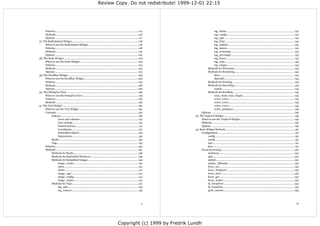
Table of Contents                                                                                                                                                 9. Dialog Windows ................................................................................................................. 29
                                                                                                                                                                        Grid Layouts .................................................................................................................. 34
    Preface ....................................................................................................................i                                       Validating Data.............................................................................................................. 36
    I. Introducing Tkinter ............................................................................................2                                    II. Tkinter Reference............................................................................................ 37
           1. What's Tkinter?......................................................................................................................1              10. The BitmapImage Class ................................................................................................... 38
           2. Hello, Tkinter ....................................................................................................................... 2                  When to use the BitmapImage Class ...........................................................................38
                 Running the Example ..................................................................................................... 2                            Patterns.......................................................................................................................... 38
                 Details .............................................................................................................................. 2               Methods .........................................................................................................................38
           3. Hello, Again .......................................................................................................................... 4                 Options .......................................................................................................................... 38
                 Running the Example ..................................................................................................... 4                      11. The Button Widget............................................................................................................40
                 Details .............................................................................................................................. 5               When to use the Button Widget ...................................................................................40
                 More on widget references ............................................................................................. 6                              Patterns..........................................................................................................................40
                 More on widget names.................................................................................................... 6                             Methods ......................................................................................................................... 41
           4. Tkinter Classes ..................................................................................................................... 8                   Helpers........................................................................................................................... 41
                 Widget classes .................................................................................................................8                      Options .......................................................................................................................... 41
                 Mixins .............................................................................................................................. 9          12. The Canvas Widget ...........................................................................................................44
                      Implementation mixins ......................................................................................... 9                                 When to use the Canvas Widget................................................................................... 44
                      Geometry mixins .................................................................................................... 9                            Concepts ........................................................................................................................44
                      Widget configuration management ...................................................................... 9                                               Items ..................................................................................................................... 44
           5. Widget Configuration..........................................................................................................11                               Coordinate Systems ............................................................................................. 45
                 Configuration Interface .................................................................................................11                                 Item Specifiers ..................................................................................................... 45
                 Backwards Compatibility...............................................................................................12                                    Printing ................................................................................................................. 46
           6. Widget Styling .....................................................................................................................13                    Patterns.......................................................................................................................... 46
                 Colors ..............................................................................................................................13                Methods .........................................................................................................................46
                      Color Names ..........................................................................................................13                               Printing .................................................................................................................48
                      RGB Specifications................................................................................................13                                   Searching for Items.............................................................................................. 49
                 Fonts .............................................................................................................................. 14                     Manipulating Tags ...............................................................................................50
                      Font descriptors ................................................................................................... 14                                Special Methods for Text Items............................................................................51
                      Font names ............................................................................................................15                              Scrolling.................................................................................................................51
                      System fonts ......................................................................................................... 16                         Options .......................................................................................................................... 52
                      X Font Descriptors............................................................................................... 16                        13. The Canvas Arc Item ........................................................................................................54
                 Text Formatting .............................................................................................................17                        Methods ......................................................................................................................... 54
                 Borders ...........................................................................................................................17                  Options .......................................................................................................................... 55
                      Relief ......................................................................................................................17             14. The Canvas Bitmap Item.................................................................................................. 57
                      Focus Highlights .................................................................................................. 18                            Bitmaps.......................................................................................................................... 57
                 Cursors........................................................................................................................... 18                  Methods ......................................................................................................................... 58
           7. Events and Bindings........................................................................................................... 19                         Options .......................................................................................................................... 58
                 Events ............................................................................................................................ 19           15. The Canvas Image Item.................................................................................................... 59
                      The Event Object...................................................................................................21                             Methods ......................................................................................................................... 59
                      Instance and Class Bindings.................................................................................21                                         coords ................................................................................................................... 59
                      Protocols............................................................................................................... 23                            itemconfigure ....................................................................................................... 59
                      Other Protocols .................................................................................................... 24                           Options .......................................................................................................................... 59
           8. Application Windows.........................................................................................................25                      16. The Canvas Line Item....................................................................................................... 61
                 Base Windows ............................................................................................................... 25                        Methods ......................................................................................................................... 61
                 Menus ............................................................................................................................ 25                  Options .......................................................................................................................... 61


                                                                                                                                                       i                                                                                                                                                  ii


                                                                                                                       Copyright (c) 1999 by Fredrik Lundh
Review Copy. Do not redistribute! 1999-12-01 22:15


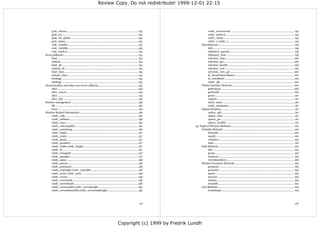
17. The Canvas Oval Item.......................................................................................................63                        Manager Methods ................................................................................................ 87
      Methods ......................................................................................................................... 63          Options .......................................................................................................................... 87
      Options .......................................................................................................................... 63   28. The IntVar Class...............................................................................................................89
18. The Canvas Polygon Item ................................................................................................64                      When to use the IntVar Class .......................................................................................89
      Methods .........................................................................................................................64           Patterns..........................................................................................................................89
      Options .......................................................................................................................... 64         Methods .........................................................................................................................89
19. The Canvas Rectangle Item.............................................................................................. 66                29. The Label Widget .............................................................................................................90
      Methods .........................................................................................................................66           When to use the Label Widget......................................................................................90
      Options .......................................................................................................................... 66         Patterns..........................................................................................................................90
20. The Canvas Text Item ...................................................................................................... 67                  Methods ......................................................................................................................... 91
      Methods ......................................................................................................................... 67          Options .......................................................................................................................... 91
      Options .......................................................................................................................... 67   30. The Listbox Widget.......................................................................................................... 93
21. The Canvas Window Item ................................................................................................69                       When to use the Listbox Widget .................................................................................. 93
      Methods .........................................................................................................................69           Patterns.......................................................................................................................... 93
      Options .......................................................................................................................... 69         Methods .........................................................................................................................96
22. The Checkbutton Widget ................................................................................................. 70                          Selection Methods................................................................................................ 97
      When to use the Checkbutton Widget ......................................................................... 70                                    Scrolling Methods ................................................................................................ 97
      Patterns.......................................................................................................................... 70         Options ..........................................................................................................................98
      Methods ..........................................................................................................................71    31. The Menu Widget ........................................................................................................... 100
      Options ...........................................................................................................................71         When to use the Menu Widget ................................................................................... 100
23. The DoubleVar Class........................................................................................................ 75                  Patterns........................................................................................................................ 100
      When to use the DoubleVar Class ................................................................................ 75                           Methods ....................................................................................................................... 102
      Patterns.......................................................................................................................... 75              Displaying Menus .............................................................................................. 104
      Methods ......................................................................................................................... 75          Options ........................................................................................................................ 104
24. The Entry Widget ............................................................................................................. 76         32. The Menubutton Widget ............................................................................................... 107
      When to use the Entry Widget ..................................................................................... 76                         When to use the Menubutton Widget........................................................................ 107
      Concepts ........................................................................................................................ 76          Patterns........................................................................................................................ 107
           Indexes.................................................................................................................. 76             Methods ....................................................................................................................... 107
      Patterns.......................................................................................................................... 76         Options ........................................................................................................................ 107
      Methods ......................................................................................................................... 77    33. The Message Widget ...................................................................................................... 108
           Selection Methods................................................................................................ 77                     When to use the Message Widget............................................................................... 108
           Scrolling Methods ................................................................................................ 78                    Patterns........................................................................................................................ 108
      Options .......................................................................................................................... 78         Methods ....................................................................................................................... 108
25. The Font Class ..................................................................................................................80             Options ........................................................................................................................108
      Patterns..........................................................................................................................80    34. The Pack Geometry Manager .........................................................................................110
      Methods .........................................................................................................................80           When to use the Pack Manager ...................................................................................110
      Functions .......................................................................................................................80           Patterns.........................................................................................................................110
      Options .......................................................................................................................... 81         Methods ........................................................................................................................110
26. The Frame Widget ...........................................................................................................82                       Widget Methods ..................................................................................................110
      When to use the Frame Widget .................................................................................... 82                               Manager Methods ...............................................................................................110
      Patterns.......................................................................................................................... 82         Options ......................................................................................................................... 111
      Methods .........................................................................................................................82     35. The PhotoImage Class.....................................................................................................112
      Options .......................................................................................................................... 82         When to use the PhotoImage Class.............................................................................112
27. The Grid Geometry Manager...........................................................................................84                          Patterns.........................................................................................................................112
      When to use the Grid Manager ....................................................................................84                           Methods ........................................................................................................................112
      Patterns..........................................................................................................................84          Options .........................................................................................................................113
      Methods .........................................................................................................................86     36. The Place Geometry Manager ........................................................................................115
           Widget Methods ...................................................................................................86                     When to use the Place Manager .................................................................................. 115


                                                                                                                                       iii                                                                                                                                           iv


                                                                                                         Copyright (c) 1999 by Fredrik Lundh
Review Copy. Do not redistribute! 1999-12-01 22:15


      Patterns......................................................................................................................... 115                     tag_delete .................................................................................................. 142
      Methods ........................................................................................................................116                       tag_config.................................................................................................. 142
      Options ......................................................................................................................... 117                     tag_cget ..................................................................................................... 142
37. The Radiobutton Widget.................................................................................................118                                  tag_bind .................................................................................................... 142
      When to use the Radiobutton Widget.........................................................................118                                            tag_unbind ................................................................................................ 142
      Patterns.........................................................................................................................118                      tag_names ................................................................................................. 142
      Methods ........................................................................................................................119                       tag_nextrange ........................................................................................... 143
      Options ........................................................................................................................ 120                      tag_prevrange ........................................................................................... 143
38. The Scale Widget............................................................................................................ 123                            tag_lower................................................................................................... 143
      When to use the Scale Widget .................................................................................... 123                                     tag_raise .................................................................................................... 143
      Patterns........................................................................................................................ 123                      tag_ranges ................................................................................................. 143
      Methods ....................................................................................................................... 123                Methods for Selections ...................................................................................... 143
      Options ........................................................................................................................ 123               Methods for Rendering...................................................................................... 144
39. The Scrollbar Widget ......................................................................................................125                              bbox ........................................................................................................... 144
      When to use the Scrollbar Widget...............................................................................125                                        dlineinfo..................................................................................................... 144
      Patterns.........................................................................................................................125               Methods for Printing.......................................................................................... 144
      Methods ....................................................................................................................... 126                Methods for Searching....................................................................................... 144
      Options ........................................................................................................................ 126                      search......................................................................................................... 144
40. The StringVar Class ....................................................................................................... 129                      Methods for Scrolling ........................................................................................ 145
      When to use the StringVar Class ................................................................................ 129                                      scan_mark, scan_dragto .......................................................................... 145
      Patterns........................................................................................................................ 129                      xview, yview............................................................................................... 145
      Methods ....................................................................................................................... 129                       xview, yview............................................................................................... 145
41. The Text Widget ............................................................................................................. 130                           xview, yview............................................................................................... 145
      When to use the Text Widget ..................................................................................... 130                                     yview_pickplace ........................................................................................ 146
      Concepts ...................................................................................................................... 130          Options ........................................................................................................................ 146
           Indexes................................................................................................................ 130        42. The Toplevel Widget ...................................................................................................... 149
                  Lines and columns .....................................................................................131                       When to use the Toplevel Widget............................................................................... 149
                  Line endings ...............................................................................................131                  Methods ....................................................................................................................... 149
                  Named indexes...........................................................................................131                      Options ........................................................................................................................ 149
                  Coordinates ............................................................................................... 132             43. Basic Widget Methods .................................................................................................... 151
                  Embedded objects..................................................................................... 132                        Configuration ............................................................................................................... 151
                  Expressions ............................................................................................... 132                        config ................................................................................................................... 151
           Marks .................................................................................................................. 132                  config ................................................................................................................... 151
           Tags..................................................................................................................... 133                 cget.......................................................................................................................151
      Patterns.........................................................................................................................135               keys ......................................................................................................................151
      Methods ........................................................................................................................137          Event processing ..........................................................................................................152
           Methods for Marks............................................................................................. 138                            mainloop..............................................................................................................152
           Methods for Embedded Windows..................................................................... 139                                         quit .......................................................................................................................152
           Methods for Embedded Images ........................................................................ 140                                      update ..................................................................................................................152
                  image_create ............................................................................................. 140                         update_idletasks .................................................................................................152
                  index ...........................................................................................................141                   focus_set..............................................................................................................152
                  delete ..........................................................................................................141                   focus_displayof ...................................................................................................152
                  image_cget .................................................................................................141                        focus_force ..........................................................................................................152
                  image_config..............................................................................................141                          focus_get .............................................................................................................152
                  image_names .............................................................................................141                           focus_lastfor........................................................................................................152
           Methods for Tags ................................................................................................141                          tk_focusNext .......................................................................................................153
                  tag_add...................................................................................................... 142                      tk_focusPrev........................................................................................................153
                  tag_remove................................................................................................ 142                         grab_current .......................................................................................................153


                                                                                                                                        v                                                                                                                                           vi


                                                                                                         Copyright (c) 1999 by Fredrik Lundh
Review Copy. Do not redistribute! 1999-12-01 22:15


     grab_release ........................................................................................................153                       winfo_screenvisual ............................................................................................ 159
     grab_set ...............................................................................................................153                    winfo_toplevel.................................................................................................... 159
     grab_set_global ..................................................................................................153                          winfo_visual....................................................................................................... 159
     grab_status..........................................................................................................153                       winfo_x, winfo_y ............................................................................................... 159
     wait_variable.......................................................................................................153                  Miscellaneous .............................................................................................................. 159
     wait_visibility......................................................................................................153                       bell....................................................................................................................... 159
     wait_window ...................................................................................................... 154                         clipboard_append.............................................................................................. 159
Event callbacks ............................................................................................................ 154                    clipboard_clear .................................................................................................. 159
     bind ..................................................................................................................... 154                 selection_clear ................................................................................................... 160
     unbind................................................................................................................. 154                    selection_get ...................................................................................................... 160
     bind_all .............................................................................................................. 154                    selection_handle ................................................................................................ 160
     unbind_all .......................................................................................................... 154                      selection_own .................................................................................................... 160
     bind_class........................................................................................................... 154                      selection_own_get............................................................................................. 160
     unbind_class ...................................................................................................... 154                        tk_focusFollowsMouse ...................................................................................... 160
     bindtags ...............................................................................................................155                    tk_strictMotif ..................................................................................................... 160
     bindtags ...............................................................................................................155                    winfo_rgb ........................................................................................................... 160
Alarm handlers and other non-event callbacks..........................................................155                                     Tkinter Interface Methods.......................................................................................... 160
     after......................................................................................................................155                 getboolean .......................................................................................................... 160
     after_cancel.........................................................................................................155                       getdouble ............................................................................................................ 160
     after......................................................................................................................155                 getint ....................................................................................................................161
     after_idle .............................................................................................................155                    register .................................................................................................................161
Window management ................................................................................................. 156                             winfo_atom .........................................................................................................161
     lift ........................................................................................................................ 156              winfo_atomname ................................................................................................161
     lower ................................................................................................................... 156            Option Database...........................................................................................................161
Window Related Information..................................................................................... 156                                 option_add ..........................................................................................................161
     winfo_cells ......................................................................................................... 156                      option_clear ........................................................................................................161
     winfo_children ................................................................................................... 156                         option_get ...........................................................................................................161
     winfo_class......................................................................................................... 156                       option_readfile....................................................................................................161
     winfo_colormapfull ........................................................................................... 156                  44. Toplevel Window Methods............................................................................................ 162
     winfo_containing ............................................................................................... 156                     Visibility Methods ....................................................................................................... 162
     winfo_depth ........................................................................................................157                        deiconify ............................................................................................................. 162
     winfo_exists ........................................................................................................157                       iconify ................................................................................................................. 162
     winfo_pixels ........................................................................................................157                       withdraw............................................................................................................. 162
     winfo_geometry ..................................................................................................157                           state..................................................................................................................... 162
     winfo_width, winfo_height................................................................................157                             Style Methods .............................................................................................................. 162
     winfo_id...............................................................................................................157                     title ...................................................................................................................... 162
     winfo_ismapped .................................................................................................157                            group................................................................................................................... 162
     winfo_manager ...................................................................................................157                           transient.............................................................................................................. 163
     winfo_name ....................................................................................................... 158                         overrideredirect.................................................................................................. 163
     winfo_parent...................................................................................................... 158                   Window Geometry Methods....................................................................................... 163
     winfo_pathname................................................................................................ 158                             geometry ............................................................................................................. 163
     winfo_reqheight, winfo_reqwidth .................................................................... 158                                       geometry ............................................................................................................. 163
     winfo_rootx, winfo_rooty ................................................................................. 158                                 aspect .................................................................................................................. 163
     winfo_screen ...................................................................................................... 158                        maxsize ............................................................................................................... 163
     winfo_screencells............................................................................................... 158                           minsize................................................................................................................ 163
     winfo_screendepth ............................................................................................ 158                             resizable .............................................................................................................. 163
     winfo_screenwidth, winfo_screenheight ......................................................... 159                                      Icon Methods............................................................................................................... 164
     winfo_screenmmwidth,winfo_screenmmheight ............................................ 159                                                      iconbitmap.......................................................................................................... 164


                                                                                                                                 vii                                                                                                                                          viii


                                                                                                    Copyright (c) 1999 by Fredrik Lundh
Review Copy. Do not redistribute! 1999-12-01 22:15


                   iconmask............................................................................................................. 164
                   iconname ............................................................................................................ 164
                   iconposition........................................................................................................ 164
                   iconwindow ........................................................................................................ 164
              Property Access Methods ........................................................................................... 164
                   client ................................................................................................................... 164
                   colormapwindows .............................................................................................. 164
                   command ............................................................................................................ 164
                   focusmodel ......................................................................................................... 165
                   frame................................................................................................................... 165
                   positionfrom....................................................................................................... 165
                   protocol............................................................................................................... 165
                   sizefrom .............................................................................................................. 165
Index .................................................................................................................. 166


                                                                                                                                             ix


                                                                                                               Copyright (c) 1999 by Fredrik Lundh
Review Copy. Do not redistribute! 1999-12-01 22:15


Preface
   This is yet another snapshot of my continously growing Tkinter documentation.
                                                                                                                   I. Introducing Tkinter
   If you like this book, you might be interested in hearing that O'Reilly & Associates                    The first few chapters in this book provide a brief introduction to Tkinter. After reading this,
   (http://www.ora.com) will be publishing a Tkinter book (tentatively called Programming                  you should have a fair grasp of the Tkinter fundamentals.
   Tkinter in Python) in a not too distant future. This book features lots of brand new material
   written by yours truly, giving you a more thorough description of Tkinter (and many other
   things) than you can find anywhere else.
   </F>
   (last update: Oct 05, 1999)


                                                                                                   i


                                                                              Copyright (c) 1999 by Fredrik Lundh
Review Copy. Do not redistribute! 1999-12-01 22:15


Chapter 1. What's Tkinter?                                                                             Chapter 2. Hello, Tkinter
    The Tkinter module (“Tk interface”) is the standard Python interface to the Tk GUI toolkit              But enough talk. Time to look at some code instead.
    from Scriptics (http://www.scriptics.com) (formerly developed by Sun Labs).                             As you know, every serious tutorial should start with a “hello world”-type example. In this
    Both Tk and Tkinter are available on most Unix platforms, as well as on Windows and                     overview, we'll show you not only one such example, but two.
    Macintosh systems. Starting with the 8.0 release, Tk offers native look and feel on all
                                                                                                            First, let's look at a pretty minimal version:
    platforms.
    Tkinter consists of a number of modules. The Tk interface is located in a binary module named           Example 2-1. Our First Tkinter Program
    _tkinter (this was tkinter in earlier versions). This module contains the low-level interface to
                                                                                                            # File: hello1.py
    Tk, and should never be used directly by application programmers. It is usually a shared library
    (or DLL), but might in some cases be statically linked with the Python interpreter.                     from Tkinter import *
    In addition to the Tk interface module, Tkinter includes a number of Python modules. The two
    most important modules are the Tkinter module itself, and a module called Tkconstants. The              root = Tk()
    former automatically imports the latter, so to use Tkinter, all you need to do is to import one
                                                                                                            w = Label(root, text="Hello, world!")
    module:
                                                                                                            w.pack()
      import Tkinter
                                                                                                            root.mainloop()
    Or, more often:

      from Tkinter import *
                                                                                                       Running the Example
                                                                                                            To run the program, run the script as usual:

                                                                                                            $ python hello1.py

                                                                                                            The following window appears.

                                                                                                            Figure 2-1. Running the program


                                                                                                            To stop the program, just close the window.


                                                                                                       Details
                                                                                                            We start by importing the Tkinter module. It contains all classes, functions and other things
                                                                                                            needed to work with the Tk toolkit. In most cases, you can simply import everything from
                                                                                                            Tkinter into your module's namespace:

                                                                                                               from Tkinter import *


                                                                                                   1                                                                                                        2


                                                                               Copyright (c) 1999 by Fredrik Lundh
Review Copy. Do not redistribute! 1999-12-01 22:15


                                                                           Chapter 2. Hello, Tkinter


To initialize Tkinter, we have to create a Tk root widget. This is an ordinary window, with a title
bar and other decoration provided by your window manager. You should only create one root
widget for each program, and it must be created before any other widgets.                                 Chapter 3. Hello, Again
   root = Tk()
                                                                                                              When you write larger programs, it is usually a good idea to wrap your code up in one or more
Next, we create a Label widget as a child to the root window:                                                 classes. The following example is adapted from the “hello world” program in Matt Conway's A
                                                                                                              Tkinter Life Preserver (http://www.python.org/docs/tkinter).
   w = Label(root, text="Hello, world!")
   w.pack()                                                                                                   Example 3-1. Our Second Tkinter Program

A Label widget can display either text or an icon or other image. In this case, we use the text               # File: hello2.py
option to specify which text to display. Next, we call the pack method on this widget, which
                                                                                                              from Tkinter import *
tells it to size itself to fit the given text, and make itself visible. But before this happens, we
have to enter the Tkinter event loop:                                                                         class App:
   root.mainloop()
                                                                                                                 def __init__(self, master):
The program will stay in the event loop until we close the window. The event loop doesn't only
                                                                                                                    frame = Frame(master)
handle events from the user (such as mouse clicks and key presses) or the windowing system
                                                                                                                    frame.pack()
(such as redraw events and window configuration messages), it also handle operations queued
by Tkinter itself. Among these operations are geometry management (queued by the pack                               self.button = Button(frame, text="QUIT", fg="red", command=frame.quit)
method) and display updates. This also means that the application window will not appear                            self.button.pack(side=LEFT)
before you enter the main loop.
                                                                                                                    self.hi_there = Button(frame, text="Hello", command=self.say_hi)
                                                                                                                    self.hi_there.pack(side=LEFT)

                                                                                                                 def say_hi(self):
                                                                                                                    print "hi there, everyone!"

                                                                                                              root = Tk()

                                                                                                              app = App(root)

                                                                                                              root.mainloop()


                                                                                                          Running the Example
                                                                                                              When you run this example, the following window appears.

                                                                                                              Figure 3-1. Running the sample program (using Tk 8.0 on a Windows 95 box)


                                                                                                              If you click the right button, the text “hi there, everyone!” is printed to the console. If you click
                                                                                                              the left button, the program stops.


                                                                                                      3                                                                                                           4


                                                                               Copyright (c) 1999 by Fredrik Lundh
Review Copy. Do not redistribute! 1999-12-01 22:15


                                                                               Chapter 3. Hello, Again                                                                                  Chapter 3. Hello, Again


                                                                                                               The last call is to the mainloop method on the root widget. It enters the Tk event loop, in which
Details                                                                                                        the application will stay until the quit method is called (just click the QUIT button), or the
                                                                                                               window is closed.
     This sample application is written as a class. The constructor (the __init__ method) is called
     with a parent widget (the master), to which it adds a number of child widgets. The constructor
     starts by creating a Frame widget. A frame is a simple container, and is in this case only used to    More on widget references
     hold the other two widgets.
                                                                                                               In the second example, the frame widget is stored in a local variable named frame, while the
       class App:                                                                                              button widgets are stored in two instance attributes. Isn't there a serious problem hidden in
          def __init__(self, master):
                                                                                                               here: what happens when the __init__ function returns and the frame variable goes out of
                                                                                                               scope?
             frame = Frame(master)
             frame.pack()                                                                                      Just relax; there's actually no need to keep a reference to the widget instance. Tkinter
                                                                                                               automatically maintains a widget tree (via the master and children attributes of each widget
     The frame instance is stored in a local variable called frame. After creating the widget, we              instance), so a widget won't disappear when the application's last reference goes away; it must
     immediately call the pack method to make the frame visible.                                               be explicitly destroyed before this happens (using the destroy method). But if you wish to do
     We then create two Button widgets, as children to the frame.                                              something with the widget after it has been created, you better keep a reference to the widget
                                                                                                               instance yourself.
       self.button = Button(frame, text="QUIT", fg="red", command=frame.quit)
       self.button.pack(side=LEFT)                                                                             Note that if you don't need to keep a reference to a widget, it might be tempting to create and
                                                                                                               pack it on a single line:
       self.hi_there = Button(frame, text="Hello", command=self.say_hi)
       self.hi_there.pack(side=LEFT)                                                                             Button(frame, text="Hello", command=self.hello).pack(side=LEFT)

     This time, we pass a number of options to the constructor, as keyword arguments. The first                Don't store the result from this operation; you'll only get disappointed when you try to use that
     button is labelled “QUIT”, and is made red (fg is short for foreground). The second is labelled           value (the pack method returns None). To be on the safe side, it might be better to always
     “Hello”. Both buttons also take a command option. This option specifies a function, or (as in             separate construction from packing:
     this case) a bound method, which will be called when the button is clicked.
                                                                                                                 w = Button(frame, text="Hello", command=self.hello)
     The button instances are stored in instance attributes. They are both packed, but this time with            w.pack(side=LEFT)
     the side=LEFT argument. This means that they will be placed as far left as possible in the
     frame; the first button is placed at the frame's left edge, and the second is placed just to the
     right of the first one (at the left edge of the remaining space in the frame, that is). By default,
                                                                                                           More on widget names
     widgets are packed relative to their parent (which is master for the frame widget, and the                Another source of confusion, especially for those who have some experience of programming
     frame itself for the buttons). If the side is not given, it defaults to TOP.                              Tk using Tcl, is Tkinter's notion of the widget name. In Tcl, you must explicitly name each
     The “hello” button callback is given next. It simply prints a message to the console everytime            widget. For example, the following Tcl command creates a Button named “ok”, as a child to a
     the button is pressed:                                                                                    widget named “dialog” (which in turn is a child of the root window, “.”).

       def say_hi(self):                                                                                         button .dialog.ok
          print "hi there, everyone!"
                                                                                                               The corresponding Tkinter call would look like:
     Finally, we provide some script level code that creates a Tk root widget, and one instance of the
     App class using the root widget as its parent:                                                              ok = Button(dialog)

       root = Tk()                                                                                             However, in the Tkinter case, ok and dialog are references to widget instances, not the actual
                                                                                                               names of the widgets. Since Tk itself needs the names, Tkinter automatically assigns a unique
       app = App(root)                                                                                         name to each new widget. In the above case, the dialog name is probably something like
                                                                                                               “.1428748,” and the button could be named “.1428748.1432920”. If you wish to get the full
       root.mainloop()                                                                                         name of a Tkinter widget, simply use the str function on the widget instance:

                                                                                                                 >>> print str(ok)
                                                                                                                 .1428748.1432920


                                                                                                       5                                                                                                         6


                                                                                  Copyright (c) 1999 by Fredrik Lundh
Review Copy. Do not redistribute! 1999-12-01 22:15


                                                                          Chapter 3. Hello, Again


(if you print something, Python automatically uses the str function to find out what to print.
But obviously, an operation like “name = ok” won't do the that, so make sure always to
explicitly use str if you need the name).                                                                Chapter 4. Tkinter Classes
If you really need to specify the name of a widget, you can use the name option when you
create the widget. One (and most likely the only) reason for this is if you need to interface with
code written in Tcl.
                                                                                                         Widget classes
In the following example, the resulting widget is named “.dialog.ok” (or, if you forgot to name              Tkinter supports 15 core widgets:
the dialog, something like “.1428748.ok”):
                                                                                                             Table 4-1. Tkinter Widget Classes
  ok = Button(dialog, name="ok")
                                                                                                              Widget              Description
To avoid conflicts with Tkinter's naming scheme, don't use names which only contain digits.
                                                                                                              Button              A simple button, used to execute a command or other operation.
Also note that name is a “creation only” option; you cannot change the name once you've
created the widget.                                                                                           Canvas              Structured graphics. This widget can be used to draw graphs and plots,
                                                                                                                                  create graphics editors, and to implement custom widgets.

                                                                                                              Checkbutton         Represents a variable that can have two distinct values. Clicking the
                                                                                                                                  button toggles between the values.

                                                                                                              Entry               A text entry field.

                                                                                                              Frame               A container widget. The frame can have a border and a background, and
                                                                                                                                  is used to group other widgets when creating an application or dialog
                                                                                                                                  layout.

                                                                                                              Label               Displays a text or an image.

                                                                                                              Listbox             Displays a list of alternatives. The listbox can be configured to get
                                                                                                                                  radiobutton or checklist behavior.

                                                                                                              Menu                A menu pane. Used to implement pulldown and popup menus.

                                                                                                              Menubutton          A menubutton. Used to implement pulldown menus.

                                                                                                              Message             Display a text. Similar to the label widget, but can automatically wrap text
                                                                                                                                  to a given width or aspect ratio.

                                                                                                              Radiobutton         Represents one value of a variable that can have one of many values.
                                                                                                                                  Clicking the button sets the variable to that value, and clears all other
                                                                                                                                  radiobuttons associated with the same variable.

                                                                                                              Scale               Allows you to set a numerical value by dragging a “slider”.

                                                                                                              Scrollbar           Standard scrollbars for use with canvas, entry, listbox, and text widgets.

                                                                                                              Text                Formatted text display. Allows you to display and edit text with various
                                                                                                                                  styles and attributes. Also supports embedded images and windows.

                                                                                                              Toplevel            A container widget displayed as a separate, top-level window.

                                                                                                             Also note that there's no widget class hierarchy in Tkinter; all widget classes are siblings in the
                                                                                                             inheritance tree.


                                                                                                     7                                                                                                           8


                                                                             Copyright (c) 1999 by Fredrik Lundh
Review Copy. Do not redistribute! 1999-12-01 22:15


                                                                          Chapter 4. Tkinter Classes                                                                              Chapter 4. Tkinter Classes


     All these widgets provide the Misc and geometry management methods, the configuration                  interface. The latter can be used to set and query individual options, and is explained in further
     management methods, and additional methods defined by the widget itself. In addition, the              detail in the next chapter.
     Toplevel class also provides the window manager interface. This means that a typical widget
     class provides some 150 methods.


Mixins
     The Tkinter module provides classes corresponding to the various widget types in Tk, and a
     number of mixin and other helper classes (a mixin is a class designed to be combined with
     other classes using multiple inheritance). When you use Tkinter, you should never access the
     mixin classes directly.

Implementation mixins
     The Misc class is used as a mixin by the root window and widget classes. It provides a large
     number of Tk and window related services, which are thus available for all Tkinter core
     widgets. This is done by delegation; the widget simply forwards the request to the appropriate
     internal object.
     The Wm class is used as a mixin by the root window and Toplevel widget classes. It provides
     window manager services, also by delegation.
     Using delegation like this simplifies your application code: once you have a widget, you can
     access all parts of Tkinter using methods on the widget instance.

Geometry mixins
     The Grid, Pack, and Place classes are used as mixins by the widget classes. They provide access
     to the various geometry managers, also via delegation.

     Table 4-2. Geometry Mixins

      Manager            Description

      Grid               The grid geometry manager allows you to create table-like layouts, by
                         organizing the widgets in a 2-dimensional grid. To use this geometry
                         manager, use the grid method.

      Pack               The pack geometry manager lets you create a layout by “packing” the
                         widgets into a parent widget, by treating them as rectangular blocks
                         placed in a frame. To use this geometry manager for a widget, use the
                         pack method on that widget to set things up.

      Place              The place geometry manager lets you explicitly place a widget in a given
                         position. To use this geometry manager, use the place method.


Widget configuration management
     The Widget class mixes the Misc class with the geometry mixins, and adds configuration
     management through the cget and configure methods, as well as through a partial dictionary


                                                                                                      9                                                                                                    10


                                                                               Copyright (c) 1999 by Fredrik Lundh
Review Copy. Do not redistribute! 1999-12-01 22:15


                                                                                                                                                                               Chapter 5. Widget Configuration


                                                                                                            Backwards Compatibility
Chapter 5. Widget Configuration                                                                                 Keyword arguments were introduced in Python 1.3. Before that, options were passed to the
                                                                                                                widget constructors and configure methods using ordinary Python dictionaries. The source
    To control the appearance of a widget, you usually use options rather than method calls.                    code could then look something like this:
    Typical options include text and color, size, command callbacks, etc. To deal with options, all
    core widgets implement the same configuration interface:                                                      self.button = Button(frame, {"text": "QUIT", "fg": "red", "command": frame.quit})
                                                                                                                  self.button.pack({"side": LEFT})

Configuration Interface                                                                                         The keyword argument syntax is of course much more elegant, and less error prone. However,
                                                                                                                for compatibility with existing code, Tkinter still supports the older syntax. You shouldn't use
    widgetclass(master, option=value, ...) ⇒ widget                                                             this syntax in new programs, even if it might be tempting in some cases. For example, if you
        Create an instance of this widget class, as a child to the given master, and using the given            create a custom widget which needs to pass configuration options along to its parent class, you
        options. All options have default values, so in the simplest case, you only have to specify             may come up with something like:
        the master. You can even leave that out if you really want; Tkinter then uses the most
                                                                                                                  def __init__(self, master, **kw):
        recently created root window as master. Note that the name option can only be set when
                                                                                                                     Canvas.__init__(self, master, kw) # kw is a dictionary
        the widget is created.
                                                                                                                This works just fine with the current version of Tkinter, but it may not work with future
    cget(option) ⇒ string
                                                                                                                versions. A more general approach is to use the apply function:
        Return the current value of an option. Both the option name, and the returned value, are
        strings. To get the name option, use str(widget) instead.                                                 def __init__(self, master, **kw):
                                                                                                                     apply(Canvas.__init__, (self, master), kw)
    configure(option=value, ...)
                                                                                                                The apply function takes a function (an unbound method, in this case), a tuple with arguments
    config(option=value, ...)
                                                                                                                (which must include self since we're calling an unbound method), and optionally, a dictionary
        Set one or more options (given as keyword arguments).                                                   which provides the keyword arguments.
    Note that some options have names that are reserved words in Python (class, from, ...). To use
    these as keyword arguments, simply append an underscore to the option name (class_, from_,
    ...). Note that you cannot set the name option using this method; it can only be set when the
    widget is created.
    For convenience, the widgets also implement a partial dictionary interface. The __setitem__
    method maps to configure, while __getitem__ maps to cget. As a result, you can use the
    following syntax to set and query options:

      value = widget[option]
      widget[option] = value

    Note that each assignment results in one call to Tk. If you wish to change multiple options, it is
    usually a better idea to change them with a single call to config or configure (personally, I
    prefer to always change options in that fashion).
    The following dictionary method also works for widgets:

    keys() ⇒ list
        Return a list of all options that can be set for this widget. The name option is not included
        in this list (it cannot be queried or modified through the dictionary interface anyway, so
        this doesn't really matter).


                                                                                                       11                                                                                                     12


                                                                                Copyright (c) 1999 by Fredrik Lundh
Review Copy. Do not redistribute! 1999-12-01 22:15


                                                                                                                                                                                        Chapter 6. Widget Styling


                                                                                                                Tk also supports the forms “#RGB” and “#RRRRGGGGBBBB” to specify each value with 16 and
                                                                                                                65536 levels, respectively.
Chapter 6. Widget Styling                                                                                       You can use the winfo_rgb widget method to translate a color string (either a name or an RGB
                                                                                                                specification) to a 3-tuple:
     All Tkinter standard widgets provide a basic set of “styling” options, which allow you to modify
     things like colors, fonts, and other visual aspects of each widget.                                            rgb = widget.winfo_rgb("red")
                                                                                                                    red, green, blue = rgb[0]/256, rgb[1]/256, rgb[2]/256

Colors                                                                                                          Note that winfo_rgb returns 16-bit RGB values, ranging from 0 to 65535. To map them into the
                                                                                                                more common 0-255 range, you must divide each value by 256 (or shift them 8 bits to the
     Most widgets allow you to specify the widget and text colors, using the background and                     right).
     foreground options. To specify a color, you can either use a color name, or explicitly specify the
     red, green, and blue (RGB) color components.
                                                                                                           Fonts
Color Names                                                                                                     Widgets that allow you to display text in one way or another also allows you to specify which
     Tkinter includes a color database which maps color names to the corresponding RGB values.                  font to use. All widgets provide reasonable default values, and you seldom have to specify the
     This database includes common names like Red, Green, Blue, Yellow, and LightBlue, but also                 font for simpler elements like labels and buttons.
     more exotic things like Moccasin, PeachPuff, etc.                                                          Fonts are usually specifed using the font widget option. Tkinter supports a number of different
     On an X window system, the color names are defined by the X server. You might be able to                   font descriptor types:
     locate a file named xrgb.txt which contains a list of color names and the corresponding RGB                •   Font descriptors
     values. On Windows and Macintosh systems, the color name table is built into Tk.
                                                                                                                •   User-defined font names
     Under Windows, you can also use the Windows system colors (these can be changed by the
                                                                                                                •   System fonts
     user via the control panel):
       SystemActiveBorder, SystemActiveCaption, SystemAppWorkspace, SystemBackground,
                                                                                                                •   X font descriptors
       SystemButtonFace, SystemButtonHighlight, SystemButtonShadow, SystemButtonText,                           With Tk versions before 8.0, only X font descriptors are supported (see below).
       SystemCaptionText, SystemDisabledText, SystemHighlight, SystemHighlightText,
       SystemInactiveBorder, SystemInactiveCaption, SystemInactiveCaptionText, SystemMenu,
       SystemMenuText, SystemScrollbar, SystemWindow, SystemWindowFrame, SystemWindowText.
                                                                                                           Font descriptors
     On the Macintosh, the following system colors are available:                                               Starting with Tk 8.0, Tkinter supports platform independent font descriptors. You can specify a
                                                                                                                font as tuple containing a family name, a height in points, and optionally a string with one or
       SystemButtonFace, SystemButtonFrame, SystemButtonText, SystemHighlight,
       SystemHighlightText, SystemMenu, SystemMenuActive, SystemMenuActiveText,
                                                                                                                more styles. Examples:
       SystemMenuDisabled, SystemMenuText, SystemWindowBody.
                                                                                                                    ("Times", 10, "bold")
     Color names are case insensitive. Many (but not all) color names are also available with or                    ("Helvetica", 10, "bold italic")
     without spaces between the words. For example, “lightblue”, “light blue”, and “Light Blue” all                 ("Symbol", 8)
     specify the same color.
                                                                                                                To get the default size and style, you can give the font name as a single string. If the family
                                                                                                                name doesn't include spaces, you can also add size and styles to the string itself:
RGB Specifications
                                                                                                                    "Times 10 bold"
     If you need to explicitly specify a color, you can use a string with the following format:
                                                                                                                    "Helvetica 10 bold italic"
                                                                                                                    "Symbol 8"
       #RRGGBB
                                                                                                                Here are some families available on most Windows platforms:
     RR, GG, BB are hexadecimal representations of the red, green and blue values, respectively.
     The following sample shows how you can convert a color 3-tuple to a Tk color specification:                Arial (corresponds to Helvetica), Courier New (Courier), Comic Sans MS, Fixedsys, MS Sans
                                                                                                                Serif, MS Serif, Symbol, System, Times New Roman (Times), and Verdana:
         tk_rgb = "#%02x%02x%02x" % (128, 192, 200)


                                                                                                      13                                                                                                          14


                                                                                  Copyright (c) 1999 by Fredrik Lundh
Review Copy. Do not redistribute! 1999-12-01 22:15


                                                                              Chapter 6. Widget Styling                                                                                     Chapter 6. Widget Styling


                                                                                                                    Option              Type                Description

                                                                                                                    family              string              Font family.

                                                                                                                    size                integer             Font size in points. To give the size in pixels, use a
                                                                                                                                                            negative value.

                                                                                                                    weight              constant            Font thickness. Use one of NORMAL or BOLD. Default
                                                                                                                                                            is NORMAL.

                                                                                                                    slant               constant            Font slant. Use one of NORMAL or ITALIC. Default is
                                                                                                                                                            NORMAL.

                                                                                                                    underline           flag                Font underlining. If 1 (true), the font is underlined.
                                                                                                                                                            Default is 0 (false).

     Note that if the family name contains spaces, you must use the tuple syntax described above.                   overstrike          flag                Font strikeout. If 1 (true), a line is drawn over text
                                                                                                                                                            written with this font. Default is 0 (false).
     The available styles are normal, bold, roman, italic, underline, and overstrike.
     Tk 8.0 automatically maps Courier, Helvetica, and Times to their corresponding native family
                                                                                                              System fonts
     names on all platforms. In addition, a font specification can never fail under Tk 8.0; if Tk
     cannot come up with an exact match, it tries to find a similar font. If that fails, Tk falls back to a        Tk also supports system specific font names. Under X, these are usually font aliases like fixed,
     platform-specific default font. Tk's idea of what is “similar enough” probably doesn't                        6x10, etc.
     correspond to your own view, so you shouldn't rely too much on this feature.
                                                                                                                   Under Windows, these include ansi, ansifixed, device, oemfixed, system, and systemfixed:
     Tk 4.2 under Windows supports this kind of font descriptors as well. There are several
     restrictions, including that the family name must exist on the platform, and not all the above
     style names exist (or rather, some of them have different names).

Font names
     In addition, Tk 8.0 allows you to create named fonts and use their names when specifying fonts
     to the widgets.
     The tkFont module provides a Font class which allows you to create font instances. You can use                On the Macintosh, the system font names are application and system.
     such an instance everywhere Tkinter accepts a font specifier. You can also use a font instance                Note that the system fonts are full font names, not family names, and they cannot be combined
     to get font metrics, including the size occupied by a given string written in that font.                      with size or style attributes. For portability reasons, avoid using these names wherever
                                                                                                                   possible.
        tkFont.Font(family="Times", size=10, weight=tkFont.BOLD)
        tkFont.Font(family="Helvetica", size=10, weight=tkFont.BOLD,
                slant=tkFont.ITALIC)                                                                          X Font Descriptors
        tkFont.Font(family="Symbol", size=8)
                                                                                                                   X Font Descriptors are strings having the following format (the asterisks represent fields that
     If you modify a named font (using the config method), the changes are automatically                           are usually not relevant. For details, see the Tk documentation, or an X manual):
     propagated to all widgets using the font.
                                                                                                                      -*-family-weight-slant-*--*-size-*-*-*-*-charset
     The Font constructor supports the following style options (note that the constants are defined
     in the tkFont module):                                                                                        The font family is typically something like Times, Helvetica, Courier or Symbol.
                                                                                                                   The weight is either Bold or Normal. Slant is either R for “roman” (normal), I for italic, or O for
     Table 6-1. Font Style Options
                                                                                                                   oblique (in practice, this is just another word for italic).
      Option              Type                 Description                                                         Size is the height of the font in decipoints (that is, points multiplied by 10). There are usually
                                                                                                                   72 points per inch, but some low-resolution displays may use larger “logical” points to make


                                                                                                        15                                                                                                              16


                                                                                    Copyright (c) 1999 by Fredrik Lundh
Review Copy. Do not redistribute! 1999-12-01 22:15


                                                                                 Chapter 6. Widget Styling                                                                                    Chapter 6. Widget Styling


         sure that small fonts are still legible. The character set, finally, is usually ISO8859-1 (ISO Latin    Focus Highlights
         1), but may have other values for some fonts.
                                                                                                                      The highlight settings control how to indicate that the widget (or one of its children) has
         The following descriptor requests a 12-point boldface Times font, using the ISO Latin 1
                                                                                                                      keyboard focus. In most cases, the highlight region is a border outside the relief. The following
         character set:
                                                                                                                      options control how this extra border is drawn:
            -*-Times-Bold-R-*--*-120-*-*-*-*-ISO8859-1                                                                The highlightcolor is used to draw the highlight region when the widget has keyboard focus. It's
                                                                                                                      usually black, or some other distinct contrast color.
         If you don't care about the character set, or use a font like Symbol which has a special character
         set, you can use a single asterisk as the last component:                                                    The highlightbackground is used to draw the highlight region when the widget doesn't have
                                                                                                                      focus. It's usually same as the widget background.
            -*-Symbol-*-*-*--*-80-*
                                                                                                                      The highlightthickness option is the width of the highlight region, in pixels. It is usually one or
         A typical X server supports at least Times, Helvetica, Courier, and a few more fonts, in sizes like          two pixels for widgets that can take keyboard focus.
         8, 10, 12, 14, 18, and 24 points, and in normal, bold, and italic (Times) or oblique (Helvetica,
         Courier) variants. Most servers also support freely scaleable fonts. You can use programs like
         xlsfonts and xfontsel to check which fonts you have access to on a given server.
                                                                                                                 Cursors
         This kind of font descriptors can also be used on Windows and Macintosh. Note that if you use                The cursor option control which mouse cursor to use when the mouse is moved over the
         Tk 4.2, you should keep in mind that the font family must be one supported by Windows (see                   widget. If this option isn't set, the widget uses the same mouse pointer as its parent.
         above).                                                                                                      Note that some widgets, including the Text and Entry widgets, set this option by default.


Text Formatting
         While text labels and buttons usually contain a single line of text, Tkinter also supports
         multiple lines. To split the text across lines, simply insert newline characters (n) where
         necessary.
         By default, the lines are centered. You can change this by setting the justify option to LEFT or
         RIGHT. The default value is CENTER.

         You can also use the wraplength option to set a maximum width, and let the widget wrap the
         text over multiple lines all by itself. Tkinter attempts to wrap on whitespace, but if the widget is
         too narrow, it may break individual words across lines.


Borders
         All Tkinter widgets have a border (though it's not visible by default for some widgets). The
         border consists of an optional 3D relief, and a focus highlight region.

Relief
         The relief settings control how to draw the widget border:
         borderwidth (or bd) is the width of the border, in pixels. Most widgets have a default
         borderwidth of one or two pixels. There's hardly any reason to make the border wider than
         that.
         relief controls how to draw the 3D border. It can be set to one of SUNKEN, RAISED, GROOVE,
         RIDGE, and FLAT.


                                                                                                            17                                                                                                         18


                                                                                       Copyright (c) 1999 by Fredrik Lundh
Review Copy. Do not redistribute! 1999-12-01 22:15


                                                                                                                                                                               Chapter 7. Events and Bindings


                                                                                                              event string; for example, to match a keyboard key, you can leave out the angle brackets and
                                                                                                              just use the key as is. Unless it is a space or an angle bracket, of course.
Chapter 7. Events and Bindings                                                                                Instead of spending a few pages on discussing all the syntactic shortcuts, let's take a look on the
                                                                                                              most common event formats:
    As was mentioned earlier, a Tkinter application spends most of its time inside an event loop
    (entered via the mainloop method). Events can come from various sources, including key                    Table 7-1. Event Formats
    presses and mouse operations by the user, and redraw events from the window manager
    (indirectly caused by the user, in many cases).                                                            Event               Description

    Tkinter provides a powerful mechanism to let you deal with events yourself. For each widget,               <Button-1>          A mouse button is pressed over the widget. Button 1 is the leftmost
    you can bind Python functions and methods to events.                                                                           button, button 2 is the middle button (where available), and button 3 the
                                                                                                                                   rightmost button. When you press down a mouse button over a widget,
       widget.bind(event, handler)                                                                                                 Tkinter will automatically “grab” the mouse pointer, and mouse events
                                                                                                                                   will then be sent to the current widget as long as the mouse button is held
    If an event matching the event description occurs in the widget, the given handler is called with
                                                                                                                                   down. The current position of the mouse pointer (relative to the widget)
    an object describing the event.
                                                                                                                                   is provided in the x and y members of the event object passed to the
    Here's a simple example:                                                                                                       callback.
                                                                                                                                   You can use ButtonPress instead of Button, or even leave it out
    Example 7-1. Capturing clicks in a window                                                                                      completely: <Button-1>, <ButtonPress-1>, and <1> are all synonyms.
    # File: bind1.py
                                                                                                                                   For clarity, I prefer the <Button-1> syntax.

                                                                                                               <B1-Motion>         The mouse is moved, with mouse button 1 being held down (use B2 for
    from Tkinter import *
                                                                                                                                   the middle button, B3 for the right button). The current position of the
                                                                                                                                   mouse pointer is provided in the x and y members of the event object
    root = Tk()
                                                                                                                                   passed to the callback.
    def callback(event):                                                                                                           Button 1 was released. The current position of the mouse pointer is
                                                                                                               <Button-
       print "clicked at", event.x, event.y
                                                                                                               Release-1>          provided in the x and y members of the event object passed to the
    frame = Frame(root, width=100, height=100)
                                                                                                                                   callback.
    frame.bind("<Button-1>", callback)                                                                         <Double-            Button 1 was double clicked. You can use Double or Triple as prefixes.
    frame.pack()
                                                                                                               Button-1>           Note that if you bind to both a single click (<Button-1>) and a double
                                                                                                                                   click, both bindings will be called.
    root.mainloop()
                                                                                                               <Enter>             The mouse pointer entered the widget (this event doesn't mean that the
                                                                                                                                   user pressed the Enter key!).
    In this example, we use the bind method of the frame widget to bind a callback function to an
                                                                                                               <Leave>             The mouse pointer left the widget.
    event called <Button-1>. Run this program and click in the window that appears. Each time
    you click, a message like “clicked at 44 63” is printed to the console window.                             <Return>            The user pressed the Enter key. You can bind to virtually all keys on the
                                                                                                                                   keyboard. For an ordinary 102-key PC-style keyboard, the special keys
Events                                                                                                                             are Cancel (the Break key), BackSpace, Tab, Return(the Enter key),
                                                                                                                                   Shift_L (any Shift key), Control_L (any Control key), Alt_L (any Alt
    Events are given as strings, using a special event syntax:                                                                     key), Pause, Caps_Lock, Escape, Prior (Page Up), Next (Page
                                                                                                                                   Down), End, Home, Left, Up, Right, Down, Print, Insert, Delete,
       <modifier-type-detail>                                                                                                      F1, F2, F3, F4, F5, F6, F7, F8, F9, F10, F11, F12, Num_Lock, and
                                                                                                                                   Scroll_Lock.
    The type field is the most important part of an event specifier. It specifies the kind of event that
    we wish to bind, and can be user actions like Button, and Key, or window manager events like               <Key>               The user pressed any key. The key is provided in the char member of the
    Enter, Configure, and others. The modifier and detail fields are used to give additional                                       event object passed to the callback (this is an empty string for special
    information, and can in many cases be left out. There are also various ways to simplify the                                    keys).


                                                                                                     19                                                                                                        20


                                                                                 Copyright (c) 1999 by Fredrik Lundh
Review Copy. Do not redistribute! 1999-12-01 22:15


                                                                      Chapter 7. Events and Bindings                                                                             Chapter 7. Events and Bindings


      Event               Description                                                                         •    the widget instance, using bind.
                                                                                                              •    the widget's toplevel window (Toplevel or root), also using bind.
      a                   The user typed an “a”. Most printable characters can be used as is. The
                          exceptions are space (<space>) and less than (<less>). Note that 1 is a             •    the widget class, using bind_class (this is used by Tkinter to provide standard bindings).
                          keyboard binding, while <1> is a button binding.                                    •    the whole application, using bind_all .
      <Shift-Up>          The user pressed the Up arrow, while holding the Shift key pressed. You             For example, you can use bind_all to create a binding for the F1 key, so you can provide help
                          can use prefixes like Alt, Shift, and Control.                                      everywhere in the application. But what happens if you create multiple bindings for the same
                          The widget changed size (or location, on some platforms). The new size is           key, or provide overlapping bindings?
      <Configure>
                          provided in the width and height attributes of the event object passed to           First, on each of these four levels, Tkinter chooses the “closest match” of the available bindings.
                          the callback.                                                                       For example, if you create instance bindings for the <Key> and <Return> events, only the
                                                                                                              second binding will be called if you press the Enter key.
The Event Object                                                                                              However, if you add a <Return> binding to the toplevel widget, both bindings will be called.
                                                                                                              Tkinter first calls the best binding on the instance level, then the best binding on the toplevel
     The event object is a standard Python object instance, with a number of attributes describing            window level, then the best binding on the class level (which is often a standard binding), and
     the event.                                                                                               finally the best available binding on the application level. So in an extreme case, a single event
                                                                                                              may call four event handlers.
     Table 7-2. Event Attributes
                                                                                                              A common cause of confusion is when you try to use bindings to override the default behavior
      Attribute           Description                                                                         of a standard widget. For example, assume you wish to disable the Enter key in the text widget,
                          The widget which generated this event. This is a valid Tkinter widget               so that the users cannot insert newlines into the text. Maybe the following will do the trick?
      widget
                          instance, not a name. This attribute is set for all events.                              def ignore(event):
      x, y                The current mouse position, in pixels.                                                      pass
                                                                                                                   text.bind("<Return>", ignore)
      x_root, y_root      The current mouse position relative to the upper left corner of the screen,
                          in pixels.                                                                          or, if you prefer one-liners:

      char                The character code (keyboard events only), as a string.                                  text.bind("<Return>", lambda e: None)

      keysym              The key symbol (keyboard events only).                                              (the lambda function used here takes one argument, and returns None)
      keycode             The key code (keyboard events only)                                                 Unfortunately, the newline is still inserted, since the above binding applies to the instance level
                                                                                                              only, and the standard behavior is provided by a class level bindings.
      num                 The button number (mouse button events only)
                                                                                                              You could use the bind_class method to modify the bindings on the class level, but that would
      width, height       The new size of the widget, in pixels (Configure events only).                      change the behavior of all text widgets in the application. An easier solution is to prevent
      type                The event type.                                                                     Tkinter from propagating the event to other handlers; just return the string “break” from your
                                                                                                              event handler:
     For portability reasons, you should stick to char, height, width, x, y, x_root, y_root, and widget
                                                                                                                   def ignore(event):
     unless you know exactly what you're doing...                                                                     return "break"
                                                                                                                   text.bind("<Return>", ignore)
Instance and Class Bindings
                                                                                                              or
     The bind method we used in the above example creates an instance binding. This means that
     the binding applies to a single widget only; if you create new frames, they will not inherit the              text.bind("<Return>", lambda e: "break")
     bindings.
                                                                                                              By the way, if you really want to change the behavior of all text widgets in your application,
     But Tkinter also allows you to create bindings on the class and application level; in fact, you          here's how to use the bind_class method:
     can create bindings on four different levels:
                                                                                                                   top.bind_class("Text", "<Return>", lambda e: None)


                                                                                                        21                                                                                                      22


                                                                                 Copyright (c) 1999 by Fredrik Lundh
Review Copy. Do not redistribute! 1999-12-01 22:15


                                                                     Chapter 7. Events and Bindings                                                                             Chapter 7. Events and Bindings


     But there are a lot of reasons why you shouldn't do this. For example, it messes things up                 top.protocol("WM_DELETE_WINDOW", top.destroy)
     completely the day you wish to extend your application with some cool little UI component you
     downloaded from the net. Better use your own Text widget specialization, and keep Tkinter's              Future versions of Tkinter will most likely do this by default.
     default bindings intact:
                                                                                                         Other Protocols
       class MyText(Text):
          def __init__(self, master, **kw):                                                                   Window manager protocols were originally part of the X window system (they are defined in a
             apply(Text.__init__, (self, master), kw)                                                         document titled Inter-Client Communication Conventions Manual, or ICCCM). On that
             self.bind("<Return>", lambda e: "break")                                                         platform, you can install handlers for other protocols as well, like WM_TAKE_FOCUS and
                                                                                                              WM_SAVE_YOURSELF. See the ICCCM documentation for details.
Protocols
     In addition to event bindings, Tkinter also supports a mechanism called protocol handlers.
     Here, the term protocol refers to the interaction between the application and the window
     manager. The most commonly used protocol is called WM_DELETE_WINDOW, and is used to
     define what happens when the user explicitly closes a window using the window manager.
     You can use the protocol method to install a handler for this protocol (the widget must be a
     root or Toplevel widget):

       widget.protocol("WM_DELETE_WINDOW", handler)

     Once you have installed your own handler, Tkinter will no longer automatically close the
     window. Instead, you could for example display a message box asking the user if the current
     data should be saved, or in some cases, simply ignore the request. To close the window from
     this handler, simply call the destroy method of the window:

     Example 7-2. Capturing destroy events
     # File: protocol1.py

     from Tkinter import *
     import tkMessageBox

     def callback():
        if tkMessageBox.askokcancel("Quit", "Do you really wish to quit?"):
            root.destroy()

     root = Tk()
     root.protocol("WM_DELETE_WINDOW", callback)

     root.mainloop()


     Note that even you don't register an handler for WM_DELETE_WINDOW on a toplevel window,
     the window itself will be destroyed as usual (in a controlled fashion, unlike X). However, as of
     Python 1.5.2, Tkinter will not destroy the corresponding widget instance hierarchy, so it is a
     good idea to always register a handler yourself:

       top = Toplevel(...)

       # make sure widget instances are deleted


                                                                                                    23                                                                                                     24


                                                                                Copyright (c) 1999 by Fredrik Lundh
Review Copy. Do not redistribute! 1999-12-01 22:15


                                                                                                                                                                             Chapter 8. Application Windows


                                                                                                               Example 8-1. Creating a small menu

Chapter 8. Application Windows                                                                                 # File: menu1.py

                                                                                                               from Tkinter import *

Base Windows                                                                                                   def callback():
                                                                                                                  print "called the callback!"
    In the simple examples we've used this far, there's only one window on the screen; the root
    window. This is automatically created when you call the Tk constructor, and is of course very              root = Tk()
    convenient for simple applications:
                                                                                                               # create a menu
      from Tkinter import *
                                                                                                               menu = Menu(root)
                                                                                                               root.config(menu=menu)
      root = Tk()
                                                                                                               filemenu = Menu(menu)
      # create window contents as children to root...
                                                                                                               menu.add_cascade(label="File", menu=filemenu)
                                                                                                               filemenu.add_command(label="New", command=callback)
      root.mainloop()
                                                                                                               filemenu.add_command(label="Open...", command=callback)
                                                                                                               filemenu.add_separator()
    If you need to create additional windows, you can use the Toplevel widget. It simply creates a
                                                                                                               filemenu.add_command(label="Exit", command=callback)
    new window on the screen, a window that looks and behaves pretty much like the original root
    window:                                                                                                    helpmenu = Menu(menu)
                                                                                                               menu.add_cascade(label="Help", menu=helpmenu)
      from Tkinter import *                                                                                    helpmenu.add_command(label="About...", command=callback)

      root = Tk()                                                                                              mainloop()

      # create root window contents...
                                                                                                               In this example, we start out by creating a Menu instance, and we then use the config method
      top = Toplevel()                                                                                         to attach it to the root window. The contents of that menu will be used to create a menubar at
                                                                                                               the top of the root window. You don't have to pack the menu, since it is automatically displayed
      # create top window contents...                                                                          by Tkinter.

      root.mainloop()
                                                                                                               Next, we create a new Menu instance, using the menubar as the widget parent, and the
                                                                                                               add_cascade method to make it a pulldown menu. We then call add_command to add
    There's no need to use pack to display the Toplevel, since it is automatically displayed by the            commands to the menu (note that all commands in this example use the same callback), and
    window manager (in fact, you'll get an error message if you try to use pack or any other                   add_separator to add a line between the file commands and the exit command.
    geometry manager with a Toplevel widget).                                                                  Finally, we create a small help menu in the same fashion.


Menus                                                                                                      Toolbars
    Tkinter provides a special widget type for menus. To create a menu, you create an instance of              Many applications place a toolbar just under the menubar, which typically contains a number
    the Menu class, and use add methods to add entries to it:                                                  of buttons for common functions like open file, print, undo, etc.
    • add_command(label=string, command=callback) adds an ordinary menu entry.                                 In the following example, we use a Frame widget as the toolbar, and pack a number of ordinary
    • add_separator() adds an separator line. This is used to group menu entries.                              buttons into it.
    • add_cascade(label=string, menu=menu instance) adds a submenu (another Menu
      instance). This is either a pull-down menu or a fold-out menu, depending on the parent.                  Example 8-2. Creating a simple toolbar
                                                                                                               # File: toolbar1.py
    Here's an example:


                                                                                                      25                                                                                                    26


                                                                                Copyright (c) 1999 by Fredrik Lundh
Review Copy. Do not redistribute! 1999-12-01 22:15


                                                                       Chapter 8. Application Windows                                                                           Chapter 8. Application Windows


    from Tkinter import *                                                                                              self.label.config(text=format % args)
                                                                                                                       self.label.update_idletasks()
    root = Tk()
                                                                                                                    def clear(self):
    def callback():                                                                                                    self.label.config(text="")
       print "called the callback!"                                                                                    self.label.update_idletasks()

    # create a toolbar
    toolbar = Frame(root)                                                                                       The set method works like C's printf function; it takes a format string, possibly followed by a
                                                                                                                set of arguments (a drawback is that if you wish to print an arbitrary string, you must do that as
    b = Button(toolbar, text="new", width=6, command=callback)
                                                                                                                set("%s", string)). Also note that this method calls the update_idletasks method, to make sure
    b.pack(side=LEFT, padx=2, pady=2)
                                                                                                                pending draw operations (like the status bar update) are carried out immediately.
    b = Button(toolbar, text="open", width=6, command=callback)                                                 But the real trick here is that we've inherited from the Frame widget. At the cost of a somewhat
    b.pack(side=LEFT, padx=2, pady=2)                                                                           awkward call to the frame widget's constructor, we've created a new kind of custom widget that
                                                                                                                can be treated as any other widget. You can create and display the status bar using the usual
    toolbar.pack(side=TOP, fill=X)
                                                                                                                widget syntax:
    mainloop()
                                                                                                                    status = StatusBar(root)
                                                                                                                    status.pack(side=BOTTOM, fill=X)
    The buttons are packed against the left side, and the toolbar itself is packed against the
    topmost side, with the fill option set to X. As a result, the widget is resized if necssary, to cover       We could have inherited from the Label widget itself, and just extended it with set and clear
    the full with of the parent widget.                                                                         methods. This approach have a few drawbacks, though:
    Also note that I've used text labels rather than icons, to keep things simple. To display an icon,          •   It makes it harder to maintain the status bar's integrity. Some team members may cheat, and
    you can use the PhotoImage constructor to load a small image from disk, and use the image                       use config instead of set. That's not a big deal, until the day you decide to do some extra
    option to display it.                                                                                           processing in the set method. Or the day you decide to use a Canvas widget to implement a
                                                                                                                    fancier status bar.

Status Bars                                                                                                     •   It increases the risk that your additional methods conflict with attributes or methods used by
                                                                                                                    Tkinter. While the Frame and Toplevel widgets have relatively few methods, other widgets
    Finally, most applications sport a status bar at the bottom of each application window.                         can have several dozens of widget specific attributes and methods.
    Implementing a status bar with Tkinter is trivial: you can simply use a suitably configured                 •   Future versions of Tkinter may use factory functions rather than class constructors for most
    Label widget, and reconfigure the text option now and then. Here's one way to do it:                            widgets. However, it's more or less guaranteed that such versions will still provide Frame
       status = Label(master, text="", bd=1, relief=SUNKEN, anchor=W)
                                                                                                                    and Toplevel classes. Better safe than sorry, in other words.
       status.pack(side=BOTTOM, fill=X)

    If you wish to be fancy, you can use the following class instead. It wraps a label widget in a
    convenience class, and provides set and clear methods to modify the contents.

    Example 8-3. A Status Bar Class
    # File: tkSimpleStatusBar.py

    class StatusBar(Frame):

       def __init__(self, master):
          Frame.__init__(self, master)
          self.label = Label(self, bd=1, relief=SUNKEN, anchor=W)
          self.label.pack(fill=X)

       def set(self, format, *args):


                                                                                                        27                                                                                                      28


                                                                                   Copyright (c) 1999 by Fredrik Lundh
Review Copy. Do not redistribute! 1999-12-01 22:15


                                                                                                                                                                                      Chapter 9. Dialog Windows


                                                                                                                    b.pack(pady=5)


Chapter 9. Dialog Windows                                                                                        def ok(self):

                                                                                                                    print "value is", self.e.get()
   While the standard dialogs described in the previous section may be sufficient for many
   simpler applications, most larger applications require more complicated dialogs. For example,                    self.top.destroy()
   to set configuration parameters for an application, you will probably want to let the user enter
   more than one value or string in each dialog.
                                                                                                             root = Tk()
   Basically, creating a dialog window is no different from creating an application window. Just
                                                                                                             Button(root, text="Hello!").pack()
   use the Toplevel widget, stuff the necessary entry fields, buttons, and other widgets into it, and
                                                                                                             root.update()
   let the user take care of the rest. (By the way, don't use the ApplicationWindow class for this
   purpose; it will only confuse your users).                                                                d = MyDialog(root)
   But if you implement dialogs in this way, you may end up getting both your users and yourself
                                                                                                             root.wait_window(d.top)
   into trouble. The standard dialogs all returned only when the user had finished her task and
   closed the dialog; but if you just display another toplevel window, everything will run in
   parallel. If you're not careful, the user may be able to display several copies of the same dialog,
                                                                                                             If you run this program, you can type something into the entry field, and then click OK, after
   and both she and your application will be hopelessly confused.
                                                                                                             which the program terminates (note that we didn't call the mainloop method here; the local
   In many situations, it is more practical to handle dialogs in a synchronous fashion; create the           event loop handled by wait_window was sufficient). But there are a few problems with this
   dialog, display it, wait for the user to close the dialog, and then resume execution of your              example:
   application. The wait_window method is exactly what we need; it enters a local event loop, and
   doesn't return until the given window is destroyed (either via the destroy method, or explicitly          •   The root window is still active. You can click on the button in the root window also when the
   via the window manager):                                                                                      dialog is displayed. If the dialog depends on the current application state, letting the users
                                                                                                                 mess around with the application itself may be disastrous. And just being able to display
      widget.wait_window(window)                                                                                 multiple dialogs (or even multiple copies of one dialog) is a sure way to confuse your users.
                                                                                                             •   You have to explicitly click in the entry field to move the cursor into it, and also click on the
   (Note that the method waits until the window given as an argument is destroyed; the only
                                                                                                                 OK button. Pressning Enter in the entry field is not sufficient.
   reason this is a method is to avoid namespace pollution).
                                                                                                             •   There should be some controlled way to cancel the dialog (and as we learned earlier, we
   In the following example, the MyDialog class creates a Toplevel widget, and adds some widgets
                                                                                                                 really should handle the WM_DELETE_WINDOW protocol too).
   to it. The caller then uses wait_window to wait until the dialog is closed. If the user clicks OK,
   the entry field's value is printed, and the dialog is then explicitly destroyed.                          To address the first problem, Tkinter provides a method called grab_set, which makes sure
                                                                                                             that no mouse or keyboard events are sent to the wrong window.
   Example 9-1. Creating a simple dialog                                                                     The second problem consists of several parts; first, we need to explicitly move the keyboard
   # File: dialog1.py                                                                                        focus to the dialog. This can be done with the focus_set method. Second, we need to bind the
                                                                                                             Enter key so it calls the ok method. This is easy, just use the bind method on the Toplevel
   from Tkinter import *                                                                                     widget (and make sure to modify the ok method to take an optional argument so it doesn't
                                                                                                             choke on the event object).
   class MyDialog:
                                                                                                             The third problem, finally, can be handled by adding an additional Cancel button which calls
     def __init__(self, parent):                                                                             the destroy method, and also use bind and protocol to do the same when the user presses
                                                                                                             Escape or explicitly closes the window.
         top = self.top = Toplevel(parent)
                                                                                                             The following Dialog class provides all this, and a few additional tricks. To implement your own
         Label(top, text="Value").pack()
                                                                                                             dialogs, simply inherit from this class and override the body and apply methods. The former
                                                                                                             should create the dialog body, the latter is called when the user clicks OK.
         self.e = Entry(top)
         self.e.pack(padx=5)                                                                                 Example 9-2. A dialog support class
                                                                                                             # File: tkSimpleDialog.py
         b = Button(top, text="OK", command=self.ok)


                                                                                                    29                                                                                                           30


                                                                                Copyright (c) 1999 by Fredrik Lundh
Review Copy. Do not redistribute! 1999-12-01 22:15


                                                                 Chapter 9. Dialog Windows                                                                             Chapter 9. Dialog Windows


                                                                                                         w = Button(box, text="OK", width=10, command=self.ok, default=ACTIVE)
from Tkinter import *                                                                                    w.pack(side=LEFT, padx=5, pady=5)
import os                                                                                                w = Button(box, text="Cancel", width=10, command=self.cancel)
                                                                                                         w.pack(side=LEFT, padx=5, pady=5)
class Dialog(Toplevel):
                                                                                                         self.bind("&lt;Return>", self.ok)
  def __init__(self, parent, title = None):                                                              self.bind("&lt;Escape>", self.cancel)

     Toplevel.__init__(self, parent)                                                                     box.pack()
     self.transient(parent)
                                                                                                      #
     if title:                                                                                        # standard button semantics
         self.title(title)
                                                                                                      def ok(self, event=None):
     self.parent = parent
                                                                                                         if not self.validate():
     self.result = None                                                                                      self.initial_focus.focus_set() # put focus back
                                                                                                             return
     body = Frame(self)
     self.initial_focus = self.body(body)                                                                self.withdraw()
     body.pack(padx=5, pady=5)                                                                           self.update_idletasks()

     self.buttonbox()                                                                                    self.apply()

     self.grab_set()                                                                                     self.cancel()

     if not self.initial_focus:                                                                       def cancel(self, event=None):
         self.initial_focus = self
                                                                                                         # put focus back to the parent window
     self.protocol("WM_DELETE_WINDOW", self.cancel)                                                      self.parent.focus_set()
                                                                                                         self.destroy()
     self.geometry("+%d+%d" % (parent.winfo_rootx()+50,
                      parent.winfo_rooty()+50))                                                       #
                                                                                                      # command hooks
     self.initial_focus.focus_set()
                                                                                                      def validate(self):
     self.wait_window(self)
                                                                                                         return 1 # override
  #
  # construction hooks                                                                                def apply(self):

  def body(self, master):                                                                                pass # override
     # create dialog body. return widget that should have
     # initial focus. this method should be overridden                                              The main trickery is done in the constructor; first, transient is used to associate this window
                                                                                                    with a parent window (usually the application window from which the dialog was launched).
     pass
                                                                                                    The dialog won't show up as an icon in the window manager (it won't appear in the task bar
  def buttonbox(self):                                                                              under Windows, for example), and if you iconify the parent window, the dialog will be hidden
     # add standard button box. override if you don't want the                                      as well. Next, the constructor creates the dialog body, and then calls grab_set to make the
     # standard buttons                                                                             dialog modal, geometry to position the dialog relative to the parent window, focus_set to move
                                                                                                    the keyboard focus to the appropriate widget (usually the widget returned by the body
     box = Frame(self)                                                                              method), and finally wait_window.


                                                                                        31                                                                                                      32


                                                                       Copyright (c) 1999 by Fredrik Lundh
Review Copy. Do not redistribute! 1999-12-01 22:15


                                                                    Chapter 9. Dialog Windows                                                                                 Chapter 9. Dialog Windows


Note that we use the protocol method to make sure an explicit close is treated as a cancel, and         The above example did the actual processing in the apply method (okay, a more realistic
in the buttonbox method, we bind the Enter key to OK, and Escape to Cancel. The                         example should probably to something with the result, rather than just printing it). But instead
default=ACTIVE call marks the OK button as a default button in a platform specific way.                 of doing the processing in the apply method, you can store the entered data in an instance
                                                                                                        attribute:
Using this class is much easier than figuring out how it's implemented; just create the
necessary widgets in the body method, and extract the result and carry out whatever you wish                  def apply(self):
to do in the apply method. Here's a simple example (we'll take a closer look at the grid method                  first = int(self.e1.get())
in a moment).                                                                                                    second = int(self.e2.get())
                                                                                                                 self.result = first, second
Example 9-3. Creating a simple dialog, revisited
                                                                                                          d = MyDialog(root)
# File: dialog2.py                                                                                        print d.result

import tkSimpleDialog                                                                                   Note that if the dialog is cancelled, the apply method is never called, and the result attribute is
                                                                                                        never set. The Dialog constructor sets this attribute to None, so you can simply test the result
class MyDialog(tkSimpleDialog.Dialog):
                                                                                                        before doing any processing of it. If you wish to return data in other attributes, make sure to
                                                                                                        initialize them in the body method (or simply set result to 1 in the apply method, and test it
  def body(self, master):
                                                                                                        before accessing the other attributes).
     Label(master, text="First:").grid(row=0)
     Label(master, text="Second:").grid(row=1)
                                                                                                   Grid Layouts
     self.e1 = Entry(master)
                                                                                                        While the pack manager was convenient to use when we designed application windows, it may
     self.e2 = Entry(master)
                                                                                                        not be that easy to use for dialogs. A typical dialog may include a number of entry fields and
     self.e1.grid(row=0, column=1)                                                                      check boxes, with corresponding labels that should be properly aligned. Consider the following
     self.e2.grid(row=1, column=1)                                                                      simple example:
     return self.e1 # initial focus
                                                                                                        Figure 9-2. Simple Dialog Layout
  def apply(self):
     first = string.atoi(self.e1.get())
     second = string.atoi(self.e2.get())
     print first, second # or something


And here's the resulting dialog:

Figure 9-1. running the dialog2.py script                                                               To implement this using the pack manager, we could create a frame to hold the label “first:”,
                                                                                                        and the corresponding entry field, and use side=LEFT when packing them. Add a
                                                                                                        corresponding frame for the next line, and pack the frames and the checkbutton into an outer
                                                                                                        frame using side=TOP. Unfortunately, packing the labels in this fashion makes it impossible to
                                                                                                        get the entry fields lined up, and if we use side=RIGHT to pack the entry field instead, things
                                                                                                        break down if the entry fields have different width. By carefully using width options, padding,
                                                                                                        side and anchor packer options, etc., we can get reasonable results with some effort. But there's
                                                                                                        a much easier way: use the grid manager instead.
                                                                                                        This manager splits the master widget (typically a frame) into a 2-dimensional grid, or table.
                                                                                                        For each widget, you only have to specify where in this grid it should appear, and the grid
Note that the body method may optionally return a widget that should receive focus when the
                                                                                                        managers takes care of the rest. The following body method shows how to get the above layout:
dialog is displayed. If this is not relevant for your dialog, simply return None (or omit the
return statement).
                                                                                                        Example 9-4. Using the grid geometry maanager
                                                                                                        # File: dialog3.py


                                                                                              33                                                                                                         34


                                                                           Copyright (c) 1999 by Fredrik Lundh
Review Copy. Do not redistribute! 1999-12-01 22:15


                                                                     Chapter 9. Dialog Windows                                                                                 Chapter 9. Dialog Windows


def body(self, master):                                                                               Validating Data
  Label(master, text="First:").grid(row=0, sticky=W)                                                      What if the user types bogus data into the dialog? In our current example, the apply method
  Label(master, text="Second:").grid(row=1, sticky=W)                                                     will raise an exception if the contents of an entry field is not an integer. We could of course
                                                                                                          handle this with a try/except and a standard message box:
  self.e1 = Entry(master)
  self.e2 = Entry(master)                                                                                   def apply(self):
                                                                                                               try:
  self.e1.grid(row=0, column=1)                                                                                   first = int(self.e1.get())
  self.e2.grid(row=1, column=1)                                                                                   second = int(self.e2.get())
                                                                                                                  dosomething((first, second))
  self.cb = Checkbutton(master, text="Hardcopy")                                                               except ValueError:
  self.cb.grid(row=2, columnspan=2, sticky=W)                                                                     tkMessageBox.showwarning(
                                                                                                                      "Bad input",
                                                                                                                      "Illegal values, please try again"
                                                                                                                  )
For each widget that should be handled by the grid manager, you call the grid method with the
row and column options, telling the manager where to put the widget. The topmost row, and                 There's a problem with this solution: the ok method has already removed the dialog from the
the leftmost column, is numbered 0 (this is also the default). Here, the checkbutton is placed            screen when the apply method is called, and it will destroy it as soon as we return. This design
beneath the label and entry widgets, and the columnspan option is used to make it occupy                  is intentional; if we carry out some potentially lengthy processing in the apply method, it would
more than one cell. Here's the result:                                                                    be very confusing if the dialog wasn't removed before we finished. The Dialog class already
                                                                                                          contain hooks for another solution: a separate validate method which is called before the
Figure 9-3. Using the grid manager                                                                        dialog is removed.
                                                                                                          In the following example, we simply moved the code from apply to validate, and changed it to
                                                                                                          store the result in an instance attribute. This is then used in the apply method to carry out the
                                                                                                          work.

                                                                                                               def validate(self):
                                                                                                                  try:
                                                                                                                     first= int(self.e1.get())
                                                                                                                     second = int(self.e2.get())
                                                                                                                     self.result = first, second
                                                                                                                     return 1
                                                                                                                  except ValueError:
If you look carefully, you'll notice a small difference between this dialog, and the dialog shown                    tkMessageBox.showwarning(
by the dialog2.py script. Here, the labels are aligned to the left margin. If you compare the                            "Bad input",
code, you'll find that the only difference is an option called sticky.                                                   "Illegal values, please try again"
                                                                                                                     )
When its time to display the frame widget, the grid geometry manager loops over all widgets,                         return 0
calculating a suitable width for each row, and a suitable height for each column. For any widget
where the resulting cell turns out to be larger than the widget, the widget is centered by default.            def apply(self):
The sticky option is used to modify this behavior. By setting it to one of E, W, S, N, NW, NE, SE,                dosomething(self.result)
or SW, you can align the widget to any side or corner of the cell. But you can also use this
option to stretch the widget if necessary; if you set the option to E+W, the widget will be               Note that if we left the processing to the calling program (as shown above), we don't even have
stretched to occupy the full width of the cell. And if you set it to E+W+N+S (or NW+SE, etc),             to implement the apply method.
the widget will be stretched in both directions. In practice, the sticky option replaces the fill,
expand, and anchor options used by the pack manager.

The grid manager provides many other options allowing you to tune the look and behavior of
the resulting layout. These include padx and pady which are used to add extra padding to
widget cells, and many others. See the Grid Geometry Manager chapter for details.


                                                                                                35                                                                                                          36


                                                                            Copyright (c) 1999 by Fredrik Lundh
Review Copy. Do not redistribute! 1999-12-01 22:15


                                                                                                    Chapter 10. The BitmapImage Class
         II. Tkinter Reference
The rest of the chapters describe all classes provided by Tkinter, in alphabetical order.           When to use the BitmapImage Class
                                                                                                         This class is used to display images (either grayscale or true color images) in labels, buttons,
                                                                                                         canvases, and text widgets.


                                                                                                    Patterns
                                                                                                         FIXME: To be added.


                                                                                                    Methods
                                                                                                         configure(options)
                                                                                                         config(options)
                                                                                                                 Change one or more configuration options.

                                                                                                         cget(option) ⇒ value
                                                                                                                 Return the value of the given configuration option.

                                                                                                         width() ⇒ integer
                                                                                                         height() ⇒ integer
                                                                                                                 Returns the width (height) of the image, in pixels.

                                                                                                         type() ⇒ string
                                                                                                                 Returns the string “bitmap”.


                                                                                                    Options
                                                                                                         The BitmapImage class supports the following options.

                                                                                                         Table 10-1. BitmapImage Options

                                                                                                          Option                 Type               Description

                                                                                                          file                   string             Read image data from the given file.

                                                                                                          data                   string             Read image data from a string. If the file option is
                                                                                                                                                    given, this option is ignored.

                                                                                                          width, height          integer            The width (height) of the image memory. Note that
                                                                                                                                                    this is the requested size, not the actual size. To get the
                                                                                                                                                    actual size, use the corresponding methods.

                                                                                                          format                 string             If several file handlers can handle the given file, this


                                                                                                                                                                                                               38


                                                                            Copyright (c) 1999 by Fredrik Lundh
Review Copy. Do not redistribute! 1999-12-01 22:15


                                   Chapter 10. The BitmapImage Class


Option   Type   Description
                option can be used to specify which handler to use. If
                you haven't installed extra file handlers, there's no
                                                                              Chapter 11. The Button Widget
                need to use this option.
                                                                                  The Button widget is a standard Tkinter widget used to implement various kinds of buttons.
                                                                                  Buttons can contain text or images, and you can associate a Python function or method with
                                                                                  each button. When the button is pressed, Tkinter automatically calls that function or method.
                                                                                  The button can only display text in a single font, but the text may span more than one line. In
                                                                                  addition, one of the characters can be underlined, for example to mark a keyboard shortcut. By
                                                                                  default, the Tab key can be used to move to a button widget.


                                                                              When to use the Button Widget
                                                                                  Simply put, button widgets are used to let the user say “do this now!,” where this is either given
                                                                                  by the text on the button, or implied by the icon displayed in the button. Buttons are typically
                                                                                  used in toolbars, in application windows, and to accept or dismiss data entered into a dialog
                                                                                  box.
                                                                                  For buttons suitable for data entry, see the Checkbutton and Radiobutton widgets.


                                                                              Patterns
                                                                                  Plain buttons are pretty straightforward to use. Simply specify the button contents (text,
                                                                                  bitmap, or image) and a callback to call when the button is pressed:

                                                                                    b = Button(master, text="OK", command=self.ok)

                                                                                  A button without a callback is pretty useless; it simply doesn't do anything when you press the
                                                                                  button. You might wish to use such buttons anyway when developing an application. In that
                                                                                  case, it is probably a good idea to disable the button to avoid confusing your beta testers:

                                                                                    b = Button(master, text="Help", state=DISABLED)

                                                                                  If you don't specify a size, the button is made just large enough to hold its contents. You can
                                                                                  use the padx and pady option to add some extra space between the contents and the button
                                                                                  border. You can also use the height and width options to explicitly set the size. If you display
                                                                                  text in the button, these options define the size of the button in text units. If you display
                                                                                  bitmaps or images instead, they define the size in pixels (or other screen units). You can
                                                                                  actually specify the size in pixels even for text buttons, but it takes some magic. Here's one way
                                                                                  to do it (there are others):

                                                                                    f = Frame(master, height=32, width=32)
                                                                                    f.pack_propagate(0) # don't shrink
                                                                                    b = Button(f, text="Sure!")
                                                                                    b.pack(fill=BOTH, expand=1)

                                                                                  Buttons can display multiple lines of text (but only in one font). You can use newlines or the
                                                                                  wraplength option to make the button wrap text by itself. When wrapping text, use the anchor,
                                                                                  justify, and possibly padx options to make things look exactly as you wish. An example:


                                                                         39                                                                                                       40


                                                   Copyright (c) 1999 by Fredrik Lundh
Review Copy. Do not redistribute! 1999-12-01 22:15


                                                                    Chapter 11. The Button Widget                                                                 Chapter 11. The Button Widget


      b = Button(master, text=longtext, anchor=W, justify=LEFT, padx=2)
                                                                                                            Option           Type       Description
    To make an ordinary button look like it's held down, for example if you wish to implement a                                         NW, or CENTER. Default is CENTER. If you change this,
    toolbox of some kind, you can simply change the relief from RAISED to SUNKEN:                                                       it is probably a good idea to add some padding as well,
                                                                                                                                        using the padx and/or pady options.
      b.config(relief=SUNKEN)
                                                                                                            background       color      The button color. The default is platform specific.
    You might wish to change the background as well. Note that a possibly better solution is to use         (bg), fore-
    a Checkbutton or Radiobutton with the indicatoron option set to false:                                  ground (fg)

      b = Checkbutton(master, image=bold, variable=var, indicatoron=0)                                      bitmap           bitmap     The bitmap to display in the widget. If the image
                                                                                                                                        option is given, this option is ignored.
                                                                                                                                        The following bitmaps are available on all platforms:
Methods                                                                                                                                 error, gray75, gray50, gray25, gray12, hourglass,
                                                                                                                                        info, questhead, question, and warning.
    The Button widget supports the standard Tkinter Widget interface, plus the following methods:

    flash()
        Redraw the button several times, alternating between active and normal appearance.
                                                                                                                                        The following additional bitmaps are available on the
    invoke()                                                                                                                            Macintosh only: document, stationery, edition,
                                                                                                                                        application, accessory, folder, pfolder, trash, floppy,
        Call the command associated with the button.
                                                                                                                                        ramdisk, cdrom, preferences, querydoc, stop, note ,
                                                                                                                                        and caution.
Helpers                                                                                                                                 You can also load the bitmap from an XBM file. Just
                                                                                                                                        prefix the filename with an at-sign, for example
    The following methods are only relevant if you're implementing your own keyboard bindings.                                          “@sample.xbm”.

    tkButtonDown()                                                                                          borderwidth      int        The width of the button border. The default is
    tkButtonEnter()                                                                                         (bd)                        platform specific, but is usually 1 or 2 pixels.
    tkButtonInvoke()
                                                                                                            command          callback   A function or method that is called when the button is
    tkButtonLeave()
                                                                                                                                        pressed. The callback can be a function, bound
    tkButtonUp()
                                                                                                                                        method, or any other callable Python object.
        These can be used in customized event bindings. All these methods accept zero or more
        dummy arguments.                                                                                    cursor           cursor     The cursor to show when the mouse is moved over the
                                                                                                                                        button.

Options                                                                                                     default          constant   If set, the button is a default button. Tk will indicate
                                                                                                                                        this by drawing a platform specific indicator (usually
    The Button widget supports the following options:                                                                                   an extra border). NOTE: The syntax has changed in
                                                                                                                                        8.0b2!!!
    Table 11-1. Button Widget Options
                                                                                                            disabledfore-    color      The color to use when the button is disabled. The
     Option             Type               Description                                                      ground                      background is shown in the background color.

     activeback-        color              The color to use when the button is activated.                   font             font       The font to use in the button. The button can only
     ground, active-                                                                                                                    contain text in a single font.
     foreground
                                                                                                            highlightback-   color      Controls how to draw the focus highlight border.
     anchor             constant           Controls where in the button the text (or image)                 ground, high-               When the widget has focus, the border is drawn in the
                                           should be located. Use one of N, NE, E, SE, S, SW, W,            lightcolor                  highlightcolor color. Otherwise, it is drawn in the
                                                                                                                                        highlightbackground color. The defaults are system


                                                                                                   41                                                                                              42


                                                                              Copyright (c) 1999 by Fredrik Lundh
Review Copy. Do not redistribute! 1999-12-01 22:15


                                                       Chapter 11. The Button Widget


Option            Type       Description
                             specific.
                                                                                            Chapter 12. The Canvas Widget
highlightthick-   distance   Controls the width of the focus highlight border.
ness                         Default is typically one or two pixels.                                The Canvas widget provides structured graphics facilities for Tkinter. This is a highly versatile
                                                                                                    widget which are used to draw graphs and plots, create graphics editors, and implement
image             image      The image to display in the widget. If specified, this                 various kinds of custom widgets.
                             takes precedence over the text and bitmap options.
                                                                                                    To display things on the canvas, you create one or more canvas items, which are placed in a
justify           constant   Defines how to align multiple lines of text. Use LEFT,                 stack. By default, new items are drawn on top of items already on the canvas. Tkinter provides
                             RIGHT, or CENTER.                                                      lots of methods allowing you to manipulate the items in various ways. Among other things, you
padx, pady        distance   Button padding. These options specify the horizontal                   can attach (bind) event callbacks to individual items.
                             and vertical padding between the text or image, and
                             the button border.                                             When to use the Canvas Widget
relief            constant   Border decoration. Usually, the button is SUNKEN
                                                                                                    The canvas is a general purpose widget, which is typically used to display and edit graphs and
                             when pressed, and RAISED otherwise. Other possible
                                                                                                    other drawings.
                             values are GROOVE, RIDGE, and FLAT.
                                                                                                    Another common use for this widget is to implement various kinds of custom widgets. For
state             constant   The button state: NORMAL, ACTIVE or DISABLED.
                                                                                                    example, you can use a canvas as a completion bar, by drawing and updating a rectangle object.
                             Default is NORMAL.

takefocus         flag       Indicates that the user can use the Tab key to move to
                             this button. Default is an empty string, which means
                                                                                            Concepts
                             that the button accepts focus only if it has any                       To be added.
                             keyboard bindings (default is on, in other words).

text              string     The text to display in the button. The text can contain        Items
                             newlines. If the bitmap or image options are used, this
                                                                                                    The Canvas widget supports the following standard items:
                             option is ignored.
                                                                                                    •   arc (arc, chord, or pieslice)
textvariable      variable   Associates a Tkinter variable (usually a StringVar) to
                             the button. If the variable is changed, the button text                •   bitmap (built-in or read from XBM file)
                             is updated.                                                            •   image (a BitmapImage or PhotoImage instance)
underline         int        Which character to underline, in a text label. Default is              •   line
                             -1, which means that no character is underlined.                       •   oval (a circle or an ellipse)
width, height     distance   The size of the button. If the button displays text, the               •   polygon
                             size is given in text units. If the button displays an
                                                                                                    •   rectangle
                             image, the size is given in pixels (or screen units). If
                             the size is omitted, it is calculated based on the button              •   text
                             contents.                                                              •   window
wraplength        distance   Determines when a button's text should be wrapped                      Chords, pieslices, ovals, polygons, and rectangles are drawn as both an outline and an interior,
                             into multiple lines. This is given in screen units.                    either of which can be made transparent (if you insist, you can make both transparent).
                             Default is no wrapping.
                                                                                                    Window items are used to place other Tkinter widgets on top of the canvas; for these items, the
                                                                                                    Canvas widget simply acts like a geometry manager.
                                                                                                    You can also write your own item types in C or C++ and plug them into Tkinter via Python
                                                                                                    extension modules.


                                                                                       43                                                                                                          44


                                                                 Copyright (c) 1999 by Fredrik Lundh
Review Copy. Do not redistribute! 1999-12-01 22:15


                                                                       Chapter 12. The Canvas Widget                                                                               Chapter 12. The Canvas Widget


Coordinate Systems                                                                                               To get all tags associated with a specific item, use gettags. To get all items having a given tag,
                                                                                                                 use find_withtag.
     The Canvas widget uses two coordinate systems; the window coordinate system (with (0, 0) in
     the upper left corner), and a canvas coordinate system in which the items are drawn. By                        >>> print canvas.gettags(item)
                                                                                                                    ('one', 'two', 'three')
     scrolling the canvas, you can specify which part of the canvas coordinate system to show in the
                                                                                                                    >>> print canvas.find_withtag("one")
     window.
                                                                                                                    (1,)
     The scrollregion option is used to limit scrolling operations for the canvas. To set this, you can
     usually use something like:                                                                                 The Canvas widget also provides two predefined tags:
                                                                                                                 ALL (or “all”) matches all items on the canvas.
         canvas.config(scrollregion=canvas.bbox(ALL))
                                                                                                                 CURRENT (or “current”) matches the item under the mouse pointer, if any. This can be used
     To convert from window coordinates to canvas coordinates, use the canvasx and canvasy                       inside mouse event bindings to refer to the item that trigged the callback.
     methods:

         def callback(event):
                                                                                                           Printing
            canvas = event.widget                                                                                To be added.
            x = canvas.canvasx(event.x)
            y = canvas.canvasx(event.y)
            print canvas.find_closest(x, y)                                                                Patterns
Item Specifiers                                                                                                  To be added.

     The Canvas widget allows you to identify items in several ways. Everywhere a method expects
     an item specifier, you can use one of the following:                                                  Methods
     •   item handles                                                                                            The first group of methods are used to create and configure items on a canvas.
     •   tags
                                                                                                                 create_arc(bbox, options) ⇒ id
     • ALL
                                                                                                                      Create an arc canvas item. Returns the item handle.
     • CURRENT
                                                                                                                 create_bitmap(position, options) ⇒ id
     Item handles are integer values that are used to identify a specific item on the canvas. Tkinter
     automatically assigns a new handle to each new item created on the canvas. Item handles can                      Create a bitmap canvas item. Returns the item handle.
     be passed to the various canvas methods either as integers or as strings.
                                                                                                                 create_image(position, options) ⇒ id
     Tags are symbolic names attached to items. Tags are ordinary strings, and they can contain
     anything except whitespace.                                                                                      Create an image canvas item. Returns the item handle.

     An item can have zero or more tags associated with it, and the same tag can be used for more                create_line(coords, options) ⇒ id
     than one item. However, unlike the Text widget, the Canvas widget doesn't allow you to create
                                                                                                                      Create a line canvas item. Returns the item handle.
     bindings or otherwise configure tags for which there are no existing items. All such operations
     are ignored.                                                                                                create_oval(bbox, options) ⇒ id
     You can either specify the tags via an option to the item create method, set them via the                        Create an oval canvas item. Returns the item handle.
     itemconfig method, or add them using the addtag_withtag method. The tags option take either
     a single string, or a tuple of strings.                                                                     create_polygon(coords, options) ⇒ id

         item = canvas.create_line(0, 0, 100, 100, tags="uno")                                                        Create a polygon canvas item. Returns the item handle.
         canvas.itemconfig(item, tags=("one", "two"))
         canvas.addtag_withtag("three", "one")                                                                   create_rectangle(bbox, options) ⇒ id
                                                                                                                      Create a rectangle canvas item. Returns the item handle.


                                                                                                      45                                                                                                          46


                                                                                  Copyright (c) 1999 by Fredrik Lundh
Review Copy. Do not redistribute! 1999-12-01 22:15


                                                                Chapter 12. The Canvas Widget                                                                               Chapter 12. The Canvas Widget


create_text(position, options) ⇒ id                                                                             existing items with that tag. If you create new items tagged as movable, they will not get
    Create a text canvas item. Returns the item handle.                                                         those bindings.

                                                                                                           tag_unbind(item, sequence)
create_window(position, options) ⇒ id
                                                                                                                Remove the binding, if any, for the given event sequence. This applies to all matching
    Place a Tkinter widget on the canvas. Returns the item handle.
                                                                                                                items.
    Note that widgets are drawn on top of the canvas (that is, the canvas acts like a geometry
    manager). You cannot draw other canvas items on top of a widget.                                       type(item) ⇒ string
                                                                                                                Return the type of the given item: “arc”, “bitmap”, “image”, “line”, “oval”, “polygon”,
delete(items)
                                                                                                                “rectangle”, “text”, or “window”. If item refers to more than one items, this method returns
    Delete all matching items. It is not an error to give an item specifier that doesn't match any              the type of the first item found.
    items.
                                                                                                           lift(item)
itemcget(item, option) ⇒ string                                                                            tkraise(item)
    Get the current value for an option. If item refers to more than one items, this method                     Move the given item to the top of the canvas stack. If multiple items match, they are all
    returns the option value for the first item found.                                                          moved, with their relative order preserved.

itemconfig(item, options)                                                                                       This method doesn't work with window items. To change their order, use lift on the widget
itemconfigure(item, options)                                                                                    instance instead.
    Change one or more options for all matching items.                                                     lower(item)

coords(item) ⇒ list                                                                                             Move the given item to the bottom of the canvas stack. If multiple items match, they are all
                                                                                                                moved, with their relative order preserved.
    Return the coordinates for the given item. If item refers to more than one items, this
    method returns the coordinates for the first item found.                                                    This method doesn't work with window items. To change their order, use lower on the
                                                                                                                widget instance instead.
coords(item, x0, y0, x1, y1, ..., xn, yn)
                                                                                                           move(item, dx, dy)
    Change the coordinates for the given item. This method updates all matching items.
                                                                                                                Move all items dx canvas units to the right, and dy canvas units downwards. Both
bbox(items) ⇒ tuple                                                                                             coordinates can be negative.
bbox() ⇒ tuple
                                                                                                           scale(item, xscale, yscale, xoffset, yoffset)
    Returns the bounding box for the given items. If the specifier is omitted, the bounding box
    for all items are returned. Note that the bounding box is approximate and may differ a few                  Scale matching items according to the given scale factors. The coordinates for each item
    pixels from the real value.                                                                                 are first moved by -offset, then multiplied with the scale factory, and then moved back
                                                                                                                again. Note that this method modifies the item coordinates; you may loose precision if you
canvasx(screenx) ⇒ float                                                                                        use this method several times on the same items.
canvasy(screeny) ⇒ float
    Convert a window coordinate (for example, the x and y coordinates from the structure             Printing
    passed to an event handler) to a canvas coordinate.
                                                                                                           postscript(options)
tag_bind(item, sequence, callback)                                                                              Generate a Postscript rendering of the canvas contents. Images and embedded widgets are
tag_bind(item, sequence, callback, "+")                                                                         not included.
    Add an event binding to all matching items. Usually, the new binding replaces any existing
    binding for the same event sequence. The second form can be used to add the new callback               Table 12-1. Postscript Options
    to the existing binding.
                                                                                                            Option               Type              Description
    Note that the new bindings are associated with the items, not the tag. For example, if you
                                                                                                            colormap
    attach bindings to all items having the movable tag, they will only be attached to any


                                                                                               47                                                                                                            48


                                                                            Copyright (c) 1999 by Fredrik Lundh
Review Copy. Do not redistribute! 1999-12-01 22:15


                                                                           Chapter 12. The Canvas Widget                                                                                Chapter 12. The Canvas Widget


      Option                 Type                 Description                                                          find_enclosed(x1, y1, x2, y2) ⇒ tuple
                                                                                                                           Returns a tuple of all items completely enclosed by the rectangle (x1, y1, x2, y2).
      colormode

      file                                                                                                             find_overlapping(x1, y1, x2, y2) ⇒ tuple

                                                                                                                           Returns a tuple of all items that overlap the given rectangle, or that are completely
      fontmap
                                                                                                                           enclosed by it.
      height
                                                                                                                       find_withtag(item) ⇒ tuple
      pageanchor
                                                                                                                           Returns a tuple of all items having the given specifier.
      pageheight

      pagewidth                                                                                                   Manipulating Tags
      pagex                                                                                                            The following methods are used to manipulate the tags, rather than the items themselves.

      pagey                                                                                                            addtag_above(newtag, item)

      rotate                                                                                                               Add newtag to the item just above the given item.

      width                                                                                                            addtag_all(newtag)
      x                                                                                                                    Add newtag to all items on the canvas. This is shortcut for addtag_withtag(newtag, ALL).
      y                                                                                                                addtag_below(newtag, item)
                                                                                                                           Add newtag to the item just below the given item.
Searching for Items
                                                                                                                       addtag_closest(newtag, x, y)
     The following methods are used to find certain groups of items, for later processing. Note that
     for each find method, there is a corresponding addtag method. Instead of processing the                               Add newtag to the item closest to the given coordinate. See find_closest for more
     individual items returned by a find method, you can often get better performance by adding a                          information.
     temporary tag to a group of items, process all items with that tag in one go, and then remove
                                                                                                                       addtag_enclosed(newtag, x1, y1, x2, y2)
     the tag.
                                                                                                                           Add newtag to all items enclosed by the given rectangle. See find_enclosed for more
     find_above(item) ⇒ item                                                                                               information.
             Returns the item just above the given item.
                                                                                                                       addtag_overlapping(newtag, x1, y1, x2, y2)
     find_all() ⇒ tuple                                                                                                    Add newtag to all items overlapping the given rectangle. See find_overlapping for more
             Return a tuple containing the identity of all items on the canvas, with the topmost item                      information.
             last (that is, if you haven't change the order using lift or lower, the items are returned in
                                                                                                                       addtag_withtag(newtag, tag)
             the order you created them). This is shortcut for find_withtag(ALL).
                                                                                                                           Add newtag to all items having the given tag.
     find_below(item) ⇒ item
                                                                                                                       dtag(item, tag)
             Returns the item just below the given item.
                                                                                                                           Remove the given tag from all matching items. If the tag is omitted, all tags are removed
     find_closest(x, y) ⇒ item                                                                                             from the matching items. It is not an error to give a specifier that doesn't match any items.
             Returns the item closest to the given position. Note that the position is given in canvas
                                                                                                                       gettags(item) ⇒ tuple
             coordinates, and that this method always succeeds if there's at least one item in the
             canvas. To find items within a certain distance from a position, use find_overlapping with                    Return all tags associated with the item.
             a small rectangle centered on the position.


                                                                                                             49                                                                                                      50


                                                                                       Copyright (c) 1999 by Fredrik Lundh
Review Copy. Do not redistribute! 1999-12-01 22:15


                                                                     Chapter 12. The Canvas Widget                                                                             Chapter 12. The Canvas Widget


Special Methods for Text Items                                                                               scan_dragto(x, y)
                                                                                                                 Scrolls the widget contents according to the given mouse coordinate. The contents are
      The following methods can be used with text items, as well as with any extension item type that
                                                                                                                 moved 10 times the distance between the scanning anchor and the new position.
      supports a keyboard focus and an insertion cursor.
                                                                                                             xview(MOVETO, offset)
      dchars()
                                                                                                             yview(MOVETO, offset)
          FIXME
                                                                                                                 Adjust the canvas so that the given offset is at the left (top) edge of the canvas. Offset 0.0 is
                                                                                                                 the beginning of the scrollregion, 1.0 the end. These methods are used by the Scrollbar
      focus()
                                                                                                                 bindings.
          FIXME
                                                                                                                 The MOVETO constant is not defined in Python 1.5.2 and earlier. For compatibility, use the
      icursor()                                                                                                  string “moveto” instead.
          FIXME                                                                                              xview(SCROLL, step, what)
                                                                                                             yview(SCROLL, step, what)
      index() ⇒ integer
                                                                                                                 Scroll the canvas horizontally (vertically) by the given amount. The what argument can be
          FIXME
                                                                                                                 either UNITS (lines) or PAGES. These methods are used by the Scrollbar bindings.
      insert()                                                                                                   These constants are not defined in Python 1.5.2 and earlier. For compatibility, use the
          FIXME                                                                                                  strings “scroll”, “units”, and “pages” instead.

      select_adjust(item, index)
                                                                                                        Options
          FIXME
                                                                                                             Table 12-2. Canvas Options
      select_clear()
                                                                                                              Option             Type                 Description
          FIXME
                                                                                                              background         color
      select_from(item, index)
                                                                                                              (bg)
          FIXME
                                                                                                              borderwidth        distance
      select_item()                                                                                           (bd)

          FIXME                                                                                               closeenough

      select_to(item, index)                                                                                  confine

          FIXME                                                                                               cursor             cursor

                                                                                                              height             distance
Scrolling
                                                                                                              highlightback-     color                Controls how to draw the focus highlight border.
      The following methods are used to scroll the canvas in various ways. The scan methods can be            ground, high-                           When the widget has focus, the border is drawn in the
      used to implement fast mouse pan/roam operations, while the xview and yview methods are                 lightcolor                              highlightcolor color. Otherwise, it is drawn in the
      used with standard scrollbars.                                                                                                                  highlightbackground color. The defaults are system
                                                                                                                                                      specific.
      scan_mark(x, y)
                                                                                                              highlightthick-    distance             Controls the width of the focus highlight border.
          Set the scanning anchor for fast horizontal scrolling to the given mouse coordinate.
                                                                                                              ness                                    Default is one or two pixels.
                                                                                                                                                      Note that the focus highlight border is drawn on top of
                                                                                                                                                      the canvas coordinate systems; if you don't use


                                                                                                   51                                                                                                          52


                                                                                Copyright (c) 1999 by Fredrik Lundh
Review Copy. Do not redistribute! 1999-12-01 22:15


                                                    Chapter 12. The Canvas Widget


Option           Type       Description
                            scrollbars, a one pixel border covers items drawn at
                            canvas coordinate (0, 0).
                                                                                        Chapter 13. The Canvas Arc Item
insertback-      color      Color used for the insertion cursor.                            An arc item is a section of oval, delimited by two angles (start and extent). An arc item can be
ground                                                                                      drawn in one of three ways:

insertborder-    distance   Borderwidth for the insertion cursor.                           • pieslice (lines are drawn from the perimeter to the oval's center)

width                                                                                       • chord (the ends are connected with a straight line)

insertofftime,   time       Controls cursor blinking.                                       • arc   (only the perimeter section is drawn)
insertontime
                                                                                              xy = 20, 20, 300, 180
insertwidth      distance   Width of the insertion cursor.                                    canvas.create_arc(xy, start=0, extent=270, fill="red")
                                                                                              canvas.create_arc(xy, start=270, extent=60, fill="blue")
relief           constant   Border decoration. The default is FLAT. Other possible            canvas.create_arc(xy, start=330, extent=30, fill="green")
                            values are SUNKEN, RAISED, GROOVE, and RIDGE.
                            Note that to show the border, you need to change the            Pieslices and chords can be filled.
                            borderwidth from it's default value of 0. Also note that
                            the border is drawn on top of the canvas coordinate             Figure 13-1. Pieslice Example
                            system.

scrollregion     4-tuple    The bounding box of the scrollable area. If this option
                            is not set, the scrolling is not bounded.

selectback-      color
ground

selectborder-    distance
width

selectfore-      color
ground

takefocus        flag       Indicates that the user can use the Tab key to move to
                            this widget. Default is an empty string, which means
                            that the canvas accepts focus only if it has any
                            keyboard bindings (default is off, in other words).

width            distance
                                                                                        Methods
xscroll-         callback
command
                                                                                            The following methods are used to create and configure arc items:

xscroll-         distance                                                                   create_arc(x0, y0, x1, y1, options...) ⇒ id
increment                                                                                   create_arc(box, options...) ⇒ id

yscroll-         callback                                                                       Create a arc item enclosed by the given rectangle. The start and extent options control
command                                                                                         which section to draw. If they are set to 0.0 and 360.0, a full oval is drawn which touches
                                                                                                the rectangle's four edges.
yscroll-         distance
increment                                                                                   delete(item)
                                                                                                Delete an arc item.


                                                                                   53                                                                                                      54


                                                               Copyright (c) 1999 by Fredrik Lundh
Review Copy. Do not redistribute! 1999-12-01 22:15


                                                                      Chapter 13. The Canvas Arc Item                                                        Chapter 13. The Canvas Arc Item


    coords(item, x0, y0, x1, y1)                                                                                 Option   Type       Description
            Change the enclosing rectangle for one or more arc items.                                                                solid brush (no bitmap).

    itemconfigure(item, options...)                                                                              width    distance   The width of the arc's outline. Default is 1 pixel.
            Change the options for one or more arc items.                                                        tags     tuple      One or more tags to associate with this item. If only a
                                                                                                                                     single tag is to be used, you can use a single string
Options                                                                                                                              instead of a tuple of strings.

    The arc item supports the following options, via the create_arc method, and the itemconfig
    and itemcget configuration methods.

    Table 13-1. Canvas Arc Options

     Option                Type               Description

     style                 constant           Specifies how to draw the arc item (see above). Use
                                              one of PIESLICE, CHORD, or ARC. The default is
                                              PIESLICE.
                                              These constants are not defined in Python 1.5.2 and
                                              earlier. For compatibility, use the strings “pieslice”,
                                              “chord”, and “arc” instead.

     start, extent         angle              The arc is drawn from the start angle (measured
                                              counter-clockwise from three o'clock) to the start
                                              angle plus the extent. Both angles are given in degrees,
                                              and can be negative.
                                              By default, the arc starts at 0.0 degrees (three o'clock),
                                              and extends 90.0 degrees counter-clockwise (twelve
                                              o'clock).

     fill                  color              The color to use for the arc's interior. If an empty
                                              string is given, the interior is not drawn. Note that
                                              arc's having the arc style cannot be filled. Default is
                                              empty (transparent).

     stipple               bitmap             The name of a bitmap which is used as a stipple brush
                                              when filling the arc's interior. Typical values are
                                              “gray12”, “gray25”, “gray50”, or “gray75”. Default is a
                                              solid brush (no bitmap).
                                              As of Tk 8.0p2, the stipple option is ignored on the
                                              Windows platform. To draw stippled pieslices or
                                              chords, you have to create corresponding polygons.

     outline               color              The color to use for the arc's outline. If an empty
                                              string is given, the outline is not drawn. Default is
                                              “black”.

     outlinestipple        bitmap             The name of a bitmap which is used as a stipple brush
                                              when drawing the arc's outline. Typical values are
                                              “gray12”, “gray25”, “gray50”, or “gray75”. Default is a


                                                                                                        55                                                                                     56


                                                                                   Copyright (c) 1999 by Fredrik Lundh
Review Copy. Do not redistribute! 1999-12-01 22:15


                                                                                                                                                                           Chapter 14. The Canvas Bitmap Item


                                                                                                           Methods
Chapter 14. The Canvas Bitmap Item                                                                              The following methods are used to create and configure bitmap items:

    The bitmap item draws a bitmap on the canvas.                                                               create_bitmap(x0, y0, options...) ⇒ id

       item = canvas.create_bitmap(100, 100, bitmap="info", foreground="gold")                                      Create a bitmap item placed relative to the given position.

    You can use either a builtin bitmap, such as “hourglass”, “info”, “question”, or “warning”, or              delete(item)
    load a bitmap from an XBM file.                                                                                 Delete a bitmap item.

    Figure 14-1. Bitmap Example                                                                                 coords(item, x0, y0)
                                                                                                                    Move one or more bitmap items.

                                                                                                                itemconfigure(item, options...)
                                                                                                                    Change the options for one or more bitmap items.


                                                                                                           Options
                                                                                                                The bitmap item supports the following options, via the create_bitmap method, and the
                                                                                                                itemconfig and itemcget configuration methods.

                                                                                                                Table 14-1. Canvas Bitmap Options

                                                                                                                 Option             Type               Description

                                                                                                                 bitmap             bitmap             The name of the bitmap.

                                                                                                                 anchor             constant           Specifies which part of the bitmap that should be
                                                                                                                                                       placed at the given position. Use one of N, NE, E, SE, S,
                                                                                                                                                       SW, W , NW, or CENTER. Default is CENTER.

                                                                                                                 foreground         color              The color to use for the bitmap's foreground pixels
    For more flexible image support, use create_image instead (with a Tkinter BitmapImage
                                                                                                                                                       (that is, non-zero pixels). If an empty string is given,
    instance, or an instance of the corresponding Python Imaging Library class).
                                                                                                                                                       the foreground pixels are not drawn. Default is
                                                                                                                                                       “black”.
Bitmaps                                                                                                          background         color              The color to use for the bitmap's background pixels
    The following bitmaps are available on all platforms: “error”, “gray75”, “gray50”, “gray25”,                                                       (that is, zero pixels). If an empty string is given, the
    “gray12”, “hourglass”, “info”, “questhead”, “question”, and “warning”.                                                                             background pixels are not drawn. Default is empty
                                                                                                                                                       (transparent).

                                                                                                                 tags               tuple              One or more tags to associate with this item. If only a
                                                                                                                                                       single tag is to be used, you can use a single string
    The following additional bitmaps are available on the Macintosh only: “document”,                                                                  instead of a tuple of strings.
    “stationery”, “edition”, “application”, “accessory”, “folder”, “pfolder”, “trash”, “floppy”,
    “ramdisk”, “cdrom”, “preferences”, “querydoc”, “stop”, “note”, and “caution”.
    You can also load the bitmap from an XBM file. Just prefix the filename with an at-sign, for
    example “@sample.xbm”.


                                                                                                     57                                                                                                           58


                                                                                   Copyright (c) 1999 by Fredrik Lundh
Review Copy. Do not redistribute! 1999-12-01 22:15


                                                                                                                                                       Chapter 15. The Canvas Image Item


                                                                                                                  Option   Type   Description

Chapter 15. The Canvas Image Item                                                                                                 instead of a tuple of strings.


     The image item draws an image on the canvas.

          photo = PhotoImage(file="sample.gif")
          item = canvas.create_image(10, 10, anchor=NW, image=photo)


Methods
     The following methods are used to create and configure image items:

     create_image(x0, y0, options...) ⇒ id
            Create a image item placed relative to the given position. Note that the image itself is given
            by the image option.
            [FIXME: add note on image ownership]

     delete(item)
            Delete an image item.

coords
     coords(item, x0, y0). Move one or more image items.


itemconfigure
     itemconfigure(item, options...). Change the options for one or more image (or other) items.


Options
     The image item supports the following options, via the create_image method, and the
     itemconfig and itemcget configuration methods.

     Table 15-1. Canvas Image Options

         Option             Type                Description

         image              image               The image object (a Tkinter PhotoImage or
                                                BitmapImage instance, or instances of the
                                                corresponding Python Imaging Library classes).

         anchor             constant            Specifies which part of the image that should be
                                                placed at the given position. Use one of N, NE, E, SE,
                                                S, SW, W, NW, or CENTER. Default is CENTER.

         tags               tuple               One or more tags to associate with this item. If only a
                                                single tag is to be used, you can use a single string


                                                                                                          59                                                                         60


                                                                                    Copyright (c) 1999 by Fredrik Lundh
Review Copy. Do not redistribute! 1999-12-01 22:15


                                                                                                                                                              Chapter 16. The Canvas Line Item


                                                                                                                 Option        Type    Description

Chapter 16. The Canvas Line Item                                                                                                       earlier. For compatibility, use the strings “butt”,
                                                                                                                                       “projecting”, and “round” instead.

                                                                                                                 joinstyle     const   For wide lines, this option controls how to draw the
Methods                                                                                                                                joins between edges. Use one of BEVEL, MITER, or
                                                                                                                                       ROUND. Default is ROUND.
    create_line(x0, y0, x1, y1, ..., xn, yn, options...) ⇒ id
                                                                                                                                       These constants are not defined in Python 1.5.2 and
            Create a line item.                                                                                                        earlier. For compatibility, use the strings “bevel”,
                                                                                                                                       “miter”, and “round” instead.
    delete(item)
                                                                                                                 smooth        flag    If non-zero, the given coordinates are interpreted as b-
            Delete a line item.
                                                                                                                                       spline vertices.
    coords(item, x0, y0, x1, y1, ..., xn, yn)                                                                    splinesteps   int     The number of steps to use when smoothing this line.
            Change the coordinates for one or more line items.                                                                         Default is 12.

                                                                                                                 tags          tags    One or more tags to associate with this item. If only a
    itemconfigure(item, options...)
                                                                                                                                       single tag is to be used, you can use a single string
            Change the options for one or more line items.                                                                             instead of a tuple of strings.


Options
    The line item supports the following options, via the create_line method, and the itemconfig
    and itemcget configuration methods.

    Table 16-1. Canvas Line Options

     Option                 Type              Description

     width                  distance          The width of the line. Default is 1 pixel.

     fill                   color             The color to use for the line. Default is “black”.

     stipple                bitmap            The name of a bitmap which is used as a stipple brush
                                              when drawing the line. Typical values are “gray12”,
                                              “gray25”, “gray50”, or “gray75”. Default is a solid
                                              brush (no bitmap).

     arrow                  constant          If set to a value other than NONE, the line is drawn as
                                              an arrow. The option value defines where to draw the
                                              arrow head: FIRST, LAST, or BOTH. Default is NONE.
                                              The FIRST and LAST constants are not defined in
                                              Python 1.5.2 and earlier. For compatibility, use the
                                              strings “first” and “last” instead.

     arrowshape             3-tuple           Controls the shape of the arrow. Default is (8, 10, 3).

     capstyle               constant          For wide lines, this option controls how to draw the
                                              line ends. Use one of BUTT, PROJECTING, ROUND.
                                              Default is BUTT.
                                              These constants are not defined in Python 1.5.2 and


                                                                                                        61                                                                                       62


                                                                                   Copyright (c) 1999 by Fredrik Lundh
Review Copy. Do not redistribute! 1999-12-01 22:15


Chapter 17. The Canvas Oval Item                                                                                Chapter 18. The Canvas Polygon Item
Methods                                                                                                         Methods
    create_oval(x0, y0, options...) ⇒ id                                                                            The following methods are used to create and configure polygon items:
            Create a oval item at the given position, using the given options. Note that the oval string            create_polygon(xy, options...) ⇒ id
            itself is given by the oval option.                                                                     create_polygon(x0, y0, x1, y1, x2, y2, ..., xn, yn, options...) ⇒ id

    delete(item)                                                                                                            Create a polygon item. You must specify at least 3 vertices when you create a new polygon.
            Delete an oval item.                                                                                    delete(item)

    coords(item, x0, y0)                                                                                                    Delete a polygonitem.
            Move one or more oval items.                                                                            coords(item, x0, y0, x1, y1, x2, y2, ..., xn, yn)

    itemconfigure(item, options...)                                                                                         Change the coordinates for one or more polygon items. Note that the coordinates must be
                                                                                                                            given as separate arguments; you cannot use a sequence as with create_polygon.
            Change the options for one or more oval (or other) items.
                                                                                                                    itemconfigure(item, options...)
Options                                                                                                                     Change the options for one or more polygon items.

    The oval item supports the following options, via the create_oval method, and the itemconfig
    and itemcget configuration methods.                                                                         Options
    Table 17-1. Canvas Oval Options                                                                                 The polygon item supports the following options, via the create_polygon method, and the
                                                                                                                    itemconfig and itemcget configuration methods.
     Option                 Type                Description
                                                                                                                    Table 18-1. Canvas Polygon Options
     fill                   color               The color to use for the interior. If an empty string is
                                                given, the interior is not drawn. Default is empty                   Option                Type               Description
                                                (transparent).
                                                                                                                     fill                  None               The color to use for the polygon interior. If an empty
     stipple                bitmap              The name of a bitmap which is used as a stipple brush                                                         string is given, the interior is not drawn. Default is
                                                when filling the oval's interior. Typical values are                                                          empty (transparent).
                                                “gray12”, “gray25”, “gray50”, or “gray75”. Default is a
                                                solid brush (no bitmap).                                             stipple               bitmap             The name of a bitmap which is used as a stipple brush
                                                As of Tk 8.0, the stipple option is ignored on the                                                            when filling the polygon's interior. Typical values are
                                                Windows platform. To draw stippled ovals, you have                                                            “gray12”, “gray25”, “gray50”, or “gray75”. Default is a
                                                to create corresponding polygons.                                                                             solid brush (no bitmap).

     outline                color               The color to use for the outline. If an empty string is              outline               None               The color to use for the polygon outline. If an empty
                                                given, the outline is not drawn. Default is “black”.                                                          string is given, the outline is not drawn. Default is
                                                                                                                                                              “black”.
     width                  distance            The width of the outline. Default is 1 pixel.
                                                                                                                     width                 distance           The width of the polygon's outline. Default is 1 pixel.
     tags                   tuple               One or more tags to associate with this item. If only a
                                                single tag is to be used, you can use a single string                smooth                None               If non-zero, the given coordinates are interpreted as b-
                                                instead of a tuple of strings.                                                                                spline vertices.


                                                                                                           63                                                                                                           64


                                                                                    Copyright (c) 1999 by Fredrik Lundh
Review Copy. Do not redistribute! 1999-12-01 22:15


                                       Chapter 18. The Canvas Polygon Item


Option        Type    Description

splinesteps   None    The number of steps to use when smoothing the
                      polygon outline. Default is 12.
                                                                                 Chapter 19. The Canvas Rectangle Item
tags          tuple   One or more tags to associate with the polygon. If only
                      a single tag is to be used, you can use a single string
                                                                                 Methods
                      instead of a tuple of strings.                                  The following methods are used to create and configure rectangle items:

                                                                                      create_rectangle(x0, y0, x1, y1, options...) ⇒ id
                                                                                              Create a rectangle item between the given coordinates. The rectangle item is created with
                                                                                              the given options.

                                                                                      delete(item)
                                                                                              Delete a rectangle item.

                                                                                      coords(item, x0, y0, x1, y1)
                                                                                              Change the coordinates for one or more rectangle items. The item argument can match
                                                                                              one or more rectangle items, rectangles, or any other item taking exactly four coordinates.

                                                                                      itemconfigure(item, options...)
                                                                                              Change the options for one or more rectangle items.


                                                                                 Options
                                                                                      The rectangle item supports the following options, via the create_rectangle method, and the
                                                                                      itemconfig and itemcget configuration methods.

                                                                                      Table 19-1. Canvas Rectangle Options

                                                                                       Option                 Type               Description

                                                                                       fill                   None               The color to use for the rectangle interior. If an empty
                                                                                                                                 string is given, the interior is not drawn. Default is
                                                                                                                                 empty (transparent).

                                                                                       outline                None               The color to use for the outline. If an empty string is
                                                                                                                                 given, the outline is not drawn. Default is “black”.

                                                                                       stipple                None               The name of a bitmap which is used as a stipple brush
                                                                                                                                 when filling the rectangle's interior. Typical values are
                                                                                                                                 “gray12”, “gray25”, “gray50”, or “gray75”. Default is a
                                                                                                                                 solid brush (no bitmap).

                                                                                       tags                   None               One or more tags to associate with the rectangle. If
                                                                                                                                 only a single tag is to be used, you can use a single
                                                                                                                                 string instead of a tuple of strings.

                                                                                       width                  distance           The width of the rectangle's outline. Default is 1 pixel.


                                                                            65                                                                                                             66


                                                         Copyright (c) 1999 by Fredrik Lundh
Review Copy. Do not redistribute! 1999-12-01 22:15


                                                                                                                                                          Chapter 20. The Canvas Text Item


                                                                                                                   Option   Type       Description

Chapter 20. The Canvas Text Item                                                                                   text     string     The text string.

                                                                                                                   width    distance
Methods
    The following methods are used to create and configure text items:

    create_text(x0, y0, options...) ⇒ id
            Create a text item at the given position, using the given options. Note that the text string
            itself is given by the text option.

    delete(item)
            Delete a text item.

    coords(item, x0, y0)
            Move one or more text items.

    itemconfigure(item, options...)
            Change the options for one or more text (or other) items.


Options
    The text item supports the following options, via the create_text method, and the itemconfig
    and itemcget configuration methods.

    Table 20-1. Canvas Text Options

     Option                 Type                Description

     anchor                 constant            Specifies which part of the text (the text's bounding
                                                box, more exactly) that should be placed at the given
                                                position. Use one of N, NE, E, SE, S, SW, W, NW, or
                                                CENTER. Default is CENTER.

     fill                   color               The color to use for the text. If an empty string is
                                                given, the text is not drawn. Default is empty
                                                (transparent).

     font                   font

     justify                constant

     stipple                bitmap

     tags                   tuple               One or more tags to associate with the text. If only a
                                                single tag is to be used, you can use a single string
                                                instead of a tuple of strings.


                                                                                                           67                                                                          68


                                                                                     Copyright (c) 1999 by Fredrik Lundh
Review Copy. Do not redistribute! 1999-12-01 22:15


Chapter 21. The Canvas Window Item                                                                    Chapter 22. The Checkbutton Widget
                                                                                                           The Checkbutton widget is a standard Tkinter widgets used to implement on-off selections.
Methods                                                                                                    Checkbuttons can contain text or images, and you can associate a Python function or method
                                                                                                           with each button. When the button is pressed, Tkinter automatically calls that function or
    The following methods are used to create and configure window items:
                                                                                                           method.
    create_window(x0, y0, options...) ⇒ id                                                                 The button can only display text in a single font, but the text may span more than one line. In
        Embed a window at the given position, using the given options. Note that the widget to use         addition, one of the characters can be underlined, for example to mark a keyboard shortcut. By
        is given by the window option.                                                                     default, the Tab key can be used to move to a button widget.
                                                                                                           Each Checkbutton widget should be associated with a variable.
    delete(item)
        Delete a window item.
                                                                                                      When to use the Checkbutton Widget
    coords(item, x0, y0)
                                                                                                           The checkbutton widget is choose between two distinct values (usually switching something on
        Move one or more window items.                                                                     or off). Groups of checkbuttons can be used to implement “many-of-many” selections.

    itemconfigure(item, options...)                                                                        To handle “one-of-many” choices, use Radiobutton and Listbox widgets.

        Change the options for one or more window (or other) items.
                                                                                                      Patterns
Options                                                                                                    (Also see the Button patterns).

    The window item supports the following options, via the create_window method, and the                  To use a Checkbutton, you must create a Tkinter variable:
    itemconfig and itemcget configuration methods.
                                                                                                              var = IntVar()
                                                                                                              c = Checkbutton(master, text="Expand", variable=var)
    Table 21-1. Canvas Window Options
                                                                                                           By default, the variable is set to 1 if the button is selected, and 0 otherwise. You can change
     Option            Type               Description
                                                                                                           these values using the onvalue and offvalue options. The variable doesn't have to be an integer
     window            window             The widget to embed in the canvas.                               variable:
     anchor            constant           Specifies which part of the window that should be                   var = StringVar()
                                          placed at the given position. Use one of N, NE, E, SE, S,           c = Checkbutton(
                                          SW, W , NW, or CENTER. Default is CENTER.                              master, text="Color image", variable=var,
                                                                                                                 onvalue="RGB", offvalue="L"
     height, width     distance           The height and width of the window. If omitted, the                    )
                                          height and width defaults to the actual window size.
                                                                                                           If you need to keep track of both the variable and the widget, you can simplify your code
     tags              tuple              One or more tags to associate with the window. If only
                                                                                                           somewhat by attaching the variable to the widget reference object.
                                          a single tag is to be used, you can use a single string
                                          instead of a tuple of strings.                                      v = IntVar()
                                                                                                              c = Checkbutton(master, text="Don't show this again", variable=v)
                                                                                                              c.var = v

                                                                                                           If your Tkinter code is already placed in a class (as it should be), it is probably cleaner to store
                                                                                                           the variable in an attribute, and use a bound method as callback:

                                                                                                              def __init__(self, master):


                                                                                                 69                                                                                                           70


                                                                              Copyright (c) 1999 by Fredrik Lundh
Review Copy. Do not redistribute! 1999-12-01 22:15


                                                                  Chapter 22. The Checkbutton Widget                                                            Chapter 22. The Checkbutton Widget


         self.var = IntVar()
                                                                                                                Option            Type       Description
         c = Checkbutton(master, text="Enable Tab",
                     variable=self.var, command=self.cb)                                                        bitmap            bitmap     The bitmap to display in the widget. If the image
         c.pack()                                                                                                                            option is given, this option is ignored.
                                                                                                                                             The following bitmaps are available on all platforms:
      def cb(self, event):
                                                                                                                                             “error”, “gray75”, “gray50”, “gray25”, “gray12”,
         print "variable is", self.var.get()
                                                                                                                                             “hourglass”, “info”, “questhead”, “question”, and
                                                                                                                                             “warning”.
Methods
    The Checkbutton widgets support the standard Tkinter Widget interface, plus the following
    methods:
                                                                                                                                             The following additional bitmaps are available on the
    deselect()                                                                                                                               Macintosh only: “document”, “stationery”, “edition”,
                                                                                                                                             “application”, “accessory”, “folder”, “pfolder”, “trash”,
        Deselect the button.                                                                                                                 “floppy”, “ramdisk”, “cdrom”, “preferences”,
                                                                                                                                             “querydoc”, “stop”, “note”, and “caution”.
    flash()
                                                                                                                                             You can also load the bitmap from an XBM file. Just
        Redraw the button several times, alternating between active and normal appearance.                                                   prefix the filename with an at-sign, for example
                                                                                                                                             “@sample.xbm”.
    invoke()
        Call the command associated with the button.                                                            borderwidth       int        The width of the button border. The default is
                                                                                                                (bd)                         platform specific.
    select()
                                                                                                                command           callback   A function or method that is called when the button is
        Select the button.                                                                                                                   pressed. The callback can be a function, bound
                                                                                                                                             method, or any other callable Python object.
    toggle()
                                                                                                                cursor            cursor     The cursor to show when the mouse is moved over the
        Toggle the selection state.                                                                                                          button.

                                                                                                                default           int        If set, the button is a default button. Tk will indicate
Options                                                                                                                                      this by drawing a platform specific indicator (usually
                                                                                                                                             an extra border). NOTE: The syntax has changed in
    The Checkbutton widgets support the following options:
                                                                                                                                             8.0b2!!!
    Table 22-1. Checkbutton Options                                                                             disabledforegro   color      The color to use when the button is disabled. The
                                                                                                                und                          background is shown in the background color.
     Option             Type                   Description
                        color                  The color to use when the button is activated.                   font              font       The font to use in the button. The button can only
     activeback-
                                                                                                                                             contain text in a single font.
     ground, active-
     foreground                                                                                                 highlightbackgr   color      Controls how to draw the focus highlight border.
                        constant               Controls where in the button the text (or image)                 ound,                        When the widget has focus, the border is drawn in the
     anchor
                                                                                                                highlightcolor               highlightcolor color. Otherwise, it is drawn in the
                                               should be located. Use one of N, NE, E, SE, S, SW, W,
                                                                                                                                             highlightbackground color. The defaults are system
                                               NW, or CENTER. Default is CENTER. If you change this,
                                                                                                                                             specific.
                                               it is probably a good idea to add some padding as well,
                                               using the padx and/or pady options.                              highlight-        distance   Controls the width of the focus highlight border.
                                                                                                                thickness                    Default is typically one or two pixels.
     background,        color                  The button color. The default is platform specific.
     foreground                                                                                                 image             image      The image to display in the widget. If specified, this


                                                                                                     71                                                                                                 72


                                                                                  Copyright (c) 1999 by Fredrik Lundh
Review Copy. Do not redistribute! 1999-12-01 22:15


                                              Chapter 22. The Checkbutton Widget                                                        Chapter 22. The Checkbutton Widget


Option          Type       Description                                                       Option       Type       Description
                           takes precedence over the text and bitmap options.                                        image, the size is given in pixels (or screen units). If
                                                                                                                     the size is omitted, it is calculated based on the button
indicatoron     bool       Controls if the indicator should be drawn or not. This
                                                                                                                     contents.
                           is on by default.
                           Setting this option to false means that the relief will be        wraplength   distance   Determines when a button's text should be wrapped
                           used as the indicator. If the button is selected, it is                                   into multiple lines. This is given in screen units.
                           drawn as SUNKEN instead of RAISED.                                                        Default is no wrapping.

justify         constant   Defines how to align multiple lines of text. Use LEFT,
                           RIGHT, or CENTER.

offvalue,       value      The values corresponding to a non-checked or
onvalue                    checked button, respectively. Defaults are 0 and 1.

padx, paxy      distance   Button padding. These options specify the horizontal
                           and vertical padding between the text or image, and
                           the button border.

relief          constant   Border decoration. This is usually FLAT for
                           checkbuttons, unless they use the border as indicator
                           (via the indicatoron option).

selectcolor     color      Color to use for the selector.

selectimage     image      Graphic image to use for the selector.

state           constant   The button state: NORMAL, ACTIVE or DISABLED.
                           Default is NORMAL.

takefocus       flag       Indicates that the user can use the Tab key to move to
                           this button. Default is an empty string, which means
                           that the button accepts focus only if it has any
                           keyboard bindings (default is on, in other words).

text            string     The text to display in the button. The text can contain
                           newlines. If the bitmap or image options are used, this
                           option is ignored.

textvariable    variable   Associates a Tkinter variable (usually a StringVar) to
                           the button. If the variable is changed, the button text
                           is updated.
                           Also see the variable option.

underline       int        Default is -1 (don't underline).

variable        variable   Associates a Tkinter variable to the button. When the
                           button is pressed, the variable is toggled between
                           offvalue and onvalue. Explicit changes to the variable
                           are automatically reflected by the buttons.

width, height   distance   The size of the button. If the button displays text, the
                           size is given in text units. If the button displays an


                                                                                      73                                                                                     74


                                                               Copyright (c) 1999 by Fredrik Lundh
Review Copy. Do not redistribute! 1999-12-01 22:15


Chapter 23. The DoubleVar Class                                          Chapter 24. The Entry Widget
                                                                              The Entry widget is a standard Tkinter widget used to enter or display a single line of text.
When to use the DoubleVar Class
    FIXME                                                                When to use the Entry Widget
                                                                              The entry widget is used to enter text strings. This widget allows the user to enter one line of
Patterns                                                                      text, in a single font.

    FIXME                                                                     To enter multiple lines of text, use the text widget.


Methods                                                                  Concepts
    get() ⇒ float                                                        Indexes
    set(float)
                                                                              The Entry widget allows you to specify character positions in a number of ways:
        FIXME
                                                                              •   Numerical indexes
    trace(mode, callback)
                                                                              • ANCHOR
    trace_variable(mode, callback)
                                                                              • END
        FIXME
                                                                              • INSERT
    trace_vdelete(mode, callback name)
                                                                              •   Mouse coordinates
        FIXME
                                                                              Numerical indexes work just like Python list indexes. The characters in the string are
    trace_vinfo() ⇒ list                                                      numbered from 0 and upwards. You specify ranges just like you slice lists in Python; for
                                                                              example, (0, 5) corresponds to the first five characters in the entry widget.
        FIXME
                                                                              ANCHOR (or "anchor") corresponds to the start of the selection, if any. You can use the
                                                                              select_from method to change this from the program.
                                                                              END (or "end") corresponds to the position just after the last character in the entry widget. The
                                                                              range (0, END) corresponds to all characters in the widget.
                                                                              INSERT (or "insert") corresponds to the current position of the text cursor. You can use the
                                                                              icursor method to change this from the program.
                                                                              Finally, you can use the mouse position for the index, using the following syntax:

                                                                                  "@%d" % x

                                                                              where x is given in pixels relative to the left edge of the entry widget.


                                                                         Patterns
                                                                              FIXME: To be added.


                                                          75                                                                                                                     76


                                                 Copyright (c) 1999 by Fredrik Lundh
Review Copy. Do not redistribute! 1999-12-01 22:15


                                                                         Chapter 24. The Entry Widget                                                                             Chapter 24. The Entry Widget


Methods                                                                                                         selection_to(index)
                                                                                                                select_to(index)
     The Entry widget support the standard Tkinter Widget interface, plus the following methods:                    Select all text between ANCHOR and the given index.

     insert(index, text)
                                                                                                           Scrolling Methods
         Insert text at the given index. Use insert(INSERT, text) to insert text at the cursor,
         insert(END, text) to append text to the widget.                                                        These methods are used to scroll the entry widget in various ways. The scan methods can be
                                                                                                                used to implement fast mouse panning operations (they are bound to the middle mouse
     delete(index)                                                                                              button, if available), while the xview method is used with a standard scrollbar widget.
     delete(from, to)
                                                                                                                scan_mark(x)
         Delete the character at index, or within the given range. Use delete(0, END) to delete all
         text in the widget.                                                                                        Set the scanning anchor for fast horizontal scrolling to the given mouse coordinate.

     icursor(index)                                                                                             scan_dragto(x)

         Move the insertion cursor to the given index. This also sets the INSERT index.                             Scroll the widget contents sideways according to the given mouse coordinate. The text is
                                                                                                                    moved 10 times the distance between the scanning anchor and the new position.
     get() ⇒ string
                                                                                                                xview(index)
         Get the current contents of the entry field.
                                                                                                                    Make sure the given index is visible. The widget is scrolled if necessary.
     index(index) ⇒ index
                                                                                                                xview_moveto(fraction)
         Return the numerical position corresponding to the given index.                                        xview_scroll(number, what)

Selection Methods
     selection_adjust(index)                                                                               Options
     select_adjust(index)
         Adjust the selection to include also the given character. If index is already selected, do             The Entry widget support the following options:
         nothing.
                                                                                                                Table 24-1. Entry Options
     selection_clear()                                                                                           Option               Type              Description
     select_clear()
                                                                                                                 background           color             Widget background.
         Clear the selection.
                                                                                                                 (bg)
     selection_from(index)                                                                                       borderwidth          distance          Border width.
     select_from(index)                                                                                          (bd)
         Starts a new selection. This also sets the ANCHOR index.
                                                                                                                 cursor               cursor            Widget cursor. The default is a text insertion cursor
                                                                                                                                                        (typically an “I beam” cursor, e.g. xterm).
     selection_present() ⇒ flag
     select_present() ⇒ flag                                                                                     exportselection      flag              If true, selected text is automatically exported to the
         Returns true (non-zero) if some part of the text is selected.                                                                                  clipboard. Default is true.

                                                                                                                 font                 font              Widget font. The default is system specific.
     selection_range(start, end)
     select_range(start, end)                                                                                    foreground (fg)      color             Text color.
         Explicitly set the selection. Start must be smaller than end. Use selection_range(0, END)               highlightback-       color             Controls how to draw the focus highlight border.
         to select all text in the widget.                                                                       ground,                                When the widget has focus, the border is drawn in the


                                                                                                      77                                                                                                          78


                                                                                  Copyright (c) 1999 by Fredrik Lundh
Review Copy. Do not redistribute! 1999-12-01 22:15


                                                         Chapter 24. The Entry Widget


Option           Type        Description
highlightcolor               highlightcolor color. Otherwise, it is drawn in the
                             highlightbackground color. The defaults are system
                                                                                            Chapter 25. The Font Class
                             specific.

highlight-       distance    Controls the width of the focus highlight border.              Patterns
thickness                    Default is typically one or two pixels.

insertback-      color       Color used for the insertion cursor.                           Methods
ground
                                                                                                copy() ⇒ font object
insertborder-    color
                                                                                                    Return a distinct copy of the current font.
width

insertofftime,   int         Controls cursor blinking.                                          actual() ⇒ dictionary
insertontime                                                                                    actual(option) ⇒ value

insertwidth      int         Width of the insertion cursor.                                         Return actual font attributes. If no option is given, returns all actual font attribtues as a
                                                                                                    dictionary.
justify          const
                                                                                                cget(option) ⇒ string
relief           const       Border decoration. The default is FLAT. Other possible
                             values are SUNKEN, RAISED, GROOVE, and RIDGE.                          Get configured font attribute.

select-          color       Selection background color. The default is system and              config() ⇒ dictionary
background                   display specific.                                                  configure() ⇒ dictionary

selectborder-    int         Selection border width. The default is system specific.                Get full set of configured font attributes as a dictionary.
width
                                                                                                config(options)
select-          color       Selection text color. The default is system and display            configure(options...)
foreground                   specific.
                                                                                                    Modify one or more font attributes.
show             character   Controls how to display the contents of the widget. If
                             non-empty, the widget displays a string of characters              measure(text) ⇒ integer
                             instead of the actual contents. To get a password entry                Return text width.
                             widget, use "*".
                                                                                                metrics() ⇒ dictionary
state            const       One of NORMAL or DISABLED. Default is NORMAL.                      metrics(options...) ⇒ value
                             Note that if you set this to DISABLED, calls to insert or
                             delete are ignored.                                                    Return one or more font metrics. If no arguments are given, all metrics are returned as a
                                                                                                    dictionary.
takefocus        flag        Indicates that the user can use the Tab key to move to
                                                                                                    For best performance, make sure that this font is in use before calling this method. If
                             this widget. Default is an empty string, which means
                                                                                                    necessary, you can create a dummy widget using the font.
                             that the canvas accepts focus only if it has any
                             keyboard bindings (default is on, in other words).

textvariable     variable                                                                   Functions
width            int                                                                            families() ⇒ list

xscroll-         callback                                                                           Get a list of available font families.
command


                                                                                       79                                                                                                           80


                                                                 Copyright (c) 1999 by Fredrik Lundh
Review Copy. Do not redistribute! 1999-12-01 22:15


                                                                          Chapter 25. The Font Class


    names() ⇒ list
        Get a list of the names of names of all user-defined fonts.
                                                                                                          Chapter 26. The Frame Widget
Options                                                                                                       A frame is rectangular region on the screen. The frame widget is mainly used as a geometry
                                                                                                              master for other widgets, or to provide padding between other widgets.
    The constructor and the config method supports the following options.

    Table 25-1. Font Options                                                                              When to use the Frame Widget
     Option             Type                Description                                                       Frame widgets are used to group other widgets into complex layouts. They are also used for
     font               font                Font specifier (name, system font, or (family, size,              padding, and as a base class when implementing compound widgets.
                                            style)-tuple). If you use this option, FIXME

     family             string              Font family.                                                  Patterns
     size               integer             Font size in points. To give the size in pixels, use a            The frame widget can be used as a place holder for video overlays and other external processes.
                                            negative value.                                                   To use a frame widget in this fashion, set the background color to an empty string (this
     weight             constant            Font thickness. Use one of NORMAL or BOLD. Default                prevents updates, and leaves the color map alone), pack it as usual, and use the window_id
                                            is NORMAL.                                                        method to get the window handle corresponding to the frame.
                                            Note that these constants are defined in the tkFont
                                                                                                                frame = Frame(width=768, height=576, bg="", colormap="new")
                                            module.
                                                                                                                frame.pack()
     slant              constant            Font slant. Use one of NORMAL or ITALIC. Default is                 video.attach_window(frame.window_id())
                                            NORMAL.
                                            Note that these constants are defined in the tkFont
                                            module.
                                                                                                          Methods
                        flag                Font underlining. If 1 (true), the font is underlined.            Except for the standard widget interface (config, etc), the Frame widget has no methods.
     underline
                                            Default is 0 (false).

     overstrike         flag                Font strikeout. If 1 (true), a line is drawn over text        Options
                                            written with this font. Default is 0 (false).
                                                                                                              The Frame widget supports the following options:

                                                                                                              Table 26-1. Frame Options

                                                                                                               Option             Type               Description

                                                                                                               height, width      distance           Frame size.

                                                                                                               background         color              The background color to use in this frame. This
                                                                                                               (bg)                                  defaults to the application background color. To
                                                                                                                                                     prevent updates, set the color to an empty string.

                                                                                                               colormap           window             Some displays support only 256 colors (some use even
                                                                                                                                                     less). Such displays usually provide a color map to
                                                                                                                                                     specify which 256 colors to use. This option allows you
                                                                                                                                                     to specify which color map to use for this frame, and
                                                                                                                                                     its child widgets.
                                                                                                                                                     By default, a new frame uses the same color map as its
                                                                                                                                                     parent. Using this option, you can reuse the color map


                                                                                                     81                                                                                                    82


                                                                                 Copyright (c) 1999 by Fredrik Lundh
Review Copy. Do not redistribute! 1999-12-01 22:15


                                                    Chapter 26. The Frame Widget


Option           Type       Description
                            of another window instead (this window must be on
                            the same screen and have the same visual
                                                                                        Chapter 27. The Grid Geometry Manager
                            characteristics). You can also use the value “new” to
                                                                                            The Grid geometry manager puts the widgets in a 2-dimensional table. The master widget is
                            allocate a new color map for this frame.
                                                                                            split into a number of rows and columns, and each “cell” in the resulting table can hold a
                            You cannot change this option once you've created the
                                                                                            widget.
                            frame.

cursor           cursor     The cursor to show when the mouse pointer is placed
                            over the button widget. Default is a system specific
                                                                                        When to use the Grid Manager
                            arrow cursor.                                                   The grid manager is the most flexible of the geometry managers in Tkinter. If you don't want to
relief           constant   Border decoration. The default is FLAT. Other possible          learn how and when to use all three managers, you should at least make sure to learn this one.
                            values are SUNKEN, RAISED, GROOVE, and RIDGE.                   The grid manager is especially convenient to use when designing dialog boxes. If you're using
                            Note that to show the border, you need to change the            the packer for that purpose today, you'll be surprised how much easier it is to use the grid
                            borderwidth from it's default value of 0.                       manager instead. Instead of using lots of extra frames to get the packing to work, you can in
                 distance   Border width. Defaults to 0 (no border).                        most cases simply pour all the widgets into a single container widget (I tend to use two; one for
borderwidth
                                                                                            the dialog body, and one for the button box at the bottom), and use the grid manager to get
(bd)
                                                                                            them all where you want them.
takefocus        flag       Indicates that the user can use the Tab key to move to
                                                                                            Consider the following example:
                            this widget. Default is an empty string, which means
                            that the frame accepts focus only if it has any
                            keyboard bindings (default is off, in other words).

highlightback-   color      Controls how to draw the focus highlight border.
ground,                     When any child to the frame has focus, the border is
highlightcolor              drawn in the highlightcolor color. Otherwise, it is
                            drawn in the highlightbackground color. The defaults            Creating this layout using the pack manager is possible, but it takes a number of extra frame
                            are system specific.                                            widgets, and a lot of work to make things look good. If you use the grid manager instead, you
                                                                                            only need one call per widget to get everything laid out properly (see next section for the code
highlight-       distance   Controls the width of the focus highlight border.
                                                                                            needed to create this layout).
thickness                   Default is 0 (no border).

                                                                                                                                           Warning
                                                                                                   Never mix grid and pack in the same master window. Tkinter will happily spend the rest of your
                                                                                                   lifetime trying to negotiate a solution that both managers are happy with. Instead of waiting, kill
                                                                                                   the application, and take another look at your code. A common mistake is to use the wrong
                                                                                                   parent for some of the widgets.


                                                                                        Patterns
                                                                                            Using the grid manager is easy. Just create the widgets, and use the grid method to tell the
                                                                                            manager in which row and column to place them. You don't have to specify the size of the grid
                                                                                            beforehand; the manager automatically determines that from the widgets in it.

                                                                                              Label(master, text="First").grid(row=0)
                                                                                              Label(master, text="Second").grid(row=1)


                                                                                   83                                                                                                                84


                                                               Copyright (c) 1999 by Fredrik Lundh
Review Copy. Do not redistribute! 1999-12-01 22:15


                                                       Chapter 27. The Grid Geometry Manager                                                                        Chapter 27. The Grid Geometry Manager


  e1 = Entry(master)
  e2 = Entry(master)                                                                                           image.grid(row=0, column=2, columnspan=2, rowspan=2,
                                                                                                                      sticky=W+E+N+S, padx=5, pady=5)
  e1.grid(row=0, column=1)
  e2.grid(row=1, column=1)                                                                                     button1.grid(row=2, column=2)
                                                                                                               button2.grid(row=2, column=3)
Note that the column number defaults to 0 if not given.
                                                                                                             There are plenty of things to note in this example. First, no position is specified for the label
Running the above example produces the following window:
                                                                                                             widgets. In this case, the column defaults to 0, and the row to the first unused row in the grid.
                                                                                                             Next, the entry widgets are positioned as usual, but the checkbutton widget is placed on the
Figure 27-1. Figure: simple grid example                                                                     next empty row (row 2, in this case), and is configured to span two columns. The resulting cell
                                                                                                             will be as wide as the label and entry columns combined. The image widget is configured to
                                                                                                             span both columns and rows at the same time. The buttons, finally, is packed each in a single
                                                                                                             cell:

                                                                                                             Figure 27-3. Figure: using column and row spans

Empty rows and columns are ignored. The result would have been the same if you had placed
the widgets in row 10 and 20 instead.
Note that the widgets are centered in their cells. You can use the sticky option to change this;
this option takes one or more values from the set N, S, E, W. To align the labels to the left
border, you could use W (west):

  Label(master, text="First").grid(row=0, sticky=W)
  Label(master, text="Second").grid(row=1, sticky=W)

  e1 = Entry(master)
  e2 = Entry(master)                                                                                    Methods
  e1.grid(row=0, column=1)                                                                              Widget Methods
  e2.grid(row=1, column=1)
                                                                                                             The following methods are available on widgets managed by the grid manager:
Figure 27-2. Figure: using the sticky option
                                                                                                             grid(option=value, ...)
                                                                                                             grid_configure(option=value, ...)
                                                                                                                 Place the widget in a grid as described by the options (see below).

                                                                                                             grid_forget()
                                                                                                                 Remove the widget. The widget is not destroyed, and can be displayed again by grid or any
You can also have the widgets span more than one cell. The columnspan option is used to let a                    other manager.
widget span more than one column, and the rowspan option lets it span more than one row.
                                                                                                             grid_info() ⇒ dictionary
The following code creates the layout shown in the previous section:
                                                                                                                 Return a dictionary containing the current options.
  label1.grid(sticky=E)
  label2.grid(sticky=E)                                                                                      grid_remove()

  entry1.grid(row=0, column=1)                                                                                   Remove the widget. The widget is not destroyed, and can be displayed again by grid or any
  entry2.grid(row=1, column=1)                                                                                   other manager.

  checkbutton.grid(columnspan=2, sticky=W)


                                                                                                   85                                                                                                       86


                                                                            Copyright (c) 1999 by Fredrik Lundh
Review Copy. Do not redistribute! 1999-12-01 22:15


                                                            Chapter 27. The Grid Geometry Manager                                                            Chapter 27. The Grid Geometry Manager


Manager Methods                                                                                                Table 27-2. Grid Manager Options

     The following methods are available on widgets that are used as grid managers (that is, the                Option         Type           Description
     geometry masters for widgets managed by the grid manager).                                                 column         integer        Insert the widget at this column. Column numbers
                                                                                                                                              start with 0. If omitted, defaults to 0.
     columnconfigure(column, option=value, ...)
     rowconfigure(row, option=value, ...)                                                                       columnspan     integer        If given, indicates that the widget cell should span
         Set options for the given column (or row).                                                                                           more than one column.

         To change this for a given widget, you have to call this method on the widget's parent.                in (in_)       widget         Place widget inside to the given widget. You can only
                                                                                                                                              place a widget inside its parent, or in any decendant of
     Table 27-1. Grid Manager Options                                                                                                         its parent. If this option is not given, it defaults to the
                                                                                                                                              parent.
      Option                Type             Description                                                                                      Note that in is a reserved word in Python. To use it as
      minsize               integer          Defines the minimum size for the column (row). Note                                              a keyword option, append an underscore (in_).
                                             that if a column or row is completely empty, it will not           ipadx, ipady   distance       Optional internal padding. Works like padx and pady,
                                             be displayed, even if this option is set.                                                        but the padding is added inside the widget borders.
      pad                   integer          Padding to add to the size of the largest widget in the                                          Default is 0.
                                             column (row) when setting the size of the whole                    padx, pady     distance       Optional padding to place around the widget in a cell.
                                             column.                                                                                          Default is 0.
      weight                integer          A relative weight used to distribute additional space              row            integer        Insert the widget at this row. Row numbers start with
                                             between columns (rows). A column with the weight 2                                               0. If omitted, defaults to the first empty row in the
                                             will grow twice as fast as a column with weight 1. The                                           grid.
                                             default is 0, which means that the column will not
                                             grow at all.                                                       rowspan        integer        If given, indicates that the widget cell should span
                                                                                                                                              more than one row.
     grid_location(x, y) ⇒ tuple                                                                                sticky         constant       Defines how to expand the widget if the resulting cell
         Returns the grid cell under (or closest to) the given pixel coordinate. The result is a 2-                                           is larger than the widget itself. This can be any
         tuple: (column, row).                                                                                                                combination of the constants S, N, E, and W, or NW,
                                                                                                                                              NE, SW, and SE. For example, W (west) means that the
     grid_propagate(flag)                                                                                                                     widget should be aligned to the left cell border. W+E
         Enables or disables geometry propagation. When enabled, the grid manager attempts to                                                 means that the widget should be stretched
         change the size of the geometry master when a child widget changes size. Propagation is                                              horizontally to fill the whole cell. W+E+N+S means
         always enabled by default.                                                                                                           that the widget should be expanded in both directions.
                                                                                                                                              Default is to center the widget in the cell.
     grid_size() ⇒ tuple

         Returns the current grid size. This is defined as indexes of the first empty column and row
         in the grid, in that order. The result is a 2-tuple: (column, row).

     grid_slaves() ⇒ list
         Returns a list of the “slave” widgets managed by this widget. The widgets are returned as
         Tkinter widget references.


Options
     The following options can be used with the grid and grid_configure methods:


                                                                                                       87                                                                                              88


                                                                                  Copyright (c) 1999 by Fredrik Lundh
Review Copy. Do not redistribute! 1999-12-01 22:15


Chapter 28. The IntVar Class                                             Chapter 29. The Label Widget
                                                                              The Label widget is a standard Tkinter widget used to display a text or image on the screen. The
When to use the IntVar Class                                                  button can only display text in a single font, but the text may span more than one line. In
                                                                              addition, one of the characters can be underlined, for example to mark a keyboard shortcut.
    FIXME


Patterns                                                                 When to use the Label Widget
                                                                              Labels are used to display texts and images. The label widget uses double buffering, so you can
    FIXME
                                                                              update the contents at any time, without annoying flicker.
                                                                              To display data that the user can manipulate in place, it's probably easier to use the Canvas
Methods                                                                       widget.

    get() ⇒ integer
    set(integer)                                                         Patterns
        FIXME                                                                 To use a label, you just have to specify what to display in it (this can be text, a bitmap, or an
                                                                              image):
    trace(mode, callback)
    trace_variable(mode, callback)                                               w = Label(master, text="Hello, world!")
        FIXME
                                                                              If you don't specify a size, the label is made just large enough to hold its contents. You can also
    trace_vdelete(mode, callback name)                                        use the height and width options to explicitly set the size. If you display text in the label, these
                                                                              options define the size of the label in text units. If you display bitmaps or images instead, they
        FIXME
                                                                              define the size in pixels (or other screen units). See the Button description for an example how
    trace_vinfo() ⇒ list
                                                                              to specify the size in pixels also for text labels.

        FIXME                                                                 You can specify which color to use for the label with the foreground (or fg) and background (or
                                                                              bg) options. You can also choose which font to use in the label (the following example uses Tk
                                                                              8.0 font descriptors). Use colors and fonts sparingly; unless you have a good reason to do
                                                                              otherwise, you should stick to the default values.

                                                                                 w = Label(master, text="Rouge", fg="red")
                                                                                 w = Label(master, text="Helvetica", font=("Helvetica", 16))

                                                                              Labels can display multiple lines of text. You can use newlines or use the wraplength option to
                                                                              make the label wrap text by itself. When wrapping text, you might wish to use the anchor and
                                                                              justify options to make things look exactly as you wish. An example:

                                                                                 w = Label(master, text=longtext, anchor=W, justify=LEFT)

                                                                              You can associate a variable with the label. When the contents of the variable changes, the label
                                                                              is automatically updated:

                                                                                 v = StringVar()
                                                                                 Label(master, textvariable=v).pack()
                                                                                 v.set("New Text!")


                                                         89                                                                                                                       90


                                                 Copyright (c) 1999 by Fredrik Lundh
Review Copy. Do not redistribute! 1999-12-01 22:15


                                                                      Chapter 29. The Label Widget                                                                 Chapter 29. The Label Widget


Methods                                                                                                       Option         Type       Description
                                                                                                              (bd)                      border).
    The Label widget supports the standard Tkinter Widget interface. There are no additional
    methods.                                                                                                  background     color      The label color (the foreground value is used for text
                                                                                                              (bg), fore-               and bitmap labels only). The default is platform
                                                                                                              ground (fg)               specific.
Options
                                                                                                              font           font       The font to use in the label. The label can only contain
    The following options can be used for the Label widget.                                                                             text in a single font.

    Table 29-1. Label Options                                                                                 justify        constant   Defines how to align multiple lines of text. Use LEFT,
                                                                                                                                        RIGHT, or CENTER.
     Option             Type               Description
                                                                                                              anchor         constant   Controls where in the label the text (or image) should
     text               string             The text to display in the label. The text can contain                                       be located. Use one of N, NE, E, SE, S, SW, W, NW, or
                                           newlines. If the bitmap or image options are used, this                                      CENTER. Default is CENTER.
                                           option is ignored.
                                                                                                              wraplength     distance   Determines when a label's text should be wrapped into
     bitmap             bitmap             The bitmap to display in the widget. If the image                                            multiple lines. This is given in screen units. Default is
                                           option is given, this option is ignored.                                                     no wrapping.
                                           The following bitmaps are available on all platforms:
                                                                                                              textvariable   variable   Associates a Tkinter variable (usually a StringVar) to
                                           “error”, “gray75”, “gray50”, “gray25”, “gray12”,
                                                                                                                                        the label. If the variable is changed, the label text is
                                           “hourglass”, “info”, “questhead”, “question”, and
                                                                                                                                        updated.
                                           “warning”.
                                                                                                              underline      int        Default is -1.

                                                                                                              cursor         cursor     The cursor to show when the mouse is moved over the
                                                                                                                                        label.
                                           The following additional bitmaps are available on the
                                           Macintosh only: “document”, “stationery”, “edition”,
                                           “application”, “accessory”, “folder”, “pfolder”, “trash”,
                                           “floppy”, “ramdisk”, “cdrom”, “preferences”,
                                           “querydoc”, “stop”, “note”, and “caution”.
                                           You can also load the bitmap from an XBM file. Just
                                           prefix the filename with an at-sign, for example
                                           “@sample.xbm”.

     image              image              The image to display in the widget. If specified, this
                                           takes precedence over the text and bitmap options.

     width, height      int                The size of the label. If the label displays text, the size
                                           is given in text units. If the label displays an image, the
                                           size is given in pixels (or screen units). If the size is
                                           omitted, it is calculated based on the label contents.

     relief             constant           Border decoration. The default is FLAT. Other possible
                                           values are SUNKEN, RAISED, GROOVE, and RIDGE.
                                           Note that to show the border, you need to change the
                                           borderwidth from it's default value of 0.

     borderwidth        dímension          The width of the label border. The default is 0 (no


                                                                                                       91                                                                                          92


                                                                                Copyright (c) 1999 by Fredrik Lundh
Review Copy. Do not redistribute! 1999-12-01 22:15


                                                                                                                                                                               Chapter 30. The Listbox Widget


                                                                                                               lb = Listbox(selectmode=EXTENDED)


Chapter 30. The Listbox Widget                                                                               To query the selection, use curselection method. It returns a list of item indexes, but a bug in
                                                                                                             Tkinter 1.101 (Python 1.5.1) and earlier versions causes this list to be returned as a list of
                                                                                                             strings, instead of integers. This will most likely be fixed in later versions of Tkinter, so you
    The Listbox widget is a standard Tkinter widget used to display a list of alternatives. The listbox
                                                                                                             should make sure that your code is written to handle either case. Here's one way to do that:
    can only contain text items, and all items must have the same font and color. Depending on the
    widget configuration, the user can choose one or more alternatives from the list.                          items = list.curselection()
                                                                                                               try:

When to use the Listbox Widget                                                                                    items = map(int, items)
                                                                                                               except ValueError: pass

    Listboxes are used to select from a group of textual items. Depending on how the listbox is              In versions before Python 1.5, use string.atoi of int.
    configured, the user can select one or many items from that list.
                                                                                                             Use the get method to get the list item corresponding to a given index.

Patterns                                                                                                     You can also use a listbox to represent arbitrary Python objects. In the next example, we
                                                                                                             assume that the input data is represented as a list of tuples, where the first item in each tuple is
    When you first create the listbox, it is empty. The first thing to do is usually to insert one or        the string to display in the list. For example, you could display a dictionary by using the items
    more lines of text. The insert method takes an index and a string to insert. The index is usually        method to get such a list.
    an item number (0 for the first item in the list), but you can also use some special indexes,
                                                                                                                self.lb.delete(0, END) # clear
    including ACTIVE, which refers to the “active” item (set when you click on an item, or by the               for key, value in data:
    arrow keys), and END, which is used to append items to the list.                                               self.lb.insert(END, key)
                                                                                                                self.data = data
      listbox = Listbox(master)
                                                                                                             When querying the list, simply fetch the items indexed by the selection list:
      listbox.insert(END, "a list entry")
                                                                                                               items = self.lb.curselection()
      for item in ["one", "two", "three", "four"]:                                                             try:
         listbox.insert(END, item)                                                                                items = map(string.atoi, items)
                                                                                                               except ValueError: pass
    To remove items from the list, use the delete method. The most common operation is to delete               items = map(lambda i,d=self.data: d[i], items)
    all items in the list (something you often need to do when updating the list).
                                                                                                             Unfortunately, the listbox doesn't provide a command option allowing you to track changes to
      listbox.delete(0, END)                                                                                 the selection. The standard solution is to bind a double-click event to the same callback as the
      listbox.insert(END, newitem)
                                                                                                             OK (or Select, or whatever) button. This allows the user to either select an alternative as usual,
    You can also delete individual items. In the following example, a separate button is used to             and click OK to carry out the operation, or to select and carry out the operation in one go by
    delete the ACTIVE item from a list.                                                                      double-clicking on an alternative. This solution works best in BROWSE and EXTENDED modes.

                                                                                                               lb.bind("<Double-Button-1>", self.ok)
      lb = Listbox(master)
      b = Button(master, text="Delete",
                                                                                                             If you wish to track arbitrary changes to the selection, you can either rebind the whole bunch of
              command=lambda lb=lb: lb.delete(ANCHOR))
                                                                                                             selection related events (see the Tk manual pages for a complete list of Listbox event bindings),
    The listbox offers four different selection modes through the selectmode option. These are               or, much easier, poll the list using a timer:
    SINGLE (just a single choice), BROWSE (same, but the selection can be moved using the
                                                                                                               def __init__(self, master):
    mouse), MULTIPLE (multiple item can be choosen, by clicking at them one at a time), or
                                                                                                                  self.list = Listbox(selectmode=EXTENDED)
    EXTENDED (multiple ranges of items can be chosen, using the Shift and Control keyboard
                                                                                                                  self.list.pack()
    modifiers). The default is BROWSE. Use MULTIPLE to get "checklist" behavior, and EXTENDED                     self.current = None
    when the user would usually pick only one item, but sometimes would like to select one or                     self.poll() # start polling the list
    more ranges of items.
                                                                                                               def poll(self):


                                                                                                    93                                                                                                           94


                                                                                Copyright (c) 1999 by Fredrik Lundh
Review Copy. Do not redistribute! 1999-12-01 22:15


                                                                  Chapter 30. The Listbox Widget                                                                               Chapter 30. The Listbox Widget


      now = self.list.curselection()                                                                              apply(self.b1.yview, args)
      if now != self.current:                                                                                     apply(self.b2.yview, args)
          self.list_has_changed(now)
          self.current = now
      self.after(250, self.poll)                                                                        Methods
By default, the selection is exported via the X selection mechanism (or the clipboard, on                   The Listbox widget supports the standard Tkinter Widget interface, plus the following
Windows). If you have more than one listbox on the screen, this really messes things up for the             methods:
poor user. If she selects something in one listbox, and then selects something in another, the
original selection disappears. It is usually a good idea to disable this mechanism in such cases.           activate(index)
In the following example, three listboxes are used in the same dialog:                                           Activate the given index (it will be marked with an underline). The active item can be
                                                                                                                 refered to using the ACTIVE index.
  b1 = Listbox(exportselection=0)
  for item in families:                                                                                     bbox(index) ⇒ tuple or None
     b1.insert(END, item)
                                                                                                                 Get the bounding box of the given item text. The bounding box is returned as a 4-tuple
  b2 = Listbox(exportselection=0)                                                                                giving (xoffset, yoffset, width, height). If the item is not visible, this method returns None.
  for item in fonts:
     b2.insert(END, item)                                                                                   curselection() ⇒ list
                                                                                                                 Get a list of the currently selected alternatives. The list contains the indexes of the selected
  b3 = Listbox(exportselection=0)
                                                                                                                 alternatives (beginning with 0 for the first alternative in the list). In Python 1.5.2 and
  for item in styles:
     b3.insert(END, item)                                                                                        earlier, the list contains strings instead of integers. Since this may change in future
                                                                                                                 versions, you should make sure your code can handle either case. See the patterns section
The listbox itself doesn't include a scrollbar. Attaching a scrollbar is pretty straightforward.                 for a suggested solution.
Simply set the xscrollcommand and yscrollcommand options of the listbox to the set method of
the corresponding scrollbar, and the command options of the scrollbars to the corresponding                 delete(index)
xview and yview methods in the listbox. Also remember to pack the scrollbars before the                     delete(first, last)
listbox. In the following example, only a vertical scrollbar is used. For more examples, see                     Delete one or more items. Use delete(0, END) to delete all items in the list.
pattern section in the Scrollbar description.
                                                                                                            get(index) ⇒ string
  frame = Frame(master)                                                                                     get(first, last) ⇒ list
  scrollbar = Scrollbar(frame, orient=VERTICAL)
  listbox = Listbox(frame, yscrollcommand=scrollbar.set)                                                         Get one or more items from the list. This function returns the string corresponding to the
  scrollbar.config(command=listbox.yview)                                                                        given index (or the strings in the given index range). Use get(0, END) to get a list of all
  scrollbar.pack(side=RIGHT, fill=Y)                                                                             items in the list. Use ACTIVE to get the active (underlined) item.
  listbox.pack(side=LEFT, fill=BOTH, expand=1)
                                                                                                            index(index) ⇒ integer
With some more trickery, you can use a single vertical scrollbar to scroll several lists in parallel.
                                                                                                                 Return the numerical index (0 to size()-1) corresponding to the given index. This is
This assumes that all lists have the same number of items. Also note how the widgets are
                                                                                                                 typically ACTIVE, but can also be ANCHOR, or a string having the form "@x,y" where x and
packed in the following example.
                                                                                                                 y are widget-relative pixel coordinates.
  def __init__(self, master):
                                                                                                            insert(index, items)
     scrollbar = Scrollbar(master, orient=VERTICAL)
     self.b1 = Listbox(master, yscrollcommand=scrollbar.set)                                                     Insert one or more items at given index (this works as for Python lists; index 0 is before
     self.b2 = Listbox(master, yscrollcommand=scrollbar.set)                                                     the first item). Use END to append items to the list. Use ACTIVE to insert items before the
     scrollbar.config(command=self.yview)                                                                        the active (underlined) item.
     scrollbar.pack(side=RIGHT, fill=Y)
     self.b1.pack(side=LEFT, fill=BOTH, expand=1)                                                           nearest(y) ⇒ string
     self.b2.pack(side=LEFT, fill=BOTH, expand=1)
                                                                                                                 Return the index nearest to the given coordinate (a widget-relative pixel coordinate).
  def yview(self, *args):


                                                                                                  95                                                                                                          96


                                                                              Copyright (c) 1999 by Fredrik Lundh
Review Copy. Do not redistribute! 1999-12-01 22:15


                                                                         Chapter 30. The Listbox Widget                                                                                Chapter 30. The Listbox Widget


     see(index)                                                                                                    xview(column)
         Make sure the given list index is visible. You can use an integer index, or END.                          yview(index)
                                                                                                                       Adjust the list so that the given character column (list item) is at the left (top) edge of the
     size() ⇒ integer                                                                                                  listbox. To make sure that a given item is visible, use the see method instead.
         Return the number of items in the list. The valid index range goes from 0 to size()-1.
                                                                                                                   xview(MOVETO, offset)
                                                                                                                   yview(MOVETO, offset)
Selection Methods
                                                                                                                       Adjust the list so that the given offset is at the left (top) edge of the listbox. Offset 0.0 is the
     The following methods are used to manipulate the listbox selection.                                               beginning of the list, 1.0 the end. These methods are used by the Scrollbar bindings when
                                                                                                                       the user drags the scrollbar slider.
     select_adjust(index)
                                                                                                                       The MOVETO constant is not defined in Python 1.5.2 and earlier. For compatibility, use the
         Extend the selection to include the given index.
                                                                                                                       string “moveto” instead.
     select_anchor(index)
                                                                                                                   xview(SCROLL, step, what)
         Set the selection anchor to the given index. The anchor can be refered to using the                       yview(SCROLL, step, what)
         ANCHOR index.
                                                                                                                       Scroll the list horizontally (vertically) by the given amount. The what argument can be
                                                                                                                       either UNITS (lines) or PAGES. These methods are used by the Scrollbar bindings when the
     select_clear()
                                                                                                                       user clicks on a scrollbar arrow or in the trough.
         Clear the selection.
                                                                                                                       These constants are not defined in Python 1.5.2 and earlier. For compatibility, use the
     select_includes(index) ⇒ flag                                                                                     strings “scroll”, “units”, and “pages” instead.
         Returns true (non-zero) if the given item is selected.
                                                                                                               Options
     select_set(index)
     select_set(first, last)                                                                                       The Listbox widget supports the following options:
         Add one or more items to the selection.
                                                                                                                   Table 30-1. Listbox Options

Scrolling Methods                                                                                                   Option              Type                 Description

     These methods are used to scroll the listbox widget in various ways. The scan methods can be                   background          color                The listbox color. The default is platform specific.
     used to implement fast mouse scrolling operations (they are bound to the middle mouse                          (bg), fore-
     button, if available), while the yview method is used with a standard scrollbar widget.                        ground (fg)

     scan_mark(x, y)                                                                                                cursor              cursor               The cursor to show when the mouse is placed over the
                                                                                                                                                             listbox.
         Set the scanning anchor for fast horizontal scrolling to the given mouse coordinate.
                                                                                                                    exportselection     bool                 If set, the list selection is automatically exported via
     scan_dragto(x, y)                                                                                                                                       the X selection mechanism. The default is on. If you
         Scroll the widget contents according to the given mouse coordinate. The text is moved 10                                                            have more than one list in the same dialog, it is
         times the distance between the scanning anchor and the new position.                                                                                probably best to disable this mechanism.

                                                                                                                    font                font                 The font to use in the listbox. The listbox can only
     xview() ⇒ tuple
                                                                                                                                                             contain text in a single font.
     yview() ⇒ tuple
                                                                                                                    relief              constant             Border decoration. The default is SUNKEN. Other
         Determine which part of the full list that is visible in the horizontal (vertical) direction.
                                                                                                                                                             possible values are FLAT, RAISED, GROOVE, and
         This is given as the offset and size of the visible part, given in relation to the full size of the
                                                                                                                                                             RIDGE.
         list (1.0 is the full list). These methods are used by the Scrollbar bindings.
                                                                                                                    borderwidth         distance             The width of the listbox border. The default is


                                                                                                          97                                                                                                            98


                                                                                     Copyright (c) 1999 by Fredrik Lundh
Review Copy. Do not redistribute! 1999-12-01 22:15


                                                          Chapter 30. The Listbox Widget


Option            Type        Description
(bd)                          platform specific, but is usually 1 or 2 pixels.
                                                                                            Chapter 31. The Menu Widget
selectback-       color       Selection color settings.
ground, select-                                                                                  The Menu widget is used to implement toplevel, pulldown, and popup menus.
foreground

selectborder-     dimension   Selection border width. The selection is always raised.       When to use the Menu Widget
width
                                                                                                 This widget is used to display all kinds of menus used by an application. Since this widget uses
selectmode        constant    Selection mode. One of SINGLE, BROWSE, MULTIPLE,                   native code where possible, you shouldn't try to fake menus using buttons and other Tkinter
                              or EXTENDED. Default is BROWSE. Use MULTIPLE to                    widgets.
                              get checklist behavior, EXTENDED if the user usually
                              selects one item, but sometimes would like to select
                              one or more ranges of items. See the patterns section         Patterns
                              for more information.
                                                                                                 Toplevel menus are displayed just under the title bar of the root or any other toplevel windows
setgrid           bool                                                                           (or on Macintosh, along the upper edge of the screen). To create a toplevel menu, create a new
                                                                                                 Menu instance, and use add methods to add commands and other menu entries to it.
takefocus         bool        Indicates that the user can use the Tab key to move to
                              this widget. Default is an empty string, which means
                              that the listbox accepts focus only if it has any                  Example 31-1. Creating a toplevel menu
                              keyboard bindings (default is on, in other words).                 # File: menu-example-2.py

width, height     distance    The size of the listbox, in text units.                            from Tkinter import *
xscroll-          command     Used to connect a listbox to a scrollbar. These options
                                                                                                 root = Tk()
command,                      should be set to the set methods of the corresponding
yscroll-                      scrollbars.                                                        def hello():
command                                                                                             print "hello!"

                                                                                                 # create a toplevel menu
                                                                                                 menubar = Menu(root)
                                                                                                 menubar.add_command(label="Hello!", command=hello)
                                                                                                 menubar.add_command(label="Quit!", command=root.quit)

                                                                                                 # display the menu
                                                                                                 root.config(menu=menubar)

                                                                                                 mainloop()


                                                                                                 Pulldown menus (and other submenus) are created in a similar fashion. The main difference is
                                                                                                 that they are attached to a parent menu (using add_cascade), instead of a toplevel window.

                                                                                                 Example 31-2. Creating toplevel and pulldown menus
                                                                                                 # File: menu-example-3.py

                                                                                                 from Tkinter import *

                                                                                                 root = Tk()


                                                                                     99                                                                                                       100


                                                                    Copyright (c) 1999 by Fredrik Lundh
Review Copy. Do not redistribute! 1999-12-01 22:15


                                                                  Chapter 31. The Menu Widget                                                                            Chapter 31. The Menu Widget


def hello():                                                                                              def popup(event):
   print "hello!"                                                                                            menu.post(event.x_root, event.y_root)

menubar = Menu(root)                                                                                      # attach popup to canvas
                                                                                                          frame.bind("<Button-3>", popup)
# create a pulldown menu, and add it to the menu bar
filemenu = Menu(menubar, tearoff=0)                                                                       mainloop()
filemenu.add_command(label="Open", command=hello)
filemenu.add_command(label="Save", command=hello)
filemenu.add_separator()                                                                                  You can use the postcommand callback to update (or even create) the menu everytime it is
filemenu.add_command(label="Exit", command=root.quit)
                                                                                                          displayed.
menubar.add_cascade(label="File", menu=filemenu)

# create more pulldown menus                                                                              Example 31-4. Updating a menu on the fly
editmenu = Menu(menubar, tearoff=0)                                                                       # File: menu-example-5.py
editmenu.add_command(label="Cut", command=hello)
editmenu.add_command(label="Copy", command=hello)                                                         from Tkinter import *
editmenu.add_command(label="Paste", command=hello)
menubar.add_cascade(label="Edit", menu=editmenu)                                                          counter = 0

helpmenu = Menu(menubar, tearoff=0)                                                                       def update():
helpmenu.add_command(label="About", command=hello)                                                           global counter
menubar.add_cascade(label="Help", menu=helpmenu)                                                             counter = counter + 1
                                                                                                             menu.entryconfig(0, label=str(counter))
# display the menu
root.config(menu=menubar)                                                                                 root = Tk()

mainloop()                                                                                                menubar = Menu(root)

                                                                                                          menu = Menu(menubar, tearoff=0, postcommand=update)
Finally, a popup menu is created in the same way, but is explicitly displayed, using the post             menu.add_command(label=str(counter))
method:                                                                                                   menu.add_command(label="Exit", command=root.quit)

                                                                                                          menubar.add_cascade(label="Test", menu=menu)
Example 31-3. Creating and displaying a popup menu
# File: menu-example-4.py                                                                                 root.config(menu=menubar)

from Tkinter import *                                                                                     mainloop()

root = Tk()

def hello():
   print "hello!"
                                                                                                      Methods
                                                                                                          The Menu widget supports the standard Tkinter Widget interface (with the exception of the
# create a popup menu                                                                                     geometry manager methods), plus the following methods:
menu = Menu(root, tearoff=0)
menu.add_command(label="Undo", command=hello)
                                                                                                          add(type, options...)
menu.add_command(label="Redo", command=hello)
                                                                                                              Add (append) an entry of the given type to the menu. The type argument can be one of
# create a canvas                                                                                             “command”, “cascade” (submenu), “checkbutton”, “radiobutton”, or “separator”. The
frame = Frame(root, width=512, height=512)                                                                    options are as defined in the following table:
frame.pack()


                                                                                                101                                                                                                   102


                                                                           Copyright (c) 1999 by Fredrik Lundh
Review Copy. Do not redistribute! 1999-12-01 22:15


                                                                  Chapter 31. The Menu Widget                                                                             Chapter 31. The Menu Widget


    Table 31-1. Menu Item Options                                                                     insert(index, type, options...)
                                                                                                      insert_cascade(index, options...)
     Option            Type              Description                                                  insert_checkbutton(index, options...)
     active-           color                                                                          insert_command(index, options...)
     background                                                                                       insert_radiobutton(index, options...)
                                                                                                      insert_separator(index, options...)
     active-           color
                                                                                                          Same as add and friends, but inserts the new item at the given index.
     foreground

     accelerator       string                                                                         entryconfig(index, options...)
                                                                                                      entryconfigure(index, options...)
     background        color
                                                                                                          Reconfigure the given menu entry. Only the given options are changed; the rest are left as
     bitmap            bitmap                                                                             is.
     columnbreak       flag
                                                                                                      index(index) ⇒ integer
     command           callback                                                                           Convert an index (of any kind) to an integer index.
     font              font
                                                                                                      delete(index)
     foreground        color                                                                          delete(start, stop)

     hidemargin        flag                                                                               Delete one or more menu entries.

     image             image
                                                                                                 Displaying Menus
     indicatoron       flag
                                                                                                      invoke(index)
     label             string
                                                                                                          Invoke the given entry (just like if the user had clicked on it).
     menu              widget
                                                                                                      post(x, y)
     offvalue          value
                                                                                                          Display the menu at the given position. The position should be given in pixels, relative to
     onvalue           value                                                                              the root window.
     selectcolor       color                                                                          unpost()
     selectimage       image                                                                              Remove a posted menu.
     state             constant
                                                                                                      yposition(index) ⇒ integer
     underline         integer                                                                            Return the vertical offset for the given entry. This can be used to position a popup menu so
     value             value                                                                              that a given entry is under the the mouse when the menu appears.

     variable          variable
                                                                                                 Options
add_cascade(options...)
                                                                                                      Table 31-2. Menu Options
add_checkbutton(options...)
add_command(options...)                                                                                Option               Type               Description
add_radiobutton(options...)
add_separator(options...)                                                                              active-              color
                                                                                                       background
    Convenience functions, used to add items of the given type.
                                                                                                       activeborder-        distance


                                                                                         103                                                                                                       104


                                                                         Copyright (c) 1999 by Fredrik Lundh
Review Copy. Do not redistribute! 1999-12-01 22:15


                                                         Chapter 31. The Menu Widget                     Chapter 31. The Menu Widget


Option            Type       Description
width

active-           color
foreground

background        color
(bg)

borderwidth       distance
(bd)

cursor            cursor     The cursor to show when the mouse pointer is placed
                             over the button widget. Default is a system specific
                             arrow cursor.

disabled-         color
foreground

font              font

foreground (fg)   color

postcommand       callback   If given, this callback is called whenever Tkinter is
                             about to display this menu. If you have dynamic
                             menus, use this callback to update their contents.

relief            constant   Border decoration. The default is RAISED. Other
                             possible values are FLAT, SUNKEN, GROOVE, and
                             RIDGE.

selectcolor       color

takefocus         flag       Indicates that the user can use the Tab key to move to
                             this widget. Default is an empty string, which means
                             that the menu accepts focus only if it has any keyboard
                             bindings (default is on, in other words).

tearoff           flag       If set, menu entry 0 will be a “tearoff entry”, which is
                             usually a dashed separator line. If the user selects this
                             entry, Tkinter creates a small Toplevel with a copy of
                             this menu.
                             This is on by default, so if you're writing code for
                             Windows and Macintosh, you may want to explicitly
                             set this option to false to make sure the menus looks
                             as people expect them to.

tearoff-          callback   If given, this callback is called when this menu is
command                      teared off (that is, if the tearoff option is set, and the
                             user clicks on the “tearoff entry”.)

title             string

type              constant


                                                                                          105                                   106


                                                                   Copyright (c) 1999 by Fredrik Lundh
Review Copy. Do not redistribute! 1999-12-01 22:15


Chapter 32. The Menubutton Widget                                                                      Chapter 33. The Message Widget
    The Menubutton widget displays popup or pulldown menu when activated.
    This widget is not documented in this version of this document. You will probably not miss it...
                                                                                                       When to use the Message Widget
                                                                                                            The message widget is used to display multiple lines of text. It's very similar to a plain Label,
When to use the Menubutton Widget                                                                           but can adjust its width to maintain a given aspect ratio.

    This widget is used to implement various kinds of menus. In earlier versions of Tkinter, it was
    used to implement toplevel menus, but this is now done with the Menu widget.
                                                                                                       Patterns
                                                                                                            FIXME: To be added
Patterns
                                                                                                       Methods
Methods                                                                                                     The Message widget supports the standard Tkinter Widget interface. There are no additional
                                                                                                            methods.
Options
                                                                                                       Options
                                                                                                            The Message widget support the following options:

                                                                                                            Table 33-1. Message Options

                                                                                                             Option              Type                Description

                                                                                                             anchor              constant

                                                                                                             aspect              value

                                                                                                             background          color
                                                                                                             (bg)

                                                                                                             cursor              cursor              The cursor to show when the mouse pointer is placed
                                                                                                                                                     over the message widget. Default is a system specific
                                                                                                                                                     arrow cursor.

                                                                                                             font                font

                                                                                                             foreground (fg)     color

                                                                                                             highlight-          color               Controls how to draw the focus highlight border.
                                                                                                             background,                             When the widget has focus, the border is drawn in the
                                                                                                             highlightcolor                          highlightcolor color. Otherwise, it is drawn in the
                                                                                                                                                     highlightbackground color. The defaults are system
                                                                                                                                                     specific.

                                                                                                             highlight-          distance            Controls the width of the focus highlight border.
                                                                                                             thickness                               Default is 0 (no border).


                                                                                                 107                                                                                                        108


                                                                               Copyright (c) 1999 by Fredrik Lundh
Review Copy. Do not redistribute! 1999-12-01 22:15


                                                Chapter 33. The Message Widget


Option         Type       Description

justify        constant                                                             Chapter 34. The Pack Geometry
                                                                                    Manager
padx, pady     distance

relief         constant   Border decoration. The default is FLAT. Other possible
                          values are SUNKEN, RAISED, GROOVE, and RIDGE.                  The Pack geometry manager packs widgets in rows or columns. You can use options like fill,
                          Note that to show the border, you need to change the           expand, and side to control this geometry manager.
                          borderwidth from it's default value of 0.

borderwidth    distance   Border width. The default is 0 (no border).               When to use the Pack Manager
(bd)
                                                                                         To be added.
takefocus      flag       Indicates that the user can use the Tab key to move to
                          this widget. Default is an empty string, which means
                          that the message accepts focus only if it has any                                                              Warning
                          keyboard bindings (default is off, in other words).
                                                                                                Don't mix grid and pack in the same master window. Tkinter will happily spend the rest of your
text           string                                                                           lifetime trying to negotiate a solution that both managers are happy with. Instead of waiting, kill
                                                                                                the application, and take another look at your code. A common mistake is to use the wrong
textvariable   variable                                                                         parent for some of the widgets.

width          distance

                                                                                    Patterns
                                                                                         To be added.


                                                                                    Methods
                                                                                    Widget Methods
                                                                                         The following methods are available on widgets managed by the pack manager:

                                                                                         pack(option=value, ...)
                                                                                         pack_configure(option=value, ...)
                                                                                             Pack the widget as described by the options (see below).

                                                                                         pack_forget()
                                                                                             Remove the widget. The widget is not destroyed, and can be displayed again by pack or
                                                                                             any other manager.

                                                                                         pack_info() ⇒ dictionary

                                                                                             Return a dictionary containing the current options.

                                                                                    Manager Methods
                                                                                         The following methods are available on widgets that are used as pack managers (that is, the
                                                                                         geometry masters for widgets managed by the pack manager).


                                                                              109                                                                                                                 110


                                                            Copyright (c) 1999 by Fredrik Lundh
Review Copy. Do not redistribute! 1999-12-01 22:15


                                                            Chapter 34. The Pack Geometry Manager


    pack_propagate(value)
            Enable or disable geometry propagation.
                                                                                                            Chapter 35. The PhotoImage Class
    pack_slaves() ⇒ list

            Returns a list of the “slave” widgets managed by this widget. The widgets are returned as       When to use the PhotoImage Class
            Tkinter widget references.
                                                                                                                This class is used to display images (either grayscale or true color images) in labels, buttons,
Options                                                                                                         canvases, and text widgets.

    The following options can be used with the pack and pack_configure methods:                             Patterns
    Table 34-1. Pack Manager Options                                                                            FIXME: To be added.
     Option                Type                Description

     side                  constant            Specifies which side to pack the widget against. To          Methods
                                               pack widgets vertically, use TOP (default). To pack
                                                                                                                configure(options)
                                               widgets horizontally, use LEFT.
                                                                                                                config(options)
                                               You can also pack widgets along the BOTTOM and
                                               RIGHT edges. You can mix sides in a single geometry                  Change one or more configuration options.
                                               manager, but the results may not be what you expect.
                                               While you can create pretty complicated layouts by               cget(option) ⇒ string
                                               nesting Frame widgets, you may prefer using the grid                 Return the value of the given configuration option.
                                               geometry manager for all non-trivial layouts.
                                                                                                                width() ⇒ integer
     fill                  constant            Specifies whether the widget should occupy all the
                                                                                                                height() ⇒ integer
                                               space given to it by the master. If NONE (default), keep
                                               the widget's original size. If X (horizontally), Y                   Returns the width (height) of the image, in pixels.
                                               (vertically), or BOTH, fill the given space along that
                                                                                                                type() ⇒ string
                                               direction.
                                               To make a widget fill the entire master widget, set fill             Returns the string “photo”.
                                               to BOTH and expand to a non-zero value.
                                                                                                                get(x, y) ⇒ string
     expand                flag                Specifies whether the widgets should be expanded to
                                                                                                                    Fetch the pixel at the given position (where (0, 0) is in the upper left corner).
                                               fill any extra space in the geometry master. If zero
                                               (default), the widget is not expanded.                               As of Python 1.5.2, this method returns a string containing one or three pixel components.
                                                                                                                    Here's how to convert this string to either an integer or a 3-tuple of integers:
     in (in_)              widget              Pack widget inside the given widget. You can only
                                               pack a widget inside its parent, or in any decendant of                 optionvalue = im.get(x, y)
                                                                                                                       if type(value) == type(""):
                                               its parent. This option should usually be left out, in
                                                                                                                           try:
                                               which case the widget is packed inside its parent.
                                                                                                                              value = int(value)
                                               Note that in is a reserved word in Python. To use it as                     except ValueError:
                                               a keyword option, append an underscore (in_).                                  value = tuple(map(int, string.split(value)))

                                                                                                                put(data)
                                                                                                                put(data, bbox)
                                                                                                                    Write pixel data to the image.


                                                                                                      111                                                                                                          112


                                                                                  Copyright (c) 1999 by Fredrik Lundh
Review Copy. Do not redistribute! 1999-12-01 22:15


                                                                      Chapter 35. The PhotoImage Class                                                                      Chapter 35. The PhotoImage Class


    read()                                                                                                        Option          Type                Description
            Not supported in 1.5.2 or earlier.                                                                                                        To handle other file formats, use the corresponding
                                                                                                                                                      class in the Python Imaging Library.
    write(filename, options)
                                                                                                                  data            string              Read image data from a string. In the current version
            Save the contents of the PhotoImage to a file using the given format. The following options
                                                                                                                                                      of Tk, this only works for base64-encoded GIF files. If
            can be used:
                                                                                                                                                      the file option is given, this option is ignored.
            Table 35-1. PhotoImage Write Options                                                                                  integer             The width (height) of the image memory. Note that
                                                                                                                  width, height
             Option             Type               Description                                                                                        this is the requested size, not the actual size. To get the
                                                                                                                                                      actual size, use the corresponding methods.
             format             string             Specifies the format handler to use when writing
                                                   this image. This is typically “gif” or “ppm”.                  format          string              If several file handlers can handle the given file, this
                                                                                                                                                      option can be used to specify which handler to use. If
             from_coords        tuple              Save only a part of the image. If a 2-tuple is given,                                              you haven't installed extra file handlers, there's no
                                                   write saves the rectangle between that position, and                                               need to use this option.
                                                   the lower right corner of the image. If a 4-tuple is
                                                   given, it specifies which rectangle to save.                   gamma           float               The image gamma. To get fully accurate colors, this
                                                                                                                                                      should be set to a combination of the gamma values
                                                                                                                                                      for the image and display. Default is 1.0 (no gamma
    blank()
                                                                                                                                                      correction).
            Clears the image. The size is left as it is, but the contents are made completely transparent.
                                                                                                                  palette         integer or string   Specifies the number of palette entries to use when
    copy() ⇒ photoimage object                                                                                                                        displaying this image. You can either use a single
                                                                                                                                                      integer to display the image as a grayscale image with
            Duplicate the current PhotoImage instance.
                                                                                                                                                      that number of grayscale levels, or a string with three
    zoom(xscale, yscale)                                                                                                                              numbers separated by slashes, to display the image as
    zoom(scale)                                                                                                                                       a color image with that number of red, green, and blue
                                                                                                                                                      values. The default is system specific.
            Resize the image to (xscale*width, yscale*height) pixels, using nearest neighbor
            resampling. In other words, each pixel in the source image will be expanded to
            xscale*yscale pixels. If only one scale is given, it is used for both directions.

    subsample(xscale, yscale)
    subsample(scale)
            Resize the image to (xscale/width, yscale/height) pixels, using nearest neighbor
            resampling. If only one scale is given, it is used for both directions.


Options
    The PhotoImage class supports the following options.

    Table 35-2. PhotoImage Options

     Option                 Type                 Description

     file                   string               Read image data from the given file. The file can
                                                 contain GIF, PGM (grayscale), or PPM (truecolor)
                                                 data. Transparent regions in the GIF file are made
                                                 transparent.


                                                                                                           113                                                                                                114


                                                                                    Copyright (c) 1999 by Fredrik Lundh
Review Copy. Do not redistribute! 1999-12-01 22:15


                                                                                                                                                                   Chapter 36. The Place Geometry Manager


                                                                                                               w.place(x=5, y=5, relwidth=1, relheight=1, width=-10, height=-10)


Chapter 36. The Place Geometry                                                                               You can also place a widget outside another widget. For example, why not place two widgets on
                                                                                                             top of each other:
Manager                                                                                                        w2.place(in_=w1, relx=0.5, y=-2, anchor=S, bordermode="outside")

    The Place geometry manager is the simplest of the three general geometry managers provided               Note the use of relx and anchor options to center the widgets vertically. You could also use
    in Tkinter. It allows you explicitly set the position and size of a window, either in absolute           (relx=0, anchor=SW) to get left alignment, or (relx=1, anchor=SE) to get right alignment.
    terms, or relative to another window.                                                                    By the way, why not combine this way to use the packer with the launch button example shown
    You can access the place manager through the place method which is available for all standard            earlier. The following example places two buttons in the upper right corner of the pane:
    widgets.
                                                                                                               b1 = DrawnButton(pane, (12, 12), launch_icon, command=self.launch)
                                                                                                               b1.place(relx=1, x=-2, y=2, anchor=NE)
When to use the Place Manager                                                                                  b2 = DrawnButton(pane, (12, 12), info_icon, command=self.info)
                                                                                                               b2.place(in_=b1, x=-2, anchor=NE, bordermode="outside")
    It is usually not a good idea to use place for ordinary window and dialog layouts; its simply to
    much work to get things working as they should. Use the pack or grid managers for such                   Finally, let's look at a piece of code from an imaginary SplitWindow container widget. The
    purposes.                                                                                                following piece of code splits frame into two subframes called f1 and f2.

    However, place has its uses in more specialized cases. Most importantly, it can be used by                 f1 = Frame(frame, bd=1, relief=SUNKEN)
    compound widget containers to implement various custom geometry managers. Another use is                   f2 = Frame(frame, bd=1, relief=SUNKEN)
    to position control buttons in dialogs.                                                                    split = 0.5
                                                                                                               f1.place(rely=0, relheight=split, relwidth=1)
                                                                                                               f2.place(rely=split, relheight=1.0-split, relwidth=1)
Patterns
                                                                                                             To change the split point, set split to something suitable, and call the place method again. If
    Let's look at some usage patterns. The following command centers a widget in its parent:                 you haven't changed an option, you don't have to specify it again.

      w.place(relx=0.5, rely=0.5, anchor=CENTER)                                                               f1.place(relheight=split)
                                                                                                               f2.place(rely=split, relheight=1.0-split)
    Here's another variant. It packs a Label widget in a frame widget, and then places a Button in
    the upper right corner of the frame. The button will overlap the label.                                  You could add a small frame to use as a dragging handle, and add suitable bindings to it, e.g:

      pane = Frame(master)                                                                                     f3 = Frame(frame, bd=2, relief=RAISED, width=8, height=8)
      Label(pane, text="Pane Title").pack()                                                                    f3.place(relx=0.9, rely=split, anchor=E)
      b = Button(pane, width=12, height=12,                                                                    f3.bind("<B1-Motion>", self.adjust)
              image=launch_icon, command=self.launch)
      b.place(relx=1, x=-2, y=2, anchor=NE)
                                                                                                         Methods
    The following excerpt from a Notepad widget implementation displays a notepad page
    (implemented as a Frame) in the notepad body frame. It first loops over the available pages,             place(option=value, ...)
    calling place_forget for each one of them. Note that it's not an error to “unplace” a widget that        place_configure(option=value, ...)
    it's not placed in the first case:                                                                           Place the widget as described by the options (see below).
      for w in self.__pages:                                                                                 place_forget()
         w.place_forget()
      self.__pages[index].place(in_=self.__body, x=bd, y=bd)                                                     Remove the widget. The widget is not destroyed, and can be displayed again by place or
                                                                                                                 any other manager.
    You can combine the absolute and relative options. In such cases, the relative option is applied
    first, and the absolute value is then added to that position. In the following example, the widget       place_info() ⇒ dictionary
    w is almost completely covers its parent, except for a 5 pixel border around the widget.                     Return a dictionary containing the current options.


                                                                                                   115                                                                                                         116


                                                                                Copyright (c) 1999 by Fredrik Lundh
Review Copy. Do not redistribute! 1999-12-01 22:15


                                                         Chapter 36. The Place Geometry Manager


    place_slaves() ⇒ list
        Returns a list of the “slave” widgets managed by this widget. The widgets are returned as
        Tkinter widget references.                                                                          Chapter 37. The Radiobutton Widget
                                                                                                                The Radiobutton is a standard Tkinter widget used to implement one-of-many selections.
Options                                                                                                         Radiobuttons can contain text or images, and you can associate a Python function or method
                                                                                                                with each button. When the button is pressed, Tkinter automatically calls that function or
    The following options can be used with the place and place_configure methods:                               method.
    Table 36-1. Place Manager Options                                                                           The button can only display text in a single font, but the text may span more than one line. In
                                                                                                                addition, one of the characters can be underlined, for example to mark a keyboard shortcut. By
     Option             Type               Description                                                          default, the Tab key can be used to move to a button widget.
     anchor             constant           Specifies which part of the widget that should be                    Each group of Radiobutton widgets should be associated with single variable. Each button then
                                           placed at the given position. Valid values are N, NE, E,             represents a single value for that variable.
                                           SE, SW, W, NW , or CENTER. Default is NW (the upper
                                           left corner, that is).
                                                                                                            When to use the Radiobutton Widget
     bordermode         constant           If INSIDE, the size and position are relative to the
                                           reference widget's inner size, excluding any border. If              The radiobutton widget is used to implement one-of-many selections. It's almost always used
                                           OUTSIDE, it's relative to the outer size, including the              in groups, where all group members use the same variable.
                                           border. Default is INSIDE .
                                           These constants are not defined in Python 1.5.2 and
                                           earlier. For compatibility, use the strings “inside” and
                                                                                                            Patterns
                                           “outside” instead.                                                   The Radiobutton widget is very similar to the check button. To get a proper radio behavior,
     in (in_)           widget             Place widget relative to the given widget. You can only              make sure to have all buttons in a group point to the same variable, and use the value option to
                                           place a widget relative to its parent, or to any                     specify what value each button represents:
                                           decendant of its parent. If this option is not given, it
                                                                                                                  v = IntVar()
                                           defaults to the parent. Note that in is a reserved word                Radiobutton(master, text="One", variable=v, value=1).pack(anchor=W)
                                           in Python. To use it as a keyword option, append an                    Radiobutton(master, text="Two", variable=v, value=2).pack(anchor=W)
                                           underscore (in_).
                                                                                                                If you need to get notified when the value changes, attach a command callback to each button.
     relwidth, rel-     float              Size, relative to the reference widget.
     height                                                                                                     To create a large number of buttons, use a loop:

     relx, rely         float              Position, relative to the reference widget (usually the                MODES = [
                                           parent, unless otherwise specified by the in option).                    ("Monochrome", "1"),
                                           0.0 is the left (upper) edge, 1.0 is the right (lower)                   ("Grayscale", "L"),
                                           edge.                                                                    ("True color", "RGB"),
                                                                                                                    ("Color separation", "CMYK"),
     width, height      integer            Size, in pixels. If omitted, it defaults to the widget's               ]
                                           “natural” size.
                                                                                                                  v = StringVar()
     x, y               integer            Absolute position, in pixels. If omitted, defaults to 0.               v.set("L") # initialize

                                                                                                                  for text, mode in MODES:
                                                                                                                     b = Radiobutton(master, text=text,
                                                                                                                                variable=v, value=mode)
                                                                                                                     b.pack(anchor=W)


                                                                                                      117                                                                                                    118


                                                                                 Copyright (c) 1999 by Fredrik Lundh
Review Copy. Do not redistribute! 1999-12-01 22:15


                                                               Chapter 37. The Radiobutton Widget                                                                      Chapter 37. The Radiobutton Widget


    Figure 37-1. Standard radiobuttons                                                                  Options
                                                                                                             The Radiobutton widget supports the following options:

                                                                                                             Table 37-1. Radiobutton Options

                                                                                                              Option            Type               Description

                                                                                                              activeback-       color              The color to use when the button is activated.
                                                                                                              ground, active-
                                                                                                              foreground

                                                                                                              anchor            constant           Controls where in the button the text (or image)
    To turn the above example into a “button box” rather than a set of radio buttons, set the                                                      should be located. Use one of N, NE, E, SE, S, SW, W,
    indicatoron option to 0. In this case, there's no separate radio button indicator, and the                                                     NW, or CENTER. Default is CENTER. If you change this,
    selected button is drawn as SUNKEN instead of RAISED:                                                                                          it is probably a good idea to add some padding as well,
                                                                                                                                                   using the padx and/or pady options.
    Figure 37-2. Using indicatoron=0
                                                                                                              background        color              The button color. The default is platform specific.
                                                                                                              (bg), fore-
                                                                                                              ground (fg)

                                                                                                              bitmap            bitmap             The bitmap to display in the widget. If the image
                                                                                                                                                   option is given, this option is ignored.
                                                                                                                                                   The following bitmaps are available on all platforms:
                                                                                                                                                   "error", "gray75", "gray50", "gray25", "gray12",
                                                                                                                                                   "hourglass", "info", "questhead", "question", and
                                                                                                                                                   "warning".


Methods
                                                                                                                                                   The following additional bitmaps are available on the
    The Radiobutton widget supports the standard Tkinter Widget interface, plus the following
                                                                                                                                                   Macintosh only: "document", "stationery", "edition",
    methods:
                                                                                                                                                   "application", "accessory", "folder", "pfolder", "trash",
    deselect()
                                                                                                                                                   "floppy", "ramdisk", "cdrom", "preferences",
                                                                                                                                                   "querydoc", "stop", "note", and "caution".
        Deselect the button.                                                                                                                       You can also load the bitmap from an XBM file. Just
                                                                                                                                                   prefix the filename with an at-sign, for example
    flash()
                                                                                                                                                   "@sample.xbm".
        Redraw the button several times, alternating between active and normal appearance.
                                                                                                              borderwidth       int                The width of the button border. The default is
    invoke()                                                                                                  (bd)                                 platform specific, but is usually 1 or 2 pixels.
        Call the command associated with the button.                                                          command           callback           A function or method that is called when the button is
                                                                                                                                                   pressed. The callback can be a function, bound
    select()                                                                                                                                       method, or any other callable Python object.
        Select the button.
                                                                                                              cursor            cursor             The cursor to show when the mouse is moved over the
                                                                                                                                                   button.

                                                                                                              default           int                If set, the button is a default button. Tk will indicate


                                                                                                 119                                                                                                          120


                                                                                Copyright (c) 1999 by Fredrik Lundh
Review Copy. Do not redistribute! 1999-12-01 22:15


                                                 Chapter 37. The Radiobutton Widget                                                           Chapter 37. The Radiobutton Widget


Option            Type       Description                                                        Option          Type       Description
                             this by drawing a platform specific indicator (usually             text            string     The text to display in the button. The text can contain
                             an extra border). NOTE: The syntax has changed in                                             newlines. If the bitmap or image options are used, this
                             8.0b2!!!                                                                                      option is ignored.
disabledforegro   color      The color to use when the button is disabled. The                  textvariable    variable   Associates a Tkinter variable (usually a StringVar) to
und                          background is shown in the background color.                                                  the button. If the variable is changed, the button text
font              font       The font to use in the button. The button can only                                            is updated.
                             contain text in a single font.                                     underline       int        Default is -1.
highlight-        color      Controls how to draw the focus highlight border.                   value           None       The value to assign to the associated variable when the
background,                  When the widget has focus, the border is drawn in the                                         button is pressed.
highlightcolor               highlightcolor color. Otherwise, it is drawn in the
                             highlightbackground color. The defaults are system                 variable        variable   Associates a Tkinter variable to the button. When the
                             specific.                                                                                     button is pressed, the variable is set to value. Explicit
                                                                                                                           changes to the variable are automatically reflected by
highlight-        distance   Controls the width of the focus highlight border.                                             the buttons.
thickness                    Default is typically one or two pixels.
                                                                                                width, height   distance   The size of the button. If the button displays text, the
image             image      The image to display in the widget. If specified, this                                        size is given in text units. If the button displays an
                             takes precedence over the text and bitmap options.                                            image, the size is given in pixels (or screen units). If
indicatoron       bool       Controls if the indicator should be drawn or not. For                                         the size is omitted, it is calculated based on the button
                             check and radio buttons, this is on by default. Setting                                       contents.
                             this option to false means that the relief will be used            wraplength      distance   Determines when a button's text should be wrapped
                             as the indicator. If the button is selected, it is drawn as                                   into multiple lines. This is given in screen units.
                             SUNKEN instead of RAISED. For a menu button, this is                                          Default is no wrapping.
                             off by default. Setting it to true draws a small indicator
                             to the right. This is used by the OptionMenu widget.

justify           constant   Defines how to align multiple lines of text. Use LEFT,
                             RIGHT, or CENTER.

padx, paxy        distance   Button padding. These options specify the horizontal
                             and vertical padding between the text or image, and
                             the button border.

relief            constant   Border decoration. Usually, the button is SUNKEN
                             when pressed, and RAISED otherwise. Other possible
                             values are GROOVE, RIDGE, and FLAT.

selectcolor       color      Color to use for the selector.

selectimage       image      Graphic image to use for the selector.

state             constant   The button state: NORMAL, ACTIVE or DISABLED.
                             Default is NORMAL.

takefocus         flag       Indicates that the user can use the Tab key to move to
                             this button. Default is an empty string, which means
                             that the button accepts focus only if it has any
                             keyboard bindings (default is on, in other words).


                                                                                      121                                                                                          122


                                                                  Copyright (c) 1999 by Fredrik Lundh
Review Copy. Do not redistribute! 1999-12-01 22:16


                                                                                                                                                                     Chapter 38. The Scale Widget


                                                                                                              Option           Type       Description

Chapter 38. The Scale Widget                                                                                  highlightcolor              highlightcolor color. Otherwise, it is drawn in the
                                                                                                                                          highlightbackground color. The defaults are system
                                                                                                                                          specific.
When to use the Scale Widget                                                                                  highlight-       distance   Controls the width of the focus highlight border.
                                                                                                              thickness                   Default is 0 (no border).
    To be added.
                                                                                                              label            string

Patterns                                                                                                      length           distance

                                                                                                              orient           constant
Methods                                                                                                       relief           constant   Border decoration. The default is FLAT. Other possible
                                                                                                                                          values are SUNKEN, RAISED, GROOVE, and RIDGE.
    get() ⇒ integer or float
                                                                                                              borderwidth      distance   The width of the button border. The default is
        Get the current scale value. Tkinter returns an integer if possible, otherwise a floating
                                                                                                              (bd)                        platform specific, but is usually 1 or 2 pixels.
        point value.
                                                                                                              repeatdelay      time
    set(value)
                                                                                                              repeatinterval   time
        Set the scale value.
                                                                                                              resolution       value

Options                                                                                                       showvalue        flag

    Table 38-1. Scale Options                                                                                 sliderlength     distance

                                                                                                              sliderrelief     constant
     Option             Type                Description
                                                                                                              state            constant
     activeback-        color
     ground                                                                                                   takefocus        flag       Indicates that the user can use the Tab key to move to
                                                                                                                                          this widget. Default is an empty string, which means
     background         color
                                                                                                                                          that the scale accepts focus only if it has any keyboard
     (bg)
                                                                                                                                          bindings (default is off, in other words).
     bigincrement       value
                                                                                                              tickinterval     time
     command            callback
                                                                                                              to               value
     cursor             cursor              The cursor to show when the mouse pointer is placed
                                                                                                              troughcolor      color
                                            over the scale widget. Default is a system specific
                                            arrow cursor.                                                     variable         variable

     digits             value                                                                                 width            distance

     font               font

     foreground (fg)    color

     from (from_)       value

     highlight-         color               Controls how to draw the focus highlight border.
     background,                            When the widget has focus, the border is drawn in the


                                                                                                    123                                                                                         124


                                                                                Copyright (c) 1999 by Fredrik Lundh
Review Copy. Do not redistribute! 1999-12-01 22:16


                                                                                                                                                                             Chapter 39. The Scrollbar Widget


                                                                                                        Methods
Chapter 39. The Scrollbar Widget                                                                             get() ⇒ lo, hi
                                                                                                                 Returns the relative offset for the upper (leftmost) and lower (rightmost) end of the
When to use the Scrollbar Widget                                                                                 scrollbar slider. Offset 0.0 means that the slider is in its topmost (or leftmost) position,
                                                                                                                 and offset 1.0 means that it is in its bottommost (or rightmost) position.
    This widget is used to implement scrolled listboxes, canvases, and text fields.
                                                                                                             set(lo, hi)

Patterns                                                                                                         Moves the slider to a new position.

    The Scrollbar widget is almost always used in conjunction with a Listbox, Canvas, or Text                delta(deltax, deltay) ⇒ float
    widget. Horizontal scrollbars can also be used with the Entry widget.                                        Returns a floating point number that should be added to the current slider offsets in order
    To connect a vertical scrollbar to such a widget, you have to do two things:                                 to move the slider the given number of pixels. This is typically used by the mouse bindings
                                                                                                                 to figure out how to move the slider when the user is dragging it around.
      1. Set the widget's yscrollcommand callbacks to the set method of the scrollbar.
     2. Set the scrollbar's command to the yview method of the widget.                                       fraction(x, y)
                                                                                                                 Returns a floating point value which gives the offset corresponding to the given mouse
    Example 39-1. Connecting a scrollbar to a listbox                                                            position.
    # File: scrollbar-example-1.py
                                                                                                             identify(x, y) ⇒ string
    from Tkinter import *                                                                                        Returns a string describing what's under the mouse pointer. This is typically one of
                                                                                                                 “arrow1” (top/left arrow), “trough1”, “slider”, “trough2” or “arrow2” (bottom/right).
    root = Tk()

    scrollbar = Scrollbar(root)                                                                         Options
    scrollbar.pack(side=RIGHT, fill=Y)
                                                                                                             The Scrollbar widget supports the following options.
    listbox = Listbox(root, yscrollcommand=scrollbar.set)
                                                                                                             Note that most options are ignored on Windows and Macintosh, where the scrollbar is drawn
    for i in range(1000):
        listbox.insert(END, str(i))                                                                          via the native UI toolkit. For best results, use only the command and orient options in your
    listbox.pack(side=LEFT, fill=BOTH)                                                                       programs.

    scrollbar.config(command=listbox.yview)                                                                  Table 39-1. Scrollbar Options

    mainloop()                                                                                                Option             Type                  Description

                                                                                                              orient             constant              Defines how to draw the scrollbar. Use one of
                                                                                                                                                       HORIZONTAL or VERTICAL. Default is VERTICAL.
    When the widget view is modified, the widget notifies the scrollbar by calling the set method.
    And when the user manipulates the scrollbar, the widget's yview method is called with the                 command            callback              Used to update the associated widget. This is typically
    appropriate arguments.                                                                                                                             the xview or yview method of the scrolled widget.
                                                                                                                                                       If the user drags the scrollbar slider, the command is
    Adding a horizontal scrollbar is as simple. Just use the xscrollcommand option, and the xview                                                      called as callback(MOVETO, offset), where offset 0.0
    method.                                                                                                                                            means that the slider is in its topmost (or leftmost)
                                                                                                                                                       position, and offset 1.0 means that it is in its
                                                                                                                                                       bottommost (or rightmost) position.
                                                                                                                                                       If the user clicks the arrow buttons, or clicks in the
                                                                                                                                                       trough, the command is called as callback(SCROLL,
                                                                                                                                                       step, what). The second argument is either “-1 ” or “1”


                                                                                                125                                                                                                             126


                                                                                Copyright (c) 1999 by Fredrik Lundh
Review Copy. Do not redistribute! 1999-12-01 22:16


                                                  Chapter 39. The Scrollbar Widget                                             Chapter 39. The Scrollbar Widget


Option           Type       Description                                                      Option   Type       Description
                            depending on the direction, and the third argument is            width    distance
                            UNITS to scroll lines (or other units relevant for the
                            scrolled widget), or PAGES to scroll full pages.
                            These constants are not defined in Python 1.5.2 and
                            earlier. For compatibility, use the strings “moveto”,
                            “scroll”, “units”, and “pages”instead.

active-          color
background

activerelief     constant

background       color
(bg)

cursor           cursor     The cursor to show when the mouse pointer is placed
                            over the scrollbar widget. Default is a system specific
                            arrow cursor.

elementborder-   distance
width

highlightback-   color      Controls how to draw the focus highlight border.
ground,                     When the widget has focus, the border is drawn in the
highlightcolor              highlightcolor color. Otherwise, it is drawn in the
                            highlightbackground color. The defaults are system
                            specific.

highlight-       distance   Controls the width of the focus highlight border.
thickness                   Default is 0 (no border).
                            Note that this option is ignored under Windows.

jump             constant

relief           constant   Border decoration. The default is SUNKEN. Other
                            possible values are FLAT, RAISED, GROOVE, and
                            RIDGE.
                            Note that this option is ignored under Windows.

borderwidth      distance   Border width. The default is 0 (no border).
(bd)                        Note that this option is ignored under Windows.

repeatdelay      time

repeatinterval   time

takefocus        flag       Indicates that the user can use the Tab key to move to
                            this widget. Default is an empty string, which means
                            that the scrollbar accepts focus only if it has any
                            keyboard bindings (default is off, in other words).

troughcolor      color


                                                                                  127                                                                      128


                                                               Copyright (c) 1999 by Fredrik Lundh
Review Copy. Do not redistribute! 1999-12-01 22:16


Chapter 40. The StringVar Class                                          Chapter 41. The Text Widget
                                                                              The Text widget provides formatted text display. It allows you to display and edit text with
When to use the StringVar Class                                               various styles and attributes. The widget also supports embedded images and windows.

    FIXME
                                                                         When to use the Text Widget
Patterns                                                                      The text widget is used to display text documents, containing either plain text or formatted text
                                                                              (using different fonts, embedded images, and other embellishments). The text widget can also
    FIXME
                                                                              be used as a text editor.

Methods                                                                  Concepts
    get() ⇒ string                                                            The text widget stores and displays lines of text.
    set(string)
                                                                              The text body can consist of characters, marks, and embedded windows or images. Different
        FIXME                                                                 regions can be displayed in different styles, and you can also attach event bindings to regions.
    trace(mode, callback)                                                     By default, you can edit the text widget's contents using the standard keyboard and mouse
    trace_variable(mode, callback)                                            bindings. To disable editing, set the state option to DISABLED (but if you do that, you'll also
                                                                              disable the insert and delete methods).
        FIXME

    trace_vdelete(mode, callback name)                                   Indexes
        FIXME                                                                 Indexes are used to point to positions within the text handled by the text widget. Like Python
                                                                              sequence indexes, text widget indexes correspond to positions between the actual characters.
    trace_vinfo() ⇒ list
                                                                              Tkinter provides a number of different index types:
        FIXME
                                                                              •   line/column ("line.column")
                                                                              •   line end ("line.end")
                                                                              • INSERT

                                                                              • CURRENT

                                                                              • END

                                                                              •   user-defined marks
                                                                              •   user-defined tags (“tag.first”, “tag.last”)
                                                                              •   selection (SEL_FIRST, SEL_LAST)
                                                                              •   window coordinate (“@x,y”)
                                                                              •   embedded object name (window, images)
                                                                              •   expressions


                                                         129                                                                                                                    130


                                                 Copyright (c) 1999 by Fredrik Lundh
Review Copy. Do not redistribute! 1999-12-01 22:16


                                                                       Chapter 41. The Text Widget                                                                                      Chapter 41. The Text Widget


Lines and columns                                                                                               Coordinates
line/column indexes are the basic index type. They are given as strings consisting of a line                    You can also use window coordinates as indexes. For example, in an event binding, you can
number and column number, separated by a period. Line numbers start at 1, while column                          find the character closest to the mouse pointer using the following syntax:
numbers start at 0, like Python sequence indexes. You can construct indexes using the
following syntax:                                                                                                   "@%d,%d" % (event.x, event.y)

   "%d.%d" % (line, column)                                                                                     Embedded objects
It is not an error to specify line numbers beyond the last line, or column numbers beyond the                   Embedded object name can be used to refer to windows and images embedded in the text
last column on a line. Such numbers correspond to the line beyond the last, or the newline                      widget. To refer to a window, simply use the corresponding Tkinter widget instance as an
character ending a line.                                                                                        index. To refer to an embedded image, use the corresponding Tkinter PhotoImage or
                                                                                                                BitmapImage object.
Note that line/column indexes may look like floating point values, but it's seldom possible to
treat them as such (consider position 1.25 vs. 1.3, for example). I sometimes use 1.0 instead of                Expressions
“1.0” to save a few keystrokes when referring to the first character in the buffer, but that's about
it.                                                                                                             Expressions can be used to modify any kind of index. Expressions are formed by taking the
                                                                                                                string representation of an index (use str if the index isn't already a string), and appending one
You can use the index method to convert all other kinds of indexes to the corresponding                         or more modifiers from the following list:
line/column index string.
                                                                                                                •   “+ count chars” moves the index forward. The index will move over newlines, but not
Line endings                                                                                                        beyond the END index.

A line end index is given as a string consisting of a line number directly followed by the text                 •   “- count chars” moves the index backwards. The index will move over newlines, but not
“.end”. A line end index correspond to the newline character ending a line.                                         beyond index “1.0”.
                                                                                                                •   “+ count lines” and “- count lines” moves the index full lines forward (or backwards). If
Named indexes                                                                                                       possible, the index is kept in the same column, but if the new line is too short, the index is
INSERT (or “insert”) corresponds to the insertion cursor.
                                                                                                                    moved to the end of that line.

CURRENT (or “current”) corresponds to the character closest to the mouse pointer. However, it
                                                                                                                •   “linestart” moves the index to the first position on the line.
is only updated if you move the mouse without holding down any buttons (if you do, it will not                  •   “lineend” the index to the last position on the line (the newline, that is).
be updated until you release the button).
                                                                                                                •   “wordstart” and “wordend” moves the index to the beginning (end) of the current word.
END (or “end”) corresponds to the position just after the last character in the buffer.                             Words are sequences of letters, digits, and underline, or single non-space characters.
User-defined marks are named positions in the text. INSERT and CURRENT are predefined                           The keywords can be abbreviated and spaces can be omitted as long as the result is not
marks, but you can also create your own marks. See below for more information.                                  ambigous. For example, “+ 5 chars” can be shortened to “+5c”.
User-defined tags represent special event bindings and styles that can be assigned to ranges of                 For compatibility with implementations where the constants are not ordinary strings, you may
text. For more information on tags, see below.                                                                  wish to use str or formatting operations to create the expression string. For example, here's
                                                                                                                how to remove the character just before the insertion cursor:
You can refer to the beginning of a tag range using the syntax “tag.first” (just before the first
character in the text using that tag), and “tag.last” (just after the last character using that tag).               def backspace(event):
                                                                                                                       event.widget.delete("%s-1c" % INSERT, INSERT)
   "%s.first" % tagname
   "%s.last" % tagname
                                                                                                        Marks
If the tag isn't in use, Tkinter raises a TclError exception.
                                                                                                                Marks are (usually) invisible objects embedded in the text managed by the widget. Marks are
The selection is a special tag named SEL (or “sel”) that corresponds to the current selection.                  positioned between character cells, and moves along with the text.
You can use the constants SEL_FIRST and SEL_LAST to refer to the selection. If there's no
selection, Tkinter raises a TclError exception.                                                                 •   user-defined marks
                                                                                                                • INSERT

                                                                                                                • CURRENT


                                                                                                  131                                                                                                                132


                                                                               Copyright (c) 1999 by Fredrik Lundh
Review Copy. Do not redistribute! 1999-12-01 22:16


                                                                              Chapter 41. The Text Widget                                                                      Chapter 41. The Text Widget


       You can use any number of user-defined marks in a text widget. Mark names are ordinary                      Option              Type       Description
       strings, and they can contain anything except whitespace (for convenience, you should avoid
       names that can be confused with indexes, especially names containing periods). To create or                 background          color      The background color to use for text having this tag.
       move a mark, use the mark_set method.                                                                                                      Note that the bg alias cannot be used with tags; it is
                                                                                                                                                  interpreted as bgstipple rather than background.
       Two marks are predefined by Tkinter, and have special meaning:
                                                                                                                   bgstipple (or       bitmap     The name of a bitmap which is used as a stipple brush
       INSERT (or “insert”) is a special mark that is used to represent the insertion cursor. Tkinter
                                                                                                                   bg)                            when drawing the background. Typical values are
       draws the cursor at this mark's position, so it isn't entirely invisible.
                                                                                                                                                  “gray12”, “gray25”, “gray50”, or “gray75”. Default is a
       CURRENT (or “current”) is a special mark that represents the character closest to the mouse                                                solid brush (no bitmap).
       pointer. However, it is only updated if you move the mouse without holding down any buttons
       (if you do, it will not be updated until you release the button).                                           borderwidth         distance   The width of the text border. The default is 0 (no
                                                                                                                                                  border).
       Special marks can be manipulated as other user-defined marks, but they cannot be deleted.
                                                                                                                                                  Note that the bd alias cannot be used with tags.
       If you insert or delete text before a mark, the mark is moved along with the other text. To
                                                                                                                   fgstipple (or fg)   bitmap     The name of a bitmap which is used as a stipple brush
       remove a mark, you must use the mark_unset method. Deleting text around a mark doesn't
                                                                                                                                                  when drawing the text. Typical values are “gray12”,
       remove the mark itself.
                                                                                                                                                  “gray25”, “gray50”, or “gray75”. Default is a solid
       If you insert text at a mark, it may be moved to the end of that text or left where it was,                                                brush (no bitmap).
       depending on the mark's gravity setting (LEFT or RIGHT; default is RIGHT). You can use the
       mark_gravity method to change the gravity setting for a given mark.                                         font                font       The font to use for text having this tag.

       In the following example, the “sentinel” mark is used to keep track of the original position for            foreground          color      The color to use for text having this tag.
       the insertion cursor.                                                                                                                      Note that the fg alias cannot be used with tags; it is
                                                                                                                                                  interpreted as fgstipple rather than foreground.
            text.mark_set("sentinel", INSERT)
            text.mark_gravity("sentinel", LEFT)                                                                    justify             constant   Controls text justification (the first character on a line
                                                                                                                                                  determines how to justify the whole line). Use one of
       You can now let the user enter text at the insertion cursor, and use text.get("sentinel",                                                  LEFT, RIGHT, or CENTER. Default is LEFT.
       INSERT) to pick up the result.
                                                                                                                   lmargin1            distance   The left margin to use for the first line in a block of
                                                                                                                                                  text having this tag. Default is 0 (no left margin).
Tags
                                                                                                                   lmargin2            distance   The left margin to use for every line but the first in a
       Tags are used to associated a display style and/or event callbacks with ranges of text.                                                    block of text having this tag. Default is 0 (no left
       •   user-defined tags                                                                                                                      margin).
       • SEL                                                                                                       offset              distance   Controls if the text should be offset from the baseline.
       You can define any number of user-defined tags. Any text range can have multiple tags, and                                                 Use a positive value for superscripts, a negative value
       the same tag can be used for many different ranges. Unlike the Canvas widget, tags defined for                                             for subscripts. Default is 0 (no offset).
       the text widget are not tightly bound to text ranges; the information associated with a tag is              overstrike          flag       If non-zero, the text widget draws a line over the text
       kept also if there is no text in the widget using it.                                                                                      that has this tag. For best results, you should use
       Tag names are ordinary strings, and they can contain anything except whitespace.                                                           overstrike fonts instead.

       SEL (or “sel”) is a special tag which corresponds to the current selection, if any. There should            relief              constant   The border style to use for text having this tag. Use
       be at most one range using the selection tag.                                                                                              one of SUNKEN, RAISED, GROOVE, RIDGE, or FLAT.
                                                                                                                                                  Default is FLAT (no border).
       The following options are used with tag_config to specify the visual style for text using a
       certain tag.                                                                                                rmargin             distance   The right margin to use for blocks of text having this
                                                                                                                                                  tag. Default is 0 (no right margin).
       Table 41-1. Text Tag Options
                                                                                                                   spacing1            distance   Spacing to use above the first line in a block of text
           Option              Type              Description


                                                                                                        133                                                                                                  134


                                                                                     Copyright (c) 1999 by Fredrik Lundh
Review Copy. Do not redistribute! 1999-12-01 22:16


                                                                          Chapter 41. The Text Widget                                                                              Chapter 41. The Text Widget


                                                                                                                 text.insert(END, "world")
     Option              Type                Description
                                             having this tag. Default is 0 (no extra spacing).                 You can use an optional third argument to the insert method to attach one or more tags to the
                                                                                                               newly inserted text:
     spacing2            distance            Spacing to use between the lines in a block of text
                                             having this tag. Default is 0 (no extra spacing).                   text.insert(END, "this is a ")
                                                                                                                 text.insert(END, "link", ("a", "href"+href))
     spacing3            distance            Spacing to use after the last line of text in a block of
                                             text having this tag. Default is 0 (no extra spacing).            To insert embedded objects, use the window_create or image_create methods:
     tabs                string
                                                                                                                 button = Button(text, text="Click", command=click)
     underline           flag                If non-zero, the text widget underlines the text that               text.window_create(INSERT, window=button)
                                             has this tag. For example, you can get the standard
                                                                                                               To delete text, use the delete method. Here's how to delete all text from the widget (this also
                                             hyperlink look with (foreground="blue", underline=1).
                                                                                                               deletes embedded windows and images, but not marks):
                                             For best results, you should use underlined fonts
                                             instead.                                                            text.delete(1.0, END)
     wrap                constant            The word wrap mode to use for text having this tag.
                                                                                                               To delete a single character (or an embedded window or image), you can use delete with only
                                             Use one of NONE, CHAR, or WORD.
                                                                                                               one argument:

    If you attach multiple tags to a range of text, style options from the most recently created tag             text.delete(INSERT)
    override options from earlier tags. In the following example, the resulting text is blue on a                text.delete(button)
    yellow background.
                                                                                                               To make the widget read-only, you can change the state option from NORMAL to DISABLED:
      text.tag_config("n", background="yellow", foreground="red")
      text.tag_config("a", foreground="blue")                                                                    text.config(state=NORMAL)
      text.insert(contents, ("n", "a"))                                                                          text.delete(1.0, END)
                                                                                                                 text.insert(END, text)
    Note that it doesn't matter in which order you attach tags to a range; it's the tag creation order           text.config(state=DISABLED)
    that counts.
                                                                                                               Note that you must change the state back to NORMAL before you can modify the widget
    You can change the tag priority using the tag_raise and tag_lower. If you add a                            contents from within the program. Otherwise, calls to insert and delete will be silently ignored.
    text.tag_lower("a") to the above example, the text becomes red.
                                                                                                               To fetch the text contents of the widget, use the get method:
    The tag_bind method allows you to add event bindings to text having a particular tag. Tags can
    generate mouse and keyboard events, plus <Enter> and <Leave> events. For example, the                        contents = text.get(1.0, END)
    following code snippet creates a tag to use for any hypertext links in the text:
                                                                                                               FIXME: add material on the dump method, and how to use it on 1.5.2 and earlier
      text.tag_config("a", foreground="blue", underline=1)
                                                                                                               Here's a simple way to keep track of changes to the text widget:
      text.tag_bind("<Enter>", show_hand_cursor)
      text.tag_bind("<Leave>", show_arrow_cursor)                                                                import md5
      text.tag_bind("<Button-1>", click)                                                                         def getsignature(contents):
      text.config(cursor="arrow")                                                                                   return md5.md5(contents).digest()

      text.insert(INSERT, "click here!", "a")                                                                    text.insert(END, contents) # original contents
                                                                                                                 signature = getsignature(contents)

Patterns                                                                                                         ...

    When you create a new text widget, it has no contents. To insert text into the widget, use the
                                                                                                                 contents = text.get(1.0, END)
    insert method and insert text at the INSERT or END indexes:                                                  if signature != getsignature(contents):
                                                                                                                     print "contents have changed!"
      text.insert(END, "hello, ")


                                                                                                        135                                                                                                  136


                                                                                  Copyright (c) 1999 by Fredrik Lundh
Review Copy. Do not redistribute! 1999-12-01 22:16


                                                                         Chapter 41. The Text Widget                                                                                   Chapter 41. The Text Widget


    FIXME: modify to handle ending linefeed added by text widget                                                  insert(index, text)
    The index method converts an index given in any of the supported formats to a line/column                     insert(index, text, tags)
    index. Use this if you need to store an “absolute” index.                                                         Insert text at the given position (typically INSERT or END). If you provide one or more
                                                                                                                      tags, they are attached to the new text.
      index = text.index(index)
                                                                                                                      If you insert text on a mark, the mark is moved according to its gravity setting.
    However, if you need to keep track of positions in the text even after other text is inserted or
    deleted, you should use marks instead.                                                                        delete(index)
                                                                                                                  delete(start, stop)
      text.mark_set("here", index)
                                                                                                                      Delete the character (or embedded object) at the given position, or all text in the given
      text.mark_unset("here")
                                                                                                                      range. Any marks within the range are moved to the beginning of the range.
    The following function converts any kind of index to a (line, column)-tuple. Note that you can
                                                                                                                  get(index)
    directly compare positions represented by such tuples.
                                                                                                                  get(start, stop)
      def getindex(text, index):                                                                                      Return the character at the given position, or all text in the given range.
         return tuple(map(int, string.split(text.index(index), ".")))
                                                                                                                  dump(index, options...)
      if getindex(text, INSERT) < getindex(text, "sentinel"):                                                     dump(start, stop, options...)
          text.mark_set(INSERT, "sentinel")
                                                                                                                      Return a list of widget contents at the given position, or for all text in the given range. This
    The following example shows how to enumerate all regions in the text that has a given tag.                        includes tags, marks, and embedded objects. Not implemented in Python 1.5.2 and earlier.

      ranges = text.tag_ranges(tag)                                                                               see(index)
      for i in range(0, len(ranges), 2):                                                                           yview(index)
         start = ranges[i]
         stop = ranges[i+1]                                                                                           If necessary, scroll the text widget to make sure the text at the given position is visible. The
         print tag, repr(text.get(start, stop))                                                                       see method scrolls the widget only if the given position isn't visible at all, while yview
                                                                                                                      always scrolls the widget to move the given position to the top of the window.
    The search method allows you to search for text. You can search for an exact match (default),
    or use a Tcl-style regular expression (call with the regexp option set to true).                              index(index)
                                                                                                                      Return the “line.column” index corresponding to the given index.
      text.insert(END, "hello, world")

                                                                                                                  compare(index1, op, index2)
      start = 1.0
      while 1:                                                                                                        Compare the two positions, and return true if the condition held. The op argument is one
         pos = text.search("o", start, stopindex=END)                                                                 of "<", "<=", "==", ">=", ">", or "!=" (Python's "<>" syntax is not supported).
         if not pos:
             break
         print pos
                                                                                                             Methods for Marks
         start = pos + "+1c"
                                                                                                                  The following methods are used to manipulate builtin as well as user-defined marks.
    Given an empty text widget, the above example prints 1.4 and 1.8 before it stops. If you omit
                                                                                                                  mark_set(mark, index)
    the stopindex option, the search wraps around if it reaches the end of the text.
                                                                                                                      Move the mark to the given position. If the mark doesn't exist, it is created (with gravity
    To search backwards, set the backwards option to true (to find all occurences, start at END, set
                                                                                                                      set to RIGHT). You also use this method to move the predefined INSERT and CURRENT
    stopindex to 1.0 to avoid wrapping, and use "-1c" to move the start position).
                                                                                                                      marks.

Methods                                                                                                           mark_unset(mark)
                                                                                                                      Remove the given mark from the widget. You cannot remove the builtin INSERT and
    The Text widget supports the standard Tkinter Widget interface, plus the following methods:                       CURRENT marks.


                                                                                                       137                                                                                                        138


                                                                                 Copyright (c) 1999 by Fredrik Lundh
Review Copy. Do not redistribute! 1999-12-01 22:16


                                                                          Chapter 41. The Text Widget                                                                                Chapter 41. The Text Widget


     index(mark)                                                                                                                                         the window is stretched to cover the full line (in this
         Return the line/column position corresponding to the given mark (or any other index                                                             case, the alignment is ignored).
         specifier; see above).                                                                                   window             widget              Gives the widget instance to insert into the text.

     mark_gravity(mark)
                                                                                                                 index(window)
         Return the current gravity setting for the given mark (LEFT or RIGHT).
                                                                                                                     Return the line/column position corresponding to the given window (or any other index
     mark_gravity(mark, gravity)                                                                                     specifier; see above).

         Sets the gravity for the given mark. The gravity setting controls how to move the mark if               delete(window)
         text is inserted exactly on the mark. If LEFT, the mark is not moved if text is inserted at the
                                                                                                                     Remove the given window from the text widget, and destroy it.
         mark (that is, the text is inserted just after the mark). If RIGHT, the mark is moved to the
         right end of the text (that is, the text is inserted just before the mark). The default gravity         window_cget(index, option)
         setting is RIGHT.
                                                                                                                     Return the current value of the given option. If there's no window on the given position,
     mark_names()                                                                                                    this method raises a TclError exception.
         Return a tuple containing the names of all marks used in the widget. This includes the                  window_config(index, options...)
         INSERT and CURRENT marks (but not END, which is a special index, not a mark).
                                                                                                                 window_configure(index, options...)
                                                                                                                     Modifies one or more options. If there's no window on the given position, this method
Methods for Embedded Windows                                                                                         raises a TclError exception.
     The Text widget allows you to embed windows into the widget. Embedded windows occupy a
     single character position, and moves with the text flow.                                                    window_names()
                                                                                                                     Return a tuple containing all windows embedded in the text widget. In 1.5.2 and earlier,
     window_create(index, options...)                                                                                this method returns the names of the widgets, rather than the widget instances. This will
         Insert a widget at the given position. You can either create the widget (which should be a                  most likely be fixed in future versions.
         child of the text widget itself) first, and insert it using the window option, or provide a                 Here's how to convert the names to a list of widget instances in a portable fashion:
         callback which is called when the window is first displayed.
                                                                                                                        windows = text.window_names()
     Table 41-2. Text Window Options                                                                                    try:
                                                                                                                           windows = map(text._nametowidget, windows)
      Option             Type                Description                                                                except TclError: pass

      align              constant            Defines how to align the window on the line. Use one
                                                                                                            Methods for Embedded Images
                                             of TOP, CENTER, BOTTOM, or BASELINE. The last
                                             alignment means that the bottom of the window is                    The Text widget allows you to embed images into the widget. Embedded images occupy a
                                             aligned with the text baseline - that is, the same                  single character position, and moves with the text flow.
                                             alignment that is used for all text on the line).
                                                                                                                 Note that the image interface is not available in early version of Tkinter (it's not implemented
      create             callback            This callback is called when the window is first                    by Tk versions before 8.0). For such platforms, you can display images by embedding Label
                                             displayed by the text widget. It should create the                  widgets instead.
                                             window (as a child to the text widget), and return the
                                             resulting widget instance.                                          image_create
      padx, pady         distance            Adds horizontal (vertical) padding between the                      image_create(index, options...). Insert an image at the given position. The image is given by
                                             window and the surrounding text. Default is 0 (no                   the image option, and must be a Tkinter PhotoImage or BitmapImage instance (or an instance
                                             padding).                                                           of the corresponding PIL classes).

      stretch            flag                If zero (or OFF), the window will be left as is also if the         This method doesn't work with Tk versions before 8.0.
                                             line is higher than the window. If non-zero (or ON),


                                                                                                      139                                                                                                          140


                                                                                  Copyright (c) 1999 by Fredrik Lundh
Review Copy. Do not redistribute! 1999-12-01 22:16


                                                                         Chapter 41. The Text Widget                                                                               Chapter 41. The Text Widget


     Table 41-3. Text Image Options                                                                           tag_add
      Option              Type               Description                                                      tag_add(tag, index), tag_add(tag, start, top). Add tag to the character at the given position,
                                                                                                              or to the given range.
      align               constant           Defines how to align the image on the line. Use one of
                                             TOP, CENTER, BOTTOM, or BASELINE. The last
                                                                                                              tag_remove
                                             alignment means that the bottom of the image is
                                             aligned with the text baseline -- that is, the same              tag_remove(tag, index), tag_remove(tag, start, stop). Remove the tag from the character at
                                             alignment that is used for all text on the line).                the given position, or from the given range. The information associated with the tag is not
                                                                                                              removed (not even if you use tag_remove(1.0, END)).
      image               image              Gives the image instance to insert into the text.

      name                string             Gives the name to use when referring to this image in            tag_delete
                                             the text widget. The default is the name of the image            tag_delete(tag), tag_delete(tags...). Remove the given tags from the widget. All style and
                                             object (which is usually generated by Tkinter).                  binding information associated with the tags are also removed.
      padx, pady          distance           Adds horizontal (vertical) padding between the image
                                             and the surrounding text. Default is 0 (no padding).             tag_config
                                                                                                              tag_config(tag, options...), tag_configure(tag, options...). Set style options for the given tag.
     index                                                                                                    If the tag doesn't exist, it is created.

     index(image). Return the line/column position corresponding to the given image (or any other             Note that the style options are associated with tags, not text ranges. Any text having a given tag
     index specifier; see above).                                                                             will be rendered according to its style options, even if it didn't exist when the binding was
                                                                                                              created. If a text range has several tags associated with it, the Text widget combines the style
     delete                                                                                                   options for all tags. Tags towards the top of the tag stack (created later, or raised using
                                                                                                              tag_raise) have precedence.
     delete(image). Remove the given image from the text widget, and destroy it.
                                                                                                              tag_cget
     image_cget
                                                                                                              tag_cget(tag, option). Get the current value for the given option.
     image_cget(index, option). Return the current value of the given option. If there's no image on
     the given position, this method raises a TclError exception. Not implemented in Python 1.5.2             tag_bind
     and earlier.
                                                                                                              tag_bind(tag, sequence, func), tag_bind(tag, sequence, func, "+"). Add an event binding to
     image_config                                                                                             the given tag. Tag bindings can use mouse- and keyboard-related events, plus <Enter> and
                                                                                                              <Leave>. If the tag doesn't exist, it is created. Usually, the new binding replaces any existing
     image_config(index, options...), image_configure(index, options...). Modifies one or more                binding for the same event sequence. The second form can be used to add the new callback to
     options. If there's no image on the given position, this method raises a TclError exception. Not         the existing binding.
     implemented in Python 1.5.2 and earlier.
                                                                                                              Note that the new bindings are associated with tags, not text ranges. Any text having the tag
     image_names                                                                                              will fire events, even if it didn't exist when the binding was created. To remove bindings, use
                                                                                                              tag_remove or tag_unbind.
     image_names(). Return a tuple containing the names of all images embedded in the text
     widget. Tkinter doesn't provide a way to get the corresponding PhotoImage or BitmapImage                 tag_unbind
     objects, but you can keep track of those yourself using a dictionary (using str(image) as the
     key).                                                                                                    tag_unbind(tag, sequence). Remove the binding, if any, for the given tag and event sequence
                                                                                                              combination.
     This method is not implemented in Python 1.5.2 and earlier.
                                                                                                              tag_names
Methods for Tags
                                                                                                              tag_names(). Return a tuple containing all tags used in the widget. This includes the SEL
     The following methods are used to manipulate tags and tag ranges.                                        selection tag.


                                                                                                   141                                                                                                       142


                                                                                 Copyright (c) 1999 by Fredrik Lundh
Review Copy. Do not redistribute! 1999-12-01 22:16


                                                                           Chapter 41. The Text Widget                                                                                   Chapter 41. The Text Widget


     tag_names(index). Return a tuple containing all tags used by the character at the given                      def selection_range(text, start, end):
     position.                                                                                                       text.tag_remove(SEL, 1.0, start)
                                                                                                                     text.tag_add(SEL, start, end)
     tag_nextrange                                                                                                   text.tag_remove(SEL, end, END)

     tag_nextrange(tag, index), tag_nextrange(tag, start, stop). Find the next occurence of the                   def selection_to(text, index):
     given tag, starting at the given index. If two indexes are given, search only from start to stop.               if text.compare(index, "<", text._anchor):
     Note that this method looks for the start of a range, so if you happen to start on a character that                 selection_range(text, index, text._anchor)
     has the given tag, this method will return that range only if that character is the first in the                else:
                                                                                                                         selection_range(text, text._anchor, index)
     range. Otherwise, the current range is skipped.

     tag_prevrange                                                                                         Methods for Rendering
     tag_prevrange(tag, index), tag_prevrange(tag, start, stop). Find the next occurence of the                 The following methods only work if the text widget is updated. To make sure this is the case,
     given tag, starting at the given index and searching towards the beginning of the text. If two             call the update_idletasks method before you use any of these.
     indexes are given, search from start to stop. As for nextrange, this method looks for the start of
     a range, beginning at the start index. So if you start on a character that has the given tag, this         bbox
     method will return that range unless the search started on the first character in that tag range.          bbox(index). Returns the bounding box for the given character, as a 4-tuple: (x, y, width,
                                                                                                                height). If the character is not visible, this method returns None.
     tag_lower
     tag_lower(tag), tag_lower(tag, below). Move the given tag to the bottom of the tag stack (or               dlineinfo
     place it just under the below tag). If multiple tags are defined for a range of text, options
                                                                                                                dlineinfo(index). Returns the bounding box for the line containing the given character, as a 5-
     defined by tags towards the top of the stack have precedence.
                                                                                                                tuple: (x, y, width, height, offset). The last tuple member is the offset from the top of the line
                                                                                                                to the baseline. If the line is not visible, this method returns None.
     tag_raise
     tag_raise(tag), tag_raise(tag, above). Move the given tag to the top of the tag stack (or place it    Methods for Printing
     just over the above tag).
                                                                                                                The Text widget doesn't contain any builtin support for printing. To print the contents, use get
     tag_ranges                                                                                                 or dump and pass the resulting text to a suitable output device.

     tag_ranges(tag). Return a tuple with start- and stop-indexes for each occurence of the given               If you have a Postscript printer, you can use PIL's PSDraw module.
     tag. If the tag doesn't exist, this method returns an empty tuple. Note that the tuple contains
     two items for each range.                                                                             Methods for Searching

Methods for Selections                                                                                          search
                                                                                                                search(pattern, index, options...). Search for text in the widget. Returns the first matching
     To manipulate the selection, use tag methods like tag_add and tag_remove on the SEL tag.
     There are no selection-specific methods provided by the Text widget.                                       position if successful, or an empty string if there was no match.

     But if you insist, here's how how to emulate the Entry widget selection methods:                           Table 41-4. Text Search Options

       def selection_clear(text):                                                                                Option              Type                Description
          text.tag_remove(SEL, 1.0, END)
                                                                                                                 forwards,           flag                Search from the given position towards the end of the
       def selection_from(text, index):                                                                          backwards                               buffer (forwards), or the beginning (backwards).
          text._anchor = index                                                                                                                           Default is forwards.

       def selection_present(text):                                                                              exact, regexp       flag                Interpret the pattern as a literal string (exact), or a
          return len(text.tag_ranges(SEL)) != 0                                                                                                          Tcl-style regular expression (regexp). Default is exact.

                                                                                                                 nocase              flag                Enable case-insensitive search. Default is case


                                                                                                     143                                                                                                        144


                                                                                   Copyright (c) 1999 by Fredrik Lundh
Review Copy. Do not redistribute! 1999-12-01 22:16


                                                                              Chapter 41. The Text Widget                                                                               Chapter 41. The Text Widget


                                                sensitive.                                                           yview_pickplace
       stopindex           index                Don't search beyond this position. Default is to search              yview_pickplace(index). Same as see, but only handles the vertical position correctly. New
                                                the whole buffer, and wrap around if the search                      code should use see instead.
                                                reaches the end of the buffer. To prevent wrapping, set
                                                stopindex to END when searching forwards, and 1.0
                                                when searching backwards.                                        Options
       count               variable             Return the length of the match in the given variable. If             The Text widget supports the following options.
                                                given, this variable should be a Tkinter IntVar.                     FIXME: sort in relevance order

                                                                                                                     Table 41-5. Text Options
Methods for Scrolling
      These methods are used to scroll the text widget in various ways. The scan methods can be                       Option             Type               Description
      used to implement fast mouse pan/roam operations (they are bound to the middle mouse                            background         color              The background color for this widget. Default is
      button, if available), while the xview and yview methods are used with standard scrollbars.                     (bg)                                  system specific (usually "white"). If you change the
                                                                                                                                                            background color, you should make sure to change the
      scan_mark, scan_dragto                                                                                                                                foreground color as well.
      scan_mark(x, y), scan_dragto(x, y). scan_mark sets the scanning anchor for fast horizontal                      borderwidth        distance           Border width. Default is platform dependent, but is
      scrolling to the given mouse coordinate. scan_dragto scrolls the widget contents sideways                       (bd)                                  usually one or two pixels.
      according to the given mouse coordinate. The text is moved 10 times the distance between the
      scanning anchor and the new position.                                                                           cursor             cursor             The cursor to show when the mouse pointer is placed
                                                                                                                                                            over the text widget. The default is a text insertion
      xview, yview                                                                                                                                          cursor (typically an “I beam” cursor, such as xterm).

      xview(), yview(). Returns a tuple containing two values; the first value corresponds to the                     exportselection    flag               If true, selected text is automatically exported to the
      relative offset of the first visible line (column), and the second corresponds to the relative offset                                                 clipboard. Default is true.
      of the line (column) just after the last one visible on the screen. Offset 0.0 is the beginning of
                                                                                                                      font               font               Widget font. The default is system specific (usually
      the text, 1.0 the end.
                                                                                                                                                            "black").
      xview, yview                                                                                                    foreground (fg)    color              Text color.
      xview(MOVETO, offset), yview(MOVETO, offset). Adjust the text widget so that the given offset                   height             distance           Widget height, in text units.
      is at the left (top) edge of the text. Offset 0.0 is the beginning of the text, 1.0 the end. These
      methods are used by the Scrollbar bindings when the user drags the scrollbar slider.                            highlightback-     color              Controls how to draw the focus highlight border.
                                                                                                                      ground,                               When the widget has focus, the border is drawn in the
      The MOVETO constant is not defined in Python 1.5.2 and earlier. For compatibility, use the                      highlightcolor                        highlightcolor color. Otherwise, it is drawn in the
      string "moveto" instead.                                                                                                                              highlightbackground color. The defaults are system
                                                                                                                                                            specific.
      xview, yview
                                                                                                                      highlight-         distance           Controls the width of the focus highlight border.
      xview(SCROLL, step, what), yview(SCROLL, step, what). Scroll the text widget horizontally                                                             Default is 0 (no border).
                                                                                                                      thickness
      (vertically) by the given amount. The what argument can be either UNITS (lines, characters) or
      PAGES. These methods are used by the Scrollbar bindings when the user clicks at a scrollbar                     insertbackgroun    color
      arrow or in the trough.                                                                                         d

      These constants are not defined in Python 1.5.2 and earlier. For compatibility, use the strings                 insertborderwid    distance
      "scroll", "units", and "pages" instead.                                                                         th

                                                                                                                      insertofftime,     time
                                                                                                                      insertontime


                                                                                                           145                                                                                                        146


                                                                                      Copyright (c) 1999 by Fredrik Lundh
Review Copy. Do not redistribute! 1999-12-01 22:16


                                                        Chapter 41. The Text Widget                                          Chapter 41. The Text Widget


Option          Type       Description                                                        Option    Type   Description

insertwidth     distance   Controls cursor blinking and style. It's usually best to           command
                           leave these as they are.

padx, pady      distance   Extra padding between the widget's inner border and
                           the text body. Default is 0 (no padding).

relief          constant   Border decoration. The default is SUNKEN. Other
                           possible values are FLAT, RAISED, GROOVE, and
                           RIDGE.

select-         color      Selection background color. The default is system and
background                 display specific.

selectborder-   distance   Selection border width. The default is system specific.
width

select-         color      Selection text color. The default is system and display
foreground                 specific.

setgrid         flag       If true, Tkinter attempts to resize the window
                           containing the text widget in full character steps
                           (based on the font option).

spacing1        distance   Spacing to use above the first line in a block of text.
                           Default is 0 (no extra spacing).

spacing2        distance   Spacing to use between the lines in a block of text
                           wrapped by the widget. Default is 0 (no extra spacing).

spacing3        distance   Spacing to use after the last line of text in a block of
                           text having this tag. Default is 0 (no extra spacing).

state           constant   One of NORMAL or DISABLED. Default is NORMAL.
                           Note that if you set this to DISABLED, calls to insert or
                           delete are ignored.

tabs            string

takefocus       flag       If true, you can use Tab to move focus to this widget
                           (but not from it; the default bindings for the Text
                           widget insert the tab character). Default is an empty
                           string, which means that the text widget accepts focus
                           only if it has any keyboard bindings (default is on, in
                           other words).

width           distance   Widget width, in text units.

wrap            constant   Word wrap mode. Use one of NONE, CHAR, or WORD.
                           Default is NONE.

xscroll-        callback   Scrollbar callbacks. These options should be set to the
command,                   set method for the corresponding scrollbar.
yscroll-


                                                                                      147                                                           148


                                                                Copyright (c) 1999 by Fredrik Lundh
Review Copy. Do not redistribute! 1999-12-01 22:16


                                                                                                                                                                Chapter 42. The Toplevel Widget


                                                                                                            Option           Type        Description

Chapter 42. The Toplevel Widget                                                                             cursor           cursor      The cursor to show when the mouse pointer is placed
                                                                                                                                         over the toplevel widget. Default is a system specific
    The Toplevel widget work pretty much like Frame, but it is displayed in a separate, top-level                                        arrow cursor.
    window. Such windows usually have title bars, borders, and other "window decorations".                  relief           constant    Border decoration: either FLAT, SUNKEN, RAISED,
                                                                                                                                         GROOVE, or RIDGE. The default is FLAT.
When to use the Toplevel Widget                                                                             borderwidth      distance    Width of the 3D border. Defaults to 0 (no border).
                                                                                                            (bd)
    To be added.
                                                                                                            takefocus        flag        Indicates that the user can use the Tab key to move to

Methods                                                                                                                                  this widget. Default is an empty string, which means
                                                                                                                                         that the toplevel accepts focus only if it has any
                                                                                                                                         keyboard bindings (default is off, in other words).
    Except for the standard widget interface (config, etc), the Toplevel widget has no methods.
                                                                                                            highlightback-   color       Controls how to draw the focus highlight border.
Options                                                                                                     ground,
                                                                                                            highlightcolor
                                                                                                                                         When any child to the toplevel window has focus, the
                                                                                                                                         border is drawn in the highlightcolor color.
    Table 42-1.                                                                                                                          Otherwise, it is drawn in the highlightbackground
                                                                                                                                         color. The defaults are system specific.
     Option             Type               Description
                                                                                                            highlight-       distance    Controls the width of the focus highlight border.
     height, width      distance           Toplevel window size.                                            thickness                    Default is 0 (no border).

     background         color              The background color to use in this toplevel. This               class (class_)   class
     (bg)                                  defaults to the application background color. To
                                                                                                            visual           visual      Controls the "visual" type to use for this window. This
                                           prevent updates, set the color to an empty string.
                                                                                                                                         option should usually be omitted. In that case, the
     colormap           widget             Some displays support only 256 colors (some use even                                          visual type is inherited from the root window.
                                           less). Such displays usually provide a color map to                                           Some more advanced displays support "mixed
                                           specify which 256 colors to use. This option allows you                                       visuals". This typically means that the root window is
                                           to specify which color map to use for this toplevel                                           a 256-color display (the "pseudocolor" visual type),
                                           window, and its child widgets.                                                                but that individual windows can be displayed as true
                                           By default, a new toplevel window uses the same color                                         24-bit color (the "truecolor" visual type). On such
                                           map as the root window. Using this option, you can                                            displays, you may wish to explicitly set the visual
                                           reuse the color map of another window instead (this                                           option to "truecolor" for any windows used to display
                                           window must be on the same screen and have the                                                full-color images.
                                           same visual characteristics). You can also use the                                            Other possible values include "directcolor",
                                           value "new" to allocate a new color map for this                                              "staticcolor", "grayscale", or "staticgray". See your X
                                           window.                                                                                       window documentation for details.
                                           You cannot change this option once you've created the                                         You cannot change this option once you've created the
                                           window.                                                                                       window.

     menu               widget             A menu to associate with this toplevel window. On                screen           screen
                                           Unix and Windows, the menu is placed at the top of
                                                                                                            container        container
                                           the toplevel window itself. On Macs, the menu is
                                           displayed at the top of the screen when the toplevel             use              widget
                                           window is selected.


                                                                                                  149                                                                                         150


                                                                              Copyright (c) 1999 by Fredrik Lundh
Review Copy. Do not redistribute! 1999-12-01 22:16


                                                                                                                                                                                 Chapter 43. Basic Widget Methods


                                                                                                             Event processing
Chapter 43. Basic Widget Methods
                                                                                                             mainloop
       The following methods are provided by all widgets (including the root window). In the method
                                                                                                                    mainloop(). Enter Tkinter's main event loop. To leave the event loop, use the quit method.
       descriptions, self refer to the widget via which you reached the method.
                                                                                                                    Event loops can be nested; it's ok to call mainloop from within an event handler.
       The root window and other Toplevel windows provide additional methods. See the Window
       Methods section for more information.                                                                 quit
                                                                                                                    quit(). Leaves Tkinter's main event loop. Note that you can have nested event loops; each call
Configuration                                                                                                       to quit terminates the outermost event loop.

config                                                                                                       update
       config(options...), configure(options...). Change one or more options for self.                              update(). Process all pending events, call event callbacks, complete any pending geometry
                                                                                                                    management, redraw widgets as necessary, and call all pending idle tasks. This method should
config                                                                                                              be used with care, since it may lead to really nasty race conditions if called from the wrong
                                                                                                                    place (from within an event callback, for example, or from a function that can in any way be
       config(), configure(). Return a dictionary containing the current settings for all widget options.
                                                                                                                    called from an event callback, etc.)
       For each option key in the dictionary, the value is either a five-tuple (option, option database
       key, option database class, default value, current value), or a two-tuple (option alias, option).
       The latter case is used for aliases like bg (background) and bd (borderwidth).
                                                                                                             update_idletasks
       Note that the value fields aren't correctly formatted for some option types. See the description             update_idletasks(). Call all pending idle tasks, without processing any other events. This can
       of the keys method for more information, and a workaround.                                                   be used to carry out geometry management and redraw widgets if necessary, without calling
                                                                                                                    any callbacks.
cget
                                                                                                             focus_set
       cget(option). Return the current value for the given option.
                                                                                                                    focus_set(), focus(). Move keyboard focus to self. This means that all keyboard events sent to
       Note that option values are always returned as strings (also if you gave a nonstring value when
                                                                                                                    the application will be routed to self.
       you configured the widget). Use int and float where appropriate.

                                                                                                             focus_displayof
keys
                                                                                                                    focus_displayof().
       keys(). Return a tuple containing the options available for this widget. You can use cget to get
       the corresponding value for each option.
                                                                                                             focus_force
       Note that the tuple currently include option aliases (like bd, bg, and fg). To avoid this, you can
       use config instead. On the other hand, config doesn't return valid option values for some                    focus_force(). Force keyboard focus to self.
       option types (such as font names), so the best way is to use a combination of config and cget:               FIXME: what's the difference between "moving" and "forcing"?
         for item in w.config():
            if len(item) == 5:                                                                               focus_get
                option = item[0]
                value = w.cget(option)                                                                              focus_get().
                print option, value
                                                                                                             focus_lastfor
                                                                                                                    focus_lastfor().


                                                                                                       151                                                                                                       152


                                                                                    Copyright (c) 1999 by Fredrik Lundh
Review Copy. Do not redistribute! 1999-12-01 22:16


                                                                      Chapter 43. Basic Widget Methods                                                                             Chapter 43. Basic Widget Methods


tk_focusNext                                                                                                  wait_window
      tk_focusNext(). Return the next widget (following self) that should have focus. This is used by                wait_window(widget). Wait for the given widget to be destroyed. This is typically used to wait
      the default bindings for the Tab key.                                                                          until a destroyed window disappears from the screen. Like wait_variable and wait_visibility,
                                                                                                                     this method enters a local event loop, so other parts of the application will still work as usual.
tk_focusPrev
      tk_focusPrev(). Return the previous widget (preceding self) that should have focus. This is             Event callbacks
      used by the default bindings for the Shift-Tab key.
                                                                                                                     All event callbacks take one argument; an event descriptor. See the introduction for more
                                                                                                                     information on this descriptor.
grab_current
      grab_current().                                                                                         bind
                                                                                                                     bind(sequence, callback), bind(sequence, callback, "+"). Add an event binding to self.
grab_release                                                                                                         Usually, the new binding replaces any existing binding for the same event sequence. The
      grab_release(). Release the event grab.                                                                        second form can be used to add the new callback to the existing binding.


grab_set                                                                                                      unbind
      grab_set(). Route all events for this application to self.                                                     unbind(sequence). Remove any bindings for the given event sequence, for self.


grab_set_global                                                                                               bind_all
      grab_set_global(). Route all events for the entire screen to self.                                             bind_all(sequence, callback), bind_all(sequence, callback, "+"). Add an event binding to the
                                                                                                                     application level. Usually, the new binding replaces any existing binding for the same event
      This should only be used in very special circumstances, since it blocks all other applications                 sequence. The second form can be used to add the new callback to the existing binding.
      running on the same screen. And that probably includes your development environment, so
      you better make sure your application won't crash or lock up until it has properly released the
      grab.
                                                                                                              unbind_all
                                                                                                                     unbind_all(sequence). Remove any bindings for the given event sequence, on the application
grab_status                                                                                                          level.

      grab_status().
                                                                                                              bind_class
wait_variable                                                                                                        bind_class(class, sequence, func), bind_class(class, sequence, func, "+"). Add an event
                                                                                                                     binding to the given widget class. Usually, the new binding replaces any existing binding for
      wait_variable(variable). Wait for the given Tkinter variable to change. This method enters a
                                                                                                                     the same event sequence. The second form can be used to add the new callback to the existing
      local event loop, so other parts of the application will still be responsive. The local event loop is          binding.
      terminated when the variable is updated (setting it to it's current value also counts).

                                                                                                              unbind_class
wait_visibility
                                                                                                                     unbind_class(class, sequence). Remove any bindings for the given event sequence, for the
      wait_visibility(widget). Wait for the given widget to become visible. This is typically used to
                                                                                                                     given binding class.
      wait until a new toplevel window appears on the screen. Like wait_variable, this method
      enters a local event loop, so other parts of the application will still work as usual.


                                                                                                        153                                                                                                         154


                                                                                     Copyright (c) 1999 by Fredrik Lundh
Review Copy. Do not redistribute! 1999-12-01 22:16


                                                                       Chapter 43. Basic Widget Methods                                                                                 Chapter 43. Basic Widget Methods


bindtags                                                                                                       Window management
        bindtags(). Return a tuple containing the binding search order used for self. By default, this
        tuple contains the self's widget name (str(self)), the widget class (e.g. Button), the root            lift
        window's name, and finally the special name all which refers to the application level.
                                                                                                                       lift(), tkraise(), lift(above), tkraise(above). Move self to the top of the window stack. If self is a
                                                                                                                       child window, it is moved to the top of it's toplevel window. If self is a toplevel window (the
bindtags                                                                                                               root or a Toplevel window), it is moved in front of all other windows on the display. If an
        bindtags(bindings). Modify the binding search order for self.                                                  argument is given, the widget (or window) is moved so it's just above the given widget
                                                                                                                       (window).

Alarm handlers and other non-event callbacks                                                                   lower
after                                                                                                                  lower(), lower(below). Same as lift, but moves the widget to the bottom of the stack (or places
                                                                                                                       it just under the below widget).
        after(delay_ms, callback, args...). Register an alarm callback that is called after the given
        number of milliseconds (Tkinter only guarantees that the callback will not be called earlier
        than that; if the system is busy, the actual delay may be much longer). The callback is only           Window Related Information
        called once for each call to after. To keep calling the callback, you need to reregister the
                                                                                                                       This group of methods provide information related to the widget (self) to which the method
        callback inside itself:
                                                                                                                       belongs.
           class App:
              def __init__(self, master):                                                                      winfo_cells
                 self.master = master
                 self.poll() # start polling                                                                           winfo_cells(). Return the number of "cells" in the color map for self. This is typically a value
                                                                                                                       between 2 and 256 (also for true color displays, by some odd reason).
              def poll(self):
                 ...                                                                                           winfo_children
                 self.master.after(100, self.poll)
                                                                                                                       winfo_children(). Return a list containing widget instances for all children of self. The windows
        You can provide one or more arguments which are passed to the callback. This method returns                    are returned in stacking order from bottom to top. If the order doesn't matter, you can get the
        an alarm id which can be used with after_cancel to cancel the callback.                                        same information from the children widget attribute (it's a dictionary mapping Tk widget
                                                                                                                       names to widget instances, so widget.children.values() gives you a list of instances).
after_cancel
        after_cancel(id). Cancels the given alarm callback.                                                    winfo_class
                                                                                                                       winfo_class(). Returns the Tkinter widget class name for self. If self is a Tkinter base widget,
after                                                                                                                  widget.winfo_class() is the same as widget.__class__.__name__.
        after(delay_ms). Wait for the given number of milliseconds. Note that in the current version,
        this also blocks the event loop. In practice, this means that you might as well do:                    winfo_colormapfull
                                                                                                                       winfo_colormapfull(). Return true if the color map for self is full.
          time.sleep(delay_ms*0.001)


after_idle                                                                                                     winfo_containing
                                                                                                                       winfo_containing(x, y). Return the widget at the given position, or None if there is no such
        after_idle(callback, args...). Register an idle callback which is called when the system is idle
        (that is, when there are no more events to process in the mainloop). The callback is only called               window, or it isn't owned by this application. The coordinates are given relative to the screen's
        once for each call to after_idle.                                                                              upper left corner.


                                                                                                         155                                                                                                              156


                                                                                      Copyright (c) 1999 by Fredrik Lundh
Review Copy. Do not redistribute! 1999-12-01 22:16


                                                                     Chapter 43. Basic Widget Methods                                                                          Chapter 43. Basic Widget Methods


winfo_depth                                                                                                 winfo_name
     winfo_depth(). Return the bit depth used to display self. This is typically 8 for a 256-color               winfo_name(). Return the Tk widget name. This is the same as the last part of the full widget
     display device, 15 or 16 for a "hicolor" display, and 24 or 32 for a true color display.                    name (which you can get via str(widget)).

winfo_exists                                                                                                winfo_parent
     winfo_exists(). Return true if there is Tk window corresponding to self. Unless you've done                 winfo_parent(). Return the full widget name of self's parent, or an empty string if self doesn't
     something really strange, this method should always return true.                                            have a parent (if self is the root window, that is).
                                                                                                                 To get the widget instance instead, you can simply use the master attribute instead of calling
winfo_pixels                                                                                                     this method (the master attribute is None for the root window). Or if you insist, use
                                                                                                                 _nametowidget to map the full widget name to an instance.
     winfo_pixels(distance), winfo_fpixels(distance). Convert the given distance (in any form
     accepted by Tkinter) to the corresponding number of pixels. winfo_pixels returns an integer
     value, winfo_fpixels a floating point value.                                                           winfo_pathname
                                                                                                                 winfo_pathname(id). Return the full window name for the window having the given identity
winfo_geometry                                                                                                   (see winfo_id for details). If the window doesn't exist, or it isn't owned by this application,
                                                                                                                 Tkinter raises a TclError exception.
     winfo_geometry(). Returns a string describing self's "geometry". The string has the following
     format:                                                                                                     To convert the full name to a widget instance, use _nametowidget.

        "%dx%d%+d%+d" % (width, height, xoffset, yoffset)
                                                                                                            winfo_reqheight, winfo_reqwidth
     where all coordinates are given in pixels.                                                                  winfo_reqheight(), winfo_reqwidth(). Return the "natural" height (width) for self. The natural
                                                                                                                 size is the minimal size needed to display the widget's contents, including padding, borders,
winfo_width, winfo_height                                                                                        etc. This size is calculated by the widget itself, based on the given options. The actual widget
                                                                                                                 size is then determined by the widget's geometry manager, based on this value, the size of the
     winfo_width(), winfo_height(). Return the width (height) of self, in pixels. Note that if the
                                                                                                                 widget's master, and the options given to the geometry manager.
     window isn't managed by a geometry manager, these methods returns 1. To you get the real
     value, you may have to call update_idletasks first. You can also use winfo_reqheight to get the
     widget's requested height (that is, the "natural" size as defined by the widget itself based on it's   winfo_rootx, winfo_rooty
     contents).                                                                                                  winfo_rootx(), winfo_rooty(). Return the pixel coordinates for self's upper left corner, relative
                                                                                                                 to the screen's upper left corner.
winfo_id
     winfo_id(). Return a string containing a system-specific window identifier corresponding to            winfo_screen
     self. For Unix, this is the X window identifier. For Windows, this is the HWND cast to a long               winfo_screen(). Return the X window screen name for the current window. The string has the
     integer.                                                                                                    following format:

winfo_ismapped                                                                                                      ":%d.%d" % (display, screen)

     winfo_ismapped(). Return true if there is window corresponding to self in the underlying                    On Windows and Macintosh, this is always ":0.0".
     window system (an X window, a Windows HWND, etc).
                                                                                                            winfo_screencells
winfo_manager
                                                                                                                 winfo_screencells(). Returns the number of "cells" in the default color map for self's screen.
     winfo_manager(). Return the name of the geometry manager used to keep manage self
     (typically one of grid, pack, place, canvas, or text).                                                 winfo_screendepth
     FIXME: this is not implemented by Tkinter (or is it, in 1.5.2?)                                             winfo_screendepth(). Return the default bit depth for self's screen.


                                                                                                      157                                                                                                         158


                                                                                   Copyright (c) 1999 by Fredrik Lundh
Review Copy. Do not redistribute! 1999-12-01 22:16


                                                                      Chapter 43. Basic Widget Methods                                                                              Chapter 43. Basic Widget Methods


winfo_screenwidth, winfo_screenheight                                                                           selection_clear
       winfo_screenwidth(), winfo_screenheight(). Return the width (height) of self's screen, in                      selection_clear().
       pixels.
                                                                                                                selection_get
winfo_screenmmwidth, winfo_screenmmheight
                                                                                                                      selection_get().
       winfo_screenmmwidth(), winfo_screenmmheight(). Return the width (height) of self's screen,
       in millimetres. This may not be accurate on all platforms.                                               selection_handle
       FIXME: does this take the logical resolution into account on Windows?
                                                                                                                      selection_handle(command).

winfo_screenvisual                                                                                              selection_own
       winfo_screenvisual(). Return the "visual" type used for self. This is typically "pseudocolor" (for
                                                                                                                      selection_own().
       256-color displays) or "truecolor" (for 16- or 24-bit displays).
       Other possible values (on X window systems only) include "directcolor", "staticcolor",                   selection_own_get
       "grayscale", or "staticgray".
                                                                                                                      selection_own_get().
winfo_toplevel
                                                                                                                tk_focusFollowsMouse
       winfo_toplevel(). Return the toplevel window (or root) window for self, as a widget instance.
                                                                                                                      tk_focusFollowsMouse().
winfo_visual
                                                                                                                tk_strictMotif
       winfo_visual(). Return a string describing the display type (the X window "visual") for self's
       screen. This is one of staticgray, grayscale, staticcolor, psuedocolor, directcolor, or truecolor.             tk_strictMotif(flag). Under Unix, this method can be called to enforce strict Motif look and feel.
       For most display devices, this is either psuedocolor (an 8-bit colormapped display), or                        To use this, create a root window by calling the Tk constructor, and then call this method with
       truecolor (a 15- or 24-bit truecolor display).                                                                 flag set to 1 before you create any other widgets. This method has no effect on other platforms.


winfo_x, winfo_y                                                                                                winfo_rgb
       winfo_x(), winfo_y(). Return the pixel coordinates for self's upper left corner, relative to its               winfo_rgb(color). Convert a color string (in any form accepted by Tkinter) to a 3-tuple
       parent's upper left corner.                                                                                    containing the corresponding red, green, and blue component. Note that the tuple contains 16-
                                                                                                                      bit values (0..65535).

Miscellaneous
                                                                                                                Tkinter Interface Methods
bell                                                                                                                  The following methods are used by Tkinter's inner workings. Don't use these unless you know
       bell(). Generate a system-dependent sound (typically a short beep).                                            exactly what you are doing, and why you should do that.


clipboard_append                                                                                                getboolean
       clipboard_append(string). Add text to the clipboard.                                                           getboolean(s). Convert a string to a boolean (flag) value, using Tcl's conventions.


clipboard_clear                                                                                                 getdouble
       clipboard_clear(). Clear the clipboard.                                                                        getdouble(s). Convert a string to a floating point value, using Tcl's conventions. In practice,
                                                                                                                      this is equivalent to float and string.atof.


                                                                                                          159                                                                                                           160


                                                                                     Copyright (c) 1999 by Fredrik Lundh
Review Copy. Do not redistribute! 1999-12-01 22:16


                                                                        Chapter 43. Basic Widget Methods


getint
         getint(s). Convert a string to an integer point value, using Tcl's conventions. In practice, this is   Chapter 44. Toplevel Window Methods
         equivalent to int and string.atoi.
                                                                                                                        This group of methods are used to communicated with the window manager. They are
register                                                                                                                available on the root window (Tk), as well as on all Toplevel instances.

         register(callback). Register a Tcl to Python callback. Returns the name of a Tcl wrapper
                                                                                                                        Note that different window managers behave in different ways. For example, some window
         procedure. When that procedure is called from a Tcl program, it will call the corresponding                    managers don't support icon windows, some don't support window groups, etc.
         Python function with the arguments given to the Tcl procedure. Values returned from the
         Python callback are converted to strings, and returned to the Tcl program.                             Visibility Methods
winfo_atom                                                                                                      deiconify
         winfo_atom(string). Map the given to a unique integer. Everytime you call this method with
                                                                                                                        deiconify(). Display the window. New windows are displayed by default, so you only have to
         the same string, the same integer will be returned.                                                            use this method if you have used iconify or withdraw to remove the window from the screen.

winfo_atomname                                                                                                  iconify
         winfo_atomname(id). Return the string corresponding to the given integer (obtained by a call
                                                                                                                        iconify(). Turn the window into an icon (without destroying it). To redraw the window, use
         to winfo_atom). If the integer isn't in use, Tkinter raises a TclError exception. Note that                    deiconify. Under Windows, the window will show up in the taskbar.
         Tkinter predefines a bunch of integers (typically 1-80 or so). If you're curious, you can use
         winfo_atomname to find out what they are used for.                                                             When the window has been iconified, the state method returns "iconic".

                                                                                                                withdraw
Option Database
                                                                                                                        withdraw(). Remove the window from the screen (without destroying it). To redraw the
         Not yet documented.                                                                                            window, use deiconify.
                                                                                                                        When the window has been withdrawn, the state method returns "withdrawn".
option_add
         option_add(pattern, value).                                                                            state
                                                                                                                        state(). Returns the current state of self. This is one of the values "normal", "iconic" (see
option_clear                                                                                                            iconify), "withdrawn" (see withdraw) or "icon" (see iconwindow).
         option_clear().
                                                                                                                Style Methods
option_get
         option_get(name, className).                                                                           title
                                                                                                                        title(string), title(). Set (get) the window title.
option_readfile
         option_readfile(fileName).                                                                             group
                                                                                                                        group(window). Adds self to the window group controlled by the given window. A group
                                                                                                                        member is usually hidden when the group owner is iconified or withdrawn (the exact behavior
                                                                                                                        depends on the window manager in use).


                                                                                                          161                                                                                                           162


                                                                                       Copyright (c) 1999 by Fredrik Lundh
Review Copy. Do not redistribute! 1999-12-01 22:16


                                                                Chapter 44. Toplevel Window Methods                                                                           Chapter 44. Toplevel Window Methods


transient                                                                                                   Icon Methods
      transient(master). Make self a transient window for the given master (if omitted, master
      defaults to self's parent). A transient window is always drawn on top of its master, and is           iconbitmap
      automatically hidden when the master is iconified or withdrawn. Under Windows, transient
                                                                                                                     iconbitmap(bitmap), iconbitmap(). Set (get) the icon bitmap to use when this window is
      windows don't show show up in the task bar.
                                                                                                                     iconified. This method are ignored by some window managers (including Windows).

overrideredirect                                                                                                     Note that this method can only be used to display monochrome icons. To display a color icon,
                                                                                                                     put it in a Label widget and display it using the iconwindow method instead (see below).
      overrideredirect(flag), overrideredirect(). Set (get) the override redirect flag. If non-zero, this
      prevents the window manager from decorating the window. In other words, the window will               iconmask
      not have a title or a border, and it cannot be moved or closed via ordinary means.
                                                                                                                     iconmask(bitmap), iconmask(). Set (get) the icon bitmap mask to use when this window is
                                                                                                                     iconified. This method are ignored by some window managers (including Windows).
Window Geometry Methods
                                                                                                            iconname
geometry
                                                                                                                     iconname(newName=None), iconname(). Set (get) the icon name to use when this window is
      geometry(). Returns a string describing self's "geometry". The string has the following format:                iconified. This method are ignored by some window managers (including Windows).
          "%dx%d%+d%+d" % (width, height, xoffset, yoffset)
                                                                                                            iconposition
      where all coordinates are given in pixels.
                                                                                                                     iconposition(x, y), iconposition(). Set (get) the icon position hint to use when this window is
                                                                                                                     iconified. This method are ignored by some window managers (including Windows).
geometry
      geometry(geometry). Change the geometry for self. The string format is as described above.            iconwindow
                                                                                                                     iconwindow(window), iconwindow(). Set (get) the icon window to use as an icon when this
aspect                                                                                                               window is iconified. This method are ignored by some window managers (including Windows).
      aspect(minNumer, minDenom, maxNumer, maxDenom), aspect(). Control the aspect ratio
      (the relation between width and height) of this window. The aspect ratio is constrained to lie
      between minNumer/minDenom and maxNumer/maxDenom.
                                                                                                            Property Access Methods
      If no arguments are given, this method returns the current constraints as a 4-tuple, if any.          client
maxsize                                                                                                              client(name), client(). Set (get) the WM_CLIENT_MACHINE property. This property is used
                                                                                                                     by window managers under the X window system. It is ignored on other platforms.
      maxsize(width, height), maxsize(). Set (get) the maximum size for this window.
                                                                                                                     To remove the property, set it to an empty string.

minsize                                                                                                     colormapwindows
      minsize(width, height), minsize(). Set (get) the minimum size for this window.
                                                                                                                     colormapwindows(wlist...), colormapwindows(). Set (get) the WM_COLORMAP_WINDOWS
                                                                                                                     property. This property is used by window managers under the X window system. It is ignored
resizable                                                                                                            on other platforms.
      resizable(width, height), resizable(). Set (get) the resize flags. The width flag controls whether
      the window can be resized horizontally by the user. The height flag controls whether the              command
      window can be resized vertically.
                                                                                                                     command(value), command(). Set (get) the WM_COMMAND property. This property is used
                                                                                                                     by window managers under the X window system. It is ignored on other platforms.


                                                                                                      163                                                                                                          164


                                                                                    Copyright (c) 1999 by Fredrik Lundh
Review Copy. Do not redistribute! 1999-12-01 22:16


                                                                    Chapter 44. Toplevel Window Methods


        To remove the property, set it to an empty string.

focusmodel                                                                                                   Index
        focusmodel(model), focusmodel(). Set (get) the focus model.
                                                                                                             b
frame
                                                                                                                 bind1.py
        frame(). Return a string containing a system-specific window identifier corresponding to self's
        outermost parent. For Unix, this is the X window identifier. For Windows, this is the HWND
        cast to a long integer.                                                                              d
        Note that if the window hasn't been reparented by the window manager, this method returns                dialog1.py
        the window identifier corresponding to self.                                                             dialog2.py
                                                                                                                 dialog3.py
positionfrom
        positionfrom(who), positionfrom(). Set (get) the position controller.                                h
                                                                                                                 hello1.py
protocol                                                                                                         hello2.py
        protocol(name, function). Register function as a callback which will be called for the given
        protocol. The name argument is typically one of BWM_DELETE_WINDOW (the window is
        about to be deleted), WM_SAVE_YOURSELF (called by X window managers when the
                                                                                                             m
        application should save a snapshot of its working set) or WM_TAKE_FOCUS (called by X                     menu-example-2.py
        window managers when the application receives focus).                                                    menu-example-3.py
                                                                                                                 menu-example-4.py
sizefrom                                                                                                         menu-example-5.py
                                                                                                                 menu1.py
        sizefrom(who), sizefrom(). Set (get) the size controller.

                                                                                                             p
                                                                                                                 protocol1.py


                                                                                                             s
                                                                                                                 scrollbar-example-1.py


                                                                                                             t
                                                                                                                 tkSimpleDialog.py
                                                                                                                 tkSimpleStatusBar.py
                                                                                                                 toolbar1.py


                                                                                                       165                                166


                                                                                    Copyright (c) 1999 by Fredrik Lundh

An introduction-to-tkinter

  • 1.
    Review Copy. Donot redistribute! 1999-12-01 22:15 An Introduction to Tkinter by Fredrik Lundh Copyright © 1999 by Fredrik Lundh Fredrik Lundh Copyright (c) 1999 by Fredrik Lundh
  • 2.
    Review Copy. Donot redistribute! 1999-12-01 22:15 Toolbars ......................................................................................................................... 26 Status Bars..................................................................................................................... 27 Table of Contents 9. Dialog Windows ................................................................................................................. 29 Grid Layouts .................................................................................................................. 34 Preface ....................................................................................................................i Validating Data.............................................................................................................. 36 I. Introducing Tkinter ............................................................................................2 II. Tkinter Reference............................................................................................ 37 1. What's Tkinter?......................................................................................................................1 10. The BitmapImage Class ................................................................................................... 38 2. Hello, Tkinter ....................................................................................................................... 2 When to use the BitmapImage Class ...........................................................................38 Running the Example ..................................................................................................... 2 Patterns.......................................................................................................................... 38 Details .............................................................................................................................. 2 Methods .........................................................................................................................38 3. Hello, Again .......................................................................................................................... 4 Options .......................................................................................................................... 38 Running the Example ..................................................................................................... 4 11. The Button Widget............................................................................................................40 Details .............................................................................................................................. 5 When to use the Button Widget ...................................................................................40 More on widget references ............................................................................................. 6 Patterns..........................................................................................................................40 More on widget names.................................................................................................... 6 Methods ......................................................................................................................... 41 4. Tkinter Classes ..................................................................................................................... 8 Helpers........................................................................................................................... 41 Widget classes .................................................................................................................8 Options .......................................................................................................................... 41 Mixins .............................................................................................................................. 9 12. The Canvas Widget ...........................................................................................................44 Implementation mixins ......................................................................................... 9 When to use the Canvas Widget................................................................................... 44 Geometry mixins .................................................................................................... 9 Concepts ........................................................................................................................44 Widget configuration management ...................................................................... 9 Items ..................................................................................................................... 44 5. Widget Configuration..........................................................................................................11 Coordinate Systems ............................................................................................. 45 Configuration Interface .................................................................................................11 Item Specifiers ..................................................................................................... 45 Backwards Compatibility...............................................................................................12 Printing ................................................................................................................. 46 6. Widget Styling .....................................................................................................................13 Patterns.......................................................................................................................... 46 Colors ..............................................................................................................................13 Methods .........................................................................................................................46 Color Names ..........................................................................................................13 Printing .................................................................................................................48 RGB Specifications................................................................................................13 Searching for Items.............................................................................................. 49 Fonts .............................................................................................................................. 14 Manipulating Tags ...............................................................................................50 Font descriptors ................................................................................................... 14 Special Methods for Text Items............................................................................51 Font names ............................................................................................................15 Scrolling.................................................................................................................51 System fonts ......................................................................................................... 16 Options .......................................................................................................................... 52 X Font Descriptors............................................................................................... 16 13. The Canvas Arc Item ........................................................................................................54 Text Formatting .............................................................................................................17 Methods ......................................................................................................................... 54 Borders ...........................................................................................................................17 Options .......................................................................................................................... 55 Relief ......................................................................................................................17 14. The Canvas Bitmap Item.................................................................................................. 57 Focus Highlights .................................................................................................. 18 Bitmaps.......................................................................................................................... 57 Cursors........................................................................................................................... 18 Methods ......................................................................................................................... 58 7. Events and Bindings........................................................................................................... 19 Options .......................................................................................................................... 58 Events ............................................................................................................................ 19 15. The Canvas Image Item.................................................................................................... 59 The Event Object...................................................................................................21 Methods ......................................................................................................................... 59 Instance and Class Bindings.................................................................................21 coords ................................................................................................................... 59 Protocols............................................................................................................... 23 itemconfigure ....................................................................................................... 59 Other Protocols .................................................................................................... 24 Options .......................................................................................................................... 59 8. Application Windows.........................................................................................................25 16. The Canvas Line Item....................................................................................................... 61 Base Windows ............................................................................................................... 25 Methods ......................................................................................................................... 61 Menus ............................................................................................................................ 25 Options .......................................................................................................................... 61 i ii Copyright (c) 1999 by Fredrik Lundh
  • 3.
    Review Copy. Donot redistribute! 1999-12-01 22:15 17. The Canvas Oval Item.......................................................................................................63 Manager Methods ................................................................................................ 87 Methods ......................................................................................................................... 63 Options .......................................................................................................................... 87 Options .......................................................................................................................... 63 28. The IntVar Class...............................................................................................................89 18. The Canvas Polygon Item ................................................................................................64 When to use the IntVar Class .......................................................................................89 Methods .........................................................................................................................64 Patterns..........................................................................................................................89 Options .......................................................................................................................... 64 Methods .........................................................................................................................89 19. The Canvas Rectangle Item.............................................................................................. 66 29. The Label Widget .............................................................................................................90 Methods .........................................................................................................................66 When to use the Label Widget......................................................................................90 Options .......................................................................................................................... 66 Patterns..........................................................................................................................90 20. The Canvas Text Item ...................................................................................................... 67 Methods ......................................................................................................................... 91 Methods ......................................................................................................................... 67 Options .......................................................................................................................... 91 Options .......................................................................................................................... 67 30. The Listbox Widget.......................................................................................................... 93 21. The Canvas Window Item ................................................................................................69 When to use the Listbox Widget .................................................................................. 93 Methods .........................................................................................................................69 Patterns.......................................................................................................................... 93 Options .......................................................................................................................... 69 Methods .........................................................................................................................96 22. The Checkbutton Widget ................................................................................................. 70 Selection Methods................................................................................................ 97 When to use the Checkbutton Widget ......................................................................... 70 Scrolling Methods ................................................................................................ 97 Patterns.......................................................................................................................... 70 Options ..........................................................................................................................98 Methods ..........................................................................................................................71 31. The Menu Widget ........................................................................................................... 100 Options ...........................................................................................................................71 When to use the Menu Widget ................................................................................... 100 23. The DoubleVar Class........................................................................................................ 75 Patterns........................................................................................................................ 100 When to use the DoubleVar Class ................................................................................ 75 Methods ....................................................................................................................... 102 Patterns.......................................................................................................................... 75 Displaying Menus .............................................................................................. 104 Methods ......................................................................................................................... 75 Options ........................................................................................................................ 104 24. The Entry Widget ............................................................................................................. 76 32. The Menubutton Widget ............................................................................................... 107 When to use the Entry Widget ..................................................................................... 76 When to use the Menubutton Widget........................................................................ 107 Concepts ........................................................................................................................ 76 Patterns........................................................................................................................ 107 Indexes.................................................................................................................. 76 Methods ....................................................................................................................... 107 Patterns.......................................................................................................................... 76 Options ........................................................................................................................ 107 Methods ......................................................................................................................... 77 33. The Message Widget ...................................................................................................... 108 Selection Methods................................................................................................ 77 When to use the Message Widget............................................................................... 108 Scrolling Methods ................................................................................................ 78 Patterns........................................................................................................................ 108 Options .......................................................................................................................... 78 Methods ....................................................................................................................... 108 25. The Font Class ..................................................................................................................80 Options ........................................................................................................................108 Patterns..........................................................................................................................80 34. The Pack Geometry Manager .........................................................................................110 Methods .........................................................................................................................80 When to use the Pack Manager ...................................................................................110 Functions .......................................................................................................................80 Patterns.........................................................................................................................110 Options .......................................................................................................................... 81 Methods ........................................................................................................................110 26. The Frame Widget ...........................................................................................................82 Widget Methods ..................................................................................................110 When to use the Frame Widget .................................................................................... 82 Manager Methods ...............................................................................................110 Patterns.......................................................................................................................... 82 Options ......................................................................................................................... 111 Methods .........................................................................................................................82 35. The PhotoImage Class.....................................................................................................112 Options .......................................................................................................................... 82 When to use the PhotoImage Class.............................................................................112 27. The Grid Geometry Manager...........................................................................................84 Patterns.........................................................................................................................112 When to use the Grid Manager ....................................................................................84 Methods ........................................................................................................................112 Patterns..........................................................................................................................84 Options .........................................................................................................................113 Methods .........................................................................................................................86 36. The Place Geometry Manager ........................................................................................115 Widget Methods ...................................................................................................86 When to use the Place Manager .................................................................................. 115 iii iv Copyright (c) 1999 by Fredrik Lundh
  • 4.
    Review Copy. Donot redistribute! 1999-12-01 22:15 Patterns......................................................................................................................... 115 tag_delete .................................................................................................. 142 Methods ........................................................................................................................116 tag_config.................................................................................................. 142 Options ......................................................................................................................... 117 tag_cget ..................................................................................................... 142 37. The Radiobutton Widget.................................................................................................118 tag_bind .................................................................................................... 142 When to use the Radiobutton Widget.........................................................................118 tag_unbind ................................................................................................ 142 Patterns.........................................................................................................................118 tag_names ................................................................................................. 142 Methods ........................................................................................................................119 tag_nextrange ........................................................................................... 143 Options ........................................................................................................................ 120 tag_prevrange ........................................................................................... 143 38. The Scale Widget............................................................................................................ 123 tag_lower................................................................................................... 143 When to use the Scale Widget .................................................................................... 123 tag_raise .................................................................................................... 143 Patterns........................................................................................................................ 123 tag_ranges ................................................................................................. 143 Methods ....................................................................................................................... 123 Methods for Selections ...................................................................................... 143 Options ........................................................................................................................ 123 Methods for Rendering...................................................................................... 144 39. The Scrollbar Widget ......................................................................................................125 bbox ........................................................................................................... 144 When to use the Scrollbar Widget...............................................................................125 dlineinfo..................................................................................................... 144 Patterns.........................................................................................................................125 Methods for Printing.......................................................................................... 144 Methods ....................................................................................................................... 126 Methods for Searching....................................................................................... 144 Options ........................................................................................................................ 126 search......................................................................................................... 144 40. The StringVar Class ....................................................................................................... 129 Methods for Scrolling ........................................................................................ 145 When to use the StringVar Class ................................................................................ 129 scan_mark, scan_dragto .......................................................................... 145 Patterns........................................................................................................................ 129 xview, yview............................................................................................... 145 Methods ....................................................................................................................... 129 xview, yview............................................................................................... 145 41. The Text Widget ............................................................................................................. 130 xview, yview............................................................................................... 145 When to use the Text Widget ..................................................................................... 130 yview_pickplace ........................................................................................ 146 Concepts ...................................................................................................................... 130 Options ........................................................................................................................ 146 Indexes................................................................................................................ 130 42. The Toplevel Widget ...................................................................................................... 149 Lines and columns .....................................................................................131 When to use the Toplevel Widget............................................................................... 149 Line endings ...............................................................................................131 Methods ....................................................................................................................... 149 Named indexes...........................................................................................131 Options ........................................................................................................................ 149 Coordinates ............................................................................................... 132 43. Basic Widget Methods .................................................................................................... 151 Embedded objects..................................................................................... 132 Configuration ............................................................................................................... 151 Expressions ............................................................................................... 132 config ................................................................................................................... 151 Marks .................................................................................................................. 132 config ................................................................................................................... 151 Tags..................................................................................................................... 133 cget.......................................................................................................................151 Patterns.........................................................................................................................135 keys ......................................................................................................................151 Methods ........................................................................................................................137 Event processing ..........................................................................................................152 Methods for Marks............................................................................................. 138 mainloop..............................................................................................................152 Methods for Embedded Windows..................................................................... 139 quit .......................................................................................................................152 Methods for Embedded Images ........................................................................ 140 update ..................................................................................................................152 image_create ............................................................................................. 140 update_idletasks .................................................................................................152 index ...........................................................................................................141 focus_set..............................................................................................................152 delete ..........................................................................................................141 focus_displayof ...................................................................................................152 image_cget .................................................................................................141 focus_force ..........................................................................................................152 image_config..............................................................................................141 focus_get .............................................................................................................152 image_names .............................................................................................141 focus_lastfor........................................................................................................152 Methods for Tags ................................................................................................141 tk_focusNext .......................................................................................................153 tag_add...................................................................................................... 142 tk_focusPrev........................................................................................................153 tag_remove................................................................................................ 142 grab_current .......................................................................................................153 v vi Copyright (c) 1999 by Fredrik Lundh
  • 5.
    Review Copy. Donot redistribute! 1999-12-01 22:15 grab_release ........................................................................................................153 winfo_screenvisual ............................................................................................ 159 grab_set ...............................................................................................................153 winfo_toplevel.................................................................................................... 159 grab_set_global ..................................................................................................153 winfo_visual....................................................................................................... 159 grab_status..........................................................................................................153 winfo_x, winfo_y ............................................................................................... 159 wait_variable.......................................................................................................153 Miscellaneous .............................................................................................................. 159 wait_visibility......................................................................................................153 bell....................................................................................................................... 159 wait_window ...................................................................................................... 154 clipboard_append.............................................................................................. 159 Event callbacks ............................................................................................................ 154 clipboard_clear .................................................................................................. 159 bind ..................................................................................................................... 154 selection_clear ................................................................................................... 160 unbind................................................................................................................. 154 selection_get ...................................................................................................... 160 bind_all .............................................................................................................. 154 selection_handle ................................................................................................ 160 unbind_all .......................................................................................................... 154 selection_own .................................................................................................... 160 bind_class........................................................................................................... 154 selection_own_get............................................................................................. 160 unbind_class ...................................................................................................... 154 tk_focusFollowsMouse ...................................................................................... 160 bindtags ...............................................................................................................155 tk_strictMotif ..................................................................................................... 160 bindtags ...............................................................................................................155 winfo_rgb ........................................................................................................... 160 Alarm handlers and other non-event callbacks..........................................................155 Tkinter Interface Methods.......................................................................................... 160 after......................................................................................................................155 getboolean .......................................................................................................... 160 after_cancel.........................................................................................................155 getdouble ............................................................................................................ 160 after......................................................................................................................155 getint ....................................................................................................................161 after_idle .............................................................................................................155 register .................................................................................................................161 Window management ................................................................................................. 156 winfo_atom .........................................................................................................161 lift ........................................................................................................................ 156 winfo_atomname ................................................................................................161 lower ................................................................................................................... 156 Option Database...........................................................................................................161 Window Related Information..................................................................................... 156 option_add ..........................................................................................................161 winfo_cells ......................................................................................................... 156 option_clear ........................................................................................................161 winfo_children ................................................................................................... 156 option_get ...........................................................................................................161 winfo_class......................................................................................................... 156 option_readfile....................................................................................................161 winfo_colormapfull ........................................................................................... 156 44. Toplevel Window Methods............................................................................................ 162 winfo_containing ............................................................................................... 156 Visibility Methods ....................................................................................................... 162 winfo_depth ........................................................................................................157 deiconify ............................................................................................................. 162 winfo_exists ........................................................................................................157 iconify ................................................................................................................. 162 winfo_pixels ........................................................................................................157 withdraw............................................................................................................. 162 winfo_geometry ..................................................................................................157 state..................................................................................................................... 162 winfo_width, winfo_height................................................................................157 Style Methods .............................................................................................................. 162 winfo_id...............................................................................................................157 title ...................................................................................................................... 162 winfo_ismapped .................................................................................................157 group................................................................................................................... 162 winfo_manager ...................................................................................................157 transient.............................................................................................................. 163 winfo_name ....................................................................................................... 158 overrideredirect.................................................................................................. 163 winfo_parent...................................................................................................... 158 Window Geometry Methods....................................................................................... 163 winfo_pathname................................................................................................ 158 geometry ............................................................................................................. 163 winfo_reqheight, winfo_reqwidth .................................................................... 158 geometry ............................................................................................................. 163 winfo_rootx, winfo_rooty ................................................................................. 158 aspect .................................................................................................................. 163 winfo_screen ...................................................................................................... 158 maxsize ............................................................................................................... 163 winfo_screencells............................................................................................... 158 minsize................................................................................................................ 163 winfo_screendepth ............................................................................................ 158 resizable .............................................................................................................. 163 winfo_screenwidth, winfo_screenheight ......................................................... 159 Icon Methods............................................................................................................... 164 winfo_screenmmwidth,winfo_screenmmheight ............................................ 159 iconbitmap.......................................................................................................... 164 vii viii Copyright (c) 1999 by Fredrik Lundh
  • 6.
    Review Copy. Donot redistribute! 1999-12-01 22:15 iconmask............................................................................................................. 164 iconname ............................................................................................................ 164 iconposition........................................................................................................ 164 iconwindow ........................................................................................................ 164 Property Access Methods ........................................................................................... 164 client ................................................................................................................... 164 colormapwindows .............................................................................................. 164 command ............................................................................................................ 164 focusmodel ......................................................................................................... 165 frame................................................................................................................... 165 positionfrom....................................................................................................... 165 protocol............................................................................................................... 165 sizefrom .............................................................................................................. 165 Index .................................................................................................................. 166 ix Copyright (c) 1999 by Fredrik Lundh
  • 7.
    Review Copy. Donot redistribute! 1999-12-01 22:15 Preface This is yet another snapshot of my continously growing Tkinter documentation. I. Introducing Tkinter If you like this book, you might be interested in hearing that O'Reilly & Associates The first few chapters in this book provide a brief introduction to Tkinter. After reading this, (http://www.ora.com) will be publishing a Tkinter book (tentatively called Programming you should have a fair grasp of the Tkinter fundamentals. Tkinter in Python) in a not too distant future. This book features lots of brand new material written by yours truly, giving you a more thorough description of Tkinter (and many other things) than you can find anywhere else. </F> (last update: Oct 05, 1999) i Copyright (c) 1999 by Fredrik Lundh
  • 8.
    Review Copy. Donot redistribute! 1999-12-01 22:15 Chapter 1. What's Tkinter? Chapter 2. Hello, Tkinter The Tkinter module (“Tk interface”) is the standard Python interface to the Tk GUI toolkit But enough talk. Time to look at some code instead. from Scriptics (http://www.scriptics.com) (formerly developed by Sun Labs). As you know, every serious tutorial should start with a “hello world”-type example. In this Both Tk and Tkinter are available on most Unix platforms, as well as on Windows and overview, we'll show you not only one such example, but two. Macintosh systems. Starting with the 8.0 release, Tk offers native look and feel on all First, let's look at a pretty minimal version: platforms. Tkinter consists of a number of modules. The Tk interface is located in a binary module named Example 2-1. Our First Tkinter Program _tkinter (this was tkinter in earlier versions). This module contains the low-level interface to # File: hello1.py Tk, and should never be used directly by application programmers. It is usually a shared library (or DLL), but might in some cases be statically linked with the Python interpreter. from Tkinter import * In addition to the Tk interface module, Tkinter includes a number of Python modules. The two most important modules are the Tkinter module itself, and a module called Tkconstants. The root = Tk() former automatically imports the latter, so to use Tkinter, all you need to do is to import one w = Label(root, text="Hello, world!") module: w.pack() import Tkinter root.mainloop() Or, more often: from Tkinter import * Running the Example To run the program, run the script as usual: $ python hello1.py The following window appears. Figure 2-1. Running the program To stop the program, just close the window. Details We start by importing the Tkinter module. It contains all classes, functions and other things needed to work with the Tk toolkit. In most cases, you can simply import everything from Tkinter into your module's namespace: from Tkinter import * 1 2 Copyright (c) 1999 by Fredrik Lundh
  • 9.
    Review Copy. Donot redistribute! 1999-12-01 22:15 Chapter 2. Hello, Tkinter To initialize Tkinter, we have to create a Tk root widget. This is an ordinary window, with a title bar and other decoration provided by your window manager. You should only create one root widget for each program, and it must be created before any other widgets. Chapter 3. Hello, Again root = Tk() When you write larger programs, it is usually a good idea to wrap your code up in one or more Next, we create a Label widget as a child to the root window: classes. The following example is adapted from the “hello world” program in Matt Conway's A Tkinter Life Preserver (http://www.python.org/docs/tkinter). w = Label(root, text="Hello, world!") w.pack() Example 3-1. Our Second Tkinter Program A Label widget can display either text or an icon or other image. In this case, we use the text # File: hello2.py option to specify which text to display. Next, we call the pack method on this widget, which from Tkinter import * tells it to size itself to fit the given text, and make itself visible. But before this happens, we have to enter the Tkinter event loop: class App: root.mainloop() def __init__(self, master): The program will stay in the event loop until we close the window. The event loop doesn't only frame = Frame(master) handle events from the user (such as mouse clicks and key presses) or the windowing system frame.pack() (such as redraw events and window configuration messages), it also handle operations queued by Tkinter itself. Among these operations are geometry management (queued by the pack self.button = Button(frame, text="QUIT", fg="red", command=frame.quit) method) and display updates. This also means that the application window will not appear self.button.pack(side=LEFT) before you enter the main loop. self.hi_there = Button(frame, text="Hello", command=self.say_hi) self.hi_there.pack(side=LEFT) def say_hi(self): print "hi there, everyone!" root = Tk() app = App(root) root.mainloop() Running the Example When you run this example, the following window appears. Figure 3-1. Running the sample program (using Tk 8.0 on a Windows 95 box) If you click the right button, the text “hi there, everyone!” is printed to the console. If you click the left button, the program stops. 3 4 Copyright (c) 1999 by Fredrik Lundh
  • 10.
    Review Copy. Donot redistribute! 1999-12-01 22:15 Chapter 3. Hello, Again Chapter 3. Hello, Again The last call is to the mainloop method on the root widget. It enters the Tk event loop, in which Details the application will stay until the quit method is called (just click the QUIT button), or the window is closed. This sample application is written as a class. The constructor (the __init__ method) is called with a parent widget (the master), to which it adds a number of child widgets. The constructor starts by creating a Frame widget. A frame is a simple container, and is in this case only used to More on widget references hold the other two widgets. In the second example, the frame widget is stored in a local variable named frame, while the class App: button widgets are stored in two instance attributes. Isn't there a serious problem hidden in def __init__(self, master): here: what happens when the __init__ function returns and the frame variable goes out of scope? frame = Frame(master) frame.pack() Just relax; there's actually no need to keep a reference to the widget instance. Tkinter automatically maintains a widget tree (via the master and children attributes of each widget The frame instance is stored in a local variable called frame. After creating the widget, we instance), so a widget won't disappear when the application's last reference goes away; it must immediately call the pack method to make the frame visible. be explicitly destroyed before this happens (using the destroy method). But if you wish to do We then create two Button widgets, as children to the frame. something with the widget after it has been created, you better keep a reference to the widget instance yourself. self.button = Button(frame, text="QUIT", fg="red", command=frame.quit) self.button.pack(side=LEFT) Note that if you don't need to keep a reference to a widget, it might be tempting to create and pack it on a single line: self.hi_there = Button(frame, text="Hello", command=self.say_hi) self.hi_there.pack(side=LEFT) Button(frame, text="Hello", command=self.hello).pack(side=LEFT) This time, we pass a number of options to the constructor, as keyword arguments. The first Don't store the result from this operation; you'll only get disappointed when you try to use that button is labelled “QUIT”, and is made red (fg is short for foreground). The second is labelled value (the pack method returns None). To be on the safe side, it might be better to always “Hello”. Both buttons also take a command option. This option specifies a function, or (as in separate construction from packing: this case) a bound method, which will be called when the button is clicked. w = Button(frame, text="Hello", command=self.hello) The button instances are stored in instance attributes. They are both packed, but this time with w.pack(side=LEFT) the side=LEFT argument. This means that they will be placed as far left as possible in the frame; the first button is placed at the frame's left edge, and the second is placed just to the right of the first one (at the left edge of the remaining space in the frame, that is). By default, More on widget names widgets are packed relative to their parent (which is master for the frame widget, and the Another source of confusion, especially for those who have some experience of programming frame itself for the buttons). If the side is not given, it defaults to TOP. Tk using Tcl, is Tkinter's notion of the widget name. In Tcl, you must explicitly name each The “hello” button callback is given next. It simply prints a message to the console everytime widget. For example, the following Tcl command creates a Button named “ok”, as a child to a the button is pressed: widget named “dialog” (which in turn is a child of the root window, “.”). def say_hi(self): button .dialog.ok print "hi there, everyone!" The corresponding Tkinter call would look like: Finally, we provide some script level code that creates a Tk root widget, and one instance of the App class using the root widget as its parent: ok = Button(dialog) root = Tk() However, in the Tkinter case, ok and dialog are references to widget instances, not the actual names of the widgets. Since Tk itself needs the names, Tkinter automatically assigns a unique app = App(root) name to each new widget. In the above case, the dialog name is probably something like “.1428748,” and the button could be named “.1428748.1432920”. If you wish to get the full root.mainloop() name of a Tkinter widget, simply use the str function on the widget instance: >>> print str(ok) .1428748.1432920 5 6 Copyright (c) 1999 by Fredrik Lundh
  • 11.
    Review Copy. Donot redistribute! 1999-12-01 22:15 Chapter 3. Hello, Again (if you print something, Python automatically uses the str function to find out what to print. But obviously, an operation like “name = ok” won't do the that, so make sure always to explicitly use str if you need the name). Chapter 4. Tkinter Classes If you really need to specify the name of a widget, you can use the name option when you create the widget. One (and most likely the only) reason for this is if you need to interface with code written in Tcl. Widget classes In the following example, the resulting widget is named “.dialog.ok” (or, if you forgot to name Tkinter supports 15 core widgets: the dialog, something like “.1428748.ok”): Table 4-1. Tkinter Widget Classes ok = Button(dialog, name="ok") Widget Description To avoid conflicts with Tkinter's naming scheme, don't use names which only contain digits. Button A simple button, used to execute a command or other operation. Also note that name is a “creation only” option; you cannot change the name once you've created the widget. Canvas Structured graphics. This widget can be used to draw graphs and plots, create graphics editors, and to implement custom widgets. Checkbutton Represents a variable that can have two distinct values. Clicking the button toggles between the values. Entry A text entry field. Frame A container widget. The frame can have a border and a background, and is used to group other widgets when creating an application or dialog layout. Label Displays a text or an image. Listbox Displays a list of alternatives. The listbox can be configured to get radiobutton or checklist behavior. Menu A menu pane. Used to implement pulldown and popup menus. Menubutton A menubutton. Used to implement pulldown menus. Message Display a text. Similar to the label widget, but can automatically wrap text to a given width or aspect ratio. Radiobutton Represents one value of a variable that can have one of many values. Clicking the button sets the variable to that value, and clears all other radiobuttons associated with the same variable. Scale Allows you to set a numerical value by dragging a “slider”. Scrollbar Standard scrollbars for use with canvas, entry, listbox, and text widgets. Text Formatted text display. Allows you to display and edit text with various styles and attributes. Also supports embedded images and windows. Toplevel A container widget displayed as a separate, top-level window. Also note that there's no widget class hierarchy in Tkinter; all widget classes are siblings in the inheritance tree. 7 8 Copyright (c) 1999 by Fredrik Lundh
  • 12.
    Review Copy. Donot redistribute! 1999-12-01 22:15 Chapter 4. Tkinter Classes Chapter 4. Tkinter Classes All these widgets provide the Misc and geometry management methods, the configuration interface. The latter can be used to set and query individual options, and is explained in further management methods, and additional methods defined by the widget itself. In addition, the detail in the next chapter. Toplevel class also provides the window manager interface. This means that a typical widget class provides some 150 methods. Mixins The Tkinter module provides classes corresponding to the various widget types in Tk, and a number of mixin and other helper classes (a mixin is a class designed to be combined with other classes using multiple inheritance). When you use Tkinter, you should never access the mixin classes directly. Implementation mixins The Misc class is used as a mixin by the root window and widget classes. It provides a large number of Tk and window related services, which are thus available for all Tkinter core widgets. This is done by delegation; the widget simply forwards the request to the appropriate internal object. The Wm class is used as a mixin by the root window and Toplevel widget classes. It provides window manager services, also by delegation. Using delegation like this simplifies your application code: once you have a widget, you can access all parts of Tkinter using methods on the widget instance. Geometry mixins The Grid, Pack, and Place classes are used as mixins by the widget classes. They provide access to the various geometry managers, also via delegation. Table 4-2. Geometry Mixins Manager Description Grid The grid geometry manager allows you to create table-like layouts, by organizing the widgets in a 2-dimensional grid. To use this geometry manager, use the grid method. Pack The pack geometry manager lets you create a layout by “packing” the widgets into a parent widget, by treating them as rectangular blocks placed in a frame. To use this geometry manager for a widget, use the pack method on that widget to set things up. Place The place geometry manager lets you explicitly place a widget in a given position. To use this geometry manager, use the place method. Widget configuration management The Widget class mixes the Misc class with the geometry mixins, and adds configuration management through the cget and configure methods, as well as through a partial dictionary 9 10 Copyright (c) 1999 by Fredrik Lundh
  • 13.
    Review Copy. Donot redistribute! 1999-12-01 22:15 Chapter 5. Widget Configuration Backwards Compatibility Chapter 5. Widget Configuration Keyword arguments were introduced in Python 1.3. Before that, options were passed to the widget constructors and configure methods using ordinary Python dictionaries. The source To control the appearance of a widget, you usually use options rather than method calls. code could then look something like this: Typical options include text and color, size, command callbacks, etc. To deal with options, all core widgets implement the same configuration interface: self.button = Button(frame, {"text": "QUIT", "fg": "red", "command": frame.quit}) self.button.pack({"side": LEFT}) Configuration Interface The keyword argument syntax is of course much more elegant, and less error prone. However, for compatibility with existing code, Tkinter still supports the older syntax. You shouldn't use widgetclass(master, option=value, ...) ⇒ widget this syntax in new programs, even if it might be tempting in some cases. For example, if you Create an instance of this widget class, as a child to the given master, and using the given create a custom widget which needs to pass configuration options along to its parent class, you options. All options have default values, so in the simplest case, you only have to specify may come up with something like: the master. You can even leave that out if you really want; Tkinter then uses the most def __init__(self, master, **kw): recently created root window as master. Note that the name option can only be set when Canvas.__init__(self, master, kw) # kw is a dictionary the widget is created. This works just fine with the current version of Tkinter, but it may not work with future cget(option) ⇒ string versions. A more general approach is to use the apply function: Return the current value of an option. Both the option name, and the returned value, are strings. To get the name option, use str(widget) instead. def __init__(self, master, **kw): apply(Canvas.__init__, (self, master), kw) configure(option=value, ...) The apply function takes a function (an unbound method, in this case), a tuple with arguments config(option=value, ...) (which must include self since we're calling an unbound method), and optionally, a dictionary Set one or more options (given as keyword arguments). which provides the keyword arguments. Note that some options have names that are reserved words in Python (class, from, ...). To use these as keyword arguments, simply append an underscore to the option name (class_, from_, ...). Note that you cannot set the name option using this method; it can only be set when the widget is created. For convenience, the widgets also implement a partial dictionary interface. The __setitem__ method maps to configure, while __getitem__ maps to cget. As a result, you can use the following syntax to set and query options: value = widget[option] widget[option] = value Note that each assignment results in one call to Tk. If you wish to change multiple options, it is usually a better idea to change them with a single call to config or configure (personally, I prefer to always change options in that fashion). The following dictionary method also works for widgets: keys() ⇒ list Return a list of all options that can be set for this widget. The name option is not included in this list (it cannot be queried or modified through the dictionary interface anyway, so this doesn't really matter). 11 12 Copyright (c) 1999 by Fredrik Lundh
  • 14.
    Review Copy. Donot redistribute! 1999-12-01 22:15 Chapter 6. Widget Styling Tk also supports the forms “#RGB” and “#RRRRGGGGBBBB” to specify each value with 16 and 65536 levels, respectively. Chapter 6. Widget Styling You can use the winfo_rgb widget method to translate a color string (either a name or an RGB specification) to a 3-tuple: All Tkinter standard widgets provide a basic set of “styling” options, which allow you to modify things like colors, fonts, and other visual aspects of each widget. rgb = widget.winfo_rgb("red") red, green, blue = rgb[0]/256, rgb[1]/256, rgb[2]/256 Colors Note that winfo_rgb returns 16-bit RGB values, ranging from 0 to 65535. To map them into the more common 0-255 range, you must divide each value by 256 (or shift them 8 bits to the Most widgets allow you to specify the widget and text colors, using the background and right). foreground options. To specify a color, you can either use a color name, or explicitly specify the red, green, and blue (RGB) color components. Fonts Color Names Widgets that allow you to display text in one way or another also allows you to specify which Tkinter includes a color database which maps color names to the corresponding RGB values. font to use. All widgets provide reasonable default values, and you seldom have to specify the This database includes common names like Red, Green, Blue, Yellow, and LightBlue, but also font for simpler elements like labels and buttons. more exotic things like Moccasin, PeachPuff, etc. Fonts are usually specifed using the font widget option. Tkinter supports a number of different On an X window system, the color names are defined by the X server. You might be able to font descriptor types: locate a file named xrgb.txt which contains a list of color names and the corresponding RGB • Font descriptors values. On Windows and Macintosh systems, the color name table is built into Tk. • User-defined font names Under Windows, you can also use the Windows system colors (these can be changed by the • System fonts user via the control panel): SystemActiveBorder, SystemActiveCaption, SystemAppWorkspace, SystemBackground, • X font descriptors SystemButtonFace, SystemButtonHighlight, SystemButtonShadow, SystemButtonText, With Tk versions before 8.0, only X font descriptors are supported (see below). SystemCaptionText, SystemDisabledText, SystemHighlight, SystemHighlightText, SystemInactiveBorder, SystemInactiveCaption, SystemInactiveCaptionText, SystemMenu, SystemMenuText, SystemScrollbar, SystemWindow, SystemWindowFrame, SystemWindowText. Font descriptors On the Macintosh, the following system colors are available: Starting with Tk 8.0, Tkinter supports platform independent font descriptors. You can specify a font as tuple containing a family name, a height in points, and optionally a string with one or SystemButtonFace, SystemButtonFrame, SystemButtonText, SystemHighlight, SystemHighlightText, SystemMenu, SystemMenuActive, SystemMenuActiveText, more styles. Examples: SystemMenuDisabled, SystemMenuText, SystemWindowBody. ("Times", 10, "bold") Color names are case insensitive. Many (but not all) color names are also available with or ("Helvetica", 10, "bold italic") without spaces between the words. For example, “lightblue”, “light blue”, and “Light Blue” all ("Symbol", 8) specify the same color. To get the default size and style, you can give the font name as a single string. If the family name doesn't include spaces, you can also add size and styles to the string itself: RGB Specifications "Times 10 bold" If you need to explicitly specify a color, you can use a string with the following format: "Helvetica 10 bold italic" "Symbol 8" #RRGGBB Here are some families available on most Windows platforms: RR, GG, BB are hexadecimal representations of the red, green and blue values, respectively. The following sample shows how you can convert a color 3-tuple to a Tk color specification: Arial (corresponds to Helvetica), Courier New (Courier), Comic Sans MS, Fixedsys, MS Sans Serif, MS Serif, Symbol, System, Times New Roman (Times), and Verdana: tk_rgb = "#%02x%02x%02x" % (128, 192, 200) 13 14 Copyright (c) 1999 by Fredrik Lundh
  • 15.
    Review Copy. Donot redistribute! 1999-12-01 22:15 Chapter 6. Widget Styling Chapter 6. Widget Styling Option Type Description family string Font family. size integer Font size in points. To give the size in pixels, use a negative value. weight constant Font thickness. Use one of NORMAL or BOLD. Default is NORMAL. slant constant Font slant. Use one of NORMAL or ITALIC. Default is NORMAL. underline flag Font underlining. If 1 (true), the font is underlined. Default is 0 (false). Note that if the family name contains spaces, you must use the tuple syntax described above. overstrike flag Font strikeout. If 1 (true), a line is drawn over text written with this font. Default is 0 (false). The available styles are normal, bold, roman, italic, underline, and overstrike. Tk 8.0 automatically maps Courier, Helvetica, and Times to their corresponding native family System fonts names on all platforms. In addition, a font specification can never fail under Tk 8.0; if Tk cannot come up with an exact match, it tries to find a similar font. If that fails, Tk falls back to a Tk also supports system specific font names. Under X, these are usually font aliases like fixed, platform-specific default font. Tk's idea of what is “similar enough” probably doesn't 6x10, etc. correspond to your own view, so you shouldn't rely too much on this feature. Under Windows, these include ansi, ansifixed, device, oemfixed, system, and systemfixed: Tk 4.2 under Windows supports this kind of font descriptors as well. There are several restrictions, including that the family name must exist on the platform, and not all the above style names exist (or rather, some of them have different names). Font names In addition, Tk 8.0 allows you to create named fonts and use their names when specifying fonts to the widgets. The tkFont module provides a Font class which allows you to create font instances. You can use On the Macintosh, the system font names are application and system. such an instance everywhere Tkinter accepts a font specifier. You can also use a font instance Note that the system fonts are full font names, not family names, and they cannot be combined to get font metrics, including the size occupied by a given string written in that font. with size or style attributes. For portability reasons, avoid using these names wherever possible. tkFont.Font(family="Times", size=10, weight=tkFont.BOLD) tkFont.Font(family="Helvetica", size=10, weight=tkFont.BOLD, slant=tkFont.ITALIC) X Font Descriptors tkFont.Font(family="Symbol", size=8) X Font Descriptors are strings having the following format (the asterisks represent fields that If you modify a named font (using the config method), the changes are automatically are usually not relevant. For details, see the Tk documentation, or an X manual): propagated to all widgets using the font. -*-family-weight-slant-*--*-size-*-*-*-*-charset The Font constructor supports the following style options (note that the constants are defined in the tkFont module): The font family is typically something like Times, Helvetica, Courier or Symbol. The weight is either Bold or Normal. Slant is either R for “roman” (normal), I for italic, or O for Table 6-1. Font Style Options oblique (in practice, this is just another word for italic). Option Type Description Size is the height of the font in decipoints (that is, points multiplied by 10). There are usually 72 points per inch, but some low-resolution displays may use larger “logical” points to make 15 16 Copyright (c) 1999 by Fredrik Lundh
  • 16.
    Review Copy. Donot redistribute! 1999-12-01 22:15 Chapter 6. Widget Styling Chapter 6. Widget Styling sure that small fonts are still legible. The character set, finally, is usually ISO8859-1 (ISO Latin Focus Highlights 1), but may have other values for some fonts. The highlight settings control how to indicate that the widget (or one of its children) has The following descriptor requests a 12-point boldface Times font, using the ISO Latin 1 keyboard focus. In most cases, the highlight region is a border outside the relief. The following character set: options control how this extra border is drawn: -*-Times-Bold-R-*--*-120-*-*-*-*-ISO8859-1 The highlightcolor is used to draw the highlight region when the widget has keyboard focus. It's usually black, or some other distinct contrast color. If you don't care about the character set, or use a font like Symbol which has a special character set, you can use a single asterisk as the last component: The highlightbackground is used to draw the highlight region when the widget doesn't have focus. It's usually same as the widget background. -*-Symbol-*-*-*--*-80-* The highlightthickness option is the width of the highlight region, in pixels. It is usually one or A typical X server supports at least Times, Helvetica, Courier, and a few more fonts, in sizes like two pixels for widgets that can take keyboard focus. 8, 10, 12, 14, 18, and 24 points, and in normal, bold, and italic (Times) or oblique (Helvetica, Courier) variants. Most servers also support freely scaleable fonts. You can use programs like xlsfonts and xfontsel to check which fonts you have access to on a given server. Cursors This kind of font descriptors can also be used on Windows and Macintosh. Note that if you use The cursor option control which mouse cursor to use when the mouse is moved over the Tk 4.2, you should keep in mind that the font family must be one supported by Windows (see widget. If this option isn't set, the widget uses the same mouse pointer as its parent. above). Note that some widgets, including the Text and Entry widgets, set this option by default. Text Formatting While text labels and buttons usually contain a single line of text, Tkinter also supports multiple lines. To split the text across lines, simply insert newline characters (n) where necessary. By default, the lines are centered. You can change this by setting the justify option to LEFT or RIGHT. The default value is CENTER. You can also use the wraplength option to set a maximum width, and let the widget wrap the text over multiple lines all by itself. Tkinter attempts to wrap on whitespace, but if the widget is too narrow, it may break individual words across lines. Borders All Tkinter widgets have a border (though it's not visible by default for some widgets). The border consists of an optional 3D relief, and a focus highlight region. Relief The relief settings control how to draw the widget border: borderwidth (or bd) is the width of the border, in pixels. Most widgets have a default borderwidth of one or two pixels. There's hardly any reason to make the border wider than that. relief controls how to draw the 3D border. It can be set to one of SUNKEN, RAISED, GROOVE, RIDGE, and FLAT. 17 18 Copyright (c) 1999 by Fredrik Lundh
  • 17.
    Review Copy. Donot redistribute! 1999-12-01 22:15 Chapter 7. Events and Bindings event string; for example, to match a keyboard key, you can leave out the angle brackets and just use the key as is. Unless it is a space or an angle bracket, of course. Chapter 7. Events and Bindings Instead of spending a few pages on discussing all the syntactic shortcuts, let's take a look on the most common event formats: As was mentioned earlier, a Tkinter application spends most of its time inside an event loop (entered via the mainloop method). Events can come from various sources, including key Table 7-1. Event Formats presses and mouse operations by the user, and redraw events from the window manager (indirectly caused by the user, in many cases). Event Description Tkinter provides a powerful mechanism to let you deal with events yourself. For each widget, <Button-1> A mouse button is pressed over the widget. Button 1 is the leftmost you can bind Python functions and methods to events. button, button 2 is the middle button (where available), and button 3 the rightmost button. When you press down a mouse button over a widget, widget.bind(event, handler) Tkinter will automatically “grab” the mouse pointer, and mouse events will then be sent to the current widget as long as the mouse button is held If an event matching the event description occurs in the widget, the given handler is called with down. The current position of the mouse pointer (relative to the widget) an object describing the event. is provided in the x and y members of the event object passed to the Here's a simple example: callback. You can use ButtonPress instead of Button, or even leave it out Example 7-1. Capturing clicks in a window completely: <Button-1>, <ButtonPress-1>, and <1> are all synonyms. # File: bind1.py For clarity, I prefer the <Button-1> syntax. <B1-Motion> The mouse is moved, with mouse button 1 being held down (use B2 for from Tkinter import * the middle button, B3 for the right button). The current position of the mouse pointer is provided in the x and y members of the event object root = Tk() passed to the callback. def callback(event): Button 1 was released. The current position of the mouse pointer is <Button- print "clicked at", event.x, event.y Release-1> provided in the x and y members of the event object passed to the frame = Frame(root, width=100, height=100) callback. frame.bind("<Button-1>", callback) <Double- Button 1 was double clicked. You can use Double or Triple as prefixes. frame.pack() Button-1> Note that if you bind to both a single click (<Button-1>) and a double click, both bindings will be called. root.mainloop() <Enter> The mouse pointer entered the widget (this event doesn't mean that the user pressed the Enter key!). In this example, we use the bind method of the frame widget to bind a callback function to an <Leave> The mouse pointer left the widget. event called <Button-1>. Run this program and click in the window that appears. Each time you click, a message like “clicked at 44 63” is printed to the console window. <Return> The user pressed the Enter key. You can bind to virtually all keys on the keyboard. For an ordinary 102-key PC-style keyboard, the special keys Events are Cancel (the Break key), BackSpace, Tab, Return(the Enter key), Shift_L (any Shift key), Control_L (any Control key), Alt_L (any Alt Events are given as strings, using a special event syntax: key), Pause, Caps_Lock, Escape, Prior (Page Up), Next (Page Down), End, Home, Left, Up, Right, Down, Print, Insert, Delete, <modifier-type-detail> F1, F2, F3, F4, F5, F6, F7, F8, F9, F10, F11, F12, Num_Lock, and Scroll_Lock. The type field is the most important part of an event specifier. It specifies the kind of event that we wish to bind, and can be user actions like Button, and Key, or window manager events like <Key> The user pressed any key. The key is provided in the char member of the Enter, Configure, and others. The modifier and detail fields are used to give additional event object passed to the callback (this is an empty string for special information, and can in many cases be left out. There are also various ways to simplify the keys). 19 20 Copyright (c) 1999 by Fredrik Lundh
  • 18.
    Review Copy. Donot redistribute! 1999-12-01 22:15 Chapter 7. Events and Bindings Chapter 7. Events and Bindings Event Description • the widget instance, using bind. • the widget's toplevel window (Toplevel or root), also using bind. a The user typed an “a”. Most printable characters can be used as is. The exceptions are space (<space>) and less than (<less>). Note that 1 is a • the widget class, using bind_class (this is used by Tkinter to provide standard bindings). keyboard binding, while <1> is a button binding. • the whole application, using bind_all . <Shift-Up> The user pressed the Up arrow, while holding the Shift key pressed. You For example, you can use bind_all to create a binding for the F1 key, so you can provide help can use prefixes like Alt, Shift, and Control. everywhere in the application. But what happens if you create multiple bindings for the same The widget changed size (or location, on some platforms). The new size is key, or provide overlapping bindings? <Configure> provided in the width and height attributes of the event object passed to First, on each of these four levels, Tkinter chooses the “closest match” of the available bindings. the callback. For example, if you create instance bindings for the <Key> and <Return> events, only the second binding will be called if you press the Enter key. The Event Object However, if you add a <Return> binding to the toplevel widget, both bindings will be called. Tkinter first calls the best binding on the instance level, then the best binding on the toplevel The event object is a standard Python object instance, with a number of attributes describing window level, then the best binding on the class level (which is often a standard binding), and the event. finally the best available binding on the application level. So in an extreme case, a single event may call four event handlers. Table 7-2. Event Attributes A common cause of confusion is when you try to use bindings to override the default behavior Attribute Description of a standard widget. For example, assume you wish to disable the Enter key in the text widget, The widget which generated this event. This is a valid Tkinter widget so that the users cannot insert newlines into the text. Maybe the following will do the trick? widget instance, not a name. This attribute is set for all events. def ignore(event): x, y The current mouse position, in pixels. pass text.bind("<Return>", ignore) x_root, y_root The current mouse position relative to the upper left corner of the screen, in pixels. or, if you prefer one-liners: char The character code (keyboard events only), as a string. text.bind("<Return>", lambda e: None) keysym The key symbol (keyboard events only). (the lambda function used here takes one argument, and returns None) keycode The key code (keyboard events only) Unfortunately, the newline is still inserted, since the above binding applies to the instance level only, and the standard behavior is provided by a class level bindings. num The button number (mouse button events only) You could use the bind_class method to modify the bindings on the class level, but that would width, height The new size of the widget, in pixels (Configure events only). change the behavior of all text widgets in the application. An easier solution is to prevent type The event type. Tkinter from propagating the event to other handlers; just return the string “break” from your event handler: For portability reasons, you should stick to char, height, width, x, y, x_root, y_root, and widget def ignore(event): unless you know exactly what you're doing... return "break" text.bind("<Return>", ignore) Instance and Class Bindings or The bind method we used in the above example creates an instance binding. This means that the binding applies to a single widget only; if you create new frames, they will not inherit the text.bind("<Return>", lambda e: "break") bindings. By the way, if you really want to change the behavior of all text widgets in your application, But Tkinter also allows you to create bindings on the class and application level; in fact, you here's how to use the bind_class method: can create bindings on four different levels: top.bind_class("Text", "<Return>", lambda e: None) 21 22 Copyright (c) 1999 by Fredrik Lundh
  • 19.
    Review Copy. Donot redistribute! 1999-12-01 22:15 Chapter 7. Events and Bindings Chapter 7. Events and Bindings But there are a lot of reasons why you shouldn't do this. For example, it messes things up top.protocol("WM_DELETE_WINDOW", top.destroy) completely the day you wish to extend your application with some cool little UI component you downloaded from the net. Better use your own Text widget specialization, and keep Tkinter's Future versions of Tkinter will most likely do this by default. default bindings intact: Other Protocols class MyText(Text): def __init__(self, master, **kw): Window manager protocols were originally part of the X window system (they are defined in a apply(Text.__init__, (self, master), kw) document titled Inter-Client Communication Conventions Manual, or ICCCM). On that self.bind("<Return>", lambda e: "break") platform, you can install handlers for other protocols as well, like WM_TAKE_FOCUS and WM_SAVE_YOURSELF. See the ICCCM documentation for details. Protocols In addition to event bindings, Tkinter also supports a mechanism called protocol handlers. Here, the term protocol refers to the interaction between the application and the window manager. The most commonly used protocol is called WM_DELETE_WINDOW, and is used to define what happens when the user explicitly closes a window using the window manager. You can use the protocol method to install a handler for this protocol (the widget must be a root or Toplevel widget): widget.protocol("WM_DELETE_WINDOW", handler) Once you have installed your own handler, Tkinter will no longer automatically close the window. Instead, you could for example display a message box asking the user if the current data should be saved, or in some cases, simply ignore the request. To close the window from this handler, simply call the destroy method of the window: Example 7-2. Capturing destroy events # File: protocol1.py from Tkinter import * import tkMessageBox def callback(): if tkMessageBox.askokcancel("Quit", "Do you really wish to quit?"): root.destroy() root = Tk() root.protocol("WM_DELETE_WINDOW", callback) root.mainloop() Note that even you don't register an handler for WM_DELETE_WINDOW on a toplevel window, the window itself will be destroyed as usual (in a controlled fashion, unlike X). However, as of Python 1.5.2, Tkinter will not destroy the corresponding widget instance hierarchy, so it is a good idea to always register a handler yourself: top = Toplevel(...) # make sure widget instances are deleted 23 24 Copyright (c) 1999 by Fredrik Lundh
  • 20.
    Review Copy. Donot redistribute! 1999-12-01 22:15 Chapter 8. Application Windows Example 8-1. Creating a small menu Chapter 8. Application Windows # File: menu1.py from Tkinter import * Base Windows def callback(): print "called the callback!" In the simple examples we've used this far, there's only one window on the screen; the root window. This is automatically created when you call the Tk constructor, and is of course very root = Tk() convenient for simple applications: # create a menu from Tkinter import * menu = Menu(root) root.config(menu=menu) root = Tk() filemenu = Menu(menu) # create window contents as children to root... menu.add_cascade(label="File", menu=filemenu) filemenu.add_command(label="New", command=callback) root.mainloop() filemenu.add_command(label="Open...", command=callback) filemenu.add_separator() If you need to create additional windows, you can use the Toplevel widget. It simply creates a filemenu.add_command(label="Exit", command=callback) new window on the screen, a window that looks and behaves pretty much like the original root window: helpmenu = Menu(menu) menu.add_cascade(label="Help", menu=helpmenu) from Tkinter import * helpmenu.add_command(label="About...", command=callback) root = Tk() mainloop() # create root window contents... In this example, we start out by creating a Menu instance, and we then use the config method top = Toplevel() to attach it to the root window. The contents of that menu will be used to create a menubar at the top of the root window. You don't have to pack the menu, since it is automatically displayed # create top window contents... by Tkinter. root.mainloop() Next, we create a new Menu instance, using the menubar as the widget parent, and the add_cascade method to make it a pulldown menu. We then call add_command to add There's no need to use pack to display the Toplevel, since it is automatically displayed by the commands to the menu (note that all commands in this example use the same callback), and window manager (in fact, you'll get an error message if you try to use pack or any other add_separator to add a line between the file commands and the exit command. geometry manager with a Toplevel widget). Finally, we create a small help menu in the same fashion. Menus Toolbars Tkinter provides a special widget type for menus. To create a menu, you create an instance of Many applications place a toolbar just under the menubar, which typically contains a number the Menu class, and use add methods to add entries to it: of buttons for common functions like open file, print, undo, etc. • add_command(label=string, command=callback) adds an ordinary menu entry. In the following example, we use a Frame widget as the toolbar, and pack a number of ordinary • add_separator() adds an separator line. This is used to group menu entries. buttons into it. • add_cascade(label=string, menu=menu instance) adds a submenu (another Menu instance). This is either a pull-down menu or a fold-out menu, depending on the parent. Example 8-2. Creating a simple toolbar # File: toolbar1.py Here's an example: 25 26 Copyright (c) 1999 by Fredrik Lundh
  • 21.
    Review Copy. Donot redistribute! 1999-12-01 22:15 Chapter 8. Application Windows Chapter 8. Application Windows from Tkinter import * self.label.config(text=format % args) self.label.update_idletasks() root = Tk() def clear(self): def callback(): self.label.config(text="") print "called the callback!" self.label.update_idletasks() # create a toolbar toolbar = Frame(root) The set method works like C's printf function; it takes a format string, possibly followed by a set of arguments (a drawback is that if you wish to print an arbitrary string, you must do that as b = Button(toolbar, text="new", width=6, command=callback) set("%s", string)). Also note that this method calls the update_idletasks method, to make sure b.pack(side=LEFT, padx=2, pady=2) pending draw operations (like the status bar update) are carried out immediately. b = Button(toolbar, text="open", width=6, command=callback) But the real trick here is that we've inherited from the Frame widget. At the cost of a somewhat b.pack(side=LEFT, padx=2, pady=2) awkward call to the frame widget's constructor, we've created a new kind of custom widget that can be treated as any other widget. You can create and display the status bar using the usual toolbar.pack(side=TOP, fill=X) widget syntax: mainloop() status = StatusBar(root) status.pack(side=BOTTOM, fill=X) The buttons are packed against the left side, and the toolbar itself is packed against the topmost side, with the fill option set to X. As a result, the widget is resized if necssary, to cover We could have inherited from the Label widget itself, and just extended it with set and clear the full with of the parent widget. methods. This approach have a few drawbacks, though: Also note that I've used text labels rather than icons, to keep things simple. To display an icon, • It makes it harder to maintain the status bar's integrity. Some team members may cheat, and you can use the PhotoImage constructor to load a small image from disk, and use the image use config instead of set. That's not a big deal, until the day you decide to do some extra option to display it. processing in the set method. Or the day you decide to use a Canvas widget to implement a fancier status bar. Status Bars • It increases the risk that your additional methods conflict with attributes or methods used by Tkinter. While the Frame and Toplevel widgets have relatively few methods, other widgets Finally, most applications sport a status bar at the bottom of each application window. can have several dozens of widget specific attributes and methods. Implementing a status bar with Tkinter is trivial: you can simply use a suitably configured • Future versions of Tkinter may use factory functions rather than class constructors for most Label widget, and reconfigure the text option now and then. Here's one way to do it: widgets. However, it's more or less guaranteed that such versions will still provide Frame status = Label(master, text="", bd=1, relief=SUNKEN, anchor=W) and Toplevel classes. Better safe than sorry, in other words. status.pack(side=BOTTOM, fill=X) If you wish to be fancy, you can use the following class instead. It wraps a label widget in a convenience class, and provides set and clear methods to modify the contents. Example 8-3. A Status Bar Class # File: tkSimpleStatusBar.py class StatusBar(Frame): def __init__(self, master): Frame.__init__(self, master) self.label = Label(self, bd=1, relief=SUNKEN, anchor=W) self.label.pack(fill=X) def set(self, format, *args): 27 28 Copyright (c) 1999 by Fredrik Lundh
  • 22.
    Review Copy. Donot redistribute! 1999-12-01 22:15 Chapter 9. Dialog Windows b.pack(pady=5) Chapter 9. Dialog Windows def ok(self): print "value is", self.e.get() While the standard dialogs described in the previous section may be sufficient for many simpler applications, most larger applications require more complicated dialogs. For example, self.top.destroy() to set configuration parameters for an application, you will probably want to let the user enter more than one value or string in each dialog. root = Tk() Basically, creating a dialog window is no different from creating an application window. Just Button(root, text="Hello!").pack() use the Toplevel widget, stuff the necessary entry fields, buttons, and other widgets into it, and root.update() let the user take care of the rest. (By the way, don't use the ApplicationWindow class for this purpose; it will only confuse your users). d = MyDialog(root) But if you implement dialogs in this way, you may end up getting both your users and yourself root.wait_window(d.top) into trouble. The standard dialogs all returned only when the user had finished her task and closed the dialog; but if you just display another toplevel window, everything will run in parallel. If you're not careful, the user may be able to display several copies of the same dialog, If you run this program, you can type something into the entry field, and then click OK, after and both she and your application will be hopelessly confused. which the program terminates (note that we didn't call the mainloop method here; the local In many situations, it is more practical to handle dialogs in a synchronous fashion; create the event loop handled by wait_window was sufficient). But there are a few problems with this dialog, display it, wait for the user to close the dialog, and then resume execution of your example: application. The wait_window method is exactly what we need; it enters a local event loop, and doesn't return until the given window is destroyed (either via the destroy method, or explicitly • The root window is still active. You can click on the button in the root window also when the via the window manager): dialog is displayed. If the dialog depends on the current application state, letting the users mess around with the application itself may be disastrous. And just being able to display widget.wait_window(window) multiple dialogs (or even multiple copies of one dialog) is a sure way to confuse your users. • You have to explicitly click in the entry field to move the cursor into it, and also click on the (Note that the method waits until the window given as an argument is destroyed; the only OK button. Pressning Enter in the entry field is not sufficient. reason this is a method is to avoid namespace pollution). • There should be some controlled way to cancel the dialog (and as we learned earlier, we In the following example, the MyDialog class creates a Toplevel widget, and adds some widgets really should handle the WM_DELETE_WINDOW protocol too). to it. The caller then uses wait_window to wait until the dialog is closed. If the user clicks OK, the entry field's value is printed, and the dialog is then explicitly destroyed. To address the first problem, Tkinter provides a method called grab_set, which makes sure that no mouse or keyboard events are sent to the wrong window. Example 9-1. Creating a simple dialog The second problem consists of several parts; first, we need to explicitly move the keyboard # File: dialog1.py focus to the dialog. This can be done with the focus_set method. Second, we need to bind the Enter key so it calls the ok method. This is easy, just use the bind method on the Toplevel from Tkinter import * widget (and make sure to modify the ok method to take an optional argument so it doesn't choke on the event object). class MyDialog: The third problem, finally, can be handled by adding an additional Cancel button which calls def __init__(self, parent): the destroy method, and also use bind and protocol to do the same when the user presses Escape or explicitly closes the window. top = self.top = Toplevel(parent) The following Dialog class provides all this, and a few additional tricks. To implement your own Label(top, text="Value").pack() dialogs, simply inherit from this class and override the body and apply methods. The former should create the dialog body, the latter is called when the user clicks OK. self.e = Entry(top) self.e.pack(padx=5) Example 9-2. A dialog support class # File: tkSimpleDialog.py b = Button(top, text="OK", command=self.ok) 29 30 Copyright (c) 1999 by Fredrik Lundh
  • 23.
    Review Copy. Donot redistribute! 1999-12-01 22:15 Chapter 9. Dialog Windows Chapter 9. Dialog Windows w = Button(box, text="OK", width=10, command=self.ok, default=ACTIVE) from Tkinter import * w.pack(side=LEFT, padx=5, pady=5) import os w = Button(box, text="Cancel", width=10, command=self.cancel) w.pack(side=LEFT, padx=5, pady=5) class Dialog(Toplevel): self.bind("&lt;Return>", self.ok) def __init__(self, parent, title = None): self.bind("&lt;Escape>", self.cancel) Toplevel.__init__(self, parent) box.pack() self.transient(parent) # if title: # standard button semantics self.title(title) def ok(self, event=None): self.parent = parent if not self.validate(): self.result = None self.initial_focus.focus_set() # put focus back return body = Frame(self) self.initial_focus = self.body(body) self.withdraw() body.pack(padx=5, pady=5) self.update_idletasks() self.buttonbox() self.apply() self.grab_set() self.cancel() if not self.initial_focus: def cancel(self, event=None): self.initial_focus = self # put focus back to the parent window self.protocol("WM_DELETE_WINDOW", self.cancel) self.parent.focus_set() self.destroy() self.geometry("+%d+%d" % (parent.winfo_rootx()+50, parent.winfo_rooty()+50)) # # command hooks self.initial_focus.focus_set() def validate(self): self.wait_window(self) return 1 # override # # construction hooks def apply(self): def body(self, master): pass # override # create dialog body. return widget that should have # initial focus. this method should be overridden The main trickery is done in the constructor; first, transient is used to associate this window with a parent window (usually the application window from which the dialog was launched). pass The dialog won't show up as an icon in the window manager (it won't appear in the task bar def buttonbox(self): under Windows, for example), and if you iconify the parent window, the dialog will be hidden # add standard button box. override if you don't want the as well. Next, the constructor creates the dialog body, and then calls grab_set to make the # standard buttons dialog modal, geometry to position the dialog relative to the parent window, focus_set to move the keyboard focus to the appropriate widget (usually the widget returned by the body box = Frame(self) method), and finally wait_window. 31 32 Copyright (c) 1999 by Fredrik Lundh
  • 24.
    Review Copy. Donot redistribute! 1999-12-01 22:15 Chapter 9. Dialog Windows Chapter 9. Dialog Windows Note that we use the protocol method to make sure an explicit close is treated as a cancel, and The above example did the actual processing in the apply method (okay, a more realistic in the buttonbox method, we bind the Enter key to OK, and Escape to Cancel. The example should probably to something with the result, rather than just printing it). But instead default=ACTIVE call marks the OK button as a default button in a platform specific way. of doing the processing in the apply method, you can store the entered data in an instance attribute: Using this class is much easier than figuring out how it's implemented; just create the necessary widgets in the body method, and extract the result and carry out whatever you wish def apply(self): to do in the apply method. Here's a simple example (we'll take a closer look at the grid method first = int(self.e1.get()) in a moment). second = int(self.e2.get()) self.result = first, second Example 9-3. Creating a simple dialog, revisited d = MyDialog(root) # File: dialog2.py print d.result import tkSimpleDialog Note that if the dialog is cancelled, the apply method is never called, and the result attribute is never set. The Dialog constructor sets this attribute to None, so you can simply test the result class MyDialog(tkSimpleDialog.Dialog): before doing any processing of it. If you wish to return data in other attributes, make sure to initialize them in the body method (or simply set result to 1 in the apply method, and test it def body(self, master): before accessing the other attributes). Label(master, text="First:").grid(row=0) Label(master, text="Second:").grid(row=1) Grid Layouts self.e1 = Entry(master) While the pack manager was convenient to use when we designed application windows, it may self.e2 = Entry(master) not be that easy to use for dialogs. A typical dialog may include a number of entry fields and self.e1.grid(row=0, column=1) check boxes, with corresponding labels that should be properly aligned. Consider the following self.e2.grid(row=1, column=1) simple example: return self.e1 # initial focus Figure 9-2. Simple Dialog Layout def apply(self): first = string.atoi(self.e1.get()) second = string.atoi(self.e2.get()) print first, second # or something And here's the resulting dialog: Figure 9-1. running the dialog2.py script To implement this using the pack manager, we could create a frame to hold the label “first:”, and the corresponding entry field, and use side=LEFT when packing them. Add a corresponding frame for the next line, and pack the frames and the checkbutton into an outer frame using side=TOP. Unfortunately, packing the labels in this fashion makes it impossible to get the entry fields lined up, and if we use side=RIGHT to pack the entry field instead, things break down if the entry fields have different width. By carefully using width options, padding, side and anchor packer options, etc., we can get reasonable results with some effort. But there's a much easier way: use the grid manager instead. This manager splits the master widget (typically a frame) into a 2-dimensional grid, or table. For each widget, you only have to specify where in this grid it should appear, and the grid Note that the body method may optionally return a widget that should receive focus when the managers takes care of the rest. The following body method shows how to get the above layout: dialog is displayed. If this is not relevant for your dialog, simply return None (or omit the return statement). Example 9-4. Using the grid geometry maanager # File: dialog3.py 33 34 Copyright (c) 1999 by Fredrik Lundh
  • 25.
    Review Copy. Donot redistribute! 1999-12-01 22:15 Chapter 9. Dialog Windows Chapter 9. Dialog Windows def body(self, master): Validating Data Label(master, text="First:").grid(row=0, sticky=W) What if the user types bogus data into the dialog? In our current example, the apply method Label(master, text="Second:").grid(row=1, sticky=W) will raise an exception if the contents of an entry field is not an integer. We could of course handle this with a try/except and a standard message box: self.e1 = Entry(master) self.e2 = Entry(master) def apply(self): try: self.e1.grid(row=0, column=1) first = int(self.e1.get()) self.e2.grid(row=1, column=1) second = int(self.e2.get()) dosomething((first, second)) self.cb = Checkbutton(master, text="Hardcopy") except ValueError: self.cb.grid(row=2, columnspan=2, sticky=W) tkMessageBox.showwarning( "Bad input", "Illegal values, please try again" ) For each widget that should be handled by the grid manager, you call the grid method with the row and column options, telling the manager where to put the widget. The topmost row, and There's a problem with this solution: the ok method has already removed the dialog from the the leftmost column, is numbered 0 (this is also the default). Here, the checkbutton is placed screen when the apply method is called, and it will destroy it as soon as we return. This design beneath the label and entry widgets, and the columnspan option is used to make it occupy is intentional; if we carry out some potentially lengthy processing in the apply method, it would more than one cell. Here's the result: be very confusing if the dialog wasn't removed before we finished. The Dialog class already contain hooks for another solution: a separate validate method which is called before the Figure 9-3. Using the grid manager dialog is removed. In the following example, we simply moved the code from apply to validate, and changed it to store the result in an instance attribute. This is then used in the apply method to carry out the work. def validate(self): try: first= int(self.e1.get()) second = int(self.e2.get()) self.result = first, second return 1 except ValueError: If you look carefully, you'll notice a small difference between this dialog, and the dialog shown tkMessageBox.showwarning( by the dialog2.py script. Here, the labels are aligned to the left margin. If you compare the "Bad input", code, you'll find that the only difference is an option called sticky. "Illegal values, please try again" ) When its time to display the frame widget, the grid geometry manager loops over all widgets, return 0 calculating a suitable width for each row, and a suitable height for each column. For any widget where the resulting cell turns out to be larger than the widget, the widget is centered by default. def apply(self): The sticky option is used to modify this behavior. By setting it to one of E, W, S, N, NW, NE, SE, dosomething(self.result) or SW, you can align the widget to any side or corner of the cell. But you can also use this option to stretch the widget if necessary; if you set the option to E+W, the widget will be Note that if we left the processing to the calling program (as shown above), we don't even have stretched to occupy the full width of the cell. And if you set it to E+W+N+S (or NW+SE, etc), to implement the apply method. the widget will be stretched in both directions. In practice, the sticky option replaces the fill, expand, and anchor options used by the pack manager. The grid manager provides many other options allowing you to tune the look and behavior of the resulting layout. These include padx and pady which are used to add extra padding to widget cells, and many others. See the Grid Geometry Manager chapter for details. 35 36 Copyright (c) 1999 by Fredrik Lundh
  • 26.
    Review Copy. Donot redistribute! 1999-12-01 22:15 Chapter 10. The BitmapImage Class II. Tkinter Reference The rest of the chapters describe all classes provided by Tkinter, in alphabetical order. When to use the BitmapImage Class This class is used to display images (either grayscale or true color images) in labels, buttons, canvases, and text widgets. Patterns FIXME: To be added. Methods configure(options) config(options) Change one or more configuration options. cget(option) ⇒ value Return the value of the given configuration option. width() ⇒ integer height() ⇒ integer Returns the width (height) of the image, in pixels. type() ⇒ string Returns the string “bitmap”. Options The BitmapImage class supports the following options. Table 10-1. BitmapImage Options Option Type Description file string Read image data from the given file. data string Read image data from a string. If the file option is given, this option is ignored. width, height integer The width (height) of the image memory. Note that this is the requested size, not the actual size. To get the actual size, use the corresponding methods. format string If several file handlers can handle the given file, this 38 Copyright (c) 1999 by Fredrik Lundh
  • 27.
    Review Copy. Donot redistribute! 1999-12-01 22:15 Chapter 10. The BitmapImage Class Option Type Description option can be used to specify which handler to use. If you haven't installed extra file handlers, there's no Chapter 11. The Button Widget need to use this option. The Button widget is a standard Tkinter widget used to implement various kinds of buttons. Buttons can contain text or images, and you can associate a Python function or method with each button. When the button is pressed, Tkinter automatically calls that function or method. The button can only display text in a single font, but the text may span more than one line. In addition, one of the characters can be underlined, for example to mark a keyboard shortcut. By default, the Tab key can be used to move to a button widget. When to use the Button Widget Simply put, button widgets are used to let the user say “do this now!,” where this is either given by the text on the button, or implied by the icon displayed in the button. Buttons are typically used in toolbars, in application windows, and to accept or dismiss data entered into a dialog box. For buttons suitable for data entry, see the Checkbutton and Radiobutton widgets. Patterns Plain buttons are pretty straightforward to use. Simply specify the button contents (text, bitmap, or image) and a callback to call when the button is pressed: b = Button(master, text="OK", command=self.ok) A button without a callback is pretty useless; it simply doesn't do anything when you press the button. You might wish to use such buttons anyway when developing an application. In that case, it is probably a good idea to disable the button to avoid confusing your beta testers: b = Button(master, text="Help", state=DISABLED) If you don't specify a size, the button is made just large enough to hold its contents. You can use the padx and pady option to add some extra space between the contents and the button border. You can also use the height and width options to explicitly set the size. If you display text in the button, these options define the size of the button in text units. If you display bitmaps or images instead, they define the size in pixels (or other screen units). You can actually specify the size in pixels even for text buttons, but it takes some magic. Here's one way to do it (there are others): f = Frame(master, height=32, width=32) f.pack_propagate(0) # don't shrink b = Button(f, text="Sure!") b.pack(fill=BOTH, expand=1) Buttons can display multiple lines of text (but only in one font). You can use newlines or the wraplength option to make the button wrap text by itself. When wrapping text, use the anchor, justify, and possibly padx options to make things look exactly as you wish. An example: 39 40 Copyright (c) 1999 by Fredrik Lundh
  • 28.
    Review Copy. Donot redistribute! 1999-12-01 22:15 Chapter 11. The Button Widget Chapter 11. The Button Widget b = Button(master, text=longtext, anchor=W, justify=LEFT, padx=2) Option Type Description To make an ordinary button look like it's held down, for example if you wish to implement a NW, or CENTER. Default is CENTER. If you change this, toolbox of some kind, you can simply change the relief from RAISED to SUNKEN: it is probably a good idea to add some padding as well, using the padx and/or pady options. b.config(relief=SUNKEN) background color The button color. The default is platform specific. You might wish to change the background as well. Note that a possibly better solution is to use (bg), fore- a Checkbutton or Radiobutton with the indicatoron option set to false: ground (fg) b = Checkbutton(master, image=bold, variable=var, indicatoron=0) bitmap bitmap The bitmap to display in the widget. If the image option is given, this option is ignored. The following bitmaps are available on all platforms: Methods error, gray75, gray50, gray25, gray12, hourglass, info, questhead, question, and warning. The Button widget supports the standard Tkinter Widget interface, plus the following methods: flash() Redraw the button several times, alternating between active and normal appearance. The following additional bitmaps are available on the invoke() Macintosh only: document, stationery, edition, application, accessory, folder, pfolder, trash, floppy, Call the command associated with the button. ramdisk, cdrom, preferences, querydoc, stop, note , and caution. Helpers You can also load the bitmap from an XBM file. Just prefix the filename with an at-sign, for example The following methods are only relevant if you're implementing your own keyboard bindings. “@sample.xbm”. tkButtonDown() borderwidth int The width of the button border. The default is tkButtonEnter() (bd) platform specific, but is usually 1 or 2 pixels. tkButtonInvoke() command callback A function or method that is called when the button is tkButtonLeave() pressed. The callback can be a function, bound tkButtonUp() method, or any other callable Python object. These can be used in customized event bindings. All these methods accept zero or more dummy arguments. cursor cursor The cursor to show when the mouse is moved over the button. Options default constant If set, the button is a default button. Tk will indicate this by drawing a platform specific indicator (usually The Button widget supports the following options: an extra border). NOTE: The syntax has changed in 8.0b2!!! Table 11-1. Button Widget Options disabledfore- color The color to use when the button is disabled. The Option Type Description ground background is shown in the background color. activeback- color The color to use when the button is activated. font font The font to use in the button. The button can only ground, active- contain text in a single font. foreground highlightback- color Controls how to draw the focus highlight border. anchor constant Controls where in the button the text (or image) ground, high- When the widget has focus, the border is drawn in the should be located. Use one of N, NE, E, SE, S, SW, W, lightcolor highlightcolor color. Otherwise, it is drawn in the highlightbackground color. The defaults are system 41 42 Copyright (c) 1999 by Fredrik Lundh
  • 29.
    Review Copy. Donot redistribute! 1999-12-01 22:15 Chapter 11. The Button Widget Option Type Description specific. Chapter 12. The Canvas Widget highlightthick- distance Controls the width of the focus highlight border. ness Default is typically one or two pixels. The Canvas widget provides structured graphics facilities for Tkinter. This is a highly versatile widget which are used to draw graphs and plots, create graphics editors, and implement image image The image to display in the widget. If specified, this various kinds of custom widgets. takes precedence over the text and bitmap options. To display things on the canvas, you create one or more canvas items, which are placed in a justify constant Defines how to align multiple lines of text. Use LEFT, stack. By default, new items are drawn on top of items already on the canvas. Tkinter provides RIGHT, or CENTER. lots of methods allowing you to manipulate the items in various ways. Among other things, you padx, pady distance Button padding. These options specify the horizontal can attach (bind) event callbacks to individual items. and vertical padding between the text or image, and the button border. When to use the Canvas Widget relief constant Border decoration. Usually, the button is SUNKEN The canvas is a general purpose widget, which is typically used to display and edit graphs and when pressed, and RAISED otherwise. Other possible other drawings. values are GROOVE, RIDGE, and FLAT. Another common use for this widget is to implement various kinds of custom widgets. For state constant The button state: NORMAL, ACTIVE or DISABLED. example, you can use a canvas as a completion bar, by drawing and updating a rectangle object. Default is NORMAL. takefocus flag Indicates that the user can use the Tab key to move to this button. Default is an empty string, which means Concepts that the button accepts focus only if it has any To be added. keyboard bindings (default is on, in other words). text string The text to display in the button. The text can contain Items newlines. If the bitmap or image options are used, this The Canvas widget supports the following standard items: option is ignored. • arc (arc, chord, or pieslice) textvariable variable Associates a Tkinter variable (usually a StringVar) to the button. If the variable is changed, the button text • bitmap (built-in or read from XBM file) is updated. • image (a BitmapImage or PhotoImage instance) underline int Which character to underline, in a text label. Default is • line -1, which means that no character is underlined. • oval (a circle or an ellipse) width, height distance The size of the button. If the button displays text, the • polygon size is given in text units. If the button displays an • rectangle image, the size is given in pixels (or screen units). If the size is omitted, it is calculated based on the button • text contents. • window wraplength distance Determines when a button's text should be wrapped Chords, pieslices, ovals, polygons, and rectangles are drawn as both an outline and an interior, into multiple lines. This is given in screen units. either of which can be made transparent (if you insist, you can make both transparent). Default is no wrapping. Window items are used to place other Tkinter widgets on top of the canvas; for these items, the Canvas widget simply acts like a geometry manager. You can also write your own item types in C or C++ and plug them into Tkinter via Python extension modules. 43 44 Copyright (c) 1999 by Fredrik Lundh
  • 30.
    Review Copy. Donot redistribute! 1999-12-01 22:15 Chapter 12. The Canvas Widget Chapter 12. The Canvas Widget Coordinate Systems To get all tags associated with a specific item, use gettags. To get all items having a given tag, use find_withtag. The Canvas widget uses two coordinate systems; the window coordinate system (with (0, 0) in the upper left corner), and a canvas coordinate system in which the items are drawn. By >>> print canvas.gettags(item) ('one', 'two', 'three') scrolling the canvas, you can specify which part of the canvas coordinate system to show in the >>> print canvas.find_withtag("one") window. (1,) The scrollregion option is used to limit scrolling operations for the canvas. To set this, you can usually use something like: The Canvas widget also provides two predefined tags: ALL (or “all”) matches all items on the canvas. canvas.config(scrollregion=canvas.bbox(ALL)) CURRENT (or “current”) matches the item under the mouse pointer, if any. This can be used To convert from window coordinates to canvas coordinates, use the canvasx and canvasy inside mouse event bindings to refer to the item that trigged the callback. methods: def callback(event): Printing canvas = event.widget To be added. x = canvas.canvasx(event.x) y = canvas.canvasx(event.y) print canvas.find_closest(x, y) Patterns Item Specifiers To be added. The Canvas widget allows you to identify items in several ways. Everywhere a method expects an item specifier, you can use one of the following: Methods • item handles The first group of methods are used to create and configure items on a canvas. • tags create_arc(bbox, options) ⇒ id • ALL Create an arc canvas item. Returns the item handle. • CURRENT create_bitmap(position, options) ⇒ id Item handles are integer values that are used to identify a specific item on the canvas. Tkinter automatically assigns a new handle to each new item created on the canvas. Item handles can Create a bitmap canvas item. Returns the item handle. be passed to the various canvas methods either as integers or as strings. create_image(position, options) ⇒ id Tags are symbolic names attached to items. Tags are ordinary strings, and they can contain anything except whitespace. Create an image canvas item. Returns the item handle. An item can have zero or more tags associated with it, and the same tag can be used for more create_line(coords, options) ⇒ id than one item. However, unlike the Text widget, the Canvas widget doesn't allow you to create Create a line canvas item. Returns the item handle. bindings or otherwise configure tags for which there are no existing items. All such operations are ignored. create_oval(bbox, options) ⇒ id You can either specify the tags via an option to the item create method, set them via the Create an oval canvas item. Returns the item handle. itemconfig method, or add them using the addtag_withtag method. The tags option take either a single string, or a tuple of strings. create_polygon(coords, options) ⇒ id item = canvas.create_line(0, 0, 100, 100, tags="uno") Create a polygon canvas item. Returns the item handle. canvas.itemconfig(item, tags=("one", "two")) canvas.addtag_withtag("three", "one") create_rectangle(bbox, options) ⇒ id Create a rectangle canvas item. Returns the item handle. 45 46 Copyright (c) 1999 by Fredrik Lundh
  • 31.
    Review Copy. Donot redistribute! 1999-12-01 22:15 Chapter 12. The Canvas Widget Chapter 12. The Canvas Widget create_text(position, options) ⇒ id existing items with that tag. If you create new items tagged as movable, they will not get Create a text canvas item. Returns the item handle. those bindings. tag_unbind(item, sequence) create_window(position, options) ⇒ id Remove the binding, if any, for the given event sequence. This applies to all matching Place a Tkinter widget on the canvas. Returns the item handle. items. Note that widgets are drawn on top of the canvas (that is, the canvas acts like a geometry manager). You cannot draw other canvas items on top of a widget. type(item) ⇒ string Return the type of the given item: “arc”, “bitmap”, “image”, “line”, “oval”, “polygon”, delete(items) “rectangle”, “text”, or “window”. If item refers to more than one items, this method returns Delete all matching items. It is not an error to give an item specifier that doesn't match any the type of the first item found. items. lift(item) itemcget(item, option) ⇒ string tkraise(item) Get the current value for an option. If item refers to more than one items, this method Move the given item to the top of the canvas stack. If multiple items match, they are all returns the option value for the first item found. moved, with their relative order preserved. itemconfig(item, options) This method doesn't work with window items. To change their order, use lift on the widget itemconfigure(item, options) instance instead. Change one or more options for all matching items. lower(item) coords(item) ⇒ list Move the given item to the bottom of the canvas stack. If multiple items match, they are all moved, with their relative order preserved. Return the coordinates for the given item. If item refers to more than one items, this method returns the coordinates for the first item found. This method doesn't work with window items. To change their order, use lower on the widget instance instead. coords(item, x0, y0, x1, y1, ..., xn, yn) move(item, dx, dy) Change the coordinates for the given item. This method updates all matching items. Move all items dx canvas units to the right, and dy canvas units downwards. Both bbox(items) ⇒ tuple coordinates can be negative. bbox() ⇒ tuple scale(item, xscale, yscale, xoffset, yoffset) Returns the bounding box for the given items. If the specifier is omitted, the bounding box for all items are returned. Note that the bounding box is approximate and may differ a few Scale matching items according to the given scale factors. The coordinates for each item pixels from the real value. are first moved by -offset, then multiplied with the scale factory, and then moved back again. Note that this method modifies the item coordinates; you may loose precision if you canvasx(screenx) ⇒ float use this method several times on the same items. canvasy(screeny) ⇒ float Convert a window coordinate (for example, the x and y coordinates from the structure Printing passed to an event handler) to a canvas coordinate. postscript(options) tag_bind(item, sequence, callback) Generate a Postscript rendering of the canvas contents. Images and embedded widgets are tag_bind(item, sequence, callback, "+") not included. Add an event binding to all matching items. Usually, the new binding replaces any existing binding for the same event sequence. The second form can be used to add the new callback Table 12-1. Postscript Options to the existing binding. Option Type Description Note that the new bindings are associated with the items, not the tag. For example, if you colormap attach bindings to all items having the movable tag, they will only be attached to any 47 48 Copyright (c) 1999 by Fredrik Lundh
  • 32.
    Review Copy. Donot redistribute! 1999-12-01 22:15 Chapter 12. The Canvas Widget Chapter 12. The Canvas Widget Option Type Description find_enclosed(x1, y1, x2, y2) ⇒ tuple Returns a tuple of all items completely enclosed by the rectangle (x1, y1, x2, y2). colormode file find_overlapping(x1, y1, x2, y2) ⇒ tuple Returns a tuple of all items that overlap the given rectangle, or that are completely fontmap enclosed by it. height find_withtag(item) ⇒ tuple pageanchor Returns a tuple of all items having the given specifier. pageheight pagewidth Manipulating Tags pagex The following methods are used to manipulate the tags, rather than the items themselves. pagey addtag_above(newtag, item) rotate Add newtag to the item just above the given item. width addtag_all(newtag) x Add newtag to all items on the canvas. This is shortcut for addtag_withtag(newtag, ALL). y addtag_below(newtag, item) Add newtag to the item just below the given item. Searching for Items addtag_closest(newtag, x, y) The following methods are used to find certain groups of items, for later processing. Note that for each find method, there is a corresponding addtag method. Instead of processing the Add newtag to the item closest to the given coordinate. See find_closest for more individual items returned by a find method, you can often get better performance by adding a information. temporary tag to a group of items, process all items with that tag in one go, and then remove addtag_enclosed(newtag, x1, y1, x2, y2) the tag. Add newtag to all items enclosed by the given rectangle. See find_enclosed for more find_above(item) ⇒ item information. Returns the item just above the given item. addtag_overlapping(newtag, x1, y1, x2, y2) find_all() ⇒ tuple Add newtag to all items overlapping the given rectangle. See find_overlapping for more Return a tuple containing the identity of all items on the canvas, with the topmost item information. last (that is, if you haven't change the order using lift or lower, the items are returned in addtag_withtag(newtag, tag) the order you created them). This is shortcut for find_withtag(ALL). Add newtag to all items having the given tag. find_below(item) ⇒ item dtag(item, tag) Returns the item just below the given item. Remove the given tag from all matching items. If the tag is omitted, all tags are removed find_closest(x, y) ⇒ item from the matching items. It is not an error to give a specifier that doesn't match any items. Returns the item closest to the given position. Note that the position is given in canvas gettags(item) ⇒ tuple coordinates, and that this method always succeeds if there's at least one item in the canvas. To find items within a certain distance from a position, use find_overlapping with Return all tags associated with the item. a small rectangle centered on the position. 49 50 Copyright (c) 1999 by Fredrik Lundh
  • 33.
    Review Copy. Donot redistribute! 1999-12-01 22:15 Chapter 12. The Canvas Widget Chapter 12. The Canvas Widget Special Methods for Text Items scan_dragto(x, y) Scrolls the widget contents according to the given mouse coordinate. The contents are The following methods can be used with text items, as well as with any extension item type that moved 10 times the distance between the scanning anchor and the new position. supports a keyboard focus and an insertion cursor. xview(MOVETO, offset) dchars() yview(MOVETO, offset) FIXME Adjust the canvas so that the given offset is at the left (top) edge of the canvas. Offset 0.0 is the beginning of the scrollregion, 1.0 the end. These methods are used by the Scrollbar focus() bindings. FIXME The MOVETO constant is not defined in Python 1.5.2 and earlier. For compatibility, use the icursor() string “moveto” instead. FIXME xview(SCROLL, step, what) yview(SCROLL, step, what) index() ⇒ integer Scroll the canvas horizontally (vertically) by the given amount. The what argument can be FIXME either UNITS (lines) or PAGES. These methods are used by the Scrollbar bindings. insert() These constants are not defined in Python 1.5.2 and earlier. For compatibility, use the FIXME strings “scroll”, “units”, and “pages” instead. select_adjust(item, index) Options FIXME Table 12-2. Canvas Options select_clear() Option Type Description FIXME background color select_from(item, index) (bg) FIXME borderwidth distance select_item() (bd) FIXME closeenough select_to(item, index) confine FIXME cursor cursor height distance Scrolling highlightback- color Controls how to draw the focus highlight border. The following methods are used to scroll the canvas in various ways. The scan methods can be ground, high- When the widget has focus, the border is drawn in the used to implement fast mouse pan/roam operations, while the xview and yview methods are lightcolor highlightcolor color. Otherwise, it is drawn in the used with standard scrollbars. highlightbackground color. The defaults are system specific. scan_mark(x, y) highlightthick- distance Controls the width of the focus highlight border. Set the scanning anchor for fast horizontal scrolling to the given mouse coordinate. ness Default is one or two pixels. Note that the focus highlight border is drawn on top of the canvas coordinate systems; if you don't use 51 52 Copyright (c) 1999 by Fredrik Lundh
  • 34.
    Review Copy. Donot redistribute! 1999-12-01 22:15 Chapter 12. The Canvas Widget Option Type Description scrollbars, a one pixel border covers items drawn at canvas coordinate (0, 0). Chapter 13. The Canvas Arc Item insertback- color Color used for the insertion cursor. An arc item is a section of oval, delimited by two angles (start and extent). An arc item can be ground drawn in one of three ways: insertborder- distance Borderwidth for the insertion cursor. • pieslice (lines are drawn from the perimeter to the oval's center) width • chord (the ends are connected with a straight line) insertofftime, time Controls cursor blinking. • arc (only the perimeter section is drawn) insertontime xy = 20, 20, 300, 180 insertwidth distance Width of the insertion cursor. canvas.create_arc(xy, start=0, extent=270, fill="red") canvas.create_arc(xy, start=270, extent=60, fill="blue") relief constant Border decoration. The default is FLAT. Other possible canvas.create_arc(xy, start=330, extent=30, fill="green") values are SUNKEN, RAISED, GROOVE, and RIDGE. Note that to show the border, you need to change the Pieslices and chords can be filled. borderwidth from it's default value of 0. Also note that the border is drawn on top of the canvas coordinate Figure 13-1. Pieslice Example system. scrollregion 4-tuple The bounding box of the scrollable area. If this option is not set, the scrolling is not bounded. selectback- color ground selectborder- distance width selectfore- color ground takefocus flag Indicates that the user can use the Tab key to move to this widget. Default is an empty string, which means that the canvas accepts focus only if it has any keyboard bindings (default is off, in other words). width distance Methods xscroll- callback command The following methods are used to create and configure arc items: xscroll- distance create_arc(x0, y0, x1, y1, options...) ⇒ id increment create_arc(box, options...) ⇒ id yscroll- callback Create a arc item enclosed by the given rectangle. The start and extent options control command which section to draw. If they are set to 0.0 and 360.0, a full oval is drawn which touches the rectangle's four edges. yscroll- distance increment delete(item) Delete an arc item. 53 54 Copyright (c) 1999 by Fredrik Lundh
  • 35.
    Review Copy. Donot redistribute! 1999-12-01 22:15 Chapter 13. The Canvas Arc Item Chapter 13. The Canvas Arc Item coords(item, x0, y0, x1, y1) Option Type Description Change the enclosing rectangle for one or more arc items. solid brush (no bitmap). itemconfigure(item, options...) width distance The width of the arc's outline. Default is 1 pixel. Change the options for one or more arc items. tags tuple One or more tags to associate with this item. If only a single tag is to be used, you can use a single string Options instead of a tuple of strings. The arc item supports the following options, via the create_arc method, and the itemconfig and itemcget configuration methods. Table 13-1. Canvas Arc Options Option Type Description style constant Specifies how to draw the arc item (see above). Use one of PIESLICE, CHORD, or ARC. The default is PIESLICE. These constants are not defined in Python 1.5.2 and earlier. For compatibility, use the strings “pieslice”, “chord”, and “arc” instead. start, extent angle The arc is drawn from the start angle (measured counter-clockwise from three o'clock) to the start angle plus the extent. Both angles are given in degrees, and can be negative. By default, the arc starts at 0.0 degrees (three o'clock), and extends 90.0 degrees counter-clockwise (twelve o'clock). fill color The color to use for the arc's interior. If an empty string is given, the interior is not drawn. Note that arc's having the arc style cannot be filled. Default is empty (transparent). stipple bitmap The name of a bitmap which is used as a stipple brush when filling the arc's interior. Typical values are “gray12”, “gray25”, “gray50”, or “gray75”. Default is a solid brush (no bitmap). As of Tk 8.0p2, the stipple option is ignored on the Windows platform. To draw stippled pieslices or chords, you have to create corresponding polygons. outline color The color to use for the arc's outline. If an empty string is given, the outline is not drawn. Default is “black”. outlinestipple bitmap The name of a bitmap which is used as a stipple brush when drawing the arc's outline. Typical values are “gray12”, “gray25”, “gray50”, or “gray75”. Default is a 55 56 Copyright (c) 1999 by Fredrik Lundh
  • 36.
    Review Copy. Donot redistribute! 1999-12-01 22:15 Chapter 14. The Canvas Bitmap Item Methods Chapter 14. The Canvas Bitmap Item The following methods are used to create and configure bitmap items: The bitmap item draws a bitmap on the canvas. create_bitmap(x0, y0, options...) ⇒ id item = canvas.create_bitmap(100, 100, bitmap="info", foreground="gold") Create a bitmap item placed relative to the given position. You can use either a builtin bitmap, such as “hourglass”, “info”, “question”, or “warning”, or delete(item) load a bitmap from an XBM file. Delete a bitmap item. Figure 14-1. Bitmap Example coords(item, x0, y0) Move one or more bitmap items. itemconfigure(item, options...) Change the options for one or more bitmap items. Options The bitmap item supports the following options, via the create_bitmap method, and the itemconfig and itemcget configuration methods. Table 14-1. Canvas Bitmap Options Option Type Description bitmap bitmap The name of the bitmap. anchor constant Specifies which part of the bitmap that should be placed at the given position. Use one of N, NE, E, SE, S, SW, W , NW, or CENTER. Default is CENTER. foreground color The color to use for the bitmap's foreground pixels For more flexible image support, use create_image instead (with a Tkinter BitmapImage (that is, non-zero pixels). If an empty string is given, instance, or an instance of the corresponding Python Imaging Library class). the foreground pixels are not drawn. Default is “black”. Bitmaps background color The color to use for the bitmap's background pixels The following bitmaps are available on all platforms: “error”, “gray75”, “gray50”, “gray25”, (that is, zero pixels). If an empty string is given, the “gray12”, “hourglass”, “info”, “questhead”, “question”, and “warning”. background pixels are not drawn. Default is empty (transparent). tags tuple One or more tags to associate with this item. If only a single tag is to be used, you can use a single string The following additional bitmaps are available on the Macintosh only: “document”, instead of a tuple of strings. “stationery”, “edition”, “application”, “accessory”, “folder”, “pfolder”, “trash”, “floppy”, “ramdisk”, “cdrom”, “preferences”, “querydoc”, “stop”, “note”, and “caution”. You can also load the bitmap from an XBM file. Just prefix the filename with an at-sign, for example “@sample.xbm”. 57 58 Copyright (c) 1999 by Fredrik Lundh
  • 37.
    Review Copy. Donot redistribute! 1999-12-01 22:15 Chapter 15. The Canvas Image Item Option Type Description Chapter 15. The Canvas Image Item instead of a tuple of strings. The image item draws an image on the canvas. photo = PhotoImage(file="sample.gif") item = canvas.create_image(10, 10, anchor=NW, image=photo) Methods The following methods are used to create and configure image items: create_image(x0, y0, options...) ⇒ id Create a image item placed relative to the given position. Note that the image itself is given by the image option. [FIXME: add note on image ownership] delete(item) Delete an image item. coords coords(item, x0, y0). Move one or more image items. itemconfigure itemconfigure(item, options...). Change the options for one or more image (or other) items. Options The image item supports the following options, via the create_image method, and the itemconfig and itemcget configuration methods. Table 15-1. Canvas Image Options Option Type Description image image The image object (a Tkinter PhotoImage or BitmapImage instance, or instances of the corresponding Python Imaging Library classes). anchor constant Specifies which part of the image that should be placed at the given position. Use one of N, NE, E, SE, S, SW, W, NW, or CENTER. Default is CENTER. tags tuple One or more tags to associate with this item. If only a single tag is to be used, you can use a single string 59 60 Copyright (c) 1999 by Fredrik Lundh
  • 38.
    Review Copy. Donot redistribute! 1999-12-01 22:15 Chapter 16. The Canvas Line Item Option Type Description Chapter 16. The Canvas Line Item earlier. For compatibility, use the strings “butt”, “projecting”, and “round” instead. joinstyle const For wide lines, this option controls how to draw the Methods joins between edges. Use one of BEVEL, MITER, or ROUND. Default is ROUND. create_line(x0, y0, x1, y1, ..., xn, yn, options...) ⇒ id These constants are not defined in Python 1.5.2 and Create a line item. earlier. For compatibility, use the strings “bevel”, “miter”, and “round” instead. delete(item) smooth flag If non-zero, the given coordinates are interpreted as b- Delete a line item. spline vertices. coords(item, x0, y0, x1, y1, ..., xn, yn) splinesteps int The number of steps to use when smoothing this line. Change the coordinates for one or more line items. Default is 12. tags tags One or more tags to associate with this item. If only a itemconfigure(item, options...) single tag is to be used, you can use a single string Change the options for one or more line items. instead of a tuple of strings. Options The line item supports the following options, via the create_line method, and the itemconfig and itemcget configuration methods. Table 16-1. Canvas Line Options Option Type Description width distance The width of the line. Default is 1 pixel. fill color The color to use for the line. Default is “black”. stipple bitmap The name of a bitmap which is used as a stipple brush when drawing the line. Typical values are “gray12”, “gray25”, “gray50”, or “gray75”. Default is a solid brush (no bitmap). arrow constant If set to a value other than NONE, the line is drawn as an arrow. The option value defines where to draw the arrow head: FIRST, LAST, or BOTH. Default is NONE. The FIRST and LAST constants are not defined in Python 1.5.2 and earlier. For compatibility, use the strings “first” and “last” instead. arrowshape 3-tuple Controls the shape of the arrow. Default is (8, 10, 3). capstyle constant For wide lines, this option controls how to draw the line ends. Use one of BUTT, PROJECTING, ROUND. Default is BUTT. These constants are not defined in Python 1.5.2 and 61 62 Copyright (c) 1999 by Fredrik Lundh
  • 39.
    Review Copy. Donot redistribute! 1999-12-01 22:15 Chapter 17. The Canvas Oval Item Chapter 18. The Canvas Polygon Item Methods Methods create_oval(x0, y0, options...) ⇒ id The following methods are used to create and configure polygon items: Create a oval item at the given position, using the given options. Note that the oval string create_polygon(xy, options...) ⇒ id itself is given by the oval option. create_polygon(x0, y0, x1, y1, x2, y2, ..., xn, yn, options...) ⇒ id delete(item) Create a polygon item. You must specify at least 3 vertices when you create a new polygon. Delete an oval item. delete(item) coords(item, x0, y0) Delete a polygonitem. Move one or more oval items. coords(item, x0, y0, x1, y1, x2, y2, ..., xn, yn) itemconfigure(item, options...) Change the coordinates for one or more polygon items. Note that the coordinates must be given as separate arguments; you cannot use a sequence as with create_polygon. Change the options for one or more oval (or other) items. itemconfigure(item, options...) Options Change the options for one or more polygon items. The oval item supports the following options, via the create_oval method, and the itemconfig and itemcget configuration methods. Options Table 17-1. Canvas Oval Options The polygon item supports the following options, via the create_polygon method, and the itemconfig and itemcget configuration methods. Option Type Description Table 18-1. Canvas Polygon Options fill color The color to use for the interior. If an empty string is given, the interior is not drawn. Default is empty Option Type Description (transparent). fill None The color to use for the polygon interior. If an empty stipple bitmap The name of a bitmap which is used as a stipple brush string is given, the interior is not drawn. Default is when filling the oval's interior. Typical values are empty (transparent). “gray12”, “gray25”, “gray50”, or “gray75”. Default is a solid brush (no bitmap). stipple bitmap The name of a bitmap which is used as a stipple brush As of Tk 8.0, the stipple option is ignored on the when filling the polygon's interior. Typical values are Windows platform. To draw stippled ovals, you have “gray12”, “gray25”, “gray50”, or “gray75”. Default is a to create corresponding polygons. solid brush (no bitmap). outline color The color to use for the outline. If an empty string is outline None The color to use for the polygon outline. If an empty given, the outline is not drawn. Default is “black”. string is given, the outline is not drawn. Default is “black”. width distance The width of the outline. Default is 1 pixel. width distance The width of the polygon's outline. Default is 1 pixel. tags tuple One or more tags to associate with this item. If only a single tag is to be used, you can use a single string smooth None If non-zero, the given coordinates are interpreted as b- instead of a tuple of strings. spline vertices. 63 64 Copyright (c) 1999 by Fredrik Lundh
  • 40.
    Review Copy. Donot redistribute! 1999-12-01 22:15 Chapter 18. The Canvas Polygon Item Option Type Description splinesteps None The number of steps to use when smoothing the polygon outline. Default is 12. Chapter 19. The Canvas Rectangle Item tags tuple One or more tags to associate with the polygon. If only a single tag is to be used, you can use a single string Methods instead of a tuple of strings. The following methods are used to create and configure rectangle items: create_rectangle(x0, y0, x1, y1, options...) ⇒ id Create a rectangle item between the given coordinates. The rectangle item is created with the given options. delete(item) Delete a rectangle item. coords(item, x0, y0, x1, y1) Change the coordinates for one or more rectangle items. The item argument can match one or more rectangle items, rectangles, or any other item taking exactly four coordinates. itemconfigure(item, options...) Change the options for one or more rectangle items. Options The rectangle item supports the following options, via the create_rectangle method, and the itemconfig and itemcget configuration methods. Table 19-1. Canvas Rectangle Options Option Type Description fill None The color to use for the rectangle interior. If an empty string is given, the interior is not drawn. Default is empty (transparent). outline None The color to use for the outline. If an empty string is given, the outline is not drawn. Default is “black”. stipple None The name of a bitmap which is used as a stipple brush when filling the rectangle's interior. Typical values are “gray12”, “gray25”, “gray50”, or “gray75”. Default is a solid brush (no bitmap). tags None One or more tags to associate with the rectangle. If only a single tag is to be used, you can use a single string instead of a tuple of strings. width distance The width of the rectangle's outline. Default is 1 pixel. 65 66 Copyright (c) 1999 by Fredrik Lundh
  • 41.
    Review Copy. Donot redistribute! 1999-12-01 22:15 Chapter 20. The Canvas Text Item Option Type Description Chapter 20. The Canvas Text Item text string The text string. width distance Methods The following methods are used to create and configure text items: create_text(x0, y0, options...) ⇒ id Create a text item at the given position, using the given options. Note that the text string itself is given by the text option. delete(item) Delete a text item. coords(item, x0, y0) Move one or more text items. itemconfigure(item, options...) Change the options for one or more text (or other) items. Options The text item supports the following options, via the create_text method, and the itemconfig and itemcget configuration methods. Table 20-1. Canvas Text Options Option Type Description anchor constant Specifies which part of the text (the text's bounding box, more exactly) that should be placed at the given position. Use one of N, NE, E, SE, S, SW, W, NW, or CENTER. Default is CENTER. fill color The color to use for the text. If an empty string is given, the text is not drawn. Default is empty (transparent). font font justify constant stipple bitmap tags tuple One or more tags to associate with the text. If only a single tag is to be used, you can use a single string instead of a tuple of strings. 67 68 Copyright (c) 1999 by Fredrik Lundh
  • 42.
    Review Copy. Donot redistribute! 1999-12-01 22:15 Chapter 21. The Canvas Window Item Chapter 22. The Checkbutton Widget The Checkbutton widget is a standard Tkinter widgets used to implement on-off selections. Methods Checkbuttons can contain text or images, and you can associate a Python function or method with each button. When the button is pressed, Tkinter automatically calls that function or The following methods are used to create and configure window items: method. create_window(x0, y0, options...) ⇒ id The button can only display text in a single font, but the text may span more than one line. In Embed a window at the given position, using the given options. Note that the widget to use addition, one of the characters can be underlined, for example to mark a keyboard shortcut. By is given by the window option. default, the Tab key can be used to move to a button widget. Each Checkbutton widget should be associated with a variable. delete(item) Delete a window item. When to use the Checkbutton Widget coords(item, x0, y0) The checkbutton widget is choose between two distinct values (usually switching something on Move one or more window items. or off). Groups of checkbuttons can be used to implement “many-of-many” selections. itemconfigure(item, options...) To handle “one-of-many” choices, use Radiobutton and Listbox widgets. Change the options for one or more window (or other) items. Patterns Options (Also see the Button patterns). The window item supports the following options, via the create_window method, and the To use a Checkbutton, you must create a Tkinter variable: itemconfig and itemcget configuration methods. var = IntVar() c = Checkbutton(master, text="Expand", variable=var) Table 21-1. Canvas Window Options By default, the variable is set to 1 if the button is selected, and 0 otherwise. You can change Option Type Description these values using the onvalue and offvalue options. The variable doesn't have to be an integer window window The widget to embed in the canvas. variable: anchor constant Specifies which part of the window that should be var = StringVar() placed at the given position. Use one of N, NE, E, SE, S, c = Checkbutton( SW, W , NW, or CENTER. Default is CENTER. master, text="Color image", variable=var, onvalue="RGB", offvalue="L" height, width distance The height and width of the window. If omitted, the ) height and width defaults to the actual window size. If you need to keep track of both the variable and the widget, you can simplify your code tags tuple One or more tags to associate with the window. If only somewhat by attaching the variable to the widget reference object. a single tag is to be used, you can use a single string instead of a tuple of strings. v = IntVar() c = Checkbutton(master, text="Don't show this again", variable=v) c.var = v If your Tkinter code is already placed in a class (as it should be), it is probably cleaner to store the variable in an attribute, and use a bound method as callback: def __init__(self, master): 69 70 Copyright (c) 1999 by Fredrik Lundh
  • 43.
    Review Copy. Donot redistribute! 1999-12-01 22:15 Chapter 22. The Checkbutton Widget Chapter 22. The Checkbutton Widget self.var = IntVar() Option Type Description c = Checkbutton(master, text="Enable Tab", variable=self.var, command=self.cb) bitmap bitmap The bitmap to display in the widget. If the image c.pack() option is given, this option is ignored. The following bitmaps are available on all platforms: def cb(self, event): “error”, “gray75”, “gray50”, “gray25”, “gray12”, print "variable is", self.var.get() “hourglass”, “info”, “questhead”, “question”, and “warning”. Methods The Checkbutton widgets support the standard Tkinter Widget interface, plus the following methods: The following additional bitmaps are available on the deselect() Macintosh only: “document”, “stationery”, “edition”, “application”, “accessory”, “folder”, “pfolder”, “trash”, Deselect the button. “floppy”, “ramdisk”, “cdrom”, “preferences”, “querydoc”, “stop”, “note”, and “caution”. flash() You can also load the bitmap from an XBM file. Just Redraw the button several times, alternating between active and normal appearance. prefix the filename with an at-sign, for example “@sample.xbm”. invoke() Call the command associated with the button. borderwidth int The width of the button border. The default is (bd) platform specific. select() command callback A function or method that is called when the button is Select the button. pressed. The callback can be a function, bound method, or any other callable Python object. toggle() cursor cursor The cursor to show when the mouse is moved over the Toggle the selection state. button. default int If set, the button is a default button. Tk will indicate Options this by drawing a platform specific indicator (usually an extra border). NOTE: The syntax has changed in The Checkbutton widgets support the following options: 8.0b2!!! Table 22-1. Checkbutton Options disabledforegro color The color to use when the button is disabled. The und background is shown in the background color. Option Type Description color The color to use when the button is activated. font font The font to use in the button. The button can only activeback- contain text in a single font. ground, active- foreground highlightbackgr color Controls how to draw the focus highlight border. constant Controls where in the button the text (or image) ound, When the widget has focus, the border is drawn in the anchor highlightcolor highlightcolor color. Otherwise, it is drawn in the should be located. Use one of N, NE, E, SE, S, SW, W, highlightbackground color. The defaults are system NW, or CENTER. Default is CENTER. If you change this, specific. it is probably a good idea to add some padding as well, using the padx and/or pady options. highlight- distance Controls the width of the focus highlight border. thickness Default is typically one or two pixels. background, color The button color. The default is platform specific. foreground image image The image to display in the widget. If specified, this 71 72 Copyright (c) 1999 by Fredrik Lundh
  • 44.
    Review Copy. Donot redistribute! 1999-12-01 22:15 Chapter 22. The Checkbutton Widget Chapter 22. The Checkbutton Widget Option Type Description Option Type Description takes precedence over the text and bitmap options. image, the size is given in pixels (or screen units). If the size is omitted, it is calculated based on the button indicatoron bool Controls if the indicator should be drawn or not. This contents. is on by default. Setting this option to false means that the relief will be wraplength distance Determines when a button's text should be wrapped used as the indicator. If the button is selected, it is into multiple lines. This is given in screen units. drawn as SUNKEN instead of RAISED. Default is no wrapping. justify constant Defines how to align multiple lines of text. Use LEFT, RIGHT, or CENTER. offvalue, value The values corresponding to a non-checked or onvalue checked button, respectively. Defaults are 0 and 1. padx, paxy distance Button padding. These options specify the horizontal and vertical padding between the text or image, and the button border. relief constant Border decoration. This is usually FLAT for checkbuttons, unless they use the border as indicator (via the indicatoron option). selectcolor color Color to use for the selector. selectimage image Graphic image to use for the selector. state constant The button state: NORMAL, ACTIVE or DISABLED. Default is NORMAL. takefocus flag Indicates that the user can use the Tab key to move to this button. Default is an empty string, which means that the button accepts focus only if it has any keyboard bindings (default is on, in other words). text string The text to display in the button. The text can contain newlines. If the bitmap or image options are used, this option is ignored. textvariable variable Associates a Tkinter variable (usually a StringVar) to the button. If the variable is changed, the button text is updated. Also see the variable option. underline int Default is -1 (don't underline). variable variable Associates a Tkinter variable to the button. When the button is pressed, the variable is toggled between offvalue and onvalue. Explicit changes to the variable are automatically reflected by the buttons. width, height distance The size of the button. If the button displays text, the size is given in text units. If the button displays an 73 74 Copyright (c) 1999 by Fredrik Lundh
  • 45.
    Review Copy. Donot redistribute! 1999-12-01 22:15 Chapter 23. The DoubleVar Class Chapter 24. The Entry Widget The Entry widget is a standard Tkinter widget used to enter or display a single line of text. When to use the DoubleVar Class FIXME When to use the Entry Widget The entry widget is used to enter text strings. This widget allows the user to enter one line of Patterns text, in a single font. FIXME To enter multiple lines of text, use the text widget. Methods Concepts get() ⇒ float Indexes set(float) The Entry widget allows you to specify character positions in a number of ways: FIXME • Numerical indexes trace(mode, callback) • ANCHOR trace_variable(mode, callback) • END FIXME • INSERT trace_vdelete(mode, callback name) • Mouse coordinates FIXME Numerical indexes work just like Python list indexes. The characters in the string are trace_vinfo() ⇒ list numbered from 0 and upwards. You specify ranges just like you slice lists in Python; for example, (0, 5) corresponds to the first five characters in the entry widget. FIXME ANCHOR (or "anchor") corresponds to the start of the selection, if any. You can use the select_from method to change this from the program. END (or "end") corresponds to the position just after the last character in the entry widget. The range (0, END) corresponds to all characters in the widget. INSERT (or "insert") corresponds to the current position of the text cursor. You can use the icursor method to change this from the program. Finally, you can use the mouse position for the index, using the following syntax: "@%d" % x where x is given in pixels relative to the left edge of the entry widget. Patterns FIXME: To be added. 75 76 Copyright (c) 1999 by Fredrik Lundh
  • 46.
    Review Copy. Donot redistribute! 1999-12-01 22:15 Chapter 24. The Entry Widget Chapter 24. The Entry Widget Methods selection_to(index) select_to(index) The Entry widget support the standard Tkinter Widget interface, plus the following methods: Select all text between ANCHOR and the given index. insert(index, text) Scrolling Methods Insert text at the given index. Use insert(INSERT, text) to insert text at the cursor, insert(END, text) to append text to the widget. These methods are used to scroll the entry widget in various ways. The scan methods can be used to implement fast mouse panning operations (they are bound to the middle mouse delete(index) button, if available), while the xview method is used with a standard scrollbar widget. delete(from, to) scan_mark(x) Delete the character at index, or within the given range. Use delete(0, END) to delete all text in the widget. Set the scanning anchor for fast horizontal scrolling to the given mouse coordinate. icursor(index) scan_dragto(x) Move the insertion cursor to the given index. This also sets the INSERT index. Scroll the widget contents sideways according to the given mouse coordinate. The text is moved 10 times the distance between the scanning anchor and the new position. get() ⇒ string xview(index) Get the current contents of the entry field. Make sure the given index is visible. The widget is scrolled if necessary. index(index) ⇒ index xview_moveto(fraction) Return the numerical position corresponding to the given index. xview_scroll(number, what) Selection Methods selection_adjust(index) Options select_adjust(index) Adjust the selection to include also the given character. If index is already selected, do The Entry widget support the following options: nothing. Table 24-1. Entry Options selection_clear() Option Type Description select_clear() background color Widget background. Clear the selection. (bg) selection_from(index) borderwidth distance Border width. select_from(index) (bd) Starts a new selection. This also sets the ANCHOR index. cursor cursor Widget cursor. The default is a text insertion cursor (typically an “I beam” cursor, e.g. xterm). selection_present() ⇒ flag select_present() ⇒ flag exportselection flag If true, selected text is automatically exported to the Returns true (non-zero) if some part of the text is selected. clipboard. Default is true. font font Widget font. The default is system specific. selection_range(start, end) select_range(start, end) foreground (fg) color Text color. Explicitly set the selection. Start must be smaller than end. Use selection_range(0, END) highlightback- color Controls how to draw the focus highlight border. to select all text in the widget. ground, When the widget has focus, the border is drawn in the 77 78 Copyright (c) 1999 by Fredrik Lundh
  • 47.
    Review Copy. Donot redistribute! 1999-12-01 22:15 Chapter 24. The Entry Widget Option Type Description highlightcolor highlightcolor color. Otherwise, it is drawn in the highlightbackground color. The defaults are system Chapter 25. The Font Class specific. highlight- distance Controls the width of the focus highlight border. Patterns thickness Default is typically one or two pixels. insertback- color Color used for the insertion cursor. Methods ground copy() ⇒ font object insertborder- color Return a distinct copy of the current font. width insertofftime, int Controls cursor blinking. actual() ⇒ dictionary insertontime actual(option) ⇒ value insertwidth int Width of the insertion cursor. Return actual font attributes. If no option is given, returns all actual font attribtues as a dictionary. justify const cget(option) ⇒ string relief const Border decoration. The default is FLAT. Other possible values are SUNKEN, RAISED, GROOVE, and RIDGE. Get configured font attribute. select- color Selection background color. The default is system and config() ⇒ dictionary background display specific. configure() ⇒ dictionary selectborder- int Selection border width. The default is system specific. Get full set of configured font attributes as a dictionary. width config(options) select- color Selection text color. The default is system and display configure(options...) foreground specific. Modify one or more font attributes. show character Controls how to display the contents of the widget. If non-empty, the widget displays a string of characters measure(text) ⇒ integer instead of the actual contents. To get a password entry Return text width. widget, use "*". metrics() ⇒ dictionary state const One of NORMAL or DISABLED. Default is NORMAL. metrics(options...) ⇒ value Note that if you set this to DISABLED, calls to insert or delete are ignored. Return one or more font metrics. If no arguments are given, all metrics are returned as a dictionary. takefocus flag Indicates that the user can use the Tab key to move to For best performance, make sure that this font is in use before calling this method. If this widget. Default is an empty string, which means necessary, you can create a dummy widget using the font. that the canvas accepts focus only if it has any keyboard bindings (default is on, in other words). textvariable variable Functions width int families() ⇒ list xscroll- callback Get a list of available font families. command 79 80 Copyright (c) 1999 by Fredrik Lundh
  • 48.
    Review Copy. Donot redistribute! 1999-12-01 22:15 Chapter 25. The Font Class names() ⇒ list Get a list of the names of names of all user-defined fonts. Chapter 26. The Frame Widget Options A frame is rectangular region on the screen. The frame widget is mainly used as a geometry master for other widgets, or to provide padding between other widgets. The constructor and the config method supports the following options. Table 25-1. Font Options When to use the Frame Widget Option Type Description Frame widgets are used to group other widgets into complex layouts. They are also used for font font Font specifier (name, system font, or (family, size, padding, and as a base class when implementing compound widgets. style)-tuple). If you use this option, FIXME family string Font family. Patterns size integer Font size in points. To give the size in pixels, use a The frame widget can be used as a place holder for video overlays and other external processes. negative value. To use a frame widget in this fashion, set the background color to an empty string (this weight constant Font thickness. Use one of NORMAL or BOLD. Default prevents updates, and leaves the color map alone), pack it as usual, and use the window_id is NORMAL. method to get the window handle corresponding to the frame. Note that these constants are defined in the tkFont frame = Frame(width=768, height=576, bg="", colormap="new") module. frame.pack() slant constant Font slant. Use one of NORMAL or ITALIC. Default is video.attach_window(frame.window_id()) NORMAL. Note that these constants are defined in the tkFont module. Methods flag Font underlining. If 1 (true), the font is underlined. Except for the standard widget interface (config, etc), the Frame widget has no methods. underline Default is 0 (false). overstrike flag Font strikeout. If 1 (true), a line is drawn over text Options written with this font. Default is 0 (false). The Frame widget supports the following options: Table 26-1. Frame Options Option Type Description height, width distance Frame size. background color The background color to use in this frame. This (bg) defaults to the application background color. To prevent updates, set the color to an empty string. colormap window Some displays support only 256 colors (some use even less). Such displays usually provide a color map to specify which 256 colors to use. This option allows you to specify which color map to use for this frame, and its child widgets. By default, a new frame uses the same color map as its parent. Using this option, you can reuse the color map 81 82 Copyright (c) 1999 by Fredrik Lundh
  • 49.
    Review Copy. Donot redistribute! 1999-12-01 22:15 Chapter 26. The Frame Widget Option Type Description of another window instead (this window must be on the same screen and have the same visual Chapter 27. The Grid Geometry Manager characteristics). You can also use the value “new” to The Grid geometry manager puts the widgets in a 2-dimensional table. The master widget is allocate a new color map for this frame. split into a number of rows and columns, and each “cell” in the resulting table can hold a You cannot change this option once you've created the widget. frame. cursor cursor The cursor to show when the mouse pointer is placed over the button widget. Default is a system specific When to use the Grid Manager arrow cursor. The grid manager is the most flexible of the geometry managers in Tkinter. If you don't want to relief constant Border decoration. The default is FLAT. Other possible learn how and when to use all three managers, you should at least make sure to learn this one. values are SUNKEN, RAISED, GROOVE, and RIDGE. The grid manager is especially convenient to use when designing dialog boxes. If you're using Note that to show the border, you need to change the the packer for that purpose today, you'll be surprised how much easier it is to use the grid borderwidth from it's default value of 0. manager instead. Instead of using lots of extra frames to get the packing to work, you can in distance Border width. Defaults to 0 (no border). most cases simply pour all the widgets into a single container widget (I tend to use two; one for borderwidth the dialog body, and one for the button box at the bottom), and use the grid manager to get (bd) them all where you want them. takefocus flag Indicates that the user can use the Tab key to move to Consider the following example: this widget. Default is an empty string, which means that the frame accepts focus only if it has any keyboard bindings (default is off, in other words). highlightback- color Controls how to draw the focus highlight border. ground, When any child to the frame has focus, the border is highlightcolor drawn in the highlightcolor color. Otherwise, it is drawn in the highlightbackground color. The defaults Creating this layout using the pack manager is possible, but it takes a number of extra frame are system specific. widgets, and a lot of work to make things look good. If you use the grid manager instead, you only need one call per widget to get everything laid out properly (see next section for the code highlight- distance Controls the width of the focus highlight border. needed to create this layout). thickness Default is 0 (no border). Warning Never mix grid and pack in the same master window. Tkinter will happily spend the rest of your lifetime trying to negotiate a solution that both managers are happy with. Instead of waiting, kill the application, and take another look at your code. A common mistake is to use the wrong parent for some of the widgets. Patterns Using the grid manager is easy. Just create the widgets, and use the grid method to tell the manager in which row and column to place them. You don't have to specify the size of the grid beforehand; the manager automatically determines that from the widgets in it. Label(master, text="First").grid(row=0) Label(master, text="Second").grid(row=1) 83 84 Copyright (c) 1999 by Fredrik Lundh
  • 50.
    Review Copy. Donot redistribute! 1999-12-01 22:15 Chapter 27. The Grid Geometry Manager Chapter 27. The Grid Geometry Manager e1 = Entry(master) e2 = Entry(master) image.grid(row=0, column=2, columnspan=2, rowspan=2, sticky=W+E+N+S, padx=5, pady=5) e1.grid(row=0, column=1) e2.grid(row=1, column=1) button1.grid(row=2, column=2) button2.grid(row=2, column=3) Note that the column number defaults to 0 if not given. There are plenty of things to note in this example. First, no position is specified for the label Running the above example produces the following window: widgets. In this case, the column defaults to 0, and the row to the first unused row in the grid. Next, the entry widgets are positioned as usual, but the checkbutton widget is placed on the Figure 27-1. Figure: simple grid example next empty row (row 2, in this case), and is configured to span two columns. The resulting cell will be as wide as the label and entry columns combined. The image widget is configured to span both columns and rows at the same time. The buttons, finally, is packed each in a single cell: Figure 27-3. Figure: using column and row spans Empty rows and columns are ignored. The result would have been the same if you had placed the widgets in row 10 and 20 instead. Note that the widgets are centered in their cells. You can use the sticky option to change this; this option takes one or more values from the set N, S, E, W. To align the labels to the left border, you could use W (west): Label(master, text="First").grid(row=0, sticky=W) Label(master, text="Second").grid(row=1, sticky=W) e1 = Entry(master) e2 = Entry(master) Methods e1.grid(row=0, column=1) Widget Methods e2.grid(row=1, column=1) The following methods are available on widgets managed by the grid manager: Figure 27-2. Figure: using the sticky option grid(option=value, ...) grid_configure(option=value, ...) Place the widget in a grid as described by the options (see below). grid_forget() Remove the widget. The widget is not destroyed, and can be displayed again by grid or any You can also have the widgets span more than one cell. The columnspan option is used to let a other manager. widget span more than one column, and the rowspan option lets it span more than one row. grid_info() ⇒ dictionary The following code creates the layout shown in the previous section: Return a dictionary containing the current options. label1.grid(sticky=E) label2.grid(sticky=E) grid_remove() entry1.grid(row=0, column=1) Remove the widget. The widget is not destroyed, and can be displayed again by grid or any entry2.grid(row=1, column=1) other manager. checkbutton.grid(columnspan=2, sticky=W) 85 86 Copyright (c) 1999 by Fredrik Lundh
  • 51.
    Review Copy. Donot redistribute! 1999-12-01 22:15 Chapter 27. The Grid Geometry Manager Chapter 27. The Grid Geometry Manager Manager Methods Table 27-2. Grid Manager Options The following methods are available on widgets that are used as grid managers (that is, the Option Type Description geometry masters for widgets managed by the grid manager). column integer Insert the widget at this column. Column numbers start with 0. If omitted, defaults to 0. columnconfigure(column, option=value, ...) rowconfigure(row, option=value, ...) columnspan integer If given, indicates that the widget cell should span Set options for the given column (or row). more than one column. To change this for a given widget, you have to call this method on the widget's parent. in (in_) widget Place widget inside to the given widget. You can only place a widget inside its parent, or in any decendant of Table 27-1. Grid Manager Options its parent. If this option is not given, it defaults to the parent. Option Type Description Note that in is a reserved word in Python. To use it as minsize integer Defines the minimum size for the column (row). Note a keyword option, append an underscore (in_). that if a column or row is completely empty, it will not ipadx, ipady distance Optional internal padding. Works like padx and pady, be displayed, even if this option is set. but the padding is added inside the widget borders. pad integer Padding to add to the size of the largest widget in the Default is 0. column (row) when setting the size of the whole padx, pady distance Optional padding to place around the widget in a cell. column. Default is 0. weight integer A relative weight used to distribute additional space row integer Insert the widget at this row. Row numbers start with between columns (rows). A column with the weight 2 0. If omitted, defaults to the first empty row in the will grow twice as fast as a column with weight 1. The grid. default is 0, which means that the column will not grow at all. rowspan integer If given, indicates that the widget cell should span more than one row. grid_location(x, y) ⇒ tuple sticky constant Defines how to expand the widget if the resulting cell Returns the grid cell under (or closest to) the given pixel coordinate. The result is a 2- is larger than the widget itself. This can be any tuple: (column, row). combination of the constants S, N, E, and W, or NW, NE, SW, and SE. For example, W (west) means that the grid_propagate(flag) widget should be aligned to the left cell border. W+E Enables or disables geometry propagation. When enabled, the grid manager attempts to means that the widget should be stretched change the size of the geometry master when a child widget changes size. Propagation is horizontally to fill the whole cell. W+E+N+S means always enabled by default. that the widget should be expanded in both directions. Default is to center the widget in the cell. grid_size() ⇒ tuple Returns the current grid size. This is defined as indexes of the first empty column and row in the grid, in that order. The result is a 2-tuple: (column, row). grid_slaves() ⇒ list Returns a list of the “slave” widgets managed by this widget. The widgets are returned as Tkinter widget references. Options The following options can be used with the grid and grid_configure methods: 87 88 Copyright (c) 1999 by Fredrik Lundh
  • 52.
    Review Copy. Donot redistribute! 1999-12-01 22:15 Chapter 28. The IntVar Class Chapter 29. The Label Widget The Label widget is a standard Tkinter widget used to display a text or image on the screen. The When to use the IntVar Class button can only display text in a single font, but the text may span more than one line. In addition, one of the characters can be underlined, for example to mark a keyboard shortcut. FIXME Patterns When to use the Label Widget Labels are used to display texts and images. The label widget uses double buffering, so you can FIXME update the contents at any time, without annoying flicker. To display data that the user can manipulate in place, it's probably easier to use the Canvas Methods widget. get() ⇒ integer set(integer) Patterns FIXME To use a label, you just have to specify what to display in it (this can be text, a bitmap, or an image): trace(mode, callback) trace_variable(mode, callback) w = Label(master, text="Hello, world!") FIXME If you don't specify a size, the label is made just large enough to hold its contents. You can also trace_vdelete(mode, callback name) use the height and width options to explicitly set the size. If you display text in the label, these options define the size of the label in text units. If you display bitmaps or images instead, they FIXME define the size in pixels (or other screen units). See the Button description for an example how trace_vinfo() ⇒ list to specify the size in pixels also for text labels. FIXME You can specify which color to use for the label with the foreground (or fg) and background (or bg) options. You can also choose which font to use in the label (the following example uses Tk 8.0 font descriptors). Use colors and fonts sparingly; unless you have a good reason to do otherwise, you should stick to the default values. w = Label(master, text="Rouge", fg="red") w = Label(master, text="Helvetica", font=("Helvetica", 16)) Labels can display multiple lines of text. You can use newlines or use the wraplength option to make the label wrap text by itself. When wrapping text, you might wish to use the anchor and justify options to make things look exactly as you wish. An example: w = Label(master, text=longtext, anchor=W, justify=LEFT) You can associate a variable with the label. When the contents of the variable changes, the label is automatically updated: v = StringVar() Label(master, textvariable=v).pack() v.set("New Text!") 89 90 Copyright (c) 1999 by Fredrik Lundh
  • 53.
    Review Copy. Donot redistribute! 1999-12-01 22:15 Chapter 29. The Label Widget Chapter 29. The Label Widget Methods Option Type Description (bd) border). The Label widget supports the standard Tkinter Widget interface. There are no additional methods. background color The label color (the foreground value is used for text (bg), fore- and bitmap labels only). The default is platform ground (fg) specific. Options font font The font to use in the label. The label can only contain The following options can be used for the Label widget. text in a single font. Table 29-1. Label Options justify constant Defines how to align multiple lines of text. Use LEFT, RIGHT, or CENTER. Option Type Description anchor constant Controls where in the label the text (or image) should text string The text to display in the label. The text can contain be located. Use one of N, NE, E, SE, S, SW, W, NW, or newlines. If the bitmap or image options are used, this CENTER. Default is CENTER. option is ignored. wraplength distance Determines when a label's text should be wrapped into bitmap bitmap The bitmap to display in the widget. If the image multiple lines. This is given in screen units. Default is option is given, this option is ignored. no wrapping. The following bitmaps are available on all platforms: textvariable variable Associates a Tkinter variable (usually a StringVar) to “error”, “gray75”, “gray50”, “gray25”, “gray12”, the label. If the variable is changed, the label text is “hourglass”, “info”, “questhead”, “question”, and updated. “warning”. underline int Default is -1. cursor cursor The cursor to show when the mouse is moved over the label. The following additional bitmaps are available on the Macintosh only: “document”, “stationery”, “edition”, “application”, “accessory”, “folder”, “pfolder”, “trash”, “floppy”, “ramdisk”, “cdrom”, “preferences”, “querydoc”, “stop”, “note”, and “caution”. You can also load the bitmap from an XBM file. Just prefix the filename with an at-sign, for example “@sample.xbm”. image image The image to display in the widget. If specified, this takes precedence over the text and bitmap options. width, height int The size of the label. If the label displays text, the size is given in text units. If the label displays an image, the size is given in pixels (or screen units). If the size is omitted, it is calculated based on the label contents. relief constant Border decoration. The default is FLAT. Other possible values are SUNKEN, RAISED, GROOVE, and RIDGE. Note that to show the border, you need to change the borderwidth from it's default value of 0. borderwidth dímension The width of the label border. The default is 0 (no 91 92 Copyright (c) 1999 by Fredrik Lundh
  • 54.
    Review Copy. Donot redistribute! 1999-12-01 22:15 Chapter 30. The Listbox Widget lb = Listbox(selectmode=EXTENDED) Chapter 30. The Listbox Widget To query the selection, use curselection method. It returns a list of item indexes, but a bug in Tkinter 1.101 (Python 1.5.1) and earlier versions causes this list to be returned as a list of strings, instead of integers. This will most likely be fixed in later versions of Tkinter, so you The Listbox widget is a standard Tkinter widget used to display a list of alternatives. The listbox should make sure that your code is written to handle either case. Here's one way to do that: can only contain text items, and all items must have the same font and color. Depending on the widget configuration, the user can choose one or more alternatives from the list. items = list.curselection() try: When to use the Listbox Widget items = map(int, items) except ValueError: pass Listboxes are used to select from a group of textual items. Depending on how the listbox is In versions before Python 1.5, use string.atoi of int. configured, the user can select one or many items from that list. Use the get method to get the list item corresponding to a given index. Patterns You can also use a listbox to represent arbitrary Python objects. In the next example, we assume that the input data is represented as a list of tuples, where the first item in each tuple is When you first create the listbox, it is empty. The first thing to do is usually to insert one or the string to display in the list. For example, you could display a dictionary by using the items more lines of text. The insert method takes an index and a string to insert. The index is usually method to get such a list. an item number (0 for the first item in the list), but you can also use some special indexes, self.lb.delete(0, END) # clear including ACTIVE, which refers to the “active” item (set when you click on an item, or by the for key, value in data: arrow keys), and END, which is used to append items to the list. self.lb.insert(END, key) self.data = data listbox = Listbox(master) When querying the list, simply fetch the items indexed by the selection list: listbox.insert(END, "a list entry") items = self.lb.curselection() for item in ["one", "two", "three", "four"]: try: listbox.insert(END, item) items = map(string.atoi, items) except ValueError: pass To remove items from the list, use the delete method. The most common operation is to delete items = map(lambda i,d=self.data: d[i], items) all items in the list (something you often need to do when updating the list). Unfortunately, the listbox doesn't provide a command option allowing you to track changes to listbox.delete(0, END) the selection. The standard solution is to bind a double-click event to the same callback as the listbox.insert(END, newitem) OK (or Select, or whatever) button. This allows the user to either select an alternative as usual, You can also delete individual items. In the following example, a separate button is used to and click OK to carry out the operation, or to select and carry out the operation in one go by delete the ACTIVE item from a list. double-clicking on an alternative. This solution works best in BROWSE and EXTENDED modes. lb.bind("<Double-Button-1>", self.ok) lb = Listbox(master) b = Button(master, text="Delete", If you wish to track arbitrary changes to the selection, you can either rebind the whole bunch of command=lambda lb=lb: lb.delete(ANCHOR)) selection related events (see the Tk manual pages for a complete list of Listbox event bindings), The listbox offers four different selection modes through the selectmode option. These are or, much easier, poll the list using a timer: SINGLE (just a single choice), BROWSE (same, but the selection can be moved using the def __init__(self, master): mouse), MULTIPLE (multiple item can be choosen, by clicking at them one at a time), or self.list = Listbox(selectmode=EXTENDED) EXTENDED (multiple ranges of items can be chosen, using the Shift and Control keyboard self.list.pack() modifiers). The default is BROWSE. Use MULTIPLE to get "checklist" behavior, and EXTENDED self.current = None when the user would usually pick only one item, but sometimes would like to select one or self.poll() # start polling the list more ranges of items. def poll(self): 93 94 Copyright (c) 1999 by Fredrik Lundh
  • 55.
    Review Copy. Donot redistribute! 1999-12-01 22:15 Chapter 30. The Listbox Widget Chapter 30. The Listbox Widget now = self.list.curselection() apply(self.b1.yview, args) if now != self.current: apply(self.b2.yview, args) self.list_has_changed(now) self.current = now self.after(250, self.poll) Methods By default, the selection is exported via the X selection mechanism (or the clipboard, on The Listbox widget supports the standard Tkinter Widget interface, plus the following Windows). If you have more than one listbox on the screen, this really messes things up for the methods: poor user. If she selects something in one listbox, and then selects something in another, the original selection disappears. It is usually a good idea to disable this mechanism in such cases. activate(index) In the following example, three listboxes are used in the same dialog: Activate the given index (it will be marked with an underline). The active item can be refered to using the ACTIVE index. b1 = Listbox(exportselection=0) for item in families: bbox(index) ⇒ tuple or None b1.insert(END, item) Get the bounding box of the given item text. The bounding box is returned as a 4-tuple b2 = Listbox(exportselection=0) giving (xoffset, yoffset, width, height). If the item is not visible, this method returns None. for item in fonts: b2.insert(END, item) curselection() ⇒ list Get a list of the currently selected alternatives. The list contains the indexes of the selected b3 = Listbox(exportselection=0) alternatives (beginning with 0 for the first alternative in the list). In Python 1.5.2 and for item in styles: b3.insert(END, item) earlier, the list contains strings instead of integers. Since this may change in future versions, you should make sure your code can handle either case. See the patterns section The listbox itself doesn't include a scrollbar. Attaching a scrollbar is pretty straightforward. for a suggested solution. Simply set the xscrollcommand and yscrollcommand options of the listbox to the set method of the corresponding scrollbar, and the command options of the scrollbars to the corresponding delete(index) xview and yview methods in the listbox. Also remember to pack the scrollbars before the delete(first, last) listbox. In the following example, only a vertical scrollbar is used. For more examples, see Delete one or more items. Use delete(0, END) to delete all items in the list. pattern section in the Scrollbar description. get(index) ⇒ string frame = Frame(master) get(first, last) ⇒ list scrollbar = Scrollbar(frame, orient=VERTICAL) listbox = Listbox(frame, yscrollcommand=scrollbar.set) Get one or more items from the list. This function returns the string corresponding to the scrollbar.config(command=listbox.yview) given index (or the strings in the given index range). Use get(0, END) to get a list of all scrollbar.pack(side=RIGHT, fill=Y) items in the list. Use ACTIVE to get the active (underlined) item. listbox.pack(side=LEFT, fill=BOTH, expand=1) index(index) ⇒ integer With some more trickery, you can use a single vertical scrollbar to scroll several lists in parallel. Return the numerical index (0 to size()-1) corresponding to the given index. This is This assumes that all lists have the same number of items. Also note how the widgets are typically ACTIVE, but can also be ANCHOR, or a string having the form "@x,y" where x and packed in the following example. y are widget-relative pixel coordinates. def __init__(self, master): insert(index, items) scrollbar = Scrollbar(master, orient=VERTICAL) self.b1 = Listbox(master, yscrollcommand=scrollbar.set) Insert one or more items at given index (this works as for Python lists; index 0 is before self.b2 = Listbox(master, yscrollcommand=scrollbar.set) the first item). Use END to append items to the list. Use ACTIVE to insert items before the scrollbar.config(command=self.yview) the active (underlined) item. scrollbar.pack(side=RIGHT, fill=Y) self.b1.pack(side=LEFT, fill=BOTH, expand=1) nearest(y) ⇒ string self.b2.pack(side=LEFT, fill=BOTH, expand=1) Return the index nearest to the given coordinate (a widget-relative pixel coordinate). def yview(self, *args): 95 96 Copyright (c) 1999 by Fredrik Lundh
  • 56.
    Review Copy. Donot redistribute! 1999-12-01 22:15 Chapter 30. The Listbox Widget Chapter 30. The Listbox Widget see(index) xview(column) Make sure the given list index is visible. You can use an integer index, or END. yview(index) Adjust the list so that the given character column (list item) is at the left (top) edge of the size() ⇒ integer listbox. To make sure that a given item is visible, use the see method instead. Return the number of items in the list. The valid index range goes from 0 to size()-1. xview(MOVETO, offset) yview(MOVETO, offset) Selection Methods Adjust the list so that the given offset is at the left (top) edge of the listbox. Offset 0.0 is the The following methods are used to manipulate the listbox selection. beginning of the list, 1.0 the end. These methods are used by the Scrollbar bindings when the user drags the scrollbar slider. select_adjust(index) The MOVETO constant is not defined in Python 1.5.2 and earlier. For compatibility, use the Extend the selection to include the given index. string “moveto” instead. select_anchor(index) xview(SCROLL, step, what) Set the selection anchor to the given index. The anchor can be refered to using the yview(SCROLL, step, what) ANCHOR index. Scroll the list horizontally (vertically) by the given amount. The what argument can be either UNITS (lines) or PAGES. These methods are used by the Scrollbar bindings when the select_clear() user clicks on a scrollbar arrow or in the trough. Clear the selection. These constants are not defined in Python 1.5.2 and earlier. For compatibility, use the select_includes(index) ⇒ flag strings “scroll”, “units”, and “pages” instead. Returns true (non-zero) if the given item is selected. Options select_set(index) select_set(first, last) The Listbox widget supports the following options: Add one or more items to the selection. Table 30-1. Listbox Options Scrolling Methods Option Type Description These methods are used to scroll the listbox widget in various ways. The scan methods can be background color The listbox color. The default is platform specific. used to implement fast mouse scrolling operations (they are bound to the middle mouse (bg), fore- button, if available), while the yview method is used with a standard scrollbar widget. ground (fg) scan_mark(x, y) cursor cursor The cursor to show when the mouse is placed over the listbox. Set the scanning anchor for fast horizontal scrolling to the given mouse coordinate. exportselection bool If set, the list selection is automatically exported via scan_dragto(x, y) the X selection mechanism. The default is on. If you Scroll the widget contents according to the given mouse coordinate. The text is moved 10 have more than one list in the same dialog, it is times the distance between the scanning anchor and the new position. probably best to disable this mechanism. font font The font to use in the listbox. The listbox can only xview() ⇒ tuple contain text in a single font. yview() ⇒ tuple relief constant Border decoration. The default is SUNKEN. Other Determine which part of the full list that is visible in the horizontal (vertical) direction. possible values are FLAT, RAISED, GROOVE, and This is given as the offset and size of the visible part, given in relation to the full size of the RIDGE. list (1.0 is the full list). These methods are used by the Scrollbar bindings. borderwidth distance The width of the listbox border. The default is 97 98 Copyright (c) 1999 by Fredrik Lundh
  • 57.
    Review Copy. Donot redistribute! 1999-12-01 22:15 Chapter 30. The Listbox Widget Option Type Description (bd) platform specific, but is usually 1 or 2 pixels. Chapter 31. The Menu Widget selectback- color Selection color settings. ground, select- The Menu widget is used to implement toplevel, pulldown, and popup menus. foreground selectborder- dimension Selection border width. The selection is always raised. When to use the Menu Widget width This widget is used to display all kinds of menus used by an application. Since this widget uses selectmode constant Selection mode. One of SINGLE, BROWSE, MULTIPLE, native code where possible, you shouldn't try to fake menus using buttons and other Tkinter or EXTENDED. Default is BROWSE. Use MULTIPLE to widgets. get checklist behavior, EXTENDED if the user usually selects one item, but sometimes would like to select one or more ranges of items. See the patterns section Patterns for more information. Toplevel menus are displayed just under the title bar of the root or any other toplevel windows setgrid bool (or on Macintosh, along the upper edge of the screen). To create a toplevel menu, create a new Menu instance, and use add methods to add commands and other menu entries to it. takefocus bool Indicates that the user can use the Tab key to move to this widget. Default is an empty string, which means that the listbox accepts focus only if it has any Example 31-1. Creating a toplevel menu keyboard bindings (default is on, in other words). # File: menu-example-2.py width, height distance The size of the listbox, in text units. from Tkinter import * xscroll- command Used to connect a listbox to a scrollbar. These options root = Tk() command, should be set to the set methods of the corresponding yscroll- scrollbars. def hello(): command print "hello!" # create a toplevel menu menubar = Menu(root) menubar.add_command(label="Hello!", command=hello) menubar.add_command(label="Quit!", command=root.quit) # display the menu root.config(menu=menubar) mainloop() Pulldown menus (and other submenus) are created in a similar fashion. The main difference is that they are attached to a parent menu (using add_cascade), instead of a toplevel window. Example 31-2. Creating toplevel and pulldown menus # File: menu-example-3.py from Tkinter import * root = Tk() 99 100 Copyright (c) 1999 by Fredrik Lundh
  • 58.
    Review Copy. Donot redistribute! 1999-12-01 22:15 Chapter 31. The Menu Widget Chapter 31. The Menu Widget def hello(): def popup(event): print "hello!" menu.post(event.x_root, event.y_root) menubar = Menu(root) # attach popup to canvas frame.bind("<Button-3>", popup) # create a pulldown menu, and add it to the menu bar filemenu = Menu(menubar, tearoff=0) mainloop() filemenu.add_command(label="Open", command=hello) filemenu.add_command(label="Save", command=hello) filemenu.add_separator() You can use the postcommand callback to update (or even create) the menu everytime it is filemenu.add_command(label="Exit", command=root.quit) displayed. menubar.add_cascade(label="File", menu=filemenu) # create more pulldown menus Example 31-4. Updating a menu on the fly editmenu = Menu(menubar, tearoff=0) # File: menu-example-5.py editmenu.add_command(label="Cut", command=hello) editmenu.add_command(label="Copy", command=hello) from Tkinter import * editmenu.add_command(label="Paste", command=hello) menubar.add_cascade(label="Edit", menu=editmenu) counter = 0 helpmenu = Menu(menubar, tearoff=0) def update(): helpmenu.add_command(label="About", command=hello) global counter menubar.add_cascade(label="Help", menu=helpmenu) counter = counter + 1 menu.entryconfig(0, label=str(counter)) # display the menu root.config(menu=menubar) root = Tk() mainloop() menubar = Menu(root) menu = Menu(menubar, tearoff=0, postcommand=update) Finally, a popup menu is created in the same way, but is explicitly displayed, using the post menu.add_command(label=str(counter)) method: menu.add_command(label="Exit", command=root.quit) menubar.add_cascade(label="Test", menu=menu) Example 31-3. Creating and displaying a popup menu # File: menu-example-4.py root.config(menu=menubar) from Tkinter import * mainloop() root = Tk() def hello(): print "hello!" Methods The Menu widget supports the standard Tkinter Widget interface (with the exception of the # create a popup menu geometry manager methods), plus the following methods: menu = Menu(root, tearoff=0) menu.add_command(label="Undo", command=hello) add(type, options...) menu.add_command(label="Redo", command=hello) Add (append) an entry of the given type to the menu. The type argument can be one of # create a canvas “command”, “cascade” (submenu), “checkbutton”, “radiobutton”, or “separator”. The frame = Frame(root, width=512, height=512) options are as defined in the following table: frame.pack() 101 102 Copyright (c) 1999 by Fredrik Lundh
  • 59.
    Review Copy. Donot redistribute! 1999-12-01 22:15 Chapter 31. The Menu Widget Chapter 31. The Menu Widget Table 31-1. Menu Item Options insert(index, type, options...) insert_cascade(index, options...) Option Type Description insert_checkbutton(index, options...) active- color insert_command(index, options...) background insert_radiobutton(index, options...) insert_separator(index, options...) active- color Same as add and friends, but inserts the new item at the given index. foreground accelerator string entryconfig(index, options...) entryconfigure(index, options...) background color Reconfigure the given menu entry. Only the given options are changed; the rest are left as bitmap bitmap is. columnbreak flag index(index) ⇒ integer command callback Convert an index (of any kind) to an integer index. font font delete(index) foreground color delete(start, stop) hidemargin flag Delete one or more menu entries. image image Displaying Menus indicatoron flag invoke(index) label string Invoke the given entry (just like if the user had clicked on it). menu widget post(x, y) offvalue value Display the menu at the given position. The position should be given in pixels, relative to onvalue value the root window. selectcolor color unpost() selectimage image Remove a posted menu. state constant yposition(index) ⇒ integer underline integer Return the vertical offset for the given entry. This can be used to position a popup menu so value value that a given entry is under the the mouse when the menu appears. variable variable Options add_cascade(options...) Table 31-2. Menu Options add_checkbutton(options...) add_command(options...) Option Type Description add_radiobutton(options...) add_separator(options...) active- color background Convenience functions, used to add items of the given type. activeborder- distance 103 104 Copyright (c) 1999 by Fredrik Lundh
  • 60.
    Review Copy. Donot redistribute! 1999-12-01 22:15 Chapter 31. The Menu Widget Chapter 31. The Menu Widget Option Type Description width active- color foreground background color (bg) borderwidth distance (bd) cursor cursor The cursor to show when the mouse pointer is placed over the button widget. Default is a system specific arrow cursor. disabled- color foreground font font foreground (fg) color postcommand callback If given, this callback is called whenever Tkinter is about to display this menu. If you have dynamic menus, use this callback to update their contents. relief constant Border decoration. The default is RAISED. Other possible values are FLAT, SUNKEN, GROOVE, and RIDGE. selectcolor color takefocus flag Indicates that the user can use the Tab key to move to this widget. Default is an empty string, which means that the menu accepts focus only if it has any keyboard bindings (default is on, in other words). tearoff flag If set, menu entry 0 will be a “tearoff entry”, which is usually a dashed separator line. If the user selects this entry, Tkinter creates a small Toplevel with a copy of this menu. This is on by default, so if you're writing code for Windows and Macintosh, you may want to explicitly set this option to false to make sure the menus looks as people expect them to. tearoff- callback If given, this callback is called when this menu is command teared off (that is, if the tearoff option is set, and the user clicks on the “tearoff entry”.) title string type constant 105 106 Copyright (c) 1999 by Fredrik Lundh
  • 61.
    Review Copy. Donot redistribute! 1999-12-01 22:15 Chapter 32. The Menubutton Widget Chapter 33. The Message Widget The Menubutton widget displays popup or pulldown menu when activated. This widget is not documented in this version of this document. You will probably not miss it... When to use the Message Widget The message widget is used to display multiple lines of text. It's very similar to a plain Label, When to use the Menubutton Widget but can adjust its width to maintain a given aspect ratio. This widget is used to implement various kinds of menus. In earlier versions of Tkinter, it was used to implement toplevel menus, but this is now done with the Menu widget. Patterns FIXME: To be added Patterns Methods Methods The Message widget supports the standard Tkinter Widget interface. There are no additional methods. Options Options The Message widget support the following options: Table 33-1. Message Options Option Type Description anchor constant aspect value background color (bg) cursor cursor The cursor to show when the mouse pointer is placed over the message widget. Default is a system specific arrow cursor. font font foreground (fg) color highlight- color Controls how to draw the focus highlight border. background, When the widget has focus, the border is drawn in the highlightcolor highlightcolor color. Otherwise, it is drawn in the highlightbackground color. The defaults are system specific. highlight- distance Controls the width of the focus highlight border. thickness Default is 0 (no border). 107 108 Copyright (c) 1999 by Fredrik Lundh
  • 62.
    Review Copy. Donot redistribute! 1999-12-01 22:15 Chapter 33. The Message Widget Option Type Description justify constant Chapter 34. The Pack Geometry Manager padx, pady distance relief constant Border decoration. The default is FLAT. Other possible values are SUNKEN, RAISED, GROOVE, and RIDGE. The Pack geometry manager packs widgets in rows or columns. You can use options like fill, Note that to show the border, you need to change the expand, and side to control this geometry manager. borderwidth from it's default value of 0. borderwidth distance Border width. The default is 0 (no border). When to use the Pack Manager (bd) To be added. takefocus flag Indicates that the user can use the Tab key to move to this widget. Default is an empty string, which means that the message accepts focus only if it has any Warning keyboard bindings (default is off, in other words). Don't mix grid and pack in the same master window. Tkinter will happily spend the rest of your text string lifetime trying to negotiate a solution that both managers are happy with. Instead of waiting, kill the application, and take another look at your code. A common mistake is to use the wrong textvariable variable parent for some of the widgets. width distance Patterns To be added. Methods Widget Methods The following methods are available on widgets managed by the pack manager: pack(option=value, ...) pack_configure(option=value, ...) Pack the widget as described by the options (see below). pack_forget() Remove the widget. The widget is not destroyed, and can be displayed again by pack or any other manager. pack_info() ⇒ dictionary Return a dictionary containing the current options. Manager Methods The following methods are available on widgets that are used as pack managers (that is, the geometry masters for widgets managed by the pack manager). 109 110 Copyright (c) 1999 by Fredrik Lundh
  • 63.
    Review Copy. Donot redistribute! 1999-12-01 22:15 Chapter 34. The Pack Geometry Manager pack_propagate(value) Enable or disable geometry propagation. Chapter 35. The PhotoImage Class pack_slaves() ⇒ list Returns a list of the “slave” widgets managed by this widget. The widgets are returned as When to use the PhotoImage Class Tkinter widget references. This class is used to display images (either grayscale or true color images) in labels, buttons, Options canvases, and text widgets. The following options can be used with the pack and pack_configure methods: Patterns Table 34-1. Pack Manager Options FIXME: To be added. Option Type Description side constant Specifies which side to pack the widget against. To Methods pack widgets vertically, use TOP (default). To pack configure(options) widgets horizontally, use LEFT. config(options) You can also pack widgets along the BOTTOM and RIGHT edges. You can mix sides in a single geometry Change one or more configuration options. manager, but the results may not be what you expect. While you can create pretty complicated layouts by cget(option) ⇒ string nesting Frame widgets, you may prefer using the grid Return the value of the given configuration option. geometry manager for all non-trivial layouts. width() ⇒ integer fill constant Specifies whether the widget should occupy all the height() ⇒ integer space given to it by the master. If NONE (default), keep the widget's original size. If X (horizontally), Y Returns the width (height) of the image, in pixels. (vertically), or BOTH, fill the given space along that type() ⇒ string direction. To make a widget fill the entire master widget, set fill Returns the string “photo”. to BOTH and expand to a non-zero value. get(x, y) ⇒ string expand flag Specifies whether the widgets should be expanded to Fetch the pixel at the given position (where (0, 0) is in the upper left corner). fill any extra space in the geometry master. If zero (default), the widget is not expanded. As of Python 1.5.2, this method returns a string containing one or three pixel components. Here's how to convert this string to either an integer or a 3-tuple of integers: in (in_) widget Pack widget inside the given widget. You can only pack a widget inside its parent, or in any decendant of optionvalue = im.get(x, y) if type(value) == type(""): its parent. This option should usually be left out, in try: which case the widget is packed inside its parent. value = int(value) Note that in is a reserved word in Python. To use it as except ValueError: a keyword option, append an underscore (in_). value = tuple(map(int, string.split(value))) put(data) put(data, bbox) Write pixel data to the image. 111 112 Copyright (c) 1999 by Fredrik Lundh
  • 64.
    Review Copy. Donot redistribute! 1999-12-01 22:15 Chapter 35. The PhotoImage Class Chapter 35. The PhotoImage Class read() Option Type Description Not supported in 1.5.2 or earlier. To handle other file formats, use the corresponding class in the Python Imaging Library. write(filename, options) data string Read image data from a string. In the current version Save the contents of the PhotoImage to a file using the given format. The following options of Tk, this only works for base64-encoded GIF files. If can be used: the file option is given, this option is ignored. Table 35-1. PhotoImage Write Options integer The width (height) of the image memory. Note that width, height Option Type Description this is the requested size, not the actual size. To get the actual size, use the corresponding methods. format string Specifies the format handler to use when writing this image. This is typically “gif” or “ppm”. format string If several file handlers can handle the given file, this option can be used to specify which handler to use. If from_coords tuple Save only a part of the image. If a 2-tuple is given, you haven't installed extra file handlers, there's no write saves the rectangle between that position, and need to use this option. the lower right corner of the image. If a 4-tuple is given, it specifies which rectangle to save. gamma float The image gamma. To get fully accurate colors, this should be set to a combination of the gamma values for the image and display. Default is 1.0 (no gamma blank() correction). Clears the image. The size is left as it is, but the contents are made completely transparent. palette integer or string Specifies the number of palette entries to use when copy() ⇒ photoimage object displaying this image. You can either use a single integer to display the image as a grayscale image with Duplicate the current PhotoImage instance. that number of grayscale levels, or a string with three zoom(xscale, yscale) numbers separated by slashes, to display the image as zoom(scale) a color image with that number of red, green, and blue values. The default is system specific. Resize the image to (xscale*width, yscale*height) pixels, using nearest neighbor resampling. In other words, each pixel in the source image will be expanded to xscale*yscale pixels. If only one scale is given, it is used for both directions. subsample(xscale, yscale) subsample(scale) Resize the image to (xscale/width, yscale/height) pixels, using nearest neighbor resampling. If only one scale is given, it is used for both directions. Options The PhotoImage class supports the following options. Table 35-2. PhotoImage Options Option Type Description file string Read image data from the given file. The file can contain GIF, PGM (grayscale), or PPM (truecolor) data. Transparent regions in the GIF file are made transparent. 113 114 Copyright (c) 1999 by Fredrik Lundh
  • 65.
    Review Copy. Donot redistribute! 1999-12-01 22:15 Chapter 36. The Place Geometry Manager w.place(x=5, y=5, relwidth=1, relheight=1, width=-10, height=-10) Chapter 36. The Place Geometry You can also place a widget outside another widget. For example, why not place two widgets on top of each other: Manager w2.place(in_=w1, relx=0.5, y=-2, anchor=S, bordermode="outside") The Place geometry manager is the simplest of the three general geometry managers provided Note the use of relx and anchor options to center the widgets vertically. You could also use in Tkinter. It allows you explicitly set the position and size of a window, either in absolute (relx=0, anchor=SW) to get left alignment, or (relx=1, anchor=SE) to get right alignment. terms, or relative to another window. By the way, why not combine this way to use the packer with the launch button example shown You can access the place manager through the place method which is available for all standard earlier. The following example places two buttons in the upper right corner of the pane: widgets. b1 = DrawnButton(pane, (12, 12), launch_icon, command=self.launch) b1.place(relx=1, x=-2, y=2, anchor=NE) When to use the Place Manager b2 = DrawnButton(pane, (12, 12), info_icon, command=self.info) b2.place(in_=b1, x=-2, anchor=NE, bordermode="outside") It is usually not a good idea to use place for ordinary window and dialog layouts; its simply to much work to get things working as they should. Use the pack or grid managers for such Finally, let's look at a piece of code from an imaginary SplitWindow container widget. The purposes. following piece of code splits frame into two subframes called f1 and f2. However, place has its uses in more specialized cases. Most importantly, it can be used by f1 = Frame(frame, bd=1, relief=SUNKEN) compound widget containers to implement various custom geometry managers. Another use is f2 = Frame(frame, bd=1, relief=SUNKEN) to position control buttons in dialogs. split = 0.5 f1.place(rely=0, relheight=split, relwidth=1) f2.place(rely=split, relheight=1.0-split, relwidth=1) Patterns To change the split point, set split to something suitable, and call the place method again. If Let's look at some usage patterns. The following command centers a widget in its parent: you haven't changed an option, you don't have to specify it again. w.place(relx=0.5, rely=0.5, anchor=CENTER) f1.place(relheight=split) f2.place(rely=split, relheight=1.0-split) Here's another variant. It packs a Label widget in a frame widget, and then places a Button in the upper right corner of the frame. The button will overlap the label. You could add a small frame to use as a dragging handle, and add suitable bindings to it, e.g: pane = Frame(master) f3 = Frame(frame, bd=2, relief=RAISED, width=8, height=8) Label(pane, text="Pane Title").pack() f3.place(relx=0.9, rely=split, anchor=E) b = Button(pane, width=12, height=12, f3.bind("<B1-Motion>", self.adjust) image=launch_icon, command=self.launch) b.place(relx=1, x=-2, y=2, anchor=NE) Methods The following excerpt from a Notepad widget implementation displays a notepad page (implemented as a Frame) in the notepad body frame. It first loops over the available pages, place(option=value, ...) calling place_forget for each one of them. Note that it's not an error to “unplace” a widget that place_configure(option=value, ...) it's not placed in the first case: Place the widget as described by the options (see below). for w in self.__pages: place_forget() w.place_forget() self.__pages[index].place(in_=self.__body, x=bd, y=bd) Remove the widget. The widget is not destroyed, and can be displayed again by place or any other manager. You can combine the absolute and relative options. In such cases, the relative option is applied first, and the absolute value is then added to that position. In the following example, the widget place_info() ⇒ dictionary w is almost completely covers its parent, except for a 5 pixel border around the widget. Return a dictionary containing the current options. 115 116 Copyright (c) 1999 by Fredrik Lundh
  • 66.
    Review Copy. Donot redistribute! 1999-12-01 22:15 Chapter 36. The Place Geometry Manager place_slaves() ⇒ list Returns a list of the “slave” widgets managed by this widget. The widgets are returned as Tkinter widget references. Chapter 37. The Radiobutton Widget The Radiobutton is a standard Tkinter widget used to implement one-of-many selections. Options Radiobuttons can contain text or images, and you can associate a Python function or method with each button. When the button is pressed, Tkinter automatically calls that function or The following options can be used with the place and place_configure methods: method. Table 36-1. Place Manager Options The button can only display text in a single font, but the text may span more than one line. In addition, one of the characters can be underlined, for example to mark a keyboard shortcut. By Option Type Description default, the Tab key can be used to move to a button widget. anchor constant Specifies which part of the widget that should be Each group of Radiobutton widgets should be associated with single variable. Each button then placed at the given position. Valid values are N, NE, E, represents a single value for that variable. SE, SW, W, NW , or CENTER. Default is NW (the upper left corner, that is). When to use the Radiobutton Widget bordermode constant If INSIDE, the size and position are relative to the reference widget's inner size, excluding any border. If The radiobutton widget is used to implement one-of-many selections. It's almost always used OUTSIDE, it's relative to the outer size, including the in groups, where all group members use the same variable. border. Default is INSIDE . These constants are not defined in Python 1.5.2 and earlier. For compatibility, use the strings “inside” and Patterns “outside” instead. The Radiobutton widget is very similar to the check button. To get a proper radio behavior, in (in_) widget Place widget relative to the given widget. You can only make sure to have all buttons in a group point to the same variable, and use the value option to place a widget relative to its parent, or to any specify what value each button represents: decendant of its parent. If this option is not given, it v = IntVar() defaults to the parent. Note that in is a reserved word Radiobutton(master, text="One", variable=v, value=1).pack(anchor=W) in Python. To use it as a keyword option, append an Radiobutton(master, text="Two", variable=v, value=2).pack(anchor=W) underscore (in_). If you need to get notified when the value changes, attach a command callback to each button. relwidth, rel- float Size, relative to the reference widget. height To create a large number of buttons, use a loop: relx, rely float Position, relative to the reference widget (usually the MODES = [ parent, unless otherwise specified by the in option). ("Monochrome", "1"), 0.0 is the left (upper) edge, 1.0 is the right (lower) ("Grayscale", "L"), edge. ("True color", "RGB"), ("Color separation", "CMYK"), width, height integer Size, in pixels. If omitted, it defaults to the widget's ] “natural” size. v = StringVar() x, y integer Absolute position, in pixels. If omitted, defaults to 0. v.set("L") # initialize for text, mode in MODES: b = Radiobutton(master, text=text, variable=v, value=mode) b.pack(anchor=W) 117 118 Copyright (c) 1999 by Fredrik Lundh
  • 67.
    Review Copy. Donot redistribute! 1999-12-01 22:15 Chapter 37. The Radiobutton Widget Chapter 37. The Radiobutton Widget Figure 37-1. Standard radiobuttons Options The Radiobutton widget supports the following options: Table 37-1. Radiobutton Options Option Type Description activeback- color The color to use when the button is activated. ground, active- foreground anchor constant Controls where in the button the text (or image) To turn the above example into a “button box” rather than a set of radio buttons, set the should be located. Use one of N, NE, E, SE, S, SW, W, indicatoron option to 0. In this case, there's no separate radio button indicator, and the NW, or CENTER. Default is CENTER. If you change this, selected button is drawn as SUNKEN instead of RAISED: it is probably a good idea to add some padding as well, using the padx and/or pady options. Figure 37-2. Using indicatoron=0 background color The button color. The default is platform specific. (bg), fore- ground (fg) bitmap bitmap The bitmap to display in the widget. If the image option is given, this option is ignored. The following bitmaps are available on all platforms: "error", "gray75", "gray50", "gray25", "gray12", "hourglass", "info", "questhead", "question", and "warning". Methods The following additional bitmaps are available on the The Radiobutton widget supports the standard Tkinter Widget interface, plus the following Macintosh only: "document", "stationery", "edition", methods: "application", "accessory", "folder", "pfolder", "trash", deselect() "floppy", "ramdisk", "cdrom", "preferences", "querydoc", "stop", "note", and "caution". Deselect the button. You can also load the bitmap from an XBM file. Just prefix the filename with an at-sign, for example flash() "@sample.xbm". Redraw the button several times, alternating between active and normal appearance. borderwidth int The width of the button border. The default is invoke() (bd) platform specific, but is usually 1 or 2 pixels. Call the command associated with the button. command callback A function or method that is called when the button is pressed. The callback can be a function, bound select() method, or any other callable Python object. Select the button. cursor cursor The cursor to show when the mouse is moved over the button. default int If set, the button is a default button. Tk will indicate 119 120 Copyright (c) 1999 by Fredrik Lundh
  • 68.
    Review Copy. Donot redistribute! 1999-12-01 22:15 Chapter 37. The Radiobutton Widget Chapter 37. The Radiobutton Widget Option Type Description Option Type Description this by drawing a platform specific indicator (usually text string The text to display in the button. The text can contain an extra border). NOTE: The syntax has changed in newlines. If the bitmap or image options are used, this 8.0b2!!! option is ignored. disabledforegro color The color to use when the button is disabled. The textvariable variable Associates a Tkinter variable (usually a StringVar) to und background is shown in the background color. the button. If the variable is changed, the button text font font The font to use in the button. The button can only is updated. contain text in a single font. underline int Default is -1. highlight- color Controls how to draw the focus highlight border. value None The value to assign to the associated variable when the background, When the widget has focus, the border is drawn in the button is pressed. highlightcolor highlightcolor color. Otherwise, it is drawn in the highlightbackground color. The defaults are system variable variable Associates a Tkinter variable to the button. When the specific. button is pressed, the variable is set to value. Explicit changes to the variable are automatically reflected by highlight- distance Controls the width of the focus highlight border. the buttons. thickness Default is typically one or two pixels. width, height distance The size of the button. If the button displays text, the image image The image to display in the widget. If specified, this size is given in text units. If the button displays an takes precedence over the text and bitmap options. image, the size is given in pixels (or screen units). If indicatoron bool Controls if the indicator should be drawn or not. For the size is omitted, it is calculated based on the button check and radio buttons, this is on by default. Setting contents. this option to false means that the relief will be used wraplength distance Determines when a button's text should be wrapped as the indicator. If the button is selected, it is drawn as into multiple lines. This is given in screen units. SUNKEN instead of RAISED. For a menu button, this is Default is no wrapping. off by default. Setting it to true draws a small indicator to the right. This is used by the OptionMenu widget. justify constant Defines how to align multiple lines of text. Use LEFT, RIGHT, or CENTER. padx, paxy distance Button padding. These options specify the horizontal and vertical padding between the text or image, and the button border. relief constant Border decoration. Usually, the button is SUNKEN when pressed, and RAISED otherwise. Other possible values are GROOVE, RIDGE, and FLAT. selectcolor color Color to use for the selector. selectimage image Graphic image to use for the selector. state constant The button state: NORMAL, ACTIVE or DISABLED. Default is NORMAL. takefocus flag Indicates that the user can use the Tab key to move to this button. Default is an empty string, which means that the button accepts focus only if it has any keyboard bindings (default is on, in other words). 121 122 Copyright (c) 1999 by Fredrik Lundh
  • 69.
    Review Copy. Donot redistribute! 1999-12-01 22:16 Chapter 38. The Scale Widget Option Type Description Chapter 38. The Scale Widget highlightcolor highlightcolor color. Otherwise, it is drawn in the highlightbackground color. The defaults are system specific. When to use the Scale Widget highlight- distance Controls the width of the focus highlight border. thickness Default is 0 (no border). To be added. label string Patterns length distance orient constant Methods relief constant Border decoration. The default is FLAT. Other possible values are SUNKEN, RAISED, GROOVE, and RIDGE. get() ⇒ integer or float borderwidth distance The width of the button border. The default is Get the current scale value. Tkinter returns an integer if possible, otherwise a floating (bd) platform specific, but is usually 1 or 2 pixels. point value. repeatdelay time set(value) repeatinterval time Set the scale value. resolution value Options showvalue flag Table 38-1. Scale Options sliderlength distance sliderrelief constant Option Type Description state constant activeback- color ground takefocus flag Indicates that the user can use the Tab key to move to this widget. Default is an empty string, which means background color that the scale accepts focus only if it has any keyboard (bg) bindings (default is off, in other words). bigincrement value tickinterval time command callback to value cursor cursor The cursor to show when the mouse pointer is placed troughcolor color over the scale widget. Default is a system specific arrow cursor. variable variable digits value width distance font font foreground (fg) color from (from_) value highlight- color Controls how to draw the focus highlight border. background, When the widget has focus, the border is drawn in the 123 124 Copyright (c) 1999 by Fredrik Lundh
  • 70.
    Review Copy. Donot redistribute! 1999-12-01 22:16 Chapter 39. The Scrollbar Widget Methods Chapter 39. The Scrollbar Widget get() ⇒ lo, hi Returns the relative offset for the upper (leftmost) and lower (rightmost) end of the When to use the Scrollbar Widget scrollbar slider. Offset 0.0 means that the slider is in its topmost (or leftmost) position, and offset 1.0 means that it is in its bottommost (or rightmost) position. This widget is used to implement scrolled listboxes, canvases, and text fields. set(lo, hi) Patterns Moves the slider to a new position. The Scrollbar widget is almost always used in conjunction with a Listbox, Canvas, or Text delta(deltax, deltay) ⇒ float widget. Horizontal scrollbars can also be used with the Entry widget. Returns a floating point number that should be added to the current slider offsets in order To connect a vertical scrollbar to such a widget, you have to do two things: to move the slider the given number of pixels. This is typically used by the mouse bindings to figure out how to move the slider when the user is dragging it around. 1. Set the widget's yscrollcommand callbacks to the set method of the scrollbar. 2. Set the scrollbar's command to the yview method of the widget. fraction(x, y) Returns a floating point value which gives the offset corresponding to the given mouse Example 39-1. Connecting a scrollbar to a listbox position. # File: scrollbar-example-1.py identify(x, y) ⇒ string from Tkinter import * Returns a string describing what's under the mouse pointer. This is typically one of “arrow1” (top/left arrow), “trough1”, “slider”, “trough2” or “arrow2” (bottom/right). root = Tk() scrollbar = Scrollbar(root) Options scrollbar.pack(side=RIGHT, fill=Y) The Scrollbar widget supports the following options. listbox = Listbox(root, yscrollcommand=scrollbar.set) Note that most options are ignored on Windows and Macintosh, where the scrollbar is drawn for i in range(1000): listbox.insert(END, str(i)) via the native UI toolkit. For best results, use only the command and orient options in your listbox.pack(side=LEFT, fill=BOTH) programs. scrollbar.config(command=listbox.yview) Table 39-1. Scrollbar Options mainloop() Option Type Description orient constant Defines how to draw the scrollbar. Use one of HORIZONTAL or VERTICAL. Default is VERTICAL. When the widget view is modified, the widget notifies the scrollbar by calling the set method. And when the user manipulates the scrollbar, the widget's yview method is called with the command callback Used to update the associated widget. This is typically appropriate arguments. the xview or yview method of the scrolled widget. If the user drags the scrollbar slider, the command is Adding a horizontal scrollbar is as simple. Just use the xscrollcommand option, and the xview called as callback(MOVETO, offset), where offset 0.0 method. means that the slider is in its topmost (or leftmost) position, and offset 1.0 means that it is in its bottommost (or rightmost) position. If the user clicks the arrow buttons, or clicks in the trough, the command is called as callback(SCROLL, step, what). The second argument is either “-1 ” or “1” 125 126 Copyright (c) 1999 by Fredrik Lundh
  • 71.
    Review Copy. Donot redistribute! 1999-12-01 22:16 Chapter 39. The Scrollbar Widget Chapter 39. The Scrollbar Widget Option Type Description Option Type Description depending on the direction, and the third argument is width distance UNITS to scroll lines (or other units relevant for the scrolled widget), or PAGES to scroll full pages. These constants are not defined in Python 1.5.2 and earlier. For compatibility, use the strings “moveto”, “scroll”, “units”, and “pages”instead. active- color background activerelief constant background color (bg) cursor cursor The cursor to show when the mouse pointer is placed over the scrollbar widget. Default is a system specific arrow cursor. elementborder- distance width highlightback- color Controls how to draw the focus highlight border. ground, When the widget has focus, the border is drawn in the highlightcolor highlightcolor color. Otherwise, it is drawn in the highlightbackground color. The defaults are system specific. highlight- distance Controls the width of the focus highlight border. thickness Default is 0 (no border). Note that this option is ignored under Windows. jump constant relief constant Border decoration. The default is SUNKEN. Other possible values are FLAT, RAISED, GROOVE, and RIDGE. Note that this option is ignored under Windows. borderwidth distance Border width. The default is 0 (no border). (bd) Note that this option is ignored under Windows. repeatdelay time repeatinterval time takefocus flag Indicates that the user can use the Tab key to move to this widget. Default is an empty string, which means that the scrollbar accepts focus only if it has any keyboard bindings (default is off, in other words). troughcolor color 127 128 Copyright (c) 1999 by Fredrik Lundh
  • 72.
    Review Copy. Donot redistribute! 1999-12-01 22:16 Chapter 40. The StringVar Class Chapter 41. The Text Widget The Text widget provides formatted text display. It allows you to display and edit text with When to use the StringVar Class various styles and attributes. The widget also supports embedded images and windows. FIXME When to use the Text Widget Patterns The text widget is used to display text documents, containing either plain text or formatted text (using different fonts, embedded images, and other embellishments). The text widget can also FIXME be used as a text editor. Methods Concepts get() ⇒ string The text widget stores and displays lines of text. set(string) The text body can consist of characters, marks, and embedded windows or images. Different FIXME regions can be displayed in different styles, and you can also attach event bindings to regions. trace(mode, callback) By default, you can edit the text widget's contents using the standard keyboard and mouse trace_variable(mode, callback) bindings. To disable editing, set the state option to DISABLED (but if you do that, you'll also disable the insert and delete methods). FIXME trace_vdelete(mode, callback name) Indexes FIXME Indexes are used to point to positions within the text handled by the text widget. Like Python sequence indexes, text widget indexes correspond to positions between the actual characters. trace_vinfo() ⇒ list Tkinter provides a number of different index types: FIXME • line/column ("line.column") • line end ("line.end") • INSERT • CURRENT • END • user-defined marks • user-defined tags (“tag.first”, “tag.last”) • selection (SEL_FIRST, SEL_LAST) • window coordinate (“@x,y”) • embedded object name (window, images) • expressions 129 130 Copyright (c) 1999 by Fredrik Lundh
  • 73.
    Review Copy. Donot redistribute! 1999-12-01 22:16 Chapter 41. The Text Widget Chapter 41. The Text Widget Lines and columns Coordinates line/column indexes are the basic index type. They are given as strings consisting of a line You can also use window coordinates as indexes. For example, in an event binding, you can number and column number, separated by a period. Line numbers start at 1, while column find the character closest to the mouse pointer using the following syntax: numbers start at 0, like Python sequence indexes. You can construct indexes using the following syntax: "@%d,%d" % (event.x, event.y) "%d.%d" % (line, column) Embedded objects It is not an error to specify line numbers beyond the last line, or column numbers beyond the Embedded object name can be used to refer to windows and images embedded in the text last column on a line. Such numbers correspond to the line beyond the last, or the newline widget. To refer to a window, simply use the corresponding Tkinter widget instance as an character ending a line. index. To refer to an embedded image, use the corresponding Tkinter PhotoImage or BitmapImage object. Note that line/column indexes may look like floating point values, but it's seldom possible to treat them as such (consider position 1.25 vs. 1.3, for example). I sometimes use 1.0 instead of Expressions “1.0” to save a few keystrokes when referring to the first character in the buffer, but that's about it. Expressions can be used to modify any kind of index. Expressions are formed by taking the string representation of an index (use str if the index isn't already a string), and appending one You can use the index method to convert all other kinds of indexes to the corresponding or more modifiers from the following list: line/column index string. • “+ count chars” moves the index forward. The index will move over newlines, but not Line endings beyond the END index. A line end index is given as a string consisting of a line number directly followed by the text • “- count chars” moves the index backwards. The index will move over newlines, but not “.end”. A line end index correspond to the newline character ending a line. beyond index “1.0”. • “+ count lines” and “- count lines” moves the index full lines forward (or backwards). If Named indexes possible, the index is kept in the same column, but if the new line is too short, the index is INSERT (or “insert”) corresponds to the insertion cursor. moved to the end of that line. CURRENT (or “current”) corresponds to the character closest to the mouse pointer. However, it • “linestart” moves the index to the first position on the line. is only updated if you move the mouse without holding down any buttons (if you do, it will not • “lineend” the index to the last position on the line (the newline, that is). be updated until you release the button). • “wordstart” and “wordend” moves the index to the beginning (end) of the current word. END (or “end”) corresponds to the position just after the last character in the buffer. Words are sequences of letters, digits, and underline, or single non-space characters. User-defined marks are named positions in the text. INSERT and CURRENT are predefined The keywords can be abbreviated and spaces can be omitted as long as the result is not marks, but you can also create your own marks. See below for more information. ambigous. For example, “+ 5 chars” can be shortened to “+5c”. User-defined tags represent special event bindings and styles that can be assigned to ranges of For compatibility with implementations where the constants are not ordinary strings, you may text. For more information on tags, see below. wish to use str or formatting operations to create the expression string. For example, here's how to remove the character just before the insertion cursor: You can refer to the beginning of a tag range using the syntax “tag.first” (just before the first character in the text using that tag), and “tag.last” (just after the last character using that tag). def backspace(event): event.widget.delete("%s-1c" % INSERT, INSERT) "%s.first" % tagname "%s.last" % tagname Marks If the tag isn't in use, Tkinter raises a TclError exception. Marks are (usually) invisible objects embedded in the text managed by the widget. Marks are The selection is a special tag named SEL (or “sel”) that corresponds to the current selection. positioned between character cells, and moves along with the text. You can use the constants SEL_FIRST and SEL_LAST to refer to the selection. If there's no selection, Tkinter raises a TclError exception. • user-defined marks • INSERT • CURRENT 131 132 Copyright (c) 1999 by Fredrik Lundh
  • 74.
    Review Copy. Donot redistribute! 1999-12-01 22:16 Chapter 41. The Text Widget Chapter 41. The Text Widget You can use any number of user-defined marks in a text widget. Mark names are ordinary Option Type Description strings, and they can contain anything except whitespace (for convenience, you should avoid names that can be confused with indexes, especially names containing periods). To create or background color The background color to use for text having this tag. move a mark, use the mark_set method. Note that the bg alias cannot be used with tags; it is interpreted as bgstipple rather than background. Two marks are predefined by Tkinter, and have special meaning: bgstipple (or bitmap The name of a bitmap which is used as a stipple brush INSERT (or “insert”) is a special mark that is used to represent the insertion cursor. Tkinter bg) when drawing the background. Typical values are draws the cursor at this mark's position, so it isn't entirely invisible. “gray12”, “gray25”, “gray50”, or “gray75”. Default is a CURRENT (or “current”) is a special mark that represents the character closest to the mouse solid brush (no bitmap). pointer. However, it is only updated if you move the mouse without holding down any buttons (if you do, it will not be updated until you release the button). borderwidth distance The width of the text border. The default is 0 (no border). Special marks can be manipulated as other user-defined marks, but they cannot be deleted. Note that the bd alias cannot be used with tags. If you insert or delete text before a mark, the mark is moved along with the other text. To fgstipple (or fg) bitmap The name of a bitmap which is used as a stipple brush remove a mark, you must use the mark_unset method. Deleting text around a mark doesn't when drawing the text. Typical values are “gray12”, remove the mark itself. “gray25”, “gray50”, or “gray75”. Default is a solid If you insert text at a mark, it may be moved to the end of that text or left where it was, brush (no bitmap). depending on the mark's gravity setting (LEFT or RIGHT; default is RIGHT). You can use the mark_gravity method to change the gravity setting for a given mark. font font The font to use for text having this tag. In the following example, the “sentinel” mark is used to keep track of the original position for foreground color The color to use for text having this tag. the insertion cursor. Note that the fg alias cannot be used with tags; it is interpreted as fgstipple rather than foreground. text.mark_set("sentinel", INSERT) text.mark_gravity("sentinel", LEFT) justify constant Controls text justification (the first character on a line determines how to justify the whole line). Use one of You can now let the user enter text at the insertion cursor, and use text.get("sentinel", LEFT, RIGHT, or CENTER. Default is LEFT. INSERT) to pick up the result. lmargin1 distance The left margin to use for the first line in a block of text having this tag. Default is 0 (no left margin). Tags lmargin2 distance The left margin to use for every line but the first in a Tags are used to associated a display style and/or event callbacks with ranges of text. block of text having this tag. Default is 0 (no left • user-defined tags margin). • SEL offset distance Controls if the text should be offset from the baseline. You can define any number of user-defined tags. Any text range can have multiple tags, and Use a positive value for superscripts, a negative value the same tag can be used for many different ranges. Unlike the Canvas widget, tags defined for for subscripts. Default is 0 (no offset). the text widget are not tightly bound to text ranges; the information associated with a tag is overstrike flag If non-zero, the text widget draws a line over the text kept also if there is no text in the widget using it. that has this tag. For best results, you should use Tag names are ordinary strings, and they can contain anything except whitespace. overstrike fonts instead. SEL (or “sel”) is a special tag which corresponds to the current selection, if any. There should relief constant The border style to use for text having this tag. Use be at most one range using the selection tag. one of SUNKEN, RAISED, GROOVE, RIDGE, or FLAT. Default is FLAT (no border). The following options are used with tag_config to specify the visual style for text using a certain tag. rmargin distance The right margin to use for blocks of text having this tag. Default is 0 (no right margin). Table 41-1. Text Tag Options spacing1 distance Spacing to use above the first line in a block of text Option Type Description 133 134 Copyright (c) 1999 by Fredrik Lundh
  • 75.
    Review Copy. Donot redistribute! 1999-12-01 22:16 Chapter 41. The Text Widget Chapter 41. The Text Widget text.insert(END, "world") Option Type Description having this tag. Default is 0 (no extra spacing). You can use an optional third argument to the insert method to attach one or more tags to the newly inserted text: spacing2 distance Spacing to use between the lines in a block of text having this tag. Default is 0 (no extra spacing). text.insert(END, "this is a ") text.insert(END, "link", ("a", "href"+href)) spacing3 distance Spacing to use after the last line of text in a block of text having this tag. Default is 0 (no extra spacing). To insert embedded objects, use the window_create or image_create methods: tabs string button = Button(text, text="Click", command=click) underline flag If non-zero, the text widget underlines the text that text.window_create(INSERT, window=button) has this tag. For example, you can get the standard To delete text, use the delete method. Here's how to delete all text from the widget (this also hyperlink look with (foreground="blue", underline=1). deletes embedded windows and images, but not marks): For best results, you should use underlined fonts instead. text.delete(1.0, END) wrap constant The word wrap mode to use for text having this tag. To delete a single character (or an embedded window or image), you can use delete with only Use one of NONE, CHAR, or WORD. one argument: If you attach multiple tags to a range of text, style options from the most recently created tag text.delete(INSERT) override options from earlier tags. In the following example, the resulting text is blue on a text.delete(button) yellow background. To make the widget read-only, you can change the state option from NORMAL to DISABLED: text.tag_config("n", background="yellow", foreground="red") text.tag_config("a", foreground="blue") text.config(state=NORMAL) text.insert(contents, ("n", "a")) text.delete(1.0, END) text.insert(END, text) Note that it doesn't matter in which order you attach tags to a range; it's the tag creation order text.config(state=DISABLED) that counts. Note that you must change the state back to NORMAL before you can modify the widget You can change the tag priority using the tag_raise and tag_lower. If you add a contents from within the program. Otherwise, calls to insert and delete will be silently ignored. text.tag_lower("a") to the above example, the text becomes red. To fetch the text contents of the widget, use the get method: The tag_bind method allows you to add event bindings to text having a particular tag. Tags can generate mouse and keyboard events, plus <Enter> and <Leave> events. For example, the contents = text.get(1.0, END) following code snippet creates a tag to use for any hypertext links in the text: FIXME: add material on the dump method, and how to use it on 1.5.2 and earlier text.tag_config("a", foreground="blue", underline=1) Here's a simple way to keep track of changes to the text widget: text.tag_bind("<Enter>", show_hand_cursor) text.tag_bind("<Leave>", show_arrow_cursor) import md5 text.tag_bind("<Button-1>", click) def getsignature(contents): text.config(cursor="arrow") return md5.md5(contents).digest() text.insert(INSERT, "click here!", "a") text.insert(END, contents) # original contents signature = getsignature(contents) Patterns ... When you create a new text widget, it has no contents. To insert text into the widget, use the contents = text.get(1.0, END) insert method and insert text at the INSERT or END indexes: if signature != getsignature(contents): print "contents have changed!" text.insert(END, "hello, ") 135 136 Copyright (c) 1999 by Fredrik Lundh
  • 76.
    Review Copy. Donot redistribute! 1999-12-01 22:16 Chapter 41. The Text Widget Chapter 41. The Text Widget FIXME: modify to handle ending linefeed added by text widget insert(index, text) The index method converts an index given in any of the supported formats to a line/column insert(index, text, tags) index. Use this if you need to store an “absolute” index. Insert text at the given position (typically INSERT or END). If you provide one or more tags, they are attached to the new text. index = text.index(index) If you insert text on a mark, the mark is moved according to its gravity setting. However, if you need to keep track of positions in the text even after other text is inserted or deleted, you should use marks instead. delete(index) delete(start, stop) text.mark_set("here", index) Delete the character (or embedded object) at the given position, or all text in the given text.mark_unset("here") range. Any marks within the range are moved to the beginning of the range. The following function converts any kind of index to a (line, column)-tuple. Note that you can get(index) directly compare positions represented by such tuples. get(start, stop) def getindex(text, index): Return the character at the given position, or all text in the given range. return tuple(map(int, string.split(text.index(index), "."))) dump(index, options...) if getindex(text, INSERT) < getindex(text, "sentinel"): dump(start, stop, options...) text.mark_set(INSERT, "sentinel") Return a list of widget contents at the given position, or for all text in the given range. This The following example shows how to enumerate all regions in the text that has a given tag. includes tags, marks, and embedded objects. Not implemented in Python 1.5.2 and earlier. ranges = text.tag_ranges(tag) see(index) for i in range(0, len(ranges), 2): yview(index) start = ranges[i] stop = ranges[i+1] If necessary, scroll the text widget to make sure the text at the given position is visible. The print tag, repr(text.get(start, stop)) see method scrolls the widget only if the given position isn't visible at all, while yview always scrolls the widget to move the given position to the top of the window. The search method allows you to search for text. You can search for an exact match (default), or use a Tcl-style regular expression (call with the regexp option set to true). index(index) Return the “line.column” index corresponding to the given index. text.insert(END, "hello, world") compare(index1, op, index2) start = 1.0 while 1: Compare the two positions, and return true if the condition held. The op argument is one pos = text.search("o", start, stopindex=END) of "<", "<=", "==", ">=", ">", or "!=" (Python's "<>" syntax is not supported). if not pos: break print pos Methods for Marks start = pos + "+1c" The following methods are used to manipulate builtin as well as user-defined marks. Given an empty text widget, the above example prints 1.4 and 1.8 before it stops. If you omit mark_set(mark, index) the stopindex option, the search wraps around if it reaches the end of the text. Move the mark to the given position. If the mark doesn't exist, it is created (with gravity To search backwards, set the backwards option to true (to find all occurences, start at END, set set to RIGHT). You also use this method to move the predefined INSERT and CURRENT stopindex to 1.0 to avoid wrapping, and use "-1c" to move the start position). marks. Methods mark_unset(mark) Remove the given mark from the widget. You cannot remove the builtin INSERT and The Text widget supports the standard Tkinter Widget interface, plus the following methods: CURRENT marks. 137 138 Copyright (c) 1999 by Fredrik Lundh
  • 77.
    Review Copy. Donot redistribute! 1999-12-01 22:16 Chapter 41. The Text Widget Chapter 41. The Text Widget index(mark) the window is stretched to cover the full line (in this Return the line/column position corresponding to the given mark (or any other index case, the alignment is ignored). specifier; see above). window widget Gives the widget instance to insert into the text. mark_gravity(mark) index(window) Return the current gravity setting for the given mark (LEFT or RIGHT). Return the line/column position corresponding to the given window (or any other index mark_gravity(mark, gravity) specifier; see above). Sets the gravity for the given mark. The gravity setting controls how to move the mark if delete(window) text is inserted exactly on the mark. If LEFT, the mark is not moved if text is inserted at the Remove the given window from the text widget, and destroy it. mark (that is, the text is inserted just after the mark). If RIGHT, the mark is moved to the right end of the text (that is, the text is inserted just before the mark). The default gravity window_cget(index, option) setting is RIGHT. Return the current value of the given option. If there's no window on the given position, mark_names() this method raises a TclError exception. Return a tuple containing the names of all marks used in the widget. This includes the window_config(index, options...) INSERT and CURRENT marks (but not END, which is a special index, not a mark). window_configure(index, options...) Modifies one or more options. If there's no window on the given position, this method Methods for Embedded Windows raises a TclError exception. The Text widget allows you to embed windows into the widget. Embedded windows occupy a single character position, and moves with the text flow. window_names() Return a tuple containing all windows embedded in the text widget. In 1.5.2 and earlier, window_create(index, options...) this method returns the names of the widgets, rather than the widget instances. This will Insert a widget at the given position. You can either create the widget (which should be a most likely be fixed in future versions. child of the text widget itself) first, and insert it using the window option, or provide a Here's how to convert the names to a list of widget instances in a portable fashion: callback which is called when the window is first displayed. windows = text.window_names() Table 41-2. Text Window Options try: windows = map(text._nametowidget, windows) Option Type Description except TclError: pass align constant Defines how to align the window on the line. Use one Methods for Embedded Images of TOP, CENTER, BOTTOM, or BASELINE. The last alignment means that the bottom of the window is The Text widget allows you to embed images into the widget. Embedded images occupy a aligned with the text baseline - that is, the same single character position, and moves with the text flow. alignment that is used for all text on the line). Note that the image interface is not available in early version of Tkinter (it's not implemented create callback This callback is called when the window is first by Tk versions before 8.0). For such platforms, you can display images by embedding Label displayed by the text widget. It should create the widgets instead. window (as a child to the text widget), and return the resulting widget instance. image_create padx, pady distance Adds horizontal (vertical) padding between the image_create(index, options...). Insert an image at the given position. The image is given by window and the surrounding text. Default is 0 (no the image option, and must be a Tkinter PhotoImage or BitmapImage instance (or an instance padding). of the corresponding PIL classes). stretch flag If zero (or OFF), the window will be left as is also if the This method doesn't work with Tk versions before 8.0. line is higher than the window. If non-zero (or ON), 139 140 Copyright (c) 1999 by Fredrik Lundh
  • 78.
    Review Copy. Donot redistribute! 1999-12-01 22:16 Chapter 41. The Text Widget Chapter 41. The Text Widget Table 41-3. Text Image Options tag_add Option Type Description tag_add(tag, index), tag_add(tag, start, top). Add tag to the character at the given position, or to the given range. align constant Defines how to align the image on the line. Use one of TOP, CENTER, BOTTOM, or BASELINE. The last tag_remove alignment means that the bottom of the image is aligned with the text baseline -- that is, the same tag_remove(tag, index), tag_remove(tag, start, stop). Remove the tag from the character at alignment that is used for all text on the line). the given position, or from the given range. The information associated with the tag is not removed (not even if you use tag_remove(1.0, END)). image image Gives the image instance to insert into the text. name string Gives the name to use when referring to this image in tag_delete the text widget. The default is the name of the image tag_delete(tag), tag_delete(tags...). Remove the given tags from the widget. All style and object (which is usually generated by Tkinter). binding information associated with the tags are also removed. padx, pady distance Adds horizontal (vertical) padding between the image and the surrounding text. Default is 0 (no padding). tag_config tag_config(tag, options...), tag_configure(tag, options...). Set style options for the given tag. index If the tag doesn't exist, it is created. index(image). Return the line/column position corresponding to the given image (or any other Note that the style options are associated with tags, not text ranges. Any text having a given tag index specifier; see above). will be rendered according to its style options, even if it didn't exist when the binding was created. If a text range has several tags associated with it, the Text widget combines the style delete options for all tags. Tags towards the top of the tag stack (created later, or raised using tag_raise) have precedence. delete(image). Remove the given image from the text widget, and destroy it. tag_cget image_cget tag_cget(tag, option). Get the current value for the given option. image_cget(index, option). Return the current value of the given option. If there's no image on the given position, this method raises a TclError exception. Not implemented in Python 1.5.2 tag_bind and earlier. tag_bind(tag, sequence, func), tag_bind(tag, sequence, func, "+"). Add an event binding to image_config the given tag. Tag bindings can use mouse- and keyboard-related events, plus <Enter> and <Leave>. If the tag doesn't exist, it is created. Usually, the new binding replaces any existing image_config(index, options...), image_configure(index, options...). Modifies one or more binding for the same event sequence. The second form can be used to add the new callback to options. If there's no image on the given position, this method raises a TclError exception. Not the existing binding. implemented in Python 1.5.2 and earlier. Note that the new bindings are associated with tags, not text ranges. Any text having the tag image_names will fire events, even if it didn't exist when the binding was created. To remove bindings, use tag_remove or tag_unbind. image_names(). Return a tuple containing the names of all images embedded in the text widget. Tkinter doesn't provide a way to get the corresponding PhotoImage or BitmapImage tag_unbind objects, but you can keep track of those yourself using a dictionary (using str(image) as the key). tag_unbind(tag, sequence). Remove the binding, if any, for the given tag and event sequence combination. This method is not implemented in Python 1.5.2 and earlier. tag_names Methods for Tags tag_names(). Return a tuple containing all tags used in the widget. This includes the SEL The following methods are used to manipulate tags and tag ranges. selection tag. 141 142 Copyright (c) 1999 by Fredrik Lundh
  • 79.
    Review Copy. Donot redistribute! 1999-12-01 22:16 Chapter 41. The Text Widget Chapter 41. The Text Widget tag_names(index). Return a tuple containing all tags used by the character at the given def selection_range(text, start, end): position. text.tag_remove(SEL, 1.0, start) text.tag_add(SEL, start, end) tag_nextrange text.tag_remove(SEL, end, END) tag_nextrange(tag, index), tag_nextrange(tag, start, stop). Find the next occurence of the def selection_to(text, index): given tag, starting at the given index. If two indexes are given, search only from start to stop. if text.compare(index, "<", text._anchor): Note that this method looks for the start of a range, so if you happen to start on a character that selection_range(text, index, text._anchor) has the given tag, this method will return that range only if that character is the first in the else: selection_range(text, text._anchor, index) range. Otherwise, the current range is skipped. tag_prevrange Methods for Rendering tag_prevrange(tag, index), tag_prevrange(tag, start, stop). Find the next occurence of the The following methods only work if the text widget is updated. To make sure this is the case, given tag, starting at the given index and searching towards the beginning of the text. If two call the update_idletasks method before you use any of these. indexes are given, search from start to stop. As for nextrange, this method looks for the start of a range, beginning at the start index. So if you start on a character that has the given tag, this bbox method will return that range unless the search started on the first character in that tag range. bbox(index). Returns the bounding box for the given character, as a 4-tuple: (x, y, width, height). If the character is not visible, this method returns None. tag_lower tag_lower(tag), tag_lower(tag, below). Move the given tag to the bottom of the tag stack (or dlineinfo place it just under the below tag). If multiple tags are defined for a range of text, options dlineinfo(index). Returns the bounding box for the line containing the given character, as a 5- defined by tags towards the top of the stack have precedence. tuple: (x, y, width, height, offset). The last tuple member is the offset from the top of the line to the baseline. If the line is not visible, this method returns None. tag_raise tag_raise(tag), tag_raise(tag, above). Move the given tag to the top of the tag stack (or place it Methods for Printing just over the above tag). The Text widget doesn't contain any builtin support for printing. To print the contents, use get tag_ranges or dump and pass the resulting text to a suitable output device. tag_ranges(tag). Return a tuple with start- and stop-indexes for each occurence of the given If you have a Postscript printer, you can use PIL's PSDraw module. tag. If the tag doesn't exist, this method returns an empty tuple. Note that the tuple contains two items for each range. Methods for Searching Methods for Selections search search(pattern, index, options...). Search for text in the widget. Returns the first matching To manipulate the selection, use tag methods like tag_add and tag_remove on the SEL tag. There are no selection-specific methods provided by the Text widget. position if successful, or an empty string if there was no match. But if you insist, here's how how to emulate the Entry widget selection methods: Table 41-4. Text Search Options def selection_clear(text): Option Type Description text.tag_remove(SEL, 1.0, END) forwards, flag Search from the given position towards the end of the def selection_from(text, index): backwards buffer (forwards), or the beginning (backwards). text._anchor = index Default is forwards. def selection_present(text): exact, regexp flag Interpret the pattern as a literal string (exact), or a return len(text.tag_ranges(SEL)) != 0 Tcl-style regular expression (regexp). Default is exact. nocase flag Enable case-insensitive search. Default is case 143 144 Copyright (c) 1999 by Fredrik Lundh
  • 80.
    Review Copy. Donot redistribute! 1999-12-01 22:16 Chapter 41. The Text Widget Chapter 41. The Text Widget sensitive. yview_pickplace stopindex index Don't search beyond this position. Default is to search yview_pickplace(index). Same as see, but only handles the vertical position correctly. New the whole buffer, and wrap around if the search code should use see instead. reaches the end of the buffer. To prevent wrapping, set stopindex to END when searching forwards, and 1.0 when searching backwards. Options count variable Return the length of the match in the given variable. If The Text widget supports the following options. given, this variable should be a Tkinter IntVar. FIXME: sort in relevance order Table 41-5. Text Options Methods for Scrolling These methods are used to scroll the text widget in various ways. The scan methods can be Option Type Description used to implement fast mouse pan/roam operations (they are bound to the middle mouse background color The background color for this widget. Default is button, if available), while the xview and yview methods are used with standard scrollbars. (bg) system specific (usually "white"). If you change the background color, you should make sure to change the scan_mark, scan_dragto foreground color as well. scan_mark(x, y), scan_dragto(x, y). scan_mark sets the scanning anchor for fast horizontal borderwidth distance Border width. Default is platform dependent, but is scrolling to the given mouse coordinate. scan_dragto scrolls the widget contents sideways (bd) usually one or two pixels. according to the given mouse coordinate. The text is moved 10 times the distance between the scanning anchor and the new position. cursor cursor The cursor to show when the mouse pointer is placed over the text widget. The default is a text insertion xview, yview cursor (typically an “I beam” cursor, such as xterm). xview(), yview(). Returns a tuple containing two values; the first value corresponds to the exportselection flag If true, selected text is automatically exported to the relative offset of the first visible line (column), and the second corresponds to the relative offset clipboard. Default is true. of the line (column) just after the last one visible on the screen. Offset 0.0 is the beginning of font font Widget font. The default is system specific (usually the text, 1.0 the end. "black"). xview, yview foreground (fg) color Text color. xview(MOVETO, offset), yview(MOVETO, offset). Adjust the text widget so that the given offset height distance Widget height, in text units. is at the left (top) edge of the text. Offset 0.0 is the beginning of the text, 1.0 the end. These methods are used by the Scrollbar bindings when the user drags the scrollbar slider. highlightback- color Controls how to draw the focus highlight border. ground, When the widget has focus, the border is drawn in the The MOVETO constant is not defined in Python 1.5.2 and earlier. For compatibility, use the highlightcolor highlightcolor color. Otherwise, it is drawn in the string "moveto" instead. highlightbackground color. The defaults are system specific. xview, yview highlight- distance Controls the width of the focus highlight border. xview(SCROLL, step, what), yview(SCROLL, step, what). Scroll the text widget horizontally Default is 0 (no border). thickness (vertically) by the given amount. The what argument can be either UNITS (lines, characters) or PAGES. These methods are used by the Scrollbar bindings when the user clicks at a scrollbar insertbackgroun color arrow or in the trough. d These constants are not defined in Python 1.5.2 and earlier. For compatibility, use the strings insertborderwid distance "scroll", "units", and "pages" instead. th insertofftime, time insertontime 145 146 Copyright (c) 1999 by Fredrik Lundh
  • 81.
    Review Copy. Donot redistribute! 1999-12-01 22:16 Chapter 41. The Text Widget Chapter 41. The Text Widget Option Type Description Option Type Description insertwidth distance Controls cursor blinking and style. It's usually best to command leave these as they are. padx, pady distance Extra padding between the widget's inner border and the text body. Default is 0 (no padding). relief constant Border decoration. The default is SUNKEN. Other possible values are FLAT, RAISED, GROOVE, and RIDGE. select- color Selection background color. The default is system and background display specific. selectborder- distance Selection border width. The default is system specific. width select- color Selection text color. The default is system and display foreground specific. setgrid flag If true, Tkinter attempts to resize the window containing the text widget in full character steps (based on the font option). spacing1 distance Spacing to use above the first line in a block of text. Default is 0 (no extra spacing). spacing2 distance Spacing to use between the lines in a block of text wrapped by the widget. Default is 0 (no extra spacing). spacing3 distance Spacing to use after the last line of text in a block of text having this tag. Default is 0 (no extra spacing). state constant One of NORMAL or DISABLED. Default is NORMAL. Note that if you set this to DISABLED, calls to insert or delete are ignored. tabs string takefocus flag If true, you can use Tab to move focus to this widget (but not from it; the default bindings for the Text widget insert the tab character). Default is an empty string, which means that the text widget accepts focus only if it has any keyboard bindings (default is on, in other words). width distance Widget width, in text units. wrap constant Word wrap mode. Use one of NONE, CHAR, or WORD. Default is NONE. xscroll- callback Scrollbar callbacks. These options should be set to the command, set method for the corresponding scrollbar. yscroll- 147 148 Copyright (c) 1999 by Fredrik Lundh
  • 82.
    Review Copy. Donot redistribute! 1999-12-01 22:16 Chapter 42. The Toplevel Widget Option Type Description Chapter 42. The Toplevel Widget cursor cursor The cursor to show when the mouse pointer is placed over the toplevel widget. Default is a system specific The Toplevel widget work pretty much like Frame, but it is displayed in a separate, top-level arrow cursor. window. Such windows usually have title bars, borders, and other "window decorations". relief constant Border decoration: either FLAT, SUNKEN, RAISED, GROOVE, or RIDGE. The default is FLAT. When to use the Toplevel Widget borderwidth distance Width of the 3D border. Defaults to 0 (no border). (bd) To be added. takefocus flag Indicates that the user can use the Tab key to move to Methods this widget. Default is an empty string, which means that the toplevel accepts focus only if it has any keyboard bindings (default is off, in other words). Except for the standard widget interface (config, etc), the Toplevel widget has no methods. highlightback- color Controls how to draw the focus highlight border. Options ground, highlightcolor When any child to the toplevel window has focus, the border is drawn in the highlightcolor color. Table 42-1. Otherwise, it is drawn in the highlightbackground color. The defaults are system specific. Option Type Description highlight- distance Controls the width of the focus highlight border. height, width distance Toplevel window size. thickness Default is 0 (no border). background color The background color to use in this toplevel. This class (class_) class (bg) defaults to the application background color. To visual visual Controls the "visual" type to use for this window. This prevent updates, set the color to an empty string. option should usually be omitted. In that case, the colormap widget Some displays support only 256 colors (some use even visual type is inherited from the root window. less). Such displays usually provide a color map to Some more advanced displays support "mixed specify which 256 colors to use. This option allows you visuals". This typically means that the root window is to specify which color map to use for this toplevel a 256-color display (the "pseudocolor" visual type), window, and its child widgets. but that individual windows can be displayed as true By default, a new toplevel window uses the same color 24-bit color (the "truecolor" visual type). On such map as the root window. Using this option, you can displays, you may wish to explicitly set the visual reuse the color map of another window instead (this option to "truecolor" for any windows used to display window must be on the same screen and have the full-color images. same visual characteristics). You can also use the Other possible values include "directcolor", value "new" to allocate a new color map for this "staticcolor", "grayscale", or "staticgray". See your X window. window documentation for details. You cannot change this option once you've created the You cannot change this option once you've created the window. window. menu widget A menu to associate with this toplevel window. On screen screen Unix and Windows, the menu is placed at the top of container container the toplevel window itself. On Macs, the menu is displayed at the top of the screen when the toplevel use widget window is selected. 149 150 Copyright (c) 1999 by Fredrik Lundh
  • 83.
    Review Copy. Donot redistribute! 1999-12-01 22:16 Chapter 43. Basic Widget Methods Event processing Chapter 43. Basic Widget Methods mainloop The following methods are provided by all widgets (including the root window). In the method mainloop(). Enter Tkinter's main event loop. To leave the event loop, use the quit method. descriptions, self refer to the widget via which you reached the method. Event loops can be nested; it's ok to call mainloop from within an event handler. The root window and other Toplevel windows provide additional methods. See the Window Methods section for more information. quit quit(). Leaves Tkinter's main event loop. Note that you can have nested event loops; each call Configuration to quit terminates the outermost event loop. config update config(options...), configure(options...). Change one or more options for self. update(). Process all pending events, call event callbacks, complete any pending geometry management, redraw widgets as necessary, and call all pending idle tasks. This method should config be used with care, since it may lead to really nasty race conditions if called from the wrong place (from within an event callback, for example, or from a function that can in any way be config(), configure(). Return a dictionary containing the current settings for all widget options. called from an event callback, etc.) For each option key in the dictionary, the value is either a five-tuple (option, option database key, option database class, default value, current value), or a two-tuple (option alias, option). The latter case is used for aliases like bg (background) and bd (borderwidth). update_idletasks Note that the value fields aren't correctly formatted for some option types. See the description update_idletasks(). Call all pending idle tasks, without processing any other events. This can of the keys method for more information, and a workaround. be used to carry out geometry management and redraw widgets if necessary, without calling any callbacks. cget focus_set cget(option). Return the current value for the given option. focus_set(), focus(). Move keyboard focus to self. This means that all keyboard events sent to Note that option values are always returned as strings (also if you gave a nonstring value when the application will be routed to self. you configured the widget). Use int and float where appropriate. focus_displayof keys focus_displayof(). keys(). Return a tuple containing the options available for this widget. You can use cget to get the corresponding value for each option. focus_force Note that the tuple currently include option aliases (like bd, bg, and fg). To avoid this, you can use config instead. On the other hand, config doesn't return valid option values for some focus_force(). Force keyboard focus to self. option types (such as font names), so the best way is to use a combination of config and cget: FIXME: what's the difference between "moving" and "forcing"? for item in w.config(): if len(item) == 5: focus_get option = item[0] value = w.cget(option) focus_get(). print option, value focus_lastfor focus_lastfor(). 151 152 Copyright (c) 1999 by Fredrik Lundh
  • 84.
    Review Copy. Donot redistribute! 1999-12-01 22:16 Chapter 43. Basic Widget Methods Chapter 43. Basic Widget Methods tk_focusNext wait_window tk_focusNext(). Return the next widget (following self) that should have focus. This is used by wait_window(widget). Wait for the given widget to be destroyed. This is typically used to wait the default bindings for the Tab key. until a destroyed window disappears from the screen. Like wait_variable and wait_visibility, this method enters a local event loop, so other parts of the application will still work as usual. tk_focusPrev tk_focusPrev(). Return the previous widget (preceding self) that should have focus. This is Event callbacks used by the default bindings for the Shift-Tab key. All event callbacks take one argument; an event descriptor. See the introduction for more information on this descriptor. grab_current grab_current(). bind bind(sequence, callback), bind(sequence, callback, "+"). Add an event binding to self. grab_release Usually, the new binding replaces any existing binding for the same event sequence. The grab_release(). Release the event grab. second form can be used to add the new callback to the existing binding. grab_set unbind grab_set(). Route all events for this application to self. unbind(sequence). Remove any bindings for the given event sequence, for self. grab_set_global bind_all grab_set_global(). Route all events for the entire screen to self. bind_all(sequence, callback), bind_all(sequence, callback, "+"). Add an event binding to the application level. Usually, the new binding replaces any existing binding for the same event This should only be used in very special circumstances, since it blocks all other applications sequence. The second form can be used to add the new callback to the existing binding. running on the same screen. And that probably includes your development environment, so you better make sure your application won't crash or lock up until it has properly released the grab. unbind_all unbind_all(sequence). Remove any bindings for the given event sequence, on the application grab_status level. grab_status(). bind_class wait_variable bind_class(class, sequence, func), bind_class(class, sequence, func, "+"). Add an event binding to the given widget class. Usually, the new binding replaces any existing binding for wait_variable(variable). Wait for the given Tkinter variable to change. This method enters a the same event sequence. The second form can be used to add the new callback to the existing local event loop, so other parts of the application will still be responsive. The local event loop is binding. terminated when the variable is updated (setting it to it's current value also counts). unbind_class wait_visibility unbind_class(class, sequence). Remove any bindings for the given event sequence, for the wait_visibility(widget). Wait for the given widget to become visible. This is typically used to given binding class. wait until a new toplevel window appears on the screen. Like wait_variable, this method enters a local event loop, so other parts of the application will still work as usual. 153 154 Copyright (c) 1999 by Fredrik Lundh
  • 85.
    Review Copy. Donot redistribute! 1999-12-01 22:16 Chapter 43. Basic Widget Methods Chapter 43. Basic Widget Methods bindtags Window management bindtags(). Return a tuple containing the binding search order used for self. By default, this tuple contains the self's widget name (str(self)), the widget class (e.g. Button), the root lift window's name, and finally the special name all which refers to the application level. lift(), tkraise(), lift(above), tkraise(above). Move self to the top of the window stack. If self is a child window, it is moved to the top of it's toplevel window. If self is a toplevel window (the bindtags root or a Toplevel window), it is moved in front of all other windows on the display. If an bindtags(bindings). Modify the binding search order for self. argument is given, the widget (or window) is moved so it's just above the given widget (window). Alarm handlers and other non-event callbacks lower after lower(), lower(below). Same as lift, but moves the widget to the bottom of the stack (or places it just under the below widget). after(delay_ms, callback, args...). Register an alarm callback that is called after the given number of milliseconds (Tkinter only guarantees that the callback will not be called earlier than that; if the system is busy, the actual delay may be much longer). The callback is only Window Related Information called once for each call to after. To keep calling the callback, you need to reregister the This group of methods provide information related to the widget (self) to which the method callback inside itself: belongs. class App: def __init__(self, master): winfo_cells self.master = master self.poll() # start polling winfo_cells(). Return the number of "cells" in the color map for self. This is typically a value between 2 and 256 (also for true color displays, by some odd reason). def poll(self): ... winfo_children self.master.after(100, self.poll) winfo_children(). Return a list containing widget instances for all children of self. The windows You can provide one or more arguments which are passed to the callback. This method returns are returned in stacking order from bottom to top. If the order doesn't matter, you can get the an alarm id which can be used with after_cancel to cancel the callback. same information from the children widget attribute (it's a dictionary mapping Tk widget names to widget instances, so widget.children.values() gives you a list of instances). after_cancel after_cancel(id). Cancels the given alarm callback. winfo_class winfo_class(). Returns the Tkinter widget class name for self. If self is a Tkinter base widget, after widget.winfo_class() is the same as widget.__class__.__name__. after(delay_ms). Wait for the given number of milliseconds. Note that in the current version, this also blocks the event loop. In practice, this means that you might as well do: winfo_colormapfull winfo_colormapfull(). Return true if the color map for self is full. time.sleep(delay_ms*0.001) after_idle winfo_containing winfo_containing(x, y). Return the widget at the given position, or None if there is no such after_idle(callback, args...). Register an idle callback which is called when the system is idle (that is, when there are no more events to process in the mainloop). The callback is only called window, or it isn't owned by this application. The coordinates are given relative to the screen's once for each call to after_idle. upper left corner. 155 156 Copyright (c) 1999 by Fredrik Lundh
  • 86.
    Review Copy. Donot redistribute! 1999-12-01 22:16 Chapter 43. Basic Widget Methods Chapter 43. Basic Widget Methods winfo_depth winfo_name winfo_depth(). Return the bit depth used to display self. This is typically 8 for a 256-color winfo_name(). Return the Tk widget name. This is the same as the last part of the full widget display device, 15 or 16 for a "hicolor" display, and 24 or 32 for a true color display. name (which you can get via str(widget)). winfo_exists winfo_parent winfo_exists(). Return true if there is Tk window corresponding to self. Unless you've done winfo_parent(). Return the full widget name of self's parent, or an empty string if self doesn't something really strange, this method should always return true. have a parent (if self is the root window, that is). To get the widget instance instead, you can simply use the master attribute instead of calling winfo_pixels this method (the master attribute is None for the root window). Or if you insist, use _nametowidget to map the full widget name to an instance. winfo_pixels(distance), winfo_fpixels(distance). Convert the given distance (in any form accepted by Tkinter) to the corresponding number of pixels. winfo_pixels returns an integer value, winfo_fpixels a floating point value. winfo_pathname winfo_pathname(id). Return the full window name for the window having the given identity winfo_geometry (see winfo_id for details). If the window doesn't exist, or it isn't owned by this application, Tkinter raises a TclError exception. winfo_geometry(). Returns a string describing self's "geometry". The string has the following format: To convert the full name to a widget instance, use _nametowidget. "%dx%d%+d%+d" % (width, height, xoffset, yoffset) winfo_reqheight, winfo_reqwidth where all coordinates are given in pixels. winfo_reqheight(), winfo_reqwidth(). Return the "natural" height (width) for self. The natural size is the minimal size needed to display the widget's contents, including padding, borders, winfo_width, winfo_height etc. This size is calculated by the widget itself, based on the given options. The actual widget size is then determined by the widget's geometry manager, based on this value, the size of the winfo_width(), winfo_height(). Return the width (height) of self, in pixels. Note that if the widget's master, and the options given to the geometry manager. window isn't managed by a geometry manager, these methods returns 1. To you get the real value, you may have to call update_idletasks first. You can also use winfo_reqheight to get the widget's requested height (that is, the "natural" size as defined by the widget itself based on it's winfo_rootx, winfo_rooty contents). winfo_rootx(), winfo_rooty(). Return the pixel coordinates for self's upper left corner, relative to the screen's upper left corner. winfo_id winfo_id(). Return a string containing a system-specific window identifier corresponding to winfo_screen self. For Unix, this is the X window identifier. For Windows, this is the HWND cast to a long winfo_screen(). Return the X window screen name for the current window. The string has the integer. following format: winfo_ismapped ":%d.%d" % (display, screen) winfo_ismapped(). Return true if there is window corresponding to self in the underlying On Windows and Macintosh, this is always ":0.0". window system (an X window, a Windows HWND, etc). winfo_screencells winfo_manager winfo_screencells(). Returns the number of "cells" in the default color map for self's screen. winfo_manager(). Return the name of the geometry manager used to keep manage self (typically one of grid, pack, place, canvas, or text). winfo_screendepth FIXME: this is not implemented by Tkinter (or is it, in 1.5.2?) winfo_screendepth(). Return the default bit depth for self's screen. 157 158 Copyright (c) 1999 by Fredrik Lundh
  • 87.
    Review Copy. Donot redistribute! 1999-12-01 22:16 Chapter 43. Basic Widget Methods Chapter 43. Basic Widget Methods winfo_screenwidth, winfo_screenheight selection_clear winfo_screenwidth(), winfo_screenheight(). Return the width (height) of self's screen, in selection_clear(). pixels. selection_get winfo_screenmmwidth, winfo_screenmmheight selection_get(). winfo_screenmmwidth(), winfo_screenmmheight(). Return the width (height) of self's screen, in millimetres. This may not be accurate on all platforms. selection_handle FIXME: does this take the logical resolution into account on Windows? selection_handle(command). winfo_screenvisual selection_own winfo_screenvisual(). Return the "visual" type used for self. This is typically "pseudocolor" (for selection_own(). 256-color displays) or "truecolor" (for 16- or 24-bit displays). Other possible values (on X window systems only) include "directcolor", "staticcolor", selection_own_get "grayscale", or "staticgray". selection_own_get(). winfo_toplevel tk_focusFollowsMouse winfo_toplevel(). Return the toplevel window (or root) window for self, as a widget instance. tk_focusFollowsMouse(). winfo_visual tk_strictMotif winfo_visual(). Return a string describing the display type (the X window "visual") for self's screen. This is one of staticgray, grayscale, staticcolor, psuedocolor, directcolor, or truecolor. tk_strictMotif(flag). Under Unix, this method can be called to enforce strict Motif look and feel. For most display devices, this is either psuedocolor (an 8-bit colormapped display), or To use this, create a root window by calling the Tk constructor, and then call this method with truecolor (a 15- or 24-bit truecolor display). flag set to 1 before you create any other widgets. This method has no effect on other platforms. winfo_x, winfo_y winfo_rgb winfo_x(), winfo_y(). Return the pixel coordinates for self's upper left corner, relative to its winfo_rgb(color). Convert a color string (in any form accepted by Tkinter) to a 3-tuple parent's upper left corner. containing the corresponding red, green, and blue component. Note that the tuple contains 16- bit values (0..65535). Miscellaneous Tkinter Interface Methods bell The following methods are used by Tkinter's inner workings. Don't use these unless you know bell(). Generate a system-dependent sound (typically a short beep). exactly what you are doing, and why you should do that. clipboard_append getboolean clipboard_append(string). Add text to the clipboard. getboolean(s). Convert a string to a boolean (flag) value, using Tcl's conventions. clipboard_clear getdouble clipboard_clear(). Clear the clipboard. getdouble(s). Convert a string to a floating point value, using Tcl's conventions. In practice, this is equivalent to float and string.atof. 159 160 Copyright (c) 1999 by Fredrik Lundh
  • 88.
    Review Copy. Donot redistribute! 1999-12-01 22:16 Chapter 43. Basic Widget Methods getint getint(s). Convert a string to an integer point value, using Tcl's conventions. In practice, this is Chapter 44. Toplevel Window Methods equivalent to int and string.atoi. This group of methods are used to communicated with the window manager. They are register available on the root window (Tk), as well as on all Toplevel instances. register(callback). Register a Tcl to Python callback. Returns the name of a Tcl wrapper Note that different window managers behave in different ways. For example, some window procedure. When that procedure is called from a Tcl program, it will call the corresponding managers don't support icon windows, some don't support window groups, etc. Python function with the arguments given to the Tcl procedure. Values returned from the Python callback are converted to strings, and returned to the Tcl program. Visibility Methods winfo_atom deiconify winfo_atom(string). Map the given to a unique integer. Everytime you call this method with deiconify(). Display the window. New windows are displayed by default, so you only have to the same string, the same integer will be returned. use this method if you have used iconify or withdraw to remove the window from the screen. winfo_atomname iconify winfo_atomname(id). Return the string corresponding to the given integer (obtained by a call iconify(). Turn the window into an icon (without destroying it). To redraw the window, use to winfo_atom). If the integer isn't in use, Tkinter raises a TclError exception. Note that deiconify. Under Windows, the window will show up in the taskbar. Tkinter predefines a bunch of integers (typically 1-80 or so). If you're curious, you can use winfo_atomname to find out what they are used for. When the window has been iconified, the state method returns "iconic". withdraw Option Database withdraw(). Remove the window from the screen (without destroying it). To redraw the Not yet documented. window, use deiconify. When the window has been withdrawn, the state method returns "withdrawn". option_add option_add(pattern, value). state state(). Returns the current state of self. This is one of the values "normal", "iconic" (see option_clear iconify), "withdrawn" (see withdraw) or "icon" (see iconwindow). option_clear(). Style Methods option_get option_get(name, className). title title(string), title(). Set (get) the window title. option_readfile option_readfile(fileName). group group(window). Adds self to the window group controlled by the given window. A group member is usually hidden when the group owner is iconified or withdrawn (the exact behavior depends on the window manager in use). 161 162 Copyright (c) 1999 by Fredrik Lundh
  • 89.
    Review Copy. Donot redistribute! 1999-12-01 22:16 Chapter 44. Toplevel Window Methods Chapter 44. Toplevel Window Methods transient Icon Methods transient(master). Make self a transient window for the given master (if omitted, master defaults to self's parent). A transient window is always drawn on top of its master, and is iconbitmap automatically hidden when the master is iconified or withdrawn. Under Windows, transient iconbitmap(bitmap), iconbitmap(). Set (get) the icon bitmap to use when this window is windows don't show show up in the task bar. iconified. This method are ignored by some window managers (including Windows). overrideredirect Note that this method can only be used to display monochrome icons. To display a color icon, put it in a Label widget and display it using the iconwindow method instead (see below). overrideredirect(flag), overrideredirect(). Set (get) the override redirect flag. If non-zero, this prevents the window manager from decorating the window. In other words, the window will iconmask not have a title or a border, and it cannot be moved or closed via ordinary means. iconmask(bitmap), iconmask(). Set (get) the icon bitmap mask to use when this window is iconified. This method are ignored by some window managers (including Windows). Window Geometry Methods iconname geometry iconname(newName=None), iconname(). Set (get) the icon name to use when this window is geometry(). Returns a string describing self's "geometry". The string has the following format: iconified. This method are ignored by some window managers (including Windows). "%dx%d%+d%+d" % (width, height, xoffset, yoffset) iconposition where all coordinates are given in pixels. iconposition(x, y), iconposition(). Set (get) the icon position hint to use when this window is iconified. This method are ignored by some window managers (including Windows). geometry geometry(geometry). Change the geometry for self. The string format is as described above. iconwindow iconwindow(window), iconwindow(). Set (get) the icon window to use as an icon when this aspect window is iconified. This method are ignored by some window managers (including Windows). aspect(minNumer, minDenom, maxNumer, maxDenom), aspect(). Control the aspect ratio (the relation between width and height) of this window. The aspect ratio is constrained to lie between minNumer/minDenom and maxNumer/maxDenom. Property Access Methods If no arguments are given, this method returns the current constraints as a 4-tuple, if any. client maxsize client(name), client(). Set (get) the WM_CLIENT_MACHINE property. This property is used by window managers under the X window system. It is ignored on other platforms. maxsize(width, height), maxsize(). Set (get) the maximum size for this window. To remove the property, set it to an empty string. minsize colormapwindows minsize(width, height), minsize(). Set (get) the minimum size for this window. colormapwindows(wlist...), colormapwindows(). Set (get) the WM_COLORMAP_WINDOWS property. This property is used by window managers under the X window system. It is ignored resizable on other platforms. resizable(width, height), resizable(). Set (get) the resize flags. The width flag controls whether the window can be resized horizontally by the user. The height flag controls whether the command window can be resized vertically. command(value), command(). Set (get) the WM_COMMAND property. This property is used by window managers under the X window system. It is ignored on other platforms. 163 164 Copyright (c) 1999 by Fredrik Lundh
  • 90.
    Review Copy. Donot redistribute! 1999-12-01 22:16 Chapter 44. Toplevel Window Methods To remove the property, set it to an empty string. focusmodel Index focusmodel(model), focusmodel(). Set (get) the focus model. b frame bind1.py frame(). Return a string containing a system-specific window identifier corresponding to self's outermost parent. For Unix, this is the X window identifier. For Windows, this is the HWND cast to a long integer. d Note that if the window hasn't been reparented by the window manager, this method returns dialog1.py the window identifier corresponding to self. dialog2.py dialog3.py positionfrom positionfrom(who), positionfrom(). Set (get) the position controller. h hello1.py protocol hello2.py protocol(name, function). Register function as a callback which will be called for the given protocol. The name argument is typically one of BWM_DELETE_WINDOW (the window is about to be deleted), WM_SAVE_YOURSELF (called by X window managers when the m application should save a snapshot of its working set) or WM_TAKE_FOCUS (called by X menu-example-2.py window managers when the application receives focus). menu-example-3.py menu-example-4.py sizefrom menu-example-5.py menu1.py sizefrom(who), sizefrom(). Set (get) the size controller. p protocol1.py s scrollbar-example-1.py t tkSimpleDialog.py tkSimpleStatusBar.py toolbar1.py 165 166 Copyright (c) 1999 by Fredrik Lundh