CMWP
Networked publishing
by JennyWeight
RMIT University
Hmmm…
If all you can do is social media, you can only
play by other people’s rules.
As a media professional, you need to be able to
make your own rules…
…and that means some technical
understanding
What are websites really?
What is a website?
1. Domain names
2. Database of files, including HTML pages
3. Internet infrastructure
4. Internet protocols
Understanding the relationships between these aspects of a website
will help you with Delectable mountains 3: HTML page and Delectable
mountains 4: upload your webpage
Domain names
1. A unique textual identifier
2. Associated with an IP address– which is what the internet actually
interprets
Domain names
Various types of domain name suffixes– eg ‘edu’
stands for ‘education’; ‘tv’ stands for ‘Tuvalu’
• You can design, purchase and register your own
domain name (eg mine is ‘geniwate.com’)
• Then you have to associate that name with your
server space, where you store your website files.
A database of files
• Including images, video, audio, etc
• They are digital files–computers and the networks read them as a series of 0’s and
1’s
• You link the various resources into one page, which, in its most basic form, is an
‘HTML’ page (written in HTML code and ending in the file extension .html or .htm)
• The resources and the HTML page/s have to be ‘uploaded’ onto your server
• Usually you would hire server space from an internet service provider
Internet infrastructure
• Many computers linked together
• Information is shared via cables and/or wifi
Internet protocols
• Rules and code
• Ensure computers can communicate
HTML pages
• HTML = Hypertext Markup Language
• Browsers translate HTML pages
and display them
• We will hand-code HTML for our home
page in Delectable Mountains 3
• You need a free text editor, such
asTextWrangler orText Edit.
HTML code
• Is always surrounded by <>
• Usually has a start and a finish, eg <em>italics</em>
• There is an ‘/’ in the finish
An HTML page has two sections:
• <head> high-level instructions</head>
• <body>page content</body>
• You will learn basic HTML in
Delectable Mountains 1 and 2
Delectable Mountains 3
• Code up your content and save your file as ‘index.html’ to your
desktop
• Make sure the path to any image you are going to use is relative
rather than absolute (see
http://webdesign.about.com/od/beginningtutorials/a/aa040502a.h
tm)
• When you’ve finished, test your index.html page by dragging it
into your browser (eg, Chrome). Does it look the way you expect?
Stand up!
Now, take a break from the computer and do some exercises ….
Delectable Mountains 4
You have tested your page in the browser and it looks good,
but index.html is now sitting on your desktop, and stored on
your computer’s hard drive.
We need to put it on the web (ie, upload it to the server)
Also, you need to upload any resources that are associated
with your web page (eg images).
It is important that you maintain the same relationship
between your files on the server as exists on your computer.
But where do I publish my page?
• F10-preview.awardspace.net/postgradmedia.org /2016/yourfoldername/
• Create your own folder inside the year folder.Your folder name should have:
– no spaces, only alphanumeric characters
– all file names, folder names, are CASE sensitive
– this folder name will be public so use a name you are happy to be seen and
associated with
• your website URL will be something like http://F10-
preview.awardspace.net/postgradmedia.org /2016/JaneDoe/
• Don’t have any spaces in your folder name or it will display strangely
Ouch!
• Only publish stuff in your own folder
• You can publish any stuff you want BUT:
– it is 100% public (anyone can see it, find it, etc)
– So you only want to put web ready stuff here
– You must have total copyright ownership, or clear permission to use someone
else’s stuff
– You must attribute other people’s stuff properly (ie, if you have copyright
permission, you still have to attribute)
– No pornography, libel, slander, racist stuff please!
• Yes, people routinely break copyright on the Web, BUT, for students in an RMIT
course, any breach of RMIT electronic communication guidelines, copyright etc
has zero tolerance and will be removed.
How do I get my pages from my
desktop to my website?
• FileTransfer Protocol (FTP) is the process of transferring files from
your computer to the server (at postgradmedia.org) , so they will
display on the Internet.
• You’ll need some FTP software, for exampleCyberduck (free
download from http://download.cnet.com/Cyberduck/3000-
2160_4-10246246.html) or Fetch.
• RMIT has a firewall which may block your access.
It might be better to do this at home.
SFTP Actually
• Our server (hosting postgradmedia.org) is a secure server.
You may need to tell Cyberduck that.
• The password and Cyberduck directions are shared with you
in a private doc on Google drive called ‘websites forCMWP’.
Postgradmedia.org
• You’ll need to create your folder.
• It goes inside the folder called the current
year (eg 2016, etc)
• You should see other students’ folders there
(unless you are the first one).
• Do not tamper with any other folder.
Postgradmedia.org
• Put your index.html file inside your folder
• If you have images, you would put them in
this folder too.
• If you have a relative path between your
image and your html page, the image should
display OK.
Testing
• Now, test your web page through the browser (eg Chrome). Here is an old
one of mine.TheURL doesn’t need ‘index.html’ at the end
• The most common problem is the image doesn’t display.This is because
the ‘path’ between the image in the html and where it is stored has
changed.To fix it, either
change your HTML code,
or move the image so it
re-connects.
Testing
• Your page on the internet will start with http, not ftp. Many
students make this mistake!
• For example: http://f10-
preview.awardspace.net/postgradmedia.org/2016/YourName/
• Web pages can look different in different browsers.Try testing
yours in a couple of browsers (eg, Firefox, Chrome, Safari etc) and
see if it changes.
• If you’ve done the exercise correctly, anyone can now see your
page.
Aside
(In case you want your own website)Domain names:
• Choosing your own domain
namehttp://www.youtube.com/watch?feature=endscreen&NR=1&v=_0QfUU_NJCY
• It can be difficult to find a good domain name.You can do a search for what is available at
http://instantdomainsearch.com/. Consider different suffixes if you’re having trouble, eg
.com, .com.au, .net, etc
• You should be able to register a domain name for approx. $12The ISP may offer this service
very cheap.
ISP (Internet Service Providers)
• Free ones offer very limited services. Most ISPs charge by credit card every month; you
should be able to get one for a couple of dollars per month.
• Look overseas, they’re cheaper!
• Have a look at the services they offer. For example, will they install and maintain
Wordpress? Do they have 24-hour live chat helpdesk? Do they have clear instructions for
doing FTP?
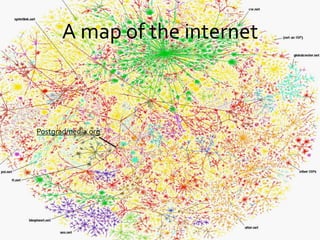
A map of the internet
Postgradmedia.org
credits
Networking images from:
• www.theshulers.com/whitepapers/internet_whitepaper/by Rus Shuler
• Map by Bill Cheswick http://www.cheswick.com/ches/map/gallery/isp-
ss.gif
• ‘Relax’ by lukey dargons
http://www.flickr.com/photos/lukeydargons/1624053542/ cc some rights
reserved

CMWP, the technical lecture

  • 1.
  • 2.
    Hmmm… If all youcan do is social media, you can only play by other people’s rules. As a media professional, you need to be able to make your own rules… …and that means some technical understanding
  • 3.
    What are websitesreally? What is a website? 1. Domain names 2. Database of files, including HTML pages 3. Internet infrastructure 4. Internet protocols Understanding the relationships between these aspects of a website will help you with Delectable mountains 3: HTML page and Delectable mountains 4: upload your webpage
  • 4.
    Domain names 1. Aunique textual identifier 2. Associated with an IP address– which is what the internet actually interprets
  • 5.
    Domain names Various typesof domain name suffixes– eg ‘edu’ stands for ‘education’; ‘tv’ stands for ‘Tuvalu’ • You can design, purchase and register your own domain name (eg mine is ‘geniwate.com’) • Then you have to associate that name with your server space, where you store your website files.
  • 6.
    A database offiles • Including images, video, audio, etc • They are digital files–computers and the networks read them as a series of 0’s and 1’s • You link the various resources into one page, which, in its most basic form, is an ‘HTML’ page (written in HTML code and ending in the file extension .html or .htm) • The resources and the HTML page/s have to be ‘uploaded’ onto your server • Usually you would hire server space from an internet service provider
  • 7.
    Internet infrastructure • Manycomputers linked together • Information is shared via cables and/or wifi
  • 8.
    Internet protocols • Rulesand code • Ensure computers can communicate
  • 9.
    HTML pages • HTML= Hypertext Markup Language • Browsers translate HTML pages and display them • We will hand-code HTML for our home page in Delectable Mountains 3 • You need a free text editor, such asTextWrangler orText Edit.
  • 10.
    HTML code • Isalways surrounded by <> • Usually has a start and a finish, eg <em>italics</em> • There is an ‘/’ in the finish An HTML page has two sections: • <head> high-level instructions</head> • <body>page content</body> • You will learn basic HTML in Delectable Mountains 1 and 2
  • 11.
    Delectable Mountains 3 •Code up your content and save your file as ‘index.html’ to your desktop • Make sure the path to any image you are going to use is relative rather than absolute (see http://webdesign.about.com/od/beginningtutorials/a/aa040502a.h tm) • When you’ve finished, test your index.html page by dragging it into your browser (eg, Chrome). Does it look the way you expect?
  • 12.
    Stand up! Now, takea break from the computer and do some exercises ….
  • 14.
    Delectable Mountains 4 Youhave tested your page in the browser and it looks good, but index.html is now sitting on your desktop, and stored on your computer’s hard drive. We need to put it on the web (ie, upload it to the server) Also, you need to upload any resources that are associated with your web page (eg images). It is important that you maintain the same relationship between your files on the server as exists on your computer.
  • 15.
    But where doI publish my page? • F10-preview.awardspace.net/postgradmedia.org /2016/yourfoldername/ • Create your own folder inside the year folder.Your folder name should have: – no spaces, only alphanumeric characters – all file names, folder names, are CASE sensitive – this folder name will be public so use a name you are happy to be seen and associated with • your website URL will be something like http://F10- preview.awardspace.net/postgradmedia.org /2016/JaneDoe/ • Don’t have any spaces in your folder name or it will display strangely
  • 16.
    Ouch! • Only publishstuff in your own folder • You can publish any stuff you want BUT: – it is 100% public (anyone can see it, find it, etc) – So you only want to put web ready stuff here – You must have total copyright ownership, or clear permission to use someone else’s stuff – You must attribute other people’s stuff properly (ie, if you have copyright permission, you still have to attribute) – No pornography, libel, slander, racist stuff please! • Yes, people routinely break copyright on the Web, BUT, for students in an RMIT course, any breach of RMIT electronic communication guidelines, copyright etc has zero tolerance and will be removed.
  • 17.
    How do Iget my pages from my desktop to my website? • FileTransfer Protocol (FTP) is the process of transferring files from your computer to the server (at postgradmedia.org) , so they will display on the Internet. • You’ll need some FTP software, for exampleCyberduck (free download from http://download.cnet.com/Cyberduck/3000- 2160_4-10246246.html) or Fetch. • RMIT has a firewall which may block your access. It might be better to do this at home.
  • 18.
    SFTP Actually • Ourserver (hosting postgradmedia.org) is a secure server. You may need to tell Cyberduck that. • The password and Cyberduck directions are shared with you in a private doc on Google drive called ‘websites forCMWP’.
  • 19.
    Postgradmedia.org • You’ll needto create your folder. • It goes inside the folder called the current year (eg 2016, etc) • You should see other students’ folders there (unless you are the first one). • Do not tamper with any other folder.
  • 20.
    Postgradmedia.org • Put yourindex.html file inside your folder • If you have images, you would put them in this folder too. • If you have a relative path between your image and your html page, the image should display OK.
  • 21.
    Testing • Now, testyour web page through the browser (eg Chrome). Here is an old one of mine.TheURL doesn’t need ‘index.html’ at the end • The most common problem is the image doesn’t display.This is because the ‘path’ between the image in the html and where it is stored has changed.To fix it, either change your HTML code, or move the image so it re-connects.
  • 22.
    Testing • Your pageon the internet will start with http, not ftp. Many students make this mistake! • For example: http://f10- preview.awardspace.net/postgradmedia.org/2016/YourName/ • Web pages can look different in different browsers.Try testing yours in a couple of browsers (eg, Firefox, Chrome, Safari etc) and see if it changes. • If you’ve done the exercise correctly, anyone can now see your page.
  • 23.
    Aside (In case youwant your own website)Domain names: • Choosing your own domain namehttp://www.youtube.com/watch?feature=endscreen&NR=1&v=_0QfUU_NJCY • It can be difficult to find a good domain name.You can do a search for what is available at http://instantdomainsearch.com/. Consider different suffixes if you’re having trouble, eg .com, .com.au, .net, etc • You should be able to register a domain name for approx. $12The ISP may offer this service very cheap. ISP (Internet Service Providers) • Free ones offer very limited services. Most ISPs charge by credit card every month; you should be able to get one for a couple of dollars per month. • Look overseas, they’re cheaper! • Have a look at the services they offer. For example, will they install and maintain Wordpress? Do they have 24-hour live chat helpdesk? Do they have clear instructions for doing FTP?
  • 24.
    A map ofthe internet Postgradmedia.org
  • 25.
    credits Networking images from: •www.theshulers.com/whitepapers/internet_whitepaper/by Rus Shuler • Map by Bill Cheswick http://www.cheswick.com/ches/map/gallery/isp- ss.gif • ‘Relax’ by lukey dargons http://www.flickr.com/photos/lukeydargons/1624053542/ cc some rights reserved